Dropbox is a clever way to
backup files...
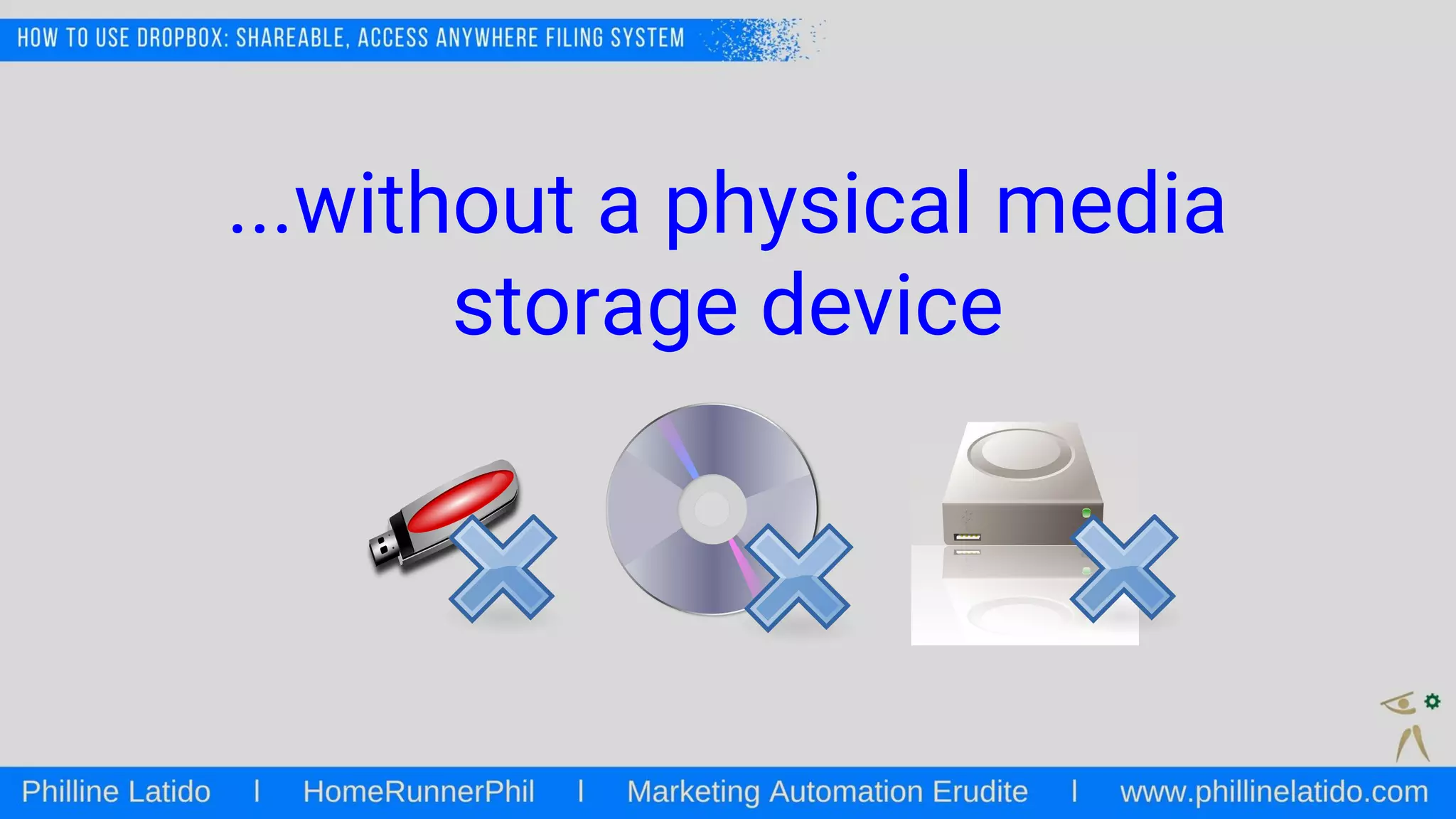
...without a physical media
storage device
It allows you to share files
online...
...and gives you access to them
wherever you are.
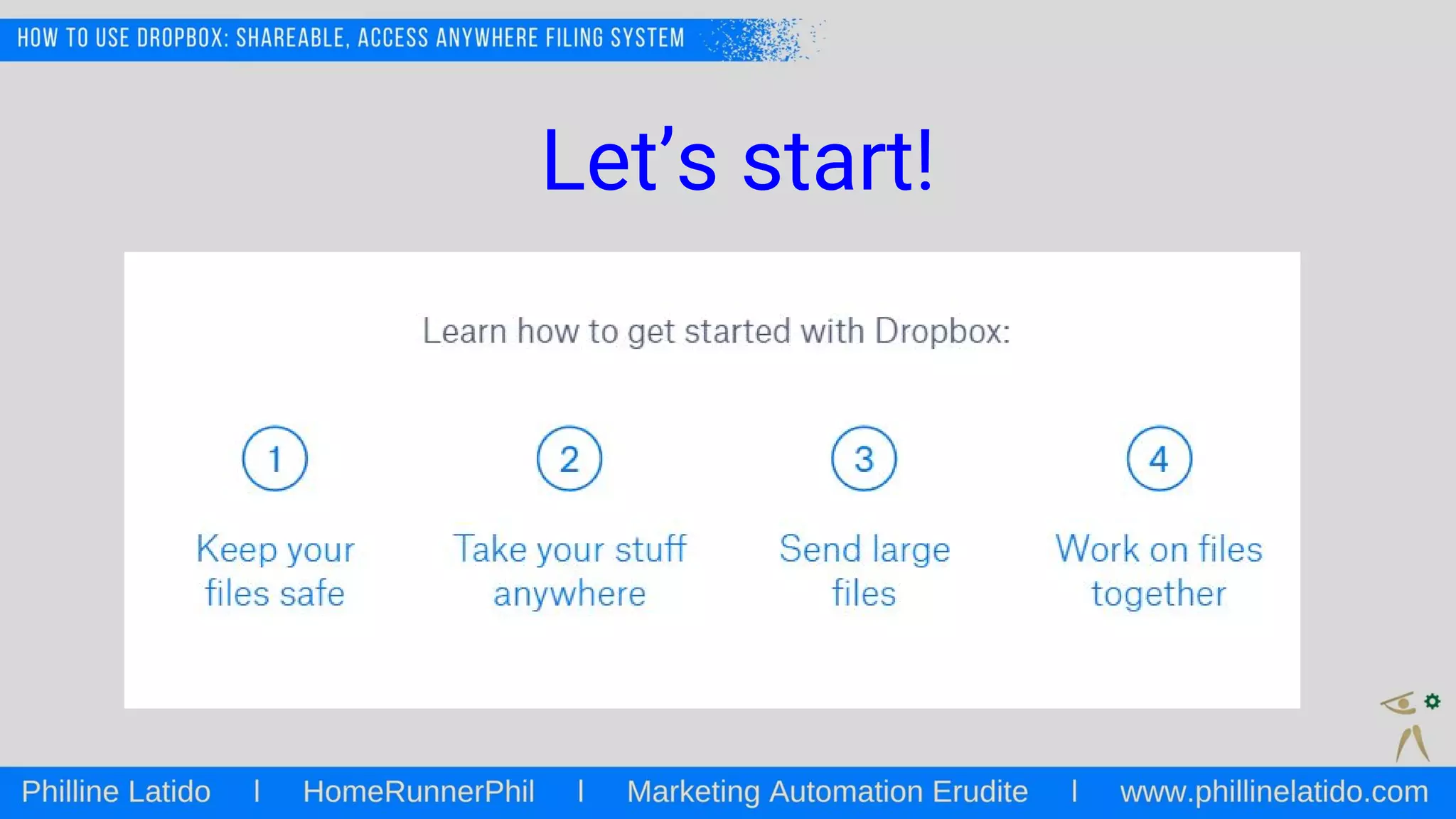
Let’s start!
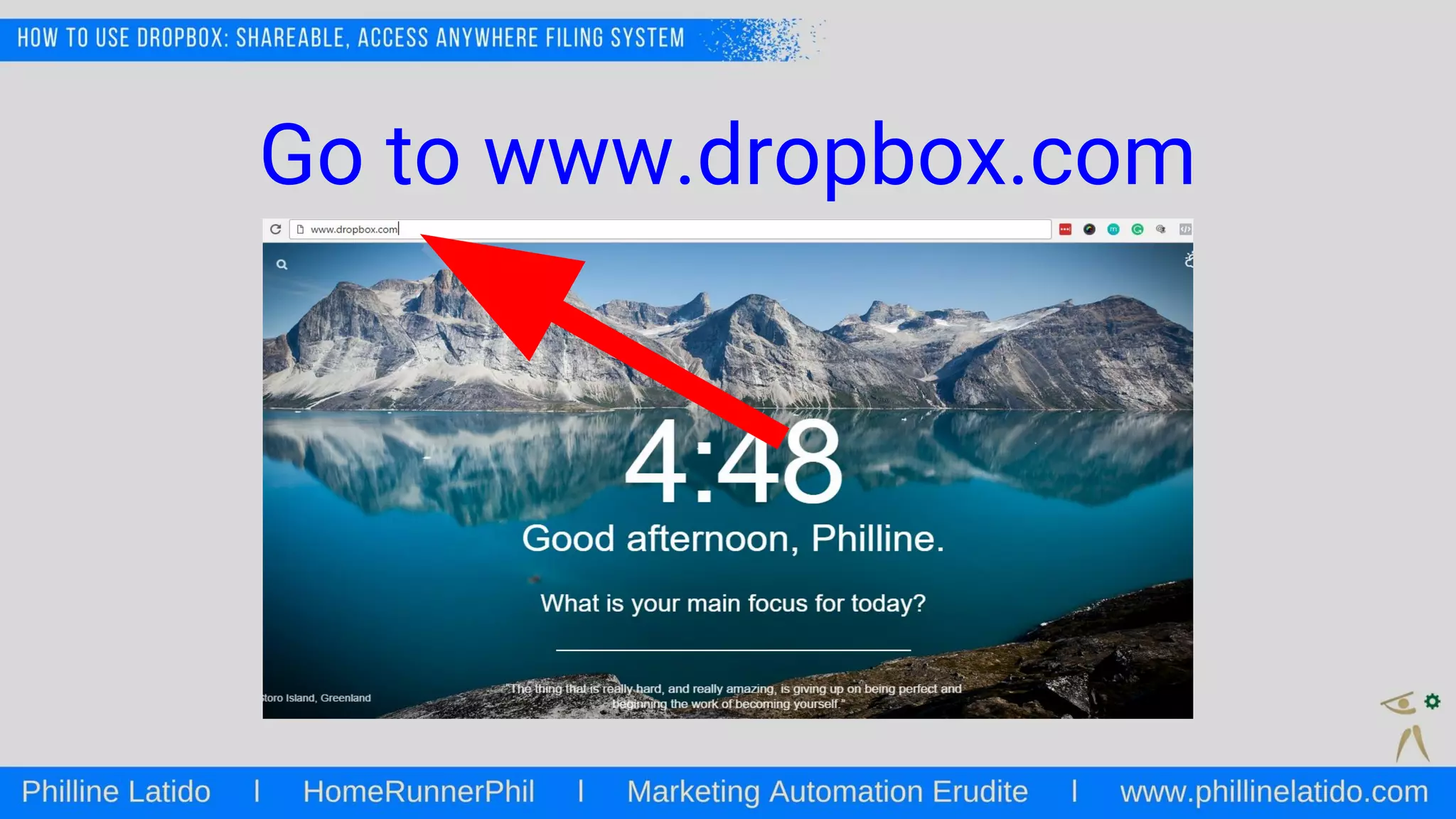
Go to www.dropbox.com
Create account
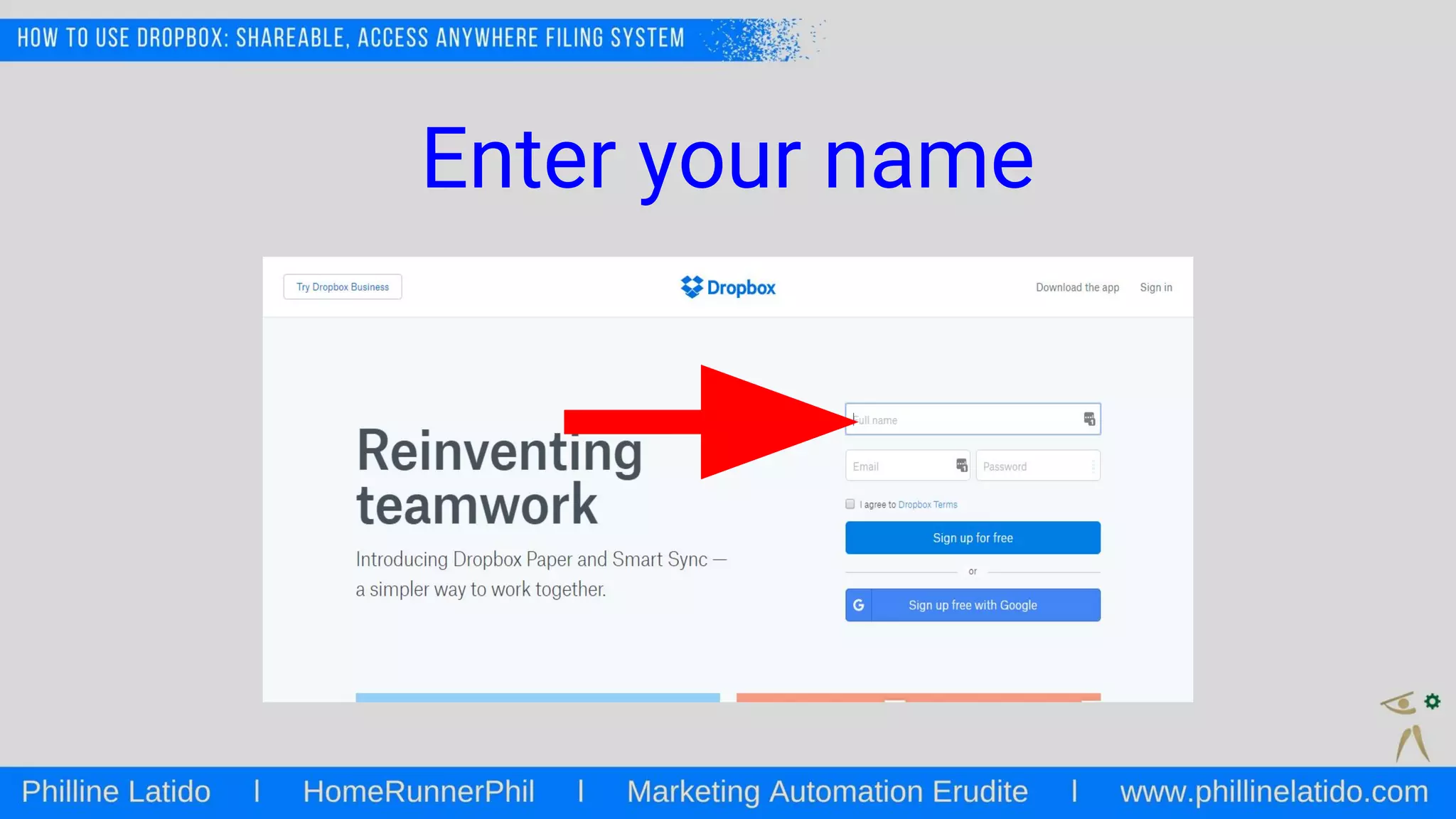
Enter your name
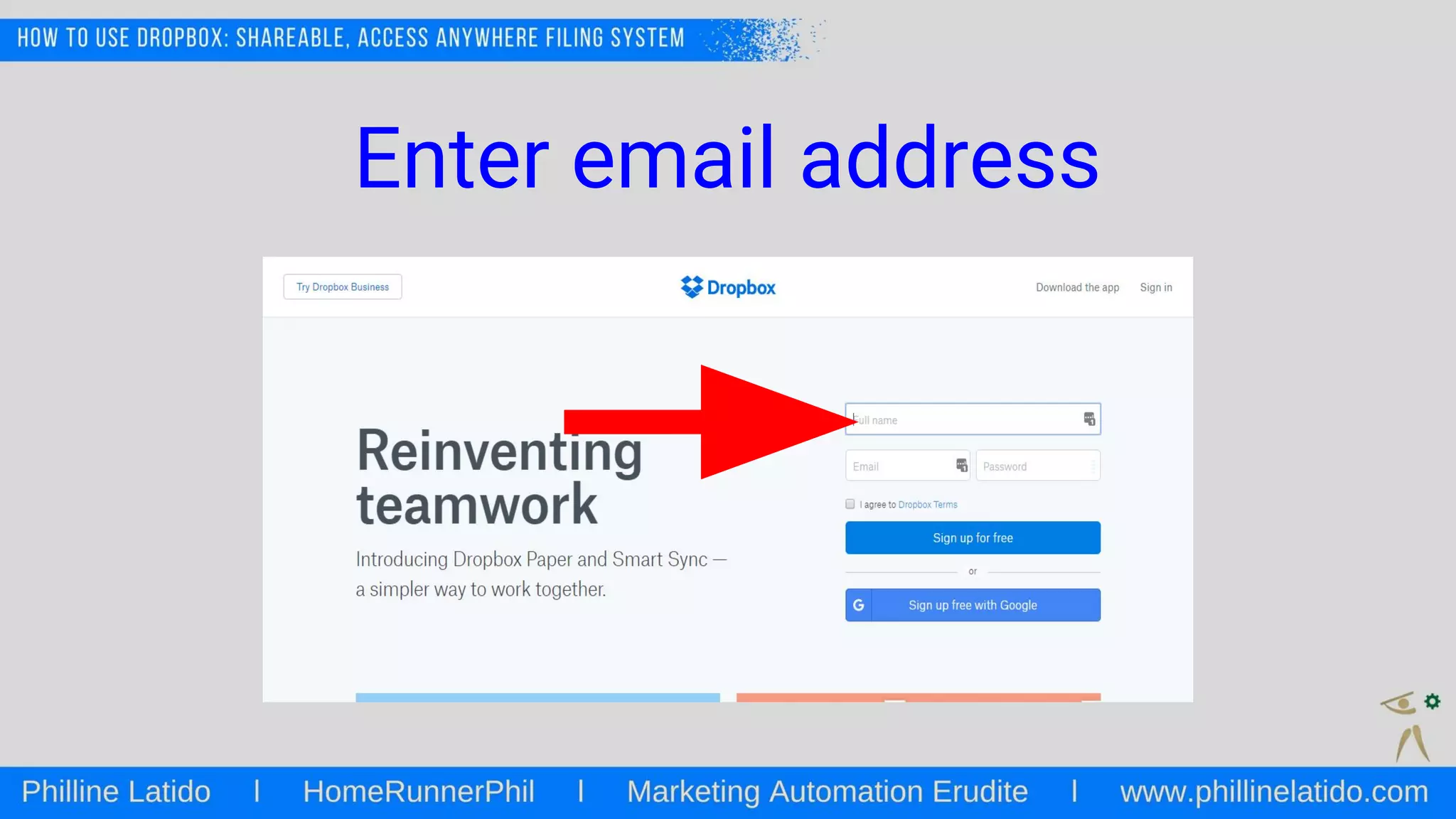
Enter email address
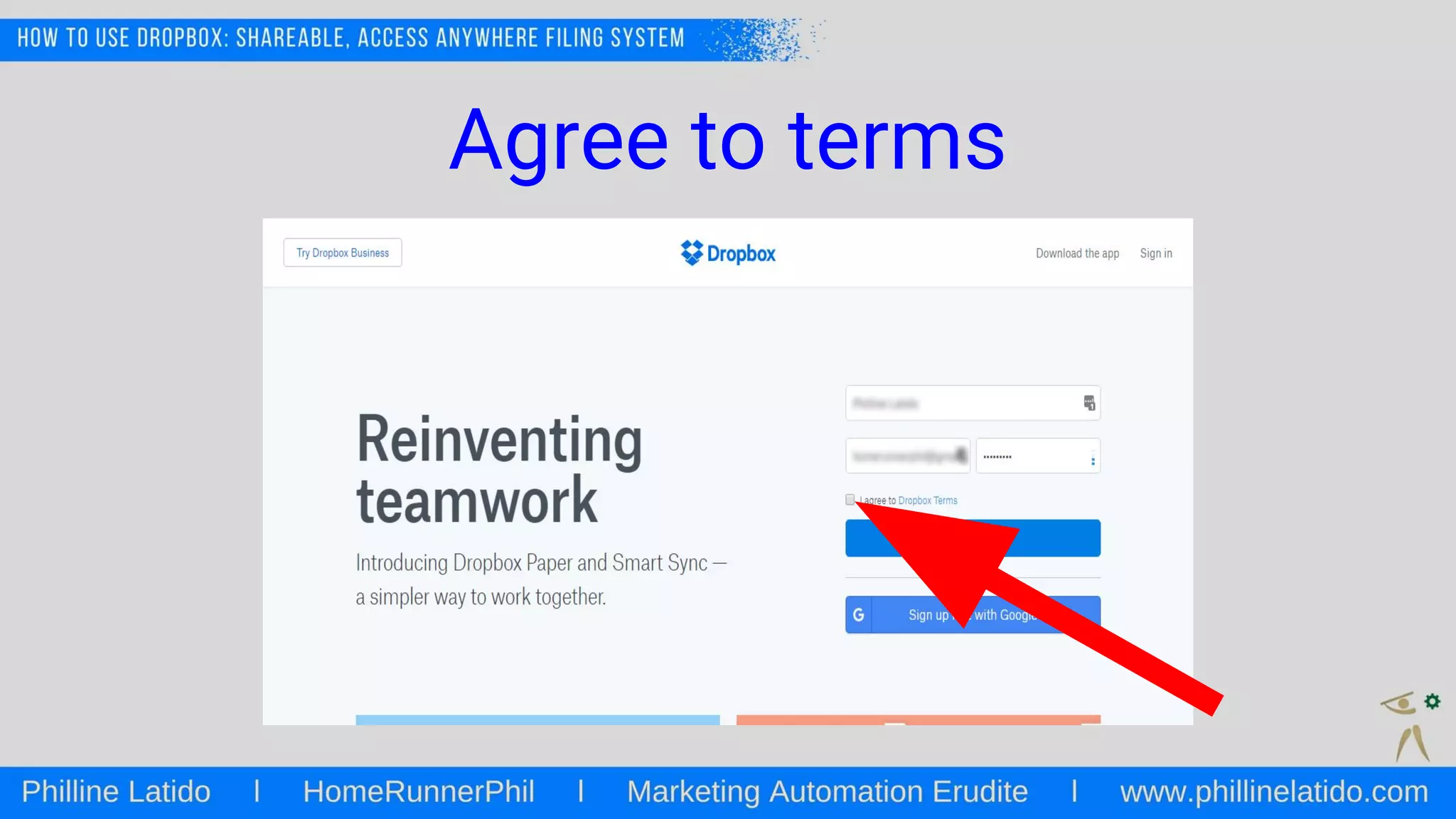
Agree to terms
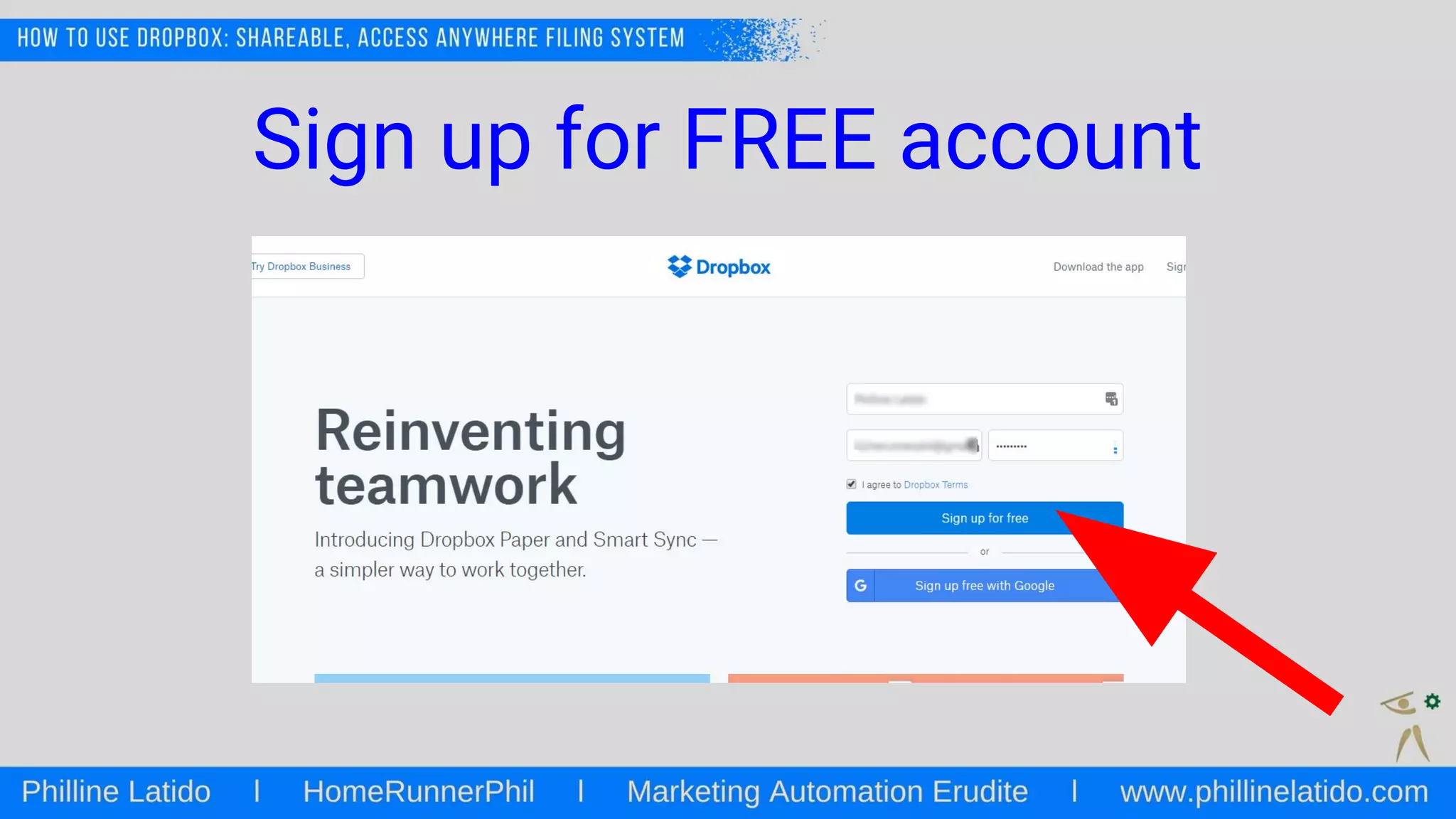
Sign up for FREE account
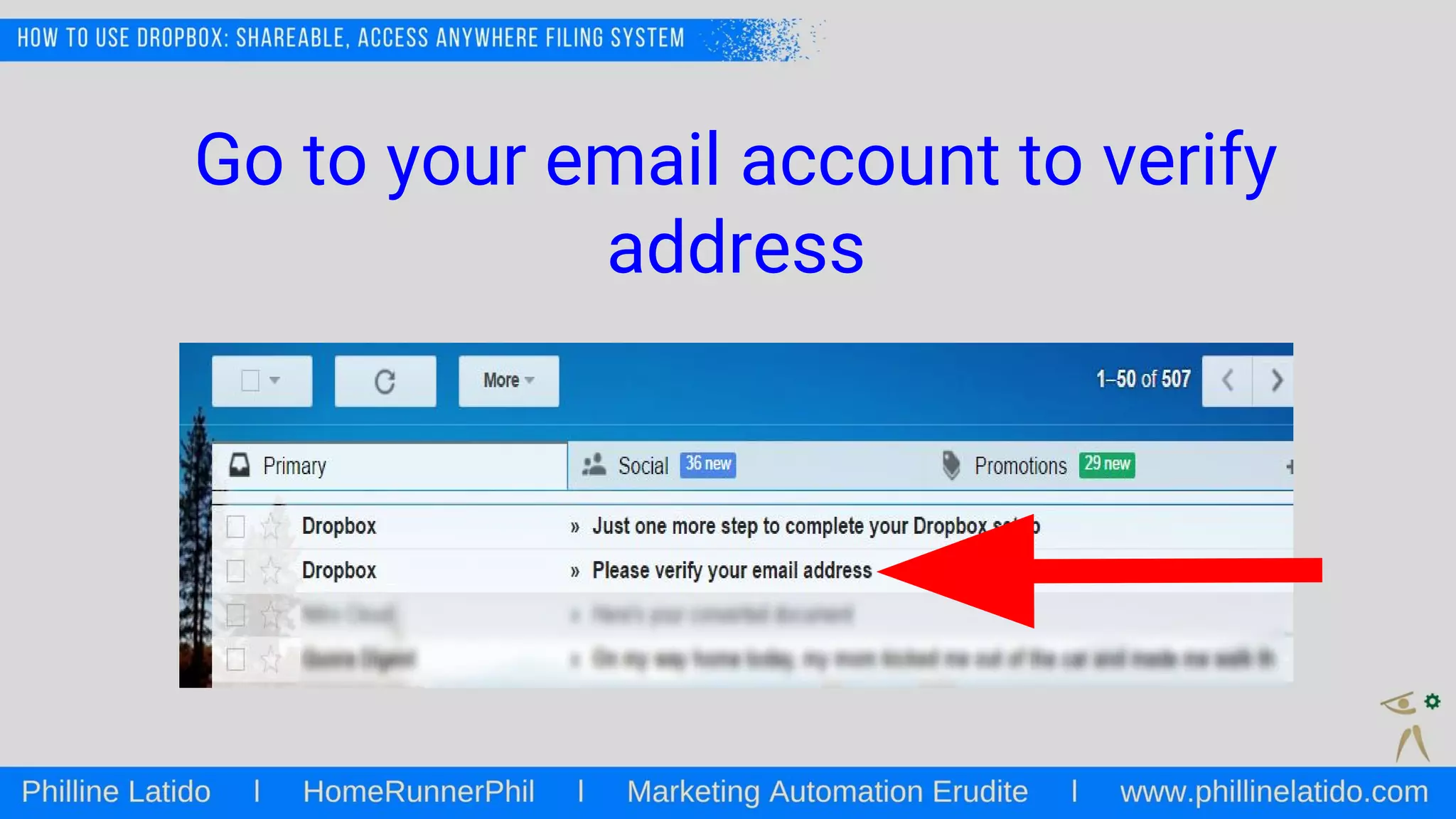
Go to your email account to verify
address
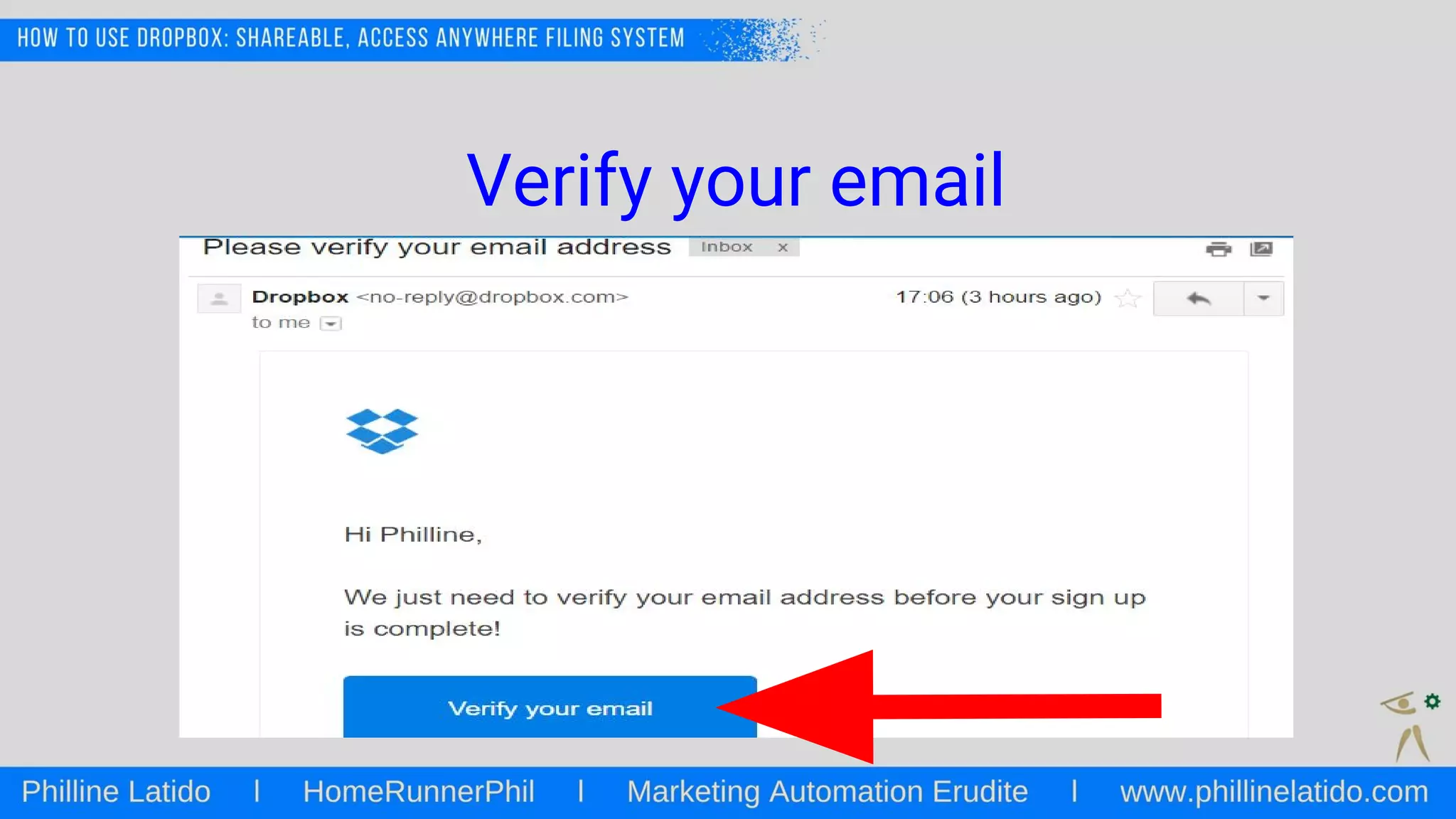
Verify your email
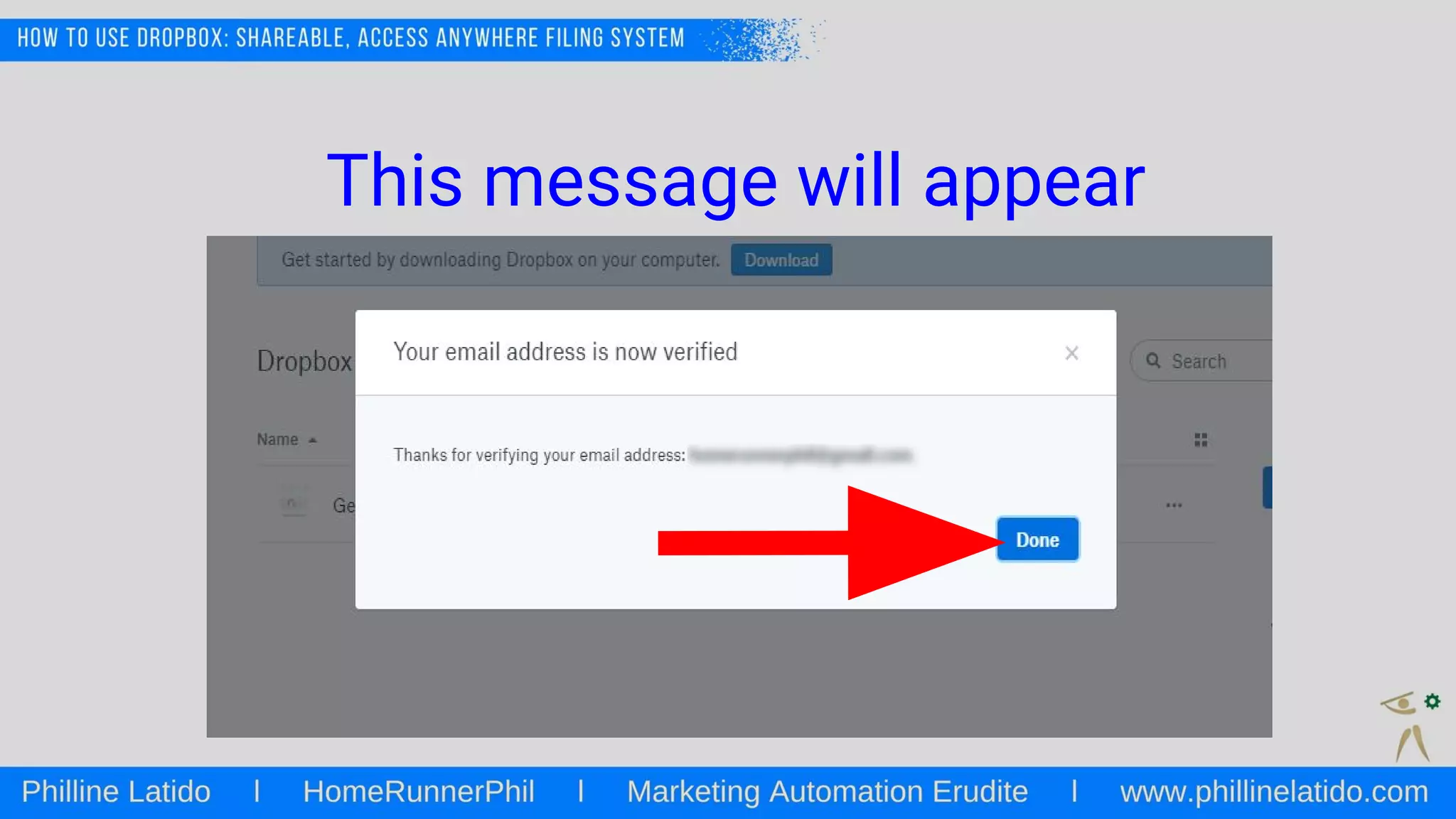
This message will appear
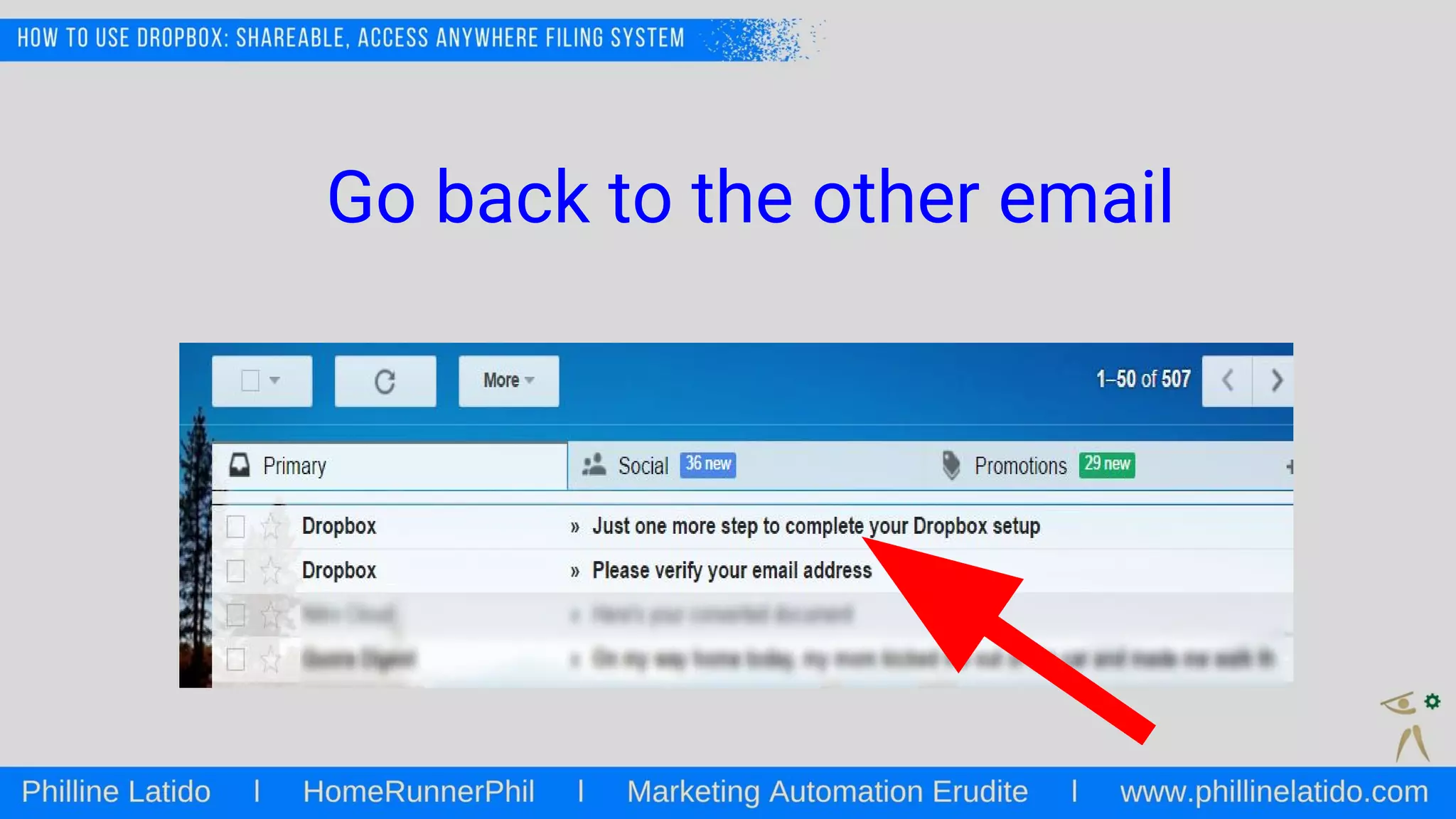
Go back to the other email
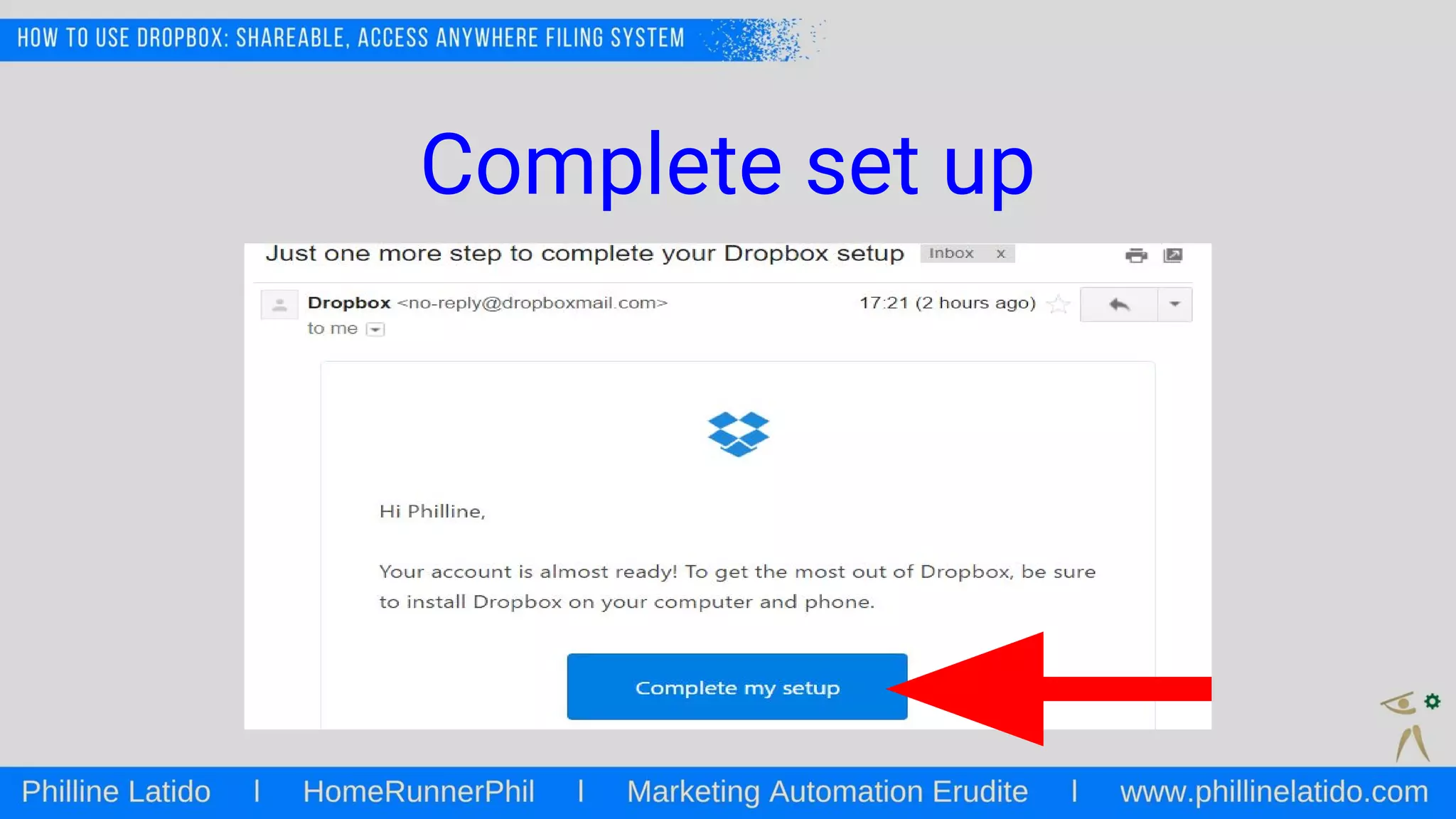
Complete set up
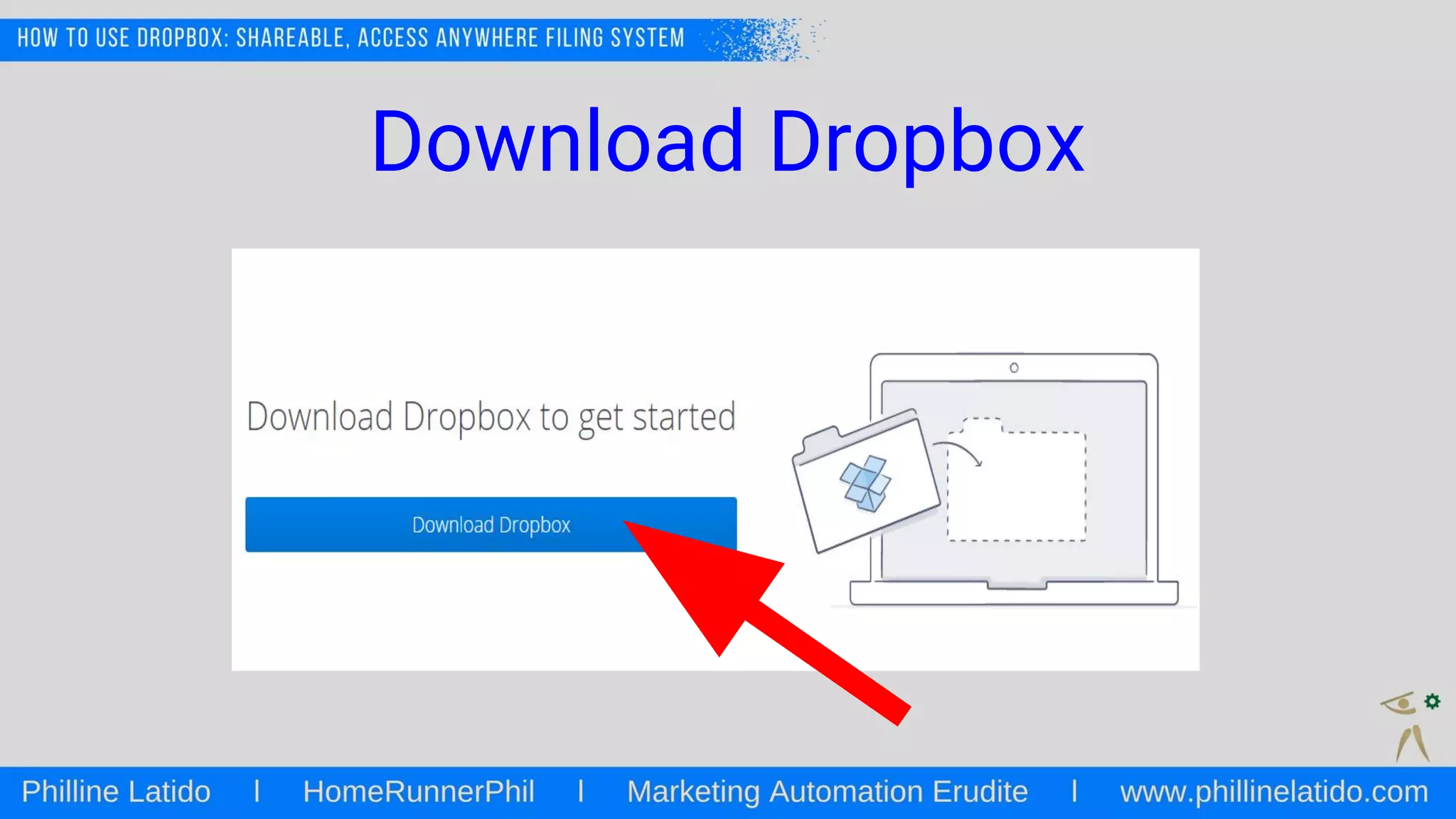
Download Dropbox
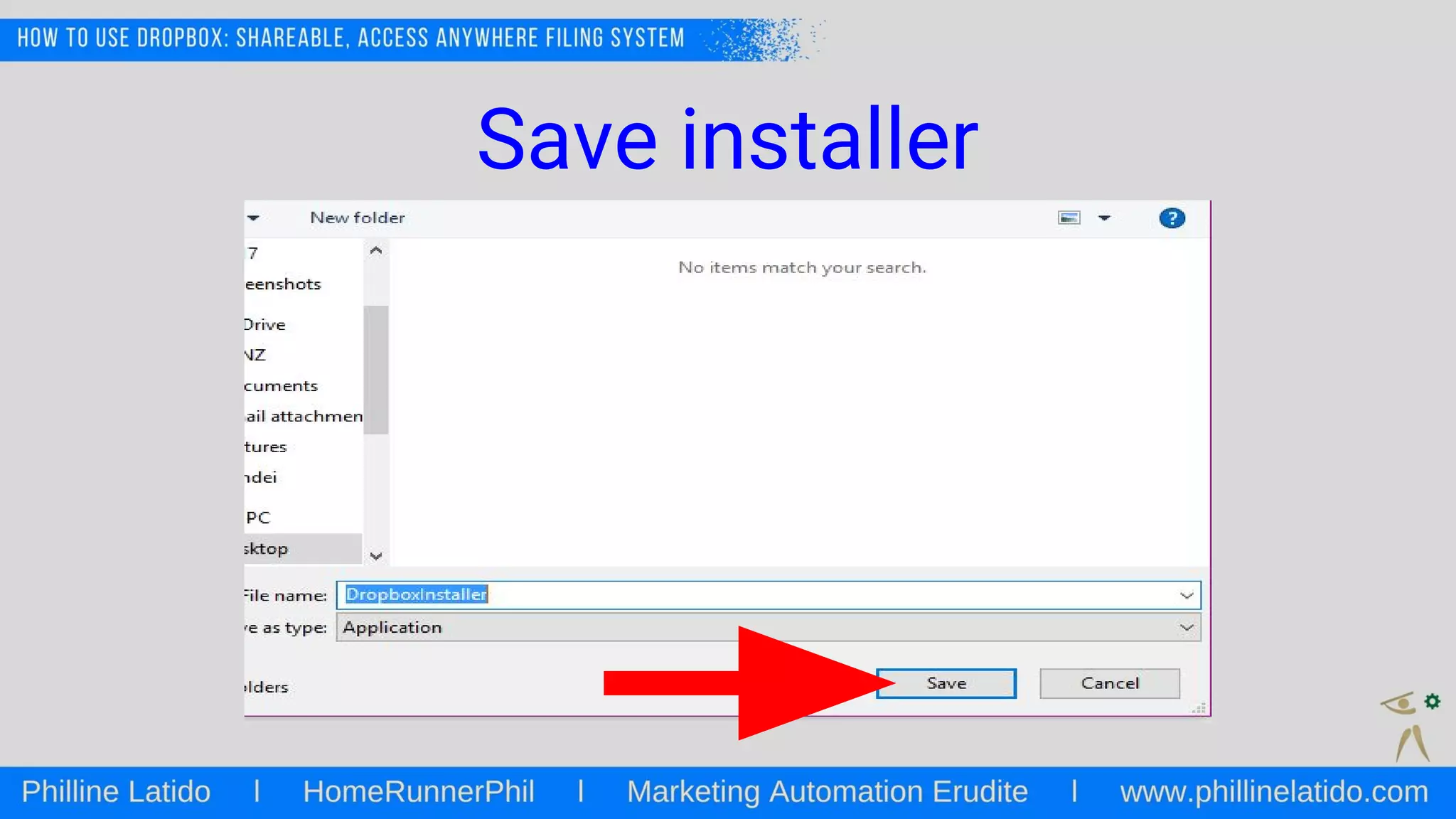
Save installer
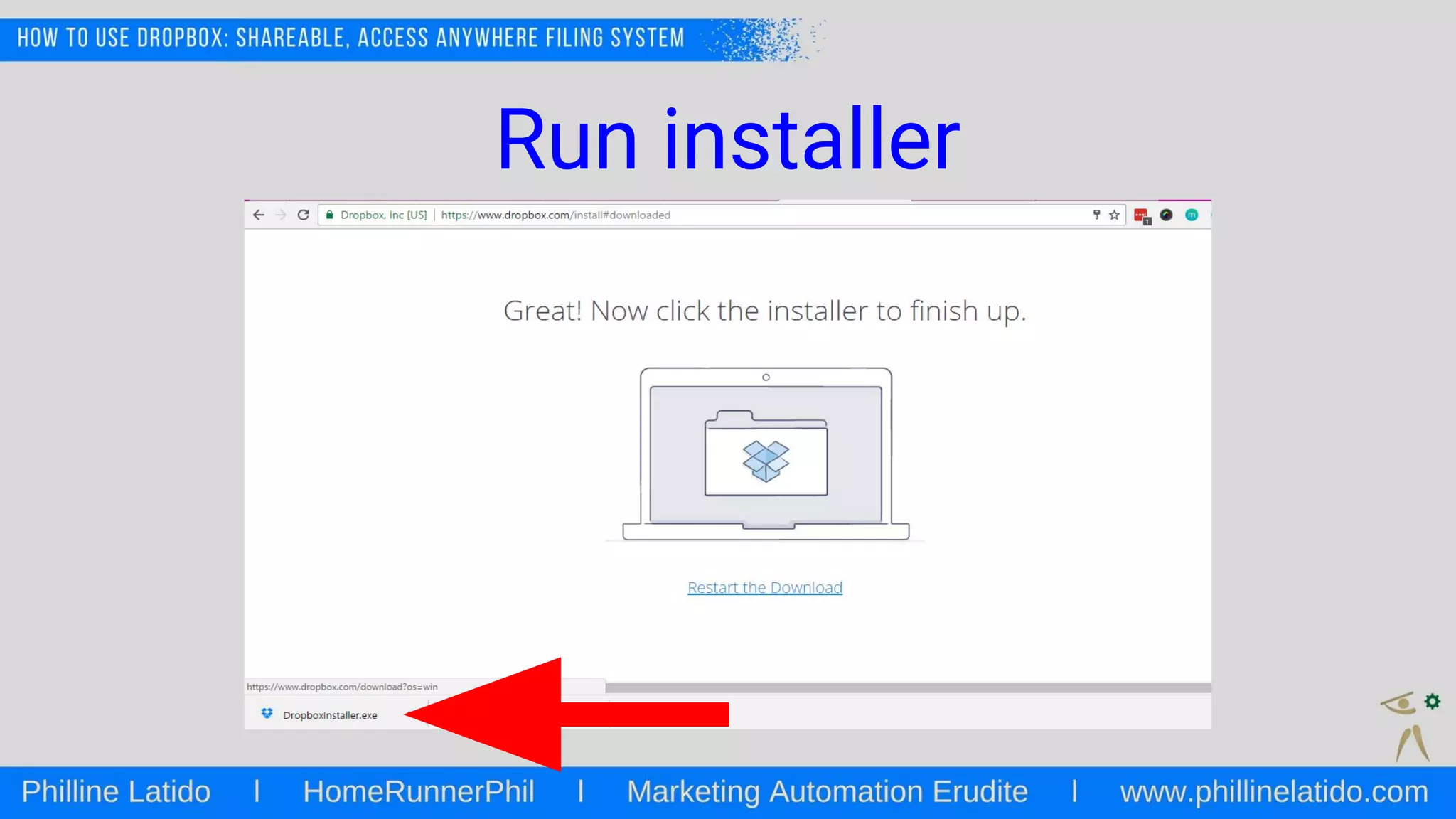
Run installer
Allow the app to make changes
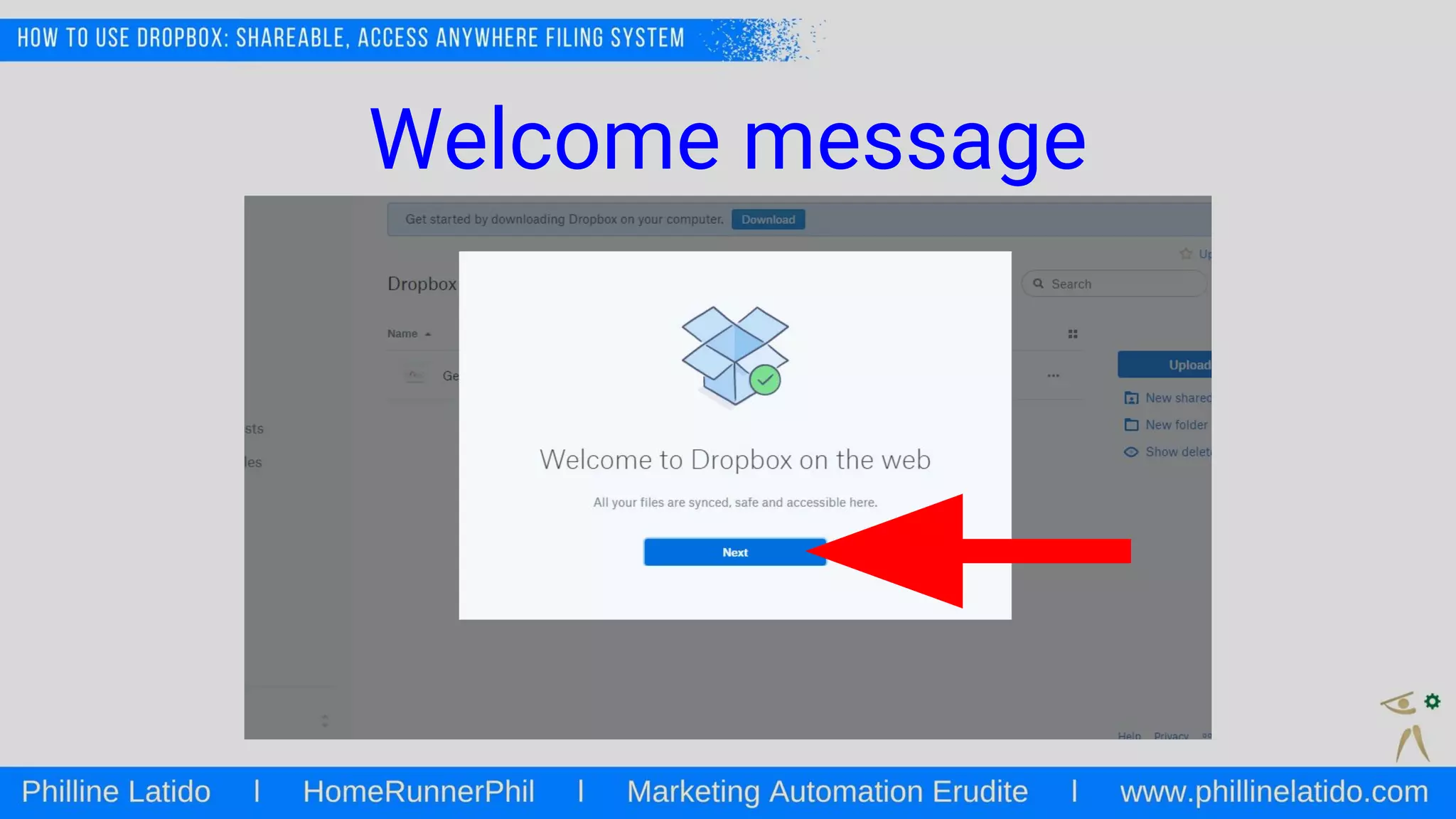
Welcome message
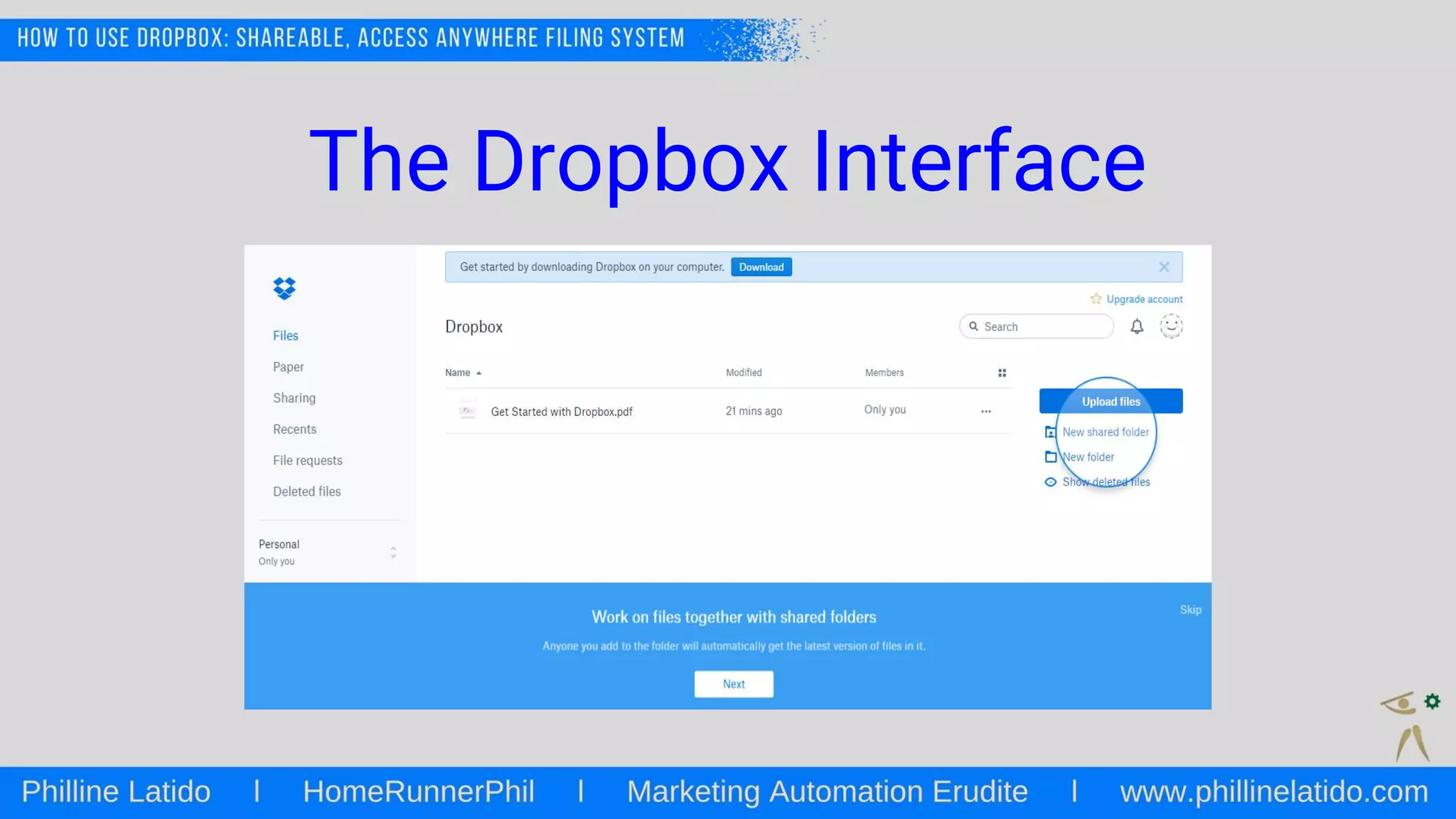
The Dropbox Interface
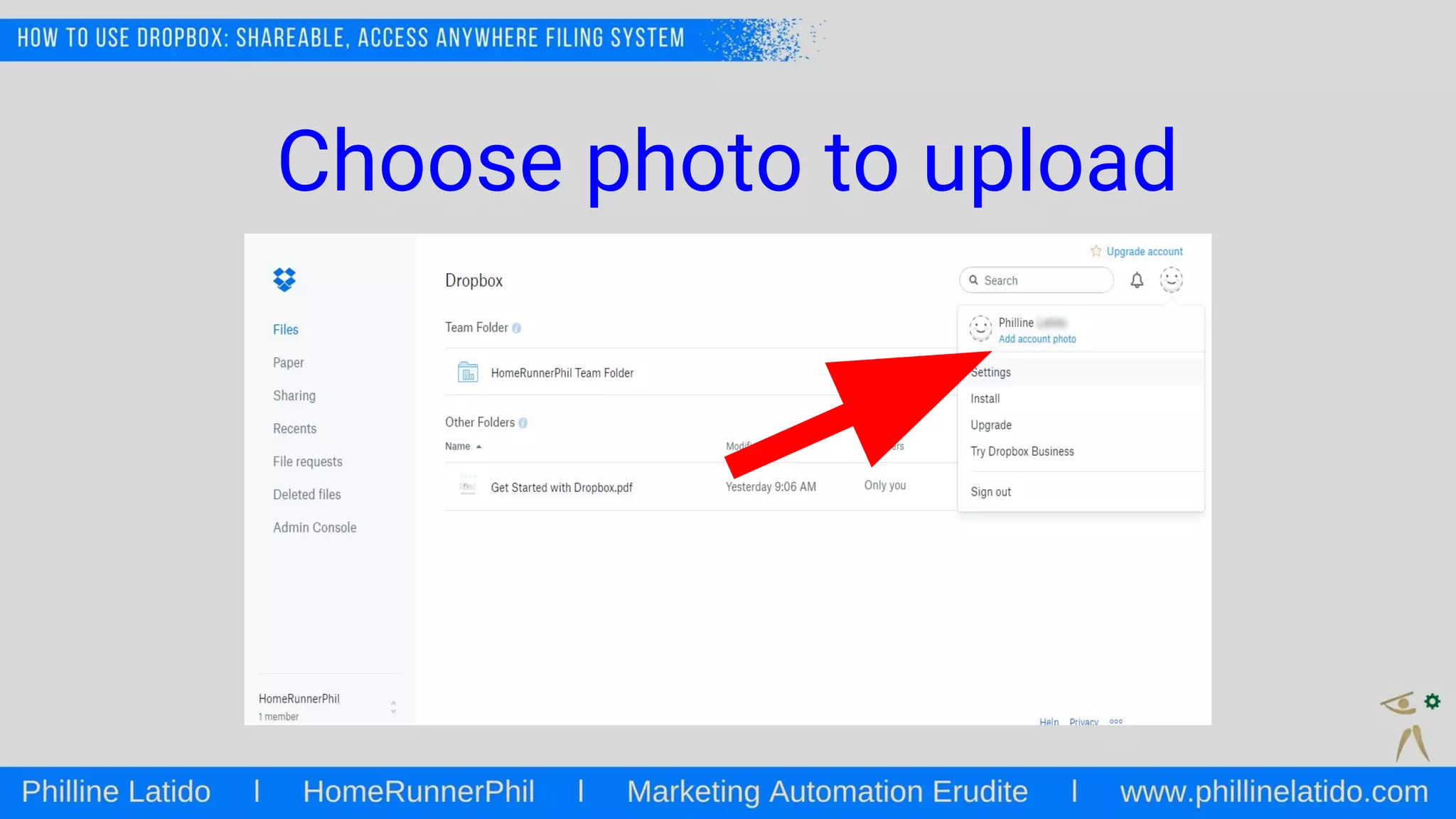
The Account Menu
Choose photo to upload
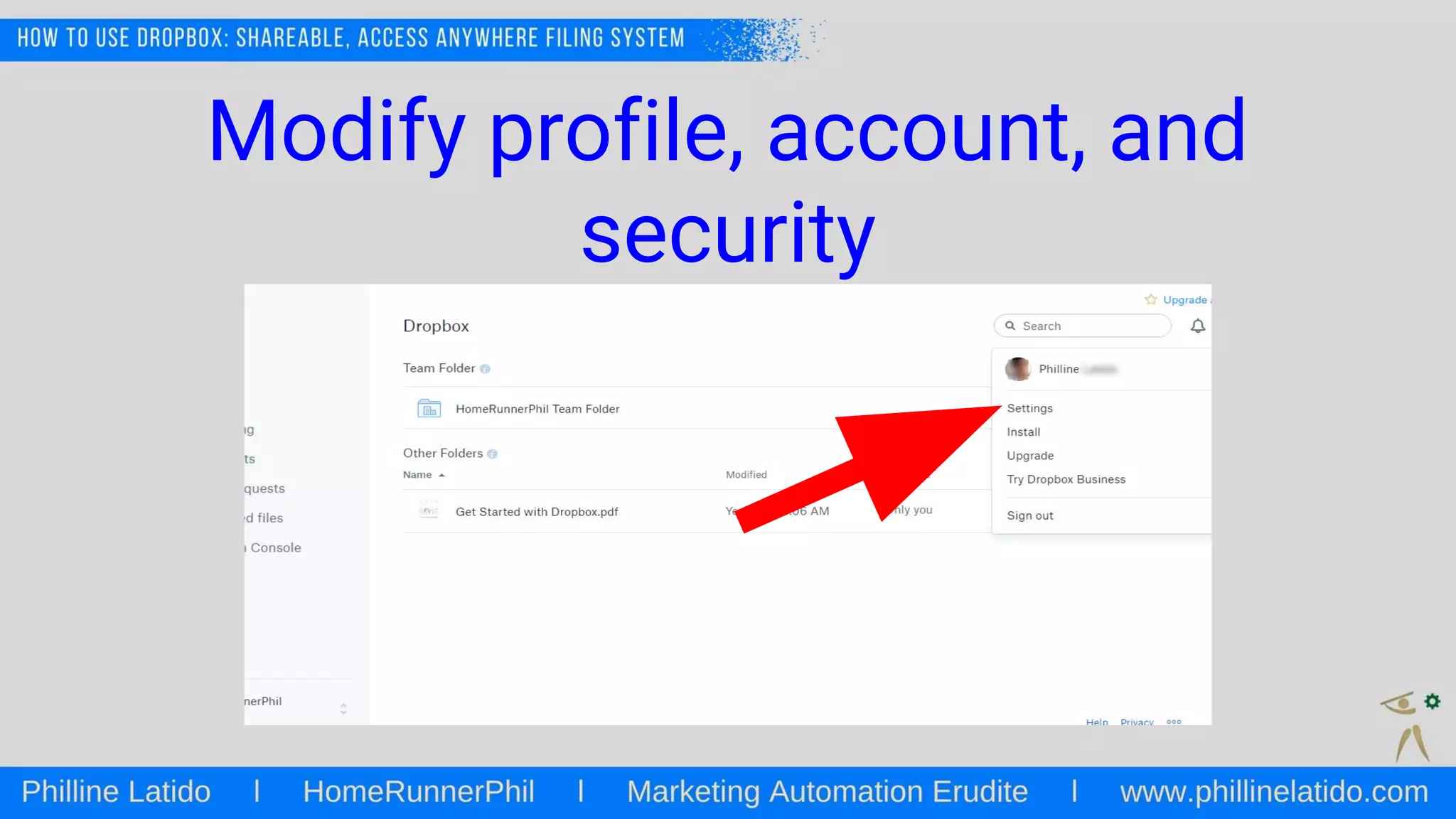
Modify profile, account, and
security
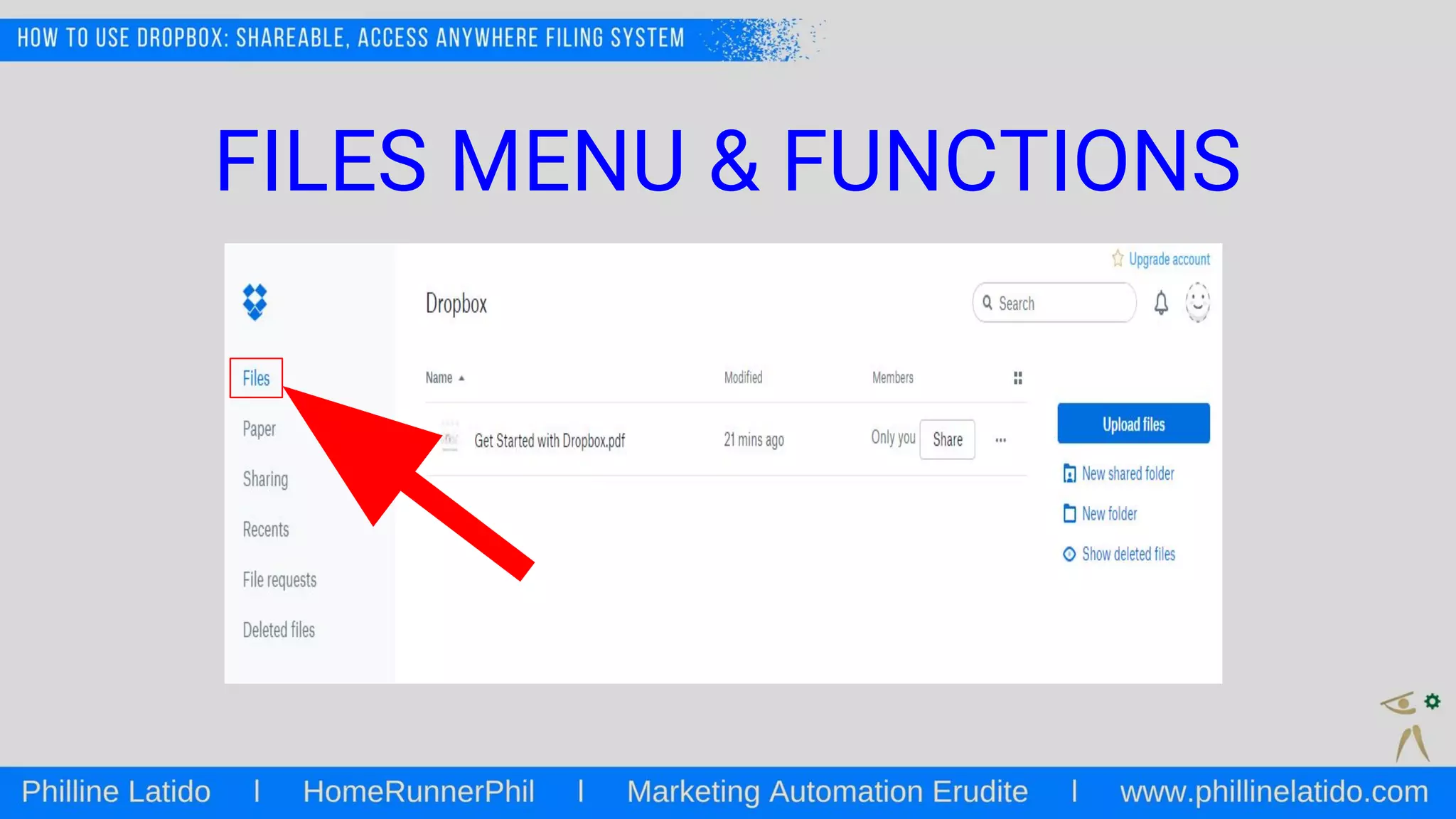
FILES MENU & FUNCTIONS
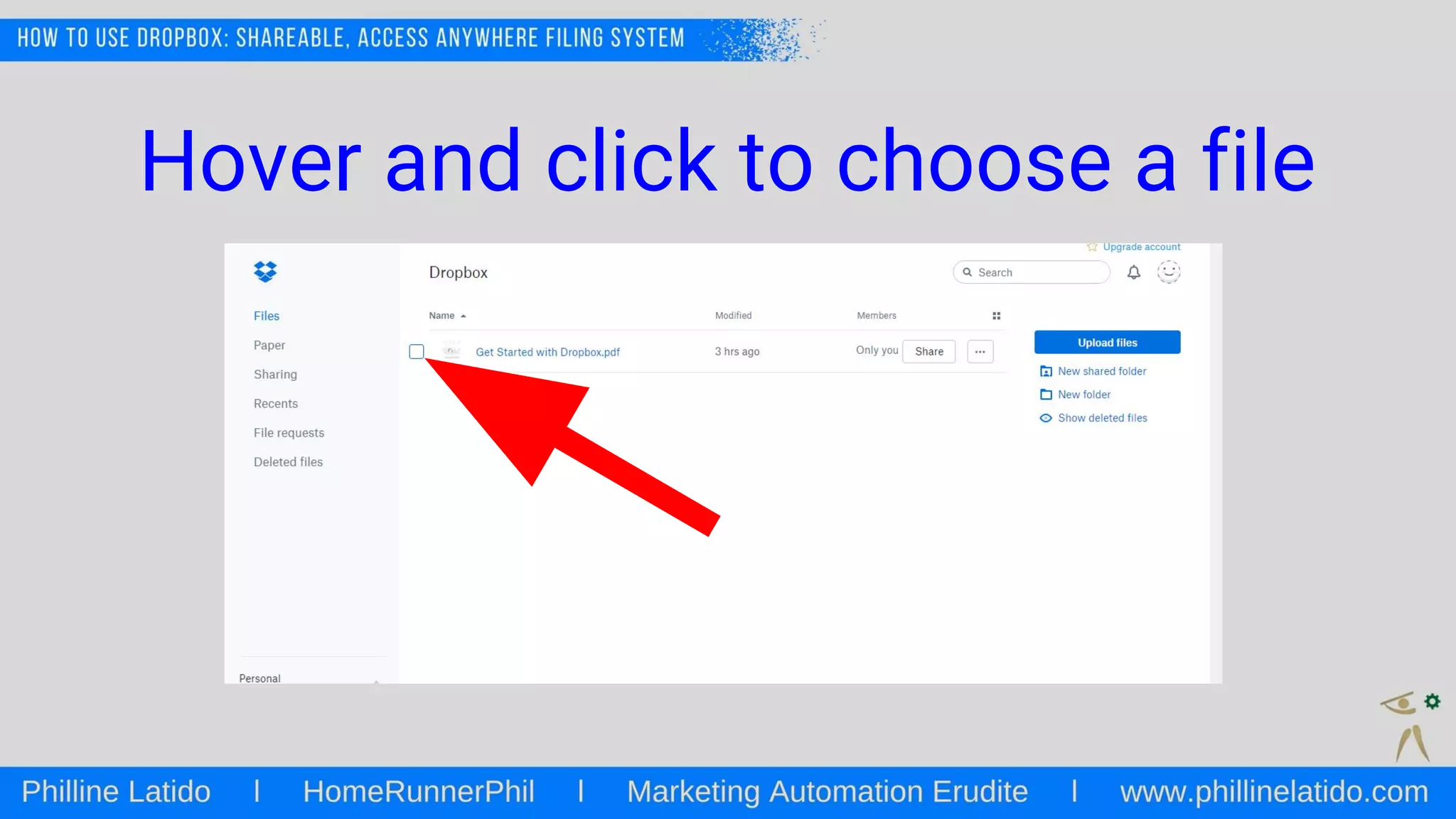
Hover and click to choose a file
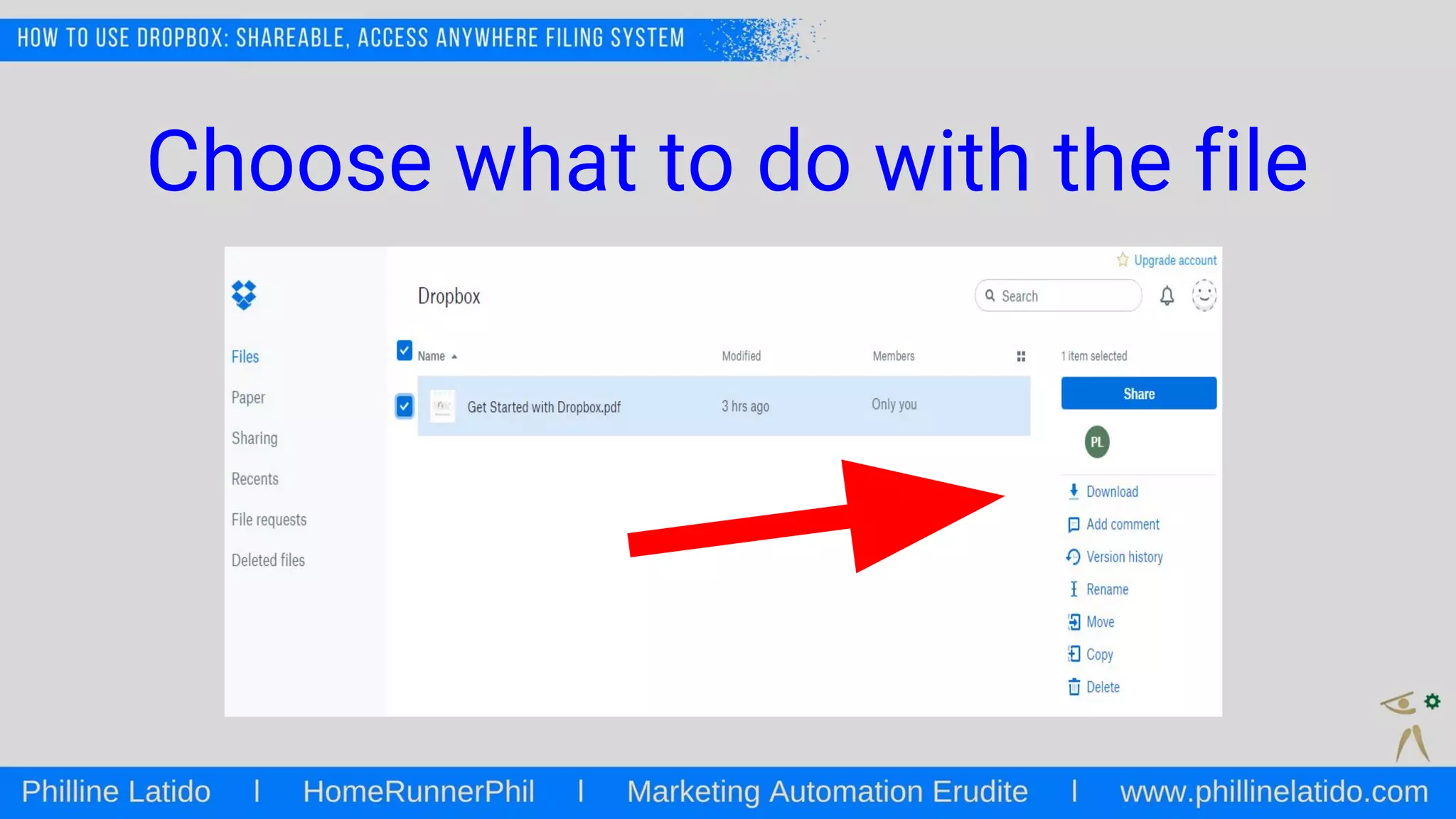
Choose what to do with the file
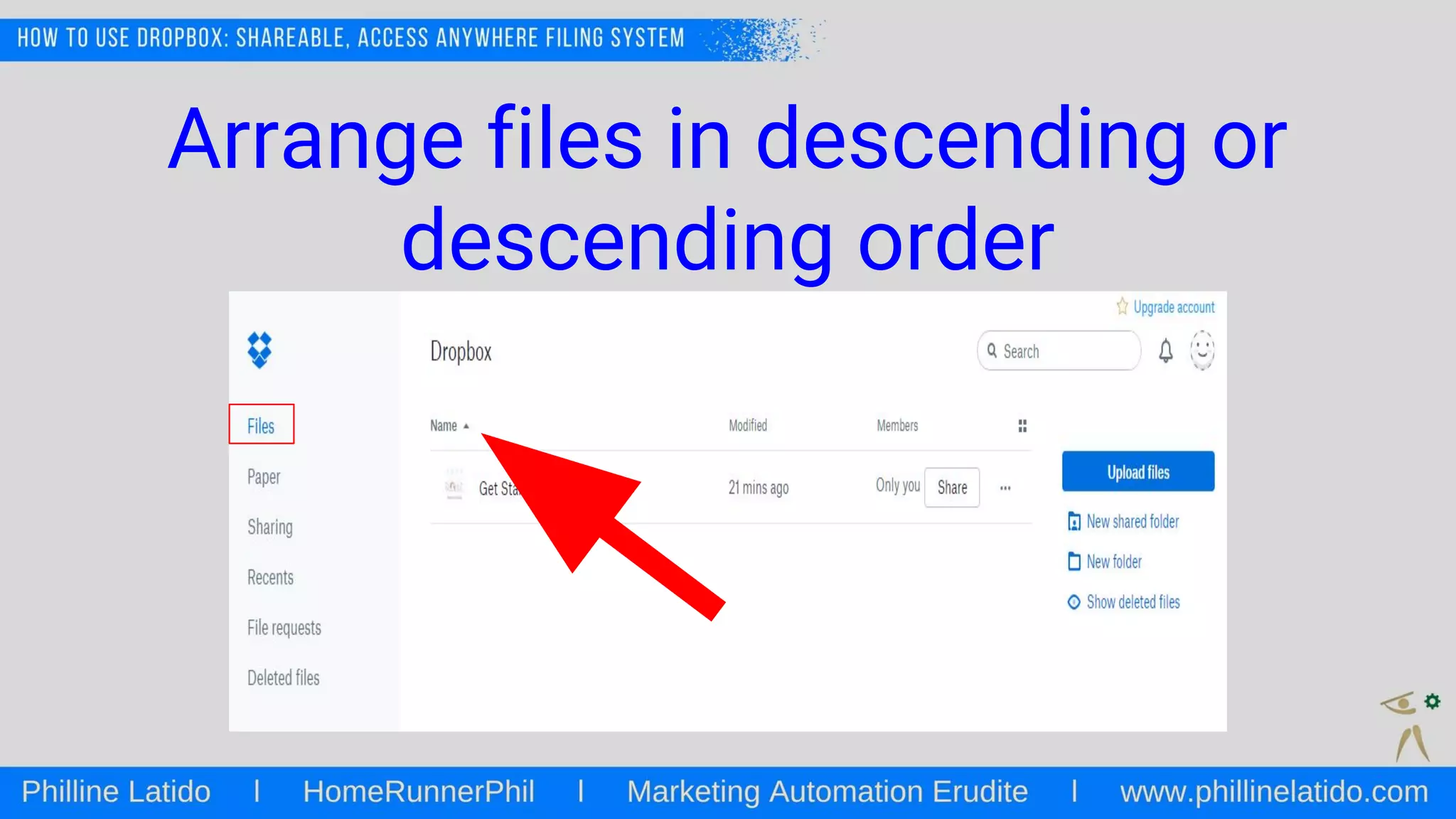
Arrange files in descending or
descending order
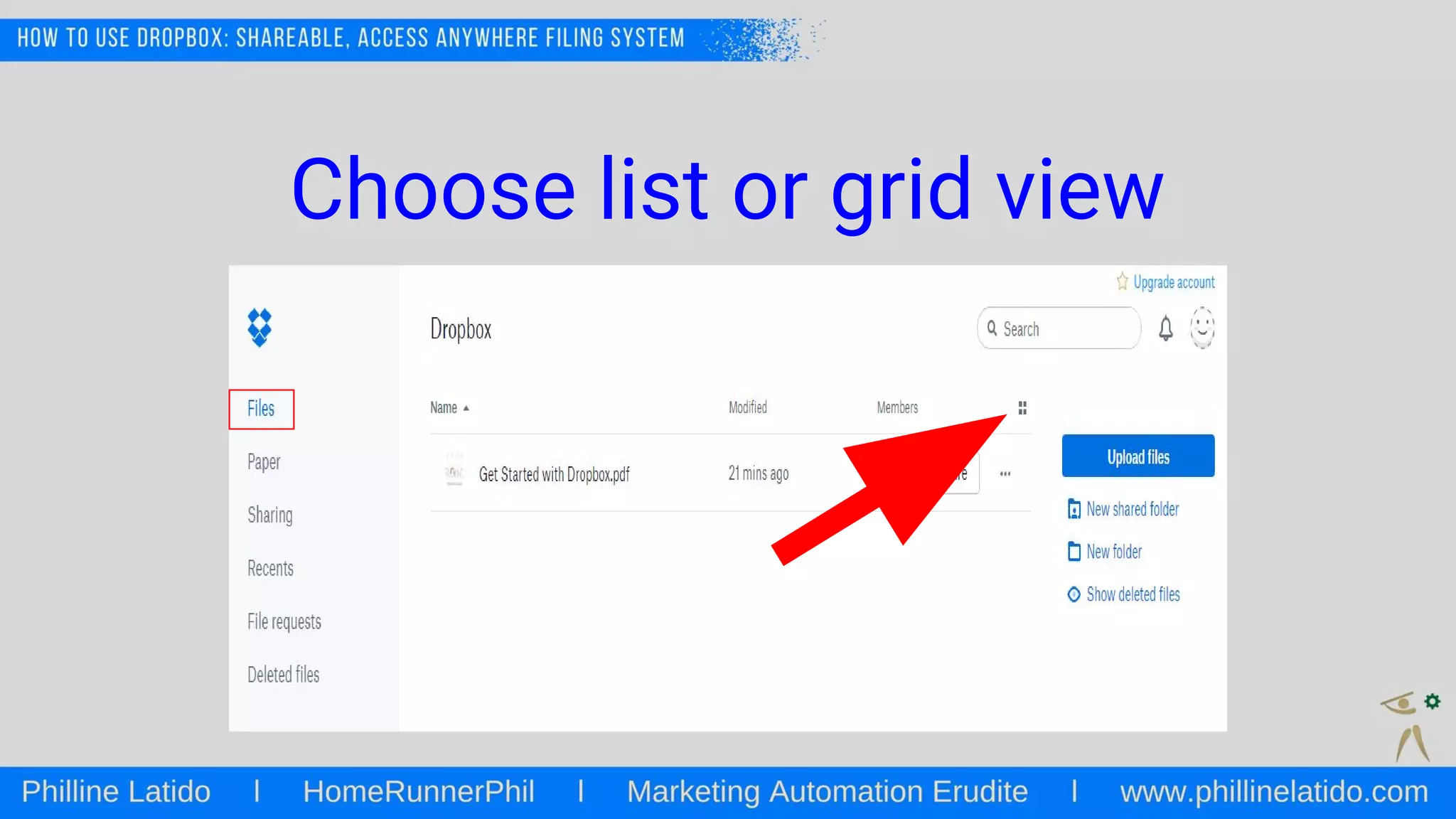
Choose list or grid view
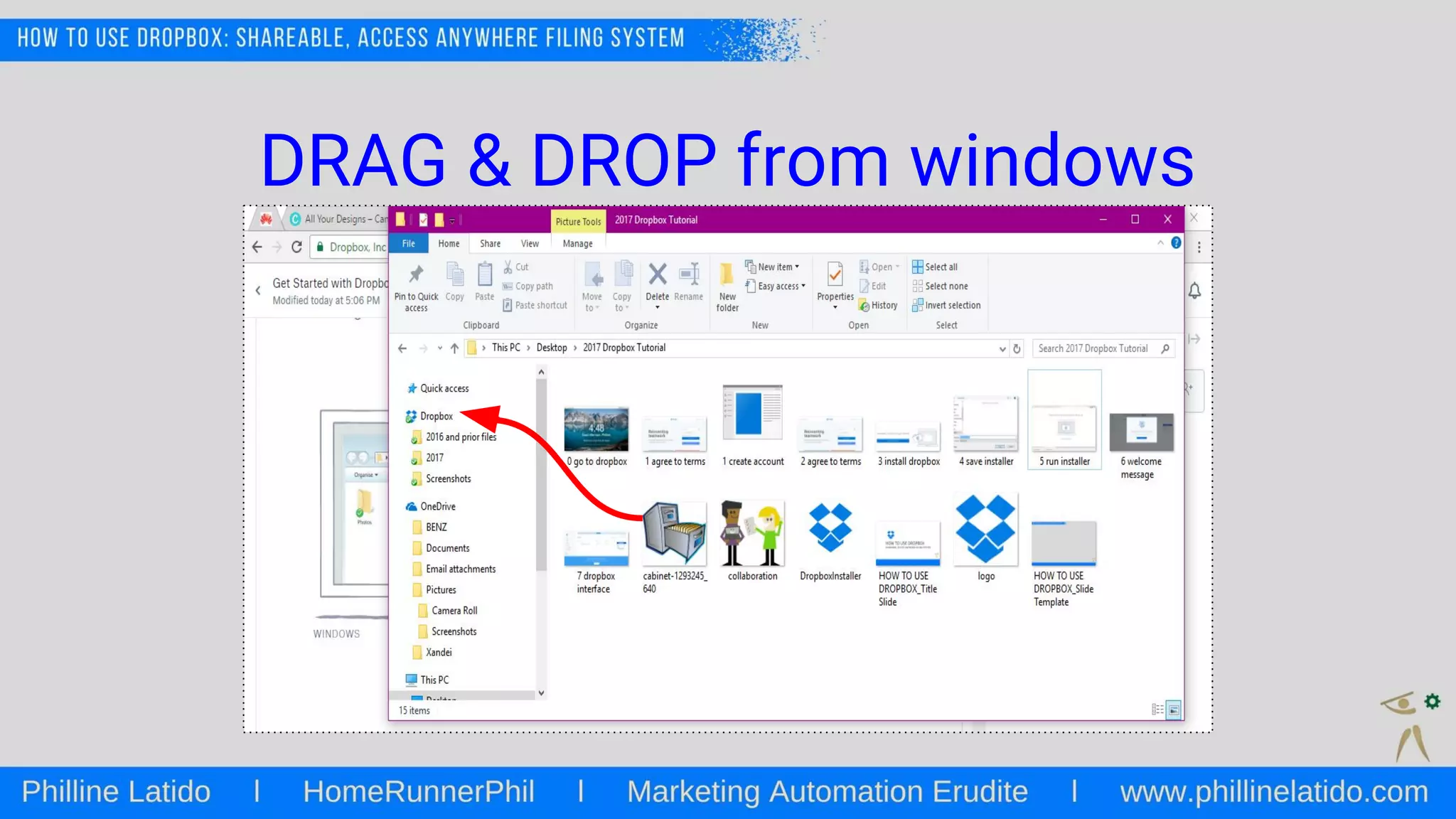
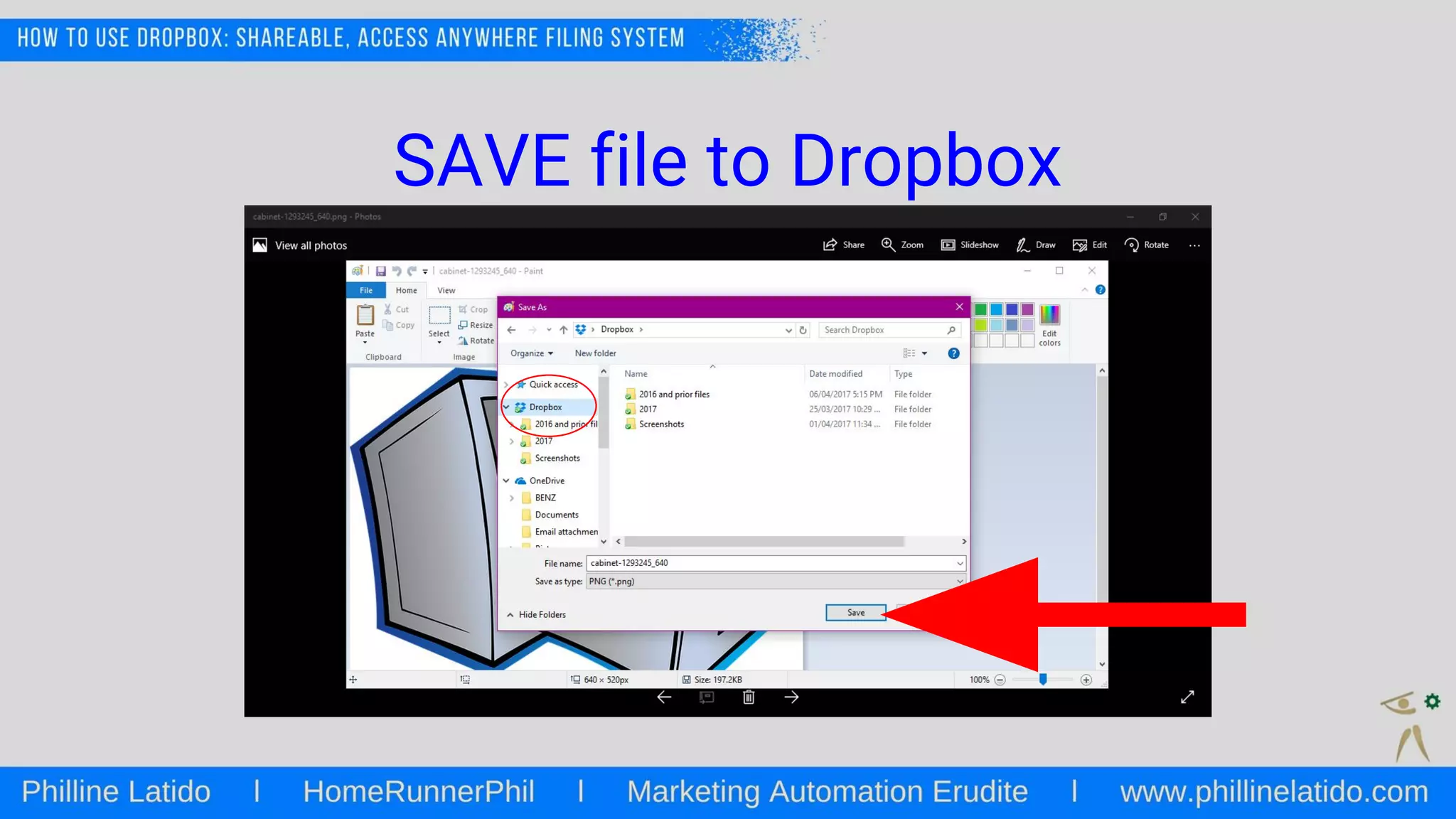
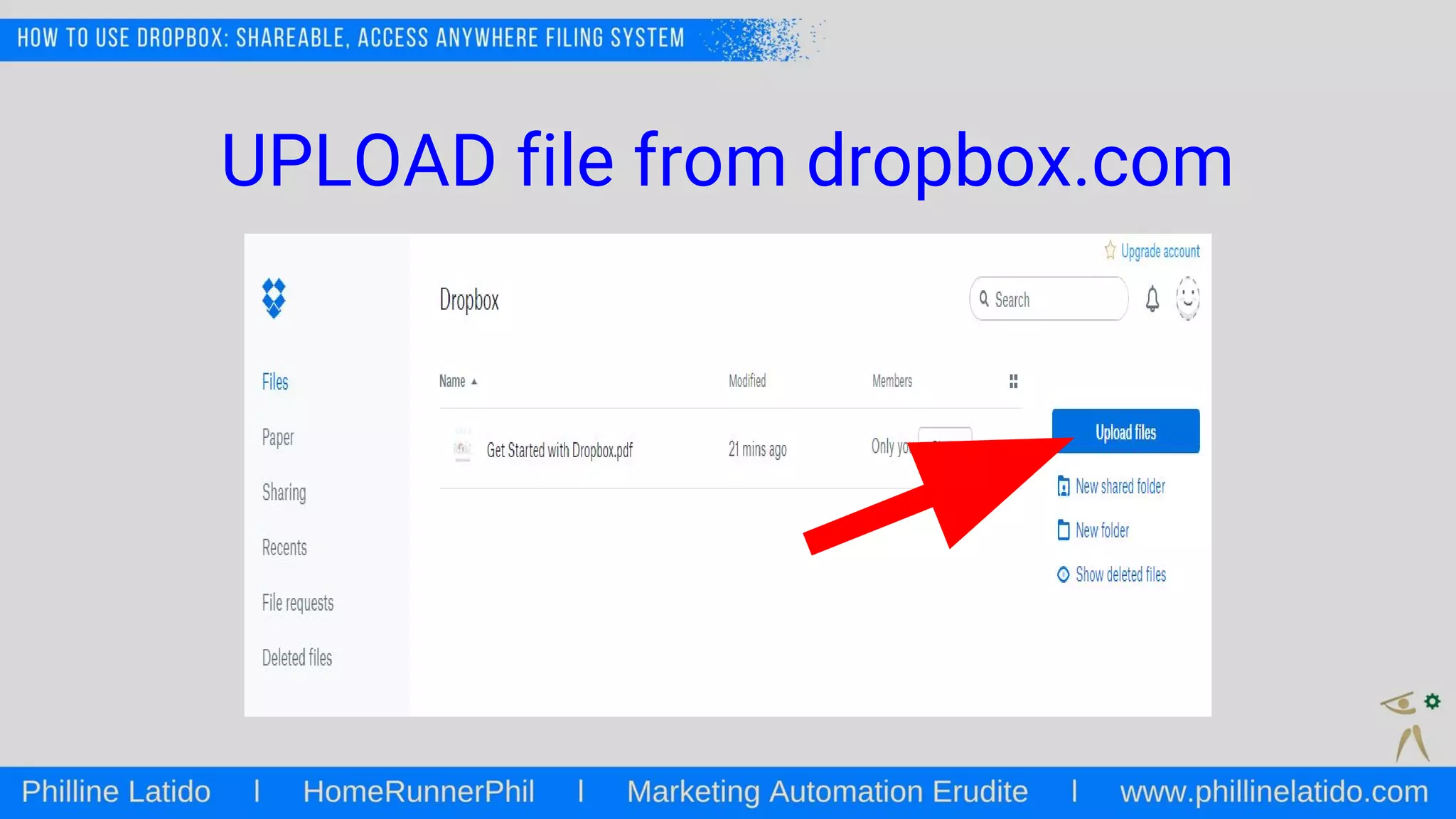
Adding files to Dropbox
DRAG & DROP from windows
SAVE file to Dropbox
UPLOAD file from dropbox.com
...or DRAG & DROP directly to web
browser
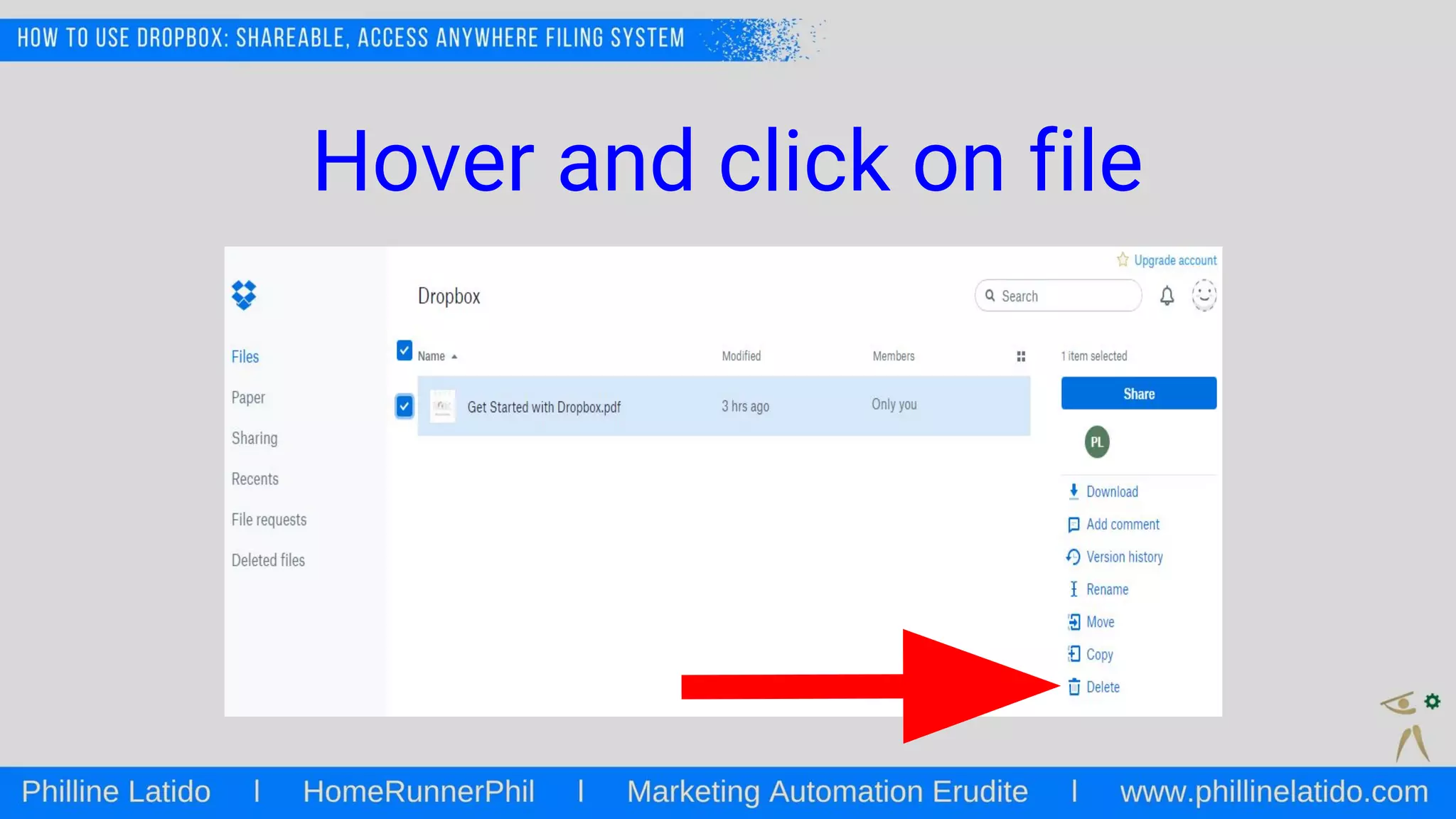
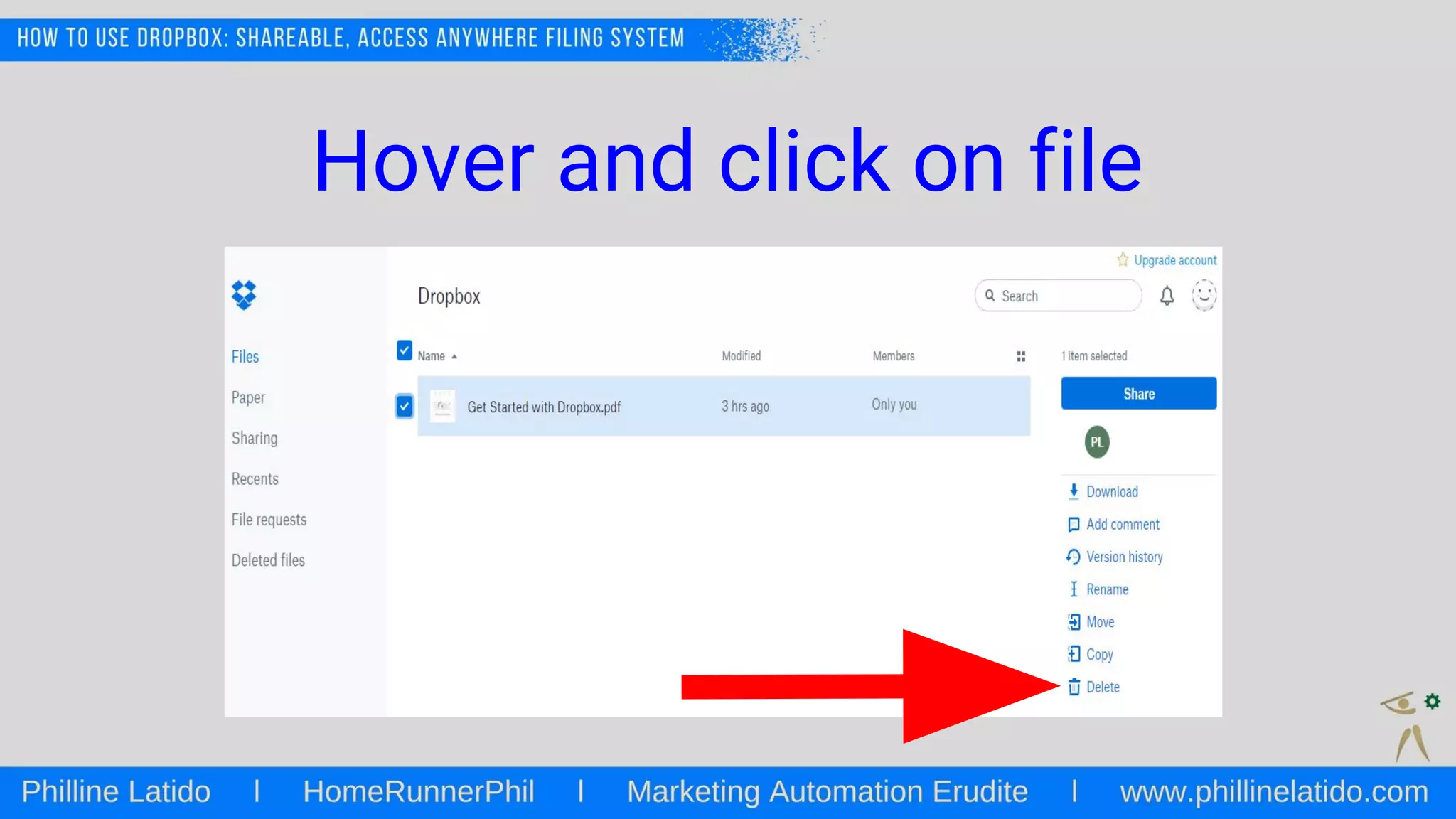
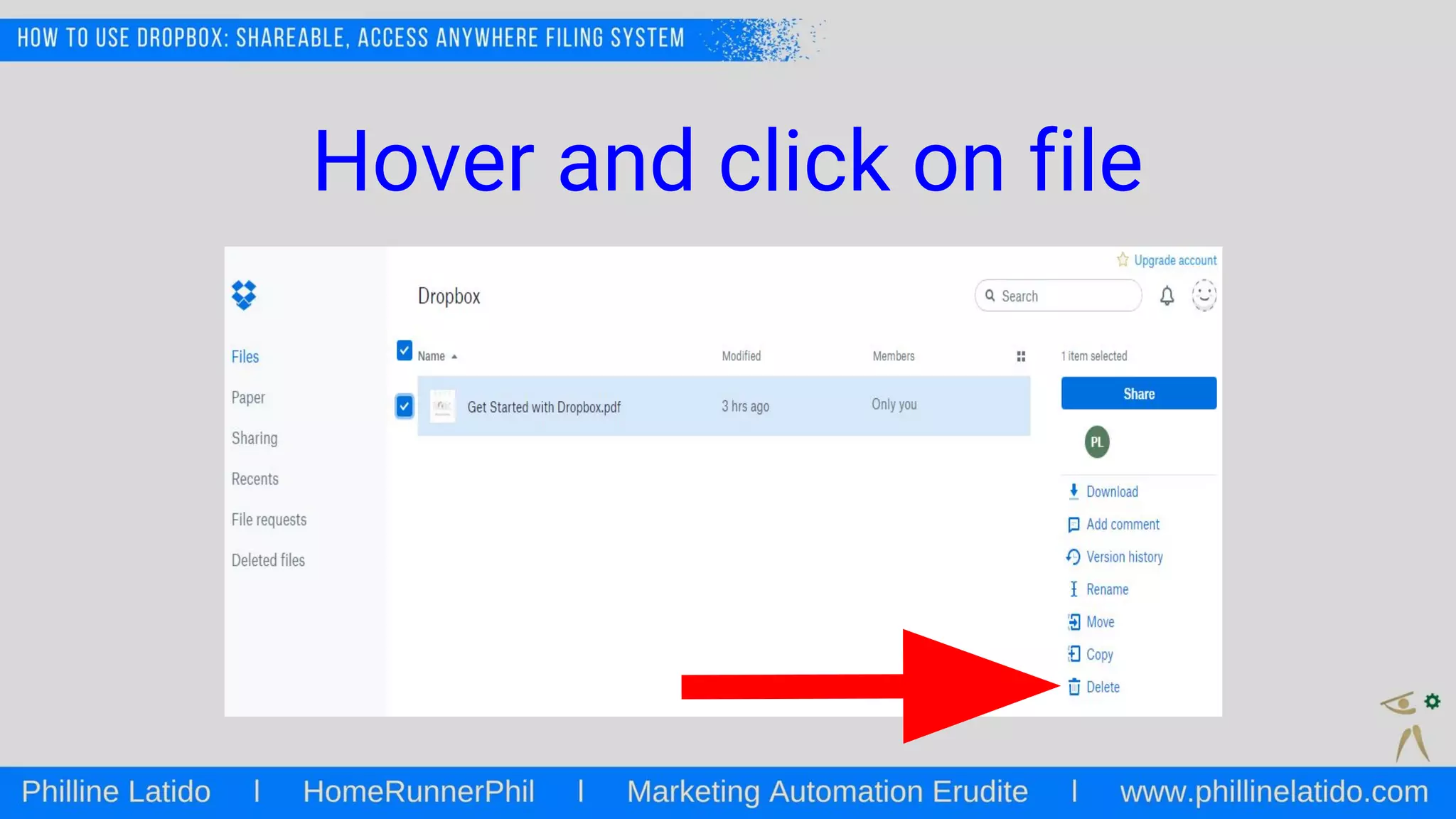
DELETING FILES
Hover and click on file
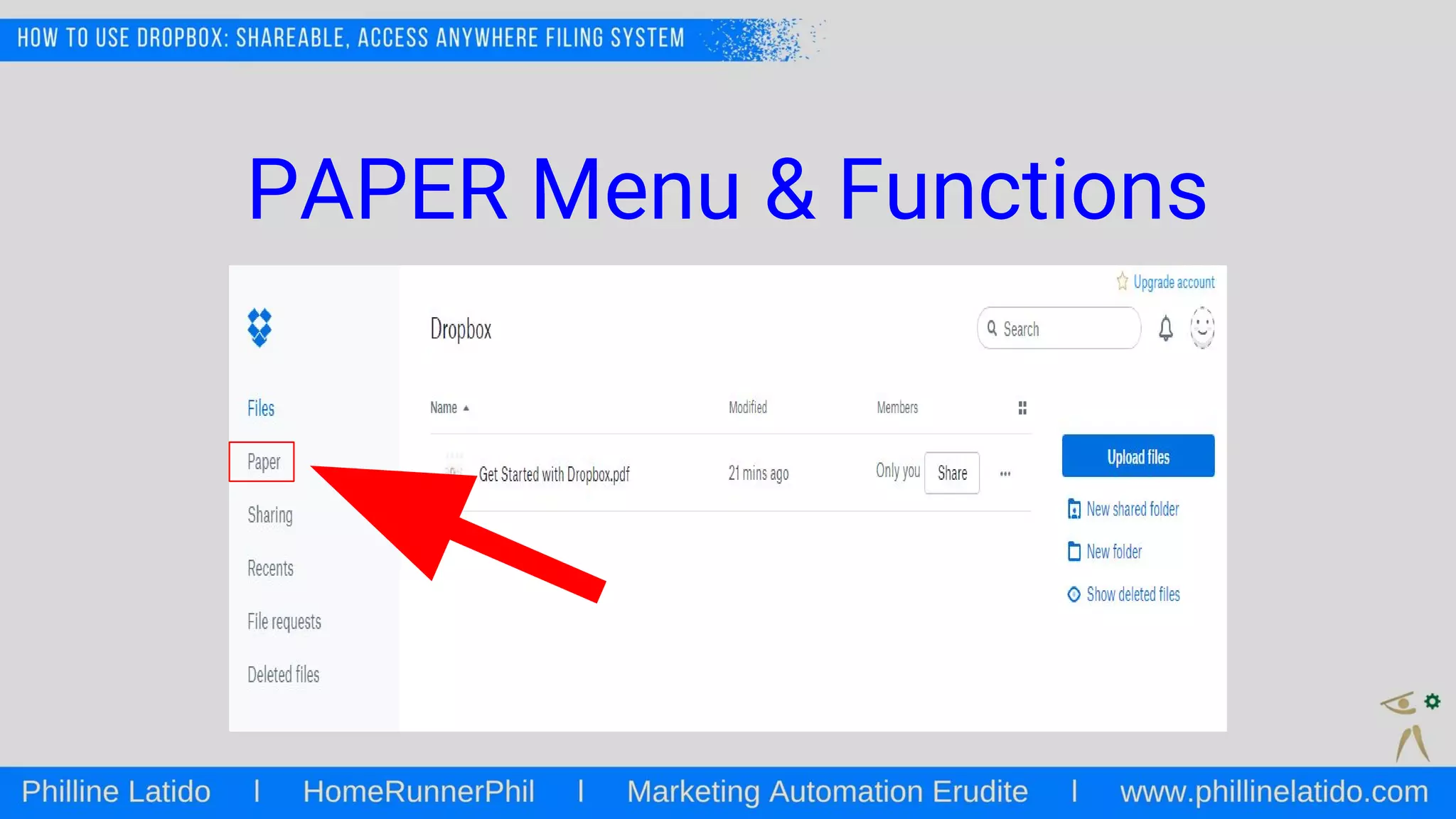
PAPER Menu & Functions
Capture ideas and gather feedback
from your team using Paper.
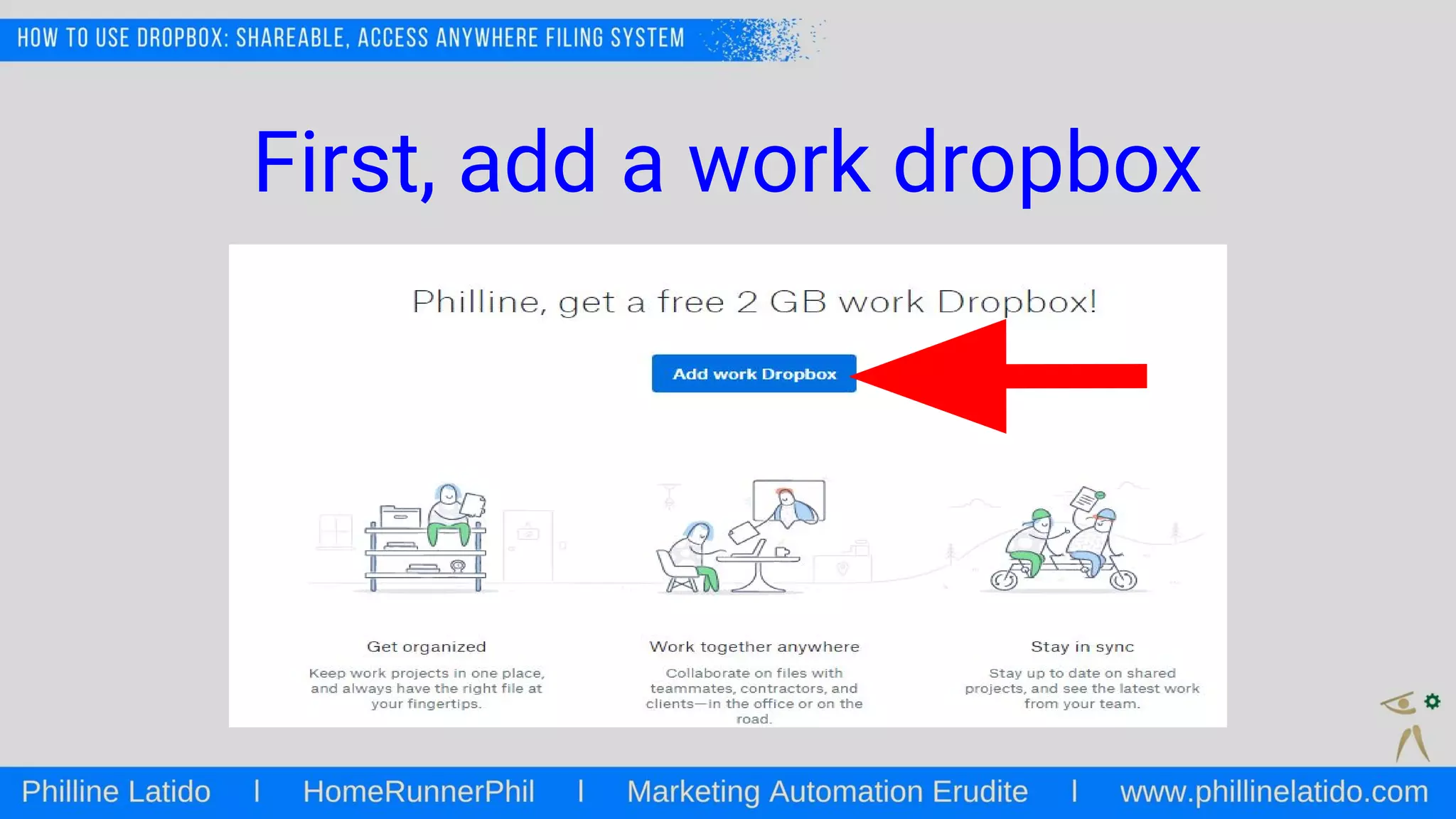
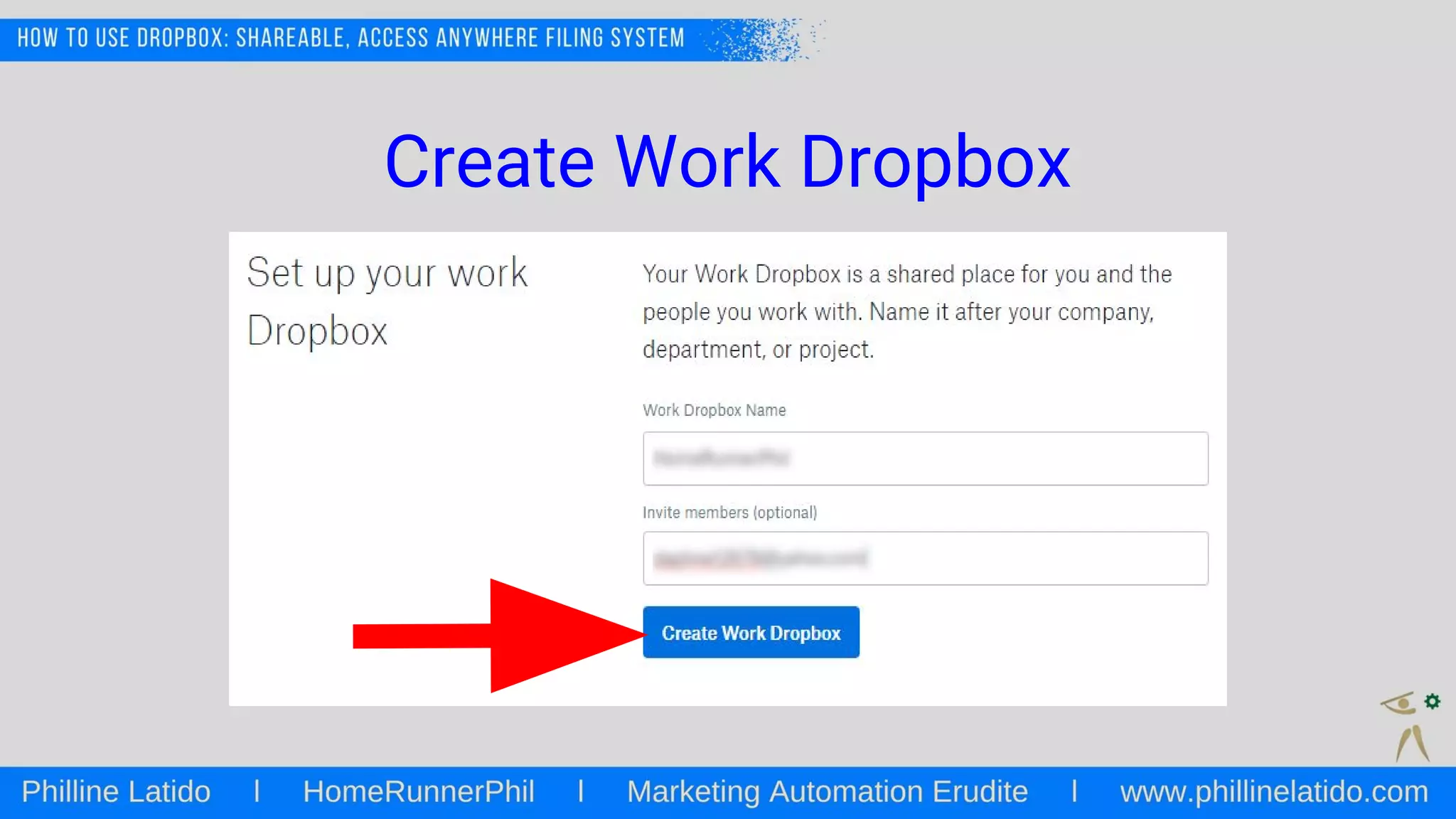
First, add a work dropbox
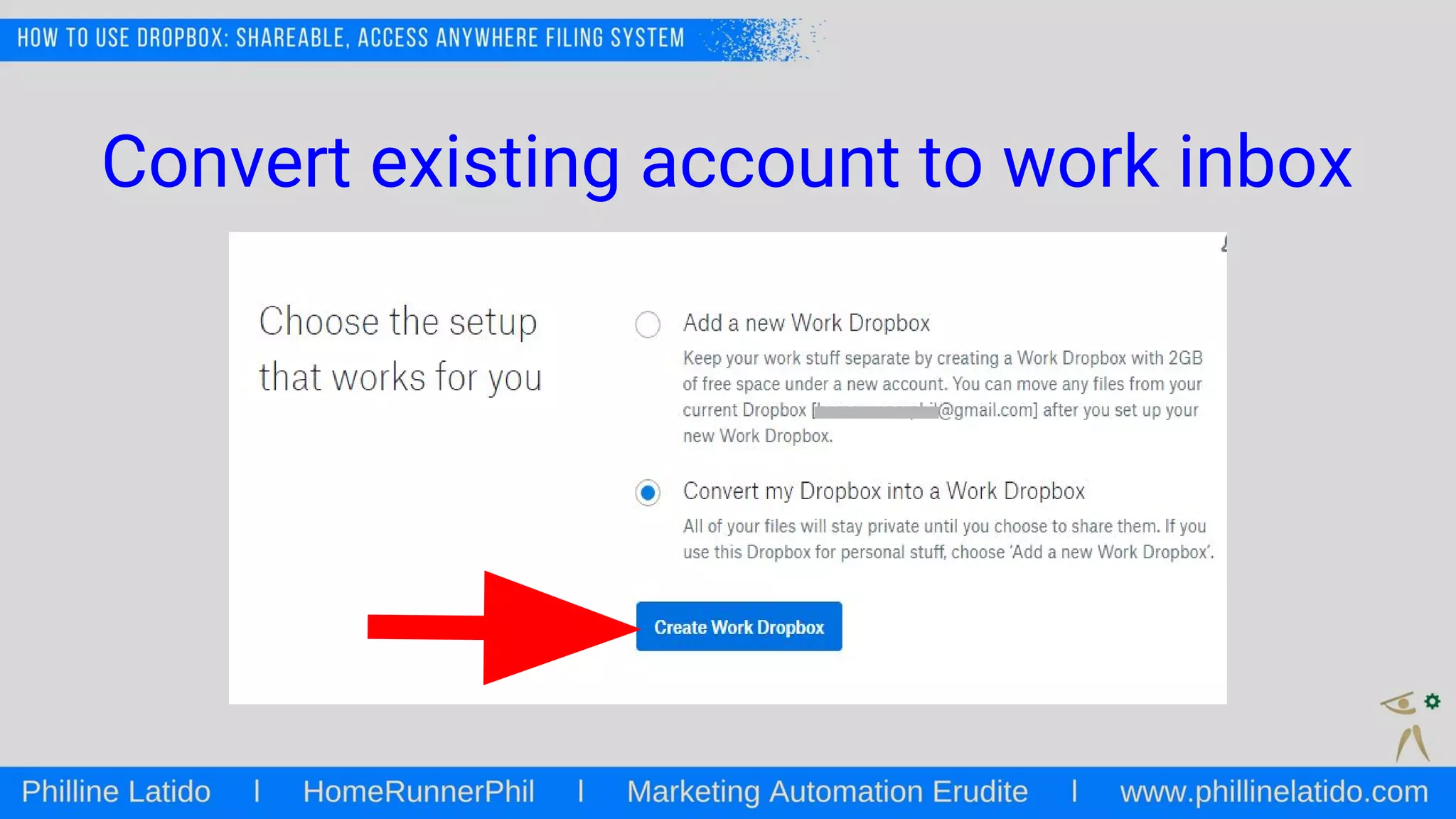
Convert existing account to work inbox
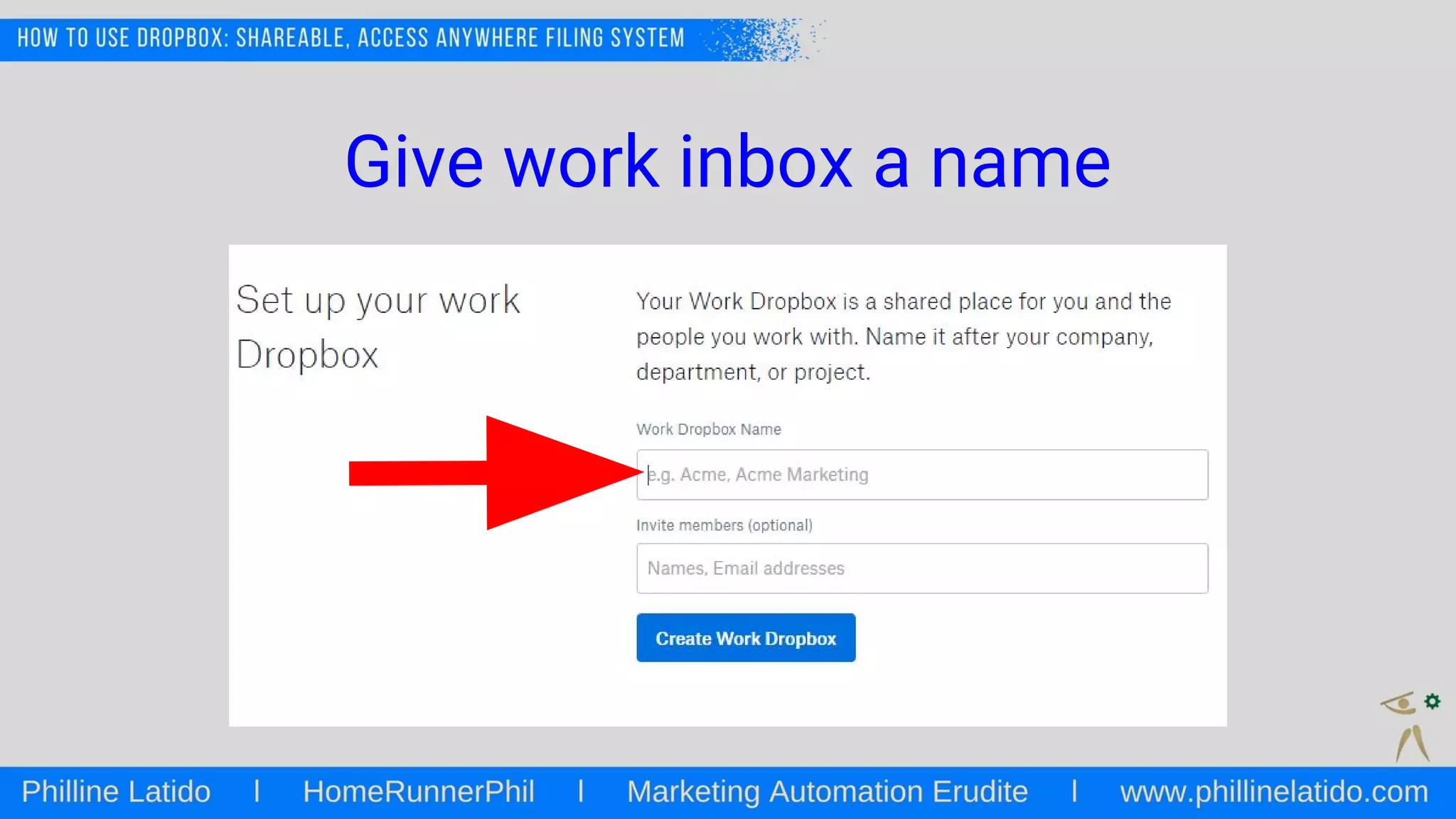
Give work inbox a name
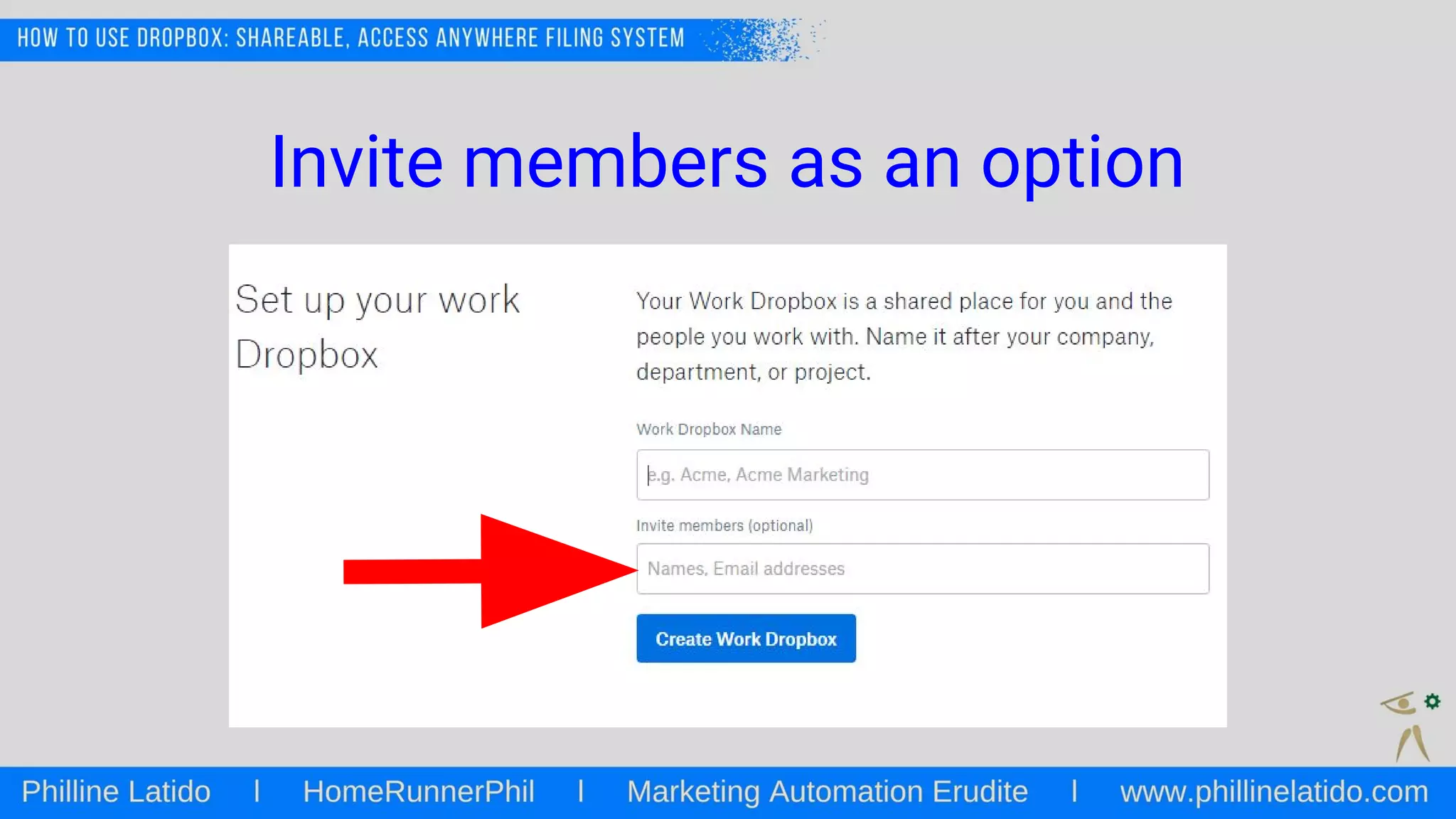
Invite members as an option
Create Work Dropbox
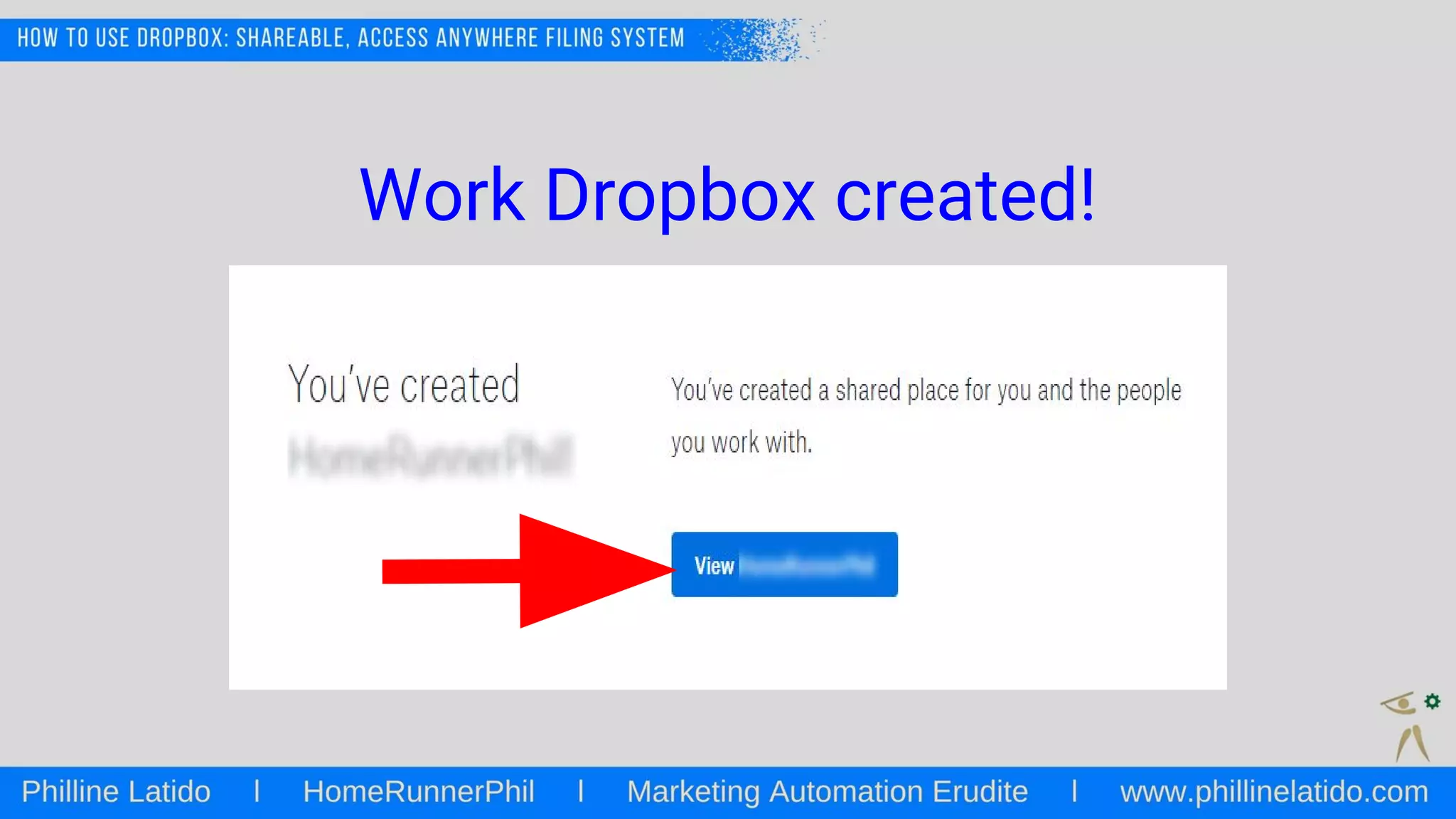
Work Dropbox created!
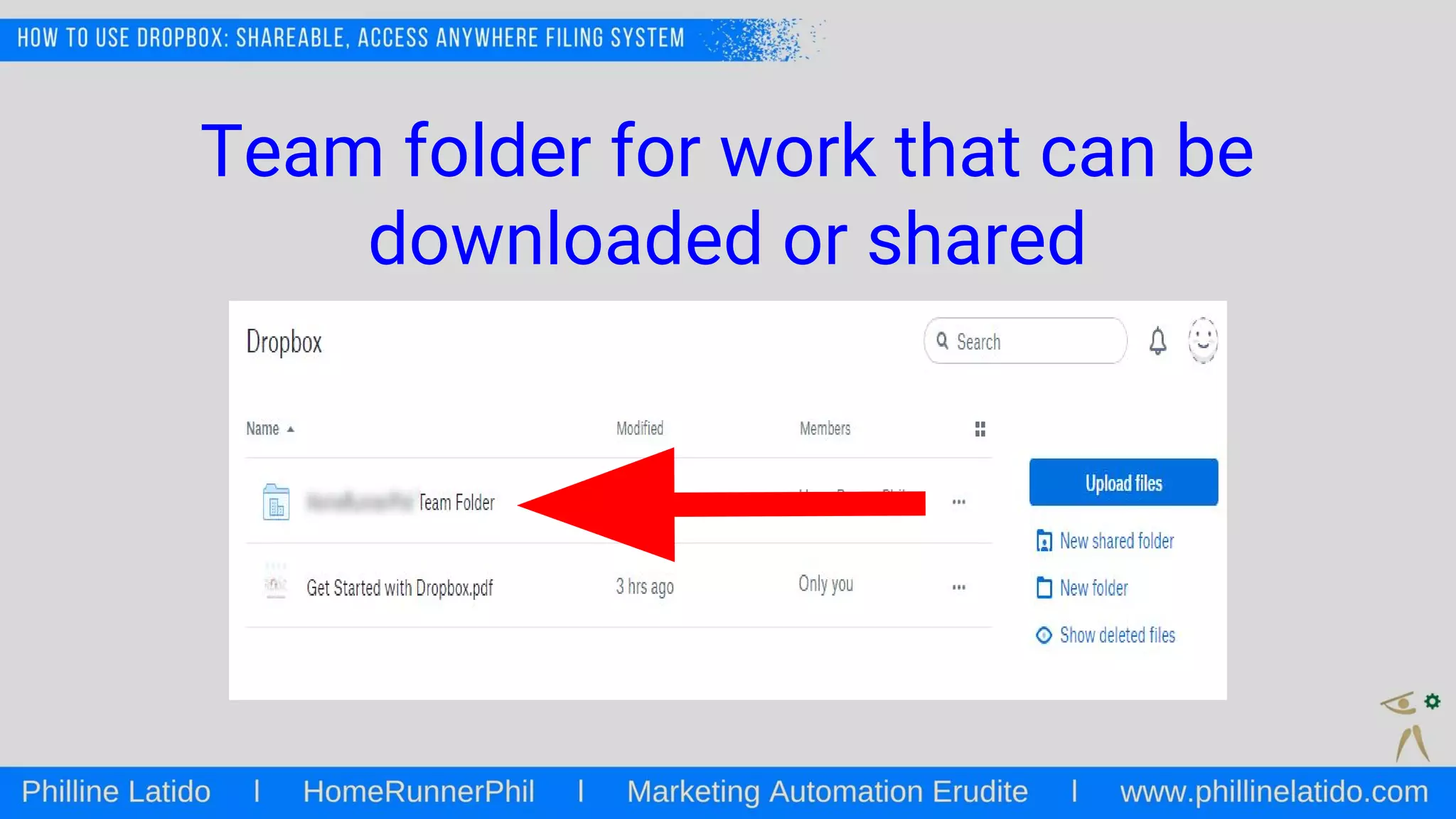
Team folder for work that can be
downloaded or shared
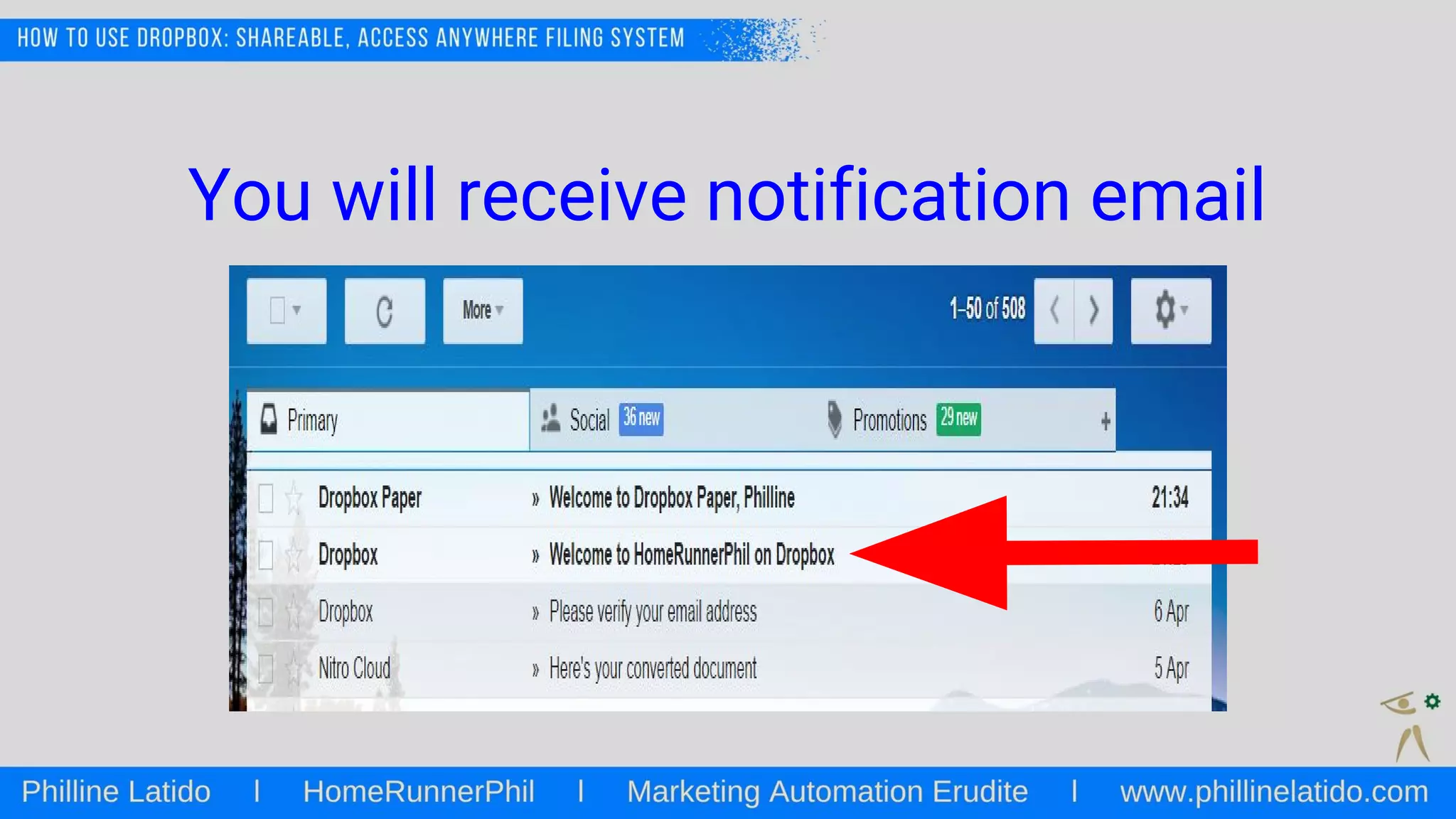
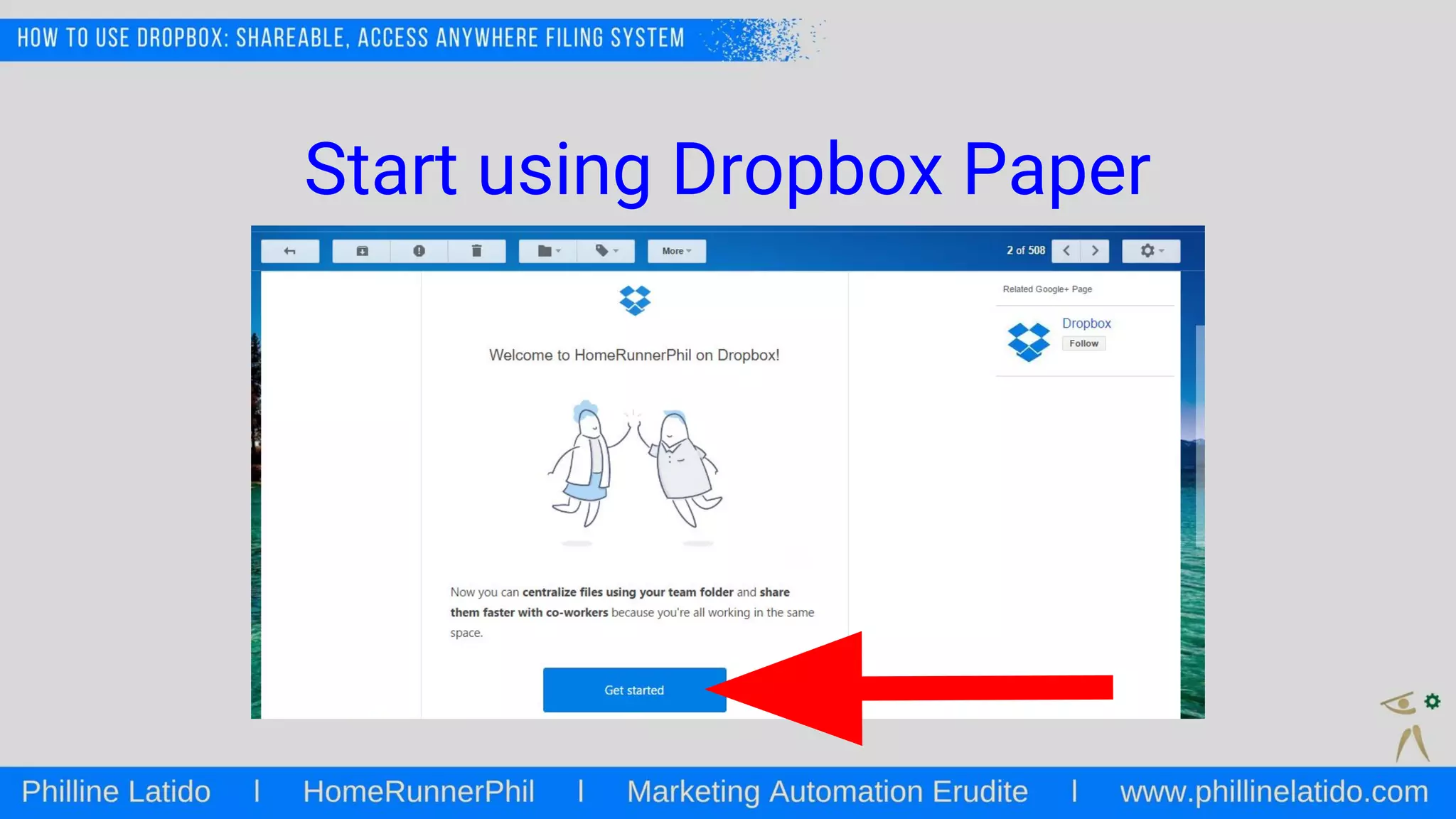
You will receive notification email
Start using Dropbox Paper
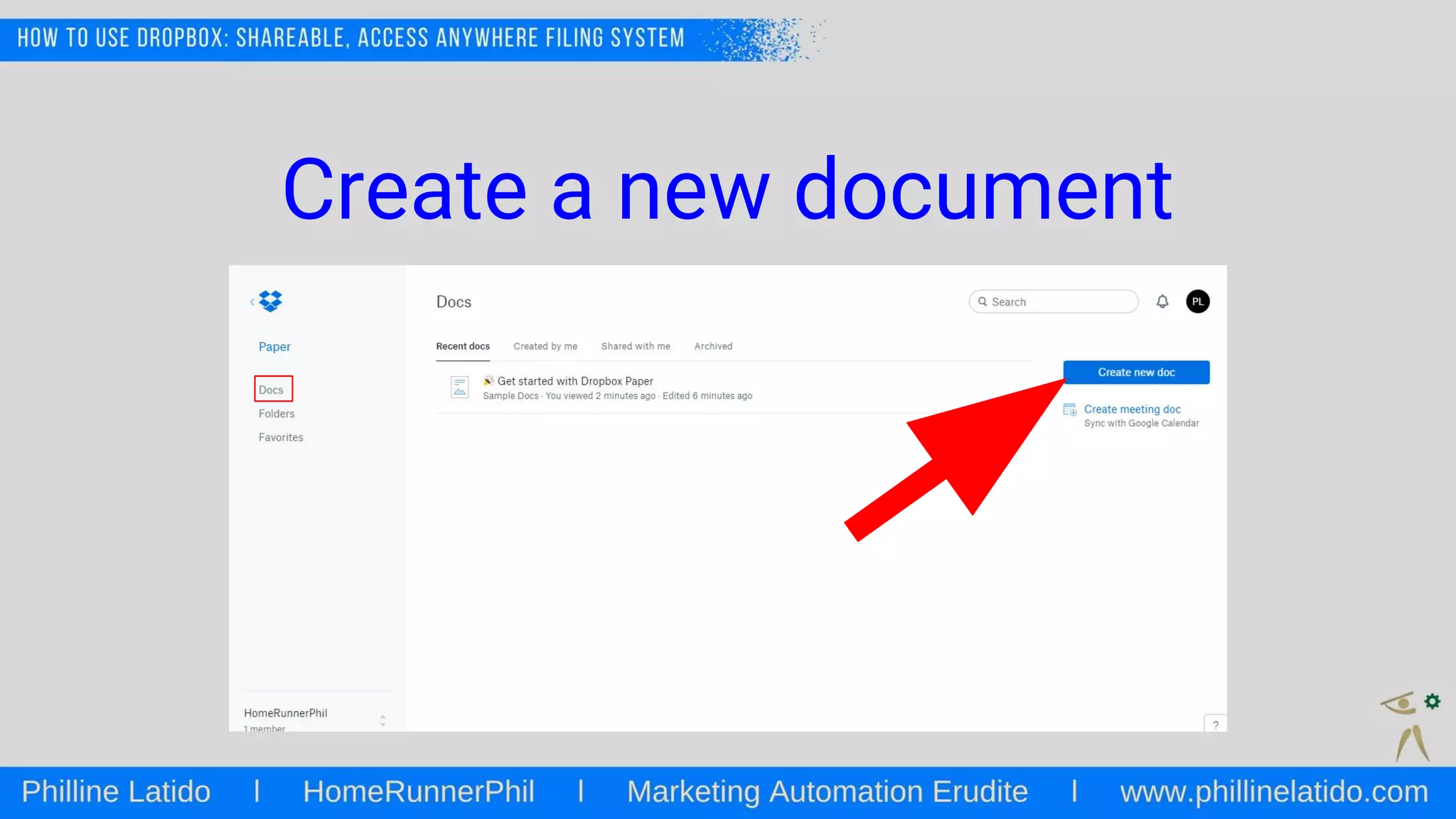
Create a new document
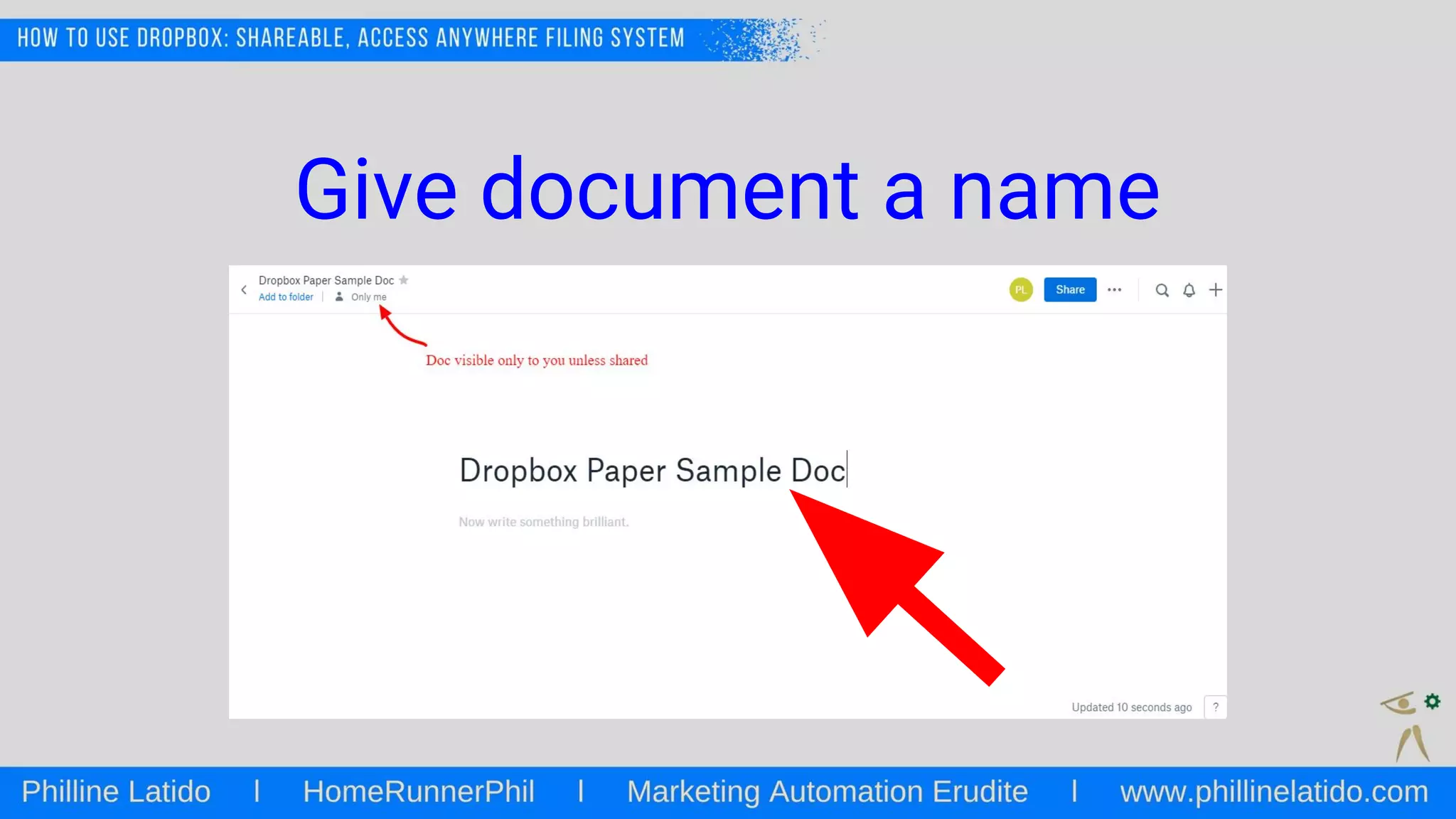
Give document a name
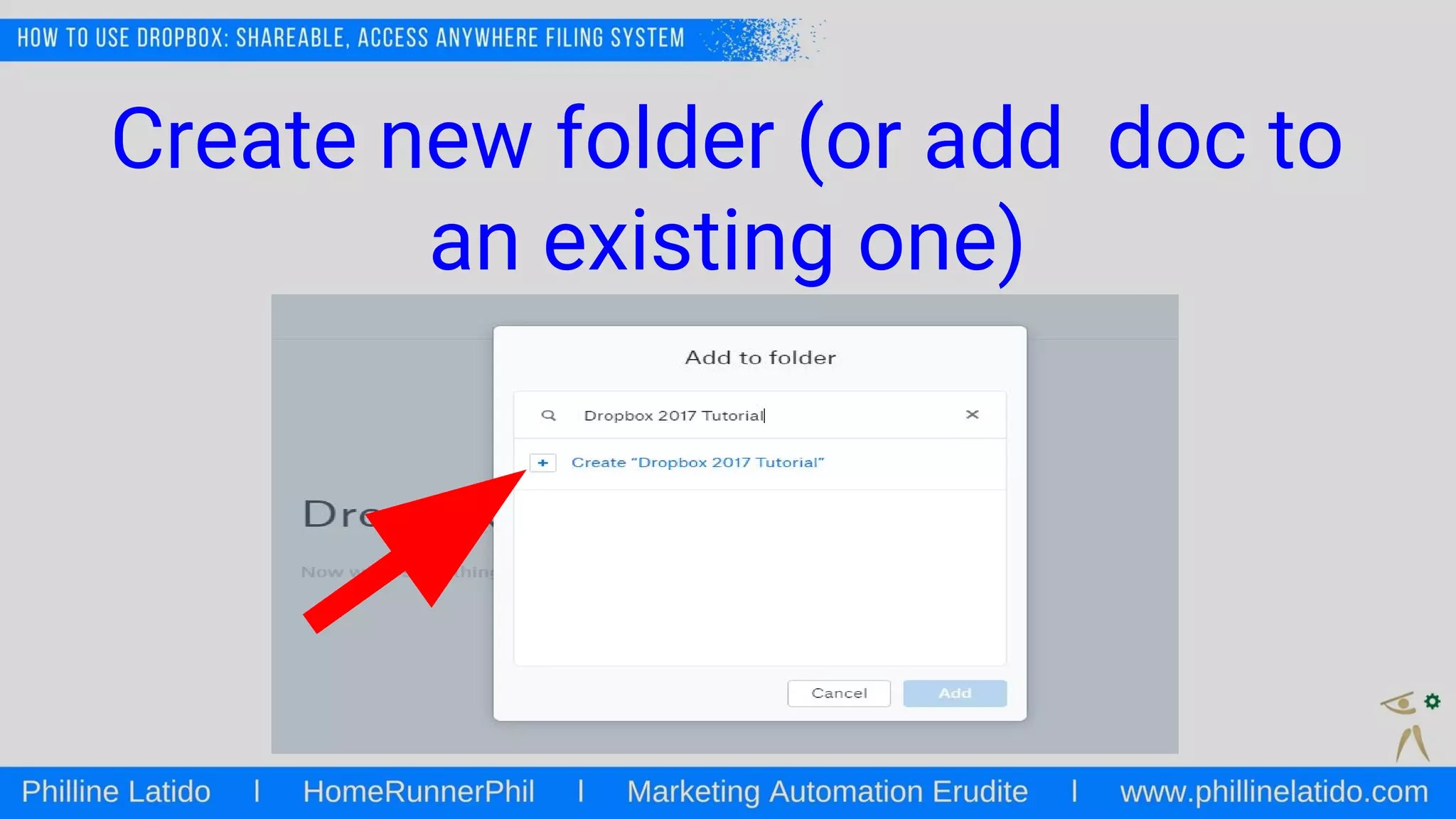
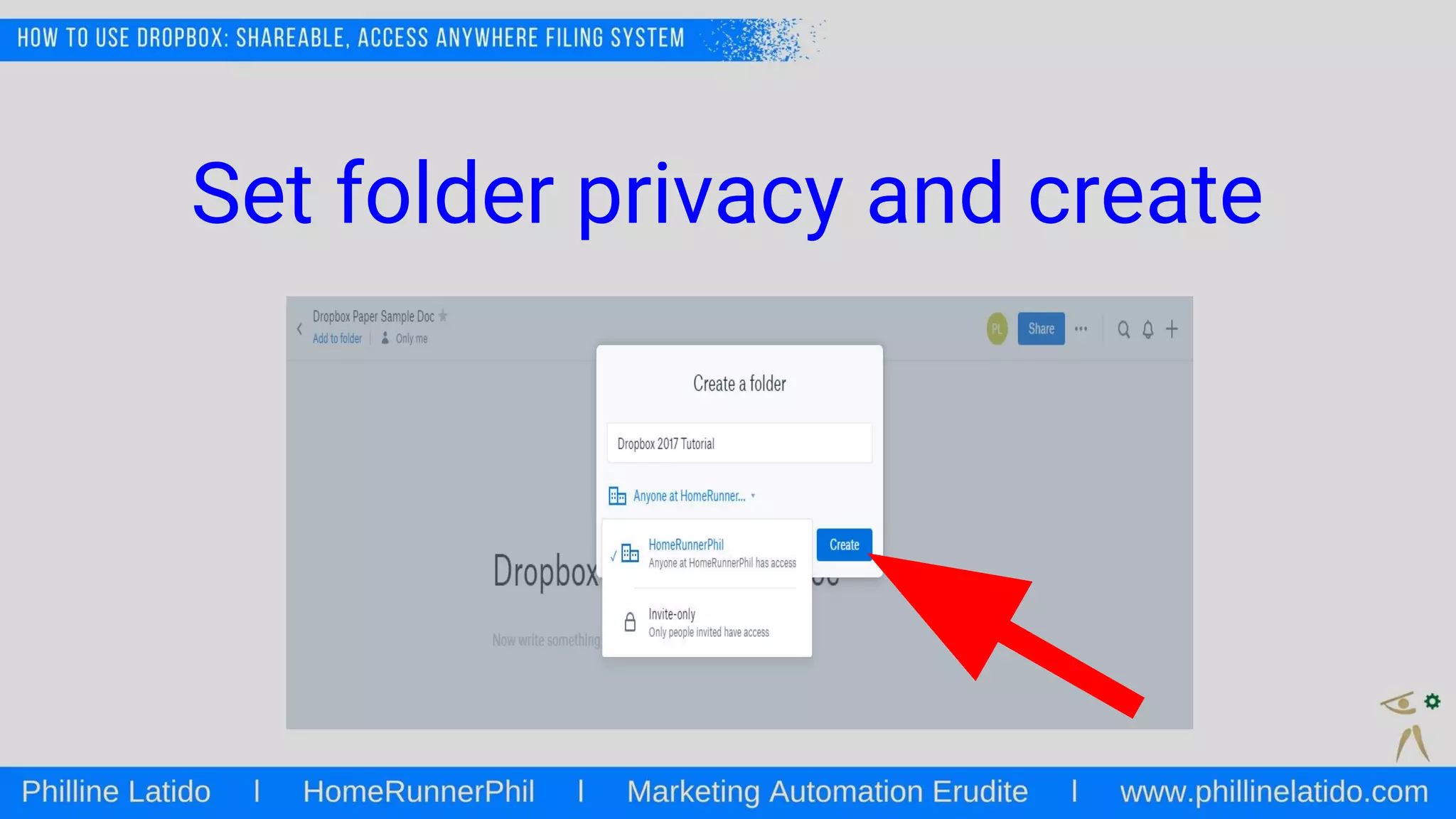
Create new folder (or add doc to
an existing one)
Set folder privacy and create
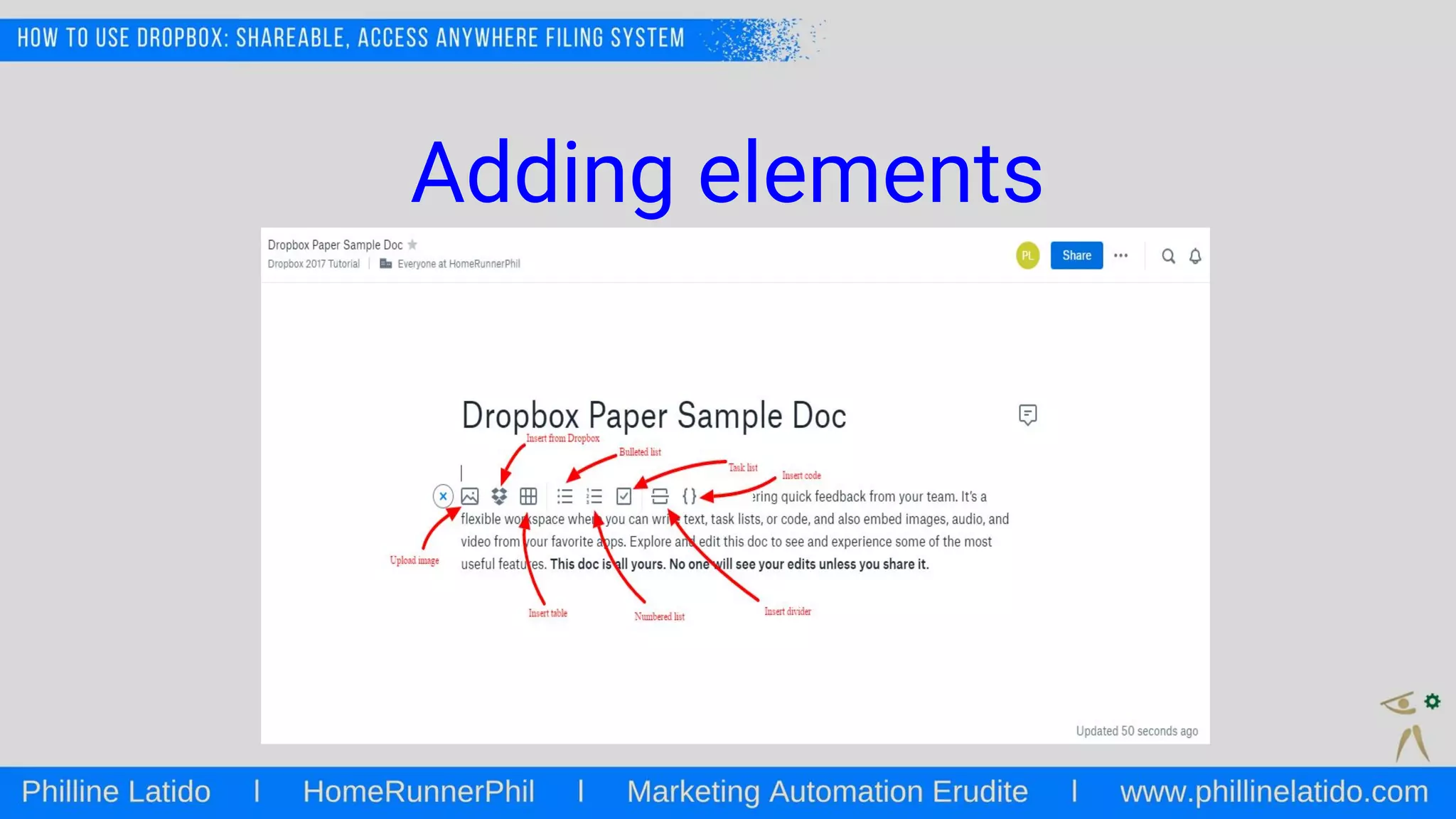
Adding elements
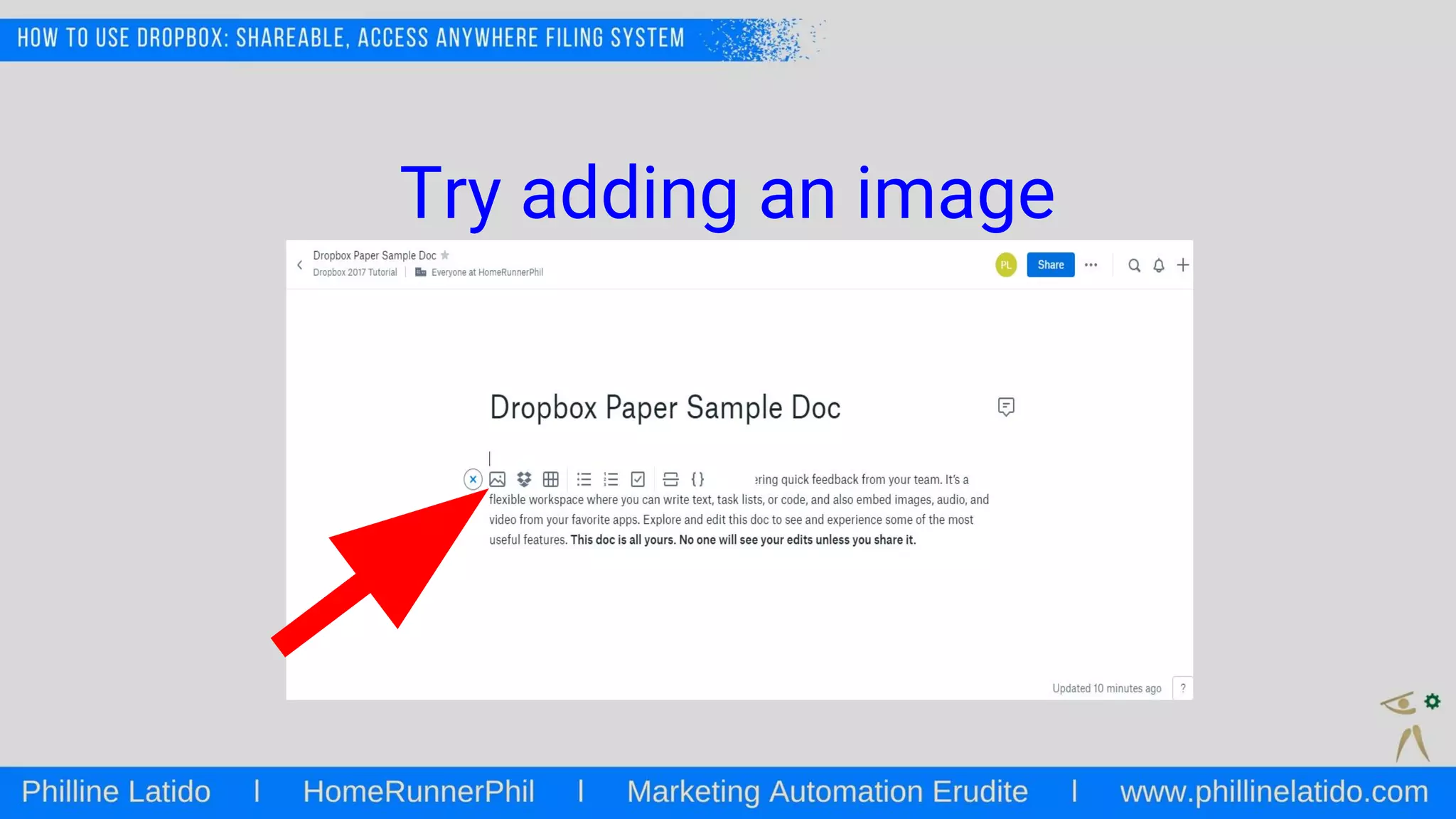
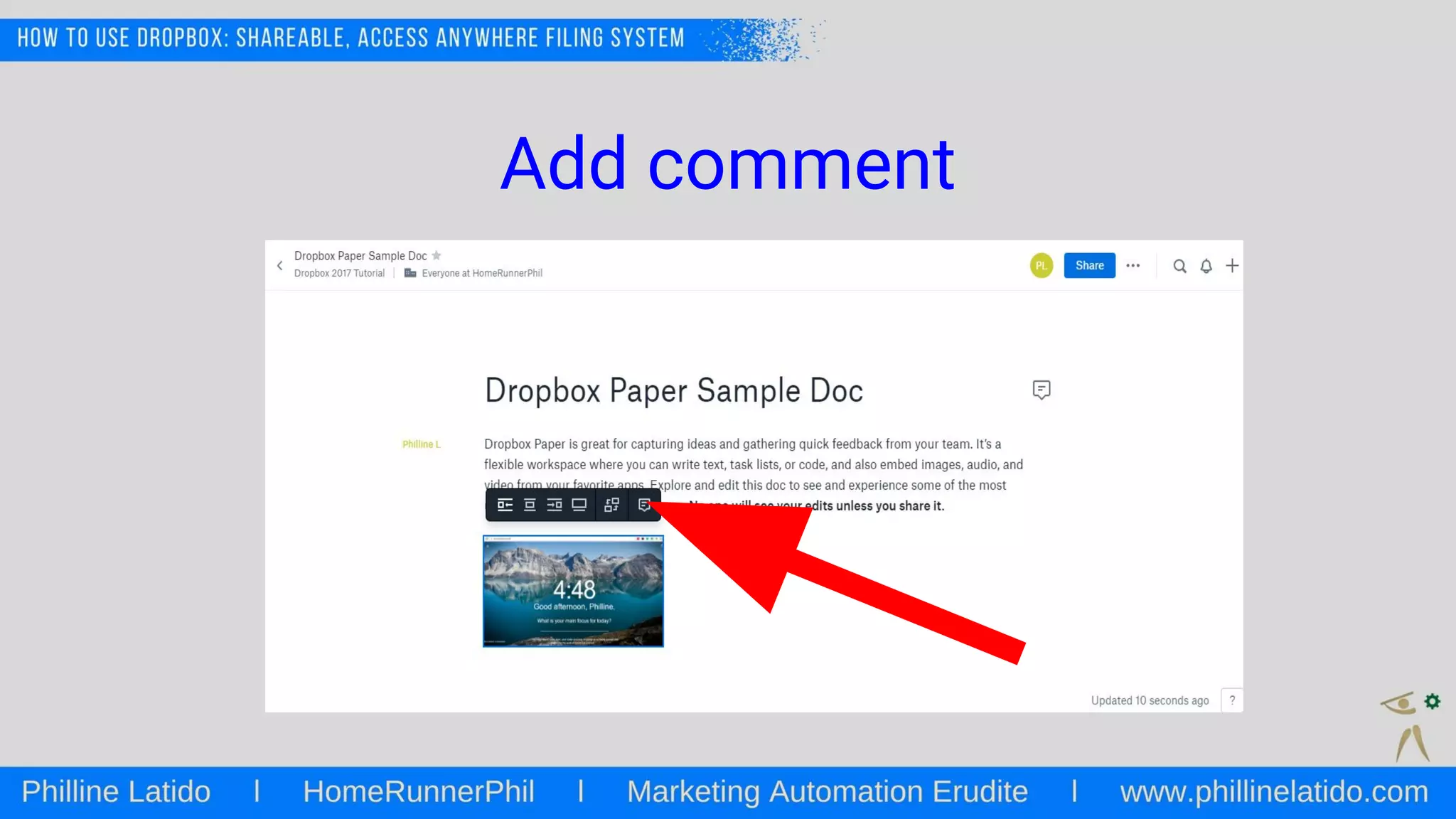
Try adding an image
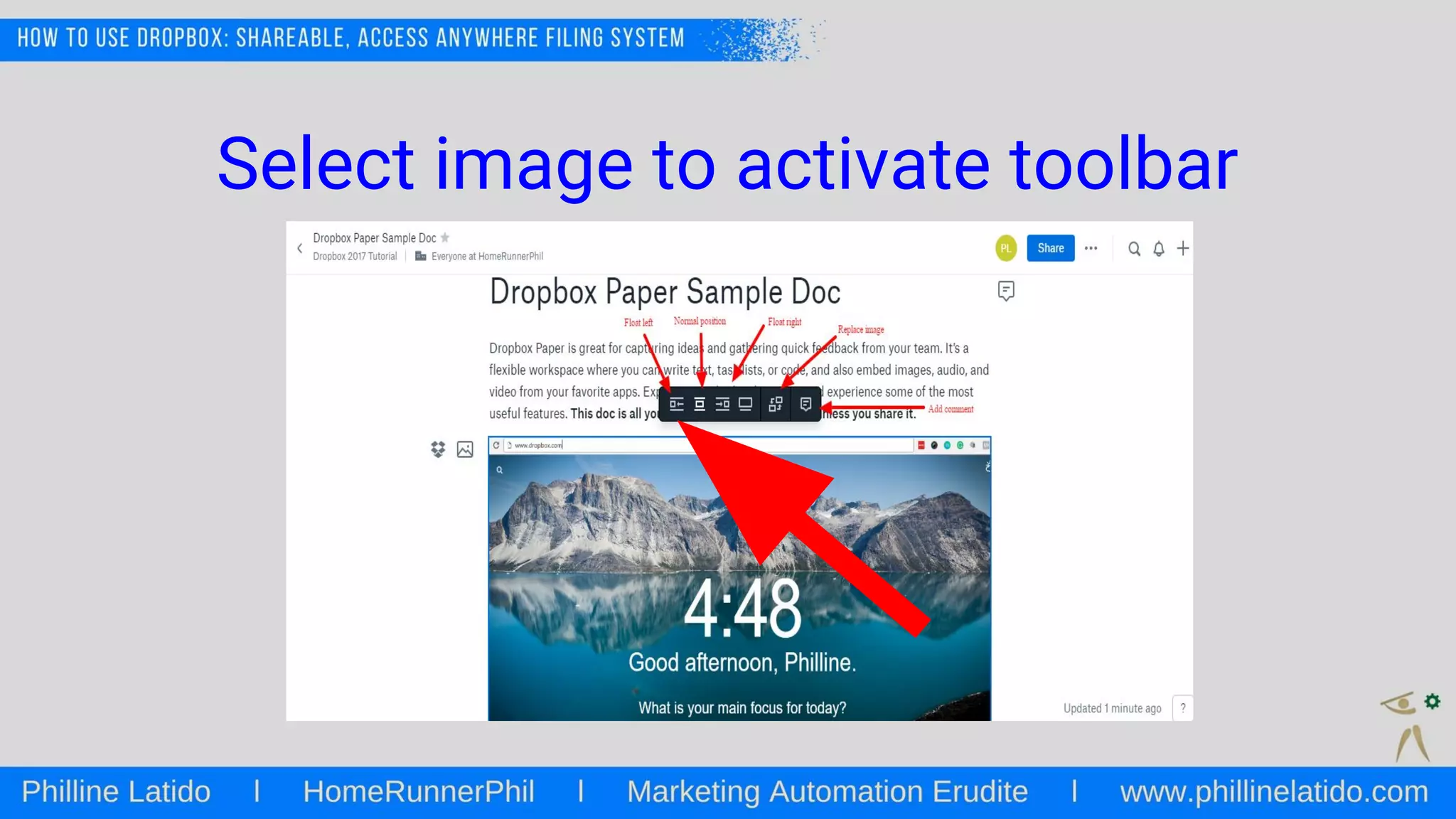
Select image to activate toolbar
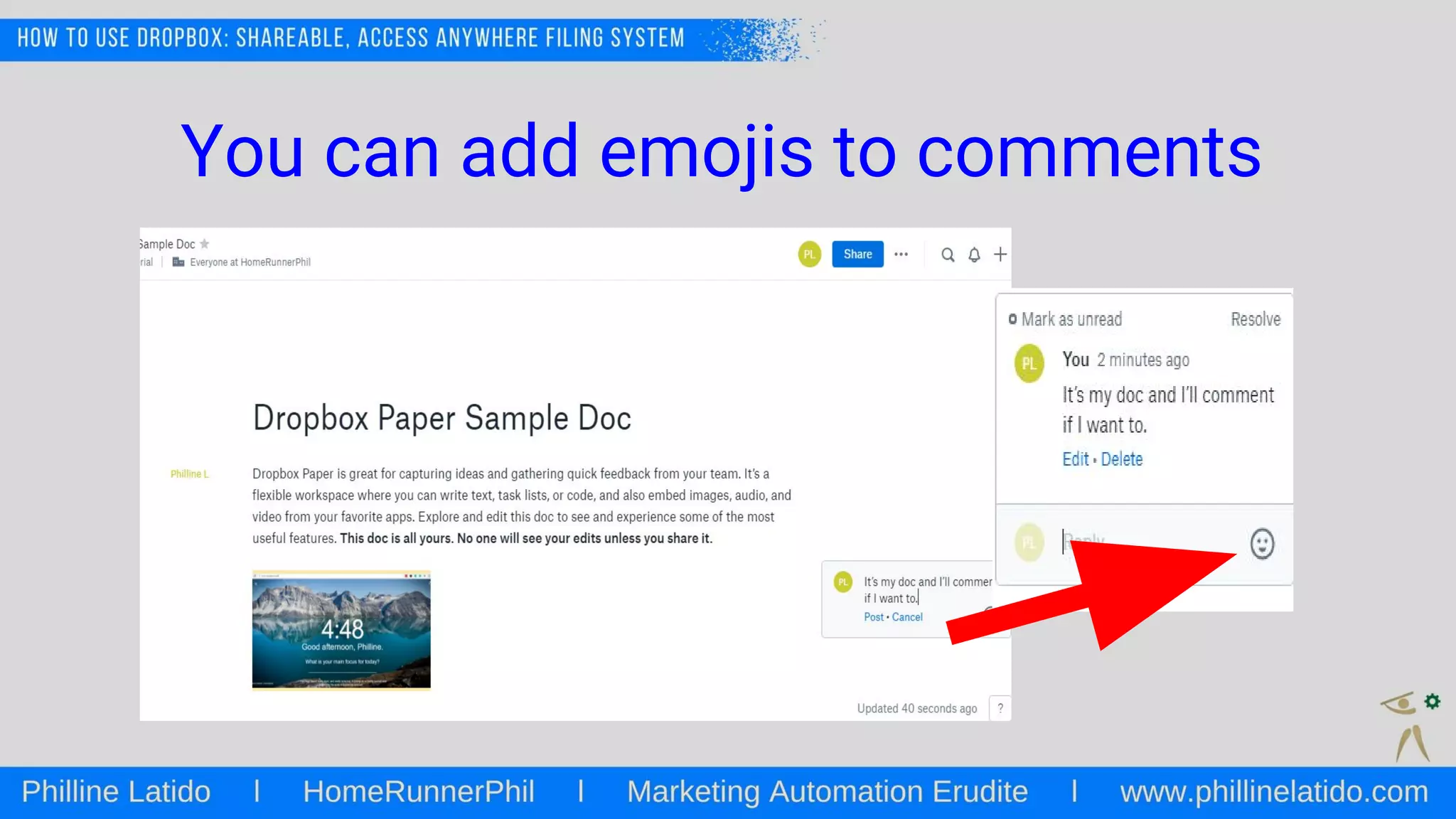
Add comment
You can add emojis to comments
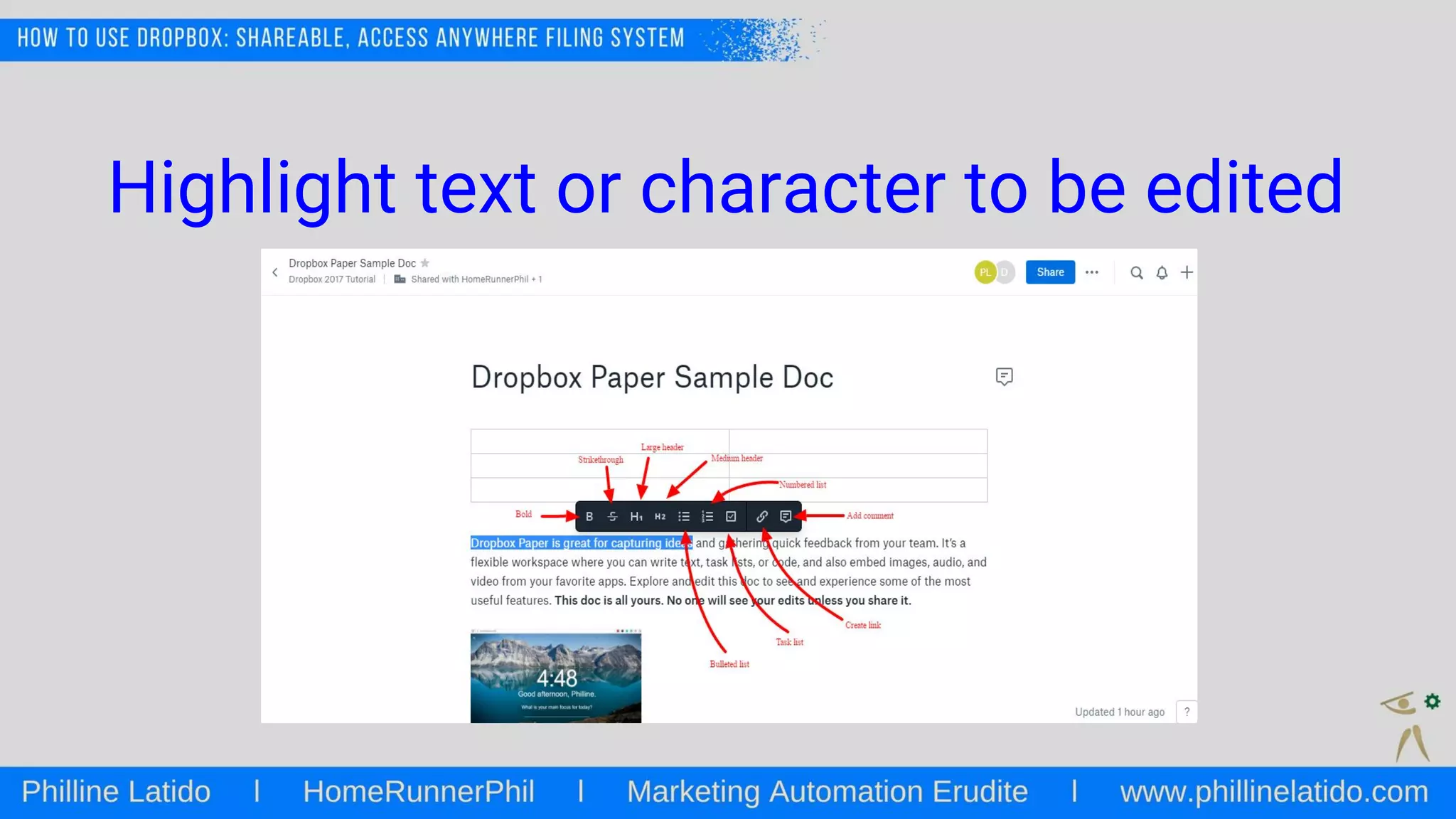
Other formatting tools
Highlight text or character to be edited
Embedding rich content (audios,
videos, files from Google)
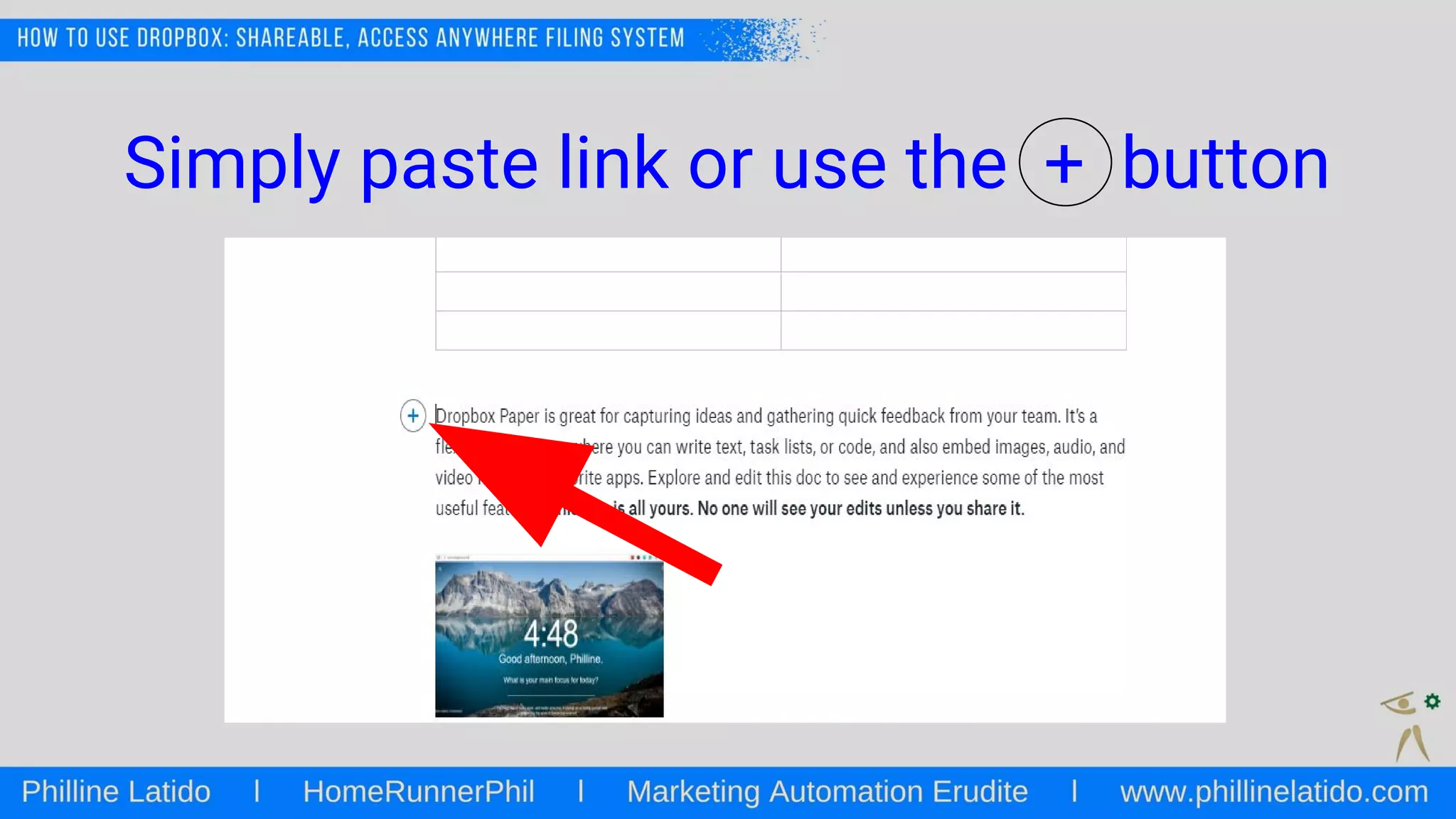
Simply paste link or use the + button
Do same when writing codes
or start line with ‘’’
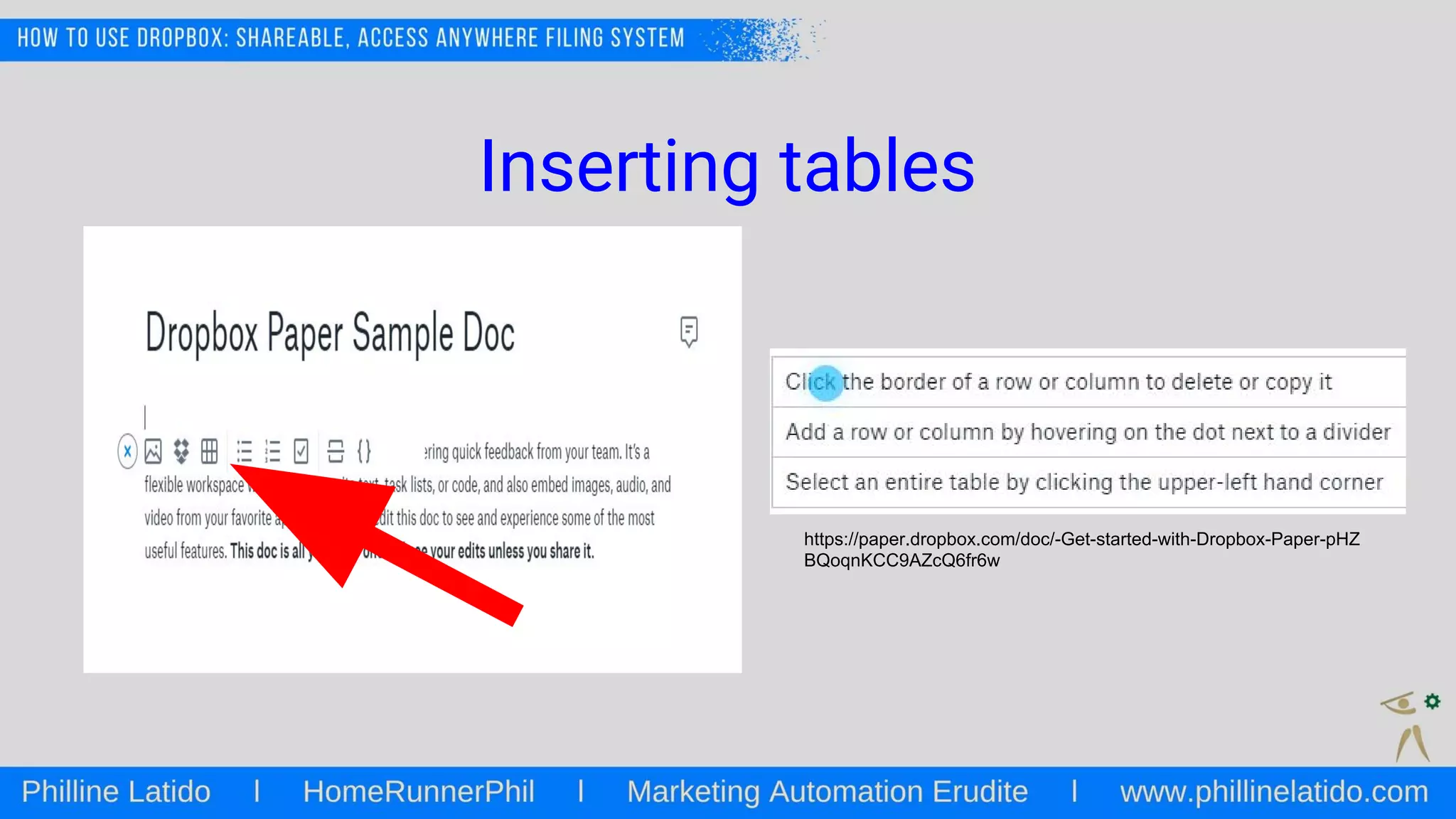
Inserting tables
https://paper.dropbox.com/doc/-Get-started-with-Dropbox-Paper-pHZ
BQoqnKCC9AZcQ6fr6w
Collaborating with Others
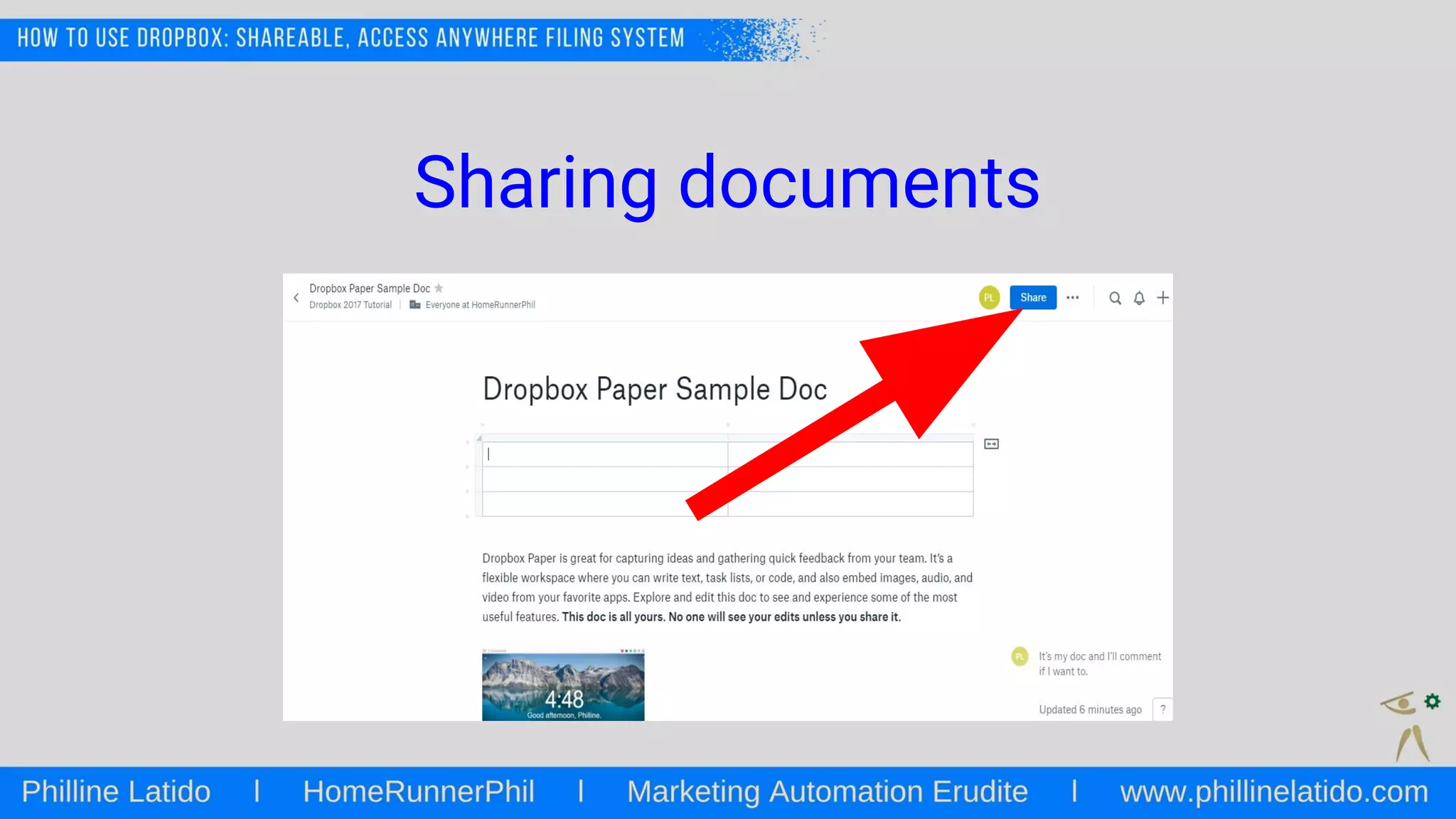
Sharing documents
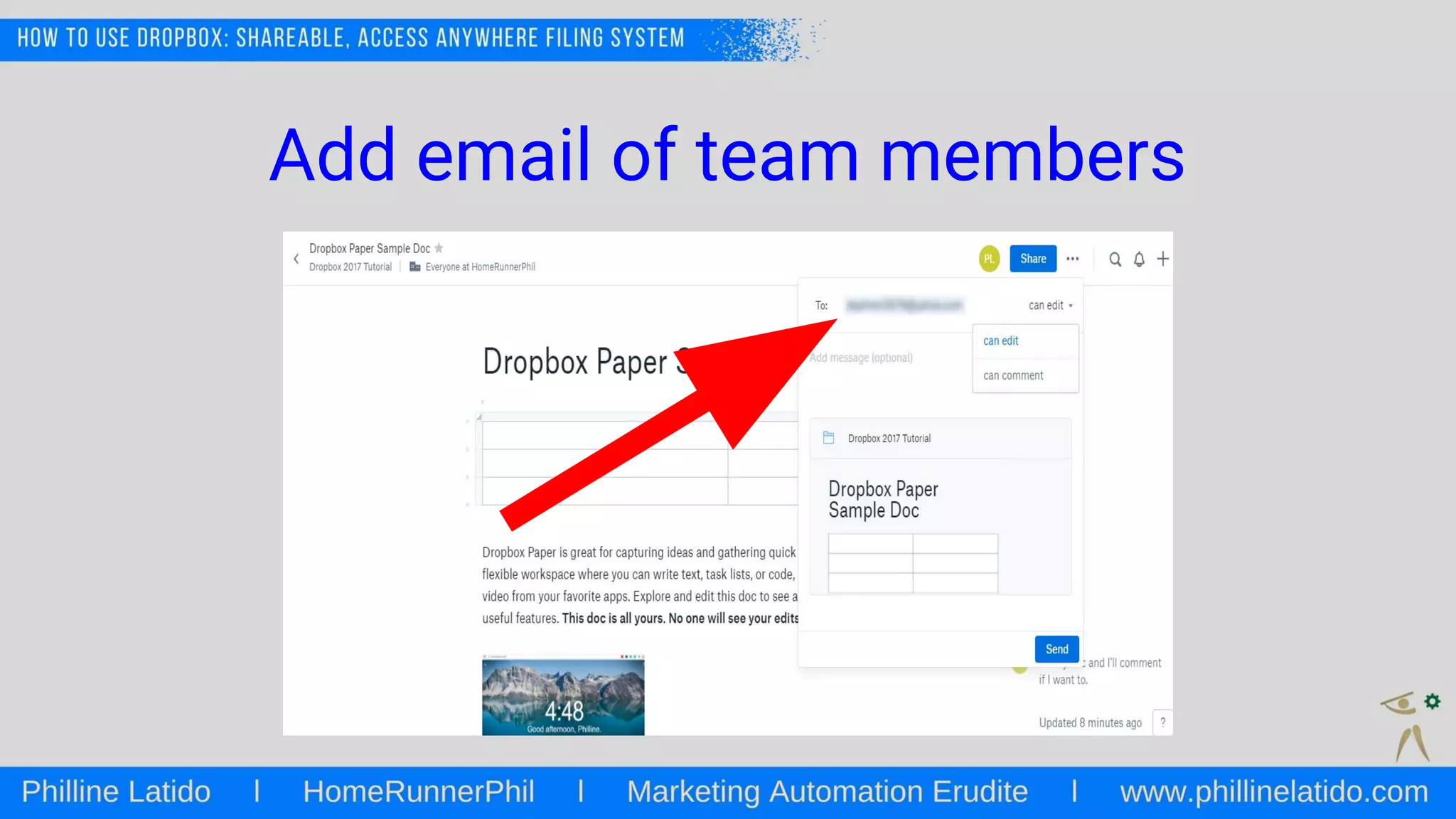
Add email of team members
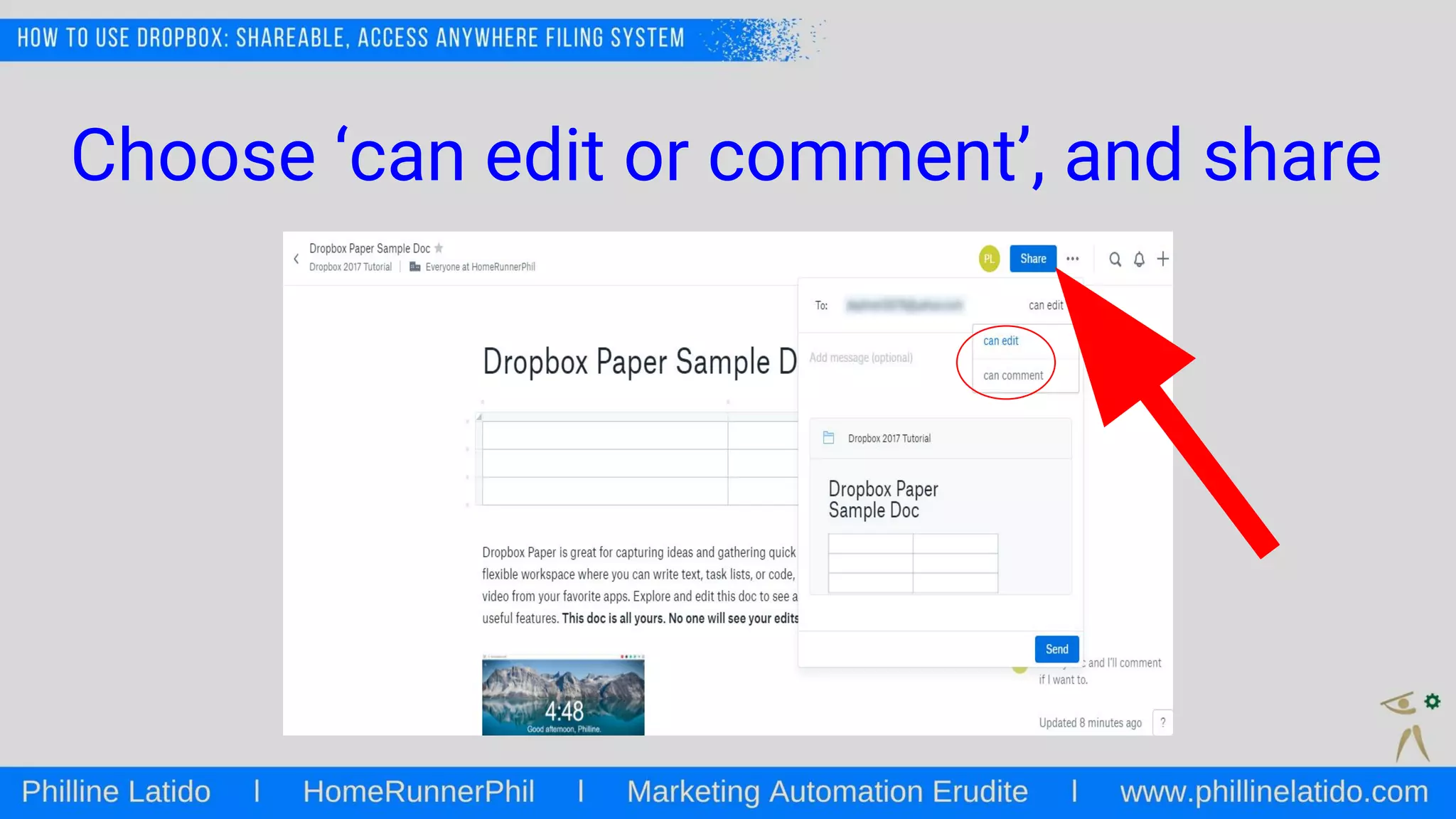
Choose ‘can edit or comment’, and share
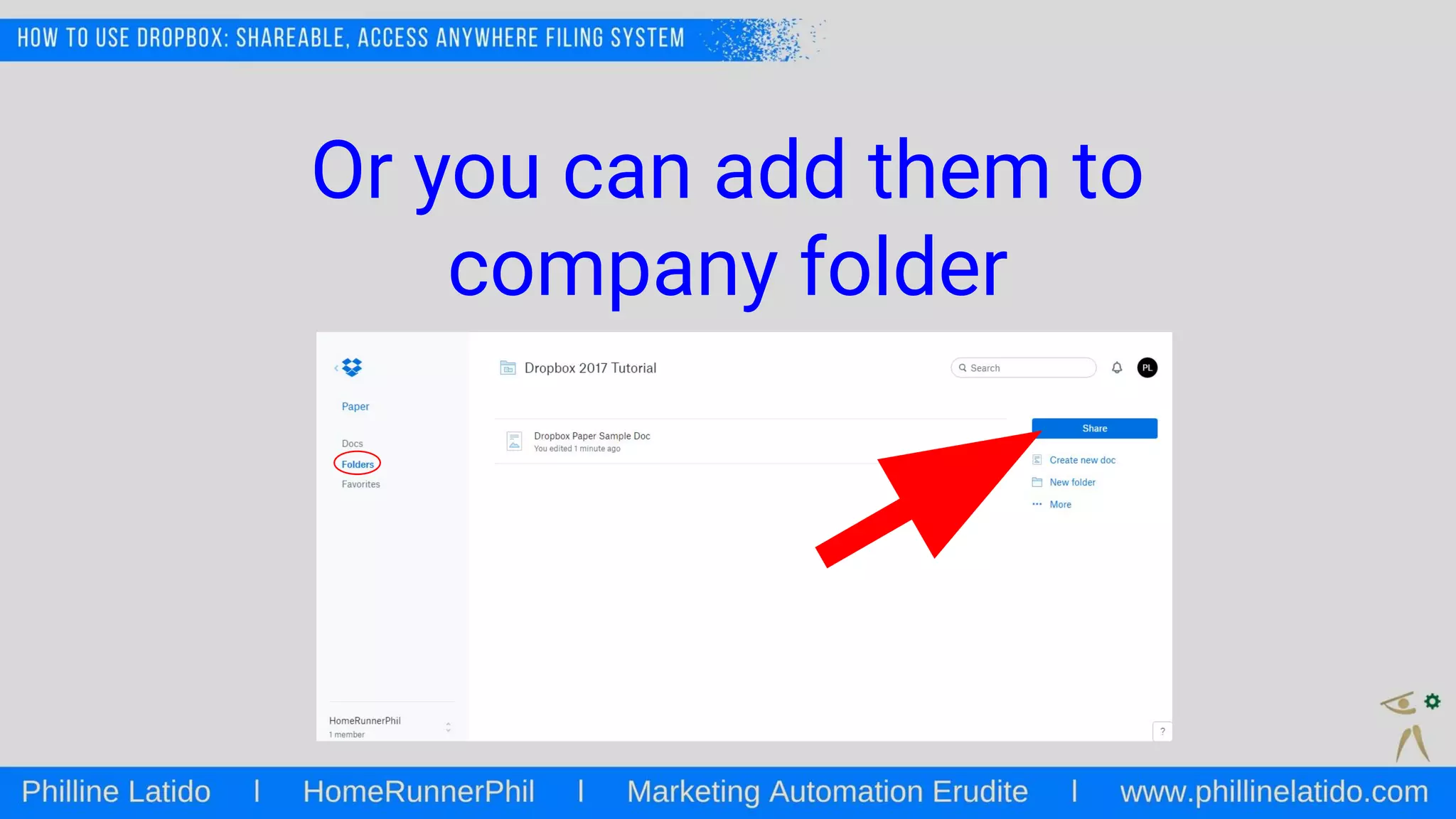
Or you can add them to
company folder
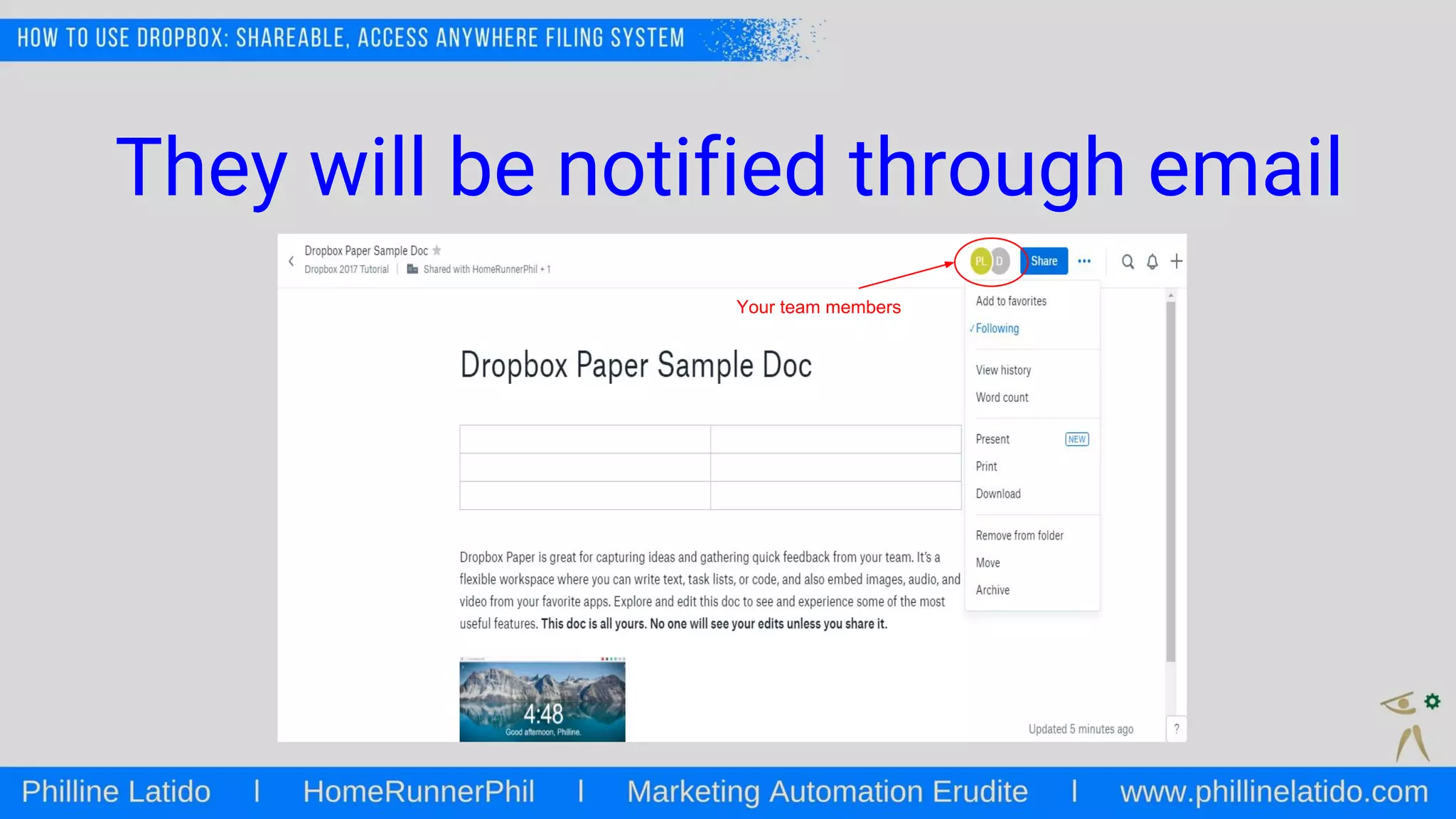
They will be notified through email
Your team members
Getting feedback
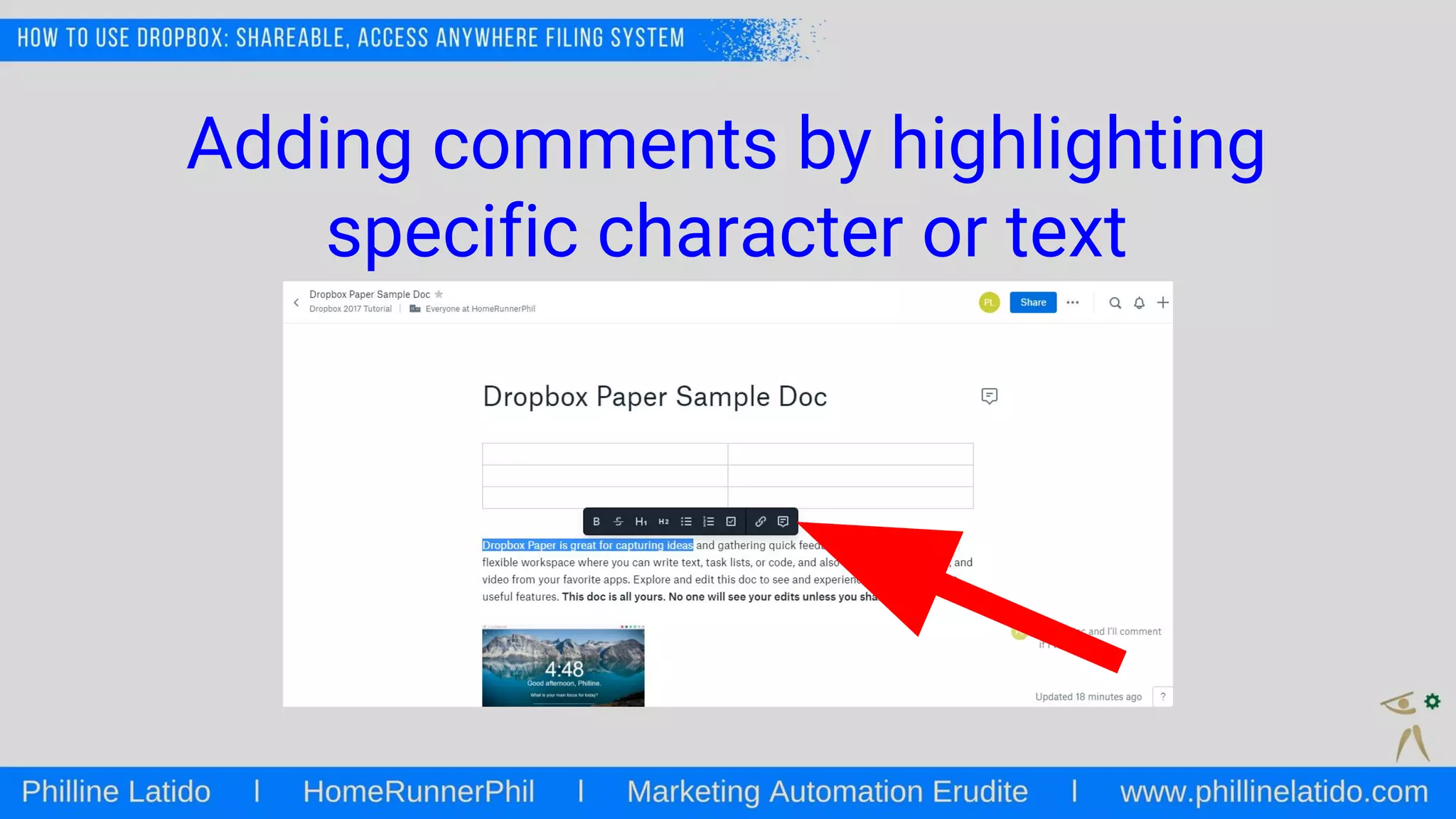
Adding comments by highlighting
specific character or text
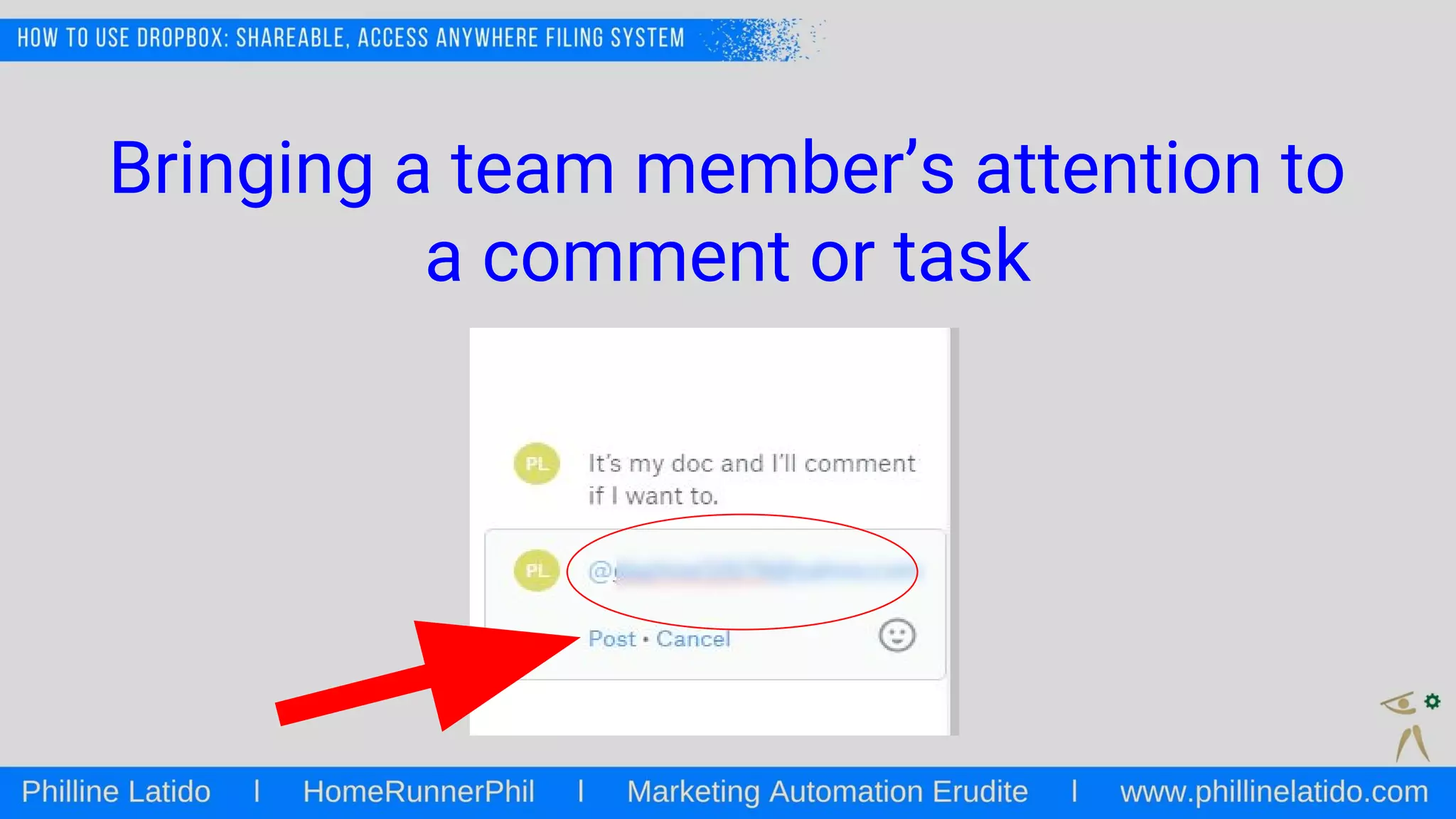
Bringing a team member’s attention to
a comment or task
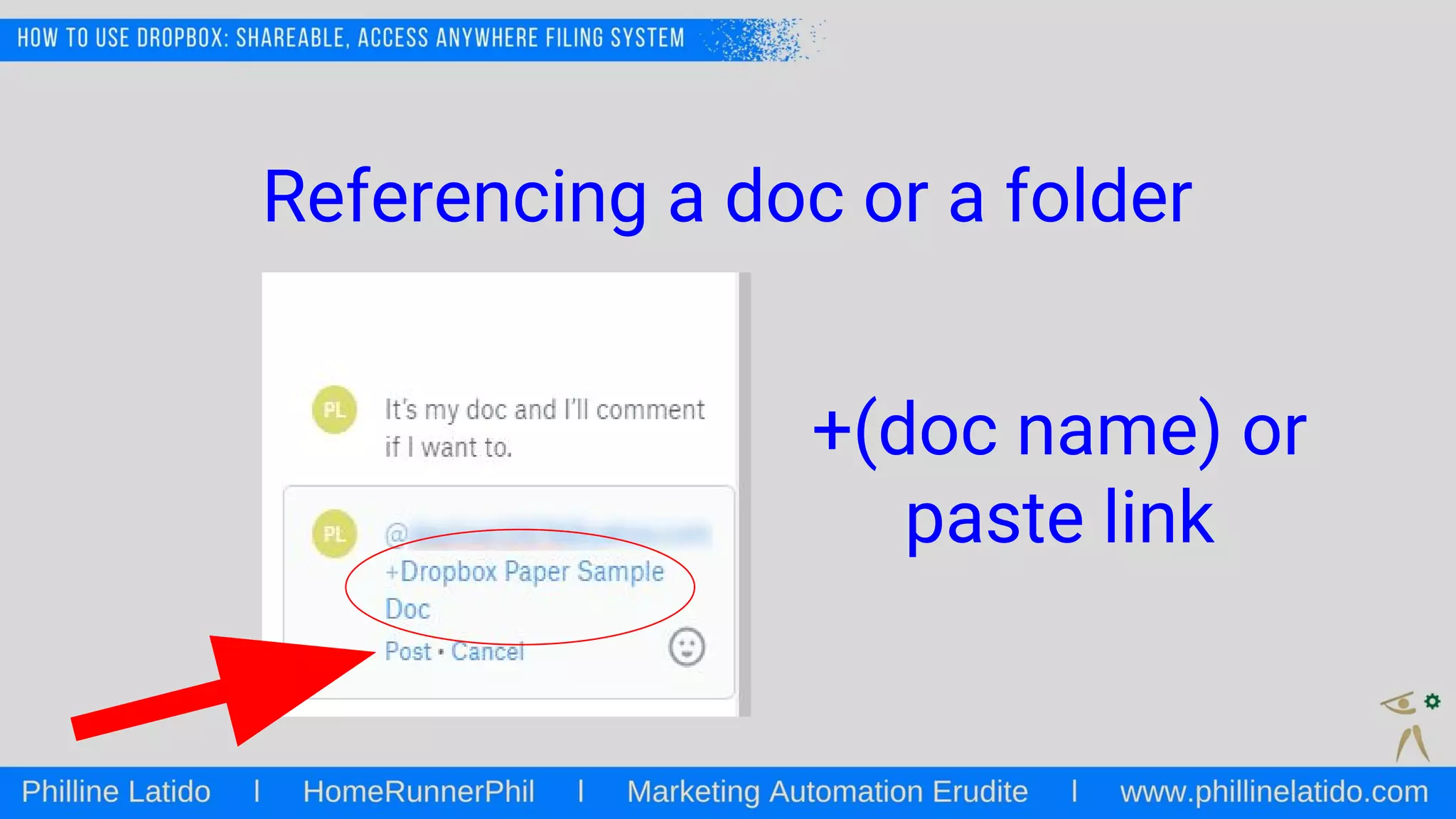
Referencing a doc or a folder
+(doc name) or
paste link
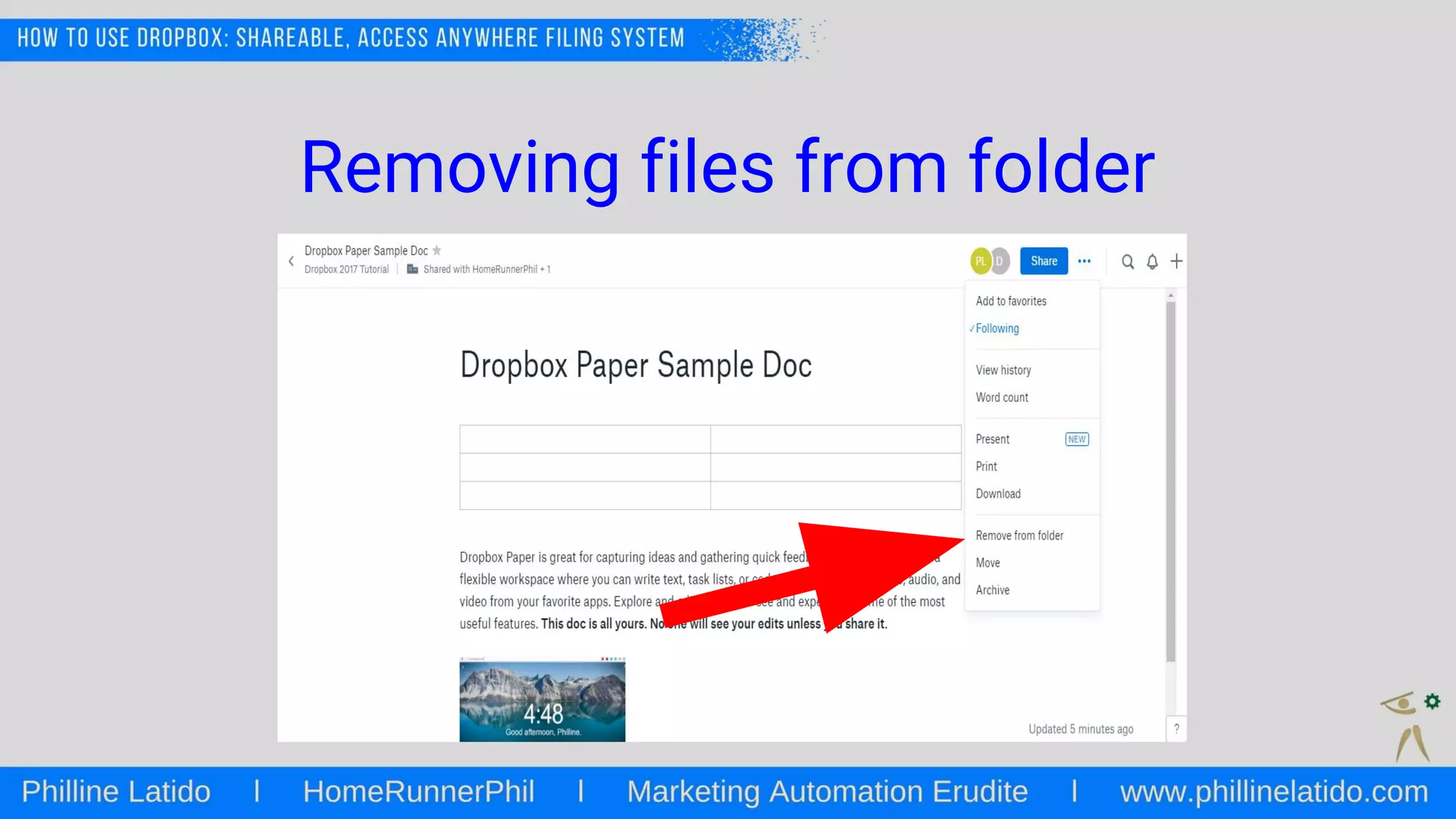
Removing files from folder
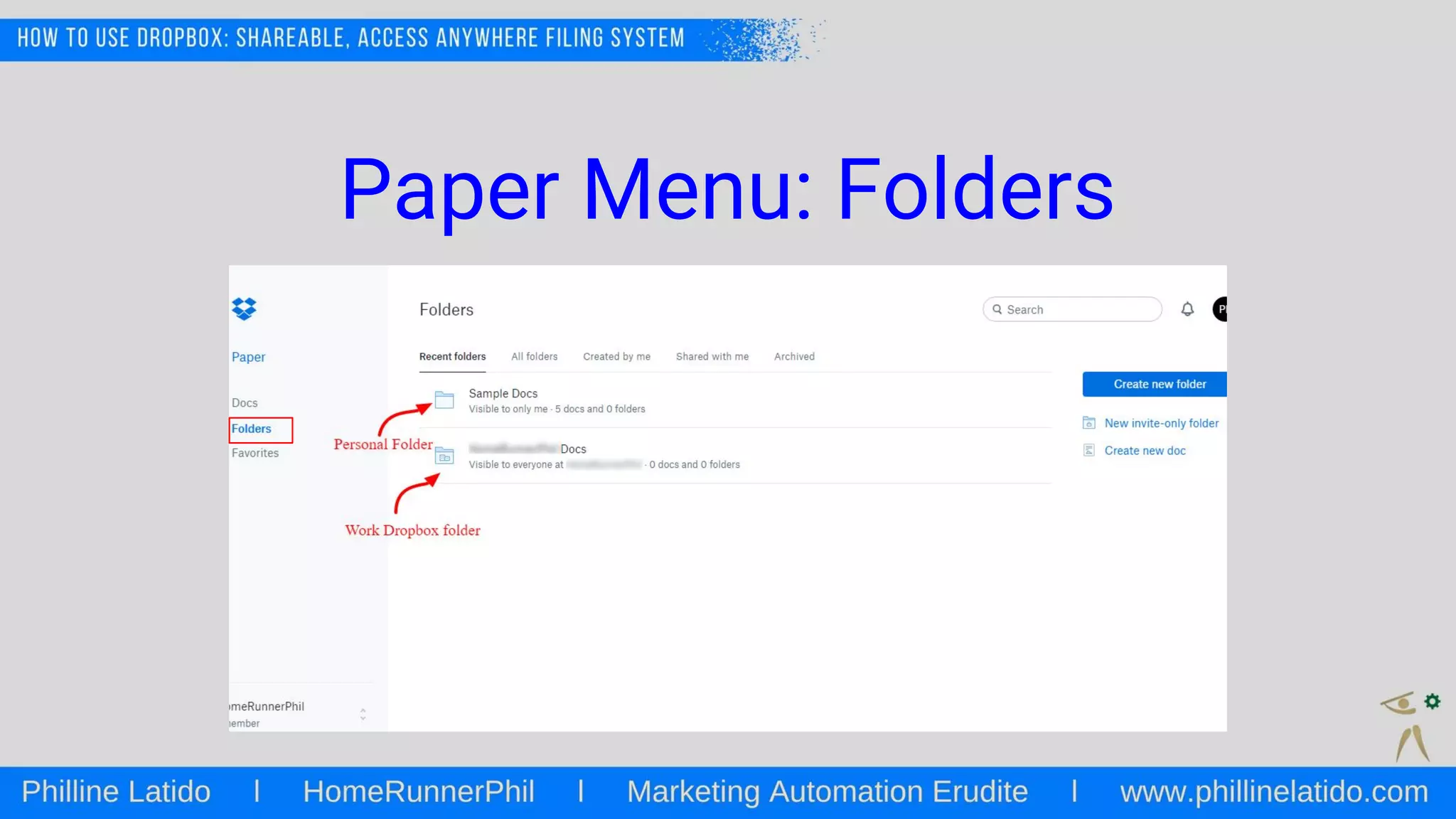
Paper Menu: Folders
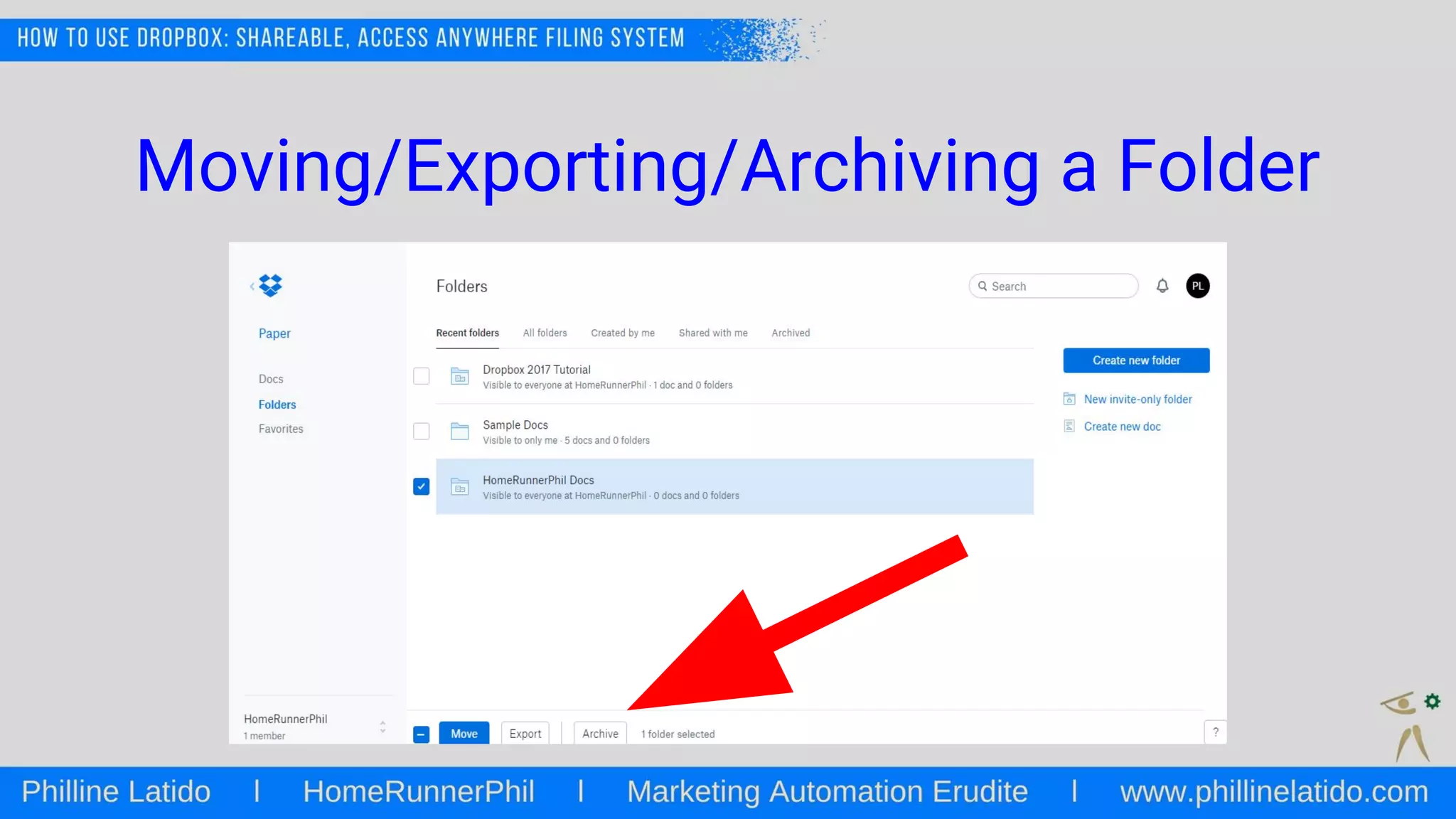
Moving/Exporting/Archiving a Folder
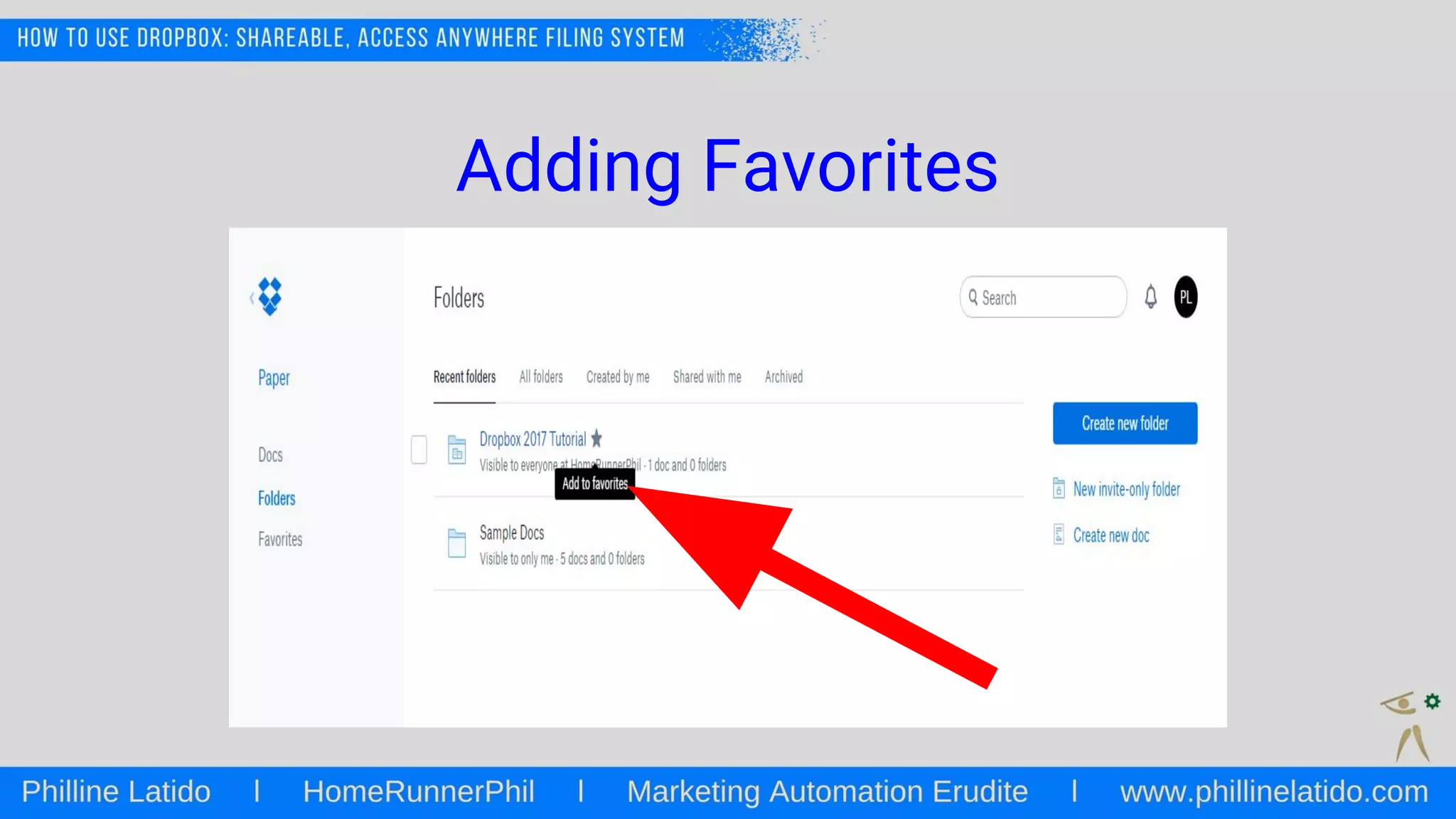
Adding Favorites
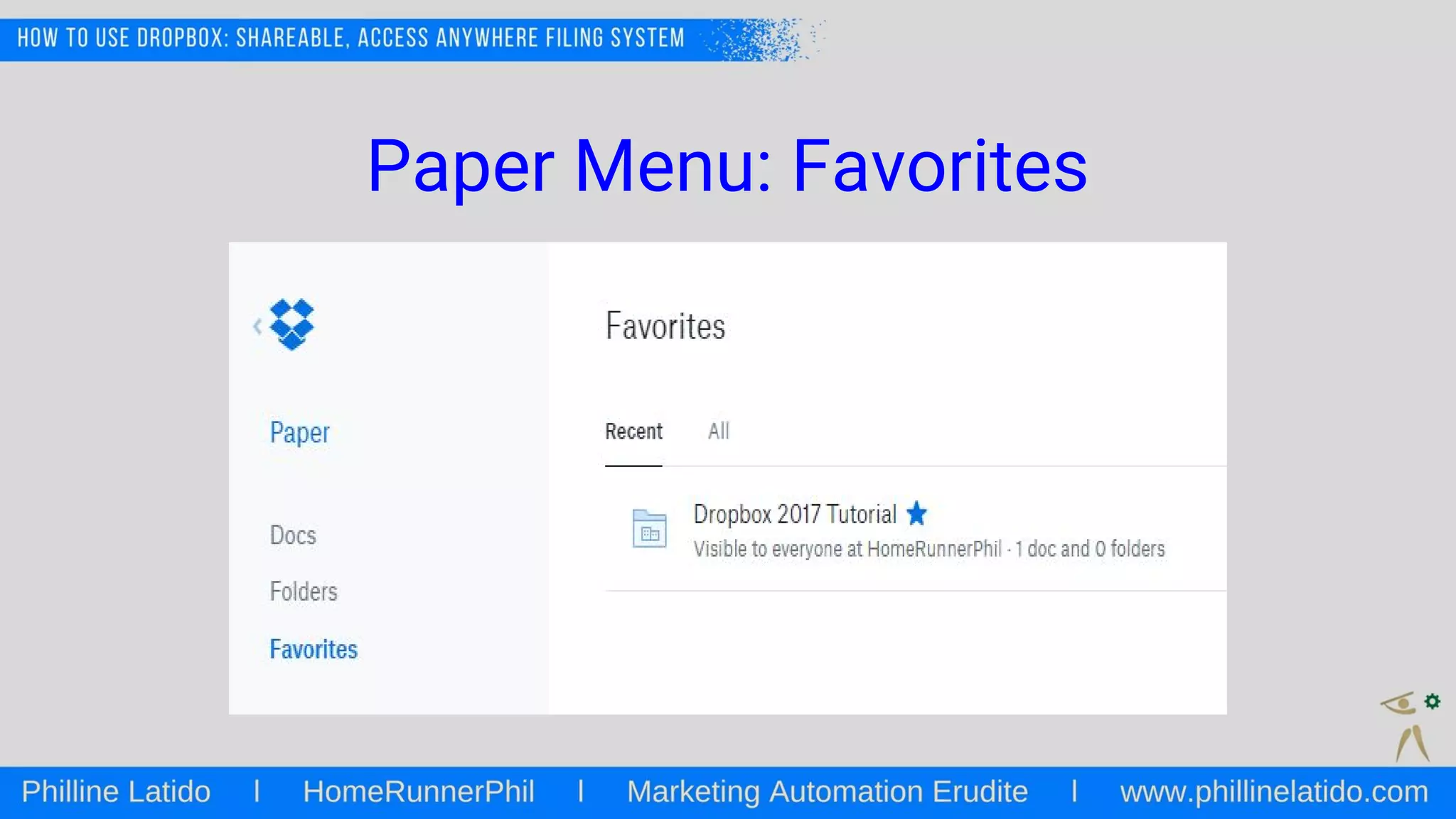
Paper Menu: Favorites
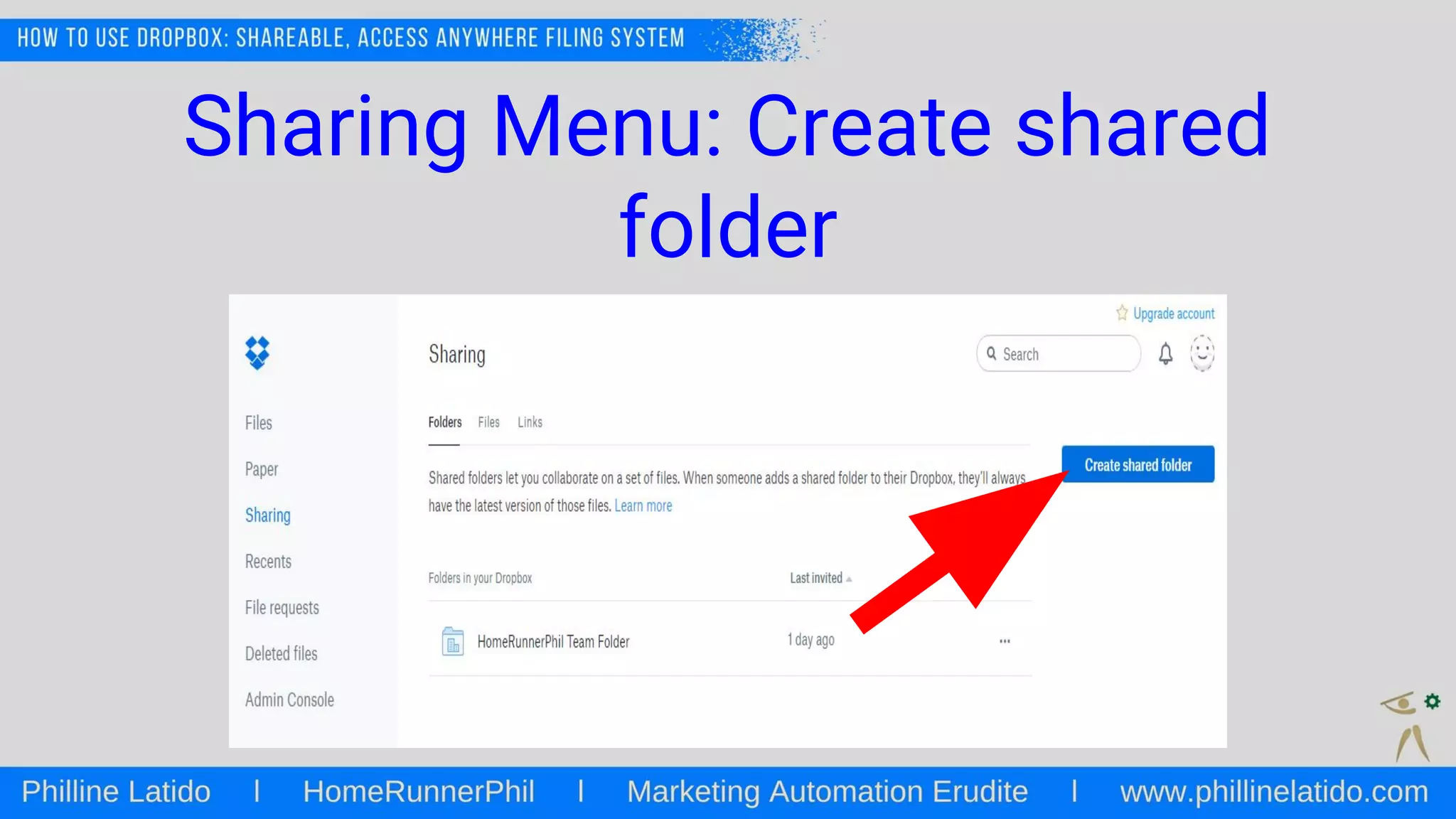
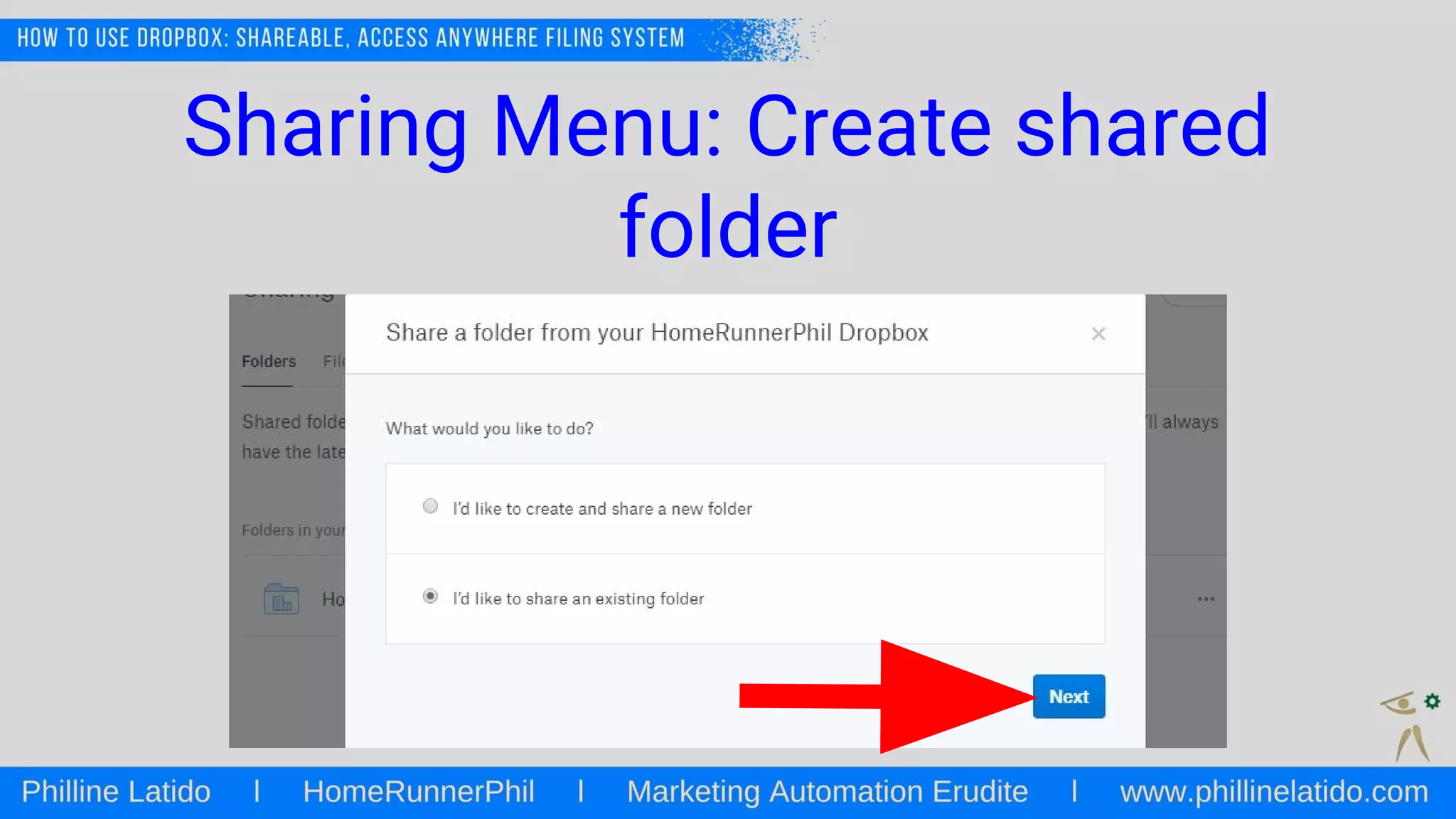
Sharing Menu: Create shared
folder
Sharing Menu: Create shared
folder
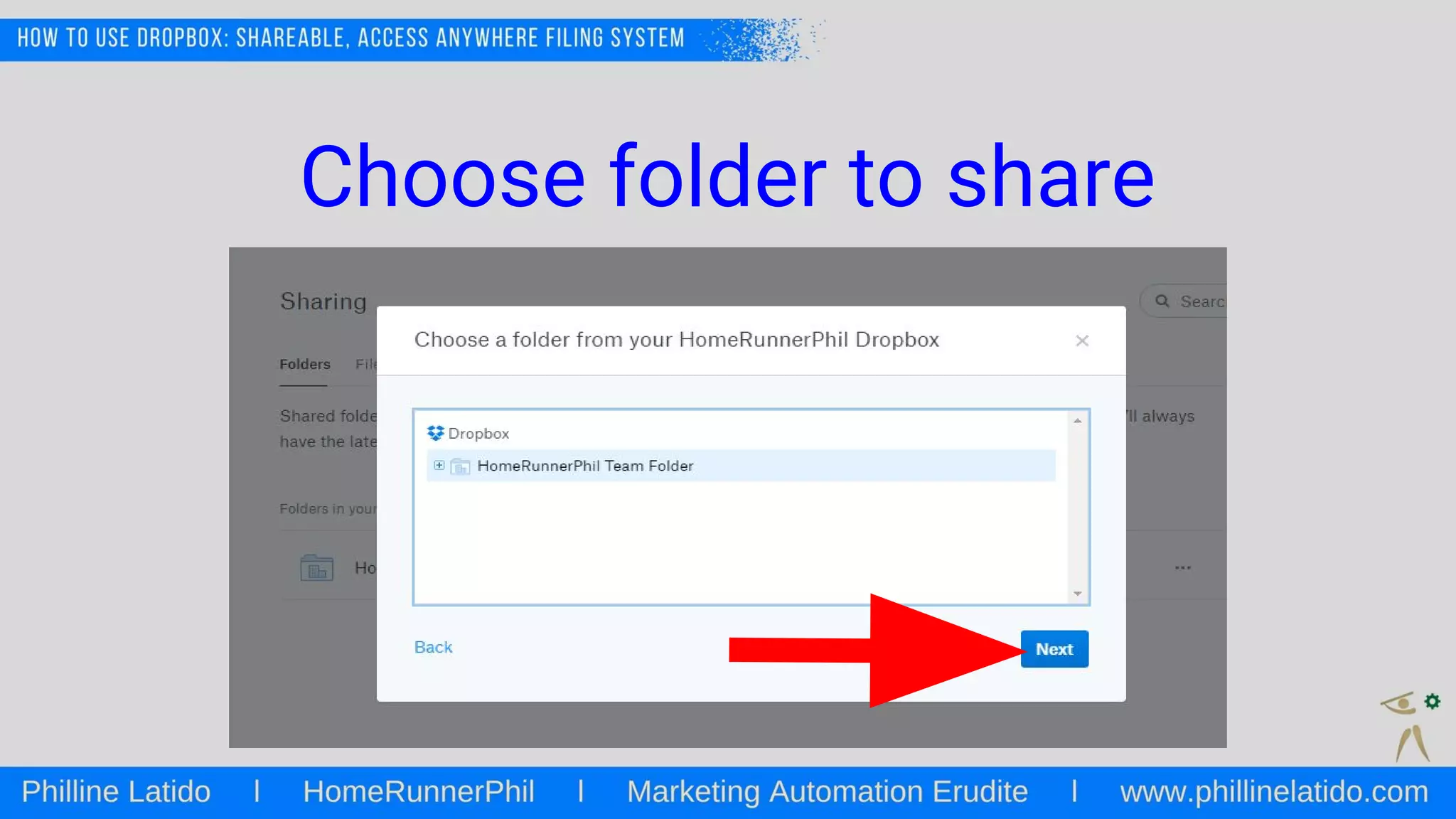
Choose folder to share
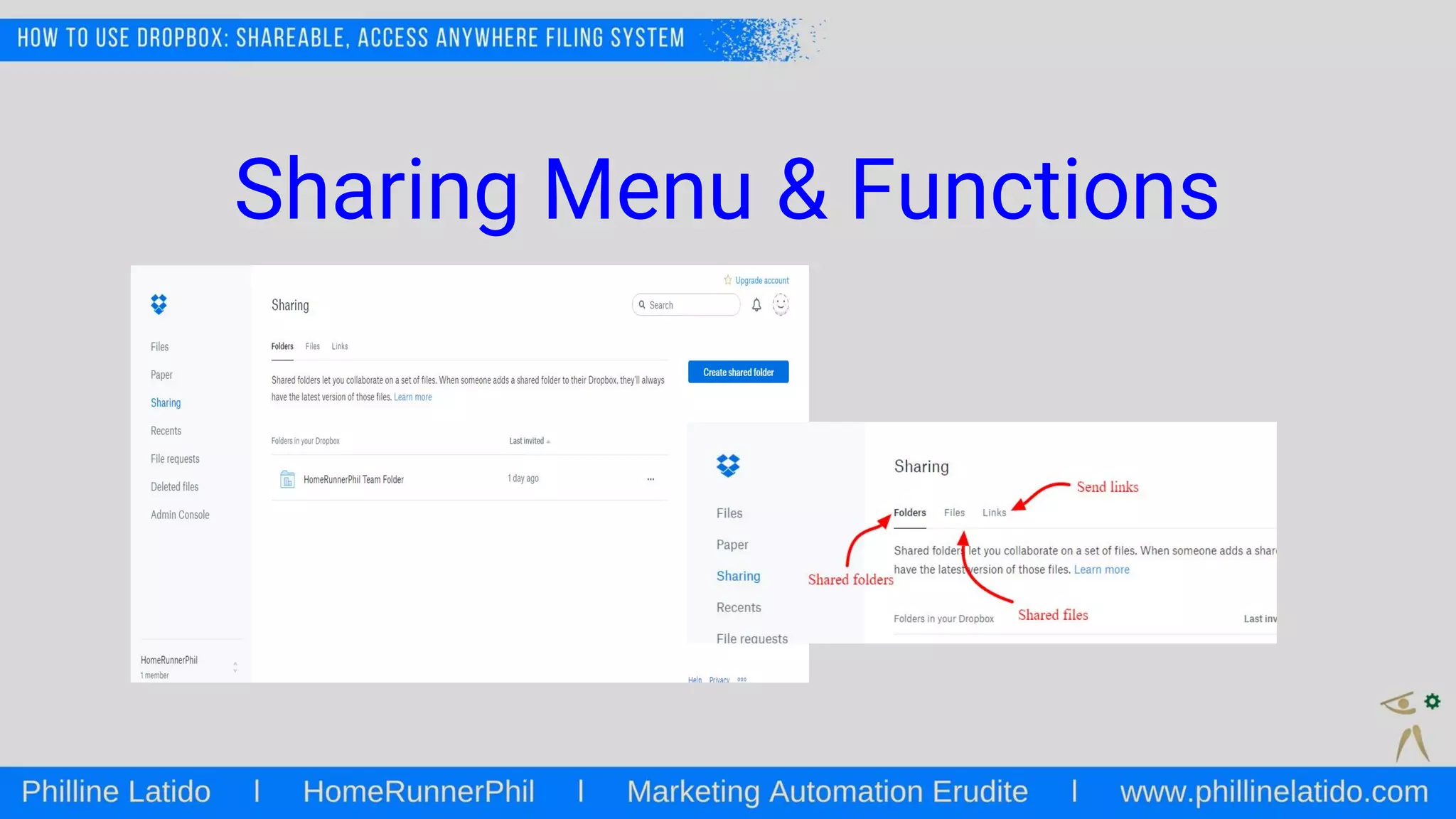
Sharing Menu & Functions
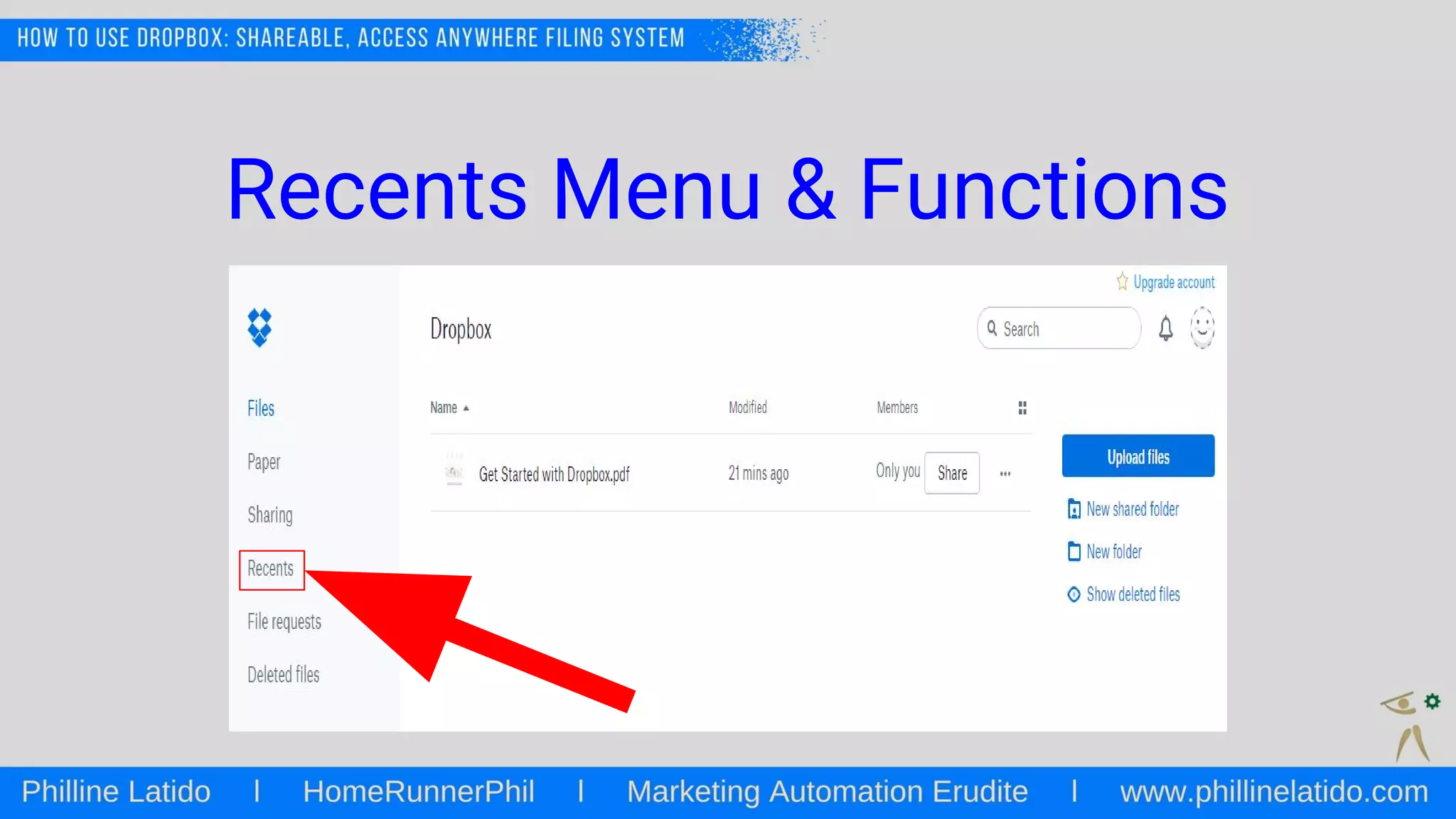
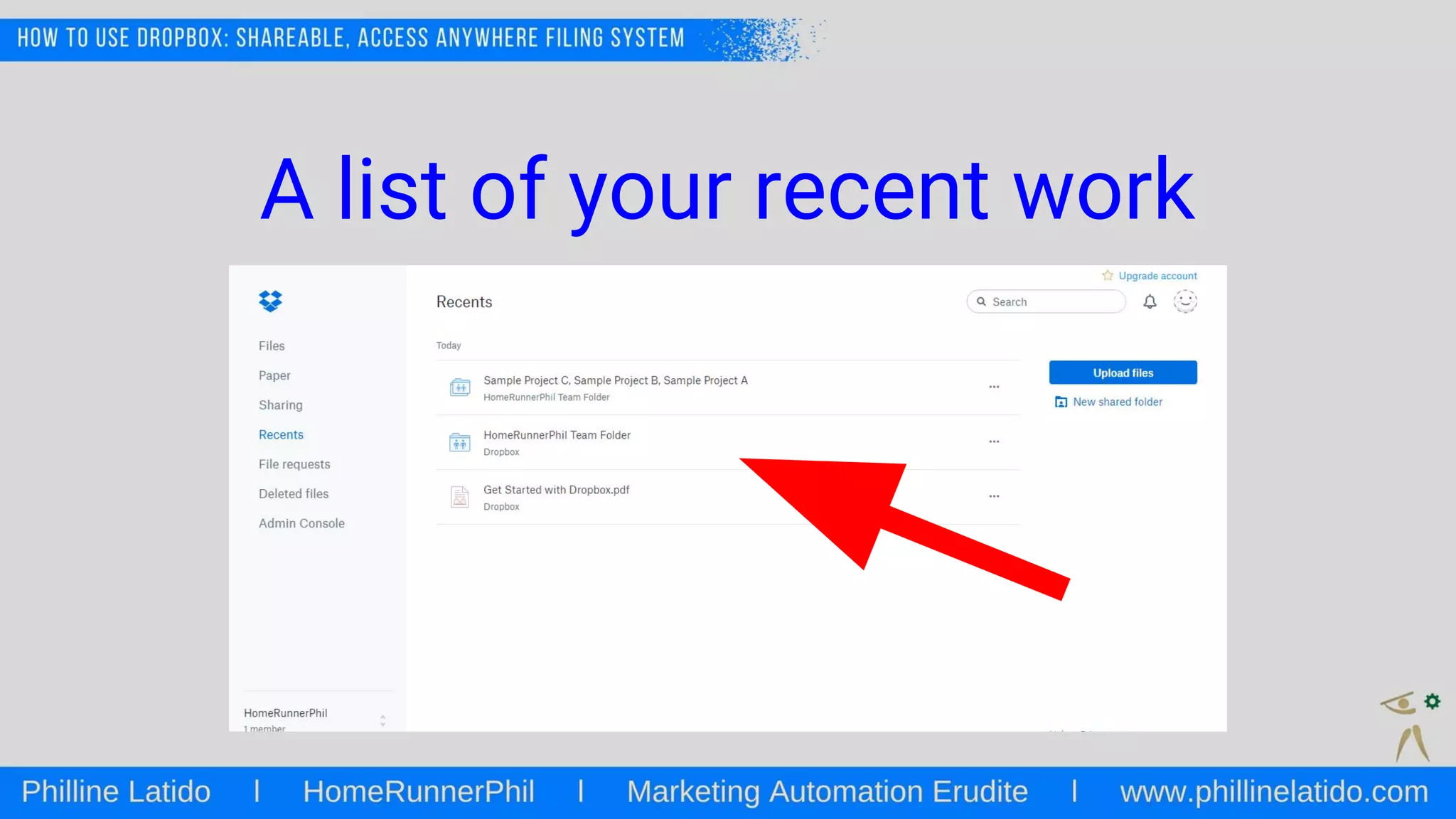
Recents Menu & Functions
A list of your recent work
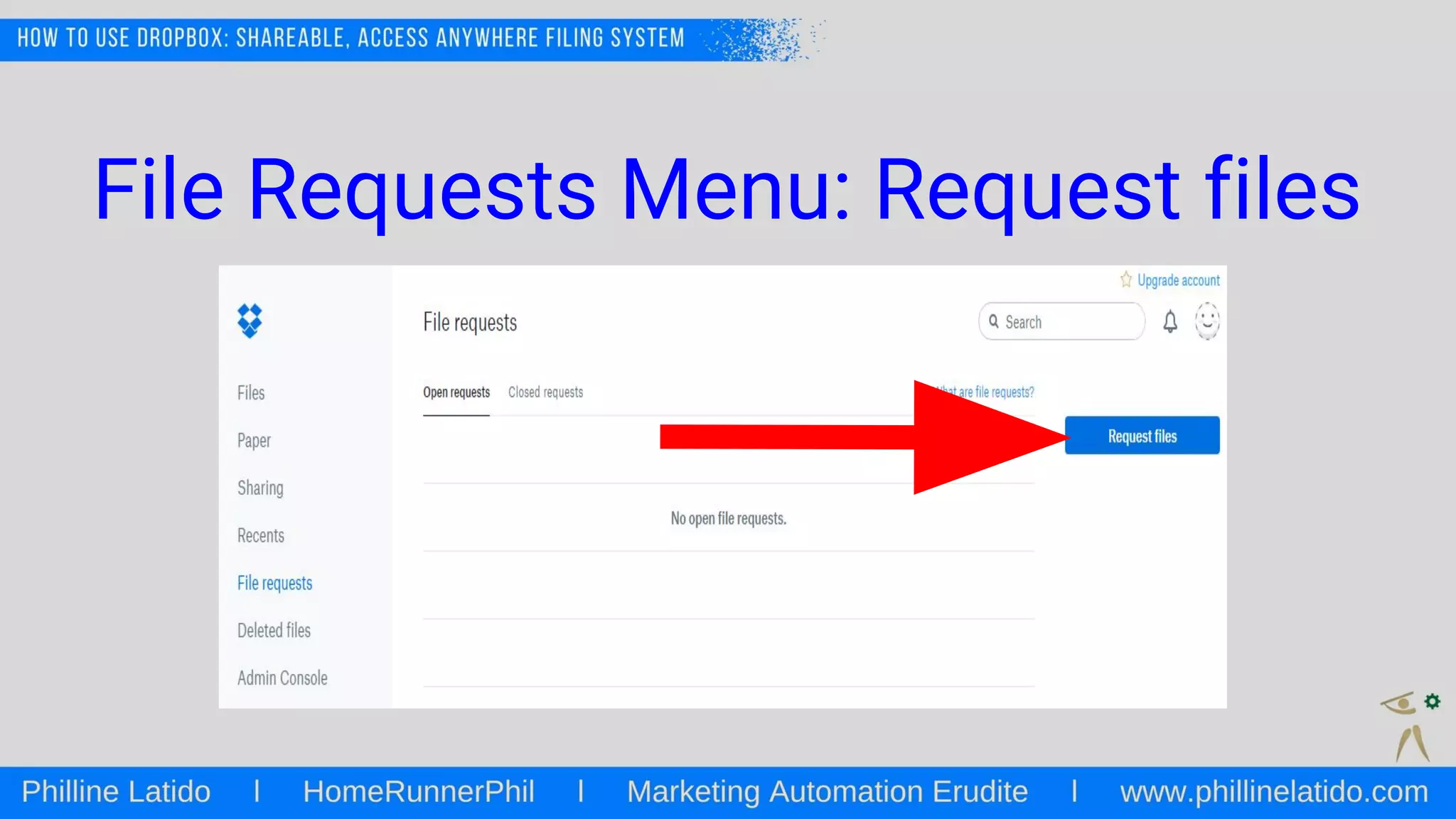
File Requests Menu: Request files
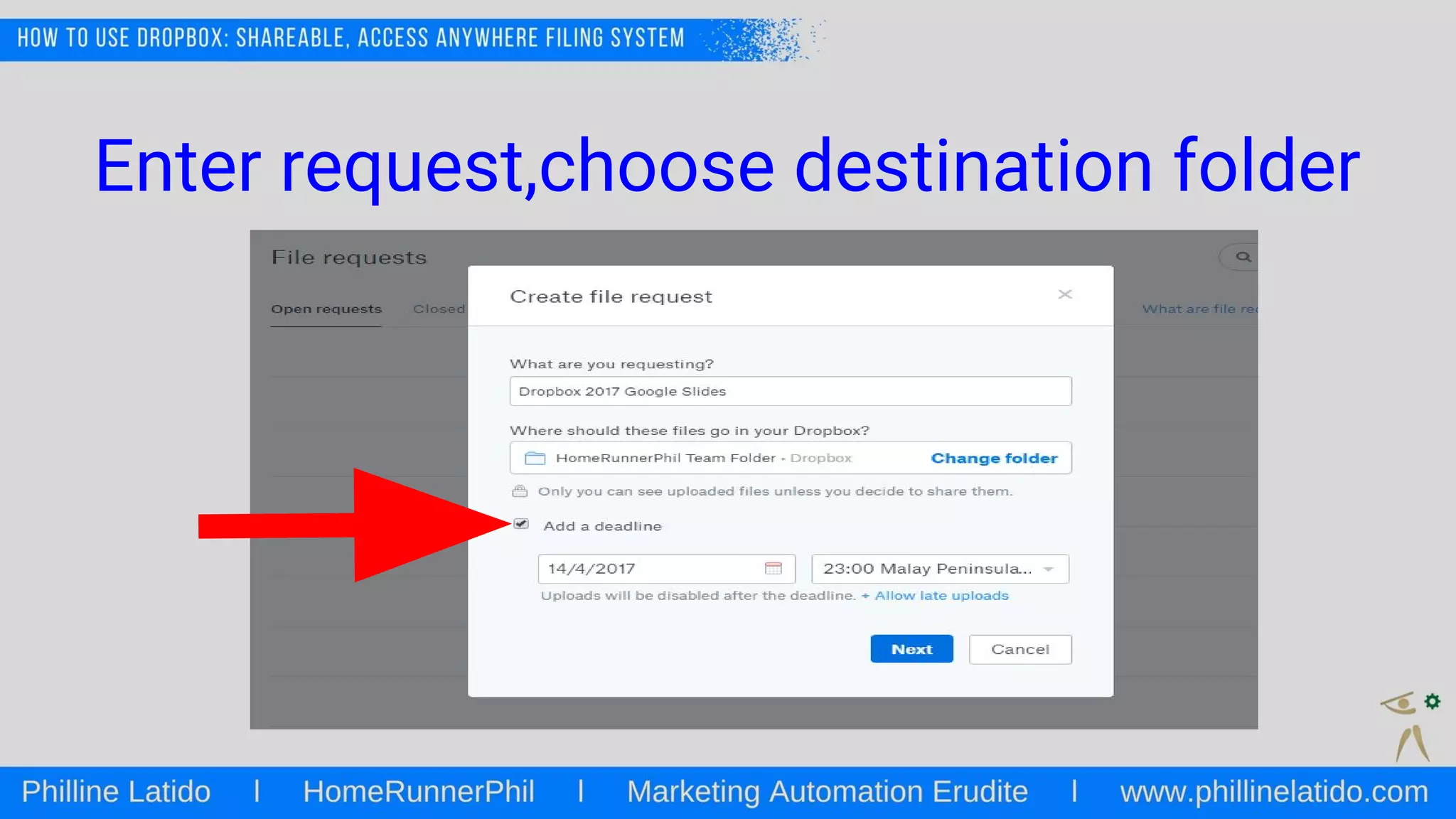
Enter request,choose destination folder
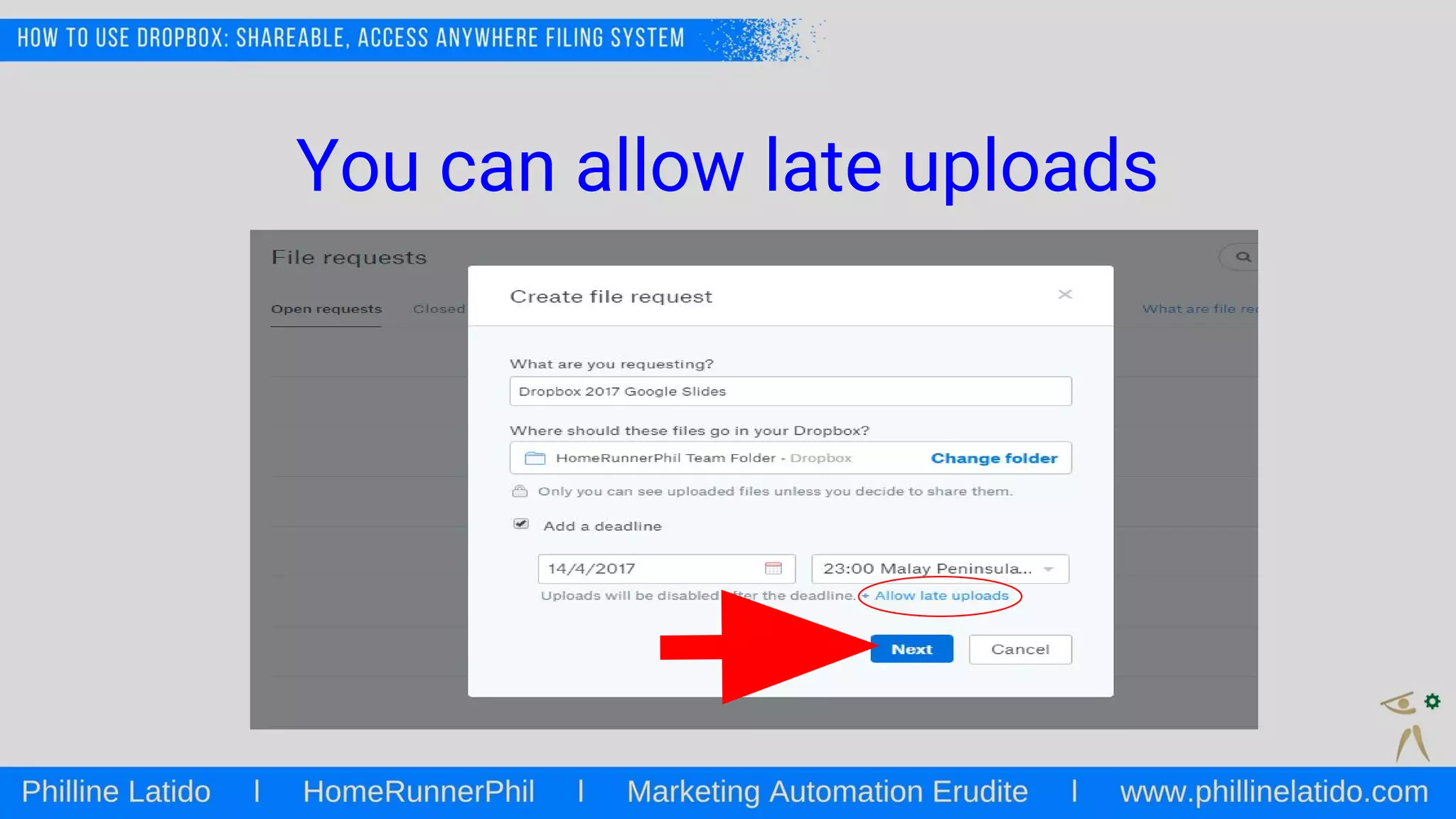
You can allow late uploads
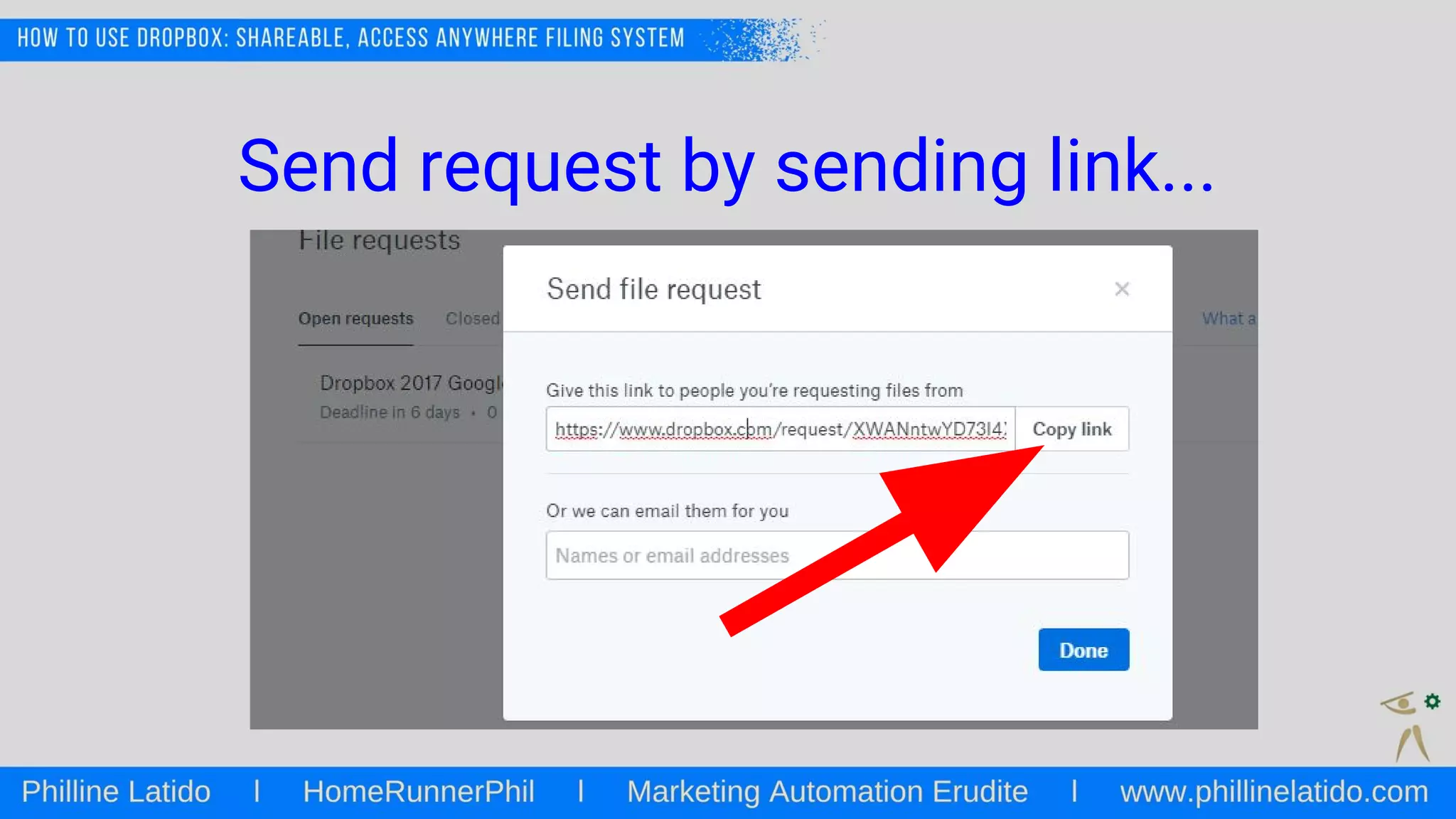
Send request by sending link...
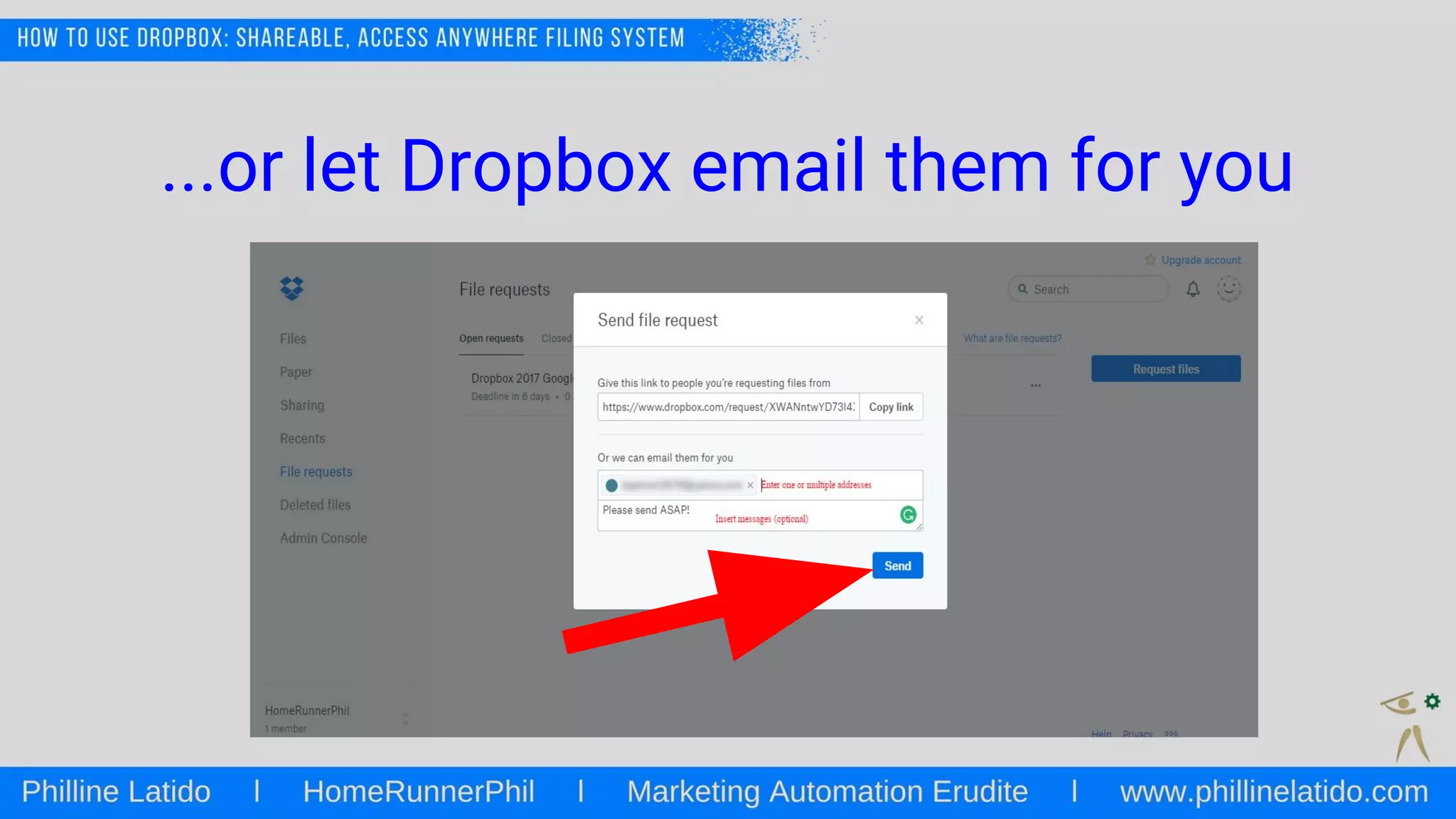
...or let Dropbox email them for you
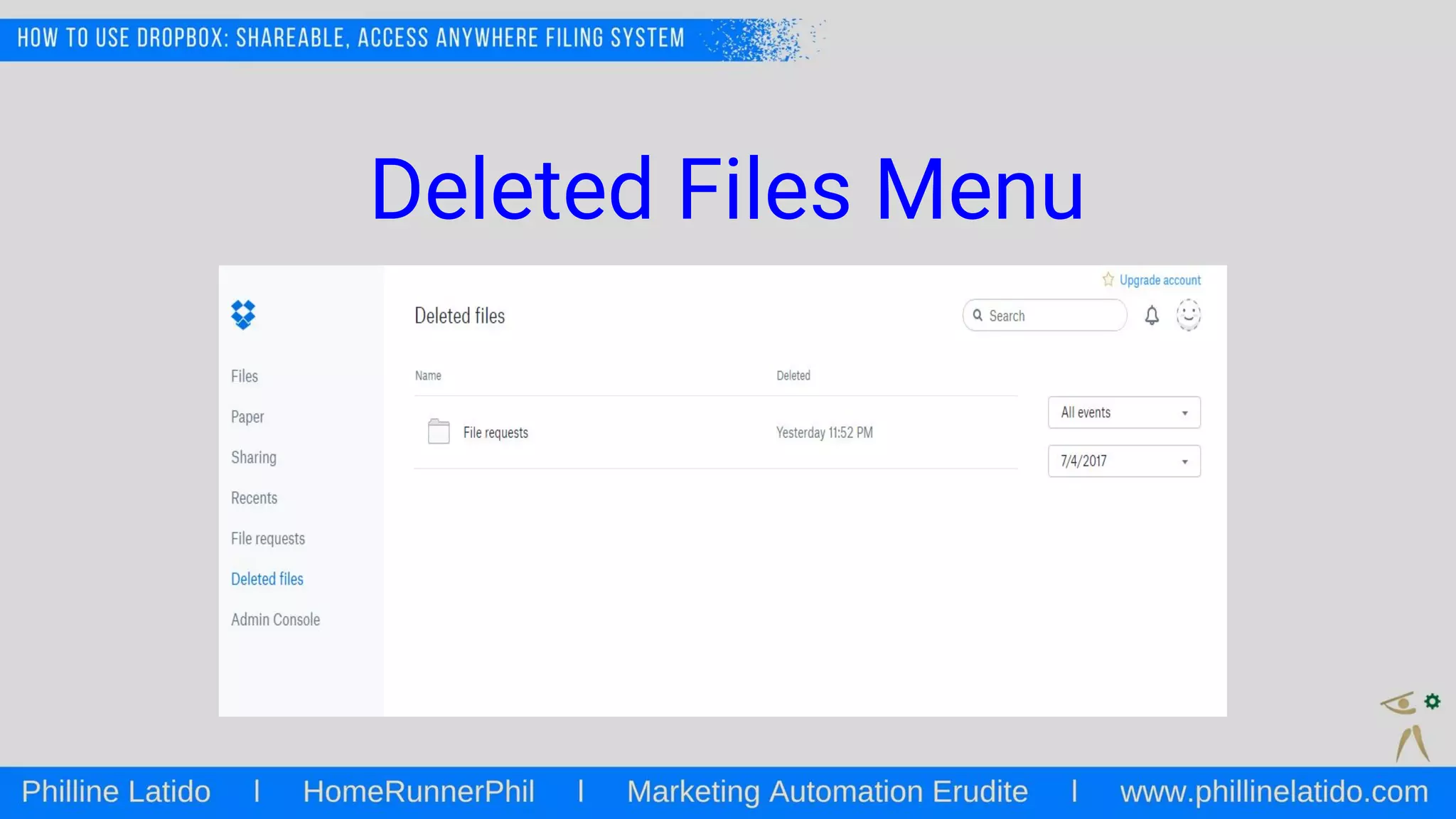
Deleted Files Menu
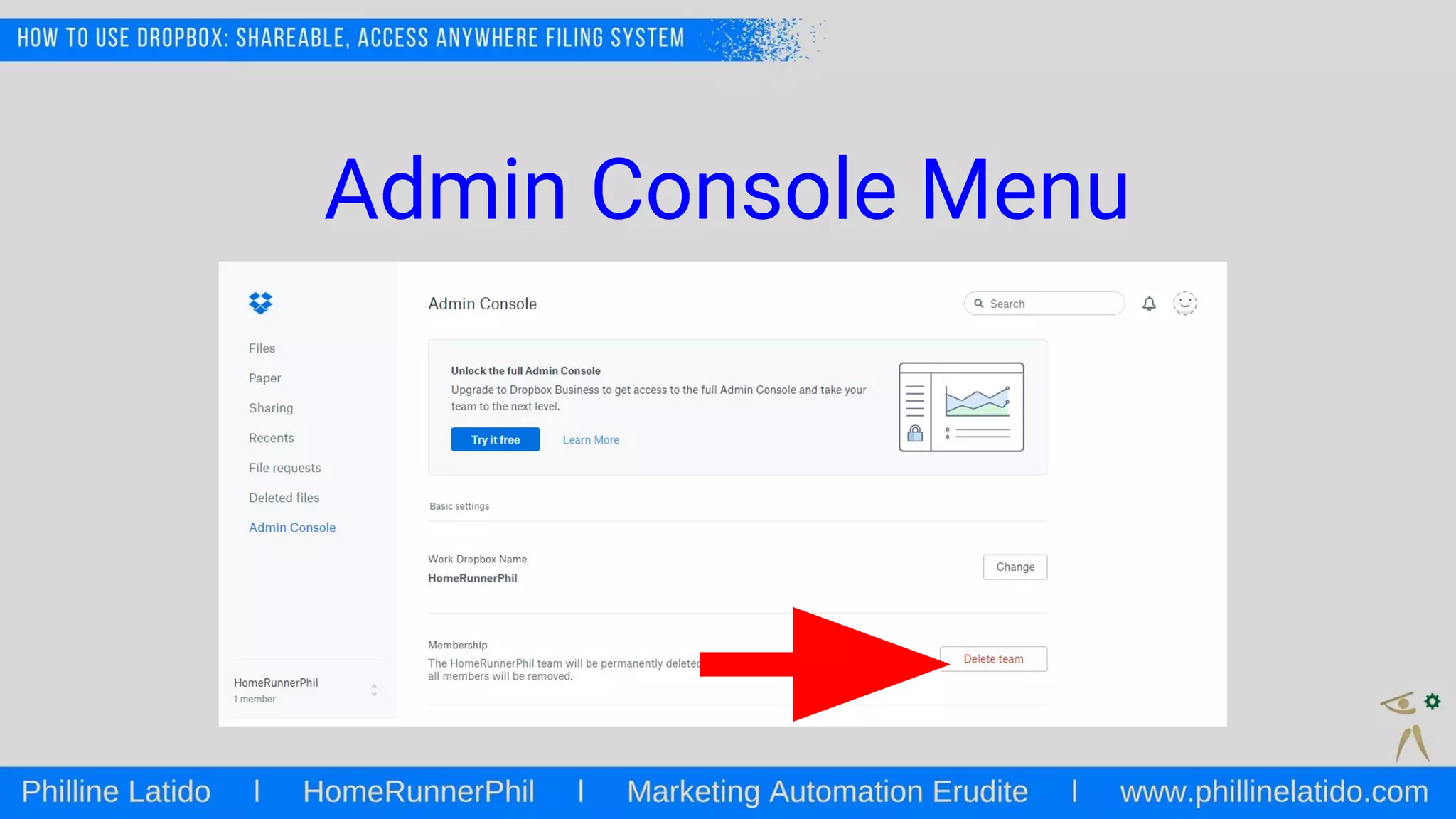
Deleting a team
Admin Console Menu
Getting the most out of Dropbox
Use Dropbox desktop app to keep files
in sync
Invite friends and get up to 16GB of
FREE space!
Enhance its capabilities by integrating
with other apps (i.e. Textdrop, IFTTT)
End of slide.
HRP’s Super Basic Guide for the Clueless Series

Philline Latido_How to Use Dropbox