HOW TO USE
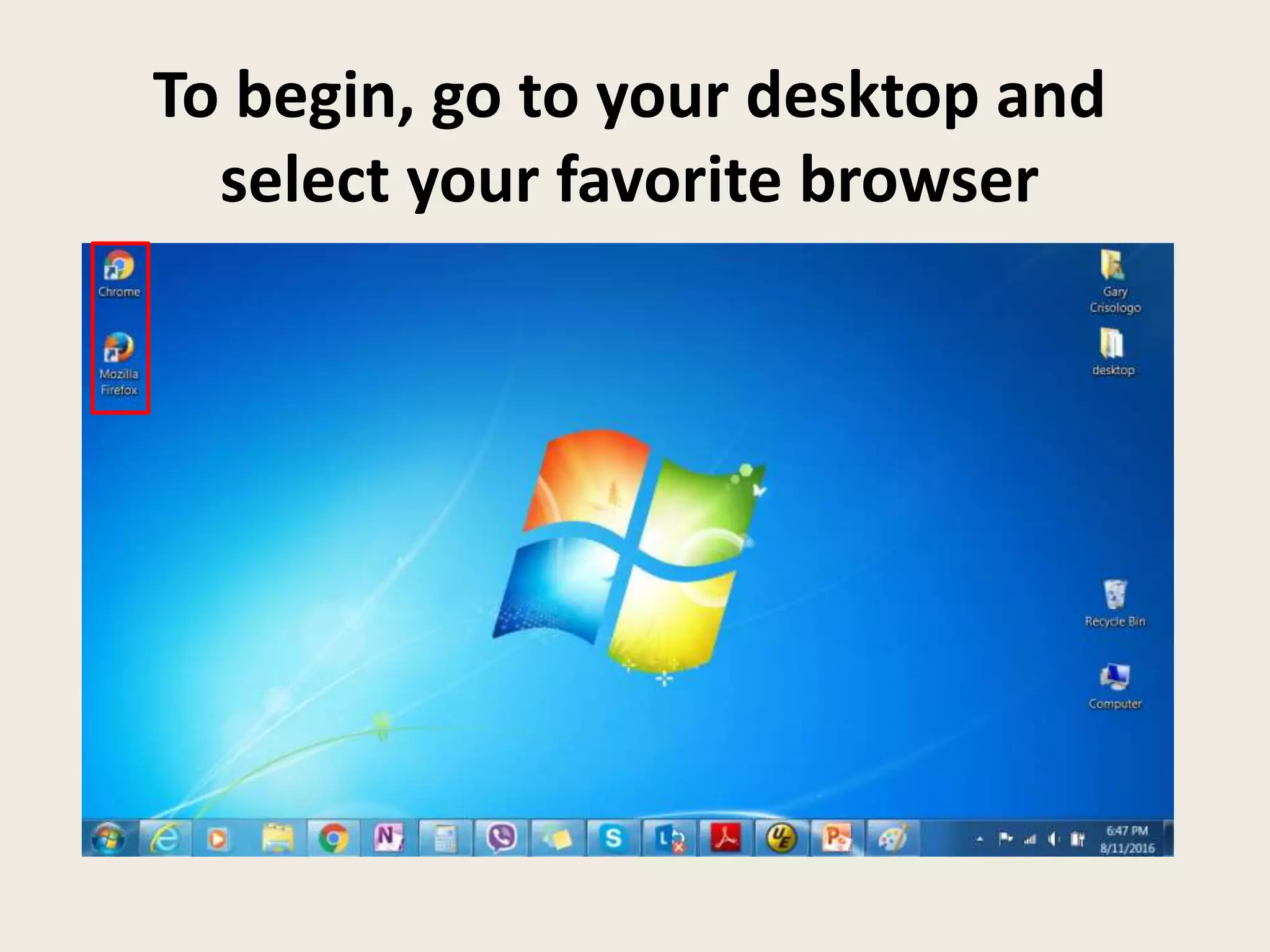
To begin, go to your desktop and
select your favorite browser
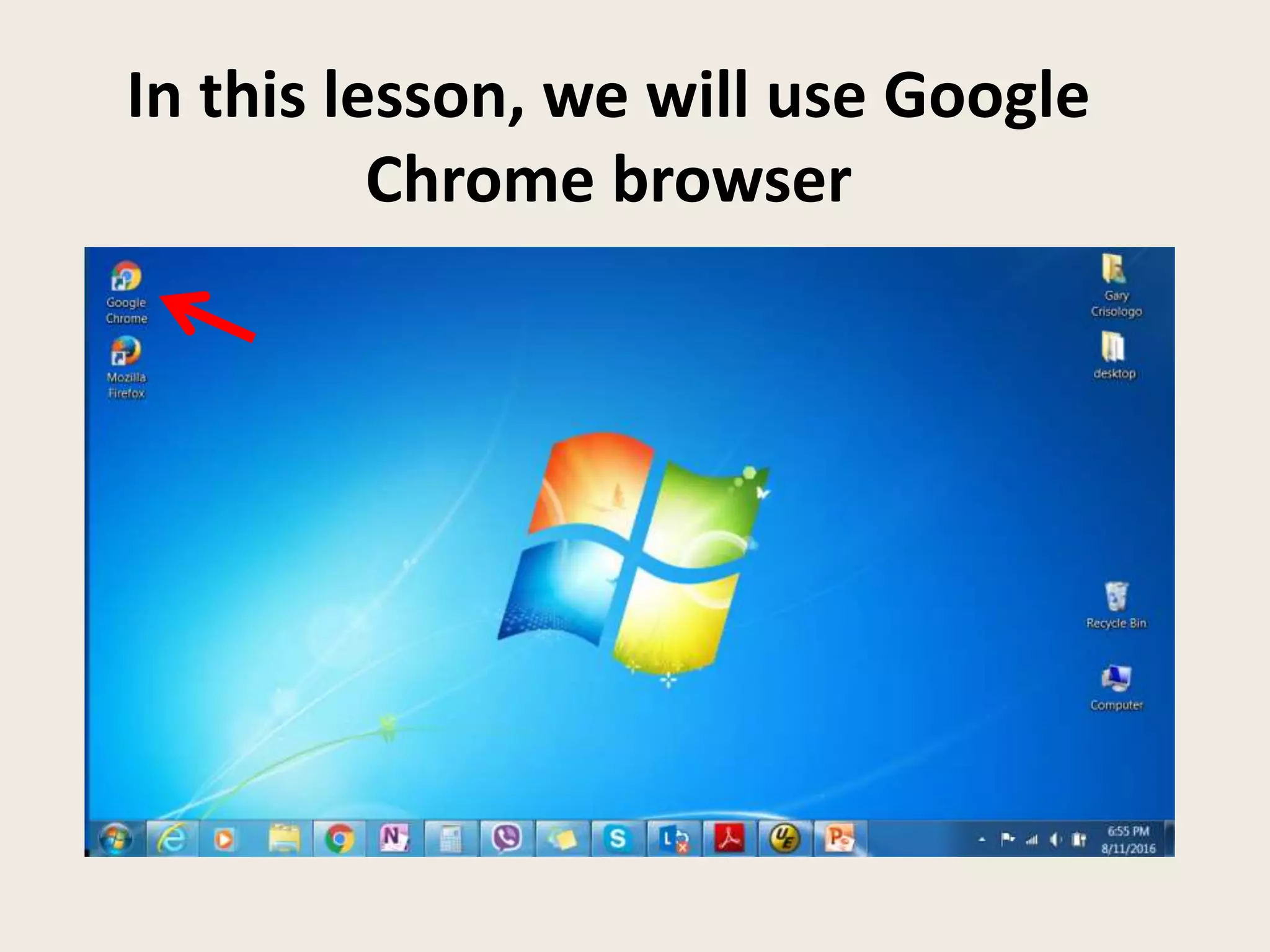
In this lesson, we will use Google
Chrome browser
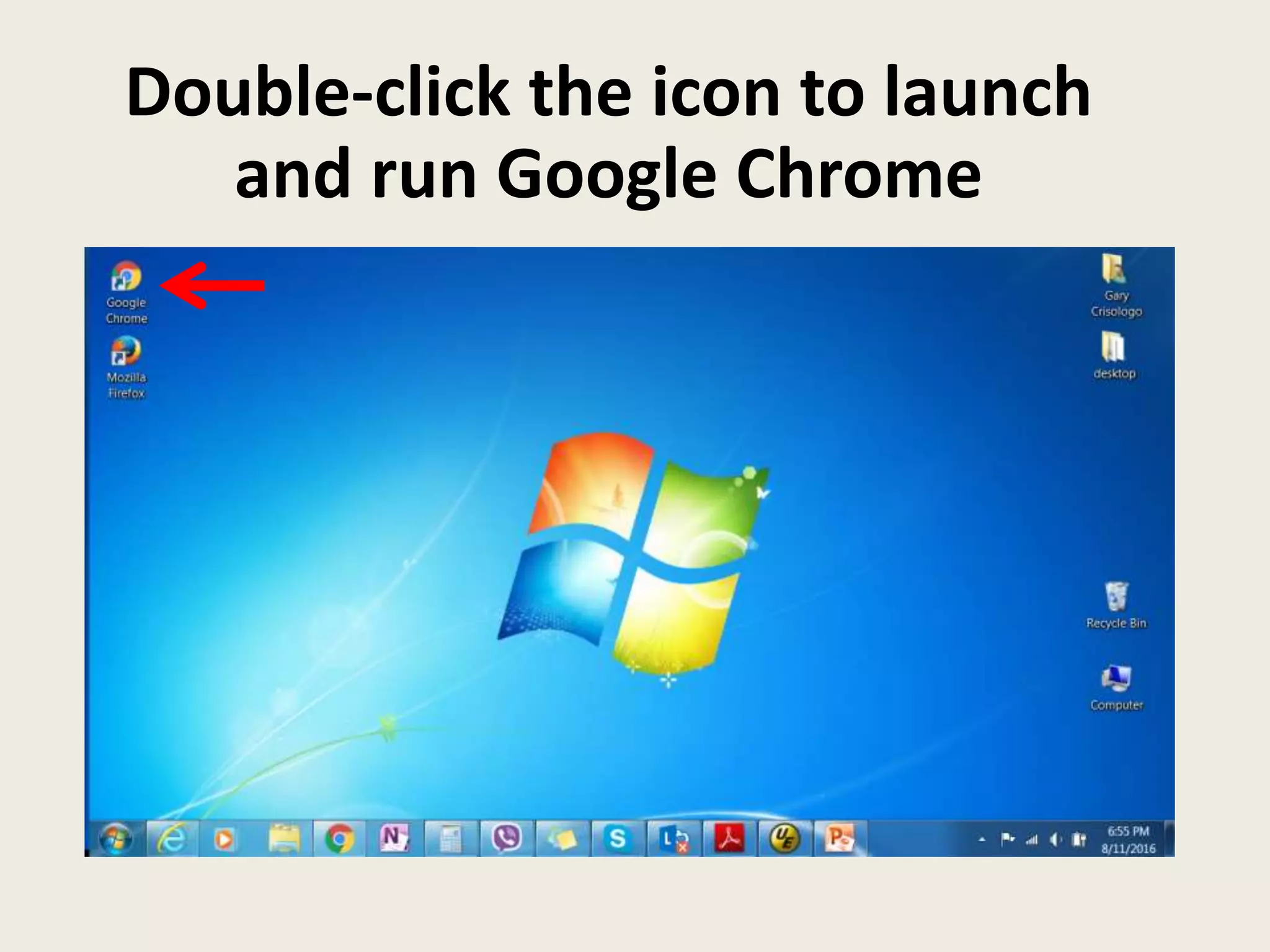
Double-click the icon to launch
and run Google Chrome
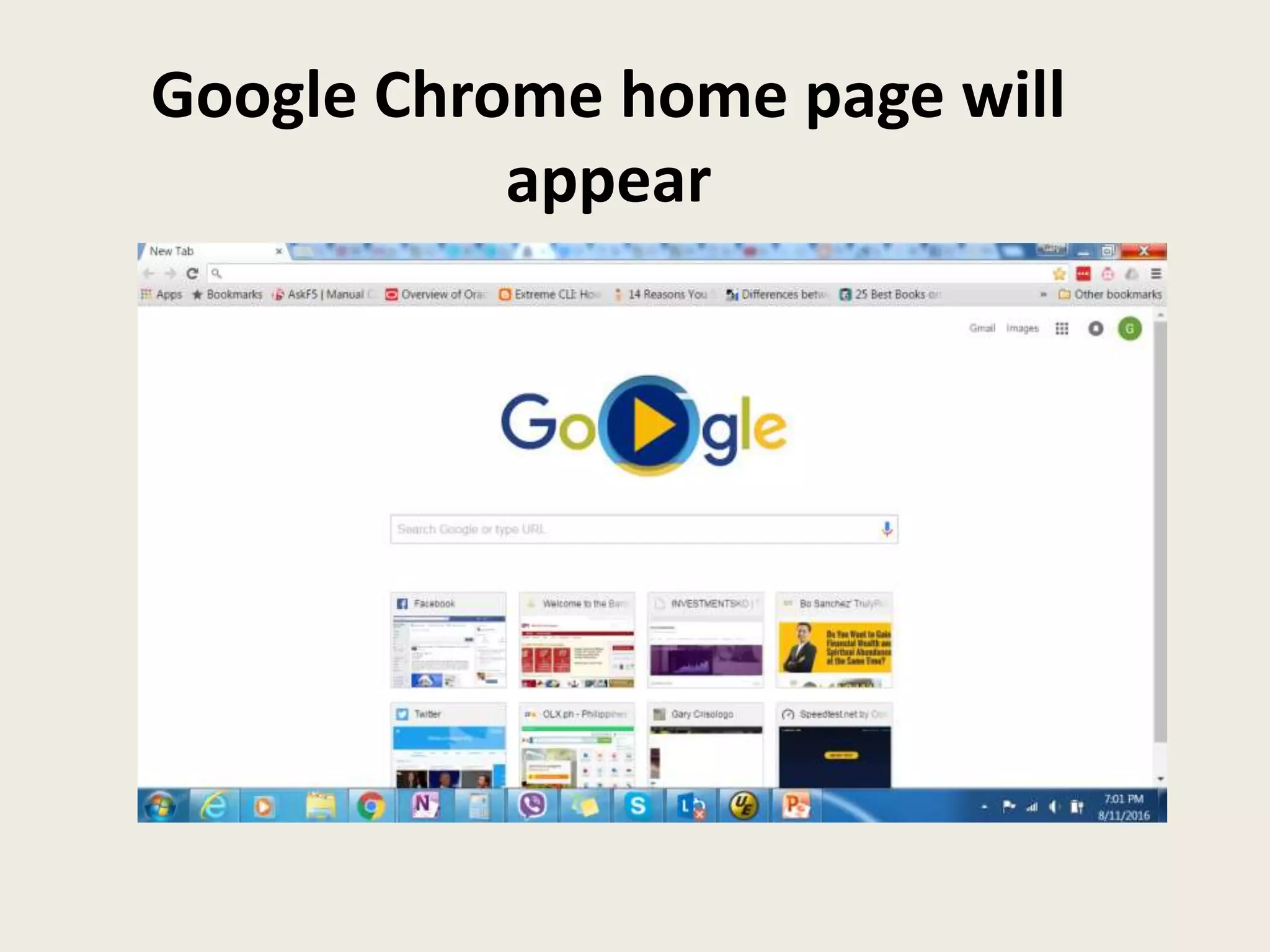
Google Chrome home page will
appear
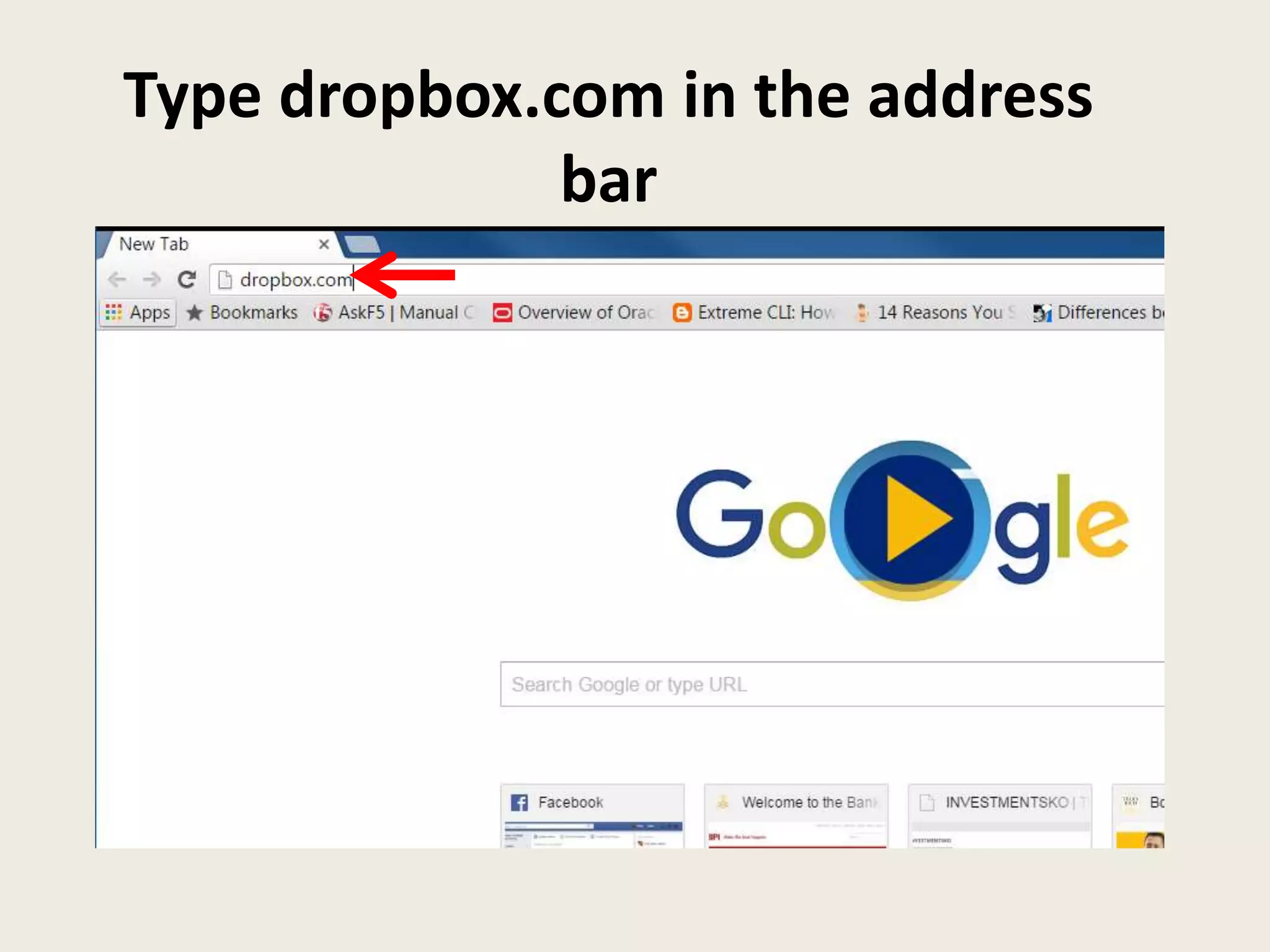
Type dropbox.com in the address
bar
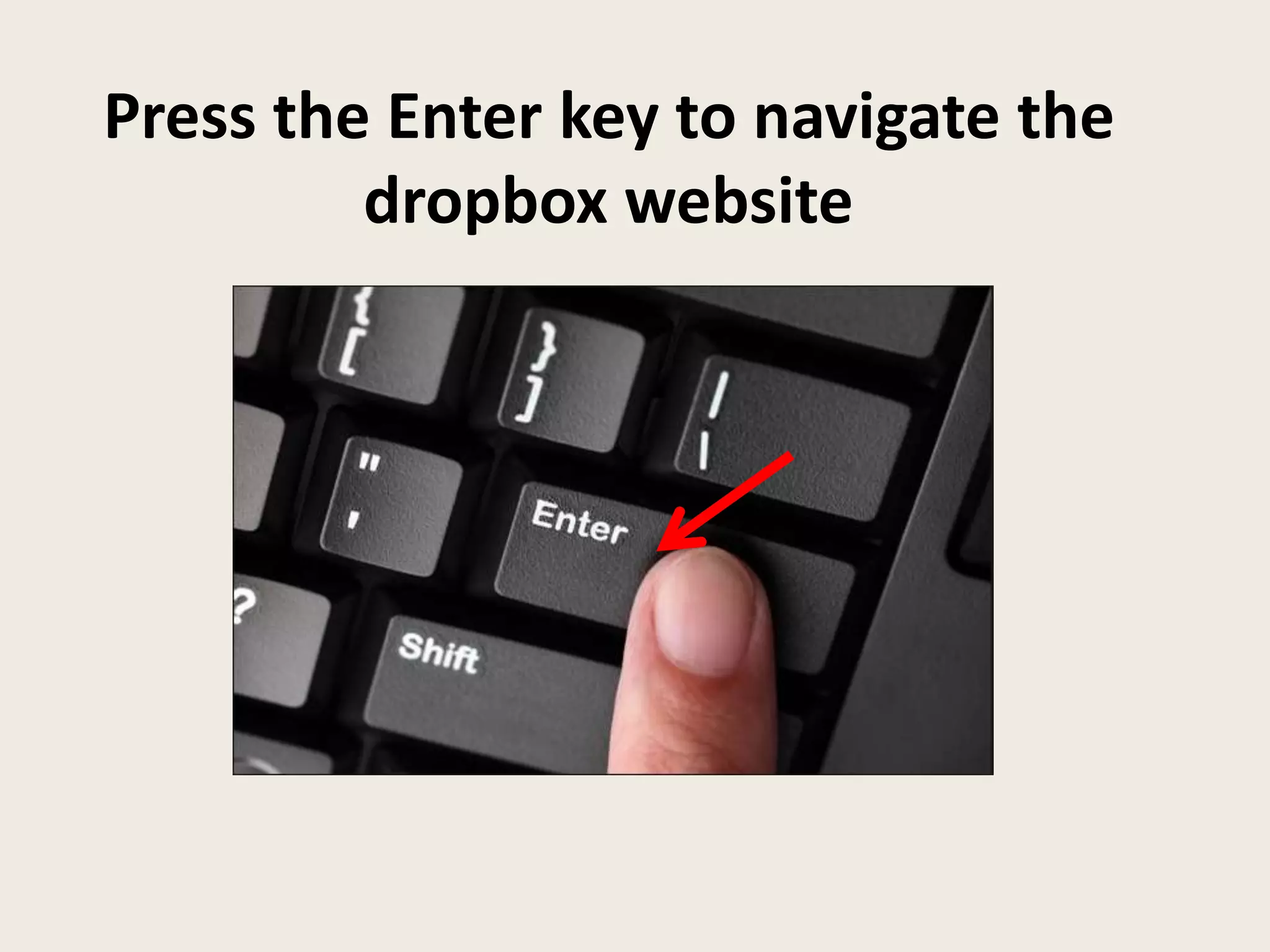
Press the Enter key to navigate the
dropbox website
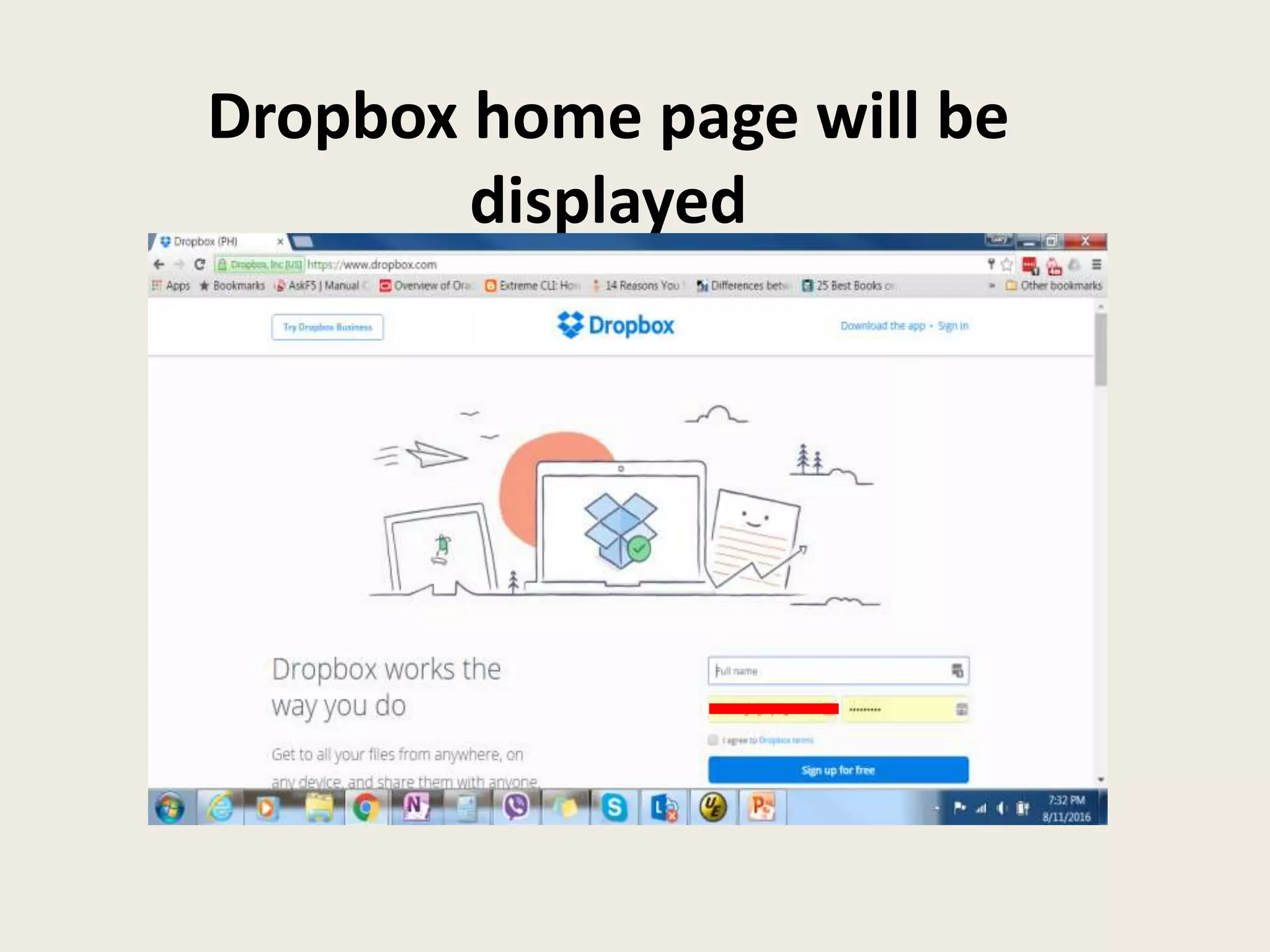
Dropbox home page will be
displayed
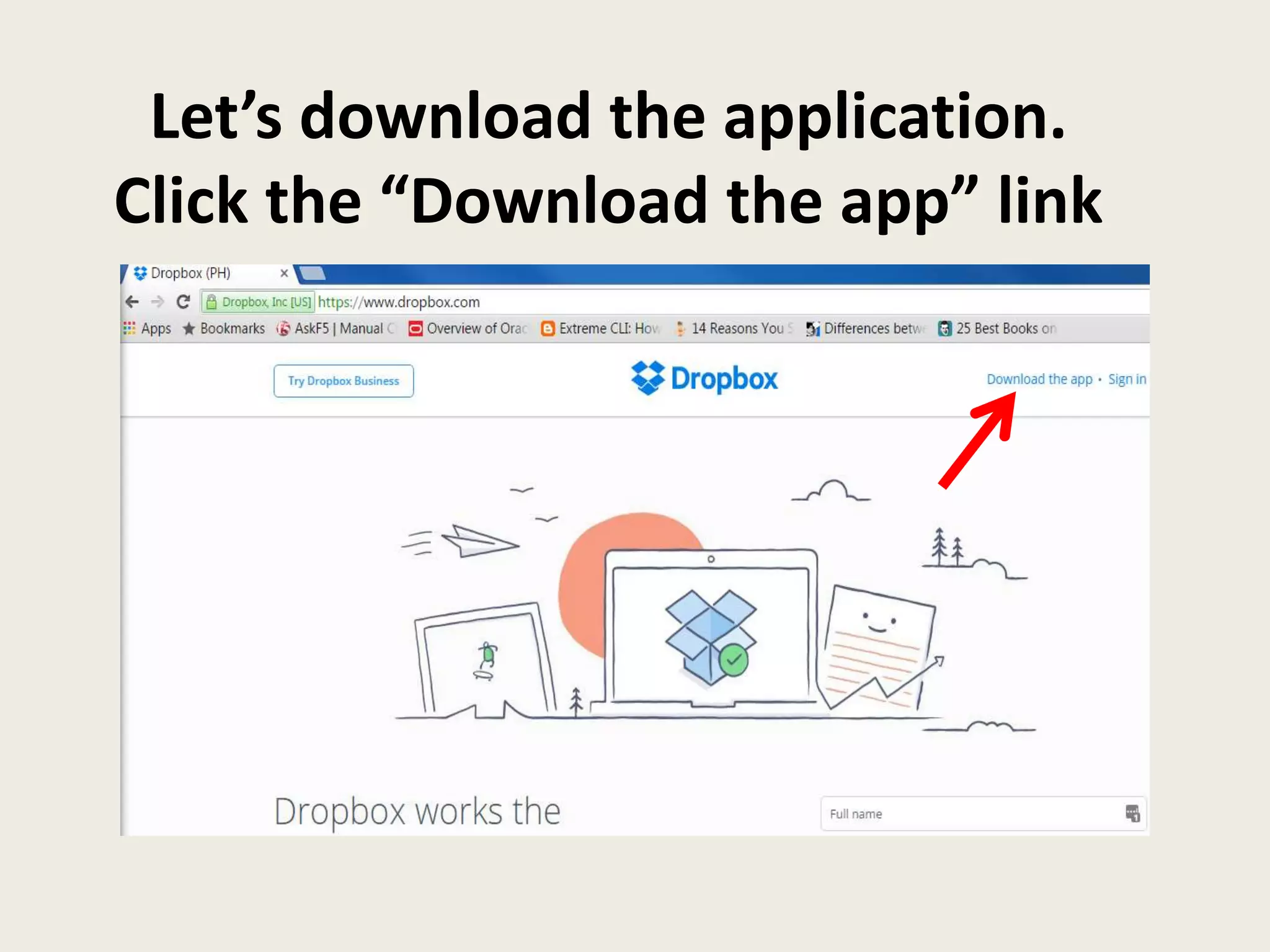
Let’s download the application.
Click the “Download the app” link
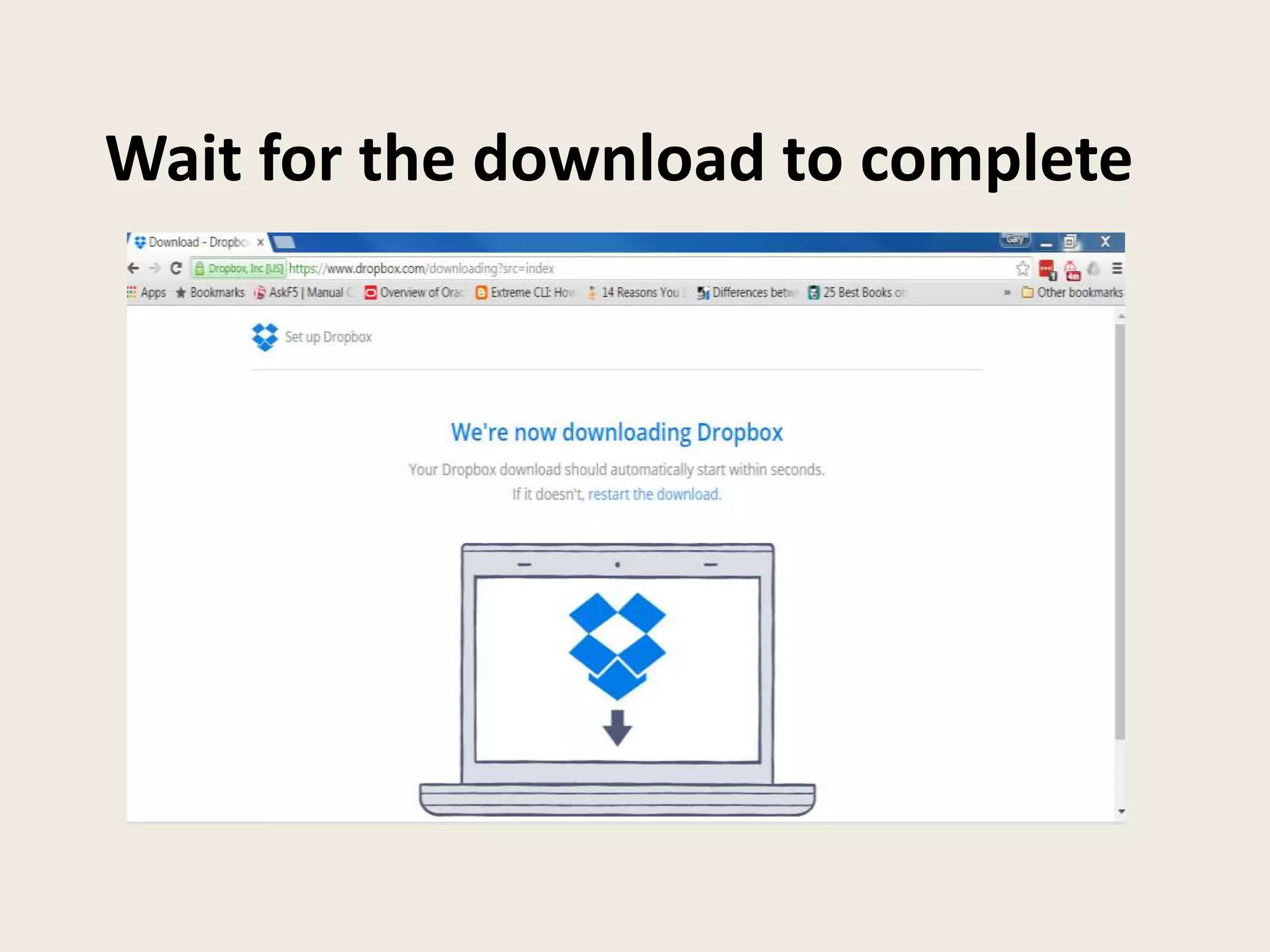
Wait for the download to complete
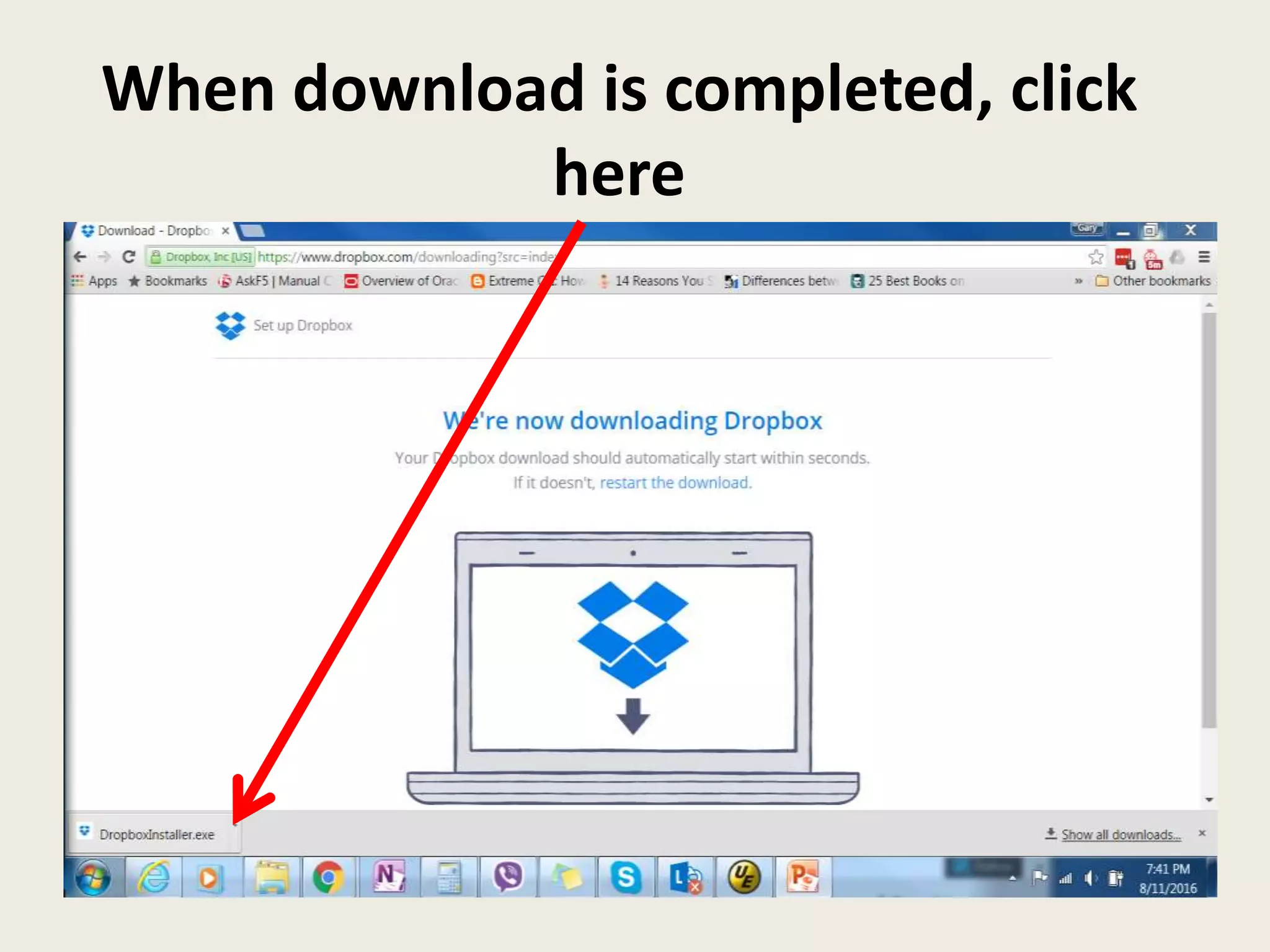
When download is completed, click
here
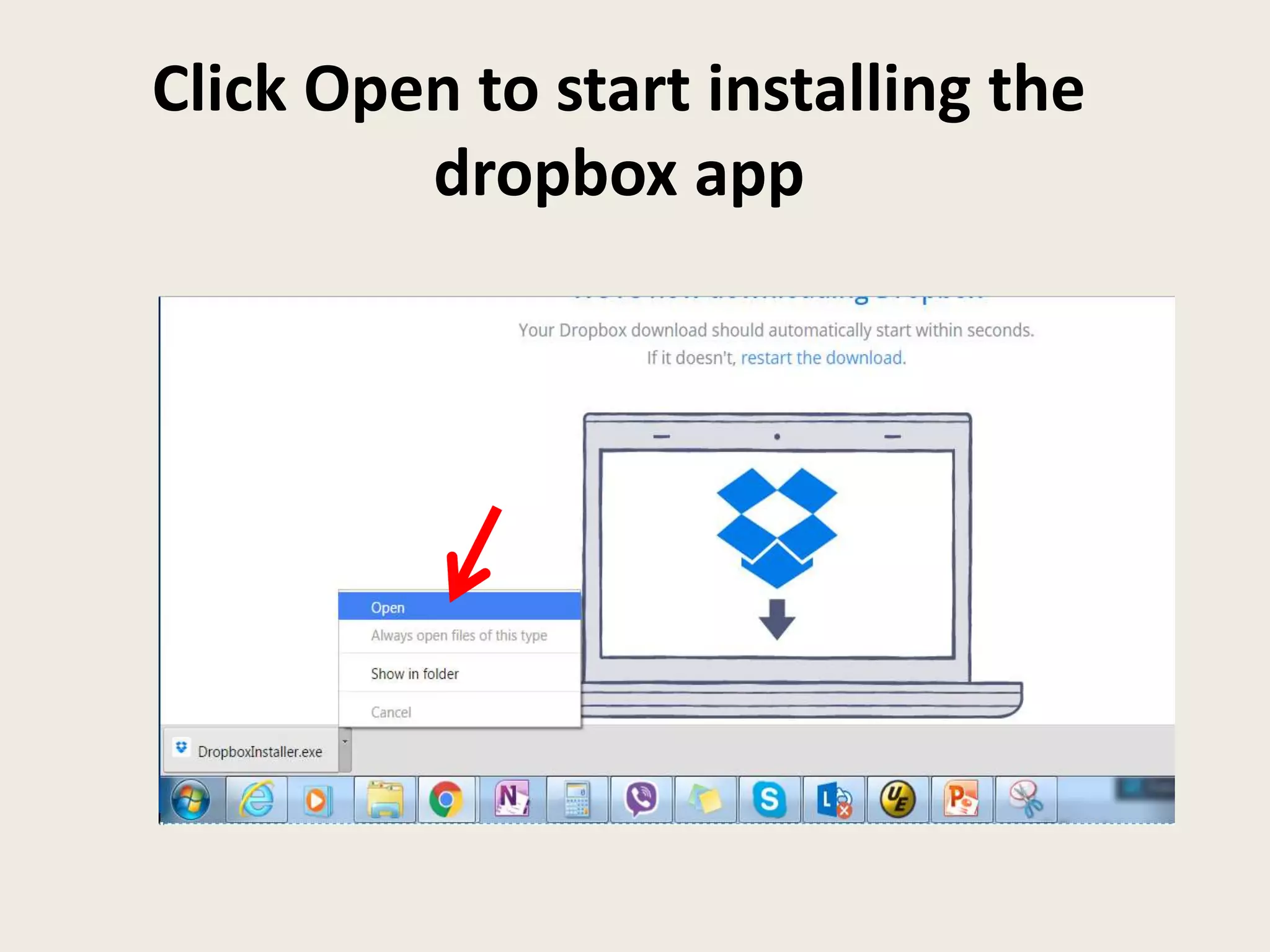
Click Open to start installing the
dropbox app
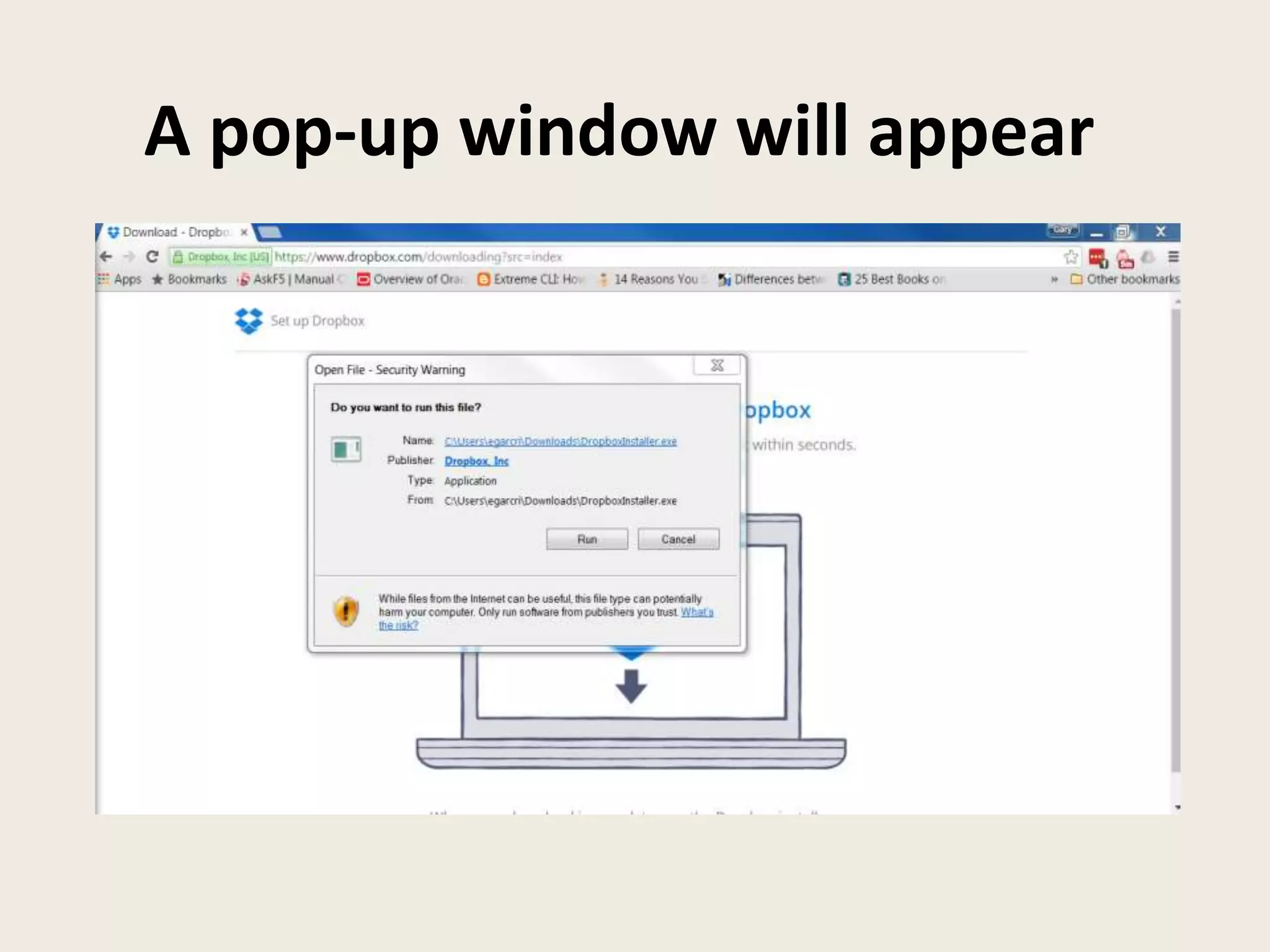
A pop-up window will appear
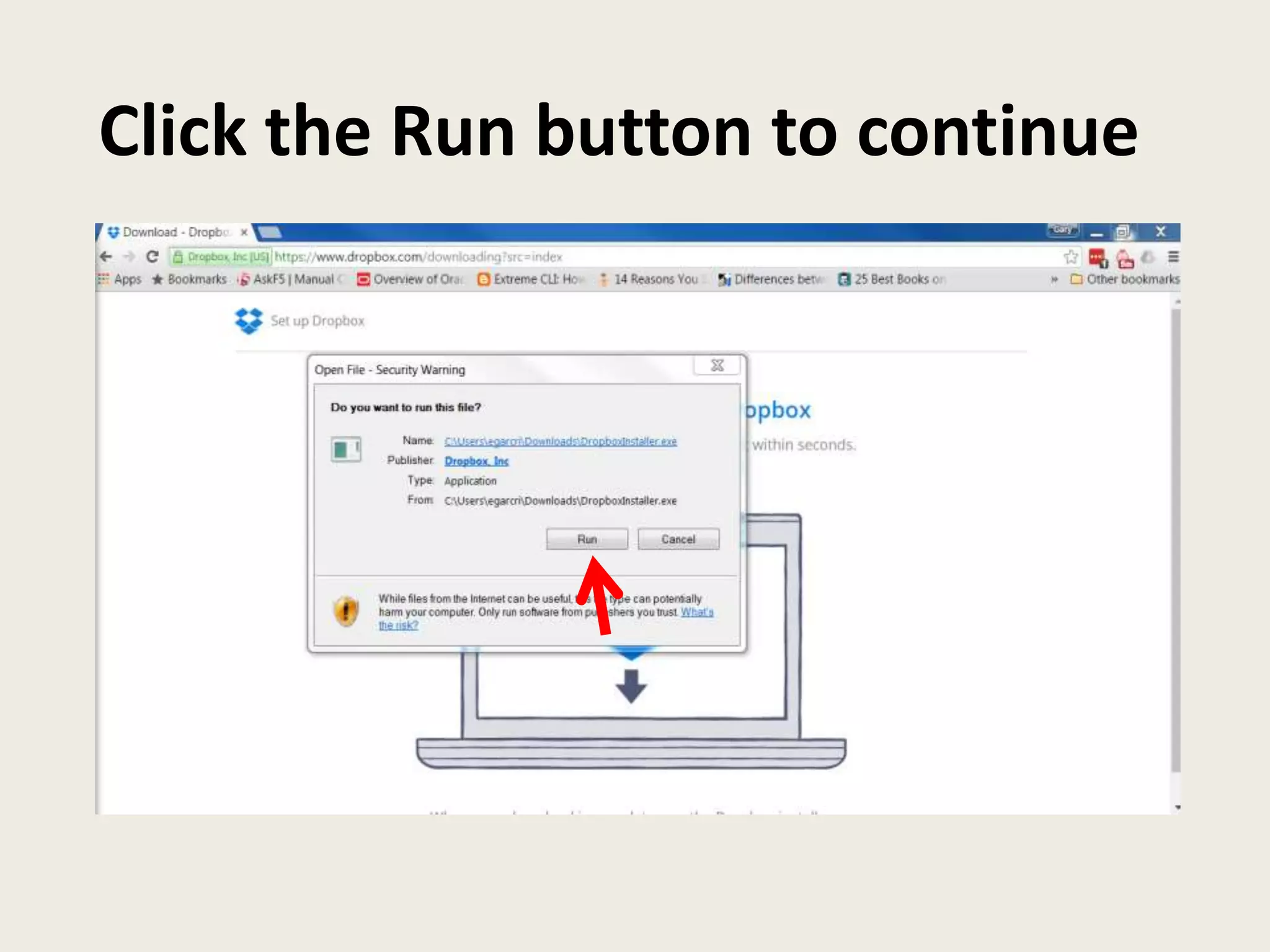
Click the Run button to continue
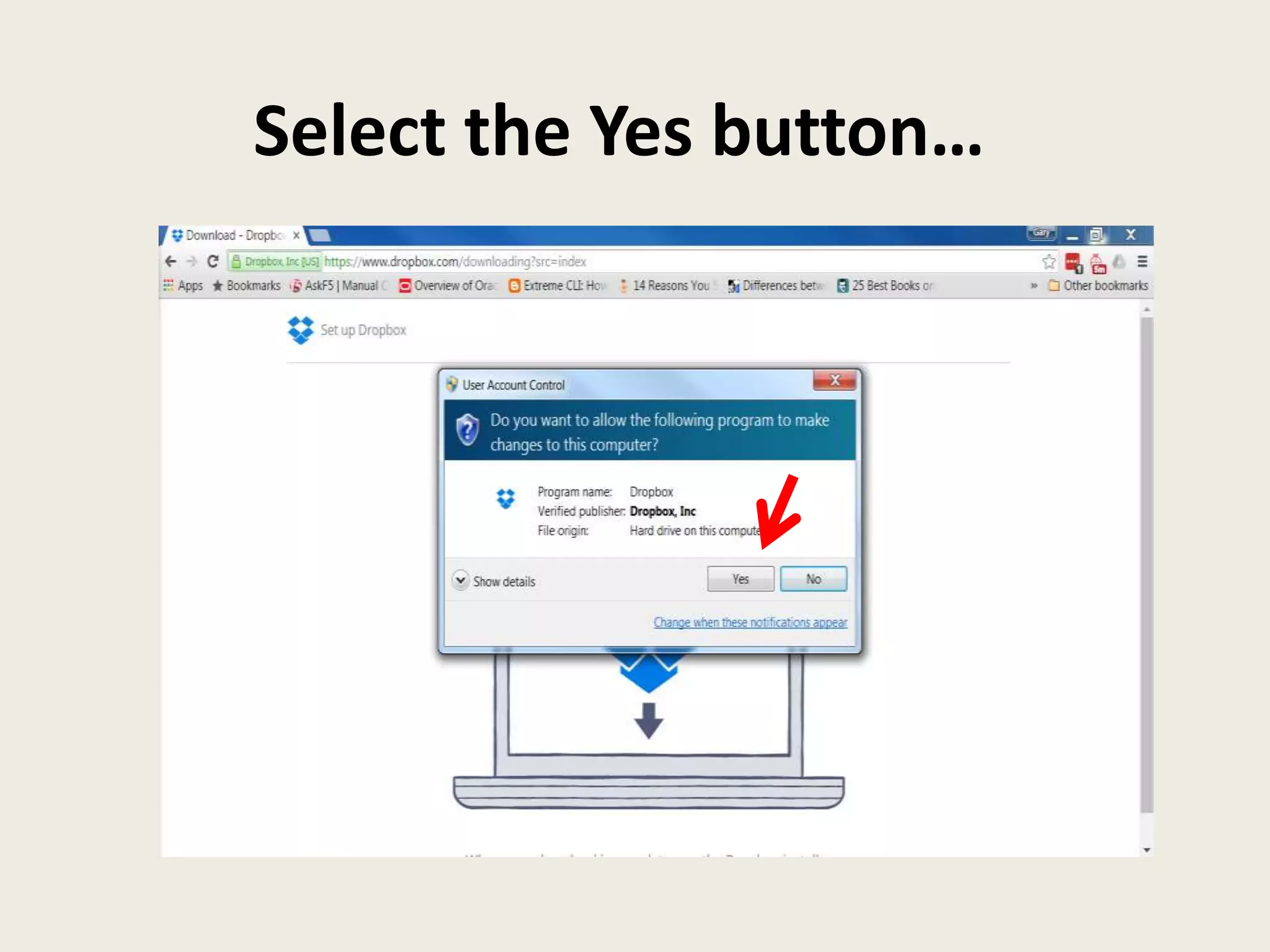
Select the Yes button…
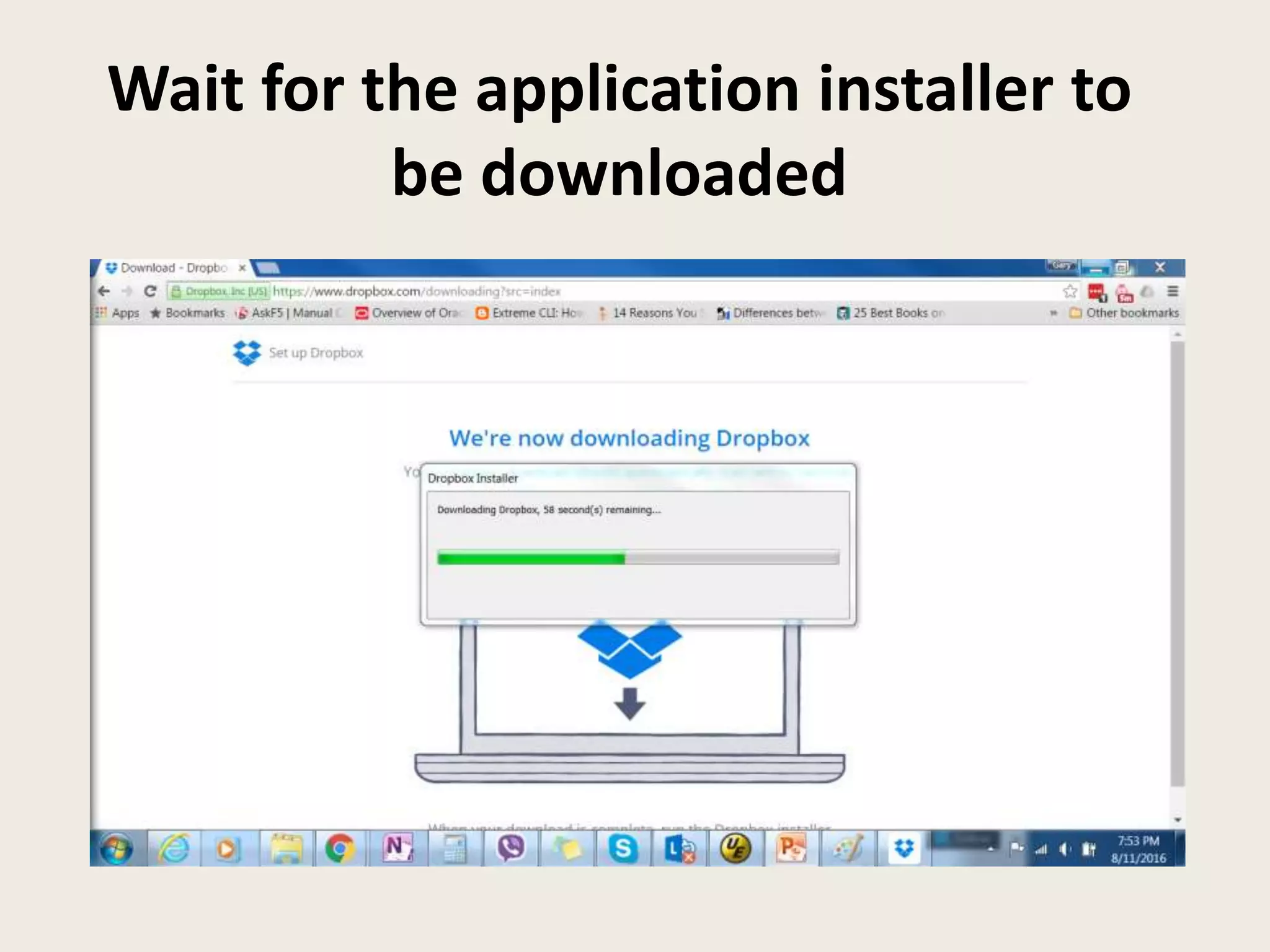
Wait for the application installer to
be downloaded
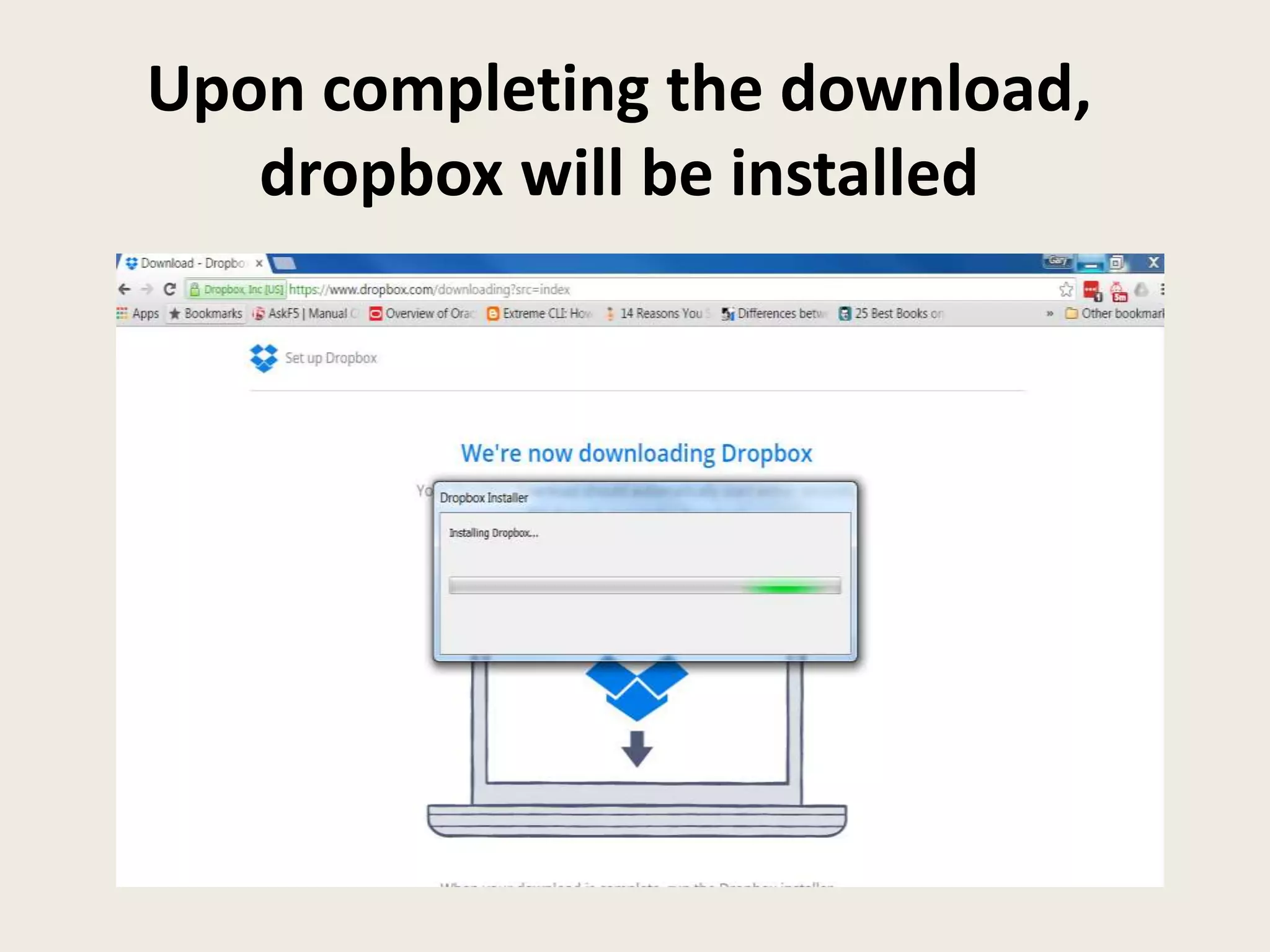
Upon completing the download,
dropbox will be installed
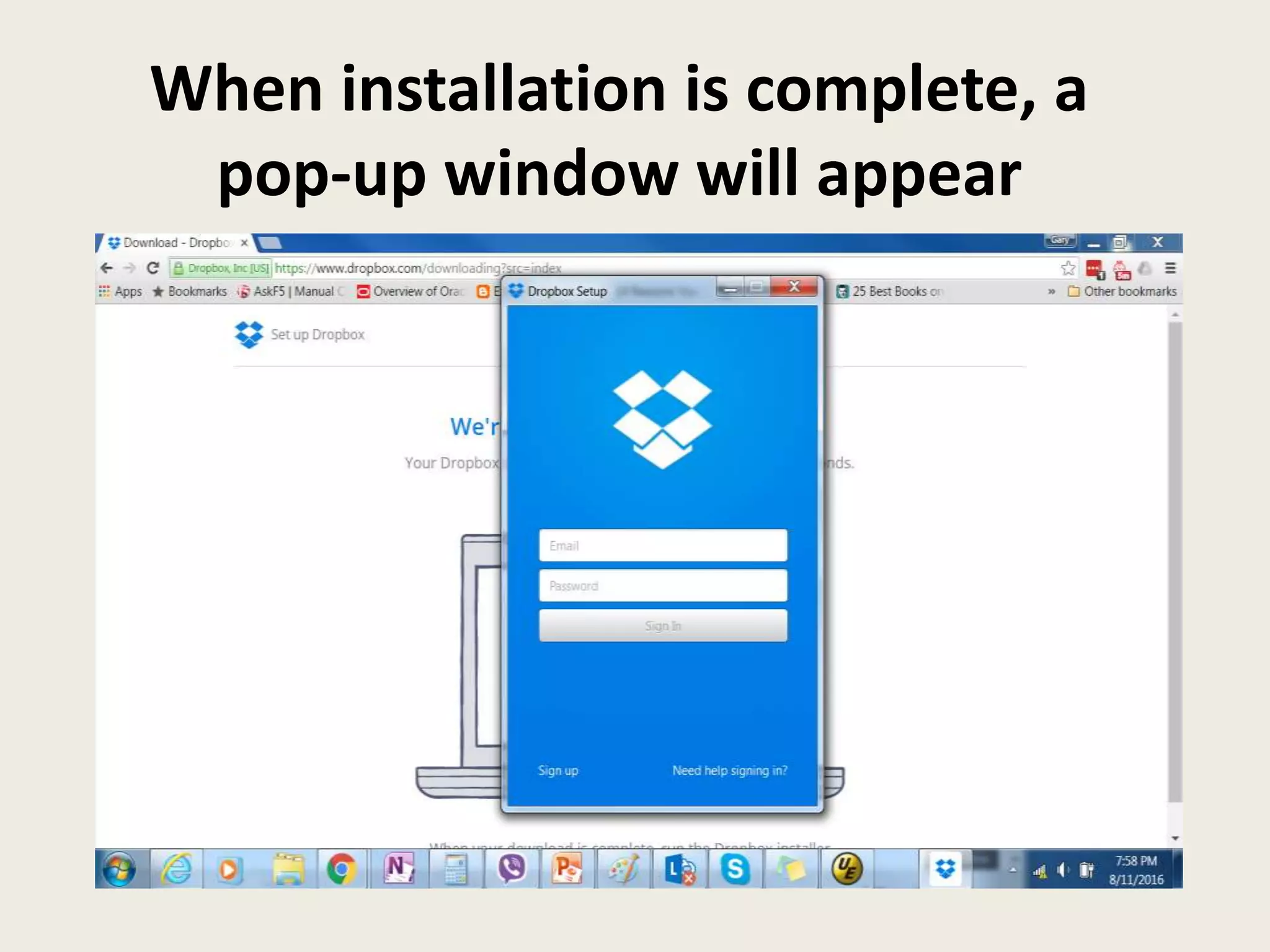
When installation is complete, a
pop-up window will appear
Next, let’s setup your
Dropbox account
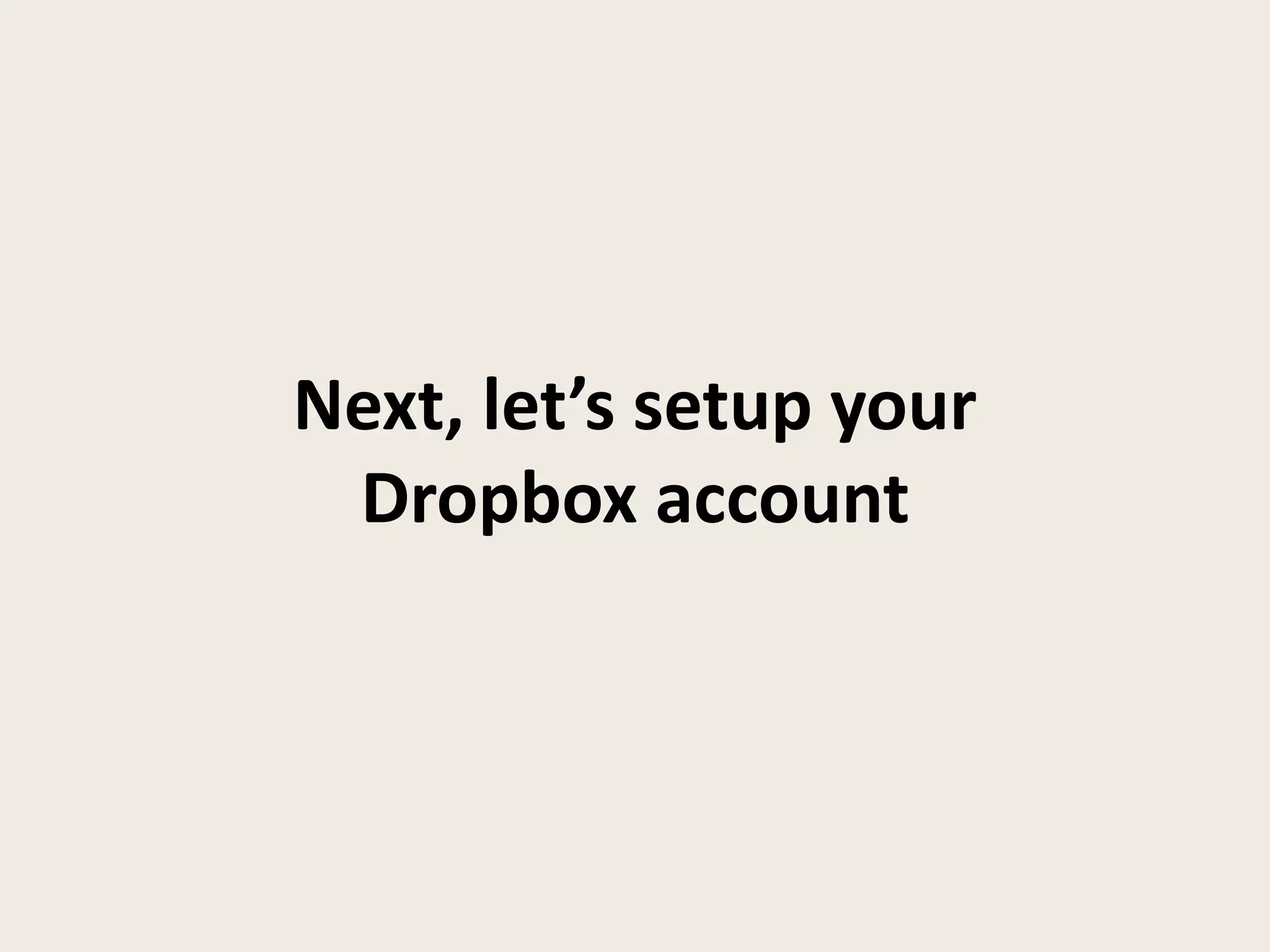
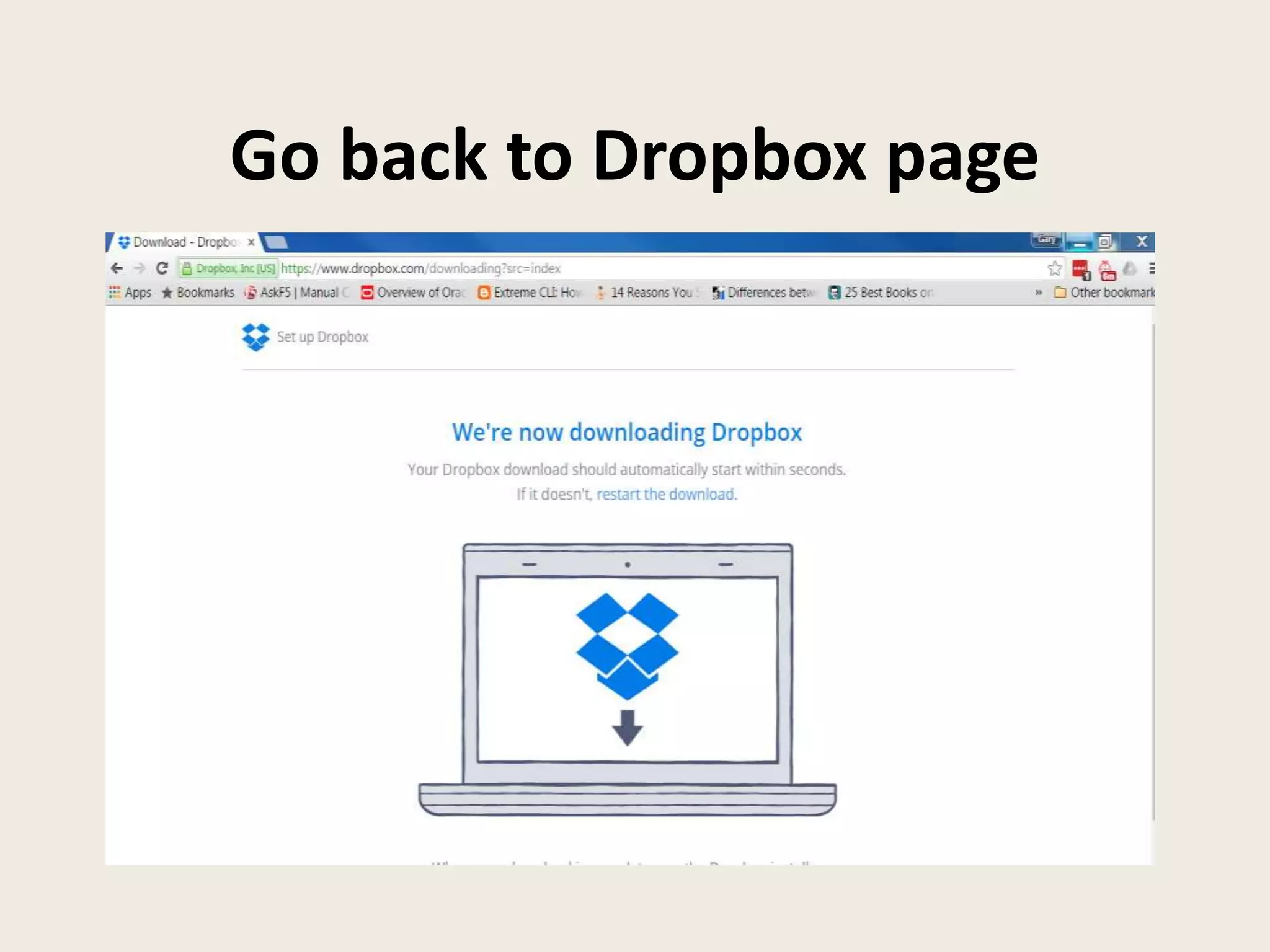
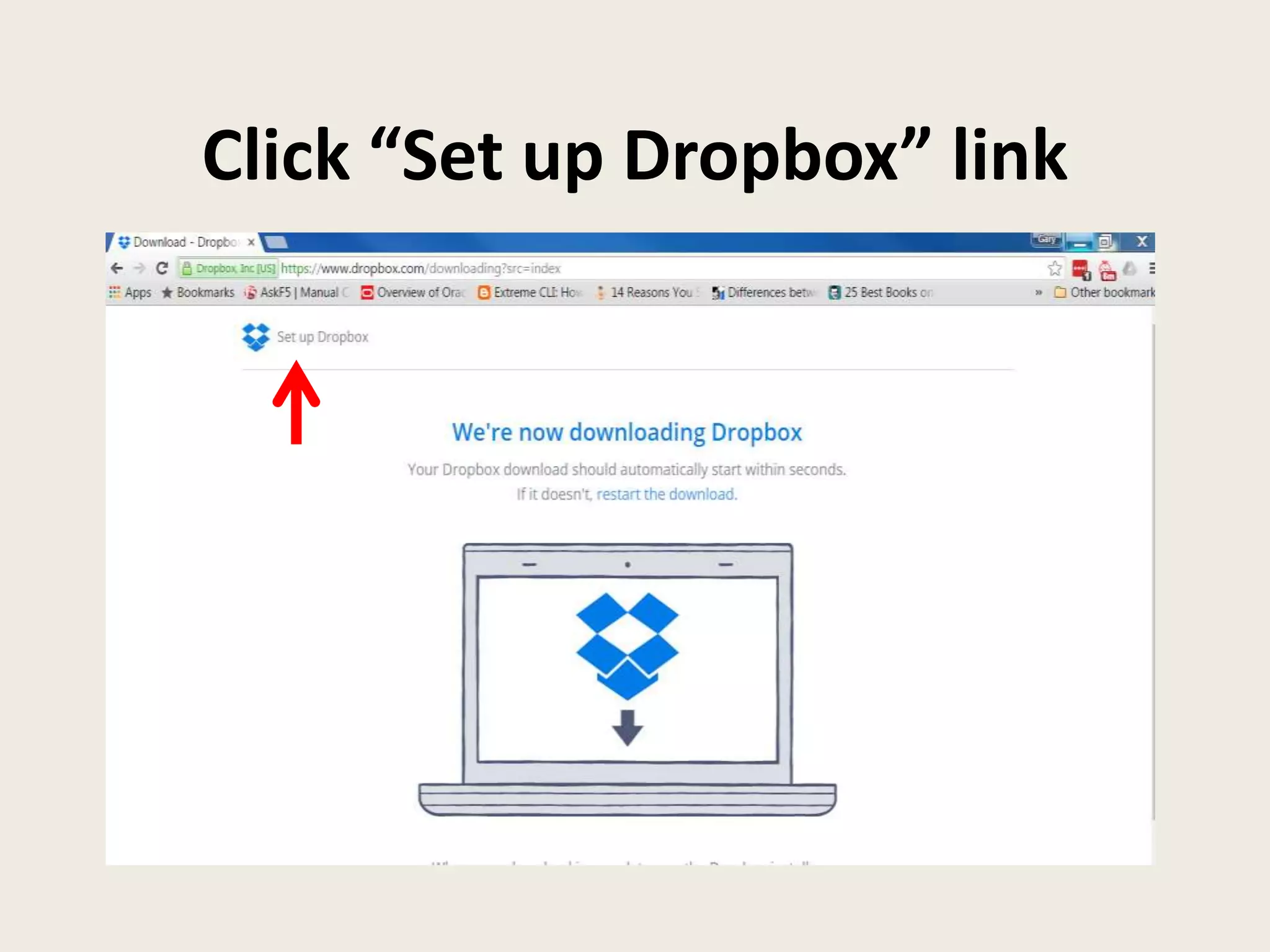
Go back to Dropbox page
Click “Set up Dropbox” link
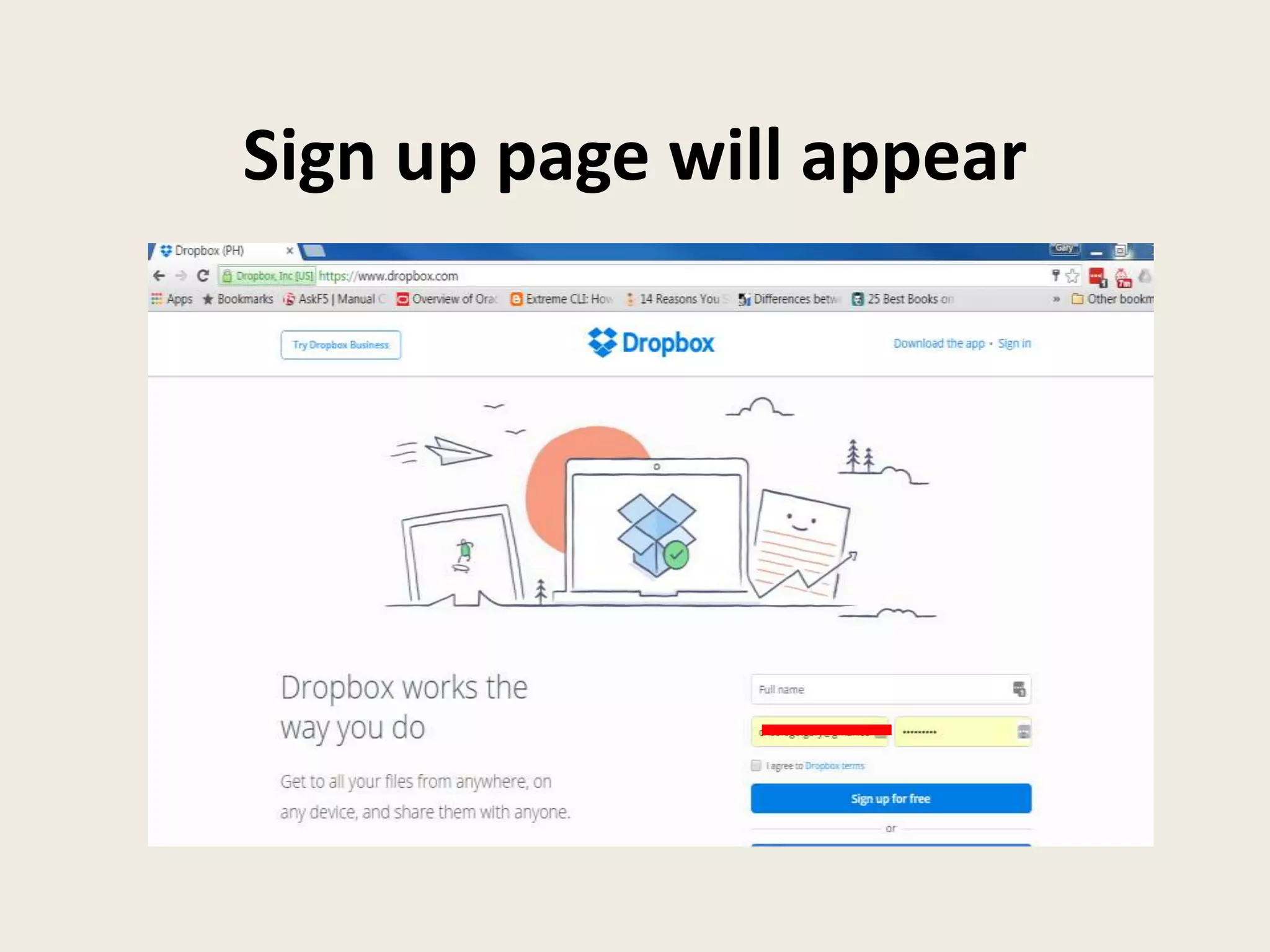
Sign up page will appear
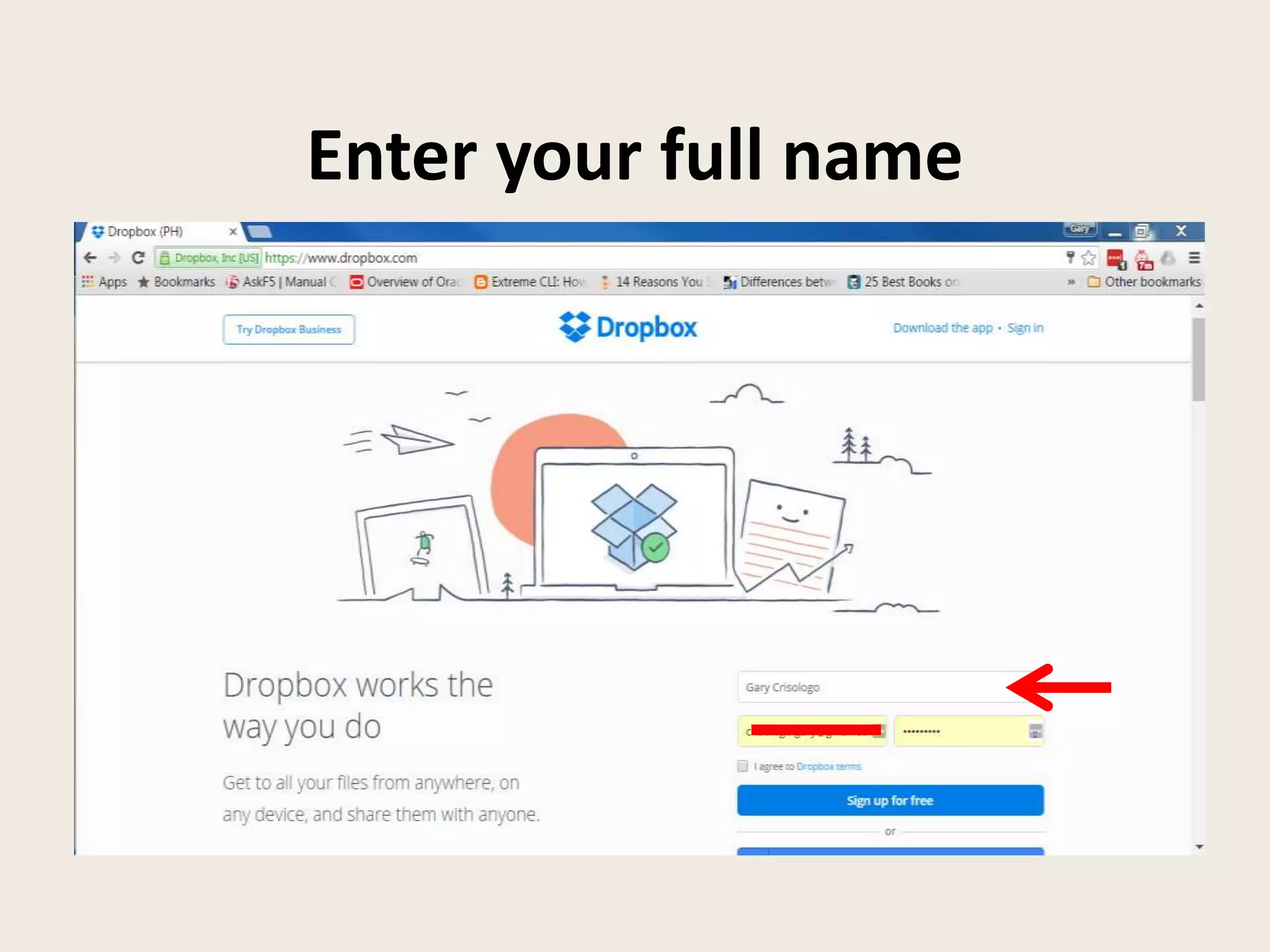
Enter your full name
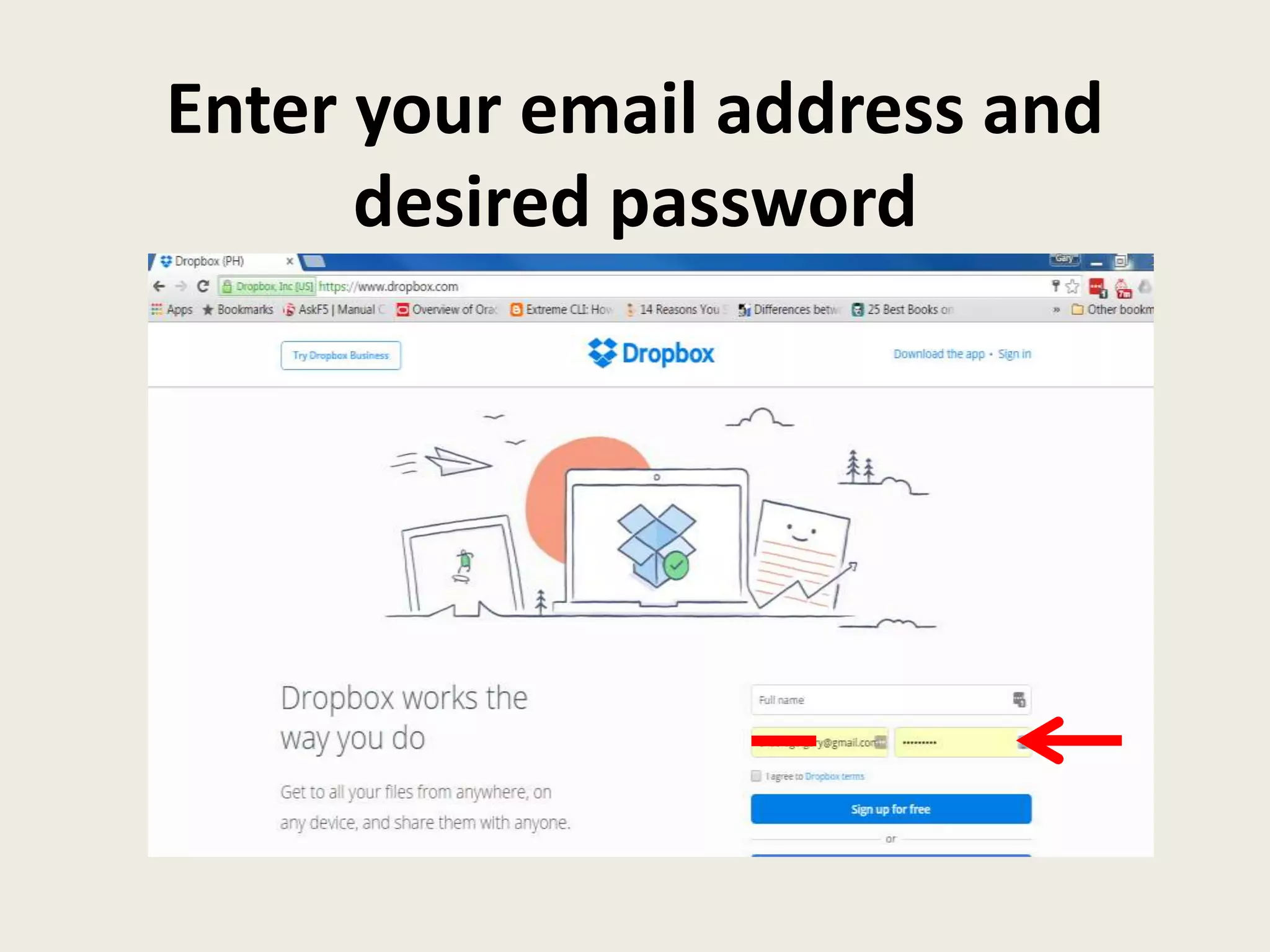
Enter your email address and
desired password
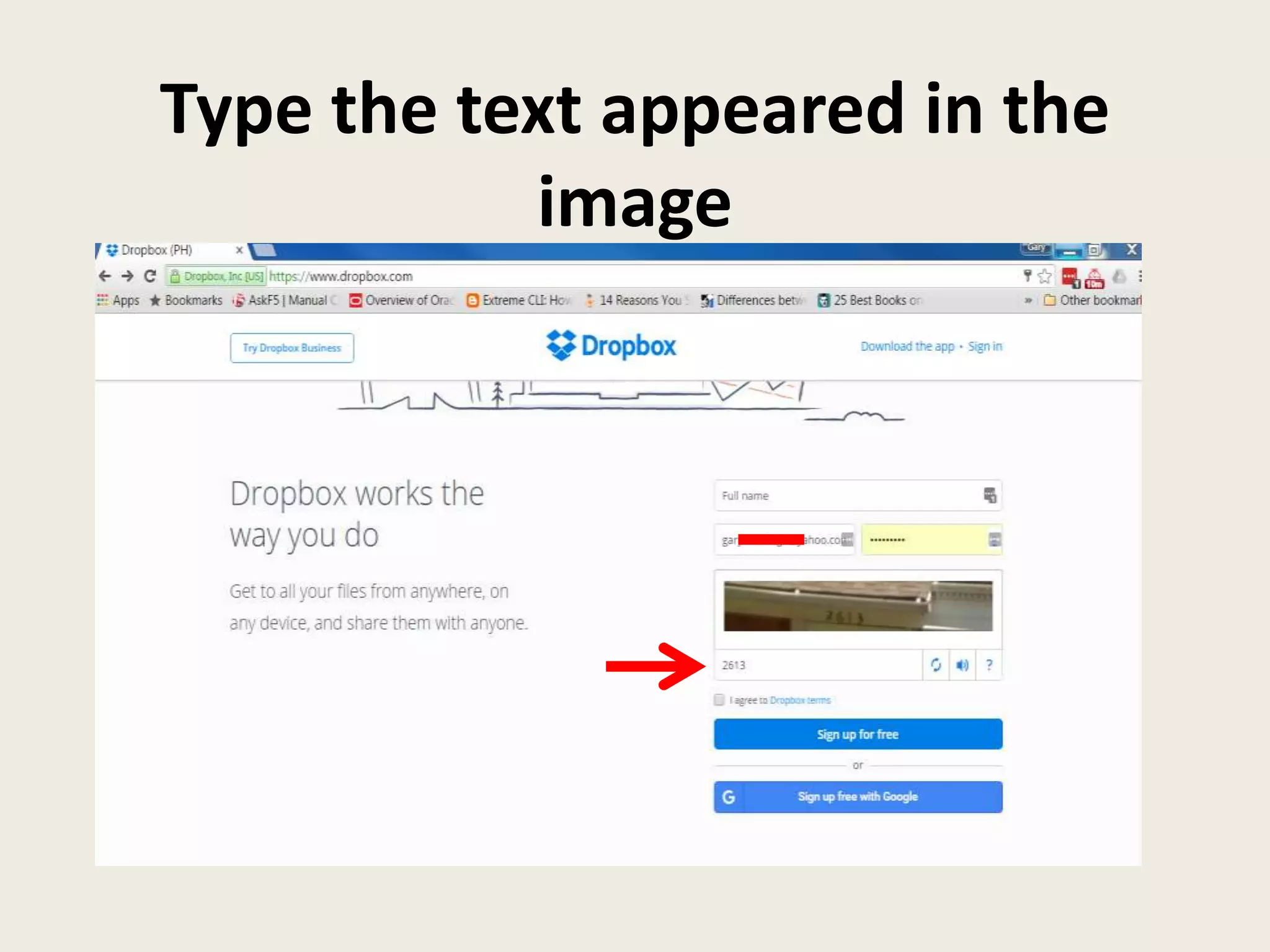
Type the text appeared in the
image
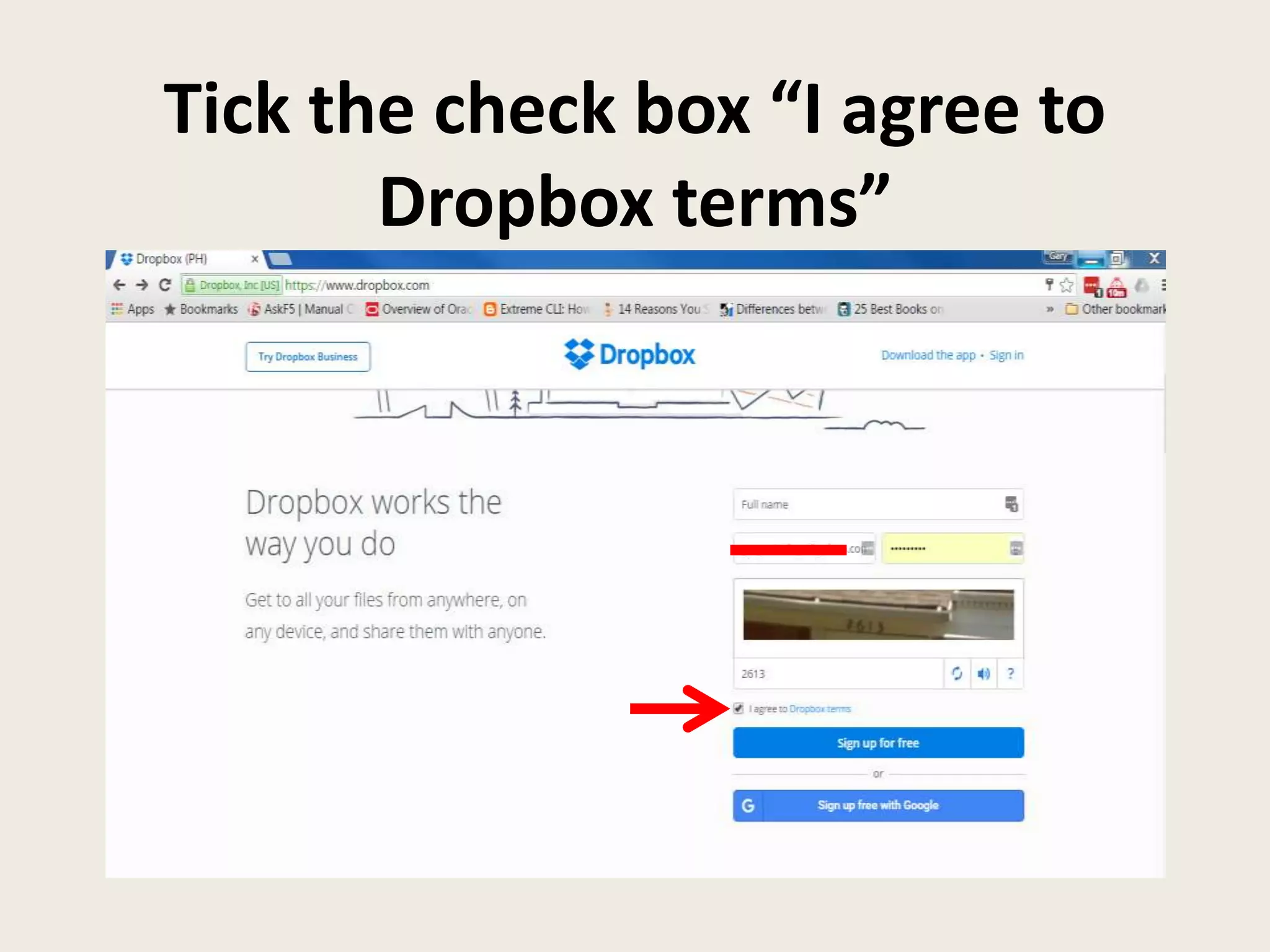
Tick the check box “I agree to
Dropbox terms”
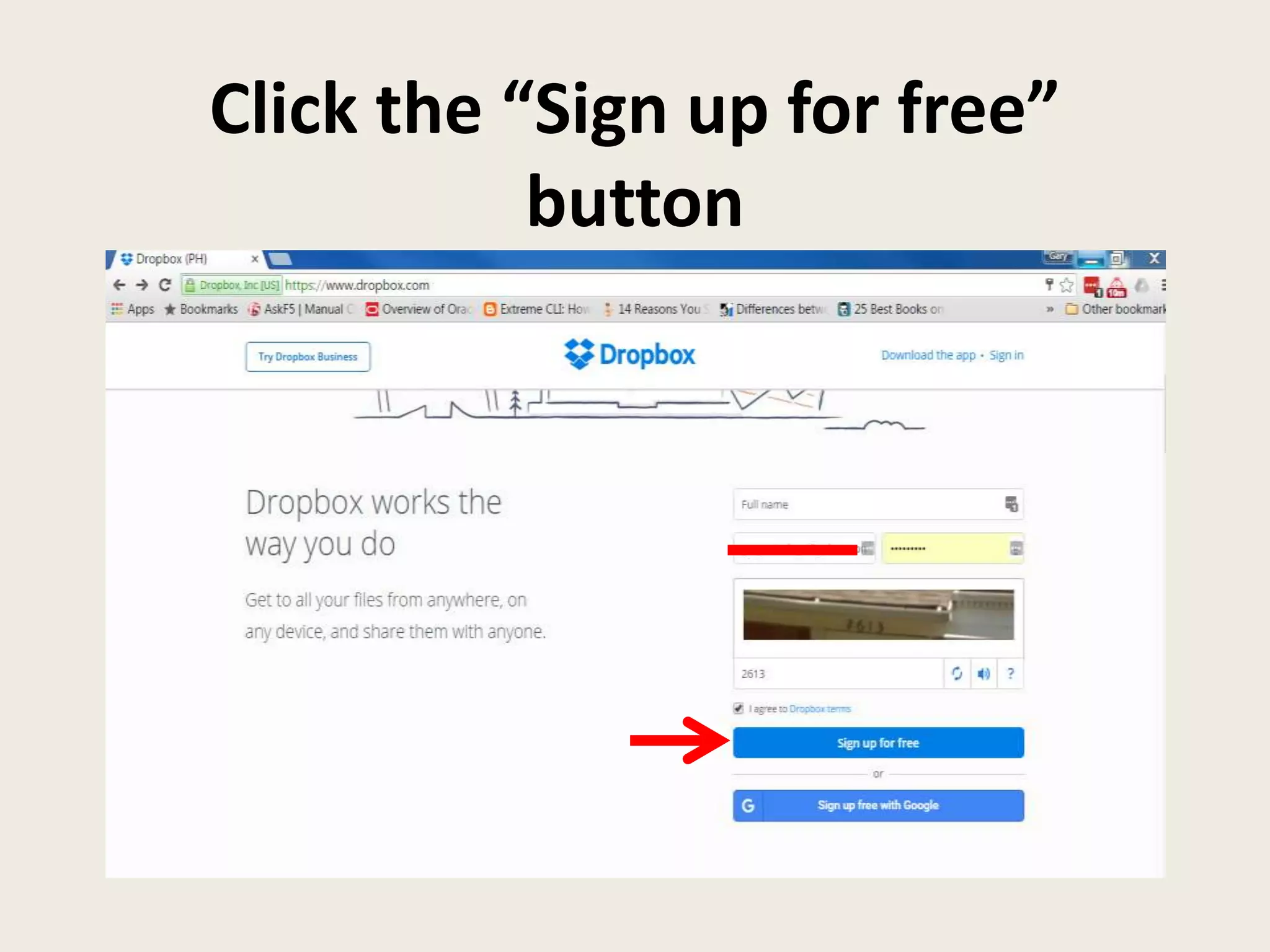
Click the “Sign up for free”
button
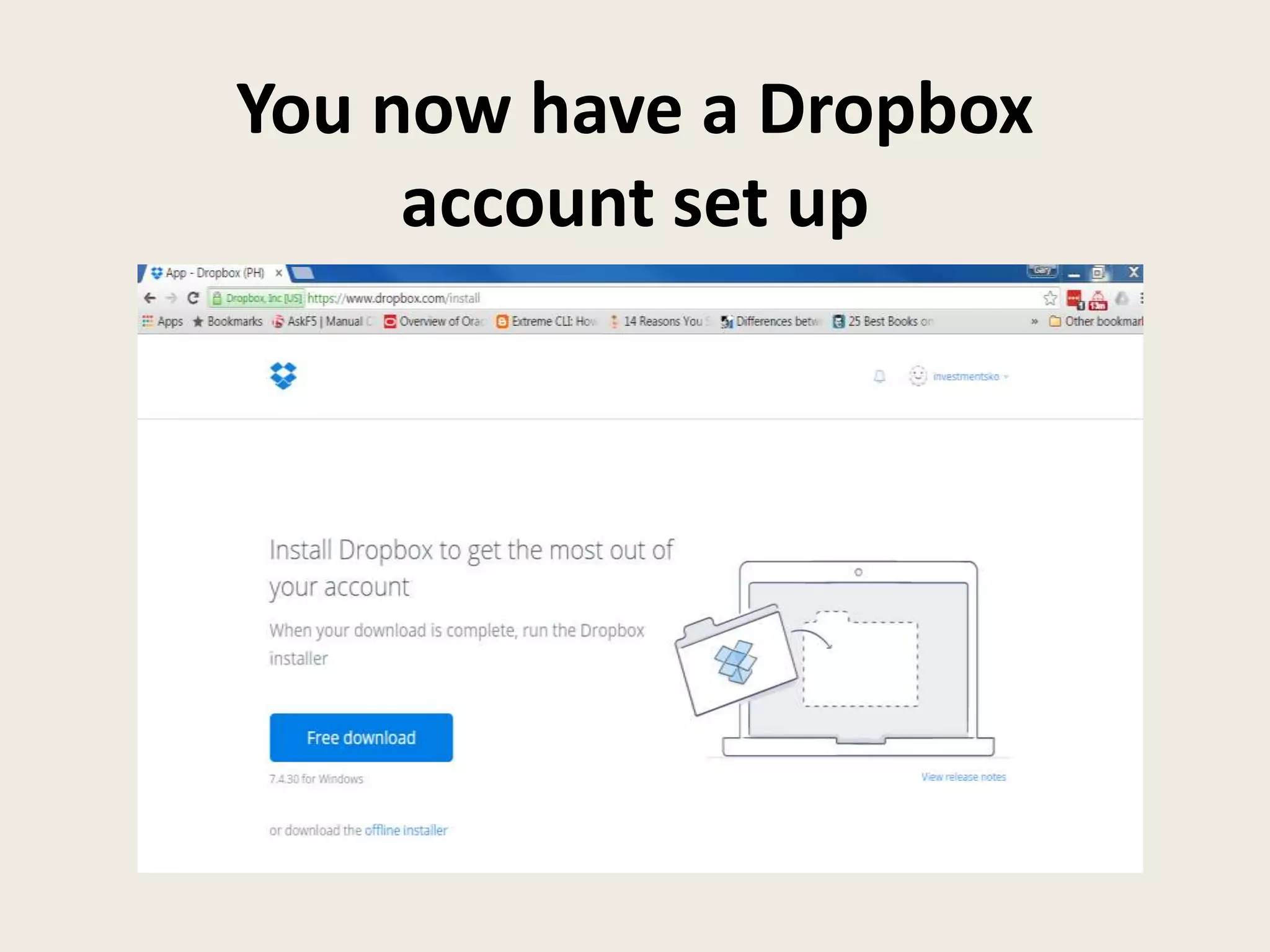
You now have a Dropbox
account set up
Let’s use your new
account to login
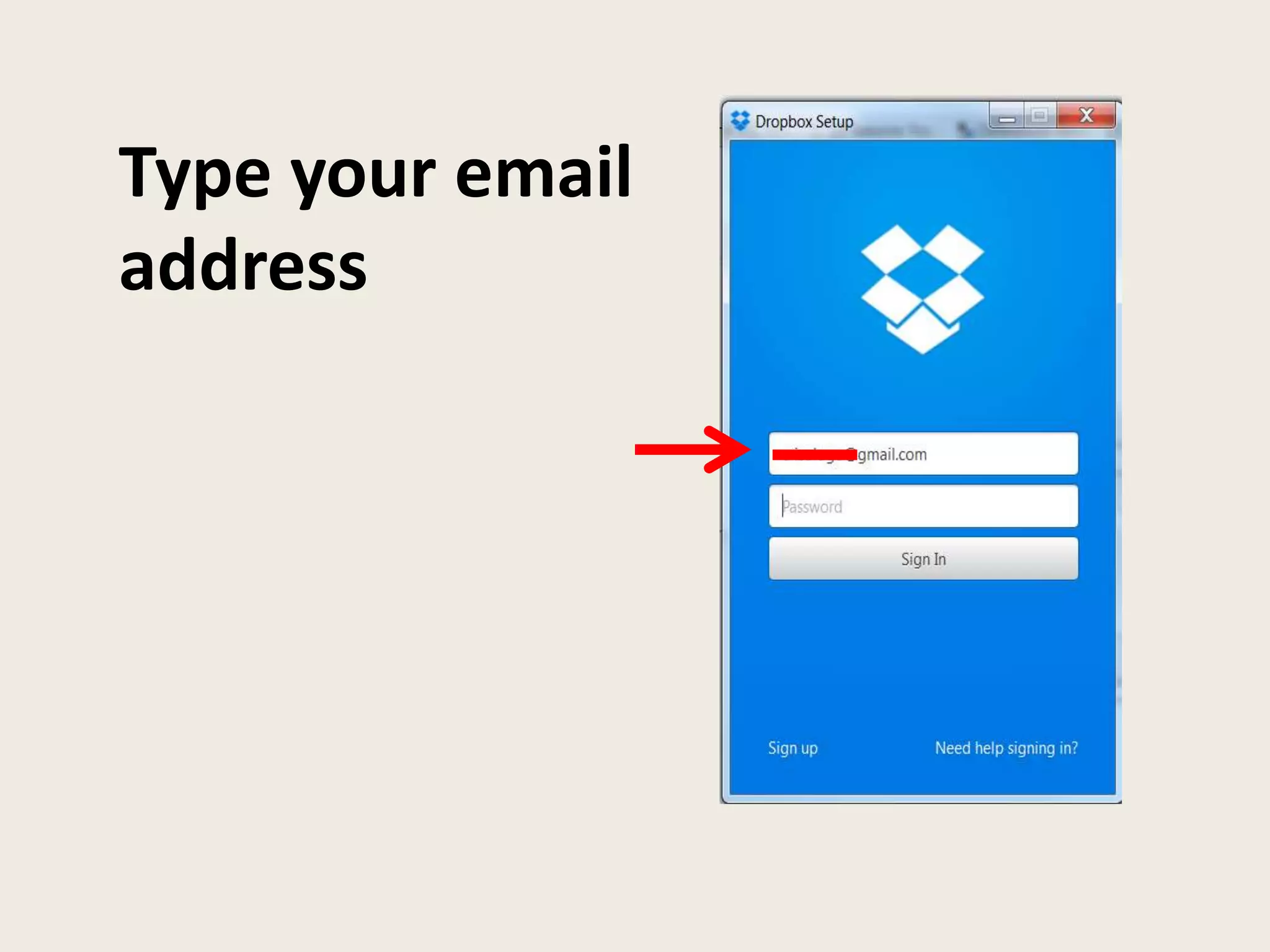
Type your email
address
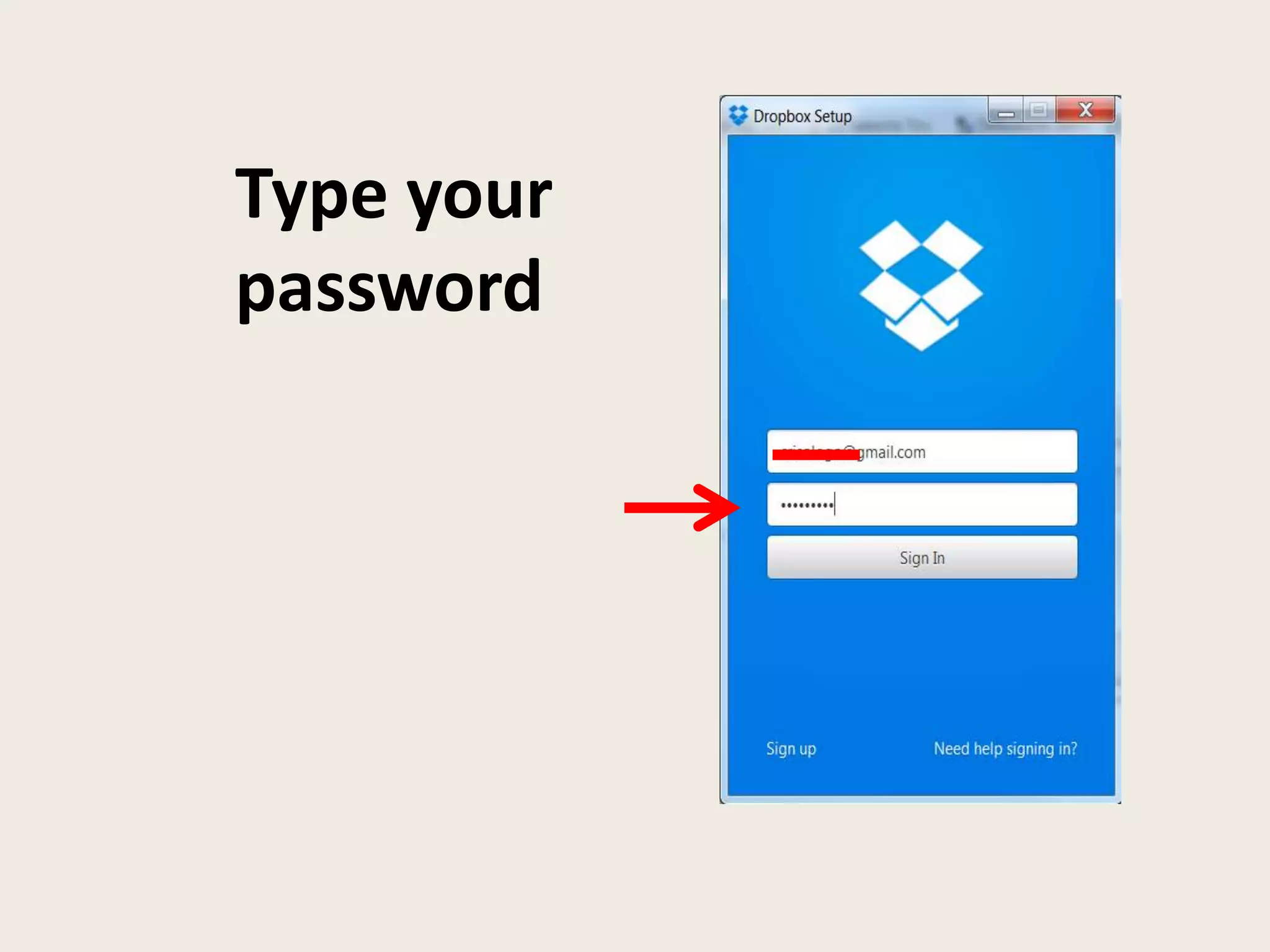
Type your
password
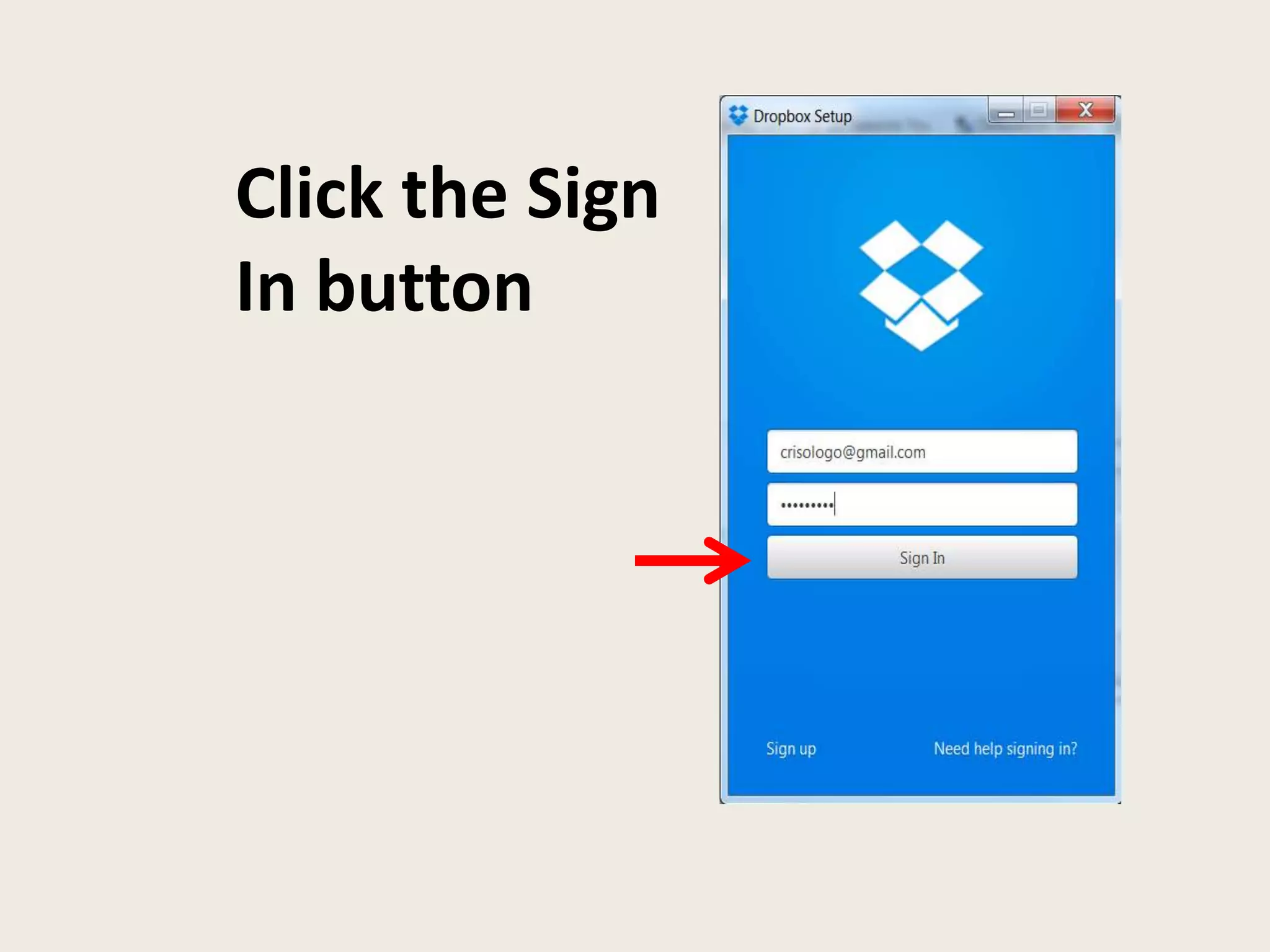
Click the Sign
In button
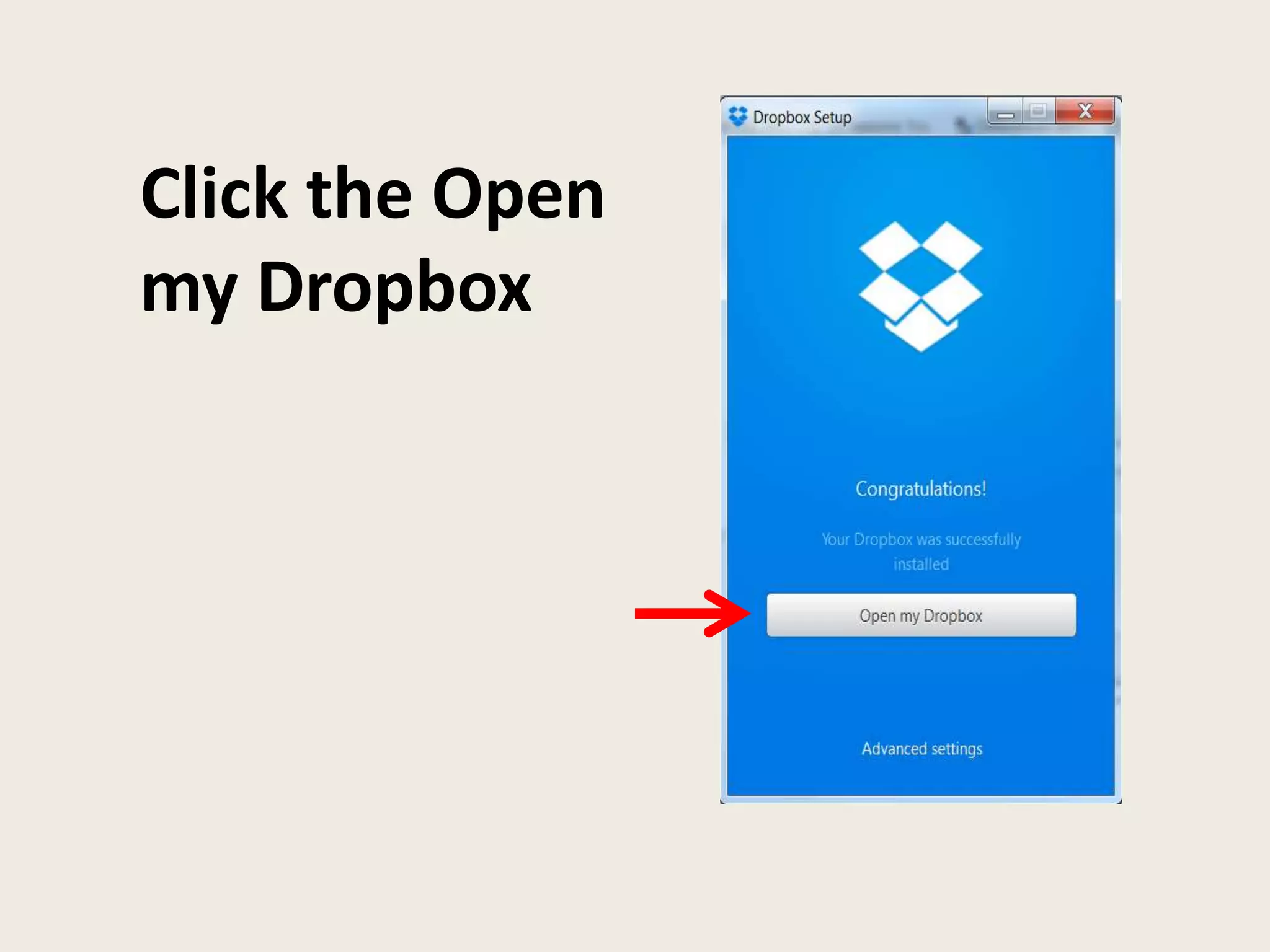
Click the Open
my Dropbox
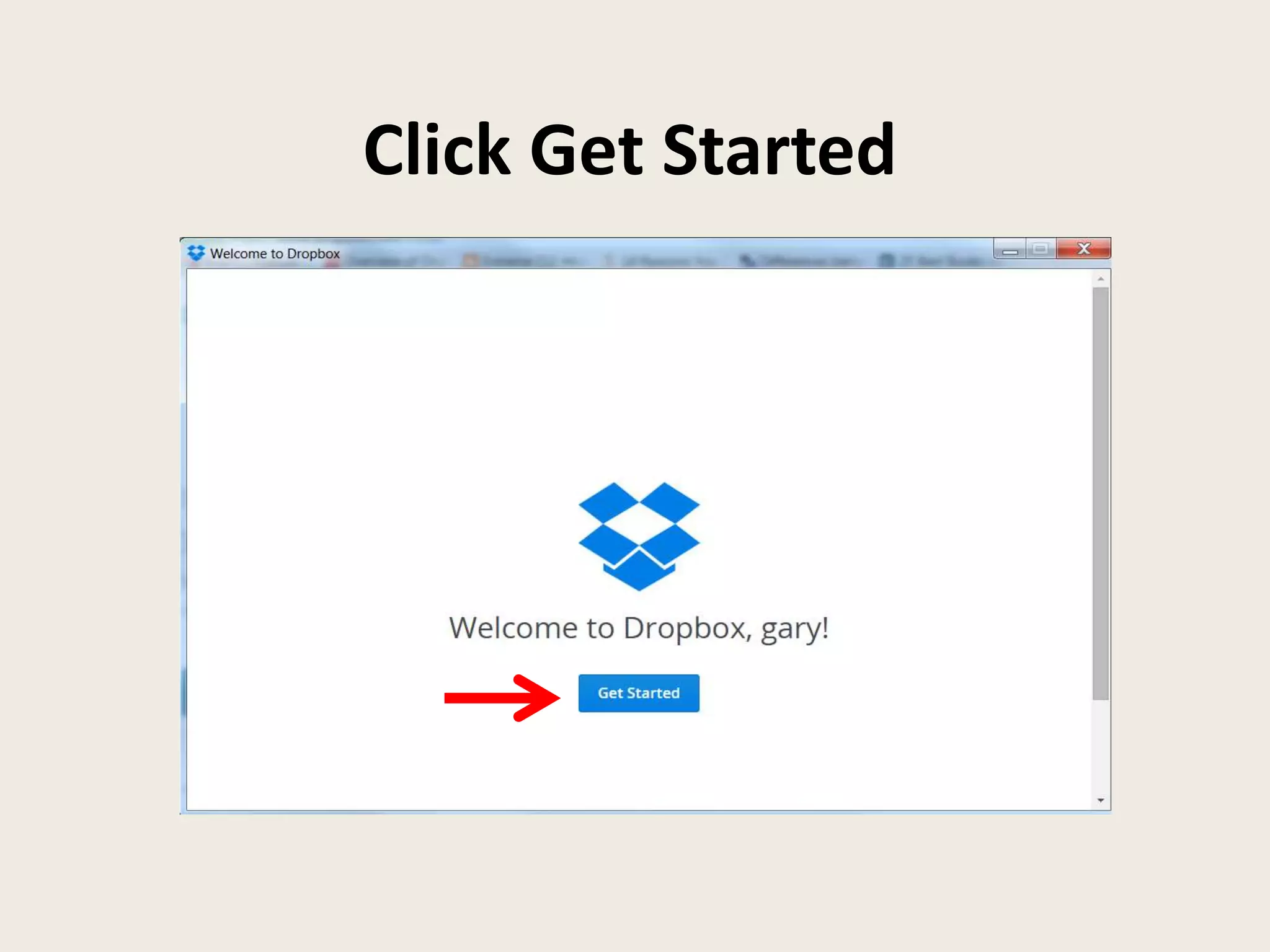
Click Get Started
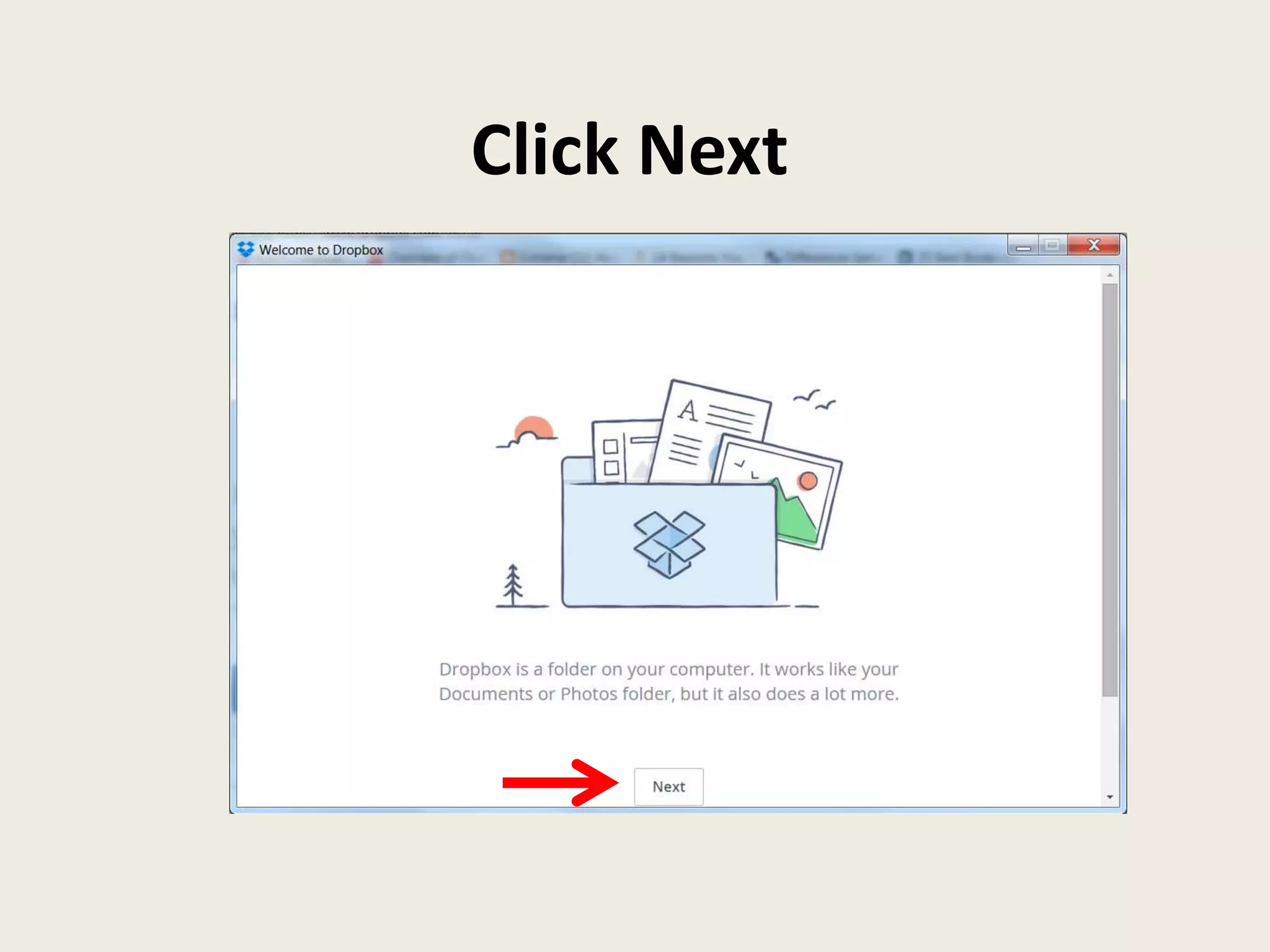
Click Next
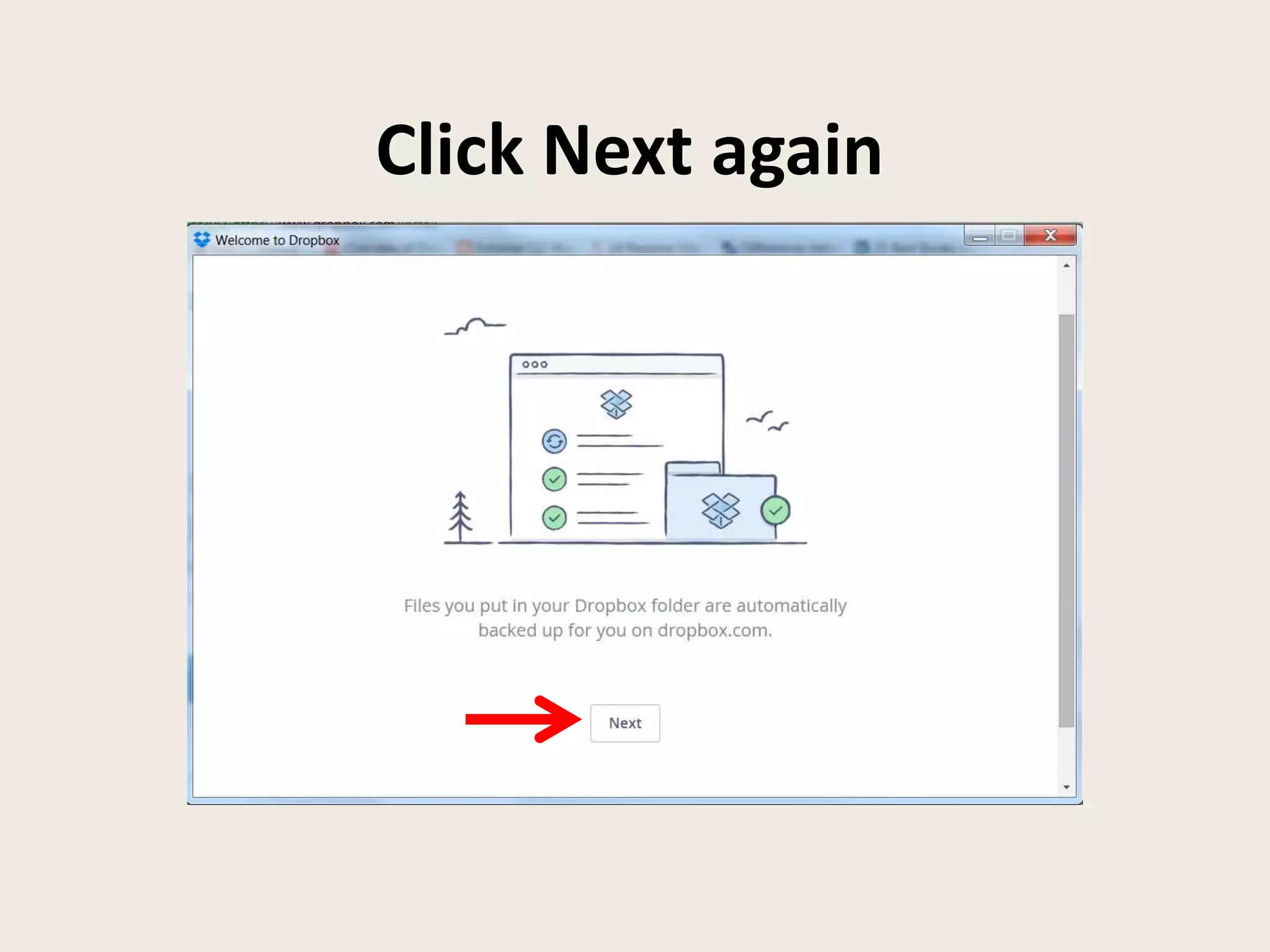
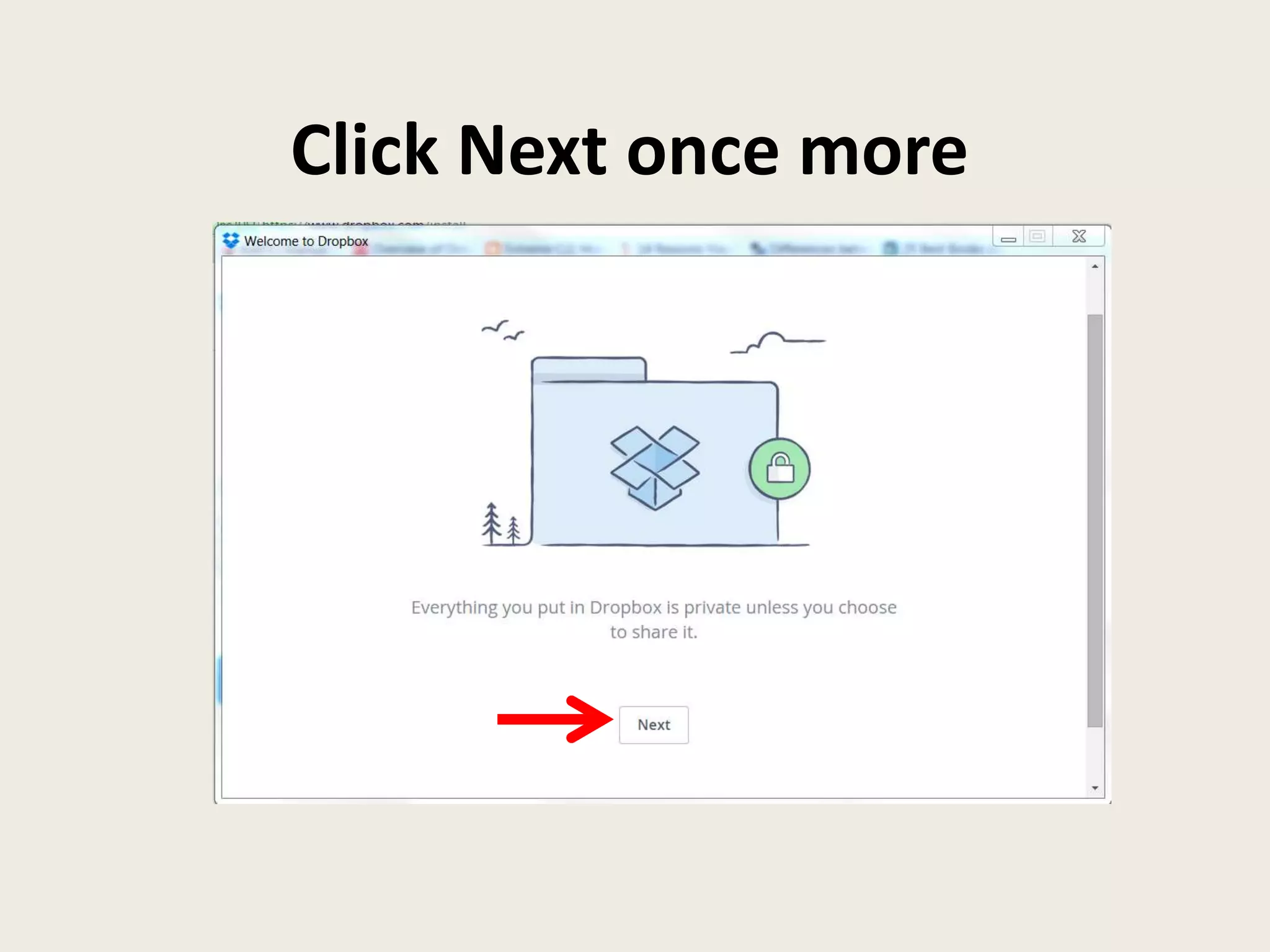
Click Next again
Click Next once more
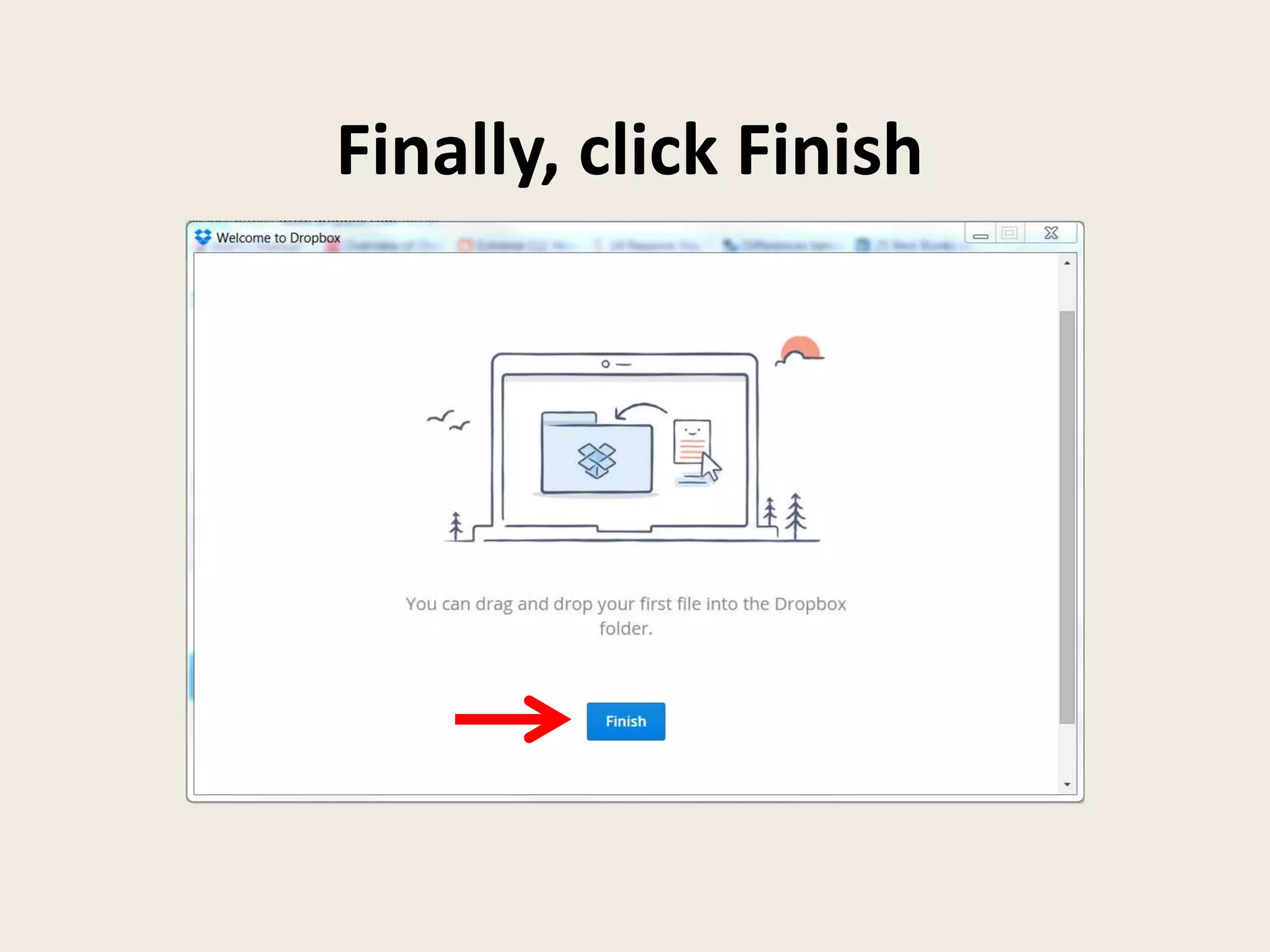
Finally, click Finish
Now, login to your
email account
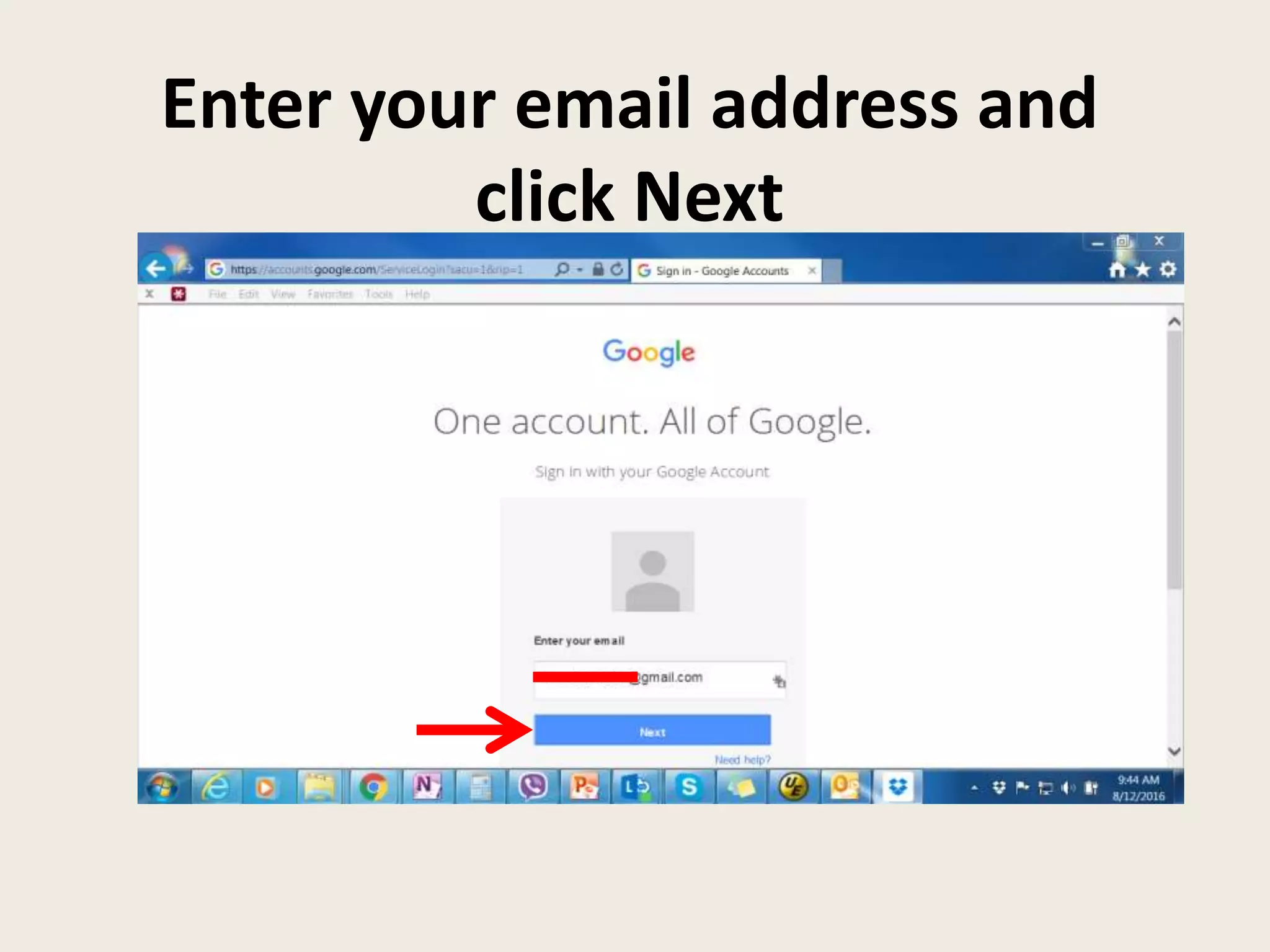
Enter your email address and
click Next
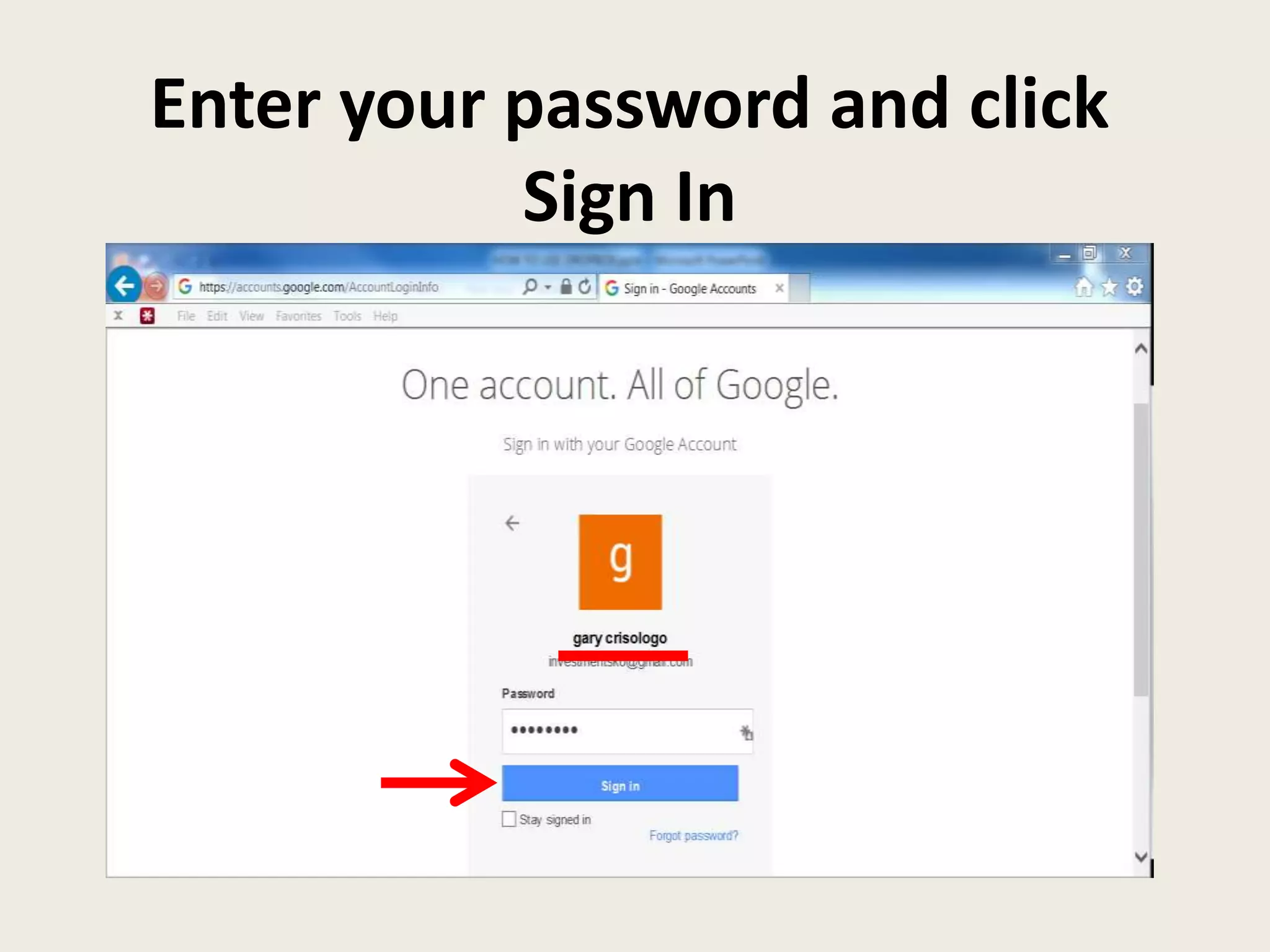
Enter your password and click
Sign In
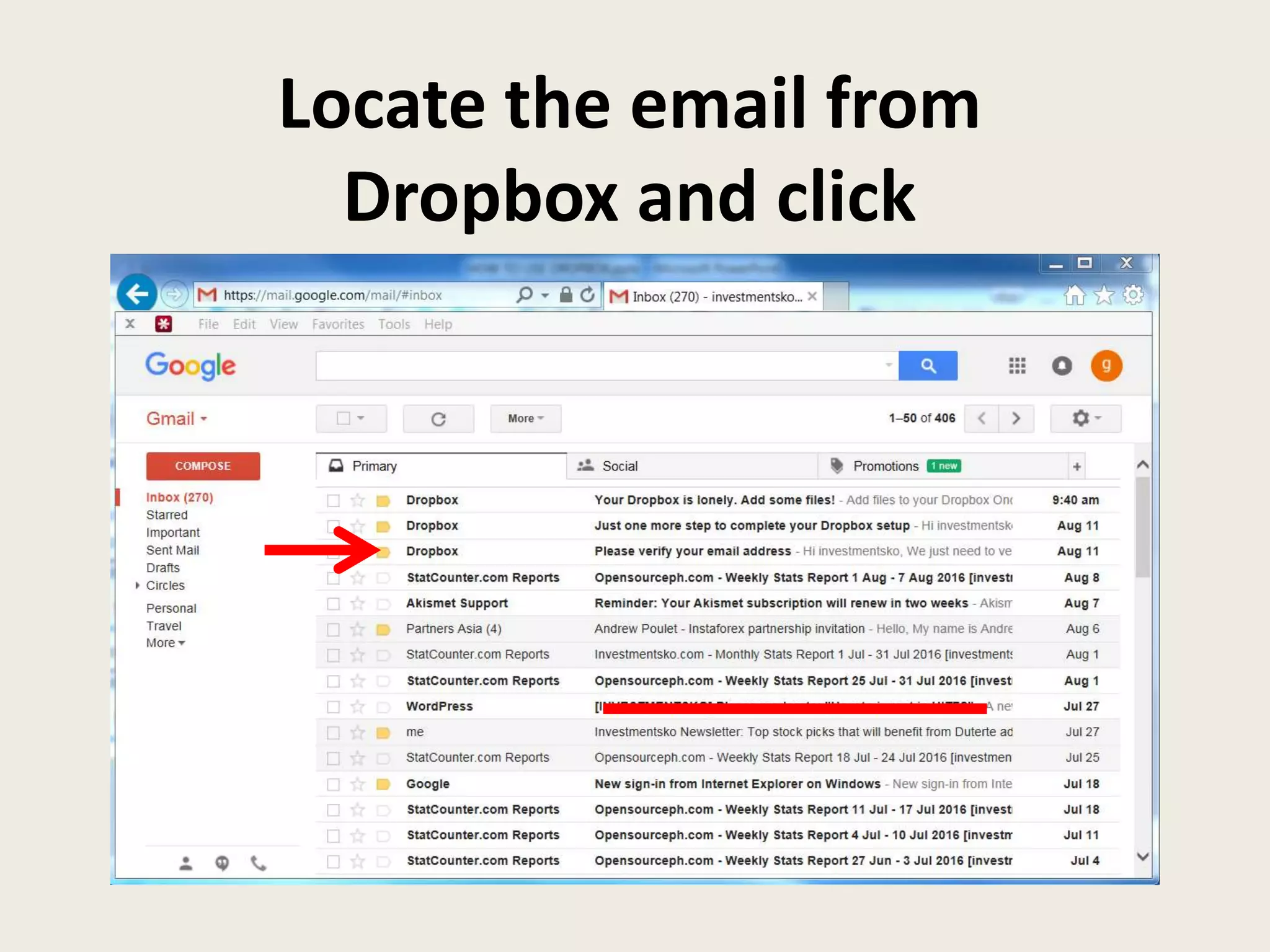
Locate the email from
Dropbox and click
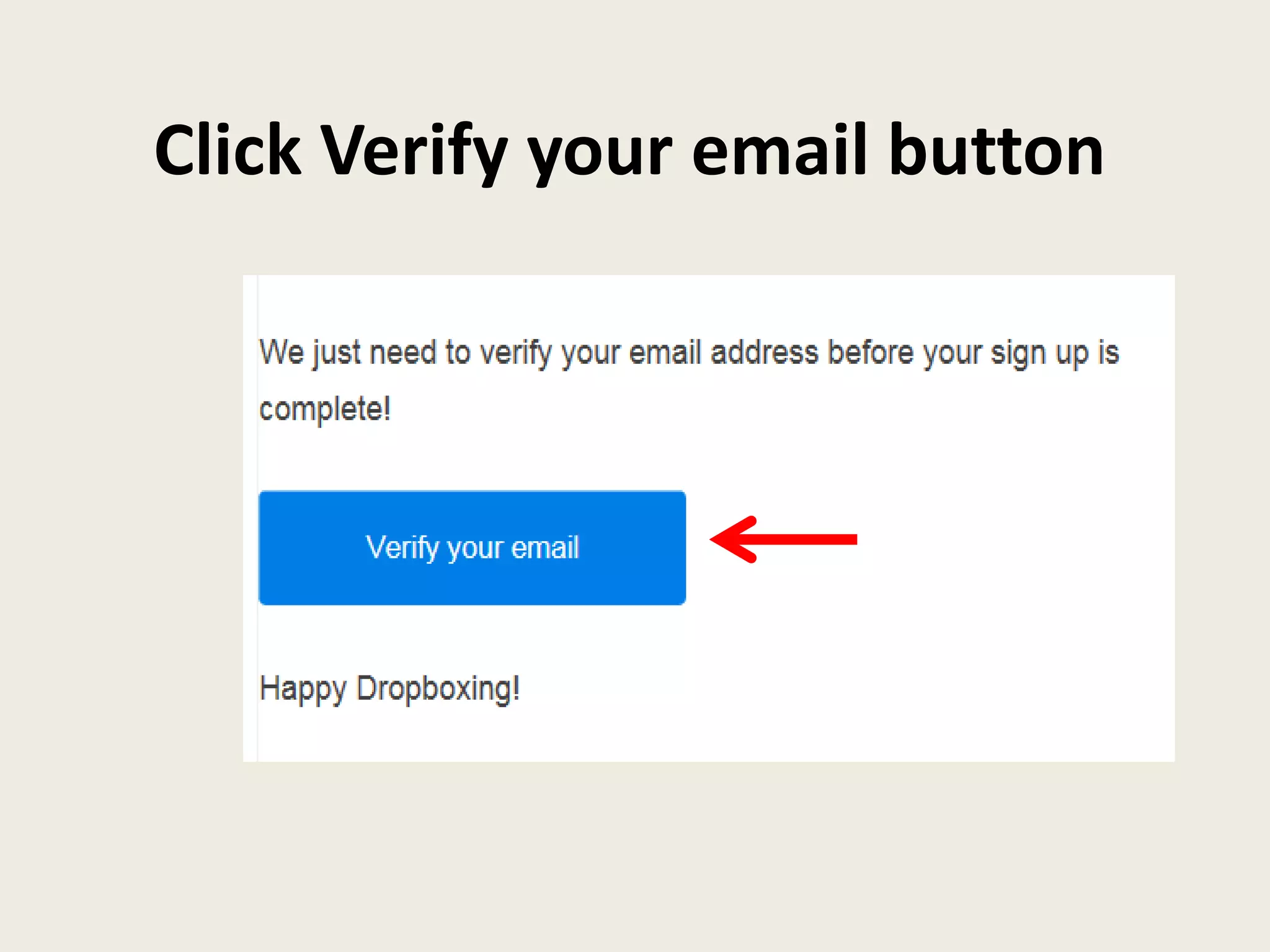
Click Verify your email button
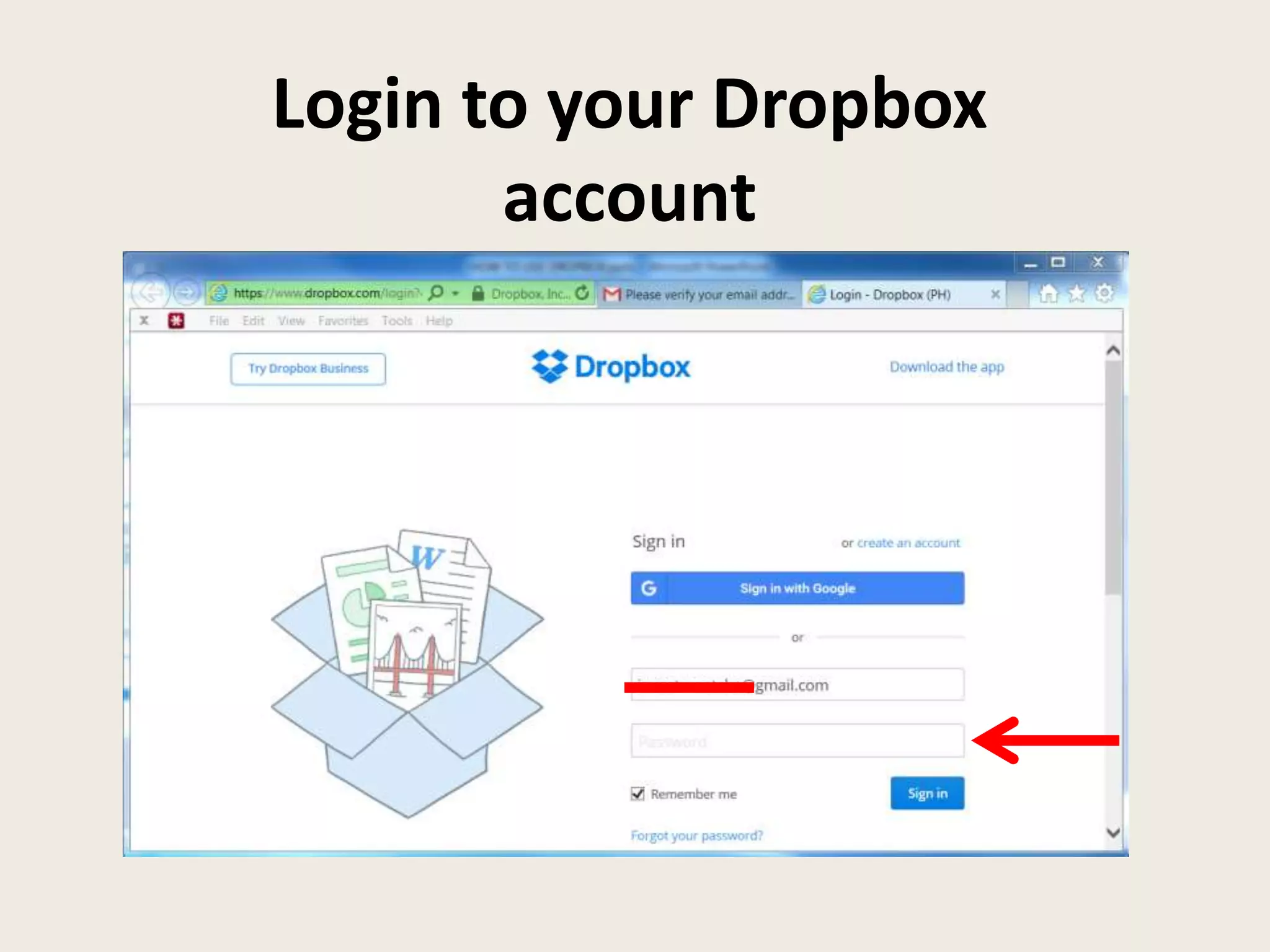
Login to your Dropbox
account
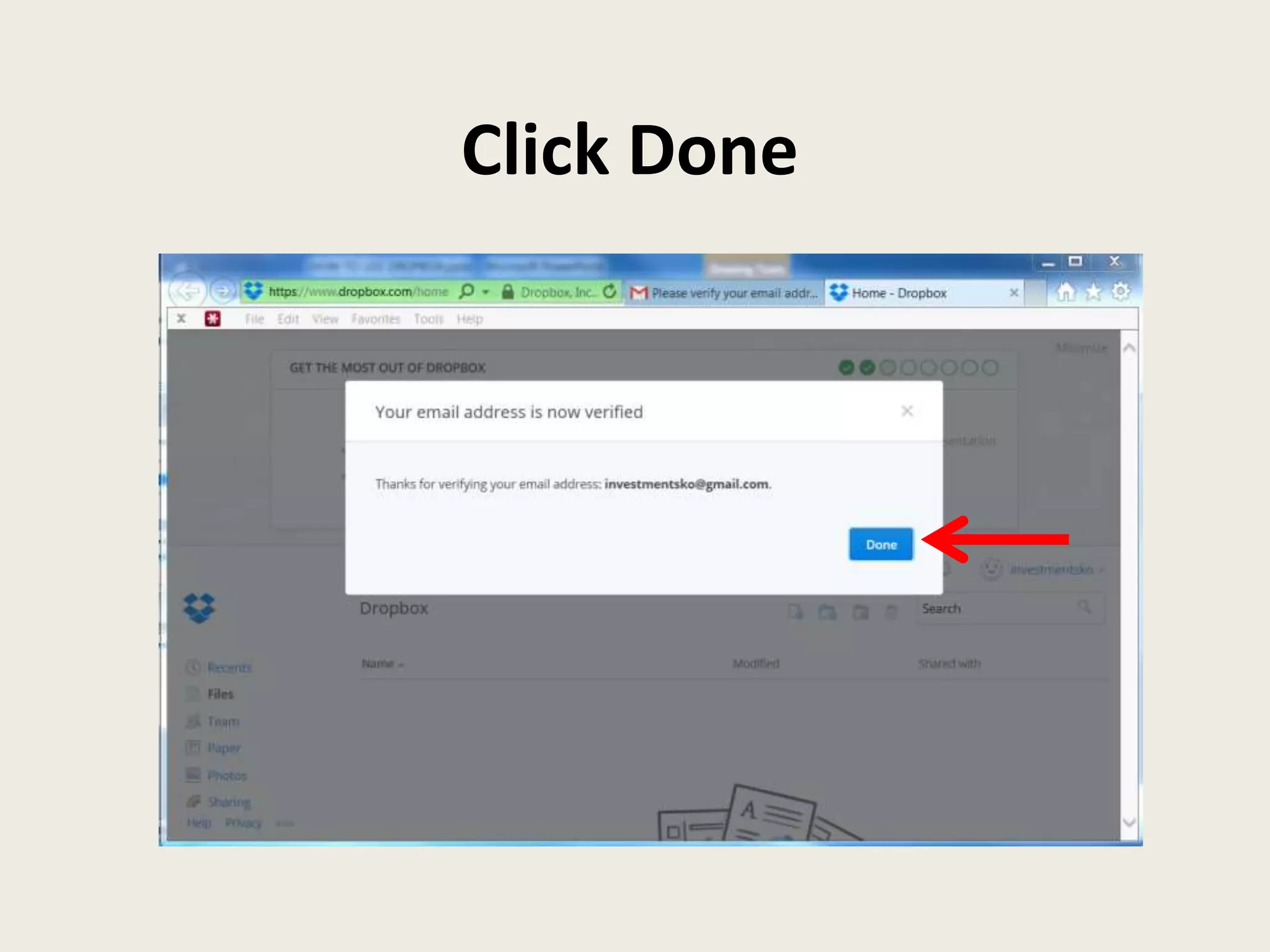
Click Done
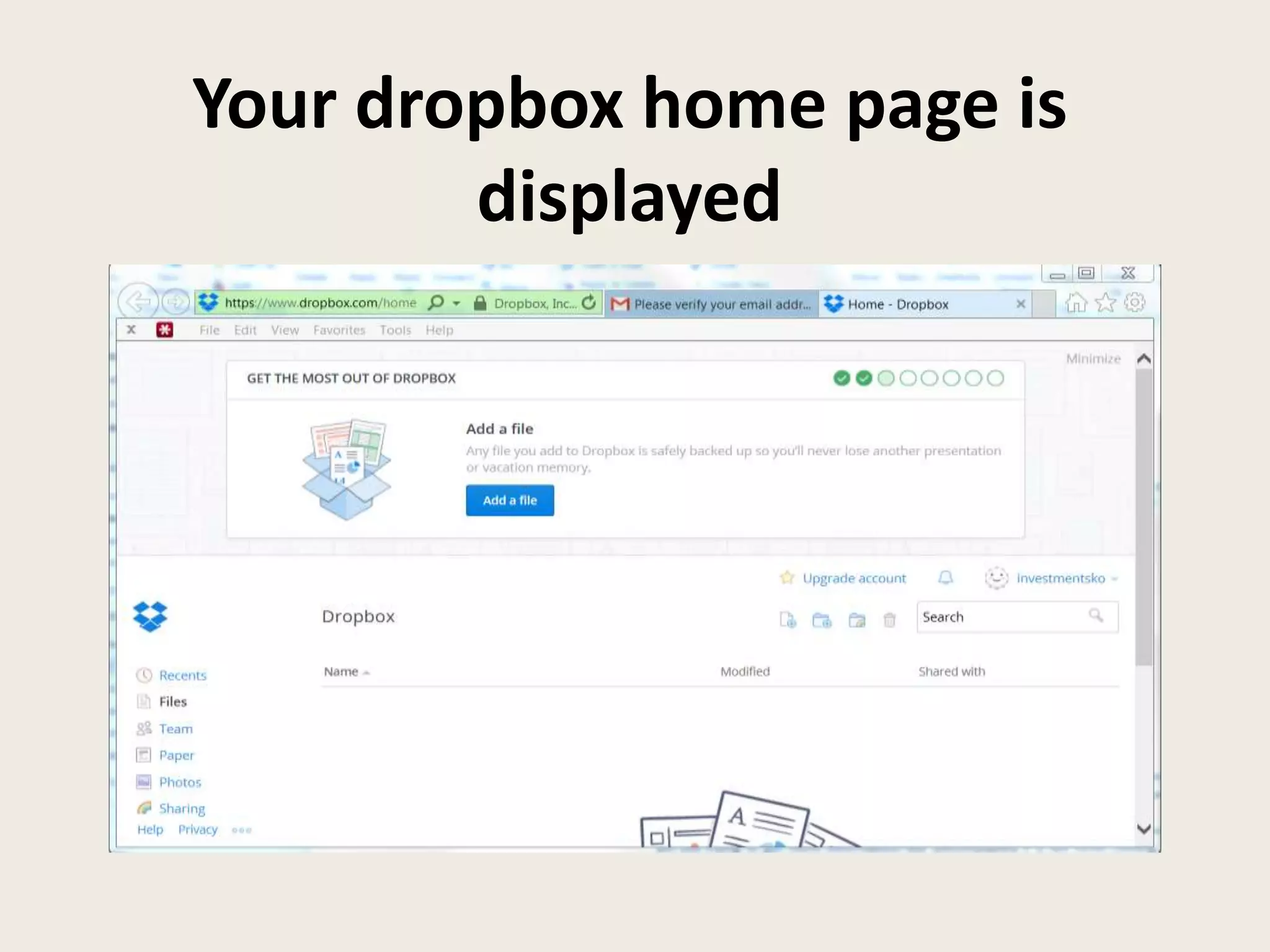
Your dropbox home page is
displayed
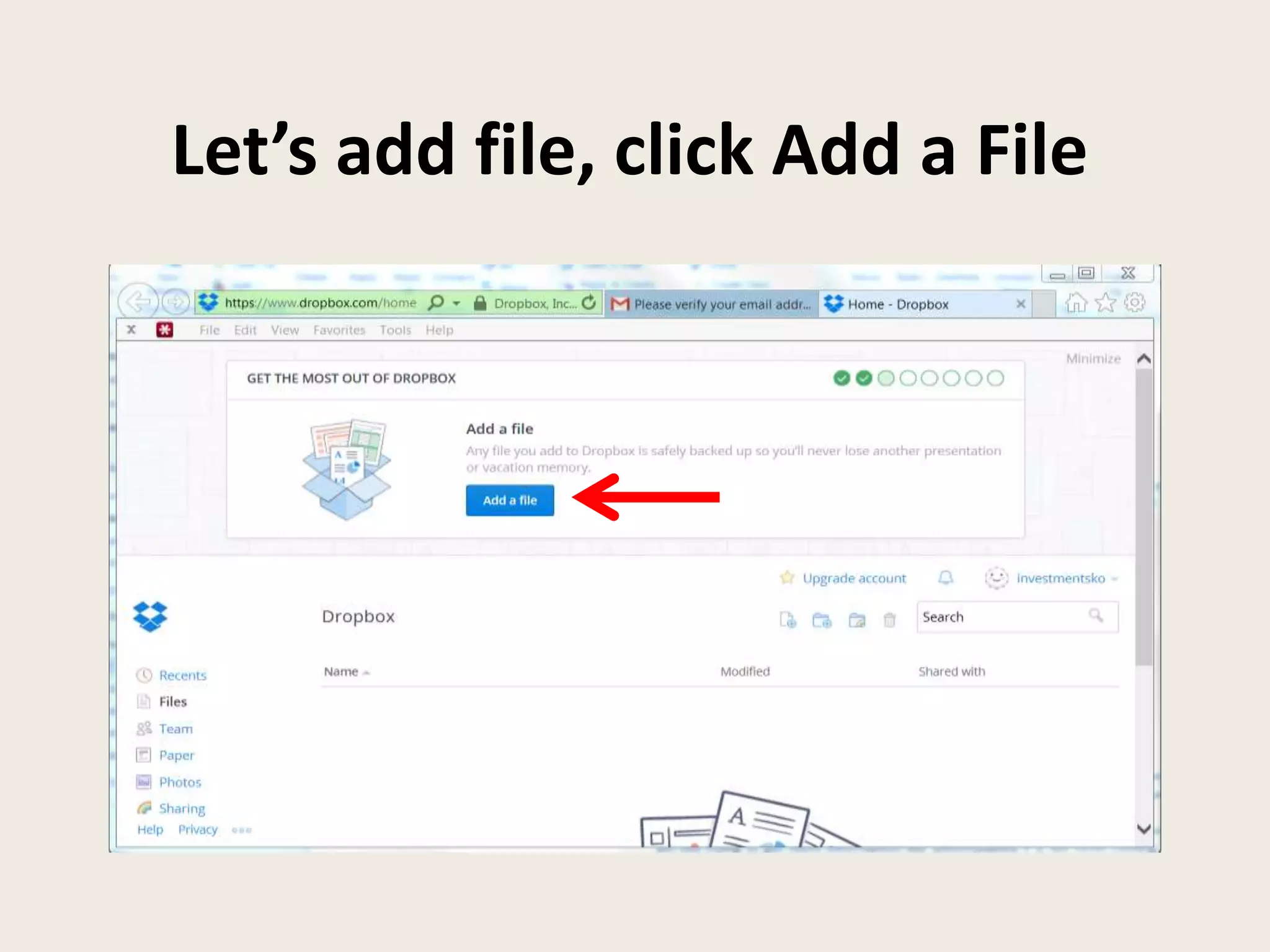
Let’s add file, click Add a File
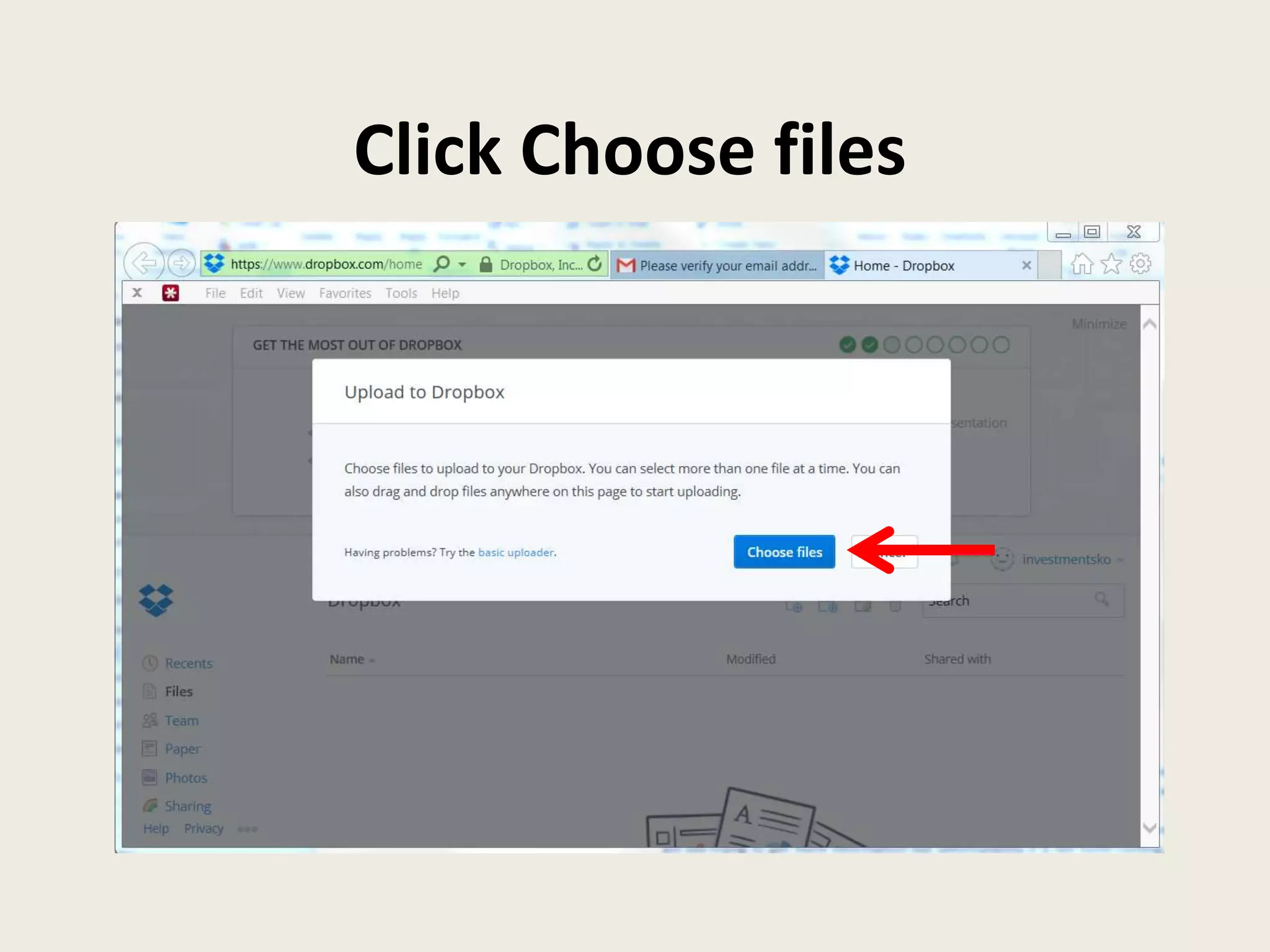
Click Choose files
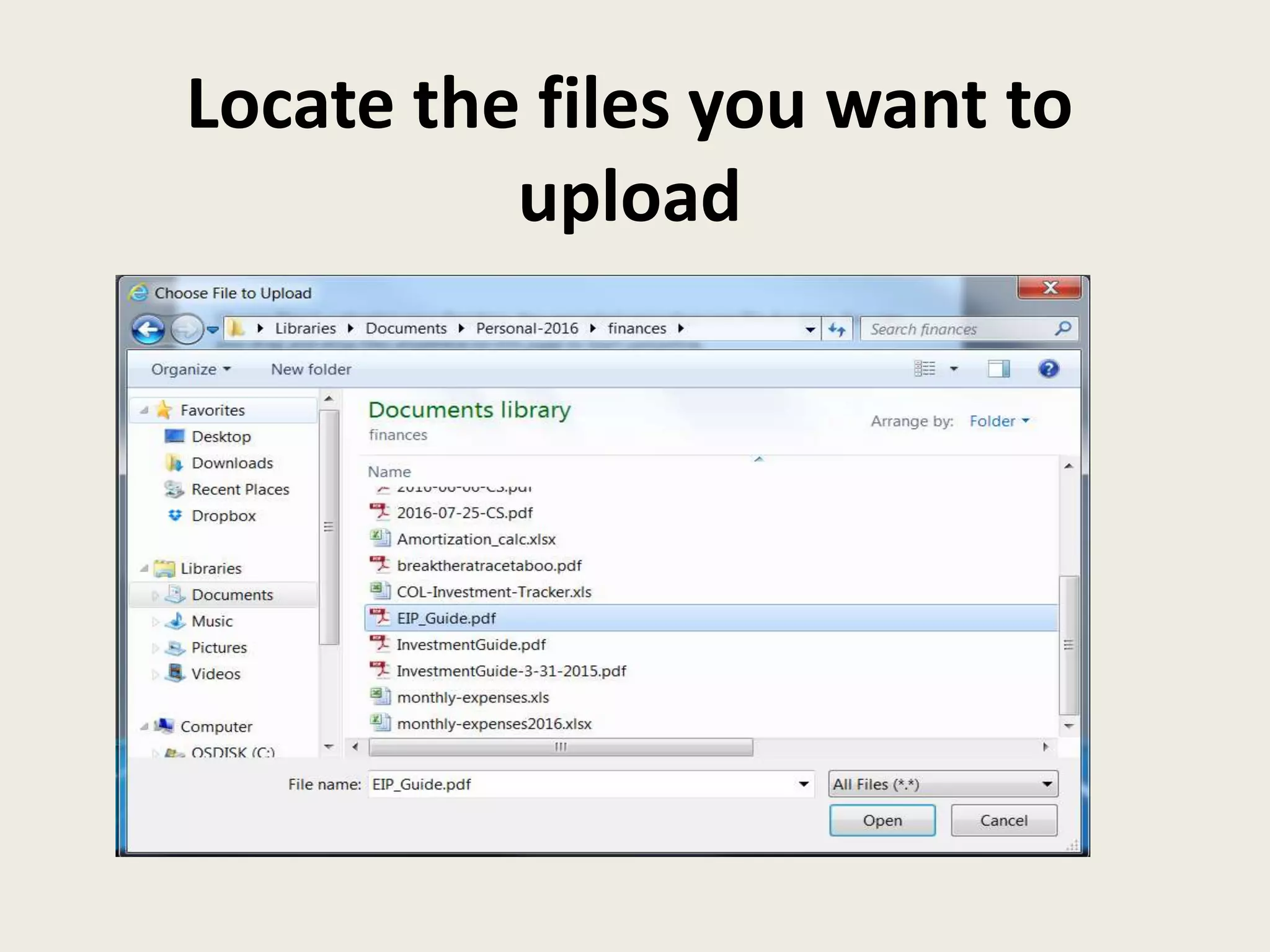
Locate the files you want to
upload
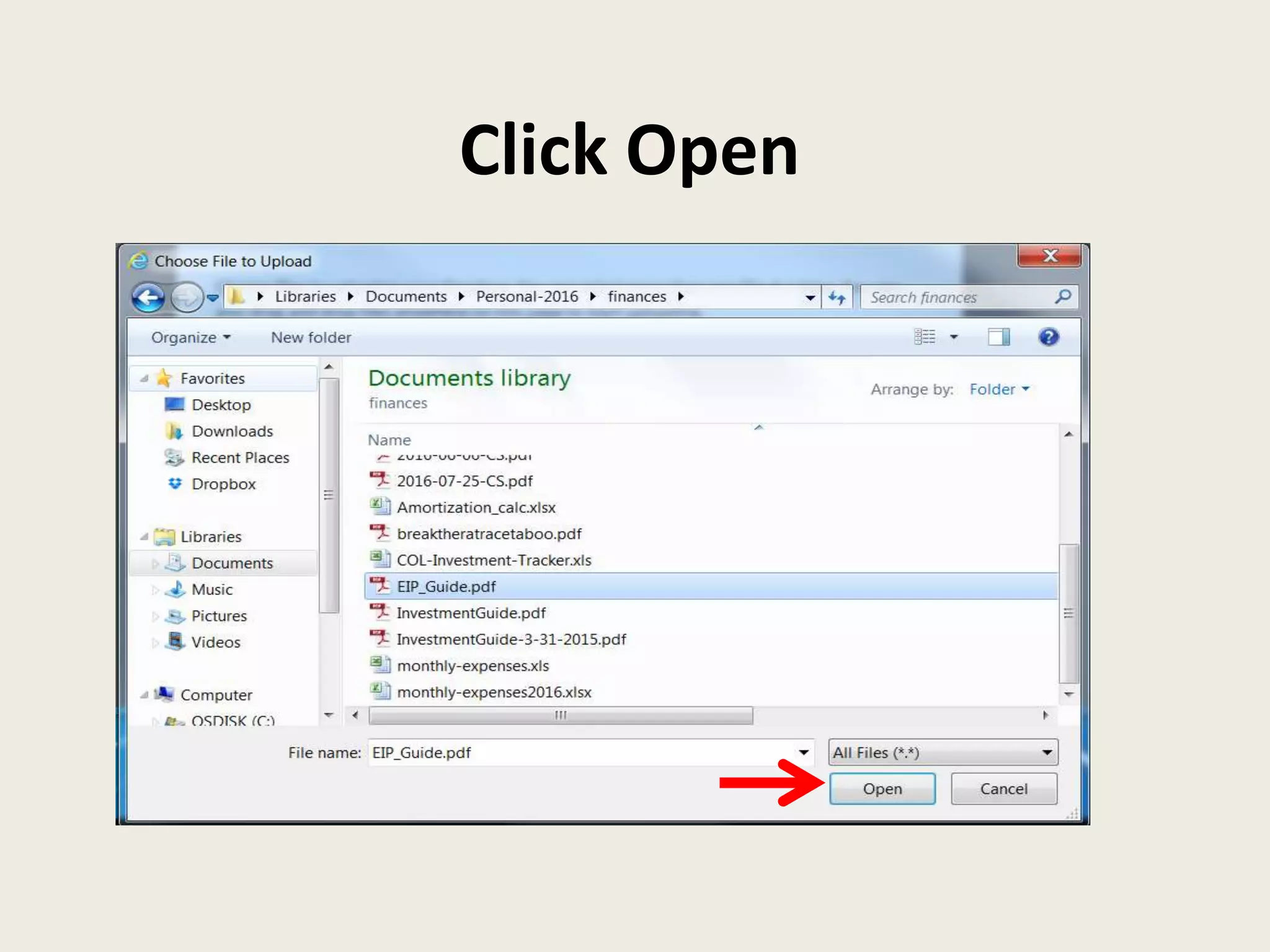
Click Open
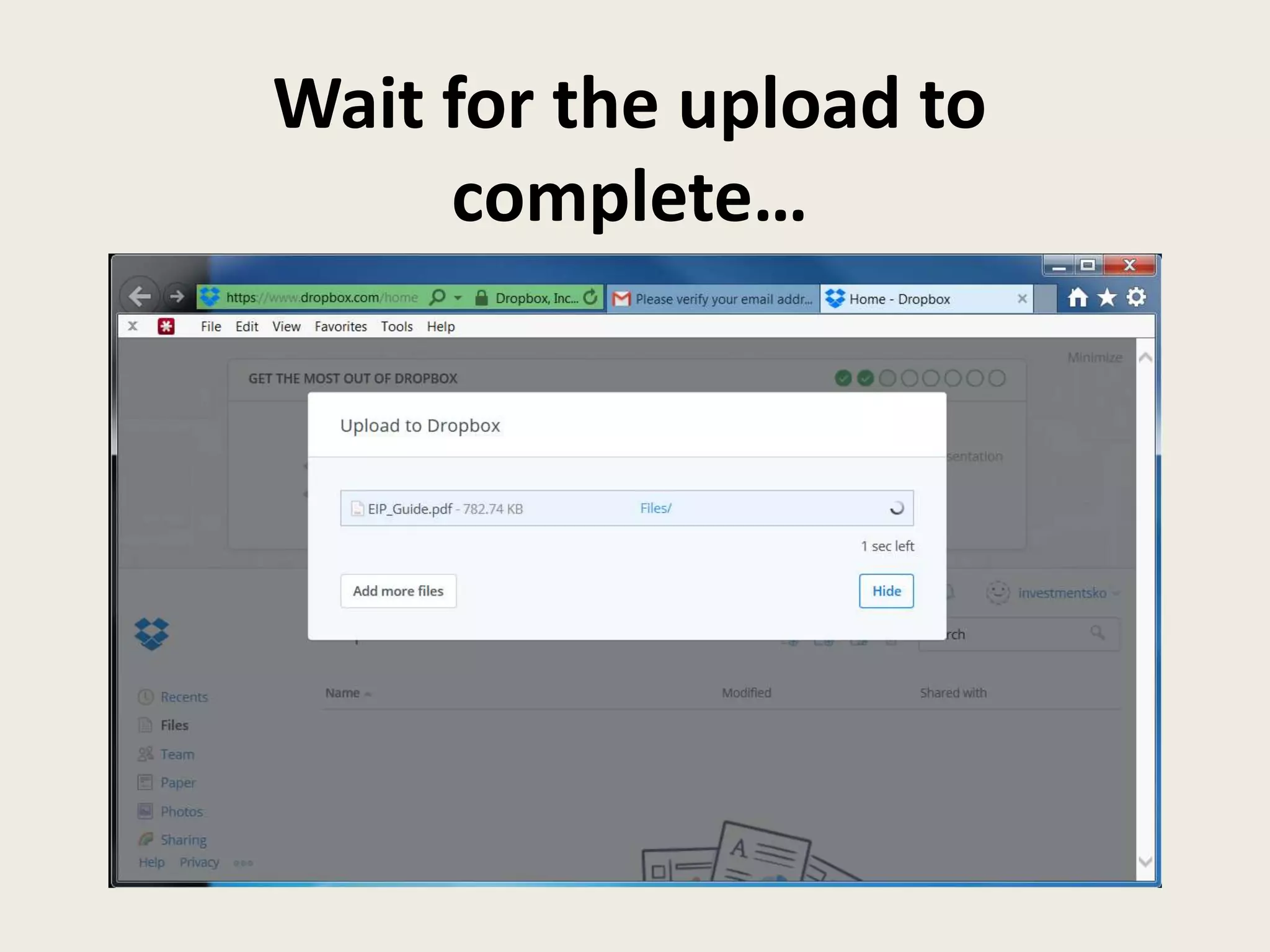
Wait for the upload to
complete…
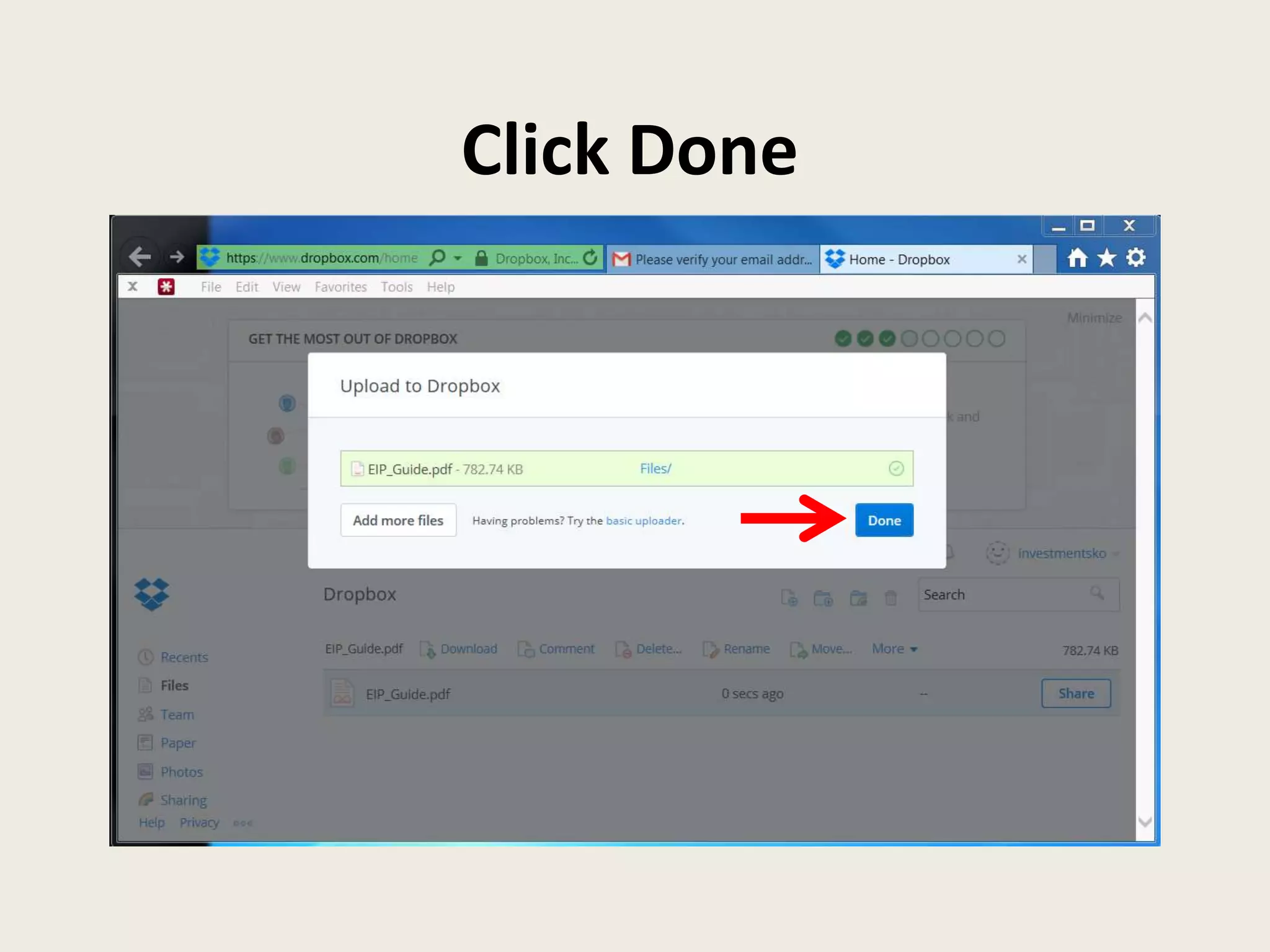
Click Done
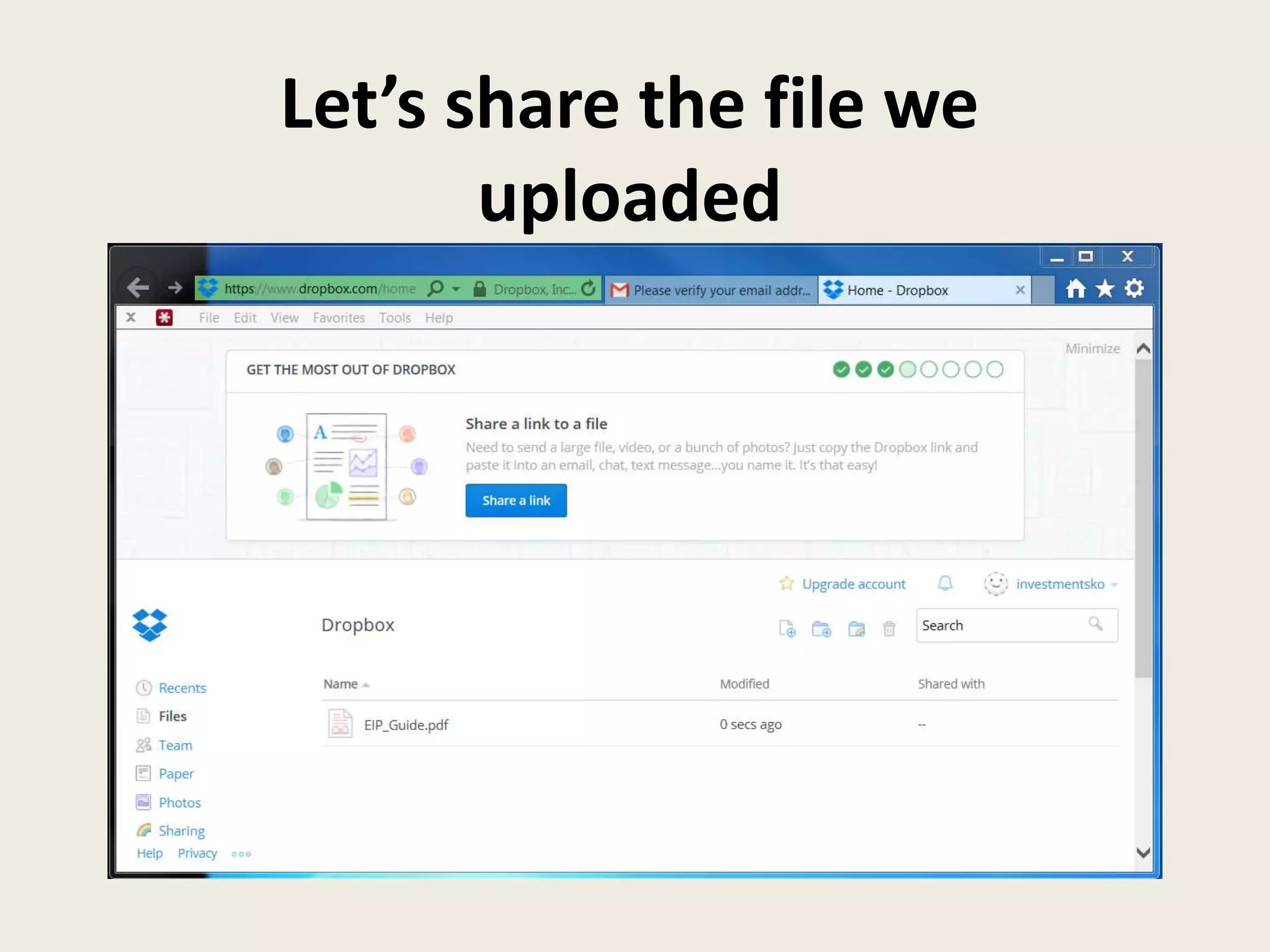
Let’s share the file we
uploaded
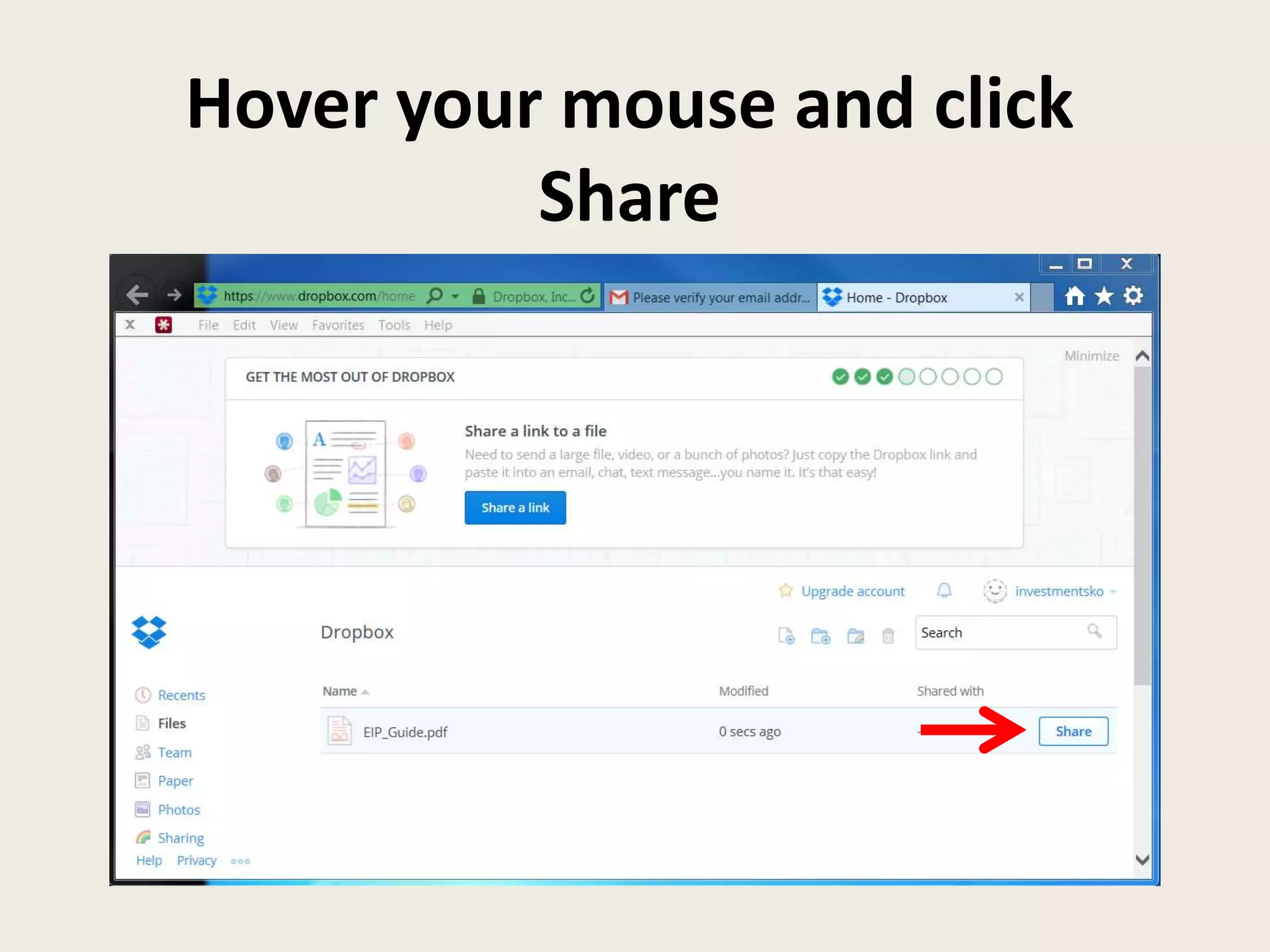
Hover your mouse and click
Share
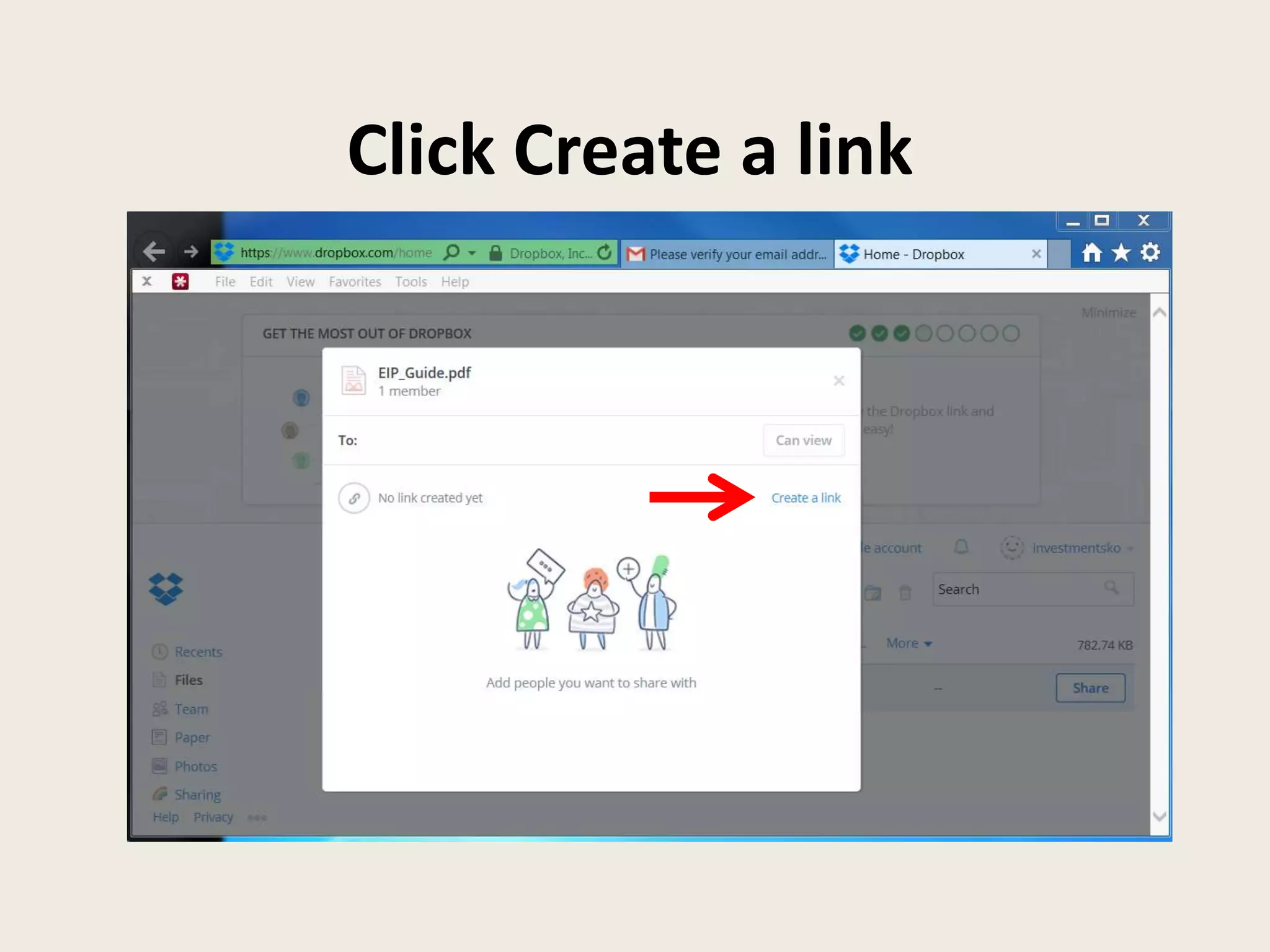
Click Create a link
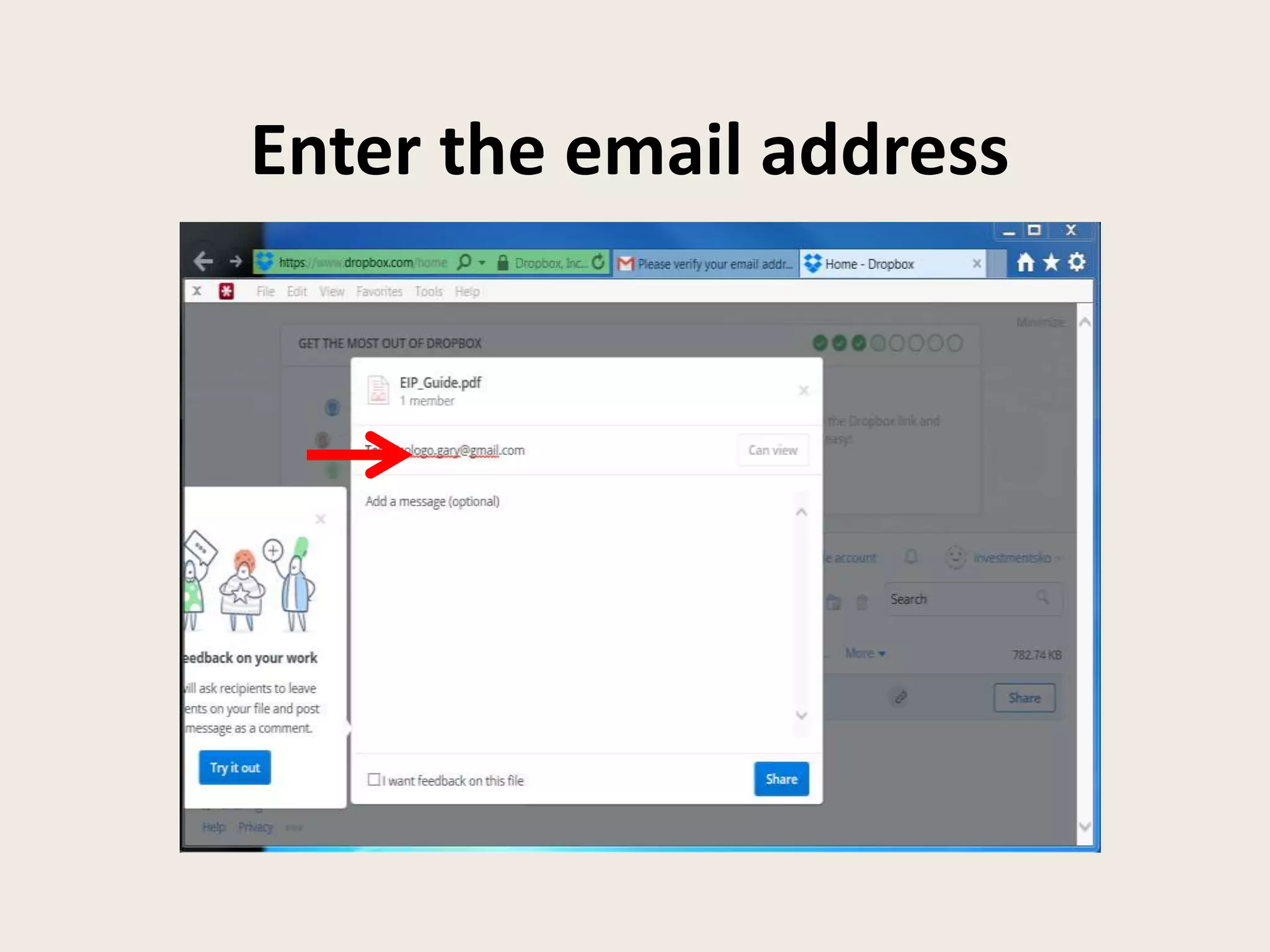
Enter the email address
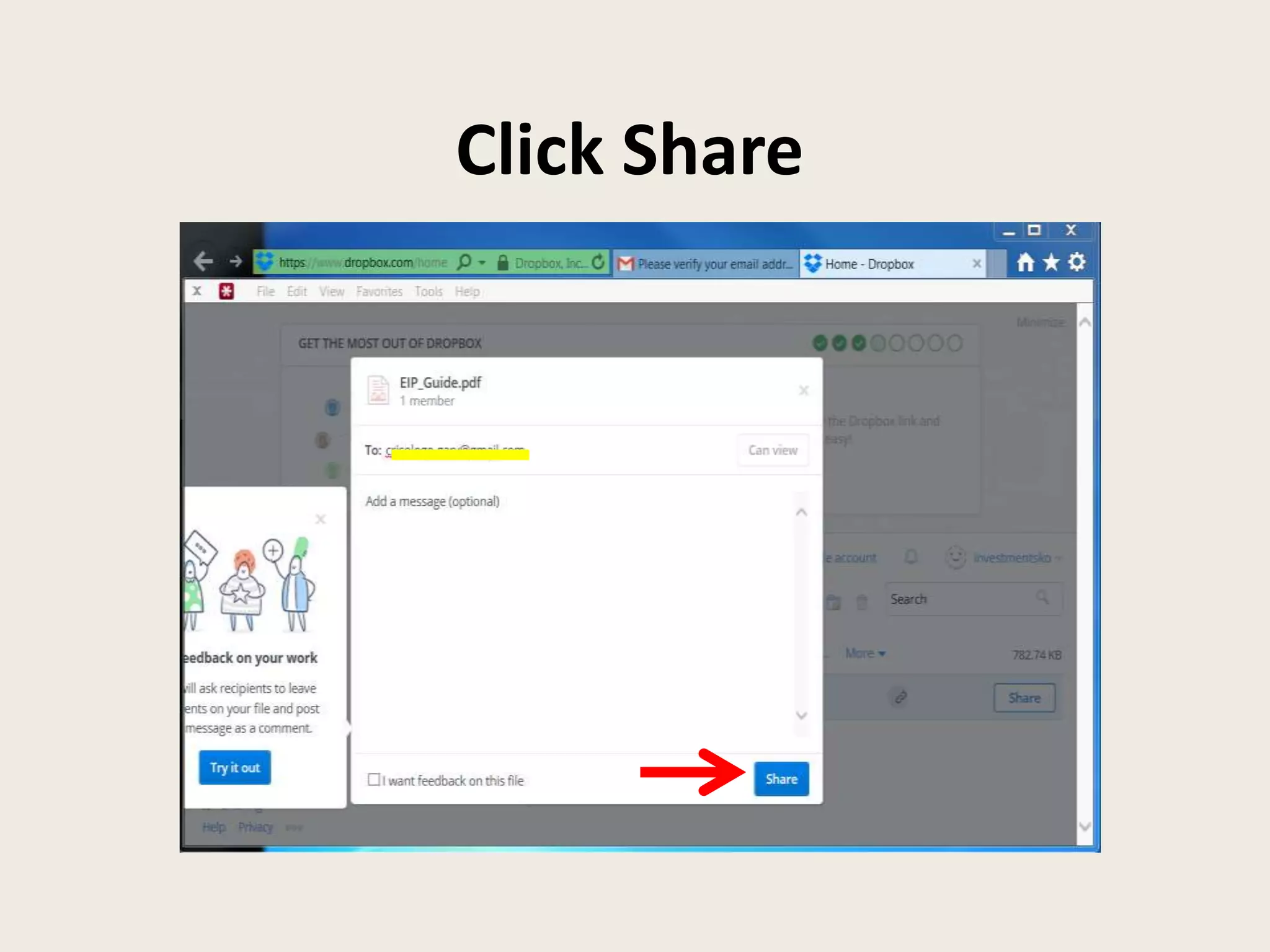
Click Share
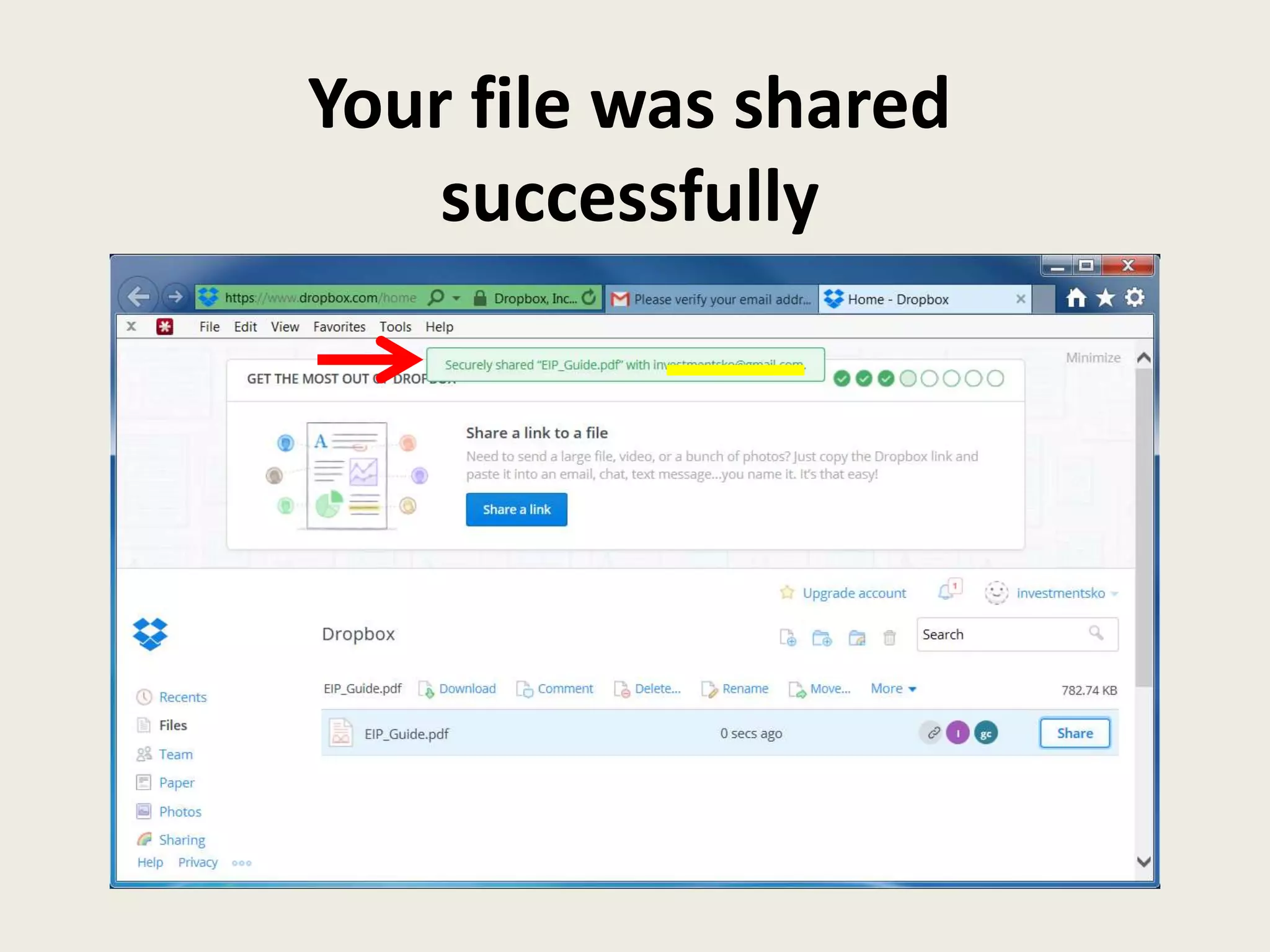
Your file was shared
successfully
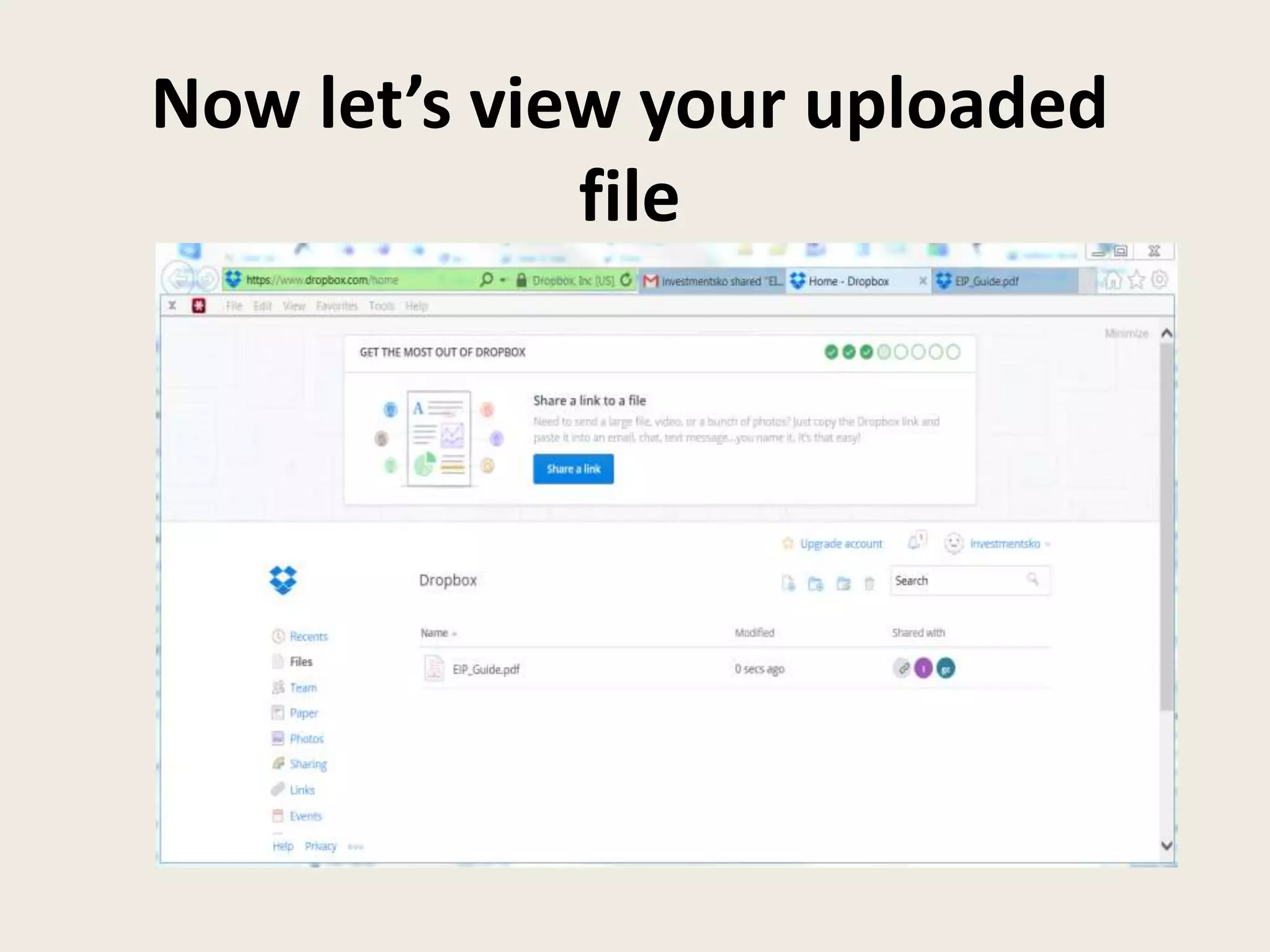
Now let’s view your uploaded
file
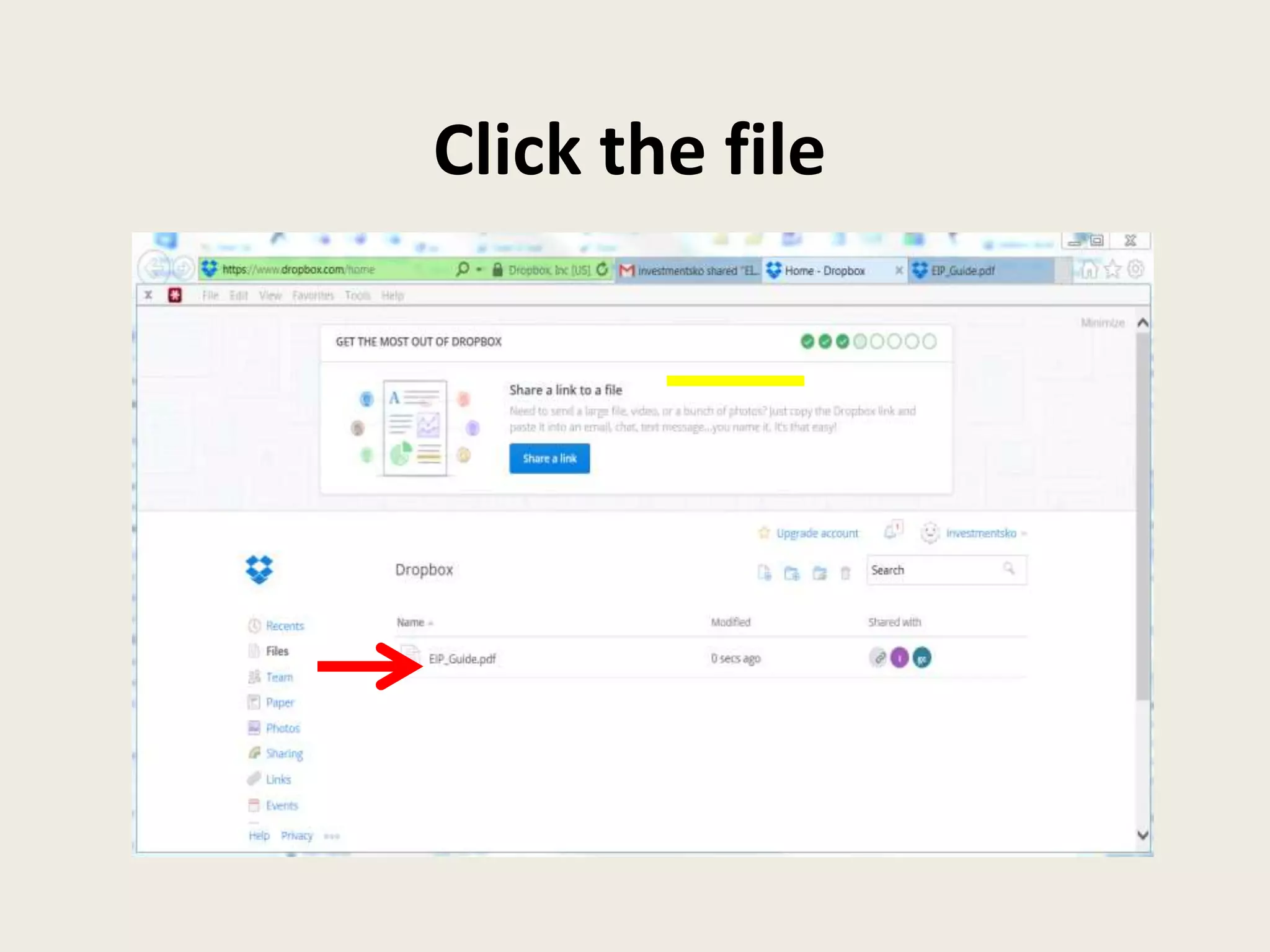
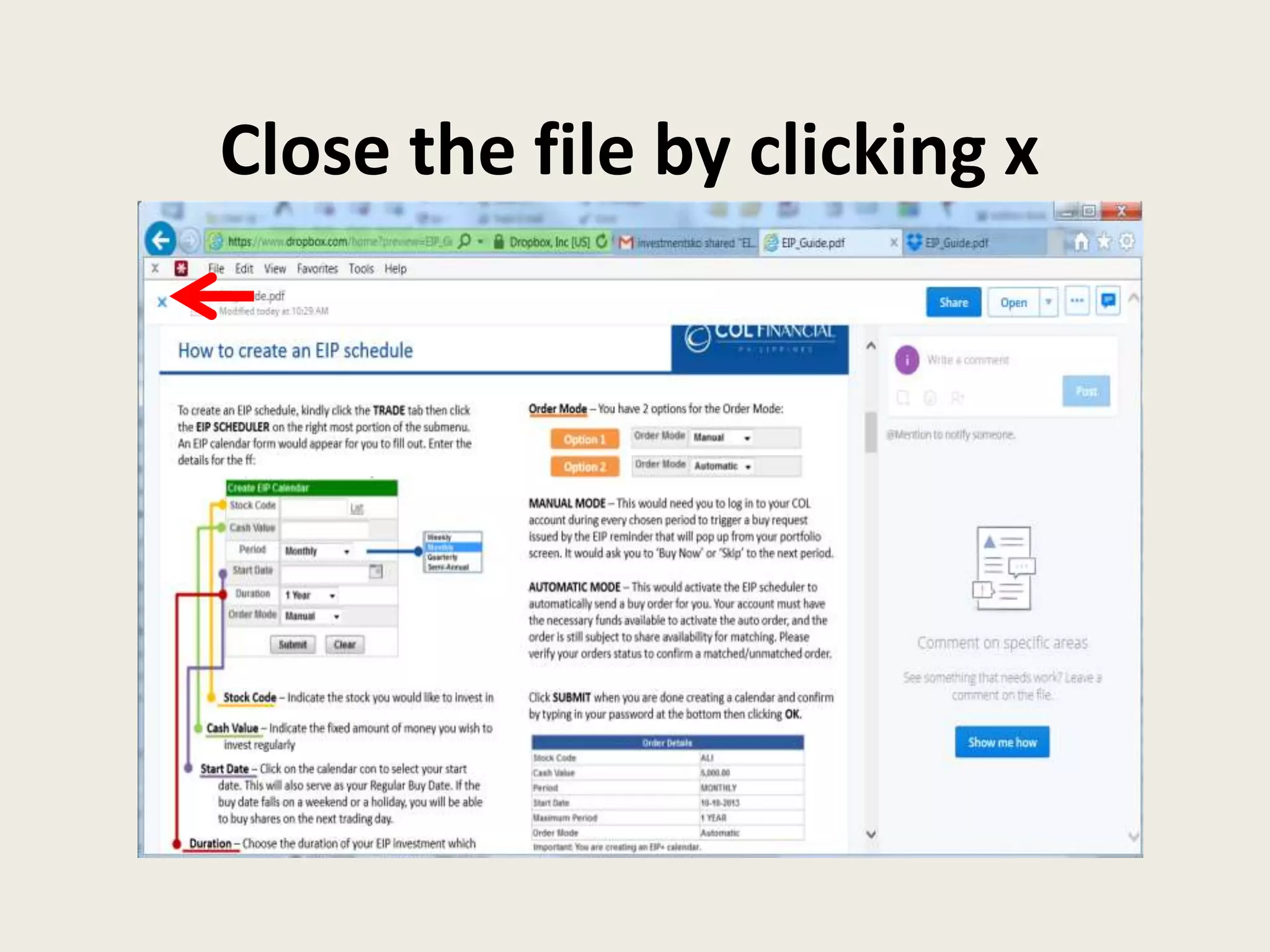
Click the file
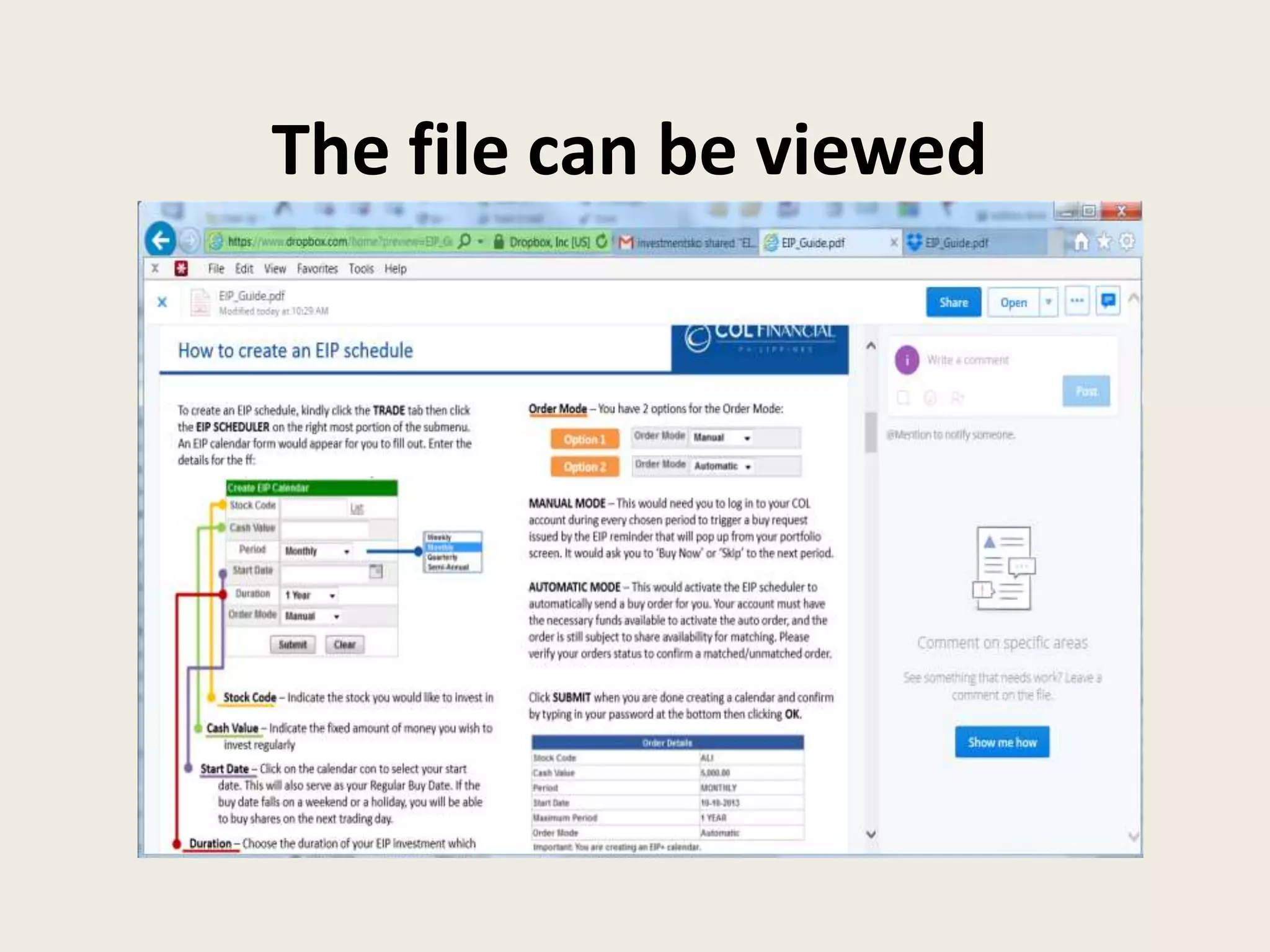
The file can be viewed
Close the file by clicking x
Now let’s create a folder
So you can organize your files
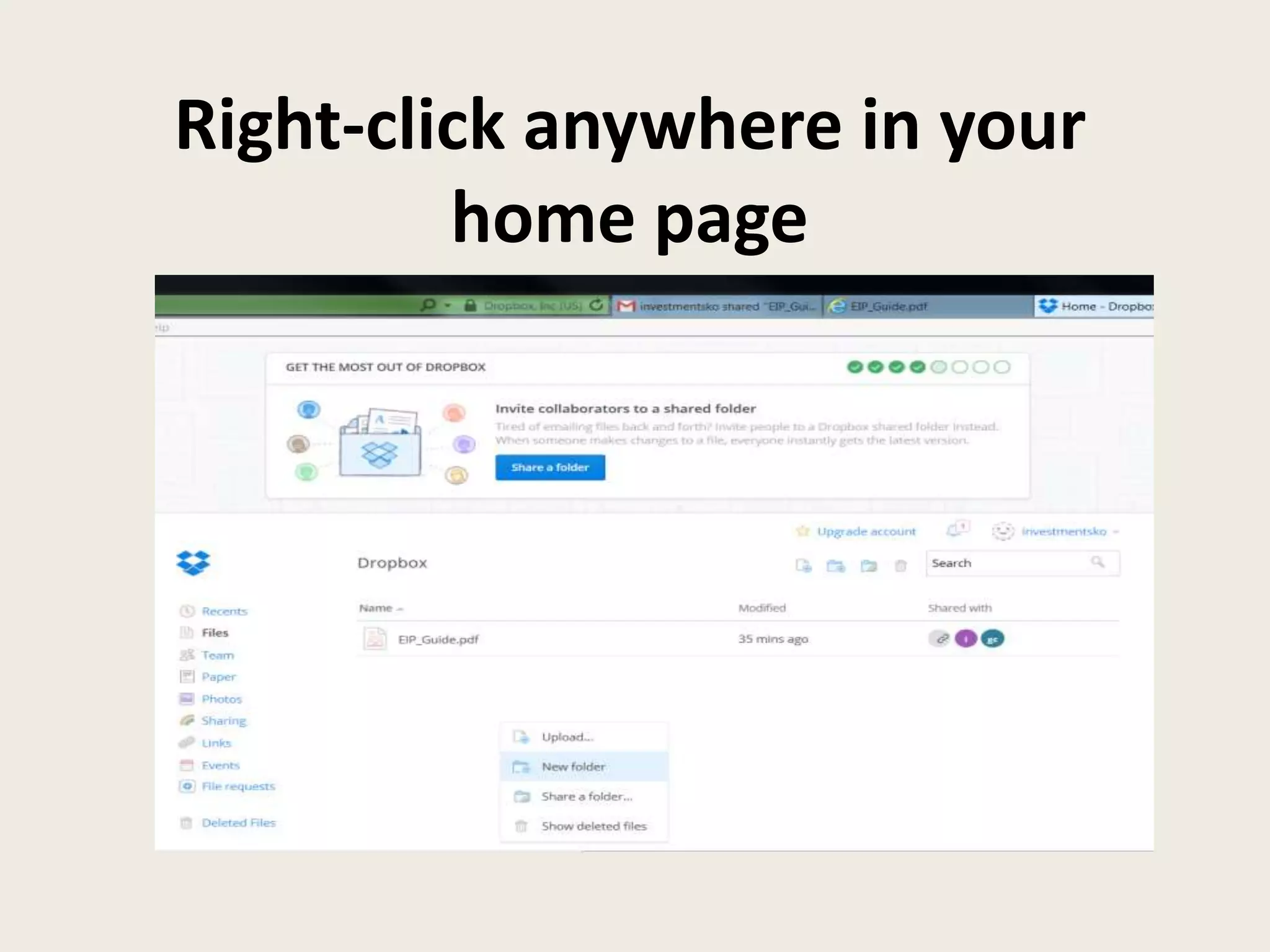
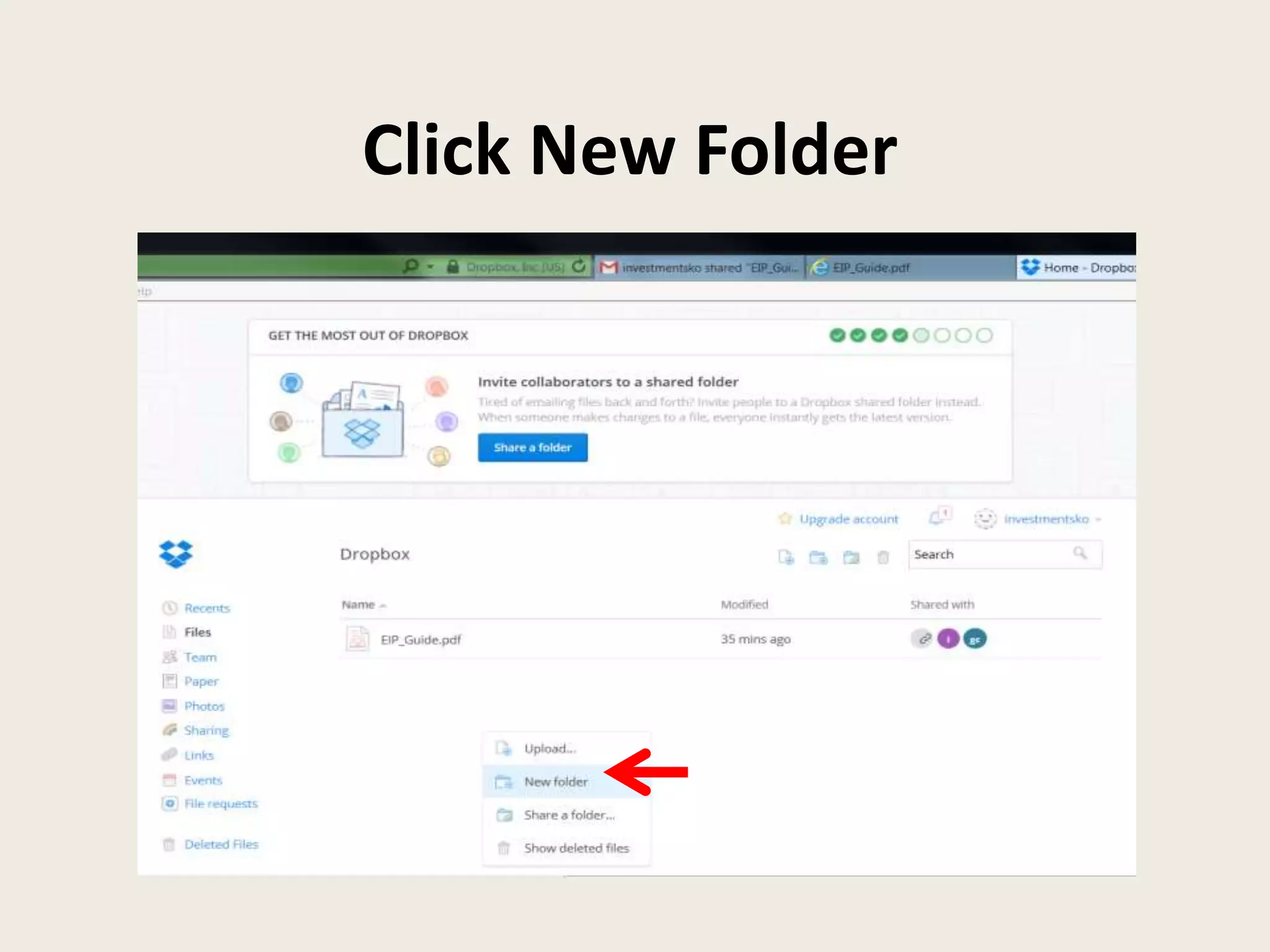
Right-click anywhere in your
home page
Click New Folder
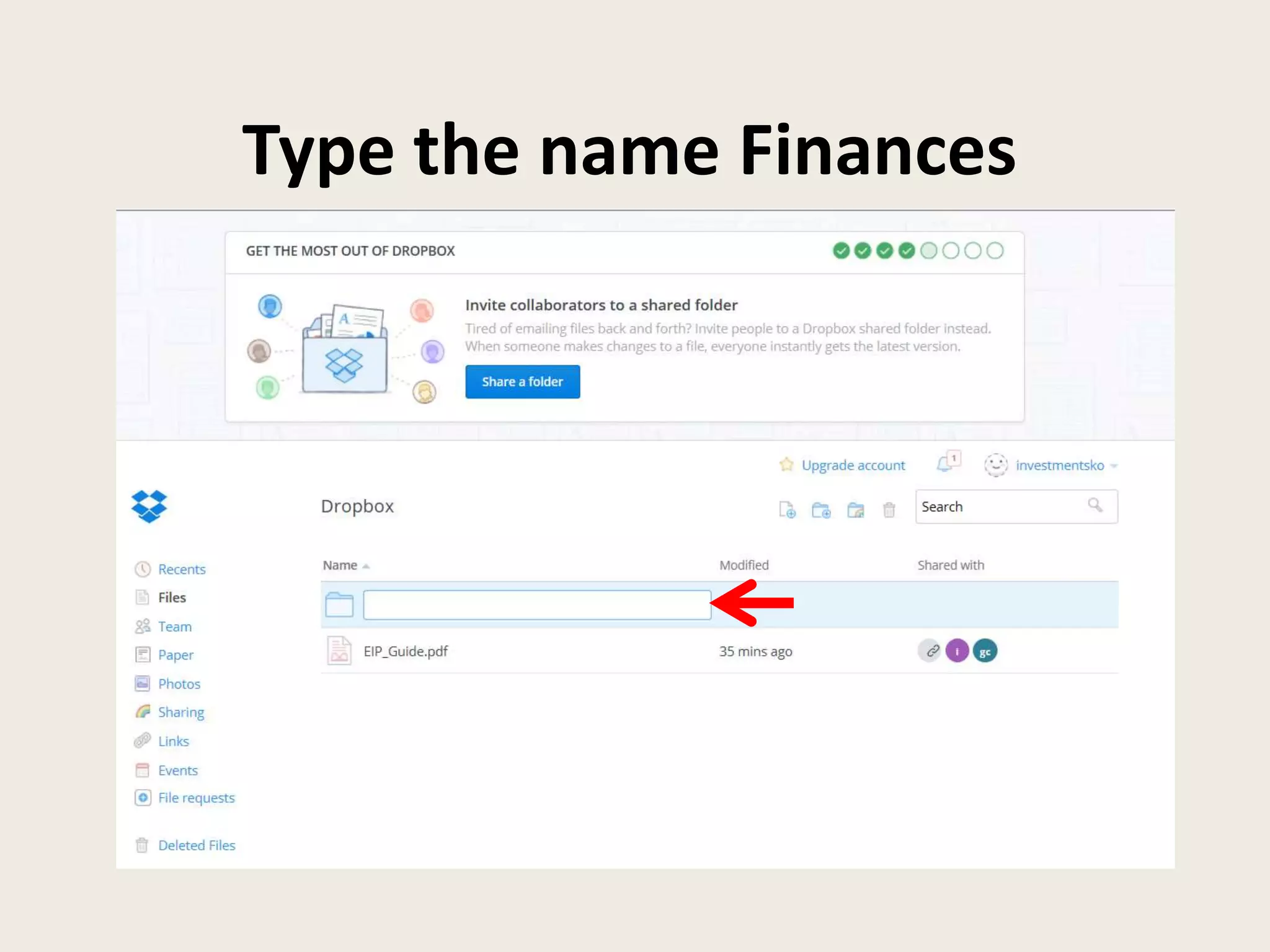
Type the name Finances
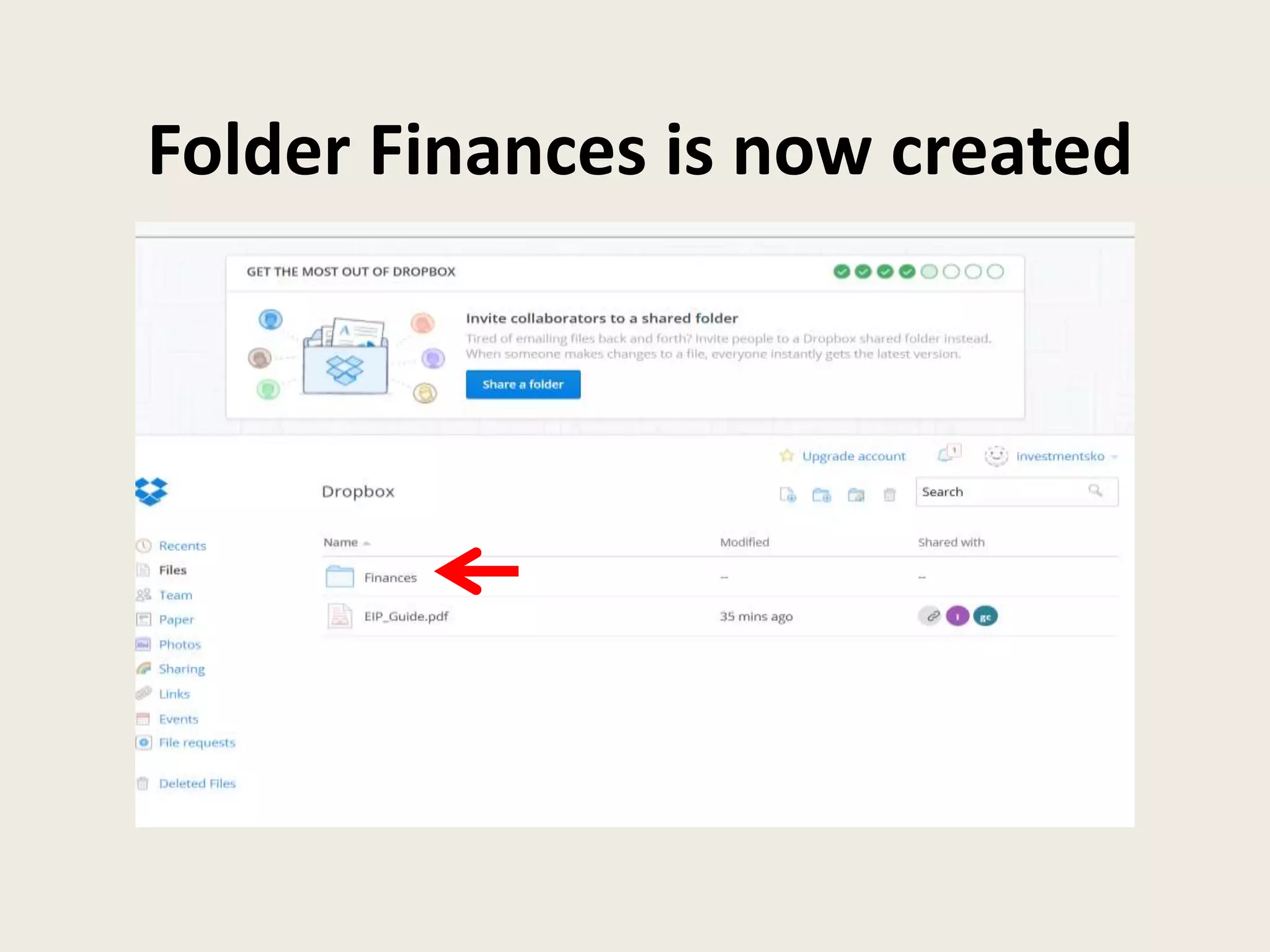
Folder Finances is now created
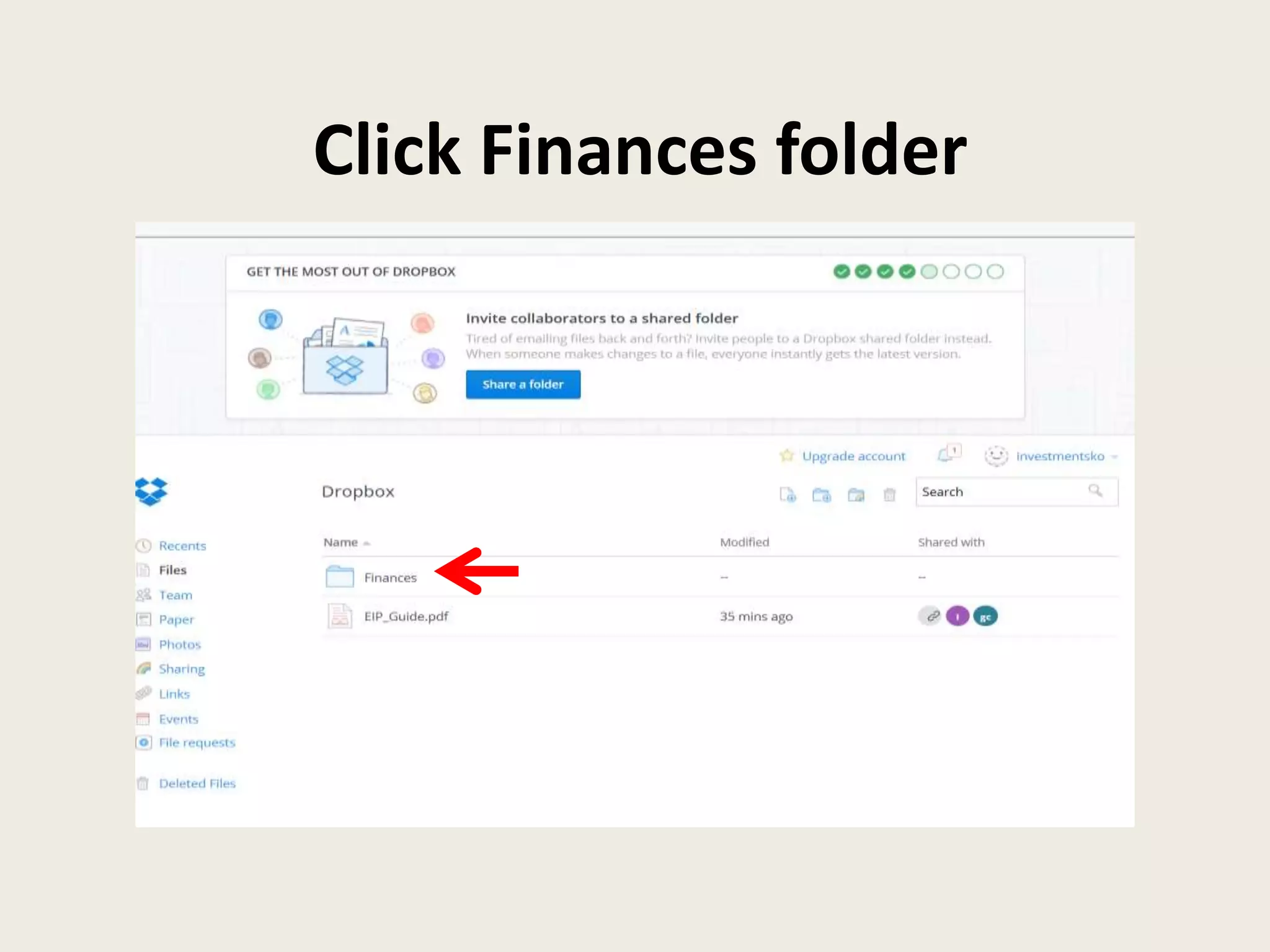
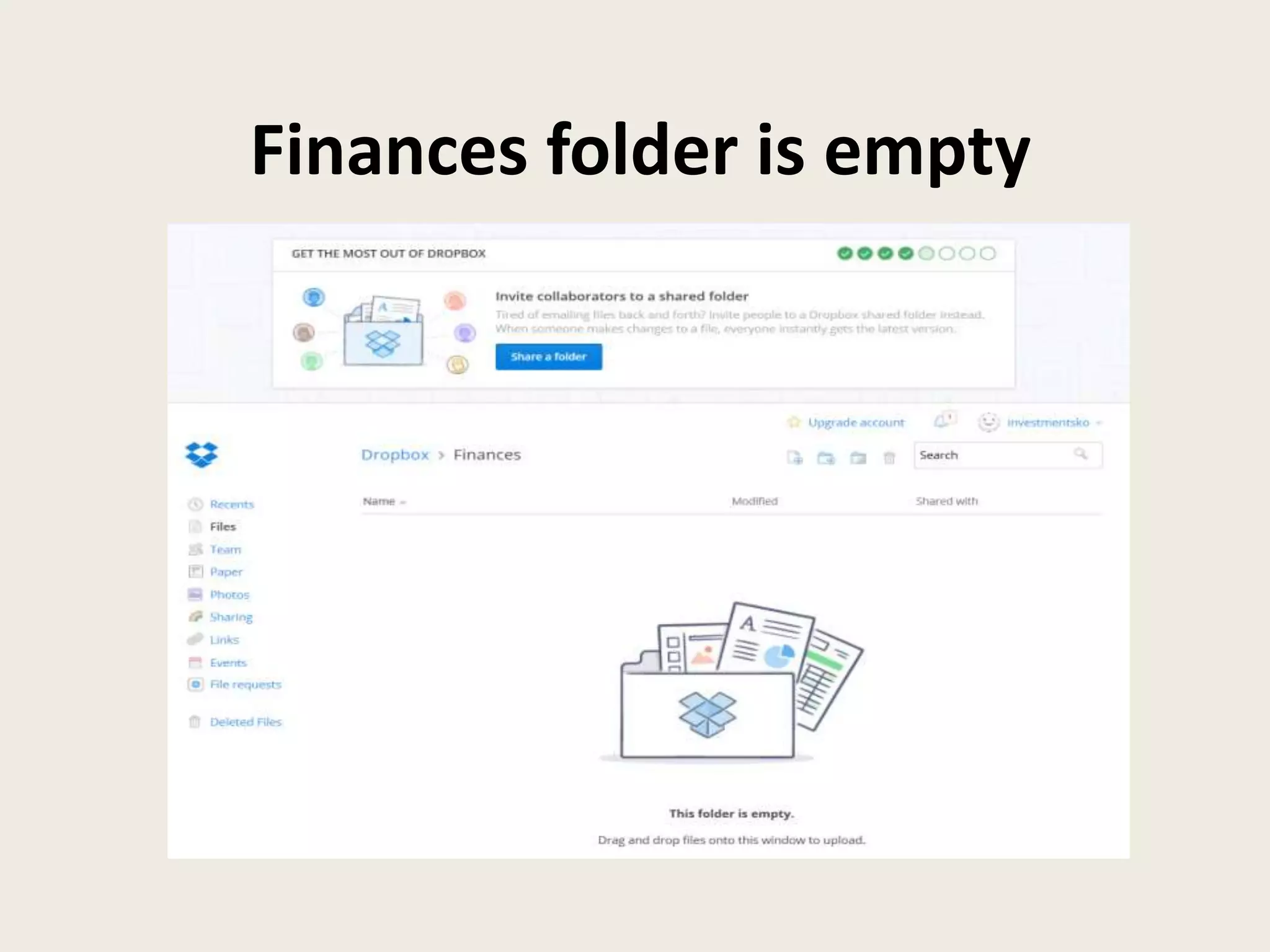
Click Finances folder
Finances folder is empty
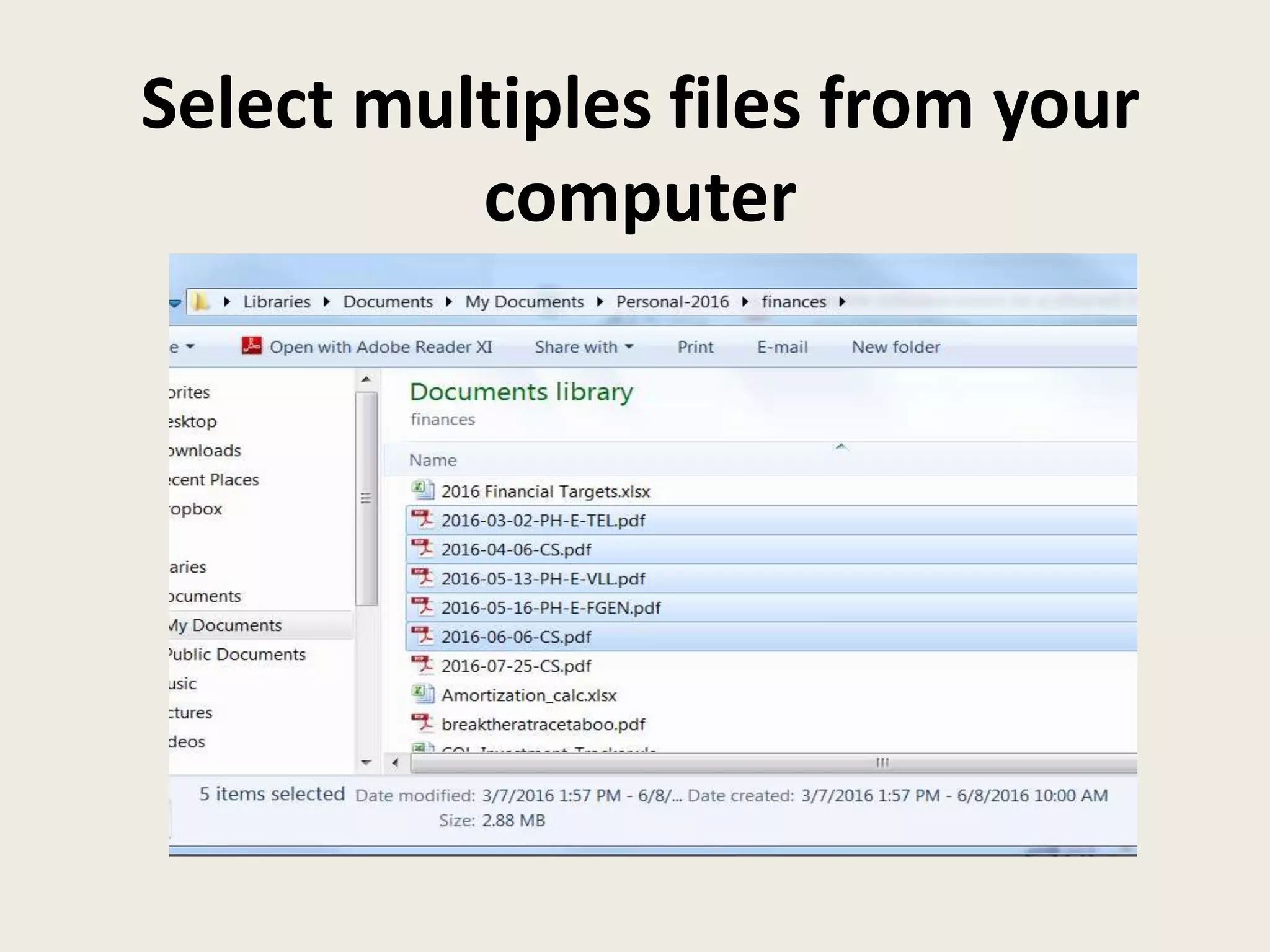
Select multiples files from your
computer
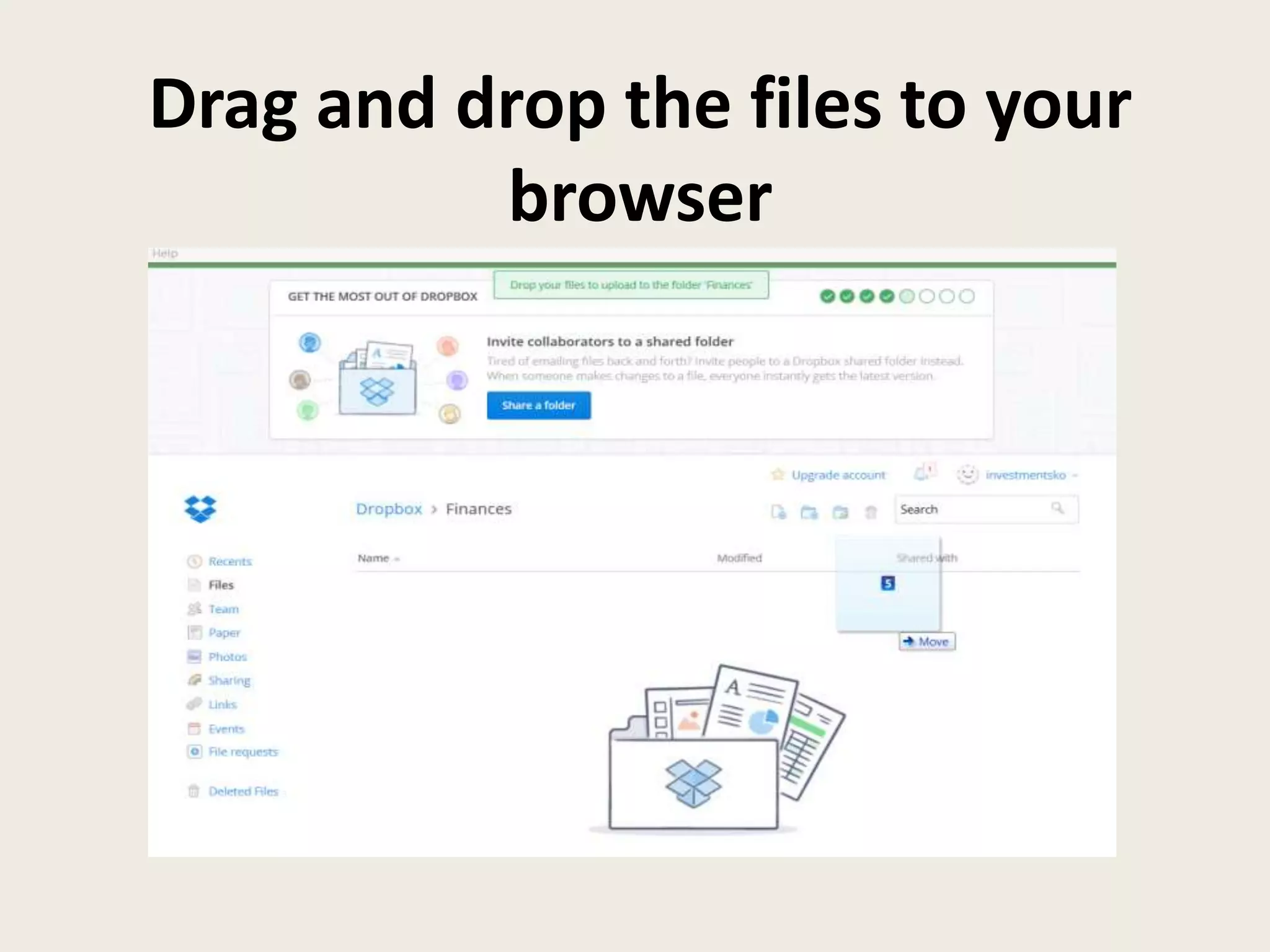
Drag and drop the files to your
browser
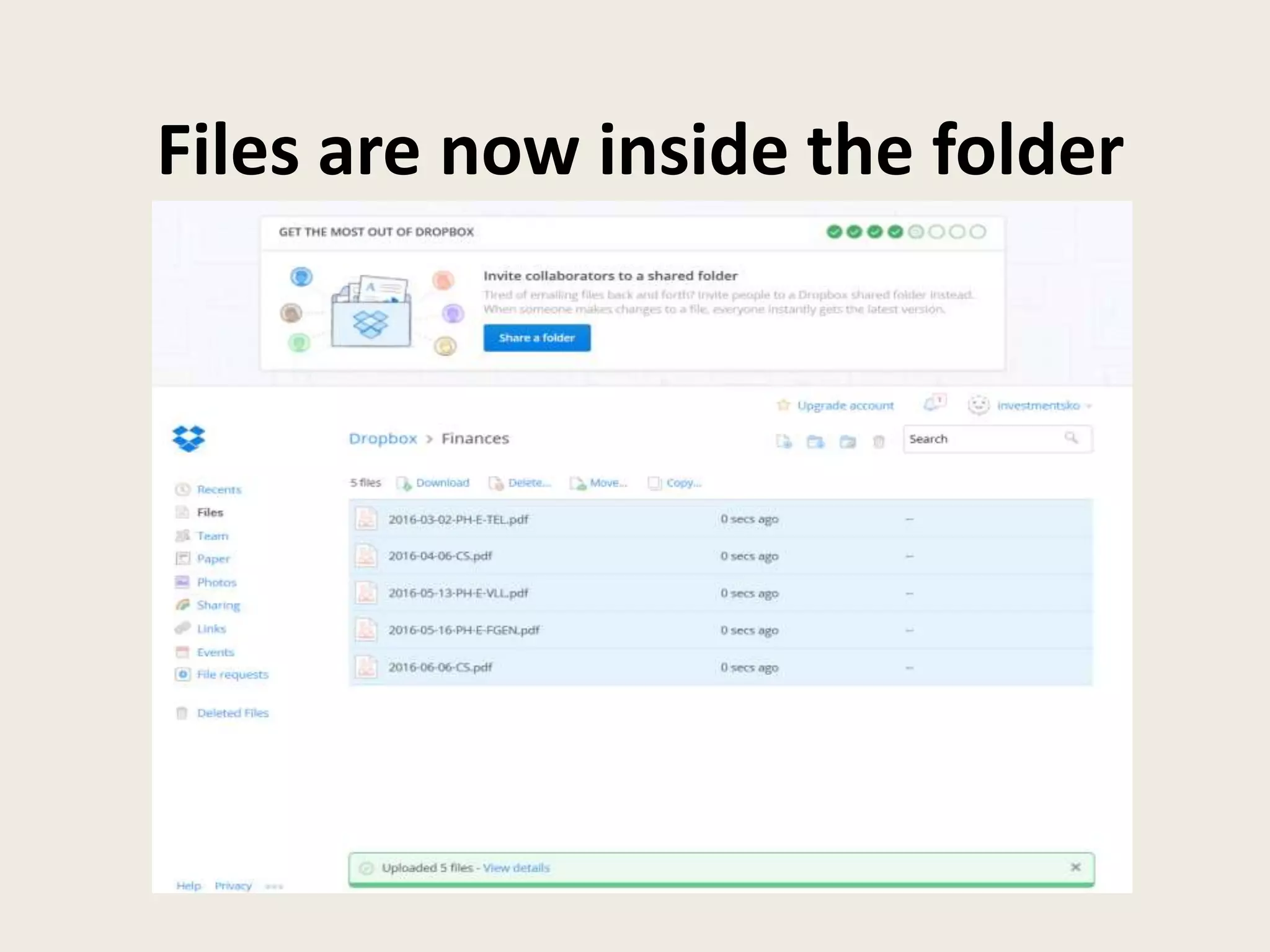
Files are now inside the folder
Let’s upload photos to
your folder
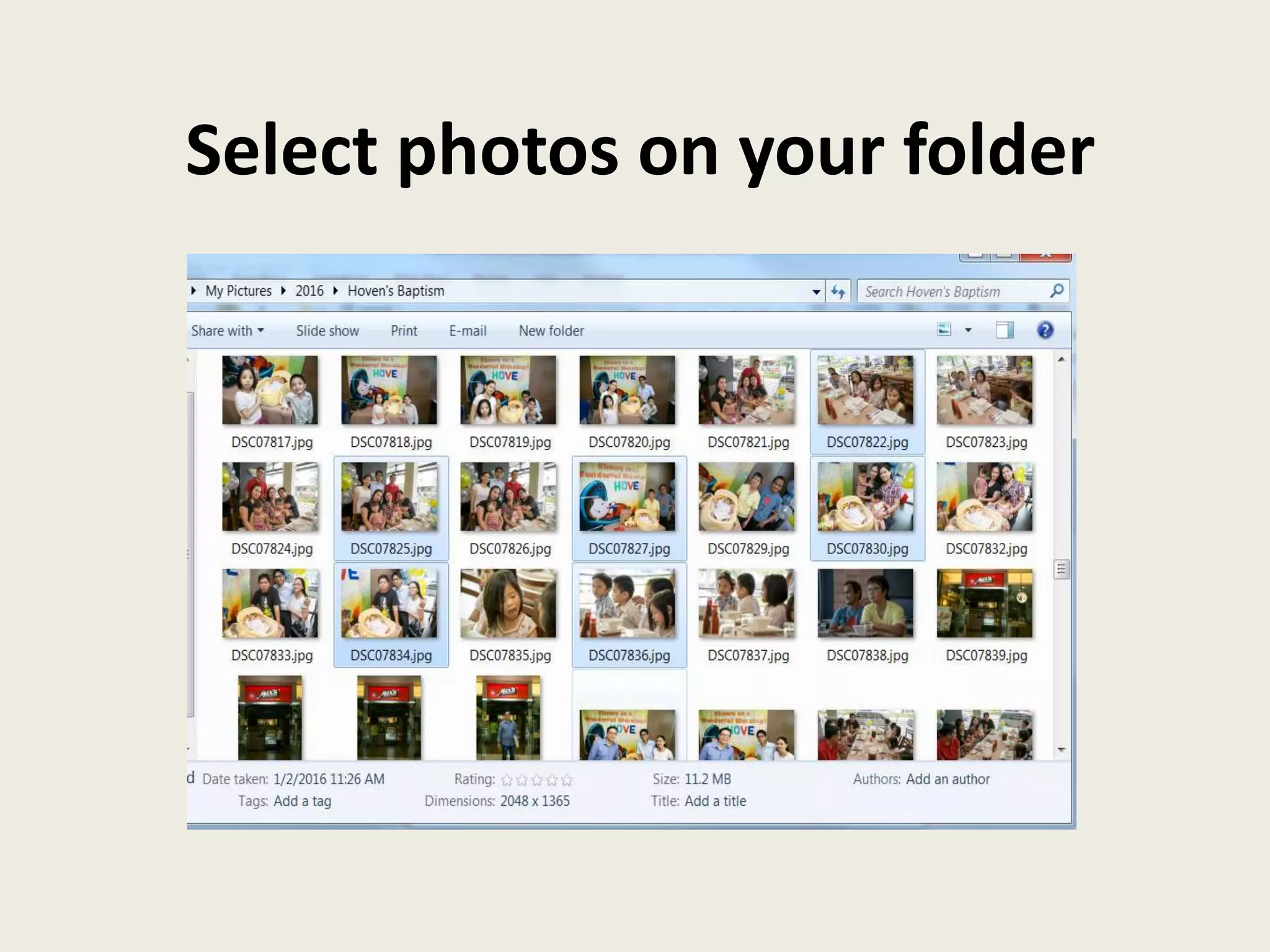
Select photos on your folder
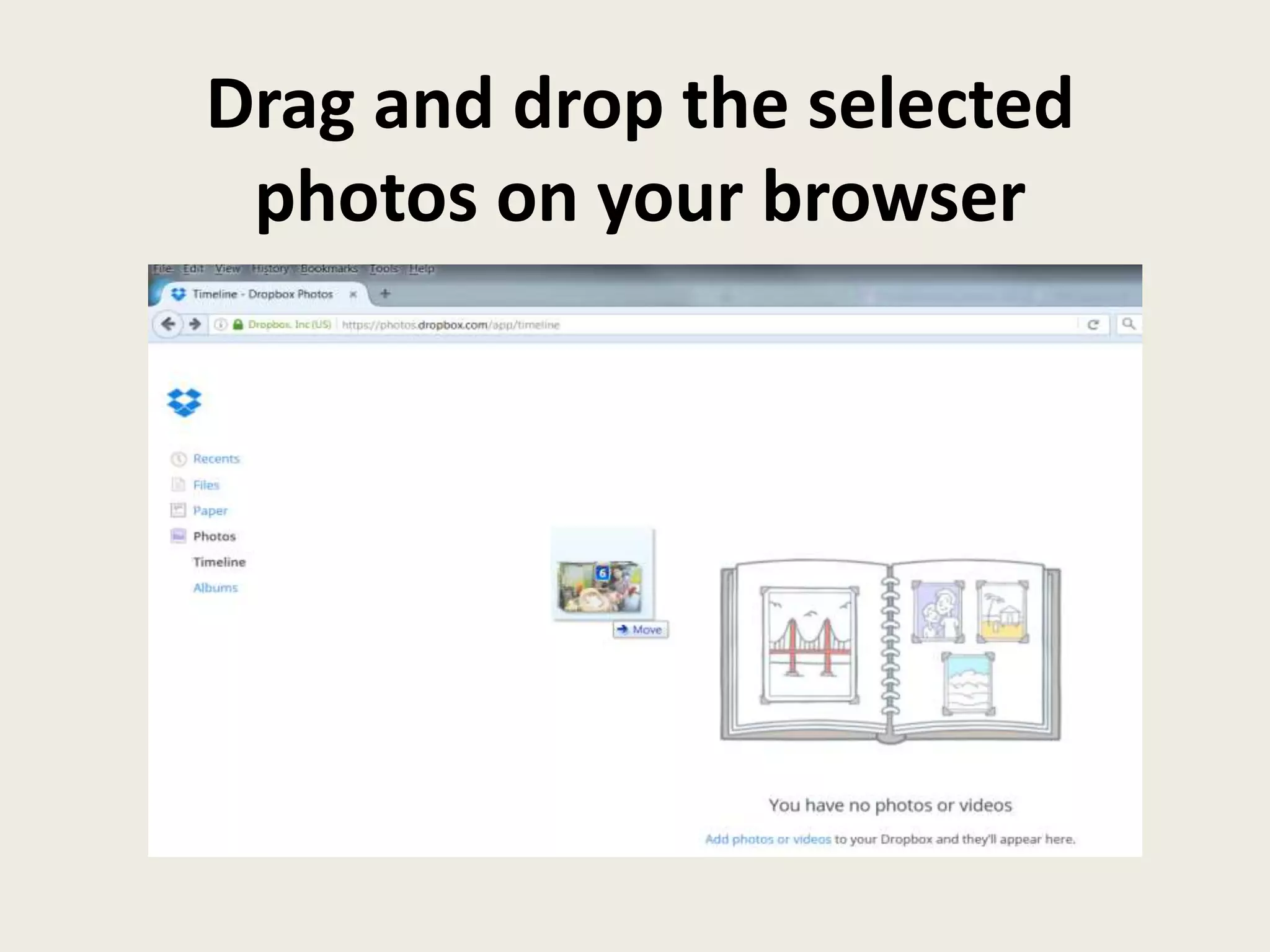
Drag and drop the selected
photos on your browser
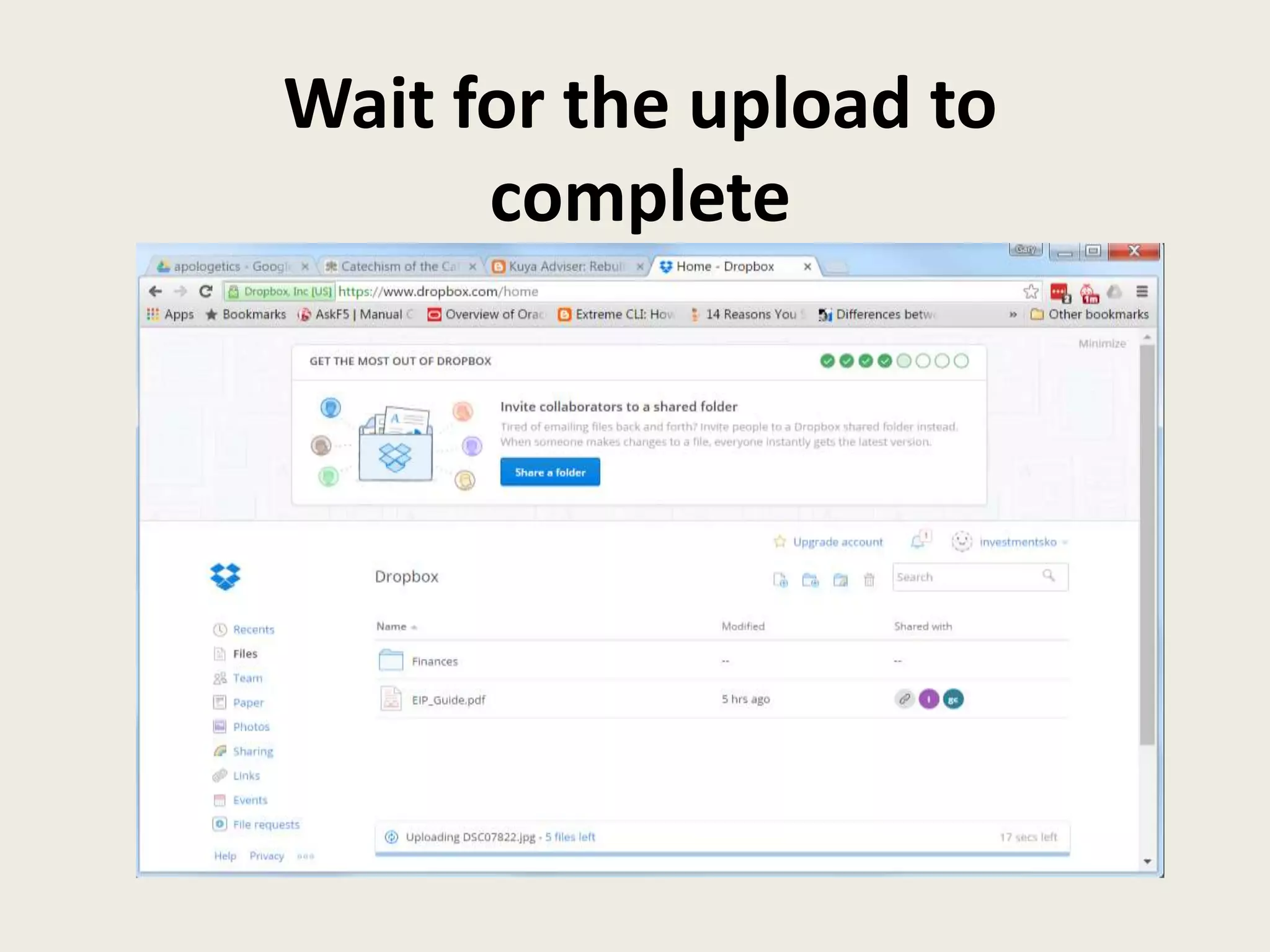
Wait for the upload to
complete
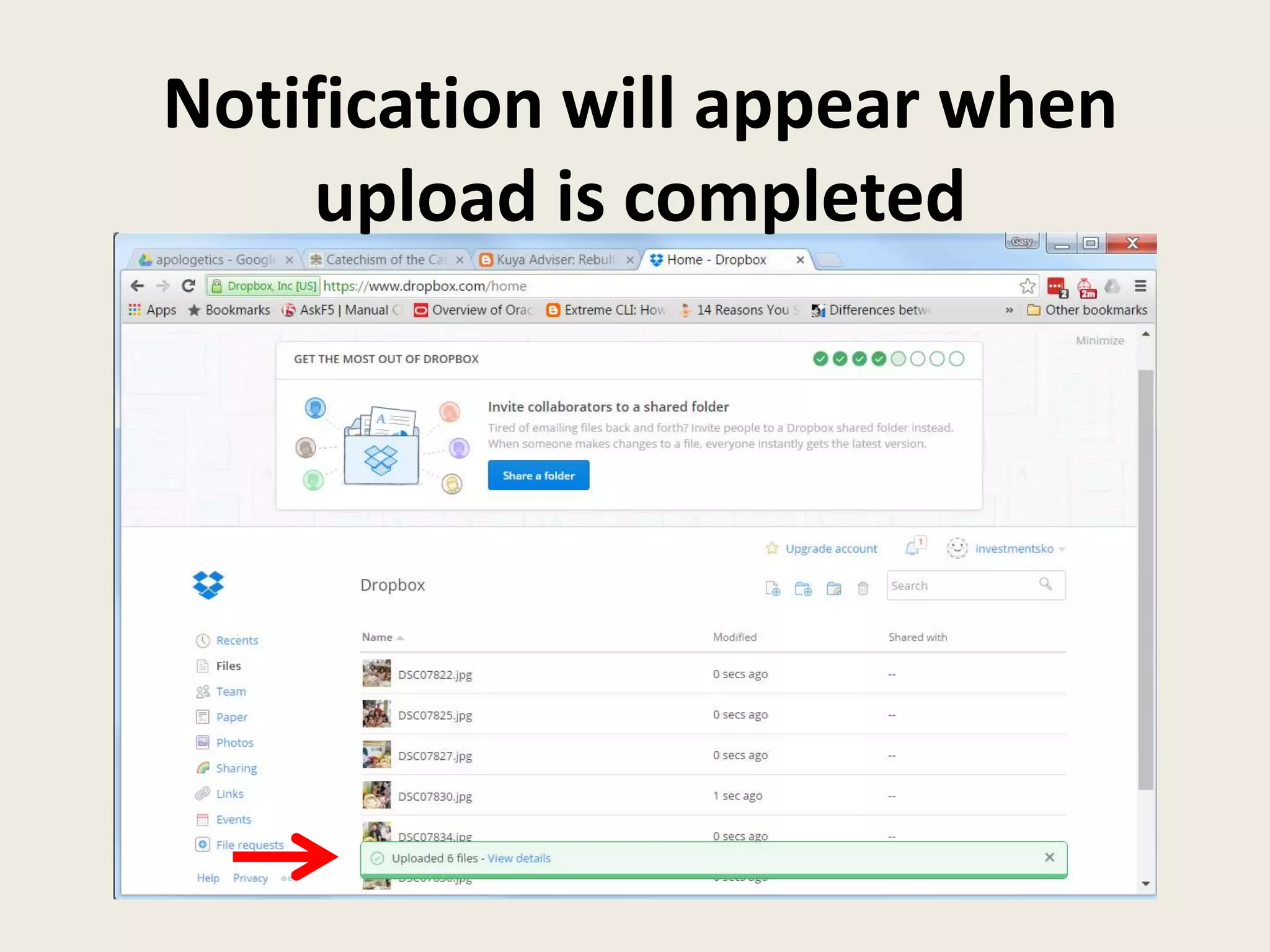
Notification will appear when
upload is completed
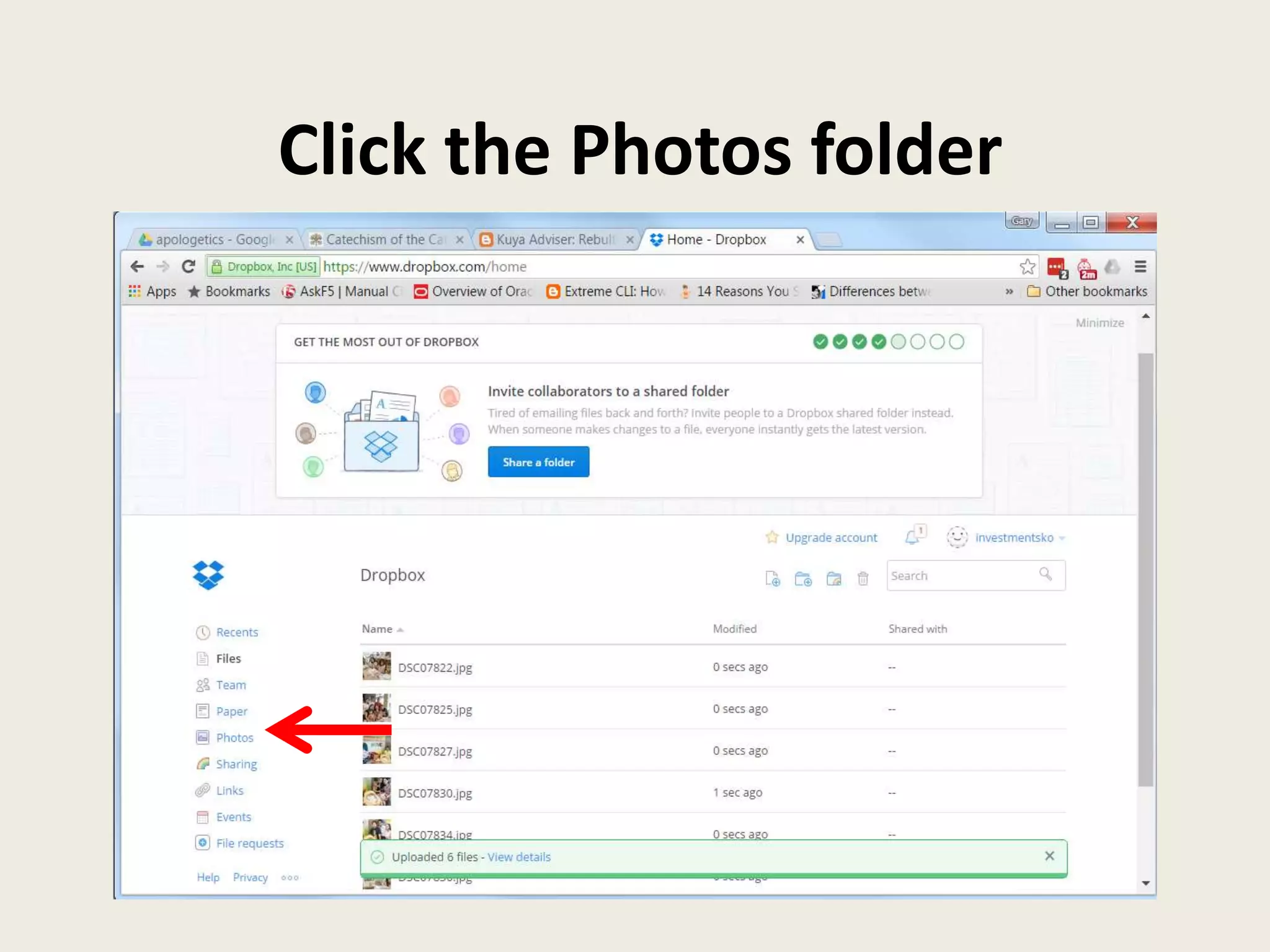
Click the Photos folder
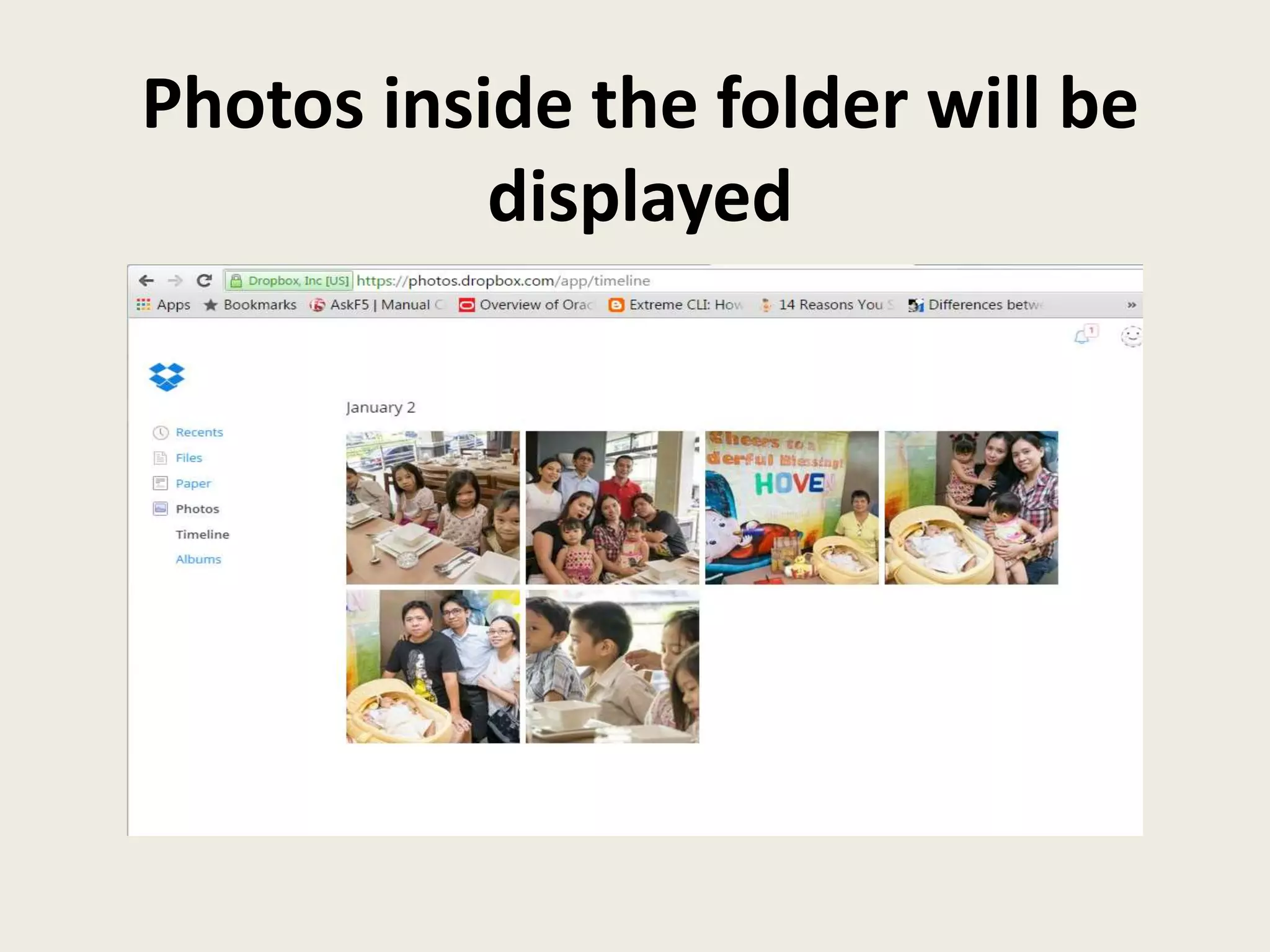
Photos inside the folder will be
displayed
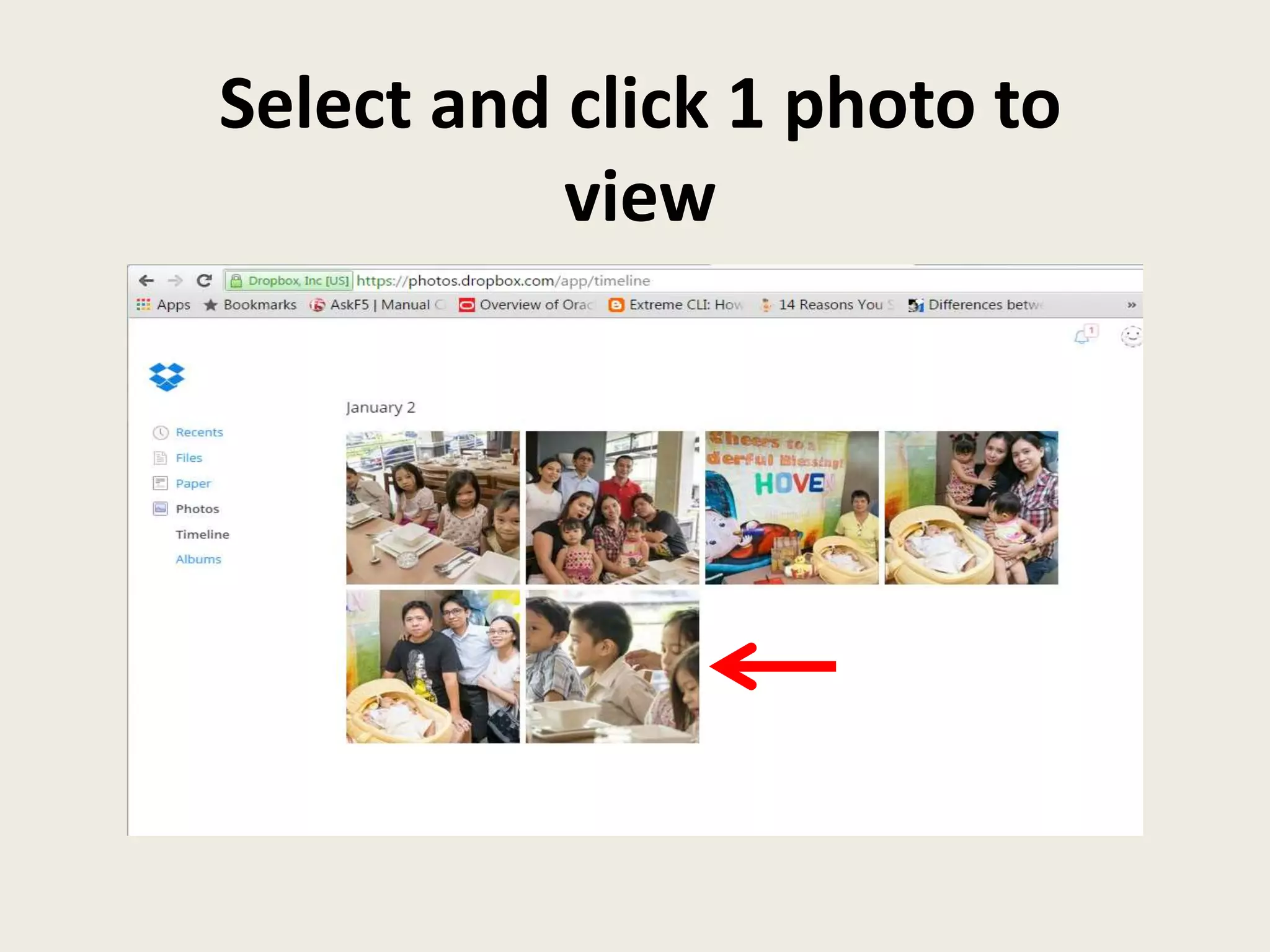
Select and click 1 photo to
view
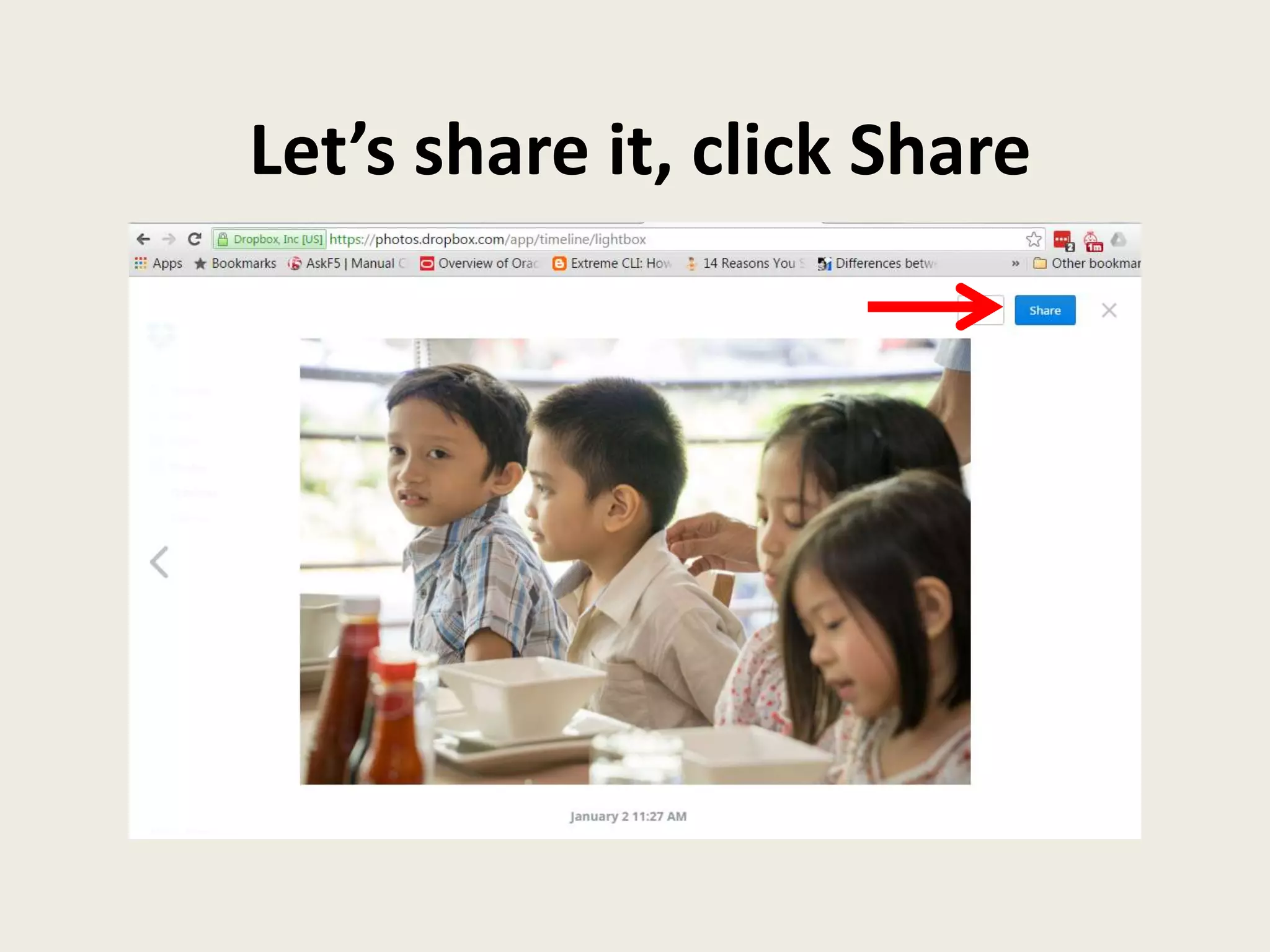
Let’s share it, click Share
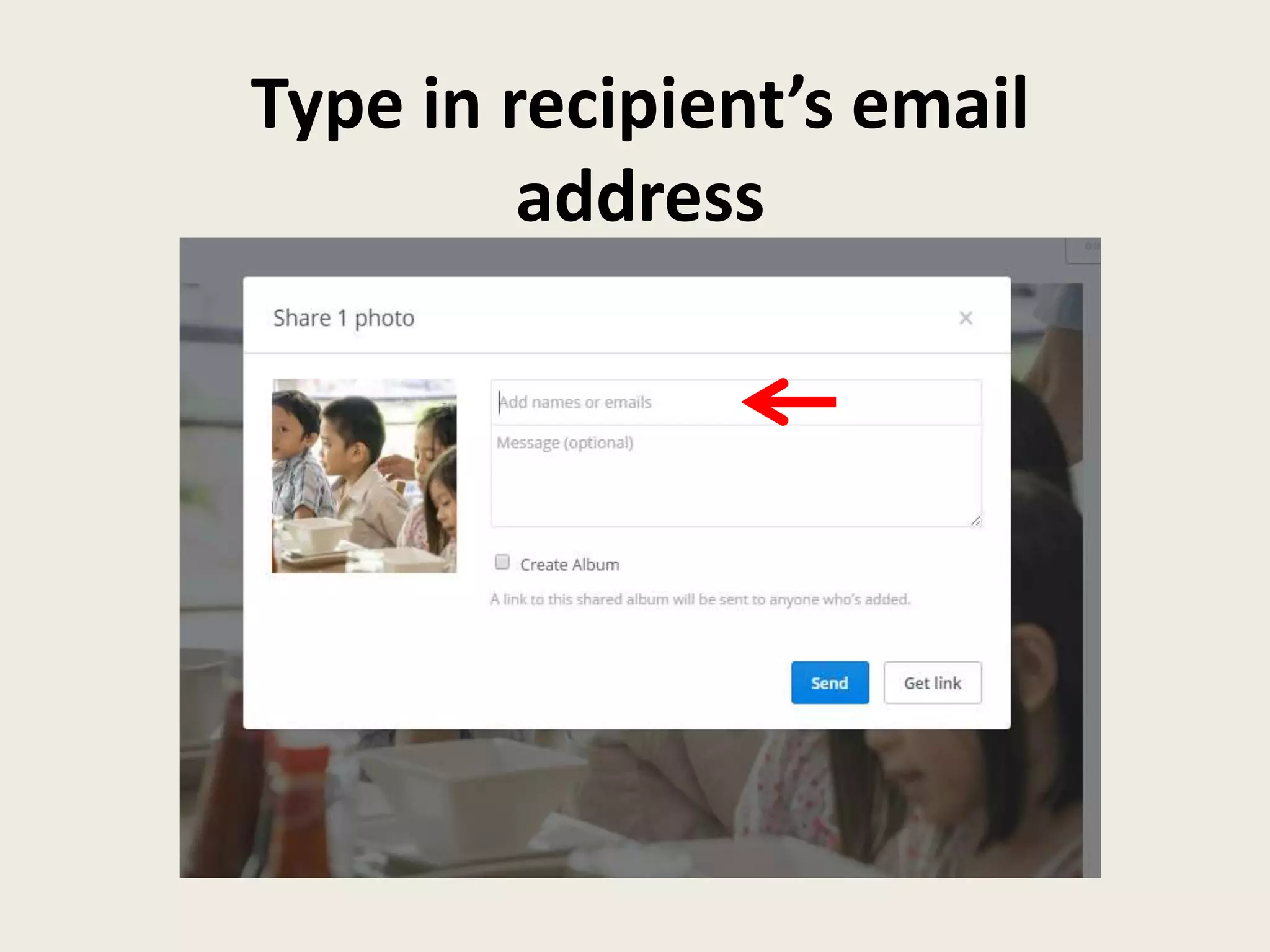
Type in recipient’s email
address
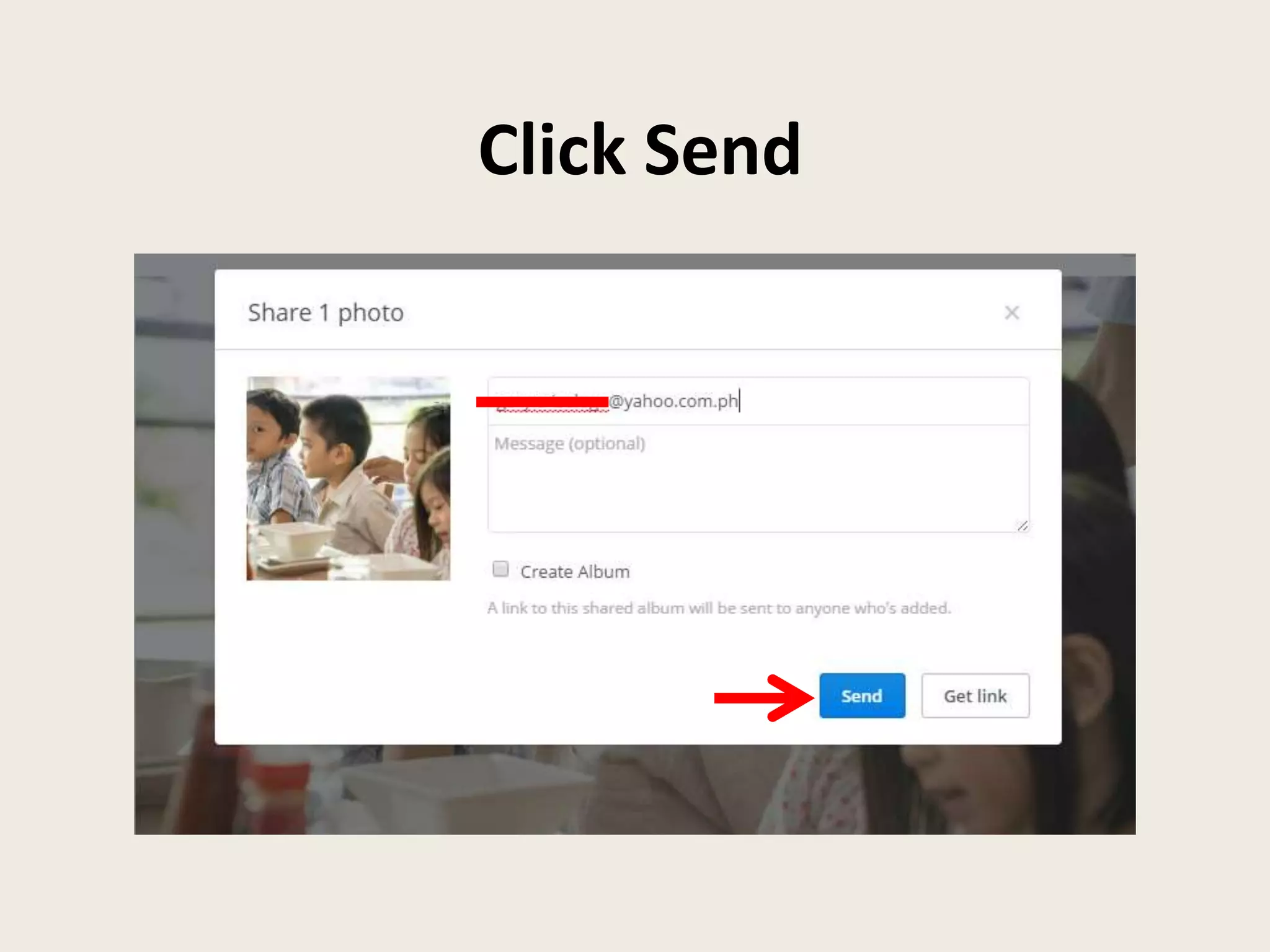
Click Send
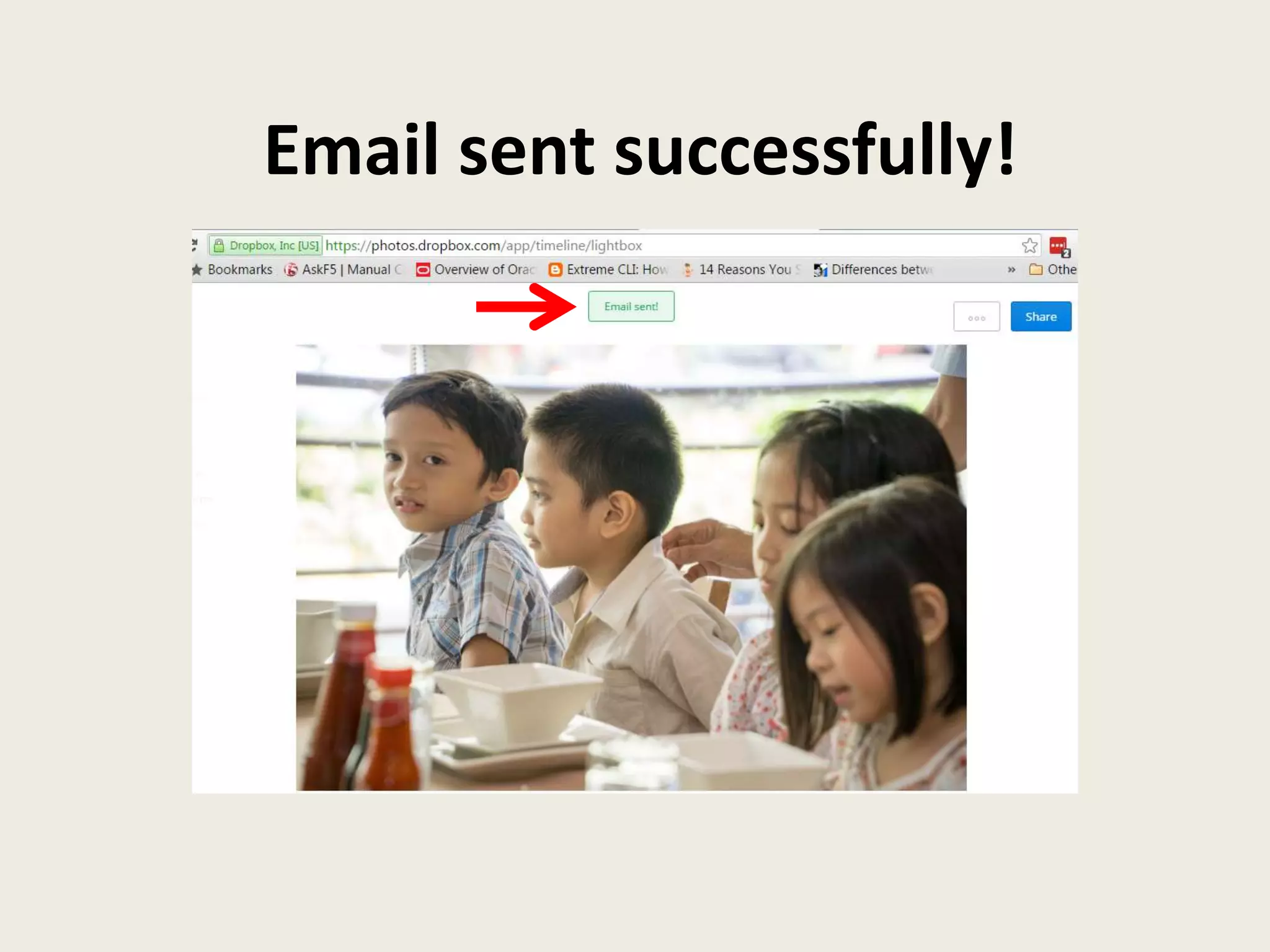
Email sent successfully!
Now let’s share
photos in Facebook
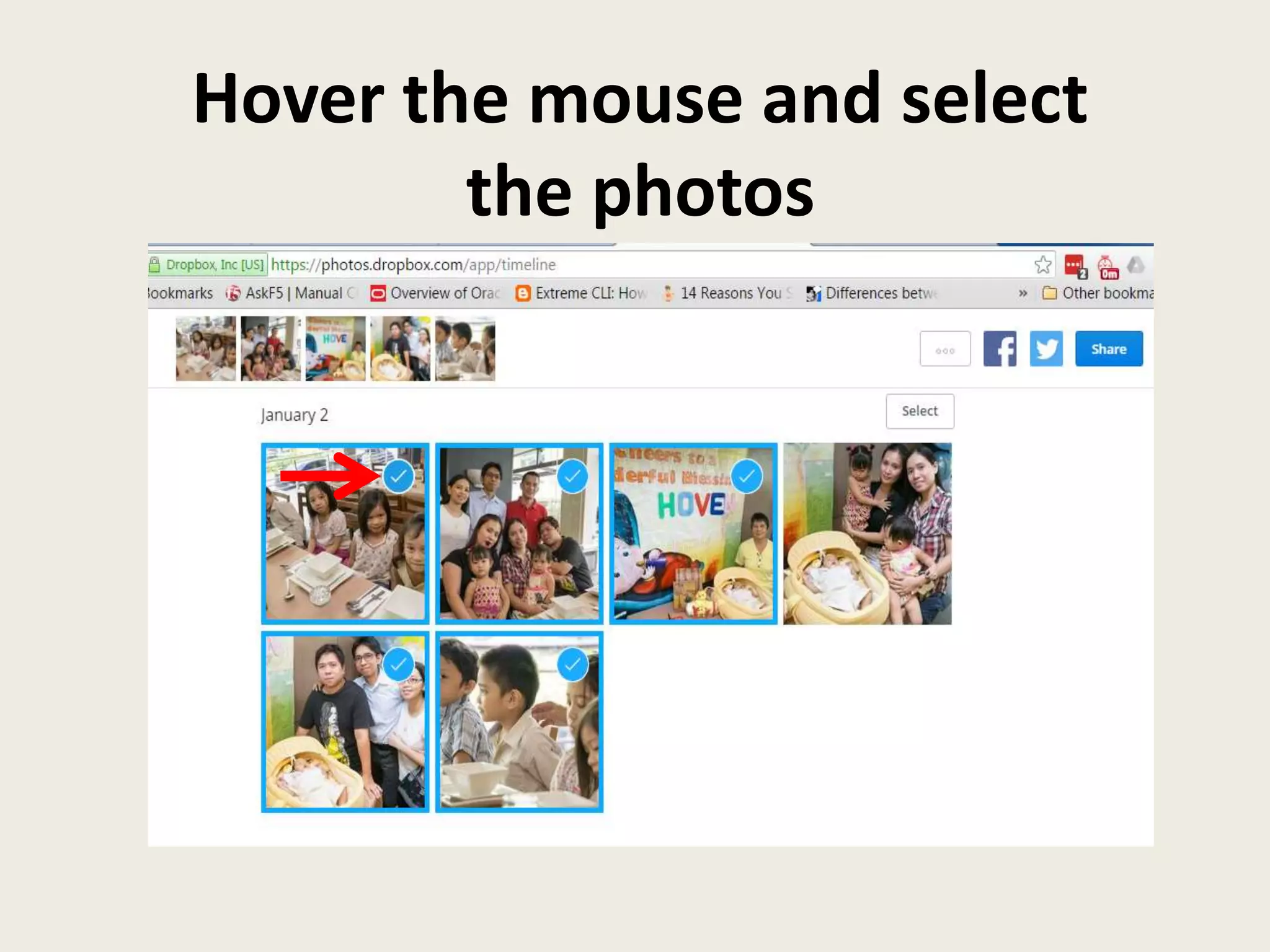
Hover the mouse and select
the photos
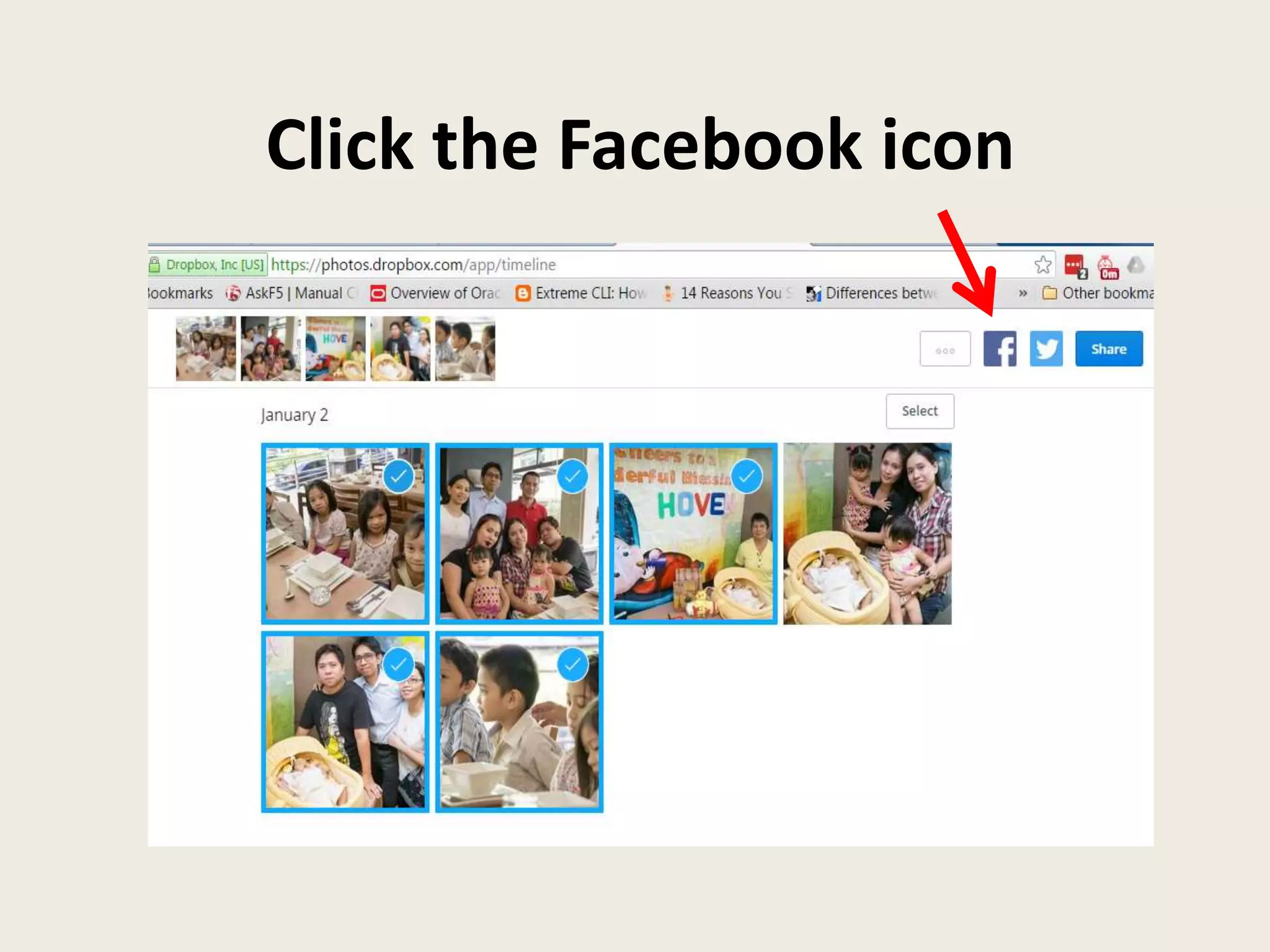
Click the Facebook icon
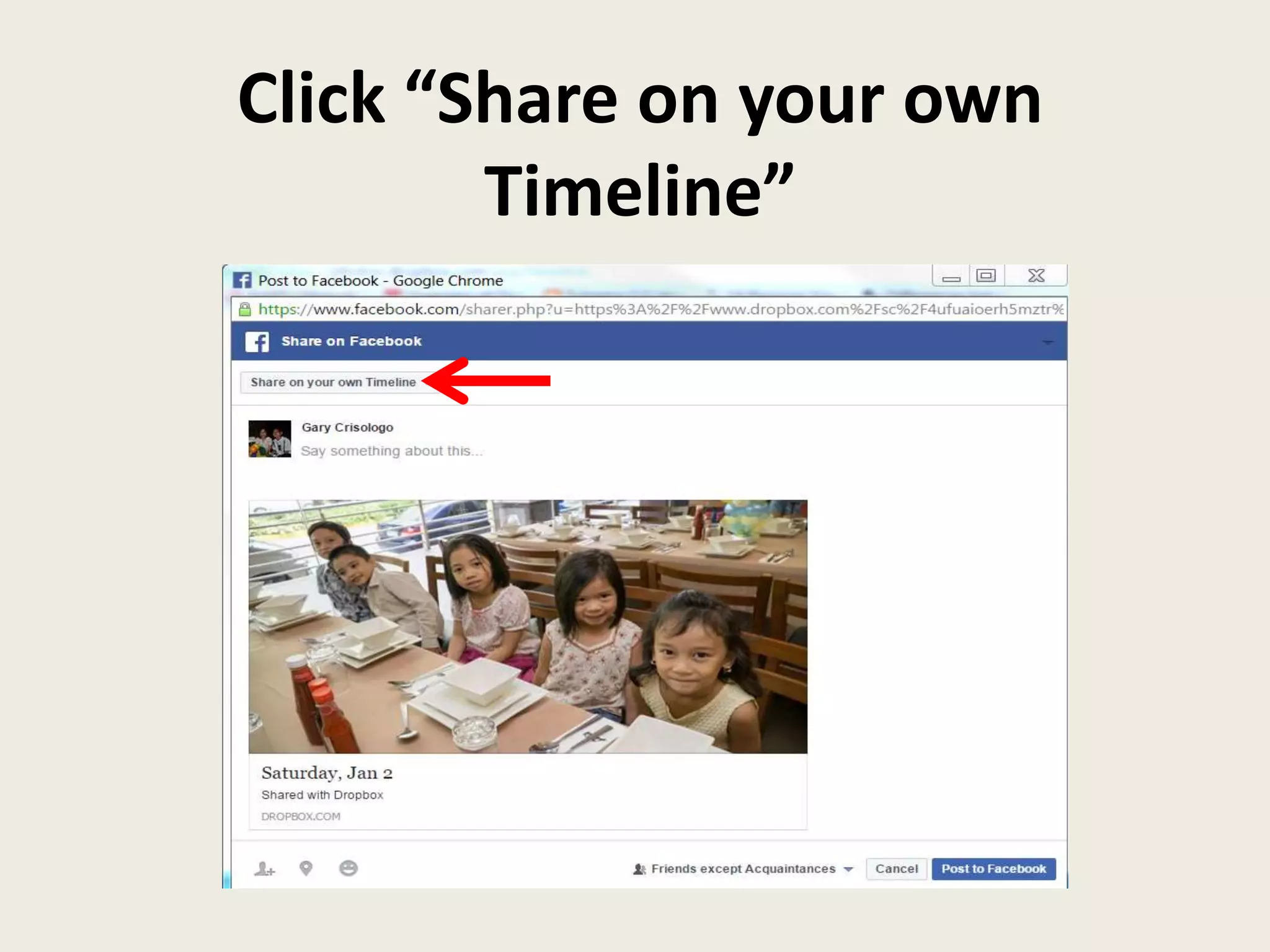
Click “Share on your own
Timeline”
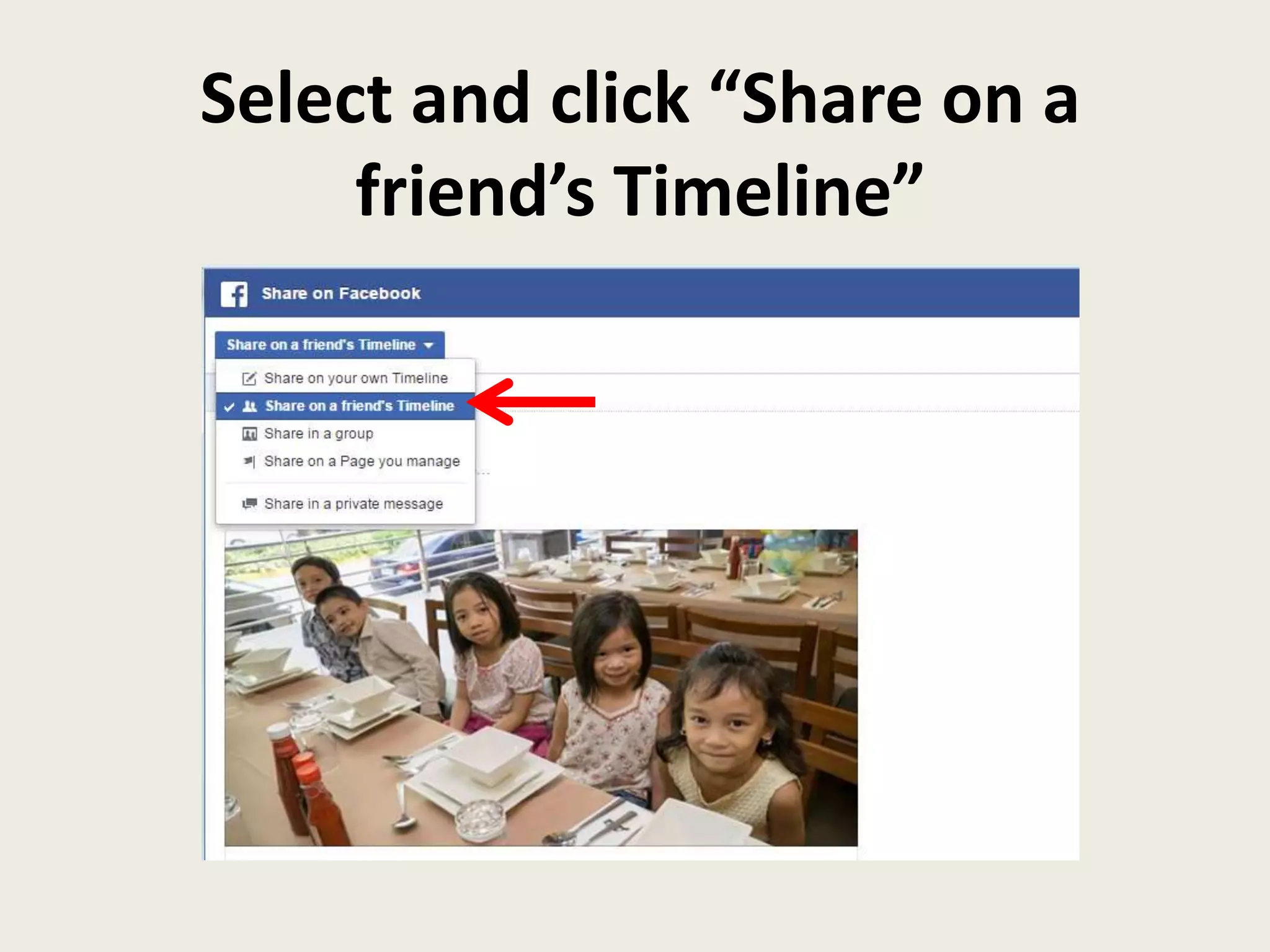
Select and click “Share on a
friend’s Timeline”
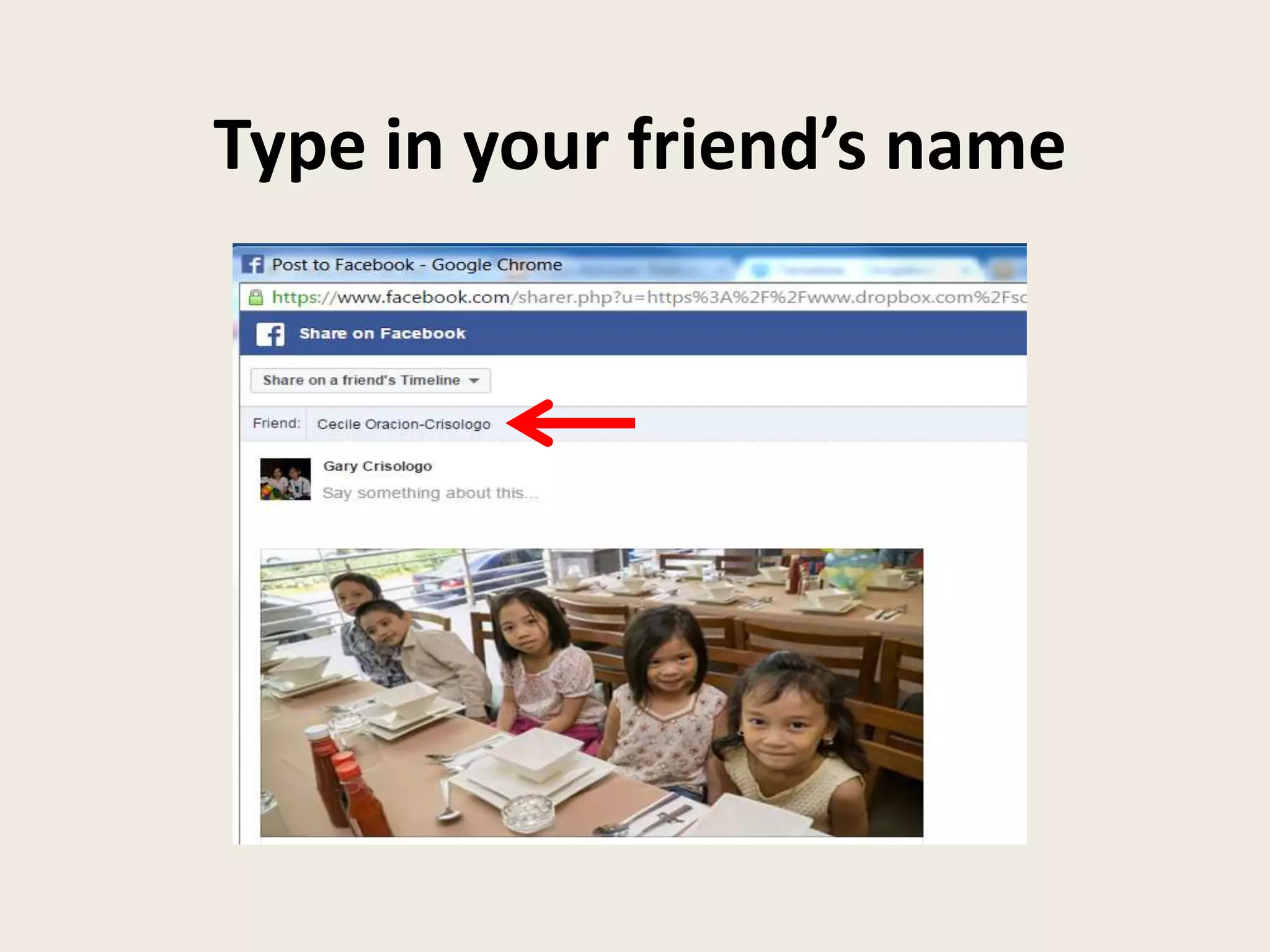
Type in your friend’s name
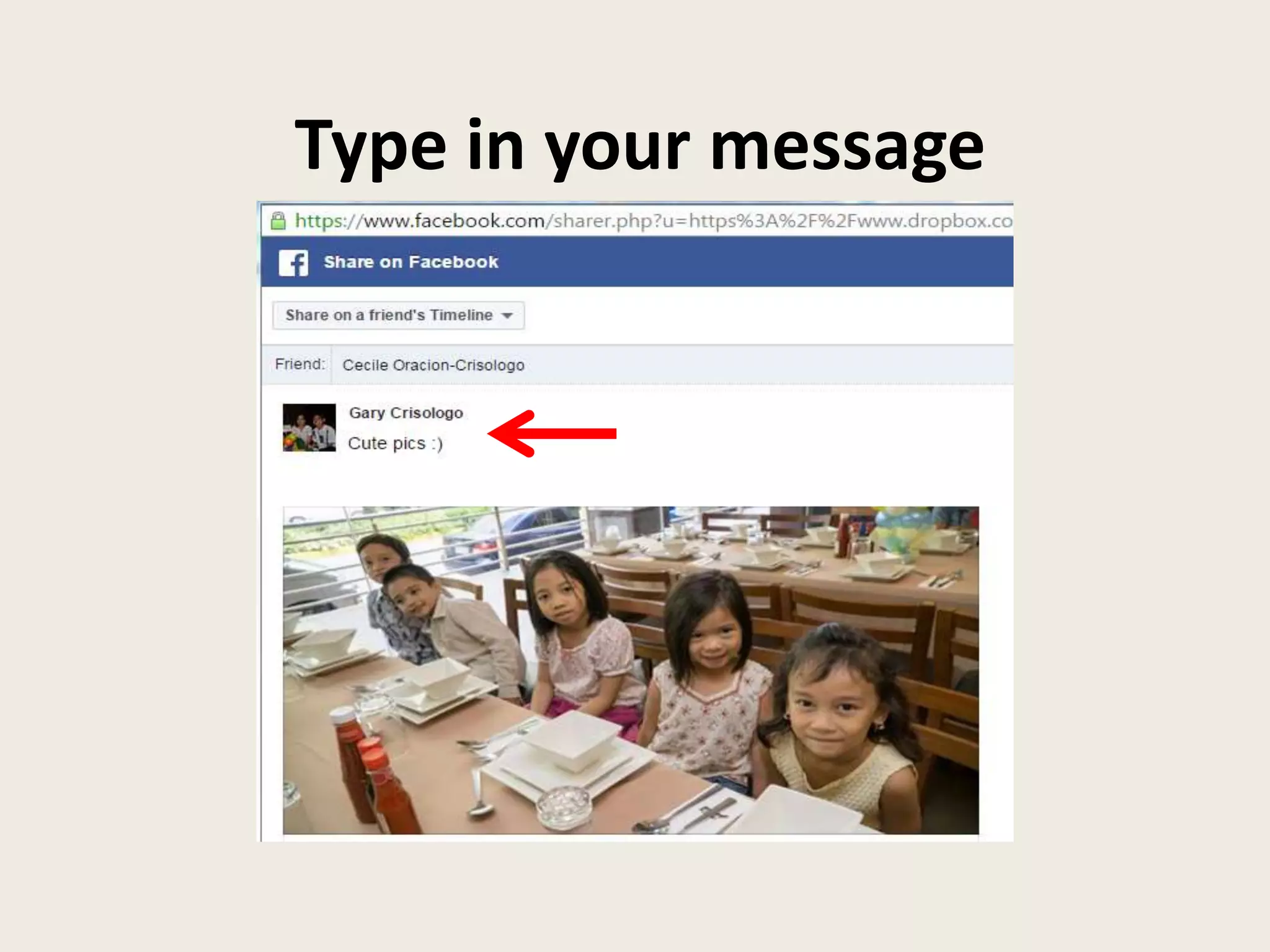
Type in your message
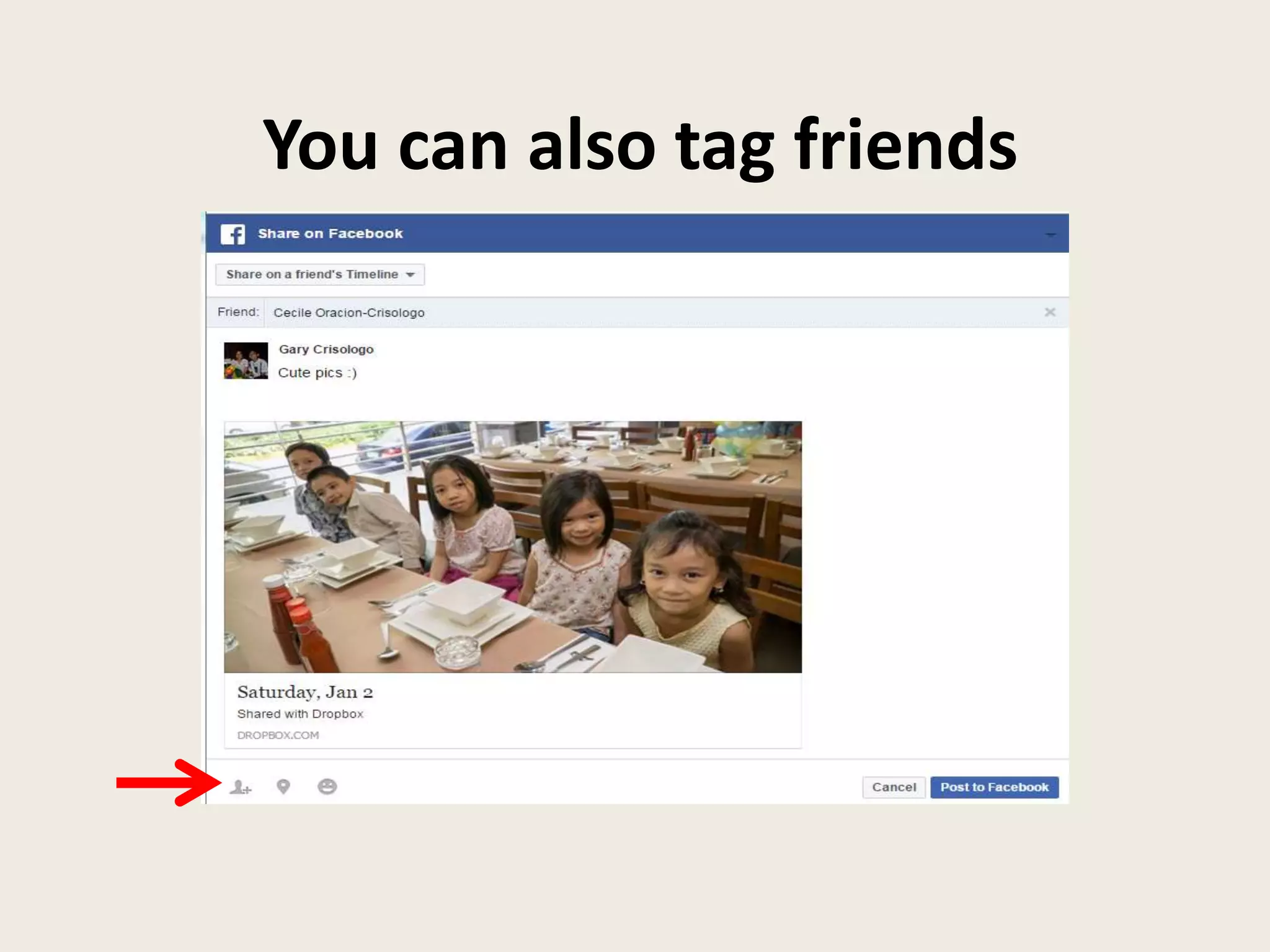
You can also tag friends
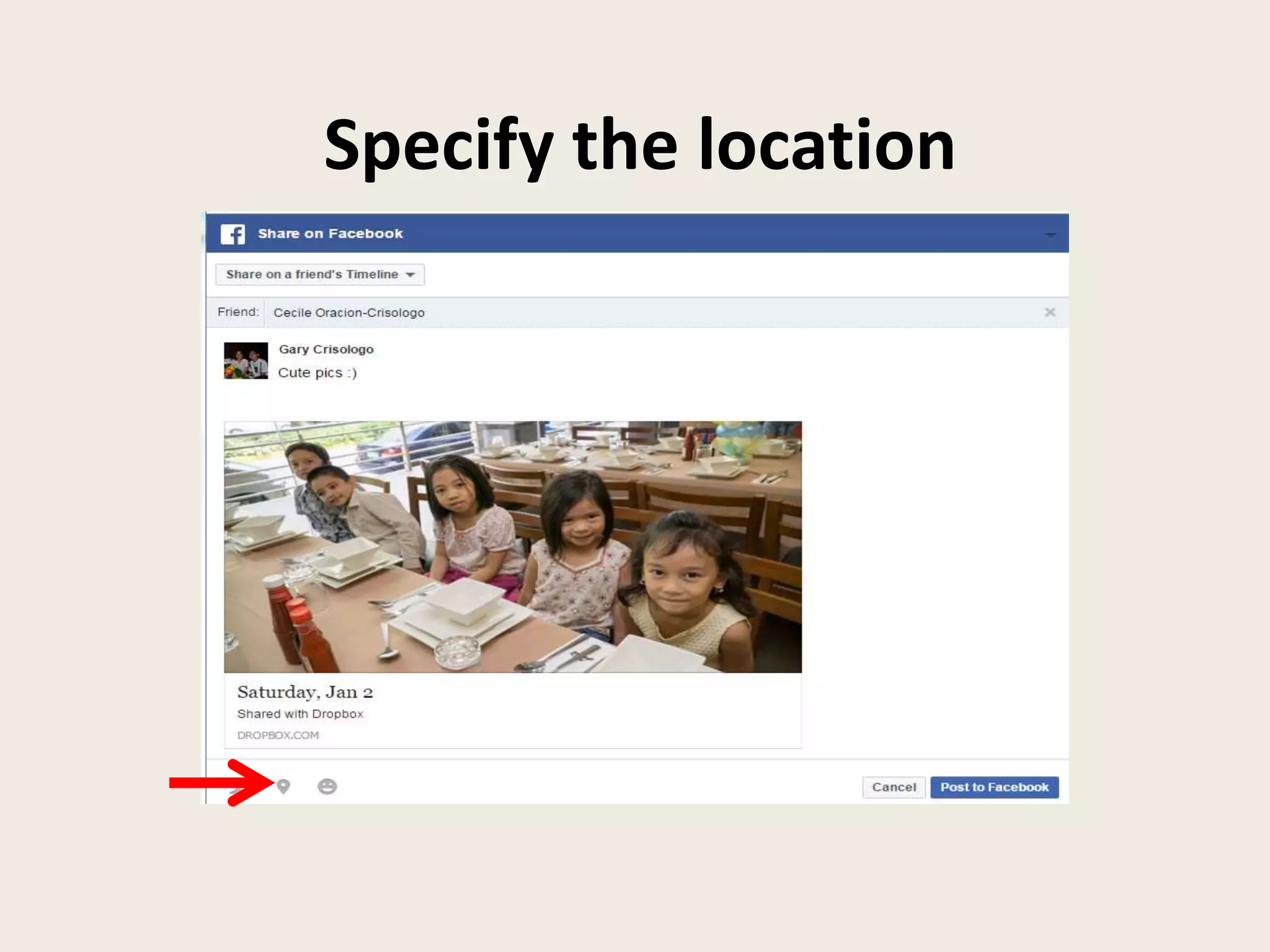
Specify the location
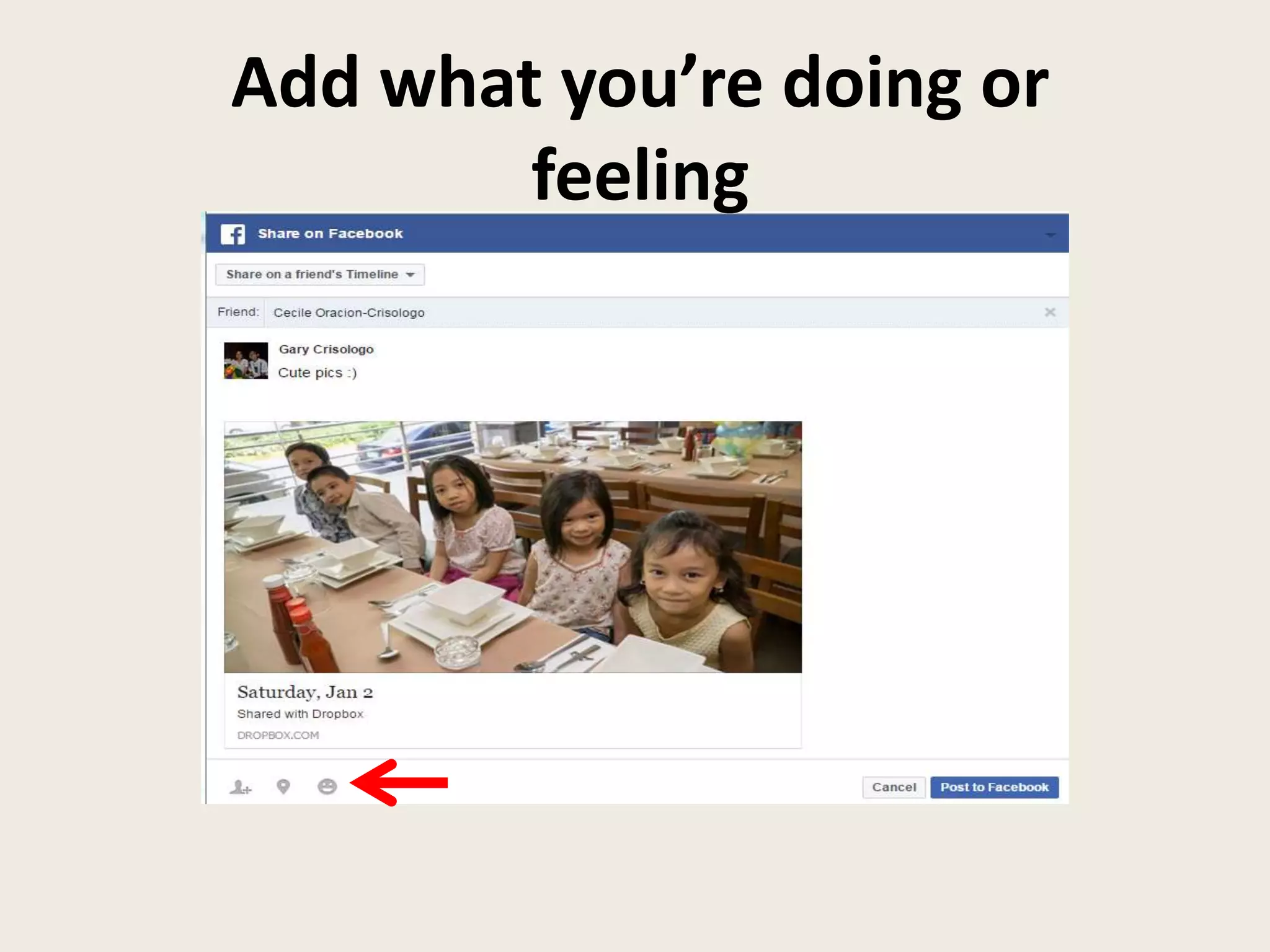
Add what you’re doing or
feeling
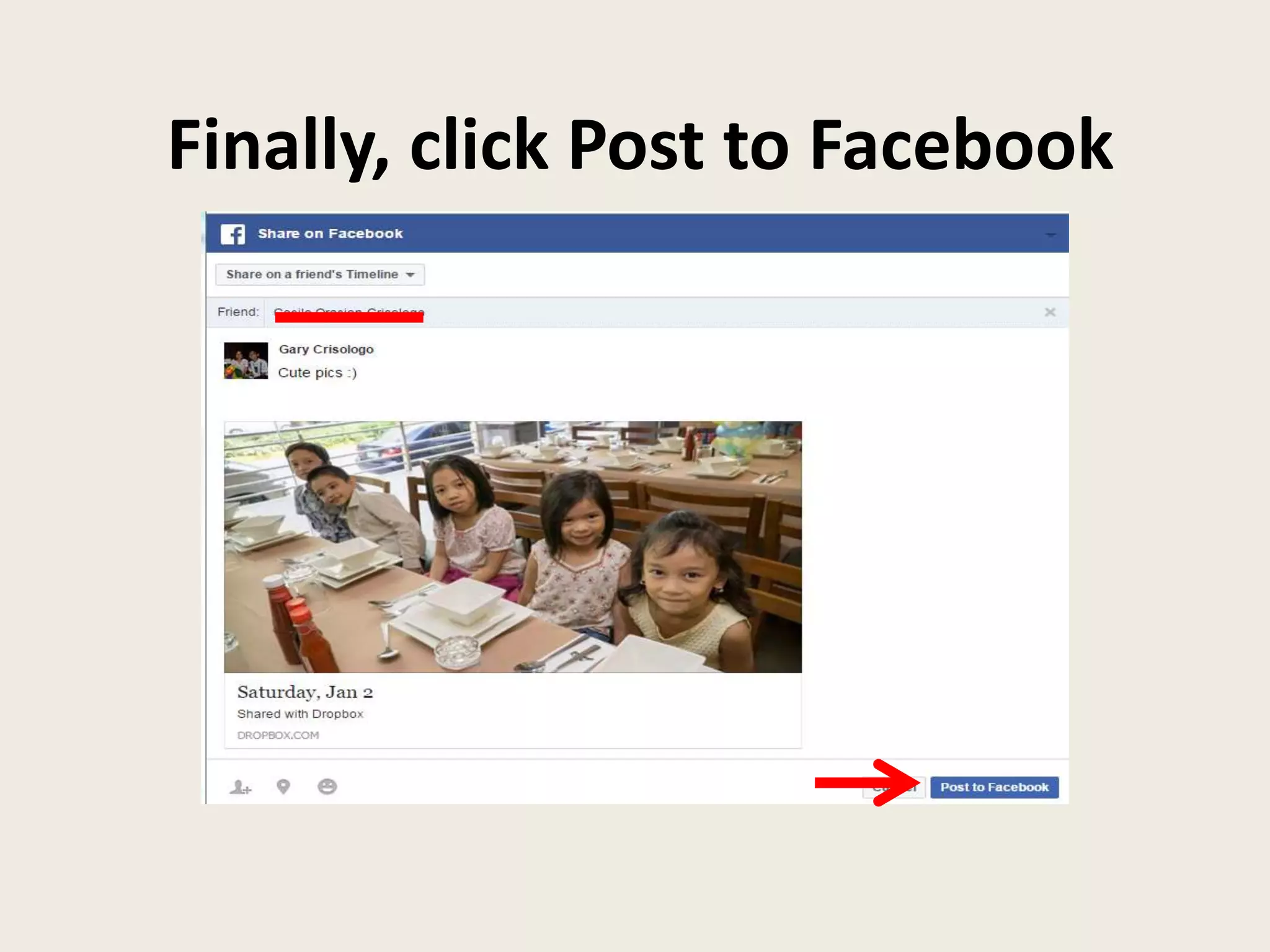
Finally, click Post to Facebook
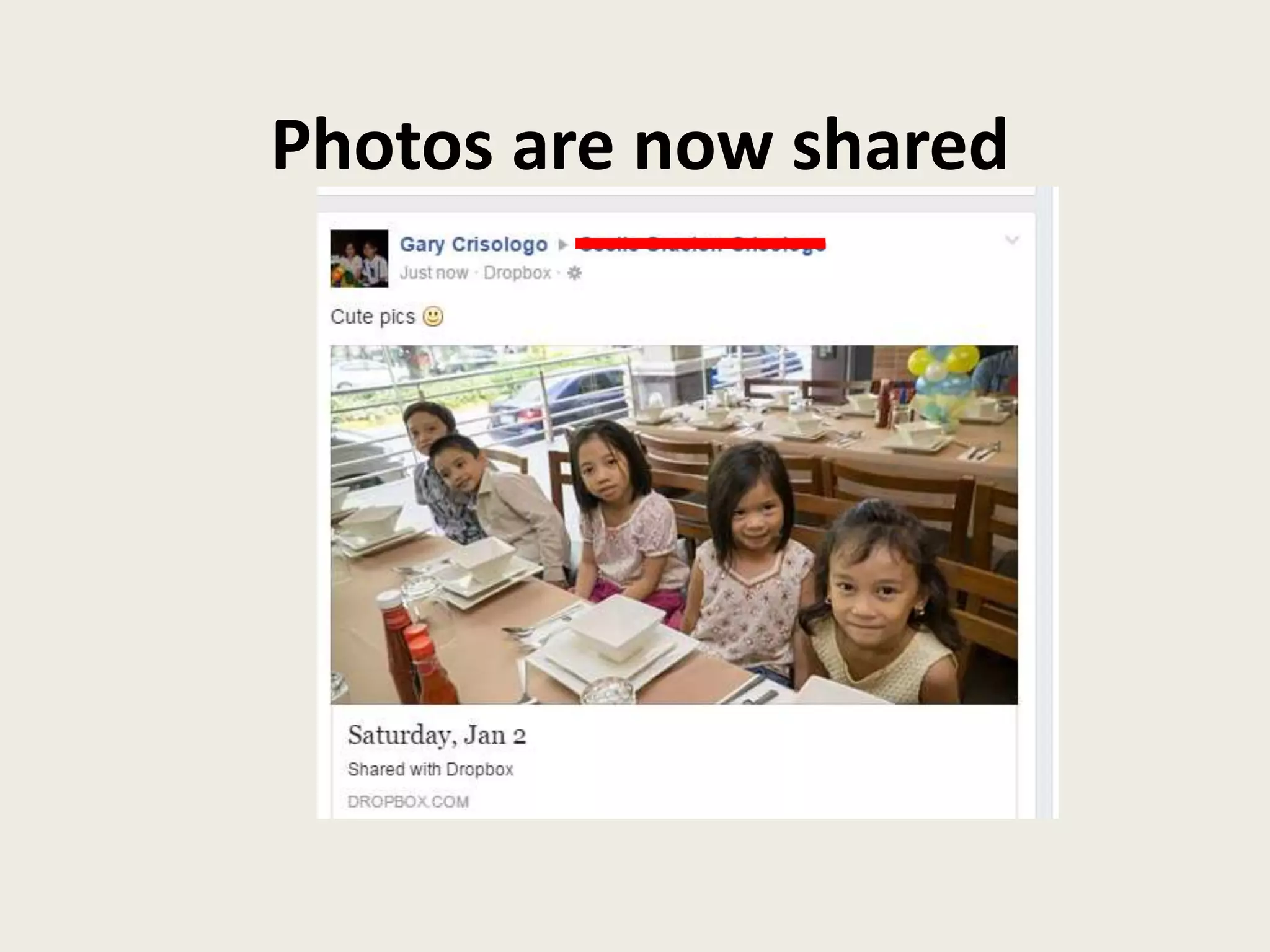
Photos are now shared
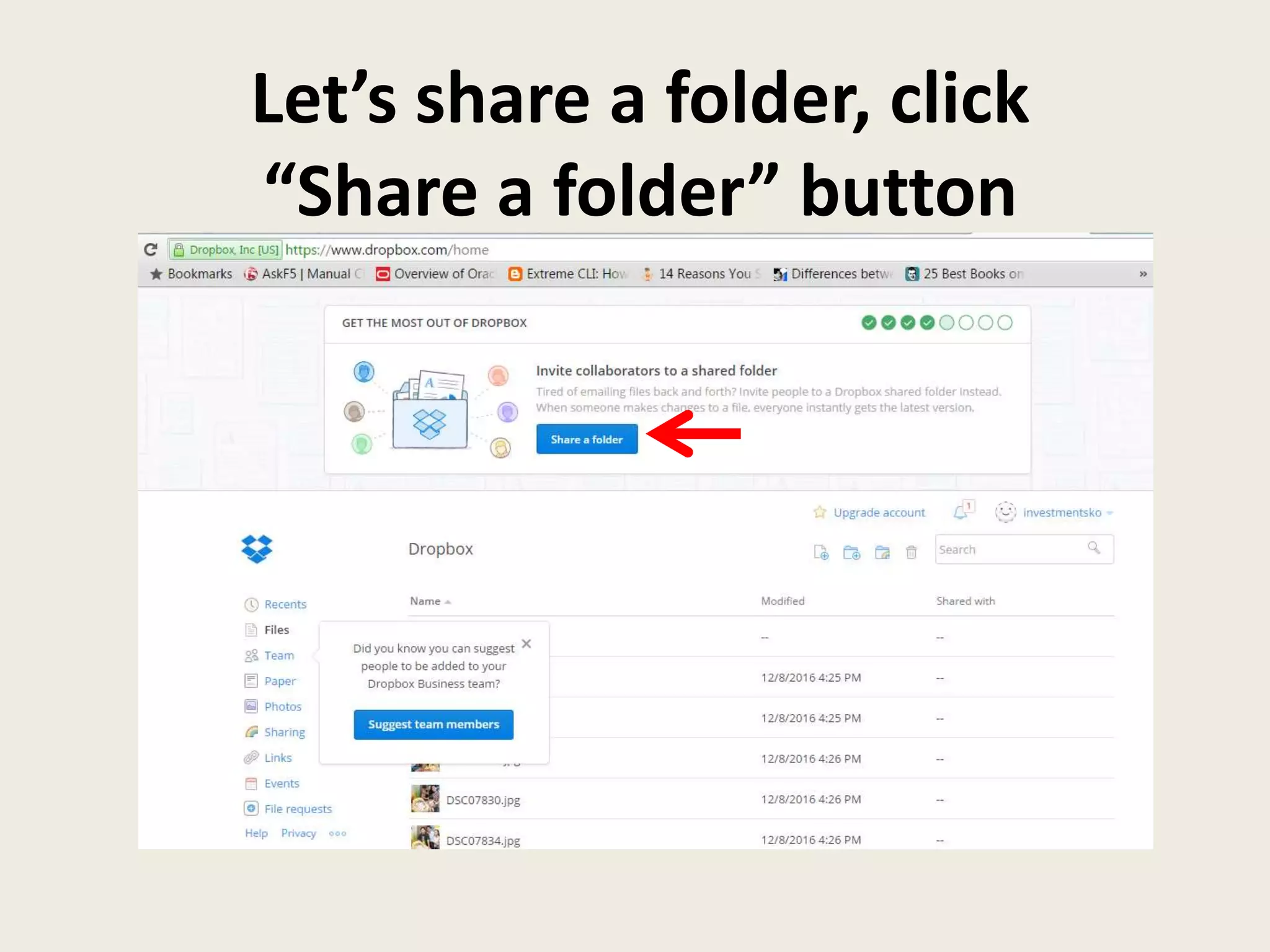
Let’s share a folder, click
“Share a folder” button
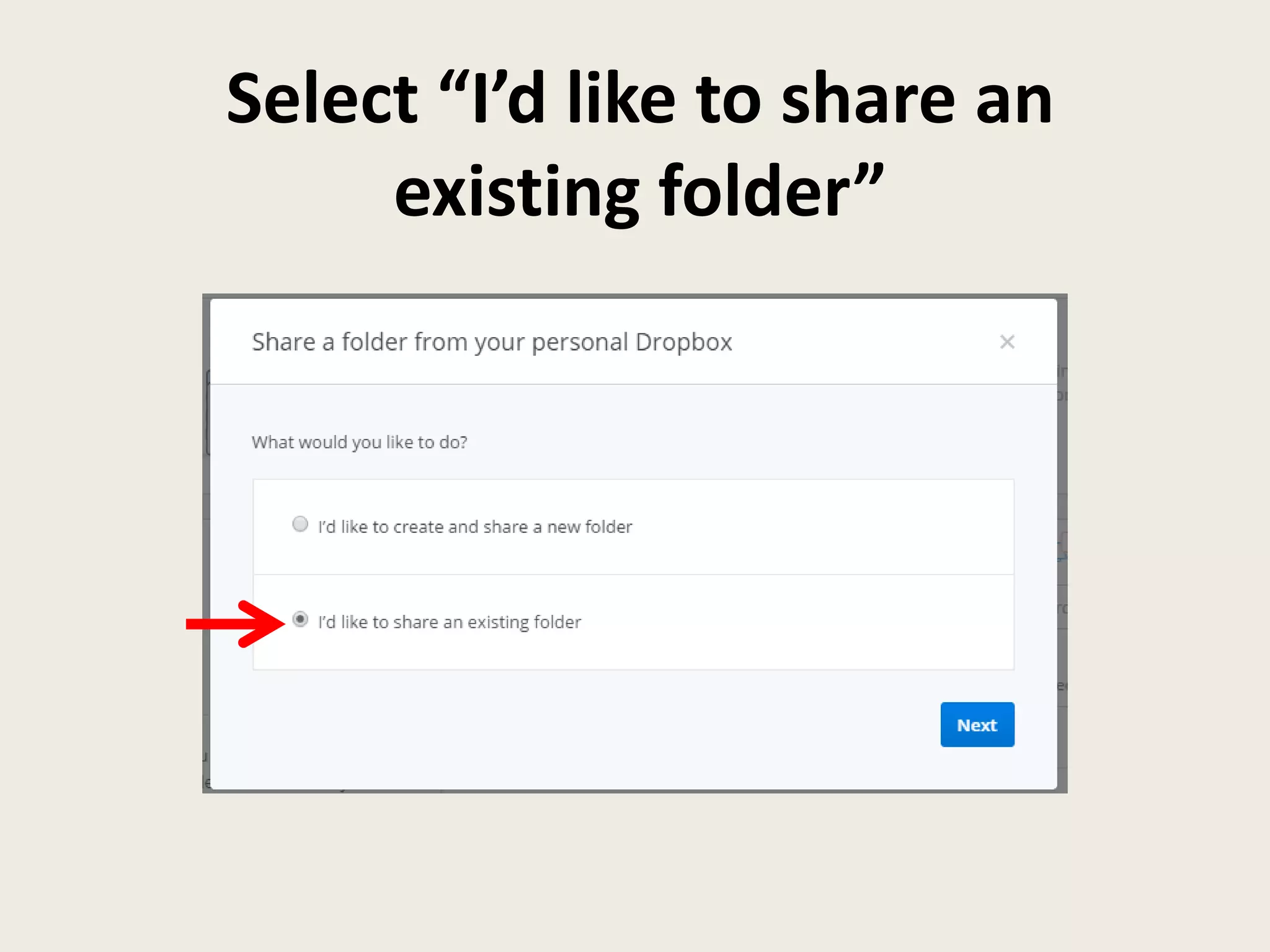
Select “I’d like to share an
existing folder”
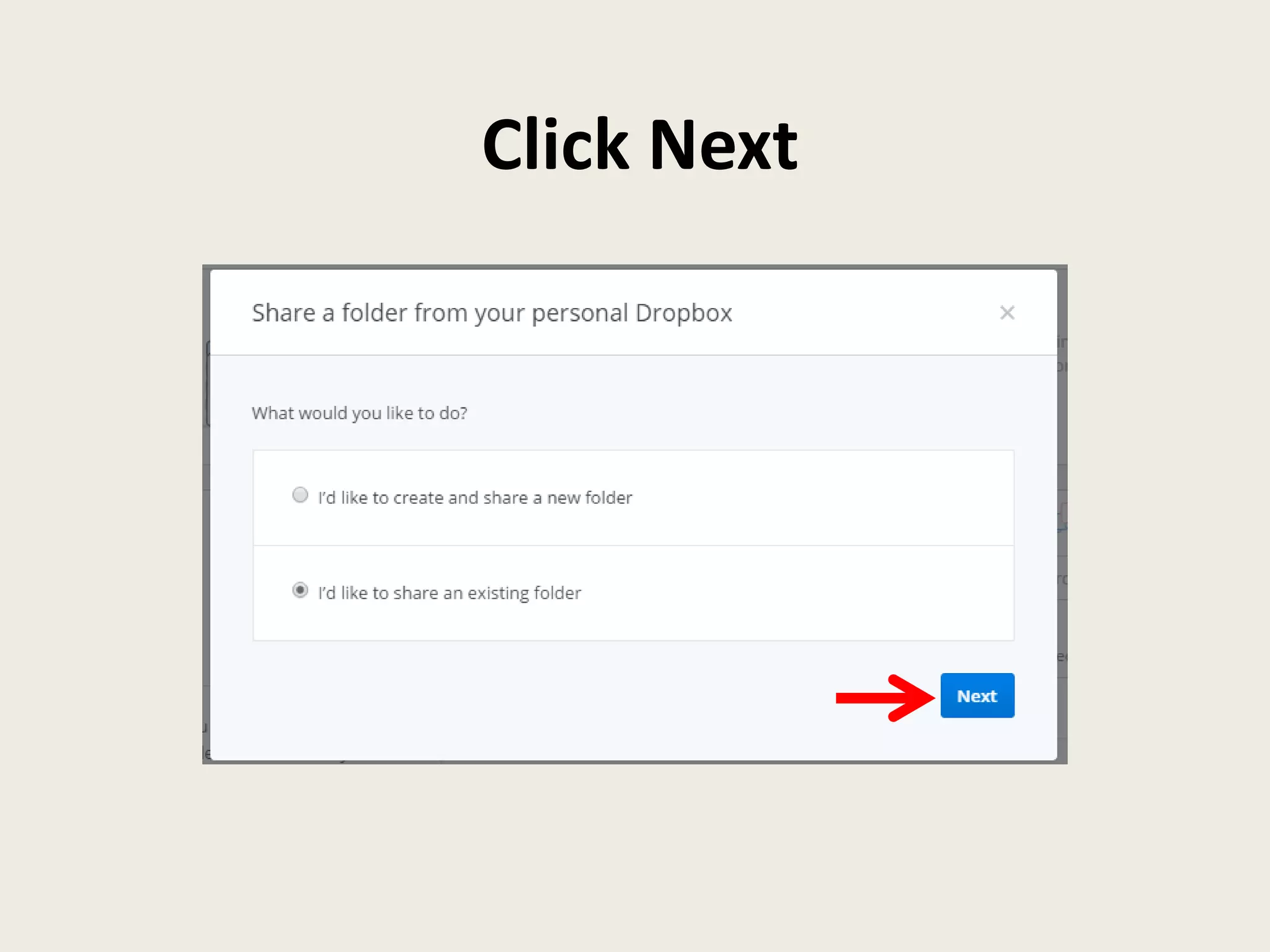
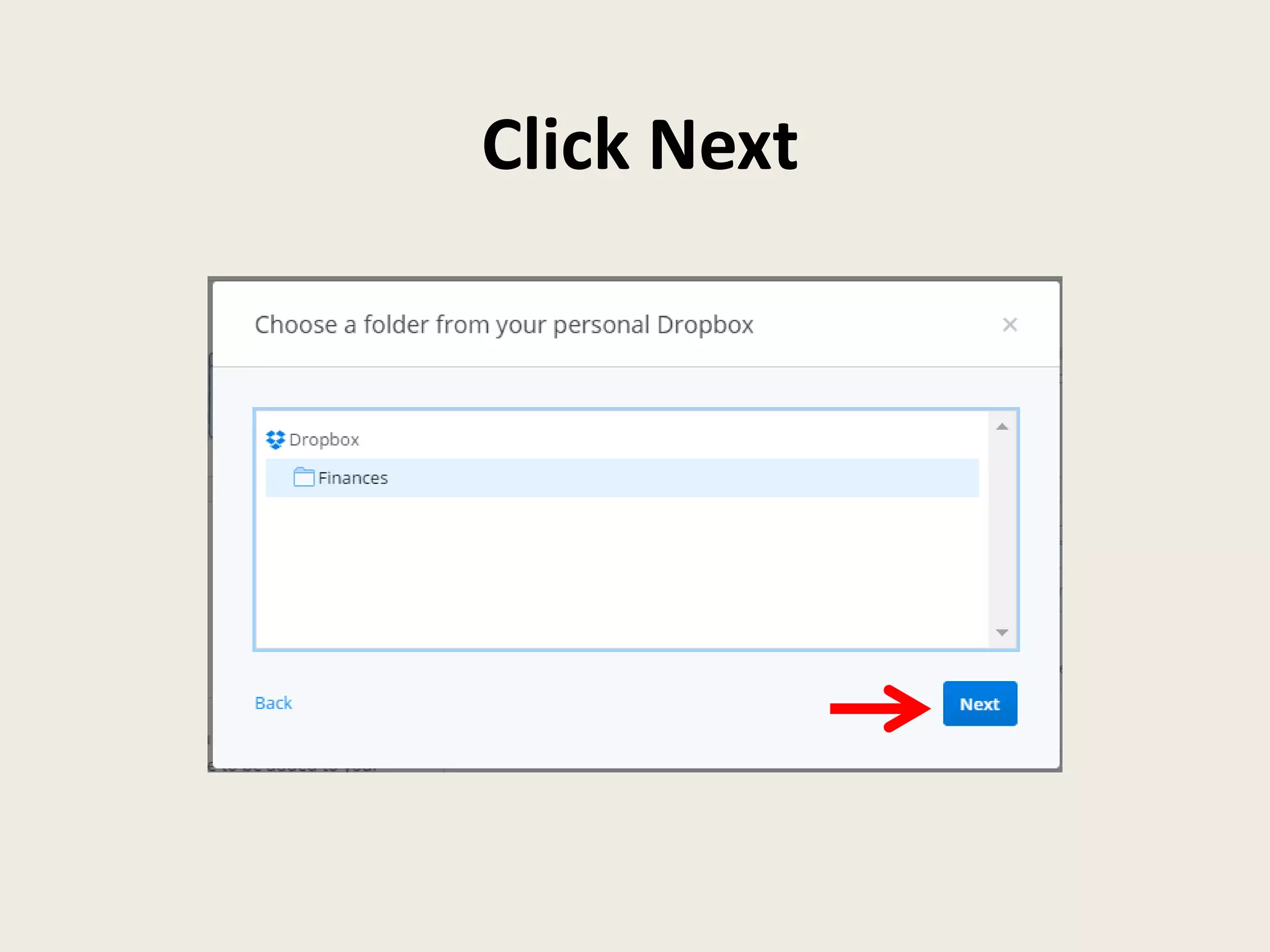
Click Next
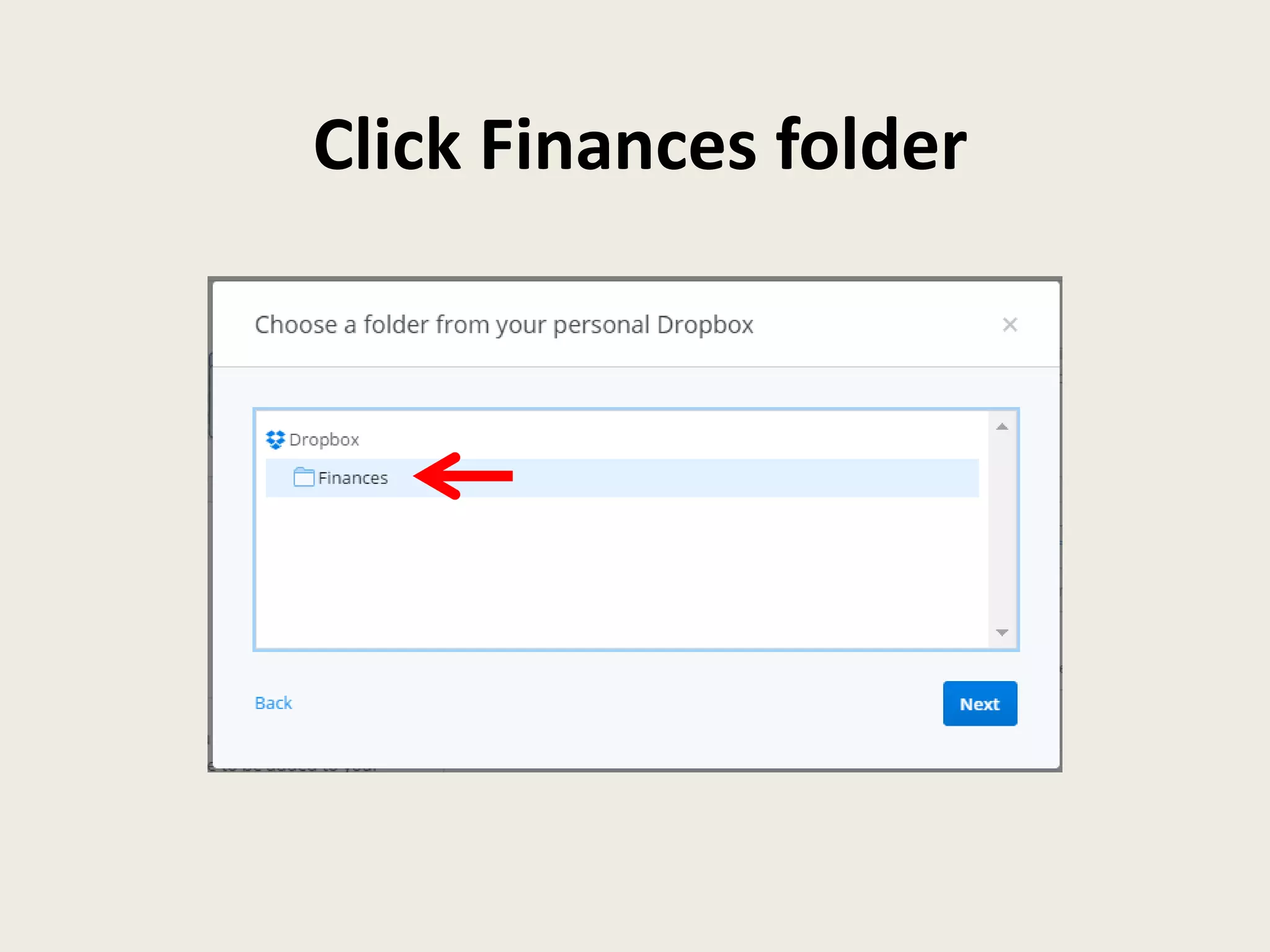
Click Finances folder
Click Next
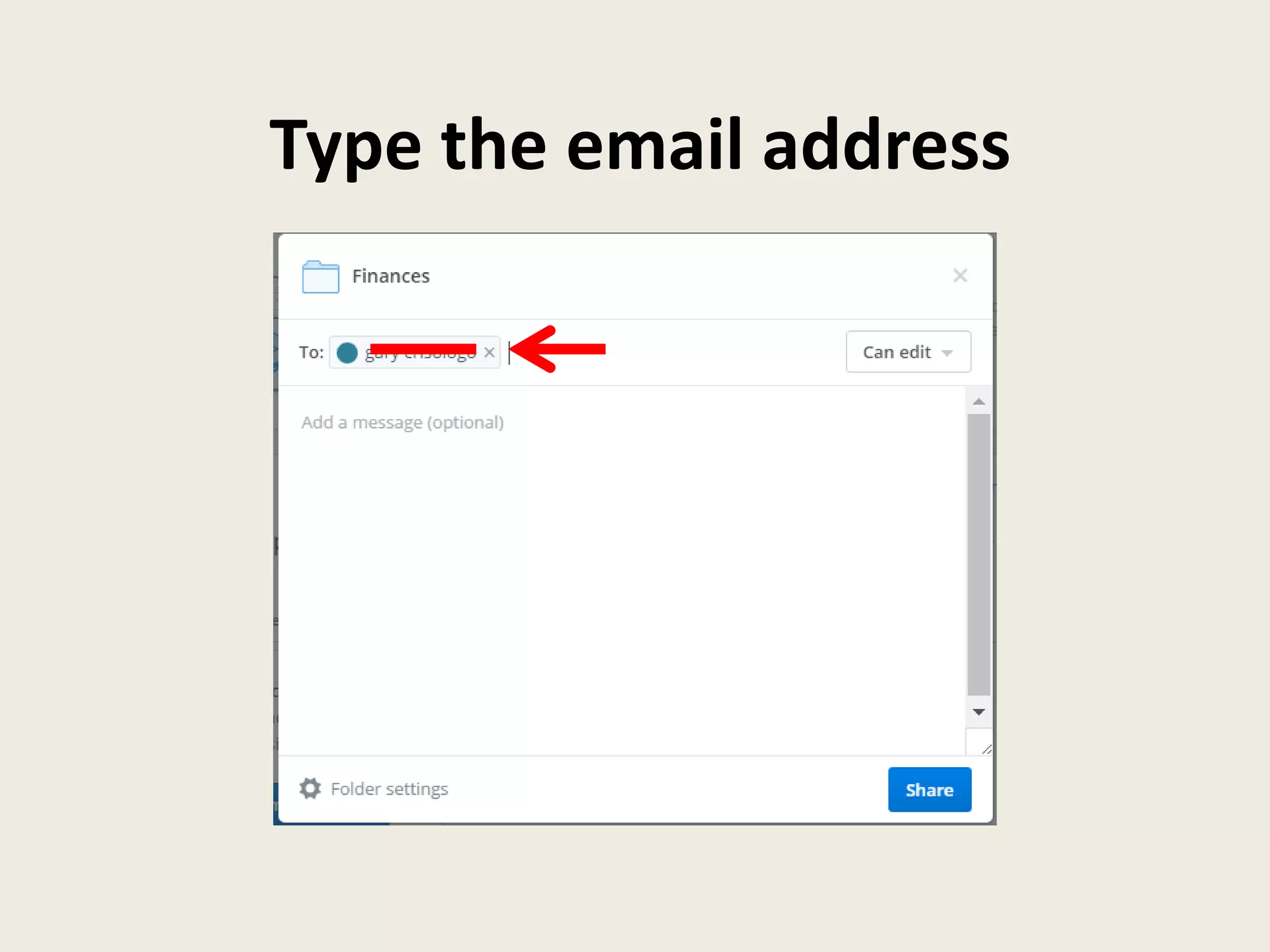
Type the email address
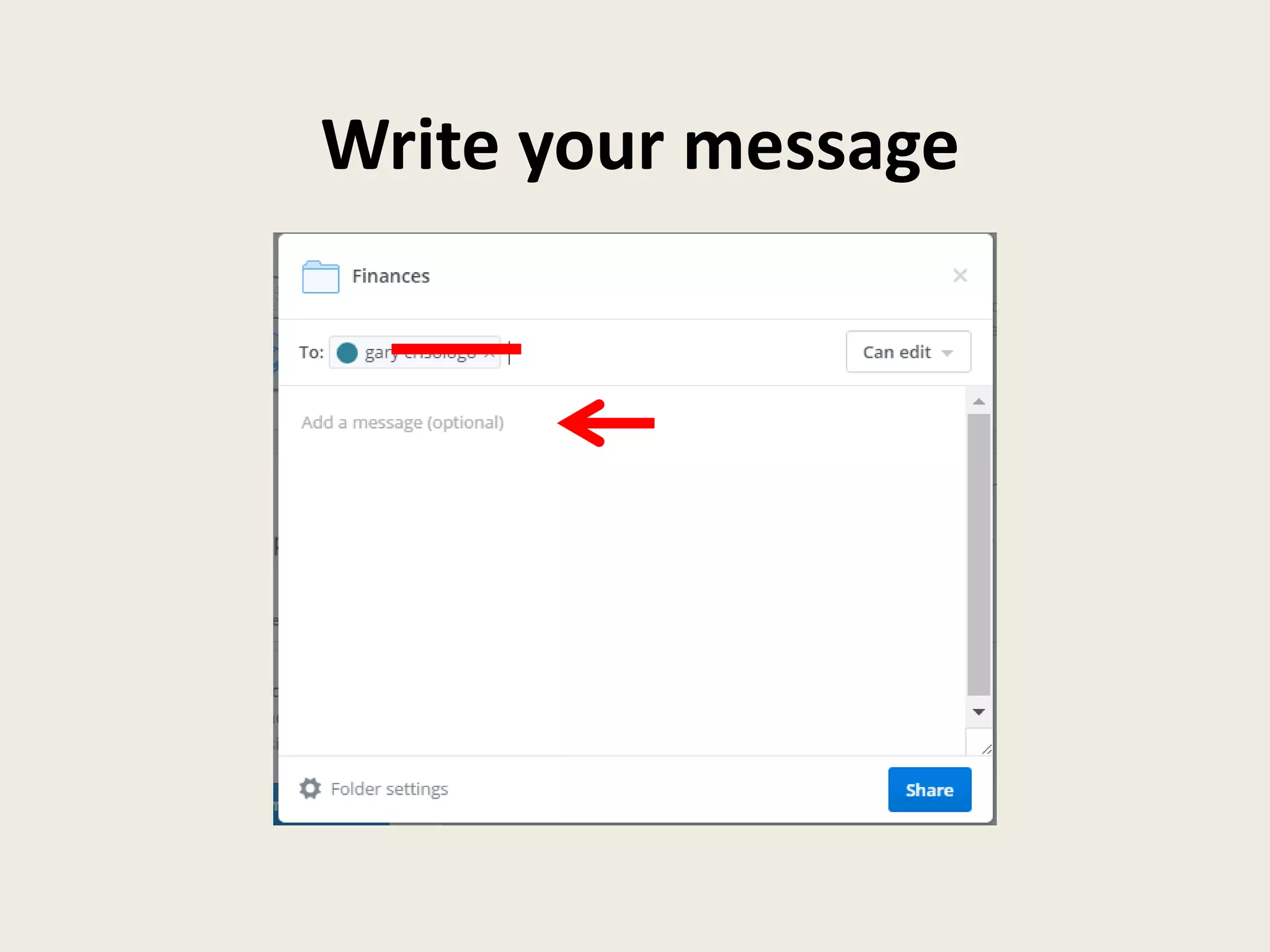
Write your message
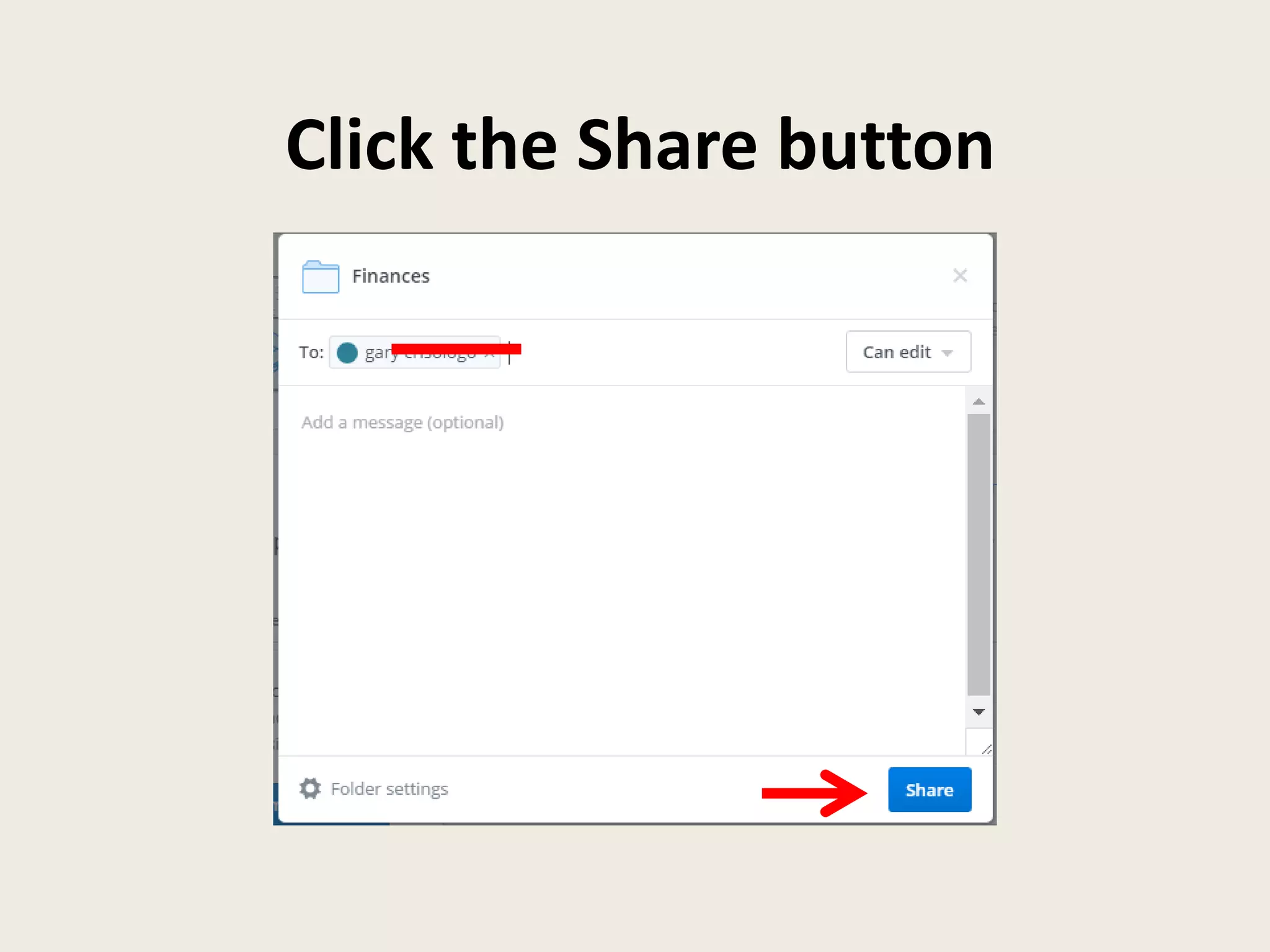
Click the Share button
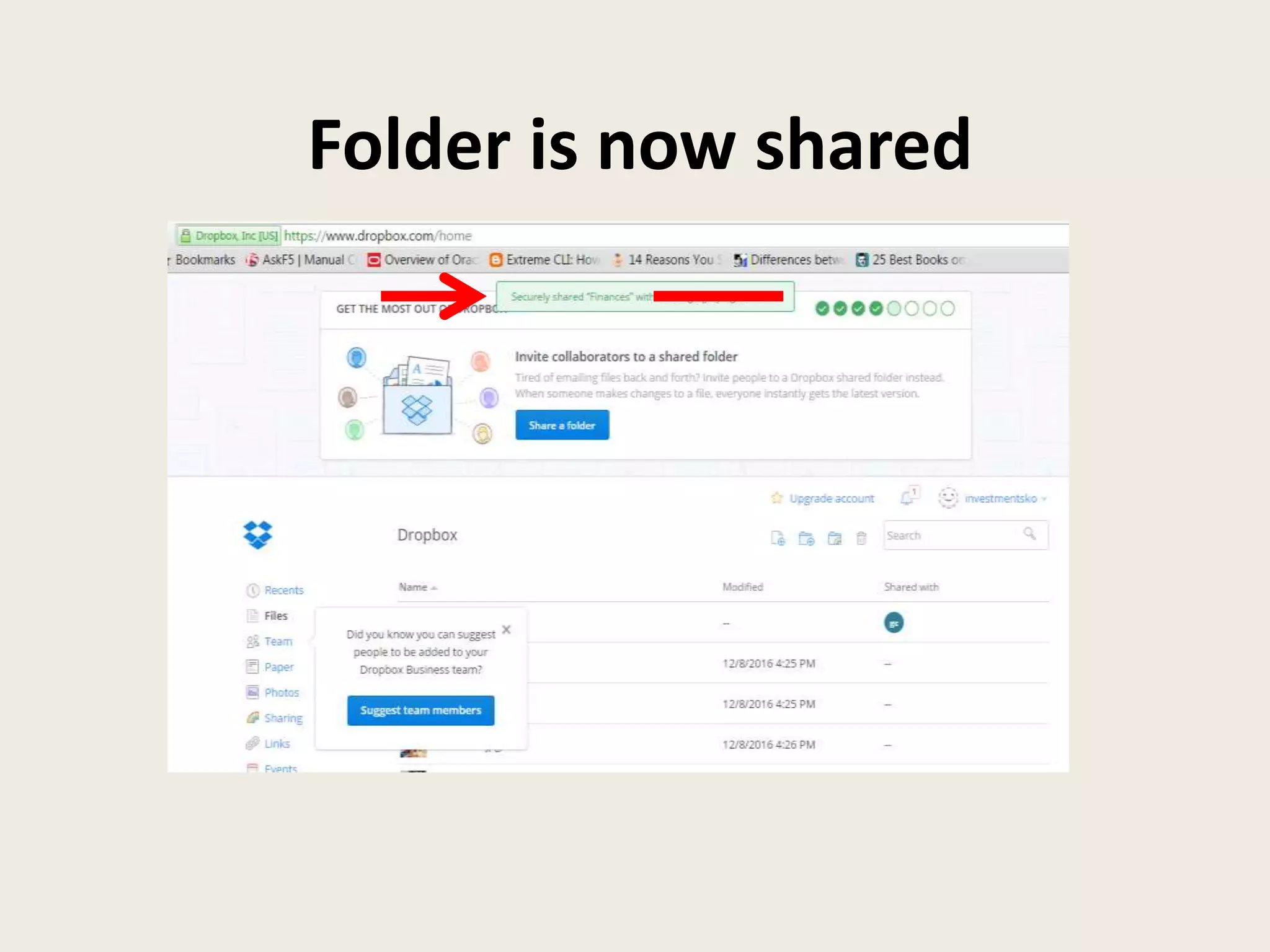
Folder is now shared
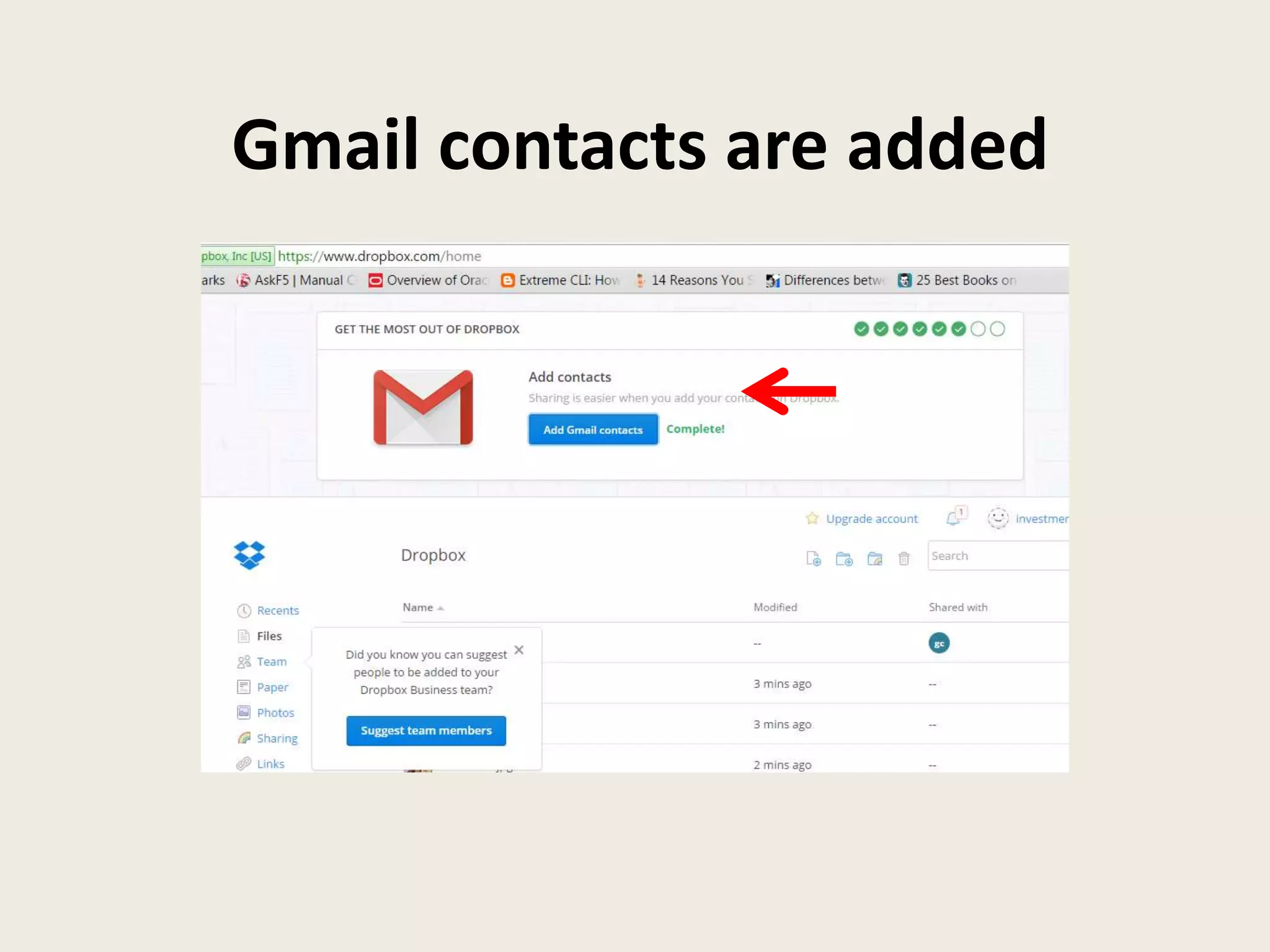
Now let’s add your
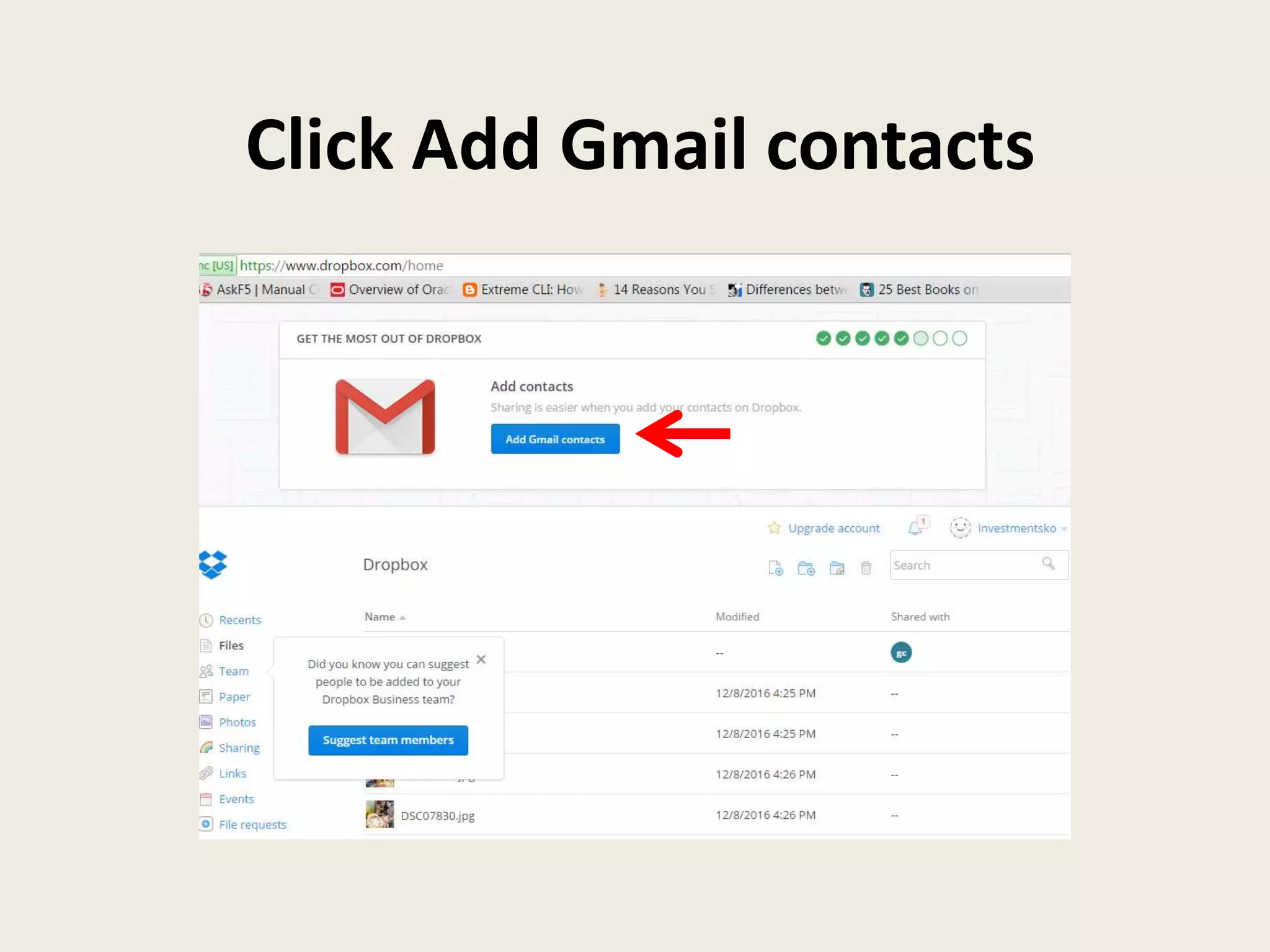
Gmail contacts
Click Add Gmail contacts
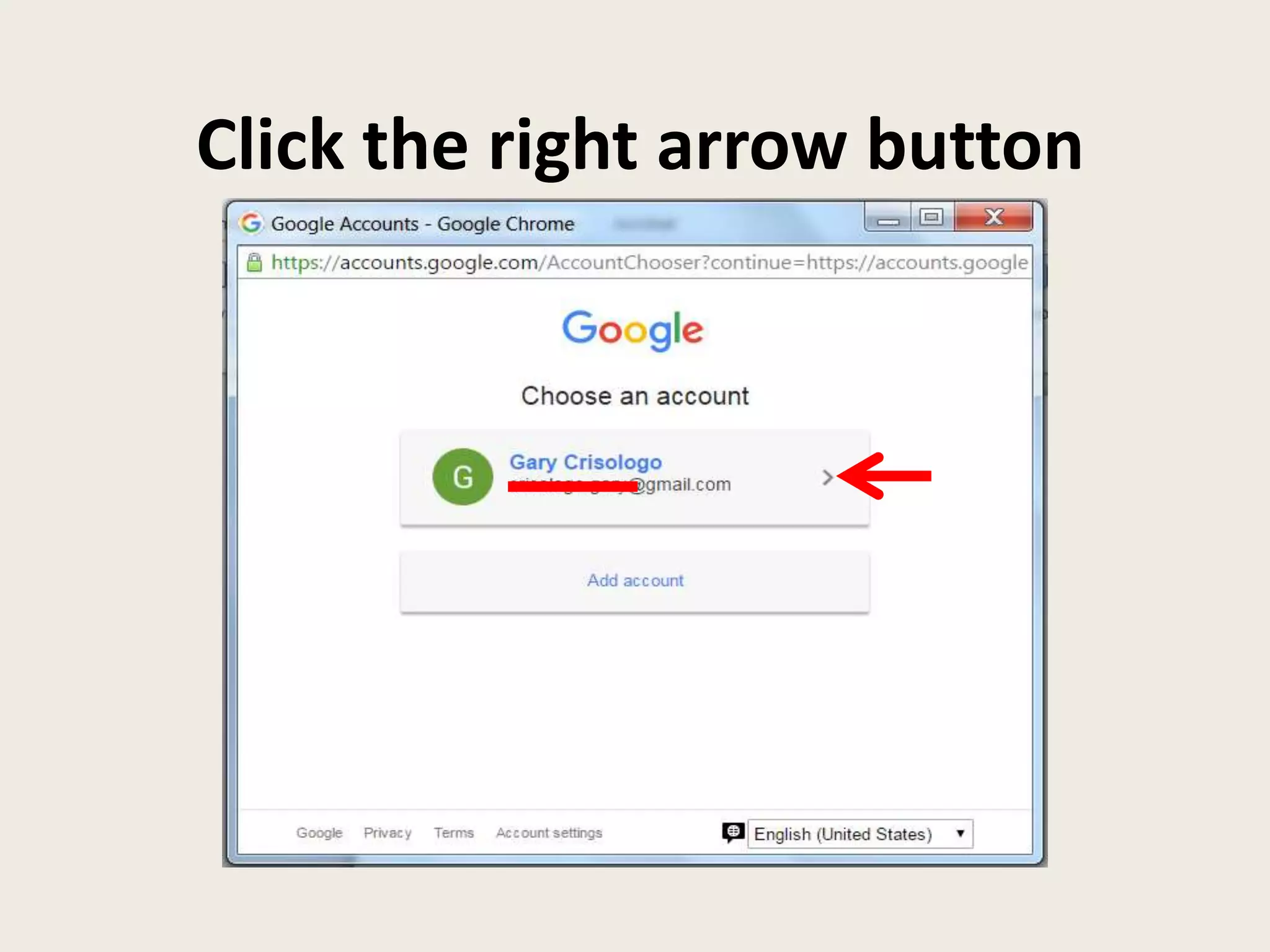
Click the right arrow button
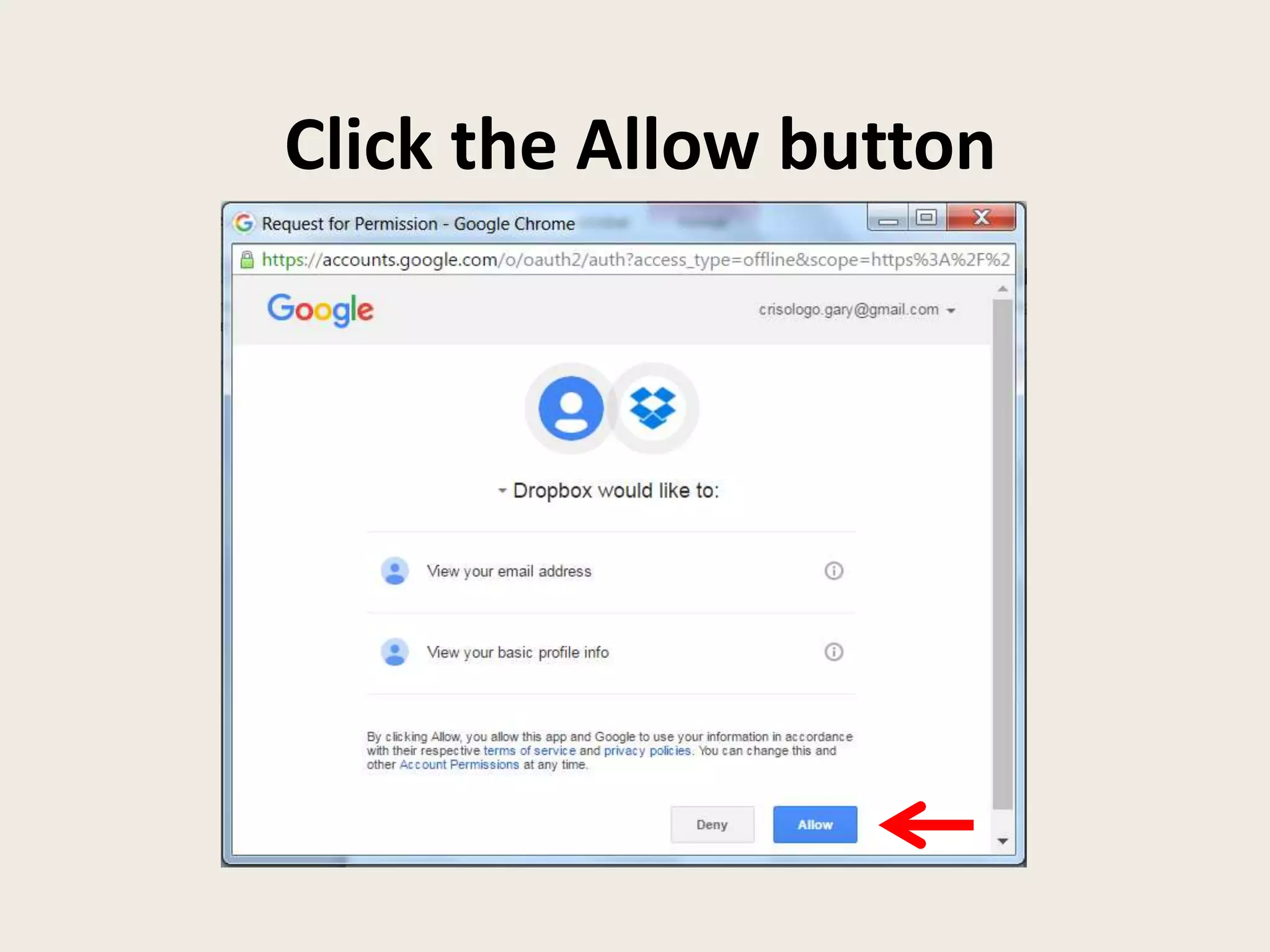
Click the Allow button
Gmail contacts are added
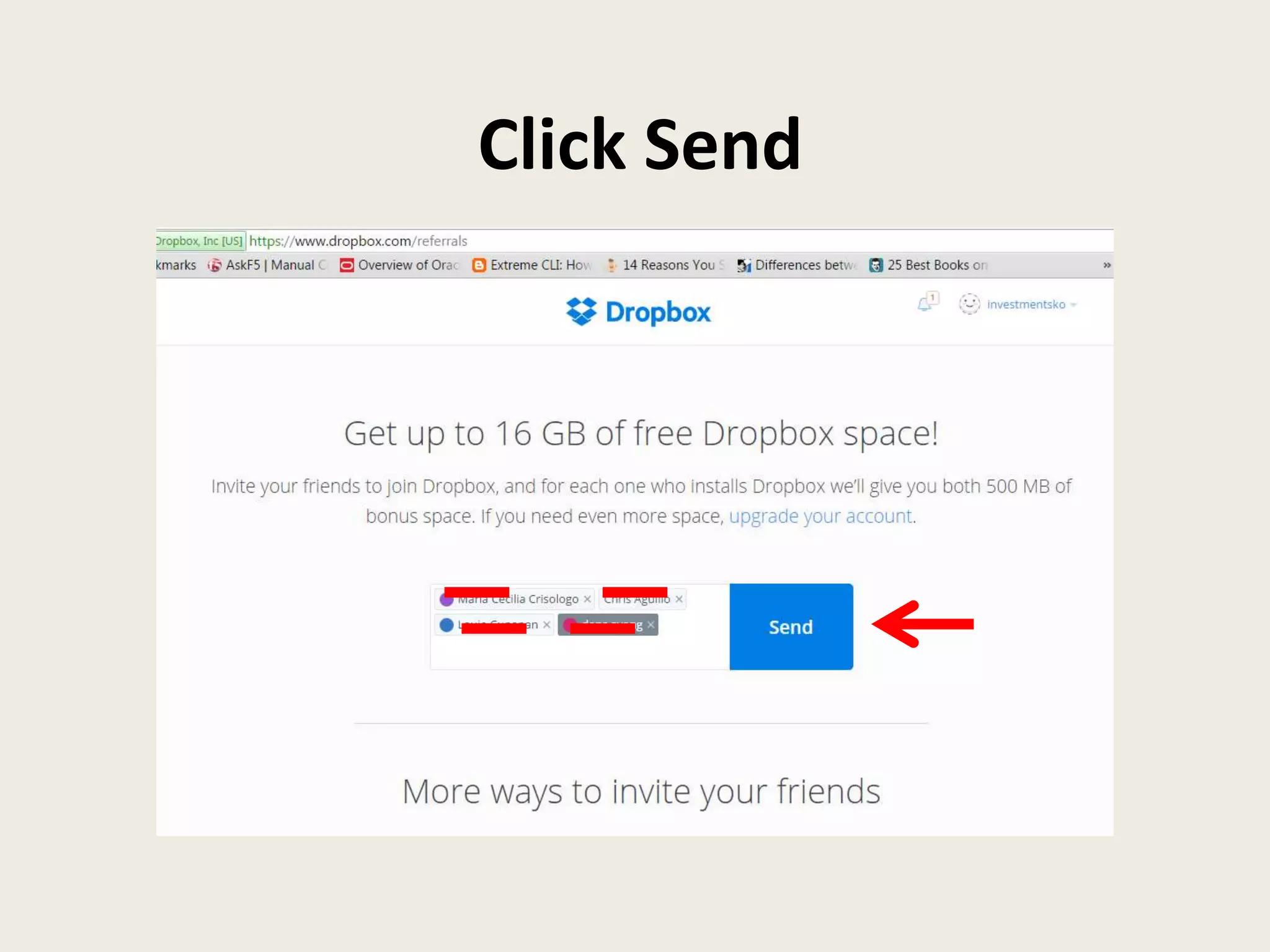
Let’s invite friends so
you more earn space
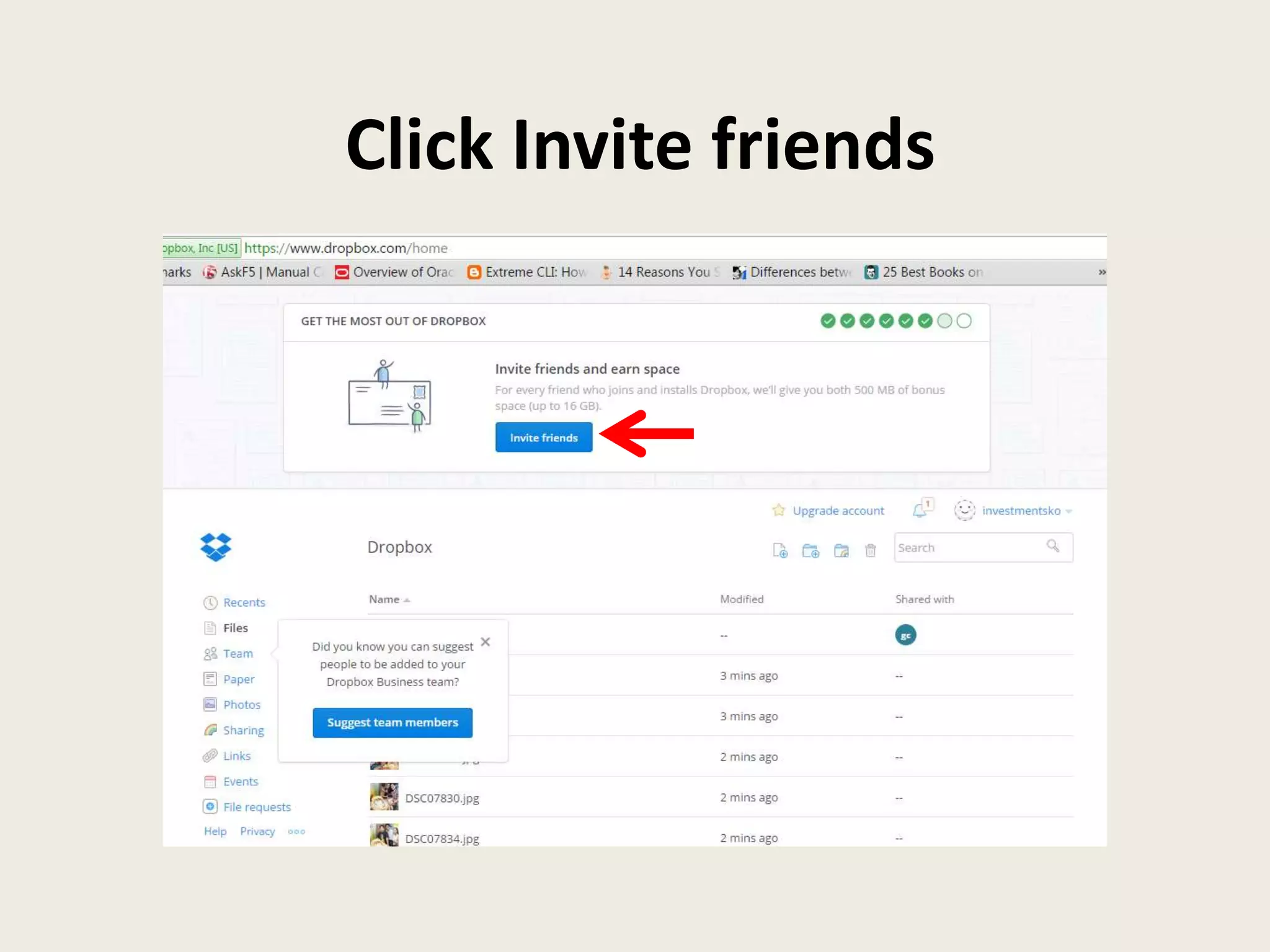
Click Invite friends
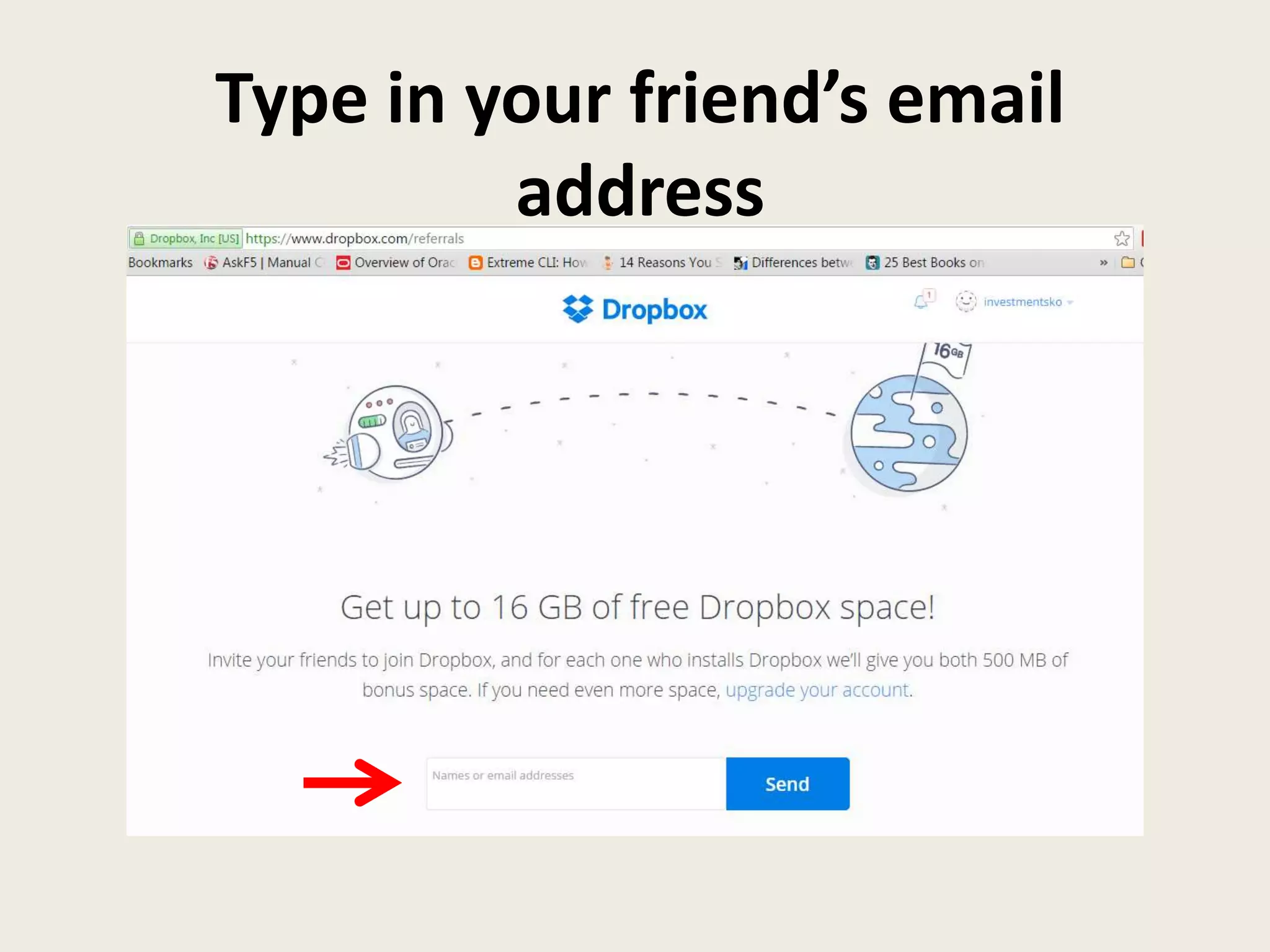
Type in your friend’s email
address
Click Send
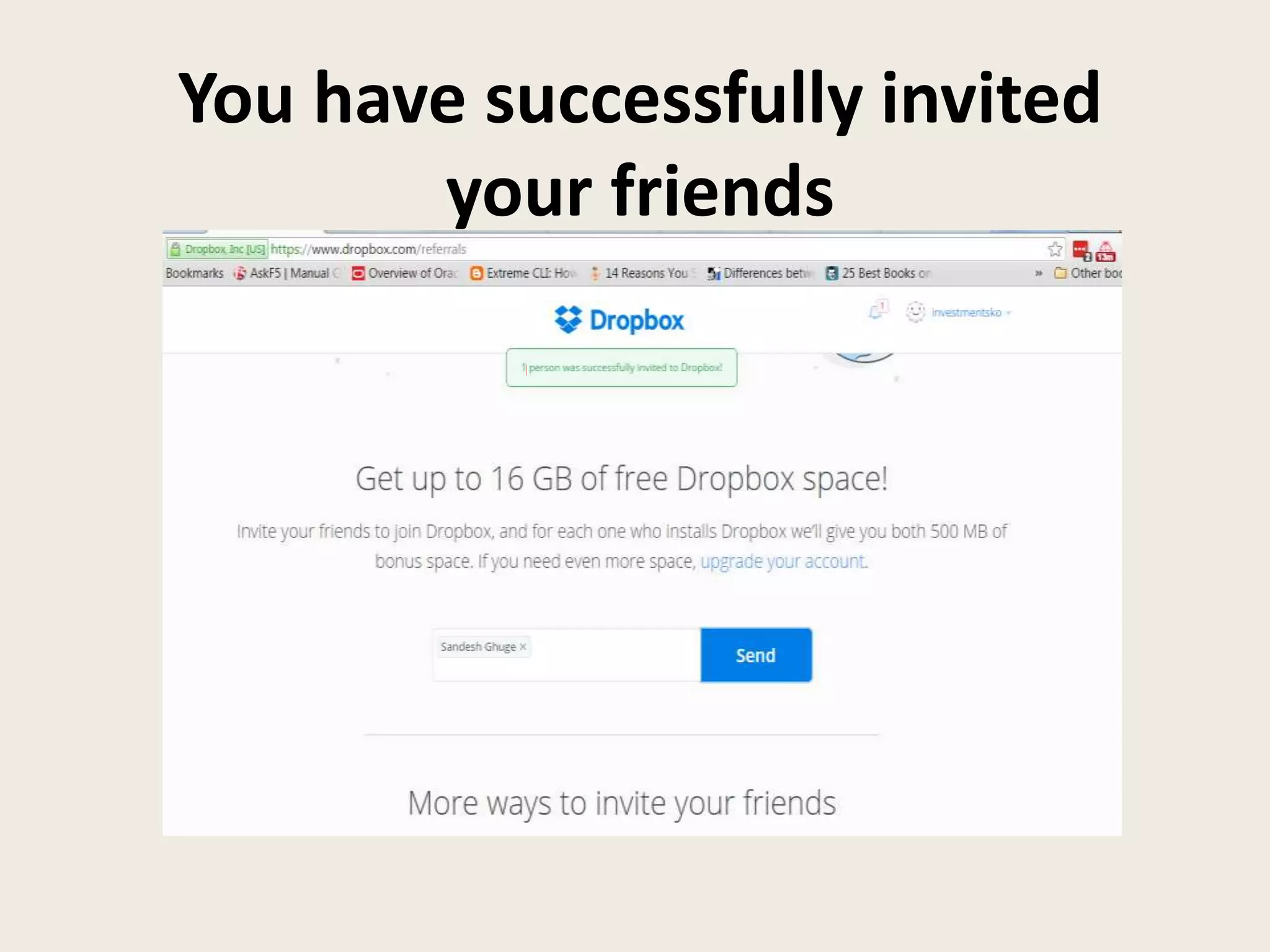
You have successfully invited
your friends
Now let’s create or
send screenshots
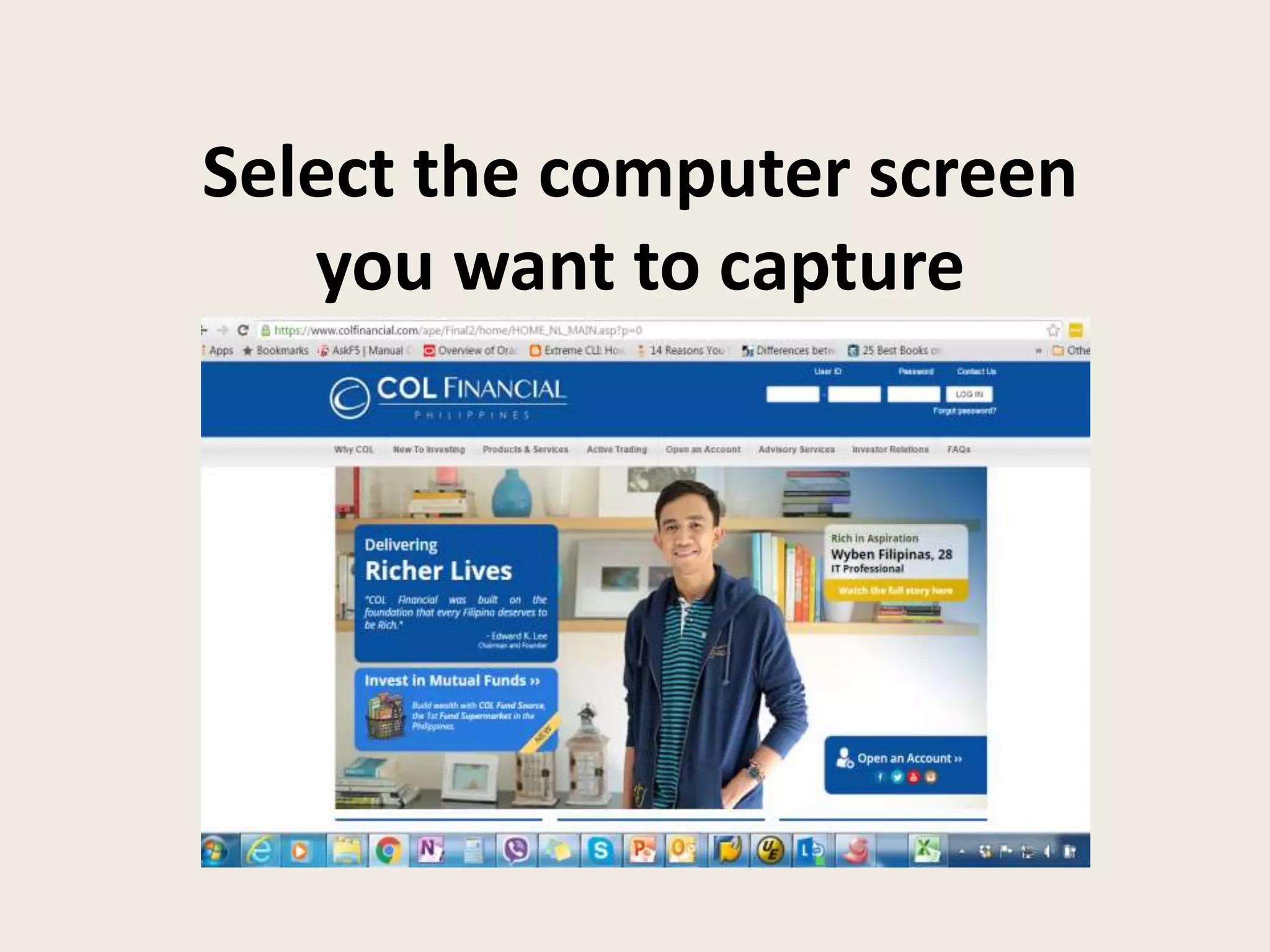
Select the computer screen
you want to capture
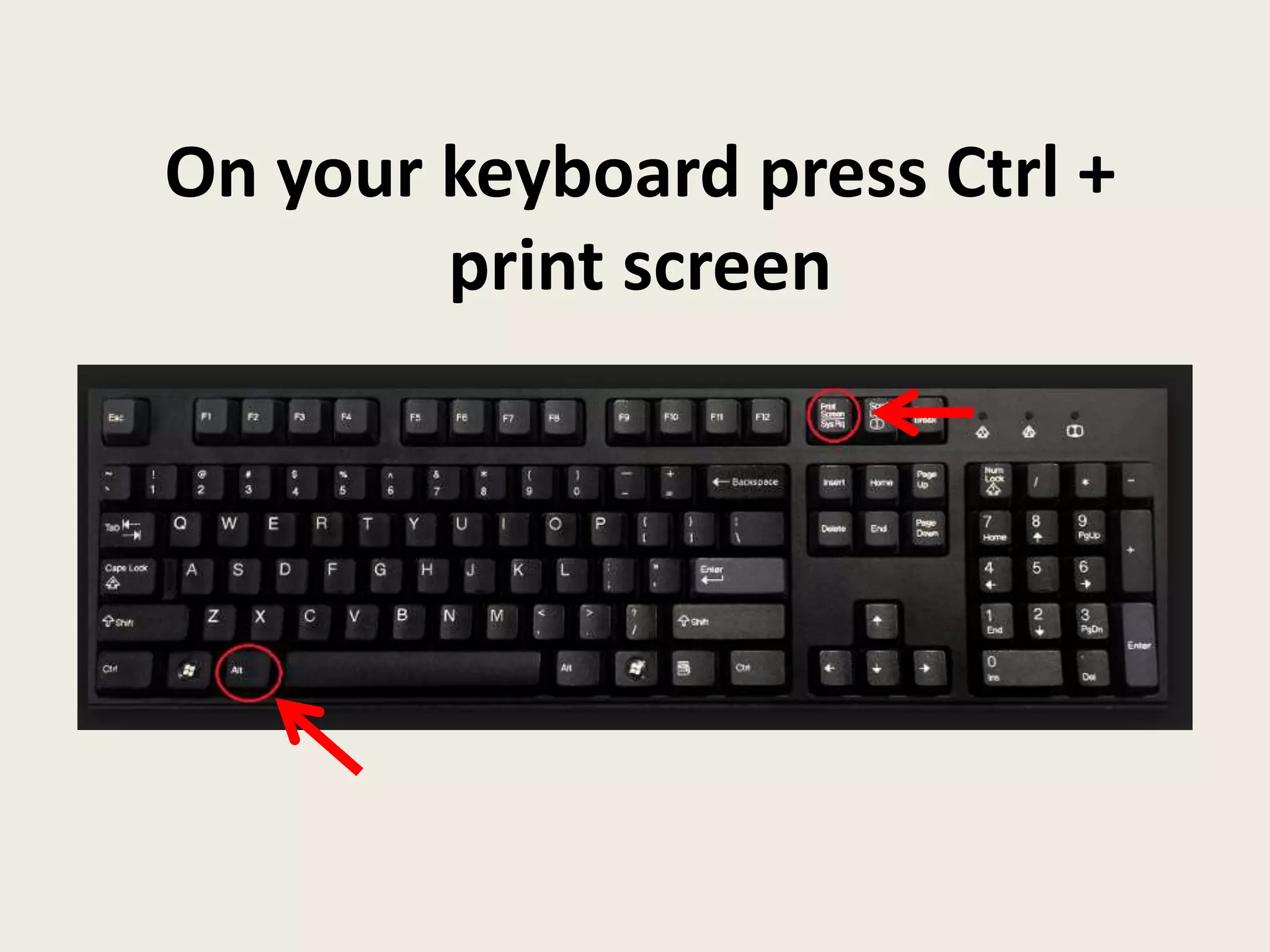
On your keyboard press Ctrl +
print screen
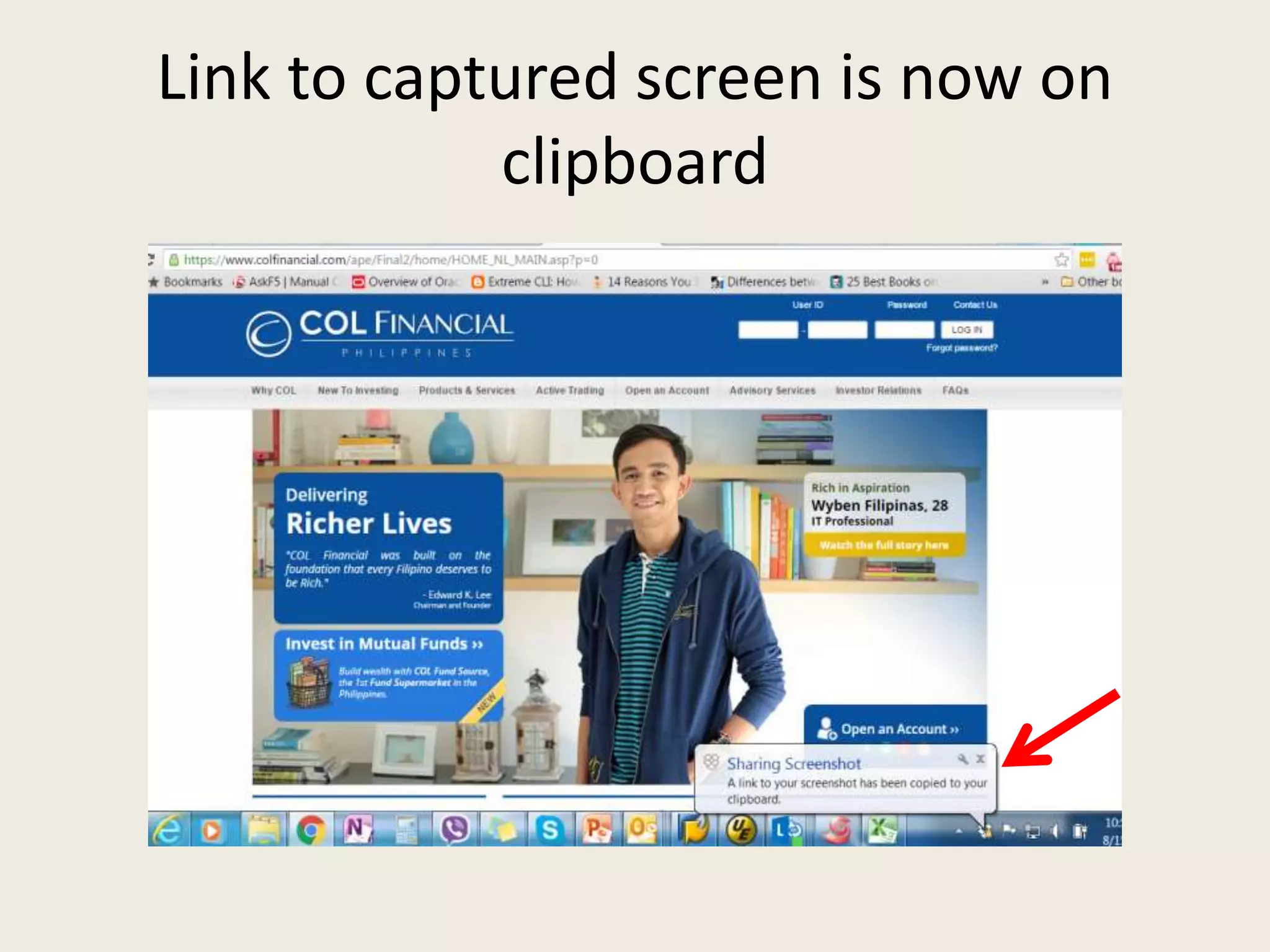
Link to captured screen is now on
clipboard
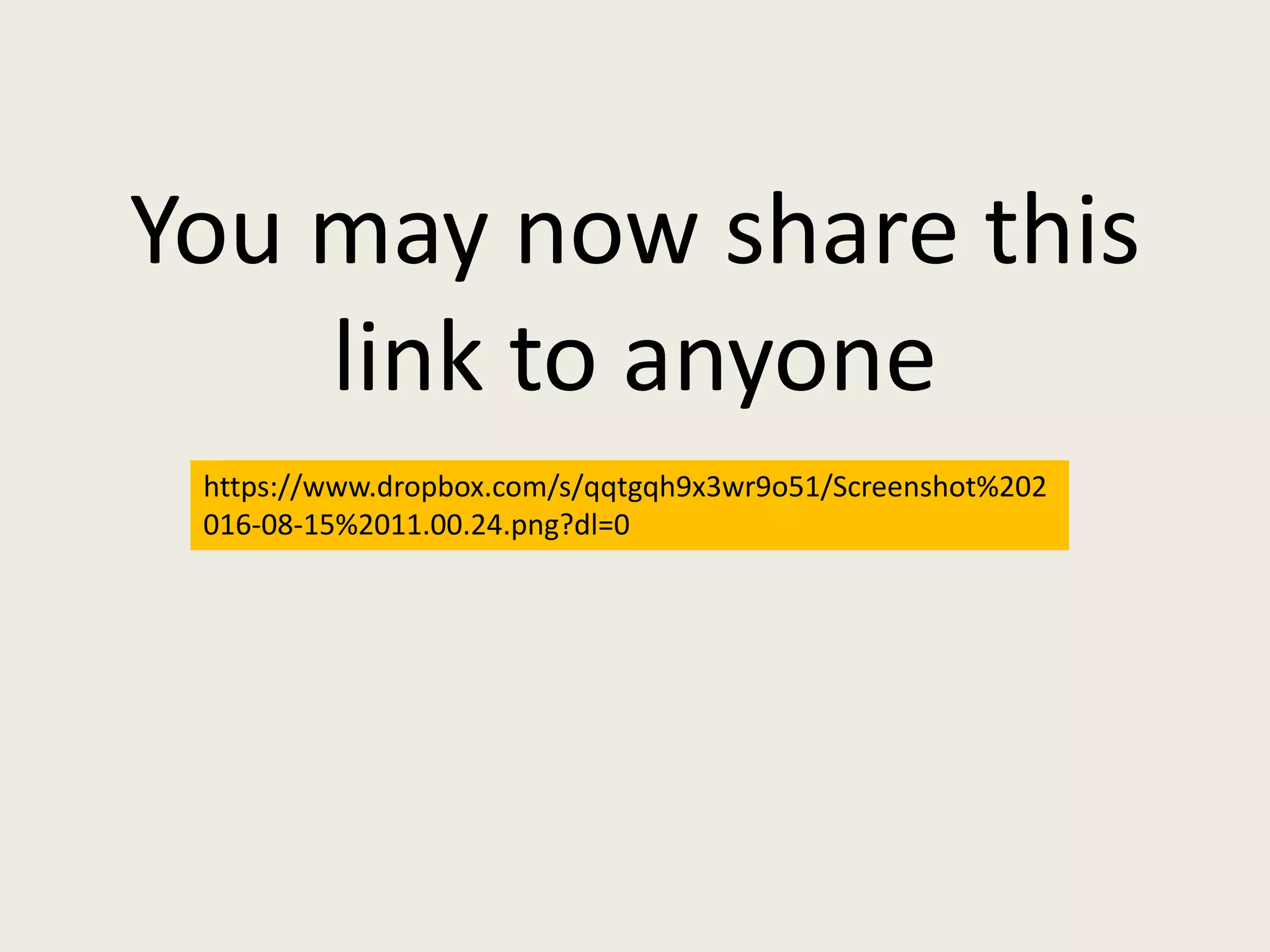
You may now share this
link to anyone
https://www.dropbox.com/s/qqtgqh9x3wr9o51/Screenshot%202
016-08-15%2011.00.24.png?dl=0
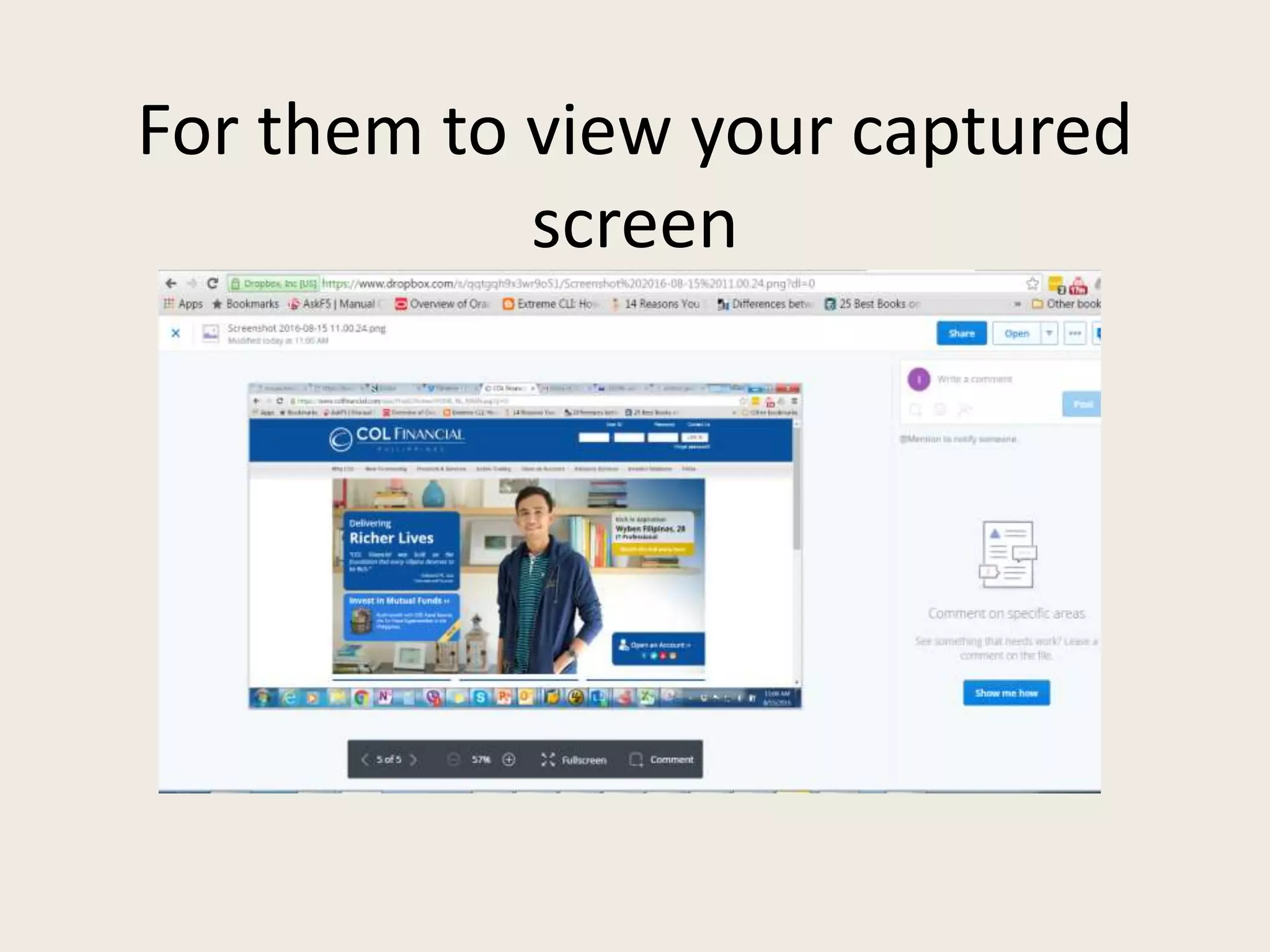
For them to view your captured
screen
That’s it! Hope you enjoyed my
tutorial! Goodluck and keep
Dropboxing!

How to-use-dropbox