SharePoint Folders vs. 
Metadata 
Best Practices
What is Metadata? 
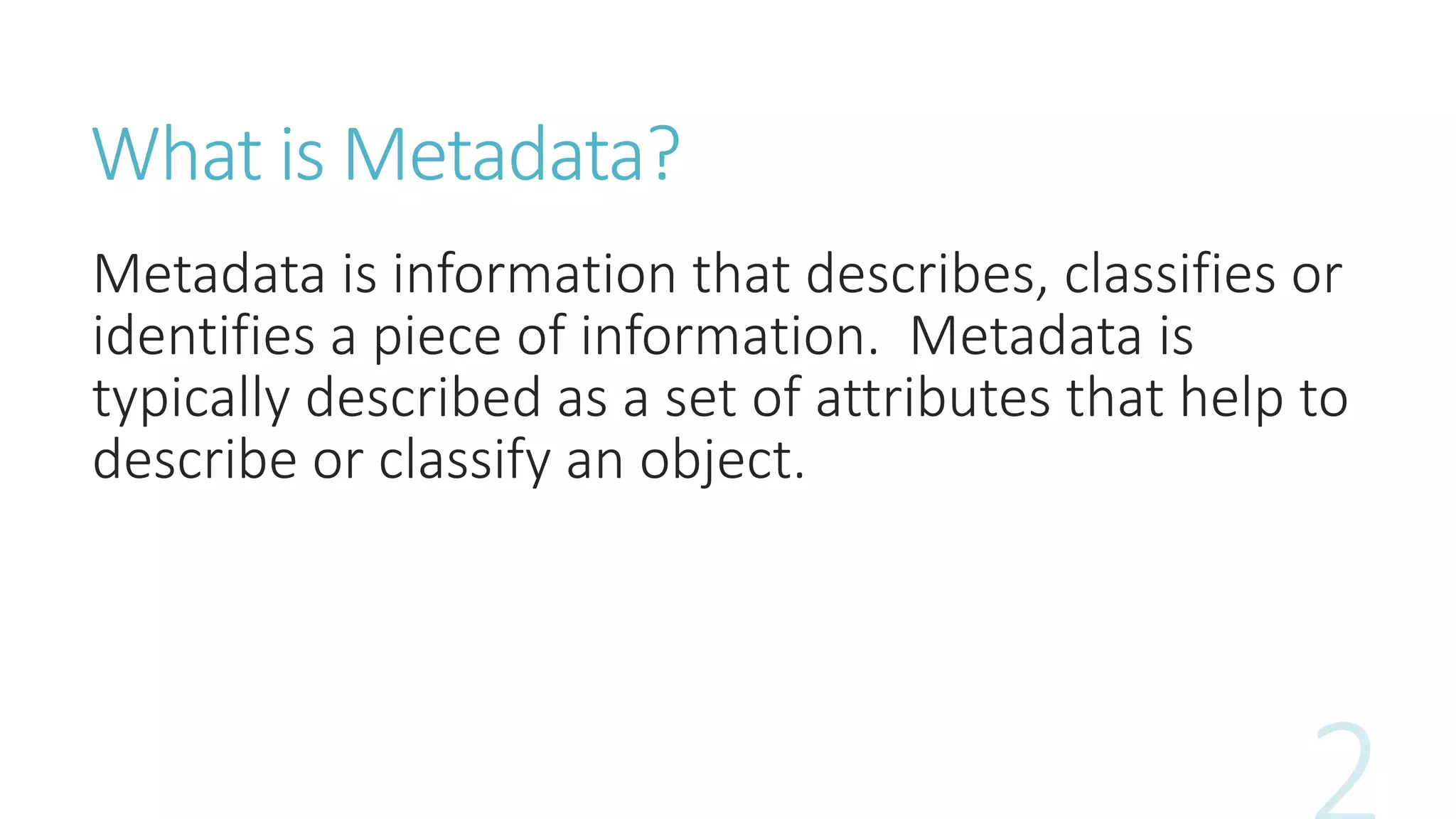
Metadata is information that describes, classifies or 
identifies a piece of information. Metadata is 
typically described as a set of attributes that help to 
describe or classify an object.
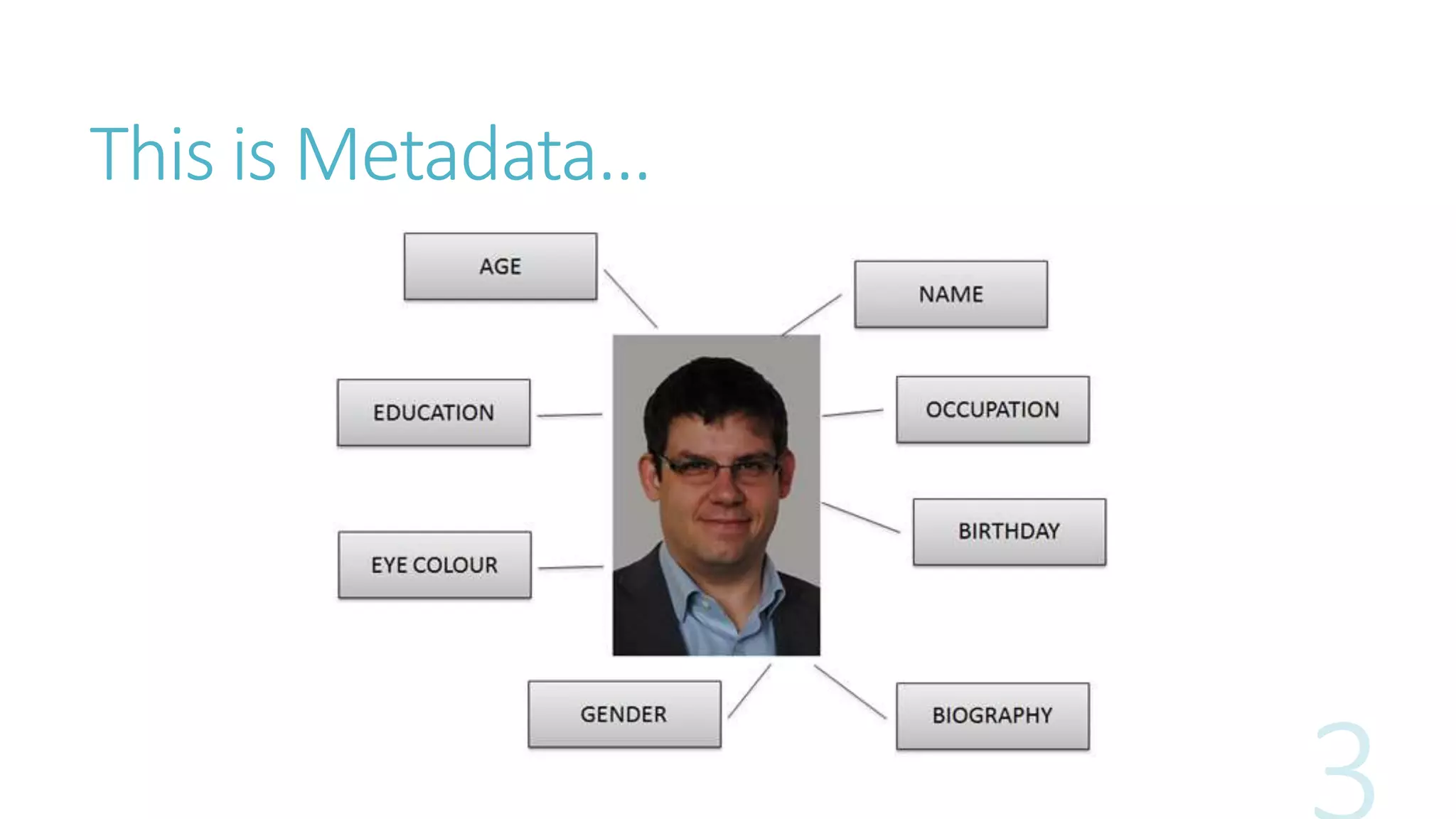
This is Metadata…
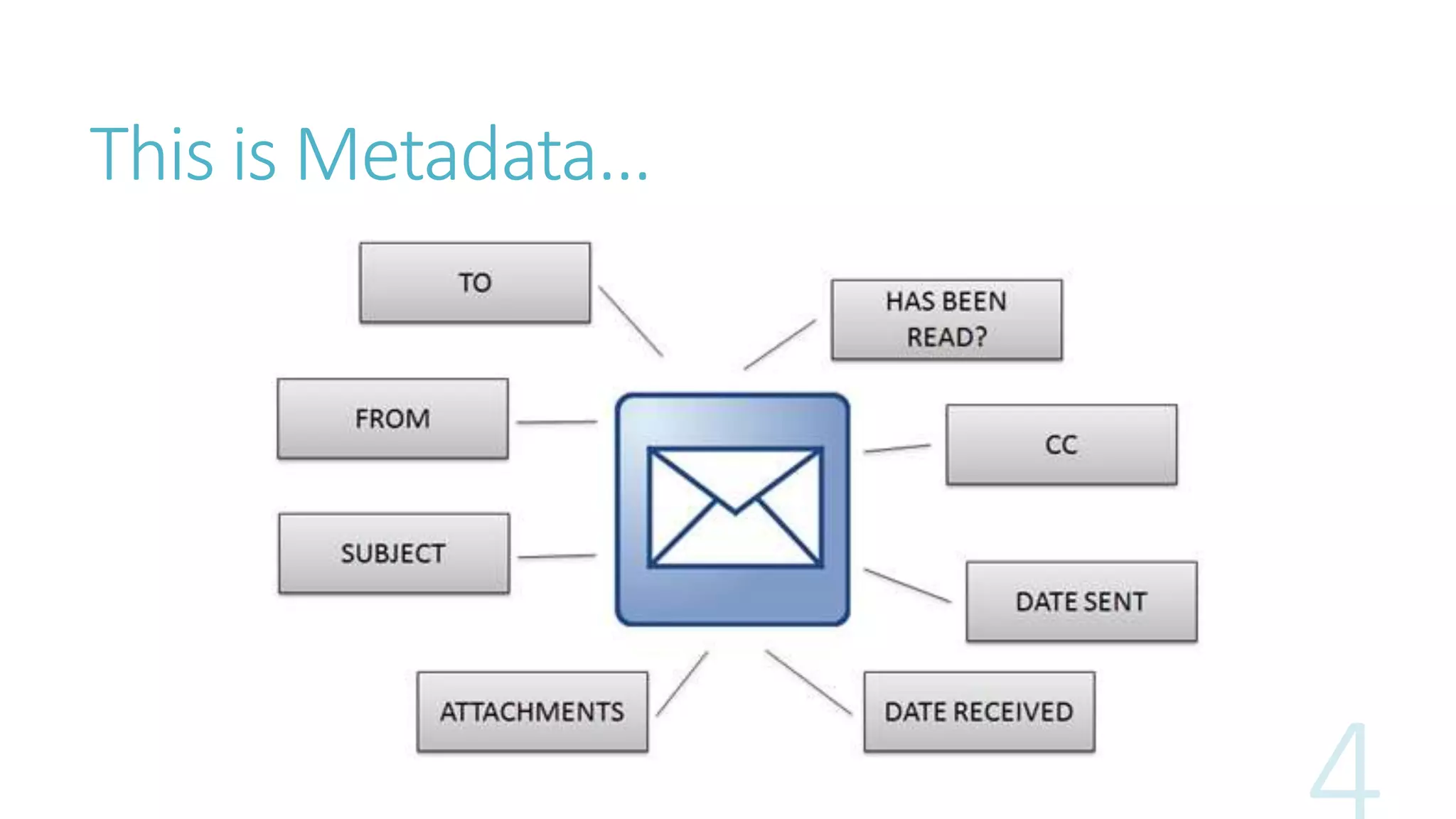
This is Metadata…
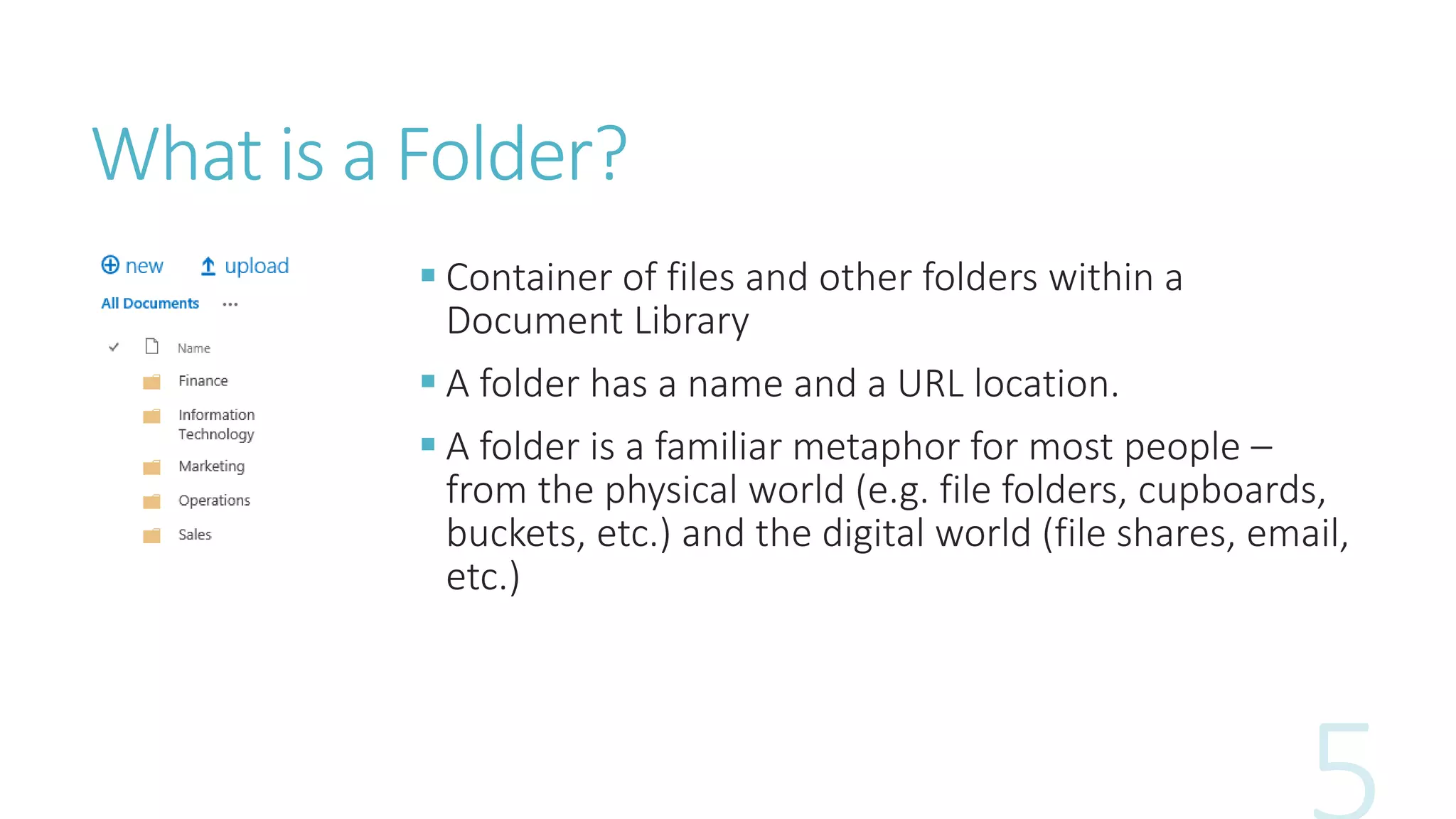
What is a Folder? 
 Container of files and other folders within a 
Document Library 
 A folder has a name and a URL location. 
 A folder is a familiar metaphor for most people – 
from the physical world (e.g. file folders, cupboards, 
buckets, etc.) and the digital world (file shares, email, 
etc.)
Folders vs. Metadata: Folders 
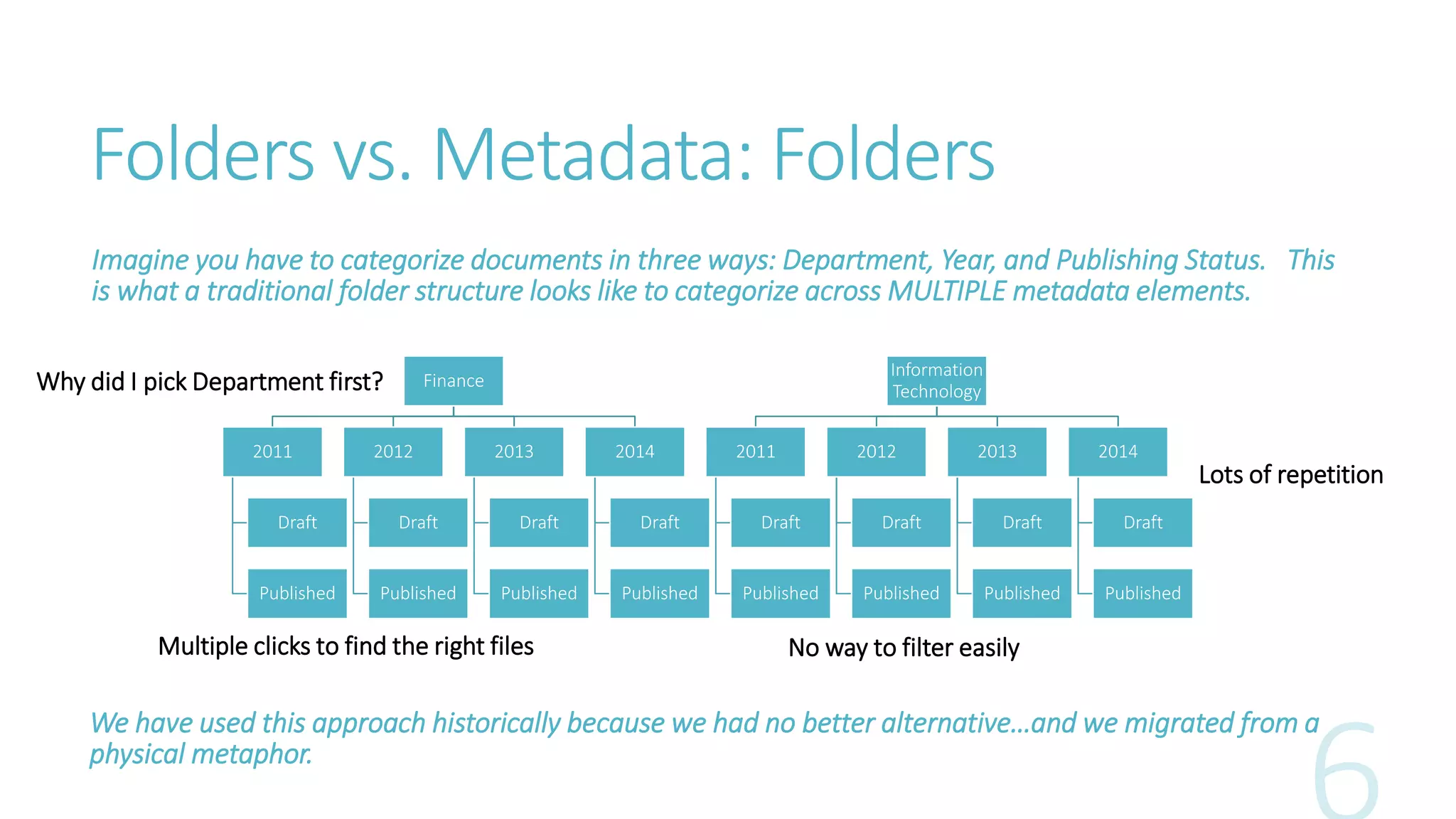
Imagine you have to categorize documents in three ways: Department, Year, and Publishing Status. This 
is what a traditional folder structure looks like to categorize across MULTIPLE metadata elements. 
Finance 
2011 
Draft 
Published 
2012 
Draft 
Published 
2013 
Draft 
Published 
2014 
Draft 
Published 
Information 
Technology 
2011 
Draft 
Published 
2012 
Draft 
Published 
2013 
Draft 
Published 
2014 
Draft 
Published 
Why did I pick Department first? 
Lots of repetition 
Multiple clicks to find the right files No way to filter easily 
We have used this approach historically because we had no better alternative…and we migrated from a 
physical metaphor.
Folders vs. Metadata: Metadata Site Columns 
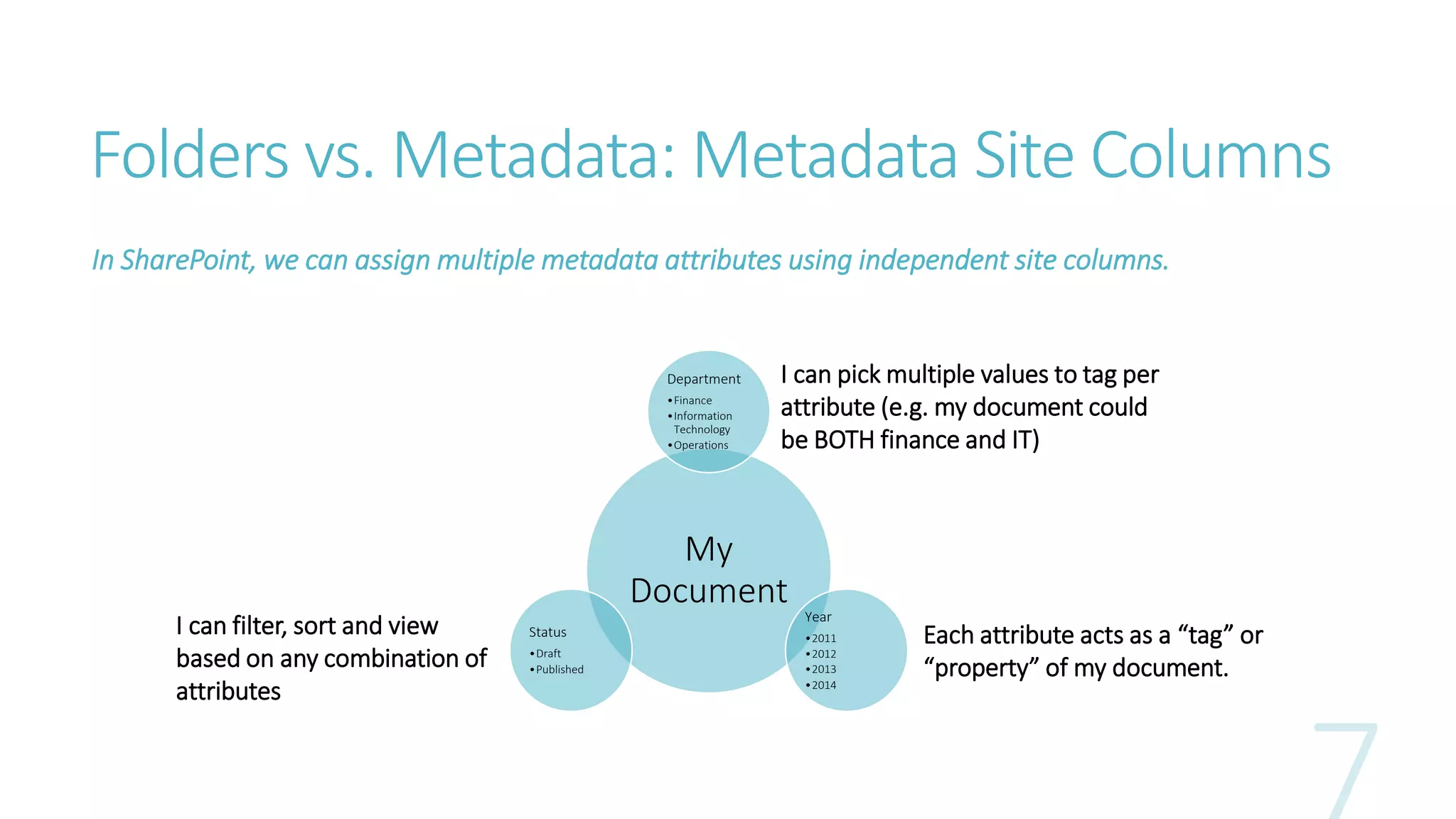
In SharePoint, we can assign multiple metadata attributes using independent site columns. 
Department 
•Finance 
•Information 
Technology 
•Operations 
My 
Document 
Year 
•2011 
•2012 
•2013 
•2014 
Status 
•Draft 
•Published 
Each attribute acts as a “tag” or 
“property” of my document. 
I can filter, sort and view 
based on any combination of 
attributes 
I can pick multiple values to tag per 
attribute (e.g. my document could 
be BOTH finance and IT)
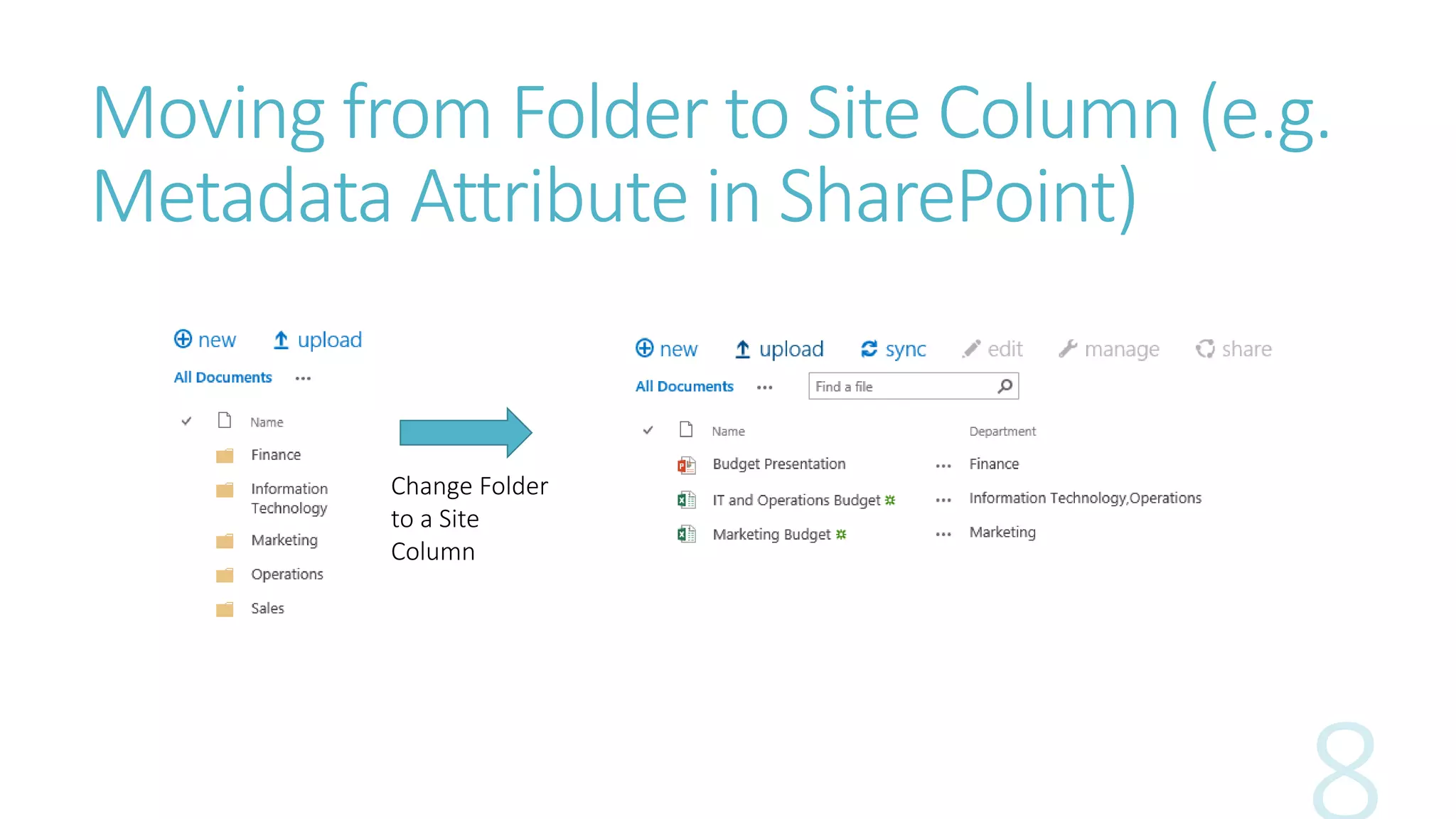
Moving from Folder to Site Column (e.g. 
Metadata Attribute in SharePoint) 
Change Folder 
to a Site 
Column
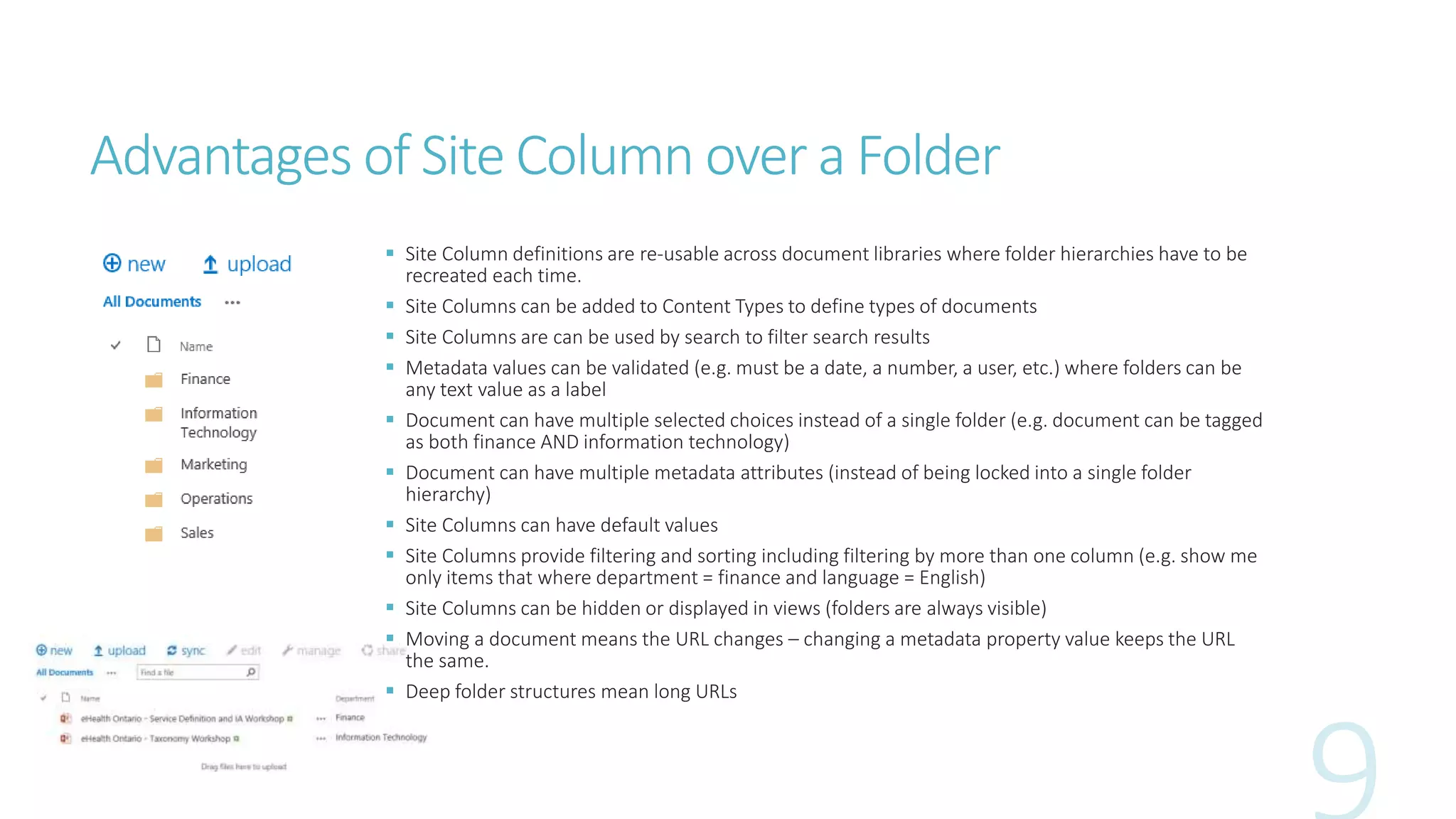
Advantages of Site Column over a Folder 
 Site Column definitions are re-usable across document libraries where folder hierarchies have to be 
recreated each time. 
 Site Columns can be added to Content Types to define types of documents 
 Site Columns are can be used by search to filter search results 
 Metadata values can be validated (e.g. must be a date, a number, a user, etc.) where folders can be 
any text value as a label 
 Document can have multiple selected choices instead of a single folder (e.g. document can be tagged 
as both finance AND information technology) 
 Document can have multiple metadata attributes (instead of being locked into a single folder 
hierarchy) 
 Site Columns can have default values 
 Site Columns provide filtering and sorting including filtering by more than one column (e.g. show me 
only items that where department = finance and language = English) 
 Site Columns can be hidden or displayed in views (folders are always visible) 
 Moving a document means the URL changes – changing a metadata property value keeps the URL 
the same. 
 Deep folder structures mean long URLs
Some Reasons why Folders Can Still be Useful 
 Easier to create a folder than metadata structure and easier to adopt 
 Folders are security boundaries – can set permissions on folders 
 Easy containers to drop in large volumes of files 
 You can set default metadata values for each folder 
 SharePoint limits number of files in a view to 5,000 so folders can be helpful if you 
have large numbers of files 
 File names in SharePoint must be unique – folders can avoid name collision
Conclusion 
 Plan out your taxonomy before organizing your documents – use re-usable site 
columns to standardize how documents are classified, tagged or categorized across 
the organization. 
 Use Site Columns in SharePoint to store metadata instead of folders, in particular for 
categorizing, tagging, searching and filtering documents 
 Folders should be used only for specific reasons where they are still helpful 
containers 
 Configure your search to leverage the metadata you have invested in creating!
Thanks! 
Christopher Woodill 
 cwoodill@hotmail.com 
 @microsofttrend 
 www.microsofttrends.com

SharePoint Folders vs. Metadata Best Practices

  • 1.
    SharePoint Folders vs. Metadata Best Practices
  • 2.
    What is Metadata? Metadata is information that describes, classifies or identifies a piece of information. Metadata is typically described as a set of attributes that help to describe or classify an object.
  • 3.
  • 4.
  • 5.
    What is aFolder?  Container of files and other folders within a Document Library  A folder has a name and a URL location.  A folder is a familiar metaphor for most people – from the physical world (e.g. file folders, cupboards, buckets, etc.) and the digital world (file shares, email, etc.)
  • 6.
    Folders vs. Metadata:Folders Imagine you have to categorize documents in three ways: Department, Year, and Publishing Status. This is what a traditional folder structure looks like to categorize across MULTIPLE metadata elements. Finance 2011 Draft Published 2012 Draft Published 2013 Draft Published 2014 Draft Published Information Technology 2011 Draft Published 2012 Draft Published 2013 Draft Published 2014 Draft Published Why did I pick Department first? Lots of repetition Multiple clicks to find the right files No way to filter easily We have used this approach historically because we had no better alternative…and we migrated from a physical metaphor.
  • 7.
    Folders vs. Metadata:Metadata Site Columns In SharePoint, we can assign multiple metadata attributes using independent site columns. Department •Finance •Information Technology •Operations My Document Year •2011 •2012 •2013 •2014 Status •Draft •Published Each attribute acts as a “tag” or “property” of my document. I can filter, sort and view based on any combination of attributes I can pick multiple values to tag per attribute (e.g. my document could be BOTH finance and IT)
  • 8.
    Moving from Folderto Site Column (e.g. Metadata Attribute in SharePoint) Change Folder to a Site Column
  • 9.
    Advantages of SiteColumn over a Folder  Site Column definitions are re-usable across document libraries where folder hierarchies have to be recreated each time.  Site Columns can be added to Content Types to define types of documents  Site Columns are can be used by search to filter search results  Metadata values can be validated (e.g. must be a date, a number, a user, etc.) where folders can be any text value as a label  Document can have multiple selected choices instead of a single folder (e.g. document can be tagged as both finance AND information technology)  Document can have multiple metadata attributes (instead of being locked into a single folder hierarchy)  Site Columns can have default values  Site Columns provide filtering and sorting including filtering by more than one column (e.g. show me only items that where department = finance and language = English)  Site Columns can be hidden or displayed in views (folders are always visible)  Moving a document means the URL changes – changing a metadata property value keeps the URL the same.  Deep folder structures mean long URLs
  • 10.
    Some Reasons whyFolders Can Still be Useful  Easier to create a folder than metadata structure and easier to adopt  Folders are security boundaries – can set permissions on folders  Easy containers to drop in large volumes of files  You can set default metadata values for each folder  SharePoint limits number of files in a view to 5,000 so folders can be helpful if you have large numbers of files  File names in SharePoint must be unique – folders can avoid name collision
  • 11.
    Conclusion  Planout your taxonomy before organizing your documents – use re-usable site columns to standardize how documents are classified, tagged or categorized across the organization.  Use Site Columns in SharePoint to store metadata instead of folders, in particular for categorizing, tagging, searching and filtering documents  Folders should be used only for specific reasons where they are still helpful containers  Configure your search to leverage the metadata you have invested in creating!
  • 12.
    Thanks! Christopher Woodill  cwoodill@hotmail.com  @microsofttrend  www.microsofttrends.com