Michelle Ames, MBA
Marketing Diva
Marketed by Michelle, LLC
“Hidden”
WordPress Features
Who Am I?
• Overextended, overcommitted, entrepreneur &
volunteer
• Avid Scrabble™ player
• Tea snob
• Mom to an adult
• WordPress fanatic
• 11th Hour Expert
Cat Lover
Not Really Hidden
Less-Known Features
• Screen Options
• Help
• Post Options
• Page Options
• Post/Page Editor
• Quick Edit
You’re not jumping without
a parachute.
Screen Options
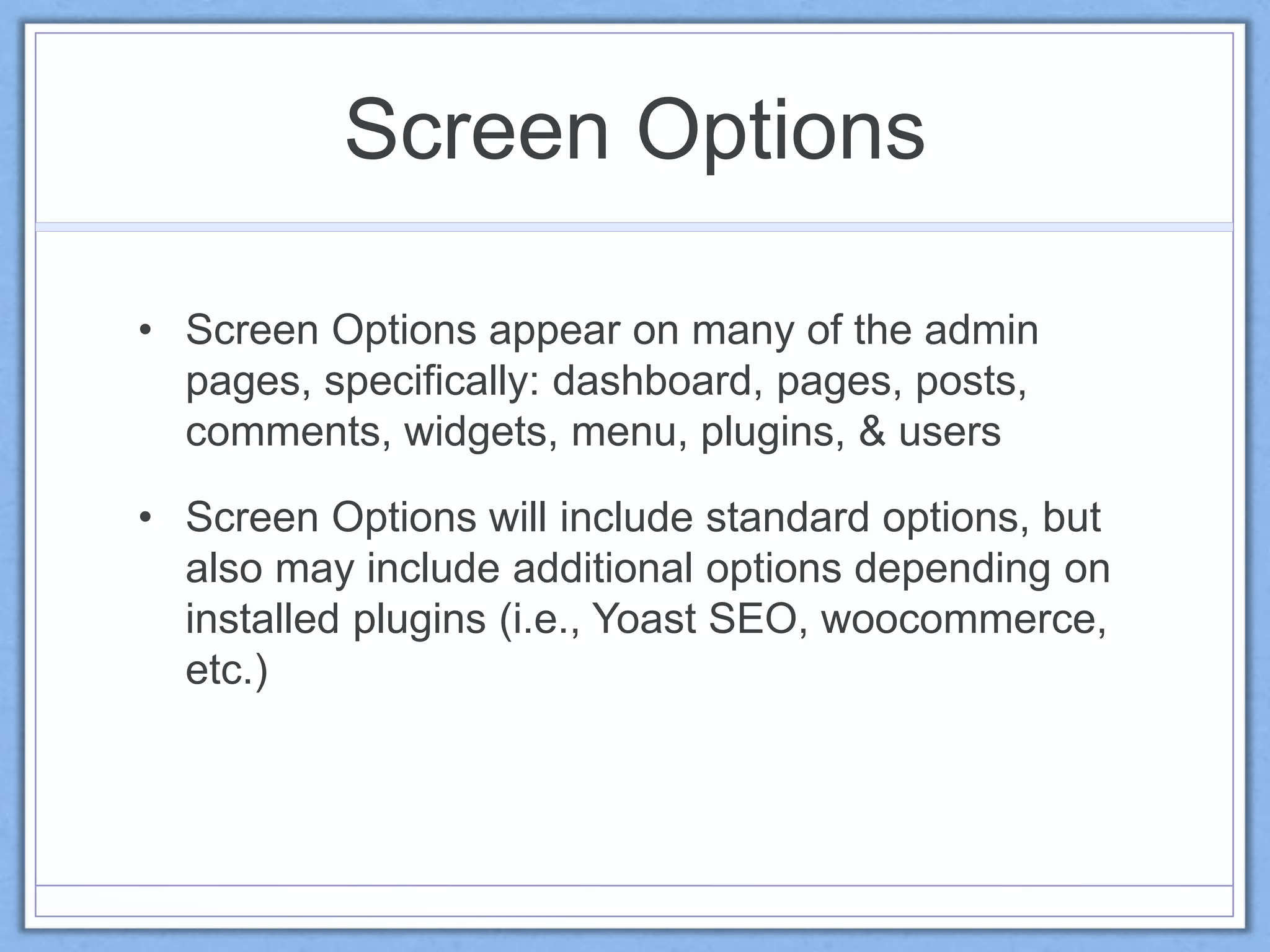
• Screen Options appear on many of the admin
pages, specifically: dashboard, pages, posts,
comments, widgets, menu, plugins, & users
• Screen Options will include standard options, but
also may include additional options depending on
installed plugins (i.e., Yoast SEO, woocommerce,
etc.)
Screen Options
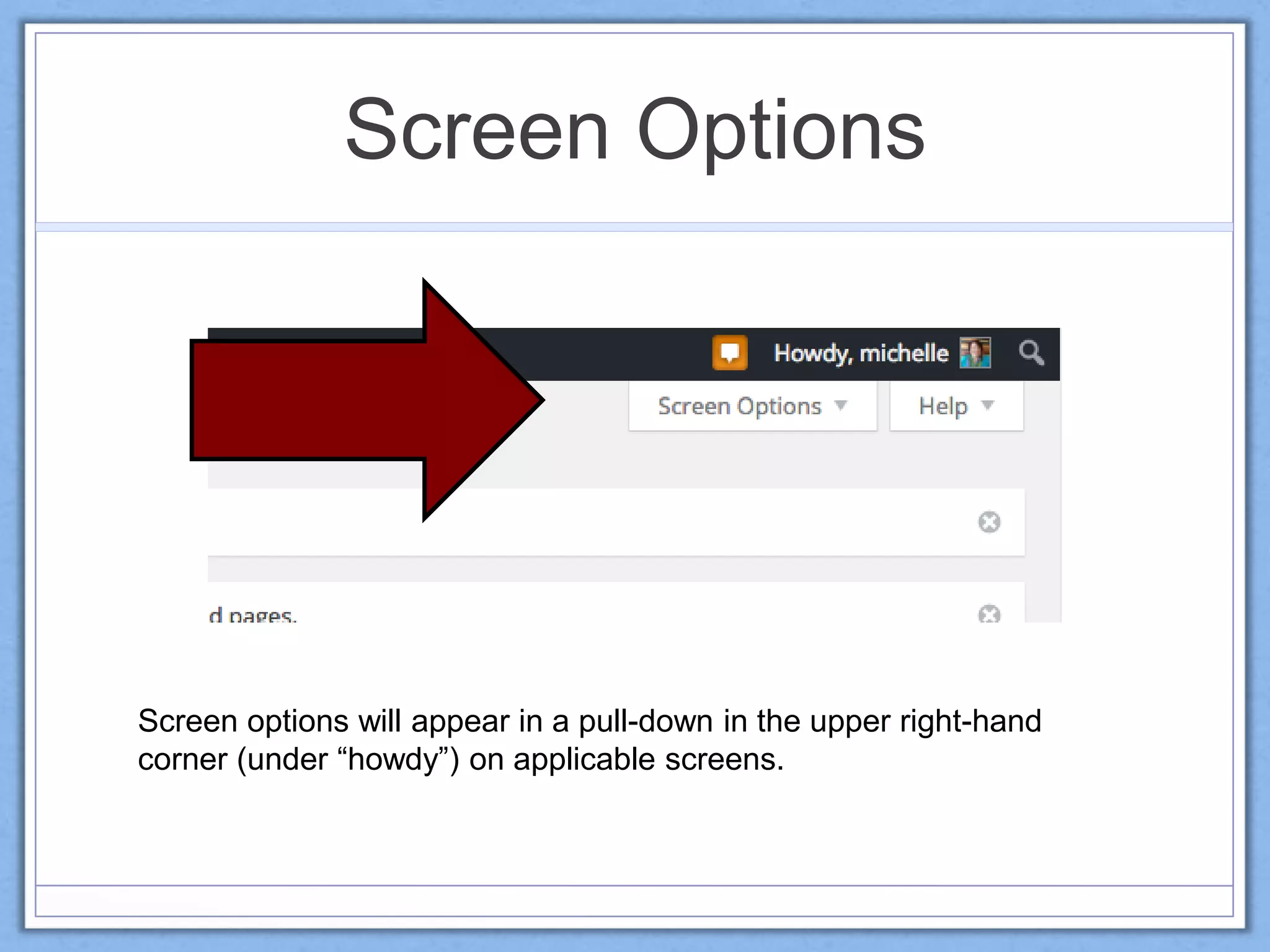
Screen options will appear in a pull-down in the upper right-hand
corner (under “howdy”) on applicable screens.
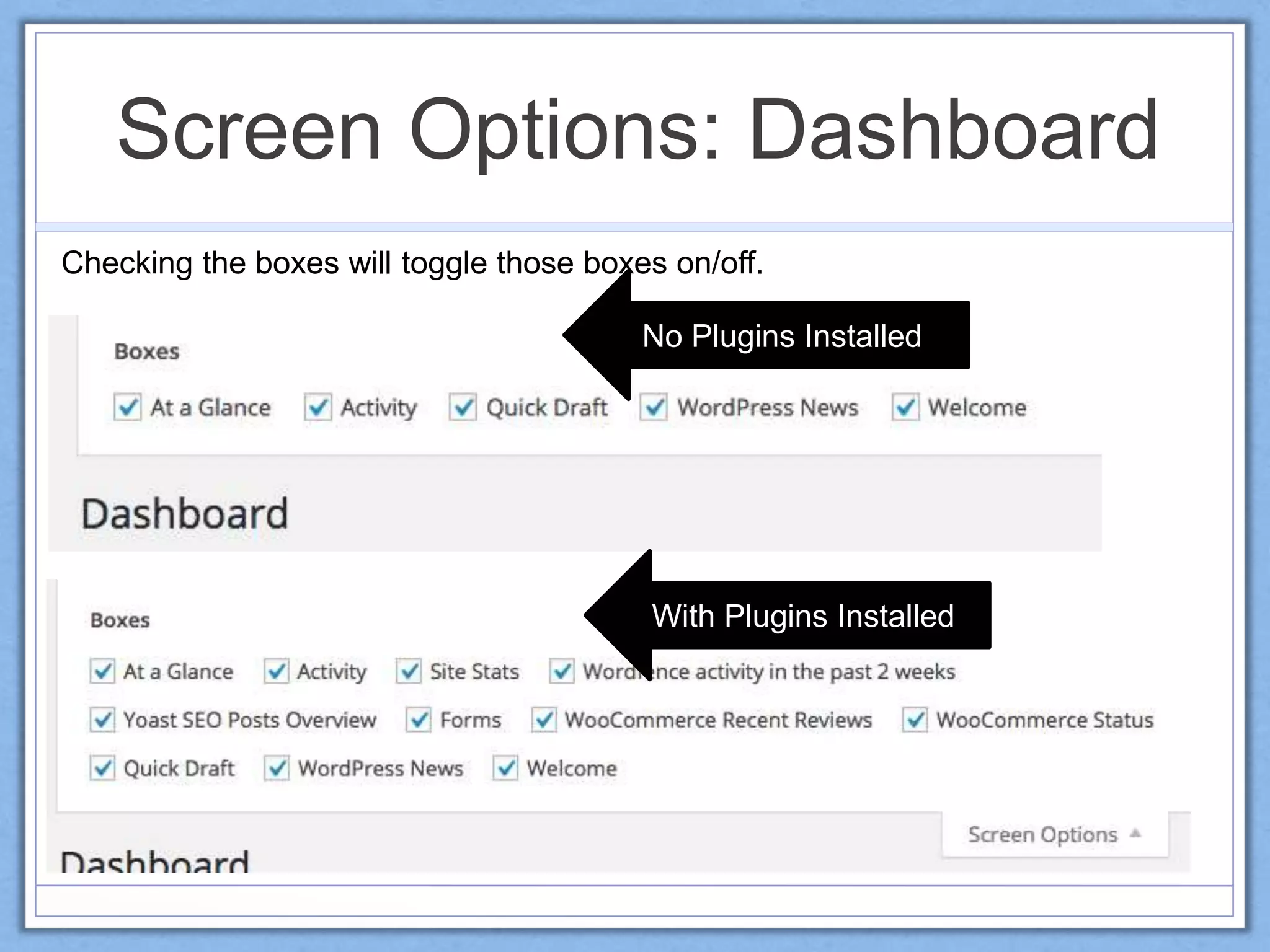
Screen Options: Dashboard
Checking the boxes will toggle those boxes on/off.
No Plugins Installed
With Plugins Installed
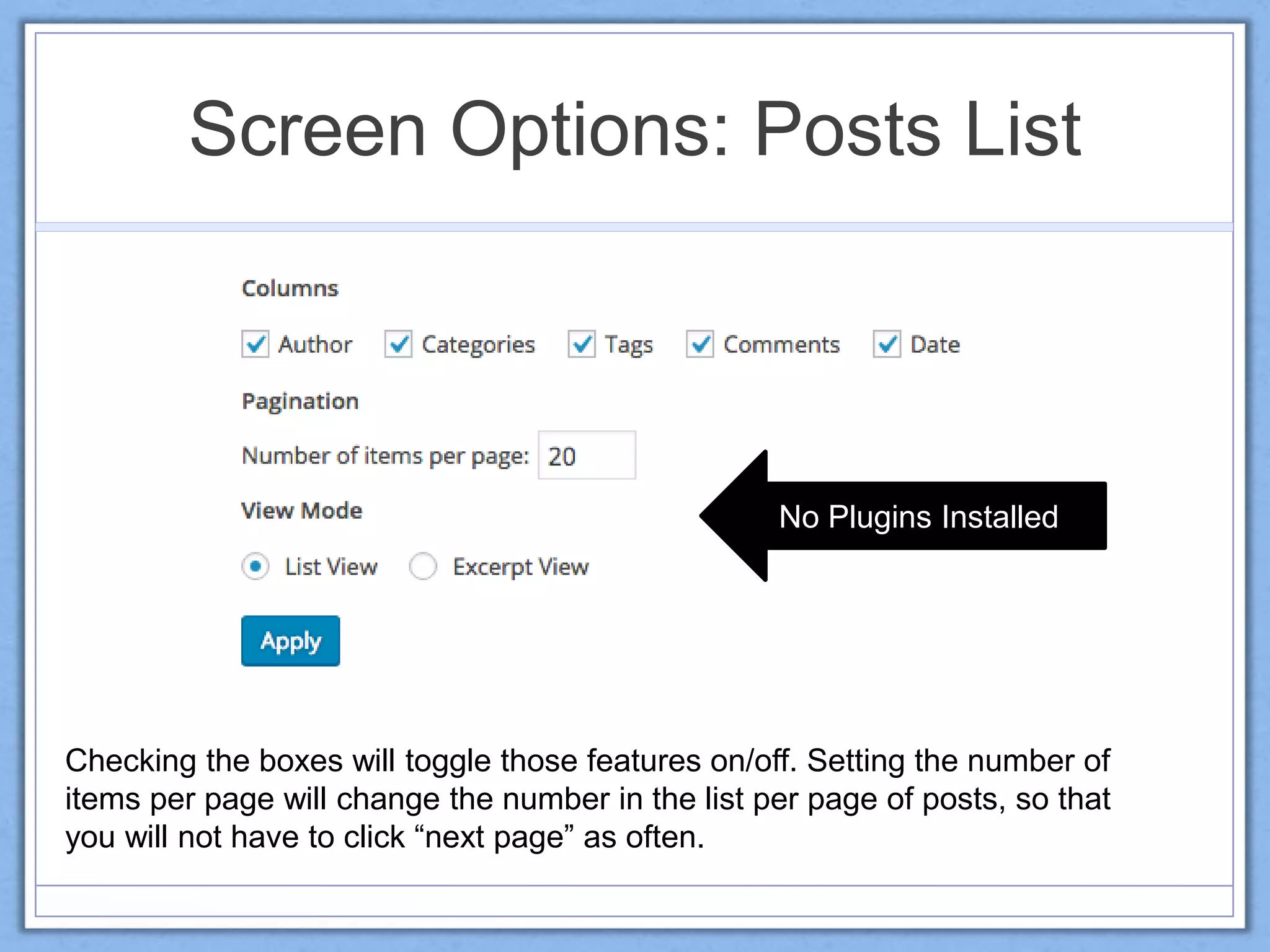
Screen Options: Posts List
Checking the boxes will toggle those features on/off. Setting the number of
items per page will change the number in the list per page of posts, so that
you will not have to click “next page” as often.
No Plugins Installed
Screen Options: Posts List
Checking the boxes will toggle those features on/off. Setting the number of
items per page will change the number in the list per page of posts, so that
you will not have to click “next page” as often.
With Plugins Installed
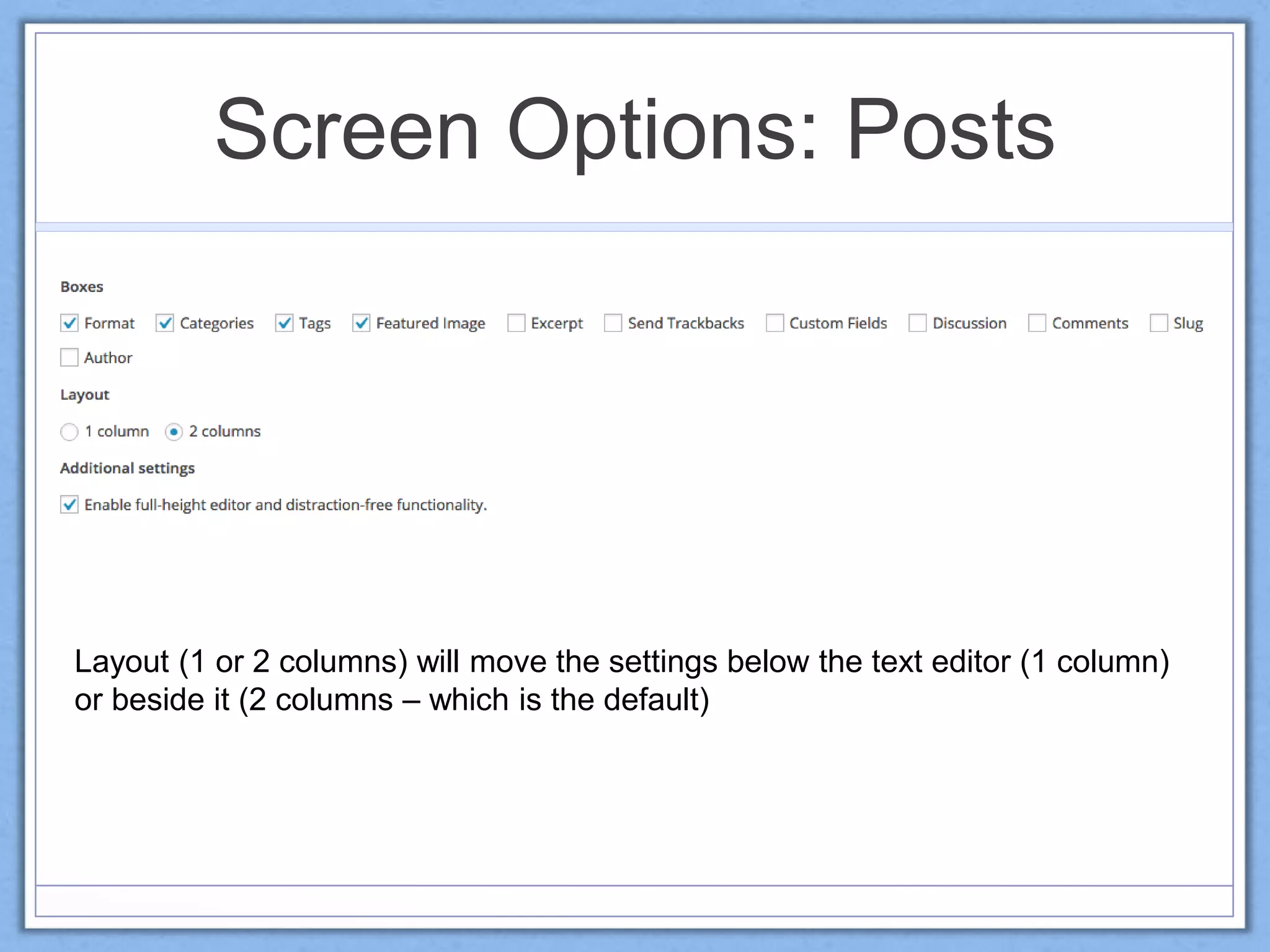
Screen Options: Posts
Layout (1 or 2 columns) will move the settings below the text editor (1 column)
or beside it (2 columns – which is the default)
Screen Options: Pages List
Checking the boxes will change the columns on the pages list. Here is where
some of the plugins options can really come in handy.
Screen Options: Pages List
Checking the boxes will change the columns on the pages list. Here is where
some of the plugins options can really come in handy.
With Plugins Installed
Screen Options: Pages
Very similar to post options.
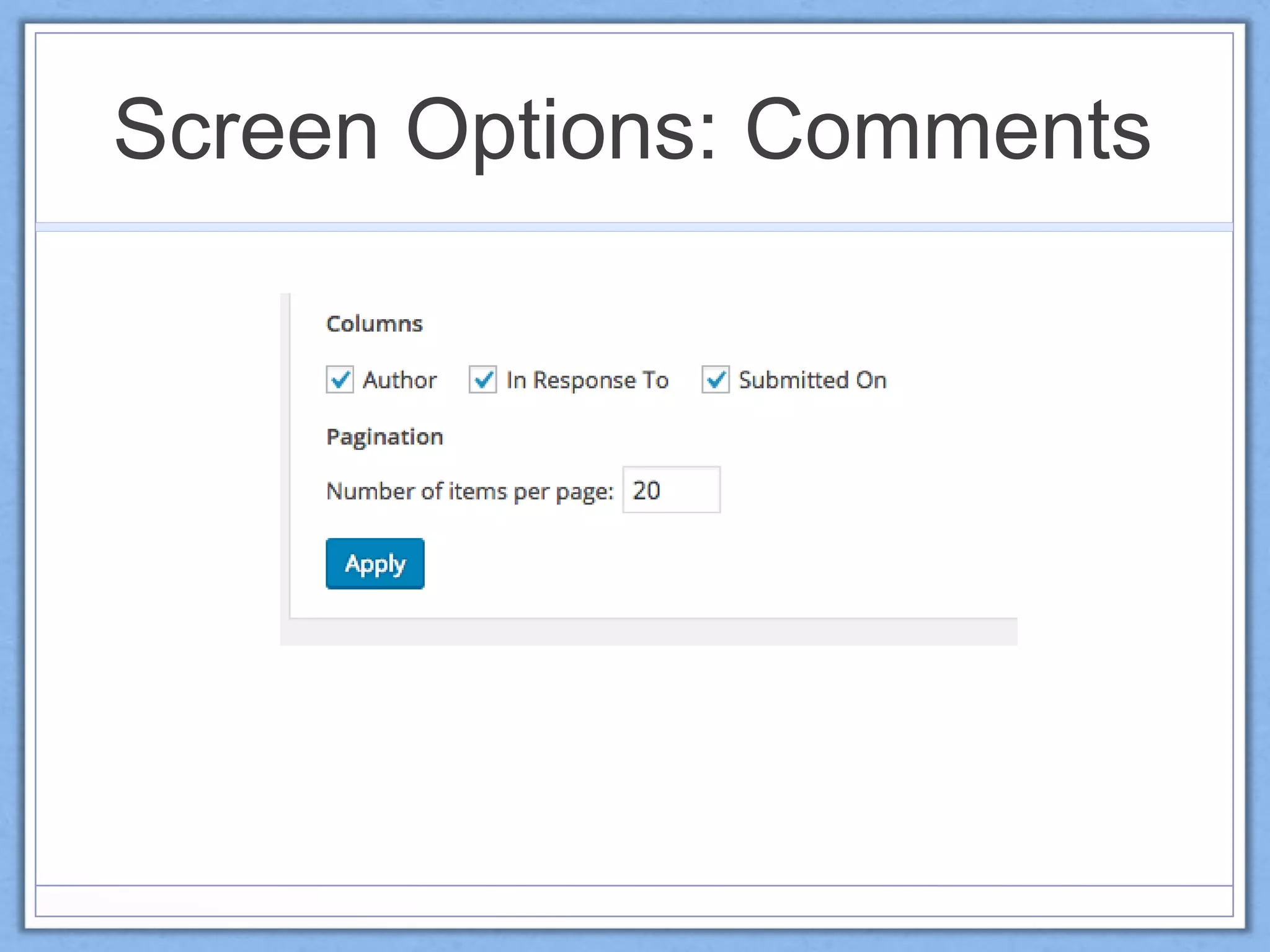
Screen Options: Comments
Screen Options: Widgets
Enabling accessibility mode changes the
“add” from drop down menus to simple
“add” buttons.
Screen Options: Widgets
Screen Options: Menus
Toggling “link target” will
allow you to enable links
to open in a new tab.
Screen Options: Plugins
Screen Options: Users
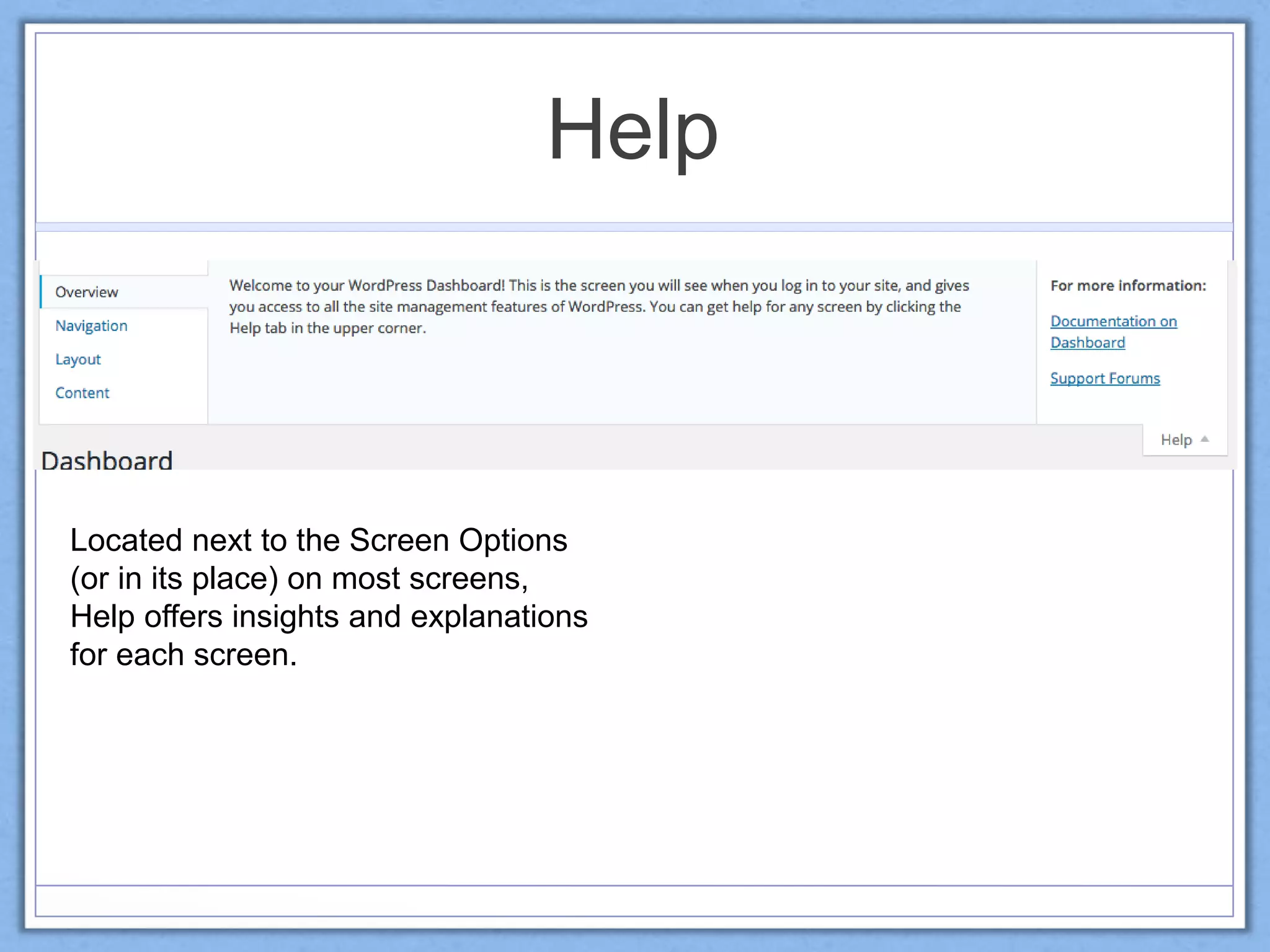
Help
Located next to the Screen Options
(or in its place) on most screens,
Help offers insights and explanations
for each screen.
Post Options
• Stick post to front page (overrides
chronological blog/posts and keeps this post
on the blog home page)
• Password Protect – only those with the
password will gain access to the post
• Private posts will be accessible only to those
whose user settings meet the criteria
• Publication date – can be set in the future to
post at a later date, or can be edited to
change the order of posts in your blog.
Page Options
• Status Update (published, pending
review, draft)
• Password Protect – only those with the
password will gain access to the page
• Private pages will be accessible only to
those whose user settings meet the
criteria
• Publication date – can be set in the future
to post at a later date, or can be edited to
change the order of posts in your blog.
• Revisions – scroll through previous
revisions to restore to an earlier point
Editor Options
Paste as Text
Clear Formatting
Special
Character
Toolbar ToggleHorizontal Line Read More
Keyboard Shortcuts
Proofread Writing
Editor Options
Distraction-free Writing
Text Editing
Visual Editing
Quick Edit Features
Quick Edit Features
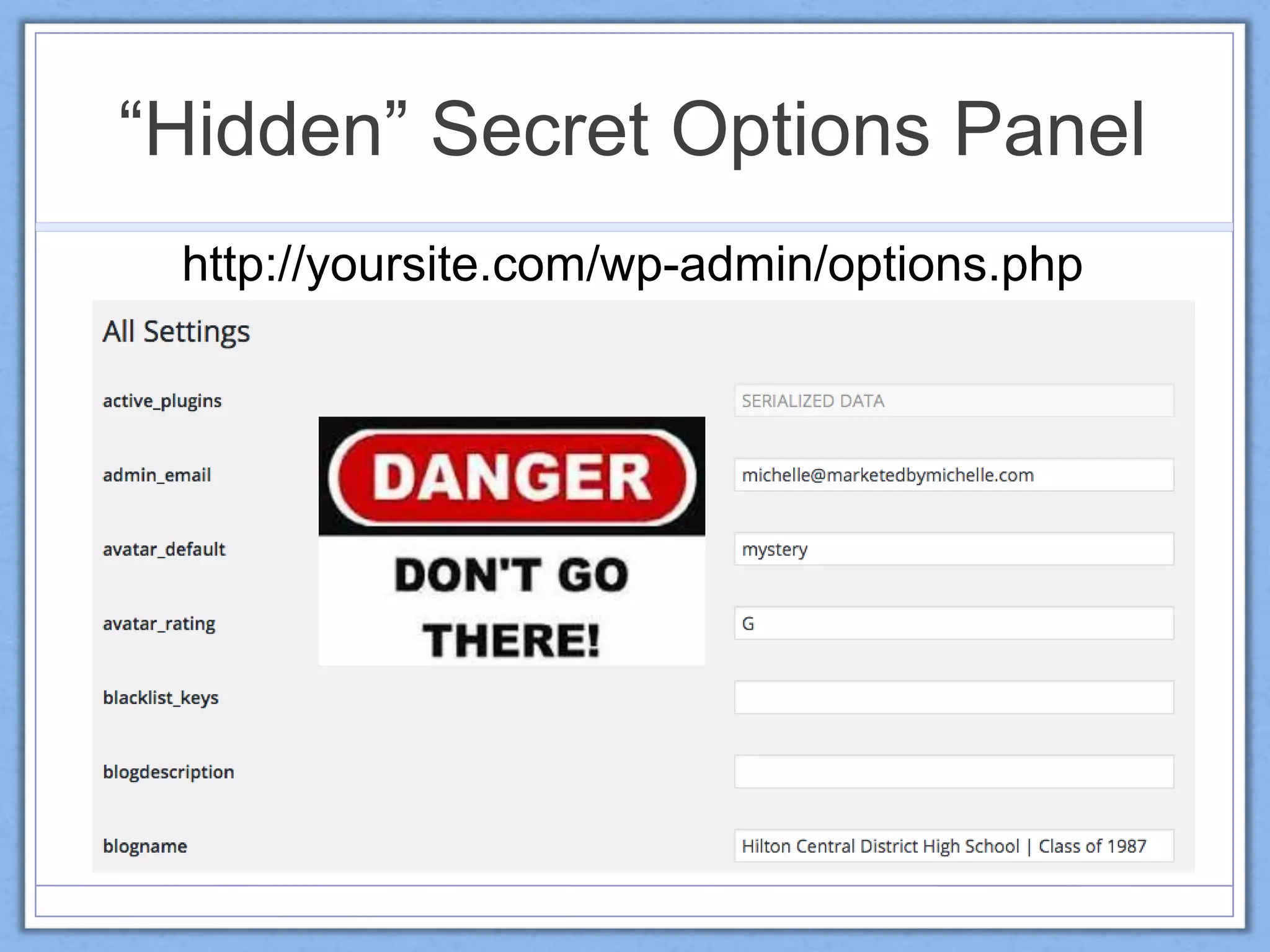
“Hidden” Secret Options Panel
http://yoursite.com/wp-admin/options.php
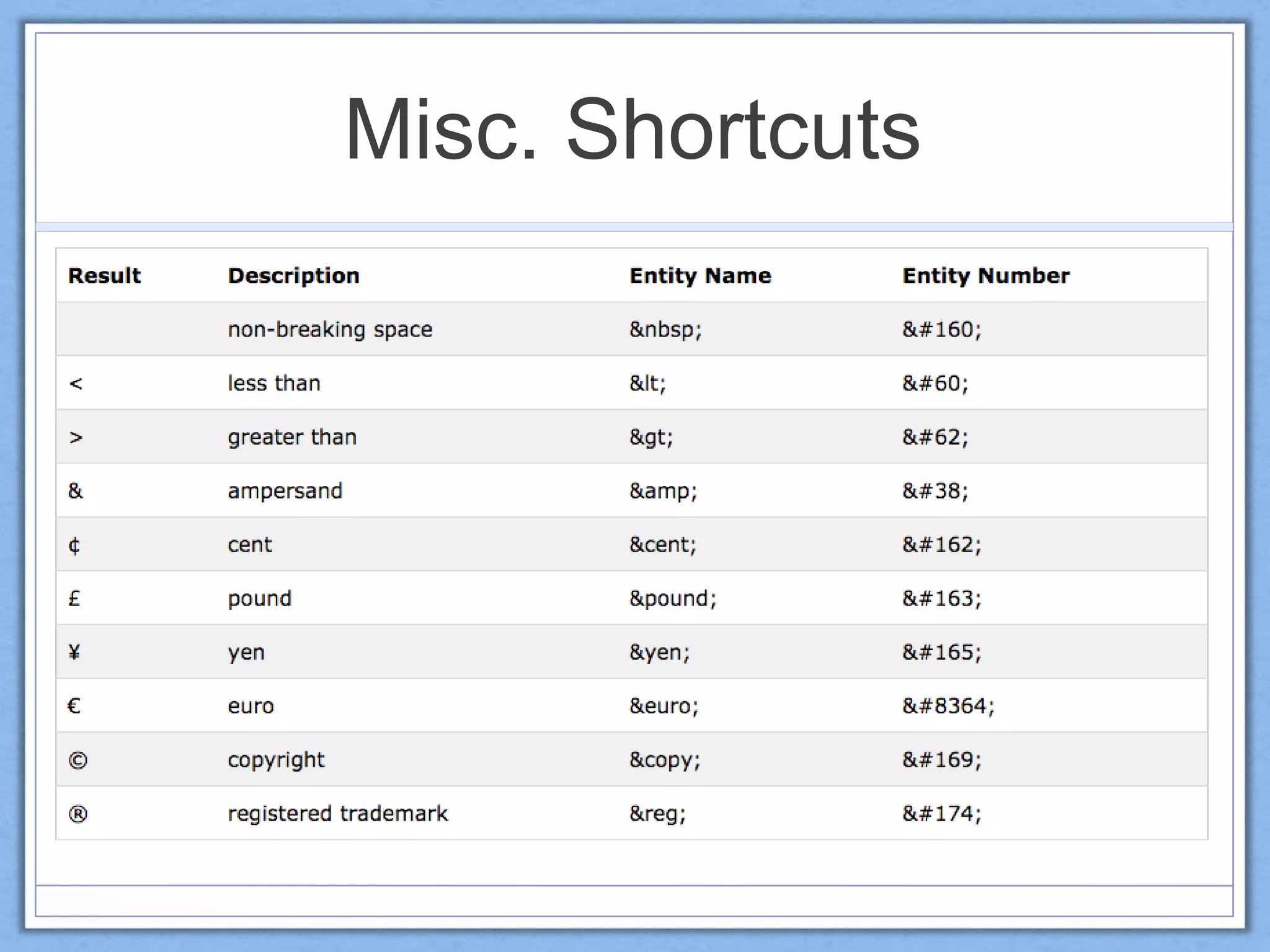
Misc. Shortcuts
Misc. Shortcuts
Favoriting Plugins
Favoriting Plugins
Thank You
• Michelle Ames, Marketing Diva
• Twitter: @michelleames
• SlideShare:
slideshare.net/michelleames

WCTO16

  • 1.
    Michelle Ames, MBA MarketingDiva Marketed by Michelle, LLC “Hidden” WordPress Features
  • 2.
    Who Am I? •Overextended, overcommitted, entrepreneur & volunteer • Avid Scrabble™ player • Tea snob • Mom to an adult • WordPress fanatic • 11th Hour Expert Cat Lover
  • 3.
  • 4.
    Less-Known Features • ScreenOptions • Help • Post Options • Page Options • Post/Page Editor • Quick Edit You’re not jumping without a parachute.
  • 5.
    Screen Options • ScreenOptions appear on many of the admin pages, specifically: dashboard, pages, posts, comments, widgets, menu, plugins, & users • Screen Options will include standard options, but also may include additional options depending on installed plugins (i.e., Yoast SEO, woocommerce, etc.)
  • 6.
    Screen Options Screen optionswill appear in a pull-down in the upper right-hand corner (under “howdy”) on applicable screens.
  • 7.
    Screen Options: Dashboard Checkingthe boxes will toggle those boxes on/off. No Plugins Installed With Plugins Installed
  • 8.
    Screen Options: PostsList Checking the boxes will toggle those features on/off. Setting the number of items per page will change the number in the list per page of posts, so that you will not have to click “next page” as often. No Plugins Installed
  • 9.
    Screen Options: PostsList Checking the boxes will toggle those features on/off. Setting the number of items per page will change the number in the list per page of posts, so that you will not have to click “next page” as often. With Plugins Installed
  • 10.
    Screen Options: Posts Layout(1 or 2 columns) will move the settings below the text editor (1 column) or beside it (2 columns – which is the default)
  • 11.
    Screen Options: PagesList Checking the boxes will change the columns on the pages list. Here is where some of the plugins options can really come in handy.
  • 12.
    Screen Options: PagesList Checking the boxes will change the columns on the pages list. Here is where some of the plugins options can really come in handy. With Plugins Installed
  • 13.
    Screen Options: Pages Verysimilar to post options.
  • 14.
  • 15.
    Screen Options: Widgets Enablingaccessibility mode changes the “add” from drop down menus to simple “add” buttons.
  • 16.
  • 17.
    Screen Options: Menus Toggling“link target” will allow you to enable links to open in a new tab.
  • 18.
  • 19.
  • 20.
    Help Located next tothe Screen Options (or in its place) on most screens, Help offers insights and explanations for each screen.
  • 21.
    Post Options • Stickpost to front page (overrides chronological blog/posts and keeps this post on the blog home page) • Password Protect – only those with the password will gain access to the post • Private posts will be accessible only to those whose user settings meet the criteria • Publication date – can be set in the future to post at a later date, or can be edited to change the order of posts in your blog.
  • 22.
    Page Options • StatusUpdate (published, pending review, draft) • Password Protect – only those with the password will gain access to the page • Private pages will be accessible only to those whose user settings meet the criteria • Publication date – can be set in the future to post at a later date, or can be edited to change the order of posts in your blog. • Revisions – scroll through previous revisions to restore to an earlier point
  • 23.
    Editor Options Paste asText Clear Formatting Special Character Toolbar ToggleHorizontal Line Read More Keyboard Shortcuts Proofread Writing
  • 24.
  • 25.
  • 26.
  • 27.
    “Hidden” Secret OptionsPanel http://yoursite.com/wp-admin/options.php
  • 28.
  • 29.
  • 30.
  • 31.
  • 32.
    Thank You • MichelleAmes, Marketing Diva • Twitter: @michelleames • SlideShare: slideshare.net/michelleames