Eclipse Shortcut In Android
 Developing [Most Usuage]
Eclipse Shortcut In Android Developing
                [Most Usuage]
Using shortcuts make a developer more productive. The following lists
  the most important shortcuts for Eclipse.
* Shortcut to launch the application
         Ctrl + F11(windows)
         Cmd+fn+shift+F11(for MacOSX.Luckily I dont have Mac!!)
* Import Statement
      Ctrl+Shift+o (o for organize not 0)
      Ctrl + Space to get the completions
       Ctrl + F1, which will bring up quick fixes when you are over a
piece of code with problem.
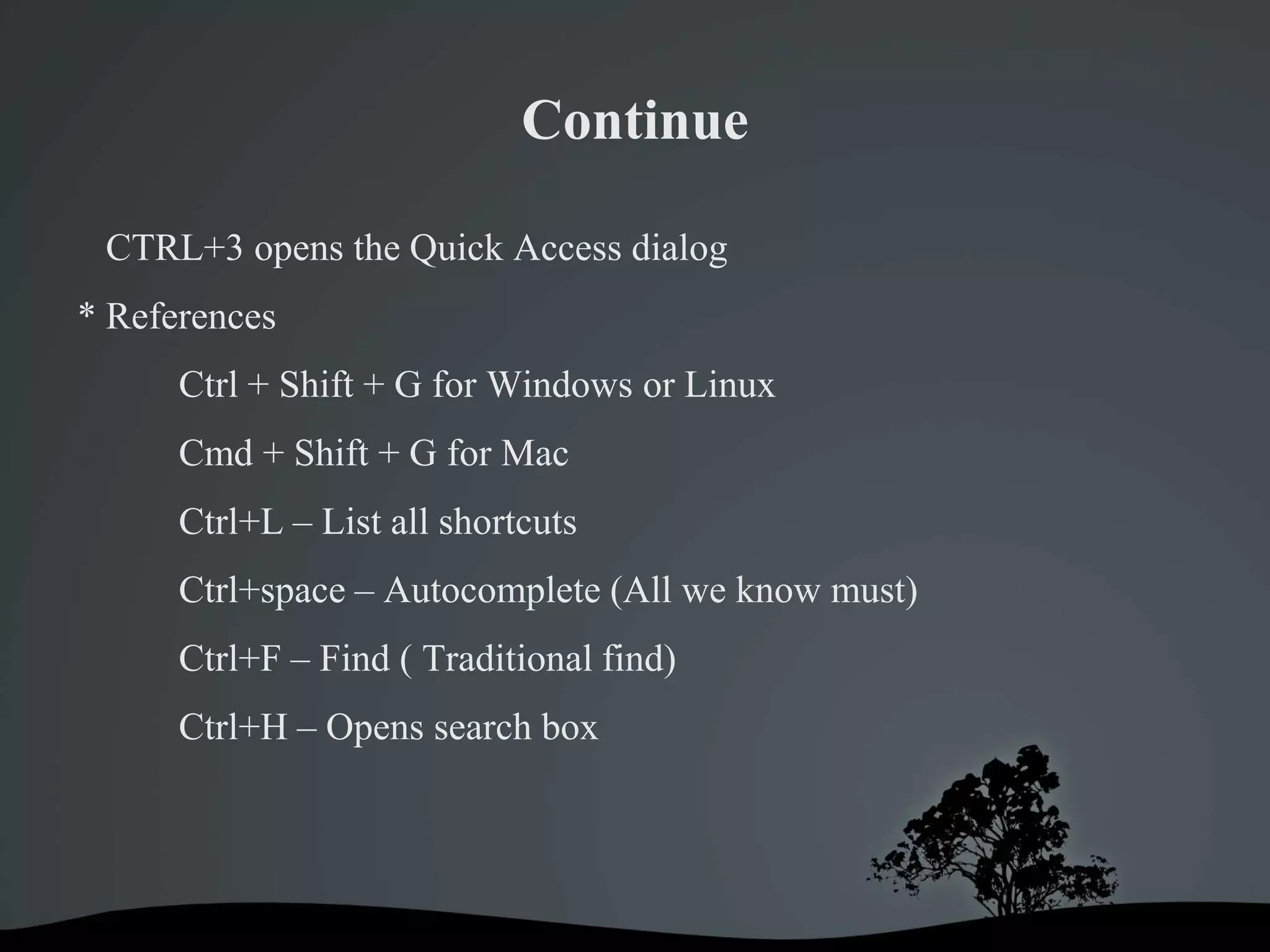
Continue

 CTRL+3 opens the Quick Access dialog
* References
      Ctrl + Shift + G for Windows or Linux
      Cmd + Shift + G for Mac
      Ctrl+L – List all shortcuts
      Ctrl+space – Autocomplete (All we know must)
      Ctrl+F – Find ( Traditional find)
      Ctrl+H – Opens search box
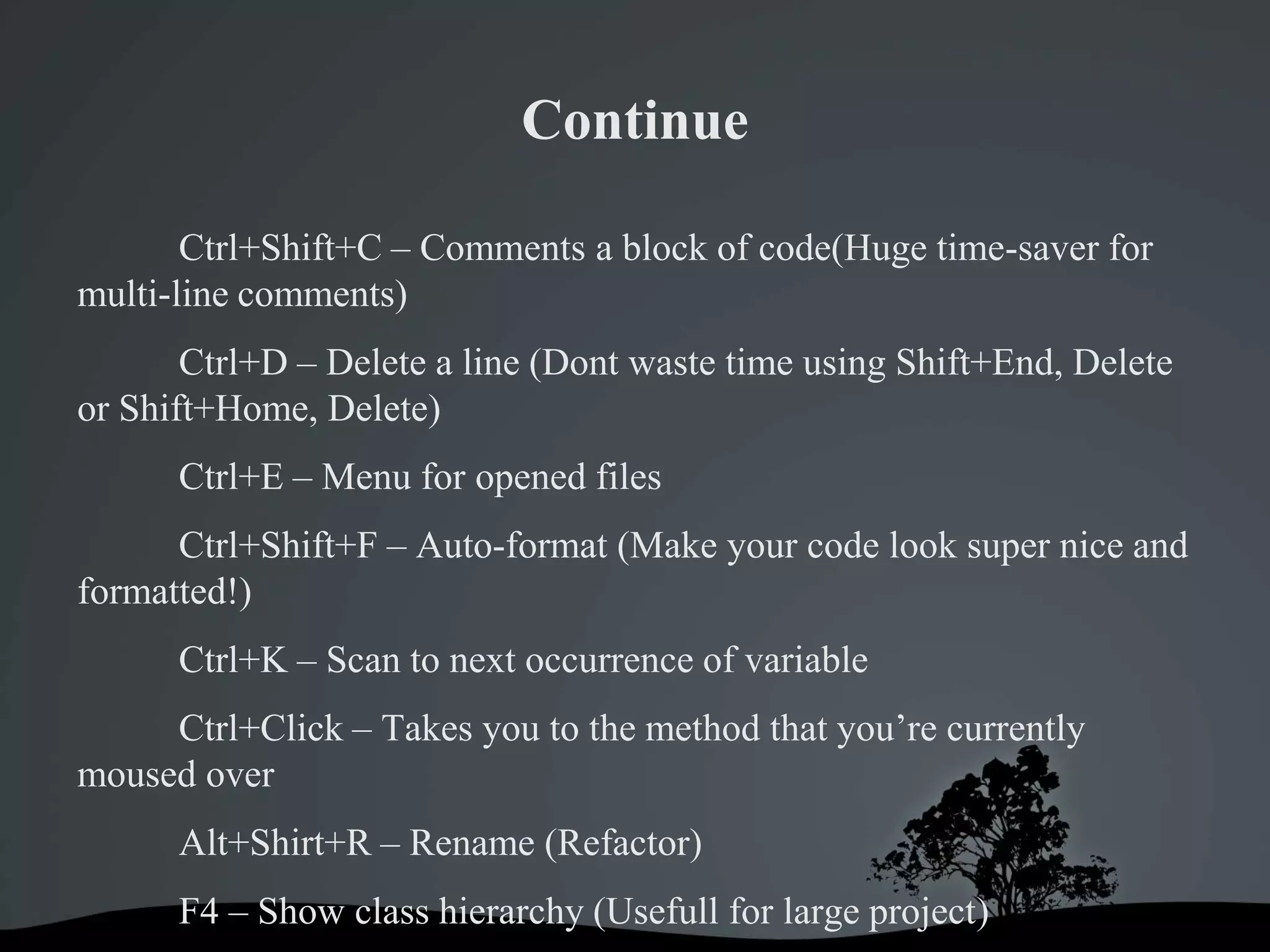
Continue

       Ctrl+Shift+C – Comments a block of code(Huge time-saver for
multi-line comments)
       Ctrl+D – Delete a line (Dont waste time using Shift+End, Delete
or Shift+Home, Delete)
      Ctrl+E – Menu for opened files
      Ctrl+Shift+F – Auto-format (Make your code look super nice and
formatted!)
      Ctrl+K – Scan to next occurrence of variable
     Ctrl+Click – Takes you to the method that you’re currently
moused over
      Alt+Shirt+R – Rename (Refactor)
      F4 – Show class hierarchy (Usefull for large project)
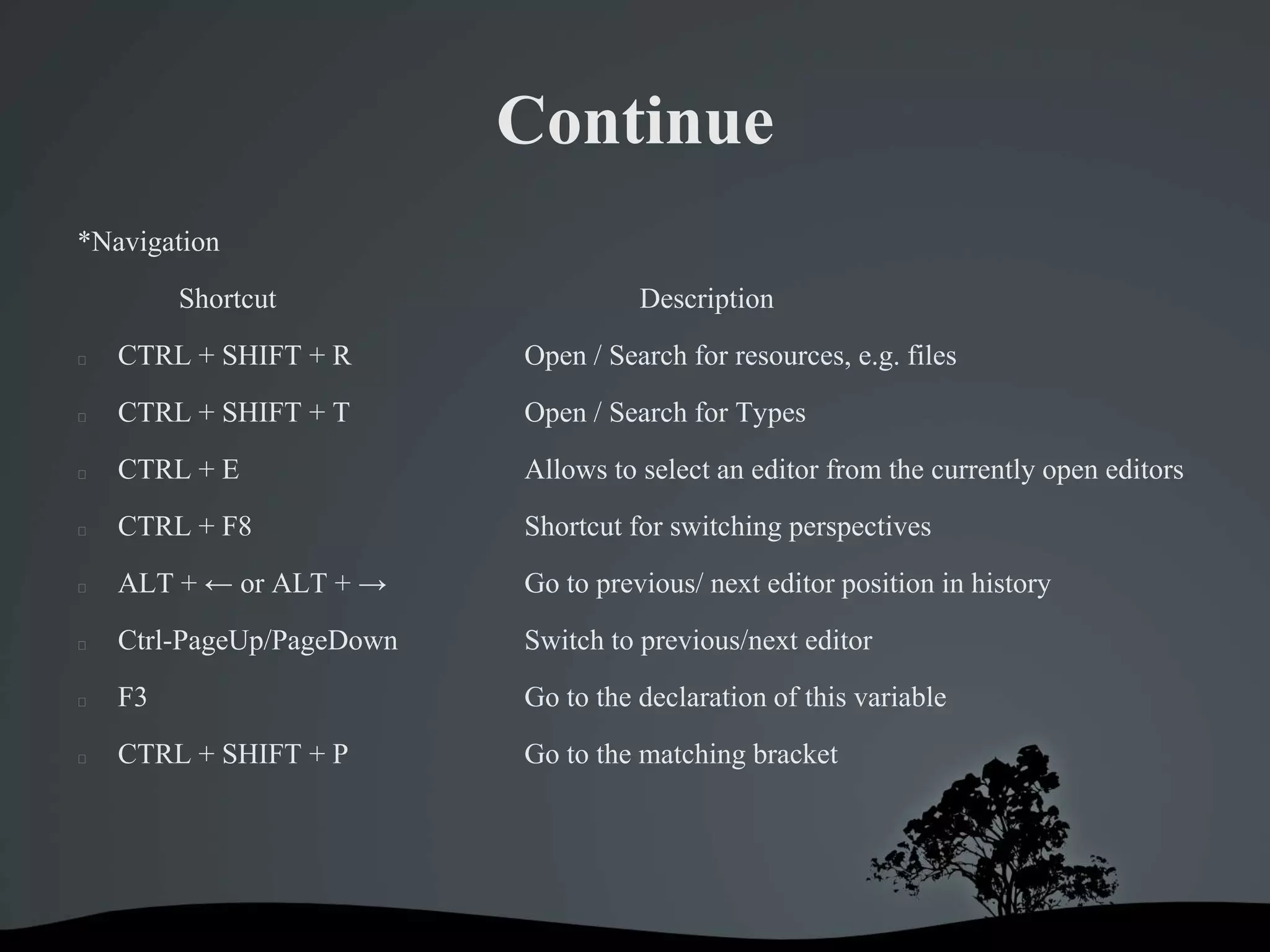
Continue
*Navigation
         Shortcut                    Description
   CTRL + SHIFT + R       Open / Search for resources, e.g. files
   CTRL + SHIFT + T       Open / Search for Types
   CTRL + E               Allows to select an editor from the currently open editors
   CTRL + F8              Shortcut for switching perspectives
   ALT + ← or ALT + →     Go to previous/ next editor position in history
   Ctrl-PageUp/PageDown   Switch to previous/next editor
   F3                     Go to the declaration of this variable
   CTRL + SHIFT + P       Go to the matching bracket
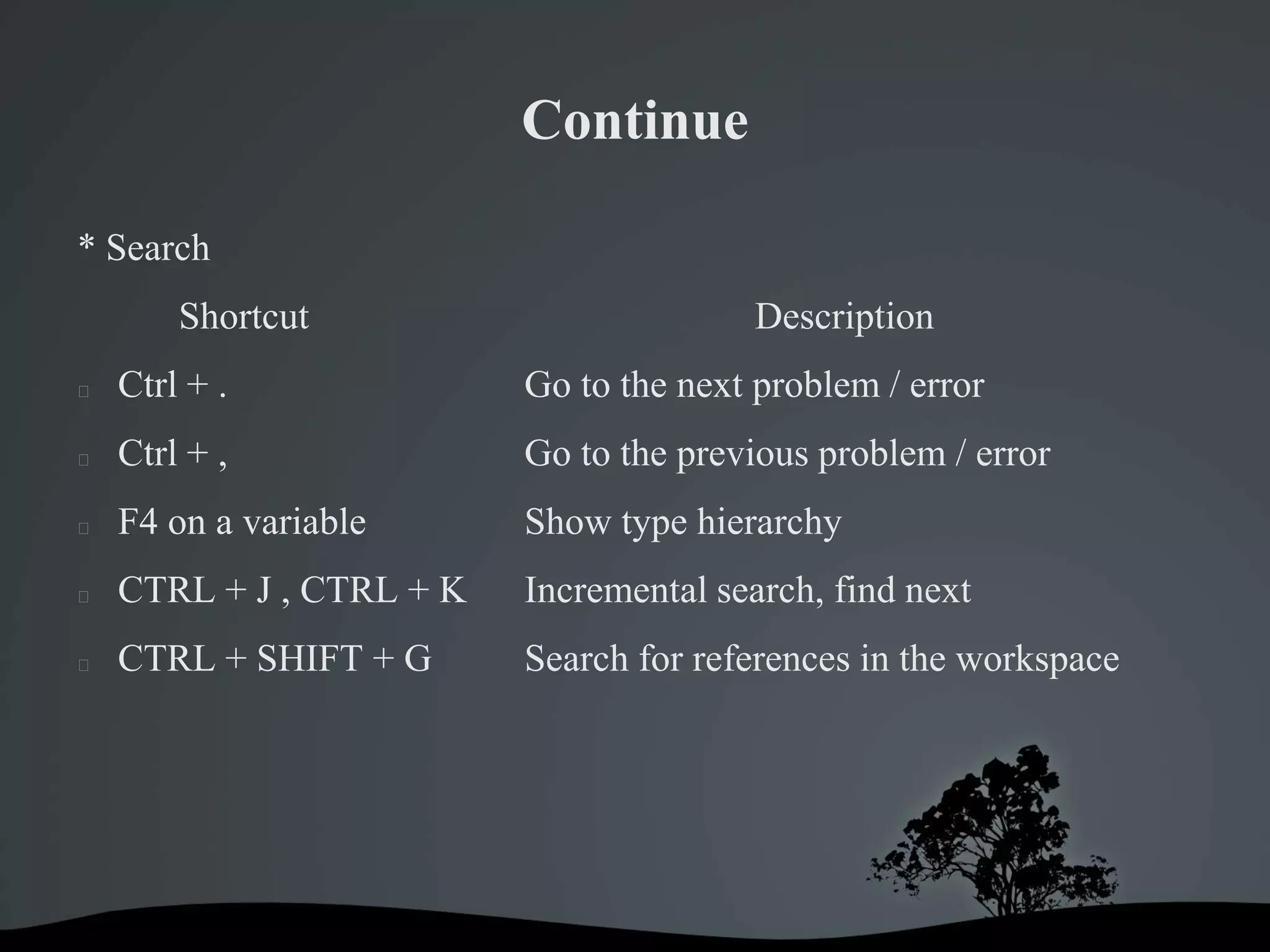
Continue

* Search
        Shortcut                         Description
   Ctrl + .              Go to the next problem / error
   Ctrl + ,              Go to the previous problem / error
   F4 on a variable      Show type hierarchy
   CTRL + J , CTRL + K   Incremental search, find next
   CTRL + SHIFT + G      Search for references in the workspace
Continue

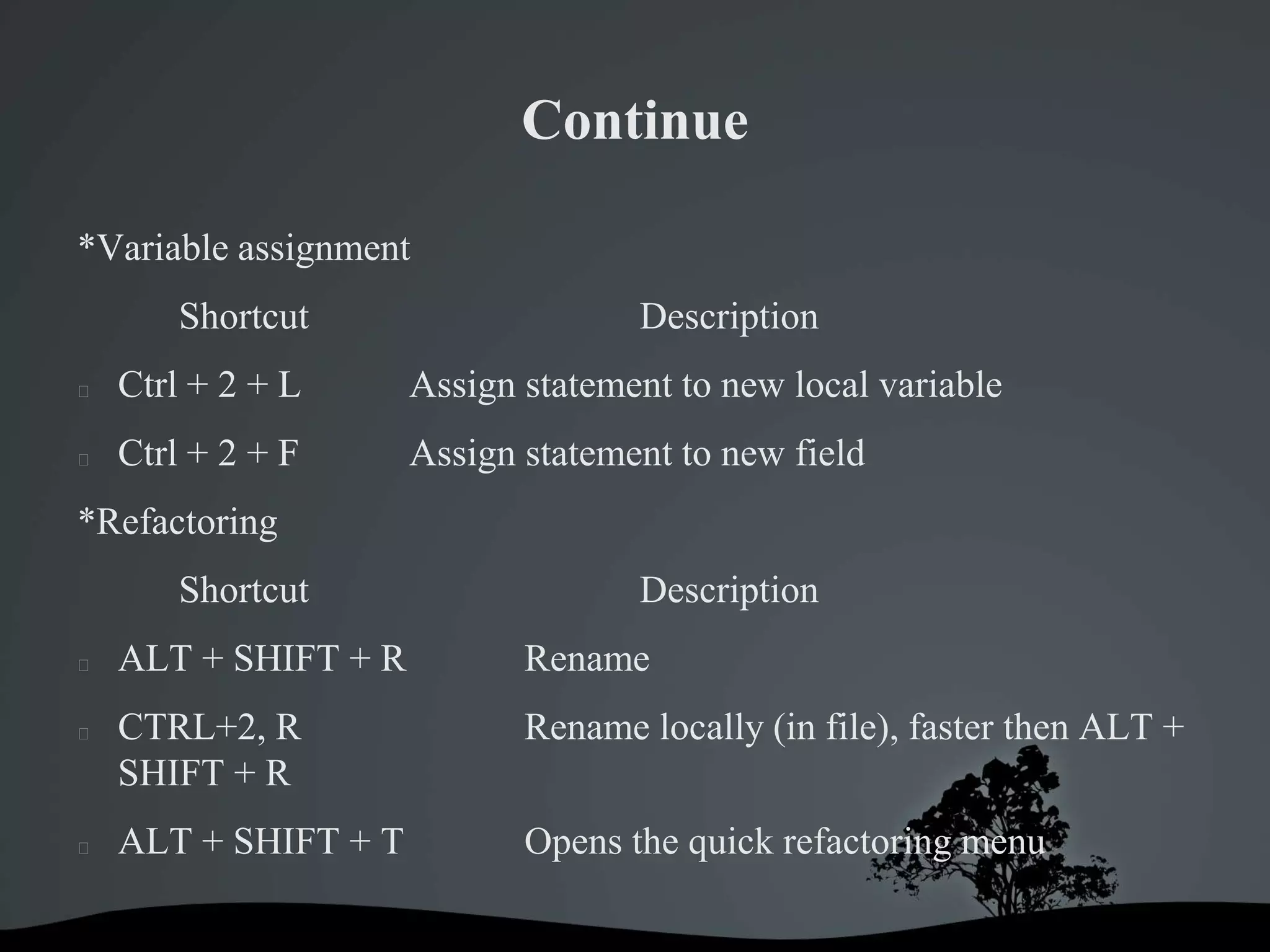
*Variable assignment
        Shortcut                    Description
   Ctrl + 2 + L      Assign statement to new local variable
   Ctrl + 2 + F      Assign statement to new field
*Refactoring
        Shortcut                    Description
   ALT + SHIFT + R          Rename
   CTRL+2, R                Rename locally (in file), faster then ALT +
    SHIFT + R
   ALT + SHIFT + T          Opens the quick refactoring menu

Eclipse shortcut[most usuage]

  • 1.
    Eclipse Shortcut InAndroid Developing [Most Usuage]
  • 2.
    Eclipse Shortcut InAndroid Developing [Most Usuage] Using shortcuts make a developer more productive. The following lists the most important shortcuts for Eclipse. * Shortcut to launch the application Ctrl + F11(windows) Cmd+fn+shift+F11(for MacOSX.Luckily I dont have Mac!!) * Import Statement Ctrl+Shift+o (o for organize not 0) Ctrl + Space to get the completions Ctrl + F1, which will bring up quick fixes when you are over a piece of code with problem.
  • 3.
    Continue CTRL+3 opensthe Quick Access dialog * References Ctrl + Shift + G for Windows or Linux Cmd + Shift + G for Mac Ctrl+L – List all shortcuts Ctrl+space – Autocomplete (All we know must) Ctrl+F – Find ( Traditional find) Ctrl+H – Opens search box
  • 4.
    Continue Ctrl+Shift+C – Comments a block of code(Huge time-saver for multi-line comments) Ctrl+D – Delete a line (Dont waste time using Shift+End, Delete or Shift+Home, Delete) Ctrl+E – Menu for opened files Ctrl+Shift+F – Auto-format (Make your code look super nice and formatted!) Ctrl+K – Scan to next occurrence of variable Ctrl+Click – Takes you to the method that you’re currently moused over Alt+Shirt+R – Rename (Refactor) F4 – Show class hierarchy (Usefull for large project)
  • 5.
    Continue *Navigation Shortcut Description  CTRL + SHIFT + R Open / Search for resources, e.g. files  CTRL + SHIFT + T Open / Search for Types  CTRL + E Allows to select an editor from the currently open editors  CTRL + F8 Shortcut for switching perspectives  ALT + ← or ALT + → Go to previous/ next editor position in history  Ctrl-PageUp/PageDown Switch to previous/next editor  F3 Go to the declaration of this variable  CTRL + SHIFT + P Go to the matching bracket
  • 6.
    Continue * Search Shortcut Description  Ctrl + . Go to the next problem / error  Ctrl + , Go to the previous problem / error  F4 on a variable Show type hierarchy  CTRL + J , CTRL + K Incremental search, find next  CTRL + SHIFT + G Search for references in the workspace
  • 7.
    Continue *Variable assignment Shortcut Description  Ctrl + 2 + L Assign statement to new local variable  Ctrl + 2 + F Assign statement to new field *Refactoring Shortcut Description  ALT + SHIFT + R Rename  CTRL+2, R Rename locally (in file), faster then ALT + SHIFT + R  ALT + SHIFT + T Opens the quick refactoring menu