I Workshop on command-
line tools
(day 1)
Center for Applied Genomics
Children's Hospital of Philadelphia
February 12-13, 2015
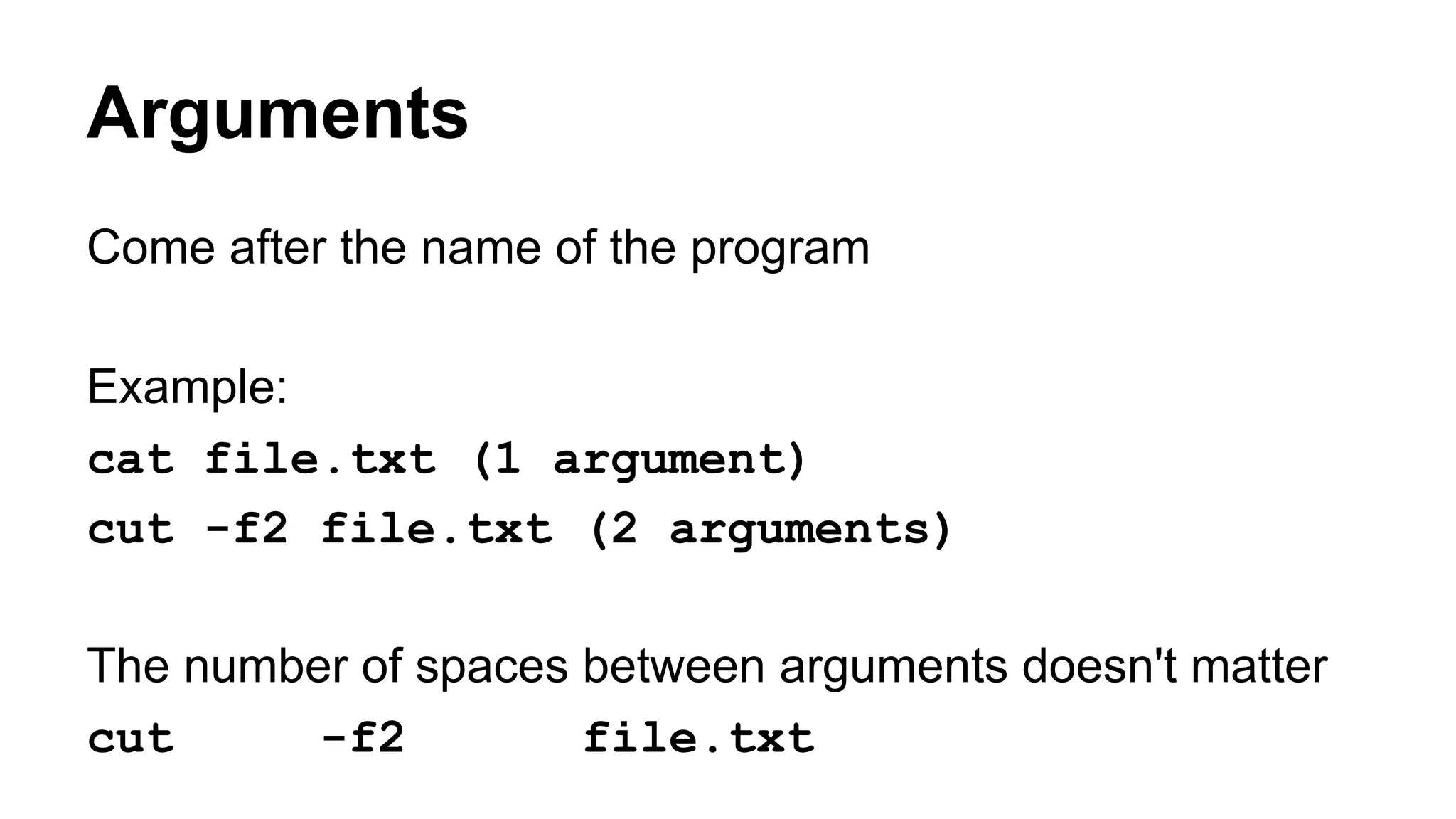
Arguments
Come after the name of the program
Example:
cat file.txt (1 argument)
cut -f2 file.txt (2 arguments)
The number of spaces between arguments doesn't matter
cut -f2 file.txt
man - command manual
man <command>
man cat
man echo
man awk
which - which command is being called
which <command>
which cat
which echo
which awk
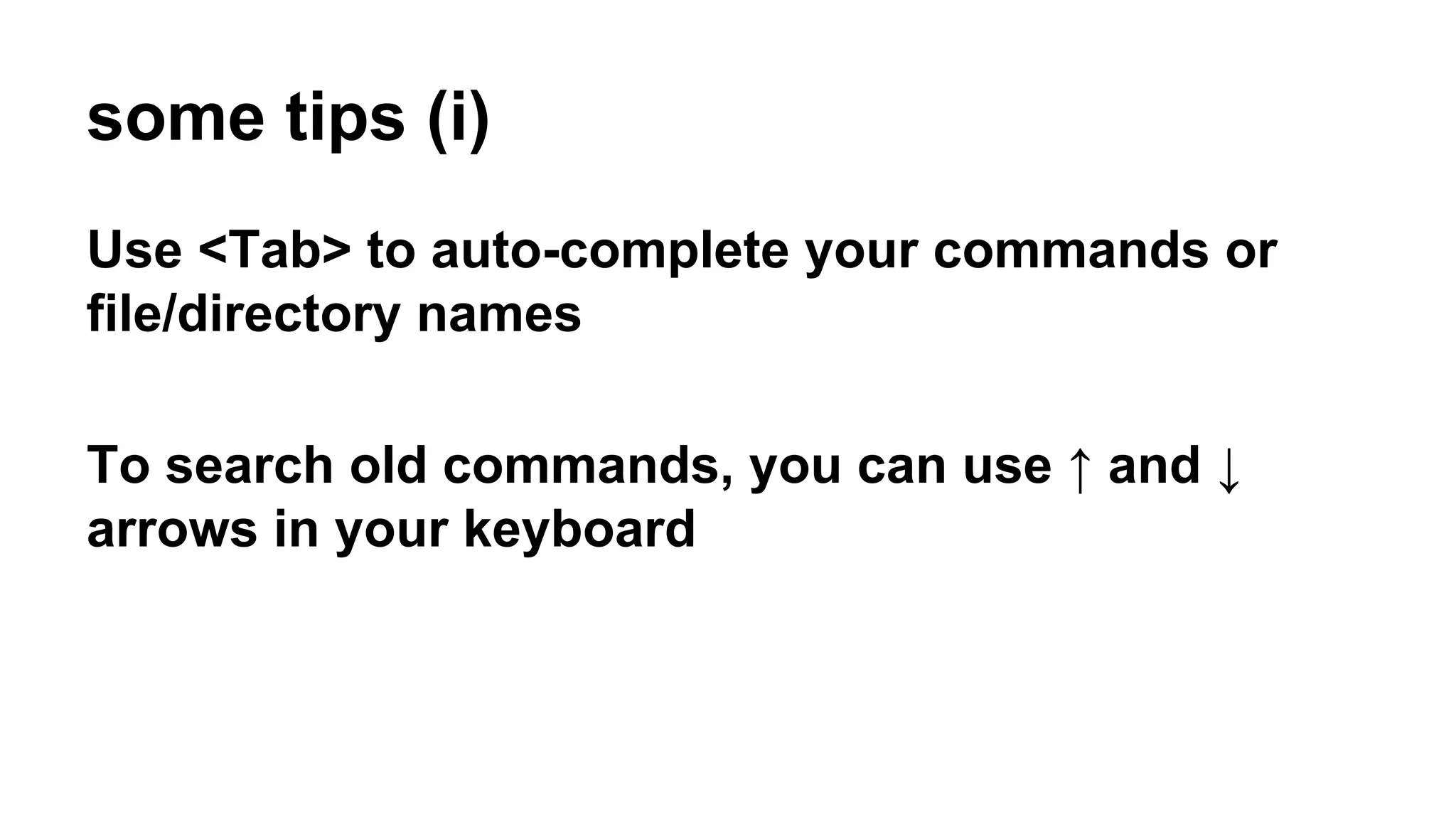
some tips (i)
Use <Tab> to auto-complete your commands or
file/directory names
To search old commands, you can use ↑ and ↓
arrows in your keyboard
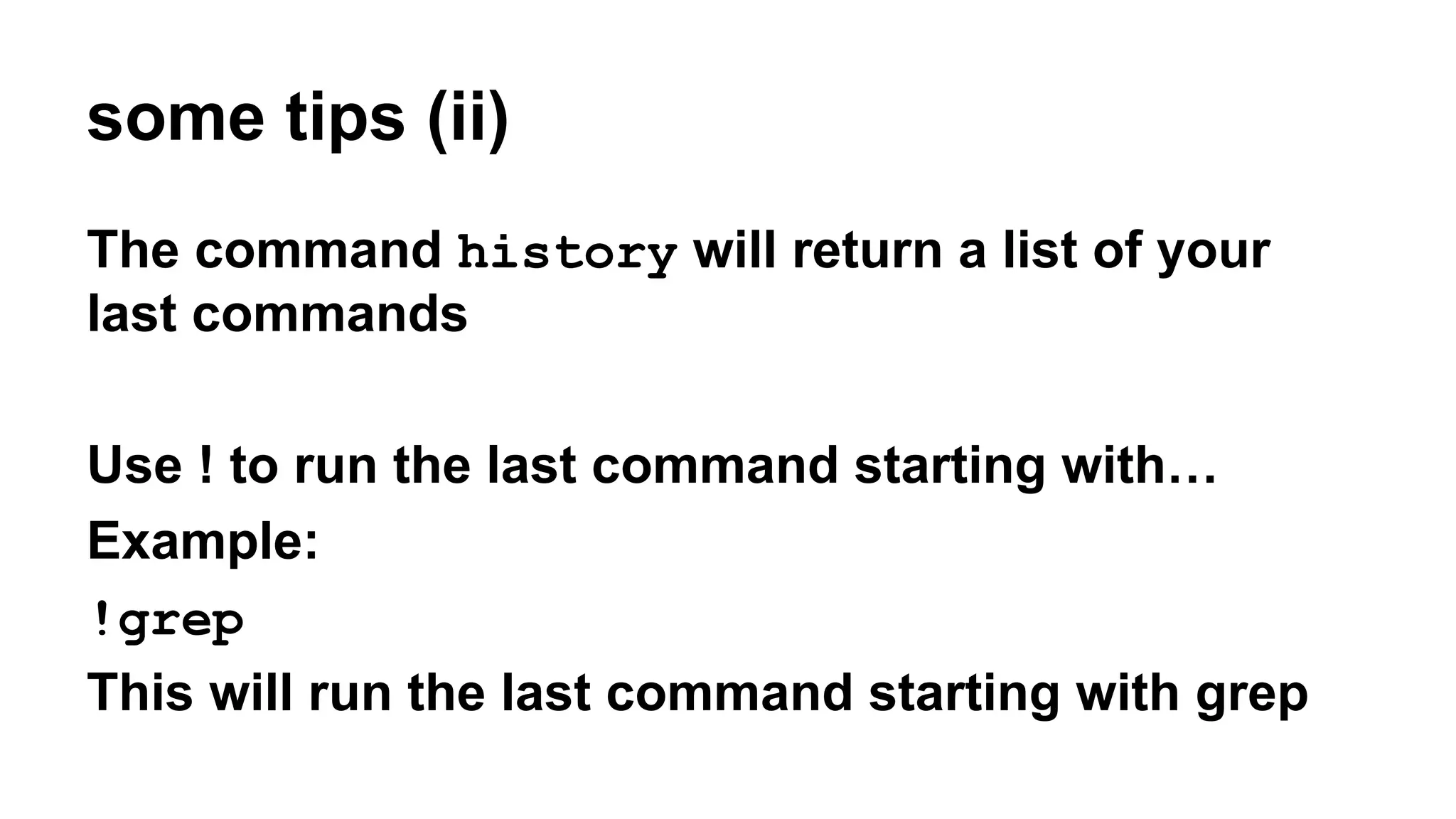
some tips (ii)
The command history will return a list of your
last commands
Use ! to run the last command starting with…
Example:
!grep
This will run the last command starting with grep
Special characters (i)
^ : beginning of line
$ : end of line or beginning of variable name
? : any character (with one occurrence)
* : any character (with 0 or more occurrences)
# : start comments
[ ] : define sets of characters
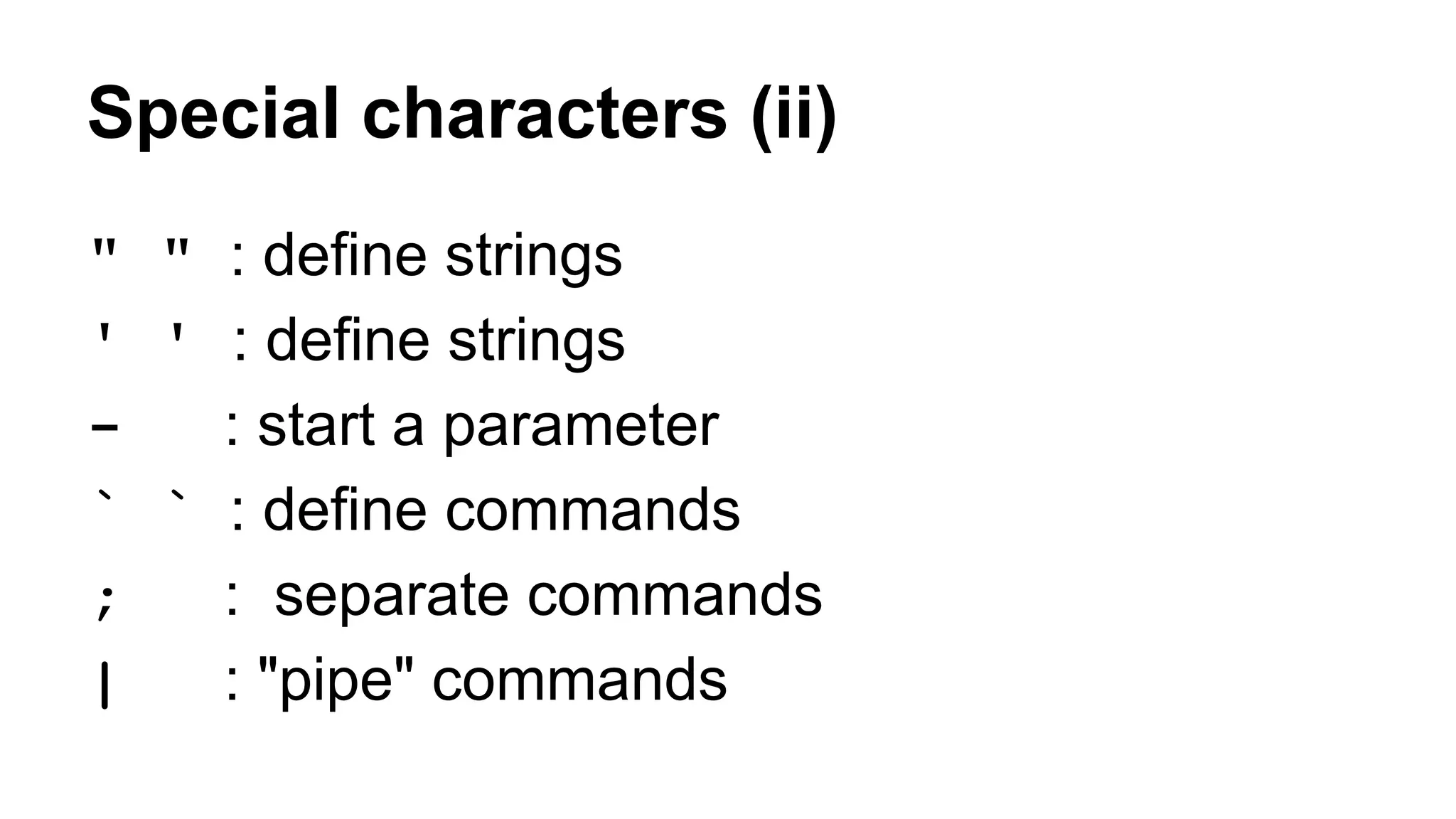
Special characters (ii)
" " : define strings
' ' : define strings
- : start a parameter
` ` : define commands
; : separate commands
| : "pipe" commands
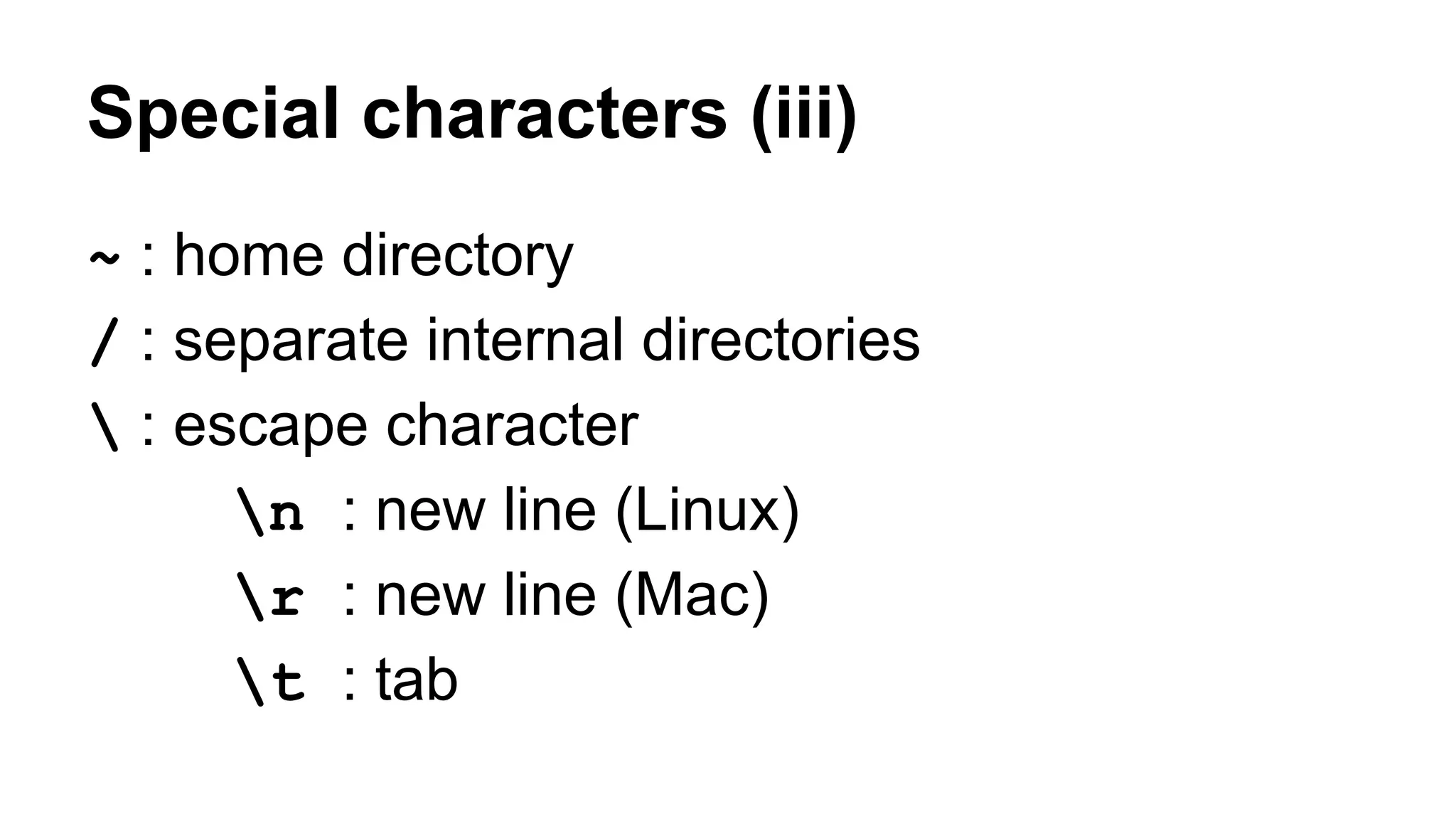
Special characters (iii)
~ : home directory
/ : separate internal directories
 : escape character
n : new line (Linux)
r : new line (Mac)
t : tab
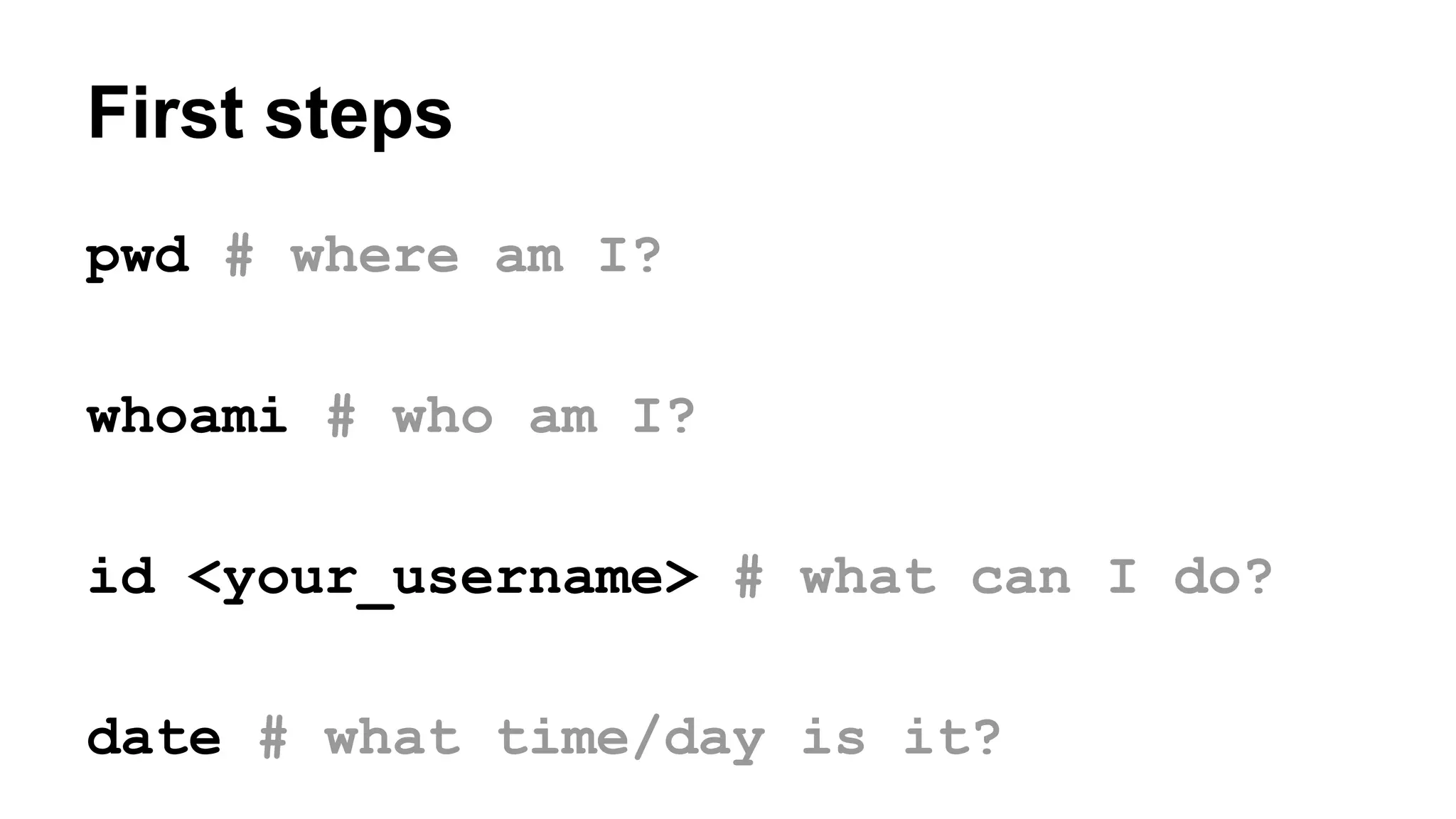
First steps
pwd # where am I?
whoami # who am I?
id <your_username> # what can I do?
date # what time/day is it?
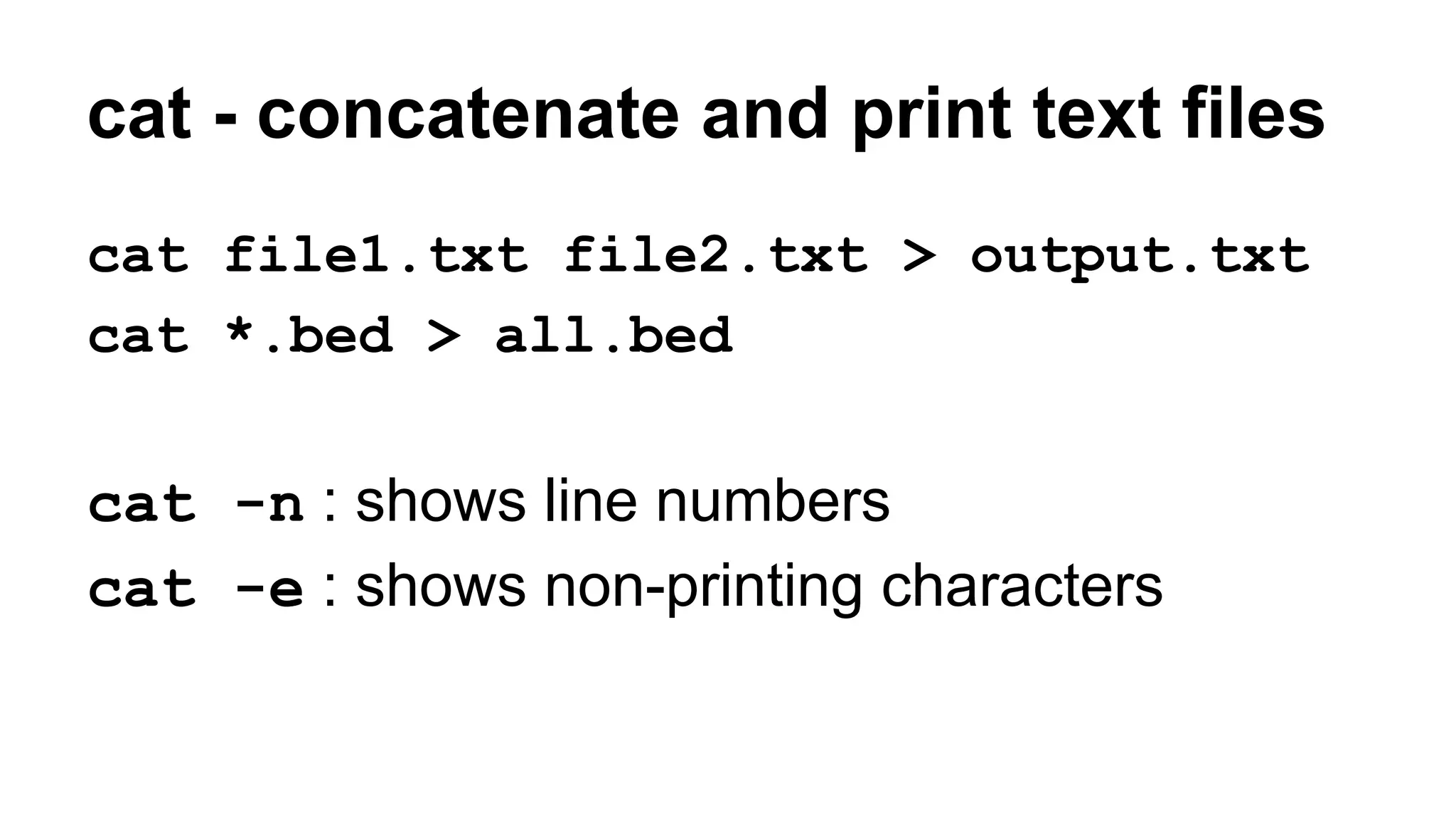
cat - concatenate and print text files
cat file1.txt file2.txt > output.txt
cat *.bed > all.bed
cat -n : shows line numbers
cat -e : shows non-printing characters
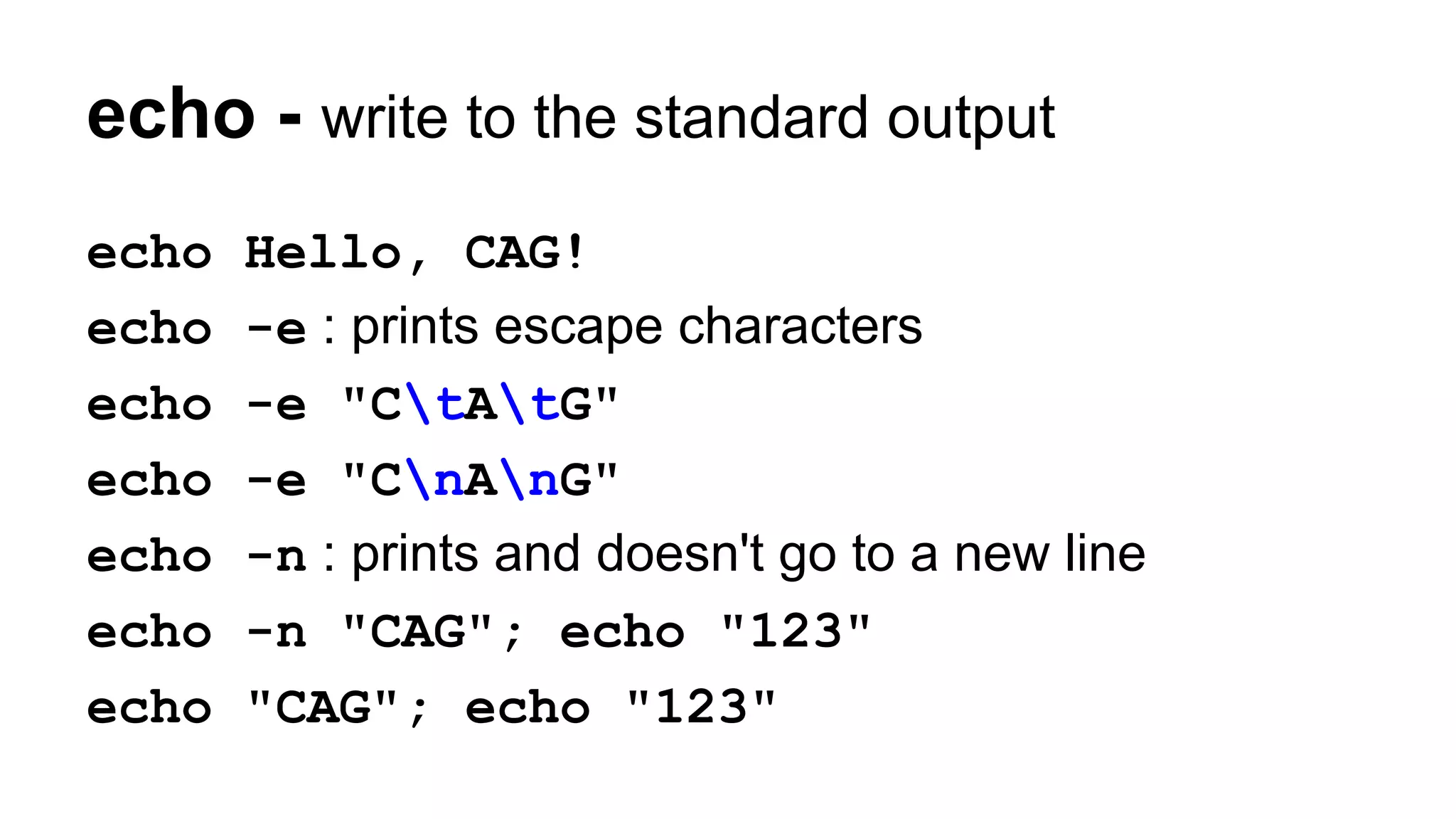
echo - write to the standard output
echo Hello, CAG!
echo -e : prints escape characters
echo -e "CtAtG"
echo -e "CnAnG"
echo -n : prints and doesn't go to a new line
echo -n "CAG"; echo "123"
echo "CAG"; echo "123"
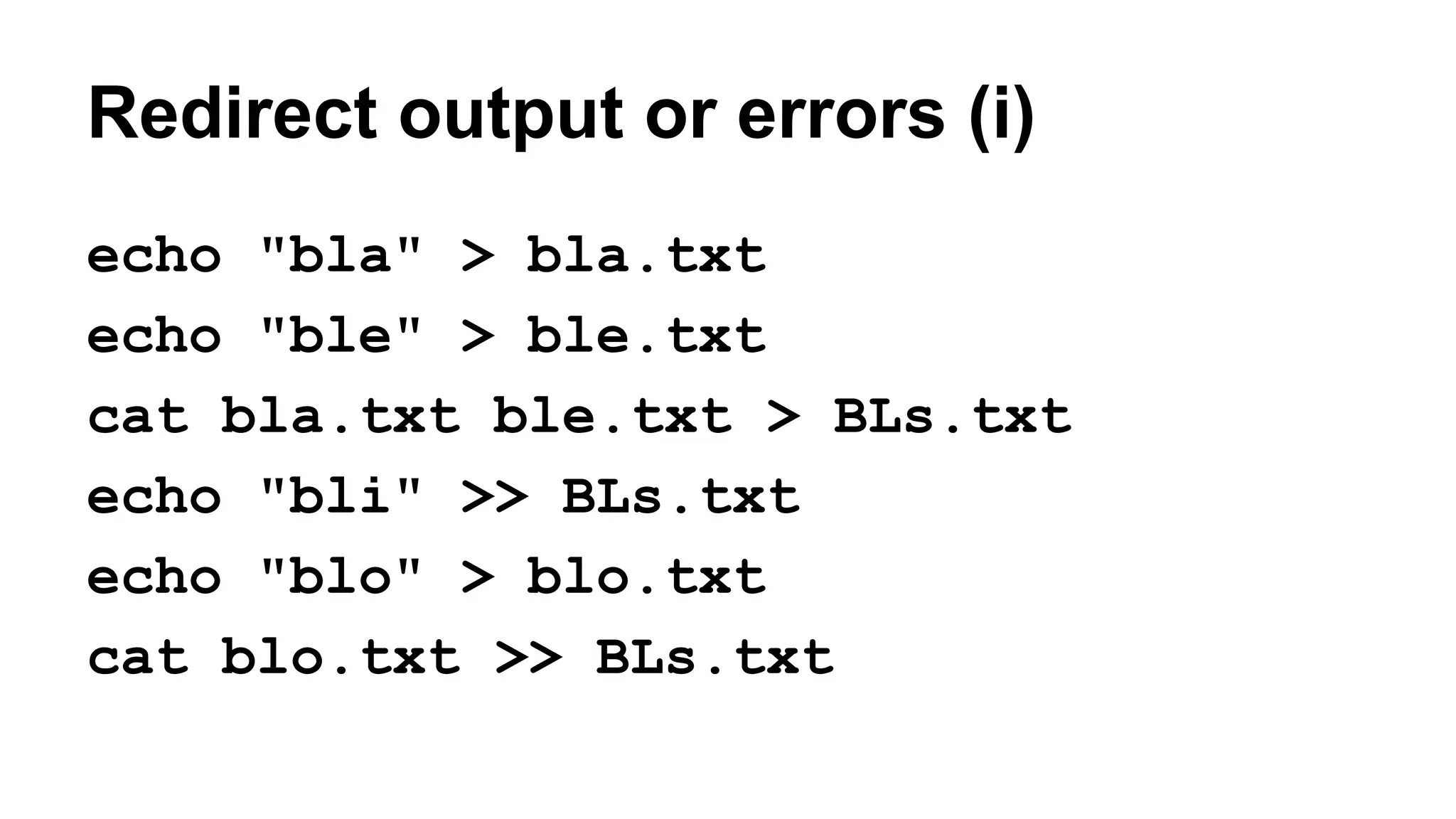
Redirect output or errors (i)
echo "bla" > bla.txt
echo "ble" > ble.txt
cat bla.txt ble.txt > BLs.txt
echo "bli" >> BLs.txt
echo "blo" > blo.txt
cat blo.txt >> BLs.txt
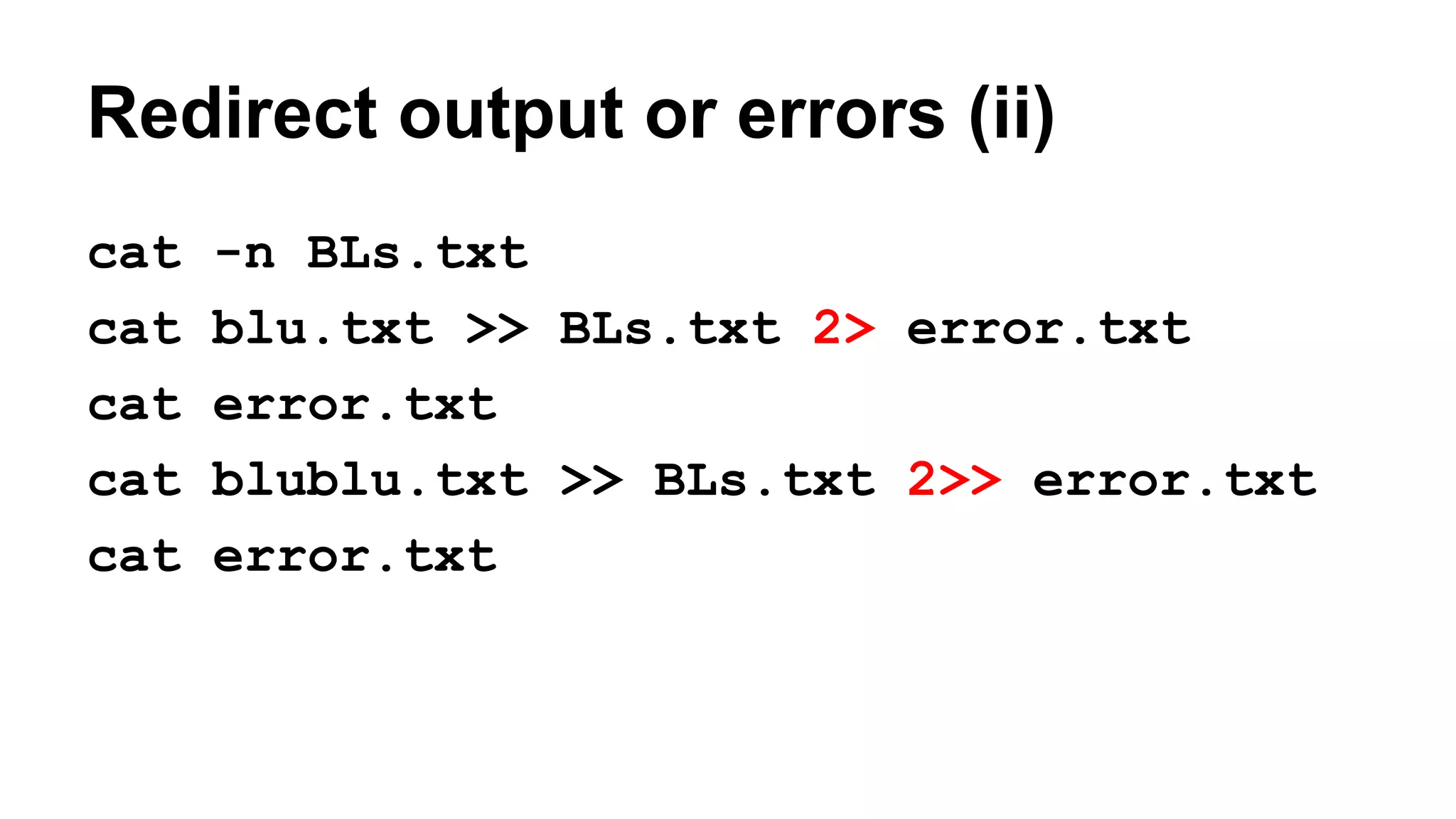
Redirect output or errors (ii)
cat -n BLs.txt
cat blu.txt >> BLs.txt 2> error.txt
cat error.txt
cat blublu.txt >> BLs.txt 2>> error.txt
cat error.txt
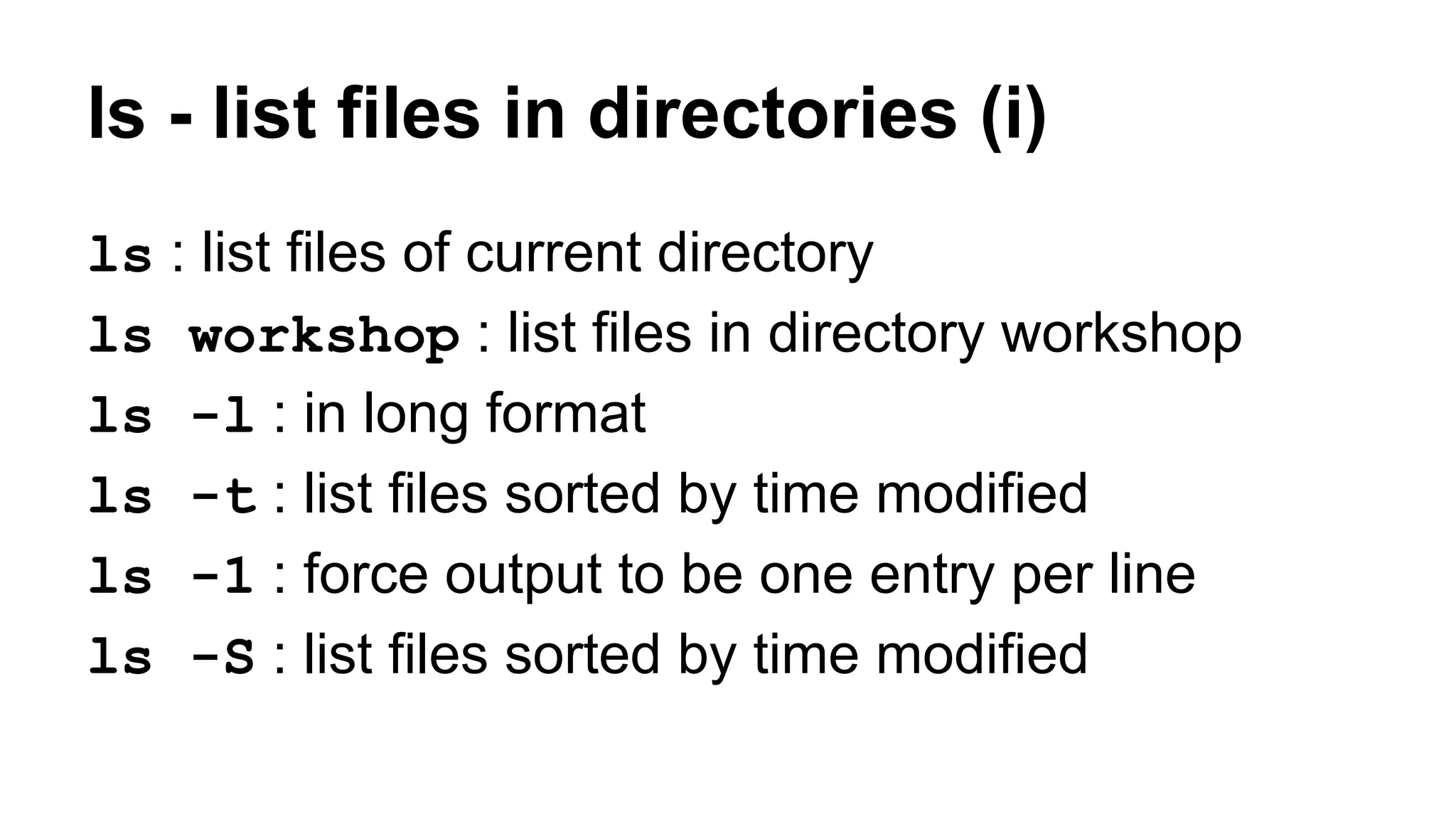
ls - list files in directories (i)
ls : list files of current directory
ls workshop : list files in directory workshop
ls -l : in long format
ls -t : list files sorted by time modified
ls -1 : force output to be one entry per line
ls -S : list files sorted by time modified
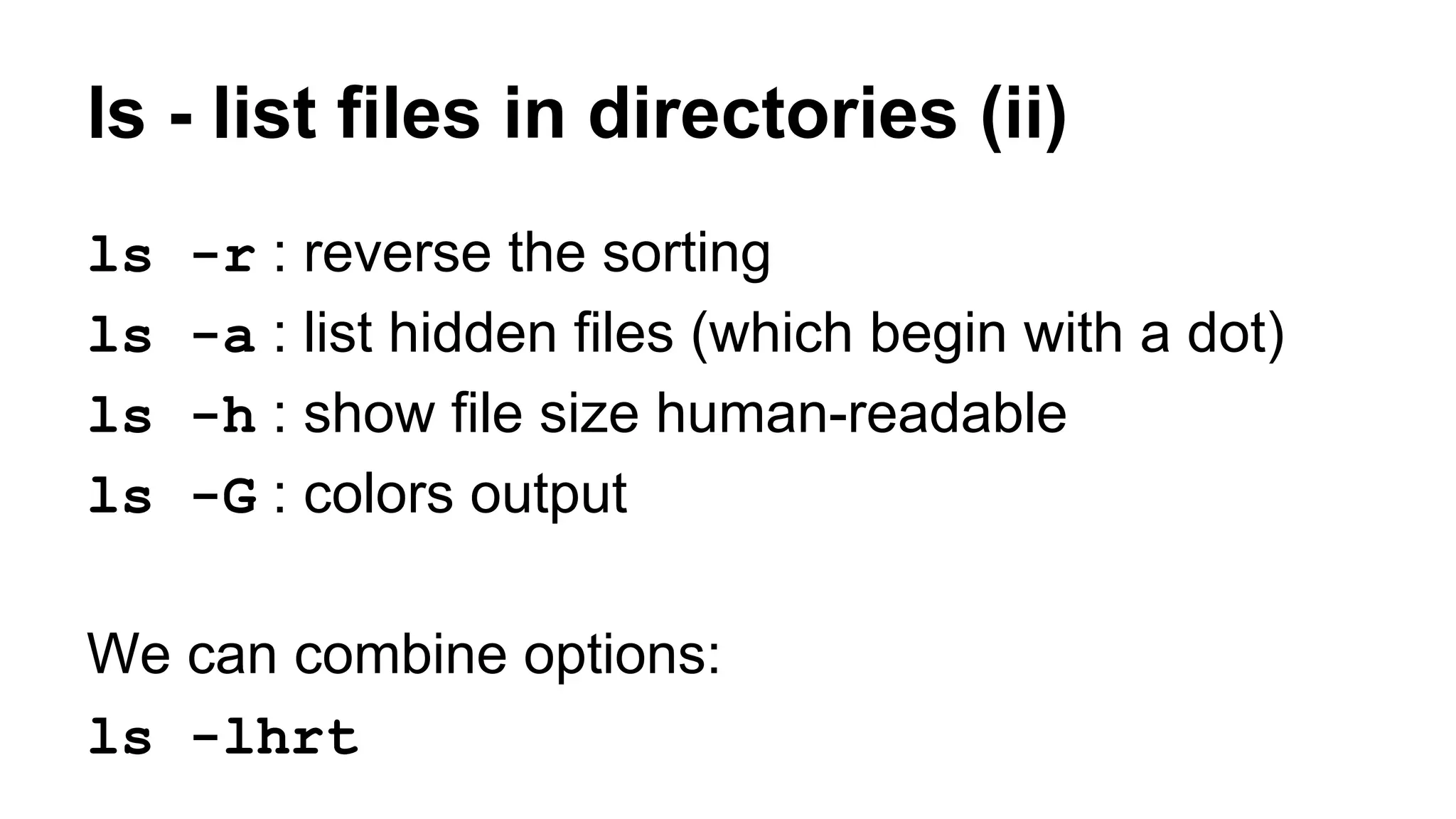
ls - list files in directories (ii)
ls -r : reverse the sorting
ls -a : list hidden files (which begin with a dot)
ls -h : show file size human-readable
ls -G : colors output
We can combine options:
ls -lhrt
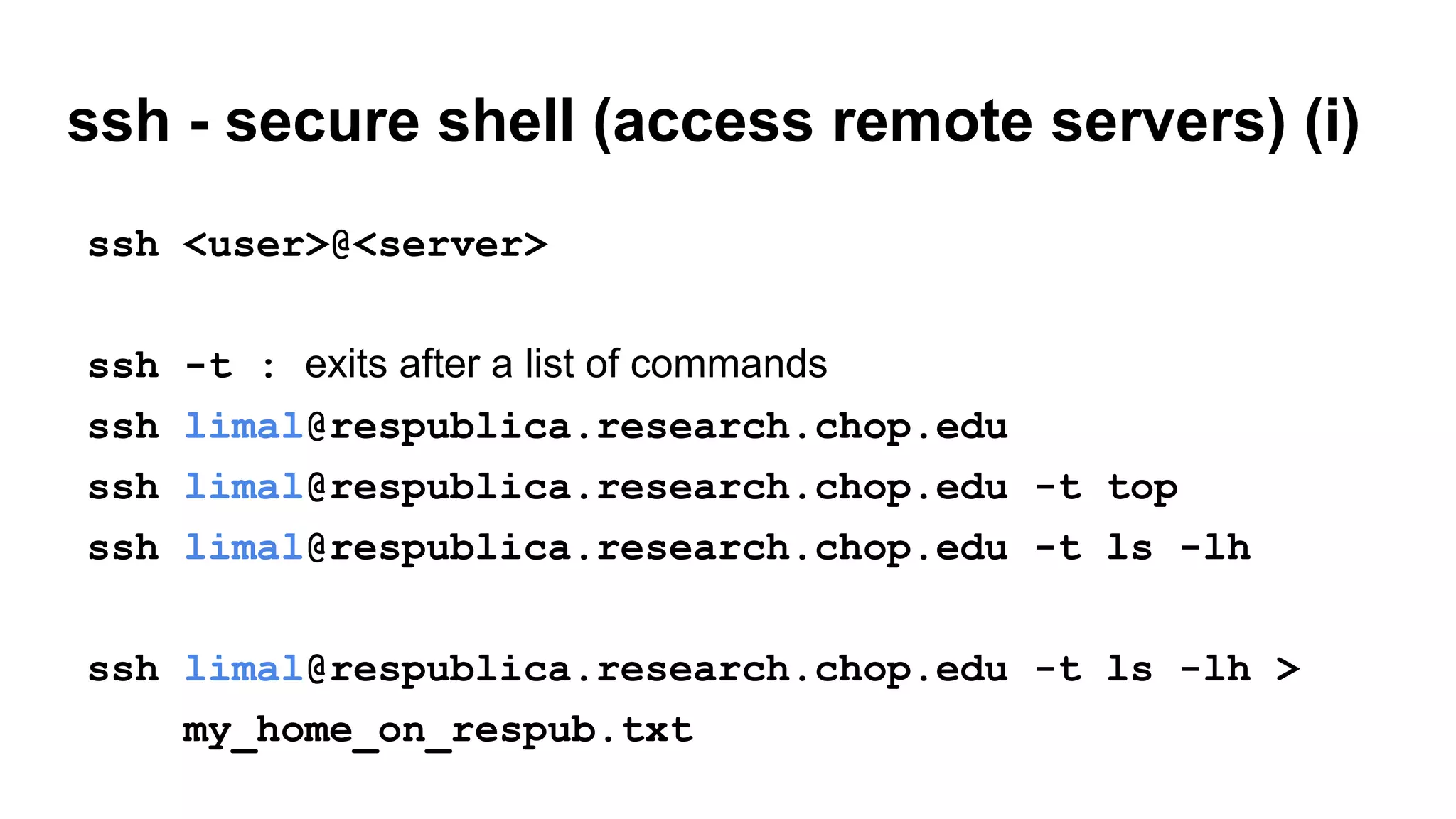
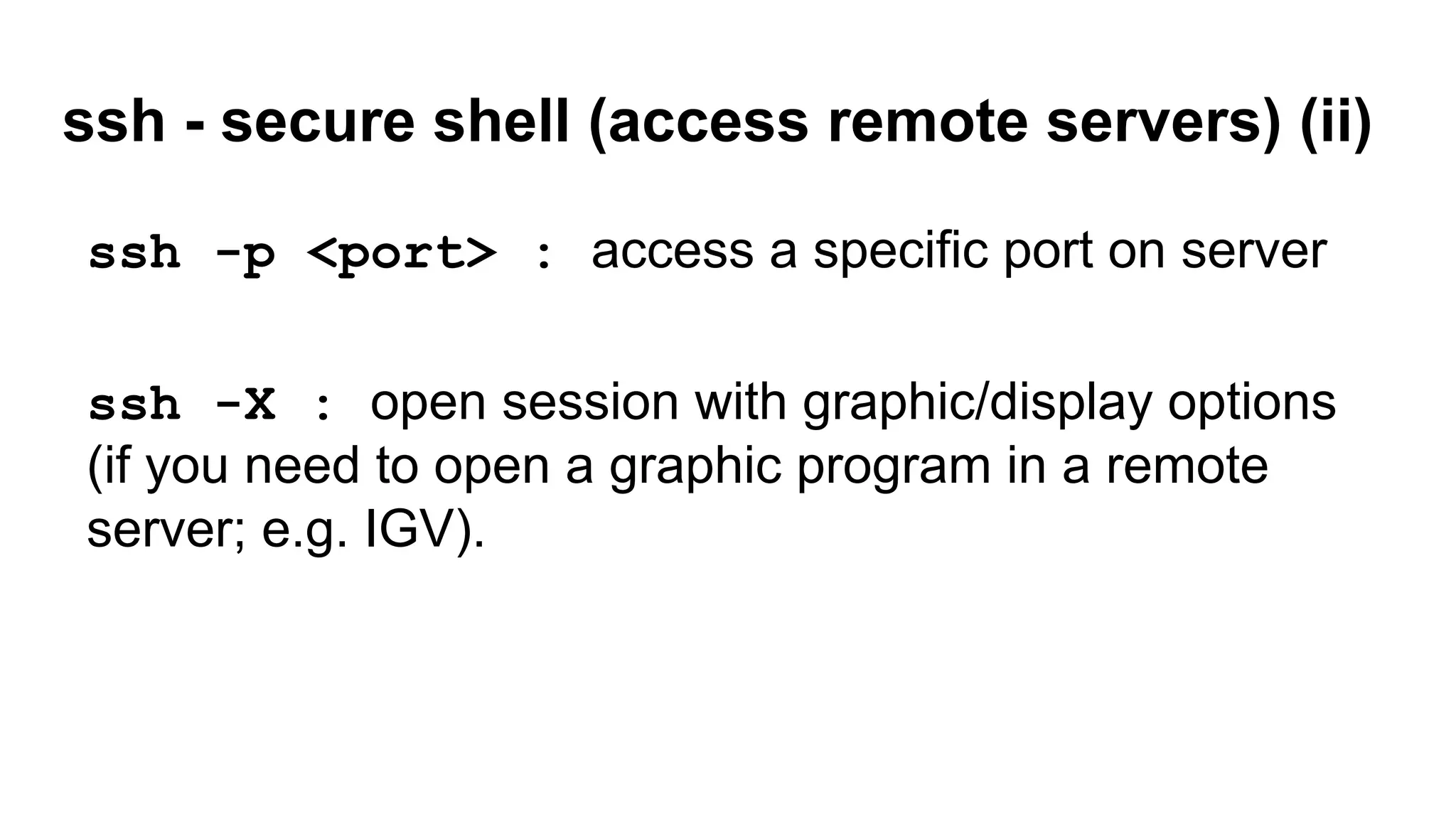
ssh - secure shell (access remote servers) (i)
ssh <user>@<server>
ssh -t : exits after a list of commands
ssh limal@respublica.research.chop.edu
ssh limal@respublica.research.chop.edu -t top
ssh limal@respublica.research.chop.edu -t ls -lh
ssh limal@respublica.research.chop.edu -t ls -lh >
my_home_on_respub.txt
ssh - secure shell (access remote servers) (ii)
ssh -p <port> : access a specific port on server
ssh -X : open session with graphic/display options
(if you need to open a graphic program in a remote
server; e.g. IGV).
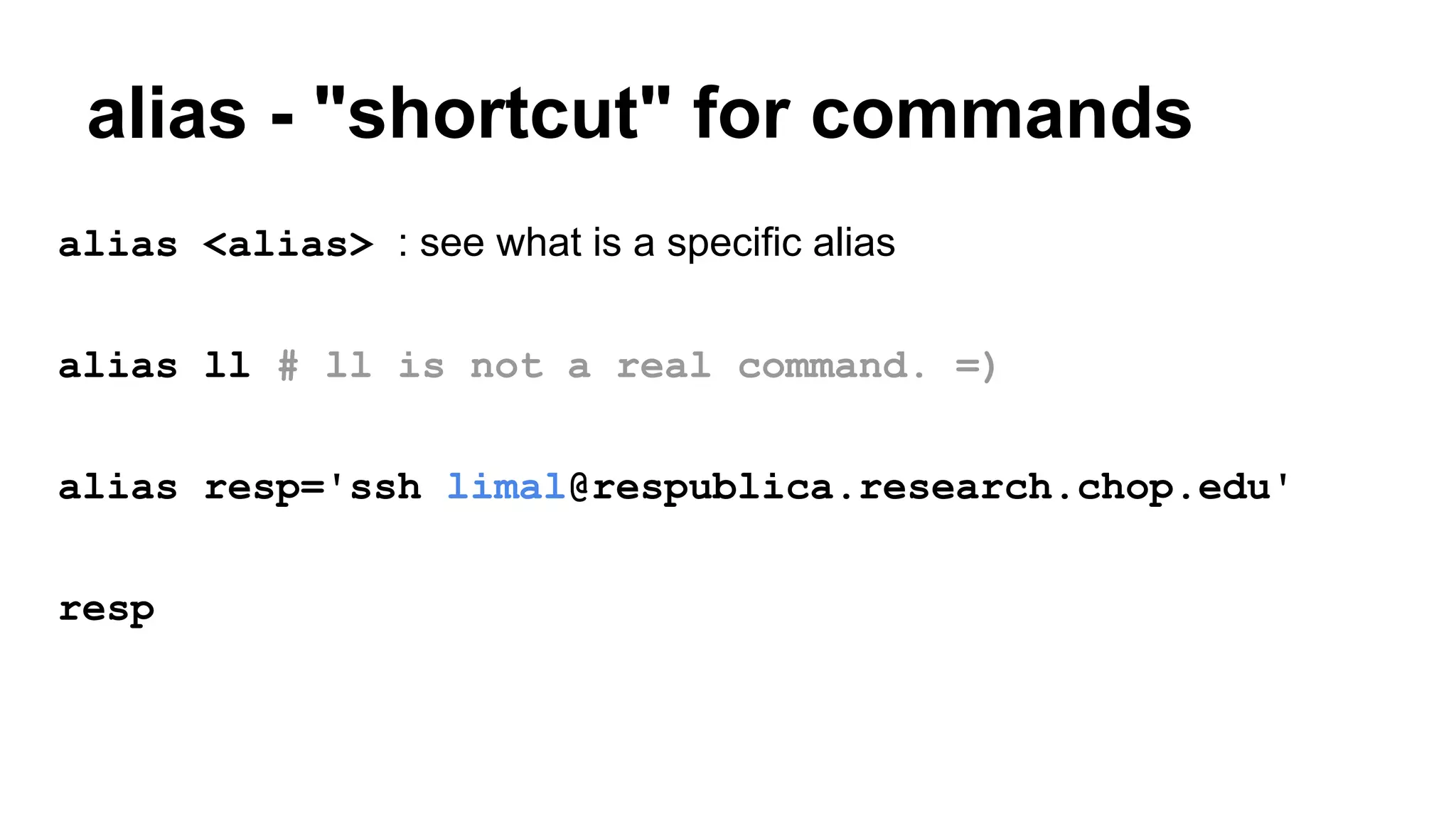
alias - "shortcut" for commands
alias <alias> : see what is a specific alias
alias ll # ll is not a real command. =)
alias resp='ssh limal@respublica.research.chop.edu'
resp
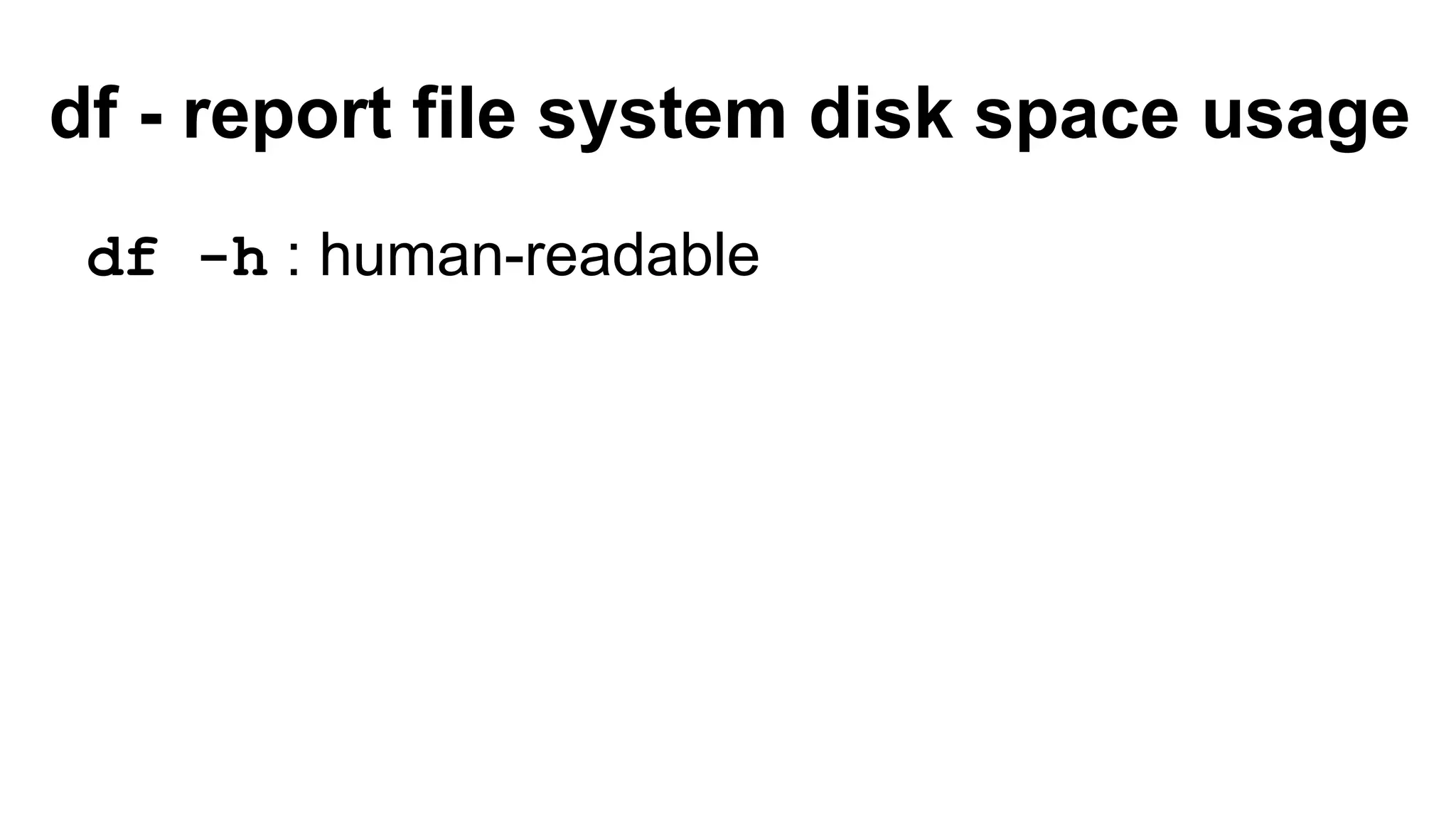
df - report file system disk space usage
df -h : human-readable
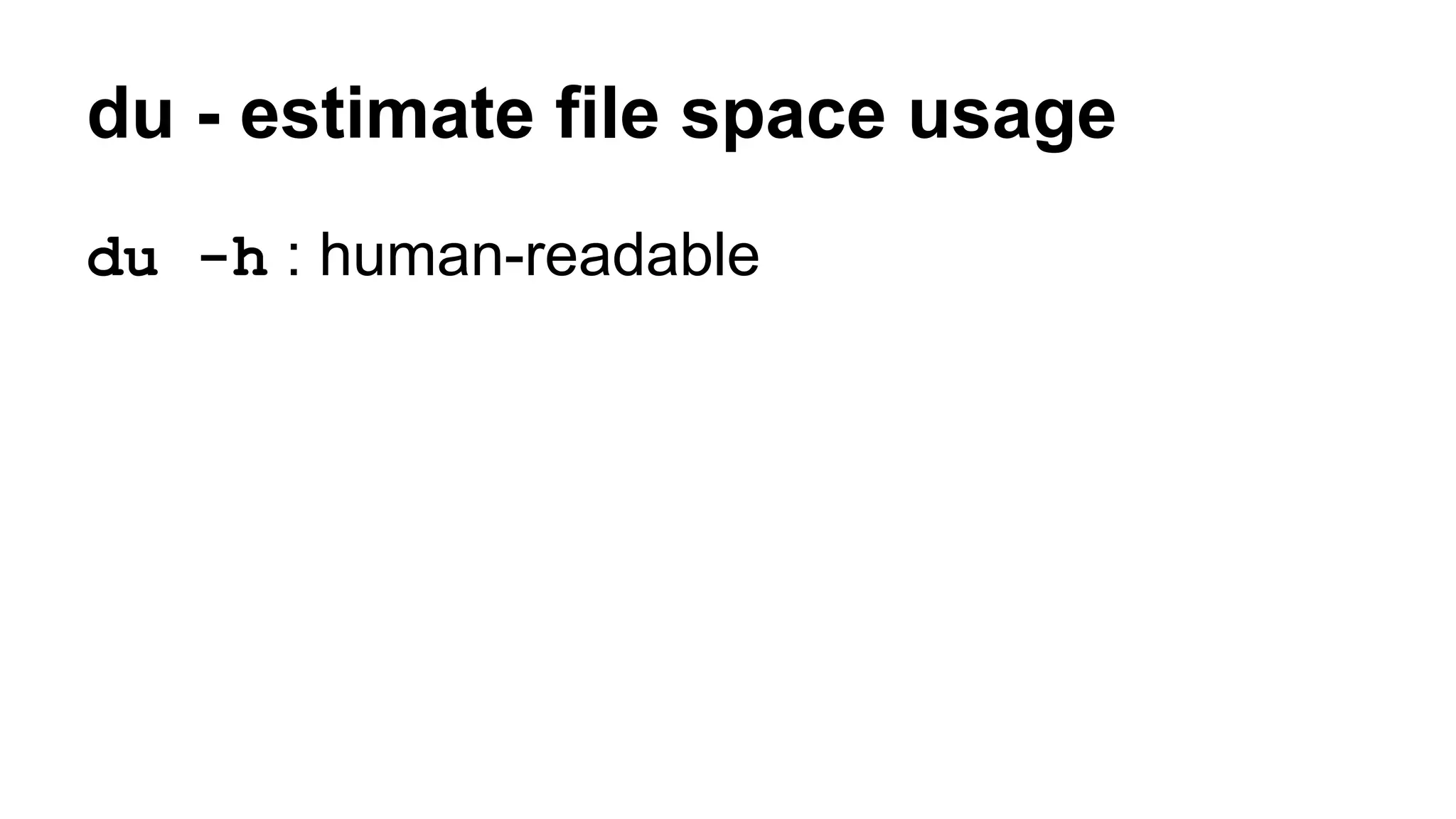
du - estimate file space usage
du -h : human-readable
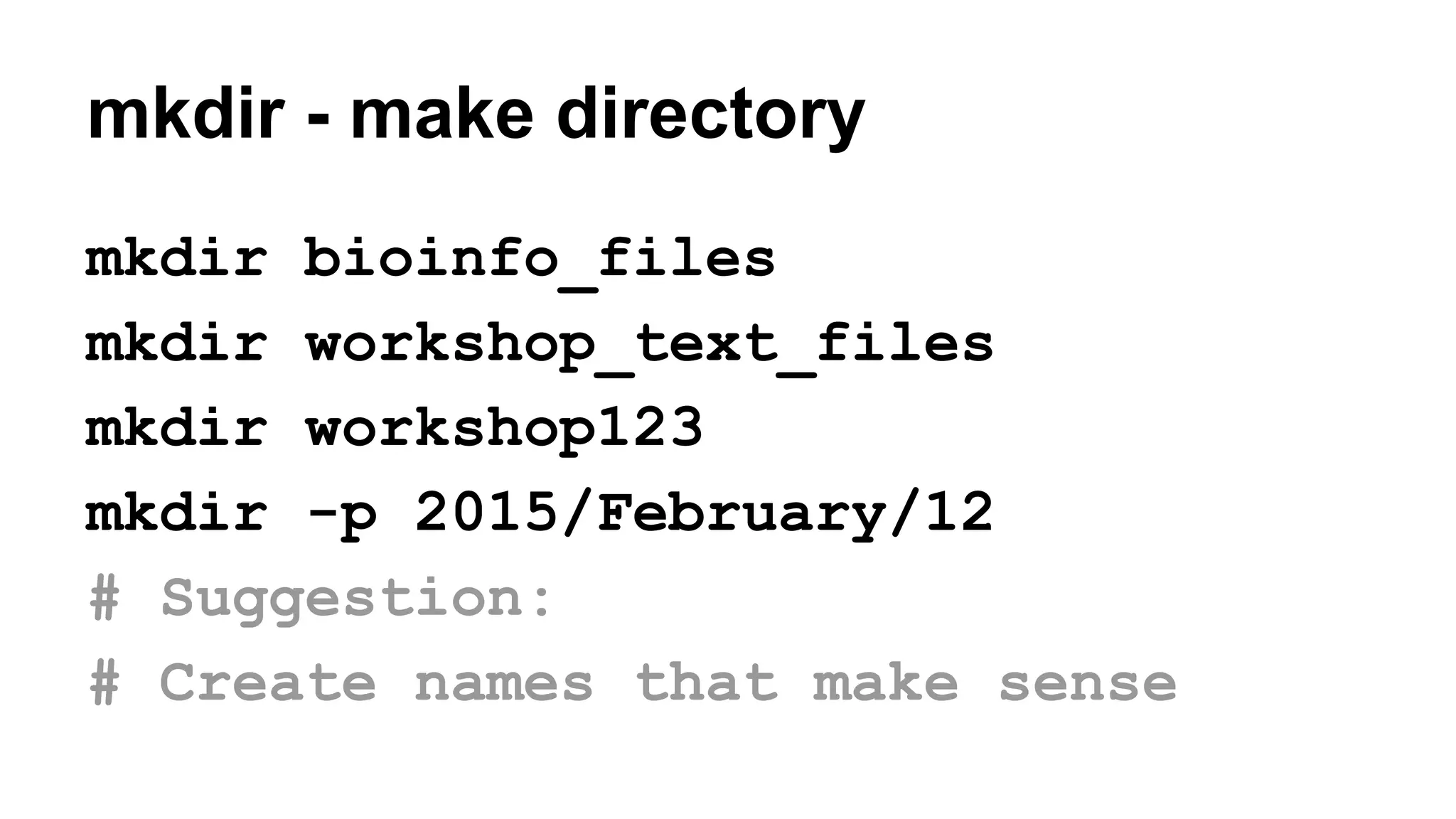
mkdir - make directory
mkdir bioinfo_files
mkdir workshop_text_files
mkdir workshop123
mkdir -p 2015/February/12
# Suggestion:
# Create names that make sense
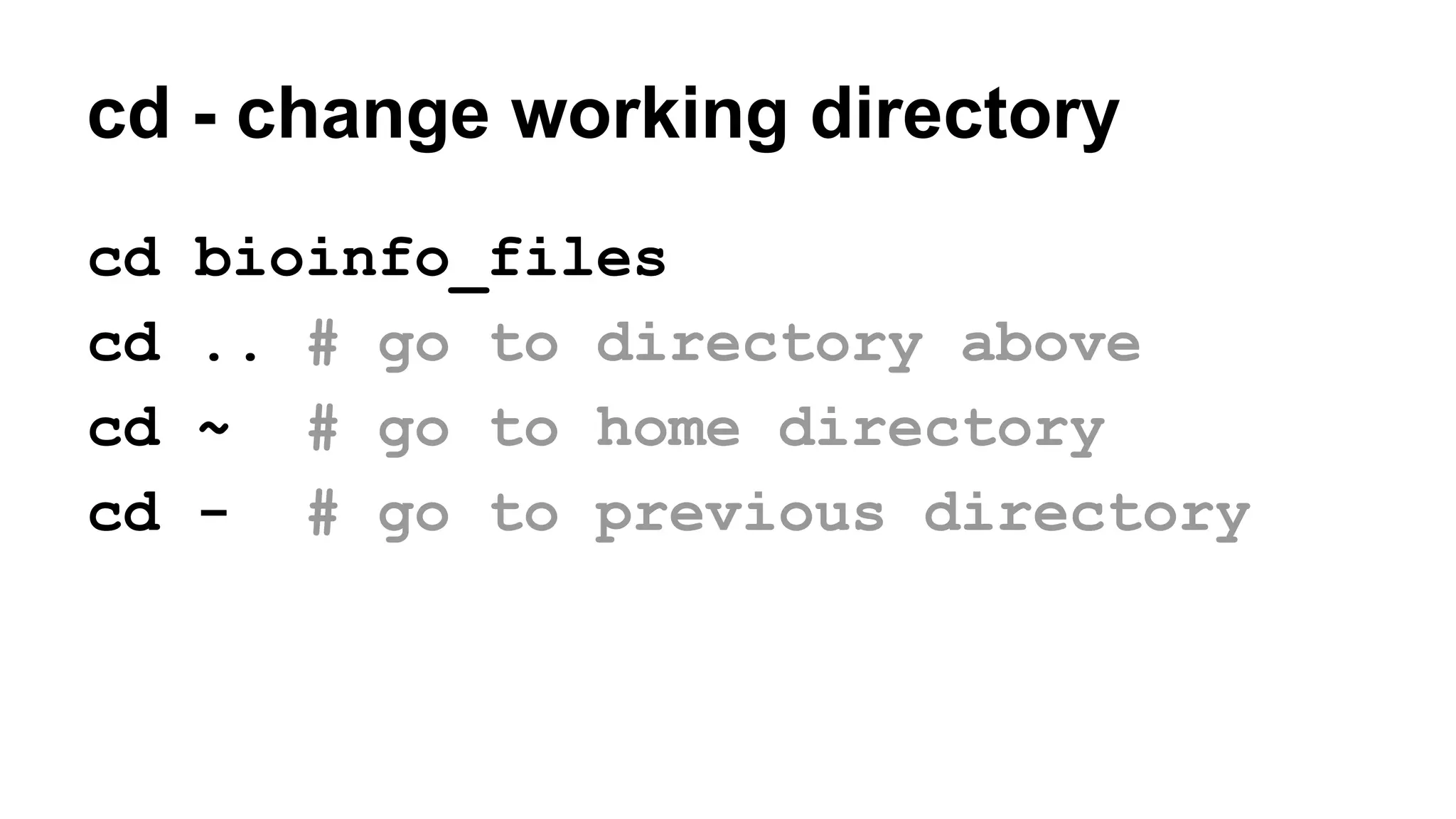
cd - change working directory
cd bioinfo_files
cd .. # go to directory above
cd ~ # go to home directory
cd - # go to previous directory
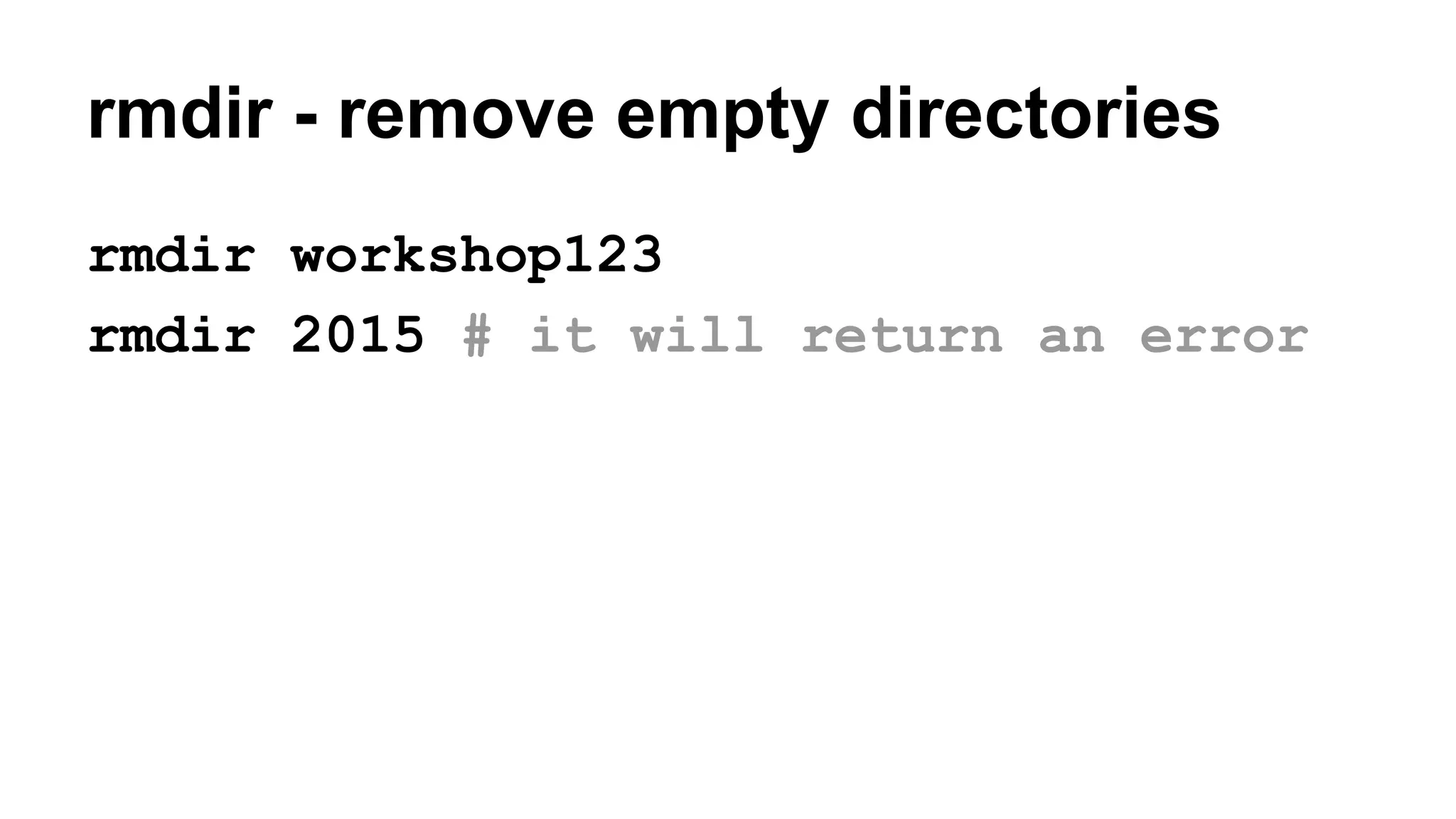
rmdir - remove empty directories
rmdir workshop123
rmdir 2015 # it will return an error
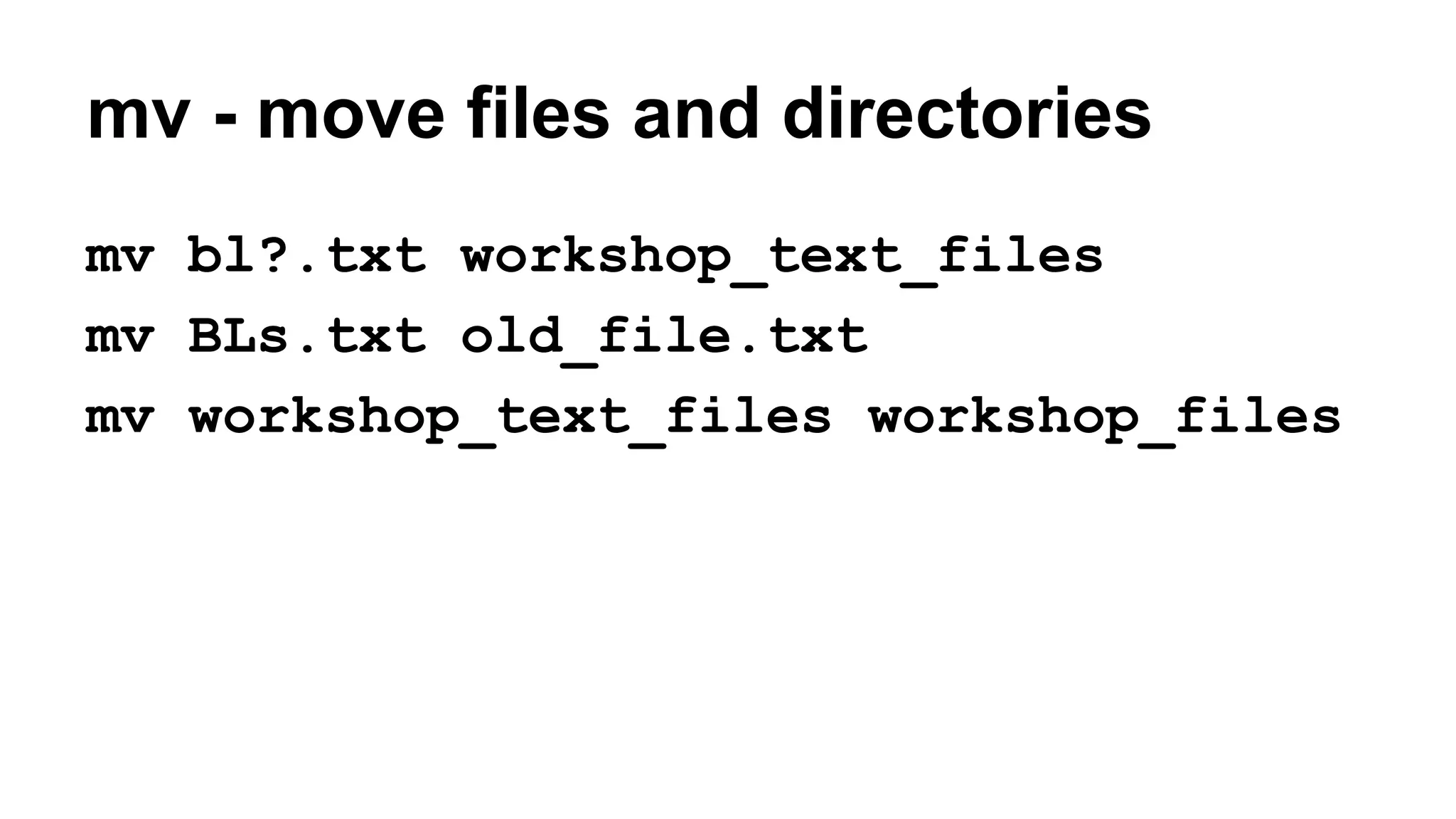
mv - move files and directories
mv bl?.txt workshop_text_files
mv BLs.txt old_file.txt
mv workshop_text_files workshop_files
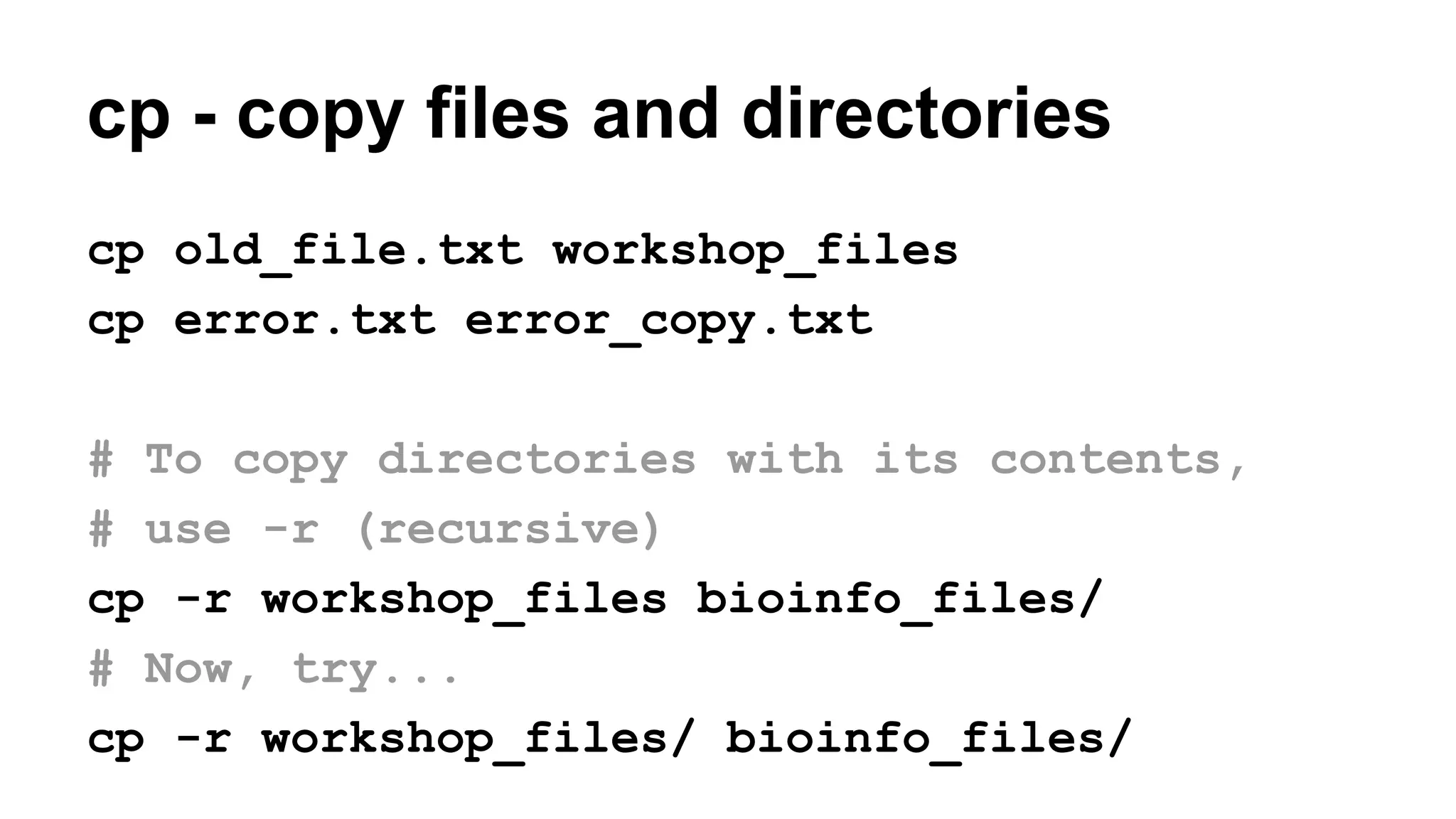
cp - copy files and directories
cp old_file.txt workshop_files
cp error.txt error_copy.txt
# To copy directories with its contents,
# use -r (recursive)
cp -r workshop_files bioinfo_files/
# Now, try...
cp -r workshop_files/ bioinfo_files/
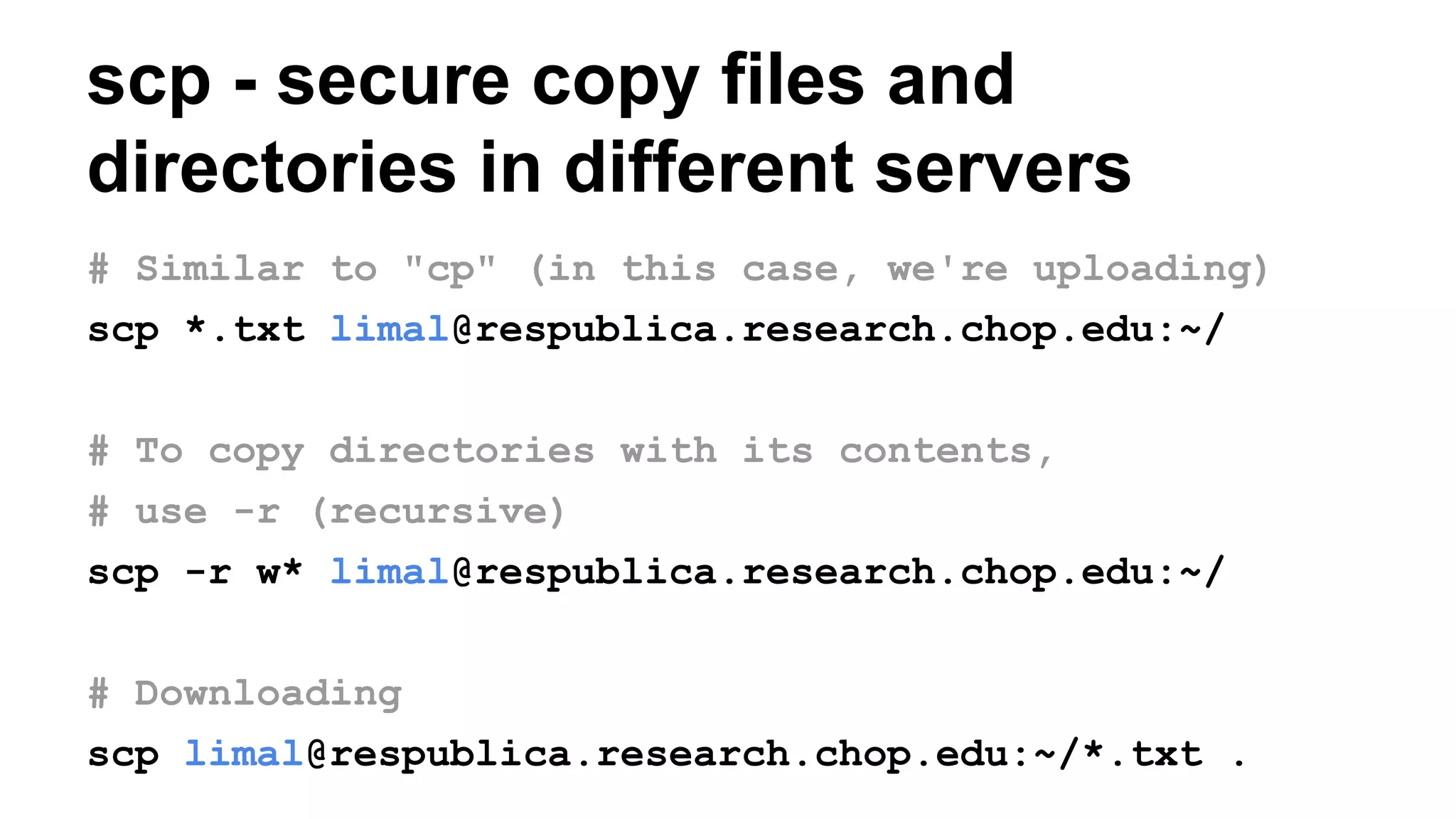
scp - secure copy files and
directories in different servers
# Similar to "cp" (in this case, we're uploading)
scp *.txt limal@respublica.research.chop.edu:~/
# To copy directories with its contents,
# use -r (recursive)
scp -r w* limal@respublica.research.chop.edu:~/
# Downloading
scp limal@respublica.research.chop.edu:~/*.txt .
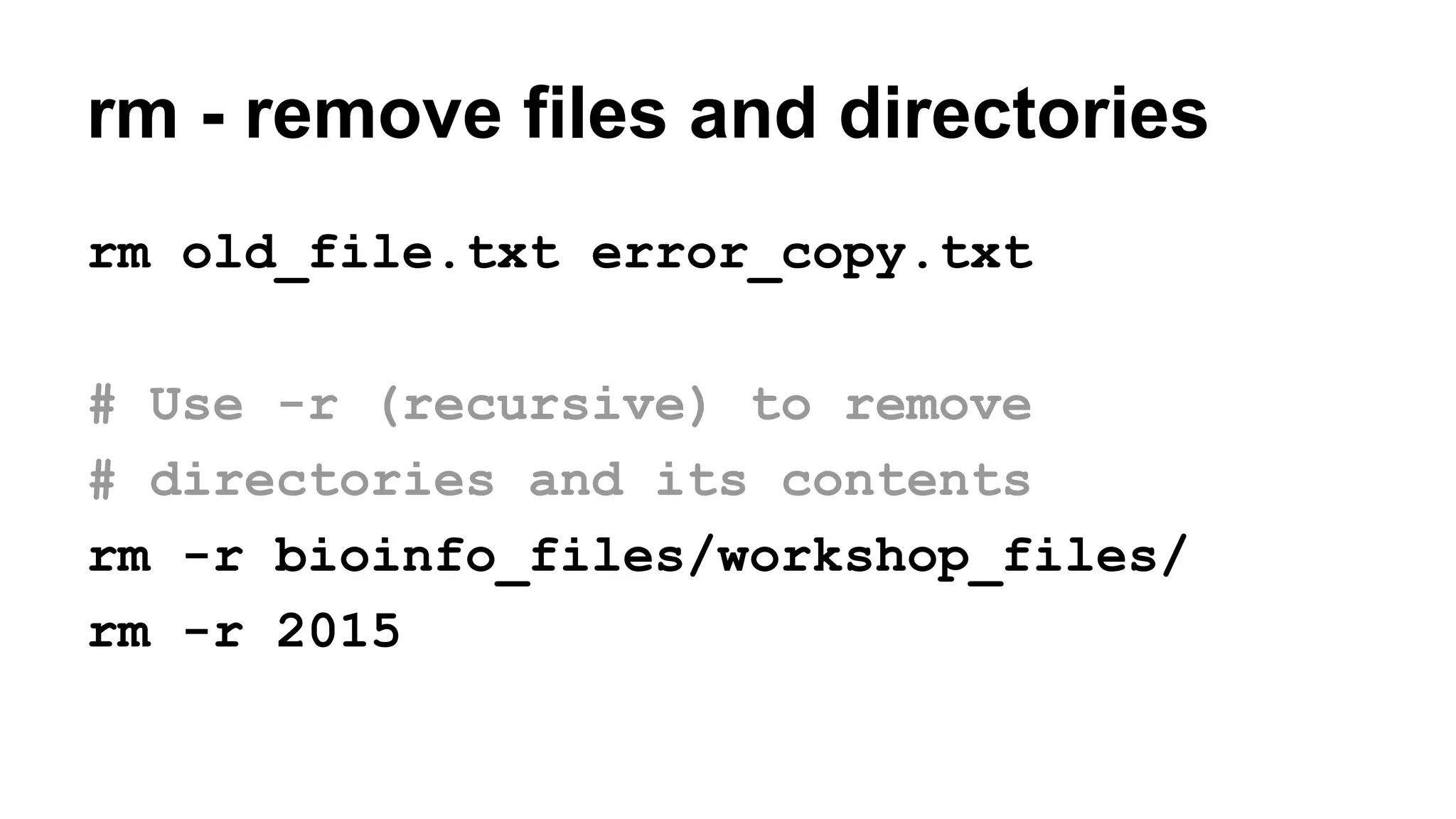
rm - remove files and directories
rm old_file.txt error_copy.txt
# Use -r (recursive) to remove
# directories and its contents
rm -r bioinfo_files/workshop_files/
rm -r 2015
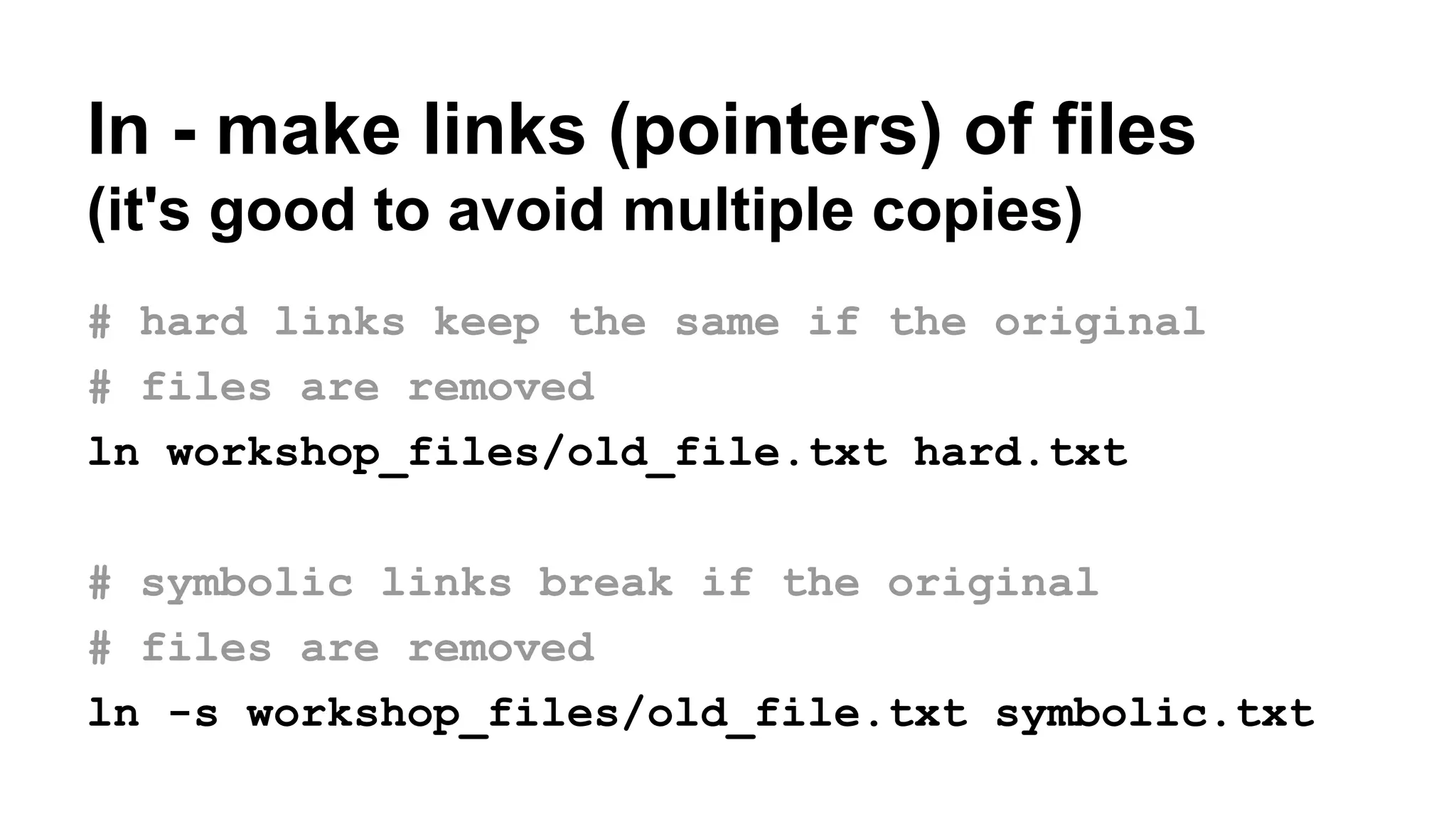
ln - make links (pointers) of files
(it's good to avoid multiple copies)
# hard links keep the same if the original
# files are removed
ln workshop_files/old_file.txt hard.txt
# symbolic links break if the original
# files are removed
ln -s workshop_files/old_file.txt symbolic.txt
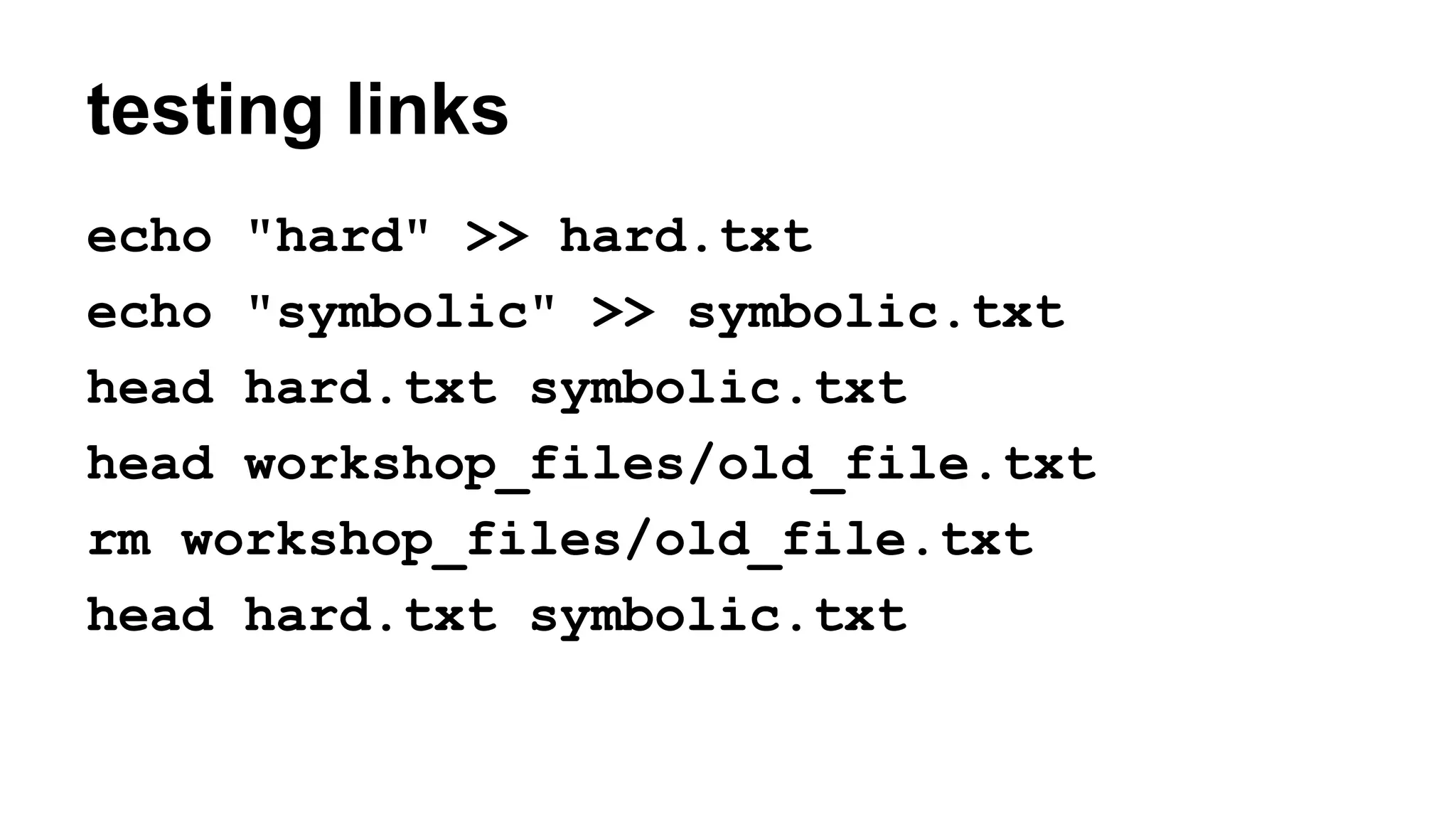
testing links
echo "hard" >> hard.txt
echo "symbolic" >> symbolic.txt
head hard.txt symbolic.txt
head workshop_files/old_file.txt
rm workshop_files/old_file.txt
head hard.txt symbolic.txt
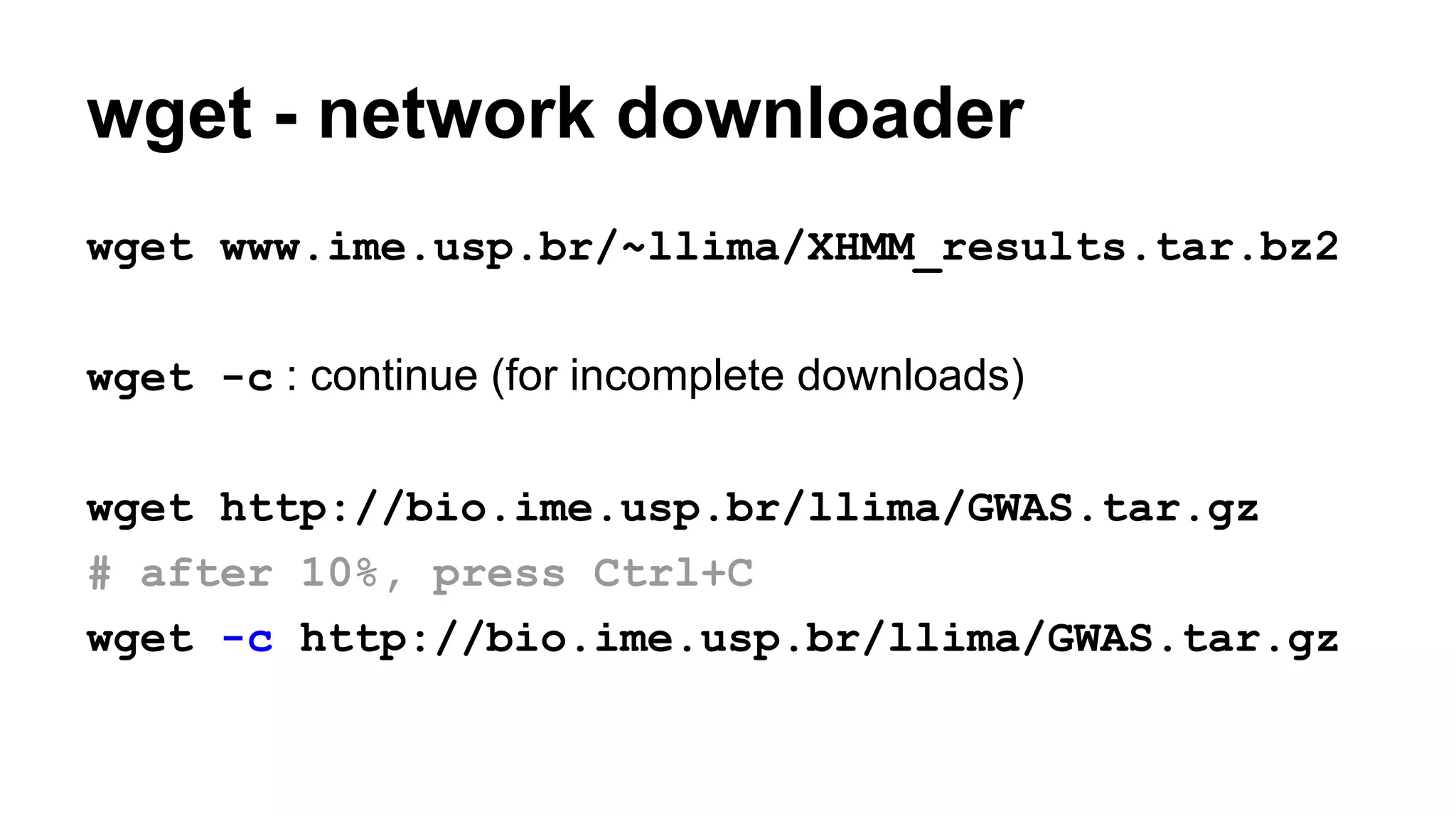
wget - network downloader
wget www.ime.usp.br/~llima/XHMM_results.tar.bz2
wget -c : continue (for incomplete downloads)
wget http://bio.ime.usp.br/llima/GWAS.tar.gz
# after 10%, press Ctrl+C
wget -c http://bio.ime.usp.br/llima/GWAS.tar.gz
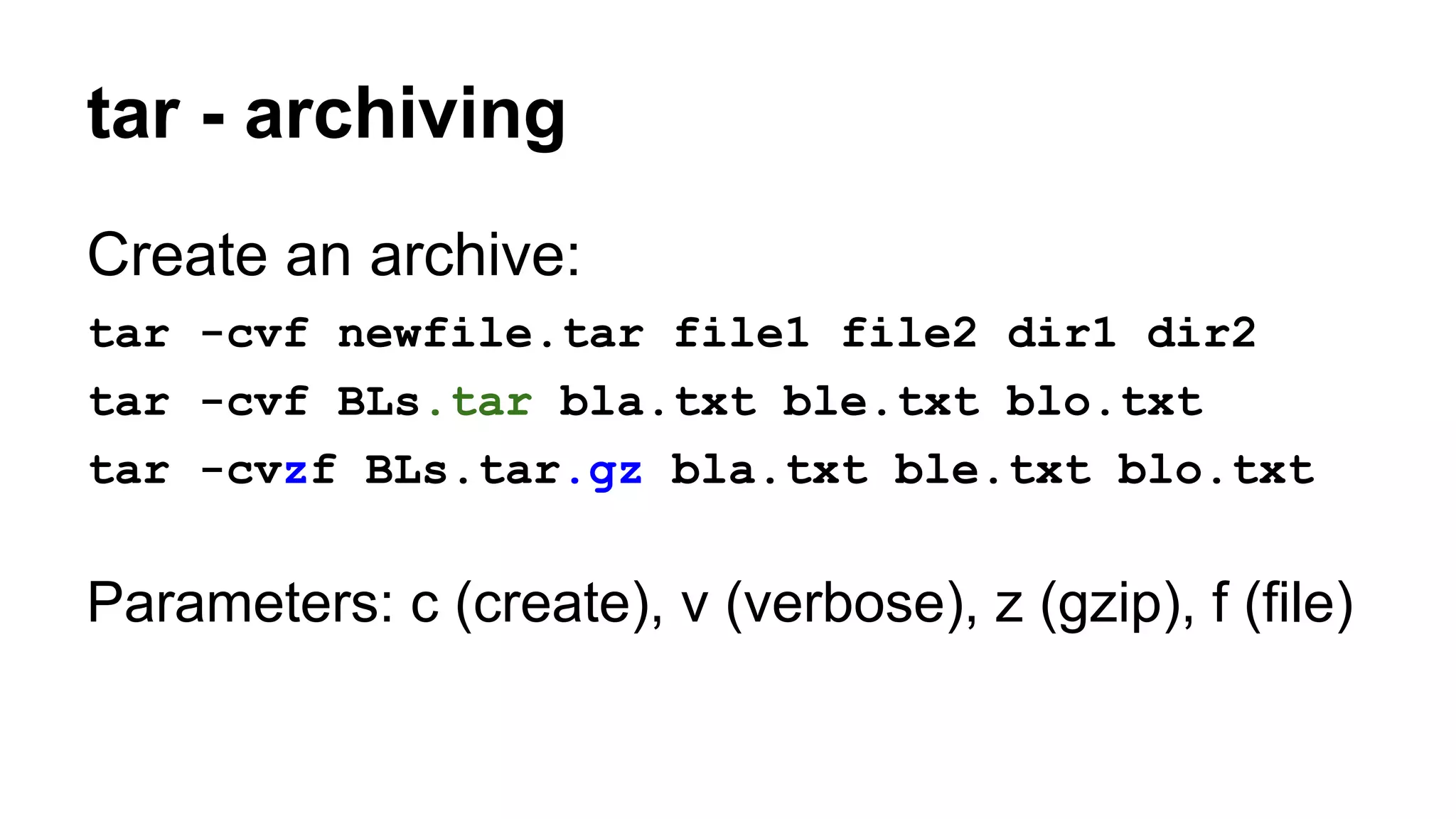
tar - archiving
Create an archive:
tar -cvf newfile.tar file1 file2 dir1 dir2
tar -cvf BLs.tar bla.txt ble.txt blo.txt
tar -cvzf BLs.tar.gz bla.txt ble.txt blo.txt
Parameters: c (create), v (verbose), z (gzip), f (file)
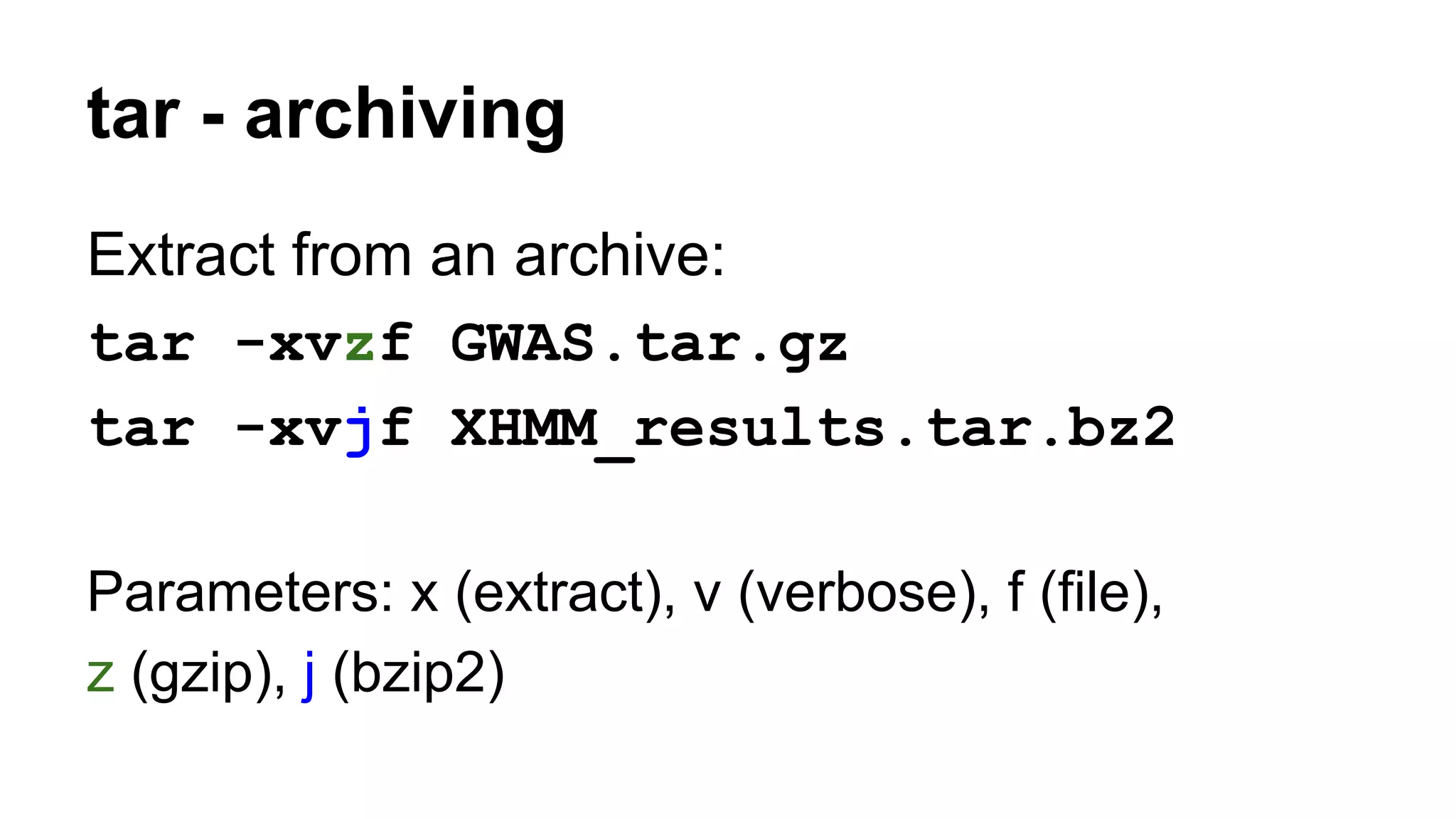
tar - archiving
Extract from an archive:
tar -xvzf GWAS.tar.gz
tar -xvjf XHMM_results.tar.bz2
Parameters: x (extract), v (verbose), f (file),
z (gzip), j (bzip2)
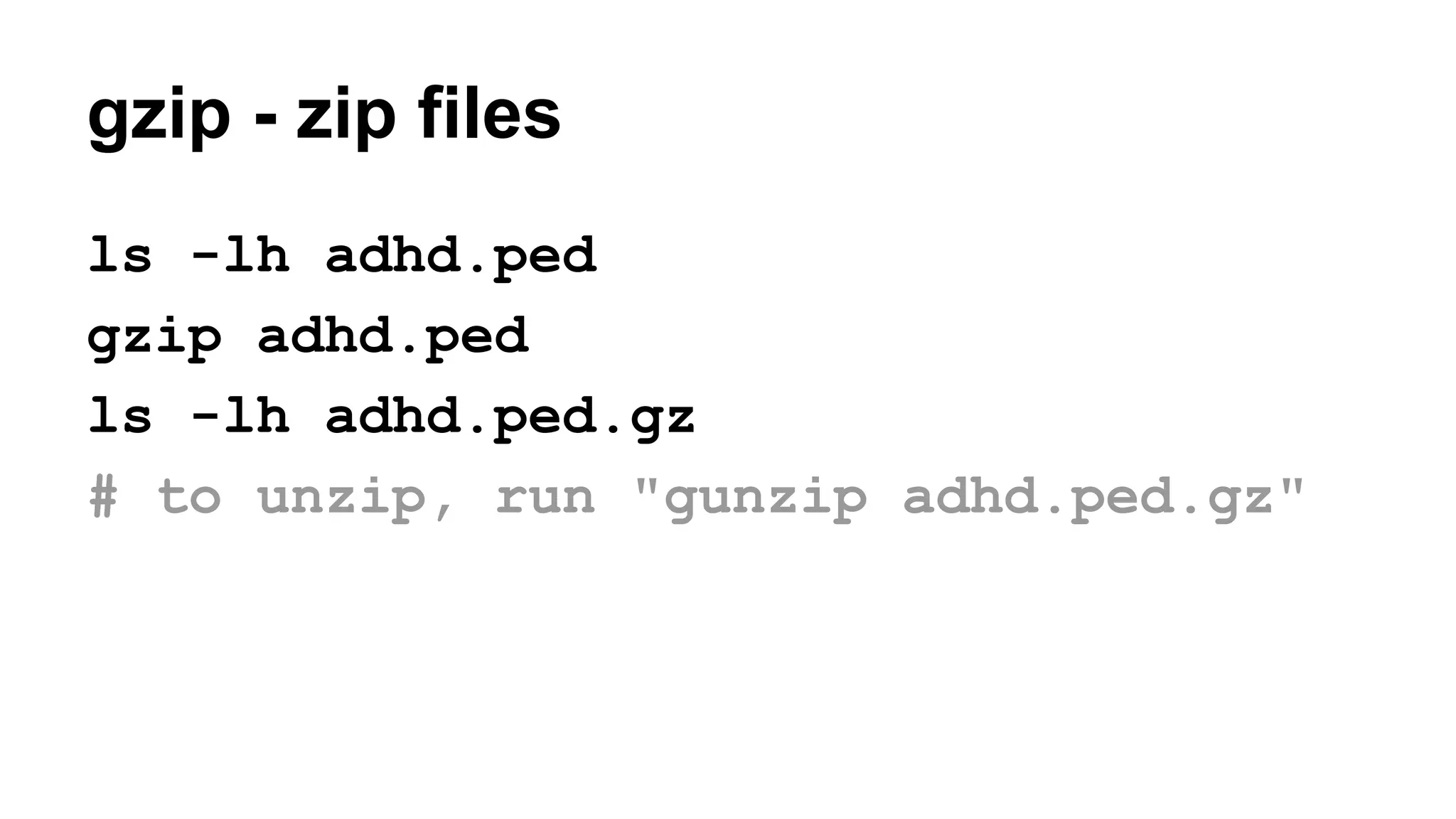
gzip - zip files
ls -lh adhd.ped
gzip adhd.ped
ls -lh adhd.ped.gz
# to unzip, run "gunzip adhd.ped.gz"
zcat - cat for zipped files
zcat adhd.ped.gz # Ctrl+C to stop
less - file visualization
less DATA.xcnv
Use arrows (←↑→↓) to navigate the file
Type / to search
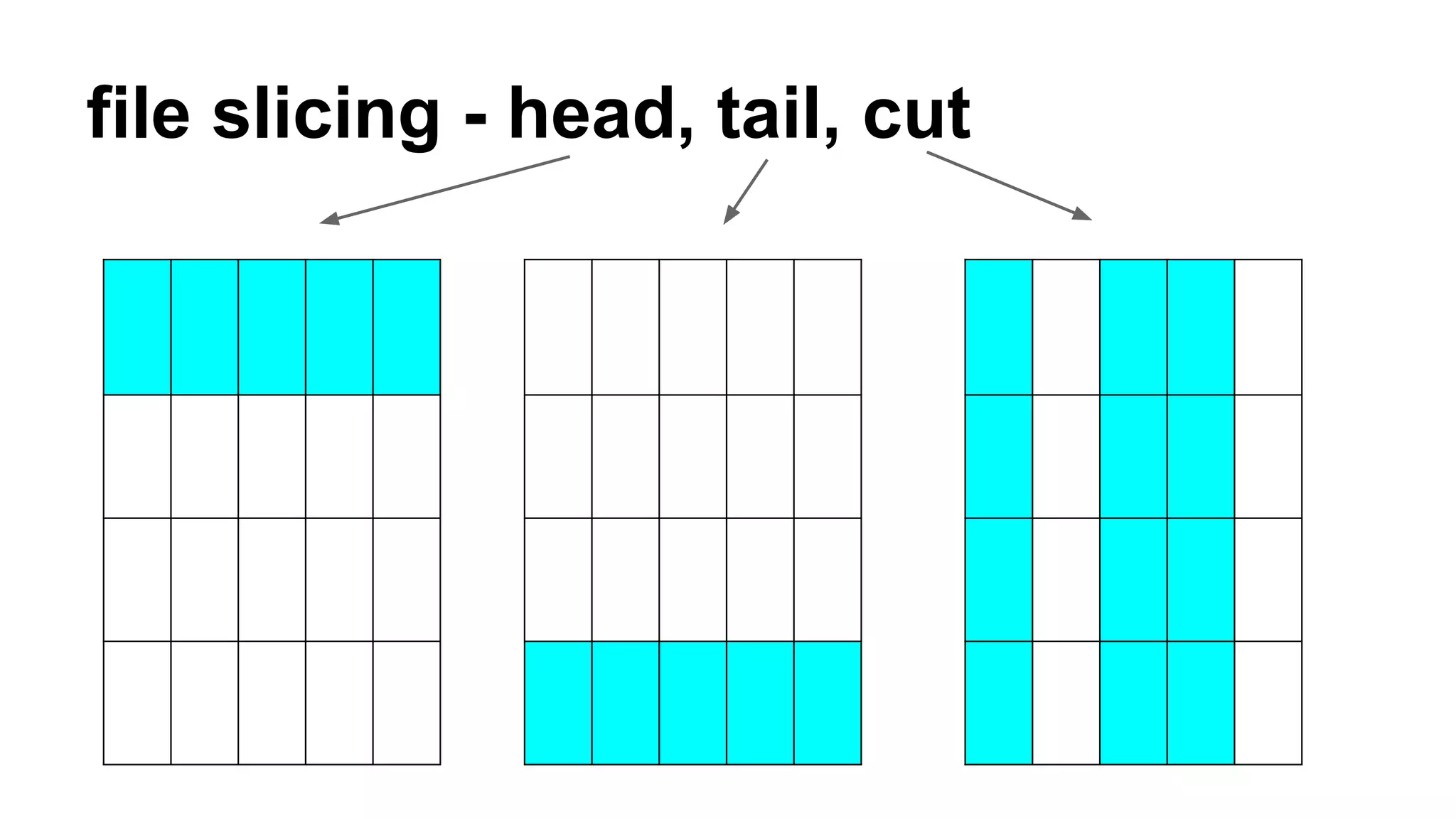
file slicing - head, tail, cut
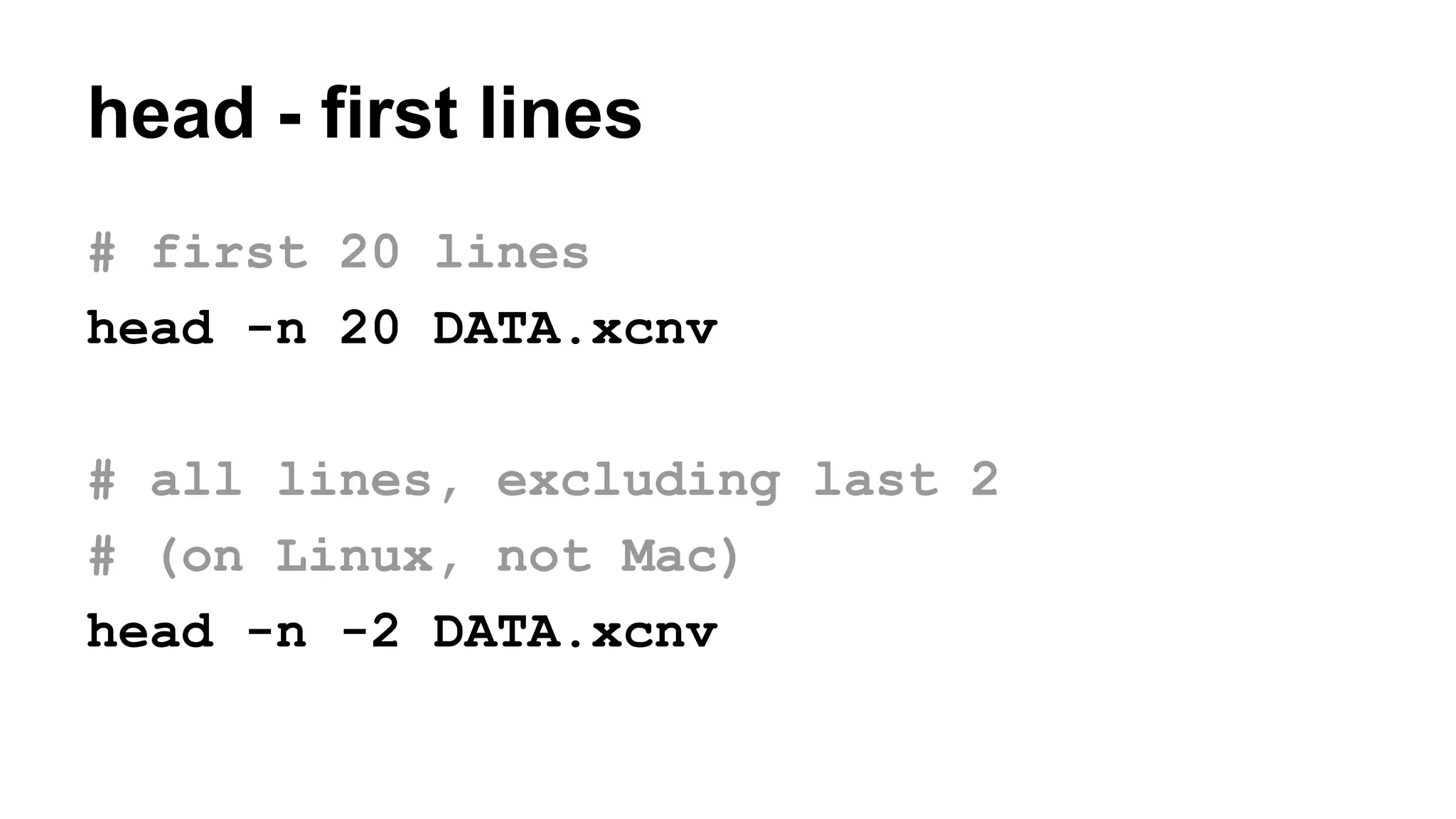
head - first lines
# first 20 lines
head -n 20 DATA.xcnv
# all lines, excluding last 2
# (on Linux, not Mac)
head -n -2 DATA.xcnv
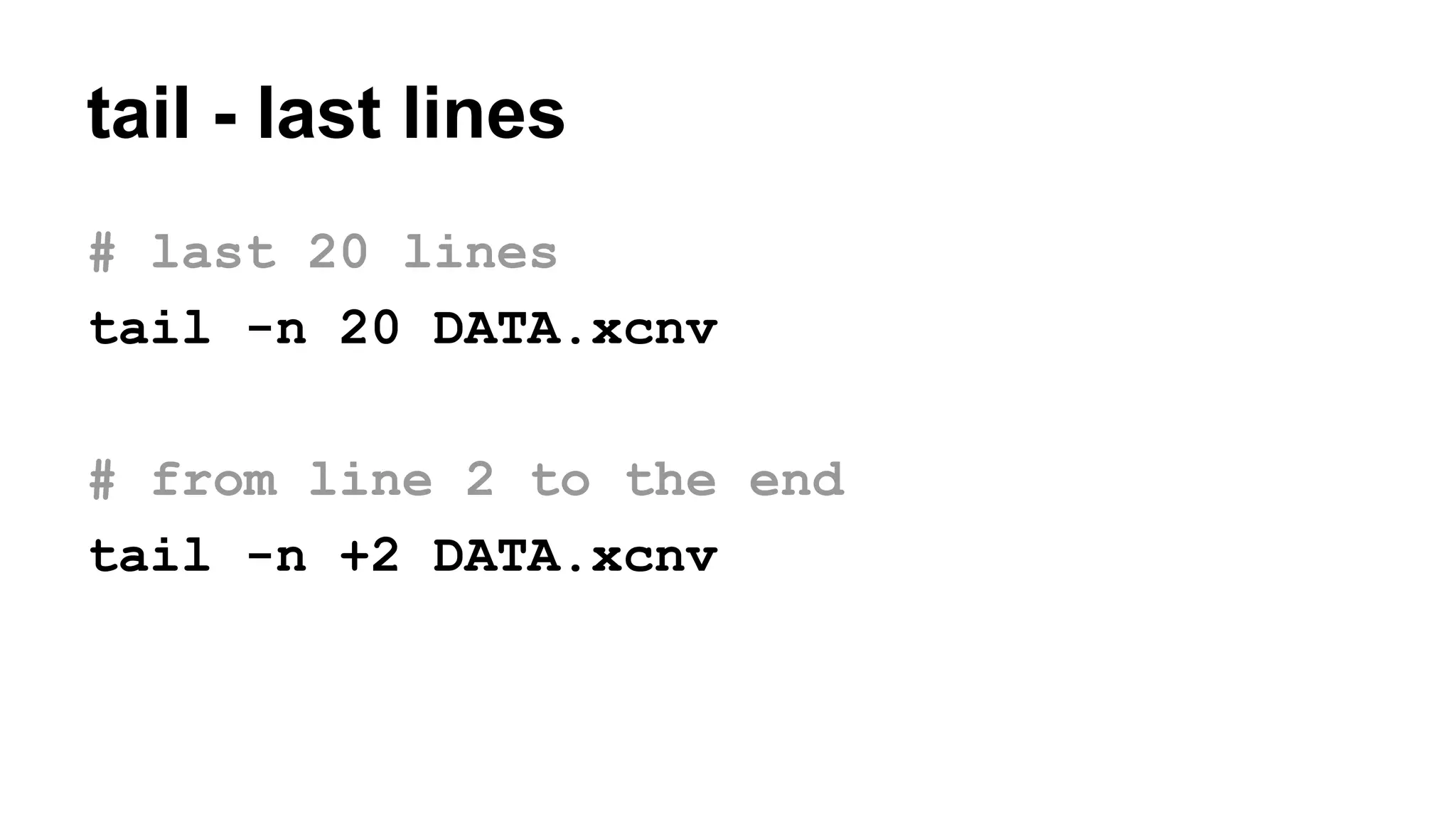
tail - last lines
# last 20 lines
tail -n 20 DATA.xcnv
# from line 2 to the end
tail -n +2 DATA.xcnv
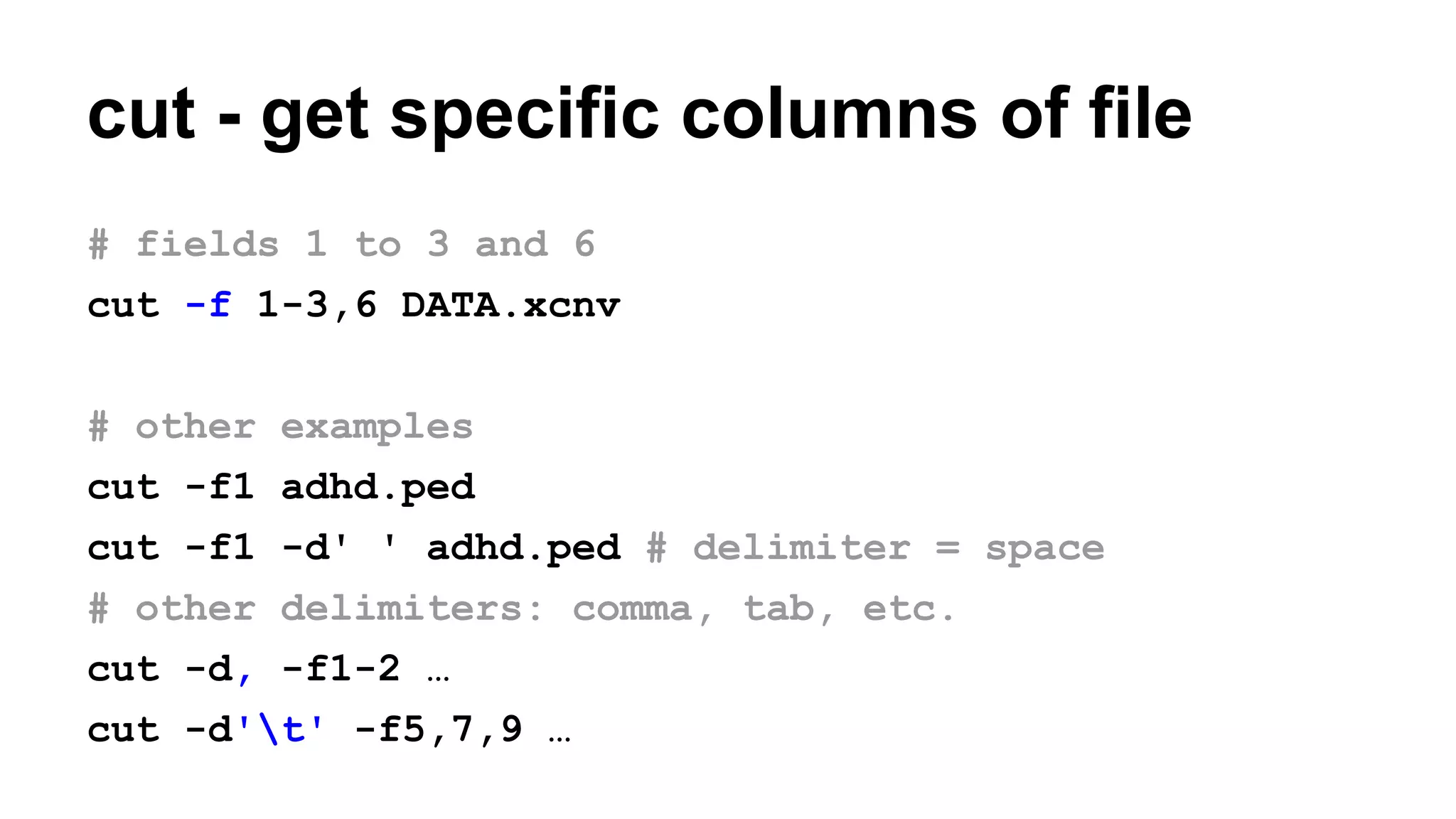
cut - get specific columns of file
# fields 1 to 3 and 6
cut -f 1-3,6 DATA.xcnv
# other examples
cut -f1 adhd.ped
cut -f1 -d' ' adhd.ped # delimiter = space
# other delimiters: comma, tab, etc.
cut -d, -f1-2 …
cut -d't' -f5,7,9 …
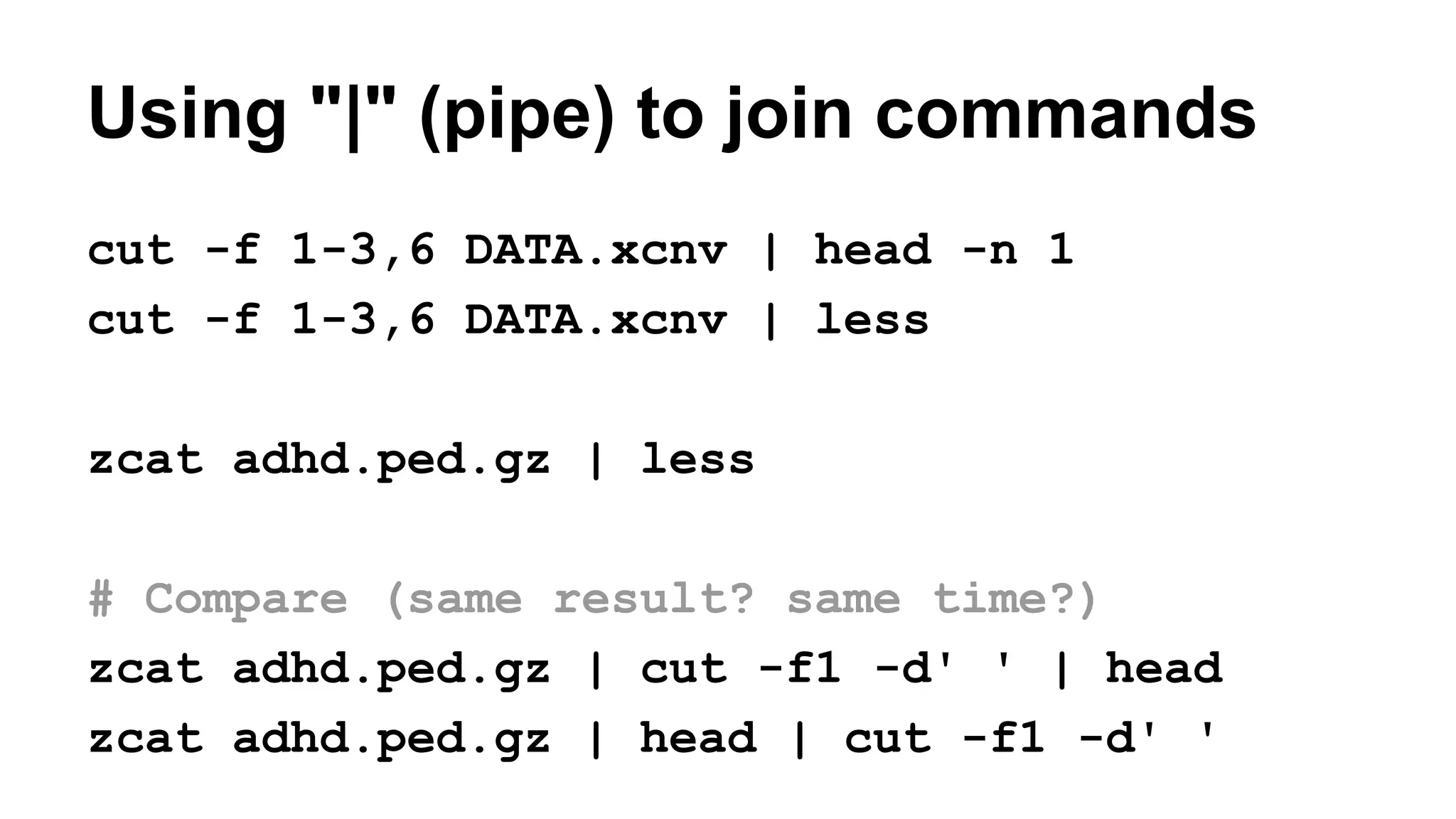
Using "|" (pipe) to join commands
cut -f 1-3,6 DATA.xcnv | head -n 1
cut -f 1-3,6 DATA.xcnv | less
zcat adhd.ped.gz | less
# Compare (same result? same time?)
zcat adhd.ped.gz | cut -f1 -d' ' | head
zcat adhd.ped.gz | head | cut -f1 -d' '
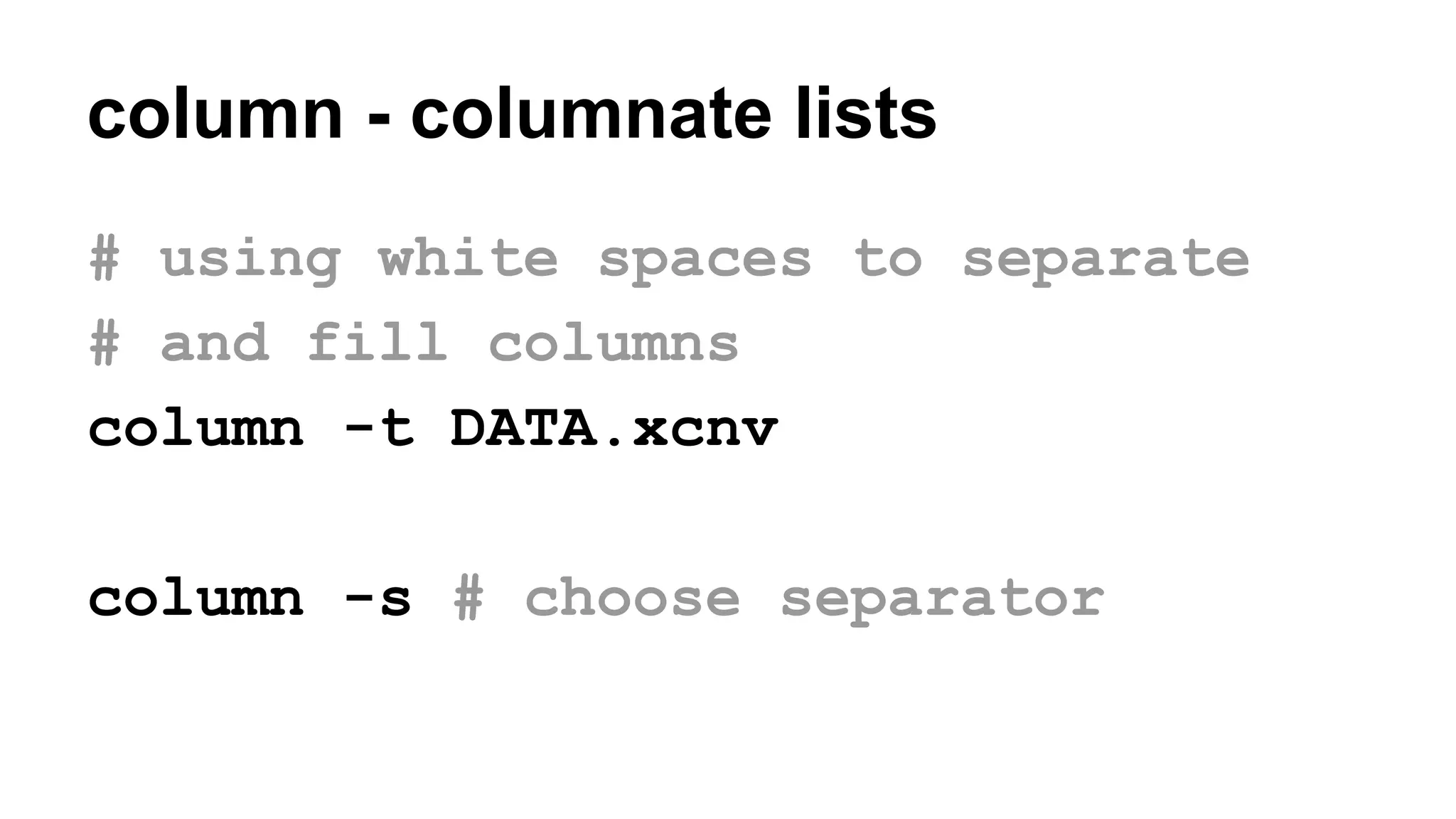
column - columnate lists
# using white spaces to separate
# and fill columns
column -t DATA.xcnv
column -s # choose separator
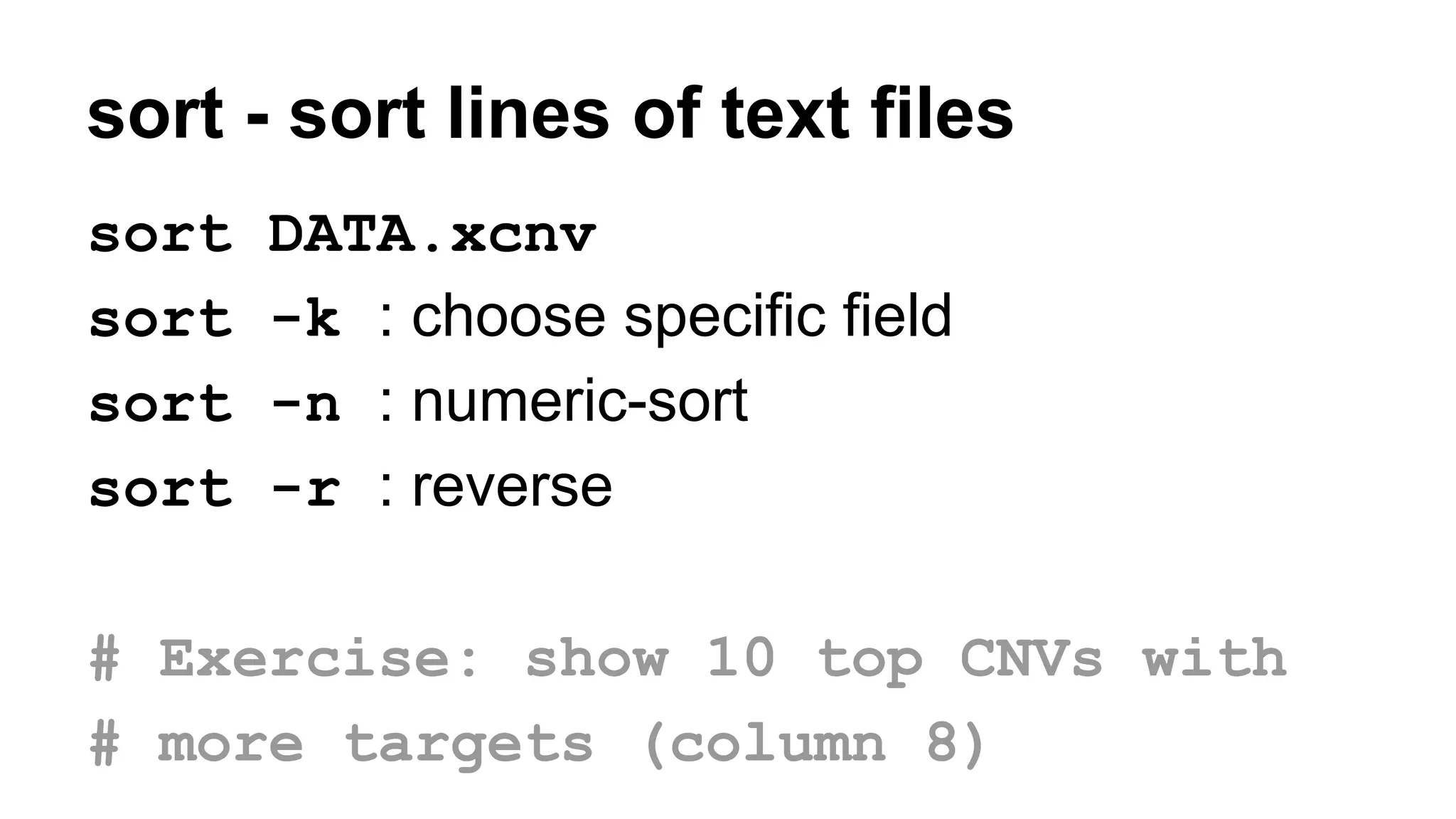
sort - sort lines of text files
sort DATA.xcnv
sort -k : choose specific field
sort -n : numeric-sort
sort -r : reverse
# Exercise: show 10 top CNVs with
# more targets (column 8)
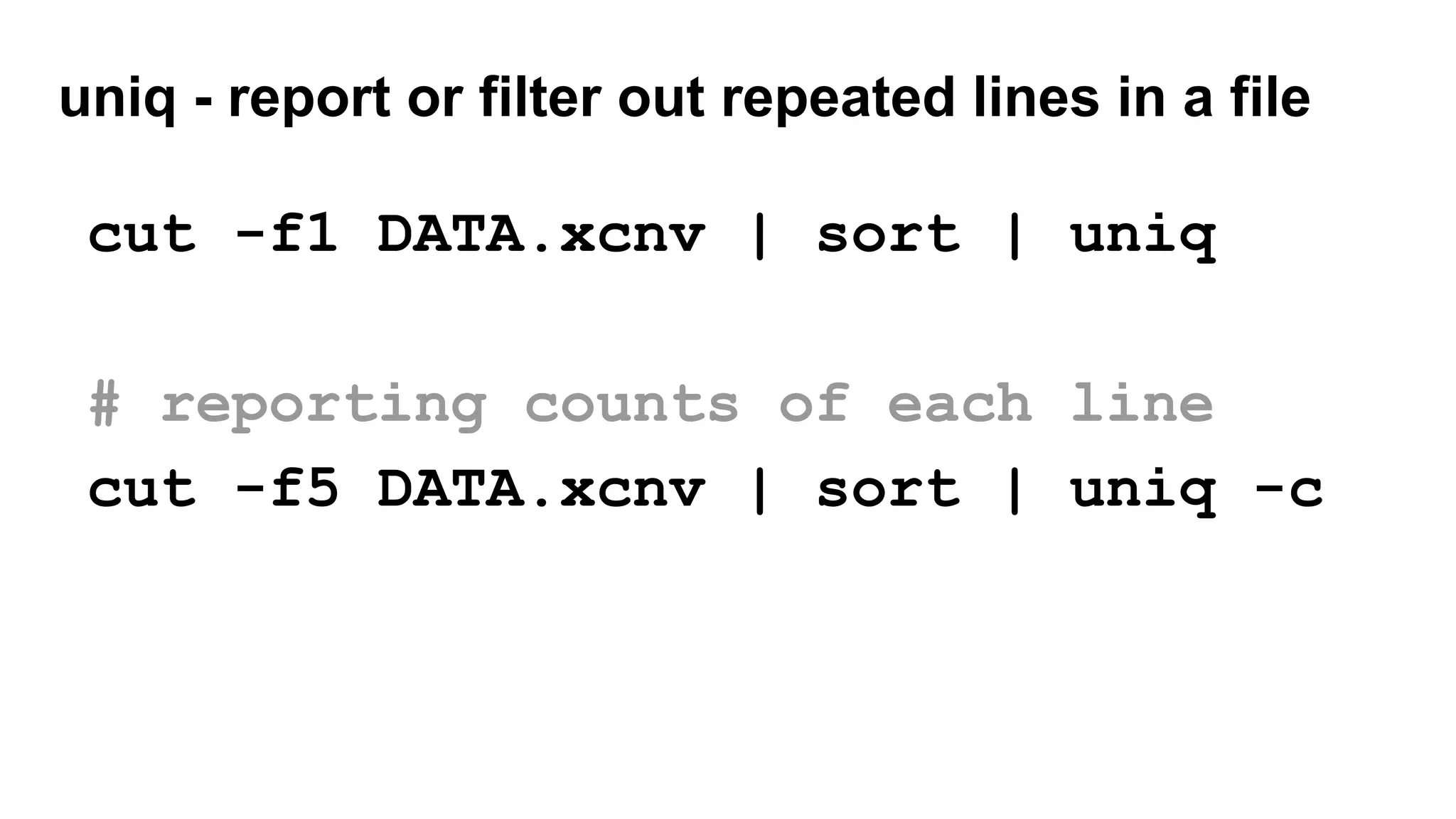
uniq - report or filter out repeated lines in a file
cut -f1 DATA.xcnv | sort | uniq
# reporting counts of each line
cut -f5 DATA.xcnv | sort | uniq -c
wc - word, line, character and byte count
wc -l : number of lines
wc -w : number of words
wc -m : number of characters
cut -f5 DATA.xcnv | sort | uniq | wc -l
head -n1 DATA.xcnv | cut -f1 | wc -m
More exercises
1. What are the top 10 samples with more CNVs?
2. What are the top 5 largest CNVs?
3. What are the top 15 directories using more space?
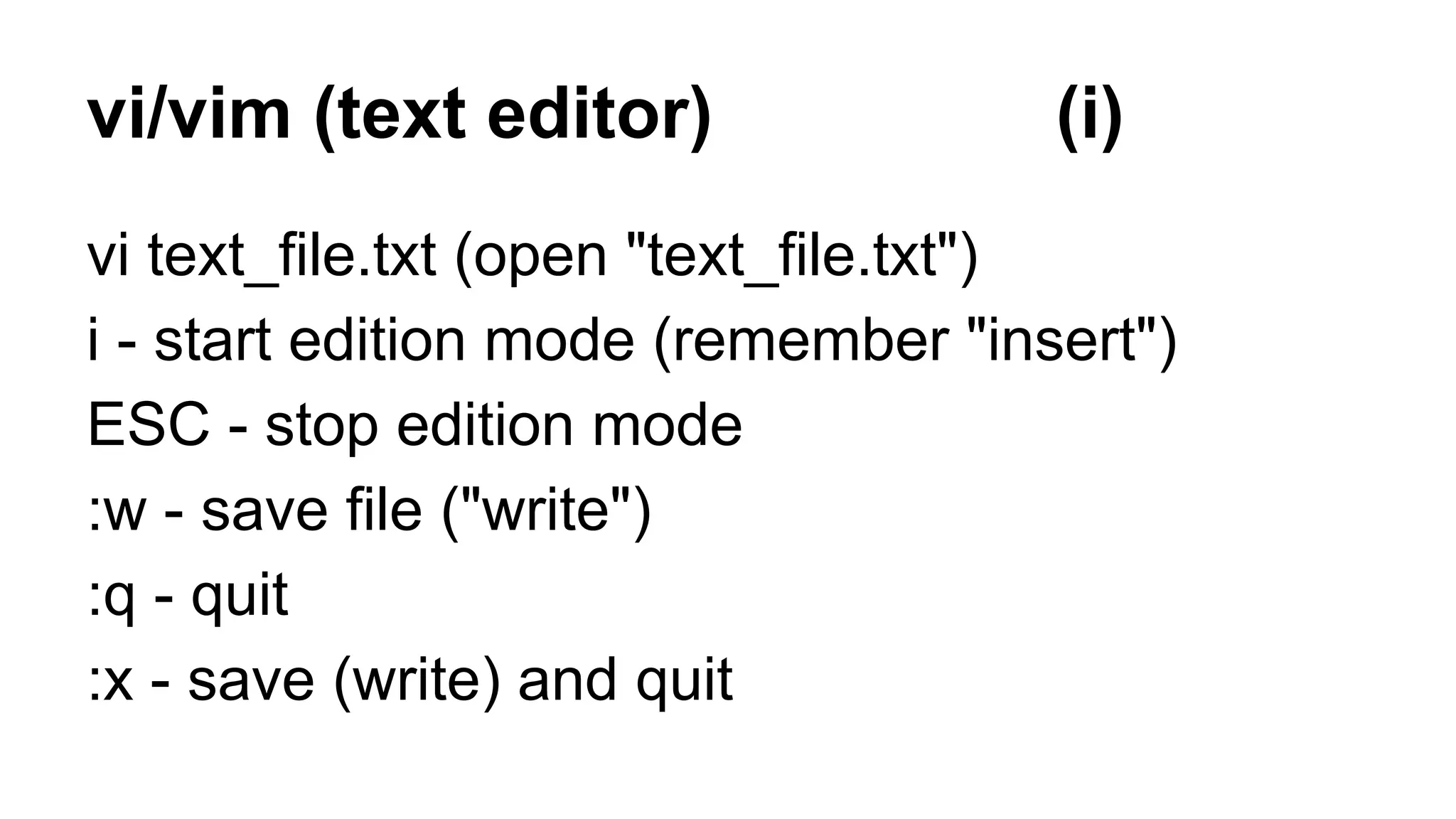
vi/vim (text editor) (i)
vi text_file.txt (open "text_file.txt")
i - start edition mode (remember "insert")
ESC - stop edition mode
:w - save file ("write")
:q - quit
:x - save (write) and quit
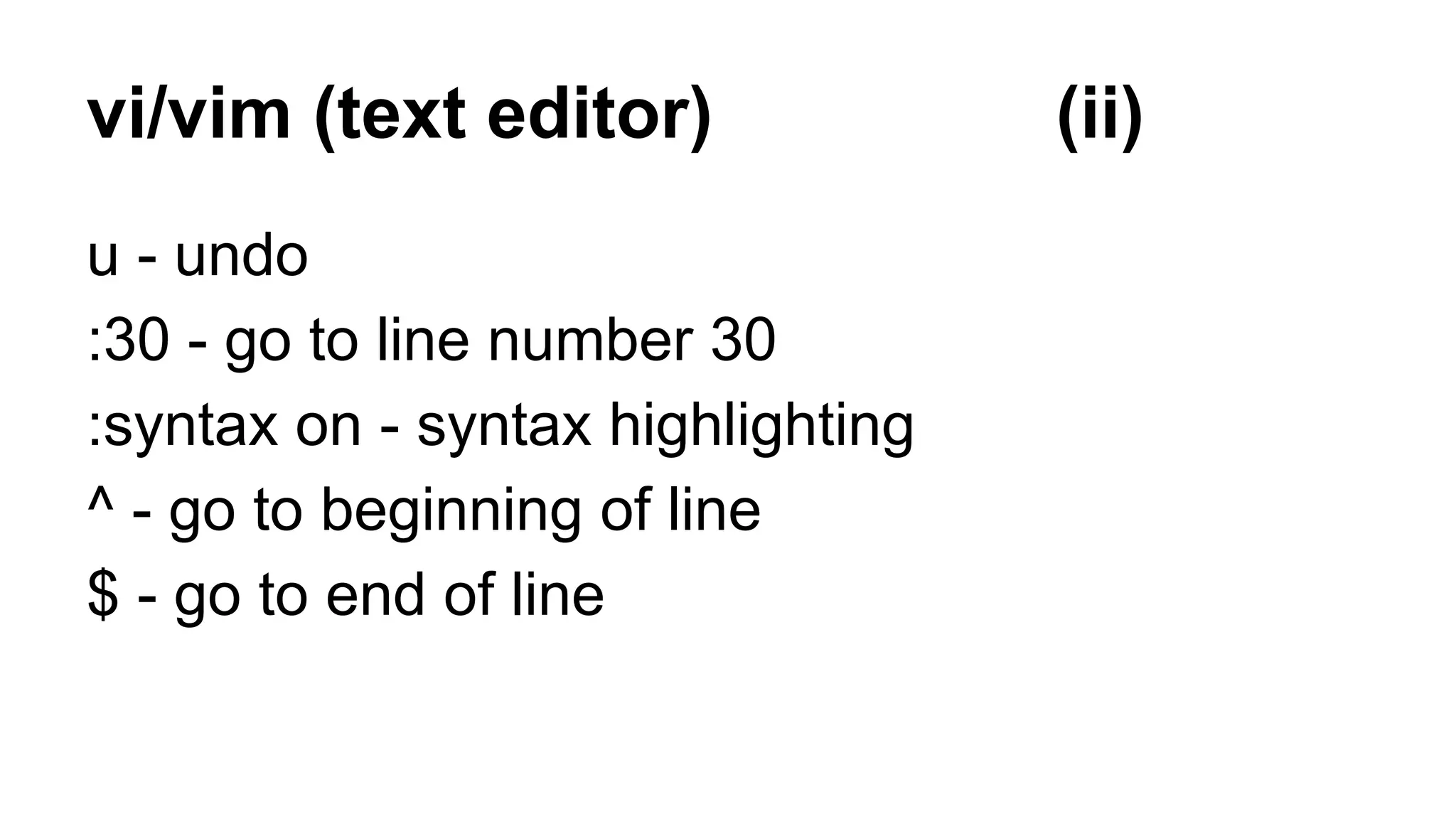
vi/vim (text editor) (ii)
u - undo
:30 - go to line number 30
:syntax on - syntax highlighting
^ - go to beginning of line
$ - go to end of line
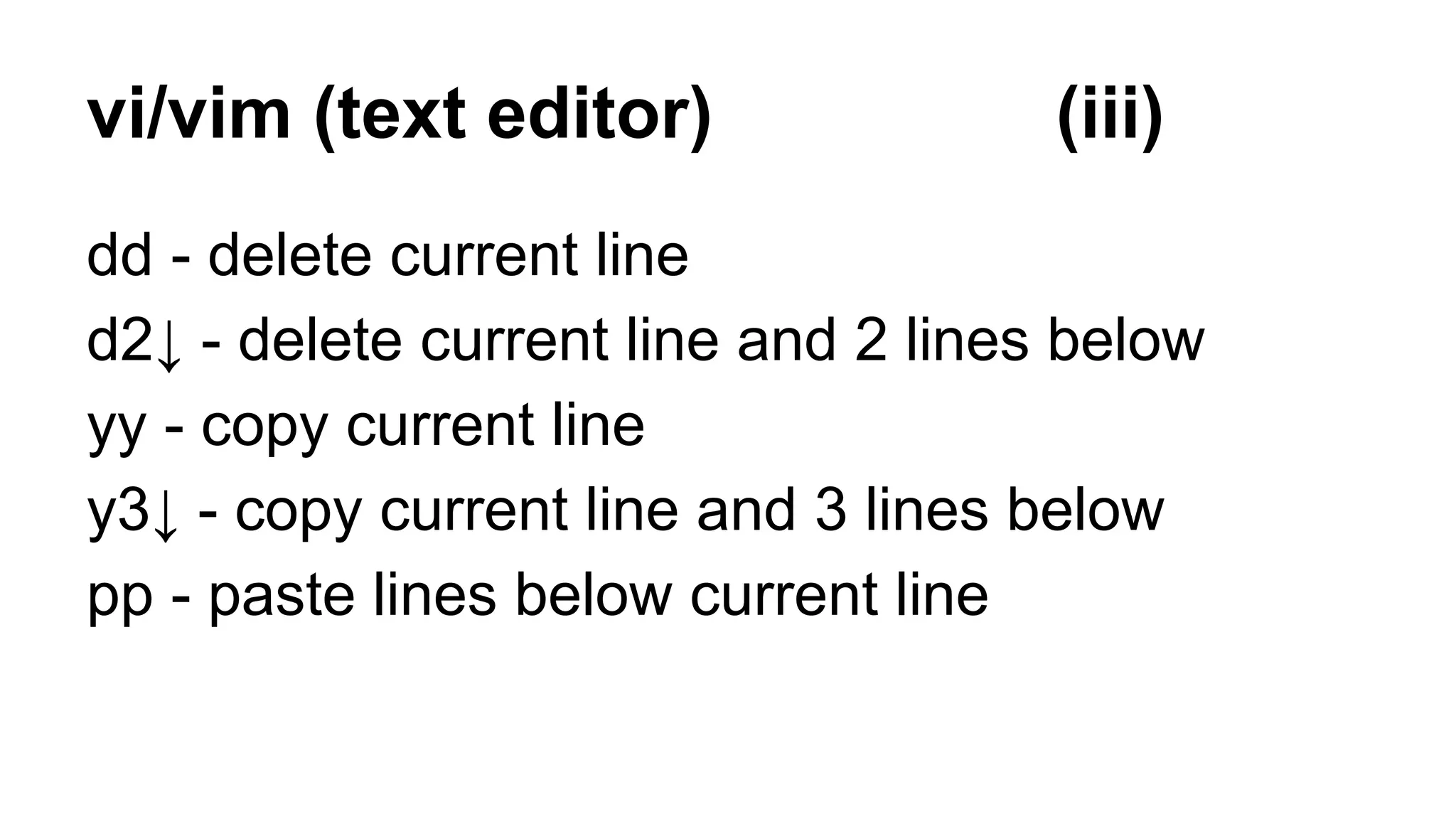
vi/vim (text editor) (iii)
dd - delete current line
d2↓ - delete current line and 2 lines below
yy - copy current line
y3↓ - copy current line and 3 lines below
pp - paste lines below current line
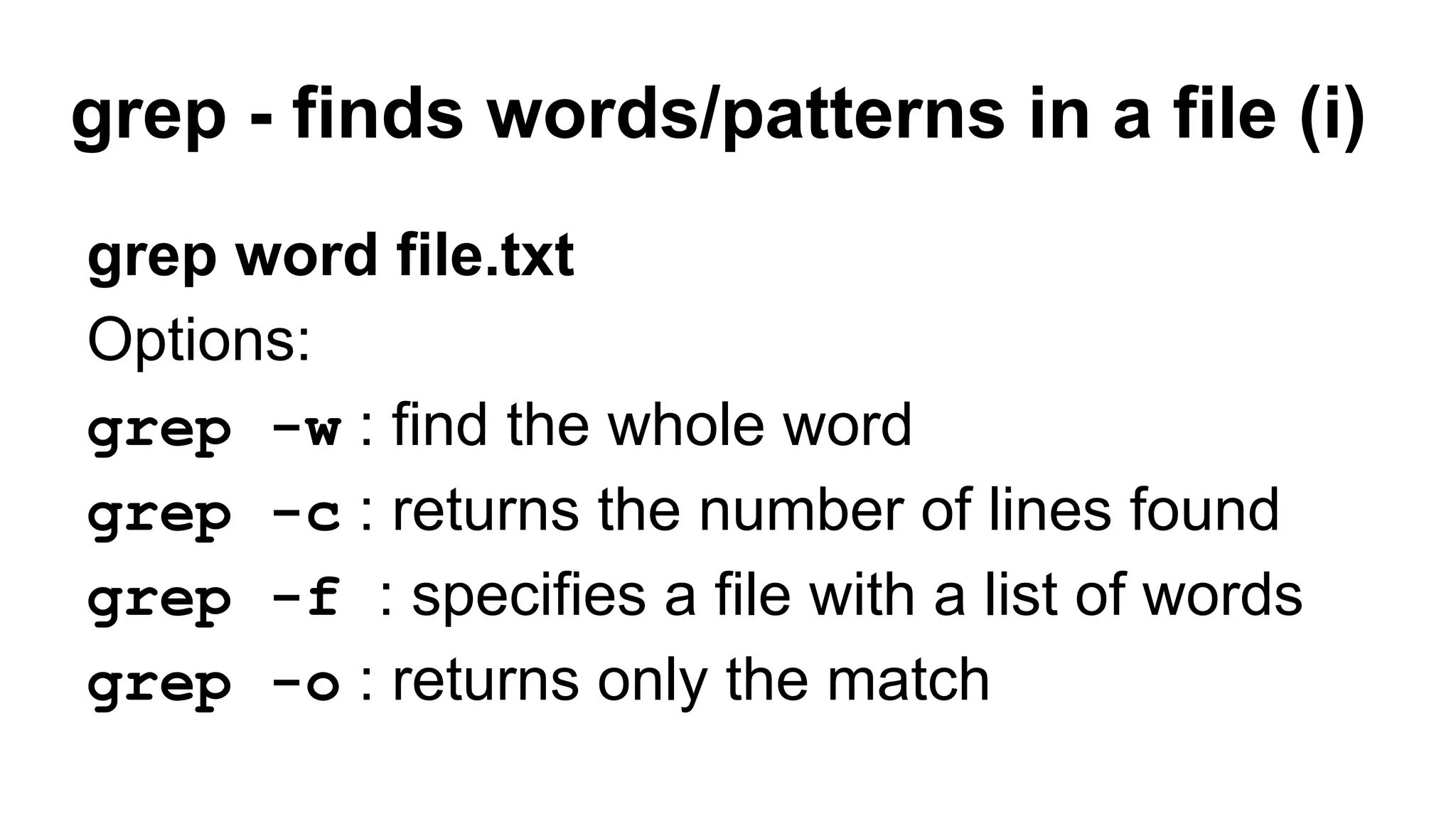
grep - finds words/patterns in a file (i)
grep word file.txt
Options:
grep -w : find the whole word
grep -c : returns the number of lines found
grep -f : specifies a file with a list of words
grep -o : returns only the match
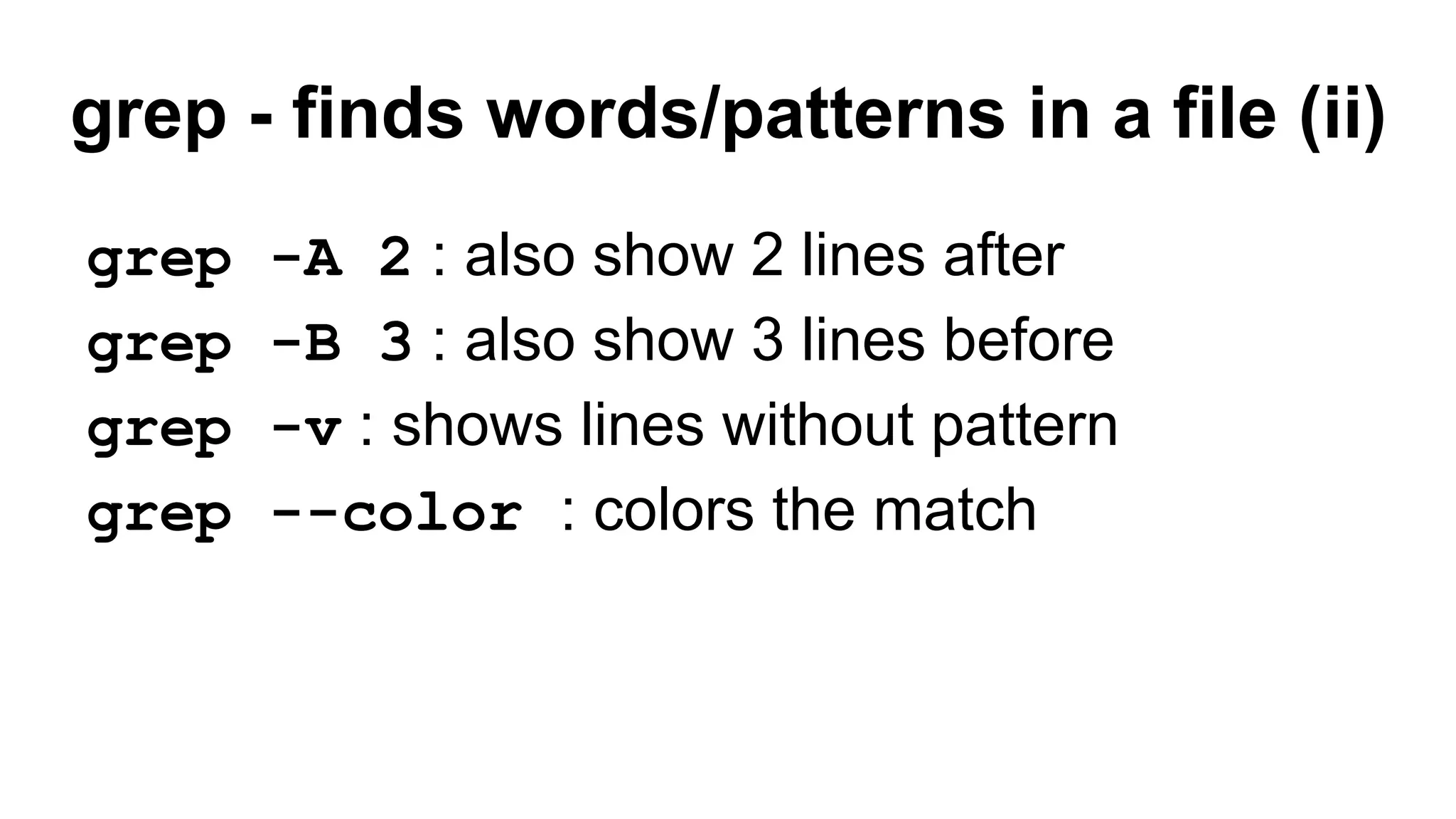
grep - finds words/patterns in a file (ii)
grep -A 2 : also show 2 lines after
grep -B 3 : also show 3 lines before
grep -v : shows lines without pattern
grep --color : colors the match
Exercises
1. How many CNVs are located on chrom. 1?
2. How many deletions are there?
3. Which samples finish with character M?
4. Which samples finish with character M or F?
5. How many samples do not have NN in the
name?

Workshop on command line tools - day 1

  • 1.
    I Workshop oncommand- line tools (day 1) Center for Applied Genomics Children's Hospital of Philadelphia February 12-13, 2015
  • 2.
    Arguments Come after thename of the program Example: cat file.txt (1 argument) cut -f2 file.txt (2 arguments) The number of spaces between arguments doesn't matter cut -f2 file.txt
  • 3.
    man - commandmanual man <command> man cat man echo man awk
  • 4.
    which - whichcommand is being called which <command> which cat which echo which awk
  • 5.
    some tips (i) Use<Tab> to auto-complete your commands or file/directory names To search old commands, you can use ↑ and ↓ arrows in your keyboard
  • 6.
    some tips (ii) Thecommand history will return a list of your last commands Use ! to run the last command starting with… Example: !grep This will run the last command starting with grep
  • 7.
    Special characters (i) ^: beginning of line $ : end of line or beginning of variable name ? : any character (with one occurrence) * : any character (with 0 or more occurrences) # : start comments [ ] : define sets of characters
  • 8.
    Special characters (ii) "" : define strings ' ' : define strings - : start a parameter ` ` : define commands ; : separate commands | : "pipe" commands
  • 9.
    Special characters (iii) ~: home directory / : separate internal directories : escape character n : new line (Linux) r : new line (Mac) t : tab
  • 10.
    First steps pwd #where am I? whoami # who am I? id <your_username> # what can I do? date # what time/day is it?
  • 11.
    cat - concatenateand print text files cat file1.txt file2.txt > output.txt cat *.bed > all.bed cat -n : shows line numbers cat -e : shows non-printing characters
  • 12.
    echo - writeto the standard output echo Hello, CAG! echo -e : prints escape characters echo -e "CtAtG" echo -e "CnAnG" echo -n : prints and doesn't go to a new line echo -n "CAG"; echo "123" echo "CAG"; echo "123"
  • 13.
    Redirect output orerrors (i) echo "bla" > bla.txt echo "ble" > ble.txt cat bla.txt ble.txt > BLs.txt echo "bli" >> BLs.txt echo "blo" > blo.txt cat blo.txt >> BLs.txt
  • 14.
    Redirect output orerrors (ii) cat -n BLs.txt cat blu.txt >> BLs.txt 2> error.txt cat error.txt cat blublu.txt >> BLs.txt 2>> error.txt cat error.txt
  • 15.
    ls - listfiles in directories (i) ls : list files of current directory ls workshop : list files in directory workshop ls -l : in long format ls -t : list files sorted by time modified ls -1 : force output to be one entry per line ls -S : list files sorted by time modified
  • 16.
    ls - listfiles in directories (ii) ls -r : reverse the sorting ls -a : list hidden files (which begin with a dot) ls -h : show file size human-readable ls -G : colors output We can combine options: ls -lhrt
  • 17.
    ssh - secureshell (access remote servers) (i) ssh <user>@<server> ssh -t : exits after a list of commands ssh limal@respublica.research.chop.edu ssh limal@respublica.research.chop.edu -t top ssh limal@respublica.research.chop.edu -t ls -lh ssh limal@respublica.research.chop.edu -t ls -lh > my_home_on_respub.txt
  • 18.
    ssh - secureshell (access remote servers) (ii) ssh -p <port> : access a specific port on server ssh -X : open session with graphic/display options (if you need to open a graphic program in a remote server; e.g. IGV).
  • 19.
    alias - "shortcut"for commands alias <alias> : see what is a specific alias alias ll # ll is not a real command. =) alias resp='ssh limal@respublica.research.chop.edu' resp
  • 20.
    df - reportfile system disk space usage df -h : human-readable
  • 21.
    du - estimatefile space usage du -h : human-readable
  • 22.
    mkdir - makedirectory mkdir bioinfo_files mkdir workshop_text_files mkdir workshop123 mkdir -p 2015/February/12 # Suggestion: # Create names that make sense
  • 23.
    cd - changeworking directory cd bioinfo_files cd .. # go to directory above cd ~ # go to home directory cd - # go to previous directory
  • 24.
    rmdir - removeempty directories rmdir workshop123 rmdir 2015 # it will return an error
  • 25.
    mv - movefiles and directories mv bl?.txt workshop_text_files mv BLs.txt old_file.txt mv workshop_text_files workshop_files
  • 26.
    cp - copyfiles and directories cp old_file.txt workshop_files cp error.txt error_copy.txt # To copy directories with its contents, # use -r (recursive) cp -r workshop_files bioinfo_files/ # Now, try... cp -r workshop_files/ bioinfo_files/
  • 27.
    scp - securecopy files and directories in different servers # Similar to "cp" (in this case, we're uploading) scp *.txt limal@respublica.research.chop.edu:~/ # To copy directories with its contents, # use -r (recursive) scp -r w* limal@respublica.research.chop.edu:~/ # Downloading scp limal@respublica.research.chop.edu:~/*.txt .
  • 28.
    rm - removefiles and directories rm old_file.txt error_copy.txt # Use -r (recursive) to remove # directories and its contents rm -r bioinfo_files/workshop_files/ rm -r 2015
  • 29.
    ln - makelinks (pointers) of files (it's good to avoid multiple copies) # hard links keep the same if the original # files are removed ln workshop_files/old_file.txt hard.txt # symbolic links break if the original # files are removed ln -s workshop_files/old_file.txt symbolic.txt
  • 30.
    testing links echo "hard">> hard.txt echo "symbolic" >> symbolic.txt head hard.txt symbolic.txt head workshop_files/old_file.txt rm workshop_files/old_file.txt head hard.txt symbolic.txt
  • 31.
    wget - networkdownloader wget www.ime.usp.br/~llima/XHMM_results.tar.bz2 wget -c : continue (for incomplete downloads) wget http://bio.ime.usp.br/llima/GWAS.tar.gz # after 10%, press Ctrl+C wget -c http://bio.ime.usp.br/llima/GWAS.tar.gz
  • 32.
    tar - archiving Createan archive: tar -cvf newfile.tar file1 file2 dir1 dir2 tar -cvf BLs.tar bla.txt ble.txt blo.txt tar -cvzf BLs.tar.gz bla.txt ble.txt blo.txt Parameters: c (create), v (verbose), z (gzip), f (file)
  • 33.
    tar - archiving Extractfrom an archive: tar -xvzf GWAS.tar.gz tar -xvjf XHMM_results.tar.bz2 Parameters: x (extract), v (verbose), f (file), z (gzip), j (bzip2)
  • 34.
    gzip - zipfiles ls -lh adhd.ped gzip adhd.ped ls -lh adhd.ped.gz # to unzip, run "gunzip adhd.ped.gz"
  • 35.
    zcat - catfor zipped files zcat adhd.ped.gz # Ctrl+C to stop
  • 36.
    less - filevisualization less DATA.xcnv Use arrows (←↑→↓) to navigate the file Type / to search
  • 37.
    file slicing -head, tail, cut
  • 38.
    head - firstlines # first 20 lines head -n 20 DATA.xcnv # all lines, excluding last 2 # (on Linux, not Mac) head -n -2 DATA.xcnv
  • 39.
    tail - lastlines # last 20 lines tail -n 20 DATA.xcnv # from line 2 to the end tail -n +2 DATA.xcnv
  • 40.
    cut - getspecific columns of file # fields 1 to 3 and 6 cut -f 1-3,6 DATA.xcnv # other examples cut -f1 adhd.ped cut -f1 -d' ' adhd.ped # delimiter = space # other delimiters: comma, tab, etc. cut -d, -f1-2 … cut -d't' -f5,7,9 …
  • 41.
    Using "|" (pipe)to join commands cut -f 1-3,6 DATA.xcnv | head -n 1 cut -f 1-3,6 DATA.xcnv | less zcat adhd.ped.gz | less # Compare (same result? same time?) zcat adhd.ped.gz | cut -f1 -d' ' | head zcat adhd.ped.gz | head | cut -f1 -d' '
  • 42.
    column - columnatelists # using white spaces to separate # and fill columns column -t DATA.xcnv column -s # choose separator
  • 43.
    sort - sortlines of text files sort DATA.xcnv sort -k : choose specific field sort -n : numeric-sort sort -r : reverse # Exercise: show 10 top CNVs with # more targets (column 8)
  • 44.
    uniq - reportor filter out repeated lines in a file cut -f1 DATA.xcnv | sort | uniq # reporting counts of each line cut -f5 DATA.xcnv | sort | uniq -c
  • 45.
    wc - word,line, character and byte count wc -l : number of lines wc -w : number of words wc -m : number of characters cut -f5 DATA.xcnv | sort | uniq | wc -l head -n1 DATA.xcnv | cut -f1 | wc -m
  • 46.
    More exercises 1. Whatare the top 10 samples with more CNVs? 2. What are the top 5 largest CNVs? 3. What are the top 15 directories using more space?
  • 47.
    vi/vim (text editor)(i) vi text_file.txt (open "text_file.txt") i - start edition mode (remember "insert") ESC - stop edition mode :w - save file ("write") :q - quit :x - save (write) and quit
  • 48.
    vi/vim (text editor)(ii) u - undo :30 - go to line number 30 :syntax on - syntax highlighting ^ - go to beginning of line $ - go to end of line
  • 49.
    vi/vim (text editor)(iii) dd - delete current line d2↓ - delete current line and 2 lines below yy - copy current line y3↓ - copy current line and 3 lines below pp - paste lines below current line
  • 50.
    grep - findswords/patterns in a file (i) grep word file.txt Options: grep -w : find the whole word grep -c : returns the number of lines found grep -f : specifies a file with a list of words grep -o : returns only the match
  • 51.
    grep - findswords/patterns in a file (ii) grep -A 2 : also show 2 lines after grep -B 3 : also show 3 lines before grep -v : shows lines without pattern grep --color : colors the match
  • 52.
    Exercises 1. How manyCNVs are located on chrom. 1? 2. How many deletions are there? 3. Which samples finish with character M? 4. Which samples finish with character M or F? 5. How many samples do not have NN in the name?