Incorporating Video and Audio
Objectives
Assess web video and audio
Use the video element
Control playback
Incorporate the source element
2HTML5 and CSS3 – Illustrated, 2nd
Edition
Objectives (continued)
Add video support for older browsers
Provide poster and fallback images
Make videos accessible
Implement the audio element
3HTML5 and CSS3 – Illustrated, 2nd
Edition
Assess Web Video and
Audio
Video and audio are widespread
 Need to make choices on how to
incorporate video and audio into web
pages
Encoding: transforming moving image
and/or sound into a digital file
 Each encoding method known as codec
• Main video codecs: H.264, Theora, VP8, VP9
• Main audio codecs: AAC, MP3, Opus, Vorbis
4HTML5 and CSS3 – Illustrated, 2nd
Edition
Assess Web Video and
Audio (continued)
Stream: encoded set of video data
Container: file that contains a video
stream
 May contain accompanying audio stream
 Popular container formats: MPEG-4,
Ogg, WebM, Flash Video
 Each container commonly used with 1 or
2 specific audio codecs and specific
video codecs
5HTML5 and CSS3 – Illustrated, 2nd
Edition
Assess Web Video and
Audio (continued)
Helper program: program that can
unpack container and decode video
and audio streams
 Also known as plugin
 Users often need to download
appropriate software packages
Not all browsers natively support
containers and codecs
 Web developers must take steps to
ensure usability when publishing media
6HTML5 and CSS3 – Illustrated, 2nd
Edition
Assess Web Video and
Audio (continued)
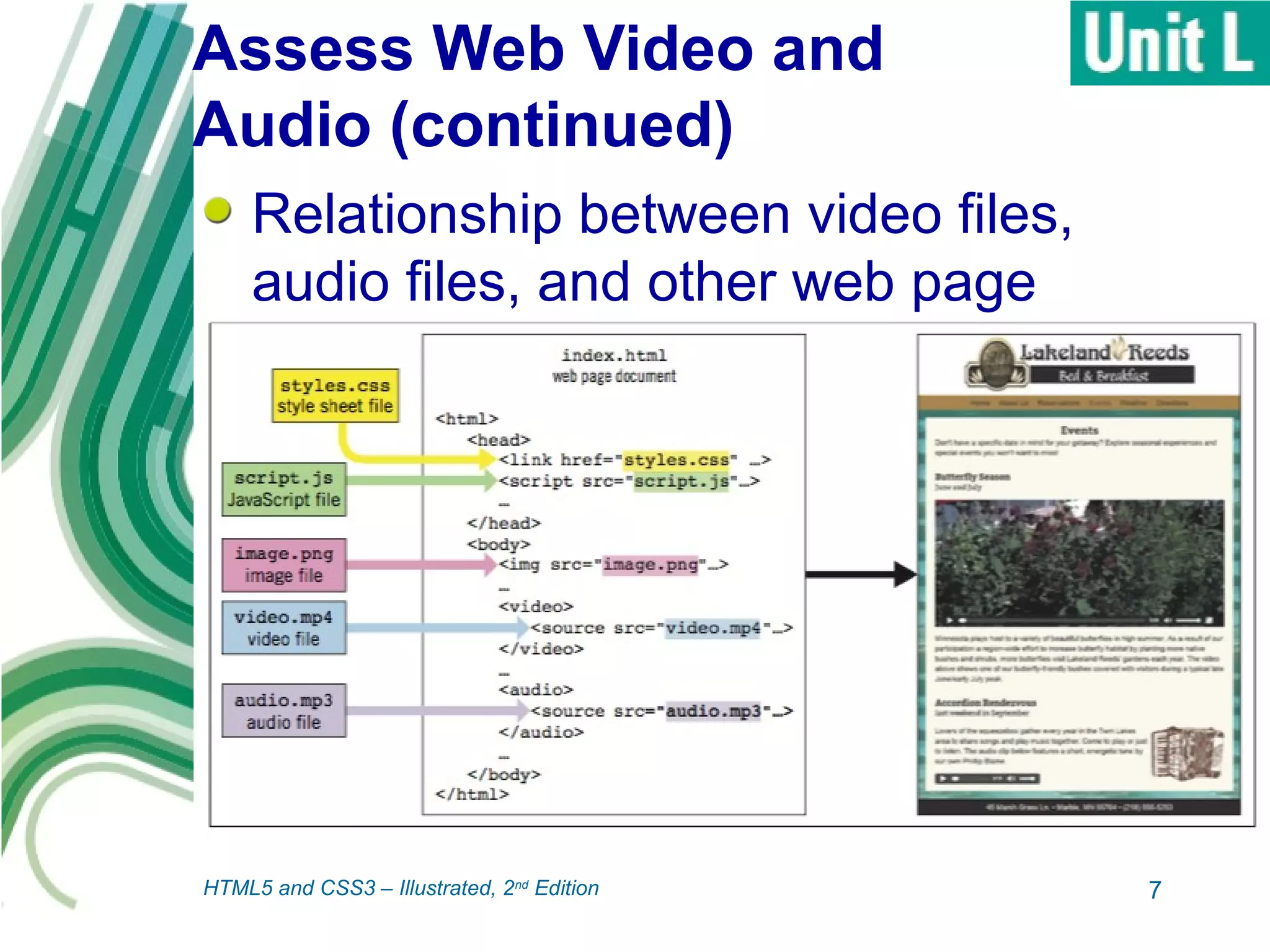
Relationship between video files,
audio files, and other web page
components:
7HTML5 and CSS3 – Illustrated, 2nd
Edition
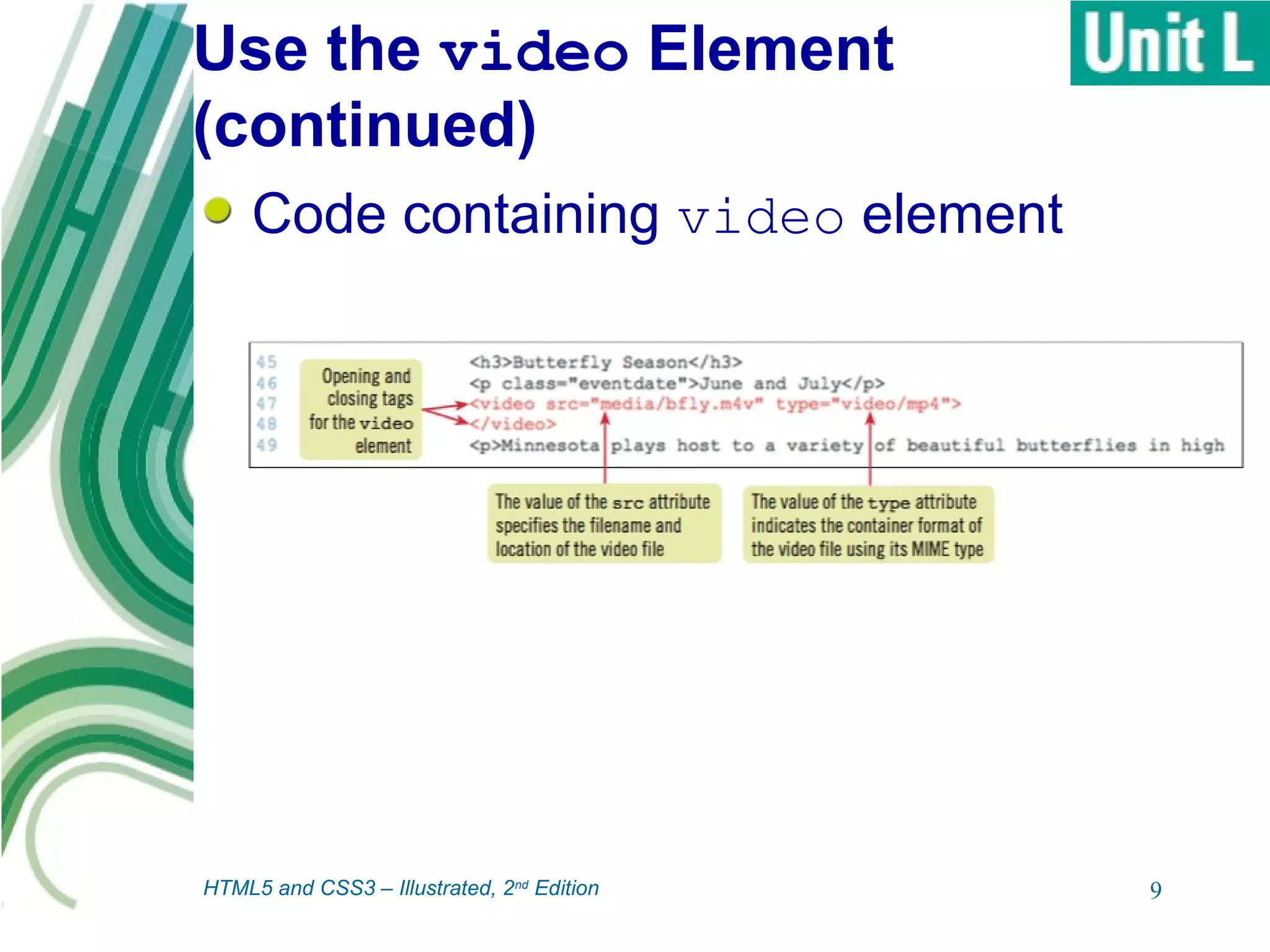
Use the video Element
video element: used to add video to
a web page
 type attribute specifies container format
• MIME type: a standardized value used to
reference a data type
8HTML5 and CSS3 – Illustrated, 2nd
Edition
Use the video Element
(continued)
Code containing video element
9HTML5 and CSS3 – Illustrated, 2nd
Edition
Control Playback
Attributes of the video element
provide control over display and how
user interacts with video
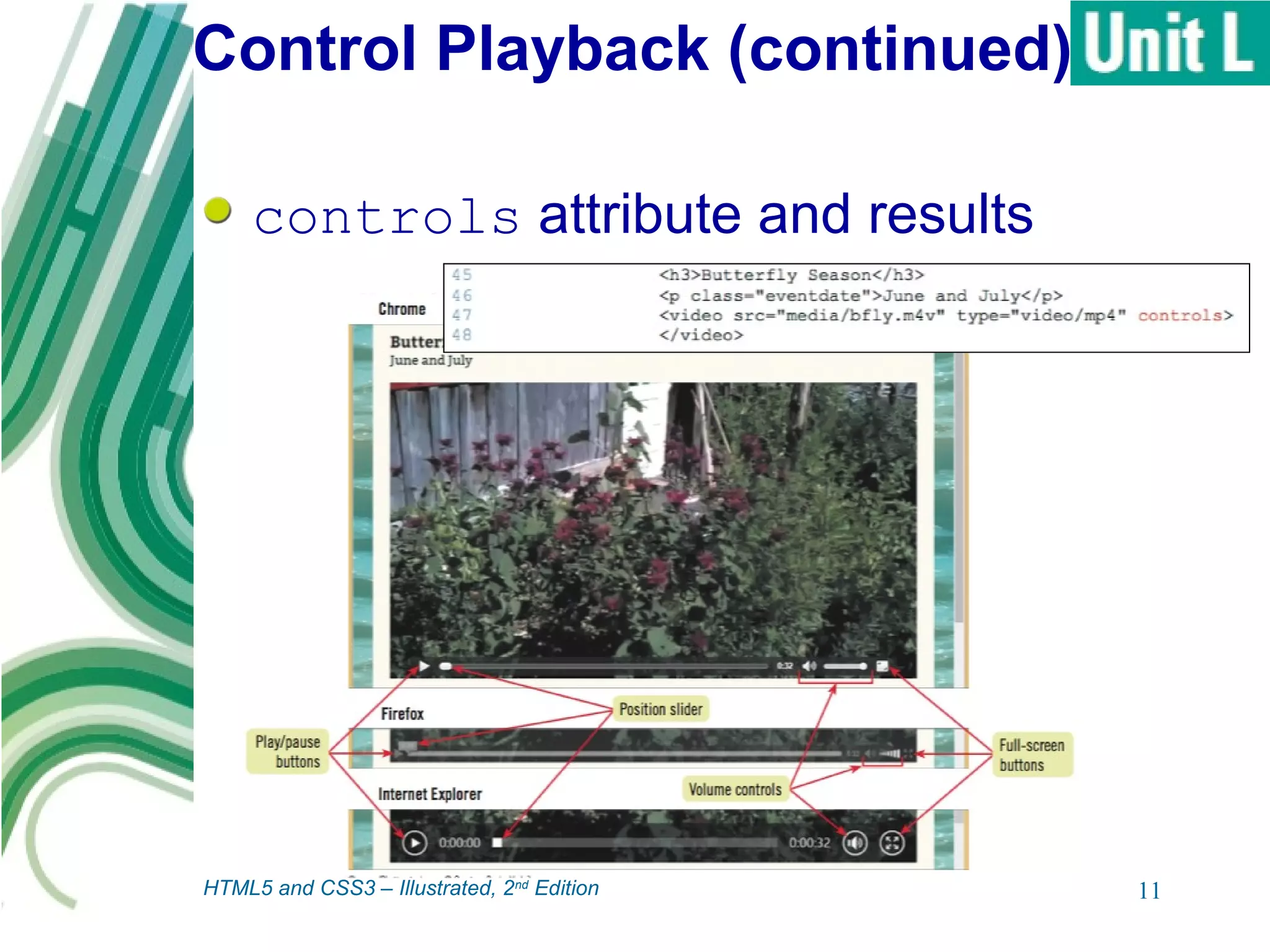
 controls: instruct browser to add
default controls to the video element
 preload: when browser should
download the video
 loop: restart playback when end of
video is reached
 autoplay: start playback when page is
loaded
10HTML5 and CSS3 – Illustrated, 2nd
Edition
Control Playback (continued)
controls attribute and results
11HTML5 and CSS3 – Illustrated, 2nd
Edition
Incorporate the source
Element
Modern browsers support MPEG-4
with H.264, but some may be
optimized for other formats
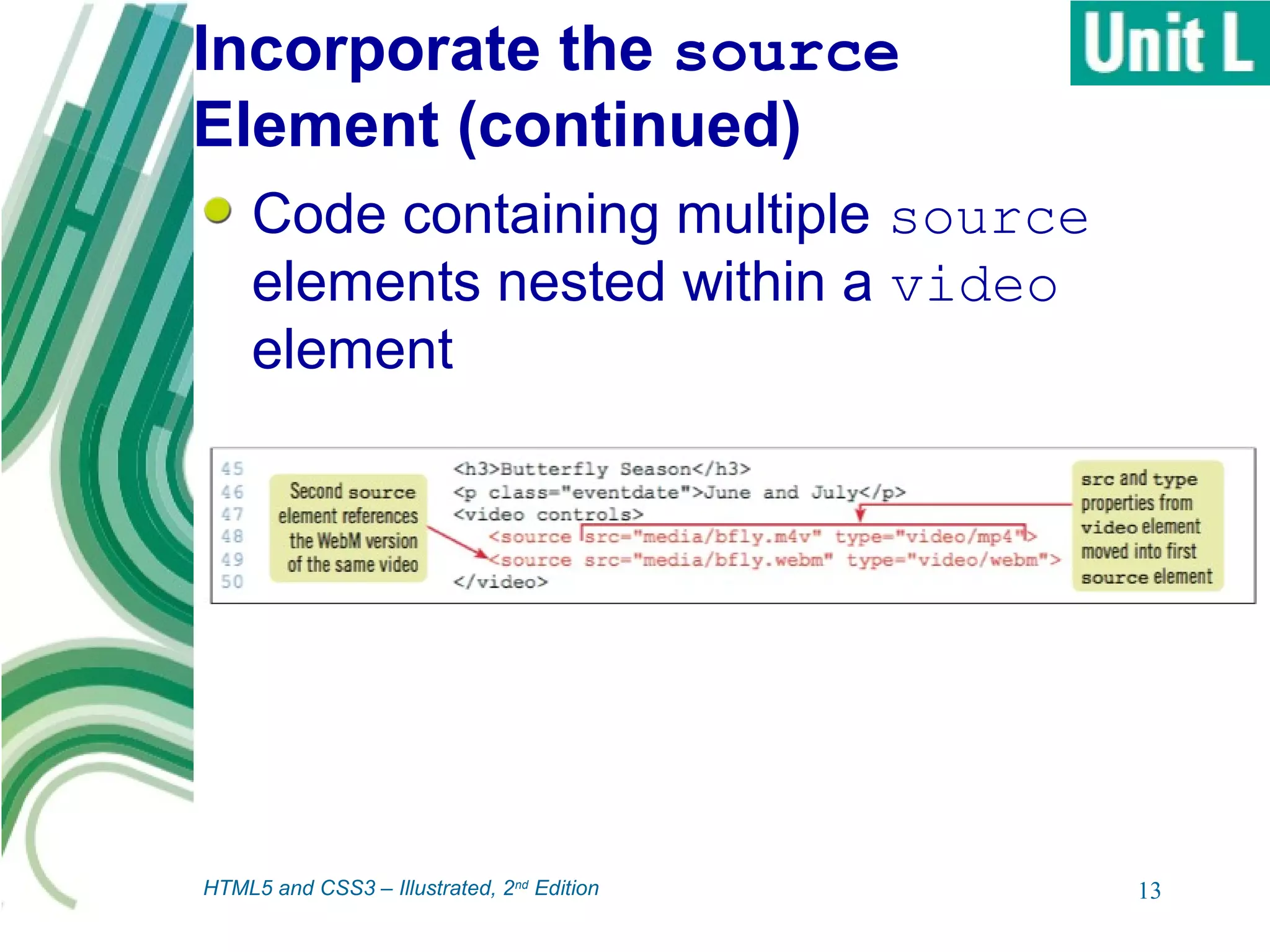
source element: used to specify a
media file to be displayed
 Multiple source elements can be nested
within a video element
 Can be used to reference multiple video
files each specifying the same video in
different container and encoding formats
12HTML5 and CSS3 – Illustrated, 2nd
Edition
Incorporate the source
Element (continued)
Code containing multiple source
elements nested within a video
element
13HTML5 and CSS3 – Illustrated, 2nd
Edition
Add Video Support for Older
Browsers
Older browsers do not recognize
HTML5 elements
 You can add support for older browsers
while maintaining HTML5 features for
browsers that support it
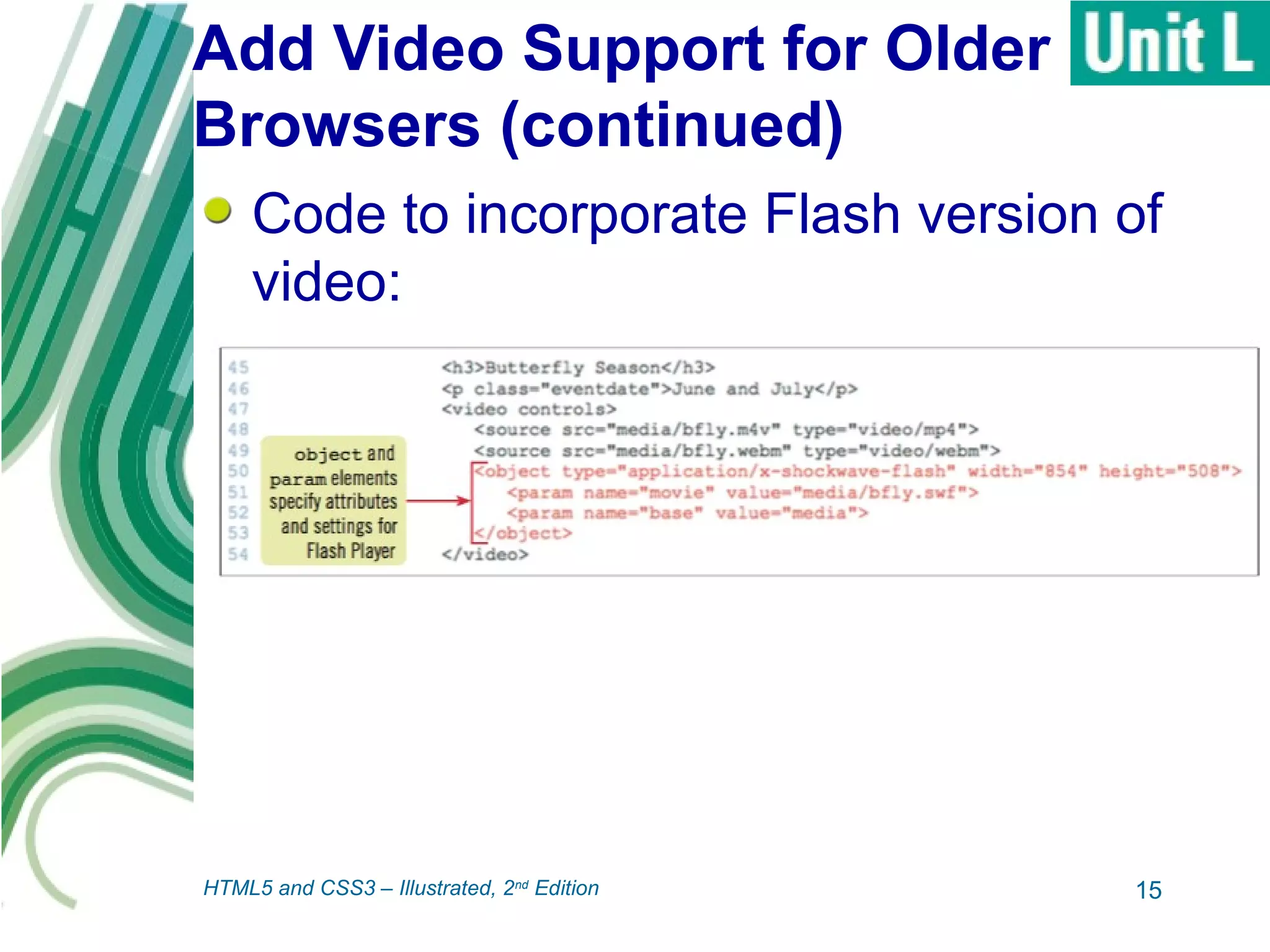
To make Flash version available, use
object and param elements
 object element defines video type
 param elements define settings for the
video
14HTML5 and CSS3 – Illustrated, 2nd
Edition
Add Video Support for Older
Browsers (continued)
Code to incorporate Flash version of
video:
15HTML5 and CSS3 – Illustrated, 2nd
Edition
Add Video Support for Older
Browsers (continued)
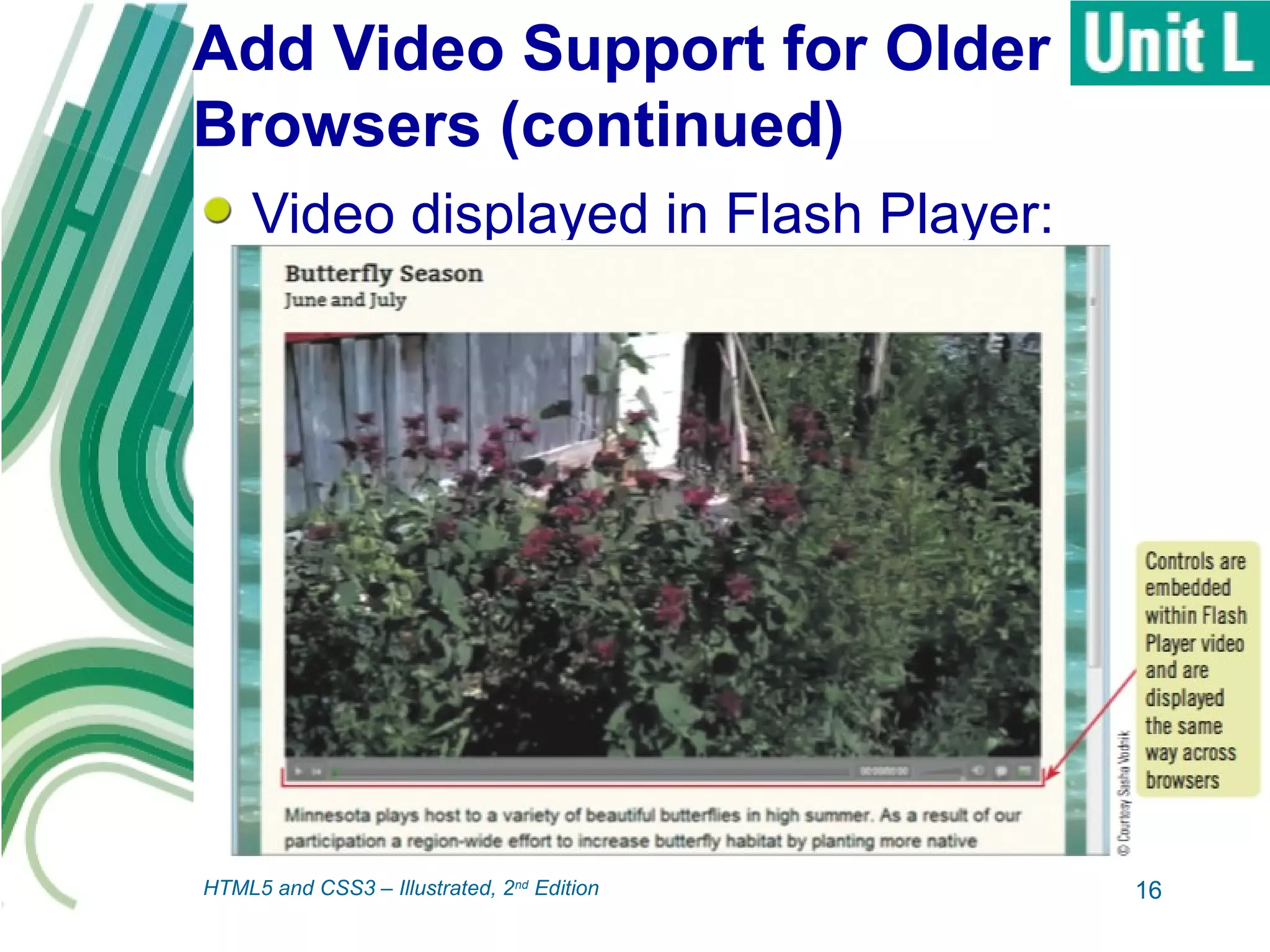
Video displayed in Flash Player:
16HTML5 and CSS3 – Illustrated, 2nd
Edition
Provide Poster and Fallback
Images
Before a users plays a video, the first
frame is displayed
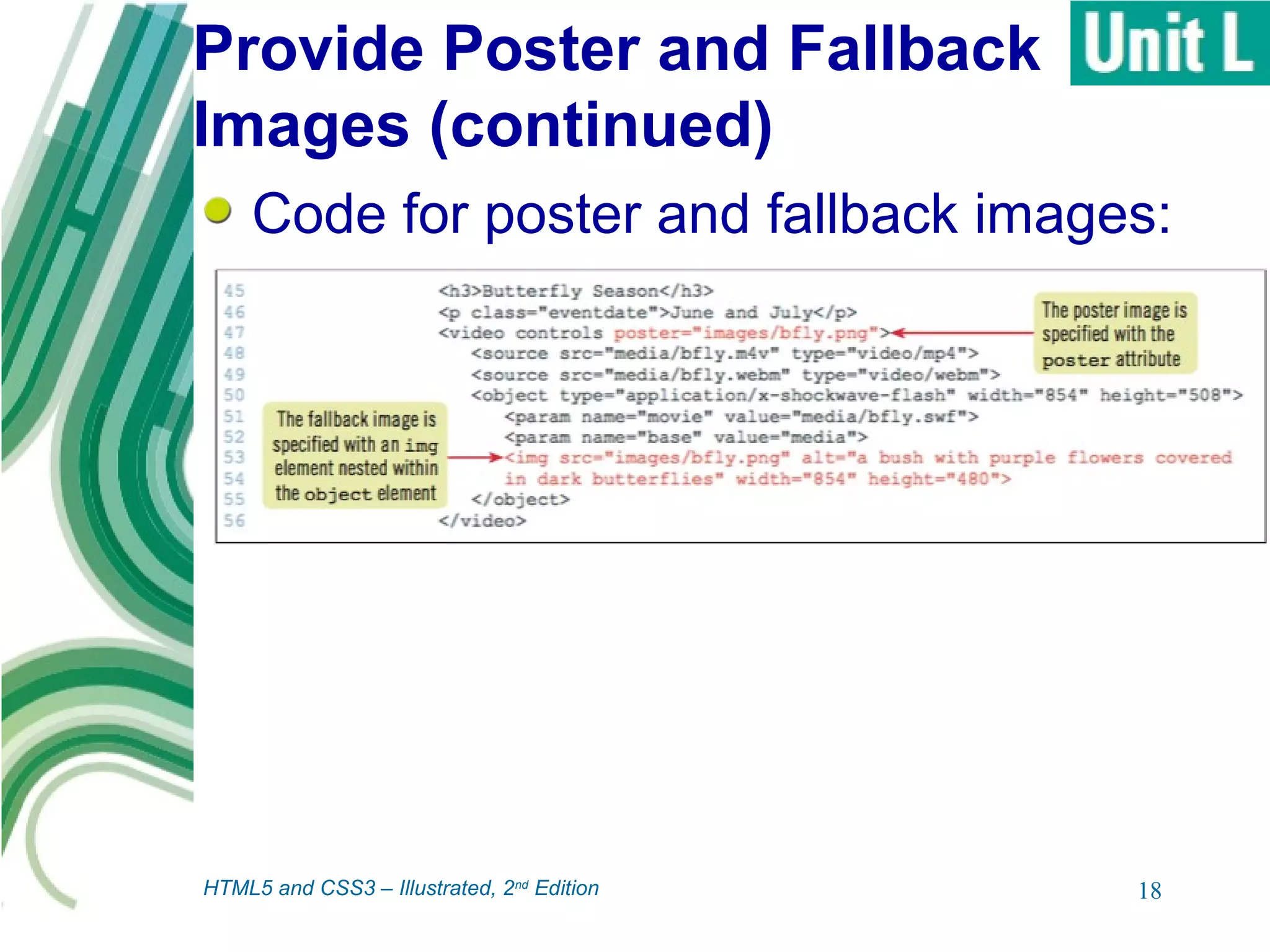
 Can customize by specifying a poster
image
It is likely that some potential viewers
will be unable to view video content
 To preserve layout of web page, specify
a fallback image
 Created by nesting an img element
within the video element
17HTML5 and CSS3 – Illustrated, 2nd
Edition
Provide Poster and Fallback
Images (continued)
18
Code for poster and fallback images:
HTML5 and CSS3 – Illustrated, 2nd
Edition
Make Videos Accessible
Make videos accessible by
accompanying with text content
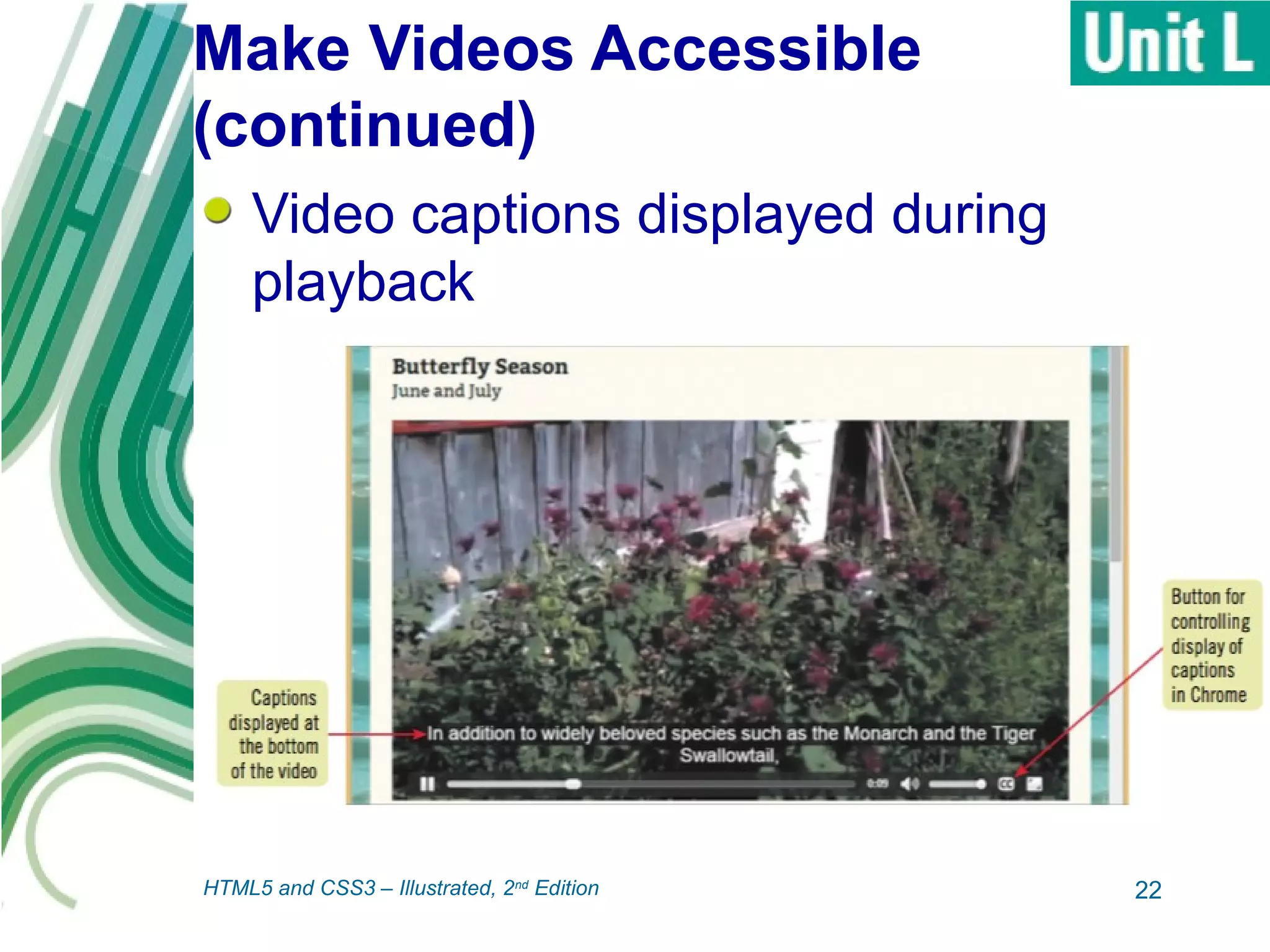
Captions: text overlaid on video image
that describes audio portion
 For users who are deaf/hard of hearing
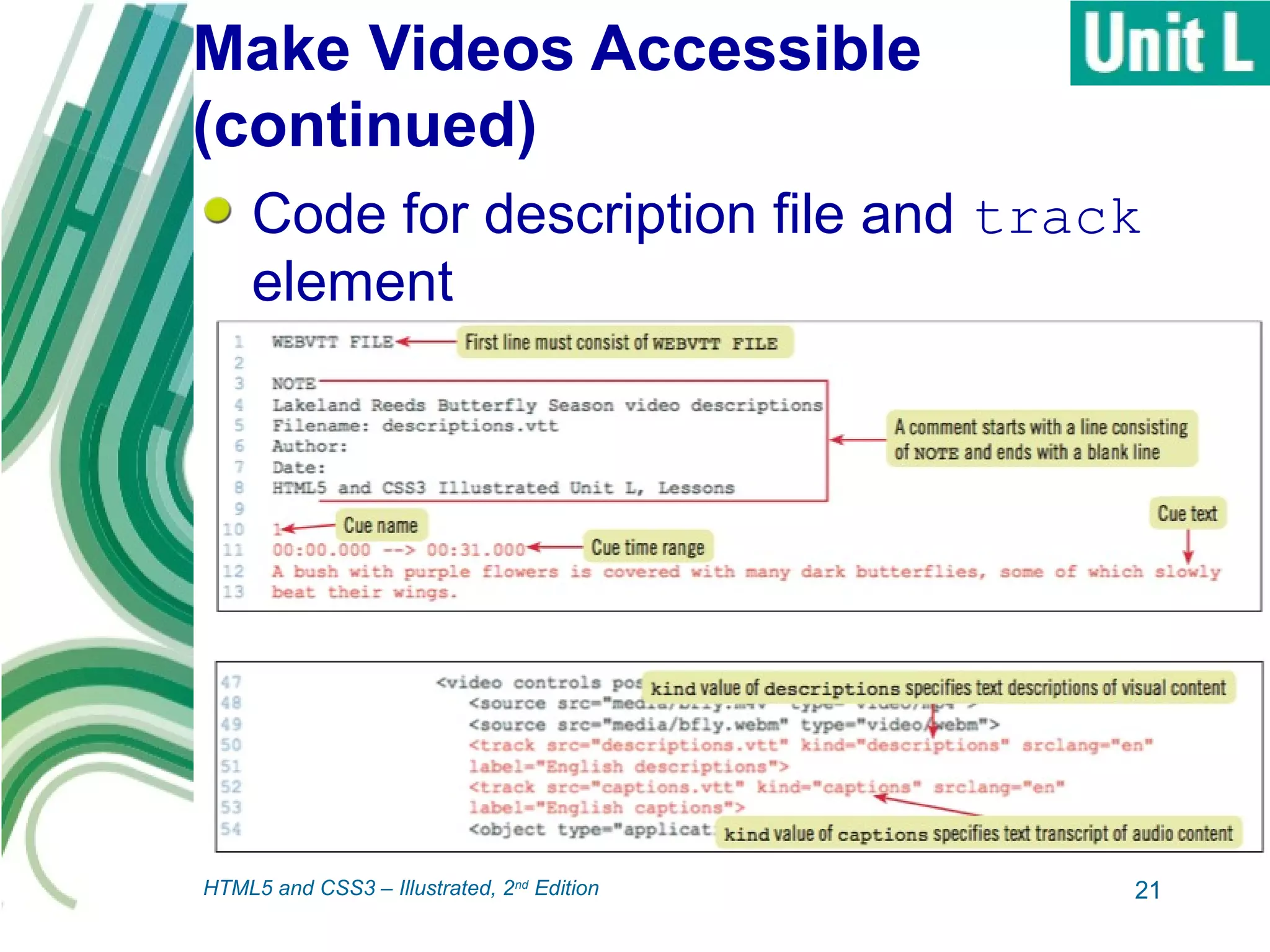
Descriptions: words that explain what
is happening in the video
 For users who are blind or have low sight
 Can be read by screen reader
19HTML5 and CSS3 – Illustrated, 2nd
Edition
Make Videos Accessible
(continued)
Captions and descriptions written in
WebVTT
 Markup language for creating text tracks
to accompany video
 Consists of cues: unique name, time
range, and associated text
Use track element to link caption
and description files to web page
20HTML5 and CSS3 – Illustrated, 2nd
Edition
Make Videos Accessible
(continued)
Code for description file and track
element
21HTML5 and CSS3 – Illustrated, 2nd
Edition
Make Videos Accessible
(continued)
Video captions displayed during
playback
22HTML5 and CSS3 – Illustrated, 2nd
Edition
Implement the audio
Element
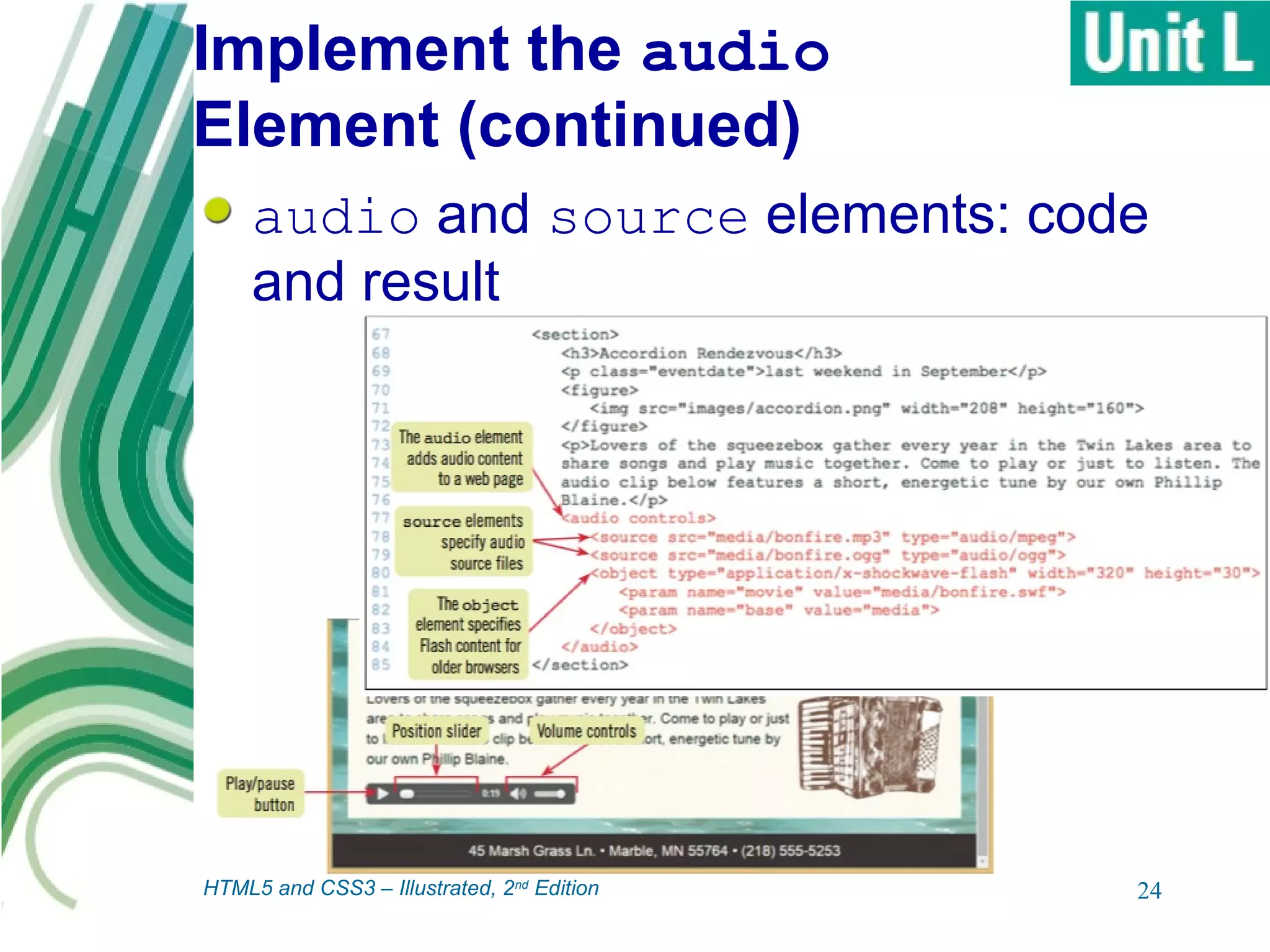
audio element: element for linking
audio files to a web page and enabling
users to control playback
 Takes same attributes as video element
 Accepts nested source elements for
source files in multiple formats
Important to display the controls
because without them, audio element
is invisible on the web page
23HTML5 and CSS3 – Illustrated, 2nd
Edition
Implement the audio
Element (continued)
24
audio and source elements: code
and result
HTML5 and CSS3 – Illustrated, 2nd
Edition
Summary
Media files can be included in a web
page, provided that you take into
consideration:
 Encoding and container formats
 Inclusion of helper programs and plugins
 Providing support for older browsers
Video is added using video element
 Attributes specify how video is displayed
and how user interacts with the video
25HTML5 and CSS3 – Illustrated, 2nd
Edition
Summary (continued)
source elements allow you to provide
multiple versions of the file in different
formats
Various attributes of video element
enable control of video playback
Video support for older browsers is
added using object and param
elements
26HTML5 and CSS3 – Illustrated, 2nd
Edition
Summary (continued)
Poster image can be provided using
the poster attribute of the video tag
Fallback image can be provide by
nesting an img element within the
video element
Add captions and descriptions by
creating WebVTT files
Audio is added using the audio
element
27HTML5 and CSS3 – Illustrated, 2nd
Edition

Working with Video and Audio

  • 1.
  • 2.
    Objectives Assess web videoand audio Use the video element Control playback Incorporate the source element 2HTML5 and CSS3 – Illustrated, 2nd Edition
  • 3.
    Objectives (continued) Add videosupport for older browsers Provide poster and fallback images Make videos accessible Implement the audio element 3HTML5 and CSS3 – Illustrated, 2nd Edition
  • 4.
    Assess Web Videoand Audio Video and audio are widespread  Need to make choices on how to incorporate video and audio into web pages Encoding: transforming moving image and/or sound into a digital file  Each encoding method known as codec • Main video codecs: H.264, Theora, VP8, VP9 • Main audio codecs: AAC, MP3, Opus, Vorbis 4HTML5 and CSS3 – Illustrated, 2nd Edition
  • 5.
    Assess Web Videoand Audio (continued) Stream: encoded set of video data Container: file that contains a video stream  May contain accompanying audio stream  Popular container formats: MPEG-4, Ogg, WebM, Flash Video  Each container commonly used with 1 or 2 specific audio codecs and specific video codecs 5HTML5 and CSS3 – Illustrated, 2nd Edition
  • 6.
    Assess Web Videoand Audio (continued) Helper program: program that can unpack container and decode video and audio streams  Also known as plugin  Users often need to download appropriate software packages Not all browsers natively support containers and codecs  Web developers must take steps to ensure usability when publishing media 6HTML5 and CSS3 – Illustrated, 2nd Edition
  • 7.
    Assess Web Videoand Audio (continued) Relationship between video files, audio files, and other web page components: 7HTML5 and CSS3 – Illustrated, 2nd Edition
  • 8.
    Use the videoElement video element: used to add video to a web page  type attribute specifies container format • MIME type: a standardized value used to reference a data type 8HTML5 and CSS3 – Illustrated, 2nd Edition
  • 9.
    Use the videoElement (continued) Code containing video element 9HTML5 and CSS3 – Illustrated, 2nd Edition
  • 10.
    Control Playback Attributes ofthe video element provide control over display and how user interacts with video  controls: instruct browser to add default controls to the video element  preload: when browser should download the video  loop: restart playback when end of video is reached  autoplay: start playback when page is loaded 10HTML5 and CSS3 – Illustrated, 2nd Edition
  • 11.
    Control Playback (continued) controlsattribute and results 11HTML5 and CSS3 – Illustrated, 2nd Edition
  • 12.
    Incorporate the source Element Modernbrowsers support MPEG-4 with H.264, but some may be optimized for other formats source element: used to specify a media file to be displayed  Multiple source elements can be nested within a video element  Can be used to reference multiple video files each specifying the same video in different container and encoding formats 12HTML5 and CSS3 – Illustrated, 2nd Edition
  • 13.
    Incorporate the source Element(continued) Code containing multiple source elements nested within a video element 13HTML5 and CSS3 – Illustrated, 2nd Edition
  • 14.
    Add Video Supportfor Older Browsers Older browsers do not recognize HTML5 elements  You can add support for older browsers while maintaining HTML5 features for browsers that support it To make Flash version available, use object and param elements  object element defines video type  param elements define settings for the video 14HTML5 and CSS3 – Illustrated, 2nd Edition
  • 15.
    Add Video Supportfor Older Browsers (continued) Code to incorporate Flash version of video: 15HTML5 and CSS3 – Illustrated, 2nd Edition
  • 16.
    Add Video Supportfor Older Browsers (continued) Video displayed in Flash Player: 16HTML5 and CSS3 – Illustrated, 2nd Edition
  • 17.
    Provide Poster andFallback Images Before a users plays a video, the first frame is displayed  Can customize by specifying a poster image It is likely that some potential viewers will be unable to view video content  To preserve layout of web page, specify a fallback image  Created by nesting an img element within the video element 17HTML5 and CSS3 – Illustrated, 2nd Edition
  • 18.
    Provide Poster andFallback Images (continued) 18 Code for poster and fallback images: HTML5 and CSS3 – Illustrated, 2nd Edition
  • 19.
    Make Videos Accessible Makevideos accessible by accompanying with text content Captions: text overlaid on video image that describes audio portion  For users who are deaf/hard of hearing Descriptions: words that explain what is happening in the video  For users who are blind or have low sight  Can be read by screen reader 19HTML5 and CSS3 – Illustrated, 2nd Edition
  • 20.
    Make Videos Accessible (continued) Captionsand descriptions written in WebVTT  Markup language for creating text tracks to accompany video  Consists of cues: unique name, time range, and associated text Use track element to link caption and description files to web page 20HTML5 and CSS3 – Illustrated, 2nd Edition
  • 21.
    Make Videos Accessible (continued) Codefor description file and track element 21HTML5 and CSS3 – Illustrated, 2nd Edition
  • 22.
    Make Videos Accessible (continued) Videocaptions displayed during playback 22HTML5 and CSS3 – Illustrated, 2nd Edition
  • 23.
    Implement the audio Element audioelement: element for linking audio files to a web page and enabling users to control playback  Takes same attributes as video element  Accepts nested source elements for source files in multiple formats Important to display the controls because without them, audio element is invisible on the web page 23HTML5 and CSS3 – Illustrated, 2nd Edition
  • 24.
    Implement the audio Element(continued) 24 audio and source elements: code and result HTML5 and CSS3 – Illustrated, 2nd Edition
  • 25.
    Summary Media files canbe included in a web page, provided that you take into consideration:  Encoding and container formats  Inclusion of helper programs and plugins  Providing support for older browsers Video is added using video element  Attributes specify how video is displayed and how user interacts with the video 25HTML5 and CSS3 – Illustrated, 2nd Edition
  • 26.
    Summary (continued) source elementsallow you to provide multiple versions of the file in different formats Various attributes of video element enable control of video playback Video support for older browsers is added using object and param elements 26HTML5 and CSS3 – Illustrated, 2nd Edition
  • 27.
    Summary (continued) Poster imagecan be provided using the poster attribute of the video tag Fallback image can be provide by nesting an img element within the video element Add captions and descriptions by creating WebVTT files Audio is added using the audio element 27HTML5 and CSS3 – Illustrated, 2nd Edition