Inserting and Working with Links
Objectives
Understand links
Create relative links
Create absolute links
Change CSS display type
Style links with a pseudo-class
HTML5 and CSS3 – Illustrated, 2nd Edition 2
Objectives (continued)
Open links in new tabs
Link within a document
Aid navigational accessibility
HTML5 and CSS3 – Illustrated, 2nd Edition 3
Understand Links
Hyperlink also called link: links in and
between text-only documents, known
as the target document
nav bar: set of links for moving
between pages in a website
a element: encloses text that serves
as a link
 Specified by using <a></a> tag pair
HTML5 and CSS3 – Illustrated, 2nd Edition 4
Understand Links
(continued)
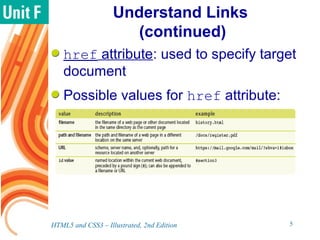
href attribute: used to specify target
document
Possible values for href attribute:
HTML5 and CSS3 – Illustrated, 2nd Edition 5
Understand Links
(continued)
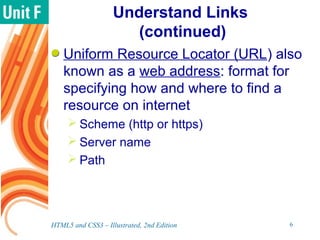
Uniform Resource Locator (URL) also
known as a web address: format for
specifying how and where to find a
resource on internet
 Scheme (http or https)
 Server name
 Path
HTML5 and CSS3 – Illustrated, 2nd Edition 6
Understand Links
(continued)
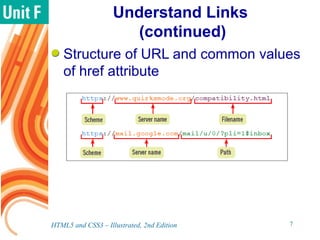
Structure of URL and common values
of href attribute
HTML5 and CSS3 – Illustrated, 2nd Edition 7
Create Relative Links
Relative link: path and filename
needed to locate the target document
from the current web page
 The value of the href attribute only
includes relative location information, not
server name or scheme
 Suitable for use in a nav bar
 Use a class value for each nav element
 Include link to current page
HTML5 and CSS3 – Illustrated, 2nd Edition 8
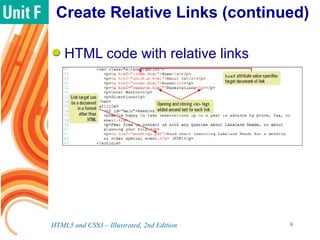
Create Relative Links (continued)
HTML code with relative links
HTML5 and CSS3 – Illustrated, 2nd Edition 9
Create Absolute Links
Absolute link: full and complete
address for the target document
 Value for the href attribute is a
complete URL of the target web page
 Necessary when creating a link to
another website, hosted on another
server
HTML5 and CSS3 – Illustrated, 2nd Edition 10
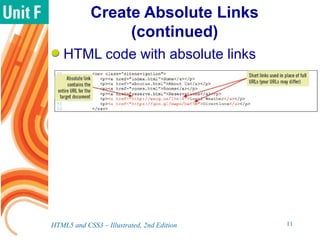
Create Absolute Links
(continued)
HTML code with absolute links
HTML5 and CSS3 – Illustrated, 2nd Edition 11
Change CSS display
Type
Nav bar is usually displayed
horizontally or vertically
Change each link to a block-level
element to style it with
 padding
 border
 margins
HTML5 and CSS3 – Illustrated, 2nd Edition 12
Change CSS display
Type (continued)
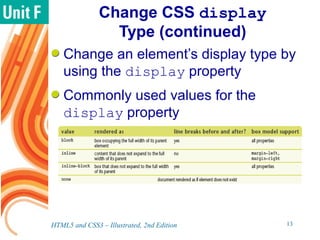
Change an element’s display type by
using the display property
Commonly used values for the
display property
HTML5 and CSS3 – Illustrated, 2nd Edition 13
Change CSS display
Type (continued)
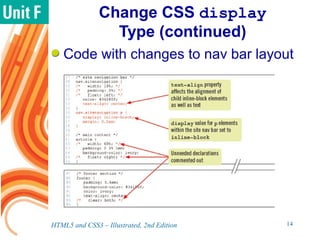
Code with changes to nav bar layout
HTML5 and CSS3 – Illustrated, 2nd Edition 14
Style Links with a Pseudo-Classes
Pseudo-class: categorization of web
page element based on relationship or
condition at a given moment
 Used to format links depending on the
state they are in
 Applies to any link in the specified state
which is within the selected element(s)
Link states: link, active, hover,
and visited
HTML5 and CSS3 – Illustrated, 2nd Edition 15
Style Links with a Pseudo-Classes
(continued)
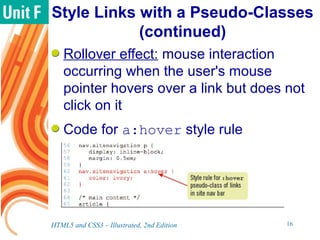
Rollover effect: mouse interaction
occurring when the user's mouse
pointer hovers over a link but does not
click on it
Code for a:hover style rule
HTML5 and CSS3 – Illustrated, 2nd Edition 16
Style Multiple Link States
Pseudo-class states for linked
elements
 :link and :visited used on all
devices
 :hover and :focus can be used
interchangeably
 :hover, :focus, :active generally
not rendered with touchscreen
interaction
HTML5 and CSS3 – Illustrated, 2nd Edition 17
Style Multiple Link States
(continued)
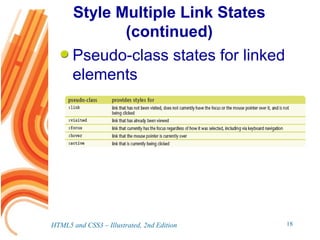
Pseudo-class states for linked
elements
HTML5 and CSS3 – Illustrated, 2nd Edition 18
Style Multiple Link States
(continued)
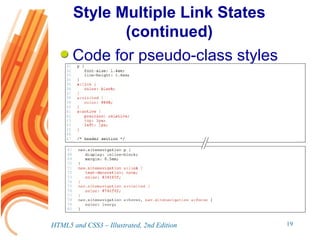
Code for pseudo-class styles
HTML5 and CSS3 – Illustrated, 2nd Edition 19
Open Links in New Tabs
By default, target web page opens in
the same window and tab as source
page
 Prevents opening too many windows
To leave current page open while
opening another page
 Use target attribute of a element
 Set value to _blank
HTML5 and CSS3 – Illustrated, 2nd Edition 20
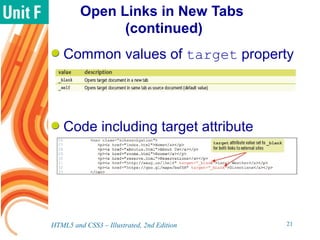
Open Links in New Tabs
(continued)
Common values of target property
Code including target attribute
HTML5 and CSS3 – Illustrated, 2nd Edition 21
Link Within a Document
Create links to specific values within
the current web page using hash links
 Assign unique names to elements using
the HTML id attribute
 Reference within href attribute by
preceding the id value with a pound sign
(#)
HTML5 and CSS3 – Illustrated, 2nd Edition 22
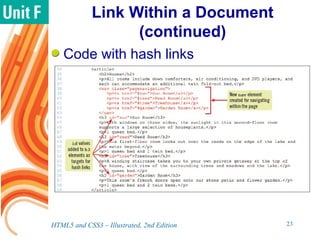
Link Within a Document
(continued)
Code with hash links
HTML5 and CSS3 – Illustrated, 2nd Edition 23
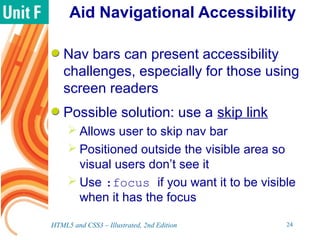
Aid Navigational Accessibility
Nav bars can present accessibility
challenges, especially for those using
screen readers
Possible solution: use a skip link
 Allows user to skip nav bar
 Positioned outside the visible area so
visual users don’t see it
 Use :focus if you want it to be visible
when it has the focus
HTML5 and CSS3 – Illustrated, 2nd Edition 24
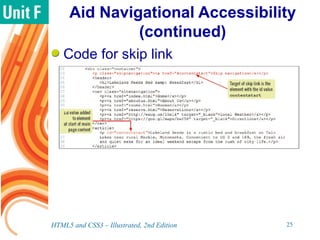
Aid Navigational Accessibility
(continued)
Code for skip link
HTML5 and CSS3 – Illustrated, 2nd Edition 25
Summary
Hyperlinks provides links in and
between documents
Links are defined using the a element
 href attribute specifies location of target
document
A navigation bar is a set of links for
moving between web pages
Absolute link: complete address of
target document
HTML5 and CSS3 – Illustrated, 2nd Edition 26
Summary (continued)
Relative link: path/filename
information needed to locate target
document
Pseudo-class: categorization of web
page elements based on temporary
condition
 Used to format link states: :link,
:visited, :focus, :hover, and
:active
HTML5 and CSS3 – Illustrated, 2nd Edition 27
Summary (continued)
Target web page can be opened in
different window or tab using target
attribute of the a element
Hash links are links to locations in the
current web page
 Assign id value to an element
 Use id value preceded by # in href
value
HTML5 and CSS3 – Illustrated, 2nd Edition 28
Summary (continued)
Can create a link to any computer
readable document
To increase accessibility, provide
users a way to skip or ignore the
navigation bar
HTML5 and CSS3 – Illustrated, 2nd Edition 29

Working with Links

  • 1.
  • 2.
    Objectives Understand links Create relativelinks Create absolute links Change CSS display type Style links with a pseudo-class HTML5 and CSS3 – Illustrated, 2nd Edition 2
  • 3.
    Objectives (continued) Open linksin new tabs Link within a document Aid navigational accessibility HTML5 and CSS3 – Illustrated, 2nd Edition 3
  • 4.
    Understand Links Hyperlink alsocalled link: links in and between text-only documents, known as the target document nav bar: set of links for moving between pages in a website a element: encloses text that serves as a link  Specified by using <a></a> tag pair HTML5 and CSS3 – Illustrated, 2nd Edition 4
  • 5.
    Understand Links (continued) href attribute:used to specify target document Possible values for href attribute: HTML5 and CSS3 – Illustrated, 2nd Edition 5
  • 6.
    Understand Links (continued) Uniform ResourceLocator (URL) also known as a web address: format for specifying how and where to find a resource on internet  Scheme (http or https)  Server name  Path HTML5 and CSS3 – Illustrated, 2nd Edition 6
  • 7.
    Understand Links (continued) Structure ofURL and common values of href attribute HTML5 and CSS3 – Illustrated, 2nd Edition 7
  • 8.
    Create Relative Links Relativelink: path and filename needed to locate the target document from the current web page  The value of the href attribute only includes relative location information, not server name or scheme  Suitable for use in a nav bar  Use a class value for each nav element  Include link to current page HTML5 and CSS3 – Illustrated, 2nd Edition 8
  • 9.
    Create Relative Links(continued) HTML code with relative links HTML5 and CSS3 – Illustrated, 2nd Edition 9
  • 10.
    Create Absolute Links Absolutelink: full and complete address for the target document  Value for the href attribute is a complete URL of the target web page  Necessary when creating a link to another website, hosted on another server HTML5 and CSS3 – Illustrated, 2nd Edition 10
  • 11.
    Create Absolute Links (continued) HTMLcode with absolute links HTML5 and CSS3 – Illustrated, 2nd Edition 11
  • 12.
    Change CSS display Type Navbar is usually displayed horizontally or vertically Change each link to a block-level element to style it with  padding  border  margins HTML5 and CSS3 – Illustrated, 2nd Edition 12
  • 13.
    Change CSS display Type(continued) Change an element’s display type by using the display property Commonly used values for the display property HTML5 and CSS3 – Illustrated, 2nd Edition 13
  • 14.
    Change CSS display Type(continued) Code with changes to nav bar layout HTML5 and CSS3 – Illustrated, 2nd Edition 14
  • 15.
    Style Links witha Pseudo-Classes Pseudo-class: categorization of web page element based on relationship or condition at a given moment  Used to format links depending on the state they are in  Applies to any link in the specified state which is within the selected element(s) Link states: link, active, hover, and visited HTML5 and CSS3 – Illustrated, 2nd Edition 15
  • 16.
    Style Links witha Pseudo-Classes (continued) Rollover effect: mouse interaction occurring when the user's mouse pointer hovers over a link but does not click on it Code for a:hover style rule HTML5 and CSS3 – Illustrated, 2nd Edition 16
  • 17.
    Style Multiple LinkStates Pseudo-class states for linked elements  :link and :visited used on all devices  :hover and :focus can be used interchangeably  :hover, :focus, :active generally not rendered with touchscreen interaction HTML5 and CSS3 – Illustrated, 2nd Edition 17
  • 18.
    Style Multiple LinkStates (continued) Pseudo-class states for linked elements HTML5 and CSS3 – Illustrated, 2nd Edition 18
  • 19.
    Style Multiple LinkStates (continued) Code for pseudo-class styles HTML5 and CSS3 – Illustrated, 2nd Edition 19
  • 20.
    Open Links inNew Tabs By default, target web page opens in the same window and tab as source page  Prevents opening too many windows To leave current page open while opening another page  Use target attribute of a element  Set value to _blank HTML5 and CSS3 – Illustrated, 2nd Edition 20
  • 21.
    Open Links inNew Tabs (continued) Common values of target property Code including target attribute HTML5 and CSS3 – Illustrated, 2nd Edition 21
  • 22.
    Link Within aDocument Create links to specific values within the current web page using hash links  Assign unique names to elements using the HTML id attribute  Reference within href attribute by preceding the id value with a pound sign (#) HTML5 and CSS3 – Illustrated, 2nd Edition 22
  • 23.
    Link Within aDocument (continued) Code with hash links HTML5 and CSS3 – Illustrated, 2nd Edition 23
  • 24.
    Aid Navigational Accessibility Navbars can present accessibility challenges, especially for those using screen readers Possible solution: use a skip link  Allows user to skip nav bar  Positioned outside the visible area so visual users don’t see it  Use :focus if you want it to be visible when it has the focus HTML5 and CSS3 – Illustrated, 2nd Edition 24
  • 25.
    Aid Navigational Accessibility (continued) Codefor skip link HTML5 and CSS3 – Illustrated, 2nd Edition 25
  • 26.
    Summary Hyperlinks provides linksin and between documents Links are defined using the a element  href attribute specifies location of target document A navigation bar is a set of links for moving between web pages Absolute link: complete address of target document HTML5 and CSS3 – Illustrated, 2nd Edition 26
  • 27.
    Summary (continued) Relative link:path/filename information needed to locate target document Pseudo-class: categorization of web page elements based on temporary condition  Used to format link states: :link, :visited, :focus, :hover, and :active HTML5 and CSS3 – Illustrated, 2nd Edition 27
  • 28.
    Summary (continued) Target webpage can be opened in different window or tab using target attribute of the a element Hash links are links to locations in the current web page  Assign id value to an element  Use id value preceded by # in href value HTML5 and CSS3 – Illustrated, 2nd Edition 28
  • 29.
    Summary (continued) Can createa link to any computer readable document To increase accessibility, provide users a way to skip or ignore the navigation bar HTML5 and CSS3 – Illustrated, 2nd Edition 29