Organizing Content with Lists
and Tables
Objectives
Create an ordered list
Create an unordered list
Create a description list
Create a nav bar using a list
HTML 5 and CSS 3 – Illustrated 2e
Objectives (continued)
Insert a table
Debug tables
Span columns and rows
Format a table with CSS
Apply a table-like structure to other
elements
HTML 5 and CSS 3 – Illustrated 2e
Create an Ordered List
Ordered list: a list in which items are
numbered or lettered sequentially
 ol element: used to create an ordered
list
 li element: used to create each list item
• Contents of the list item contained between
opening and closing <li> tags.
 All li elements for a list are nested
within the opening and closing ol tags
HTML 5 and CSS 3 – Illustrated 2e
Create an Ordered List
(continued)
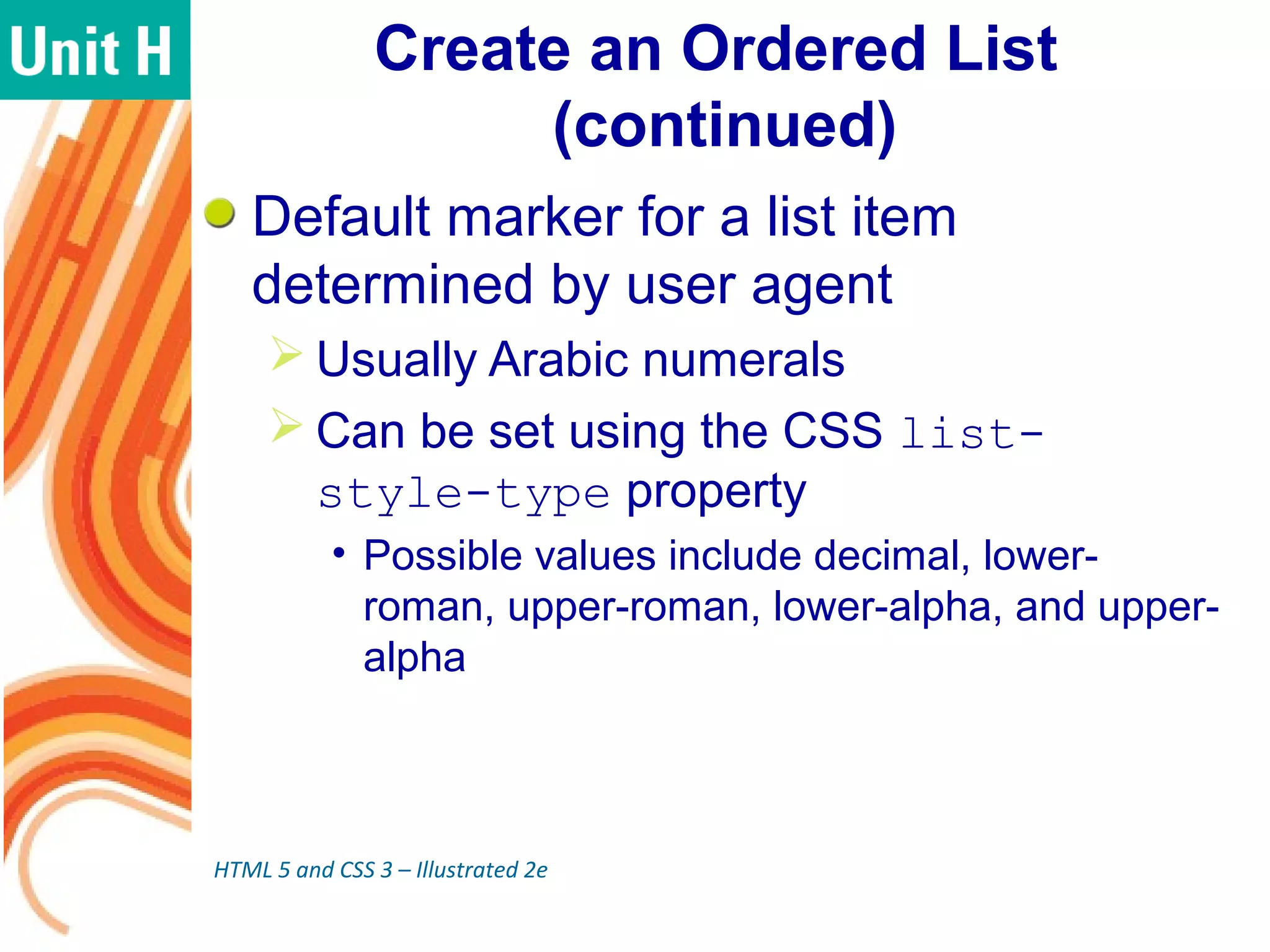
Default marker for a list item
determined by user agent
 Usually Arabic numerals
 Can be set using the CSS list-
style-type property
• Possible values include decimal, lower-
roman, upper-roman, lower-alpha, and upper-
alpha
HTML 5 and CSS 3 – Illustrated 2e
Create an Ordered List
(continued)
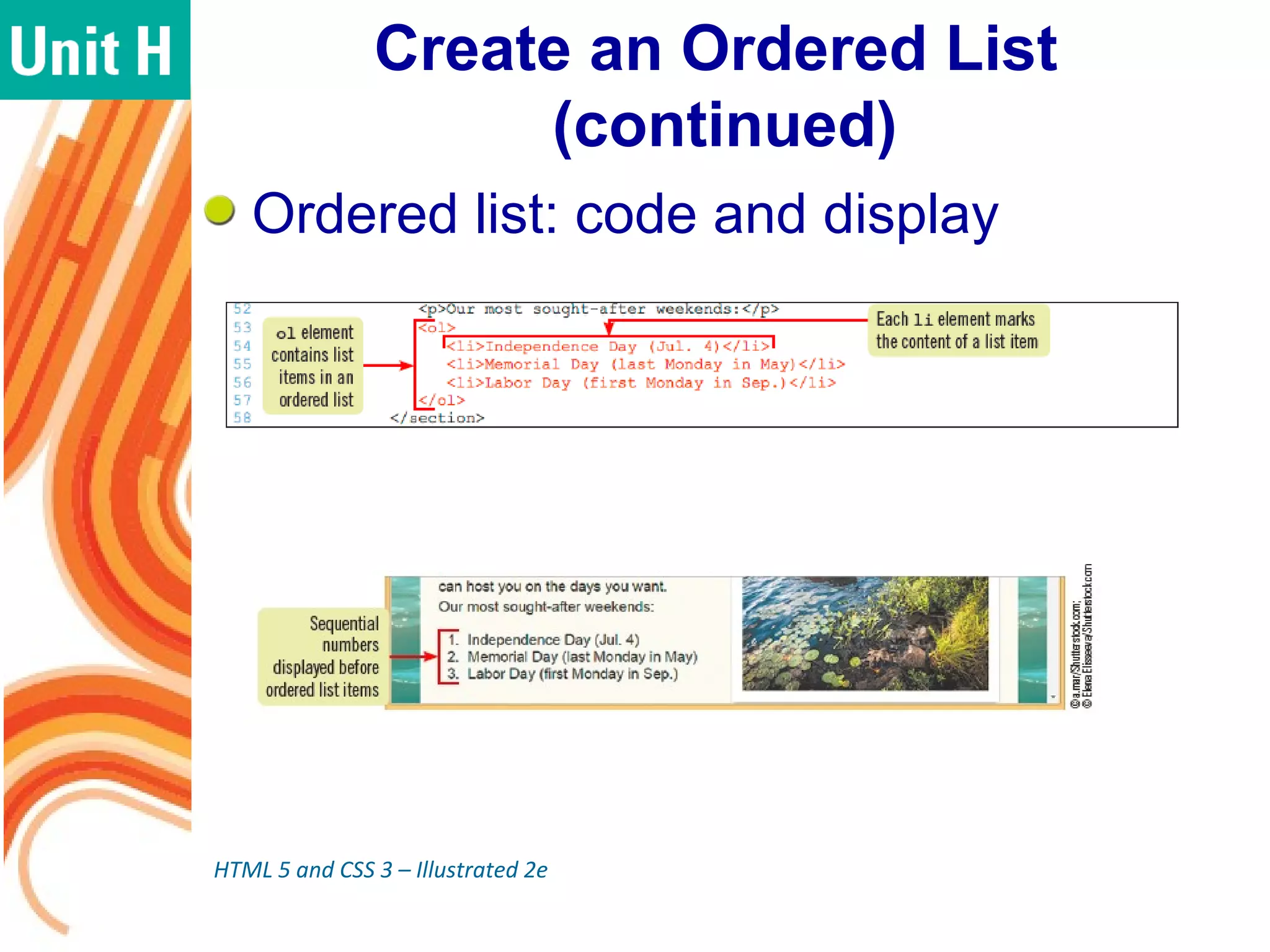
Ordered list: code and display
HTML 5 and CSS 3 – Illustrated 2e
Create an Unordered List
Unordered list: a list in which items
have no specific order
 ul element: used to create an unordered
list
 li element: used to create each list item
 Structure is the same as an ordered list
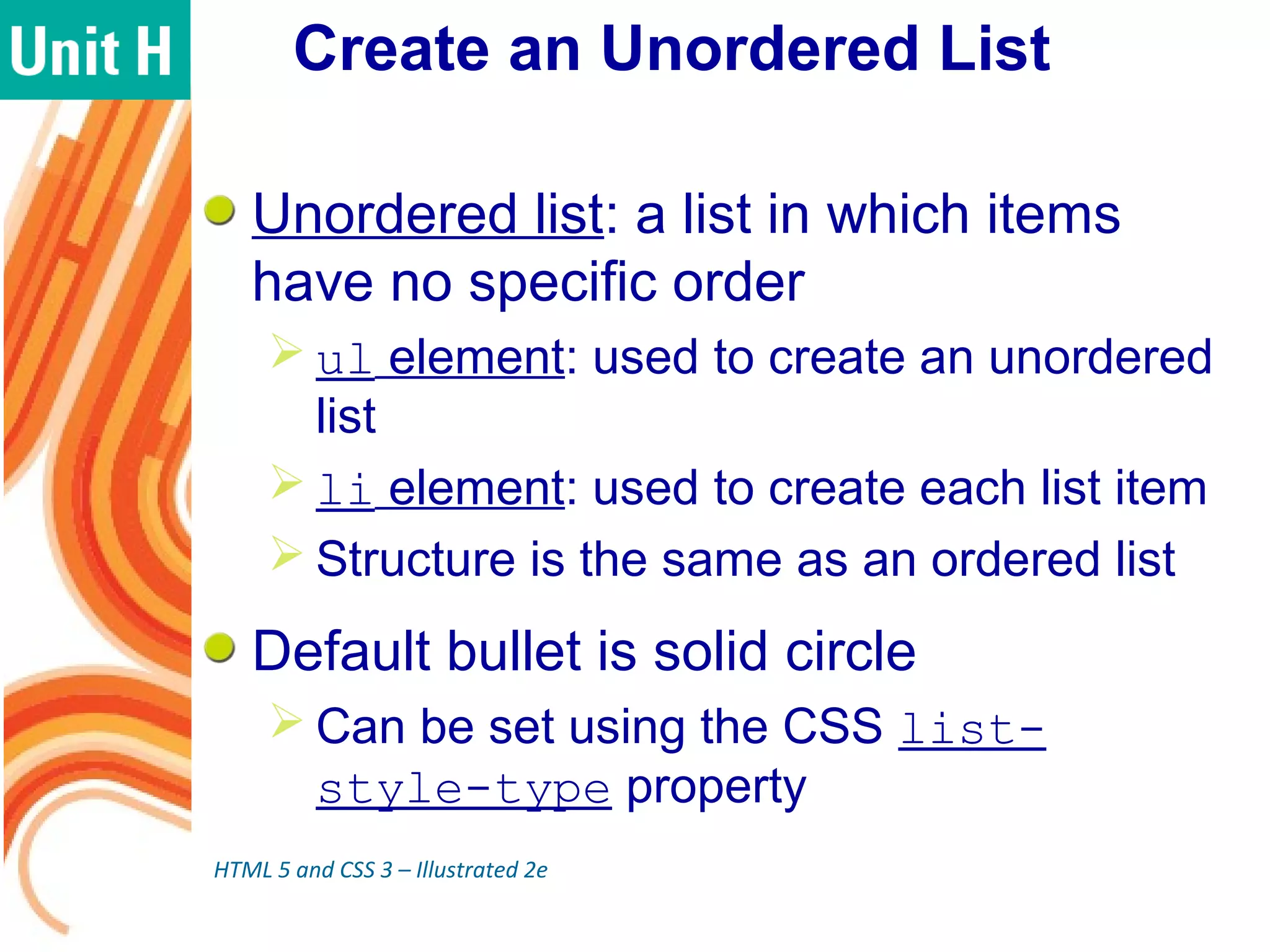
Default bullet is solid circle
 Can be set using the CSS list-
style-type property
HTML 5 and CSS 3 – Illustrated 2e
Create an Unordered List
(continued)
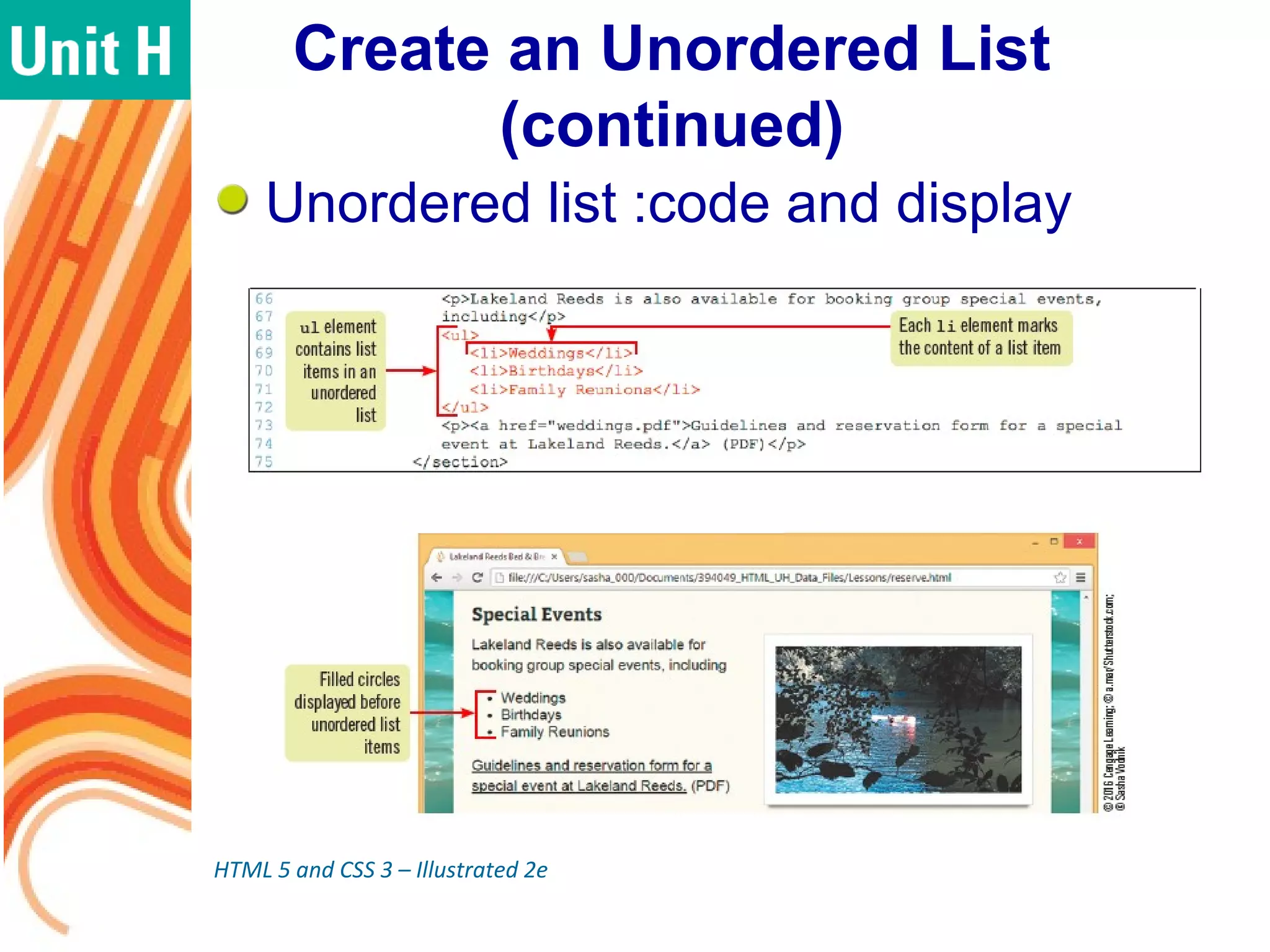
Unordered list :code and display
HTML 5 and CSS 3 – Illustrated 2e
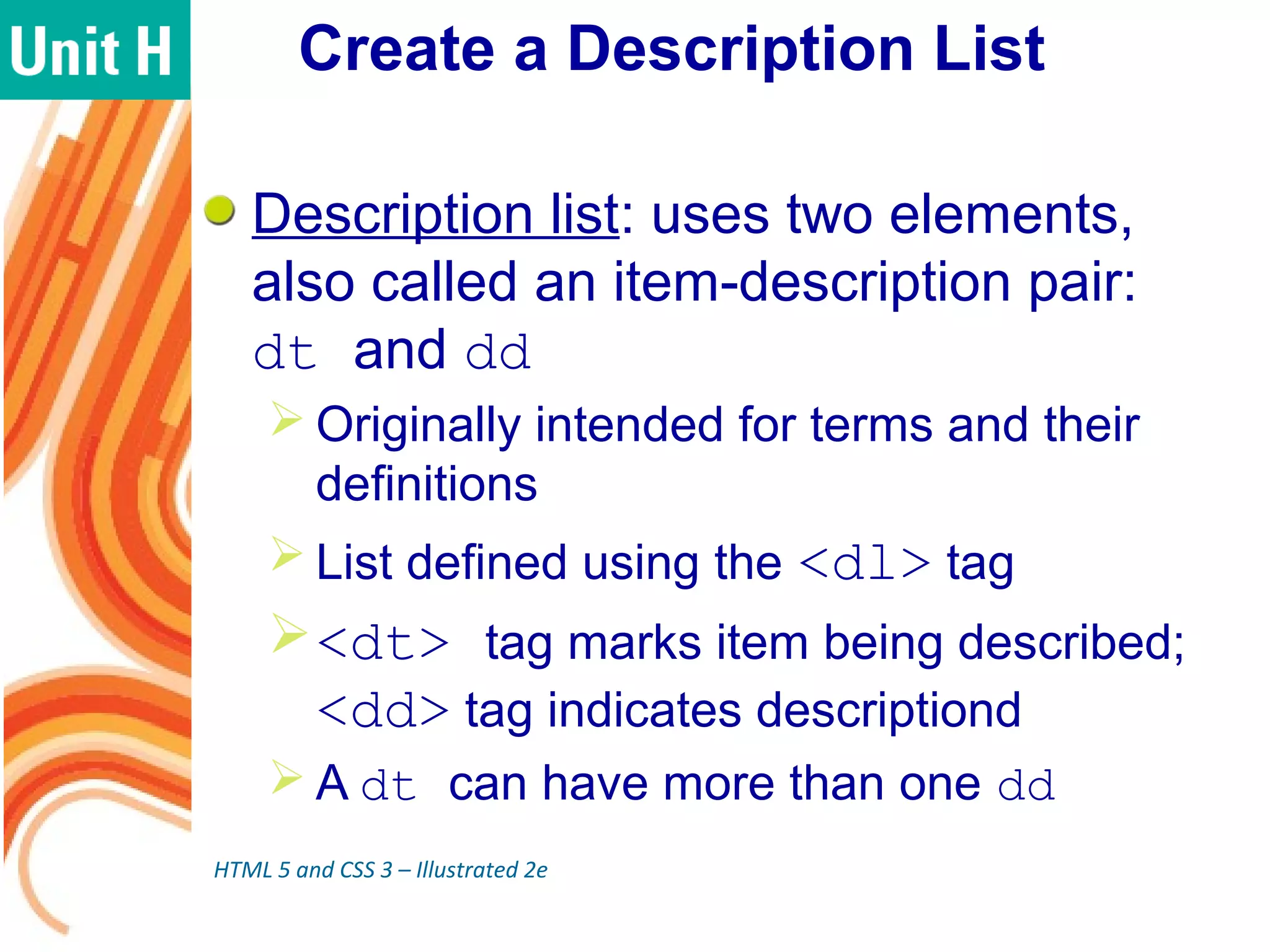
Create a Description List
Description list: uses two elements,
also called an item-description pair:
dt and dd
 Originally intended for terms and their
definitions
 List defined using the <dl> tag
<dt> tag marks item being described;
<dd> tag indicates descriptiond
 A dt can have more than one dd
HTML 5 and CSS 3 – Illustrated 2e
Create a Description List
(continued)
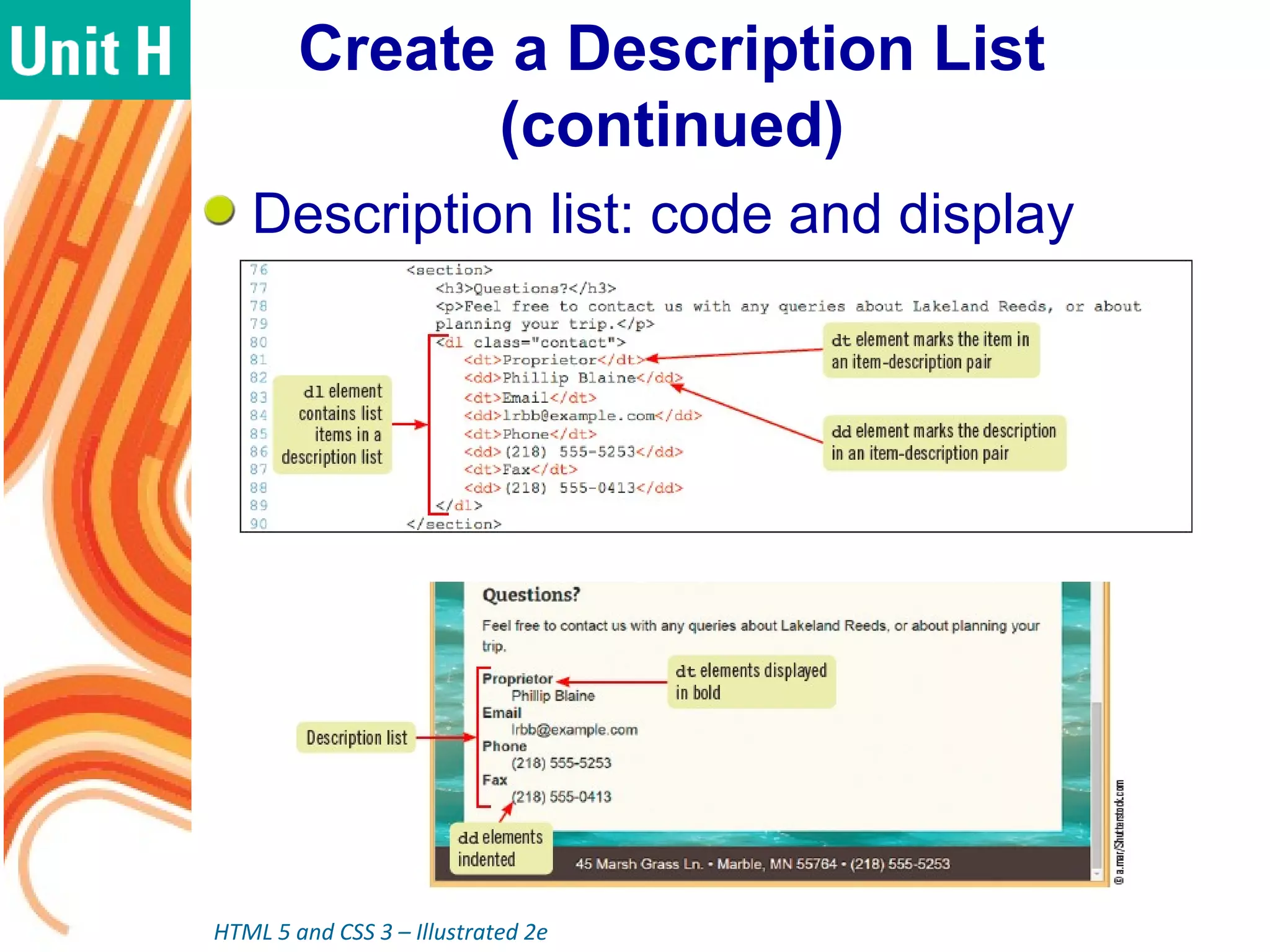
Description list: code and display
HTML 5 and CSS 3 – Illustrated 2e
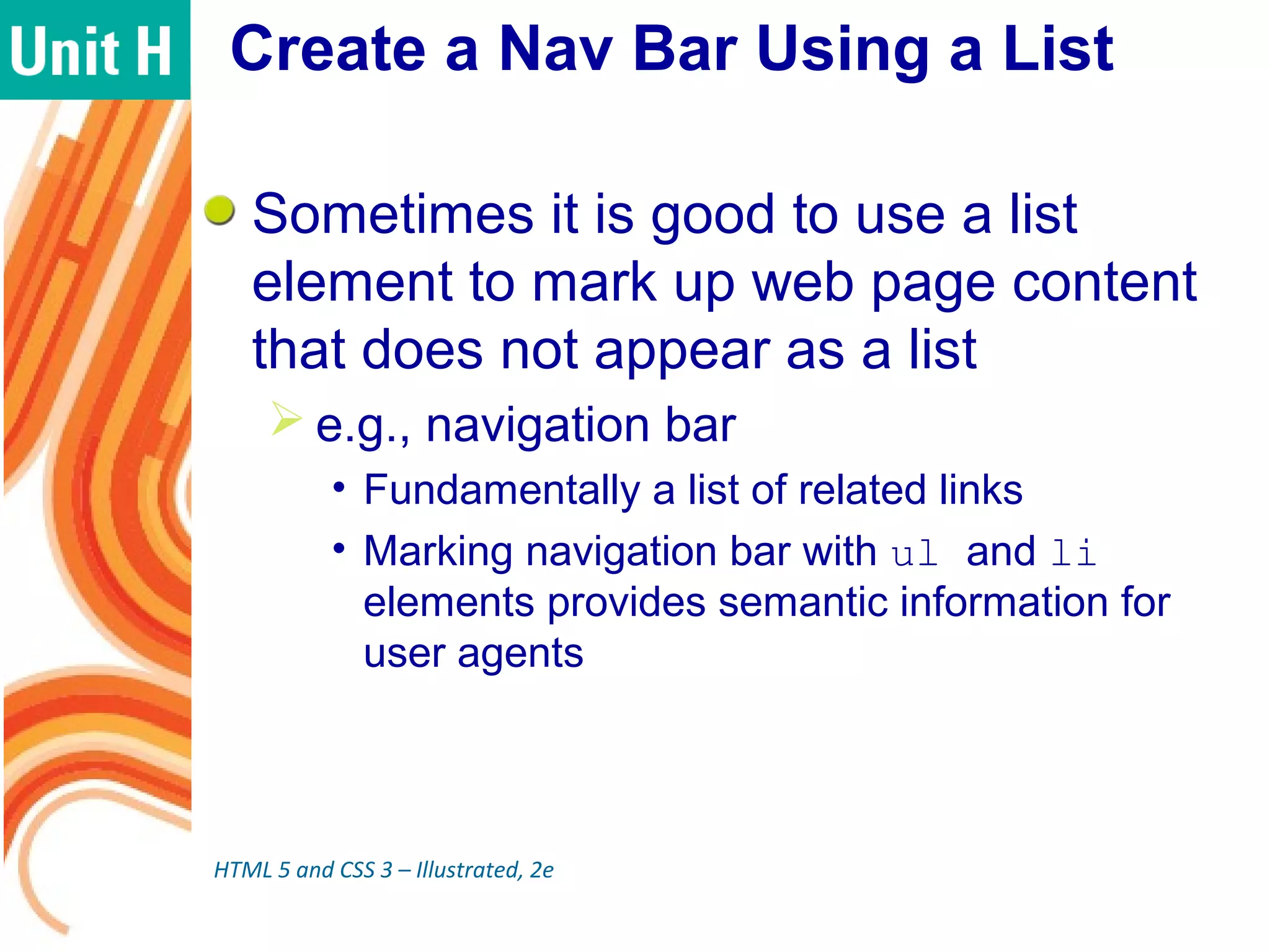
Create a Nav Bar Using a List
Sometimes it is good to use a list
element to mark up web page content
that does not appear as a list
 e.g., navigation bar
• Fundamentally a list of related links
• Marking navigation bar with ul and li
elements provides semantic information for
user agents
HTML 5 and CSS 3 – Illustrated, 2e
Create a Nav Bar Using a List
(continued)
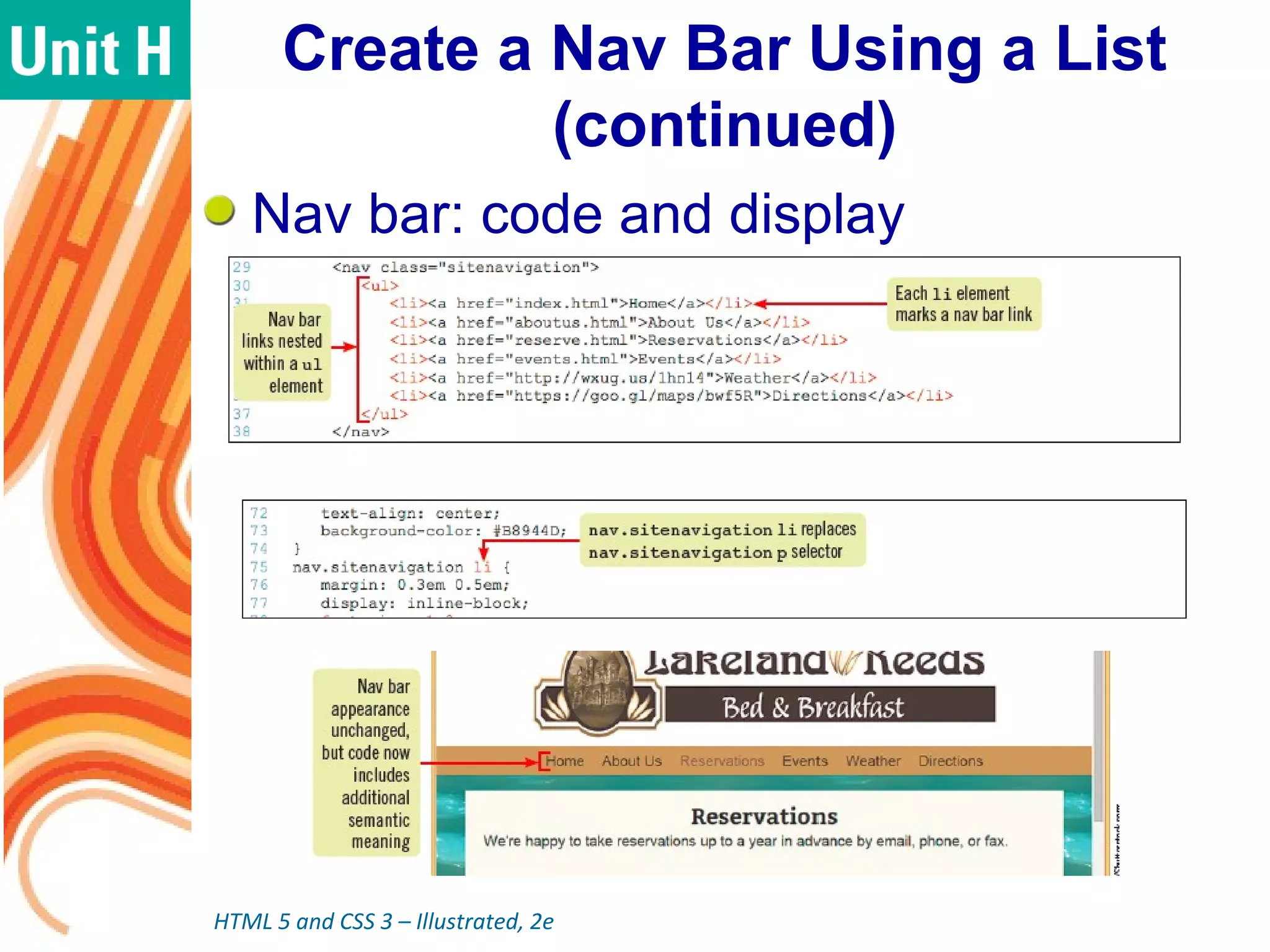
Nav bar: code and display
HTML 5 and CSS 3 – Illustrated, 2e
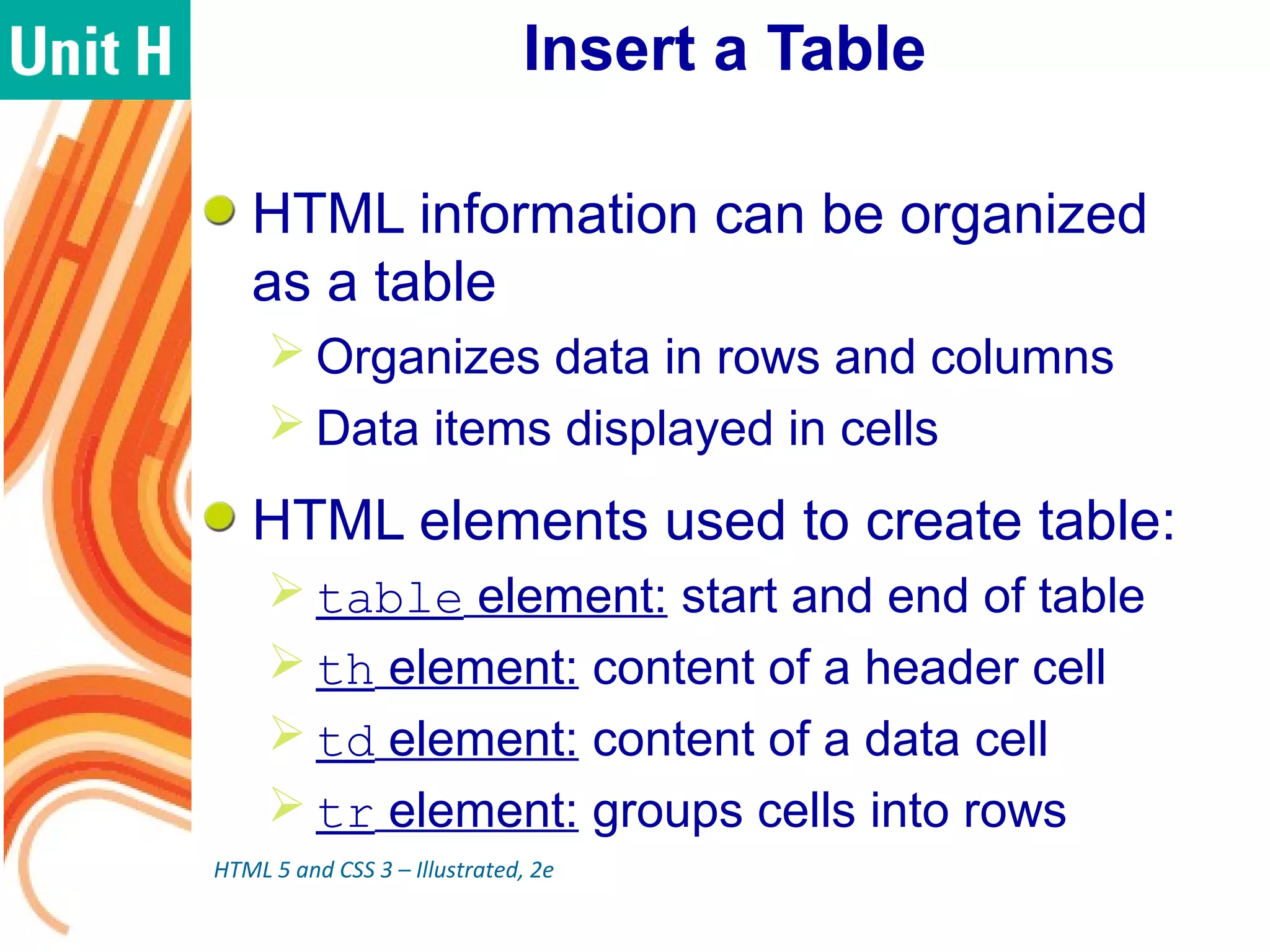
Insert a Table
HTML information can be organized
as a table
 Organizes data in rows and columns
 Data items displayed in cells
HTML elements used to create table:
 table element: start and end of table
 th element: content of a header cell
 td element: content of a data cell
 tr element: groups cells into rows
HTML 5 and CSS 3 – Illustrated, 2e
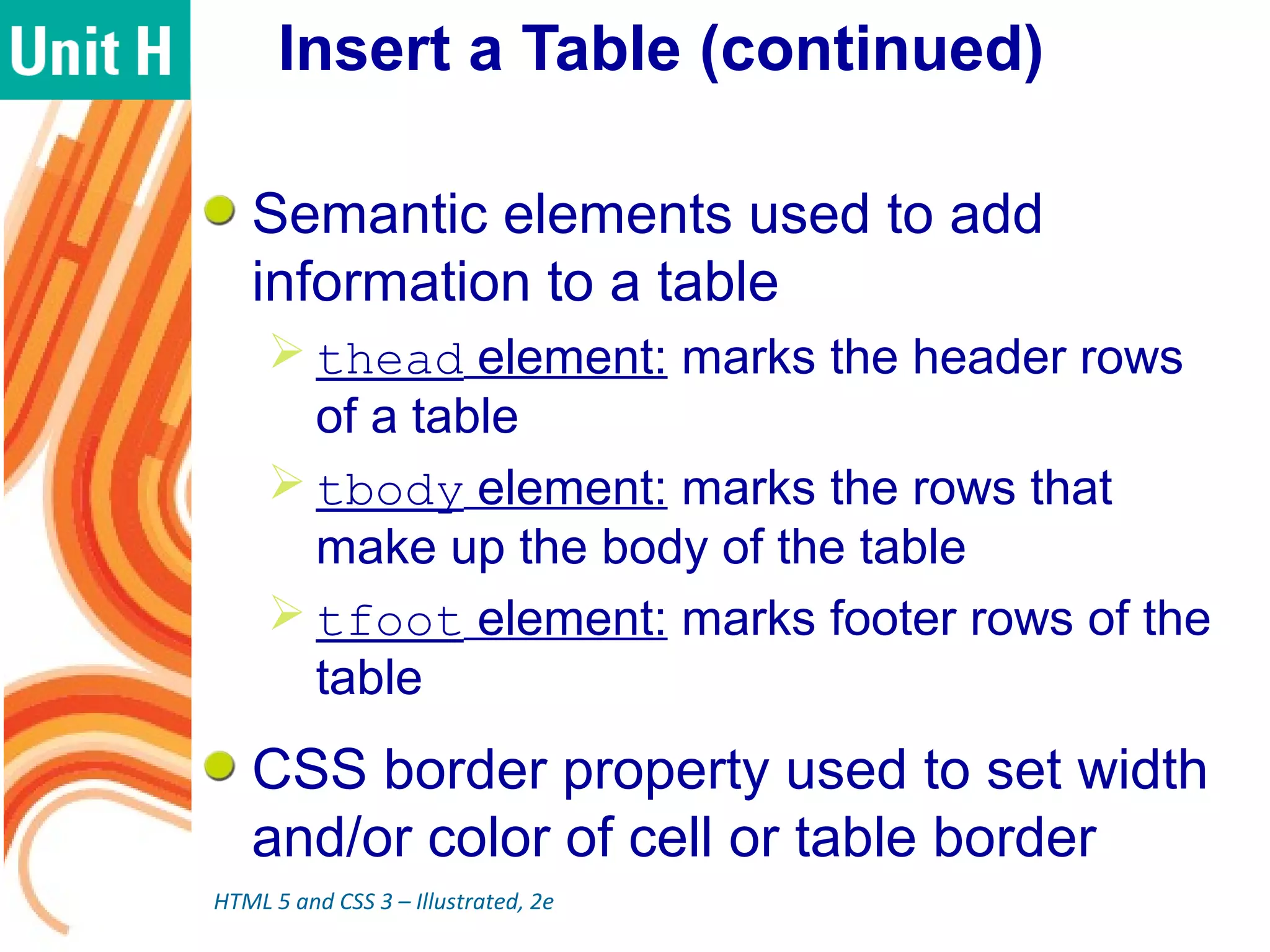
Insert a Table (continued)
Semantic elements used to add
information to a table
 thead element: marks the header rows
of a table
 tbody element: marks the rows that
make up the body of the table
 tfoot element: marks footer rows of the
table
CSS border property used to set width
and/or color of cell or table border
HTML 5 and CSS 3 – Illustrated, 2e
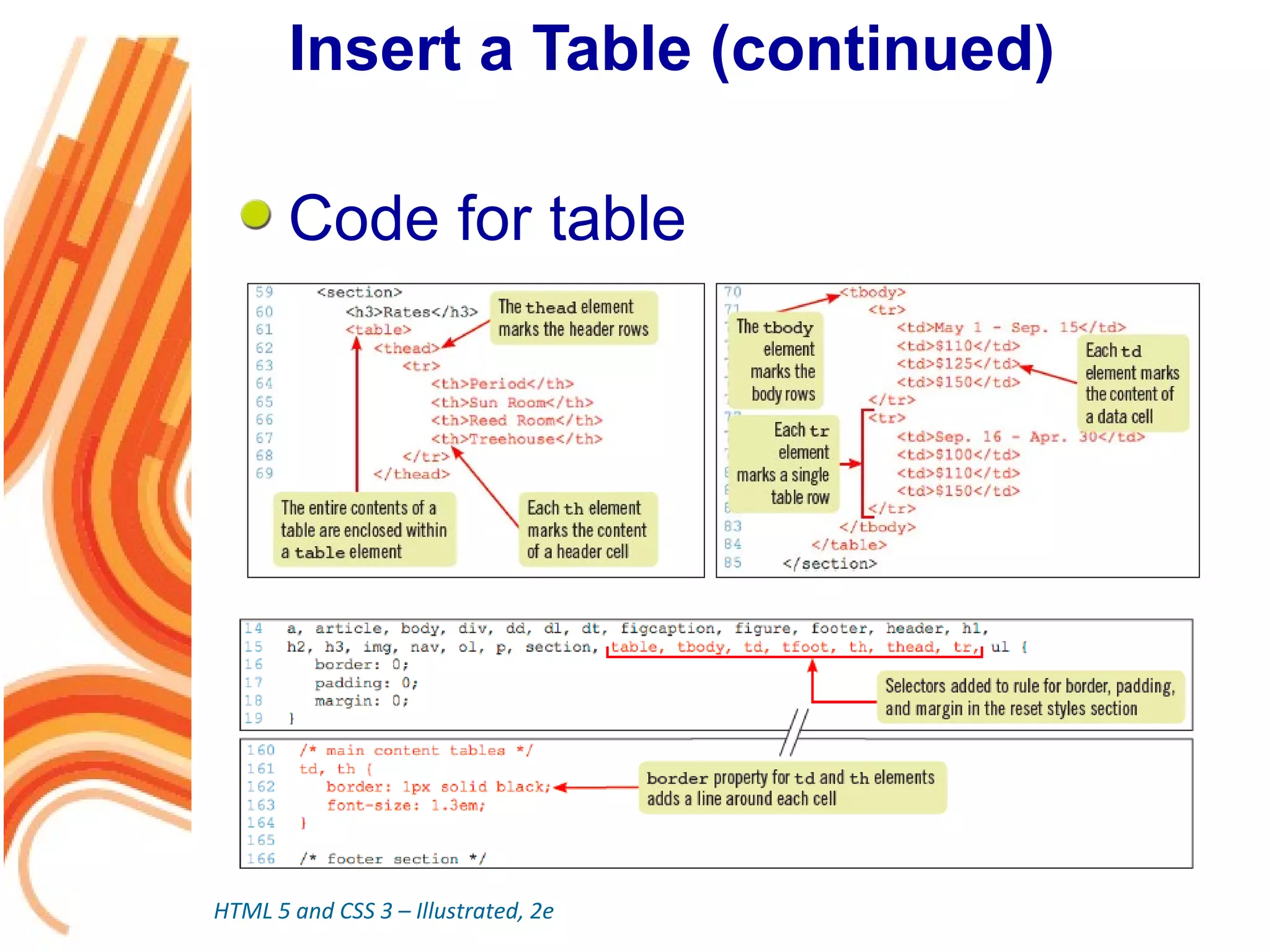
Insert a Table (continued)
Code for table
HTML 5 and CSS 3 – Illustrated, 2e
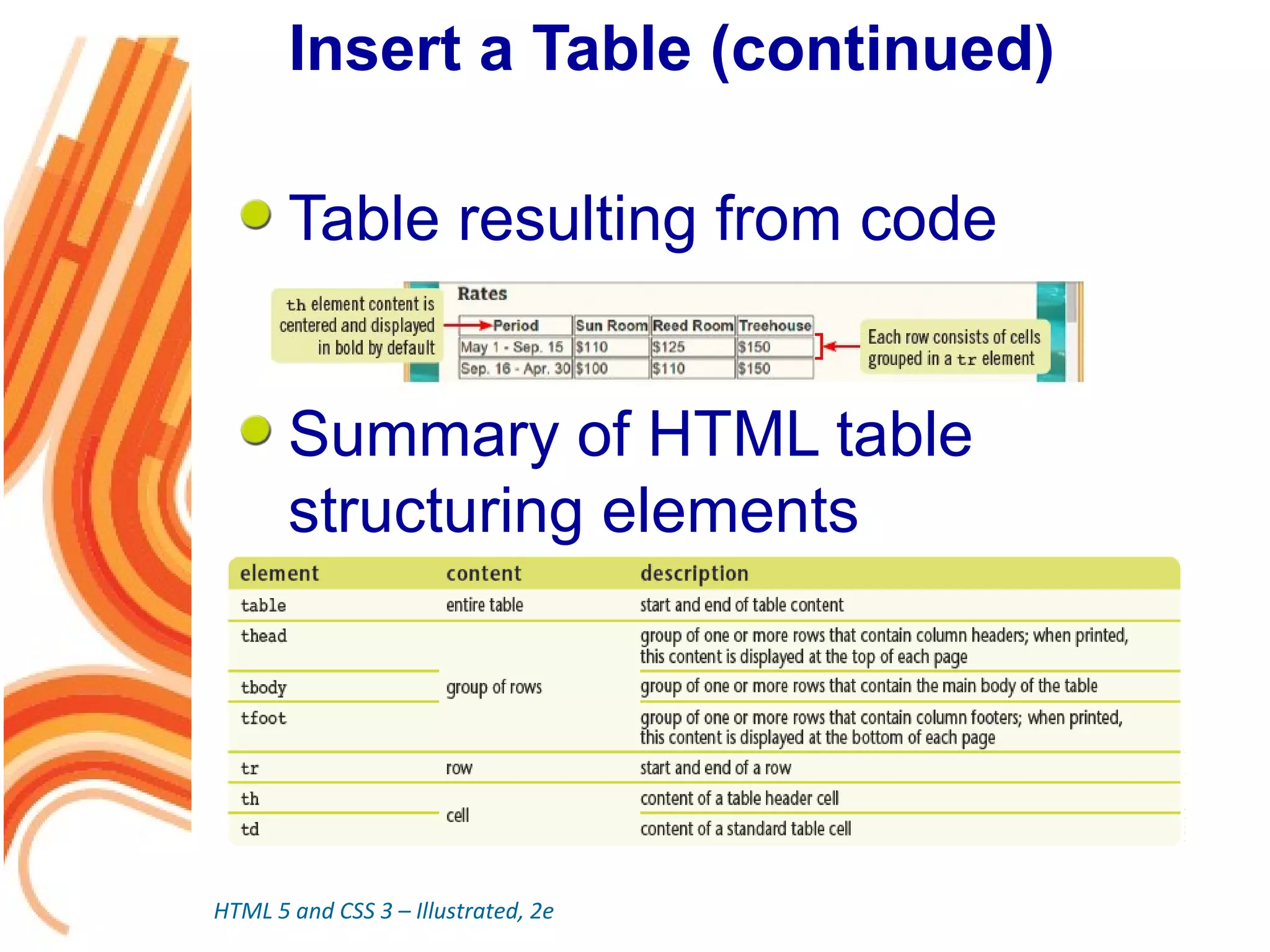
Insert a Table (continued)
Table resulting from code
Summary of HTML table
structuring elements
HTML 5 and CSS 3 – Illustrated, 2e
Debug Tables
It is important to debug tables
 Too many cells can result in protruding
cells
 Too few cells can result in holes
 Either way, the result is a structure that is
not rectangular
 View your table in a browser to help
identify the problems
Resist using a table for layout
HTML 5 and CSS 3 – Illustrated, 2e
Span Columns and Rows
A cell in a table can be formatted to be
displayed across multiple rows or
columns
 colspan attribute: used to merge a cell
across multiple columns
 rowspan attribute: used to merge a cell
across multiple rows
 Both attributes are used in the opening th
or td tag and receive a number value
specifying the number of rows/columns
HTML 5 and CSS 3 – Illustrated, 2e
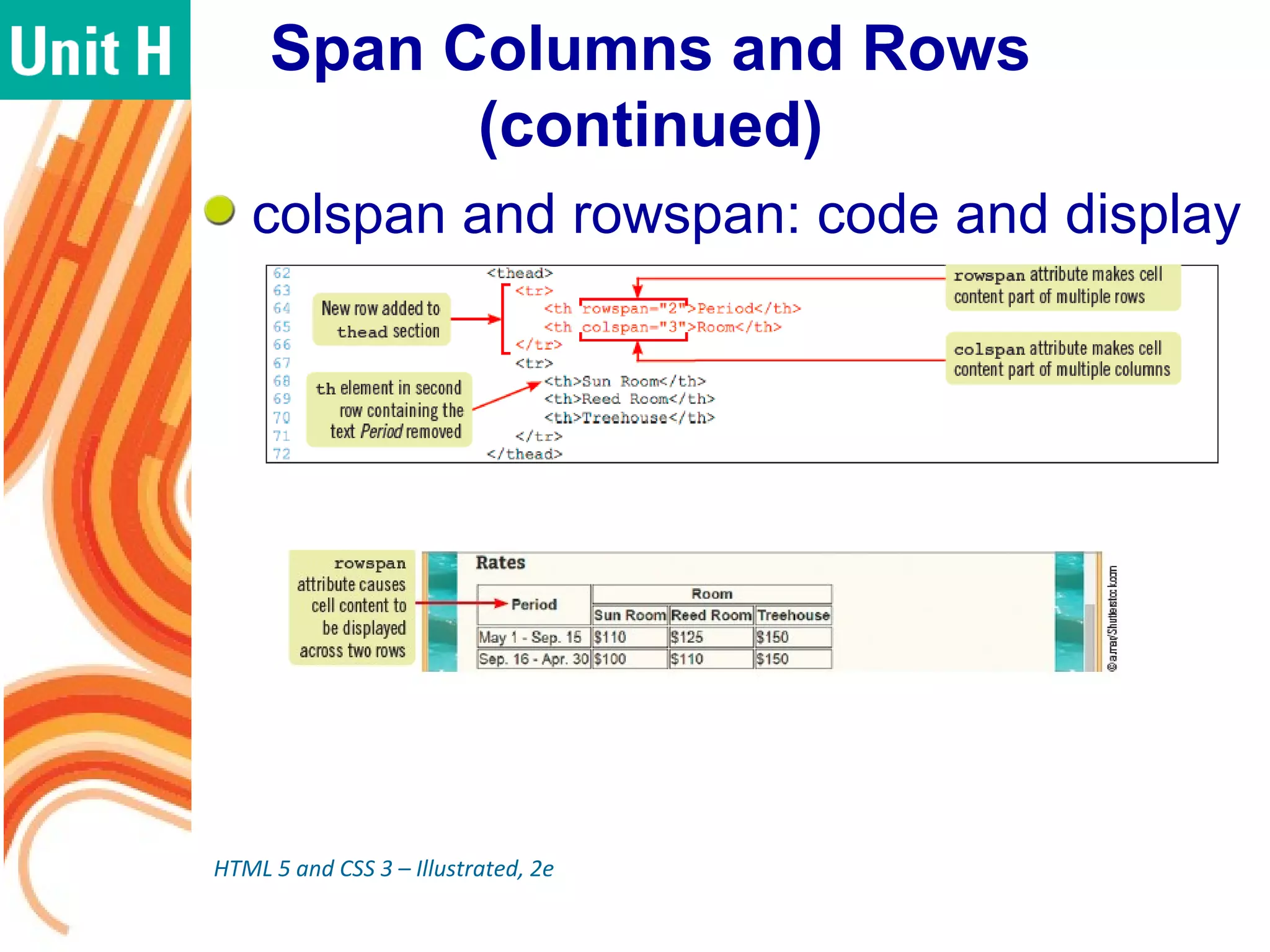
Span Columns and Rows
(continued)
colspan and rowspan: code and display
HTML 5 and CSS 3 – Illustrated, 2e
Format a Table with CSS
CSS can be used to style many
aspects of tables
 Used to style font face, font and
background colors, and borders
around/between cells
 Can style entire table, table section,
individual row or cell
 CSS border-collapse property can
be used to merge adjacent borders into a
single line
HTML 5 and CSS 3 – Illustrated, 2e
Format a Table with CSS
(continued)
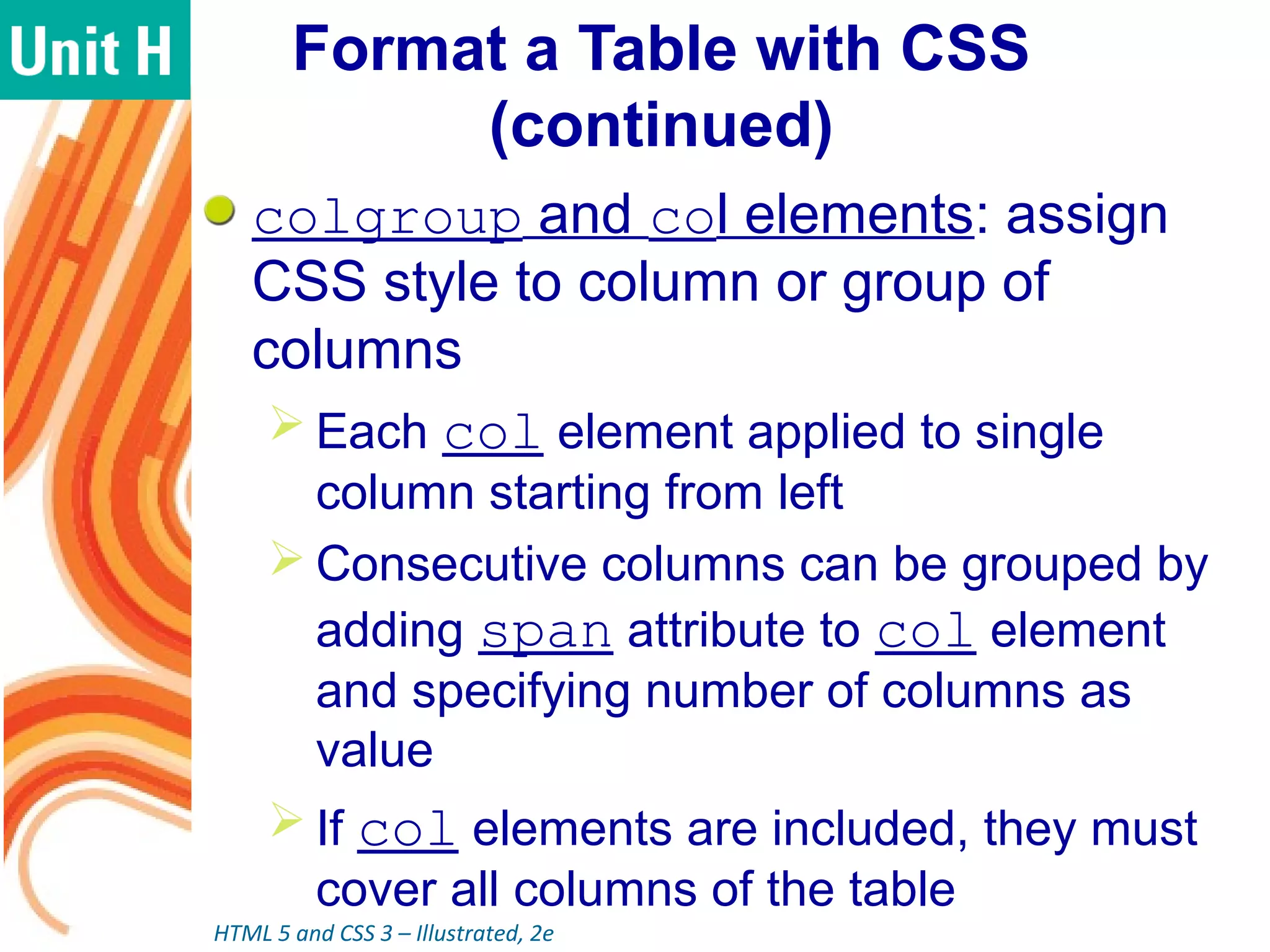
colgroup and col elements: assign
CSS style to column or group of
columns
 Each col element applied to single
column starting from left
 Consecutive columns can be grouped by
adding span attribute to col element
and specifying number of columns as
value
 If col elements are included, they must
cover all columns of the table
HTML 5 and CSS 3 – Illustrated, 2e
Format a Table with CSS
(continued)
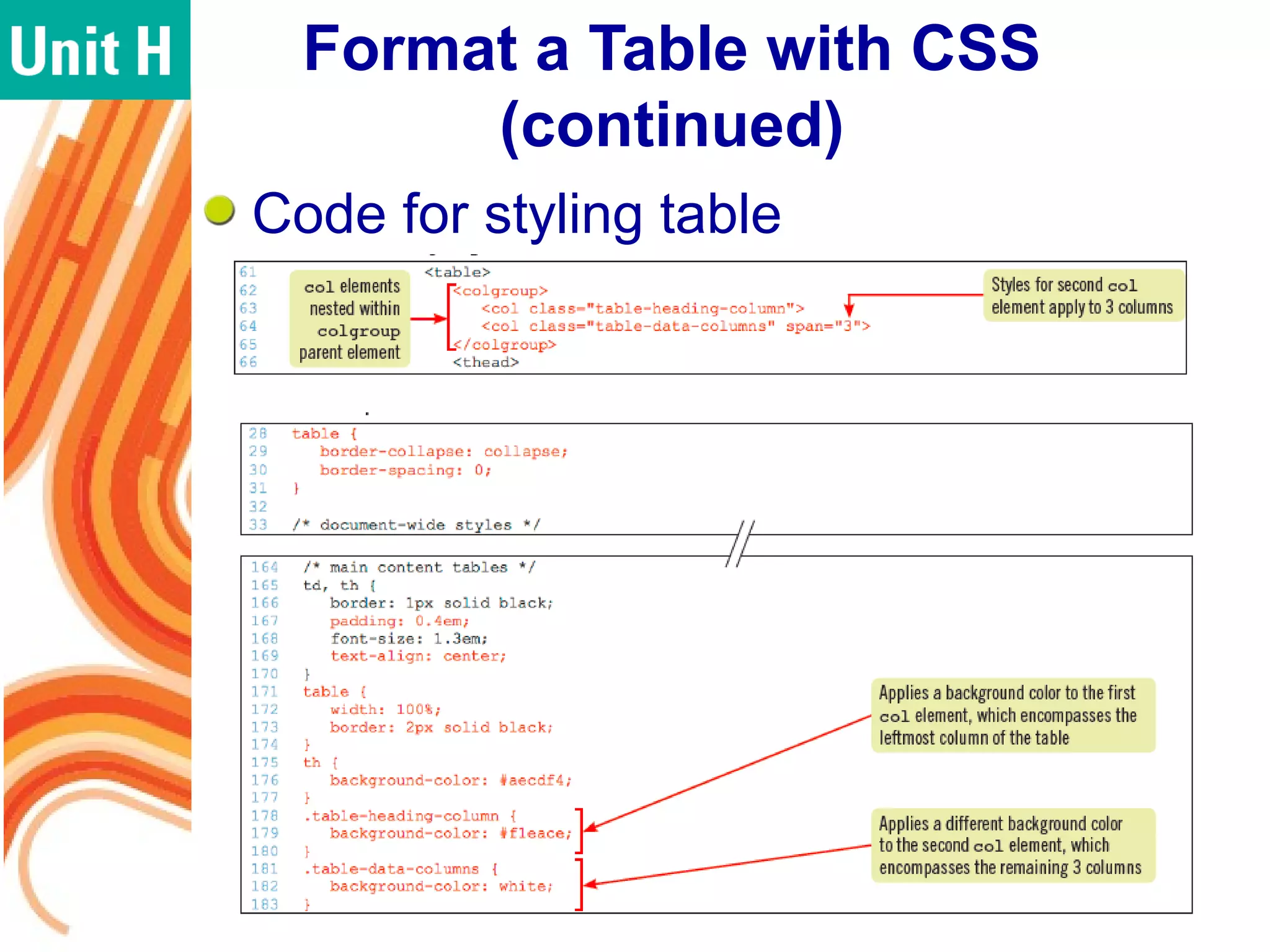
Code for styling table
Format a Table with CSS
(continued)
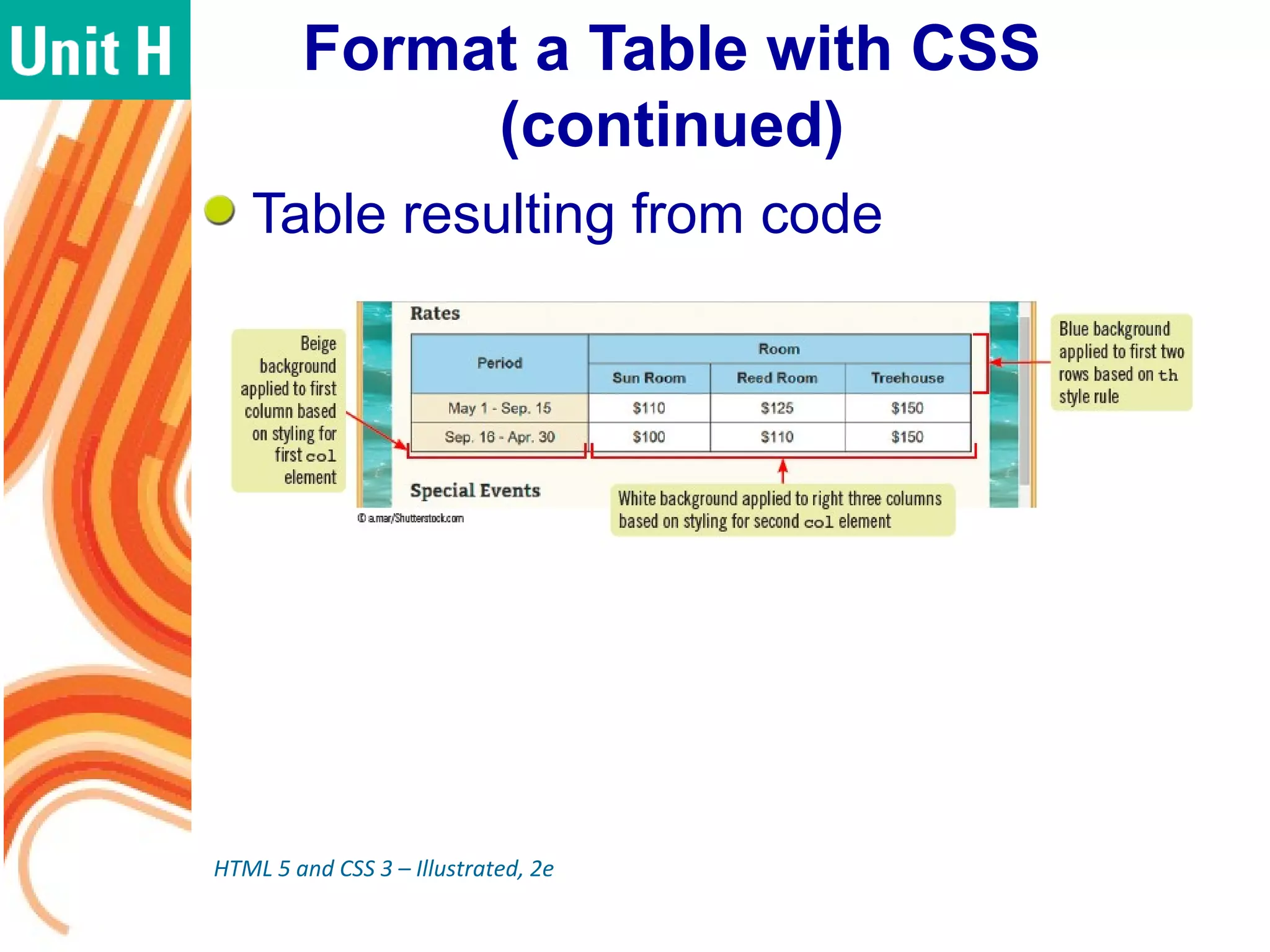
Table resulting from code
HTML 5 and CSS 3 – Illustrated, 2e
Apply a Table-Like Structure
to Other Elements
HTML tables should be used only for
tabular data
To make elements that don’t belong in
a table look like a grid, use block-level
elements
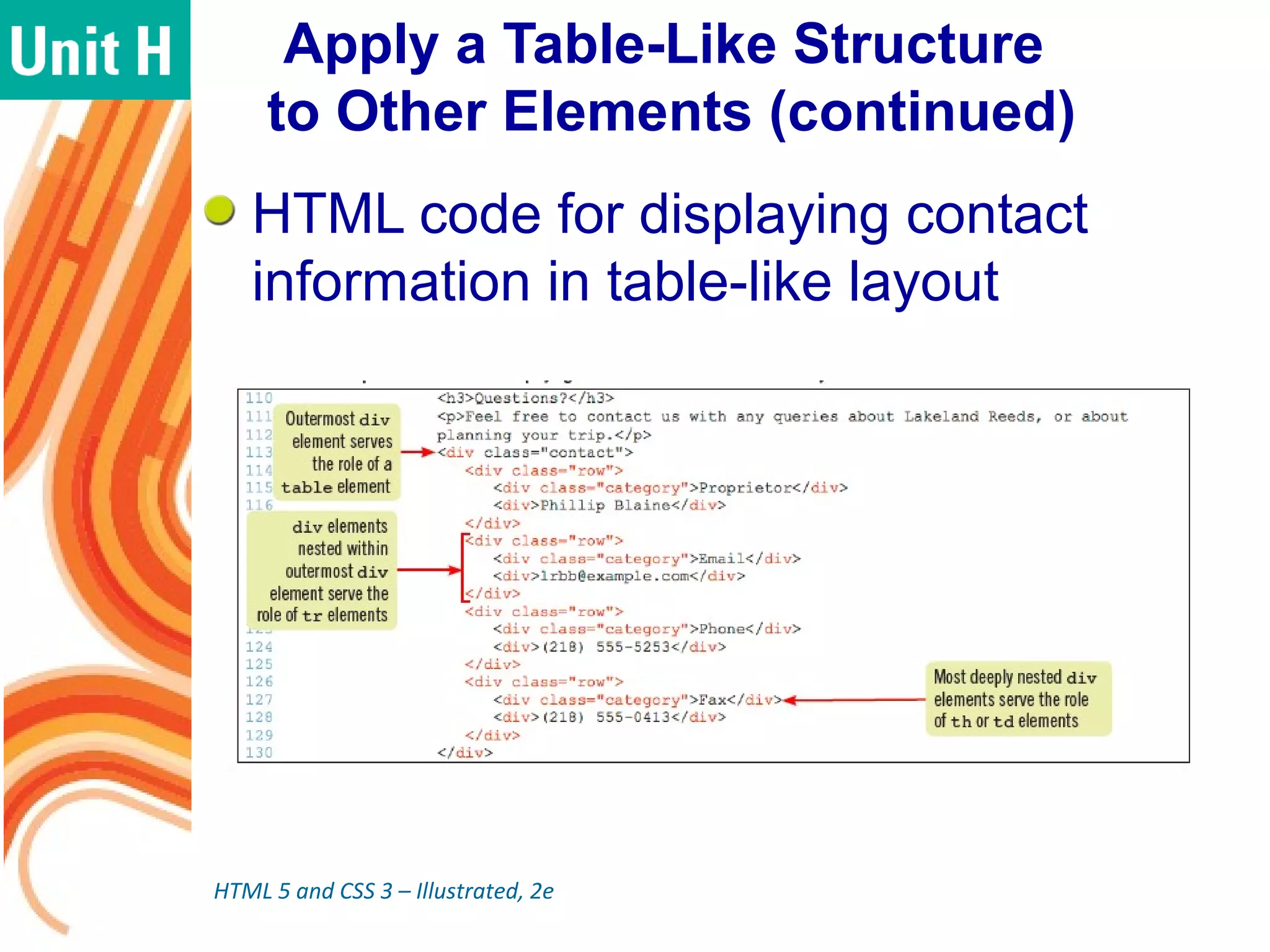
 Use div to create a structure that
parallels that of a table
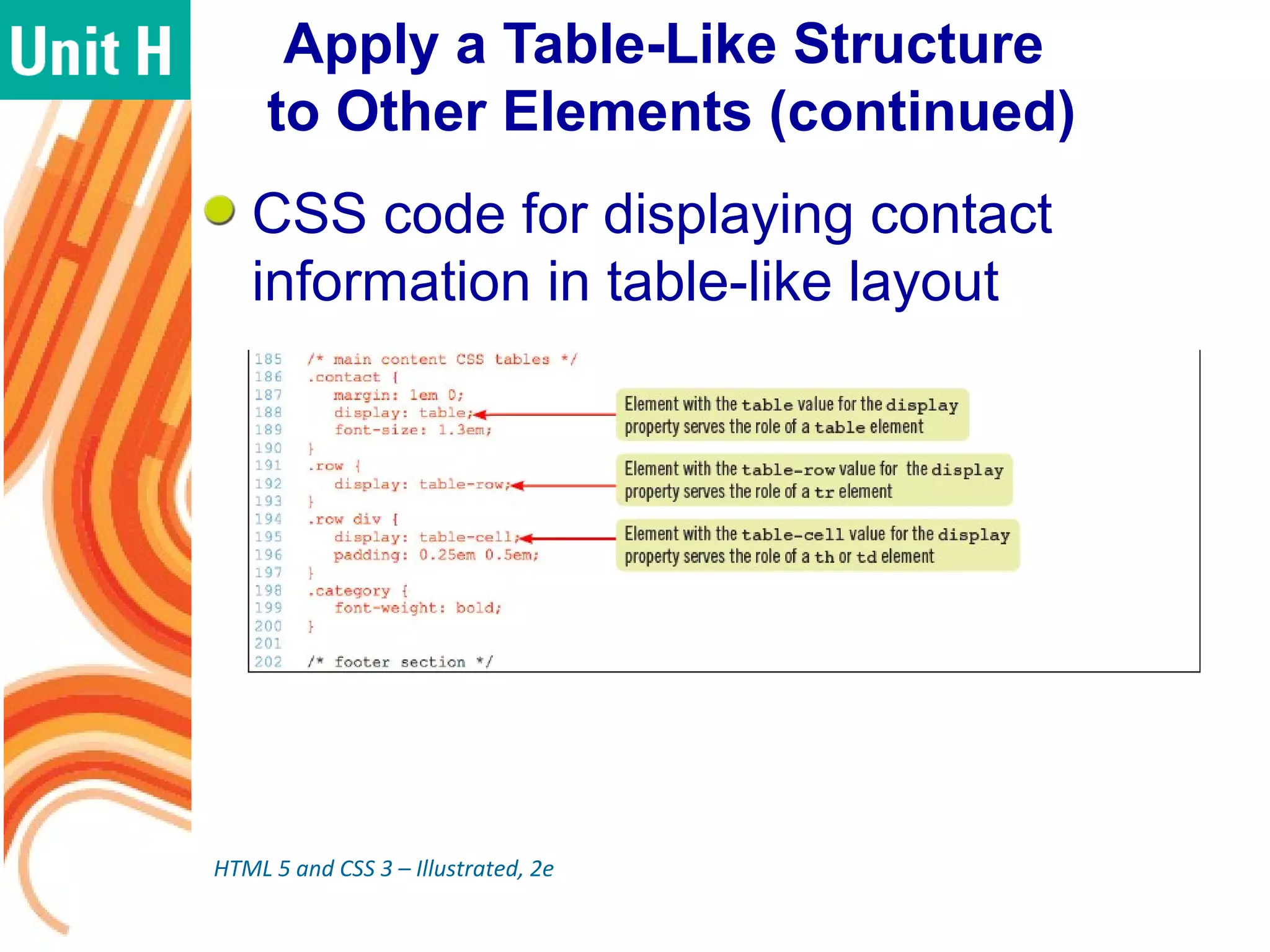
 Use CSS to specify that the elements
should be treated as components of a
table
HTML 5 and CSS 3 – Illustrated, 2e
Apply a Table-Like Structure
to Other Elements (continued)
HTML code for displaying contact
information in table-like layout
HTML 5 and CSS 3 – Illustrated, 2e
Apply a Table-Like Structure
to Other Elements (continued)
CSS code for displaying contact
information in table-like layout
HTML 5 and CSS 3 – Illustrated, 2e
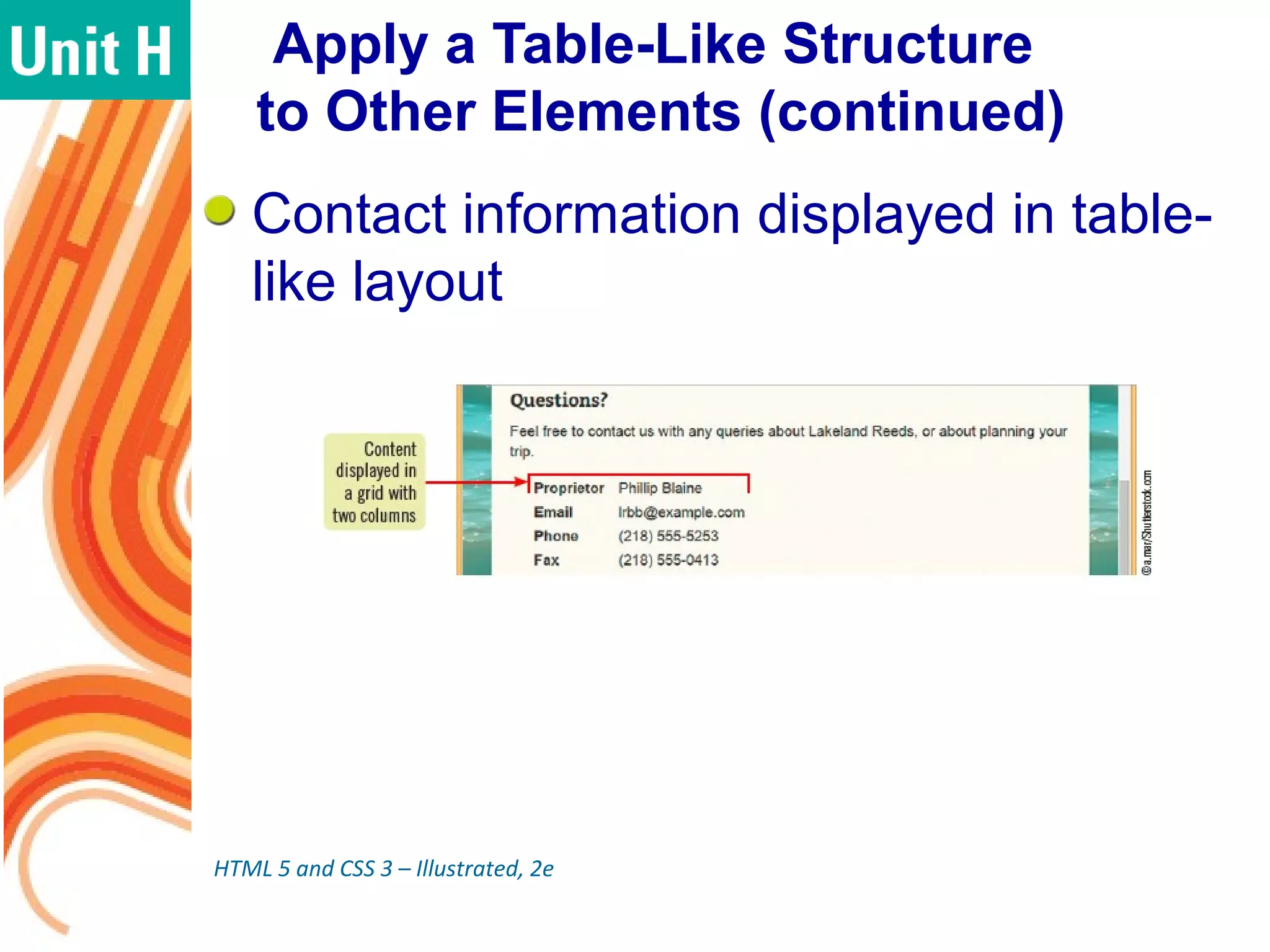
Apply a Table-Like Structure
to Other Elements (continued)
Contact information displayed in table-
like layout
HTML 5 and CSS 3 – Illustrated, 2e
Summary
Ordered lists, unordered lists, and
description lists can be used to
organize information in HTML pages
Information that does not in and of
itself constitute a list can be marked
as a list to increase usability of web
page
List item markers, as well as other list
properties, can be set using CSS
HTML 5 and CSS 3 – Illustrated, 2e
Summary (continued)
HTML information can be organized
as a table, in rows, columns, and cells
Use table, th, tr, and td HTML
elements to create a table
Semantic elements can be used to
add structural information to a table
The rowspan and colspan attributes
allow a single cell to span multiple
rows or columns
Summary (continued)
CSS can be used to apply styling to a
table, including styling of fonts, colors,
and borders
The semantic elements col and
colgroup can be used to apply CSS
to specific column(s)
A table-like structure can be applied to
non-table elements using semantic
elements, such as div, and CSS
It is important to debug your tables

Organizing Content with Lists and Tables

  • 1.
    Organizing Content withLists and Tables
  • 2.
    Objectives Create an orderedlist Create an unordered list Create a description list Create a nav bar using a list HTML 5 and CSS 3 – Illustrated 2e
  • 3.
    Objectives (continued) Insert atable Debug tables Span columns and rows Format a table with CSS Apply a table-like structure to other elements HTML 5 and CSS 3 – Illustrated 2e
  • 4.
    Create an OrderedList Ordered list: a list in which items are numbered or lettered sequentially  ol element: used to create an ordered list  li element: used to create each list item • Contents of the list item contained between opening and closing <li> tags.  All li elements for a list are nested within the opening and closing ol tags HTML 5 and CSS 3 – Illustrated 2e
  • 5.
    Create an OrderedList (continued) Default marker for a list item determined by user agent  Usually Arabic numerals  Can be set using the CSS list- style-type property • Possible values include decimal, lower- roman, upper-roman, lower-alpha, and upper- alpha HTML 5 and CSS 3 – Illustrated 2e
  • 6.
    Create an OrderedList (continued) Ordered list: code and display HTML 5 and CSS 3 – Illustrated 2e
  • 7.
    Create an UnorderedList Unordered list: a list in which items have no specific order  ul element: used to create an unordered list  li element: used to create each list item  Structure is the same as an ordered list Default bullet is solid circle  Can be set using the CSS list- style-type property HTML 5 and CSS 3 – Illustrated 2e
  • 8.
    Create an UnorderedList (continued) Unordered list :code and display HTML 5 and CSS 3 – Illustrated 2e
  • 9.
    Create a DescriptionList Description list: uses two elements, also called an item-description pair: dt and dd  Originally intended for terms and their definitions  List defined using the <dl> tag <dt> tag marks item being described; <dd> tag indicates descriptiond  A dt can have more than one dd HTML 5 and CSS 3 – Illustrated 2e
  • 10.
    Create a DescriptionList (continued) Description list: code and display HTML 5 and CSS 3 – Illustrated 2e
  • 11.
    Create a NavBar Using a List Sometimes it is good to use a list element to mark up web page content that does not appear as a list  e.g., navigation bar • Fundamentally a list of related links • Marking navigation bar with ul and li elements provides semantic information for user agents HTML 5 and CSS 3 – Illustrated, 2e
  • 12.
    Create a NavBar Using a List (continued) Nav bar: code and display HTML 5 and CSS 3 – Illustrated, 2e
  • 13.
    Insert a Table HTMLinformation can be organized as a table  Organizes data in rows and columns  Data items displayed in cells HTML elements used to create table:  table element: start and end of table  th element: content of a header cell  td element: content of a data cell  tr element: groups cells into rows HTML 5 and CSS 3 – Illustrated, 2e
  • 14.
    Insert a Table(continued) Semantic elements used to add information to a table  thead element: marks the header rows of a table  tbody element: marks the rows that make up the body of the table  tfoot element: marks footer rows of the table CSS border property used to set width and/or color of cell or table border HTML 5 and CSS 3 – Illustrated, 2e
  • 15.
    Insert a Table(continued) Code for table HTML 5 and CSS 3 – Illustrated, 2e
  • 16.
    Insert a Table(continued) Table resulting from code Summary of HTML table structuring elements HTML 5 and CSS 3 – Illustrated, 2e
  • 17.
    Debug Tables It isimportant to debug tables  Too many cells can result in protruding cells  Too few cells can result in holes  Either way, the result is a structure that is not rectangular  View your table in a browser to help identify the problems Resist using a table for layout HTML 5 and CSS 3 – Illustrated, 2e
  • 18.
    Span Columns andRows A cell in a table can be formatted to be displayed across multiple rows or columns  colspan attribute: used to merge a cell across multiple columns  rowspan attribute: used to merge a cell across multiple rows  Both attributes are used in the opening th or td tag and receive a number value specifying the number of rows/columns HTML 5 and CSS 3 – Illustrated, 2e
  • 19.
    Span Columns andRows (continued) colspan and rowspan: code and display HTML 5 and CSS 3 – Illustrated, 2e
  • 20.
    Format a Tablewith CSS CSS can be used to style many aspects of tables  Used to style font face, font and background colors, and borders around/between cells  Can style entire table, table section, individual row or cell  CSS border-collapse property can be used to merge adjacent borders into a single line HTML 5 and CSS 3 – Illustrated, 2e
  • 21.
    Format a Tablewith CSS (continued) colgroup and col elements: assign CSS style to column or group of columns  Each col element applied to single column starting from left  Consecutive columns can be grouped by adding span attribute to col element and specifying number of columns as value  If col elements are included, they must cover all columns of the table HTML 5 and CSS 3 – Illustrated, 2e
  • 22.
    Format a Tablewith CSS (continued) Code for styling table
  • 23.
    Format a Tablewith CSS (continued) Table resulting from code HTML 5 and CSS 3 – Illustrated, 2e
  • 24.
    Apply a Table-LikeStructure to Other Elements HTML tables should be used only for tabular data To make elements that don’t belong in a table look like a grid, use block-level elements  Use div to create a structure that parallels that of a table  Use CSS to specify that the elements should be treated as components of a table HTML 5 and CSS 3 – Illustrated, 2e
  • 25.
    Apply a Table-LikeStructure to Other Elements (continued) HTML code for displaying contact information in table-like layout HTML 5 and CSS 3 – Illustrated, 2e
  • 26.
    Apply a Table-LikeStructure to Other Elements (continued) CSS code for displaying contact information in table-like layout HTML 5 and CSS 3 – Illustrated, 2e
  • 27.
    Apply a Table-LikeStructure to Other Elements (continued) Contact information displayed in table- like layout HTML 5 and CSS 3 – Illustrated, 2e
  • 28.
    Summary Ordered lists, unorderedlists, and description lists can be used to organize information in HTML pages Information that does not in and of itself constitute a list can be marked as a list to increase usability of web page List item markers, as well as other list properties, can be set using CSS HTML 5 and CSS 3 – Illustrated, 2e
  • 29.
    Summary (continued) HTML informationcan be organized as a table, in rows, columns, and cells Use table, th, tr, and td HTML elements to create a table Semantic elements can be used to add structural information to a table The rowspan and colspan attributes allow a single cell to span multiple rows or columns
  • 30.
    Summary (continued) CSS canbe used to apply styling to a table, including styling of fonts, colors, and borders The semantic elements col and colgroup can be used to apply CSS to specific column(s) A table-like structure can be applied to non-table elements using semantic elements, such as div, and CSS It is important to debug your tables