Fundamentals of Web DevelopmentRandy Connolly and Ricardo Hoar Fundamentals of Web DevelopmentRandy Connolly and Ricardo Hoar
Fundamentals of Web DevelopmentRandy Connolly and Ricardo Hoar
Textbook to be published by Pearson Ed in early 2014
http://www.funwebdev.com
Fundamentals of Web DevelopmentRandy Connolly and Ricardo Hoar
© 2015 Pearson
http://www.funwebdev.com
Creating and Styling
HTML Forms
Chapter 4
Fundamentals of Web DevelopmentRandy Connolly and Ricardo Hoar Fundamentals of Web DevelopmentRandy Connolly and Ricardo Hoar
INTRODUCING FORMS
Section 3 of 6
Fundamentals of Web DevelopmentRandy Connolly and Ricardo Hoar Fundamentals of Web DevelopmentRandy Connolly and Ricardo Hoar
HTML Forms
Forms provide the user with an alternative way to
interact with a web server.
• Forms provide rich mechanisms like:
• Text input
• Password input
• Options Lists
• Radio and check boxes
Richer way to interact with server
Fundamentals of Web DevelopmentRandy Connolly and Ricardo Hoar Fundamentals of Web DevelopmentRandy Connolly and Ricardo Hoar
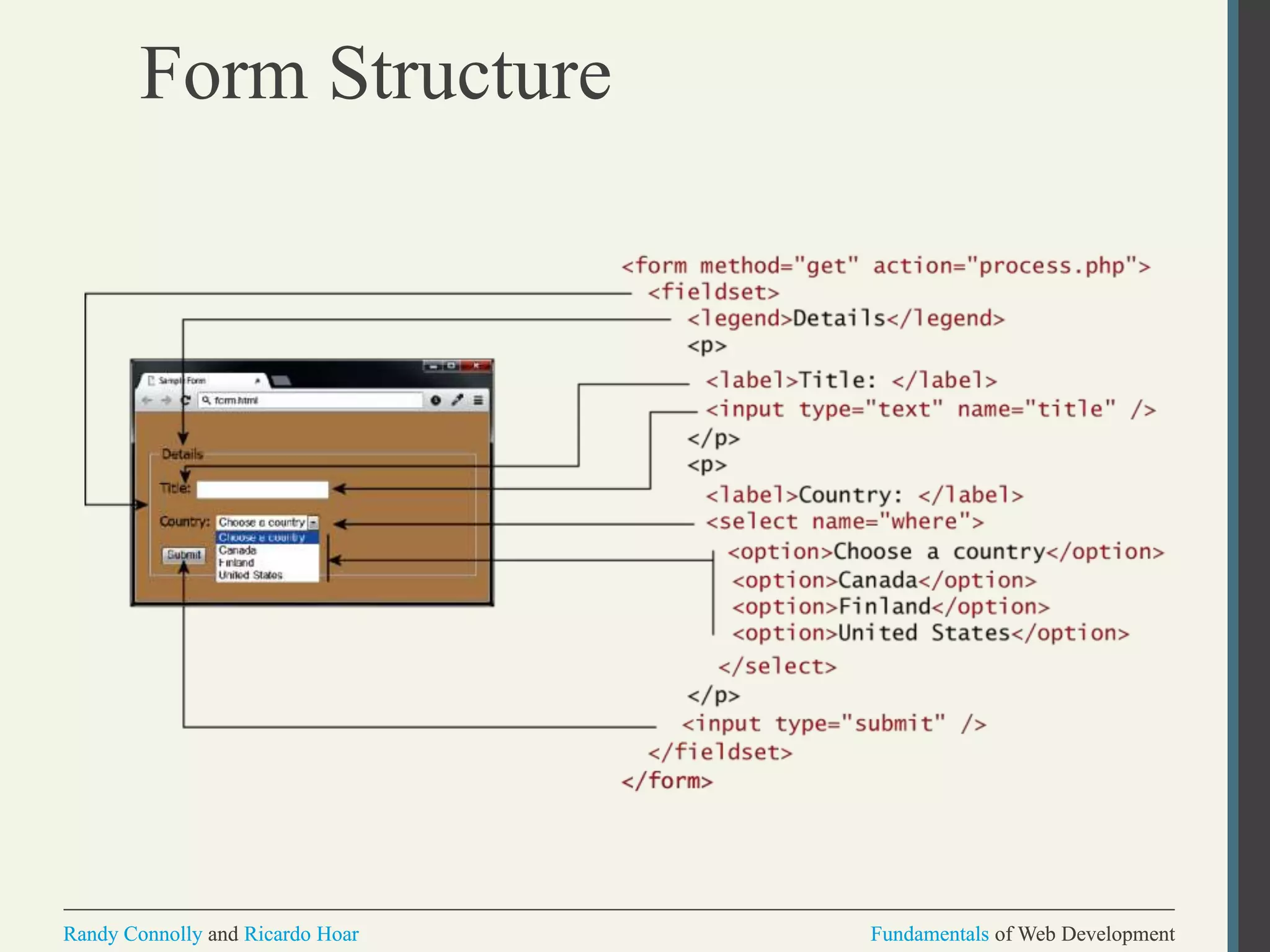
Form Structure
Fundamentals of Web DevelopmentRandy Connolly and Ricardo Hoar Fundamentals of Web DevelopmentRandy Connolly and Ricardo Hoar
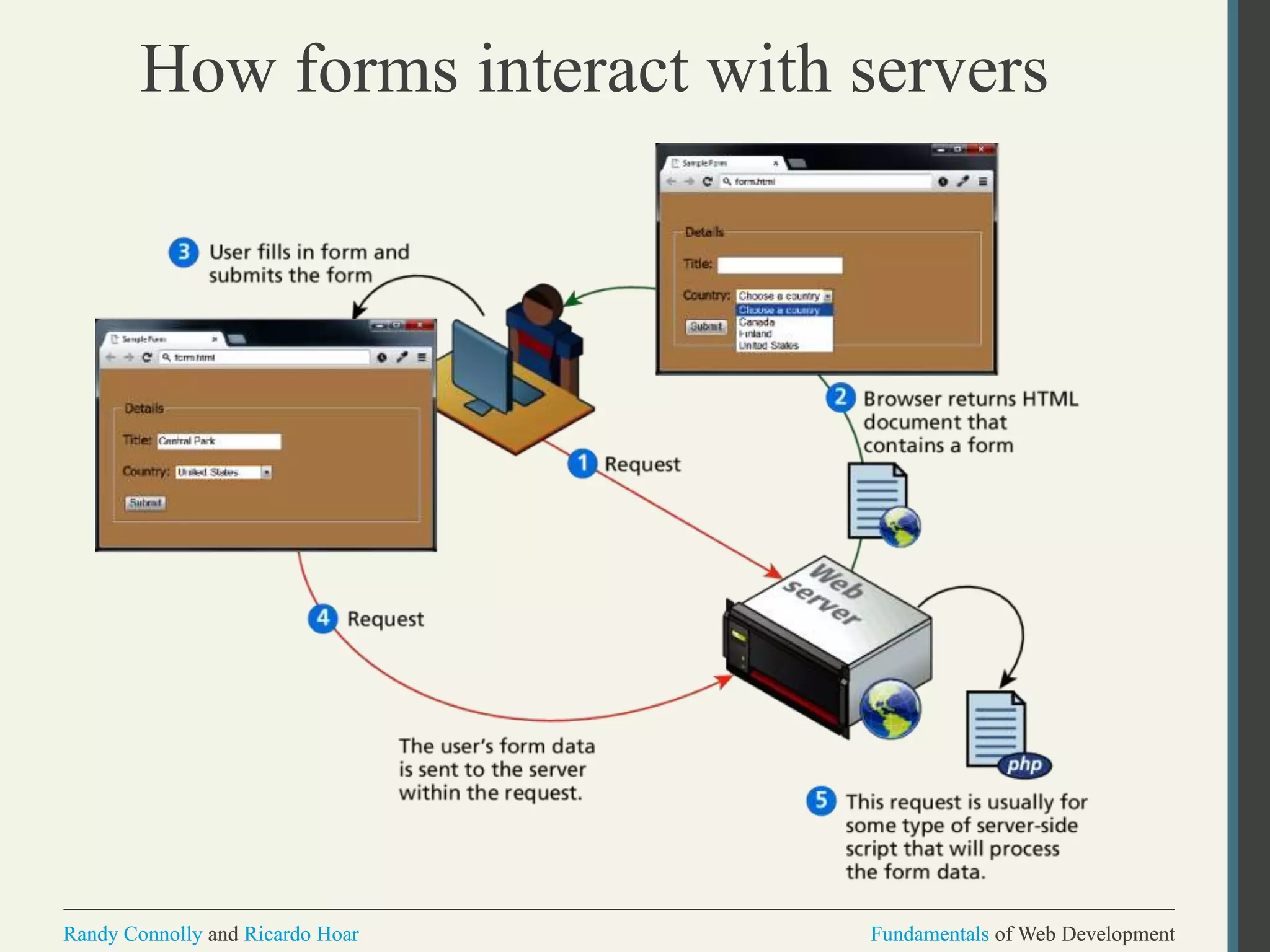
How forms interact with servers
Fundamentals of Web DevelopmentRandy Connolly and Ricardo Hoar Fundamentals of Web DevelopmentRandy Connolly and Ricardo Hoar
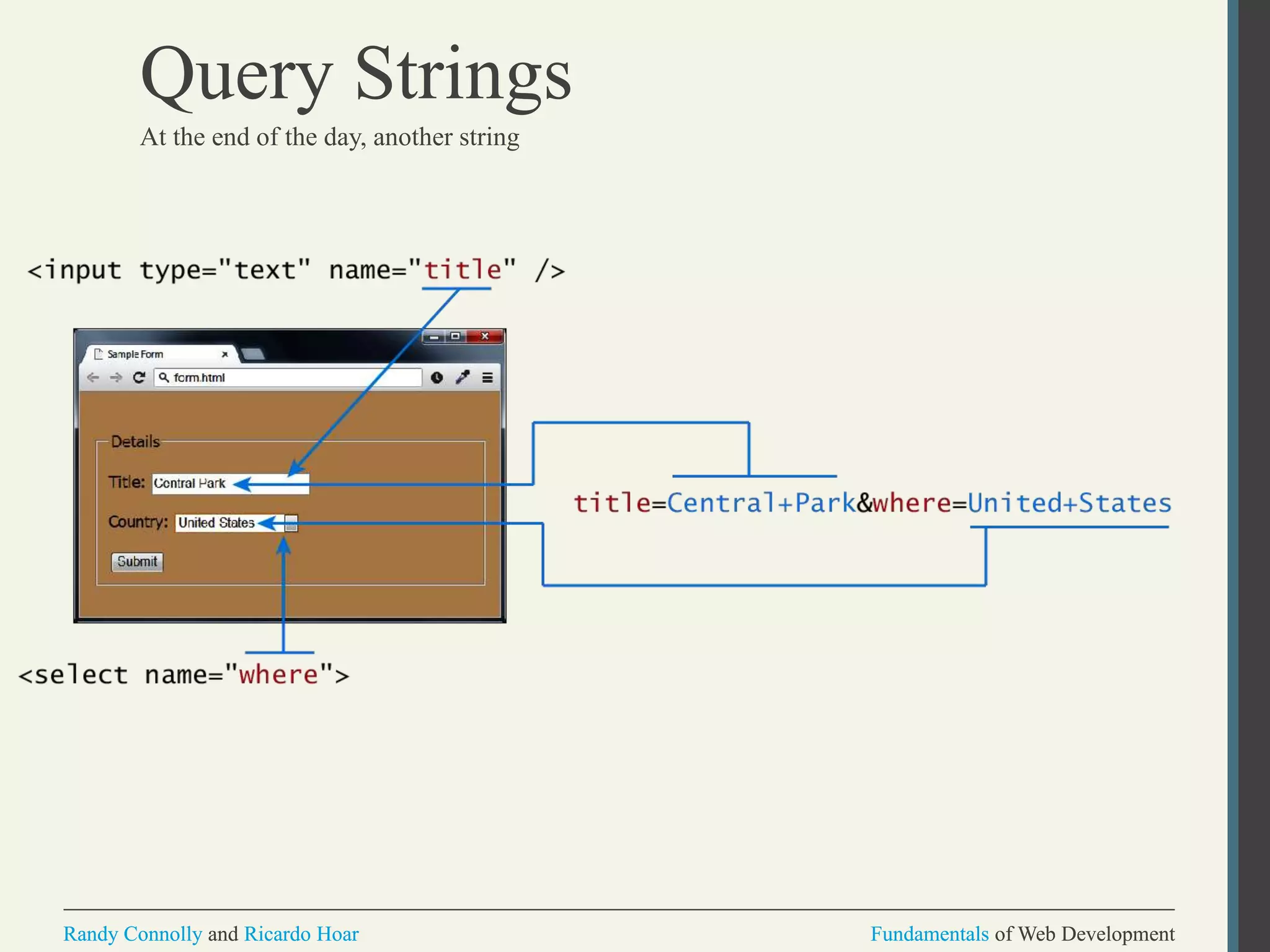
Query Strings
At the end of the day, another string
Fundamentals of Web DevelopmentRandy Connolly and Ricardo Hoar Fundamentals of Web DevelopmentRandy Connolly and Ricardo Hoar
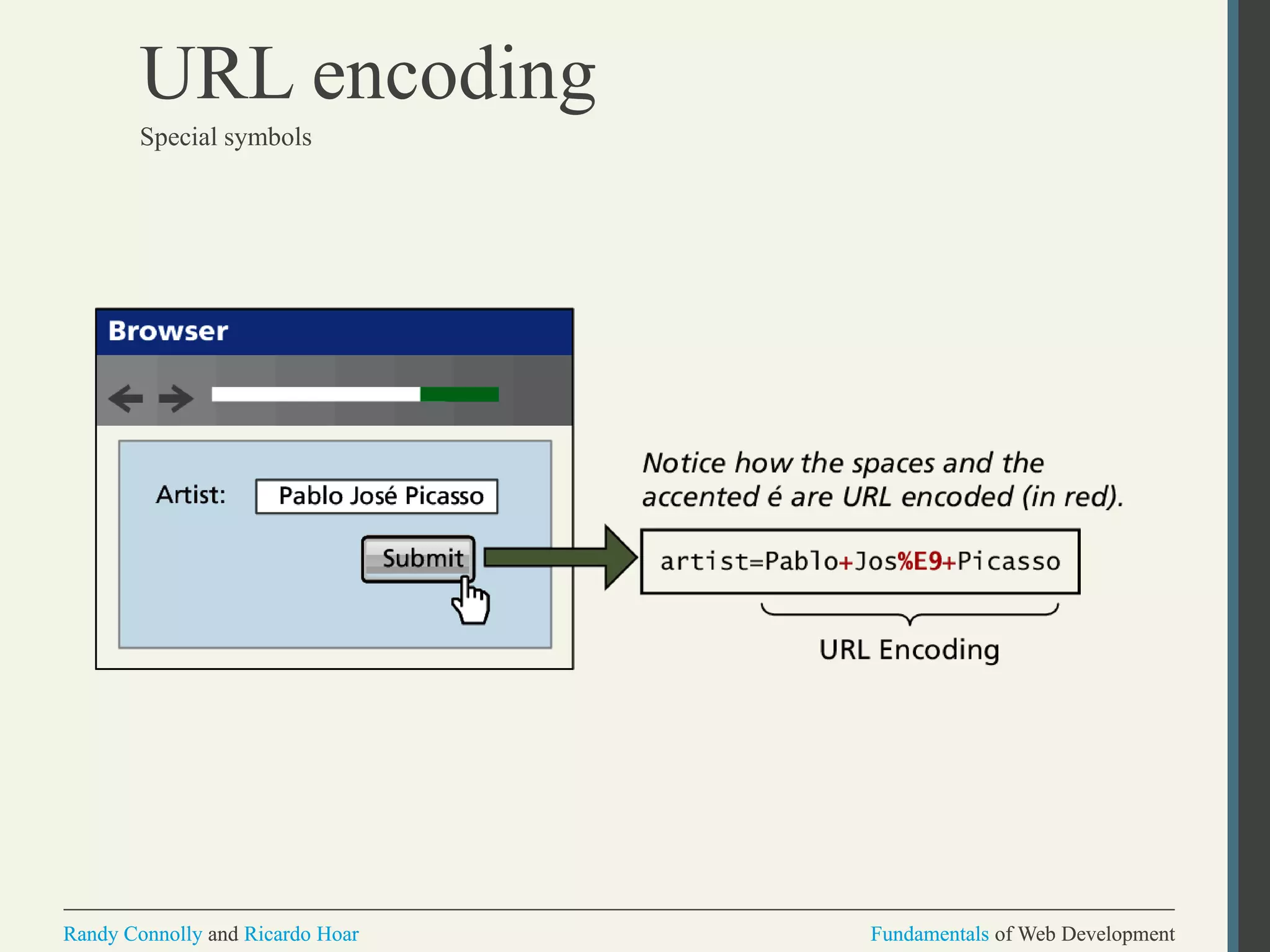
URL encoding
Special symbols
Fundamentals of Web DevelopmentRandy Connolly and Ricardo Hoar Fundamentals of Web DevelopmentRandy Connolly and Ricardo Hoar
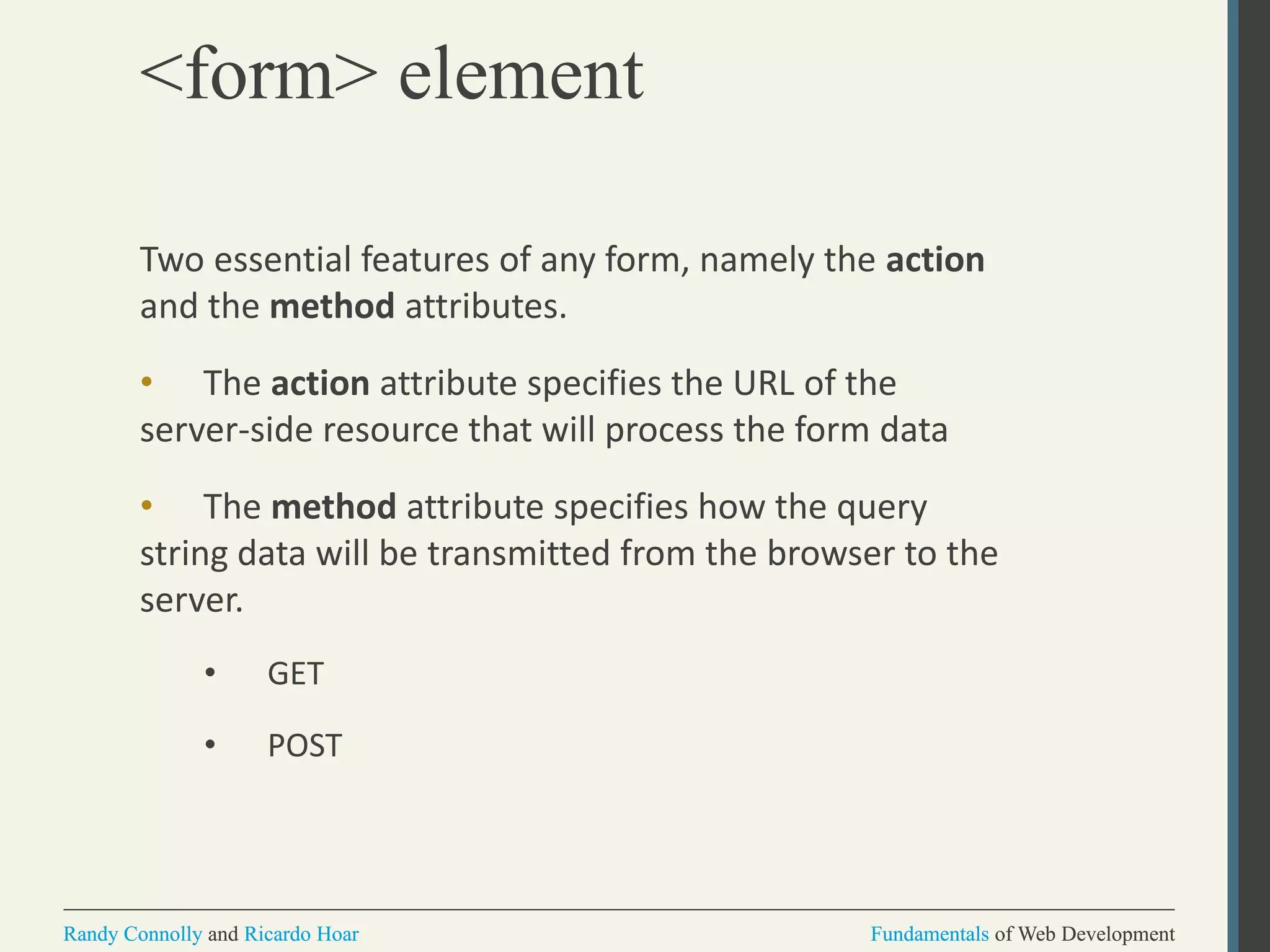
<form> element
Two essential features of any form, namely the action
and the method attributes.
• The action attribute specifies the URL of the
server-side resource that will process the form data
• The method attribute specifies how the query
string data will be transmitted from the browser to the
server.
• GET
• POST
Fundamentals of Web DevelopmentRandy Connolly and Ricardo Hoar Fundamentals of Web DevelopmentRandy Connolly and Ricardo Hoar
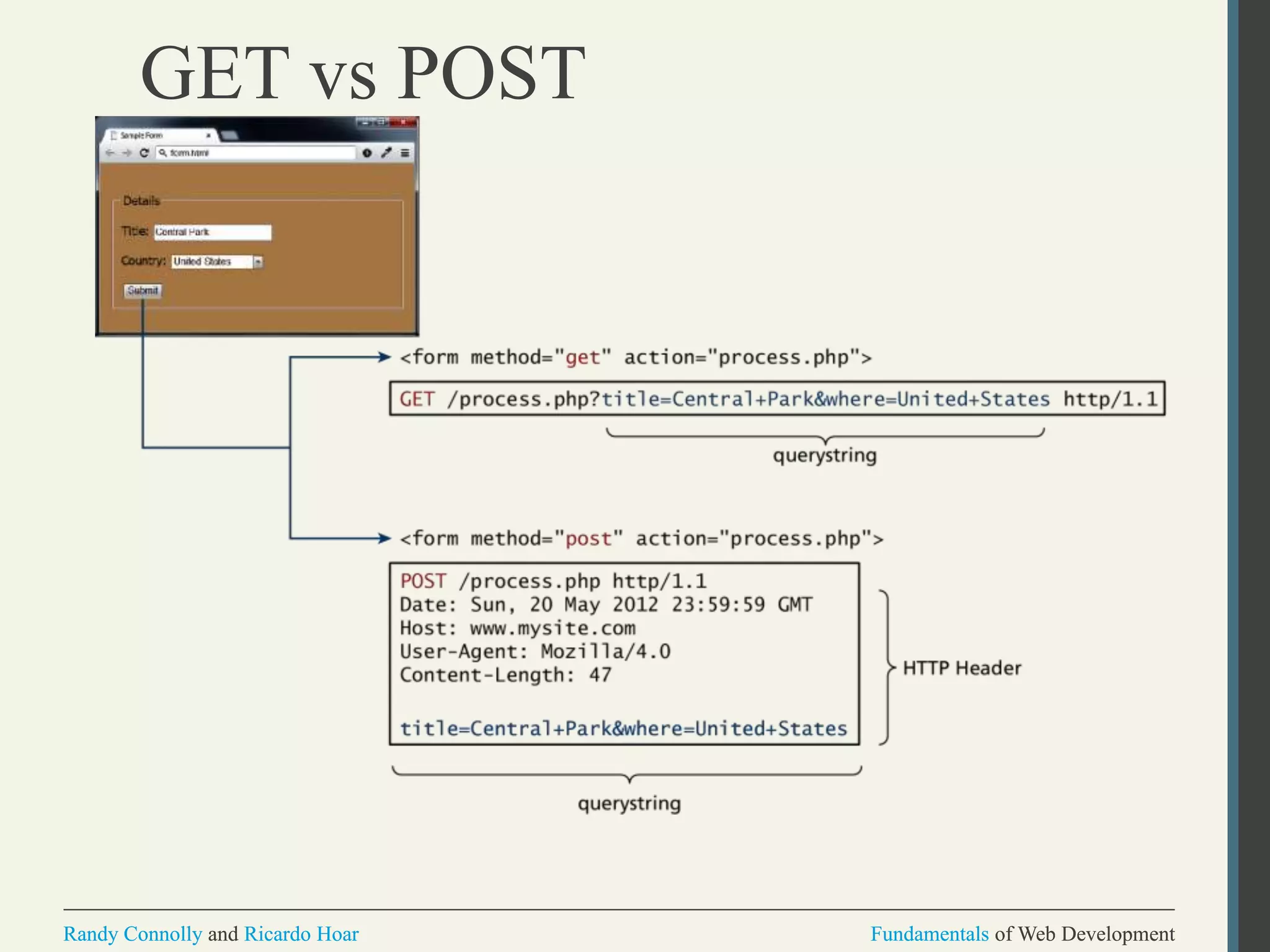
GET vs POST
Fundamentals of Web DevelopmentRandy Connolly and Ricardo Hoar Fundamentals of Web DevelopmentRandy Connolly and Ricardo Hoar
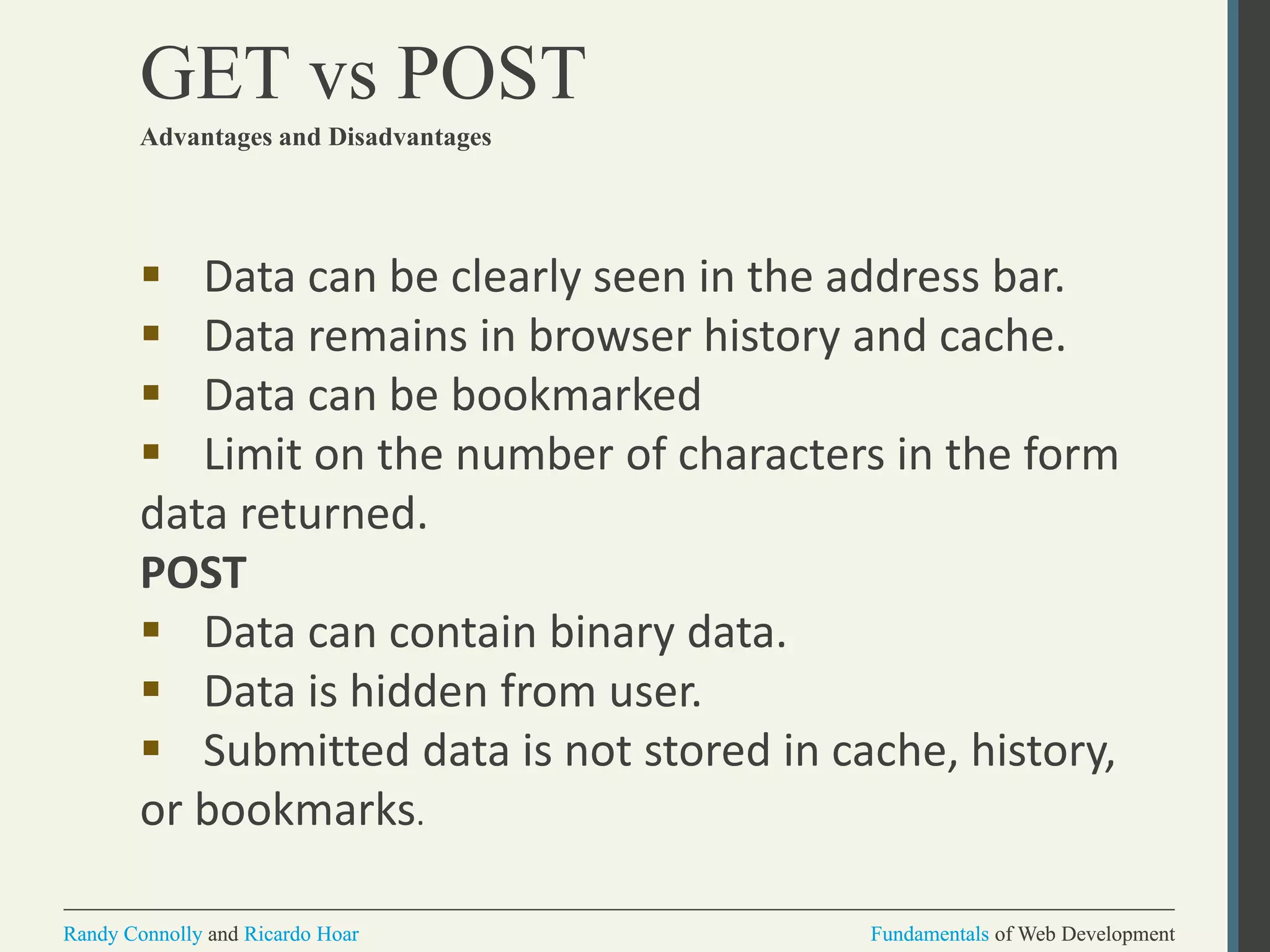
GET vs POST
Advantages and Disadvantages
 Data can be clearly seen in the address bar.
 Data remains in browser history and cache.
 Data can be bookmarked
 Limit on the number of characters in the form
data returned.
POST
 Data can contain binary data.
 Data is hidden from user.
 Submitted data is not stored in cache, history,
or bookmarks.
Fundamentals of Web DevelopmentRandy Connolly and Ricardo Hoar Fundamentals of Web DevelopmentRandy Connolly and Ricardo Hoar
FORMS CONTROL ELEMENTS
Section 4 of 6
Fundamentals of Web DevelopmentRandy Connolly and Ricardo Hoar Fundamentals of Web DevelopmentRandy Connolly and Ricardo Hoar
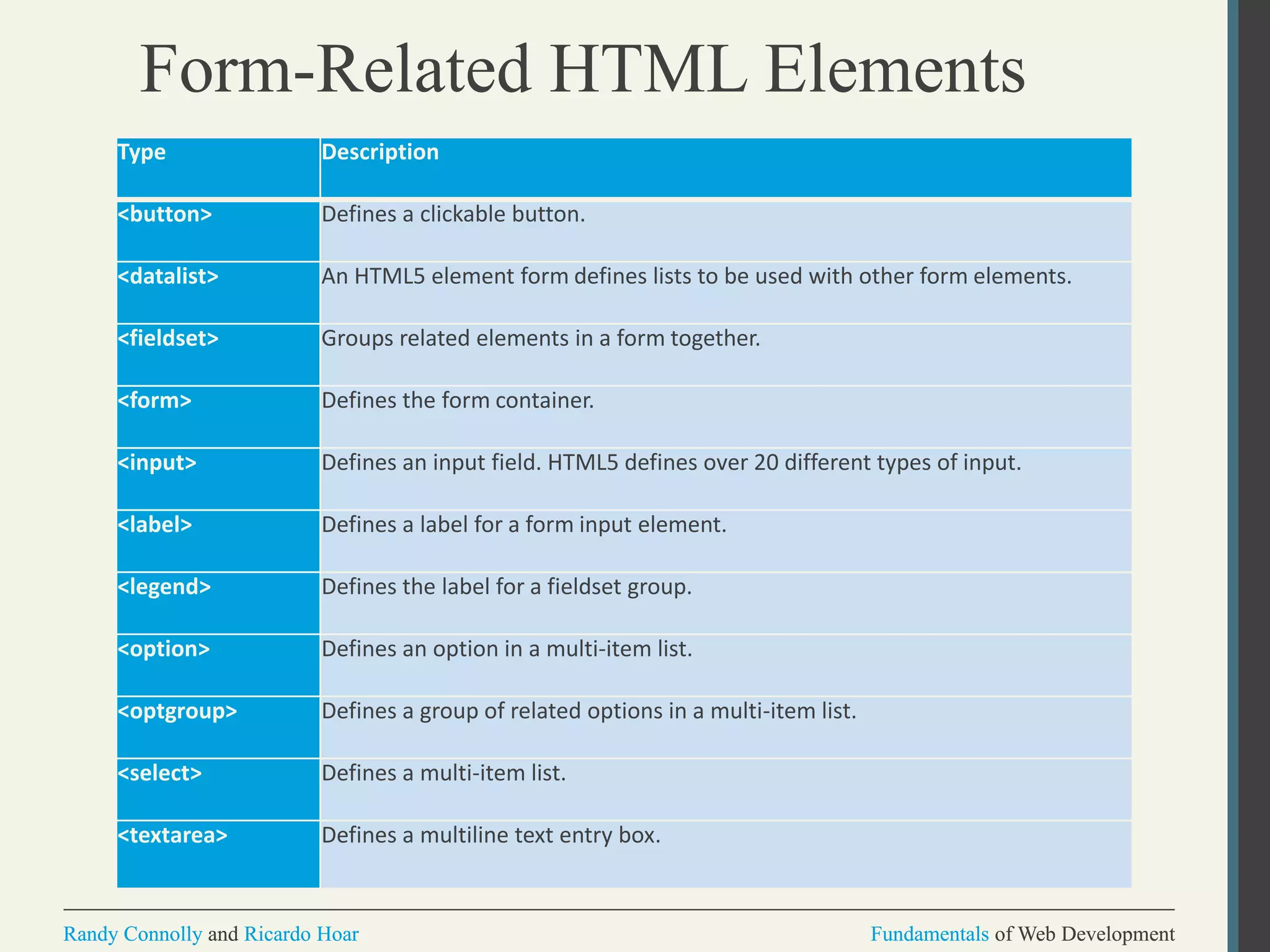
Form-Related HTML Elements
Type Description
<button> Defines a clickable button.
<datalist> An HTML5 element form defines lists to be used with other form elements.
<fieldset> Groups related elements in a form together.
<form> Defines the form container.
<input> Defines an input field. HTML5 defines over 20 different types of input.
<label> Defines a label for a form input element.
<legend> Defines the label for a fieldset group.
<option> Defines an option in a multi-item list.
<optgroup> Defines a group of related options in a multi-item list.
<select> Defines a multi-item list.
<textarea> Defines a multiline text entry box.
Fundamentals of Web DevelopmentRandy Connolly and Ricardo Hoar Fundamentals of Web DevelopmentRandy Connolly and Ricardo Hoar
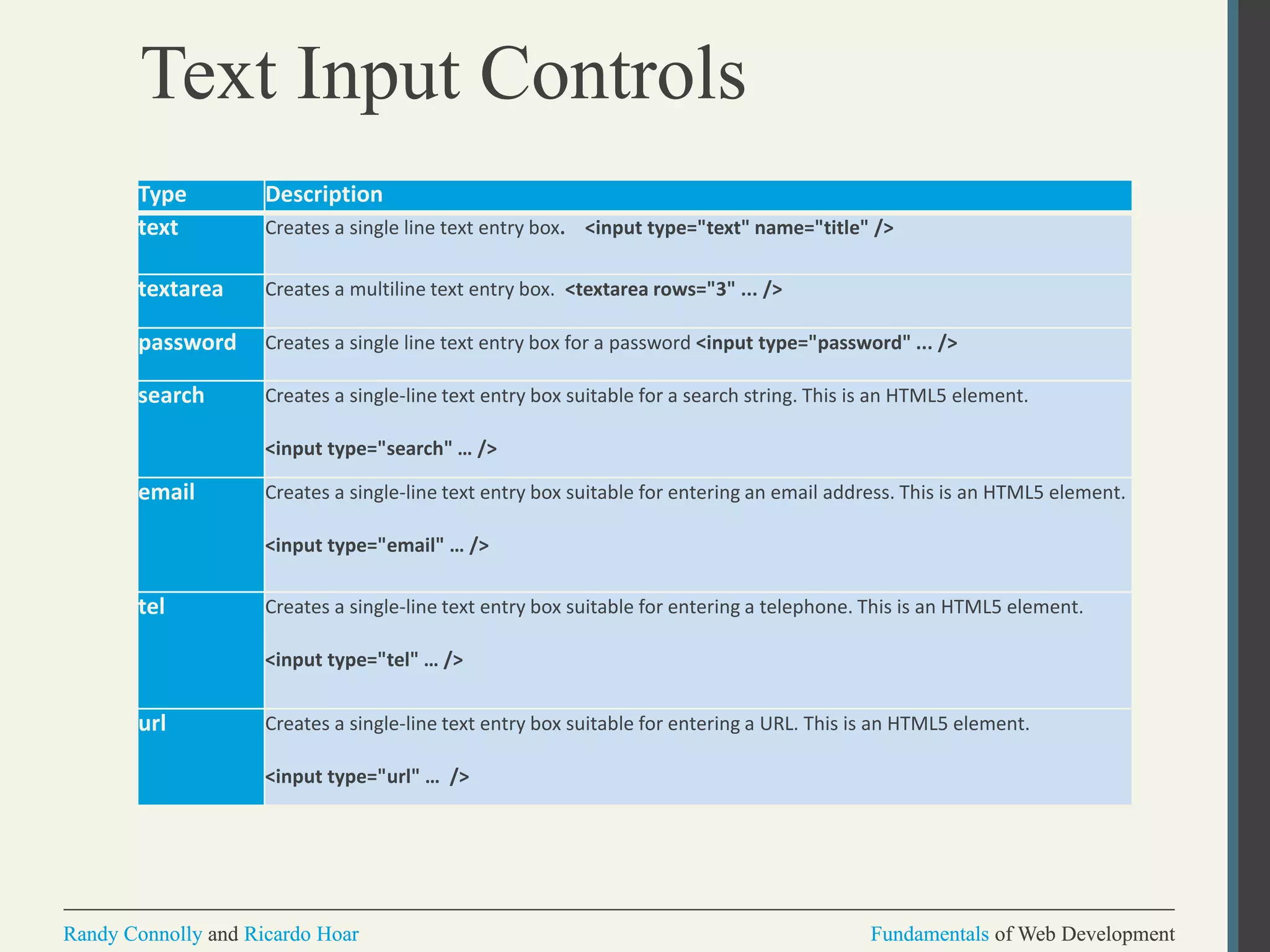
Text Input Controls
Type Description
text Creates a single line text entry box. <input type="text" name="title" />
textarea Creates a multiline text entry box. <textarea rows="3" ... />
password Creates a single line text entry box for a password <input type="password" ... />
search Creates a single-line text entry box suitable for a search string. This is an HTML5 element.
<input type="search" … />
email Creates a single-line text entry box suitable for entering an email address. This is an HTML5 element.
<input type="email" … />
tel Creates a single-line text entry box suitable for entering a telephone. This is an HTML5 element.
<input type="tel" … />
url Creates a single-line text entry box suitable for entering a URL. This is an HTML5 element.
<input type="url" … />
Fundamentals of Web DevelopmentRandy Connolly and Ricardo Hoar Fundamentals of Web DevelopmentRandy Connolly and Ricardo Hoar
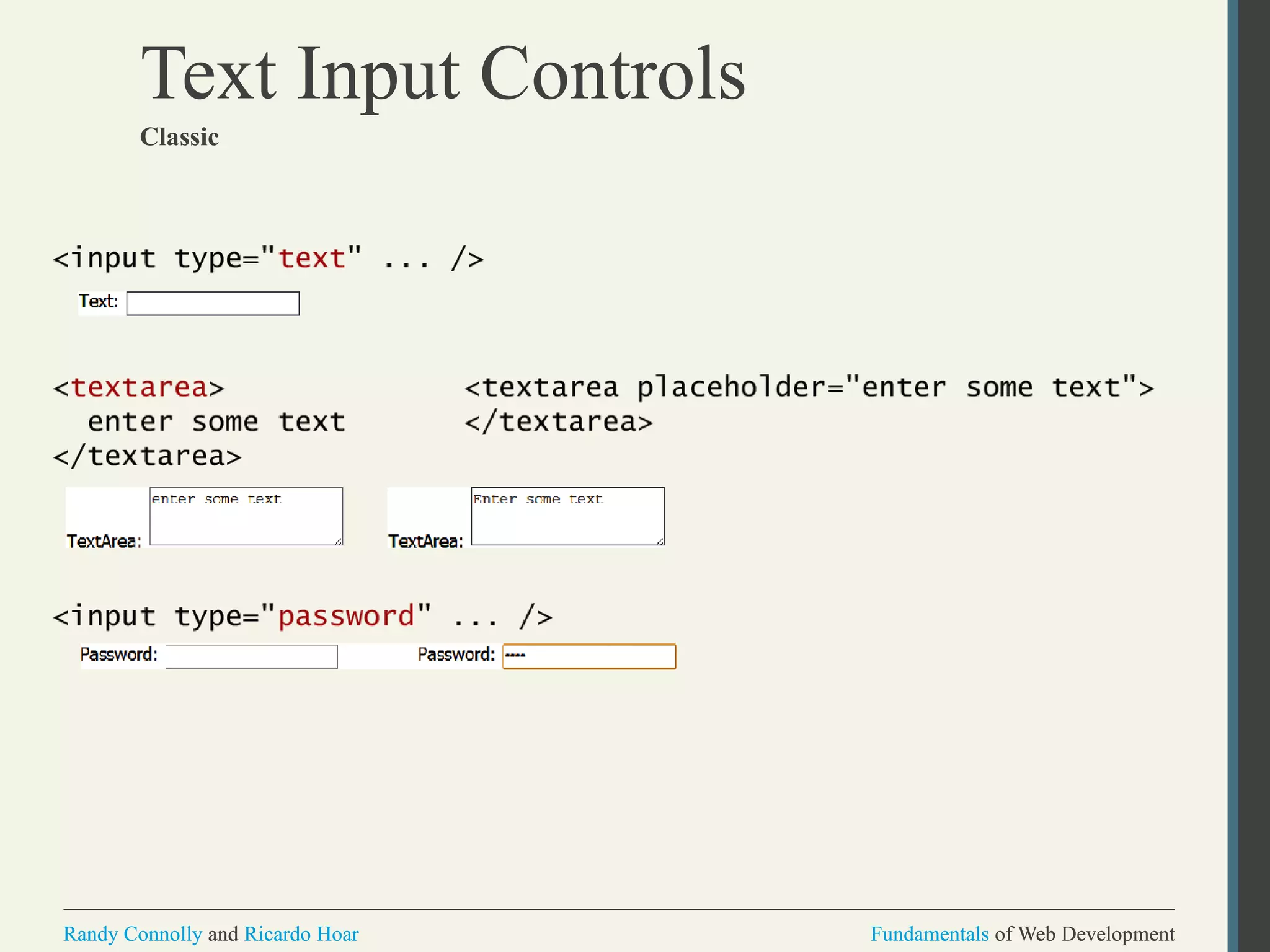
Text Input Controls
Classic
Fundamentals of Web DevelopmentRandy Connolly and Ricardo Hoar Fundamentals of Web DevelopmentRandy Connolly and Ricardo Hoar
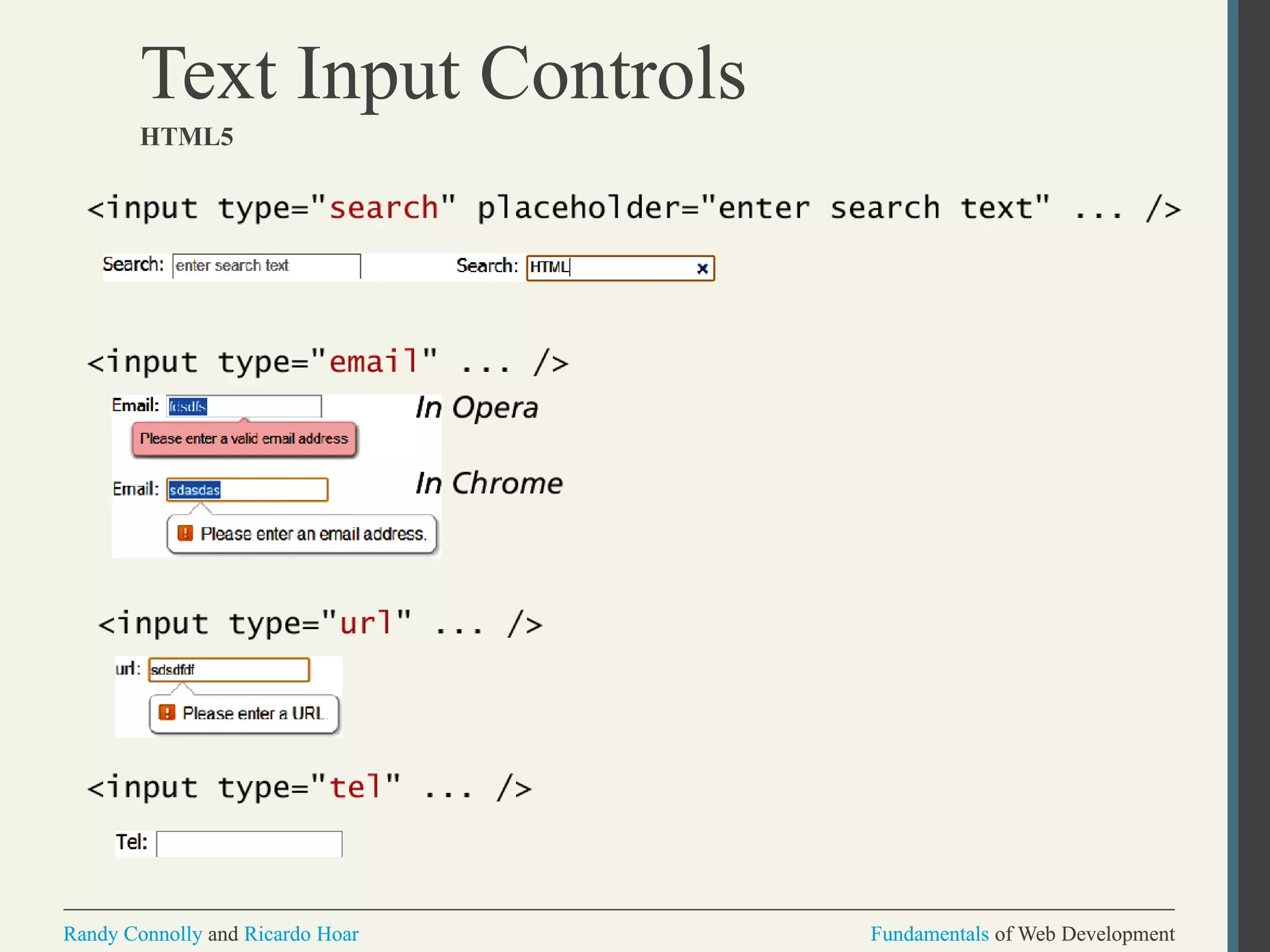
Text Input Controls
HTML5
Fundamentals of Web DevelopmentRandy Connolly and Ricardo Hoar Fundamentals of Web DevelopmentRandy Connolly and Ricardo Hoar
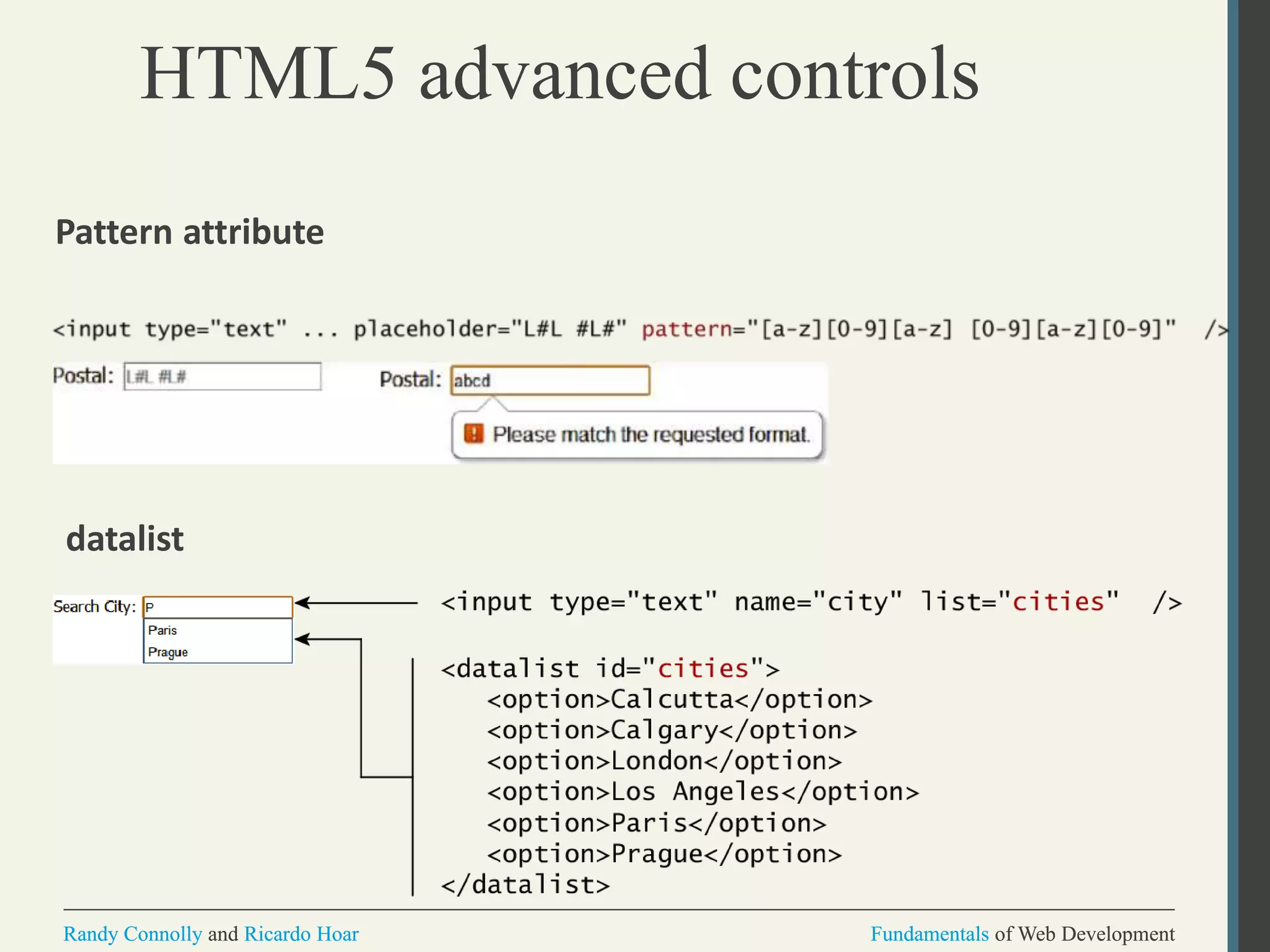
HTML5 advanced controls
Pattern attribute
datalist
Fundamentals of Web DevelopmentRandy Connolly and Ricardo Hoar Fundamentals of Web DevelopmentRandy Connolly and Ricardo Hoar
Select Lists
Chose an option, any option.
• <select> element is used to create a multiline box
for selecting one or more items
• The options are defined using the <option> element
• can be hidden in a dropdown or multiple rows of
the list can be visible
• Option items can be grouped together via the
<optgroup> element.
Fundamentals of Web DevelopmentRandy Connolly and Ricardo Hoar Fundamentals of Web DevelopmentRandy Connolly and Ricardo Hoar
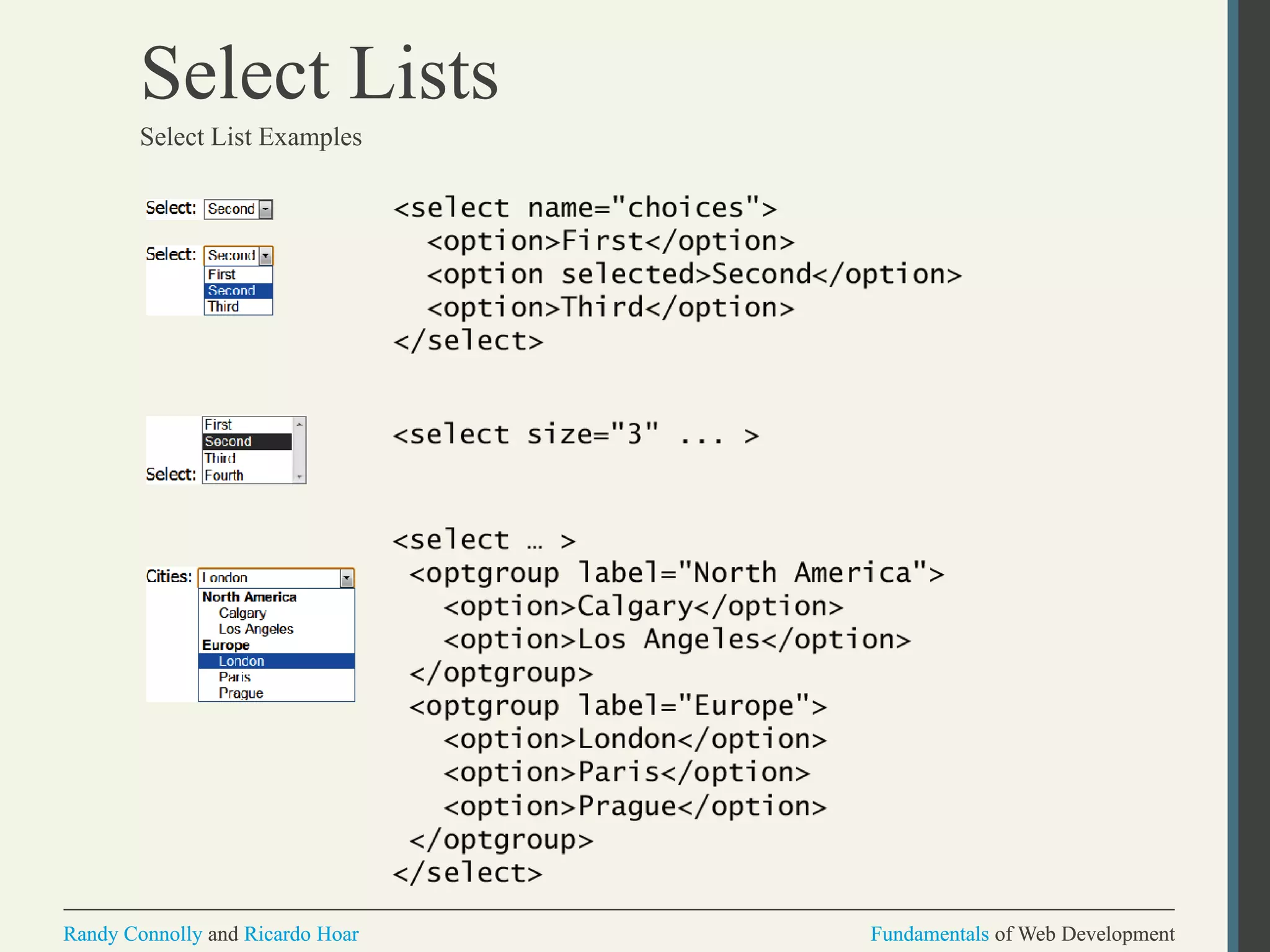
Select Lists
Select List Examples
Fundamentals of Web DevelopmentRandy Connolly and Ricardo Hoar Fundamentals of Web DevelopmentRandy Connolly and Ricardo Hoar
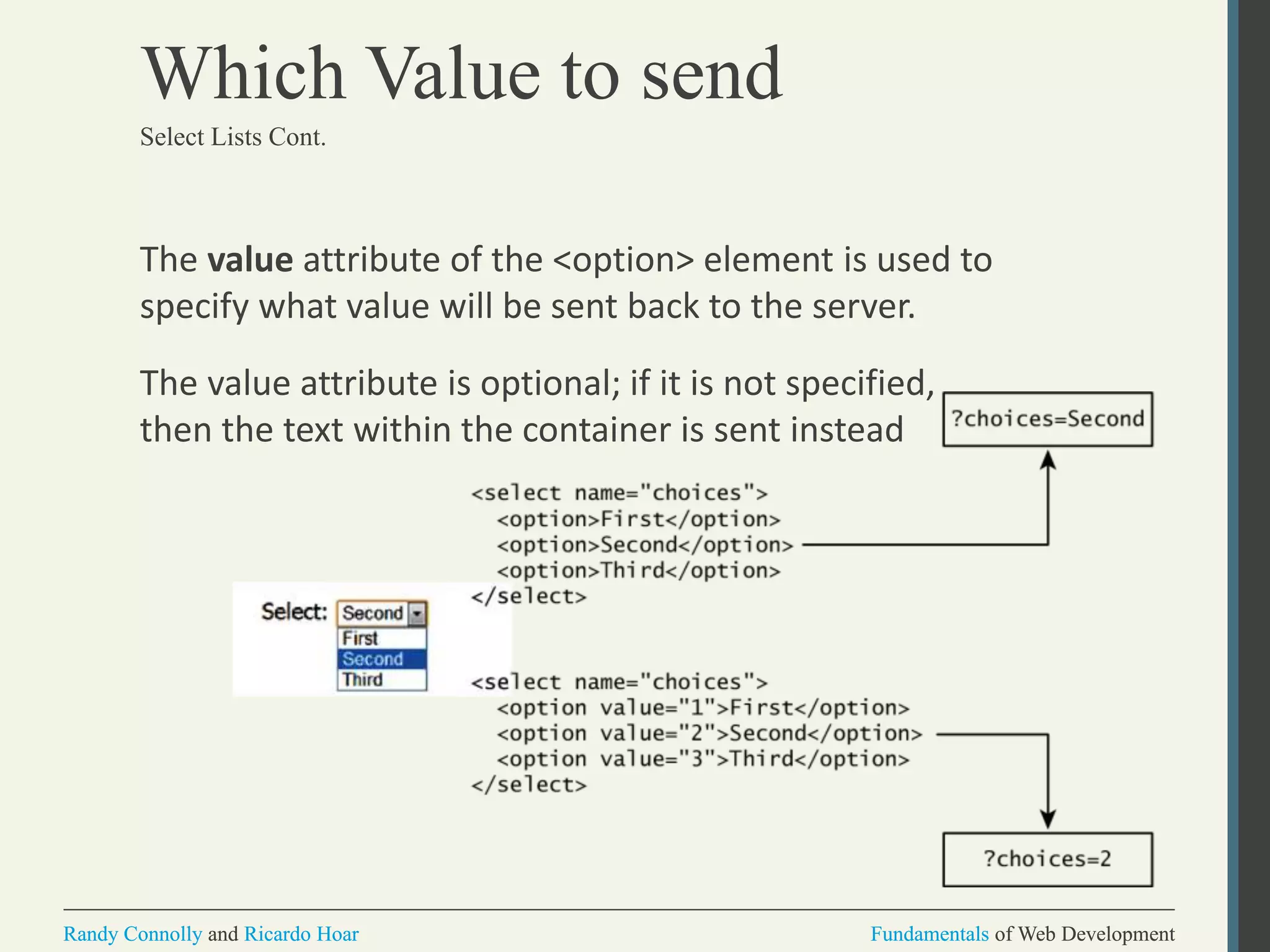
Which Value to send
The value attribute of the <option> element is used to
specify what value will be sent back to the server.
The value attribute is optional; if it is not specified,
then the text within the container is sent instead
Select Lists Cont.
Fundamentals of Web DevelopmentRandy Connolly and Ricardo Hoar Fundamentals of Web DevelopmentRandy Connolly and Ricardo Hoar
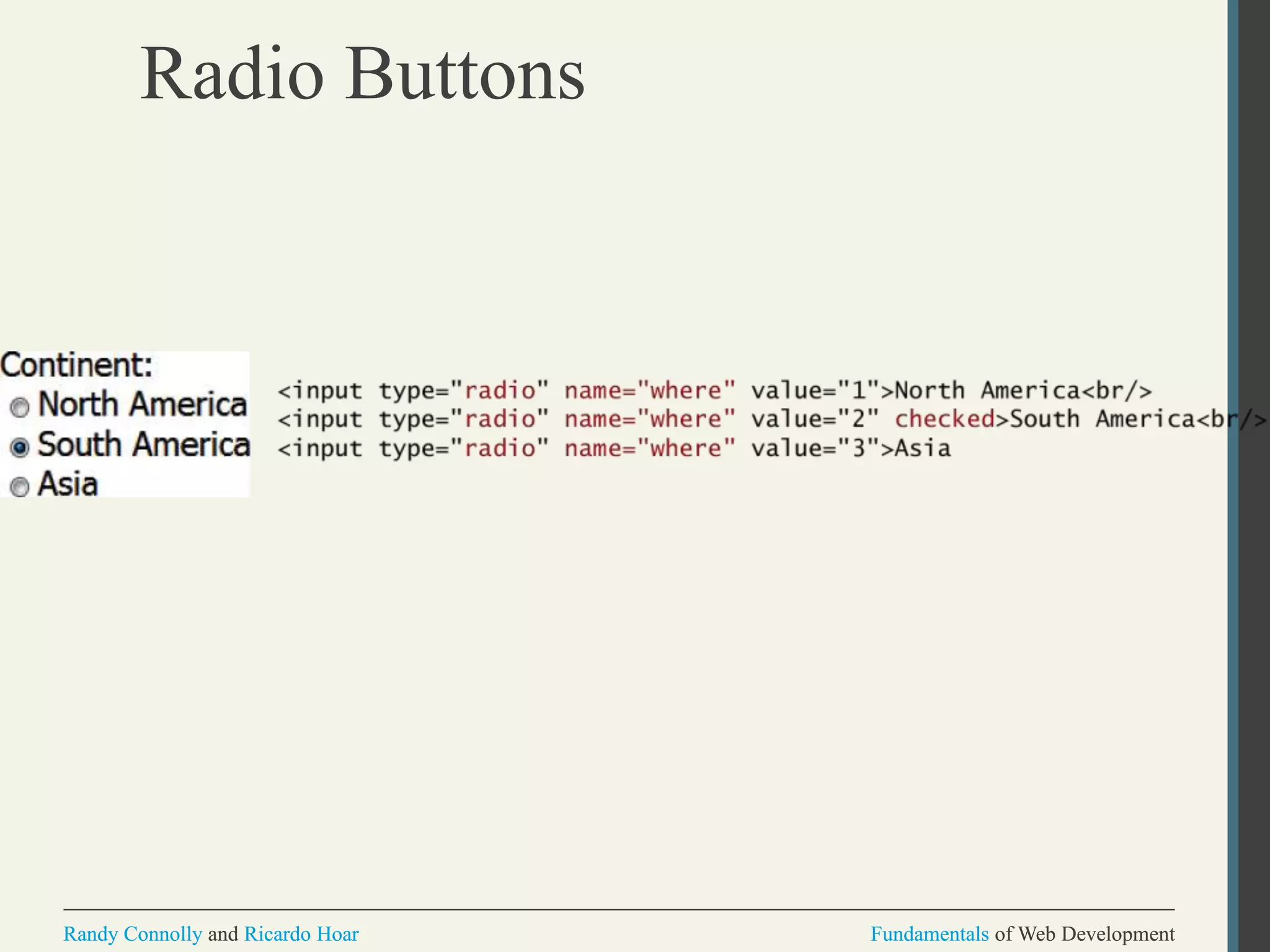
Radio Buttons
Radio buttons are useful when you want the user to
select a single item from a small list of choices and you
want all the choices to be visible
• radio buttons are added via the <input type="radio">
element
• The buttons are mutually exclusive (i.e., only one can
be chosen) by sharing the same name attribute
• The checked attribute is used to indicate the default
choice
• the value attribute works in the same manner as with
the <option> element
Fundamentals of Web DevelopmentRandy Connolly and Ricardo Hoar Fundamentals of Web DevelopmentRandy Connolly and Ricardo Hoar
Radio Buttons
Fundamentals of Web DevelopmentRandy Connolly and Ricardo Hoar Fundamentals of Web DevelopmentRandy Connolly and Ricardo Hoar
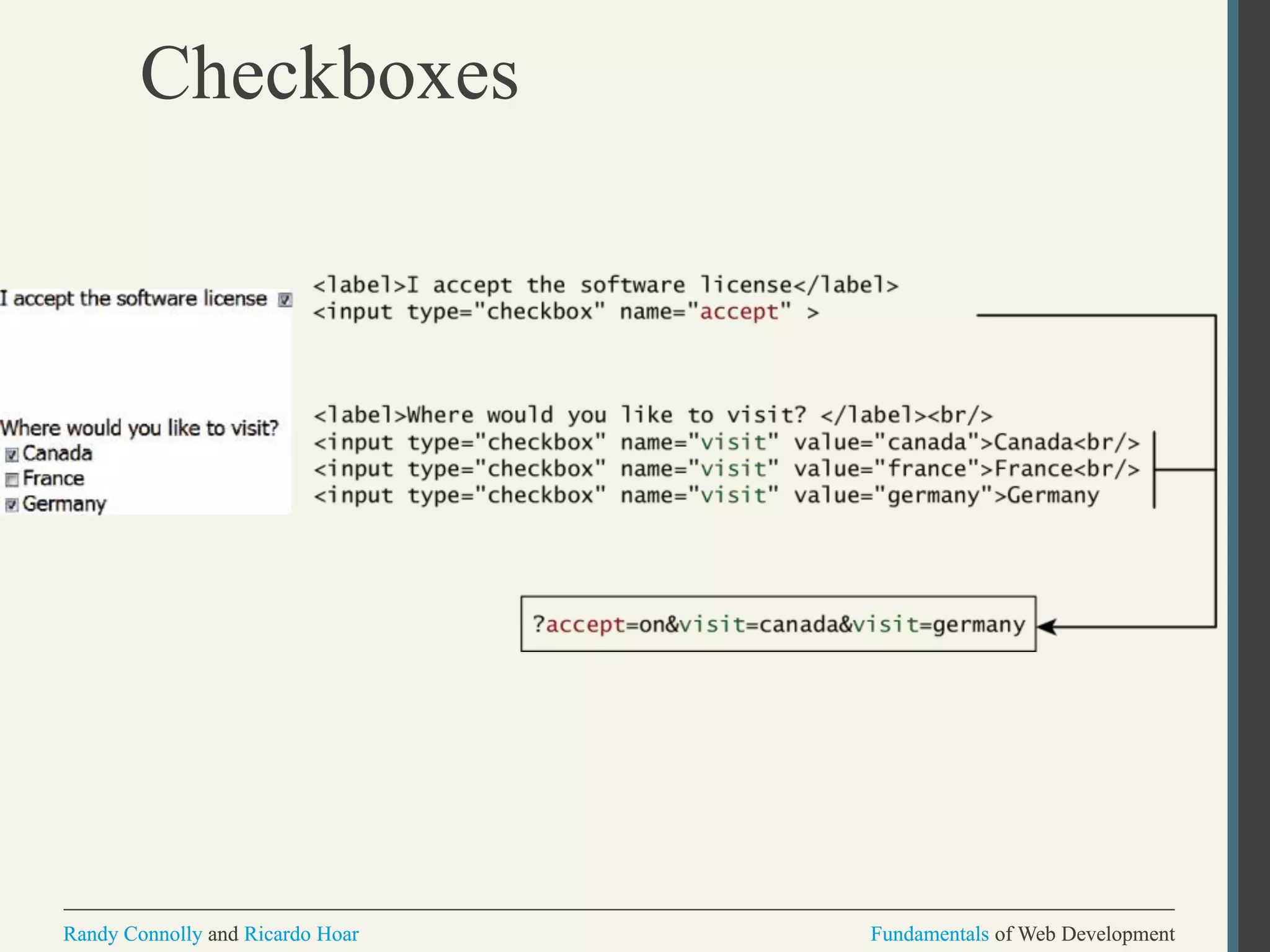
Checkboxes
Checkboxes are used for getting yes/no or on/off
responses from the user.
• checkboxes are added via the <input type="checkbox”>
Element
• You can also group checkboxes together by having them
share the same name attribute
• Each checked checkbox will have its value sent to the
server
• Like with radio buttons, the checked attribute can be
used to set the default value of a checkbox
Fundamentals of Web DevelopmentRandy Connolly and Ricardo Hoar Fundamentals of Web DevelopmentRandy Connolly and Ricardo Hoar
Checkboxes
Fundamentals of Web DevelopmentRandy Connolly and Ricardo Hoar Fundamentals of Web DevelopmentRandy Connolly and Ricardo Hoar
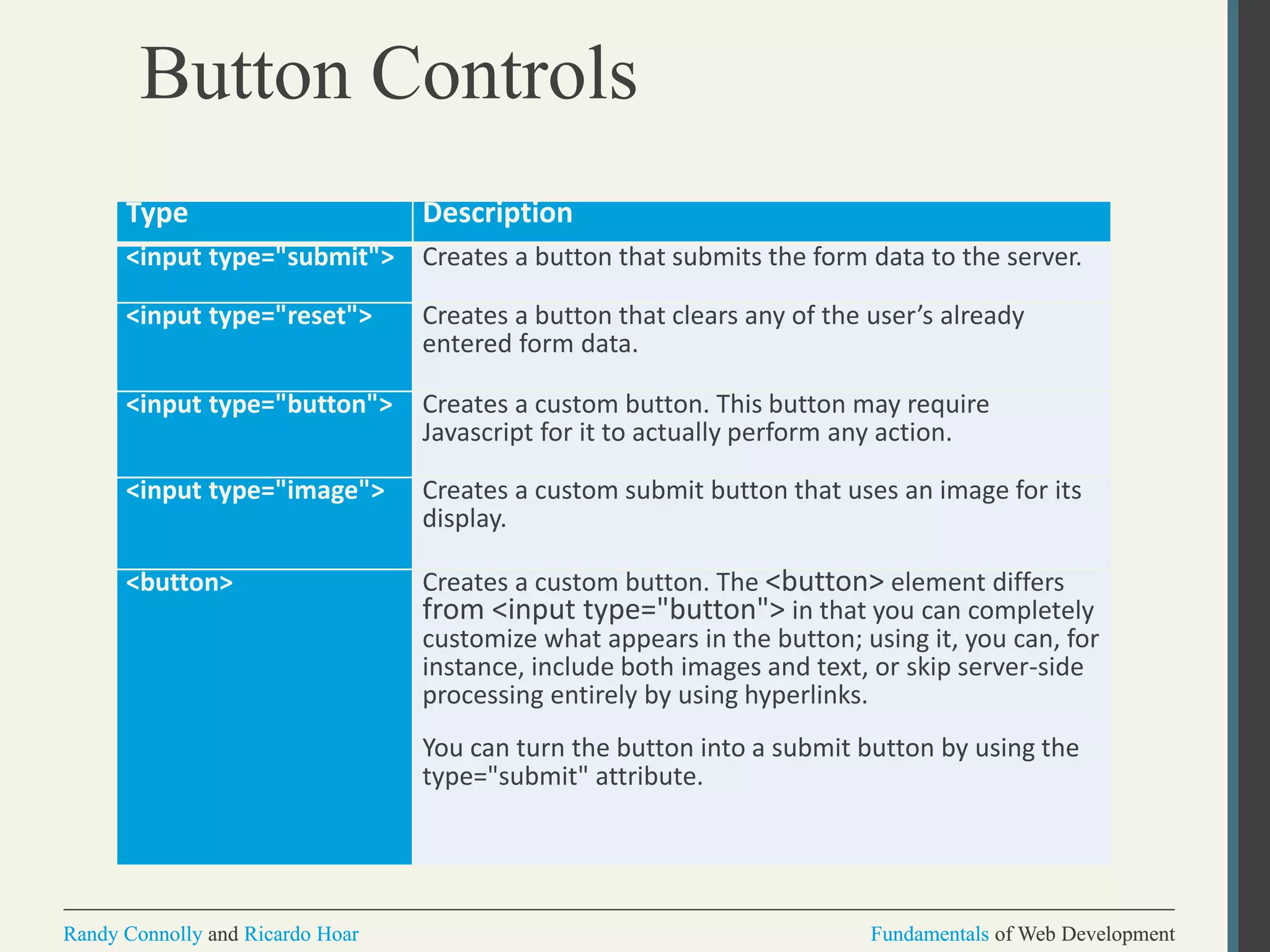
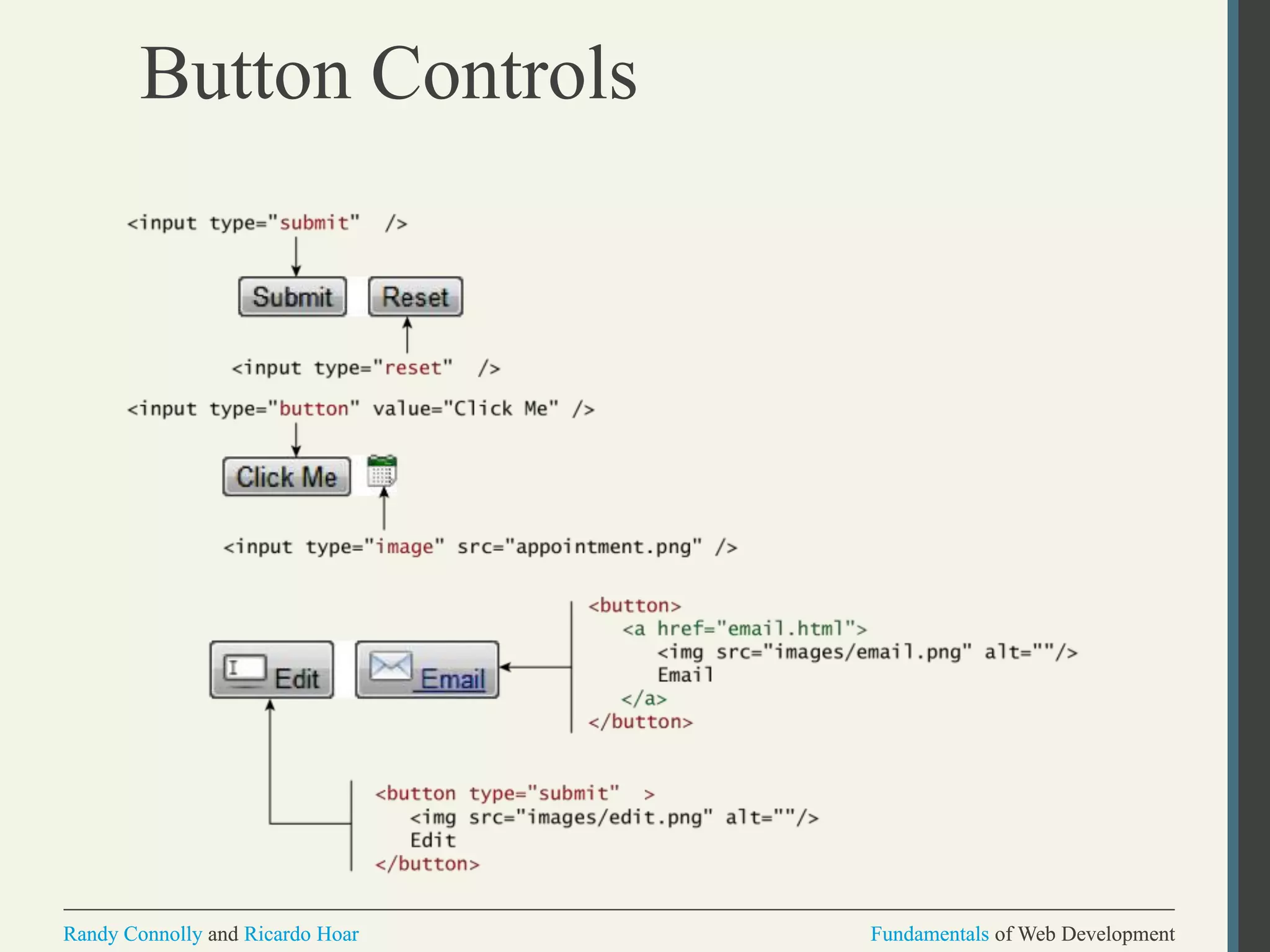
Button Controls
Type Description
<input type="submit"> Creates a button that submits the form data to the server.
<input type="reset"> Creates a button that clears any of the user’s already
entered form data.
<input type="button"> Creates a custom button. This button may require
Javascript for it to actually perform any action.
<input type="image"> Creates a custom submit button that uses an image for its
display.
<button> Creates a custom button. The <button> element differs
from <input type="button"> in that you can completely
customize what appears in the button; using it, you can, for
instance, include both images and text, or skip server-side
processing entirely by using hyperlinks.
You can turn the button into a submit button by using the
type="submit" attribute.
Fundamentals of Web DevelopmentRandy Connolly and Ricardo Hoar Fundamentals of Web DevelopmentRandy Connolly and Ricardo Hoar
Button Controls
Fundamentals of Web DevelopmentRandy Connolly and Ricardo Hoar Fundamentals of Web DevelopmentRandy Connolly and Ricardo Hoar
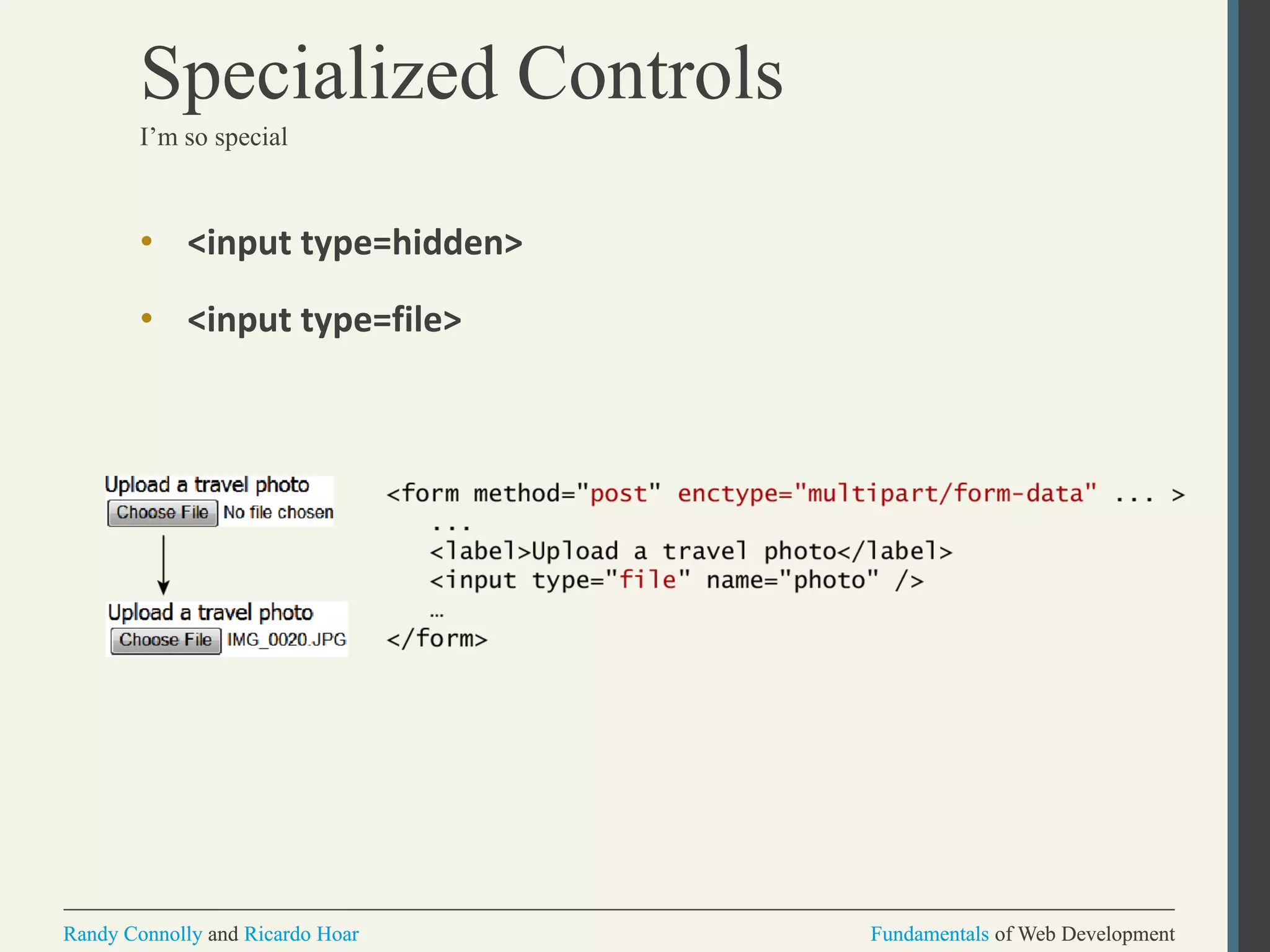
Specialized Controls
I’m so special
• <input type=hidden>
• <input type=file>
Fundamentals of Web DevelopmentRandy Connolly and Ricardo Hoar Fundamentals of Web DevelopmentRandy Connolly and Ricardo Hoar
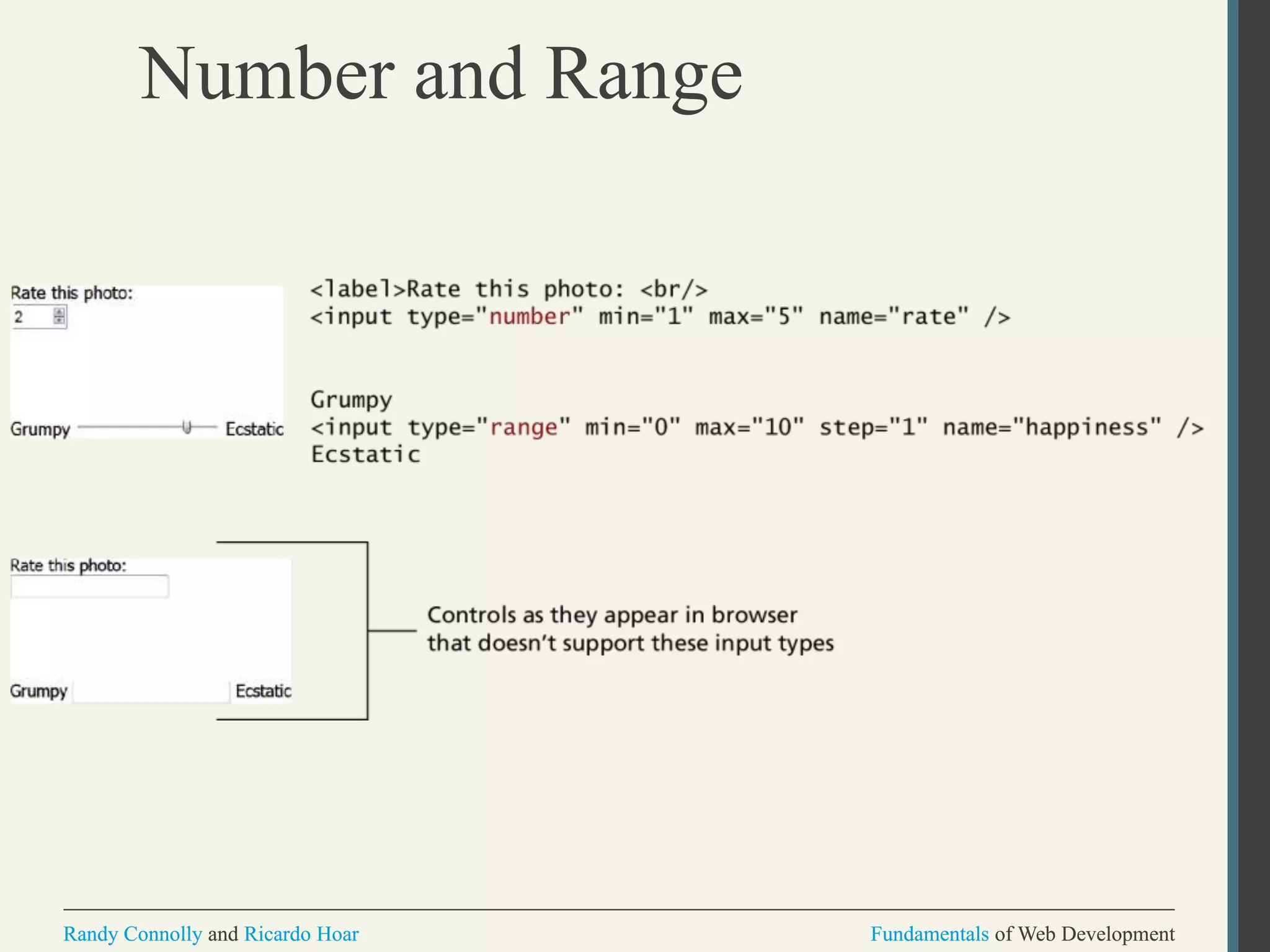
Number and Range
Typically input values need be validated. Although
server side validation is required, optional client
side pre-validation is good practice.
The number and range controls Added in HTML5
provide a way to input numeric values that
eliminates the need for JavaScript numeric
validation!!!
Fundamentals of Web DevelopmentRandy Connolly and Ricardo Hoar Fundamentals of Web DevelopmentRandy Connolly and Ricardo Hoar
Number and Range
Fundamentals of Web DevelopmentRandy Connolly and Ricardo Hoar Fundamentals of Web DevelopmentRandy Connolly and Ricardo Hoar
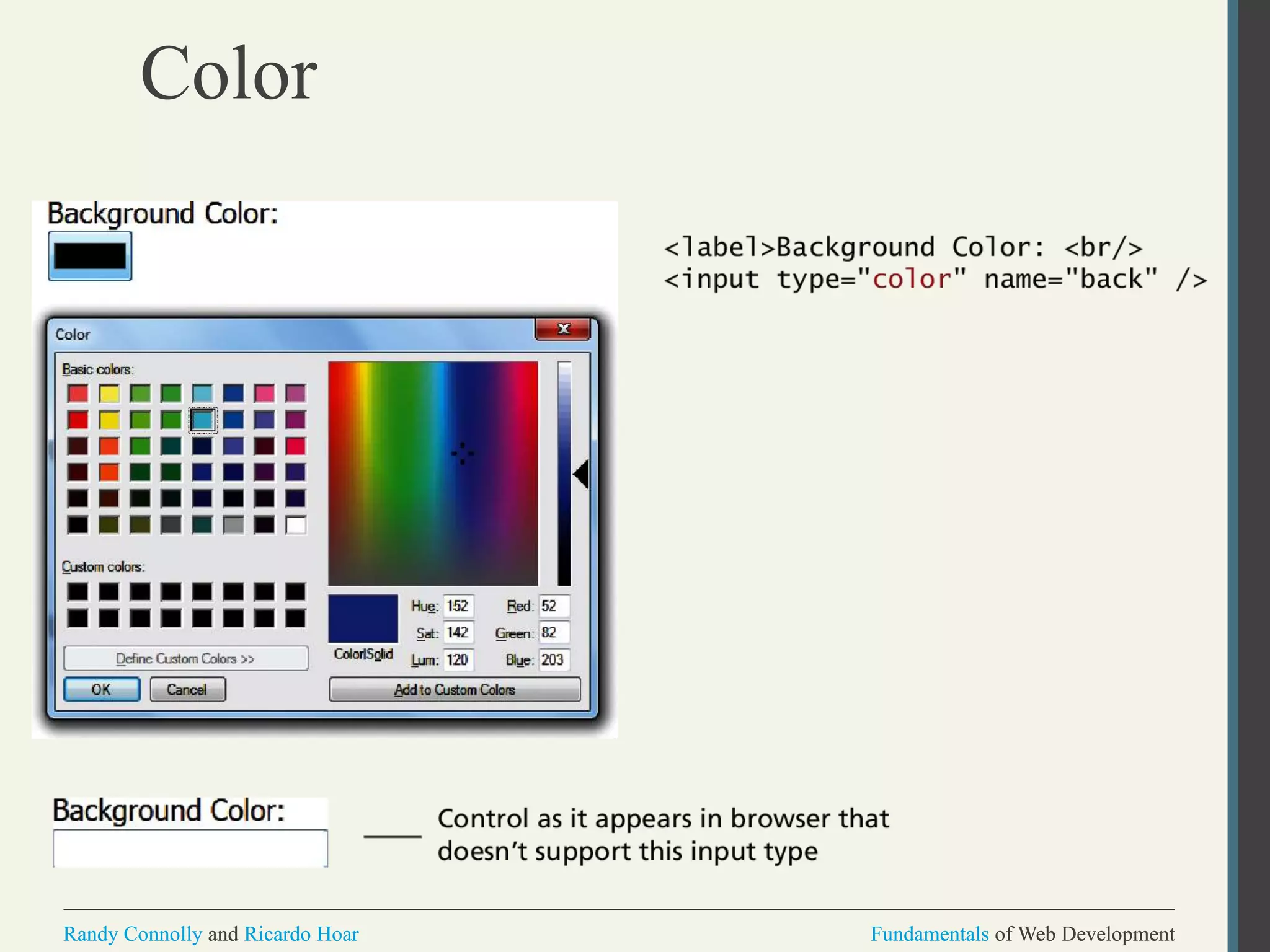
Color
Fundamentals of Web DevelopmentRandy Connolly and Ricardo Hoar Fundamentals of Web DevelopmentRandy Connolly and Ricardo Hoar
Date and Time Controls
Dates and times often need validation when
gathering this information from a regular text
input control.
From a user’s perspective, entering dates can be
tricky as well: you probably have wondered at
some point in time when entering a date into a
web form, what format to enter it in, whether the
day comes before the month, whether the month
should be entered as an abbreviation or a
number, and so on.
Fundamentals of Web DevelopmentRandy Connolly and Ricardo Hoar Fundamentals of Web DevelopmentRandy Connolly and Ricardo Hoar
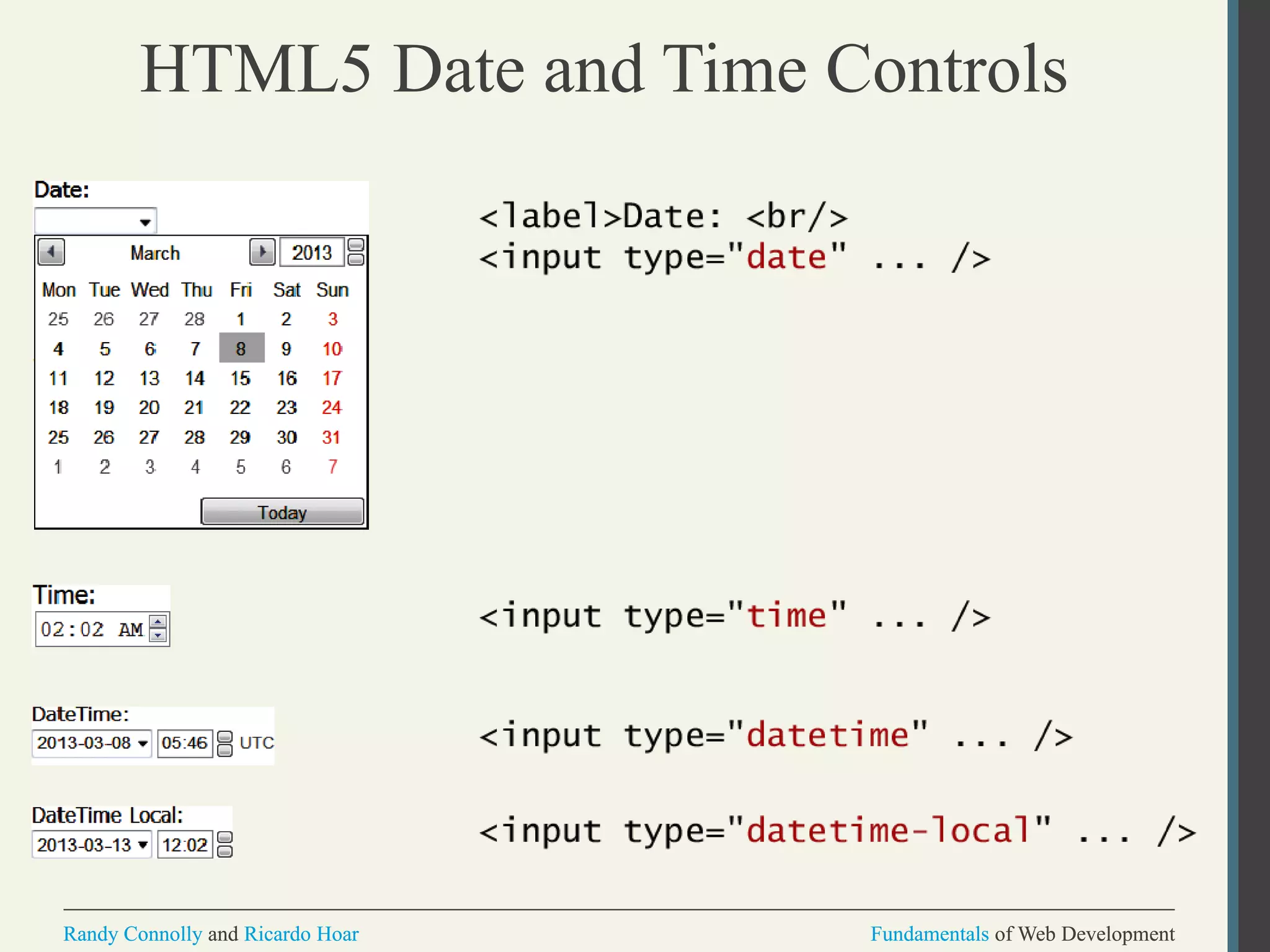
HTML5 Date and Time Controls
Fundamentals of Web DevelopmentRandy Connolly and Ricardo Hoar Fundamentals of Web DevelopmentRandy Connolly and Ricardo Hoar
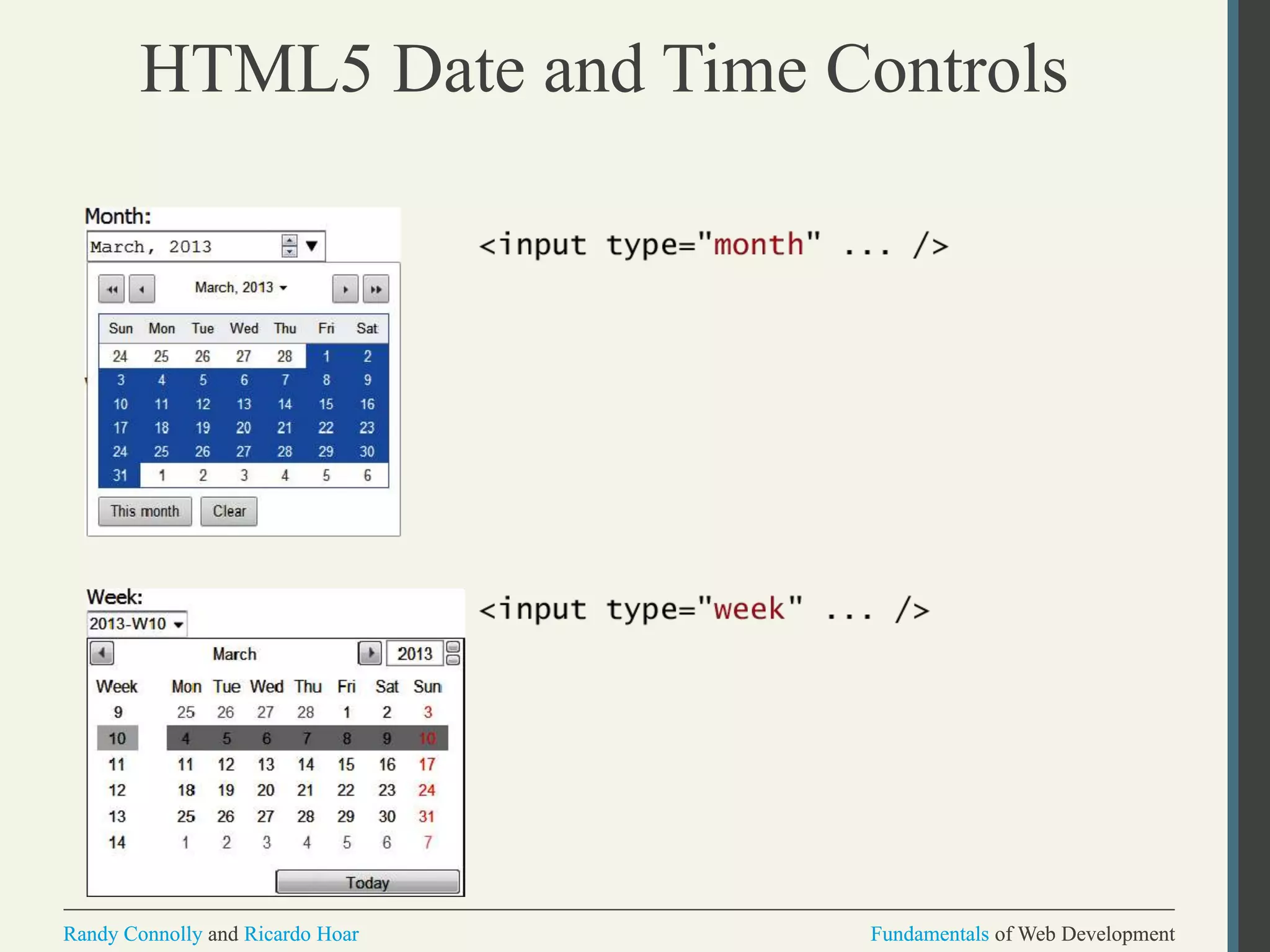
HTML5 Date and Time Controls
Fundamentals of Web DevelopmentRandy Connolly and Ricardo Hoar Fundamentals of Web DevelopmentRandy Connolly and Ricardo Hoar
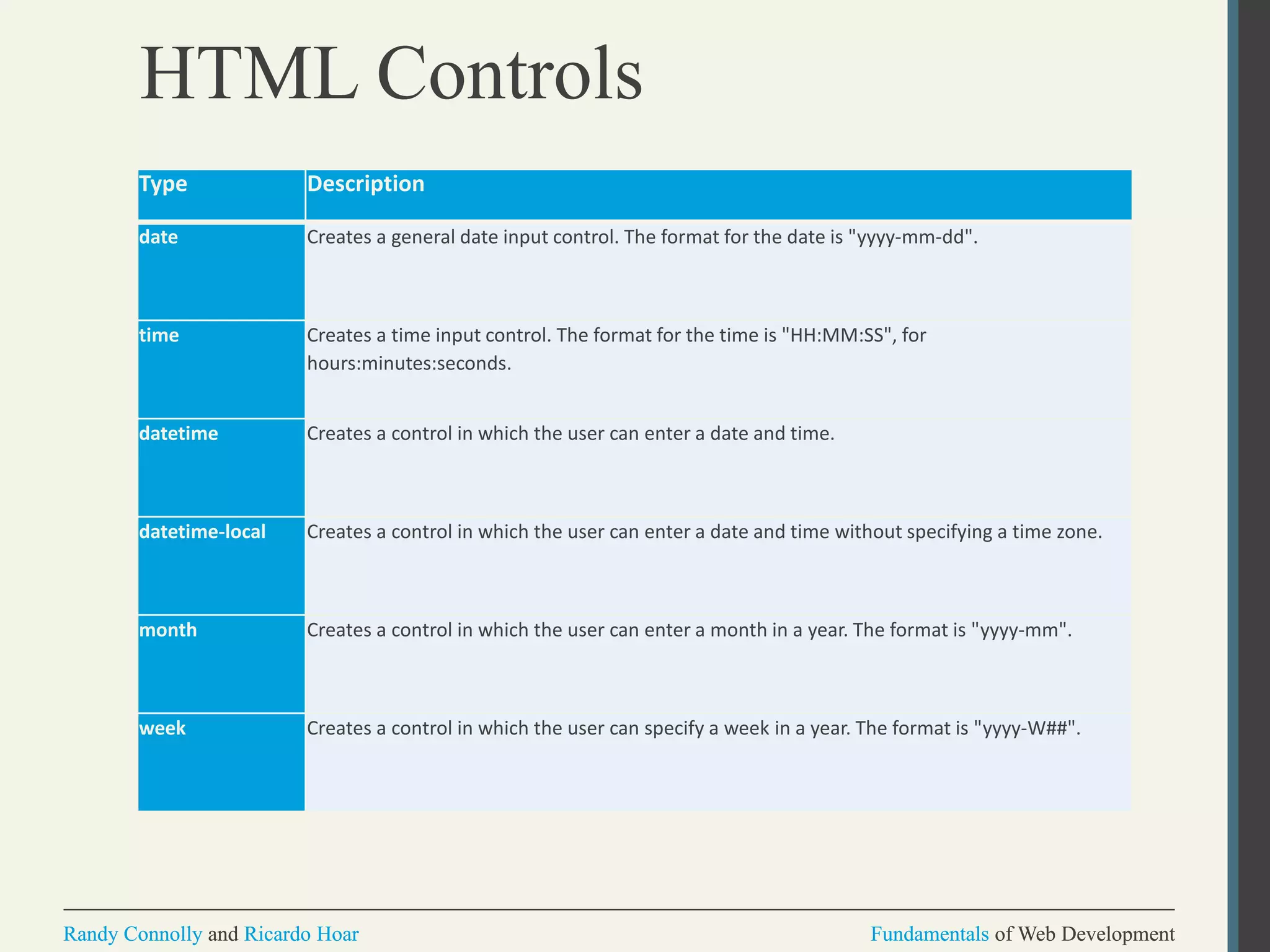
HTML Controls
Type Description
date Creates a general date input control. The format for the date is "yyyy-mm-dd".
time Creates a time input control. The format for the time is "HH:MM:SS", for
hours:minutes:seconds.
datetime Creates a control in which the user can enter a date and time.
datetime-local Creates a control in which the user can enter a date and time without specifying a time zone.
month Creates a control in which the user can enter a month in a year. The format is "yyyy-mm".
week Creates a control in which the user can specify a week in a year. The format is "yyyy-W##".
Fundamentals of Web DevelopmentRandy Connolly and Ricardo Hoar Fundamentals of Web DevelopmentRandy Connolly and Ricardo Hoar
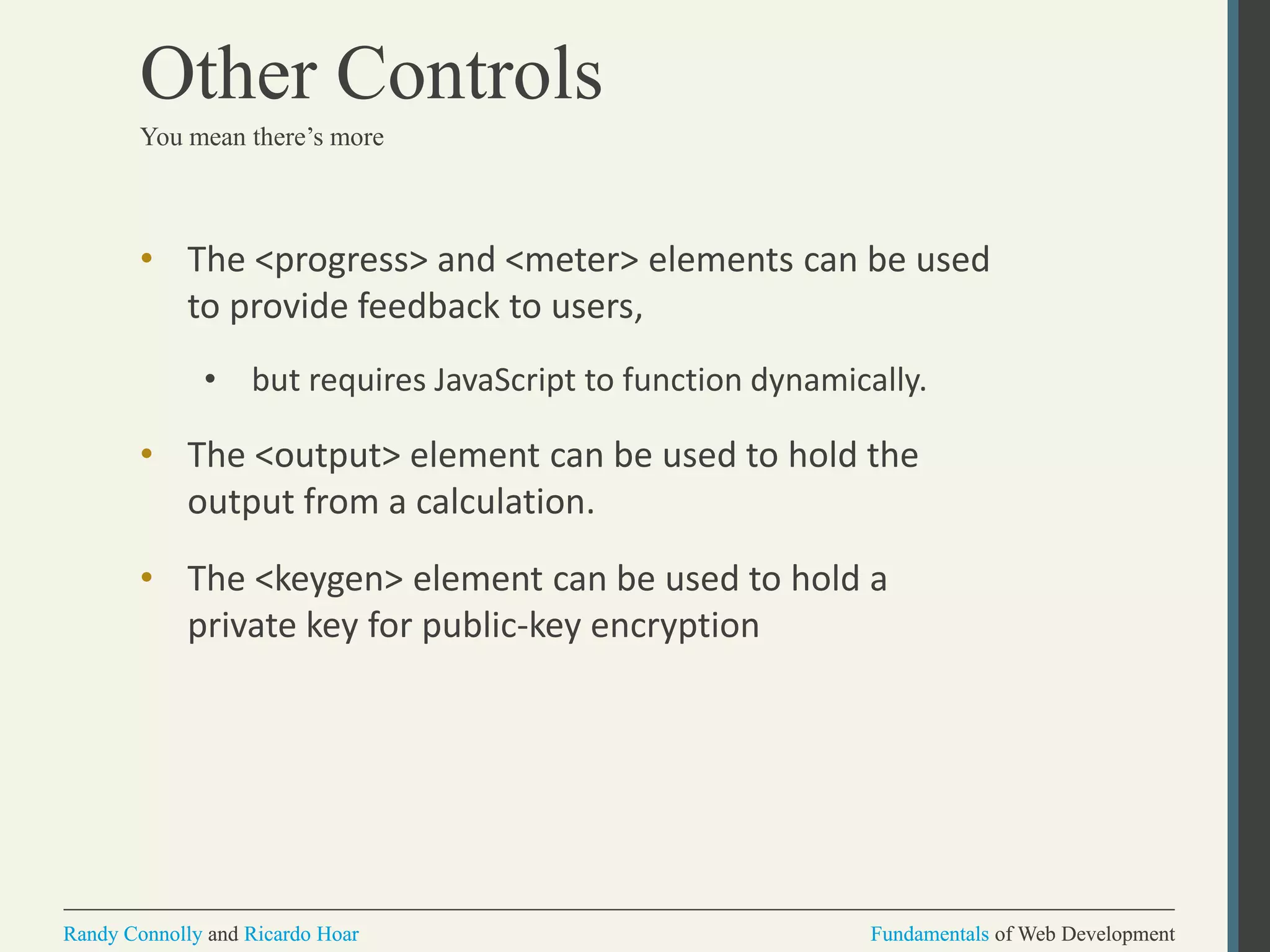
Other Controls
• The <progress> and <meter> elements can be used
to provide feedback to users,
• but requires JavaScript to function dynamically.
• The <output> element can be used to hold the
output from a calculation.
• The <keygen> element can be used to hold a
private key for public-key encryption
You mean there’s more
Fundamentals of Web DevelopmentRandy Connolly and Ricardo Hoar Fundamentals of Web DevelopmentRandy Connolly and Ricardo Hoar
What you’ve learned
Introducing
Forms
Form Control
Elements3 4
7

Creating and styling forms

  • 1.
    Fundamentals of WebDevelopmentRandy Connolly and Ricardo Hoar Fundamentals of Web DevelopmentRandy Connolly and Ricardo Hoar Fundamentals of Web DevelopmentRandy Connolly and Ricardo Hoar Textbook to be published by Pearson Ed in early 2014 http://www.funwebdev.com Fundamentals of Web DevelopmentRandy Connolly and Ricardo Hoar © 2015 Pearson http://www.funwebdev.com Creating and Styling HTML Forms Chapter 4
  • 2.
    Fundamentals of WebDevelopmentRandy Connolly and Ricardo Hoar Fundamentals of Web DevelopmentRandy Connolly and Ricardo Hoar INTRODUCING FORMS Section 3 of 6
  • 3.
    Fundamentals of WebDevelopmentRandy Connolly and Ricardo Hoar Fundamentals of Web DevelopmentRandy Connolly and Ricardo Hoar HTML Forms Forms provide the user with an alternative way to interact with a web server. • Forms provide rich mechanisms like: • Text input • Password input • Options Lists • Radio and check boxes Richer way to interact with server
  • 4.
    Fundamentals of WebDevelopmentRandy Connolly and Ricardo Hoar Fundamentals of Web DevelopmentRandy Connolly and Ricardo Hoar Form Structure
  • 5.
    Fundamentals of WebDevelopmentRandy Connolly and Ricardo Hoar Fundamentals of Web DevelopmentRandy Connolly and Ricardo Hoar How forms interact with servers
  • 6.
    Fundamentals of WebDevelopmentRandy Connolly and Ricardo Hoar Fundamentals of Web DevelopmentRandy Connolly and Ricardo Hoar Query Strings At the end of the day, another string
  • 7.
    Fundamentals of WebDevelopmentRandy Connolly and Ricardo Hoar Fundamentals of Web DevelopmentRandy Connolly and Ricardo Hoar URL encoding Special symbols
  • 8.
    Fundamentals of WebDevelopmentRandy Connolly and Ricardo Hoar Fundamentals of Web DevelopmentRandy Connolly and Ricardo Hoar <form> element Two essential features of any form, namely the action and the method attributes. • The action attribute specifies the URL of the server-side resource that will process the form data • The method attribute specifies how the query string data will be transmitted from the browser to the server. • GET • POST
  • 9.
    Fundamentals of WebDevelopmentRandy Connolly and Ricardo Hoar Fundamentals of Web DevelopmentRandy Connolly and Ricardo Hoar GET vs POST
  • 10.
    Fundamentals of WebDevelopmentRandy Connolly and Ricardo Hoar Fundamentals of Web DevelopmentRandy Connolly and Ricardo Hoar GET vs POST Advantages and Disadvantages  Data can be clearly seen in the address bar.  Data remains in browser history and cache.  Data can be bookmarked  Limit on the number of characters in the form data returned. POST  Data can contain binary data.  Data is hidden from user.  Submitted data is not stored in cache, history, or bookmarks.
  • 11.
    Fundamentals of WebDevelopmentRandy Connolly and Ricardo Hoar Fundamentals of Web DevelopmentRandy Connolly and Ricardo Hoar FORMS CONTROL ELEMENTS Section 4 of 6
  • 12.
    Fundamentals of WebDevelopmentRandy Connolly and Ricardo Hoar Fundamentals of Web DevelopmentRandy Connolly and Ricardo Hoar Form-Related HTML Elements Type Description <button> Defines a clickable button. <datalist> An HTML5 element form defines lists to be used with other form elements. <fieldset> Groups related elements in a form together. <form> Defines the form container. <input> Defines an input field. HTML5 defines over 20 different types of input. <label> Defines a label for a form input element. <legend> Defines the label for a fieldset group. <option> Defines an option in a multi-item list. <optgroup> Defines a group of related options in a multi-item list. <select> Defines a multi-item list. <textarea> Defines a multiline text entry box.
  • 13.
    Fundamentals of WebDevelopmentRandy Connolly and Ricardo Hoar Fundamentals of Web DevelopmentRandy Connolly and Ricardo Hoar Text Input Controls Type Description text Creates a single line text entry box. <input type="text" name="title" /> textarea Creates a multiline text entry box. <textarea rows="3" ... /> password Creates a single line text entry box for a password <input type="password" ... /> search Creates a single-line text entry box suitable for a search string. This is an HTML5 element. <input type="search" … /> email Creates a single-line text entry box suitable for entering an email address. This is an HTML5 element. <input type="email" … /> tel Creates a single-line text entry box suitable for entering a telephone. This is an HTML5 element. <input type="tel" … /> url Creates a single-line text entry box suitable for entering a URL. This is an HTML5 element. <input type="url" … />
  • 14.
    Fundamentals of WebDevelopmentRandy Connolly and Ricardo Hoar Fundamentals of Web DevelopmentRandy Connolly and Ricardo Hoar Text Input Controls Classic
  • 15.
    Fundamentals of WebDevelopmentRandy Connolly and Ricardo Hoar Fundamentals of Web DevelopmentRandy Connolly and Ricardo Hoar Text Input Controls HTML5
  • 16.
    Fundamentals of WebDevelopmentRandy Connolly and Ricardo Hoar Fundamentals of Web DevelopmentRandy Connolly and Ricardo Hoar HTML5 advanced controls Pattern attribute datalist
  • 17.
    Fundamentals of WebDevelopmentRandy Connolly and Ricardo Hoar Fundamentals of Web DevelopmentRandy Connolly and Ricardo Hoar Select Lists Chose an option, any option. • <select> element is used to create a multiline box for selecting one or more items • The options are defined using the <option> element • can be hidden in a dropdown or multiple rows of the list can be visible • Option items can be grouped together via the <optgroup> element.
  • 18.
    Fundamentals of WebDevelopmentRandy Connolly and Ricardo Hoar Fundamentals of Web DevelopmentRandy Connolly and Ricardo Hoar Select Lists Select List Examples
  • 19.
    Fundamentals of WebDevelopmentRandy Connolly and Ricardo Hoar Fundamentals of Web DevelopmentRandy Connolly and Ricardo Hoar Which Value to send The value attribute of the <option> element is used to specify what value will be sent back to the server. The value attribute is optional; if it is not specified, then the text within the container is sent instead Select Lists Cont.
  • 20.
    Fundamentals of WebDevelopmentRandy Connolly and Ricardo Hoar Fundamentals of Web DevelopmentRandy Connolly and Ricardo Hoar Radio Buttons Radio buttons are useful when you want the user to select a single item from a small list of choices and you want all the choices to be visible • radio buttons are added via the <input type="radio"> element • The buttons are mutually exclusive (i.e., only one can be chosen) by sharing the same name attribute • The checked attribute is used to indicate the default choice • the value attribute works in the same manner as with the <option> element
  • 21.
    Fundamentals of WebDevelopmentRandy Connolly and Ricardo Hoar Fundamentals of Web DevelopmentRandy Connolly and Ricardo Hoar Radio Buttons
  • 22.
    Fundamentals of WebDevelopmentRandy Connolly and Ricardo Hoar Fundamentals of Web DevelopmentRandy Connolly and Ricardo Hoar Checkboxes Checkboxes are used for getting yes/no or on/off responses from the user. • checkboxes are added via the <input type="checkbox”> Element • You can also group checkboxes together by having them share the same name attribute • Each checked checkbox will have its value sent to the server • Like with radio buttons, the checked attribute can be used to set the default value of a checkbox
  • 23.
    Fundamentals of WebDevelopmentRandy Connolly and Ricardo Hoar Fundamentals of Web DevelopmentRandy Connolly and Ricardo Hoar Checkboxes
  • 24.
    Fundamentals of WebDevelopmentRandy Connolly and Ricardo Hoar Fundamentals of Web DevelopmentRandy Connolly and Ricardo Hoar Button Controls Type Description <input type="submit"> Creates a button that submits the form data to the server. <input type="reset"> Creates a button that clears any of the user’s already entered form data. <input type="button"> Creates a custom button. This button may require Javascript for it to actually perform any action. <input type="image"> Creates a custom submit button that uses an image for its display. <button> Creates a custom button. The <button> element differs from <input type="button"> in that you can completely customize what appears in the button; using it, you can, for instance, include both images and text, or skip server-side processing entirely by using hyperlinks. You can turn the button into a submit button by using the type="submit" attribute.
  • 25.
    Fundamentals of WebDevelopmentRandy Connolly and Ricardo Hoar Fundamentals of Web DevelopmentRandy Connolly and Ricardo Hoar Button Controls
  • 26.
    Fundamentals of WebDevelopmentRandy Connolly and Ricardo Hoar Fundamentals of Web DevelopmentRandy Connolly and Ricardo Hoar Specialized Controls I’m so special • <input type=hidden> • <input type=file>
  • 27.
    Fundamentals of WebDevelopmentRandy Connolly and Ricardo Hoar Fundamentals of Web DevelopmentRandy Connolly and Ricardo Hoar Number and Range Typically input values need be validated. Although server side validation is required, optional client side pre-validation is good practice. The number and range controls Added in HTML5 provide a way to input numeric values that eliminates the need for JavaScript numeric validation!!!
  • 28.
    Fundamentals of WebDevelopmentRandy Connolly and Ricardo Hoar Fundamentals of Web DevelopmentRandy Connolly and Ricardo Hoar Number and Range
  • 29.
    Fundamentals of WebDevelopmentRandy Connolly and Ricardo Hoar Fundamentals of Web DevelopmentRandy Connolly and Ricardo Hoar Color
  • 30.
    Fundamentals of WebDevelopmentRandy Connolly and Ricardo Hoar Fundamentals of Web DevelopmentRandy Connolly and Ricardo Hoar Date and Time Controls Dates and times often need validation when gathering this information from a regular text input control. From a user’s perspective, entering dates can be tricky as well: you probably have wondered at some point in time when entering a date into a web form, what format to enter it in, whether the day comes before the month, whether the month should be entered as an abbreviation or a number, and so on.
  • 31.
    Fundamentals of WebDevelopmentRandy Connolly and Ricardo Hoar Fundamentals of Web DevelopmentRandy Connolly and Ricardo Hoar HTML5 Date and Time Controls
  • 32.
    Fundamentals of WebDevelopmentRandy Connolly and Ricardo Hoar Fundamentals of Web DevelopmentRandy Connolly and Ricardo Hoar HTML5 Date and Time Controls
  • 33.
    Fundamentals of WebDevelopmentRandy Connolly and Ricardo Hoar Fundamentals of Web DevelopmentRandy Connolly and Ricardo Hoar HTML Controls Type Description date Creates a general date input control. The format for the date is "yyyy-mm-dd". time Creates a time input control. The format for the time is "HH:MM:SS", for hours:minutes:seconds. datetime Creates a control in which the user can enter a date and time. datetime-local Creates a control in which the user can enter a date and time without specifying a time zone. month Creates a control in which the user can enter a month in a year. The format is "yyyy-mm". week Creates a control in which the user can specify a week in a year. The format is "yyyy-W##".
  • 34.
    Fundamentals of WebDevelopmentRandy Connolly and Ricardo Hoar Fundamentals of Web DevelopmentRandy Connolly and Ricardo Hoar Other Controls • The <progress> and <meter> elements can be used to provide feedback to users, • but requires JavaScript to function dynamically. • The <output> element can be used to hold the output from a calculation. • The <keygen> element can be used to hold a private key for public-key encryption You mean there’s more
  • 35.
    Fundamentals of WebDevelopmentRandy Connolly and Ricardo Hoar Fundamentals of Web DevelopmentRandy Connolly and Ricardo Hoar What you’ve learned Introducing Forms Form Control Elements3 4 7