Dive to Wordpress by
Daniel Bongomin
Presented by: Bongomin Daniel
Wordpress Geek - Bongomin
Overview
• What is WordPress
• How it Works
• Updating WordPress
• Modifying Your Website
— Admin Overview
— Adding Users
— Posts-vs-Pages
— Editing Posts and Pages
— Formatting Text
— Adding Posts
— Writing Titles
— Adding Photos and PDFs
Wordpress Geek - Bongomin
WordPres
s
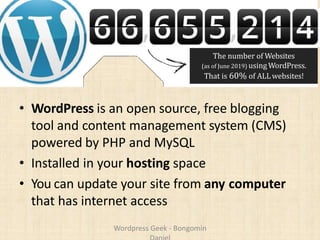
• WordPress is an open source, free blogging
tool and content management system (CMS)
powered by PHP and MySQL
• Installed in your hosting space
• You can update your site from any computer
that has internet access
The number of Websites
(as of June 2019) using WordPress.
That is 60% of ALL websites!
Wordpress Geek - Bongomin
How Your Website Works
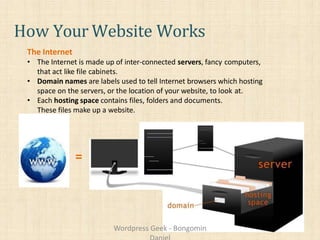
The Internet
• The Internet is made up of inter-connected servers, fancy computers,
that act like file cabinets.
• Domain names are labels used to tell Internet browsers which hosting
space on the servers, or the location of your website, to look at.
• Each hosting space contains files, folders and documents.
These files make up a website.
=
Wordpress Geek - Bongomin
How Your
Website Works
Viewing Your Site
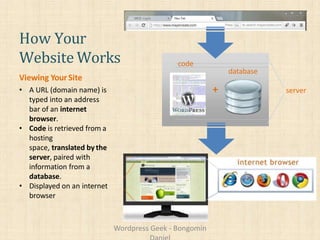
• A URL (domain name) is
typed into an address
bar of an internet
browser.
• Code is retrieved from a
hosting
space, translated by the
server, paired with
information from a
database.
• Displayed on an internet
browser
server+
code
database
Wordpress Geek - Bongomin
Your WordPress
• You have a custom WordPress theme
• We built it to do the things you need it to
• Your site will be updated using the same
software tools as other sites but it will look
different on your site
Wordpress Geek - Bongomin
Updating WordPress
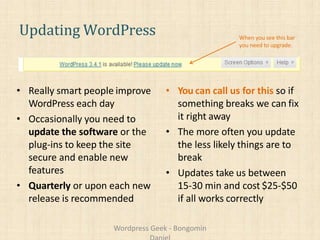
• Really smart people improve
WordPress each day
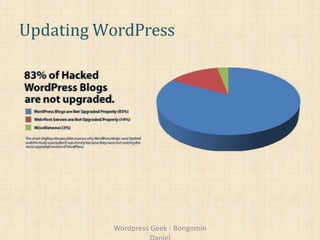
• Occasionally you need to
update the software or the
plug-ins to keep the site
secure and enable new
features
• Quarterly or upon each new
release is recommended
• You can call us for this so if
something breaks we can fix
it right away
• The more often you update
the less likely things are to
break
• Updates take us between
15-30 min and cost $25-$50
if all works correctly
When you see this bar
you need to upgrade.
Wordpress Geek - Bongomin
Updating WordPress
Wordpress Geek - Bongomin
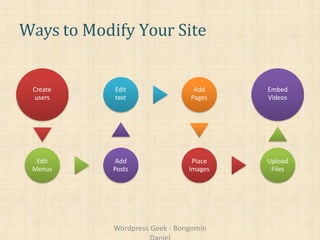
Ways to Modify Your Site
Create
users
Edit
Menus
Add
Posts
Edit
text
Add
Pages
Place
Images
Upload
Files
Embed
Videos
Wordpress Geek - Bongomin
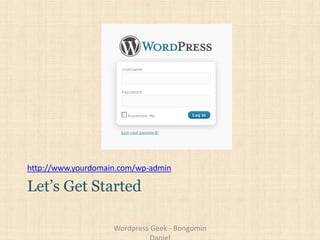
http://www.yourdomain.com/wp-admin
Let’s Get Started
Wordpress Geek - Bongomin
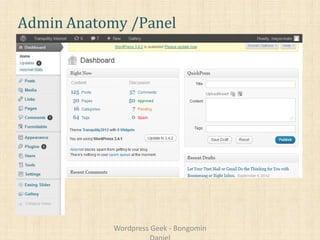
Admin Anatomy /Panel
Wordpress Geek - Bongomin
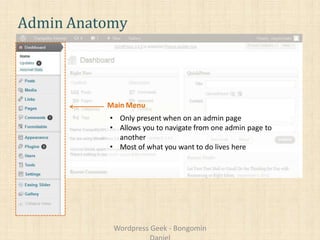
Admin Anatomy
Main Menu
• Only present when on an admin page
• Allows you to navigate from one admin page to
another
• Most of what you want to do lives here
Wordpress Geek - Bongomin
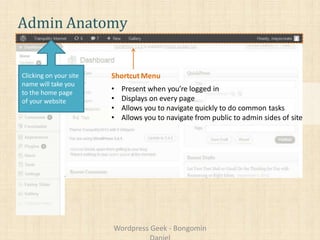
Admin Anatomy
Shortcut Menu
• Present when you’re logged in
• Displays on every page
• Allows you to navigate quickly to do common tasks
• Allows you to navigate from public to admin sides of site
Clicking on your site
name will take you
to the home page
of your website
Wordpress Geek - Bongomin
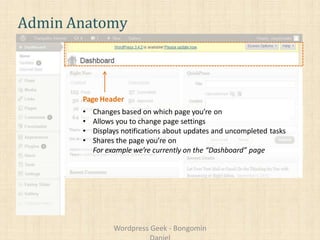
Admin Anatomy
Page Header
• Changes based on which page you’re on
• Allows you to change page settings
• Displays notifications about updates and uncompleted tasks
• Shares the page you’re on
For example we’re currently on the ā€œDashboardā€ page
Wordpress Geek - Bongomin
Admin Anatomy
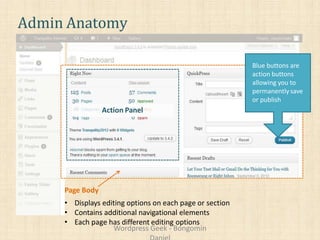
Page Body
• Displays editing options on each page or section
• Contains additional navigational elements
• Each page has different editing options
Blue buttons are
action buttons
allowing you to
permanentlysave
or publish
Action Panel
Wordpress Geek - Bongomin
Efficiently Yours
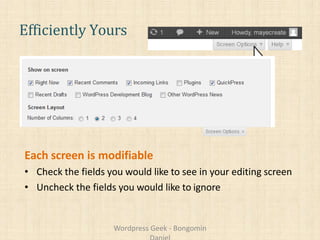
Each screen is modifiable
• Check the fields you would like to see in your editing screen
• Uncheck the fields you would like to ignore
Wordpress Geek - Bongomin
Adding Users
Types of WordPress users
• Administrator - Somebody who has access to all the
administration features
• Editor - Somebody who can publish posts, manage posts as
well as manage other people's posts, etc
• Author - Somebody who can publish and manage their own
posts
• Contributor - Somebody who can write and manage their
posts but not publish posts
• Subscriber - Somebody who can read
comments/comment/receive newsletters, etc
Wordpress Geek - Bongomin
Add a user
Choose a user level
Investigate Screen Options
Add a User
Wordpress Geek - Bongomin
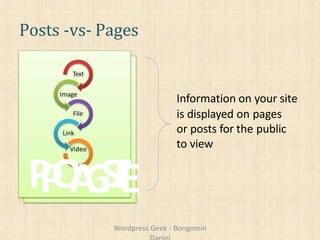
Posts -vs- Pages
Text
Image
File
Link
Video
PPOAGSTE
Information on your site
is displayed on pages
or posts for the public
to view
Wordpress Geek - Bongomin
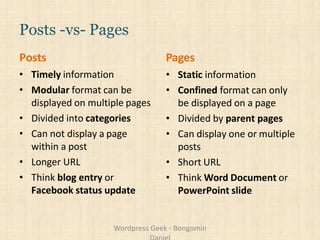
Posts -vs- Pages
Posts
• Timely information
• Modular format can be
displayed on multiple pages
• Divided into categories
• Can not display a page
within a post
• Longer URL
• Think blog entry or
Facebook status update
Pages
• Static information
• Confined format can only
be displayed on a page
• Divided by parent pages
• Can display one or multiple
posts
• Short URL
• Think Word Document or
PowerPoint slide
Wordpress Geek - Bongomin
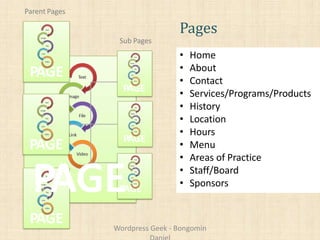
Pages
• Most places on
navigation link to a
page
• To edit posts on a
page you edit the
posts
• Organized by parent
pages
• Home
• About
• Contact
• Services/Programs/Products
• History
• Location
• Hours
• Menu
• Areas of Practice
• Staff/Board
• Sponsors
PAGE
PAGE
PAGE
Parent Pages
PAGE
PAGE
PAGEPAGE
Sub Pages
Wordpress Geek - Bongomin
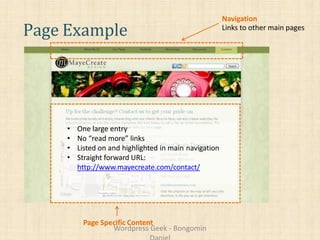
Page Example
Navigation
Links to other main pages
• One large entry
• No ā€œread moreā€ links
• Listed on and highlighted in main navigation
• Straight forward URL:
http://www.mayecreate.com/contact/
Page Specific Content
Wordpress Geek - Bongomin
PAGE
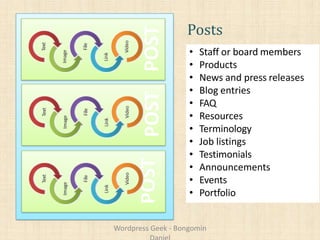
Posts
POSTPOST
• Grouped into
categories and
displayed on a page
• Can be displayed
on more than one
page or in more
than one category
POST
• Staff or board members
• Products
• News and press releases
• Blog entries
• FAQ
• Resources
• Terminology
• Job listings
• Testimonials
• Announcements
• Events
• Portfolio
Wordpress Geek - Bongomin
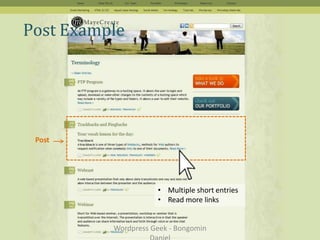
Post Example
• Multiple short entries
• Read more links
Post
Wordpress Geek - Bongomin
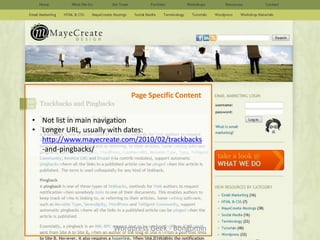
Page Specific Content
• Not list in main navigation
• Longer URL, usually with dates:
http://www.mayecreate.com/2010/02/trackbacks
-and-pingbacks/
Wordpress Geek - Bongomin
Still not sure about posts and pages?
That’s OK we can talk about it one-on-one.
Wordpress Geek - Bongomin
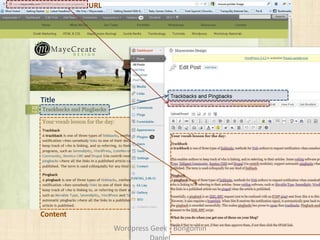
Page/Post Anatomy
Content
Title
URL
Wordpress Geek - Bongomin
Quick Edit and Sorting Features
Editing Pages/Posts
Wordpress Geek - Bongomin
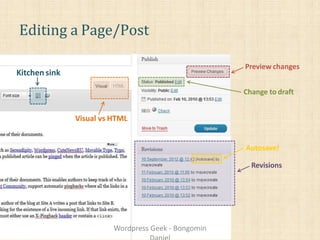
Editing a Page/Post
Visual vs HTML
Kitchen sink
Preview changes
Change to draft
Autosave!
Revisions
Wordpress Geek - Bongomin
Editing a Page/Post: Text Styles
• H1 is used for the title of the page and already
applied for you
• Use the other styles in order of hierarchy to add
organization and structure to your page
• H2, H3, H4, H5
• Search engines read the styles this way when
reading your page, surprisingly people do too!
• Maintains consistency and professionalism
• Saves time!
Wordpress Geek - Bongomin
Applying Styles
Removing Styles
Pasting From Microsoft Word
Shift + Enter
Formatting Text
Wordpress Geek - Bongomin
Editing a Page/Post
• It won’t look
the same from
front to back
• Check early and
check often
• If everything
is bold, nothing
is bold
• Don’t underline
it looks like a
link
• Shift+Enter
• Pasting from
Microsoft Word
• Unformatting
Routine Checks Rules of Thumb Tricks
Wordpress Geek - Bongomin
How to get there (or anywhere really )
Look, Think, Click
Efficient Workspace Layouts, the art of drag and drop
Adding a Post
Wordpress Geek - Bongomin Daniel
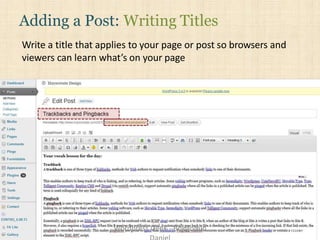
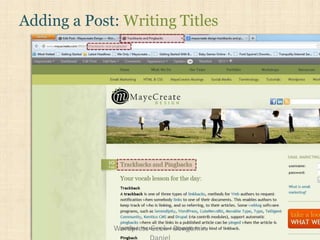
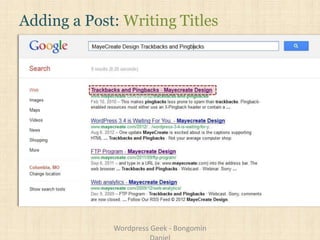
Write a title that applies to your page or post so browsers and
viewers can learn what’s on your page
Adding a Post: Writing Titles
Wordpress Geek - Bongomin
Adding a Post: Writing Titles
Wordpress Geek - Bongomin
Adding a Post: Writing Titles
Wordpress Geek - Bongomin
Adding a Post
• Choose a category
– If you don’t it will choose the default
• Scheduling
– By scheduling posts to release in the future you
can make your site appear regularly updated
– Lets Google know you’re actively adding to the
site on a regular basis
• Read more link
Wordpress Geek - Bongomin
Adding Links
• How to add a link
• Opening a link in a new window
– PDF
– Other websites
• Photos can be used as links also
• What words to link
– Stay away from ā€œclick hereā€
– Link words that represent the page you’re linking to
Wordpress Geek - Bongomin
Write a title
Choosing a category
Publishing
Viewing on website
Add a link
Adding a Post in Action
Wordpress Geek - Bongomin
Adding a Photo
• Can always make it smaller but making it bigger
will make it blurry
• Add titles but don’t start with a number
• Add alt tags to describe the image
• Add captions to assist skimming, give meaning
• Use real photos when possible
• Can upload photos:
– In Media Library
– In the page or post (gallery)
Wordpress Geek - Bongomin
Upload a photo
Name and add alt tags and captions
Linking
Alignment
Sizing
Cropping
Uploading PDFs
Modifying link target on PDFs
Adding Photos and PDFs
Wordpress Geek - Bongomin
Overview
• What is WordPress
• How it Works
• Updating WordPress
• Modifying Your Website
— Admin Overview
— Adding Users
— Posts-vs-Pages
— Editing Posts and Pages
— Formatting Text
— Adding Posts
— Writing Titles
— Adding Photos and PDFs
Wordpress Geek - Bongomin Daniel

Wordpress

  • 1.
    Dive to Wordpressby Daniel Bongomin Presented by: Bongomin Daniel Wordpress Geek - Bongomin
  • 2.
    Overview • What isWordPress • How it Works • Updating WordPress • Modifying Your Website — Admin Overview — Adding Users — Posts-vs-Pages — Editing Posts and Pages — Formatting Text — Adding Posts — Writing Titles — Adding Photos and PDFs Wordpress Geek - Bongomin
  • 3.
    WordPres s • WordPress isan open source, free blogging tool and content management system (CMS) powered by PHP and MySQL • Installed in your hosting space • You can update your site from any computer that has internet access The number of Websites (as of June 2019) using WordPress. That is 60% of ALL websites! Wordpress Geek - Bongomin
  • 4.
    How Your WebsiteWorks The Internet • The Internet is made up of inter-connected servers, fancy computers, that act like file cabinets. • Domain names are labels used to tell Internet browsers which hosting space on the servers, or the location of your website, to look at. • Each hosting space contains files, folders and documents. These files make up a website. = Wordpress Geek - Bongomin
  • 5.
    How Your Website Works ViewingYour Site • A URL (domain name) is typed into an address bar of an internet browser. • Code is retrieved from a hosting space, translated by the server, paired with information from a database. • Displayed on an internet browser server+ code database Wordpress Geek - Bongomin
  • 6.
    Your WordPress • Youhave a custom WordPress theme • We built it to do the things you need it to • Your site will be updated using the same software tools as other sites but it will look different on your site Wordpress Geek - Bongomin
  • 7.
    Updating WordPress • Reallysmart people improve WordPress each day • Occasionally you need to update the software or the plug-ins to keep the site secure and enable new features • Quarterly or upon each new release is recommended • You can call us for this so if something breaks we can fix it right away • The more often you update the less likely things are to break • Updates take us between 15-30 min and cost $25-$50 if all works correctly When you see this bar you need to upgrade. Wordpress Geek - Bongomin
  • 8.
  • 9.
    Ways to ModifyYour Site Create users Edit Menus Add Posts Edit text Add Pages Place Images Upload Files Embed Videos Wordpress Geek - Bongomin
  • 10.
  • 11.
  • 12.
    Admin Anatomy Main Menu •Only present when on an admin page • Allows you to navigate from one admin page to another • Most of what you want to do lives here Wordpress Geek - Bongomin
  • 13.
    Admin Anatomy Shortcut Menu •Present when you’re logged in • Displays on every page • Allows you to navigate quickly to do common tasks • Allows you to navigate from public to admin sides of site Clicking on your site name will take you to the home page of your website Wordpress Geek - Bongomin
  • 14.
    Admin Anatomy Page Header •Changes based on which page you’re on • Allows you to change page settings • Displays notifications about updates and uncompleted tasks • Shares the page you’re on For example we’re currently on the ā€œDashboardā€ page Wordpress Geek - Bongomin
  • 15.
    Admin Anatomy Page Body •Displays editing options on each page or section • Contains additional navigational elements • Each page has different editing options Blue buttons are action buttons allowing you to permanentlysave or publish Action Panel Wordpress Geek - Bongomin
  • 16.
    Efficiently Yours Each screenis modifiable • Check the fields you would like to see in your editing screen • Uncheck the fields you would like to ignore Wordpress Geek - Bongomin
  • 17.
    Adding Users Types ofWordPress users • Administrator - Somebody who has access to all the administration features • Editor - Somebody who can publish posts, manage posts as well as manage other people's posts, etc • Author - Somebody who can publish and manage their own posts • Contributor - Somebody who can write and manage their posts but not publish posts • Subscriber - Somebody who can read comments/comment/receive newsletters, etc Wordpress Geek - Bongomin
  • 18.
    Add a user Choosea user level Investigate Screen Options Add a User Wordpress Geek - Bongomin
  • 19.
    Posts -vs- Pages Text Image File Link Video PPOAGSTE Informationon your site is displayed on pages or posts for the public to view Wordpress Geek - Bongomin
  • 20.
    Posts -vs- Pages Posts •Timely information • Modular format can be displayed on multiple pages • Divided into categories • Can not display a page within a post • Longer URL • Think blog entry or Facebook status update Pages • Static information • Confined format can only be displayed on a page • Divided by parent pages • Can display one or multiple posts • Short URL • Think Word Document or PowerPoint slide Wordpress Geek - Bongomin
  • 21.
    Pages • Most placeson navigation link to a page • To edit posts on a page you edit the posts • Organized by parent pages • Home • About • Contact • Services/Programs/Products • History • Location • Hours • Menu • Areas of Practice • Staff/Board • Sponsors PAGE PAGE PAGE Parent Pages PAGE PAGE PAGEPAGE Sub Pages Wordpress Geek - Bongomin
  • 22.
    Page Example Navigation Links toother main pages • One large entry • No ā€œread moreā€ links • Listed on and highlighted in main navigation • Straight forward URL: http://www.mayecreate.com/contact/ Page Specific Content Wordpress Geek - Bongomin
  • 23.
    PAGE Posts POSTPOST • Grouped into categoriesand displayed on a page • Can be displayed on more than one page or in more than one category POST • Staff or board members • Products • News and press releases • Blog entries • FAQ • Resources • Terminology • Job listings • Testimonials • Announcements • Events • Portfolio Wordpress Geek - Bongomin
  • 24.
    Post Example • Multipleshort entries • Read more links Post Wordpress Geek - Bongomin
  • 25.
    Page Specific Content •Not list in main navigation • Longer URL, usually with dates: http://www.mayecreate.com/2010/02/trackbacks -and-pingbacks/ Wordpress Geek - Bongomin
  • 26.
    Still not sureabout posts and pages? That’s OK we can talk about it one-on-one. Wordpress Geek - Bongomin
  • 27.
  • 28.
    Quick Edit andSorting Features Editing Pages/Posts Wordpress Geek - Bongomin
  • 29.
    Editing a Page/Post Visualvs HTML Kitchen sink Preview changes Change to draft Autosave! Revisions Wordpress Geek - Bongomin
  • 30.
    Editing a Page/Post:Text Styles • H1 is used for the title of the page and already applied for you • Use the other styles in order of hierarchy to add organization and structure to your page • H2, H3, H4, H5 • Search engines read the styles this way when reading your page, surprisingly people do too! • Maintains consistency and professionalism • Saves time! Wordpress Geek - Bongomin
  • 31.
    Applying Styles Removing Styles PastingFrom Microsoft Word Shift + Enter Formatting Text Wordpress Geek - Bongomin
  • 32.
    Editing a Page/Post •It won’t look the same from front to back • Check early and check often • If everything is bold, nothing is bold • Don’t underline it looks like a link • Shift+Enter • Pasting from Microsoft Word • Unformatting Routine Checks Rules of Thumb Tricks Wordpress Geek - Bongomin
  • 33.
    How to getthere (or anywhere really ) Look, Think, Click Efficient Workspace Layouts, the art of drag and drop Adding a Post Wordpress Geek - Bongomin Daniel
  • 34.
    Write a titlethat applies to your page or post so browsers and viewers can learn what’s on your page Adding a Post: Writing Titles Wordpress Geek - Bongomin
  • 35.
    Adding a Post:Writing Titles Wordpress Geek - Bongomin
  • 36.
    Adding a Post:Writing Titles Wordpress Geek - Bongomin
  • 37.
    Adding a Post •Choose a category – If you don’t it will choose the default • Scheduling – By scheduling posts to release in the future you can make your site appear regularly updated – Lets Google know you’re actively adding to the site on a regular basis • Read more link Wordpress Geek - Bongomin
  • 38.
    Adding Links • Howto add a link • Opening a link in a new window – PDF – Other websites • Photos can be used as links also • What words to link – Stay away from ā€œclick hereā€ – Link words that represent the page you’re linking to Wordpress Geek - Bongomin
  • 39.
    Write a title Choosinga category Publishing Viewing on website Add a link Adding a Post in Action Wordpress Geek - Bongomin
  • 40.
    Adding a Photo •Can always make it smaller but making it bigger will make it blurry • Add titles but don’t start with a number • Add alt tags to describe the image • Add captions to assist skimming, give meaning • Use real photos when possible • Can upload photos: – In Media Library – In the page or post (gallery) Wordpress Geek - Bongomin
  • 41.
    Upload a photo Nameand add alt tags and captions Linking Alignment Sizing Cropping Uploading PDFs Modifying link target on PDFs Adding Photos and PDFs Wordpress Geek - Bongomin
  • 42.
    Overview • What isWordPress • How it Works • Updating WordPress • Modifying Your Website — Admin Overview — Adding Users — Posts-vs-Pages — Editing Posts and Pages — Formatting Text — Adding Posts — Writing Titles — Adding Photos and PDFs Wordpress Geek - Bongomin Daniel