WIOA Contract
Reporting
Requirements
Notice 12-NOT-02
September 2019
Agenda
• How to enter WIOA contract information to meet
requirements.
• DCEO review process.
• Where the public information will view the WIOA
contract information.
Policy Details:
State legislation and policy reference: WIA Notice 12-NOT-02
DCEO Program Administrator for WIOA Contract Reporting:
John Barr
John.W.Barr@Illinois.gov
(312) 814-8428
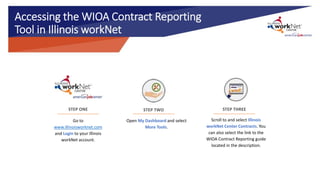
Accessing the WIOA Contract Reporting
Tool in Illinois workNet
Go to
www.illinoisworknet.com
and Login to your Illinois
workNet account.
STEP ONE
Scroll to and select Illinois
workNet Center Contracts. You
can also select the link to the
WIOA Contract Reporting guide
located in the description.
STEP TWO
Open My Dashboard and select
More Tools.
STEP THREE
Searching Existing WIOA Contracts
You may need to search for an
existing contract to just review it,
complete the one you’re currently
working on, or to add modifications
to a contract that spans over years.
An example for the latter might be
that if the same contract is renewed
each year but needs new information
to add to it. You can simply locate it,
update and save it, and submit it
again for approval, without having to
create an entirely new contract. Note: Providers are added through IWDS not through this workNet portal.
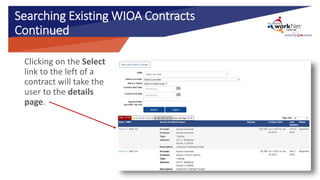
Searching Existing WIOA Contracts
Continued
Clicking on the Select
link to the left of a
contract will take the
user to the details
page.
Adding a New Contract
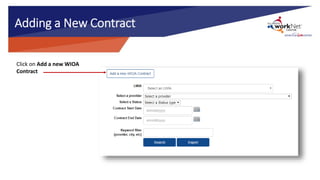
Click on Add a new WIOA
Contract
Creating a New Contract
Follow these steps to create a
new contract:
1. Select LWIA
2. Choose provider
3. Select provider type
4. Enter contract name
5. Enter contract description
6. Enter amount of contract
7. Enter contract start and end
date
8. Click save
Provider Search
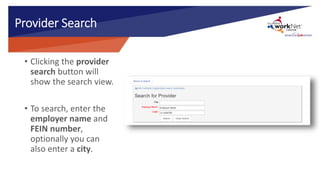
• Clicking the provider
search button will
show the search view.
• To search, enter the
employer name and
FEIN number,
optionally you can
also enter a city.
Adding a Provider
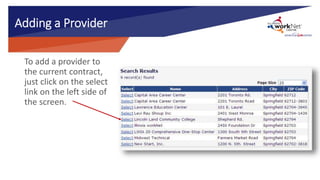
To add a provider to
the current contract,
just click on the select
link on the left side of
the screen.
Adding a Provider continued
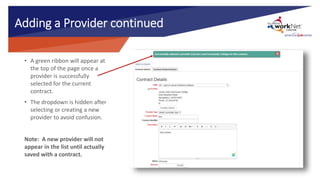
• A green ribbon will appear at
the top of the page once a
provider is successfully
selected for the current
contract.
• The dropdown is hidden after
selecting or creating a new
provider to avoid confusion.
Note: A new provider will not
appear in the list until actually
saved with a contract.
Adding a Provider continued
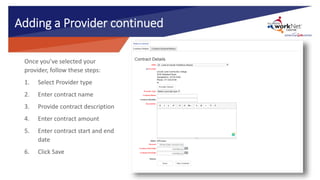
Once you’ve selected your
provider, follow these steps:
1. Select Provider type
2. Enter contract name
3. Provide contract description
4. Enter contract amount
5. Enter contract start and end
date
6. Click Save
Adding a Provider continued
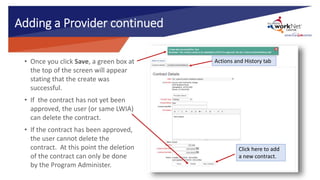
• Once you click Save, a green box at
the top of the screen will appear
stating that the create was
successful.
• If the contract has not yet been
approved, the user (or same LWIA)
can delete the contract.
• If the contract has been approved,
the user cannot delete the
contract. At this point the deletion
of the contract can only be done
by the Program Administer.
Actions and History tab
Click here to add
a new contract.
Contract Actions and History
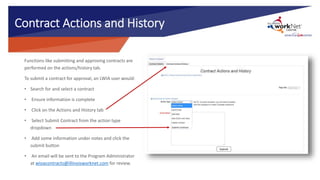
Functions like submitting and approving contracts are
performed on the actions/history tab.
To submit a contract for approval, an LWIA user would:
• Search for and select a contract
• Ensure information is complete
• Click on the Actions and History tab
• Select Submit Contract from the action type
dropdown
• Add some information under notes and click the
submit button
• An email will be sent to the Program Administrator
at wioacontracts@illinoisworknet.com for review.
Submit Contract
Submit
Request for Approval Email
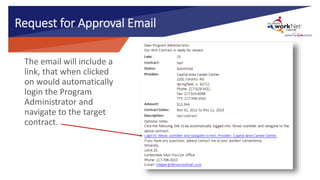
The email will include a
link, that when clicked
on would automatically
login the Program
Administrator and
navigate to the target
contract.
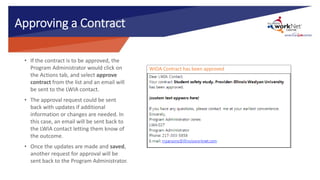
Approving a Contract
• If the contract is to be approved, the
Program Administrator would click on
the Actions tab, and select approve
contract from the list and an email will
be sent to the LWIA contact.
• The approval request could be sent
back with updates if additional
information or changes are needed. In
this case, an email will be sent back to
the LWIA contact letting them know of
the outcome.
• Once the updates are made and saved,
another request for approval will be
sent back to the Program Administrator.
WIOA Contract has been approved
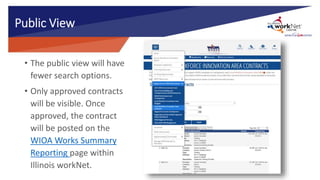
Public View
• The public view will have
fewer search options.
• Only approved contracts
will be visible. Once
approved, the contract
will be posted on the
WIOA Works Summary
Reporting page within
Illinois workNet.
Thanks for Viewing!
WIOA Contract Reporting
www.illinoisworknet.com
info@illinoisworknet.com
Contact us:
facebook.com/illinois.worknet
@ILworkNet
Follow us on:
The Illinois workNet Center System, an American Job Center, is an equal opportunity employer/program. Auxiliary aids and services are available upon request to individuals with disabilities. All voice telephone numbers
may be reached by persons using TTY/TDD equipment by calling TTY (800) 526-0844 or 711. This workforce product was funded by a grant awarded by the U.S. Department of Labor’s Employment and Training
Administration. For more information please refer to the footer at the bottom of www.illinoisworknet.com.

WIOA Contract Reporting

  • 1.
  • 2.
    Agenda • How toenter WIOA contract information to meet requirements. • DCEO review process. • Where the public information will view the WIOA contract information.
  • 3.
    Policy Details: State legislationand policy reference: WIA Notice 12-NOT-02 DCEO Program Administrator for WIOA Contract Reporting: John Barr John.W.Barr@Illinois.gov (312) 814-8428
  • 4.
    Accessing the WIOAContract Reporting Tool in Illinois workNet Go to www.illinoisworknet.com and Login to your Illinois workNet account. STEP ONE Scroll to and select Illinois workNet Center Contracts. You can also select the link to the WIOA Contract Reporting guide located in the description. STEP TWO Open My Dashboard and select More Tools. STEP THREE
  • 5.
    Searching Existing WIOAContracts You may need to search for an existing contract to just review it, complete the one you’re currently working on, or to add modifications to a contract that spans over years. An example for the latter might be that if the same contract is renewed each year but needs new information to add to it. You can simply locate it, update and save it, and submit it again for approval, without having to create an entirely new contract. Note: Providers are added through IWDS not through this workNet portal.
  • 6.
    Searching Existing WIOAContracts Continued Clicking on the Select link to the left of a contract will take the user to the details page.
  • 7.
    Adding a NewContract Click on Add a new WIOA Contract
  • 8.
    Creating a NewContract Follow these steps to create a new contract: 1. Select LWIA 2. Choose provider 3. Select provider type 4. Enter contract name 5. Enter contract description 6. Enter amount of contract 7. Enter contract start and end date 8. Click save
  • 9.
    Provider Search • Clickingthe provider search button will show the search view. • To search, enter the employer name and FEIN number, optionally you can also enter a city.
  • 10.
    Adding a Provider Toadd a provider to the current contract, just click on the select link on the left side of the screen.
  • 11.
    Adding a Providercontinued • A green ribbon will appear at the top of the page once a provider is successfully selected for the current contract. • The dropdown is hidden after selecting or creating a new provider to avoid confusion. Note: A new provider will not appear in the list until actually saved with a contract.
  • 12.
    Adding a Providercontinued Once you’ve selected your provider, follow these steps: 1. Select Provider type 2. Enter contract name 3. Provide contract description 4. Enter contract amount 5. Enter contract start and end date 6. Click Save
  • 13.
    Adding a Providercontinued • Once you click Save, a green box at the top of the screen will appear stating that the create was successful. • If the contract has not yet been approved, the user (or same LWIA) can delete the contract. • If the contract has been approved, the user cannot delete the contract. At this point the deletion of the contract can only be done by the Program Administer. Actions and History tab Click here to add a new contract.
  • 14.
    Contract Actions andHistory Functions like submitting and approving contracts are performed on the actions/history tab. To submit a contract for approval, an LWIA user would: • Search for and select a contract • Ensure information is complete • Click on the Actions and History tab • Select Submit Contract from the action type dropdown • Add some information under notes and click the submit button • An email will be sent to the Program Administrator at wioacontracts@illinoisworknet.com for review. Submit Contract Submit
  • 15.
    Request for ApprovalEmail The email will include a link, that when clicked on would automatically login the Program Administrator and navigate to the target contract.
  • 16.
    Approving a Contract •If the contract is to be approved, the Program Administrator would click on the Actions tab, and select approve contract from the list and an email will be sent to the LWIA contact. • The approval request could be sent back with updates if additional information or changes are needed. In this case, an email will be sent back to the LWIA contact letting them know of the outcome. • Once the updates are made and saved, another request for approval will be sent back to the Program Administrator. WIOA Contract has been approved
  • 17.
    Public View • Thepublic view will have fewer search options. • Only approved contracts will be visible. Once approved, the contract will be posted on the WIOA Works Summary Reporting page within Illinois workNet.
  • 18.
    Thanks for Viewing! WIOAContract Reporting www.illinoisworknet.com info@illinoisworknet.com Contact us: facebook.com/illinois.worknet @ILworkNet Follow us on: The Illinois workNet Center System, an American Job Center, is an equal opportunity employer/program. Auxiliary aids and services are available upon request to individuals with disabilities. All voice telephone numbers may be reached by persons using TTY/TDD equipment by calling TTY (800) 526-0844 or 711. This workforce product was funded by a grant awarded by the U.S. Department of Labor’s Employment and Training Administration. For more information please refer to the footer at the bottom of www.illinoisworknet.com.

Editor's Notes

  • #4 The purpose of this webinar is to announce the method to report all Workforce Innovation and Opportunity Act (WIOA) contracts and contract values, as well as enrollment/registration agreements and their values, in the new reporting system available on Illinois workNet®. Chuck Dooley is joining us today and was the program administrator for the approval of these contracts. He’s going to discuss some important items regarding this policy. So chuck if you want to take it away… Background: The portal has been updated to provide a means to report all of the contracts and contract values as required by this provision of the IWIB Act through the WIA Provider Summary Reporting application. All providers will be required to utilize the portal to report the appropriate information.
  • #8 You now see options to either add a new contract or search for and existing contract. To add a new contract, simply click on the link.
  • #9 Once you click on Add new contract, you’ll come to a contract details screen which you’ll need to complete with the new contract information: Select your LWIA Choose a provider by clicking on Provider Search Select the provider type whether it be service or training Give the contract a title Add a brief description of the contract Notice the status is set at In process since you creating a new contract Enter the amount of the contract Enter the start and end date of the contract Click save
  • #10 From here, enter in the desired city and/or and keywords related to the provider. Enter Springfield 2. You can also enter in any keywords that are associated with the provider.