
WINDOWS PHONE 8
Introducing Windows Phone 8 Development
FOLLOW US
Twitter

: @chothanihitesh

Slideshare

: http://www.slideshare.net/Chothani-Hitesh

Email

: chothani.hitesh@gmail.com

Support

: windows.chothani@live.com

LinkedIn

: in.linkedin.com/pub/hiteshchothani/6b/311/2b8

W8 Publisher

: AppStudios

WP Publisher : AppStudios
Website

: www.appmobinfotech.com
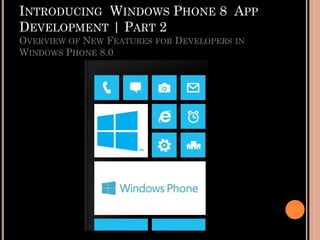
INTRODUCING WINDOWS PHONE 8 APP
DEVELOPMENT | PART 2
OVERVIEW OF NEW FEATURES FOR DEVELOPERS IN
WINDOWS PHONE 8.0
TILE TEMPLATES AND TILE SIZES



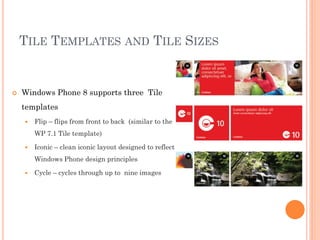
Windows Phone 8 supports three Tile
templates


Flip – flips from front to back (similar to the
WP 7.1 Tile template)



Iconic – clean iconic layout designed to reflect
Windows Phone design principles



Cycle – cycles through up to nine images
TILE SIZES AND RESOLUTIONS


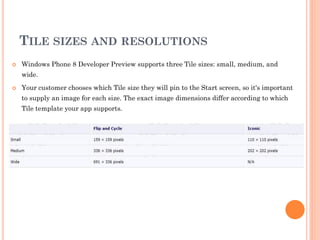
Windows Phone 8 Developer Preview supports three Tile sizes: small, medium, and
wide.



Your customer chooses which Tile size they will pin to the Start screen, so it's important
to supply an image for each size. The exact image dimensions differ according to which
Tile template your app supports.
LOCK SCREEN ON WINDOWS PHONE 8


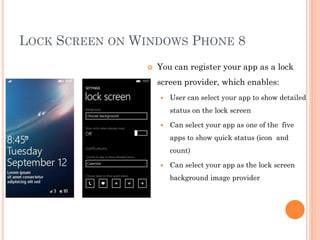
You can register your app as a lock
screen provider, which enables:


User can select your app to show detailed
status on the lock screen



Can select your app as one of the five
apps to show quick status (icon and
count)



Can select your app as the lock screen
background image provider
NEW LAUNCHERS


Launchers are APIs that help a user perform common tasks… Invoke part
of the phones’ built-in capabilities to perform tasks such as





Take a photo, Add a contact, Send an email or SMS message
Etc…

New Launchers in Windows Phone 8:


SaveAppointmentTask



ShareMediaTask



MapDownloaderTask



MapUpdaterTask



MapsTask



MapsDirectionsTask
MAPS
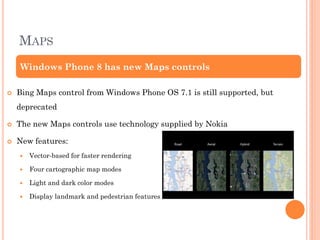
Windows Phone 8 has new Maps controls


Bing Maps control from Windows Phone OS 7.1 is still supported, but
deprecated



The new Maps controls use technology supplied by Nokia



New features:


Vector-based for faster rendering



Four cartographic map modes



Light and dark color modes



Display landmark and pedestrian features
LOCATION AND LOCATION TRACKING


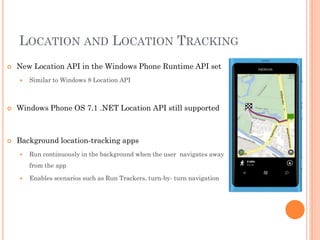
New Location API in the Windows Phone Runtime API set


Similar to Windows 8 Location API



Windows Phone OS 7.1 .NET Location API still supported



Background location-tracking apps


Run continuously in the background when the user navigates away
from the app



Enables scenarios such as Run Trackers, turn-by- turn navigation
SPEECH


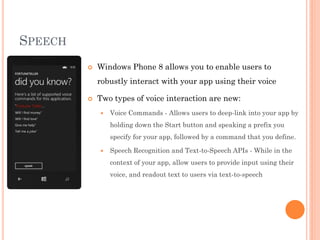
Windows Phone 8 allows you to enable users to
robustly interact with your app using their voice



Two types of voice interaction are new:


Voice Commands - Allows users to deep-link into your app by
holding down the Start button and speaking a prefix you
specify for your app, followed by a command that you define.



Speech Recognition and Text-to-Speech APIs - While in the
context of your app, allow users to provide input using their
voice, and readout text to users via text-to-speech
WALLET



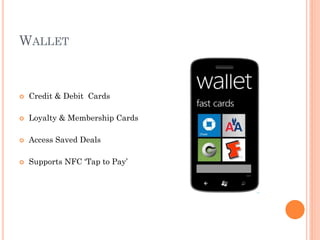
Credit & Debit Cards



Loyalty & Membership Cards



Access Saved Deals



Supports NFC ‘Tap to Pay’
UI CONTROLS
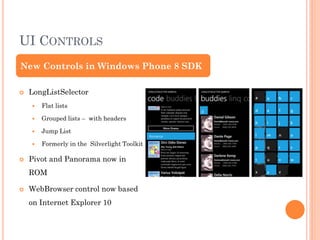
New Controls in Windows Phone 8 SDK


LongListSelector



Grouped lists – with headers



Jump List





Flat lists

Formerly in the Silverlight Toolkit

Pivot and Panorama now in
ROM



WebBrowser control now based
on Internet Explorer 10
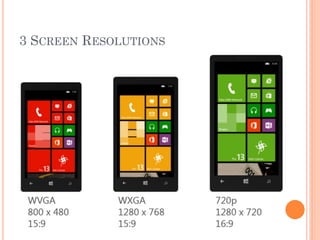
3 SCREEN RESOLUTIONS
CAMERA AND PHOTOS


Lenses


Type of extensibility available to apps that provide unique camera functionality via the camera APIs



As a lens, your app provides the user with a viewfinder experience and interacts directly with the
camera



New Picture.GetPreviewImage() method to return thumbnail images



New Photos extensibility features


In addition to extending the Photos Hub, the photo app picker, and the share picker, your app can now
integrate with the photo edit picker or register as a rich media editor



Background Photo Auto-upload




Automatically upload photos to a photo storage service using a resource-intensive background agent

Advanced camera capture APIs for apps that require fine control of the camera


Use the PhotoCaptureDevice class to control photo properties such as ISO, white balance, and
exposure. You can even programmatically adjust the focus position



The AudioVideoCaptureDevice class offers a similar level of control for video and audio recording
MEDIA


Music media library


Add and remove music files from the user’s music collection with the SaveSong and
Delete methods of the MediaLibrary class



Pictures media library New Photos extensibility features


In Windows Phone 8, for each picture saved on the phone, the following two thumbnail
images are automatically created and can be retrieved by your apps:



A small thumbnail image. You can retrieve this thumbnail with the GetThumbnail
method of the Picture class



A preview image that has the same dimensions as the phone's screen. You can retrieve
this preview image with the new GetPreviewImage extension method of the Picture
class



Background Audio


New PlayStateChangedEventArgs returns data when state of BackgroundAudioPlayer
changes
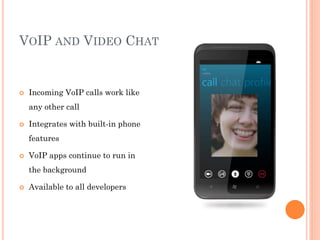
VOIP AND VIDEO CHAT



Incoming VoIP calls work like
any other call



Integrates with built-in phone

features


VoIP apps continue to run in
the background



Available to all developers
BLUETOOTH AND NFC


Create apps that communicate with other phones using Bluetooth
technology



Bluetooth API enables the following scenarios for Windows Phone 8:





App-to-app communication
App-to-device communication

Proximity API enables:


App-to-app connection using Bluetooth technology



Establish a Wi-Fi, Bluetooth, or Wi-Fi Direct connection between your app and an
instance of your app on a proximate device



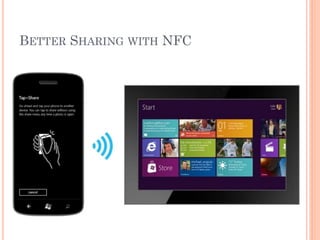
Send data between devices using NFC.



Use a phone to interact with NFC tags
BETTER SHARING WITH NFC
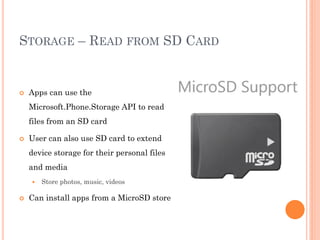
STORAGE – READ FROM SD CARD



Apps can use the
Microsoft.Phone.Storage API to read
files from an SD card



User can also use SD card to extend
device storage for their personal files
and media




Store photos, music, videos

Can install apps from a MicroSD store
CUSTOM CONTACT STORE


Create a set of contacts owned exclusively by the app, though visible
through the phones built-in Contacts app



APIs are provided to create, update, delete, and query the app’s
contacts



Sync the app’s contact list with a remote list maintained by the app’s
cloud service
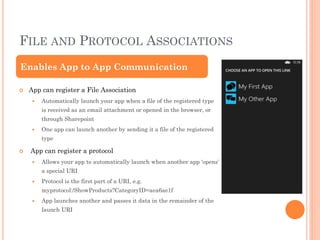
FILE AND PROTOCOL ASSOCIATIONS
Enables App to App Communication


App can register a File Association


Automatically launch your app when a file of the registered type
is received as an email attachment or opened in the browser, or
through Sharepoint



One app can launch another by sending it a file of the registered

type


App can register a protocol


Allows your app to automatically launch when another app ‘opens’
a special URI



Protocol is the first part of a URI, e.g.

myprotocol:/ShowProducts?CategoryID=aea6ae1f


App launches another and passes it data in the remainder of the
launch URI
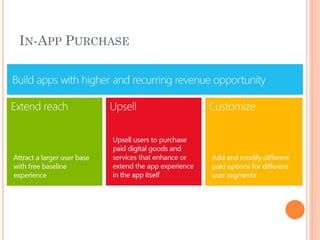
IN-APP PURCHASE
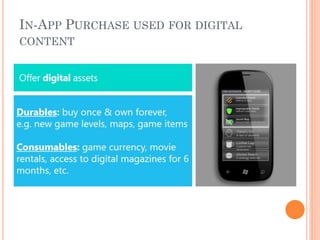
IN-APP PURCHASE USED FOR DIGITAL
CONTENT
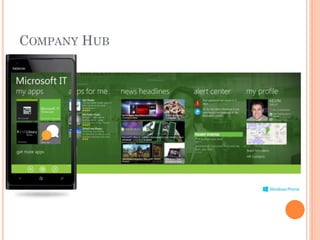
COMPANY HUB
LOCALIZATION AND GLOBALIZATION
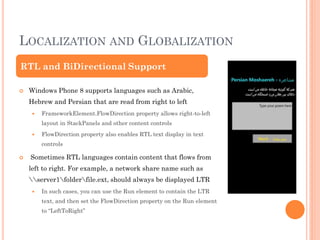
RTL and BiDirectional Support


Windows Phone 8 supports languages such as Arabic,
Hebrew and Persian that are read from right to left


FrameworkElement.FlowDirection property allows right-to-left
layout in StackPanels and other content controls



FlowDirection property also enables RTL text display in text
controls



Sometimes RTL languages contain content that flows from
left to right. For example, a network share name such as
server1folderfile.ext, should always be displayed LTR


In such cases, you can use the Run element to contain the LTR
text, and then set the FlowDirection property on the Run element
to “LeftToRight”
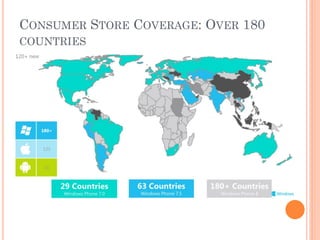
CONSUMER STORE COVERAGE: OVER 180
COUNTRIES
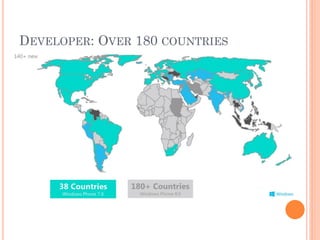
DEVELOPER: OVER 180 COUNTRIES
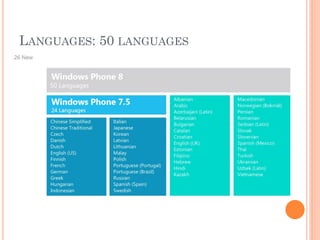
LANGUAGES: 50 LANGUAGES
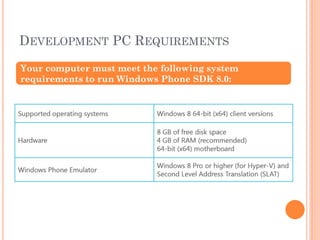
DEVELOPMENT PC REQUIREMENTS
Your computer must meet the following system
requirements to run Windows Phone SDK 8.0:
SECOND LEVEL ADDRESS TRANSLATION
(SLAT)


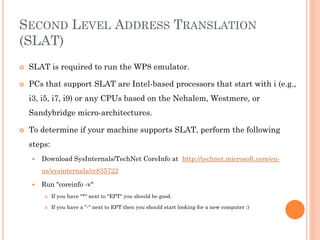
SLAT is required to run the WP8 emulator.



PCs that support SLAT are Intel-based processors that start with i (e.g.,
i3, i5, i7, i9) or any CPUs based on the Nehalem, Westmere, or
Sandybridge micro-architectures.



To determine if your machine supports SLAT, perform the following
steps:


Download SysInternals/TechNet CoreInfo at http://technet.microsoft.com/enus/sysinternals/cc835722



Run "coreinfo -v"


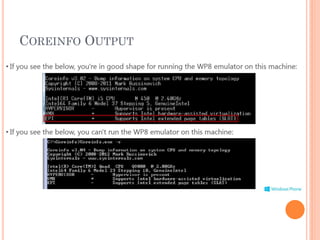
If you have "*" next to "EPT" you should be good.



If you have a "-" next to EPT then you should start looking for a new computer :)
COREINFO OUTPUT
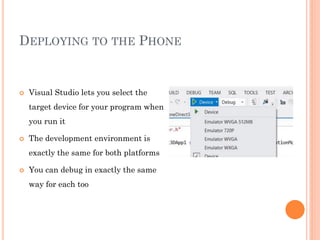
DEPLOYING TO THE PHONE



Visual Studio lets you select the
target device for your program when
you run it



The development environment is
exactly the same for both platforms



You can debug in exactly the same
way for each too
APPLICATIONS ON THE PHONE



Once you have deployed an application the phone device it is
stored on the device for later use



You are limited to ten of your own applications on the phone at any

one time


You can also send compiled versions of your application to other
registered developers for them to use on their developer devices
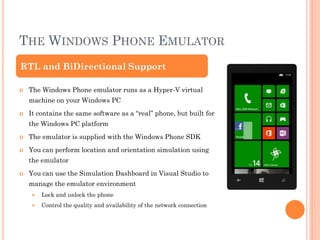
THE WINDOWS PHONE EMULATOR
RTL and BiDirectional Support


The Windows Phone emulator runs as a Hyper-V virtual
machine on your Windows PC



It contains the same software as a “real” phone, but built for
the Windows PC platform



The emulator is supplied with the Windows Phone SDK



You can perform location and orientation simulation using
the emulator



You can use the Simulation Dashboard in Visual Studio to
manage the emulator environment


Lock and unlock the phone



Control the quality and availability of the network connection
EMULATOR PERFORMANCE


The emulator is not a reliable way of predicting how a program

will perform on a real device


The processor in a Windows PC may be more powerful than the one in the
phone



The emulator is for functional testing only



If you have any concerns about performance you should ensure you
run your program on a real device



There are profiling tools that you can use to inspect the activity of
your programs, both in the device and in the emulator
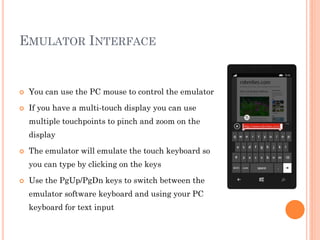
EMULATOR INTERFACE



You can use the PC mouse to control the emulator



If you have a multi-touch display you can use
multiple touchpoints to pinch and zoom on the
display



The emulator will emulate the touch keyboard so
you can type by clicking on the keys



Use the PgUp/PgDn keys to switch between the

emulator software keyboard and using your PC
keyboard for text input
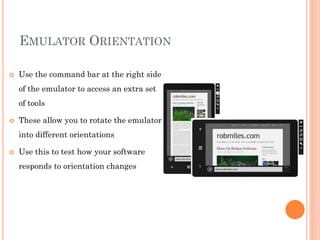
EMULATOR ORIENTATION


Use the command bar at the right side
of the emulator to access an extra set
of tools



These allow you to rotate the emulator
into different orientations



Use this to test how your software
responds to orientation changes
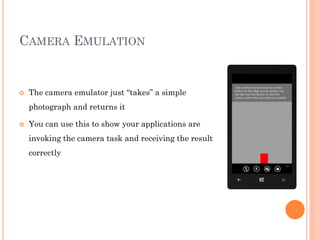
CAMERA EMULATION



The camera emulator just “takes” a simple
photograph and returns it



You can use this to show your applications are

invoking the camera task and receiving the result
correctly
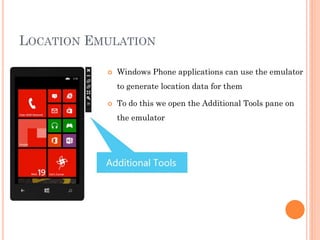
LOCATION EMULATION


Windows Phone applications can use the emulator
to generate location data for them



To do this we open the Additional Tools pane on
the emulator
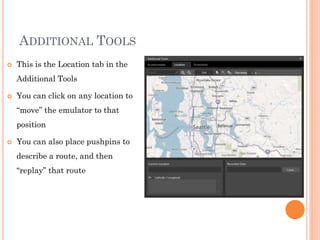
ADDITIONAL TOOLS


This is the Location tab in the
Additional Tools



You can click on any location to

“move” the emulator to that
position


You can also place pushpins to
describe a route, and then
“replay” that route
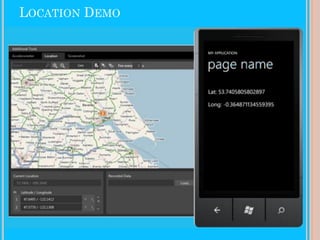
LOCATION DEMO
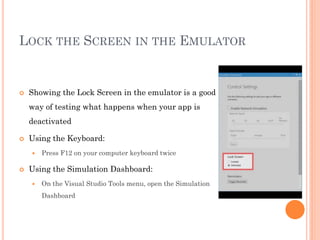
LOCK THE SCREEN IN THE EMULATOR



Showing the Lock Screen in the emulator is a good
way of testing what happens when your app is
deactivated



Using the Keyboard:




Press F12 on your computer keyboard twice

Using the Simulation Dashboard:


On the Visual Studio Tools menu, open the Simulation
Dashboard
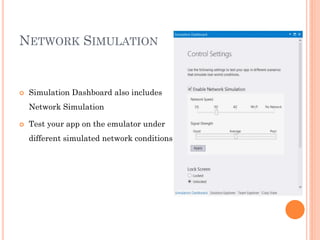
NETWORK SIMULATION



Simulation Dashboard also includes
Network Simulation



Test your app on the emulator under

different simulated network conditions
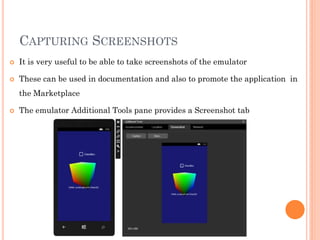
CAPTURING SCREENSHOTS


It is very useful to be able to take screenshots of the emulator



These can be used in documentation and also to promote the application in
the Marketplace



The emulator Additional Tools pane provides a Screenshot tab
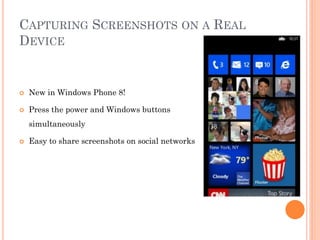
CAPTURING SCREENSHOTS ON A REAL
DEVICE



New in Windows Phone 8!



Press the power and Windows buttons
simultaneously



Easy to share screenshots on social networks
Thank You

Windows phone 8 session 2

  • 1.
    WINDOWS PHONE 8 IntroducingWindows Phone 8 Development
  • 2.
    FOLLOW US Twitter : @chothanihitesh Slideshare :http://www.slideshare.net/Chothani-Hitesh Email : chothani.hitesh@gmail.com Support : windows.chothani@live.com LinkedIn : in.linkedin.com/pub/hiteshchothani/6b/311/2b8 W8 Publisher : AppStudios WP Publisher : AppStudios Website : www.appmobinfotech.com
  • 3.
    INTRODUCING WINDOWS PHONE8 APP DEVELOPMENT | PART 2 OVERVIEW OF NEW FEATURES FOR DEVELOPERS IN WINDOWS PHONE 8.0
  • 4.
    TILE TEMPLATES ANDTILE SIZES  Windows Phone 8 supports three Tile templates  Flip – flips from front to back (similar to the WP 7.1 Tile template)  Iconic – clean iconic layout designed to reflect Windows Phone design principles  Cycle – cycles through up to nine images
  • 5.
    TILE SIZES ANDRESOLUTIONS  Windows Phone 8 Developer Preview supports three Tile sizes: small, medium, and wide.  Your customer chooses which Tile size they will pin to the Start screen, so it's important to supply an image for each size. The exact image dimensions differ according to which Tile template your app supports.
  • 6.
    LOCK SCREEN ONWINDOWS PHONE 8  You can register your app as a lock screen provider, which enables:  User can select your app to show detailed status on the lock screen  Can select your app as one of the five apps to show quick status (icon and count)  Can select your app as the lock screen background image provider
  • 7.
    NEW LAUNCHERS  Launchers areAPIs that help a user perform common tasks… Invoke part of the phones’ built-in capabilities to perform tasks such as    Take a photo, Add a contact, Send an email or SMS message Etc… New Launchers in Windows Phone 8:  SaveAppointmentTask  ShareMediaTask  MapDownloaderTask  MapUpdaterTask  MapsTask  MapsDirectionsTask
  • 8.
    MAPS Windows Phone 8has new Maps controls  Bing Maps control from Windows Phone OS 7.1 is still supported, but deprecated  The new Maps controls use technology supplied by Nokia  New features:  Vector-based for faster rendering  Four cartographic map modes  Light and dark color modes  Display landmark and pedestrian features
  • 9.
    LOCATION AND LOCATIONTRACKING  New Location API in the Windows Phone Runtime API set  Similar to Windows 8 Location API  Windows Phone OS 7.1 .NET Location API still supported  Background location-tracking apps  Run continuously in the background when the user navigates away from the app  Enables scenarios such as Run Trackers, turn-by- turn navigation
  • 10.
    SPEECH  Windows Phone 8allows you to enable users to robustly interact with your app using their voice  Two types of voice interaction are new:  Voice Commands - Allows users to deep-link into your app by holding down the Start button and speaking a prefix you specify for your app, followed by a command that you define.  Speech Recognition and Text-to-Speech APIs - While in the context of your app, allow users to provide input using their voice, and readout text to users via text-to-speech
  • 11.
    WALLET  Credit & DebitCards  Loyalty & Membership Cards  Access Saved Deals  Supports NFC ‘Tap to Pay’
  • 12.
    UI CONTROLS New Controlsin Windows Phone 8 SDK  LongListSelector   Grouped lists – with headers  Jump List   Flat lists Formerly in the Silverlight Toolkit Pivot and Panorama now in ROM  WebBrowser control now based on Internet Explorer 10
  • 13.
  • 14.
    CAMERA AND PHOTOS  Lenses  Typeof extensibility available to apps that provide unique camera functionality via the camera APIs  As a lens, your app provides the user with a viewfinder experience and interacts directly with the camera  New Picture.GetPreviewImage() method to return thumbnail images  New Photos extensibility features  In addition to extending the Photos Hub, the photo app picker, and the share picker, your app can now integrate with the photo edit picker or register as a rich media editor  Background Photo Auto-upload   Automatically upload photos to a photo storage service using a resource-intensive background agent Advanced camera capture APIs for apps that require fine control of the camera  Use the PhotoCaptureDevice class to control photo properties such as ISO, white balance, and exposure. You can even programmatically adjust the focus position  The AudioVideoCaptureDevice class offers a similar level of control for video and audio recording
  • 15.
    MEDIA  Music media library  Addand remove music files from the user’s music collection with the SaveSong and Delete methods of the MediaLibrary class  Pictures media library New Photos extensibility features  In Windows Phone 8, for each picture saved on the phone, the following two thumbnail images are automatically created and can be retrieved by your apps:  A small thumbnail image. You can retrieve this thumbnail with the GetThumbnail method of the Picture class  A preview image that has the same dimensions as the phone's screen. You can retrieve this preview image with the new GetPreviewImage extension method of the Picture class  Background Audio  New PlayStateChangedEventArgs returns data when state of BackgroundAudioPlayer changes
  • 16.
    VOIP AND VIDEOCHAT  Incoming VoIP calls work like any other call  Integrates with built-in phone features  VoIP apps continue to run in the background  Available to all developers
  • 17.
    BLUETOOTH AND NFC  Createapps that communicate with other phones using Bluetooth technology  Bluetooth API enables the following scenarios for Windows Phone 8:    App-to-app communication App-to-device communication Proximity API enables:  App-to-app connection using Bluetooth technology  Establish a Wi-Fi, Bluetooth, or Wi-Fi Direct connection between your app and an instance of your app on a proximate device  Send data between devices using NFC.  Use a phone to interact with NFC tags
  • 18.
  • 19.
    STORAGE – READFROM SD CARD  Apps can use the Microsoft.Phone.Storage API to read files from an SD card  User can also use SD card to extend device storage for their personal files and media   Store photos, music, videos Can install apps from a MicroSD store
  • 20.
    CUSTOM CONTACT STORE  Createa set of contacts owned exclusively by the app, though visible through the phones built-in Contacts app  APIs are provided to create, update, delete, and query the app’s contacts  Sync the app’s contact list with a remote list maintained by the app’s cloud service
  • 21.
    FILE AND PROTOCOLASSOCIATIONS Enables App to App Communication  App can register a File Association  Automatically launch your app when a file of the registered type is received as an email attachment or opened in the browser, or through Sharepoint  One app can launch another by sending it a file of the registered type  App can register a protocol  Allows your app to automatically launch when another app ‘opens’ a special URI  Protocol is the first part of a URI, e.g. myprotocol:/ShowProducts?CategoryID=aea6ae1f  App launches another and passes it data in the remainder of the launch URI
  • 22.
  • 23.
    IN-APP PURCHASE USEDFOR DIGITAL CONTENT
  • 24.
  • 25.
    LOCALIZATION AND GLOBALIZATION RTLand BiDirectional Support  Windows Phone 8 supports languages such as Arabic, Hebrew and Persian that are read from right to left  FrameworkElement.FlowDirection property allows right-to-left layout in StackPanels and other content controls  FlowDirection property also enables RTL text display in text controls  Sometimes RTL languages contain content that flows from left to right. For example, a network share name such as server1folderfile.ext, should always be displayed LTR  In such cases, you can use the Run element to contain the LTR text, and then set the FlowDirection property on the Run element to “LeftToRight”
  • 26.
    CONSUMER STORE COVERAGE:OVER 180 COUNTRIES
  • 27.
  • 28.
  • 29.
    DEVELOPMENT PC REQUIREMENTS Yourcomputer must meet the following system requirements to run Windows Phone SDK 8.0:
  • 30.
    SECOND LEVEL ADDRESSTRANSLATION (SLAT)  SLAT is required to run the WP8 emulator.  PCs that support SLAT are Intel-based processors that start with i (e.g., i3, i5, i7, i9) or any CPUs based on the Nehalem, Westmere, or Sandybridge micro-architectures.  To determine if your machine supports SLAT, perform the following steps:  Download SysInternals/TechNet CoreInfo at http://technet.microsoft.com/enus/sysinternals/cc835722  Run "coreinfo -v"  If you have "*" next to "EPT" you should be good.  If you have a "-" next to EPT then you should start looking for a new computer :)
  • 31.
  • 32.
    DEPLOYING TO THEPHONE  Visual Studio lets you select the target device for your program when you run it  The development environment is exactly the same for both platforms  You can debug in exactly the same way for each too
  • 33.
    APPLICATIONS ON THEPHONE  Once you have deployed an application the phone device it is stored on the device for later use  You are limited to ten of your own applications on the phone at any one time  You can also send compiled versions of your application to other registered developers for them to use on their developer devices
  • 34.
    THE WINDOWS PHONEEMULATOR RTL and BiDirectional Support  The Windows Phone emulator runs as a Hyper-V virtual machine on your Windows PC  It contains the same software as a “real” phone, but built for the Windows PC platform  The emulator is supplied with the Windows Phone SDK  You can perform location and orientation simulation using the emulator  You can use the Simulation Dashboard in Visual Studio to manage the emulator environment  Lock and unlock the phone  Control the quality and availability of the network connection
  • 35.
    EMULATOR PERFORMANCE  The emulatoris not a reliable way of predicting how a program will perform on a real device  The processor in a Windows PC may be more powerful than the one in the phone  The emulator is for functional testing only  If you have any concerns about performance you should ensure you run your program on a real device  There are profiling tools that you can use to inspect the activity of your programs, both in the device and in the emulator
  • 36.
    EMULATOR INTERFACE  You canuse the PC mouse to control the emulator  If you have a multi-touch display you can use multiple touchpoints to pinch and zoom on the display  The emulator will emulate the touch keyboard so you can type by clicking on the keys  Use the PgUp/PgDn keys to switch between the emulator software keyboard and using your PC keyboard for text input
  • 37.
    EMULATOR ORIENTATION  Use thecommand bar at the right side of the emulator to access an extra set of tools  These allow you to rotate the emulator into different orientations  Use this to test how your software responds to orientation changes
  • 38.
    CAMERA EMULATION  The cameraemulator just “takes” a simple photograph and returns it  You can use this to show your applications are invoking the camera task and receiving the result correctly
  • 39.
    LOCATION EMULATION  Windows Phoneapplications can use the emulator to generate location data for them  To do this we open the Additional Tools pane on the emulator
  • 40.
    ADDITIONAL TOOLS  This isthe Location tab in the Additional Tools  You can click on any location to “move” the emulator to that position  You can also place pushpins to describe a route, and then “replay” that route
  • 41.
  • 42.
    LOCK THE SCREENIN THE EMULATOR  Showing the Lock Screen in the emulator is a good way of testing what happens when your app is deactivated  Using the Keyboard:   Press F12 on your computer keyboard twice Using the Simulation Dashboard:  On the Visual Studio Tools menu, open the Simulation Dashboard
  • 43.
    NETWORK SIMULATION  Simulation Dashboardalso includes Network Simulation  Test your app on the emulator under different simulated network conditions
  • 44.
    CAPTURING SCREENSHOTS  It isvery useful to be able to take screenshots of the emulator  These can be used in documentation and also to promote the application in the Marketplace  The emulator Additional Tools pane provides a Screenshot tab
  • 45.
    CAPTURING SCREENSHOTS ONA REAL DEVICE  New in Windows Phone 8!  Press the power and Windows buttons simultaneously  Easy to share screenshots on social networks
  • 46.