WP8 TILES AND LOCK SCREEN
NOTIFICATIONS
1. Tiles in Windows Phone 8
2. Local Tiles API
3. Updating Tiles from ShellTileSchedule
4. Updating Tiles from Background Agents
5. Lock screen notifications for Windows Phone
6. Lock screen background for Windows Phone
FOLLOW US
Twitter : @chothanihitesh
Slideshare : http://www.slideshare.net/Chothani-Hitesh
Email : chothani.hitesh@gmail.com
Support : windows.chothani@live.com
LinkedIn : in.linkedin.com/pub/hiteshchothani/6b/311/2b8
W8 Publisher : AppStudios
WP Publisher : AppStudios
Website : www.appmobinfotech.com
TILES ON WINDOWS PHONE 8
LIVE TILES ON WINDOWS PHONE
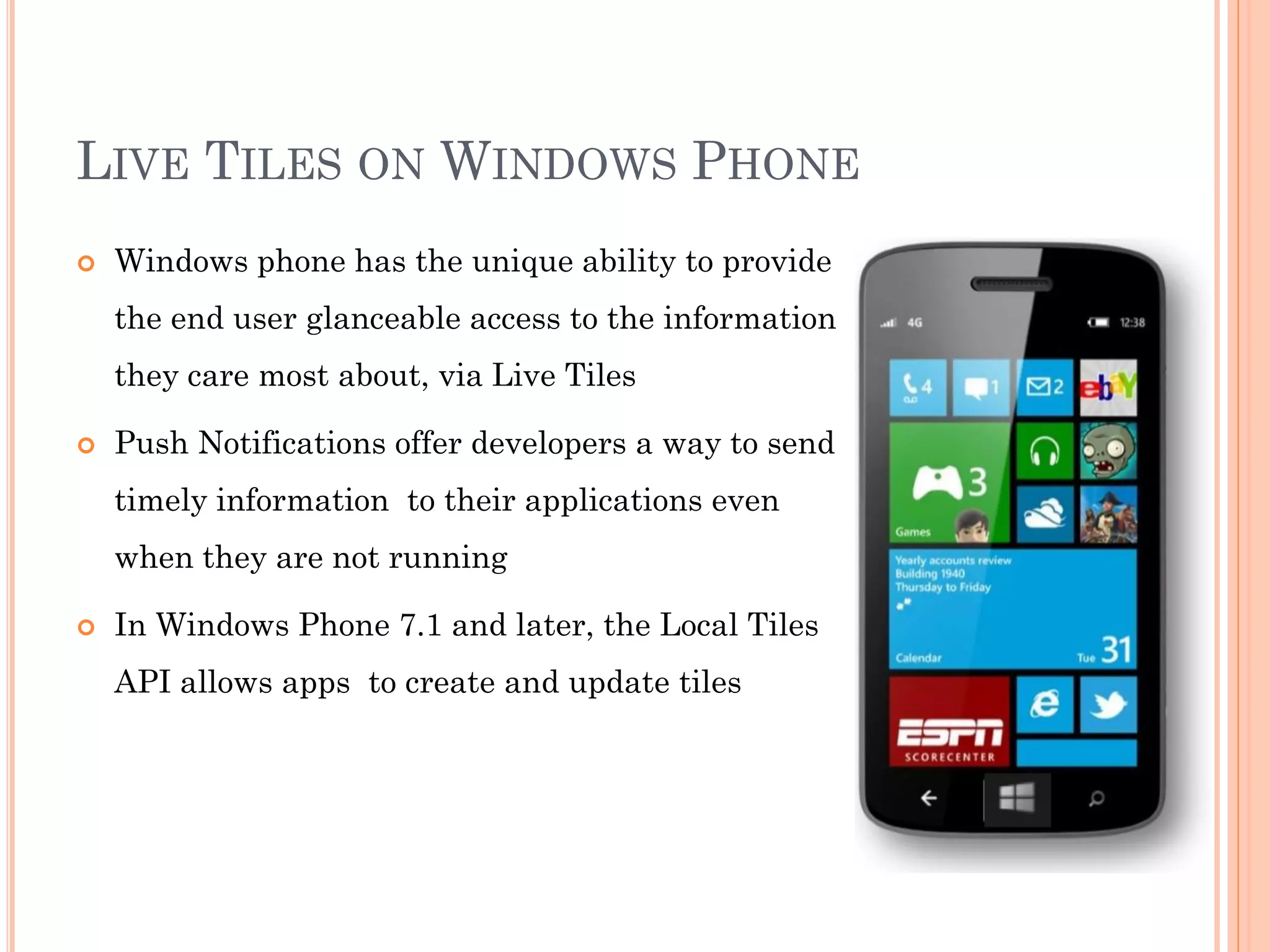
 Windows phone has the unique ability to provide
the end user glanceable access to the information
they care most about, via Live Tiles
 Push Notifications offer developers a way to send
timely information to their applications even
when they are not running
 In Windows Phone 7.1 and later, the Local Tiles
API allows apps to create and update tiles
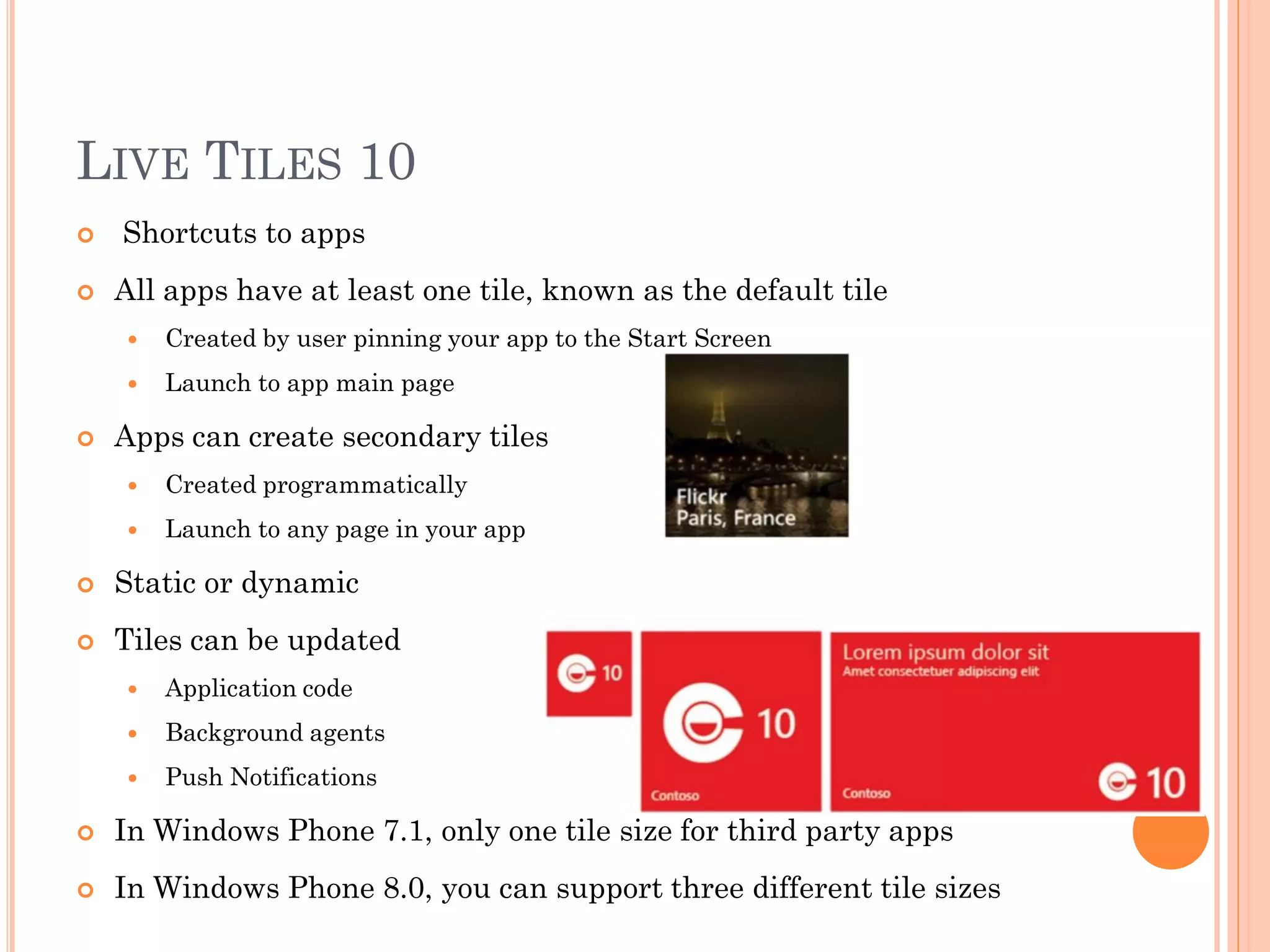
LIVE TILES 10
 Shortcuts to apps
 All apps have at least one tile, known as the default tile
 Created by user pinning your app to the Start Screen
 Launch to app main page
 Apps can create secondary tiles
 Created programmatically
 Launch to any page in your app
 Static or dynamic
 Tiles can be updated
 Application code
 Background agents
 Push Notifications
 In Windows Phone 7.1, only one tile size for third party apps
 In Windows Phone 8.0, you can support three different tile sizes
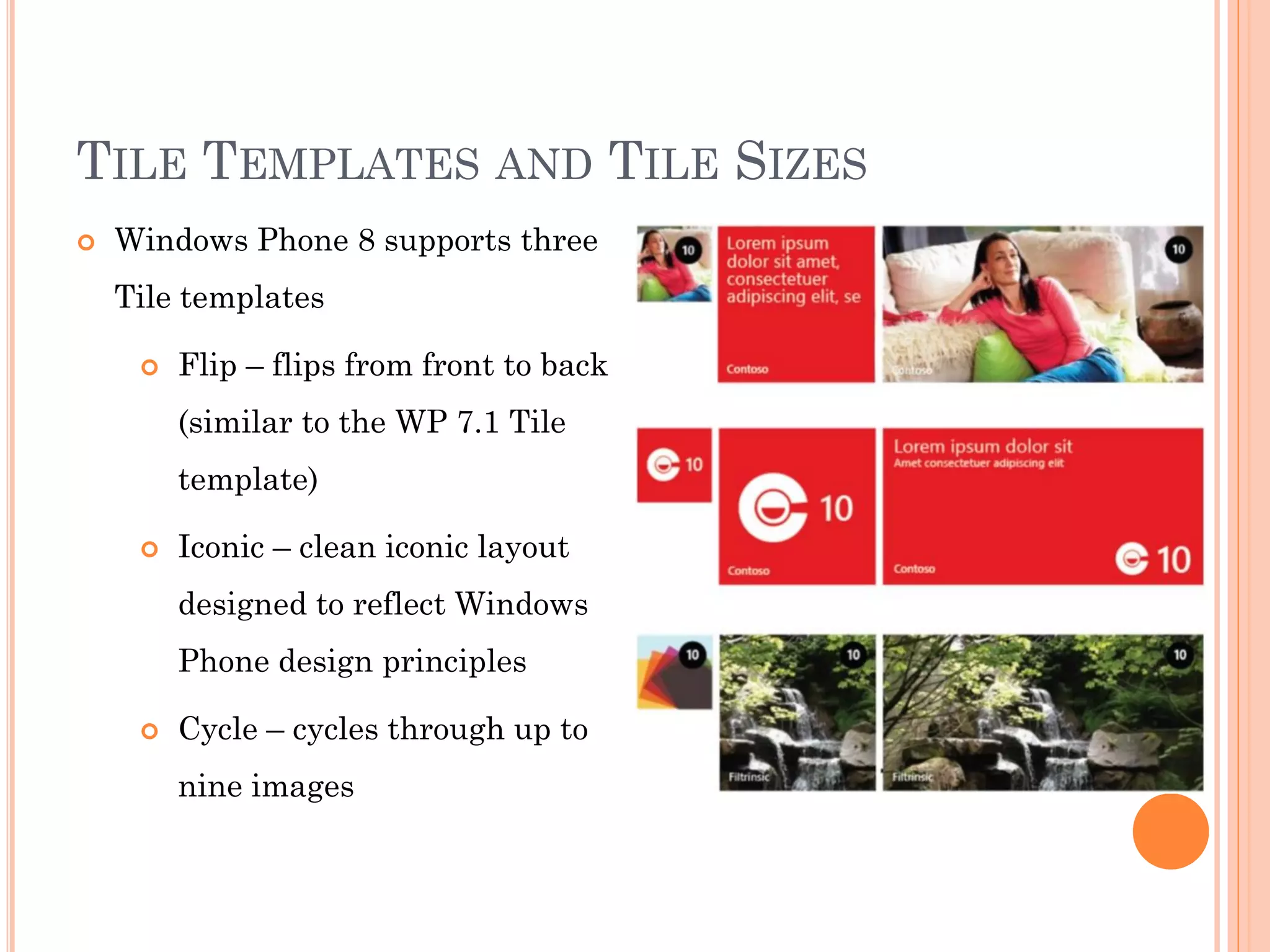
TILE TEMPLATES AND TILE SIZES
 Windows Phone 8 supports three
Tile templates
 Flip – flips from front to back
(similar to the WP 7.1 Tile
template)
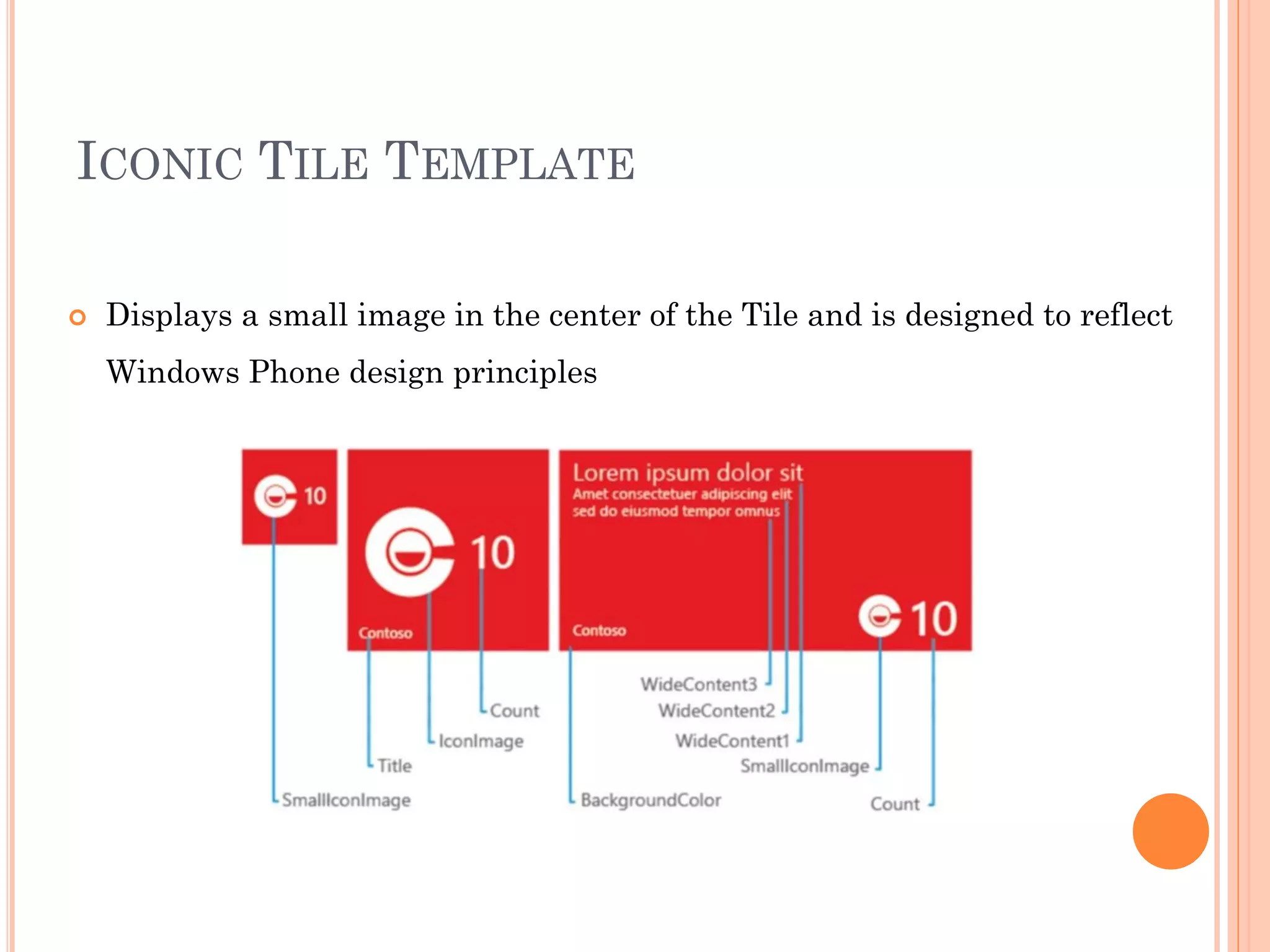
 Iconic – clean iconic layout
designed to reflect Windows
Phone design principles
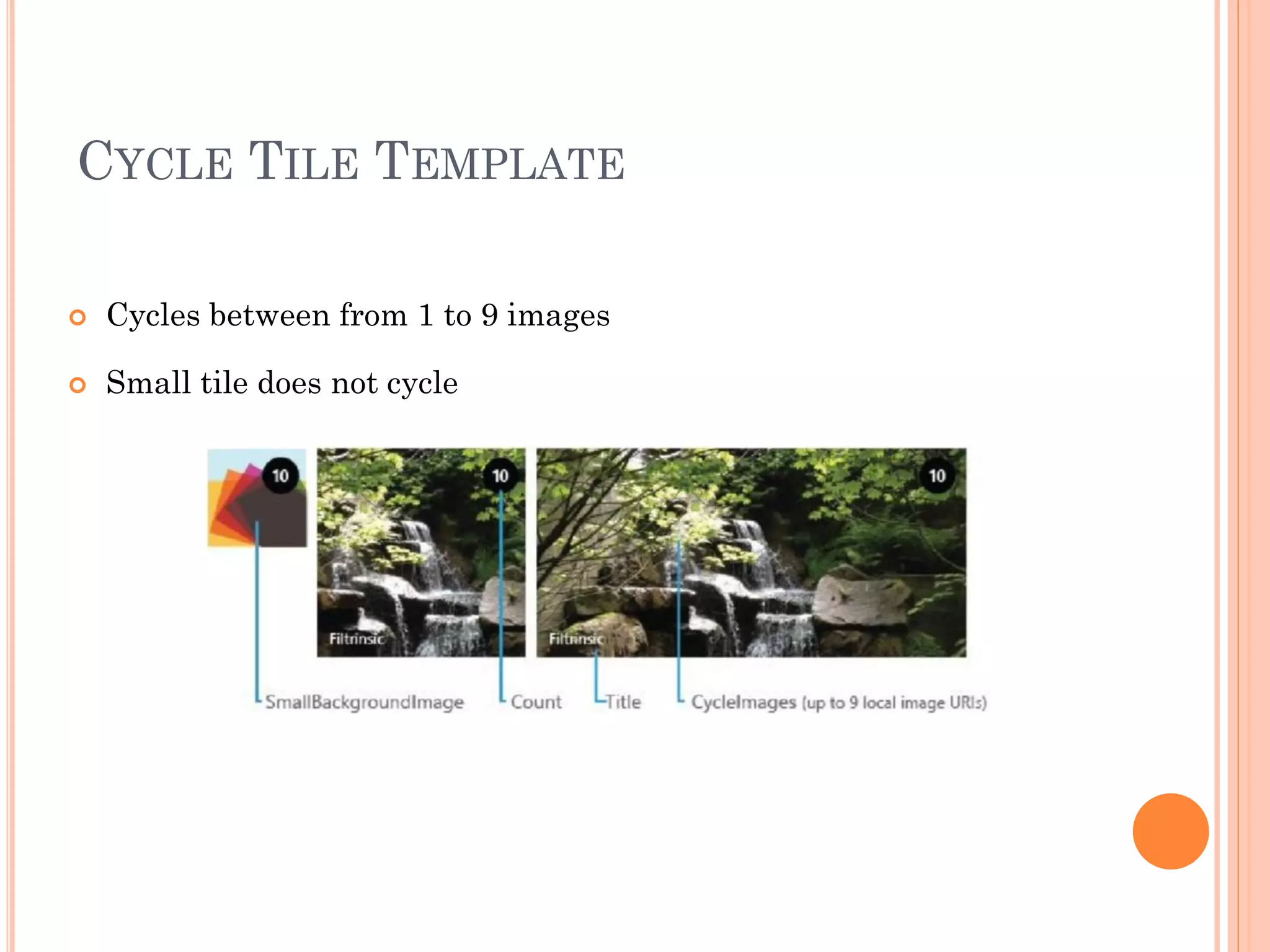
 Cycle – cycles through up to
nine images
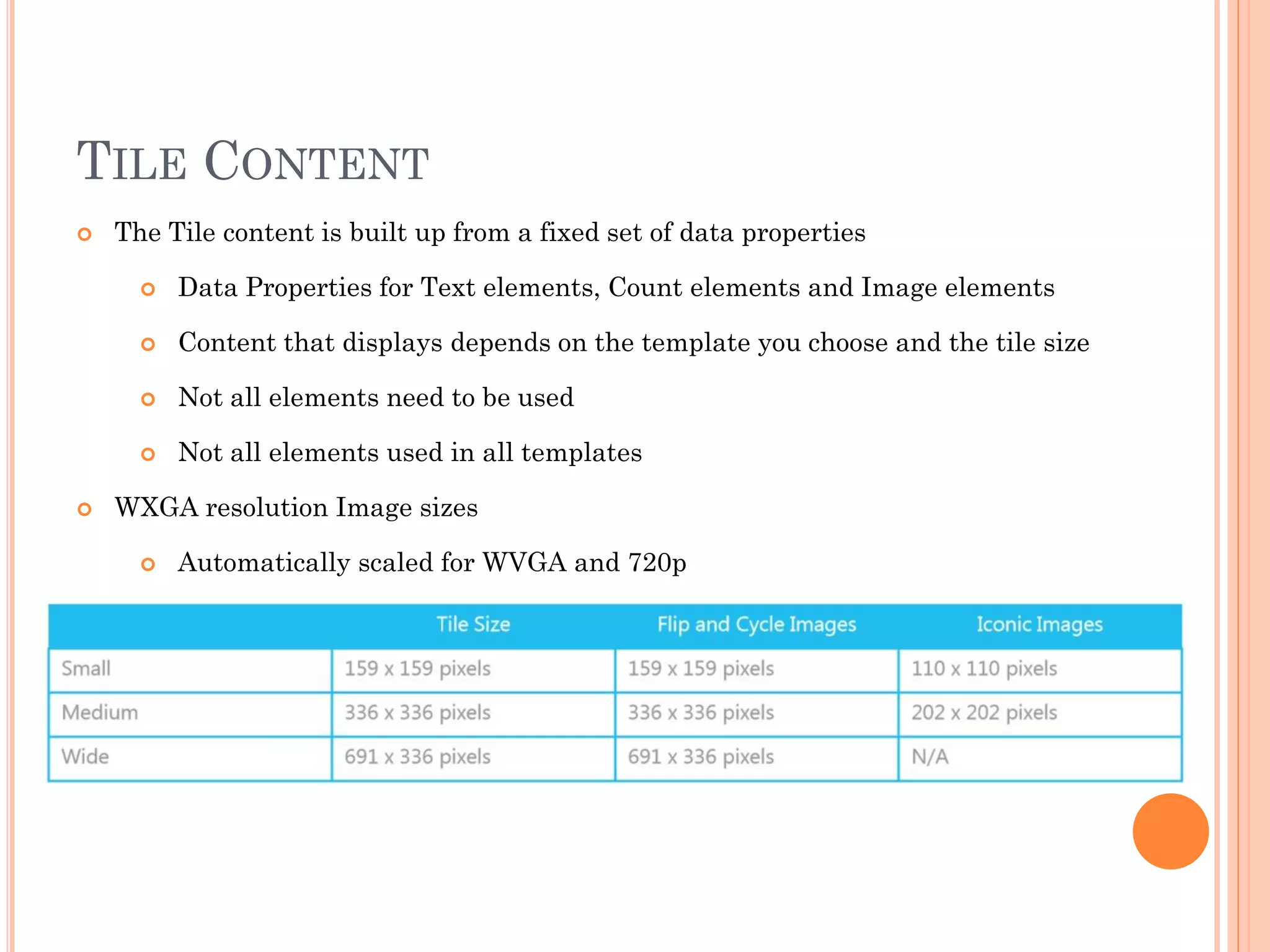
TILE CONTENT
 The Tile content is built up from a fixed set of data properties
 Data Properties for Text elements, Count elements and Image elements
 Content that displays depends on the template you choose and the tile size
 Not all elements need to be used
 Not all elements used in all templates
 WXGA resolution Image sizes
 Automatically scaled for WVGA and 720p
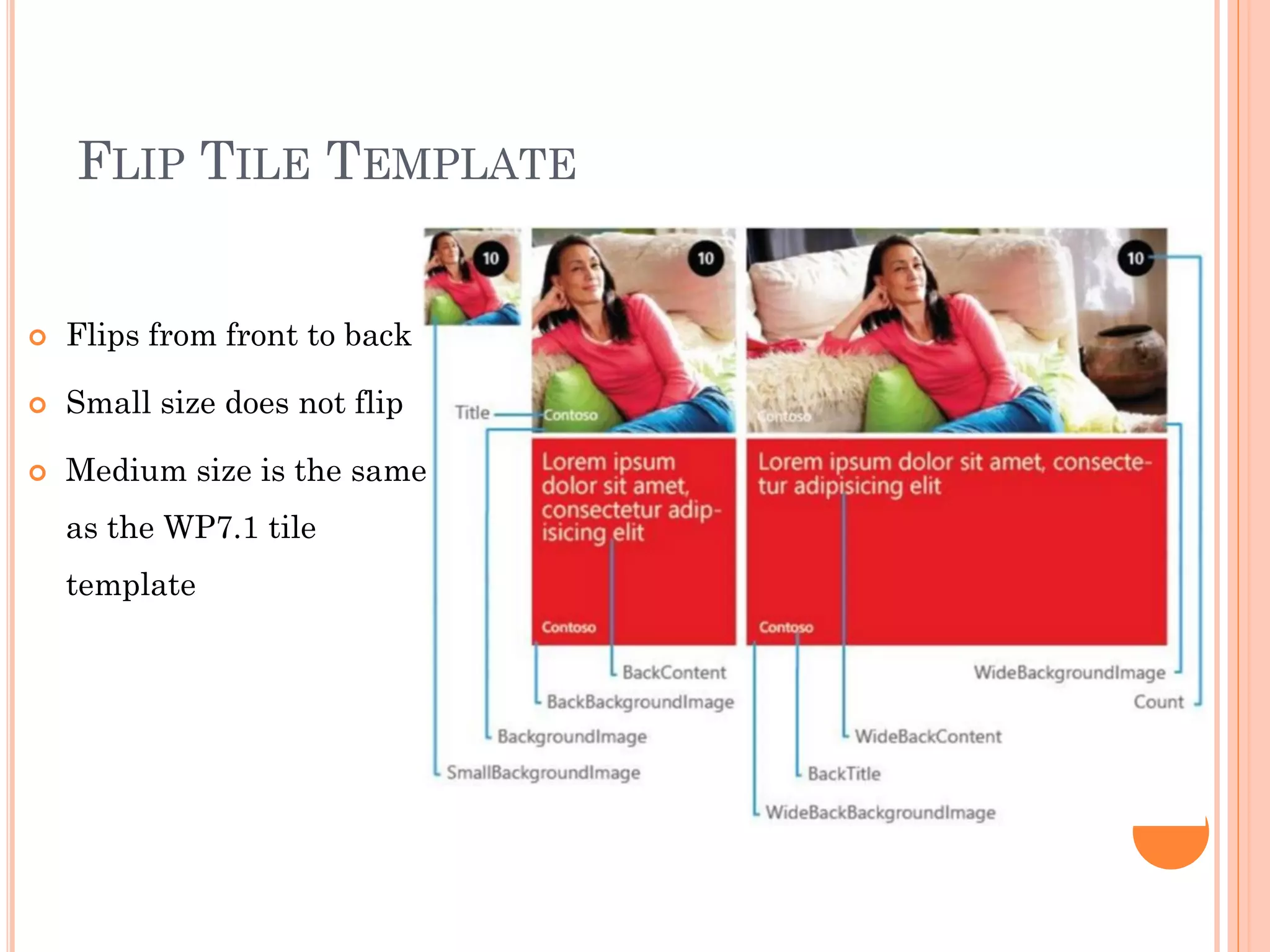
FLIP TILE TEMPLATE
 Flips from front to back
 Small size does not flip
 Medium size is the same
as the WP7.1 tile
template
CYCLE TILE TEMPLATE
 Cycles between from 1 to 9 images
 Small tile does not cycle
ICONIC TILE TEMPLATE
 Displays a small image in the center of the Tile and is designed to reflect
Windows Phone design principles
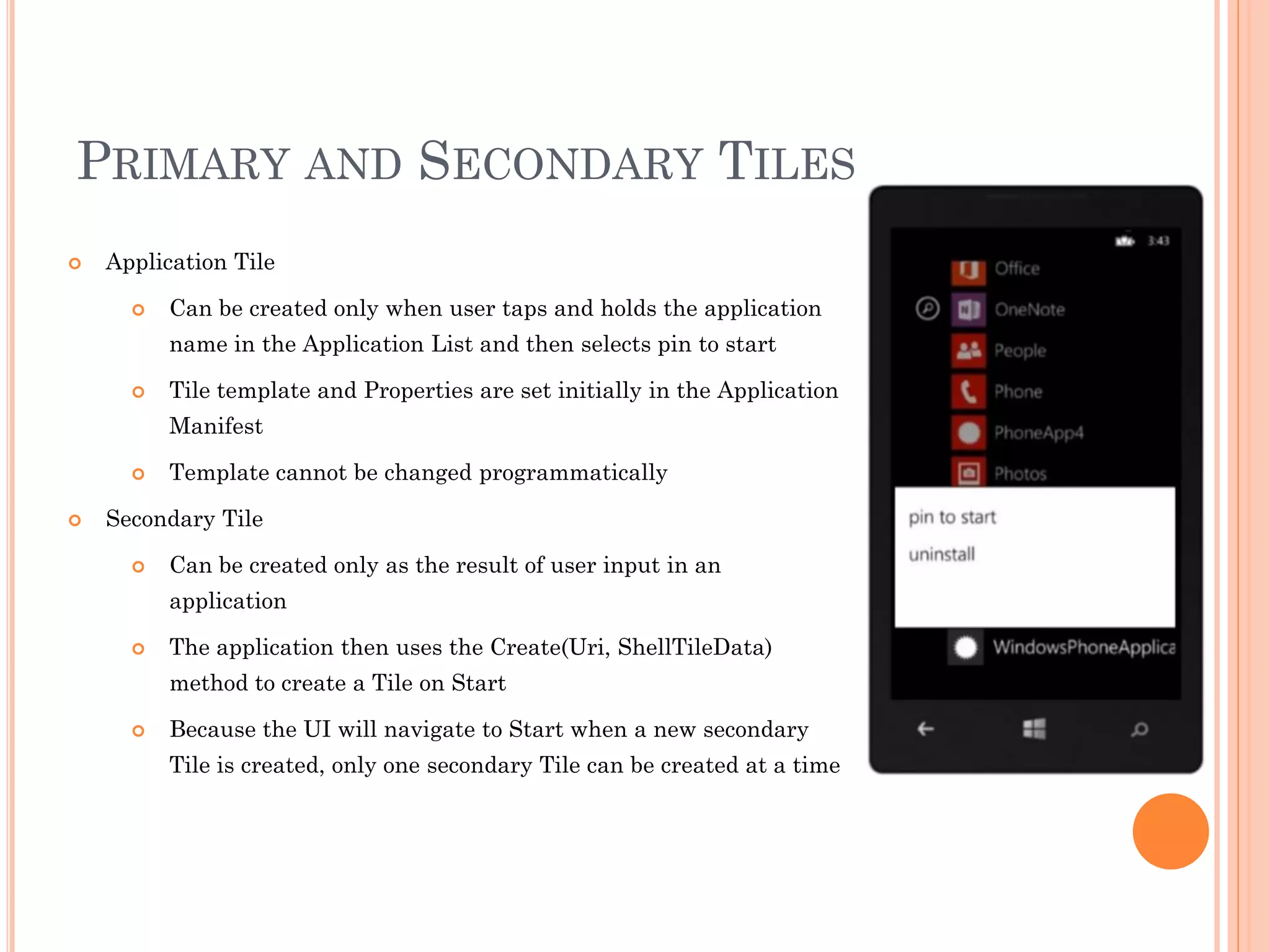
PRIMARY AND SECONDARY TILES
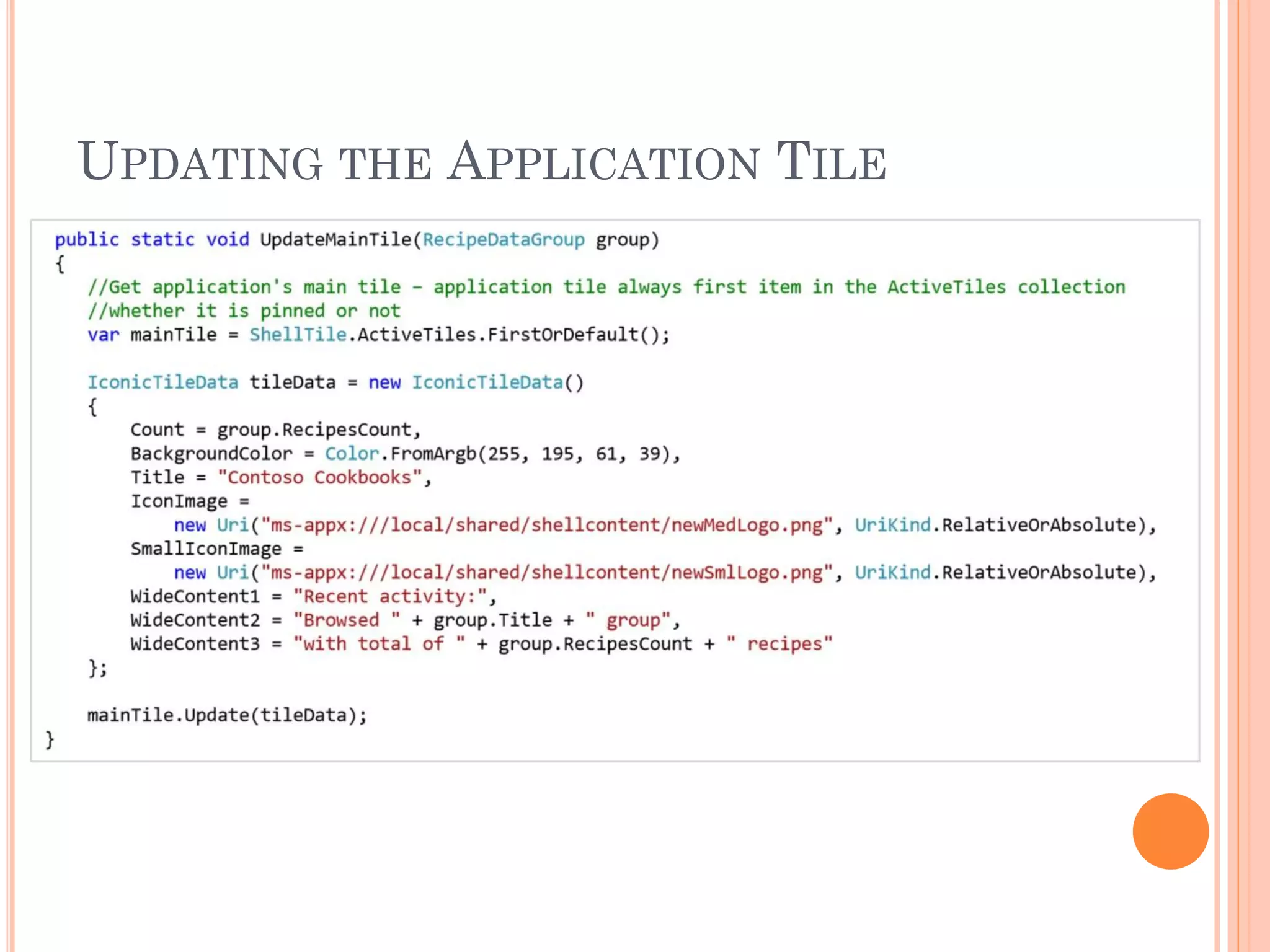
 Application Tile
 Can be created only when user taps and holds the application
name in the Application List and then selects pin to start
 Tile template and Properties are set initially in the Application
Manifest
 Template cannot be changed programmatically
 Secondary Tile
 Can be created only as the result of user input in an
application
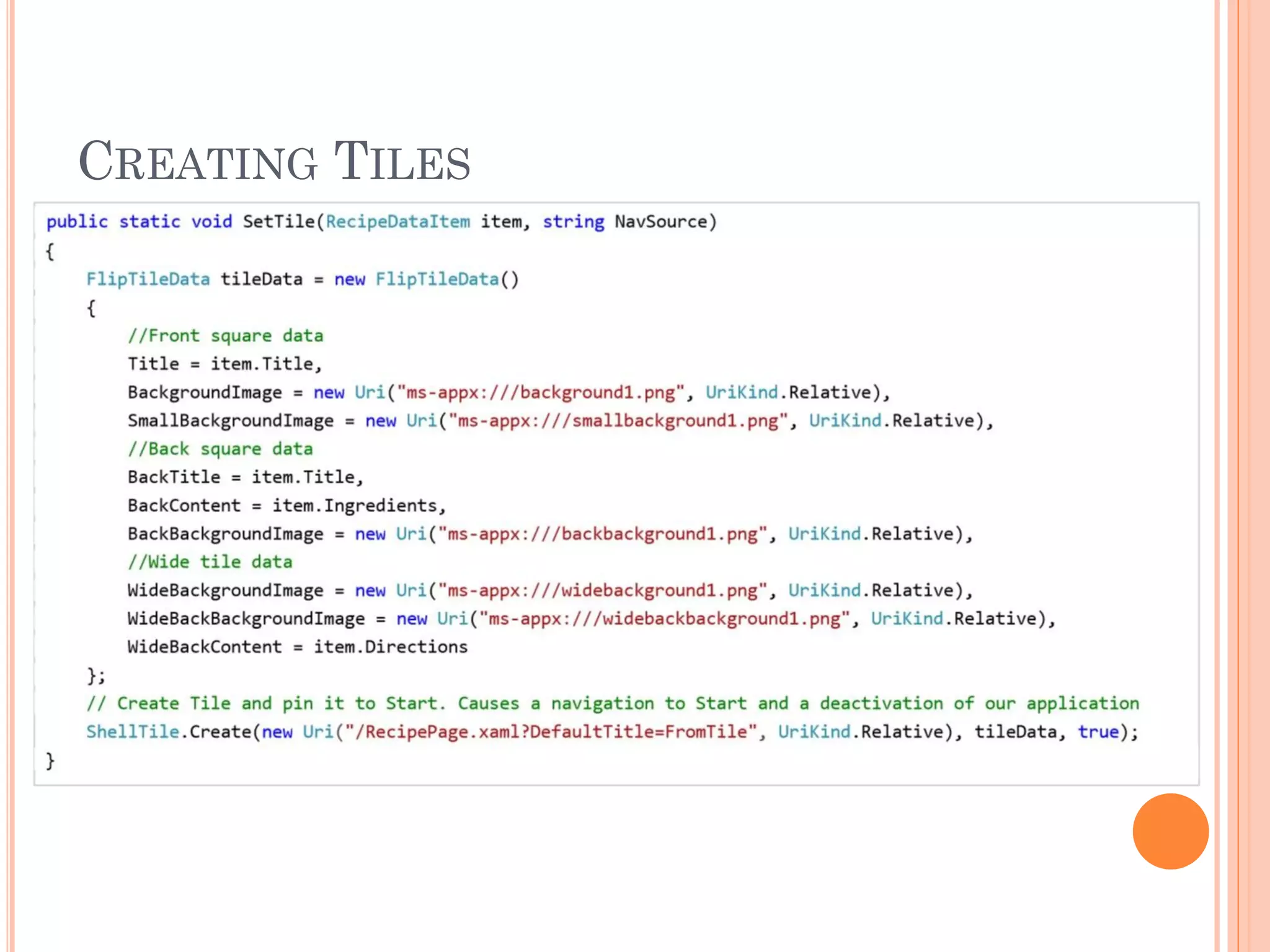
 The application then uses the Create(Uri, ShellTileData)
method to create a Tile on Start
 Because the UI will navigate to Start when a new secondary
Tile is created, only one secondary Tile can be created at a time
DEFINING THE APPLICATION TILE
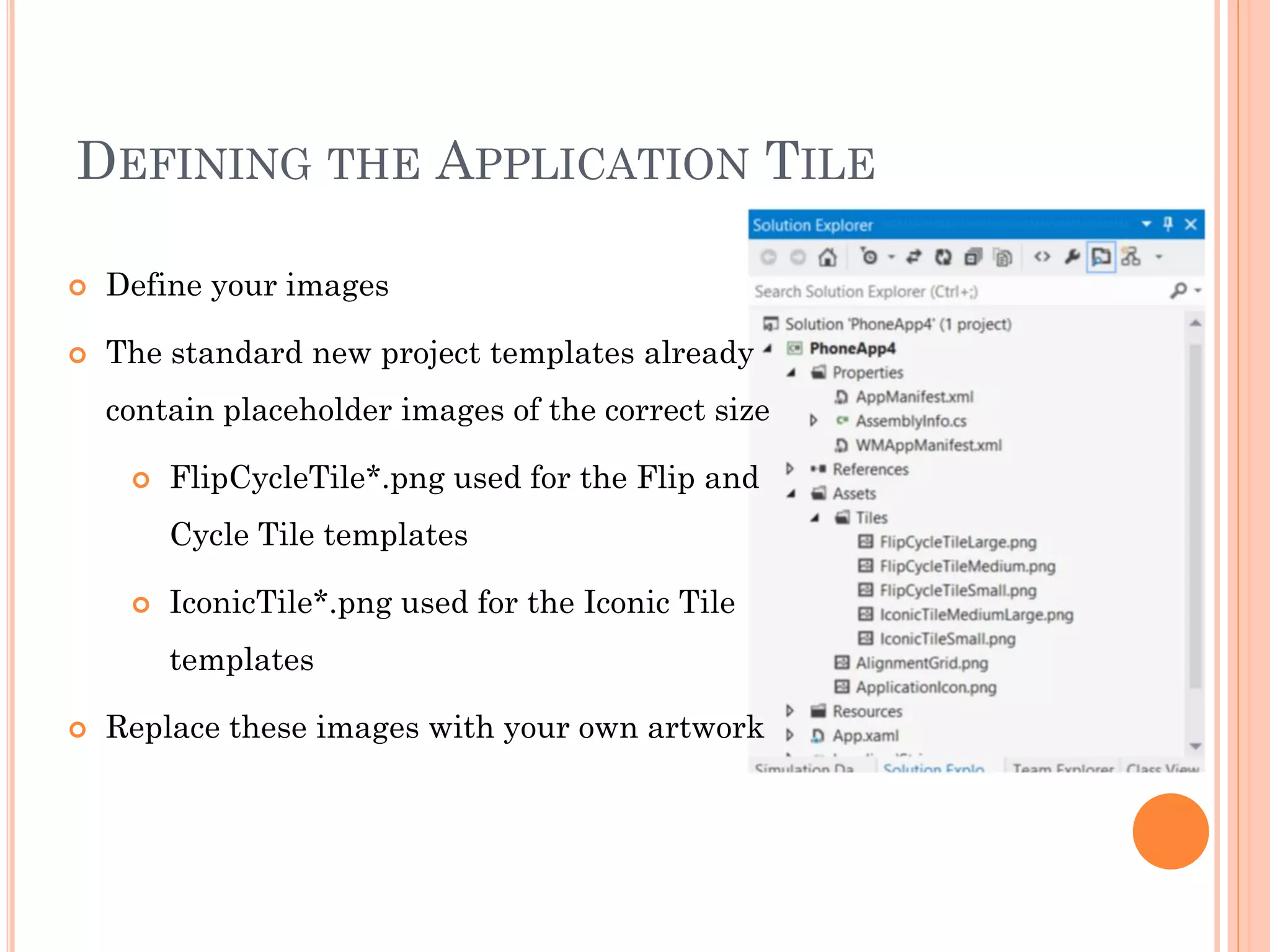
 Define your images
 The standard new project templates already
contain placeholder images of the correct size
 FlipCycleTile*.png used for the Flip and
Cycle Tile templates
 IconicTile*.png used for the Iconic Tile
templates
 Replace these images with your own artwork
DEFINING THE APPLICATION TILE IN THE
APPLICATION MANIFEST
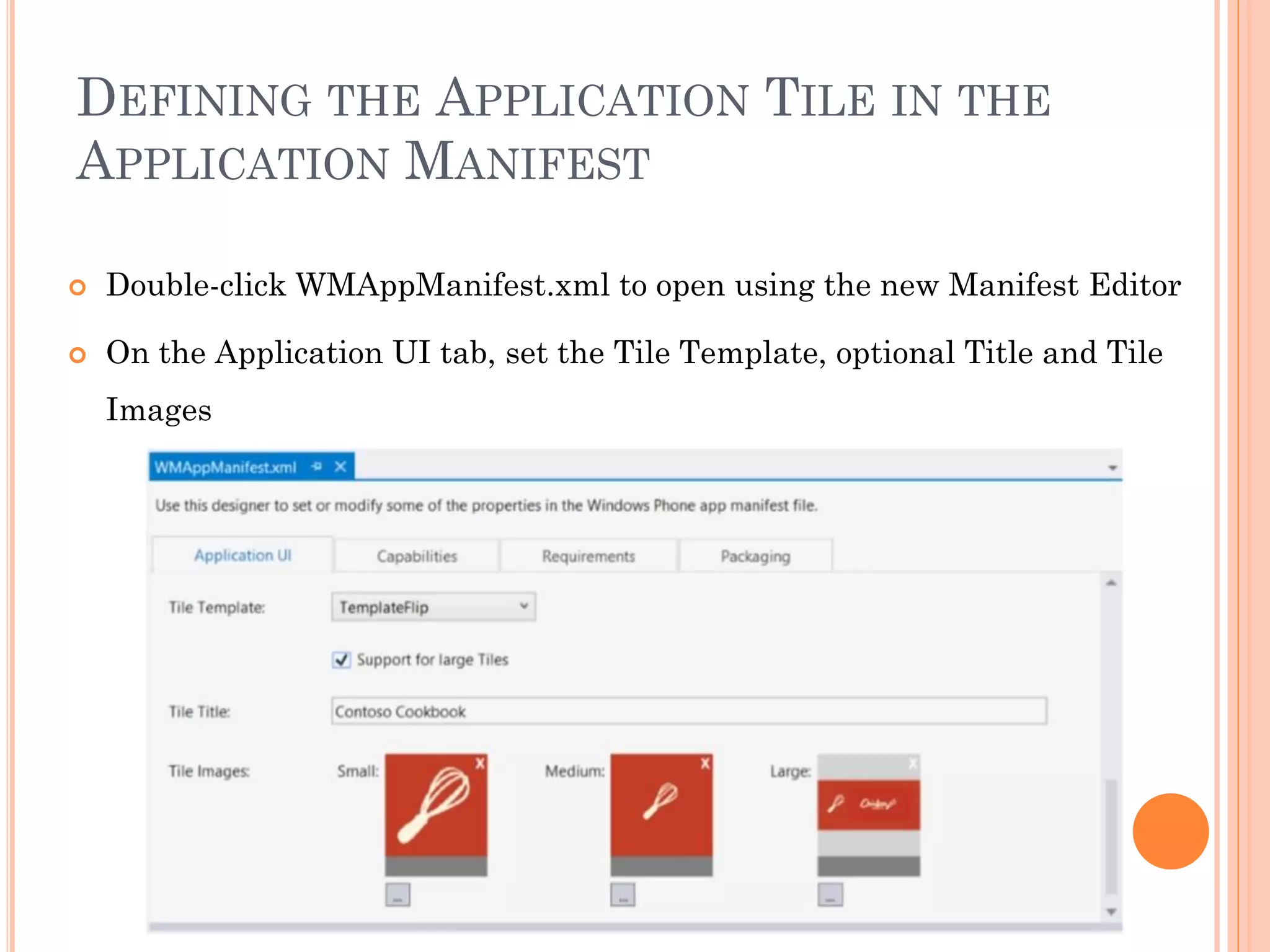
 Double-click WMAppManifest.xml to open using the new Manifest Editor
 On the Application UI tab, set the Tile Template, optional Title and Tile
Images
APPLICATION TILE
CREATING AND UPDATING TILES WITH
THE LOCAL TILE API
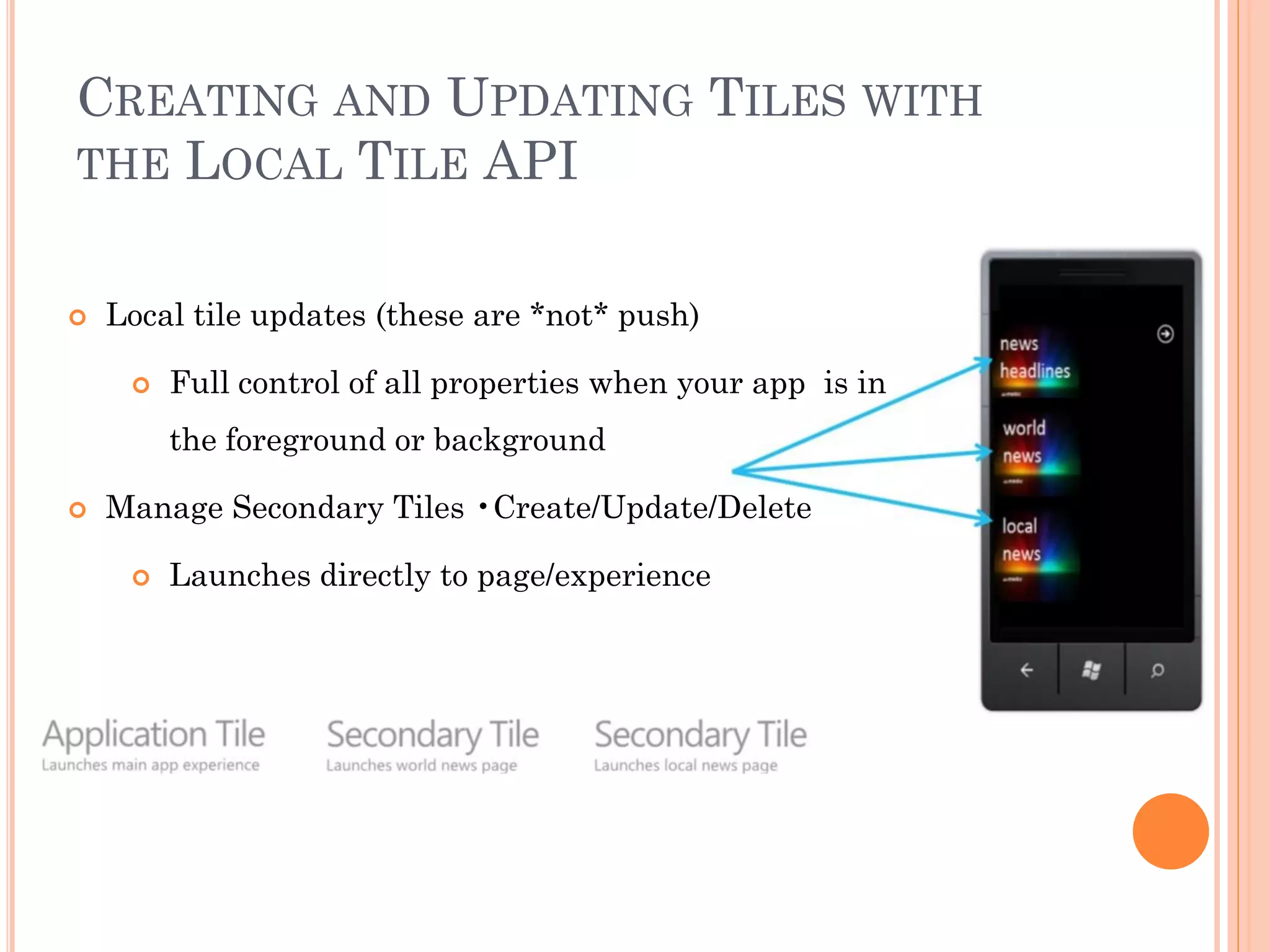
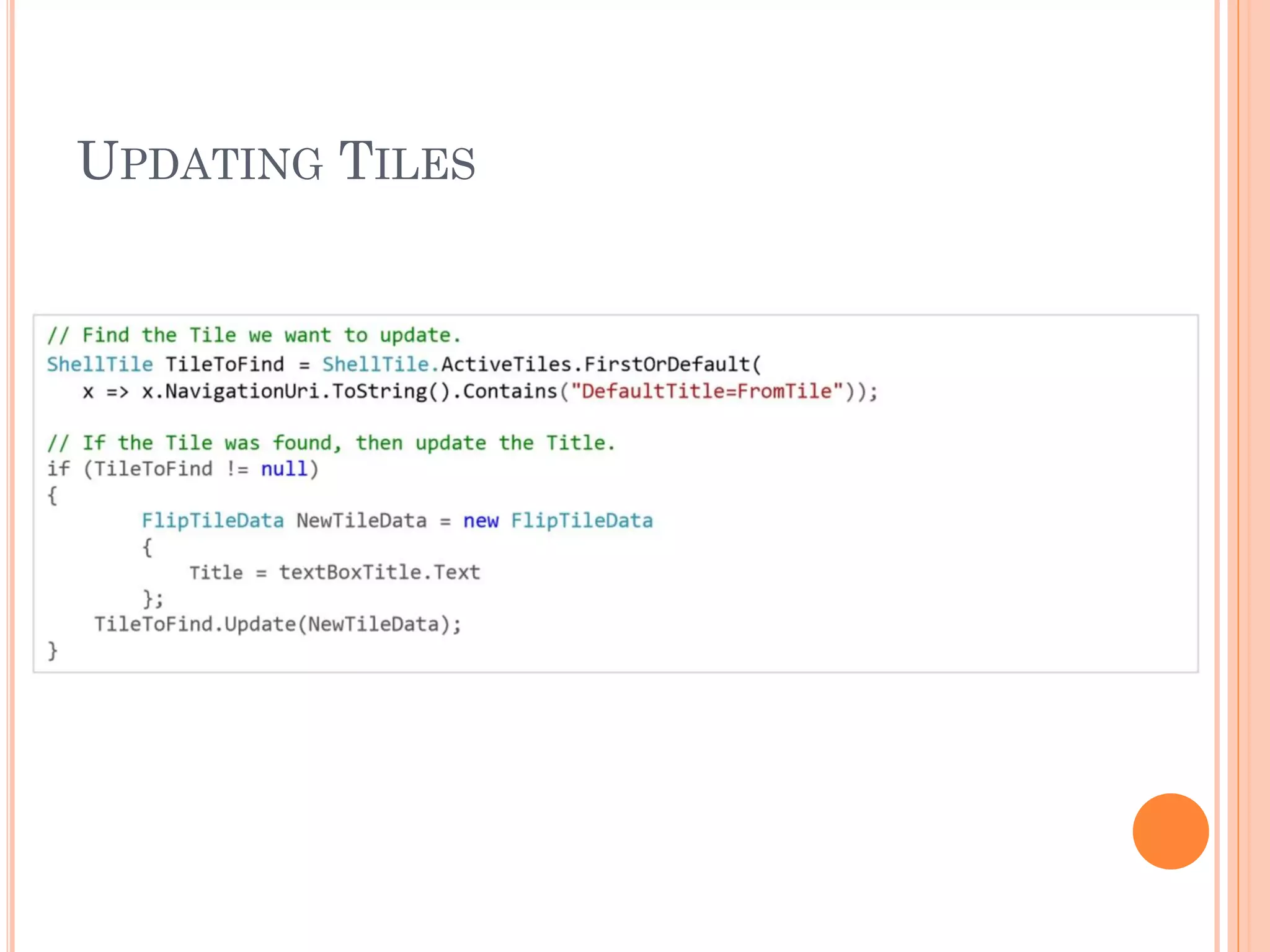
 Local tile updates (these are *not* push)
 Full control of all properties when your app is in
the foreground or background
 Manage Secondary Tiles •Create/Update/Delete
 Launches directly to page/experience
CREATING TILES
UPDATING TILES
UPDATING THE APPLICATION TILE
UPDATING TILES FROM A BACKGROUND
AGENT
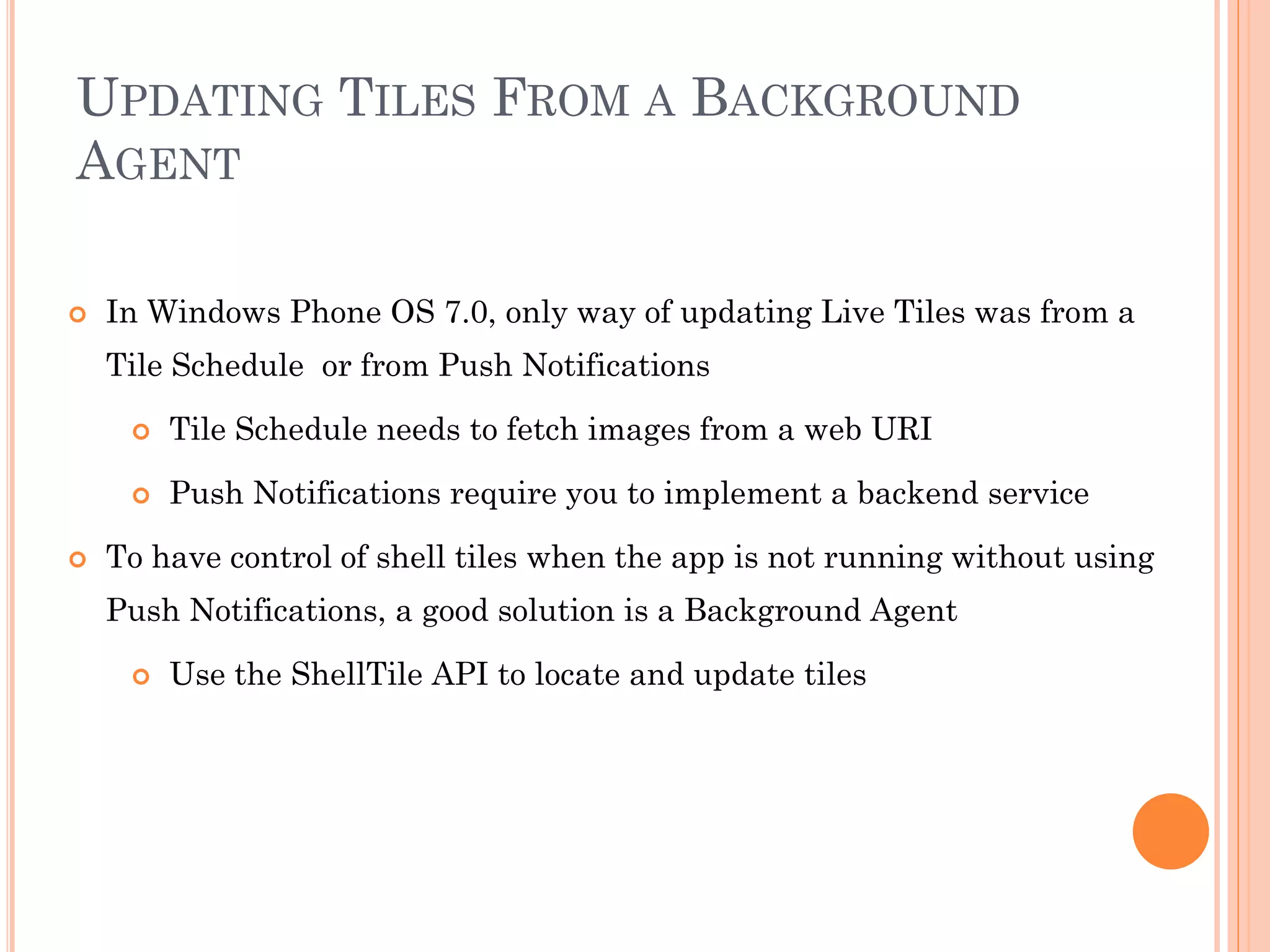
 In Windows Phone OS 7.0, only way of updating Live Tiles was from a
Tile Schedule or from Push Notifications
 Tile Schedule needs to fetch images from a web URI
 Push Notifications require you to implement a backend service
 To have control of shell tiles when the app is not running without using
Push Notifications, a good solution is a Background Agent
 Use the ShellTile API to locate and update tiles
UPDATING TILES FROM A
BACKGROUND AGENT
LOCK SCREEN NOTIFICATIONS ON WINDOWS
PHONE
LOCK SCREEN ON WINDOWS PHONE 7
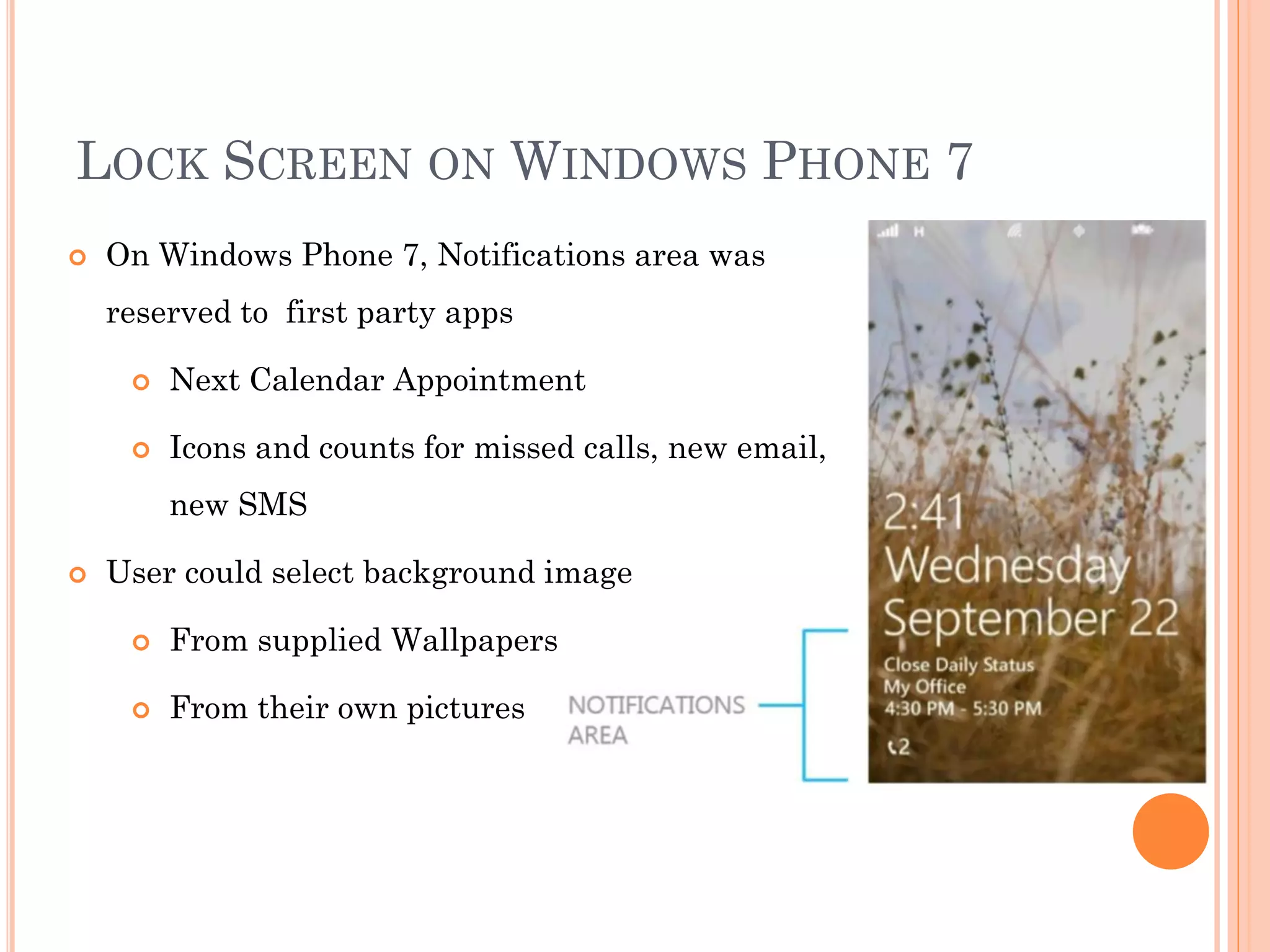
 On Windows Phone 7, Notifications area was
reserved to first party apps
 Next Calendar Appointment
 Icons and counts for missed calls, new email,
new SMS
 User could select background image
 From supplied Wallpapers
 From their own pictures
LOCK SCREEN ON WINDOWS PHONE 8
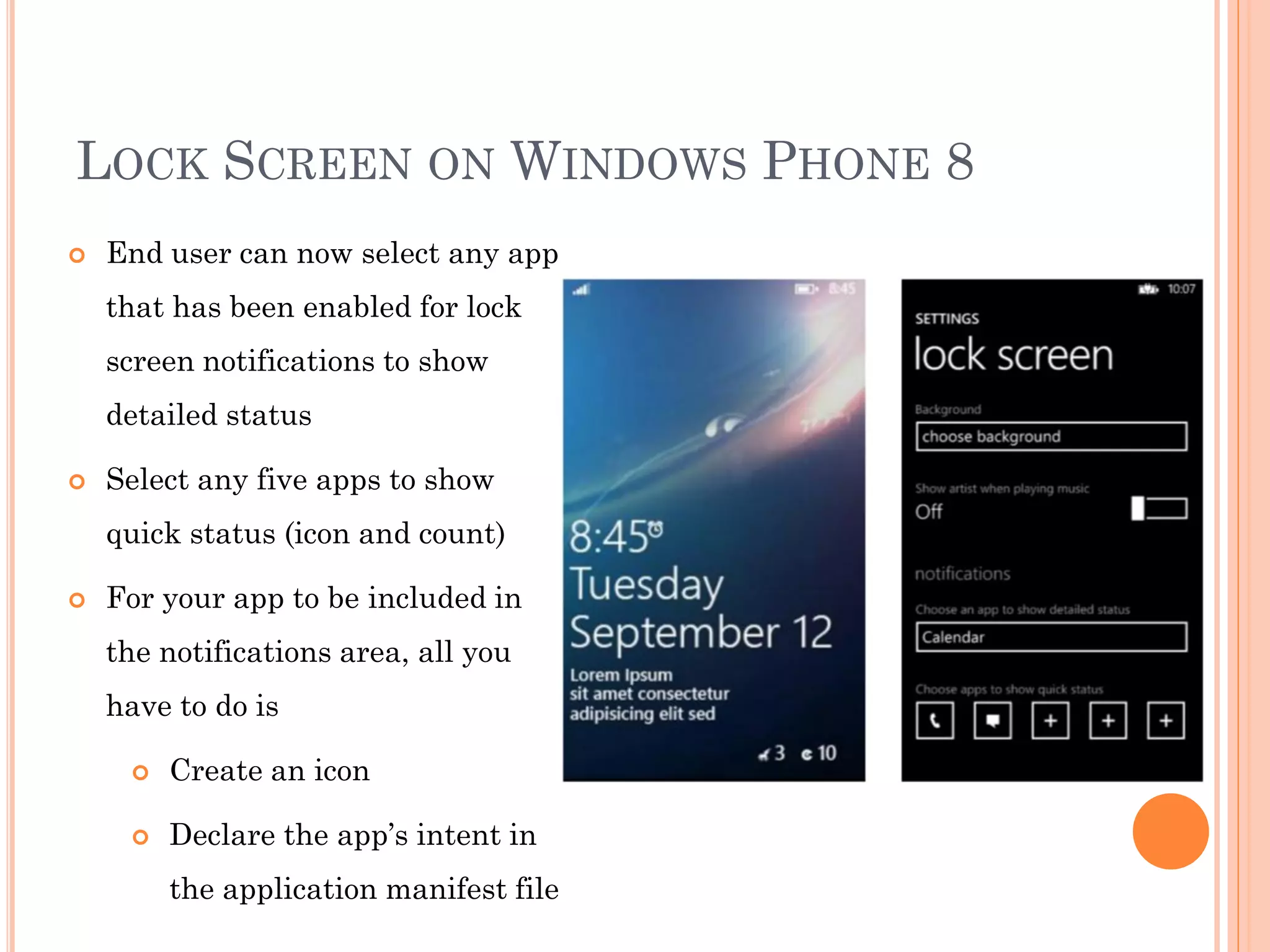
 End user can now select any app
that has been enabled for lock
screen notifications to show
detailed status
 Select any five apps to show
quick status (icon and count)
 For your app to be included in
the notifications area, all you
have to do is
 Create an icon
 Declare the app’s intent in
the application manifest file
UPDATING THE APPLICATION MANIFEST
FILE
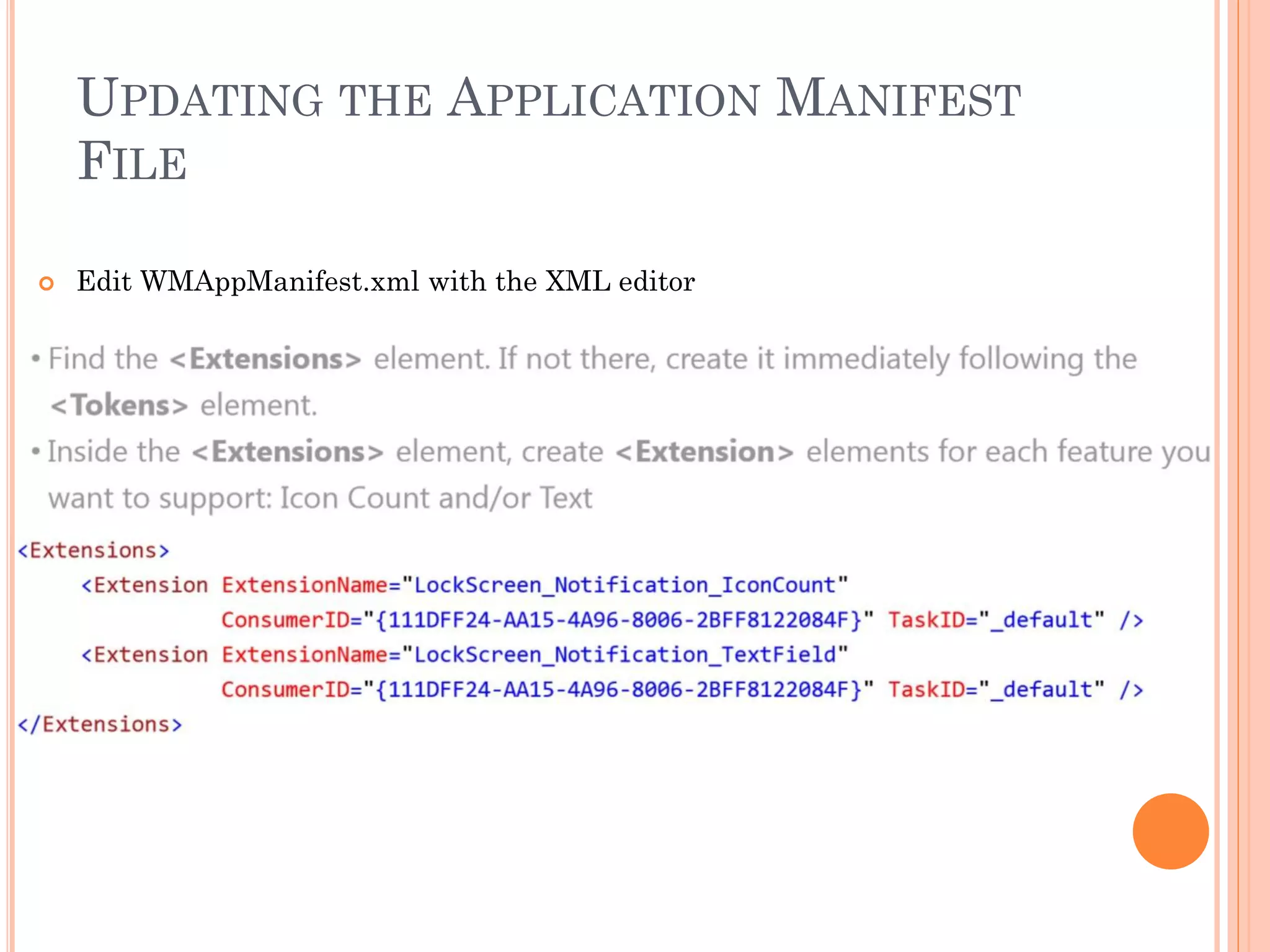
 Edit WMAppManifest.xml with the XML editor
HOW TO UPDATE THE ICON COUNT AND
TEXT
 Lock Screen Icon Count and Text is taken directly from your applications
primary tile
 Secondary tiles are not used for this feature
 Information is only displayed on the lock screen if the tile contains the
information
 For example, a count will only be displayed if the tile displays it
 Primary tile does not need to be pinned to the Start Screen for lock screen
notifications to be enabled
 Update Primary Tile content in the usual way
 Local Shell Tiles API
 Push Notifications
TESTING WITH THE SIMULATION
DASHBOARD
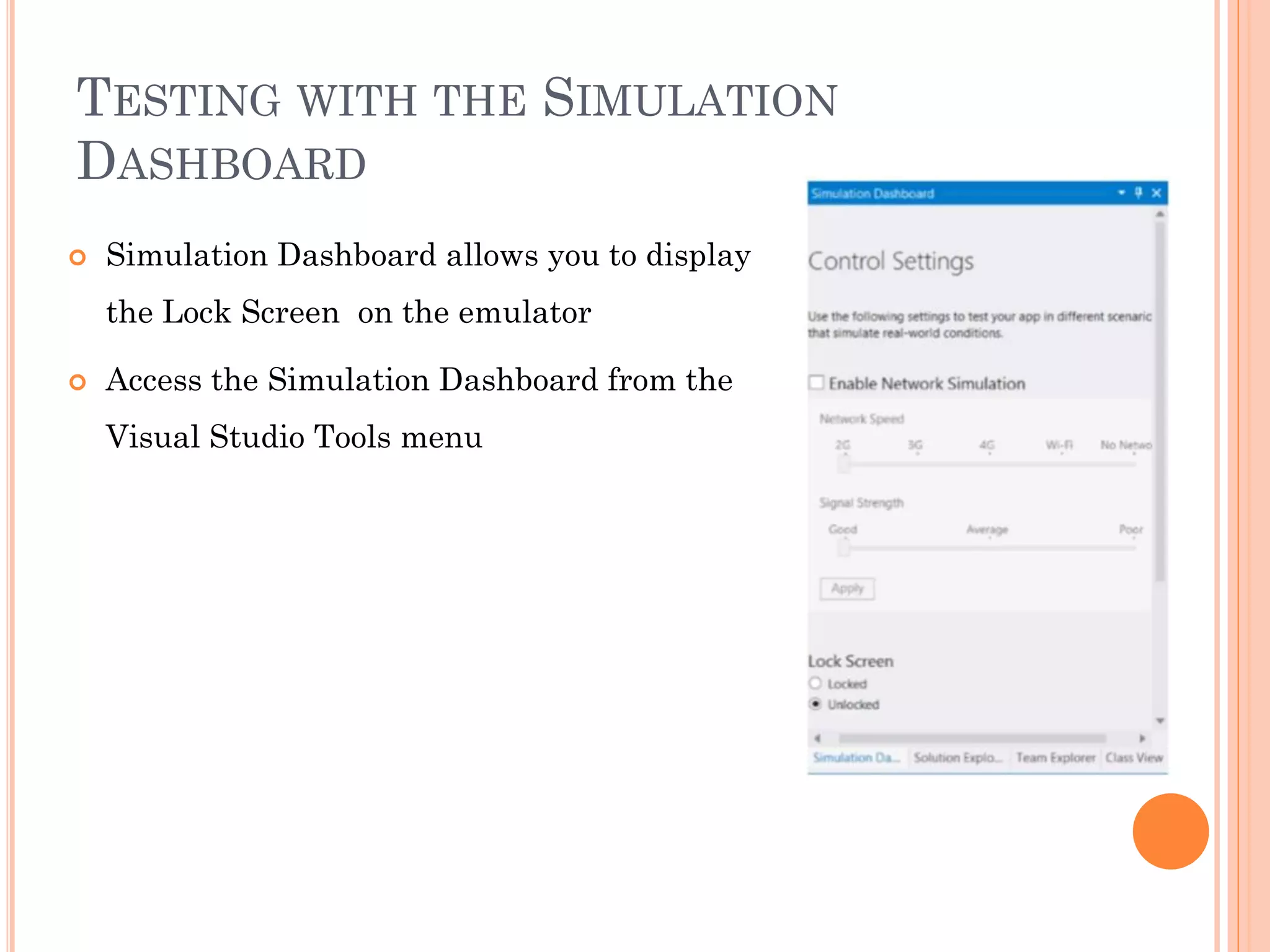
 Simulation Dashboard allows you to display
the Lock Screen on the emulator
 Access the Simulation Dashboard from the
Visual Studio Tools menu
LOCK SCREEN NOTIFICATIONS
LOCK SCREEN BACKGROUND
LOCK SCREEN BACKGROUND ON
WINDOWS PHONE 8
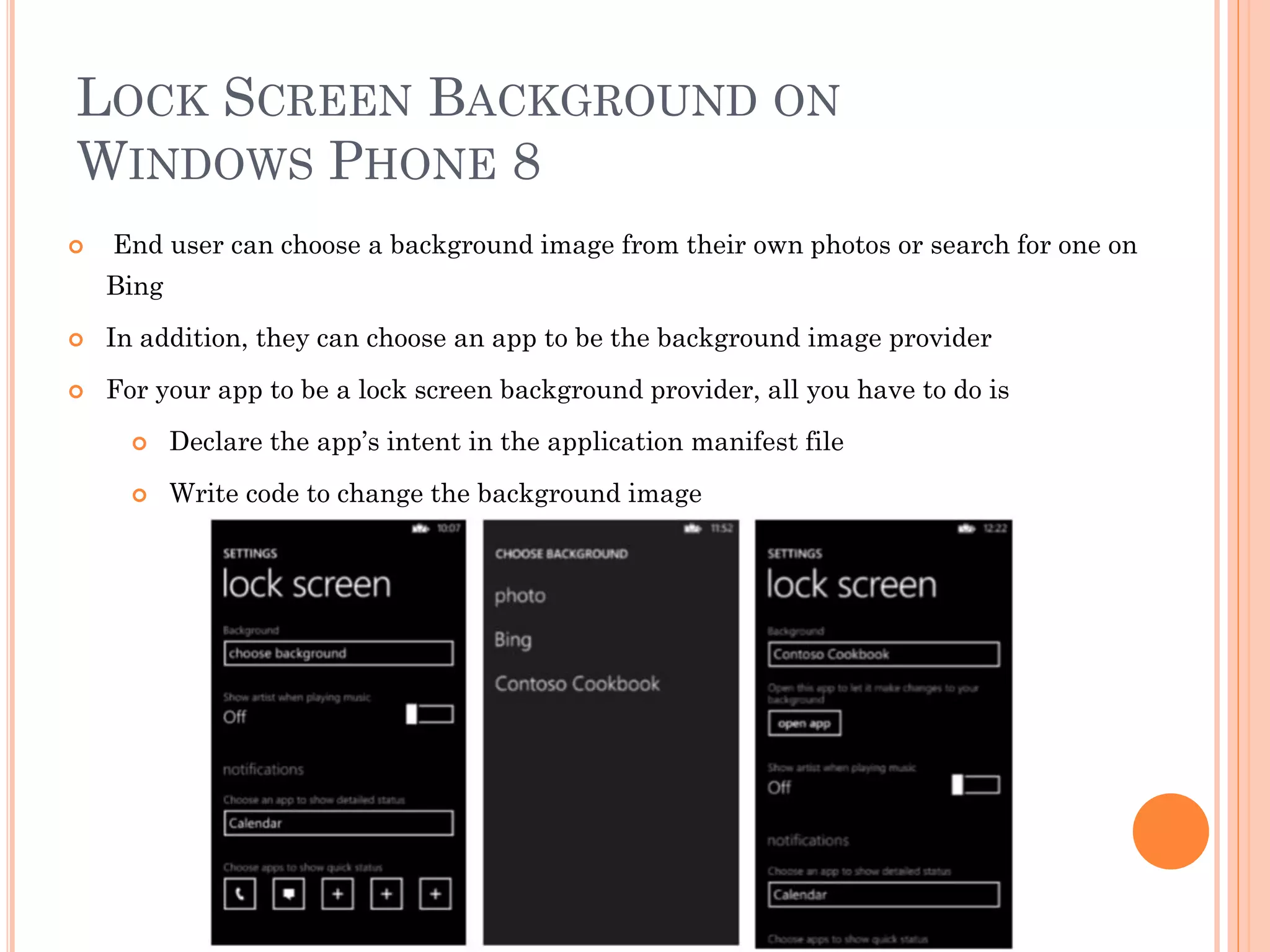
 End user can choose a background image from their own photos or search for one on
Bing
 In addition, they can choose an app to be the background image provider
 For your app to be a lock screen background provider, all you have to do is
 Declare the app’s intent in the application manifest file
 Write code to change the background image
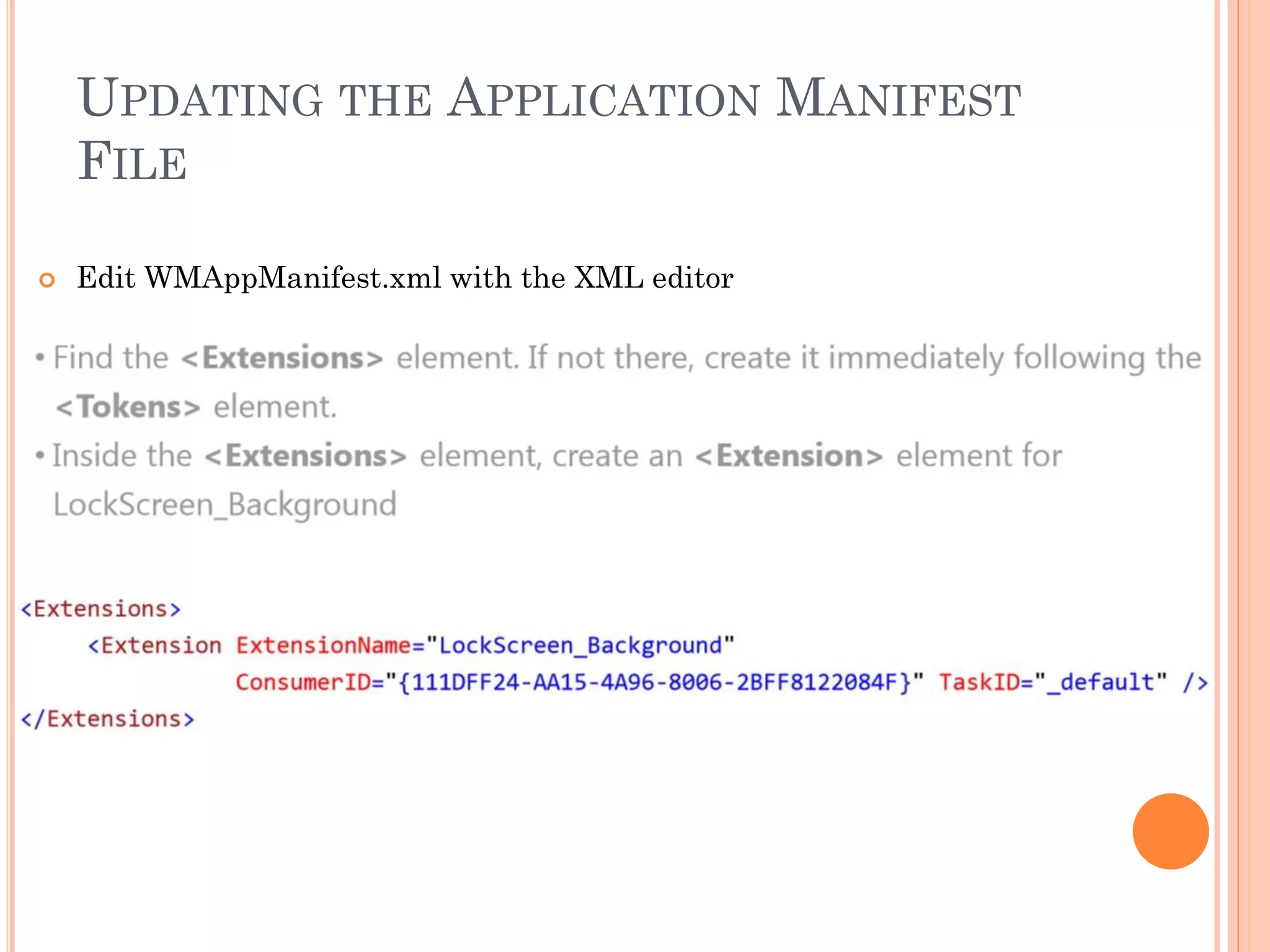
UPDATING THE APPLICATION MANIFEST
FILE
 Edit WMAppManifest.xml with the XML editor
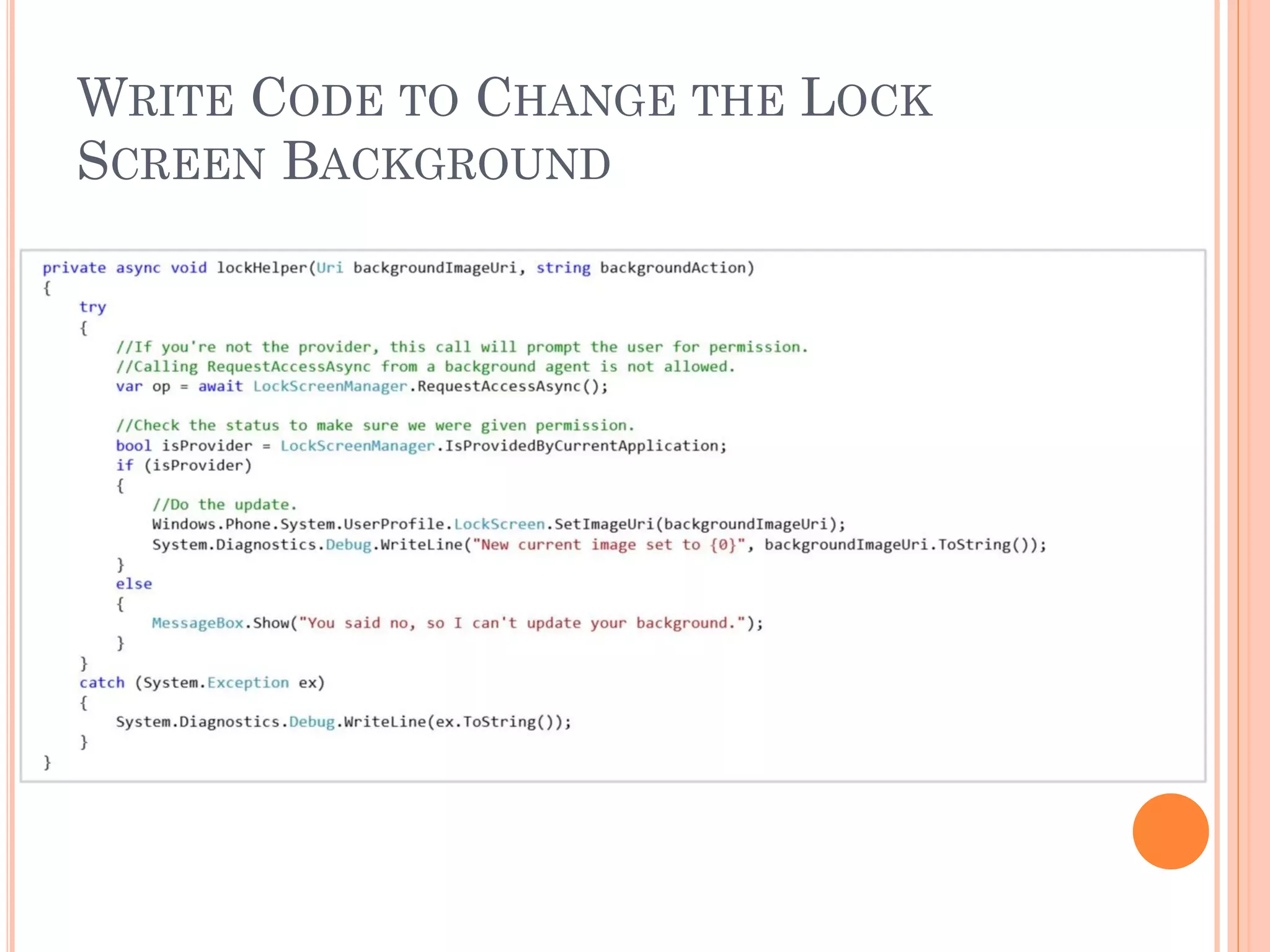
WRITE CODE TO CHANGE THE LOCK
SCREEN BACKGROUND
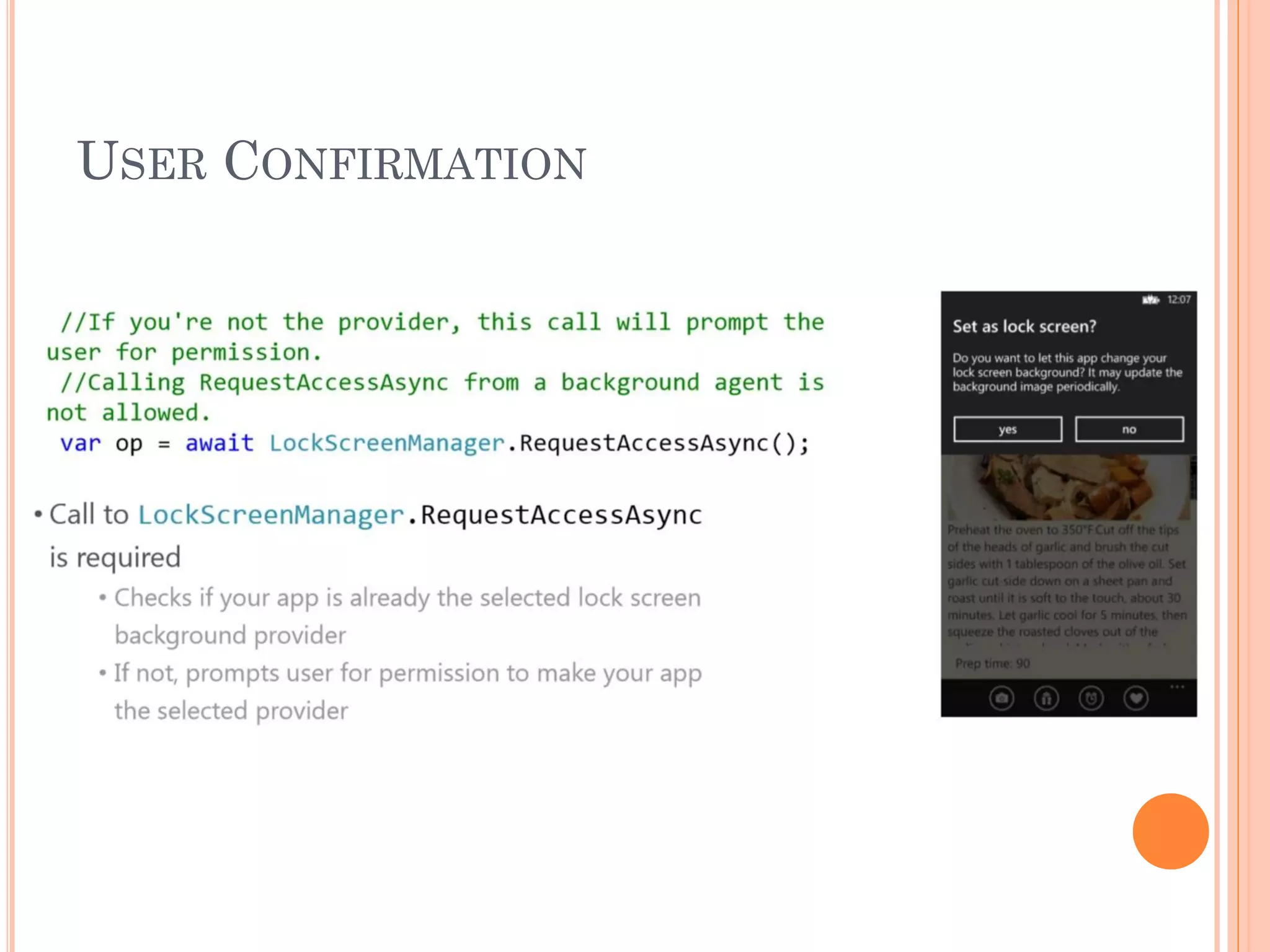
USER CONFIRMATION
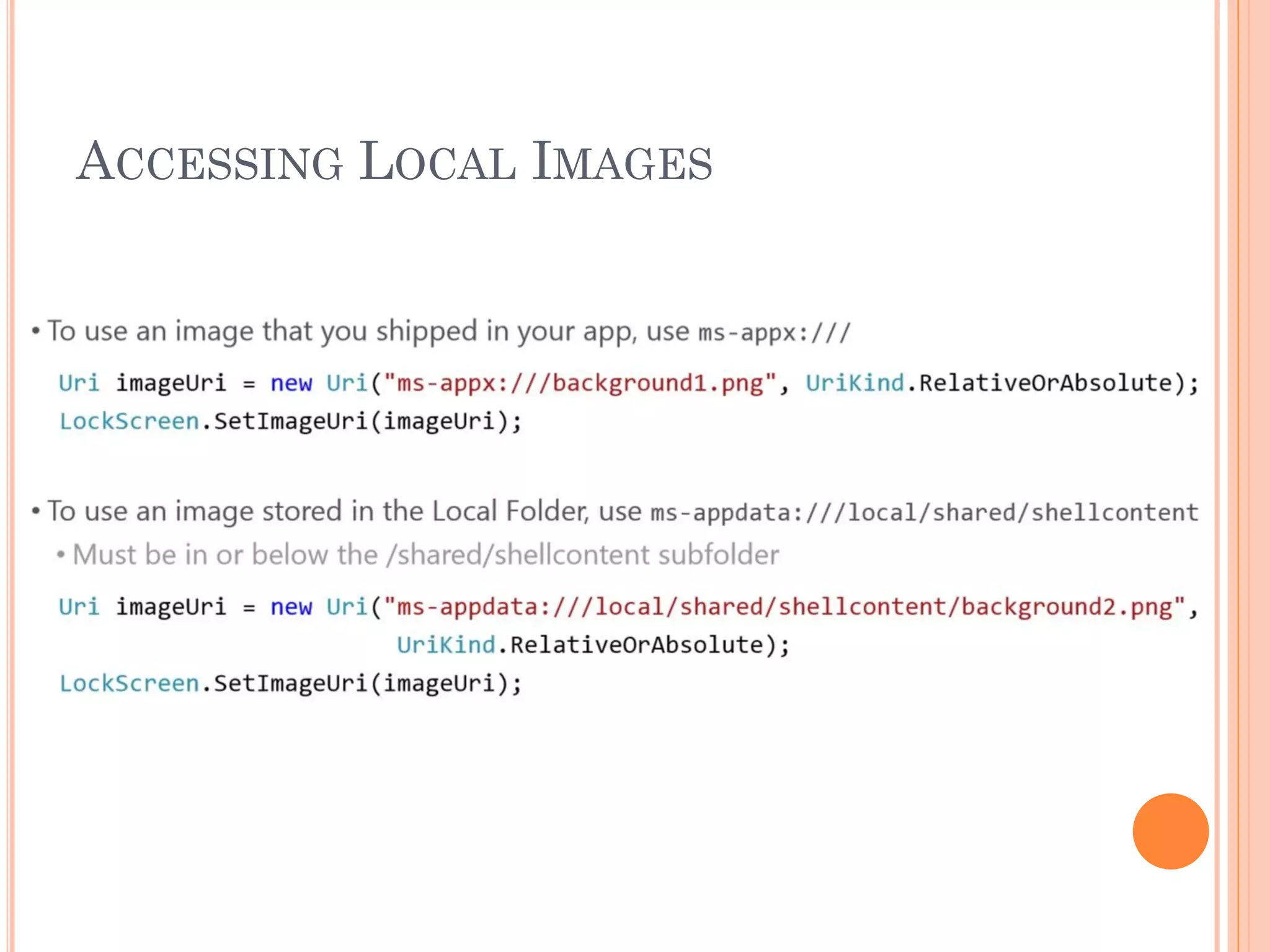
ACCESSING LOCAL IMAGES
Thank You

Windows phone 8 session 11

  • 1.
    WP8 TILES ANDLOCK SCREEN NOTIFICATIONS 1. Tiles in Windows Phone 8 2. Local Tiles API 3. Updating Tiles from ShellTileSchedule 4. Updating Tiles from Background Agents 5. Lock screen notifications for Windows Phone 6. Lock screen background for Windows Phone
  • 2.
    FOLLOW US Twitter :@chothanihitesh Slideshare : http://www.slideshare.net/Chothani-Hitesh Email : chothani.hitesh@gmail.com Support : windows.chothani@live.com LinkedIn : in.linkedin.com/pub/hiteshchothani/6b/311/2b8 W8 Publisher : AppStudios WP Publisher : AppStudios Website : www.appmobinfotech.com
  • 3.
  • 4.
    LIVE TILES ONWINDOWS PHONE  Windows phone has the unique ability to provide the end user glanceable access to the information they care most about, via Live Tiles  Push Notifications offer developers a way to send timely information to their applications even when they are not running  In Windows Phone 7.1 and later, the Local Tiles API allows apps to create and update tiles
  • 5.
    LIVE TILES 10 Shortcuts to apps  All apps have at least one tile, known as the default tile  Created by user pinning your app to the Start Screen  Launch to app main page  Apps can create secondary tiles  Created programmatically  Launch to any page in your app  Static or dynamic  Tiles can be updated  Application code  Background agents  Push Notifications  In Windows Phone 7.1, only one tile size for third party apps  In Windows Phone 8.0, you can support three different tile sizes
  • 6.
    TILE TEMPLATES ANDTILE SIZES  Windows Phone 8 supports three Tile templates  Flip – flips from front to back (similar to the WP 7.1 Tile template)  Iconic – clean iconic layout designed to reflect Windows Phone design principles  Cycle – cycles through up to nine images
  • 7.
    TILE CONTENT  TheTile content is built up from a fixed set of data properties  Data Properties for Text elements, Count elements and Image elements  Content that displays depends on the template you choose and the tile size  Not all elements need to be used  Not all elements used in all templates  WXGA resolution Image sizes  Automatically scaled for WVGA and 720p
  • 8.
    FLIP TILE TEMPLATE Flips from front to back  Small size does not flip  Medium size is the same as the WP7.1 tile template
  • 9.
    CYCLE TILE TEMPLATE Cycles between from 1 to 9 images  Small tile does not cycle
  • 10.
    ICONIC TILE TEMPLATE Displays a small image in the center of the Tile and is designed to reflect Windows Phone design principles
  • 11.
    PRIMARY AND SECONDARYTILES  Application Tile  Can be created only when user taps and holds the application name in the Application List and then selects pin to start  Tile template and Properties are set initially in the Application Manifest  Template cannot be changed programmatically  Secondary Tile  Can be created only as the result of user input in an application  The application then uses the Create(Uri, ShellTileData) method to create a Tile on Start  Because the UI will navigate to Start when a new secondary Tile is created, only one secondary Tile can be created at a time
  • 12.
    DEFINING THE APPLICATIONTILE  Define your images  The standard new project templates already contain placeholder images of the correct size  FlipCycleTile*.png used for the Flip and Cycle Tile templates  IconicTile*.png used for the Iconic Tile templates  Replace these images with your own artwork
  • 13.
    DEFINING THE APPLICATIONTILE IN THE APPLICATION MANIFEST  Double-click WMAppManifest.xml to open using the new Manifest Editor  On the Application UI tab, set the Tile Template, optional Title and Tile Images
  • 14.
  • 15.
    CREATING AND UPDATINGTILES WITH THE LOCAL TILE API  Local tile updates (these are *not* push)  Full control of all properties when your app is in the foreground or background  Manage Secondary Tiles •Create/Update/Delete  Launches directly to page/experience
  • 16.
  • 17.
  • 18.
  • 19.
    UPDATING TILES FROMA BACKGROUND AGENT  In Windows Phone OS 7.0, only way of updating Live Tiles was from a Tile Schedule or from Push Notifications  Tile Schedule needs to fetch images from a web URI  Push Notifications require you to implement a backend service  To have control of shell tiles when the app is not running without using Push Notifications, a good solution is a Background Agent  Use the ShellTile API to locate and update tiles
  • 20.
    UPDATING TILES FROMA BACKGROUND AGENT LOCK SCREEN NOTIFICATIONS ON WINDOWS PHONE
  • 21.
    LOCK SCREEN ONWINDOWS PHONE 7  On Windows Phone 7, Notifications area was reserved to first party apps  Next Calendar Appointment  Icons and counts for missed calls, new email, new SMS  User could select background image  From supplied Wallpapers  From their own pictures
  • 22.
    LOCK SCREEN ONWINDOWS PHONE 8  End user can now select any app that has been enabled for lock screen notifications to show detailed status  Select any five apps to show quick status (icon and count)  For your app to be included in the notifications area, all you have to do is  Create an icon  Declare the app’s intent in the application manifest file
  • 23.
    UPDATING THE APPLICATIONMANIFEST FILE  Edit WMAppManifest.xml with the XML editor
  • 24.
    HOW TO UPDATETHE ICON COUNT AND TEXT  Lock Screen Icon Count and Text is taken directly from your applications primary tile  Secondary tiles are not used for this feature  Information is only displayed on the lock screen if the tile contains the information  For example, a count will only be displayed if the tile displays it  Primary tile does not need to be pinned to the Start Screen for lock screen notifications to be enabled  Update Primary Tile content in the usual way  Local Shell Tiles API  Push Notifications
  • 25.
    TESTING WITH THESIMULATION DASHBOARD  Simulation Dashboard allows you to display the Lock Screen on the emulator  Access the Simulation Dashboard from the Visual Studio Tools menu
  • 26.
  • 27.
    LOCK SCREEN BACKGROUNDON WINDOWS PHONE 8  End user can choose a background image from their own photos or search for one on Bing  In addition, they can choose an app to be the background image provider  For your app to be a lock screen background provider, all you have to do is  Declare the app’s intent in the application manifest file  Write code to change the background image
  • 28.
    UPDATING THE APPLICATIONMANIFEST FILE  Edit WMAppManifest.xml with the XML editor
  • 29.
    WRITE CODE TOCHANGE THE LOCK SCREEN BACKGROUND
  • 30.
  • 31.
  • 32.