How Nonprofits Can Be Compliant with the
Microsoft Cloud
With Sam Chenkin, Tech Impact
April 19, 2017
. © TechSoup Global | All rights reserved2
Using ReadyTalk
• Chat to ask questions
• If you lose your Internet connection, reconnect using
the link emailed to you.
• Your audio will play through your computer’s speakers.
Hear an echo? You may be logged in twice and will
need to close one instance of ReadyTalk
• This webinar will be available on the TechSoup
website along with past webinars:
www.techsoup.org/community/events-webinars
• You can also view recorded webinars and videos on
our YouTube channel:
https://www.youtube.com/TechSoupVideo
• Follow up email
• Tweet us @TechSoup or using hashtag: #tswebinars
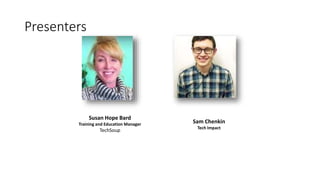
Presenters
Susan Hope Bard
Training and Education Manager
TechSoup
Sam Chenkin
Tech Impact
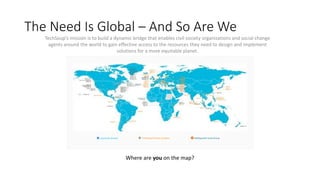
The Need Is Global – And So Are We
TechSoup’s mission is to build a dynamic bridge that enables civil society organizations and social change
agents around the world to gain effective access to the resources they need to design and implement
solutions for a more equitable planet.
Countries Served TechSoup Partner Location NetSquared Local Group
Where are you on the map?
How Nonprofits Can Be
Compliant with the
Microsoft Cloud
DIRECTOR OF CONSULTING SERVICES
Sam Chenkin
As Director of Technology Services, I oversee our consulting staff as they
help nonprofits focus on their mission. Our team supports hundreds of
nonprofits every year as they make decisions about their technology
strategy, build data systems, and understand their data.
When I’m not at Tech Impact I’m cooking, traveling, or singing rather
poorly.
sam@techimpact.org
What We’reTalking AboutToday
• Everyone throws around the word compliance but how do
you actually achieve that? In this free, 60-minute webinar
we’ll discuss achievable goals for the nonprofit community to
keep their data safe with the Microsoft Cloud. We’ll explore
account security like two-factor authentication, data security
like encryption, and how to make sure only compliant devices
can access your data.
7
About Security & Compliance
• We are not lawyers
• We do not pretend to be lawyers
• We do not even play lawyers on TV
• Under no circumstances should you
take what we say as legal advice
• Got it?
• Good.
Now the Dirt
• Most compliance isn’t about the technology, it’s about how you use
the technology
• Most “compliance” technology is about enforcing compliance rather
than being in compliance in the first place
• You need to decide how important enforcement is
The Sad Truth
• You definitely aren’t in compliance now unless you have staff dedicated to
it.
• Are you?
• Enforcing password expiration, complexity, re-use, and sharing?
• Have an IDP device doing packet inspection?
• Monitoring security logs regularly
and taking action on events?
• Have credit card data on a
physical separate network?
• Keeping and monitoring file audit logs including file access?
• Keeping all client-related data in a restricted location?
• Encrypting all devices with sensitive data, particularly
when out of the office?
• Using two factor authentication for remote access?
• Documenting your data and know everywhere
it is stored, how it is stored and how it is transported
What to look for
• Most nonprofits deal with one of a few basic standards
• HITECH/HIPPA: patient data
• PCI: financial transaction data
• FERPA: student data
• COPPA: interactions with minors
• FISMA: governmental data
• Sarbanes-Oxley / Gramm-Leach-Bliley: financial data
• Contractual obligations from partners and funders (e.g. government)
• Check out this super old article: https://technet.microsoft.com/en-
us/magazine/2006.09.businessofit.aspx
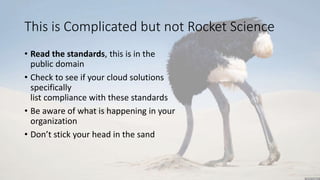
This is Complicated but not Rocket Science
• Read the standards, this is in the
public domain
• Check to see if your cloud solutions
specifically
list compliance with these standards
• Be aware of what is happening in your
organization
• Don’t stick your head in the sand
What to think about
• These standards for the most part cover a few basic things
• Physical Security of equipment with data
• Access to Data by internal staff and external actors
• Logging & Auditing of the use of technologies
• Monitoring & Detecting of misuse and intrusions
• Retention of sensitive records
• Notification of breach
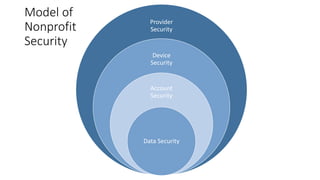
Provider
Security
Device
Security
Account
Security
Data Security
Model of
Nonprofit
Security
Provider Security is a Checkbox
• ISO 27001: Evaluates compliance with
information security standards
• SSAE 16 / SOC 1: Does the design of a system live
up to what the vendor promises?
• SOC 2: Does the design and operation of a
system live up to what the vendor promises?
• Very, very, very boring standards for information
security. Your cloud vendor should have at least
SSAE16 / SOC 1
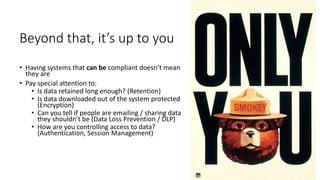
Beyond that, it’s up to you
• Having systems that can be compliant doesn’t mean
they are
• Pay special attention to:
• Is data retained long enough? (Retention)
• Is data downloaded out of the system protected
(Encryption)
• Can you tell if people are emailing / sharing data
they shouldn’t be (Data Loss Prevention / DLP)
• How are you controlling access to data?
(Authentication, Session Management)
How Can The Microsoft Cloud Help?
Microsoft Handles Platform Security
• Office 365, if properly implemented, is HIPPA,
PCI, FERPA, COPPA, etc compliant
• It is independently audited for FISMA, SOC2 Type
II, Safe Harbor, SSAE16 SOC1 Type II, ISO 27018,
ISO 27001
• What does this mean? To get your data someone
would have to compromise your accounts or take
data when it’s sitting somewhere less secure than
Office 365 (your computer or sent via email)
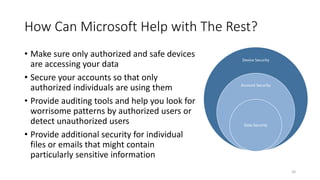
How Can Microsoft Help with The Rest?
• Make sure only authorized and safe devices
are accessing your data
• Secure your accounts so that only
authorized individuals are using them
• Provide auditing tools and help you look for
worrisome patterns by authorized users or
detect unauthorized users
• Provide additional security for individual
files or emails that might contain
particularly sensitive information
20
Device Security
Account Security
Data Security
Where to Start?
Low Hanging Fruit
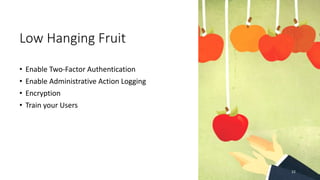
• Enable Two-Factor Authentication
• Enable Administrative Action Logging
• Encryption
• Train your Users
22
23
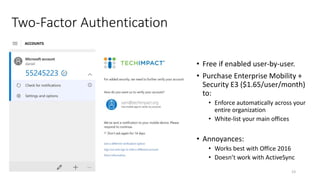
Two-Factor Authentication
• Free if enabled user-by-user.
• Purchase Enterprise Mobility +
Security E3 ($1.65/user/month)
to:
• Enforce automatically across your
entire organization
• White-list your main offices
• Annoyances:
• Works best with Office 2016
• Doesn’t work with ActiveSync
24
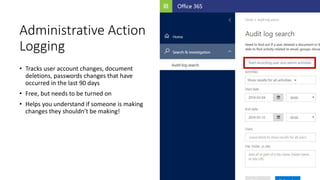
Administrative Action
Logging
• Tracks user account changes, document
deletions, passwords changes that have
occurred in the last 90 days
• Free, but needs to be turned on
• Helps you understand if someone is making
changes they shouldn’t be making!
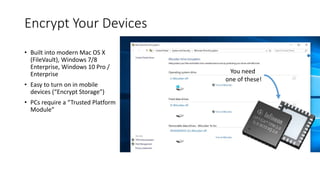
You need
one of these!
Encrypt Your Devices
• Built into modern Mac OS X
(FileVault), Windows 7/8
Enterprise, Windows 10 Pro /
Enterprise
• Easy to turn on in mobile
devices (“Encrypt Storage”)
• PCs require a “Trusted Platform
Module”
26
Train Your Users
• Have an acceptable use policy that outlines what is considered sensitive data and
how to properly handle it (email is not secure)
• Subscribe to a 3rd party training and Phishing simulator service to find out who is silly
enough to hand over their credentials and force them to learn more
(https://www.knowbe4.com/ has been recommended by my clients)
What’s Next
Advanced Security Tools Aren’t Free
• To go beyond the basics, you’ll need to make some investments
• Office 365 E3 licenses ($4.50/user/month) includes some important
tools that may be necessary if you want to maintain compliance with
HIPPA, PCI, and other standards. Everything in this section requires
this license.
28
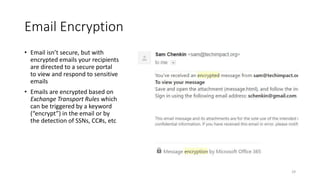
Email Encryption
• Email isn’t secure, but with
encrypted emails your recipients
are directed to a secure portal
to view and respond to sensitive
emails
• Emails are encrypted based on
Exchange Transport Rules which
can be triggered by a keyword
(“encrypt”) in the email or by
the detection of SSNs, CC#s, etc
29
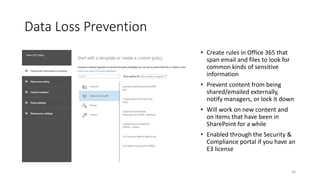
Data Loss Prevention
• Create rules in Office 365 that
span email and files to look for
common kinds of sensitive
information
• Prevent content from being
shared/emailed externally,
notify managers, or lock it down
• Will work on new content and
on items that have been in
SharePoint for a while
• Enabled through the Security &
Compliance portal if you have an
E3 license
30
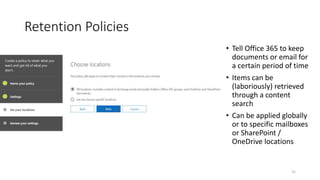
Retention Policies
• Tell Office 365 to keep
documents or email for
a certain period of time
• Items can be
(laboriously) retrieved
through a content
search
• Can be applied globally
or to specific mailboxes
or SharePoint /
OneDrive locations
31
Let’s Go Crazy
33
Single Sign-On
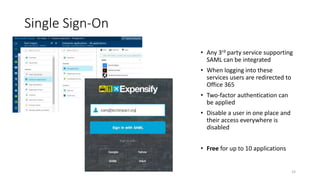
• Any 3rd party service supporting
SAML can be integrated
• When logging into these
services users are redirected to
Office 365
• Two-factor authentication can
be applied
• Disable a user in one place and
their access everywhere is
disabled
• Free for up to 10 applications
34
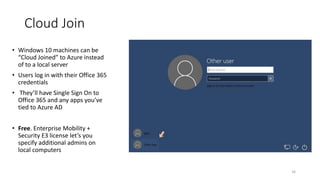
• Windows 10 machines can be
“Cloud Joined” to Azure instead
of to a local server
• Users log in with their Office 365
credentials
• They’ll have Single Sign On to
Office 365 and any apps you’ve
tied to Azure AD
• Free. Enterprise Mobility +
Security E3 license let’s you
specify additional admins on
local computers
Cloud Join
Conditional Access
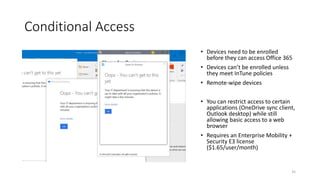
• Devices need to be enrolled
before they can access Office 365
• Devices can’t be enrolled unless
they meet InTune policies
• Remote-wipe devices
• You can restrict access to certain
applications (OneDrive sync client,
Outlook desktop) while still
allowing basic access to a web
browser
• Requires an Enterprise Mobility +
Security E3 license
($1.65/user/month)
35
36
File Classification
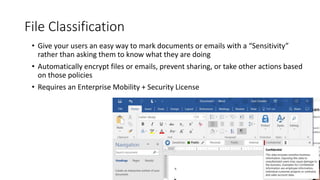
• Give your users an easy way to mark documents or emails with a “Sensitivity”
rather than asking them to know what they are doing
• Automatically encrypt files or emails, prevent sharing, or take other actions based
on those policies
• Requires an Enterprise Mobility + Security License
37
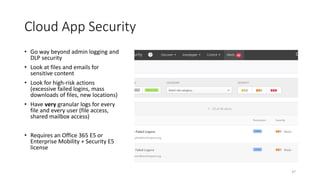
Cloud App Security
• Go way beyond admin logging and
DLP security
• Look at files and emails for
sensitive content
• Look for high-risk actions
(excessive failed logins, mass
downloads of files, new locations)
• Have very granular logs for every
file and every user (file access,
shared mailbox access)
• Requires an Office 365 E5 or
Enterprise Mobility + Security E5
license
Thank You!
Sam Chenkin – sam@techimpact.org
39
Questions?
. © TechSoup Global | All rights reserved40
Get Your TechSoup Courses!
. © TechSoup Global | All rights reserved41
Upcoming Webinars and Events
• 4/25: Tuesday Tech30: Adobe Illustrator
• 4/26: Lights, Camera, Advocacy to Action: Digital Storytelling
for Libraries
• Explore our webinar archives for more!
. © TechSoup Global | All rights reserved42
ReadyTalk offers dedicated product demos for
TechSoup organizations 4 times per week.
For more information: www.techsoup.org/readytalk
Please complete the post-event survey that will
pop up once you close this window.
Thank You to Our Webinar Sponsor!

Webinar - Compliance with the Microsoft Cloud- 2017-04-19

  • 1.
    How Nonprofits CanBe Compliant with the Microsoft Cloud With Sam Chenkin, Tech Impact April 19, 2017
  • 2.
    . © TechSoupGlobal | All rights reserved2 Using ReadyTalk • Chat to ask questions • If you lose your Internet connection, reconnect using the link emailed to you. • Your audio will play through your computer’s speakers. Hear an echo? You may be logged in twice and will need to close one instance of ReadyTalk • This webinar will be available on the TechSoup website along with past webinars: www.techsoup.org/community/events-webinars • You can also view recorded webinars and videos on our YouTube channel: https://www.youtube.com/TechSoupVideo • Follow up email • Tweet us @TechSoup or using hashtag: #tswebinars
  • 3.
    Presenters Susan Hope Bard Trainingand Education Manager TechSoup Sam Chenkin Tech Impact
  • 4.
    The Need IsGlobal – And So Are We TechSoup’s mission is to build a dynamic bridge that enables civil society organizations and social change agents around the world to gain effective access to the resources they need to design and implement solutions for a more equitable planet. Countries Served TechSoup Partner Location NetSquared Local Group Where are you on the map?
  • 5.
    How Nonprofits CanBe Compliant with the Microsoft Cloud
  • 6.
    DIRECTOR OF CONSULTINGSERVICES Sam Chenkin As Director of Technology Services, I oversee our consulting staff as they help nonprofits focus on their mission. Our team supports hundreds of nonprofits every year as they make decisions about their technology strategy, build data systems, and understand their data. When I’m not at Tech Impact I’m cooking, traveling, or singing rather poorly. sam@techimpact.org
  • 7.
    What We’reTalking AboutToday •Everyone throws around the word compliance but how do you actually achieve that? In this free, 60-minute webinar we’ll discuss achievable goals for the nonprofit community to keep their data safe with the Microsoft Cloud. We’ll explore account security like two-factor authentication, data security like encryption, and how to make sure only compliant devices can access your data. 7
  • 8.
    About Security &Compliance
  • 9.
    • We arenot lawyers • We do not pretend to be lawyers • We do not even play lawyers on TV • Under no circumstances should you take what we say as legal advice • Got it? • Good.
  • 10.
    Now the Dirt •Most compliance isn’t about the technology, it’s about how you use the technology • Most “compliance” technology is about enforcing compliance rather than being in compliance in the first place • You need to decide how important enforcement is
  • 11.
    The Sad Truth •You definitely aren’t in compliance now unless you have staff dedicated to it. • Are you? • Enforcing password expiration, complexity, re-use, and sharing? • Have an IDP device doing packet inspection? • Monitoring security logs regularly and taking action on events? • Have credit card data on a physical separate network? • Keeping and monitoring file audit logs including file access? • Keeping all client-related data in a restricted location? • Encrypting all devices with sensitive data, particularly when out of the office? • Using two factor authentication for remote access? • Documenting your data and know everywhere it is stored, how it is stored and how it is transported
  • 12.
    What to lookfor • Most nonprofits deal with one of a few basic standards • HITECH/HIPPA: patient data • PCI: financial transaction data • FERPA: student data • COPPA: interactions with minors • FISMA: governmental data • Sarbanes-Oxley / Gramm-Leach-Bliley: financial data • Contractual obligations from partners and funders (e.g. government) • Check out this super old article: https://technet.microsoft.com/en- us/magazine/2006.09.businessofit.aspx
  • 13.
    This is Complicatedbut not Rocket Science • Read the standards, this is in the public domain • Check to see if your cloud solutions specifically list compliance with these standards • Be aware of what is happening in your organization • Don’t stick your head in the sand
  • 14.
    What to thinkabout • These standards for the most part cover a few basic things • Physical Security of equipment with data • Access to Data by internal staff and external actors • Logging & Auditing of the use of technologies • Monitoring & Detecting of misuse and intrusions • Retention of sensitive records • Notification of breach
  • 15.
  • 16.
    Provider Security isa Checkbox • ISO 27001: Evaluates compliance with information security standards • SSAE 16 / SOC 1: Does the design of a system live up to what the vendor promises? • SOC 2: Does the design and operation of a system live up to what the vendor promises? • Very, very, very boring standards for information security. Your cloud vendor should have at least SSAE16 / SOC 1
  • 17.
    Beyond that, it’sup to you • Having systems that can be compliant doesn’t mean they are • Pay special attention to: • Is data retained long enough? (Retention) • Is data downloaded out of the system protected (Encryption) • Can you tell if people are emailing / sharing data they shouldn’t be (Data Loss Prevention / DLP) • How are you controlling access to data? (Authentication, Session Management)
  • 18.
    How Can TheMicrosoft Cloud Help?
  • 19.
    Microsoft Handles PlatformSecurity • Office 365, if properly implemented, is HIPPA, PCI, FERPA, COPPA, etc compliant • It is independently audited for FISMA, SOC2 Type II, Safe Harbor, SSAE16 SOC1 Type II, ISO 27018, ISO 27001 • What does this mean? To get your data someone would have to compromise your accounts or take data when it’s sitting somewhere less secure than Office 365 (your computer or sent via email)
  • 20.
    How Can MicrosoftHelp with The Rest? • Make sure only authorized and safe devices are accessing your data • Secure your accounts so that only authorized individuals are using them • Provide auditing tools and help you look for worrisome patterns by authorized users or detect unauthorized users • Provide additional security for individual files or emails that might contain particularly sensitive information 20 Device Security Account Security Data Security
  • 21.
  • 22.
    Low Hanging Fruit •Enable Two-Factor Authentication • Enable Administrative Action Logging • Encryption • Train your Users 22
  • 23.
    23 Two-Factor Authentication • Freeif enabled user-by-user. • Purchase Enterprise Mobility + Security E3 ($1.65/user/month) to: • Enforce automatically across your entire organization • White-list your main offices • Annoyances: • Works best with Office 2016 • Doesn’t work with ActiveSync
  • 24.
    24 Administrative Action Logging • Tracksuser account changes, document deletions, passwords changes that have occurred in the last 90 days • Free, but needs to be turned on • Helps you understand if someone is making changes they shouldn’t be making!
  • 25.
    You need one ofthese! Encrypt Your Devices • Built into modern Mac OS X (FileVault), Windows 7/8 Enterprise, Windows 10 Pro / Enterprise • Easy to turn on in mobile devices (“Encrypt Storage”) • PCs require a “Trusted Platform Module”
  • 26.
    26 Train Your Users •Have an acceptable use policy that outlines what is considered sensitive data and how to properly handle it (email is not secure) • Subscribe to a 3rd party training and Phishing simulator service to find out who is silly enough to hand over their credentials and force them to learn more (https://www.knowbe4.com/ has been recommended by my clients)
  • 27.
  • 28.
    Advanced Security ToolsAren’t Free • To go beyond the basics, you’ll need to make some investments • Office 365 E3 licenses ($4.50/user/month) includes some important tools that may be necessary if you want to maintain compliance with HIPPA, PCI, and other standards. Everything in this section requires this license. 28
  • 29.
    Email Encryption • Emailisn’t secure, but with encrypted emails your recipients are directed to a secure portal to view and respond to sensitive emails • Emails are encrypted based on Exchange Transport Rules which can be triggered by a keyword (“encrypt”) in the email or by the detection of SSNs, CC#s, etc 29
  • 30.
    Data Loss Prevention •Create rules in Office 365 that span email and files to look for common kinds of sensitive information • Prevent content from being shared/emailed externally, notify managers, or lock it down • Will work on new content and on items that have been in SharePoint for a while • Enabled through the Security & Compliance portal if you have an E3 license 30
  • 31.
    Retention Policies • TellOffice 365 to keep documents or email for a certain period of time • Items can be (laboriously) retrieved through a content search • Can be applied globally or to specific mailboxes or SharePoint / OneDrive locations 31
  • 32.
  • 33.
    33 Single Sign-On • Any3rd party service supporting SAML can be integrated • When logging into these services users are redirected to Office 365 • Two-factor authentication can be applied • Disable a user in one place and their access everywhere is disabled • Free for up to 10 applications
  • 34.
    34 • Windows 10machines can be “Cloud Joined” to Azure instead of to a local server • Users log in with their Office 365 credentials • They’ll have Single Sign On to Office 365 and any apps you’ve tied to Azure AD • Free. Enterprise Mobility + Security E3 license let’s you specify additional admins on local computers Cloud Join
  • 35.
    Conditional Access • Devicesneed to be enrolled before they can access Office 365 • Devices can’t be enrolled unless they meet InTune policies • Remote-wipe devices • You can restrict access to certain applications (OneDrive sync client, Outlook desktop) while still allowing basic access to a web browser • Requires an Enterprise Mobility + Security E3 license ($1.65/user/month) 35
  • 36.
    36 File Classification • Giveyour users an easy way to mark documents or emails with a “Sensitivity” rather than asking them to know what they are doing • Automatically encrypt files or emails, prevent sharing, or take other actions based on those policies • Requires an Enterprise Mobility + Security License
  • 37.
    37 Cloud App Security •Go way beyond admin logging and DLP security • Look at files and emails for sensitive content • Look for high-risk actions (excessive failed logins, mass downloads of files, new locations) • Have very granular logs for every file and every user (file access, shared mailbox access) • Requires an Office 365 E5 or Enterprise Mobility + Security E5 license
  • 38.
    Thank You! Sam Chenkin– sam@techimpact.org
  • 39.
  • 40.
    . © TechSoupGlobal | All rights reserved40 Get Your TechSoup Courses!
  • 41.
    . © TechSoupGlobal | All rights reserved41 Upcoming Webinars and Events • 4/25: Tuesday Tech30: Adobe Illustrator • 4/26: Lights, Camera, Advocacy to Action: Digital Storytelling for Libraries • Explore our webinar archives for more!
  • 42.
    . © TechSoupGlobal | All rights reserved42 ReadyTalk offers dedicated product demos for TechSoup organizations 4 times per week. For more information: www.techsoup.org/readytalk Please complete the post-event survey that will pop up once you close this window. Thank You to Our Webinar Sponsor!

Editor's Notes

  • #2 Welcome everyone to: Title Thanks so much for joining us today.
  • #3 Before we get started I want to make sure everyone is comfortable using Readytalk, the webinar platform we are using today. You can chat using the box in the lower left side of your screen. At any time let us know if you have any technical issues such as audio problems or being able to view the slides. You may ask questions for our presenters at any time and we will keep track of them. We will keep all lines muted so that you can get a clear recording to refer to later. You will get that full recording, slides, and any links we share today in a followup email from me by tomorrow. If you lose your connection, you can go back to your registration email to reconnect. If you were registered more than an hour ago, the reminder email has the PowerPoint slide deck attached as a link in the right hand column. Keep in mind a lot of today’s webinar will be a live shared demo so that won’t be in the slides, but will be in the recording to view later. If you are hearing an echo, you may be logged in twice, so you will need to close one of the Readytalk windows. If you have any other technical issues, dial into the 800 number.
  • #5 TechSoup doesn’t just help NGOs overcome barriers to effective use of technology. We also help NGOs overcome language, economic, geographic, cultural, knowledge, and access barriers. We create new ways to access technology, new paths to connect and network, and new means to learn and develop skills — all so that NGOs can operate at their full potential, more effectively deliver their programs and services, and better achieve their missions.
  • #16 Security should be comprised of many layers. It’s important to think about all of them! - We start with transport / provider security. Are the underlying tools you use keeping your data safe from physical access and your data being accessed while in transit. - Now we know that data with your provider is safe, but is it safe on your local devices? Are your devices secured in case they are lost or stolen? - Moving inward we get the Account security. Are our usernames and passwords secure? Can a user just log in as one of us? - Lastly, and most difficulty, is our data safe. Separate from our accounts, do we know where our sensitive data is and who has access?
  • #24 Most importantly, you can turn on two-factor authentication
  • #25 Most importantly, you can turn on two-factor authentication
  • #26 Bitlocker is built into Windows 7/8 Enterprise and Windows 10 Pro or Enterprise. Just click “Turn on Bitlocker.” With this physical access to the device isn’t enough. You need a TPM – trusted platform module – chip which doesn’t add any cost but needs to already be in your machine. For most modern business computers it’s included, but don’t buy a new machine without checking to make sure it has a TPM! There isn’t a good way to encrypt computers without it.
  • #27 Most importantly, you can turn on two-factor authentication
  • #34 You can tend extend these protections to most business applications using the SAML protocol
  • #35 The most obvious benefit is being able to log into your computer with Azure AD. If you enable this in the Office 365 management console your users can join their computers to Azure AD. Then they’ll be able to log into their computers with their Office 365 username and password. Requires Windows 10 Pro or Enterprise
  • #37 With Office 365 you can classify individual files and emails with an easy to understand classification level. This then drives file-based encryption and other tools. You can prevent files marked sensitive from being emailed, or use in-place encryption to protect files that have highly sensitive. Files protected in this way can’t be accessed even if they are lost.
  • #38 With Office 365 you can classify individual files and emails with an easy to understand classification level. This then drives file-based encryption and other tools. You can prevent files marked sensitive from being emailed, or use in-place encryption to protect files that have highly sensitive. Files protected in this way can’t be accessed even if they are lost.
  • #43 42