Veritas™ File System
Administrator's Guide
HP-UX 11i v3
5.1 Service Pack 1
Veritas File System Administrator's Guide
The software described in this book is furnished under a license agreement and may be used
only in accordance with the terms of the agreement.
Product version: 5.1 SP1
Document version: 5.1SP1.0
Legal Notice
Copyright © 2011 Symantec Corporation. All rights reserved.
Symantec, the Symantec logo, Veritas, Veritas Storage Foundation, CommandCentral,
NetBackup, Enterprise Vault, and LiveUpdate are trademarks or registered trademarks of
Symantec corporation or its affiliates in the U.S. and other countries. Other names may be
trademarks of their respective owners.
The product described in this document is distributed under licenses restricting its use,
copying, distribution, and decompilation/reverse engineering. No part of this document
may be reproduced in any form by any means without prior written authorization of
Symantec Corporation and its licensors, if any.
THEDOCUMENTATIONISPROVIDED"ASIS"ANDALLEXPRESSORIMPLIEDCONDITIONS,
REPRESENTATIONS AND WARRANTIES, INCLUDING ANY IMPLIED WARRANTY OF
MERCHANTABILITY, FITNESS FOR A PARTICULAR PURPOSE OR NON-INFRINGEMENT,
ARE DISCLAIMED, EXCEPT TO THE EXTENT THAT SUCH DISCLAIMERS ARE HELD TO
BELEGALLYINVALID.SYMANTECCORPORATIONSHALLNOTBELIABLEFORINCIDENTAL
OR CONSEQUENTIAL DAMAGES IN CONNECTION WITH THE FURNISHING,
PERFORMANCE, OR USE OF THIS DOCUMENTATION. THE INFORMATION CONTAINED
IN THIS DOCUMENTATION IS SUBJECT TO CHANGE WITHOUT NOTICE.
The Licensed Software and Documentation are deemed to be commercial computer software
as defined in FAR 12.212 and subject to restricted rights as defined in FAR Section 52.227-19
"Commercial Computer Software - Restricted Rights" and DFARS 227.7202, "Rights in
Commercial Computer Software or Commercial Computer Software Documentation", as
applicable, and any successor regulations. Any use, modification, reproduction release,
performance, display or disclosure of the Licensed Software and Documentation by the U.S.
Government shall be solely in accordance with the terms of this Agreement.
Symantec Corporation
350 Ellis Street
Mountain View, CA 94043
http://www.symantec.com
Technical Support
Symantec Technical Support maintains support centers globally. Technical
Support’s primary role is to respond to specific queries about product features
and functionality. The Technical Support group also creates content for our online
Knowledge Base. The Technical Support group works collaboratively with the
other functional areas within Symantec to answer your questions in a timely
fashion. For example, the Technical Support group works with Product Engineering
and Symantec Security Response to provide alerting services and virus definition
updates.
Symantec’s support offerings include the following:
■ A range of support options that give you the flexibility to select the right
amount of service for any size organization
■ Telephone and/or Web-based support that provides rapid response and
up-to-the-minute information
■ Upgrade assurance that delivers software upgrades
■ Global support purchased on a regional business hours or 24 hours a day, 7
days a week basis
■ Premium service offerings that include Account Management Services
For information about Symantec’s support offerings, you can visit our Web site
at the following URL:
www.symantec.com/business/support/index.jsp
All support services will be delivered in accordance with your support agreement
and the then-current enterprise technical support policy.
Contacting Technical Support
Customers with a current support agreement may access Technical Support
information at the following URL:
www.symantec.com/business/support/contact_techsupp_static.jsp
Before contacting Technical Support, make sure you have satisfied the system
requirements that are listed in your product documentation. Also, you should be
at the computer on which the problem occurred, in case it is necessary to replicate
the problem.
When you contact Technical Support, please have the following information
available:
■ Product release level
■ Hardware information
■ Available memory, disk space, and NIC information
■ Operating system
■ Version and patch level
■ Network topology
■ Router, gateway, and IP address information
■ Problem description:
■ Error messages and log files
■ Troubleshooting that was performed before contacting Symantec
■ Recent software configuration changes and network changes
Licensing and registration
If your Symantec product requires registration or a license key, access our technical
support Web page at the following URL:
www.symantec.com/business/support/
Customer service
Customer service information is available at the following URL:
www.symantec.com/business/support/
Customer Service is available to assist with non-technical questions, such as the
following types of issues:
■ Questions regarding product licensing or serialization
■ Product registration updates, such as address or name changes
■ General product information (features, language availability, local dealers)
■ Latest information about product updates and upgrades
■ Information about upgrade assurance and support contracts
■ Information about the Symantec Buying Programs
■ Advice about Symantec's technical support options
■ Nontechnical presales questions
■ Issues that are related to CD-ROMs or manuals
Support agreement resources
If you want to contact Symantec regarding an existing support agreement, please
contact the support agreement administration team for your region as follows:
customercare_apac@symantec.comAsia-Pacific and Japan
semea@symantec.comEurope, Middle-East, and Africa
supportsolutions@symantec.comNorth America and Latin America
Documentation
Your feedback on product documentation is important to us. Send suggestions
for improvements and reports on errors or omissions. Include the title and
document version (located on the second page), and chapter and section titles of
the text on which you are reporting. Send feedback to:
docs@symantec.com
About Symantec Connect
Symantec Connect is the peer-to-peer technical community site for Symantec’s
enterprise customers. Participants can connect and share information with other
product users, including creating forum posts, articles, videos, downloads, blogs
and suggesting ideas, as well as interact with Symantec product teams and
Technical Support. Content is rated by the community, and members receive
reward points for their contributions.
http://www.symantec.com/connect/storage-management
Technical Support ............................................................................................... 4
Chapter 1 Introducing Veritas File System ....................................... 15
About Veritas File System .............................................................. 15
Logging ................................................................................ 16
Extents ................................................................................ 16
File system disk layouts ........................................................... 16
Veritas File System features ........................................................... 17
Extent-based allocation ........................................................... 19
Extent attributes .................................................................... 20
Fast file system recovery ......................................................... 21
Extended mount options .......................................................... 22
Enhanced data integrity modes ................................................. 22
Enhanced performance mode ................................................... 23
Temporary file system mode .................................................... 24
Improved synchronous writes .................................................. 24
Support for large files ............................................................. 24
Access Control Lists ................................................................ 24
Storage Checkpoints ............................................................... 24
FileSnaps .............................................................................. 25
Quotas ................................................................................. 25
Support for databases ............................................................. 25
Cluster file systems ................................................................ 26
Cross-platform data sharing ..................................................... 26
File Change Log ..................................................................... 27
Multi-volume support ............................................................. 27
SmartTier ............................................................................. 27
Thin Reclamation of a file system ............................................. 27
Partitioned directories ............................................................ 28
Veritas File System performance enhancements ................................ 28
About enhanced I/O performance .............................................. 29
Using Veritas File System .............................................................. 30
Veritas Operations Manager ..................................................... 30
Online system administration .................................................. 30
Application program interface .................................................. 31
Contents
Chapter 2 VxFS performance: creating, mounting, and tuning
file systems ..................................................................... 33
Creating a VxFS file system ............................................................ 33
Block size ............................................................................. 34
Intent log size ........................................................................ 34
Mounting a VxFS file system .......................................................... 35
The log mode ......................................................................... 36
The delaylog mode ................................................................. 36
The tmplog mode ................................................................... 36
The logiosize mode ................................................................. 37
The nodatainlog mode ............................................................ 37
The blkclear mode .................................................................. 38
The mincache mode ................................................................ 38
The convosync mode .............................................................. 39
The ioerror mode ................................................................... 40
The largefiles|nolargefiles option .............................................. 42
The cio option ....................................................................... 43
The mntlock|mntunlock option ................................................. 44
Combining mount command options ......................................... 44
Tuning the VxFS file system ........................................................... 45
Tuning inode table size ........................................................... 45
Tuning performance optimization of inode allocation ................... 47
VxFS buffer cache high water mark ........................................... 47
Number of links to a file .......................................................... 48
VxFS inode free time lag .......................................................... 48
Partitioned directories ............................................................ 49
Monitoring free space ................................................................... 49
Monitoring fragmentation ....................................................... 49
Thin Reclamation ................................................................... 51
Tuning I/O .................................................................................. 52
Tuning VxFS I/O parameters .................................................... 52
Tunable I/O parameters .......................................................... 53
File system tuning guidelines ................................................... 61
Chapter 3 Extent attributes ................................................................. 63
About extent attributes ................................................................. 63
Reservation: preallocating space to a file .................................... 64
Fixed extent size .................................................................... 64
Other controls ....................................................................... 65
Commands related to extent attributes ............................................ 66
Example of setting an extent attribute ....................................... 67
Example of getting an extent attribute ....................................... 67
Contents8
Failure to preserve extent attributes .......................................... 68
Chapter 4 Veritas File System I/O ....................................................... 69
About Veritas File System I/O ......................................................... 69
Buffered and Direct I/O ................................................................. 70
Direct I/O ............................................................................. 70
Unbuffered I/O ...................................................................... 71
Data synchronous I/O ............................................................. 72
Concurrent I/O ............................................................................ 72
Cache advisories .......................................................................... 73
Freezing and thawing a file system .................................................. 73
Getting the I/O size ...................................................................... 74
Enabling and disabling Concurrent I/O for a DB2 database ................... 74
Enabling Concurrent I/O ......................................................... 74
Disabling Concurrent I/O ......................................................... 76
Chapter 5 Quotas ................................................................................... 77
About quota limits ........................................................................ 77
About quota files on Veritas File System ........................................... 78
About quota commands ................................................................. 78
Using quotas ............................................................................... 78
Turning on quotas .................................................................. 79
Turning on quotas at mount time .............................................. 79
Editing user quotas ................................................................. 79
Modifying time limits ............................................................. 79
Viewing disk quotas and usage ................................................. 80
Displaying blocks owned by users ............................................. 80
Turning off quotas ................................................................. 80
Chapter 6 File Change Log ................................................................... 81
About File Change Log .................................................................. 81
About the File Change Log file ........................................................ 82
File Change Log administrative interface .......................................... 83
File Change Log programmatic interface .......................................... 85
Summary of API functions ............................................................. 87
Reverse path name lookup ............................................................. 88
Chapter 7 Multi-volume file systems ................................................. 89
About multi-volume support .......................................................... 89
About volume types ...................................................................... 90
Features implemented using multi-volume support ............................ 90
9Contents
Volume availability ................................................................ 91
About volume sets ........................................................................ 92
Creating and managing volume sets .......................................... 92
Creating multi-volume file systems ................................................. 93
Example of creating a multi-volume file system ........................... 94
Converting a single volume file system to a multi-volume file
system ................................................................................. 95
Adding a volume to and removing a volume from a multi-volume file
system ................................................................................. 96
Adding a volume to a multi-volume file system ............................ 96
Removing a volume from a multi-volume file system .................... 97
Forcibly removing a volume ..................................................... 97
Moving volume 0 ................................................................... 97
Volume encapsulation ................................................................... 98
Encapsulating a volume .......................................................... 98
Deencapsulating a volume ....................................................... 99
Reporting file extents .................................................................. 100
Examples of reporting file extents ........................................... 100
Load balancing ........................................................................... 101
Defining and assigning a load balancing allocation policy ............ 102
Rebalancing extents .............................................................. 102
Converting a multi-volume file system to a single volume file
system ................................................................................ 103
Converting to a single volume file system ................................. 103
Chapter 8 Using Veritas Extension for Oracle Disk
Manager ......................................................................... 105
About Oracle Disk Manager .......................................................... 105
How Oracle Disk Manager improves database performance .......... 107
About Oracle Disk Manager and Storage Foundation Cluster File
System ............................................................................... 108
About Oracle Disk Manager and Oracle Managed Files ...................... 109
How Oracle Disk Manager works with Oracle Managed Files ......... 109
Setting up Veritas Extension for Oracle Disk Manager ....................... 111
Linking the Veritas extension for Oracle Disk Manager library
into Oracle home ............................................................ 112
Preparing existing database storage for Oracle Disk Manager ............ 113
Converting Quick I/O files to Oracle Disk Manager files ..................... 113
Verifying that Oracle Disk Manager is configured ............................ 114
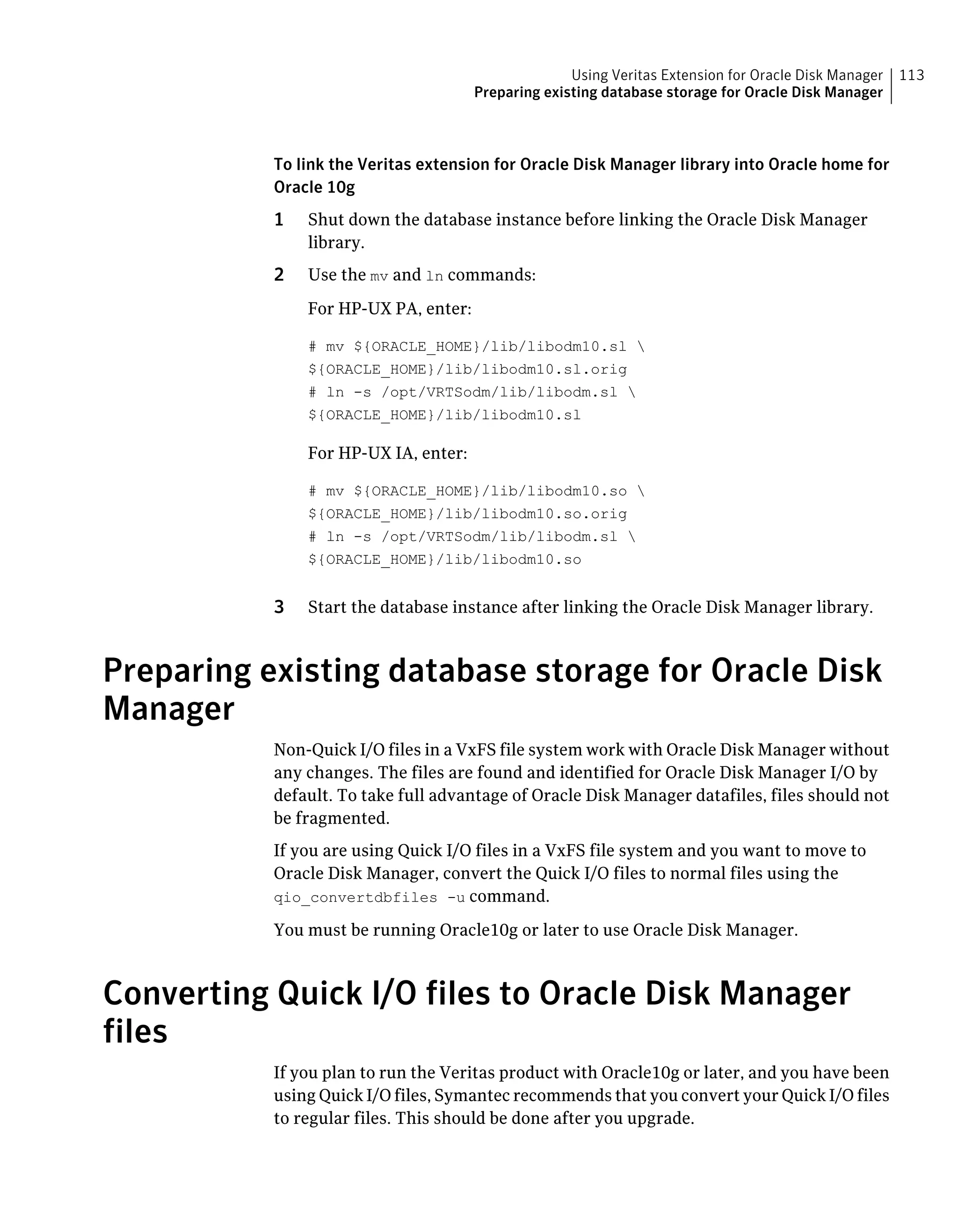
Disabling the Oracle Disk Manager feature ...................................... 116
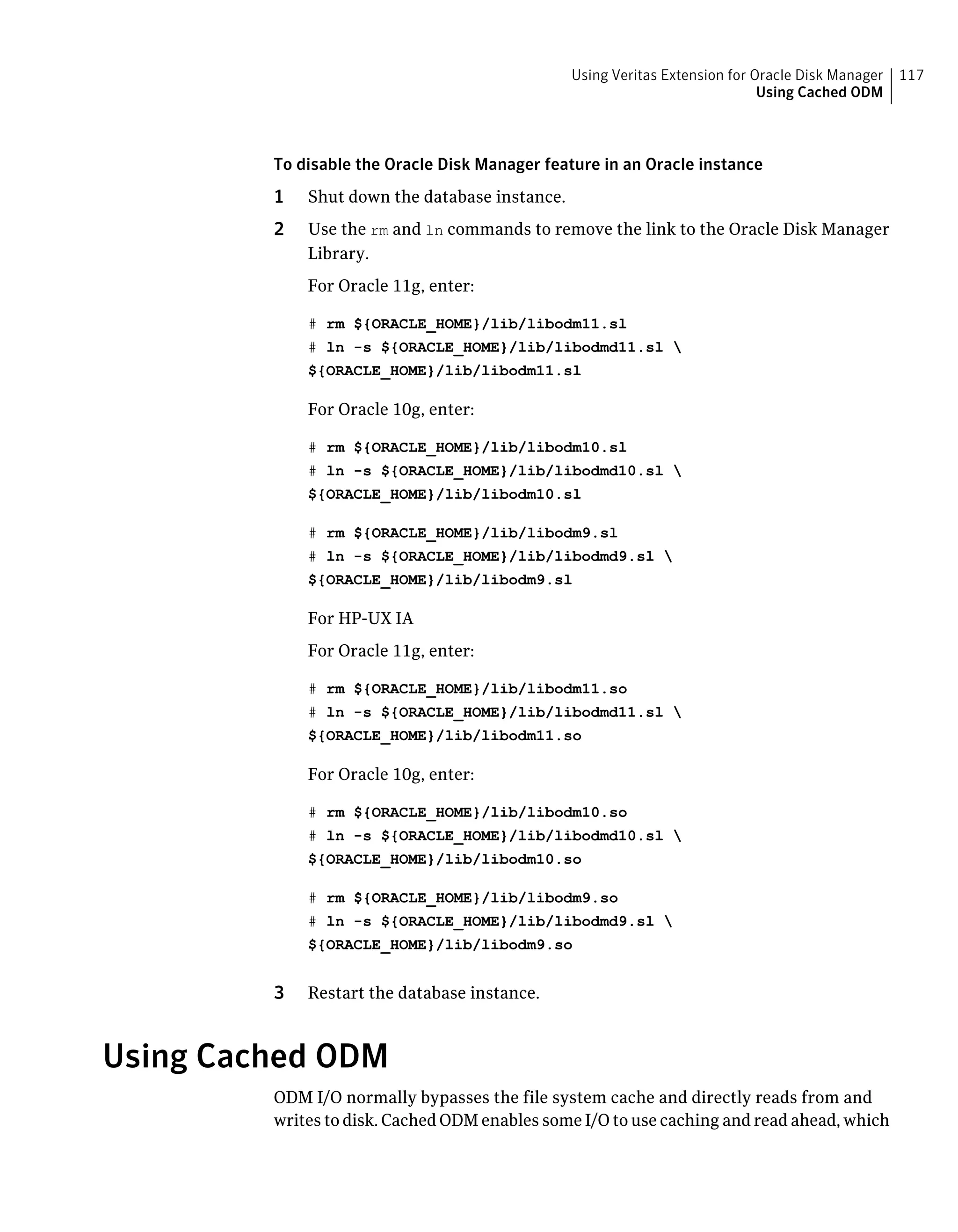
Using Cached ODM ..................................................................... 117
Enabling Cached ODM for file systems ..................................... 118
Contents10
Modifying Cached ODM settings for individual files .................... 118
Adding Cached ODM settings via the cachemap ......................... 119
Making the caching settings persistent across mounts ................ 120
Appendix A Quick Reference ................................................................. 121
Command summary .................................................................... 121
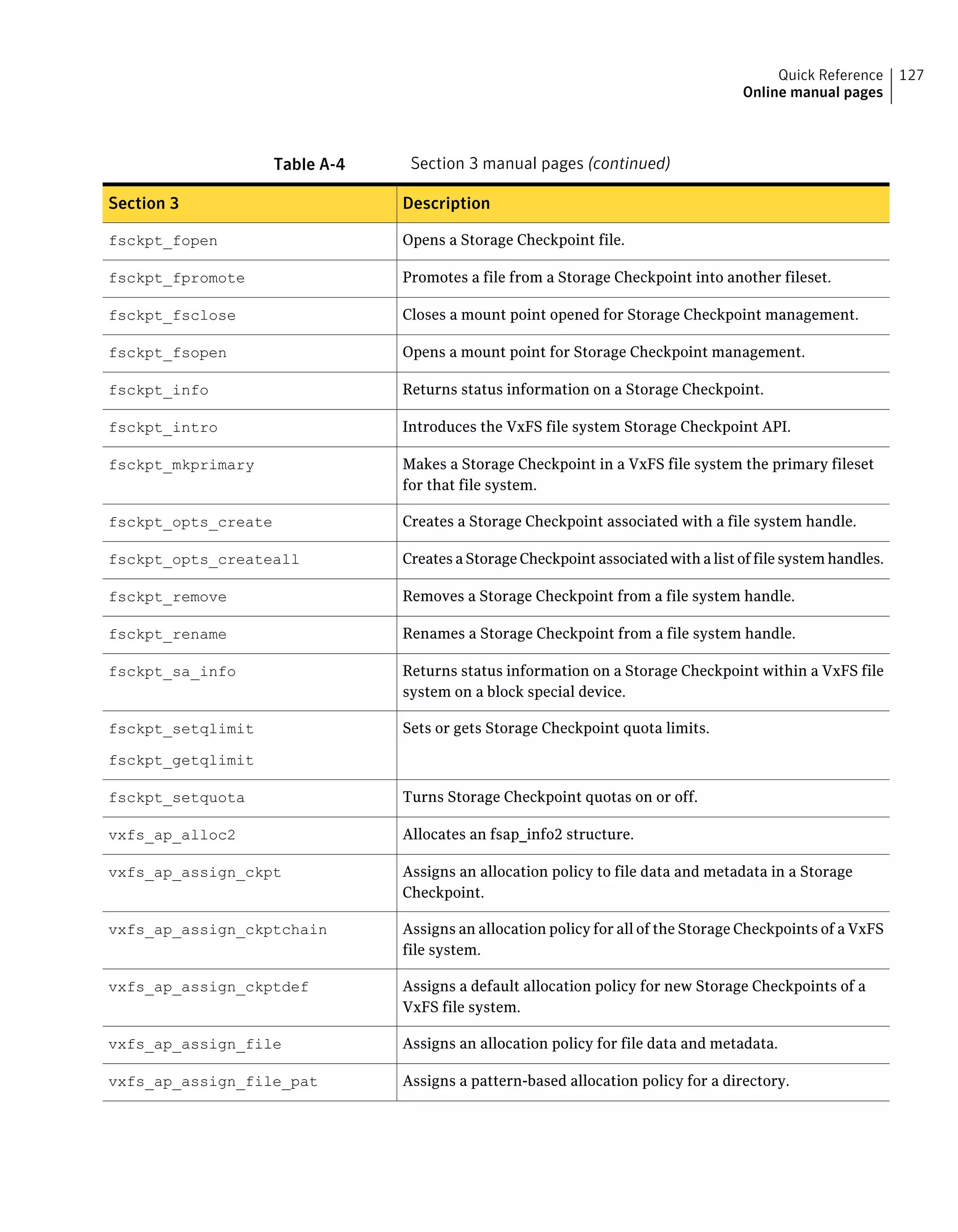
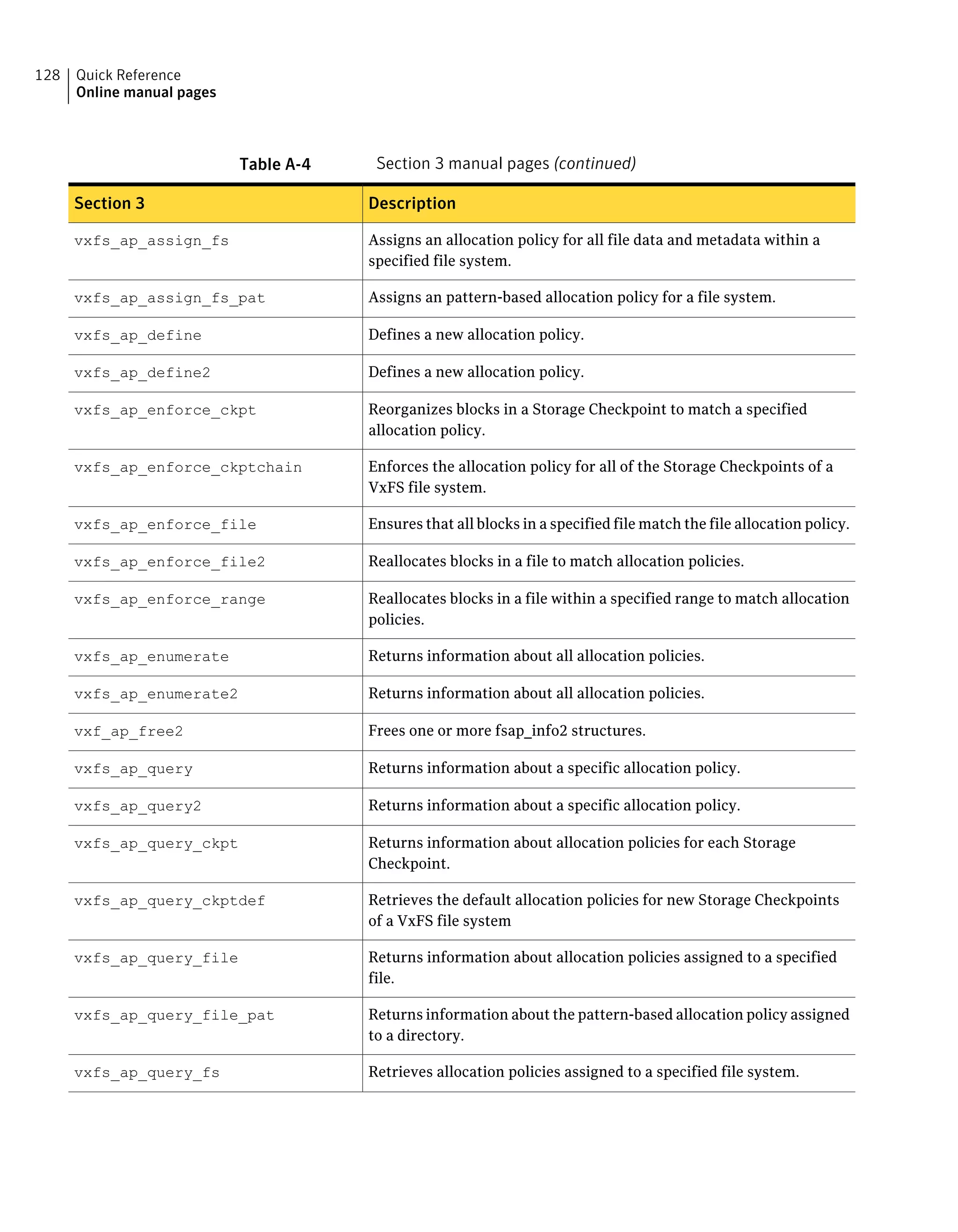
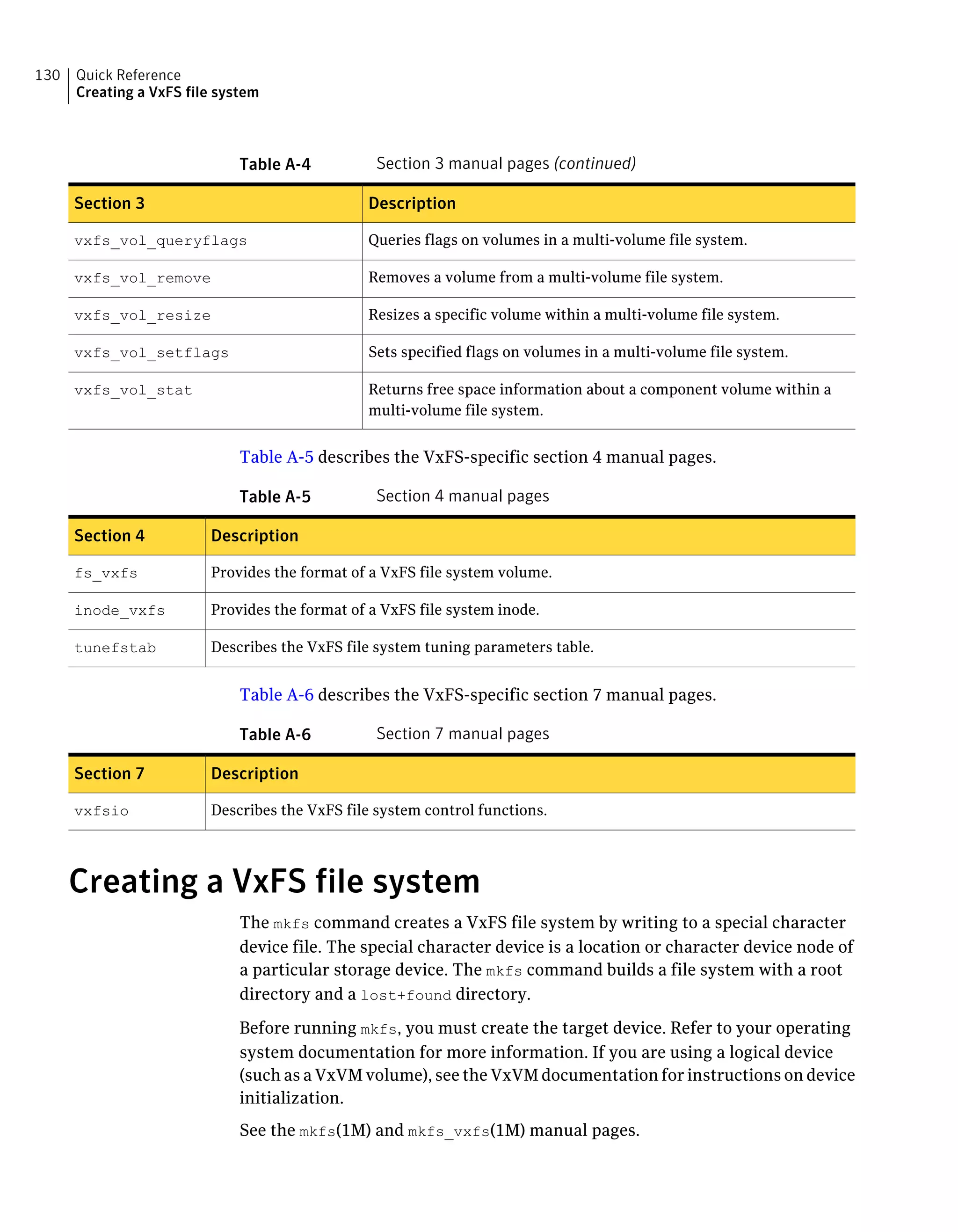
Online manual pages ................................................................... 124
Creating a VxFS file system .......................................................... 130
Example of creating a file system ............................................ 131
Converting a file system to VxFS ................................................... 132
Example of converting a file system ......................................... 132
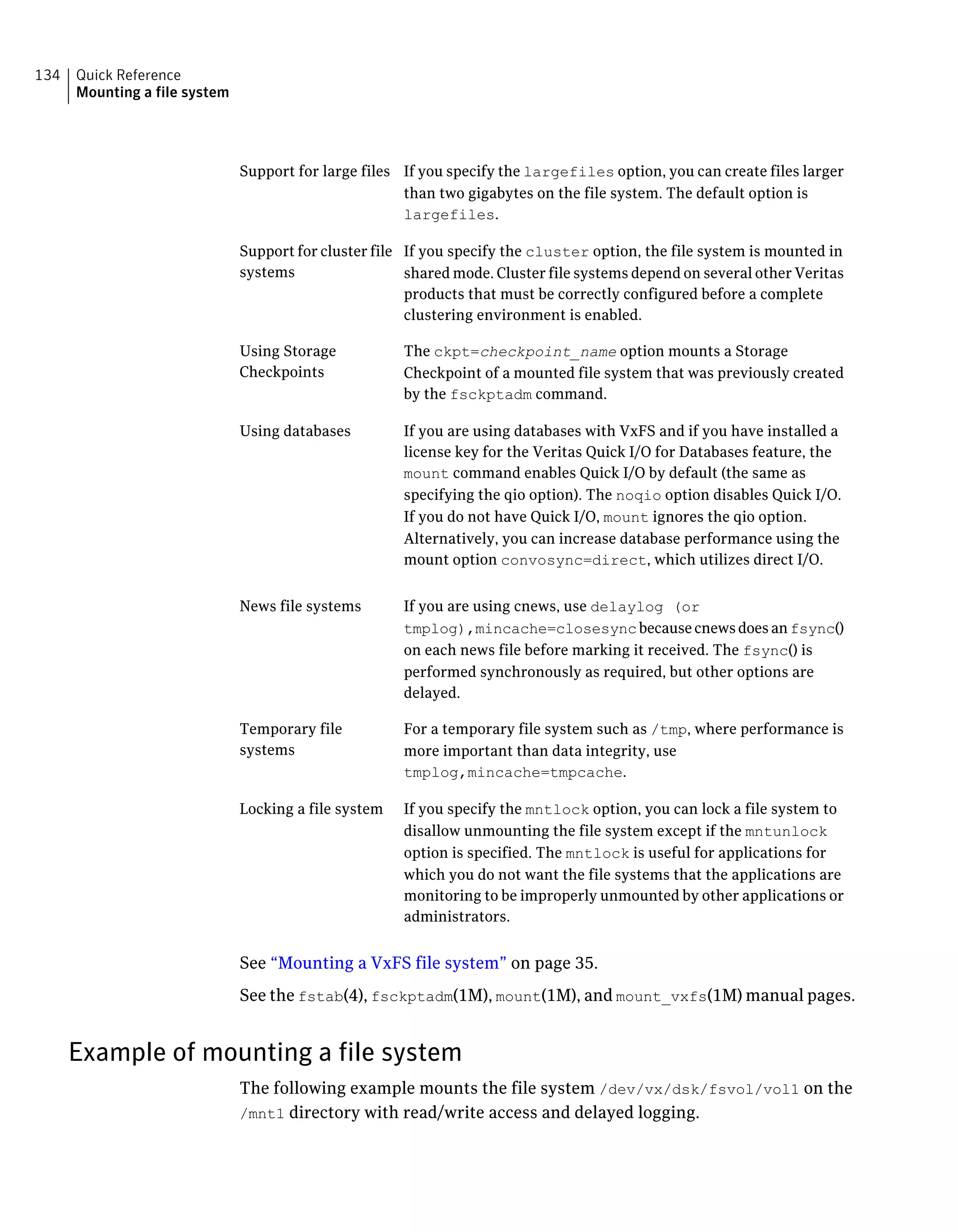
Mounting a file system ................................................................ 132
Mount options ..................................................................... 133
Example of mounting a file system .......................................... 134
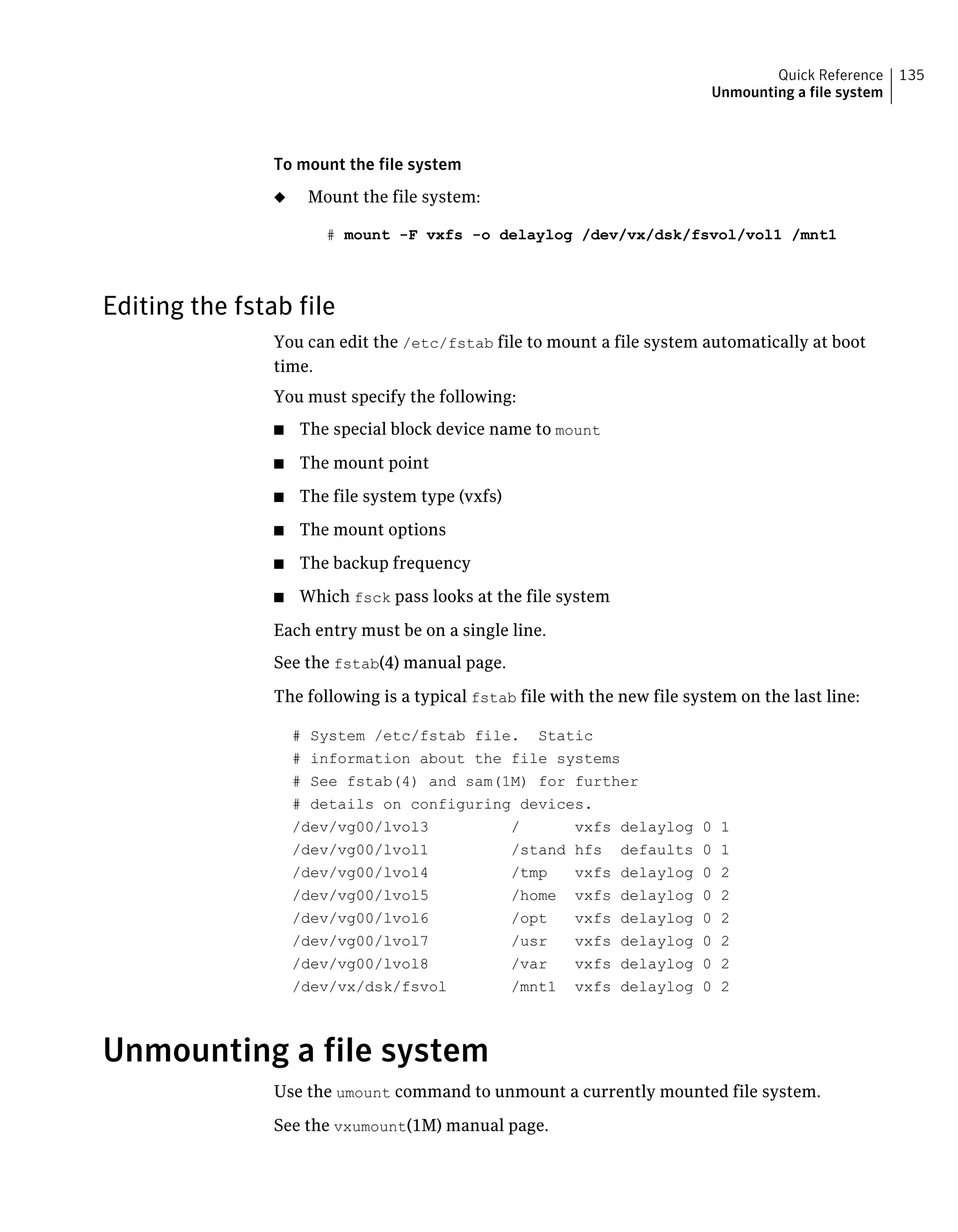
Editing the fstab file .............................................................. 135
Unmounting a file system ............................................................ 135
Example of unmounting a file system ....................................... 136
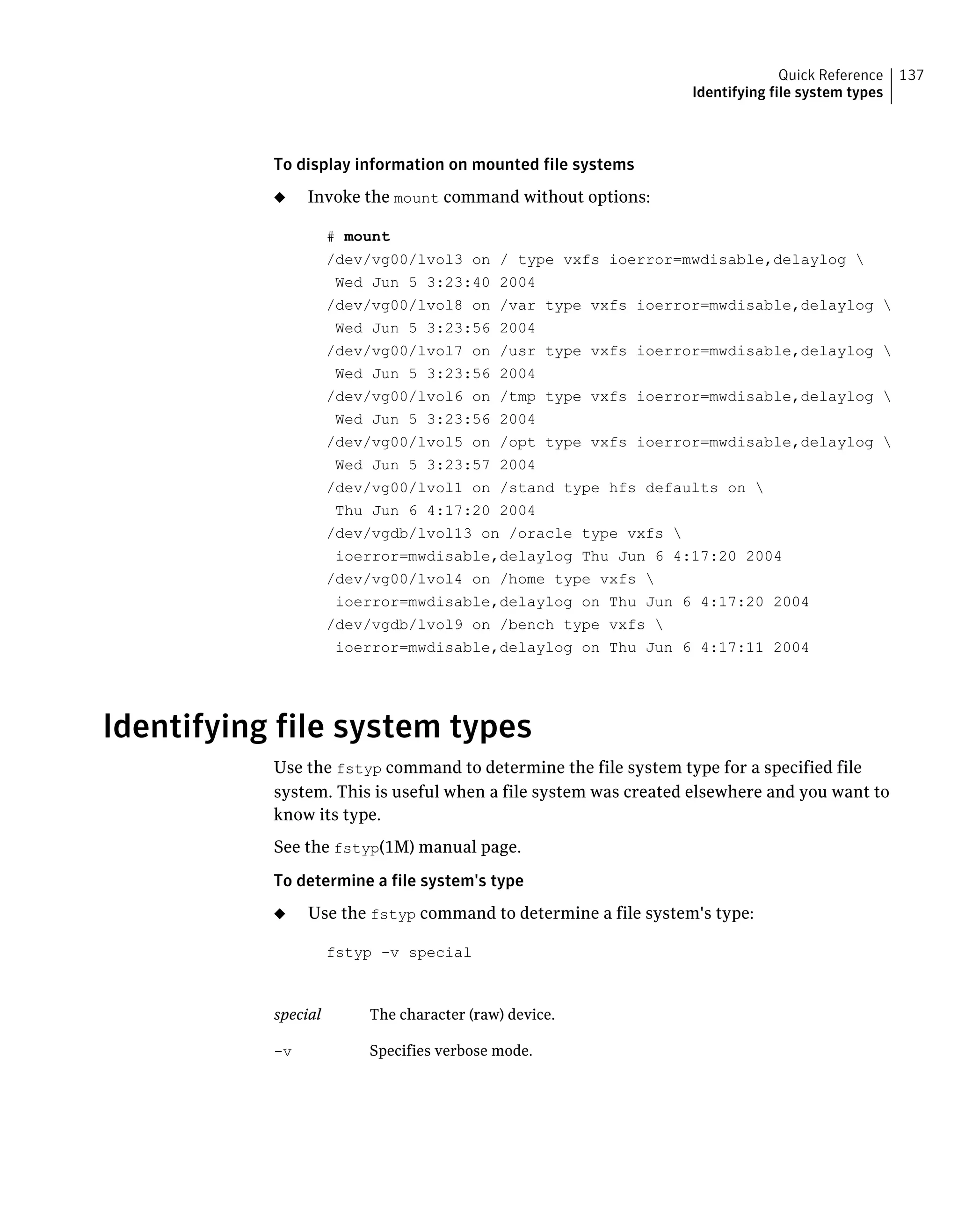
Displaying information on mounted file systems .............................. 136
Example of displaying information on mounted file
systems ........................................................................ 136
Identifying file system types ......................................................... 137
Example of determining a file system's type .............................. 138
Resizing a file system .................................................................. 138
Extending a file system using fsadm ........................................ 138
Shrinking a file system .......................................................... 139
Reorganizing a file system ..................................................... 140
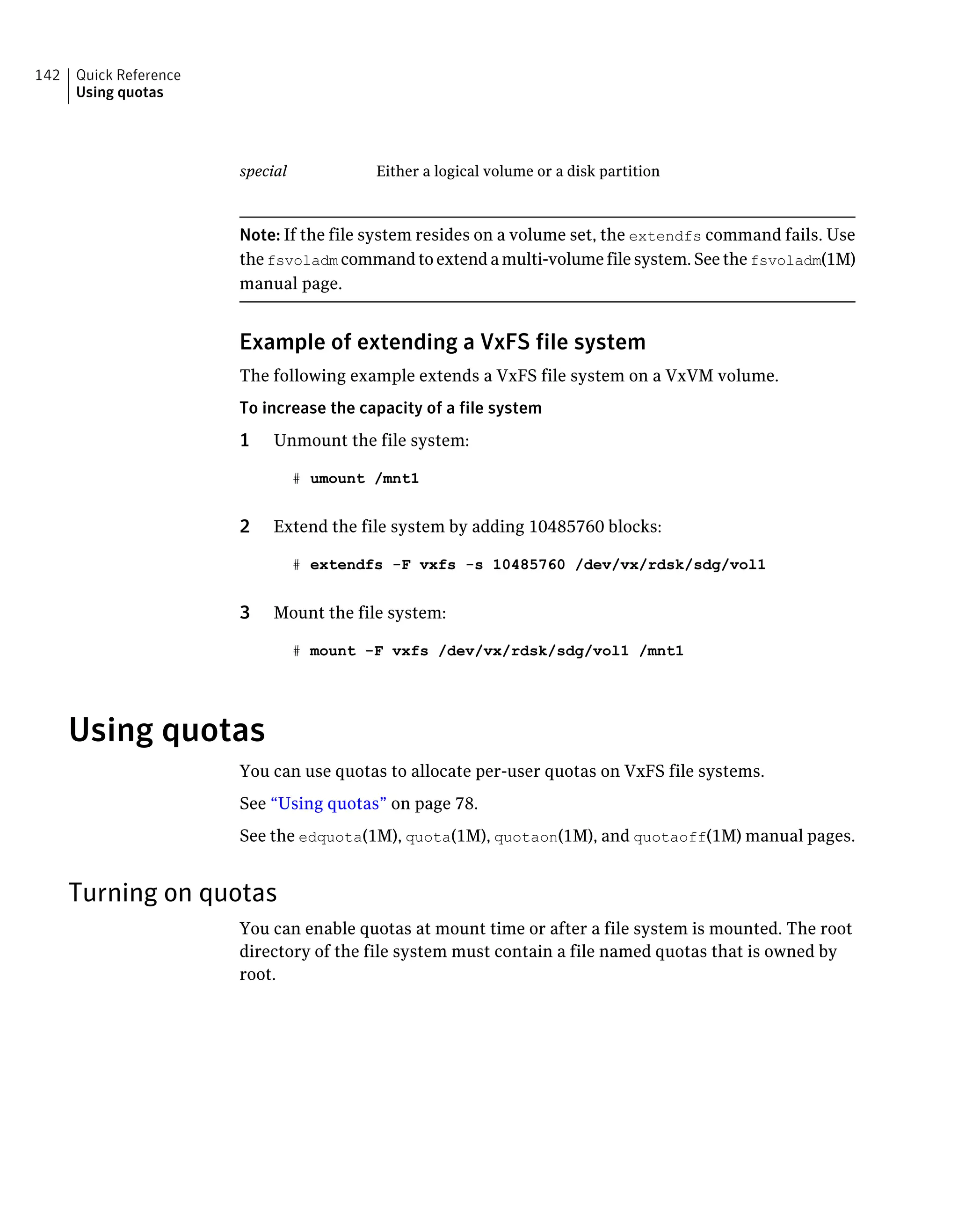
Extending a file system using extendfs ..................................... 141
Using quotas ............................................................................. 142
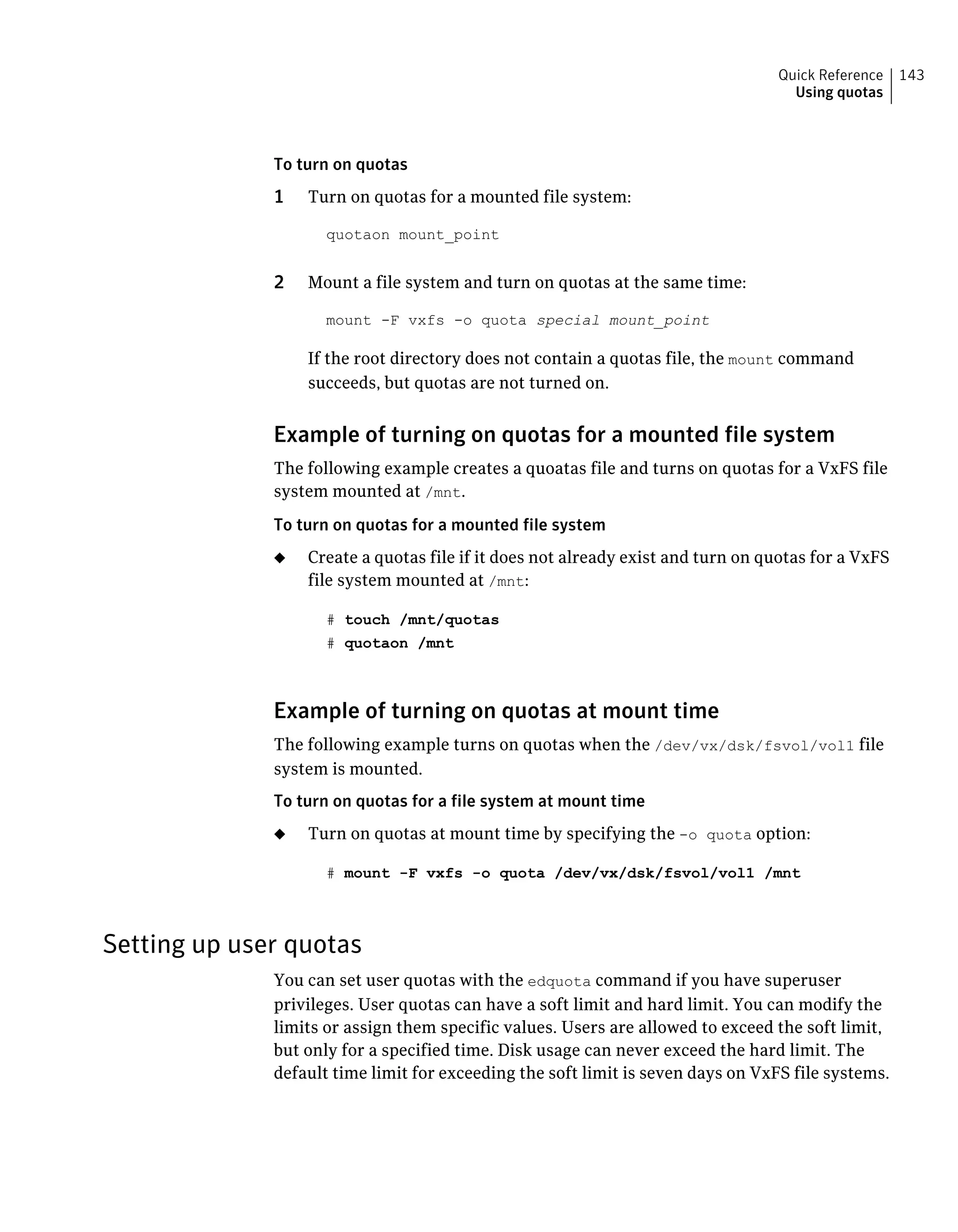
Turning on quotas ................................................................ 142
Setting up user quotas ........................................................... 143
Viewing quotas .................................................................... 144
Turning off quotas ................................................................ 144
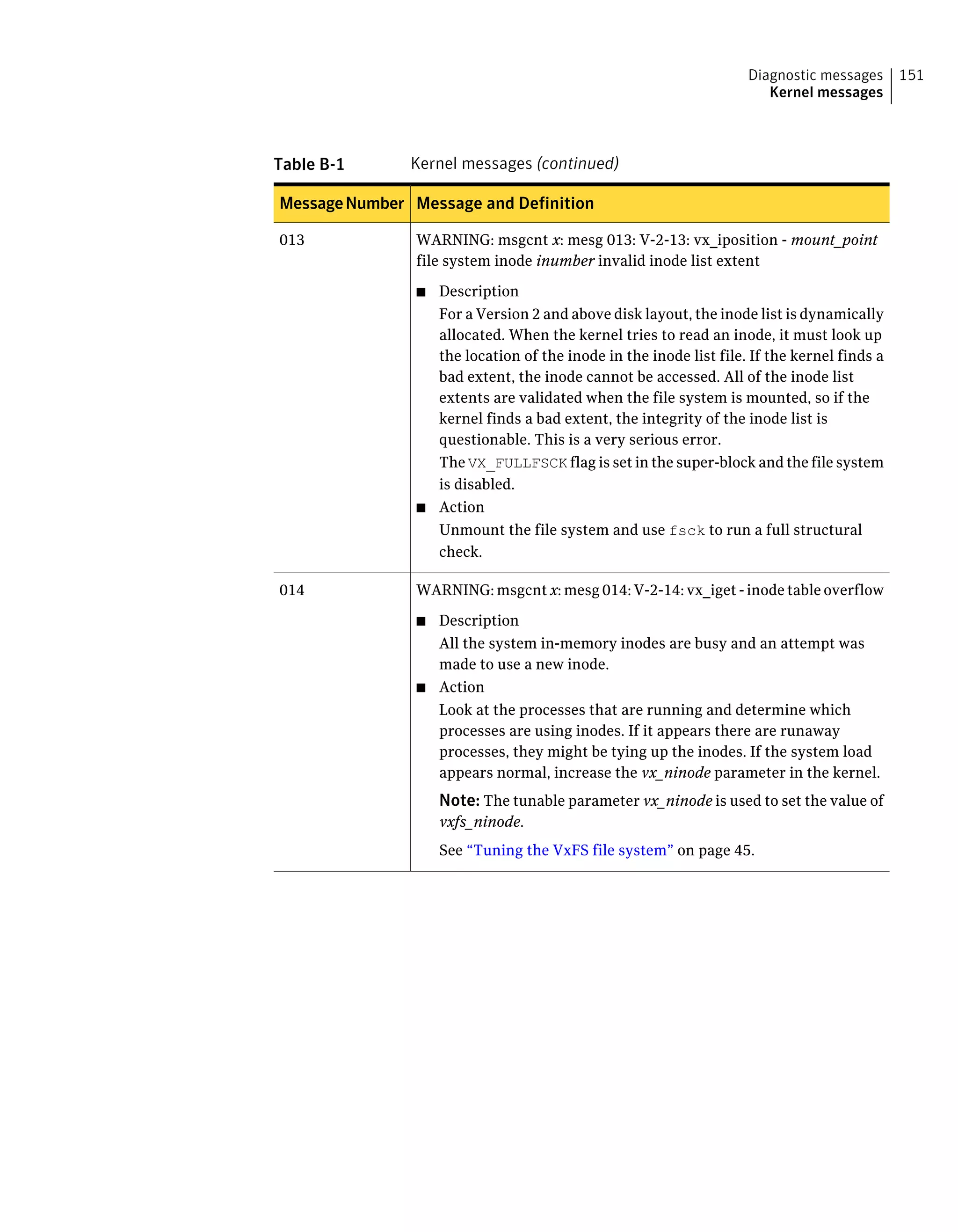
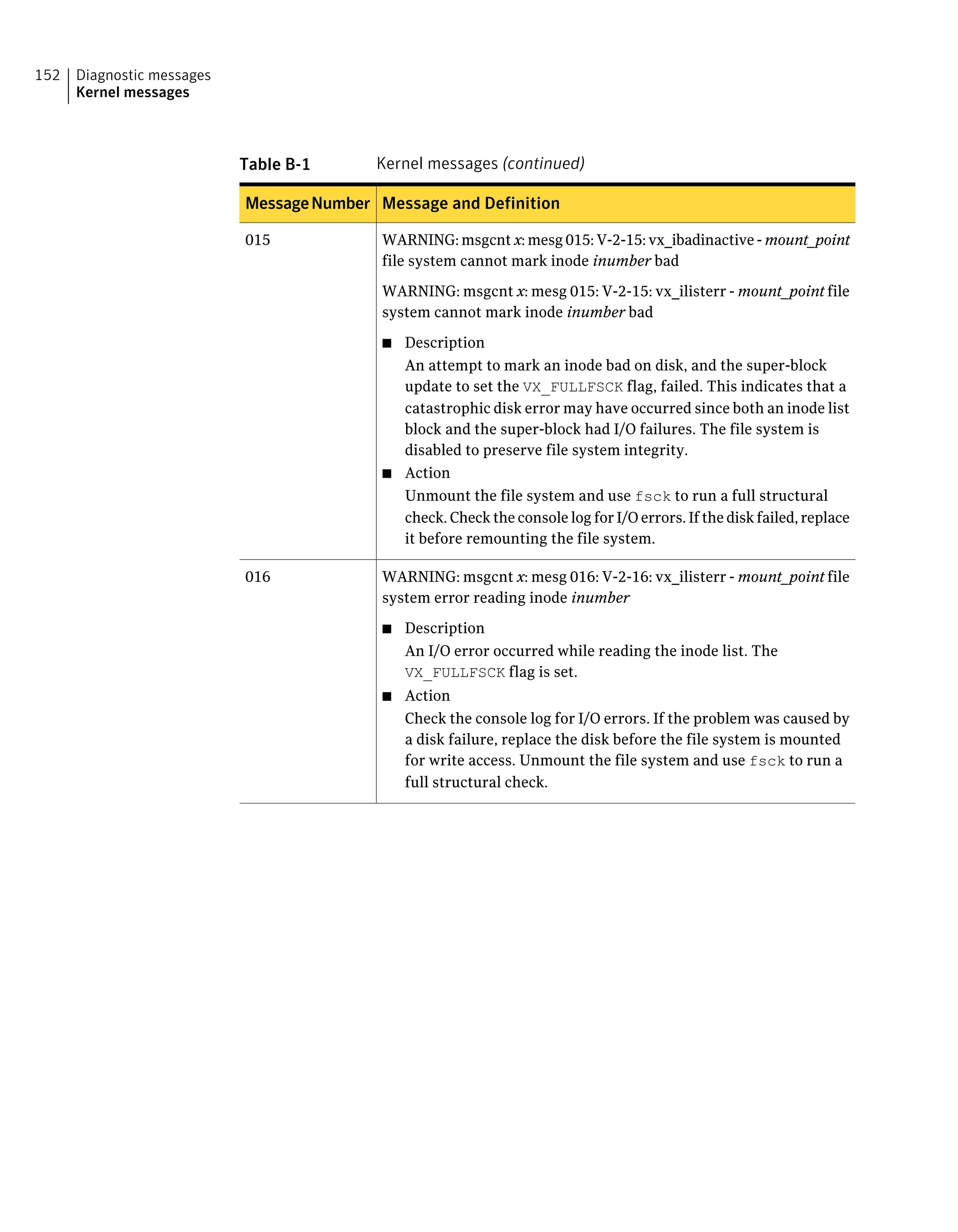
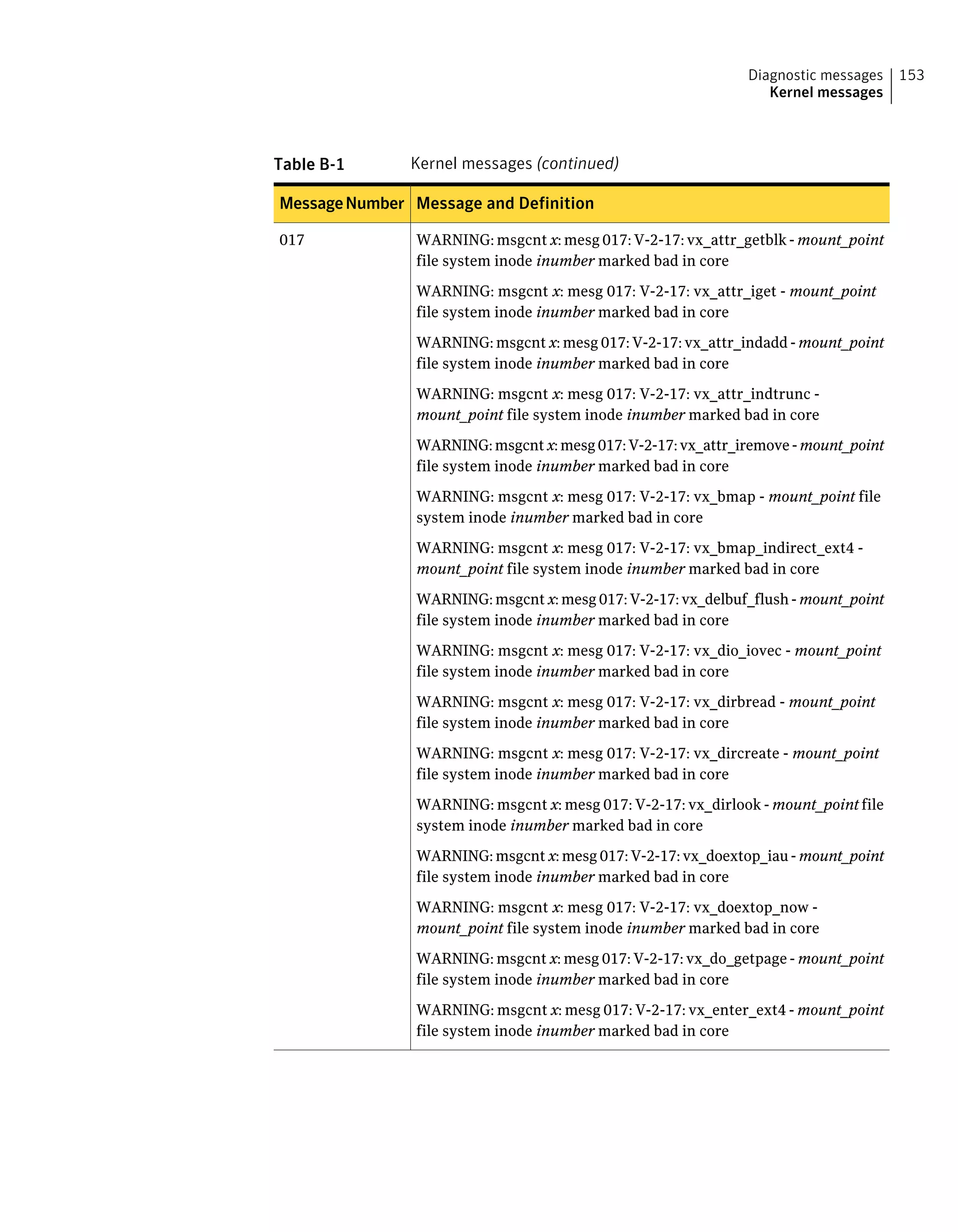
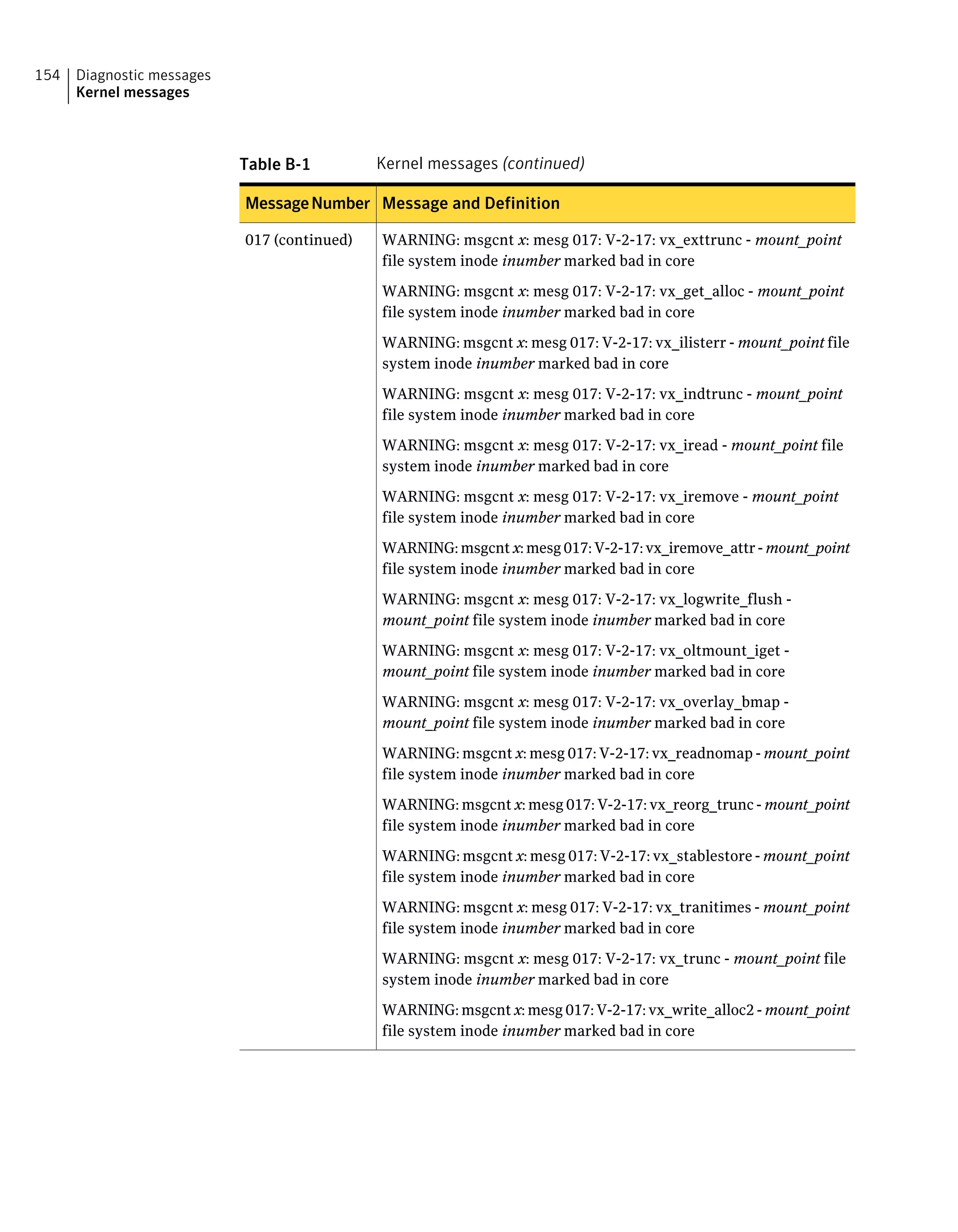
Appendix B Diagnostic messages ........................................................ 145
File system response to problems .................................................. 145
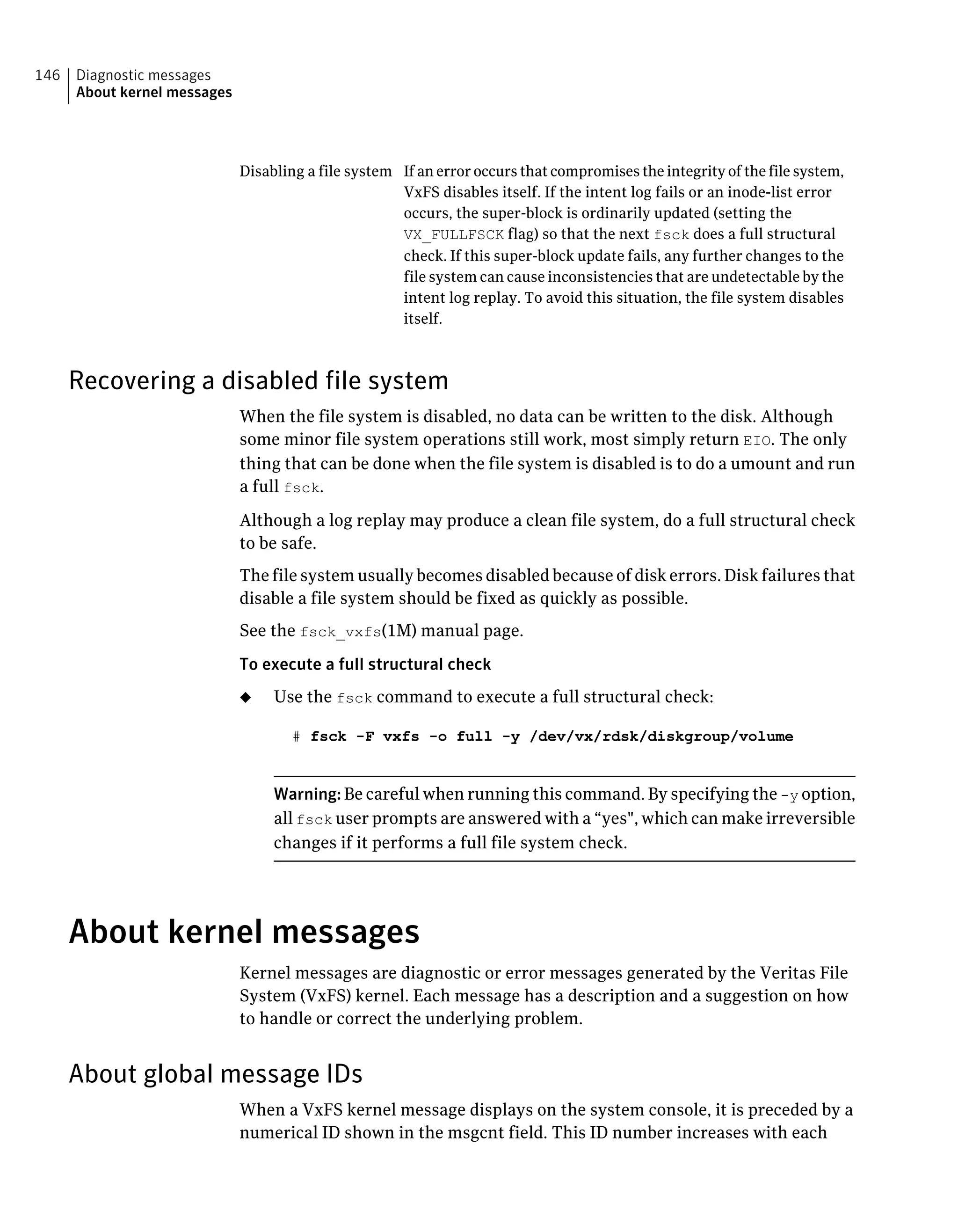
Recovering a disabled file system ............................................ 146
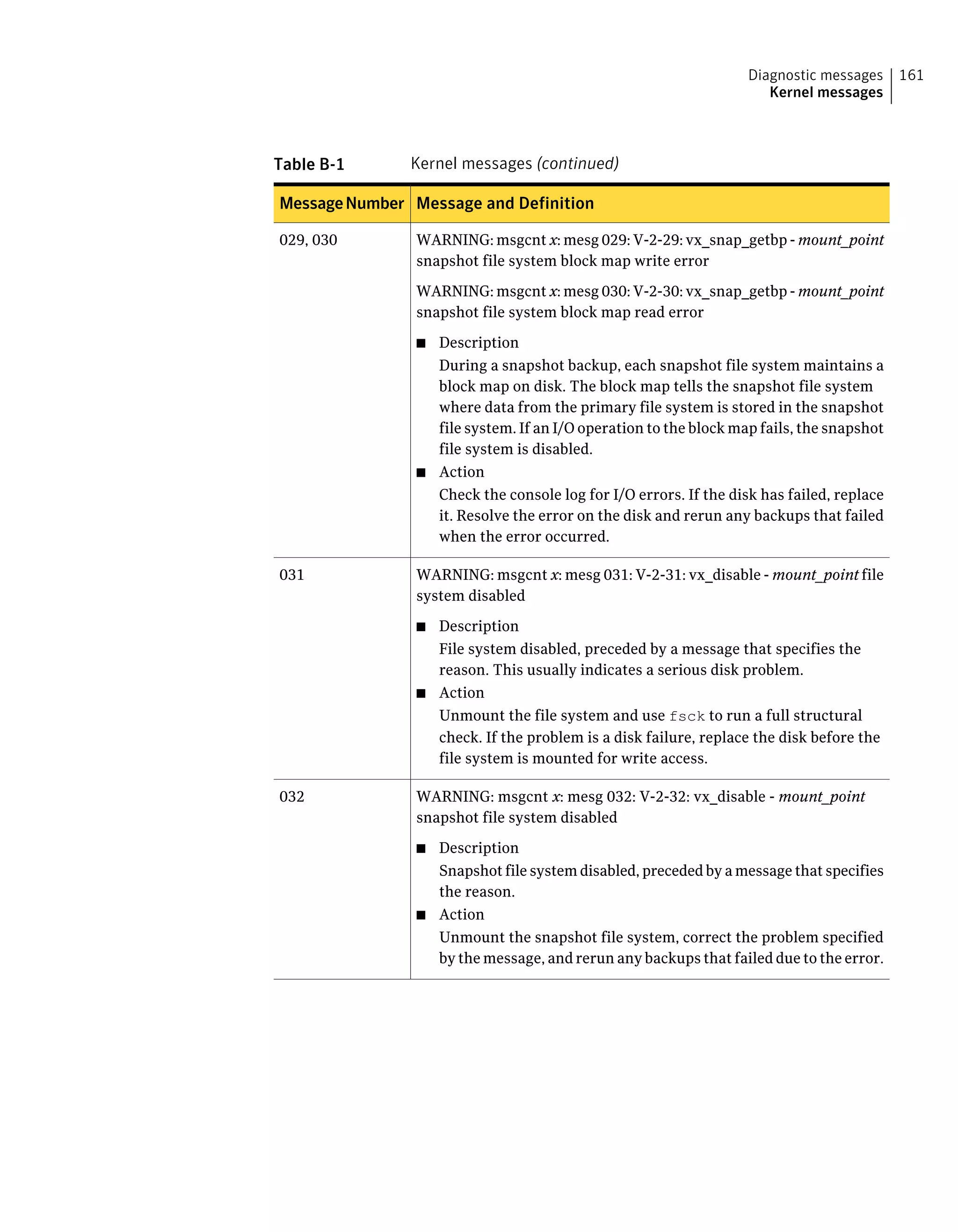
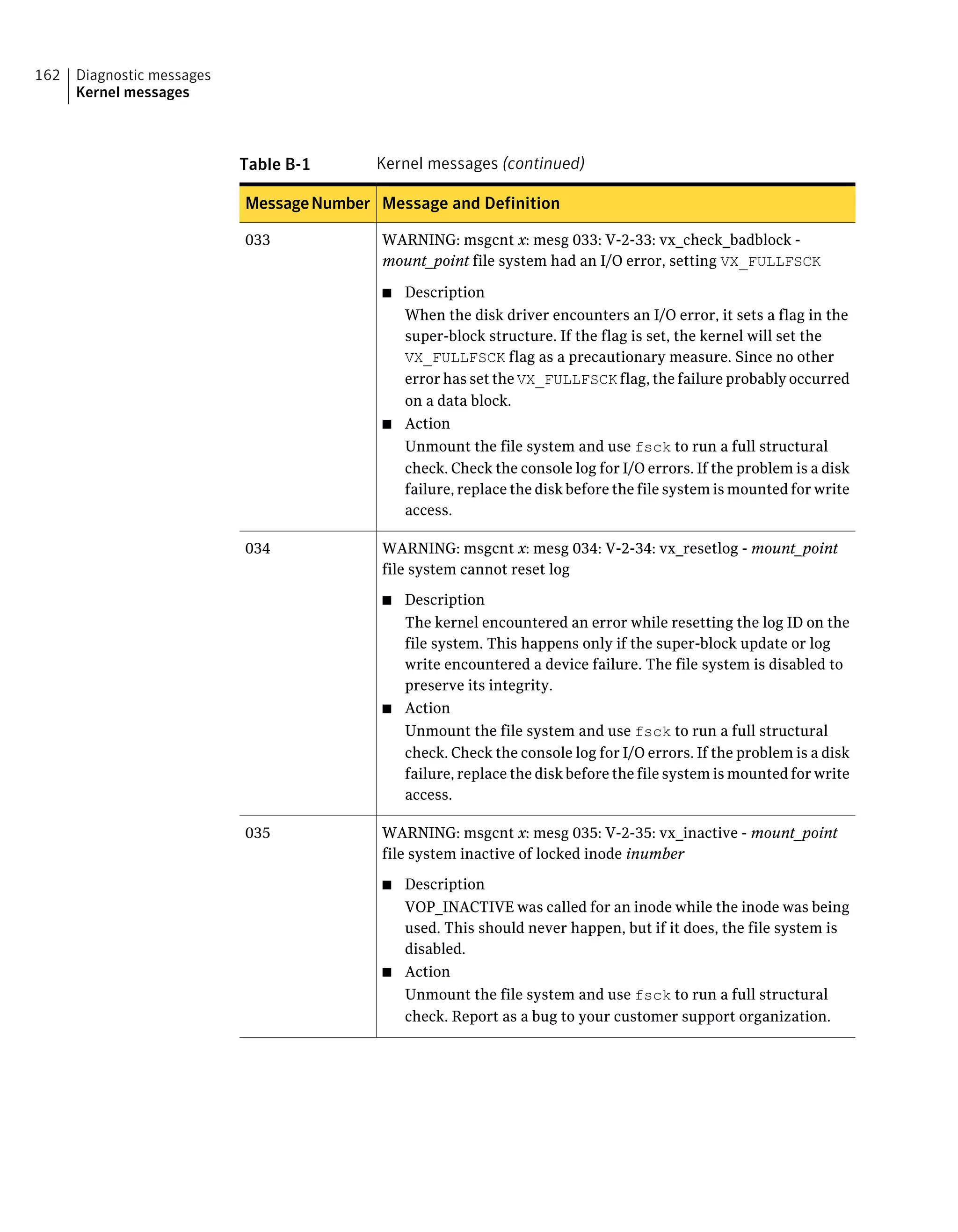
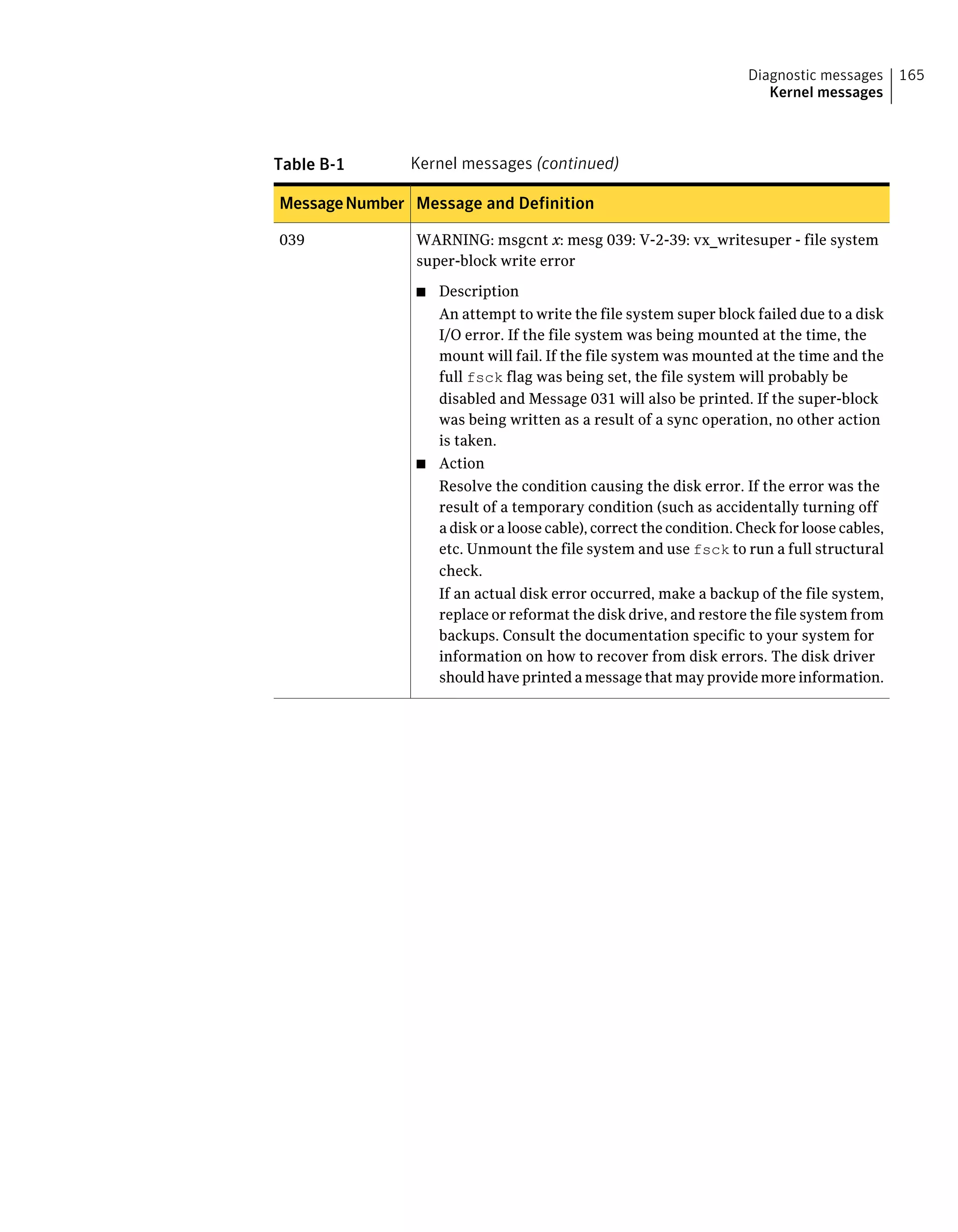
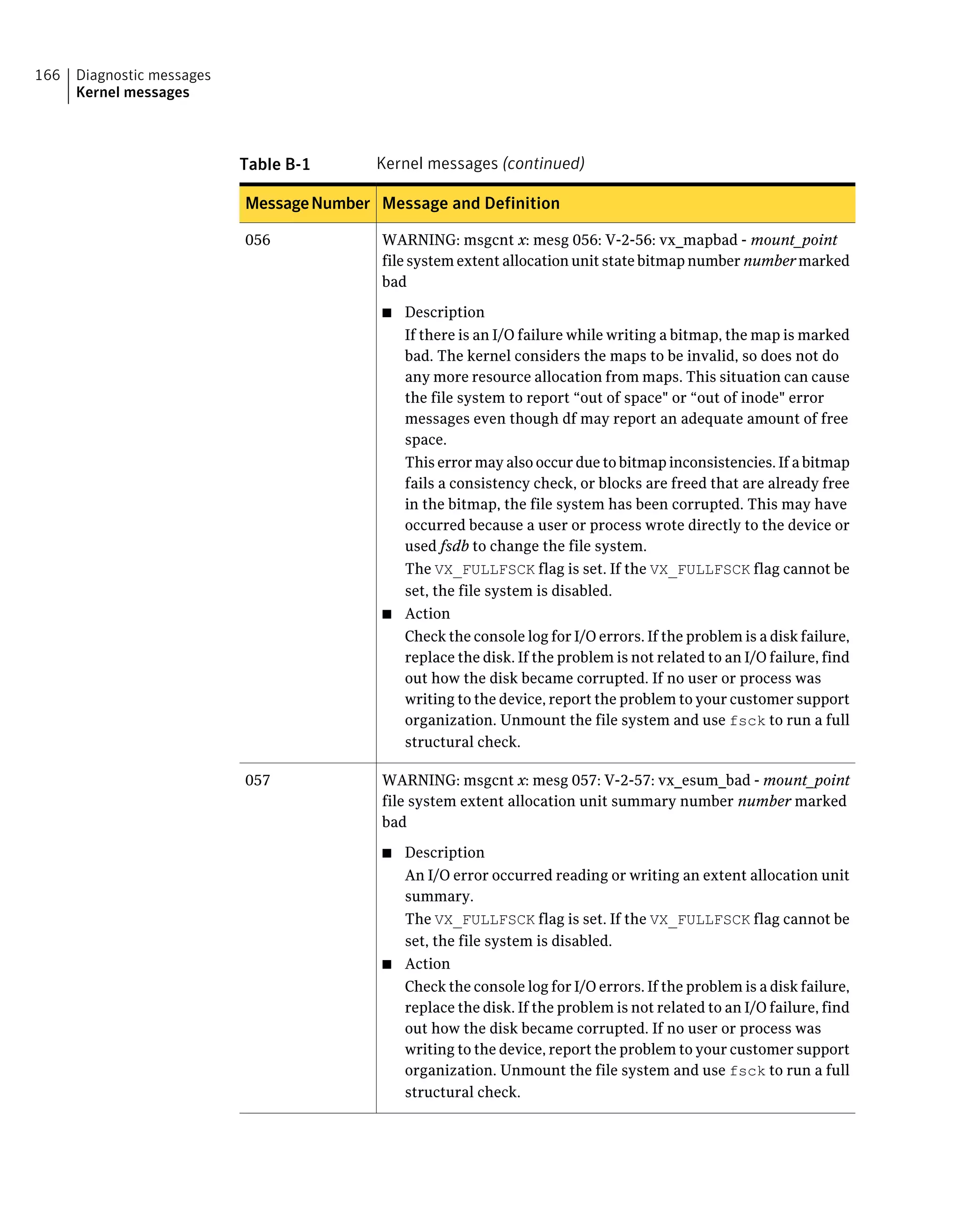
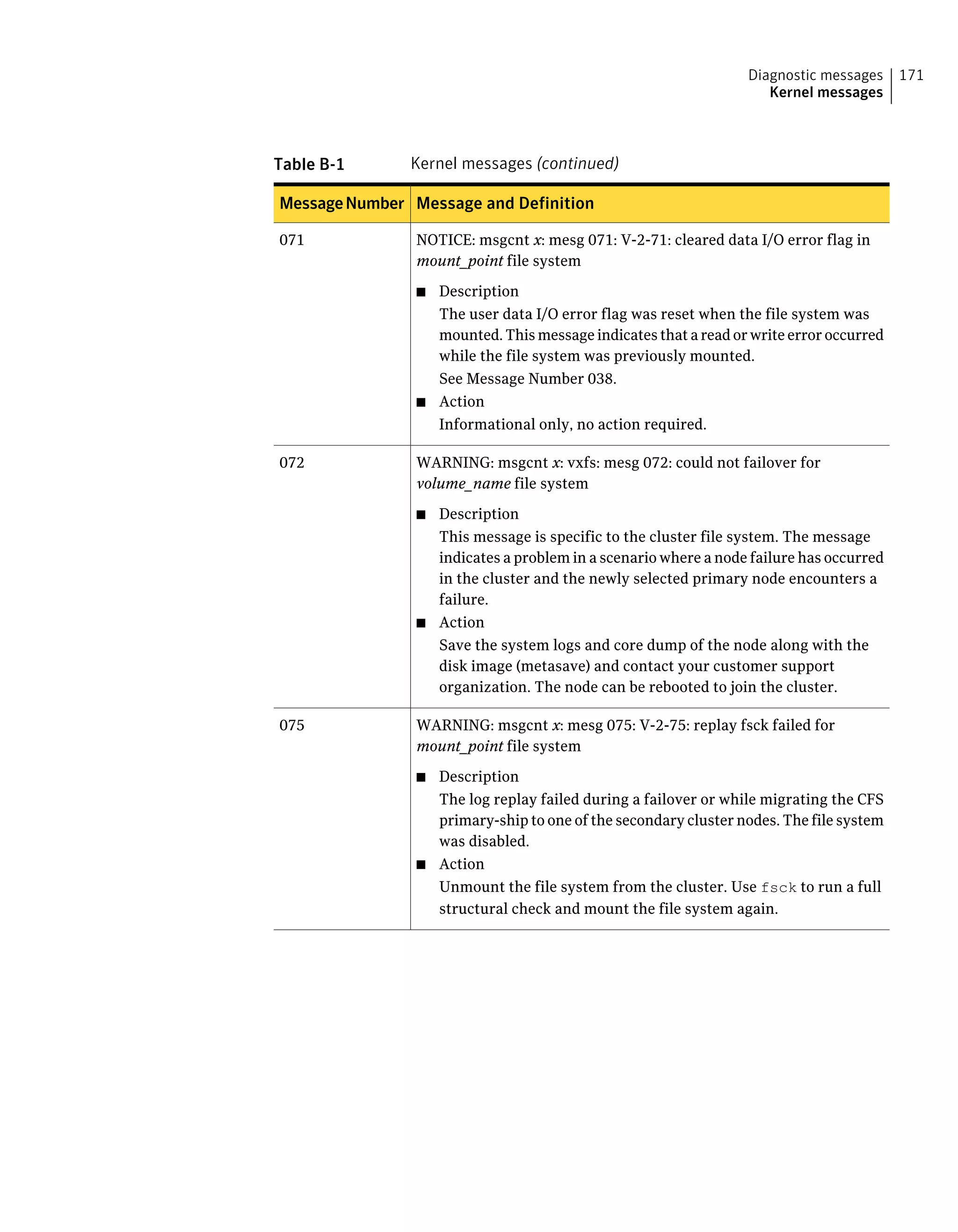
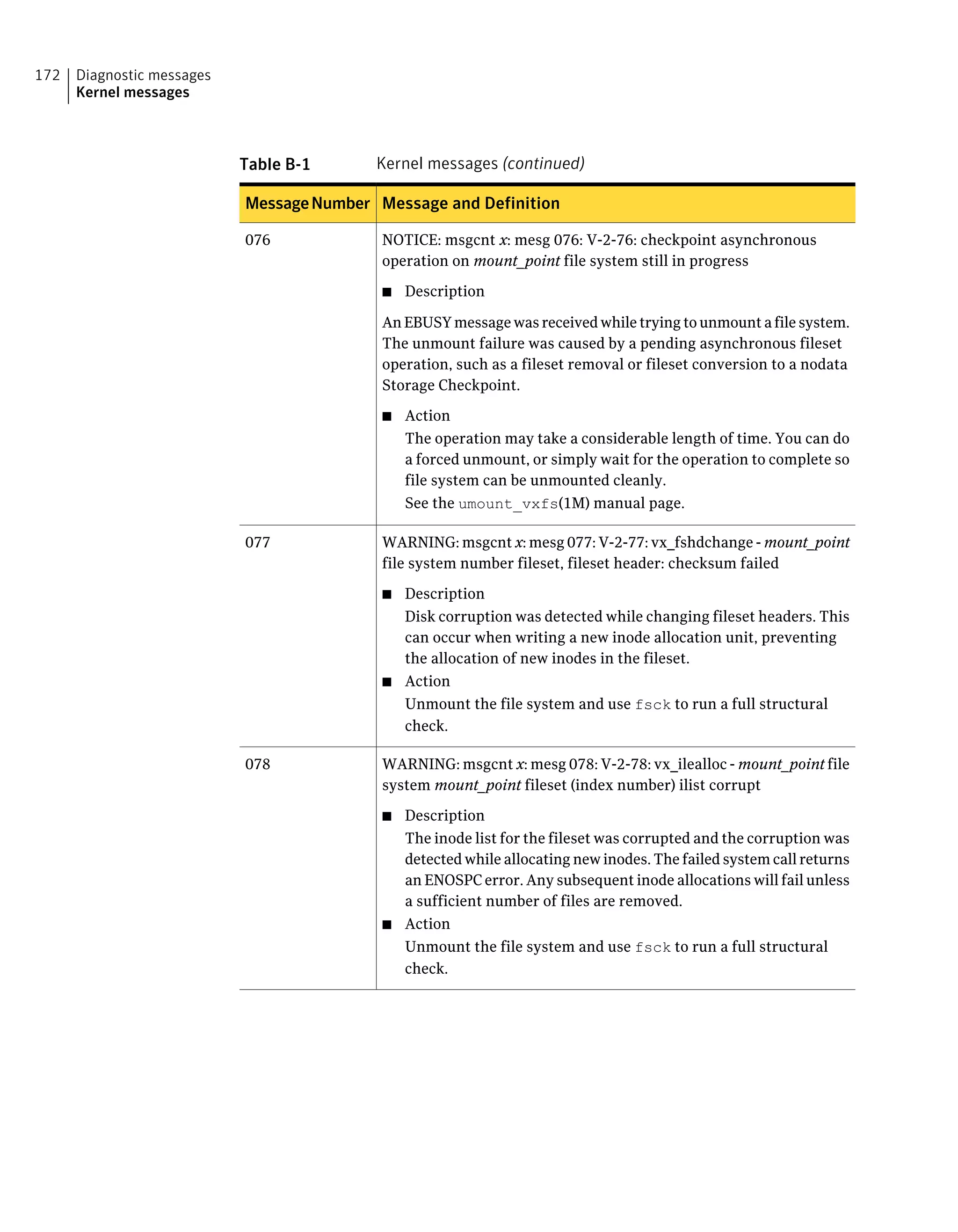
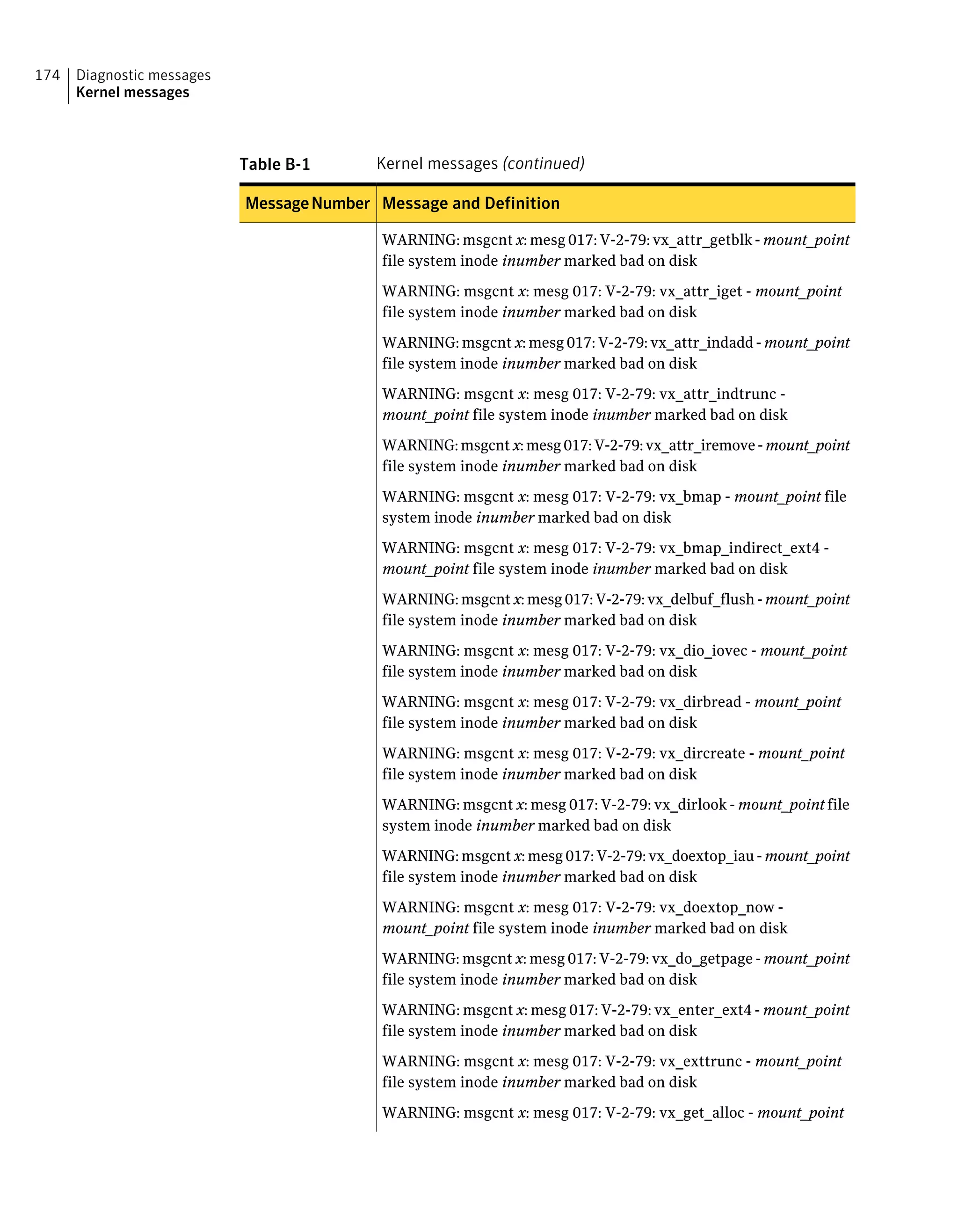
About kernel messages ................................................................ 146
About global message IDs ...................................................... 146
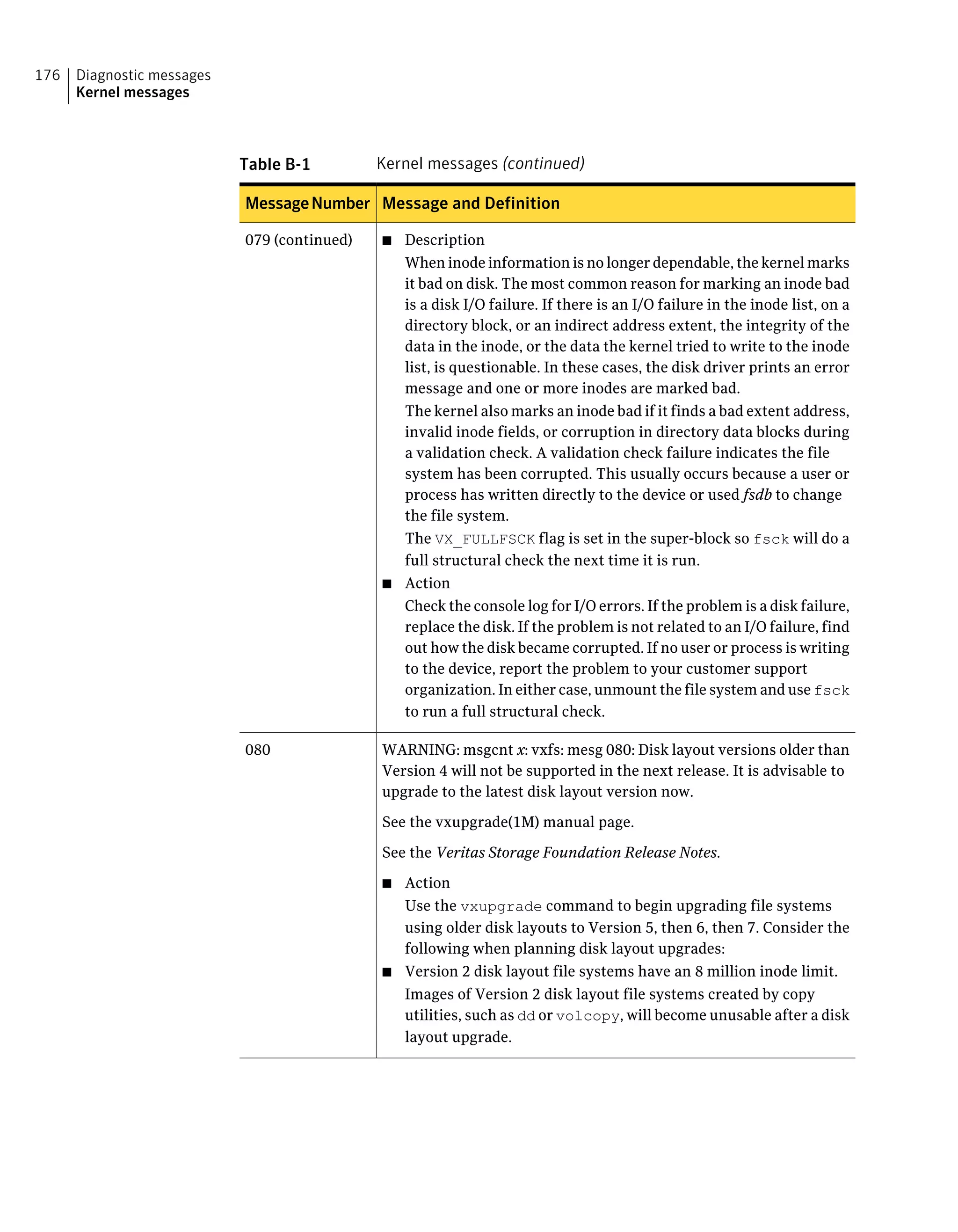
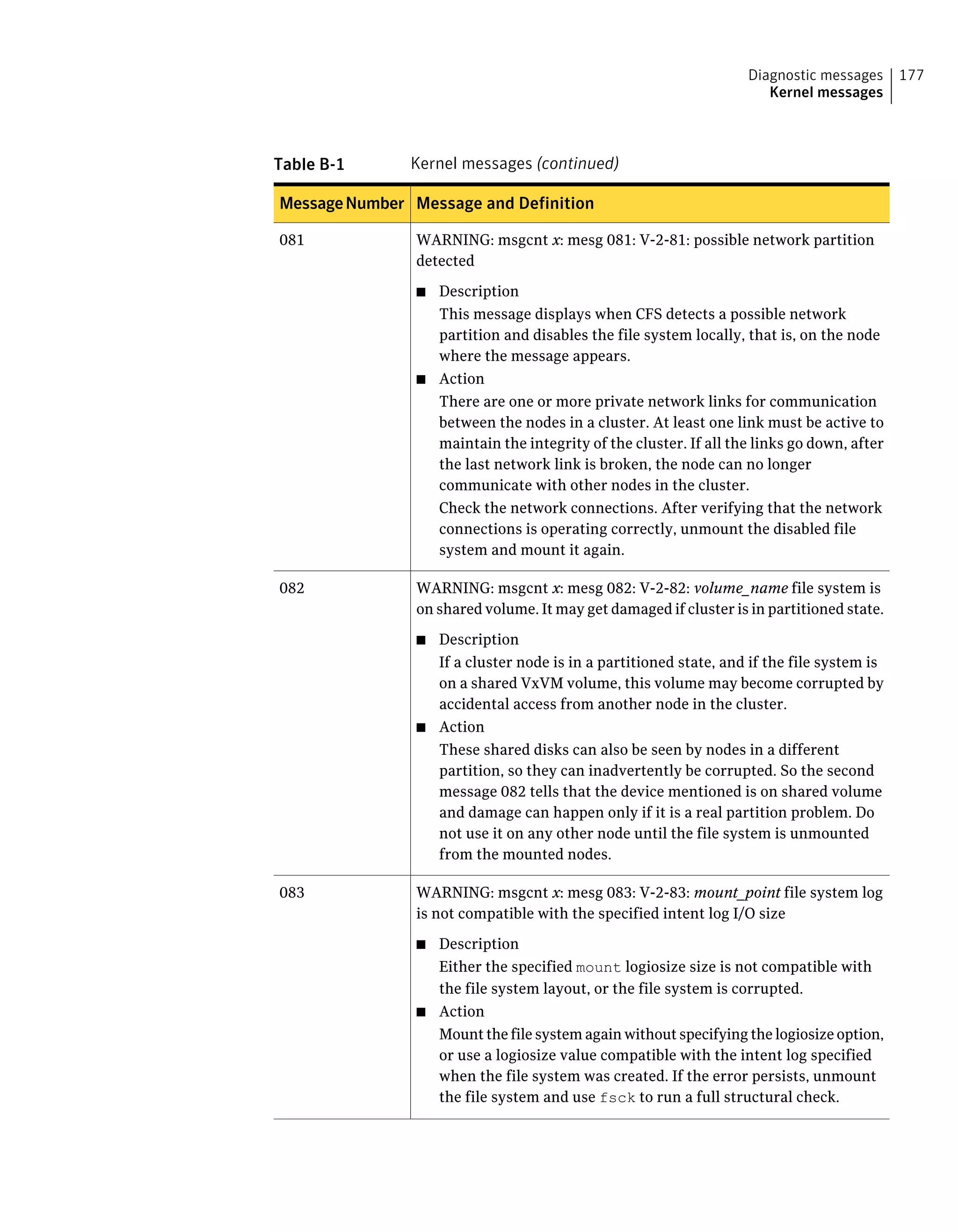
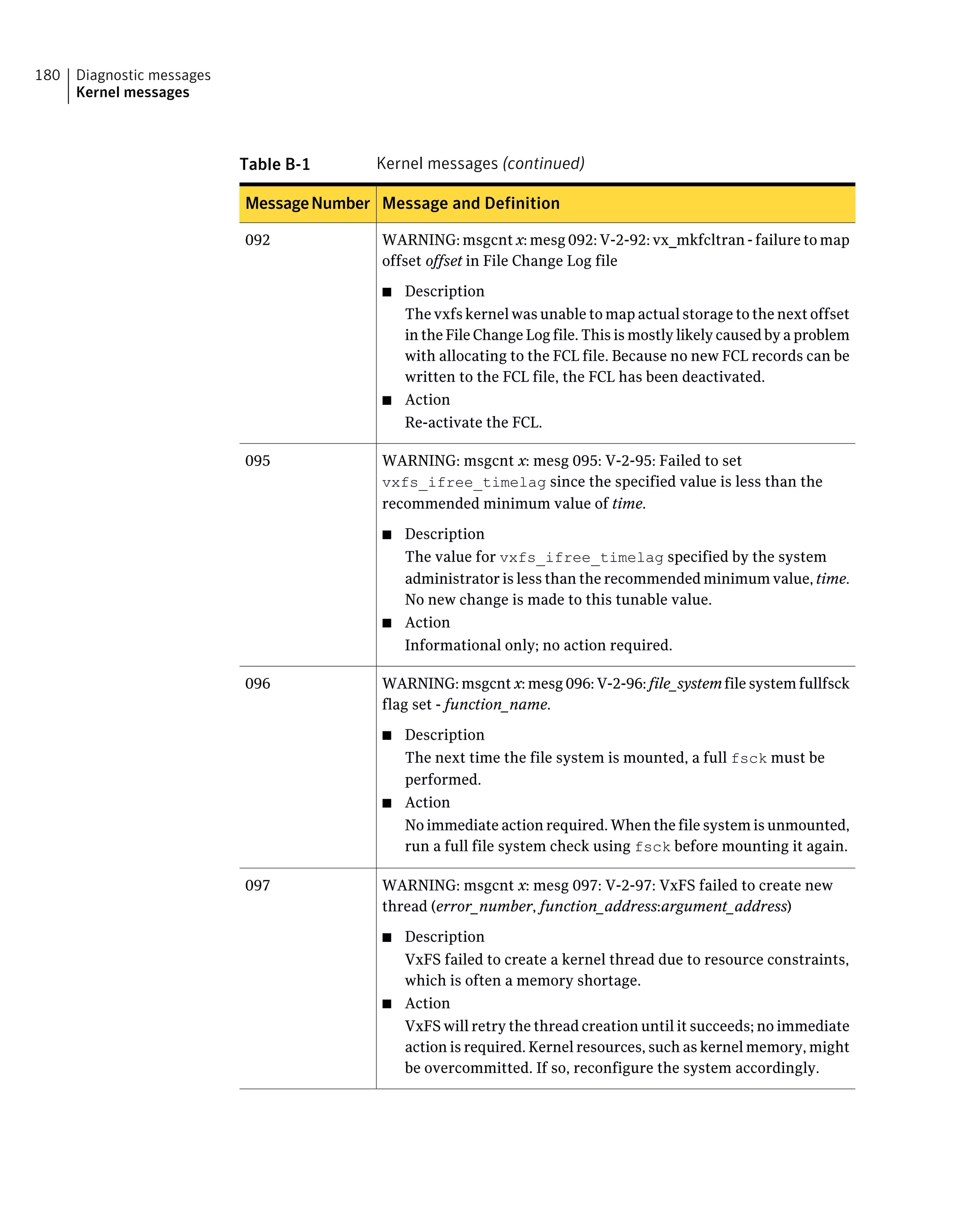
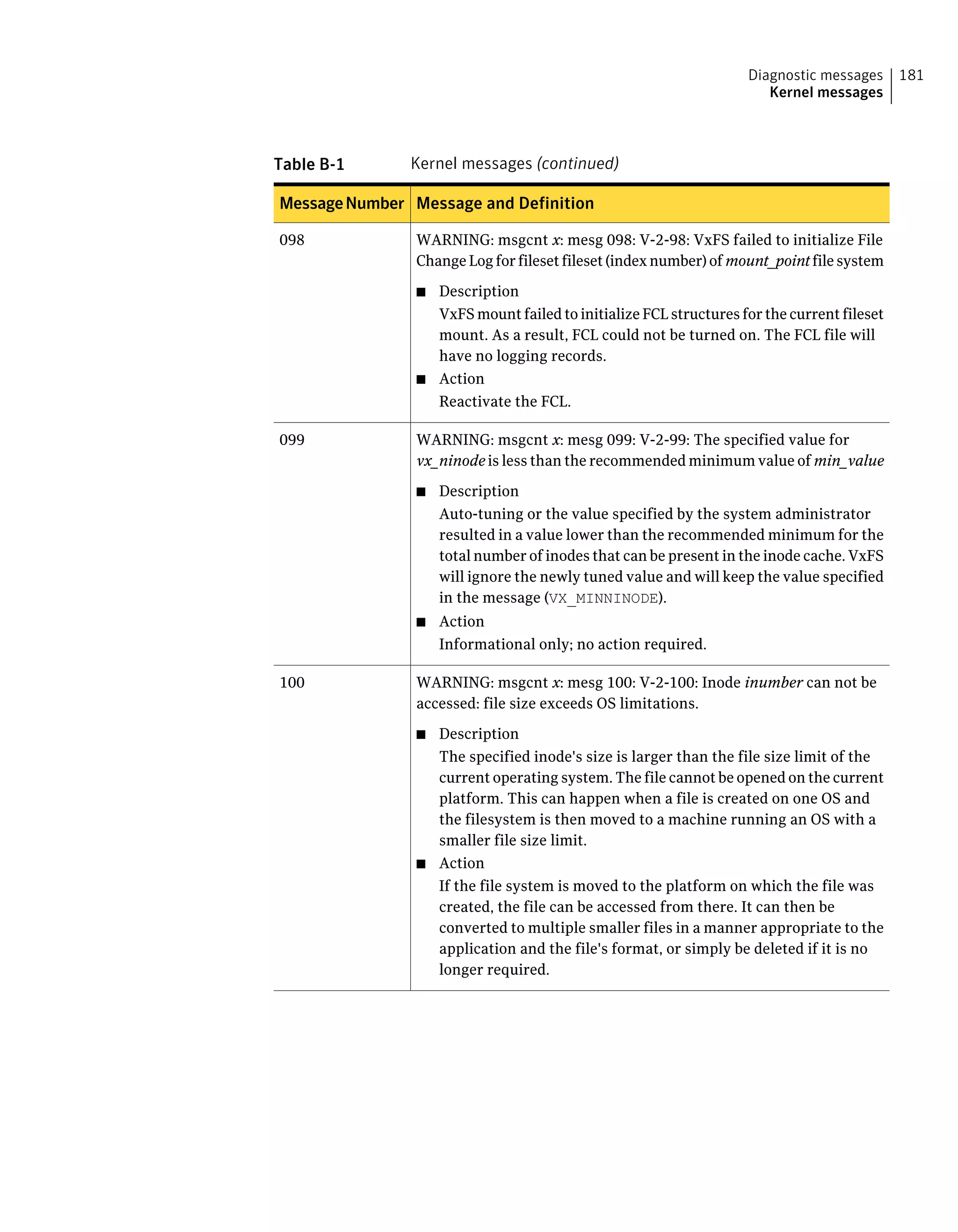
Kernel messages ......................................................................... 147
About unique message identifiers .................................................. 185
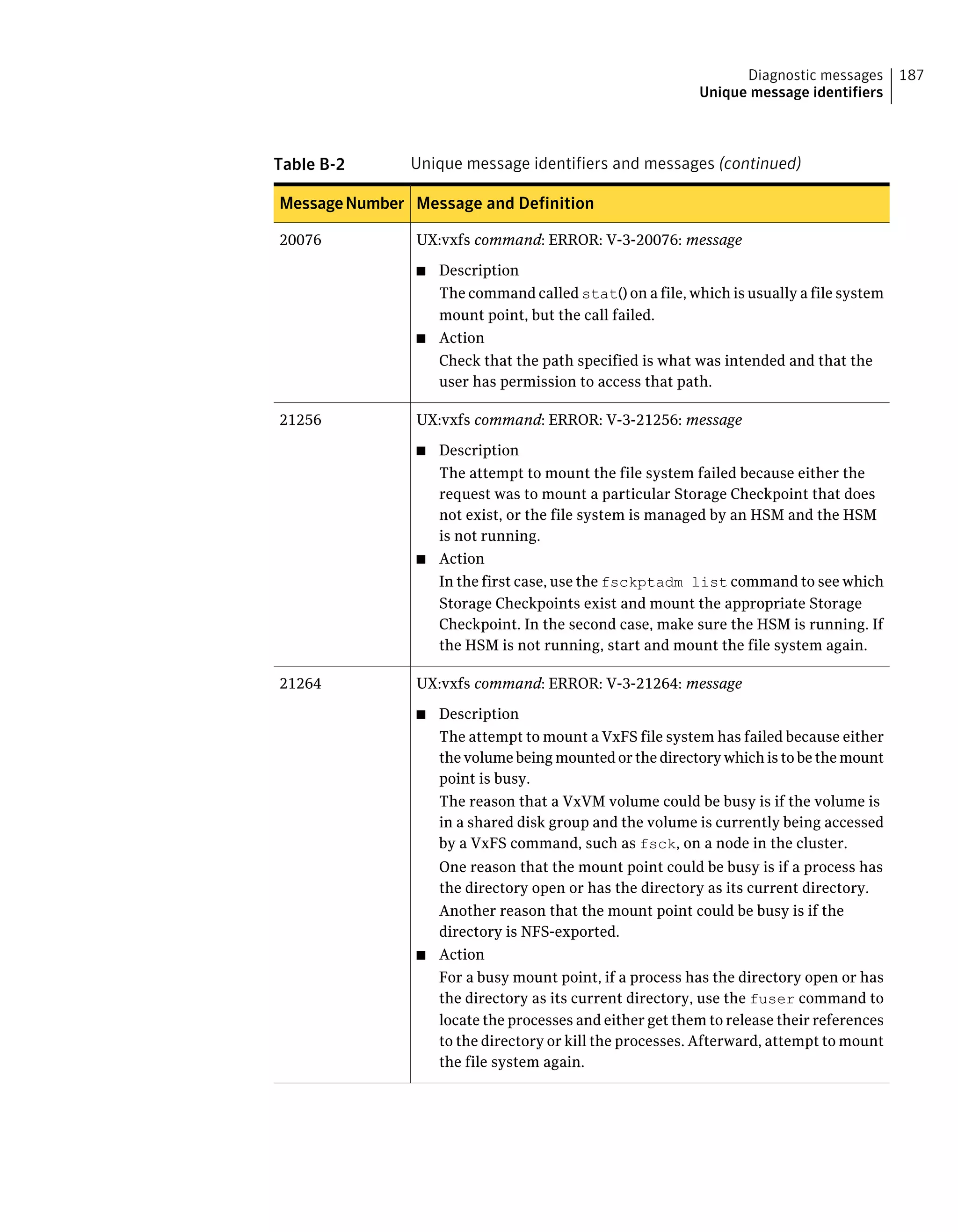
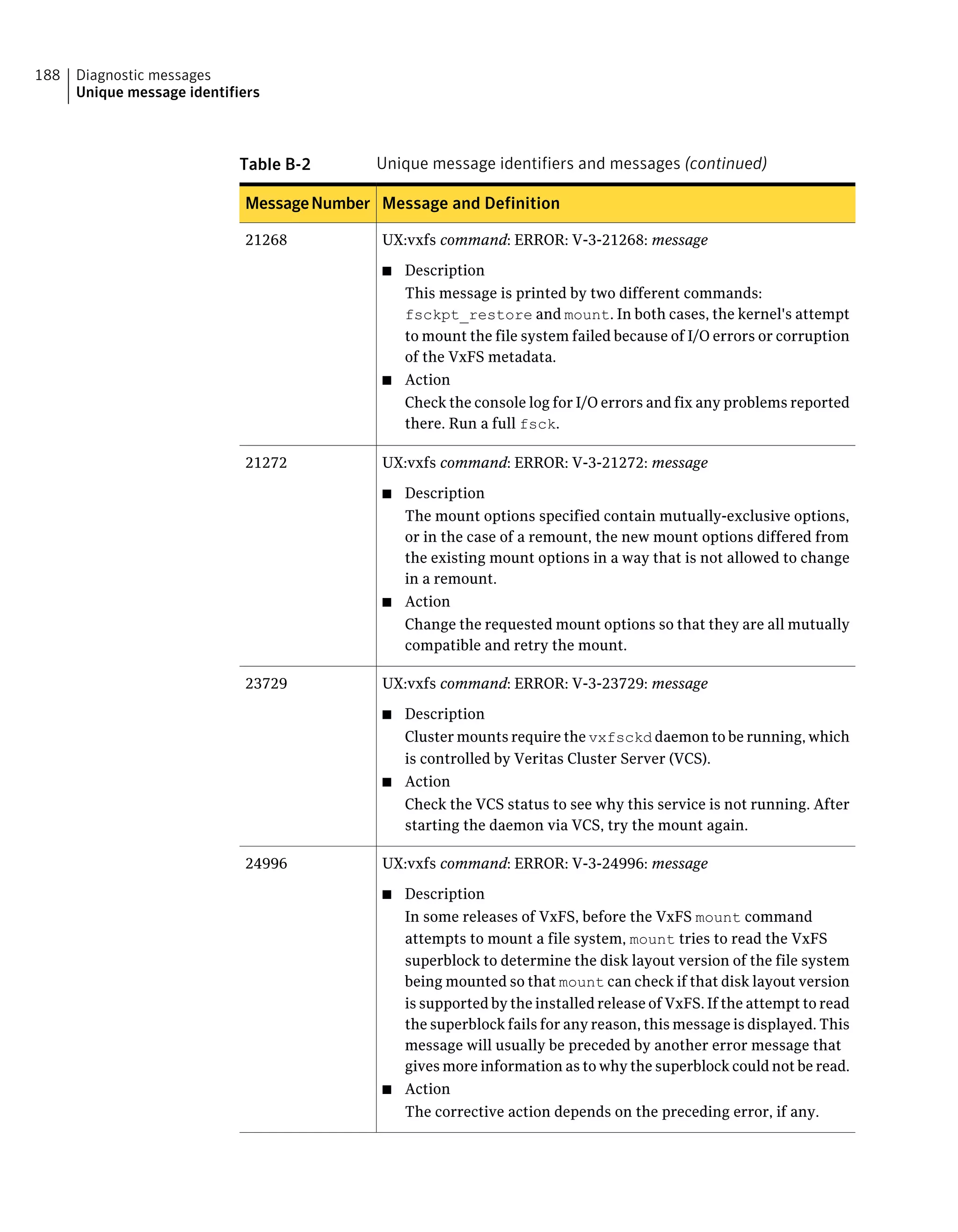
Unique message identifiers .......................................................... 186
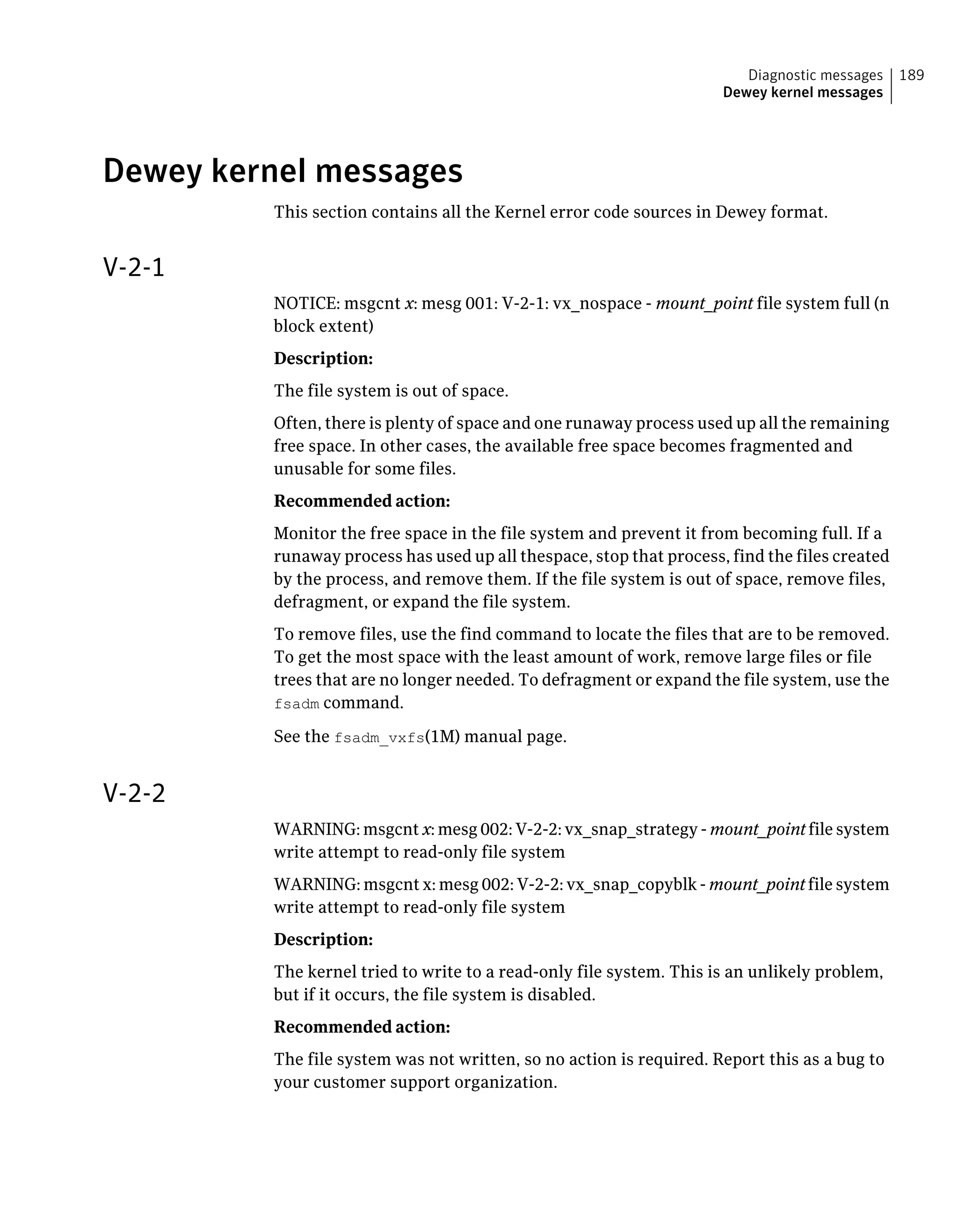
Dewey kernel messages ............................................................... 189
11Contents
V-2-1 .................................................................................. 189
V-2-2 .................................................................................. 189
V-2-3 .................................................................................. 190
V-2-4 .................................................................................. 190
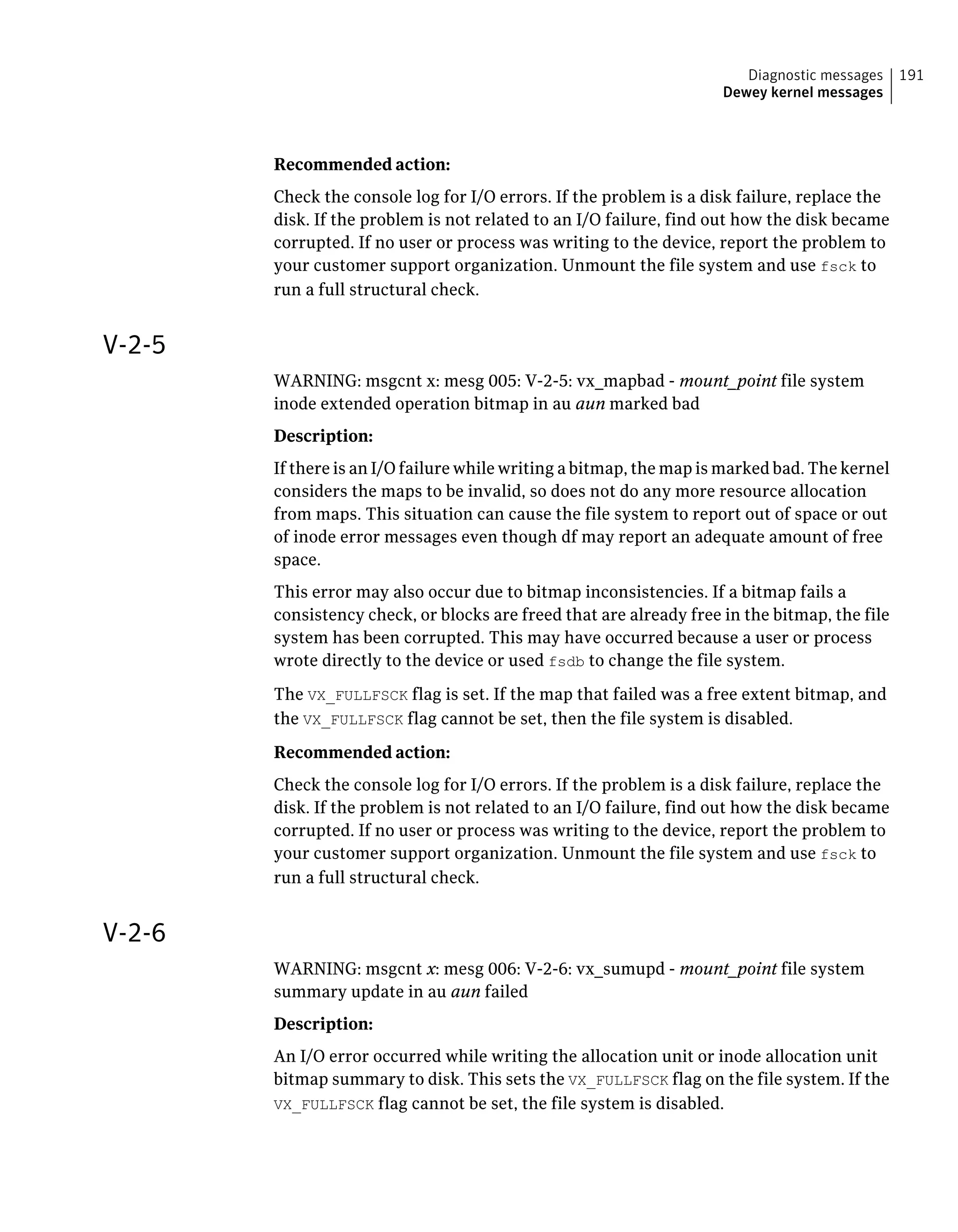
V-2-5 .................................................................................. 191
V-2-6 .................................................................................. 191
V-2-7 .................................................................................. 192
V-2-8 .................................................................................. 192
V-2-9 .................................................................................. 193
V-2-10 ................................................................................ 193
V-2-11 ................................................................................ 193
V-2-12 ................................................................................ 194
V-2-13 ................................................................................ 194
V-2-14 ............................................................................... 194
V-2-15 ................................................................................ 195
V-2-16 ................................................................................ 195
V-2-17 ................................................................................ 196
V-2-19 ................................................................................ 198
V-2-20 ................................................................................ 199
V-2-21 ................................................................................ 199
V-2-22 ................................................................................ 199
V-2-23 ................................................................................ 200
V-2-24 ................................................................................ 201
V-2-25 ................................................................................ 201
V-2-26 ................................................................................ 201
V-2-27 ................................................................................ 202
V-2-28 ................................................................................ 202
V-2-29 ................................................................................ 203
V-2-30 ................................................................................ 203
V-2-31 ................................................................................ 203
V-2-32 ................................................................................ 204
V-2-33 ................................................................................ 204
V-2-34 ................................................................................ 204
V-2-35 ................................................................................ 205
V-2-36 ................................................................................ 205
V-2-37 ................................................................................ 205
V-2-38 ................................................................................ 206
V-2-39 ................................................................................ 206
V-2-56 ................................................................................ 207
V-2-57 ................................................................................ 208
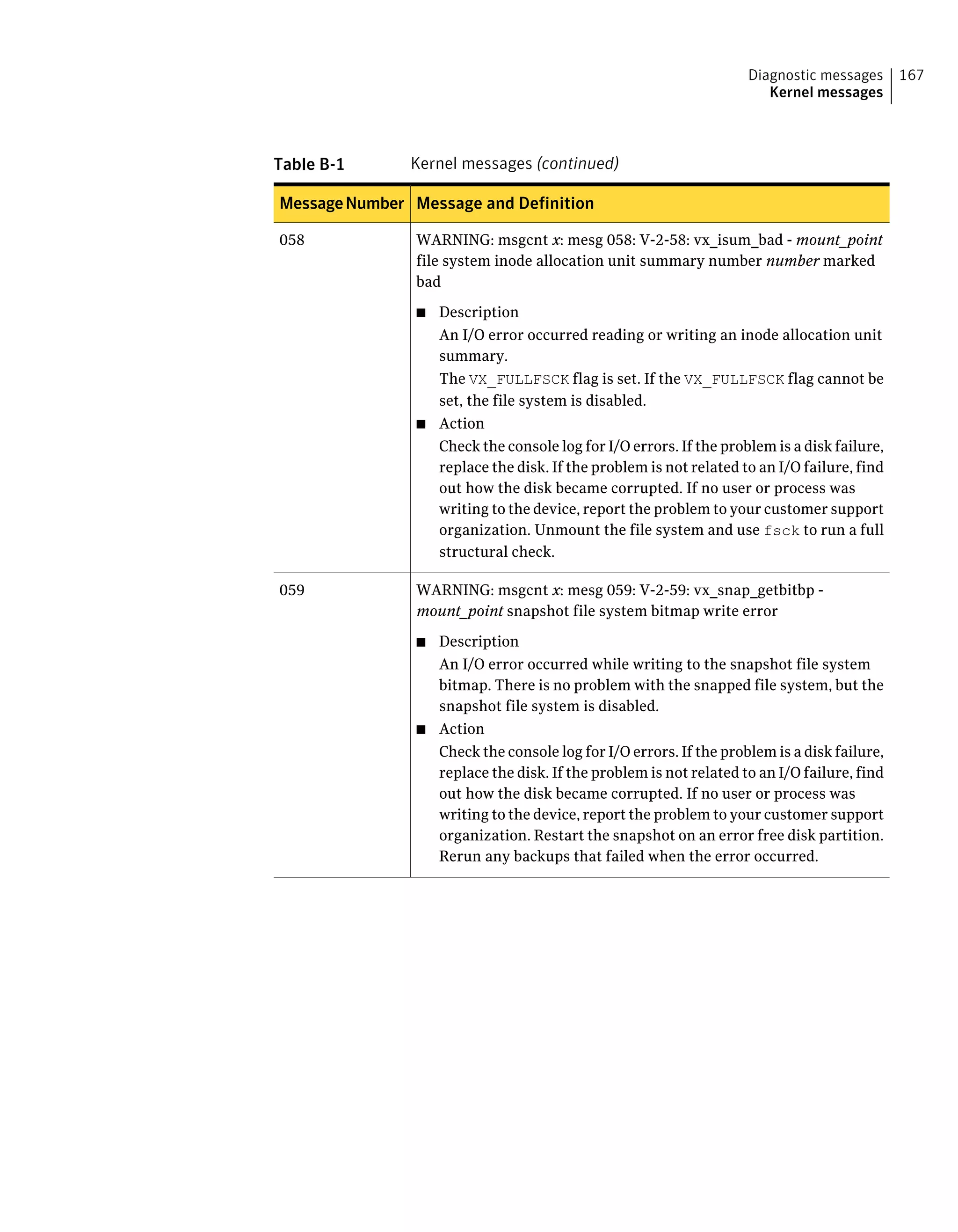
V-2-58 ................................................................................ 208
V-2-59 ................................................................................ 208
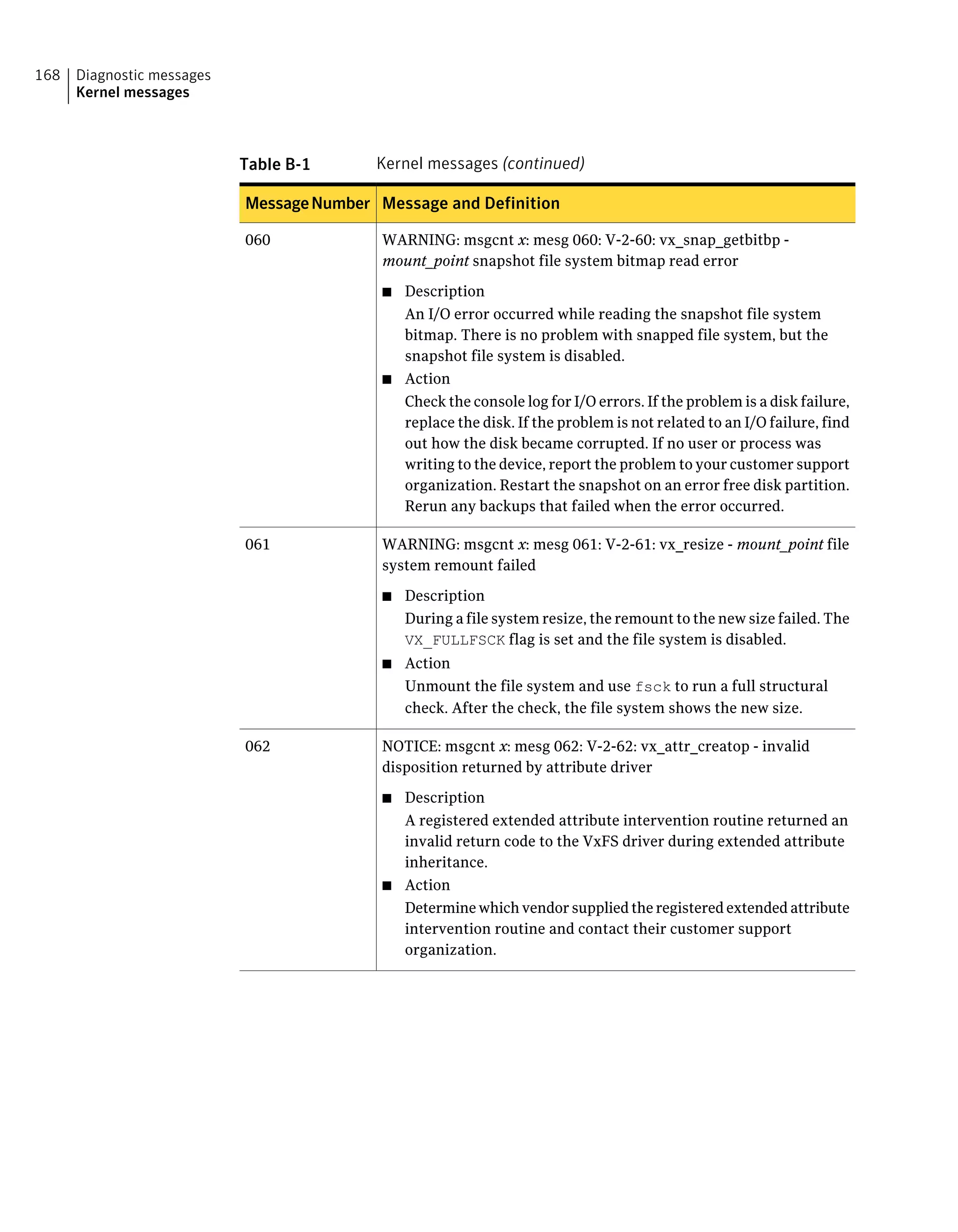
V-2-60 ................................................................................ 209
Contents12
V-2-61 ................................................................................ 209
V-2-62 ................................................................................ 209
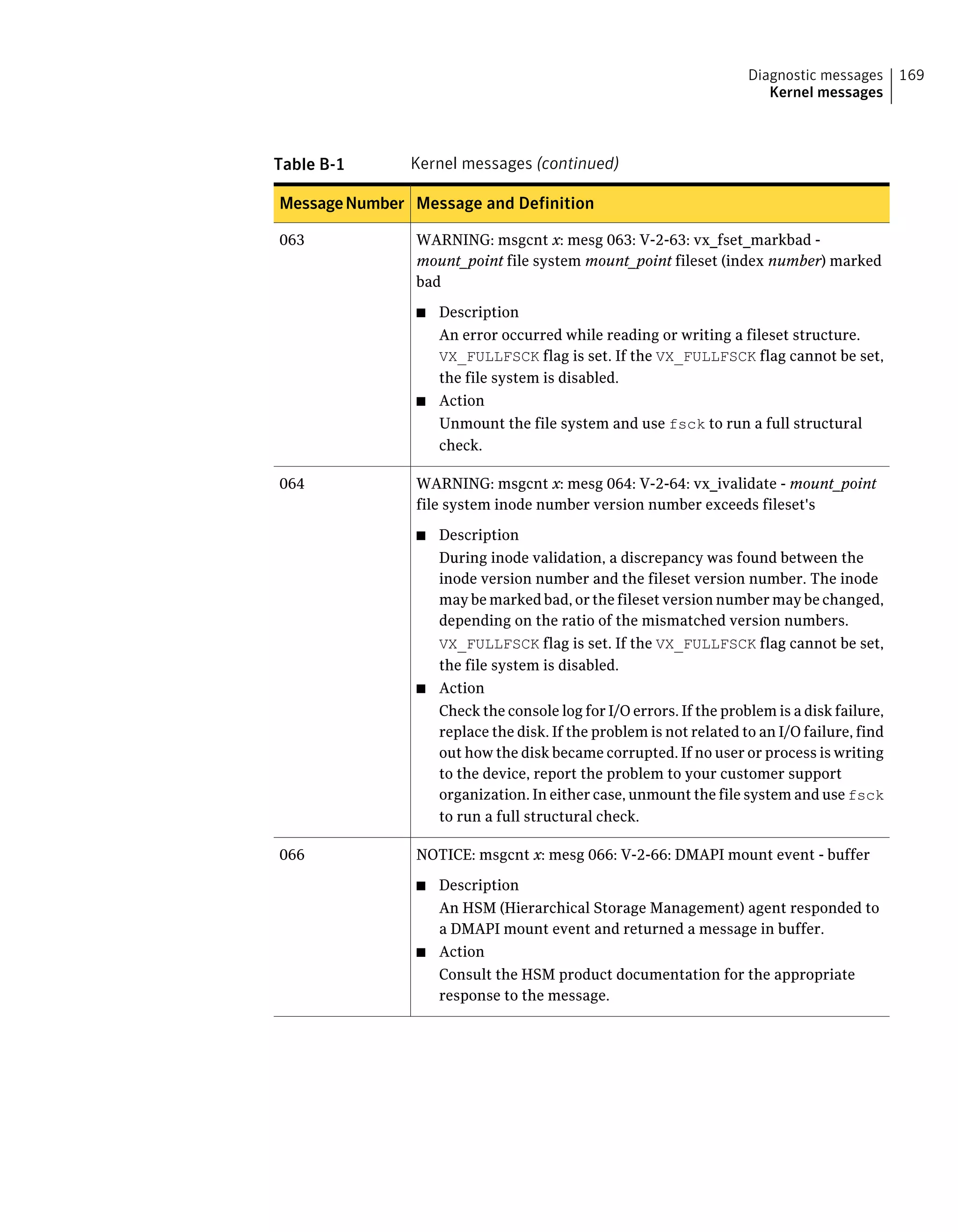
V-2-63 ................................................................................ 210
V-2-64 ................................................................................ 210
V-2-66 ............................................................................... 210
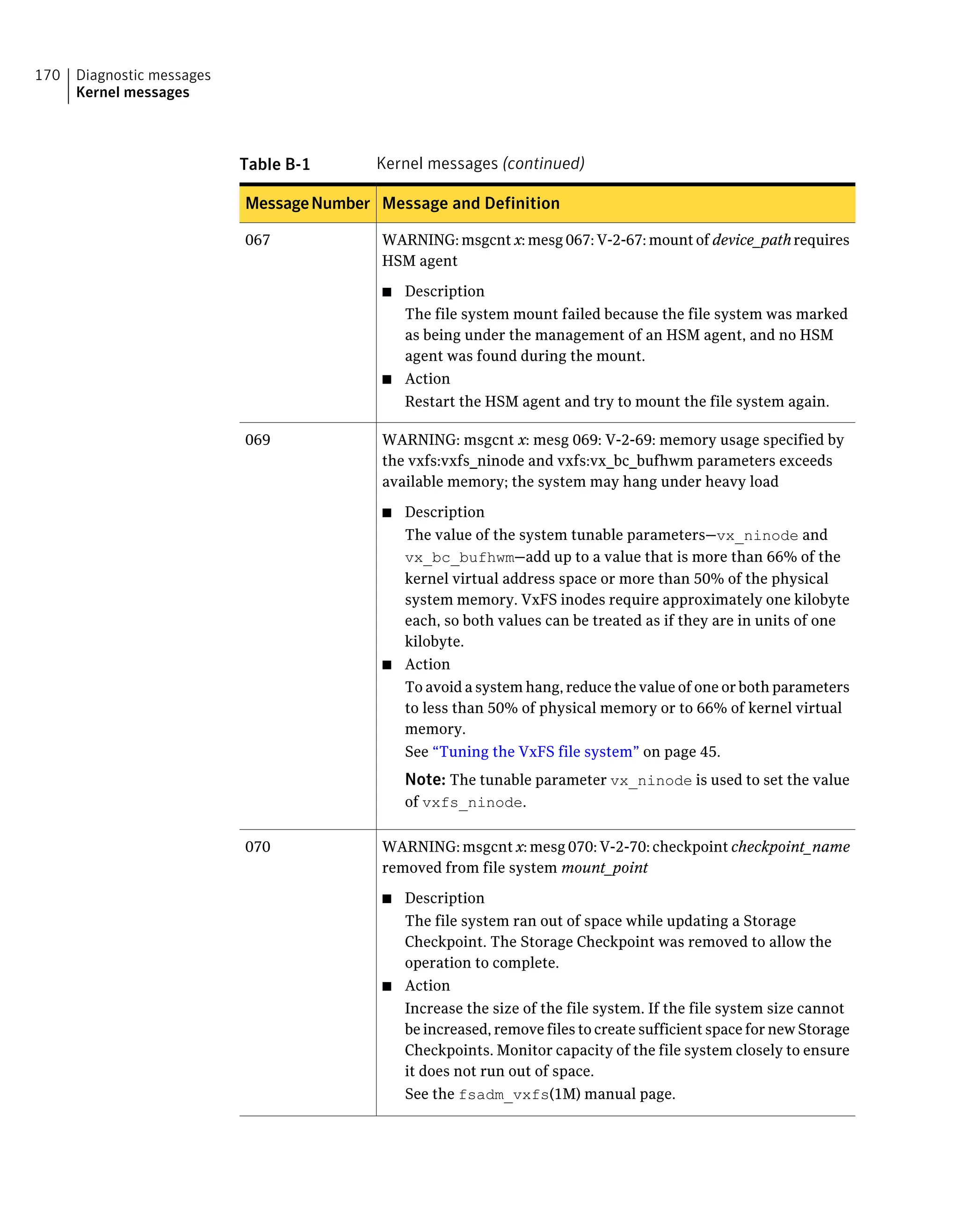
V-2-67 ................................................................................ 211
V-2-69 ............................................................................... 211
V-2-70 ............................................................................... 211
V-2-71 ................................................................................ 212
V-2-72 ............................................................................... 212
V-2-75 ............................................................................... 212
V-2-76 ............................................................................... 213
V-2-77 ................................................................................ 213
V-2-78 ................................................................................ 213
V-2-79 ................................................................................ 214
V-2-80 ............................................................................... 216
V-2-81 ................................................................................ 217
V-2-82 ................................................................................ 217
V-2-83 ................................................................................ 217
V-2-84 ............................................................................... 218
V-2-85 ................................................................................ 218
V-2-86 ................................................................................ 218
V-2-87 ................................................................................ 219
V-2-88 ................................................................................ 219
V-2-89 ................................................................................ 219
V-2-90 ................................................................................ 219
V-2-91 ................................................................................ 220
V-2-92 ................................................................................ 220
V-2-95 ............................................................................... 220
V-2-96 ................................................................................ 221
V-2-97 ................................................................................ 221
V-2-98 ................................................................................ 221
V-2-99 ................................................................................ 222
V-2-100 .............................................................................. 222
V-2-101 .............................................................................. 222
V-2-102 .............................................................................. 223
V-2-103 .............................................................................. 223
V-2-104 .............................................................................. 223
V-2-105 .............................................................................. 224
V-2-106 .............................................................................. 224
V-2-107 .............................................................................. 224
V-2-108 .............................................................................. 225
V-2-109 .............................................................................. 225
13Contents
V-2-110 .............................................................................. 225
V-2-111 .............................................................................. 226
V-2-112 .............................................................................. 226
Dewey UMI messages .................................................................. 226
V-3-20002 ........................................................................... 227
V-3-20003 ........................................................................... 227
V-3-20005 ........................................................................... 227
V-3-20012 ........................................................................... 227
V-3-20076 ........................................................................... 228
V-3-21256 ........................................................................... 228
V-3-21264 ........................................................................... 228
V-3-21268 ........................................................................... 229
V-3-21272 ........................................................................... 229
V-3-23729 ........................................................................... 229
V-3-24996 ........................................................................... 230
Appendix C Disk layout .......................................................................... 231
About disk layouts ...................................................................... 231
Supported disk layouts and operating systems ................................. 233
VxFS Version 4 disk layout ........................................................... 235
VxFS Version 5 disk layout ........................................................... 238
VxFS Version 6 disk layout ........................................................... 239
VxFS Version 7 disk layout ........................................................... 240
VxFS Version 8 disk layout ........................................................... 240
Glossary ............................................................................................................. 243
Index ................................................................................................................... 249
Contents14
Introducing Veritas File
System
This chapter includes the following topics:
■ About Veritas File System
■ Veritas File System features
■ Veritas File System performance enhancements
■ Using Veritas File System
About Veritas File System
A file system is simply a method for storing and organizing computer files and
the data they contain to make it easy to find and access them. More formally, a
file system is a set of abstract data types (such as metadata) that are implemented
for the storage, hierarchical organization, manipulation, navigation, access, and
retrieval of data.
Veritas File System (VxFS) was the first commercial journaling file system. With
journaling, metadata changes are first written to a log (or journal) then to disk.
Since changes do not need to be written in multiple places, throughput is much
faster as the metadata is written asynchronously.
VxFS is also an extent-based, intent logging file system. VxFS is designed for use
in operating environments that require high performance and availability and
deal with large amounts of data.
VxFS major components include:
■ Logging
■ Extents
1Chapter
■ File system disk layouts
Logging
A key aspect of any file system is how to recover if a system crash occurs. Earlier
methods required a time-consuming scan of the entire file system. A better solution
is the method of logging (or journaling) the metadata of files.
VxFS logs new attribute information into a reserved area of the file system,
whenever file system changes occur. The file system writes the actual data to disk
only after the write of the metadata to the log is complete. If and when a system
crash occurs, the system recovery code analyzes the metadata log and tries to
clean up only those files. Without logging, a file system check (fsck) must look
at all of the metadata.
Intent logging minimizes system downtime after abnormal shutdowns by logging
file system transactions. When the system is halted unexpectedly, this log can be
replayed and outstanding transactions completed. The check and repair time for
file systems can be reduced to a few seconds, regardless of the file system size.
By default, VxFS file systems log file transactions before they are committed to
disk, reducing time spent checking and repairing file systems after the system is
halted unexpectedly.
Extents
An extent is a contiguous area of storage in a computer file system, reserved for
a file. When starting to write to a file, a whole extent is allocated. When writing
to the file again, the data continues where the previous write left off. This reduces
or eliminates file fragmentation.
Since VxFS is an extent-based file system, addressing is done through extents
(which can consist of multiple blocks) rather than in single-block segments. Extents
can therefore enhance file system throughput.
File system disk layouts
The disk layout is the way file system information is stored on disk. On VxFS,
several disk layout versions, numbered 1 through 8, were created to support
various new features and specific UNIX environments. Currently, only the Version
5, 6, 7, and 8 disk layouts can be created, and only the Version 4, 5, 6, 7, and 8 disk
layouts can be mounted.
Introducing Veritas File System
About Veritas File System
16
Veritas File System features
VxFS includes the following features:
■ Extent-based allocation
Extents allow disk I/O to take place in units of multiple blocks if storage is
allocated in consecutive blocks.
■ Extent attributes
Extent attributes are the extent allocation policies associated with a file.
■ Fast file system recovery
VxFS provides fast recovery of a file system from system failure.
■ Extended mount options
The VxFS file system supports extended mount options to specify enhanced
data integrity modes, enhanced performance modes, temporary file system
modes, improved synchronous writes, and large file sizes.
■ Enhanced performance mode
VxFS provides mount options to improve performance.
■ Large files and file systems support
VxFS supports files larger than two gigabytes and large file systems up to 256
terabytes.
■ Extra Big File Systems
VxFS supports file systems greater than 32 terabytes. Extra Big File Systems
functionality is separately licensed.
See the HP OnLineJFS documentation.
■ Storage Checkpoints
Backup and restore applications can leverage Storage Checkpoints, a disk- and
I/O-efficient copying technology for creating periodic frozen images of a file
system.
See the Veritas Storage Foundation Advanced Features Administrator's Guide.
■ VxFS file snapshots
A VxFS file snapshot is a space-optimized copy of a file in the same name space,
stored in the same file system.
See the Veritas Storage Foundation Advanced Features Administrator's Guide.
■ Quotas
VxFS supports quotas, which allocate per-user quotas and limit the use of two
principal resources: files and data blocks.
■ Cluster File System
17Introducing Veritas File System
Veritas File System features
Clustered file systems are an extension of VxFS that support concurrent direct
media access from multiple systems.
■ Improved database performance
■ Cross-platform data sharing
Cross-platform data sharing allows data to be serially shared among
heterogeneous systems where each system has direct access to the physical
devices that hold the data.
See the Veritas Storage Foundation Advanced Features Administrator's Guide.
■ File Change Log
The VxFS File Change Log tracks changes to files and directories in a file
system.
■ Multi-volume support
The multi-volume support feature allows several volumes to be represented
by a single logical object.
■ SmartTier
The SmartTier option allows you to configure policies that automatically
relocate files from one volume to another, or relocate files by running file
relocation commands, which can improve performance for applications that
access specific types of files.
See the Veritas Storage Foundation Advanced Features Administrator's Guide.
Note: In the previous VxFS 5.x releases, SmartTier was known as Dynamic
Storage Tiering.
■ Storage Foundation Thin Reclamation
The Thin Reclamation feature allows you to release free data blocks of a VxFS
file system to the free storage pool of a Thin Storage LUN. This feature is only
supported on file systems mounted on a VxVM volume.
See the Veritas Storage Foundation Advanced Features Administrator's Guide.
■ Partitioned directories
The partitioned directories feature improves the directory performance of file
systems. This feature operates only on disk layout Version 8 or later file
systems.
Note: VxFS supports all HFS file system features and facilities except for the
linking, removing, or renaming of “." and “.." directory entries. Such operations
may disrupt file system sanity.
Introducing Veritas File System
Veritas File System features
18
Extent-based allocation
Disk space is allocated in 1024-byte sectors to form logical blocks. VxFS supports
logical block sizes of 1024, 2048, 4096, and 8192 bytes. The default block size is
the larger of 1K or the device's hardware sector size for file system sizes of up to
1 TB, and 8K for file system sizes 1 TB or larger.
An extent is defined as one or more adjacent blocks of data within the file system.
An extent is presented as an address-length pair, which identifies the starting
block address and the length of the extent (in file system or logical blocks). VxFS
allocates storage in groups of extents rather than a block at a time.
Extents allow disk I/O to take place in units of multiple blocks if storage is allocated
in consecutive blocks. For sequential I/O, multiple block operations are
considerably faster than block-at-a-time operations; almost all disk drives accept
I/O operations of multiple blocks.
Extent allocation only slightly alters the interpretation of addressed blocks from
the inode structure compared to block based inodes. A VxFS inode references 10
direct extents, each of which are pairs of starting block addresses and lengths in
blocks.
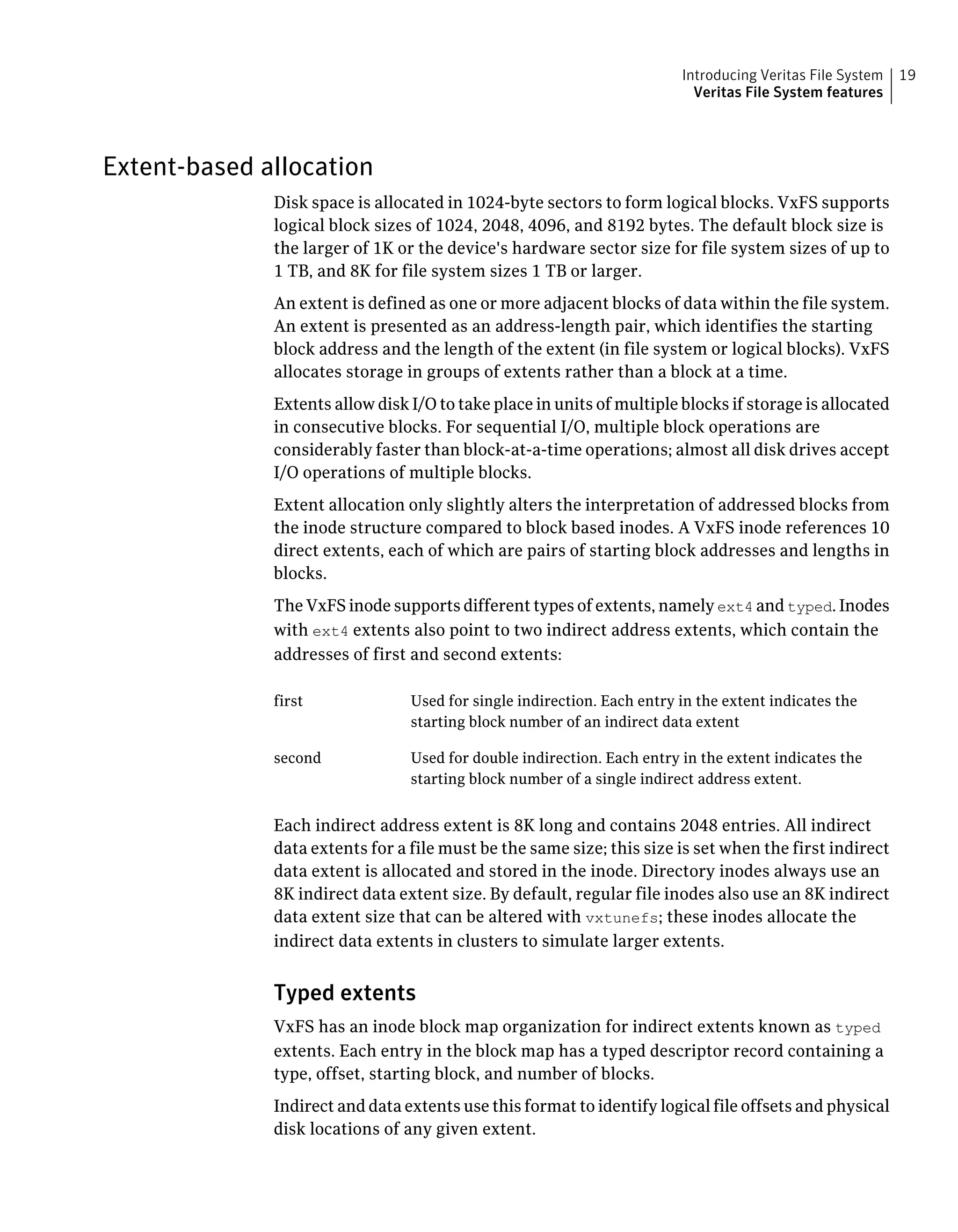
The VxFS inode supports different types of extents, namely ext4 and typed. Inodes
with ext4 extents also point to two indirect address extents, which contain the
addresses of first and second extents:
Used for single indirection. Each entry in the extent indicates the
starting block number of an indirect data extent
first
Used for double indirection. Each entry in the extent indicates the
starting block number of a single indirect address extent.
second
Each indirect address extent is 8K long and contains 2048 entries. All indirect
data extents for a file must be the same size; this size is set when the first indirect
data extent is allocated and stored in the inode. Directory inodes always use an
8K indirect data extent size. By default, regular file inodes also use an 8K indirect
data extent size that can be altered with vxtunefs; these inodes allocate the
indirect data extents in clusters to simulate larger extents.
Typed extents
VxFS has an inode block map organization for indirect extents known as typed
extents. Each entry in the block map has a typed descriptor record containing a
type, offset, starting block, and number of blocks.
Indirect and data extents use this format to identify logical file offsets and physical
disk locations of any given extent.
19Introducing Veritas File System
Veritas File System features
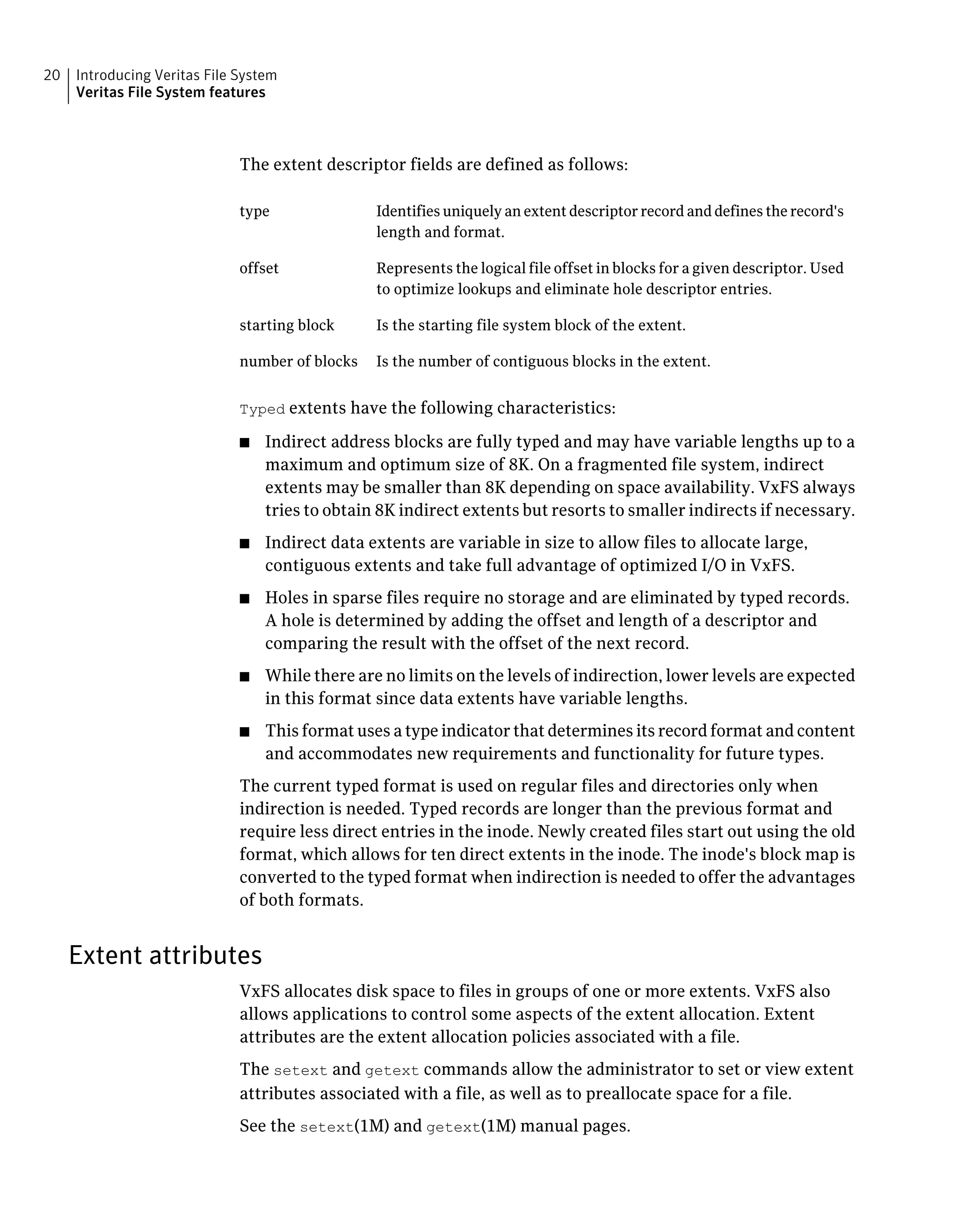
The extent descriptor fields are defined as follows:
Identifies uniquely an extent descriptor record and defines the record's
length and format.
type
Represents the logical file offset in blocks for a given descriptor. Used
to optimize lookups and eliminate hole descriptor entries.
offset
Is the starting file system block of the extent.starting block
Is the number of contiguous blocks in the extent.number of blocks
Typed extents have the following characteristics:
■ Indirect address blocks are fully typed and may have variable lengths up to a
maximum and optimum size of 8K. On a fragmented file system, indirect
extents may be smaller than 8K depending on space availability. VxFS always
tries to obtain 8K indirect extents but resorts to smaller indirects if necessary.
■ Indirect data extents are variable in size to allow files to allocate large,
contiguous extents and take full advantage of optimized I/O in VxFS.
■ Holes in sparse files require no storage and are eliminated by typed records.
A hole is determined by adding the offset and length of a descriptor and
comparing the result with the offset of the next record.
■ While there are no limits on the levels of indirection, lower levels are expected
in this format since data extents have variable lengths.
■ This format uses a type indicator that determines its record format and content
and accommodates new requirements and functionality for future types.
The current typed format is used on regular files and directories only when
indirection is needed. Typed records are longer than the previous format and
require less direct entries in the inode. Newly created files start out using the old
format, which allows for ten direct extents in the inode. The inode's block map is
converted to the typed format when indirection is needed to offer the advantages
of both formats.
Extent attributes
VxFS allocates disk space to files in groups of one or more extents. VxFS also
allows applications to control some aspects of the extent allocation. Extent
attributes are the extent allocation policies associated with a file.
The setext and getext commands allow the administrator to set or view extent
attributes associated with a file, as well as to preallocate space for a file.
See the setext(1M) and getext(1M) manual pages.
Introducing Veritas File System
Veritas File System features
20
The vxtunefs command allows the administrator to set or view the default indirect
data extent size of a file system.
See the vxtunefs(1M) manual page.
Fast file system recovery
Most file systems rely on full structural verification by the fsck utility as the only
means to recover from a system failure. For large disk configurations, this involves
a time-consuming process of checking the entire structure, verifying that the file
system is intact, and correcting any inconsistencies. VxFS provides fast recovery
with the VxFS intent log and VxFS intent log resizing features.
VxFS intent log
VxFS reduces system failure recovery times by tracking file system activity in the
VxFS intent log. This feature records pending changes to the file system structure
in a circular intent log. The intent log recovery feature is not readily apparent to
users or a system administrator except during a system failure. During system
failure recovery, the VxFS fsck utility performs an intent log replay, which scans
the intent log and nullifies or completes file system operations that were active
when the system failed. The file system can then be mounted without completing
a full structural check of the entire file system. Replaying the intent log may not
completely recover the damaged file system structure if there was a disk hardware
failure; hardware problems may require a complete system check using the fsck
utility provided with VxFS.
The mount command automatically runs the VxFS fsck command to perform an
intent log replay if the mount command detects a dirty log in the file system. This
functionality is only supported on a file system mounted on a Veritas Volume
Manager (VxVM) volume, and is supported on cluster file systems.
See “The log option and data integrity” on page 23.
VxFS intent log resizing
The VxFS intent log is allocated when the file system is first created. The size of
the intent log is based on the size of the file system—the larger the file system,
the larger the intent log. The maximum default intent log size for disk layout
Versions 5 and 6 is 16 megabytes. The maximum default intent log size for disk
layout Version 7 and 8 is 64 megabytes.
With the Version 6, 7, and 8 disk layouts, you can dynamically increase or decrease
the intent log size using the logsize option of the fsadm command. Increasing
the size of the intent log can improve system performance because it reduces the
21Introducing Veritas File System
Veritas File System features
number of times the log wraps around. However, increasing the intent log size
can lead to greater times required for a log replay if there is a system failure.
Note: Inappropriate sizing of the intent log can have a negative impact on system
performance.
See the mkfs_vxfs(1M) and the fsadm_vxfs(1M) manual pages.
Extended mount options
The VxFS file system provides the following enhancements to the mount command:
■ Enhanced data integrity modes
■ Enhanced performance mode
■ Temporary file system mode
■ Improved synchronous writes
■ Support for large file sizes
See “Mounting a VxFS file system” on page 35.
See the mount_vxfs(1M) manual page.
Enhanced data integrity modes
For most UNIX file systems, including VxFS, the default mode for writing to a file
is delayed, or buffered, meaning that the data to be written is copied to the file
system cache and later flushed to disk.
A delayed write provides much better performance than synchronously writing
the data to disk. However, in the event of a system failure, data written shortly
before the failure may be lost since it was not flushed to disk. In addition, if space
was allocated to the file as part of the write request, and the corresponding data
was not flushed to disk before the system failure occurred, uninitialized data can
appear in the file.
For the most common type of write, delayed extending writes (a delayed write
that increases the file size), VxFS avoids the problem of uninitialized data
appearing in the file by waiting until the data has been flushed to disk before
updating the new file size to disk. If a system failure occurs before the data has
been flushed to disk, the file size has not yet been updated to be uninitialized data,
thus no uninitialized data appears in the file. The unused blocks that were allocated
are reclaimed.
Introducing Veritas File System
Veritas File System features
22
The blkclear option and data integrity
In environments where performance is more important than absolute data
integrity, the preceding situation is not of great concern. However, VxFS supports
environments that emphasize data integrity by providing the mount -o blkclear
option that ensures uninitialized data does not appear in a file.
The closesync option and data integrity
VxFS provides the mount -o mincache=closesync option, which is useful in
desktop environments with users who are likely to shut off the power on machines
without halting them first. In closesync mode, only files that are written during
the system crash or shutdown can lose data. Any changes to a file are flushed to
disk when the file is closed.
The log option and data integrity
File systems are typically asynchronous in that structural changes to the file
system are not immediately written to disk, which provides better performance.
However, recent changes made to a system can be lost if a system failure occurs.
Specifically, attribute changes to files and recently created files may disappear.
The mount -o log intent logging option guarantees that all structural changes
to the file system are logged to disk before the system call returns to the
application. With this option, the rename(2) system call flushes the source file to
disk to guarantee the persistence of the file data before renaming it. The rename()
call is also guaranteed to be persistent when the system call returns. The changes
to file system data and metadata caused by the fsync(2) and fdatasync(2) system
calls are guaranteed to be persistent once the calls return.
Enhanced performance mode
VxFS has a mount option that improves performance: delaylog.
The delaylog option and enhanced performance
The default VxFS logging mode, mount -o delaylog, increases performance by
delaying the logging of some structural changes. However, delaylog does not
provide the equivalent data integrity as the previously described modes because
recent changes may be lost during a system failure. This option provides at least
the same level of data accuracy that traditional UNIX file systems provide for
system failures, along with fast file system recovery.
23Introducing Veritas File System
Veritas File System features
Temporary file system mode
On most UNIX systems, temporary file system directories, such as /tmp and
/usr/tmp, often hold files that do not need to be retained when the system reboots.
The underlying file system does not need to maintain a high degree of structural
integrity for these temporary directories. VxFS provides the mount -o tmplog
option, which allows the user to achieve higher performance on temporary file
systems by delaying the logging of most operations.
Improved synchronous writes
VxFS provides superior performance for synchronous write applications. The
mount -o datainlog option greatly improves the performance of small
synchronous writes.
The mount -o convosync=dsync option improves the performance of applications
that require synchronous data writes but not synchronous inode time updates.
Warning: The use of the -o convosync=dsync option violates POSIX semantics.
Support for large files
With VxFS, you can create, mount, and manage file systems containing large files
(files larger than two gigabytes).
Warning: Some applications and utilities may not work on large files.
Access Control Lists
An Access Control List (ACL) stores a series of entries that identify specific users
or groups and their access privileges for a directory or file. A file may have its
own ACL or may share an ACL with other files. ACLs have the advantage of
specifying detailed access permissions for multiple users and groups. For VxFS
file systems created with the Version 5, 6, 7, or 8 disk layouts, up to 1024 ACL
entries can be specified. ACLs are also supported on cluster file systems.
See the getacl(1) and setacl(1) manual pages.
Storage Checkpoints
To increase availability, recoverability, and performance, Veritas File System
offers on-disk and online backup and restore capabilities that facilitate frequent
Introducing Veritas File System
Veritas File System features
24
and efficient backup strategies. Backup and restore applications can leverage a
Storage Checkpoint, a disk- and I/O-efficient copying technology for creating
periodic frozen images of a file system. Storage Checkpoints present a view of a
file system at a point in time, and subsequently identifies and maintains copies
of the original file system blocks. Instead of using a disk-based mirroring method,
Storage Checkpoints save disk space and significantly reduce I/O overhead by
using the free space pool available to a file system.
Storage Checkpoint functionality is separately licensed.
See the Veritas Storage Foundation Advanced Features Administrator's Guide.
FileSnaps
A FileSnap is a space-optimized copy of a file in the same name space, stored in
the same file system. VxFS supports FileSnaps in the VxFS 5.1 SP1 release and
later, and on file systems with disk layout Version 8 and later.
See the Veritas Storage Foundation Advanced Features Administrator's Guide.
See the vxfilesnap(1) manual page.
Quotas
VxFS supports quotas, which allocate per-user quotas and limit the use of two
principal resources: files and data blocks. You can assign quotas for each of these
resources. Each quota consists of two limits for each resource: hard limit and soft
limit.
The hard limit represents an absolute limit on data blocks or files. A user can
never exceed the hard limit under any circumstances.
The soft limit is lower than the hard limit and can be exceeded for a limited amount
of time. This allows users to exceed limits temporarily as long as they fall under
those limits before the allotted time expires.
See “About quota limits” on page 77.
Support for databases
Databases are usually created on file systems to simplify backup, copying, and
moving tasks and are slower compared to databases on raw disks.
Using Quick I/O for Databases feature with VxFS lets systems retain the benefits
of having a database on a file system without sacrificing performance. Veritas
Quick I/O creates regular, preallocated files to use as character devices. Databases
can be created on the character devices to achieve the same performance as
databases created on raw disks.
25Introducing Veritas File System
Veritas File System features
Treating regular VxFS files as raw devices has the following advantages for
databases:
■ Commercial database servers such as Oracle Server can issue kernel supported
asynchronous I/O calls (through the asyncdsk or Posix AIO interface) on these
pseudo devices but not on regular files.
Cluster file systems
Veritas Storage Foundation Cluster File System (SFCFS) allows clustered severs
to mount and use a file system simultaneously as if all applications using the file
system were running on the same server. The Veritas Volume Manager cluster
functionality (CVM) makes logical volumes and raw device applications accessible
through a cluster.
Beginning with SFCFS 5.0, SFCFS uses a symmetric architecture in which all nodes
in the cluster can simultaneously function as metadata severs. SFCFS still has
some remnants of the old master/slave or primary/secondary concept. The first
server to mount each cluster file system becomes its primary; all other nodes in
the cluster become secondaries. Applications access the user data in files directly
from the server on which they are running. Each SFCFS node has its own intent
log. File system operations, such as allocating or deleting files, can originate from
any node in the cluster.
Installing VxFS and enabling the cluster feature does not create a cluster file
system configuration. File system clustering requires other Veritas products to
enable communication services and provide storage resources. These products
are packaged with VxFS in the Storage Foundation Cluster File System to provide
a complete clustering environment.
See the Veritas Storage Foundation Cluster File System Administrator's Guide.
To be a cluster mount, a file system must be mounted using the mount -o cluster
option. File systems mounted without the -o cluster option are termed local
mounts.
SFCFS functionality is separately licensed.
Cross-platform data sharing
Cross-platform data sharing (CDS) allows data to be serially shared among
heterogeneous systems where each system has direct access to the physical devices
that hold the data. This feature can be used only in conjunction with Veritas
Volume Manager (VxVM).
See the Veritas Storage Foundation Cross-Platform Data Sharing Administrator's
Guide.
Introducing Veritas File System
Veritas File System features
26
File Change Log
The VxFS File Change Log (FCL) tracks changes to files and directories in a file
system. The File Change Log can be used by applications such as backup products,
webcrawlers, search and indexing engines, and replication software that typically
scan an entire file system searching for modifications since a previous scan. FCL
functionality is a separately licensed feature.
See “About the File Change Log file” on page 82.
Multi-volume support
The multi-volume support (MVS) feature allows several volumes to be represented
by a single logical object. All I/O to and from an underlying logical volume is
directed by way of volume sets. This feature can be used only in conjunction with
VxVM. MVS functionality is a separately licensed feature.
See “About multi-volume support” on page 89.
SmartTier
The SmartTier option is built on multi-volume support technology. Using
SmartTier, you can map more than one volume to a single file system. You can
then configure policies that automatically relocate files from one volume to
another, or relocate files by running file relocation commands. Having multiple
volumes lets you determine where files are located, which can improve
performance for applications that access specific types of files. SmartTier
functionality is a separately licensed feature.
See the Veritas Storage Foundation Advanced Features Administrator's Guide.
Note: In the previous VxFS 5.x releases, SmartTier was known as Dynamic Storage
Tiering.
Thin Reclamation of a file system
Storage is allocated from a Thin Storage LUN when files are created and written
to a file system. This storage is not given back to the Thin Storage LUN when a
file is deleted or the file size is shrunk. As such, the file system must perform the
explicit task of releasing the free storage to the Thin Storage LUN. This is
performed by the Storage Foundation Thin Reclamation feature. Thin Reclamation
is only supported on VxFS file systems mounted on a VxVM volume.
See the Veritas Storage Foundation Advanced Features Administrator's Guide.
27Introducing Veritas File System
Veritas File System features
Partitioned directories
Normally, a large volume of parallel threads performing access and updates on a
directory that commonly exist in an file system suffers from exponentially longer
wait times for the threads. This feature creates partitioned directories to improve
the directory performance of file systems. When any directory crosses the tunable
threshold, this feature takes an exclusive lock on the directory inode and
redistributes the entries into various respective hash directories. These hash
directories are not visible in the name-space view of the user or operating system.
For every new create, delete, or lookup thread, this feature performs a lookup for
the respective hashed directory (depending on the target name) and performs the
operation in that directory. This leaves the parent directory inode and its other
hash directories unobstructed for access, which vastly improves file system
performance.
This feature operates only on disk layout Version 8 or later file systems.
Veritas File System performance enhancements
Traditional file systems employ block-based allocation schemes that provide
adequate random access and latency for small files, but which limit throughput
for larger files. As a result, they are less than optimal for commercial
environments.
VxFS addresses this file system performance issue through an alternative
allocation method and increased user control over allocation, I/O, and caching
policies.
See “Using Veritas File System” on page 30.
VxFS provides the following performance enhancements:
■ Data synchronous I/O
■ Direct I/O and discovered direct I/O
■ Support for file systems up to 256 terabytes
■ Support for files up to 16 terabytes
■ Enhanced I/O performance
■ Caching advisories
■ Enhanced directory features
■ Explicit file alignment, extent size, and preallocation controls
■ Tunable I/O parameters
■ Tunable indirect data extent size
Introducing Veritas File System
Veritas File System performance enhancements
28
■ Integration with VxVM™
■ Support for large directories
Note: VxFS reduces the file lookup time in directories with an extremely large
number of files.
About enhanced I/O performance
VxFS provides enhanced I/O performance by applying an aggressive I/O clustering
policy, integrating with VxVM, and allowing application specific parameters to
be set on a per-file system basis.
See “Enhanced I/O clustering” on page 29.
See “Veritas Volume Manager integration with Veritas File System for enhanced
I/O performance” on page 29.
See “Application-specific parameters for enhanced I/O performance” on page 29.
Enhanced I/O clustering
I/O clustering is a technique of grouping multiple I/O operations together for
improved performance. VxFS I/O policies provide more aggressive clustering
processes than other file systems and offer higher I/O throughput when using
large files. The resulting performance is comparable to that provided by raw disk.
Veritas Volume Manager integration with Veritas File System
for enhanced I/O performance
VxFS interfaces with VxVM to determine the I/O characteristics of the underlying
volume and perform I/O accordingly. VxFS also uses this information when using
mkfs to perform proper allocation unit alignments for efficient I/O operations
from the kernel.
As part of VxFS/VxVM integration, VxVM exports a set of I/O parameters to
achieve better I/O performance. This interface can enhance performance for
different volume configurations such as RAID-5, striped, and mirrored volumes.
Full stripe writes are important in a RAID-5 volume for strong I/O performance.
VxFS uses these parameters to issue appropriate I/O requests to VxVM.
Application-specific parameters for enhanced I/O performance
You can set application specific parameters on a per-file system basis to improve
I/O performance.
29Introducing Veritas File System
Veritas File System performance enhancements
■ Discovered Direct I/O
All sizes above this value would be performed as direct I/O.
■ Maximum Direct I/O Size
This value defines the maximum size of a single direct I/O.
See the vxtunefs(1M) and tunefstab(4) manual pages.
Using Veritas File System
There are three main methods to use, manage, modify, and tune VxFS:
■ See “Online system administration” on page 30.
■ See “Application program interface” on page 31.
Veritas Operations Manager
Symantec recommends use of Veritas Operations Manager to manage Storage
Foundation and Cluster Server environments.
Veritas Operations Manager provides a centralized management console for
Veritas Storage Foundation and High Availability products. You can use Veritas
Operations Manager to monitor, visualize, and manage storage resources and
generate reports. Veritas Operations Manager is not available on the Storage
Foundation and High Availability Solutions release and must be obtained
separately. You can download this utility at no charge at
http://go.symantec.com/vom.
Refer to the Veritas Operations Manger documentation for installation, upgrade,
and configuration instructions.
Online system administration
VxFS provides command line interface (CLI) operations that are described
throughout this guide and in manual pages.
VxFS allows you to run a number of administration tasks while the file system is
online. Two of the more important tasks include:
■ Defragmentation
■ File system resizing
About defragmentation
Free resources are initially aligned and allocated to files in an order that provides
optimal performance. On an active file system, the original order of free resources
Introducing Veritas File System
Using Veritas File System
30
is lost over time as files are created, removed, and resized. The file system is
spread farther along the disk, leaving unused gaps or fragments between areas
that are in use. This process is known as fragmentation and leads to degraded
performance because the file system has fewer options when assigning a free
extent to a file (a group of contiguous data blocks).
VxFS provides the online administration utility fsadm to resolve the problem of
fragmentation.
The fsadm utility defragments a mounted file system by performing the following
actions:
■ Removing unused space from directories
■ Making all small files contiguous
■ Consolidating free blocks for file system use
This utility can run on demand and should be scheduled regularly as a cron job.
About file system resizing
A file system is assigned a specific size as soon as it is created; the file system may
become too small or too large as changes in file system usage take place over time.
VxFS is capable of increasing or decreasing the file system size while in use. Many
competing file systems can not do this. The VxFS utility fsadm can expand or
shrink a file system without unmounting the file system or interrupting user
productivity. However, to expand a file system, the underlying device on which
it is mounted must be expandable.
VxVM facilitates expansion using virtual disks that can be increased in size while
in use. The VxFS and VxVM packages complement each other to provide online
expansion capability. Use the vxresize command when resizing both the volume
and the file system. The vxresize command guarantees that the file system
shrinks or grows along with the volume. You can also use the the vxassist
command combined with the fsadm_vxfs command for this purpose; however,
Symantec recommends that you use the vxresize command instead.
See the vxresize(1M) manual page.
See the Veritas Volume Manager Administrator's Guide.
Application program interface
Veritas File System Developer's Kit (SDK) provides developers with the information
necessary to use the application programming interfaces (APIs) to modify and
tune various features and components of File System.
31Introducing Veritas File System
Using Veritas File System
See the Veritas File System Programmer's Reference Guide.
VxFS conforms to the System V Interface Definition (SVID) requirements and
supports user access through the Network File System (NFS). Applications that
require performance features not available with other file systems can take
advantage of VxFS enhancements.
Expanded application facilities
VxFS provides API functions frequently associated with commercial applications
that make it possible to perform the following actions:
■ Preallocate space for a file
■ Specify a fixed extent size for a file
■ Bypass the system buffer cache for file I/O
■ Specify the expected access pattern for a file
Because these functions are provided using VxFS-specific IOCTL system calls,
most existing UNIX system applications do not use them. The cp, cpio, and mv
utilities use the functions to preserve extent attributes and allocate space more
efficiently. The current attributes of a file can be listed using the getext or ls
command. The functions can also improve performance for custom applications.
For portability reasons, these applications must check which file system type they
are using before using these functions.
Introducing Veritas File System
Using Veritas File System
32
VxFS performance:
creating, mounting, and
tuning file systems
This chapter includes the following topics:
■ Creating a VxFS file system
■ Mounting a VxFS file system
■ Tuning the VxFS file system
■ Monitoring free space
■ Tuning I/O
Creating a VxFS file system
When you create a file system with the mkfs command, you can select the following
characteristics:
■ Block size
See “Block size” on page 34.
■ Intent log size
See “Intent log size” on page 34.
2Chapter
Block size
The unit of allocation in VxFS is an extent. Unlike some other UNIX file systems,
VxFS does not make use of block fragments for allocation because storage is
allocated in extents that consist of one or more blocks.
You specify the block size when creating a file system by using the mkfs -o bsize
option. The block size cannot be altered after the file system is created. The
smallest available block size for VxFS is 1K. The default block size is 1024 bytes
for file systems smaller than 1 TB, and 8192 bytes for file systems 1 TB or larger.
Choose a block size based on the type of application being run. For example, if
there are many small files, a 1K block size may save space. For large file systems,
with relatively few files, a larger block size is more appropriate. Larger block sizes
use less disk space in file system overhead, but consume more space for files that
are not a multiple of the block size. The easiest way to judge which block sizes
provide the greatest system efficiency is to try representative system loads against
various sizes and pick the fastest.
For 64-bit kernels, the block size and disk layout version determine the maximum
size of the file system you can create.
See “About disk layouts” on page 231.
Intent log size
You specify the intent log size when creating a file system by using the mkfs -o
logsize option. With the Version 6 and later disk layouts, you can dynamically
increase or decrease the intent log size using the log option of the fsadm command.
The mkfs utility uses a default intent log size of 16 megabytes for disk layout
Versions 5 and 6. 64 megabytes is the default for Version 7 and later. The default
size is sufficient for most workloads. If the system is used as an NFS server or for
intensive synchronous write workloads, performance may be improved using a
larger log size.
With larger intent log sizes, recovery time is proportionately longer and the file
system may consume more system resources (such as memory) during normal
operation.
There are several system performance benchmark suites for which VxFS performs
better with larger log sizes. As with block sizes, the best way to pick the log size
is to try representative system loads against various sizes and pick the fastest.
VxFS performance: creating, mounting, and tuning file systems
Creating a VxFS file system
34
Mounting a VxFS file system
In addition to the standard mount mode (delaylog mode), Veritas File System
(VxFS) provides the following modes of operation:
■ log
■ delaylog
■ tmplog
■ logsize
■ nodatainlog
■ blkclear
■ mincache
■ convosync
■ ioerror
■ largefiles|nolargefiles
■ cio
■ mntlock|mntunlock
■ tranflush
Caching behavior can be altered with the mincache option, and the behavior of
O_SYNC and D_SYNC writes can be altered with the convosync option.
See the fcntl(2) manual page.
The delaylog and tmplog modes can significantly improve performance. The
improvement over log mode is typically about 15 to 20 percent with delaylog;
with tmplog, the improvement is even higher. Performance improvement varies,
depending on the operations being performed and the workload. Read/write
intensive loads should show less improvement, while file system structure
intensive loads, such as mkdir, create, and rename, may show over 100 percent
improvement. The best way to select a mode is to test representative system loads
against the logging modes and compare the performance results.
Most of the modes can be used in combination. For example, a desktop machine
might use both the blkclear and mincache=closesync modes.
The mount command automatically runs the VxFS fsck command to clean up the
intent log if the mount command detects a dirty log in the file system. This
functionality is only supported on file systems mounted on a Veritas Volume
Manager (VxVM) volume.
35VxFS performance: creating, mounting, and tuning file systems
Mounting a VxFS file system
See the mount_vxfs(1M) manual page.
The log mode
In log mode, all system calls other than write(2), writev(2), and pwrite(2) are
guaranteed to be persistent after the system call returns to the application.
The rename(2) system call flushes the source file to disk to guarantee the
persistence of the file data before renaming it. In both the log and delaylog
modes, the rename is also guaranteed to be persistent when the system call returns.
This benefits shell scripts and programs that try to update a file atomically by
writing the new file contents to a temporary file and then renaming it on top of
the target file.
The delaylog mode
The default logging mode is delaylog. In delaylog mode, the effects of most
system calls other than write(2), writev(2), and pwrite(2) are guaranteed to be
persistent approximately 3 seconds after the system call returns to the application.
Contrast this with the behavior of most other file systems in which most system
calls are not persistent until approximately 30 seconds or more after the call has
returned. Fast file system recovery works with this mode.
The rename(2) system call flushes the source file to disk to guarantee the
persistence of the file data before renaming it. In the log and delaylog modes,
the rename is also guaranteed to be persistent when the system call returns. This
benefits shell scripts and programs that try to update a file atomically by writing
the new file contents to a temporary file and then renaming it on top of the target
file.
The tmplog mode
In tmplog mode, the effects of system calls have persistence guarantees that are
similar to those in delaylog mode. In addition, enhanced flushing of delayed
extending writes is disabled, which results in better performance but increases
the chances of data being lost or uninitialized data appearing in a file that was
being actively written at the time of a system failure. This mode is only
recommended for temporary file systems. Fast file system recovery works with
this mode.
VxFS performance: creating, mounting, and tuning file systems
Mounting a VxFS file system
36
Note: The term "effects of system calls" refers to changes to file system data and
metadata caused by the system call, excluding changes to st_atime.
See the stat(2) manual page.
Logging mode persistence guarantees
In all logging modes, VxFS is fully POSIX compliant. The effects of the fsync(2)
and fdatasync(2) system calls are guaranteed to be persistent after the calls
return. The persistence guarantees for data or metadata modified by write(2),
writev(2), or pwrite(2) are not affected by the logging mount options. The effects
of these system calls are guaranteed to be persistent only if the O_SYNC, O_DSYNC,
VX_DSYNC, or VX_DIRECT flag, as modified by the convosync= mount option, has
been specified for the file descriptor.
The behavior of NFS servers on a VxFS file system is unaffected by the log and
tmplog mount options, but not delaylog. In all cases except for tmplog, VxFS
complies with the persistency requirements of the NFS v2 and NFS v3 standard.
Unless a UNIX application has been developed specifically for the VxFS file system
in log mode, it expects the persistence guarantees offered by most other file
systems and experiences improved robustness when used with a VxFS file system
mounted in delaylog mode. Applications that expect better persistence guarantees
than that offered by most other file systems can benefit from the log, mincache=,
and closesync mount options. However, most commercially available applications
work well with the default VxFS mount options, including the delaylog mode.
The logiosize mode
The logiosize=size option enhances the performance of storage devices that
employ a read-modify-write feature. If you specify logiosize when you mount a
file system, VxFS writes the intent log in the least size bytes or a multiple of size
bytes to obtain the maximum performance from such devices.
See the mount_vxfs(1M) manual page.
The values for size can be 1024, 2048, or 4096.
The nodatainlog mode
Use the nodatainlog mode on systems with disks that do not support bad block
revectoring. Usually, a VxFS file system uses the intent log for synchronous writes.
The inode update and the data are both logged in the transaction, so a synchronous
write only requires one disk write instead of two. When the synchronous write
returns to the application, the file system has told the application that the data
37VxFS performance: creating, mounting, and tuning file systems
Mounting a VxFS file system
is already written. If a disk error causes the metadata update to fail, then the file
must be marked bad and the entire file is lost.
If a disk supports bad block revectoring, then a failure on the data update is
unlikely, so logging synchronous writes should be allowed. If the disk does not
support bad block revectoring, then a failure is more likely, so the nodatainlog
mode should be used.
A nodatainlog mode file system is approximately 50 percent slower than a
standard mode VxFS file system for synchronous writes. Other operations are
not affected.
The blkclear mode
The blkclear mode is used in increased data security environments. The blkclear
mode guarantees that uninitialized storage never appears in files. The increased
integrity is provided by clearing extents on disk when they are allocated within
a file. This mode does not affect extending writes. A blkclear mode file system
is approximately 10 percent slower than a standard mode VxFS file system,
depending on the workload.
The mincache mode
The mincache mode has the following suboptions:
■ mincache=closesync
■ mincache=direct
■ mincache=dsync
■ mincache=unbuffered
■ mincache=tmpcache
The mincache=closesync mode is useful in desktop environments where users
are likely to shut off the power on the machine without halting it first. In this
mode, any changes to the file are flushed to disk when the file is closed.
To improve performance, most file systems do not synchronously update data
and inode changes to disk. If the system crashes, files that have been updated
within the past minute are in danger of losing data. With the mincache=closesync
mode, if the system crashes or is switched off, only open files can lose data. A
mincache=closesync mode file system could be approximately 15 percent slower
than a standard mode VxFS file system, depending on the workload.
The following describes where to use the mincache modes:
VxFS performance: creating, mounting, and tuning file systems
Mounting a VxFS file system
38
■ The mincache=direct, mincache=unbuffered, and mincache=dsync modes
are used in environments where applications have reliability problems caused
by the kernel buffering of I/O and delayed flushing of non-synchronous I/O.
■ The mincache=direct and mincache=unbuffered modes guarantee that all
non-synchronous I/O requests to files are handled as if the VX_DIRECT or
VX_UNBUFFERED caching advisories had been specified.
■ The mincache=dsync mode guarantees that all non-synchronous I/O requests
to files are handled as if the VX_DSYNC caching advisory had been specified.
Refer to the vxfsio(7) manual page for explanations of VX_DIRECT,
VX_UNBUFFERED, and VX_DSYNC, as well as for the requirements for direct I/O.
■ The mincache=direct, mincache=unbuffered, and mincache=dsync modes
also flush file data on close as mincache=closesync does.
Becausethemincache=direct,mincache=unbuffered,andmincache=dsync modes
change non-synchronous I/O to synchronous I/O, throughput can substantially
degrade for small to medium size files with most applications. Since the VX_DIRECT
and VX_UNBUFFERED advisories do not allow any caching of data, applications that
normally benefit from caching for reads usually experience less degradation with
the mincache=dsync mode. mincache=direct and mincache=unbuffered require
significantly less CPU time than buffered I/O.
If performance is more important than data integrity, you can use the
mincache=tmpcache mode. The mincache=tmpcache mode disables special delayed
extending write handling, trading off less integrity for better performance. Unlike
the other mincache modes, tmpcache does not flush the file to disk the file is
closed. When the mincache=tmpcache option is used, bad data can appear in a file
that was being extended when a crash occurred.
The convosync mode
The convosync (convert osync) mode has the following suboptions:
■ convosync=closesync
Note: The convosync=closesync mode converts synchronous and data
synchronous writes to non-synchronous writes and flushes the changes to the
file to disk when the file is closed.
■ convosync=delay
■ convosync=direct
39VxFS performance: creating, mounting, and tuning file systems
Mounting a VxFS file system
■ convosync=dsync
Note: The convosync=dsync option violates POSIX guarantees for synchronous
I/O.
■ convosync=unbuffered
The convosync=delay mode causes synchronous and data synchronous writes to
be delayed rather than to take effect immediately. No special action is performed
when closing a file. This option effectively cancels any data integrity guarantees
normally provided by opening a file with O_SYNC.
See the open(2), fcntl(2), and vxfsio(7) manual pages.
Warning: Be very careful when using the convosync=closesync or
convosync=delay mode because they actually change synchronous I/O into
non-synchronous I/O. Applications that use synchronous I/O for data reliability
may fail if the system crashes and synchronously written data is lost.
The convosync=dsync mode converts synchronous writes to data synchronous
writes.
As with closesync, the direct, unbuffered, and dsync modes flush changes to
the file to disk when it is closed. These modes can be used to speed up applications
that use synchronous I/O. Many applications that are concerned with data integrity
specify the O_SYNC fcntl in order to write the file data synchronously. However,
this has the undesirable side effect of updating inode times and therefore slowing
down performance. The convosync=dsync, convosync=unbuffered, and
convosync=direct modes alleviate this problem by allowing applications to take
advantage of synchronous writes without modifying inode times as well.
Before using convosync=dsync, convosync=unbuffered, or convosync=direct,
make sure that all applications that use the file system do not require synchronous
inode time updates for O_SYNC writes.
The ioerror mode
This mode sets the policy for handling I/O errors on a mounted file system. I/O
errors can occur while reading or writing file data or metadata. The file system
can respond to these I/O errors either by halting or by gradually degrading. The
ioerror option provides five policies that determine how the file system responds
to the various errors. All policies limit data corruption, either by stopping the file
system or by marking a corrupted inode as bad.
VxFS performance: creating, mounting, and tuning file systems
Mounting a VxFS file system
40
The policies are the following:
■ disable
■ nodisable
■ wdisable
■ mwdisable
■ mdisable
The disable policy
If disable is selected, VxFS disables the file system after detecting any I/O error.
You must then unmount the file system and correct the condition causing the I/O
error. After the problem is repaired, run fsck and mount the file system again.
In most cases, replay fsck to repair the file system. A full fsck is required only
in cases of structural damage to the file system's metadata. Select disable in
environments where the underlying storage is redundant, such as RAID-5 or
mirrored disks.
The nodisable policy
If nodisable is selected, when VxFS detects an I/O error, it sets the appropriate
error flags to contain the error, but continues running. Note that the degraded
condition indicates possible data or metadata corruption, not the overall
performance of the file system.
For file data read and write errors, VxFS sets the VX_DATAIOERR flag in the
super-block. For metadata read errors, VxFS sets the VX_FULLFSCK flag in the
super-block. For metadata write errors, VxFS sets the VX_FULLFSCK and
VX_METAIOERR flags in the super-block and may mark associated metadata as bad
on disk. VxFS then prints the appropriate error messages to the console.
See “File system response to problems” on page 145.
You should stop the file system as soon as possible and repair the condition causing
the I/O error. After the problem is repaired, run fsck and mount the file system
again. Select nodisable if you want to implement the policy that most closely
resembles the error handling policy of the previous VxFS release.
The wdisable and mwdisable policies
If wdisable (write disable) or mwdisable (metadata-write disable) is selected, the
file system is disabled or degraded, depending on the type of error encountered.
Select wdisable or mwdisable for environments where read errors are more likely
41VxFS performance: creating, mounting, and tuning file systems
Mounting a VxFS file system
to persist than write errors, such as when using non-redundant storage. mwdisable
is the default ioerror mount option for local mounts.
See the mount_vxfs(1M) manual page.
The mdisable policy
If mdisable (metadata disable) is selected, the file system is disabled if a metadata
read or write fails. However, the file system continues to operate if the failure is
confined to data extents. mdisable is the default ioerror mount option for cluster
mounts.
The largefiles|nolargefiles option
VxFS supports files larger than 2 gigabytes. The maximum file size that can be
created is 2 terabytes.
Note: Applications and utilities such as backup may experience problems if they
are not aware of large files. In such a case, create your file system without large
file capability.
See “Creating a file system with large files” on page 42.
See “Mounting a file system with large files” on page 43.
See “Managing a file system with large files” on page 43.
Creating a file system with large files
To create a file system with a file capability:
# mkfs -F vxfs -o largefiles special_device size
Specifying largefiles sets the largefiles flag. This lets the file system to hold
files that are two gigabytes or larger. This is the default option.
To clear the flag and prevent large files from being created:
# mkfs -F vxfs -o nolargefiles special_device size
The largefiles flag is persistent and stored on disk.
VxFS performance: creating, mounting, and tuning file systems
Mounting a VxFS file system
42
Mounting a file system with large files
If a mount succeeds and nolargefiles is specified, the file system cannot contain
or create any large files. If a mount succeeds and largefiles is specified, the file
system may contain and create large files.
The mount command fails if the specified largefiles|nolargefiles option does
not match the on-disk flag.
Because the mount command defaults to match the current setting of the on-disk
flag if specified without the largefiles or nolargefiles option, the best practice
is not to specify either option. After a file system is mounted, you can use the
fsadm utility to change the large files option.
Managing a file system with large files
Managing a file system with large files includes the following tasks:
■ Determining the current status of the large files flag
■ Switching capabilities on a mounted file system
■ Switching capabilities on an unmounted file system
To determine the current status of the largefiles flag, type either of the following
commands:
# mkfs -F vxfs -m special_device
# fsadm -F vxfs mount_point | special_device
To switch capabilities on a mounted file system:
# fsadm -F vxfs -o [no]largefiles mount_point
To switch capabilities on an unmounted file system:
# fsadm -F vxfs -o [no]largefiles special_device
You cannot change a file system to nolargefiles if it contains large files.
See the mount_vxfs(1M), fsadm_vxfs(1M), and mkfs_vxfs(1M) manual pages.
The cio option
The cio (Concurrent I/O) option specifies the file system to be mounted for
concurrent readers and writers. Concurrent I/O is a separately licensed feature
of VxFS. If cio is specified, but the feature is not licensed, the mount command
prints an error message and terminates the operation without mounting the file
system. The cio option cannot be disabled through a remount. To disable the cio
43VxFS performance: creating, mounting, and tuning file systems
Mounting a VxFS file system
option, the file system must be unmounted and mounted again without the cio
option.
The mntlock|mntunlock option
The mntlock option prevents a file system from being unmounted by an
application. This option is useful for applications that do not want the file systems
that the applications are monitoring to be improperly unmounted by other
applications or administrators.
The mntunlock option of the vxumount command reverses the mntlock option if
you previously locked the file system.
Combining mount command options
Although mount options can be combined arbitrarily, some combinations do not
make sense. The following examples provide some common and reasonable mount
option combinations.
To mount a desktop file system using options:
# mount -F vxfs -o log,mincache=closesync /dev/dsk/c1t3d0 /mnt
This guarantees that when a file is closed, its data is synchronized to disk and
cannot be lost. Thus, after an application has exited and its files are closed, no
data is lost even if the system is immediately turned off.
To mount a temporary file system or to restore from backup:
# mount -F vxfs -o tmplog,convosync=delay,mincache=tmpcache 
/dev/dsk/c1t3d0 /mnt
This combination might be used for a temporary file system where performance
is more important than absolute data integrity. Any O_SYNC writes are performed
as delayed writes and delayed extending writes are not handled. This could result
in a file that contains corrupted data if the system crashes. Any file written 30
seconds or so before a crash may contain corrupted data or be missing if this
mount combination is in effect. However, such a file system does significantly
less disk writes than a log file system, and should have significantly better
performance, depending on the application.
To mount a file system for synchronous writes:
# mount -F vxfs -o log,convosync=dsync /dev/dsk/c1t3d0 /mnt
This combination can be used to improve the performance of applications that
perform O_SYNC writes, but only require data synchronous write semantics.
VxFS performance: creating, mounting, and tuning file systems
Mounting a VxFS file system
44
Performance can be significantly improved if the file system is mounted using
convosync=dsync without any loss of data integrity.
Tuning the VxFS file system
This section describes the following kernel tunable parameters in VxFS:
■ Tuning inode table size
■ Tuning performance optimization of inode allocation
■ VxFS buffer cache high water mark
■ Number of links to a file
■ VxFS inode free time lag
■ Partitioned directories
Tuning inode table size
VxFS caches inodes in an inode table. There is a dynamic tunable in VxFS called
vx_ninode that determines the number of entries in the inode table. You can
dynamically change the value of vx_ninode by using the sam or kctune commands.
See the sam(1M) and kctune(1M) manual pages.
This value is used to determine the number of entries in the VxFS inode table. By
default, vx_ninode initializes at zero; the file system then computes a value based
on the system memory size.
A VxFS file system can also obtain the value of vx_ninode from the system
configuration file used for making the HP-UX kernel (/stand/system for example).
To change the computed value of vx_ninode, you can add an entry to the system
configuration file. For example:
tunable vx_ninode 1000000
This sets the inode table size to 1,000,000 inodes after making a new HP-UX kernel
using mk_kernel.
Increasing the value of vx_ninode increases the inode table size immediately,
allowing a higher number of inodes to be cached. Decreasing the value of vx_ninode
decreases the inode table size to the specified value. After the tunable is decreased,
VxFS attempts to free excess cached objects so that the resulting number of inodes
in the table is less than or equal to the specified value of vx_ninode. If this attempt
fails, the value of the vx_ninode tunable is not changed. In such a case, the kctune
45VxFS performance: creating, mounting, and tuning file systems
Tuning the VxFS file system
command can be specified with the -h option so that the new value of vx_ninode
takes effect after a system reboot.
Be careful when changing the value of vx_ninode, as the value can affect file
system performance. Typically, the default value determined by VxFS based on
the amount of system memory ensures good system performance across a wide
range of applications. However, if it is determined that the default value is not
suitable, vx_ninode can be set to an appropriate value based on the expected file
system usage. The vxfsstat command can be used to monitor inode cache usage
and statistics to determine the optimum value of vx_ninode for the system.
Changing the value of a tunable does not resize the internal hash tables and
structures of the caches. These sizes are determined at system boot up based on
either the system memory size, which is the default, or the value of the tunable
if explicitly set, whichever is larger. Thus, dynamically increasing the tunable to
a value that is more than two times either the default value or the user-defined
value, if larger, may cause performance degradation unless the system is rebooted.
Examples of changing the vx_inode tunable value
The following are examples of changing the vx_ninode tunable value.
Reporting the current value of vx_ninode
# kctune vx_ninode
This command displays the current value of vx_ninode.
Setting vx_ninode
# kctune -s vx_ninode=10000
This command sets vx_ninode to 10000, the specified value.
Restoring vx_ninode to its default value
# kctune -s vx_ninode=
This command restores vx_ninode to its default value by clearing the user-specified
value. The default value is the value determined by VxFS to be optimal based on
the amount of system memory, which is used if vx_ninode is not explicitly set.
Delaying a change to vx_ninode until after a reboot
# kctune -h -s vx_ninode=10000
VxFS performance: creating, mounting, and tuning file systems
Tuning the VxFS file system
46
If the -h option is specified, the specified value for vx_ninode does not take effect
until after a system reboot.
Tuning performance optimization of inode allocation
The delicache_enable tunable parameter specifies whether performance
optimization of inode allocation and inode reuse during a new file creation is
turned on or off. The delicache_enable tunable is not supported for cluster file
systems. You can specify the following values fordelicache_enable:
■ 0 – Disables delicache optimization.
■ 1 – Enables delicache optimization.
The default value of delicache_enable is 1 for local mounts and 0 for cluster file
systems.
VxFS buffer cache high water mark
VxFS maintains its own buffer cache in the kernel for frequently accessed file
system metadata. This cache is different from the HP-UX kernel buffer cache that
caches file data. The vx_bc_bufhwm dynamic, global, tunable parameter lets you
change the VxFS buffer cache high water mark, that is, the maximum amount of
memory that can be used to cache VxFS metadata.
The initial value of vx_bc_bufhwm is zero. When the operating system reboots,
VxFS sets the value of vx_bc_bufhwm based on the amount of system memory.
You can explicitly reset the value of vx_bc_bufhwm by changing the value of
vxfs_bc_bufhwm using the sam or kctune commands.
See the sam(1M) and kctune(1M) manual pages.
You can also set the value by adding an entry to the system configuration file. For
example, the following entry:
vxfs_bc_bufhwm vx_bc_bufhwm 300000
sets the high water mark to 300 megabytes. The change takes effect after you
rebuild the HP-UX kernel using the mk_kernel command. You specify the
vx_bc_bufhwm tunable in units of kilobytes. The minimum value is 6144.
Increasing the value of vx_bc_bufhwm increases the VxFS buffer cache immediately,
allowing a greater amount of memory to be used to cache VxFS metadata.
Decreasing the value of vx_bc_bufhwm decreases the VxFS buffer cache to the
specified value. This frees memory such that the amount of memory used for
buffer cache is lower than the specified value of vx_bc_bufhwm.
47VxFS performance: creating, mounting, and tuning file systems
Tuning the VxFS file system
Typically, the default value computed by VxFS based on the amount of system
memory ensures good system performance across a wide range of applications.
For application loads that cause frequent file system metadata changes on the
system (for example, a high rate of file creation or deletion, or accessing large
directories), changing the value of vx_bc_bufhwm may improve performance.
You can use the vxfsstat command to monitor buffer cache statistics and inode
cache usage.
See the vxfsstat(1M) manual page.
Number of links to a file
In VxFS, the number of possible links to a file is determined by the vx_maxlink
global tunable. The default value of vx_maxlink is 32767, the maximum value is
65535. This is a static tunable.
You can set the value of vx_maxlink using the sam or kctune commands.
See the sam(1M) and kctune(1M) manual pages.
You can also add an entry to the system configuration file as shown in the following
example:
vxfs_maxlink vx_maxlink 40000
This sets the value of vx_maxlink to 40,000 links.
VxFS inode free time lag
In VxFS, an inode is put on a freelist if it is not being used. The memory space for
this unused inode can be freed if it stays on the freelist for a specified amount of
time. The vx_ifree_timelag tunable specifies the minimum amount of time an
unused inode spends on a freelist before its memory space is freed.
The vx_ifree_timelag tunable is dynamic. Any changes to vx_ifree_timelag
take effect immediately.
The default value of vx_ifree_timelag is 0. By setting vx_ifree_timelag to 0,
the inode free time lag is autotuned to 600 seconds. Specifying negative one (-1)
stops the freeing of inode space; no further inode allocations are freed until the
value is changed back to a value other than negative one.
You can change the value of vx_ifree_timelag using the sam or kctune commands.
See the sam(1M) and kctune(1M) manual pages.
You can also add an entry to the system configuration file. The following example
changes the value of vx_ifree_timelag to 2400 seconds:
VxFS performance: creating, mounting, and tuning file systems
Tuning the VxFS file system
48
# kctune -s vxfs_ifree_timelag=2400
Note: The default value of vx_ifree_timelag typically provides optimal VxFS
performance. Be careful when adjusting the tunable because incorrect tuning can
adversely affect system performance.
Partitioned directories
You can enable or disable the partitioned directories feature by setting the
pdir_enable tunable. Specifying a value of 1 enables partitioned directories, while
specifying a value of 0 disables partitioned directories. The default value is 0.
You can set the pdir_threshold tunable to specify the threshold value in terms
of directory size in bytes beyond which VxFS will partition a directory if you
enabled partitioned directories. The default value is 32000.
The -d option of the fsadm command removes empty hidden directories from
partitioned directories. If you disabled partitioned directories, the fsadm -d
command also converts partitioned directories to regular directories.
The partitioned directories feature operates only on disk layout Version 8 or later
file systems.
Monitoring free space
In general, VxFS works best if the percentage of free space in the file system does
not get below 10 percent. This is because file systems with 10 percent or more
free space have less fragmentation and better extent allocation. Regular use of
the df command to monitor free space is desirable.
See the df_vxfs(1M) manual page.
Full file systems may have an adverse effect on file system performance. Full file
systems should therefore have some files removed, or should be expanded.
See the fsadm_vxfs(1M) manual page.
Monitoring fragmentation
Fragmentation reduces performance and availability. Regular use of fsadm's
fragmentation reporting and reorganization facilities is therefore advisable.
The easiest way to ensure that fragmentation does not become a problem is to
schedule regular defragmentation runs using the cron command.
49VxFS performance: creating, mounting, and tuning file systems
Monitoring free space
Defragmentation scheduling should range from weekly (for frequently used file
systems) to monthly (for infrequently used file systems). Extent fragmentation
should be monitored with fsadm command.
To determine the degree of fragmentation, use the following factors:
■ Percentage of free space in extents of less than 8 blocks in length
■ Percentage of free space in extents of less than 64 blocks in length
■ Percentage of free space in extents of length 64 blocks or greater
An unfragmented file system has the following characteristics:
■ Less than 1 percent of free space in extents of less than 8 blocks in length
■ Less than 5 percent of free space in extents of less than 64 blocks in length
■ More than 5 percent of the total file system size available as free extents in
lengths of 64 or more blocks
A badly fragmented file system has one or more of the following characteristics:
■ Greater than 5 percent of free space in extents of less than 8 blocks in length
■ More than 50 percent of free space in extents of less than 64 blocks in length
■ Less than 5 percent of the total file system size available as free extents in
lengths of 64 or more blocks
The optimal period for scheduling of extent reorganization runs can be determined
by choosing a reasonable interval, scheduling fsadm runs at the initial interval,
and running the extent fragmentation report feature of fsadm before and after
the reorganization.
The “before" result is the degree of fragmentation prior to the reorganization. If
the degree of fragmentation is approaching the figures for bad fragmentation,
reduce the interval between fsadm runs. If the degree of fragmentation is low,
increase the interval between fsadm runs.
The “after" result is an indication of how well the reorganizer has performed. The
degree of fragmentation should be close to the characteristics of an unfragmented
file system. If not, it may be a good idea to resize the file system; full file systems
tend to fragment and are difficult to defragment. It is also possible that the
reorganization is not being performed at a time during which the file system in
question is relatively idle.
Directory reorganization is not nearly as critical as extent reorganization, but
regular directory reorganization improves performance. It is advisable to schedule
directory reorganization for file systems when the extent reorganization is
scheduled. The following is a sample script that is run periodically at 3:00 A.M.
from cron for a number of file systems:
VxFS performance: creating, mounting, and tuning file systems
Monitoring free space
50
outfile=/usr/spool/fsadm/out.‘/bin/date +'%m%d'‘
for i in /home /home2 /project /db
do
/bin/echo "Reorganizing $i"
/bin/timex fsadm -F vxfs -e -E -s $i
/bin/timex fsadm -F vxfs -s -d -D $i
done > $outfile 2>&1
Thin Reclamation
Veritas File System (VxFS) supports reclamation of free storage on a Thin Storage
LUN.
See “Thin Reclamation of a file system” on page 27.
See the Veritas Storage Foundation Advanced Features Administrator's Guide.
You reclaim free storage using the fsadm command or the vxfs_ts_reclaim API.
You can perform the default reclamation or aggressive reclamation. If you used
a file system for a long time and must perform reclamation on the file system,
Symantec recommends that you run aggressive reclamation. Aggressive
reclamation compacts the allocated blocks, which creates larger free blocks that
can potentially be reclaimed.
You can specify the following thin reclamation options with the fsadm command:
Initiates Thin Storage aggressive reclamation.aggressive
Initiates the analyze reclaim option.analyse|analyze
Initiates the auto reclaim option.auto
See the fsadm_vxfs(1M) and vxfs_ts_reclaim(3) manual pages.
Thin Reclamation is only supported on file systems mounted on a VxVM volume.
The following example performs default reclamation of free storage to the Thin
Storage LUN on a VxFS file system mounted at /mnt1:
# fsadm -R /mnt1
The following example performs aggressive reclamation of free storage to the
Thin Storage LUN on a VxFS file system mounted at /mnt1:
# fsadm -R -o aggressive /mnt1
After performing the reclaim operation, you can verify that the storage was
reclaimed using the vxdisk -o thin list command.
51VxFS performance: creating, mounting, and tuning file systems
Monitoring free space
Veritas File System also supports reclamation of a portion of the file system using
the vxfs_ts_reclaim() API.
See the Veritas File System Programmer's Reference Guide.
Note: Thin Reclamation is a slow process and may take several hours to complete,
depending on the file system size. Thin Reclamation is not guaranteed to reclaim
100% of the free space.
You can track the progress of the Thin Reclamation process by using the vxtask
list command when using the Veritas Volume Manager (VxVM) command vxdisk
reclaim.
See the vxtask(1M) and vxdisk(1M) manual pages.
You can administer Thin Reclamation using VxVM commands.
See the Veritas Volume Manager Administrator's Guide.
Tuning I/O
The performance of a file system can be enhanced by a suitable choice of I/O sizes
and proper alignment of the I/O requests based on the requirements of the
underlying special device. VxFS provides tools to tune the file systems.
Note: The following tunables and the techniques work on a per file system basis.
Use them judiciously based on the underlying device properties and characteristics
of the applications that use the file system.
Tuning VxFS I/O parameters
VxFS provides a set of tunable I/O parameters that control some of its behavior.
These I/O parameters are useful to help the file system adjust to striped or RAID-5
volumes that could yield performance superior to a single disk. Typically, data
streaming applications that access large files see the largest benefit from tuning
the file system.
Veritas Volume Manager queries
Veritas Volume Manager (VxVM) receives the following queries during
configuration:
■ The file system queries VxVM to determine the geometry of the underlying
volume and automatically sets the I/O parameters.
VxFS performance: creating, mounting, and tuning file systems
Tuning I/O
52
Note: When using file systems in multiple volume sets, VxFS sets the VxFS
tunables based on the geometry of the first component volume (volume 0) in
the volume set.
■ The mount command queries VxVM when the file system is mounted and
downloads the I/O parameters.
If the default parameters are not acceptable or the file system is being used without
VxVM, then the /etc/vx/tunefstab file can be used to set values for I/O
parameters. The mount command reads the /etc/vx/tunefstab file and downloads
any parameters specified for a file system. The tunefstab file overrides any values
obtained from VxVM. While the file system is mounted, any I/O parameters can
be changed using the vxtunefs command which can have tunables specified on
the command line or can read them from the /etc/vx/tunefstab file.
See the vxtunefs(1M) and tunefstab(4) manual pages.
The vxtunefs command can be used to print the current values of the I/O
parameters.
To print the values, type the following command:
# vxtunefs -p /mnt1
The following is an example tunefstab file:
/dev/vx/dsk/userdg/netbackup
read_pref_io=128k,write_pref_io=128k,read_nstream=4,write_nstream=4
/dev/vx/dsk/userdg/metasave
read_pref_io=128k,write_pref_io=128k,read_nstream=4,write_nstream=4
/dev/vx/dsk/userdg/solbuild
read_pref_io=64k,write_pref_io=64k,read_nstream=4,write_nstream=4
/dev/vx/dsk/userdg/solrelease
read_pref_io=64k,write_pref_io=64k,read_nstream=4,write_nstream=4
/dev/vx/dsk/userdg/solpatch
read_pref_io=128k,write_pref_io=128k,read_nstream=4,write_nstream=4
Tunable I/O parameters
Table 2-1 provides a list and description of these parameters.
53VxFS performance: creating, mounting, and tuning file systems
Tuning I/O
Table 2-1 Tunable VxFS I/O parameters
DescriptionParameter
The preferred read request size. The file system uses
this in conjunction with the read_nstream value to
determine how much data to read ahead. The default
value is 64K.
read_pref_io
The preferred write request size. The file system uses
this in conjunction with the write_nstream value
to determine how to do flush behind on writes. The
default value is 64K.
write_pref_io
The number of parallel read requests of size
read_pref_io to have outstanding at one time. The
file system uses the product of read_nstream
multiplied by read_pref_io to determine its read
ahead size. The default value for read_nstream is
1.
read_nstream
The number of parallel write requests of size
write_pref_io to have outstanding at one time.
The file system uses the product of write_nstream
multiplied by write_pref_io to determine when to
do flush behind on writes. The default value for
write_nstream is 1.
write_nstream
VxFS performance: creating, mounting, and tuning file systems
Tuning I/O
54
Table 2-1 Tunable VxFS I/O parameters (continued)
DescriptionParameter
On VxFS, files can have up to ten direct extents of
variable size stored in the inode. After these extents
are used up, the file must use indirect extents which
are a fixed size that is set when the file first uses
indirect extents. These indirect extents are 8K by
default. The file system does not use larger indirect
extents because it must fail a write and return ENOSPC
if there are no extents available that are the indirect
extent size. For file systems with many large files, the
8K indirect extent size is too small. The files that get
into indirect extents use many smaller extents instead
of a few larger ones. By using this parameter, the
default indirect extent size can be increased so large
that files in indirects use fewer larger extents. The
tunable default_indir_ size should be used
carefully. If it is set too large, then writes fail when
they are unable to allocate extents of the indirect
extent size to a file. In general, the fewer and the
larger the files on a file system, the larger the
default_indir_ size can be set. This parameter
should generally be set to some multiple of the
read_pref_io parameter. default_indir_ size
is not applicable on Version 4 disk layouts.
default_indir_ size
Any file I/O requests larger than
discovered_direct_iosz are handled as
discovered direct I/O. A discovered direct I/O is
unbuffered similar to direct I/O, but it does not require
a synchronous commit of the inode when the file is
extended or blocks are allocated. For larger I/O
requests, the CPU time for copying the data into the
page cache and the cost of using memory to buffer
the I/O data becomes more expensive than the cost
of doing the disk I/O. For these I/O requests, using
discovered direct I/O is more efficient than regular
I/O. The default value of this parameter is 256K.
discovered_direct_iosz
55VxFS performance: creating, mounting, and tuning file systems
Tuning I/O
Table 2-1 Tunable VxFS I/O parameters (continued)
DescriptionParameter
Specifies the minimum amount of time, in seconds,
that the VxFS File Change Log (FCL) keeps records in
the log. When the oldest 8K block of FCL records have
been kept longer than the value of fcl_keeptime,
they are purged from the FCL and the extents nearest
to the beginning of the FCL file are freed. This process
is referred to as "punching a hole." Holes are punched
in the FCL file in 8K chunks.
If the fcl_maxalloc parameter is set, records are
purged from the FCL if the amount of space allocated
to the FCL exceeds fcl_maxalloc, even if the elapsed
time the records have been in the log is less than the
value of fcl_keeptime. If the file system runs out
of space before fcl_keeptime is reached, the FCL
is deactivated.
Either or both of the fcl_keeptime or
fcl_maxalloc parameters must be set before the
File Change Log can be activated. fcl_keeptime
does not apply to disk layout Versions 1 through 5.
fcl_keeptime
Specifies the maximum amount of space that can be
allocated to the VxFS File Change Log (FCL). The FCL
file is a sparse file that grows as changes occur in the
file system. When the space allocated to the FCL file
reaches the fcl_maxalloc value, the oldest FCL
records are purged from the FCL and the extents
nearest to the beginning of the FCL file are freed. This
process is referred to as “punching a hole." Holes are
punched in the FCL file in 8K chunks. If the file system
runs out of space before fcl_maxalloc is reached,
the FCL is deactivated.
The minimum value of fcl_maxalloc is 4 MB. The
default value is fs_size/33.
Either or both of the fcl_maxalloc or
fcl_keeptime parameters must be set before the
File Change Log can be activated. fcl_maxalloc
does not apply to disk lay out Versions 1 through 5.
fcl_maxalloc
VxFS performance: creating, mounting, and tuning file systems
Tuning I/O
56
Table 2-1 Tunable VxFS I/O parameters (continued)
DescriptionParameter
Specifies the time, in seconds, that must elapse before
the VxFS File Change Log (FCL) records a data
overwrite, data extending write, or data truncate for
a file. The ability to limit the number of repetitive FCL
records for continuous writes to the same file is
important for file system performance and for
applications processing the FCL. fcl_winterval is
best set to an interval less than the shortest interval
between reads of the FCL by any application. This way
all applications using the FCL can be assured of
finding at least one FCL record for any file
experiencing continuous data changes.
fcl_winterval is enforced for all files in the file
system. Each file maintains its own time stamps, and
the elapsed time between FCL records is per file. This
elapsed time can be overridden using the VxFS FCL
sync public API.
See the vxfs_fcl_sync(3) manual page.
fcl_winterval does not apply to disk layout
Versions 1 through 5.
fcl_winterval
For a file managed by a hierarchical storage
management (HSM) application, hsm_write_prealloc
preallocates disk blocks before data is migrated back
into the file system. An HSM application usually
migrates the data back through a series of writes to
the file, each of which allocates a few blocks. By
setting hsm_write_ prealloc (hsm_write_
prealloc=1), a sufficient number of disk blocks are
allocated on the first write to the empty file so that
no disk block allocation is required for subsequent
writes. This improves the write performance during
migration.
The hsm_write_ prealloc parameter is
implemented outside of the DMAPI specification, and
its usage has limitations depending on how the space
within an HSM-controlled file is managed. It is
advisable to use hsm_write_ prealloc only when
recommended by the HSM application controlling the
file system.
hsm_write_ prealloc
57VxFS performance: creating, mounting, and tuning file systems
Tuning I/O
Table 2-1 Tunable VxFS I/O parameters (continued)
DescriptionParameter
Changes the default initial extent size. VxFS
determines, based on the first write to a new file, the
size of the first extent to be allocated to the file.
Normally the first extent is the smallest power of 2
that is larger than the size of the first write. If that
power of 2 is less than 8K, the first extent allocated
is 8K. After the initial extent, the file system increases
the size of subsequent extents with each allocation.
See max_seqio_extent_size.
Since most applications write to files using a buffer
size of 8K or less, the increasing extents start doubling
from a small initial extent. initial_extent_size
can change the default initial extent size to be larger,
so the doubling policy starts from a much larger initial
size and the file system does not allocate a set of small
extents at the start of file. Use this parameter only
on file systems that have a very large average file size.
On these file systems it results in fewer extents per
file and less fragmentation. initial_extent_size
is measured in file system blocks.
initial_extent_size
Specifies the maximum number of inodes to place on
an inode aging list. Inode aging is used in conjunction
with file system Storage Checkpoints to allow quick
restoration of large, recently deleted files. The aging
list is maintained in first-in-first-out (fifo) order up
to maximum number of inodes specified by
inode_aging_count. As newer inodes are placed
on the list, older inodes are removed to complete their
aging process. For best performance, it is advisable
to age only a limited number of larger files before
completion of the removal process. The default
maximum number of inodes to age is 2048.
inode_aging_count
The maximum buffer size allocated for file data; either
8K bytes or 64K bytes. Use the larger value for
workloads where large reads/writes are performed
sequentially. Use the smaller value on workloads
where the I/O is random or is done in small chunks.
8K bytes is the default value.
max_buf_data_size
VxFS performance: creating, mounting, and tuning file systems
Tuning I/O
58
Table 2-1 Tunable VxFS I/O parameters (continued)
DescriptionParameter
Specifies the minimum size to qualify a deleted inode
for inode aging. Inode aging is used in conjunction
with file system Storage Checkpoints to allow quick
restoration of large, recently deleted files. For best
performance, it is advisable to age only a limited
number of larger files before completion of the
removal process. Setting the size too low can push
larger file inodes out of the aging queue to make room
for newly removed smaller file inodes.
inode_aging_size
The maximum size of a direct I/O request that are
issued by the file system. If a larger I/O request comes
in, then it is broken up into max_direct_iosz
chunks. This parameter defines how much memory
an I/O request can lock at once, so it should not be set
to more than 20 percent of memory.
max_direct_iosz
Limits the maximum disk queue generated by a single
file. When the file system is flushing data for a file
and the number of pages being flushed exceeds
max_diskq, processes are blocked until the amount
of data being flushed decreases. Although this does
not limit the actual disk queue, it prevents flushing
processes from making the system unresponsive. The
default value is 1 MB.
max_diskq
Increases or decreases the maximum size of an extent.
When the file system is following its default allocation
policy for sequential writes to a file, it allocates an
initial extent which is large enough for the first write
to the file. When additional extents are allocated, they
are progressively larger because the algorithm tries
to double the size of the file with each new extent. As
such, each extent can hold several writes worth of
data. This is done to reduce the total number of
extents in anticipation of continued sequential writes.
When the file stops being written, any unused space
is freed for other files to use. Normally, this allocation
stops increasing the size of extents at 262144 blocks,
which prevents one file from holding too much unused
space. max_seqio_extent_size is measured in file
system blocks. The default and minimum value of this
parameter is 2048 blocks.
max_seqio_extent_size
59VxFS performance: creating, mounting, and tuning file systems
Tuning I/O
Table 2-1 Tunable VxFS I/O parameters (continued)
DescriptionParameter
Enables or disables caching on Quick I/O files. The
default behavior is to disable caching. To enable
caching, set qio_cache_enable to 1. On systems
with large memories, the database cannot always use
all of the memory as a cache. By enabling file system
caching as a second level cache, performance may be
improved. If the database is performing sequential
scans of tables, the scans may run faster by enabling
file system caching so the file system performs
aggressive read-ahead on the files.
qio_cache_enable
The default for all VxFS read operations is to perform
sequential read ahead. You can specify the
read_ahead cache advisory to implement the VxFS
enhanced read ahead functionality. This allows read
aheads to detect more elaborate patterns (such as
increasing or decreasing read offsets or multithreaded
file accesses) in addition to simple sequential reads.
You can specify the following values for read_ahead:
0—Disables read ahead functionality
1—Retains traditional sequential read ahead behavior
2—Enables enhanced read ahead for all reads
The default is 1—VxFS detects only sequential
patterns.
read_ahead detects patterns on a per-thread basis,
up to a maximum determined by vx_era_nthreads
parameter. The default number of threads is 5, but
you can change the default value by setting the
vx_era_nthreads parameter in the /etc/system
configuration file.
read_ahead
Enables or disables thin friendly allocations.
Specifying a value of 1 enables thin friendly
allocations, while specifying a value of 0 disables thin
friendly allocations. The default value is 1 for
thinrclm volumes, and 0 for all other volume types.
You must turn on delicache_enable before you
can activate this feature.
thin_friendly_alloc
VxFS performance: creating, mounting, and tuning file systems
Tuning I/O
60
Table 2-1 Tunable VxFS I/O parameters (continued)
DescriptionParameter
The write_throttle parameter is useful in special
situations where a computer system has a
combination of a large amount of memory and slow
storage devices. In this configuration, sync operations,
such as fsync(), may take long enough to complete
that a system appears to hang. This behavior occurs
because the file system is creating dirty pages
(in-memory updates) faster than they can be
asynchronously flushed to disk without slowing
system performance.
Lowering the value of write_throttle limits the
number of dirty pages per file that a file system
generates before flushing the pages to disk. After the
number of dirty pages for a file reaches the
write_throttle threshold, the file system starts
flushing pages to disk even if free memory is still
available.
The default value of write_throttle is zero, which
puts no limit on the number of dirty pages per file. If
non-zero, VxFS limits the number of dirty pages per
file to write_throttle pages.
The default value typically generates a large number
of dirty pages, but maintains fast user writes.
Depending on the speed of the storage device, if you
lowerwrite_throttle,userwriteperformancemay
suffer, but the number of dirty pages is limited, so
sync operations completes much faster.
Because lowering write_throttle may in some
cases delay write requests (for example, lowering
write_throttle may increase the file disk queue
to the max_diskq value, delaying user writes until
the disk queue decreases), it is advisable not to change
the value of write_throttle unless your system
has a combination of large physical memory and slow
storage devices.
write_throttle
File system tuning guidelines
If the file system is being used with VxVM, it is advisable to let the VxFS I/O
parameters be set to default values based on the volume geometry.
61VxFS performance: creating, mounting, and tuning file systems
Tuning I/O
Note: VxFS does not query VxVM with multiple volume sets. To improve I/O
performance when using multiple volume sets, use the vxtunefs command.
If the file system is being used with a hardware disk array or volume manager
other than VxVM, try to align the parameters to match the geometry of the logical
disk. With striping or RAID-5, it is common to set read_pref_io to the stripe unit
size and read_nstream to the number of columns in the stripe. For striped arrays,
use the same values for write_pref_io and write_nstream, but for RAID-5 arrays,
set write_pref_io to the full stripe size and write_nstream to 1.
For an application to do efficient disk I/O, it should use the following formula to
issue read requests:
■ read requests = read_nstream x by read_pref_io
Generally, any multiple or factor of read_nstream multiplied by read_pref_io
should be a good size for performance. For writing, the same rule of thumb applies
to the write_pref_io and write_nstream parameters. When tuning a file system,
the best thing to do is try out the tuning parameters under a real life workload.
If an application is performing sequential I/O to large files, the application should
try to issue requests larger than discovered_direct_iosz. This causes the I/O
requests to be performed as discovered direct I/O requests, which are unbuffered
like direct I/O but do not require synchronous inode updates when extending the
file. If the file is larger than can fit in the cache, using unbuffered I/O avoids
removing useful data out of the cache and lessens CPU overhead.
VxFS performance: creating, mounting, and tuning file systems
Tuning I/O
62
Extent attributes
This chapter includes the following topics:
■ About extent attributes
■ Commands related to extent attributes
About extent attributes
Veritas File System (VxFS) allocates disk space to files in groups of one or more
adjacent blocks called extents. VxFS defines an application interface that allows
programs to control various aspects of the extent allocation for a given file. The
extent allocation policies associated with a file are referred to as extent attributes.
The VxFS getext and setext commands let you view or manipulate file extent
attributes.
The two basic extent attributes associated with a file are its reservation and its
fixed extent size. You can preallocate space to the file by manipulating a file's
reservation, or override the default allocation policy of the file system by setting
a fixed extent size.
Other policies determine the way these attributes are expressed during the
allocation process.
You can specify the following criteria:
■ The space reserved for a file must be contiguous
■ No allocations will be made for a file beyond the current reservation
■ An unused reservation will be released when the file is closed
■ Space will be allocated, but no reservation will be assigned
■ The file size will be changed to incorporate the allocated space immediately
3Chapter
Some of the extent attributes are persistent and become part of the on-disk
information about the file, while other attributes are temporary and are lost after
the file is closed or the system is rebooted. The persistent attributes are similar
to the file's permissions and are written in the inode for the file. When a file is
copied, moved, or archived, only the persistent attributes of the source file are
preserved in the new file.
See “Other controls” on page 65.
In general, the user will only set extent attributes for reservation. Many of the
attributes are designed for applications that are tuned to a particular pattern of
I/O or disk alignment.
See the setext(1M) manual page.
See “About Veritas File System I/O” on page 69.
Reservation: preallocating space to a file
VxFS makes it possible to preallocate space to a file at the time of the request
rather than when data is written into the file. This space cannot be allocated to
other files in the file system. VxFS prevents any unexpected out-of-space condition
on the file system by ensuring that a file's required space will be associated with
the file before it is required.
A persistent reservation is not released when a file is truncated. The reservation
must be cleared or the file must be removed to free the reserved space.
Fixed extent size
The VxFS default allocation policy uses a variety of methods to determine how
to make an allocation to a file when a write requires additional space. The policy
attempts to balance the two goals of optimum I/O performance through large
allocations and minimal file system fragmentation. VxFS accomplishes these
goals by allocating from space available in the file system that best fits the data.
Setting a fixed extent size overrides the default allocation policies for a file and
always serves as a persistent attribute. Be careful to choose an extent size
appropriate to the application when using fixed extents. An advantage of the VxFS
extent-based allocation policies is that they rarely use indirect blocks compared
to block based file systems; VxFS eliminates many instances of disk access that
stem from indirect references. However, a small extent size can eliminate this
advantage.
Files with large extents tend to be more contiguous and have better I/O
characteristics. However, the overall performance of the file system degrades
because the unused space fragments free space by breaking large extents into
Extent attributes
About extent attributes
64
smaller pieces. By erring on the side of minimizing fragmentation for the file
system, files may become so non-contiguous that their I/O characteristics would
degrade.
Fixed extent sizes are particularly appropriate in the following situations:
■ If a file is large and contiguous, a large fixed extent size can minimize the
number of extents in the file.
Custom applications may also use fixed extent sizes for specific reasons, such as
the need to align extents to cylinder or striping boundaries on disk.
Other controls
The auxiliary controls on extent attributes determine the following conditions:
■ Whether allocations are aligned
■ Whether allocations are contiguous
■ Whether the file can be written beyond its reservation
■ Whether an unused reservation is released when the file is closed
■ Whether the reservation is a persistent attribute of the file
■ When the space reserved for a file will actually become part of the file
Alignment
Specific alignment restrictions coordinate a file's allocations with a particular
I/O pattern or disk alignment. Alignment can only be specified if a fixed extent
size has also been set. Setting alignment restrictions on allocations is best left to
well-designed applications.
See the setext(1M) manual page.
See “About Veritas File System I/O” on page 69.
Contiguity
A reservation request can specify that its allocation remain contiguous (all one
extent). Maximum contiguity of a file optimizes its I/O characteristics.
Note: Fixed extent sizes or alignment cause a file system to return an error message
reporting insufficient space if no suitably sized (or aligned) extent is available.
This can happen even if the file system has sufficient free space and the fixed
extent size is large.
65Extent attributes
About extent attributes
Write operations beyond reservation
A reservation request can specify that no allocations can take place after a write
operation fills the last available block in the reservation. This request can be used
a way similar to the function of the ulimit command to prevent a file's
uncontrolled growth.
Reservation trimming
A reservation request can specify that any unused reservation be released when
the file is closed. The file is not completely closed until all processes open against
the file have closed it.
Reservation persistence
A reservation request can ensure that the reservation does not become a persistent
attribute of the file. The unused reservation is discarded when the file is closed.
Including reservation in the file
A reservation request can make sure the size of the file is adjusted to include the
reservation. Normally, the space of the reservation is not included in the file until
an extending write operation requires it. A reservation that immediately changes
the file size can generate large temporary files. Unlike a ftruncate operation that
increases the size of a file, this type of reservation does not perform zeroing of
the blocks included in the file and limits this facility to users with appropriate
privileges. The data that appears in the file may have been previously contained
in another file. For users who do not have the appropriate privileges, there is a
variant request that prevents such users from viewing uninitialized data.
Commands related to extent attributes
The VxFS commands for manipulating extent attributes are setext and getext;
they allow the user to set up files with a given set of extent attributes or view any
attributes that are already associated with a file.
See the setext(1M) and getext(1M) manual pages.
The VxFS-specific commands vxdump and vxrestore preserve extent attributes
when backing up, restoring, moving, or copying files.
Most of these commands include a command line option (-e) for maintaining
extent attributes on files. This option specifies dealing with a VxFS file that has
extent attribute information including reserved space, a fixed extent size, and
extent alignment. The extent attribute information may be lost if the destination
Extent attributes
Commands related to extent attributes
66
file system does not support extent attributes, has a different block size than the
source file system, or lacks free extents appropriate to satisfy the extent attribute
requirements.
The -e option takes any of the following keywords as an argument:
Issues a warning message if extent attribute information cannot be
maintained (the default)
warn
Fails the copy if extent attribute information cannot be maintainedforce
Ignores extent attribute information entirelyignore
Example of setting an extent attribute
The following example creates a file named file1 and preallocates 2 GB of disk
space for the file.
To set an extent attribute
1 Create the file file1:
# touch file1
2 Preallocate 2 GB of disk space for the file file1:
# setext -F vxfs -r 2g -f chgsize file1
Since the example specifies the -f chgsize option, VxFS immediately
incorporates the reservation into the file and updates the file’s inode with
size and block count information that is increased to include the reserved
space. Only users with root privileges can use the -f chgsize option.
Example of getting an extent attribute
The following example gets the extent atribute information of a file named file1.
67Extent attributes
Commands related to extent attributes
To get an extent attribute's information
◆ Get the extent attribute information for the file file1:
# getext -F vxfs file1
file1: Bsize 1024 Reserve 36 Extent Size 3 align noextend
The file file1 has a block size of 1024 bytes, 36 blocks reserved, a fixed extent
size of 3 blocks, and all extents aligned to 3 block boundaries. The file size
cannot be increased after the current reservation is exhausted. Reservations
and fixed extent sizes are allocated in units of the file system block size.
Failure to preserve extent attributes
Whenever a file is copied, moved, or archived using commands that preserve
extent attributes, there is nevertheless the possibility of losing the attributes.
Such a failure might occur for one of the following reasons:
■ The file system receiving a copied, moved, or restored file from an archive is
not a VxFS type. Since other file system types do not support the extent
attributes of the VxFS file system, the attributes of the source file are lost
during the migration.
■ The file system receiving a copied, moved, or restored file is a VxFS type but
does not have enough free space to satisfy the extent attributes. For example,
consider a 50K file and a reservation of 1 MB. If the target file system has 500K
free, it could easily hold the file but fail to satisfy the reservation.
■ The file system receiving a copied, moved, or restored file from an archive is
a VxFS type but the different block sizes of the source and target file system
make extent attributes impossible to maintain. For example, consider a source
file system of block size 1024, a target file system of block size 4096, and a file
that has a fixed extent size of 3 blocks (3072 bytes). This fixed extent size
adapts to the source file system but cannot translate onto the target file system.
The same source and target file systems in the preceding example with a file
carrying a fixed extent size of 4 could preserve the attribute; a 4 block (4096
byte) extent on the source file system would translate into a 1 block extent on
the target.
On a system with mixed block sizes, a copy, move, or restoration operation
may or may not succeed in preserving attributes. It is recommended that the
same block size be used for all file systems on a given system.
Extent attributes
Commands related to extent attributes
68
Veritas File System I/O
This chapter includes the following topics:
■ About Veritas File System I/O
■ Buffered and Direct I/O
■ Concurrent I/O
■ Cache advisories
■ Freezing and thawing a file system
■ Getting the I/O size
■ Enabling and disabling Concurrent I/O for a DB2 database
About Veritas File System I/O
VxFS processes two basic types of file system I/O:
■ Sequential
■ Random or I/O that is not sequential
For sequential I/O, VxFS employs a read-ahead policy by default when the
application is reading data. For writing, it allocates contiguous blocks if possible.
In most cases, VxFS handles I/O that is sequential through buffered I/O. VxFS
handles random or nonsequential I/O using direct I/O without buffering.
VxFS provides a set of I/O cache advisories for use when accessing files.
See the Veritas File System Programmer's Reference Guide.
See the vxfsio(7) manual page.
4Chapter
Buffered and Direct I/O
VxFS responds with read-ahead for sequential read I/O. This results in buffered
I/O. The data is prefetched and retained in buffers for the application. The data
buffers are commonly referred to as VxFS buffer cache. This is the default VxFS
behavior.
On the other hand, direct I/O does not buffer the data when the I/O to the
underlying device is completed. This saves system resources like memory and
CPU usage. Direct I/O is possible only when alignment and sizing criteria are
satisfied.
See “Direct I/O requirements” on page 70.
All of the supported platforms have a VxFS buffered cache. Each platform also
has either a page cache or its own buffer cache. These caches are commonly known
as the file system caches.
Direct I/O does not use these caches. The memory used for direct I/O is discarded
after the I/O is complete,
Direct I/O
Direct I/O is an unbuffered form of I/O. If the VX_DIRECT advisory is set, the user
is requesting direct data transfer between the disk and the user-supplied buffer
for reads and writes. This bypasses the kernel buffering of data, and reduces the
CPU overhead associated with I/O by eliminating the data copy between the kernel
buffer and the user's buffer. This also avoids taking up space in the buffer cache
that might be better used for something else. The direct I/O feature can provide
significant performance gains for some applications.
The direct I/O and VX_DIRECT advisories are maintained on a per-file-descriptor
basis.
JFS (base VxFS) includes direct I/O without a license.
Direct I/O requirements
For an I/O operation to be performed as direct I/O, it must meet certain alignment
criteria. The alignment constraints are usually determined by the disk driver, the
disk controller, and the system memory management hardware and software.
The requirements for direct I/O are as follows:
■ The starting file offset must be aligned to a 512-byte boundary.
■ The ending file offset must be aligned to a 512-byte boundary, or the length
must be a multiple of 512 bytes.
Veritas File System I/O
Buffered and Direct I/O
70
■ The memory buffer must start on an 8-byte boundary.
Direct I/O versus synchronous I/O
Because direct I/O maintains the same data integrity as synchronous I/O, it can
be used in many applications that currently use synchronous I/O. If a direct I/O
request does not allocate storage or extend the file, the inode is not immediately
written.
Direct I/O CPU overhead
The CPU cost of direct I/O is about the same as a raw disk transfer. For sequential
I/O to very large files, using direct I/O with large transfer sizes can provide the
same speed as buffered I/O with much less CPU overhead.
If the file is being extended or storage is being allocated, direct I/O must write the
inode change before returning to the application. This eliminates some of the
performance advantages of direct I/O.
Discovered Direct I/O
Discovered Direct I/O is a file system tunable that is set using the vxtunefs
command. When the file system gets an I/O request larger than the
discovered_direct_iosz, it tries to use direct I/O on the request. For large I/O
sizes, Discovered Direct I/O can perform much better than buffered I/O.
Discovered Direct I/O behavior is similar to direct I/O and has the same alignment
constraints, except writes that allocate storage or extend the file size do not require
writing the inode changes before returning to the application.
See “Tuning I/O” on page 52.
Discovered direct I/O requires a full feature license.
Unbuffered I/O
If the VX_UNBUFFERED advisory is set, I/O behavior is the same as direct I/O with
the VX_DIRECT advisory set, so the alignment constraints that apply to direct I/O
also apply to unbuffered I/O. For unbuffered I/O, however, if the file is being
extended, or storage is being allocated to the file, inode changes are not updated
synchronously before the write returns to the user. The VX_UNBUFFERED advisory
is maintained on a per-file-descriptor basis.
See “Tuning I/O” on page 52.
71Veritas File System I/O
Buffered and Direct I/O
Data synchronous I/O
If the VX_DSYNC advisory is set, the user is requesting data synchronous I/O. In
synchronous I/O, the data is written, and the inode is written with updated times
and, if necessary, an increased file size. In data synchronous I/O, the data is
transferred to disk synchronously before the write returns to the user. If the file
is not extended by the write, the times are updated in memory, and the call returns
to the user. If the file is extended by the operation, the inode is written before the
write returns.
The direct I/O and VX_DSYNC advisories are maintained on a per-file-descriptor
basis.
Data synchronous I/O vs. synchronous I/O
Like direct I/O, the data synchronous I/O feature can provide significant
application performance gains. Because data synchronous I/O maintains the same
data integrity as synchronous I/O, it can be used in many applications that
currently use synchronous I/O. If the data synchronous I/O does not allocate
storage or extend the file, the inode is not immediately written. The data
synchronous I/O does not have any alignment constraints, so applications that
find it difficult to meet the alignment constraints of direct I/O should use data
synchronous I/O.
If the file is being extended or storage is allocated, data synchronous I/O must
write the inode change before returning to the application. This case eliminates
the performance advantage of data synchronous I/O.
Concurrent I/O
Concurrent I/O (VX_CONCURRENT) allows multiple processes to read from or write
to the same file without blocking other read(2) or write(2) calls. POSIX semantics
requires read and write calls to be serialized on a file with other read and write
calls. With POSIX semantics, a read call either reads the data before or after the
write call occurred. With the VX_CONCURRENT advisory set, the read and write
operations are not serialized as in the case of a character device. This advisory is
generally used by applications that require high performance for accessing data
and do not perform overlapping writes to the same file. It is the responsibility of
the application or the running threads to coordinate the write activities to the
same file when using Concurrent I/O.
Concurrent I/O can be enabled in the following ways:
■ By specifying the VX_CONCURRENT advisory flag for the file descriptor in the
VX_SETCACHE ioctl command. Only the read(2) and write(2) calls occurring
Veritas File System I/O
Concurrent I/O
72
through this file descriptor use concurrent I/O. The read and write operations
occurring through other file descriptors for the same file will still follow the
POSIX semantics.
See vxfsio(7) manual page.
■ By using the cio mount option. The read(2) and write(2) operations occurring
on all of the files in this particular file system will use concurrent I/O.
See “The cio option” on page 43.
See the mount_vxfs(1M) manual page.
Concurrent I/O is a separately licensed feature.
Cache advisories
VxFS allows an application to set cache advisories for use when accessing files.
VxFS cache advisories enable applications to help monitor the buffer cache and
provide information on how better to tune the buffer cache to improve performance
gain.
The basic function of the cache advisory is to let you know whether you could
have avoided a later re-read of block X if the buffer cache had been a little larger.
Conversely, the cache advisory can also let you know that you could safely reduce
the buffer cache size without putting block X into jeopardy.
These advisories are in memory only and do not persist across reboots. Some
advisories are currently maintained on a per-file, not a per-file-descriptor, basis.
Only one set of advisories can be in effect for all accesses to the file. If two
conflicting applications set different advisories, both must use the advisories that
were last set.
All advisories are set using the VX_SETCACHE ioctl command. The current set of
advisories can be obtained with the VX_GETCACHE ioctl command.
See the vxfsio(7) manual page.
Freezing and thawing a file system
Freezing a file system is a necessary step for obtaining a stable and consistent
image of the file system at the volume level. Consistent volume-level file system
images can be obtained and used with a file system snapshot tool. The freeze
operation flushes all buffers and pages in the file system cache that contain dirty
metadata and user data. The operation then suspends any new activity on the file
system until the file system is thawed.
73Veritas File System I/O
Cache advisories
The VX_FREEZE ioctl command is used to freeze a file system. Freezing a file system
temporarily blocks all I/O operations to a file system and then performs a sync
on the file system. When the VX_FREEZE ioctl is issued, all access to the file system
is blocked at the system call level. Current operations are completed and the file
system is synchronized to disk.
When the file system is frozen, any attempt to use the frozen file system, except
for a VX_THAW ioctl command, is blocked until a process executes the VX_THAW ioctl
command or the time-out on the freeze expires.
Getting the I/O size
VxFS provides the VX_GET_IOPARAMETERS ioctl to get the recommended I/O sizes
to use on a file system. This ioctl can be used by the application to make decisions
about the I/O sizes issued to VxFS for a file or file device.
See the vxtunefs(1M) and vxfsio(7) manual pages.
See “Tuning I/O” on page 52.
Enabling and disabling Concurrent I/O for a DB2
database
Concurrent I/O is not turned on by default and must be enabled manually. You
must manually disable Concurrent I/O if you choose not to use it in the future.
Enabling Concurrent I/O
Because you do not need to extend name spaces and present the files as devices,
you can enable Concurrent I/O on regular files.
Before enabling Concurrent I/O, review the following information:
■ To use the Concurrent I/O feature, the file system must be a VxFS
file system.
■ Make sure the mount point on which you plan to mount the file
system exists.
■ Make sure the DBA can access the mount point.
Prerequisites
Enabling Concurrent I/O on a file system using mount with the
-o cio option
You can enable Concurrent I/O by using mount with the -o cio option.
Veritas File System I/O
Getting the I/O size
74
To enable Concurrent I/O on a file system using mount with the -o cio option
◆ Mount the file system using the -o cio option:
# /usr/sbin/mount -F vxfs -o cio special /mount_point
■ special is a block special device
■ /mount_point is the directory where the file system will be mounted.
For example, to mount a file system named /datavol on a mount point named
/db2data:
# /usr/sbin/mount -F vxfs -o cio /dev/vx/dsk/db2dg/datavol 
/db2data
Enabling Concurrent I/O on a DB2 tablespace
Alternately, you can enable Concurrent I/O on a new DB2 tablespace by using the
db2 -v command.
To enable Concurrent I/O on a new DB2 tablespace
1 Use the db2 -v "create regular tablespace..." command with the no
file system caching option when you create the new tablespace.
2 Set all other parameters according to your system requirements.
To enable Concurrent I/O on an existing DB2 tablespace
◆ Use the DB2 no file system caching option:
# db2 -v "alter tablespace tablespace_name no file system caching"
tablespace_name is the name of the tablespace for which you are enabling
Concurrent I/O.
To verify that Concurrent I/O has been set for a particular DB2 tablespace
1 Use the DB2 get snapshot option to check for Concurrent I/O:
# db2 -v "get snapshot for tablespaces on dbname"
dbname is the database name.
2 Find the tablespace that you want to check and look for the File system
caching attribute. If you see File system caching = No, then Concurrent
I/O is enabled.
75Veritas File System I/O
Enabling and disabling Concurrent I/O for a DB2 database
Disabling Concurrent I/O
If you must disable Concurrent I/O, unmount the VxFS file system and mount it
again without the mount option.
To disable Concurrent I/O on a file system using the mount command
1 Shutdown the DB2 instance.
2 Unmount the file sytem using the umount command.
3 Mount the file system again using the mount command without using the -o
cio option.
Veritas File System I/O
Enabling and disabling Concurrent I/O for a DB2 database
76
Quotas
This chapter includes the following topics:
■ About quota limits
■ About quota files on Veritas File System
■ About quota commands
■ Using quotas
About quota limits
Veritas File System (VxFS) supports user quotas. The quota system limits the use
of two principal resources of a file system: files and data blocks. For each of these
resources, you can assign quotas to individual users to limit their usage.
You can set the following kinds of limits for each of the two resources:
An absolute limit that cannot be exceeded under any circumstances.hard limit
Must be lower than the hard limit, and can be exceeded, but only for
a limited time. The time limit can be configured on a per-file system
basis only. The VxFS default limit is seven days.
soft limit
Soft limits are typically used when a user must run an application that could
generate large temporary files. In this case, you can allow the user to exceed the
quota limit for a limited time. No allocations are allowed after the expiration of
the time limit. Use the edquota command to set limits.
See “Using quotas” on page 78.
Although file and data block limits can be set individually for each user, the time
limits apply to the file system as a whole. The quota limit information is associated
with user IDs and is stored in a user quota file.
5Chapter
See “About quota files on Veritas File System” on page 78.
The quota soft limit can be exceeded when VxFS preallocates space to a file. Quota
limits cannot exceed two terabytes on a Version 5 disk layout.
See “About extent attributes” on page 63.
About quota files on Veritas File System
A quotas file (named quotas) must exist in the root directory of a file system for
any of the quota commands to work. The files in the file system's mount point are
referred to as the external quotas file. VxFS also maintains an internal quotas file
for its own use.
The quota administration commands read and write to the external quotas file to
obtain or change usage limits. VxFS uses the internal file to maintain counts of
data blocks and inodes used by each user. When quotas are turned on, the quota
limits are copied from the external quotas file into the internal quotas file. While
quotas are on, all the changes in the usage information and changes to quotas are
registered in the internal quotas file. When quotas are turned off, the contents
of the internal quotas file are copied into the external quotas file so that all data
between the two files is synchronized.
About quota commands
Most of the quotas commands in VxFS are similar to BSD quotas commands. In
general, quota administration for VxFS is performed using commands similar to
HFS quota commands. The VxFS mount command supports a special mount option
(-o quota), that can be used to turn on quotas at mount time.
For additional information on the quota commands, see the corresponding manual
pages. In general, quota administration for VxFS is similar to that of BSD quotas.
Note: When VxFS file systems are exported via NFS, the VxFS quota commands
on the NFS client cannot query or edit quotas. You can use the VxFS quota
commands on the server to query or edit quotas.
Using quotas
The VxFS quota commands are used to manipulate quotas.
Quotas
About quota files on Veritas File System
78
Turning on quotas
To use the quota functionality on a file system, quotas must be turned on. You
can turn quotas on at mount time or after a file system is mounted.
To turn on quotas
◆ To turn on user quotas for a VxFS file system, enter:
# quotaon /mount_point
Turning on quotas at mount time
Quotas can be turned on with the mount command when you mount a file system.
To turn on quotas at mount time
◆ To turn on user quotas for a file system at mount time, enter:
# mount -F vxfs -o quota special /mount_point
Editing user quotas
You can set up user quotas using the edquota command. You must have superuser
privileges to edit quotas.
edquota creates a temporary file for the given user; this file contains on-disk
quotas for each mounted file system that has a quotas file. It is not necessary that
quotas be turned on for edquota to work. However, the quota limits are applicable
only after quotas are turned on for a given file system.
To edit quotas
◆ Use the edquota command to edit quotas:
# edquota username
Modifying time limits
The soft and hard limits can be modified or assigned values. For any user, usage
can never exceed the hard limit after quotas are turned on.
Modified time limits apply to the entire file system and cannot be set selectively
for each user.
79Quotas
Using quotas
To modify time limits
◆ Specify the -t option to modify time limits for any user:
# edquota -t
Viewing disk quotas and usage
Use the quota command to view a user's disk quotas and usage on VxFS file
systems.
To display disk quotas and usage
◆ To display a user's quotas and disk usage on all mounted VxFS file systems
where the quotas file exists, enter:
# quota -v username
Displaying blocks owned by users
Use the quot command to display the number of blocks owned by each user in a
file system.
To display the number of blocks owned by users
◆ To display the number of files and the space owned by each user, enter:
# quot -f filesystem
Turning off quotas
Use the vxquotaoff command to turn off quotas.
To turn off quotas
◆ To turn off quotas for a mounted file system, enter:
# quotaoff /mount_point
Quotas
Using quotas
80
File Change Log
This chapter includes the following topics:
■ About File Change Log
■ About the File Change Log file
■ File Change Log administrative interface
■ File Change Log programmatic interface
■ Summary of API functions
■ Reverse path name lookup
About File Change Log
The VxFS File Change Log (FCL) tracks changes to files and directories in a file
system.
Applications that typically use the FCL are usually required to:
■ scan an entire file system or a subset
■ discover changes since the last scan
These applications may include: backup utilities, webcrawlers, search engines,
and replication programs.
Note: The FCL tracks when the data has changed and records the change type,
but does not track the actual data changes. It is the responsibility of the application
to examine the files to determine the changed data.
FCL functionality is a separately licensable feature.
See the Veritas Storage Foundation Release Notes.
6Chapter
About the File Change Log file
File Change Log records file system changes such as creates, links, unlinks,
renaming, data appended, data overwritten, data truncated, extended attribute
modifications, holes punched, and miscellaneous file property updates.
Note: FCL is supported only on disk layout Version 6 and later.
FCL stores changes in a sparse file in the file system namespace. The FCL file is
located in mount_point/lost+found/changelog. The FCL file behaves like a
regular file, but some operations are prohibited. The standard system calls open(2),
lseek(2), read(2) and close(2) can access the data in the FCL, while the write(2),
mmap(2) and rename(2) calls are not allowed.
Warning: Although some standard system calls are currently supported, the FCL
file might be pulled out of the namespace in future VxFS release and these system
calls may no longer work. It is recommended that all new applications be developed
using the programmatic interface.
The FCL log file contains both the information about the FCL, which is stored in
the FCL superblock, and the changes to files and directories in the file system,
which is stored as FCL records.
See “File Change Log programmatic interface” on page 85.
In 4.1, the structure of the File Change Log file was exposed through the
/opt/VRTS/include/sys/fs/fcl.h header file. In this release, the internal
structure of the FCL file is opaque. The recommended mechanism to access the
FCL is through the API described by the
/opt/VRTSfssdk/5.1.100.000/include/vxfsutil.h header file.
The /opt/VRTS/include/sys/fs/fcl.h header file is included in this release to
ensure that applications accessing the FCL with the 4.1 header file do not break.
New applications should use the new FCL API described in
/opt/VRTSfssdk/5.1.100.000/include/vxfsutil.h.Existingapplicationsshould
also be modified to use the new FCL API.
To provide backward compatibility for the existing applications, this release
supports multiple FCL versions. Users have the flexibility of specifying the FCL
version for new FCLs. The default FCL version is 4.
See the fcladm(1M) man page.
File Change Log
About the File Change Log file
82
File Change Log administrative interface
The FCL can be set up and tuned through the fcladm and vxtunefs VxFS
administrative commands.
See the fcladm(1M) and vxtunefs(1M) manual pages.
The FCL keywords for fcladm are as follows:
Disables the recording of the audit, open, close, and statistical
events after it has been set.
clear
Creates a regular file image of the FCL file that can be downloaded
to an off-host processing system. This file has a different format
than the FCL file.
dump
Activates the FCL on a mounted file system. VxFS 5.0 and later
releases support either FCL Versions 3 or 4. If no version is
specified, the default is Version 4. Use fcladm on to specify the
version.
on
Prints the contents of the FCL file starting from the specified
offset.
print
Restores the FCL file from the regular file image of the FCL file
created by the dump keyword.
restore
Removes the FCL file. You must first deactivate the FCL with the
off keyword, before you can remove the FCL file.
rm
Enables the recording of events specified by the 'eventlist' option.
See the fcladm(1M) manual page.
set
Writes the current state of the FCL to the standard output.state
Brings the FCL to a stable state by flushing the associated data of
an FCL recording interval.
sync
The FCL tunable parameters for vxtunefs are as follows:
83File Change Log
File Change Log administrative interface
Specifies the duration in seconds that FCL records stay in the FCL
file before they can be purged. The first records to be purged are
the oldest ones, which are located at the beginning of the file.
Additionally, records at the beginning of the file can be purged if
allocation to the FCL file exceeds fcl_maxalloc bytes. The
default value of fcl_keeptime is 0. If the fcl_maxalloc
parameter is set, records are purged from the FCL file if the
amount of space allocated to the FCL file exceeds fcl_maxalloc.
This is true even if the elapsed time the records have been in the
log is less than the value of fcl_keeptime.
fcl_keeptime
Specifies the maximum number of spaces in bytes to be allocated
to the FCL file. When the space allocated exceeds fcl_maxalloc,
a hole is punched at the beginning of the file. As a result, records
are purged and the first valid offset (fc_foff) is updated. In
addition, fcl_maxalloc may be violated if the oldest record has
not reached fcl_keeptime.
The minimum value of fcl_maxalloc is 4 MB. The default value
is fs_size/33.
fcl_maxalloc
Specifies the time in seconds that must elapse before the FCL
records an overwrite, extending write, or a truncate. This helps
to reduce the number of repetitive records in the FCL. The
fcl_winterval timeout is per inode. If an inode happens to go
out of cache and returns, its write interval is reset. As a result,
there could be more than one write record for that file in the same
write interval. The default value is 3600 seconds.
fcl_winterval
The time interval in seconds within which subsequent opens of a
file do not produce an additional FCL record. This helps to reduce
the number of repetitive records logged in the FCL file. If the
tracking of access information is also enabled, a subsequent file
open even within the fcl_ointerval may produce a record, if
it is opened by a different user. Similarly, if the inode is bumped
out of cache, this may also produce more than one record within
the same open interval.
The default value is 600 sec.
fcl_ointerval
Either or both fcl_maxalloc and fcl_keeptime must be set to activate the FCL
feature. The following are examples of using the fcladm command.
To activate FCL for a mounted file system, type the following:
# fcladm on mount_point
To deactivate the FCL for a mounted file system, type the following:
File Change Log
File Change Log administrative interface
84
# fcladm off mount_point
To remove the FCL file for a mounted file system, on which FCL must be turned
off, type the following:
# fcladm rm mount_point
To obtain the current FCL state for a mounted file system, type the following:
# fcladm state mount_point
To enable tracking of the file opens along with access information with each event
in the FCL, type the following:
# fcladm set fileopen,accessinfo mount_point
To stop tracking file I/O statistics in the FCL, type the following:
# fcladm clear filestats mount_point
Print the on-disk FCL super-block in text format to obtain information about the
FCL file by using offset 0. Because the FCL on-disk super-block occupies the first
block of the FCL file, the first and last valid offsets into the FCL file can be
determined by reading the FCL super-block and checking the fc_foff field. Enter:
# fcladm print 0 mount_point
To print the contents of the FCL in text format, of which the offset used must be
32-byte aligned, enter:
# fcladm print offset mount_point
File Change Log programmatic interface
VxFS provides an enhanced API to simplify reading and parsing the FCL file in
two ways:
The API simplifies user tasks by reducing additional code needed
to parse FCL file entries. In 4.1, to obtain event information such
as a remove or link, the user was required to write additional code
to get the name of the removed or linked file. In this release, the
API allows the user to directly read an assembled record. The API
also allows the user to specify a filter to indicate a subset of the
event records of interest.
Simplified reading
85File Change Log
File Change Log programmatic interface
Providing API access for the FCL feature allows backward
compatibility for applications. The API allows applications to
parse the FCL file independent of the FCL layout changes. Even if
the hidden disk layout of the FCL changes, the API automatically
translates the returned data to match the expected output record.
As a result, the user does not need to modify or recompile the
application due to changes in the on-disk FCL layout.
Backward
compatibility
The following sample code fragment reads the FCL superblock, checks that the
state of the FCL is VX_FCLS_ON, issues a call to vxfs_fcl_sync to obtain a finishing
offset to read to, determines the first valid offset in the FCL file, then reads the
entries in 8K chunks from this offset. The section process fcl entries is what an
application developer must supply to process the entries in the FCL file.
#include <stdint.h>
#include <stdio.h>
#include <stdlib.h>
#include <sys/types.h>
#include <sys/fcntl.h>
#include <errno.h>
#include <fcl.h>
#include <vxfsutil.h>
#define FCL_READSZ 8192
char* fclname = "/mnt/lost+found/changelog";
int read_fcl(fclname) char* fclname;
{
struct fcl_sb fclsb;
uint64_t off, lastoff;
size_t size;
char buf[FCL_READSZ], *bufp = buf;
int fd;
int err = 0;
if ((fd = open(fclname, O_RDONLY)) < 0) {
return ENOENT;
}
if ((off = lseek(fd, 0, SEEK_SET)) != 0) {
close(fd);
return EIO;
}
size = read(fd, &fclsb, sizeof (struct fcl_sb));
if (size < 0) {
close(fd);
return EIO;
File Change Log
File Change Log programmatic interface
86
}
if (fclsb.fc_state == VX_FCLS_OFF) {
close(fd);
return 0;
}
if (err = vxfs_fcl_sync(fclname, &lastoff)) {
close(fd);
return err;
}
if ((off = lseek(fd, off_t, uint64_t)) != uint64_t) {
close(fd);
return EIO;
}
while (off < lastoff) {
if ((size = read(fd, bufp, FCL_READSZ)) <= 0) {
close(fd);
return errno;
}
/* process fcl entries */
off += size;
}
close(fd);
return 0;
}
Summary of API functions
The following is a brief summary of File Change Log API functions:
Closes the FCL file and cleans up resources associated with the
handle.
vxfs_fcl_close()
Returns an opaque structure that embeds the current FCL
activation time and the current offset. This cookie can be saved
and later passed to vxfs_fcl_seek() function to continue reading
from where the application last stopped.
vxfs_fcl_cookie()
Returns information such as the state and version of the FCL file.vxfs_fcl_getinfo()
Opens the FCL file and returns a handle that can be used for
further operations.
vxfs_fcl_open()
Reads FCL records of interest into a buffer specified by the user.vxfs_fcl_read()
87File Change Log
Summary of API functions
Extracts data from the specified cookie and then seeks to the
specified offset.
vxfs_fcl_seek()
Seeks to the first record in the FCL after the specified time.vxfs_fcl_seektime()
Reverse path name lookup
The reverse path name lookup feature obtains the full path name of a file or
directory from the inode number of that file or directory. The inode number is
provided as an argument to the vxlsino administrative command, or the
vxfs_inotopath_gen(3) application programming interface library function.
The reverse path name lookup feature can be useful for a variety of applications,
such as for clients of the VxFS File Change Log feature, in backup and restore
utilities, and for replication products. Typically, these applications store
information by inode numbers because a path name for a file or directory can be
very long, thus the need for an easy method of obtaining a path name.
An inode is a unique identification number for each file in a file system. An inode
contains the data and metadata associated with that file, but does not include the
file name to which the inode corresponds. It is therefore relatively difficult to
determine the name of a file from an inode number. The ncheck command provides
a mechanism for obtaining a file name from an inode identifier by scanning each
directory in the file system, but this process can take a long period of time. The
VxFS reverse path name lookup feature obtains path names relatively quickly.
Note: Because symbolic links do not constitute a path to the file, the reverse path
name lookup feature cannot track symbolic links to files.
Because of the possibility of errors with processes renaming or unlinking and
creating new files, it is advisable to perform a lookup or open with the path name
and verify that the inode number matches the path names obtained.
See the vxlsino(1M), vxfs_inotopath_gen(3), and vxfs_inotopath(3) manual
pages.
File Change Log
Reverse path name lookup
88
Multi-volume file systems
This chapter includes the following topics:
■ About multi-volume support
■ About volume types
■ Features implemented using multi-volume support
■ About volume sets
■ Creating multi-volume file systems
■ Converting a single volume file system to a multi-volume file system
■ Adding a volume to and removing a volume from a multi-volume file system
■ Volume encapsulation
■ Reporting file extents
■ Load balancing
■ Converting a multi-volume file system to a single volume file system
About multi-volume support
VxFS provides support for multi-volume file systems when used in conjunction
with the Veritas Volume Manager. Using multi-volume support (MVS), a single
file system can be created over multiple volumes, each volume having its own
properties. For example, it is possible to place metadata on mirrored storage while
placing file data on better-performing volume types such as RAID-1+0 (striped
and mirrored). The volume must be in the same disk group as the volume set, and
it cannot already be a member of another volume set.
7Chapter
The MVS feature also allows file systems to reside on different classes of devices,
so that a file system can be supported from both inexpensive disks and from
expensive arrays. Using the MVS administrative interface, you can control which
data goes on which volume types.
See the Veritas Volume Manager Administrator's Guide.
Note: Multi-volume support is available only on file systems using disk layout
Version 6 or later.
See “About disk layouts” on page 231.
About volume types
VxFS utilizes two types of volumes, one of which contains only data, referred to
as dataonly, and the other of which can contain metadata or data, referred to as
metadataok.
Data refers to direct extents, which contain user data, of regular files and named
data streams in a file system.
Metadata refers to all extents that are not regular file or named data stream
extents. This includes certain files that appear to be regular files, but are not, such
as the File Change Log file.
A volume availability flag is set to specify if a volume is dataonly or metadataok.
The volume availability flag can be set, cleared, and listed with the fsvoladm
command.
See the fsvoladm(1M) manual page.
Features implemented using multi-volume support
The following features can be implemented using multi-volume support:
■ Controlling where files are stored can be selected at multiple levels so that
specific files or file hierarchies can be assigned to different volumes. This
functionality is available in the Veritas File System SmartTier feature.
■ Placing the VxFS intent log on its own volume to minimize disk head movement
and thereby increase performance. This functionality can be used to migrate
from the Veritas QuickLog™ feature.
■ Separating Storage Checkpoints so that data allocated to a Storage Checkpoint
is isolated from the rest of the file system.
Multi-volume file systems
About volume types
90
■ Separating metadata from file data.
■ Encapsulating volumes so that a volume appears in the file system as a file.
This is particularly useful for databases that are running on raw volumes.
■ Guaranteeing that a dataonly volume being unavailable does not cause a
metadataok volume to be unavailable.
To use the multi-volume file system features, Veritas Volume Manager must be
installed and the volume set feature must be accessible. The volume set feature
is separately licensed.
Volume availability
MVS guarantees that a dataonly volume being unavailable does not cause a
metadataok volume to be unavailable. This allows you to mount a multi-volume
file system even if one or more component dataonly volumes are missing.
The volumes are separated by whether metadata is allowed on the volume. An
I/O error on a dataonly volume does not affect access to any other volumes. All
VxFS operations that do not access the missing dataonly volume function
normally.
Some VxFS operations that do not access the missing dataonly volume and
function normally include the following:
■ Mounting the multi-volume file system, regardless if the file system is read-only
or read/write.
■ Kernel operations.
■ Performing a fsck replay. Logged writes are converted to normal writes if the
corresponding volume is dataonly.
■ Performing a full fsck.
■ Using all other commands that do not access data on a missing volume.
Some operations that could fail if a dataonly volume is missing include:
■ Reading or writing file data if the file's data extents were allocated from the
missing dataonly volume.
■ Using the vxdump command.
Volume availability is supported only on a file system with disk layout Version 7
or later.
91Multi-volume file systems
Features implemented using multi-volume support
Note: Do not mount a multi-volume system with the ioerror=disable or
ioerror=wdisable mount options if the volumes have different availability
properties. Symantec recommends the ioerror=mdisable mount option both for
cluster mounts and for local mounts.
About volume sets
Veritas Volume Manager exports a data object called a volume set. A volume set
is a container for one or more volumes, each of which can have its own geometry.
Unlike the traditional Volume Manager volume, which can be used for raw I/O
access or to contain a file system, a volume set can only be used to contain a VxFS
file system.
The Volume Manager vxvset command is used to create and manage volume sets.
Volume sets cannot be empty. When the last entry is removed, the volume set
itself is removed.
Creating and managing volume sets
The following command examples show how to create and manage volume sets.
See the Veritas Volume Manager Administrator's Guide, vxassist(1M) manual
page, and vxvset(1M) manual page.
To create and manage volume sets
1 Create a new volume set from vol1:
# vxassist -g dg1 make vol1 10m
# vxvset -g dg1 make myvset vol1
2 Create two new volumes and add them to the volume set:
# vxassist -g dg1 make vol2 50m
# vxassist -g dg1 make vol3 50m
# vxvset -g dg1 addvol myvset vol2
# vxvset -g dg1 addvol myvset vol3
Multi-volume file systems
About volume sets
92
3 List the component volumes of the previously created volume set:
# vxvset -g dg1 list myvset
VOLUME INDEX LENGTH STATE CONTEXT
vol1 0 20480 ACTIVE -
vol2 1 102400 ACTIVE -
vol3 2 102400 ACTIVE -
4 Use the ls command to see that when a volume set is created, the volumes
contained by the volume set are removed from the namespace and are instead
accessed through the volume set name:
# ls -l /dev/vx/rdsk/rootdg/myvset
crw------- 1 root root 108,70009 May 21 15:37
/dev/vx/rdsk/rootdg/myvset
5 Create a volume, add it to the volume set, and use the ls command to see that
when a volume is added to the volume set, it is no longer visible in the
namespace:
# vxassist -g dg1 make vol4 50m
# ls -l /dev/vx/rdsk/rootdg/vol4
crw------- 1 root root 108,70012 May 21 15:43
/dev/vx/rdsk/rootdg/vol4
# vxvset -g dg1 addvol myvset vol4
# ls -l /dev/vx/rdsk/rootdg/vol4
/dev/vx/rdsk/rootdg/vol4: No such file or directory
Creating multi-volume file systems
When a multi-volume file system is created, all volumes are dataonly, except
volume zero, which is used to store the file system's metadata. The volume
availability flag of volume zero cannot be set to dataonly.
As metadata cannot be allocated from dataonly volumes, enough metadata space
should be allocated using metadataok volumes. The "file system out of space"
error occurs if there is insufficient metadata space available, even if the df
command shows that there is free space in the file system. The fsvoladm command
can be used to see the free space in each volume and set the availability flag of
the volume.
Unless otherwise specified, VxFS commands function the same on multi-volume
file systems as the commands do on single-volume file systems.
93Multi-volume file systems
Creating multi-volume file systems
Example of creating a multi-volume file system
The following procedure is an example of creating a multi-volume file system.
To create a multi-volume file system
1 After a volume set is created, create a VxFS file system by specifying the
volume set name as an argument to mkfs:
# mkfs -F vxfs /dev/vx/rdsk/rootdg/myvset
version 7 layout
327680 sectors, 163840 blocks of size 1024,
log size 1024 blocks largefiles supported
After the file system is created, VxFS allocates space from the different
volumes within the volume set.
2 List the component volumes of the volume set using of the fsvoladm
command:
# mount -F vxfs /dev/vx/dsk/rootdg/myvset /mnt1
# fsvoladm list /mnt1
devid size used avail name
0 10240 1280 8960 vol1
1 51200 16 51184 vol2
2 51200 16 51184 vol3
3 51200 16 51184 vol4
3 Add a new volume by adding the volume to the volume set, then adding the
volume to the file system:
# vxassist -g dg1 make vol5 50m
# vxvset -g dg1 addvol myvset vol5
# fsvoladm add /mnt1 vol5 50m
# fsvoladm list /mnt1
devid size used avail name
0 10240 1300 8940 vol1
1 51200 16 51184 vol2
2 51200 16 51184 vol3
3 51200 16 51184 vol4
4 51200 16 51184 vol5
Multi-volume file systems
Creating multi-volume file systems
94
4 List the volume availability flags using the fsvoladm command:
# fsvoladm queryflags /mnt1
volname flags
vol1 metadataok
vol2 dataonly
vol3 dataonly
vol4 dataonly
vol5 dataonly
5 Increase the metadata space in the file system using the fsvoladm command:
# fsvoladm clearflags dataonly /mnt1 vol2
# fsvoladm queryflags /mnt1
volname flags
vol1 metadataok
vol2 metadataok
vol3 dataonly
vol4 dataonly
vol5 dataonly
Converting a single volume file system to a
multi-volume file system
The following procedure converts a traditional, single volume file system, /mnt1,
on a single volume vol1 in the diskgroup dg1 to a multi-volume file system.
To convert a single volume file system
1 Determine the version of the volume's diskgroup:
# vxdg list dg1 | grep version: | awk '{ print $2 }'
105
2 If the version is less than 110, upgrade the diskgroup:
# vxdg upgrade dg1
3 Determine the disk layout version of the file system:
# vxupgrade /mnt1
Version 6
95Multi-volume file systems
Converting a single volume file system to a multi-volume file system
4 If the disk layout version is less than 6, upgrade to Version 7. For example,
if the disk layout version is 5, upgrade to Version 7 as follows:
# vxupgrade -n 6 /mnt1
# vxupgrade -n 7 /mnt1
5 Unmount the file system:
# umount /mnt1
6 Convert the volume into a volume set:
# vxvset -g dg1 make vset1 vol1
7 Edit the /etc/fstab file to replace the volume device name, vol1, with the
volume set name, vset1.
8 Mount the file system:
# mount -F vxfs /dev/vx/dsk/dg1/vset1 /mnt1
9 As necessary, create and add volumes to the volume set:
# vxassist -g dg1 make vol2 256M
# vxvset -g dg1 addvol vset1 vol2
10 Set the placement class tags on all volumes that do not have a tag:
# vxassist -g dg1 settag vol1 vxfs.placement_class.tier1
# vxassist -g dg1 settag vol2 vxfs.placement_class.tier2
Adding a volume to and removing a volume from a
multi-volume file system
You can add volumes to and remove volumes from a multi-volume file system
using the fsvoladm command.
Adding a volume to a multi-volume file system
Use the fsvoladm add command to add a volume to a multi-volume file system.
Multi-volume file systems
Adding a volume to and removing a volume from a multi-volume file system
96
To add a volume to a multi-volume file system
◆ Add a new volume to a multi-volume file system:
# fsvoladm add /mnt1 vol2 256m
Removing a volume from a multi-volume file system
Use the fsvoladm remove command to remove a volume from a multi-volume file
system. The fsvoladm remove command fails if the volume being removed is the
only volume in any allocation policy.
To remove a volume from a multi-volume file system
◆ Remove a volume from a multi-volume file system:
# fsvoladm remove /mnt1 vol2
Forcibly removing a volume
If you must forcibly remove a volume from a file system, such as if a volume is
permanently destroyed and you want to clean up the dangling pointers to the lost
volume, use the fsck -o zapvol=volname command. The zapvol option performs
a full file system check and zaps all inodes that refer to the specified volume. The
fsck command prints the inode numbers of all files that the command destroys;
the file names are not printed. The zapvol option only affects regular files if used
on a dataonly volume. However, it could destroy structural files if used on a
metadataok volume, which can make the file system unrecoverable. Therefore,
the zapvol option should be used with caution on metadataok volumes.
Moving volume 0
Volume 0 in a multi-volume file system cannot be removed from the file system,
but you can move volume 0 to different storage using the vxassist move command.
The vxassist command creates any necessary temporary mirrors and cleans up
the mirrors at the end of the operation.
To move volume 0
◆ Move volume 0:
# vxassist -g mydg move vol1 !mydg
97Multi-volume file systems
Adding a volume to and removing a volume from a multi-volume file system
Volume encapsulation
Multi-volume support enables the ability to encapsulate an existing raw volume
and make the volume contents appear as a file in the file system.
Encapsulating a volume involves the following actions:
■ Adding the volume to an existing volume set.
■ Adding the volume to the file system using fsvoladm.
Encapsulating a volume
The following example illustrates how to encapsulate a volume.
To encapsulate a volume
1 List the volumes:
# vxvset -g dg1 list myvset
VOLUME INDEX LENGTH STATE CONTEXT
vol1 0 102400 ACTIVE -
vol2 1 102400 ACTIVE -
The volume set has two volumes.
2 Create a third volume and copy the passwd file to the third volume:
# vxassist -g dg1 make dbvol 100m
# dd if=/etc/passwd of=/dev/vx/rdsk/rootdg/dbvol count=1
1+0 records in
1+0 records out
The third volume will be used to demonstrate how the volume can be accessed
as a file, as shown later.
3 Create a file system on the volume set:
# mkfs -F vxfs /dev/vx/rdsk/rootdg/myvset
version 7 layout
204800 sectors, 102400 blocks of size 1024,
log size 1024 blocks
largefiles supported
4 Mount the volume set:
# mount -F vxfs /dev/vx/dsk/rootdg/myvset /mnt1
Multi-volume file systems
Volume encapsulation
98
5 Add the new volume to the volume set:
# vxvset -g dg1 addvol myvset dbvol
6 Encapsulate dbvol:
# fsvoladm encapsulate /mnt1/dbfile dbvol 100m
# ls -l /mnt1/dbfile
-rw------- 1 root other 104857600 May 22 11:30 /mnt1/dbfile
7 Examine the contents of dbfile to see that it can be accessed as a file:
# head -2 /mnt1/dbfile
root:x:0:1:Super-User:/:/sbin/sh
daemon:x:1:1::/:
The passwd file that was written to the raw volume is now visible in the new
file.
Note: If the encapsulated file is changed in any way, such as if the file is
extended, truncated, or moved with an allocation policy or resized volume,
or the volume is encapsulated with a bias, the file cannot be de-encapsulated.
Deencapsulating a volume
The following example illustrates how to deencapsulate a volume.
To deencapsulate a volume
1 List the volumes:
# vxvset -g dg1 list myvset
VOLUME INDEX LENGTH STATE CONTEXT
vol1 0 102400 ACTIVE -
vol2 1 102400 ACTIVE -
dbvol 2 102400 ACTIVE -
The volume set has three volumes.
2 Deencapsulate dbvol:
# fsvoladm deencapsulate /mnt1/dbfile
99Multi-volume file systems
Volume encapsulation
Reporting file extents
MVS feature provides the capability for file-to-volume mapping and volume-to-file
mapping via the fsmap and fsvmap commands. The fsmap command reports the
volume name, logical offset, and size of data extents, or the volume name and size
of indirect extents associated with a file on a multi-volume file system. The fsvmap
command maps volumes to the files that have extents on those volumes.
See the fsmap(1M) and fsvmap(1M) manual pages.
The fsmap command requires open() permission for each file or directory specified.
Root permission is required to report the list of files with extents on a particular
volume.
Examples of reporting file extents
The following examples show typical uses of the fsmap and fsvmap commands.
Using the fsmap command
◆ Use the find command to descend directories recursively and run fsmap on
the list of files:
# find . | fsmap -
Volume Extent Type File
vol2 Data ./file1
vol1 Data ./file2
Multi-volume file systems
Reporting file extents
100
Using the fsvmap command
1 Report the extents of files on multiple volumes:
# fsvmap /dev/vx/rdsk/fstest/testvset vol1 vol2
vol1 /.
vol1 /ns2
vol1 /ns3
vol1 /file1
vol2 /file1
vol2 /file2
2 Report the extents of files that have either data or metadata on a single volume
in all Storage Checkpoints, and indicate if the volume has file system metadata:
# fsvmap -mvC /dev/vx/rdsk/fstest/testvset vol1
Meta Structural vol1 //volume has filesystem metadata//
Data UNNAMED vol1 /.
Data UNNAMED vol1 /ns2
Data UNNAMED vol1 /ns3
Data UNNAMED vol1 /file1
Meta UNNAMED vol1 /file1
Load balancing
An allocation policy with the balance allocation order can be defined and assigned
to files that must have their allocations distributed at random between a set of
specified volumes. Each extent associated with these files are limited to a maximum
size that is defined as the required chunk size in the allocation policy. The
distribution of the extents is mostly equal if none of the volumes are full or
disabled.
Load balancing allocation policies can be assigned to individual files or for all files
in the file system. Although intended for balancing data extents across volumes,
a load balancing policy can be assigned as a metadata policy if desired, without
any restrictions.
101Multi-volume file systems
Load balancing
Note: If a file has both a fixed extent size set and an allocation policy for load
balancing, certain behavior can be expected. If the chunk size in the allocation
policy is greater than the fixed extent size, all extents for the file are limited by
the chunk size. For example, if the chunk size is 16 MB and the fixed extent size
is 3 MB, then the largest extent that satisfies both the conditions is 15 MB. If the
fixed extent size is larger than the chunk size, all extents are limited to the fixed
extent size. For example, if the chunk size is 2 MB and the fixed extent size is 3
MB, then all extents for the file are limited to 3 MB.
Defining and assigning a load balancing allocation policy
The following example defines a load balancing policy and assigns the policy to
the file, /mnt/file.db.
To define and assign the policy
1 Define the policy by specifying the -o balance and -c options:
# fsapadm define -o balance -c 2m /mnt loadbal vol1 vol2 vol3 vol4
2 Assign the policy:
# fsapadm assign /mnt/filedb loadbal meta
Rebalancing extents
Extents can be rebalanced by strictly enforcing the allocation policy. Rebalancing
is generally required when volumes are added or removed from the policy or when
the chunk size is modified. When volumes are removed from the volume set, any
extentsonthevolumesbeingremovedareautomaticallyrelocatedtoothervolumes
within the policy.
The following example redefines a policy that has four volumes by adding two
new volumes, removing an existing volume, and enforcing the policy for
rebalancing.
Multi-volume file systems
Load balancing
102
To rebalance extents
1 Define the policy by specifying the -o balance and -c options:
# fsapadm define -o balance -c 2m /mnt loadbal vol1 vol2 vol4 
vol5 vol6
2 Enforce the policy:
# fsapadm enforcefile -f strict /mnt/filedb
Converting a multi-volume file system to a single
volume file system
Because data can be relocated among volumes in a multi-volume file system, you
can convert a multi-volume file system to a traditional, single volume file system
by moving all file system data onto a single volume. Such a conversion is useful
to users who would like to try using a multi-volume file system or SmartTier, but
are not committed to using a multi-volume file system permanently.
There are three restrictions to this operation:
■ The single volume must be the first volume in the volume set
■ The first volume must have sufficient space to hold all of the data and file
system metadata
■ The volume cannot have any allocation policies that restrict the movement of
data
Converting to a single volume file system
The following procedure converts an existing multi-volume file system, /mnt1,
of the volume set vset1, to a single volume file system, /mnt1, on volume vol1 in
diskgroup dg1.
Note: Steps 5, 6, 7, and 8 are optional, and can be performed if you prefer to remove
the wrapper of the volume set object.
103Multi-volume file systems
Converting a multi-volume file system to a single volume file system
Converting to a single volume file system
1 Determine if the first volume in the volume set, which is identified as device
number 0, has the capacity to receive the data from the other volumes that
will be removed:
# df /mnt1
/mnt1 (/dev/vx/dsk/dg1/vol1):16777216 blocks 3443528 files
2 If the first volume does not have sufficient capacity, grow the volume to a
sufficient size:
# fsvoladm resize /mnt1 vol1 150g
3 Remove all existing allocation policies:
# fsppadm unassign /mnt1
4 Remove all volumes except the first volume in the volume set:
# fsvoladm remove /mnt1 vol2
# vxvset -g dg1 rmvol vset1 vol2
# fsvoladm remove /mnt1 vol3
# vxvset -g dg1 rmvol vset1 vol3
Before removing a volume, the file system attempts to relocate the files on
that volume. Successful relocation requires space on another volume, and no
allocation policies can be enforced that pin files to that volume. The time for
the command to complete is proportional to the amount of data that must be
relocated.
5 Unmount the file system:
# umount /mnt1
6 Remove the volume from the volume set:
# vxvset -g dg1 rmvol vset1 vol1
7 Edit the /etc/fstab file to replace the volume set name, vset1, with the
volume device name, vol1.
8 Mount the file system:
# mount -F vxfs /dev/vx/dsk/dg1/vol1 /mnt1
Multi-volume file systems
Converting a multi-volume file system to a single volume file system
104
Using Veritas Extension for
Oracle Disk Manager
This chapter includes the following topics:
■ About Oracle Disk Manager
■ About Oracle Disk Manager and Storage Foundation Cluster File System
■ About Oracle Disk Manager and Oracle Managed Files
■ Setting up Veritas Extension for Oracle Disk Manager
■ Preparing existing database storage for Oracle Disk Manager
■ Converting Quick I/O files to Oracle Disk Manager files
■ Verifying that Oracle Disk Manager is configured
■ Disabling the Oracle Disk Manager feature
■ Using Cached ODM
About Oracle Disk Manager
Veritas Extension for Oracle Disk Manager is specifically designed for Oracle10g
or later to enhance file management and disk I/O throughput. The features of
Oracle Disk Manager are best suited for databases that reside in a file system
contained in Veritas File System. Oracle Disk Manager allows Oracle10g or later
users to improve database throughput for I/O intensive workloads with special
I/O optimization.
Veritas Extension for Oracle Disk Manager supports Oracle Resilvering. With
Oracle Resilvering, the storage layer receives information from the Oracle database
8Chapter
as to which regions or blocks of a mirrored datafile to resync after a system crash.
Oracle Resilvering avoids overhead from the VxVM DRL, which increases
performance.
Oracle Disk Manager reduces administrative overhead by providing enhanced
support for Oracle Managed Files. Veritas Extension for Oracle Disk Manager has
Quick I/O-like capabilities, but is transparent to the user. Unlike Veritas Quick
I/O, files managed using Veritas Extension for Oracle Disk Manager do not require
special file naming conventions. The Oracle Disk Manager interface uses regular
database files. If you are upgrading to Oracle10g or later, you should convert from
Quick I/O to Oracle Disk Manager.
Database administrators can choose the datafile type used with the Oracle product.
Historically, choosing between file system files and raw devices was based on
manageability and performance. The exception to this is a database intended for
use with Oracle Parallel Server, which requires raw devices on most platforms. If
performance is not as important as administrative ease, file system files are
typically the preferred file type. However, while an application may not have
substantial I/O requirements when it is first implemented, I/O requirements may
change. If an application becomes dependent upon I/O throughput, converting
datafiles from file system to raw devices is often necessary.
Oracle Disk Manager was designed to work with Oracle10g or later to provide
both performance and manageability. Oracle Disk Manager provides support for
Oracle's file management and I/O calls for database storage on VxFS file systems
and on raw volumes or partitions. This feature is provided as a dynamically-loaded
shared library with which Oracle binds when it is loaded. The Oracle Disk Manager
library works with an Oracle Disk Manager driver that is loaded in the kernel to
perform its functions.
If you are upgrading to Oracle10g or later, you should convert from Quick I/O to
Oracle Disk Manager.
The benefits of using Oracle Disk Manager are as follows:
■ True kernel asynchronous I/O for files and raw devices
■ Reduced system call overhead
■ Improved file system layout by preallocating contiguous files on a VxFS file
system
■ Performance on file system files that is equal to raw devices
■ Transparent to users
■ Contiguous datafile allocation
Using Veritas Extension for Oracle Disk Manager
About Oracle Disk Manager
106
How Oracle Disk Manager improves database performance
Oracle Disk Manager improves database I/O performance to VxFS file systems
by:
■ Supporting kernel asynchronous I/O
■ Supporting direct I/O and avoiding double buffering
■ Avoiding kernel write locks on database files
■ Supporting many concurrent I/Os in one system call
■ Avoiding duplicate opening of files per Oracle instance
■ Allocating contiguous datafiles
About kernel asynchronous I/O support
Asynchronous I/O performs non-blocking system level reads and writes, allowing
the system to perform multiple I/O requests simultaneously. Kernel asynchronous
I/O is better than library asynchronous I/O because the I/O is queued to the disk
device drivers in the kernel, minimizing context switches to accomplish the work.
About direct I/O support and avoiding double buffering
I/O on files using read() and write() system calls typically results in data being
copied twice: once between the user and kernel space, and the other between
kernel space and the disk. In contrast, I/O on raw devices is copied directly between
user space and disk, saving one level of copying. As with I/O on raw devices, Oracle
Disk Manager I/O avoids the extra copying. Oracle Disk Manager bypasses the
system cache and accesses the files with the same efficiency as raw devices.
Avoiding double buffering reduces the memory overhead on the system.
Eliminating the copies from kernel to user address space significantly reduces
kernel mode processor utilization, freeing more processor cycles to execute the
application code.
About avoiding kernel write locks on database files
When database I/O is performed by way of the write() system call, each system
call acquires and releases a kernel write lock on the file. This lock prevents
simultaneous write operations on the same file. Because database systems usually
implement their own locks for managing concurrent access to files, write locks
unnecessarily serialize I/O writes. Oracle Disk Manager bypasses file system
locking and lets the database server control data access.
107Using Veritas Extension for Oracle Disk Manager
About Oracle Disk Manager
About supporting many concurrent I/Os in one system call
When performing asynchronous I/O, an Oracle process may try to issue additional
I/O requests while collecting completed I/Os, or it may try to wait for particular
I/O requests synchronously, as it can do no other work until the I/O is completed.
The Oracle process may also try to issue requests to different files. All this activity
can be accomplished with one system call when Oracle uses the Oracle Disk
Manager I/O interface. This interface reduces the number of system calls
performed to accomplish the same work, reducing the number of user space/kernel
space context switches.
About avoiding duplicate file open calls
Oracle Disk Manager allows files to be opened once, providing a “file identifier.”
This is called “identifying” the files. The same file identifiers can be used by any
other processes in the Oracle instance. The file status is maintained by the Oracle
Disk Manager driver in the kernel. The reduction in file open calls reduces
processing overhead at process initialization and termination, and it reduces the
number of file status structures required in the kernel.
About allocating contiguous datafiles
Oracle Disk Manager can improve performance for queries, such as sort and
parallel queries, that use temporary tablespaces. Without Oracle Disk Manager,
Oracle does not initialize the datafiles for the temporary tablespaces. Therefore,
the datafiles become sparse files and are generally fragmented. Sparse or
fragmented files lead to poor query performance. When using Oracle Disk Manager,
the datafiles are initialized for the temporary tablespaces and are allocated in a
contiguous fashion, so that they are not sparse.
About Oracle Disk Manager and Storage Foundation
Cluster File System
Oracle Disk Manager supports access to clustered files in the SFCFS environment.
With a Veritas Storage Foundation Cluster File System license, ODM supports
SFCFS files in a serially-exclusive mode which allows access to each SFCFS file
by one node at a time, but does not allow simultaneous access from multiple nodes.
See the mount_odm(1) man page for more information on its cluster support modes.
Using Veritas Extension for Oracle Disk Manager
About Oracle Disk Manager and Storage Foundation Cluster File System
108
About Oracle Disk Manager and Oracle Managed Files
Oracle10g or later offers a feature known as Oracle Managed Files (OMF). OMF
manages datafile attributes such as file names, file location, storage attributes,
and whether or not the file is in use by the database. OMF is only supported for
databases that reside in file systems. OMF functionality is greatly enhanced by
Oracle Disk Manager.
OMF is a file management feature that:
■ Eliminates the task of providing unique file names
■ Offers dynamic space management by way of the tablespace auto-extend
functionality of Oracle10g or later
The main requirement for OMF is that the database be placed in file system files.
There are additional prerequisites imposed upon the file system itself.
OMF should only be used in file systems that reside within striped logical volumes,
which support dynamic file system growth. File systems intended for OMF use
must also support large, extensible files in order to facilitate tablespace
auto-extension. Raw partitions cannot be used for OMF.
By default, OMF datafiles are created with auto-extensibility. This attribute reduces
capacity planning associated with maintaining existing databases and
implementing new applications. Due to disk fragmentation that occurs as the
tablespace grows over time, database administrators have been somewhat cautious
when considering auto-extensible tablespaces. Oracle Disk Manager eliminates
this concern.
When Oracle Disk Manager is used in conjunction with OMF, special care is given
within Veritas Extension for Disk Manager to ensure that contiguous disk space
is allocated to datafiles, including space allocated to a tablespace when it is
auto-extended. The table and index scan throughput does not decay as the
tablespace grows.
How Oracle Disk Manager works with Oracle Managed Files
The following example illustrates the relationship between Oracle Disk Manager
and Oracle Managed Files (OMF). The example shows the init.ora contents and
the command for starting the database instance. To simplify Oracle UNDO
management, the new Oracle10g or later init.ora parameter UNDO_MANAGEMENT
is set to AUTO. This is known as System-Managed Undo.
109Using Veritas Extension for Oracle Disk Manager
About Oracle Disk Manager and Oracle Managed Files
Note: Before building an OMF database, you need the appropriate init.ora default
values. These values control the location of the SYSTEM tablespace, online redo
logs, and control files after the CREATE DATABASE statement is executed.
$ cat initPROD.ora
UNDO_MANAGEMENT = AUTO
DB_CREATE_FILE_DEST = '/PROD'
DB_CREATE_ONLINE_LOG_DEST_1 = '/PROD'
db_block_size = 4096
db_name = PROD
$ sqlplus /nolog
SQL> connect / as sysdba
SQL> startup nomount pfile= initPROD.ora
The Oracle instance starts.
Total System Global Area 93094616 bytes
Fixed Size 279256 bytes
Variable Size 41943040 bytes
Database Buffers 50331648 bytes
Redo Buffers 540672 bytes
To implement a layout that places files associated with the EMP_TABLE tablespace
in a directory separate from the EMP_INDEX tablespace, use the ALTER SYSTEM
statement. This example shows how OMF handles file names and storage clauses
and paths. The layout allows you to think of the tablespaces as objects in a file
system as opposed to a collection of datafiles. Since OMF uses the Oracle Disk
Manager file resize function, the tablespace files are initially created with the
default size of 100 MB and ODM increases the size as needed. Use the MAXSIZE
attribute to limit growth.
The following example shows the commands for creating an OMF database and
for creating the EMP_TABLE and EMP_INDEX tablespaces in their own locale:
SQL> create database PROD;
Note: The directory must exist for OMF to work, so the SQL*Plus HOST command
is used to create the directories:
The database is created.
SQL> HOST mkdir /PROD/EMP_TABLE;
SQL> ALTER SYSTEM SET DB_CREATE_FILE_DEST = '/PROD/EMP_TABLE';
Using Veritas Extension for Oracle Disk Manager
About Oracle Disk Manager and Oracle Managed Files
110
The system is altered.
SQL> create tablespace EMP_TABLE DATAFILE AUTOEXTEND ON MAXSIZE 
500M;
A tablespace is created.
SQL> ALTER SYSTEM SET DB_CREATE_FILE_DEST = '/PROD/EMP_INDEX';
The system is altered.
SQL> create tablespace EMP_INDEX DATAFILE AUTOEXTEND ON MAXSIZE 
100M;
A tablespace is created.
Use the ls command to show the newly created database:
$ ls -lFR
total 638062
drwxr-xr-x 2 oracle10g dba 96 May 3 15:43 EMP_INDEX/
drwxr-xr-x 2 oracle10g dba 96 May 3 15:43 EMP_TABLE/
-rw-r--r-- 1 oracle10g dba 104858112 May 3 17:28 ora_1_BEhYgc0m.log
-rw-r--r-- 1 oracle10g dba 104858112 May 3 17:27 ora_2_BEhYu4NA.log
-rw-r--r-- 1 oracle10g dba 806912 May 3 15:43 ora_BEahlfUX.ctl
-rw-r--r-- 1 oracle10g dba 10489856 May 3 15:43 ora_sys_undo_BEajPSVq.dbf
-rw-r--r-- 1 oracle10g dba 104861696 May 3 15:4 ora_system_BEaiFE8v.dbf
-rw-r--r-- 1 oracle10g dba 186 May 3 15:03 PROD.ora
./EMP_INDEX:
total 204808
-rw-r--r-- 1 oracle10g dba 104861696 May 3 15:43
ora_emp_inde_BEakGfun.dbf
./EMP_TABLE:
total 204808
-rw-r--r-- 1 oracle10g dba 104861696 May 3 15:43
ora_emp_tabl_BEak1LqK.dbf
Setting up Veritas Extension for Oracle Disk Manager
Before setting up Veritas Extension for Oracle Disk Manager, the following
conditions must be met:
111Using Veritas Extension for Oracle Disk Manager
Setting up Veritas Extension for Oracle Disk Manager
■ Oracle10g, or later, must be installed on your system.
■ If Cached Quick I/O is available, do not enable Oracle Disk Manager
when Cached Quick I/O is enabled for datafiles.
Prerequisites
■ When the Quick I/O feature is available, Oracle Disk Manager uses
the Quick I/O driver to perform asynchronous I/O. Do not turn off
the Quick I/O mount option, which is the default.
Usage Notes
Linking the Veritas extension for Oracle Disk Manager library into
Oracle home
If the Veritas extension for Oracle Disk Manager library is not linked into Oracle
home, perform the following procedure. The steps vary depending on the Oracle
version.
To link the Veritas extension for Oracle Disk Manager library into Oracle home for
Oracle 11g
1 Shut down the database instance before linking the Oracle Disk Manager
library.
2 Use the mv and ln commands.
For HP-UX PA, enter:
# mv ${ORACLE_HOME}/lib/libodm11.sl 
${ORACLE_HOME}/lib/libodm11.sl.orig
# ln -s /opt/VRTSodm/lib/libodm.sl 
${ORACLE_HOME}/lib/libodm11.sl
For HP-UX IA, enter:
# mv ${ORACLE_HOME}/lib/libodm11.so 
${ORACLE_HOME}/lib/libodm11.so.orig
# ln -s /opt/VRTSodm/lib/libodm.sl 
${ORACLE_HOME}/lib/libodm11.so
3 Start the database instance after linking the Oracle Disk Manager library.
Using Veritas Extension for Oracle Disk Manager
Setting up Veritas Extension for Oracle Disk Manager
112
To link the Veritas extension for Oracle Disk Manager library into Oracle home for
Oracle 10g
1 Shut down the database instance before linking the Oracle Disk Manager
library.
2 Use the mv and ln commands:
For HP-UX PA, enter:
# mv ${ORACLE_HOME}/lib/libodm10.sl 
${ORACLE_HOME}/lib/libodm10.sl.orig
# ln -s /opt/VRTSodm/lib/libodm.sl 
${ORACLE_HOME}/lib/libodm10.sl
For HP-UX IA, enter:
# mv ${ORACLE_HOME}/lib/libodm10.so 
${ORACLE_HOME}/lib/libodm10.so.orig
# ln -s /opt/VRTSodm/lib/libodm.sl 
${ORACLE_HOME}/lib/libodm10.so
3 Start the database instance after linking the Oracle Disk Manager library.
Preparing existing database storage for Oracle Disk
Manager
Non-Quick I/O files in a VxFS file system work with Oracle Disk Manager without
any changes. The files are found and identified for Oracle Disk Manager I/O by
default. To take full advantage of Oracle Disk Manager datafiles, files should not
be fragmented.
If you are using Quick I/O files in a VxFS file system and you want to move to
Oracle Disk Manager, convert the Quick I/O files to normal files using the
qio_convertdbfiles -u command.
You must be running Oracle10g or later to use Oracle Disk Manager.
Converting Quick I/O files to Oracle Disk Manager
files
If you plan to run the Veritas product with Oracle10g or later, and you have been
using Quick I/O files, Symantec recommends that you convert your Quick I/O files
to regular files. This should be done after you upgrade.
113Using Veritas Extension for Oracle Disk Manager
Preparing existing database storage for Oracle Disk Manager
Note: If you are running an earlier version of Oracle (Oracle 8.x or lower), you
should not convert your Quick I/O files because Oracle Disk Manager is for
Oracle10g or later only.
The Oracle Disk Manager uses the Quick I/O driver to perform asynchronous I/O,
do not turn off the Quick I/O mount option, which is the default.
To convert Quick I/O files to Oracle Disk Manager files
1 As Oracle DBA, run qio_getdbfiles to retrieve a list of all datafiles.
$ /opt/VRTS/bin/qio_getdbfiles -T ora -a
The list is compiled in a file named mkqio.dat.
2 Shutdown the database.
3 As Oracle DBA, run qio_convertdbfiles in the directory containing the
mkqio.dat file. The qio_convertdbfiles script converts all Quick I/O files
to ODM files.
$ /opt/VRTS/bin/qio_convertdbfiles -T ora -u
4 Restart the database instance.
Verifying that Oracle Disk Manager is configured
Before verifying that Oracle Disk Manager is configured, make sure that the
following conditions are met:
■ /opt/VRTSodm/lib/libodm.sl must exist.
■ The VRTSdbed license must be valid.
■ The VRTSodm package must be installed.
Prerequisites
Using Veritas Extension for Oracle Disk Manager
Verifying that Oracle Disk Manager is configured
114
To verify that Oracle Disk Manager is configured
1 Verify that the ODM feature is included in the license:
# /opt/VRTS/bin/vxlicrep | grep ODM
The output verifies that ODM is enabled.
Note: Verify that the license key containing the ODM feature is not expired.
If the license key has expired, you will not be able to use the ODM feature.
2 Check that the VRTSodm package is installed:
(root@slias19)[/] swlist VRTSodm
# Initializing...
# Contacting target "slias19"...
#
# Target: slias19:/
#
# VRTSodm 5.0.31.5.%20090322 Veritas Oracle Disk Manager
VRTSodm.ODM-KRN 5.0.31.5.%20090322 Veritas ODM kernel files
VRTSodm.ODM-MAN 5.0.31.5.%20090322 Veritas ODM manual pages
VRTSodm.ODM-RUN 5.0.31.5.%20090322 Veritas ODM commands
3 Check that libodm.sl is present.
# ls -lL /opt/VRTSodm/lib/libodm.sl
-rw-r--r-- 1 root sys 14336 Apr 25 18:42
/opt/VRTSodm/lib/libodm.sl
To verify that Oracle Disk Manager is running
1 Start the Oracle database.
2 Check that the instance is using the Oracle Disk Manager function:
# cat /dev/odm/stats
# echo $?
0
115Using Veritas Extension for Oracle Disk Manager
Verifying that Oracle Disk Manager is configured
3 Verify that the Oracle Disk Manager is loaded:
# /usr/sbin/kcmodule -P state odm
state loaded
4 In the alert log, verify the Oracle instance is running. The log should contain
output similar to the following:
Oracle instance running with ODM: Veritas 5.1.100.00 ODM Library,
Version 2.0
Disabling the Oracle Disk Manager feature
Since the Oracle Disk Manager feature uses regular files, you can access these
files as regular VxFS files as soon as the feature is disabled.
Note: To convert to VxFS with Quick I/O, disable Oracle Disk Manager using the
following procedure, then convert the files to Quick I/O files.
See “Converting Quick I/O files to Oracle Disk Manager files” on page 113.
Before disabling the Oracle Disk Manager feature, you may want to back up your
files.
Using Veritas Extension for Oracle Disk Manager
Disabling the Oracle Disk Manager feature
116
To disable the Oracle Disk Manager feature in an Oracle instance
1 Shut down the database instance.
2 Use the rm and ln commands to remove the link to the Oracle Disk Manager
Library.
For Oracle 11g, enter:
# rm ${ORACLE_HOME}/lib/libodm11.sl
# ln -s ${ORACLE_HOME}/lib/libodmd11.sl 
${ORACLE_HOME}/lib/libodm11.sl
For Oracle 10g, enter:
# rm ${ORACLE_HOME}/lib/libodm10.sl
# ln -s ${ORACLE_HOME}/lib/libodmd10.sl 
${ORACLE_HOME}/lib/libodm10.sl
# rm ${ORACLE_HOME}/lib/libodm9.sl
# ln -s ${ORACLE_HOME}/lib/libodmd9.sl 
${ORACLE_HOME}/lib/libodm9.sl
For HP-UX IA
For Oracle 11g, enter:
# rm ${ORACLE_HOME}/lib/libodm11.so
# ln -s ${ORACLE_HOME}/lib/libodmd11.sl 
${ORACLE_HOME}/lib/libodm11.so
For Oracle 10g, enter:
# rm ${ORACLE_HOME}/lib/libodm10.so
# ln -s ${ORACLE_HOME}/lib/libodmd10.sl 
${ORACLE_HOME}/lib/libodm10.so
# rm ${ORACLE_HOME}/lib/libodm9.so
# ln -s ${ORACLE_HOME}/lib/libodmd9.sl 
${ORACLE_HOME}/lib/libodm9.so
3 Restart the database instance.
Using Cached ODM
ODM I/O normally bypasses the file system cache and directly reads from and
writes to disk. Cached ODM enables some I/O to use caching and read ahead, which
117Using Veritas Extension for Oracle Disk Manager
Using Cached ODM
can improve ODM I/O performance. Cached ODM performs a conditional form of
caching that is based on per-I/O hints from Oracle. The hints indicate what Oracle
does with the data. ODM uses these hints to perform caching and read ahead for
some reads, but ODM avoids caching other reads, even for the same file.
You can enable cached ODM for local mount files and cluster mount files.
See “Enabling Cached ODM for file systems” on page 118.
Cached ODM can be configured in two ways. The primary configuration method
is to turn caching on or off for all I/O on a per-file basis. The secondary
configuration method is to adjust the ODM cachemap. The cachemap maps file
type and I/O type combinations into caching advisories.
See “Modifying Cached ODM settings for individual files” on page 118.
See “Adding Cached ODM settings via the cachemap” on page 119.
Enabling Cached ODM for file systems
Cached ODM is initially disabled on a file system. You enable Cached ODM for a
file system by setting the odm_cache_enable option of the vxtunefs command
after the file system is mounted.
See the vxtunefs(1M) manual page.
Note: The vxtunefs command enables conditional caching for all of the ODM files
on the file system.
To enable Cached ODM for a file system
1 Enable Cached ODM on the VxFS file system /database01:
# vxtunefs -s -o odm_cache_enable=1 /database01
2 Optionally, you can make this setting persistent across mounts by adding a
file system entry in the file /etc/vx/tunefstab:
/dev/vx/dsk/datadg/database01 odm_cache_enable=1
See the tunefstab(4) manual page.
Modifying Cached ODM settings for individual files
You can use the odmadm setcachefile command to override the cachemap for a
specific file so that ODM caches either all or none of the I/O to the file. The caching
state can be ON, OFF, or DEF (default). The DEF caching state is conditional
Using Veritas Extension for Oracle Disk Manager
Using Cached ODM
118
caching, meaning that for each I/O, ODM consults the cachemap and determines
whether the specified file type and I/O type combination should be cached. The
ON caching state causes the specified file always to be cached, while the OFF
caching state causes the specified file never to be cached.
See the odmadm(1M) manual page.
Note: The cache advisories operate only if Cached ODM is enabled for the file
system. If the odm_cache_enable flag is zero, Cached ODM is OFF for all of the
files in that file system, even if the individual file cache advisory for a file is ON.
To enable unconditional caching on a file
◆ Enable unconditional caching on the file /mnt1/file1:
# odmadm setcachefile /mnt1/file1=on
With this command, ODM caches all reads from file1.
To disable caching on a file
◆ Disable caching on the file /mnt1/file1:
# odmadm setcachefile /mnt1/file1=off
With this command, ODM does not cache reads from file1.
To check on the current cache advisory settings for a file
◆ Check the current cache advisory settings of the files /mnt1/file1 and
/mnt2/file2:
# odmadm getcachefile /mnt1/file1 /mnt2/file2
/mnt1/file1,ON
/mnt2/file2,OFF
To reset all files to the default cache advisory
◆ Reset all files to the default cache advisory:
# odmadm resetcachefiles
Adding Cached ODM settings via the cachemap
You can use the odmadm setcachemap command to configure the cachemap. The
cachemap maps file type and I/O type combinations to caching advisories. ODM
uses the cachemap for all files that have the default conditional cache setting.
119Using Veritas Extension for Oracle Disk Manager
Using Cached ODM
Such files are those for which caching has not been turned on or off by the odmadm
setcachefile command.
See the odmadm(1M) manual page.
By default, the cachemap is empty, but you can add caching advisories by using
the odmadm setcachemap command.
To add caching advisories to the cachemap
◆ Add a caching advisory to the cachemap:
# odmadm setcachemap data/data_read_seq=cache,readahead
With this example command, ODM uses caching and readahead for I/O to
online log files (data) that have the data_read_seq I/O type. You can view
the valid file type and I/O type values from the output of the odmadm
getcachemap command.
See the odmadm(1M) manual page.
Making the caching settings persistent across mounts
By default, the Cached ODM settings are not persistent across mounts. You can
make the settings persistent by creating the /etc/vx/odmadm file and listing the
caching advisory settings in the file
To make the caching setting persistent across mounts
◆ Create the /etc/vx/odmadm file to list files and their caching advisories. In
the following example of the /etc/vx/odmadm file, if you mount the
/dev/vx/dsk/rootdg/vol1 device at /mnt1, odmadm turns off caching for
/mnt1/oradata/file1:
setcachemap data/read_data_header=cache
setcachemap all/datapump=cache,readahead
device /dev/vx/dsk/rootdg/vol1
setcachefile oradata/file1=off
Using Veritas Extension for Oracle Disk Manager
Using Cached ODM
120
Quick Reference
This appendix includes the following topics:
■ Command summary
■ Online manual pages
■ Creating a VxFS file system
■ Converting a file system to VxFS
■ Mounting a file system
■ Unmounting a file system
■ Displaying information on mounted file systems
■ Identifying file system types
■ Resizing a file system
■ Using quotas
Command summary
Symbolic links to all VxFS command executables are installed in the /opt/VRTS/bin
directory. Add this directory to the end of your PATH environment variable to
access the commands.
Table A-1 describes the VxFS-specific commands.
Table A-1 VxFS commands
DescriptionCommand
Reports the number of free disk blocks and inodes for a VxFS file system.df
AAppendix
Table A-1 VxFS commands (continued)
DescriptionCommand
Generates VxFS disk accounting data by user ID.diskusg
Extends the size of a VxFS file system.extendfs
Administers VxFS File Change Logs.fcladm
Lists file names and inode information for a VxFS file system.ff
Administers file I/O statisticsfiostat
Resizes or defragments a VxFS file system.fsadm
Administers VxFS allocation policies.fsapadm
Cats a VxFS file system.fscat
Performs online CDS operations.fscdsadm
Performs offline CDS migration tasks on VxFS file systems.fscdsconv
Performs various CDS operations.fscdstask
Checks and repairs a VxFS file system.fsck
Restores file systems from VxFS Storage Checkpoints.fsckpt_restore
Administers VxFS Storage Checkpoints.fsckptadm
Manages cluster-mounted VxFS file systems.fsclustadm
Debugs VxFS file systems.fsdb
Freezes VxFS file systems and executes a user command on the file systems.fsfreeze
Displays VxFS file system extent information.fsmap
Administers file system online migrations.fsmigadm
Administers VxFS placement policies.fsppadm
Creates placement policies.fsppmk
Creates, deletes, or lists file tags.fstag
Returns the type of file system on a specified disk partition.fstyp
Maps volumes of VxFS file systems to files.fsvmap
Quick Reference
Command summary
122
Table A-1 VxFS commands (continued)
DescriptionCommand
Administers VxFS volumes.fsvoladm
Configures Group Lock Managers (GLM).glmconfig
Reports stuck Group Lock Managers (GLM) locks in a cluster file system.glmdump
Group Lock Managers (GLM) statistics gathering utility.glmstat
SmartTier file system creation utility.mkdstfs
Constructs a VxFS file system.mkfs
Mounts a VxFS file system.mount
Generates path names from inode numbers for a VxFS file system.ncheck
Creates a new VxFS file system.newfs
Administers VxFS Quick I/O for Databases cache.qioadmin
Creates a VxFS Quick I/O device file. This functionality is available only with the Veritas Quick
I/O for Databases feature.
qiomkfile
Displays statistics for VxFS Quick I/O for Databases. This functionality is available only with
the Veritas Quick I/O for Databases feature.
qiostat
Summarizes ownership on a VxFS file system.quot
Checks VxFS file system quota consistency.quotacheck
Incrementally dumps file systems.rvxdump
Restores a file system incrementally.rvxrestore
Sets extent attributes on a file in a VxFS file system.setext
Incrementally dumps file systems.vxdump
Enables specific VxFS features.vxenablef
Makes a copy-on-write copy of a file in a VxFS file system.vxfilesnap
Converts an unmounted file system to VxFS or upgrades a VxFS disk layout version.vxfsconvert
Displays file system statistics.vxfsstat
Looks up VxFS reverse path names.vxlsino
123Quick Reference
Command summary
Table A-1 VxFS commands (continued)
DescriptionCommand
Restores a file system incrementally.vxrestore
Tunes a VxFS file system.vxtunefs
Unmounts a VxFS file system.vxumount
Upgrades the disk layout of a mounted VxFS file system.vxupgrade
Online manual pages
This release includes the following online manual pages as part of the VRTSvxfs
package. These are installed in the appropriate directories under /opt/VRTS/man
(add this to your MANPATH environment variable), but does not update the windex
database. To ensure that new VxFS manual pages display correctly, update the
windex database after installing VRTSvxfs.
See the catman(1M) manual page.
Table A-2 describes the VxFS-specific section 1 manual pages.
Table A-2 Section 1 manual pages
DescriptionSection 1
Administers file I/O statistics.fiostat
Displays VxFS file system extent information.fsmap
Gets extent attributes for a VxFS file system.getext
Administers VxFS Quick I/O for Databases cache. This functionality is available only with the
Veritas Quick I/O for Databases feature.
qioadmin
Creates a VxFS Quick I/O device file. This functionality is available only with the Veritas Quick
I/O for Databases feature.
qiomkfile
Displays statistics for VxFS Quick I/O for Databases. This functionality is available only with
the Veritas Quick I/O for Databases feature.
qiostat
Sets extent attributes on a file in a VxFS file system.setext
Makes a copy-on-write copy of a file in a VxFS file system.vxfilesnap
Table A-3 describes the VxFS-specific section 1M manual pages.
Quick Reference
Online manual pages
124
Table A-3 Section 1M manual pages
DescriptionSection 1M
Reports the number of free disk blocks and inodes for a VxFS file system.df_vxfs
Extends the size of a VxFS file system.extendfs_vxfs
Administers VxFS File Change Logs.fcladm
Lists file names and inode information for a VxFS file system.ff_vxfs
Resizes or reorganizes a VxFS file system.fsadm_vxfs
Administers VxFS allocation policies.fsapadm
Cats a VxFS file system.fscat_vxfs
Performs online CDS operations.fscdsadm
Performs offline CDS migration tasks on VxFS file systems.fscdsconv
Performs various CDS operations.fscdstask
Checks and repairs a VxFS file system.fsck_vxfs
Administers VxFS Storage Checkpoints.fsckptadm
Restores file systems from VxFS Storage Checkpoints.fsckpt_restore
fsclustadm
Debugs VxFS file systems.fsdb_vxfs
Freezes VxFS file systems and executes a user command on the file systems.fsfreeze
Administers file system online migrations.fsmigadm
Administers VxFS placement policies.fsppadm
Maps volumes of VxFS file systems to files.fsvmap
Administers VxFS volumes.fsvoladm
Configures Group Lock Managers (GLM). This functionality is available only with the Veritas
Cluster File System product.
glmconfig
Reports stuck Group Lock Managers (GLM) locks in a cluster file system.glmdump
SmartTier file system creation utility.mkdstfs
Constructs a VxFS file system.mkfs_vxfs
125Quick Reference
Online manual pages
Table A-3 Section 1M manual pages (continued)
DescriptionSection 1M
Mounts a VxFS file system.mount_vxfs
Generates path names from inode numbers for a VxFS file system.ncheck_vxfs
Creates a new VxFS file system.newfs_vxfs
Summarizes ownership on a VxFS file system.quot
Checks VxFS file system quota consistency.quotacheck_vxfs
Generates VxFS disk accounting data by user ID.vxdiskusg
Incrementally dumps file systems.vxdump
Enables specific VxFS features.vxenablef
Converts an unmounted file system to VxFS or upgrades a VxFS disk layout version.vxfsconvert
Displays file system statistics.vxfsstat
Looks up VxFS reverse path names.vxlsino
Restores a file system incrementally.vxrestore
Tunes a VxFS file system.vxtunefs
Upgrades the disk layout of a mounted VxFS file system.vxupgrade
Unmounts a VxFS file system.vxumount
Table A-4 describes the VxFS-specific section 3 manual pages.
Table A-4 Section 3 manual pages
DescriptionSection 3
Performs control functions and Storage Checkpoint state changes.fsckpt_cntl
Creates a Storage Checkpoint associated with a file system handle.fsckpt_create
Creates a Storage Checkpoint associated with a list of file system handles.fsckpt_createall
Retrieves the block map from a Storage Checkpoint file.fsckpt_fbmap
Closes a Storage Checkpoint file.fsckpt_fclose
Returns the status information from a Storage Checkpoint file.fsckpt_finfo
Quick Reference
Online manual pages
126
Table A-4 Section 3 manual pages (continued)
DescriptionSection 3
Opens a Storage Checkpoint file.fsckpt_fopen
Promotes a file from a Storage Checkpoint into another fileset.fsckpt_fpromote
Closes a mount point opened for Storage Checkpoint management.fsckpt_fsclose
Opens a mount point for Storage Checkpoint management.fsckpt_fsopen
Returns status information on a Storage Checkpoint.fsckpt_info
Introduces the VxFS file system Storage Checkpoint API.fsckpt_intro
Makes a Storage Checkpoint in a VxFS file system the primary fileset
for that file system.
fsckpt_mkprimary
Creates a Storage Checkpoint associated with a file system handle.fsckpt_opts_create
Creates a Storage Checkpoint associated with a list of file system handles.fsckpt_opts_createall
Removes a Storage Checkpoint from a file system handle.fsckpt_remove
Renames a Storage Checkpoint from a file system handle.fsckpt_rename
Returns status information on a Storage Checkpoint within a VxFS file
system on a block special device.
fsckpt_sa_info
Sets or gets Storage Checkpoint quota limits.fsckpt_setqlimit
fsckpt_getqlimit
Turns Storage Checkpoint quotas on or off.fsckpt_setquota
Allocates an fsap_info2 structure.vxfs_ap_alloc2
Assigns an allocation policy to file data and metadata in a Storage
Checkpoint.
vxfs_ap_assign_ckpt
Assigns an allocation policy for all of the Storage Checkpoints of a VxFS
file system.
vxfs_ap_assign_ckptchain
Assigns a default allocation policy for new Storage Checkpoints of a
VxFS file system.
vxfs_ap_assign_ckptdef
Assigns an allocation policy for file data and metadata.vxfs_ap_assign_file
Assigns a pattern-based allocation policy for a directory.vxfs_ap_assign_file_pat
127Quick Reference
Online manual pages
Table A-4 Section 3 manual pages (continued)
DescriptionSection 3
Assigns an allocation policy for all file data and metadata within a
specified file system.
vxfs_ap_assign_fs
Assigns an pattern-based allocation policy for a file system.vxfs_ap_assign_fs_pat
Defines a new allocation policy.vxfs_ap_define
Defines a new allocation policy.vxfs_ap_define2
Reorganizes blocks in a Storage Checkpoint to match a specified
allocation policy.
vxfs_ap_enforce_ckpt
Enforces the allocation policy for all of the Storage Checkpoints of a
VxFS file system.
vxfs_ap_enforce_ckptchain
Ensures that all blocks in a specified file match the file allocation policy.vxfs_ap_enforce_file
Reallocates blocks in a file to match allocation policies.vxfs_ap_enforce_file2
Reallocates blocks in a file within a specified range to match allocation
policies.
vxfs_ap_enforce_range
Returns information about all allocation policies.vxfs_ap_enumerate
Returns information about all allocation policies.vxfs_ap_enumerate2
Frees one or more fsap_info2 structures.vxf_ap_free2
Returns information about a specific allocation policy.vxfs_ap_query
Returns information about a specific allocation policy.vxfs_ap_query2
Returns information about allocation policies for each Storage
Checkpoint.
vxfs_ap_query_ckpt
Retrieves the default allocation policies for new Storage Checkpoints
of a VxFS file system
vxfs_ap_query_ckptdef
Returns information about allocation policies assigned to a specified
file.
vxfs_ap_query_file
Returns information about the pattern-based allocation policy assigned
to a directory.
vxfs_ap_query_file_pat
Retrieves allocation policies assigned to a specified file system.vxfs_ap_query_fs
Quick Reference
Online manual pages
128
Table A-4 Section 3 manual pages (continued)
DescriptionSection 3
Returns information about the pattern-based allocation policy assigned
to a file system.
vxfs_ap_query_fs_pat
Deletes a specified allocation policy.vxfs_ap_remove
Sets a synchronization point in the VxFS File Change Log.vxfs_fcl_sync
Returns file and file range I/O statistics.vxfs_fiostats_dump
Gets file range I/O statistics configuration values.vxfs_fiostats_getconfig
Turns on and off file range I/O statistics and resets statistics counters.vxfs_fiostats_set
Obtains VxFS inode field offsets.vxfs_get_ioffsets
Returns path names for a given inode number.vxfs_inotopath
Gets the file statistics based on the inode number.vxfs_inostat
Gets the file descriptor based on the inode number.vxfs_inotofd
Checks for the existence of named data streams.vxfs_nattr_check
vxfs_nattr_fcheck
Links to a named data stream.vxfs_nattr_link
Opens a named data stream.vxfs_nattr_open
Renames a named data stream.vxfs_nattr_rename
Removes a named data stream.vxfs_nattr_unlink
Sets access and modification times for named data streams.vxfs_nattr_utimes
Adds a volume to a multi-volume file system.vxfs_vol_add
Clears specified flags on volumes in a multi-volume file system.vxfs_vol_clearflags
De-encapsulates a volume from a multi-volume file system.vxfs_vol_deencapsulate
Encapsulates a volume within a multi-volume file system.vxfs_vol_encapsulate
Encapsulates a volume within a multi-volume file system.vxfs_vol_encapsulate_bias
Returns information about the volumes within a multi-volume file
system.
vxfs_vol_enumerate
129Quick Reference
Online manual pages
Table A-4 Section 3 manual pages (continued)
DescriptionSection 3
Queries flags on volumes in a multi-volume file system.vxfs_vol_queryflags
Removes a volume from a multi-volume file system.vxfs_vol_remove
Resizes a specific volume within a multi-volume file system.vxfs_vol_resize
Sets specified flags on volumes in a multi-volume file system.vxfs_vol_setflags
Returns free space information about a component volume within a
multi-volume file system.
vxfs_vol_stat
Table A-5 describes the VxFS-specific section 4 manual pages.
Table A-5 Section 4 manual pages
DescriptionSection 4
Provides the format of a VxFS file system volume.fs_vxfs
Provides the format of a VxFS file system inode.inode_vxfs
Describes the VxFS file system tuning parameters table.tunefstab
Table A-6 describes the VxFS-specific section 7 manual pages.
Table A-6 Section 7 manual pages
DescriptionSection 7
Describes the VxFS file system control functions.vxfsio
Creating a VxFS file system
The mkfs command creates a VxFS file system by writing to a special character
device file. The special character device is a location or character device node of
a particular storage device. The mkfs command builds a file system with a root
directory and a lost+found directory.
Before running mkfs, you must create the target device. Refer to your operating
system documentation for more information. If you are using a logical device
(such as a VxVM volume), see the VxVM documentation for instructions on device
initialization.
See the mkfs(1M) and mkfs_vxfs(1M) manual pages.
Quick Reference
Creating a VxFS file system
130
To create a file system
◆ Use the mkfs command to create a file system:
mkfs [-F vxfs] [-m] [generic_options] [-o specific_options] 
special [size]
Specifies the VxFS file system type.-F vxfs
Displays the command line that was used to create the file
system. The file system must already exist. This option
enables you to determine the parameters used to construct
the file system.
-m
Options common to most other file system types.generic_options
Options specific to VxFS.-o specific_options
Displays the geometry of the file system and does not write
to the device.
-o N
Allows users to create files larger than two gigabytes. The
default option is largefiles.
-o largefiles
Specifies the special device file location or character device
node of a particular storage device.
special
Specifies the number of 1024-byte sectors in the file system.
If size is not specified, mkfs determines the size of the special
device.
size
Example of creating a file system
The following example creates a VxFS file system of 12288 sectors in size on a
VxVM volume.
To create a VxFS file system
1 Create the file system:
# mkfs -F vxfs /dev/vx/rdsk/diskgroup/volume 12288
version 7 layout
262144 sectors, 262144 blocks of size 1024, log size 1024 blocks
largefiles supported
2 Mount the newly created file system.
# mount -F vxfs /dev/vx/rdsk/diskgroup/volume /mnt1
131Quick Reference
Creating a VxFS file system
Converting a file system to VxFS
The vxfsconvert command can be used to convert a HFS file system to a VxFS
file system.
See the vxfsconvert(1M) manual page.
To convert a HFS file system to a VxFS file system
◆ Use the vxfsconvert command to convert a HFS file system to VxFS:
vxfsconvert [-l logsize] [-s size] [-efnNvyY] special
Estimates the amount of space required to complete the conversion.-e
Displays the list of supported file system types.-f
Specifies the size of the file system intent log.-l logsize
Assumes a no response to all questions asked by vxfsconvert.-n|N
Directs vxfsconvert to use free disk space past the current end of the
file system to store VxFS metadata.
-s siz
Specifies verbose mode.-v
Assumes a yes response to all questions asked by vxfsconvert.-y|Y
Specifies the name of the character (raw) device that contains the file
system to convert.
special
Example of converting a file system
The following example converts a HFS file system to a VxFS file system with an
intent log size of 4096 blocks.
To convert a HFS file system to a VxFS file system
◆ Convert the file system:
# vxfsconvert -l 4096 /dev/vx/rdsk/diskgroup/volume
Mounting a file system
You can mount a VxFS file system by using the mount command. If you enter this
command, the generic mount command parses the arguments and the -F fstype
option executes the mount command specific to that file system type. For VxFS
Quick Reference
Converting a file system to VxFS
132
and Veritas-installed products, the generic mount command executes the VxFS
mount command from the directory /sbin/fs/vxfs. If the -F option is not
supplied, the command searches the file /etc/fstab for a file system and an
fstype matching the special file or mount point provided. If no file system type is
specified, mount uses the default file system type (VxFS).
The mount command automatically runs the VxFS fsck command to clean up the
intent log if the mount command detects a dirty log in the file system. This
functionality is only supported on file systems mounted on a Veritas Volume
Manager (VxVM) volume.
To mount a file system
◆ Use the mount command to mount a file system:
mount [-F vxfs] [generic_options] [-r] [-o specific_options] 
special mount_point
File system type.vxfs
Options common to most other file system types.generic_options
Options specific to VxFS.specific_options
Mounts a Storage Checkpoint.-o ckpt=ckpt_name
Mounts a file system in shared mode. Available only with the VxFS
cluster file system feature.
-o cluster
A VxFS block special device.special
Directory on which to mount the file system.mount_point
Mounts the file system as read-only.-r
Mount options
The mount command has numerous options to tailor a file system for various
functions and environments.
The following table lists some of the specific_options:
If security is important, use blkclear to ensure that deleted files
are completely erased before the space is reused.
Security feature
133Quick Reference
Mounting a file system
If you specify the largefiles option, you can create files larger
than two gigabytes on the file system. The default option is
largefiles.
Support for large files
If you specify the cluster option, the file system is mounted in
shared mode. Cluster file systems depend on several other Veritas
products that must be correctly configured before a complete
clustering environment is enabled.
Support for cluster file
systems
The ckpt=checkpoint_name option mounts a Storage
Checkpoint of a mounted file system that was previously created
by the fsckptadm command.
Using Storage
Checkpoints
If you are using databases with VxFS and if you have installed a
license key for the Veritas Quick I/O for Databases feature, the
mount command enables Quick I/O by default (the same as
specifying the qio option). The noqio option disables Quick I/O.
If you do not have Quick I/O, mount ignores the qio option.
Alternatively, you can increase database performance using the
mount option convosync=direct, which utilizes direct I/O.
Using databases
If you are using cnews, use delaylog (or
tmplog),mincache=closesyncbecausecnewsdoesanfsync()
on each news file before marking it received. The fsync() is
performed synchronously as required, but other options are
delayed.
News file systems
For a temporary file system such as /tmp, where performance is
more important than data integrity, use
tmplog,mincache=tmpcache.
Temporary file
systems
If you specify the mntlock option, you can lock a file system to
disallow unmounting the file system except if the mntunlock
option is specified. The mntlock is useful for applications for
which you do not want the file systems that the applications are
monitoring to be improperly unmounted by other applications or
administrators.
Locking a file system
See “Mounting a VxFS file system” on page 35.
See the fstab(4), fsckptadm(1M), mount(1M), and mount_vxfs(1M) manual pages.
Example of mounting a file system
The following example mounts the file system /dev/vx/dsk/fsvol/vol1 on the
/mnt1 directory with read/write access and delayed logging.
Quick Reference
Mounting a file system
134
To mount the file system
◆ Mount the file system:
# mount -F vxfs -o delaylog /dev/vx/dsk/fsvol/vol1 /mnt1
Editing the fstab file
You can edit the /etc/fstab file to mount a file system automatically at boot
time.
You must specify the following:
■ The special block device name to mount
■ The mount point
■ The file system type (vxfs)
■ The mount options
■ The backup frequency
■ Which fsck pass looks at the file system
Each entry must be on a single line.
See the fstab(4) manual page.
The following is a typical fstab file with the new file system on the last line:
# System /etc/fstab file. Static
# information about the file systems
# See fstab(4) and sam(1M) for further
# details on configuring devices.
/dev/vg00/lvol3 / vxfs delaylog 0 1
/dev/vg00/lvol1 /stand hfs defaults 0 1
/dev/vg00/lvol4 /tmp vxfs delaylog 0 2
/dev/vg00/lvol5 /home vxfs delaylog 0 2
/dev/vg00/lvol6 /opt vxfs delaylog 0 2
/dev/vg00/lvol7 /usr vxfs delaylog 0 2
/dev/vg00/lvol8 /var vxfs delaylog 0 2
/dev/vx/dsk/fsvol /mnt1 vxfs delaylog 0 2
Unmounting a file system
Use the umount command to unmount a currently mounted file system.
See the vxumount(1M) manual page.
135Quick Reference
Unmounting a file system
To unmount a file system
◆ Use the umount command to unmount a file system:
vxumount [-o [force]] mount_point
vxumount [-f] mount_point
vxumount [-o [force]] {special|mount_point}
Specify the file system to be unmounted as a mount_point or special. special
is the VxFS block special device on which the file system resides.
Example of unmounting a file system
The following are examples of unmounting file systems.
To unmount the file system /dev/vx/dsk/fsvol/vol1
◆ Unmount the file system:
# umount /dev/vx/dsk/fsvol/vol1
To unmount all file systems not required by the system
◆ Unmount the file system mounted at /mnt1:
# vxumount /mnt1
Displaying information on mounted file systems
Use the mount command to display a list of currently mounted file systems.
See the mount(1M) and mount_vxfs(1M) manual pages.
To view the status of mounted file systems
◆ Use the mount command to view the status of mounted file systems:
mount -v
This shows the file system type and mount options for all mounted file systems.
The -v option specifies verbose mode.
Example of displaying information on mounted file systems
The following example shows the result of invoking the mount command without
options.
Quick Reference
Displaying information on mounted file systems
136
To display information on mounted file systems
◆ Invoke the mount command without options:
# mount
/dev/vg00/lvol3 on / type vxfs ioerror=mwdisable,delaylog 
Wed Jun 5 3:23:40 2004
/dev/vg00/lvol8 on /var type vxfs ioerror=mwdisable,delaylog 
Wed Jun 5 3:23:56 2004
/dev/vg00/lvol7 on /usr type vxfs ioerror=mwdisable,delaylog 
Wed Jun 5 3:23:56 2004
/dev/vg00/lvol6 on /tmp type vxfs ioerror=mwdisable,delaylog 
Wed Jun 5 3:23:56 2004
/dev/vg00/lvol5 on /opt type vxfs ioerror=mwdisable,delaylog 
Wed Jun 5 3:23:57 2004
/dev/vg00/lvol1 on /stand type hfs defaults on 
Thu Jun 6 4:17:20 2004
/dev/vgdb/lvol13 on /oracle type vxfs 
ioerror=mwdisable,delaylog Thu Jun 6 4:17:20 2004
/dev/vg00/lvol4 on /home type vxfs 
ioerror=mwdisable,delaylog on Thu Jun 6 4:17:20 2004
/dev/vgdb/lvol9 on /bench type vxfs 
ioerror=mwdisable,delaylog on Thu Jun 6 4:17:11 2004
Identifying file system types
Use the fstyp command to determine the file system type for a specified file
system. This is useful when a file system was created elsewhere and you want to
know its type.
See the fstyp(1M) manual page.
To determine a file system's type
◆ Use the fstyp command to determine a file system's type:
fstyp -v special
The character (raw) device.special
Specifies verbose mode.-v
137Quick Reference
Identifying file system types
Example of determining a file system's type
The following example uses the fstyp command to determine the file system type
of the /dev/vx/dsk/fsvol/vol1 device.
To determine the file system's type
◆ Use the fstyp command to determine the file system type of the device
/dev/vx/dsk/fsvol/vol1:
# fstyp -v /dev/vx/dsk/fsvol/vol1
The output indicates that the file system type is vxfs, and displays file system
information similar to the following:
vxfs version: 6 f_bsize: 8192 f_frsize: 1024 f_blocks: 1027432
f_bfree: 1026075 f_bavail: 961946 f_files: 256548 f_ffree: 256516
f_favail: 256516 f_fsid: 520114176 f_basetype: vxfs f_namemax: 254
f_magic: a501fcf5 f_featurebits: 0 f_flag: 0 f_fsindex: 7
f_size: 4194304
Resizing a file system
You can extend or shrink mounted VxFS file systems using the fsadm command.
Use the extendfs command to extend the size of an unmounted file system. A
file system using the Version 4 disk layout can be up to two terabytes in size. A
file system using the Version 5 disk layout can be up to 32 terabytes in size. A file
system using the Version 6 or later disk layout can be up to 8 exabytes in size.
The size to which a Version 5 or later disk layout file system can be increased
depends on the file system block size.
See “About disk layouts” on page 231.
See the extendfs(1M) and fsadm_vxfs(1M) manual pages.
Extending a file system using fsadm
If a VxFS file system is not large enough, you can increase its size. The size of the
file system is specified in units of 1024-byte blocks (or sectors).
The device must have enough space to contain the larger file system.
See the format(1M) manual page.
See the Veritas Volume Manager Administrator's Guide.
Quick Reference
Resizing a file system
138
To extend a VxFS file system
◆ Use the fsadm command to extend a VxFS file system:
fsadm [-F vxfs] [-b newsize] [-r rawdev] 
mount_point
The file system type.vxfs
The size to which the file system will increase. The default units
is sectors, but you can specify k or K for kilobytes, m or M for
megabytes, or g or G for gigabytes.
newsize
The file system's mount point.mount_point
Specifies the path name of the raw device if there is no entry in
/etc/fstab and fsadm cannot determine the raw device.
-r rawdev
Examples of extending a file system
The following example extends a file system mounted at /mnt1 to 22528 sectors.
To extend a file system to 22528 sectors
◆ Extend the VxFS file system mounted on /mnt1 to 22528 sectors:
# fsadm -F vxfs -b 22528 /mnt1
The following example extends a file system mounted at /mnt1 to 500 gigabytes.
To extend a file system to 500 gigabytes
◆ Extend the VxFS file system mounted on /mnt1 to 500 gigabytes:
# fsadm -F vxfs -b 500g /mnt1
Shrinking a file system
You can decrease the size of the file system using fsadm, even while the file system
is mounted.
Warning: After this operation, there is unused space at the end of the device. You
can then resize the device, but be careful not to make the device smaller than the
new size of the file system.
139Quick Reference
Resizing a file system
To decrease the size of a VxFS file system
◆ Use the fsadm command to decrease the size of a VxFS file system:
fsadm [-F vxfs] [-b newsize] [-r rawdev] mount_point
The file system type.vxfs
The size to which the file system will shrink. The default units is
sectors, but you can specify k or K for kilobytes, m or M for
megabytes, or g or G for gigabytes.
newsize
The file system's mount point.mount_point
Specifies the path name of the raw device if there is no entry in
/etc/fstab and fsadm cannot determine the raw device.
-r rawdev
Examples of shrinking a file system
The following example shrinks a VxFS file system mounted at /mnt1 to 20480
sectors.
To shrink a file system to 20480 sectors
◆ Shrink a VxFS file system mounted at /mnt1 to 20480 sectors:
# fsadm -F vxfs -b 20480 /mnt1
The following example shrinks a file system mounted at /mnt1 to 450 gigabytes.
To shrink a file system to 450 gigabytes
◆ Shrink the VxFS file system mounted on /mnt1 to 450 gigabytes:
# fsadm -F vxfs -b 450g /mnt1
Reorganizing a file system
You can reorganize or compact a fragmented file system using fsadm, even while
the file system is mounted. This may help shrink a file system that could not
previously be decreased.
To reorganize a VxFS file system
◆ Use the fsadm command to reorganize a VxFS file system:
fsadm [-F vxfs] [-e] [-d] [-E] [-D] [-r rawdev] mount_point
Quick Reference
Resizing a file system
140
The file system type.vxfs
Reorders directory entries to put subdirectory entries first, then
all other entries in decreasing order of time of last access. Also
compacts directories to remove free space.
-d
Reports on directory fragmentation.-D
Minimizes file system fragmentation. Files are reorganized to
have the minimum number of extents.
-e
Reports on extent fragmentation.-E
The file system's mount point.mount_point
Specifies the path name of the raw device if there is no entry in
/etc/fstab and fsadm cannot determine the raw device.
-r rawdev
Example of reorganizing a file system
The following example reorganizes the file system mounted at /mnt1.
To reorganize a VxFS file system
◆ Reorganize the VxFS file system mounted at /mnt1:
# fsadm -F vxfs -EeDd /mnt1
Extending a file system using extendfs
If a VxFS file system is not mounted, you can use the extendfs command to
increase the size of the file system.
To extend a VxFS file system
◆ Use the extendfs command to extend a VxFS file system:
extendfs [-F vxfs] [-q] [-v] [-s size] special
The file system typevxfs
Displays the size of special without resizing it-q
Specifies verbose mode-v
Specifies the number of blocks to add to the file system (maximum if
not specified)
-s size
141Quick Reference
Resizing a file system
Either a logical volume or a disk partitionspecial
Note: If the file system resides on a volume set, the extendfs command fails. Use
the fsvoladm command to extend a multi-volume file system. See the fsvoladm(1M)
manual page.
Example of extending a VxFS file system
The following example extends a VxFS file system on a VxVM volume.
To increase the capacity of a file system
1 Unmount the file system:
# umount /mnt1
2 Extend the file system by adding 10485760 blocks:
# extendfs -F vxfs -s 10485760 /dev/vx/rdsk/sdg/vol1
3 Mount the file system:
# mount -F vxfs /dev/vx/rdsk/sdg/vol1 /mnt1
Using quotas
You can use quotas to allocate per-user quotas on VxFS file systems.
See “Using quotas” on page 78.
See the edquota(1M), quota(1M), quotaon(1M), and quotaoff(1M) manual pages.
Turning on quotas
You can enable quotas at mount time or after a file system is mounted. The root
directory of the file system must contain a file named quotas that is owned by
root.
Quick Reference
Using quotas
142
To turn on quotas
1 Turn on quotas for a mounted file system:
quotaon mount_point
2 Mount a file system and turn on quotas at the same time:
mount -F vxfs -o quota special mount_point
If the root directory does not contain a quotas file, the mount command
succeeds, but quotas are not turned on.
Example of turning on quotas for a mounted file system
The following example creates a quoatas file and turns on quotas for a VxFS file
system mounted at /mnt.
To turn on quotas for a mounted file system
◆ Create a quotas file if it does not already exist and turn on quotas for a VxFS
file system mounted at /mnt:
# touch /mnt/quotas
# quotaon /mnt
Example of turning on quotas at mount time
The following example turns on quotas when the /dev/vx/dsk/fsvol/vol1 file
system is mounted.
To turn on quotas for a file system at mount time
◆ Turn on quotas at mount time by specifying the -o quota option:
# mount -F vxfs -o quota /dev/vx/dsk/fsvol/vol1 /mnt
Setting up user quotas
You can set user quotas with the edquota command if you have superuser
privileges. User quotas can have a soft limit and hard limit. You can modify the
limits or assign them specific values. Users are allowed to exceed the soft limit,
but only for a specified time. Disk usage can never exceed the hard limit. The
default time limit for exceeding the soft limit is seven days on VxFS file systems.
143Quick Reference
Using quotas
edquota creates a temporary file for a specified user. This file contains on-disk
quotas for each mounted VxFS file system that has a quotas file. The temporary
file has one or more lines similar to the following:
fs /mnt blocks (soft = 0, hard = 0) inodes (soft=0, hard=0)
fs /mnt1 blocks (soft = 100, hard = 200) inodes (soft=10, hard=20)
Quotas do not need to be turned on for edquota to work. However, the quota limits
apply only after quotas are turned on for a given file system.
edquota has an option to modify time limits. Modified time limits apply to the
entire file system; you cannot set time limits for an individual user.
To set up user quotas
1 Invoke the quota editor:
edquota username
2 Modify the time limit:
edquota -t
Viewing quotas
The superuser or individual user can view disk quotas and usage on VxFS file
systems using the quota command. This command displays the user's quotas and
disk usage on all mounted VxFS file systems where the quotas file exists. You will
see all established quotas regardless of whether or not the quotas are actually
turned on.
To view quotas for a specific user
◆ Use the quota command to view quotas for a specific user:
quota -v username
Turning off quotas
You can turn off quotas for a mounted file system using the quotaoff command.
To turn off quotas for a file system
◆ Turn off quotas for a file system:
quotaoff mount_point
Quick Reference
Using quotas
144
Diagnostic messages
This appendix includes the following topics:
■ File system response to problems
■ About kernel messages
■ Kernel messages
■ About unique message identifiers
■ Unique message identifiers
■ Dewey kernel messages
■ Dewey UMI messages
File system response to problems
When the file system encounters problems, it responds in one of the following
ways:
Inodes can be marked bad if an inode update or a directory-block
update fails. In these types of failures, the file system does not
know what information is on the disk, and considers all the
information that it finds to be invalid. After an inode is marked
bad, the kernel still permits access to the file name, but any
attempt to access the data in the file or change the inode fails.
Marking an inode bad
If the file system detects an error while writing the intent log, it
disables transactions. After transactions are disabled, the files in
the file system can still be read or written, but no block or inode
frees or allocations, structural changes, directory entry changes,
or other changes to metadata are allowed.
Disabling transactions
BAppendix
If an error occurs that compromises the integrity of the file system,
VxFS disables itself. If the intent log fails or an inode-list error
occurs, the super-block is ordinarily updated (setting the
VX_FULLFSCK flag) so that the next fsck does a full structural
check. If this super-block update fails, any further changes to the
file system can cause inconsistencies that are undetectable by the
intent log replay. To avoid this situation, the file system disables
itself.
Disabling a file system
Recovering a disabled file system
When the file system is disabled, no data can be written to the disk. Although
some minor file system operations still work, most simply return EIO. The only
thing that can be done when the file system is disabled is to do a umount and run
a full fsck.
Although a log replay may produce a clean file system, do a full structural check
to be safe.
The file system usually becomes disabled because of disk errors. Disk failures that
disable a file system should be fixed as quickly as possible.
See the fsck_vxfs(1M) manual page.
To execute a full structural check
◆ Use the fsck command to execute a full structural check:
# fsck -F vxfs -o full -y /dev/vx/rdsk/diskgroup/volume
Warning: Be careful when running this command. By specifying the -y option,
all fsck user prompts are answered with a “yes", which can make irreversible
changes if it performs a full file system check.
About kernel messages
Kernel messages are diagnostic or error messages generated by the Veritas File
System (VxFS) kernel. Each message has a description and a suggestion on how
to handle or correct the underlying problem.
About global message IDs
When a VxFS kernel message displays on the system console, it is preceded by a
numerical ID shown in the msgcnt field. This ID number increases with each
Diagnostic messages
About kernel messages
146
instance of the message to guarantee that the sequence of events is known when
analyzing file system problems.
Each message is also written to an internal kernel buffer that you can view in the
file /var/adm/syslog/syslog.log.
In some cases, additional data is written to the kernel buffer. For example, if an
inode is marked bad, the contents of the bad inode are written. When an error
message is displayed on the console, you can use the unique message ID to find
the message in /var/adm/syslog/syslog.log and obtain the additional
information.
Kernel messages
Some commonly encountered kernel messages are described on the following
table:
Table B-1 Kernel messages
Message and DefinitionMessageNumber
NOTICE: msgcnt x: mesg 001: V-2-1: vx_nospace - mount_point file
system full (n block extent)
■ Description
The file system is out of space.
Often, there is plenty of space and one runaway process used up
all the remaining free space. In other cases, the available free space
becomes fragmented and unusable for some files.
■ Action
Monitor the free space in the file system and prevent it from
becoming full. If a runaway process has used up all the space, stop
that process, find the files created by the process, and remove
them. If the file system is out of space, remove files, defragment,
or expand the file system.
To remove files, use the find command to locate the files that are
to be removed. To get the most space with the least amount of
work, remove large files or file trees that are no longer needed. To
defragment or expand the file system, use the fsadm command.
See the fsadm_vxfs(1M) manual page.
001
147Diagnostic messages
Kernel messages
Table B-1 Kernel messages (continued)
Message and DefinitionMessageNumber
WARNING:msgcntx:mesg002:V-2-2:vx_snap_strategy-mount_point
file system write attempt to read-only file system
WARNING: msgcnt x: mesg 002: V-2-2: vx_snap_copyblk - mount_point
file system write attempt to read-only file system
■ Description
The kernel tried to write to a read-only file system. This is an
unlikely problem, but if it occurs, the file system is disabled.
■ Action
The file system was not written, so no action is required. Report
this as a bug to your customer support organization.
002
WARNING: msgcnt x: mesg 003: V-2-3: vx_mapbad - mount_point file
system free extent bitmap in au aun marked bad
WARNING: msgcnt x: mesg 004: V-2-4: vx_mapbad - mount_point file
system free inode bitmap in au aun marked bad
WARNING: msgcnt x: mesg 005: V-2-5: vx_mapbad - mount_point file
system inode extended operation bitmap in au aun marked bad
■ Description
If there is an I/O failure while writing a bitmap, the map is marked
bad. The kernel considers the maps to be invalid, so does not do
any more resource allocation from maps. This situation can cause
the file system to report out of space or out of inode error messages
even though df may report an adequate amount of free space.
This error may also occur due to bitmap inconsistencies. If a bitmap
fails a consistency check, or blocks are freed that are already free
in the bitmap, the file system has been corrupted. This may have
occurred because a user or process wrote directly to the device or
used fsdb to change the file system.
The VX_FULLFSCK flag is set. If the map that failed was a free
extent bitmap, and the VX_FULLFSCK flag cannot be set, then the
file system is disabled.
■ Action
Check the console log for I/O errors. If the problem is a disk failure,
replace the disk. If the problem is not related to an I/O failure, find
out how the disk became corrupted. If no user or process was
writing to the device, report the problem to your customer support
organization. Unmount the file system and use fsck to run a full
structural check.
003, 004, 005
Diagnostic messages
Kernel messages
148
Table B-1 Kernel messages (continued)
Message and DefinitionMessageNumber
WARNING: msgcnt x: mesg 006: V-2-6: vx_sumupd - mount_point file
system summary update in au aun failed
WARNING: msgcnt x: mesg 007: V-2-7: vx_sumupd - mount_point file
system summary update in inode au iaun failed
■ Description
An I/O error occurred while writing the allocation unit or inode
allocation unit bitmap summary to disk. This sets the
VX_FULLFSCK flag on the file system. If the VX_FULLFSCK flag
cannot be set, the file system is disabled.
■ Action
Check the console log for I/O errors. If the problem was caused by
a disk failure, replace the disk before the file system is mounted
for write access, and use fsck to run a full structural check.
006, 007
WARNING: msgcnt x: mesg 008: V-2-8: vx_direrr: function -
mount_point file system dir inode dir_inumber dev/block
device_ID/block dirent inode dirent_inumber error errno
WARNING: msgcnt x: mesg 009: V-2-9: vx_direrr: function -
mount_point file system dir inode dir_inumber dirent inode
dirent_inumber immediate directory error errno
■ Description
A directory operation failed in an unexpected manner. The mount
point, inode, and block number identify the failing directory. If the
inode is an immediate directory, the directory entries are stored
in the inode, so no block number is reported. If the error is ENOENT
or ENOTDIR, an inconsistency was detected in the directory block.
This inconsistency could be a bad free count, a corrupted hash
chain, or any similar directory structure error. If the error is EIO
or ENXIO, an I/O failure occurred while reading or writing the disk
block.
The VX_FULLFSCK flag is set in the super-block so that fsck will
do a full structural check the next time it is run.
■ Action
Check the console log for I/O errors. If the problem was caused by
a disk failure, replace the disk before the file system is mounted
for write access. Unmount the file system and use fsck to run a
full structural check.
008, 009
149Diagnostic messages
Kernel messages
Table B-1 Kernel messages (continued)
Message and DefinitionMessageNumber
WARNING: msgcnt x: mesg 010: V-2-10: vx_ialloc - mount_point file
system inode inumber not free
■ Description
When the kernel allocates an inode from the free inode bitmap, it
checks the mode and link count of the inode. If either is non-zero,
the free inode bitmap or the inode list is corrupted.
The VX_FULLFSCK flag is set in the super-block so that fsck will
do a full structural check the next time it is run.
■ Action
Unmount the file system and use fsck to run a full structural
check.
010
NOTICE: msgcnt x: mesg 011: V-2-11: vx_noinode - mount_point file
system out of inodes
■ Description
The file system is out of inodes.
■ Action
Monitor the free inodes in the file system. If the file system is
getting full, create more inodes either by removing files or by
expanding the file system.
See the fsadm_vxfs(1M) online manual page.
011
WARNING: msgcnt x: mesg 012: V-2-12: vx_iget - mount_point file
system invalid inode number inumber
■ Description
When the kernel tries to read an inode, it checks the inode number
against the valid range. If the inode number is out of range, the
data structure that referenced the inode number is incorrect and
must be fixed.
The VX_FULLFSCK flag is set in the super-block so that fsck will
do a full structural check the next time it is run.
■ Action
Unmount the file system and use fsck to run a full structural
check.
012
Diagnostic messages
Kernel messages
150
Table B-1 Kernel messages (continued)
Message and DefinitionMessageNumber
WARNING: msgcnt x: mesg 013: V-2-13: vx_iposition - mount_point
file system inode inumber invalid inode list extent
■ Description
For a Version 2 and above disk layout, the inode list is dynamically
allocated. When the kernel tries to read an inode, it must look up
the location of the inode in the inode list file. If the kernel finds a
bad extent, the inode cannot be accessed. All of the inode list
extents are validated when the file system is mounted, so if the
kernel finds a bad extent, the integrity of the inode list is
questionable. This is a very serious error.
The VX_FULLFSCK flag is set in the super-block and the file system
is disabled.
■ Action
Unmount the file system and use fsck to run a full structural
check.
013
WARNING: msgcnt x: mesg 014: V-2-14: vx_iget - inode table overflow
■ Description
All the system in-memory inodes are busy and an attempt was
made to use a new inode.
■ Action
Look at the processes that are running and determine which
processes are using inodes. If it appears there are runaway
processes, they might be tying up the inodes. If the system load
appears normal, increase the vx_ninode parameter in the kernel.
Note: The tunable parameter vx_ninode is used to set the value of
vxfs_ninode.
See “Tuning the VxFS file system” on page 45.
014
151Diagnostic messages
Kernel messages
Table B-1 Kernel messages (continued)
Message and DefinitionMessageNumber
WARNING: msgcnt x: mesg 015: V-2-15: vx_ibadinactive - mount_point
file system cannot mark inode inumber bad
WARNING: msgcnt x: mesg 015: V-2-15: vx_ilisterr - mount_point file
system cannot mark inode inumber bad
■ Description
An attempt to mark an inode bad on disk, and the super-block
update to set the VX_FULLFSCK flag, failed. This indicates that a
catastrophic disk error may have occurred since both an inode list
block and the super-block had I/O failures. The file system is
disabled to preserve file system integrity.
■ Action
Unmount the file system and use fsck to run a full structural
check. Check the console log for I/O errors. If the disk failed, replace
it before remounting the file system.
015
WARNING: msgcnt x: mesg 016: V-2-16: vx_ilisterr - mount_point file
system error reading inode inumber
■ Description
An I/O error occurred while reading the inode list. The
VX_FULLFSCK flag is set.
■ Action
Check the console log for I/O errors. If the problem was caused by
a disk failure, replace the disk before the file system is mounted
for write access. Unmount the file system and use fsck to run a
full structural check.
016
Diagnostic messages
Kernel messages
152
Table B-1 Kernel messages (continued)
Message and DefinitionMessageNumber
WARNING: msgcnt x: mesg 017: V-2-17: vx_attr_getblk - mount_point
file system inode inumber marked bad in core
WARNING: msgcnt x: mesg 017: V-2-17: vx_attr_iget - mount_point
file system inode inumber marked bad in core
WARNING: msgcnt x: mesg 017: V-2-17: vx_attr_indadd - mount_point
file system inode inumber marked bad in core
WARNING: msgcnt x: mesg 017: V-2-17: vx_attr_indtrunc -
mount_point file system inode inumber marked bad in core
WARNING:msgcntx:mesg017:V-2-17:vx_attr_iremove-mount_point
file system inode inumber marked bad in core
WARNING: msgcnt x: mesg 017: V-2-17: vx_bmap - mount_point file
system inode inumber marked bad in core
WARNING: msgcnt x: mesg 017: V-2-17: vx_bmap_indirect_ext4 -
mount_point file system inode inumber marked bad in core
WARNING: msgcnt x: mesg 017: V-2-17: vx_delbuf_flush - mount_point
file system inode inumber marked bad in core
WARNING: msgcnt x: mesg 017: V-2-17: vx_dio_iovec - mount_point
file system inode inumber marked bad in core
WARNING: msgcnt x: mesg 017: V-2-17: vx_dirbread - mount_point
file system inode inumber marked bad in core
WARNING: msgcnt x: mesg 017: V-2-17: vx_dircreate - mount_point
file system inode inumber marked bad in core
WARNING: msgcnt x: mesg 017: V-2-17: vx_dirlook - mount_point file
system inode inumber marked bad in core
WARNING: msgcnt x: mesg 017: V-2-17: vx_doextop_iau - mount_point
file system inode inumber marked bad in core
WARNING: msgcnt x: mesg 017: V-2-17: vx_doextop_now -
mount_point file system inode inumber marked bad in core
WARNING: msgcnt x: mesg 017: V-2-17: vx_do_getpage - mount_point
file system inode inumber marked bad in core
WARNING: msgcnt x: mesg 017: V-2-17: vx_enter_ext4 - mount_point
file system inode inumber marked bad in core
017
153Diagnostic messages
Kernel messages
Table B-1 Kernel messages (continued)
Message and DefinitionMessageNumber
WARNING: msgcnt x: mesg 017: V-2-17: vx_exttrunc - mount_point
file system inode inumber marked bad in core
WARNING: msgcnt x: mesg 017: V-2-17: vx_get_alloc - mount_point
file system inode inumber marked bad in core
WARNING: msgcnt x: mesg 017: V-2-17: vx_ilisterr - mount_point file
system inode inumber marked bad in core
WARNING: msgcnt x: mesg 017: V-2-17: vx_indtrunc - mount_point
file system inode inumber marked bad in core
WARNING: msgcnt x: mesg 017: V-2-17: vx_iread - mount_point file
system inode inumber marked bad in core
WARNING: msgcnt x: mesg 017: V-2-17: vx_iremove - mount_point
file system inode inumber marked bad in core
WARNING:msgcntx:mesg017:V-2-17:vx_iremove_attr-mount_point
file system inode inumber marked bad in core
WARNING: msgcnt x: mesg 017: V-2-17: vx_logwrite_flush -
mount_point file system inode inumber marked bad in core
WARNING: msgcnt x: mesg 017: V-2-17: vx_oltmount_iget -
mount_point file system inode inumber marked bad in core
WARNING: msgcnt x: mesg 017: V-2-17: vx_overlay_bmap -
mount_point file system inode inumber marked bad in core
WARNING: msgcnt x: mesg 017: V-2-17: vx_readnomap - mount_point
file system inode inumber marked bad in core
WARNING: msgcnt x: mesg 017: V-2-17: vx_reorg_trunc - mount_point
file system inode inumber marked bad in core
WARNING: msgcnt x: mesg 017: V-2-17: vx_stablestore - mount_point
file system inode inumber marked bad in core
WARNING: msgcnt x: mesg 017: V-2-17: vx_tranitimes - mount_point
file system inode inumber marked bad in core
WARNING: msgcnt x: mesg 017: V-2-17: vx_trunc - mount_point file
system inode inumber marked bad in core
WARNING: msgcnt x: mesg 017: V-2-17: vx_write_alloc2 - mount_point
file system inode inumber marked bad in core
017 (continued)
Diagnostic messages
Kernel messages
154
Table B-1 Kernel messages (continued)
Message and DefinitionMessageNumber
WARNING: msgcnt x: mesg 017: V-2-17: vx_write_default -
mount_point file system inode inumber marked bad in core
WARNING: msgcnt x: mesg 017: V-2-17: vx_zero_alloc - mount_point
file system inode inumber marked bad in core
■ Description
When inode information is no longer dependable, the kernel marks
it bad in memory. This is followed by a message to mark it bad on
disk as well unless the mount command ioerror option is set to
disable, or there is subsequent I/O failure when updating the inode
on disk. No further operations can be performed on the inode.
The most common reason for marking an inode bad is a disk I/O
failure. If there is an I/O failure in the inode list, on a directory
block, or an indirect address extent, the integrity of the data in the
inode, or the data the kernel tried to write to the inode list, is
questionable. In these cases, the disk driver prints an error message
and one or more inodes are marked bad.
The kernel also marks an inode bad if it finds a bad extent address,
invalid inode fields, or corruption in directory data blocks during
a validation check. A validation check failure indicates the file
system has been corrupted. This usually occurs because a user or
process has written directly to the device or used fsdb to change
the file system.
The VX_FULLFSCK flag is set in the super-block so fsck will do a
full structural check the next time it is run.
■ Action
Check the console log for I/O errors. If the problem is a disk failure,
replace the disk. If the problem is not related to an I/O failure, find
out how the disk became corrupted. If no user or process is writing
to the device, report the problem to your customer support
organization. In either case, unmount the file system. The file
system can be remounted without a full fsck unless the
VX_FULLFSCK flag is set for the file system.
017 (continued)
155Diagnostic messages
Kernel messages
Table B-1 Kernel messages (continued)
Message and DefinitionMessageNumber
WARNING: msgcnt x: mesg 019: V-2-19: vx_log_add - mount_point
file system log overflow
■ Description
Log ID overflow. When the log ID reaches VX_MAXLOGID
(approximately one billion by default), a flag is set so the file system
resets the log ID at the next opportunity. If the log ID has not been
reset, when the log ID reaches VX_DISLOGID (approximately
VX_MAXLOGID plus 500 million by default), the file system is
disabled. Since a log reset will occur at the next 60 second sync
interval, this should never happen.
■ Action
Unmount the file system and use fsck to run a full structural
check.
019
WARNING: msgcnt x: mesg 020: V-2-20: vx_logerr - mount_point file
system log error errno
■ Description
Intent log failed. The kernel will try to set the VX_FULLFSCK and
VX_LOGBAD flags in the super-block to prevent running a log
replay. If the super-block cannot be updated, the file system is
disabled.
■ Action
Unmount the file system and use fsck to run a full structural
check. Check the console log for I/O errors. If the disk failed, replace
it before remounting the file system.
020
Diagnostic messages
Kernel messages
156
Table B-1 Kernel messages (continued)
Message and DefinitionMessageNumber
WARNING: msgcnt x: mesg 021: V-2-21: vx_fs_init - mount_point file
system validation failure
■ Description
When a VxFS file system is mounted, the structure is read from
disk. If the file system is marked clean, the structure is correct and
the first block of the intent log is cleared.
If there is any I/O problem or the structure is inconsistent, the
kernel sets the VX_FULLFSCK flag and the mount fails.
If the error is not related to an I/O failure, this may have occurred
because a user or process has written directly to the device or used
fsdb to change the file system.
■ Action
Check the console log for I/O errors. If the problem is a disk failure,
replace the disk. If the problem is not related to an I/O failure, find
out how the disk became corrupted. If no user or process is writing
to the device, report the problem to your customer support
organization. In either case, unmount the file system and use fsck
to run a full structural check.
021
157Diagnostic messages
Kernel messages
Table B-1 Kernel messages (continued)
Message and DefinitionMessageNumber
WARNING: msgcnt x: mesg 022: V-2-22: vx_mountroot - root file
system remount failed
■ Description
The remount of the root file system failed. The system will not be
usable if the root file system cannot be remounted for read/write
access.
When a root Veritas File System is first mounted, it is mounted
for read-only access. After fsck is run, the file system is remounted
for read/write access. The remount fails if fsck completed a resize
operation or modified a file that was opened before the fsck was
run. It also fails if an I/O error occurred during the remount.
Usually, the system halts or reboots automatically.
■ Action
Reboot the system. The system either remounts the root cleanly
or runs a full structural fsck and remounts cleanly. If the remount
succeeds, no further action is necessary.
Check the console log for I/O errors. If the disk has failed, replace
it before the file system is mounted for write access.
If the system won't come up and a full structural fsck hasn't been
run, reboot the system on a backup root and manually run a full
structural fsck. If the problem persists after the full structural
fsck and there are no I/O errors, contact your customer support
organization.
022
WARNING: msgcnt x: mesg 023: V-2-23: vx_unmountroot - root file
system is busy and cannot be unmounted cleanly
■ Description
There were active files in the file system and they caused the
unmount to fail.
When the system is halted, the root file system is unmounted. This
happens occasionally when a process is hung and it cannot be killed
before unmounting the root.
■ Action
fsck will run when the system is rebooted. It should clean up the
file system. No other action is necessary.
If the problem occurs every time the system is halted, determine
the cause and contact your customer support organization.
023
Diagnostic messages
Kernel messages
158
Table B-1 Kernel messages (continued)
Message and DefinitionMessageNumber
WARNING: msgcnt x: mesg 024: V-2-24: vx_cutwait - mount_point file
system current usage table update error
■ Description
Update to the current usage table (CUT) failed.
For a Version 2 disk layout, the CUT contains a fileset version
number and total number of blocks used by each fileset.
The VX_FULLFSCK flag is set in the super-block. If the super-block
cannot be written, the file system is disabled.
■ Action
Unmount the file system and use fsck to run a full structural
check.
024
WARNING: msgcnt x: mesg 025: V-2-25: vx_wsuper - mount_point file
system super-block update failed
■ Description
An I/O error occurred while writing the super-block during a resize
operation. The file system is disabled.
■ Action
Unmount the file system and use fsck to run a full structural
check. Check the console log for I/O errors. If the problem is a disk
failure, replace the disk before the file system is mounted for write
access.
025
WARNING: msgcnt x: mesg 026: V-2-26: vx_snap_copyblk -
mount_point primary file system read error
■ Description
Snapshot file system error.
When the primary file system is written, copies of the original data
must be written to the snapshot file system. If a read error occurs
on a primary file system during the copy, any snapshot file system
that doesn't already have a copy of the data is out of date and must
be disabled.
■ Action
An error message for the primary file system prints. Resolve the
error on the primary file system and rerun any backups or other
applications that were using the snapshot that failed when the
error occurred.
026
159Diagnostic messages
Kernel messages
Table B-1 Kernel messages (continued)
Message and DefinitionMessageNumber
WARNING:msgcntx:mesg027:V-2-27:vx_snap_bpcopy-mount_point
snapshot file system write error
■ Description
A write to the snapshot file system failed.
As the primary file system is updated, copies of the original data
are read from the primary file system and written to the snapshot
file system. If one of these writes fails, the snapshot file system is
disabled.
■ Action
Check the console log for I/O errors. If the disk has failed, replace
it. Resolve the error on the disk and rerun any backups or other
applications that were using the snapshot that failed when the
error occurred.
027
WARNING: msgcnt x: mesg 028: V-2-28: vx_snap_alloc - mount_point
snapshot file system out of space
■ Description
The snapshot file system ran out of space to store changes.
During a snapshot backup, as the primary file system is modified,
the original data is copied to the snapshot file system. This error
can occur if the snapshot file system is left mounted by mistake,
if the snapshot file system was given too little disk space, or the
primary file system had an unexpected burst of activity. The
snapshot file system is disabled.
■ Action
Make sure the snapshot file system was given the correct amount
of space. If it was, determine the activity level on the primary file
system. If the primary file system was unusually busy, rerun the
backup. If the primary file system is no busier than normal, move
the backup to a time when the primary file system is relatively idle
or increase the amount of disk space allocated to the snapshot file
system.
Rerun any backups that failed when the error occurred.
028
Diagnostic messages
Kernel messages
160
Table B-1 Kernel messages (continued)
Message and DefinitionMessageNumber
WARNING: msgcnt x: mesg 029: V-2-29: vx_snap_getbp - mount_point
snapshot file system block map write error
WARNING: msgcnt x: mesg 030: V-2-30: vx_snap_getbp - mount_point
snapshot file system block map read error
■ Description
During a snapshot backup, each snapshot file system maintains a
block map on disk. The block map tells the snapshot file system
where data from the primary file system is stored in the snapshot
file system. If an I/O operation to the block map fails, the snapshot
file system is disabled.
■ Action
Check the console log for I/O errors. If the disk has failed, replace
it. Resolve the error on the disk and rerun any backups that failed
when the error occurred.
029, 030
WARNING: msgcnt x: mesg 031: V-2-31: vx_disable - mount_point file
system disabled
■ Description
File system disabled, preceded by a message that specifies the
reason. This usually indicates a serious disk problem.
■ Action
Unmount the file system and use fsck to run a full structural
check. If the problem is a disk failure, replace the disk before the
file system is mounted for write access.
031
WARNING: msgcnt x: mesg 032: V-2-32: vx_disable - mount_point
snapshot file system disabled
■ Description
Snapshot file system disabled, preceded by a message that specifies
the reason.
■ Action
Unmount the snapshot file system, correct the problem specified
by the message, and rerun any backups that failed due to the error.
032
161Diagnostic messages
Kernel messages
Table B-1 Kernel messages (continued)
Message and DefinitionMessageNumber
WARNING: msgcnt x: mesg 033: V-2-33: vx_check_badblock -
mount_point file system had an I/O error, setting VX_FULLFSCK
■ Description
When the disk driver encounters an I/O error, it sets a flag in the
super-block structure. If the flag is set, the kernel will set the
VX_FULLFSCK flag as a precautionary measure. Since no other
error has set the VX_FULLFSCK flag, the failure probably occurred
on a data block.
■ Action
Unmount the file system and use fsck to run a full structural
check. Check the console log for I/O errors. If the problem is a disk
failure, replace the disk before the file system is mounted for write
access.
033
WARNING: msgcnt x: mesg 034: V-2-34: vx_resetlog - mount_point
file system cannot reset log
■ Description
The kernel encountered an error while resetting the log ID on the
file system. This happens only if the super-block update or log
write encountered a device failure. The file system is disabled to
preserve its integrity.
■ Action
Unmount the file system and use fsck to run a full structural
check. Check the console log for I/O errors. If the problem is a disk
failure, replace the disk before the file system is mounted for write
access.
034
WARNING: msgcnt x: mesg 035: V-2-35: vx_inactive - mount_point
file system inactive of locked inode inumber
■ Description
VOP_INACTIVE was called for an inode while the inode was being
used. This should never happen, but if it does, the file system is
disabled.
■ Action
Unmount the file system and use fsck to run a full structural
check. Report as a bug to your customer support organization.
035
Diagnostic messages
Kernel messages
162
Table B-1 Kernel messages (continued)
Message and DefinitionMessageNumber
WARNING: msgcnt x: mesg 036: V-2-36: vx_lctbad - mount_point file
system link count table lctnumber bad
■ Description
Update to the link count table (LCT) failed.
For a Version 2 and above disk layout, the LCT contains the link
count for all the structural inodes. The VX_FULLFSCK flag is set
in the super-block. If the super-block cannot be written, the file
system is disabled.
■ Action
Unmount the file system and use fsck to run a full structural
check.
036
WARNING: msgcnt x: mesg 037: V-2-37: vx_metaioerr - function -
volume_name file system meta data [read|write] error in dev/block
device_ID/block
■ Description
A read or a write error occurred while accessing file system
metadata. The full fsck flag on the file system was set. The
message specifies whether the disk I/O that failed was a read or a
write.
File system metadata includes inodes, directory blocks, and the
file system log. If the error was a write error, it is likely that some
data was lost. This message should be accompanied by another file
system message describing the particular file system metadata
affected, as well as a message from the disk driver containing
information about the disk I/O error.
■ Action
Resolve the condition causing the disk error. If the error was the
result of a temporary condition (such as accidentally turning off
a disk or a loose cable), correct the condition. Check for loose cables,
etc. Unmount the file system and use fsck to run a full structural
check (possibly with loss of data).
In case of an actual disk error, if it was a read error and the disk
driver remaps bad sectors on write, it may be fixed when fsck is
run since fsck is likely to rewrite the sector with the read error.
In other cases, you replace or reformat the disk drive and restore
the file system from backups. Consult the documentation specific
to your system for information on how to recover from disk errors.
The disk driver should have printed a message that may provide
more information.
037
163Diagnostic messages
Kernel messages
Table B-1 Kernel messages (continued)
Message and DefinitionMessageNumber
WARNING: msgcnt x: mesg 038: V-2-38: vx_dataioerr - volume_name
file system file data [read|write] error in dev/block device_ID/block
■ Description
A read or a write error occurred while accessing file data. The
message specifies whether the disk I/O that failed was a read or a
write. File data includes data currently in files and free blocks. If
the message is printed because of a read or write error to a file,
another message that includes the inode number of the file will
print. The message may be printed as the result of a read or write
error to a free block, since some operations allocate an extent and
immediately perform I/O to it. If the I/O fails, the extent is freed
and the operation fails. The message is accompanied by a message
from the disk driver regarding the disk I/O error.
■ Action
Resolve the condition causing the disk error. If the error was the
result of a temporary condition (such as accidentally turning off
a disk or a loose cable), correct the condition. Check for loose cables,
etc. If any file data was lost, restore the files from backups.
Determine the file names from the inode number.
See the ncheck(1M) manual page.
If an actual disk error occurred, make a backup of the file system,
replace or reformat the disk drive, and restore the file system from
the backup. Consult the documentation specific to your system for
information on how to recover from disk errors. The disk driver
should have printed a message that may provide more information.
038
Diagnostic messages
Kernel messages
164
Table B-1 Kernel messages (continued)
Message and DefinitionMessageNumber
WARNING: msgcnt x: mesg 039: V-2-39: vx_writesuper - file system
super-block write error
■ Description
An attempt to write the file system super block failed due to a disk
I/O error. If the file system was being mounted at the time, the
mount will fail. If the file system was mounted at the time and the
full fsck flag was being set, the file system will probably be
disabled and Message 031 will also be printed. If the super-block
was being written as a result of a sync operation, no other action
is taken.
■ Action
Resolve the condition causing the disk error. If the error was the
result of a temporary condition (such as accidentally turning off
a disk or a loose cable), correct the condition. Check for loose cables,
etc. Unmount the file system and use fsck to run a full structural
check.
If an actual disk error occurred, make a backup of the file system,
replace or reformat the disk drive, and restore the file system from
backups. Consult the documentation specific to your system for
information on how to recover from disk errors. The disk driver
should have printed a message that may provide more information.
039
165Diagnostic messages
Kernel messages
Table B-1 Kernel messages (continued)
Message and DefinitionMessageNumber
WARNING: msgcnt x: mesg 056: V-2-56: vx_mapbad - mount_point
file system extent allocation unit state bitmap number number marked
bad
■ Description
If there is an I/O failure while writing a bitmap, the map is marked
bad. The kernel considers the maps to be invalid, so does not do
any more resource allocation from maps. This situation can cause
the file system to report “out of space" or “out of inode" error
messages even though df may report an adequate amount of free
space.
This error may also occur due to bitmap inconsistencies. If a bitmap
fails a consistency check, or blocks are freed that are already free
in the bitmap, the file system has been corrupted. This may have
occurred because a user or process wrote directly to the device or
used fsdb to change the file system.
The VX_FULLFSCK flag is set. If the VX_FULLFSCK flag cannot be
set, the file system is disabled.
■ Action
Check the console log for I/O errors. If the problem is a disk failure,
replace the disk. If the problem is not related to an I/O failure, find
out how the disk became corrupted. If no user or process was
writing to the device, report the problem to your customer support
organization. Unmount the file system and use fsck to run a full
structural check.
056
WARNING: msgcnt x: mesg 057: V-2-57: vx_esum_bad - mount_point
file system extent allocation unit summary number number marked
bad
■ Description
An I/O error occurred reading or writing an extent allocation unit
summary.
The VX_FULLFSCK flag is set. If the VX_FULLFSCK flag cannot be
set, the file system is disabled.
■ Action
Check the console log for I/O errors. If the problem is a disk failure,
replace the disk. If the problem is not related to an I/O failure, find
out how the disk became corrupted. If no user or process was
writing to the device, report the problem to your customer support
organization. Unmount the file system and use fsck to run a full
structural check.
057
Diagnostic messages
Kernel messages
166
Table B-1 Kernel messages (continued)
Message and DefinitionMessageNumber
WARNING: msgcnt x: mesg 058: V-2-58: vx_isum_bad - mount_point
file system inode allocation unit summary number number marked
bad
■ Description
An I/O error occurred reading or writing an inode allocation unit
summary.
The VX_FULLFSCK flag is set. If the VX_FULLFSCK flag cannot be
set, the file system is disabled.
■ Action
Check the console log for I/O errors. If the problem is a disk failure,
replace the disk. If the problem is not related to an I/O failure, find
out how the disk became corrupted. If no user or process was
writing to the device, report the problem to your customer support
organization. Unmount the file system and use fsck to run a full
structural check.
058
WARNING: msgcnt x: mesg 059: V-2-59: vx_snap_getbitbp -
mount_point snapshot file system bitmap write error
■ Description
An I/O error occurred while writing to the snapshot file system
bitmap. There is no problem with the snapped file system, but the
snapshot file system is disabled.
■ Action
Check the console log for I/O errors. If the problem is a disk failure,
replace the disk. If the problem is not related to an I/O failure, find
out how the disk became corrupted. If no user or process was
writing to the device, report the problem to your customer support
organization. Restart the snapshot on an error free disk partition.
Rerun any backups that failed when the error occurred.
059
167Diagnostic messages
Kernel messages
Table B-1 Kernel messages (continued)
Message and DefinitionMessageNumber
WARNING: msgcnt x: mesg 060: V-2-60: vx_snap_getbitbp -
mount_point snapshot file system bitmap read error
■ Description
An I/O error occurred while reading the snapshot file system
bitmap. There is no problem with snapped file system, but the
snapshot file system is disabled.
■ Action
Check the console log for I/O errors. If the problem is a disk failure,
replace the disk. If the problem is not related to an I/O failure, find
out how the disk became corrupted. If no user or process was
writing to the device, report the problem to your customer support
organization. Restart the snapshot on an error free disk partition.
Rerun any backups that failed when the error occurred.
060
WARNING: msgcnt x: mesg 061: V-2-61: vx_resize - mount_point file
system remount failed
■ Description
During a file system resize, the remount to the new size failed. The
VX_FULLFSCK flag is set and the file system is disabled.
■ Action
Unmount the file system and use fsck to run a full structural
check. After the check, the file system shows the new size.
061
NOTICE: msgcnt x: mesg 062: V-2-62: vx_attr_creatop - invalid
disposition returned by attribute driver
■ Description
A registered extended attribute intervention routine returned an
invalid return code to the VxFS driver during extended attribute
inheritance.
■ Action
Determine which vendor supplied the registered extended attribute
intervention routine and contact their customer support
organization.
062
Diagnostic messages
Kernel messages
168
Table B-1 Kernel messages (continued)
Message and DefinitionMessageNumber
WARNING: msgcnt x: mesg 063: V-2-63: vx_fset_markbad -
mount_point file system mount_point fileset (index number) marked
bad
■ Description
An error occurred while reading or writing a fileset structure.
VX_FULLFSCK flag is set. If the VX_FULLFSCK flag cannot be set,
the file system is disabled.
■ Action
Unmount the file system and use fsck to run a full structural
check.
063
WARNING: msgcnt x: mesg 064: V-2-64: vx_ivalidate - mount_point
file system inode number version number exceeds fileset's
■ Description
During inode validation, a discrepancy was found between the
inode version number and the fileset version number. The inode
may be marked bad, or the fileset version number may be changed,
depending on the ratio of the mismatched version numbers.
VX_FULLFSCK flag is set. If the VX_FULLFSCK flag cannot be set,
the file system is disabled.
■ Action
Check the console log for I/O errors. If the problem is a disk failure,
replace the disk. If the problem is not related to an I/O failure, find
out how the disk became corrupted. If no user or process is writing
to the device, report the problem to your customer support
organization. In either case, unmount the file system and use fsck
to run a full structural check.
064
NOTICE: msgcnt x: mesg 066: V-2-66: DMAPI mount event - buffer
■ Description
An HSM (Hierarchical Storage Management) agent responded to
a DMAPI mount event and returned a message in buffer.
■ Action
Consult the HSM product documentation for the appropriate
response to the message.
066
169Diagnostic messages
Kernel messages
Table B-1 Kernel messages (continued)
Message and DefinitionMessageNumber
WARNING: msgcnt x: mesg 067: V-2-67: mount of device_path requires
HSM agent
■ Description
The file system mount failed because the file system was marked
as being under the management of an HSM agent, and no HSM
agent was found during the mount.
■ Action
Restart the HSM agent and try to mount the file system again.
067
WARNING: msgcnt x: mesg 069: V-2-69: memory usage specified by
the vxfs:vxfs_ninode and vxfs:vx_bc_bufhwm parameters exceeds
available memory; the system may hang under heavy load
■ Description
The value of the system tunable parameters—vx_ninode and
vx_bc_bufhwm—add up to a value that is more than 66% of the
kernel virtual address space or more than 50% of the physical
system memory. VxFS inodes require approximately one kilobyte
each, so both values can be treated as if they are in units of one
kilobyte.
■ Action
To avoid a system hang, reduce the value of one or both parameters
to less than 50% of physical memory or to 66% of kernel virtual
memory.
See “Tuning the VxFS file system” on page 45.
Note: The tunable parameter vx_ninode is used to set the value
of vxfs_ninode.
069
WARNING: msgcnt x: mesg 070: V-2-70: checkpoint checkpoint_name
removed from file system mount_point
■ Description
The file system ran out of space while updating a Storage
Checkpoint. The Storage Checkpoint was removed to allow the
operation to complete.
■ Action
Increase the size of the file system. If the file system size cannot
be increased, remove files to create sufficient space for new Storage
Checkpoints. Monitor capacity of the file system closely to ensure
it does not run out of space.
See the fsadm_vxfs(1M) manual page.
070
Diagnostic messages
Kernel messages
170
Table B-1 Kernel messages (continued)
Message and DefinitionMessageNumber
NOTICE: msgcnt x: mesg 071: V-2-71: cleared data I/O error flag in
mount_point file system
■ Description
The user data I/O error flag was reset when the file system was
mounted. This message indicates that a read or write error occurred
while the file system was previously mounted.
See Message Number 038.
■ Action
Informational only, no action required.
071
WARNING: msgcnt x: vxfs: mesg 072: could not failover for
volume_name file system
■ Description
This message is specific to the cluster file system. The message
indicates a problem in a scenario where a node failure has occurred
in the cluster and the newly selected primary node encounters a
failure.
■ Action
Save the system logs and core dump of the node along with the
disk image (metasave) and contact your customer support
organization. The node can be rebooted to join the cluster.
072
WARNING: msgcnt x: mesg 075: V-2-75: replay fsck failed for
mount_point file system
■ Description
The log replay failed during a failover or while migrating the CFS
primary-ship to one of the secondary cluster nodes. The file system
was disabled.
■ Action
Unmount the file system from the cluster. Use fsck to run a full
structural check and mount the file system again.
075
171Diagnostic messages
Kernel messages
Table B-1 Kernel messages (continued)
Message and DefinitionMessageNumber
NOTICE: msgcnt x: mesg 076: V-2-76: checkpoint asynchronous
operation on mount_point file system still in progress
■ Description
An EBUSY message was received while trying to unmount a file system.
The unmount failure was caused by a pending asynchronous fileset
operation, such as a fileset removal or fileset conversion to a nodata
Storage Checkpoint.
■ Action
The operation may take a considerable length of time. You can do
a forced unmount, or simply wait for the operation to complete so
file system can be unmounted cleanly.
See the umount_vxfs(1M) manual page.
076
WARNING: msgcnt x: mesg 077: V-2-77: vx_fshdchange - mount_point
file system number fileset, fileset header: checksum failed
■ Description
Disk corruption was detected while changing fileset headers. This
can occur when writing a new inode allocation unit, preventing
the allocation of new inodes in the fileset.
■ Action
Unmount the file system and use fsck to run a full structural
check.
077
WARNING: msgcnt x: mesg 078: V-2-78: vx_ilealloc - mount_point file
system mount_point fileset (index number) ilist corrupt
■ Description
The inode list for the fileset was corrupted and the corruption was
detected while allocating new inodes. The failed system call returns
an ENOSPC error. Any subsequent inode allocations will fail unless
a sufficient number of files are removed.
■ Action
Unmount the file system and use fsck to run a full structural
check.
078
Diagnostic messages
Kernel messages
172
Table B-1 Kernel messages (continued)
Message and DefinitionMessageNumber
079
173Diagnostic messages
Kernel messages
Table B-1 Kernel messages (continued)
Message and DefinitionMessageNumber
WARNING: msgcnt x: mesg 017: V-2-79: vx_attr_getblk - mount_point
file system inode inumber marked bad on disk
WARNING: msgcnt x: mesg 017: V-2-79: vx_attr_iget - mount_point
file system inode inumber marked bad on disk
WARNING: msgcnt x: mesg 017: V-2-79: vx_attr_indadd - mount_point
file system inode inumber marked bad on disk
WARNING: msgcnt x: mesg 017: V-2-79: vx_attr_indtrunc -
mount_point file system inode inumber marked bad on disk
WARNING:msgcntx:mesg017:V-2-79:vx_attr_iremove-mount_point
file system inode inumber marked bad on disk
WARNING: msgcnt x: mesg 017: V-2-79: vx_bmap - mount_point file
system inode inumber marked bad on disk
WARNING: msgcnt x: mesg 017: V-2-79: vx_bmap_indirect_ext4 -
mount_point file system inode inumber marked bad on disk
WARNING: msgcnt x: mesg 017: V-2-79: vx_delbuf_flush - mount_point
file system inode inumber marked bad on disk
WARNING: msgcnt x: mesg 017: V-2-79: vx_dio_iovec - mount_point
file system inode inumber marked bad on disk
WARNING: msgcnt x: mesg 017: V-2-79: vx_dirbread - mount_point
file system inode inumber marked bad on disk
WARNING: msgcnt x: mesg 017: V-2-79: vx_dircreate - mount_point
file system inode inumber marked bad on disk
WARNING: msgcnt x: mesg 017: V-2-79: vx_dirlook - mount_point file
system inode inumber marked bad on disk
WARNING: msgcnt x: mesg 017: V-2-79: vx_doextop_iau - mount_point
file system inode inumber marked bad on disk
WARNING: msgcnt x: mesg 017: V-2-79: vx_doextop_now -
mount_point file system inode inumber marked bad on disk
WARNING: msgcnt x: mesg 017: V-2-79: vx_do_getpage - mount_point
file system inode inumber marked bad on disk
WARNING: msgcnt x: mesg 017: V-2-79: vx_enter_ext4 - mount_point
file system inode inumber marked bad on disk
WARNING: msgcnt x: mesg 017: V-2-79: vx_exttrunc - mount_point
file system inode inumber marked bad on disk
WARNING: msgcnt x: mesg 017: V-2-79: vx_get_alloc - mount_point
Diagnostic messages
Kernel messages
174
Table B-1 Kernel messages (continued)
Message and DefinitionMessageNumber
file system inode inumber marked bad on disk
WARNING: msgcnt x: mesg 017: V-2-79: vx_ilisterr - mount_point file
system inode inumber marked bad on disk
WARNING: msgcnt x: mesg 017: V-2-79: vx_indtrunc - mount_point
file system inode inumber marked bad on disk
WARNING: msgcnt x: mesg 017: V-2-79: vx_iread - mount_point file
system inode inumber marked bad on disk
WARNING: msgcnt x: mesg 017: V-2-79: vx_iremove - mount_point
file system inode inumber marked bad on disk
WARNING:msgcntx:mesg017:V-2-79:vx_iremove_attr-mount_point
file system inode inumber marked bad on disk
WARNING: msgcnt x: mesg 017: V-2-79: vx_logwrite_flush -
mount_point file system inode inumber marked bad on disk
WARNING: msgcnt x: mesg 017: V-2-79: vx_oltmount_iget -
mount_point file system inode inumber marked bad on disk
WARNING: msgcnt x: mesg 017: V-2-79: vx_overlay_bmap -
mount_point file system inode inumber marked bad on disk
WARNING: msgcnt x: mesg 017: V-2-79: vx_readnomap - mount_point
file system inode inumber marked bad on disk
WARNING: msgcnt x: mesg 017: V-2-79: vx_reorg_trunc - mount_point
file system inode inumber marked bad on disk
WARNING: msgcnt x: mesg 017: V-2-79: vx_stablestore - mount_point
file system inode inumber marked bad on disk
WARNING: msgcnt x: mesg 017: V-2-79: vx_tranitimes - mount_point
file system inode inumber marked bad on disk
WARNING: msgcnt x: mesg 017: V-2-79: vx_trunc - mount_point file
system inode inumber marked bad on disk
WARNING: msgcnt x: mesg 017: V-2-79: vx_write_alloc2 - mount_point
file system inode inumber marked bad on disk
WARNING: msgcnt x: mesg 017: V-2-79: vx_write_default -
mount_point file system inode inumber marked bad on disk
WARNING: msgcnt x: mesg 017: V-2-79: vx_zero_alloc - mount_point
file system inode inumber marked bad on disk
079 (continued)
175Diagnostic messages
Kernel messages
Table B-1 Kernel messages (continued)
Message and DefinitionMessageNumber
■ Description
When inode information is no longer dependable, the kernel marks
it bad on disk. The most common reason for marking an inode bad
is a disk I/O failure. If there is an I/O failure in the inode list, on a
directory block, or an indirect address extent, the integrity of the
data in the inode, or the data the kernel tried to write to the inode
list, is questionable. In these cases, the disk driver prints an error
message and one or more inodes are marked bad.
The kernel also marks an inode bad if it finds a bad extent address,
invalid inode fields, or corruption in directory data blocks during
a validation check. A validation check failure indicates the file
system has been corrupted. This usually occurs because a user or
process has written directly to the device or used fsdb to change
the file system.
The VX_FULLFSCK flag is set in the super-block so fsck will do a
full structural check the next time it is run.
■ Action
Check the console log for I/O errors. If the problem is a disk failure,
replace the disk. If the problem is not related to an I/O failure, find
out how the disk became corrupted. If no user or process is writing
to the device, report the problem to your customer support
organization. In either case, unmount the file system and use fsck
to run a full structural check.
079 (continued)
WARNING: msgcnt x: vxfs: mesg 080: Disk layout versions older than
Version 4 will not be supported in the next release. It is advisable to
upgrade to the latest disk layout version now.
See the vxupgrade(1M) manual page.
See the Veritas Storage Foundation Release Notes.
■ Action
Use the vxupgrade command to begin upgrading file systems
using older disk layouts to Version 5, then 6, then 7. Consider the
following when planning disk layout upgrades:
■ Version 2 disk layout file systems have an 8 million inode limit.
Images of Version 2 disk layout file systems created by copy
utilities, such as dd or volcopy, will become unusable after a disk
layout upgrade.
080
Diagnostic messages
Kernel messages
176
Table B-1 Kernel messages (continued)
Message and DefinitionMessageNumber
WARNING: msgcnt x: mesg 081: V-2-81: possible network partition
detected
■ Description
This message displays when CFS detects a possible network
partition and disables the file system locally, that is, on the node
where the message appears.
■ Action
There are one or more private network links for communication
between the nodes in a cluster. At least one link must be active to
maintain the integrity of the cluster. If all the links go down, after
the last network link is broken, the node can no longer
communicate with other nodes in the cluster.
Check the network connections. After verifying that the network
connections is operating correctly, unmount the disabled file
system and mount it again.
081
WARNING: msgcnt x: mesg 082: V-2-82: volume_name file system is
on shared volume. It may get damaged if cluster is in partitioned state.
■ Description
If a cluster node is in a partitioned state, and if the file system is
on a shared VxVM volume, this volume may become corrupted by
accidental access from another node in the cluster.
■ Action
These shared disks can also be seen by nodes in a different
partition, so they can inadvertently be corrupted. So the second
message 082 tells that the device mentioned is on shared volume
and damage can happen only if it is a real partition problem. Do
not use it on any other node until the file system is unmounted
from the mounted nodes.
082
WARNING: msgcnt x: mesg 083: V-2-83: mount_point file system log
is not compatible with the specified intent log I/O size
■ Description
Either the specified mount logiosize size is not compatible with
the file system layout, or the file system is corrupted.
■ Action
Mount the file system again without specifying the logiosize option,
or use a logiosize value compatible with the intent log specified
when the file system was created. If the error persists, unmount
the file system and use fsck to run a full structural check.
083
177Diagnostic messages
Kernel messages
Table B-1 Kernel messages (continued)
Message and DefinitionMessageNumber
WARNING: msgcnt x: mesg 084: V-2-84: in volume_name quota on
failed during assumption. (stage stage_number)
■ Description
In a cluster file system, when the primary of the file system fails,
a secondary file system is chosen to assume the role of the primary.
The assuming node will be able to enforce quotas after becoming
the primary.
If the new primary is unable to enforce quotas this message will
be displayed.
■ Action
Issue the quotaon command from any of the nodes that have the
file system mounted.
084
WARNING: msgcnt x: mesg 085: V-2-85: Checkpoint quota - warning:
file_system file system fileset quota hard limit exceeded
■ Description
The system administrator sets the quotas for Storage Checkpoints
in the form of a soft limit and hard limit. This message displays
when the hard limit is exceeded.
■ Action
Delete Storage Checkpoints or increase the hard limit.
085
WARNING: msgcnt x: mesg 086: V-2-86: Checkpoint quota - warning:
file_system file system fileset quota soft limit exceeded
■ Description
The system administrator sets the quotas for Storage Checkpoints
in the form of a soft limit and hard limit. This message displays
when the soft limit is exceeded.
■ Action
Delete Storage Checkpoints or increase the soft limit. This is not
a mandatory action, but is recommended.
086
WARNING: msgcnt x: mesg 087: V-2-87: vx_dotdot_manipulate:
file_system file system inumber inode ddnumber dotdot inode error
■ Description
When performing an operation that changes an inode entry, if the
inode is incorrect, this message will display.
■ Action
Run a full file system check using fsck to correct the errors.
087
Diagnostic messages
Kernel messages
178
Table B-1 Kernel messages (continued)
Message and DefinitionMessageNumber
WARNING: msgcnt x: mesg 088: V-2-88: quotaon on file_system failed;
limits exceed limit
■ Description
The external quota file, quotas, contains the quota values, which
range from 0 up to 2147483647. When quotas are turned on by the
quotaon command, this message displays when a user exceeds
the quota limit.
■ Action
Correct the quota values in the quotas file.
088
WARNING: msgcnt x: mesg 089: V-2-89: quotaon on file_system invalid;
disk usage for group/user id uid exceeds sectors sectors
■ Description
The supported quota limit is up to 2147483647 sectors. When
quotas are turned on by the quotaon command, this message
displays when a user exceeds the supported quota limit.
■ Action
Ask the user to delete files to lower the quota below the limit.
089
WARNING: msgcnt x: mesg 090: V-2-90: quota on file_system failed;
soft limits greater than hard limits
■ Description
One or more users or groups has a soft limit set greater than the
hard limit, preventing the BSD quota from being turned on.
■ Action
Check the soft limit and hard limit for every user and group and
confirm that the soft limit is not set greater than the hard limit.
090
WARNING: msgcnt x: mesg 091: V-2-91: vx_fcl_truncate - failure to
punch hole at offset offset for bytes bytes in File Change Log file; error
error_number
■ Description
The vxfs kernel has experienced an error while trying to manage
the space consumed by the File Change Log file. Because the space
cannot be actively managed at this time, the FCL has been
deactivated and has been truncated to 1 file system block, which
contains the FCL superblock.
■ Action
Re-activate the FCL.
091
179Diagnostic messages
Kernel messages
Table B-1 Kernel messages (continued)
Message and DefinitionMessageNumber
WARNING: msgcnt x: mesg 092: V-2-92: vx_mkfcltran - failure to map
offset offset in File Change Log file
■ Description
The vxfs kernel was unable to map actual storage to the next offset
in the File Change Log file. This is mostly likely caused by a problem
with allocating to the FCL file. Because no new FCL records can be
written to the FCL file, the FCL has been deactivated.
■ Action
Re-activate the FCL.
092
WARNING: msgcnt x: mesg 095: V-2-95: Failed to set
vxfs_ifree_timelag since the specified value is less than the
recommended minimum value of time.
■ Description
The value for vxfs_ifree_timelag specified by the system
administrator is less than the recommended minimum value, time.
No new change is made to this tunable value.
■ Action
Informational only; no action required.
095
WARNING: msgcnt x: mesg 096: V-2-96: file_system file system fullfsck
flag set - function_name.
■ Description
The next time the file system is mounted, a full fsck must be
performed.
■ Action
No immediate action required. When the file system is unmounted,
run a full file system check using fsck before mounting it again.
096
WARNING: msgcnt x: mesg 097: V-2-97: VxFS failed to create new
thread (error_number, function_address:argument_address)
■ Description
VxFS failed to create a kernel thread due to resource constraints,
which is often a memory shortage.
■ Action
VxFS will retry the thread creation until it succeeds; no immediate
action is required. Kernel resources, such as kernel memory, might
be overcommitted. If so, reconfigure the system accordingly.
097
Diagnostic messages
Kernel messages
180
Table B-1 Kernel messages (continued)
Message and DefinitionMessageNumber
WARNING: msgcnt x: mesg 098: V-2-98: VxFS failed to initialize File
Change Log for fileset fileset (index number) of mount_point file system
■ Description
VxFS mount failed to initialize FCL structures for the current fileset
mount. As a result, FCL could not be turned on. The FCL file will
have no logging records.
■ Action
Reactivate the FCL.
098
WARNING: msgcnt x: mesg 099: V-2-99: The specified value for
vx_ninode is less than the recommended minimum value of min_value
■ Description
Auto-tuning or the value specified by the system administrator
resulted in a value lower than the recommended minimum for the
total number of inodes that can be present in the inode cache. VxFS
will ignore the newly tuned value and will keep the value specified
in the message (VX_MINNINODE).
■ Action
Informational only; no action required.
099
WARNING: msgcnt x: mesg 100: V-2-100: Inode inumber can not be
accessed: file size exceeds OS limitations.
■ Description
The specified inode's size is larger than the file size limit of the
current operating system. The file cannot be opened on the current
platform. This can happen when a file is created on one OS and
the filesystem is then moved to a machine running an OS with a
smaller file size limit.
■ Action
If the file system is moved to the platform on which the file was
created, the file can be accessed from there. It can then be
converted to multiple smaller files in a manner appropriate to the
application and the file's format, or simply be deleted if it is no
longer required.
100
181Diagnostic messages
Kernel messages
Table B-1 Kernel messages (continued)
Message and DefinitionMessageNumber
WARNING: msgcnt x: mesg 101: V-2-101: File Change Log on
mount_point for file set index approaching max file size supported.
File Change Log will be reactivated when its size hits max file size
supported.
■ Description
The size of the FCL file is approching the maximum file size supported.
This size is platform specific. When the FCL file is reaches the
maximum file size, the FCL will be deactivated and reactivated. All
logging information gathered so far will be lost.
■ Action
Take any corrective action possible to restrict the loss due to the
FCL being deactivated and reactivated.
101
WARNING: msgcnt x: mesg 102: V-2-102: File Change Log of
mount_point for file set index has been reactivated.
■ Description
The size of FCL file reached the maximum supported file size and the
FCL has been reactivated. All records stored in the FCL file, starting
from the current fc_loff up to the maximum file size, have been purged.
New records will be recorded in the FCL file starting from offset
fs_bsize. The activation time in the FCL is reset to the time of
reactivation. The impact is equivalent to File Change Log being
deactivated and activated.
■ Action
Informational only; no action required.
102
WARNING: msgcnt x: mesg 103: V-2-103: File Change Log merge on
mount_point for file set index failed.
■ Description
The VxFS kernel has experienced an error while merging internal
per-node File Change Log files into the external File Change Log file.
Since the File Change Log cannot be maintained correctly without
this, the File Change Log has been deactivated.
■ Action
Re-activate the File Change Log.
103
Diagnostic messages
Kernel messages
182
Table B-1 Kernel messages (continued)
Message and DefinitionMessageNumber
WARNING: msgcnt x: mesg 104: V-2-104: File System mount_point
device volume_name disabled
■ Description
The volume manager detected that the specified volume has failed,
and the volume manager has disabled the volume. No further I/O
requests are sent to the disabled volume.
■ Action
The volume must be repaired.
104
WARNING: msgcnt x: mesg 105: V-2-105: File System mount_point
device volume_name re-enabled
■ Description
The volume manager detected that a previously disabled volume is
now operational, and the volume manager has re-enabled the volume.
■ Action
Informational only; no action required.
105
WARNING: msgcnt x: mesg 106: V-2-106: File System mount_point
device volume_name has BAD label
■ Description
A file system's label does not match the label that the multi-volume
support feature expects the file system to have. The file system's
volume is effectively disabled.
■ Action
If the label is bad because the volume does not match the assigned
label, use the vxvset command to fix the label. Otherwise, the
label might have been overwritten and the volume's contents may
be lost. Call technical support so that the issue can be investigated.
106
WARNING: msgcnt x: mesg 107: V-2-107: File System mount_point
device volume_name valid label found
■ Description
The label of a file system that had a bad label was somehow restored.
The underlying volume is functional.
■ Action
Informational only; no action required.
107
183Diagnostic messages
Kernel messages
Table B-1 Kernel messages (continued)
Message and DefinitionMessageNumber
WARNING: msgcnt x: mesg 108: V-2-108: vx_dexh_error - error: fileset
fileset, directory inode number dir_inumber, bad hash inode
hash_inode, seg segment bno block_number
■ Description
The supplemental hash for a directory is corrupt.
■ Action
If the file system is mounted read/write, the hash for the directory
will be automatically removed and recreated. If the removal or
recreation fails, subsequent messages indicate the type of prolem.
If there are no further messages, the removal and recreation of
the hash succeeded.
108
WARNING: msgcnt x: mesg 109: V-2-109: failed to tune down
tunable_name to tunable_value possibly due to tunable_object in use,
could free up only up to suggested_tunable_value
■ Description
When the value of a tunable, such as ninode or bufhwm, is modified
using the kctune command, sometimes the tunable cannot be tuned
down to the specified value because of the current system usage. The
minimum value to which the tunable can be tuned is also provided as
part of the warning message.
■ Action
Tune down the tunable to the minimum possible value indicated
by the warning message.
See “Tuning the VxFS file system” on page 45.
109
WARNING: msgcnt x: mesg 110: V-2-110: The specified value for
vx_bc_bufhwm is less than the recommended minimum value of
recommended_minimum_value.
■ Description
Setting the vx_bc_bufhwm tunable to restrict the memory used by the
VxFS buffer cache to a value that is too low has a degrading effect on
the system performance on a wide range of applications. Symantec
does not recommend setting vx_bc_bufhwm to a value less than the
recommended minimum value, which is provided as part of the
warning message.
■ Action
Tune the vx_bc_bufhwm tunable to a value greater than the
recommended minimum indicated by the warning message.
110
Diagnostic messages
Kernel messages
184
Table B-1 Kernel messages (continued)
Message and DefinitionMessageNumber
WARNING: msgcnt x: mesg 111: V-2-111: You have exceeded the
authorized usage (maximum maxfs unique mounted user-data file
systems) for this product and are out of compliance with your License
Agreement. Please email sales_mail@symantec.com or contact your
Symantec sales representative for information on how to obtain
additional licenses for this product.
■ Description
As per your Storage Foundation Basic license agreement, you are
allowed to have only a limited number of VxFS file systems, and you
have exceeded this number.
■ Action
Email sales_mail@symantec.com or contact your Symantec sales
representative for information on how to obtain additional licenses
for this product.
111
WARNING: msgcnt x: mesg 112: V-2-112: The new value requires
changes to the inode table, which can be made only after a reboot.
■ Description
When the value of vx_ninode is modified to tune down the number
of inodes, the tunable cannot be tuned down in cases that require
changes to the VxFS inode tables. The change to the tunable is marked
to take effect after the next boot, during which time the change can
be committed after editing the inode tables. Tuning down vx_ninode
without changes to the VxFS inode table may cause applications to
fail with the ENFILE error.
■ Action
Reboot the system so that the new tunable value can be committed
after you make changes to the VxFS inode tables.
112
About unique message identifiers
VxFS generates diagnostic or error messages for issues not related to the kernel,
which are displayed along with a unique message identifier (UMI). Each message
has a description and a suggestion on how to handle or correct the underlying
problem. The UMI is used to identify the issue should you need to call Technical
Support for assistance.
185Diagnostic messages
About unique message identifiers
Unique message identifiers
Some commonly encountered UMIs and the associated messages are described
on the following table:
Table B-2 Unique message identifiers and messages
Message and DefinitionMessageNumber
UX:vxfs command: ERROR: V-3-20002: message
■ Description
The command attempted to call stat() on a device path to ensure
that the path refers to a character device before opening the device,
but the stat() call failed. The error message will include the
platform-specific message for the particular error that was
encountered, such as "Access denied" or "No such file or directory".
■ Action
The corrective action depends on the particular error.
20002
UX:vxfs command: ERROR: V-3-20003: message
■ Description
The command attempted to open a disk device, but the open() call
failed. The error message includes the platform-specific message
for the particular error that was encountered, such as "Access
denied" or "No such file or directory".
■ Action
The corrective action depends on the particular error.
20003
UX:vxfs command: ERROR: V-3-20005: message
■ Description
The command attempted to read the superblock from a device, but
the read() call failed. The error message will include the
platform-specific message for the particular error that was
encountered, such as "Access denied" or "No such file or directory".
■ Action
The corrective action depends on the particular error.
20005
UX:vxfs command: ERROR: V-3-20012: message
■ Description
The command was invoked on a device that did not contain a valid
VxFS file system.
■ Action
Check that the path specified is what was intended.
20012
Diagnostic messages
Unique message identifiers
186
Table B-2 Unique message identifiers and messages (continued)
Message and DefinitionMessageNumber
UX:vxfs command: ERROR: V-3-20076: message
■ Description
The command called stat() on a file, which is usually a file system
mount point, but the call failed.
■ Action
Check that the path specified is what was intended and that the
user has permission to access that path.
20076
UX:vxfs command: ERROR: V-3-21256: message
■ Description
The attempt to mount the file system failed because either the
request was to mount a particular Storage Checkpoint that does
not exist, or the file system is managed by an HSM and the HSM
is not running.
■ Action
In the first case, use the fsckptadm list command to see which
Storage Checkpoints exist and mount the appropriate Storage
Checkpoint. In the second case, make sure the HSM is running. If
the HSM is not running, start and mount the file system again.
21256
UX:vxfs command: ERROR: V-3-21264: message
■ Description
The attempt to mount a VxFS file system has failed because either
the volume being mounted or the directory which is to be the mount
point is busy.
The reason that a VxVM volume could be busy is if the volume is
in a shared disk group and the volume is currently being accessed
by a VxFS command, such as fsck, on a node in the cluster.
One reason that the mount point could be busy is if a process has
the directory open or has the directory as its current directory.
Another reason that the mount point could be busy is if the
directory is NFS-exported.
■ Action
For a busy mount point, if a process has the directory open or has
the directory as its current directory, use the fuser command to
locate the processes and either get them to release their references
to the directory or kill the processes. Afterward, attempt to mount
the file system again.
21264
187Diagnostic messages
Unique message identifiers
Table B-2 Unique message identifiers and messages (continued)
Message and DefinitionMessageNumber
UX:vxfs command: ERROR: V-3-21268: message
■ Description
This message is printed by two different commands:
fsckpt_restore and mount. In both cases, the kernel's attempt
to mount the file system failed because of I/O errors or corruption
of the VxFS metadata.
■ Action
Check the console log for I/O errors and fix any problems reported
there. Run a full fsck.
21268
UX:vxfs command: ERROR: V-3-21272: message
■ Description
The mount options specified contain mutually-exclusive options,
or in the case of a remount, the new mount options differed from
the existing mount options in a way that is not allowed to change
in a remount.
■ Action
Change the requested mount options so that they are all mutually
compatible and retry the mount.
21272
UX:vxfs command: ERROR: V-3-23729: message
■ Description
Cluster mounts require the vxfsckd daemon to be running, which
is controlled by Veritas Cluster Server (VCS).
■ Action
Check the VCS status to see why this service is not running. After
starting the daemon via VCS, try the mount again.
23729
UX:vxfs command: ERROR: V-3-24996: message
■ Description
In some releases of VxFS, before the VxFS mount command
attempts to mount a file system, mount tries to read the VxFS
superblock to determine the disk layout version of the file system
being mounted so that mount can check if that disk layout version
is supported by the installed release of VxFS. If the attempt to read
the superblock fails for any reason, this message is displayed. This
message will usually be preceded by another error message that
gives more information as to why the superblock could not be read.
■ Action
The corrective action depends on the preceding error, if any.
24996
Diagnostic messages
Unique message identifiers
188
Dewey kernel messages
This section contains all the Kernel error code sources in Dewey format.
V-2-1
NOTICE: msgcnt x: mesg 001: V-2-1: vx_nospace - mount_point file system full (n
block extent)
Description:
The file system is out of space.
Often, there is plenty of space and one runaway process used up all the remaining
free space. In other cases, the available free space becomes fragmented and
unusable for some files.
Recommended action:
Monitor the free space in the file system and prevent it from becoming full. If a
runaway process has used up all thespace, stop that process, find the files created
by the process, and remove them. If the file system is out of space, remove files,
defragment, or expand the file system.
To remove files, use the find command to locate the files that are to be removed.
To get the most space with the least amount of work, remove large files or file
trees that are no longer needed. To defragment or expand the file system, use the
fsadm command.
See the fsadm_vxfs(1M) manual page.
V-2-2
WARNING: msgcnt x: mesg 002: V-2-2: vx_snap_strategy - mount_point file system
write attempt to read-only file system
WARNING: msgcnt x: mesg 002: V-2-2: vx_snap_copyblk - mount_point file system
write attempt to read-only file system
Description:
The kernel tried to write to a read-only file system. This is an unlikely problem,
but if it occurs, the file system is disabled.
Recommended action:
The file system was not written, so no action is required. Report this as a bug to
your customer support organization.
189Diagnostic messages
Dewey kernel messages
V-2-3
WARNING: msgcnt x: mesg 003: V-2-3: vx_mapbad - mount_point file system free
extent bitmap in au aun marked bad
Description:
If there is an I/O failure while writing a bitmap, the map is marked bad. The kernel
considers the maps to be invalid, so does not do any more resource allocation
from maps. This situation can cause the file system to report out of space or out
of inode error messages even though df may report an adequate amount of free
space.
This error may also occur due to bitmap inconsistencies. If a bitmap fails a
consistency check, or blocks are freed that are already free in the bitmap, the file
system has been corrupted. This may have occurred because a user or process
wrote directly to the device or used fsdb to change the file system.
The VX_FULLFSCK flag is set. If the map that failed was a free extent bitmap, and
the VX_FULLFSCK flag cannot be set, then the file system is disabled.
Recommended action:
Check the console log for I/O errors. If the problem is a disk failure, replace the
disk. If the problem is not related to an I/O failure, find out how the disk became
corrupted. If no user or process was writing to the device, report the problem to
your customer support organization. Unmount the file system and use fsck to
run a full structural check.
V-2-4
WARNING: msgcnt x: mesg 004: V-2-4: vx_mapbad - mount_point file system free
inode bitmap in au aun marked bad
Description:
If there is an I/O failure while writing a bitmap, the map is marked bad. The kernel
considers the maps to be invalid, so does not do any more resource allocation
from maps. This situation can cause the file system to report out of space or out
of inode error messages even though df may report an adequate amount of free
space.
This error may also occur due to bitmap inconsistencies. If a bitmap fails a
consistency check, or blocks are freed that are already free in the bitmap, the file
system has been corrupted. This may have occurred because a user or process
wrote directly to the device or used fsdb to change the file system.
The VX_FULLFSCK flag is set. If the map that failed was a free extent bitmap, and
the VX_FULLFSCK flag cannot be set, then the file system is disabled.
Diagnostic messages
Dewey kernel messages
190
Recommended action:
Check the console log for I/O errors. If the problem is a disk failure, replace the
disk. If the problem is not related to an I/O failure, find out how the disk became
corrupted. If no user or process was writing to the device, report the problem to
your customer support organization. Unmount the file system and use fsck to
run a full structural check.
V-2-5
WARNING: msgcnt x: mesg 005: V-2-5: vx_mapbad - mount_point file system
inode extended operation bitmap in au aun marked bad
Description:
If there is an I/O failure while writing a bitmap, the map is marked bad. The kernel
considers the maps to be invalid, so does not do any more resource allocation
from maps. This situation can cause the file system to report out of space or out
of inode error messages even though df may report an adequate amount of free
space.
This error may also occur due to bitmap inconsistencies. If a bitmap fails a
consistency check, or blocks are freed that are already free in the bitmap, the file
system has been corrupted. This may have occurred because a user or process
wrote directly to the device or used fsdb to change the file system.
The VX_FULLFSCK flag is set. If the map that failed was a free extent bitmap, and
the VX_FULLFSCK flag cannot be set, then the file system is disabled.
Recommended action:
Check the console log for I/O errors. If the problem is a disk failure, replace the
disk. If the problem is not related to an I/O failure, find out how the disk became
corrupted. If no user or process was writing to the device, report the problem to
your customer support organization. Unmount the file system and use fsck to
run a full structural check.
V-2-6
WARNING: msgcnt x: mesg 006: V-2-6: vx_sumupd - mount_point file system
summary update in au aun failed
Description:
An I/O error occurred while writing the allocation unit or inode allocation unit
bitmap summary to disk. This sets the VX_FULLFSCK flag on the file system. If the
VX_FULLFSCK flag cannot be set, the file system is disabled.
191Diagnostic messages
Dewey kernel messages
Recommended action:
Check the console log for I/O errors. If the problem was caused by a disk failure,
replace the disk before the file system is mounted for write access, and use fsck
to run a full structural check.
V-2-7
WARNING: msgcnt x: mesg 007: V-2-7: vx_sumupd - mount_point file system
summary update in inode au iaun failed
Description:
An I/O error occurred while writing the allocation unit or inode allocation unit
bitmap summary to disk. This sets the VX_FULLFSCK flag on the file system. If the
VX_FULLFSCK flag cannot be set, the file system is disabled.
Recommended action:
Check the console log for I/O errors. If the problem was caused by a disk failure,
replace the disk before the file system is mounted for write access, and use fsck
to run a full structural check.
V-2-8
WARNING: msgcnt x: mesg 008: V-2-8: vx_direrr: function - mount_point file
system dir inode dir_inumber dev/block device_ID/block dirent inode
dirent_inumber error errno
Description:
A directory operation failed in an unexpected manner. The mount point, inode,
and block number identify the failing directory. If the inode is an immediate
directory, the directory entries are stored in the inode, so no block number is
reported. If the error is ENOENT or ENOTDIR, an inconsistency was detected in the
directory block. This inconsistency could be a bad free count, a corrupted hash
chain, or any similar directory structure error. If the error is EIO or ENXIO, an I/O
failure occurred while reading or writing the disk block.
The VX_FULLFSCK flag is set in the super-block so that fsck will do a full structural
check the next time it is run.
Recommended action:
Check the console log for I/O errors. If the problem was caused by a disk failure,
replace the disk before the file system is mounted for write access. Unmount the
file system and use fsck to run a full structural check.
Diagnostic messages
Dewey kernel messages
192
V-2-9
WARNING: msgcnt x: mesg 009: V-2-9: vx_direrr: function - mount_point file
system dir inode dir_inumber dirent inode dirent_inumber immediate directory
error errno
Description:
A directory operation failed in an unexpected manner. The mount point, inode,
and block number identify the failing directory. If the inode is an immediate
directory, the directory entries are stored in the inode, so no block number is
reported. If the error is ENOENT or ENOTDIR, an inconsistency was detected in the
directory block. This inconsistency could be a bad free count, a corrupted hash
chain, or any similar directory structure error. If the error is EIO or ENXIO, an I/O
failure occurred while reading or writing the disk block.
The VX_FULLFSCK flag is set in the super-block so that fsck will do a full structural
check the next time it is run.
Recommended action:
Check the console log for I/O errors. If the problem was caused by a disk failure,
replace the disk before the file system is mounted for write access. Unmount the
file system and use fsck to run a full structural check.
V-2-10
WARNING: msgcnt x: mesg 010: V-2-10: vx_ialloc - mount_point file system inode
inumber not free
Description:
When the kernel allocates an inode from the free inode bitmap, it checks the mode
and link count of the inode. If either is non-zero, the free inode bitmap or the
inode list is corrupted.
The VX_FULLFSCK flag is set in the super-block so that fsck will do a full structural
check the next time it is run.
Recommended action:
Unmount the file system and use fsck to run a full structural check.
V-2-11
NOTICE: msgcnt x: mesg 011: V-2-11: vx_noinode - mount_point file system out
of inodes
Description:
193Diagnostic messages
Dewey kernel messages
The file system is out of inodes.
Recommended action:
Monitor the free inodes in the file system. If the file system is getting full, create
more inodes either by removing files or by expanding the file system.
See the fsadm_vxfs(1M) online manual page.
V-2-12
WARNING: msgcnt x: mesg 012: V-2-12: vx_iget - mount_point file system invalid
inode number inumber
Description:
When the kernel tries to read an inode, it checks the inode number against the
valid range. If the inode number is out of range, the data structure that referenced
the inode number is incorrect and must be fixed.
The VX_FULLFSCK flag is set in the super-block so that fsck will do a full structural
check the next time it is run.
Recommended action:
Unmount the file system and use fsck to run a full structural check.
V-2-13
WARNING: msgcnt x: mesg 013: V-2-13: vx_iposition - mount_point file system
inode inumber invalid inode list extent
Description:
For a Version 2 and above disk layout, the inode list is dynamically allocated.
When the kernel tries to read an inode, it must look up the location of the inode
in the inode list file. If the kernel finds a bad extent, the inode cannot be accessed.
All of the inode list extents are validated when the file system is mounted, so if
the kernel finds a bad extent, the integrity of the inode list is questionable. This
is a very serious error.
The VX_FULLFSCK flag is set in the super-block and the file system is disabled.
Recommended Recommended action:
Unmount the file system and use fsck to run a full structural check.
V-2-14
WARNING: msgcnt x: mesg 014: V-2-14: vx_iget - inode table overflow
Diagnostic messages
Dewey kernel messages
194
Description:
All the system in-memory inodes are busy and an attempt was made to use a new
inode.
Recommended action:
Look at the processes that are running and determine which processes are using
inodes. If it appears there are runaway processes, they might be tying up the
inodes. If the system load appears normal, increase the vx_ninode parameter in
the kernel.
See “Tuning the VxFS file system” on page 45.
V-2-15
WARNING: msgcnt x: mesg 015: V-2-15: vx_ibadinactive - mount_point file system
cannot mark inode inumber bad
WARNING: msgcnt x: mesg 015: V-2-15: vx_ilisterr - mount_point file system
cannot mark inode inumber bad
Description:
An attempt to mark an inode bad on disk, and the super-block update to set the
VX_FULLFSCK flag, failed. This indicates that a catastrophic disk error may have
occurred since both an inode list block and the super-block had I/O failures. The
file system is disabled to preserve file system integrity.
Recommended action:
Unmount the file system and use fsck to run a full structural check. Check the
console log for I/O errors. If the disk failed, replace it before remounting the file
system.
V-2-16
WARNING: msgcnt x: mesg 016: V-2-16: vx_ilisterr - mount_point file system error
reading inode inumber
Description:
An I/O error occurred while reading the inode list. The VX_FULLFSCK flag is set.
Recommended action:
Check the console log for I/O errors. If the problem was caused by a disk failure,
replace the disk before the file system is mounted for write access. Unmount the
file system and use fsck to run a full structural check.
195Diagnostic messages
Dewey kernel messages
V-2-17
WARNING: msgcnt x: mesg 017: V-2-17: vx_attr_getblk - mount_point file system
inode inumber marked bad in core
WARNING: msgcnt x: mesg 017: V-2-17: vx_attr_iget - mount_point file system
inode inumber marked bad in core
WARNING: msgcnt x: mesg 017: V-2-17: vx_attr_indadd - mount_point file system
inode inumber marked bad in core
WARNING: msgcnt x: mesg 017: V-2-17: vx_attr_indtrunc - mount_point file
system inode inumber marked bad in core
WARNING: msgcnt x: mesg 017: V-2-17: vx_attr_iremove - mount_point file system
inode inumber marked bad in core
WARNING: msgcnt x: mesg 017: V-2-17: vx_bmap - mount_point file system inode
inumber marked bad in core
WARNING: msgcnt x: mesg 017: V-2-17: vx_bmap_indirect_ext4 - mount_point
file system inode inumber marked bad in core
WARNING: msgcnt x: mesg 017: V-2-17: vx_delbuf_flush - mount_point file system
inode inumber marked bad in core
WARNING: msgcnt x: mesg 017: V-2-17: vx_dio_iovec - mount_point file system
inode inumber marked bad in core
WARNING: msgcnt x: mesg 017: V-2-17: vx_dirbread - mount_point file system
inode inumber marked bad in core
WARNING: msgcnt x: mesg 017: V-2-17: vx_dircreate - mount_point file system
inode inumber marked bad in core
WARNING: msgcnt x: mesg 017: V-2-17: vx_dirlook - mount_point file system
inode inumber marked bad in core
WARNING: msgcnt x: mesg 017: V-2-17: vx_doextop_iau - mount_point file system
inode inumber marked bad in core
WARNING: msgcnt x: mesg 017: V-2-17: vx_doextop_now - mount_point file system
inode inumber marked bad in core
WARNING: msgcnt x: mesg 017: V-2-17: vx_do_getpage - mount_point file system
inode inumber marked bad in core
WARNING: msgcnt x: mesg 017: V-2-17: vx_enter_ext4 - mount_point file system
inode inumber marked bad in core
WARNING: msgcnt x: mesg 017: V-2-17: vx_exttrunc - mount_point file system
inode inumber marked bad in core
Diagnostic messages
Dewey kernel messages
196
WARNING: msgcnt x: mesg 017: V-2-17: vx_get_alloc - mount_point file system
inode inumber marked bad in core
WARNING: msgcnt x: mesg 017: V-2-17: vx_ilisterr - mount_point file system
inode inumber marked bad in core
WARNING: msgcnt x: mesg 017: V-2-17: vx_indtrunc - mount_point file system
inode inumber marked bad in core
WARNING: msgcnt x: mesg 017: V-2-17: vx_iread - mount_point file system inode
inumber marked bad in core
WARNING: msgcnt x: mesg 017: V-2-17: vx_iremove - mount_point file system
inode inumber marked bad in core
WARNING: msgcnt x: mesg 017: V-2-17: vx_iremove_attr - mount_point file system
inode inumber marked bad in core
WARNING: msgcnt x: mesg 017: V-2-17: vx_logwrite_flush - mount_point file
system inode inumber marked bad in core
WARNING: msgcnt x: mesg 017: V-2-17: vx_oltmount_iget - mount_point file
system inode inumber marked bad in core
WARNING: msgcnt x: mesg 017: V-2-17: vx_overlay_bmap - mount_point file
system inode inumber marked bad in core
WARNING: msgcnt x: mesg 017: V-2-17: vx_readnomap - mount_point file system
inode inumber marked bad in core
WARNING: msgcnt x: mesg 017: V-2-17: vx_reorg_trunc - mount_point file system
inode inumber marked bad in core
WARNING: msgcnt x: mesg 017: V-2-17: vx_stablestore - mount_point file system
inode inumber marked bad in core
WARNING: msgcnt x: mesg 017: V-2-17: vx_tranitimes - mount_point file system
inode inumber marked bad in core
WARNING: msgcnt x: mesg 017: V-2-17: vx_trunc - mount_point file system inode
inumber marked bad in core
WARNING: msgcnt x: mesg 017: V-2-17: vx_write_alloc2 - mount_point file system
inode inumber marked bad in core
WARNING: msgcnt x: mesg 017: V-2-17: vx_write_default - mount_point file system
inode inumber marked bad in core
WARNING: msgcnt x: mesg 017: V-2-17: vx_zero_alloc - mount_point file system
inode inumber marked bad in core
Description:
197Diagnostic messages
Dewey kernel messages
When inode information is no longer dependable, the kernel marks it bad in
memory. This is followed by a message to mark it bad on disk as well unless the
mount command ioerror option is set to disable, or there is subsequent I/O failure
when updating the inode on disk. No further operations can be performed on the
inode.
The most common reason for marking an inode bad is a disk I/O failure. If there
is an I/O failure in the inode list, on a directory block, or an indirect address extent,
the integrity of the data in the inode, or the data the kernel tried to write to the
inode list, is questionable. In these cases, the disk driver prints an error message
and one or more inodes are marked bad.
The kernel also marks an inode bad if it finds a bad extent address, invalid inode
fields, or corruption in directory data blocks during a validation check. A validation
check failure indicates the file system has been corrupted. This usually occurs
because a user or process has written directly to the device or used fsdb to change
the file system.
The VX_FULLFSCK flag is set in the super-block so fsck will do a full structural
check the next time it is run.
Recommended action:
Check the console log for I/O errors. If the problem is a disk failure, replace the
disk. If the problem is not related to an I/O failure, find out how the disk became
corrupted. If no user or process is writing to the device, report the problem to
your customer support organization. In either case, unmount the file system. The
file system can be remounted without a full fsck unless the VX_FULLFSCK flag is
set for the file system.
V-2-19
WARNING: msgcnt x: mesg 019: V-2-19: vx_log_add - mount_point file system log
overflow
Description:
Log ID overflow. When the log ID reaches VX_MAXLOGID (approximately one billion
by default), a flag is set so the file system resets the log ID at the next opportunity.
If the log ID has not been reset, when the log ID reaches VX_DISLOGID
(approximately VX_MAXLOGID plus 500 million by default), the file system is
disabled. Since a log reset will occur at the next 60 second sync interval, this
should never happen.
Recommended action:
Unmount the file system and use fsck to run a full structural check.
Diagnostic messages
Dewey kernel messages
198
V-2-20
WARNING: msgcnt x: mesg 020: V-2-20: vx_logerr - mount_point file system log
error errno
Description:
Intent log failed. The kernel will try to set the VX_FULLFSCK and VX_LOGBAD flags
in the super-block to prevent running a log replay. If the super-block cannot be
updated, the file system is disabled.
Recommended action:
Unmount the file system and use fsck to run a full structural check. Check the
console log for I/O errors. If the disk failed, replace it before remounting the file
system.
V-2-21
WARNING: msgcnt x: mesg 021: V-2-21: vx_fs_init - mount_point file system
validation failure
Description:
When a VxFS file system is mounted, the structure is read from disk. If the file
system is marked clean, the structure is correct and the first block of the intent
log is cleared.
If there is any I/O problem or the structure is inconsistent, the kernel sets the
VX_FULLFSCK flag and the mount fails.
If the error is not related to an I/O failure, this may have occurred because a user
or process has written directly to the device or used fsdb to change the file system.
Recommended action:
Check the console log for I/O errors. If the problem is a disk failure, replace the
disk. If the problem is not related to an I/O failure, find out how the disk became
corrupted. If no user or process is writing to the device, report the problem to
your customer support organization. In either case, unmount the file system and
use fsck to run a full structural check.
V-2-22
WARNING: msgcnt x: mesg 022: V-2-22: vx_mountroot - root file system remount
failed
Description:
199Diagnostic messages
Dewey kernel messages
The remount of the root file system failed. The system will not be usable if the
root file system cannot be remounted for read/write access.
When a root Veritas File System is first mounted, it is mounted for read-only
access. After fsck is run, the file system is remounted for read/write access. The
remount fails if fsck completed a resize operation or modified a file that was
opened before the fsck was run. It also fails if an I/O error occurred during the
remount.
Usually, the system halts or reboots automatically.
Recommended action:
Reboot the system. The system either remounts the root cleanly or runs a full
structural fsck and remounts cleanly. If the remount succeeds, no further action
is necessary.
Check the console log for I/O errors. If the disk has failed, replace it before the
file system is mounted for write access.
If the system won't come up and a full structural fsck hasn't been run, reboot the
system on a backup root and manually run a full structural fsck. If the problem
persists after the full structural fsck and there are no I/O errors, contact your
customer support organization.
V-2-23
WARNING: msgcnt x: mesg 023: V-2-23: vx_unmountroot - root file system is busy
and cannot be unmounted cleanly
Description:
There were active files in the file system and they caused the unmount to fail.
When the system is halted, the root file system is unmounted. This happens
occasionally when a process is hung and it cannot be killed before unmounting
the root.
Recommended action:
fsck will run when the system is rebooted. It should clean up the file system. No
other action is necessary.
If the problem occurs every time the system is halted, determine the cause and
contact your customer support organization.
Diagnostic messages
Dewey kernel messages
200
V-2-24
WARNING: msgcnt x: mesg 024: V-2-24: vx_cutwait - mount_point file system
current usage table update error
Description:
Update to the current usage table (CUT) failed.
For a Version 2 disk layout, the CUT contains a fileset version number and total
number of blocks used by each fileset.
The VX_FULLFSCK flag is set in the super-block. If the super-block cannot be written,
the file system is disabled.
Recommended action:
Unmount the file system and use fsck to run a full structural check.
V-2-25
WARNING: msgcnt x: mesg 025: V-2-25: vx_wsuper - mount_point file system
super-block update failed
Description:
An I/O error occurred while writing the super-block during a resize operation.
The file system is disabled.
Recommended action:
Unmount the file system and use fsck to run a full structural check. Check the
console log for I/O errors. If the problem is a disk failure, replace the disk before
the file system is mounted for write access.
V-2-26
WARNING: msgcnt x: mesg 026: V-2-26: vx_snap_copyblk - mount_point primary
file system read error
Description:
Snapshot file system error.
When the primary file system is written, copies of the original data must be written
to the snapshot file system. If a read error occurs on a primary file system during
the copy, any snapshot file system that doesn't already have a copy of the data is
out of date and must be disabled.
Recommended action:
201Diagnostic messages
Dewey kernel messages
An error message for the primary file system prints. Resolve the error on the
primary file system and rerun any backups or other applications that were using
the snapshot that failed when the error occurred.
V-2-27
WARNING: msgcnt x: mesg 027: V-2-27: vx_snap_bpcopy - mount_point snapshot
file system write error
Description:
A write to the snapshot file system failed.
As the primary file system is updated, copies of the original data are read from
the primary file system and written to the snapshot file system. If one of these
writes fails, the snapshot file system is disabled.
Recommended action:
Check the console log for I/O errors. If the disk has failed, replace it. Resolve the
error on the disk and rerun any backups or other applications that were using the
snapshot that failed when the error occurred.
V-2-28
WARNING: msgcnt x: mesg 028: V-2-28: vx_snap_alloc - mount_point snapshot
file system out of space
Description:
The snapshot file system ran out of space to store changes.
During a snapshot backup, as the primary file system is modified, the original
data is copied to the snapshot file system. This error can occur if the snapshot
file system is left mounted by mistake, if the snapshot file system was given too
little disk space, or the primary file system had an unexpected burst of activity.
The snapshot file system is disabled.
Recommended action:
Make sure the snapshot file system was given the correct amount of space. If it
was, determine the activity level on the primary file system. If the primary file
system was unusually busy, rerun the backup. If the primary file system is no
busier than normal, move the backup to a time when the primary file system is
relatively idle or increase the amount of disk space allocated to the snapshot file
system.
Rerun any backups that failed when the error occurred.
Diagnostic messages
Dewey kernel messages
202
V-2-29
WARNING: msgcnt x: mesg 029: V-2-29: vx_snap_getbp - mount_point snapshot
file system block map write error
Description:
During a snapshot backup, each snapshot file system maintains a block map on
disk. The block map tells the snapshot file system where data from the primary
file system is stored in the snapshot file system. If an I/O operation to the block
map fails, the snapshot file system is disabled.
Recommended action:
Check the console log for I/O errors. If the disk has failed, replace it. Resolve the
error on the disk and rerun any backups that failed when the error occurred.
V-2-30
WARNING: msgcnt x: mesg 030: V-2-30: vx_snap_getbp - mount_point snapshot
file system block map read error
Description:
During a snapshot backup, each snapshot file system maintains a block map on
disk. The block map tells the snapshot file system where data from the primary
file system is stored in the snapshot file system. If an I/O operation to the block
map fails, the snapshot file system is disabled.
Recommended action:
Check the console log for I/O errors. If the disk has failed, replace it. Resolve the
error on the disk and rerun any backups that failed when the error occurred.
V-2-31
WARNING: msgcnt x: mesg 031: V-2-31: vx_disable - mount_point file system
disabled
Description:
File system disabled, preceded by a message that specifies the reason. This usually
indicates a serious disk problem.
Recommended action:
Unmount the file system and use fsck to run a full structural check. If the problem
is a disk failure, replace the disk before the file system is mounted for write access.
203Diagnostic messages
Dewey kernel messages
V-2-32
WARNING: msgcnt x: mesg 032: V-2-32: vx_disable - mount_point snapshot file
system disabled
Description:
Snapshot file system disabled, preceded by a message that specifies the reason.
Recommended action:
Unmount the snapshot file system, correct the problem specified by the message,
and rerun any backups that failed due to the error.
V-2-33
WARNING: msgcnt x: mesg 033: V-2-33: vx_check_badblock - mount_point file
system had an I/O error, setting VX_FULLFSCK
Description:
When the disk driver encounters an I/O error, it sets a flag in the super-block
structure. If the flag is set, the kernel will set the VX_FULLFSCK flag as a
precautionary measure. Since no other error has set the VX_FULLFSCK flag, the
failure probably occurred on a data block.
Recommended action:
Unmount the file system and use fsck to run a full structural check. Check the
console log for I/O errors. If the problem is a disk failure, replace the disk before
the file system is mounted for write access.
V-2-34
WARNING: msgcnt x: mesg 034: V-2-34: vx_resetlog - mount_point file system
cannot reset log
Description:
The kernel encountered an error while resetting the log ID on the file system.
This happens only if the super-block update or log write encountered a device
failure. The file system is disabled to preserve its integrity.
Recommended action:
Unmount the file system and use fsck to run a full structural check. Check the
console log for I/O errors. If the problem is a disk failure, replace the disk before
the file system is mounted for write access.
Diagnostic messages
Dewey kernel messages
204
V-2-35
WARNING: msgcnt x: mesg 035: V-2-35: vx_inactive - mount_point file system
inactive of locked inode inumber
Description:
VOP_INACTIVE was called for an inode while the inode was being used. This
should never happen, but if it does, the file system is disabled.
Recommended action:
Unmount the file system and use fsck to run a full structural check. Report as a
bug to your customer support organization.
V-2-36
WARNING: msgcnt x: mesg 036: V-2-36: vx_lctbad - mount_point file system link
count table lctnumber bad
Description:
Update to the link count table (LCT) failed.
For a Version 2 and above disk layout, the LCT contains the link count for all the
structural inodes. The VX_FULLFSCK flag is set in the super-block. If the super-block
cannot be written, the file system is disabled.
Recommended action:
Unmount the file system and use fsck to run a full structural check.
V-2-37
WARNING: msgcnt x: mesg 037: V-2-37: vx_metaioerr - function - volume_name
file system meta data [read|write] error in dev/block device_ID/block
Description:
A read or a write error occurred while accessing file system metadata. The full
fsck flag on the file system was set. The message specifies whether the disk I/O
that failed was a read or a write.
File system metadata includes inodes, directory blocks, and the file system log.
If the error was a write error, it is likely that some data was lost. This message
should be accompanied by another file system message describing the particular
file system metadata affected, as well as a message from the disk driver containing
information about the disk I/O error.
Recommended action:
205Diagnostic messages
Dewey kernel messages
Resolve the condition causing the disk error. If the error was the result of a
temporary condition (such as accidentally turning off a disk or a loose cable),
correct the condition. Check for loose cables, etc. Unmount the file system and
use fsck to run a full structural check (possibly with loss of data).
In case of an actual disk error, if it was a read error and the disk driver remaps
bad sectors on write, it may be fixed when fsck is run since fsck is likely to rewrite
the sector with the read error. In other cases, you replace or reformat the disk
drive and restore the file system from backups. Consult the documentation specific
to your system for information on how to recover from disk errors. The disk driver
should have printed a message that may provide more information.
V-2-38
WARNING: msgcnt x: mesg 038: V-2-38: vx_dataioerr - volume_name file system
file data [read|write] error in dev/block device_ID/block
Description:
A read or a write error occurred while accessing file data. The message specifies
whether the disk I/O that failed was a read or a write. File data includes data
currently in files and free blocks. If the message is printed because of a read or
write error to a file, another message that includes the inode number of the file
will print. The message may be printed as the result of a read or write error to a
free block, since some operations allocate an extent and immediately perform I/O
to it. If the I/O fails, the extent is freed and the operation fails. The message is
accompanied by a message from the disk driver regarding the disk I/O error.
Recommended action:
Resolve the condition causing the disk error. If the error was the result of a
temporary condition (such as accidentally turning off a disk or a loose cable),
correct the condition. Check for loose cables, etc. If any file data was lost, restore
the files from backups. Determine the file names from the inode number.
See the ncheck(1M) manual page.
If an actual disk error occurred, make a backup of the file system, replace or
reformat the disk drive, and restore the file system from the backup. Consult the
documentation specific to your system for information on how to recover from
disk errors. The disk driver should have printed a message that may provide more
information.
V-2-39
WARNING: msgcnt x: mesg 039: V-2-39: vx_writesuper - file system super-block
write error
Diagnostic messages
Dewey kernel messages
206
Description:
An attempt to write the file system super block failed due to a disk I/O error. If
the file system was being mounted at the time, the mount will fail. If the file system
was mounted at the time and the full fsck flag was being set, the file system will
probably be disabled and Message 031 will also be printed. If the super-block was
being written as a result of a sync operation, no other action is taken.
Recommended action:
Resolve the condition causing the disk error. If the error was the result of a
temporary condition (such as accidentally turning off a disk or a loose cable),
correct the condition. Check for loose cables, etc. Unmount the file system and
use fsck to run a full structural check.
If an actual disk error occurred, make a backup of the file system, replace or
reformat the disk drive, and restore the file system from backups. Consult the
documentation specific to your system for information on how to recover from
disk errors. The disk driver should have printed a message that may provide more
information.
V-2-56
WARNING: msgcnt x: mesg 056: V-2-56: vx_mapbad - mount_point file system
extent allocation unit state bitmap number number marked bad
Description:
If there is an I/O failure while writing a bitmap, the map is marked bad. The kernel
considers the maps to be invalid, so does not do any more resource allocation
from maps. This situation can cause the file system to report “out of spaceÂ" or
“out of inodeÂ" error messages even though df may report an adequate amount
of free space.
This error may also occur due to bitmap inconsistencies. If a bitmap fails a
consistency check, or blocks are freed that are already free in the bitmap, the file
system has been corrupted. This may have occurred because a user or process
wrote directly to the device or used fsdb to change the file system.
The VX_FULLFSCK flag is set. If the VX_FULLFSCK flag cannot be set, the file system
is disabled.
Recommended action:
Check the console log for I/O errors. If the problem is a disk failure, replace the
disk. If the problem is not related to an I/O failure, find out how the disk became
corrupted. If no user or process was writing to the device, report the problem to
your customer support organization. Unmount the file system and use fsck to
run a full structural check.
207Diagnostic messages
Dewey kernel messages
V-2-57
WARNING: msgcnt x: mesg 057: V-2-57: vx_esum_bad - mount_point file system
extent allocation unit summary number number marked bad
Description:
An I/O error occurred reading or writing an extent allocation unit summary.
The VX_FULLFSCK flag is set. If the VX_FULLFSCK flag cannot be set, the file system
is disabled.
Recommended action:
Check the console log for I/O errors. If the problem is a disk failure, replace the
disk. If the problem is not related to an I/O failure, find out how the disk became
corrupted. If no user or process was writing to the device, report the problem to
your customer support organization. Unmount the file system and use fsck to
run a full structural check.
V-2-58
WARNING: msgcnt x: mesg 058: V-2-58: vx_isum_bad - mount_point file system
inode allocation unit summary number number marked bad
Description:
An I/O error occurred reading or writing an inode allocation unit summary.
The VX_FULLFSCK flag is set. If the VX_FULLFSCK flag cannot be set, the file system
is disabled.
Recommended action:
Check the console log for I/O errors. If the problem is a disk failure, replace the
disk. If the problem is not related to an I/O failure, find out how the disk became
corrupted. If no user or process was writing to the device, report the problem to
your customer support organization. Unmount the file system and use fsck to
run a full structural check.
V-2-59
WARNING: msgcnt x: mesg 059: V-2-59: vx_snap_getbitbp - mount_point snapshot
file system bitmap write error
Description:
An I/O error occurred while writing to the snapshot file system bitmap. There is
no problem with the snapped file system, but the snapshot file system is disabled.
Recommended action:
Diagnostic messages
Dewey kernel messages
208
Check the console log for I/O errors. If the problem is a disk failure, replace the
disk. If the problem is not related to an I/O failure, find out how the disk became
corrupted. If no user or process was writing to the device, report the problem to
your customer support organization. Restart the snapshot on an error free disk
partition. Rerun any backups that failed when the error occurred.
V-2-60
WARNING: msgcnt x: mesg 060: V-2-60: vx_snap_getbitbp - mount_point snapshot
file system bitmap read error
Description:
An I/O error occurred while reading the snapshot file system bitmap. There is no
problem with snapped file system, but the snapshot file system is disabled.
Recommended action:
Check the console log for I/O errors. If the problem is a disk failure, replace the
disk. If the problem is not related to an I/O failure, find out how the disk became
corrupted. If no user or process was writing to the device, report the problem to
your customer support organization. Restart the snapshot on an error free disk
partition. Rerun any backups that failed when the error occurred.
V-2-61
WARNING: msgcnt x: mesg 061: V-2-61: vx_resize - mount_point file system
remount failed
Description:
During a file system resize, the remount to the new size failed. The VX_FULLFSCK
flag is set and the file system is disabled.
Recommended action:
Unmount the file system and use fsck to run a full structural check. After the
check, the file system shows the new size.
V-2-62
NOTICE: msgcnt x: mesg 062: V-2-62: vx_attr_creatop - invalid disposition returned
by attribute driver
Description:
A registered extended attribute intervention routine returned an invalid return
code to the VxFS driver during extended attribute inheritance.
209Diagnostic messages
Dewey kernel messages
Recommended action:
Determine which vendor supplied the registered extended attribute intervention
routine and contact their customer support organization.
V-2-63
WARNING: msgcnt x: mesg 063: V-2-63: vx_fset_markbad - mount_point file
system mount_point fileset (index number) marked bad
Description:
An error occurred while reading or writing a fileset structure. VX_FULLFSCK flag
is set. If the VX_FULLFSCK flag cannot be set, the file system is disabled.
Recommended action:
Unmount the file system and use fsck to run a full structural check.
V-2-64
WARNING: msgcnt x: mesg 064: V-2-64: vx_ivalidate - mount_point file system
inode number version number exceeds fileset's
Description:
During inode validation, a discrepancy was found between the inode version
number and the fileset version number. The inode may be marked bad, or the
fileset version number may be changed, depending on the ratio of the mismatched
version numbers.
VX_FULLFSCK flag is set. If the VX_FULLFSCK flag cannot be set, the file system is
disabled.
Recommended action:
Check the console log for I/O errors. If the problem is a disk failure, replace the
disk. If the problem is not related to an I/O failure, find out how the disk became
corrupted. If no user or process is writing to the device, report the problem to
your customer support organization. In either case, unmount the file system and
use fsck to run a full structural check.
V-2-66
NOTICE: msgcnt x: mesg 066: V-2-66: DMAPI mount event - buffer
Description:
An HSM (Hierarchical Storage Management) agent responded to a DMAPI mount
event and returned a message in buffer.
Diagnostic messages
Dewey kernel messages
210
Recommended action:
Consult the HSM product documentation for the appropriate response to the
message.
V-2-67
WARNING: msgcnt x: mesg 067: V-2-67: mount of device_path requires HSM agent
Description:
The file system mount failed because the file system was marked as being under
the management of an HSM agent, and no HSM agent was found during the mount.
Recommended action:
Restart the HSM agent and try to mount the file system again.
V-2-69
WARNING: msgcnt x: mesg 069: V-2-69: memory usage specified by the
vxfs:vxfs_ninode and vxfs:vx_bc_bufhwm parameters exceeds available memory;
the system may hang under heavy load
Description:
Thevalueofthesystemtunableparameters—vx_ninode andvx_bc_bufhwm—add
up to a value that is more than 66% of the kernel virtual address space or more
than 50% of the physical system memory. VxFS inodes require approximately
one kilobyte each, so both values can be treated as if they are in units of one
kilobyte.
Recommended action:
To avoid a system hang, reduce the value of one or both parameters to less than
50% of physical memory or to 66% of kernel virtual memory.
See “Tuning the VxFS file system” on page 45.
V-2-70
WARNING: msgcnt x: mesg 070: V-2-70: checkpoint checkpoint_name removed
from file system mount_point
Description:
The file system ran out of space while updating a Storage Checkpoint. The Storage
Checkpoint was removed to allow the operation to complete.
Recommended action:
211Diagnostic messages
Dewey kernel messages
Increase the size of the file system. If the file system size cannot be increased,
remove files to create sufficient space for new Storage Checkpoints. Monitor
capacity of the file system closely to ensure it does not run out of space.
See the fsadm_vxfs(1M) manual page.
V-2-71
NOTICE: msgcnt x: mesg 071: V-2-71: cleared data I/O error flag in mount_point
file system
Description:
The user data I/O error flag was reset when the file system was mounted. This
message indicates that a read or write error occurred while the file system was
previously mounted.
See Message Number 038.
Recommended action:
Informational only, no action required.
V-2-72
WARNING: msgcnt x: vxfs: mesg 072: could not failover for volume_name file
system
Description:
This message is specific to the cluster file system. The message indicates a problem
in a scenario where a node failure has occurred in the cluster and the newly
selected primary node encounters a failure.
Recommended action:
Save the system logs and core dump of the node along with the disk image
(metasave) and contact your customer support organization. The node can be
rebooted to join the cluster.
V-2-75
WARNING: msgcnt x: mesg 075: V-2-75: replay fsck failed for mount_point file
system
Description:
The log replay failed during a failover or while migrating the CFS primary-ship
to one of the secondary cluster nodes. The file system was disabled.
Recommended action:
Diagnostic messages
Dewey kernel messages
212
Unmount the file system from the cluster. Use fsck to run a full structural check
and mount the file system again.
V-2-76
NOTICE: msgcnt x: mesg 076: V-2-76: checkpoint asynchronous operation on
mount_point file system still in progress
An EBUSY message was received while trying to unmount a file system. The
unmount failure was caused by a pending asynchronous fileset operation, such
as a fileset removal or fileset conversion to a nodata Storage Checkpoint.
Description:
Action
The operation may take a considerable length of time. You can do a forced
unmount, or simply wait for the operation to complete so file system can be
unmounted cleanly.
See the umount_vxfs(1M) manual page.
V-2-77
WARNING: msgcnt x: mesg 077: V-2-77: vx_fshdchange - mount_point file system
number fileset, fileset header: checksum failed
Description:
Disk corruption was detected while changing fileset headers. This can occur when
writing a new inode allocation unit, preventing the allocation of new inodes in
the fileset.
Recommended action:
Unmount the file system and use fsck to run a full structural check.
V-2-78
WARNING: msgcnt x: mesg 078: V-2-78: vx_ilealloc - mount_point file system
mount_point fileset (index number) ilist corrupt
Description:
The inode list for the fileset was corrupted and the corruption was detected while
allocating new inodes. The failed system call returns an ENOSPC error. Any
subsequent inode allocations will fail unless a sufficient number of files are
removed.
Recommended action:
213Diagnostic messages
Dewey kernel messages
Unmount the file system and use fsck to run a full structural check.
V-2-79
WARNING: msgcnt x: mesg 017: V-2-79: vx_attr_getblk - mount_point file system
inode inumber marked bad on disk
WARNING: msgcnt x: mesg 017: V-2-79: vx_attr_iget - mount_point file system
inode inumber marked bad on disk
WARNING: msgcnt x: mesg 017: V-2-79: vx_attr_indadd - mount_point file system
inode inumber marked bad on disk
WARNING: msgcnt x: mesg 017: V-2-79: vx_attr_indtrunc - mount_point file
system inode inumber marked bad on disk
WARNING: msgcnt x: mesg 017: V-2-79: vx_attr_iremove - mount_point file system
inode inumber marked bad on disk
WARNING: msgcnt x: mesg 017: V-2-79: vx_bmap - mount_point file system inode
inumber marked bad on disk
WARNING: msgcnt x: mesg 017: V-2-79: vx_bmap_indirect_ext4 - mount_point
file system inode inumber marked bad on disk
WARNING: msgcnt x: mesg 017: V-2-79: vx_delbuf_flush - mount_point file system
inode inumber marked bad on disk
WARNING: msgcnt x: mesg 017: V-2-79: vx_dio_iovec - mount_point file system
inode inumber marked bad on disk
WARNING: msgcnt x: mesg 017: V-2-79: vx_dirbread - mount_point file system
inode inumber marked bad on disk
WARNING: msgcnt x: mesg 017: V-2-79: vx_dircreate - mount_point file system
inode inumber marked bad on disk
WARNING: msgcnt x: mesg 017: V-2-79: vx_dirlook - mount_point file system
inode inumber marked bad on disk
WARNING: msgcnt x: mesg 017: V-2-79: vx_doextop_iau - mount_point file system
inode inumber marked bad on disk
WARNING: msgcnt x: mesg 017: V-2-79: vx_doextop_now - mount_point file system
inode inumber marked bad on disk
WARNING: msgcnt x: mesg 017: V-2-79: vx_do_getpage - mount_point file system
inode inumber marked bad on disk
WARNING: msgcnt x: mesg 017: V-2-79: vx_enter_ext4 - mount_point file system
inode inumber marked bad on disk
Diagnostic messages
Dewey kernel messages
214
WARNING: msgcnt x: mesg 017: V-2-79: vx_exttrunc - mount_point file system
inode inumber marked bad on disk
WARNING: msgcnt x: mesg 017: V-2-79: vx_get_alloc - mount_point file system
inode inumber marked bad on disk
WARNING: msgcnt x: mesg 017: V-2-79: vx_ilisterr - mount_point file system
inode inumber marked bad on disk
WARNING: msgcnt x: mesg 017: V-2-79: vx_indtrunc - mount_point file system
inode inumber marked bad on disk
WARNING: msgcnt x: mesg 017: V-2-79: vx_iread - mount_point file system inode
inumber marked bad on disk
WARNING: msgcnt x: mesg 017: V-2-79: vx_iremove - mount_point file system
inode inumber marked bad on disk
WARNING: msgcnt x: mesg 017: V-2-79: vx_iremove_attr - mount_point file system
inode inumber marked bad on disk
WARNING: msgcnt x: mesg 017: V-2-79: vx_logwrite_flush - mount_point file
system inode inumber marked bad on disk
WARNING: msgcnt x: mesg 017: V-2-79: vx_oltmount_iget - mount_point file
system inode inumber marked bad on disk
WARNING: msgcnt x: mesg 017: V-2-79: vx_overlay_bmap - mount_point file
system inode inumber marked bad on disk
WARNING: msgcnt x: mesg 017: V-2-79: vx_readnomap - mount_point file system
inode inumber marked bad on disk
WARNING: msgcnt x: mesg 017: V-2-79: vx_reorg_trunc - mount_point file system
inode inumber marked bad on disk
WARNING: msgcnt x: mesg 017: V-2-79: vx_stablestore - mount_point file system
inode inumber marked bad on disk
WARNING: msgcnt x: mesg 017: V-2-79: vx_tranitimes - mount_point file system
inode inumber marked bad on disk
WARNING: msgcnt x: mesg 017: V-2-79: vx_trunc - mount_point file system inode
inumber marked bad on disk
WARNING: msgcnt x: mesg 017: V-2-79: vx_write_alloc2 - mount_point file system
inode inumber marked bad on disk
WARNING: msgcnt x: mesg 017: V-2-79: vx_write_default - mount_point file system
inode inumber marked bad on disk
WARNING: msgcnt x: mesg 017: V-2-79: vx_zero_alloc - mount_point file system
inode inumber marked bad on disk
215Diagnostic messages
Dewey kernel messages
Description:
When inode information is no longer dependable, the kernel marks it bad on disk.
The most common reason for marking an inode bad is a disk I/O failure. If there
is an I/O failure in the inode list, on a directory block, or an indirect address extent,
the integrity of the data in the inode, or the data the kernel tried to write to the
inode list, is questionable. In these cases, the disk driver prints an error message
and one or more inodes are marked bad.
The kernel also marks an inode bad if it finds a bad extent address, invalid inode
fields, or corruption in directory data blocks during a validation check. A validation
check failure indicates the file system has been corrupted. This usually occurs
because a user or process has written directly to the device or used fsdb to change
the file system.
The VX_FULLFSCK flag is set in the super-block so fsck will do a full structural
check the next time it is run.
Recommended action:
Check the console log for I/O errors. If the problem is a disk failure, replace the
disk. If the problem is not related to an I/O failure, find out how the disk became
corrupted. If no user or process is writing to the device, report the problem to
your customer support organization. In either case, unmount the file system and
use fsck to run a full structural check.
V-2-80
WARNING: msgcnt x: vxfs: mesg 080: Disk layout versions older than Version 4
will not be supported in the next release. It is advisable to upgrade to the latest
disk layout version now.
See the vxupgrade(1M) manual page.
See the Veritas Storage Foundation Release Notes.
Recommended action:
Use the vxupgrade command to begin upgrading file systems using older disk
layouts to Version 5, then 6, then 7. Consider the following when planning disk
layout upgrades:
Version 2 disk layout file systems have an 8 million inode limit.
Images of Version 2 disk layout file systems created by copy utilities, such as dd
or volcopy, will become unusable after a disk layout upgrade.
Diagnostic messages
Dewey kernel messages
216
V-2-81
WARNING: msgcnt x: mesg 081: V-2-81: possible network partition detected
Description:
This message displays when CFS detects a possible network partition and disables
the file system locally, that is, on the node where the message appears.
Recommended action:
There are one or more private network links for communication between the
nodes in a cluster. At least one link must be active to maintain the integrity of the
cluster. If all the links go down, after the last network link is broken, the node can
no longer communicate with other nodes in the cluster.
Check the network connections. After verifying that the network connections is
operating correctly, unmount the disabled file system and mount it again.
V-2-82
WARNING: msgcnt x: mesg 082: V-2-82: volume_name file system is on shared
volume. It may get damaged if cluster is in partitioned state.
Description:
If a cluster node is in a partitioned state, and if the file system is on a shared VxVM
volume, this volume may become corrupted by accidental access from another
node in the cluster.
Recommended action:
These shared disks can also be seen by nodes in a different partition, so they can
inadvertently be corrupted. So the second message 082 tells that the device
mentioned is on shared volume and damage can happen only if it is a real partition
problem. Do not use it on any other node until the file system is unmounted from
the mounted nodes.
V-2-83
WARNING: msgcnt x: mesg 083: V-2-83: mount_point file system log is not
compatible with the specified intent log I/O size
Description:
Either the specified mount logiosize size is not compatible with the file system
layout, or the file system is corrupted.
Recommended action:
217Diagnostic messages
Dewey kernel messages
Mount the file system again without specifying the logiosize option, or use a
logiosize value compatible with the intent log specified when the file system was
created. If the error persists, unmount the file system and use fsck to run a full
structural check.
V-2-84
WARNING: msgcnt x: mesg 084: V-2-84: in volume_name quota on failed during
assumption. (stage stage_number)
Description:
In a cluster file system, when the primary of the file system fails, a secondary file
system is chosen to assume the role of the primary. The assuming node will be
able to enforce quotas after becoming the primary.
If the new primary is unable to enforce quotas this message will be displayed.
Recommended action:
Issue the quotaon command from any of the nodes that have the file system
mounted.
V-2-85
WARNING: msgcnt x: mesg 085: V-2-85: Checkpoint quota - warning: file_system
file system fileset quota hard limit exceeded
Description:
The system administrator sets the quotas for Storage Checkpoints in the form of
a soft limit and hard limit. This message displays when the hard limit is exceeded.
Recommended action:
Delete Storage Checkpoints or increase the hard limit.
V-2-86
WARNING: msgcnt x: mesg 086: V-2-86: Checkpoint quota - warning: file_system
file system fileset quota soft limit exceeded
Description:
The system administrator sets the quotas for Storage Checkpoints in the form of
a soft limit and hard limit. This message displays when the soft limit is exceeded.
Recommended action:
Delete Storage Checkpoints or increase the soft limit. This is not a mandatory
action, but is recommended.
Diagnostic messages
Dewey kernel messages
218
V-2-87
WARNING: msgcnt x: mesg 087: V-2-87: vx_dotdot_manipulate: file_system file
system inumber inode ddnumber dotdot inode error
Description:
When performing an operation that changes an inode entry, if the inode is
incorrect, this message will display.
Recommended action:
Run a full file system check using fsck to correct the errors.
V-2-88
WARNING: msgcnt x: mesg 088: V-2-88: quotaon on file_system failed; limits
exceed limit
Description:
The external quota file, quotas, contains the quota values, which range from 0 up
to 2147483647. When quotas are turned on by the quotaon command, this message
displays when a user exceeds the quota limit.
Recommended action:
Correct the quota values in the quotas file.
V-2-89
WARNING: msgcnt x: mesg 089: V-2-89: quotaon on file_system invalid; disk usage
for group/user id uid exceeds sectors sectors
Description:
The supported quota limit is up to 2147483647 sectors. When quotas are turned
on by the quotaon command, this message displays when a user exceeds the
supported quota limit.
Recommended action:
Ask the user to delete files to lower the quota below the limit.
V-2-90
WARNING: msgcnt x: mesg 090: V-2-90: quota on file_system failed; soft limits
greater than hard limits
Description:
219Diagnostic messages
Dewey kernel messages
One or more users or groups has a soft limit set greater than the hard limit,
preventing the BSD quota from being turned on.
Recommended action:
Check the soft limit and hard limit for every user and group and confirm that the
soft limit is not set greater than the hard limit.
V-2-91
WARNING: msgcnt x: mesg 091: V-2-91: vx_fcl_truncate - failure to punch hole
at offset offset for bytes bytes in File Change Log file; error error_number
Description:
The vxfs kernel has experienced an error while trying to manage the space
consumed by the File Change Log file. Because the space cannot be actively
managed at this time, the FCL has been deactivated and has been truncated to 1
file system block, which contains the FCL superblock.
Recommended action:
Re-activate the FCL.
V-2-92
WARNING: msgcnt x: mesg 092: V-2-92: vx_mkfcltran - failure to map offset offset
in File Change Log file
Description:
The vxfs kernel was unable to map actual storage to the next offset in the File
Change Log file. This is mostly likely caused by a problem with allocating to the
FCL file. Because no new FCL records can be written to the FCL file, the FCL has
been deactivated.
Recommended action:
Re-activate the FCL.
V-2-95
WARNING: msgcnt x: mesg 095: V-2-95: Failed to set vxfs_ifree_timelag since
the specified value is less than the recommended minimum value of time.
Description:
The value for vxfs_ifree_timelag specified by the system administrator is less
than the recommended minimum value, time. No new change is made to this
tunable value.
Diagnostic messages
Dewey kernel messages
220
Recommended action:
Informational only; no action required.
V-2-96
WARNING: msgcnt x: mesg 096: V-2-96: file_system file system fullfsck flag set -
function_name.
Description:
The next time the file system is mounted, a full fsck must be performed.
Recommended action:
No immediate action required. When the file system is unmounted, run a full file
system check using fsck before mounting it again.
V-2-97
WARNING: msgcnt x: mesg 097: V-2-97: VxFS failed to create new thread
(error_number, function_address:argument_address)
Description:
VxFS failed to create a kernel thread due to resource constraints, which is often
a memory shortage.
Recommended action:
VxFS will retry the thread creation until it succeeds; no immediate action is
required. Kernel resources, such as kernel memory, might be overcommitted. If
so, reconfigure the system accordingly.
V-2-98
WARNING: msgcnt x: mesg 098: V-2-98: VxFS failed to initialize File Change Log
for fileset fileset (index number) of mount_point file system
Description:
VxFS mount failed to initialize FCL structures for the current fileset mount. As a
result, FCL could not be turned on. The FCL file will have no logging records.
Recommended action:
Reactivate the FCL.
221Diagnostic messages
Dewey kernel messages
V-2-99
WARNING: msgcnt x: mesg 099: V-2-99: The specified value for vx_ninode is less
than the recommended minimum value of min_value
Description:
Auto-tuning or the value specified by the system administrator resulted in a value
lower than the recommended minimum for the total number of inodes that can
be present in the inode cache. VxFS will ignore the newly tuned value and will
keep the value specified in the message (VX_MINNINODE).
Recommended action:
Informational only; no action required.
V-2-100
WARNING: msgcnt x: mesg 100: V-2-100: Inode inumber can not be accessed: file
size exceeds OS limitations.
Description:
The specified inode's size is larger than the file size limit of the current operating
system. The file cannot be opened on the current platform. This can happen when
a file is created on one OS and the filesystem is then moved to a machine running
an OS with a smaller file size limit.
Recommended action:
If the file system is moved to the platform on which the file was created, the file
can be accessed from there. It can then be converted to multiple smaller files in
a manner appropriate to the application and the file's format, or simply be deleted
if it is no longer required.
V-2-101
WARNING: msgcnt x: mesg 101: V-2-101: File Change Log on mount_point for file
set index approaching max file size supported. File Change Log will be reactivated
when its size hits max file size supported.
Description:
The size of the FCL file is approching the maximum file size supported. This size
is platform specific. When the FCL file is reaches the maximum file size, the FCL
will be deactivated and reactivated. All logging information gathered so far will
be lost.
Recommended action:
Diagnostic messages
Dewey kernel messages
222
Take any corrective action possible to restrict the loss due to the FCL being
deactivated and reactivated.
V-2-102
WARNING: msgcnt x: mesg 102: V-2-102: File Change Log of mount_point for file
set index has been reactivated.
Description:
The size of FCL file reached the maximum supported file size and the FCL has
been reactivated. All records stored in the FCL file, starting from the current
fc_loff up to the maximum file size, have been purged. New records will be recorded
in the FCL file starting from offset fs_bsize. The activation time in the FCL is reset
to the time of reactivation. The impact is equivalent to File Change Log being
deactivated and activated.
Recommended action:
Informational only; no action required.
V-2-103
WARNING: msgcnt x: mesg 103: V-2-103: File Change Log merge on mount_point
for file set index failed.
Description:
The VxFS kernel has experienced an error while merging internal per-node File
Change Log files into the external File Change Log file. Since the File Change Log
cannot be maintained correctly without this, the File Change Log has been
deactivated.
Recommended action:
Re-activate the File Change Log.
V-2-104
WARNING: msgcnt x: mesg 104: V-2-104: File System mount_point device
volume_name disabled
Description:
The volume manager detected that the specified volume has failed, and the volume
manager has disabled the volume. No further I/O requests are sent to the disabled
volume.
Recommended action:
223Diagnostic messages
Dewey kernel messages
The volume must be repaired.
V-2-105
WARNING: msgcnt x: mesg 105: V-2-105: File System mount_point device
volume_name re-enabled
Description:
The volume manager detected that a previously disabled volume is now
operational, and the volume manager has re-enabled the volume.
Recommended action:
Informational only; no action required.
V-2-106
WARNING: msgcnt x: mesg 106: V-2-106: File System mount_point device
volume_name has BAD label
Description:
A file system's label does not match the label that the multi-volume support feature
expects the file system to have. The file system's volume is effectively disabled.
Recommended action:
If the label is bad because the volume does not match the assigned label, use the
vxvset command to fix the label. Otherwise, the label might have been overwritten
and the volume's contents may be lost. Call technical support so that the issue
can be investigated.
V-2-107
WARNING: msgcnt x: mesg 107: V-2-107: File System mount_point device
volume_name valid label found
Description:
The label of a file system that had a bad label was somehow restored. The
underlying volume is functional.
Recommended action:
Informational only; no action required.
Diagnostic messages
Dewey kernel messages
224
V-2-108
WARNING: msgcnt x: mesg 108: V-2-108: vx_dexh_error - error: fileset fileset,
directory inode number dir_inumber, bad hash inode hash_inode, seg segment
bno block_number
Description:
The supplemental hash for a directory is corrupt.
Recommended action:
If the file system is mounted read/write, the hash for the directory will be
automatically removed and recreated. If the removal or recreation fails, subsequent
messages indicate the type of prolem. If there are no further messages, the removal
and recreation of the hash succeeded.
V-2-109
WARNING: msgcnt x: mesg 109: V-2-109: failed to tune down tunable_name to
tunable_value possibly due to tunable_object in use, could free up only up to
suggested_tunable_value
Description:
When the value of a tunable, such as ninode or bufhwm, is modified using the
kctune command, sometimes the tunable cannot be tuned down to the specified
value because of the current system usage. The minimum value to which the
tunable can be tuned is also provided as part of the warning message.
Recommended action:
Tune down the tunable to the minimum possible value indicated by the warning
message.
See “Tuning the VxFS file system” on page 45.
V-2-110
WARNING: msgcnt x: mesg 110: V-2-110: The specified value for vx_bc_bufhwm
is less than the recommended minimum value of recommended_minimum_value.
Description:
Setting the vx_bc_bufhwm tunable to restrict the memory used by the VxFS buffer
cache to a value that is too low has a degrading effect on the system performance
on a wide range of applications. Symantec does not recommend setting
vx_bc_bufhwm to a value less than the recommended minimum value, which is
provided as part of the warning message.
225Diagnostic messages
Dewey kernel messages
Recommended action:
Tune the vx_bc_bufhwm tunable to a value greater than the recommended
minimum indicated by the warning message.
V-2-111
WARNING: msgcnt x: mesg 111: V-2-111: You have exceeded the authorized usage
(maximum maxfs unique mounted user-data file systems) for this product and
are out of compliance with your License Agreement. Please email
sales_mail@symantec.com or contact your Symantec sales representative for
information on how to obtain additional licenses for this product.
Description:
As per your Storage Foundation Basic license agreement, you are allowed to have
only a limited number of VxFS file systems, and you have exceeded this number.
Recommended action:
Email sales_mail@symantec.com or contact your Symantec sales representative
for information on how to obtain additional licenses for this product.
V-2-112
WARNING: msgcnt x: mesg 112: V-2-112: The new value requires changes to the
inode table, which can be made only after a reboot.
Description:
When the value of vx_ninode is modified to tune down the number of inodes, the
tunable cannot be tuned down in cases that require changes to the VxFS inode
tables. The change to the tunable is marked to take effect after the next boot,
during which time the change can be committed after editing the inode tables.
Tuning down vx_ninode without changes to the VxFS inode table may cause
applications to fail with the ENFILE error.
Recommended action:
Reboot the system so that the new tunable value can be committed after you make
changes to the VxFS inode tables.
Dewey UMI messages
This section contains all the UMI error code sources in Dewey format.
Diagnostic messages
Dewey UMI messages
226
V-3-20002
UX:vxfs command: ERROR: V-3-20002: message
Description:
The command attempted to call stat() on a device path to ensure that the path
refers to a character device before opening the device, but the stat() call failed.
The error message will include the platform-specific message for the particular
error that was encountered, such as "Access denied" or "No such file or directory".
Recommended action:
The corrective action depends on the particular error.
V-3-20003
UX:vxfs command: ERROR: V-3-20003: message
Description:
The command attempted to open a disk device, but the open() call failed. The error
message includes the platform-specific message for the particular error that was
encountered, such as "Access denied" or "No such file or directory".
Recommended action:
The corrective action depends on the particular error.
V-3-20005
UX:vxfs command: ERROR: V-3-20005: message
Description:
The command attempted to read the superblock from a device, but the read() call
failed. The error message will include the platform-specific message for the
particular error that was encountered, such as "Access denied" or "No such file
or directory".
Recommended action:
The corrective action depends on the particular error.
V-3-20012
UX:vxfs command: ERROR: V-3-20012: message
Description:
227Diagnostic messages
Dewey UMI messages
The command was invoked on a device that did not contain a valid VxFS file
system.
Recommended action:
Check that the path specified is what was intended.
V-3-20076
UX:vxfs command: ERROR: V-3-20076: message
Description:
The command called stat() on a file, which is usually a file system mount point,
but the call failed.
Recommended action:
Check that the path specified is what was intended and that the user has permission
to access that path.
V-3-21256
UX:vxfs command: ERROR: V-3-21256: message
Description:
The attempt to mount the file system failed because either the request was to
mount a particular Storage Checkpoint that does not exist, or the file system is
managed by an HSM and the HSM is not running.
Recommended action:
In the first case, use the fsckptadm list command to see which Storage
Checkpoints exist and mount the appropriate Storage Checkpoint. In the second
case, make sure the HSM is running. If the HSM is not running, start and mount
the file system again.
V-3-21264
UX:vxfs command: ERROR: V-3-21264: message
Description:
The attempt to mount a VxFS file system has failed because either the volume
being mounted or the directory which is to be the mount point is busy.
The reason that a VxVM volume could be busy is if the volume is in a shared disk
group and the volume is currently being accessed by a VxFS command, such as
fsck, on a node in the cluster.
Diagnostic messages
Dewey UMI messages
228
One reason that the mount point could be busy is if a process has the directory
open or has the directory as its current directory.
Another reason that the mount point could be busy is if the directory is
NFS-exported.
Recommended action:
For a busy mount point, if a process has the directory open or has the directory
as its current directory, use the fuser command to locate the processes and either
get them to release their references to the directory or kill the processes.
Afterward, attempt to mount the file system again.
V-3-21268
UX:vxfs command: ERROR: V-3-21268: message
Description:
This message is printed by two different commands: fsckpt_restore and mount.
In both cases, the kernel's attempt to mount the file system failed because of I/O
errors or corruption of the VxFS metadata.
Recommended action:
Check the console log for I/O errors and fix any problems reported there. Run a
full fsck.
V-3-21272
UX:vxfs command: ERROR: V-3-21272: message
Description:
The mount options specified contain mutually-exclusive options, or in the case
of a remount, the new mount options differed from the existing mount options
in a way that is not allowed to change in a remount.
Recommended action:
Change the requested mount options so that they are all mutually compatible and
retry the mount.
V-3-23729
UX:vxfs command: ERROR: V-3-23729: message
Description:
229Diagnostic messages
Dewey UMI messages
Cluster mounts require the vxfsckd daemon to be running, which is controlled
by Veritas Cluster Server (VCS).
Recommended action:
Check the VCS status to see why this service is not running. After starting the
daemon via VCS, try the mount again.
V-3-24996
UX:vxfs command: ERROR: V-3-24996: message
Description:
In some releases of VxFS, before the VxFS mount command attempts to mount a
file system, mount tries to read the VxFS superblock to determine the disk layout
version of the file system being mounted so that mount can check if that disk
layout version is supported by the installed release of VxFS. If the attempt to read
the superblock fails for any reason, this message is displayed. This message will
usually be preceded by another error message that gives more information as to
why the superblock could not be read.
Recommended action:
The corrective action depends on the preceding error, if any.
Diagnostic messages
Dewey UMI messages
230
Disk layout
This appendix includes the following topics:
■ About disk layouts
■ Supported disk layouts and operating systems
■ VxFS Version 4 disk layout
■ VxFS Version 5 disk layout
■ VxFS Version 6 disk layout
■ VxFS Version 7 disk layout
■ VxFS Version 8 disk layout
About disk layouts
The disk layout is the way file system information is stored on disk. On VxFS,
seven different disk layout versions were created to take advantage of evolving
technological developments.
The disk layout versions used on VxFS are:
Not SupportedVersion 1 disk layout is the original VxFS disk layout
provided with pre-2.0 versions of VxFS.
Version 1
Not SupportedVersion 2 disk layout supports features such as filesets,
dynamic inode allocation, and enhanced security. The
Version 2 layout is available with and without quotas
support.
Version 2
CAppendix
Not SupportedVersion 3 disk layout encompasses all file system
structural information in files, rather than at fixed
locations on disk, allowing for greater scalability.
Version 3 supports files and file systems up to one
terabyte in size.
Version 3
DeprecatedVersion 4 disk layout encompasses all file system
structural information in files, rather than at fixed
locations on disk, allowing for greater scalability.
Version 4 supports files and file systems up to two
terabytes in size.
A disk layout Version 4 file system can still be mounted,
but this will be disallowed in future releases. Symantec
recommends that you upgrade from Version 4 to the
latest default disk layout version. You cannot create
new file systems with disk layout Version 4. The only
operation that you can perform on a file system with
disk layout Version 4 is to upgrade the disk layout to a
supported version. If you upgrade a file system from
disk layout Version 4 to a later version, once the upgrade
operation finishes, you must unmount the file system
cleanly, then re-mount the file system.
Version 4
DeprecatedVersion 5 enables the creation of file system sizes up
to 32 terabytes. File sizes can be a maximum of 4 billion
file system blocks. File systems larger than 2 TB must
be created on a Veritas Volume Manager volume.
Version 5 also enables setting up to 1024 access control
list (ACL) entries.
A disk layout Version 5 file system can still be mounted,
but this will be disallowed in future releases. Symantec
recommends that you upgrade from Version 5 to the
latest default disk layout version. You cannot create
new file systems with disk layout Version 5. The only
operation that you can perform on a file system with
disk layout Version 5 is to upgrade the disk layout to a
supported version. If you upgrade a file system from
disk layout Version 5 to a later version, once the upgrade
operation finishes, you must unmount the file system
cleanly, then re-mount the file system.
Version 5
SupportedVersion 6 disk layout enables features such as
multi-volume support, cross-platform data sharing,
named data streams, and File Change Log.
Version 6
Disk layout
About disk layouts
232
SupportedVersion 7 disk layout enables support for variable and
large size history log records, more than 2048 volumes,
large directory hash, and SmartTier.
Version 7
SupportedVersion 8 disk layout enables support for file-level
snapshots.
Version 8
Some of the disk layout versions were not supported on all UNIX operating systems.
Currently, the Version 4 and later disk layouts can be created, and the Version 5
and later disk layouts can be mounted. Version 7 is the default disk layout version.
The vxupgrade command is provided to upgrade an existing VxFS file system to
the Version 5 and later disk layout while the file system remains online. You must
upgrade in steps from older to newer layouts.
See the vxupgrade(1M) manual page.
The vxfsconvert command is provided to upgrade Version 2 and 3 disk layouts
to the Version 7 disk layout while the file system is not mounted.
See the vxfsconvert(1M) manual page.
Supported disk layouts and operating systems
Table C-1 shows which disk layouts supported on the which operating systems.
Table C-1 File system type and operating system versions
VxFS 5.0.1
and 5.1
SP1,
HP-UX 11i
v3
VxFS 5.0,
HP-UX 11i
v3
VxFS 5.0,
HP-UX
11i v2 PI
VxFS 4.1,
HP-UX
11i v2 PI
VxFS
3.5.2,
HP-UX
11i v2 PI
VxFS 3.5,
HP-UX
11i v1
JFS 3.3,
HP-UX
11i v1
Disk Layout
NoNoNoNoNoNoNomkfs
Version 1
NoNoNoNoNoNoNo
Local
Mount
NoNoNoNoNoNoNo
Shared
Mount
233Disk layout
Supported disk layouts and operating systems
Table C-1 File system type and operating system versions (continued)
VxFS 5.0.1
and 5.1
SP1,
HP-UX 11i
v3
VxFS 5.0,
HP-UX 11i
v3
VxFS 5.0,
HP-UX
11i v2 PI
VxFS 4.1,
HP-UX
11i v2 PI
VxFS
3.5.2,
HP-UX
11i v2 PI
VxFS 3.5,
HP-UX
11i v1
JFS 3.3,
HP-UX
11i v1
Disk Layout
NoNoNoNoNoNoYesmkfs
Version 2
NoNoNoYesYesYesYes
Local
Mount
NoNoNoNoNoNoNo
Shared
Mount
NoNoNoNoNoNoYesmkfs
Version 3
NoNoNoYesYesYesYes
Local
Mount
NoNoNoNoNoNoNo
Shared
Mount
NoNoNoNoNoNoNomkfs
Version 4
YesYesYesYesYesYesYes
Local
Mount
NoNoNoYesNoYesNo
Shared
Mount
YesYesYesYesYesNoNomkfs
Version 5
YesYesYesYesYesNoNo
Local
Mount
NoNoNoYesNoNoNo
Shared
Mount
YesYesYesYesNoNoNomkfs
Version 6
YesYesYesYesNoNoNo
Local
Mount
YesYesYesYesNoNoNo
Shared
Mount
Disk layout
Supported disk layouts and operating systems
234
Table C-1 File system type and operating system versions (continued)
VxFS 5.0.1
and 5.1
SP1,
HP-UX 11i
v3
VxFS 5.0,
HP-UX 11i
v3
VxFS 5.0,
HP-UX
11i v2 PI
VxFS 4.1,
HP-UX
11i v2 PI
VxFS
3.5.2,
HP-UX
11i v2 PI
VxFS 3.5,
HP-UX
11i v1
JFS 3.3,
HP-UX
11i v1
Disk Layout
YesYesYesYesNoNoNomkfs
Version 7
YesYesYesYesNoNoNo
Local
Mount
YesYesYesYesNoNoNo
Shared
Mount
YesYesYesYesNoNoNomkfs
Version 8
YesYesYesYesNoNoNo
Local
Mount
YesYesYesYesNoNoNo
Shared
Mount
VxFS Version 4 disk layout
The Version 4 disk layout allows the file system to scale easily to accommodate
large files and large file systems.
The original disk layouts divided up the file system space into allocation units
(AUs). The first AU started part way into the file system which caused potential
alignment problems depending on where the first AU started. Each allocation
unit also had its own summary, bitmaps, and data blocks. Because this AU
structural information was stored at the start of each AU, this also limited the
maximum size of an extent that could be allocated. By replacing the allocation
unit model of previous versions, the need for alignment of allocation units and
the restriction on extent sizes was removed.
The VxFS Version 4 disk layout divides the entire file system space into fixed size
allocation units. The first allocation unit starts at block zero and all allocation
units are a fixed length of 32K blocks. An exception may be the last AU, which
occupies whatever space remains at the end of the file system. Because the first
AU starts at block zero instead of part way through the file system as in previous
versions, there is no longer a need for explicit AU alignment or padding to be
added when creating a file system.
235Disk layout
VxFS Version 4 disk layout
The Version 4 file system also moves away from the model of storing AU structural
data at the start of an AU and puts all structural information in files. So expanding
the file system structures simply requires extending the appropriate structural
files. This removes the extent size restriction imposed by the previous layouts.
All Version 4 structural files reside in the structural fileset.
The structural files in the Version 4 disk layout are:
DescriptionFile
Contains the object location table (OLT). The OLT, which is referenced
from the super-block, is used to locate the other structural files.
object location
table file
Encapsulates the super-block and super-block replicas. Although the
location of the primary super-block is known, the label file can be used
to locate super-block copies if there is structural damage to the file
system.
label file
Records device information such as volume length and volume label,
and contains pointers to other structural files.
device file
Holds information on a per-fileset basis. This may include the inode
of the fileset's inode list file, the maximum number of inodes allowed,
an indication of whether the file system supports large files, and the
inode number of the quotas file if the fileset supports quotas. When
a file system is created, there are two filesets—the structural fileset
defines the file system structure, the primary fileset contains user
data.
fileset header file
Both the primary fileset and the structural fileset have their own set
of inodes stored in an inode list file. Only the inodes in the primary
fileset are visible to users. When the number of inodes is increased,
the kernel increases the size of the inode list file.
inode list file
Holds the free inode map, extended operations map, and a summary
of inode resources.
inode allocation
unit file
Maps the block used by the file system intent log.log file
Indicates the allocation state of each AU by defining whether each
AU is free, allocated as a whole (no bitmaps allocated), or expanded,
in which case the bitmaps associated with each AU determine which
extents are allocated.
extent allocation
unit state file
Contains the AU summary for each allocation unit, which contains
the number of free extents of each size. The summary for an extent
is created only when an allocation unit is expanded for use.
extent allocation
unit summary file
Disk layout
VxFS Version 4 disk layout
236
DescriptionFile
Contains the free extent maps for each of the allocation units.free extent map
file
Contains quota information in records. Each record contains resources
allocated either per user.
quotas files
The Version 4 disk layout supports Access Control Lists and Block-Level
Incremental (BLI) Backup. BLI Backup is a backup method that stores and retrieves
only the data blocks changed since the previous backup, not entire files. This
saves times, storage space, and computing resources required to backup large
databases.
Figure C-1 shows how the kernel and utilities build information about the structure
of the file system.
The super-block location is in a known location from which the OLT can be located.
From the OLT, the initial extents of the structural inode list can be located along
with the inode number of the fileset header file. The initial inode list extents
contain the inode for the fileset header file from which the extents associated
with the fileset header file are obtained.
As an example, when mounting the file system, the kernel needs to access the
primary fileset in order to access its inode list, inode allocation unit, quotas file
and so on. The required information is obtained by accessing the fileset header
file from which the kernel can locate the appropriate entry in the file and access
the required information.
237Disk layout
VxFS Version 4 disk layout
Figure C-1 VxFS Version 4 disk layout
Fileset Header File
Initial Inode Extents
Inode List Inode
Fileset Header/
Initial Inode List
....
Object Location Table
....
File Inode Number
Extent Addresses
Inode Allocation
Unit Inode
Fileset Header
File Inode
Structural Fileset
Primary Fileset
Header
Inode List inum
Fileset Index
max_inodes
Features
....
Primary Fileset Header
....
Header
and Name
OLT
Extent
Addresses
OLT Replica
Super-block
VxFS Version 5 disk layout
VxFS disk layout Version 5 is similar to Version 4. Structural files in Version 5
are the same in Version 4. However, the Version 5 disk layout supports file systems
up to 32 terabytes. For a file system to take advantage of VxFS 32-terabyte support,
it must be created on a Veritas Volume Manager volume, and only on a 64-bit
kernel operating system. File sizes can be a maximum of 4 billion file system
blocks. For 64-bit kernels, the maximum size of the file system you can create
depends on the block size:
Maximum File System SizeBlock Size
4,294,967,039 sectors (≈4 TB)1024 bytes
Disk layout
VxFS Version 5 disk layout
238
Maximum File System SizeBlock Size
8,589,934,078 sectors (≈8 TB)2048 bytes
17,179,868,156 sectors (≈16 TB)4096 bytes
34,359,736,312 sectors (≈32 TB)8192 bytes
If you specify the file system size when creating a file system, the block size
defaults to the appropriate value as shown above.
See the mkfs(1M) manual page.
See “About quota files on Veritas File System” on page 78.
The Version 5 disk layout also supports up to 1024 access control list entries.
VxFS Version 6 disk layout
VxFS disk layout Version 6 is similar to Version 5, except that Version 6 enables
features such as multi-volume support, cross-platform data sharing, named data
streams, and File Change Log. Structural files in Version 6 are the same in Version
5. The Version 6 disk layout can theoretically support files and file systems up to
8 exabytes (263
). For a file system to take advantage of VxFS 8-exabyte support,
it must be created on a Veritas Volume Manager volume. For 64-bit kernels, the
maximum size of the file system you can create depends on the block size:
Currently-Supported Theoretical Maximum File System SizeBlock Size
68,719,472,624 sectors (≈32 TB)1024 bytes
137,438,945,248 sectors (≈64 TB)2048 bytes
274,877,890,496 sectors (≈128 TB)4096 bytes
549,755,780,992 sectors (≈256 TB)8192 bytes
Note: Sector size in bytes specified by the DEV_BSIZE system parameter.
If you specify the file system size when creating a file system, the block size
defaults to the appropriate value as shown above.
See the mkfs(1M) manual page.
See “About quota files on Veritas File System” on page 78.
239Disk layout
VxFS Version 6 disk layout
VxFS Version 7 disk layout
VxFS disk layout Version 7 is similar to Version 6, except that Version 7 enables
support for variable and large size history log records, more than 2048 volumes,
large directory hash, and SmartTier. The Version 7 disk layout can theoretically
support files and file systems up to 8 exabytes (263
). For a file system to take
advantage of VxFS 8-exabyte support, it must be created on a Veritas Volume
Manager volume. For 64-bit kernels, the maximum size of the file system you can
create depends on the block size:
Currently-Supported Theoretical Maximum File System SizeBlock Size
68,719,472,624 sectors (≈32 TB)1024 bytes
137,438,945,248 sectors (≈64 TB)2048 bytes
274,877,890,496 sectors (≈128 TB)4096 bytes
549,755,780,992 sectors (≈256 TB)8192 bytes
Note: Sector size in bytes specified by the DEV_BSIZE system parameter.
If you specify the file system size when creating a file system, the block size
defaults to the appropriate value as shown above.
See the mkfs(1M) manual page.
See “About quota files on Veritas File System” on page 78.
VxFS Version 8 disk layout
VxFS disk layout Version 8 is similar to Version 7, except that Version 8 enables
support for file-level snapshots. The Version 8 disk layout can theoretically support
files and file systems up to 8 exabytes (263
). For a file system to take advantage
of VxFS 8-exabyte support, it must be created on a Veritas Volume Manager
volume. For 64-bit kernels, the maximum size of the file system you can create
depends on the block size:
Currently-Supported Theoretical Maximum File System SizeBlock Size
68,719,472,624 sectors (≈32 TB)1024 bytes
137,438,945,248 sectors (≈64 TB)2048 bytes
274,877,890,496 sectors (≈128 TB)4096 bytes
Disk layout
VxFS Version 7 disk layout
240
Currently-Supported Theoretical Maximum File System SizeBlock Size
549,755,780,992 sectors (≈256 TB)8192 bytes
Note: Sector size in bytes specified by the DEV_BSIZE system parameter.
If you specify the file system size when creating a file system, the block size
defaults to the appropriate value as shown above.
See the mkfs(1M) manual page.
See “About quota files on Veritas File System” on page 78.
241Disk layout
VxFS Version 8 disk layout
Disk layout
VxFS Version 8 disk layout
242
access control list (ACL) The information that identifies specific users or groups and their access privileges
for a particular file or directory.
agent A process that manages predefined Veritas Cluster Server (VCS) resource types.
Agents bring resources online, take resources offline, and monitor resources to
report any state changes to VCS. When an agent is started, it obtains configuration
information from VCS and periodically monitors the resources and updates VCS
with the resource status.
allocation unit A group of consecutive blocks on a file system that contain resource summaries,
free resource maps, and data blocks. Allocation units also contain copies of the
super-block.
API Application Programming Interface.
asynchronous writes A delayed write in which the data is written to a page in the system’s page cache,
but is not written to disk before the write returns to the caller. This improves
performance, but carries the risk of data loss if the system crashes before the data
is flushed to disk.
atomic operation An operation that either succeeds completely or fails and leaves everything as it
was before the operation was started. If the operation succeeds, all aspects of the
operation take effect at once and the intermediate states of change are invisible.
If any aspect of the operation fails, then the operation aborts without leaving
partial changes.
Block-Level Incremental
Backup (BLI Backup)
A Symantec backup capability that does not store and retrieve entire files. Instead,
only the data blocks that have changed since the previous backup are backed up.
buffered I/O During a read or write operation, data usually goes through an intermediate kernel
buffer before being copied between the user buffer and disk. If the same data is
repeatedly read or written, this kernel buffer acts as a cache, which can improve
performance. See unbuffered I/O and direct I/O.
contiguous file A file in which data blocks are physically adjacent on the underlying media.
data block A block that contains the actual data belonging to files and directories.
data synchronous
writes
A form of synchronous I/O that writes the file data to disk before the write returns,
but only marks the inode for later update. If the file size changes, the inode will
be written before the write returns. In this mode, the file data is guaranteed to be
Glossary
on the disk before the write returns, but the inode modification times may be lost
if the system crashes.
defragmentation The process of reorganizing data on disk by making file data blocks physically
adjacent to reduce access times.
direct extent An extent that is referenced directly by an inode.
direct I/O An unbuffered form of I/O that bypasses the kernel’s buffering of data. With direct
I/O, the file system transfers data directly between the disk and the user-supplied
buffer. See buffered I/O and unbuffered I/O.
discovered direct I/O Discovered Direct I/O behavior is similar to direct I/O and has the same alignment
constraints, except writes that allocate storage or extend the file size do not require
writing the inode changes before returning to the application.
encapsulation A process that converts existing partitions on a specified disk to volumes. If any
partitions contain file systems, /etc/filesystems entries are modified so that the
file systems are mounted on volumes instead. Encapsulation is not applicable on
some systems.
extent A group of contiguous file system data blocks treated as a single unit. An extent
is defined by the address of the starting block and a length.
extent attribute A policy that determines how a file allocates extents.
external quotas file A quotas file (named quotas) must exist in the root directory of a file system for
quota-related commands to work. See quotas file and internal quotas file.
file system block The fundamental minimum size of allocation in a file system. This is equivalent
to the fragment size on some UNIX file systems.
fileset A collection of files within a file system.
fixed extent size An extent attribute used to override the default allocation policy of the file system
and set all allocations for a file to a specific fixed size.
fragmentation The on-going process on an active file system in which the file system is spread
further and further along the disk, leaving unused gaps or fragments between
areas that are in use. This leads to degraded performance because the file system
has fewer options when assigning a file to an extent.
GB Gigabyte (230
bytes or 1024 megabytes).
hard limit The hard limit is an absolute limit on system resources for individual users for
file and data block usage on a file system. See quota.
indirect address extent An extent that contains references to other extents, as opposed to file data itself.
A single indirect address extent references indirect data extents. A double indirect
address extent references single indirect address extents.
indirect data extent An extent that contains file data and is referenced via an indirect address extent.
Glossary244
inode A unique identifier for each file within a file system that contains the data and
metadata associated with that file.
inode allocation unit A group of consecutive blocks containing inode allocation information for a given
fileset. This information is in the form of a resource summary and a free inode
map.
intent logging A method of recording pending changes to the file system structure. These changes
are recorded in a circular intent log file.
internal quotas file VxFS maintains an internal quotas file for its internal usage. The internal quotas
file maintains counts of blocks and indices used by each user. See quotas and
external quotas file.
K Kilobyte (210
bytes or 1024 bytes).
large file A file larger than two one terabyte. VxFS supports files up to 8 exabytes in size.
large file system A file system larger than one terabytes. VxFS supports file systems up to 8 exabytes
in size.
latency For file systems, this typically refers to the amount of time it takes a given file
system operation to return to the user.
metadata Structural data describing the attributes of files on a disk.
MB Megabyte (220
bytes or 1024 kilobytes).
mirror A duplicate copy of a volume and the data therein (in the form of an ordered
collection of subdisks). Each mirror is one copy of the volume with which the
mirror is associated.
multi-volume file
system
A single file system that has been created over multiple volumes, with each volume
having its own properties.
MVS Multi-volume support.
object location table
(OLT)
The information needed to locate important file system structural elements. The
OLT is written to a fixed location on the underlying media (or disk).
object location table
replica
A copy of the OLT in case of data corruption. The OLT replica is written to a fixed
location on the underlying media (or disk).
page file A fixed-size block of virtual address space that can be mapped onto any of the
physical addresses available on a system.
preallocation A method of allowing an application to guarantee that a specified amount of space
is available for a file, even if the file system is otherwise out of space.
primary fileset The files that are visible and accessible to the user.
quotas Quota limits on system resources for individual users for file and data block usage
on a file system. See hard limit and soft limit.
245Glossary
quotas file The quotas commands read and write the external quotas file to get or change
usage limits. When quotas are turned on, the quota limits are copied from the
external quotas file to the internal quotas file. See quotas, internal quotas file,
and external quotas file.
reservation An extent attribute used to preallocate space for a file.
root disk group A special private disk group that always exists on the system. The root disk group
is named rootdg.
shared disk group A disk group in which the disks are shared by multiple hosts (also referred to as
a cluster-shareable disk group).
shared volume A volume that belongs to a shared disk group and is open on more than one node
at the same time.
snapshot file system An exact copy of a mounted file system at a specific point in time. Used to do
online backups.
snapped file system A file system whose exact image has been used to create a snapshot file system.
soft limit The soft limit is lower than a hard limit. The soft limit can be exceeded for a limited
time. There are separate time limits for files and blocks. See hard limit and quotas.
Storage Checkpoint A facility that provides a consistent and stable view of a file system or database
image and keeps track of modified data blocks since the last Storage Checkpoint.
structural fileset The files that define the structure of the file system. These files are not visible or
accessible to the user.
super-block A block containing critical information about the file system such as the file
system type, layout, and size. The VxFS super-block is always located 8192 bytes
from the beginning of the file system and is 8192 bytes long.
synchronous writes A form of synchronous I/O that writes the file data to disk, updates the inode
times, and writes the updated inode to disk. When the write returns to the caller,
both the data and the inode have been written to disk.
TB Terabyte (240
bytes or 1024 gigabytes).
transaction Updates to the file system structure that are grouped together to ensure they are
all completed.
throughput For file systems, this typically refers to the number of I/O operations in a given
unit of time.
unbuffered I/O I/O that bypasses the kernel cache to increase I/O performance. This is similar to
direct I/O, except when a file is extended; for direct I/O, the inode is written to
disk synchronously, for unbuffered I/O, the inode update is delayed. See buffered
I/O and direct I/O.
Glossary246
volume A virtual disk which represents an addressable range of disk blocks used by
applications such as file systems or databases.
volume set A container for multiple different volumes. Each volume can have its own
geometry.
vxfs The Veritas File System type. Used as a parameter in some commands.
VxFS Veritas File System.
VxVM Veritas Volume Manager.
247Glossary
Glossary248
A
access control lists 24
allocation policies 64
default 64
extent 19
extent based 19
B
bad block revectoring 38
blkclear 23
blkclear mount option 38
block based architecture 28
block size 19
buffer cache high water mark 47
buffered file systems 22
buffered I/O 71
C
cache advisories 73
cio
Concurrent I/O 43
closesync 23
cluster mount 26
commands
cron 31
fsadm 31
getext 66
setext 66
Concurrent I/O
disabling 76
enabling 74
contiguous reservation 65
convosync mount option 35, 39
creating a multi-volume support file system 94
creating file systems with large files 42
creating files with mkfs 130, 132
cron 31, 49
cron sample script 50
D
data copy 70
data integrity 23
data synchronous I/O 39, 72
data transfer 70
default
allocation policy 64
block size 19
default_indir_size tunable parameter 55
defragmentation 31
extent 50
scheduling with cron 50
delaylog mount option 36
device file 236
direct data transfer 70
direct I/O 70
directory reorganization 50
disabled file system
transactions 145
disabling Concurrent I/O 76
discovered direct I/O 71
discovered_direct_iosize tunable parameter 55
disk layout
Version 1 231
Version 2 231
Version 3 232
Version 4 232, 235
Version 5 232, 238
Version 6 232
Version 7 233
Version 8 233
disk space allocation 19
displaying mounted file systems 136
E
edquota
how to set up user quotas 143
enabling Concurrent I/O 74
encapsulating volumes 91
enhanced data integrity modes 22
ENOENT 149, 192–193
Index
ENOTDIR 149, 192–193
expansion 31
extent 19, 63
attributes 63
indirect 19
reorganization 50
extent allocation 19
aligned 64
control 63
fixed size 63
unit state file 236
unit summary file 236
extent size
indirect 19
external quotas file 78
F
fc_foff 84
fcl_inode_aging_count tunable parameter 58
fcl_inode_aging_size tunable parameter 59
fcl_keeptime tunable parameter 56
fcl_maxalloc tunable parameter 56
fcl_winterval tunable parameter 57
file
device 236
extent allocation unit state 236
extent allocation unit summary 236
fileset header 236
free extent map 237
inode allocation unit 236
inode list 236
intent log 236
label 236
object location table 236
quotas 237
sparse 65
file change log 56
file system
block size 68
buffering 22
displaying mounted 136
increasing size 138
fileset
header file 236
fixed extent size 63
fixed write size 65
fragmentation
monitoring 49–50
reorganization facilities 49
fragmentation (continued)
reporting 49
fragmented file system characteristics 50
free extent map file 237
free space monitoring 49
freeze 74
fsadm 31
how to reorganize a file system 140
how to resize a file system 138
reporting extent fragmentation 50
scheduling defragmentation using cron 50
fsadm_vxfs 43
fstab file
editing 135
fstyp
how to determine the file system type 137
fsvoladm 94
G
get I/O parameter ioctl 74
getacl 24
getext 66
global message IDs 146
H
high water mark 47
how to determine the file system type 137
how to display mounted file systems 135
how to edit the fstab file 135
how to reorganize a file system 140
how to resize a file system 138
how to set up user quotas 143
how to turn off quotas 144
how to turn on quotas 143
how to view quotas 144
HSM agent error message 169–170, 210–211
hsm_write_prealloc 57
I
I/O
direct 70
sequential 71
synchronous 71
I/O requests
asynchronous 39
synchronous 38
increasing file system size 138
Index250
indirect extent
address size 19
double 19
single 19
initial_extent_size tunable parameter 58
inode allocation unit file 236
inode list error 146
inode list file 236
inode table 45
internal 45
sizes 45
inodes, block based 19
intent log 21
file 236
multi-volume support 90
intent log resizing 21
internal inode table 45
internal quotas file 78
ioctl interface 63
K
kctune 45, 47–48
kernel tunable parameters 45
L
label file 236
large files 24, 42
creating file systems with 42
mounting file systems with 43
largefiles mount option 43
local mount 26
log failure 146
log mount option 35
logiosize mount option 37
M
max_buf_data_size tunable parameter 58
max_direct_iosize tunable parameter 59
max_diskq tunable parameter 59
max_seqio_extent_size tunable parameter 59
metadata
multi-volume support 91
mincache mount option 35, 38
mkfs
creating files with 130, 132
creating large files 43
modes
enhanced data integrity 22
monitoring fragmentation 49
mount 22, 43
how to display mounted file systems 135
how to mount a file system 132
mount options 34
blkclear 38
choosing 34
combining 44
convosync 35, 39
delaylog 23, 36
extended 22
largefiles 43
log 23, 35
logiosize 37
mincache 35, 38
nodatainlog 35, 37
tmplog 36
mounted file system
displaying 136
mounting a file system 132
option combinations 44
with large files 43
msgcnt field 147
multi-volume support 89
creating a MVS file system 94
multiple block operations 19
N
ncheck 88
nodatainlog mount option 35, 37
O
O_SYNC 35
object location table file 236
OMF 109
working with Oracle Disk Manager 109
Oracle Disk Manager 105
benefits 106
converting Quick I/O files 113
disabling 117
migrating files to 113
preparing existing databases for use with 113
Oracle Managed Files 109
working with Oracle Disk Manager 109
P
parameters
default 53
251Index
parameters (continued)
tunable 53
tuning 52
partitioned directories 28
performance
overall 34
Q
qio_cache_enable tunable parameter 60
Quick I/O
converting files to Oracle Disk Manager 113
quota commands 78
quotaoff
how to turn off quotas 144
quotaon
how to turn on quotas 143
quotas 77
exceeding the soft limit 78
hard limit 77
how to view quotas 144
soft limit 77
quotas file 78, 237
quotas.grp file 78
R
read_ahead 60
read_nstream tunable parameter 54
read_pref_io tunable parameter 54
reorganization
directory 50
extent 50
report extent fragmentation 49
reservation space 63
Reverse Path Name Lookup 88
S
sam 45, 47–48
sequential I/O 71
setacl 24
setext 66
SmartTier
multi-volume support 90
snapshot file systems
errors 159, 201
sparse file 65
storage
clearing 38
uninitialized 38
Storage Checkpoints
multi-volume support 90
SVID requirement
VxFS conformance to 32
synchronous I/O 71
system failure recovery 21
system performance
overall 34
T
temporary directories 24
thaw 74
Thin Reclamation 27, 51
tmplog mount option 36
transaction disabling 145
tunable I/O parameters 53
default_indir_size 55
discovered_direct_iosize 55
fcl_keeptime 56
fcl_maxalloc 56
fcl_winterval 57
initial_extent_size 58
inode_aging_count 58
inode_aging_size 59
max_buf_data_size 58
max_direct_iosize 59
max_diskq 59
max_seqio_extent_size 59
qio_cache_enable 60
read_nstream 54
read_pref_io 54
vx_bc_bufhvm 47
vx_maxlink 48
vxfs_bc_bufhvm 47
write_nstream 54
write_pref_io 54
write_throttle 61
tuning I/O parameters 52
tuning VxFS 45
typed extents 19
U
umount command 135
uninitialized storage, clearing 38
unmount 146
upgrade
from raw devices 114
Index252
V
Veritas Operations Manger 30
Version 1 disk layout 231
Version 2 disk layout 231
Version 3 disk layout 232
Version 4 disk layout 232, 235
Version 5 disk layout 232, 238
Version 6 disk layout 232
Version 7 disk layout 233
Version 8 disk layout 233
virtual disks 31
volume sets 92
VOP_INACTIVE 162, 205
vx_bc_bufhwm tunable parameter 47
VX_DSYNC 72
VX_FREEZE 74
VX_FULLFSCK 146, 148–152, 155–157, 159, 162–
163, 166–169, 176, 190–195, 198–199, 201, 204–
205, 207–210, 216
VX_GETCACHE 73
vx_maxlink tunable parameter 48
vx_ninode 45
VX_SETCACHE 73
VX_THAW 74
VX_UNBUFFERED 71
vxdump 66
VxFS
storage allocation 34
vxfs_bc_bufhwm tunable parameter 47
vxfs_inotopath 88
vxfsstat 48
vxfsu_fcl_sync 57
vxlsino 88
vxrestore 66
vxtunefs
changing extent size 19
vxvset 92
W
write size 65
write_nstream tunable parameter 54
write_pref_io tunable parameter 54
write_throttle tunable parameter 61
253Index

vxfs_admin_51sp1_hpux

  • 1.
    Veritas™ File System Administrator'sGuide HP-UX 11i v3 5.1 Service Pack 1
  • 2.
    Veritas File SystemAdministrator's Guide The software described in this book is furnished under a license agreement and may be used only in accordance with the terms of the agreement. Product version: 5.1 SP1 Document version: 5.1SP1.0 Legal Notice Copyright © 2011 Symantec Corporation. All rights reserved. Symantec, the Symantec logo, Veritas, Veritas Storage Foundation, CommandCentral, NetBackup, Enterprise Vault, and LiveUpdate are trademarks or registered trademarks of Symantec corporation or its affiliates in the U.S. and other countries. Other names may be trademarks of their respective owners. The product described in this document is distributed under licenses restricting its use, copying, distribution, and decompilation/reverse engineering. No part of this document may be reproduced in any form by any means without prior written authorization of Symantec Corporation and its licensors, if any. THEDOCUMENTATIONISPROVIDED"ASIS"ANDALLEXPRESSORIMPLIEDCONDITIONS, REPRESENTATIONS AND WARRANTIES, INCLUDING ANY IMPLIED WARRANTY OF MERCHANTABILITY, FITNESS FOR A PARTICULAR PURPOSE OR NON-INFRINGEMENT, ARE DISCLAIMED, EXCEPT TO THE EXTENT THAT SUCH DISCLAIMERS ARE HELD TO BELEGALLYINVALID.SYMANTECCORPORATIONSHALLNOTBELIABLEFORINCIDENTAL OR CONSEQUENTIAL DAMAGES IN CONNECTION WITH THE FURNISHING, PERFORMANCE, OR USE OF THIS DOCUMENTATION. THE INFORMATION CONTAINED IN THIS DOCUMENTATION IS SUBJECT TO CHANGE WITHOUT NOTICE. The Licensed Software and Documentation are deemed to be commercial computer software as defined in FAR 12.212 and subject to restricted rights as defined in FAR Section 52.227-19 "Commercial Computer Software - Restricted Rights" and DFARS 227.7202, "Rights in Commercial Computer Software or Commercial Computer Software Documentation", as applicable, and any successor regulations. Any use, modification, reproduction release, performance, display or disclosure of the Licensed Software and Documentation by the U.S. Government shall be solely in accordance with the terms of this Agreement.
  • 3.
    Symantec Corporation 350 EllisStreet Mountain View, CA 94043 http://www.symantec.com
  • 4.
    Technical Support Symantec TechnicalSupport maintains support centers globally. Technical Support’s primary role is to respond to specific queries about product features and functionality. The Technical Support group also creates content for our online Knowledge Base. The Technical Support group works collaboratively with the other functional areas within Symantec to answer your questions in a timely fashion. For example, the Technical Support group works with Product Engineering and Symantec Security Response to provide alerting services and virus definition updates. Symantec’s support offerings include the following: ■ A range of support options that give you the flexibility to select the right amount of service for any size organization ■ Telephone and/or Web-based support that provides rapid response and up-to-the-minute information ■ Upgrade assurance that delivers software upgrades ■ Global support purchased on a regional business hours or 24 hours a day, 7 days a week basis ■ Premium service offerings that include Account Management Services For information about Symantec’s support offerings, you can visit our Web site at the following URL: www.symantec.com/business/support/index.jsp All support services will be delivered in accordance with your support agreement and the then-current enterprise technical support policy. Contacting Technical Support Customers with a current support agreement may access Technical Support information at the following URL: www.symantec.com/business/support/contact_techsupp_static.jsp Before contacting Technical Support, make sure you have satisfied the system requirements that are listed in your product documentation. Also, you should be at the computer on which the problem occurred, in case it is necessary to replicate the problem. When you contact Technical Support, please have the following information available: ■ Product release level
  • 5.
    ■ Hardware information ■Available memory, disk space, and NIC information ■ Operating system ■ Version and patch level ■ Network topology ■ Router, gateway, and IP address information ■ Problem description: ■ Error messages and log files ■ Troubleshooting that was performed before contacting Symantec ■ Recent software configuration changes and network changes Licensing and registration If your Symantec product requires registration or a license key, access our technical support Web page at the following URL: www.symantec.com/business/support/ Customer service Customer service information is available at the following URL: www.symantec.com/business/support/ Customer Service is available to assist with non-technical questions, such as the following types of issues: ■ Questions regarding product licensing or serialization ■ Product registration updates, such as address or name changes ■ General product information (features, language availability, local dealers) ■ Latest information about product updates and upgrades ■ Information about upgrade assurance and support contracts ■ Information about the Symantec Buying Programs ■ Advice about Symantec's technical support options ■ Nontechnical presales questions ■ Issues that are related to CD-ROMs or manuals
  • 6.
    Support agreement resources Ifyou want to contact Symantec regarding an existing support agreement, please contact the support agreement administration team for your region as follows: customercare_apac@symantec.comAsia-Pacific and Japan semea@symantec.comEurope, Middle-East, and Africa supportsolutions@symantec.comNorth America and Latin America Documentation Your feedback on product documentation is important to us. Send suggestions for improvements and reports on errors or omissions. Include the title and document version (located on the second page), and chapter and section titles of the text on which you are reporting. Send feedback to: docs@symantec.com About Symantec Connect Symantec Connect is the peer-to-peer technical community site for Symantec’s enterprise customers. Participants can connect and share information with other product users, including creating forum posts, articles, videos, downloads, blogs and suggesting ideas, as well as interact with Symantec product teams and Technical Support. Content is rated by the community, and members receive reward points for their contributions. http://www.symantec.com/connect/storage-management
  • 7.
    Technical Support ...............................................................................................4 Chapter 1 Introducing Veritas File System ....................................... 15 About Veritas File System .............................................................. 15 Logging ................................................................................ 16 Extents ................................................................................ 16 File system disk layouts ........................................................... 16 Veritas File System features ........................................................... 17 Extent-based allocation ........................................................... 19 Extent attributes .................................................................... 20 Fast file system recovery ......................................................... 21 Extended mount options .......................................................... 22 Enhanced data integrity modes ................................................. 22 Enhanced performance mode ................................................... 23 Temporary file system mode .................................................... 24 Improved synchronous writes .................................................. 24 Support for large files ............................................................. 24 Access Control Lists ................................................................ 24 Storage Checkpoints ............................................................... 24 FileSnaps .............................................................................. 25 Quotas ................................................................................. 25 Support for databases ............................................................. 25 Cluster file systems ................................................................ 26 Cross-platform data sharing ..................................................... 26 File Change Log ..................................................................... 27 Multi-volume support ............................................................. 27 SmartTier ............................................................................. 27 Thin Reclamation of a file system ............................................. 27 Partitioned directories ............................................................ 28 Veritas File System performance enhancements ................................ 28 About enhanced I/O performance .............................................. 29 Using Veritas File System .............................................................. 30 Veritas Operations Manager ..................................................... 30 Online system administration .................................................. 30 Application program interface .................................................. 31 Contents
  • 8.
    Chapter 2 VxFSperformance: creating, mounting, and tuning file systems ..................................................................... 33 Creating a VxFS file system ............................................................ 33 Block size ............................................................................. 34 Intent log size ........................................................................ 34 Mounting a VxFS file system .......................................................... 35 The log mode ......................................................................... 36 The delaylog mode ................................................................. 36 The tmplog mode ................................................................... 36 The logiosize mode ................................................................. 37 The nodatainlog mode ............................................................ 37 The blkclear mode .................................................................. 38 The mincache mode ................................................................ 38 The convosync mode .............................................................. 39 The ioerror mode ................................................................... 40 The largefiles|nolargefiles option .............................................. 42 The cio option ....................................................................... 43 The mntlock|mntunlock option ................................................. 44 Combining mount command options ......................................... 44 Tuning the VxFS file system ........................................................... 45 Tuning inode table size ........................................................... 45 Tuning performance optimization of inode allocation ................... 47 VxFS buffer cache high water mark ........................................... 47 Number of links to a file .......................................................... 48 VxFS inode free time lag .......................................................... 48 Partitioned directories ............................................................ 49 Monitoring free space ................................................................... 49 Monitoring fragmentation ....................................................... 49 Thin Reclamation ................................................................... 51 Tuning I/O .................................................................................. 52 Tuning VxFS I/O parameters .................................................... 52 Tunable I/O parameters .......................................................... 53 File system tuning guidelines ................................................... 61 Chapter 3 Extent attributes ................................................................. 63 About extent attributes ................................................................. 63 Reservation: preallocating space to a file .................................... 64 Fixed extent size .................................................................... 64 Other controls ....................................................................... 65 Commands related to extent attributes ............................................ 66 Example of setting an extent attribute ....................................... 67 Example of getting an extent attribute ....................................... 67 Contents8
  • 9.
    Failure to preserveextent attributes .......................................... 68 Chapter 4 Veritas File System I/O ....................................................... 69 About Veritas File System I/O ......................................................... 69 Buffered and Direct I/O ................................................................. 70 Direct I/O ............................................................................. 70 Unbuffered I/O ...................................................................... 71 Data synchronous I/O ............................................................. 72 Concurrent I/O ............................................................................ 72 Cache advisories .......................................................................... 73 Freezing and thawing a file system .................................................. 73 Getting the I/O size ...................................................................... 74 Enabling and disabling Concurrent I/O for a DB2 database ................... 74 Enabling Concurrent I/O ......................................................... 74 Disabling Concurrent I/O ......................................................... 76 Chapter 5 Quotas ................................................................................... 77 About quota limits ........................................................................ 77 About quota files on Veritas File System ........................................... 78 About quota commands ................................................................. 78 Using quotas ............................................................................... 78 Turning on quotas .................................................................. 79 Turning on quotas at mount time .............................................. 79 Editing user quotas ................................................................. 79 Modifying time limits ............................................................. 79 Viewing disk quotas and usage ................................................. 80 Displaying blocks owned by users ............................................. 80 Turning off quotas ................................................................. 80 Chapter 6 File Change Log ................................................................... 81 About File Change Log .................................................................. 81 About the File Change Log file ........................................................ 82 File Change Log administrative interface .......................................... 83 File Change Log programmatic interface .......................................... 85 Summary of API functions ............................................................. 87 Reverse path name lookup ............................................................. 88 Chapter 7 Multi-volume file systems ................................................. 89 About multi-volume support .......................................................... 89 About volume types ...................................................................... 90 Features implemented using multi-volume support ............................ 90 9Contents
  • 10.
    Volume availability ................................................................91 About volume sets ........................................................................ 92 Creating and managing volume sets .......................................... 92 Creating multi-volume file systems ................................................. 93 Example of creating a multi-volume file system ........................... 94 Converting a single volume file system to a multi-volume file system ................................................................................. 95 Adding a volume to and removing a volume from a multi-volume file system ................................................................................. 96 Adding a volume to a multi-volume file system ............................ 96 Removing a volume from a multi-volume file system .................... 97 Forcibly removing a volume ..................................................... 97 Moving volume 0 ................................................................... 97 Volume encapsulation ................................................................... 98 Encapsulating a volume .......................................................... 98 Deencapsulating a volume ....................................................... 99 Reporting file extents .................................................................. 100 Examples of reporting file extents ........................................... 100 Load balancing ........................................................................... 101 Defining and assigning a load balancing allocation policy ............ 102 Rebalancing extents .............................................................. 102 Converting a multi-volume file system to a single volume file system ................................................................................ 103 Converting to a single volume file system ................................. 103 Chapter 8 Using Veritas Extension for Oracle Disk Manager ......................................................................... 105 About Oracle Disk Manager .......................................................... 105 How Oracle Disk Manager improves database performance .......... 107 About Oracle Disk Manager and Storage Foundation Cluster File System ............................................................................... 108 About Oracle Disk Manager and Oracle Managed Files ...................... 109 How Oracle Disk Manager works with Oracle Managed Files ......... 109 Setting up Veritas Extension for Oracle Disk Manager ....................... 111 Linking the Veritas extension for Oracle Disk Manager library into Oracle home ............................................................ 112 Preparing existing database storage for Oracle Disk Manager ............ 113 Converting Quick I/O files to Oracle Disk Manager files ..................... 113 Verifying that Oracle Disk Manager is configured ............................ 114 Disabling the Oracle Disk Manager feature ...................................... 116 Using Cached ODM ..................................................................... 117 Enabling Cached ODM for file systems ..................................... 118 Contents10
  • 11.
    Modifying Cached ODMsettings for individual files .................... 118 Adding Cached ODM settings via the cachemap ......................... 119 Making the caching settings persistent across mounts ................ 120 Appendix A Quick Reference ................................................................. 121 Command summary .................................................................... 121 Online manual pages ................................................................... 124 Creating a VxFS file system .......................................................... 130 Example of creating a file system ............................................ 131 Converting a file system to VxFS ................................................... 132 Example of converting a file system ......................................... 132 Mounting a file system ................................................................ 132 Mount options ..................................................................... 133 Example of mounting a file system .......................................... 134 Editing the fstab file .............................................................. 135 Unmounting a file system ............................................................ 135 Example of unmounting a file system ....................................... 136 Displaying information on mounted file systems .............................. 136 Example of displaying information on mounted file systems ........................................................................ 136 Identifying file system types ......................................................... 137 Example of determining a file system's type .............................. 138 Resizing a file system .................................................................. 138 Extending a file system using fsadm ........................................ 138 Shrinking a file system .......................................................... 139 Reorganizing a file system ..................................................... 140 Extending a file system using extendfs ..................................... 141 Using quotas ............................................................................. 142 Turning on quotas ................................................................ 142 Setting up user quotas ........................................................... 143 Viewing quotas .................................................................... 144 Turning off quotas ................................................................ 144 Appendix B Diagnostic messages ........................................................ 145 File system response to problems .................................................. 145 Recovering a disabled file system ............................................ 146 About kernel messages ................................................................ 146 About global message IDs ...................................................... 146 Kernel messages ......................................................................... 147 About unique message identifiers .................................................. 185 Unique message identifiers .......................................................... 186 Dewey kernel messages ............................................................... 189 11Contents
  • 12.
    V-2-1 .................................................................................. 189 V-2-2.................................................................................. 189 V-2-3 .................................................................................. 190 V-2-4 .................................................................................. 190 V-2-5 .................................................................................. 191 V-2-6 .................................................................................. 191 V-2-7 .................................................................................. 192 V-2-8 .................................................................................. 192 V-2-9 .................................................................................. 193 V-2-10 ................................................................................ 193 V-2-11 ................................................................................ 193 V-2-12 ................................................................................ 194 V-2-13 ................................................................................ 194 V-2-14 ............................................................................... 194 V-2-15 ................................................................................ 195 V-2-16 ................................................................................ 195 V-2-17 ................................................................................ 196 V-2-19 ................................................................................ 198 V-2-20 ................................................................................ 199 V-2-21 ................................................................................ 199 V-2-22 ................................................................................ 199 V-2-23 ................................................................................ 200 V-2-24 ................................................................................ 201 V-2-25 ................................................................................ 201 V-2-26 ................................................................................ 201 V-2-27 ................................................................................ 202 V-2-28 ................................................................................ 202 V-2-29 ................................................................................ 203 V-2-30 ................................................................................ 203 V-2-31 ................................................................................ 203 V-2-32 ................................................................................ 204 V-2-33 ................................................................................ 204 V-2-34 ................................................................................ 204 V-2-35 ................................................................................ 205 V-2-36 ................................................................................ 205 V-2-37 ................................................................................ 205 V-2-38 ................................................................................ 206 V-2-39 ................................................................................ 206 V-2-56 ................................................................................ 207 V-2-57 ................................................................................ 208 V-2-58 ................................................................................ 208 V-2-59 ................................................................................ 208 V-2-60 ................................................................................ 209 Contents12
  • 13.
    V-2-61 ................................................................................ 209 V-2-62................................................................................ 209 V-2-63 ................................................................................ 210 V-2-64 ................................................................................ 210 V-2-66 ............................................................................... 210 V-2-67 ................................................................................ 211 V-2-69 ............................................................................... 211 V-2-70 ............................................................................... 211 V-2-71 ................................................................................ 212 V-2-72 ............................................................................... 212 V-2-75 ............................................................................... 212 V-2-76 ............................................................................... 213 V-2-77 ................................................................................ 213 V-2-78 ................................................................................ 213 V-2-79 ................................................................................ 214 V-2-80 ............................................................................... 216 V-2-81 ................................................................................ 217 V-2-82 ................................................................................ 217 V-2-83 ................................................................................ 217 V-2-84 ............................................................................... 218 V-2-85 ................................................................................ 218 V-2-86 ................................................................................ 218 V-2-87 ................................................................................ 219 V-2-88 ................................................................................ 219 V-2-89 ................................................................................ 219 V-2-90 ................................................................................ 219 V-2-91 ................................................................................ 220 V-2-92 ................................................................................ 220 V-2-95 ............................................................................... 220 V-2-96 ................................................................................ 221 V-2-97 ................................................................................ 221 V-2-98 ................................................................................ 221 V-2-99 ................................................................................ 222 V-2-100 .............................................................................. 222 V-2-101 .............................................................................. 222 V-2-102 .............................................................................. 223 V-2-103 .............................................................................. 223 V-2-104 .............................................................................. 223 V-2-105 .............................................................................. 224 V-2-106 .............................................................................. 224 V-2-107 .............................................................................. 224 V-2-108 .............................................................................. 225 V-2-109 .............................................................................. 225 13Contents
  • 14.
    V-2-110 .............................................................................. 225 V-2-111.............................................................................. 226 V-2-112 .............................................................................. 226 Dewey UMI messages .................................................................. 226 V-3-20002 ........................................................................... 227 V-3-20003 ........................................................................... 227 V-3-20005 ........................................................................... 227 V-3-20012 ........................................................................... 227 V-3-20076 ........................................................................... 228 V-3-21256 ........................................................................... 228 V-3-21264 ........................................................................... 228 V-3-21268 ........................................................................... 229 V-3-21272 ........................................................................... 229 V-3-23729 ........................................................................... 229 V-3-24996 ........................................................................... 230 Appendix C Disk layout .......................................................................... 231 About disk layouts ...................................................................... 231 Supported disk layouts and operating systems ................................. 233 VxFS Version 4 disk layout ........................................................... 235 VxFS Version 5 disk layout ........................................................... 238 VxFS Version 6 disk layout ........................................................... 239 VxFS Version 7 disk layout ........................................................... 240 VxFS Version 8 disk layout ........................................................... 240 Glossary ............................................................................................................. 243 Index ................................................................................................................... 249 Contents14
  • 15.
    Introducing Veritas File System Thischapter includes the following topics: ■ About Veritas File System ■ Veritas File System features ■ Veritas File System performance enhancements ■ Using Veritas File System About Veritas File System A file system is simply a method for storing and organizing computer files and the data they contain to make it easy to find and access them. More formally, a file system is a set of abstract data types (such as metadata) that are implemented for the storage, hierarchical organization, manipulation, navigation, access, and retrieval of data. Veritas File System (VxFS) was the first commercial journaling file system. With journaling, metadata changes are first written to a log (or journal) then to disk. Since changes do not need to be written in multiple places, throughput is much faster as the metadata is written asynchronously. VxFS is also an extent-based, intent logging file system. VxFS is designed for use in operating environments that require high performance and availability and deal with large amounts of data. VxFS major components include: ■ Logging ■ Extents 1Chapter
  • 16.
    ■ File systemdisk layouts Logging A key aspect of any file system is how to recover if a system crash occurs. Earlier methods required a time-consuming scan of the entire file system. A better solution is the method of logging (or journaling) the metadata of files. VxFS logs new attribute information into a reserved area of the file system, whenever file system changes occur. The file system writes the actual data to disk only after the write of the metadata to the log is complete. If and when a system crash occurs, the system recovery code analyzes the metadata log and tries to clean up only those files. Without logging, a file system check (fsck) must look at all of the metadata. Intent logging minimizes system downtime after abnormal shutdowns by logging file system transactions. When the system is halted unexpectedly, this log can be replayed and outstanding transactions completed. The check and repair time for file systems can be reduced to a few seconds, regardless of the file system size. By default, VxFS file systems log file transactions before they are committed to disk, reducing time spent checking and repairing file systems after the system is halted unexpectedly. Extents An extent is a contiguous area of storage in a computer file system, reserved for a file. When starting to write to a file, a whole extent is allocated. When writing to the file again, the data continues where the previous write left off. This reduces or eliminates file fragmentation. Since VxFS is an extent-based file system, addressing is done through extents (which can consist of multiple blocks) rather than in single-block segments. Extents can therefore enhance file system throughput. File system disk layouts The disk layout is the way file system information is stored on disk. On VxFS, several disk layout versions, numbered 1 through 8, were created to support various new features and specific UNIX environments. Currently, only the Version 5, 6, 7, and 8 disk layouts can be created, and only the Version 4, 5, 6, 7, and 8 disk layouts can be mounted. Introducing Veritas File System About Veritas File System 16
  • 17.
    Veritas File Systemfeatures VxFS includes the following features: ■ Extent-based allocation Extents allow disk I/O to take place in units of multiple blocks if storage is allocated in consecutive blocks. ■ Extent attributes Extent attributes are the extent allocation policies associated with a file. ■ Fast file system recovery VxFS provides fast recovery of a file system from system failure. ■ Extended mount options The VxFS file system supports extended mount options to specify enhanced data integrity modes, enhanced performance modes, temporary file system modes, improved synchronous writes, and large file sizes. ■ Enhanced performance mode VxFS provides mount options to improve performance. ■ Large files and file systems support VxFS supports files larger than two gigabytes and large file systems up to 256 terabytes. ■ Extra Big File Systems VxFS supports file systems greater than 32 terabytes. Extra Big File Systems functionality is separately licensed. See the HP OnLineJFS documentation. ■ Storage Checkpoints Backup and restore applications can leverage Storage Checkpoints, a disk- and I/O-efficient copying technology for creating periodic frozen images of a file system. See the Veritas Storage Foundation Advanced Features Administrator's Guide. ■ VxFS file snapshots A VxFS file snapshot is a space-optimized copy of a file in the same name space, stored in the same file system. See the Veritas Storage Foundation Advanced Features Administrator's Guide. ■ Quotas VxFS supports quotas, which allocate per-user quotas and limit the use of two principal resources: files and data blocks. ■ Cluster File System 17Introducing Veritas File System Veritas File System features
  • 18.
    Clustered file systemsare an extension of VxFS that support concurrent direct media access from multiple systems. ■ Improved database performance ■ Cross-platform data sharing Cross-platform data sharing allows data to be serially shared among heterogeneous systems where each system has direct access to the physical devices that hold the data. See the Veritas Storage Foundation Advanced Features Administrator's Guide. ■ File Change Log The VxFS File Change Log tracks changes to files and directories in a file system. ■ Multi-volume support The multi-volume support feature allows several volumes to be represented by a single logical object. ■ SmartTier The SmartTier option allows you to configure policies that automatically relocate files from one volume to another, or relocate files by running file relocation commands, which can improve performance for applications that access specific types of files. See the Veritas Storage Foundation Advanced Features Administrator's Guide. Note: In the previous VxFS 5.x releases, SmartTier was known as Dynamic Storage Tiering. ■ Storage Foundation Thin Reclamation The Thin Reclamation feature allows you to release free data blocks of a VxFS file system to the free storage pool of a Thin Storage LUN. This feature is only supported on file systems mounted on a VxVM volume. See the Veritas Storage Foundation Advanced Features Administrator's Guide. ■ Partitioned directories The partitioned directories feature improves the directory performance of file systems. This feature operates only on disk layout Version 8 or later file systems. Note: VxFS supports all HFS file system features and facilities except for the linking, removing, or renaming of “." and “.." directory entries. Such operations may disrupt file system sanity. Introducing Veritas File System Veritas File System features 18
  • 19.
    Extent-based allocation Disk spaceis allocated in 1024-byte sectors to form logical blocks. VxFS supports logical block sizes of 1024, 2048, 4096, and 8192 bytes. The default block size is the larger of 1K or the device's hardware sector size for file system sizes of up to 1 TB, and 8K for file system sizes 1 TB or larger. An extent is defined as one or more adjacent blocks of data within the file system. An extent is presented as an address-length pair, which identifies the starting block address and the length of the extent (in file system or logical blocks). VxFS allocates storage in groups of extents rather than a block at a time. Extents allow disk I/O to take place in units of multiple blocks if storage is allocated in consecutive blocks. For sequential I/O, multiple block operations are considerably faster than block-at-a-time operations; almost all disk drives accept I/O operations of multiple blocks. Extent allocation only slightly alters the interpretation of addressed blocks from the inode structure compared to block based inodes. A VxFS inode references 10 direct extents, each of which are pairs of starting block addresses and lengths in blocks. The VxFS inode supports different types of extents, namely ext4 and typed. Inodes with ext4 extents also point to two indirect address extents, which contain the addresses of first and second extents: Used for single indirection. Each entry in the extent indicates the starting block number of an indirect data extent first Used for double indirection. Each entry in the extent indicates the starting block number of a single indirect address extent. second Each indirect address extent is 8K long and contains 2048 entries. All indirect data extents for a file must be the same size; this size is set when the first indirect data extent is allocated and stored in the inode. Directory inodes always use an 8K indirect data extent size. By default, regular file inodes also use an 8K indirect data extent size that can be altered with vxtunefs; these inodes allocate the indirect data extents in clusters to simulate larger extents. Typed extents VxFS has an inode block map organization for indirect extents known as typed extents. Each entry in the block map has a typed descriptor record containing a type, offset, starting block, and number of blocks. Indirect and data extents use this format to identify logical file offsets and physical disk locations of any given extent. 19Introducing Veritas File System Veritas File System features
  • 20.
    The extent descriptorfields are defined as follows: Identifies uniquely an extent descriptor record and defines the record's length and format. type Represents the logical file offset in blocks for a given descriptor. Used to optimize lookups and eliminate hole descriptor entries. offset Is the starting file system block of the extent.starting block Is the number of contiguous blocks in the extent.number of blocks Typed extents have the following characteristics: ■ Indirect address blocks are fully typed and may have variable lengths up to a maximum and optimum size of 8K. On a fragmented file system, indirect extents may be smaller than 8K depending on space availability. VxFS always tries to obtain 8K indirect extents but resorts to smaller indirects if necessary. ■ Indirect data extents are variable in size to allow files to allocate large, contiguous extents and take full advantage of optimized I/O in VxFS. ■ Holes in sparse files require no storage and are eliminated by typed records. A hole is determined by adding the offset and length of a descriptor and comparing the result with the offset of the next record. ■ While there are no limits on the levels of indirection, lower levels are expected in this format since data extents have variable lengths. ■ This format uses a type indicator that determines its record format and content and accommodates new requirements and functionality for future types. The current typed format is used on regular files and directories only when indirection is needed. Typed records are longer than the previous format and require less direct entries in the inode. Newly created files start out using the old format, which allows for ten direct extents in the inode. The inode's block map is converted to the typed format when indirection is needed to offer the advantages of both formats. Extent attributes VxFS allocates disk space to files in groups of one or more extents. VxFS also allows applications to control some aspects of the extent allocation. Extent attributes are the extent allocation policies associated with a file. The setext and getext commands allow the administrator to set or view extent attributes associated with a file, as well as to preallocate space for a file. See the setext(1M) and getext(1M) manual pages. Introducing Veritas File System Veritas File System features 20
  • 21.
    The vxtunefs commandallows the administrator to set or view the default indirect data extent size of a file system. See the vxtunefs(1M) manual page. Fast file system recovery Most file systems rely on full structural verification by the fsck utility as the only means to recover from a system failure. For large disk configurations, this involves a time-consuming process of checking the entire structure, verifying that the file system is intact, and correcting any inconsistencies. VxFS provides fast recovery with the VxFS intent log and VxFS intent log resizing features. VxFS intent log VxFS reduces system failure recovery times by tracking file system activity in the VxFS intent log. This feature records pending changes to the file system structure in a circular intent log. The intent log recovery feature is not readily apparent to users or a system administrator except during a system failure. During system failure recovery, the VxFS fsck utility performs an intent log replay, which scans the intent log and nullifies or completes file system operations that were active when the system failed. The file system can then be mounted without completing a full structural check of the entire file system. Replaying the intent log may not completely recover the damaged file system structure if there was a disk hardware failure; hardware problems may require a complete system check using the fsck utility provided with VxFS. The mount command automatically runs the VxFS fsck command to perform an intent log replay if the mount command detects a dirty log in the file system. This functionality is only supported on a file system mounted on a Veritas Volume Manager (VxVM) volume, and is supported on cluster file systems. See “The log option and data integrity” on page 23. VxFS intent log resizing The VxFS intent log is allocated when the file system is first created. The size of the intent log is based on the size of the file system—the larger the file system, the larger the intent log. The maximum default intent log size for disk layout Versions 5 and 6 is 16 megabytes. The maximum default intent log size for disk layout Version 7 and 8 is 64 megabytes. With the Version 6, 7, and 8 disk layouts, you can dynamically increase or decrease the intent log size using the logsize option of the fsadm command. Increasing the size of the intent log can improve system performance because it reduces the 21Introducing Veritas File System Veritas File System features
  • 22.
    number of timesthe log wraps around. However, increasing the intent log size can lead to greater times required for a log replay if there is a system failure. Note: Inappropriate sizing of the intent log can have a negative impact on system performance. See the mkfs_vxfs(1M) and the fsadm_vxfs(1M) manual pages. Extended mount options The VxFS file system provides the following enhancements to the mount command: ■ Enhanced data integrity modes ■ Enhanced performance mode ■ Temporary file system mode ■ Improved synchronous writes ■ Support for large file sizes See “Mounting a VxFS file system” on page 35. See the mount_vxfs(1M) manual page. Enhanced data integrity modes For most UNIX file systems, including VxFS, the default mode for writing to a file is delayed, or buffered, meaning that the data to be written is copied to the file system cache and later flushed to disk. A delayed write provides much better performance than synchronously writing the data to disk. However, in the event of a system failure, data written shortly before the failure may be lost since it was not flushed to disk. In addition, if space was allocated to the file as part of the write request, and the corresponding data was not flushed to disk before the system failure occurred, uninitialized data can appear in the file. For the most common type of write, delayed extending writes (a delayed write that increases the file size), VxFS avoids the problem of uninitialized data appearing in the file by waiting until the data has been flushed to disk before updating the new file size to disk. If a system failure occurs before the data has been flushed to disk, the file size has not yet been updated to be uninitialized data, thus no uninitialized data appears in the file. The unused blocks that were allocated are reclaimed. Introducing Veritas File System Veritas File System features 22
  • 23.
    The blkclear optionand data integrity In environments where performance is more important than absolute data integrity, the preceding situation is not of great concern. However, VxFS supports environments that emphasize data integrity by providing the mount -o blkclear option that ensures uninitialized data does not appear in a file. The closesync option and data integrity VxFS provides the mount -o mincache=closesync option, which is useful in desktop environments with users who are likely to shut off the power on machines without halting them first. In closesync mode, only files that are written during the system crash or shutdown can lose data. Any changes to a file are flushed to disk when the file is closed. The log option and data integrity File systems are typically asynchronous in that structural changes to the file system are not immediately written to disk, which provides better performance. However, recent changes made to a system can be lost if a system failure occurs. Specifically, attribute changes to files and recently created files may disappear. The mount -o log intent logging option guarantees that all structural changes to the file system are logged to disk before the system call returns to the application. With this option, the rename(2) system call flushes the source file to disk to guarantee the persistence of the file data before renaming it. The rename() call is also guaranteed to be persistent when the system call returns. The changes to file system data and metadata caused by the fsync(2) and fdatasync(2) system calls are guaranteed to be persistent once the calls return. Enhanced performance mode VxFS has a mount option that improves performance: delaylog. The delaylog option and enhanced performance The default VxFS logging mode, mount -o delaylog, increases performance by delaying the logging of some structural changes. However, delaylog does not provide the equivalent data integrity as the previously described modes because recent changes may be lost during a system failure. This option provides at least the same level of data accuracy that traditional UNIX file systems provide for system failures, along with fast file system recovery. 23Introducing Veritas File System Veritas File System features
  • 24.
    Temporary file systemmode On most UNIX systems, temporary file system directories, such as /tmp and /usr/tmp, often hold files that do not need to be retained when the system reboots. The underlying file system does not need to maintain a high degree of structural integrity for these temporary directories. VxFS provides the mount -o tmplog option, which allows the user to achieve higher performance on temporary file systems by delaying the logging of most operations. Improved synchronous writes VxFS provides superior performance for synchronous write applications. The mount -o datainlog option greatly improves the performance of small synchronous writes. The mount -o convosync=dsync option improves the performance of applications that require synchronous data writes but not synchronous inode time updates. Warning: The use of the -o convosync=dsync option violates POSIX semantics. Support for large files With VxFS, you can create, mount, and manage file systems containing large files (files larger than two gigabytes). Warning: Some applications and utilities may not work on large files. Access Control Lists An Access Control List (ACL) stores a series of entries that identify specific users or groups and their access privileges for a directory or file. A file may have its own ACL or may share an ACL with other files. ACLs have the advantage of specifying detailed access permissions for multiple users and groups. For VxFS file systems created with the Version 5, 6, 7, or 8 disk layouts, up to 1024 ACL entries can be specified. ACLs are also supported on cluster file systems. See the getacl(1) and setacl(1) manual pages. Storage Checkpoints To increase availability, recoverability, and performance, Veritas File System offers on-disk and online backup and restore capabilities that facilitate frequent Introducing Veritas File System Veritas File System features 24
  • 25.
    and efficient backupstrategies. Backup and restore applications can leverage a Storage Checkpoint, a disk- and I/O-efficient copying technology for creating periodic frozen images of a file system. Storage Checkpoints present a view of a file system at a point in time, and subsequently identifies and maintains copies of the original file system blocks. Instead of using a disk-based mirroring method, Storage Checkpoints save disk space and significantly reduce I/O overhead by using the free space pool available to a file system. Storage Checkpoint functionality is separately licensed. See the Veritas Storage Foundation Advanced Features Administrator's Guide. FileSnaps A FileSnap is a space-optimized copy of a file in the same name space, stored in the same file system. VxFS supports FileSnaps in the VxFS 5.1 SP1 release and later, and on file systems with disk layout Version 8 and later. See the Veritas Storage Foundation Advanced Features Administrator's Guide. See the vxfilesnap(1) manual page. Quotas VxFS supports quotas, which allocate per-user quotas and limit the use of two principal resources: files and data blocks. You can assign quotas for each of these resources. Each quota consists of two limits for each resource: hard limit and soft limit. The hard limit represents an absolute limit on data blocks or files. A user can never exceed the hard limit under any circumstances. The soft limit is lower than the hard limit and can be exceeded for a limited amount of time. This allows users to exceed limits temporarily as long as they fall under those limits before the allotted time expires. See “About quota limits” on page 77. Support for databases Databases are usually created on file systems to simplify backup, copying, and moving tasks and are slower compared to databases on raw disks. Using Quick I/O for Databases feature with VxFS lets systems retain the benefits of having a database on a file system without sacrificing performance. Veritas Quick I/O creates regular, preallocated files to use as character devices. Databases can be created on the character devices to achieve the same performance as databases created on raw disks. 25Introducing Veritas File System Veritas File System features
  • 26.
    Treating regular VxFSfiles as raw devices has the following advantages for databases: ■ Commercial database servers such as Oracle Server can issue kernel supported asynchronous I/O calls (through the asyncdsk or Posix AIO interface) on these pseudo devices but not on regular files. Cluster file systems Veritas Storage Foundation Cluster File System (SFCFS) allows clustered severs to mount and use a file system simultaneously as if all applications using the file system were running on the same server. The Veritas Volume Manager cluster functionality (CVM) makes logical volumes and raw device applications accessible through a cluster. Beginning with SFCFS 5.0, SFCFS uses a symmetric architecture in which all nodes in the cluster can simultaneously function as metadata severs. SFCFS still has some remnants of the old master/slave or primary/secondary concept. The first server to mount each cluster file system becomes its primary; all other nodes in the cluster become secondaries. Applications access the user data in files directly from the server on which they are running. Each SFCFS node has its own intent log. File system operations, such as allocating or deleting files, can originate from any node in the cluster. Installing VxFS and enabling the cluster feature does not create a cluster file system configuration. File system clustering requires other Veritas products to enable communication services and provide storage resources. These products are packaged with VxFS in the Storage Foundation Cluster File System to provide a complete clustering environment. See the Veritas Storage Foundation Cluster File System Administrator's Guide. To be a cluster mount, a file system must be mounted using the mount -o cluster option. File systems mounted without the -o cluster option are termed local mounts. SFCFS functionality is separately licensed. Cross-platform data sharing Cross-platform data sharing (CDS) allows data to be serially shared among heterogeneous systems where each system has direct access to the physical devices that hold the data. This feature can be used only in conjunction with Veritas Volume Manager (VxVM). See the Veritas Storage Foundation Cross-Platform Data Sharing Administrator's Guide. Introducing Veritas File System Veritas File System features 26
  • 27.
    File Change Log TheVxFS File Change Log (FCL) tracks changes to files and directories in a file system. The File Change Log can be used by applications such as backup products, webcrawlers, search and indexing engines, and replication software that typically scan an entire file system searching for modifications since a previous scan. FCL functionality is a separately licensed feature. See “About the File Change Log file” on page 82. Multi-volume support The multi-volume support (MVS) feature allows several volumes to be represented by a single logical object. All I/O to and from an underlying logical volume is directed by way of volume sets. This feature can be used only in conjunction with VxVM. MVS functionality is a separately licensed feature. See “About multi-volume support” on page 89. SmartTier The SmartTier option is built on multi-volume support technology. Using SmartTier, you can map more than one volume to a single file system. You can then configure policies that automatically relocate files from one volume to another, or relocate files by running file relocation commands. Having multiple volumes lets you determine where files are located, which can improve performance for applications that access specific types of files. SmartTier functionality is a separately licensed feature. See the Veritas Storage Foundation Advanced Features Administrator's Guide. Note: In the previous VxFS 5.x releases, SmartTier was known as Dynamic Storage Tiering. Thin Reclamation of a file system Storage is allocated from a Thin Storage LUN when files are created and written to a file system. This storage is not given back to the Thin Storage LUN when a file is deleted or the file size is shrunk. As such, the file system must perform the explicit task of releasing the free storage to the Thin Storage LUN. This is performed by the Storage Foundation Thin Reclamation feature. Thin Reclamation is only supported on VxFS file systems mounted on a VxVM volume. See the Veritas Storage Foundation Advanced Features Administrator's Guide. 27Introducing Veritas File System Veritas File System features
  • 28.
    Partitioned directories Normally, alarge volume of parallel threads performing access and updates on a directory that commonly exist in an file system suffers from exponentially longer wait times for the threads. This feature creates partitioned directories to improve the directory performance of file systems. When any directory crosses the tunable threshold, this feature takes an exclusive lock on the directory inode and redistributes the entries into various respective hash directories. These hash directories are not visible in the name-space view of the user or operating system. For every new create, delete, or lookup thread, this feature performs a lookup for the respective hashed directory (depending on the target name) and performs the operation in that directory. This leaves the parent directory inode and its other hash directories unobstructed for access, which vastly improves file system performance. This feature operates only on disk layout Version 8 or later file systems. Veritas File System performance enhancements Traditional file systems employ block-based allocation schemes that provide adequate random access and latency for small files, but which limit throughput for larger files. As a result, they are less than optimal for commercial environments. VxFS addresses this file system performance issue through an alternative allocation method and increased user control over allocation, I/O, and caching policies. See “Using Veritas File System” on page 30. VxFS provides the following performance enhancements: ■ Data synchronous I/O ■ Direct I/O and discovered direct I/O ■ Support for file systems up to 256 terabytes ■ Support for files up to 16 terabytes ■ Enhanced I/O performance ■ Caching advisories ■ Enhanced directory features ■ Explicit file alignment, extent size, and preallocation controls ■ Tunable I/O parameters ■ Tunable indirect data extent size Introducing Veritas File System Veritas File System performance enhancements 28
  • 29.
    ■ Integration withVxVM™ ■ Support for large directories Note: VxFS reduces the file lookup time in directories with an extremely large number of files. About enhanced I/O performance VxFS provides enhanced I/O performance by applying an aggressive I/O clustering policy, integrating with VxVM, and allowing application specific parameters to be set on a per-file system basis. See “Enhanced I/O clustering” on page 29. See “Veritas Volume Manager integration with Veritas File System for enhanced I/O performance” on page 29. See “Application-specific parameters for enhanced I/O performance” on page 29. Enhanced I/O clustering I/O clustering is a technique of grouping multiple I/O operations together for improved performance. VxFS I/O policies provide more aggressive clustering processes than other file systems and offer higher I/O throughput when using large files. The resulting performance is comparable to that provided by raw disk. Veritas Volume Manager integration with Veritas File System for enhanced I/O performance VxFS interfaces with VxVM to determine the I/O characteristics of the underlying volume and perform I/O accordingly. VxFS also uses this information when using mkfs to perform proper allocation unit alignments for efficient I/O operations from the kernel. As part of VxFS/VxVM integration, VxVM exports a set of I/O parameters to achieve better I/O performance. This interface can enhance performance for different volume configurations such as RAID-5, striped, and mirrored volumes. Full stripe writes are important in a RAID-5 volume for strong I/O performance. VxFS uses these parameters to issue appropriate I/O requests to VxVM. Application-specific parameters for enhanced I/O performance You can set application specific parameters on a per-file system basis to improve I/O performance. 29Introducing Veritas File System Veritas File System performance enhancements
  • 30.
    ■ Discovered DirectI/O All sizes above this value would be performed as direct I/O. ■ Maximum Direct I/O Size This value defines the maximum size of a single direct I/O. See the vxtunefs(1M) and tunefstab(4) manual pages. Using Veritas File System There are three main methods to use, manage, modify, and tune VxFS: ■ See “Online system administration” on page 30. ■ See “Application program interface” on page 31. Veritas Operations Manager Symantec recommends use of Veritas Operations Manager to manage Storage Foundation and Cluster Server environments. Veritas Operations Manager provides a centralized management console for Veritas Storage Foundation and High Availability products. You can use Veritas Operations Manager to monitor, visualize, and manage storage resources and generate reports. Veritas Operations Manager is not available on the Storage Foundation and High Availability Solutions release and must be obtained separately. You can download this utility at no charge at http://go.symantec.com/vom. Refer to the Veritas Operations Manger documentation for installation, upgrade, and configuration instructions. Online system administration VxFS provides command line interface (CLI) operations that are described throughout this guide and in manual pages. VxFS allows you to run a number of administration tasks while the file system is online. Two of the more important tasks include: ■ Defragmentation ■ File system resizing About defragmentation Free resources are initially aligned and allocated to files in an order that provides optimal performance. On an active file system, the original order of free resources Introducing Veritas File System Using Veritas File System 30
  • 31.
    is lost overtime as files are created, removed, and resized. The file system is spread farther along the disk, leaving unused gaps or fragments between areas that are in use. This process is known as fragmentation and leads to degraded performance because the file system has fewer options when assigning a free extent to a file (a group of contiguous data blocks). VxFS provides the online administration utility fsadm to resolve the problem of fragmentation. The fsadm utility defragments a mounted file system by performing the following actions: ■ Removing unused space from directories ■ Making all small files contiguous ■ Consolidating free blocks for file system use This utility can run on demand and should be scheduled regularly as a cron job. About file system resizing A file system is assigned a specific size as soon as it is created; the file system may become too small or too large as changes in file system usage take place over time. VxFS is capable of increasing or decreasing the file system size while in use. Many competing file systems can not do this. The VxFS utility fsadm can expand or shrink a file system without unmounting the file system or interrupting user productivity. However, to expand a file system, the underlying device on which it is mounted must be expandable. VxVM facilitates expansion using virtual disks that can be increased in size while in use. The VxFS and VxVM packages complement each other to provide online expansion capability. Use the vxresize command when resizing both the volume and the file system. The vxresize command guarantees that the file system shrinks or grows along with the volume. You can also use the the vxassist command combined with the fsadm_vxfs command for this purpose; however, Symantec recommends that you use the vxresize command instead. See the vxresize(1M) manual page. See the Veritas Volume Manager Administrator's Guide. Application program interface Veritas File System Developer's Kit (SDK) provides developers with the information necessary to use the application programming interfaces (APIs) to modify and tune various features and components of File System. 31Introducing Veritas File System Using Veritas File System
  • 32.
    See the VeritasFile System Programmer's Reference Guide. VxFS conforms to the System V Interface Definition (SVID) requirements and supports user access through the Network File System (NFS). Applications that require performance features not available with other file systems can take advantage of VxFS enhancements. Expanded application facilities VxFS provides API functions frequently associated with commercial applications that make it possible to perform the following actions: ■ Preallocate space for a file ■ Specify a fixed extent size for a file ■ Bypass the system buffer cache for file I/O ■ Specify the expected access pattern for a file Because these functions are provided using VxFS-specific IOCTL system calls, most existing UNIX system applications do not use them. The cp, cpio, and mv utilities use the functions to preserve extent attributes and allocate space more efficiently. The current attributes of a file can be listed using the getext or ls command. The functions can also improve performance for custom applications. For portability reasons, these applications must check which file system type they are using before using these functions. Introducing Veritas File System Using Veritas File System 32
  • 33.
    VxFS performance: creating, mounting,and tuning file systems This chapter includes the following topics: ■ Creating a VxFS file system ■ Mounting a VxFS file system ■ Tuning the VxFS file system ■ Monitoring free space ■ Tuning I/O Creating a VxFS file system When you create a file system with the mkfs command, you can select the following characteristics: ■ Block size See “Block size” on page 34. ■ Intent log size See “Intent log size” on page 34. 2Chapter
  • 34.
    Block size The unitof allocation in VxFS is an extent. Unlike some other UNIX file systems, VxFS does not make use of block fragments for allocation because storage is allocated in extents that consist of one or more blocks. You specify the block size when creating a file system by using the mkfs -o bsize option. The block size cannot be altered after the file system is created. The smallest available block size for VxFS is 1K. The default block size is 1024 bytes for file systems smaller than 1 TB, and 8192 bytes for file systems 1 TB or larger. Choose a block size based on the type of application being run. For example, if there are many small files, a 1K block size may save space. For large file systems, with relatively few files, a larger block size is more appropriate. Larger block sizes use less disk space in file system overhead, but consume more space for files that are not a multiple of the block size. The easiest way to judge which block sizes provide the greatest system efficiency is to try representative system loads against various sizes and pick the fastest. For 64-bit kernels, the block size and disk layout version determine the maximum size of the file system you can create. See “About disk layouts” on page 231. Intent log size You specify the intent log size when creating a file system by using the mkfs -o logsize option. With the Version 6 and later disk layouts, you can dynamically increase or decrease the intent log size using the log option of the fsadm command. The mkfs utility uses a default intent log size of 16 megabytes for disk layout Versions 5 and 6. 64 megabytes is the default for Version 7 and later. The default size is sufficient for most workloads. If the system is used as an NFS server or for intensive synchronous write workloads, performance may be improved using a larger log size. With larger intent log sizes, recovery time is proportionately longer and the file system may consume more system resources (such as memory) during normal operation. There are several system performance benchmark suites for which VxFS performs better with larger log sizes. As with block sizes, the best way to pick the log size is to try representative system loads against various sizes and pick the fastest. VxFS performance: creating, mounting, and tuning file systems Creating a VxFS file system 34
  • 35.
    Mounting a VxFSfile system In addition to the standard mount mode (delaylog mode), Veritas File System (VxFS) provides the following modes of operation: ■ log ■ delaylog ■ tmplog ■ logsize ■ nodatainlog ■ blkclear ■ mincache ■ convosync ■ ioerror ■ largefiles|nolargefiles ■ cio ■ mntlock|mntunlock ■ tranflush Caching behavior can be altered with the mincache option, and the behavior of O_SYNC and D_SYNC writes can be altered with the convosync option. See the fcntl(2) manual page. The delaylog and tmplog modes can significantly improve performance. The improvement over log mode is typically about 15 to 20 percent with delaylog; with tmplog, the improvement is even higher. Performance improvement varies, depending on the operations being performed and the workload. Read/write intensive loads should show less improvement, while file system structure intensive loads, such as mkdir, create, and rename, may show over 100 percent improvement. The best way to select a mode is to test representative system loads against the logging modes and compare the performance results. Most of the modes can be used in combination. For example, a desktop machine might use both the blkclear and mincache=closesync modes. The mount command automatically runs the VxFS fsck command to clean up the intent log if the mount command detects a dirty log in the file system. This functionality is only supported on file systems mounted on a Veritas Volume Manager (VxVM) volume. 35VxFS performance: creating, mounting, and tuning file systems Mounting a VxFS file system
  • 36.
    See the mount_vxfs(1M)manual page. The log mode In log mode, all system calls other than write(2), writev(2), and pwrite(2) are guaranteed to be persistent after the system call returns to the application. The rename(2) system call flushes the source file to disk to guarantee the persistence of the file data before renaming it. In both the log and delaylog modes, the rename is also guaranteed to be persistent when the system call returns. This benefits shell scripts and programs that try to update a file atomically by writing the new file contents to a temporary file and then renaming it on top of the target file. The delaylog mode The default logging mode is delaylog. In delaylog mode, the effects of most system calls other than write(2), writev(2), and pwrite(2) are guaranteed to be persistent approximately 3 seconds after the system call returns to the application. Contrast this with the behavior of most other file systems in which most system calls are not persistent until approximately 30 seconds or more after the call has returned. Fast file system recovery works with this mode. The rename(2) system call flushes the source file to disk to guarantee the persistence of the file data before renaming it. In the log and delaylog modes, the rename is also guaranteed to be persistent when the system call returns. This benefits shell scripts and programs that try to update a file atomically by writing the new file contents to a temporary file and then renaming it on top of the target file. The tmplog mode In tmplog mode, the effects of system calls have persistence guarantees that are similar to those in delaylog mode. In addition, enhanced flushing of delayed extending writes is disabled, which results in better performance but increases the chances of data being lost or uninitialized data appearing in a file that was being actively written at the time of a system failure. This mode is only recommended for temporary file systems. Fast file system recovery works with this mode. VxFS performance: creating, mounting, and tuning file systems Mounting a VxFS file system 36
  • 37.
    Note: The term"effects of system calls" refers to changes to file system data and metadata caused by the system call, excluding changes to st_atime. See the stat(2) manual page. Logging mode persistence guarantees In all logging modes, VxFS is fully POSIX compliant. The effects of the fsync(2) and fdatasync(2) system calls are guaranteed to be persistent after the calls return. The persistence guarantees for data or metadata modified by write(2), writev(2), or pwrite(2) are not affected by the logging mount options. The effects of these system calls are guaranteed to be persistent only if the O_SYNC, O_DSYNC, VX_DSYNC, or VX_DIRECT flag, as modified by the convosync= mount option, has been specified for the file descriptor. The behavior of NFS servers on a VxFS file system is unaffected by the log and tmplog mount options, but not delaylog. In all cases except for tmplog, VxFS complies with the persistency requirements of the NFS v2 and NFS v3 standard. Unless a UNIX application has been developed specifically for the VxFS file system in log mode, it expects the persistence guarantees offered by most other file systems and experiences improved robustness when used with a VxFS file system mounted in delaylog mode. Applications that expect better persistence guarantees than that offered by most other file systems can benefit from the log, mincache=, and closesync mount options. However, most commercially available applications work well with the default VxFS mount options, including the delaylog mode. The logiosize mode The logiosize=size option enhances the performance of storage devices that employ a read-modify-write feature. If you specify logiosize when you mount a file system, VxFS writes the intent log in the least size bytes or a multiple of size bytes to obtain the maximum performance from such devices. See the mount_vxfs(1M) manual page. The values for size can be 1024, 2048, or 4096. The nodatainlog mode Use the nodatainlog mode on systems with disks that do not support bad block revectoring. Usually, a VxFS file system uses the intent log for synchronous writes. The inode update and the data are both logged in the transaction, so a synchronous write only requires one disk write instead of two. When the synchronous write returns to the application, the file system has told the application that the data 37VxFS performance: creating, mounting, and tuning file systems Mounting a VxFS file system
  • 38.
    is already written.If a disk error causes the metadata update to fail, then the file must be marked bad and the entire file is lost. If a disk supports bad block revectoring, then a failure on the data update is unlikely, so logging synchronous writes should be allowed. If the disk does not support bad block revectoring, then a failure is more likely, so the nodatainlog mode should be used. A nodatainlog mode file system is approximately 50 percent slower than a standard mode VxFS file system for synchronous writes. Other operations are not affected. The blkclear mode The blkclear mode is used in increased data security environments. The blkclear mode guarantees that uninitialized storage never appears in files. The increased integrity is provided by clearing extents on disk when they are allocated within a file. This mode does not affect extending writes. A blkclear mode file system is approximately 10 percent slower than a standard mode VxFS file system, depending on the workload. The mincache mode The mincache mode has the following suboptions: ■ mincache=closesync ■ mincache=direct ■ mincache=dsync ■ mincache=unbuffered ■ mincache=tmpcache The mincache=closesync mode is useful in desktop environments where users are likely to shut off the power on the machine without halting it first. In this mode, any changes to the file are flushed to disk when the file is closed. To improve performance, most file systems do not synchronously update data and inode changes to disk. If the system crashes, files that have been updated within the past minute are in danger of losing data. With the mincache=closesync mode, if the system crashes or is switched off, only open files can lose data. A mincache=closesync mode file system could be approximately 15 percent slower than a standard mode VxFS file system, depending on the workload. The following describes where to use the mincache modes: VxFS performance: creating, mounting, and tuning file systems Mounting a VxFS file system 38
  • 39.
    ■ The mincache=direct,mincache=unbuffered, and mincache=dsync modes are used in environments where applications have reliability problems caused by the kernel buffering of I/O and delayed flushing of non-synchronous I/O. ■ The mincache=direct and mincache=unbuffered modes guarantee that all non-synchronous I/O requests to files are handled as if the VX_DIRECT or VX_UNBUFFERED caching advisories had been specified. ■ The mincache=dsync mode guarantees that all non-synchronous I/O requests to files are handled as if the VX_DSYNC caching advisory had been specified. Refer to the vxfsio(7) manual page for explanations of VX_DIRECT, VX_UNBUFFERED, and VX_DSYNC, as well as for the requirements for direct I/O. ■ The mincache=direct, mincache=unbuffered, and mincache=dsync modes also flush file data on close as mincache=closesync does. Becausethemincache=direct,mincache=unbuffered,andmincache=dsync modes change non-synchronous I/O to synchronous I/O, throughput can substantially degrade for small to medium size files with most applications. Since the VX_DIRECT and VX_UNBUFFERED advisories do not allow any caching of data, applications that normally benefit from caching for reads usually experience less degradation with the mincache=dsync mode. mincache=direct and mincache=unbuffered require significantly less CPU time than buffered I/O. If performance is more important than data integrity, you can use the mincache=tmpcache mode. The mincache=tmpcache mode disables special delayed extending write handling, trading off less integrity for better performance. Unlike the other mincache modes, tmpcache does not flush the file to disk the file is closed. When the mincache=tmpcache option is used, bad data can appear in a file that was being extended when a crash occurred. The convosync mode The convosync (convert osync) mode has the following suboptions: ■ convosync=closesync Note: The convosync=closesync mode converts synchronous and data synchronous writes to non-synchronous writes and flushes the changes to the file to disk when the file is closed. ■ convosync=delay ■ convosync=direct 39VxFS performance: creating, mounting, and tuning file systems Mounting a VxFS file system
  • 40.
    ■ convosync=dsync Note: Theconvosync=dsync option violates POSIX guarantees for synchronous I/O. ■ convosync=unbuffered The convosync=delay mode causes synchronous and data synchronous writes to be delayed rather than to take effect immediately. No special action is performed when closing a file. This option effectively cancels any data integrity guarantees normally provided by opening a file with O_SYNC. See the open(2), fcntl(2), and vxfsio(7) manual pages. Warning: Be very careful when using the convosync=closesync or convosync=delay mode because they actually change synchronous I/O into non-synchronous I/O. Applications that use synchronous I/O for data reliability may fail if the system crashes and synchronously written data is lost. The convosync=dsync mode converts synchronous writes to data synchronous writes. As with closesync, the direct, unbuffered, and dsync modes flush changes to the file to disk when it is closed. These modes can be used to speed up applications that use synchronous I/O. Many applications that are concerned with data integrity specify the O_SYNC fcntl in order to write the file data synchronously. However, this has the undesirable side effect of updating inode times and therefore slowing down performance. The convosync=dsync, convosync=unbuffered, and convosync=direct modes alleviate this problem by allowing applications to take advantage of synchronous writes without modifying inode times as well. Before using convosync=dsync, convosync=unbuffered, or convosync=direct, make sure that all applications that use the file system do not require synchronous inode time updates for O_SYNC writes. The ioerror mode This mode sets the policy for handling I/O errors on a mounted file system. I/O errors can occur while reading or writing file data or metadata. The file system can respond to these I/O errors either by halting or by gradually degrading. The ioerror option provides five policies that determine how the file system responds to the various errors. All policies limit data corruption, either by stopping the file system or by marking a corrupted inode as bad. VxFS performance: creating, mounting, and tuning file systems Mounting a VxFS file system 40
  • 41.
    The policies arethe following: ■ disable ■ nodisable ■ wdisable ■ mwdisable ■ mdisable The disable policy If disable is selected, VxFS disables the file system after detecting any I/O error. You must then unmount the file system and correct the condition causing the I/O error. After the problem is repaired, run fsck and mount the file system again. In most cases, replay fsck to repair the file system. A full fsck is required only in cases of structural damage to the file system's metadata. Select disable in environments where the underlying storage is redundant, such as RAID-5 or mirrored disks. The nodisable policy If nodisable is selected, when VxFS detects an I/O error, it sets the appropriate error flags to contain the error, but continues running. Note that the degraded condition indicates possible data or metadata corruption, not the overall performance of the file system. For file data read and write errors, VxFS sets the VX_DATAIOERR flag in the super-block. For metadata read errors, VxFS sets the VX_FULLFSCK flag in the super-block. For metadata write errors, VxFS sets the VX_FULLFSCK and VX_METAIOERR flags in the super-block and may mark associated metadata as bad on disk. VxFS then prints the appropriate error messages to the console. See “File system response to problems” on page 145. You should stop the file system as soon as possible and repair the condition causing the I/O error. After the problem is repaired, run fsck and mount the file system again. Select nodisable if you want to implement the policy that most closely resembles the error handling policy of the previous VxFS release. The wdisable and mwdisable policies If wdisable (write disable) or mwdisable (metadata-write disable) is selected, the file system is disabled or degraded, depending on the type of error encountered. Select wdisable or mwdisable for environments where read errors are more likely 41VxFS performance: creating, mounting, and tuning file systems Mounting a VxFS file system
  • 42.
    to persist thanwrite errors, such as when using non-redundant storage. mwdisable is the default ioerror mount option for local mounts. See the mount_vxfs(1M) manual page. The mdisable policy If mdisable (metadata disable) is selected, the file system is disabled if a metadata read or write fails. However, the file system continues to operate if the failure is confined to data extents. mdisable is the default ioerror mount option for cluster mounts. The largefiles|nolargefiles option VxFS supports files larger than 2 gigabytes. The maximum file size that can be created is 2 terabytes. Note: Applications and utilities such as backup may experience problems if they are not aware of large files. In such a case, create your file system without large file capability. See “Creating a file system with large files” on page 42. See “Mounting a file system with large files” on page 43. See “Managing a file system with large files” on page 43. Creating a file system with large files To create a file system with a file capability: # mkfs -F vxfs -o largefiles special_device size Specifying largefiles sets the largefiles flag. This lets the file system to hold files that are two gigabytes or larger. This is the default option. To clear the flag and prevent large files from being created: # mkfs -F vxfs -o nolargefiles special_device size The largefiles flag is persistent and stored on disk. VxFS performance: creating, mounting, and tuning file systems Mounting a VxFS file system 42
  • 43.
    Mounting a filesystem with large files If a mount succeeds and nolargefiles is specified, the file system cannot contain or create any large files. If a mount succeeds and largefiles is specified, the file system may contain and create large files. The mount command fails if the specified largefiles|nolargefiles option does not match the on-disk flag. Because the mount command defaults to match the current setting of the on-disk flag if specified without the largefiles or nolargefiles option, the best practice is not to specify either option. After a file system is mounted, you can use the fsadm utility to change the large files option. Managing a file system with large files Managing a file system with large files includes the following tasks: ■ Determining the current status of the large files flag ■ Switching capabilities on a mounted file system ■ Switching capabilities on an unmounted file system To determine the current status of the largefiles flag, type either of the following commands: # mkfs -F vxfs -m special_device # fsadm -F vxfs mount_point | special_device To switch capabilities on a mounted file system: # fsadm -F vxfs -o [no]largefiles mount_point To switch capabilities on an unmounted file system: # fsadm -F vxfs -o [no]largefiles special_device You cannot change a file system to nolargefiles if it contains large files. See the mount_vxfs(1M), fsadm_vxfs(1M), and mkfs_vxfs(1M) manual pages. The cio option The cio (Concurrent I/O) option specifies the file system to be mounted for concurrent readers and writers. Concurrent I/O is a separately licensed feature of VxFS. If cio is specified, but the feature is not licensed, the mount command prints an error message and terminates the operation without mounting the file system. The cio option cannot be disabled through a remount. To disable the cio 43VxFS performance: creating, mounting, and tuning file systems Mounting a VxFS file system
  • 44.
    option, the filesystem must be unmounted and mounted again without the cio option. The mntlock|mntunlock option The mntlock option prevents a file system from being unmounted by an application. This option is useful for applications that do not want the file systems that the applications are monitoring to be improperly unmounted by other applications or administrators. The mntunlock option of the vxumount command reverses the mntlock option if you previously locked the file system. Combining mount command options Although mount options can be combined arbitrarily, some combinations do not make sense. The following examples provide some common and reasonable mount option combinations. To mount a desktop file system using options: # mount -F vxfs -o log,mincache=closesync /dev/dsk/c1t3d0 /mnt This guarantees that when a file is closed, its data is synchronized to disk and cannot be lost. Thus, after an application has exited and its files are closed, no data is lost even if the system is immediately turned off. To mount a temporary file system or to restore from backup: # mount -F vxfs -o tmplog,convosync=delay,mincache=tmpcache /dev/dsk/c1t3d0 /mnt This combination might be used for a temporary file system where performance is more important than absolute data integrity. Any O_SYNC writes are performed as delayed writes and delayed extending writes are not handled. This could result in a file that contains corrupted data if the system crashes. Any file written 30 seconds or so before a crash may contain corrupted data or be missing if this mount combination is in effect. However, such a file system does significantly less disk writes than a log file system, and should have significantly better performance, depending on the application. To mount a file system for synchronous writes: # mount -F vxfs -o log,convosync=dsync /dev/dsk/c1t3d0 /mnt This combination can be used to improve the performance of applications that perform O_SYNC writes, but only require data synchronous write semantics. VxFS performance: creating, mounting, and tuning file systems Mounting a VxFS file system 44
  • 45.
    Performance can besignificantly improved if the file system is mounted using convosync=dsync without any loss of data integrity. Tuning the VxFS file system This section describes the following kernel tunable parameters in VxFS: ■ Tuning inode table size ■ Tuning performance optimization of inode allocation ■ VxFS buffer cache high water mark ■ Number of links to a file ■ VxFS inode free time lag ■ Partitioned directories Tuning inode table size VxFS caches inodes in an inode table. There is a dynamic tunable in VxFS called vx_ninode that determines the number of entries in the inode table. You can dynamically change the value of vx_ninode by using the sam or kctune commands. See the sam(1M) and kctune(1M) manual pages. This value is used to determine the number of entries in the VxFS inode table. By default, vx_ninode initializes at zero; the file system then computes a value based on the system memory size. A VxFS file system can also obtain the value of vx_ninode from the system configuration file used for making the HP-UX kernel (/stand/system for example). To change the computed value of vx_ninode, you can add an entry to the system configuration file. For example: tunable vx_ninode 1000000 This sets the inode table size to 1,000,000 inodes after making a new HP-UX kernel using mk_kernel. Increasing the value of vx_ninode increases the inode table size immediately, allowing a higher number of inodes to be cached. Decreasing the value of vx_ninode decreases the inode table size to the specified value. After the tunable is decreased, VxFS attempts to free excess cached objects so that the resulting number of inodes in the table is less than or equal to the specified value of vx_ninode. If this attempt fails, the value of the vx_ninode tunable is not changed. In such a case, the kctune 45VxFS performance: creating, mounting, and tuning file systems Tuning the VxFS file system
  • 46.
    command can bespecified with the -h option so that the new value of vx_ninode takes effect after a system reboot. Be careful when changing the value of vx_ninode, as the value can affect file system performance. Typically, the default value determined by VxFS based on the amount of system memory ensures good system performance across a wide range of applications. However, if it is determined that the default value is not suitable, vx_ninode can be set to an appropriate value based on the expected file system usage. The vxfsstat command can be used to monitor inode cache usage and statistics to determine the optimum value of vx_ninode for the system. Changing the value of a tunable does not resize the internal hash tables and structures of the caches. These sizes are determined at system boot up based on either the system memory size, which is the default, or the value of the tunable if explicitly set, whichever is larger. Thus, dynamically increasing the tunable to a value that is more than two times either the default value or the user-defined value, if larger, may cause performance degradation unless the system is rebooted. Examples of changing the vx_inode tunable value The following are examples of changing the vx_ninode tunable value. Reporting the current value of vx_ninode # kctune vx_ninode This command displays the current value of vx_ninode. Setting vx_ninode # kctune -s vx_ninode=10000 This command sets vx_ninode to 10000, the specified value. Restoring vx_ninode to its default value # kctune -s vx_ninode= This command restores vx_ninode to its default value by clearing the user-specified value. The default value is the value determined by VxFS to be optimal based on the amount of system memory, which is used if vx_ninode is not explicitly set. Delaying a change to vx_ninode until after a reboot # kctune -h -s vx_ninode=10000 VxFS performance: creating, mounting, and tuning file systems Tuning the VxFS file system 46
  • 47.
    If the -hoption is specified, the specified value for vx_ninode does not take effect until after a system reboot. Tuning performance optimization of inode allocation The delicache_enable tunable parameter specifies whether performance optimization of inode allocation and inode reuse during a new file creation is turned on or off. The delicache_enable tunable is not supported for cluster file systems. You can specify the following values fordelicache_enable: ■ 0 – Disables delicache optimization. ■ 1 – Enables delicache optimization. The default value of delicache_enable is 1 for local mounts and 0 for cluster file systems. VxFS buffer cache high water mark VxFS maintains its own buffer cache in the kernel for frequently accessed file system metadata. This cache is different from the HP-UX kernel buffer cache that caches file data. The vx_bc_bufhwm dynamic, global, tunable parameter lets you change the VxFS buffer cache high water mark, that is, the maximum amount of memory that can be used to cache VxFS metadata. The initial value of vx_bc_bufhwm is zero. When the operating system reboots, VxFS sets the value of vx_bc_bufhwm based on the amount of system memory. You can explicitly reset the value of vx_bc_bufhwm by changing the value of vxfs_bc_bufhwm using the sam or kctune commands. See the sam(1M) and kctune(1M) manual pages. You can also set the value by adding an entry to the system configuration file. For example, the following entry: vxfs_bc_bufhwm vx_bc_bufhwm 300000 sets the high water mark to 300 megabytes. The change takes effect after you rebuild the HP-UX kernel using the mk_kernel command. You specify the vx_bc_bufhwm tunable in units of kilobytes. The minimum value is 6144. Increasing the value of vx_bc_bufhwm increases the VxFS buffer cache immediately, allowing a greater amount of memory to be used to cache VxFS metadata. Decreasing the value of vx_bc_bufhwm decreases the VxFS buffer cache to the specified value. This frees memory such that the amount of memory used for buffer cache is lower than the specified value of vx_bc_bufhwm. 47VxFS performance: creating, mounting, and tuning file systems Tuning the VxFS file system
  • 48.
    Typically, the defaultvalue computed by VxFS based on the amount of system memory ensures good system performance across a wide range of applications. For application loads that cause frequent file system metadata changes on the system (for example, a high rate of file creation or deletion, or accessing large directories), changing the value of vx_bc_bufhwm may improve performance. You can use the vxfsstat command to monitor buffer cache statistics and inode cache usage. See the vxfsstat(1M) manual page. Number of links to a file In VxFS, the number of possible links to a file is determined by the vx_maxlink global tunable. The default value of vx_maxlink is 32767, the maximum value is 65535. This is a static tunable. You can set the value of vx_maxlink using the sam or kctune commands. See the sam(1M) and kctune(1M) manual pages. You can also add an entry to the system configuration file as shown in the following example: vxfs_maxlink vx_maxlink 40000 This sets the value of vx_maxlink to 40,000 links. VxFS inode free time lag In VxFS, an inode is put on a freelist if it is not being used. The memory space for this unused inode can be freed if it stays on the freelist for a specified amount of time. The vx_ifree_timelag tunable specifies the minimum amount of time an unused inode spends on a freelist before its memory space is freed. The vx_ifree_timelag tunable is dynamic. Any changes to vx_ifree_timelag take effect immediately. The default value of vx_ifree_timelag is 0. By setting vx_ifree_timelag to 0, the inode free time lag is autotuned to 600 seconds. Specifying negative one (-1) stops the freeing of inode space; no further inode allocations are freed until the value is changed back to a value other than negative one. You can change the value of vx_ifree_timelag using the sam or kctune commands. See the sam(1M) and kctune(1M) manual pages. You can also add an entry to the system configuration file. The following example changes the value of vx_ifree_timelag to 2400 seconds: VxFS performance: creating, mounting, and tuning file systems Tuning the VxFS file system 48
  • 49.
    # kctune -svxfs_ifree_timelag=2400 Note: The default value of vx_ifree_timelag typically provides optimal VxFS performance. Be careful when adjusting the tunable because incorrect tuning can adversely affect system performance. Partitioned directories You can enable or disable the partitioned directories feature by setting the pdir_enable tunable. Specifying a value of 1 enables partitioned directories, while specifying a value of 0 disables partitioned directories. The default value is 0. You can set the pdir_threshold tunable to specify the threshold value in terms of directory size in bytes beyond which VxFS will partition a directory if you enabled partitioned directories. The default value is 32000. The -d option of the fsadm command removes empty hidden directories from partitioned directories. If you disabled partitioned directories, the fsadm -d command also converts partitioned directories to regular directories. The partitioned directories feature operates only on disk layout Version 8 or later file systems. Monitoring free space In general, VxFS works best if the percentage of free space in the file system does not get below 10 percent. This is because file systems with 10 percent or more free space have less fragmentation and better extent allocation. Regular use of the df command to monitor free space is desirable. See the df_vxfs(1M) manual page. Full file systems may have an adverse effect on file system performance. Full file systems should therefore have some files removed, or should be expanded. See the fsadm_vxfs(1M) manual page. Monitoring fragmentation Fragmentation reduces performance and availability. Regular use of fsadm's fragmentation reporting and reorganization facilities is therefore advisable. The easiest way to ensure that fragmentation does not become a problem is to schedule regular defragmentation runs using the cron command. 49VxFS performance: creating, mounting, and tuning file systems Monitoring free space
  • 50.
    Defragmentation scheduling shouldrange from weekly (for frequently used file systems) to monthly (for infrequently used file systems). Extent fragmentation should be monitored with fsadm command. To determine the degree of fragmentation, use the following factors: ■ Percentage of free space in extents of less than 8 blocks in length ■ Percentage of free space in extents of less than 64 blocks in length ■ Percentage of free space in extents of length 64 blocks or greater An unfragmented file system has the following characteristics: ■ Less than 1 percent of free space in extents of less than 8 blocks in length ■ Less than 5 percent of free space in extents of less than 64 blocks in length ■ More than 5 percent of the total file system size available as free extents in lengths of 64 or more blocks A badly fragmented file system has one or more of the following characteristics: ■ Greater than 5 percent of free space in extents of less than 8 blocks in length ■ More than 50 percent of free space in extents of less than 64 blocks in length ■ Less than 5 percent of the total file system size available as free extents in lengths of 64 or more blocks The optimal period for scheduling of extent reorganization runs can be determined by choosing a reasonable interval, scheduling fsadm runs at the initial interval, and running the extent fragmentation report feature of fsadm before and after the reorganization. The “before" result is the degree of fragmentation prior to the reorganization. If the degree of fragmentation is approaching the figures for bad fragmentation, reduce the interval between fsadm runs. If the degree of fragmentation is low, increase the interval between fsadm runs. The “after" result is an indication of how well the reorganizer has performed. The degree of fragmentation should be close to the characteristics of an unfragmented file system. If not, it may be a good idea to resize the file system; full file systems tend to fragment and are difficult to defragment. It is also possible that the reorganization is not being performed at a time during which the file system in question is relatively idle. Directory reorganization is not nearly as critical as extent reorganization, but regular directory reorganization improves performance. It is advisable to schedule directory reorganization for file systems when the extent reorganization is scheduled. The following is a sample script that is run periodically at 3:00 A.M. from cron for a number of file systems: VxFS performance: creating, mounting, and tuning file systems Monitoring free space 50
  • 51.
    outfile=/usr/spool/fsadm/out.‘/bin/date +'%m%d'‘ for iin /home /home2 /project /db do /bin/echo "Reorganizing $i" /bin/timex fsadm -F vxfs -e -E -s $i /bin/timex fsadm -F vxfs -s -d -D $i done > $outfile 2>&1 Thin Reclamation Veritas File System (VxFS) supports reclamation of free storage on a Thin Storage LUN. See “Thin Reclamation of a file system” on page 27. See the Veritas Storage Foundation Advanced Features Administrator's Guide. You reclaim free storage using the fsadm command or the vxfs_ts_reclaim API. You can perform the default reclamation or aggressive reclamation. If you used a file system for a long time and must perform reclamation on the file system, Symantec recommends that you run aggressive reclamation. Aggressive reclamation compacts the allocated blocks, which creates larger free blocks that can potentially be reclaimed. You can specify the following thin reclamation options with the fsadm command: Initiates Thin Storage aggressive reclamation.aggressive Initiates the analyze reclaim option.analyse|analyze Initiates the auto reclaim option.auto See the fsadm_vxfs(1M) and vxfs_ts_reclaim(3) manual pages. Thin Reclamation is only supported on file systems mounted on a VxVM volume. The following example performs default reclamation of free storage to the Thin Storage LUN on a VxFS file system mounted at /mnt1: # fsadm -R /mnt1 The following example performs aggressive reclamation of free storage to the Thin Storage LUN on a VxFS file system mounted at /mnt1: # fsadm -R -o aggressive /mnt1 After performing the reclaim operation, you can verify that the storage was reclaimed using the vxdisk -o thin list command. 51VxFS performance: creating, mounting, and tuning file systems Monitoring free space
  • 52.
    Veritas File Systemalso supports reclamation of a portion of the file system using the vxfs_ts_reclaim() API. See the Veritas File System Programmer's Reference Guide. Note: Thin Reclamation is a slow process and may take several hours to complete, depending on the file system size. Thin Reclamation is not guaranteed to reclaim 100% of the free space. You can track the progress of the Thin Reclamation process by using the vxtask list command when using the Veritas Volume Manager (VxVM) command vxdisk reclaim. See the vxtask(1M) and vxdisk(1M) manual pages. You can administer Thin Reclamation using VxVM commands. See the Veritas Volume Manager Administrator's Guide. Tuning I/O The performance of a file system can be enhanced by a suitable choice of I/O sizes and proper alignment of the I/O requests based on the requirements of the underlying special device. VxFS provides tools to tune the file systems. Note: The following tunables and the techniques work on a per file system basis. Use them judiciously based on the underlying device properties and characteristics of the applications that use the file system. Tuning VxFS I/O parameters VxFS provides a set of tunable I/O parameters that control some of its behavior. These I/O parameters are useful to help the file system adjust to striped or RAID-5 volumes that could yield performance superior to a single disk. Typically, data streaming applications that access large files see the largest benefit from tuning the file system. Veritas Volume Manager queries Veritas Volume Manager (VxVM) receives the following queries during configuration: ■ The file system queries VxVM to determine the geometry of the underlying volume and automatically sets the I/O parameters. VxFS performance: creating, mounting, and tuning file systems Tuning I/O 52
  • 53.
    Note: When usingfile systems in multiple volume sets, VxFS sets the VxFS tunables based on the geometry of the first component volume (volume 0) in the volume set. ■ The mount command queries VxVM when the file system is mounted and downloads the I/O parameters. If the default parameters are not acceptable or the file system is being used without VxVM, then the /etc/vx/tunefstab file can be used to set values for I/O parameters. The mount command reads the /etc/vx/tunefstab file and downloads any parameters specified for a file system. The tunefstab file overrides any values obtained from VxVM. While the file system is mounted, any I/O parameters can be changed using the vxtunefs command which can have tunables specified on the command line or can read them from the /etc/vx/tunefstab file. See the vxtunefs(1M) and tunefstab(4) manual pages. The vxtunefs command can be used to print the current values of the I/O parameters. To print the values, type the following command: # vxtunefs -p /mnt1 The following is an example tunefstab file: /dev/vx/dsk/userdg/netbackup read_pref_io=128k,write_pref_io=128k,read_nstream=4,write_nstream=4 /dev/vx/dsk/userdg/metasave read_pref_io=128k,write_pref_io=128k,read_nstream=4,write_nstream=4 /dev/vx/dsk/userdg/solbuild read_pref_io=64k,write_pref_io=64k,read_nstream=4,write_nstream=4 /dev/vx/dsk/userdg/solrelease read_pref_io=64k,write_pref_io=64k,read_nstream=4,write_nstream=4 /dev/vx/dsk/userdg/solpatch read_pref_io=128k,write_pref_io=128k,read_nstream=4,write_nstream=4 Tunable I/O parameters Table 2-1 provides a list and description of these parameters. 53VxFS performance: creating, mounting, and tuning file systems Tuning I/O
  • 54.
    Table 2-1 TunableVxFS I/O parameters DescriptionParameter The preferred read request size. The file system uses this in conjunction with the read_nstream value to determine how much data to read ahead. The default value is 64K. read_pref_io The preferred write request size. The file system uses this in conjunction with the write_nstream value to determine how to do flush behind on writes. The default value is 64K. write_pref_io The number of parallel read requests of size read_pref_io to have outstanding at one time. The file system uses the product of read_nstream multiplied by read_pref_io to determine its read ahead size. The default value for read_nstream is 1. read_nstream The number of parallel write requests of size write_pref_io to have outstanding at one time. The file system uses the product of write_nstream multiplied by write_pref_io to determine when to do flush behind on writes. The default value for write_nstream is 1. write_nstream VxFS performance: creating, mounting, and tuning file systems Tuning I/O 54
  • 55.
    Table 2-1 TunableVxFS I/O parameters (continued) DescriptionParameter On VxFS, files can have up to ten direct extents of variable size stored in the inode. After these extents are used up, the file must use indirect extents which are a fixed size that is set when the file first uses indirect extents. These indirect extents are 8K by default. The file system does not use larger indirect extents because it must fail a write and return ENOSPC if there are no extents available that are the indirect extent size. For file systems with many large files, the 8K indirect extent size is too small. The files that get into indirect extents use many smaller extents instead of a few larger ones. By using this parameter, the default indirect extent size can be increased so large that files in indirects use fewer larger extents. The tunable default_indir_ size should be used carefully. If it is set too large, then writes fail when they are unable to allocate extents of the indirect extent size to a file. In general, the fewer and the larger the files on a file system, the larger the default_indir_ size can be set. This parameter should generally be set to some multiple of the read_pref_io parameter. default_indir_ size is not applicable on Version 4 disk layouts. default_indir_ size Any file I/O requests larger than discovered_direct_iosz are handled as discovered direct I/O. A discovered direct I/O is unbuffered similar to direct I/O, but it does not require a synchronous commit of the inode when the file is extended or blocks are allocated. For larger I/O requests, the CPU time for copying the data into the page cache and the cost of using memory to buffer the I/O data becomes more expensive than the cost of doing the disk I/O. For these I/O requests, using discovered direct I/O is more efficient than regular I/O. The default value of this parameter is 256K. discovered_direct_iosz 55VxFS performance: creating, mounting, and tuning file systems Tuning I/O
  • 56.
    Table 2-1 TunableVxFS I/O parameters (continued) DescriptionParameter Specifies the minimum amount of time, in seconds, that the VxFS File Change Log (FCL) keeps records in the log. When the oldest 8K block of FCL records have been kept longer than the value of fcl_keeptime, they are purged from the FCL and the extents nearest to the beginning of the FCL file are freed. This process is referred to as "punching a hole." Holes are punched in the FCL file in 8K chunks. If the fcl_maxalloc parameter is set, records are purged from the FCL if the amount of space allocated to the FCL exceeds fcl_maxalloc, even if the elapsed time the records have been in the log is less than the value of fcl_keeptime. If the file system runs out of space before fcl_keeptime is reached, the FCL is deactivated. Either or both of the fcl_keeptime or fcl_maxalloc parameters must be set before the File Change Log can be activated. fcl_keeptime does not apply to disk layout Versions 1 through 5. fcl_keeptime Specifies the maximum amount of space that can be allocated to the VxFS File Change Log (FCL). The FCL file is a sparse file that grows as changes occur in the file system. When the space allocated to the FCL file reaches the fcl_maxalloc value, the oldest FCL records are purged from the FCL and the extents nearest to the beginning of the FCL file are freed. This process is referred to as “punching a hole." Holes are punched in the FCL file in 8K chunks. If the file system runs out of space before fcl_maxalloc is reached, the FCL is deactivated. The minimum value of fcl_maxalloc is 4 MB. The default value is fs_size/33. Either or both of the fcl_maxalloc or fcl_keeptime parameters must be set before the File Change Log can be activated. fcl_maxalloc does not apply to disk lay out Versions 1 through 5. fcl_maxalloc VxFS performance: creating, mounting, and tuning file systems Tuning I/O 56
  • 57.
    Table 2-1 TunableVxFS I/O parameters (continued) DescriptionParameter Specifies the time, in seconds, that must elapse before the VxFS File Change Log (FCL) records a data overwrite, data extending write, or data truncate for a file. The ability to limit the number of repetitive FCL records for continuous writes to the same file is important for file system performance and for applications processing the FCL. fcl_winterval is best set to an interval less than the shortest interval between reads of the FCL by any application. This way all applications using the FCL can be assured of finding at least one FCL record for any file experiencing continuous data changes. fcl_winterval is enforced for all files in the file system. Each file maintains its own time stamps, and the elapsed time between FCL records is per file. This elapsed time can be overridden using the VxFS FCL sync public API. See the vxfs_fcl_sync(3) manual page. fcl_winterval does not apply to disk layout Versions 1 through 5. fcl_winterval For a file managed by a hierarchical storage management (HSM) application, hsm_write_prealloc preallocates disk blocks before data is migrated back into the file system. An HSM application usually migrates the data back through a series of writes to the file, each of which allocates a few blocks. By setting hsm_write_ prealloc (hsm_write_ prealloc=1), a sufficient number of disk blocks are allocated on the first write to the empty file so that no disk block allocation is required for subsequent writes. This improves the write performance during migration. The hsm_write_ prealloc parameter is implemented outside of the DMAPI specification, and its usage has limitations depending on how the space within an HSM-controlled file is managed. It is advisable to use hsm_write_ prealloc only when recommended by the HSM application controlling the file system. hsm_write_ prealloc 57VxFS performance: creating, mounting, and tuning file systems Tuning I/O
  • 58.
    Table 2-1 TunableVxFS I/O parameters (continued) DescriptionParameter Changes the default initial extent size. VxFS determines, based on the first write to a new file, the size of the first extent to be allocated to the file. Normally the first extent is the smallest power of 2 that is larger than the size of the first write. If that power of 2 is less than 8K, the first extent allocated is 8K. After the initial extent, the file system increases the size of subsequent extents with each allocation. See max_seqio_extent_size. Since most applications write to files using a buffer size of 8K or less, the increasing extents start doubling from a small initial extent. initial_extent_size can change the default initial extent size to be larger, so the doubling policy starts from a much larger initial size and the file system does not allocate a set of small extents at the start of file. Use this parameter only on file systems that have a very large average file size. On these file systems it results in fewer extents per file and less fragmentation. initial_extent_size is measured in file system blocks. initial_extent_size Specifies the maximum number of inodes to place on an inode aging list. Inode aging is used in conjunction with file system Storage Checkpoints to allow quick restoration of large, recently deleted files. The aging list is maintained in first-in-first-out (fifo) order up to maximum number of inodes specified by inode_aging_count. As newer inodes are placed on the list, older inodes are removed to complete their aging process. For best performance, it is advisable to age only a limited number of larger files before completion of the removal process. The default maximum number of inodes to age is 2048. inode_aging_count The maximum buffer size allocated for file data; either 8K bytes or 64K bytes. Use the larger value for workloads where large reads/writes are performed sequentially. Use the smaller value on workloads where the I/O is random or is done in small chunks. 8K bytes is the default value. max_buf_data_size VxFS performance: creating, mounting, and tuning file systems Tuning I/O 58
  • 59.
    Table 2-1 TunableVxFS I/O parameters (continued) DescriptionParameter Specifies the minimum size to qualify a deleted inode for inode aging. Inode aging is used in conjunction with file system Storage Checkpoints to allow quick restoration of large, recently deleted files. For best performance, it is advisable to age only a limited number of larger files before completion of the removal process. Setting the size too low can push larger file inodes out of the aging queue to make room for newly removed smaller file inodes. inode_aging_size The maximum size of a direct I/O request that are issued by the file system. If a larger I/O request comes in, then it is broken up into max_direct_iosz chunks. This parameter defines how much memory an I/O request can lock at once, so it should not be set to more than 20 percent of memory. max_direct_iosz Limits the maximum disk queue generated by a single file. When the file system is flushing data for a file and the number of pages being flushed exceeds max_diskq, processes are blocked until the amount of data being flushed decreases. Although this does not limit the actual disk queue, it prevents flushing processes from making the system unresponsive. The default value is 1 MB. max_diskq Increases or decreases the maximum size of an extent. When the file system is following its default allocation policy for sequential writes to a file, it allocates an initial extent which is large enough for the first write to the file. When additional extents are allocated, they are progressively larger because the algorithm tries to double the size of the file with each new extent. As such, each extent can hold several writes worth of data. This is done to reduce the total number of extents in anticipation of continued sequential writes. When the file stops being written, any unused space is freed for other files to use. Normally, this allocation stops increasing the size of extents at 262144 blocks, which prevents one file from holding too much unused space. max_seqio_extent_size is measured in file system blocks. The default and minimum value of this parameter is 2048 blocks. max_seqio_extent_size 59VxFS performance: creating, mounting, and tuning file systems Tuning I/O
  • 60.
    Table 2-1 TunableVxFS I/O parameters (continued) DescriptionParameter Enables or disables caching on Quick I/O files. The default behavior is to disable caching. To enable caching, set qio_cache_enable to 1. On systems with large memories, the database cannot always use all of the memory as a cache. By enabling file system caching as a second level cache, performance may be improved. If the database is performing sequential scans of tables, the scans may run faster by enabling file system caching so the file system performs aggressive read-ahead on the files. qio_cache_enable The default for all VxFS read operations is to perform sequential read ahead. You can specify the read_ahead cache advisory to implement the VxFS enhanced read ahead functionality. This allows read aheads to detect more elaborate patterns (such as increasing or decreasing read offsets or multithreaded file accesses) in addition to simple sequential reads. You can specify the following values for read_ahead: 0—Disables read ahead functionality 1—Retains traditional sequential read ahead behavior 2—Enables enhanced read ahead for all reads The default is 1—VxFS detects only sequential patterns. read_ahead detects patterns on a per-thread basis, up to a maximum determined by vx_era_nthreads parameter. The default number of threads is 5, but you can change the default value by setting the vx_era_nthreads parameter in the /etc/system configuration file. read_ahead Enables or disables thin friendly allocations. Specifying a value of 1 enables thin friendly allocations, while specifying a value of 0 disables thin friendly allocations. The default value is 1 for thinrclm volumes, and 0 for all other volume types. You must turn on delicache_enable before you can activate this feature. thin_friendly_alloc VxFS performance: creating, mounting, and tuning file systems Tuning I/O 60
  • 61.
    Table 2-1 TunableVxFS I/O parameters (continued) DescriptionParameter The write_throttle parameter is useful in special situations where a computer system has a combination of a large amount of memory and slow storage devices. In this configuration, sync operations, such as fsync(), may take long enough to complete that a system appears to hang. This behavior occurs because the file system is creating dirty pages (in-memory updates) faster than they can be asynchronously flushed to disk without slowing system performance. Lowering the value of write_throttle limits the number of dirty pages per file that a file system generates before flushing the pages to disk. After the number of dirty pages for a file reaches the write_throttle threshold, the file system starts flushing pages to disk even if free memory is still available. The default value of write_throttle is zero, which puts no limit on the number of dirty pages per file. If non-zero, VxFS limits the number of dirty pages per file to write_throttle pages. The default value typically generates a large number of dirty pages, but maintains fast user writes. Depending on the speed of the storage device, if you lowerwrite_throttle,userwriteperformancemay suffer, but the number of dirty pages is limited, so sync operations completes much faster. Because lowering write_throttle may in some cases delay write requests (for example, lowering write_throttle may increase the file disk queue to the max_diskq value, delaying user writes until the disk queue decreases), it is advisable not to change the value of write_throttle unless your system has a combination of large physical memory and slow storage devices. write_throttle File system tuning guidelines If the file system is being used with VxVM, it is advisable to let the VxFS I/O parameters be set to default values based on the volume geometry. 61VxFS performance: creating, mounting, and tuning file systems Tuning I/O
  • 62.
    Note: VxFS doesnot query VxVM with multiple volume sets. To improve I/O performance when using multiple volume sets, use the vxtunefs command. If the file system is being used with a hardware disk array or volume manager other than VxVM, try to align the parameters to match the geometry of the logical disk. With striping or RAID-5, it is common to set read_pref_io to the stripe unit size and read_nstream to the number of columns in the stripe. For striped arrays, use the same values for write_pref_io and write_nstream, but for RAID-5 arrays, set write_pref_io to the full stripe size and write_nstream to 1. For an application to do efficient disk I/O, it should use the following formula to issue read requests: ■ read requests = read_nstream x by read_pref_io Generally, any multiple or factor of read_nstream multiplied by read_pref_io should be a good size for performance. For writing, the same rule of thumb applies to the write_pref_io and write_nstream parameters. When tuning a file system, the best thing to do is try out the tuning parameters under a real life workload. If an application is performing sequential I/O to large files, the application should try to issue requests larger than discovered_direct_iosz. This causes the I/O requests to be performed as discovered direct I/O requests, which are unbuffered like direct I/O but do not require synchronous inode updates when extending the file. If the file is larger than can fit in the cache, using unbuffered I/O avoids removing useful data out of the cache and lessens CPU overhead. VxFS performance: creating, mounting, and tuning file systems Tuning I/O 62
  • 63.
    Extent attributes This chapterincludes the following topics: ■ About extent attributes ■ Commands related to extent attributes About extent attributes Veritas File System (VxFS) allocates disk space to files in groups of one or more adjacent blocks called extents. VxFS defines an application interface that allows programs to control various aspects of the extent allocation for a given file. The extent allocation policies associated with a file are referred to as extent attributes. The VxFS getext and setext commands let you view or manipulate file extent attributes. The two basic extent attributes associated with a file are its reservation and its fixed extent size. You can preallocate space to the file by manipulating a file's reservation, or override the default allocation policy of the file system by setting a fixed extent size. Other policies determine the way these attributes are expressed during the allocation process. You can specify the following criteria: ■ The space reserved for a file must be contiguous ■ No allocations will be made for a file beyond the current reservation ■ An unused reservation will be released when the file is closed ■ Space will be allocated, but no reservation will be assigned ■ The file size will be changed to incorporate the allocated space immediately 3Chapter
  • 64.
    Some of theextent attributes are persistent and become part of the on-disk information about the file, while other attributes are temporary and are lost after the file is closed or the system is rebooted. The persistent attributes are similar to the file's permissions and are written in the inode for the file. When a file is copied, moved, or archived, only the persistent attributes of the source file are preserved in the new file. See “Other controls” on page 65. In general, the user will only set extent attributes for reservation. Many of the attributes are designed for applications that are tuned to a particular pattern of I/O or disk alignment. See the setext(1M) manual page. See “About Veritas File System I/O” on page 69. Reservation: preallocating space to a file VxFS makes it possible to preallocate space to a file at the time of the request rather than when data is written into the file. This space cannot be allocated to other files in the file system. VxFS prevents any unexpected out-of-space condition on the file system by ensuring that a file's required space will be associated with the file before it is required. A persistent reservation is not released when a file is truncated. The reservation must be cleared or the file must be removed to free the reserved space. Fixed extent size The VxFS default allocation policy uses a variety of methods to determine how to make an allocation to a file when a write requires additional space. The policy attempts to balance the two goals of optimum I/O performance through large allocations and minimal file system fragmentation. VxFS accomplishes these goals by allocating from space available in the file system that best fits the data. Setting a fixed extent size overrides the default allocation policies for a file and always serves as a persistent attribute. Be careful to choose an extent size appropriate to the application when using fixed extents. An advantage of the VxFS extent-based allocation policies is that they rarely use indirect blocks compared to block based file systems; VxFS eliminates many instances of disk access that stem from indirect references. However, a small extent size can eliminate this advantage. Files with large extents tend to be more contiguous and have better I/O characteristics. However, the overall performance of the file system degrades because the unused space fragments free space by breaking large extents into Extent attributes About extent attributes 64
  • 65.
    smaller pieces. Byerring on the side of minimizing fragmentation for the file system, files may become so non-contiguous that their I/O characteristics would degrade. Fixed extent sizes are particularly appropriate in the following situations: ■ If a file is large and contiguous, a large fixed extent size can minimize the number of extents in the file. Custom applications may also use fixed extent sizes for specific reasons, such as the need to align extents to cylinder or striping boundaries on disk. Other controls The auxiliary controls on extent attributes determine the following conditions: ■ Whether allocations are aligned ■ Whether allocations are contiguous ■ Whether the file can be written beyond its reservation ■ Whether an unused reservation is released when the file is closed ■ Whether the reservation is a persistent attribute of the file ■ When the space reserved for a file will actually become part of the file Alignment Specific alignment restrictions coordinate a file's allocations with a particular I/O pattern or disk alignment. Alignment can only be specified if a fixed extent size has also been set. Setting alignment restrictions on allocations is best left to well-designed applications. See the setext(1M) manual page. See “About Veritas File System I/O” on page 69. Contiguity A reservation request can specify that its allocation remain contiguous (all one extent). Maximum contiguity of a file optimizes its I/O characteristics. Note: Fixed extent sizes or alignment cause a file system to return an error message reporting insufficient space if no suitably sized (or aligned) extent is available. This can happen even if the file system has sufficient free space and the fixed extent size is large. 65Extent attributes About extent attributes
  • 66.
    Write operations beyondreservation A reservation request can specify that no allocations can take place after a write operation fills the last available block in the reservation. This request can be used a way similar to the function of the ulimit command to prevent a file's uncontrolled growth. Reservation trimming A reservation request can specify that any unused reservation be released when the file is closed. The file is not completely closed until all processes open against the file have closed it. Reservation persistence A reservation request can ensure that the reservation does not become a persistent attribute of the file. The unused reservation is discarded when the file is closed. Including reservation in the file A reservation request can make sure the size of the file is adjusted to include the reservation. Normally, the space of the reservation is not included in the file until an extending write operation requires it. A reservation that immediately changes the file size can generate large temporary files. Unlike a ftruncate operation that increases the size of a file, this type of reservation does not perform zeroing of the blocks included in the file and limits this facility to users with appropriate privileges. The data that appears in the file may have been previously contained in another file. For users who do not have the appropriate privileges, there is a variant request that prevents such users from viewing uninitialized data. Commands related to extent attributes The VxFS commands for manipulating extent attributes are setext and getext; they allow the user to set up files with a given set of extent attributes or view any attributes that are already associated with a file. See the setext(1M) and getext(1M) manual pages. The VxFS-specific commands vxdump and vxrestore preserve extent attributes when backing up, restoring, moving, or copying files. Most of these commands include a command line option (-e) for maintaining extent attributes on files. This option specifies dealing with a VxFS file that has extent attribute information including reserved space, a fixed extent size, and extent alignment. The extent attribute information may be lost if the destination Extent attributes Commands related to extent attributes 66
  • 67.
    file system doesnot support extent attributes, has a different block size than the source file system, or lacks free extents appropriate to satisfy the extent attribute requirements. The -e option takes any of the following keywords as an argument: Issues a warning message if extent attribute information cannot be maintained (the default) warn Fails the copy if extent attribute information cannot be maintainedforce Ignores extent attribute information entirelyignore Example of setting an extent attribute The following example creates a file named file1 and preallocates 2 GB of disk space for the file. To set an extent attribute 1 Create the file file1: # touch file1 2 Preallocate 2 GB of disk space for the file file1: # setext -F vxfs -r 2g -f chgsize file1 Since the example specifies the -f chgsize option, VxFS immediately incorporates the reservation into the file and updates the file’s inode with size and block count information that is increased to include the reserved space. Only users with root privileges can use the -f chgsize option. Example of getting an extent attribute The following example gets the extent atribute information of a file named file1. 67Extent attributes Commands related to extent attributes
  • 68.
    To get anextent attribute's information ◆ Get the extent attribute information for the file file1: # getext -F vxfs file1 file1: Bsize 1024 Reserve 36 Extent Size 3 align noextend The file file1 has a block size of 1024 bytes, 36 blocks reserved, a fixed extent size of 3 blocks, and all extents aligned to 3 block boundaries. The file size cannot be increased after the current reservation is exhausted. Reservations and fixed extent sizes are allocated in units of the file system block size. Failure to preserve extent attributes Whenever a file is copied, moved, or archived using commands that preserve extent attributes, there is nevertheless the possibility of losing the attributes. Such a failure might occur for one of the following reasons: ■ The file system receiving a copied, moved, or restored file from an archive is not a VxFS type. Since other file system types do not support the extent attributes of the VxFS file system, the attributes of the source file are lost during the migration. ■ The file system receiving a copied, moved, or restored file is a VxFS type but does not have enough free space to satisfy the extent attributes. For example, consider a 50K file and a reservation of 1 MB. If the target file system has 500K free, it could easily hold the file but fail to satisfy the reservation. ■ The file system receiving a copied, moved, or restored file from an archive is a VxFS type but the different block sizes of the source and target file system make extent attributes impossible to maintain. For example, consider a source file system of block size 1024, a target file system of block size 4096, and a file that has a fixed extent size of 3 blocks (3072 bytes). This fixed extent size adapts to the source file system but cannot translate onto the target file system. The same source and target file systems in the preceding example with a file carrying a fixed extent size of 4 could preserve the attribute; a 4 block (4096 byte) extent on the source file system would translate into a 1 block extent on the target. On a system with mixed block sizes, a copy, move, or restoration operation may or may not succeed in preserving attributes. It is recommended that the same block size be used for all file systems on a given system. Extent attributes Commands related to extent attributes 68
  • 69.
    Veritas File SystemI/O This chapter includes the following topics: ■ About Veritas File System I/O ■ Buffered and Direct I/O ■ Concurrent I/O ■ Cache advisories ■ Freezing and thawing a file system ■ Getting the I/O size ■ Enabling and disabling Concurrent I/O for a DB2 database About Veritas File System I/O VxFS processes two basic types of file system I/O: ■ Sequential ■ Random or I/O that is not sequential For sequential I/O, VxFS employs a read-ahead policy by default when the application is reading data. For writing, it allocates contiguous blocks if possible. In most cases, VxFS handles I/O that is sequential through buffered I/O. VxFS handles random or nonsequential I/O using direct I/O without buffering. VxFS provides a set of I/O cache advisories for use when accessing files. See the Veritas File System Programmer's Reference Guide. See the vxfsio(7) manual page. 4Chapter
  • 70.
    Buffered and DirectI/O VxFS responds with read-ahead for sequential read I/O. This results in buffered I/O. The data is prefetched and retained in buffers for the application. The data buffers are commonly referred to as VxFS buffer cache. This is the default VxFS behavior. On the other hand, direct I/O does not buffer the data when the I/O to the underlying device is completed. This saves system resources like memory and CPU usage. Direct I/O is possible only when alignment and sizing criteria are satisfied. See “Direct I/O requirements” on page 70. All of the supported platforms have a VxFS buffered cache. Each platform also has either a page cache or its own buffer cache. These caches are commonly known as the file system caches. Direct I/O does not use these caches. The memory used for direct I/O is discarded after the I/O is complete, Direct I/O Direct I/O is an unbuffered form of I/O. If the VX_DIRECT advisory is set, the user is requesting direct data transfer between the disk and the user-supplied buffer for reads and writes. This bypasses the kernel buffering of data, and reduces the CPU overhead associated with I/O by eliminating the data copy between the kernel buffer and the user's buffer. This also avoids taking up space in the buffer cache that might be better used for something else. The direct I/O feature can provide significant performance gains for some applications. The direct I/O and VX_DIRECT advisories are maintained on a per-file-descriptor basis. JFS (base VxFS) includes direct I/O without a license. Direct I/O requirements For an I/O operation to be performed as direct I/O, it must meet certain alignment criteria. The alignment constraints are usually determined by the disk driver, the disk controller, and the system memory management hardware and software. The requirements for direct I/O are as follows: ■ The starting file offset must be aligned to a 512-byte boundary. ■ The ending file offset must be aligned to a 512-byte boundary, or the length must be a multiple of 512 bytes. Veritas File System I/O Buffered and Direct I/O 70
  • 71.
    ■ The memorybuffer must start on an 8-byte boundary. Direct I/O versus synchronous I/O Because direct I/O maintains the same data integrity as synchronous I/O, it can be used in many applications that currently use synchronous I/O. If a direct I/O request does not allocate storage or extend the file, the inode is not immediately written. Direct I/O CPU overhead The CPU cost of direct I/O is about the same as a raw disk transfer. For sequential I/O to very large files, using direct I/O with large transfer sizes can provide the same speed as buffered I/O with much less CPU overhead. If the file is being extended or storage is being allocated, direct I/O must write the inode change before returning to the application. This eliminates some of the performance advantages of direct I/O. Discovered Direct I/O Discovered Direct I/O is a file system tunable that is set using the vxtunefs command. When the file system gets an I/O request larger than the discovered_direct_iosz, it tries to use direct I/O on the request. For large I/O sizes, Discovered Direct I/O can perform much better than buffered I/O. Discovered Direct I/O behavior is similar to direct I/O and has the same alignment constraints, except writes that allocate storage or extend the file size do not require writing the inode changes before returning to the application. See “Tuning I/O” on page 52. Discovered direct I/O requires a full feature license. Unbuffered I/O If the VX_UNBUFFERED advisory is set, I/O behavior is the same as direct I/O with the VX_DIRECT advisory set, so the alignment constraints that apply to direct I/O also apply to unbuffered I/O. For unbuffered I/O, however, if the file is being extended, or storage is being allocated to the file, inode changes are not updated synchronously before the write returns to the user. The VX_UNBUFFERED advisory is maintained on a per-file-descriptor basis. See “Tuning I/O” on page 52. 71Veritas File System I/O Buffered and Direct I/O
  • 72.
    Data synchronous I/O Ifthe VX_DSYNC advisory is set, the user is requesting data synchronous I/O. In synchronous I/O, the data is written, and the inode is written with updated times and, if necessary, an increased file size. In data synchronous I/O, the data is transferred to disk synchronously before the write returns to the user. If the file is not extended by the write, the times are updated in memory, and the call returns to the user. If the file is extended by the operation, the inode is written before the write returns. The direct I/O and VX_DSYNC advisories are maintained on a per-file-descriptor basis. Data synchronous I/O vs. synchronous I/O Like direct I/O, the data synchronous I/O feature can provide significant application performance gains. Because data synchronous I/O maintains the same data integrity as synchronous I/O, it can be used in many applications that currently use synchronous I/O. If the data synchronous I/O does not allocate storage or extend the file, the inode is not immediately written. The data synchronous I/O does not have any alignment constraints, so applications that find it difficult to meet the alignment constraints of direct I/O should use data synchronous I/O. If the file is being extended or storage is allocated, data synchronous I/O must write the inode change before returning to the application. This case eliminates the performance advantage of data synchronous I/O. Concurrent I/O Concurrent I/O (VX_CONCURRENT) allows multiple processes to read from or write to the same file without blocking other read(2) or write(2) calls. POSIX semantics requires read and write calls to be serialized on a file with other read and write calls. With POSIX semantics, a read call either reads the data before or after the write call occurred. With the VX_CONCURRENT advisory set, the read and write operations are not serialized as in the case of a character device. This advisory is generally used by applications that require high performance for accessing data and do not perform overlapping writes to the same file. It is the responsibility of the application or the running threads to coordinate the write activities to the same file when using Concurrent I/O. Concurrent I/O can be enabled in the following ways: ■ By specifying the VX_CONCURRENT advisory flag for the file descriptor in the VX_SETCACHE ioctl command. Only the read(2) and write(2) calls occurring Veritas File System I/O Concurrent I/O 72
  • 73.
    through this filedescriptor use concurrent I/O. The read and write operations occurring through other file descriptors for the same file will still follow the POSIX semantics. See vxfsio(7) manual page. ■ By using the cio mount option. The read(2) and write(2) operations occurring on all of the files in this particular file system will use concurrent I/O. See “The cio option” on page 43. See the mount_vxfs(1M) manual page. Concurrent I/O is a separately licensed feature. Cache advisories VxFS allows an application to set cache advisories for use when accessing files. VxFS cache advisories enable applications to help monitor the buffer cache and provide information on how better to tune the buffer cache to improve performance gain. The basic function of the cache advisory is to let you know whether you could have avoided a later re-read of block X if the buffer cache had been a little larger. Conversely, the cache advisory can also let you know that you could safely reduce the buffer cache size without putting block X into jeopardy. These advisories are in memory only and do not persist across reboots. Some advisories are currently maintained on a per-file, not a per-file-descriptor, basis. Only one set of advisories can be in effect for all accesses to the file. If two conflicting applications set different advisories, both must use the advisories that were last set. All advisories are set using the VX_SETCACHE ioctl command. The current set of advisories can be obtained with the VX_GETCACHE ioctl command. See the vxfsio(7) manual page. Freezing and thawing a file system Freezing a file system is a necessary step for obtaining a stable and consistent image of the file system at the volume level. Consistent volume-level file system images can be obtained and used with a file system snapshot tool. The freeze operation flushes all buffers and pages in the file system cache that contain dirty metadata and user data. The operation then suspends any new activity on the file system until the file system is thawed. 73Veritas File System I/O Cache advisories
  • 74.
    The VX_FREEZE ioctlcommand is used to freeze a file system. Freezing a file system temporarily blocks all I/O operations to a file system and then performs a sync on the file system. When the VX_FREEZE ioctl is issued, all access to the file system is blocked at the system call level. Current operations are completed and the file system is synchronized to disk. When the file system is frozen, any attempt to use the frozen file system, except for a VX_THAW ioctl command, is blocked until a process executes the VX_THAW ioctl command or the time-out on the freeze expires. Getting the I/O size VxFS provides the VX_GET_IOPARAMETERS ioctl to get the recommended I/O sizes to use on a file system. This ioctl can be used by the application to make decisions about the I/O sizes issued to VxFS for a file or file device. See the vxtunefs(1M) and vxfsio(7) manual pages. See “Tuning I/O” on page 52. Enabling and disabling Concurrent I/O for a DB2 database Concurrent I/O is not turned on by default and must be enabled manually. You must manually disable Concurrent I/O if you choose not to use it in the future. Enabling Concurrent I/O Because you do not need to extend name spaces and present the files as devices, you can enable Concurrent I/O on regular files. Before enabling Concurrent I/O, review the following information: ■ To use the Concurrent I/O feature, the file system must be a VxFS file system. ■ Make sure the mount point on which you plan to mount the file system exists. ■ Make sure the DBA can access the mount point. Prerequisites Enabling Concurrent I/O on a file system using mount with the -o cio option You can enable Concurrent I/O by using mount with the -o cio option. Veritas File System I/O Getting the I/O size 74
  • 75.
    To enable ConcurrentI/O on a file system using mount with the -o cio option ◆ Mount the file system using the -o cio option: # /usr/sbin/mount -F vxfs -o cio special /mount_point ■ special is a block special device ■ /mount_point is the directory where the file system will be mounted. For example, to mount a file system named /datavol on a mount point named /db2data: # /usr/sbin/mount -F vxfs -o cio /dev/vx/dsk/db2dg/datavol /db2data Enabling Concurrent I/O on a DB2 tablespace Alternately, you can enable Concurrent I/O on a new DB2 tablespace by using the db2 -v command. To enable Concurrent I/O on a new DB2 tablespace 1 Use the db2 -v "create regular tablespace..." command with the no file system caching option when you create the new tablespace. 2 Set all other parameters according to your system requirements. To enable Concurrent I/O on an existing DB2 tablespace ◆ Use the DB2 no file system caching option: # db2 -v "alter tablespace tablespace_name no file system caching" tablespace_name is the name of the tablespace for which you are enabling Concurrent I/O. To verify that Concurrent I/O has been set for a particular DB2 tablespace 1 Use the DB2 get snapshot option to check for Concurrent I/O: # db2 -v "get snapshot for tablespaces on dbname" dbname is the database name. 2 Find the tablespace that you want to check and look for the File system caching attribute. If you see File system caching = No, then Concurrent I/O is enabled. 75Veritas File System I/O Enabling and disabling Concurrent I/O for a DB2 database
  • 76.
    Disabling Concurrent I/O Ifyou must disable Concurrent I/O, unmount the VxFS file system and mount it again without the mount option. To disable Concurrent I/O on a file system using the mount command 1 Shutdown the DB2 instance. 2 Unmount the file sytem using the umount command. 3 Mount the file system again using the mount command without using the -o cio option. Veritas File System I/O Enabling and disabling Concurrent I/O for a DB2 database 76
  • 77.
    Quotas This chapter includesthe following topics: ■ About quota limits ■ About quota files on Veritas File System ■ About quota commands ■ Using quotas About quota limits Veritas File System (VxFS) supports user quotas. The quota system limits the use of two principal resources of a file system: files and data blocks. For each of these resources, you can assign quotas to individual users to limit their usage. You can set the following kinds of limits for each of the two resources: An absolute limit that cannot be exceeded under any circumstances.hard limit Must be lower than the hard limit, and can be exceeded, but only for a limited time. The time limit can be configured on a per-file system basis only. The VxFS default limit is seven days. soft limit Soft limits are typically used when a user must run an application that could generate large temporary files. In this case, you can allow the user to exceed the quota limit for a limited time. No allocations are allowed after the expiration of the time limit. Use the edquota command to set limits. See “Using quotas” on page 78. Although file and data block limits can be set individually for each user, the time limits apply to the file system as a whole. The quota limit information is associated with user IDs and is stored in a user quota file. 5Chapter
  • 78.
    See “About quotafiles on Veritas File System” on page 78. The quota soft limit can be exceeded when VxFS preallocates space to a file. Quota limits cannot exceed two terabytes on a Version 5 disk layout. See “About extent attributes” on page 63. About quota files on Veritas File System A quotas file (named quotas) must exist in the root directory of a file system for any of the quota commands to work. The files in the file system's mount point are referred to as the external quotas file. VxFS also maintains an internal quotas file for its own use. The quota administration commands read and write to the external quotas file to obtain or change usage limits. VxFS uses the internal file to maintain counts of data blocks and inodes used by each user. When quotas are turned on, the quota limits are copied from the external quotas file into the internal quotas file. While quotas are on, all the changes in the usage information and changes to quotas are registered in the internal quotas file. When quotas are turned off, the contents of the internal quotas file are copied into the external quotas file so that all data between the two files is synchronized. About quota commands Most of the quotas commands in VxFS are similar to BSD quotas commands. In general, quota administration for VxFS is performed using commands similar to HFS quota commands. The VxFS mount command supports a special mount option (-o quota), that can be used to turn on quotas at mount time. For additional information on the quota commands, see the corresponding manual pages. In general, quota administration for VxFS is similar to that of BSD quotas. Note: When VxFS file systems are exported via NFS, the VxFS quota commands on the NFS client cannot query or edit quotas. You can use the VxFS quota commands on the server to query or edit quotas. Using quotas The VxFS quota commands are used to manipulate quotas. Quotas About quota files on Veritas File System 78
  • 79.
    Turning on quotas Touse the quota functionality on a file system, quotas must be turned on. You can turn quotas on at mount time or after a file system is mounted. To turn on quotas ◆ To turn on user quotas for a VxFS file system, enter: # quotaon /mount_point Turning on quotas at mount time Quotas can be turned on with the mount command when you mount a file system. To turn on quotas at mount time ◆ To turn on user quotas for a file system at mount time, enter: # mount -F vxfs -o quota special /mount_point Editing user quotas You can set up user quotas using the edquota command. You must have superuser privileges to edit quotas. edquota creates a temporary file for the given user; this file contains on-disk quotas for each mounted file system that has a quotas file. It is not necessary that quotas be turned on for edquota to work. However, the quota limits are applicable only after quotas are turned on for a given file system. To edit quotas ◆ Use the edquota command to edit quotas: # edquota username Modifying time limits The soft and hard limits can be modified or assigned values. For any user, usage can never exceed the hard limit after quotas are turned on. Modified time limits apply to the entire file system and cannot be set selectively for each user. 79Quotas Using quotas
  • 80.
    To modify timelimits ◆ Specify the -t option to modify time limits for any user: # edquota -t Viewing disk quotas and usage Use the quota command to view a user's disk quotas and usage on VxFS file systems. To display disk quotas and usage ◆ To display a user's quotas and disk usage on all mounted VxFS file systems where the quotas file exists, enter: # quota -v username Displaying blocks owned by users Use the quot command to display the number of blocks owned by each user in a file system. To display the number of blocks owned by users ◆ To display the number of files and the space owned by each user, enter: # quot -f filesystem Turning off quotas Use the vxquotaoff command to turn off quotas. To turn off quotas ◆ To turn off quotas for a mounted file system, enter: # quotaoff /mount_point Quotas Using quotas 80
  • 81.
    File Change Log Thischapter includes the following topics: ■ About File Change Log ■ About the File Change Log file ■ File Change Log administrative interface ■ File Change Log programmatic interface ■ Summary of API functions ■ Reverse path name lookup About File Change Log The VxFS File Change Log (FCL) tracks changes to files and directories in a file system. Applications that typically use the FCL are usually required to: ■ scan an entire file system or a subset ■ discover changes since the last scan These applications may include: backup utilities, webcrawlers, search engines, and replication programs. Note: The FCL tracks when the data has changed and records the change type, but does not track the actual data changes. It is the responsibility of the application to examine the files to determine the changed data. FCL functionality is a separately licensable feature. See the Veritas Storage Foundation Release Notes. 6Chapter
  • 82.
    About the FileChange Log file File Change Log records file system changes such as creates, links, unlinks, renaming, data appended, data overwritten, data truncated, extended attribute modifications, holes punched, and miscellaneous file property updates. Note: FCL is supported only on disk layout Version 6 and later. FCL stores changes in a sparse file in the file system namespace. The FCL file is located in mount_point/lost+found/changelog. The FCL file behaves like a regular file, but some operations are prohibited. The standard system calls open(2), lseek(2), read(2) and close(2) can access the data in the FCL, while the write(2), mmap(2) and rename(2) calls are not allowed. Warning: Although some standard system calls are currently supported, the FCL file might be pulled out of the namespace in future VxFS release and these system calls may no longer work. It is recommended that all new applications be developed using the programmatic interface. The FCL log file contains both the information about the FCL, which is stored in the FCL superblock, and the changes to files and directories in the file system, which is stored as FCL records. See “File Change Log programmatic interface” on page 85. In 4.1, the structure of the File Change Log file was exposed through the /opt/VRTS/include/sys/fs/fcl.h header file. In this release, the internal structure of the FCL file is opaque. The recommended mechanism to access the FCL is through the API described by the /opt/VRTSfssdk/5.1.100.000/include/vxfsutil.h header file. The /opt/VRTS/include/sys/fs/fcl.h header file is included in this release to ensure that applications accessing the FCL with the 4.1 header file do not break. New applications should use the new FCL API described in /opt/VRTSfssdk/5.1.100.000/include/vxfsutil.h.Existingapplicationsshould also be modified to use the new FCL API. To provide backward compatibility for the existing applications, this release supports multiple FCL versions. Users have the flexibility of specifying the FCL version for new FCLs. The default FCL version is 4. See the fcladm(1M) man page. File Change Log About the File Change Log file 82
  • 83.
    File Change Logadministrative interface The FCL can be set up and tuned through the fcladm and vxtunefs VxFS administrative commands. See the fcladm(1M) and vxtunefs(1M) manual pages. The FCL keywords for fcladm are as follows: Disables the recording of the audit, open, close, and statistical events after it has been set. clear Creates a regular file image of the FCL file that can be downloaded to an off-host processing system. This file has a different format than the FCL file. dump Activates the FCL on a mounted file system. VxFS 5.0 and later releases support either FCL Versions 3 or 4. If no version is specified, the default is Version 4. Use fcladm on to specify the version. on Prints the contents of the FCL file starting from the specified offset. print Restores the FCL file from the regular file image of the FCL file created by the dump keyword. restore Removes the FCL file. You must first deactivate the FCL with the off keyword, before you can remove the FCL file. rm Enables the recording of events specified by the 'eventlist' option. See the fcladm(1M) manual page. set Writes the current state of the FCL to the standard output.state Brings the FCL to a stable state by flushing the associated data of an FCL recording interval. sync The FCL tunable parameters for vxtunefs are as follows: 83File Change Log File Change Log administrative interface
  • 84.
    Specifies the durationin seconds that FCL records stay in the FCL file before they can be purged. The first records to be purged are the oldest ones, which are located at the beginning of the file. Additionally, records at the beginning of the file can be purged if allocation to the FCL file exceeds fcl_maxalloc bytes. The default value of fcl_keeptime is 0. If the fcl_maxalloc parameter is set, records are purged from the FCL file if the amount of space allocated to the FCL file exceeds fcl_maxalloc. This is true even if the elapsed time the records have been in the log is less than the value of fcl_keeptime. fcl_keeptime Specifies the maximum number of spaces in bytes to be allocated to the FCL file. When the space allocated exceeds fcl_maxalloc, a hole is punched at the beginning of the file. As a result, records are purged and the first valid offset (fc_foff) is updated. In addition, fcl_maxalloc may be violated if the oldest record has not reached fcl_keeptime. The minimum value of fcl_maxalloc is 4 MB. The default value is fs_size/33. fcl_maxalloc Specifies the time in seconds that must elapse before the FCL records an overwrite, extending write, or a truncate. This helps to reduce the number of repetitive records in the FCL. The fcl_winterval timeout is per inode. If an inode happens to go out of cache and returns, its write interval is reset. As a result, there could be more than one write record for that file in the same write interval. The default value is 3600 seconds. fcl_winterval The time interval in seconds within which subsequent opens of a file do not produce an additional FCL record. This helps to reduce the number of repetitive records logged in the FCL file. If the tracking of access information is also enabled, a subsequent file open even within the fcl_ointerval may produce a record, if it is opened by a different user. Similarly, if the inode is bumped out of cache, this may also produce more than one record within the same open interval. The default value is 600 sec. fcl_ointerval Either or both fcl_maxalloc and fcl_keeptime must be set to activate the FCL feature. The following are examples of using the fcladm command. To activate FCL for a mounted file system, type the following: # fcladm on mount_point To deactivate the FCL for a mounted file system, type the following: File Change Log File Change Log administrative interface 84
  • 85.
    # fcladm offmount_point To remove the FCL file for a mounted file system, on which FCL must be turned off, type the following: # fcladm rm mount_point To obtain the current FCL state for a mounted file system, type the following: # fcladm state mount_point To enable tracking of the file opens along with access information with each event in the FCL, type the following: # fcladm set fileopen,accessinfo mount_point To stop tracking file I/O statistics in the FCL, type the following: # fcladm clear filestats mount_point Print the on-disk FCL super-block in text format to obtain information about the FCL file by using offset 0. Because the FCL on-disk super-block occupies the first block of the FCL file, the first and last valid offsets into the FCL file can be determined by reading the FCL super-block and checking the fc_foff field. Enter: # fcladm print 0 mount_point To print the contents of the FCL in text format, of which the offset used must be 32-byte aligned, enter: # fcladm print offset mount_point File Change Log programmatic interface VxFS provides an enhanced API to simplify reading and parsing the FCL file in two ways: The API simplifies user tasks by reducing additional code needed to parse FCL file entries. In 4.1, to obtain event information such as a remove or link, the user was required to write additional code to get the name of the removed or linked file. In this release, the API allows the user to directly read an assembled record. The API also allows the user to specify a filter to indicate a subset of the event records of interest. Simplified reading 85File Change Log File Change Log programmatic interface
  • 86.
    Providing API accessfor the FCL feature allows backward compatibility for applications. The API allows applications to parse the FCL file independent of the FCL layout changes. Even if the hidden disk layout of the FCL changes, the API automatically translates the returned data to match the expected output record. As a result, the user does not need to modify or recompile the application due to changes in the on-disk FCL layout. Backward compatibility The following sample code fragment reads the FCL superblock, checks that the state of the FCL is VX_FCLS_ON, issues a call to vxfs_fcl_sync to obtain a finishing offset to read to, determines the first valid offset in the FCL file, then reads the entries in 8K chunks from this offset. The section process fcl entries is what an application developer must supply to process the entries in the FCL file. #include <stdint.h> #include <stdio.h> #include <stdlib.h> #include <sys/types.h> #include <sys/fcntl.h> #include <errno.h> #include <fcl.h> #include <vxfsutil.h> #define FCL_READSZ 8192 char* fclname = "/mnt/lost+found/changelog"; int read_fcl(fclname) char* fclname; { struct fcl_sb fclsb; uint64_t off, lastoff; size_t size; char buf[FCL_READSZ], *bufp = buf; int fd; int err = 0; if ((fd = open(fclname, O_RDONLY)) < 0) { return ENOENT; } if ((off = lseek(fd, 0, SEEK_SET)) != 0) { close(fd); return EIO; } size = read(fd, &fclsb, sizeof (struct fcl_sb)); if (size < 0) { close(fd); return EIO; File Change Log File Change Log programmatic interface 86
  • 87.
    } if (fclsb.fc_state ==VX_FCLS_OFF) { close(fd); return 0; } if (err = vxfs_fcl_sync(fclname, &lastoff)) { close(fd); return err; } if ((off = lseek(fd, off_t, uint64_t)) != uint64_t) { close(fd); return EIO; } while (off < lastoff) { if ((size = read(fd, bufp, FCL_READSZ)) <= 0) { close(fd); return errno; } /* process fcl entries */ off += size; } close(fd); return 0; } Summary of API functions The following is a brief summary of File Change Log API functions: Closes the FCL file and cleans up resources associated with the handle. vxfs_fcl_close() Returns an opaque structure that embeds the current FCL activation time and the current offset. This cookie can be saved and later passed to vxfs_fcl_seek() function to continue reading from where the application last stopped. vxfs_fcl_cookie() Returns information such as the state and version of the FCL file.vxfs_fcl_getinfo() Opens the FCL file and returns a handle that can be used for further operations. vxfs_fcl_open() Reads FCL records of interest into a buffer specified by the user.vxfs_fcl_read() 87File Change Log Summary of API functions
  • 88.
    Extracts data fromthe specified cookie and then seeks to the specified offset. vxfs_fcl_seek() Seeks to the first record in the FCL after the specified time.vxfs_fcl_seektime() Reverse path name lookup The reverse path name lookup feature obtains the full path name of a file or directory from the inode number of that file or directory. The inode number is provided as an argument to the vxlsino administrative command, or the vxfs_inotopath_gen(3) application programming interface library function. The reverse path name lookup feature can be useful for a variety of applications, such as for clients of the VxFS File Change Log feature, in backup and restore utilities, and for replication products. Typically, these applications store information by inode numbers because a path name for a file or directory can be very long, thus the need for an easy method of obtaining a path name. An inode is a unique identification number for each file in a file system. An inode contains the data and metadata associated with that file, but does not include the file name to which the inode corresponds. It is therefore relatively difficult to determine the name of a file from an inode number. The ncheck command provides a mechanism for obtaining a file name from an inode identifier by scanning each directory in the file system, but this process can take a long period of time. The VxFS reverse path name lookup feature obtains path names relatively quickly. Note: Because symbolic links do not constitute a path to the file, the reverse path name lookup feature cannot track symbolic links to files. Because of the possibility of errors with processes renaming or unlinking and creating new files, it is advisable to perform a lookup or open with the path name and verify that the inode number matches the path names obtained. See the vxlsino(1M), vxfs_inotopath_gen(3), and vxfs_inotopath(3) manual pages. File Change Log Reverse path name lookup 88
  • 89.
    Multi-volume file systems Thischapter includes the following topics: ■ About multi-volume support ■ About volume types ■ Features implemented using multi-volume support ■ About volume sets ■ Creating multi-volume file systems ■ Converting a single volume file system to a multi-volume file system ■ Adding a volume to and removing a volume from a multi-volume file system ■ Volume encapsulation ■ Reporting file extents ■ Load balancing ■ Converting a multi-volume file system to a single volume file system About multi-volume support VxFS provides support for multi-volume file systems when used in conjunction with the Veritas Volume Manager. Using multi-volume support (MVS), a single file system can be created over multiple volumes, each volume having its own properties. For example, it is possible to place metadata on mirrored storage while placing file data on better-performing volume types such as RAID-1+0 (striped and mirrored). The volume must be in the same disk group as the volume set, and it cannot already be a member of another volume set. 7Chapter
  • 90.
    The MVS featurealso allows file systems to reside on different classes of devices, so that a file system can be supported from both inexpensive disks and from expensive arrays. Using the MVS administrative interface, you can control which data goes on which volume types. See the Veritas Volume Manager Administrator's Guide. Note: Multi-volume support is available only on file systems using disk layout Version 6 or later. See “About disk layouts” on page 231. About volume types VxFS utilizes two types of volumes, one of which contains only data, referred to as dataonly, and the other of which can contain metadata or data, referred to as metadataok. Data refers to direct extents, which contain user data, of regular files and named data streams in a file system. Metadata refers to all extents that are not regular file or named data stream extents. This includes certain files that appear to be regular files, but are not, such as the File Change Log file. A volume availability flag is set to specify if a volume is dataonly or metadataok. The volume availability flag can be set, cleared, and listed with the fsvoladm command. See the fsvoladm(1M) manual page. Features implemented using multi-volume support The following features can be implemented using multi-volume support: ■ Controlling where files are stored can be selected at multiple levels so that specific files or file hierarchies can be assigned to different volumes. This functionality is available in the Veritas File System SmartTier feature. ■ Placing the VxFS intent log on its own volume to minimize disk head movement and thereby increase performance. This functionality can be used to migrate from the Veritas QuickLog™ feature. ■ Separating Storage Checkpoints so that data allocated to a Storage Checkpoint is isolated from the rest of the file system. Multi-volume file systems About volume types 90
  • 91.
    ■ Separating metadatafrom file data. ■ Encapsulating volumes so that a volume appears in the file system as a file. This is particularly useful for databases that are running on raw volumes. ■ Guaranteeing that a dataonly volume being unavailable does not cause a metadataok volume to be unavailable. To use the multi-volume file system features, Veritas Volume Manager must be installed and the volume set feature must be accessible. The volume set feature is separately licensed. Volume availability MVS guarantees that a dataonly volume being unavailable does not cause a metadataok volume to be unavailable. This allows you to mount a multi-volume file system even if one or more component dataonly volumes are missing. The volumes are separated by whether metadata is allowed on the volume. An I/O error on a dataonly volume does not affect access to any other volumes. All VxFS operations that do not access the missing dataonly volume function normally. Some VxFS operations that do not access the missing dataonly volume and function normally include the following: ■ Mounting the multi-volume file system, regardless if the file system is read-only or read/write. ■ Kernel operations. ■ Performing a fsck replay. Logged writes are converted to normal writes if the corresponding volume is dataonly. ■ Performing a full fsck. ■ Using all other commands that do not access data on a missing volume. Some operations that could fail if a dataonly volume is missing include: ■ Reading or writing file data if the file's data extents were allocated from the missing dataonly volume. ■ Using the vxdump command. Volume availability is supported only on a file system with disk layout Version 7 or later. 91Multi-volume file systems Features implemented using multi-volume support
  • 92.
    Note: Do notmount a multi-volume system with the ioerror=disable or ioerror=wdisable mount options if the volumes have different availability properties. Symantec recommends the ioerror=mdisable mount option both for cluster mounts and for local mounts. About volume sets Veritas Volume Manager exports a data object called a volume set. A volume set is a container for one or more volumes, each of which can have its own geometry. Unlike the traditional Volume Manager volume, which can be used for raw I/O access or to contain a file system, a volume set can only be used to contain a VxFS file system. The Volume Manager vxvset command is used to create and manage volume sets. Volume sets cannot be empty. When the last entry is removed, the volume set itself is removed. Creating and managing volume sets The following command examples show how to create and manage volume sets. See the Veritas Volume Manager Administrator's Guide, vxassist(1M) manual page, and vxvset(1M) manual page. To create and manage volume sets 1 Create a new volume set from vol1: # vxassist -g dg1 make vol1 10m # vxvset -g dg1 make myvset vol1 2 Create two new volumes and add them to the volume set: # vxassist -g dg1 make vol2 50m # vxassist -g dg1 make vol3 50m # vxvset -g dg1 addvol myvset vol2 # vxvset -g dg1 addvol myvset vol3 Multi-volume file systems About volume sets 92
  • 93.
    3 List thecomponent volumes of the previously created volume set: # vxvset -g dg1 list myvset VOLUME INDEX LENGTH STATE CONTEXT vol1 0 20480 ACTIVE - vol2 1 102400 ACTIVE - vol3 2 102400 ACTIVE - 4 Use the ls command to see that when a volume set is created, the volumes contained by the volume set are removed from the namespace and are instead accessed through the volume set name: # ls -l /dev/vx/rdsk/rootdg/myvset crw------- 1 root root 108,70009 May 21 15:37 /dev/vx/rdsk/rootdg/myvset 5 Create a volume, add it to the volume set, and use the ls command to see that when a volume is added to the volume set, it is no longer visible in the namespace: # vxassist -g dg1 make vol4 50m # ls -l /dev/vx/rdsk/rootdg/vol4 crw------- 1 root root 108,70012 May 21 15:43 /dev/vx/rdsk/rootdg/vol4 # vxvset -g dg1 addvol myvset vol4 # ls -l /dev/vx/rdsk/rootdg/vol4 /dev/vx/rdsk/rootdg/vol4: No such file or directory Creating multi-volume file systems When a multi-volume file system is created, all volumes are dataonly, except volume zero, which is used to store the file system's metadata. The volume availability flag of volume zero cannot be set to dataonly. As metadata cannot be allocated from dataonly volumes, enough metadata space should be allocated using metadataok volumes. The "file system out of space" error occurs if there is insufficient metadata space available, even if the df command shows that there is free space in the file system. The fsvoladm command can be used to see the free space in each volume and set the availability flag of the volume. Unless otherwise specified, VxFS commands function the same on multi-volume file systems as the commands do on single-volume file systems. 93Multi-volume file systems Creating multi-volume file systems
  • 94.
    Example of creatinga multi-volume file system The following procedure is an example of creating a multi-volume file system. To create a multi-volume file system 1 After a volume set is created, create a VxFS file system by specifying the volume set name as an argument to mkfs: # mkfs -F vxfs /dev/vx/rdsk/rootdg/myvset version 7 layout 327680 sectors, 163840 blocks of size 1024, log size 1024 blocks largefiles supported After the file system is created, VxFS allocates space from the different volumes within the volume set. 2 List the component volumes of the volume set using of the fsvoladm command: # mount -F vxfs /dev/vx/dsk/rootdg/myvset /mnt1 # fsvoladm list /mnt1 devid size used avail name 0 10240 1280 8960 vol1 1 51200 16 51184 vol2 2 51200 16 51184 vol3 3 51200 16 51184 vol4 3 Add a new volume by adding the volume to the volume set, then adding the volume to the file system: # vxassist -g dg1 make vol5 50m # vxvset -g dg1 addvol myvset vol5 # fsvoladm add /mnt1 vol5 50m # fsvoladm list /mnt1 devid size used avail name 0 10240 1300 8940 vol1 1 51200 16 51184 vol2 2 51200 16 51184 vol3 3 51200 16 51184 vol4 4 51200 16 51184 vol5 Multi-volume file systems Creating multi-volume file systems 94
  • 95.
    4 List thevolume availability flags using the fsvoladm command: # fsvoladm queryflags /mnt1 volname flags vol1 metadataok vol2 dataonly vol3 dataonly vol4 dataonly vol5 dataonly 5 Increase the metadata space in the file system using the fsvoladm command: # fsvoladm clearflags dataonly /mnt1 vol2 # fsvoladm queryflags /mnt1 volname flags vol1 metadataok vol2 metadataok vol3 dataonly vol4 dataonly vol5 dataonly Converting a single volume file system to a multi-volume file system The following procedure converts a traditional, single volume file system, /mnt1, on a single volume vol1 in the diskgroup dg1 to a multi-volume file system. To convert a single volume file system 1 Determine the version of the volume's diskgroup: # vxdg list dg1 | grep version: | awk '{ print $2 }' 105 2 If the version is less than 110, upgrade the diskgroup: # vxdg upgrade dg1 3 Determine the disk layout version of the file system: # vxupgrade /mnt1 Version 6 95Multi-volume file systems Converting a single volume file system to a multi-volume file system
  • 96.
    4 If thedisk layout version is less than 6, upgrade to Version 7. For example, if the disk layout version is 5, upgrade to Version 7 as follows: # vxupgrade -n 6 /mnt1 # vxupgrade -n 7 /mnt1 5 Unmount the file system: # umount /mnt1 6 Convert the volume into a volume set: # vxvset -g dg1 make vset1 vol1 7 Edit the /etc/fstab file to replace the volume device name, vol1, with the volume set name, vset1. 8 Mount the file system: # mount -F vxfs /dev/vx/dsk/dg1/vset1 /mnt1 9 As necessary, create and add volumes to the volume set: # vxassist -g dg1 make vol2 256M # vxvset -g dg1 addvol vset1 vol2 10 Set the placement class tags on all volumes that do not have a tag: # vxassist -g dg1 settag vol1 vxfs.placement_class.tier1 # vxassist -g dg1 settag vol2 vxfs.placement_class.tier2 Adding a volume to and removing a volume from a multi-volume file system You can add volumes to and remove volumes from a multi-volume file system using the fsvoladm command. Adding a volume to a multi-volume file system Use the fsvoladm add command to add a volume to a multi-volume file system. Multi-volume file systems Adding a volume to and removing a volume from a multi-volume file system 96
  • 97.
    To add avolume to a multi-volume file system ◆ Add a new volume to a multi-volume file system: # fsvoladm add /mnt1 vol2 256m Removing a volume from a multi-volume file system Use the fsvoladm remove command to remove a volume from a multi-volume file system. The fsvoladm remove command fails if the volume being removed is the only volume in any allocation policy. To remove a volume from a multi-volume file system ◆ Remove a volume from a multi-volume file system: # fsvoladm remove /mnt1 vol2 Forcibly removing a volume If you must forcibly remove a volume from a file system, such as if a volume is permanently destroyed and you want to clean up the dangling pointers to the lost volume, use the fsck -o zapvol=volname command. The zapvol option performs a full file system check and zaps all inodes that refer to the specified volume. The fsck command prints the inode numbers of all files that the command destroys; the file names are not printed. The zapvol option only affects regular files if used on a dataonly volume. However, it could destroy structural files if used on a metadataok volume, which can make the file system unrecoverable. Therefore, the zapvol option should be used with caution on metadataok volumes. Moving volume 0 Volume 0 in a multi-volume file system cannot be removed from the file system, but you can move volume 0 to different storage using the vxassist move command. The vxassist command creates any necessary temporary mirrors and cleans up the mirrors at the end of the operation. To move volume 0 ◆ Move volume 0: # vxassist -g mydg move vol1 !mydg 97Multi-volume file systems Adding a volume to and removing a volume from a multi-volume file system
  • 98.
    Volume encapsulation Multi-volume supportenables the ability to encapsulate an existing raw volume and make the volume contents appear as a file in the file system. Encapsulating a volume involves the following actions: ■ Adding the volume to an existing volume set. ■ Adding the volume to the file system using fsvoladm. Encapsulating a volume The following example illustrates how to encapsulate a volume. To encapsulate a volume 1 List the volumes: # vxvset -g dg1 list myvset VOLUME INDEX LENGTH STATE CONTEXT vol1 0 102400 ACTIVE - vol2 1 102400 ACTIVE - The volume set has two volumes. 2 Create a third volume and copy the passwd file to the third volume: # vxassist -g dg1 make dbvol 100m # dd if=/etc/passwd of=/dev/vx/rdsk/rootdg/dbvol count=1 1+0 records in 1+0 records out The third volume will be used to demonstrate how the volume can be accessed as a file, as shown later. 3 Create a file system on the volume set: # mkfs -F vxfs /dev/vx/rdsk/rootdg/myvset version 7 layout 204800 sectors, 102400 blocks of size 1024, log size 1024 blocks largefiles supported 4 Mount the volume set: # mount -F vxfs /dev/vx/dsk/rootdg/myvset /mnt1 Multi-volume file systems Volume encapsulation 98
  • 99.
    5 Add thenew volume to the volume set: # vxvset -g dg1 addvol myvset dbvol 6 Encapsulate dbvol: # fsvoladm encapsulate /mnt1/dbfile dbvol 100m # ls -l /mnt1/dbfile -rw------- 1 root other 104857600 May 22 11:30 /mnt1/dbfile 7 Examine the contents of dbfile to see that it can be accessed as a file: # head -2 /mnt1/dbfile root:x:0:1:Super-User:/:/sbin/sh daemon:x:1:1::/: The passwd file that was written to the raw volume is now visible in the new file. Note: If the encapsulated file is changed in any way, such as if the file is extended, truncated, or moved with an allocation policy or resized volume, or the volume is encapsulated with a bias, the file cannot be de-encapsulated. Deencapsulating a volume The following example illustrates how to deencapsulate a volume. To deencapsulate a volume 1 List the volumes: # vxvset -g dg1 list myvset VOLUME INDEX LENGTH STATE CONTEXT vol1 0 102400 ACTIVE - vol2 1 102400 ACTIVE - dbvol 2 102400 ACTIVE - The volume set has three volumes. 2 Deencapsulate dbvol: # fsvoladm deencapsulate /mnt1/dbfile 99Multi-volume file systems Volume encapsulation
  • 100.
    Reporting file extents MVSfeature provides the capability for file-to-volume mapping and volume-to-file mapping via the fsmap and fsvmap commands. The fsmap command reports the volume name, logical offset, and size of data extents, or the volume name and size of indirect extents associated with a file on a multi-volume file system. The fsvmap command maps volumes to the files that have extents on those volumes. See the fsmap(1M) and fsvmap(1M) manual pages. The fsmap command requires open() permission for each file or directory specified. Root permission is required to report the list of files with extents on a particular volume. Examples of reporting file extents The following examples show typical uses of the fsmap and fsvmap commands. Using the fsmap command ◆ Use the find command to descend directories recursively and run fsmap on the list of files: # find . | fsmap - Volume Extent Type File vol2 Data ./file1 vol1 Data ./file2 Multi-volume file systems Reporting file extents 100
  • 101.
    Using the fsvmapcommand 1 Report the extents of files on multiple volumes: # fsvmap /dev/vx/rdsk/fstest/testvset vol1 vol2 vol1 /. vol1 /ns2 vol1 /ns3 vol1 /file1 vol2 /file1 vol2 /file2 2 Report the extents of files that have either data or metadata on a single volume in all Storage Checkpoints, and indicate if the volume has file system metadata: # fsvmap -mvC /dev/vx/rdsk/fstest/testvset vol1 Meta Structural vol1 //volume has filesystem metadata// Data UNNAMED vol1 /. Data UNNAMED vol1 /ns2 Data UNNAMED vol1 /ns3 Data UNNAMED vol1 /file1 Meta UNNAMED vol1 /file1 Load balancing An allocation policy with the balance allocation order can be defined and assigned to files that must have their allocations distributed at random between a set of specified volumes. Each extent associated with these files are limited to a maximum size that is defined as the required chunk size in the allocation policy. The distribution of the extents is mostly equal if none of the volumes are full or disabled. Load balancing allocation policies can be assigned to individual files or for all files in the file system. Although intended for balancing data extents across volumes, a load balancing policy can be assigned as a metadata policy if desired, without any restrictions. 101Multi-volume file systems Load balancing
  • 102.
    Note: If afile has both a fixed extent size set and an allocation policy for load balancing, certain behavior can be expected. If the chunk size in the allocation policy is greater than the fixed extent size, all extents for the file are limited by the chunk size. For example, if the chunk size is 16 MB and the fixed extent size is 3 MB, then the largest extent that satisfies both the conditions is 15 MB. If the fixed extent size is larger than the chunk size, all extents are limited to the fixed extent size. For example, if the chunk size is 2 MB and the fixed extent size is 3 MB, then all extents for the file are limited to 3 MB. Defining and assigning a load balancing allocation policy The following example defines a load balancing policy and assigns the policy to the file, /mnt/file.db. To define and assign the policy 1 Define the policy by specifying the -o balance and -c options: # fsapadm define -o balance -c 2m /mnt loadbal vol1 vol2 vol3 vol4 2 Assign the policy: # fsapadm assign /mnt/filedb loadbal meta Rebalancing extents Extents can be rebalanced by strictly enforcing the allocation policy. Rebalancing is generally required when volumes are added or removed from the policy or when the chunk size is modified. When volumes are removed from the volume set, any extentsonthevolumesbeingremovedareautomaticallyrelocatedtoothervolumes within the policy. The following example redefines a policy that has four volumes by adding two new volumes, removing an existing volume, and enforcing the policy for rebalancing. Multi-volume file systems Load balancing 102
  • 103.
    To rebalance extents 1Define the policy by specifying the -o balance and -c options: # fsapadm define -o balance -c 2m /mnt loadbal vol1 vol2 vol4 vol5 vol6 2 Enforce the policy: # fsapadm enforcefile -f strict /mnt/filedb Converting a multi-volume file system to a single volume file system Because data can be relocated among volumes in a multi-volume file system, you can convert a multi-volume file system to a traditional, single volume file system by moving all file system data onto a single volume. Such a conversion is useful to users who would like to try using a multi-volume file system or SmartTier, but are not committed to using a multi-volume file system permanently. There are three restrictions to this operation: ■ The single volume must be the first volume in the volume set ■ The first volume must have sufficient space to hold all of the data and file system metadata ■ The volume cannot have any allocation policies that restrict the movement of data Converting to a single volume file system The following procedure converts an existing multi-volume file system, /mnt1, of the volume set vset1, to a single volume file system, /mnt1, on volume vol1 in diskgroup dg1. Note: Steps 5, 6, 7, and 8 are optional, and can be performed if you prefer to remove the wrapper of the volume set object. 103Multi-volume file systems Converting a multi-volume file system to a single volume file system
  • 104.
    Converting to asingle volume file system 1 Determine if the first volume in the volume set, which is identified as device number 0, has the capacity to receive the data from the other volumes that will be removed: # df /mnt1 /mnt1 (/dev/vx/dsk/dg1/vol1):16777216 blocks 3443528 files 2 If the first volume does not have sufficient capacity, grow the volume to a sufficient size: # fsvoladm resize /mnt1 vol1 150g 3 Remove all existing allocation policies: # fsppadm unassign /mnt1 4 Remove all volumes except the first volume in the volume set: # fsvoladm remove /mnt1 vol2 # vxvset -g dg1 rmvol vset1 vol2 # fsvoladm remove /mnt1 vol3 # vxvset -g dg1 rmvol vset1 vol3 Before removing a volume, the file system attempts to relocate the files on that volume. Successful relocation requires space on another volume, and no allocation policies can be enforced that pin files to that volume. The time for the command to complete is proportional to the amount of data that must be relocated. 5 Unmount the file system: # umount /mnt1 6 Remove the volume from the volume set: # vxvset -g dg1 rmvol vset1 vol1 7 Edit the /etc/fstab file to replace the volume set name, vset1, with the volume device name, vol1. 8 Mount the file system: # mount -F vxfs /dev/vx/dsk/dg1/vol1 /mnt1 Multi-volume file systems Converting a multi-volume file system to a single volume file system 104
  • 105.
    Using Veritas Extensionfor Oracle Disk Manager This chapter includes the following topics: ■ About Oracle Disk Manager ■ About Oracle Disk Manager and Storage Foundation Cluster File System ■ About Oracle Disk Manager and Oracle Managed Files ■ Setting up Veritas Extension for Oracle Disk Manager ■ Preparing existing database storage for Oracle Disk Manager ■ Converting Quick I/O files to Oracle Disk Manager files ■ Verifying that Oracle Disk Manager is configured ■ Disabling the Oracle Disk Manager feature ■ Using Cached ODM About Oracle Disk Manager Veritas Extension for Oracle Disk Manager is specifically designed for Oracle10g or later to enhance file management and disk I/O throughput. The features of Oracle Disk Manager are best suited for databases that reside in a file system contained in Veritas File System. Oracle Disk Manager allows Oracle10g or later users to improve database throughput for I/O intensive workloads with special I/O optimization. Veritas Extension for Oracle Disk Manager supports Oracle Resilvering. With Oracle Resilvering, the storage layer receives information from the Oracle database 8Chapter
  • 106.
    as to whichregions or blocks of a mirrored datafile to resync after a system crash. Oracle Resilvering avoids overhead from the VxVM DRL, which increases performance. Oracle Disk Manager reduces administrative overhead by providing enhanced support for Oracle Managed Files. Veritas Extension for Oracle Disk Manager has Quick I/O-like capabilities, but is transparent to the user. Unlike Veritas Quick I/O, files managed using Veritas Extension for Oracle Disk Manager do not require special file naming conventions. The Oracle Disk Manager interface uses regular database files. If you are upgrading to Oracle10g or later, you should convert from Quick I/O to Oracle Disk Manager. Database administrators can choose the datafile type used with the Oracle product. Historically, choosing between file system files and raw devices was based on manageability and performance. The exception to this is a database intended for use with Oracle Parallel Server, which requires raw devices on most platforms. If performance is not as important as administrative ease, file system files are typically the preferred file type. However, while an application may not have substantial I/O requirements when it is first implemented, I/O requirements may change. If an application becomes dependent upon I/O throughput, converting datafiles from file system to raw devices is often necessary. Oracle Disk Manager was designed to work with Oracle10g or later to provide both performance and manageability. Oracle Disk Manager provides support for Oracle's file management and I/O calls for database storage on VxFS file systems and on raw volumes or partitions. This feature is provided as a dynamically-loaded shared library with which Oracle binds when it is loaded. The Oracle Disk Manager library works with an Oracle Disk Manager driver that is loaded in the kernel to perform its functions. If you are upgrading to Oracle10g or later, you should convert from Quick I/O to Oracle Disk Manager. The benefits of using Oracle Disk Manager are as follows: ■ True kernel asynchronous I/O for files and raw devices ■ Reduced system call overhead ■ Improved file system layout by preallocating contiguous files on a VxFS file system ■ Performance on file system files that is equal to raw devices ■ Transparent to users ■ Contiguous datafile allocation Using Veritas Extension for Oracle Disk Manager About Oracle Disk Manager 106
  • 107.
    How Oracle DiskManager improves database performance Oracle Disk Manager improves database I/O performance to VxFS file systems by: ■ Supporting kernel asynchronous I/O ■ Supporting direct I/O and avoiding double buffering ■ Avoiding kernel write locks on database files ■ Supporting many concurrent I/Os in one system call ■ Avoiding duplicate opening of files per Oracle instance ■ Allocating contiguous datafiles About kernel asynchronous I/O support Asynchronous I/O performs non-blocking system level reads and writes, allowing the system to perform multiple I/O requests simultaneously. Kernel asynchronous I/O is better than library asynchronous I/O because the I/O is queued to the disk device drivers in the kernel, minimizing context switches to accomplish the work. About direct I/O support and avoiding double buffering I/O on files using read() and write() system calls typically results in data being copied twice: once between the user and kernel space, and the other between kernel space and the disk. In contrast, I/O on raw devices is copied directly between user space and disk, saving one level of copying. As with I/O on raw devices, Oracle Disk Manager I/O avoids the extra copying. Oracle Disk Manager bypasses the system cache and accesses the files with the same efficiency as raw devices. Avoiding double buffering reduces the memory overhead on the system. Eliminating the copies from kernel to user address space significantly reduces kernel mode processor utilization, freeing more processor cycles to execute the application code. About avoiding kernel write locks on database files When database I/O is performed by way of the write() system call, each system call acquires and releases a kernel write lock on the file. This lock prevents simultaneous write operations on the same file. Because database systems usually implement their own locks for managing concurrent access to files, write locks unnecessarily serialize I/O writes. Oracle Disk Manager bypasses file system locking and lets the database server control data access. 107Using Veritas Extension for Oracle Disk Manager About Oracle Disk Manager
  • 108.
    About supporting manyconcurrent I/Os in one system call When performing asynchronous I/O, an Oracle process may try to issue additional I/O requests while collecting completed I/Os, or it may try to wait for particular I/O requests synchronously, as it can do no other work until the I/O is completed. The Oracle process may also try to issue requests to different files. All this activity can be accomplished with one system call when Oracle uses the Oracle Disk Manager I/O interface. This interface reduces the number of system calls performed to accomplish the same work, reducing the number of user space/kernel space context switches. About avoiding duplicate file open calls Oracle Disk Manager allows files to be opened once, providing a “file identifier.” This is called “identifying” the files. The same file identifiers can be used by any other processes in the Oracle instance. The file status is maintained by the Oracle Disk Manager driver in the kernel. The reduction in file open calls reduces processing overhead at process initialization and termination, and it reduces the number of file status structures required in the kernel. About allocating contiguous datafiles Oracle Disk Manager can improve performance for queries, such as sort and parallel queries, that use temporary tablespaces. Without Oracle Disk Manager, Oracle does not initialize the datafiles for the temporary tablespaces. Therefore, the datafiles become sparse files and are generally fragmented. Sparse or fragmented files lead to poor query performance. When using Oracle Disk Manager, the datafiles are initialized for the temporary tablespaces and are allocated in a contiguous fashion, so that they are not sparse. About Oracle Disk Manager and Storage Foundation Cluster File System Oracle Disk Manager supports access to clustered files in the SFCFS environment. With a Veritas Storage Foundation Cluster File System license, ODM supports SFCFS files in a serially-exclusive mode which allows access to each SFCFS file by one node at a time, but does not allow simultaneous access from multiple nodes. See the mount_odm(1) man page for more information on its cluster support modes. Using Veritas Extension for Oracle Disk Manager About Oracle Disk Manager and Storage Foundation Cluster File System 108
  • 109.
    About Oracle DiskManager and Oracle Managed Files Oracle10g or later offers a feature known as Oracle Managed Files (OMF). OMF manages datafile attributes such as file names, file location, storage attributes, and whether or not the file is in use by the database. OMF is only supported for databases that reside in file systems. OMF functionality is greatly enhanced by Oracle Disk Manager. OMF is a file management feature that: ■ Eliminates the task of providing unique file names ■ Offers dynamic space management by way of the tablespace auto-extend functionality of Oracle10g or later The main requirement for OMF is that the database be placed in file system files. There are additional prerequisites imposed upon the file system itself. OMF should only be used in file systems that reside within striped logical volumes, which support dynamic file system growth. File systems intended for OMF use must also support large, extensible files in order to facilitate tablespace auto-extension. Raw partitions cannot be used for OMF. By default, OMF datafiles are created with auto-extensibility. This attribute reduces capacity planning associated with maintaining existing databases and implementing new applications. Due to disk fragmentation that occurs as the tablespace grows over time, database administrators have been somewhat cautious when considering auto-extensible tablespaces. Oracle Disk Manager eliminates this concern. When Oracle Disk Manager is used in conjunction with OMF, special care is given within Veritas Extension for Disk Manager to ensure that contiguous disk space is allocated to datafiles, including space allocated to a tablespace when it is auto-extended. The table and index scan throughput does not decay as the tablespace grows. How Oracle Disk Manager works with Oracle Managed Files The following example illustrates the relationship between Oracle Disk Manager and Oracle Managed Files (OMF). The example shows the init.ora contents and the command for starting the database instance. To simplify Oracle UNDO management, the new Oracle10g or later init.ora parameter UNDO_MANAGEMENT is set to AUTO. This is known as System-Managed Undo. 109Using Veritas Extension for Oracle Disk Manager About Oracle Disk Manager and Oracle Managed Files
  • 110.
    Note: Before buildingan OMF database, you need the appropriate init.ora default values. These values control the location of the SYSTEM tablespace, online redo logs, and control files after the CREATE DATABASE statement is executed. $ cat initPROD.ora UNDO_MANAGEMENT = AUTO DB_CREATE_FILE_DEST = '/PROD' DB_CREATE_ONLINE_LOG_DEST_1 = '/PROD' db_block_size = 4096 db_name = PROD $ sqlplus /nolog SQL> connect / as sysdba SQL> startup nomount pfile= initPROD.ora The Oracle instance starts. Total System Global Area 93094616 bytes Fixed Size 279256 bytes Variable Size 41943040 bytes Database Buffers 50331648 bytes Redo Buffers 540672 bytes To implement a layout that places files associated with the EMP_TABLE tablespace in a directory separate from the EMP_INDEX tablespace, use the ALTER SYSTEM statement. This example shows how OMF handles file names and storage clauses and paths. The layout allows you to think of the tablespaces as objects in a file system as opposed to a collection of datafiles. Since OMF uses the Oracle Disk Manager file resize function, the tablespace files are initially created with the default size of 100 MB and ODM increases the size as needed. Use the MAXSIZE attribute to limit growth. The following example shows the commands for creating an OMF database and for creating the EMP_TABLE and EMP_INDEX tablespaces in their own locale: SQL> create database PROD; Note: The directory must exist for OMF to work, so the SQL*Plus HOST command is used to create the directories: The database is created. SQL> HOST mkdir /PROD/EMP_TABLE; SQL> ALTER SYSTEM SET DB_CREATE_FILE_DEST = '/PROD/EMP_TABLE'; Using Veritas Extension for Oracle Disk Manager About Oracle Disk Manager and Oracle Managed Files 110
  • 111.
    The system isaltered. SQL> create tablespace EMP_TABLE DATAFILE AUTOEXTEND ON MAXSIZE 500M; A tablespace is created. SQL> ALTER SYSTEM SET DB_CREATE_FILE_DEST = '/PROD/EMP_INDEX'; The system is altered. SQL> create tablespace EMP_INDEX DATAFILE AUTOEXTEND ON MAXSIZE 100M; A tablespace is created. Use the ls command to show the newly created database: $ ls -lFR total 638062 drwxr-xr-x 2 oracle10g dba 96 May 3 15:43 EMP_INDEX/ drwxr-xr-x 2 oracle10g dba 96 May 3 15:43 EMP_TABLE/ -rw-r--r-- 1 oracle10g dba 104858112 May 3 17:28 ora_1_BEhYgc0m.log -rw-r--r-- 1 oracle10g dba 104858112 May 3 17:27 ora_2_BEhYu4NA.log -rw-r--r-- 1 oracle10g dba 806912 May 3 15:43 ora_BEahlfUX.ctl -rw-r--r-- 1 oracle10g dba 10489856 May 3 15:43 ora_sys_undo_BEajPSVq.dbf -rw-r--r-- 1 oracle10g dba 104861696 May 3 15:4 ora_system_BEaiFE8v.dbf -rw-r--r-- 1 oracle10g dba 186 May 3 15:03 PROD.ora ./EMP_INDEX: total 204808 -rw-r--r-- 1 oracle10g dba 104861696 May 3 15:43 ora_emp_inde_BEakGfun.dbf ./EMP_TABLE: total 204808 -rw-r--r-- 1 oracle10g dba 104861696 May 3 15:43 ora_emp_tabl_BEak1LqK.dbf Setting up Veritas Extension for Oracle Disk Manager Before setting up Veritas Extension for Oracle Disk Manager, the following conditions must be met: 111Using Veritas Extension for Oracle Disk Manager Setting up Veritas Extension for Oracle Disk Manager
  • 112.
    ■ Oracle10g, orlater, must be installed on your system. ■ If Cached Quick I/O is available, do not enable Oracle Disk Manager when Cached Quick I/O is enabled for datafiles. Prerequisites ■ When the Quick I/O feature is available, Oracle Disk Manager uses the Quick I/O driver to perform asynchronous I/O. Do not turn off the Quick I/O mount option, which is the default. Usage Notes Linking the Veritas extension for Oracle Disk Manager library into Oracle home If the Veritas extension for Oracle Disk Manager library is not linked into Oracle home, perform the following procedure. The steps vary depending on the Oracle version. To link the Veritas extension for Oracle Disk Manager library into Oracle home for Oracle 11g 1 Shut down the database instance before linking the Oracle Disk Manager library. 2 Use the mv and ln commands. For HP-UX PA, enter: # mv ${ORACLE_HOME}/lib/libodm11.sl ${ORACLE_HOME}/lib/libodm11.sl.orig # ln -s /opt/VRTSodm/lib/libodm.sl ${ORACLE_HOME}/lib/libodm11.sl For HP-UX IA, enter: # mv ${ORACLE_HOME}/lib/libodm11.so ${ORACLE_HOME}/lib/libodm11.so.orig # ln -s /opt/VRTSodm/lib/libodm.sl ${ORACLE_HOME}/lib/libodm11.so 3 Start the database instance after linking the Oracle Disk Manager library. Using Veritas Extension for Oracle Disk Manager Setting up Veritas Extension for Oracle Disk Manager 112
  • 113.
    To link theVeritas extension for Oracle Disk Manager library into Oracle home for Oracle 10g 1 Shut down the database instance before linking the Oracle Disk Manager library. 2 Use the mv and ln commands: For HP-UX PA, enter: # mv ${ORACLE_HOME}/lib/libodm10.sl ${ORACLE_HOME}/lib/libodm10.sl.orig # ln -s /opt/VRTSodm/lib/libodm.sl ${ORACLE_HOME}/lib/libodm10.sl For HP-UX IA, enter: # mv ${ORACLE_HOME}/lib/libodm10.so ${ORACLE_HOME}/lib/libodm10.so.orig # ln -s /opt/VRTSodm/lib/libodm.sl ${ORACLE_HOME}/lib/libodm10.so 3 Start the database instance after linking the Oracle Disk Manager library. Preparing existing database storage for Oracle Disk Manager Non-Quick I/O files in a VxFS file system work with Oracle Disk Manager without any changes. The files are found and identified for Oracle Disk Manager I/O by default. To take full advantage of Oracle Disk Manager datafiles, files should not be fragmented. If you are using Quick I/O files in a VxFS file system and you want to move to Oracle Disk Manager, convert the Quick I/O files to normal files using the qio_convertdbfiles -u command. You must be running Oracle10g or later to use Oracle Disk Manager. Converting Quick I/O files to Oracle Disk Manager files If you plan to run the Veritas product with Oracle10g or later, and you have been using Quick I/O files, Symantec recommends that you convert your Quick I/O files to regular files. This should be done after you upgrade. 113Using Veritas Extension for Oracle Disk Manager Preparing existing database storage for Oracle Disk Manager
  • 114.
    Note: If youare running an earlier version of Oracle (Oracle 8.x or lower), you should not convert your Quick I/O files because Oracle Disk Manager is for Oracle10g or later only. The Oracle Disk Manager uses the Quick I/O driver to perform asynchronous I/O, do not turn off the Quick I/O mount option, which is the default. To convert Quick I/O files to Oracle Disk Manager files 1 As Oracle DBA, run qio_getdbfiles to retrieve a list of all datafiles. $ /opt/VRTS/bin/qio_getdbfiles -T ora -a The list is compiled in a file named mkqio.dat. 2 Shutdown the database. 3 As Oracle DBA, run qio_convertdbfiles in the directory containing the mkqio.dat file. The qio_convertdbfiles script converts all Quick I/O files to ODM files. $ /opt/VRTS/bin/qio_convertdbfiles -T ora -u 4 Restart the database instance. Verifying that Oracle Disk Manager is configured Before verifying that Oracle Disk Manager is configured, make sure that the following conditions are met: ■ /opt/VRTSodm/lib/libodm.sl must exist. ■ The VRTSdbed license must be valid. ■ The VRTSodm package must be installed. Prerequisites Using Veritas Extension for Oracle Disk Manager Verifying that Oracle Disk Manager is configured 114
  • 115.
    To verify thatOracle Disk Manager is configured 1 Verify that the ODM feature is included in the license: # /opt/VRTS/bin/vxlicrep | grep ODM The output verifies that ODM is enabled. Note: Verify that the license key containing the ODM feature is not expired. If the license key has expired, you will not be able to use the ODM feature. 2 Check that the VRTSodm package is installed: (root@slias19)[/] swlist VRTSodm # Initializing... # Contacting target "slias19"... # # Target: slias19:/ # # VRTSodm 5.0.31.5.%20090322 Veritas Oracle Disk Manager VRTSodm.ODM-KRN 5.0.31.5.%20090322 Veritas ODM kernel files VRTSodm.ODM-MAN 5.0.31.5.%20090322 Veritas ODM manual pages VRTSodm.ODM-RUN 5.0.31.5.%20090322 Veritas ODM commands 3 Check that libodm.sl is present. # ls -lL /opt/VRTSodm/lib/libodm.sl -rw-r--r-- 1 root sys 14336 Apr 25 18:42 /opt/VRTSodm/lib/libodm.sl To verify that Oracle Disk Manager is running 1 Start the Oracle database. 2 Check that the instance is using the Oracle Disk Manager function: # cat /dev/odm/stats # echo $? 0 115Using Veritas Extension for Oracle Disk Manager Verifying that Oracle Disk Manager is configured
  • 116.
    3 Verify thatthe Oracle Disk Manager is loaded: # /usr/sbin/kcmodule -P state odm state loaded 4 In the alert log, verify the Oracle instance is running. The log should contain output similar to the following: Oracle instance running with ODM: Veritas 5.1.100.00 ODM Library, Version 2.0 Disabling the Oracle Disk Manager feature Since the Oracle Disk Manager feature uses regular files, you can access these files as regular VxFS files as soon as the feature is disabled. Note: To convert to VxFS with Quick I/O, disable Oracle Disk Manager using the following procedure, then convert the files to Quick I/O files. See “Converting Quick I/O files to Oracle Disk Manager files” on page 113. Before disabling the Oracle Disk Manager feature, you may want to back up your files. Using Veritas Extension for Oracle Disk Manager Disabling the Oracle Disk Manager feature 116
  • 117.
    To disable theOracle Disk Manager feature in an Oracle instance 1 Shut down the database instance. 2 Use the rm and ln commands to remove the link to the Oracle Disk Manager Library. For Oracle 11g, enter: # rm ${ORACLE_HOME}/lib/libodm11.sl # ln -s ${ORACLE_HOME}/lib/libodmd11.sl ${ORACLE_HOME}/lib/libodm11.sl For Oracle 10g, enter: # rm ${ORACLE_HOME}/lib/libodm10.sl # ln -s ${ORACLE_HOME}/lib/libodmd10.sl ${ORACLE_HOME}/lib/libodm10.sl # rm ${ORACLE_HOME}/lib/libodm9.sl # ln -s ${ORACLE_HOME}/lib/libodmd9.sl ${ORACLE_HOME}/lib/libodm9.sl For HP-UX IA For Oracle 11g, enter: # rm ${ORACLE_HOME}/lib/libodm11.so # ln -s ${ORACLE_HOME}/lib/libodmd11.sl ${ORACLE_HOME}/lib/libodm11.so For Oracle 10g, enter: # rm ${ORACLE_HOME}/lib/libodm10.so # ln -s ${ORACLE_HOME}/lib/libodmd10.sl ${ORACLE_HOME}/lib/libodm10.so # rm ${ORACLE_HOME}/lib/libodm9.so # ln -s ${ORACLE_HOME}/lib/libodmd9.sl ${ORACLE_HOME}/lib/libodm9.so 3 Restart the database instance. Using Cached ODM ODM I/O normally bypasses the file system cache and directly reads from and writes to disk. Cached ODM enables some I/O to use caching and read ahead, which 117Using Veritas Extension for Oracle Disk Manager Using Cached ODM
  • 118.
    can improve ODMI/O performance. Cached ODM performs a conditional form of caching that is based on per-I/O hints from Oracle. The hints indicate what Oracle does with the data. ODM uses these hints to perform caching and read ahead for some reads, but ODM avoids caching other reads, even for the same file. You can enable cached ODM for local mount files and cluster mount files. See “Enabling Cached ODM for file systems” on page 118. Cached ODM can be configured in two ways. The primary configuration method is to turn caching on or off for all I/O on a per-file basis. The secondary configuration method is to adjust the ODM cachemap. The cachemap maps file type and I/O type combinations into caching advisories. See “Modifying Cached ODM settings for individual files” on page 118. See “Adding Cached ODM settings via the cachemap” on page 119. Enabling Cached ODM for file systems Cached ODM is initially disabled on a file system. You enable Cached ODM for a file system by setting the odm_cache_enable option of the vxtunefs command after the file system is mounted. See the vxtunefs(1M) manual page. Note: The vxtunefs command enables conditional caching for all of the ODM files on the file system. To enable Cached ODM for a file system 1 Enable Cached ODM on the VxFS file system /database01: # vxtunefs -s -o odm_cache_enable=1 /database01 2 Optionally, you can make this setting persistent across mounts by adding a file system entry in the file /etc/vx/tunefstab: /dev/vx/dsk/datadg/database01 odm_cache_enable=1 See the tunefstab(4) manual page. Modifying Cached ODM settings for individual files You can use the odmadm setcachefile command to override the cachemap for a specific file so that ODM caches either all or none of the I/O to the file. The caching state can be ON, OFF, or DEF (default). The DEF caching state is conditional Using Veritas Extension for Oracle Disk Manager Using Cached ODM 118
  • 119.
    caching, meaning thatfor each I/O, ODM consults the cachemap and determines whether the specified file type and I/O type combination should be cached. The ON caching state causes the specified file always to be cached, while the OFF caching state causes the specified file never to be cached. See the odmadm(1M) manual page. Note: The cache advisories operate only if Cached ODM is enabled for the file system. If the odm_cache_enable flag is zero, Cached ODM is OFF for all of the files in that file system, even if the individual file cache advisory for a file is ON. To enable unconditional caching on a file ◆ Enable unconditional caching on the file /mnt1/file1: # odmadm setcachefile /mnt1/file1=on With this command, ODM caches all reads from file1. To disable caching on a file ◆ Disable caching on the file /mnt1/file1: # odmadm setcachefile /mnt1/file1=off With this command, ODM does not cache reads from file1. To check on the current cache advisory settings for a file ◆ Check the current cache advisory settings of the files /mnt1/file1 and /mnt2/file2: # odmadm getcachefile /mnt1/file1 /mnt2/file2 /mnt1/file1,ON /mnt2/file2,OFF To reset all files to the default cache advisory ◆ Reset all files to the default cache advisory: # odmadm resetcachefiles Adding Cached ODM settings via the cachemap You can use the odmadm setcachemap command to configure the cachemap. The cachemap maps file type and I/O type combinations to caching advisories. ODM uses the cachemap for all files that have the default conditional cache setting. 119Using Veritas Extension for Oracle Disk Manager Using Cached ODM
  • 120.
    Such files arethose for which caching has not been turned on or off by the odmadm setcachefile command. See the odmadm(1M) manual page. By default, the cachemap is empty, but you can add caching advisories by using the odmadm setcachemap command. To add caching advisories to the cachemap ◆ Add a caching advisory to the cachemap: # odmadm setcachemap data/data_read_seq=cache,readahead With this example command, ODM uses caching and readahead for I/O to online log files (data) that have the data_read_seq I/O type. You can view the valid file type and I/O type values from the output of the odmadm getcachemap command. See the odmadm(1M) manual page. Making the caching settings persistent across mounts By default, the Cached ODM settings are not persistent across mounts. You can make the settings persistent by creating the /etc/vx/odmadm file and listing the caching advisory settings in the file To make the caching setting persistent across mounts ◆ Create the /etc/vx/odmadm file to list files and their caching advisories. In the following example of the /etc/vx/odmadm file, if you mount the /dev/vx/dsk/rootdg/vol1 device at /mnt1, odmadm turns off caching for /mnt1/oradata/file1: setcachemap data/read_data_header=cache setcachemap all/datapump=cache,readahead device /dev/vx/dsk/rootdg/vol1 setcachefile oradata/file1=off Using Veritas Extension for Oracle Disk Manager Using Cached ODM 120
  • 121.
    Quick Reference This appendixincludes the following topics: ■ Command summary ■ Online manual pages ■ Creating a VxFS file system ■ Converting a file system to VxFS ■ Mounting a file system ■ Unmounting a file system ■ Displaying information on mounted file systems ■ Identifying file system types ■ Resizing a file system ■ Using quotas Command summary Symbolic links to all VxFS command executables are installed in the /opt/VRTS/bin directory. Add this directory to the end of your PATH environment variable to access the commands. Table A-1 describes the VxFS-specific commands. Table A-1 VxFS commands DescriptionCommand Reports the number of free disk blocks and inodes for a VxFS file system.df AAppendix
  • 122.
    Table A-1 VxFScommands (continued) DescriptionCommand Generates VxFS disk accounting data by user ID.diskusg Extends the size of a VxFS file system.extendfs Administers VxFS File Change Logs.fcladm Lists file names and inode information for a VxFS file system.ff Administers file I/O statisticsfiostat Resizes or defragments a VxFS file system.fsadm Administers VxFS allocation policies.fsapadm Cats a VxFS file system.fscat Performs online CDS operations.fscdsadm Performs offline CDS migration tasks on VxFS file systems.fscdsconv Performs various CDS operations.fscdstask Checks and repairs a VxFS file system.fsck Restores file systems from VxFS Storage Checkpoints.fsckpt_restore Administers VxFS Storage Checkpoints.fsckptadm Manages cluster-mounted VxFS file systems.fsclustadm Debugs VxFS file systems.fsdb Freezes VxFS file systems and executes a user command on the file systems.fsfreeze Displays VxFS file system extent information.fsmap Administers file system online migrations.fsmigadm Administers VxFS placement policies.fsppadm Creates placement policies.fsppmk Creates, deletes, or lists file tags.fstag Returns the type of file system on a specified disk partition.fstyp Maps volumes of VxFS file systems to files.fsvmap Quick Reference Command summary 122
  • 123.
    Table A-1 VxFScommands (continued) DescriptionCommand Administers VxFS volumes.fsvoladm Configures Group Lock Managers (GLM).glmconfig Reports stuck Group Lock Managers (GLM) locks in a cluster file system.glmdump Group Lock Managers (GLM) statistics gathering utility.glmstat SmartTier file system creation utility.mkdstfs Constructs a VxFS file system.mkfs Mounts a VxFS file system.mount Generates path names from inode numbers for a VxFS file system.ncheck Creates a new VxFS file system.newfs Administers VxFS Quick I/O for Databases cache.qioadmin Creates a VxFS Quick I/O device file. This functionality is available only with the Veritas Quick I/O for Databases feature. qiomkfile Displays statistics for VxFS Quick I/O for Databases. This functionality is available only with the Veritas Quick I/O for Databases feature. qiostat Summarizes ownership on a VxFS file system.quot Checks VxFS file system quota consistency.quotacheck Incrementally dumps file systems.rvxdump Restores a file system incrementally.rvxrestore Sets extent attributes on a file in a VxFS file system.setext Incrementally dumps file systems.vxdump Enables specific VxFS features.vxenablef Makes a copy-on-write copy of a file in a VxFS file system.vxfilesnap Converts an unmounted file system to VxFS or upgrades a VxFS disk layout version.vxfsconvert Displays file system statistics.vxfsstat Looks up VxFS reverse path names.vxlsino 123Quick Reference Command summary
  • 124.
    Table A-1 VxFScommands (continued) DescriptionCommand Restores a file system incrementally.vxrestore Tunes a VxFS file system.vxtunefs Unmounts a VxFS file system.vxumount Upgrades the disk layout of a mounted VxFS file system.vxupgrade Online manual pages This release includes the following online manual pages as part of the VRTSvxfs package. These are installed in the appropriate directories under /opt/VRTS/man (add this to your MANPATH environment variable), but does not update the windex database. To ensure that new VxFS manual pages display correctly, update the windex database after installing VRTSvxfs. See the catman(1M) manual page. Table A-2 describes the VxFS-specific section 1 manual pages. Table A-2 Section 1 manual pages DescriptionSection 1 Administers file I/O statistics.fiostat Displays VxFS file system extent information.fsmap Gets extent attributes for a VxFS file system.getext Administers VxFS Quick I/O for Databases cache. This functionality is available only with the Veritas Quick I/O for Databases feature. qioadmin Creates a VxFS Quick I/O device file. This functionality is available only with the Veritas Quick I/O for Databases feature. qiomkfile Displays statistics for VxFS Quick I/O for Databases. This functionality is available only with the Veritas Quick I/O for Databases feature. qiostat Sets extent attributes on a file in a VxFS file system.setext Makes a copy-on-write copy of a file in a VxFS file system.vxfilesnap Table A-3 describes the VxFS-specific section 1M manual pages. Quick Reference Online manual pages 124
  • 125.
    Table A-3 Section1M manual pages DescriptionSection 1M Reports the number of free disk blocks and inodes for a VxFS file system.df_vxfs Extends the size of a VxFS file system.extendfs_vxfs Administers VxFS File Change Logs.fcladm Lists file names and inode information for a VxFS file system.ff_vxfs Resizes or reorganizes a VxFS file system.fsadm_vxfs Administers VxFS allocation policies.fsapadm Cats a VxFS file system.fscat_vxfs Performs online CDS operations.fscdsadm Performs offline CDS migration tasks on VxFS file systems.fscdsconv Performs various CDS operations.fscdstask Checks and repairs a VxFS file system.fsck_vxfs Administers VxFS Storage Checkpoints.fsckptadm Restores file systems from VxFS Storage Checkpoints.fsckpt_restore fsclustadm Debugs VxFS file systems.fsdb_vxfs Freezes VxFS file systems and executes a user command on the file systems.fsfreeze Administers file system online migrations.fsmigadm Administers VxFS placement policies.fsppadm Maps volumes of VxFS file systems to files.fsvmap Administers VxFS volumes.fsvoladm Configures Group Lock Managers (GLM). This functionality is available only with the Veritas Cluster File System product. glmconfig Reports stuck Group Lock Managers (GLM) locks in a cluster file system.glmdump SmartTier file system creation utility.mkdstfs Constructs a VxFS file system.mkfs_vxfs 125Quick Reference Online manual pages
  • 126.
    Table A-3 Section1M manual pages (continued) DescriptionSection 1M Mounts a VxFS file system.mount_vxfs Generates path names from inode numbers for a VxFS file system.ncheck_vxfs Creates a new VxFS file system.newfs_vxfs Summarizes ownership on a VxFS file system.quot Checks VxFS file system quota consistency.quotacheck_vxfs Generates VxFS disk accounting data by user ID.vxdiskusg Incrementally dumps file systems.vxdump Enables specific VxFS features.vxenablef Converts an unmounted file system to VxFS or upgrades a VxFS disk layout version.vxfsconvert Displays file system statistics.vxfsstat Looks up VxFS reverse path names.vxlsino Restores a file system incrementally.vxrestore Tunes a VxFS file system.vxtunefs Upgrades the disk layout of a mounted VxFS file system.vxupgrade Unmounts a VxFS file system.vxumount Table A-4 describes the VxFS-specific section 3 manual pages. Table A-4 Section 3 manual pages DescriptionSection 3 Performs control functions and Storage Checkpoint state changes.fsckpt_cntl Creates a Storage Checkpoint associated with a file system handle.fsckpt_create Creates a Storage Checkpoint associated with a list of file system handles.fsckpt_createall Retrieves the block map from a Storage Checkpoint file.fsckpt_fbmap Closes a Storage Checkpoint file.fsckpt_fclose Returns the status information from a Storage Checkpoint file.fsckpt_finfo Quick Reference Online manual pages 126
  • 127.
    Table A-4 Section3 manual pages (continued) DescriptionSection 3 Opens a Storage Checkpoint file.fsckpt_fopen Promotes a file from a Storage Checkpoint into another fileset.fsckpt_fpromote Closes a mount point opened for Storage Checkpoint management.fsckpt_fsclose Opens a mount point for Storage Checkpoint management.fsckpt_fsopen Returns status information on a Storage Checkpoint.fsckpt_info Introduces the VxFS file system Storage Checkpoint API.fsckpt_intro Makes a Storage Checkpoint in a VxFS file system the primary fileset for that file system. fsckpt_mkprimary Creates a Storage Checkpoint associated with a file system handle.fsckpt_opts_create Creates a Storage Checkpoint associated with a list of file system handles.fsckpt_opts_createall Removes a Storage Checkpoint from a file system handle.fsckpt_remove Renames a Storage Checkpoint from a file system handle.fsckpt_rename Returns status information on a Storage Checkpoint within a VxFS file system on a block special device. fsckpt_sa_info Sets or gets Storage Checkpoint quota limits.fsckpt_setqlimit fsckpt_getqlimit Turns Storage Checkpoint quotas on or off.fsckpt_setquota Allocates an fsap_info2 structure.vxfs_ap_alloc2 Assigns an allocation policy to file data and metadata in a Storage Checkpoint. vxfs_ap_assign_ckpt Assigns an allocation policy for all of the Storage Checkpoints of a VxFS file system. vxfs_ap_assign_ckptchain Assigns a default allocation policy for new Storage Checkpoints of a VxFS file system. vxfs_ap_assign_ckptdef Assigns an allocation policy for file data and metadata.vxfs_ap_assign_file Assigns a pattern-based allocation policy for a directory.vxfs_ap_assign_file_pat 127Quick Reference Online manual pages
  • 128.
    Table A-4 Section3 manual pages (continued) DescriptionSection 3 Assigns an allocation policy for all file data and metadata within a specified file system. vxfs_ap_assign_fs Assigns an pattern-based allocation policy for a file system.vxfs_ap_assign_fs_pat Defines a new allocation policy.vxfs_ap_define Defines a new allocation policy.vxfs_ap_define2 Reorganizes blocks in a Storage Checkpoint to match a specified allocation policy. vxfs_ap_enforce_ckpt Enforces the allocation policy for all of the Storage Checkpoints of a VxFS file system. vxfs_ap_enforce_ckptchain Ensures that all blocks in a specified file match the file allocation policy.vxfs_ap_enforce_file Reallocates blocks in a file to match allocation policies.vxfs_ap_enforce_file2 Reallocates blocks in a file within a specified range to match allocation policies. vxfs_ap_enforce_range Returns information about all allocation policies.vxfs_ap_enumerate Returns information about all allocation policies.vxfs_ap_enumerate2 Frees one or more fsap_info2 structures.vxf_ap_free2 Returns information about a specific allocation policy.vxfs_ap_query Returns information about a specific allocation policy.vxfs_ap_query2 Returns information about allocation policies for each Storage Checkpoint. vxfs_ap_query_ckpt Retrieves the default allocation policies for new Storage Checkpoints of a VxFS file system vxfs_ap_query_ckptdef Returns information about allocation policies assigned to a specified file. vxfs_ap_query_file Returns information about the pattern-based allocation policy assigned to a directory. vxfs_ap_query_file_pat Retrieves allocation policies assigned to a specified file system.vxfs_ap_query_fs Quick Reference Online manual pages 128
  • 129.
    Table A-4 Section3 manual pages (continued) DescriptionSection 3 Returns information about the pattern-based allocation policy assigned to a file system. vxfs_ap_query_fs_pat Deletes a specified allocation policy.vxfs_ap_remove Sets a synchronization point in the VxFS File Change Log.vxfs_fcl_sync Returns file and file range I/O statistics.vxfs_fiostats_dump Gets file range I/O statistics configuration values.vxfs_fiostats_getconfig Turns on and off file range I/O statistics and resets statistics counters.vxfs_fiostats_set Obtains VxFS inode field offsets.vxfs_get_ioffsets Returns path names for a given inode number.vxfs_inotopath Gets the file statistics based on the inode number.vxfs_inostat Gets the file descriptor based on the inode number.vxfs_inotofd Checks for the existence of named data streams.vxfs_nattr_check vxfs_nattr_fcheck Links to a named data stream.vxfs_nattr_link Opens a named data stream.vxfs_nattr_open Renames a named data stream.vxfs_nattr_rename Removes a named data stream.vxfs_nattr_unlink Sets access and modification times for named data streams.vxfs_nattr_utimes Adds a volume to a multi-volume file system.vxfs_vol_add Clears specified flags on volumes in a multi-volume file system.vxfs_vol_clearflags De-encapsulates a volume from a multi-volume file system.vxfs_vol_deencapsulate Encapsulates a volume within a multi-volume file system.vxfs_vol_encapsulate Encapsulates a volume within a multi-volume file system.vxfs_vol_encapsulate_bias Returns information about the volumes within a multi-volume file system. vxfs_vol_enumerate 129Quick Reference Online manual pages
  • 130.
    Table A-4 Section3 manual pages (continued) DescriptionSection 3 Queries flags on volumes in a multi-volume file system.vxfs_vol_queryflags Removes a volume from a multi-volume file system.vxfs_vol_remove Resizes a specific volume within a multi-volume file system.vxfs_vol_resize Sets specified flags on volumes in a multi-volume file system.vxfs_vol_setflags Returns free space information about a component volume within a multi-volume file system. vxfs_vol_stat Table A-5 describes the VxFS-specific section 4 manual pages. Table A-5 Section 4 manual pages DescriptionSection 4 Provides the format of a VxFS file system volume.fs_vxfs Provides the format of a VxFS file system inode.inode_vxfs Describes the VxFS file system tuning parameters table.tunefstab Table A-6 describes the VxFS-specific section 7 manual pages. Table A-6 Section 7 manual pages DescriptionSection 7 Describes the VxFS file system control functions.vxfsio Creating a VxFS file system The mkfs command creates a VxFS file system by writing to a special character device file. The special character device is a location or character device node of a particular storage device. The mkfs command builds a file system with a root directory and a lost+found directory. Before running mkfs, you must create the target device. Refer to your operating system documentation for more information. If you are using a logical device (such as a VxVM volume), see the VxVM documentation for instructions on device initialization. See the mkfs(1M) and mkfs_vxfs(1M) manual pages. Quick Reference Creating a VxFS file system 130
  • 131.
    To create afile system ◆ Use the mkfs command to create a file system: mkfs [-F vxfs] [-m] [generic_options] [-o specific_options] special [size] Specifies the VxFS file system type.-F vxfs Displays the command line that was used to create the file system. The file system must already exist. This option enables you to determine the parameters used to construct the file system. -m Options common to most other file system types.generic_options Options specific to VxFS.-o specific_options Displays the geometry of the file system and does not write to the device. -o N Allows users to create files larger than two gigabytes. The default option is largefiles. -o largefiles Specifies the special device file location or character device node of a particular storage device. special Specifies the number of 1024-byte sectors in the file system. If size is not specified, mkfs determines the size of the special device. size Example of creating a file system The following example creates a VxFS file system of 12288 sectors in size on a VxVM volume. To create a VxFS file system 1 Create the file system: # mkfs -F vxfs /dev/vx/rdsk/diskgroup/volume 12288 version 7 layout 262144 sectors, 262144 blocks of size 1024, log size 1024 blocks largefiles supported 2 Mount the newly created file system. # mount -F vxfs /dev/vx/rdsk/diskgroup/volume /mnt1 131Quick Reference Creating a VxFS file system
  • 132.
    Converting a filesystem to VxFS The vxfsconvert command can be used to convert a HFS file system to a VxFS file system. See the vxfsconvert(1M) manual page. To convert a HFS file system to a VxFS file system ◆ Use the vxfsconvert command to convert a HFS file system to VxFS: vxfsconvert [-l logsize] [-s size] [-efnNvyY] special Estimates the amount of space required to complete the conversion.-e Displays the list of supported file system types.-f Specifies the size of the file system intent log.-l logsize Assumes a no response to all questions asked by vxfsconvert.-n|N Directs vxfsconvert to use free disk space past the current end of the file system to store VxFS metadata. -s siz Specifies verbose mode.-v Assumes a yes response to all questions asked by vxfsconvert.-y|Y Specifies the name of the character (raw) device that contains the file system to convert. special Example of converting a file system The following example converts a HFS file system to a VxFS file system with an intent log size of 4096 blocks. To convert a HFS file system to a VxFS file system ◆ Convert the file system: # vxfsconvert -l 4096 /dev/vx/rdsk/diskgroup/volume Mounting a file system You can mount a VxFS file system by using the mount command. If you enter this command, the generic mount command parses the arguments and the -F fstype option executes the mount command specific to that file system type. For VxFS Quick Reference Converting a file system to VxFS 132
  • 133.
    and Veritas-installed products,the generic mount command executes the VxFS mount command from the directory /sbin/fs/vxfs. If the -F option is not supplied, the command searches the file /etc/fstab for a file system and an fstype matching the special file or mount point provided. If no file system type is specified, mount uses the default file system type (VxFS). The mount command automatically runs the VxFS fsck command to clean up the intent log if the mount command detects a dirty log in the file system. This functionality is only supported on file systems mounted on a Veritas Volume Manager (VxVM) volume. To mount a file system ◆ Use the mount command to mount a file system: mount [-F vxfs] [generic_options] [-r] [-o specific_options] special mount_point File system type.vxfs Options common to most other file system types.generic_options Options specific to VxFS.specific_options Mounts a Storage Checkpoint.-o ckpt=ckpt_name Mounts a file system in shared mode. Available only with the VxFS cluster file system feature. -o cluster A VxFS block special device.special Directory on which to mount the file system.mount_point Mounts the file system as read-only.-r Mount options The mount command has numerous options to tailor a file system for various functions and environments. The following table lists some of the specific_options: If security is important, use blkclear to ensure that deleted files are completely erased before the space is reused. Security feature 133Quick Reference Mounting a file system
  • 134.
    If you specifythe largefiles option, you can create files larger than two gigabytes on the file system. The default option is largefiles. Support for large files If you specify the cluster option, the file system is mounted in shared mode. Cluster file systems depend on several other Veritas products that must be correctly configured before a complete clustering environment is enabled. Support for cluster file systems The ckpt=checkpoint_name option mounts a Storage Checkpoint of a mounted file system that was previously created by the fsckptadm command. Using Storage Checkpoints If you are using databases with VxFS and if you have installed a license key for the Veritas Quick I/O for Databases feature, the mount command enables Quick I/O by default (the same as specifying the qio option). The noqio option disables Quick I/O. If you do not have Quick I/O, mount ignores the qio option. Alternatively, you can increase database performance using the mount option convosync=direct, which utilizes direct I/O. Using databases If you are using cnews, use delaylog (or tmplog),mincache=closesyncbecausecnewsdoesanfsync() on each news file before marking it received. The fsync() is performed synchronously as required, but other options are delayed. News file systems For a temporary file system such as /tmp, where performance is more important than data integrity, use tmplog,mincache=tmpcache. Temporary file systems If you specify the mntlock option, you can lock a file system to disallow unmounting the file system except if the mntunlock option is specified. The mntlock is useful for applications for which you do not want the file systems that the applications are monitoring to be improperly unmounted by other applications or administrators. Locking a file system See “Mounting a VxFS file system” on page 35. See the fstab(4), fsckptadm(1M), mount(1M), and mount_vxfs(1M) manual pages. Example of mounting a file system The following example mounts the file system /dev/vx/dsk/fsvol/vol1 on the /mnt1 directory with read/write access and delayed logging. Quick Reference Mounting a file system 134
  • 135.
    To mount thefile system ◆ Mount the file system: # mount -F vxfs -o delaylog /dev/vx/dsk/fsvol/vol1 /mnt1 Editing the fstab file You can edit the /etc/fstab file to mount a file system automatically at boot time. You must specify the following: ■ The special block device name to mount ■ The mount point ■ The file system type (vxfs) ■ The mount options ■ The backup frequency ■ Which fsck pass looks at the file system Each entry must be on a single line. See the fstab(4) manual page. The following is a typical fstab file with the new file system on the last line: # System /etc/fstab file. Static # information about the file systems # See fstab(4) and sam(1M) for further # details on configuring devices. /dev/vg00/lvol3 / vxfs delaylog 0 1 /dev/vg00/lvol1 /stand hfs defaults 0 1 /dev/vg00/lvol4 /tmp vxfs delaylog 0 2 /dev/vg00/lvol5 /home vxfs delaylog 0 2 /dev/vg00/lvol6 /opt vxfs delaylog 0 2 /dev/vg00/lvol7 /usr vxfs delaylog 0 2 /dev/vg00/lvol8 /var vxfs delaylog 0 2 /dev/vx/dsk/fsvol /mnt1 vxfs delaylog 0 2 Unmounting a file system Use the umount command to unmount a currently mounted file system. See the vxumount(1M) manual page. 135Quick Reference Unmounting a file system
  • 136.
    To unmount afile system ◆ Use the umount command to unmount a file system: vxumount [-o [force]] mount_point vxumount [-f] mount_point vxumount [-o [force]] {special|mount_point} Specify the file system to be unmounted as a mount_point or special. special is the VxFS block special device on which the file system resides. Example of unmounting a file system The following are examples of unmounting file systems. To unmount the file system /dev/vx/dsk/fsvol/vol1 ◆ Unmount the file system: # umount /dev/vx/dsk/fsvol/vol1 To unmount all file systems not required by the system ◆ Unmount the file system mounted at /mnt1: # vxumount /mnt1 Displaying information on mounted file systems Use the mount command to display a list of currently mounted file systems. See the mount(1M) and mount_vxfs(1M) manual pages. To view the status of mounted file systems ◆ Use the mount command to view the status of mounted file systems: mount -v This shows the file system type and mount options for all mounted file systems. The -v option specifies verbose mode. Example of displaying information on mounted file systems The following example shows the result of invoking the mount command without options. Quick Reference Displaying information on mounted file systems 136
  • 137.
    To display informationon mounted file systems ◆ Invoke the mount command without options: # mount /dev/vg00/lvol3 on / type vxfs ioerror=mwdisable,delaylog Wed Jun 5 3:23:40 2004 /dev/vg00/lvol8 on /var type vxfs ioerror=mwdisable,delaylog Wed Jun 5 3:23:56 2004 /dev/vg00/lvol7 on /usr type vxfs ioerror=mwdisable,delaylog Wed Jun 5 3:23:56 2004 /dev/vg00/lvol6 on /tmp type vxfs ioerror=mwdisable,delaylog Wed Jun 5 3:23:56 2004 /dev/vg00/lvol5 on /opt type vxfs ioerror=mwdisable,delaylog Wed Jun 5 3:23:57 2004 /dev/vg00/lvol1 on /stand type hfs defaults on Thu Jun 6 4:17:20 2004 /dev/vgdb/lvol13 on /oracle type vxfs ioerror=mwdisable,delaylog Thu Jun 6 4:17:20 2004 /dev/vg00/lvol4 on /home type vxfs ioerror=mwdisable,delaylog on Thu Jun 6 4:17:20 2004 /dev/vgdb/lvol9 on /bench type vxfs ioerror=mwdisable,delaylog on Thu Jun 6 4:17:11 2004 Identifying file system types Use the fstyp command to determine the file system type for a specified file system. This is useful when a file system was created elsewhere and you want to know its type. See the fstyp(1M) manual page. To determine a file system's type ◆ Use the fstyp command to determine a file system's type: fstyp -v special The character (raw) device.special Specifies verbose mode.-v 137Quick Reference Identifying file system types
  • 138.
    Example of determininga file system's type The following example uses the fstyp command to determine the file system type of the /dev/vx/dsk/fsvol/vol1 device. To determine the file system's type ◆ Use the fstyp command to determine the file system type of the device /dev/vx/dsk/fsvol/vol1: # fstyp -v /dev/vx/dsk/fsvol/vol1 The output indicates that the file system type is vxfs, and displays file system information similar to the following: vxfs version: 6 f_bsize: 8192 f_frsize: 1024 f_blocks: 1027432 f_bfree: 1026075 f_bavail: 961946 f_files: 256548 f_ffree: 256516 f_favail: 256516 f_fsid: 520114176 f_basetype: vxfs f_namemax: 254 f_magic: a501fcf5 f_featurebits: 0 f_flag: 0 f_fsindex: 7 f_size: 4194304 Resizing a file system You can extend or shrink mounted VxFS file systems using the fsadm command. Use the extendfs command to extend the size of an unmounted file system. A file system using the Version 4 disk layout can be up to two terabytes in size. A file system using the Version 5 disk layout can be up to 32 terabytes in size. A file system using the Version 6 or later disk layout can be up to 8 exabytes in size. The size to which a Version 5 or later disk layout file system can be increased depends on the file system block size. See “About disk layouts” on page 231. See the extendfs(1M) and fsadm_vxfs(1M) manual pages. Extending a file system using fsadm If a VxFS file system is not large enough, you can increase its size. The size of the file system is specified in units of 1024-byte blocks (or sectors). The device must have enough space to contain the larger file system. See the format(1M) manual page. See the Veritas Volume Manager Administrator's Guide. Quick Reference Resizing a file system 138
  • 139.
    To extend aVxFS file system ◆ Use the fsadm command to extend a VxFS file system: fsadm [-F vxfs] [-b newsize] [-r rawdev] mount_point The file system type.vxfs The size to which the file system will increase. The default units is sectors, but you can specify k or K for kilobytes, m or M for megabytes, or g or G for gigabytes. newsize The file system's mount point.mount_point Specifies the path name of the raw device if there is no entry in /etc/fstab and fsadm cannot determine the raw device. -r rawdev Examples of extending a file system The following example extends a file system mounted at /mnt1 to 22528 sectors. To extend a file system to 22528 sectors ◆ Extend the VxFS file system mounted on /mnt1 to 22528 sectors: # fsadm -F vxfs -b 22528 /mnt1 The following example extends a file system mounted at /mnt1 to 500 gigabytes. To extend a file system to 500 gigabytes ◆ Extend the VxFS file system mounted on /mnt1 to 500 gigabytes: # fsadm -F vxfs -b 500g /mnt1 Shrinking a file system You can decrease the size of the file system using fsadm, even while the file system is mounted. Warning: After this operation, there is unused space at the end of the device. You can then resize the device, but be careful not to make the device smaller than the new size of the file system. 139Quick Reference Resizing a file system
  • 140.
    To decrease thesize of a VxFS file system ◆ Use the fsadm command to decrease the size of a VxFS file system: fsadm [-F vxfs] [-b newsize] [-r rawdev] mount_point The file system type.vxfs The size to which the file system will shrink. The default units is sectors, but you can specify k or K for kilobytes, m or M for megabytes, or g or G for gigabytes. newsize The file system's mount point.mount_point Specifies the path name of the raw device if there is no entry in /etc/fstab and fsadm cannot determine the raw device. -r rawdev Examples of shrinking a file system The following example shrinks a VxFS file system mounted at /mnt1 to 20480 sectors. To shrink a file system to 20480 sectors ◆ Shrink a VxFS file system mounted at /mnt1 to 20480 sectors: # fsadm -F vxfs -b 20480 /mnt1 The following example shrinks a file system mounted at /mnt1 to 450 gigabytes. To shrink a file system to 450 gigabytes ◆ Shrink the VxFS file system mounted on /mnt1 to 450 gigabytes: # fsadm -F vxfs -b 450g /mnt1 Reorganizing a file system You can reorganize or compact a fragmented file system using fsadm, even while the file system is mounted. This may help shrink a file system that could not previously be decreased. To reorganize a VxFS file system ◆ Use the fsadm command to reorganize a VxFS file system: fsadm [-F vxfs] [-e] [-d] [-E] [-D] [-r rawdev] mount_point Quick Reference Resizing a file system 140
  • 141.
    The file systemtype.vxfs Reorders directory entries to put subdirectory entries first, then all other entries in decreasing order of time of last access. Also compacts directories to remove free space. -d Reports on directory fragmentation.-D Minimizes file system fragmentation. Files are reorganized to have the minimum number of extents. -e Reports on extent fragmentation.-E The file system's mount point.mount_point Specifies the path name of the raw device if there is no entry in /etc/fstab and fsadm cannot determine the raw device. -r rawdev Example of reorganizing a file system The following example reorganizes the file system mounted at /mnt1. To reorganize a VxFS file system ◆ Reorganize the VxFS file system mounted at /mnt1: # fsadm -F vxfs -EeDd /mnt1 Extending a file system using extendfs If a VxFS file system is not mounted, you can use the extendfs command to increase the size of the file system. To extend a VxFS file system ◆ Use the extendfs command to extend a VxFS file system: extendfs [-F vxfs] [-q] [-v] [-s size] special The file system typevxfs Displays the size of special without resizing it-q Specifies verbose mode-v Specifies the number of blocks to add to the file system (maximum if not specified) -s size 141Quick Reference Resizing a file system
  • 142.
    Either a logicalvolume or a disk partitionspecial Note: If the file system resides on a volume set, the extendfs command fails. Use the fsvoladm command to extend a multi-volume file system. See the fsvoladm(1M) manual page. Example of extending a VxFS file system The following example extends a VxFS file system on a VxVM volume. To increase the capacity of a file system 1 Unmount the file system: # umount /mnt1 2 Extend the file system by adding 10485760 blocks: # extendfs -F vxfs -s 10485760 /dev/vx/rdsk/sdg/vol1 3 Mount the file system: # mount -F vxfs /dev/vx/rdsk/sdg/vol1 /mnt1 Using quotas You can use quotas to allocate per-user quotas on VxFS file systems. See “Using quotas” on page 78. See the edquota(1M), quota(1M), quotaon(1M), and quotaoff(1M) manual pages. Turning on quotas You can enable quotas at mount time or after a file system is mounted. The root directory of the file system must contain a file named quotas that is owned by root. Quick Reference Using quotas 142
  • 143.
    To turn onquotas 1 Turn on quotas for a mounted file system: quotaon mount_point 2 Mount a file system and turn on quotas at the same time: mount -F vxfs -o quota special mount_point If the root directory does not contain a quotas file, the mount command succeeds, but quotas are not turned on. Example of turning on quotas for a mounted file system The following example creates a quoatas file and turns on quotas for a VxFS file system mounted at /mnt. To turn on quotas for a mounted file system ◆ Create a quotas file if it does not already exist and turn on quotas for a VxFS file system mounted at /mnt: # touch /mnt/quotas # quotaon /mnt Example of turning on quotas at mount time The following example turns on quotas when the /dev/vx/dsk/fsvol/vol1 file system is mounted. To turn on quotas for a file system at mount time ◆ Turn on quotas at mount time by specifying the -o quota option: # mount -F vxfs -o quota /dev/vx/dsk/fsvol/vol1 /mnt Setting up user quotas You can set user quotas with the edquota command if you have superuser privileges. User quotas can have a soft limit and hard limit. You can modify the limits or assign them specific values. Users are allowed to exceed the soft limit, but only for a specified time. Disk usage can never exceed the hard limit. The default time limit for exceeding the soft limit is seven days on VxFS file systems. 143Quick Reference Using quotas
  • 144.
    edquota creates atemporary file for a specified user. This file contains on-disk quotas for each mounted VxFS file system that has a quotas file. The temporary file has one or more lines similar to the following: fs /mnt blocks (soft = 0, hard = 0) inodes (soft=0, hard=0) fs /mnt1 blocks (soft = 100, hard = 200) inodes (soft=10, hard=20) Quotas do not need to be turned on for edquota to work. However, the quota limits apply only after quotas are turned on for a given file system. edquota has an option to modify time limits. Modified time limits apply to the entire file system; you cannot set time limits for an individual user. To set up user quotas 1 Invoke the quota editor: edquota username 2 Modify the time limit: edquota -t Viewing quotas The superuser or individual user can view disk quotas and usage on VxFS file systems using the quota command. This command displays the user's quotas and disk usage on all mounted VxFS file systems where the quotas file exists. You will see all established quotas regardless of whether or not the quotas are actually turned on. To view quotas for a specific user ◆ Use the quota command to view quotas for a specific user: quota -v username Turning off quotas You can turn off quotas for a mounted file system using the quotaoff command. To turn off quotas for a file system ◆ Turn off quotas for a file system: quotaoff mount_point Quick Reference Using quotas 144
  • 145.
    Diagnostic messages This appendixincludes the following topics: ■ File system response to problems ■ About kernel messages ■ Kernel messages ■ About unique message identifiers ■ Unique message identifiers ■ Dewey kernel messages ■ Dewey UMI messages File system response to problems When the file system encounters problems, it responds in one of the following ways: Inodes can be marked bad if an inode update or a directory-block update fails. In these types of failures, the file system does not know what information is on the disk, and considers all the information that it finds to be invalid. After an inode is marked bad, the kernel still permits access to the file name, but any attempt to access the data in the file or change the inode fails. Marking an inode bad If the file system detects an error while writing the intent log, it disables transactions. After transactions are disabled, the files in the file system can still be read or written, but no block or inode frees or allocations, structural changes, directory entry changes, or other changes to metadata are allowed. Disabling transactions BAppendix
  • 146.
    If an erroroccurs that compromises the integrity of the file system, VxFS disables itself. If the intent log fails or an inode-list error occurs, the super-block is ordinarily updated (setting the VX_FULLFSCK flag) so that the next fsck does a full structural check. If this super-block update fails, any further changes to the file system can cause inconsistencies that are undetectable by the intent log replay. To avoid this situation, the file system disables itself. Disabling a file system Recovering a disabled file system When the file system is disabled, no data can be written to the disk. Although some minor file system operations still work, most simply return EIO. The only thing that can be done when the file system is disabled is to do a umount and run a full fsck. Although a log replay may produce a clean file system, do a full structural check to be safe. The file system usually becomes disabled because of disk errors. Disk failures that disable a file system should be fixed as quickly as possible. See the fsck_vxfs(1M) manual page. To execute a full structural check ◆ Use the fsck command to execute a full structural check: # fsck -F vxfs -o full -y /dev/vx/rdsk/diskgroup/volume Warning: Be careful when running this command. By specifying the -y option, all fsck user prompts are answered with a “yes", which can make irreversible changes if it performs a full file system check. About kernel messages Kernel messages are diagnostic or error messages generated by the Veritas File System (VxFS) kernel. Each message has a description and a suggestion on how to handle or correct the underlying problem. About global message IDs When a VxFS kernel message displays on the system console, it is preceded by a numerical ID shown in the msgcnt field. This ID number increases with each Diagnostic messages About kernel messages 146
  • 147.
    instance of themessage to guarantee that the sequence of events is known when analyzing file system problems. Each message is also written to an internal kernel buffer that you can view in the file /var/adm/syslog/syslog.log. In some cases, additional data is written to the kernel buffer. For example, if an inode is marked bad, the contents of the bad inode are written. When an error message is displayed on the console, you can use the unique message ID to find the message in /var/adm/syslog/syslog.log and obtain the additional information. Kernel messages Some commonly encountered kernel messages are described on the following table: Table B-1 Kernel messages Message and DefinitionMessageNumber NOTICE: msgcnt x: mesg 001: V-2-1: vx_nospace - mount_point file system full (n block extent) ■ Description The file system is out of space. Often, there is plenty of space and one runaway process used up all the remaining free space. In other cases, the available free space becomes fragmented and unusable for some files. ■ Action Monitor the free space in the file system and prevent it from becoming full. If a runaway process has used up all the space, stop that process, find the files created by the process, and remove them. If the file system is out of space, remove files, defragment, or expand the file system. To remove files, use the find command to locate the files that are to be removed. To get the most space with the least amount of work, remove large files or file trees that are no longer needed. To defragment or expand the file system, use the fsadm command. See the fsadm_vxfs(1M) manual page. 001 147Diagnostic messages Kernel messages
  • 148.
    Table B-1 Kernelmessages (continued) Message and DefinitionMessageNumber WARNING:msgcntx:mesg002:V-2-2:vx_snap_strategy-mount_point file system write attempt to read-only file system WARNING: msgcnt x: mesg 002: V-2-2: vx_snap_copyblk - mount_point file system write attempt to read-only file system ■ Description The kernel tried to write to a read-only file system. This is an unlikely problem, but if it occurs, the file system is disabled. ■ Action The file system was not written, so no action is required. Report this as a bug to your customer support organization. 002 WARNING: msgcnt x: mesg 003: V-2-3: vx_mapbad - mount_point file system free extent bitmap in au aun marked bad WARNING: msgcnt x: mesg 004: V-2-4: vx_mapbad - mount_point file system free inode bitmap in au aun marked bad WARNING: msgcnt x: mesg 005: V-2-5: vx_mapbad - mount_point file system inode extended operation bitmap in au aun marked bad ■ Description If there is an I/O failure while writing a bitmap, the map is marked bad. The kernel considers the maps to be invalid, so does not do any more resource allocation from maps. This situation can cause the file system to report out of space or out of inode error messages even though df may report an adequate amount of free space. This error may also occur due to bitmap inconsistencies. If a bitmap fails a consistency check, or blocks are freed that are already free in the bitmap, the file system has been corrupted. This may have occurred because a user or process wrote directly to the device or used fsdb to change the file system. The VX_FULLFSCK flag is set. If the map that failed was a free extent bitmap, and the VX_FULLFSCK flag cannot be set, then the file system is disabled. ■ Action Check the console log for I/O errors. If the problem is a disk failure, replace the disk. If the problem is not related to an I/O failure, find out how the disk became corrupted. If no user or process was writing to the device, report the problem to your customer support organization. Unmount the file system and use fsck to run a full structural check. 003, 004, 005 Diagnostic messages Kernel messages 148
  • 149.
    Table B-1 Kernelmessages (continued) Message and DefinitionMessageNumber WARNING: msgcnt x: mesg 006: V-2-6: vx_sumupd - mount_point file system summary update in au aun failed WARNING: msgcnt x: mesg 007: V-2-7: vx_sumupd - mount_point file system summary update in inode au iaun failed ■ Description An I/O error occurred while writing the allocation unit or inode allocation unit bitmap summary to disk. This sets the VX_FULLFSCK flag on the file system. If the VX_FULLFSCK flag cannot be set, the file system is disabled. ■ Action Check the console log for I/O errors. If the problem was caused by a disk failure, replace the disk before the file system is mounted for write access, and use fsck to run a full structural check. 006, 007 WARNING: msgcnt x: mesg 008: V-2-8: vx_direrr: function - mount_point file system dir inode dir_inumber dev/block device_ID/block dirent inode dirent_inumber error errno WARNING: msgcnt x: mesg 009: V-2-9: vx_direrr: function - mount_point file system dir inode dir_inumber dirent inode dirent_inumber immediate directory error errno ■ Description A directory operation failed in an unexpected manner. The mount point, inode, and block number identify the failing directory. If the inode is an immediate directory, the directory entries are stored in the inode, so no block number is reported. If the error is ENOENT or ENOTDIR, an inconsistency was detected in the directory block. This inconsistency could be a bad free count, a corrupted hash chain, or any similar directory structure error. If the error is EIO or ENXIO, an I/O failure occurred while reading or writing the disk block. The VX_FULLFSCK flag is set in the super-block so that fsck will do a full structural check the next time it is run. ■ Action Check the console log for I/O errors. If the problem was caused by a disk failure, replace the disk before the file system is mounted for write access. Unmount the file system and use fsck to run a full structural check. 008, 009 149Diagnostic messages Kernel messages
  • 150.
    Table B-1 Kernelmessages (continued) Message and DefinitionMessageNumber WARNING: msgcnt x: mesg 010: V-2-10: vx_ialloc - mount_point file system inode inumber not free ■ Description When the kernel allocates an inode from the free inode bitmap, it checks the mode and link count of the inode. If either is non-zero, the free inode bitmap or the inode list is corrupted. The VX_FULLFSCK flag is set in the super-block so that fsck will do a full structural check the next time it is run. ■ Action Unmount the file system and use fsck to run a full structural check. 010 NOTICE: msgcnt x: mesg 011: V-2-11: vx_noinode - mount_point file system out of inodes ■ Description The file system is out of inodes. ■ Action Monitor the free inodes in the file system. If the file system is getting full, create more inodes either by removing files or by expanding the file system. See the fsadm_vxfs(1M) online manual page. 011 WARNING: msgcnt x: mesg 012: V-2-12: vx_iget - mount_point file system invalid inode number inumber ■ Description When the kernel tries to read an inode, it checks the inode number against the valid range. If the inode number is out of range, the data structure that referenced the inode number is incorrect and must be fixed. The VX_FULLFSCK flag is set in the super-block so that fsck will do a full structural check the next time it is run. ■ Action Unmount the file system and use fsck to run a full structural check. 012 Diagnostic messages Kernel messages 150
  • 151.
    Table B-1 Kernelmessages (continued) Message and DefinitionMessageNumber WARNING: msgcnt x: mesg 013: V-2-13: vx_iposition - mount_point file system inode inumber invalid inode list extent ■ Description For a Version 2 and above disk layout, the inode list is dynamically allocated. When the kernel tries to read an inode, it must look up the location of the inode in the inode list file. If the kernel finds a bad extent, the inode cannot be accessed. All of the inode list extents are validated when the file system is mounted, so if the kernel finds a bad extent, the integrity of the inode list is questionable. This is a very serious error. The VX_FULLFSCK flag is set in the super-block and the file system is disabled. ■ Action Unmount the file system and use fsck to run a full structural check. 013 WARNING: msgcnt x: mesg 014: V-2-14: vx_iget - inode table overflow ■ Description All the system in-memory inodes are busy and an attempt was made to use a new inode. ■ Action Look at the processes that are running and determine which processes are using inodes. If it appears there are runaway processes, they might be tying up the inodes. If the system load appears normal, increase the vx_ninode parameter in the kernel. Note: The tunable parameter vx_ninode is used to set the value of vxfs_ninode. See “Tuning the VxFS file system” on page 45. 014 151Diagnostic messages Kernel messages
  • 152.
    Table B-1 Kernelmessages (continued) Message and DefinitionMessageNumber WARNING: msgcnt x: mesg 015: V-2-15: vx_ibadinactive - mount_point file system cannot mark inode inumber bad WARNING: msgcnt x: mesg 015: V-2-15: vx_ilisterr - mount_point file system cannot mark inode inumber bad ■ Description An attempt to mark an inode bad on disk, and the super-block update to set the VX_FULLFSCK flag, failed. This indicates that a catastrophic disk error may have occurred since both an inode list block and the super-block had I/O failures. The file system is disabled to preserve file system integrity. ■ Action Unmount the file system and use fsck to run a full structural check. Check the console log for I/O errors. If the disk failed, replace it before remounting the file system. 015 WARNING: msgcnt x: mesg 016: V-2-16: vx_ilisterr - mount_point file system error reading inode inumber ■ Description An I/O error occurred while reading the inode list. The VX_FULLFSCK flag is set. ■ Action Check the console log for I/O errors. If the problem was caused by a disk failure, replace the disk before the file system is mounted for write access. Unmount the file system and use fsck to run a full structural check. 016 Diagnostic messages Kernel messages 152
  • 153.
    Table B-1 Kernelmessages (continued) Message and DefinitionMessageNumber WARNING: msgcnt x: mesg 017: V-2-17: vx_attr_getblk - mount_point file system inode inumber marked bad in core WARNING: msgcnt x: mesg 017: V-2-17: vx_attr_iget - mount_point file system inode inumber marked bad in core WARNING: msgcnt x: mesg 017: V-2-17: vx_attr_indadd - mount_point file system inode inumber marked bad in core WARNING: msgcnt x: mesg 017: V-2-17: vx_attr_indtrunc - mount_point file system inode inumber marked bad in core WARNING:msgcntx:mesg017:V-2-17:vx_attr_iremove-mount_point file system inode inumber marked bad in core WARNING: msgcnt x: mesg 017: V-2-17: vx_bmap - mount_point file system inode inumber marked bad in core WARNING: msgcnt x: mesg 017: V-2-17: vx_bmap_indirect_ext4 - mount_point file system inode inumber marked bad in core WARNING: msgcnt x: mesg 017: V-2-17: vx_delbuf_flush - mount_point file system inode inumber marked bad in core WARNING: msgcnt x: mesg 017: V-2-17: vx_dio_iovec - mount_point file system inode inumber marked bad in core WARNING: msgcnt x: mesg 017: V-2-17: vx_dirbread - mount_point file system inode inumber marked bad in core WARNING: msgcnt x: mesg 017: V-2-17: vx_dircreate - mount_point file system inode inumber marked bad in core WARNING: msgcnt x: mesg 017: V-2-17: vx_dirlook - mount_point file system inode inumber marked bad in core WARNING: msgcnt x: mesg 017: V-2-17: vx_doextop_iau - mount_point file system inode inumber marked bad in core WARNING: msgcnt x: mesg 017: V-2-17: vx_doextop_now - mount_point file system inode inumber marked bad in core WARNING: msgcnt x: mesg 017: V-2-17: vx_do_getpage - mount_point file system inode inumber marked bad in core WARNING: msgcnt x: mesg 017: V-2-17: vx_enter_ext4 - mount_point file system inode inumber marked bad in core 017 153Diagnostic messages Kernel messages
  • 154.
    Table B-1 Kernelmessages (continued) Message and DefinitionMessageNumber WARNING: msgcnt x: mesg 017: V-2-17: vx_exttrunc - mount_point file system inode inumber marked bad in core WARNING: msgcnt x: mesg 017: V-2-17: vx_get_alloc - mount_point file system inode inumber marked bad in core WARNING: msgcnt x: mesg 017: V-2-17: vx_ilisterr - mount_point file system inode inumber marked bad in core WARNING: msgcnt x: mesg 017: V-2-17: vx_indtrunc - mount_point file system inode inumber marked bad in core WARNING: msgcnt x: mesg 017: V-2-17: vx_iread - mount_point file system inode inumber marked bad in core WARNING: msgcnt x: mesg 017: V-2-17: vx_iremove - mount_point file system inode inumber marked bad in core WARNING:msgcntx:mesg017:V-2-17:vx_iremove_attr-mount_point file system inode inumber marked bad in core WARNING: msgcnt x: mesg 017: V-2-17: vx_logwrite_flush - mount_point file system inode inumber marked bad in core WARNING: msgcnt x: mesg 017: V-2-17: vx_oltmount_iget - mount_point file system inode inumber marked bad in core WARNING: msgcnt x: mesg 017: V-2-17: vx_overlay_bmap - mount_point file system inode inumber marked bad in core WARNING: msgcnt x: mesg 017: V-2-17: vx_readnomap - mount_point file system inode inumber marked bad in core WARNING: msgcnt x: mesg 017: V-2-17: vx_reorg_trunc - mount_point file system inode inumber marked bad in core WARNING: msgcnt x: mesg 017: V-2-17: vx_stablestore - mount_point file system inode inumber marked bad in core WARNING: msgcnt x: mesg 017: V-2-17: vx_tranitimes - mount_point file system inode inumber marked bad in core WARNING: msgcnt x: mesg 017: V-2-17: vx_trunc - mount_point file system inode inumber marked bad in core WARNING: msgcnt x: mesg 017: V-2-17: vx_write_alloc2 - mount_point file system inode inumber marked bad in core 017 (continued) Diagnostic messages Kernel messages 154
  • 155.
    Table B-1 Kernelmessages (continued) Message and DefinitionMessageNumber WARNING: msgcnt x: mesg 017: V-2-17: vx_write_default - mount_point file system inode inumber marked bad in core WARNING: msgcnt x: mesg 017: V-2-17: vx_zero_alloc - mount_point file system inode inumber marked bad in core ■ Description When inode information is no longer dependable, the kernel marks it bad in memory. This is followed by a message to mark it bad on disk as well unless the mount command ioerror option is set to disable, or there is subsequent I/O failure when updating the inode on disk. No further operations can be performed on the inode. The most common reason for marking an inode bad is a disk I/O failure. If there is an I/O failure in the inode list, on a directory block, or an indirect address extent, the integrity of the data in the inode, or the data the kernel tried to write to the inode list, is questionable. In these cases, the disk driver prints an error message and one or more inodes are marked bad. The kernel also marks an inode bad if it finds a bad extent address, invalid inode fields, or corruption in directory data blocks during a validation check. A validation check failure indicates the file system has been corrupted. This usually occurs because a user or process has written directly to the device or used fsdb to change the file system. The VX_FULLFSCK flag is set in the super-block so fsck will do a full structural check the next time it is run. ■ Action Check the console log for I/O errors. If the problem is a disk failure, replace the disk. If the problem is not related to an I/O failure, find out how the disk became corrupted. If no user or process is writing to the device, report the problem to your customer support organization. In either case, unmount the file system. The file system can be remounted without a full fsck unless the VX_FULLFSCK flag is set for the file system. 017 (continued) 155Diagnostic messages Kernel messages
  • 156.
    Table B-1 Kernelmessages (continued) Message and DefinitionMessageNumber WARNING: msgcnt x: mesg 019: V-2-19: vx_log_add - mount_point file system log overflow ■ Description Log ID overflow. When the log ID reaches VX_MAXLOGID (approximately one billion by default), a flag is set so the file system resets the log ID at the next opportunity. If the log ID has not been reset, when the log ID reaches VX_DISLOGID (approximately VX_MAXLOGID plus 500 million by default), the file system is disabled. Since a log reset will occur at the next 60 second sync interval, this should never happen. ■ Action Unmount the file system and use fsck to run a full structural check. 019 WARNING: msgcnt x: mesg 020: V-2-20: vx_logerr - mount_point file system log error errno ■ Description Intent log failed. The kernel will try to set the VX_FULLFSCK and VX_LOGBAD flags in the super-block to prevent running a log replay. If the super-block cannot be updated, the file system is disabled. ■ Action Unmount the file system and use fsck to run a full structural check. Check the console log for I/O errors. If the disk failed, replace it before remounting the file system. 020 Diagnostic messages Kernel messages 156
  • 157.
    Table B-1 Kernelmessages (continued) Message and DefinitionMessageNumber WARNING: msgcnt x: mesg 021: V-2-21: vx_fs_init - mount_point file system validation failure ■ Description When a VxFS file system is mounted, the structure is read from disk. If the file system is marked clean, the structure is correct and the first block of the intent log is cleared. If there is any I/O problem or the structure is inconsistent, the kernel sets the VX_FULLFSCK flag and the mount fails. If the error is not related to an I/O failure, this may have occurred because a user or process has written directly to the device or used fsdb to change the file system. ■ Action Check the console log for I/O errors. If the problem is a disk failure, replace the disk. If the problem is not related to an I/O failure, find out how the disk became corrupted. If no user or process is writing to the device, report the problem to your customer support organization. In either case, unmount the file system and use fsck to run a full structural check. 021 157Diagnostic messages Kernel messages
  • 158.
    Table B-1 Kernelmessages (continued) Message and DefinitionMessageNumber WARNING: msgcnt x: mesg 022: V-2-22: vx_mountroot - root file system remount failed ■ Description The remount of the root file system failed. The system will not be usable if the root file system cannot be remounted for read/write access. When a root Veritas File System is first mounted, it is mounted for read-only access. After fsck is run, the file system is remounted for read/write access. The remount fails if fsck completed a resize operation or modified a file that was opened before the fsck was run. It also fails if an I/O error occurred during the remount. Usually, the system halts or reboots automatically. ■ Action Reboot the system. The system either remounts the root cleanly or runs a full structural fsck and remounts cleanly. If the remount succeeds, no further action is necessary. Check the console log for I/O errors. If the disk has failed, replace it before the file system is mounted for write access. If the system won't come up and a full structural fsck hasn't been run, reboot the system on a backup root and manually run a full structural fsck. If the problem persists after the full structural fsck and there are no I/O errors, contact your customer support organization. 022 WARNING: msgcnt x: mesg 023: V-2-23: vx_unmountroot - root file system is busy and cannot be unmounted cleanly ■ Description There were active files in the file system and they caused the unmount to fail. When the system is halted, the root file system is unmounted. This happens occasionally when a process is hung and it cannot be killed before unmounting the root. ■ Action fsck will run when the system is rebooted. It should clean up the file system. No other action is necessary. If the problem occurs every time the system is halted, determine the cause and contact your customer support organization. 023 Diagnostic messages Kernel messages 158
  • 159.
    Table B-1 Kernelmessages (continued) Message and DefinitionMessageNumber WARNING: msgcnt x: mesg 024: V-2-24: vx_cutwait - mount_point file system current usage table update error ■ Description Update to the current usage table (CUT) failed. For a Version 2 disk layout, the CUT contains a fileset version number and total number of blocks used by each fileset. The VX_FULLFSCK flag is set in the super-block. If the super-block cannot be written, the file system is disabled. ■ Action Unmount the file system and use fsck to run a full structural check. 024 WARNING: msgcnt x: mesg 025: V-2-25: vx_wsuper - mount_point file system super-block update failed ■ Description An I/O error occurred while writing the super-block during a resize operation. The file system is disabled. ■ Action Unmount the file system and use fsck to run a full structural check. Check the console log for I/O errors. If the problem is a disk failure, replace the disk before the file system is mounted for write access. 025 WARNING: msgcnt x: mesg 026: V-2-26: vx_snap_copyblk - mount_point primary file system read error ■ Description Snapshot file system error. When the primary file system is written, copies of the original data must be written to the snapshot file system. If a read error occurs on a primary file system during the copy, any snapshot file system that doesn't already have a copy of the data is out of date and must be disabled. ■ Action An error message for the primary file system prints. Resolve the error on the primary file system and rerun any backups or other applications that were using the snapshot that failed when the error occurred. 026 159Diagnostic messages Kernel messages
  • 160.
    Table B-1 Kernelmessages (continued) Message and DefinitionMessageNumber WARNING:msgcntx:mesg027:V-2-27:vx_snap_bpcopy-mount_point snapshot file system write error ■ Description A write to the snapshot file system failed. As the primary file system is updated, copies of the original data are read from the primary file system and written to the snapshot file system. If one of these writes fails, the snapshot file system is disabled. ■ Action Check the console log for I/O errors. If the disk has failed, replace it. Resolve the error on the disk and rerun any backups or other applications that were using the snapshot that failed when the error occurred. 027 WARNING: msgcnt x: mesg 028: V-2-28: vx_snap_alloc - mount_point snapshot file system out of space ■ Description The snapshot file system ran out of space to store changes. During a snapshot backup, as the primary file system is modified, the original data is copied to the snapshot file system. This error can occur if the snapshot file system is left mounted by mistake, if the snapshot file system was given too little disk space, or the primary file system had an unexpected burst of activity. The snapshot file system is disabled. ■ Action Make sure the snapshot file system was given the correct amount of space. If it was, determine the activity level on the primary file system. If the primary file system was unusually busy, rerun the backup. If the primary file system is no busier than normal, move the backup to a time when the primary file system is relatively idle or increase the amount of disk space allocated to the snapshot file system. Rerun any backups that failed when the error occurred. 028 Diagnostic messages Kernel messages 160
  • 161.
    Table B-1 Kernelmessages (continued) Message and DefinitionMessageNumber WARNING: msgcnt x: mesg 029: V-2-29: vx_snap_getbp - mount_point snapshot file system block map write error WARNING: msgcnt x: mesg 030: V-2-30: vx_snap_getbp - mount_point snapshot file system block map read error ■ Description During a snapshot backup, each snapshot file system maintains a block map on disk. The block map tells the snapshot file system where data from the primary file system is stored in the snapshot file system. If an I/O operation to the block map fails, the snapshot file system is disabled. ■ Action Check the console log for I/O errors. If the disk has failed, replace it. Resolve the error on the disk and rerun any backups that failed when the error occurred. 029, 030 WARNING: msgcnt x: mesg 031: V-2-31: vx_disable - mount_point file system disabled ■ Description File system disabled, preceded by a message that specifies the reason. This usually indicates a serious disk problem. ■ Action Unmount the file system and use fsck to run a full structural check. If the problem is a disk failure, replace the disk before the file system is mounted for write access. 031 WARNING: msgcnt x: mesg 032: V-2-32: vx_disable - mount_point snapshot file system disabled ■ Description Snapshot file system disabled, preceded by a message that specifies the reason. ■ Action Unmount the snapshot file system, correct the problem specified by the message, and rerun any backups that failed due to the error. 032 161Diagnostic messages Kernel messages
  • 162.
    Table B-1 Kernelmessages (continued) Message and DefinitionMessageNumber WARNING: msgcnt x: mesg 033: V-2-33: vx_check_badblock - mount_point file system had an I/O error, setting VX_FULLFSCK ■ Description When the disk driver encounters an I/O error, it sets a flag in the super-block structure. If the flag is set, the kernel will set the VX_FULLFSCK flag as a precautionary measure. Since no other error has set the VX_FULLFSCK flag, the failure probably occurred on a data block. ■ Action Unmount the file system and use fsck to run a full structural check. Check the console log for I/O errors. If the problem is a disk failure, replace the disk before the file system is mounted for write access. 033 WARNING: msgcnt x: mesg 034: V-2-34: vx_resetlog - mount_point file system cannot reset log ■ Description The kernel encountered an error while resetting the log ID on the file system. This happens only if the super-block update or log write encountered a device failure. The file system is disabled to preserve its integrity. ■ Action Unmount the file system and use fsck to run a full structural check. Check the console log for I/O errors. If the problem is a disk failure, replace the disk before the file system is mounted for write access. 034 WARNING: msgcnt x: mesg 035: V-2-35: vx_inactive - mount_point file system inactive of locked inode inumber ■ Description VOP_INACTIVE was called for an inode while the inode was being used. This should never happen, but if it does, the file system is disabled. ■ Action Unmount the file system and use fsck to run a full structural check. Report as a bug to your customer support organization. 035 Diagnostic messages Kernel messages 162
  • 163.
    Table B-1 Kernelmessages (continued) Message and DefinitionMessageNumber WARNING: msgcnt x: mesg 036: V-2-36: vx_lctbad - mount_point file system link count table lctnumber bad ■ Description Update to the link count table (LCT) failed. For a Version 2 and above disk layout, the LCT contains the link count for all the structural inodes. The VX_FULLFSCK flag is set in the super-block. If the super-block cannot be written, the file system is disabled. ■ Action Unmount the file system and use fsck to run a full structural check. 036 WARNING: msgcnt x: mesg 037: V-2-37: vx_metaioerr - function - volume_name file system meta data [read|write] error in dev/block device_ID/block ■ Description A read or a write error occurred while accessing file system metadata. The full fsck flag on the file system was set. The message specifies whether the disk I/O that failed was a read or a write. File system metadata includes inodes, directory blocks, and the file system log. If the error was a write error, it is likely that some data was lost. This message should be accompanied by another file system message describing the particular file system metadata affected, as well as a message from the disk driver containing information about the disk I/O error. ■ Action Resolve the condition causing the disk error. If the error was the result of a temporary condition (such as accidentally turning off a disk or a loose cable), correct the condition. Check for loose cables, etc. Unmount the file system and use fsck to run a full structural check (possibly with loss of data). In case of an actual disk error, if it was a read error and the disk driver remaps bad sectors on write, it may be fixed when fsck is run since fsck is likely to rewrite the sector with the read error. In other cases, you replace or reformat the disk drive and restore the file system from backups. Consult the documentation specific to your system for information on how to recover from disk errors. The disk driver should have printed a message that may provide more information. 037 163Diagnostic messages Kernel messages
  • 164.
    Table B-1 Kernelmessages (continued) Message and DefinitionMessageNumber WARNING: msgcnt x: mesg 038: V-2-38: vx_dataioerr - volume_name file system file data [read|write] error in dev/block device_ID/block ■ Description A read or a write error occurred while accessing file data. The message specifies whether the disk I/O that failed was a read or a write. File data includes data currently in files and free blocks. If the message is printed because of a read or write error to a file, another message that includes the inode number of the file will print. The message may be printed as the result of a read or write error to a free block, since some operations allocate an extent and immediately perform I/O to it. If the I/O fails, the extent is freed and the operation fails. The message is accompanied by a message from the disk driver regarding the disk I/O error. ■ Action Resolve the condition causing the disk error. If the error was the result of a temporary condition (such as accidentally turning off a disk or a loose cable), correct the condition. Check for loose cables, etc. If any file data was lost, restore the files from backups. Determine the file names from the inode number. See the ncheck(1M) manual page. If an actual disk error occurred, make a backup of the file system, replace or reformat the disk drive, and restore the file system from the backup. Consult the documentation specific to your system for information on how to recover from disk errors. The disk driver should have printed a message that may provide more information. 038 Diagnostic messages Kernel messages 164
  • 165.
    Table B-1 Kernelmessages (continued) Message and DefinitionMessageNumber WARNING: msgcnt x: mesg 039: V-2-39: vx_writesuper - file system super-block write error ■ Description An attempt to write the file system super block failed due to a disk I/O error. If the file system was being mounted at the time, the mount will fail. If the file system was mounted at the time and the full fsck flag was being set, the file system will probably be disabled and Message 031 will also be printed. If the super-block was being written as a result of a sync operation, no other action is taken. ■ Action Resolve the condition causing the disk error. If the error was the result of a temporary condition (such as accidentally turning off a disk or a loose cable), correct the condition. Check for loose cables, etc. Unmount the file system and use fsck to run a full structural check. If an actual disk error occurred, make a backup of the file system, replace or reformat the disk drive, and restore the file system from backups. Consult the documentation specific to your system for information on how to recover from disk errors. The disk driver should have printed a message that may provide more information. 039 165Diagnostic messages Kernel messages
  • 166.
    Table B-1 Kernelmessages (continued) Message and DefinitionMessageNumber WARNING: msgcnt x: mesg 056: V-2-56: vx_mapbad - mount_point file system extent allocation unit state bitmap number number marked bad ■ Description If there is an I/O failure while writing a bitmap, the map is marked bad. The kernel considers the maps to be invalid, so does not do any more resource allocation from maps. This situation can cause the file system to report “out of space" or “out of inode" error messages even though df may report an adequate amount of free space. This error may also occur due to bitmap inconsistencies. If a bitmap fails a consistency check, or blocks are freed that are already free in the bitmap, the file system has been corrupted. This may have occurred because a user or process wrote directly to the device or used fsdb to change the file system. The VX_FULLFSCK flag is set. If the VX_FULLFSCK flag cannot be set, the file system is disabled. ■ Action Check the console log for I/O errors. If the problem is a disk failure, replace the disk. If the problem is not related to an I/O failure, find out how the disk became corrupted. If no user or process was writing to the device, report the problem to your customer support organization. Unmount the file system and use fsck to run a full structural check. 056 WARNING: msgcnt x: mesg 057: V-2-57: vx_esum_bad - mount_point file system extent allocation unit summary number number marked bad ■ Description An I/O error occurred reading or writing an extent allocation unit summary. The VX_FULLFSCK flag is set. If the VX_FULLFSCK flag cannot be set, the file system is disabled. ■ Action Check the console log for I/O errors. If the problem is a disk failure, replace the disk. If the problem is not related to an I/O failure, find out how the disk became corrupted. If no user or process was writing to the device, report the problem to your customer support organization. Unmount the file system and use fsck to run a full structural check. 057 Diagnostic messages Kernel messages 166
  • 167.
    Table B-1 Kernelmessages (continued) Message and DefinitionMessageNumber WARNING: msgcnt x: mesg 058: V-2-58: vx_isum_bad - mount_point file system inode allocation unit summary number number marked bad ■ Description An I/O error occurred reading or writing an inode allocation unit summary. The VX_FULLFSCK flag is set. If the VX_FULLFSCK flag cannot be set, the file system is disabled. ■ Action Check the console log for I/O errors. If the problem is a disk failure, replace the disk. If the problem is not related to an I/O failure, find out how the disk became corrupted. If no user or process was writing to the device, report the problem to your customer support organization. Unmount the file system and use fsck to run a full structural check. 058 WARNING: msgcnt x: mesg 059: V-2-59: vx_snap_getbitbp - mount_point snapshot file system bitmap write error ■ Description An I/O error occurred while writing to the snapshot file system bitmap. There is no problem with the snapped file system, but the snapshot file system is disabled. ■ Action Check the console log for I/O errors. If the problem is a disk failure, replace the disk. If the problem is not related to an I/O failure, find out how the disk became corrupted. If no user or process was writing to the device, report the problem to your customer support organization. Restart the snapshot on an error free disk partition. Rerun any backups that failed when the error occurred. 059 167Diagnostic messages Kernel messages
  • 168.
    Table B-1 Kernelmessages (continued) Message and DefinitionMessageNumber WARNING: msgcnt x: mesg 060: V-2-60: vx_snap_getbitbp - mount_point snapshot file system bitmap read error ■ Description An I/O error occurred while reading the snapshot file system bitmap. There is no problem with snapped file system, but the snapshot file system is disabled. ■ Action Check the console log for I/O errors. If the problem is a disk failure, replace the disk. If the problem is not related to an I/O failure, find out how the disk became corrupted. If no user or process was writing to the device, report the problem to your customer support organization. Restart the snapshot on an error free disk partition. Rerun any backups that failed when the error occurred. 060 WARNING: msgcnt x: mesg 061: V-2-61: vx_resize - mount_point file system remount failed ■ Description During a file system resize, the remount to the new size failed. The VX_FULLFSCK flag is set and the file system is disabled. ■ Action Unmount the file system and use fsck to run a full structural check. After the check, the file system shows the new size. 061 NOTICE: msgcnt x: mesg 062: V-2-62: vx_attr_creatop - invalid disposition returned by attribute driver ■ Description A registered extended attribute intervention routine returned an invalid return code to the VxFS driver during extended attribute inheritance. ■ Action Determine which vendor supplied the registered extended attribute intervention routine and contact their customer support organization. 062 Diagnostic messages Kernel messages 168
  • 169.
    Table B-1 Kernelmessages (continued) Message and DefinitionMessageNumber WARNING: msgcnt x: mesg 063: V-2-63: vx_fset_markbad - mount_point file system mount_point fileset (index number) marked bad ■ Description An error occurred while reading or writing a fileset structure. VX_FULLFSCK flag is set. If the VX_FULLFSCK flag cannot be set, the file system is disabled. ■ Action Unmount the file system and use fsck to run a full structural check. 063 WARNING: msgcnt x: mesg 064: V-2-64: vx_ivalidate - mount_point file system inode number version number exceeds fileset's ■ Description During inode validation, a discrepancy was found between the inode version number and the fileset version number. The inode may be marked bad, or the fileset version number may be changed, depending on the ratio of the mismatched version numbers. VX_FULLFSCK flag is set. If the VX_FULLFSCK flag cannot be set, the file system is disabled. ■ Action Check the console log for I/O errors. If the problem is a disk failure, replace the disk. If the problem is not related to an I/O failure, find out how the disk became corrupted. If no user or process is writing to the device, report the problem to your customer support organization. In either case, unmount the file system and use fsck to run a full structural check. 064 NOTICE: msgcnt x: mesg 066: V-2-66: DMAPI mount event - buffer ■ Description An HSM (Hierarchical Storage Management) agent responded to a DMAPI mount event and returned a message in buffer. ■ Action Consult the HSM product documentation for the appropriate response to the message. 066 169Diagnostic messages Kernel messages
  • 170.
    Table B-1 Kernelmessages (continued) Message and DefinitionMessageNumber WARNING: msgcnt x: mesg 067: V-2-67: mount of device_path requires HSM agent ■ Description The file system mount failed because the file system was marked as being under the management of an HSM agent, and no HSM agent was found during the mount. ■ Action Restart the HSM agent and try to mount the file system again. 067 WARNING: msgcnt x: mesg 069: V-2-69: memory usage specified by the vxfs:vxfs_ninode and vxfs:vx_bc_bufhwm parameters exceeds available memory; the system may hang under heavy load ■ Description The value of the system tunable parameters—vx_ninode and vx_bc_bufhwm—add up to a value that is more than 66% of the kernel virtual address space or more than 50% of the physical system memory. VxFS inodes require approximately one kilobyte each, so both values can be treated as if they are in units of one kilobyte. ■ Action To avoid a system hang, reduce the value of one or both parameters to less than 50% of physical memory or to 66% of kernel virtual memory. See “Tuning the VxFS file system” on page 45. Note: The tunable parameter vx_ninode is used to set the value of vxfs_ninode. 069 WARNING: msgcnt x: mesg 070: V-2-70: checkpoint checkpoint_name removed from file system mount_point ■ Description The file system ran out of space while updating a Storage Checkpoint. The Storage Checkpoint was removed to allow the operation to complete. ■ Action Increase the size of the file system. If the file system size cannot be increased, remove files to create sufficient space for new Storage Checkpoints. Monitor capacity of the file system closely to ensure it does not run out of space. See the fsadm_vxfs(1M) manual page. 070 Diagnostic messages Kernel messages 170
  • 171.
    Table B-1 Kernelmessages (continued) Message and DefinitionMessageNumber NOTICE: msgcnt x: mesg 071: V-2-71: cleared data I/O error flag in mount_point file system ■ Description The user data I/O error flag was reset when the file system was mounted. This message indicates that a read or write error occurred while the file system was previously mounted. See Message Number 038. ■ Action Informational only, no action required. 071 WARNING: msgcnt x: vxfs: mesg 072: could not failover for volume_name file system ■ Description This message is specific to the cluster file system. The message indicates a problem in a scenario where a node failure has occurred in the cluster and the newly selected primary node encounters a failure. ■ Action Save the system logs and core dump of the node along with the disk image (metasave) and contact your customer support organization. The node can be rebooted to join the cluster. 072 WARNING: msgcnt x: mesg 075: V-2-75: replay fsck failed for mount_point file system ■ Description The log replay failed during a failover or while migrating the CFS primary-ship to one of the secondary cluster nodes. The file system was disabled. ■ Action Unmount the file system from the cluster. Use fsck to run a full structural check and mount the file system again. 075 171Diagnostic messages Kernel messages
  • 172.
    Table B-1 Kernelmessages (continued) Message and DefinitionMessageNumber NOTICE: msgcnt x: mesg 076: V-2-76: checkpoint asynchronous operation on mount_point file system still in progress ■ Description An EBUSY message was received while trying to unmount a file system. The unmount failure was caused by a pending asynchronous fileset operation, such as a fileset removal or fileset conversion to a nodata Storage Checkpoint. ■ Action The operation may take a considerable length of time. You can do a forced unmount, or simply wait for the operation to complete so file system can be unmounted cleanly. See the umount_vxfs(1M) manual page. 076 WARNING: msgcnt x: mesg 077: V-2-77: vx_fshdchange - mount_point file system number fileset, fileset header: checksum failed ■ Description Disk corruption was detected while changing fileset headers. This can occur when writing a new inode allocation unit, preventing the allocation of new inodes in the fileset. ■ Action Unmount the file system and use fsck to run a full structural check. 077 WARNING: msgcnt x: mesg 078: V-2-78: vx_ilealloc - mount_point file system mount_point fileset (index number) ilist corrupt ■ Description The inode list for the fileset was corrupted and the corruption was detected while allocating new inodes. The failed system call returns an ENOSPC error. Any subsequent inode allocations will fail unless a sufficient number of files are removed. ■ Action Unmount the file system and use fsck to run a full structural check. 078 Diagnostic messages Kernel messages 172
  • 173.
    Table B-1 Kernelmessages (continued) Message and DefinitionMessageNumber 079 173Diagnostic messages Kernel messages
  • 174.
    Table B-1 Kernelmessages (continued) Message and DefinitionMessageNumber WARNING: msgcnt x: mesg 017: V-2-79: vx_attr_getblk - mount_point file system inode inumber marked bad on disk WARNING: msgcnt x: mesg 017: V-2-79: vx_attr_iget - mount_point file system inode inumber marked bad on disk WARNING: msgcnt x: mesg 017: V-2-79: vx_attr_indadd - mount_point file system inode inumber marked bad on disk WARNING: msgcnt x: mesg 017: V-2-79: vx_attr_indtrunc - mount_point file system inode inumber marked bad on disk WARNING:msgcntx:mesg017:V-2-79:vx_attr_iremove-mount_point file system inode inumber marked bad on disk WARNING: msgcnt x: mesg 017: V-2-79: vx_bmap - mount_point file system inode inumber marked bad on disk WARNING: msgcnt x: mesg 017: V-2-79: vx_bmap_indirect_ext4 - mount_point file system inode inumber marked bad on disk WARNING: msgcnt x: mesg 017: V-2-79: vx_delbuf_flush - mount_point file system inode inumber marked bad on disk WARNING: msgcnt x: mesg 017: V-2-79: vx_dio_iovec - mount_point file system inode inumber marked bad on disk WARNING: msgcnt x: mesg 017: V-2-79: vx_dirbread - mount_point file system inode inumber marked bad on disk WARNING: msgcnt x: mesg 017: V-2-79: vx_dircreate - mount_point file system inode inumber marked bad on disk WARNING: msgcnt x: mesg 017: V-2-79: vx_dirlook - mount_point file system inode inumber marked bad on disk WARNING: msgcnt x: mesg 017: V-2-79: vx_doextop_iau - mount_point file system inode inumber marked bad on disk WARNING: msgcnt x: mesg 017: V-2-79: vx_doextop_now - mount_point file system inode inumber marked bad on disk WARNING: msgcnt x: mesg 017: V-2-79: vx_do_getpage - mount_point file system inode inumber marked bad on disk WARNING: msgcnt x: mesg 017: V-2-79: vx_enter_ext4 - mount_point file system inode inumber marked bad on disk WARNING: msgcnt x: mesg 017: V-2-79: vx_exttrunc - mount_point file system inode inumber marked bad on disk WARNING: msgcnt x: mesg 017: V-2-79: vx_get_alloc - mount_point Diagnostic messages Kernel messages 174
  • 175.
    Table B-1 Kernelmessages (continued) Message and DefinitionMessageNumber file system inode inumber marked bad on disk WARNING: msgcnt x: mesg 017: V-2-79: vx_ilisterr - mount_point file system inode inumber marked bad on disk WARNING: msgcnt x: mesg 017: V-2-79: vx_indtrunc - mount_point file system inode inumber marked bad on disk WARNING: msgcnt x: mesg 017: V-2-79: vx_iread - mount_point file system inode inumber marked bad on disk WARNING: msgcnt x: mesg 017: V-2-79: vx_iremove - mount_point file system inode inumber marked bad on disk WARNING:msgcntx:mesg017:V-2-79:vx_iremove_attr-mount_point file system inode inumber marked bad on disk WARNING: msgcnt x: mesg 017: V-2-79: vx_logwrite_flush - mount_point file system inode inumber marked bad on disk WARNING: msgcnt x: mesg 017: V-2-79: vx_oltmount_iget - mount_point file system inode inumber marked bad on disk WARNING: msgcnt x: mesg 017: V-2-79: vx_overlay_bmap - mount_point file system inode inumber marked bad on disk WARNING: msgcnt x: mesg 017: V-2-79: vx_readnomap - mount_point file system inode inumber marked bad on disk WARNING: msgcnt x: mesg 017: V-2-79: vx_reorg_trunc - mount_point file system inode inumber marked bad on disk WARNING: msgcnt x: mesg 017: V-2-79: vx_stablestore - mount_point file system inode inumber marked bad on disk WARNING: msgcnt x: mesg 017: V-2-79: vx_tranitimes - mount_point file system inode inumber marked bad on disk WARNING: msgcnt x: mesg 017: V-2-79: vx_trunc - mount_point file system inode inumber marked bad on disk WARNING: msgcnt x: mesg 017: V-2-79: vx_write_alloc2 - mount_point file system inode inumber marked bad on disk WARNING: msgcnt x: mesg 017: V-2-79: vx_write_default - mount_point file system inode inumber marked bad on disk WARNING: msgcnt x: mesg 017: V-2-79: vx_zero_alloc - mount_point file system inode inumber marked bad on disk 079 (continued) 175Diagnostic messages Kernel messages
  • 176.
    Table B-1 Kernelmessages (continued) Message and DefinitionMessageNumber ■ Description When inode information is no longer dependable, the kernel marks it bad on disk. The most common reason for marking an inode bad is a disk I/O failure. If there is an I/O failure in the inode list, on a directory block, or an indirect address extent, the integrity of the data in the inode, or the data the kernel tried to write to the inode list, is questionable. In these cases, the disk driver prints an error message and one or more inodes are marked bad. The kernel also marks an inode bad if it finds a bad extent address, invalid inode fields, or corruption in directory data blocks during a validation check. A validation check failure indicates the file system has been corrupted. This usually occurs because a user or process has written directly to the device or used fsdb to change the file system. The VX_FULLFSCK flag is set in the super-block so fsck will do a full structural check the next time it is run. ■ Action Check the console log for I/O errors. If the problem is a disk failure, replace the disk. If the problem is not related to an I/O failure, find out how the disk became corrupted. If no user or process is writing to the device, report the problem to your customer support organization. In either case, unmount the file system and use fsck to run a full structural check. 079 (continued) WARNING: msgcnt x: vxfs: mesg 080: Disk layout versions older than Version 4 will not be supported in the next release. It is advisable to upgrade to the latest disk layout version now. See the vxupgrade(1M) manual page. See the Veritas Storage Foundation Release Notes. ■ Action Use the vxupgrade command to begin upgrading file systems using older disk layouts to Version 5, then 6, then 7. Consider the following when planning disk layout upgrades: ■ Version 2 disk layout file systems have an 8 million inode limit. Images of Version 2 disk layout file systems created by copy utilities, such as dd or volcopy, will become unusable after a disk layout upgrade. 080 Diagnostic messages Kernel messages 176
  • 177.
    Table B-1 Kernelmessages (continued) Message and DefinitionMessageNumber WARNING: msgcnt x: mesg 081: V-2-81: possible network partition detected ■ Description This message displays when CFS detects a possible network partition and disables the file system locally, that is, on the node where the message appears. ■ Action There are one or more private network links for communication between the nodes in a cluster. At least one link must be active to maintain the integrity of the cluster. If all the links go down, after the last network link is broken, the node can no longer communicate with other nodes in the cluster. Check the network connections. After verifying that the network connections is operating correctly, unmount the disabled file system and mount it again. 081 WARNING: msgcnt x: mesg 082: V-2-82: volume_name file system is on shared volume. It may get damaged if cluster is in partitioned state. ■ Description If a cluster node is in a partitioned state, and if the file system is on a shared VxVM volume, this volume may become corrupted by accidental access from another node in the cluster. ■ Action These shared disks can also be seen by nodes in a different partition, so they can inadvertently be corrupted. So the second message 082 tells that the device mentioned is on shared volume and damage can happen only if it is a real partition problem. Do not use it on any other node until the file system is unmounted from the mounted nodes. 082 WARNING: msgcnt x: mesg 083: V-2-83: mount_point file system log is not compatible with the specified intent log I/O size ■ Description Either the specified mount logiosize size is not compatible with the file system layout, or the file system is corrupted. ■ Action Mount the file system again without specifying the logiosize option, or use a logiosize value compatible with the intent log specified when the file system was created. If the error persists, unmount the file system and use fsck to run a full structural check. 083 177Diagnostic messages Kernel messages
  • 178.
    Table B-1 Kernelmessages (continued) Message and DefinitionMessageNumber WARNING: msgcnt x: mesg 084: V-2-84: in volume_name quota on failed during assumption. (stage stage_number) ■ Description In a cluster file system, when the primary of the file system fails, a secondary file system is chosen to assume the role of the primary. The assuming node will be able to enforce quotas after becoming the primary. If the new primary is unable to enforce quotas this message will be displayed. ■ Action Issue the quotaon command from any of the nodes that have the file system mounted. 084 WARNING: msgcnt x: mesg 085: V-2-85: Checkpoint quota - warning: file_system file system fileset quota hard limit exceeded ■ Description The system administrator sets the quotas for Storage Checkpoints in the form of a soft limit and hard limit. This message displays when the hard limit is exceeded. ■ Action Delete Storage Checkpoints or increase the hard limit. 085 WARNING: msgcnt x: mesg 086: V-2-86: Checkpoint quota - warning: file_system file system fileset quota soft limit exceeded ■ Description The system administrator sets the quotas for Storage Checkpoints in the form of a soft limit and hard limit. This message displays when the soft limit is exceeded. ■ Action Delete Storage Checkpoints or increase the soft limit. This is not a mandatory action, but is recommended. 086 WARNING: msgcnt x: mesg 087: V-2-87: vx_dotdot_manipulate: file_system file system inumber inode ddnumber dotdot inode error ■ Description When performing an operation that changes an inode entry, if the inode is incorrect, this message will display. ■ Action Run a full file system check using fsck to correct the errors. 087 Diagnostic messages Kernel messages 178
  • 179.
    Table B-1 Kernelmessages (continued) Message and DefinitionMessageNumber WARNING: msgcnt x: mesg 088: V-2-88: quotaon on file_system failed; limits exceed limit ■ Description The external quota file, quotas, contains the quota values, which range from 0 up to 2147483647. When quotas are turned on by the quotaon command, this message displays when a user exceeds the quota limit. ■ Action Correct the quota values in the quotas file. 088 WARNING: msgcnt x: mesg 089: V-2-89: quotaon on file_system invalid; disk usage for group/user id uid exceeds sectors sectors ■ Description The supported quota limit is up to 2147483647 sectors. When quotas are turned on by the quotaon command, this message displays when a user exceeds the supported quota limit. ■ Action Ask the user to delete files to lower the quota below the limit. 089 WARNING: msgcnt x: mesg 090: V-2-90: quota on file_system failed; soft limits greater than hard limits ■ Description One or more users or groups has a soft limit set greater than the hard limit, preventing the BSD quota from being turned on. ■ Action Check the soft limit and hard limit for every user and group and confirm that the soft limit is not set greater than the hard limit. 090 WARNING: msgcnt x: mesg 091: V-2-91: vx_fcl_truncate - failure to punch hole at offset offset for bytes bytes in File Change Log file; error error_number ■ Description The vxfs kernel has experienced an error while trying to manage the space consumed by the File Change Log file. Because the space cannot be actively managed at this time, the FCL has been deactivated and has been truncated to 1 file system block, which contains the FCL superblock. ■ Action Re-activate the FCL. 091 179Diagnostic messages Kernel messages
  • 180.
    Table B-1 Kernelmessages (continued) Message and DefinitionMessageNumber WARNING: msgcnt x: mesg 092: V-2-92: vx_mkfcltran - failure to map offset offset in File Change Log file ■ Description The vxfs kernel was unable to map actual storage to the next offset in the File Change Log file. This is mostly likely caused by a problem with allocating to the FCL file. Because no new FCL records can be written to the FCL file, the FCL has been deactivated. ■ Action Re-activate the FCL. 092 WARNING: msgcnt x: mesg 095: V-2-95: Failed to set vxfs_ifree_timelag since the specified value is less than the recommended minimum value of time. ■ Description The value for vxfs_ifree_timelag specified by the system administrator is less than the recommended minimum value, time. No new change is made to this tunable value. ■ Action Informational only; no action required. 095 WARNING: msgcnt x: mesg 096: V-2-96: file_system file system fullfsck flag set - function_name. ■ Description The next time the file system is mounted, a full fsck must be performed. ■ Action No immediate action required. When the file system is unmounted, run a full file system check using fsck before mounting it again. 096 WARNING: msgcnt x: mesg 097: V-2-97: VxFS failed to create new thread (error_number, function_address:argument_address) ■ Description VxFS failed to create a kernel thread due to resource constraints, which is often a memory shortage. ■ Action VxFS will retry the thread creation until it succeeds; no immediate action is required. Kernel resources, such as kernel memory, might be overcommitted. If so, reconfigure the system accordingly. 097 Diagnostic messages Kernel messages 180
  • 181.
    Table B-1 Kernelmessages (continued) Message and DefinitionMessageNumber WARNING: msgcnt x: mesg 098: V-2-98: VxFS failed to initialize File Change Log for fileset fileset (index number) of mount_point file system ■ Description VxFS mount failed to initialize FCL structures for the current fileset mount. As a result, FCL could not be turned on. The FCL file will have no logging records. ■ Action Reactivate the FCL. 098 WARNING: msgcnt x: mesg 099: V-2-99: The specified value for vx_ninode is less than the recommended minimum value of min_value ■ Description Auto-tuning or the value specified by the system administrator resulted in a value lower than the recommended minimum for the total number of inodes that can be present in the inode cache. VxFS will ignore the newly tuned value and will keep the value specified in the message (VX_MINNINODE). ■ Action Informational only; no action required. 099 WARNING: msgcnt x: mesg 100: V-2-100: Inode inumber can not be accessed: file size exceeds OS limitations. ■ Description The specified inode's size is larger than the file size limit of the current operating system. The file cannot be opened on the current platform. This can happen when a file is created on one OS and the filesystem is then moved to a machine running an OS with a smaller file size limit. ■ Action If the file system is moved to the platform on which the file was created, the file can be accessed from there. It can then be converted to multiple smaller files in a manner appropriate to the application and the file's format, or simply be deleted if it is no longer required. 100 181Diagnostic messages Kernel messages
  • 182.
    Table B-1 Kernelmessages (continued) Message and DefinitionMessageNumber WARNING: msgcnt x: mesg 101: V-2-101: File Change Log on mount_point for file set index approaching max file size supported. File Change Log will be reactivated when its size hits max file size supported. ■ Description The size of the FCL file is approching the maximum file size supported. This size is platform specific. When the FCL file is reaches the maximum file size, the FCL will be deactivated and reactivated. All logging information gathered so far will be lost. ■ Action Take any corrective action possible to restrict the loss due to the FCL being deactivated and reactivated. 101 WARNING: msgcnt x: mesg 102: V-2-102: File Change Log of mount_point for file set index has been reactivated. ■ Description The size of FCL file reached the maximum supported file size and the FCL has been reactivated. All records stored in the FCL file, starting from the current fc_loff up to the maximum file size, have been purged. New records will be recorded in the FCL file starting from offset fs_bsize. The activation time in the FCL is reset to the time of reactivation. The impact is equivalent to File Change Log being deactivated and activated. ■ Action Informational only; no action required. 102 WARNING: msgcnt x: mesg 103: V-2-103: File Change Log merge on mount_point for file set index failed. ■ Description The VxFS kernel has experienced an error while merging internal per-node File Change Log files into the external File Change Log file. Since the File Change Log cannot be maintained correctly without this, the File Change Log has been deactivated. ■ Action Re-activate the File Change Log. 103 Diagnostic messages Kernel messages 182
  • 183.
    Table B-1 Kernelmessages (continued) Message and DefinitionMessageNumber WARNING: msgcnt x: mesg 104: V-2-104: File System mount_point device volume_name disabled ■ Description The volume manager detected that the specified volume has failed, and the volume manager has disabled the volume. No further I/O requests are sent to the disabled volume. ■ Action The volume must be repaired. 104 WARNING: msgcnt x: mesg 105: V-2-105: File System mount_point device volume_name re-enabled ■ Description The volume manager detected that a previously disabled volume is now operational, and the volume manager has re-enabled the volume. ■ Action Informational only; no action required. 105 WARNING: msgcnt x: mesg 106: V-2-106: File System mount_point device volume_name has BAD label ■ Description A file system's label does not match the label that the multi-volume support feature expects the file system to have. The file system's volume is effectively disabled. ■ Action If the label is bad because the volume does not match the assigned label, use the vxvset command to fix the label. Otherwise, the label might have been overwritten and the volume's contents may be lost. Call technical support so that the issue can be investigated. 106 WARNING: msgcnt x: mesg 107: V-2-107: File System mount_point device volume_name valid label found ■ Description The label of a file system that had a bad label was somehow restored. The underlying volume is functional. ■ Action Informational only; no action required. 107 183Diagnostic messages Kernel messages
  • 184.
    Table B-1 Kernelmessages (continued) Message and DefinitionMessageNumber WARNING: msgcnt x: mesg 108: V-2-108: vx_dexh_error - error: fileset fileset, directory inode number dir_inumber, bad hash inode hash_inode, seg segment bno block_number ■ Description The supplemental hash for a directory is corrupt. ■ Action If the file system is mounted read/write, the hash for the directory will be automatically removed and recreated. If the removal or recreation fails, subsequent messages indicate the type of prolem. If there are no further messages, the removal and recreation of the hash succeeded. 108 WARNING: msgcnt x: mesg 109: V-2-109: failed to tune down tunable_name to tunable_value possibly due to tunable_object in use, could free up only up to suggested_tunable_value ■ Description When the value of a tunable, such as ninode or bufhwm, is modified using the kctune command, sometimes the tunable cannot be tuned down to the specified value because of the current system usage. The minimum value to which the tunable can be tuned is also provided as part of the warning message. ■ Action Tune down the tunable to the minimum possible value indicated by the warning message. See “Tuning the VxFS file system” on page 45. 109 WARNING: msgcnt x: mesg 110: V-2-110: The specified value for vx_bc_bufhwm is less than the recommended minimum value of recommended_minimum_value. ■ Description Setting the vx_bc_bufhwm tunable to restrict the memory used by the VxFS buffer cache to a value that is too low has a degrading effect on the system performance on a wide range of applications. Symantec does not recommend setting vx_bc_bufhwm to a value less than the recommended minimum value, which is provided as part of the warning message. ■ Action Tune the vx_bc_bufhwm tunable to a value greater than the recommended minimum indicated by the warning message. 110 Diagnostic messages Kernel messages 184
  • 185.
    Table B-1 Kernelmessages (continued) Message and DefinitionMessageNumber WARNING: msgcnt x: mesg 111: V-2-111: You have exceeded the authorized usage (maximum maxfs unique mounted user-data file systems) for this product and are out of compliance with your License Agreement. Please email sales_mail@symantec.com or contact your Symantec sales representative for information on how to obtain additional licenses for this product. ■ Description As per your Storage Foundation Basic license agreement, you are allowed to have only a limited number of VxFS file systems, and you have exceeded this number. ■ Action Email sales_mail@symantec.com or contact your Symantec sales representative for information on how to obtain additional licenses for this product. 111 WARNING: msgcnt x: mesg 112: V-2-112: The new value requires changes to the inode table, which can be made only after a reboot. ■ Description When the value of vx_ninode is modified to tune down the number of inodes, the tunable cannot be tuned down in cases that require changes to the VxFS inode tables. The change to the tunable is marked to take effect after the next boot, during which time the change can be committed after editing the inode tables. Tuning down vx_ninode without changes to the VxFS inode table may cause applications to fail with the ENFILE error. ■ Action Reboot the system so that the new tunable value can be committed after you make changes to the VxFS inode tables. 112 About unique message identifiers VxFS generates diagnostic or error messages for issues not related to the kernel, which are displayed along with a unique message identifier (UMI). Each message has a description and a suggestion on how to handle or correct the underlying problem. The UMI is used to identify the issue should you need to call Technical Support for assistance. 185Diagnostic messages About unique message identifiers
  • 186.
    Unique message identifiers Somecommonly encountered UMIs and the associated messages are described on the following table: Table B-2 Unique message identifiers and messages Message and DefinitionMessageNumber UX:vxfs command: ERROR: V-3-20002: message ■ Description The command attempted to call stat() on a device path to ensure that the path refers to a character device before opening the device, but the stat() call failed. The error message will include the platform-specific message for the particular error that was encountered, such as "Access denied" or "No such file or directory". ■ Action The corrective action depends on the particular error. 20002 UX:vxfs command: ERROR: V-3-20003: message ■ Description The command attempted to open a disk device, but the open() call failed. The error message includes the platform-specific message for the particular error that was encountered, such as "Access denied" or "No such file or directory". ■ Action The corrective action depends on the particular error. 20003 UX:vxfs command: ERROR: V-3-20005: message ■ Description The command attempted to read the superblock from a device, but the read() call failed. The error message will include the platform-specific message for the particular error that was encountered, such as "Access denied" or "No such file or directory". ■ Action The corrective action depends on the particular error. 20005 UX:vxfs command: ERROR: V-3-20012: message ■ Description The command was invoked on a device that did not contain a valid VxFS file system. ■ Action Check that the path specified is what was intended. 20012 Diagnostic messages Unique message identifiers 186
  • 187.
    Table B-2 Uniquemessage identifiers and messages (continued) Message and DefinitionMessageNumber UX:vxfs command: ERROR: V-3-20076: message ■ Description The command called stat() on a file, which is usually a file system mount point, but the call failed. ■ Action Check that the path specified is what was intended and that the user has permission to access that path. 20076 UX:vxfs command: ERROR: V-3-21256: message ■ Description The attempt to mount the file system failed because either the request was to mount a particular Storage Checkpoint that does not exist, or the file system is managed by an HSM and the HSM is not running. ■ Action In the first case, use the fsckptadm list command to see which Storage Checkpoints exist and mount the appropriate Storage Checkpoint. In the second case, make sure the HSM is running. If the HSM is not running, start and mount the file system again. 21256 UX:vxfs command: ERROR: V-3-21264: message ■ Description The attempt to mount a VxFS file system has failed because either the volume being mounted or the directory which is to be the mount point is busy. The reason that a VxVM volume could be busy is if the volume is in a shared disk group and the volume is currently being accessed by a VxFS command, such as fsck, on a node in the cluster. One reason that the mount point could be busy is if a process has the directory open or has the directory as its current directory. Another reason that the mount point could be busy is if the directory is NFS-exported. ■ Action For a busy mount point, if a process has the directory open or has the directory as its current directory, use the fuser command to locate the processes and either get them to release their references to the directory or kill the processes. Afterward, attempt to mount the file system again. 21264 187Diagnostic messages Unique message identifiers
  • 188.
    Table B-2 Uniquemessage identifiers and messages (continued) Message and DefinitionMessageNumber UX:vxfs command: ERROR: V-3-21268: message ■ Description This message is printed by two different commands: fsckpt_restore and mount. In both cases, the kernel's attempt to mount the file system failed because of I/O errors or corruption of the VxFS metadata. ■ Action Check the console log for I/O errors and fix any problems reported there. Run a full fsck. 21268 UX:vxfs command: ERROR: V-3-21272: message ■ Description The mount options specified contain mutually-exclusive options, or in the case of a remount, the new mount options differed from the existing mount options in a way that is not allowed to change in a remount. ■ Action Change the requested mount options so that they are all mutually compatible and retry the mount. 21272 UX:vxfs command: ERROR: V-3-23729: message ■ Description Cluster mounts require the vxfsckd daemon to be running, which is controlled by Veritas Cluster Server (VCS). ■ Action Check the VCS status to see why this service is not running. After starting the daemon via VCS, try the mount again. 23729 UX:vxfs command: ERROR: V-3-24996: message ■ Description In some releases of VxFS, before the VxFS mount command attempts to mount a file system, mount tries to read the VxFS superblock to determine the disk layout version of the file system being mounted so that mount can check if that disk layout version is supported by the installed release of VxFS. If the attempt to read the superblock fails for any reason, this message is displayed. This message will usually be preceded by another error message that gives more information as to why the superblock could not be read. ■ Action The corrective action depends on the preceding error, if any. 24996 Diagnostic messages Unique message identifiers 188
  • 189.
    Dewey kernel messages Thissection contains all the Kernel error code sources in Dewey format. V-2-1 NOTICE: msgcnt x: mesg 001: V-2-1: vx_nospace - mount_point file system full (n block extent) Description: The file system is out of space. Often, there is plenty of space and one runaway process used up all the remaining free space. In other cases, the available free space becomes fragmented and unusable for some files. Recommended action: Monitor the free space in the file system and prevent it from becoming full. If a runaway process has used up all thespace, stop that process, find the files created by the process, and remove them. If the file system is out of space, remove files, defragment, or expand the file system. To remove files, use the find command to locate the files that are to be removed. To get the most space with the least amount of work, remove large files or file trees that are no longer needed. To defragment or expand the file system, use the fsadm command. See the fsadm_vxfs(1M) manual page. V-2-2 WARNING: msgcnt x: mesg 002: V-2-2: vx_snap_strategy - mount_point file system write attempt to read-only file system WARNING: msgcnt x: mesg 002: V-2-2: vx_snap_copyblk - mount_point file system write attempt to read-only file system Description: The kernel tried to write to a read-only file system. This is an unlikely problem, but if it occurs, the file system is disabled. Recommended action: The file system was not written, so no action is required. Report this as a bug to your customer support organization. 189Diagnostic messages Dewey kernel messages
  • 190.
    V-2-3 WARNING: msgcnt x:mesg 003: V-2-3: vx_mapbad - mount_point file system free extent bitmap in au aun marked bad Description: If there is an I/O failure while writing a bitmap, the map is marked bad. The kernel considers the maps to be invalid, so does not do any more resource allocation from maps. This situation can cause the file system to report out of space or out of inode error messages even though df may report an adequate amount of free space. This error may also occur due to bitmap inconsistencies. If a bitmap fails a consistency check, or blocks are freed that are already free in the bitmap, the file system has been corrupted. This may have occurred because a user or process wrote directly to the device or used fsdb to change the file system. The VX_FULLFSCK flag is set. If the map that failed was a free extent bitmap, and the VX_FULLFSCK flag cannot be set, then the file system is disabled. Recommended action: Check the console log for I/O errors. If the problem is a disk failure, replace the disk. If the problem is not related to an I/O failure, find out how the disk became corrupted. If no user or process was writing to the device, report the problem to your customer support organization. Unmount the file system and use fsck to run a full structural check. V-2-4 WARNING: msgcnt x: mesg 004: V-2-4: vx_mapbad - mount_point file system free inode bitmap in au aun marked bad Description: If there is an I/O failure while writing a bitmap, the map is marked bad. The kernel considers the maps to be invalid, so does not do any more resource allocation from maps. This situation can cause the file system to report out of space or out of inode error messages even though df may report an adequate amount of free space. This error may also occur due to bitmap inconsistencies. If a bitmap fails a consistency check, or blocks are freed that are already free in the bitmap, the file system has been corrupted. This may have occurred because a user or process wrote directly to the device or used fsdb to change the file system. The VX_FULLFSCK flag is set. If the map that failed was a free extent bitmap, and the VX_FULLFSCK flag cannot be set, then the file system is disabled. Diagnostic messages Dewey kernel messages 190
  • 191.
    Recommended action: Check theconsole log for I/O errors. If the problem is a disk failure, replace the disk. If the problem is not related to an I/O failure, find out how the disk became corrupted. If no user or process was writing to the device, report the problem to your customer support organization. Unmount the file system and use fsck to run a full structural check. V-2-5 WARNING: msgcnt x: mesg 005: V-2-5: vx_mapbad - mount_point file system inode extended operation bitmap in au aun marked bad Description: If there is an I/O failure while writing a bitmap, the map is marked bad. The kernel considers the maps to be invalid, so does not do any more resource allocation from maps. This situation can cause the file system to report out of space or out of inode error messages even though df may report an adequate amount of free space. This error may also occur due to bitmap inconsistencies. If a bitmap fails a consistency check, or blocks are freed that are already free in the bitmap, the file system has been corrupted. This may have occurred because a user or process wrote directly to the device or used fsdb to change the file system. The VX_FULLFSCK flag is set. If the map that failed was a free extent bitmap, and the VX_FULLFSCK flag cannot be set, then the file system is disabled. Recommended action: Check the console log for I/O errors. If the problem is a disk failure, replace the disk. If the problem is not related to an I/O failure, find out how the disk became corrupted. If no user or process was writing to the device, report the problem to your customer support organization. Unmount the file system and use fsck to run a full structural check. V-2-6 WARNING: msgcnt x: mesg 006: V-2-6: vx_sumupd - mount_point file system summary update in au aun failed Description: An I/O error occurred while writing the allocation unit or inode allocation unit bitmap summary to disk. This sets the VX_FULLFSCK flag on the file system. If the VX_FULLFSCK flag cannot be set, the file system is disabled. 191Diagnostic messages Dewey kernel messages
  • 192.
    Recommended action: Check theconsole log for I/O errors. If the problem was caused by a disk failure, replace the disk before the file system is mounted for write access, and use fsck to run a full structural check. V-2-7 WARNING: msgcnt x: mesg 007: V-2-7: vx_sumupd - mount_point file system summary update in inode au iaun failed Description: An I/O error occurred while writing the allocation unit or inode allocation unit bitmap summary to disk. This sets the VX_FULLFSCK flag on the file system. If the VX_FULLFSCK flag cannot be set, the file system is disabled. Recommended action: Check the console log for I/O errors. If the problem was caused by a disk failure, replace the disk before the file system is mounted for write access, and use fsck to run a full structural check. V-2-8 WARNING: msgcnt x: mesg 008: V-2-8: vx_direrr: function - mount_point file system dir inode dir_inumber dev/block device_ID/block dirent inode dirent_inumber error errno Description: A directory operation failed in an unexpected manner. The mount point, inode, and block number identify the failing directory. If the inode is an immediate directory, the directory entries are stored in the inode, so no block number is reported. If the error is ENOENT or ENOTDIR, an inconsistency was detected in the directory block. This inconsistency could be a bad free count, a corrupted hash chain, or any similar directory structure error. If the error is EIO or ENXIO, an I/O failure occurred while reading or writing the disk block. The VX_FULLFSCK flag is set in the super-block so that fsck will do a full structural check the next time it is run. Recommended action: Check the console log for I/O errors. If the problem was caused by a disk failure, replace the disk before the file system is mounted for write access. Unmount the file system and use fsck to run a full structural check. Diagnostic messages Dewey kernel messages 192
  • 193.
    V-2-9 WARNING: msgcnt x:mesg 009: V-2-9: vx_direrr: function - mount_point file system dir inode dir_inumber dirent inode dirent_inumber immediate directory error errno Description: A directory operation failed in an unexpected manner. The mount point, inode, and block number identify the failing directory. If the inode is an immediate directory, the directory entries are stored in the inode, so no block number is reported. If the error is ENOENT or ENOTDIR, an inconsistency was detected in the directory block. This inconsistency could be a bad free count, a corrupted hash chain, or any similar directory structure error. If the error is EIO or ENXIO, an I/O failure occurred while reading or writing the disk block. The VX_FULLFSCK flag is set in the super-block so that fsck will do a full structural check the next time it is run. Recommended action: Check the console log for I/O errors. If the problem was caused by a disk failure, replace the disk before the file system is mounted for write access. Unmount the file system and use fsck to run a full structural check. V-2-10 WARNING: msgcnt x: mesg 010: V-2-10: vx_ialloc - mount_point file system inode inumber not free Description: When the kernel allocates an inode from the free inode bitmap, it checks the mode and link count of the inode. If either is non-zero, the free inode bitmap or the inode list is corrupted. The VX_FULLFSCK flag is set in the super-block so that fsck will do a full structural check the next time it is run. Recommended action: Unmount the file system and use fsck to run a full structural check. V-2-11 NOTICE: msgcnt x: mesg 011: V-2-11: vx_noinode - mount_point file system out of inodes Description: 193Diagnostic messages Dewey kernel messages
  • 194.
    The file systemis out of inodes. Recommended action: Monitor the free inodes in the file system. If the file system is getting full, create more inodes either by removing files or by expanding the file system. See the fsadm_vxfs(1M) online manual page. V-2-12 WARNING: msgcnt x: mesg 012: V-2-12: vx_iget - mount_point file system invalid inode number inumber Description: When the kernel tries to read an inode, it checks the inode number against the valid range. If the inode number is out of range, the data structure that referenced the inode number is incorrect and must be fixed. The VX_FULLFSCK flag is set in the super-block so that fsck will do a full structural check the next time it is run. Recommended action: Unmount the file system and use fsck to run a full structural check. V-2-13 WARNING: msgcnt x: mesg 013: V-2-13: vx_iposition - mount_point file system inode inumber invalid inode list extent Description: For a Version 2 and above disk layout, the inode list is dynamically allocated. When the kernel tries to read an inode, it must look up the location of the inode in the inode list file. If the kernel finds a bad extent, the inode cannot be accessed. All of the inode list extents are validated when the file system is mounted, so if the kernel finds a bad extent, the integrity of the inode list is questionable. This is a very serious error. The VX_FULLFSCK flag is set in the super-block and the file system is disabled. Recommended Recommended action: Unmount the file system and use fsck to run a full structural check. V-2-14 WARNING: msgcnt x: mesg 014: V-2-14: vx_iget - inode table overflow Diagnostic messages Dewey kernel messages 194
  • 195.
    Description: All the systemin-memory inodes are busy and an attempt was made to use a new inode. Recommended action: Look at the processes that are running and determine which processes are using inodes. If it appears there are runaway processes, they might be tying up the inodes. If the system load appears normal, increase the vx_ninode parameter in the kernel. See “Tuning the VxFS file system” on page 45. V-2-15 WARNING: msgcnt x: mesg 015: V-2-15: vx_ibadinactive - mount_point file system cannot mark inode inumber bad WARNING: msgcnt x: mesg 015: V-2-15: vx_ilisterr - mount_point file system cannot mark inode inumber bad Description: An attempt to mark an inode bad on disk, and the super-block update to set the VX_FULLFSCK flag, failed. This indicates that a catastrophic disk error may have occurred since both an inode list block and the super-block had I/O failures. The file system is disabled to preserve file system integrity. Recommended action: Unmount the file system and use fsck to run a full structural check. Check the console log for I/O errors. If the disk failed, replace it before remounting the file system. V-2-16 WARNING: msgcnt x: mesg 016: V-2-16: vx_ilisterr - mount_point file system error reading inode inumber Description: An I/O error occurred while reading the inode list. The VX_FULLFSCK flag is set. Recommended action: Check the console log for I/O errors. If the problem was caused by a disk failure, replace the disk before the file system is mounted for write access. Unmount the file system and use fsck to run a full structural check. 195Diagnostic messages Dewey kernel messages
  • 196.
    V-2-17 WARNING: msgcnt x:mesg 017: V-2-17: vx_attr_getblk - mount_point file system inode inumber marked bad in core WARNING: msgcnt x: mesg 017: V-2-17: vx_attr_iget - mount_point file system inode inumber marked bad in core WARNING: msgcnt x: mesg 017: V-2-17: vx_attr_indadd - mount_point file system inode inumber marked bad in core WARNING: msgcnt x: mesg 017: V-2-17: vx_attr_indtrunc - mount_point file system inode inumber marked bad in core WARNING: msgcnt x: mesg 017: V-2-17: vx_attr_iremove - mount_point file system inode inumber marked bad in core WARNING: msgcnt x: mesg 017: V-2-17: vx_bmap - mount_point file system inode inumber marked bad in core WARNING: msgcnt x: mesg 017: V-2-17: vx_bmap_indirect_ext4 - mount_point file system inode inumber marked bad in core WARNING: msgcnt x: mesg 017: V-2-17: vx_delbuf_flush - mount_point file system inode inumber marked bad in core WARNING: msgcnt x: mesg 017: V-2-17: vx_dio_iovec - mount_point file system inode inumber marked bad in core WARNING: msgcnt x: mesg 017: V-2-17: vx_dirbread - mount_point file system inode inumber marked bad in core WARNING: msgcnt x: mesg 017: V-2-17: vx_dircreate - mount_point file system inode inumber marked bad in core WARNING: msgcnt x: mesg 017: V-2-17: vx_dirlook - mount_point file system inode inumber marked bad in core WARNING: msgcnt x: mesg 017: V-2-17: vx_doextop_iau - mount_point file system inode inumber marked bad in core WARNING: msgcnt x: mesg 017: V-2-17: vx_doextop_now - mount_point file system inode inumber marked bad in core WARNING: msgcnt x: mesg 017: V-2-17: vx_do_getpage - mount_point file system inode inumber marked bad in core WARNING: msgcnt x: mesg 017: V-2-17: vx_enter_ext4 - mount_point file system inode inumber marked bad in core WARNING: msgcnt x: mesg 017: V-2-17: vx_exttrunc - mount_point file system inode inumber marked bad in core Diagnostic messages Dewey kernel messages 196
  • 197.
    WARNING: msgcnt x:mesg 017: V-2-17: vx_get_alloc - mount_point file system inode inumber marked bad in core WARNING: msgcnt x: mesg 017: V-2-17: vx_ilisterr - mount_point file system inode inumber marked bad in core WARNING: msgcnt x: mesg 017: V-2-17: vx_indtrunc - mount_point file system inode inumber marked bad in core WARNING: msgcnt x: mesg 017: V-2-17: vx_iread - mount_point file system inode inumber marked bad in core WARNING: msgcnt x: mesg 017: V-2-17: vx_iremove - mount_point file system inode inumber marked bad in core WARNING: msgcnt x: mesg 017: V-2-17: vx_iremove_attr - mount_point file system inode inumber marked bad in core WARNING: msgcnt x: mesg 017: V-2-17: vx_logwrite_flush - mount_point file system inode inumber marked bad in core WARNING: msgcnt x: mesg 017: V-2-17: vx_oltmount_iget - mount_point file system inode inumber marked bad in core WARNING: msgcnt x: mesg 017: V-2-17: vx_overlay_bmap - mount_point file system inode inumber marked bad in core WARNING: msgcnt x: mesg 017: V-2-17: vx_readnomap - mount_point file system inode inumber marked bad in core WARNING: msgcnt x: mesg 017: V-2-17: vx_reorg_trunc - mount_point file system inode inumber marked bad in core WARNING: msgcnt x: mesg 017: V-2-17: vx_stablestore - mount_point file system inode inumber marked bad in core WARNING: msgcnt x: mesg 017: V-2-17: vx_tranitimes - mount_point file system inode inumber marked bad in core WARNING: msgcnt x: mesg 017: V-2-17: vx_trunc - mount_point file system inode inumber marked bad in core WARNING: msgcnt x: mesg 017: V-2-17: vx_write_alloc2 - mount_point file system inode inumber marked bad in core WARNING: msgcnt x: mesg 017: V-2-17: vx_write_default - mount_point file system inode inumber marked bad in core WARNING: msgcnt x: mesg 017: V-2-17: vx_zero_alloc - mount_point file system inode inumber marked bad in core Description: 197Diagnostic messages Dewey kernel messages
  • 198.
    When inode informationis no longer dependable, the kernel marks it bad in memory. This is followed by a message to mark it bad on disk as well unless the mount command ioerror option is set to disable, or there is subsequent I/O failure when updating the inode on disk. No further operations can be performed on the inode. The most common reason for marking an inode bad is a disk I/O failure. If there is an I/O failure in the inode list, on a directory block, or an indirect address extent, the integrity of the data in the inode, or the data the kernel tried to write to the inode list, is questionable. In these cases, the disk driver prints an error message and one or more inodes are marked bad. The kernel also marks an inode bad if it finds a bad extent address, invalid inode fields, or corruption in directory data blocks during a validation check. A validation check failure indicates the file system has been corrupted. This usually occurs because a user or process has written directly to the device or used fsdb to change the file system. The VX_FULLFSCK flag is set in the super-block so fsck will do a full structural check the next time it is run. Recommended action: Check the console log for I/O errors. If the problem is a disk failure, replace the disk. If the problem is not related to an I/O failure, find out how the disk became corrupted. If no user or process is writing to the device, report the problem to your customer support organization. In either case, unmount the file system. The file system can be remounted without a full fsck unless the VX_FULLFSCK flag is set for the file system. V-2-19 WARNING: msgcnt x: mesg 019: V-2-19: vx_log_add - mount_point file system log overflow Description: Log ID overflow. When the log ID reaches VX_MAXLOGID (approximately one billion by default), a flag is set so the file system resets the log ID at the next opportunity. If the log ID has not been reset, when the log ID reaches VX_DISLOGID (approximately VX_MAXLOGID plus 500 million by default), the file system is disabled. Since a log reset will occur at the next 60 second sync interval, this should never happen. Recommended action: Unmount the file system and use fsck to run a full structural check. Diagnostic messages Dewey kernel messages 198
  • 199.
    V-2-20 WARNING: msgcnt x:mesg 020: V-2-20: vx_logerr - mount_point file system log error errno Description: Intent log failed. The kernel will try to set the VX_FULLFSCK and VX_LOGBAD flags in the super-block to prevent running a log replay. If the super-block cannot be updated, the file system is disabled. Recommended action: Unmount the file system and use fsck to run a full structural check. Check the console log for I/O errors. If the disk failed, replace it before remounting the file system. V-2-21 WARNING: msgcnt x: mesg 021: V-2-21: vx_fs_init - mount_point file system validation failure Description: When a VxFS file system is mounted, the structure is read from disk. If the file system is marked clean, the structure is correct and the first block of the intent log is cleared. If there is any I/O problem or the structure is inconsistent, the kernel sets the VX_FULLFSCK flag and the mount fails. If the error is not related to an I/O failure, this may have occurred because a user or process has written directly to the device or used fsdb to change the file system. Recommended action: Check the console log for I/O errors. If the problem is a disk failure, replace the disk. If the problem is not related to an I/O failure, find out how the disk became corrupted. If no user or process is writing to the device, report the problem to your customer support organization. In either case, unmount the file system and use fsck to run a full structural check. V-2-22 WARNING: msgcnt x: mesg 022: V-2-22: vx_mountroot - root file system remount failed Description: 199Diagnostic messages Dewey kernel messages
  • 200.
    The remount ofthe root file system failed. The system will not be usable if the root file system cannot be remounted for read/write access. When a root Veritas File System is first mounted, it is mounted for read-only access. After fsck is run, the file system is remounted for read/write access. The remount fails if fsck completed a resize operation or modified a file that was opened before the fsck was run. It also fails if an I/O error occurred during the remount. Usually, the system halts or reboots automatically. Recommended action: Reboot the system. The system either remounts the root cleanly or runs a full structural fsck and remounts cleanly. If the remount succeeds, no further action is necessary. Check the console log for I/O errors. If the disk has failed, replace it before the file system is mounted for write access. If the system won't come up and a full structural fsck hasn't been run, reboot the system on a backup root and manually run a full structural fsck. If the problem persists after the full structural fsck and there are no I/O errors, contact your customer support organization. V-2-23 WARNING: msgcnt x: mesg 023: V-2-23: vx_unmountroot - root file system is busy and cannot be unmounted cleanly Description: There were active files in the file system and they caused the unmount to fail. When the system is halted, the root file system is unmounted. This happens occasionally when a process is hung and it cannot be killed before unmounting the root. Recommended action: fsck will run when the system is rebooted. It should clean up the file system. No other action is necessary. If the problem occurs every time the system is halted, determine the cause and contact your customer support organization. Diagnostic messages Dewey kernel messages 200
  • 201.
    V-2-24 WARNING: msgcnt x:mesg 024: V-2-24: vx_cutwait - mount_point file system current usage table update error Description: Update to the current usage table (CUT) failed. For a Version 2 disk layout, the CUT contains a fileset version number and total number of blocks used by each fileset. The VX_FULLFSCK flag is set in the super-block. If the super-block cannot be written, the file system is disabled. Recommended action: Unmount the file system and use fsck to run a full structural check. V-2-25 WARNING: msgcnt x: mesg 025: V-2-25: vx_wsuper - mount_point file system super-block update failed Description: An I/O error occurred while writing the super-block during a resize operation. The file system is disabled. Recommended action: Unmount the file system and use fsck to run a full structural check. Check the console log for I/O errors. If the problem is a disk failure, replace the disk before the file system is mounted for write access. V-2-26 WARNING: msgcnt x: mesg 026: V-2-26: vx_snap_copyblk - mount_point primary file system read error Description: Snapshot file system error. When the primary file system is written, copies of the original data must be written to the snapshot file system. If a read error occurs on a primary file system during the copy, any snapshot file system that doesn't already have a copy of the data is out of date and must be disabled. Recommended action: 201Diagnostic messages Dewey kernel messages
  • 202.
    An error messagefor the primary file system prints. Resolve the error on the primary file system and rerun any backups or other applications that were using the snapshot that failed when the error occurred. V-2-27 WARNING: msgcnt x: mesg 027: V-2-27: vx_snap_bpcopy - mount_point snapshot file system write error Description: A write to the snapshot file system failed. As the primary file system is updated, copies of the original data are read from the primary file system and written to the snapshot file system. If one of these writes fails, the snapshot file system is disabled. Recommended action: Check the console log for I/O errors. If the disk has failed, replace it. Resolve the error on the disk and rerun any backups or other applications that were using the snapshot that failed when the error occurred. V-2-28 WARNING: msgcnt x: mesg 028: V-2-28: vx_snap_alloc - mount_point snapshot file system out of space Description: The snapshot file system ran out of space to store changes. During a snapshot backup, as the primary file system is modified, the original data is copied to the snapshot file system. This error can occur if the snapshot file system is left mounted by mistake, if the snapshot file system was given too little disk space, or the primary file system had an unexpected burst of activity. The snapshot file system is disabled. Recommended action: Make sure the snapshot file system was given the correct amount of space. If it was, determine the activity level on the primary file system. If the primary file system was unusually busy, rerun the backup. If the primary file system is no busier than normal, move the backup to a time when the primary file system is relatively idle or increase the amount of disk space allocated to the snapshot file system. Rerun any backups that failed when the error occurred. Diagnostic messages Dewey kernel messages 202
  • 203.
    V-2-29 WARNING: msgcnt x:mesg 029: V-2-29: vx_snap_getbp - mount_point snapshot file system block map write error Description: During a snapshot backup, each snapshot file system maintains a block map on disk. The block map tells the snapshot file system where data from the primary file system is stored in the snapshot file system. If an I/O operation to the block map fails, the snapshot file system is disabled. Recommended action: Check the console log for I/O errors. If the disk has failed, replace it. Resolve the error on the disk and rerun any backups that failed when the error occurred. V-2-30 WARNING: msgcnt x: mesg 030: V-2-30: vx_snap_getbp - mount_point snapshot file system block map read error Description: During a snapshot backup, each snapshot file system maintains a block map on disk. The block map tells the snapshot file system where data from the primary file system is stored in the snapshot file system. If an I/O operation to the block map fails, the snapshot file system is disabled. Recommended action: Check the console log for I/O errors. If the disk has failed, replace it. Resolve the error on the disk and rerun any backups that failed when the error occurred. V-2-31 WARNING: msgcnt x: mesg 031: V-2-31: vx_disable - mount_point file system disabled Description: File system disabled, preceded by a message that specifies the reason. This usually indicates a serious disk problem. Recommended action: Unmount the file system and use fsck to run a full structural check. If the problem is a disk failure, replace the disk before the file system is mounted for write access. 203Diagnostic messages Dewey kernel messages
  • 204.
    V-2-32 WARNING: msgcnt x:mesg 032: V-2-32: vx_disable - mount_point snapshot file system disabled Description: Snapshot file system disabled, preceded by a message that specifies the reason. Recommended action: Unmount the snapshot file system, correct the problem specified by the message, and rerun any backups that failed due to the error. V-2-33 WARNING: msgcnt x: mesg 033: V-2-33: vx_check_badblock - mount_point file system had an I/O error, setting VX_FULLFSCK Description: When the disk driver encounters an I/O error, it sets a flag in the super-block structure. If the flag is set, the kernel will set the VX_FULLFSCK flag as a precautionary measure. Since no other error has set the VX_FULLFSCK flag, the failure probably occurred on a data block. Recommended action: Unmount the file system and use fsck to run a full structural check. Check the console log for I/O errors. If the problem is a disk failure, replace the disk before the file system is mounted for write access. V-2-34 WARNING: msgcnt x: mesg 034: V-2-34: vx_resetlog - mount_point file system cannot reset log Description: The kernel encountered an error while resetting the log ID on the file system. This happens only if the super-block update or log write encountered a device failure. The file system is disabled to preserve its integrity. Recommended action: Unmount the file system and use fsck to run a full structural check. Check the console log for I/O errors. If the problem is a disk failure, replace the disk before the file system is mounted for write access. Diagnostic messages Dewey kernel messages 204
  • 205.
    V-2-35 WARNING: msgcnt x:mesg 035: V-2-35: vx_inactive - mount_point file system inactive of locked inode inumber Description: VOP_INACTIVE was called for an inode while the inode was being used. This should never happen, but if it does, the file system is disabled. Recommended action: Unmount the file system and use fsck to run a full structural check. Report as a bug to your customer support organization. V-2-36 WARNING: msgcnt x: mesg 036: V-2-36: vx_lctbad - mount_point file system link count table lctnumber bad Description: Update to the link count table (LCT) failed. For a Version 2 and above disk layout, the LCT contains the link count for all the structural inodes. The VX_FULLFSCK flag is set in the super-block. If the super-block cannot be written, the file system is disabled. Recommended action: Unmount the file system and use fsck to run a full structural check. V-2-37 WARNING: msgcnt x: mesg 037: V-2-37: vx_metaioerr - function - volume_name file system meta data [read|write] error in dev/block device_ID/block Description: A read or a write error occurred while accessing file system metadata. The full fsck flag on the file system was set. The message specifies whether the disk I/O that failed was a read or a write. File system metadata includes inodes, directory blocks, and the file system log. If the error was a write error, it is likely that some data was lost. This message should be accompanied by another file system message describing the particular file system metadata affected, as well as a message from the disk driver containing information about the disk I/O error. Recommended action: 205Diagnostic messages Dewey kernel messages
  • 206.
    Resolve the conditioncausing the disk error. If the error was the result of a temporary condition (such as accidentally turning off a disk or a loose cable), correct the condition. Check for loose cables, etc. Unmount the file system and use fsck to run a full structural check (possibly with loss of data). In case of an actual disk error, if it was a read error and the disk driver remaps bad sectors on write, it may be fixed when fsck is run since fsck is likely to rewrite the sector with the read error. In other cases, you replace or reformat the disk drive and restore the file system from backups. Consult the documentation specific to your system for information on how to recover from disk errors. The disk driver should have printed a message that may provide more information. V-2-38 WARNING: msgcnt x: mesg 038: V-2-38: vx_dataioerr - volume_name file system file data [read|write] error in dev/block device_ID/block Description: A read or a write error occurred while accessing file data. The message specifies whether the disk I/O that failed was a read or a write. File data includes data currently in files and free blocks. If the message is printed because of a read or write error to a file, another message that includes the inode number of the file will print. The message may be printed as the result of a read or write error to a free block, since some operations allocate an extent and immediately perform I/O to it. If the I/O fails, the extent is freed and the operation fails. The message is accompanied by a message from the disk driver regarding the disk I/O error. Recommended action: Resolve the condition causing the disk error. If the error was the result of a temporary condition (such as accidentally turning off a disk or a loose cable), correct the condition. Check for loose cables, etc. If any file data was lost, restore the files from backups. Determine the file names from the inode number. See the ncheck(1M) manual page. If an actual disk error occurred, make a backup of the file system, replace or reformat the disk drive, and restore the file system from the backup. Consult the documentation specific to your system for information on how to recover from disk errors. The disk driver should have printed a message that may provide more information. V-2-39 WARNING: msgcnt x: mesg 039: V-2-39: vx_writesuper - file system super-block write error Diagnostic messages Dewey kernel messages 206
  • 207.
    Description: An attempt towrite the file system super block failed due to a disk I/O error. If the file system was being mounted at the time, the mount will fail. If the file system was mounted at the time and the full fsck flag was being set, the file system will probably be disabled and Message 031 will also be printed. If the super-block was being written as a result of a sync operation, no other action is taken. Recommended action: Resolve the condition causing the disk error. If the error was the result of a temporary condition (such as accidentally turning off a disk or a loose cable), correct the condition. Check for loose cables, etc. Unmount the file system and use fsck to run a full structural check. If an actual disk error occurred, make a backup of the file system, replace or reformat the disk drive, and restore the file system from backups. Consult the documentation specific to your system for information on how to recover from disk errors. The disk driver should have printed a message that may provide more information. V-2-56 WARNING: msgcnt x: mesg 056: V-2-56: vx_mapbad - mount_point file system extent allocation unit state bitmap number number marked bad Description: If there is an I/O failure while writing a bitmap, the map is marked bad. The kernel considers the maps to be invalid, so does not do any more resource allocation from maps. This situation can cause the file system to report “out of spaceÂ" or “out of inodeÂ" error messages even though df may report an adequate amount of free space. This error may also occur due to bitmap inconsistencies. If a bitmap fails a consistency check, or blocks are freed that are already free in the bitmap, the file system has been corrupted. This may have occurred because a user or process wrote directly to the device or used fsdb to change the file system. The VX_FULLFSCK flag is set. If the VX_FULLFSCK flag cannot be set, the file system is disabled. Recommended action: Check the console log for I/O errors. If the problem is a disk failure, replace the disk. If the problem is not related to an I/O failure, find out how the disk became corrupted. If no user or process was writing to the device, report the problem to your customer support organization. Unmount the file system and use fsck to run a full structural check. 207Diagnostic messages Dewey kernel messages
  • 208.
    V-2-57 WARNING: msgcnt x:mesg 057: V-2-57: vx_esum_bad - mount_point file system extent allocation unit summary number number marked bad Description: An I/O error occurred reading or writing an extent allocation unit summary. The VX_FULLFSCK flag is set. If the VX_FULLFSCK flag cannot be set, the file system is disabled. Recommended action: Check the console log for I/O errors. If the problem is a disk failure, replace the disk. If the problem is not related to an I/O failure, find out how the disk became corrupted. If no user or process was writing to the device, report the problem to your customer support organization. Unmount the file system and use fsck to run a full structural check. V-2-58 WARNING: msgcnt x: mesg 058: V-2-58: vx_isum_bad - mount_point file system inode allocation unit summary number number marked bad Description: An I/O error occurred reading or writing an inode allocation unit summary. The VX_FULLFSCK flag is set. If the VX_FULLFSCK flag cannot be set, the file system is disabled. Recommended action: Check the console log for I/O errors. If the problem is a disk failure, replace the disk. If the problem is not related to an I/O failure, find out how the disk became corrupted. If no user or process was writing to the device, report the problem to your customer support organization. Unmount the file system and use fsck to run a full structural check. V-2-59 WARNING: msgcnt x: mesg 059: V-2-59: vx_snap_getbitbp - mount_point snapshot file system bitmap write error Description: An I/O error occurred while writing to the snapshot file system bitmap. There is no problem with the snapped file system, but the snapshot file system is disabled. Recommended action: Diagnostic messages Dewey kernel messages 208
  • 209.
    Check the consolelog for I/O errors. If the problem is a disk failure, replace the disk. If the problem is not related to an I/O failure, find out how the disk became corrupted. If no user or process was writing to the device, report the problem to your customer support organization. Restart the snapshot on an error free disk partition. Rerun any backups that failed when the error occurred. V-2-60 WARNING: msgcnt x: mesg 060: V-2-60: vx_snap_getbitbp - mount_point snapshot file system bitmap read error Description: An I/O error occurred while reading the snapshot file system bitmap. There is no problem with snapped file system, but the snapshot file system is disabled. Recommended action: Check the console log for I/O errors. If the problem is a disk failure, replace the disk. If the problem is not related to an I/O failure, find out how the disk became corrupted. If no user or process was writing to the device, report the problem to your customer support organization. Restart the snapshot on an error free disk partition. Rerun any backups that failed when the error occurred. V-2-61 WARNING: msgcnt x: mesg 061: V-2-61: vx_resize - mount_point file system remount failed Description: During a file system resize, the remount to the new size failed. The VX_FULLFSCK flag is set and the file system is disabled. Recommended action: Unmount the file system and use fsck to run a full structural check. After the check, the file system shows the new size. V-2-62 NOTICE: msgcnt x: mesg 062: V-2-62: vx_attr_creatop - invalid disposition returned by attribute driver Description: A registered extended attribute intervention routine returned an invalid return code to the VxFS driver during extended attribute inheritance. 209Diagnostic messages Dewey kernel messages
  • 210.
    Recommended action: Determine whichvendor supplied the registered extended attribute intervention routine and contact their customer support organization. V-2-63 WARNING: msgcnt x: mesg 063: V-2-63: vx_fset_markbad - mount_point file system mount_point fileset (index number) marked bad Description: An error occurred while reading or writing a fileset structure. VX_FULLFSCK flag is set. If the VX_FULLFSCK flag cannot be set, the file system is disabled. Recommended action: Unmount the file system and use fsck to run a full structural check. V-2-64 WARNING: msgcnt x: mesg 064: V-2-64: vx_ivalidate - mount_point file system inode number version number exceeds fileset's Description: During inode validation, a discrepancy was found between the inode version number and the fileset version number. The inode may be marked bad, or the fileset version number may be changed, depending on the ratio of the mismatched version numbers. VX_FULLFSCK flag is set. If the VX_FULLFSCK flag cannot be set, the file system is disabled. Recommended action: Check the console log for I/O errors. If the problem is a disk failure, replace the disk. If the problem is not related to an I/O failure, find out how the disk became corrupted. If no user or process is writing to the device, report the problem to your customer support organization. In either case, unmount the file system and use fsck to run a full structural check. V-2-66 NOTICE: msgcnt x: mesg 066: V-2-66: DMAPI mount event - buffer Description: An HSM (Hierarchical Storage Management) agent responded to a DMAPI mount event and returned a message in buffer. Diagnostic messages Dewey kernel messages 210
  • 211.
    Recommended action: Consult theHSM product documentation for the appropriate response to the message. V-2-67 WARNING: msgcnt x: mesg 067: V-2-67: mount of device_path requires HSM agent Description: The file system mount failed because the file system was marked as being under the management of an HSM agent, and no HSM agent was found during the mount. Recommended action: Restart the HSM agent and try to mount the file system again. V-2-69 WARNING: msgcnt x: mesg 069: V-2-69: memory usage specified by the vxfs:vxfs_ninode and vxfs:vx_bc_bufhwm parameters exceeds available memory; the system may hang under heavy load Description: Thevalueofthesystemtunableparameters—vx_ninode andvx_bc_bufhwm—add up to a value that is more than 66% of the kernel virtual address space or more than 50% of the physical system memory. VxFS inodes require approximately one kilobyte each, so both values can be treated as if they are in units of one kilobyte. Recommended action: To avoid a system hang, reduce the value of one or both parameters to less than 50% of physical memory or to 66% of kernel virtual memory. See “Tuning the VxFS file system” on page 45. V-2-70 WARNING: msgcnt x: mesg 070: V-2-70: checkpoint checkpoint_name removed from file system mount_point Description: The file system ran out of space while updating a Storage Checkpoint. The Storage Checkpoint was removed to allow the operation to complete. Recommended action: 211Diagnostic messages Dewey kernel messages
  • 212.
    Increase the sizeof the file system. If the file system size cannot be increased, remove files to create sufficient space for new Storage Checkpoints. Monitor capacity of the file system closely to ensure it does not run out of space. See the fsadm_vxfs(1M) manual page. V-2-71 NOTICE: msgcnt x: mesg 071: V-2-71: cleared data I/O error flag in mount_point file system Description: The user data I/O error flag was reset when the file system was mounted. This message indicates that a read or write error occurred while the file system was previously mounted. See Message Number 038. Recommended action: Informational only, no action required. V-2-72 WARNING: msgcnt x: vxfs: mesg 072: could not failover for volume_name file system Description: This message is specific to the cluster file system. The message indicates a problem in a scenario where a node failure has occurred in the cluster and the newly selected primary node encounters a failure. Recommended action: Save the system logs and core dump of the node along with the disk image (metasave) and contact your customer support organization. The node can be rebooted to join the cluster. V-2-75 WARNING: msgcnt x: mesg 075: V-2-75: replay fsck failed for mount_point file system Description: The log replay failed during a failover or while migrating the CFS primary-ship to one of the secondary cluster nodes. The file system was disabled. Recommended action: Diagnostic messages Dewey kernel messages 212
  • 213.
    Unmount the filesystem from the cluster. Use fsck to run a full structural check and mount the file system again. V-2-76 NOTICE: msgcnt x: mesg 076: V-2-76: checkpoint asynchronous operation on mount_point file system still in progress An EBUSY message was received while trying to unmount a file system. The unmount failure was caused by a pending asynchronous fileset operation, such as a fileset removal or fileset conversion to a nodata Storage Checkpoint. Description: Action The operation may take a considerable length of time. You can do a forced unmount, or simply wait for the operation to complete so file system can be unmounted cleanly. See the umount_vxfs(1M) manual page. V-2-77 WARNING: msgcnt x: mesg 077: V-2-77: vx_fshdchange - mount_point file system number fileset, fileset header: checksum failed Description: Disk corruption was detected while changing fileset headers. This can occur when writing a new inode allocation unit, preventing the allocation of new inodes in the fileset. Recommended action: Unmount the file system and use fsck to run a full structural check. V-2-78 WARNING: msgcnt x: mesg 078: V-2-78: vx_ilealloc - mount_point file system mount_point fileset (index number) ilist corrupt Description: The inode list for the fileset was corrupted and the corruption was detected while allocating new inodes. The failed system call returns an ENOSPC error. Any subsequent inode allocations will fail unless a sufficient number of files are removed. Recommended action: 213Diagnostic messages Dewey kernel messages
  • 214.
    Unmount the filesystem and use fsck to run a full structural check. V-2-79 WARNING: msgcnt x: mesg 017: V-2-79: vx_attr_getblk - mount_point file system inode inumber marked bad on disk WARNING: msgcnt x: mesg 017: V-2-79: vx_attr_iget - mount_point file system inode inumber marked bad on disk WARNING: msgcnt x: mesg 017: V-2-79: vx_attr_indadd - mount_point file system inode inumber marked bad on disk WARNING: msgcnt x: mesg 017: V-2-79: vx_attr_indtrunc - mount_point file system inode inumber marked bad on disk WARNING: msgcnt x: mesg 017: V-2-79: vx_attr_iremove - mount_point file system inode inumber marked bad on disk WARNING: msgcnt x: mesg 017: V-2-79: vx_bmap - mount_point file system inode inumber marked bad on disk WARNING: msgcnt x: mesg 017: V-2-79: vx_bmap_indirect_ext4 - mount_point file system inode inumber marked bad on disk WARNING: msgcnt x: mesg 017: V-2-79: vx_delbuf_flush - mount_point file system inode inumber marked bad on disk WARNING: msgcnt x: mesg 017: V-2-79: vx_dio_iovec - mount_point file system inode inumber marked bad on disk WARNING: msgcnt x: mesg 017: V-2-79: vx_dirbread - mount_point file system inode inumber marked bad on disk WARNING: msgcnt x: mesg 017: V-2-79: vx_dircreate - mount_point file system inode inumber marked bad on disk WARNING: msgcnt x: mesg 017: V-2-79: vx_dirlook - mount_point file system inode inumber marked bad on disk WARNING: msgcnt x: mesg 017: V-2-79: vx_doextop_iau - mount_point file system inode inumber marked bad on disk WARNING: msgcnt x: mesg 017: V-2-79: vx_doextop_now - mount_point file system inode inumber marked bad on disk WARNING: msgcnt x: mesg 017: V-2-79: vx_do_getpage - mount_point file system inode inumber marked bad on disk WARNING: msgcnt x: mesg 017: V-2-79: vx_enter_ext4 - mount_point file system inode inumber marked bad on disk Diagnostic messages Dewey kernel messages 214
  • 215.
    WARNING: msgcnt x:mesg 017: V-2-79: vx_exttrunc - mount_point file system inode inumber marked bad on disk WARNING: msgcnt x: mesg 017: V-2-79: vx_get_alloc - mount_point file system inode inumber marked bad on disk WARNING: msgcnt x: mesg 017: V-2-79: vx_ilisterr - mount_point file system inode inumber marked bad on disk WARNING: msgcnt x: mesg 017: V-2-79: vx_indtrunc - mount_point file system inode inumber marked bad on disk WARNING: msgcnt x: mesg 017: V-2-79: vx_iread - mount_point file system inode inumber marked bad on disk WARNING: msgcnt x: mesg 017: V-2-79: vx_iremove - mount_point file system inode inumber marked bad on disk WARNING: msgcnt x: mesg 017: V-2-79: vx_iremove_attr - mount_point file system inode inumber marked bad on disk WARNING: msgcnt x: mesg 017: V-2-79: vx_logwrite_flush - mount_point file system inode inumber marked bad on disk WARNING: msgcnt x: mesg 017: V-2-79: vx_oltmount_iget - mount_point file system inode inumber marked bad on disk WARNING: msgcnt x: mesg 017: V-2-79: vx_overlay_bmap - mount_point file system inode inumber marked bad on disk WARNING: msgcnt x: mesg 017: V-2-79: vx_readnomap - mount_point file system inode inumber marked bad on disk WARNING: msgcnt x: mesg 017: V-2-79: vx_reorg_trunc - mount_point file system inode inumber marked bad on disk WARNING: msgcnt x: mesg 017: V-2-79: vx_stablestore - mount_point file system inode inumber marked bad on disk WARNING: msgcnt x: mesg 017: V-2-79: vx_tranitimes - mount_point file system inode inumber marked bad on disk WARNING: msgcnt x: mesg 017: V-2-79: vx_trunc - mount_point file system inode inumber marked bad on disk WARNING: msgcnt x: mesg 017: V-2-79: vx_write_alloc2 - mount_point file system inode inumber marked bad on disk WARNING: msgcnt x: mesg 017: V-2-79: vx_write_default - mount_point file system inode inumber marked bad on disk WARNING: msgcnt x: mesg 017: V-2-79: vx_zero_alloc - mount_point file system inode inumber marked bad on disk 215Diagnostic messages Dewey kernel messages
  • 216.
    Description: When inode informationis no longer dependable, the kernel marks it bad on disk. The most common reason for marking an inode bad is a disk I/O failure. If there is an I/O failure in the inode list, on a directory block, or an indirect address extent, the integrity of the data in the inode, or the data the kernel tried to write to the inode list, is questionable. In these cases, the disk driver prints an error message and one or more inodes are marked bad. The kernel also marks an inode bad if it finds a bad extent address, invalid inode fields, or corruption in directory data blocks during a validation check. A validation check failure indicates the file system has been corrupted. This usually occurs because a user or process has written directly to the device or used fsdb to change the file system. The VX_FULLFSCK flag is set in the super-block so fsck will do a full structural check the next time it is run. Recommended action: Check the console log for I/O errors. If the problem is a disk failure, replace the disk. If the problem is not related to an I/O failure, find out how the disk became corrupted. If no user or process is writing to the device, report the problem to your customer support organization. In either case, unmount the file system and use fsck to run a full structural check. V-2-80 WARNING: msgcnt x: vxfs: mesg 080: Disk layout versions older than Version 4 will not be supported in the next release. It is advisable to upgrade to the latest disk layout version now. See the vxupgrade(1M) manual page. See the Veritas Storage Foundation Release Notes. Recommended action: Use the vxupgrade command to begin upgrading file systems using older disk layouts to Version 5, then 6, then 7. Consider the following when planning disk layout upgrades: Version 2 disk layout file systems have an 8 million inode limit. Images of Version 2 disk layout file systems created by copy utilities, such as dd or volcopy, will become unusable after a disk layout upgrade. Diagnostic messages Dewey kernel messages 216
  • 217.
    V-2-81 WARNING: msgcnt x:mesg 081: V-2-81: possible network partition detected Description: This message displays when CFS detects a possible network partition and disables the file system locally, that is, on the node where the message appears. Recommended action: There are one or more private network links for communication between the nodes in a cluster. At least one link must be active to maintain the integrity of the cluster. If all the links go down, after the last network link is broken, the node can no longer communicate with other nodes in the cluster. Check the network connections. After verifying that the network connections is operating correctly, unmount the disabled file system and mount it again. V-2-82 WARNING: msgcnt x: mesg 082: V-2-82: volume_name file system is on shared volume. It may get damaged if cluster is in partitioned state. Description: If a cluster node is in a partitioned state, and if the file system is on a shared VxVM volume, this volume may become corrupted by accidental access from another node in the cluster. Recommended action: These shared disks can also be seen by nodes in a different partition, so they can inadvertently be corrupted. So the second message 082 tells that the device mentioned is on shared volume and damage can happen only if it is a real partition problem. Do not use it on any other node until the file system is unmounted from the mounted nodes. V-2-83 WARNING: msgcnt x: mesg 083: V-2-83: mount_point file system log is not compatible with the specified intent log I/O size Description: Either the specified mount logiosize size is not compatible with the file system layout, or the file system is corrupted. Recommended action: 217Diagnostic messages Dewey kernel messages
  • 218.
    Mount the filesystem again without specifying the logiosize option, or use a logiosize value compatible with the intent log specified when the file system was created. If the error persists, unmount the file system and use fsck to run a full structural check. V-2-84 WARNING: msgcnt x: mesg 084: V-2-84: in volume_name quota on failed during assumption. (stage stage_number) Description: In a cluster file system, when the primary of the file system fails, a secondary file system is chosen to assume the role of the primary. The assuming node will be able to enforce quotas after becoming the primary. If the new primary is unable to enforce quotas this message will be displayed. Recommended action: Issue the quotaon command from any of the nodes that have the file system mounted. V-2-85 WARNING: msgcnt x: mesg 085: V-2-85: Checkpoint quota - warning: file_system file system fileset quota hard limit exceeded Description: The system administrator sets the quotas for Storage Checkpoints in the form of a soft limit and hard limit. This message displays when the hard limit is exceeded. Recommended action: Delete Storage Checkpoints or increase the hard limit. V-2-86 WARNING: msgcnt x: mesg 086: V-2-86: Checkpoint quota - warning: file_system file system fileset quota soft limit exceeded Description: The system administrator sets the quotas for Storage Checkpoints in the form of a soft limit and hard limit. This message displays when the soft limit is exceeded. Recommended action: Delete Storage Checkpoints or increase the soft limit. This is not a mandatory action, but is recommended. Diagnostic messages Dewey kernel messages 218
  • 219.
    V-2-87 WARNING: msgcnt x:mesg 087: V-2-87: vx_dotdot_manipulate: file_system file system inumber inode ddnumber dotdot inode error Description: When performing an operation that changes an inode entry, if the inode is incorrect, this message will display. Recommended action: Run a full file system check using fsck to correct the errors. V-2-88 WARNING: msgcnt x: mesg 088: V-2-88: quotaon on file_system failed; limits exceed limit Description: The external quota file, quotas, contains the quota values, which range from 0 up to 2147483647. When quotas are turned on by the quotaon command, this message displays when a user exceeds the quota limit. Recommended action: Correct the quota values in the quotas file. V-2-89 WARNING: msgcnt x: mesg 089: V-2-89: quotaon on file_system invalid; disk usage for group/user id uid exceeds sectors sectors Description: The supported quota limit is up to 2147483647 sectors. When quotas are turned on by the quotaon command, this message displays when a user exceeds the supported quota limit. Recommended action: Ask the user to delete files to lower the quota below the limit. V-2-90 WARNING: msgcnt x: mesg 090: V-2-90: quota on file_system failed; soft limits greater than hard limits Description: 219Diagnostic messages Dewey kernel messages
  • 220.
    One or moreusers or groups has a soft limit set greater than the hard limit, preventing the BSD quota from being turned on. Recommended action: Check the soft limit and hard limit for every user and group and confirm that the soft limit is not set greater than the hard limit. V-2-91 WARNING: msgcnt x: mesg 091: V-2-91: vx_fcl_truncate - failure to punch hole at offset offset for bytes bytes in File Change Log file; error error_number Description: The vxfs kernel has experienced an error while trying to manage the space consumed by the File Change Log file. Because the space cannot be actively managed at this time, the FCL has been deactivated and has been truncated to 1 file system block, which contains the FCL superblock. Recommended action: Re-activate the FCL. V-2-92 WARNING: msgcnt x: mesg 092: V-2-92: vx_mkfcltran - failure to map offset offset in File Change Log file Description: The vxfs kernel was unable to map actual storage to the next offset in the File Change Log file. This is mostly likely caused by a problem with allocating to the FCL file. Because no new FCL records can be written to the FCL file, the FCL has been deactivated. Recommended action: Re-activate the FCL. V-2-95 WARNING: msgcnt x: mesg 095: V-2-95: Failed to set vxfs_ifree_timelag since the specified value is less than the recommended minimum value of time. Description: The value for vxfs_ifree_timelag specified by the system administrator is less than the recommended minimum value, time. No new change is made to this tunable value. Diagnostic messages Dewey kernel messages 220
  • 221.
    Recommended action: Informational only;no action required. V-2-96 WARNING: msgcnt x: mesg 096: V-2-96: file_system file system fullfsck flag set - function_name. Description: The next time the file system is mounted, a full fsck must be performed. Recommended action: No immediate action required. When the file system is unmounted, run a full file system check using fsck before mounting it again. V-2-97 WARNING: msgcnt x: mesg 097: V-2-97: VxFS failed to create new thread (error_number, function_address:argument_address) Description: VxFS failed to create a kernel thread due to resource constraints, which is often a memory shortage. Recommended action: VxFS will retry the thread creation until it succeeds; no immediate action is required. Kernel resources, such as kernel memory, might be overcommitted. If so, reconfigure the system accordingly. V-2-98 WARNING: msgcnt x: mesg 098: V-2-98: VxFS failed to initialize File Change Log for fileset fileset (index number) of mount_point file system Description: VxFS mount failed to initialize FCL structures for the current fileset mount. As a result, FCL could not be turned on. The FCL file will have no logging records. Recommended action: Reactivate the FCL. 221Diagnostic messages Dewey kernel messages
  • 222.
    V-2-99 WARNING: msgcnt x:mesg 099: V-2-99: The specified value for vx_ninode is less than the recommended minimum value of min_value Description: Auto-tuning or the value specified by the system administrator resulted in a value lower than the recommended minimum for the total number of inodes that can be present in the inode cache. VxFS will ignore the newly tuned value and will keep the value specified in the message (VX_MINNINODE). Recommended action: Informational only; no action required. V-2-100 WARNING: msgcnt x: mesg 100: V-2-100: Inode inumber can not be accessed: file size exceeds OS limitations. Description: The specified inode's size is larger than the file size limit of the current operating system. The file cannot be opened on the current platform. This can happen when a file is created on one OS and the filesystem is then moved to a machine running an OS with a smaller file size limit. Recommended action: If the file system is moved to the platform on which the file was created, the file can be accessed from there. It can then be converted to multiple smaller files in a manner appropriate to the application and the file's format, or simply be deleted if it is no longer required. V-2-101 WARNING: msgcnt x: mesg 101: V-2-101: File Change Log on mount_point for file set index approaching max file size supported. File Change Log will be reactivated when its size hits max file size supported. Description: The size of the FCL file is approching the maximum file size supported. This size is platform specific. When the FCL file is reaches the maximum file size, the FCL will be deactivated and reactivated. All logging information gathered so far will be lost. Recommended action: Diagnostic messages Dewey kernel messages 222
  • 223.
    Take any correctiveaction possible to restrict the loss due to the FCL being deactivated and reactivated. V-2-102 WARNING: msgcnt x: mesg 102: V-2-102: File Change Log of mount_point for file set index has been reactivated. Description: The size of FCL file reached the maximum supported file size and the FCL has been reactivated. All records stored in the FCL file, starting from the current fc_loff up to the maximum file size, have been purged. New records will be recorded in the FCL file starting from offset fs_bsize. The activation time in the FCL is reset to the time of reactivation. The impact is equivalent to File Change Log being deactivated and activated. Recommended action: Informational only; no action required. V-2-103 WARNING: msgcnt x: mesg 103: V-2-103: File Change Log merge on mount_point for file set index failed. Description: The VxFS kernel has experienced an error while merging internal per-node File Change Log files into the external File Change Log file. Since the File Change Log cannot be maintained correctly without this, the File Change Log has been deactivated. Recommended action: Re-activate the File Change Log. V-2-104 WARNING: msgcnt x: mesg 104: V-2-104: File System mount_point device volume_name disabled Description: The volume manager detected that the specified volume has failed, and the volume manager has disabled the volume. No further I/O requests are sent to the disabled volume. Recommended action: 223Diagnostic messages Dewey kernel messages
  • 224.
    The volume mustbe repaired. V-2-105 WARNING: msgcnt x: mesg 105: V-2-105: File System mount_point device volume_name re-enabled Description: The volume manager detected that a previously disabled volume is now operational, and the volume manager has re-enabled the volume. Recommended action: Informational only; no action required. V-2-106 WARNING: msgcnt x: mesg 106: V-2-106: File System mount_point device volume_name has BAD label Description: A file system's label does not match the label that the multi-volume support feature expects the file system to have. The file system's volume is effectively disabled. Recommended action: If the label is bad because the volume does not match the assigned label, use the vxvset command to fix the label. Otherwise, the label might have been overwritten and the volume's contents may be lost. Call technical support so that the issue can be investigated. V-2-107 WARNING: msgcnt x: mesg 107: V-2-107: File System mount_point device volume_name valid label found Description: The label of a file system that had a bad label was somehow restored. The underlying volume is functional. Recommended action: Informational only; no action required. Diagnostic messages Dewey kernel messages 224
  • 225.
    V-2-108 WARNING: msgcnt x:mesg 108: V-2-108: vx_dexh_error - error: fileset fileset, directory inode number dir_inumber, bad hash inode hash_inode, seg segment bno block_number Description: The supplemental hash for a directory is corrupt. Recommended action: If the file system is mounted read/write, the hash for the directory will be automatically removed and recreated. If the removal or recreation fails, subsequent messages indicate the type of prolem. If there are no further messages, the removal and recreation of the hash succeeded. V-2-109 WARNING: msgcnt x: mesg 109: V-2-109: failed to tune down tunable_name to tunable_value possibly due to tunable_object in use, could free up only up to suggested_tunable_value Description: When the value of a tunable, such as ninode or bufhwm, is modified using the kctune command, sometimes the tunable cannot be tuned down to the specified value because of the current system usage. The minimum value to which the tunable can be tuned is also provided as part of the warning message. Recommended action: Tune down the tunable to the minimum possible value indicated by the warning message. See “Tuning the VxFS file system” on page 45. V-2-110 WARNING: msgcnt x: mesg 110: V-2-110: The specified value for vx_bc_bufhwm is less than the recommended minimum value of recommended_minimum_value. Description: Setting the vx_bc_bufhwm tunable to restrict the memory used by the VxFS buffer cache to a value that is too low has a degrading effect on the system performance on a wide range of applications. Symantec does not recommend setting vx_bc_bufhwm to a value less than the recommended minimum value, which is provided as part of the warning message. 225Diagnostic messages Dewey kernel messages
  • 226.
    Recommended action: Tune thevx_bc_bufhwm tunable to a value greater than the recommended minimum indicated by the warning message. V-2-111 WARNING: msgcnt x: mesg 111: V-2-111: You have exceeded the authorized usage (maximum maxfs unique mounted user-data file systems) for this product and are out of compliance with your License Agreement. Please email sales_mail@symantec.com or contact your Symantec sales representative for information on how to obtain additional licenses for this product. Description: As per your Storage Foundation Basic license agreement, you are allowed to have only a limited number of VxFS file systems, and you have exceeded this number. Recommended action: Email sales_mail@symantec.com or contact your Symantec sales representative for information on how to obtain additional licenses for this product. V-2-112 WARNING: msgcnt x: mesg 112: V-2-112: The new value requires changes to the inode table, which can be made only after a reboot. Description: When the value of vx_ninode is modified to tune down the number of inodes, the tunable cannot be tuned down in cases that require changes to the VxFS inode tables. The change to the tunable is marked to take effect after the next boot, during which time the change can be committed after editing the inode tables. Tuning down vx_ninode without changes to the VxFS inode table may cause applications to fail with the ENFILE error. Recommended action: Reboot the system so that the new tunable value can be committed after you make changes to the VxFS inode tables. Dewey UMI messages This section contains all the UMI error code sources in Dewey format. Diagnostic messages Dewey UMI messages 226
  • 227.
    V-3-20002 UX:vxfs command: ERROR:V-3-20002: message Description: The command attempted to call stat() on a device path to ensure that the path refers to a character device before opening the device, but the stat() call failed. The error message will include the platform-specific message for the particular error that was encountered, such as "Access denied" or "No such file or directory". Recommended action: The corrective action depends on the particular error. V-3-20003 UX:vxfs command: ERROR: V-3-20003: message Description: The command attempted to open a disk device, but the open() call failed. The error message includes the platform-specific message for the particular error that was encountered, such as "Access denied" or "No such file or directory". Recommended action: The corrective action depends on the particular error. V-3-20005 UX:vxfs command: ERROR: V-3-20005: message Description: The command attempted to read the superblock from a device, but the read() call failed. The error message will include the platform-specific message for the particular error that was encountered, such as "Access denied" or "No such file or directory". Recommended action: The corrective action depends on the particular error. V-3-20012 UX:vxfs command: ERROR: V-3-20012: message Description: 227Diagnostic messages Dewey UMI messages
  • 228.
    The command wasinvoked on a device that did not contain a valid VxFS file system. Recommended action: Check that the path specified is what was intended. V-3-20076 UX:vxfs command: ERROR: V-3-20076: message Description: The command called stat() on a file, which is usually a file system mount point, but the call failed. Recommended action: Check that the path specified is what was intended and that the user has permission to access that path. V-3-21256 UX:vxfs command: ERROR: V-3-21256: message Description: The attempt to mount the file system failed because either the request was to mount a particular Storage Checkpoint that does not exist, or the file system is managed by an HSM and the HSM is not running. Recommended action: In the first case, use the fsckptadm list command to see which Storage Checkpoints exist and mount the appropriate Storage Checkpoint. In the second case, make sure the HSM is running. If the HSM is not running, start and mount the file system again. V-3-21264 UX:vxfs command: ERROR: V-3-21264: message Description: The attempt to mount a VxFS file system has failed because either the volume being mounted or the directory which is to be the mount point is busy. The reason that a VxVM volume could be busy is if the volume is in a shared disk group and the volume is currently being accessed by a VxFS command, such as fsck, on a node in the cluster. Diagnostic messages Dewey UMI messages 228
  • 229.
    One reason thatthe mount point could be busy is if a process has the directory open or has the directory as its current directory. Another reason that the mount point could be busy is if the directory is NFS-exported. Recommended action: For a busy mount point, if a process has the directory open or has the directory as its current directory, use the fuser command to locate the processes and either get them to release their references to the directory or kill the processes. Afterward, attempt to mount the file system again. V-3-21268 UX:vxfs command: ERROR: V-3-21268: message Description: This message is printed by two different commands: fsckpt_restore and mount. In both cases, the kernel's attempt to mount the file system failed because of I/O errors or corruption of the VxFS metadata. Recommended action: Check the console log for I/O errors and fix any problems reported there. Run a full fsck. V-3-21272 UX:vxfs command: ERROR: V-3-21272: message Description: The mount options specified contain mutually-exclusive options, or in the case of a remount, the new mount options differed from the existing mount options in a way that is not allowed to change in a remount. Recommended action: Change the requested mount options so that they are all mutually compatible and retry the mount. V-3-23729 UX:vxfs command: ERROR: V-3-23729: message Description: 229Diagnostic messages Dewey UMI messages
  • 230.
    Cluster mounts requirethe vxfsckd daemon to be running, which is controlled by Veritas Cluster Server (VCS). Recommended action: Check the VCS status to see why this service is not running. After starting the daemon via VCS, try the mount again. V-3-24996 UX:vxfs command: ERROR: V-3-24996: message Description: In some releases of VxFS, before the VxFS mount command attempts to mount a file system, mount tries to read the VxFS superblock to determine the disk layout version of the file system being mounted so that mount can check if that disk layout version is supported by the installed release of VxFS. If the attempt to read the superblock fails for any reason, this message is displayed. This message will usually be preceded by another error message that gives more information as to why the superblock could not be read. Recommended action: The corrective action depends on the preceding error, if any. Diagnostic messages Dewey UMI messages 230
  • 231.
    Disk layout This appendixincludes the following topics: ■ About disk layouts ■ Supported disk layouts and operating systems ■ VxFS Version 4 disk layout ■ VxFS Version 5 disk layout ■ VxFS Version 6 disk layout ■ VxFS Version 7 disk layout ■ VxFS Version 8 disk layout About disk layouts The disk layout is the way file system information is stored on disk. On VxFS, seven different disk layout versions were created to take advantage of evolving technological developments. The disk layout versions used on VxFS are: Not SupportedVersion 1 disk layout is the original VxFS disk layout provided with pre-2.0 versions of VxFS. Version 1 Not SupportedVersion 2 disk layout supports features such as filesets, dynamic inode allocation, and enhanced security. The Version 2 layout is available with and without quotas support. Version 2 CAppendix
  • 232.
    Not SupportedVersion 3disk layout encompasses all file system structural information in files, rather than at fixed locations on disk, allowing for greater scalability. Version 3 supports files and file systems up to one terabyte in size. Version 3 DeprecatedVersion 4 disk layout encompasses all file system structural information in files, rather than at fixed locations on disk, allowing for greater scalability. Version 4 supports files and file systems up to two terabytes in size. A disk layout Version 4 file system can still be mounted, but this will be disallowed in future releases. Symantec recommends that you upgrade from Version 4 to the latest default disk layout version. You cannot create new file systems with disk layout Version 4. The only operation that you can perform on a file system with disk layout Version 4 is to upgrade the disk layout to a supported version. If you upgrade a file system from disk layout Version 4 to a later version, once the upgrade operation finishes, you must unmount the file system cleanly, then re-mount the file system. Version 4 DeprecatedVersion 5 enables the creation of file system sizes up to 32 terabytes. File sizes can be a maximum of 4 billion file system blocks. File systems larger than 2 TB must be created on a Veritas Volume Manager volume. Version 5 also enables setting up to 1024 access control list (ACL) entries. A disk layout Version 5 file system can still be mounted, but this will be disallowed in future releases. Symantec recommends that you upgrade from Version 5 to the latest default disk layout version. You cannot create new file systems with disk layout Version 5. The only operation that you can perform on a file system with disk layout Version 5 is to upgrade the disk layout to a supported version. If you upgrade a file system from disk layout Version 5 to a later version, once the upgrade operation finishes, you must unmount the file system cleanly, then re-mount the file system. Version 5 SupportedVersion 6 disk layout enables features such as multi-volume support, cross-platform data sharing, named data streams, and File Change Log. Version 6 Disk layout About disk layouts 232
  • 233.
    SupportedVersion 7 disklayout enables support for variable and large size history log records, more than 2048 volumes, large directory hash, and SmartTier. Version 7 SupportedVersion 8 disk layout enables support for file-level snapshots. Version 8 Some of the disk layout versions were not supported on all UNIX operating systems. Currently, the Version 4 and later disk layouts can be created, and the Version 5 and later disk layouts can be mounted. Version 7 is the default disk layout version. The vxupgrade command is provided to upgrade an existing VxFS file system to the Version 5 and later disk layout while the file system remains online. You must upgrade in steps from older to newer layouts. See the vxupgrade(1M) manual page. The vxfsconvert command is provided to upgrade Version 2 and 3 disk layouts to the Version 7 disk layout while the file system is not mounted. See the vxfsconvert(1M) manual page. Supported disk layouts and operating systems Table C-1 shows which disk layouts supported on the which operating systems. Table C-1 File system type and operating system versions VxFS 5.0.1 and 5.1 SP1, HP-UX 11i v3 VxFS 5.0, HP-UX 11i v3 VxFS 5.0, HP-UX 11i v2 PI VxFS 4.1, HP-UX 11i v2 PI VxFS 3.5.2, HP-UX 11i v2 PI VxFS 3.5, HP-UX 11i v1 JFS 3.3, HP-UX 11i v1 Disk Layout NoNoNoNoNoNoNomkfs Version 1 NoNoNoNoNoNoNo Local Mount NoNoNoNoNoNoNo Shared Mount 233Disk layout Supported disk layouts and operating systems
  • 234.
    Table C-1 Filesystem type and operating system versions (continued) VxFS 5.0.1 and 5.1 SP1, HP-UX 11i v3 VxFS 5.0, HP-UX 11i v3 VxFS 5.0, HP-UX 11i v2 PI VxFS 4.1, HP-UX 11i v2 PI VxFS 3.5.2, HP-UX 11i v2 PI VxFS 3.5, HP-UX 11i v1 JFS 3.3, HP-UX 11i v1 Disk Layout NoNoNoNoNoNoYesmkfs Version 2 NoNoNoYesYesYesYes Local Mount NoNoNoNoNoNoNo Shared Mount NoNoNoNoNoNoYesmkfs Version 3 NoNoNoYesYesYesYes Local Mount NoNoNoNoNoNoNo Shared Mount NoNoNoNoNoNoNomkfs Version 4 YesYesYesYesYesYesYes Local Mount NoNoNoYesNoYesNo Shared Mount YesYesYesYesYesNoNomkfs Version 5 YesYesYesYesYesNoNo Local Mount NoNoNoYesNoNoNo Shared Mount YesYesYesYesNoNoNomkfs Version 6 YesYesYesYesNoNoNo Local Mount YesYesYesYesNoNoNo Shared Mount Disk layout Supported disk layouts and operating systems 234
  • 235.
    Table C-1 Filesystem type and operating system versions (continued) VxFS 5.0.1 and 5.1 SP1, HP-UX 11i v3 VxFS 5.0, HP-UX 11i v3 VxFS 5.0, HP-UX 11i v2 PI VxFS 4.1, HP-UX 11i v2 PI VxFS 3.5.2, HP-UX 11i v2 PI VxFS 3.5, HP-UX 11i v1 JFS 3.3, HP-UX 11i v1 Disk Layout YesYesYesYesNoNoNomkfs Version 7 YesYesYesYesNoNoNo Local Mount YesYesYesYesNoNoNo Shared Mount YesYesYesYesNoNoNomkfs Version 8 YesYesYesYesNoNoNo Local Mount YesYesYesYesNoNoNo Shared Mount VxFS Version 4 disk layout The Version 4 disk layout allows the file system to scale easily to accommodate large files and large file systems. The original disk layouts divided up the file system space into allocation units (AUs). The first AU started part way into the file system which caused potential alignment problems depending on where the first AU started. Each allocation unit also had its own summary, bitmaps, and data blocks. Because this AU structural information was stored at the start of each AU, this also limited the maximum size of an extent that could be allocated. By replacing the allocation unit model of previous versions, the need for alignment of allocation units and the restriction on extent sizes was removed. The VxFS Version 4 disk layout divides the entire file system space into fixed size allocation units. The first allocation unit starts at block zero and all allocation units are a fixed length of 32K blocks. An exception may be the last AU, which occupies whatever space remains at the end of the file system. Because the first AU starts at block zero instead of part way through the file system as in previous versions, there is no longer a need for explicit AU alignment or padding to be added when creating a file system. 235Disk layout VxFS Version 4 disk layout
  • 236.
    The Version 4file system also moves away from the model of storing AU structural data at the start of an AU and puts all structural information in files. So expanding the file system structures simply requires extending the appropriate structural files. This removes the extent size restriction imposed by the previous layouts. All Version 4 structural files reside in the structural fileset. The structural files in the Version 4 disk layout are: DescriptionFile Contains the object location table (OLT). The OLT, which is referenced from the super-block, is used to locate the other structural files. object location table file Encapsulates the super-block and super-block replicas. Although the location of the primary super-block is known, the label file can be used to locate super-block copies if there is structural damage to the file system. label file Records device information such as volume length and volume label, and contains pointers to other structural files. device file Holds information on a per-fileset basis. This may include the inode of the fileset's inode list file, the maximum number of inodes allowed, an indication of whether the file system supports large files, and the inode number of the quotas file if the fileset supports quotas. When a file system is created, there are two filesets—the structural fileset defines the file system structure, the primary fileset contains user data. fileset header file Both the primary fileset and the structural fileset have their own set of inodes stored in an inode list file. Only the inodes in the primary fileset are visible to users. When the number of inodes is increased, the kernel increases the size of the inode list file. inode list file Holds the free inode map, extended operations map, and a summary of inode resources. inode allocation unit file Maps the block used by the file system intent log.log file Indicates the allocation state of each AU by defining whether each AU is free, allocated as a whole (no bitmaps allocated), or expanded, in which case the bitmaps associated with each AU determine which extents are allocated. extent allocation unit state file Contains the AU summary for each allocation unit, which contains the number of free extents of each size. The summary for an extent is created only when an allocation unit is expanded for use. extent allocation unit summary file Disk layout VxFS Version 4 disk layout 236
  • 237.
    DescriptionFile Contains the freeextent maps for each of the allocation units.free extent map file Contains quota information in records. Each record contains resources allocated either per user. quotas files The Version 4 disk layout supports Access Control Lists and Block-Level Incremental (BLI) Backup. BLI Backup is a backup method that stores and retrieves only the data blocks changed since the previous backup, not entire files. This saves times, storage space, and computing resources required to backup large databases. Figure C-1 shows how the kernel and utilities build information about the structure of the file system. The super-block location is in a known location from which the OLT can be located. From the OLT, the initial extents of the structural inode list can be located along with the inode number of the fileset header file. The initial inode list extents contain the inode for the fileset header file from which the extents associated with the fileset header file are obtained. As an example, when mounting the file system, the kernel needs to access the primary fileset in order to access its inode list, inode allocation unit, quotas file and so on. The required information is obtained by accessing the fileset header file from which the kernel can locate the appropriate entry in the file and access the required information. 237Disk layout VxFS Version 4 disk layout
  • 238.
    Figure C-1 VxFSVersion 4 disk layout Fileset Header File Initial Inode Extents Inode List Inode Fileset Header/ Initial Inode List .... Object Location Table .... File Inode Number Extent Addresses Inode Allocation Unit Inode Fileset Header File Inode Structural Fileset Primary Fileset Header Inode List inum Fileset Index max_inodes Features .... Primary Fileset Header .... Header and Name OLT Extent Addresses OLT Replica Super-block VxFS Version 5 disk layout VxFS disk layout Version 5 is similar to Version 4. Structural files in Version 5 are the same in Version 4. However, the Version 5 disk layout supports file systems up to 32 terabytes. For a file system to take advantage of VxFS 32-terabyte support, it must be created on a Veritas Volume Manager volume, and only on a 64-bit kernel operating system. File sizes can be a maximum of 4 billion file system blocks. For 64-bit kernels, the maximum size of the file system you can create depends on the block size: Maximum File System SizeBlock Size 4,294,967,039 sectors (≈4 TB)1024 bytes Disk layout VxFS Version 5 disk layout 238
  • 239.
    Maximum File SystemSizeBlock Size 8,589,934,078 sectors (≈8 TB)2048 bytes 17,179,868,156 sectors (≈16 TB)4096 bytes 34,359,736,312 sectors (≈32 TB)8192 bytes If you specify the file system size when creating a file system, the block size defaults to the appropriate value as shown above. See the mkfs(1M) manual page. See “About quota files on Veritas File System” on page 78. The Version 5 disk layout also supports up to 1024 access control list entries. VxFS Version 6 disk layout VxFS disk layout Version 6 is similar to Version 5, except that Version 6 enables features such as multi-volume support, cross-platform data sharing, named data streams, and File Change Log. Structural files in Version 6 are the same in Version 5. The Version 6 disk layout can theoretically support files and file systems up to 8 exabytes (263 ). For a file system to take advantage of VxFS 8-exabyte support, it must be created on a Veritas Volume Manager volume. For 64-bit kernels, the maximum size of the file system you can create depends on the block size: Currently-Supported Theoretical Maximum File System SizeBlock Size 68,719,472,624 sectors (≈32 TB)1024 bytes 137,438,945,248 sectors (≈64 TB)2048 bytes 274,877,890,496 sectors (≈128 TB)4096 bytes 549,755,780,992 sectors (≈256 TB)8192 bytes Note: Sector size in bytes specified by the DEV_BSIZE system parameter. If you specify the file system size when creating a file system, the block size defaults to the appropriate value as shown above. See the mkfs(1M) manual page. See “About quota files on Veritas File System” on page 78. 239Disk layout VxFS Version 6 disk layout
  • 240.
    VxFS Version 7disk layout VxFS disk layout Version 7 is similar to Version 6, except that Version 7 enables support for variable and large size history log records, more than 2048 volumes, large directory hash, and SmartTier. The Version 7 disk layout can theoretically support files and file systems up to 8 exabytes (263 ). For a file system to take advantage of VxFS 8-exabyte support, it must be created on a Veritas Volume Manager volume. For 64-bit kernels, the maximum size of the file system you can create depends on the block size: Currently-Supported Theoretical Maximum File System SizeBlock Size 68,719,472,624 sectors (≈32 TB)1024 bytes 137,438,945,248 sectors (≈64 TB)2048 bytes 274,877,890,496 sectors (≈128 TB)4096 bytes 549,755,780,992 sectors (≈256 TB)8192 bytes Note: Sector size in bytes specified by the DEV_BSIZE system parameter. If you specify the file system size when creating a file system, the block size defaults to the appropriate value as shown above. See the mkfs(1M) manual page. See “About quota files on Veritas File System” on page 78. VxFS Version 8 disk layout VxFS disk layout Version 8 is similar to Version 7, except that Version 8 enables support for file-level snapshots. The Version 8 disk layout can theoretically support files and file systems up to 8 exabytes (263 ). For a file system to take advantage of VxFS 8-exabyte support, it must be created on a Veritas Volume Manager volume. For 64-bit kernels, the maximum size of the file system you can create depends on the block size: Currently-Supported Theoretical Maximum File System SizeBlock Size 68,719,472,624 sectors (≈32 TB)1024 bytes 137,438,945,248 sectors (≈64 TB)2048 bytes 274,877,890,496 sectors (≈128 TB)4096 bytes Disk layout VxFS Version 7 disk layout 240
  • 241.
    Currently-Supported Theoretical MaximumFile System SizeBlock Size 549,755,780,992 sectors (≈256 TB)8192 bytes Note: Sector size in bytes specified by the DEV_BSIZE system parameter. If you specify the file system size when creating a file system, the block size defaults to the appropriate value as shown above. See the mkfs(1M) manual page. See “About quota files on Veritas File System” on page 78. 241Disk layout VxFS Version 8 disk layout
  • 242.
    Disk layout VxFS Version8 disk layout 242
  • 243.
    access control list(ACL) The information that identifies specific users or groups and their access privileges for a particular file or directory. agent A process that manages predefined Veritas Cluster Server (VCS) resource types. Agents bring resources online, take resources offline, and monitor resources to report any state changes to VCS. When an agent is started, it obtains configuration information from VCS and periodically monitors the resources and updates VCS with the resource status. allocation unit A group of consecutive blocks on a file system that contain resource summaries, free resource maps, and data blocks. Allocation units also contain copies of the super-block. API Application Programming Interface. asynchronous writes A delayed write in which the data is written to a page in the system’s page cache, but is not written to disk before the write returns to the caller. This improves performance, but carries the risk of data loss if the system crashes before the data is flushed to disk. atomic operation An operation that either succeeds completely or fails and leaves everything as it was before the operation was started. If the operation succeeds, all aspects of the operation take effect at once and the intermediate states of change are invisible. If any aspect of the operation fails, then the operation aborts without leaving partial changes. Block-Level Incremental Backup (BLI Backup) A Symantec backup capability that does not store and retrieve entire files. Instead, only the data blocks that have changed since the previous backup are backed up. buffered I/O During a read or write operation, data usually goes through an intermediate kernel buffer before being copied between the user buffer and disk. If the same data is repeatedly read or written, this kernel buffer acts as a cache, which can improve performance. See unbuffered I/O and direct I/O. contiguous file A file in which data blocks are physically adjacent on the underlying media. data block A block that contains the actual data belonging to files and directories. data synchronous writes A form of synchronous I/O that writes the file data to disk before the write returns, but only marks the inode for later update. If the file size changes, the inode will be written before the write returns. In this mode, the file data is guaranteed to be Glossary
  • 244.
    on the diskbefore the write returns, but the inode modification times may be lost if the system crashes. defragmentation The process of reorganizing data on disk by making file data blocks physically adjacent to reduce access times. direct extent An extent that is referenced directly by an inode. direct I/O An unbuffered form of I/O that bypasses the kernel’s buffering of data. With direct I/O, the file system transfers data directly between the disk and the user-supplied buffer. See buffered I/O and unbuffered I/O. discovered direct I/O Discovered Direct I/O behavior is similar to direct I/O and has the same alignment constraints, except writes that allocate storage or extend the file size do not require writing the inode changes before returning to the application. encapsulation A process that converts existing partitions on a specified disk to volumes. If any partitions contain file systems, /etc/filesystems entries are modified so that the file systems are mounted on volumes instead. Encapsulation is not applicable on some systems. extent A group of contiguous file system data blocks treated as a single unit. An extent is defined by the address of the starting block and a length. extent attribute A policy that determines how a file allocates extents. external quotas file A quotas file (named quotas) must exist in the root directory of a file system for quota-related commands to work. See quotas file and internal quotas file. file system block The fundamental minimum size of allocation in a file system. This is equivalent to the fragment size on some UNIX file systems. fileset A collection of files within a file system. fixed extent size An extent attribute used to override the default allocation policy of the file system and set all allocations for a file to a specific fixed size. fragmentation The on-going process on an active file system in which the file system is spread further and further along the disk, leaving unused gaps or fragments between areas that are in use. This leads to degraded performance because the file system has fewer options when assigning a file to an extent. GB Gigabyte (230 bytes or 1024 megabytes). hard limit The hard limit is an absolute limit on system resources for individual users for file and data block usage on a file system. See quota. indirect address extent An extent that contains references to other extents, as opposed to file data itself. A single indirect address extent references indirect data extents. A double indirect address extent references single indirect address extents. indirect data extent An extent that contains file data and is referenced via an indirect address extent. Glossary244
  • 245.
    inode A uniqueidentifier for each file within a file system that contains the data and metadata associated with that file. inode allocation unit A group of consecutive blocks containing inode allocation information for a given fileset. This information is in the form of a resource summary and a free inode map. intent logging A method of recording pending changes to the file system structure. These changes are recorded in a circular intent log file. internal quotas file VxFS maintains an internal quotas file for its internal usage. The internal quotas file maintains counts of blocks and indices used by each user. See quotas and external quotas file. K Kilobyte (210 bytes or 1024 bytes). large file A file larger than two one terabyte. VxFS supports files up to 8 exabytes in size. large file system A file system larger than one terabytes. VxFS supports file systems up to 8 exabytes in size. latency For file systems, this typically refers to the amount of time it takes a given file system operation to return to the user. metadata Structural data describing the attributes of files on a disk. MB Megabyte (220 bytes or 1024 kilobytes). mirror A duplicate copy of a volume and the data therein (in the form of an ordered collection of subdisks). Each mirror is one copy of the volume with which the mirror is associated. multi-volume file system A single file system that has been created over multiple volumes, with each volume having its own properties. MVS Multi-volume support. object location table (OLT) The information needed to locate important file system structural elements. The OLT is written to a fixed location on the underlying media (or disk). object location table replica A copy of the OLT in case of data corruption. The OLT replica is written to a fixed location on the underlying media (or disk). page file A fixed-size block of virtual address space that can be mapped onto any of the physical addresses available on a system. preallocation A method of allowing an application to guarantee that a specified amount of space is available for a file, even if the file system is otherwise out of space. primary fileset The files that are visible and accessible to the user. quotas Quota limits on system resources for individual users for file and data block usage on a file system. See hard limit and soft limit. 245Glossary
  • 246.
    quotas file Thequotas commands read and write the external quotas file to get or change usage limits. When quotas are turned on, the quota limits are copied from the external quotas file to the internal quotas file. See quotas, internal quotas file, and external quotas file. reservation An extent attribute used to preallocate space for a file. root disk group A special private disk group that always exists on the system. The root disk group is named rootdg. shared disk group A disk group in which the disks are shared by multiple hosts (also referred to as a cluster-shareable disk group). shared volume A volume that belongs to a shared disk group and is open on more than one node at the same time. snapshot file system An exact copy of a mounted file system at a specific point in time. Used to do online backups. snapped file system A file system whose exact image has been used to create a snapshot file system. soft limit The soft limit is lower than a hard limit. The soft limit can be exceeded for a limited time. There are separate time limits for files and blocks. See hard limit and quotas. Storage Checkpoint A facility that provides a consistent and stable view of a file system or database image and keeps track of modified data blocks since the last Storage Checkpoint. structural fileset The files that define the structure of the file system. These files are not visible or accessible to the user. super-block A block containing critical information about the file system such as the file system type, layout, and size. The VxFS super-block is always located 8192 bytes from the beginning of the file system and is 8192 bytes long. synchronous writes A form of synchronous I/O that writes the file data to disk, updates the inode times, and writes the updated inode to disk. When the write returns to the caller, both the data and the inode have been written to disk. TB Terabyte (240 bytes or 1024 gigabytes). transaction Updates to the file system structure that are grouped together to ensure they are all completed. throughput For file systems, this typically refers to the number of I/O operations in a given unit of time. unbuffered I/O I/O that bypasses the kernel cache to increase I/O performance. This is similar to direct I/O, except when a file is extended; for direct I/O, the inode is written to disk synchronously, for unbuffered I/O, the inode update is delayed. See buffered I/O and direct I/O. Glossary246
  • 247.
    volume A virtualdisk which represents an addressable range of disk blocks used by applications such as file systems or databases. volume set A container for multiple different volumes. Each volume can have its own geometry. vxfs The Veritas File System type. Used as a parameter in some commands. VxFS Veritas File System. VxVM Veritas Volume Manager. 247Glossary
  • 248.
  • 249.
    A access control lists24 allocation policies 64 default 64 extent 19 extent based 19 B bad block revectoring 38 blkclear 23 blkclear mount option 38 block based architecture 28 block size 19 buffer cache high water mark 47 buffered file systems 22 buffered I/O 71 C cache advisories 73 cio Concurrent I/O 43 closesync 23 cluster mount 26 commands cron 31 fsadm 31 getext 66 setext 66 Concurrent I/O disabling 76 enabling 74 contiguous reservation 65 convosync mount option 35, 39 creating a multi-volume support file system 94 creating file systems with large files 42 creating files with mkfs 130, 132 cron 31, 49 cron sample script 50 D data copy 70 data integrity 23 data synchronous I/O 39, 72 data transfer 70 default allocation policy 64 block size 19 default_indir_size tunable parameter 55 defragmentation 31 extent 50 scheduling with cron 50 delaylog mount option 36 device file 236 direct data transfer 70 direct I/O 70 directory reorganization 50 disabled file system transactions 145 disabling Concurrent I/O 76 discovered direct I/O 71 discovered_direct_iosize tunable parameter 55 disk layout Version 1 231 Version 2 231 Version 3 232 Version 4 232, 235 Version 5 232, 238 Version 6 232 Version 7 233 Version 8 233 disk space allocation 19 displaying mounted file systems 136 E edquota how to set up user quotas 143 enabling Concurrent I/O 74 encapsulating volumes 91 enhanced data integrity modes 22 ENOENT 149, 192–193 Index
  • 250.
    ENOTDIR 149, 192–193 expansion31 extent 19, 63 attributes 63 indirect 19 reorganization 50 extent allocation 19 aligned 64 control 63 fixed size 63 unit state file 236 unit summary file 236 extent size indirect 19 external quotas file 78 F fc_foff 84 fcl_inode_aging_count tunable parameter 58 fcl_inode_aging_size tunable parameter 59 fcl_keeptime tunable parameter 56 fcl_maxalloc tunable parameter 56 fcl_winterval tunable parameter 57 file device 236 extent allocation unit state 236 extent allocation unit summary 236 fileset header 236 free extent map 237 inode allocation unit 236 inode list 236 intent log 236 label 236 object location table 236 quotas 237 sparse 65 file change log 56 file system block size 68 buffering 22 displaying mounted 136 increasing size 138 fileset header file 236 fixed extent size 63 fixed write size 65 fragmentation monitoring 49–50 reorganization facilities 49 fragmentation (continued) reporting 49 fragmented file system characteristics 50 free extent map file 237 free space monitoring 49 freeze 74 fsadm 31 how to reorganize a file system 140 how to resize a file system 138 reporting extent fragmentation 50 scheduling defragmentation using cron 50 fsadm_vxfs 43 fstab file editing 135 fstyp how to determine the file system type 137 fsvoladm 94 G get I/O parameter ioctl 74 getacl 24 getext 66 global message IDs 146 H high water mark 47 how to determine the file system type 137 how to display mounted file systems 135 how to edit the fstab file 135 how to reorganize a file system 140 how to resize a file system 138 how to set up user quotas 143 how to turn off quotas 144 how to turn on quotas 143 how to view quotas 144 HSM agent error message 169–170, 210–211 hsm_write_prealloc 57 I I/O direct 70 sequential 71 synchronous 71 I/O requests asynchronous 39 synchronous 38 increasing file system size 138 Index250
  • 251.
    indirect extent address size19 double 19 single 19 initial_extent_size tunable parameter 58 inode allocation unit file 236 inode list error 146 inode list file 236 inode table 45 internal 45 sizes 45 inodes, block based 19 intent log 21 file 236 multi-volume support 90 intent log resizing 21 internal inode table 45 internal quotas file 78 ioctl interface 63 K kctune 45, 47–48 kernel tunable parameters 45 L label file 236 large files 24, 42 creating file systems with 42 mounting file systems with 43 largefiles mount option 43 local mount 26 log failure 146 log mount option 35 logiosize mount option 37 M max_buf_data_size tunable parameter 58 max_direct_iosize tunable parameter 59 max_diskq tunable parameter 59 max_seqio_extent_size tunable parameter 59 metadata multi-volume support 91 mincache mount option 35, 38 mkfs creating files with 130, 132 creating large files 43 modes enhanced data integrity 22 monitoring fragmentation 49 mount 22, 43 how to display mounted file systems 135 how to mount a file system 132 mount options 34 blkclear 38 choosing 34 combining 44 convosync 35, 39 delaylog 23, 36 extended 22 largefiles 43 log 23, 35 logiosize 37 mincache 35, 38 nodatainlog 35, 37 tmplog 36 mounted file system displaying 136 mounting a file system 132 option combinations 44 with large files 43 msgcnt field 147 multi-volume support 89 creating a MVS file system 94 multiple block operations 19 N ncheck 88 nodatainlog mount option 35, 37 O O_SYNC 35 object location table file 236 OMF 109 working with Oracle Disk Manager 109 Oracle Disk Manager 105 benefits 106 converting Quick I/O files 113 disabling 117 migrating files to 113 preparing existing databases for use with 113 Oracle Managed Files 109 working with Oracle Disk Manager 109 P parameters default 53 251Index
  • 252.
    parameters (continued) tunable 53 tuning52 partitioned directories 28 performance overall 34 Q qio_cache_enable tunable parameter 60 Quick I/O converting files to Oracle Disk Manager 113 quota commands 78 quotaoff how to turn off quotas 144 quotaon how to turn on quotas 143 quotas 77 exceeding the soft limit 78 hard limit 77 how to view quotas 144 soft limit 77 quotas file 78, 237 quotas.grp file 78 R read_ahead 60 read_nstream tunable parameter 54 read_pref_io tunable parameter 54 reorganization directory 50 extent 50 report extent fragmentation 49 reservation space 63 Reverse Path Name Lookup 88 S sam 45, 47–48 sequential I/O 71 setacl 24 setext 66 SmartTier multi-volume support 90 snapshot file systems errors 159, 201 sparse file 65 storage clearing 38 uninitialized 38 Storage Checkpoints multi-volume support 90 SVID requirement VxFS conformance to 32 synchronous I/O 71 system failure recovery 21 system performance overall 34 T temporary directories 24 thaw 74 Thin Reclamation 27, 51 tmplog mount option 36 transaction disabling 145 tunable I/O parameters 53 default_indir_size 55 discovered_direct_iosize 55 fcl_keeptime 56 fcl_maxalloc 56 fcl_winterval 57 initial_extent_size 58 inode_aging_count 58 inode_aging_size 59 max_buf_data_size 58 max_direct_iosize 59 max_diskq 59 max_seqio_extent_size 59 qio_cache_enable 60 read_nstream 54 read_pref_io 54 vx_bc_bufhvm 47 vx_maxlink 48 vxfs_bc_bufhvm 47 write_nstream 54 write_pref_io 54 write_throttle 61 tuning I/O parameters 52 tuning VxFS 45 typed extents 19 U umount command 135 uninitialized storage, clearing 38 unmount 146 upgrade from raw devices 114 Index252
  • 253.
    V Veritas Operations Manger30 Version 1 disk layout 231 Version 2 disk layout 231 Version 3 disk layout 232 Version 4 disk layout 232, 235 Version 5 disk layout 232, 238 Version 6 disk layout 232 Version 7 disk layout 233 Version 8 disk layout 233 virtual disks 31 volume sets 92 VOP_INACTIVE 162, 205 vx_bc_bufhwm tunable parameter 47 VX_DSYNC 72 VX_FREEZE 74 VX_FULLFSCK 146, 148–152, 155–157, 159, 162– 163, 166–169, 176, 190–195, 198–199, 201, 204– 205, 207–210, 216 VX_GETCACHE 73 vx_maxlink tunable parameter 48 vx_ninode 45 VX_SETCACHE 73 VX_THAW 74 VX_UNBUFFERED 71 vxdump 66 VxFS storage allocation 34 vxfs_bc_bufhwm tunable parameter 47 vxfs_inotopath 88 vxfsstat 48 vxfsu_fcl_sync 57 vxlsino 88 vxrestore 66 vxtunefs changing extent size 19 vxvset 92 W write size 65 write_nstream tunable parameter 54 write_pref_io tunable parameter 54 write_throttle tunable parameter 61 253Index