Symantec AntiVirus™
Corporate Edition Client Guide
Symantec AntiVirus™ Corporate Edition Client Guide
           The software described in this book is furnished under a license agreement and may be
           used only in accordance with the terms of the agreement.
           Documentation version 10.0

           Copyright Notice
           Copyright © 2005 Symantec Corporation.
           All Rights Reserved.
           Any technical documentation that is made available by Symantec Corporation is the
           copyrighted work of Symantec Corporation and is owned by Symantec Corporation.
           NO WARRANTY. The technical documentation is being delivered to you AS-IS, and
           Symantec Corporation makes no warranty as to its accuracy or use. Any use of the
           technical documentation or the information contained therein is at the risk of the user.
           Documentation may include technical or other inaccuracies or typographical errors.
           Symantec reserves the right to make changes without prior notice.
           No part of this publication may be copied without the express written permission of
           Symantec Corporation, 20330 Stevens Creek Blvd., Cupertino, CA 95014.

           Trademarks
           Symantec, the Symantec logo, LiveUpdate, Norton AntiVirus, and Norton SystemWorks
           are U.S. registered trademarks of Symantec Corporation. Norton Internet Security, Norton
           Personal Firewall, Symantec AntiVirus, Symantec Client Firewall, Symantec Client
           Security, Symantec Desktop Firewall, Symantec Enterprise Security Architecture,
           Symantec Packager, Symantec Security Response, and Symantec System Center are
           trademarks of Symantec Corporation.
           Other brands and product names mentioned in this manual may be trademarks or
           registered trademarks of their respective companies and are hereby acknowledged.
Technical support

                 As part of Symantec Security Response, the Symantec global Technical Support
                 group maintains support centers throughout the world. The Technical Support
                 group’s primary role is to respond to specific questions on product feature/
                 function, installation, and configuration, as well as to author content for our
                 Web-accessible Knowledge Base. The Technical Support group works
                 collaboratively with the other functional areas within Symantec to answer your
                 questions in a timely fashion. For example, the Technical Support group works
                 with Product Engineering as well as Symantec Security Response to provide
                 Alerting Services and Virus Definition Updates for virus outbreaks and security
                 alerts.
                 Symantec technical support offerings include:
                 ■   A range of support options that give you the flexibility to select the right
                     amount of service for any size organization
                 ■   Telephone and Web support components that provide rapid response and
                     up-to-the-minute information
                 ■   Upgrade insurance that delivers automatic software upgrade protection
                 ■   Content Updates for virus definitions and security signatures that ensure
                     the highest level of protection
                 ■   Global support from Symantec Security Response experts, which is
                     available 24 hours a day, 7 days a week worldwide in a variety of languages
                     for those customers enrolled in the Platinum Support Program
                 ■    Advanced features, such as the Symantec Alerting Service and Technical
                      Account Manager role, offer enhanced response and proactive security
                      support
                 Please visit our Web site for current information on Support Programs. The
                 specific features available may vary based on the level of support purchased and
                 the specific product that you are using.

Licensing and registration
                 If the product that you are implementing requires registration and/or a license
                 key, the fastest and easiest way to register your service is to access the
                 Symantec licensing and registration site at www.symantec.com/certificate.
                 Alternatively, you may go to www.symantec.com/techsupp/ent/enterprise.html,
                 select the product that you wish to register, and from the Product Home Page,
                 select the Licensing and Registration link.

Contacting Technical Support
                 Customers with a current support agreement may contact the Technical
                 Support group via phone or online at www.symantec.com/techsupp.
                 Customers with Platinum support agreements may contact Platinum Technical
                 Support via the Platinum Web site at www-secure.symantec.com/platinum/.
When contacting the Technical Support group, please have the following:
               ■   Product release level
               ■   Hardware information
               ■   Available memory, disk space, NIC information
               ■   Operating system
               ■   Version and patch level
               ■   Network topology
               ■   Router, gateway, and IP address information
               ■   Problem description
                   ■   Error messages/log files
                   ■   Troubleshooting performed prior to contacting Symantec
                   ■   Recent software configuration changes and/or network changes

Customer Service
               To contact Enterprise Customer Service online, go to www.symantec.com, select
               the appropriate Global Site for your country, then choose Service and Support.
               Customer Service is available to assist with the following types of issues:
               ■   Questions regarding product licensing or serialization
               ■   Product registration updates such as address or name changes
               ■   General product information (features, language availability, local dealers)
               ■   Latest information on product updates and upgrades
               ■   Information on upgrade insurance and maintenance contracts
               ■   Information on Symantec Value License Program
               ■   Advice on Symantec's technical support options
               ■   Nontechnical presales questions
               ■   Missing or defective CD-ROMs or manuals
Contents


Technical support
Chapter 1      Introducing Symantec AntiVirus
               About Symantec AntiVirus .................................................................................. 9
                  About updating stand-alone computers ................................................... 10
                  About remote computers that connect to a corporate network ........... 11
               About viruses ........................................................................................................ 11
                  How viruses spread ...................................................................................... 12
                  Virus types .................................................................................................... 12
                  About the master boot record .................................................................... 13
               About security risks ............................................................................................ 14
               How Symantec AntiVirus responds to viruses and security risks ............... 16
               How Symantec AntiVirus protects your computer ........................................ 17
               What keeps Symantec AntiVirus protection current .................................... 18
                  About the role of Symantec Security Response ...................................... 19
                  How virus and security risk protection is updated ................................. 19

Chapter 2      Symantec AntiVirus basics
               About content licensing ...................................................................................... 21
                   Installing a content license to an unmanaged client ............................. 22
               Opening Symantec AntiVirus ............................................................................ 23
               Navigating in the Symantec AntiVirus main window ................................... 24
                   Viewing Symantec AntiVirus categories ................................................. 25
               Enabling and disabling Auto-Protect ............................................................... 30
               Pausing and delaying scans ............................................................................... 31
               Keeping virus and security risk protection current ....................................... 33
                   Scheduling updates with LiveUpdate ....................................................... 33
                   Updating protection immediately with LiveUpdate .............................. 35
                   Updating without LiveUpdate ................................................................... 35
               Using Symantec AntiVirus with Windows Security Center .......................... 36
               For more information ......................................................................................... 37
                   Accessing online Help ................................................................................. 37
                   Accessing the Symantec Security Response Web site ........................... 38
6 Contents


  Chapter 3   Protecting your computer from viruses and security risks
              About the antivirus and security risk policy ................................................... 39
                  What to scan ................................................................................................. 40
                  What to do if a virus or security risk is detected .................................... 42
              Using Auto-Protect .............................................................................................. 43
                  About Auto-Protect and security risks ..................................................... 43
                  About Auto-Protect and email scanning .................................................. 44
                  Disabling email scanning if you use SSL connections ........................... 45
                  Viewing Auto-Protect Scan Statistics ....................................................... 45
                  Modifying Auto-Protect and using SmartScan ....................................... 46
                  Disabling and enabling security risk scanning in Auto-Protect .......... 46
              Using Tamper Protection ................................................................................... 47
                  Enabling, disabling, and configuring Tamper Protection ..................... 47
                  Creating Tamper Protection messages .................................................... 48
              Scanning for viruses and security risks ........................................................... 50
                  How Symantec AntiVirus detects viruses and security risks ............... 50
                  What happens during a scan ...................................................................... 51
                  About definitions files ................................................................................ 52
                  About scanning compressed and encoded files ..................................... 52
                  Initiating manual scans .............................................................................. 52
              Configuring scanning .......................................................................................... 55
                  Creating scheduled scans ........................................................................... 55
                  Creating startup scans ................................................................................ 57
                  Creating user-defined scans ....................................................................... 59
                  Editing and deleting startup, user-defined, and scheduled scans ....... 60
                  Configuring actions for viruses and security risks ................................ 61
                  Configuring notifications for viruses and security risks ....................... 67
              Interpreting scan results .................................................................................... 71
              Excluding files from scans ................................................................................. 73

  Chapter 4   What to do if a virus or security risk is found
              Acting on infected files ....................................................................................... 75
                  About damage that viruses cause .............................................................. 77
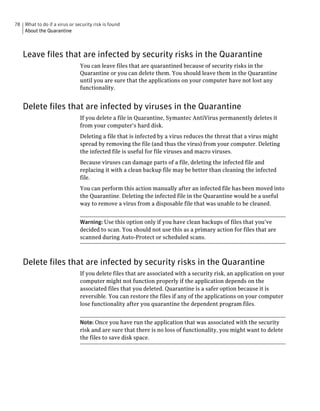
              About the Quarantine ......................................................................................... 77
                  Move files that are infected by viruses to the Quarantine .................... 77
                  Leave files that are infected by security risks in the Quarantine ........ 78
                  Delete files that are infected by viruses in the Quarantine .................. 78
                  Delete files that are infected by security risks in the Quarantine ....... 78
Contents   7


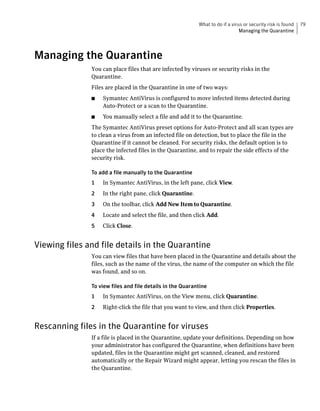
        Managing the Quarantine .................................................................................. 79
            Viewing files and file details in the Quarantine ...................................... 79
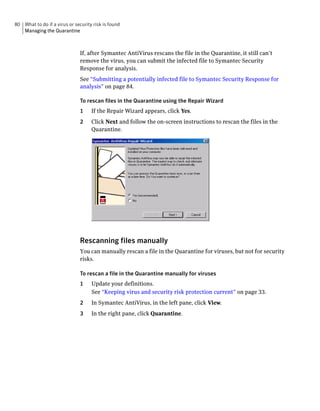
            Rescanning files in the Quarantine for viruses ...................................... 79
            When a repaired file can’t be returned to its original location ............ 81
            Clearing Backup Items ................................................................................ 82
            Deleting files from the Quarantine ........................................................... 82
            Automatically purging files from the Quarantine, Backup Items,
                 and Repaired Items ............................................................................. 83
            Submitting a potentially infected file to Symantec Security Response
                 for analysis ............................................................................................ 84
        Viewing the Event Log ....................................................................................... 84
            Filtering items in the Event Log ................................................................ 85
            About clearing items from the Event Log ............................................... 86
            Exporting data to a .csv file ....................................................................... 86

Index
8 Contents
Chapter                            1
Introducing Symantec
AntiVirus
          This chapter includes the following topics:

          ■   About Symantec AntiVirus

          ■   About viruses

          ■   About security risks

          ■   How Symantec AntiVirus responds to viruses and security risks

          ■   How Symantec AntiVirus protects your computer

          ■   What keeps Symantec AntiVirus protection current


About Symantec AntiVirus
          You can install Symantec AntiVirus™ virus and security risk protection as either
          a stand-alone or an administrator-managed installation. A stand-alone
          installation means that your Symantec AntiVirus software is not managed by a
          network administrator.
          If you manage your own computer, it must be one of the following types:
          ■   A stand-alone computer that is not connected to a network, such as a home
              computer or a laptop stand-alone, with a Symantec AntiVirus installation
              that uses either the default option settings or administrator-preset options
              settings
          ■   A remote computer that connects to your corporate network that must meet
              security requirements before connecting
10 Introducing Symantec AntiVirus
   About Symantec AntiVirus


                           The default settings for Symantec AntiVirus provide virus and security risk
                           protection for your computer. However, you may want to adjust them to suit
                           your company’s needs, to optimize system performance, and to disable options
                           that do not apply.
                           If your installation is managed by your administrator, some options may be
                           locked or unavailable, or may not appear at all, depending upon your
                           administrator’s security policy. Your administrator runs scans on your
                           computer and can set up scheduled scans.
                           Your administrator can advise you as to what tasks you should perform by using
                           Symantec AntiVirus.


                           Note: Options that display a padlock icon are not available because they have
                           been locked by your administrator. You cannot change these options unless the
                           administrator unlocks them.


   About updating stand-alone computers
                           Stand-alone computers may be connected to the Internet. In Symantec
                           AntiVirus documentation, the term stand-alone takes on an added dimension.
                           Stand-alone computers are not connected to a server; thus they do not receive
                           virus and security risk definitions updates from the server, and cannot be
                           managed by the Symantec System Center administrator program.
                           If you installed Symantec AntiVirus on a stand-alone computer, you are
                           responsible for updating the virus and security risk definitions. New definitions
                           files are available several times each month from Symantec. You will be alerted
                           when definitions files need replacing.
                           You can update the virus and security risk definitions files with LiveUpdate™.
                           LiveUpdate retrieves the new definitions files from a Symantec site, and then
                           replaces the old definitions files in the Symantec AntiVirus directory. A modem
                           or Internet connection is required.
                           See “Updating protection immediately with LiveUpdate” on page 35.
Introducing Symantec AntiVirus   11
                                                                                   About viruses


About remote computers that connect to a corporate network
              Remote computers that connect to a corporate network can receive virus and
              security risk definitions, and can be managed by the Symantec System Center
              administrator program.
              System administrators may require remote computers that connect to a
              corporate network to meet some security requirements. For example, the
              computer may have to run Symantec AntiVirus with the most up-to-date virus
              and security risk definitions before it can connect to the network. The computer
              may be denied access to the network until it meets the security requirements.


About viruses
              A virus is a computer program that attaches a copy of itself to another computer
              program or document when it runs. Whenever the infected program runs or a
              user opens a document containing a macro virus, the attached virus program
              activates and attaches itself to other programs and documents.
              Viruses generally deliver a payload, such as displaying a message on a particular
              date. Some viruses specifically damage data by corrupting programs, deleting
              files, or reformatting disks.
              A worm is a special type of virus that replicates itself from one computer to
              another and can use memory. Worms generally exist inside other files, such as
              Microsoft® Word or Excel documents. A worm may release a document that
              already has the worm macro inside of it.
              A blended threat combines the characteristics of viruses, worms, Trojan horses,
              and malicious code with server and Internet vulnerabilities to initiate, transmit,
              and spread an attack. Blended threats use multiple methods and techniques to
              propagate and attack, and cause widespread damage throughout a network.
              In the context of Symantec AntiVirus, the term virus is used to cover all threats
              that work in a virus-like manner. Symantec AntiVirus can detect, delete, and
              quarantine viruses, and repair the side effects of viruses.
              A security risk is a known program, in a category such as adware or spyware,
              that may or may not present a risk to the security of a computer. Symantec
              AntiVirus can detect, quarantine, and repair the side effects of risks in these
              security risk categories.
              See “About security risks” on page 14.
12 Introducing Symantec AntiVirus
   About viruses


   How viruses spread
                           Viruses can spread through any network, modem, or magnetic medium. Most
                           boot viruses can only spread by way of floppy disks. Multipartite viruses are
                           especially elusive because they can travel as file viruses, infect boot sectors, and
                           be transmitted through floppy disks.
                           The growth of LAN, Internet, and global email connectivity has accelerated the
                           rate at which viruses can spread. A localized virus outbreak can quickly spread
                           to another part of a company or the world when infected files are sent through
                           email. The primary threat of virus infection comes from files that are shared,
                           and then opened and used.


   Virus types
                           Viruses are classified by what they infect and how they attempt to evade
                           detection. The basic virus types are defined by the area of the computer that
                           they infect, such as boot viruses, file viruses, and macro viruses.
                           Other types of destructive code include worms and Trojan horses. These types of
                           destructive code are different than viruses because they don’t replicate.


                           Boot viruses
                           Boot viruses insert instructions into the boot sectors of floppy disks, or the boot
                           sector or master boot record (partition sector) of a hard disk. Boot viruses are

                           some of the most successful viruses.
                           When the computer starts from an infected floppy disk, the virus infects the
                           hard disk and loads its code into memory. The floppy disk does not have to be a
                           startup disk for the virus to spread. The virus remains memory-resident and
                           infects any floppy disks that are accessed. A floppy disk or hard disk with an
                           infected boot sector won’t infect any files unless the virus is also multipartite. A
                           true boot virus can’t spread to a server or over the network.
                           See “About the master boot record” on page 13.


                           File viruses
                           File viruses attach to executable files such as .com, .exe, and .dll files by
                           inserting instructions into the execution sequence. When the infected file runs,
                           the inserted instructions execute the virus code. After the code finishes
                           executing, the file continues with its normal execution sequence. This happens
                           so quickly that you’re not aware that the virus executed.
Introducing Symantec AntiVirus   13
                                                                                    About viruses


              There are three subclassifications of file viruses:
              ■   Memory-resident: Stay in memory as terminate-stay-resident (TSR)
                  programs and typically infect all executed files.
              ■   Direct action: Execute, infect other files, and unload.
              ■   Companion: Associate themselves with executable files without modifying
                  them. For example, the virus might create a companion file, Word.com, and
                  attach it to the Word.exe file. When the Word program opens, the infected
                  Word.com file executes, performs the virus activities, and then executes the
                  Word.exe file.
              The damage that is caused by file viruses ranges from irritating, such as
              displaying screen messages, to data destroying.


              Macro viruses
              Unlike other viruses, macro viruses do not infect program files; they infect
              documents. Common targets for many macro viruses are word processors such
              as Microsoft Word and Lotus AmiPro®, and spreadsheets like Microsoft Excel.
              Word uses macros to perform actions such as formatting text and opening or
              closing a document. Macro viruses can modify macros that are defined by the
              Word application to perform malicious actions such as overwriting or redefining
              default definitions in Word.
              The damage that is caused by macro viruses can range from inserting unwanted
              text into documents to significantly reducing the functionality of a computer.
              Macro viruses that infect Word commonly target the macros that are associated
              with the Normal.dot template. This template is global, so all of your Word files
              can be infected.


About the master boot record
              The master boot record is contained on the first sector of a hard drive. Part of
              the process of starting a computer includes giving control to the hard disk. Also,
              a program is located in the first sector of the hard disk that enables the
              operating system to load into random access memory (RAM).
              Boot viruses can damage the master boot record by moving, overwriting, or
              deleting it. For example, the Monkey virus moves the master boot record to the
              hard drive’s third sector, and then places its own code in the first sector. Moving
              the master boot record makes starting from the hard drive impossible.
              See “Boot viruses” on page 12.
14 Introducing Symantec AntiVirus
   About security risks


   About security risks
                           Security risks are classified by the behavior in which they engage and the
                           purpose for which they appear to be designed. Unlike viruses and worms,
                           security risks do not self-replicate.
                           Symantec AntiVirus can detect, quarantine, delete, and remove or repair the
                           side effects of security risks in the following categories:
                           ■    Spyware: Stand-alone programs that can secretly monitor system activity
                                and detect information like passwords and other confidential information
                                and relay the information back to another computer.
                                Spyware can be unknowingly downloaded from Web sites (typically in
                                shareware or freeware), email messages, and instant messenger software.
                                You may unknowingly download spyware by accepting an End User License
                                Agreement from a software program.
                           ■    Adware: Stand-alone or appended programs that can secretly gather
                                personal information through the Internet and relay it back to another
                                computer. Adware may track browsing habits for advertising purposes.
                                Adware can also deliver advertising content.
                                Adware can be unknowingly downloaded from Web sites (typically in
                                shareware or freeware), email messages, and instant messenger software.
                                You may unknowingly download adware by accepting an End User License
                                Agreement from a software program.
                           ■    Dialers: Programs that use a computer, without your permission or
                                knowledge, to dial out through the Internet to a 900 number or FTP site,
                                typically to accrue charges.
                           ■    Hack tools: Programs that are used by a hacker to gain unauthorized access
                                to your computer. For example, one hack tool is a keystroke logger, which
                                tracks and records individual keystrokes and can send this information
                                back to the hacker. The hacker can then perform port scans or vulnerability
                                scans. Hack tools may also be used to create tools for virus creation.
                           ■    Joke programs: Programs that can alter or interrupt the operation of a
                                computer in a way that is intended to be humorous or frightening. For
                                example, a program can be downloaded from Web sites (typically in
                                shareware or freeware), email messages, or instant messenger software. It
                                can then move the trash can away from the mouse when you attempt to
                                delete or cause the mouse to click in reverse.
                           ■    Other: Security risks that do not conform to any other security risk
                                category, but that may present a security risk to your computer and its data.
Introducing Symantec AntiVirus     15
                                                                About security risks


■   Remote access: Programs that allow access over the Internet from another
    computer to gain information or to attack or alter your computer. For
    example, you may install a program, or it may be installed as part of some
    other process without your knowledge. The program can be used for
    malicious purposes with or without modification of the original remote
    access program.
■   Trackware: Stand-alone or appended applications that trace a user's path
    on the Internet and send information to a target system. For example, the
    application can be downloaded from Web sites, email messages, or instant
    messenger software. It can then obtain confidential information regarding
    user behavior.
By default, all Symantec AntiVirus scans, including Auto-Protect scans, check
for viruses, Trojan horses, worms, and all categories of security risks.
See “Using Auto-Protect” on page 43.
See “Initiating manual scans” on page 52.
The Symantec™ Security Response Web site provides the latest information
about threats and security risks. The Web site also contains extensive reference
information, such as white papers and detailed information about viruses and
security risks.
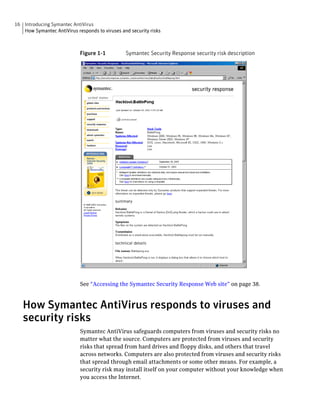
Figure 1-1 shows information about a hack tool and how Symantec Security
Response suggests that you handle it.
16 Introducing Symantec AntiVirus
   How Symantec AntiVirus responds to viruses and security risks


                            Figure 1-1          Symantec Security Response security risk description


                            See “Accessing the Symantec Security Response Web site” on page 38.


   How Symantec AntiVirus responds to viruses and
   security risks
                            Symantec AntiVirus safeguards computers from viruses and security risks no
                            matter what the source. Computers are protected from viruses and security
                            risks that spread from hard drives and floppy disks, and others that travel
                            across networks. Computers are also protected from viruses and security risks
                            that spread through email attachments or some other means. For example, a
                            security risk may install itself on your computer without your knowledge when
                            you access the Internet.
Introducing Symantec AntiVirus    17
                                                 How Symantec AntiVirus protects your computer


          Files within compressed files are scanned and cleaned of viruses and security
          risks. No separate programs or options changes are necessary for Internet-
          borne viruses. Auto-Protect scans uncompressed program and document files
          automatically as they are downloaded.
          Symantec AntiVirus responds to files that are infected by viruses or by security
          risks with first actions and second actions.
          When a virus is detected during a scan, Symantec AntiVirus, by default,
          attempts to clean the virus from the infected file and repair the effects of the
          virus. If the file is cleaned, the virus is successfully and completely removed. If
          for some reason Symantec AntiVirus cannot clean the file, Symantec AntiVirus
          attempts the second action, moving the infected file to the Quarantine so that
          the virus cannot spread.
          When your virus protection is updated, Symantec AntiVirus automatically
          checks to see if any files are stored in the Quarantine and gives you the option of
          scanning them using the new protection information.


          Note: Your administrator may choose to scan files in the Quarantine
          automatically.

          By default, for security risks, Symantec AntiVirus quarantines the infected files
          and returns the system information that the security risk has changed to its
          previous state. Some security risks cannot be completely removed without
          causing another program on your computer, such as a Web browser, to fail. If
          Symantec AntiVirus is not configured to handle the risk automatically, it
          prompts you before it stops a process or restarts your computer. Alternatively,
          you can configure Symantec AntiVirus to use the log only action for security
          risks.
          When Symantec AntiVirus discovers security risks, it also presents a link in the
          scan window to Symantec Security Response, where you can learn more about
          the security risk. Your system administrator may also send a customized
          message.


How Symantec AntiVirus protects your computer
          Virus infections can be avoided. Viruses that are quickly detected and removed
          from your computer cannot spread to other files and cause damage. The effects
          of viruses and security risks can be repaired. When a virus or a security risk is
          detected, by default Symantec AntiVirus notifies you that one or more of your
          files is affected. If you do not want to be notified, you or your administrator can
          configure Symantec AntiVirus to handle the risk automatically.
18 Introducing Symantec AntiVirus
   What keeps Symantec AntiVirus protection current


                           Symantec AntiVirus provides these types of protection:
                           ■    Auto-Protect: Constantly monitors activity on your computer by looking for
                                viruses and security risks when a file is executed or opened, and when
                                modifications have been made to a file, such as renaming, saving, moving,
                                or copying a file to and from folders.
                           ■    Signature-based scanning: Searches for residual virus signatures in
                                infected files, and for the signatures of security risks in infected files and
                                system information. This search is called a scan. Depending on how your
                                computer is managed, you and your company’s administrator can initiate
                                signature-based or pattern-based scans to systematically check the files on
                                your computer for viruses and security risks, such as adware or spyware.
                                Scans can be run on demand, scheduled to run unattended, or run
                                automatically at system startup.
                           ■    Advanced heuristics: Analyzes a program’s structure, its behavior, and
                                other attributes for virus-like characteristics. In many cases it can protect
                                against threats such as mass-mailing worms and macro viruses, if you
                                encounter them before updating your virus definitions. Advanced
                                heuristics looks for script-based threats in HTML, VBScript, and JavaScript
                                files.


   What keeps Symantec AntiVirus protection current
                           Symantec engineers track reported outbreaks of computer viruses to identify
                           new viruses. They also track new security risks, such as adware and spyware.
                           After a virus or security risk is identified, a signature (information about the
                           virus or security risk) is stored in a definitions file, which contains the necessary
                           information to detect, eliminate, and repair the effects of the virus or security
                           risk. When Symantec AntiVirus scans for viruses and security risks, it is
                           searching for these types of signatures.
                           Symantec makes updated definitions available on an ongoing basis. Definitions
                           are updated daily on the Symantec Security Response Web site. New definitions
                           are made available at least weekly for delivery using LiveUpdate, and whenever
                           a destructive new virus appears.
                           When new viruses and security risks are so complex that issuing new definitions
                           files for them isn’t sufficient, Symantec engineers can update the AntiVirus
                           Engine with the latest detection and repair components. When necessary,
                           AntiVirus Engine updates are included with the definitions files.
Introducing Symantec AntiVirus     19
                                                   What keeps Symantec AntiVirus protection current


About the role of Symantec Security Response
              The strength behind Symantec AntiVirus is Symantec Security Response. The
              increasing number of computer viruses and security risks requires great effort
              to track, identify, and analyze, and to develop new technologies to protect your
              computer.
              Symantec Security Response researchers disassemble each virus and security
              risk sample to discover its identifying features and behavior. With this
              information, they develop definitions that Symantec products use to detect,
              eliminate, and repair the effects of new viruses and security risks during scans.
              Because of the speed at which new viruses spread, particularly over the Internet,
              Symantec Security Response has developed automated software analysis tools.
              With direct submissions over the Internet of infected files from your Central
              Quarantine to Symantec Security Response, the time from discovery to analysis
              to cure is shrinking from days to hours, and in the near future, to minutes.
              Symantec Security Response researchers also research and produce
              technologies to protect computers from security risks such as spyware, adware,
              and hack tools.
              Symantec Security Response maintains an encyclopedia that provides detailed
              information about viruses and security risks. In necessary cases, they provide
              information about removing or uninstalling the risk. The encyclopedia is
              located on the Symantec Security Response Web site.
              See “Accessing the Symantec Security Response Web site” on page 38.


How virus and security risk protection is updated
              Your administrator determines how your virus and security risk definitions are
              updated. You may not have to do anything to receive new definitions.
              The LiveUpdate feature in Symantec AntiVirus can be set up by your
              administrator to make sure that your virus and security risk protection remains
              current. With LiveUpdate, Symantec AntiVirus connects automatically to a
              special Web site, determines if your files need updating, downloads the proper
              files, and installs them in the proper location.
              See “Keeping virus and security risk protection current” on page 33.
20 Introducing Symantec AntiVirus
   What keeps Symantec AntiVirus protection current
Chapter                            2
Symantec AntiVirus basics
          This chapter includes the following topics:

          ■   About content licensing

          ■   Opening Symantec AntiVirus

          ■   Navigating in the Symantec AntiVirus main window

          ■   Enabling and disabling Auto-Protect

          ■   Pausing and delaying scans

          ■   Keeping virus and security risk protection current

          ■   Using Symantec AntiVirus with Windows Security Center

          ■   For more information


About content licensing
          A content license is a grant by Symantec Corporation to update computers using
          Symantec software. Content licensing ensures that Symantec products receive
          the latest updates for a specified period of time. Content updates include virus
          and security risk definitions.
          A content license must be allocated to or installed on each computer that is
          running Symantec AntiVirus.


          Note: In some enterprises, Symantec content updates are governed by a site
          license. In these cases, content licenses are not applied and you do not need to
          refer to this section.
22 Symantec AntiVirus basics
   About content licensing


                           Symantec clients can receive one content update without a content license. This
                           ensures that newly installed software can provide the most current protection
                           while giving you time to request a content license from Symantec for future
                           updates. Thereafter, computers without valid content licenses do not receive
                           content updates.
                           Content licenses are installed in the following ways:
                           ■   For clients managed through Symantec System Center, a client receives its
                               license seat automatically when it checks in with its parent server. You do
                               not have to do anything to install a content license.
                           ■   For clients managed with third-party distribution tools, your administrator
                               will ensure that your client receives a license automatically. You do not
                               have to do anything to install a content license.
                           ■   For unmanaged clients, where Symantec System Center is not used, you
                               install the content license file. Your administrator will either provide a
                               content license file or notify you of the location of the content license file
                               for installation.


   Installing a content license to an unmanaged client
                           Your administrator will provide a content license file in one of the following
                           ways:
                           ■   Send you the content license file by email.
                           ■   Place the content license file on a network drive and notify you of the
                               location.

                           To install a content license to an unmanaged client
                           1   In Symantec AntiVirus, click View > License.
                           2   In the right pane, click Install License.
                           3   In Step 1 of the License Install Wizard, click Browse to locate the content
                               license file, and then click Next.
                           4   In Step 2 of the License Install Wizard, confirm the license information, and
                               then click Next.
                           5   To close the License Install Wizard, click Finish.
Symantec AntiVirus basics   23
                                                              Opening Symantec AntiVirus


Opening Symantec AntiVirus
          You can open Symantec AntiVirus in several ways.

          To open Symantec AntiVirus
          ◆   Do one of the following:
              ■   On the Windows® taskbar, double-click the Symantec AntiVirus icon.


                  Your administrator determines whether this icon appears on the
                  taskbar.
              ■   On the Windows or Windows XP taskbar, click Start >
                  Programs > Symantec Client Security > Symantec AntiVirus or
                  Start > More Programs > Symantec Client Security > Symantec
                  AntiVirus, as appropriate.
24 Symantec AntiVirus basics
   Navigating in the Symantec AntiVirus main window


   Navigating in the Symantec AntiVirus main window
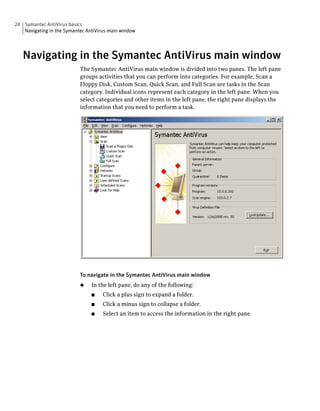
                           The Symantec AntiVirus main window is divided into two panes. The left pane
                           groups activities that you can perform into categories. For example, Scan a
                           Floppy Disk, Custom Scan, Quick Scan, and Full Scan are tasks in the Scan
                           category. Individual icons represent each category in the left pane. When you
                           select categories and other items in the left pane, the right pane displays the
                           information that you need to perform a task.


                           To navigate in the Symantec AntiVirus main window
                           ◆    In the left pane, do any of the following:
                                ■    Click a plus sign to expand a folder.
                                ■    Click a minus sign to collapse a folder.
                                ■    Select an item to access the information in the right pane.
Symantec AntiVirus basics      25
                                                  Navigating in the Symantec AntiVirus main window


Viewing Symantec AntiVirus categories
              The activities that you can perform using Symantec AntiVirus are organized
              into several main categories. Each category has a number of options that you
              can set.
              The following tables do not discuss the individual options that you can change,
              but give a general description of what they do and how you can find them. For
              specific information about an option, see the online Help.


              View category
              You can use the View category to keep track of antivirus and security risk
              activities.

              Table 2-1          View category

              Option                         Description

              Auto-Protect Scan Statistics   View statistics about the status of Auto-Protect scans,
                                             including the last file that was scanned (even if it
                                             wasn’t infected).

              Scheduled Scans                View the list of all scheduled scans created to run on
                                             your computer, including the name of the scan, when
                                             it is scheduled to run, and who created it. A scheduled
                                             scan may be created by you or your company’s
                                             administrator.

              Quarantine                     Manage infected files that have been isolated to
                                             prevent the spread of viruses or the effects of security
                                             risks.
                                             See “Rescanning files in the Quarantine for viruses”
                                             on page 79.
26 Symantec AntiVirus basics
   Navigating in the Symantec AntiVirus main window


                           Table 2-1             View category

                            Option                              Description

                            Backup Items                        Delete backup copies of infected files. As a data safety
                                                                precaution, Symantec AntiVirus makes a backup copy
                                                                of infected items before attempting a repair. After
                                                                verifying that Symantec AntiVirus cleaned an item
                                                                infected by a virus, you should delete the copy in
                                                                Backup Items.
                                                                Symantec AntiVirus backs up files that are infected by
                                                                security risks when the files are put into Quarantine.
                                                                It also keeps copies of the registry settings and system
                                                                load points that are affected by security risks such as
                                                                spyware and adware. System load points are areas of
                                                                software that are particularly vulnerable to security
                                                                risks.

                                                                Note: In some cases, deleting a security risk can cause
                                                                applications to lose functionality. Make sure that you
                                                                do not need the security risk item to run any
                                                                applications before you delete it to free up disk space.
                                                                See “Clearing Backup Items” on page 82.

                            Repaired Items                      Items that have been cleaned or repaired, and whose
                                                                original locations are no longer available, such as a
                                                                network drive. For example, an infected attachment
                                                                may have been stripped from an email message and
                                                                quarantined. After the item is cleaned in the
                                                                Quarantine and moved to Repaired Items, you must
                                                                restore the item from Repaired Items and specify the
                                                                location to which to restore it.

                            License                             View information about the current license. Current
                            Applies only to content licenses;   license information includes the license status, serial
                            item does not appear in menu if     number, and start and expiration dates. You can start
                            using a site license.               the license installation wizard.


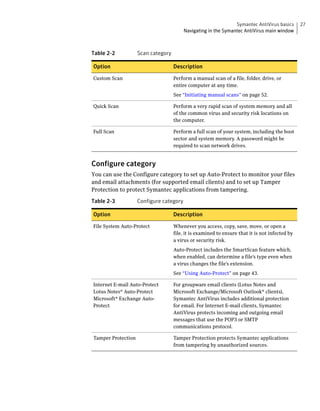
                           Scan category
                           You can use the Scan category to perform a manual scan of your computer.

                           Table 2-2             Scan category

                            Option                               Description

                            Scan a Floppy Disk                   Scan floppy disks and other removable media.
Symantec AntiVirus basics       27
                                         Navigating in the Symantec AntiVirus main window


Table 2-2           Scan category

Option                              Description

Custom Scan                         Perform a manual scan of a file, folder, drive, or
                                    entire computer at any time.
                                    See “Initiating manual scans” on page 52.

Quick Scan                          Perform a very rapid scan of system memory and all
                                    of the common virus and security risk locations on
                                    the computer.

Full Scan                           Perform a full scan of your system, including the boot
                                    sector and system memory. A password might be
                                    required to scan network drives.


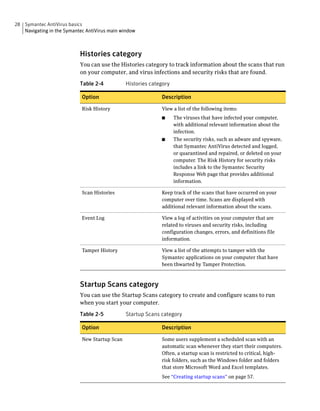
Configure category
You can use the Configure category to set up Auto-Protect to monitor your files
and email attachments (for supported email clients) and to set up Tamper
Protection to protect Symantec applications from tampering.

Table 2-3           Configure category

Option                              Description

File System Auto-Protect            Whenever you access, copy, save, move, or open a
                                    file, it is examined to ensure that it is not infected by
                                    a virus or security risk.
                                    Auto-Protect includes the SmartScan feature which,
                                    when enabled, can determine a file’s type even when
                                    a virus changes the file’s extension.
                                    See “Using Auto-Protect” on page 43.

Internet E-mail Auto-Protect        For groupware email clients (Lotus Notes and
Lotus Notes® Auto-Protect           Microsoft Exchange/Microsoft Outlook® clients),
Microsoft® Exchange Auto-           Symantec AntiVirus includes additional protection
Protect                             for email. For Internet E-mail clients, Symantec
                                    AntiVirus protects incoming and outgoing email
                                    messages that use the POP3 or SMTP
                                    communications protocol.

Tamper Protection                   Tamper Protection protects Symantec applications
                                    from tampering by unauthorized sources.
28 Symantec AntiVirus basics
   Navigating in the Symantec AntiVirus main window


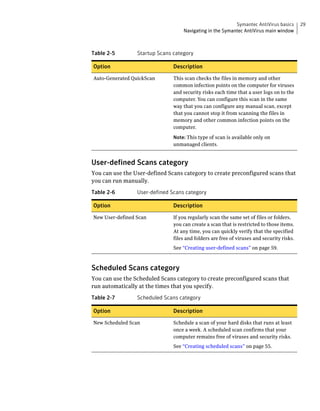
                           Histories category
                           You can use the Histories category to track information about the scans that run
                           on your computer, and virus infections and security risks that are found.

                           Table 2-4           Histories category

                            Option                           Description

                            Risk History                     View a list of the following items:
                                                             ■      The viruses that have infected your computer,
                                                                    with additional relevant information about the
                                                                    infection.
                                                             ■      The security risks, such as adware and spyware,
                                                                    that Symantec AntiVirus detected and logged,
                                                                    or quarantined and repaired, or deleted on your
                                                                    computer. The Risk History for security risks
                                                                    includes a link to the Symantec Security
                                                                    Response Web page that provides additional
                                                                    information.

                            Scan Histories                   Keep track of the scans that have occurred on your
                                                             computer over time. Scans are displayed with
                                                             additional relevant information about the scans.

                            Event Log                        View a log of activities on your computer that are
                                                             related to viruses and security risks, including
                                                             configuration changes, errors, and definitions file
                                                             information.

                            Tamper History                   View a list of the attempts to tamper with the
                                                             Symantec applications on your computer that have
                                                             been thwarted by Tamper Protection.


                           Startup Scans category
                           You can use the Startup Scans category to create and configure scans to run
                           when you start your computer.

                           Table 2-5           Startup Scans category

                            Option                           Description

                            New Startup Scan                 Some users supplement a scheduled scan with an
                                                             automatic scan whenever they start their computers.
                                                             Often, a startup scan is restricted to critical, high-
                                                             risk folders, such as the Windows folder and folders
                                                             that store Microsoft Word and Excel templates.
                                                             See “Creating startup scans” on page 57.
Symantec AntiVirus basics        29
                                   Navigating in the Symantec AntiVirus main window


Table 2-5        Startup Scans category

Option                         Description

Auto-Generated QuickScan       This scan checks the files in memory and other
                               common infection points on the computer for viruses
                               and security risks each time that a user logs on to the
                               computer. You can configure this scan in the same
                               way that you can configure any manual scan, except
                               that you cannot stop it from scanning the files in
                               memory and other common infection points on the
                               computer.

                               Note: This type of scan is available only on
                               unmanaged clients.


User-defined Scans category
You can use the User-defined Scans category to create preconfigured scans that
you can run manually.

Table 2-6        User-defined Scans category

Option                         Description

New User-defined Scan          If you regularly scan the same set of files or folders,
                               you can create a scan that is restricted to those items.
                               At any time, you can quickly verify that the specified
                               files and folders are free of viruses and security risks.
                               See “Creating user-defined scans” on page 59.


Scheduled Scans category
You can use the Scheduled Scans category to create preconfigured scans that
run automatically at the times that you specify.

Table 2-7        Scheduled Scans category

Option                         Description

New Scheduled Scan             Schedule a scan of your hard disks that runs at least
                               once a week. A scheduled scan confirms that your
                               computer remains free of viruses and security risks.
                               See “Creating scheduled scans” on page 55.
30 Symantec AntiVirus basics
   Enabling and disabling Auto-Protect


   Enabling and disabling Auto-Protect
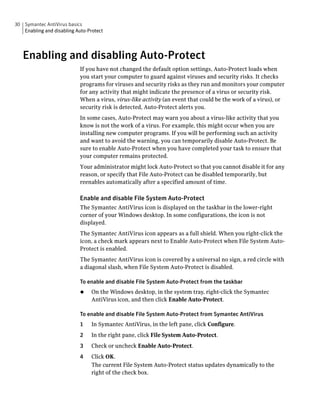
                            If you have not changed the default option settings, Auto-Protect loads when
                            you start your computer to guard against viruses and security risks. It checks
                            programs for viruses and security risks as they run and monitors your computer
                            for any activity that might indicate the presence of a virus or security risk.
                            When a virus, virus-like activity (an event that could be the work of a virus), or
                            security risk is detected, Auto-Protect alerts you.
                            In some cases, Auto-Protect may warn you about a virus-like activity that you
                            know is not the work of a virus. For example, this might occur when you are
                            installing new computer programs. If you will be performing such an activity
                            and want to avoid the warning, you can temporarily disable Auto-Protect. Be
                            sure to enable Auto-Protect when you have completed your task to ensure that
                            your computer remains protected.
                            Your administrator might lock Auto-Protect so that you cannot disable it for any
                            reason, or specify that File Auto-Protect can be disabled temporarily, but
                            reenables automatically after a specified amount of time.

                            Enable and disable File System Auto-Protect
                            The Symantec AntiVirus icon is displayed on the taskbar in the lower-right
                            corner of your Windows desktop. In some configurations, the icon is not
                            displayed.
                            The Symantec AntiVirus icon appears as a full shield. When you right-click the
                            icon, a check mark appears next to Enable Auto-Protect when File System Auto-
                            Protect is enabled.
                            The Symantec AntiVirus icon is covered by a universal no sign, a red circle with
                            a diagonal slash, when File System Auto-Protect is disabled.

                            To enable and disable File System Auto-Protect from the taskbar
                            ◆    On the Windows desktop, in the system tray, right-click the Symantec
                                 AntiVirus icon, and then click Enable Auto-Protect.

                            To enable and disable File System Auto-Protect from Symantec AntiVirus
                            1    In Symantec AntiVirus, in the left pane, click Configure.
                            2    In the right pane, click File System Auto-Protect.
                            3    Check or uncheck Enable Auto-Protect.
                            4    Click OK.
                                 The current File System Auto-Protect status updates dynamically to the
                                 right of the check box.
Symantec AntiVirus basics   31
                                                                                   Pausing and delaying scans


Pausing and delaying scans
                       The Pause feature lets you stop a scan at any point during the scan and resume it
                       at another time. You can pause any scan that you initiate. Your network
                       administrator determines whether you can pause an administrator-scheduled
                       scan.
                       For scheduled scans that your network administrator initiates, you may also be
                       allowed to delay the scan. If your administrator has enabled the Snooze feature,
                       you can delay an administrator-scheduled scan for a set interval of time. When
                       the scan resumes, it restarts from the beginning.
                       Pause the scan if you’re planning on resuming it after a temporary break. Use
                       the Snooze feature to delay the scan for a longer period of time during which
                       you don’t want to be interrupted, for example, if you’re in the middle of a
                       presentation.

                       Pause or delay a scan
                       Use the following procedures to pause a scan initiated by you or delay an
                       administrator-scheduled scan. If the Pause the Scan button is not available, your
                       network administrator has disabled the Pause feature.


                       Note: If Symantec AntiVirus is scanning a compressed file when you choose to
                       pause a scan, it may take several minutes to respond.


                       To pause a scan
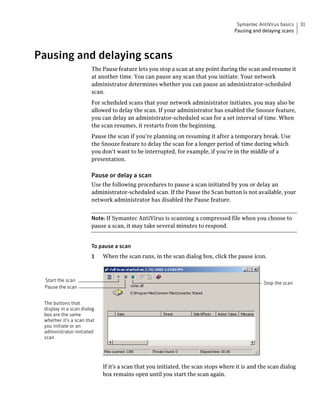
                       1    When the scan runs, in the scan dialog box, click the pause icon.


 Start the scan
                                                                                               Stop the scan
 Pause the scan


 The buttons that
 display in a scan dialog
 box are the same
 whether it’s a scan that
 you initiate or an
 administrator-initiated
 scan


                            If it’s a scan that you initiated, the scan stops where it is and the scan dialog
                            box remains open until you start the scan again.
32 Symantec AntiVirus basics
   Pausing and delaying scans


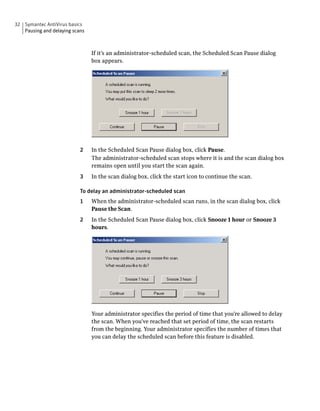
                                If it’s an administrator-scheduled scan, the Scheduled Scan Pause dialog
                                box appears.


                           2    In the Scheduled Scan Pause dialog box, click Pause.
                                The administrator-scheduled scan stops where it is and the scan dialog box
                                remains open until you start the scan again.
                           3    In the scan dialog box, click the start icon to continue the scan.

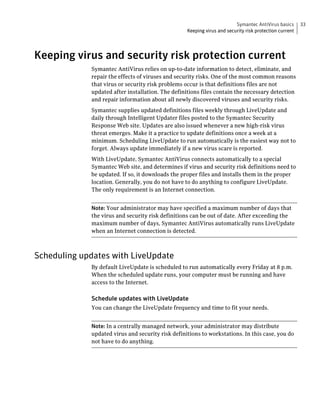
                           To delay an administrator-scheduled scan
                           1    When the administrator-scheduled scan runs, in the scan dialog box, click
                                Pause the Scan.
                           2    In the Scheduled Scan Pause dialog box, click Snooze 1 hour or Snooze 3
                                hours.


                                Your administrator specifies the period of time that you’re allowed to delay
                                the scan. When you’ve reached that set period of time, the scan restarts
                                from the beginning. Your administrator specifies the number of times that
                                you can delay the scheduled scan before this feature is disabled.
Symantec AntiVirus basics      33
                                                   Keeping virus and security risk protection current


Keeping virus and security risk protection current
             Symantec AntiVirus relies on up-to-date information to detect, eliminate, and
             repair the effects of viruses and security risks. One of the most common reasons
             that virus or security risk problems occur is that definitions files are not
             updated after installation. The definitions files contain the necessary detection
             and repair information about all newly discovered viruses and security risks.
             Symantec supplies updated definitions files weekly through LiveUpdate and
             daily through Intelligent Updater files posted to the Symantec Security
             Response Web site. Updates are also issued whenever a new high-risk virus
             threat emerges. Make it a practice to update definitions once a week at a
             minimum. Scheduling LiveUpdate to run automatically is the easiest way not to
             forget. Always update immediately if a new virus scare is reported.
             With LiveUpdate, Symantec AntiVirus connects automatically to a special
             Symantec Web site, and determines if virus and security risk definitions need to
             be updated. If so, it downloads the proper files and installs them in the proper
             location. Generally, you do not have to do anything to configure LiveUpdate.
             The only requirement is an Internet connection.


             Note: Your administrator may have specified a maximum number of days that
             the virus and security risk definitions can be out of date. After exceeding the
             maximum number of days, Symantec AntiVirus automatically runs LiveUpdate
             when an Internet connection is detected.


Scheduling updates with LiveUpdate
             By default LiveUpdate is scheduled to run automatically every Friday at 8 p.m.
             When the scheduled update runs, your computer must be running and have
             access to the Internet.

             Schedule updates with LiveUpdate
             You can change the LiveUpdate frequency and time to fit your needs.


             Note: In a centrally managed network, your administrator may distribute
             updated virus and security risk definitions to workstations. In this case, you do
             not have to do anything.
34 Symantec AntiVirus basics
   Keeping virus and security risk protection current


                             To enable scheduled LiveUpdate
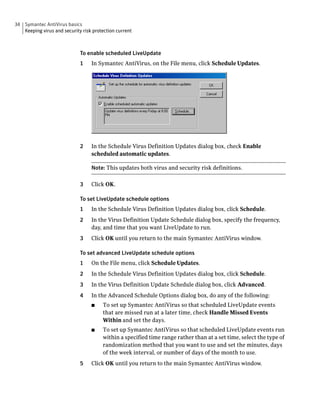
                             1    In Symantec AntiVirus, on the File menu, click Schedule Updates.


                             2    In the Schedule Virus Definition Updates dialog box, check Enable
                                  scheduled automatic updates.

                                  Note: This updates both virus and security risk definitions.

                             3    Click OK.

                             To set LiveUpdate schedule options
                             1    In the Schedule Virus Definition Updates dialog box, click Schedule.
                             2    In the Virus Definition Update Schedule dialog box, specify the frequency,
                                  day, and time that you want LiveUpdate to run.
                             3    Click OK until you return to the main Symantec AntiVirus window.

                             To set advanced LiveUpdate schedule options
                             1    On the File menu, click Schedule Updates.
                             2    In the Schedule Virus Definition Updates dialog box, click Schedule.
                             3    In the Virus Definition Update Schedule dialog box, click Advanced.
                             4    In the Advanced Schedule Options dialog box, do any of the following:
                                  ■    To set up Symantec AntiVirus so that scheduled LiveUpdate events
                                       that are missed run at a later time, check Handle Missed Events
                                       Within and set the days.
                                  ■    To set up Symantec AntiVirus so that scheduled LiveUpdate events run
                                       within a specified time range rather than at a set time, select the type of
                                       randomization method that you want to use and set the minutes, days
                                       of the week interval, or number of days of the month to use.
                             5    Click OK until you return to the main Symantec AntiVirus window.
Symantec AntiVirus basics      35
                                                   Keeping virus and security risk protection current


Updating protection immediately with LiveUpdate
              When a new virus is reported, do not wait for your next scheduled update. You
              should update virus and security risk protection immediately.

              To update virus protection immediately with LiveUpdate
              1   In Symantec AntiVirus, in the left pane, click Symantec AntiVirus.


              2   In the right pane, click LiveUpdate.
              3   If necessary, in the LiveUpdate dialog box, click Options > Configure to
                  customize your Internet connection for LiveUpdate.
                  You can change your Internet service provider connection or how your
                  computer connects through a proxy server to the Internet.
                  For more information, use the online Help from LiveUpdate.
              4   Click Next to start the automatic update.


Updating without LiveUpdate
              Symantec supplies a special program called Intelligent Updater as an alternative
              to LiveUpdate. You can download the updates from the Symantec Security
              Response Web site.
              See “Accessing the Symantec Security Response Web site” on page 38.
36 Symantec AntiVirus basics
   Using Symantec AntiVirus with Windows Security Center


                           To update without LiveUpdate
                           1    Download the Intelligent Updater program to any folder on your computer.
                           2    In a My Computer or Windows Explorer window, locate and then double-
                                click the Intelligent Updater program.
                           3    Follow all prompts displayed by the update program.
                                The Intelligent Updater program searches your computer for Symantec
                                AntiVirus, and then installs the new virus and security risk definitions files
                                in the proper folder automatically.
                           4    Scan your computer to make sure that newly discovered viruses and
                                security risks are detected.


   Using Symantec AntiVirus with Windows Security
   Center
                           If you are using Windows Security Center (WSC) running on Windows XP
                           Service Pack 2 to monitor security status, you can see Symantec AntiVirus
                           status in WSC.
                           Table 2-8 shows the protection status reporting in WSC.

                           Table 2-8           WSC protection status reporting

                            Symantec product condition                                Protection status

                            Symantec AntiVirus is not installed                       NOT FOUND (red)

                            Symantec AntiVirus is installed with full protection      ON (green)

                            Symantec AntiVirus is installed, and virus and security   OUT OF DATE (red)
                            risk definitions are out of date

                            Symantec AntiVirus is installed and File System Auto-     OFF (red)
                            Protect is not enabled

                            Symantec AntiVirus is installed, File System Auto-        OFF (red)
                            Protect is not enabled, and virus and security risk
                            definitions are out of date

                            Symantec AntiVirus is installed and Rtvscan is turned     OFF (red)
                            off manually
Symantec AntiVirus basics   37
                                                                           For more information


For more information
              If you need more information about Symantec AntiVirus, you can access the
              online Help. In addition, information about viruses and security risks can be
              obtained from the Symantec Web site.


Accessing online Help
              The Symantec AntiVirus online Help system has general information and step-
              by-step procedures to help you keep your computer safe from viruses and
              security risks.


              Note: Your administrator may have elected not to install the Help files.


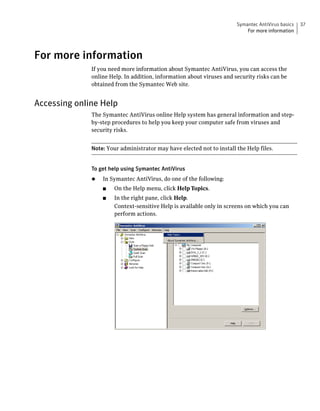
              To get help using Symantec AntiVirus
              ◆   In Symantec AntiVirus, do one of the following:
                  ■    On the Help menu, click Help Topics.
                  ■    In the right pane, click Help.
                       Context-sensitive Help is available only in screens on which you can
                       perform actions.
38 Symantec AntiVirus basics
   For more information


   Accessing the Symantec Security Response Web site
                           If you are connected to the Internet, you can visit the Symantec Security
                           Response Web site to view items such as the following:
                           ■   The Virus Encyclopedia, which contains information about all known
                               viruses
                           ■   Information about virus hoaxes
                           ■   White papers about viruses and virus threats in general
                           ■   General and detailed information about security risks

                           To access the Symantec Security Response Web site
                           ◆   In your Internet browser, type the following Web address:
                               securityresponse.symantec.com
Chapter                          3
Protecting your computer
from viruses and security
risks
           This chapter includes the following topics:

           ■   About the antivirus and security risk policy

           ■   Using Auto-Protect

           ■   Using Tamper Protection

           ■   Scanning for viruses and security risks

           ■   Configuring scanning

           ■   Interpreting scan results

           ■   Excluding files from scans


About the antivirus and security risk policy
           Symantec AntiVirus comes preset with an antivirus and security risk policy that
           is appropriate for most users. You can change settings based on your personal
           needs. You can separately customize policy settings for Auto-Protect, manual,
           scheduled, startup, and user-defined scans.
           An antivirus and security risk policy determines:
           ■   What to scan
           ■   What to do if a virus or a security risk is detected
40 Protecting your computer from viruses and security risks
   About the antivirus and security risk policy


   What to scan
                             Symantec AntiVirus Auto-Protect scans all file types by default. Manual,
                             scheduled, startup, and user-defined scans also examine all file types by default.
                             Auto-Protect includes SmartScan, which scans files with the extensions
                             included in the Program File Extensions List. SmartScan also scans all
                             executable files and Microsoft® Office documents whether or not the extensions
                             are listed in the Program File Extensions List.
                             See “Modifying Auto-Protect and using SmartScan” on page 46.
                             You can choose to scan files by file extension or by type of file (documents and
                             programs), but your protection from viruses and security risks is reduced.
                             You can also choose to exclude specific files from scanning. For example, if a file
                             that you know is not infected triggers a virus alert during a scan, you prevent
                             further warnings by excluding the file from your subsequent scans.


                             Scanning by file types or extensions
                             Symantec AntiVirus can scan your computer by file types or by extensions.
                             Scanning by file types enables Symantec AntiVirus to determine the file’s type,
                             regardless of its extension. Because viruses are known to infect only certain
                             types of files, this is a useful scanning method that ensures that all files that are
                             subject to viruses are scanned.
                             Scanning by file types enables Symantec AntiVirus to scan files that have been
                             renamed by a malicious virus. However, this option is slower than scanning by
                             extensions.
                             You can choose from the following types of files:
                             ■    Document files: Include Microsoft Word and Excel documents, and template
                                  files associated with those documents. Symantec AntiVirus searches
                                  document files for macro virus infections.
                             ■    Program files: Include dynamic-link libraries (.dll), batch files (.bat),
                                  communication files (.com), executable files (.exe), and other program files.
                                  Symantec AntiVirus searches program files to look for file virus infections.

                             Scan by file types or extensions
                             Symantec AntiVirus can scan your computer by file types or by extensions.
Protecting your computer from viruses and security risks     41
                                               About the antivirus and security risk policy


To select file types to scan
1   In Symantec AntiVirus, in the left pane, select the scan that you want to
    change.
    ■    If you selected a scan from the Scan category, click Options.
    ■    If you selected a startup, user-defined, or scheduled scan, click the
         specific scan you want, click Edit, and then click Options.
         Changes will apply only to the specific scan that you select.
2   Click Selected file types, and then click Types.
3   Select one or both of the following file types:
    ■    Document files: Include Word and Excel documents, and template files
         associated with those documents.
    ■    Program files: Include dynamic-link libraries (.dll), batch files (.bat),
         communication files (.com), executable files (.exe), and other program
         files.
4   If you want to use these actions for all subsequent scans, click Save
    Settings.
5   Click OK.

To add file extensions to the scan list
1   In Symantec AntiVirus, in the left pane, select the scan that you want to
    change.
    ■    If you selected a from the Scan category, click Options.
    ■    If you selected a startup, user-defined, or scheduled scan, click the
         name of the scan to change, click Edit, and then click Options.
         Changes apply only to the specific scan that you select.
    ■    If you selected Auto-Protect, go to step 2.
2   Click Selected file extensions, and then click Extensions.
3   Type the extension to add, and then click Add.
4   Repeat step 3 as needed.
5   Click OK.
42 Protecting your computer from viruses and security risks
   About the antivirus and security risk policy


                             About scanning all file types
                             Symantec AntiVirus can scan all of the files on your computer, regardless of
                             extension or file type. Scanning all file types ensures the most thorough scan,
                             because this option enables Symantec AntiVirus to detect viruses and security
                             risks in files that might not otherwise be searched. Scanning by all file types is
                             more time consuming than scanning by selected file types or scanning by file
                             extensions, but it’s also more thorough.
                             If a short scan is important to you, you should set up Auto-Protect scans or idle
                             scans (when available) to scan by extension, and then configure a scheduled
                             scan at least once a week to thoroughly check your computer.


                             About preventing macro virus infections
                             The Symantec AntiVirus scanner automatically detects and removes most
                             Microsoft Word and Excel macro viruses. By regularly running scheduled scans,
                             startup scans, or Auto-Protect, you can protect your computer from macro virus
                             infections. Symantec AntiVirus regularly searches and cleans any macro viruses
                             that it detects.
                             To best prevent macro virus infections, do the following:
                             ■    Enable Auto-Protect. Auto-Protect constantly scans files that have been
                                  accessed (for example, file execute or file open) or modified (for example,
                                  file rename, file modify, file create, file copy, or file moves to a location).
                             ■    Run Auto-Protect for your email, if available.
                             ■    Set all scan options to scan by All types.
                             ■    Protect your global template files by disabling automacros.


   What to do if a virus or security risk is detected
                             Symantec AntiVirus responds to files that are infected by viruses or security
                             risks with a first action and a second action. By default, when a virus is detected
                             by Auto-Protect or during a scan, Symantec AntiVirus attempts to clean the
                             virus from the infected file. If Symantec AntiVirus cannot clean the file, the
                             second action is to log the failed cleaning attempt and move the infected file to
                             the Quarantine so that the virus cannot spread, which denies you further access
                             to the file.
                             Depending on your antivirus policy, you can change these settings to delete an
                             infected file on detection or leave it alone (log only). For Auto-Protect, you can
                             also choose to deny access. In addition, you can set different actions for macro
                             and nonmacro viruses for each scan type separately.
Protecting your computer from viruses and security risks   43
                                                                                  Using Auto-Protect


              By default, when a security risk is detected by Auto-Protect or during a scan,
              Symantec AntiVirus quarantines the infected files and attempts to remove or
              repair the changes that the security risk has made on the computer.
              Quarantining the security risk ensures that the security risk is no longer active
              on your computer, and also ensures that Symantec AntiVirus can reverse the
              changes, if necessary. If Symantec AntiVirus cannot do this, the second action is
              to log the risk and leave it alone.
              For each scan type, you can change these settings, and set different actions for
              each category of security risk and for individual security risks as well.


              Note: In some instances, you might unknowingly install an application that
              includes a security risk such as adware or spyware. To avoid leaving the
              computer in an unstable state, Symantec AntiVirus waits until the application
              installation is complete before it quarantines the risk. It then removes or repairs
              the risk’s effects.


Using Auto-Protect
              Auto-Protect is your best defense against virus attack. Whenever you access,
              copy, save, move, or open a file, Auto-Protect scans the file to ensure that a virus
              has not attached itself.
              Auto-Protect includes SmartScan, which scans a group of file extensions that
              contain executable code and all .exe and .doc files. SmartScan can determine a
              file’s type even when a virus changes the file’s extension. For example, it scans
              .doc files even when a virus changes the file extension to one that is different
              from the file extensions that SmartScan has been configured to scan.


About Auto-Protect and security risks
              By default, Auto-Protect scans for security risks such as adware and spyware,
              quarantines the infected files, and removes or repairs the side effects of the
              security risks. You can disable scanning for security risks in Auto-Protect.
              See “Disabling and enabling security risk scanning in Auto-Protect” on page 46.
44 Protecting your computer from viruses and security risks
   Using Auto-Protect


   About Auto-Protect and email scanning
                             To supplement Auto-Protect, Symantec AntiVirus detects at installation
                             whether you use a supported groupware email client and adds Auto-Protect for
                             email. Protection is provided for the following email clients:
                             ■    Lotus Notes 4.5x, 4.6, 5.0, and 6.x
                             ■    Microsoft Outlook 98/2000/2002/2003 (MAPI and Internet)
                             ■    Microsoft Exchange client 5.0 and 5.5


                             Note: E-mail Auto-Protect works on your supported email client only. It does not
                             protect email servers.

                             Symantec AntiVirus also includes Auto-Protect scanning for additional Internet
                             email programs by monitoring all traffic that uses the POP3 or SMTP
                             communications protocols. You can configure Symantec AntiVirus to scan
                             incoming messages for threats and security risks, as well as outgoing messages
                             for known heuristics by using Bloodhound™ Virus Detection. Scanning outgoing
                             email helps to prevent the spread of threats such as worms that can use email
                             clients to replicate and distribute themselves across a network.


                             Note: Internet email scanning is not supported for 64-bit computers.

                             For Lotus Notes and Microsoft Exchange email scanning, Symantec AntiVirus
                             scans only the attachments that are associated with email. For Internet email
                             scanning of messages that use the POP3 or SMTP protocols, Symantec AntiVirus
                             scans both the body of the message and any attachments that are included.
                             When Auto-Protect is enabled for a supported email client and you open a
                             message with an attachment, the attachment is immediately downloaded to
                             your computer and scanned. Over a slow connection, downloading messages
                             with large attachments affects mail performance. You may want to disable this
                             feature if you regularly receive large attachments.
                             There are times, such as during the installation of new software, that you must
                             temporarily disable Auto-Protect.
                             See “Enabling and disabling Auto-Protect” on page 30.


                             Note: If a virus is detected as you open email, your email may take several
                             seconds to open while Symantec AntiVirus completes its scan.
Protecting your computer from viruses and security risks   45
                                                                                  Using Auto-Protect


              Email scanning does not support the following email clients:
              ■   IMAP clients
              ■   AOL® clients
              ■   POP3 that uses Secure Sockets Layer (SSL)
              ■   Web-based email such as Hotmail® and Yahoo!® Mail


Disabling email scanning if you use SSL connections
              If your Internet service provider uses the SSL protocol, you might have
              problems sending email messages when Symantec AntiVirus email scanning is
              enabled. In this case, you might need to disable Symantec AntiVirus email
              scanning.
              File System Auto-Protect continues to protect your computer from viruses and
              security risks in attachments even after you disable Internet E-mail client
              scanning. File System Auto-Protect scans email attachments when you save the
              attachments to the hard drive.
              After you disable the email scanner, be sure that Auto-Protect is enabled, and
              run LiveUpdate regularly to ensure that Auto-Protect has been optimally
              configured. Auto-Protect provides real-time virus protection from any source,
              including the Internet, and automatically scans email attachments whenever
              they are accessed.

              To disable email scanning
              1   In Symantec AntiVirus, in the left pane, click Configure.
              2   In the right pane, click <Email> Auto-Protect.
              3   Uncheck Enable <Email> Auto-Protect.
              4   Click OK.


Viewing Auto-Protect Scan Statistics
              Auto-Protect Scan Statistics displays the status of the last Auto-Protect scan,
              the last file that was scanned, and virus infection and security risk information.

              To view Auto-Protect Scan Statistics
              ◆   In Symantec AntiVirus, on the View menu, click Auto-Protect Scan
                  Statistics.
46 Protecting your computer from viruses and security risks
   Using Auto-Protect


   Modifying Auto-Protect and using SmartScan
                             Auto-Protect is preset to scan all files. Scanning all files and using SmartScan
                             offers the most protection from viruses and security risks. SmartScan is enabled
                             by default.
                             Symantec AntiVirus may complete scans faster by scanning only files with
                             selected extensions, such as .exe, .com, .dll, .doc, and .xls. Although this method
                             offers less protection, it is an efficient way to scan for viruses because viruses
                             affect only certain file types. The default list of extensions represents those files
                             that are commonly at risk of infection by viruses.

                             To modify Auto-Protect and use SmartScan
                             1    In Symantec AntiVirus, in the left pane, click Configure.
                             2    In the right pane, click File System Auto-Protect.
                             3    In the File Types group box, do one of the following:
                                  ■    Click All Types to scan all files.
                                  ■    Click Selected to scan only those files that match the listed file
                                       extensions, and then click Extensions to change the default list of file
                                       extensions.
                                  ■    Ensure that SmartScan is checked to scan using this feature.
                             4    Click OK to save your settings.


   Disabling and enabling security risk scanning in Auto-Protect
                             By default, Auto-Protect scans for security risks such as adware and spyware,
                             quarantines infected files, and attempts to remove or repair the effects of the
                             security risk. From time to time, however, you might need to temporarily disable
                             scanning for security risks in File System Auto-Protect, and then reenable it.


                             Note: Your administrator might lock this setting.


                             To disable and enable security risk scanning in Auto-Protect
                             1    In Symantec AntiVirus, in the left pane, click Configure.
                             2    In the right pane, click File System Auto-Protect.
                             3    Under Options, check or uncheck Scan for Security Risks.
                             4    Click OK.
Protecting your computer from viruses and security risks   47
                                                                           Using Tamper Protection


Using Tamper Protection
              Tamper Protection protects Symantec applications from tampering by worms,
              Trojan horses, viruses, and security risks.


Enabling, disabling, and configuring Tamper Protection
              When Tamper Protection is enabled, you can configure Symantec AntiVirus to
              block or log attempts to modify Symantec applications. You can also configure a
              message to appear on your computer when Symantec AntiVirus detects a
              tampering attempt.


              Note: If an administrator manages your computer, and the Tamper Protection
              options display a padlock icon, you cannot change these options because your
              administrator has locked them.


              To enable, disable, and configure Tamper Protection
              1   In Symantec AntiVirus, in the left pane, click Tamper Protection.


              2   In the right pane, check or uncheck Enable Tamper Protection.
48 Protecting your computer from viruses and security risks
   Using Tamper Protection


                             3    If you enabled Tamper Protection, then under Protection, in the drop-down
                                  list, do one of the following:
                                  ■     To block unauthorized activity, click Block.
                                  ■     To log unauthorized activity but allow the activity to take place, click
                                        Log Only.
                             4    Check or uncheck Keep Tamper Protection enabled even if Symantec
                                  AntiVirus is shut down.
                             5    Under Notifications, check or uncheck Display message on affected
                                  computer.
                             6    Click OK.


   Creating Tamper Protection messages
                             Tamper Protection lets you create a message that appears when Tamper
                             Protection detects attacks against Symantec processes. The message that you
                             create can contain a mix of text that you type and fields that you select. The
                             fields that you select are variables that are populated by values that identify
                             characteristics of the attack.
                             Table 3-1 describes the fields that you can select.

                             Table 3-1           Tamper Protection message field names and descriptions

                             Field                            Description

                             Filename                         The name of the file that attacked protected processes.

                             PathAndFilename                  The complete path and name of the file that attacked
                                                              protected processes.

                             Location                         The area of the computer hardware or software that was
                                                              protected from tampering. For Tamper Protection
                                                              messages, this is Symantec applications.

                             Computer                         The name of the computer that was attacked.

                             User                             The name of the logged on user when the attack occurred.

                             DateFound                        The date on which the attack occurred.

                             Action Taken                     The action that Tamper Protection performed to respond
                                                              to the attack.

                             System Event                     The type of tampering that occurred.

                             Entity Type                      The type of target that the process attacked.
Protecting your computer from viruses and security risks   49
                                                               Using Tamper Protection


Table 3-1           Tamper Protection message field names and descriptions

Field                        Description

Actor Process ID             The ID number of the process that attacked a Symantec
                             application.

Actor Process Name           The name of the process that attacked a Symantec
                             application.

Target Pathname              The location of the target that the process attacked.

Target Process ID            The process ID of the target that the process attacked.

Target Terminal Session ID   The ID of the terminal session on which the event
                             occurred.


Use the following format to create messages:
Text that you type: [Field Name 1] [Field Name 2] (Optional and
additional text that you type [Field Name x])
The following example illustrates a message that tells you which process
attempted to take which action and when:
Date: [DateFound]
Process Located At: [PathAndFilename] (Named: [Actor Process Name])
Attacked: [Target Pathname] [Target Process ID]

To create Tamper Protection messages
1   In Symantec AntiVirus, in the left pane, click Tamper Protection.
2   In the right pane, under Notifications, ensure that Display message on
    affected computer is checked, and then click Message.


3   In the Message box, click to insert a cursor.
50 Protecting your computer from viruses and security risks
   Scanning for viruses and security risks


                             4    Use your keyboard to move the cursor, add rows, and type and delete text.
                             5    Move the cursor to a position in which you want to insert a field, right-click,
                                  click Insert Field, and then select the field to insert.
                                  See “Tamper Protection message field names and descriptions” on page 48.
                             6    Repeat steps 4 and 5 as necessary.
                             7    In the field, right-click, and then select Cut, Copy, Paste, Clear, or Undo.
                             8    Click OK.


   Scanning for viruses and security risks
                             In addition to Auto-Protect, which is your most powerful defense against virus
                             infection and security risks, Symantec AntiVirus supplies several different
                             types of scans to provide additional protection. Available scans include the
                             following:
                             ■    Custom Scan: Scan a file, folder, drive, or entire computer at any time. You
                                  select the parts of the computer to scan.
                             ■    Quick Scan: Quickly scan system memory and locations that viruses and
                                  security risks commonly attack.
                             ■    Full Scan: Scan the entire computer, including the boot sector and system
                                  memory. You might need to enter a password to scan network drives.
                             ■    Scheduled scans: Run unattended at a specified frequency.
                             ■    Startup scans: Run every time you start your computer and Windows loads.
                             ■    User-defined scans: Scan specified file sets at any time.
                             A daily Quick Scan and a single, weekly scheduled scan of all files is generally
                             sufficient protection, as long as Auto-Protect is always running. If your
                             computer is frequently attacked by viruses, consider adding a full scan at
                             startup or daily scheduled scan. Another good habit is to always scan floppy
                             disks when first used, particularly if they have been circulating among users.


   How Symantec AntiVirus detects viruses and security risks
                             Symantec AntiVirus prevents virus infections on a computer by scanning the
                             computer’s boot sector, memory, and files for viruses and security risks. The
                             Symantec AntiVirus Scan Engine uses virus and security risk signatures that are
                             found in definitions files to do an exhaustive search for known viruses that are
                             inside executable files. Symantec AntiVirus searches the executable parts of
                             document files to find macro viruses.
Protecting your computer from viruses and security risks    51
                                                                 Scanning for viruses and security risks


             You can perform a scan while you wait or schedule a scan for when you are away
             from your desk.


What happens during a scan
             During a scan, Symantec AntiVirus searches the computer’s memory, boot
             sector, and selected drives for virus and security risk signatures that identify an
             infection or the presence of a risk.


             Computer memory
             Symantec AntiVirus searches the computer’s memory. Any file virus, boot
             sector virus, or macro virus may be memory-resident. Viruses that are memory-
             resident have copied themselves into a computer’s memory. In memory, a virus
             can hide until a trigger event occurs. Then the virus can spread to a floppy disk
             in the disk drive, or to the hard drive. There is no known way to clean viruses
             that find their way to memory. However, you can remove a virus from memory
             by restarting your computer when prompted.


             Boot sector
             Symantec AntiVirus checks the computer’s boot sector for boot viruses. Two
             items are checked: the partition tables and the master boot record.


             Floppy drive
             A common way for a virus to spread is through floppy disks that are left in a disk
             drive when a computer is being turned on or off. If a floppy disk is in the disk
             drive when a scan is started, Symantec AntiVirus searches the boot sector and
             partition tables of the floppy drive. If a floppy disk is in the disk drive when you
             turn off your computer, you are prompted to remove the disk to prevent possible
             infection.


             Selected files
             Symantec AntiVirus scans individual files. For most types of scans, you select
             the files that you want scanned. Symantec AntiVirus uses pattern-based
             scanning to search for traces of viruses, called patterns or signatures, within
             files. Each file is compared to the innocuous signatures that are contained in a
             virus definitions file, as a way of identifying specific viruses. If a virus is found,
             by default Symantec AntiVirus attempts to clean the virus from the file. If the
             file cannot be cleaned, Symantec AntiVirus quarantines the file to prevent
             further infection of your computer.
52 Protecting your computer from viruses and security risks
   Scanning for viruses and security risks


                             Symantec AntiVirus also uses pattern-based scanning to search for signs of
                             security risks within files and registry keys. If a security risk is found, by default
                             Symantec AntiVirus quarantines the infected files and repairs the risk’s effects.
                             If this cannot be done, it logs the attempt.
                             At the end of the scan, results are listed.


   About definitions files
                             Virus files include bits of code that, when broken down, display certain patterns
                             (also called signatures). These virus patterns can be traced in infected files.
                             Security risks, such as adware and spyware, also have recognizable patterns or
                             signatures.
                             The definitions file contains a list of known virus patterns or signatures,
                             without the harmful virus code, and known signatures for security risks. The
                             scanner searches for known patterns that are found in the definitions file within
                             files on your computer. If a virus match is found, the file is infected. Symantec
                             AntiVirus uses the definitions file to determine which virus caused the infection
                             and to repair its side effects. If a security risk is found, Symantec AntiVirus uses
                             the definitions file to quarantine it and repair its side effects.
                             Because new viruses and security risks are introduced into the computer
                             community almost every day, definitions files must be updated regularly to
                             ensure that Symantec AntiVirus can detect and clean even the most recent
                             viruses and security risks.


   About scanning compressed and encoded files
                             Symantec AntiVirus scans within compressed and encoded files, for example,
                             .zip files. Your administrator can specify scanning up to 10 levels deep for
                             compressed files that contain compressed files. Check with your administrator
                             for the types of compressed file scans that are supported.
                             If Auto-Protect is enabled, any file that is removed from a compressed file is
                             scanned, thereby protecting your computer.


   Initiating manual scans
                             You can manually scan for viruses and security risks, such as adware and
                             spyware, at any time. Select anything to scan from a single file to a floppy disk to
                             your entire computer. Manual scans include the Quick Scan and Full Scan.
Protecting your computer from viruses and security risks    53
                                                  Scanning for viruses and security risks


Initiate manual scans
You can initiate scans from the My Computer window, the Windows Explorer
window, or the Symantec AntiVirus main window.

To initiate a manual scan from Windows
◆   In a My Computer window or Windows Explorer window, right-click a file,
    folder, or drive, and then click Scan For Viruses.


Note: This feature is not supported on 64-bit operating systems.


To initiate a manual scan within Symantec AntiVirus
1   In Symantec AntiVirus, in the left pane, expand Scan.
2   In the left pane, select one of the following:
    ■   Scan a Floppy Disk
        This option is available only when a floppy disk drive is present.
    ■   Custom Scan
    ■   Quick Scan
    ■   Full Scan
54 Protecting your computer from viruses and security risks
   Scanning for viruses and security risks


                             3    If you selected Scan a Floppy Disk or Custom Scan, in the right pane, do the
                                  following:
                                  ■    Double-click a drive or folder to open or close it.
                                  ■    Check or uncheck items that you want to scan.
                                       The symbols mean the following:

                                                 The file, drive, or folder is not selected. If the item is a drive or folder,
                                                 the folders and files in it are also not selected.

                                                 The individual file or folder is selected.

                                                 The individual folder or drive is selected. All items within the folder
                                                 or drive are also selected.

                                                 The individual folder or drive is not selected, but one or more items
                                                 within the folder or drive are selected.


                             4    For all manual scans, click Options to change the default settings for what
                                  is scanned and how to respond if a virus or security risk is detected.
                                  The default settings are as follows:
                                  ■    The default setting is to scan all files.
                                  ■    For viruses, the default settings for actions are to clean the virus from
                                       an infected file and repair its effects, and quarantine the infected file if
                                       the virus cannot be removed.
                                  ■    For security risks, the default settings for actions are to quarantine the
                                       security risk and repair its side effects, or log the risk if it cannot be
                                       quarantined and repaired.
                                  To apply the modified settings only to the current scan, click OK. To apply
                                  the settings to all future scans, click Save Settings.
                             5    Click Advanced to configure a scan progress dialog box to appear during
                                  the scheduled scan.
                             6    In the Scan Advanced Options dialog box, under Dialog options, in the drop-
                                  down list, click Show scan progress, and then click OK.
                             7    In the Scan Options dialog box, click OK.
                             8    In the Symantec AntiVirus main window, click Scan.
                                  Symantec AntiVirus begins the scan and reports the results.
Protecting your computer from viruses and security risks   55
                                                                               Configuring scanning


Configuring scanning
              You can configure several different kinds of scans to protect your computer
              against viruses and security risks.


Creating scheduled scans
              A scheduled scan is an important component of threat and security risk
              protection. At the very least, schedule a scan to run once a week to ensure that
              your computer remains free of viruses and security risks, such as adware and
              spyware.


              Note: If your network administrator has created a scheduled scan for you, it
              appears in the Scheduled Scans area of the View folder, not in the Scheduled
              Scans folder. The Scheduled Scans folder only displays scans that you’ve
              scheduled.


              To create a scheduled scan
              1   In Symantec AntiVirus, in the left pane, click Scheduled Scans.
              2   In the right pane, click New Scheduled Scan.
              3   Select one of the following types of scan to schedule:
                  ■    Quick Scan
                  ■    Full Scan
                  ■    Custom Scan
              4   Click Next.
              5   Type a name and description for the scan.
                  For example, call the scan “Friday at 4.”
              6   Click Next.
56 Protecting your computer from viruses and security risks
   Configuring scanning


                             7    Specify the frequency and when to scan, and then click Next.


                             8    If you selected Custom Scan, then in the right pane, check the appropriate
                                  check boxes to specify where to scan.
                                  You can check anything from the entire computer to a single file.
                                  See “Initiating manual scans” on page 52.
                             9    Click Options to change the default settings for what is scanned and how to
                                  respond if a virus or security risk is detected.
                                  The default settings are as follows:
                                  ■    The default setting is to scan all files.
                                  ■    For viruses, the default settings for actions are to clean the virus from
                                       an infected file and repair its effects, and quarantine the infected file if
                                       the virus cannot be removed.
                                  ■    For security risks, the default settings for actions are to quarantine the
                                       security risk and remove or repair its side effects, or log the risk if it
                                       cannot be quarantined and repaired.
                                  To apply the modified settings only to the current scan, click OK. To apply
                                  the settings to all future scans, click Save Settings.
                             10 Click Advanced to configure a scan progress dialog box to appear during
                                the scheduled scan.
                             11 In the Scan Advanced Options dialog box, under Dialog options, in the drop-
                                down list, click Show scan progress, and then click OK.
Protecting your computer from viruses and security risks   57
                                                                                Configuring scanning


              12 In the Scan Options dialog box, click OK.
              13 In the Symantec AntiVirus main window, click Save.
                 Your computer must be turned on and Symantec AntiVirus Services must
                 be loaded when the scan is scheduled to take place. By default, Symantec
                 AntiVirus Services are loaded when you start your computer.
                 The new scan is added to the list in the Scheduled Scans folder.


              About creating multiple scheduled scans
              If you schedule multiple scans to occur on the same computer beginning at the
              same time of day, the computer may experience reduced CPU utilization, or one
              or more of the scheduled scans may fail to begin. For example, if you scheduled
              three separate scans on your computer to occur at 1:00 p.m., one scan occurring
              on drive C, one on drive D, and one on drive E, one or more of these scans could
              fail to start. In this example, a better solution is to create one scheduled scan
              that scans drives C, D, and E.


Creating startup scans
              Some users supplement a scheduled scan with an automatic scan whenever they
              start their computers. Often, a startup scan is restricted to critical, high-risk
              folders, such as the Windows folder and folders that store Microsoft Word and
              Excel templates.


              Note: If you create more than one startup scan, the scans will run sequentially in
              the order in which they were created.

              Symantec AntiVirus also supplies a startup scan called the Auto-Generated
              Quick Scan for unmanaged clients only. This scan checks the files in memory
              and other common infection points on the computer for viruses and security
              risks each time that a user logs on to the computer. You can configure this scan
              in the same way that you can configure any manual scan, except that you cannot
              stop it from scanning the files in memory and other common infection points on
              the computer.

              To create a startup scan
              1   In Symantec AntiVirus, in the left pane, click Startup Scans.
              2   In the right pane, click New Startup Scan.
58 Protecting your computer from viruses and security risks
   Configuring scanning


                             3    Select one of the following types of scan to schedule:
                                  ■    Quick Scan
                                  ■    Full Scan
                                  ■    Custom Scan
                             4    Click Next.
                             5    Type a name and description for the scan.
                             6    Click Next.
                             7    If you selected Custom Scan, then in the right pane, check the appropriate
                                  check boxes to specify where to scan.
                                  You can check anything from the entire computer to a single file.
                                  See “Initiating manual scans” on page 52.
                             8    Click Options to change the default settings for what is scanned and how to
                                  respond if a virus or a security risk is detected.
                                  The default settings are as follows:
                                  ■    The default setting is to scan all files.
                                  ■    For viruses, the default settings for actions are to clean the virus from
                                       an infected file and repair its effects, and quarantine the infected file if
                                       the virus cannot be removed.
                                  ■    For security risks, the default settings for actions are to quarantine the
                                       security risk and remove or repair its side effects, and log the risk if it
                                       cannot be quarantined and repaired.
                                  To apply the modified settings only to the current scan, click OK. To apply
                                  the settings to all future scans, click Save Settings.
                             9    Click Advanced to configure a scan progress dialog box to appear during
                                  the startup scan.
                             10 In the Scan Advanced Options dialog box, under Dialog options, in the drop-
                                down list, click Show scan progress, and then click OK.
                             11 In the Scan Options dialog box, click OK.
                             12 In the Symantec AntiVirus main window, click Save.
                                The scan runs every time that you start your computer and Windows loads.
Protecting your computer from viruses and security risks   59
                                                                                 Configuring scanning


Creating user-defined scans
              If you regularly scan the same set of files or folders, you can create a user-
              defined scan that is restricted to just those items. At any time, you can quickly
              verify that the specified files and folders are free from viruses and security
              risks.

              Create user-defined scans
              You can create a user-defined scan that can be run manually at any time.

              To create a user-defined scan
              1   In Symantec AntiVirus, in the left pane, click User-defined Scans.
              2   In the right pane, click New User-defined Scan.
              3   Select one of the following types of scan to schedule:
                  ■    Quick Scan
                  ■    Full Scan
                  ■    Custom Scan
              4   Click Next.
              5   Type a name and description for the scan.
              6   Click Next.
              7   If you selected Custom Scan, then in the right pane, check the appropriate
                  check boxes to specify where to scan.
                  You can check anything from the entire computer to a single file.
                  See “Initiating manual scans” on page 52.
              8   Click Options to change the default settings for what is scanned and how to
                  respond if a virus or security risk is detected.
                  The default settings are as follows:
                  ■    The default setting is to scan all files.
                  ■    For viruses, the default settings for actions are to clean the virus from
                       an infected file and remove or repair its effects, and quarantine the
                       infected file if the virus cannot be removed.
                  ■    For security risks, the default settings for actions are to quarantine the
                       security risk and remove or repair its side effects, and log the risk if it
                       cannot be quarantined and repaired.
                  To apply the modified settings only to the current scan, click OK. To apply
                  the settings to all future scans, click Save Settings.
              9   Click Advanced to configure a scan progress dialog box to appear during
                  the scheduled scan.
60 Protecting your computer from viruses and security risks
   Configuring scanning


                             10 In the Scan Advanced Options dialog box, under Dialog options, in the drop-
                                down list, click Show scan progress, and then click OK.
                             11 In the Scan Options dialog box, click OK.
                             12 In the Symantec AntiVirus main window, click Save.

                             To run a user-defined scan
                             1    In Symantec AntiVirus, in the left pane, expand User-defined Scans.
                             2    Double-click the saved user-defined scan.


   Editing and deleting startup, user-defined, and scheduled scans
                             You can reconfigure existing scans at any time. You can also delete scans, if
                             necessary.

                             Edit and delete scans
                             You can edit and delete existing startup, user-defined, and scheduled scans.
                             Certain options may be grayed out if they are not configurable for a particular
                             type of scan.

                             To edit a scan
                             1    In Symantec AntiVirus, in the left pane, select the scan to edit.
                             2    Click Edit.
                             3    Do any of the following:
                                  ■    If it is a user-defined scan, then on the Files tab, select the files, folders,
                                       or drives to scan.
                                  ■    If it is a scheduled scan, then on the Schedule tab, select a new scan
                                       frequency, and a scan date and time.
                                  ■    On the Name/Description tab, edit the name and description of the
                                       scan.
                             4    If necessary, click Options to change any of the following scan options:
                                  ■    File types: Scan either by file extensions or file types
                                  ■    Scan enhancements: Scan program files loaded into memory, scan
                                       common infection locations, scan for traces of well-known viruses and
                                       security risks before scanning selected files and folders
                                  ■    File and folder exclusions
                                  ■    Advanced scan options: Compressed files, storage migration, and so on
                                  ■    Actions that are performed when a virus or security risk is found
Protecting your computer from viruses and security risks   61
                                                                                 Configuring scanning


                   ■    Throttling options
                   ■    Notifications: Detection Options allow you to construct a message to
                        display when a virus or security risk is found. Remediation Options
                        allow you to configure whether or not you want to be notified before
                        remediation actions, such as stopping a service, are going to occur.
               5   Click OK until you return to the Symantec AntiVirus main window.

               To delete a scan
               ◆   In Symantec AntiVirus, in the left pane, right-click the scan to delete, and
                   then click Delete.


Configuring actions for viruses and security risks
               An important part of scanning for both viruses and security risks is to configure
               the actions that you want Symantec AntiVirus to take when it detects a virus or
               security risk. You can configure a first action and a second action to take if the
               first action fails.


               Note: If an administrator manages your computer, and these options display a
               padlock icon, you cannot change these options because your administrator has
               locked them.

               This procedure uses configuring a Full Scan as an example, but you can
               configure actions for viruses, security risk items, and categories in the same way
               when you configure other scans.

               To configure actions for viruses and security risks
               1   In the left pane, expand Scan, and then click Full Scan.
               2   In the right pane, click Options.
62 Protecting your computer from viruses and security risks
   Configuring scanning


                             3    In the Scan Options window, click Actions.


                             4    In the Actions dialog box, in the tree, select a type of virus or security risk.
                                  By default, each security risk subcategory, such as Spyware, is
                                  automatically configured to use the actions that are set at the top level for
                                  the entire Security Risks category.
                                  To configure a category or specific instances of a category to use different
                                  actions, check Override actions configured for Security Risks, and then
                                  set the actions for that category only.
                             5    Select a first and second action from the following options:

                                  Clean threat           Removes the virus from the infected file. This is the default
                                                         first action for viruses.

                                                         Note: This action is not available for security risks.
                                                         Cleaning should always be the first action for viruses. If
                                                         Symantec AntiVirus successfully cleans a virus from a file,
                                                         you don’t need to take any other action. Your computer is free
                                                         of viruses and is no longer susceptible to the spread of that
                                                         virus into other areas of your computer.
                                                         When Symantec AntiVirus cleans a file, it removes the virus
                                                         from the infected file, boot sector, or partition tables, and
                                                         eliminates the ability of the virus to spread. Symantec
                                                         AntiVirus can usually find and clean a virus before it causes
                                                         damage to your computer.
                                                         In some instances, however, depending on the amount of
                                                         damage that a virus has already caused, the cleaned file might
                                                         not be usable. This is a result of the virus infection, and not a
                                                         result of the clean action.
                                                         Some infected files cannot be cleaned.
Protecting your computer from viruses and security risks      63
                                                            Configuring scanning


Quarantine risk   Does one of the following:
                  ■    For viruses, moves the infected file from its original
                       location to the Quarantine. Infected files within the
                       Quarantine cannot spread viruses. This is the default
                       second action for viruses.
                  ■    For security risks, moves the infected files from their
                       original location to the Quarantine and attempts to
                       remove or repair any side effects. This is the default first
                       action for security risks.
                       Quarantine contains a record of all actions that were
                       performed so that if needed, you can return the computer
                       to the state that existed before Symantec AntiVirus
                       removed the risk.

Delete risk       Deletes the infected file from your computer’s hard drive. If
                  Symantec AntiVirus cannot delete a file, additional
                  information about the action that Symantec AntiVirus took
                  appears in the Notification dialog box and the Event Log.
                  Use this action only if you can replace the file with a backup
                  copy that is free of viruses or security risks, because the file is
                  permanently deleted and cannot be recovered from the
                  Recycle Bin.
                  Note: Use this action with caution when you configure actions
                  for security risks, because in some cases, deleting security
                  risks can cause applications to lose functionality.

Leave alone       Does one of the following:
(log only)        ■    For viruses, leaves the infected file as is. The virus
                       remains in the file, capable of spreading the infection to
                       other parts of your computer. An entry is placed in the
                       Risk History to keep a record of the infected file.
                       You can use Leave alone (log only) as a second action for
                       both macro and non-macro viruses.
                       Do not select this action when you perform large-scale,
                       automated scans such as scheduled scans unless you
                       intend to view the scan results and take an additional
                       action later, such as moving the file to the Quarantine.
                  ■    For security risks, leaves the infected file as is and places
                       an entry in the Risk History to keep a record of the risk.
                       Use this option to take manual control of how Symantec
                       AntiVirus handles a security risk. This is the default
                       second action for security risks.
                  Your system administrator might send a customized message
                  that explains how to respond.
64 Protecting your computer from viruses and security risks
   Configuring scanning


                                  See “Tips for assigning second actions for viruses” on page 65.
                                  See “Tips for assigning second actions for security risks” on page 66.
                             6    Repeat steps 4 and 5 for each category for which you want to set specific
                                  actions.
                             7    If you selected a security risk category in the tree, you can click the
                                  Exceptions tab to configure custom actions for one or more specific
                                  instances of that security risk category.
                             8    Click Add.
Protecting your computer from viruses and security risks   65
                                                                   Configuring scanning


9   In the Select risks dialog box, in the list, select the specific risks for which
    you want to configure custom actions, and then click Next.


10 In the Configure risks dialog box, select the first and second actions that
   you want Symantec AntiVirus to take when it detects the risks that you
   selected, and then click Finish.
11 Repeat steps 8 through 10 for each security risk for which you want to set
   specific actions.
12 Click OK until you return to the Symantec AntiVirus main window.


Tips for assigning second actions for viruses
When you select a second action for viruses, consider the following:
■   The level of control that you need to have over your files
    If you store important files on your computer without backing them up, you
    should not use actions like Delete threat. Though you may delete a virus
    this way, you could lose important data.
    Another consideration is your system files. Because some of your system
    files have executable extensions, they could potentially be attacked by file
    viruses. Though somewhat inconvenient, it’s a good idea to use the Leave
    alone (log only) or Quarantine threat action so that you can check which
    files have been infected. For example, if Command.com were infected by a
    file virus and Symantec AntiVirus were unable to clean an infection, you
    might not be able to restore the file. However, using the Leave alone (log
66 Protecting your computer from viruses and security risks
   Configuring scanning


                                  only) command could save you additional trouble caused by not restoring
                                  Command.com before turning off your computer.
                             ■    The type of virus that has infected your computer
                                  Different types of viruses target different areas of your computer for
                                  infection. Boot viruses infect boot sectors, partition tables, master boot
                                  records, and sometimes memory. When boot viruses are multipartite, they
                                  may also infect executable files, and the infection can be treated similarly to
                                  a file virus. File viruses typically infect executable files that have .exe, .com,
                                  or .dll extensions. Macro viruses infect document files and macros
                                  associated with those documents. Select actions based on the types of files
                                  that you might need to recover.
                             ■    The type of scan that is being performed
                                  All scans perform actions automatically without your consent. If you do not
                                  change the actions before a scan, the default actions are used. As a result,
                                  the default second actions are designed to give you control of a virus
                                  outbreak situation. For scans that work automatically such as scheduled
                                  scans, idle scans (on 32-bit computers), and Auto-Protect scans, do not
                                  assign second actions that have permanent effects. For example, limit the
                                  Delete threat and Clean threat or Delete threat actions to a manual scan
                                  that you perform when you already know that a file is infected.


                             Tips for assigning second actions for security risks
                             When you select a second action for security risks, consider the level of control
                             that you need to have over your files. If you store important files on your
                             computer without backing them up, you should not use the Delete risk action.
                             Though you might delete a security risk this way, you could potentially cause
                             another application on your computer to stop working. Use the Quarantine risk
                             action instead so that you can reverse the changes that Symantec AntiVirus
                             makes, if necessary.
Protecting your computer from viruses and security risks    67
                                                                                   Configuring scanning


Configuring notifications for viruses and security risks
               By default, you are notified when a Symantec AntiVirus scan find a virus or
               security risk. By default, you are also notified when Symantec AntiVirus needs
               to terminate services or stop processes to remove or repair the effects of virus or
               security risk.
               You can configure the following notifications for scans:

               Detection Options        Construct the message that you want to appear when Symantec
                                        AntiVirus finds a virus or a security risk on your computer.
                                        If you are configuring File System Auto-Protect, you can select
                                        an additional option to display a dialog box that contains the
                                        results when Auto-Protect finds viruses and security risks on
                                        your computer.

               Remediation Options      Configure whether or not you want to be notified when
                                        Symantec AntiVirus finds a virus or a security risk, and needs
                                        to terminate a process or stop a service to finish removing or
                                        repairing a risk.


               You can construct the detection message that you want to appear on your
               computer by typing directly in the message field to add your own text, and you
               can right-click in the message field to select variables.
               Table 3-2 describes the variable fields that are available for notifications
               messages.

               Table 3-2           Notifications message variable fields

               Field                        Description

               VirusName                    The name of the virus or security risk that was found.

               ActionTaken                  The action that was taken in response to detecting the
                                            virus or security risk. This can be either the first action or
                                            second action that was configured.

               Status                       The state of the file: Infected, Not Infected, or Deleted.
                                            This message variable is not used by default. To display
                                            this information, manually add this variable to the
                                            message.

               Filename                     The name of the file that the virus or security risk
                                            infected.

               PathAndFilename              The complete path and name of the file that the virus or
                                            security risk infected.
68 Protecting your computer from viruses and security risks
   Configuring scanning


                             Table 3-2            Notifications message variable fields

                             Field                            Description

                             Location                         The drive on the computer on which the virus or security
                                                              risk was located.

                             Computer                         The name of the computer on which the virus or security
                                                              risk was found.

                             User                             The name of the user who was logged on when the virus or
                                                              security risk occurred.

                             Event                            The type of event, such as “Risk Found.”

                             LoggedBy                         The type of scan, manual, scheduled, and so on, that
                                                              detected the virus or security risk.

                             DateFound                        The date on which the virus or security risk was found.

                             StorageName                      The affected area of the application, for example, File
                                                              System Auto-Protect or Lotus Notes Auto-Protect.

                             ActionDescription                A full description of the actions that were taken in
                                                              response to detecting the virus or security risk.


                             This procedure uses configuring a Full Scan as an example, but you can also
                             configure notifications in the same way when you configure other scans.

                             To configure notifications for viruses and security risks
                             1    In the left pane, expand Scan, and then click Full Scan.
                             2    In the right pane, click Options.
Protecting your computer from viruses and security risks   69
                                                                   Configuring scanning


3   In the Scan Options window, click Notifications.


4   In the Notifications Options window, under Detection Options, check
    Display notification message on infected computer if you want a message
    to appear on your computer when the scan finds a virus or security risk.
5   In the message box, do any or all of the following to construct the message
    that you want:
    ■   Click to type or edit text.
    ■   Right-click, click Insert Field, and then select the variable field that
        you want to insert.
    ■   Right-click, and then select Cut, Copy, Paste, Clear, or Undo.
6   If you are configuring notifications for File System Auto-Protect, then
    under the message box, there is an extra option. Uncheck Display Auto-
    Protect results dialog on infected computer if you want to suppress the
    dialog box that contains results when Auto-Protect finds viruses and
    security risks.
7   Under Remediation Options, check the options that you want to set. Your
    options are as follows:

    Automatically terminate   If checked, Symantec AntiVirus automatically
    processes                 terminates processes when it needs to do so to remove or
                              repair a virus or security risk. You will not be prompted
                              to save data before Symantec AntiVirus terminates the
                              processes.
70 Protecting your computer from viruses and security risks
   Configuring scanning


                                  Automatically stop          If checked, Symantec AntiVirus automatically stops
                                  services                    services when it needs to do so to remove or repair a
                                                              virus or security risk. You will not be prompted to save
                                                              data before Symantec AntiVirus stops the services.


                             8    Click OK until you return to the Symantec AntiVirus main window, and
                                  then click Scan.

                             Interaction with notifications
                             If you leave the defaults, then you are notified when Symantec AntiVirus finds a
                             virus or a security risk. The Auto-Protect Results dialog box appears:


                             If Symantec AntiVirus needs to terminate a process or application or stop a
                             service, the Remove Risk button is active. When you click Remove Risk, the
                             following message appears:


                             This gives you the opportunity to save your work and close open applications, if
                             you haven’t already done so. After saving your data, you can return to this
                             message box and click Yes to complete the removal or repair.
Protecting your computer from viruses and security risks   71
                                                                          Interpreting scan results


           If Symantec AntiVirus needs to restart the computer to complete the removal or
           repair, the Reboot button is active. When you click Reboot, the following
           message appears:


           This gives you the opportunity to save your work and close open applications, if
           you haven’t already done so. After saving your data, you can return to this
           message box and click Yes to restart your computer. If you click No and close the
           message box without restarting, the removal or repair will not be complete until
           you restart your computer the next time.
           And finally, if you opt to close the message box without taking an action needed
           to complete the removal or repair, the following message appears:


           If you click Yes and closes the dialog without taking any action, the risk can be
           removed or repaired at a later time in the following ways:
           ■   You can open the Risk History, right-click the risk, and then take an action.
           ■   You can run a scan to redetect the risk and reopen the results dialog box.
           The actions that can be taken depend on the actions that were configured for the
           particular type of virus or security risk that was found.
           If you click No, you are returned to the results dialog box so that you can take
           the appropriate action.


Interpreting scan results
           Whenever a manual, scheduled, startup, or user-defined scan runs, Symantec
           AntiVirus can display a scan progress dialog box to report progress, but you
           must configure it to do so.
           See “Initiating manual scans” on page 52.
72 Protecting your computer from viruses and security risks
   Interpreting scan results


                             See “Creating scheduled scans” on page 55.
                             See “Creating startup scans” on page 57.
                             See “Creating user-defined scans” on page 59.
                             If you configure Symantec AntiVirus to display a scan progress dialog box, you
                             can pause, restart, or stop the scan. When the scan is completed, results appear
                             in the list. If no viruses or security risks are detected, the list remains empty and
                             the status is completed.


                             If viruses or security risks are detected during the scan, the scan progress dialog
                             box includes the names of the infected files, the names of the viruses or security
                             risks, and the actions taken. By default, you are notified whenever a virus or
                             security risk is detected.


                             See “Acting on infected files” on page 75.


                             Note: In a centrally managed network, the scan progress dialog box may not
                             appear for administrator-initiated scans. Similarly, your administrator may
                             choose not to display alerts when a virus or security risk is detected.
Protecting your computer from viruses and security risks   73
                                                                        Excluding files from scans


Excluding files from scans
           Rarely, a file that does not contain a virus is detected as infected. This might
           happen because a particular virus definition is designed to catch every possible
           variation of the virus. Because the virus definition must be necessarily broad,
           Symantec AntiVirus sometimes reports that a clean file is infected.
           If Symantec AntiVirus continues to report a clean file as infected, you can
           exclude the file from scans. Exclusions are items that you don't want or need to
           include in scans.
           You can also exclude folders if they contain software that can be detected as a
           security risk, such as adware, and your corporate security policy allows you to
           run the software.
           See “About security risks” on page 14.
           Set exclusions separately for each type of scan: Auto-Protect, startup, user-
           defined, scheduled, or manual, including Custom Scan, Quick Scan, or a Full
           Scan. The procedure, however, is the same.


           Warning: Be careful with exclusions. If you exclude a file from a scan, no action
           will be taken to clean it if the file later becomes infected. This could be a
           potential risk to the security of your computer.


           To exclude a file from a scan
           1   In Symantec AntiVirus, do one of the following:
               ■    For Auto-Protect of the file system, in the left pane, click Configure,
                    and then, in the right pane, click File System Auto-Protect.
               ■    For all other scan types, in the pane where you specify what to scan,
                    click Options.
           2   In the right pane or Scan Options dialog, check the exclude files and folders
               option.
           3   Click Exclusions, and then click Files/Folders to select the file to exclude.
           4   Click OK.
           5   Click Extensions.
           6   Specify the file types that you want to exclude, and then click OK.
               You can use the ? wildcard character to specify any character. For example,
               XL? excludes .xls, .xlt, .xlw, and .xla files.
           7   Click OK until you return to the Symantec AntiVirus main window.
74 Protecting your computer from viruses and security risks
   Excluding files from scans
Chapter                              4
What to do if a virus or
security risk is found
           This chapter includes the following topics:

           ■   Acting on infected files

           ■   About the Quarantine

           ■   Managing the Quarantine

           ■   Viewing the Event Log


Acting on infected files
           The Symantec AntiVirus preset options for Auto-Protect and all scan types are
           to clean a virus from an infected file on detection, but to place the file in the
           Quarantine if it cannot be cleaned. For security risks, the default is to
           quarantine the infected files and remove or repair their side effects, and to log
           the detection if it cannot be repaired.
           If a virus-infected file is repaired, you don’t need to take further action to
           protect your computer. If a security risk-infected file is quarantined and
           removed or repaired, you don’t need to take further action to protect your
           computer.
           You can deal immediately with infected files from the scan progress dialog box
           once a scan completes. For example, you may decide to delete a cleaned file
           because you’d rather replace it with an original file.
           You can act on a file that has been infected by a virus or a security risk at a later
           point from the Risk History or from the Quarantine.
76 What to do if a virus or security risk is found
   Acting on infected files


                               See “Rescanning files in the Quarantine for viruses” on page 79.


                               Note: In a centrally managed network, the scan progress dialog box may not
                               appear for administrator-initiated scans. Similarly, your administrator may
                               choose not to display alerts when a virus or security risk is detected.


                               To act on an infected file
                               1    Do one of the following:
                                    ■    In the scan progress dialog box, select the files that you want when the
                                         scan completes.
                                    ■    In Symantec AntiVirus, in the left pane, expand Histories, click Risk
                                         History, and then, in the right pane, select the files you want.
                               2    Right-click the file or files, and then select one of the following:
                                    ■    Undo Action Taken: If possible, reverses the preset action response.
                                    ■    Clean (viruses only): Removes the virus from the file.
                                    ■    Delete Permanently: Deletes the infected file and all side effects.
                                         For security risks, use this action with caution because in some cases,
                                         deleting security risks can an application to lose functionality.
                                    ■    Move To Quarantine: Places the infected files in the Quarantine and for
                                         security risks, also attempts to remove or repair the side effects.
                                    ■  Properties: Displays information about the virus or security risk.
                                    Depending on the preset action for a virus or security risk detection,
                                    Symantec AntiVirus might not be able to perform the action you selected.
What to do if a virus or security risk is found   77
                                                                                   About the Quarantine


About damage that viruses cause
               If an infection is found soon after the file became infected, the formerly infected
               file will probably be fully functional. In some instances, however, Symantec
               AntiVirus may clean an infected file that has already been damaged by the virus.
               For example, if Symantec AntiVirus finds the Word.Wazzu macro virus in an
               infected document file, Symantec AntiVirus removes the virus, but does not
               remove the word wazzu that the virus places in the infected document. In this
               case, Symantec AntiVirus cannot repair the damage that has been done to the
               infected file.


About the Quarantine
               Sometimes Symantec AntiVirus detects an unknown virus that can’t be
               eliminated with the current set of virus definitions, or you have a file that you
               think is infected but is not being detected. The Quarantine safely isolates
               potentially infected files on your computer. A virus in a quarantined item
               cannot spread.


Move files that are infected by viruses to the Quarantine
               Moving a virus-infected file to the Quarantine drastically reduces the
               opportunity for the virus to copy itself and thus infect other files. This action is
               a recommended second action for both macro and non-macro virus infections.
               Moving a virus-infected file to the Quarantine prevents the spread of the virus.
               However, it does not clean the virus, so the virus stays on your computer until
               the virus is cleaned or the file is deleted. Moving an infected file to the
               Quarantine is a useful action to perform on files that have been infected by file
               viruses and macro viruses, but is not useful for boot virus infections. Usually,
               boot viruses reside in the boot sector or partition tables of a computer; these
               items cannot be moved to the Quarantine.
               See “About the master boot record” on page 13.
               See “Boot viruses” on page 12.
               After a file is moved to the Quarantine, you can attempt to clean the file, delete
               the file permanently, or restore it back to its original location. You can also view
               properties of the infected file. When virus definitions files are updated, you can
               rescan the virus-infected file in the Quarantine.
               See “Rescanning files in the Quarantine for viruses” on page 79.
78 What to do if a virus or security risk is found
   About the Quarantine


   Leave files that are infected by security risks in the Quarantine
                               You can leave files that are quarantined because of security risks in the
                               Quarantine or you can delete them. You should leave them in the Quarantine
                               until you are sure that the applications on your computer have not lost any
                               functionality.


   Delete files that are infected by viruses in the Quarantine
                               If you delete a file in Quarantine, Symantec AntiVirus permanently deletes it
                               from your computer’s hard disk.
                               Deleting a file that is infected by a virus reduces the threat that a virus might
                               spread by removing the file (and thus the virus) from your computer. Deleting
                               the infected file is useful for file viruses and macro viruses.
                               Because viruses can damage parts of a file, deleting the infected file and
                               replacing it with a clean backup file may be better than cleaning the infected
                               file.
                               You can perform this action manually after an infected file has been moved into
                               the Quarantine. Deleting the infected file in the Quarantine would be a useful
                               way to remove a virus from a disposable file that was unable to be cleaned.


                               Warning: Use this option only if you have clean backups of files that you’ve
                               decided to scan. You should not use this as a primary action for files that are
                               scanned during Auto-Protect or scheduled scans.


   Delete files that are infected by security risks in the Quarantine
                               If you delete files that are associated with a security risk, an application on your
                               computer might not function properly if the application depends on the
                               associated files that you deleted. Quarantine is a safer option because it is
                               reversible. You can restore the files if any of the applications on your computer
                               lose functionality after you quarantine the dependent program files.


                               Note: Once you have run the application that was associated with the security
                               risk and are sure that there is no loss of functionality, you might want to delete
                               the files to save disk space.
What to do if a virus or security risk is found   79
                                                                               Managing the Quarantine


Managing the Quarantine
               You can place files that are infected by viruses or security risks in the
               Quarantine.
               Files are placed in the Quarantine in one of two ways:
               ■   Symantec AntiVirus is configured to move infected items detected during
                   Auto-Protect or a scan to the Quarantine.
               ■   You manually select a file and add it to the Quarantine.
               The Symantec AntiVirus preset options for Auto-Protect and all scan types are
               to clean a virus from an infected file on detection, but to place the file in the
               Quarantine if it cannot be cleaned. For security risks, the default option is to
               place the infected files in the Quarantine, and to repair the side effects of the
               security risk.

               To add a file manually to the Quarantine
               1   In Symantec AntiVirus, in the left pane, click View.
               2   In the right pane, click Quarantine.
               3   On the toolbar, click Add New Item to Quarantine.
               4   Locate and select the file, and then click Add.
               5   Click Close.


Viewing files and file details in the Quarantine
               You can view files that have been placed in the Quarantine and details about the
               files, such as the name of the virus, the name of the computer on which the file
               was found, and so on.

               To view files and file details in the Quarantine
               1   In Symantec AntiVirus, on the View menu, click Quarantine.
               2   Right-click the file that you want to view, and then click Properties.


Rescanning files in the Quarantine for viruses
               If a file is placed in the Quarantine, update your definitions. Depending on how
               your administrator has configured the Quarantine, when definitions have been
               updated, files in the Quarantine might get scanned, cleaned, and restored
               automatically or the Repair Wizard might appear, letting you rescan the files in
               the Quarantine.
80 What to do if a virus or security risk is found
   Managing the Quarantine


                               If, after Symantec AntiVirus rescans the file in the Quarantine, it still can’t
                               remove the virus, you can submit the infected file to Symantec Security
                               Response for analysis.
                               See “Submitting a potentially infected file to Symantec Security Response for
                               analysis” on page 84.

                               To rescan files in the Quarantine using the Repair Wizard
                               1    If the Repair Wizard appears, click Yes.
                               2    Click Next and follow the on-screen instructions to rescan the files in the
                                    Quarantine.


                               Rescanning files manually
                               You can manually rescan a file in the Quarantine for viruses, but not for security
                               risks.

                               To rescan a file in the Quarantine manually for viruses
                               1    Update your definitions.
                                    See “Keeping virus and security risk protection current” on page 33.
                               2    In Symantec AntiVirus, in the left pane, click View.
                               3    In the right pane, click Quarantine.
What to do if a virus or security risk is found   81
                                                                               Managing the Quarantine


               4   Select the file in the Quarantine listing.


               5   Do one of the following:
                   ■    Right-click the file, and then click Clean.
                   ■    In the right pane on the toolbar, click Clean.
               6   Click Start Clean.
                   The file is scanned again with the new definitions and replaced in its
                   original location.


When a repaired file can’t be returned to its original location
               Occasionally, a clean file does not have a location to which to be returned. For
               example, an infected attachment may have been stripped from an email and
               placed in the Quarantine. In this special circumstance, the cleaned file is placed
               in Repaired Items instead. You must release the file and specify a location.

               To release a cleaned file from Repaired Items
               1   In Symantec AntiVirus, in the left pane, click View.
               2   In the right pane, click Repaired Items.
               3   Right-click the file, and then click Restore.
               4   Specify the location for the cleaned file.
82 What to do if a virus or security risk is found
   Managing the Quarantine


   Clearing Backup Items
                               As a data safety precaution, by default Symantec AntiVirus is configured to
                               make backup copies of items that are infected by viruses and security risks
                               before attempting a clean or a repair. After an item has been successfully
                               cleaned of a virus, you should manually delete it from Backup Items because the
                               backup is still infected. You can also set up a time period in which files are
                               deleted automatically.
                               See “Automatically purging files from the Quarantine, Backup Items, and
                               Repaired Items” on page 83.

                               To manually clear Backup Items
                               1    In Symantec AntiVirus, in the left pane, click View.
                               2    In the right pane, click Backup Items.
                               3    Select one or more files in the Backup Items listing.
                               4    Do one of the following:
                                    ■    Right-click the file, and then click Delete Permanently.
                                    ■    In the right pane on the toolbar, click Delete.
                               5    In the Take Action dialog box, click Start Delete.
                               6    Click Close.


   Deleting files from the Quarantine
                               You can manually delete files that you no longer need from the Quarantine. You
                               can also set up a time period by which files are deleted automatically.
                               See “Automatically purging files from the Quarantine, Backup Items, and
                               Repaired Items” on page 83.


                               Note: Your administrator may specify a maximum number of days that items are
                               allowed to stay in the Quarantine. Items are automatically deleted from the
                               Quarantine after that time limit.


                               To manually delete files from the Quarantine
                               1    In Symantec AntiVirus, in the left pane, click View.
                               2    In the right pane, click Quarantine.
                               3    Select one or more files in the list of quarantined items.
                               4    Right-click the files, and then click Delete Permanently.
What to do if a virus or security risk is found   83
                                                                             Managing the Quarantine


              5   In the Take Action dialog box, click Start Delete.
              6   Click Close.


Automatically purging files from the Quarantine, Backup Items,
and Repaired Items
              You can set up Symantec AntiVirus to automatically remove items after a
              specified time interval from the Quarantine, Backup Items, and Repaired Items.
              This prevents the buildup of files that you may forget to remove manually from
              these areas.

              To automatically purge files
              1   In Symantec AntiVirus, in the left pane, click View.
              2   In the right pane, select one of the following:
                  ■    Quarantine
                  ■    Backup Items
                  ■    Repaired Items
              3   Click the Purge icon on the far right of the toolbar.
              4   In the Purge Options dialog box, check Enable automatic files purging.
              5   In the Purge after text box, type a number or click an arrow to select a
                  number.
              6   Select the time period interval.
              7   Click OK.
84 What to do if a virus or security risk is found
   Viewing the Event Log


   Submitting a potentially infected file to Symantec Security Response
   for analysis
                               Sometimes, Symantec AntiVirus cannot clean a virus from a file. Or, you suspect
                               that a file is infected and is not being detected. If you submit the file to
                               Symantec Security Response, they can analyze your file to make sure that it is
                               not infected. You must have an Internet connection to submit a sample.


                               Note: In a centrally managed network, submissions to Symantec Security
                               Response are usually handled by your administrator from the Symantec Central
                               Quarantine. In this case, the Submit to Symantec Security Response option is
                               not available in your version of Symantec AntiVirus. Also, the Submit to
                               Symantec Security Response option is not available if the administrator
                               configures an unmanaged client to not allow submissions to Symantec Security
                               Response.


                               To submit a file to Symantec Security Response from the Quarantine
                               1    In Symantec AntiVirus, in the left pane, click View.
                               2    In the right pane, click Quarantine.
                               3    Select the file in the list of quarantined items.
                               4    In the right pane on the toolbar, click Submit To Symantec Security
                                    Response.
                               5    Follow the on-screen instructions in the wizard to collect the necessary
                                    information and submit the file for analysis.


   Viewing the Event Log
                               The Event Log contains daily records of virus and security risk activities that are
                               related to protection on your computer, including configuration changes, errors,
                               and virus and security risk definitions file information. These records, called
                               events, are displayed with additional relevant information in a list format.
                               By using the information in the Event Log, you can track trends that are related
                               to viruses and security risks on your computer. If your computer is used by
                               several people, you might be able to identify who is introducing the most viruses
                               or security risks, and help that person to use better precautions.

                               To view the Event Log
                               ◆    In Symantec AntiVirus, on the Histories menu, click Event Log.
What to do if a virus or security risk is found   85
                                                                                 Viewing the Event Log


Filtering items in the Event Log
               You can filter events in the Event Log by Date, Event, Computer, User, or Scan
               Type that logged the event. You can also filter by date or by categories of events,
               so that you can view information for a few days or information for the last few
               years.


               Filtering items by date
               You can filter items that appear in the Risk History, Scan History, Event Log,
               and Tamper History by date.
               By default, Symantec AntiVirus enters events in the Event Log in the order in
               which the events happen. All of the events that occurred on your computer since
               Symantec AntiVirus was installed are stored.
               When you change the date range, Symantec AntiVirus does not delete the
               information. For example, if you change the information that appears to Today,
               the other information continues to exist, but does not appear in the history or
               log.

               To filter items by date
               1   On the Histories menu, click Event Log.
               2   Click the All Items (or date range) drop-down list box.
               3   Select a filter.
               4   If you clicked Selected range, select a start date and an end date, and then
                   click OK.


               Filtering the Event Log by event category
               After you have displayed the information that you want to view in the Event
               Log, you can save the data as it is displayed on your computer to a comma-
               separated value (.csv) file.
               Events are divided into the following categories in the Event Log:
               ■   Configuration change
               ■   Symantec AntiVirus startup/shutdown
               ■   Virus definition file
               ■   Scan omissions
               ■   Forward to Quarantine Server
               ■   Deliver to Symantec Security Response
86 What to do if a virus or security risk is found
   Viewing the Event Log


                               ■    Auto-Protect load/unload
                               ■    Licensing
                               ■    Client management and roaming
                               ■    Log Forwarding
                               ■    Unauthorized communication (access denied) warnings
                               ■    Login and certificate management
                               You can reduce the number of events that appear in the Event Log by displaying
                               only certain categories of events.
                               For example, if you wanted to view only error events, you could select only the
                               Configuration Change category. While Symantec AntiVirus would continue to
                               record events in the other categories, those events would not appear in the
                               Event Log.

                               To filter the Event Log by event category
                               1    In Symantec AntiVirus, on the Histories menu, click Event Log.
                               2    Click Filter Event Log.
                               3    Select one or more categories of events.
                               4    Click OK.


   About clearing items from the Event Log
                               You cannot permanently remove event records from the Event Log from within
                               Symantec AntiVirus.
                               To permanently delete Event Log records, you must delete the .log files that
                               contain the event records. Events are recorded in .log files for each day of the
                               week in the Symantec AntiVirus Logs directory. These files are named according
                               to the day that they were created. Deleting .log files is not recommended,
                               because you will permanently lose the historical virus protection data that is
                               contained in them.


   Exporting data to a .csv file
                               You can export information into comma-separated value (.csv) format. This
                               common file format is used by most spreadsheet and database programs to
                               import data. Once in another program, you can use the data to create
                               presentations, graphs, or combine the data with other information to create
                               complex reports.
What to do if a virus or security risk is found   87
                                                                 Viewing the Event Log


You can export only the data that is displayed. For example, if you changed
Symantec AntiVirus settings to show information for the last seven days, only
information for the last seven days would appear in the .csv file.

To export data to a .csv file
1   In the Risk History, Scan History, or Event Log window, make sure that the
    data that you want to save is displayed.
2   Click Export.
3   In the Save As dialog box, locate the directory in which you want to save the
    file, and then type a file name.
4   Click Save.
88 What to do if a virus or security risk is found
   Viewing the Event Log
Index


Numerics                                                D
64-bit computers 53                                     definitions file 18, 52
                                                        dialers 14
                                                             See also security risks
A
actions
     tips for assigning second actions for security     E
        risks 66                                        email
     tips for assigning second actions for viruses 65       Auto-Protect 44
advanced heuristics, about 18                               releasing attachments from Quarantine 81
adware 14                                               Event Log
     See also security risks                                clearing items 86
antivirus and security risk policy 39                       exporting data 86
Auto-Generated QuickScan 29                                 filtering 85
Auto-Protect                                                summary 28
     about 43                                               viewing 84
     changing settings 46                               exceptions to actions, configuring 64
     disabling security risk scanning 46
     disabling temporarily 30
     groupware email clients 44
                                                        F
     Internet email and SSL 45                          files
     viewing scan statistics 45                              adding manually to the Quarantine 79
Auto-Protect Scan Statistics view 25                         backup of 82
                                                             locating repaired 81
                                                             releasing files from Quarantine 81
B                                                            rescanning files automatically in the
Backup Items folder                                            Quarantine 80
    about 82                                                 rescanning files manually in the
    clearing 82                                                Quarantine 80
    purging files 83                                         submitting to Symantec Security Response 84
Backup Items view 26                                    floppy disks, scanning 52
blended threats 11                                      Full Scan 27


C                                                       H
categories of product options 25                        hack tools 14
Configure category options 27                               See also security risks
content license                                         Histories 28
    about 21
    installing 22
Custom Scan 27
                                                        I
                                                        icon
                                                                antivirus 23
90 Index


  icon (continued)                            Q
       padlock 10
                                              Quarantine
  infected file, acting on 76
                                                  adding files manually to 79
  Intelligent Updater 33, 36
                                                  deleting files infected by security risks 78
                                                  deleting files infected by viruses 78
  J                                               deleting files manually 82
  joke programs 14                                leaving files infected by security risks 78
       See also security risks                    managing 79
                                                  moving files infected by viruses 77
                                                  purging files 83
  L                                               releasing files 81
  License view 26                                 removing backup files 82
  LiveUpdate                                      rescanning files automatically 80
       how it works 19                            rescanning files manually 80
       how to handle missed events 34             submitting files to Symantec Security
       immediate update 35                           Response 84
       scheduled update 34                        viewing file details 79
  logs 28                                     Quarantine view 25
  Lotus Notes Auto-Protect 44                 Quick Scan 27

  M                                           R
  macro virus infections, preventing 42       remote access programs 15
  managed clients vs. stand-alone clients 9        See also security risks
  manual scans                                remote computers that connect to a corporate
      about 50                                  network 11
      initiating 52                           Repaired Items folder
  master boot record 13                            about 81
  Microsoft Exchange Auto-Protect 44               purging files 83
                                                   releasing files 81
  N                                           Repaired Items view 26
                                              Risk History 28
  New Startup Scan 28
  notifications, user interaction with 70
                                              S
  O                                           Scan a Floppy Disk 26
                                              Scan category options 26
  online Help, accessing 37
                                              Scan Histories 28
  options
                                              scan types
       in program’s main categories 25
                                                  manual 52
       unavailable 10
                                                  right-click scan of single items 53
  other category, security risks 14
                                                  scheduled 55
       See also security risks
                                                  startup 57
                                                  user-defined 59
  P                                           scans
  policy, antivirus and security risk 39          and compressed files 52
  product categories 25                           by file types or extensions 40
                                                  delaying 31
                                                  excluding files from 73
                                                  floppy disks 52
Index   91


scans (continued)                                      U
     pausing 31
                                                       user-defined scans
     right-click scan of single item 53
                                                           category options 29
     snooze options 32
                                                           creating 59
scheduled scans
                                                           editing and deleting 60
     creating 55
                                                           running 60
     editing and deleting 60
Scheduled Scans category options 29
Scheduled Scans view 25                                V
security risk scanning, disabling in Auto-Protect 46   virus and security risk protection
security risks                                              scheduling updates 34
     about 14                                               updating immediately 35
     configuring actions for 61                             updating without LiveUpdate 35
     configuring notifications for 67                  viruses
     detection options 67                                   about 11
     remediation options 67                                 boot 12
     tips for assigning second actions 66                   configuring actions for 61
signature 18                                                configuring notifications for 67
SmartScan 43, 46                                            detection options 67
spyware 14                                                  file 12
     See also security risks                                how they spread 12
SSL (Secure Sockets Layer), and Auto-Protect 45             macro 13
stand-alone clients                                         remediation options 67
     updating 10                                            tips for assigning second actions 65
     vs. managed clients 9                                  unrecognized 84
startup scans                                          viruses, file damage from 77
     category options 28
     creating 57
     editing and deleting 60
                                                       W
Symantec AntiVirus                                     Windows Security Center, seeing antivirus status
     navigating 24                                       from 36
     opening 23                                        worms 11
Symantec Security Response
     about 19
     accessing 38
     submitting files to 84
     Web site 38
system tray, icon 23


T
Tamper History 28
Tamper Protection 27
     creating messages 48
     enabling, disabling, and configuring 47
threats, blended 11
trackware 15
     See also security risks

Sace client guide

  • 1.
  • 2.
    Symantec AntiVirus™ CorporateEdition Client Guide The software described in this book is furnished under a license agreement and may be used only in accordance with the terms of the agreement. Documentation version 10.0 Copyright Notice Copyright © 2005 Symantec Corporation. All Rights Reserved. Any technical documentation that is made available by Symantec Corporation is the copyrighted work of Symantec Corporation and is owned by Symantec Corporation. NO WARRANTY. The technical documentation is being delivered to you AS-IS, and Symantec Corporation makes no warranty as to its accuracy or use. Any use of the technical documentation or the information contained therein is at the risk of the user. Documentation may include technical or other inaccuracies or typographical errors. Symantec reserves the right to make changes without prior notice. No part of this publication may be copied without the express written permission of Symantec Corporation, 20330 Stevens Creek Blvd., Cupertino, CA 95014. Trademarks Symantec, the Symantec logo, LiveUpdate, Norton AntiVirus, and Norton SystemWorks are U.S. registered trademarks of Symantec Corporation. Norton Internet Security, Norton Personal Firewall, Symantec AntiVirus, Symantec Client Firewall, Symantec Client Security, Symantec Desktop Firewall, Symantec Enterprise Security Architecture, Symantec Packager, Symantec Security Response, and Symantec System Center are trademarks of Symantec Corporation. Other brands and product names mentioned in this manual may be trademarks or registered trademarks of their respective companies and are hereby acknowledged.
  • 3.
    Technical support As part of Symantec Security Response, the Symantec global Technical Support group maintains support centers throughout the world. The Technical Support group’s primary role is to respond to specific questions on product feature/ function, installation, and configuration, as well as to author content for our Web-accessible Knowledge Base. The Technical Support group works collaboratively with the other functional areas within Symantec to answer your questions in a timely fashion. For example, the Technical Support group works with Product Engineering as well as Symantec Security Response to provide Alerting Services and Virus Definition Updates for virus outbreaks and security alerts. Symantec technical support offerings include: ■ A range of support options that give you the flexibility to select the right amount of service for any size organization ■ Telephone and Web support components that provide rapid response and up-to-the-minute information ■ Upgrade insurance that delivers automatic software upgrade protection ■ Content Updates for virus definitions and security signatures that ensure the highest level of protection ■ Global support from Symantec Security Response experts, which is available 24 hours a day, 7 days a week worldwide in a variety of languages for those customers enrolled in the Platinum Support Program ■ Advanced features, such as the Symantec Alerting Service and Technical Account Manager role, offer enhanced response and proactive security support Please visit our Web site for current information on Support Programs. The specific features available may vary based on the level of support purchased and the specific product that you are using. Licensing and registration If the product that you are implementing requires registration and/or a license key, the fastest and easiest way to register your service is to access the Symantec licensing and registration site at www.symantec.com/certificate. Alternatively, you may go to www.symantec.com/techsupp/ent/enterprise.html, select the product that you wish to register, and from the Product Home Page, select the Licensing and Registration link. Contacting Technical Support Customers with a current support agreement may contact the Technical Support group via phone or online at www.symantec.com/techsupp. Customers with Platinum support agreements may contact Platinum Technical Support via the Platinum Web site at www-secure.symantec.com/platinum/.
  • 4.
    When contacting theTechnical Support group, please have the following: ■ Product release level ■ Hardware information ■ Available memory, disk space, NIC information ■ Operating system ■ Version and patch level ■ Network topology ■ Router, gateway, and IP address information ■ Problem description ■ Error messages/log files ■ Troubleshooting performed prior to contacting Symantec ■ Recent software configuration changes and/or network changes Customer Service To contact Enterprise Customer Service online, go to www.symantec.com, select the appropriate Global Site for your country, then choose Service and Support. Customer Service is available to assist with the following types of issues: ■ Questions regarding product licensing or serialization ■ Product registration updates such as address or name changes ■ General product information (features, language availability, local dealers) ■ Latest information on product updates and upgrades ■ Information on upgrade insurance and maintenance contracts ■ Information on Symantec Value License Program ■ Advice on Symantec's technical support options ■ Nontechnical presales questions ■ Missing or defective CD-ROMs or manuals
  • 5.
    Contents Technical support Chapter 1 Introducing Symantec AntiVirus About Symantec AntiVirus .................................................................................. 9 About updating stand-alone computers ................................................... 10 About remote computers that connect to a corporate network ........... 11 About viruses ........................................................................................................ 11 How viruses spread ...................................................................................... 12 Virus types .................................................................................................... 12 About the master boot record .................................................................... 13 About security risks ............................................................................................ 14 How Symantec AntiVirus responds to viruses and security risks ............... 16 How Symantec AntiVirus protects your computer ........................................ 17 What keeps Symantec AntiVirus protection current .................................... 18 About the role of Symantec Security Response ...................................... 19 How virus and security risk protection is updated ................................. 19 Chapter 2 Symantec AntiVirus basics About content licensing ...................................................................................... 21 Installing a content license to an unmanaged client ............................. 22 Opening Symantec AntiVirus ............................................................................ 23 Navigating in the Symantec AntiVirus main window ................................... 24 Viewing Symantec AntiVirus categories ................................................. 25 Enabling and disabling Auto-Protect ............................................................... 30 Pausing and delaying scans ............................................................................... 31 Keeping virus and security risk protection current ....................................... 33 Scheduling updates with LiveUpdate ....................................................... 33 Updating protection immediately with LiveUpdate .............................. 35 Updating without LiveUpdate ................................................................... 35 Using Symantec AntiVirus with Windows Security Center .......................... 36 For more information ......................................................................................... 37 Accessing online Help ................................................................................. 37 Accessing the Symantec Security Response Web site ........................... 38
  • 6.
    6 Contents Chapter 3 Protecting your computer from viruses and security risks About the antivirus and security risk policy ................................................... 39 What to scan ................................................................................................. 40 What to do if a virus or security risk is detected .................................... 42 Using Auto-Protect .............................................................................................. 43 About Auto-Protect and security risks ..................................................... 43 About Auto-Protect and email scanning .................................................. 44 Disabling email scanning if you use SSL connections ........................... 45 Viewing Auto-Protect Scan Statistics ....................................................... 45 Modifying Auto-Protect and using SmartScan ....................................... 46 Disabling and enabling security risk scanning in Auto-Protect .......... 46 Using Tamper Protection ................................................................................... 47 Enabling, disabling, and configuring Tamper Protection ..................... 47 Creating Tamper Protection messages .................................................... 48 Scanning for viruses and security risks ........................................................... 50 How Symantec AntiVirus detects viruses and security risks ............... 50 What happens during a scan ...................................................................... 51 About definitions files ................................................................................ 52 About scanning compressed and encoded files ..................................... 52 Initiating manual scans .............................................................................. 52 Configuring scanning .......................................................................................... 55 Creating scheduled scans ........................................................................... 55 Creating startup scans ................................................................................ 57 Creating user-defined scans ....................................................................... 59 Editing and deleting startup, user-defined, and scheduled scans ....... 60 Configuring actions for viruses and security risks ................................ 61 Configuring notifications for viruses and security risks ....................... 67 Interpreting scan results .................................................................................... 71 Excluding files from scans ................................................................................. 73 Chapter 4 What to do if a virus or security risk is found Acting on infected files ....................................................................................... 75 About damage that viruses cause .............................................................. 77 About the Quarantine ......................................................................................... 77 Move files that are infected by viruses to the Quarantine .................... 77 Leave files that are infected by security risks in the Quarantine ........ 78 Delete files that are infected by viruses in the Quarantine .................. 78 Delete files that are infected by security risks in the Quarantine ....... 78
  • 7.
    Contents 7 Managing the Quarantine .................................................................................. 79 Viewing files and file details in the Quarantine ...................................... 79 Rescanning files in the Quarantine for viruses ...................................... 79 When a repaired file can’t be returned to its original location ............ 81 Clearing Backup Items ................................................................................ 82 Deleting files from the Quarantine ........................................................... 82 Automatically purging files from the Quarantine, Backup Items, and Repaired Items ............................................................................. 83 Submitting a potentially infected file to Symantec Security Response for analysis ............................................................................................ 84 Viewing the Event Log ....................................................................................... 84 Filtering items in the Event Log ................................................................ 85 About clearing items from the Event Log ............................................... 86 Exporting data to a .csv file ....................................................................... 86 Index
  • 8.
  • 9.
    Chapter 1 Introducing Symantec AntiVirus This chapter includes the following topics: ■ About Symantec AntiVirus ■ About viruses ■ About security risks ■ How Symantec AntiVirus responds to viruses and security risks ■ How Symantec AntiVirus protects your computer ■ What keeps Symantec AntiVirus protection current About Symantec AntiVirus You can install Symantec AntiVirus™ virus and security risk protection as either a stand-alone or an administrator-managed installation. A stand-alone installation means that your Symantec AntiVirus software is not managed by a network administrator. If you manage your own computer, it must be one of the following types: ■ A stand-alone computer that is not connected to a network, such as a home computer or a laptop stand-alone, with a Symantec AntiVirus installation that uses either the default option settings or administrator-preset options settings ■ A remote computer that connects to your corporate network that must meet security requirements before connecting
  • 10.
    10 Introducing SymantecAntiVirus About Symantec AntiVirus The default settings for Symantec AntiVirus provide virus and security risk protection for your computer. However, you may want to adjust them to suit your company’s needs, to optimize system performance, and to disable options that do not apply. If your installation is managed by your administrator, some options may be locked or unavailable, or may not appear at all, depending upon your administrator’s security policy. Your administrator runs scans on your computer and can set up scheduled scans. Your administrator can advise you as to what tasks you should perform by using Symantec AntiVirus. Note: Options that display a padlock icon are not available because they have been locked by your administrator. You cannot change these options unless the administrator unlocks them. About updating stand-alone computers Stand-alone computers may be connected to the Internet. In Symantec AntiVirus documentation, the term stand-alone takes on an added dimension. Stand-alone computers are not connected to a server; thus they do not receive virus and security risk definitions updates from the server, and cannot be managed by the Symantec System Center administrator program. If you installed Symantec AntiVirus on a stand-alone computer, you are responsible for updating the virus and security risk definitions. New definitions files are available several times each month from Symantec. You will be alerted when definitions files need replacing. You can update the virus and security risk definitions files with LiveUpdate™. LiveUpdate retrieves the new definitions files from a Symantec site, and then replaces the old definitions files in the Symantec AntiVirus directory. A modem or Internet connection is required. See “Updating protection immediately with LiveUpdate” on page 35.
  • 11.
    Introducing Symantec AntiVirus 11 About viruses About remote computers that connect to a corporate network Remote computers that connect to a corporate network can receive virus and security risk definitions, and can be managed by the Symantec System Center administrator program. System administrators may require remote computers that connect to a corporate network to meet some security requirements. For example, the computer may have to run Symantec AntiVirus with the most up-to-date virus and security risk definitions before it can connect to the network. The computer may be denied access to the network until it meets the security requirements. About viruses A virus is a computer program that attaches a copy of itself to another computer program or document when it runs. Whenever the infected program runs or a user opens a document containing a macro virus, the attached virus program activates and attaches itself to other programs and documents. Viruses generally deliver a payload, such as displaying a message on a particular date. Some viruses specifically damage data by corrupting programs, deleting files, or reformatting disks. A worm is a special type of virus that replicates itself from one computer to another and can use memory. Worms generally exist inside other files, such as Microsoft® Word or Excel documents. A worm may release a document that already has the worm macro inside of it. A blended threat combines the characteristics of viruses, worms, Trojan horses, and malicious code with server and Internet vulnerabilities to initiate, transmit, and spread an attack. Blended threats use multiple methods and techniques to propagate and attack, and cause widespread damage throughout a network. In the context of Symantec AntiVirus, the term virus is used to cover all threats that work in a virus-like manner. Symantec AntiVirus can detect, delete, and quarantine viruses, and repair the side effects of viruses. A security risk is a known program, in a category such as adware or spyware, that may or may not present a risk to the security of a computer. Symantec AntiVirus can detect, quarantine, and repair the side effects of risks in these security risk categories. See “About security risks” on page 14.
  • 12.
    12 Introducing SymantecAntiVirus About viruses How viruses spread Viruses can spread through any network, modem, or magnetic medium. Most boot viruses can only spread by way of floppy disks. Multipartite viruses are especially elusive because they can travel as file viruses, infect boot sectors, and be transmitted through floppy disks. The growth of LAN, Internet, and global email connectivity has accelerated the rate at which viruses can spread. A localized virus outbreak can quickly spread to another part of a company or the world when infected files are sent through email. The primary threat of virus infection comes from files that are shared, and then opened and used. Virus types Viruses are classified by what they infect and how they attempt to evade detection. The basic virus types are defined by the area of the computer that they infect, such as boot viruses, file viruses, and macro viruses. Other types of destructive code include worms and Trojan horses. These types of destructive code are different than viruses because they don’t replicate. Boot viruses Boot viruses insert instructions into the boot sectors of floppy disks, or the boot sector or master boot record (partition sector) of a hard disk. Boot viruses are some of the most successful viruses. When the computer starts from an infected floppy disk, the virus infects the hard disk and loads its code into memory. The floppy disk does not have to be a startup disk for the virus to spread. The virus remains memory-resident and infects any floppy disks that are accessed. A floppy disk or hard disk with an infected boot sector won’t infect any files unless the virus is also multipartite. A true boot virus can’t spread to a server or over the network. See “About the master boot record” on page 13. File viruses File viruses attach to executable files such as .com, .exe, and .dll files by inserting instructions into the execution sequence. When the infected file runs, the inserted instructions execute the virus code. After the code finishes executing, the file continues with its normal execution sequence. This happens so quickly that you’re not aware that the virus executed.
  • 13.
    Introducing Symantec AntiVirus 13 About viruses There are three subclassifications of file viruses: ■ Memory-resident: Stay in memory as terminate-stay-resident (TSR) programs and typically infect all executed files. ■ Direct action: Execute, infect other files, and unload. ■ Companion: Associate themselves with executable files without modifying them. For example, the virus might create a companion file, Word.com, and attach it to the Word.exe file. When the Word program opens, the infected Word.com file executes, performs the virus activities, and then executes the Word.exe file. The damage that is caused by file viruses ranges from irritating, such as displaying screen messages, to data destroying. Macro viruses Unlike other viruses, macro viruses do not infect program files; they infect documents. Common targets for many macro viruses are word processors such as Microsoft Word and Lotus AmiPro®, and spreadsheets like Microsoft Excel. Word uses macros to perform actions such as formatting text and opening or closing a document. Macro viruses can modify macros that are defined by the Word application to perform malicious actions such as overwriting or redefining default definitions in Word. The damage that is caused by macro viruses can range from inserting unwanted text into documents to significantly reducing the functionality of a computer. Macro viruses that infect Word commonly target the macros that are associated with the Normal.dot template. This template is global, so all of your Word files can be infected. About the master boot record The master boot record is contained on the first sector of a hard drive. Part of the process of starting a computer includes giving control to the hard disk. Also, a program is located in the first sector of the hard disk that enables the operating system to load into random access memory (RAM). Boot viruses can damage the master boot record by moving, overwriting, or deleting it. For example, the Monkey virus moves the master boot record to the hard drive’s third sector, and then places its own code in the first sector. Moving the master boot record makes starting from the hard drive impossible. See “Boot viruses” on page 12.
  • 14.
    14 Introducing SymantecAntiVirus About security risks About security risks Security risks are classified by the behavior in which they engage and the purpose for which they appear to be designed. Unlike viruses and worms, security risks do not self-replicate. Symantec AntiVirus can detect, quarantine, delete, and remove or repair the side effects of security risks in the following categories: ■ Spyware: Stand-alone programs that can secretly monitor system activity and detect information like passwords and other confidential information and relay the information back to another computer. Spyware can be unknowingly downloaded from Web sites (typically in shareware or freeware), email messages, and instant messenger software. You may unknowingly download spyware by accepting an End User License Agreement from a software program. ■ Adware: Stand-alone or appended programs that can secretly gather personal information through the Internet and relay it back to another computer. Adware may track browsing habits for advertising purposes. Adware can also deliver advertising content. Adware can be unknowingly downloaded from Web sites (typically in shareware or freeware), email messages, and instant messenger software. You may unknowingly download adware by accepting an End User License Agreement from a software program. ■ Dialers: Programs that use a computer, without your permission or knowledge, to dial out through the Internet to a 900 number or FTP site, typically to accrue charges. ■ Hack tools: Programs that are used by a hacker to gain unauthorized access to your computer. For example, one hack tool is a keystroke logger, which tracks and records individual keystrokes and can send this information back to the hacker. The hacker can then perform port scans or vulnerability scans. Hack tools may also be used to create tools for virus creation. ■ Joke programs: Programs that can alter or interrupt the operation of a computer in a way that is intended to be humorous or frightening. For example, a program can be downloaded from Web sites (typically in shareware or freeware), email messages, or instant messenger software. It can then move the trash can away from the mouse when you attempt to delete or cause the mouse to click in reverse. ■ Other: Security risks that do not conform to any other security risk category, but that may present a security risk to your computer and its data.
  • 15.
    Introducing Symantec AntiVirus 15 About security risks ■ Remote access: Programs that allow access over the Internet from another computer to gain information or to attack or alter your computer. For example, you may install a program, or it may be installed as part of some other process without your knowledge. The program can be used for malicious purposes with or without modification of the original remote access program. ■ Trackware: Stand-alone or appended applications that trace a user's path on the Internet and send information to a target system. For example, the application can be downloaded from Web sites, email messages, or instant messenger software. It can then obtain confidential information regarding user behavior. By default, all Symantec AntiVirus scans, including Auto-Protect scans, check for viruses, Trojan horses, worms, and all categories of security risks. See “Using Auto-Protect” on page 43. See “Initiating manual scans” on page 52. The Symantec™ Security Response Web site provides the latest information about threats and security risks. The Web site also contains extensive reference information, such as white papers and detailed information about viruses and security risks. Figure 1-1 shows information about a hack tool and how Symantec Security Response suggests that you handle it.
  • 16.
    16 Introducing SymantecAntiVirus How Symantec AntiVirus responds to viruses and security risks Figure 1-1 Symantec Security Response security risk description See “Accessing the Symantec Security Response Web site” on page 38. How Symantec AntiVirus responds to viruses and security risks Symantec AntiVirus safeguards computers from viruses and security risks no matter what the source. Computers are protected from viruses and security risks that spread from hard drives and floppy disks, and others that travel across networks. Computers are also protected from viruses and security risks that spread through email attachments or some other means. For example, a security risk may install itself on your computer without your knowledge when you access the Internet.
  • 17.
    Introducing Symantec AntiVirus 17 How Symantec AntiVirus protects your computer Files within compressed files are scanned and cleaned of viruses and security risks. No separate programs or options changes are necessary for Internet- borne viruses. Auto-Protect scans uncompressed program and document files automatically as they are downloaded. Symantec AntiVirus responds to files that are infected by viruses or by security risks with first actions and second actions. When a virus is detected during a scan, Symantec AntiVirus, by default, attempts to clean the virus from the infected file and repair the effects of the virus. If the file is cleaned, the virus is successfully and completely removed. If for some reason Symantec AntiVirus cannot clean the file, Symantec AntiVirus attempts the second action, moving the infected file to the Quarantine so that the virus cannot spread. When your virus protection is updated, Symantec AntiVirus automatically checks to see if any files are stored in the Quarantine and gives you the option of scanning them using the new protection information. Note: Your administrator may choose to scan files in the Quarantine automatically. By default, for security risks, Symantec AntiVirus quarantines the infected files and returns the system information that the security risk has changed to its previous state. Some security risks cannot be completely removed without causing another program on your computer, such as a Web browser, to fail. If Symantec AntiVirus is not configured to handle the risk automatically, it prompts you before it stops a process or restarts your computer. Alternatively, you can configure Symantec AntiVirus to use the log only action for security risks. When Symantec AntiVirus discovers security risks, it also presents a link in the scan window to Symantec Security Response, where you can learn more about the security risk. Your system administrator may also send a customized message. How Symantec AntiVirus protects your computer Virus infections can be avoided. Viruses that are quickly detected and removed from your computer cannot spread to other files and cause damage. The effects of viruses and security risks can be repaired. When a virus or a security risk is detected, by default Symantec AntiVirus notifies you that one or more of your files is affected. If you do not want to be notified, you or your administrator can configure Symantec AntiVirus to handle the risk automatically.
  • 18.
    18 Introducing SymantecAntiVirus What keeps Symantec AntiVirus protection current Symantec AntiVirus provides these types of protection: ■ Auto-Protect: Constantly monitors activity on your computer by looking for viruses and security risks when a file is executed or opened, and when modifications have been made to a file, such as renaming, saving, moving, or copying a file to and from folders. ■ Signature-based scanning: Searches for residual virus signatures in infected files, and for the signatures of security risks in infected files and system information. This search is called a scan. Depending on how your computer is managed, you and your company’s administrator can initiate signature-based or pattern-based scans to systematically check the files on your computer for viruses and security risks, such as adware or spyware. Scans can be run on demand, scheduled to run unattended, or run automatically at system startup. ■ Advanced heuristics: Analyzes a program’s structure, its behavior, and other attributes for virus-like characteristics. In many cases it can protect against threats such as mass-mailing worms and macro viruses, if you encounter them before updating your virus definitions. Advanced heuristics looks for script-based threats in HTML, VBScript, and JavaScript files. What keeps Symantec AntiVirus protection current Symantec engineers track reported outbreaks of computer viruses to identify new viruses. They also track new security risks, such as adware and spyware. After a virus or security risk is identified, a signature (information about the virus or security risk) is stored in a definitions file, which contains the necessary information to detect, eliminate, and repair the effects of the virus or security risk. When Symantec AntiVirus scans for viruses and security risks, it is searching for these types of signatures. Symantec makes updated definitions available on an ongoing basis. Definitions are updated daily on the Symantec Security Response Web site. New definitions are made available at least weekly for delivery using LiveUpdate, and whenever a destructive new virus appears. When new viruses and security risks are so complex that issuing new definitions files for them isn’t sufficient, Symantec engineers can update the AntiVirus Engine with the latest detection and repair components. When necessary, AntiVirus Engine updates are included with the definitions files.
  • 19.
    Introducing Symantec AntiVirus 19 What keeps Symantec AntiVirus protection current About the role of Symantec Security Response The strength behind Symantec AntiVirus is Symantec Security Response. The increasing number of computer viruses and security risks requires great effort to track, identify, and analyze, and to develop new technologies to protect your computer. Symantec Security Response researchers disassemble each virus and security risk sample to discover its identifying features and behavior. With this information, they develop definitions that Symantec products use to detect, eliminate, and repair the effects of new viruses and security risks during scans. Because of the speed at which new viruses spread, particularly over the Internet, Symantec Security Response has developed automated software analysis tools. With direct submissions over the Internet of infected files from your Central Quarantine to Symantec Security Response, the time from discovery to analysis to cure is shrinking from days to hours, and in the near future, to minutes. Symantec Security Response researchers also research and produce technologies to protect computers from security risks such as spyware, adware, and hack tools. Symantec Security Response maintains an encyclopedia that provides detailed information about viruses and security risks. In necessary cases, they provide information about removing or uninstalling the risk. The encyclopedia is located on the Symantec Security Response Web site. See “Accessing the Symantec Security Response Web site” on page 38. How virus and security risk protection is updated Your administrator determines how your virus and security risk definitions are updated. You may not have to do anything to receive new definitions. The LiveUpdate feature in Symantec AntiVirus can be set up by your administrator to make sure that your virus and security risk protection remains current. With LiveUpdate, Symantec AntiVirus connects automatically to a special Web site, determines if your files need updating, downloads the proper files, and installs them in the proper location. See “Keeping virus and security risk protection current” on page 33.
  • 20.
    20 Introducing SymantecAntiVirus What keeps Symantec AntiVirus protection current
  • 21.
    Chapter 2 Symantec AntiVirus basics This chapter includes the following topics: ■ About content licensing ■ Opening Symantec AntiVirus ■ Navigating in the Symantec AntiVirus main window ■ Enabling and disabling Auto-Protect ■ Pausing and delaying scans ■ Keeping virus and security risk protection current ■ Using Symantec AntiVirus with Windows Security Center ■ For more information About content licensing A content license is a grant by Symantec Corporation to update computers using Symantec software. Content licensing ensures that Symantec products receive the latest updates for a specified period of time. Content updates include virus and security risk definitions. A content license must be allocated to or installed on each computer that is running Symantec AntiVirus. Note: In some enterprises, Symantec content updates are governed by a site license. In these cases, content licenses are not applied and you do not need to refer to this section.
  • 22.
    22 Symantec AntiVirusbasics About content licensing Symantec clients can receive one content update without a content license. This ensures that newly installed software can provide the most current protection while giving you time to request a content license from Symantec for future updates. Thereafter, computers without valid content licenses do not receive content updates. Content licenses are installed in the following ways: ■ For clients managed through Symantec System Center, a client receives its license seat automatically when it checks in with its parent server. You do not have to do anything to install a content license. ■ For clients managed with third-party distribution tools, your administrator will ensure that your client receives a license automatically. You do not have to do anything to install a content license. ■ For unmanaged clients, where Symantec System Center is not used, you install the content license file. Your administrator will either provide a content license file or notify you of the location of the content license file for installation. Installing a content license to an unmanaged client Your administrator will provide a content license file in one of the following ways: ■ Send you the content license file by email. ■ Place the content license file on a network drive and notify you of the location. To install a content license to an unmanaged client 1 In Symantec AntiVirus, click View > License. 2 In the right pane, click Install License. 3 In Step 1 of the License Install Wizard, click Browse to locate the content license file, and then click Next. 4 In Step 2 of the License Install Wizard, confirm the license information, and then click Next. 5 To close the License Install Wizard, click Finish.
  • 23.
    Symantec AntiVirus basics 23 Opening Symantec AntiVirus Opening Symantec AntiVirus You can open Symantec AntiVirus in several ways. To open Symantec AntiVirus ◆ Do one of the following: ■ On the Windows® taskbar, double-click the Symantec AntiVirus icon. Your administrator determines whether this icon appears on the taskbar. ■ On the Windows or Windows XP taskbar, click Start > Programs > Symantec Client Security > Symantec AntiVirus or Start > More Programs > Symantec Client Security > Symantec AntiVirus, as appropriate.
  • 24.
    24 Symantec AntiVirusbasics Navigating in the Symantec AntiVirus main window Navigating in the Symantec AntiVirus main window The Symantec AntiVirus main window is divided into two panes. The left pane groups activities that you can perform into categories. For example, Scan a Floppy Disk, Custom Scan, Quick Scan, and Full Scan are tasks in the Scan category. Individual icons represent each category in the left pane. When you select categories and other items in the left pane, the right pane displays the information that you need to perform a task. To navigate in the Symantec AntiVirus main window ◆ In the left pane, do any of the following: ■ Click a plus sign to expand a folder. ■ Click a minus sign to collapse a folder. ■ Select an item to access the information in the right pane.
  • 25.
    Symantec AntiVirus basics 25 Navigating in the Symantec AntiVirus main window Viewing Symantec AntiVirus categories The activities that you can perform using Symantec AntiVirus are organized into several main categories. Each category has a number of options that you can set. The following tables do not discuss the individual options that you can change, but give a general description of what they do and how you can find them. For specific information about an option, see the online Help. View category You can use the View category to keep track of antivirus and security risk activities. Table 2-1 View category Option Description Auto-Protect Scan Statistics View statistics about the status of Auto-Protect scans, including the last file that was scanned (even if it wasn’t infected). Scheduled Scans View the list of all scheduled scans created to run on your computer, including the name of the scan, when it is scheduled to run, and who created it. A scheduled scan may be created by you or your company’s administrator. Quarantine Manage infected files that have been isolated to prevent the spread of viruses or the effects of security risks. See “Rescanning files in the Quarantine for viruses” on page 79.
  • 26.
    26 Symantec AntiVirusbasics Navigating in the Symantec AntiVirus main window Table 2-1 View category Option Description Backup Items Delete backup copies of infected files. As a data safety precaution, Symantec AntiVirus makes a backup copy of infected items before attempting a repair. After verifying that Symantec AntiVirus cleaned an item infected by a virus, you should delete the copy in Backup Items. Symantec AntiVirus backs up files that are infected by security risks when the files are put into Quarantine. It also keeps copies of the registry settings and system load points that are affected by security risks such as spyware and adware. System load points are areas of software that are particularly vulnerable to security risks. Note: In some cases, deleting a security risk can cause applications to lose functionality. Make sure that you do not need the security risk item to run any applications before you delete it to free up disk space. See “Clearing Backup Items” on page 82. Repaired Items Items that have been cleaned or repaired, and whose original locations are no longer available, such as a network drive. For example, an infected attachment may have been stripped from an email message and quarantined. After the item is cleaned in the Quarantine and moved to Repaired Items, you must restore the item from Repaired Items and specify the location to which to restore it. License View information about the current license. Current Applies only to content licenses; license information includes the license status, serial item does not appear in menu if number, and start and expiration dates. You can start using a site license. the license installation wizard. Scan category You can use the Scan category to perform a manual scan of your computer. Table 2-2 Scan category Option Description Scan a Floppy Disk Scan floppy disks and other removable media.
  • 27.
    Symantec AntiVirus basics 27 Navigating in the Symantec AntiVirus main window Table 2-2 Scan category Option Description Custom Scan Perform a manual scan of a file, folder, drive, or entire computer at any time. See “Initiating manual scans” on page 52. Quick Scan Perform a very rapid scan of system memory and all of the common virus and security risk locations on the computer. Full Scan Perform a full scan of your system, including the boot sector and system memory. A password might be required to scan network drives. Configure category You can use the Configure category to set up Auto-Protect to monitor your files and email attachments (for supported email clients) and to set up Tamper Protection to protect Symantec applications from tampering. Table 2-3 Configure category Option Description File System Auto-Protect Whenever you access, copy, save, move, or open a file, it is examined to ensure that it is not infected by a virus or security risk. Auto-Protect includes the SmartScan feature which, when enabled, can determine a file’s type even when a virus changes the file’s extension. See “Using Auto-Protect” on page 43. Internet E-mail Auto-Protect For groupware email clients (Lotus Notes and Lotus Notes® Auto-Protect Microsoft Exchange/Microsoft Outlook® clients), Microsoft® Exchange Auto- Symantec AntiVirus includes additional protection Protect for email. For Internet E-mail clients, Symantec AntiVirus protects incoming and outgoing email messages that use the POP3 or SMTP communications protocol. Tamper Protection Tamper Protection protects Symantec applications from tampering by unauthorized sources.
  • 28.
    28 Symantec AntiVirusbasics Navigating in the Symantec AntiVirus main window Histories category You can use the Histories category to track information about the scans that run on your computer, and virus infections and security risks that are found. Table 2-4 Histories category Option Description Risk History View a list of the following items: ■ The viruses that have infected your computer, with additional relevant information about the infection. ■ The security risks, such as adware and spyware, that Symantec AntiVirus detected and logged, or quarantined and repaired, or deleted on your computer. The Risk History for security risks includes a link to the Symantec Security Response Web page that provides additional information. Scan Histories Keep track of the scans that have occurred on your computer over time. Scans are displayed with additional relevant information about the scans. Event Log View a log of activities on your computer that are related to viruses and security risks, including configuration changes, errors, and definitions file information. Tamper History View a list of the attempts to tamper with the Symantec applications on your computer that have been thwarted by Tamper Protection. Startup Scans category You can use the Startup Scans category to create and configure scans to run when you start your computer. Table 2-5 Startup Scans category Option Description New Startup Scan Some users supplement a scheduled scan with an automatic scan whenever they start their computers. Often, a startup scan is restricted to critical, high- risk folders, such as the Windows folder and folders that store Microsoft Word and Excel templates. See “Creating startup scans” on page 57.
  • 29.
    Symantec AntiVirus basics 29 Navigating in the Symantec AntiVirus main window Table 2-5 Startup Scans category Option Description Auto-Generated QuickScan This scan checks the files in memory and other common infection points on the computer for viruses and security risks each time that a user logs on to the computer. You can configure this scan in the same way that you can configure any manual scan, except that you cannot stop it from scanning the files in memory and other common infection points on the computer. Note: This type of scan is available only on unmanaged clients. User-defined Scans category You can use the User-defined Scans category to create preconfigured scans that you can run manually. Table 2-6 User-defined Scans category Option Description New User-defined Scan If you regularly scan the same set of files or folders, you can create a scan that is restricted to those items. At any time, you can quickly verify that the specified files and folders are free of viruses and security risks. See “Creating user-defined scans” on page 59. Scheduled Scans category You can use the Scheduled Scans category to create preconfigured scans that run automatically at the times that you specify. Table 2-7 Scheduled Scans category Option Description New Scheduled Scan Schedule a scan of your hard disks that runs at least once a week. A scheduled scan confirms that your computer remains free of viruses and security risks. See “Creating scheduled scans” on page 55.
  • 30.
    30 Symantec AntiVirusbasics Enabling and disabling Auto-Protect Enabling and disabling Auto-Protect If you have not changed the default option settings, Auto-Protect loads when you start your computer to guard against viruses and security risks. It checks programs for viruses and security risks as they run and monitors your computer for any activity that might indicate the presence of a virus or security risk. When a virus, virus-like activity (an event that could be the work of a virus), or security risk is detected, Auto-Protect alerts you. In some cases, Auto-Protect may warn you about a virus-like activity that you know is not the work of a virus. For example, this might occur when you are installing new computer programs. If you will be performing such an activity and want to avoid the warning, you can temporarily disable Auto-Protect. Be sure to enable Auto-Protect when you have completed your task to ensure that your computer remains protected. Your administrator might lock Auto-Protect so that you cannot disable it for any reason, or specify that File Auto-Protect can be disabled temporarily, but reenables automatically after a specified amount of time. Enable and disable File System Auto-Protect The Symantec AntiVirus icon is displayed on the taskbar in the lower-right corner of your Windows desktop. In some configurations, the icon is not displayed. The Symantec AntiVirus icon appears as a full shield. When you right-click the icon, a check mark appears next to Enable Auto-Protect when File System Auto- Protect is enabled. The Symantec AntiVirus icon is covered by a universal no sign, a red circle with a diagonal slash, when File System Auto-Protect is disabled. To enable and disable File System Auto-Protect from the taskbar ◆ On the Windows desktop, in the system tray, right-click the Symantec AntiVirus icon, and then click Enable Auto-Protect. To enable and disable File System Auto-Protect from Symantec AntiVirus 1 In Symantec AntiVirus, in the left pane, click Configure. 2 In the right pane, click File System Auto-Protect. 3 Check or uncheck Enable Auto-Protect. 4 Click OK. The current File System Auto-Protect status updates dynamically to the right of the check box.
  • 31.
    Symantec AntiVirus basics 31 Pausing and delaying scans Pausing and delaying scans The Pause feature lets you stop a scan at any point during the scan and resume it at another time. You can pause any scan that you initiate. Your network administrator determines whether you can pause an administrator-scheduled scan. For scheduled scans that your network administrator initiates, you may also be allowed to delay the scan. If your administrator has enabled the Snooze feature, you can delay an administrator-scheduled scan for a set interval of time. When the scan resumes, it restarts from the beginning. Pause the scan if you’re planning on resuming it after a temporary break. Use the Snooze feature to delay the scan for a longer period of time during which you don’t want to be interrupted, for example, if you’re in the middle of a presentation. Pause or delay a scan Use the following procedures to pause a scan initiated by you or delay an administrator-scheduled scan. If the Pause the Scan button is not available, your network administrator has disabled the Pause feature. Note: If Symantec AntiVirus is scanning a compressed file when you choose to pause a scan, it may take several minutes to respond. To pause a scan 1 When the scan runs, in the scan dialog box, click the pause icon. Start the scan Stop the scan Pause the scan The buttons that display in a scan dialog box are the same whether it’s a scan that you initiate or an administrator-initiated scan If it’s a scan that you initiated, the scan stops where it is and the scan dialog box remains open until you start the scan again.
  • 32.
    32 Symantec AntiVirusbasics Pausing and delaying scans If it’s an administrator-scheduled scan, the Scheduled Scan Pause dialog box appears. 2 In the Scheduled Scan Pause dialog box, click Pause. The administrator-scheduled scan stops where it is and the scan dialog box remains open until you start the scan again. 3 In the scan dialog box, click the start icon to continue the scan. To delay an administrator-scheduled scan 1 When the administrator-scheduled scan runs, in the scan dialog box, click Pause the Scan. 2 In the Scheduled Scan Pause dialog box, click Snooze 1 hour or Snooze 3 hours. Your administrator specifies the period of time that you’re allowed to delay the scan. When you’ve reached that set period of time, the scan restarts from the beginning. Your administrator specifies the number of times that you can delay the scheduled scan before this feature is disabled.
  • 33.
    Symantec AntiVirus basics 33 Keeping virus and security risk protection current Keeping virus and security risk protection current Symantec AntiVirus relies on up-to-date information to detect, eliminate, and repair the effects of viruses and security risks. One of the most common reasons that virus or security risk problems occur is that definitions files are not updated after installation. The definitions files contain the necessary detection and repair information about all newly discovered viruses and security risks. Symantec supplies updated definitions files weekly through LiveUpdate and daily through Intelligent Updater files posted to the Symantec Security Response Web site. Updates are also issued whenever a new high-risk virus threat emerges. Make it a practice to update definitions once a week at a minimum. Scheduling LiveUpdate to run automatically is the easiest way not to forget. Always update immediately if a new virus scare is reported. With LiveUpdate, Symantec AntiVirus connects automatically to a special Symantec Web site, and determines if virus and security risk definitions need to be updated. If so, it downloads the proper files and installs them in the proper location. Generally, you do not have to do anything to configure LiveUpdate. The only requirement is an Internet connection. Note: Your administrator may have specified a maximum number of days that the virus and security risk definitions can be out of date. After exceeding the maximum number of days, Symantec AntiVirus automatically runs LiveUpdate when an Internet connection is detected. Scheduling updates with LiveUpdate By default LiveUpdate is scheduled to run automatically every Friday at 8 p.m. When the scheduled update runs, your computer must be running and have access to the Internet. Schedule updates with LiveUpdate You can change the LiveUpdate frequency and time to fit your needs. Note: In a centrally managed network, your administrator may distribute updated virus and security risk definitions to workstations. In this case, you do not have to do anything.
  • 34.
    34 Symantec AntiVirusbasics Keeping virus and security risk protection current To enable scheduled LiveUpdate 1 In Symantec AntiVirus, on the File menu, click Schedule Updates. 2 In the Schedule Virus Definition Updates dialog box, check Enable scheduled automatic updates. Note: This updates both virus and security risk definitions. 3 Click OK. To set LiveUpdate schedule options 1 In the Schedule Virus Definition Updates dialog box, click Schedule. 2 In the Virus Definition Update Schedule dialog box, specify the frequency, day, and time that you want LiveUpdate to run. 3 Click OK until you return to the main Symantec AntiVirus window. To set advanced LiveUpdate schedule options 1 On the File menu, click Schedule Updates. 2 In the Schedule Virus Definition Updates dialog box, click Schedule. 3 In the Virus Definition Update Schedule dialog box, click Advanced. 4 In the Advanced Schedule Options dialog box, do any of the following: ■ To set up Symantec AntiVirus so that scheduled LiveUpdate events that are missed run at a later time, check Handle Missed Events Within and set the days. ■ To set up Symantec AntiVirus so that scheduled LiveUpdate events run within a specified time range rather than at a set time, select the type of randomization method that you want to use and set the minutes, days of the week interval, or number of days of the month to use. 5 Click OK until you return to the main Symantec AntiVirus window.
  • 35.
    Symantec AntiVirus basics 35 Keeping virus and security risk protection current Updating protection immediately with LiveUpdate When a new virus is reported, do not wait for your next scheduled update. You should update virus and security risk protection immediately. To update virus protection immediately with LiveUpdate 1 In Symantec AntiVirus, in the left pane, click Symantec AntiVirus. 2 In the right pane, click LiveUpdate. 3 If necessary, in the LiveUpdate dialog box, click Options > Configure to customize your Internet connection for LiveUpdate. You can change your Internet service provider connection or how your computer connects through a proxy server to the Internet. For more information, use the online Help from LiveUpdate. 4 Click Next to start the automatic update. Updating without LiveUpdate Symantec supplies a special program called Intelligent Updater as an alternative to LiveUpdate. You can download the updates from the Symantec Security Response Web site. See “Accessing the Symantec Security Response Web site” on page 38.
  • 36.
    36 Symantec AntiVirusbasics Using Symantec AntiVirus with Windows Security Center To update without LiveUpdate 1 Download the Intelligent Updater program to any folder on your computer. 2 In a My Computer or Windows Explorer window, locate and then double- click the Intelligent Updater program. 3 Follow all prompts displayed by the update program. The Intelligent Updater program searches your computer for Symantec AntiVirus, and then installs the new virus and security risk definitions files in the proper folder automatically. 4 Scan your computer to make sure that newly discovered viruses and security risks are detected. Using Symantec AntiVirus with Windows Security Center If you are using Windows Security Center (WSC) running on Windows XP Service Pack 2 to monitor security status, you can see Symantec AntiVirus status in WSC. Table 2-8 shows the protection status reporting in WSC. Table 2-8 WSC protection status reporting Symantec product condition Protection status Symantec AntiVirus is not installed NOT FOUND (red) Symantec AntiVirus is installed with full protection ON (green) Symantec AntiVirus is installed, and virus and security OUT OF DATE (red) risk definitions are out of date Symantec AntiVirus is installed and File System Auto- OFF (red) Protect is not enabled Symantec AntiVirus is installed, File System Auto- OFF (red) Protect is not enabled, and virus and security risk definitions are out of date Symantec AntiVirus is installed and Rtvscan is turned OFF (red) off manually
  • 37.
    Symantec AntiVirus basics 37 For more information For more information If you need more information about Symantec AntiVirus, you can access the online Help. In addition, information about viruses and security risks can be obtained from the Symantec Web site. Accessing online Help The Symantec AntiVirus online Help system has general information and step- by-step procedures to help you keep your computer safe from viruses and security risks. Note: Your administrator may have elected not to install the Help files. To get help using Symantec AntiVirus ◆ In Symantec AntiVirus, do one of the following: ■ On the Help menu, click Help Topics. ■ In the right pane, click Help. Context-sensitive Help is available only in screens on which you can perform actions.
  • 38.
    38 Symantec AntiVirusbasics For more information Accessing the Symantec Security Response Web site If you are connected to the Internet, you can visit the Symantec Security Response Web site to view items such as the following: ■ The Virus Encyclopedia, which contains information about all known viruses ■ Information about virus hoaxes ■ White papers about viruses and virus threats in general ■ General and detailed information about security risks To access the Symantec Security Response Web site ◆ In your Internet browser, type the following Web address: securityresponse.symantec.com
  • 39.
    Chapter 3 Protecting your computer from viruses and security risks This chapter includes the following topics: ■ About the antivirus and security risk policy ■ Using Auto-Protect ■ Using Tamper Protection ■ Scanning for viruses and security risks ■ Configuring scanning ■ Interpreting scan results ■ Excluding files from scans About the antivirus and security risk policy Symantec AntiVirus comes preset with an antivirus and security risk policy that is appropriate for most users. You can change settings based on your personal needs. You can separately customize policy settings for Auto-Protect, manual, scheduled, startup, and user-defined scans. An antivirus and security risk policy determines: ■ What to scan ■ What to do if a virus or a security risk is detected
  • 40.
    40 Protecting yourcomputer from viruses and security risks About the antivirus and security risk policy What to scan Symantec AntiVirus Auto-Protect scans all file types by default. Manual, scheduled, startup, and user-defined scans also examine all file types by default. Auto-Protect includes SmartScan, which scans files with the extensions included in the Program File Extensions List. SmartScan also scans all executable files and Microsoft® Office documents whether or not the extensions are listed in the Program File Extensions List. See “Modifying Auto-Protect and using SmartScan” on page 46. You can choose to scan files by file extension or by type of file (documents and programs), but your protection from viruses and security risks is reduced. You can also choose to exclude specific files from scanning. For example, if a file that you know is not infected triggers a virus alert during a scan, you prevent further warnings by excluding the file from your subsequent scans. Scanning by file types or extensions Symantec AntiVirus can scan your computer by file types or by extensions. Scanning by file types enables Symantec AntiVirus to determine the file’s type, regardless of its extension. Because viruses are known to infect only certain types of files, this is a useful scanning method that ensures that all files that are subject to viruses are scanned. Scanning by file types enables Symantec AntiVirus to scan files that have been renamed by a malicious virus. However, this option is slower than scanning by extensions. You can choose from the following types of files: ■ Document files: Include Microsoft Word and Excel documents, and template files associated with those documents. Symantec AntiVirus searches document files for macro virus infections. ■ Program files: Include dynamic-link libraries (.dll), batch files (.bat), communication files (.com), executable files (.exe), and other program files. Symantec AntiVirus searches program files to look for file virus infections. Scan by file types or extensions Symantec AntiVirus can scan your computer by file types or by extensions.
  • 41.
    Protecting your computerfrom viruses and security risks 41 About the antivirus and security risk policy To select file types to scan 1 In Symantec AntiVirus, in the left pane, select the scan that you want to change. ■ If you selected a scan from the Scan category, click Options. ■ If you selected a startup, user-defined, or scheduled scan, click the specific scan you want, click Edit, and then click Options. Changes will apply only to the specific scan that you select. 2 Click Selected file types, and then click Types. 3 Select one or both of the following file types: ■ Document files: Include Word and Excel documents, and template files associated with those documents. ■ Program files: Include dynamic-link libraries (.dll), batch files (.bat), communication files (.com), executable files (.exe), and other program files. 4 If you want to use these actions for all subsequent scans, click Save Settings. 5 Click OK. To add file extensions to the scan list 1 In Symantec AntiVirus, in the left pane, select the scan that you want to change. ■ If you selected a from the Scan category, click Options. ■ If you selected a startup, user-defined, or scheduled scan, click the name of the scan to change, click Edit, and then click Options. Changes apply only to the specific scan that you select. ■ If you selected Auto-Protect, go to step 2. 2 Click Selected file extensions, and then click Extensions. 3 Type the extension to add, and then click Add. 4 Repeat step 3 as needed. 5 Click OK.
  • 42.
    42 Protecting yourcomputer from viruses and security risks About the antivirus and security risk policy About scanning all file types Symantec AntiVirus can scan all of the files on your computer, regardless of extension or file type. Scanning all file types ensures the most thorough scan, because this option enables Symantec AntiVirus to detect viruses and security risks in files that might not otherwise be searched. Scanning by all file types is more time consuming than scanning by selected file types or scanning by file extensions, but it’s also more thorough. If a short scan is important to you, you should set up Auto-Protect scans or idle scans (when available) to scan by extension, and then configure a scheduled scan at least once a week to thoroughly check your computer. About preventing macro virus infections The Symantec AntiVirus scanner automatically detects and removes most Microsoft Word and Excel macro viruses. By regularly running scheduled scans, startup scans, or Auto-Protect, you can protect your computer from macro virus infections. Symantec AntiVirus regularly searches and cleans any macro viruses that it detects. To best prevent macro virus infections, do the following: ■ Enable Auto-Protect. Auto-Protect constantly scans files that have been accessed (for example, file execute or file open) or modified (for example, file rename, file modify, file create, file copy, or file moves to a location). ■ Run Auto-Protect for your email, if available. ■ Set all scan options to scan by All types. ■ Protect your global template files by disabling automacros. What to do if a virus or security risk is detected Symantec AntiVirus responds to files that are infected by viruses or security risks with a first action and a second action. By default, when a virus is detected by Auto-Protect or during a scan, Symantec AntiVirus attempts to clean the virus from the infected file. If Symantec AntiVirus cannot clean the file, the second action is to log the failed cleaning attempt and move the infected file to the Quarantine so that the virus cannot spread, which denies you further access to the file. Depending on your antivirus policy, you can change these settings to delete an infected file on detection or leave it alone (log only). For Auto-Protect, you can also choose to deny access. In addition, you can set different actions for macro and nonmacro viruses for each scan type separately.
  • 43.
    Protecting your computerfrom viruses and security risks 43 Using Auto-Protect By default, when a security risk is detected by Auto-Protect or during a scan, Symantec AntiVirus quarantines the infected files and attempts to remove or repair the changes that the security risk has made on the computer. Quarantining the security risk ensures that the security risk is no longer active on your computer, and also ensures that Symantec AntiVirus can reverse the changes, if necessary. If Symantec AntiVirus cannot do this, the second action is to log the risk and leave it alone. For each scan type, you can change these settings, and set different actions for each category of security risk and for individual security risks as well. Note: In some instances, you might unknowingly install an application that includes a security risk such as adware or spyware. To avoid leaving the computer in an unstable state, Symantec AntiVirus waits until the application installation is complete before it quarantines the risk. It then removes or repairs the risk’s effects. Using Auto-Protect Auto-Protect is your best defense against virus attack. Whenever you access, copy, save, move, or open a file, Auto-Protect scans the file to ensure that a virus has not attached itself. Auto-Protect includes SmartScan, which scans a group of file extensions that contain executable code and all .exe and .doc files. SmartScan can determine a file’s type even when a virus changes the file’s extension. For example, it scans .doc files even when a virus changes the file extension to one that is different from the file extensions that SmartScan has been configured to scan. About Auto-Protect and security risks By default, Auto-Protect scans for security risks such as adware and spyware, quarantines the infected files, and removes or repairs the side effects of the security risks. You can disable scanning for security risks in Auto-Protect. See “Disabling and enabling security risk scanning in Auto-Protect” on page 46.
  • 44.
    44 Protecting yourcomputer from viruses and security risks Using Auto-Protect About Auto-Protect and email scanning To supplement Auto-Protect, Symantec AntiVirus detects at installation whether you use a supported groupware email client and adds Auto-Protect for email. Protection is provided for the following email clients: ■ Lotus Notes 4.5x, 4.6, 5.0, and 6.x ■ Microsoft Outlook 98/2000/2002/2003 (MAPI and Internet) ■ Microsoft Exchange client 5.0 and 5.5 Note: E-mail Auto-Protect works on your supported email client only. It does not protect email servers. Symantec AntiVirus also includes Auto-Protect scanning for additional Internet email programs by monitoring all traffic that uses the POP3 or SMTP communications protocols. You can configure Symantec AntiVirus to scan incoming messages for threats and security risks, as well as outgoing messages for known heuristics by using Bloodhound™ Virus Detection. Scanning outgoing email helps to prevent the spread of threats such as worms that can use email clients to replicate and distribute themselves across a network. Note: Internet email scanning is not supported for 64-bit computers. For Lotus Notes and Microsoft Exchange email scanning, Symantec AntiVirus scans only the attachments that are associated with email. For Internet email scanning of messages that use the POP3 or SMTP protocols, Symantec AntiVirus scans both the body of the message and any attachments that are included. When Auto-Protect is enabled for a supported email client and you open a message with an attachment, the attachment is immediately downloaded to your computer and scanned. Over a slow connection, downloading messages with large attachments affects mail performance. You may want to disable this feature if you regularly receive large attachments. There are times, such as during the installation of new software, that you must temporarily disable Auto-Protect. See “Enabling and disabling Auto-Protect” on page 30. Note: If a virus is detected as you open email, your email may take several seconds to open while Symantec AntiVirus completes its scan.
  • 45.
    Protecting your computerfrom viruses and security risks 45 Using Auto-Protect Email scanning does not support the following email clients: ■ IMAP clients ■ AOL® clients ■ POP3 that uses Secure Sockets Layer (SSL) ■ Web-based email such as Hotmail® and Yahoo!® Mail Disabling email scanning if you use SSL connections If your Internet service provider uses the SSL protocol, you might have problems sending email messages when Symantec AntiVirus email scanning is enabled. In this case, you might need to disable Symantec AntiVirus email scanning. File System Auto-Protect continues to protect your computer from viruses and security risks in attachments even after you disable Internet E-mail client scanning. File System Auto-Protect scans email attachments when you save the attachments to the hard drive. After you disable the email scanner, be sure that Auto-Protect is enabled, and run LiveUpdate regularly to ensure that Auto-Protect has been optimally configured. Auto-Protect provides real-time virus protection from any source, including the Internet, and automatically scans email attachments whenever they are accessed. To disable email scanning 1 In Symantec AntiVirus, in the left pane, click Configure. 2 In the right pane, click <Email> Auto-Protect. 3 Uncheck Enable <Email> Auto-Protect. 4 Click OK. Viewing Auto-Protect Scan Statistics Auto-Protect Scan Statistics displays the status of the last Auto-Protect scan, the last file that was scanned, and virus infection and security risk information. To view Auto-Protect Scan Statistics ◆ In Symantec AntiVirus, on the View menu, click Auto-Protect Scan Statistics.
  • 46.
    46 Protecting yourcomputer from viruses and security risks Using Auto-Protect Modifying Auto-Protect and using SmartScan Auto-Protect is preset to scan all files. Scanning all files and using SmartScan offers the most protection from viruses and security risks. SmartScan is enabled by default. Symantec AntiVirus may complete scans faster by scanning only files with selected extensions, such as .exe, .com, .dll, .doc, and .xls. Although this method offers less protection, it is an efficient way to scan for viruses because viruses affect only certain file types. The default list of extensions represents those files that are commonly at risk of infection by viruses. To modify Auto-Protect and use SmartScan 1 In Symantec AntiVirus, in the left pane, click Configure. 2 In the right pane, click File System Auto-Protect. 3 In the File Types group box, do one of the following: ■ Click All Types to scan all files. ■ Click Selected to scan only those files that match the listed file extensions, and then click Extensions to change the default list of file extensions. ■ Ensure that SmartScan is checked to scan using this feature. 4 Click OK to save your settings. Disabling and enabling security risk scanning in Auto-Protect By default, Auto-Protect scans for security risks such as adware and spyware, quarantines infected files, and attempts to remove or repair the effects of the security risk. From time to time, however, you might need to temporarily disable scanning for security risks in File System Auto-Protect, and then reenable it. Note: Your administrator might lock this setting. To disable and enable security risk scanning in Auto-Protect 1 In Symantec AntiVirus, in the left pane, click Configure. 2 In the right pane, click File System Auto-Protect. 3 Under Options, check or uncheck Scan for Security Risks. 4 Click OK.
  • 47.
    Protecting your computerfrom viruses and security risks 47 Using Tamper Protection Using Tamper Protection Tamper Protection protects Symantec applications from tampering by worms, Trojan horses, viruses, and security risks. Enabling, disabling, and configuring Tamper Protection When Tamper Protection is enabled, you can configure Symantec AntiVirus to block or log attempts to modify Symantec applications. You can also configure a message to appear on your computer when Symantec AntiVirus detects a tampering attempt. Note: If an administrator manages your computer, and the Tamper Protection options display a padlock icon, you cannot change these options because your administrator has locked them. To enable, disable, and configure Tamper Protection 1 In Symantec AntiVirus, in the left pane, click Tamper Protection. 2 In the right pane, check or uncheck Enable Tamper Protection.
  • 48.
    48 Protecting yourcomputer from viruses and security risks Using Tamper Protection 3 If you enabled Tamper Protection, then under Protection, in the drop-down list, do one of the following: ■ To block unauthorized activity, click Block. ■ To log unauthorized activity but allow the activity to take place, click Log Only. 4 Check or uncheck Keep Tamper Protection enabled even if Symantec AntiVirus is shut down. 5 Under Notifications, check or uncheck Display message on affected computer. 6 Click OK. Creating Tamper Protection messages Tamper Protection lets you create a message that appears when Tamper Protection detects attacks against Symantec processes. The message that you create can contain a mix of text that you type and fields that you select. The fields that you select are variables that are populated by values that identify characteristics of the attack. Table 3-1 describes the fields that you can select. Table 3-1 Tamper Protection message field names and descriptions Field Description Filename The name of the file that attacked protected processes. PathAndFilename The complete path and name of the file that attacked protected processes. Location The area of the computer hardware or software that was protected from tampering. For Tamper Protection messages, this is Symantec applications. Computer The name of the computer that was attacked. User The name of the logged on user when the attack occurred. DateFound The date on which the attack occurred. Action Taken The action that Tamper Protection performed to respond to the attack. System Event The type of tampering that occurred. Entity Type The type of target that the process attacked.
  • 49.
    Protecting your computerfrom viruses and security risks 49 Using Tamper Protection Table 3-1 Tamper Protection message field names and descriptions Field Description Actor Process ID The ID number of the process that attacked a Symantec application. Actor Process Name The name of the process that attacked a Symantec application. Target Pathname The location of the target that the process attacked. Target Process ID The process ID of the target that the process attacked. Target Terminal Session ID The ID of the terminal session on which the event occurred. Use the following format to create messages: Text that you type: [Field Name 1] [Field Name 2] (Optional and additional text that you type [Field Name x]) The following example illustrates a message that tells you which process attempted to take which action and when: Date: [DateFound] Process Located At: [PathAndFilename] (Named: [Actor Process Name]) Attacked: [Target Pathname] [Target Process ID] To create Tamper Protection messages 1 In Symantec AntiVirus, in the left pane, click Tamper Protection. 2 In the right pane, under Notifications, ensure that Display message on affected computer is checked, and then click Message. 3 In the Message box, click to insert a cursor.
  • 50.
    50 Protecting yourcomputer from viruses and security risks Scanning for viruses and security risks 4 Use your keyboard to move the cursor, add rows, and type and delete text. 5 Move the cursor to a position in which you want to insert a field, right-click, click Insert Field, and then select the field to insert. See “Tamper Protection message field names and descriptions” on page 48. 6 Repeat steps 4 and 5 as necessary. 7 In the field, right-click, and then select Cut, Copy, Paste, Clear, or Undo. 8 Click OK. Scanning for viruses and security risks In addition to Auto-Protect, which is your most powerful defense against virus infection and security risks, Symantec AntiVirus supplies several different types of scans to provide additional protection. Available scans include the following: ■ Custom Scan: Scan a file, folder, drive, or entire computer at any time. You select the parts of the computer to scan. ■ Quick Scan: Quickly scan system memory and locations that viruses and security risks commonly attack. ■ Full Scan: Scan the entire computer, including the boot sector and system memory. You might need to enter a password to scan network drives. ■ Scheduled scans: Run unattended at a specified frequency. ■ Startup scans: Run every time you start your computer and Windows loads. ■ User-defined scans: Scan specified file sets at any time. A daily Quick Scan and a single, weekly scheduled scan of all files is generally sufficient protection, as long as Auto-Protect is always running. If your computer is frequently attacked by viruses, consider adding a full scan at startup or daily scheduled scan. Another good habit is to always scan floppy disks when first used, particularly if they have been circulating among users. How Symantec AntiVirus detects viruses and security risks Symantec AntiVirus prevents virus infections on a computer by scanning the computer’s boot sector, memory, and files for viruses and security risks. The Symantec AntiVirus Scan Engine uses virus and security risk signatures that are found in definitions files to do an exhaustive search for known viruses that are inside executable files. Symantec AntiVirus searches the executable parts of document files to find macro viruses.
  • 51.
    Protecting your computerfrom viruses and security risks 51 Scanning for viruses and security risks You can perform a scan while you wait or schedule a scan for when you are away from your desk. What happens during a scan During a scan, Symantec AntiVirus searches the computer’s memory, boot sector, and selected drives for virus and security risk signatures that identify an infection or the presence of a risk. Computer memory Symantec AntiVirus searches the computer’s memory. Any file virus, boot sector virus, or macro virus may be memory-resident. Viruses that are memory- resident have copied themselves into a computer’s memory. In memory, a virus can hide until a trigger event occurs. Then the virus can spread to a floppy disk in the disk drive, or to the hard drive. There is no known way to clean viruses that find their way to memory. However, you can remove a virus from memory by restarting your computer when prompted. Boot sector Symantec AntiVirus checks the computer’s boot sector for boot viruses. Two items are checked: the partition tables and the master boot record. Floppy drive A common way for a virus to spread is through floppy disks that are left in a disk drive when a computer is being turned on or off. If a floppy disk is in the disk drive when a scan is started, Symantec AntiVirus searches the boot sector and partition tables of the floppy drive. If a floppy disk is in the disk drive when you turn off your computer, you are prompted to remove the disk to prevent possible infection. Selected files Symantec AntiVirus scans individual files. For most types of scans, you select the files that you want scanned. Symantec AntiVirus uses pattern-based scanning to search for traces of viruses, called patterns or signatures, within files. Each file is compared to the innocuous signatures that are contained in a virus definitions file, as a way of identifying specific viruses. If a virus is found, by default Symantec AntiVirus attempts to clean the virus from the file. If the file cannot be cleaned, Symantec AntiVirus quarantines the file to prevent further infection of your computer.
  • 52.
    52 Protecting yourcomputer from viruses and security risks Scanning for viruses and security risks Symantec AntiVirus also uses pattern-based scanning to search for signs of security risks within files and registry keys. If a security risk is found, by default Symantec AntiVirus quarantines the infected files and repairs the risk’s effects. If this cannot be done, it logs the attempt. At the end of the scan, results are listed. About definitions files Virus files include bits of code that, when broken down, display certain patterns (also called signatures). These virus patterns can be traced in infected files. Security risks, such as adware and spyware, also have recognizable patterns or signatures. The definitions file contains a list of known virus patterns or signatures, without the harmful virus code, and known signatures for security risks. The scanner searches for known patterns that are found in the definitions file within files on your computer. If a virus match is found, the file is infected. Symantec AntiVirus uses the definitions file to determine which virus caused the infection and to repair its side effects. If a security risk is found, Symantec AntiVirus uses the definitions file to quarantine it and repair its side effects. Because new viruses and security risks are introduced into the computer community almost every day, definitions files must be updated regularly to ensure that Symantec AntiVirus can detect and clean even the most recent viruses and security risks. About scanning compressed and encoded files Symantec AntiVirus scans within compressed and encoded files, for example, .zip files. Your administrator can specify scanning up to 10 levels deep for compressed files that contain compressed files. Check with your administrator for the types of compressed file scans that are supported. If Auto-Protect is enabled, any file that is removed from a compressed file is scanned, thereby protecting your computer. Initiating manual scans You can manually scan for viruses and security risks, such as adware and spyware, at any time. Select anything to scan from a single file to a floppy disk to your entire computer. Manual scans include the Quick Scan and Full Scan.
  • 53.
    Protecting your computerfrom viruses and security risks 53 Scanning for viruses and security risks Initiate manual scans You can initiate scans from the My Computer window, the Windows Explorer window, or the Symantec AntiVirus main window. To initiate a manual scan from Windows ◆ In a My Computer window or Windows Explorer window, right-click a file, folder, or drive, and then click Scan For Viruses. Note: This feature is not supported on 64-bit operating systems. To initiate a manual scan within Symantec AntiVirus 1 In Symantec AntiVirus, in the left pane, expand Scan. 2 In the left pane, select one of the following: ■ Scan a Floppy Disk This option is available only when a floppy disk drive is present. ■ Custom Scan ■ Quick Scan ■ Full Scan
  • 54.
    54 Protecting yourcomputer from viruses and security risks Scanning for viruses and security risks 3 If you selected Scan a Floppy Disk or Custom Scan, in the right pane, do the following: ■ Double-click a drive or folder to open or close it. ■ Check or uncheck items that you want to scan. The symbols mean the following: The file, drive, or folder is not selected. If the item is a drive or folder, the folders and files in it are also not selected. The individual file or folder is selected. The individual folder or drive is selected. All items within the folder or drive are also selected. The individual folder or drive is not selected, but one or more items within the folder or drive are selected. 4 For all manual scans, click Options to change the default settings for what is scanned and how to respond if a virus or security risk is detected. The default settings are as follows: ■ The default setting is to scan all files. ■ For viruses, the default settings for actions are to clean the virus from an infected file and repair its effects, and quarantine the infected file if the virus cannot be removed. ■ For security risks, the default settings for actions are to quarantine the security risk and repair its side effects, or log the risk if it cannot be quarantined and repaired. To apply the modified settings only to the current scan, click OK. To apply the settings to all future scans, click Save Settings. 5 Click Advanced to configure a scan progress dialog box to appear during the scheduled scan. 6 In the Scan Advanced Options dialog box, under Dialog options, in the drop- down list, click Show scan progress, and then click OK. 7 In the Scan Options dialog box, click OK. 8 In the Symantec AntiVirus main window, click Scan. Symantec AntiVirus begins the scan and reports the results.
  • 55.
    Protecting your computerfrom viruses and security risks 55 Configuring scanning Configuring scanning You can configure several different kinds of scans to protect your computer against viruses and security risks. Creating scheduled scans A scheduled scan is an important component of threat and security risk protection. At the very least, schedule a scan to run once a week to ensure that your computer remains free of viruses and security risks, such as adware and spyware. Note: If your network administrator has created a scheduled scan for you, it appears in the Scheduled Scans area of the View folder, not in the Scheduled Scans folder. The Scheduled Scans folder only displays scans that you’ve scheduled. To create a scheduled scan 1 In Symantec AntiVirus, in the left pane, click Scheduled Scans. 2 In the right pane, click New Scheduled Scan. 3 Select one of the following types of scan to schedule: ■ Quick Scan ■ Full Scan ■ Custom Scan 4 Click Next. 5 Type a name and description for the scan. For example, call the scan “Friday at 4.” 6 Click Next.
  • 56.
    56 Protecting yourcomputer from viruses and security risks Configuring scanning 7 Specify the frequency and when to scan, and then click Next. 8 If you selected Custom Scan, then in the right pane, check the appropriate check boxes to specify where to scan. You can check anything from the entire computer to a single file. See “Initiating manual scans” on page 52. 9 Click Options to change the default settings for what is scanned and how to respond if a virus or security risk is detected. The default settings are as follows: ■ The default setting is to scan all files. ■ For viruses, the default settings for actions are to clean the virus from an infected file and repair its effects, and quarantine the infected file if the virus cannot be removed. ■ For security risks, the default settings for actions are to quarantine the security risk and remove or repair its side effects, or log the risk if it cannot be quarantined and repaired. To apply the modified settings only to the current scan, click OK. To apply the settings to all future scans, click Save Settings. 10 Click Advanced to configure a scan progress dialog box to appear during the scheduled scan. 11 In the Scan Advanced Options dialog box, under Dialog options, in the drop- down list, click Show scan progress, and then click OK.
  • 57.
    Protecting your computerfrom viruses and security risks 57 Configuring scanning 12 In the Scan Options dialog box, click OK. 13 In the Symantec AntiVirus main window, click Save. Your computer must be turned on and Symantec AntiVirus Services must be loaded when the scan is scheduled to take place. By default, Symantec AntiVirus Services are loaded when you start your computer. The new scan is added to the list in the Scheduled Scans folder. About creating multiple scheduled scans If you schedule multiple scans to occur on the same computer beginning at the same time of day, the computer may experience reduced CPU utilization, or one or more of the scheduled scans may fail to begin. For example, if you scheduled three separate scans on your computer to occur at 1:00 p.m., one scan occurring on drive C, one on drive D, and one on drive E, one or more of these scans could fail to start. In this example, a better solution is to create one scheduled scan that scans drives C, D, and E. Creating startup scans Some users supplement a scheduled scan with an automatic scan whenever they start their computers. Often, a startup scan is restricted to critical, high-risk folders, such as the Windows folder and folders that store Microsoft Word and Excel templates. Note: If you create more than one startup scan, the scans will run sequentially in the order in which they were created. Symantec AntiVirus also supplies a startup scan called the Auto-Generated Quick Scan for unmanaged clients only. This scan checks the files in memory and other common infection points on the computer for viruses and security risks each time that a user logs on to the computer. You can configure this scan in the same way that you can configure any manual scan, except that you cannot stop it from scanning the files in memory and other common infection points on the computer. To create a startup scan 1 In Symantec AntiVirus, in the left pane, click Startup Scans. 2 In the right pane, click New Startup Scan.
  • 58.
    58 Protecting yourcomputer from viruses and security risks Configuring scanning 3 Select one of the following types of scan to schedule: ■ Quick Scan ■ Full Scan ■ Custom Scan 4 Click Next. 5 Type a name and description for the scan. 6 Click Next. 7 If you selected Custom Scan, then in the right pane, check the appropriate check boxes to specify where to scan. You can check anything from the entire computer to a single file. See “Initiating manual scans” on page 52. 8 Click Options to change the default settings for what is scanned and how to respond if a virus or a security risk is detected. The default settings are as follows: ■ The default setting is to scan all files. ■ For viruses, the default settings for actions are to clean the virus from an infected file and repair its effects, and quarantine the infected file if the virus cannot be removed. ■ For security risks, the default settings for actions are to quarantine the security risk and remove or repair its side effects, and log the risk if it cannot be quarantined and repaired. To apply the modified settings only to the current scan, click OK. To apply the settings to all future scans, click Save Settings. 9 Click Advanced to configure a scan progress dialog box to appear during the startup scan. 10 In the Scan Advanced Options dialog box, under Dialog options, in the drop- down list, click Show scan progress, and then click OK. 11 In the Scan Options dialog box, click OK. 12 In the Symantec AntiVirus main window, click Save. The scan runs every time that you start your computer and Windows loads.
  • 59.
    Protecting your computerfrom viruses and security risks 59 Configuring scanning Creating user-defined scans If you regularly scan the same set of files or folders, you can create a user- defined scan that is restricted to just those items. At any time, you can quickly verify that the specified files and folders are free from viruses and security risks. Create user-defined scans You can create a user-defined scan that can be run manually at any time. To create a user-defined scan 1 In Symantec AntiVirus, in the left pane, click User-defined Scans. 2 In the right pane, click New User-defined Scan. 3 Select one of the following types of scan to schedule: ■ Quick Scan ■ Full Scan ■ Custom Scan 4 Click Next. 5 Type a name and description for the scan. 6 Click Next. 7 If you selected Custom Scan, then in the right pane, check the appropriate check boxes to specify where to scan. You can check anything from the entire computer to a single file. See “Initiating manual scans” on page 52. 8 Click Options to change the default settings for what is scanned and how to respond if a virus or security risk is detected. The default settings are as follows: ■ The default setting is to scan all files. ■ For viruses, the default settings for actions are to clean the virus from an infected file and remove or repair its effects, and quarantine the infected file if the virus cannot be removed. ■ For security risks, the default settings for actions are to quarantine the security risk and remove or repair its side effects, and log the risk if it cannot be quarantined and repaired. To apply the modified settings only to the current scan, click OK. To apply the settings to all future scans, click Save Settings. 9 Click Advanced to configure a scan progress dialog box to appear during the scheduled scan.
  • 60.
    60 Protecting yourcomputer from viruses and security risks Configuring scanning 10 In the Scan Advanced Options dialog box, under Dialog options, in the drop- down list, click Show scan progress, and then click OK. 11 In the Scan Options dialog box, click OK. 12 In the Symantec AntiVirus main window, click Save. To run a user-defined scan 1 In Symantec AntiVirus, in the left pane, expand User-defined Scans. 2 Double-click the saved user-defined scan. Editing and deleting startup, user-defined, and scheduled scans You can reconfigure existing scans at any time. You can also delete scans, if necessary. Edit and delete scans You can edit and delete existing startup, user-defined, and scheduled scans. Certain options may be grayed out if they are not configurable for a particular type of scan. To edit a scan 1 In Symantec AntiVirus, in the left pane, select the scan to edit. 2 Click Edit. 3 Do any of the following: ■ If it is a user-defined scan, then on the Files tab, select the files, folders, or drives to scan. ■ If it is a scheduled scan, then on the Schedule tab, select a new scan frequency, and a scan date and time. ■ On the Name/Description tab, edit the name and description of the scan. 4 If necessary, click Options to change any of the following scan options: ■ File types: Scan either by file extensions or file types ■ Scan enhancements: Scan program files loaded into memory, scan common infection locations, scan for traces of well-known viruses and security risks before scanning selected files and folders ■ File and folder exclusions ■ Advanced scan options: Compressed files, storage migration, and so on ■ Actions that are performed when a virus or security risk is found
  • 61.
    Protecting your computerfrom viruses and security risks 61 Configuring scanning ■ Throttling options ■ Notifications: Detection Options allow you to construct a message to display when a virus or security risk is found. Remediation Options allow you to configure whether or not you want to be notified before remediation actions, such as stopping a service, are going to occur. 5 Click OK until you return to the Symantec AntiVirus main window. To delete a scan ◆ In Symantec AntiVirus, in the left pane, right-click the scan to delete, and then click Delete. Configuring actions for viruses and security risks An important part of scanning for both viruses and security risks is to configure the actions that you want Symantec AntiVirus to take when it detects a virus or security risk. You can configure a first action and a second action to take if the first action fails. Note: If an administrator manages your computer, and these options display a padlock icon, you cannot change these options because your administrator has locked them. This procedure uses configuring a Full Scan as an example, but you can configure actions for viruses, security risk items, and categories in the same way when you configure other scans. To configure actions for viruses and security risks 1 In the left pane, expand Scan, and then click Full Scan. 2 In the right pane, click Options.
  • 62.
    62 Protecting yourcomputer from viruses and security risks Configuring scanning 3 In the Scan Options window, click Actions. 4 In the Actions dialog box, in the tree, select a type of virus or security risk. By default, each security risk subcategory, such as Spyware, is automatically configured to use the actions that are set at the top level for the entire Security Risks category. To configure a category or specific instances of a category to use different actions, check Override actions configured for Security Risks, and then set the actions for that category only. 5 Select a first and second action from the following options: Clean threat Removes the virus from the infected file. This is the default first action for viruses. Note: This action is not available for security risks. Cleaning should always be the first action for viruses. If Symantec AntiVirus successfully cleans a virus from a file, you don’t need to take any other action. Your computer is free of viruses and is no longer susceptible to the spread of that virus into other areas of your computer. When Symantec AntiVirus cleans a file, it removes the virus from the infected file, boot sector, or partition tables, and eliminates the ability of the virus to spread. Symantec AntiVirus can usually find and clean a virus before it causes damage to your computer. In some instances, however, depending on the amount of damage that a virus has already caused, the cleaned file might not be usable. This is a result of the virus infection, and not a result of the clean action. Some infected files cannot be cleaned.
  • 63.
    Protecting your computerfrom viruses and security risks 63 Configuring scanning Quarantine risk Does one of the following: ■ For viruses, moves the infected file from its original location to the Quarantine. Infected files within the Quarantine cannot spread viruses. This is the default second action for viruses. ■ For security risks, moves the infected files from their original location to the Quarantine and attempts to remove or repair any side effects. This is the default first action for security risks. Quarantine contains a record of all actions that were performed so that if needed, you can return the computer to the state that existed before Symantec AntiVirus removed the risk. Delete risk Deletes the infected file from your computer’s hard drive. If Symantec AntiVirus cannot delete a file, additional information about the action that Symantec AntiVirus took appears in the Notification dialog box and the Event Log. Use this action only if you can replace the file with a backup copy that is free of viruses or security risks, because the file is permanently deleted and cannot be recovered from the Recycle Bin. Note: Use this action with caution when you configure actions for security risks, because in some cases, deleting security risks can cause applications to lose functionality. Leave alone Does one of the following: (log only) ■ For viruses, leaves the infected file as is. The virus remains in the file, capable of spreading the infection to other parts of your computer. An entry is placed in the Risk History to keep a record of the infected file. You can use Leave alone (log only) as a second action for both macro and non-macro viruses. Do not select this action when you perform large-scale, automated scans such as scheduled scans unless you intend to view the scan results and take an additional action later, such as moving the file to the Quarantine. ■ For security risks, leaves the infected file as is and places an entry in the Risk History to keep a record of the risk. Use this option to take manual control of how Symantec AntiVirus handles a security risk. This is the default second action for security risks. Your system administrator might send a customized message that explains how to respond.
  • 64.
    64 Protecting yourcomputer from viruses and security risks Configuring scanning See “Tips for assigning second actions for viruses” on page 65. See “Tips for assigning second actions for security risks” on page 66. 6 Repeat steps 4 and 5 for each category for which you want to set specific actions. 7 If you selected a security risk category in the tree, you can click the Exceptions tab to configure custom actions for one or more specific instances of that security risk category. 8 Click Add.
  • 65.
    Protecting your computerfrom viruses and security risks 65 Configuring scanning 9 In the Select risks dialog box, in the list, select the specific risks for which you want to configure custom actions, and then click Next. 10 In the Configure risks dialog box, select the first and second actions that you want Symantec AntiVirus to take when it detects the risks that you selected, and then click Finish. 11 Repeat steps 8 through 10 for each security risk for which you want to set specific actions. 12 Click OK until you return to the Symantec AntiVirus main window. Tips for assigning second actions for viruses When you select a second action for viruses, consider the following: ■ The level of control that you need to have over your files If you store important files on your computer without backing them up, you should not use actions like Delete threat. Though you may delete a virus this way, you could lose important data. Another consideration is your system files. Because some of your system files have executable extensions, they could potentially be attacked by file viruses. Though somewhat inconvenient, it’s a good idea to use the Leave alone (log only) or Quarantine threat action so that you can check which files have been infected. For example, if Command.com were infected by a file virus and Symantec AntiVirus were unable to clean an infection, you might not be able to restore the file. However, using the Leave alone (log
  • 66.
    66 Protecting yourcomputer from viruses and security risks Configuring scanning only) command could save you additional trouble caused by not restoring Command.com before turning off your computer. ■ The type of virus that has infected your computer Different types of viruses target different areas of your computer for infection. Boot viruses infect boot sectors, partition tables, master boot records, and sometimes memory. When boot viruses are multipartite, they may also infect executable files, and the infection can be treated similarly to a file virus. File viruses typically infect executable files that have .exe, .com, or .dll extensions. Macro viruses infect document files and macros associated with those documents. Select actions based on the types of files that you might need to recover. ■ The type of scan that is being performed All scans perform actions automatically without your consent. If you do not change the actions before a scan, the default actions are used. As a result, the default second actions are designed to give you control of a virus outbreak situation. For scans that work automatically such as scheduled scans, idle scans (on 32-bit computers), and Auto-Protect scans, do not assign second actions that have permanent effects. For example, limit the Delete threat and Clean threat or Delete threat actions to a manual scan that you perform when you already know that a file is infected. Tips for assigning second actions for security risks When you select a second action for security risks, consider the level of control that you need to have over your files. If you store important files on your computer without backing them up, you should not use the Delete risk action. Though you might delete a security risk this way, you could potentially cause another application on your computer to stop working. Use the Quarantine risk action instead so that you can reverse the changes that Symantec AntiVirus makes, if necessary.
  • 67.
    Protecting your computerfrom viruses and security risks 67 Configuring scanning Configuring notifications for viruses and security risks By default, you are notified when a Symantec AntiVirus scan find a virus or security risk. By default, you are also notified when Symantec AntiVirus needs to terminate services or stop processes to remove or repair the effects of virus or security risk. You can configure the following notifications for scans: Detection Options Construct the message that you want to appear when Symantec AntiVirus finds a virus or a security risk on your computer. If you are configuring File System Auto-Protect, you can select an additional option to display a dialog box that contains the results when Auto-Protect finds viruses and security risks on your computer. Remediation Options Configure whether or not you want to be notified when Symantec AntiVirus finds a virus or a security risk, and needs to terminate a process or stop a service to finish removing or repairing a risk. You can construct the detection message that you want to appear on your computer by typing directly in the message field to add your own text, and you can right-click in the message field to select variables. Table 3-2 describes the variable fields that are available for notifications messages. Table 3-2 Notifications message variable fields Field Description VirusName The name of the virus or security risk that was found. ActionTaken The action that was taken in response to detecting the virus or security risk. This can be either the first action or second action that was configured. Status The state of the file: Infected, Not Infected, or Deleted. This message variable is not used by default. To display this information, manually add this variable to the message. Filename The name of the file that the virus or security risk infected. PathAndFilename The complete path and name of the file that the virus or security risk infected.
  • 68.
    68 Protecting yourcomputer from viruses and security risks Configuring scanning Table 3-2 Notifications message variable fields Field Description Location The drive on the computer on which the virus or security risk was located. Computer The name of the computer on which the virus or security risk was found. User The name of the user who was logged on when the virus or security risk occurred. Event The type of event, such as “Risk Found.” LoggedBy The type of scan, manual, scheduled, and so on, that detected the virus or security risk. DateFound The date on which the virus or security risk was found. StorageName The affected area of the application, for example, File System Auto-Protect or Lotus Notes Auto-Protect. ActionDescription A full description of the actions that were taken in response to detecting the virus or security risk. This procedure uses configuring a Full Scan as an example, but you can also configure notifications in the same way when you configure other scans. To configure notifications for viruses and security risks 1 In the left pane, expand Scan, and then click Full Scan. 2 In the right pane, click Options.
  • 69.
    Protecting your computerfrom viruses and security risks 69 Configuring scanning 3 In the Scan Options window, click Notifications. 4 In the Notifications Options window, under Detection Options, check Display notification message on infected computer if you want a message to appear on your computer when the scan finds a virus or security risk. 5 In the message box, do any or all of the following to construct the message that you want: ■ Click to type or edit text. ■ Right-click, click Insert Field, and then select the variable field that you want to insert. ■ Right-click, and then select Cut, Copy, Paste, Clear, or Undo. 6 If you are configuring notifications for File System Auto-Protect, then under the message box, there is an extra option. Uncheck Display Auto- Protect results dialog on infected computer if you want to suppress the dialog box that contains results when Auto-Protect finds viruses and security risks. 7 Under Remediation Options, check the options that you want to set. Your options are as follows: Automatically terminate If checked, Symantec AntiVirus automatically processes terminates processes when it needs to do so to remove or repair a virus or security risk. You will not be prompted to save data before Symantec AntiVirus terminates the processes.
  • 70.
    70 Protecting yourcomputer from viruses and security risks Configuring scanning Automatically stop If checked, Symantec AntiVirus automatically stops services services when it needs to do so to remove or repair a virus or security risk. You will not be prompted to save data before Symantec AntiVirus stops the services. 8 Click OK until you return to the Symantec AntiVirus main window, and then click Scan. Interaction with notifications If you leave the defaults, then you are notified when Symantec AntiVirus finds a virus or a security risk. The Auto-Protect Results dialog box appears: If Symantec AntiVirus needs to terminate a process or application or stop a service, the Remove Risk button is active. When you click Remove Risk, the following message appears: This gives you the opportunity to save your work and close open applications, if you haven’t already done so. After saving your data, you can return to this message box and click Yes to complete the removal or repair.
  • 71.
    Protecting your computerfrom viruses and security risks 71 Interpreting scan results If Symantec AntiVirus needs to restart the computer to complete the removal or repair, the Reboot button is active. When you click Reboot, the following message appears: This gives you the opportunity to save your work and close open applications, if you haven’t already done so. After saving your data, you can return to this message box and click Yes to restart your computer. If you click No and close the message box without restarting, the removal or repair will not be complete until you restart your computer the next time. And finally, if you opt to close the message box without taking an action needed to complete the removal or repair, the following message appears: If you click Yes and closes the dialog without taking any action, the risk can be removed or repaired at a later time in the following ways: ■ You can open the Risk History, right-click the risk, and then take an action. ■ You can run a scan to redetect the risk and reopen the results dialog box. The actions that can be taken depend on the actions that were configured for the particular type of virus or security risk that was found. If you click No, you are returned to the results dialog box so that you can take the appropriate action. Interpreting scan results Whenever a manual, scheduled, startup, or user-defined scan runs, Symantec AntiVirus can display a scan progress dialog box to report progress, but you must configure it to do so. See “Initiating manual scans” on page 52.
  • 72.
    72 Protecting yourcomputer from viruses and security risks Interpreting scan results See “Creating scheduled scans” on page 55. See “Creating startup scans” on page 57. See “Creating user-defined scans” on page 59. If you configure Symantec AntiVirus to display a scan progress dialog box, you can pause, restart, or stop the scan. When the scan is completed, results appear in the list. If no viruses or security risks are detected, the list remains empty and the status is completed. If viruses or security risks are detected during the scan, the scan progress dialog box includes the names of the infected files, the names of the viruses or security risks, and the actions taken. By default, you are notified whenever a virus or security risk is detected. See “Acting on infected files” on page 75. Note: In a centrally managed network, the scan progress dialog box may not appear for administrator-initiated scans. Similarly, your administrator may choose not to display alerts when a virus or security risk is detected.
  • 73.
    Protecting your computerfrom viruses and security risks 73 Excluding files from scans Excluding files from scans Rarely, a file that does not contain a virus is detected as infected. This might happen because a particular virus definition is designed to catch every possible variation of the virus. Because the virus definition must be necessarily broad, Symantec AntiVirus sometimes reports that a clean file is infected. If Symantec AntiVirus continues to report a clean file as infected, you can exclude the file from scans. Exclusions are items that you don't want or need to include in scans. You can also exclude folders if they contain software that can be detected as a security risk, such as adware, and your corporate security policy allows you to run the software. See “About security risks” on page 14. Set exclusions separately for each type of scan: Auto-Protect, startup, user- defined, scheduled, or manual, including Custom Scan, Quick Scan, or a Full Scan. The procedure, however, is the same. Warning: Be careful with exclusions. If you exclude a file from a scan, no action will be taken to clean it if the file later becomes infected. This could be a potential risk to the security of your computer. To exclude a file from a scan 1 In Symantec AntiVirus, do one of the following: ■ For Auto-Protect of the file system, in the left pane, click Configure, and then, in the right pane, click File System Auto-Protect. ■ For all other scan types, in the pane where you specify what to scan, click Options. 2 In the right pane or Scan Options dialog, check the exclude files and folders option. 3 Click Exclusions, and then click Files/Folders to select the file to exclude. 4 Click OK. 5 Click Extensions. 6 Specify the file types that you want to exclude, and then click OK. You can use the ? wildcard character to specify any character. For example, XL? excludes .xls, .xlt, .xlw, and .xla files. 7 Click OK until you return to the Symantec AntiVirus main window.
  • 74.
    74 Protecting yourcomputer from viruses and security risks Excluding files from scans
  • 75.
    Chapter 4 What to do if a virus or security risk is found This chapter includes the following topics: ■ Acting on infected files ■ About the Quarantine ■ Managing the Quarantine ■ Viewing the Event Log Acting on infected files The Symantec AntiVirus preset options for Auto-Protect and all scan types are to clean a virus from an infected file on detection, but to place the file in the Quarantine if it cannot be cleaned. For security risks, the default is to quarantine the infected files and remove or repair their side effects, and to log the detection if it cannot be repaired. If a virus-infected file is repaired, you don’t need to take further action to protect your computer. If a security risk-infected file is quarantined and removed or repaired, you don’t need to take further action to protect your computer. You can deal immediately with infected files from the scan progress dialog box once a scan completes. For example, you may decide to delete a cleaned file because you’d rather replace it with an original file. You can act on a file that has been infected by a virus or a security risk at a later point from the Risk History or from the Quarantine.
  • 76.
    76 What todo if a virus or security risk is found Acting on infected files See “Rescanning files in the Quarantine for viruses” on page 79. Note: In a centrally managed network, the scan progress dialog box may not appear for administrator-initiated scans. Similarly, your administrator may choose not to display alerts when a virus or security risk is detected. To act on an infected file 1 Do one of the following: ■ In the scan progress dialog box, select the files that you want when the scan completes. ■ In Symantec AntiVirus, in the left pane, expand Histories, click Risk History, and then, in the right pane, select the files you want. 2 Right-click the file or files, and then select one of the following: ■ Undo Action Taken: If possible, reverses the preset action response. ■ Clean (viruses only): Removes the virus from the file. ■ Delete Permanently: Deletes the infected file and all side effects. For security risks, use this action with caution because in some cases, deleting security risks can an application to lose functionality. ■ Move To Quarantine: Places the infected files in the Quarantine and for security risks, also attempts to remove or repair the side effects. ■ Properties: Displays information about the virus or security risk. Depending on the preset action for a virus or security risk detection, Symantec AntiVirus might not be able to perform the action you selected.
  • 77.
    What to doif a virus or security risk is found 77 About the Quarantine About damage that viruses cause If an infection is found soon after the file became infected, the formerly infected file will probably be fully functional. In some instances, however, Symantec AntiVirus may clean an infected file that has already been damaged by the virus. For example, if Symantec AntiVirus finds the Word.Wazzu macro virus in an infected document file, Symantec AntiVirus removes the virus, but does not remove the word wazzu that the virus places in the infected document. In this case, Symantec AntiVirus cannot repair the damage that has been done to the infected file. About the Quarantine Sometimes Symantec AntiVirus detects an unknown virus that can’t be eliminated with the current set of virus definitions, or you have a file that you think is infected but is not being detected. The Quarantine safely isolates potentially infected files on your computer. A virus in a quarantined item cannot spread. Move files that are infected by viruses to the Quarantine Moving a virus-infected file to the Quarantine drastically reduces the opportunity for the virus to copy itself and thus infect other files. This action is a recommended second action for both macro and non-macro virus infections. Moving a virus-infected file to the Quarantine prevents the spread of the virus. However, it does not clean the virus, so the virus stays on your computer until the virus is cleaned or the file is deleted. Moving an infected file to the Quarantine is a useful action to perform on files that have been infected by file viruses and macro viruses, but is not useful for boot virus infections. Usually, boot viruses reside in the boot sector or partition tables of a computer; these items cannot be moved to the Quarantine. See “About the master boot record” on page 13. See “Boot viruses” on page 12. After a file is moved to the Quarantine, you can attempt to clean the file, delete the file permanently, or restore it back to its original location. You can also view properties of the infected file. When virus definitions files are updated, you can rescan the virus-infected file in the Quarantine. See “Rescanning files in the Quarantine for viruses” on page 79.
  • 78.
    78 What todo if a virus or security risk is found About the Quarantine Leave files that are infected by security risks in the Quarantine You can leave files that are quarantined because of security risks in the Quarantine or you can delete them. You should leave them in the Quarantine until you are sure that the applications on your computer have not lost any functionality. Delete files that are infected by viruses in the Quarantine If you delete a file in Quarantine, Symantec AntiVirus permanently deletes it from your computer’s hard disk. Deleting a file that is infected by a virus reduces the threat that a virus might spread by removing the file (and thus the virus) from your computer. Deleting the infected file is useful for file viruses and macro viruses. Because viruses can damage parts of a file, deleting the infected file and replacing it with a clean backup file may be better than cleaning the infected file. You can perform this action manually after an infected file has been moved into the Quarantine. Deleting the infected file in the Quarantine would be a useful way to remove a virus from a disposable file that was unable to be cleaned. Warning: Use this option only if you have clean backups of files that you’ve decided to scan. You should not use this as a primary action for files that are scanned during Auto-Protect or scheduled scans. Delete files that are infected by security risks in the Quarantine If you delete files that are associated with a security risk, an application on your computer might not function properly if the application depends on the associated files that you deleted. Quarantine is a safer option because it is reversible. You can restore the files if any of the applications on your computer lose functionality after you quarantine the dependent program files. Note: Once you have run the application that was associated with the security risk and are sure that there is no loss of functionality, you might want to delete the files to save disk space.
  • 79.
    What to doif a virus or security risk is found 79 Managing the Quarantine Managing the Quarantine You can place files that are infected by viruses or security risks in the Quarantine. Files are placed in the Quarantine in one of two ways: ■ Symantec AntiVirus is configured to move infected items detected during Auto-Protect or a scan to the Quarantine. ■ You manually select a file and add it to the Quarantine. The Symantec AntiVirus preset options for Auto-Protect and all scan types are to clean a virus from an infected file on detection, but to place the file in the Quarantine if it cannot be cleaned. For security risks, the default option is to place the infected files in the Quarantine, and to repair the side effects of the security risk. To add a file manually to the Quarantine 1 In Symantec AntiVirus, in the left pane, click View. 2 In the right pane, click Quarantine. 3 On the toolbar, click Add New Item to Quarantine. 4 Locate and select the file, and then click Add. 5 Click Close. Viewing files and file details in the Quarantine You can view files that have been placed in the Quarantine and details about the files, such as the name of the virus, the name of the computer on which the file was found, and so on. To view files and file details in the Quarantine 1 In Symantec AntiVirus, on the View menu, click Quarantine. 2 Right-click the file that you want to view, and then click Properties. Rescanning files in the Quarantine for viruses If a file is placed in the Quarantine, update your definitions. Depending on how your administrator has configured the Quarantine, when definitions have been updated, files in the Quarantine might get scanned, cleaned, and restored automatically or the Repair Wizard might appear, letting you rescan the files in the Quarantine.
  • 80.
    80 What todo if a virus or security risk is found Managing the Quarantine If, after Symantec AntiVirus rescans the file in the Quarantine, it still can’t remove the virus, you can submit the infected file to Symantec Security Response for analysis. See “Submitting a potentially infected file to Symantec Security Response for analysis” on page 84. To rescan files in the Quarantine using the Repair Wizard 1 If the Repair Wizard appears, click Yes. 2 Click Next and follow the on-screen instructions to rescan the files in the Quarantine. Rescanning files manually You can manually rescan a file in the Quarantine for viruses, but not for security risks. To rescan a file in the Quarantine manually for viruses 1 Update your definitions. See “Keeping virus and security risk protection current” on page 33. 2 In Symantec AntiVirus, in the left pane, click View. 3 In the right pane, click Quarantine.
  • 81.
    What to doif a virus or security risk is found 81 Managing the Quarantine 4 Select the file in the Quarantine listing. 5 Do one of the following: ■ Right-click the file, and then click Clean. ■ In the right pane on the toolbar, click Clean. 6 Click Start Clean. The file is scanned again with the new definitions and replaced in its original location. When a repaired file can’t be returned to its original location Occasionally, a clean file does not have a location to which to be returned. For example, an infected attachment may have been stripped from an email and placed in the Quarantine. In this special circumstance, the cleaned file is placed in Repaired Items instead. You must release the file and specify a location. To release a cleaned file from Repaired Items 1 In Symantec AntiVirus, in the left pane, click View. 2 In the right pane, click Repaired Items. 3 Right-click the file, and then click Restore. 4 Specify the location for the cleaned file.
  • 82.
    82 What todo if a virus or security risk is found Managing the Quarantine Clearing Backup Items As a data safety precaution, by default Symantec AntiVirus is configured to make backup copies of items that are infected by viruses and security risks before attempting a clean or a repair. After an item has been successfully cleaned of a virus, you should manually delete it from Backup Items because the backup is still infected. You can also set up a time period in which files are deleted automatically. See “Automatically purging files from the Quarantine, Backup Items, and Repaired Items” on page 83. To manually clear Backup Items 1 In Symantec AntiVirus, in the left pane, click View. 2 In the right pane, click Backup Items. 3 Select one or more files in the Backup Items listing. 4 Do one of the following: ■ Right-click the file, and then click Delete Permanently. ■ In the right pane on the toolbar, click Delete. 5 In the Take Action dialog box, click Start Delete. 6 Click Close. Deleting files from the Quarantine You can manually delete files that you no longer need from the Quarantine. You can also set up a time period by which files are deleted automatically. See “Automatically purging files from the Quarantine, Backup Items, and Repaired Items” on page 83. Note: Your administrator may specify a maximum number of days that items are allowed to stay in the Quarantine. Items are automatically deleted from the Quarantine after that time limit. To manually delete files from the Quarantine 1 In Symantec AntiVirus, in the left pane, click View. 2 In the right pane, click Quarantine. 3 Select one or more files in the list of quarantined items. 4 Right-click the files, and then click Delete Permanently.
  • 83.
    What to doif a virus or security risk is found 83 Managing the Quarantine 5 In the Take Action dialog box, click Start Delete. 6 Click Close. Automatically purging files from the Quarantine, Backup Items, and Repaired Items You can set up Symantec AntiVirus to automatically remove items after a specified time interval from the Quarantine, Backup Items, and Repaired Items. This prevents the buildup of files that you may forget to remove manually from these areas. To automatically purge files 1 In Symantec AntiVirus, in the left pane, click View. 2 In the right pane, select one of the following: ■ Quarantine ■ Backup Items ■ Repaired Items 3 Click the Purge icon on the far right of the toolbar. 4 In the Purge Options dialog box, check Enable automatic files purging. 5 In the Purge after text box, type a number or click an arrow to select a number. 6 Select the time period interval. 7 Click OK.
  • 84.
    84 What todo if a virus or security risk is found Viewing the Event Log Submitting a potentially infected file to Symantec Security Response for analysis Sometimes, Symantec AntiVirus cannot clean a virus from a file. Or, you suspect that a file is infected and is not being detected. If you submit the file to Symantec Security Response, they can analyze your file to make sure that it is not infected. You must have an Internet connection to submit a sample. Note: In a centrally managed network, submissions to Symantec Security Response are usually handled by your administrator from the Symantec Central Quarantine. In this case, the Submit to Symantec Security Response option is not available in your version of Symantec AntiVirus. Also, the Submit to Symantec Security Response option is not available if the administrator configures an unmanaged client to not allow submissions to Symantec Security Response. To submit a file to Symantec Security Response from the Quarantine 1 In Symantec AntiVirus, in the left pane, click View. 2 In the right pane, click Quarantine. 3 Select the file in the list of quarantined items. 4 In the right pane on the toolbar, click Submit To Symantec Security Response. 5 Follow the on-screen instructions in the wizard to collect the necessary information and submit the file for analysis. Viewing the Event Log The Event Log contains daily records of virus and security risk activities that are related to protection on your computer, including configuration changes, errors, and virus and security risk definitions file information. These records, called events, are displayed with additional relevant information in a list format. By using the information in the Event Log, you can track trends that are related to viruses and security risks on your computer. If your computer is used by several people, you might be able to identify who is introducing the most viruses or security risks, and help that person to use better precautions. To view the Event Log ◆ In Symantec AntiVirus, on the Histories menu, click Event Log.
  • 85.
    What to doif a virus or security risk is found 85 Viewing the Event Log Filtering items in the Event Log You can filter events in the Event Log by Date, Event, Computer, User, or Scan Type that logged the event. You can also filter by date or by categories of events, so that you can view information for a few days or information for the last few years. Filtering items by date You can filter items that appear in the Risk History, Scan History, Event Log, and Tamper History by date. By default, Symantec AntiVirus enters events in the Event Log in the order in which the events happen. All of the events that occurred on your computer since Symantec AntiVirus was installed are stored. When you change the date range, Symantec AntiVirus does not delete the information. For example, if you change the information that appears to Today, the other information continues to exist, but does not appear in the history or log. To filter items by date 1 On the Histories menu, click Event Log. 2 Click the All Items (or date range) drop-down list box. 3 Select a filter. 4 If you clicked Selected range, select a start date and an end date, and then click OK. Filtering the Event Log by event category After you have displayed the information that you want to view in the Event Log, you can save the data as it is displayed on your computer to a comma- separated value (.csv) file. Events are divided into the following categories in the Event Log: ■ Configuration change ■ Symantec AntiVirus startup/shutdown ■ Virus definition file ■ Scan omissions ■ Forward to Quarantine Server ■ Deliver to Symantec Security Response
  • 86.
    86 What todo if a virus or security risk is found Viewing the Event Log ■ Auto-Protect load/unload ■ Licensing ■ Client management and roaming ■ Log Forwarding ■ Unauthorized communication (access denied) warnings ■ Login and certificate management You can reduce the number of events that appear in the Event Log by displaying only certain categories of events. For example, if you wanted to view only error events, you could select only the Configuration Change category. While Symantec AntiVirus would continue to record events in the other categories, those events would not appear in the Event Log. To filter the Event Log by event category 1 In Symantec AntiVirus, on the Histories menu, click Event Log. 2 Click Filter Event Log. 3 Select one or more categories of events. 4 Click OK. About clearing items from the Event Log You cannot permanently remove event records from the Event Log from within Symantec AntiVirus. To permanently delete Event Log records, you must delete the .log files that contain the event records. Events are recorded in .log files for each day of the week in the Symantec AntiVirus Logs directory. These files are named according to the day that they were created. Deleting .log files is not recommended, because you will permanently lose the historical virus protection data that is contained in them. Exporting data to a .csv file You can export information into comma-separated value (.csv) format. This common file format is used by most spreadsheet and database programs to import data. Once in another program, you can use the data to create presentations, graphs, or combine the data with other information to create complex reports.
  • 87.
    What to doif a virus or security risk is found 87 Viewing the Event Log You can export only the data that is displayed. For example, if you changed Symantec AntiVirus settings to show information for the last seven days, only information for the last seven days would appear in the .csv file. To export data to a .csv file 1 In the Risk History, Scan History, or Event Log window, make sure that the data that you want to save is displayed. 2 Click Export. 3 In the Save As dialog box, locate the directory in which you want to save the file, and then type a file name. 4 Click Save.
  • 88.
    88 What todo if a virus or security risk is found Viewing the Event Log
  • 89.
    Index Numerics D 64-bit computers 53 definitions file 18, 52 dialers 14 See also security risks A actions tips for assigning second actions for security E risks 66 email tips for assigning second actions for viruses 65 Auto-Protect 44 advanced heuristics, about 18 releasing attachments from Quarantine 81 adware 14 Event Log See also security risks clearing items 86 antivirus and security risk policy 39 exporting data 86 Auto-Generated QuickScan 29 filtering 85 Auto-Protect summary 28 about 43 viewing 84 changing settings 46 exceptions to actions, configuring 64 disabling security risk scanning 46 disabling temporarily 30 groupware email clients 44 F Internet email and SSL 45 files viewing scan statistics 45 adding manually to the Quarantine 79 Auto-Protect Scan Statistics view 25 backup of 82 locating repaired 81 releasing files from Quarantine 81 B rescanning files automatically in the Backup Items folder Quarantine 80 about 82 rescanning files manually in the clearing 82 Quarantine 80 purging files 83 submitting to Symantec Security Response 84 Backup Items view 26 floppy disks, scanning 52 blended threats 11 Full Scan 27 C H categories of product options 25 hack tools 14 Configure category options 27 See also security risks content license Histories 28 about 21 installing 22 Custom Scan 27 I icon antivirus 23
  • 90.
    90 Index icon (continued) Q padlock 10 Quarantine infected file, acting on 76 adding files manually to 79 Intelligent Updater 33, 36 deleting files infected by security risks 78 deleting files infected by viruses 78 J deleting files manually 82 joke programs 14 leaving files infected by security risks 78 See also security risks managing 79 moving files infected by viruses 77 purging files 83 L releasing files 81 License view 26 removing backup files 82 LiveUpdate rescanning files automatically 80 how it works 19 rescanning files manually 80 how to handle missed events 34 submitting files to Symantec Security immediate update 35 Response 84 scheduled update 34 viewing file details 79 logs 28 Quarantine view 25 Lotus Notes Auto-Protect 44 Quick Scan 27 M R macro virus infections, preventing 42 remote access programs 15 managed clients vs. stand-alone clients 9 See also security risks manual scans remote computers that connect to a corporate about 50 network 11 initiating 52 Repaired Items folder master boot record 13 about 81 Microsoft Exchange Auto-Protect 44 purging files 83 releasing files 81 N Repaired Items view 26 Risk History 28 New Startup Scan 28 notifications, user interaction with 70 S O Scan a Floppy Disk 26 Scan category options 26 online Help, accessing 37 Scan Histories 28 options scan types in program’s main categories 25 manual 52 unavailable 10 right-click scan of single items 53 other category, security risks 14 scheduled 55 See also security risks startup 57 user-defined 59 P scans policy, antivirus and security risk 39 and compressed files 52 product categories 25 by file types or extensions 40 delaying 31 excluding files from 73 floppy disks 52
  • 91.
    Index 91 scans (continued) U pausing 31 user-defined scans right-click scan of single item 53 category options 29 snooze options 32 creating 59 scheduled scans editing and deleting 60 creating 55 running 60 editing and deleting 60 Scheduled Scans category options 29 Scheduled Scans view 25 V security risk scanning, disabling in Auto-Protect 46 virus and security risk protection security risks scheduling updates 34 about 14 updating immediately 35 configuring actions for 61 updating without LiveUpdate 35 configuring notifications for 67 viruses detection options 67 about 11 remediation options 67 boot 12 tips for assigning second actions 66 configuring actions for 61 signature 18 configuring notifications for 67 SmartScan 43, 46 detection options 67 spyware 14 file 12 See also security risks how they spread 12 SSL (Secure Sockets Layer), and Auto-Protect 45 macro 13 stand-alone clients remediation options 67 updating 10 tips for assigning second actions 65 vs. managed clients 9 unrecognized 84 startup scans viruses, file damage from 77 category options 28 creating 57 editing and deleting 60 W Symantec AntiVirus Windows Security Center, seeing antivirus status navigating 24 from 36 opening 23 worms 11 Symantec Security Response about 19 accessing 38 submitting files to 84 Web site 38 system tray, icon 23 T Tamper History 28 Tamper Protection 27 creating messages 48 enabling, disabling, and configuring 47 threats, blended 11 trackware 15 See also security risks