A Virtual Research Environment for Cancer Imaging (VRE-CI)British Library – RIC Workshop22 March 2011
OutlineVRE-CI ProjectManage Image MetadataUsing Business Connectivity Services (BCS)Building the VRE-CI Site Template
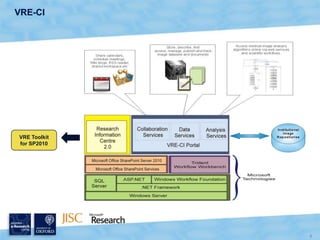
A Virtual Research Environment for Cancer Imaging (VRE-CI)VRE-CIproject is funded by the Joint Information Systems Committee (JISC) to provide a framework to allow researchers and clinicians involved in Cancer Imaging to share information, images and algorithms.
 JISC VRE frameworks phase 3.
 22 months 01/05/2009 – 21/02/2011.
 Project Partner:  Microsoft Research
Lee Dirks
Alex Wade
Roger Barga
 Team members:
PI. Prof. Anne E. Trefethen
Co-I. Dr. Vicente Grau
Project Manager Dr. M. Susana Avila-Garcia.
Technical developers:  Xin Xiong, Charles Crichton and Andrew Tsui.VRE-CIVRE Toolkit for SP2010
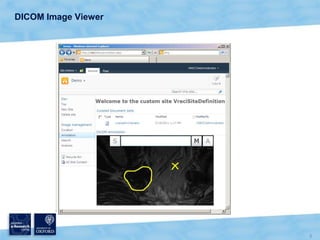
DICOM Image Viewer
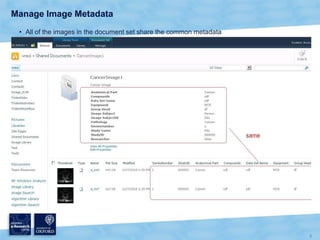
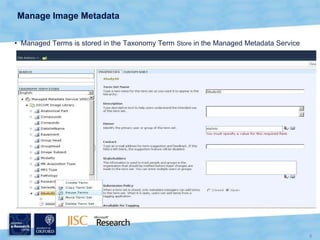
Manage Image MetadataAll of the images in the document set share the common metadata
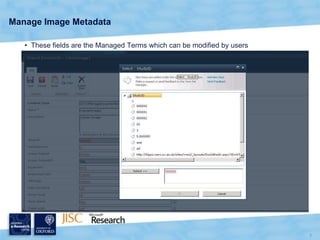
Manage Image MetadataThese fields are the Managed Terms which can be modified by users
Manage Image MetadataManaged Terms is stored in the Taxonomy Term Store in the Managed Metadata Service
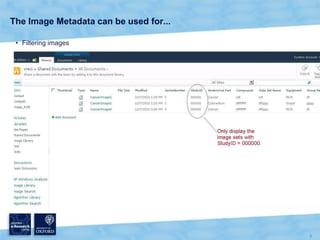
The Image Metadata can be used for...Filtering images
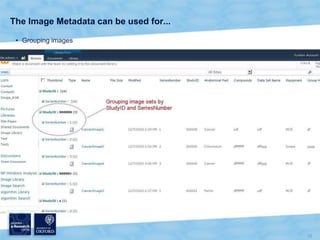
The Image Metadata can be used for...Grouping images
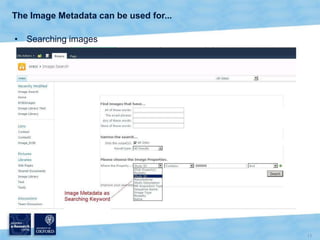
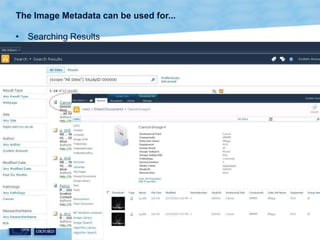
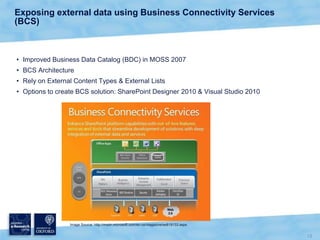
The Image Metadata can be used for...Searching imagesThe Image Metadata can be used for...Searching ResultsExposing external data using Business Connectivity Services (BCS)Improved Business Data Catalog (BDC) in MOSS 2007BCS ArchitectureRely on External Content Types & External ListsOptions to create BCS solution: SharePoint Designer 2010 & Visual Studio 2010Image Source: http://msdn.microsoft.com/en-us/magazine/ee819133.aspx
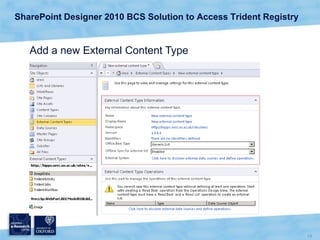
SharePoint Designer 2010 BCS Solution to Access Trident RegistryAdd a new External Content Type
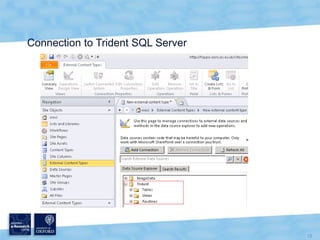
Connection to Trident SQL Server
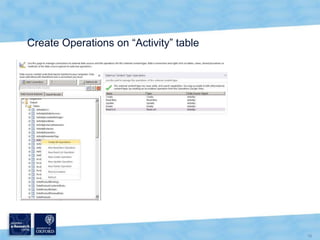
Create Operations on “Activity” table
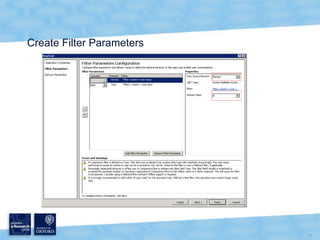
Create Filter Parameters
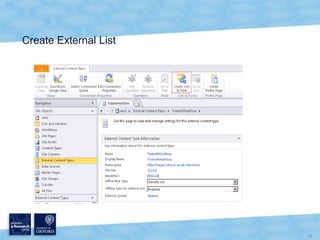
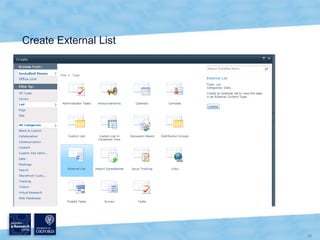
Create External List
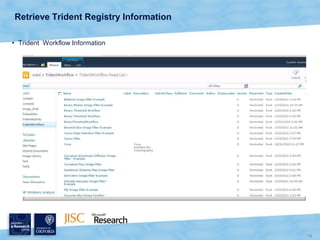
Retrieve Trident Registry InformationTrident  Workflow Information
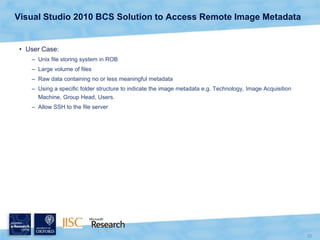
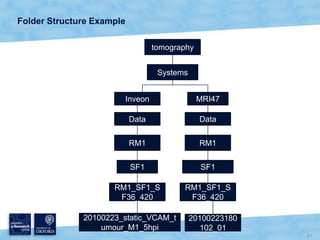
Visual Studio 2010 BCS Solution to Access Remote Image MetadataUser Case:Unix file storing system in ROBLarge volume of filesRaw data containing no or less meaningful metadataUsing a specific folder structure to indicate the image metadata e.g. Technology, Image Acquisition Machine, Group Head, Users.Allow SSH to the file server
Folder Structure ExampletomographySystemsInveonMRI47DataDataRM1RM1SF1SF1RM1_SF1_SF36_420RM1_SF1_SF36_42020100223_static_VCAM_tumour_M1_5hpi20100223180102_01
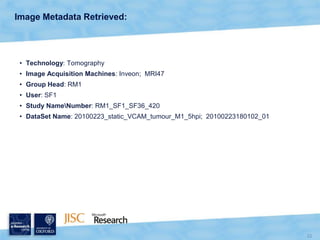
Image Metadata Retrieved:Technology: TomographyImage Acquisition Machines: Inveon;  MRI47Group Head: RM1User: SF1Study Name\Number: RM1_SF1_SF36_420DataSet Name: 20100223_static_VCAM_tumour_M1_5hpi;  20100223180102_01
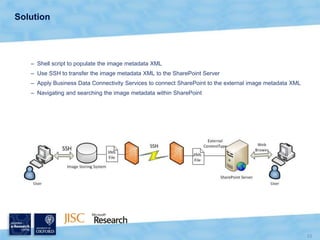
SolutionShell script to populate the image metadata XMLUse SSH to transfer the image metadata XML to the SharePoint ServerApply Business Data Connectivity Services to connect SharePoint to the external image metadata XMLNavigating and searching the image metadata within SharePoint
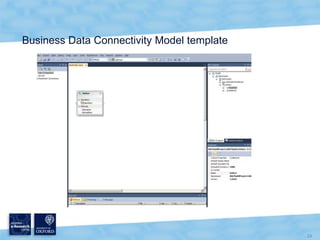
Business Data Connectivity Model template
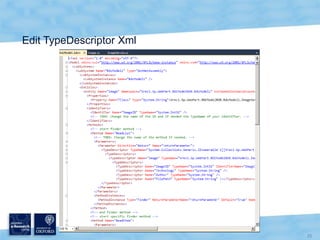
Edit TypeDescriptor Xml
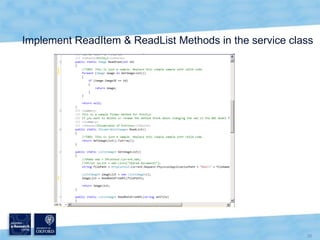
Implement ReadItem & ReadList Methods in the service class
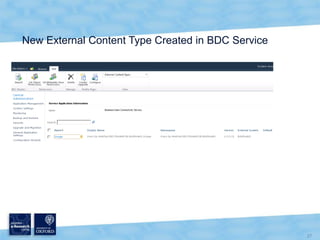
New External Content Type Created in BDC Service
Create External List
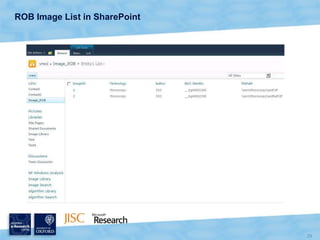
ROB Image List in SharePoint
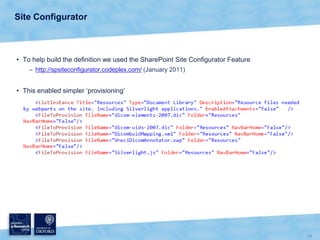
AimsA reusable site definition for SharePoint to manage cancer related DICOM files.Make visible the metadata from inside the DICOM files within SharePoint. Especially within Search.Enable areas of the DICOM files to be marked for subsequent analysis.To link with Trident for subsequent analysis
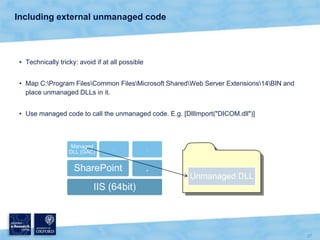
Visual Studio 2010The definition is built using Visual StudioXML, C#, SharePoint APIs, Silverlight APIs

VRE Cancer Imaging BL RIC Workshop 22032011

Editor's Notes

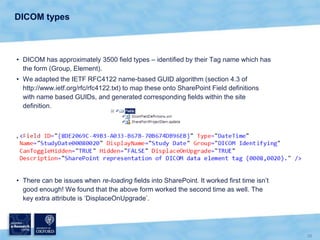
  • #39 //Based on the algorithm from section 4.3 of http://www.ietf.org/rfc/rfc4122.txt public static Guid NameBasedGuid(string Group, string Element) { byte[] inputBytes = new byte[4];inputBytes[0] = Byte.Parse(Group.Substring(0, 2), System.Globalization.NumberStyles.HexNumber);inputBytes[1] = Byte.Parse(Group.Substring(2, 2), System.Globalization.NumberStyles.HexNumber);inputBytes[2] = Byte.Parse(Element.Substring(0, 2), System.Globalization.NumberStyles.HexNumber);inputBytes[3] = Byte.Parse(Element.Substring(2, 2), System.Globalization.NumberStyles.HexNumber); //Get an array of the input in byte form //byte[] inputBytes = Encoding.Default.GetBytes(input); //Prepare an array for the input bytes and the Namespace Guid byte[] concatenatedBytes = new byte[16 + inputBytes.Length]; //Copy the namespace id guid and the input sequence to a second array { //GuidNameSpaceID = new Guid("596bdb90-e5ad-4952-a904-dc47da78d260"); byte[] NamespaceIDBytes = new byte[] { 0x90,0xDB,0x6B,0x59,0xAD,0xE5,0x52,0x49,0xA9,0x04,0xDC,0x47,0xDA,0x78,0xD2,0x60 }; //GuidNameSpaceID = new Guid(NamespaceIDBytes);Array.Copy(NamespaceIDBytes, concatenatedBytes, 16);Array.Copy(inputBytes, 0, concatenatedBytes, 16, inputBytes.Length); } //Calculate the SHA1 hash of the second array - this gives us 20 bytes of which we use the first 16. SHA1CryptoServiceProvider SHAProvider = new SHA1CryptoServiceProvider(); byte[] hashBytes = SHAProvider.ComputeHash(concatenatedBytes); //Construct the guid byte[] GuidData = new byte[16]; //Copy across the first 16 bytes of the hashArray.Copy(hashBytes, GuidData, 16); //Special treatment is required for bytes 7 and 8 //In byte 7 the 4 most significant bits of the time_hi_and_version field need to be set to 1010 (small endian) //This is to set it to version 5 of the UUID as outlined in section 4.1.3. Note they are using big endian for their numbers. byte LowerMask_7 = 15; // 00001111 byte UpperBits_7 = 160; // 10100000 GuidData[7] &= LowerMask_7;GuidData[7] |= UpperBits_7; //Byte 8 has to have the two most significant bits (bits 6 and 7) of the //clock_seq_hi_and_reserved to zero and one, respectively. byte LowerMask_8 = 63; // 00111111 byte UpperBits_8 = 128; // 10000000 GuidData[8] &= LowerMask_8;GuidData[8] |= UpperBits_8;GuidhashGuid = new Guid(GuidData); return hashGuid; }