



Answers for an Question Sheet with the Questions
•Q1
•How?
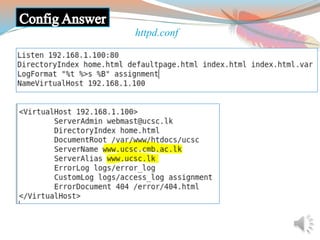
•Config Answer
•Q2
• i.) ii.) iii.) Screenshots and
How ?
•Custom 404 Error Page
•Q3
•How?
•Config Answer
•Output Screenshot
•Q4
•How?
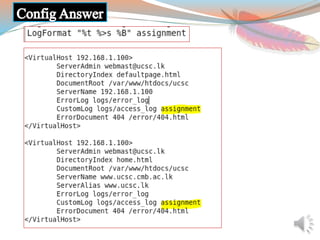
•Config Answer
•Sample Access Log
•Q5
•How?
•Config Answer
•Output Screenshots
Q1
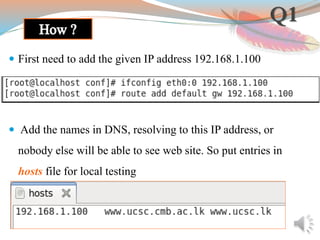
 First need to add the given IP address 192.168.1.100
 Add the names in DNS, resolving to this IP address, or
nobody else will be able to see web site. So put entries in
hosts file for local testing
Use name-based virtual hosting in httpd.conf file :-
 Location of the Site Content is refered from “DocumentRoot”
 Any site can have the same content path as it’s
“DocumentRoot”
 ∴ Give the same path (/var/www/htdocs/ucsc) for the
DocumentRoot of both www.ucsc.cmb.ac.lk and
www.ucsc.lk
 Then set the ‘access log’ and ‘error log’ paths as required
inside each virtualhost directive
 Can use ServerAlias instead of using two VirtualHost
directives seperately for both sites
 Give www.ucsc.cmb.ac.lk to the ServerName and give the
other www.ucsc.lk as a ServerAlias inside a single
VirtualHost directive
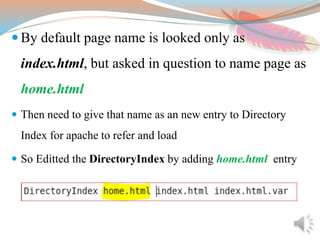
 By default page name is looked only as
index.html, but asked in question to name page as
home.html
 Then need to give that name as an new entry to Directory
Index for apache to refer and load
 So Editted the DirectoryIndex by adding home.html entry
For custom error page :-
 Created a page called 404.html with given content in the
default error file path ( /var/www/error/404.html )
 Added ‘ErrorDocument 404 /error/404.html’ directive with
path in httpd.conf file
(inside VirtualHost directive for better readability)
Click here for output view
httpd.conf
i.) , ii.) , iii.) , Custom 404 Error Page
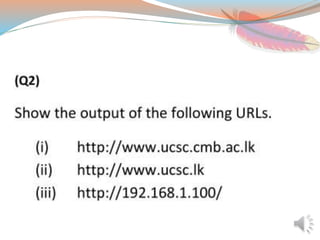
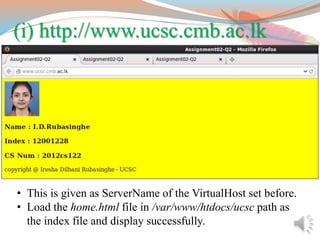
(i) http://www.ucsc.cmb.ac.lk
• This is given as ServerName of the VirtualHost set before.
• Load the home.html file in /var/www/htdocs/ucsc path as
the index file and display successfully.
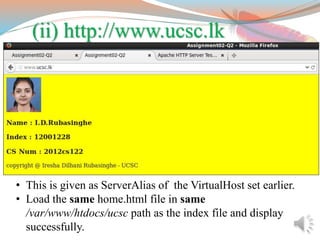
(ii) http://www.ucsc.lk
• This is given as ServerAlias of the VirtualHost set earlier.
• Load the same home.html file in same
/var/www/htdocs/ucsc path as the index file and display
successfully.
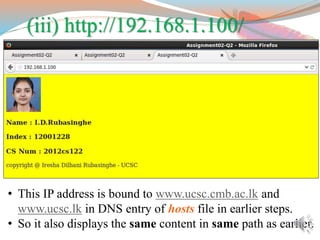
(iii) http://192.168.1.100/
• This IP address is bound to www.ucsc.cmb.ac.lk and
www.ucsc.lk in DNS entry of hosts file in earlier steps.
• So it also displays the same content in same path as earlier.
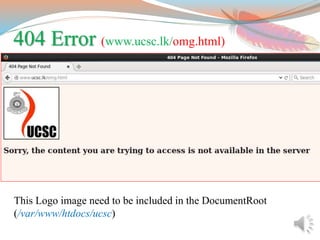
404 Error (www.ucsc.lk/omg.html)
This Logo image need to be included in the DocumentRoot
(/var/www/htdocs/ucsc)
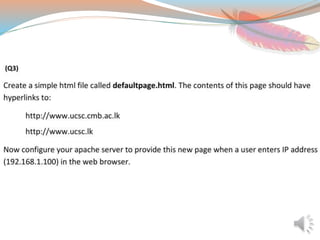
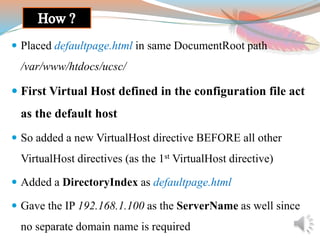
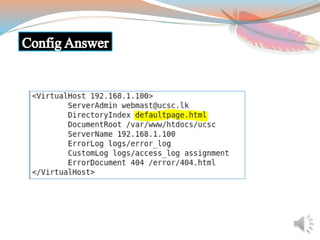
 Placed defaultpage.html in same DocumentRoot path
/var/www/htdocs/ucsc/
 First Virtual Host defined in the configuration file act
as the default host
 So added a new VirtualHost directive BEFORE all other
VirtualHost directives (as the 1st VirtualHost directive)
 Added a DirectoryIndex as defaultpage.html
 Gave the IP 192.168.1.100 as the ServerName as well since
no separate domain name is required
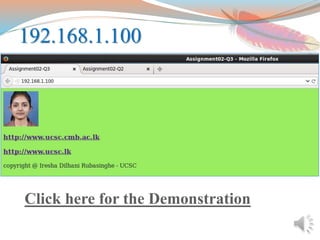
192.168.1.100
Click here for the Demonstration
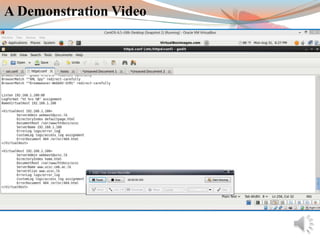
A Demonstration Video
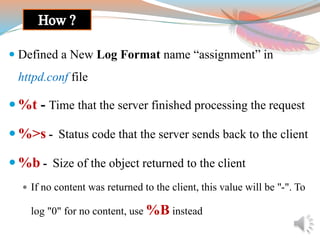
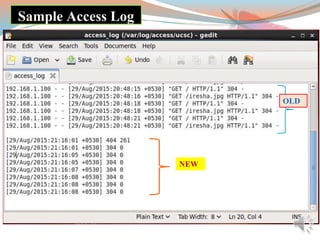
 Defined a New Log Format name “assignment” in
httpd.conf file
 %t - Time that the server finished processing the request
 %>s - Status code that the server sends back to the client
 %b - Size of the object returned to the client
 If no content was returned to the client, this value will be "-". To
log "0" for no content, use %B instead
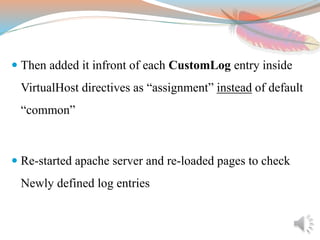
 Then added it infront of each CustomLog entry inside
VirtualHost directives as “assignment” instead of default
“common”
 Re-started apache server and re-loaded pages to check
Newly defined log entries
OLD
NEW
Sample Access Log
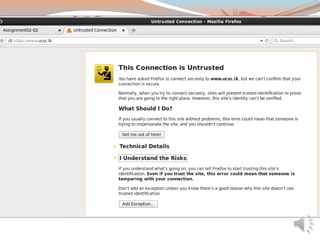
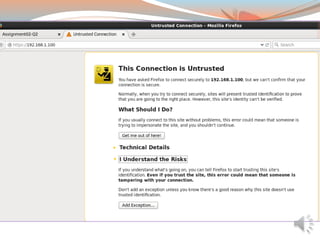
 Installed mod_ssl module for apache
( yum install mod_ssl openssl )
 SSL is done through port 443 (NOT usual port 80)
 SSL (Secure Sockets Layer) is a standard security technology
for establishing an encrypted link between a server and a client
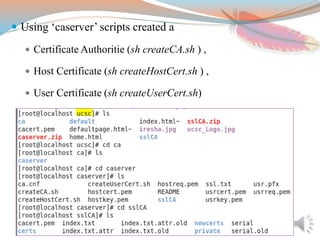
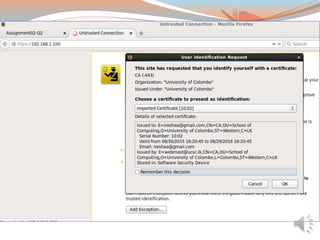
 Using ‘caserver’ scripts created a
 Certificate Authoritie (sh createCA.sh ) ,
 Host Certificate (sh createHostCert.sh ) ,
 User Certificate (sh createUserCert.sh)
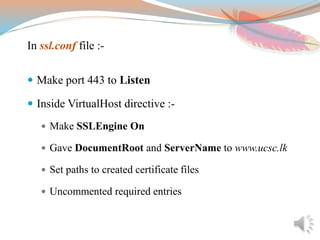
In ssl.conf file :-
 Make port 443 to Listen
 Inside VirtualHost directive :-
 Make SSLEngine On
 Gave DocumentRoot and ServerName to www.ucsc.lk
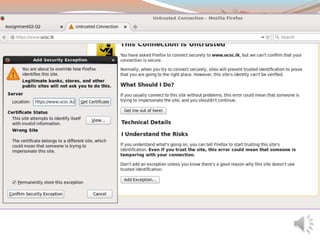
 Set paths to created certificate files
 Uncommented required entries
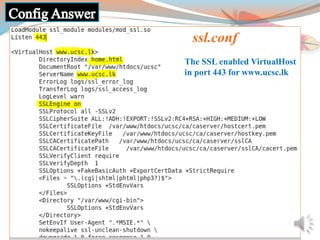
ssl.conf
The SSL enabled VirtualHost
in port 443 for www.ucsc.lk
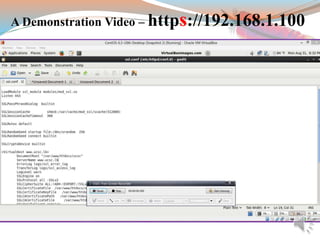
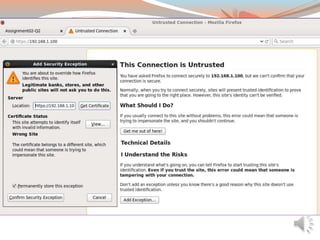
A Demonstration Video – https://192.168.1.100
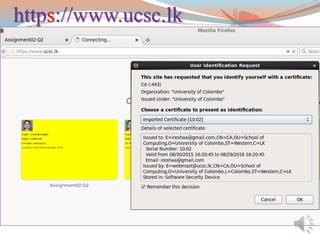
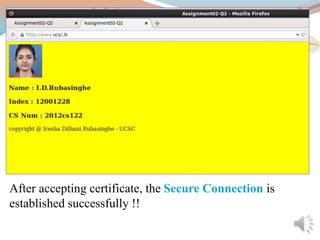
https://www.ucsc.lk
After accepting certificate, the Secure Connection is
established successfully !!
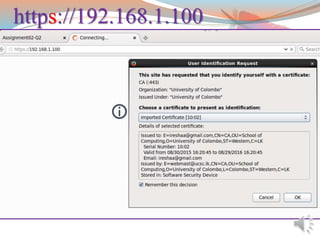
https://192.168.1.100
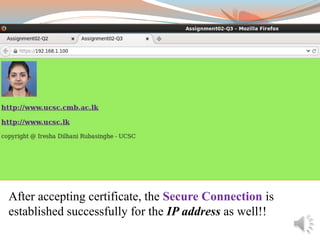
After accepting certificate, the Secure Connection is
established successfully for the IP address as well!!
Virtual Hosting With Apache and Linux

Virtual Hosting With Apache and Linux

  • 1.
    Answers for anQuestion Sheet with the Questions
  • 2.
    •Q1 •How? •Config Answer •Q2 • i.)ii.) iii.) Screenshots and How ? •Custom 404 Error Page •Q3 •How? •Config Answer •Output Screenshot •Q4 •How? •Config Answer •Sample Access Log •Q5 •How? •Config Answer •Output Screenshots
  • 4.
    Q1  First needto add the given IP address 192.168.1.100  Add the names in DNS, resolving to this IP address, or nobody else will be able to see web site. So put entries in hosts file for local testing
  • 5.
    Use name-based virtualhosting in httpd.conf file :-  Location of the Site Content is refered from “DocumentRoot”  Any site can have the same content path as it’s “DocumentRoot”  ∴ Give the same path (/var/www/htdocs/ucsc) for the DocumentRoot of both www.ucsc.cmb.ac.lk and www.ucsc.lk  Then set the ‘access log’ and ‘error log’ paths as required inside each virtualhost directive
  • 6.
     Can useServerAlias instead of using two VirtualHost directives seperately for both sites  Give www.ucsc.cmb.ac.lk to the ServerName and give the other www.ucsc.lk as a ServerAlias inside a single VirtualHost directive
  • 7.
     By defaultpage name is looked only as index.html, but asked in question to name page as home.html  Then need to give that name as an new entry to Directory Index for apache to refer and load  So Editted the DirectoryIndex by adding home.html entry
  • 8.
    For custom errorpage :-  Created a page called 404.html with given content in the default error file path ( /var/www/error/404.html )  Added ‘ErrorDocument 404 /error/404.html’ directive with path in httpd.conf file (inside VirtualHost directive for better readability) Click here for output view
  • 9.
  • 10.
    i.) , ii.), iii.) , Custom 404 Error Page
  • 12.
    (i) http://www.ucsc.cmb.ac.lk • Thisis given as ServerName of the VirtualHost set before. • Load the home.html file in /var/www/htdocs/ucsc path as the index file and display successfully.
  • 13.
    (ii) http://www.ucsc.lk • Thisis given as ServerAlias of the VirtualHost set earlier. • Load the same home.html file in same /var/www/htdocs/ucsc path as the index file and display successfully.
  • 14.
    (iii) http://192.168.1.100/ • ThisIP address is bound to www.ucsc.cmb.ac.lk and www.ucsc.lk in DNS entry of hosts file in earlier steps. • So it also displays the same content in same path as earlier.
  • 15.
    404 Error (www.ucsc.lk/omg.html) ThisLogo image need to be included in the DocumentRoot (/var/www/htdocs/ucsc)
  • 18.
     Placed defaultpage.htmlin same DocumentRoot path /var/www/htdocs/ucsc/  First Virtual Host defined in the configuration file act as the default host  So added a new VirtualHost directive BEFORE all other VirtualHost directives (as the 1st VirtualHost directive)  Added a DirectoryIndex as defaultpage.html  Gave the IP 192.168.1.100 as the ServerName as well since no separate domain name is required
  • 20.
  • 21.
  • 24.
     Defined aNew Log Format name “assignment” in httpd.conf file  %t - Time that the server finished processing the request  %>s - Status code that the server sends back to the client  %b - Size of the object returned to the client  If no content was returned to the client, this value will be "-". To log "0" for no content, use %B instead
  • 25.
     Then addedit infront of each CustomLog entry inside VirtualHost directives as “assignment” instead of default “common”  Re-started apache server and re-loaded pages to check Newly defined log entries
  • 27.
  • 30.
     Installed mod_sslmodule for apache ( yum install mod_ssl openssl )  SSL is done through port 443 (NOT usual port 80)  SSL (Secure Sockets Layer) is a standard security technology for establishing an encrypted link between a server and a client
  • 31.
     Using ‘caserver’scripts created a  Certificate Authoritie (sh createCA.sh ) ,  Host Certificate (sh createHostCert.sh ) ,  User Certificate (sh createUserCert.sh)
  • 32.
    In ssl.conf file:-  Make port 443 to Listen  Inside VirtualHost directive :-  Make SSLEngine On  Gave DocumentRoot and ServerName to www.ucsc.lk  Set paths to created certificate files  Uncommented required entries
  • 33.
    ssl.conf The SSL enabledVirtualHost in port 443 for www.ucsc.lk
  • 34.
    A Demonstration Video– https://192.168.1.100
  • 35.
  • 38.
    After accepting certificate,the Secure Connection is established successfully !!
  • 39.
  • 43.
    After accepting certificate,the Secure Connection is established successfully for the IP address as well!!