This document covers the graphical user interface (GUI) fundamentals and the .NET framework features, explaining user interfaces, controls, and Windows environments. It details the components of the .NET framework, including the Common Language Runtime (CLR) and code execution process, as well as the Visual Studio .NET Integrated Development Environment (IDE) for creating applications. Key topics include the different types of dialog boxes, event-driven programming, dynamic linking, and the organizational structure within Visual Studio, such as projects and solutions.
Appreciate the GraphicalUser Interface (Contd.)
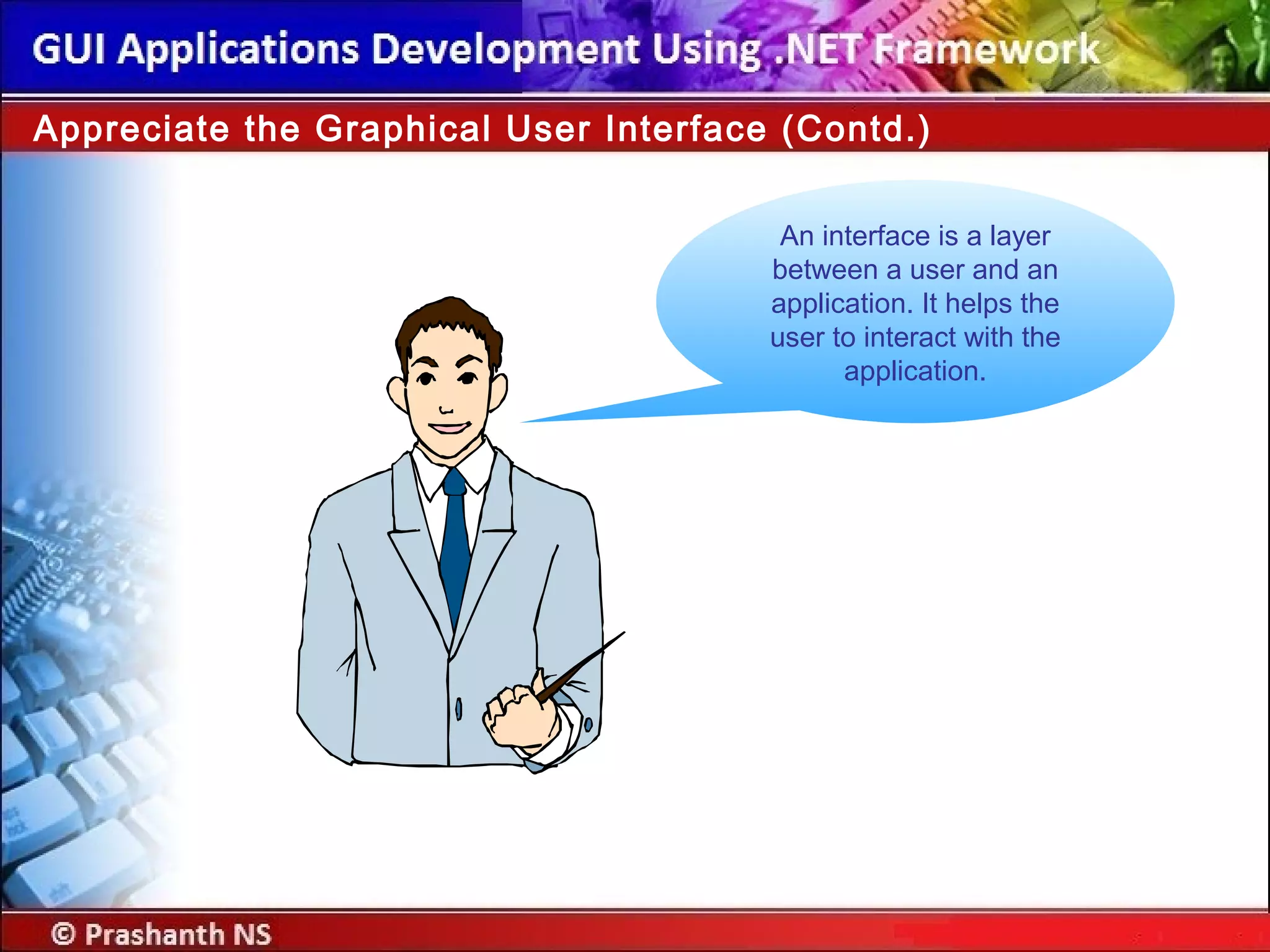
An interface is a layer
between a user and an
application. It helps the
user to interact with the
application.
4.
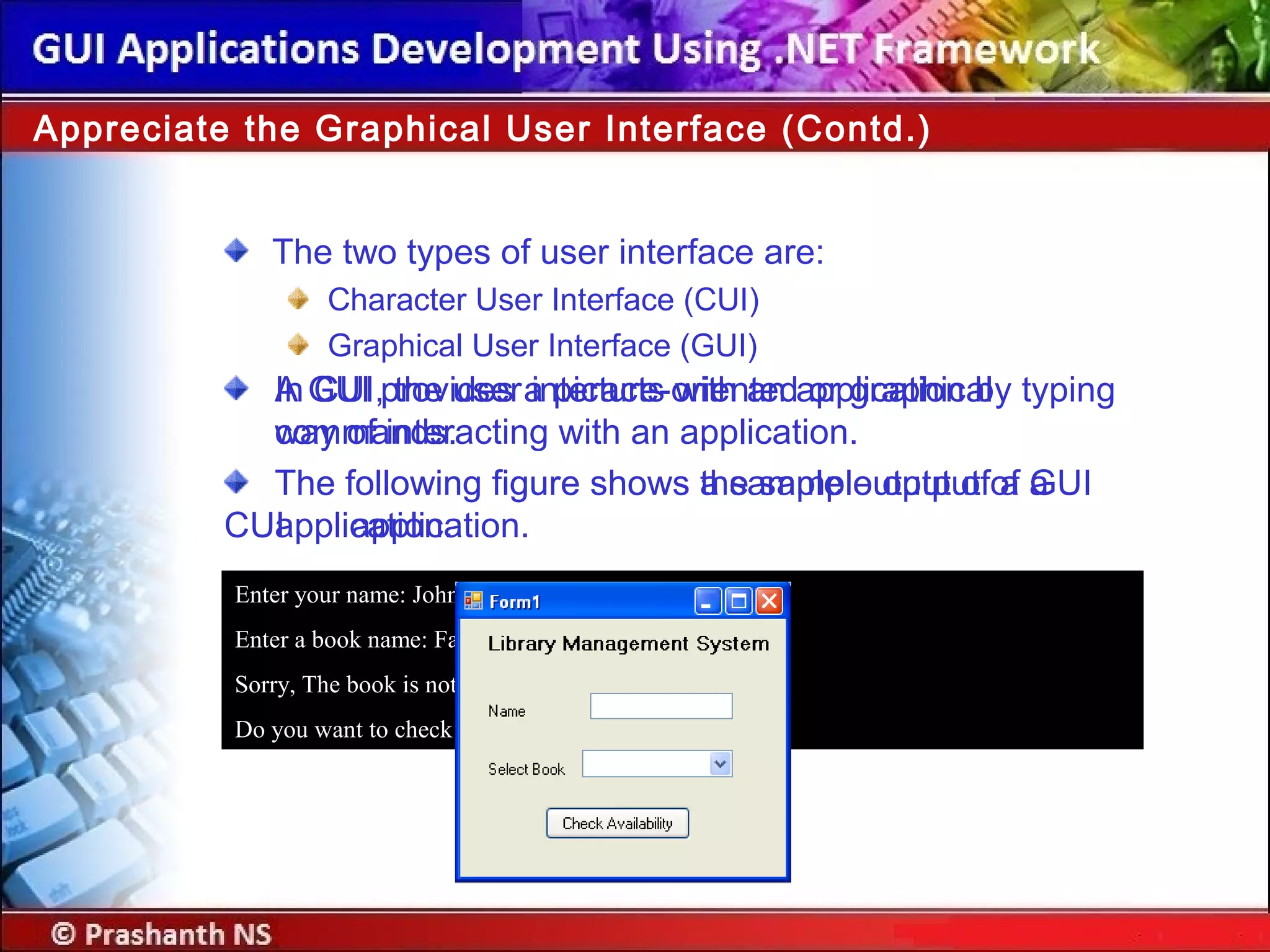
The two typesof user interface are:
Character User Interface (CUI)
Graphical User Interface (GUI)
Appreciate the Graphical User Interface (Contd.)
Enter your name: John
Enter a book name: Famous Five
Sorry, The book is not available.
Do you want to check for another book (y/n):
In CUI, the user interacts with an application by typing
commands.
The following figure shows the sample output of a
CUI application.
A GUI provides a picture-oriented or graphical
way of interacting with an application.
The following figure shows a sample output of a GUI
application.
5.
Advantages of GUIapplications are:
They are easy to learn and use.
The users need not remember the lines of syntax.
Most of the commands are executed by using mouse.
Appreciate the Graphical User Interface (Contd.)
6.
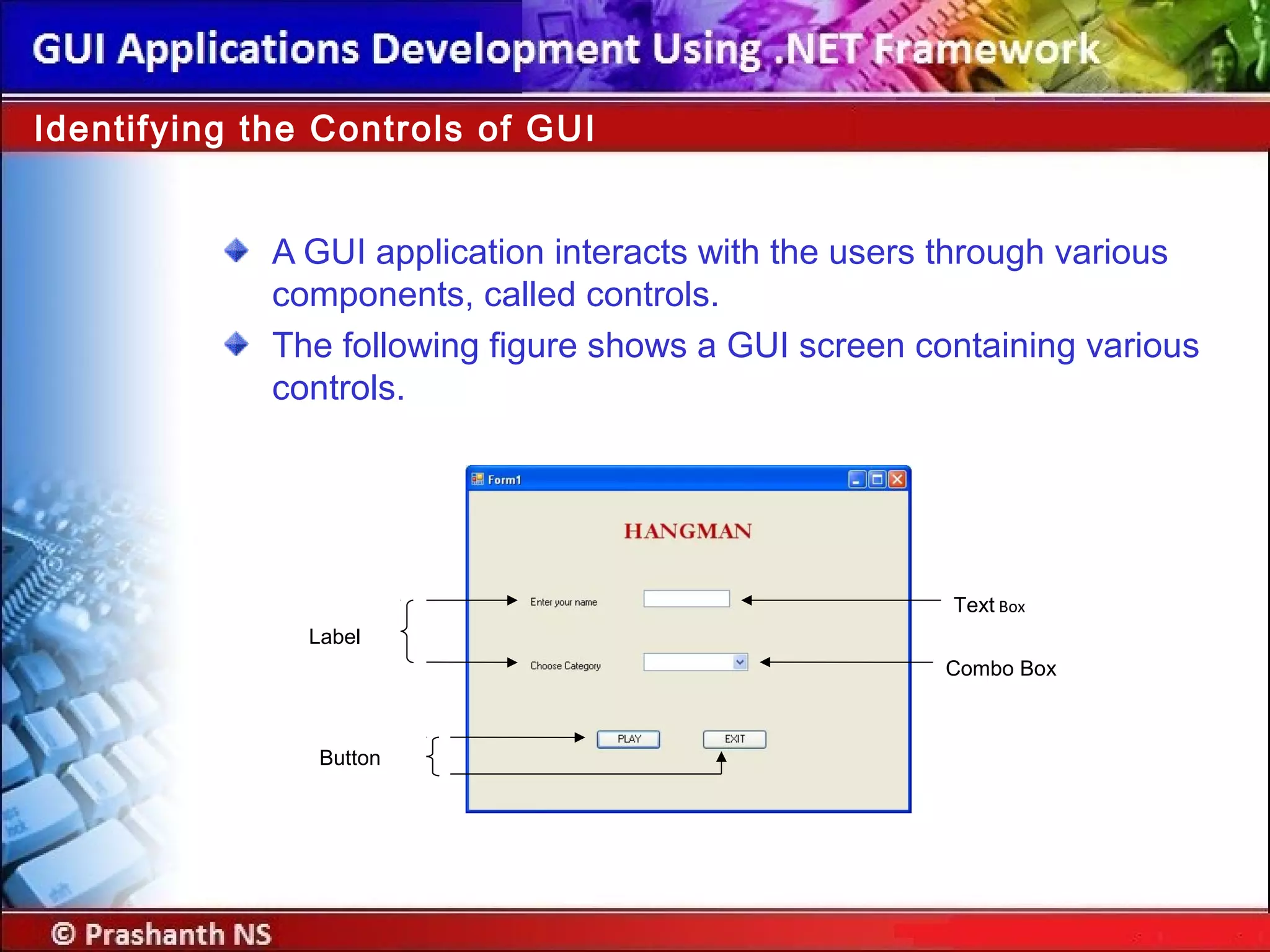
A GUI applicationinteracts with the users through various
components, called controls.
The following figure shows a GUI screen containing various
controls.
Identifying the Controls of GUI
Label
Text Box
Button
Combo Box
7.
Just a minute
A____________ is a control that consists of other controls.
Answer:
Container
8.
Windows provides thefollowing types of dialog boxes:
Modal
System modal
Modeless
Identifying the Controls of GUI (Contd.)
9.
Modal:
It does notallow the user to switch focus to another area of the
application, which has invoked the dialog box.
It allows the user to switch to other Windows applications.
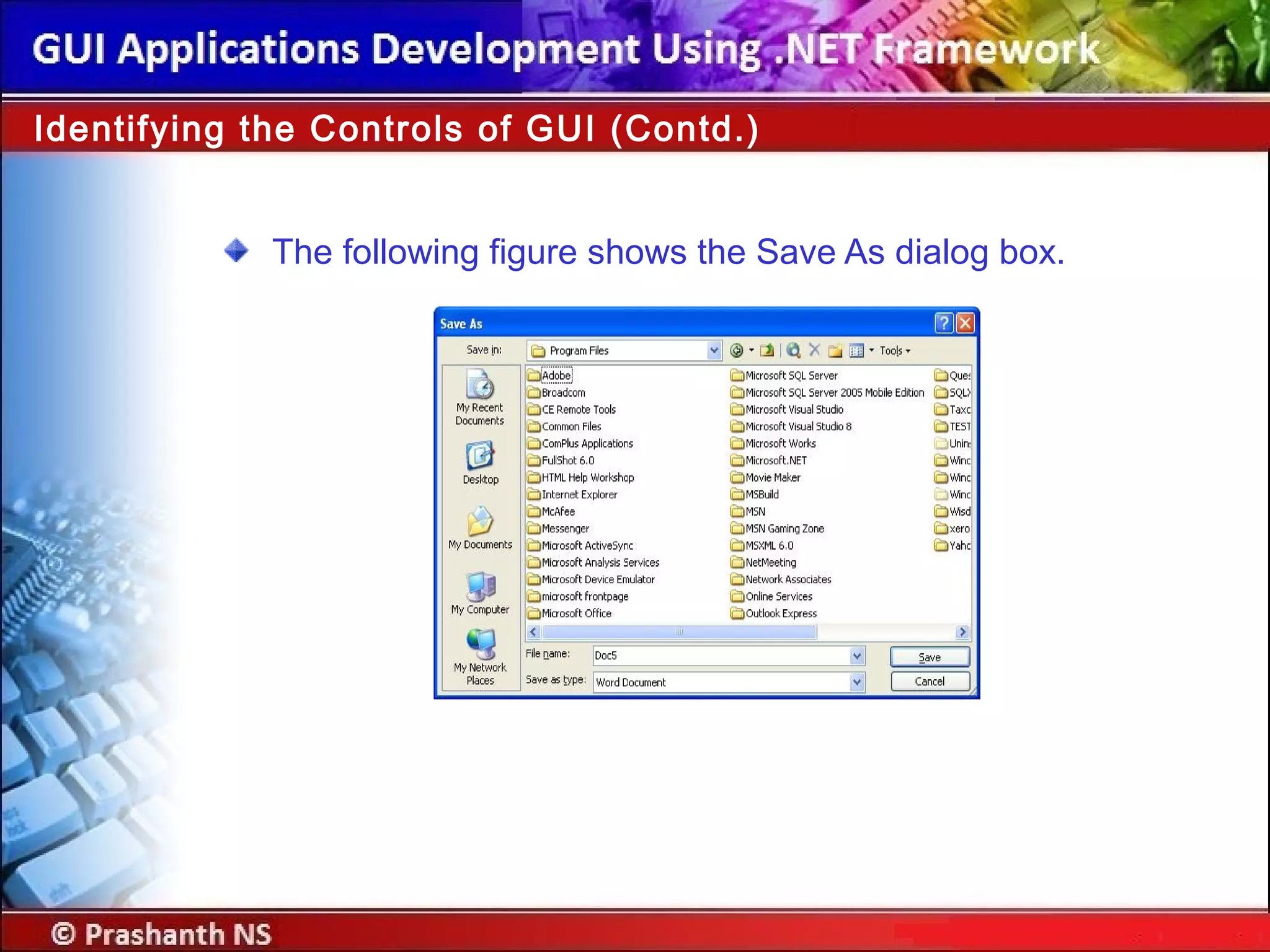
The Save As dialog box of Microsoft Word is an example of
modal dialog box.
Identifying the Controls of GUI (Contd.)
10.
The following figureshows the Save As dialog box.
Identifying the Controls of GUI (Contd.)
11.
System modal:
It takescontrol of the entire Windows environment.
It does not allow the user to switch to any other Windows
application until it is closed.
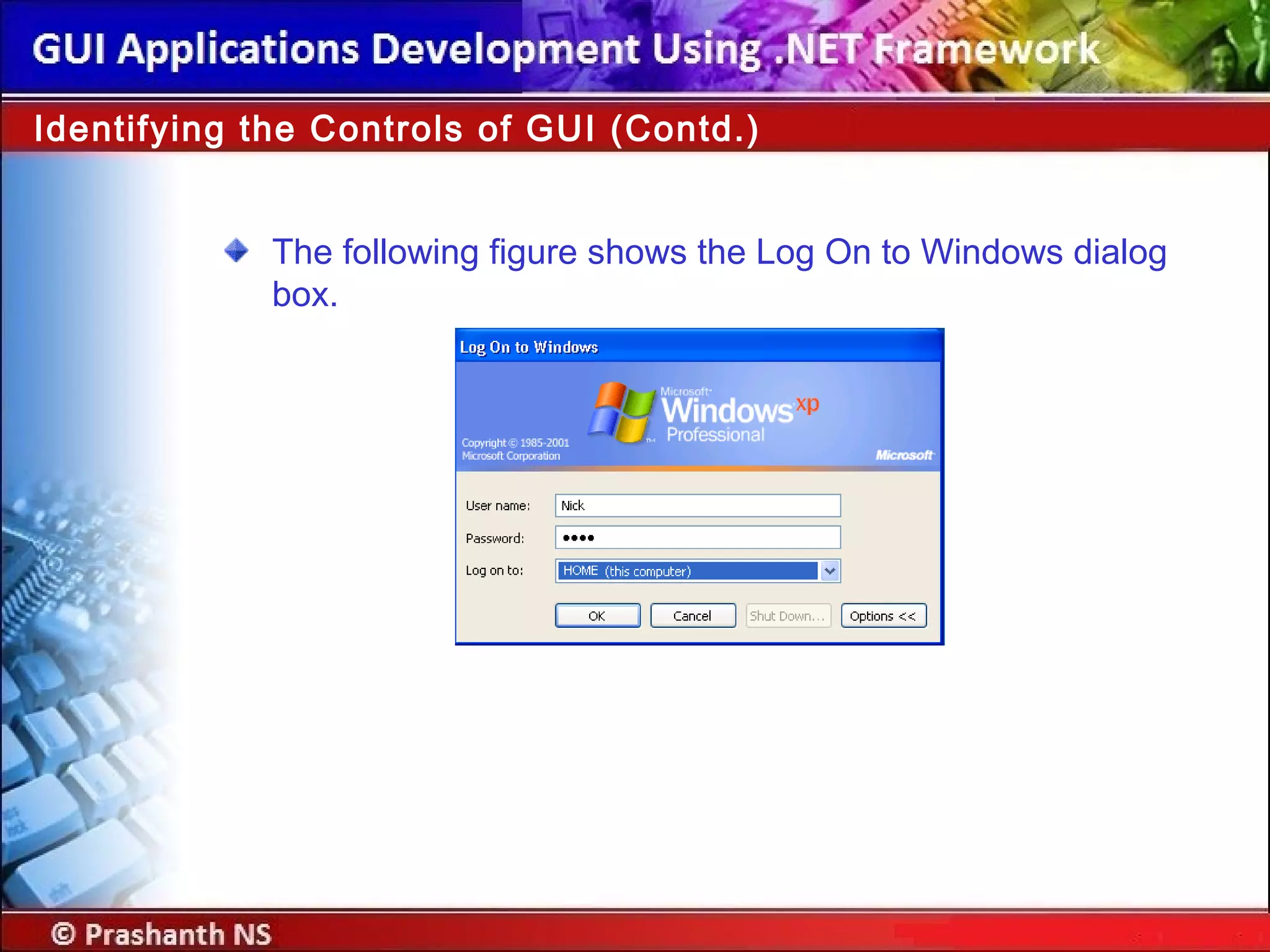
The Log On to Windows dialog box is an example of system modal
dialog box.
Identifying the Controls of GUI (Contd.)
12.
The following figureshows the Log On to Windows dialog
box.
Identifying the Controls of GUI (Contd.)
13.
Modeless:
It allows theusers to switch to another area of the application or to
another Windows application.
It remains on the screen and is available for use at any time.
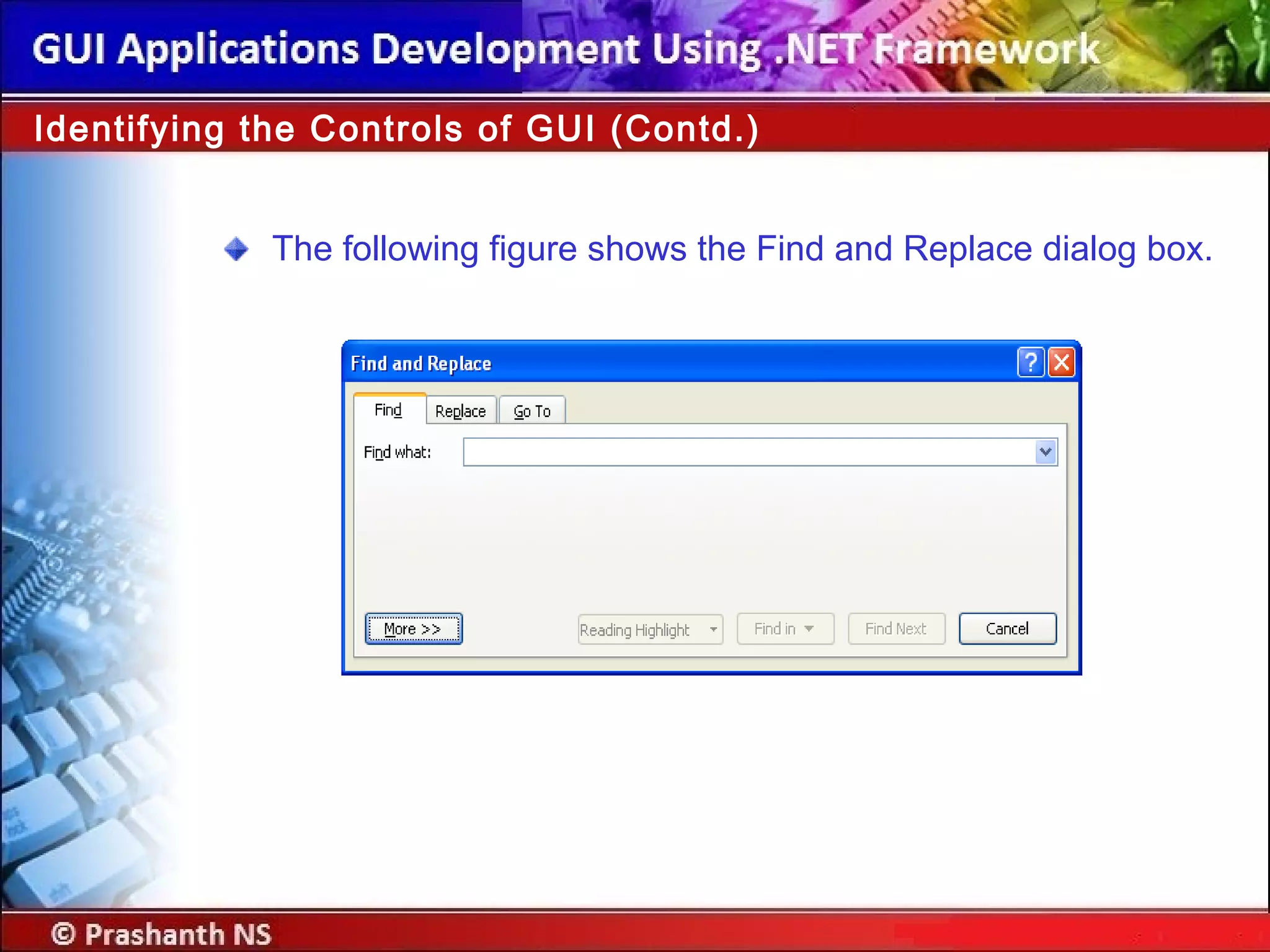
The Find and Replace dialog box of Microsoft Word is an example
of modeless dialog box.
Identifying the Controls of GUI (Contd.)
14.
The following figureshows the Find and Replace dialog box.
Identifying the Controls of GUI (Contd.)
15.
Just a minute
Whichdialog box allows users to switch to another area of
the application, which has invoked it?
Answer:
Modeless dialog box
16.
Just a minute
A__________ acts as a container for a group of related
controls.
Answer:
Dialog box
17.
Identifying the Featuresof the Windows Environment
The features of the Windows environment that enable
applications to interact effectively with the user are:
Event-driven programming
Dynamic linking
18.
Identifying the Featuresof the Windows Environment (Contd.)
Event-driven programming:
Windows application can execute programs on a click of a mouse.
An event is an action performed by the user.
Windows applications generate messages in response to each
action performed by the user.
Depending on the messages received, the application performs
preprogrammed functions.
Based on user’s input, an event gets generated. The code
corresponding to the event is executed.
19.
Identifying the Featuresof the Windows Environment (Contd.)
Dynamic linking:
The process by which an application is linked to the library
functions at run time.
The reference to the function is looked up at run time. This is called
dynamic linking.
20.
In this session,you learned that:
GUI enables the users to interact with the application by using
graphical components.
Windows provides three types of dialog boxes:
Modal dialog box
System modal dialog box
Modeless dialog box
The main features of the Windows environment are:
Event-driven programming
Dynamic linking
Summary
21.
In this session,you will learn to:
Identify the features of .NET Framework
Objectives
Identifying the Featuresof .NET Framework (Contd.)
.NET Framework is an
integrated technology that
helps in creating and
running robust, scalable,
and distributed
applications.
24.
Microsoft introduced the.NET Framework to enhance the
interoperability of applications.
The .NET Framework is designed to make improvements in:
Code reuse
Code specialization
Resource management
Multilanguage development
Security
Deployment
Administration
Identifying the Features of .NET Framework (Contd.)
25.
.NET Framework offersa complete suite for developing and
deploying applications.
The suit consists of:
.NET Products
.NET Services
.NET Framework
Identifying the Features of .NET Framework (Contd.)
26.
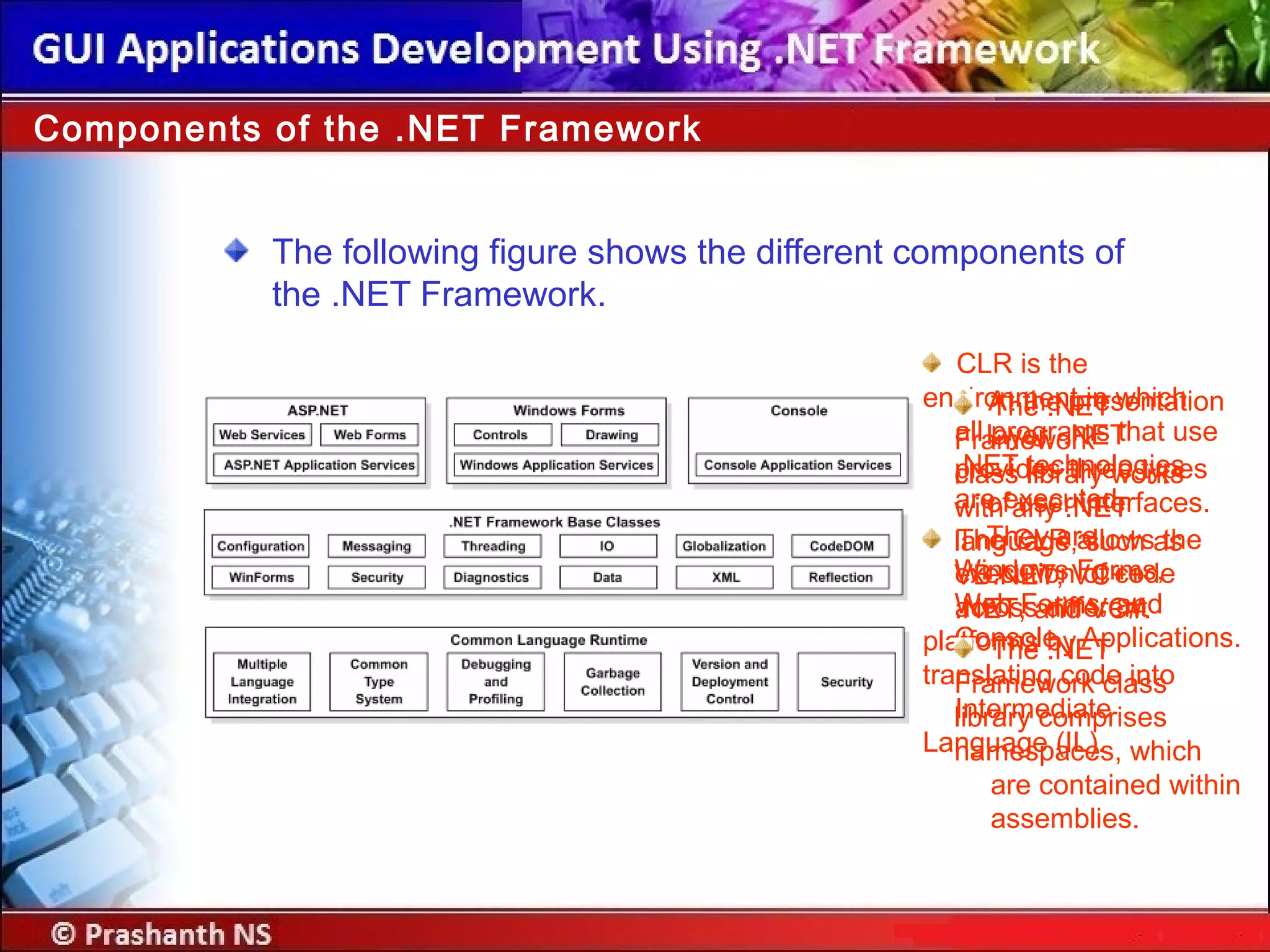
The following figureshows the different components of
the .NET Framework.
Components of the .NET Framework
CLR is the
environment in which
all programs that use
.NET technologies
are executed.
The CLR allows the
execution of code
across different
platforms by
translating code into
Intermediate
Language (IL).
At the presentation
layer, .NET
provides three types
of user interfaces.
They are
Windows Forms,
Web Forms, and
Console Applications.
The .NET
Framework
class library works
with any .NET
language, such as
VB.NET, VC++
.NET, and VC#.
The .NET
Framework class
library comprises
namespaces, which
are contained within
assemblies.
27.
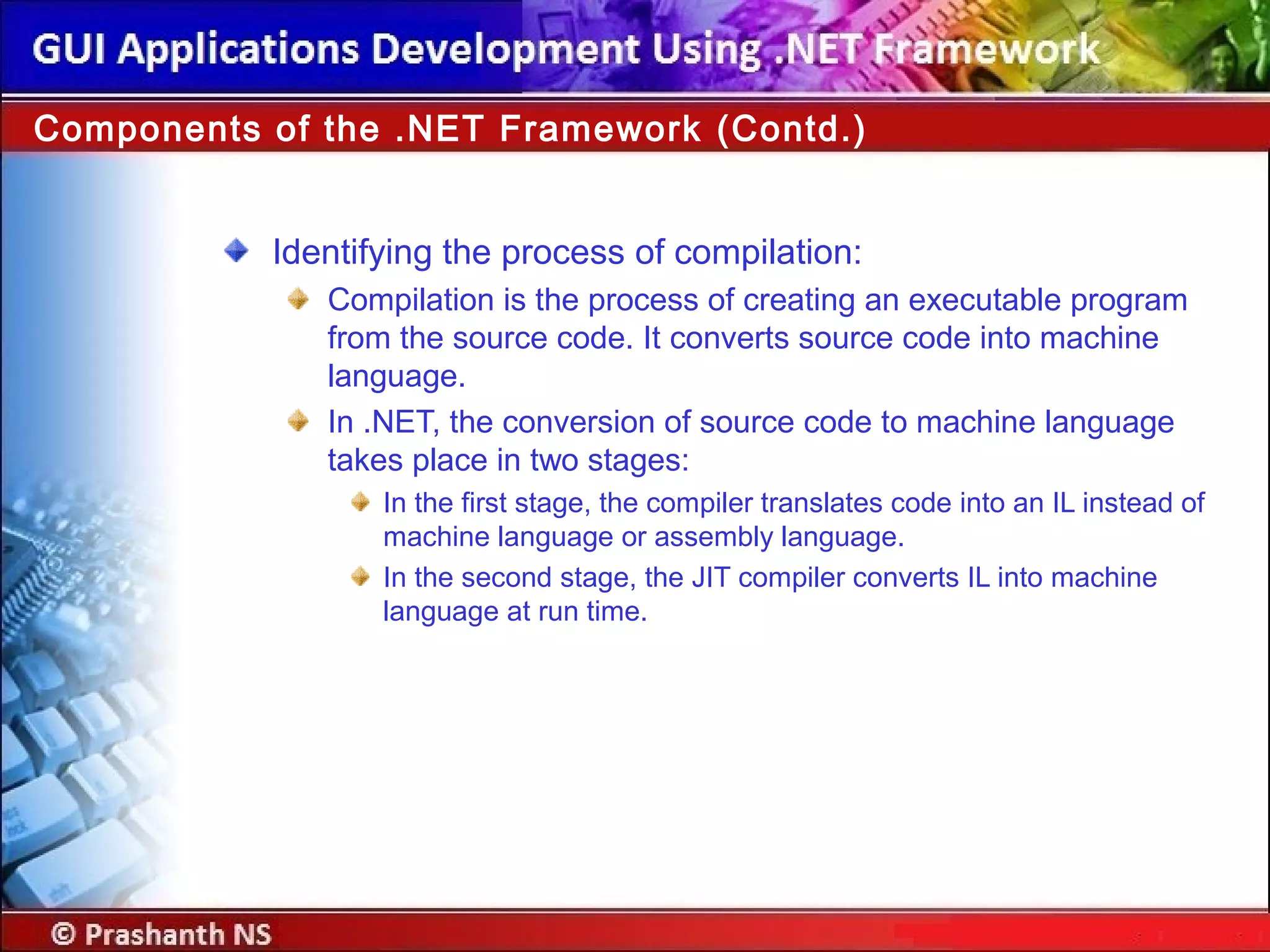
Identifying the processof compilation:
Compilation is the process of creating an executable program
from the source code. It converts source code into machine
language.
In .NET, the conversion of source code to machine language
takes place in two stages:
In the first stage, the compiler translates code into an IL instead of
machine language or assembly language.
In the second stage, the JIT compiler converts IL into machine
language at run time.
Components of the .NET Framework (Contd.)
28.
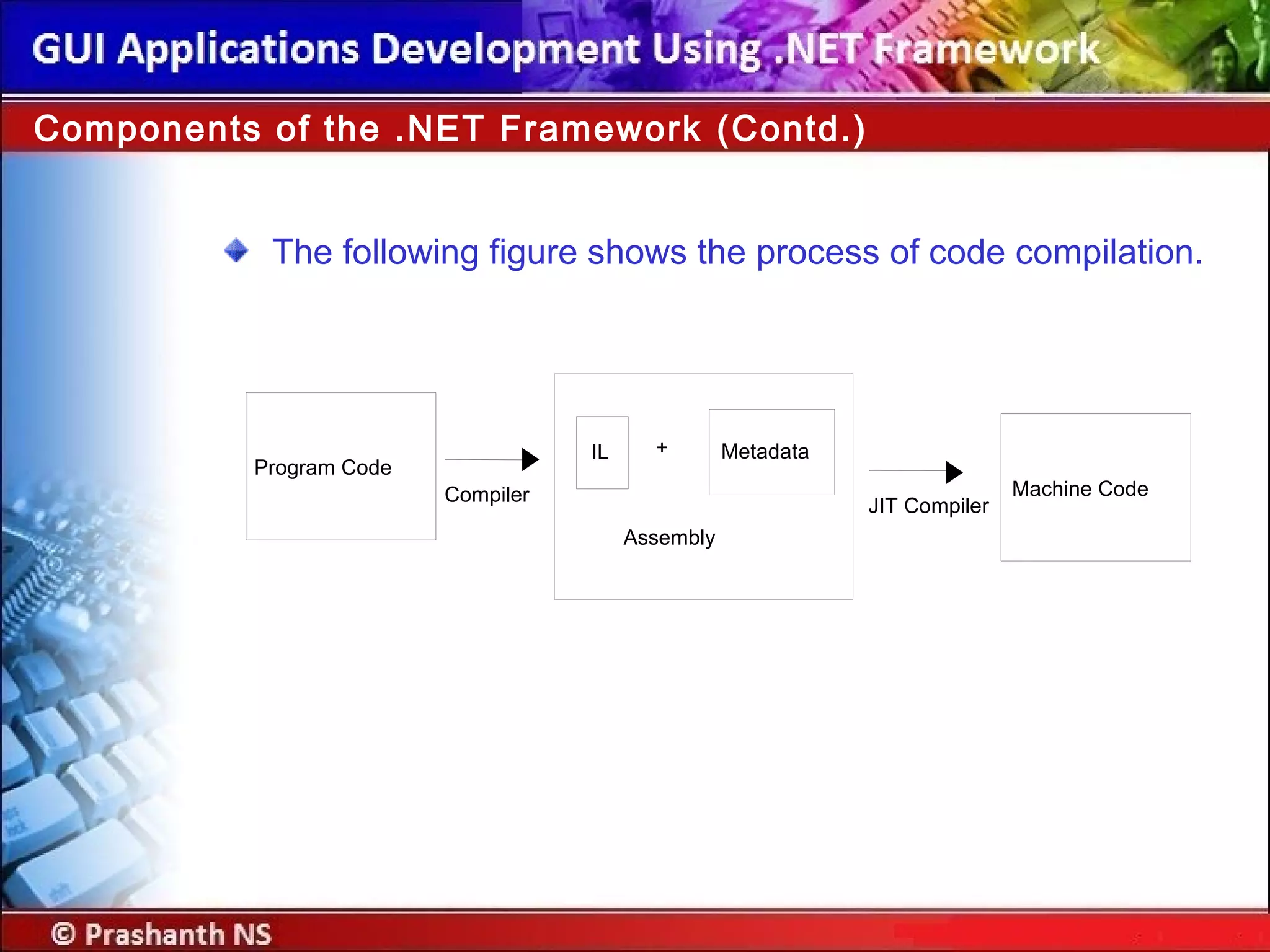
The following figureshows the process of code compilation.
Components of the .NET Framework (Contd.)
Program Code
Compiler
IL Metadata
Assembly
+
Machine Code
JIT Compiler
29.
Identifying the processof code execution:
During execution, CLR performs the following steps:
Loading assemblies and identifying namespaces
JIT compilation
Garbage collection
Components of the .NET Framework (Contd.)
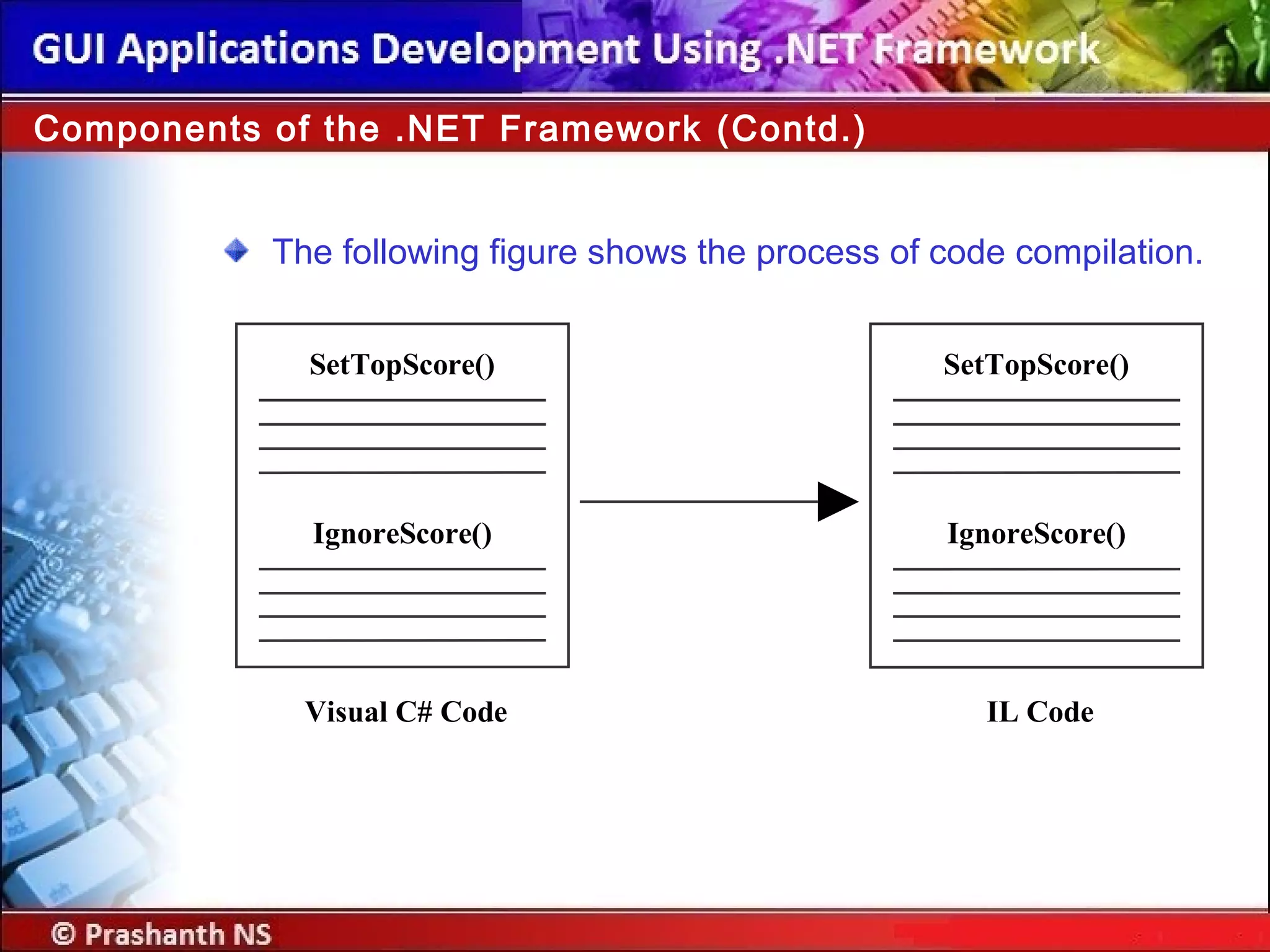
30.
The following figureshows the process of code compilation.
Components of the .NET Framework (Contd.)
SetTopScore()
IgnoreScore()
SetTopScore()
Visual C# Code IL Code
IgnoreScore()
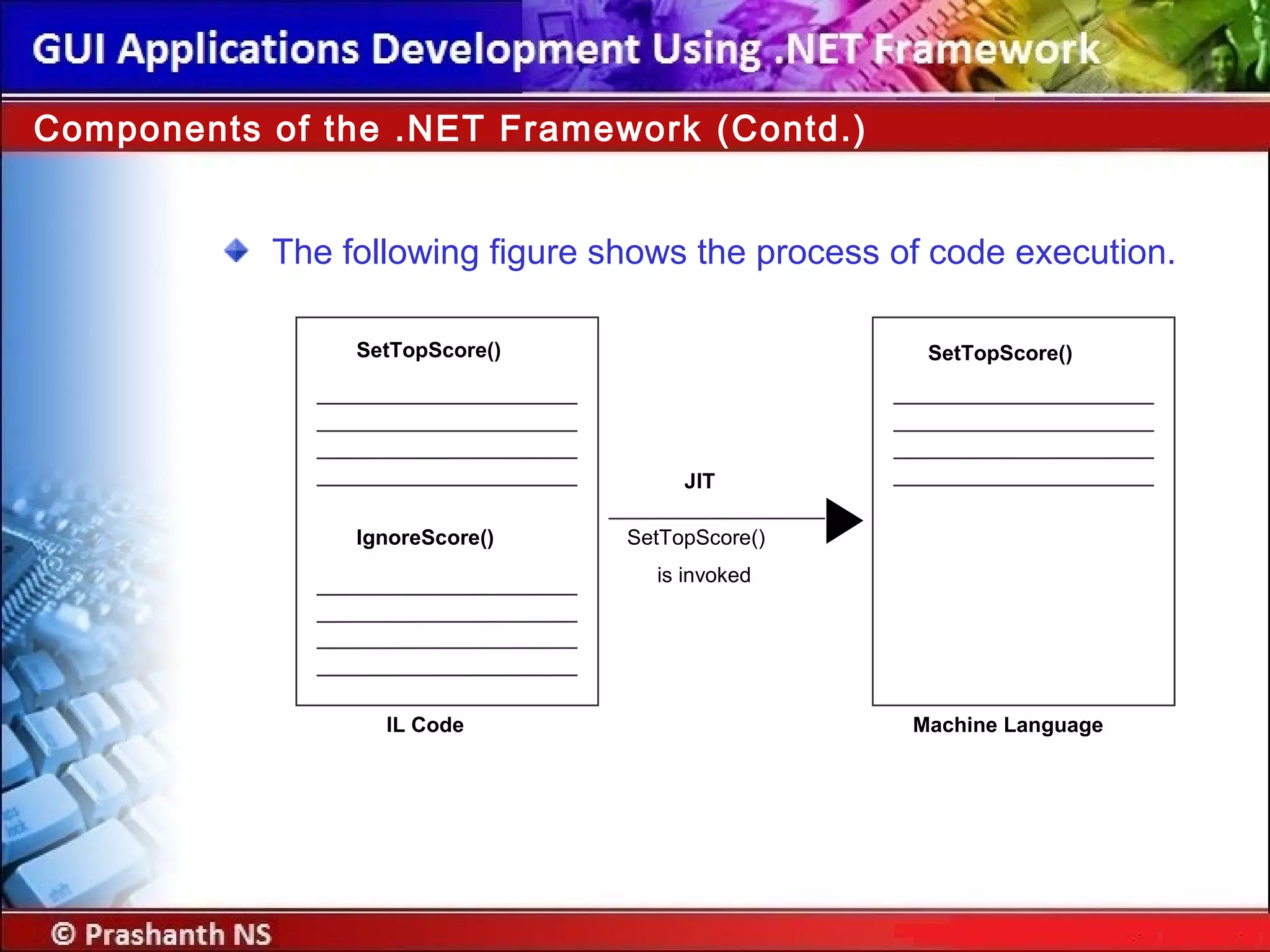
31.
The following figureshows the process of code execution.
Components of the .NET Framework (Contd.)
JIT
SetTopScore()
IgnoreScore()
SetTopScore()
Machine LanguageIL Code
is invoked
SetTopScore()
32.
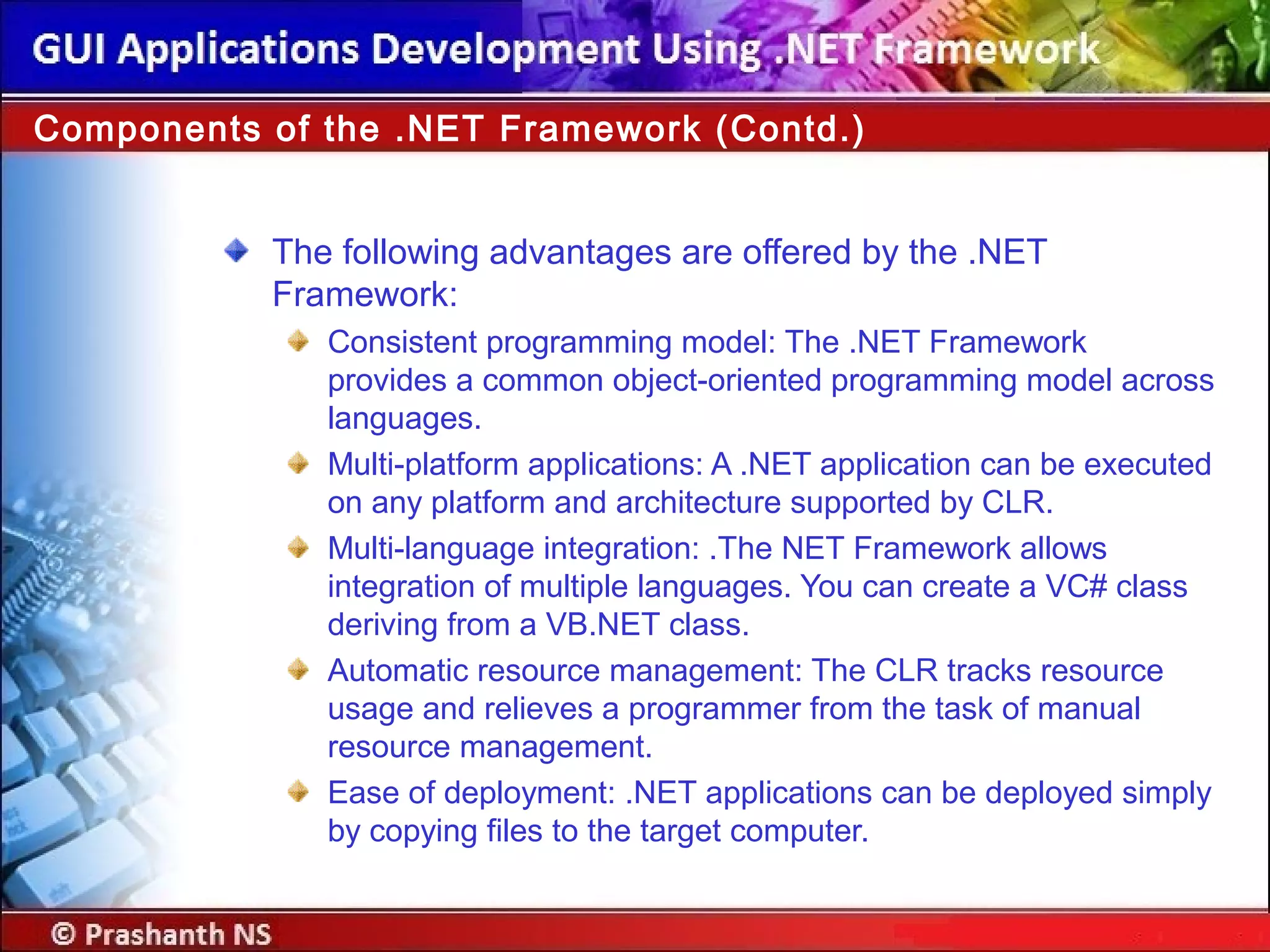
The following advantagesare offered by the .NET
Framework:
Consistent programming model: The .NET Framework
provides a common object-oriented programming model across
languages.
Multi-platform applications: A .NET application can be executed
on any platform and architecture supported by CLR.
Multi-language integration: .The NET Framework allows
integration of multiple languages. You can create a VC# class
deriving from a VB.NET class.
Automatic resource management: The CLR tracks resource
usage and relieves a programmer from the task of manual
resource management.
Ease of deployment: .NET applications can be deployed simply
by copying files to the target computer.
Components of the .NET Framework (Contd.)
33.
In this session,you learned that:
.NET Framework is made up of many components, such as
CLS, CLR, and JIT compiler.
The CLR is the environment where all .NET applications are
executed.
CLS is a set of rules that are followed by all the languages of
the .NET Framework.
When a program is compiled by using Visual Studio, the
compiler translates the code into IL instead of machine
language.
The JIT compiler is used to translate the code from IL into
machine language.
Summary
34.
In this session,you will learn to:
Use Windows project by using Visual Studio .NET integrated
development environment
Objectives
35.
The Visual Studio.NET IDE provides you with a common
interface for developing various kinds of applications.
The IDE also provides you with a centralized location for:
Designing the user interface for an application.
Writing code for the application.
Compiling the application.
Debugging the application.
Using Visual Studio .NET IDE
36.
In Visual Studio.NET, an application can be made up of one
or more items, such as files and folders.
To organize these items efficiently, Visual Studio .NET
provides two types of containers:
Projects
Solutions
Creating Projects and Solutions
37.
Project:
It contains interrelateditems that make up the application.
It allows you to manage, build, and debug the items.
An executable file (.exe) or a Dynamic Link Library (.dll) is created
when you build a project. These files are called the project output.
Solution:
It acts as a container for one or more projects.
It allows you to work on multiple projects within the same instance
of the Visual Studio .NET IDE.
Creating Projects and Solutions (Contd.)
38.
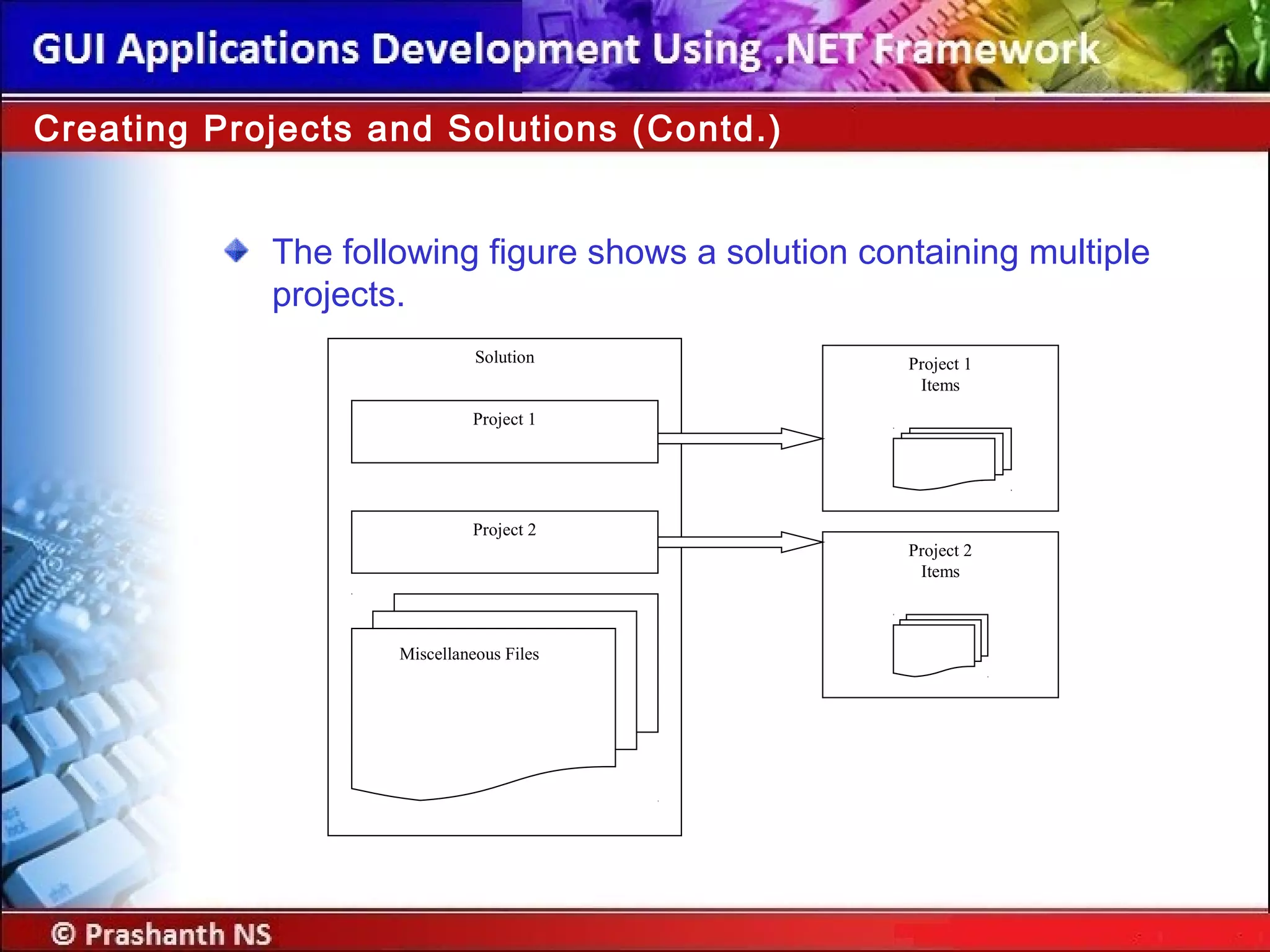
The following figureshows a solution containing multiple
projects.
Creating Projects and Solutions (Contd.)
Solution
Project 1
Project 2
Miscellaneous Files
Project 1
Items
Project 2
Items
39.
Creating Projects andSolutions (Contd.)
Let us see how to create a
Windows application in
Visual Studio .NET IDE.
40.
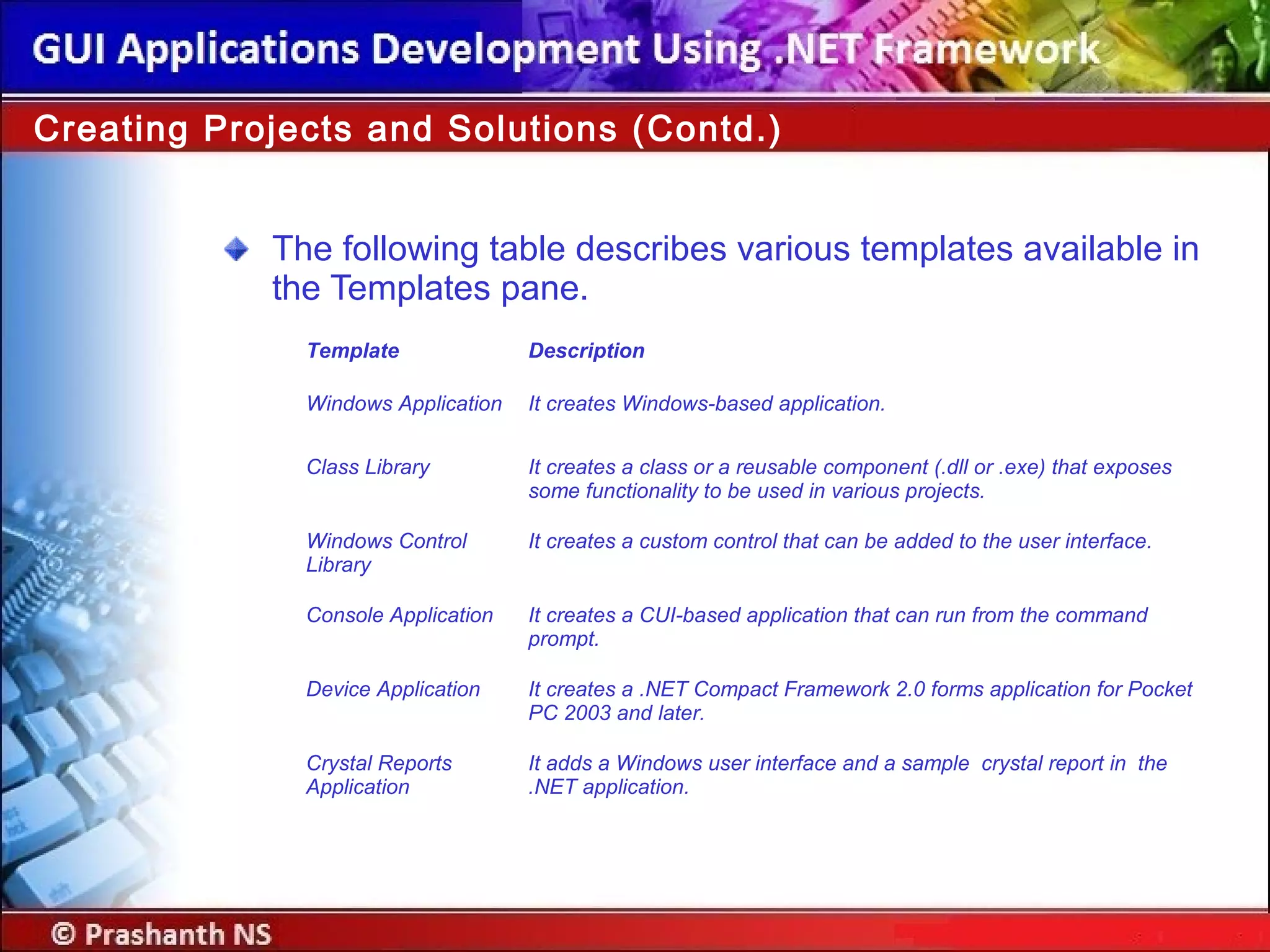
The following tabledescribes various templates available in
the Templates pane.
Creating Projects and Solutions (Contd.)
Template Description
Windows Application It creates Windows-based application.
Class Library It creates a class or a reusable component (.dll or .exe) that exposes
some functionality to be used in various projects.
Windows Control
Library
It creates a custom control that can be added to the user interface.
Console Application It creates a CUI-based application that can run from the command
prompt.
Device Application It creates a .NET Compact Framework 2.0 forms application for Pocket
PC 2003 and later.
Crystal Reports
Application
It adds a Windows user interface and a sample crystal report in the
.NET application.
41.
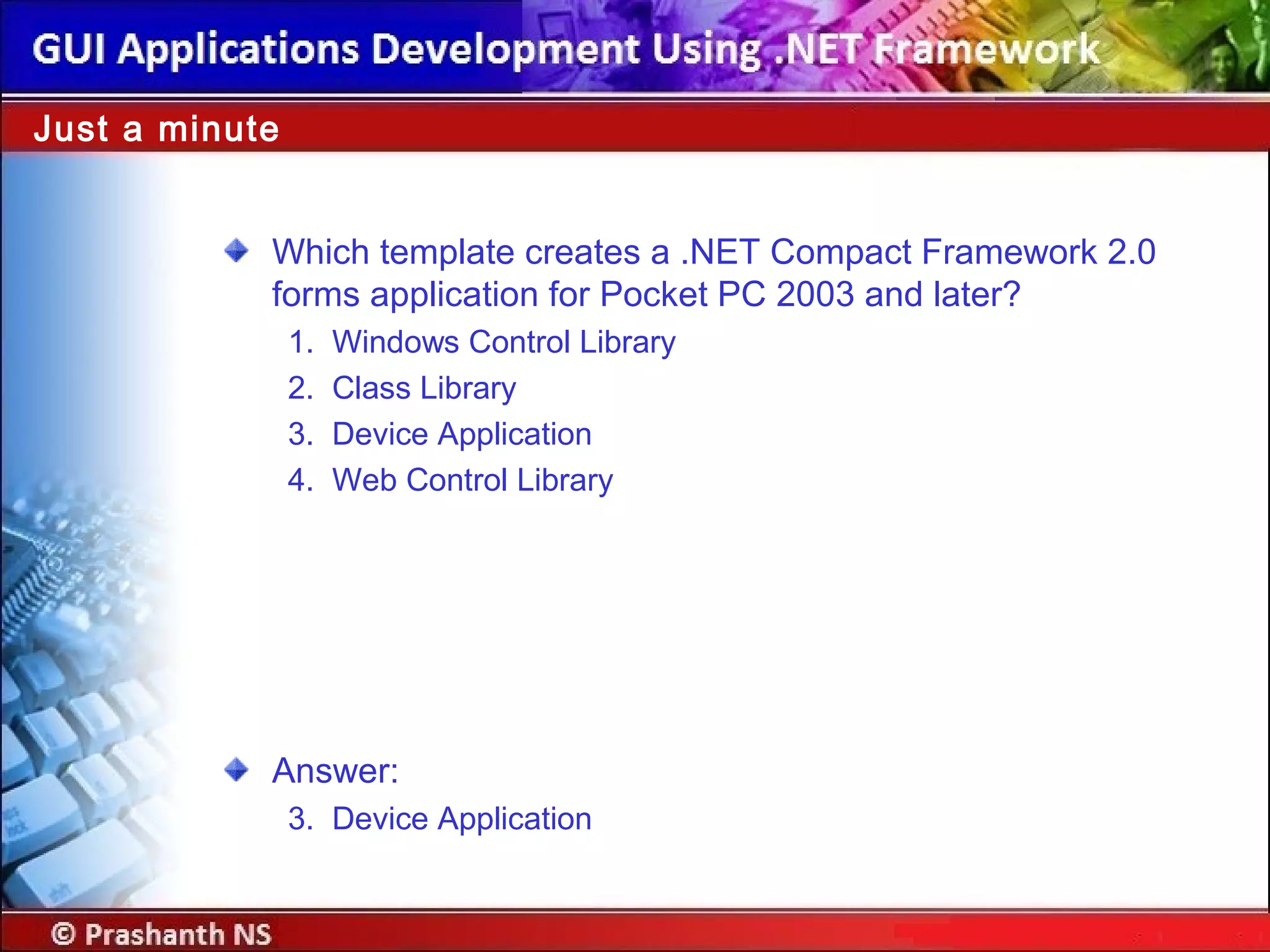
Just a minute
Whichtemplate creates a .NET Compact Framework 2.0
forms application for Pocket PC 2003 and later?
1. Windows Control Library
2. Class Library
3. Device Application
4. Web Control Library
Answer:
3. Device Application
42.
Creating Projects andSolutions (Contd.)
Let us see various user
interface elements of
Visual Studio .NET IDE.
43.
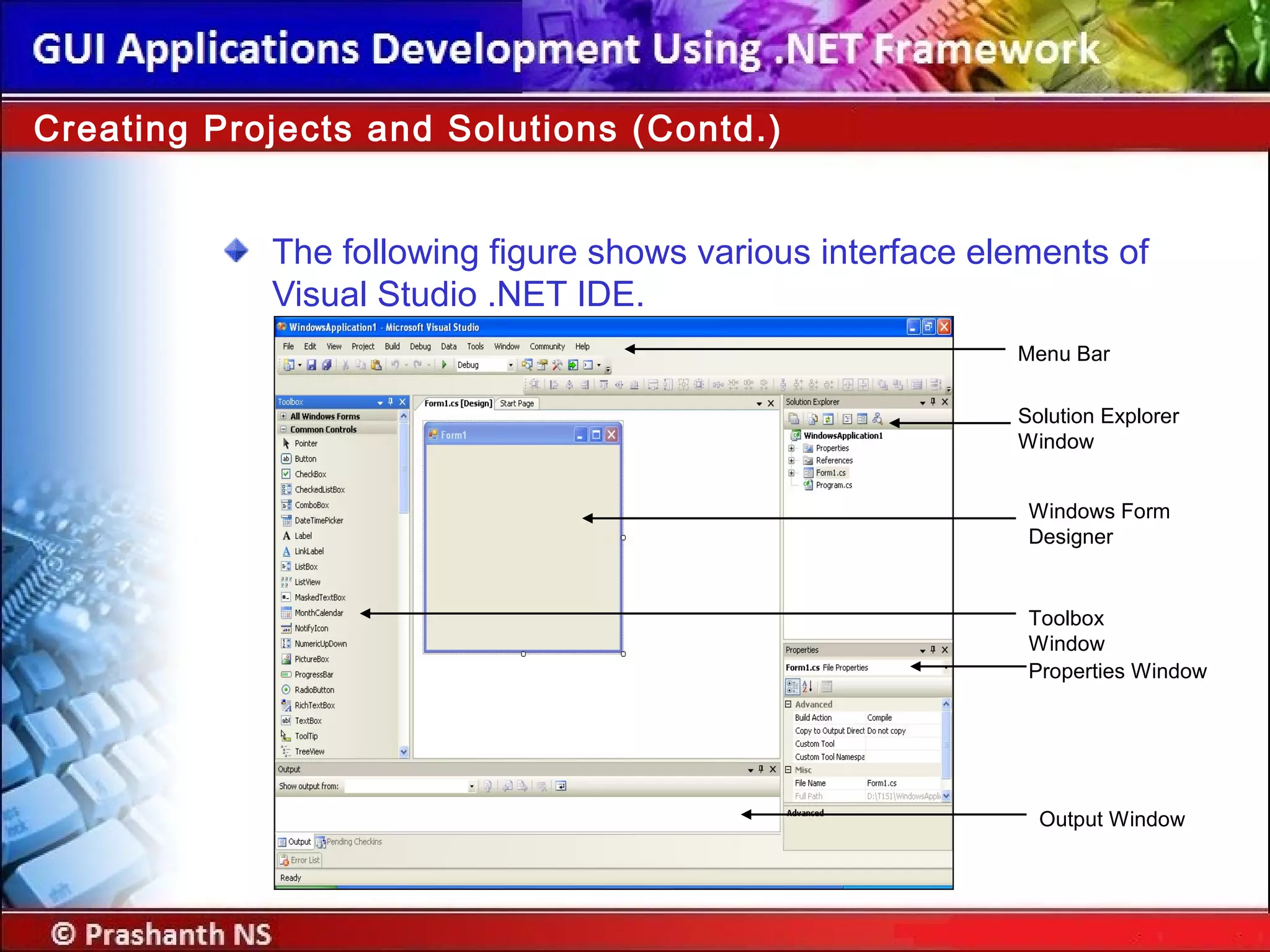
The following figureshows various interface elements of
Visual Studio .NET IDE.
Creating Projects and Solutions (Contd.)
Solution Explorer
Window
Windows Form
Designer
Toolbox
Window
Properties Window
Output Window
Menu Bar
44.
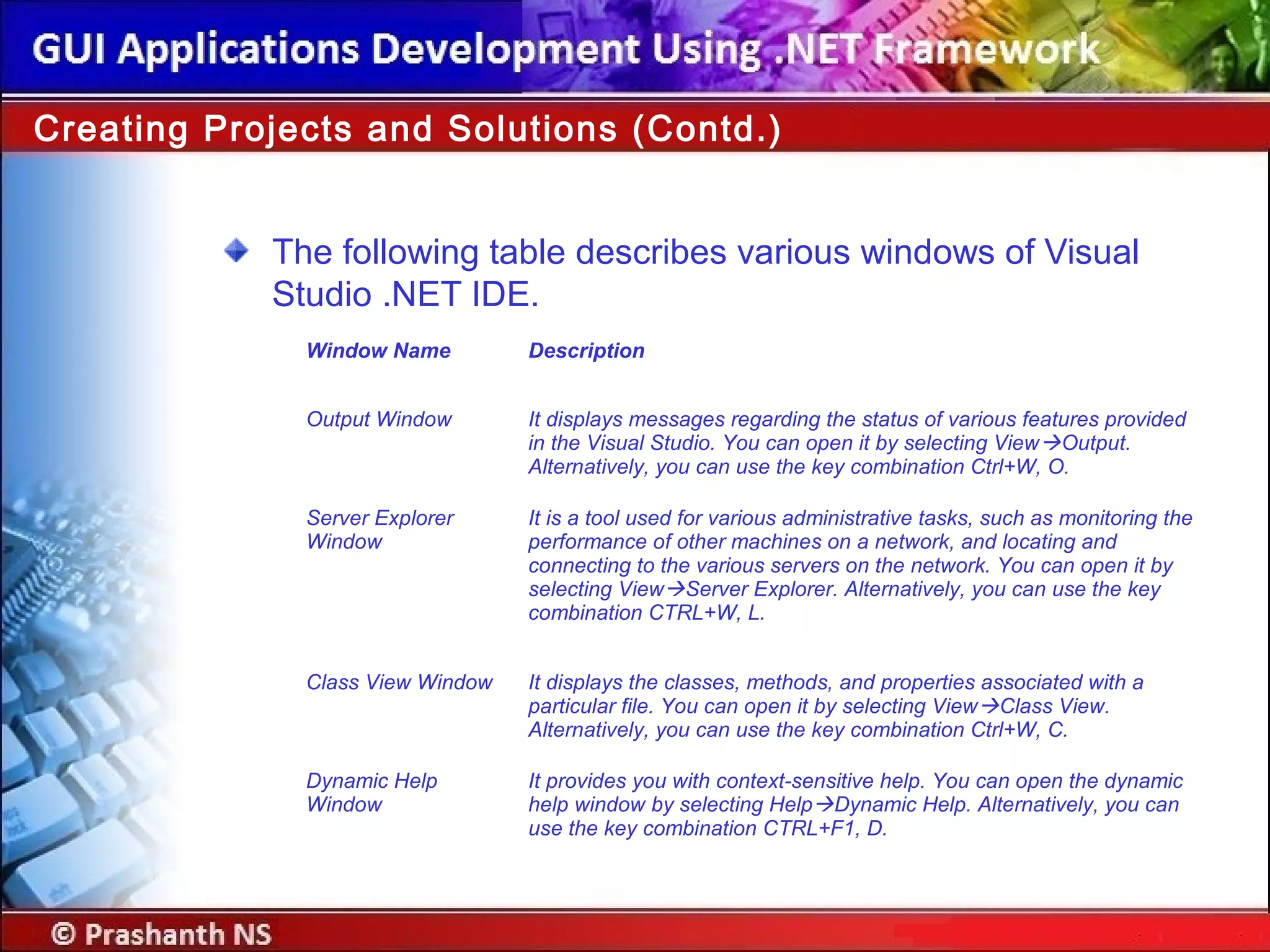
The following tabledescribes various windows of Visual
Studio .NET IDE.
Creating Projects and Solutions (Contd.)
Window Name Description
Output Window It displays messages regarding the status of various features provided
in the Visual Studio. You can open it by selecting ViewOutput.
Alternatively, you can use the key combination Ctrl+W, O.
Server Explorer
Window
It is a tool used for various administrative tasks, such as monitoring the
performance of other machines on a network, and locating and
connecting to the various servers on the network. You can open it by
selecting ViewServer Explorer. Alternatively, you can use the key
combination CTRL+W, L.
Class View Window It displays the classes, methods, and properties associated with a
particular file. You can open it by selecting ViewClass View.
Alternatively, you can use the key combination Ctrl+W, C.
Dynamic Help
Window
It provides you with context-sensitive help. You can open the dynamic
help window by selecting HelpDynamic Help. Alternatively, you can
use the key combination CTRL+F1, D.
45.
Just a minute
Whichwindow displays messages for the status of various
features provided in the Visual Studio .NET IDE?
Answer:
The Output Window
46.
Just a minute
Whichwindow allows to view the resources of the servers,
such as services, processes, and the event log?
Answer:
The Server Explorer window
47.
Navigational Features inVisual Studio .NET IDE
The three navigational features provided by Visual Studio
.NET IDE are:
Docking: Allows you to place a window against any of the
edges of the parent window.
Tabbed: Allows overlapping of various open windows and
navigating between them by using tabs.
Auto Hide: Automatically hides a window when it is not in use.
48.
Navigational Features inVisual Studio .NET IDE (Contd.)
Let us see how to use
various navigational
features provided by the
Visual Studio .NET IDE.
In this session,you learned that:
The Visual Studio 2005 IDE provides you with a common
interface for developing various kinds of applications on the
.NET Framework.
Some of the components of the Visual Studio .NET IDE are:
The Windows Forms Designer
The Solution Explorer window
The Properties window
The Toolbox window
The Output window
The Code and Text Editor window
Summary
51.
The Visual Studio.NET IDE also provides three navigational
features. These are:
Docking
Tabbed
Auto hide
Summary (Contd.)
52.
Let me giveyou some
questions to solve at
home.
Home Assignment
Editor's Notes
#2 Start the session by sharing the session objectives with the students.
#5 Start the session by discussing the features of CUI based application. Ask the students to list down the possible disadvantages of CUI applications. Collate the answers given by the students and list down the following points:
The user needs to enter the data.
The user needs to remember the commands.
Lengthy code has to be written for simple tasks.
The display area is restricted to 25 rows and 80 columns.
Now take the discussion towards the GUI . Discuss the advantages of GUI as being WYSIWYG (What you see is what you get).
Discuss with the students that there are several controls available in GUI that can be used to take input from the user. This input can be validated easily.
#6 Discuss the advantages of GUI applications listed here.
#7 Some of controls that appear in the dialog box are explained in the following list.
Label: Displays text that users cannot directly edit.
TextBox: Accepts input from the user.
Combo Box: Displays items in a drop-down list. It is a combination of a text box in which a user types something, and a drop-down list from which the user selects an item.
Button: Provides options such as OK, Cancel etc.
Discuss with the students that there are 2 types of components, visual and non-visual components. Visual components are the ones which the users can see. They are also called as controls.
#8 Reiterate the concepts taught earlier by asking the given question.
#9 Discuss all the three types of dialog boxes with the students with appropriate examples.
Example of:
Modal: Save As Dialog Box, that does not allow to move the control else where unless the user selects some option or closes the dialog box
System Modal : Windows Log On Dialog Box, that takes control of the entire Windows Environment.
Modeless: Find and Replace Dialog Box, that stays on screen and is available for use at any time.
#10 Discuss all the three types of dialog boxes with the students with appropriate examples.
Example of:
Modal: Save As Dialog Box, that does not allow to move the control else where unless the user selects some option or closes the dialog box
System Modal : Windows Log On Dialog Box, that takes control of the entire Windows Environment.
Modeless: Find and Replace Dialog Box, that stays on screen and is available for use at any time.
#11 Discuss all the three types of dialog boxes with the students with appropriate examples.
Example of:
Modal: Save As Dialog Box, that does not allow to move the control else where unless the user selects some option or closes the dialog box
System Modal : Windows Log On Dialog Box, that takes control of the entire Windows Environment.
Modeless: Find and Replace Dialog Box, that stays on screen and is available for use at any time.
#12 Discuss all the three types of dialog boxes with the students with appropriate examples.
Example of:
Modal: Save As Dialog Box, that does not allow to move the control else where unless the user selects some option or closes the dialog box
System Modal : Windows Log On Dialog Box, that takes control of the entire Windows Environment.
Modeless: Find and Replace Dialog Box, that stays on screen and is available for use at any time.
#13 Discuss all the three types of dialog boxes with the students with appropriate examples.
Example of:
Modal: Save As Dialog Box, that does not allow to move the control else where unless the user selects some option or closes the dialog box
System Modal : Windows Log On Dialog Box, that takes control of the entire Windows Environment.
Modeless: Find and Replace Dialog Box, that stays on screen and is available for use at any time.
#14 Discuss all the three types of dialog boxes with the students with appropriate examples.
Example of:
Modal: Save As Dialog Box, that does not allow to move the control else where unless the user selects some option or closes the dialog box
System Modal : Windows Log On Dialog Box, that takes control of the entire Windows Environment.
Modeless: Find and Replace Dialog Box, that stays on screen and is available for use at any time.
#15 Discuss all the three types of dialog boxes with the students with appropriate examples.
Example of:
Modal: Save As Dialog Box, that does not allow to move the control else where unless the user selects some option or closes the dialog box
System Modal : Windows Log On Dialog Box, that takes control of the entire Windows Environment.
Modeless: Find and Replace Dialog Box, that stays on screen and is available for use at any time.
#16 Reiterate the concepts taught earlier by asking the given question.
#17 Reiterate the concepts taught earlier by asking the given question.
#18 Using this slide, discuss with the students that all windows based applications accept the input and process the input on the basis of an event. Take a simple example of adding two numbers. For this application, the user enters two numbers in the text boxes. Only when he clicks on the button, will he be able to see the results of addition. Here, clicking of a button is an example of an event being generated.
Now proceed the discussion towards another example of Student’s Data Entry form. After entering all the values in the required fields, the user needs to ensure the data is transferred into the database. The code to transfer the database will be written on the click event of the button. Therefore, after entering the data, the user needs to click on the button to transfer the data to the database.
In addition, also discuss with the students that Windows Applications allow to link the application to the existing library function. For example, there is a library function to connect to the desired database where the user needs to just specify the name and location of database. Therefore, instead of writing the code again and again, the user can use the in-built function and connect to the database quickly.
#19 Using this slide, discuss with the students that all windows based applications accept the input and process the input on the basis of an event. Take a simple example of adding two numbers. For this application, the user enters two numbers in the text boxes. Only when he clicks on the button, will he be able to see the results of addition. Here, clicking of a button is an example of an event being generated.
Now proceed the discussion towards another example of Student’s Data Entry form. After entering all the values in the required fields, the user needs to ensure the data is transferred into the database. The code to transfer the database will be written on the click event of the button. Therefore, after entering the data, the user needs to click on the button to transfer the data to the database.
In addition, also discuss with the students that Windows Applications allow to link the application to the existing library function. For example, there is a library function to connect to the desired database where the user needs to just specify the name and location of database. Therefore, instead of writing the code again and again, the user can use the in-built function and connect to the database quickly.
#20 Using this slide, discuss with the students that all windows based applications accept the input and process the input on the basis of an event. Take a simple example of adding two numbers. For this application, the user enters two numbers in the text boxes. Only when he clicks on the button, will he be able to see the results of addition. Here, clicking of a button is an example of an event being generated.
Now proceed the discussion towards another example of Student’s Data Entry form. After entering all the values in the required fields, the user needs to ensure the data is transferred into the database. The code to transfer the database will be written on the click event of the button. Therefore, after entering the data, the user needs to click on the button to transfer the data to the database.
In addition, also discuss with the students that Windows Applications allow to link the application to the existing library function. For example, there is a library function to connect to the desired database where the user needs to just specify the name and location of database. Therefore, instead of writing the code again and again, the user can use the in-built function and connect to the database quickly.
#21 You can summarize the session by using the summary given in the slides.
In addition, you can also ask students summarize what they have learnt in this session.
#22 Start the session by sharing the session objectives with the students.
#25 Start the session by sharing the session objectives with the students.
#26 Start the session by sharing the session objectives with the students.
#27 Using this slide, discuss with the students that .NET Framework consists of 3 different components. Discuss each of the components one by one. Try to give an example of the components.
#28 Start the session by sharing the session objectives with the students.
#29 Start the session by sharing the session objectives with the students.
#30 Start the session by sharing the session objectives with the students.
#31 Start the session by sharing the session objectives with the students.
#32 Start the session by sharing the session objectives with the students.
#33 Using this slide discuss the advantages of .NET framework
#34 You can summarize the session by using the summary given in the slides.
In addition, you can also ask students summarize what they have learnt in this session.
#35 Start the session by sharing the session objectives with the students.
#36 Using this slide discuss the .NET IDE with the students. An effective way of explaining the IDE to the students will be to open the .NET windows application project and discuss each of the components including:
Windows Form Designer
Code Window
Toolbox
Properties Window
Solution Explorer Window
Error-view Window
Output Window
And the menu and toolbars available within the IDE.
The faculty should also discuss the following templates in .NET:
Windows Application
Class Library
Windows Control Library
Console Application
Device Application
Crystal Reports Application
#37 Using this slide discuss the .NET IDE with the students. An effective way of explaining the IDE to the students will be to open the .NET windows application project and discuss each of the components including:
Windows Form Designer
Code Window
Toolbox
Properties Window
Solution Explorer Window
Error-view Window
Output Window
And the menu and toolbars available within the IDE.
The faculty should also discuss the following templates in .NET:
Windows Application
Class Library
Windows Control Library
Console Application
Device Application
Crystal Reports Application
#38 Using this slide discuss the .NET IDE with the students. An effective way of explaining the IDE to the students will be to open the .NET windows application project and discuss each of the components including:
Windows Form Designer
Code Window
Toolbox
Properties Window
Solution Explorer Window
Error-view Window
Output Window
And the menu and toolbars available within the IDE.
The faculty should also discuss the following templates in .NET:
Windows Application
Class Library
Windows Control Library
Console Application
Device Application
Crystal Reports Application
#39 Using this slide discuss the .NET IDE with the students. An effective way of explaining the IDE to the students will be to open the .NET windows application project and discuss each of the components including:
Windows Form Designer
Code Window
Toolbox
Properties Window
Solution Explorer Window
Error-view Window
Output Window
And the menu and toolbars available within the IDE.
The faculty should also discuss the following templates in .NET:
Windows Application
Class Library
Windows Control Library
Console Application
Device Application
Crystal Reports Application
#41 Using this slide, explain the values of the MdiLayout method for arranging child forms in several ways.
#42 Reiterate the concepts taught earlier by asking the given question.
#44 Using this slide discuss the .NET IDE with the students. An effective way of explaining the IDE to the students will be to open the .NET windows application project and discuss each of the components including:
Windows Form Designer
Code Window
Toolbox
Properties Window
Solution Explorer Window
Error-view Window
Output Window
And the menu and toolbars available within the IDE.
The faculty should also discuss the following templates in .NET:
Windows Application
Class Library
Windows Control Library
Console Application
Device Application
Crystal Reports Application
#45 Using this slide, explain the values of the MdiLayout method for arranging child forms in several ways.
#46 Reiterate the concepts taught earlier by asking the given question.
#47 Reiterate the concepts taught earlier by asking the given question.
#48 While discussing the IDE, the faculty must also explain that .NET also provides three navigational features with almost all the windows. Demonstrate each of them for a better understanding of the features.
#51 You can summarize the session by using the summary given in the slides.
In addition, you can also ask students summarize what they have learnt in this session.