Embedding a PowerPoint Slideshow in the WMS Courage Projects Wiki

  1.   Open the WMS Courage Projects Wiki and log in with        http://wmscourageprojects.wikispaces.com/
       your user name and password.


  2.   Click on your homeroom number.

       On your homeroom’s page, click on your name.


  3.   Your Wiki page will display the message at right. Click
       the Edit button or the words edit button


  4.   Click the Edit button.
       On the tool bar, click the Widget button.


  5.   From the list of widgets, select Other, the last in the
       list.
6.   Click in the box below Step 3 in the
     directions, and paste the embed code
     which you copied from Slideshare.

     Click the Save button.

7.   In the Edit mode, Wikispaces displays a
     place holder for the slide show. You will
     not see the actual slide show until you
     save the page.
                                                 Place holder for slide show


8.   Click the Save button and check out your
     slide show!

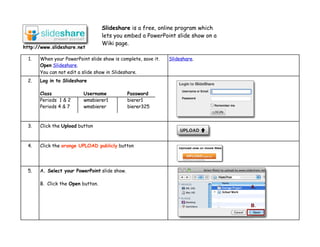
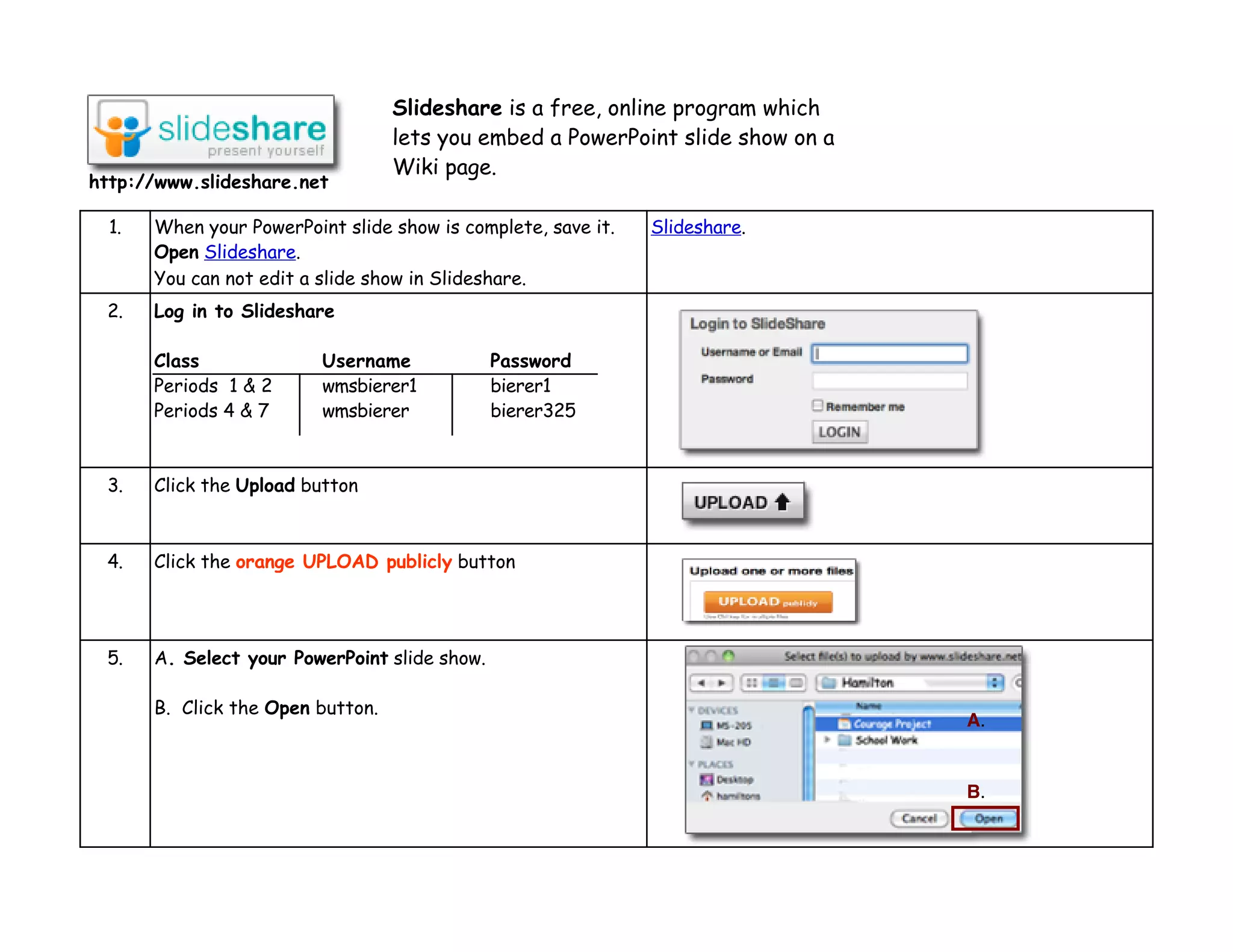
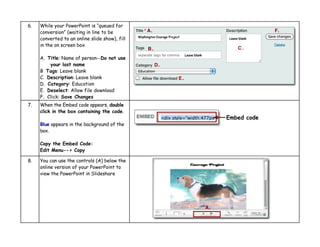
Using Slideshare

  • 1.
    Embedding a PowerPointSlideshow in the WMS Courage Projects Wiki 1. Open the WMS Courage Projects Wiki and log in with http://wmscourageprojects.wikispaces.com/ your user name and password. 2. Click on your homeroom number. On your homeroom’s page, click on your name. 3. Your Wiki page will display the message at right. Click the Edit button or the words edit button 4. Click the Edit button. On the tool bar, click the Widget button. 5. From the list of widgets, select Other, the last in the list.
  • 2.
    6. Click in the box below Step 3 in the directions, and paste the embed code which you copied from Slideshare. Click the Save button. 7. In the Edit mode, Wikispaces displays a place holder for the slide show. You will not see the actual slide show until you save the page. Place holder for slide show 8. Click the Save button and check out your slide show!