Use video controls and view

Lync 2013 Quick Reference

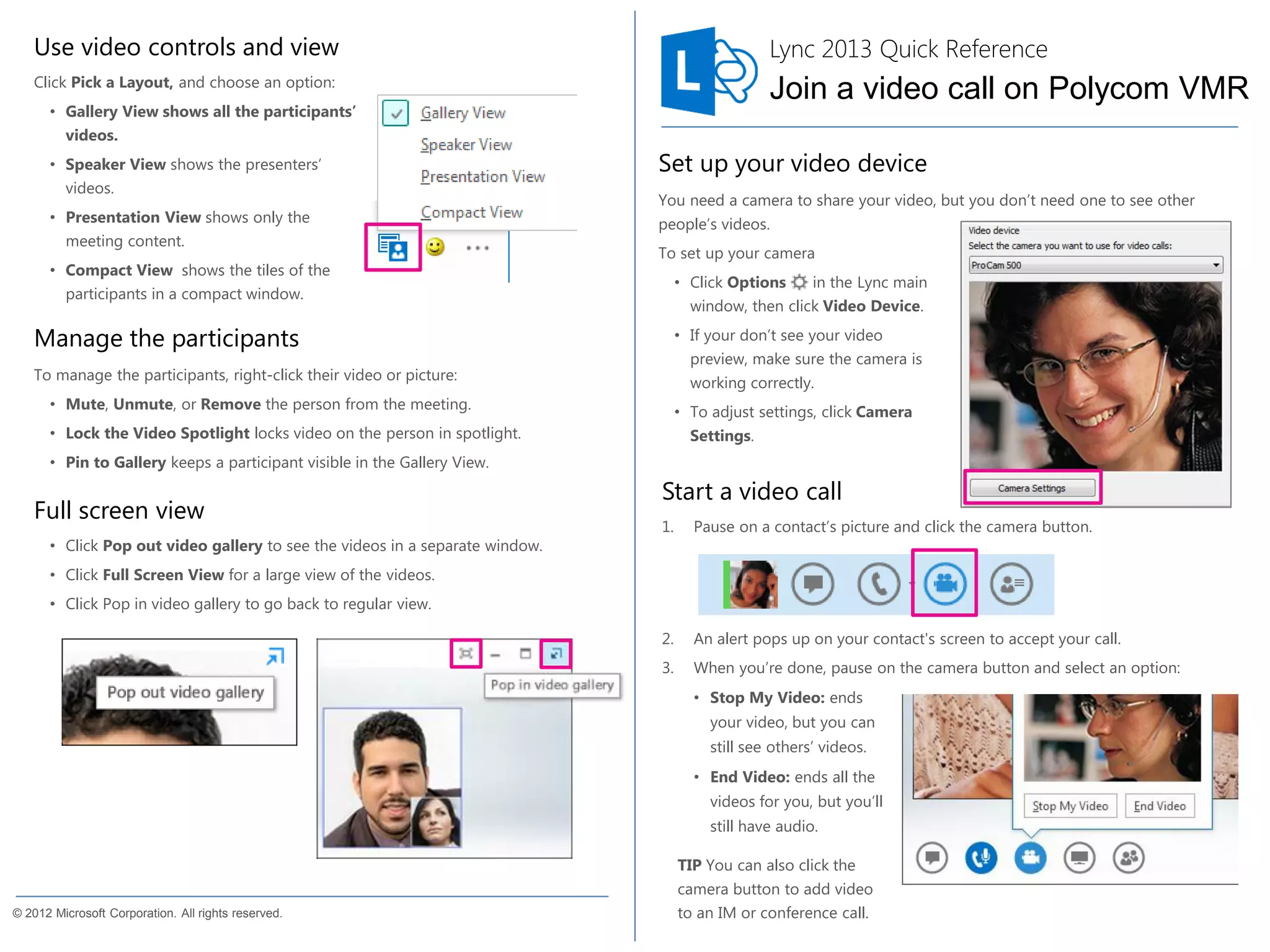
Click Pick a Layout, and choose an option:

Join a video call on Polycom VMR

• Gallery View shows all the participants’
videos.

Quick Reference for Video

• Speaker View shows the presenters’
videos.

Set up your video device

• Presentation View shows only the
meeting content.

people’s videos.

• Compact View shows the tiles of the
participants in a compact window.

You need a camera to share your video, but you don’t need one to see other
To set up your camera
• Click Options
in the Lync main
window, then click Video Device.

Manage the participants

• If your don’t see your video
preview, make sure the camera is

To manage the participants, right-click their video or picture:

working correctly.

• Mute, Unmute, or Remove the person from the meeting.

• To adjust settings, click Camera

• Lock the Video Spotlight locks video on the person in spotlight.

Settings.

• Pin to Gallery keeps a participant visible in the Gallery View.

Full screen view

Start a video call
1.

Pause on a contact’s picture and click the camera button.

2.

An alert pops up on your contact's screen to accept your call.

3.

• Click Pop out video gallery to see the videos in a separate window.

When you’re done, pause on the camera button and select an option:

• Click Full Screen View for a large view of the videos.
• Click Pop in video gallery to go back to regular view.

• Stop My Video: ends

your video, but you can
still see others’ videos.
• End Video: ends all the
videos for you, but you’ll
still have audio.
TIP You can also click the
© 2012 Microsoft Corporation. All rights reserved.

camera button to add video
to an IM or conference call.
Start a video conference from a Lync 2010 client
attention.

Invite other people to the same virtual meeting
room

1.

1.

Start an ad-hoc video conference to discuss a subject that requires immediate
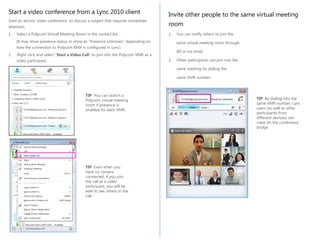
Select a Polycom Virtual Meeting Room in the contact list.
(It may show presence status or show as “Presence unknown” depending on
how the connection to Polycom RMX is configured in Lync).
2.

Right click and select “Start a Video Call” to join into the Polycom VMR as a
video participant.

You can notify others to join the
same virtual meeting room through
IM or via email.

2.

Other participants can join into the
same meeting by dialing the
same VMR number.

TIP You can search a
Polycom virtual meeting
room if presence is
enabled for each VMR.

TIP Even when you
have no camera
connected, if you join
the call as a video
participant, you will be
able to see others in the
call

TIP By dialing into the
same VMR number, Lync
users (as well as other
participants from
different devices) can
meet on the conference
bridge.
Start a video conference from a Lync 2013 client
attention.

Invite other people to the same virtual meeting
room

1.

1.

Start an ad-hoc video conference to discuss a subject that requires immediate
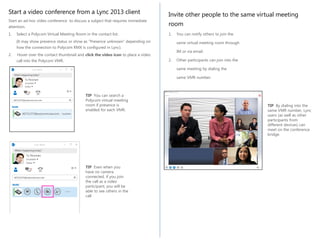
Select a Polycom Virtual Meeting Room in the contact list.
(It may show presence status or show as “Presence unknown” depending on
how the connection to Polycom RMX is configured in Lync).
2.

Hover over the contact thumbnail and click the video icon to place a video
call into the Polycom VMR.

You can notify others to join the
same virtual meeting room through
IM or via email.

2.

Other participants can join into the
same meeting by dialing the
same VMR number.

TIP You can search a
Polycom virtual meeting
room if presence is
enabled for each VMR.

TIP Even when you
have no camera
connected, if you join
the call as a video
participant, you will be
able to see others in the
call

TIP By dialing into the
same VMR number, Lync
users (as well as other
participants from
different devices) can
meet on the conference
bridge.

Using Lync 2013 with Polycom Virtual Meeting Rooms (VMR)

  • 1.
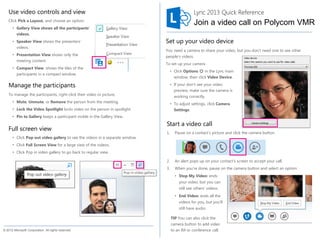
    Use video controlsand view Lync 2013 Quick Reference Click Pick a Layout, and choose an option: Join a video call on Polycom VMR • Gallery View shows all the participants’ videos. Quick Reference for Video • Speaker View shows the presenters’ videos. Set up your video device • Presentation View shows only the meeting content. people’s videos. • Compact View shows the tiles of the participants in a compact window. You need a camera to share your video, but you don’t need one to see other To set up your camera • Click Options in the Lync main window, then click Video Device. Manage the participants • If your don’t see your video preview, make sure the camera is To manage the participants, right-click their video or picture: working correctly. • Mute, Unmute, or Remove the person from the meeting. • To adjust settings, click Camera • Lock the Video Spotlight locks video on the person in spotlight. Settings. • Pin to Gallery keeps a participant visible in the Gallery View. Full screen view Start a video call 1. Pause on a contact’s picture and click the camera button. 2. An alert pops up on your contact's screen to accept your call. 3. • Click Pop out video gallery to see the videos in a separate window. When you’re done, pause on the camera button and select an option: • Click Full Screen View for a large view of the videos. • Click Pop in video gallery to go back to regular view. • Stop My Video: ends your video, but you can still see others’ videos. • End Video: ends all the videos for you, but you’ll still have audio. TIP You can also click the © 2012 Microsoft Corporation. All rights reserved. camera button to add video to an IM or conference call.
  • 2.
    Start a videoconference from a Lync 2010 client attention. Invite other people to the same virtual meeting room 1. 1. Start an ad-hoc video conference to discuss a subject that requires immediate Select a Polycom Virtual Meeting Room in the contact list. (It may show presence status or show as “Presence unknown” depending on how the connection to Polycom RMX is configured in Lync). 2. Right click and select “Start a Video Call” to join into the Polycom VMR as a video participant. You can notify others to join the same virtual meeting room through IM or via email. 2. Other participants can join into the same meeting by dialing the same VMR number. TIP You can search a Polycom virtual meeting room if presence is enabled for each VMR. TIP Even when you have no camera connected, if you join the call as a video participant, you will be able to see others in the call TIP By dialing into the same VMR number, Lync users (as well as other participants from different devices) can meet on the conference bridge.
  • 3.
    Start a videoconference from a Lync 2013 client attention. Invite other people to the same virtual meeting room 1. 1. Start an ad-hoc video conference to discuss a subject that requires immediate Select a Polycom Virtual Meeting Room in the contact list. (It may show presence status or show as “Presence unknown” depending on how the connection to Polycom RMX is configured in Lync). 2. Hover over the contact thumbnail and click the video icon to place a video call into the Polycom VMR. You can notify others to join the same virtual meeting room through IM or via email. 2. Other participants can join into the same meeting by dialing the same VMR number. TIP You can search a Polycom virtual meeting room if presence is enabled for each VMR. TIP Even when you have no camera connected, if you join the call as a video participant, you will be able to see others in the call TIP By dialing into the same VMR number, Lync users (as well as other participants from different devices) can meet on the conference bridge.