Content
s
Chapter 1.About your computer……………………………………………………………………………..
Introduction……………………………………………………………………………………………………………………………….
Model………………………………………………………………………………………………………………………………………..
Feature images………………………………………………………………………………………………………………………..
Chapter 2.Safety Precautions……………………………………………………………………………………………………………………………
Warning 1…………………………………………………………………………………………………………………………………
Warning 2…………………………………………………………………………………………………………………………………
Warning 3…………………………………………………………………………………………………………………………………
Warning 4…………………………………………………………………………………………………………………………………
Warning 5…………………………………………………………………………………………………………………………………
Warning 6…………………………………………………………………………………………………………………………………
Warning 7…………………………………………………………………………………………………………………………………
Warning 8…………………………………………………………………………………………………………………………………
Chapter 3.Preparing your computer…………………………………………………………………………..
Connecting the power addapter………………………………………………………………………………………………..
Turning on the power………………………………………………………………………………………………………………..
Using the Touchpad…………………………………………………………………………………………………………………..
Chapter 4.Getting to know your computer…………………………………………………………………
Top view……………………………………………………………………………………………………………………………………..
Left-side view……………………………………………………………………………………………………………………………..
Right-side view……………………………………………………………………………………………………………………………
Front view…………………………………………………………………………………………………………………………………...
Bottom view……………………………………………………………………………………………………………………………….
Chapter 5.Lenovo Onekey Recovery System………………………………………………………………
Chapter 6.Troubleshooting………………………………………………………………………………………..
Chapter 7.Trademarks……………………………………………………………………………………………….
Chapter 1.About your computer
Light, Affordable 15.6" Laptop
•Fast, smooth, secure, & easy to use
•High-performing & responsive power
•Balances price & performance perfectly
•Kensington lock port for extra security
Processor Up to Intel® i5-5200U
Operating
System
Windows 8.1 Update
Graphics Up to nVidia 920 with 2GB memory
Memory Up to 8GB DDR3L
Storage Up to 1TB HDD or up to 128GB SSD
Webcam 0.3M single microphon
Audio 1 x 1.5W speaker
Battery **Up to 4 hours with 32 WHr battery
Display 15.6" HD 1366 x 768, 200 nits
Dimensio
ns (W x D
x H)
14.88" x 10.43" x 0.89" (378 mm x 265 mm
x 22.6 mm)
Weight 2.3 kg (5.07 lbs)
IdeaPad 100 (15")
Light, Affordable 15.6" Laptop
Model No.:-
HK7897668NNNXZV
SSN No. :-09987800000113
ID :-89-08986652343
MODEL
Safety Precautions
The following safety precautions will increase the
life of the Notebook PC. Follow all precautions and
instructions. Except as described in this manual,
refer all servicing to qualified personnel.
Battery
Disconnect the AC power and remove the
battery pack(s) before cleaning. Wipe the
Notebook PC using a clean cellulose
sponge or chamois cloth dampened with a
solution of nonabrasive detergent and a
few drops of warm water and remove any
extra moisture with a dry cloth.
DO NOT place or drop objects on top and
do not shove any foreign objects into the
Notebook PC.
DO NOT expose to dirty or dusty
environments.
DO NOT expose to strong magnetic or
electrical fields.
DO NOT press or touch the display panel. Do
not place together with small items that may
scratch or enter the Notebook PC.
DO NOT expose to or use near liquids, rain, or
moisture. DO NOT use the modem during
electrical storms.
Battery safety warning: DO NOT throw the
battery in fire. DO NOT short circuit the
contacts. DO NOT disassemble the battery.
DO NOT use strong solvents such as thinners,
benzene, or other chemicals on or near the
surface.
DO NOT throw the Notebook PC in municipal
waste. This product has been designed to
enable proper reuse of parts and recycling. The
symbol of the crossed out wheeled bin
indicates that the product (electrical,
electronic equipment and mercury-containing
button cell battery) should not be placed in
municipal waste. Check local regulations for
disposal of electronic products.
DO NOT throw the battery in municipal waste.
The symbol of the crossed out wheeled bin
indicates that the battery should not be placed
in municipal waste.
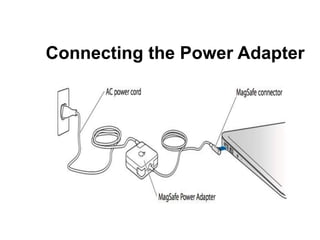
Connecting the Power Adapter
Turning on the Power
1. Push and release the power button located
beneath the LCD display panel.
2. Use [Fn]+[F5] or [Fn]+[F6] to adjust the LCD
brightness
Using the Touchpad
Right button
Right button
Left button
Left button
A. Slide your finger across the touchpad to move the pointer. You can
also hold the left button and slide your finger to drag the selected item.
B. Use the left and right buttons like a standard mouse.
C. Slide your finger up or down on the right side to scroll up or down a
window.
Touchpad
Chapter 1. Getting to know
your computer
Front view
Index Item Description
1
Built-in
microphone
The built-in microphone captures sound and voice when
used with an application program capable of handling
audio.
2 Integrated camera
Some models have an integrated camera. Use the
camera to take pictures or hold a video conference.
3
TrackPoint
pointing stick
The keyboard contains the Lenovo unique UltraNav
pointing device - TrackPoint buttons, Touch pad and
TrackPoint pointing stick. Pointing, selecting, and
dragging are all part of a single process that you can
perform without moving your fingers from a typing
position.
7
TrackPoint
buttons
8 Touch pad
4
System status
indicator (illuminated
ThinkPad logo)
The illuminated ThinkPad logo on the palm rest functions as a
system status indicator. Your computer has several status
indicators.
5 Media card reader slot
Depending on the model, your computer might have a media card
reader slot.
6 Fingerprint reader
Some models have a fingerprint reader.The fingerprint
authentication technology enables you to use your fingerprint to
start the computer, enter the ThinkPad Setup program, or enter the
Windows® operating system.
9 Power button
Use the power button to turn on the computer. To turn off the
computer, use the Start menu shutdown option.
If your computer stops responding and you cannot turn it off, press
and hold the power button for four seconds or more. If the computer
still is not responding, remove the ac power adapter and the battery
to reset the computer.
The power button also can be programmed through the Power
Manager program to shut down the computer or put it into sleep or
hibernation mode. For more information, see the help information
system of the Power Manager program.
Left-side view
Index Item Description
1 Security keyhole
Purchase a security cable lock that fits this keyhole to lock your computer to a
stationary object to protect your computer from theft.
2 Fan louver (left)
The internal fan and louver enable air to circulate in the computer and cool
the central processor.
Note: To avoid impeding airflow, do not place any obstacle in front of the fan.
3
Video graphics
array (VGA)
connector
Attach a VGA compatible monitor or projector to your computer to display the
computer output.
4 USB connectors
The Universal Serial Bus (USB) connectors are used for connecting devices
compatible with a USB interface, such as a USB printer or a digital camera.
Note: When you attach a USB cable to the connector, ensure that the USB
mark is facing upward. Otherwise the connector might be damaged.
5 HDMI port
Your computer supports the high-definition multimedia interface (HDMI) port,
a digital audio and video interface that can connect a compatible digital audio
device or video monitor, such as an HDTV.
Right-side view
Index Item Description
1 Combo audio jack
•To listen to the sound from your computer, connect a headphone or a headset that has a 3.5
mm 4-pole plug to the combo audio jack.
Notes:If you are using a headset with a function switch, for example, a headset for an iPhone
mobile digital device, do not press this switch while using the headset. If you press it, the
headset microphone will be disabled, and the integrated microphones on the computer will be
enabled instead.
•The combo audio jack does not support a conventional microphone.
2
Always On USB
connector
By default, the Always On USB connector enables you to charge some mobile digital devices
and smartphones, even while your computer is in sleep mode.
However, with the ac power adapter attached, if you want to charge these devices when your
computer is in hibernation mode or powered off, you need to connect the computer to an ac
power supply and enable the Always On USB connector through the Power Manager program.
For details about how to enable the Always On USB connector, refer to the help information
system provided in the Power Manager program.
3 Optical drive The optical drive reads or burns optical discs.
4 Ethernet connector
Connect your computer to a LAN with the Ethernet connector.
There are two indicators to show the status of the network connection, one located to the
upper right of the connector and the other to the upper left. When your computer connects to
a LAN and a session with the network is available, the upper left indicator is steady green.
While data is being transmitted, the upper right indicator blinks yellow.
5 Power jack
Connect the ac power adapter to the power jack to provide ac power to the computer and
charge the battery.
An indicator to the left of the connector shows the status of ac power. When the ac power
adapter is connected, the indicator is lit. If a battery is installed in the computer, the indicator is
green when the battery charges.
Bottom view
Index Item Description
1
PCI Express Mini Card
slot for wireless WAN
card or mSATA solid
state drive
Your computer might have a wireless wide area network (WAN) card installed
in the PCI Express Mini Card slot for wireless WAN connections.
For some models, an mSATA solid state drive might be installed instead of the
wireless WAN card for data storage.
2 Battery
Use your computer with the battery power whenever ac power is unavailable.
You can use the Power Manager program to adjust your power settings as
needed. For details, see the help information system of the Power Manager
program.
3
PCI Express Mini Card slot for
wireless LAN card
Your computer might include a
wireless local area network
(LAN) card in the PCI Express
Mini Card slot for you to
establish wireless LAN
connections.
4 Memory-upgrade slot
You can increase the amount of
memory in your computer by
installing a memory module in
the memory-upgrade slot.
Memory modules are available
as options from Lenovo.
5 Hard disk drive
Your computer might have a
large-capacity, customer-
upgradable hard disk drive that
can meet a variety of storage
demands.
Note: The hidden service
partition is the reason why
there is less free space than
expected on your hard disk
drive.
Chapter 3. Lenovo OneKey
Recovery system
The Lenovo OneKey Recovery system is software
designed to back up and restore your computer. You
can use it to restore the system partition to its original
status in case of a system failure. You can also create
user backups for easy restoration as required.
Notes: • If your computer is preinstalled with a GNU/Linux operating
system, Onekey Recovery system is not available. • To utilize the
features of the OneKey Recovery system, your hard disk already includes
a hidden partition by default to store the system image file and the
OneKey Recovery system program files. This default partition is hidden
for security reasons, which explains why the available disk space is less
than the stated capacity
Backing up the system partition
You can back up the system partition to an image
file. To back up the system partition:
1 Press the Novo button to start the Lenovo
OneKey Recovery system.
2 Click System Backup.
3 Select a back-up location and click Next to start
the backup
Notes: • You can choose a back-up location on the local
hard disk drive or an external storage device. • The back-up
process may take a while. • The back-up process is only
available when Windows can be started normally
Restoring
You can choose to restore the system partition to its
original status or to a previously created back-up point. To
restore the system partition: 1 Press the Novo button to
start the Lenovo OneKey Recovery system. 2 Click
System Recovery. The computer will restart to the
recovery environment. 3 Follow the on-screen instructions
to restore the system partition to its original status or to a
previously created back-up point.
Notes: • The recovery process is irreversible. Make sure to back
up any data you wish to save on the system partition before
starting the recovery process. • The recovery process may take a
while. So be sure to connect the AC power adapter to your
computer during the recovery process. • The above instructions
should be followed when Windows can be started normally.
Chapter 3. Lenovo OneKey
Recovery system
If Windows cannot be started, follow the steps
below to start the Lenovo OneKey Recovery system:
1 .Shut down the computer.
2 .Press the Novo button. From the Novo button menu, select System
recovery and press Ent
Chapter 4. Troubleshooting
1.Display problems
When I turn on the computer, nothing appears on the screen.
• If the screen is blank, make sure that: - The AC power adapter is
connected to the computer, and the power cord is plugged into a
working electrical outlet. - The computer power is on. (Press the power
button again for confirmation.) - If you are using the AC power adapter
or the battery, and the battery status indicator is on, press F12 ( ) to
make the screen brighter. • If these items are properly set, and the
screen remains blank, have the computer serviced.
2.When I turn on the computer, only
a white cursor appears on a blank
screen.
• Restore backed-up files to your Windows environment or the
entire contents of your hard disk to its original factory contents
using the Lenovo OneKey Recovery system. If you still see only the
cursor on the screen, have the computer serviced.
3.My screen goes blank while the
computer is on.
• Your screen saver or power management may be enabled. Do one of the
following to exit from the screen saver or to resume from sleep mode: -
Touch the touchpad. - Press any key on the keyboard. - Press the power
button. - Press F9 ( ) to confirm whether the backlight for the LCD screen
has been turned off. - If the problem persists, follow the solution in the next
problem “The screen is unreadable or distorted.”
4.The screen is unreadable or
distorted.
• Make sure that: - The display device driver is installed correctly. -
The screen resolution and color quality are correctly set. - The
monitor type is correct.
5.BIOS password problems
I forgot my password.
• If you forget your user password, you must ask the system administrator to
reset your user password.
• If you forget your HDD password, a Lenovo authorized servicer cannot reset
your password or recover data from the hard disk. You must take your computer
to a Lenovo authorized servicer or a marketing representative to have the hard
disk drive replaced. Proof of purchase is required, and a fee will be charged for
parts and service.
• If you forget your administrator password, a Lenovo authorized servicer
cannot reset your password. You must take your computer to a Lenovo
authorized servicer or a marketing representative to have the system board
replaced. Proof of purchase is required, and a fee will be charged for parts and
service.
6.Sound problems
No sound can be heard from the speaker even when the
volume is turned up.
• Make sure that:
- The mute function is off.
-The combo audio jack is not used.
-- The speaker is selected as the playback device.
7.Battery problems
Your computer shuts down before the battery
status indicator shows empty. -orYour
computer operates after the battery status
indicator shows empty.
• Reset the battery gauge using Lenovo Energy Management. If
the problem persists, replace with a new battery pack. The
computer does not operate with a fully charged battery.
• The surge protector in the battery might be active. Turn off
the computer for one minute to reset the protector; then turn
on the computer again
8.A hard disk drive problem
The hard disk drive does not work.
• In the Boot menu in the BIOS setup utility, make sure that the hard
disk drive is included in the EFI list.
Trademarks
The following terms are trademarks or
registered trademarks of Lenovo in the United
States, other countries, or both.
Lenovo
IdeaPad
OneKey
Microsoft and Windows are trademarks of
Microsoft Corporation in the United States,
other countries, or both.
Other company, products, or service names
may be trademarks or service marks of others.
User manual on laptop

User manual on laptop

  • 3.
    Content s Chapter 1.About yourcomputer…………………………………………………………………………….. Introduction………………………………………………………………………………………………………………………………. Model……………………………………………………………………………………………………………………………………….. Feature images……………………………………………………………………………………………………………………….. Chapter 2.Safety Precautions…………………………………………………………………………………………………………………………… Warning 1………………………………………………………………………………………………………………………………… Warning 2………………………………………………………………………………………………………………………………… Warning 3………………………………………………………………………………………………………………………………… Warning 4………………………………………………………………………………………………………………………………… Warning 5………………………………………………………………………………………………………………………………… Warning 6………………………………………………………………………………………………………………………………… Warning 7………………………………………………………………………………………………………………………………… Warning 8………………………………………………………………………………………………………………………………… Chapter 3.Preparing your computer………………………………………………………………………….. Connecting the power addapter……………………………………………………………………………………………….. Turning on the power……………………………………………………………………………………………………………….. Using the Touchpad………………………………………………………………………………………………………………….. Chapter 4.Getting to know your computer………………………………………………………………… Top view…………………………………………………………………………………………………………………………………….. Left-side view…………………………………………………………………………………………………………………………….. Right-side view…………………………………………………………………………………………………………………………… Front view…………………………………………………………………………………………………………………………………... Bottom view………………………………………………………………………………………………………………………………. Chapter 5.Lenovo Onekey Recovery System……………………………………………………………… Chapter 6.Troubleshooting……………………………………………………………………………………….. Chapter 7.Trademarks……………………………………………………………………………………………….
  • 4.
    Chapter 1.About yourcomputer Light, Affordable 15.6" Laptop •Fast, smooth, secure, & easy to use •High-performing & responsive power •Balances price & performance perfectly •Kensington lock port for extra security
  • 5.
    Processor Up toIntel® i5-5200U Operating System Windows 8.1 Update Graphics Up to nVidia 920 with 2GB memory Memory Up to 8GB DDR3L Storage Up to 1TB HDD or up to 128GB SSD Webcam 0.3M single microphon
  • 6.
    Audio 1 x1.5W speaker Battery **Up to 4 hours with 32 WHr battery Display 15.6" HD 1366 x 768, 200 nits Dimensio ns (W x D x H) 14.88" x 10.43" x 0.89" (378 mm x 265 mm x 22.6 mm) Weight 2.3 kg (5.07 lbs)
  • 7.
    IdeaPad 100 (15") Light,Affordable 15.6" Laptop Model No.:- HK7897668NNNXZV SSN No. :-09987800000113 ID :-89-08986652343 MODEL
  • 10.
    Safety Precautions The followingsafety precautions will increase the life of the Notebook PC. Follow all precautions and instructions. Except as described in this manual, refer all servicing to qualified personnel. Battery Disconnect the AC power and remove the battery pack(s) before cleaning. Wipe the Notebook PC using a clean cellulose sponge or chamois cloth dampened with a solution of nonabrasive detergent and a few drops of warm water and remove any extra moisture with a dry cloth.
  • 11.
    DO NOT placeor drop objects on top and do not shove any foreign objects into the Notebook PC. DO NOT expose to dirty or dusty environments. DO NOT expose to strong magnetic or electrical fields.
  • 12.
    DO NOT pressor touch the display panel. Do not place together with small items that may scratch or enter the Notebook PC. DO NOT expose to or use near liquids, rain, or moisture. DO NOT use the modem during electrical storms. Battery safety warning: DO NOT throw the battery in fire. DO NOT short circuit the contacts. DO NOT disassemble the battery.
  • 13.
    DO NOT usestrong solvents such as thinners, benzene, or other chemicals on or near the surface. DO NOT throw the Notebook PC in municipal waste. This product has been designed to enable proper reuse of parts and recycling. The symbol of the crossed out wheeled bin indicates that the product (electrical, electronic equipment and mercury-containing button cell battery) should not be placed in municipal waste. Check local regulations for disposal of electronic products. DO NOT throw the battery in municipal waste. The symbol of the crossed out wheeled bin indicates that the battery should not be placed in municipal waste.
  • 14.
  • 15.
    Turning on thePower 1. Push and release the power button located beneath the LCD display panel. 2. Use [Fn]+[F5] or [Fn]+[F6] to adjust the LCD brightness
  • 16.
    Using the Touchpad Rightbutton Right button Left button Left button A. Slide your finger across the touchpad to move the pointer. You can also hold the left button and slide your finger to drag the selected item. B. Use the left and right buttons like a standard mouse. C. Slide your finger up or down on the right side to scroll up or down a window. Touchpad
  • 17.
    Chapter 1. Gettingto know your computer Front view
  • 18.
    Index Item Description 1 Built-in microphone Thebuilt-in microphone captures sound and voice when used with an application program capable of handling audio. 2 Integrated camera Some models have an integrated camera. Use the camera to take pictures or hold a video conference. 3 TrackPoint pointing stick The keyboard contains the Lenovo unique UltraNav pointing device - TrackPoint buttons, Touch pad and TrackPoint pointing stick. Pointing, selecting, and dragging are all part of a single process that you can perform without moving your fingers from a typing position. 7 TrackPoint buttons 8 Touch pad
  • 19.
    4 System status indicator (illuminated ThinkPadlogo) The illuminated ThinkPad logo on the palm rest functions as a system status indicator. Your computer has several status indicators. 5 Media card reader slot Depending on the model, your computer might have a media card reader slot. 6 Fingerprint reader Some models have a fingerprint reader.The fingerprint authentication technology enables you to use your fingerprint to start the computer, enter the ThinkPad Setup program, or enter the Windows® operating system. 9 Power button Use the power button to turn on the computer. To turn off the computer, use the Start menu shutdown option. If your computer stops responding and you cannot turn it off, press and hold the power button for four seconds or more. If the computer still is not responding, remove the ac power adapter and the battery to reset the computer. The power button also can be programmed through the Power Manager program to shut down the computer or put it into sleep or hibernation mode. For more information, see the help information system of the Power Manager program.
  • 20.
  • 21.
    Index Item Description 1Security keyhole Purchase a security cable lock that fits this keyhole to lock your computer to a stationary object to protect your computer from theft. 2 Fan louver (left) The internal fan and louver enable air to circulate in the computer and cool the central processor. Note: To avoid impeding airflow, do not place any obstacle in front of the fan. 3 Video graphics array (VGA) connector Attach a VGA compatible monitor or projector to your computer to display the computer output. 4 USB connectors The Universal Serial Bus (USB) connectors are used for connecting devices compatible with a USB interface, such as a USB printer or a digital camera. Note: When you attach a USB cable to the connector, ensure that the USB mark is facing upward. Otherwise the connector might be damaged. 5 HDMI port Your computer supports the high-definition multimedia interface (HDMI) port, a digital audio and video interface that can connect a compatible digital audio device or video monitor, such as an HDTV.
  • 22.
  • 23.
    Index Item Description 1Combo audio jack •To listen to the sound from your computer, connect a headphone or a headset that has a 3.5 mm 4-pole plug to the combo audio jack. Notes:If you are using a headset with a function switch, for example, a headset for an iPhone mobile digital device, do not press this switch while using the headset. If you press it, the headset microphone will be disabled, and the integrated microphones on the computer will be enabled instead. •The combo audio jack does not support a conventional microphone. 2 Always On USB connector By default, the Always On USB connector enables you to charge some mobile digital devices and smartphones, even while your computer is in sleep mode. However, with the ac power adapter attached, if you want to charge these devices when your computer is in hibernation mode or powered off, you need to connect the computer to an ac power supply and enable the Always On USB connector through the Power Manager program. For details about how to enable the Always On USB connector, refer to the help information system provided in the Power Manager program. 3 Optical drive The optical drive reads or burns optical discs. 4 Ethernet connector Connect your computer to a LAN with the Ethernet connector. There are two indicators to show the status of the network connection, one located to the upper right of the connector and the other to the upper left. When your computer connects to a LAN and a session with the network is available, the upper left indicator is steady green. While data is being transmitted, the upper right indicator blinks yellow. 5 Power jack Connect the ac power adapter to the power jack to provide ac power to the computer and charge the battery. An indicator to the left of the connector shows the status of ac power. When the ac power adapter is connected, the indicator is lit. If a battery is installed in the computer, the indicator is green when the battery charges.
  • 24.
  • 25.
    Index Item Description 1 PCIExpress Mini Card slot for wireless WAN card or mSATA solid state drive Your computer might have a wireless wide area network (WAN) card installed in the PCI Express Mini Card slot for wireless WAN connections. For some models, an mSATA solid state drive might be installed instead of the wireless WAN card for data storage. 2 Battery Use your computer with the battery power whenever ac power is unavailable. You can use the Power Manager program to adjust your power settings as needed. For details, see the help information system of the Power Manager program.
  • 26.
    3 PCI Express MiniCard slot for wireless LAN card Your computer might include a wireless local area network (LAN) card in the PCI Express Mini Card slot for you to establish wireless LAN connections. 4 Memory-upgrade slot You can increase the amount of memory in your computer by installing a memory module in the memory-upgrade slot. Memory modules are available as options from Lenovo. 5 Hard disk drive Your computer might have a large-capacity, customer- upgradable hard disk drive that can meet a variety of storage demands. Note: The hidden service partition is the reason why there is less free space than expected on your hard disk drive.
  • 27.
    Chapter 3. LenovoOneKey Recovery system The Lenovo OneKey Recovery system is software designed to back up and restore your computer. You can use it to restore the system partition to its original status in case of a system failure. You can also create user backups for easy restoration as required. Notes: • If your computer is preinstalled with a GNU/Linux operating system, Onekey Recovery system is not available. • To utilize the features of the OneKey Recovery system, your hard disk already includes a hidden partition by default to store the system image file and the OneKey Recovery system program files. This default partition is hidden for security reasons, which explains why the available disk space is less than the stated capacity
  • 28.
    Backing up thesystem partition You can back up the system partition to an image file. To back up the system partition: 1 Press the Novo button to start the Lenovo OneKey Recovery system. 2 Click System Backup. 3 Select a back-up location and click Next to start the backup Notes: • You can choose a back-up location on the local hard disk drive or an external storage device. • The back-up process may take a while. • The back-up process is only available when Windows can be started normally
  • 29.
    Restoring You can chooseto restore the system partition to its original status or to a previously created back-up point. To restore the system partition: 1 Press the Novo button to start the Lenovo OneKey Recovery system. 2 Click System Recovery. The computer will restart to the recovery environment. 3 Follow the on-screen instructions to restore the system partition to its original status or to a previously created back-up point. Notes: • The recovery process is irreversible. Make sure to back up any data you wish to save on the system partition before starting the recovery process. • The recovery process may take a while. So be sure to connect the AC power adapter to your computer during the recovery process. • The above instructions should be followed when Windows can be started normally.
  • 30.
    Chapter 3. LenovoOneKey Recovery system If Windows cannot be started, follow the steps below to start the Lenovo OneKey Recovery system: 1 .Shut down the computer. 2 .Press the Novo button. From the Novo button menu, select System recovery and press Ent
  • 31.
    Chapter 4. Troubleshooting 1.Displayproblems When I turn on the computer, nothing appears on the screen. • If the screen is blank, make sure that: - The AC power adapter is connected to the computer, and the power cord is plugged into a working electrical outlet. - The computer power is on. (Press the power button again for confirmation.) - If you are using the AC power adapter or the battery, and the battery status indicator is on, press F12 ( ) to make the screen brighter. • If these items are properly set, and the screen remains blank, have the computer serviced.
  • 32.
    2.When I turnon the computer, only a white cursor appears on a blank screen. • Restore backed-up files to your Windows environment or the entire contents of your hard disk to its original factory contents using the Lenovo OneKey Recovery system. If you still see only the cursor on the screen, have the computer serviced.
  • 33.
    3.My screen goesblank while the computer is on. • Your screen saver or power management may be enabled. Do one of the following to exit from the screen saver or to resume from sleep mode: - Touch the touchpad. - Press any key on the keyboard. - Press the power button. - Press F9 ( ) to confirm whether the backlight for the LCD screen has been turned off. - If the problem persists, follow the solution in the next problem “The screen is unreadable or distorted.”
  • 34.
    4.The screen isunreadable or distorted. • Make sure that: - The display device driver is installed correctly. - The screen resolution and color quality are correctly set. - The monitor type is correct.
  • 35.
    5.BIOS password problems Iforgot my password. • If you forget your user password, you must ask the system administrator to reset your user password. • If you forget your HDD password, a Lenovo authorized servicer cannot reset your password or recover data from the hard disk. You must take your computer to a Lenovo authorized servicer or a marketing representative to have the hard disk drive replaced. Proof of purchase is required, and a fee will be charged for parts and service. • If you forget your administrator password, a Lenovo authorized servicer cannot reset your password. You must take your computer to a Lenovo authorized servicer or a marketing representative to have the system board replaced. Proof of purchase is required, and a fee will be charged for parts and service.
  • 36.
    6.Sound problems No soundcan be heard from the speaker even when the volume is turned up. • Make sure that: - The mute function is off. -The combo audio jack is not used. -- The speaker is selected as the playback device.
  • 37.
    7.Battery problems Your computershuts down before the battery status indicator shows empty. -orYour computer operates after the battery status indicator shows empty. • Reset the battery gauge using Lenovo Energy Management. If the problem persists, replace with a new battery pack. The computer does not operate with a fully charged battery. • The surge protector in the battery might be active. Turn off the computer for one minute to reset the protector; then turn on the computer again
  • 38.
    8.A hard diskdrive problem The hard disk drive does not work. • In the Boot menu in the BIOS setup utility, make sure that the hard disk drive is included in the EFI list.
  • 39.
    Trademarks The following termsare trademarks or registered trademarks of Lenovo in the United States, other countries, or both. Lenovo IdeaPad OneKey Microsoft and Windows are trademarks of Microsoft Corporation in the United States, other countries, or both. Other company, products, or service names may be trademarks or service marks of others.