Unleash your inner 
console cowboy 
Kenneth Geisshirt 
kg@realm.io 
Realm Inc. 
@realm 
http://github.com/Realm/ 
http://realm.io/ 
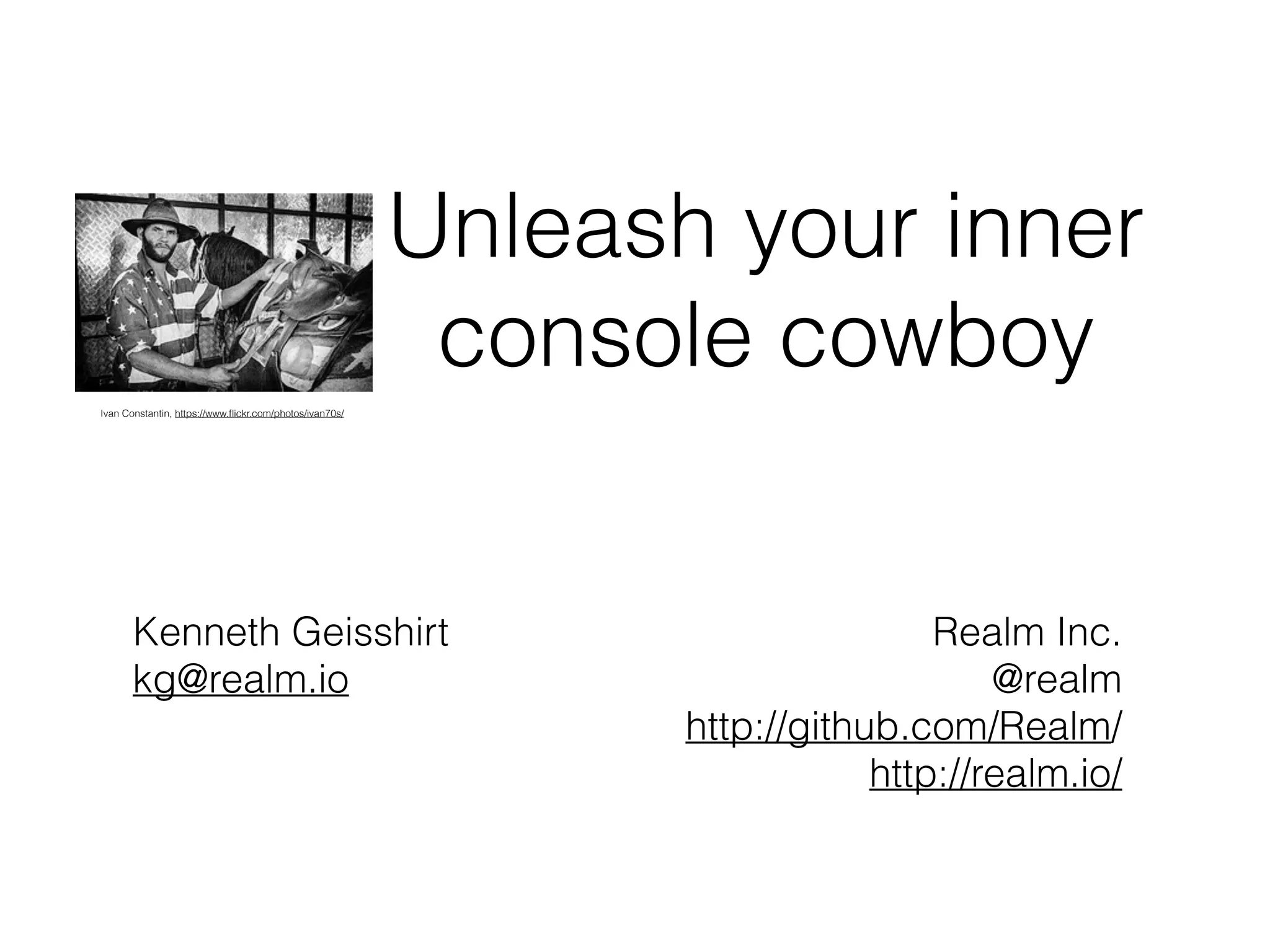
Ivan Constantin, https://www.flickr.com/photos/ivan70s/
Today’s goal 
• Present bash as a productivity tool 
• stop using the mouse  
• Write scripts to automate your work 
• Begin to use advanced tools in your daily work 
Become a console cowboy
Agenda 
• The terminal and the 
shell 
• Basic usage of bash 
• Living on the 
command-line 
• Useful utilities 
• Scripting 
• Home brew 
• Tools for developers 
• git 
• Xcode 
• Cocoapods
About me 
• Lives in Tårnby, a suburb of Copenhagen 
• Education 
• M.Sc. in computer science and chemistry 
• Ph.D. in soft condensed matter 
• Commodore 64 was my first home computer 
• UNIX user, developer, and sysadmin since 1990 
• BSD UNIX (Tahoe), Solaris, Linux, Irix, OS X, … 
• Tech writer and reviewer 
• Packt Pub, O’Reilly, Linux Magazine, Alt om DATA 
• Currently working for Realm as developer 
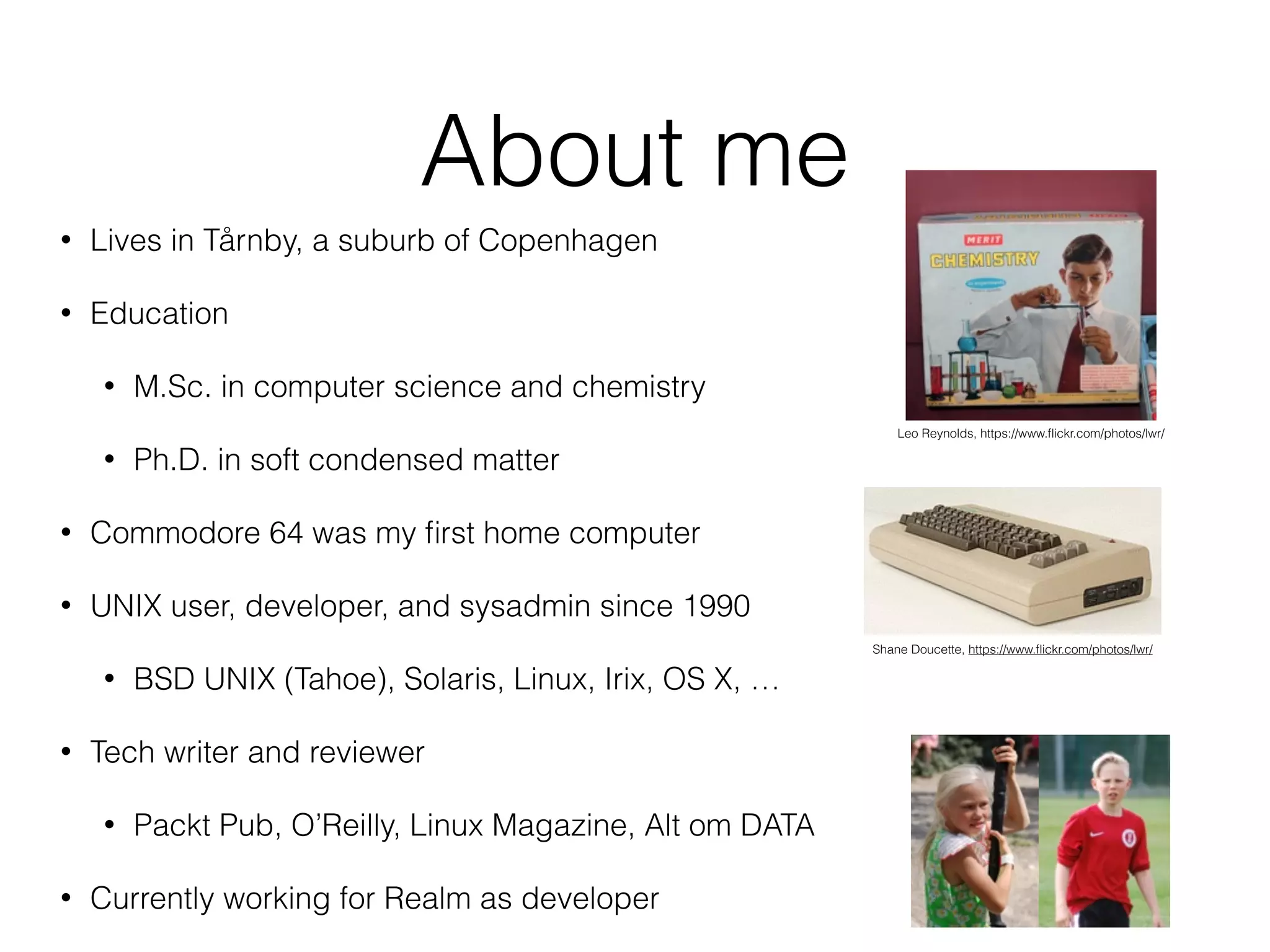
Leo Reynolds, https://www.flickr.com/photos/lwr/ 
Shane Doucette, https://www.flickr.com/photos/lwr/
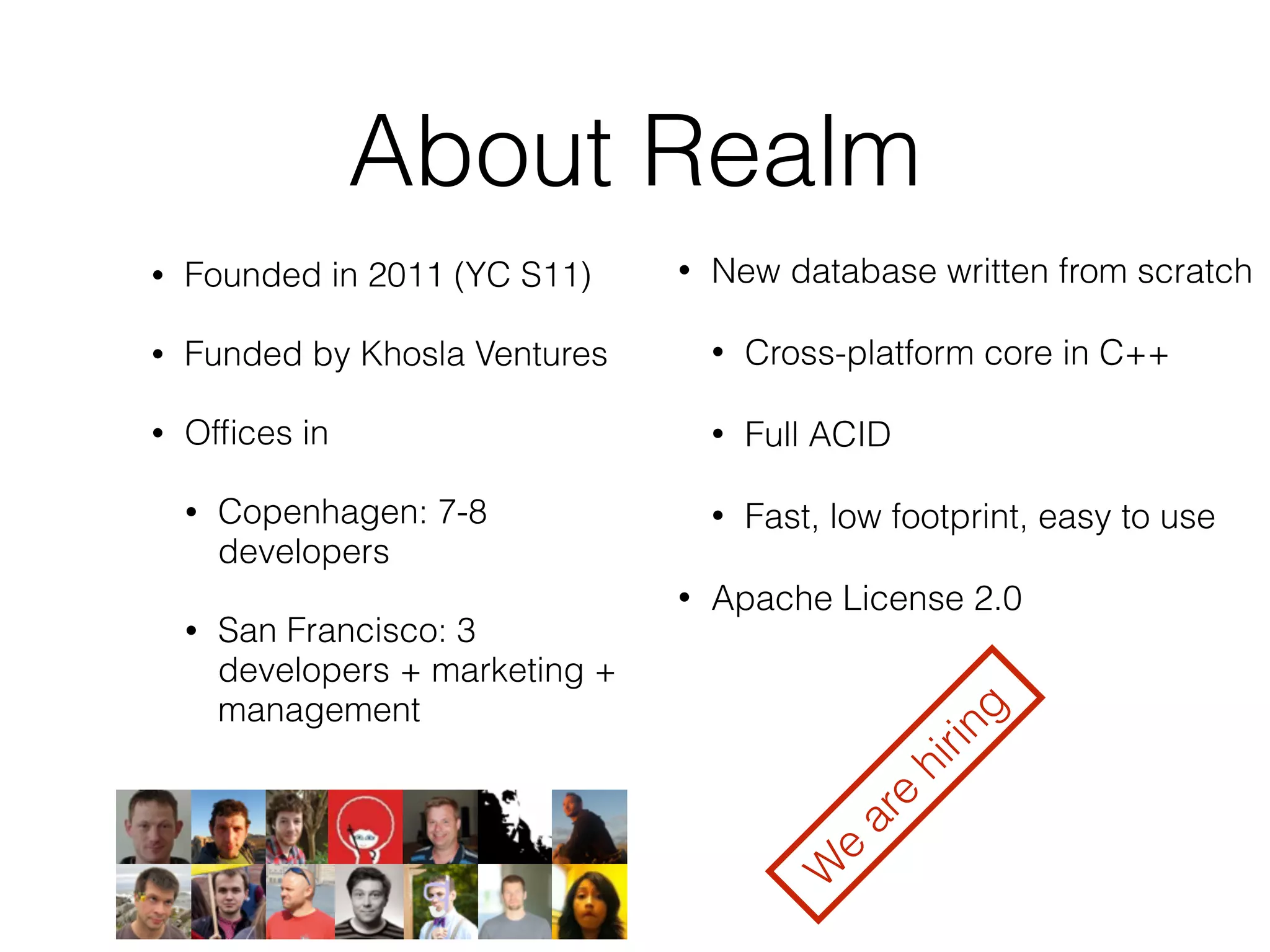
About Realm 
• Founded in 2011 (YC S11) 
• Funded by Khosla Ventures 
• Offices in 
• Copenhagen: 7-8 
developers 
• San Francisco: 3 
developers + marketing + 
management 
• New database written from scratch 
• Cross-platform core in C++ 
• Full ACID 
• Fast, low footprint, easy to use 
• Apache License 2.0 
We are hiring
The shell
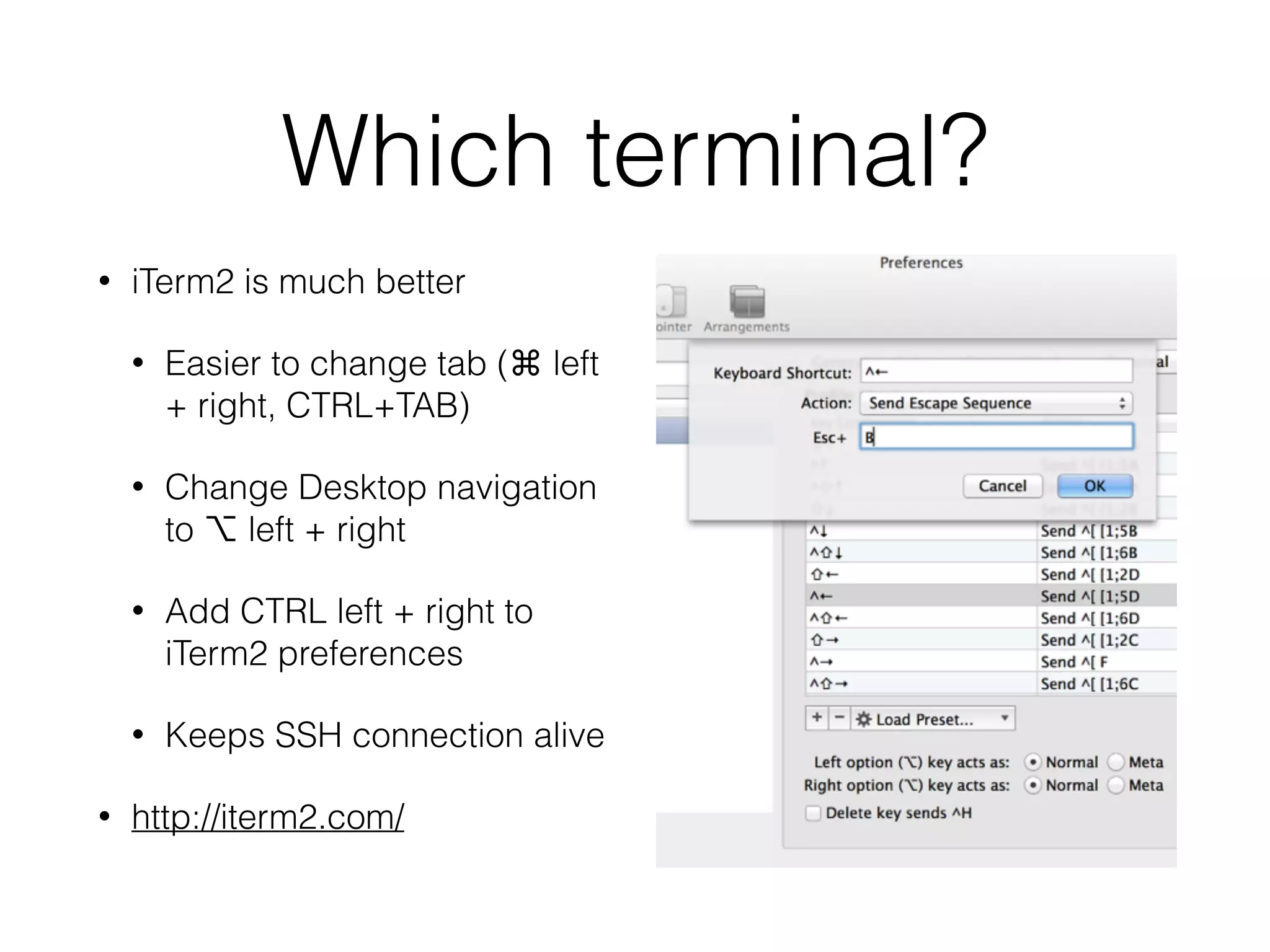
Which terminal? 
• iTerm2 is much better 
• Easier to change tab (⌘ left 
+ right, CTRL+TAB) 
• Change Desktop navigation 
to ⌥ left + right 
• Add CTRL left + right to 
iTerm2 preferences 
• Keeps SSH connection alive 
• http://iterm2.com/
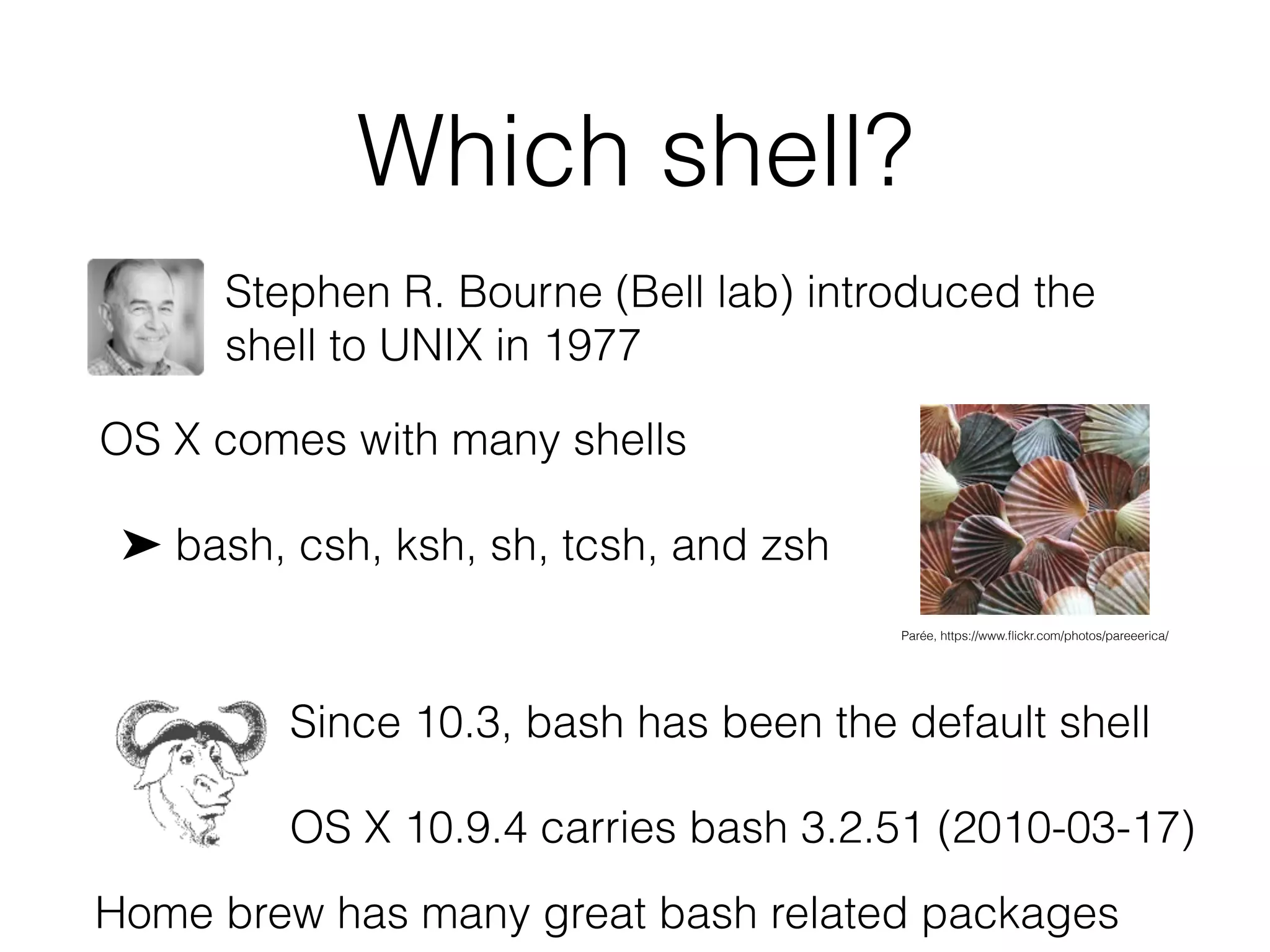
Which shell? 
Stephen R. Bourne (Bell lab) introduced the 
shell to UNIX in 1977 
OS X comes with many shells 
➤ bash, csh, ksh, sh, tcsh, and zsh 
Parée, https://www.flickr.com/photos/pareeerica/ 
Since 10.3, bash has been the default shell 
OS X 10.9.4 carries bash 3.2.51 (2010-03-17) 
Home brew has many great bash related packages
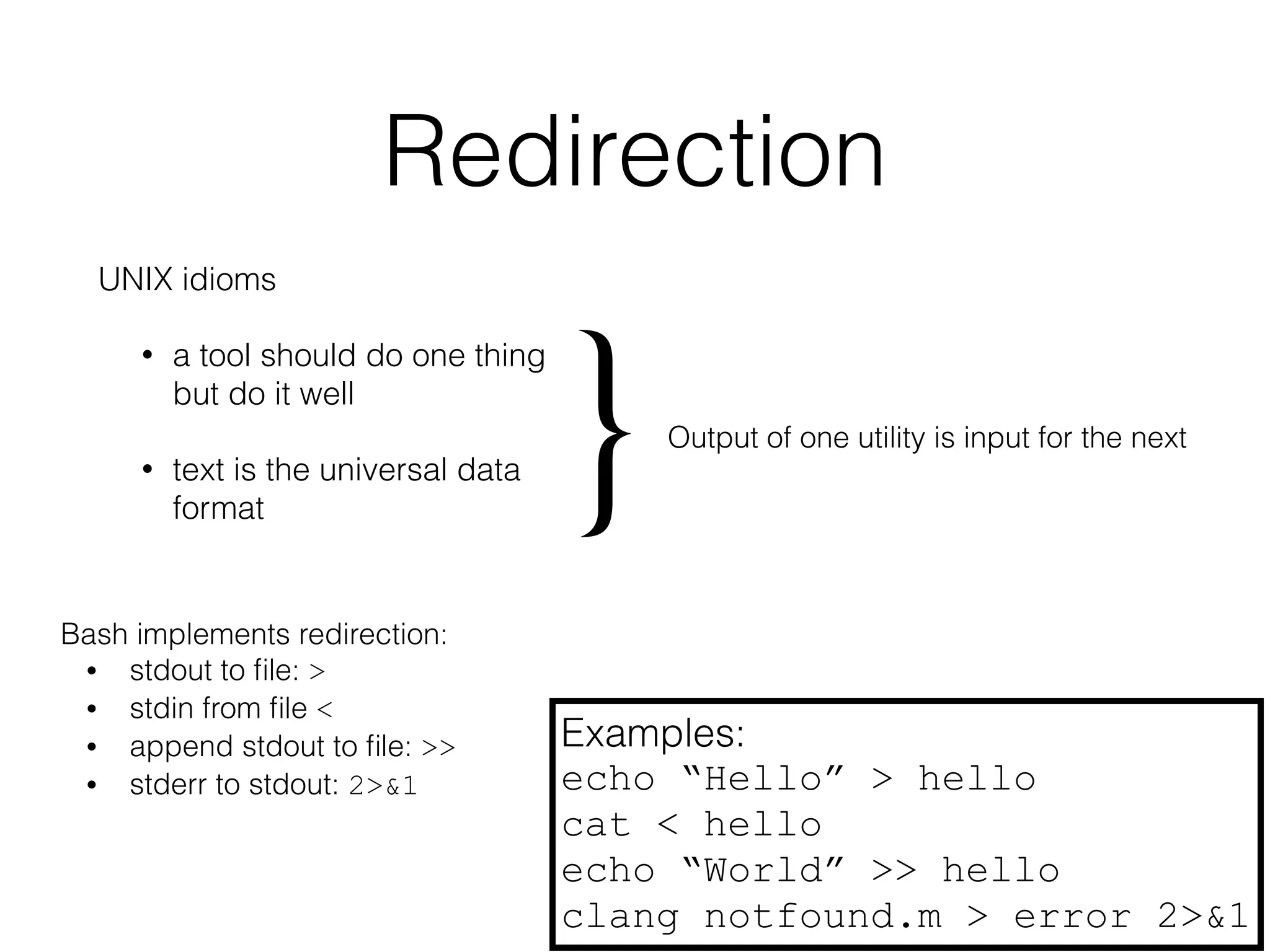
Redirection 
UNIX idioms 
• a tool should do one thing 
but do it well 
} Output of one utility is input for the next 
• text is the universal data 
format Bash implements redirection: 
• stdout to file: > 
• stdin from file < 
• append stdout to file: >> 
• stderr to stdout: 2>&1 
Examples: 
echo “Hello” > hello 
cat < hello 
echo “World” >> hello 
clang notfound.m > error 2>&1
Pipes 
• Introduced to UNIX by Douglas 
McIlroy in 1973 
• Pipes are the glue in UNIX 
component based programming (aka 
shell scripting) 
• Powerful idiom for stream processing 
• The character | is used by all known 
shells 
"Pipeline" by TyIzaeL - Licensed under Public domain via Wikimedia Commons 
http://commons.wikimedia.org/wiki/File:Pipeline.svg#mediaviewer/File:Pipeline.svg 
Examples 
lsof | grep ^Keynote | wc -l 
ifconfig | grep -e ^[a-z] | cut -f1 -d:
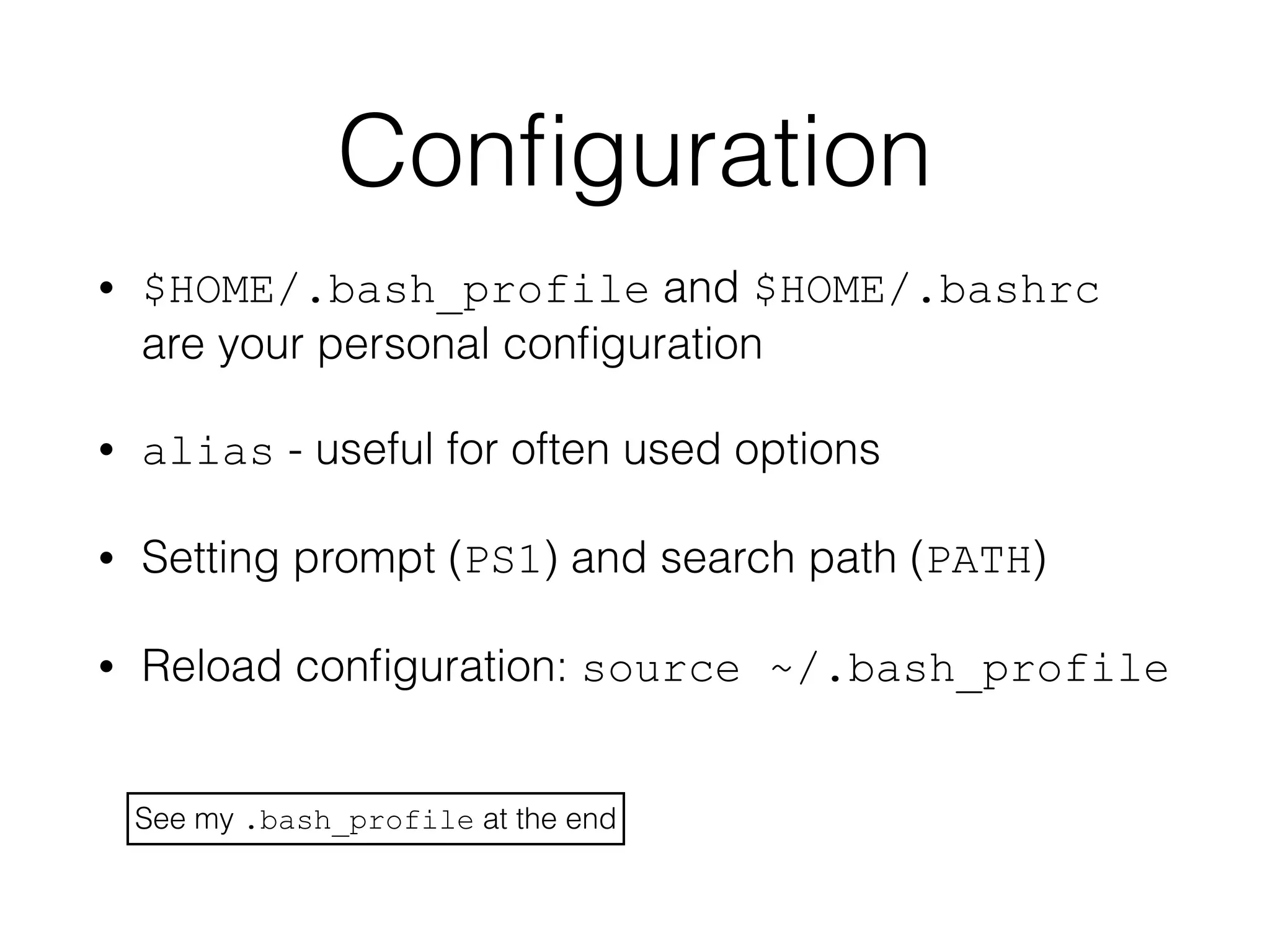
Configuration 
• $HOME/.bash_profile and $HOME/.bashrc 
are your personal configuration 
• alias - useful for often used options 
• Setting prompt (PS1) and search path (PATH) 
• Reload configuration: source ~/.bash_profile 
See my .bash_profile at the end
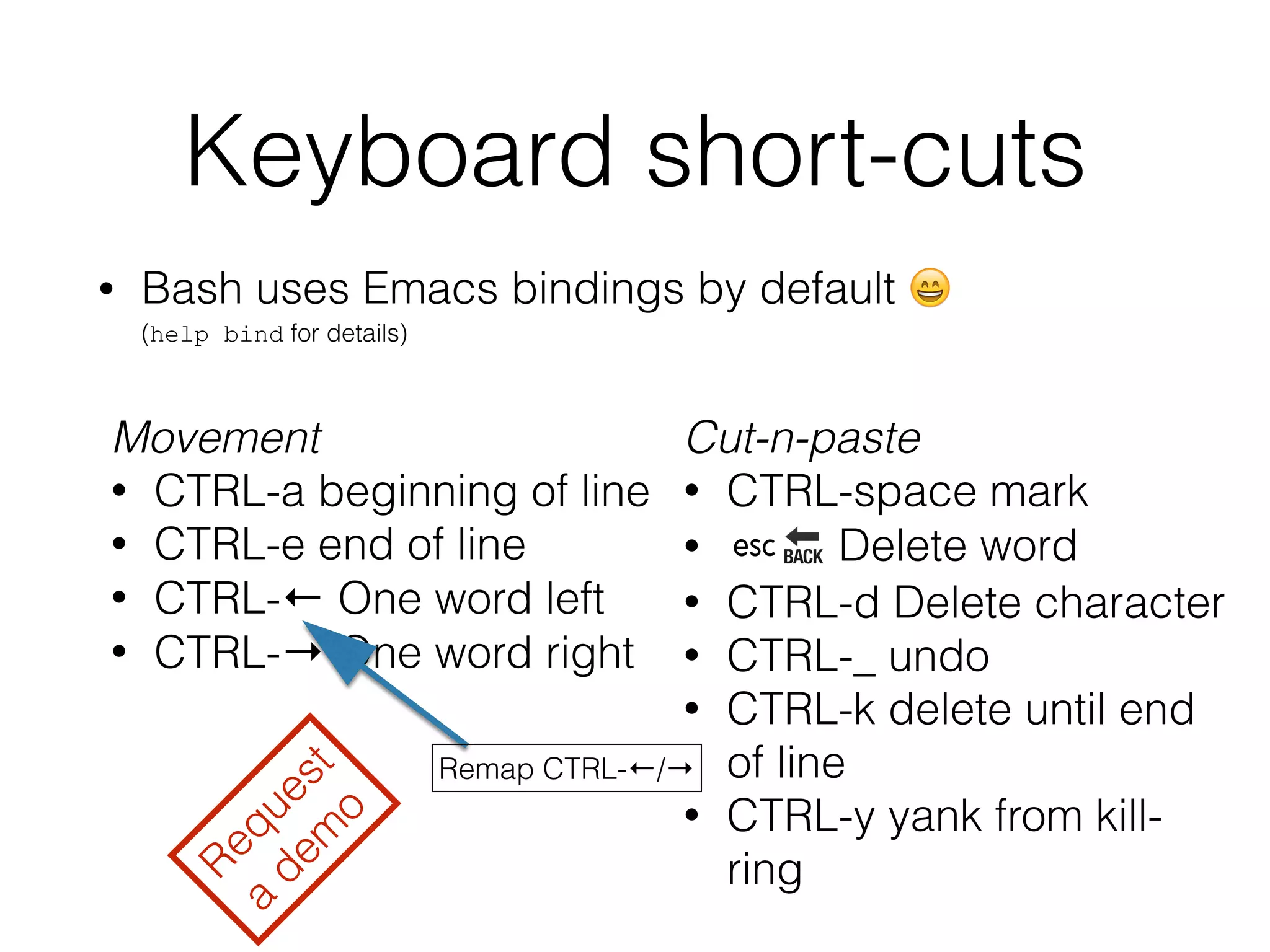
Keyboard short-cuts 
• Bash uses Emacs bindings by default  
(help bind for details) 
Movement 
• CTRL-a beginning of line 
• CTRL-e end of line 
• CTRL-← One word left 
• CTRL-→ One word right 
Cut-n-paste 
• CTRL-space mark 
• ␛ Delete word 
• CTRL-d Delete character 
• CTRL-_ undo 
• CTRL-k delete until end 
of line 
• CTRL-y yank from kill-ring 
Request 
a demo 
Remap CTRL-←/→
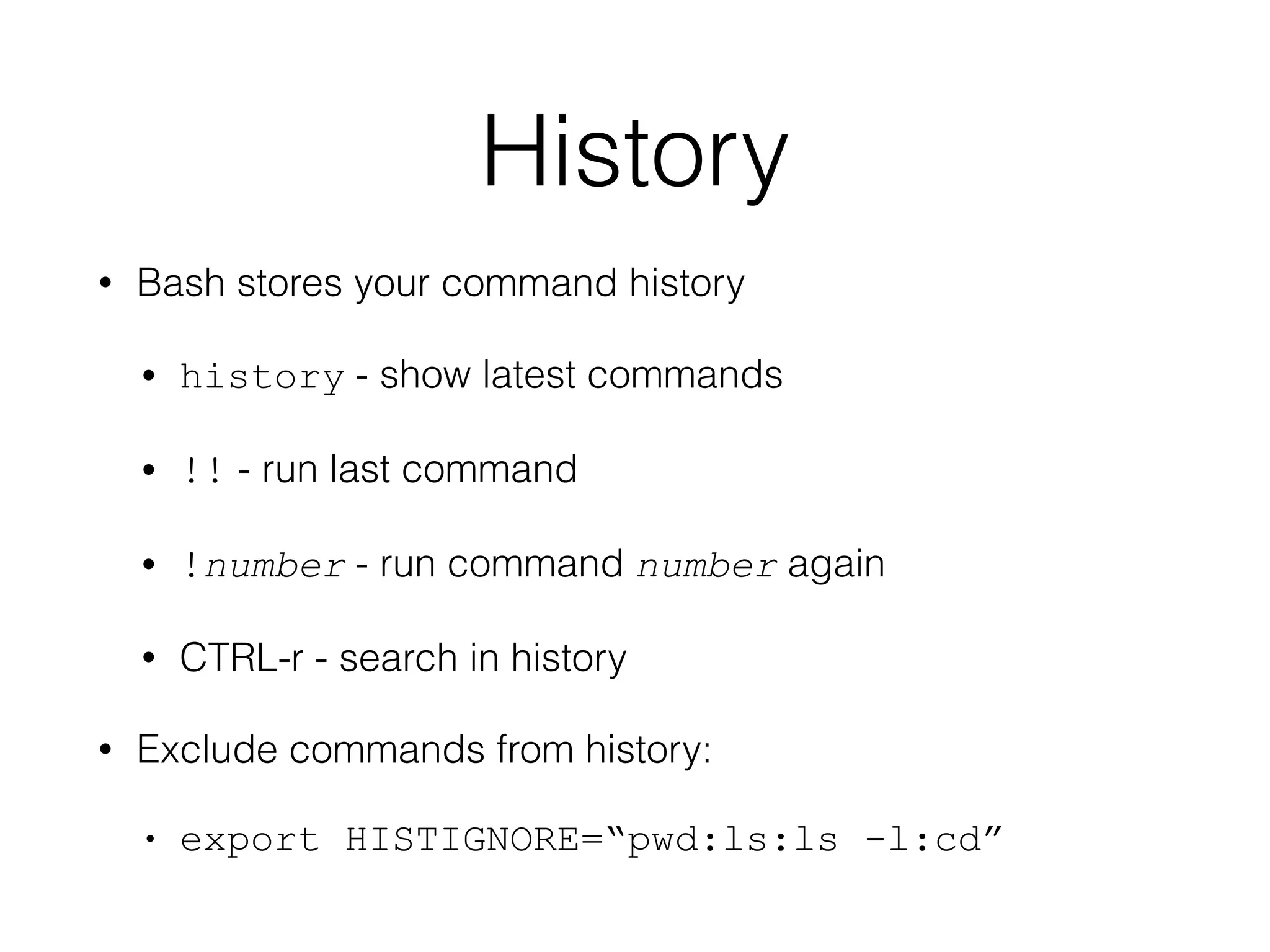
History 
• Bash stores your command history 
• history - show latest commands 
• !! - run last command 
• !number - run command number again 
• CTRL-r - search in history 
• Exclude commands from history: 
• export HISTIGNORE=“pwd:ls:ls -l:cd”
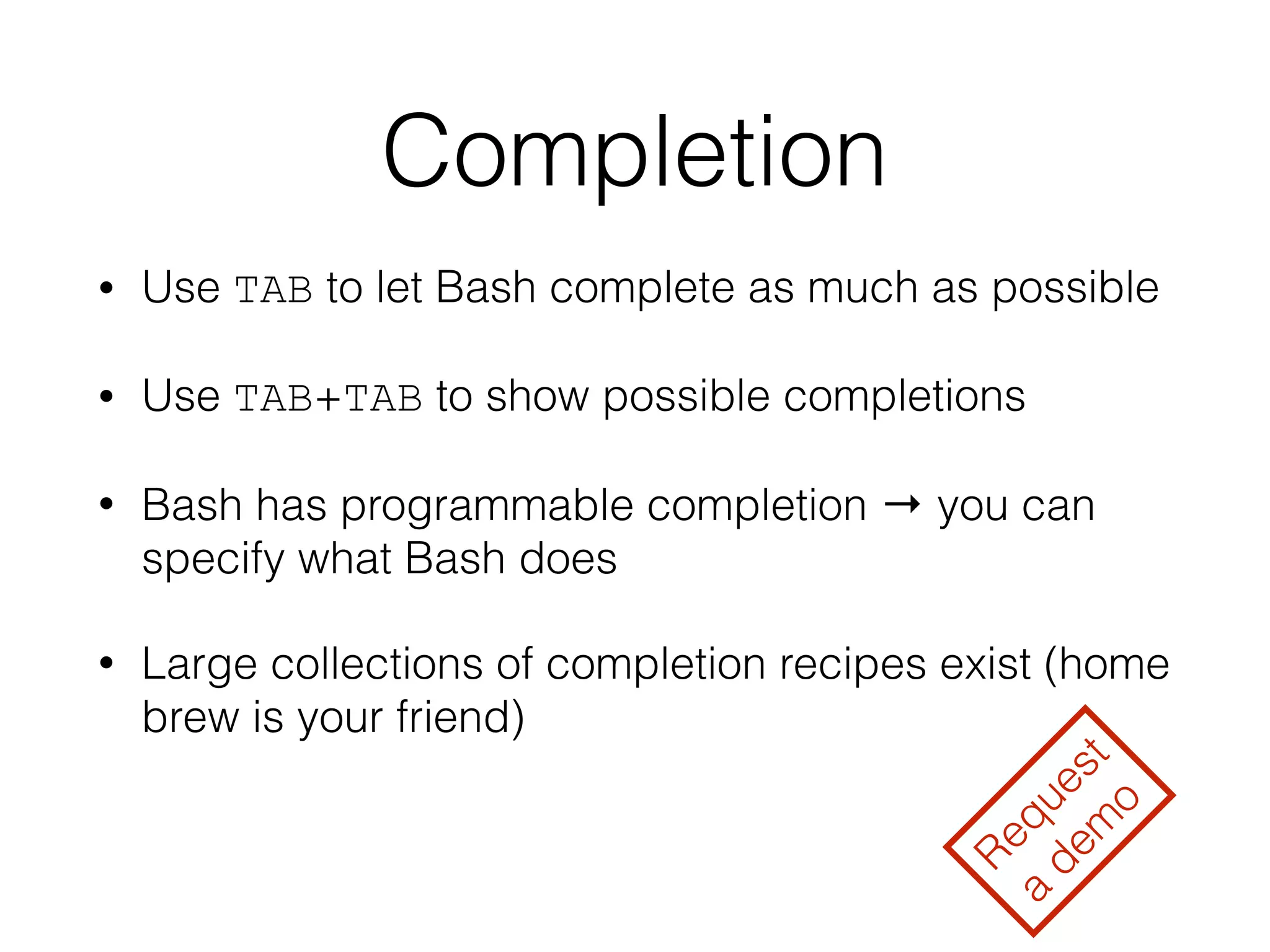
Completion 
• Use TAB to let Bash complete as much as possible 
• Use TAB+TAB to show possible completions 
• Bash has programmable completion → you can 
specify what Bash does 
• Large collections of completion recipes exist (home 
brew is your friend) 
Request 
a demo
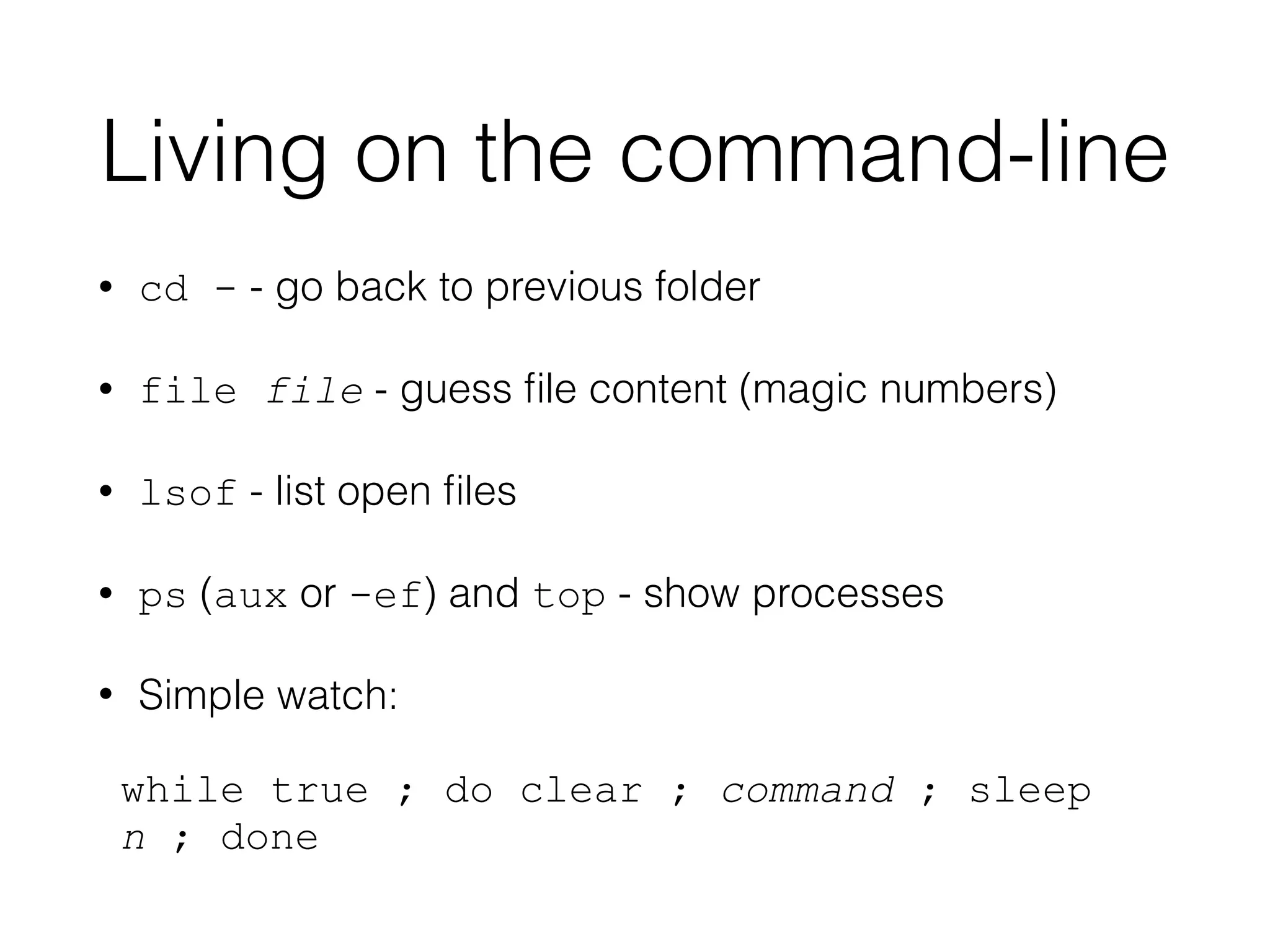
Living on the command-line 
• cd - - go back to previous folder 
• file file - guess file content (magic numbers) 
• lsof - list open files 
• ps (aux or -ef) and top - show processes 
• Simple watch: 
while true ; do clear ; command ; sleep 
n ; done
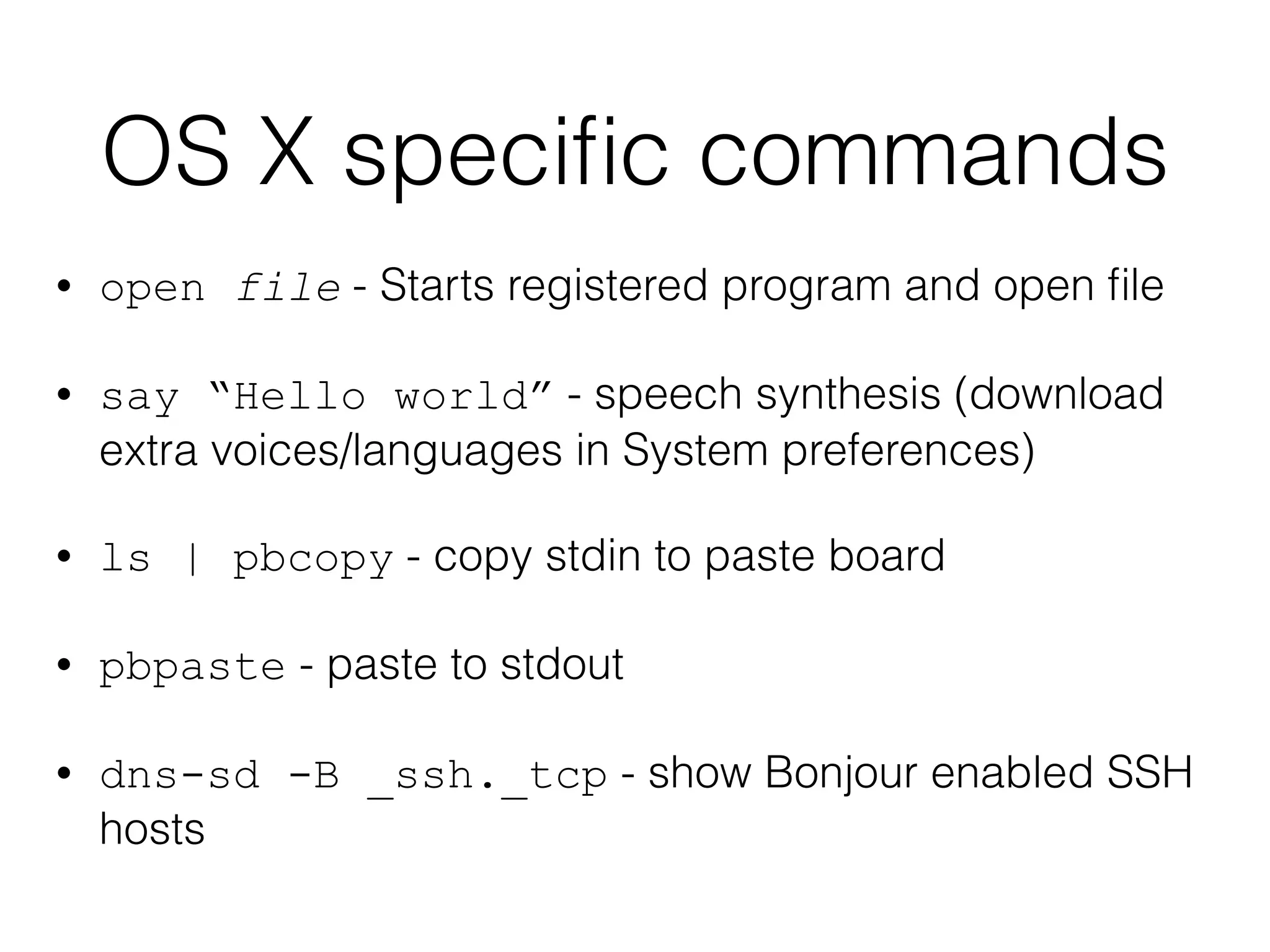
OS X specific commands 
• open file - Starts registered program and open file 
• say “Hello world” - speech synthesis (download 
extra voices/languages in System preferences) 
• ls | pbcopy - copy stdin to paste board 
• pbpaste - paste to stdout 
• dns-sd -B _ssh._tcp - show Bonjour enabled SSH 
hosts
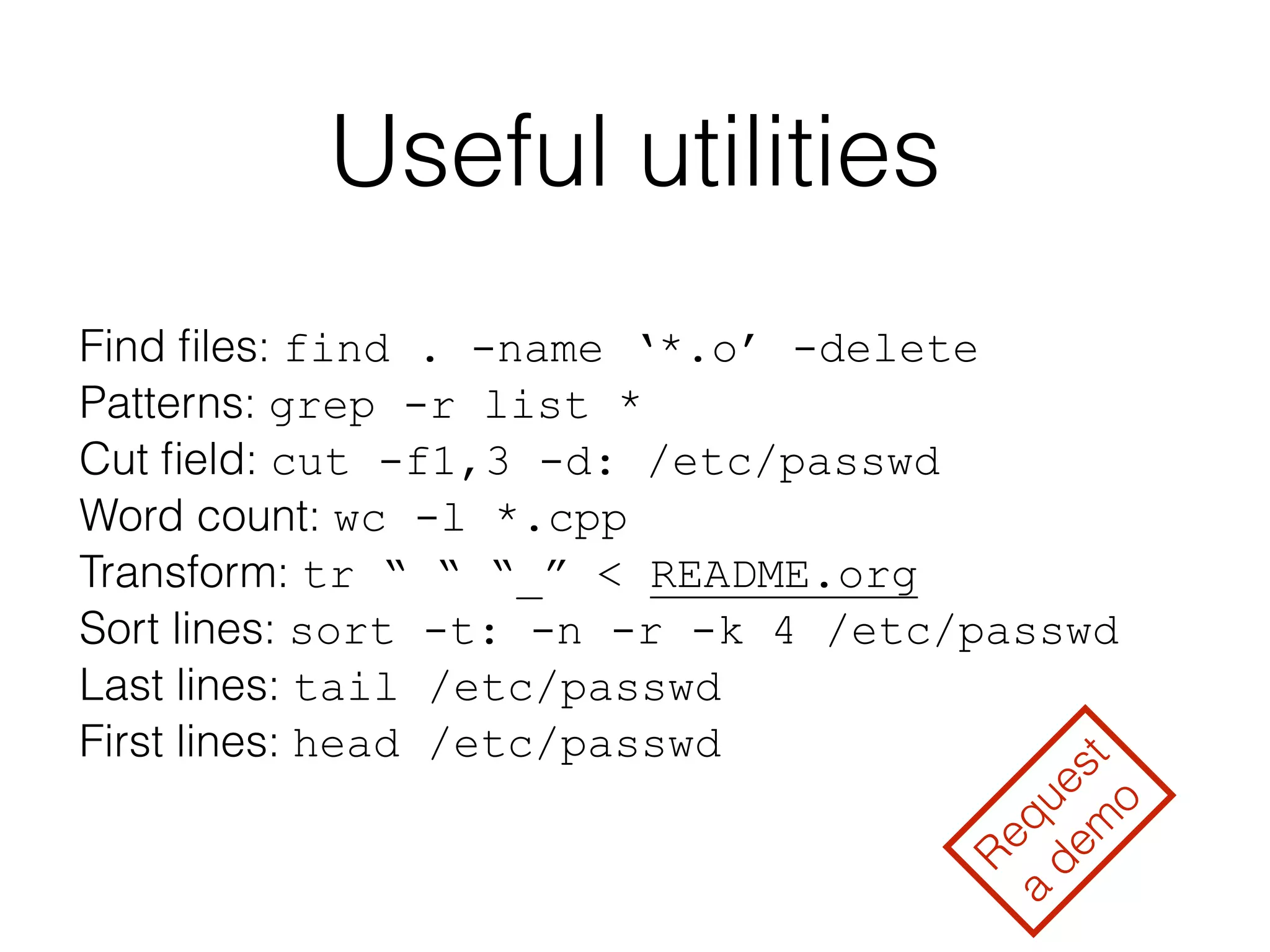
Useful utilities 
Find files: find . -name ‘*.o’ -delete 
Patterns: grep -r list * 
Cut field: cut -f1,3 -d: /etc/passwd 
Word count: wc -l *.cpp 
Transform: tr “ “ “_” < README.org 
Sort lines: sort -t: -n -r -k 4 /etc/passwd 
Last lines: tail /etc/passwd 
First lines: head /etc/passwd 
Request 
a demo
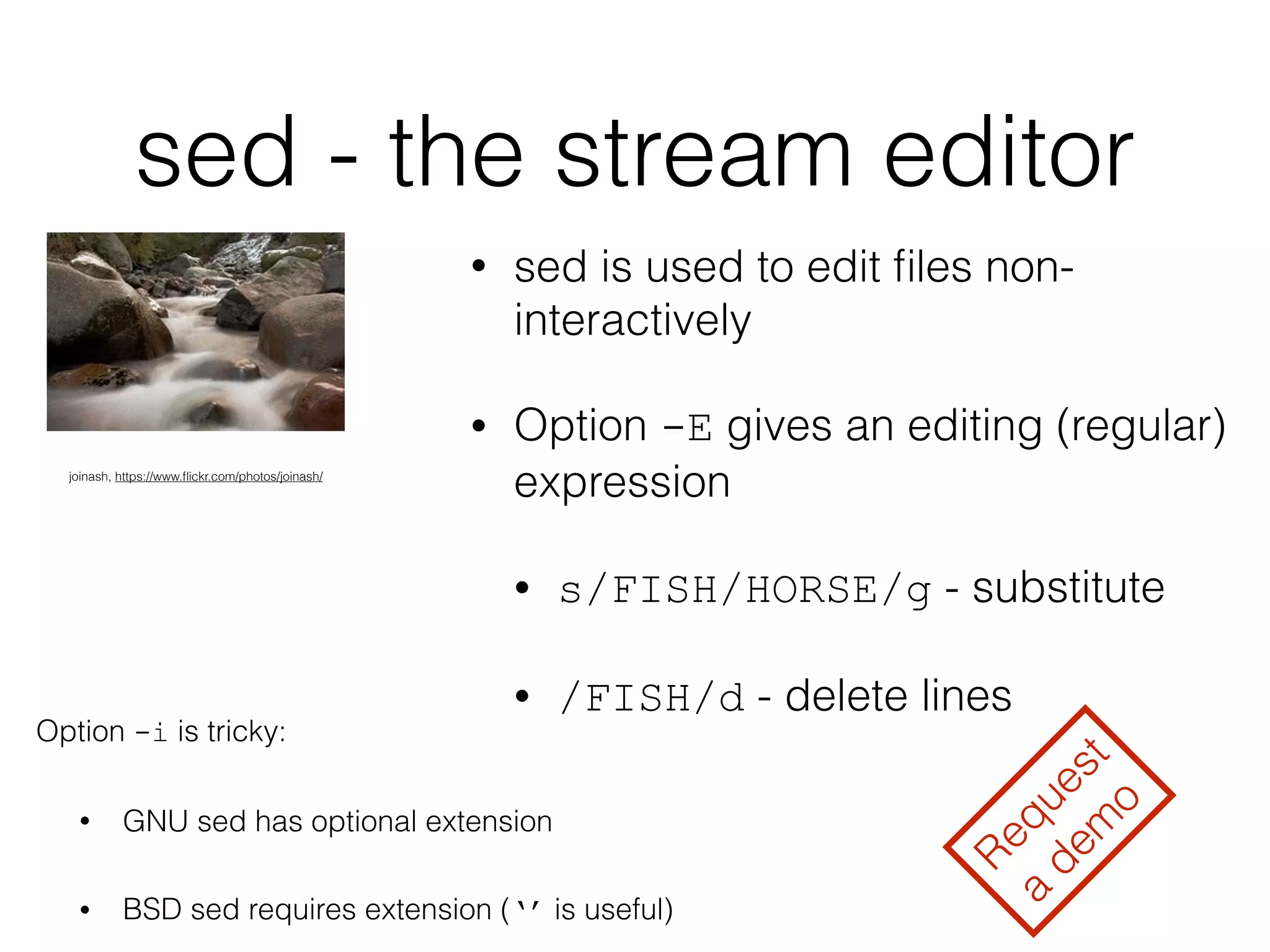
sed - the stream editor 
• sed is used to edit files non-interactively 
• Option -E gives an editing (regular) 
expression 
• s/FISH/HORSE/g - substitute 
• /FISH/d - delete lines 
joinash, https://www.flickr.com/photos/joinash/ 
Option -i is tricky: 
• GNU sed has optional extension 
• BSD sed requires extension (‘’ is useful) 
Request 
a demo
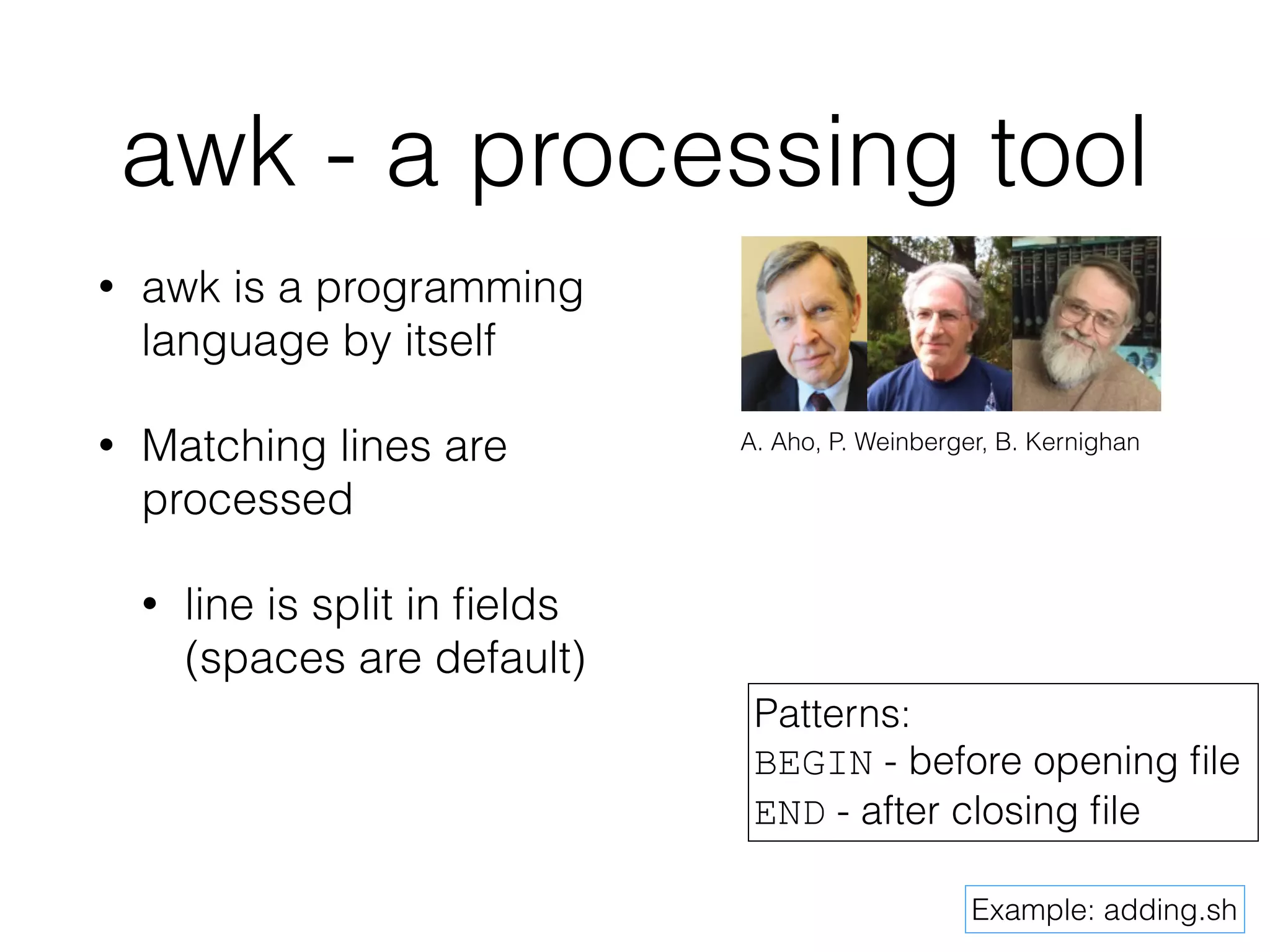
awk - a processing tool 
• awk is a programming 
language by itself 
• Matching lines are 
processed 
• line is split in fields 
(spaces are default) 
A. Aho, P. Weinberger, B. Kernighan 
Patterns: 
BEGIN - before opening file 
END - after closing file 
Example: adding.sh
Scripting 
Examples can 
be found as 
lasts slides
Bash for programmers 
• Bash is a complete programming language 
• Shell scripts grow and become ugly  
• Execution: 
• sh script.sh 
• chmod +x script.sh; ./script.sh 
• Interpreted language → slow
Basic syntax 
• White spaces: space and 
tab 
• Comments: # and to end-of- 
line 
• Statements: either end-of- 
line of ; (semicolon) 
• Variables and functions: 
Letters, digits and 
underscore 
#!/bin/bash 
# Monte Carlo calculation of pi 
NSTEPS=500 
NHITS=0 
i=0 
while [ $i -lt $NSTEPS ]; do 
x=$(echo $RANDOM/32767 | bc -l) 
y=$(echo $RANDOM/32767 | bc -l) 
d=$(echo "sqrt($x*$x+$y*$y) < 1.0" | bc -l) 
if [ $d -eq 1 ]; then 
NHITS=$(($NHITS + 1)) 
fi 
i=$(($i + 1)) 
done 
! 
PI=$(echo "4.0*$NHITS/$NSTEPS" | bc -l) 
echo "PI = $PI" 
Example: pi.sh
Variables 
• Case-sensitive names 
• No declarations, no types 
• Strings: “…” are substituted; ‘…’ are not 
• Assignment (=): no spaces! 
• $(…) assignment from stdout including 
spaces 
• I often use awk ‘{print $1}’ to 
remove spaces 
• $((…)) arithmetic 
• $varname - value of variable varname 
Built-in variables: 
• $# is the number of argument 
• $1, $2, … are the arguments 
• $$ is the process ID 
• $? is exit code of last command 
Example: variables.sh
Branches 
• Simple branching with if then 
else fi 
• Enclose condition with [] 
• elif is possible, too 
• Use case in esac when you 
can many cases and single 
condition 
String operators: 
-z is empty? 
-d is directory? 
-f is file? 
== equal to 
!= not equal to 
Integer operators: 
-eq equal to 
-lt less than 
-ne not equal to 
-gt greater than 
Example: branches.sh
Loops 
• Simple loops: for … in … ; do … 
done 
• The seq utility can generate list of 
numbers 
• Conditional loops: while … ; do … 
done 
• Line-by-line: while read line ; 
do … done 
One-liner (similar to watch) 
while [ true ]; do 
clear; 
echo $RANDOM; 
sleep 1; 
Example: loops.sh 
done
Functions 
• Functions can increase readability of your scripts 
• arguments are $1, $2, … 
• local variables can be used 
• return an integer and get it as $? 
• Use global variable to return a string  
Example: functions.sh
Tips and tricks 
• Use set -e to exit early 
• or use || exit 1 
• set -O pipefail and you can get the exit code of the first 
failing program in a pipe 
• xcpretty never fails but xcodebuild might 
• Use tee to write to stdout and file 
• To trace (debugging): set -x or sh -x
Tips and tricks 
• Always use “$var” when dealing with file names (and strings) 
• str=“fish horse”; for i in $str; do echo $i; done 
• str=“fish horse”; for i in “$str”; do echo $i; done 
• Call mkdir -p when creating folders 
• Create temp. files with mktemp /tmp/$$.XXXXXX 
• Using variable to modify behaviour of script: 
• FLAGS=“-O3 -libc++=stdlibc++” build.sh 
• Subshells: (cd foo && rm -f bar)
Tool for 
developers
Home brew 
• Home brew provides calories for 
console cowboys 
• You don’t have to be root to install 
• Software is installed in /usr/ 
local/Cellar, and symlinked to / 
usr/local/bin 
• Brew cask is for binary distribution 
• http://brew.sh and http:// 
caskroom.io 
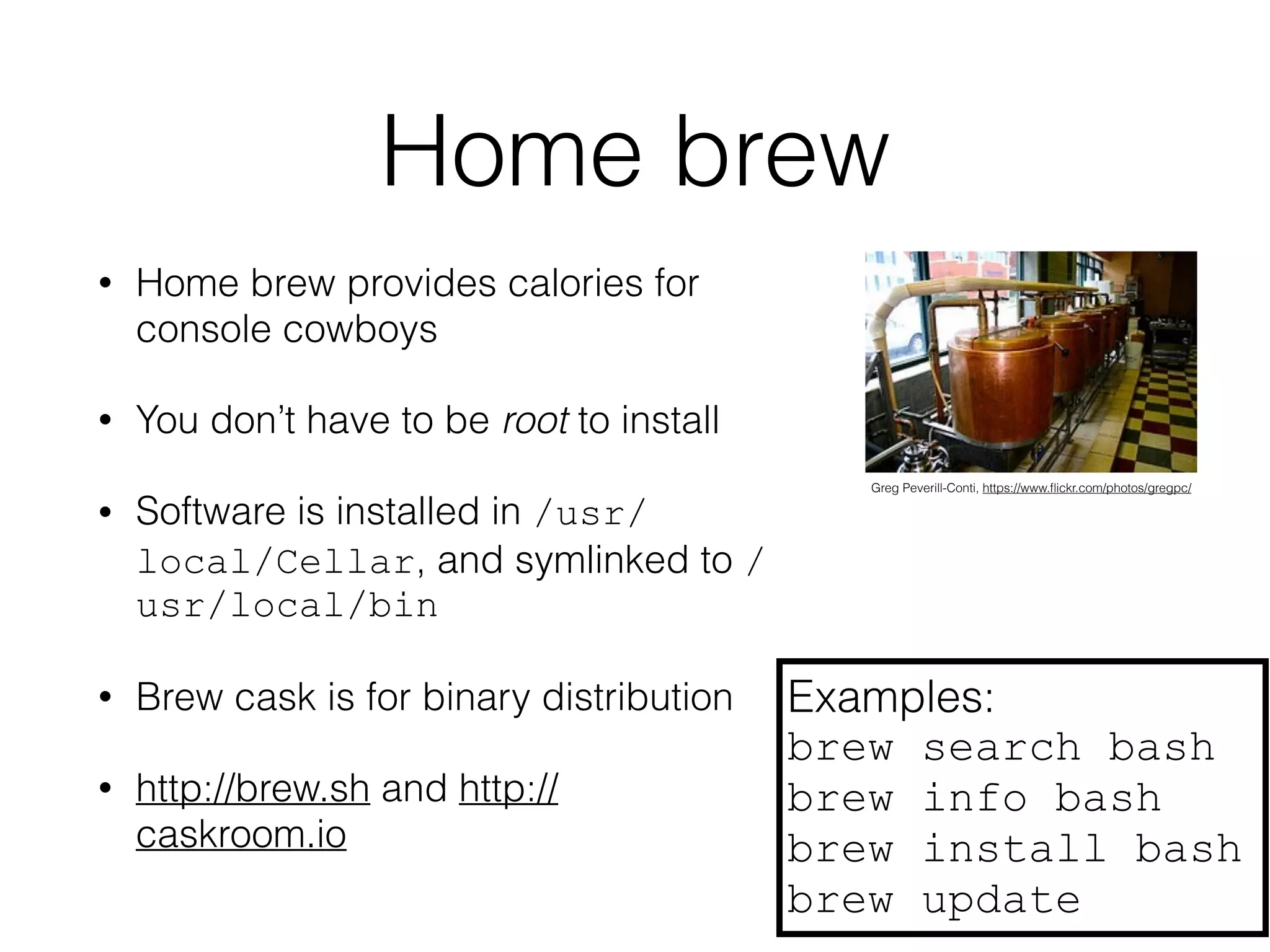
Greg Peverill-Conti, https://www.flickr.com/photos/gregpc/ 
Examples: 
brew search bash 
brew info bash 
brew install bash 
brew update
Tools for developers 
• Apple provides some basic tools 
• nm - display symbol table 
• c++filt - Prettify C++ and Java names 
• otool -L - display which shared libraries are 
required 
• libtool - create libraries 
• lipo - manipulate fat/universal binaries 
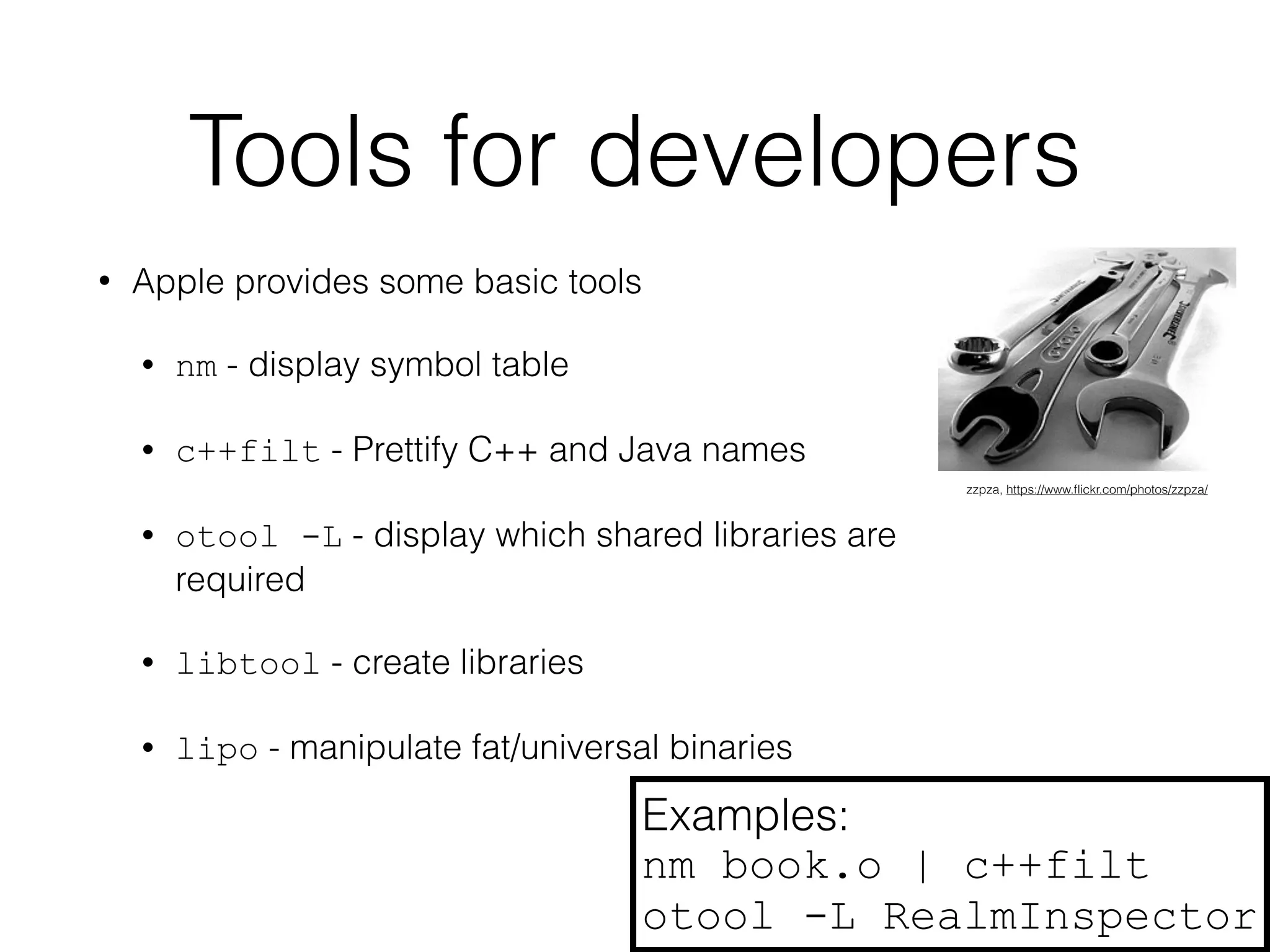
zzpza, https://www.flickr.com/photos/zzpza/ 
Examples: 
nm book.o | c++filt 
otool -L RealmInspector
git 
• Home brew packages: 
• git, git-extras 
• Symlink /usr/local/bin/git to / 
usr/bin 
• Bash completion works 
• commands, branches, etc. 
• Fancy prompt: 
PS1='u@h:w$(__git_ps1 " (%s)") $ ‘ 
Examples: 
git count -all 
git contrib "Kenneth Geisshirt" 
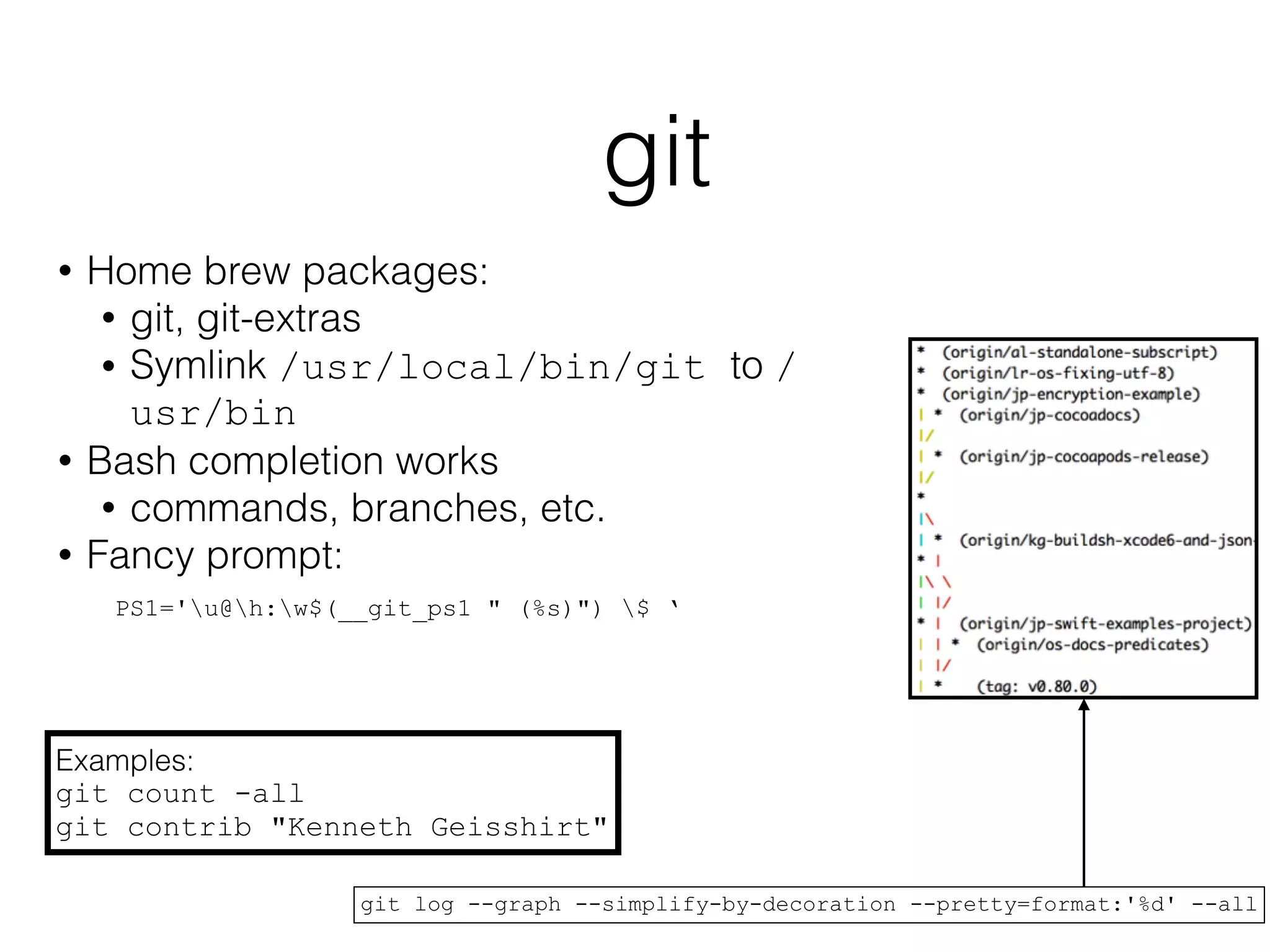
git log --graph --simplify-by-decoration --pretty=format:'%d' --all
Xcode 
• You can build Xcode projects at the 
command-line 
xcodebuild -scheme SpainPlain - 
configuration Release -sdk 
iphonesimulator 
• Targets: clean, build, test 
• You can add shell scripts to build phases
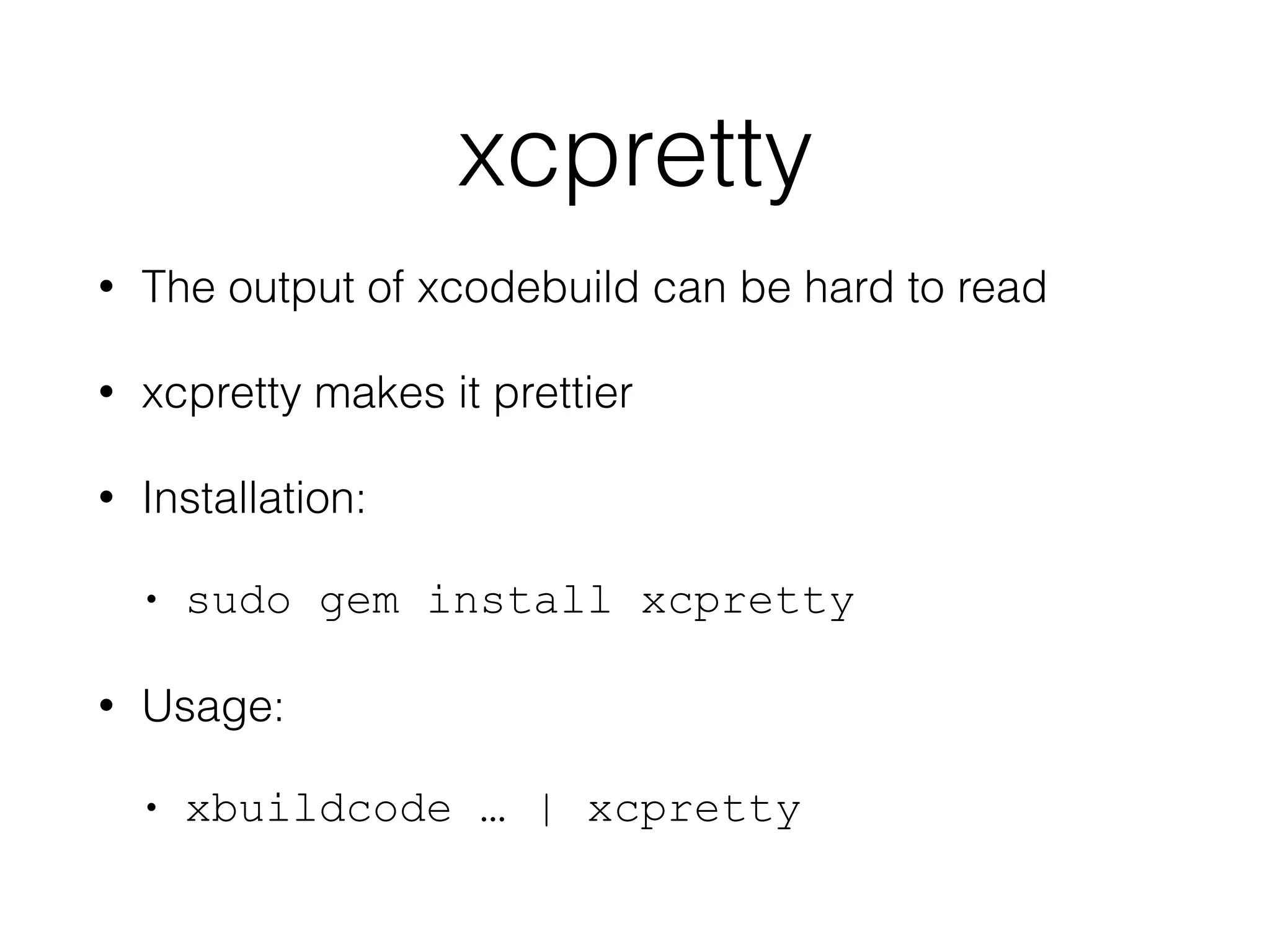
xcpretty 
• The output of xcodebuild can be hard to read 
• xcpretty makes it prettier 
• Installation: 
• sudo gem install xcpretty 
• Usage: 
• xbuildcode … | xcpretty
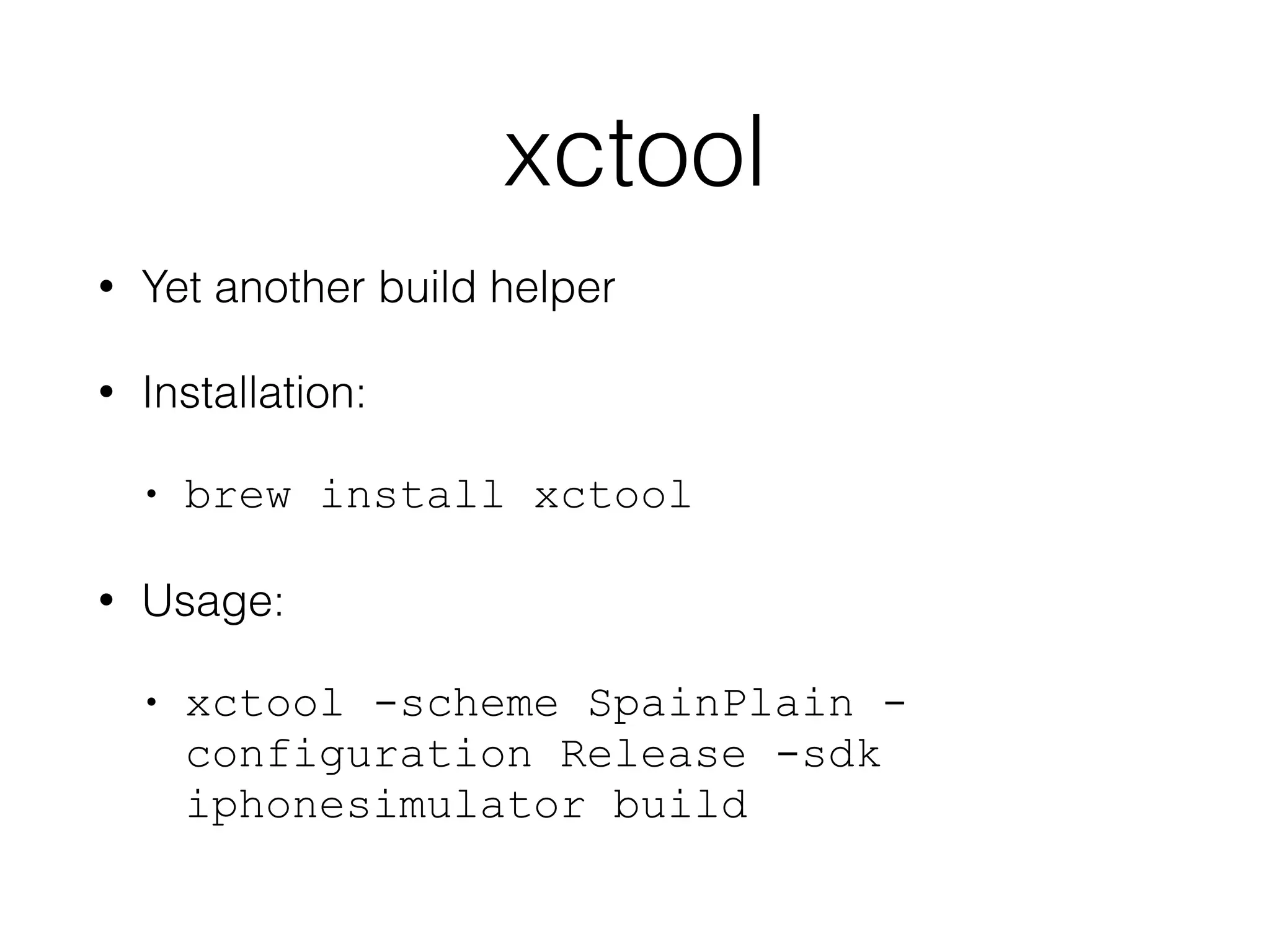
xctool 
• Yet another build helper 
• Installation: 
• brew install xctool 
• Usage: 
• xctool -scheme SpainPlain - 
configuration Release -sdk 
iphonesimulator build
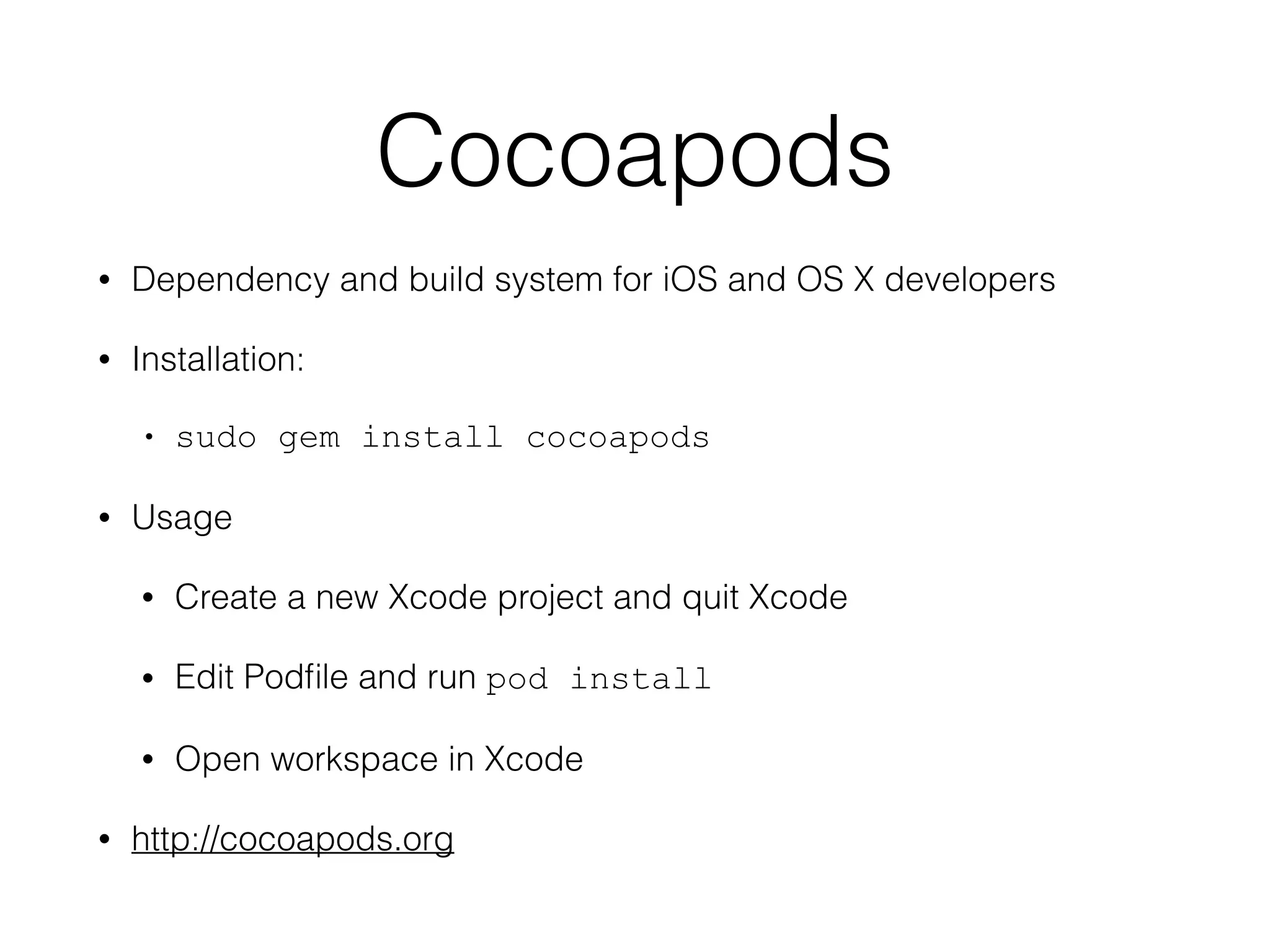
Cocoapods 
• Dependency and build system for iOS and OS X developers 
• Installation: 
• sudo gem install cocoapods 
• Usage 
• Create a new Xcode project and quit Xcode 
• Edit Podfile and run pod install 
• Open workspace in Xcode 
• http://cocoapods.org
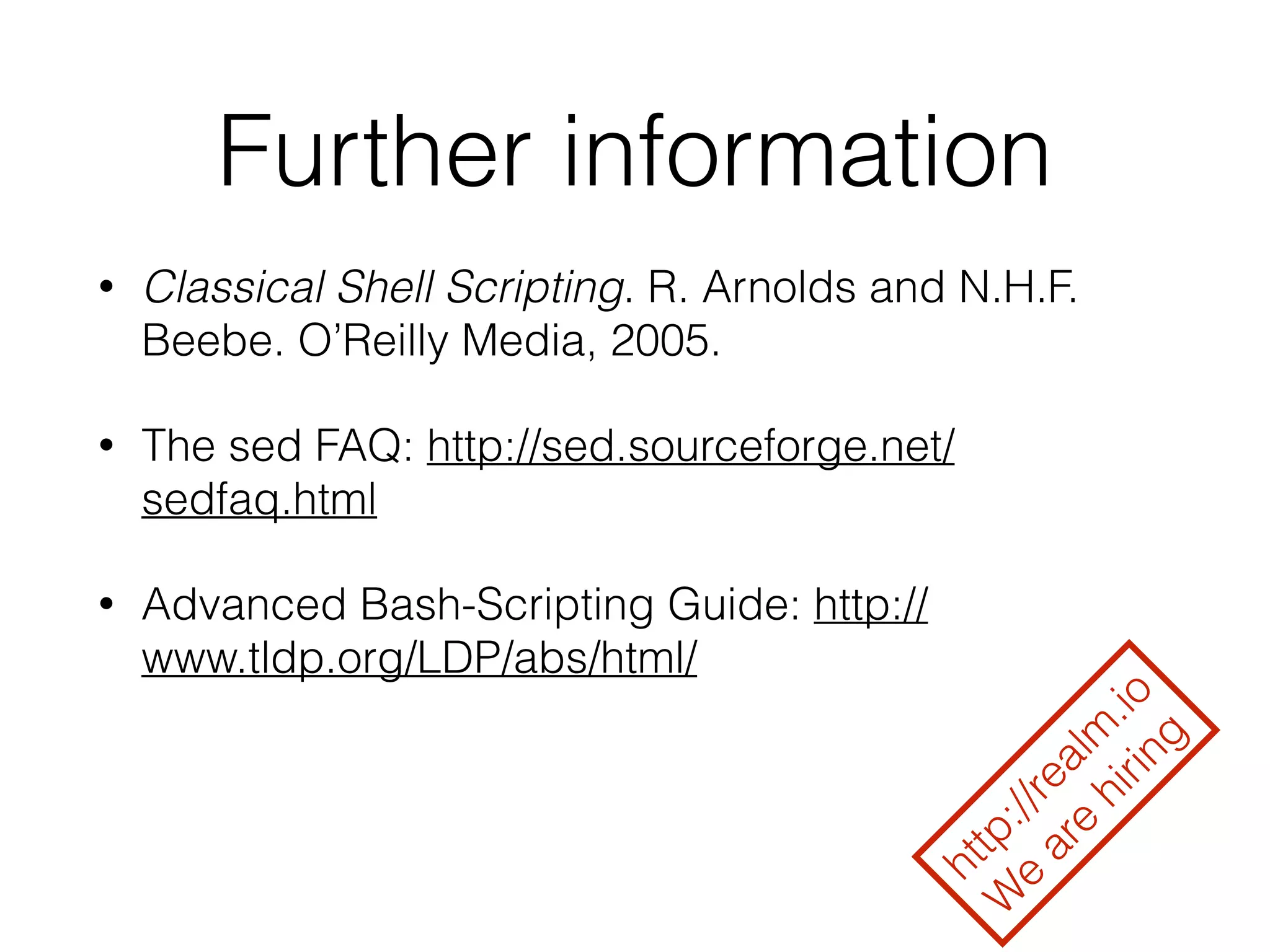
Further information 
• Classical Shell Scripting. R. Arnolds and N.H.F. 
Beebe. O’Reilly Media, 2005. 
• The sed FAQ: http://sed.sourceforge.net/ 
sedfaq.html 
• Advanced Bash-Scripting Guide: http:// 
www.tldp.org/LDP/abs/html/ 
http://realm.io 
We are hiring
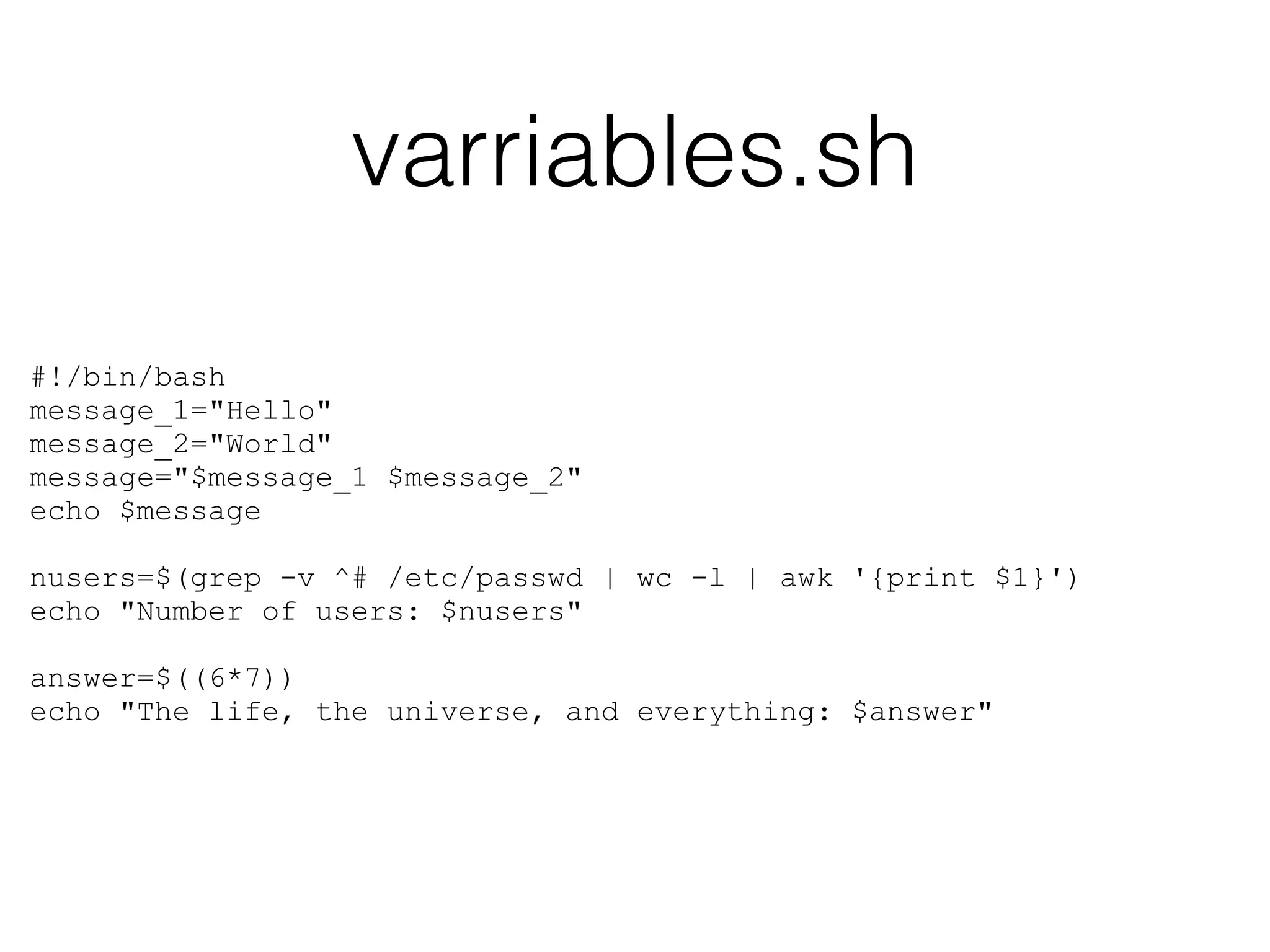
varriables.sh 
#!/bin/bash 
message_1="Hello" 
message_2="World" 
message="$message_1 $message_2" 
echo $message 
! 
nusers=$(grep -v ^# /etc/passwd | wc -l | awk '{print $1}') 
echo "Number of users: $nusers" 
! 
answer=$((6*7)) 
echo "The life, the universe, and everything: $answer"
Files
.bash_profile 
# Ignore a few commands in history 
export HISTIGNORE="pwd:ls:ls -l:cd" 
# don't put duplicate lines in the history. See bash(1) for more options 
# don't overwrite GNU Midnight Commander's setting of `ignorespace'. 
HISTCONTROL=$HISTCONTROL${HISTCONTROL+:}ignoredups 
# ... or force ignoredups and ignorespace 
HISTCONTROL=ignoreboth 
! 
# Bash completion 
if [ -f $(brew --prefix)/etc/bash_completion ]; then 
. $(brew --prefix)/etc/bash_completion 
fi 
if [ -f $(brew --prefix)/share/bash-completion/bash_completion ]; then 
. $(brew --prefix)/share/bash-completion/bash_completion 
fi 
! 
# Prompt - including git 
PS1='u@h:w$(__git_ps1 " (%s)") $ '
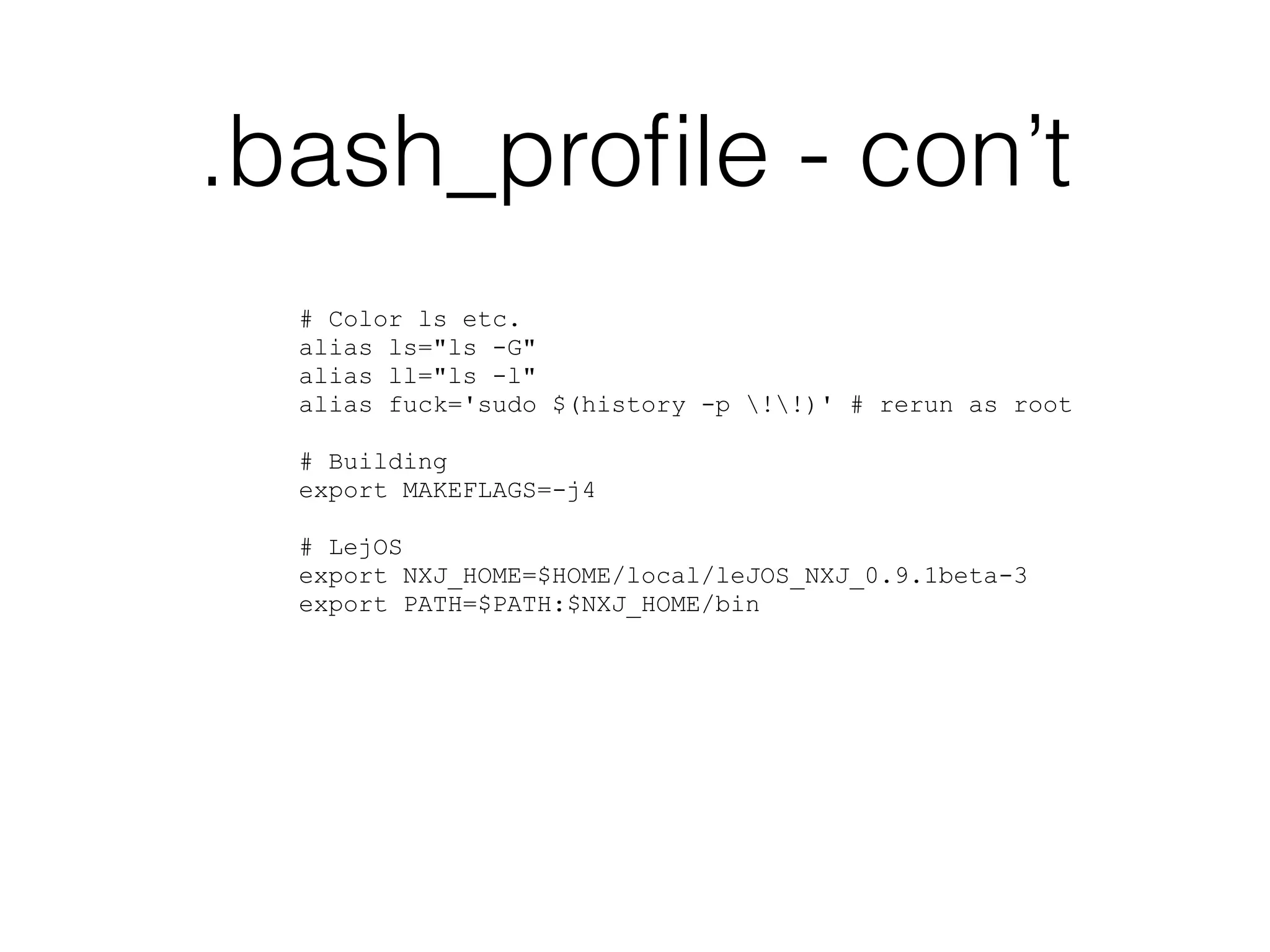
.bash_profile - con’t 
# Color ls etc. 
alias ls="ls -G" 
alias ll="ls -l" 
alias fuck='sudo $(history -p !!)' # rerun as root 
! 
# Building 
export MAKEFLAGS=-j4 
! 
# LejOS 
export NXJ_HOME=$HOME/local/leJOS_NXJ_0.9.1beta-3 
export PATH=$PATH:$NXJ_HOME/bin
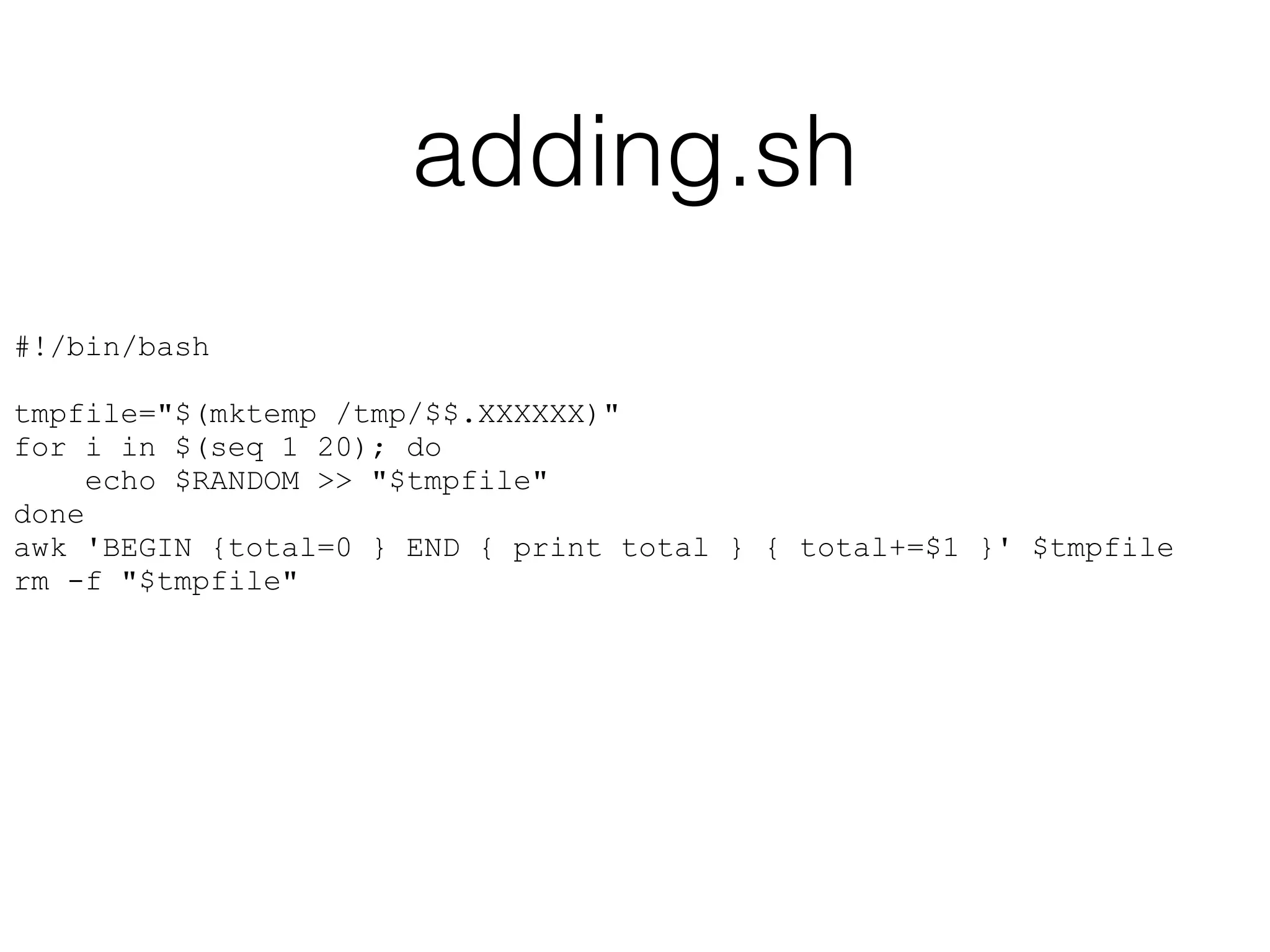
adding.sh 
#!/bin/bash 
! 
tmpfile="$(mktemp /tmp/$$.XXXXXX)" 
for i in $(seq 1 20); do 
echo $RANDOM >> "$tmpfile" 
done 
awk 'BEGIN {total=0 } END { print total } { total+=$1 }' $tmpfile 
rm -f "$tmpfile"
branches.sh 
#!/bin/bash 
! 
if [ -z "$1" ]; then 
name="Arthur" 
else 
name="$1" 
fi 
! 
if [ "$name" != "Arthur" ]; then 
echo "Not Arthur" 
else 
echo "Hello Arthur" 
fi 
! 
answer=$((6*7)) 
if [ $answer -eq 42 ]; then 
echo "Life, the universe, 
and everything" 
fi
branshes.sh - con’t 
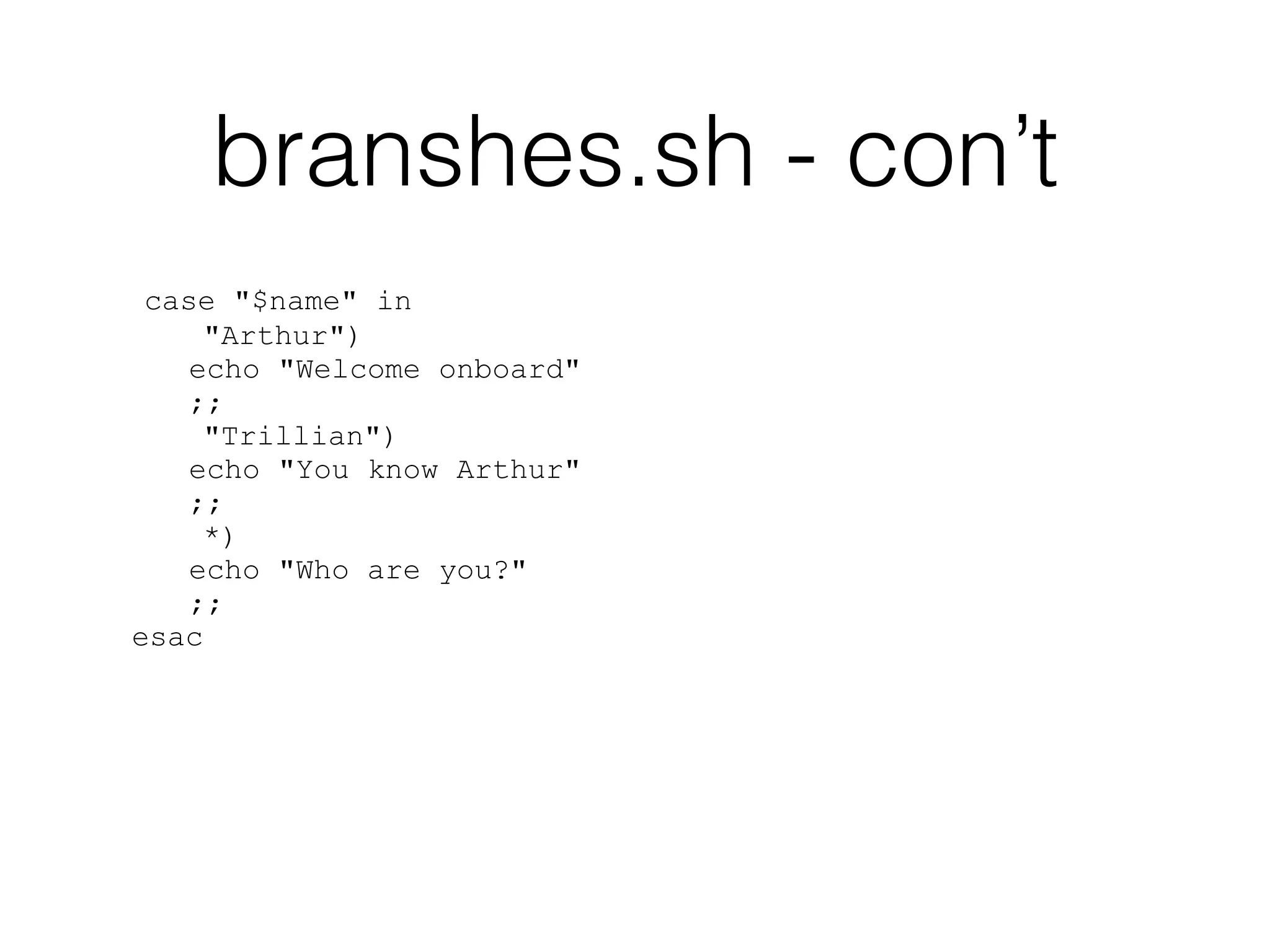
case "$name" in 
"Arthur") 
echo "Welcome onboard" 
;; 
"Trillian") 
echo "You know Arthur" 
;; 
*) 
echo "Who are you?" 
;; 
esac
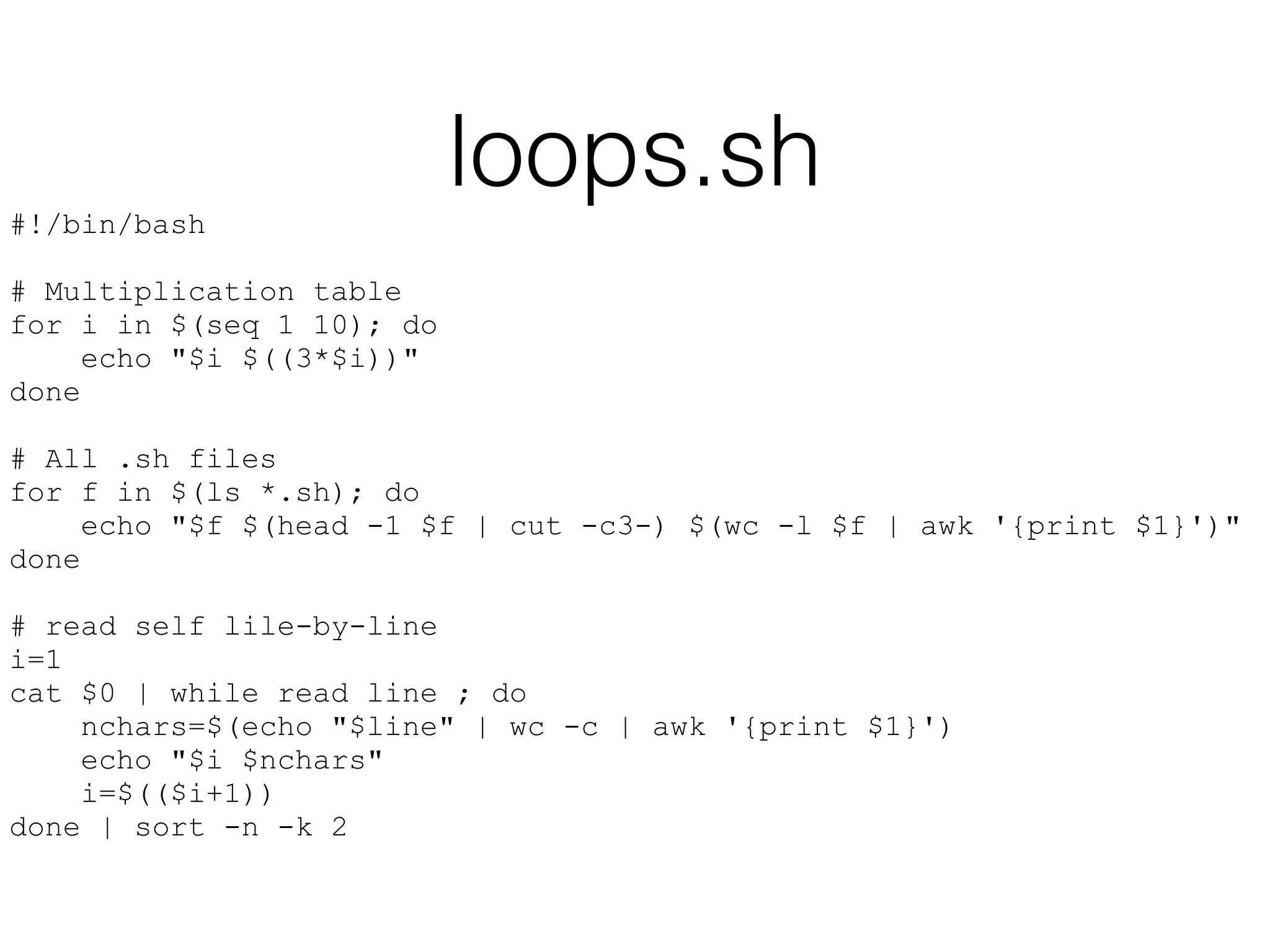
loops.sh 
#!/bin/bash 
! 
# Multiplication table 
for i in $(seq 1 10); do 
echo "$i $((3*$i))" 
done 
! 
# All .sh files 
for f in $(ls *.sh); do 
echo "$f $(head -1 $f | cut -c3-) $(wc -l $f | awk '{print $1}')" 
done 
! 
# read self lile-by-line 
i=1 
cat $0 | while read line ; do 
nchars=$(echo "$line" | wc -c | awk '{print $1}') 
echo "$i $nchars" 
i=$(($i+1)) 
done | sort -n -k 2
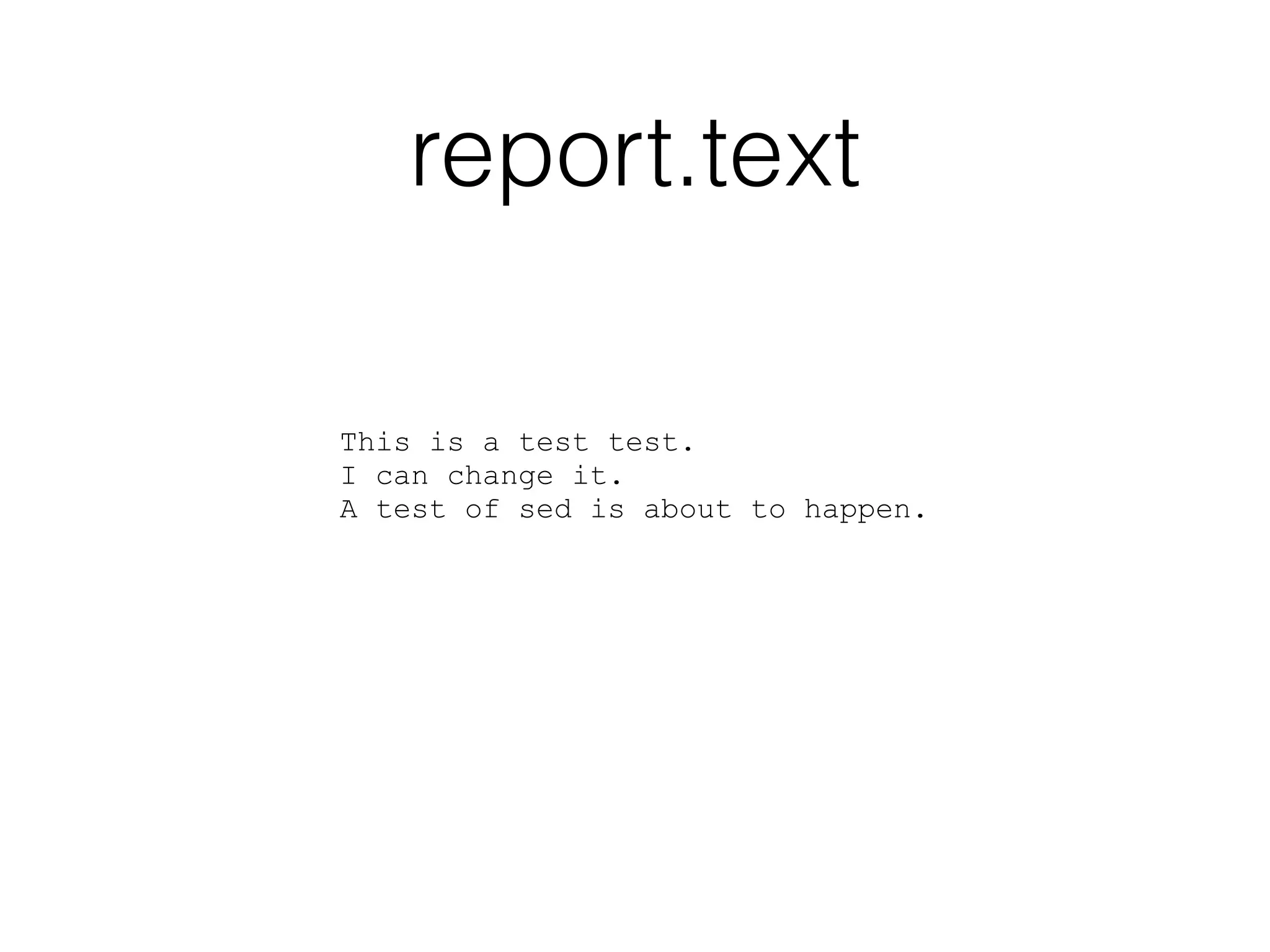
report.text 
This is a test test. 
I can change it. 
A test of sed is about to happen.

Unleash your inner console cowboy

  • 1.
    Unleash your inner console cowboy Kenneth Geisshirt kg@realm.io Realm Inc. @realm http://github.com/Realm/ http://realm.io/ Ivan Constantin, https://www.flickr.com/photos/ivan70s/
  • 2.
    Today’s goal •Present bash as a productivity tool • stop using the mouse  • Write scripts to automate your work • Begin to use advanced tools in your daily work Become a console cowboy
  • 3.
    Agenda • Theterminal and the shell • Basic usage of bash • Living on the command-line • Useful utilities • Scripting • Home brew • Tools for developers • git • Xcode • Cocoapods
  • 4.
    About me •Lives in Tårnby, a suburb of Copenhagen • Education • M.Sc. in computer science and chemistry • Ph.D. in soft condensed matter • Commodore 64 was my first home computer • UNIX user, developer, and sysadmin since 1990 • BSD UNIX (Tahoe), Solaris, Linux, Irix, OS X, … • Tech writer and reviewer • Packt Pub, O’Reilly, Linux Magazine, Alt om DATA • Currently working for Realm as developer Leo Reynolds, https://www.flickr.com/photos/lwr/ Shane Doucette, https://www.flickr.com/photos/lwr/
  • 5.
    About Realm •Founded in 2011 (YC S11) • Funded by Khosla Ventures • Offices in • Copenhagen: 7-8 developers • San Francisco: 3 developers + marketing + management • New database written from scratch • Cross-platform core in C++ • Full ACID • Fast, low footprint, easy to use • Apache License 2.0 We are hiring
  • 6.
  • 7.
    Which terminal? •iTerm2 is much better • Easier to change tab (⌘ left + right, CTRL+TAB) • Change Desktop navigation to ⌥ left + right • Add CTRL left + right to iTerm2 preferences • Keeps SSH connection alive • http://iterm2.com/
  • 8.
    Which shell? StephenR. Bourne (Bell lab) introduced the shell to UNIX in 1977 OS X comes with many shells ➤ bash, csh, ksh, sh, tcsh, and zsh Parée, https://www.flickr.com/photos/pareeerica/ Since 10.3, bash has been the default shell OS X 10.9.4 carries bash 3.2.51 (2010-03-17) Home brew has many great bash related packages
  • 9.
    Redirection UNIX idioms • a tool should do one thing but do it well } Output of one utility is input for the next • text is the universal data format Bash implements redirection: • stdout to file: > • stdin from file < • append stdout to file: >> • stderr to stdout: 2>&1 Examples: echo “Hello” > hello cat < hello echo “World” >> hello clang notfound.m > error 2>&1
  • 10.
    Pipes • Introducedto UNIX by Douglas McIlroy in 1973 • Pipes are the glue in UNIX component based programming (aka shell scripting) • Powerful idiom for stream processing • The character | is used by all known shells "Pipeline" by TyIzaeL - Licensed under Public domain via Wikimedia Commons http://commons.wikimedia.org/wiki/File:Pipeline.svg#mediaviewer/File:Pipeline.svg Examples lsof | grep ^Keynote | wc -l ifconfig | grep -e ^[a-z] | cut -f1 -d:
  • 11.
    Configuration • $HOME/.bash_profileand $HOME/.bashrc are your personal configuration • alias - useful for often used options • Setting prompt (PS1) and search path (PATH) • Reload configuration: source ~/.bash_profile See my .bash_profile at the end
  • 12.
    Keyboard short-cuts •Bash uses Emacs bindings by default  (help bind for details) Movement • CTRL-a beginning of line • CTRL-e end of line • CTRL-← One word left • CTRL-→ One word right Cut-n-paste • CTRL-space mark • ␛ Delete word • CTRL-d Delete character • CTRL-_ undo • CTRL-k delete until end of line • CTRL-y yank from kill-ring Request a demo Remap CTRL-←/→
  • 13.
    History • Bashstores your command history • history - show latest commands • !! - run last command • !number - run command number again • CTRL-r - search in history • Exclude commands from history: • export HISTIGNORE=“pwd:ls:ls -l:cd”
  • 14.
    Completion • UseTAB to let Bash complete as much as possible • Use TAB+TAB to show possible completions • Bash has programmable completion → you can specify what Bash does • Large collections of completion recipes exist (home brew is your friend) Request a demo
  • 15.
    Living on thecommand-line • cd - - go back to previous folder • file file - guess file content (magic numbers) • lsof - list open files • ps (aux or -ef) and top - show processes • Simple watch: while true ; do clear ; command ; sleep n ; done
  • 16.
    OS X specificcommands • open file - Starts registered program and open file • say “Hello world” - speech synthesis (download extra voices/languages in System preferences) • ls | pbcopy - copy stdin to paste board • pbpaste - paste to stdout • dns-sd -B _ssh._tcp - show Bonjour enabled SSH hosts
  • 17.
    Useful utilities Findfiles: find . -name ‘*.o’ -delete Patterns: grep -r list * Cut field: cut -f1,3 -d: /etc/passwd Word count: wc -l *.cpp Transform: tr “ “ “_” < README.org Sort lines: sort -t: -n -r -k 4 /etc/passwd Last lines: tail /etc/passwd First lines: head /etc/passwd Request a demo
  • 18.
    sed - thestream editor • sed is used to edit files non-interactively • Option -E gives an editing (regular) expression • s/FISH/HORSE/g - substitute • /FISH/d - delete lines joinash, https://www.flickr.com/photos/joinash/ Option -i is tricky: • GNU sed has optional extension • BSD sed requires extension (‘’ is useful) Request a demo
  • 19.
    awk - aprocessing tool • awk is a programming language by itself • Matching lines are processed • line is split in fields (spaces are default) A. Aho, P. Weinberger, B. Kernighan Patterns: BEGIN - before opening file END - after closing file Example: adding.sh
  • 20.
    Scripting Examples can be found as lasts slides
  • 21.
    Bash for programmers • Bash is a complete programming language • Shell scripts grow and become ugly  • Execution: • sh script.sh • chmod +x script.sh; ./script.sh • Interpreted language → slow
  • 22.
    Basic syntax •White spaces: space and tab • Comments: # and to end-of- line • Statements: either end-of- line of ; (semicolon) • Variables and functions: Letters, digits and underscore #!/bin/bash # Monte Carlo calculation of pi NSTEPS=500 NHITS=0 i=0 while [ $i -lt $NSTEPS ]; do x=$(echo $RANDOM/32767 | bc -l) y=$(echo $RANDOM/32767 | bc -l) d=$(echo "sqrt($x*$x+$y*$y) < 1.0" | bc -l) if [ $d -eq 1 ]; then NHITS=$(($NHITS + 1)) fi i=$(($i + 1)) done ! PI=$(echo "4.0*$NHITS/$NSTEPS" | bc -l) echo "PI = $PI" Example: pi.sh
  • 23.
    Variables • Case-sensitivenames • No declarations, no types • Strings: “…” are substituted; ‘…’ are not • Assignment (=): no spaces! • $(…) assignment from stdout including spaces • I often use awk ‘{print $1}’ to remove spaces • $((…)) arithmetic • $varname - value of variable varname Built-in variables: • $# is the number of argument • $1, $2, … are the arguments • $$ is the process ID • $? is exit code of last command Example: variables.sh
  • 24.
    Branches • Simplebranching with if then else fi • Enclose condition with [] • elif is possible, too • Use case in esac when you can many cases and single condition String operators: -z is empty? -d is directory? -f is file? == equal to != not equal to Integer operators: -eq equal to -lt less than -ne not equal to -gt greater than Example: branches.sh
  • 25.
    Loops • Simpleloops: for … in … ; do … done • The seq utility can generate list of numbers • Conditional loops: while … ; do … done • Line-by-line: while read line ; do … done One-liner (similar to watch) while [ true ]; do clear; echo $RANDOM; sleep 1; Example: loops.sh done
  • 26.
    Functions • Functionscan increase readability of your scripts • arguments are $1, $2, … • local variables can be used • return an integer and get it as $? • Use global variable to return a string  Example: functions.sh
  • 27.
    Tips and tricks • Use set -e to exit early • or use || exit 1 • set -O pipefail and you can get the exit code of the first failing program in a pipe • xcpretty never fails but xcodebuild might • Use tee to write to stdout and file • To trace (debugging): set -x or sh -x
  • 28.
    Tips and tricks • Always use “$var” when dealing with file names (and strings) • str=“fish horse”; for i in $str; do echo $i; done • str=“fish horse”; for i in “$str”; do echo $i; done • Call mkdir -p when creating folders • Create temp. files with mktemp /tmp/$$.XXXXXX • Using variable to modify behaviour of script: • FLAGS=“-O3 -libc++=stdlibc++” build.sh • Subshells: (cd foo && rm -f bar)
  • 29.
  • 30.
    Home brew •Home brew provides calories for console cowboys • You don’t have to be root to install • Software is installed in /usr/ local/Cellar, and symlinked to / usr/local/bin • Brew cask is for binary distribution • http://brew.sh and http:// caskroom.io Greg Peverill-Conti, https://www.flickr.com/photos/gregpc/ Examples: brew search bash brew info bash brew install bash brew update
  • 31.
    Tools for developers • Apple provides some basic tools • nm - display symbol table • c++filt - Prettify C++ and Java names • otool -L - display which shared libraries are required • libtool - create libraries • lipo - manipulate fat/universal binaries zzpza, https://www.flickr.com/photos/zzpza/ Examples: nm book.o | c++filt otool -L RealmInspector
  • 32.
    git • Homebrew packages: • git, git-extras • Symlink /usr/local/bin/git to / usr/bin • Bash completion works • commands, branches, etc. • Fancy prompt: PS1='u@h:w$(__git_ps1 " (%s)") $ ‘ Examples: git count -all git contrib "Kenneth Geisshirt" git log --graph --simplify-by-decoration --pretty=format:'%d' --all
  • 33.
    Xcode • Youcan build Xcode projects at the command-line xcodebuild -scheme SpainPlain - configuration Release -sdk iphonesimulator • Targets: clean, build, test • You can add shell scripts to build phases
  • 34.
    xcpretty • Theoutput of xcodebuild can be hard to read • xcpretty makes it prettier • Installation: • sudo gem install xcpretty • Usage: • xbuildcode … | xcpretty
  • 35.
    xctool • Yetanother build helper • Installation: • brew install xctool • Usage: • xctool -scheme SpainPlain - configuration Release -sdk iphonesimulator build
  • 36.
    Cocoapods • Dependencyand build system for iOS and OS X developers • Installation: • sudo gem install cocoapods • Usage • Create a new Xcode project and quit Xcode • Edit Podfile and run pod install • Open workspace in Xcode • http://cocoapods.org
  • 37.
    Further information •Classical Shell Scripting. R. Arnolds and N.H.F. Beebe. O’Reilly Media, 2005. • The sed FAQ: http://sed.sourceforge.net/ sedfaq.html • Advanced Bash-Scripting Guide: http:// www.tldp.org/LDP/abs/html/ http://realm.io We are hiring
  • 38.
    varriables.sh #!/bin/bash message_1="Hello" message_2="World" message="$message_1 $message_2" echo $message ! nusers=$(grep -v ^# /etc/passwd | wc -l | awk '{print $1}') echo "Number of users: $nusers" ! answer=$((6*7)) echo "The life, the universe, and everything: $answer"
  • 39.
  • 40.
    .bash_profile # Ignorea few commands in history export HISTIGNORE="pwd:ls:ls -l:cd" # don't put duplicate lines in the history. See bash(1) for more options # don't overwrite GNU Midnight Commander's setting of `ignorespace'. HISTCONTROL=$HISTCONTROL${HISTCONTROL+:}ignoredups # ... or force ignoredups and ignorespace HISTCONTROL=ignoreboth ! # Bash completion if [ -f $(brew --prefix)/etc/bash_completion ]; then . $(brew --prefix)/etc/bash_completion fi if [ -f $(brew --prefix)/share/bash-completion/bash_completion ]; then . $(brew --prefix)/share/bash-completion/bash_completion fi ! # Prompt - including git PS1='u@h:w$(__git_ps1 " (%s)") $ '
  • 41.
    .bash_profile - con’t # Color ls etc. alias ls="ls -G" alias ll="ls -l" alias fuck='sudo $(history -p !!)' # rerun as root ! # Building export MAKEFLAGS=-j4 ! # LejOS export NXJ_HOME=$HOME/local/leJOS_NXJ_0.9.1beta-3 export PATH=$PATH:$NXJ_HOME/bin
  • 42.
    adding.sh #!/bin/bash ! tmpfile="$(mktemp /tmp/$$.XXXXXX)" for i in $(seq 1 20); do echo $RANDOM >> "$tmpfile" done awk 'BEGIN {total=0 } END { print total } { total+=$1 }' $tmpfile rm -f "$tmpfile"
  • 43.
    branches.sh #!/bin/bash ! if [ -z "$1" ]; then name="Arthur" else name="$1" fi ! if [ "$name" != "Arthur" ]; then echo "Not Arthur" else echo "Hello Arthur" fi ! answer=$((6*7)) if [ $answer -eq 42 ]; then echo "Life, the universe, and everything" fi
  • 44.
    branshes.sh - con’t case "$name" in "Arthur") echo "Welcome onboard" ;; "Trillian") echo "You know Arthur" ;; *) echo "Who are you?" ;; esac
  • 45.
    loops.sh #!/bin/bash ! # Multiplication table for i in $(seq 1 10); do echo "$i $((3*$i))" done ! # All .sh files for f in $(ls *.sh); do echo "$f $(head -1 $f | cut -c3-) $(wc -l $f | awk '{print $1}')" done ! # read self lile-by-line i=1 cat $0 | while read line ; do nchars=$(echo "$line" | wc -c | awk '{print $1}') echo "$i $nchars" i=$(($i+1)) done | sort -n -k 2
  • 46.
    report.text This isa test test. I can change it. A test of sed is about to happen.