Photoshop: A
Comprehensive
Overview
Photoshop is a powerful image editing software used by professionals and
hobbyists alike. It offers a wide range of tools and features for creating,
editing, and enhancing images.
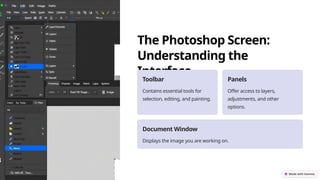
The Photoshop Screen:
Understanding the
Interface
Toolbar
Contains essential tools for
selection, editing, and painting.
Panels
Offer access to layers,
adjustments, and other
options.
Document Window
Displays the image you are working on.
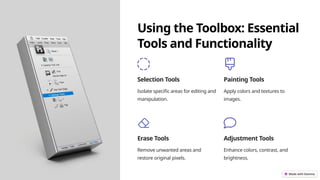
Using the Toolbox: Essential
Tools and Functionality
Selection Tools
Isolate specific areas for editing and
manipulation.
Painting Tools
Apply colors and textures to
images.
Erase Tools
Remove unwanted areas and
restore original pixels.
Adjustment Tools
Enhance colors, contrast, and
brightness.
Document and Scratch Sizes: Setting the Canvas
Document Size
Determines the overall dimensions of the image.
Scratch Size
Defines the area available for temporary work, like brushes
and selections.
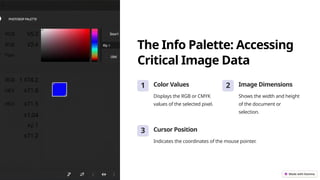
The Info Palette: Accessing
Critical Image Data
1 Color Values
Displays the RGB or CMYK
values of the selected pixel.
2 Image Dimensions
Shows the width and height
of the document or
selection.
3 Cursor Position
Indicates the coordinates of the mouse pointer.
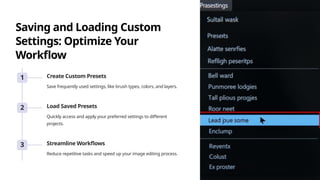
Saving and Loading Custom
Settings: Optimize Your
Workflow
1 Create Custom Presets
Save frequently used settings, like brush types, colors, and layers.
2 Load Saved Presets
Quickly access and apply your preferred settings to different
projects.
3 Streamline Workflows
Reduce repetitive tasks and speed up your image editing process.
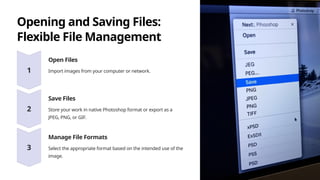
Opening and Saving Files:
Flexible File Management
Open Files
Import images from your computer or network.
Save Files
Store your work in native Photoshop format or export as a
JPEG, PNG, or GIF.
Manage File Formats
Select the appropriate format based on the intended use of the
image.
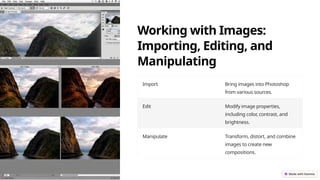
Working with Images:
Importing, Editing, and
Manipulating
Import Bring images into Photoshop
from various sources.
Edit Modify image properties,
including color, contrast, and
brightness.
Manipulate Transform, distort, and combine
images to create new
compositions.
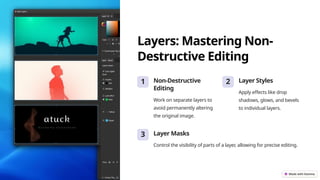
Layers: Mastering Non-
Destructive Editing
1 Non-Destructive
Editing
Work on separate layers to
avoid permanently altering
the original image.
2 Layer Styles
Apply effects like drop
shadows, glows, and bevels
to individual layers.
3 Layer Masks
Control the visibility of parts of a layer, allowing for precise editing.
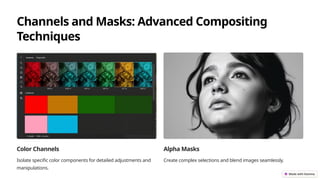
Channels and Masks: Advanced Compositing
Techniques
Color Channels
Isolate specific color components for detailed adjustments and
manipulations.
Alpha Masks
Create complex selections and blend images seamlessly.

Unit 5 PC package Introduction to Photoshop

  • 1.
    Photoshop: A Comprehensive Overview Photoshop isa powerful image editing software used by professionals and hobbyists alike. It offers a wide range of tools and features for creating, editing, and enhancing images.
  • 2.
    The Photoshop Screen: Understandingthe Interface Toolbar Contains essential tools for selection, editing, and painting. Panels Offer access to layers, adjustments, and other options. Document Window Displays the image you are working on.
  • 3.
    Using the Toolbox:Essential Tools and Functionality Selection Tools Isolate specific areas for editing and manipulation. Painting Tools Apply colors and textures to images. Erase Tools Remove unwanted areas and restore original pixels. Adjustment Tools Enhance colors, contrast, and brightness.
  • 4.
    Document and ScratchSizes: Setting the Canvas Document Size Determines the overall dimensions of the image. Scratch Size Defines the area available for temporary work, like brushes and selections.
  • 5.
    The Info Palette:Accessing Critical Image Data 1 Color Values Displays the RGB or CMYK values of the selected pixel. 2 Image Dimensions Shows the width and height of the document or selection. 3 Cursor Position Indicates the coordinates of the mouse pointer.
  • 6.
    Saving and LoadingCustom Settings: Optimize Your Workflow 1 Create Custom Presets Save frequently used settings, like brush types, colors, and layers. 2 Load Saved Presets Quickly access and apply your preferred settings to different projects. 3 Streamline Workflows Reduce repetitive tasks and speed up your image editing process.
  • 7.
    Opening and SavingFiles: Flexible File Management Open Files Import images from your computer or network. Save Files Store your work in native Photoshop format or export as a JPEG, PNG, or GIF. Manage File Formats Select the appropriate format based on the intended use of the image.
  • 8.
    Working with Images: Importing,Editing, and Manipulating Import Bring images into Photoshop from various sources. Edit Modify image properties, including color, contrast, and brightness. Manipulate Transform, distort, and combine images to create new compositions.
  • 9.
    Layers: Mastering Non- DestructiveEditing 1 Non-Destructive Editing Work on separate layers to avoid permanently altering the original image. 2 Layer Styles Apply effects like drop shadows, glows, and bevels to individual layers. 3 Layer Masks Control the visibility of parts of a layer, allowing for precise editing.
  • 10.
    Channels and Masks:Advanced Compositing Techniques Color Channels Isolate specific color components for detailed adjustments and manipulations. Alpha Masks Create complex selections and blend images seamlessly.