txGradebook

       Orientation
Presented By: Jennifer Lopez & Nino Trevino

              August 22, 2012
Gradebook Orientation Agenda

•   How to Create a New User Account
•   How to Reset your Password
•   How to Create Categories
•   How to Create Assignments
•   Entering Grades
•   IPR Comments
•   Student Information
•   Taking Attendance
How to Create a New
   User Account
How to Create a New User Account- Step 1

• Regardless of whether or not you had an account
  last year, EVERYONE will have to make a create a
  new account.
• Log onto http://www.poteetisd.org/txgradebook
• To the top right side of the page click on New User?
How to Create a New User Account- Step 2

• For Staff ID, fill in with your Social Security number, no
  dashes. Then type in your Last Name and first initial.
How to Create a New User Account- Step 3

• Now fill in all the information in the boxes.
• For your username please use your first initial and
  last name. (Example: jlopez, ctrevino, hbrumage).
• For your password you have to make sure it has at
  least one capital letter, one number and it has to
  be between 6-9 characters in all.
• Make sure to write all the information down in case
  you forget it.
• Now you have a new account that you can log
  into Gradebook with.
How to Reset Your
   Password
How to Reset Your Password

• If you forget your password and try to login three
  times unsuccessfully, the system will lock you out.
  The only way you will be able to unlock your
  account is to let Linda Garcia know and she will
  unlock it for you.
• If you think you have forgotten your password, it is
  better to change your password before you lock
  yourself out.
How to Reset Your Password
• If you have forgotten your password and haven’t
  locked yourself out, you will then need to go to the
  main Gradebook login page.
• Click on Forget your password?
How to Reset Your Password- Step 1 & 2
• Fill in the information. Remember you Staff ID is your Social
  Security number.

• You will then have to answer one of your security questions.
How to Reset Your Password- Step 3
• You will then be asked to create a new password.

• You can also create a new pin number or leave it the same.

• You have now reset your password.
How to Create Categories
Categories
There will be 3 categories all teachers will use.

                Formative-55%
                 • Daily Work
                • Participation
                 • Homework

               Summative- 35%
                  • Tests
                 • Quizzes
                 • Projects

          6 Weeks Assessments-10 %
              • End of Course
Categories Cont.
•   Teachers can still choose the assignments and which category the
    assignment falls under .

•   *Dual Credit - your concerns have been considered and it was determined
    that these categories will also apply to you. The special weighting applies to
    transcripts and final grades, not categories within Gradebook.

•   All that being said - there are going to be some classes such as PE, where
    these categories will not apply.

•   Please communicate all issues or special circumstances with either Mr.
    Trevino, Ms. Lopez or myself so we can work with central to get you what you
    need.
How to create Categories- Step 1
•   Under the tab Settings click on Administer Categories.
•   On the left side of the page there will be a list of available
    categories to choose from for your classes. These categories were
    determined during your department meetings.
•   Click on which category you would like to use and drag it to the
    left under Selected Categories.
How to create Categories- Step 2
• Once you have chosen the categories you want to
  use, put in your pin number & save your categories.
• Remember that all the categories must equal 100.
How to create Categories- Step 3
• Once you save the categories, you will then need to
  copy them to your other courses.
• To do this, click on Copy categories to other course
  sections.
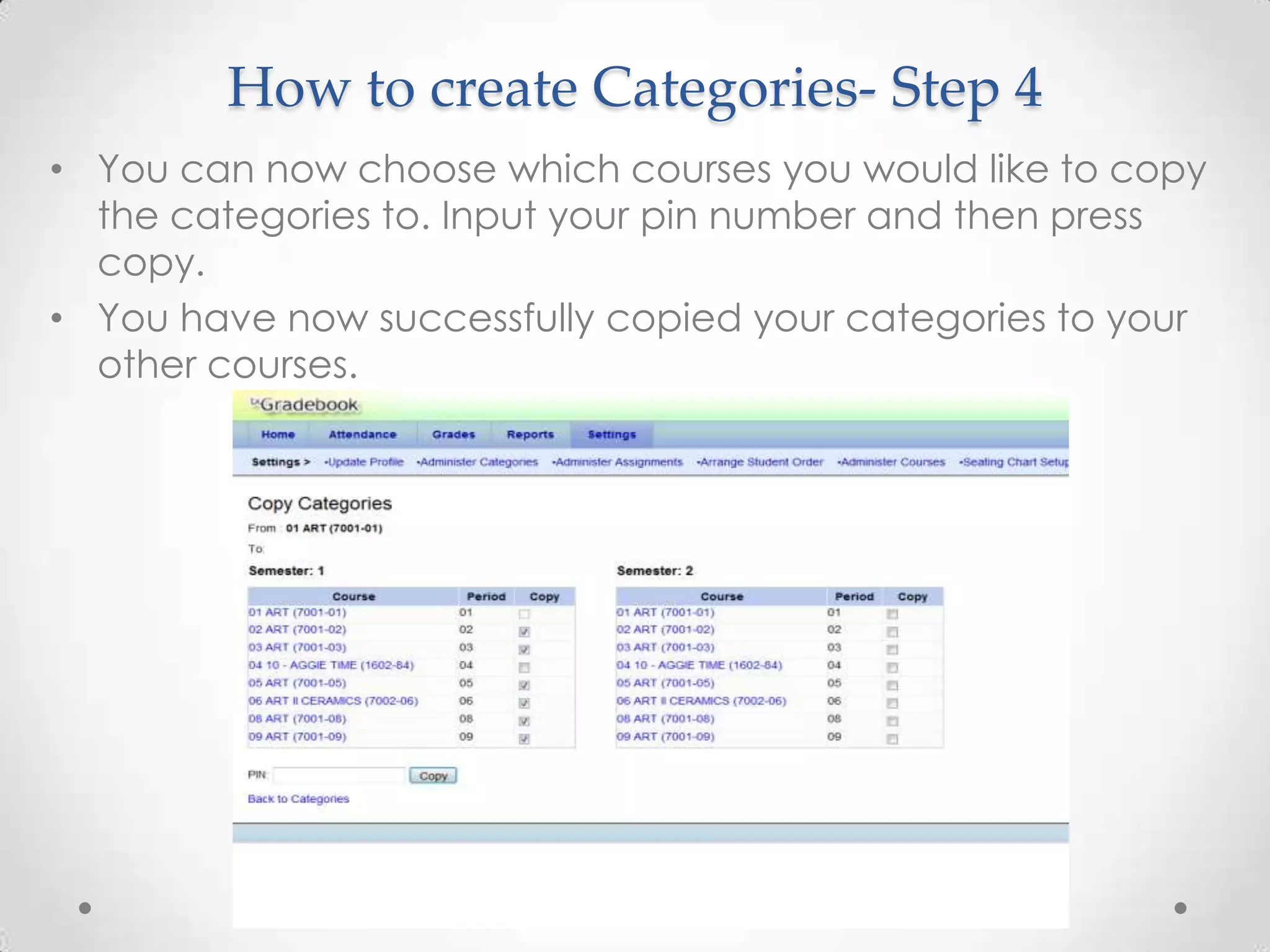
How to create Categories- Step 4
• You can now choose which courses you would like to copy
  the categories to. Input your pin number and then press
  copy.
• You have now successfully copied your categories to your
  other courses.
How to Create
Assignments
How to Create Assignments- Step 1
• Make sure you have created categories for all your
  courses or you will not be able to create
  assignments.
• Click on the Settings tab and then click on
  Administer Assignments.
How to Create Assignments- Step 2
• You will now be able to create assignments for your courses.
• You will have the option of what to name your assignments,
  the category in which it belongs, the dates it is assigned and
  due and how many points it is worth. It is important to input this
  information so when the students’ parents are looking at them
  they can determine what assignment their child is missing and
  the information about it. Once you have made all your
  assignments, input your pin number and save them.
How to Create Assignments- Step 3
• Now you can copy these assignments to other courses.
• Click on copy course assignments to other another course
  section/cycle towards the bottom of the page.
• You can now choose what assignments you wish to copy to
  your other courses and which for which cycles. Input your pin
  number and press copy.
Things to remember when entering grades.
• You need to input at least two grades per week
  and two test grades per six weeks.

• Never leave blanks on assignments for those which
  the due dates have passed. Remember to input a
  zero.
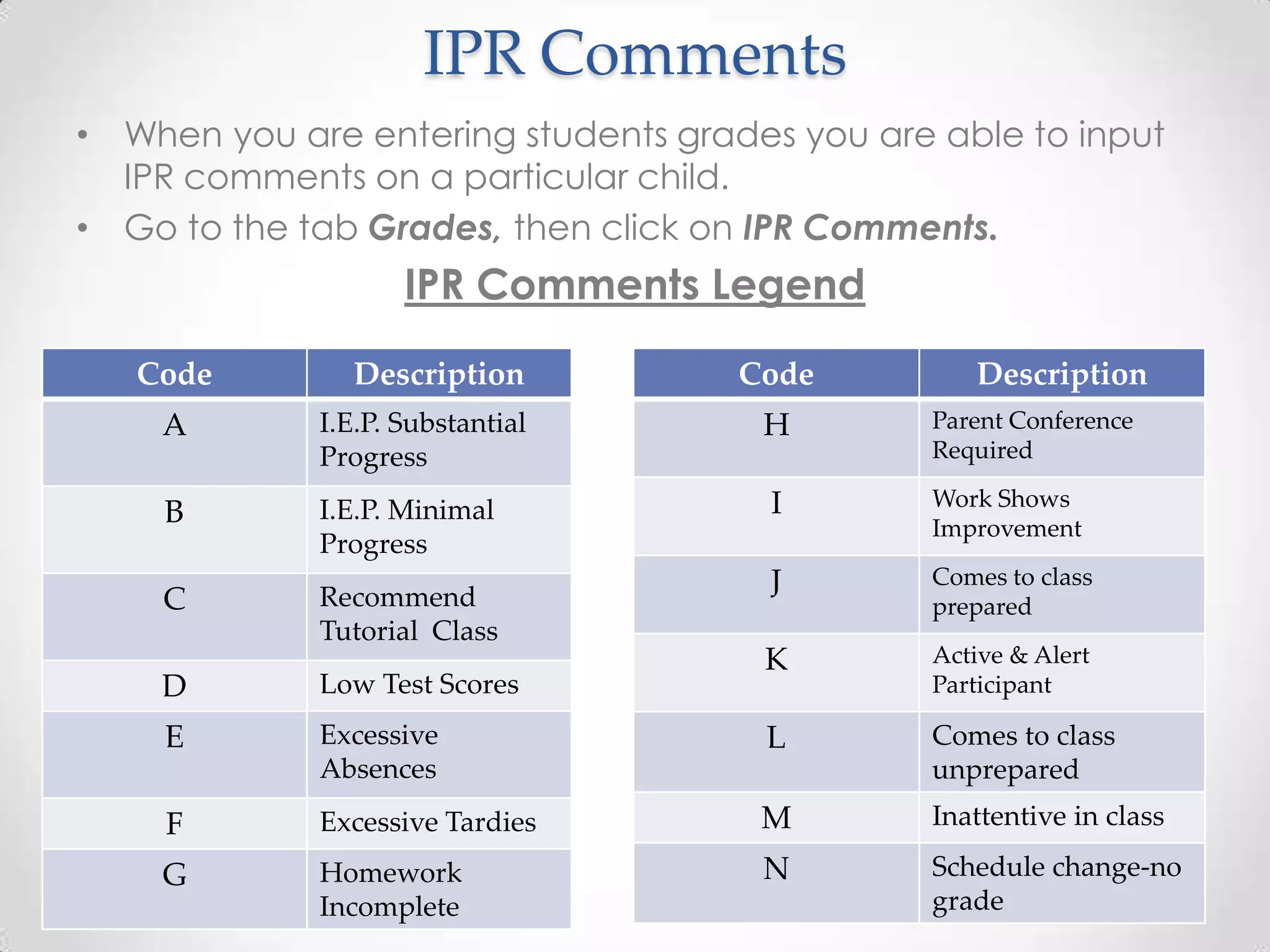
IPR Comments
• When you are entering students grades you are able to input
  IPR comments on a particular child.
• Go to the tab Grades, then click on IPR Comments.
                    IPR Comments Legend

   Code        Description           Code         Description
    A        I.E.P. Substantial       H        Parent Conference
             Progress                          Required

             I.E.P. Minimal           I        Work Shows
    B                                          Improvement
             Progress
                                      J        Comes to class
    C        Recommend                         prepared
             Tutorial Class
                                      K        Active & Alert
    D        Low Test Scores                   Participant

    E        Excessive                L        Comes to class
             Absences                          unprepared
     F       Excessive Tardies        M        Inattentive in class

    G        Homework                 N        Schedule change-no
             Incomplete                        grade
Student Information
Student Information
• To find information on a particular student in your classes, click
  on the Student ID Number to right of their name.


             Lopez, Jennifer
Student Information
• You can now see information on a particular student such as
  their contact information, attendance record, class schedule
  and TAKS scores.
Taking Attendance
Taking Attendance
• Under the Attendance tab click Post/View Attendance.
  This is where you will post your daily attendance. Once
  you have made the necessary changes input your pin
  number and post it.
Questions
If you have any questions on Gradebook feel free
to get ahold of us at anytime. Email us and we try to
address your needs as soon as possible.

  Jennifer Lopez
  Email:
  jlopez@poteetisd.org

  Nino Trevino
  Email:
  ctrevino@poteetisd.org

Tx Gradebook Orientation

  • 1.
    txGradebook Orientation Presented By: Jennifer Lopez & Nino Trevino August 22, 2012
  • 2.
    Gradebook Orientation Agenda • How to Create a New User Account • How to Reset your Password • How to Create Categories • How to Create Assignments • Entering Grades • IPR Comments • Student Information • Taking Attendance
  • 3.
    How to Createa New User Account
  • 4.
    How to Createa New User Account- Step 1 • Regardless of whether or not you had an account last year, EVERYONE will have to make a create a new account. • Log onto http://www.poteetisd.org/txgradebook • To the top right side of the page click on New User?
  • 5.
    How to Createa New User Account- Step 2 • For Staff ID, fill in with your Social Security number, no dashes. Then type in your Last Name and first initial.
  • 6.
    How to Createa New User Account- Step 3 • Now fill in all the information in the boxes. • For your username please use your first initial and last name. (Example: jlopez, ctrevino, hbrumage). • For your password you have to make sure it has at least one capital letter, one number and it has to be between 6-9 characters in all. • Make sure to write all the information down in case you forget it. • Now you have a new account that you can log into Gradebook with.
  • 7.
    How to ResetYour Password
  • 8.
    How to ResetYour Password • If you forget your password and try to login three times unsuccessfully, the system will lock you out. The only way you will be able to unlock your account is to let Linda Garcia know and she will unlock it for you. • If you think you have forgotten your password, it is better to change your password before you lock yourself out.
  • 9.
    How to ResetYour Password • If you have forgotten your password and haven’t locked yourself out, you will then need to go to the main Gradebook login page. • Click on Forget your password?
  • 10.
    How to ResetYour Password- Step 1 & 2 • Fill in the information. Remember you Staff ID is your Social Security number. • You will then have to answer one of your security questions.
  • 11.
    How to ResetYour Password- Step 3 • You will then be asked to create a new password. • You can also create a new pin number or leave it the same. • You have now reset your password.
  • 12.
    How to CreateCategories
  • 13.
    Categories There will be3 categories all teachers will use. Formative-55% • Daily Work • Participation • Homework Summative- 35% • Tests • Quizzes • Projects 6 Weeks Assessments-10 % • End of Course
  • 14.
    Categories Cont. • Teachers can still choose the assignments and which category the assignment falls under . • *Dual Credit - your concerns have been considered and it was determined that these categories will also apply to you. The special weighting applies to transcripts and final grades, not categories within Gradebook. • All that being said - there are going to be some classes such as PE, where these categories will not apply. • Please communicate all issues or special circumstances with either Mr. Trevino, Ms. Lopez or myself so we can work with central to get you what you need.
  • 15.
    How to createCategories- Step 1 • Under the tab Settings click on Administer Categories. • On the left side of the page there will be a list of available categories to choose from for your classes. These categories were determined during your department meetings. • Click on which category you would like to use and drag it to the left under Selected Categories.
  • 16.
    How to createCategories- Step 2 • Once you have chosen the categories you want to use, put in your pin number & save your categories. • Remember that all the categories must equal 100.
  • 17.
    How to createCategories- Step 3 • Once you save the categories, you will then need to copy them to your other courses. • To do this, click on Copy categories to other course sections.
  • 18.
    How to createCategories- Step 4 • You can now choose which courses you would like to copy the categories to. Input your pin number and then press copy. • You have now successfully copied your categories to your other courses.
  • 19.
  • 20.
    How to CreateAssignments- Step 1 • Make sure you have created categories for all your courses or you will not be able to create assignments. • Click on the Settings tab and then click on Administer Assignments.
  • 21.
    How to CreateAssignments- Step 2 • You will now be able to create assignments for your courses. • You will have the option of what to name your assignments, the category in which it belongs, the dates it is assigned and due and how many points it is worth. It is important to input this information so when the students’ parents are looking at them they can determine what assignment their child is missing and the information about it. Once you have made all your assignments, input your pin number and save them.
  • 22.
    How to CreateAssignments- Step 3 • Now you can copy these assignments to other courses. • Click on copy course assignments to other another course section/cycle towards the bottom of the page. • You can now choose what assignments you wish to copy to your other courses and which for which cycles. Input your pin number and press copy.
  • 23.
    Things to rememberwhen entering grades. • You need to input at least two grades per week and two test grades per six weeks. • Never leave blanks on assignments for those which the due dates have passed. Remember to input a zero.
  • 24.
    IPR Comments • Whenyou are entering students grades you are able to input IPR comments on a particular child. • Go to the tab Grades, then click on IPR Comments. IPR Comments Legend Code Description Code Description A I.E.P. Substantial H Parent Conference Progress Required I.E.P. Minimal I Work Shows B Improvement Progress J Comes to class C Recommend prepared Tutorial Class K Active & Alert D Low Test Scores Participant E Excessive L Comes to class Absences unprepared F Excessive Tardies M Inattentive in class G Homework N Schedule change-no Incomplete grade
  • 25.
  • 26.
    Student Information • Tofind information on a particular student in your classes, click on the Student ID Number to right of their name. Lopez, Jennifer
  • 27.
    Student Information • Youcan now see information on a particular student such as their contact information, attendance record, class schedule and TAKS scores.
  • 28.
  • 29.
    Taking Attendance • Underthe Attendance tab click Post/View Attendance. This is where you will post your daily attendance. Once you have made the necessary changes input your pin number and post it.
  • 30.
    Questions If you haveany questions on Gradebook feel free to get ahold of us at anytime. Email us and we try to address your needs as soon as possible. Jennifer Lopez Email: jlopez@poteetisd.org Nino Trevino Email: ctrevino@poteetisd.org