2020Copyright ⓒ Turnitin LLC
Turnitin (Feedback Studio) tutorial
for Instructors
1
Updated : 202002
2
Turnitin Korea
www.turnitin.com
www.turnitin.com/ko
16F, Tower Bdlg., Jongro5gil 7, Jongro-gu Seoul (Postal code: 03157)
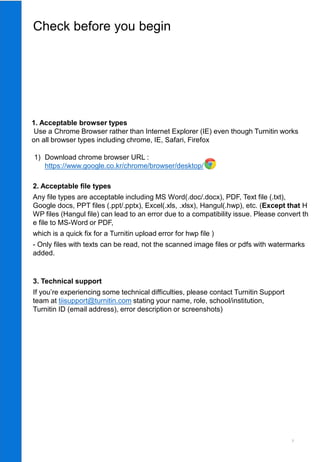
1. Acceptable browser types
Use a Chrome Browser rather than Internet Explorer (IE) even though Turnitin works
on all browser types including chrome, IE, Safari, Firefox
3
1) Download chrome browser URL :
https://www.google.co.kr/chrome/browser/desktop/
Check before you begin
3. Technical support
If you’re experiencing some technical difficulties, please contact Turnitin Support
team at tiisupport@turnitin.com stating your name, role, school/institution,
Turnitin ID (email address), error description or screenshots)
2. Acceptable file types
Any file types are acceptable including MS Word(.doc/.docx), PDF, Text file (.txt),
Google docs, PPT files (.ppt/.pptx), Excel(.xls, .xlsx), Hangul(.hwp), etc. (Except that H
WP files (Hangul file) can lead to an error due to a compatibility issue. Please convert th
e file to MS-Word or PDF,
which is a quick fix for a Turnitin upload error for hwp file )
- Only files with texts can be read, not the scanned image files or pdfs with watermarks
added.
4
• Open welcome mail from Turnitin with a sender Turnitin No Reply
1. Email your school/institution’s Turnitin admin with the following details:
Title: Turnitin instructor account
Include: your school, department, name, role, and email address (preferably school
email)
1) You can find Turnitin admin info on your school library or graduate school website.
If you can’t, please contact koreasales@turnitin.com if you can’t find the Turnitin
admin info of your school.
2. Once your school’s Turnitin admin adds you to the system, you’ll receive an
automatic email from Turnitin No-reply. Check your email inbox and open the
email from Turnitin No-reply.
• Click [시작하기] (Begin) -> Click [비밀번호 만들기] (Create password)
5
continued
• Click the first url to change your password
1. Type in your email address and your last name and click [next], then
you’ll receive an automatic email to change your password.)
2. Check your inbox and click the email from Turnitin No-reply.)
3. There are two different ways of using Turnitin depending on your purpose:
1) Checking your research paper for originality: refer to this manual pp. 6-11
2) Checking your students’ papers and give feedback through Turnitin
Online Class: refer to this manual pp. 12-15, pp. 9-11
6
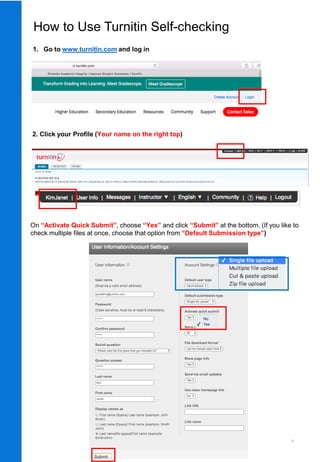
1. Go to www.turnitin.com and log in
How to Use Turnitin Self-checking
2. Click your Profile (Your name on the right top)
On “Activate Quick Submit”, choose “Yes” and click “Submit” at the bottom. (If you like to
check multiple files at once, choose that option from “Default Submission type”)
7
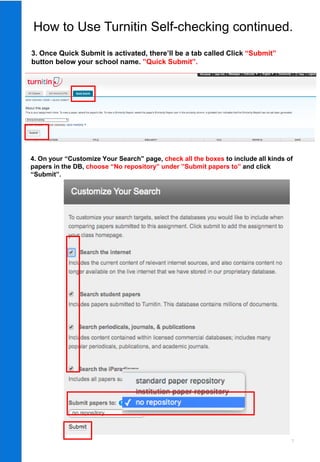
3. Once Quick Submit is activated, there’ll be a tab called Click “Submit”
button below your school name. ”Quick Submit”.
4. On your “Customize Your Search” page, check all the boxes to include all kinds of
papers in the DB, choose “No repository” under ”Submit papers to” and click
“Submit”.
How to Use Turnitin Self-checking continued.
8
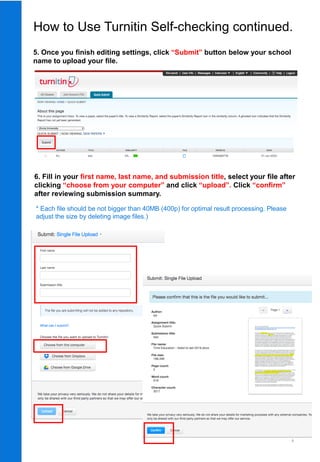
5. Once you finish editing settings, click “Submit” button below your school
name to upload your file.
6. Fill in your first name, last name, and submission title, select your file after
clicking “choose from your computer” and click “upload”. Click “confirm”
after reviewing submission summary.
* Each file should be not bigger than 40MB (400p) for optimal result processing. Please
adjust the size by deleting image files.)
How to Use Turnitin Self-checking continued.
9
How to understand Turnitin’s Originality Reports
1. Your originality results will be ready in 5 minutes. Refresh the page or click F5.
2. Click the first button in the red section to see the match overview.
Once you see the colored box and the percentage under Similarity, your results are
ready. Please click the colored box or the Similarity index (number) to access the result
page.
1)
2)
3)
4)
5)
5)
1) Originality Index: The number you see (ex. 43) is the Originality index and not plagiarism.
Upon clicking this number, you can see the match overview. When clicking each matched
source, you’ll be directed to the matched parts in context in the paper.
2) March breakdown: This button shows you all the marched sources in details. You also can
exclude some sources by double clicking them and select “exclude sources”
3) Filter: You can exclude direct quotes (Parts in double quotation marks),
bibliography (parts under “references”) from your originality results
4) Undo: Reset settings of 3) button
5) Download: downloading the pdf of the results (click [current view])
Upon clicking the 1) button (Originality index button), you can see the match overview
of matched sources. If you need to download the results and hand in the pdf copy of
this to the school or the office, please click 5) button.
10
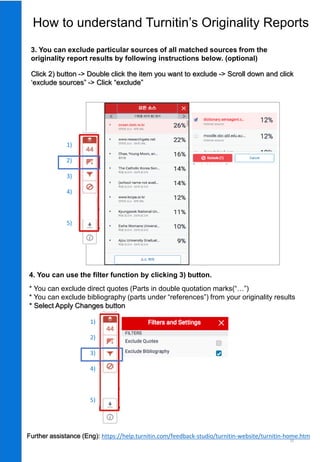
3. You can exclude particular sources of all matched sources from the
originality report results by following instructions below. (optional)
Click 2) button -> Double click the item you want to exclude -> Scroll down and click
‘exclude sources” -> Click “exclude”
4. You can use the filter function by clicking 3) button.
* You can exclude direct quotes (Parts in double quotation marks(“…”)
* You can exclude bibliography (parts under “references”) from your originality results
* Select Apply Changes button
1)
2)
3)
4)
5)
5)
1)
2)
3)
4)
5)
5)
How to understand Turnitin’s Originality Reports
Further assistance (Eng): https://help.turnitin.com/feedback-studio/turnitin-website/turnitin-home.htm
11
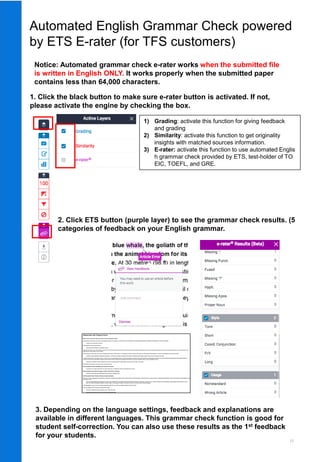
Automated English Grammar Check powered
by ETS E-rater (for TFS customers)
Notice: Automated grammar check e-rater works when the submitted file
is written in English ONLY. It works properly when the submitted paper
contains less than 64,000 characters.
1. Click the black button to make sure e-rater button is activated. If not,
please activate the engine by checking the box.
1) Grading: activate this function for giving feedback
and grading
2) Similarity: activate this function to get originality
insights with matched sources information.
3) E-rater: activate this function to use automated Englis
h grammar check provided by ETS, test-holder of TO
EIC, TOEFL, and GRE.
2. Click ETS button (purple layer) to see the grammar check results. (5
categories of feedback on your English grammar.
3. Depending on the language settings, feedback and explanations are
available in different languages. This grammar check function is good for
student self-correction. You can also use these results as the 1st feedback
for your students.
12
How to use Turnitin Online Class (Adding class)
1. Once you log in, you’ll be directed to your class page. Click [+Add class]
button to create a class.
3. Click [+Add assignment] button.
1) Class type: [Standard]
2) Class name
3) Enrollment key: make your own enrollment key (4-12 numbers or English
letters ex. 1234, 2020class)
4) Subject area
5) Student level: Undergraduate, Graduate, etc.
6) Class start date
7) Class end date
8) Click [Submit]
8) Click [Continue] on the new pop-up page
2. Fill in the form for creating a class.
Once you click [submit] button, the class ID
will be generated. Students will use this
class ID and the enrollment key you made
to enroll in this class.
Turnitin Online Class for instructors is to check students’ papers to prevent
plagiarism and give feedback. If you’re using Moodle classes, use Turnitin classes
on Moodle (creating classes, assignments, students uploading assignments, giving
feedback, and grading). This is for instructors who don’t use Moodle and want to run
online classes on www.turnitin.com
13
4. On [+Optional settings] : Choose [On due date] for “Generate Originality Reports
for student submissions”
1) Assignment title
2) Point value: 0~100
3) Start date
4) Due date
5) Post date: the date that marks and
feedback are released to students
6) [+Optional settings]
How to use Turnitin Online Class (Adding
assignment)
3. Click [+Add assignment] button.
Enter special instructions to your students about the assignment
Select whether you wish to allow submissions after the due date of
the assignment.
Select whether you would like Originality Reports to be ge
nerated for submissions to the assignment.
14
Student papers submitted to the
assignment are checked against
other institutions' student submis
sions.
5. On [+Optional settings] : Choose [Standard paper repository] for
“Submit papers to”
6. You can change the assignment
settings here:
How to use Turnitin Online Class (Adding
assignment) continued.
15
6. 클래스와 과제 생성이 완료되었으면, 학생들을 등록시킵니다.
As soon as students are added to a class a confirmation Email is sent to the E-mai
l address provided.
If the student has an existing user profile, the confirmation Email contains only notifi
cation of the new class enrollment.
If the Email address used was not for an existing student user in the Turnitin syste
m, the confirmation Email will allow the student to create their password.
New student user profiles that have never logged in are indicated with a pink highli
ght over the enrollment date to the left of the student name on the student list page.
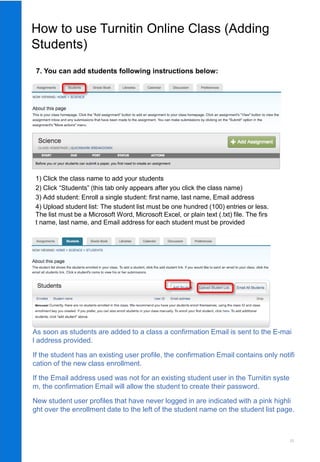
1) Click the class name to add your students
2) Click “Students” (this tab only appears after you click the class name)
3) Add student: Enroll a single student: first name, last name, Email address
4) Upload student list: The student list must be one hundred (100) entries or less.
The list must be a Microsoft Word, Microsoft Excel, or plain text (.txt) file. The firs
t name, last name, and Email address for each student must be provided
How to use Turnitin Online Class (Adding
Students)
7. You can add students following instructions below:
16
8. 본 매뉴얼 pp. 10-11을 통해 유사도 결과 방법 확인. 빨간색 바(Bar) 버튼을 이용
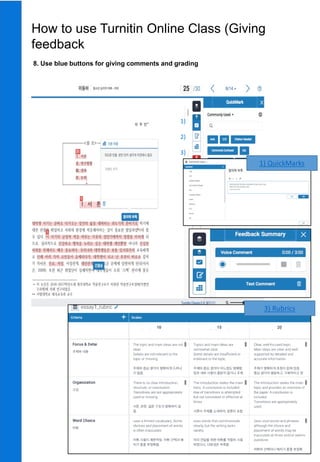
8. Use blue buttons for giving comments and grading
How to use Turnitin Online Class (Giving
feedback
1)
2)
3)
1) QuickMarks
3) Rubrics
17
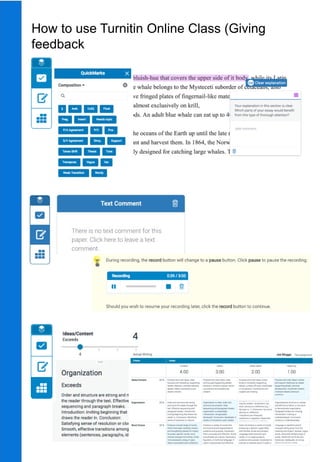
8. 본 매뉴얼 pp. 10-11을 통해 유사도 결과 방법 확인. 빨간색 바(Bar) 버튼을 이용
How to use Turnitin Online Class (Giving
feedback

Turnitin Manual for Instructors_eng.pdf

  • 1.
    2020Copyright ⓒ TurnitinLLC Turnitin (Feedback Studio) tutorial for Instructors 1 Updated : 202002
  • 2.
    2 Turnitin Korea www.turnitin.com www.turnitin.com/ko 16F, TowerBdlg., Jongro5gil 7, Jongro-gu Seoul (Postal code: 03157)
  • 3.
    1. Acceptable browsertypes Use a Chrome Browser rather than Internet Explorer (IE) even though Turnitin works on all browser types including chrome, IE, Safari, Firefox 3 1) Download chrome browser URL : https://www.google.co.kr/chrome/browser/desktop/ Check before you begin 3. Technical support If you’re experiencing some technical difficulties, please contact Turnitin Support team at tiisupport@turnitin.com stating your name, role, school/institution, Turnitin ID (email address), error description or screenshots) 2. Acceptable file types Any file types are acceptable including MS Word(.doc/.docx), PDF, Text file (.txt), Google docs, PPT files (.ppt/.pptx), Excel(.xls, .xlsx), Hangul(.hwp), etc. (Except that H WP files (Hangul file) can lead to an error due to a compatibility issue. Please convert th e file to MS-Word or PDF, which is a quick fix for a Turnitin upload error for hwp file ) - Only files with texts can be read, not the scanned image files or pdfs with watermarks added.
  • 4.
    4 • Open welcomemail from Turnitin with a sender Turnitin No Reply 1. Email your school/institution’s Turnitin admin with the following details: Title: Turnitin instructor account Include: your school, department, name, role, and email address (preferably school email) 1) You can find Turnitin admin info on your school library or graduate school website. If you can’t, please contact koreasales@turnitin.com if you can’t find the Turnitin admin info of your school. 2. Once your school’s Turnitin admin adds you to the system, you’ll receive an automatic email from Turnitin No-reply. Check your email inbox and open the email from Turnitin No-reply. • Click [시작하기] (Begin) -> Click [비밀번호 만들기] (Create password)
  • 5.
    5 continued • Click thefirst url to change your password 1. Type in your email address and your last name and click [next], then you’ll receive an automatic email to change your password.) 2. Check your inbox and click the email from Turnitin No-reply.) 3. There are two different ways of using Turnitin depending on your purpose: 1) Checking your research paper for originality: refer to this manual pp. 6-11 2) Checking your students’ papers and give feedback through Turnitin Online Class: refer to this manual pp. 12-15, pp. 9-11
  • 6.
    6 1. Go towww.turnitin.com and log in How to Use Turnitin Self-checking 2. Click your Profile (Your name on the right top) On “Activate Quick Submit”, choose “Yes” and click “Submit” at the bottom. (If you like to check multiple files at once, choose that option from “Default Submission type”)
  • 7.
    7 3. Once QuickSubmit is activated, there’ll be a tab called Click “Submit” button below your school name. ”Quick Submit”. 4. On your “Customize Your Search” page, check all the boxes to include all kinds of papers in the DB, choose “No repository” under ”Submit papers to” and click “Submit”. How to Use Turnitin Self-checking continued.
  • 8.
    8 5. Once youfinish editing settings, click “Submit” button below your school name to upload your file. 6. Fill in your first name, last name, and submission title, select your file after clicking “choose from your computer” and click “upload”. Click “confirm” after reviewing submission summary. * Each file should be not bigger than 40MB (400p) for optimal result processing. Please adjust the size by deleting image files.) How to Use Turnitin Self-checking continued.
  • 9.
    9 How to understandTurnitin’s Originality Reports 1. Your originality results will be ready in 5 minutes. Refresh the page or click F5. 2. Click the first button in the red section to see the match overview. Once you see the colored box and the percentage under Similarity, your results are ready. Please click the colored box or the Similarity index (number) to access the result page. 1) 2) 3) 4) 5) 5) 1) Originality Index: The number you see (ex. 43) is the Originality index and not plagiarism. Upon clicking this number, you can see the match overview. When clicking each matched source, you’ll be directed to the matched parts in context in the paper. 2) March breakdown: This button shows you all the marched sources in details. You also can exclude some sources by double clicking them and select “exclude sources” 3) Filter: You can exclude direct quotes (Parts in double quotation marks), bibliography (parts under “references”) from your originality results 4) Undo: Reset settings of 3) button 5) Download: downloading the pdf of the results (click [current view]) Upon clicking the 1) button (Originality index button), you can see the match overview of matched sources. If you need to download the results and hand in the pdf copy of this to the school or the office, please click 5) button.
  • 10.
    10 3. You canexclude particular sources of all matched sources from the originality report results by following instructions below. (optional) Click 2) button -> Double click the item you want to exclude -> Scroll down and click ‘exclude sources” -> Click “exclude” 4. You can use the filter function by clicking 3) button. * You can exclude direct quotes (Parts in double quotation marks(“…”) * You can exclude bibliography (parts under “references”) from your originality results * Select Apply Changes button 1) 2) 3) 4) 5) 5) 1) 2) 3) 4) 5) 5) How to understand Turnitin’s Originality Reports Further assistance (Eng): https://help.turnitin.com/feedback-studio/turnitin-website/turnitin-home.htm
  • 11.
    11 Automated English GrammarCheck powered by ETS E-rater (for TFS customers) Notice: Automated grammar check e-rater works when the submitted file is written in English ONLY. It works properly when the submitted paper contains less than 64,000 characters. 1. Click the black button to make sure e-rater button is activated. If not, please activate the engine by checking the box. 1) Grading: activate this function for giving feedback and grading 2) Similarity: activate this function to get originality insights with matched sources information. 3) E-rater: activate this function to use automated Englis h grammar check provided by ETS, test-holder of TO EIC, TOEFL, and GRE. 2. Click ETS button (purple layer) to see the grammar check results. (5 categories of feedback on your English grammar. 3. Depending on the language settings, feedback and explanations are available in different languages. This grammar check function is good for student self-correction. You can also use these results as the 1st feedback for your students.
  • 12.
    12 How to useTurnitin Online Class (Adding class) 1. Once you log in, you’ll be directed to your class page. Click [+Add class] button to create a class. 3. Click [+Add assignment] button. 1) Class type: [Standard] 2) Class name 3) Enrollment key: make your own enrollment key (4-12 numbers or English letters ex. 1234, 2020class) 4) Subject area 5) Student level: Undergraduate, Graduate, etc. 6) Class start date 7) Class end date 8) Click [Submit] 8) Click [Continue] on the new pop-up page 2. Fill in the form for creating a class. Once you click [submit] button, the class ID will be generated. Students will use this class ID and the enrollment key you made to enroll in this class. Turnitin Online Class for instructors is to check students’ papers to prevent plagiarism and give feedback. If you’re using Moodle classes, use Turnitin classes on Moodle (creating classes, assignments, students uploading assignments, giving feedback, and grading). This is for instructors who don’t use Moodle and want to run online classes on www.turnitin.com
  • 13.
    13 4. On [+Optionalsettings] : Choose [On due date] for “Generate Originality Reports for student submissions” 1) Assignment title 2) Point value: 0~100 3) Start date 4) Due date 5) Post date: the date that marks and feedback are released to students 6) [+Optional settings] How to use Turnitin Online Class (Adding assignment) 3. Click [+Add assignment] button. Enter special instructions to your students about the assignment Select whether you wish to allow submissions after the due date of the assignment. Select whether you would like Originality Reports to be ge nerated for submissions to the assignment.
  • 14.
    14 Student papers submittedto the assignment are checked against other institutions' student submis sions. 5. On [+Optional settings] : Choose [Standard paper repository] for “Submit papers to” 6. You can change the assignment settings here: How to use Turnitin Online Class (Adding assignment) continued.
  • 15.
    15 6. 클래스와 과제생성이 완료되었으면, 학생들을 등록시킵니다. As soon as students are added to a class a confirmation Email is sent to the E-mai l address provided. If the student has an existing user profile, the confirmation Email contains only notifi cation of the new class enrollment. If the Email address used was not for an existing student user in the Turnitin syste m, the confirmation Email will allow the student to create their password. New student user profiles that have never logged in are indicated with a pink highli ght over the enrollment date to the left of the student name on the student list page. 1) Click the class name to add your students 2) Click “Students” (this tab only appears after you click the class name) 3) Add student: Enroll a single student: first name, last name, Email address 4) Upload student list: The student list must be one hundred (100) entries or less. The list must be a Microsoft Word, Microsoft Excel, or plain text (.txt) file. The firs t name, last name, and Email address for each student must be provided How to use Turnitin Online Class (Adding Students) 7. You can add students following instructions below:
  • 16.
    16 8. 본 매뉴얼pp. 10-11을 통해 유사도 결과 방법 확인. 빨간색 바(Bar) 버튼을 이용 8. Use blue buttons for giving comments and grading How to use Turnitin Online Class (Giving feedback 1) 2) 3) 1) QuickMarks 3) Rubrics
  • 17.
    17 8. 본 매뉴얼pp. 10-11을 통해 유사도 결과 방법 확인. 빨간색 바(Bar) 버튼을 이용 How to use Turnitin Online Class (Giving feedback