Thunderbird

Maryam Rashed
201007638
Content list
   What is Thunderbird?
   Who created Thunderbird?
   What is the goal of the software?
   How to download the software?
   What are the features?
   References
What is Thunderbird?
   Definition
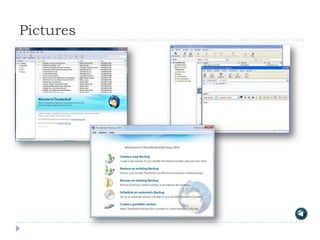
   Pictures
Definition

   Thunderbird Software made to make email easier.
    Thunderbird is a free email application that's easy to
    set up and customize. It works like the hotmail but it
    contain more interesting featuers. For example you can
    login with two different email
Pictures
Who created Thunderbird?
   Mozilla Firefox
Mozilla Firefox
   Mozilla Firefox is a free and open source web
    browser descended from the Mozilla Application
    Suite and managed by Mozilla Corporation.

   Thunderbird is one of the project that was done by
    Mozilla Firefox to enjoy safe, fast and easy email,
    Mozilla-style. The Thunderbird® email client includes
    intelligent spam filters, powerful search and
    customizable views.
What is the Goal of the Software?
   Purpose of the software
   People who can benefit from it
Purpose of the software
   The purpose of this project was "to develop Internet
    communications software based on the Thunderbird
    product, code and brand".
People who can benefit from it
   All people can use thunderbird software to customize
    their own email. The working people and students
    who are receiving huge amount of emails daily can
    really benefit from this software; for instance they
    can make categories for important emails from a
    specific person.

   On December 7, 2004, version 1.0 was released,
    and received over 500,000 downloads in its first
    three days of release, and 1,000,000 in 10 days
How to download the software?
   Video
   List of the steps
Video
   Watch the video for more information about how to
    download and install the software, and how to use it.
    Click on the button to watch the video:
List of the steps
 Four easy steps to download thunderbird software:
1. Go to the main website of the software
   http://www.mozilla.org/en/thunderbird/
2. Click Download
3. Start the process by clicking Run.
4. Click Run to launch the Thunderbird setup wizard.
5. Double-click on the Thunderbird icon whenever you
   want!
  Note: You can use the help in the software to learn
   how to use it.
What are the features?
   Easier to get started
   Tabs and search
   Customize your email experience
   Secure and protect your email
Easier to get started
   Migration Assistant: help you set up Thunderbird
    the way you want it
   Mail Account Setup Wizard: Prior to this feature
    you had to know your IMAP, SMTP, and SSL/TLS
    settings
   One-click Address Book: is a quick and easy way
    to add people to your address book.
   Attachment Reminder: looks for the word
    attachment in the body of your message and
    reminds you to add an attachment before hitting
    send.
   Activity Manager: records all the interactions
    between Thunderbird and your email provider in one
Tabs and Search
   Search the Web: You can now search the Web
    without having to leave Thunderbird
   Quick Filter Toolbar: lets you filter your email
    faster
   Search Tools : The search interface in Thunderbird
    contains filtering and timeline tools to pinpoint the
    exact email you're looking for.
   Message Archive: If you think you're going to need
    an email in the future but want it out of your inbox
    without deleting it, archive it!
Customize your email experience
   Thunderbird Look & Feel: With Personas,
    lightweight "skins" allow you to change the look and
    feel of Thunderbird in an instant
   Add-ons Manager: Find and install add-ons directly
    in Thunderbird.
   Smart Folders: Smart Folders help you manage
    multiple email accounts by combining special folders
    like your Inbox, Sent, or Archive folder.
Secure and protect your email
   Cutting Out the Junk:Thunderbird's popular junk
    mail tools have been updated to stay ahead of spam.
   Robust Privacy: support for user privacy and
    remote image protection.
   Phishing Protection: protects you from email
    scams which try to trick users into handing over
    personal and confidential information.
   Automated Update:checks to see if you're running
    the latest version, and notifies you when a security
    update is available
References

   Ltd, J. E. (n.d.). Who uses Thunderbird email client? .
    Retrieved April 2012, from socaleuro:
    http://www.socaleuro.com/forum/showthread.php/7914-
    Who-uses-Thunderbird-email-client
   Mozilla. (n.d.). About us: We're building A better Internet.
    Retrieved April 2012, from mozilla:
    http://www.mozilla.org/en/about/
   Mozilla. (n.d.). Built by us, for the Web. Retrieved April
    2012, from Mozilla: http://www.mozilla.org/en-
    US/projects/
   Mozilla. (n.d.). Thunderbird Features. Retrieved April
    2012, from mozilla: http://www.mozilla.org/en-
    US/thunderbird/features/

Thunderbird

  • 1.
  • 2.
    Content list  What is Thunderbird?  Who created Thunderbird?  What is the goal of the software?  How to download the software?  What are the features?  References
  • 3.
    What is Thunderbird?  Definition  Pictures
  • 4.
    Definition  Thunderbird Software made to make email easier. Thunderbird is a free email application that's easy to set up and customize. It works like the hotmail but it contain more interesting featuers. For example you can login with two different email
  • 5.
  • 6.
  • 7.
    Mozilla Firefox  Mozilla Firefox is a free and open source web browser descended from the Mozilla Application Suite and managed by Mozilla Corporation.  Thunderbird is one of the project that was done by Mozilla Firefox to enjoy safe, fast and easy email, Mozilla-style. The Thunderbird® email client includes intelligent spam filters, powerful search and customizable views.
  • 8.
    What is theGoal of the Software?  Purpose of the software  People who can benefit from it
  • 9.
    Purpose of thesoftware  The purpose of this project was "to develop Internet communications software based on the Thunderbird product, code and brand".
  • 10.
    People who canbenefit from it  All people can use thunderbird software to customize their own email. The working people and students who are receiving huge amount of emails daily can really benefit from this software; for instance they can make categories for important emails from a specific person.  On December 7, 2004, version 1.0 was released, and received over 500,000 downloads in its first three days of release, and 1,000,000 in 10 days
  • 11.
    How to downloadthe software?  Video  List of the steps
  • 12.
    Video  Watch the video for more information about how to download and install the software, and how to use it. Click on the button to watch the video:
  • 13.
    List of thesteps  Four easy steps to download thunderbird software: 1. Go to the main website of the software http://www.mozilla.org/en/thunderbird/ 2. Click Download 3. Start the process by clicking Run. 4. Click Run to launch the Thunderbird setup wizard. 5. Double-click on the Thunderbird icon whenever you want!  Note: You can use the help in the software to learn how to use it.
  • 14.
    What are thefeatures?  Easier to get started  Tabs and search  Customize your email experience  Secure and protect your email
  • 15.
    Easier to getstarted  Migration Assistant: help you set up Thunderbird the way you want it  Mail Account Setup Wizard: Prior to this feature you had to know your IMAP, SMTP, and SSL/TLS settings  One-click Address Book: is a quick and easy way to add people to your address book.  Attachment Reminder: looks for the word attachment in the body of your message and reminds you to add an attachment before hitting send.  Activity Manager: records all the interactions between Thunderbird and your email provider in one
  • 16.
    Tabs and Search  Search the Web: You can now search the Web without having to leave Thunderbird  Quick Filter Toolbar: lets you filter your email faster  Search Tools : The search interface in Thunderbird contains filtering and timeline tools to pinpoint the exact email you're looking for.  Message Archive: If you think you're going to need an email in the future but want it out of your inbox without deleting it, archive it!
  • 17.
    Customize your emailexperience  Thunderbird Look & Feel: With Personas, lightweight "skins" allow you to change the look and feel of Thunderbird in an instant  Add-ons Manager: Find and install add-ons directly in Thunderbird.  Smart Folders: Smart Folders help you manage multiple email accounts by combining special folders like your Inbox, Sent, or Archive folder.
  • 18.
    Secure and protectyour email  Cutting Out the Junk:Thunderbird's popular junk mail tools have been updated to stay ahead of spam.  Robust Privacy: support for user privacy and remote image protection.  Phishing Protection: protects you from email scams which try to trick users into handing over personal and confidential information.  Automated Update:checks to see if you're running the latest version, and notifies you when a security update is available
  • 19.
    References  Ltd, J. E. (n.d.). Who uses Thunderbird email client? . Retrieved April 2012, from socaleuro: http://www.socaleuro.com/forum/showthread.php/7914- Who-uses-Thunderbird-email-client  Mozilla. (n.d.). About us: We're building A better Internet. Retrieved April 2012, from mozilla: http://www.mozilla.org/en/about/  Mozilla. (n.d.). Built by us, for the Web. Retrieved April 2012, from Mozilla: http://www.mozilla.org/en- US/projects/  Mozilla. (n.d.). Thunderbird Features. Retrieved April 2012, from mozilla: http://www.mozilla.org/en- US/thunderbird/features/