Perfecto Reporting for Partners
Webinar
David Broerman
Partner Enablement Manager
Email: davidb@perfectomobile.com
Agenda
•Intro to Perfecto
•Reporting Overview
•More In Depth Review of Perfecto Reporting
•Q&A/Wrap-Up
Intro to Perfecto
Dominant leader &
visionary
Strong
Ecosystem
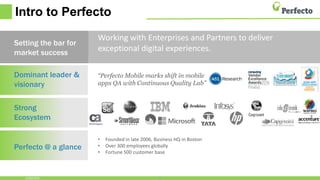
Perfecto @ a glance
Working with Enterprises and Partners to deliver
exceptional digital experiences.
“Perfecto Mobile marks shift in mobile
apps QA with Continuous Quality Lab”
3
Setting the bar for
market success
• Founded in late 2006, Business HQ in Boston
• Over 300 employees globally
• Fortune 500 customer base
10/26/2016
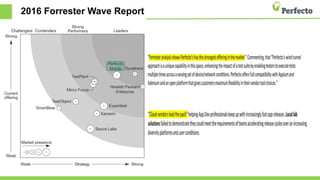
2016 Forrester Wave Report
Dev
Environments
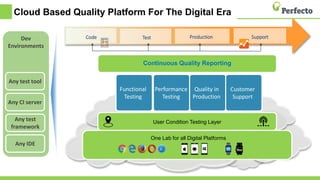
Cloud Based Quality Platform For The Digital Era
Any IDE
Any test
framework
Any CI server
Any test tool
User Condition Testing Layer
Functional
Testing
Performance
Testing
Quality in
Production
Customer
Support
One Lab for all Digital Platforms
Code Test Production Support
Continuous Quality Reporting
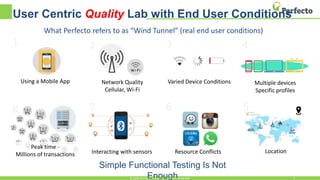
User Centric Quality Lab with End User Conditions
Using a Mobile App
1 2
Network Quality
Cellular, Wi-Fi
3
Varied Device Conditions
4
Multiple devices
Specific profiles
5
Location
6
Resource Conflicts
7
Interacting with sensors
Peak time -
Millions of transactions
8
Simple Functional Testing Is Not
Enough© 2016, Perfecto Mobile Ltd. All Rights Reserved. 6
What Perfecto refers to as “Wind Tunnel” (real end user conditions)
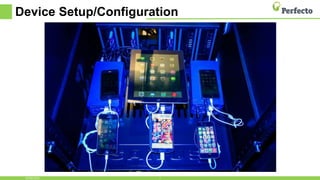
Device Setup/Configuration
710/26/2016
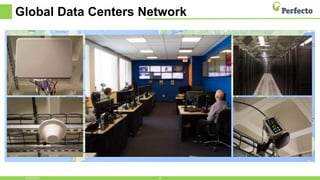
Global Data Centers Network
810/26/2016
Reporting Overview
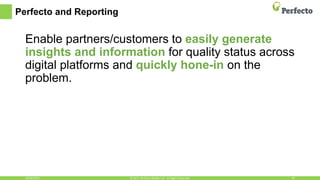
Perfecto and Reporting
Enable partners/customers to easily generate
insights and information for quality status across
digital platforms and quickly hone-in on the
problem.
10/26/2016 10© 2015, Perfecto Mobile Ltd. All Rights Reserved.
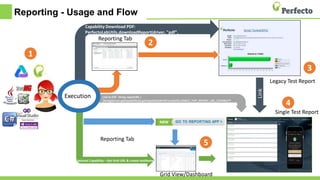
Reporting - Usage and Flow
Link
Execution
Capability Download PDF:
PerfectoLabUtils.downloadReport(driver, "pdf",
"C:testreport");
Link to STR - String reportURL =
(String)(driver.getCapabilities().getCapability(WindTunnelUtils.SINGLE_TEST_REPORT_URL_CAPABILITY
Reporting Tab
Optional Capability – Get Grid URL & create testName
Reporting Tab
Grid View/Dashboard
Legacy Test Report
Single Test Report
1
2
3
4
5
More In Depth Review of
Perfecto Reporting
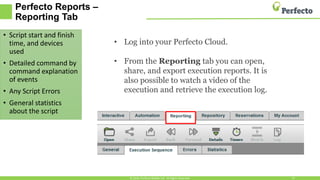
Perfecto Reports –
Reporting Tab
• Script start and finish
time, and devices
used
• Detailed command by
command explanation
of events
• Any Script Errors
• General statistics
about the script
© 2016, Perfecto Mobile Ltd. All Rights Reserved. 13
• Log into your Perfecto Cloud.
• From the Reporting tab you can open,
share, and export execution reports. It is
also possible to watch a video of the
execution and retrieve the execution log.
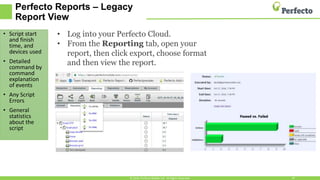
Perfecto Reports – Legacy
Report View
• Script start
and finish
time, and
devices used
• Detailed
command by
command
explanation
of events
• Any Script
Errors
• General
statistics
about the
script
© 2016, Perfecto Mobile Ltd. All Rights Reserved. 14
• Log into your Perfecto Cloud.
• From the Reporting tab, open your
report, then click export, choose format
and then view the report.
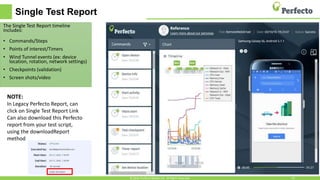
Single Test Report
The Single Test Report timeline
includes:
• Commands/Steps
• Points of interest/Timers
• Wind Tunnel events (ex: device
location, rotation, network settings)
• Checkpoints (validation)
• Screen shots/video
© 2016, Perfecto Mobile Ltd. All Rights Reserved. 15
NOTE:
In Legacy Perfecto Report, can
click on Single Test Report Link
Can also download this Perfecto
report from your test script,
using the downloadReport
method
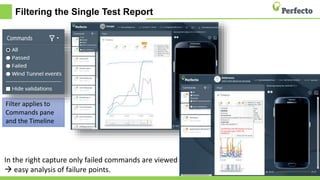
Filtering the Single Test Report
Filter applies to
Commands pane
and the Timeline
In the right capture only failed commands are viewed
 easy analysis of failure points.
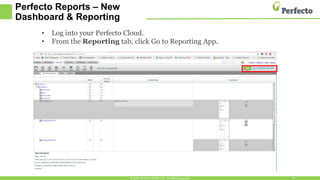
Perfecto Reports – New
Dashboard & Reporting
© 2016, Perfecto Mobile Ltd. All Rights Reserved. 17
• Log into your Perfecto Cloud.
• From the Reporting tab, click Go to Reporting App.
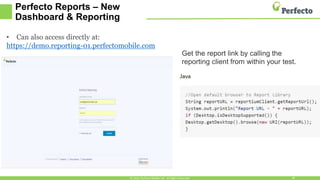
Perfecto Reports – New
Dashboard & Reporting
© 2016, Perfecto Mobile Ltd. All Rights Reserved. 18
• Can also access directly at:
https://demo.reporting-01.perfectomobile.com
Get the report link by calling the
reporting client from within your test.
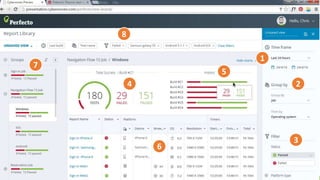
1
2
3
4
5
6
7
8
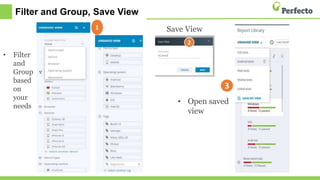
Filter and Group, Save View
• Filter
and
Group
based
on
your
needs
• Open saved
view
Save View1
3
10/26/2016 21© 2016, Perfecto Mobile Ltd. All Rights Reserved.
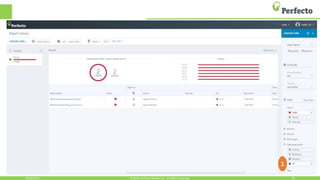
1
10/26/2016 22© 2016, Perfecto Mobile Ltd. All Rights Reserved.
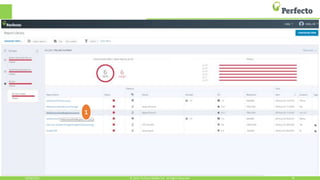
1
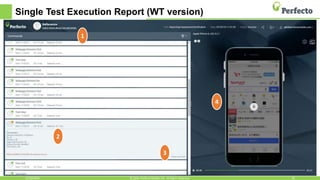
Single Test Execution Report (WT version)
10/26/2016 23© 2016, Perfecto Mobile Ltd. All Rights Reserved.
1
2
3
4
10/26/2016 24© 2016, Perfecto Mobile Ltd. All Rights Reserved.
1
Question/Answer & Wrap-Up
Thank You for attending!
David Broerman
Partner Enablement Manager
Email: davidb@perfectomobile.com

TechTalk: Report Bugs Like a Boss

  • 1.
    Perfecto Reporting forPartners Webinar David Broerman Partner Enablement Manager Email: davidb@perfectomobile.com
  • 2.
    Agenda •Intro to Perfecto •ReportingOverview •More In Depth Review of Perfecto Reporting •Q&A/Wrap-Up
  • 3.
    Intro to Perfecto Dominantleader & visionary Strong Ecosystem Perfecto @ a glance Working with Enterprises and Partners to deliver exceptional digital experiences. “Perfecto Mobile marks shift in mobile apps QA with Continuous Quality Lab” 3 Setting the bar for market success • Founded in late 2006, Business HQ in Boston • Over 300 employees globally • Fortune 500 customer base 10/26/2016
  • 4.
  • 5.
    Dev Environments Cloud Based QualityPlatform For The Digital Era Any IDE Any test framework Any CI server Any test tool User Condition Testing Layer Functional Testing Performance Testing Quality in Production Customer Support One Lab for all Digital Platforms Code Test Production Support Continuous Quality Reporting
  • 6.
    User Centric QualityLab with End User Conditions Using a Mobile App 1 2 Network Quality Cellular, Wi-Fi 3 Varied Device Conditions 4 Multiple devices Specific profiles 5 Location 6 Resource Conflicts 7 Interacting with sensors Peak time - Millions of transactions 8 Simple Functional Testing Is Not Enough© 2016, Perfecto Mobile Ltd. All Rights Reserved. 6 What Perfecto refers to as “Wind Tunnel” (real end user conditions)
  • 7.
  • 8.
    Global Data CentersNetwork 810/26/2016
  • 9.
  • 10.
    Perfecto and Reporting Enablepartners/customers to easily generate insights and information for quality status across digital platforms and quickly hone-in on the problem. 10/26/2016 10© 2015, Perfecto Mobile Ltd. All Rights Reserved.
  • 11.
    Reporting - Usageand Flow Link Execution Capability Download PDF: PerfectoLabUtils.downloadReport(driver, "pdf", "C:testreport"); Link to STR - String reportURL = (String)(driver.getCapabilities().getCapability(WindTunnelUtils.SINGLE_TEST_REPORT_URL_CAPABILITY Reporting Tab Optional Capability – Get Grid URL & create testName Reporting Tab Grid View/Dashboard Legacy Test Report Single Test Report 1 2 3 4 5
  • 12.
    More In DepthReview of Perfecto Reporting
  • 13.
    Perfecto Reports – ReportingTab • Script start and finish time, and devices used • Detailed command by command explanation of events • Any Script Errors • General statistics about the script © 2016, Perfecto Mobile Ltd. All Rights Reserved. 13 • Log into your Perfecto Cloud. • From the Reporting tab you can open, share, and export execution reports. It is also possible to watch a video of the execution and retrieve the execution log.
  • 14.
    Perfecto Reports –Legacy Report View • Script start and finish time, and devices used • Detailed command by command explanation of events • Any Script Errors • General statistics about the script © 2016, Perfecto Mobile Ltd. All Rights Reserved. 14 • Log into your Perfecto Cloud. • From the Reporting tab, open your report, then click export, choose format and then view the report.
  • 15.
    Single Test Report TheSingle Test Report timeline includes: • Commands/Steps • Points of interest/Timers • Wind Tunnel events (ex: device location, rotation, network settings) • Checkpoints (validation) • Screen shots/video © 2016, Perfecto Mobile Ltd. All Rights Reserved. 15 NOTE: In Legacy Perfecto Report, can click on Single Test Report Link Can also download this Perfecto report from your test script, using the downloadReport method
  • 16.
    Filtering the SingleTest Report Filter applies to Commands pane and the Timeline In the right capture only failed commands are viewed  easy analysis of failure points.
  • 17.
    Perfecto Reports –New Dashboard & Reporting © 2016, Perfecto Mobile Ltd. All Rights Reserved. 17 • Log into your Perfecto Cloud. • From the Reporting tab, click Go to Reporting App.
  • 18.
    Perfecto Reports –New Dashboard & Reporting © 2016, Perfecto Mobile Ltd. All Rights Reserved. 18 • Can also access directly at: https://demo.reporting-01.perfectomobile.com Get the report link by calling the reporting client from within your test.
  • 19.
  • 20.
    Filter and Group,Save View • Filter and Group based on your needs • Open saved view Save View1 3
  • 21.
    10/26/2016 21© 2016,Perfecto Mobile Ltd. All Rights Reserved. 1
  • 22.
    10/26/2016 22© 2016,Perfecto Mobile Ltd. All Rights Reserved. 1
  • 23.
    Single Test ExecutionReport (WT version) 10/26/2016 23© 2016, Perfecto Mobile Ltd. All Rights Reserved. 1 2 3 4
  • 24.
    10/26/2016 24© 2016,Perfecto Mobile Ltd. All Rights Reserved. 1
  • 25.
    Question/Answer & Wrap-Up ThankYou for attending! David Broerman Partner Enablement Manager Email: davidb@perfectomobile.com

Editor's Notes

  • #3 Before we get started with the Agenda, just a quick housekeeping item…at the end we should have a few mins for Q&A. There is a panel in the webinar that will allow you to submit questions during the webinar, so if you think of something, please ask. If we are unable to get to finish questions for any reason, then we will send out the info to all attendees. Agenda today: Intro to Perfecto Reporting Overview More In Depth Review of Reporting Q&A/WrapUp
  • #5 Don’t just take out word for it that we are a leader in the digital space!
  • #6 The Perfecto Mobile Continuous Quality Lab is designed to support the end to end sw dev lifecycle by integrating into common IDEs, quality tools and CI/CD tools. The cloud based solution provides an environment for testing and monitoring mobile apps in a controlled environment able to mimic real world end user conditions. We offer Continuous Quality Reporting throughout the lifecycle, which we will talk about as we go through the webinar today.
  • #7 Let’s dig into Quality. Mobile quality differs dramatically from web. Specifically it is the user conditions. Therefore Quality teams must look beyond testing function toward testing functions across all user conditions. This can be expressed as a day in the life of how you use your favorite app. Think about traveling from point a to b and various network, device, device resources consumed and potentially conflicting apps that are also running on your device. App performance is influenced by a variety of factors, such as degraded network conditions, frequent network transitions back and forth between cellular and WiFi, on board sensor or resource conflicts along with a non-stop stream interruptions – SMSs, notifications, system pop-ups and phone calls. Mobile app quality programs must account for these factors during testing to consistently deliver high-quality end user experience.
  • #8 Notice that we have real devices connected, via a USB cable, to the Perfecto Handset Server (or HSS). The HSS, which is responsible for managing all device connectivity, gets its commands from the MobileCloud manager (MCM) – which is a server. The MCM is the component responsible for executing all of the scripts as well as storing within its repository and reports. Through this USB cable we get a live streaming from the device and are able to control the device (what we call system level control); including any device real user commands/gestures (such as tap, swipe, click etc.). We don’t jailbreak/root or take the devices apart. We purchase them directly from the manufacturer, or we can take devices from you or a customer and also put them in the cloud.
  • #9 Perfecto operates 14 global data centers, including North America, South America, Israel, Europe, India (Gujarat - Guu Ju Rat) , Australia, and China. Photos: Top Left & Right – WiFi paddles/repeaters enabling increased device density | Bottom Left, FCC approved cellular tower repeater | Bottom Right, GPS signal repeater Center: Global NOC located in Wakefield, MA
  • #11 We basically want you to be able to quickly and accurately get the reporting information you need.
  • #12 For Perfecto Reporting, we’ll take a look at each one of these in a few minutes. At a high level: 1 – Start with Execution 2 - Reporting Tab – In Perfecto Cloud 3 - Legacy Test Report - Can be Exported out and saved in different formats (example html, pdf). Can also be coded for in script, so maybe you are using Selenium/Appium for your testing and want to save script as a pdf format. 4 - Single Test Report – Link in Legacy Report or can be coded for in script (URL) 5 - Grid View/Dashboard – New Reporting Area – can see tests in Dashboard format, filter and drill down Just a quick note, Perfecto doesn’t limit you to just these reports/dashboards. You could also use an Open Source reporting framework like Allure or a dashboard/business intelligence tool like Splunk.
  • #14 The General tab provides information about the script properties, script start and finish time, and devices used. The Execution Sequence gives a detailed command by command explanation of events. The Errors tab focuses on the Script errors. The Statistics tab provides general statistics about the script. Let’s take a look: https://demo.perfectomobile.com/nexperience/ MyReports/QTP/161017 Oct 17 2016 15:38:00 – 15:38:49 Expand all in execution sequence tab and show screen shot
  • #15 Look at report on desktop named Perfecto Legacy Report for Webinar: open and show info
  • #16 Perfecto has an interactive test report enabling real time analysis – called the Single Test Report. Using a persona in your test will create a Single Test Report. Perfecto has created the Persona concept which reflects a definition of typical users. Each persona contains a series of properties that together simulate a real end user. By setting a persona all its pre-defined properties are set. It is possible to use the Perfecto provided profiles and also to create custom profiles. The capabilities that define a persona include: network conditions,location, background applications, device selection and device orientation. Note: You do not have to add an actual persona via the capabilities. In such a case, a reference persona is automatically added to your driver capabilities, with mostly empty information, and a basic image. Download the Perfecto report from your test, using the downloadReport method, and click on the link to open the Single Test report. Understanding the results: When reading the Single Test Report, first take a look at the commands (steps), various points of interest reported from the test and identify any failures (commands and timers). Review the app & OS vitals (graph), the device screenshots and video. A (POI) allows mobile teams to pin point real user specific issues around performance, functionality and more. By using POI users can get a detailed dashboard with view into the actual error for a specific transaction. For example, a purchase transaction that takes too long, or the CPU consumption of the running Facebook app. This allows identifying app quality issues in specific environment under specific conditions before app delivery to production, assuring end-user satisfaction. Can also set up Timer reports, which are the measured timer results (basically a user experience time (UX timer) of the previous command) using the mobile:timer:info command. Then, use the reportTimer command to add a timer to the Single Test Report. (When selecting a specific point in the Single Test Report timeline, the device video is synced to that time.)
  • #17 The Single Test Report in the Command pane allows filtering the test results to view only: Passed/failed commands Wind Tunnel events (remember to think of wind tunnel as real end user conditions like Carrier/3G 4G, location, rotate device) Hide validations – since validations are not an actual part of your app functionality, it’s failure is not necessarily indicative of app failure; you might want to view a “clean” app execution. The Hide validations setting will be used in future executions. The filter effects both the Commands pane and the Timeline (at the top). Notice how viewing only failed commands (the right capture) singles out the failed actions for easier analysis of failure points.
  • #18 This new Perfecto Dashboard and Reporting enables a fast and effective approach to view test results and identify potential problems. You can now collect data into a single place where you can then see the complete picture. You can also customize your Report View according to what is important to you. There are 3 ways to get to this ne reporting feature – 1st log into your Perfecto Cloud, then from the Reporting tab, click Go to Reporting App.
  • #19 Can also access directly using the link shown: https://demo.reporting-01.perfectomobile.com Need to use your Perfecto cloud credentials Can use scripting to get to the URL/link; Java example noted here. Remember, we have all of this type of information out on our Perfecto Community site, including reporting info and code samples at community.perfectomobile.com
  • #20 After an execution, the user gets a link to the test execution grid and dashboard area (could be through an IDE like Eclipse/intellij, a saved bookmark, URL link to or through the Perfecto Cloud under the reporting tab (as we just mentioned on the previous slide). On the right – the view customization bar 1 – Time settings 2 – a 2-level grouping capabilities (see next slide) 3 – filtering options 4 – Test Executions based on filtering 5 – Execution History 6 – List of Reports 7 – Groups 8 - Filters
  • #21 Can filter and group items a number of different ways, and then save those views to find them faster next time. 1- Select various filters such as status (failed, passed), browser (like Chrome, IE, Firefox) device, operating system, device type (desktop or mobile). Note: Can also add tags – which are basically freestyle text that is used for filtering in the Reporting app. So maybe you want to call out Regression, or the name of a build, or persona. 2- Save your view 3- Open saved view For example: .withContextTags("Regression") or @PerfectoTags
  • #22 Example - 1 – filter by platform (now we can quickly see there is a specific problem with iphone 6)
  • #23 1 – drilling down to the single test execution report
  • #24 This is the single test execution report allowing the user to quickly hone in on the problem. 1 – List of commands 2 – Problematic command 3 – more info (next slide will show what we get by clicking on it) 4 – a video synched with the commands. When clicking on a command it will jump straight to the point in time in the video
  • #25 1 – the additional info on the step
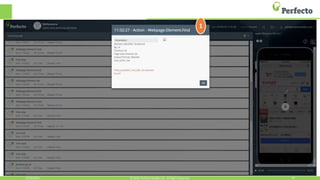
  • #26 Let’s take a few minutes to see if we have any questions, and answer them. Remember, there is a Q&A panel in the webinar that will allow you to submit questions, so if you think of something, please ask. Thanks everyone for attending today…Please let us know if we can help with any additional information on this topic…Thanks again and we’ll see you next time for another Perfecto Tech Talk. Have a good day, evening or night wherever you may be.