
QTP – Object Repository
QTP – Repository Types
• Local Object Repository
• Global Object Repository
Local Object Repository
• Local Object Repository is local to action
• By default when you do the QTP recording the objects are stored in the local object repository
• Each action will have one Local Object Repository and cannot be shared with different actions
• This is the OR that is available for each tests by default.
• Local Object Repository is Editable in Object Repository.
• It is Saved with an Extension .bdb
• It Should be used when not many tests are working on the same screens of the application under
test.
• It is NOT a standalone file that can edited.
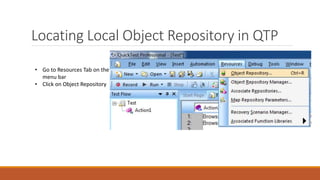
Locating Local Object Repository in QTP
• Go to Resources Tab on the
menu bar
• Click on Object Repository
Looking at Local Object Repo
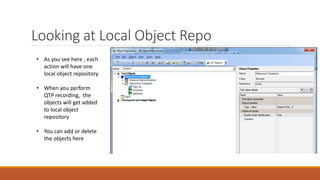
• As you see here , each
action will have one
local object repository
• When you perform
QTP recording, the
objects will get added
to local object
repository
• You can add or delete
the objects here
Looking at Local Object Repo
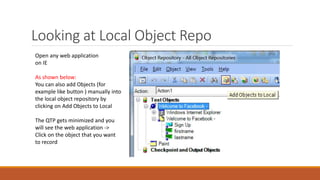
Open any web application
on IE
As shown below:
You can also add Objects (for
example like button ) manually into
the local object repository by
clicking on Add Objects to Local
The QTP gets minimized and you
will see the web application ->
Click on the object that you want
to record
Global Object Repository
• Global Object Repository is shared between different actions
• Also called shared object repository
• This type of OR is available for applications which needs multiple tests with multiple actions.
• Shared Object Repository is read only by default but can be edited in Object Repository Manager
• saved with an extension .tsr
• Usually used in frameworks considering reusability and maintainability.
• standalone file that can be edited easily.
Global Object Repository
• Using Global Object Repository
 Creating a Shared Object Repository
 Associating a Shared Object Repository
 Editing a Shared Object Repository
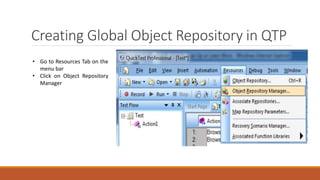
Creating Global Object Repository in QTP
• Go to Resources Tab on the
menu bar
• Click on Object Repository
Manager
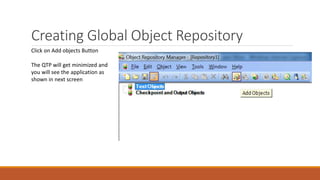
Creating Global Object Repository
Click on Add objects Button
The QTP will get minimized and
you will see the application as
shown in next screen
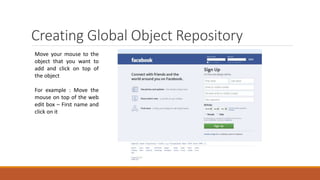
Creating Global Object Repository
Move your mouse to the
object that you want to
add and click on top of
the object
For example : Move the
mouse on top of the web
edit box – First name and
click on it
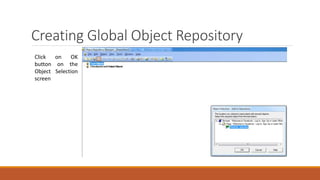
Creating Global Object Repository
Click on OK
button on the
Object Selection
screen
Creating Global Object Repository
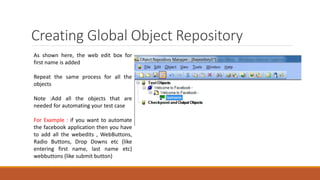
As shown here, the web edit box for
first name is added
Repeat the same process for all the
objects
Note :Add all the objects that are
needed for automating your test case
For Example : if you want to automate
the facebook application then you have
to add all the webedits , WebButtons,
Radio Buttons, Drop Downs etc (like
entering first name, last name etc)
webbuttons (like submit button)
Creating Global Object Repository
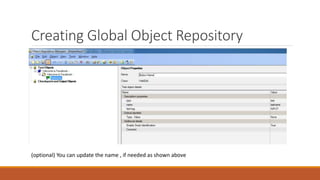
(optional) You can update the name , if needed as shown above
Creating Global Object Repository
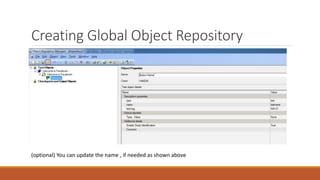
(optional) You can update the name , if needed as shown above
Save Global Object Repository
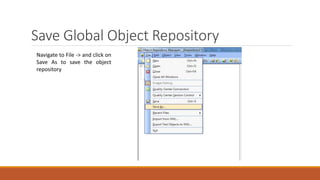
Navigate to File -> and click on
Save As to save the object
repository
Save Global Object Repository
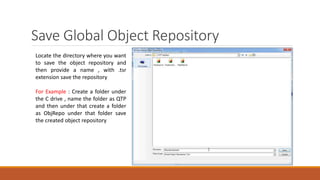
Locate the directory where you want
to save the object repository and
then provide a name , with .tsr
extension save the repository
For Example : Create a folder under
the C drive , name the folder as QTP
and then under that create a folder
as ObjRepo under that folder save
the created object repository
Associate Global Object Repository
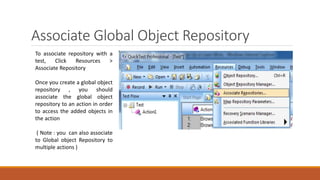
To associate repository with a
test, Click Resources >
Associate Repository
Once you create a global object
repository , you should
associate the global object
repository to an action in order
to access the added objects in
the action
( Note : you can also associate
to Global object Repository to
multiple actions )
Associate Global Object Repository
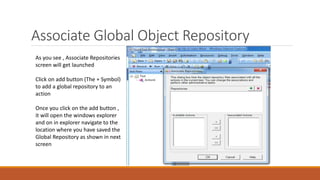
As you see , Associate Repositories
screen will get launched
Click on add button (The + Symbol)
to add a global repository to an
action
Once you click on the add button ,
it will open the windows explorer
and on in explorer navigate to the
location where you have saved the
Global Repository as shown in next
screen
Associate Global Object Repository
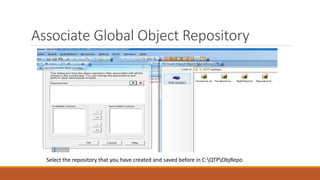
Select the repository that you have created and saved before in C:QTPObjRepo
Associate Global Object Repository
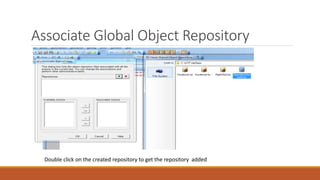
Double click on the created repository to get the repository added
Associate Global Object Repository
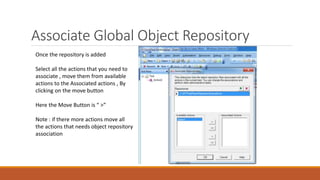
Once the repository is added
Select all the actions that you need to
associate , move them from available
actions to the Associated actions , By
clicking on the move button
Here the Move Button is “ >”
Note : if there more actions move all
the actions that needs object repository
association
Associate Global Object Repository
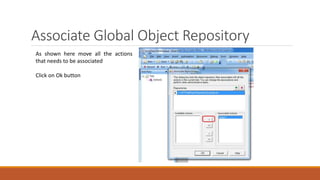
As shown here move all the actions
that needs to be associated
Click on Ok button
Editing Global Object Repository
• You can use the Object Repository Manager to Edit a Share Repository.
• Select Resources > Object Repository Manager .
• Open the Object Repository we created before
• By Default, Repository is opened in Read-only mode.
• To enable editing click File > Enable Editing
• Once editing is enabled you can perform all the operations like cut, copy, paste, rename
objects etc
QTP - Spy Tool
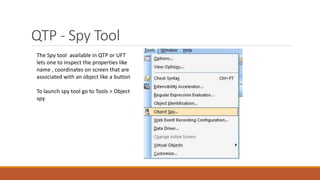
The Spy tool available in QTP or UFT
lets one to inspect the properties like
name , coordinates on screen that are
associated with an object like a button
To launch spy tool go to Tools > Object
spy
QTP - Spy Tool
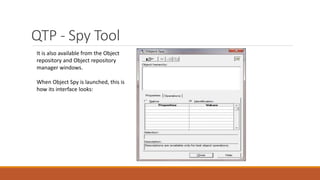
It is also available from the Object
repository and Object repository
manager windows.
When Object Spy is launched, this is
how its interface looks:
QTP - Spy Tool
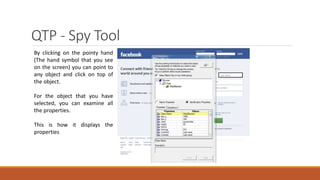
By clicking on the pointy hand
(The hand symbol that you see
on the screen) you can point to
any object and click on top of
the object.
For the object that you have
selected, you can examine all
the properties.
This is how it displays the
properties
Object Repo – Options – Update Object
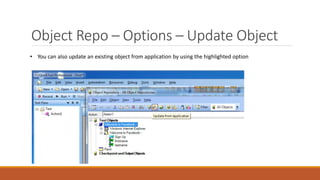
• You can also update an existing object from application by using the highlighted option
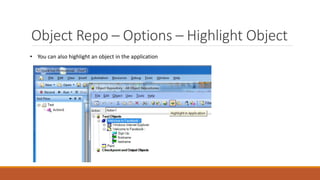
Object Repo – Options – Highlight Object
• You can also highlight an object in the application
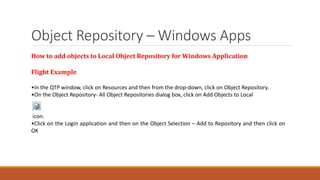
Object Repository – Windows Apps
How to add objects to Local Object Repository for Windows Application
Flight Example
•In the QTP window, click on Resources and then from the drop-down, click on Object Repository.
•On the Object Repository- All Object Repositories dialog box, click on Add Objects to Local
icon.
•Click on the Login application and then on the Object Selection – Add to Repository and then click on
OK
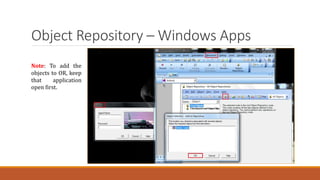
Object Repository – Windows Apps
Note: To add the
objects to OR, keep
that application
open first.
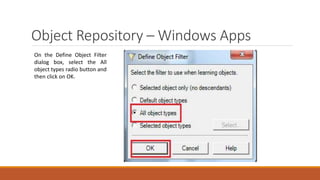
Object Repository – Windows Apps
On the Define Object Filter
dialog box, select the All
object types radio button and
then click on OK.
Object Repository – Windows Apps
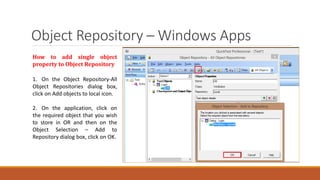
How to add single object
property to Object Repository
1. On the Object Repository-All
Object Repositories dialog box,
click on Add objects to local icon.
2. On the application, click on
the required object that you wish
to store in OR and then on the
Object Selection – Add to
Repository dialog box, click on OK.
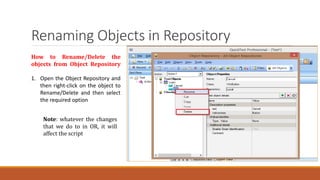
Renaming Objects in Repository
How to Rename/Delete the
objects from Object Repository
1. Open the Object Repository and
then right-click on the object to
Rename/Delete and then select
the required option
Note: whatever the changes
that we do to in OR, it will
affect the script
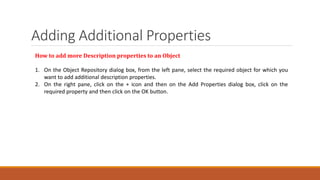
Adding Additional Properties
How to add more Description properties to an Object
1. On the Object Repository dialog box, from the left pane, select the required object for which you
want to add additional description properties.
2. On the right pane, click on the + icon and then on the Add Properties dialog box, click on the
required property and then click on the OK button.
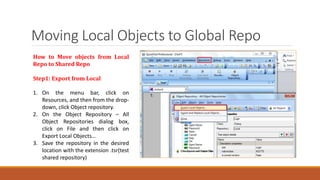
Moving Local Objects to Global Repo
How to Move objects from Local
Repo to Shared Repo
Step1: Export from Local
1. On the menu bar, click on
Resources, and then from the drop-
down, click Object repository.
2. On the Object Repository – All
Object Repositories dialog box,
click on File and then click on
Export Local Objects…
3. Save the repository in the desired
location with the extension .tsr(test
shared repository)
Moving Local Objects to Global Repo
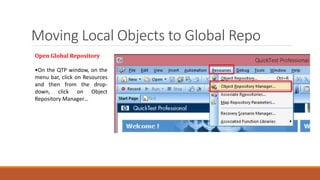
Open Global Repository
•On the QTP window, on the
menu bar, click on Resources
and then from the drop-
down, click on Object
Repository Manager…
Moving Local Objects to Global Repo
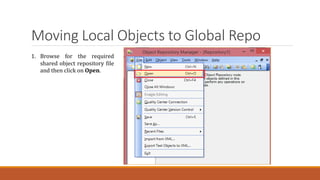
1. Browse for the required
shared object repository file
and then click on Open.
Moving Local Objects to Global Repo
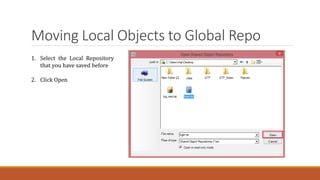
1. Select the Local Repository
that you have saved before
2. Click Open
Moving Local Objects to Global Repo
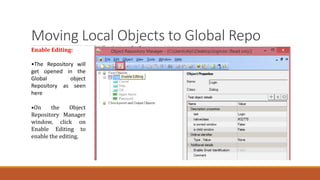
Enable Editing:
•The Repository will
get opened in the
Global object
Repository as seen
here
•On the Object
Repository Manager
window, click on
Enable Editing to
enable the editing.
Moving Local Objects to Global Repo
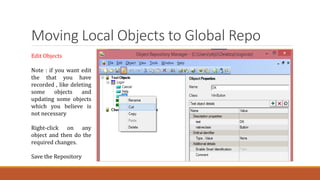
Edit Objects
Note : if you want edit
the that you have
recorded , like deleting
some objects and
updating some objects
which you believe is
not necessary
Right-click on any
object and then do the
required changes.
Save the Repository
Compare to Object Repositories
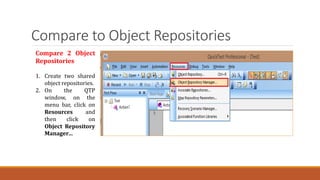
Compare 2 Object
Repositories
1. Create two shared
object repositories.
2. On the QTP
window, on the
menu bar, click on
Resources and
then click on
Object Repository
Manager…
Compare to Object Repositories
Compare 2 Object
Repositories
1. Create two shared
object repositories.
2. On the QTP
window, on the
menu bar, click on
Resources and
then click on
Object Repository
Manager…
Compare to Object Repositories
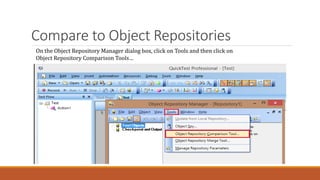
On the Object Repository Manager dialog box, click on Tools and then click on
Object Repository Comparison Tools…
Compare to Object Repositories
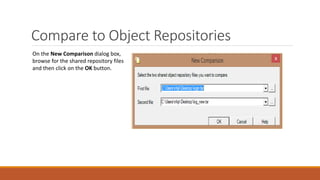
On the New Comparison dialog box,
browse for the shared repository files
and then click on the OK button.
Compare to Object Repositories
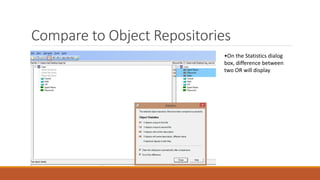
•On the Statistics dialog
box, difference between
two OR will display.
Merge Two Object Repositories
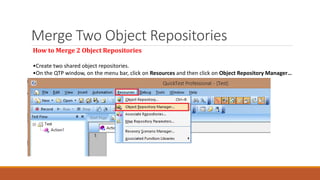
How to Merge 2 Object Repositories
•Create two shared object repositories.
•On the QTP window, on the menu bar, click on Resources and then click on Object Repository Manager…
Merge Two Object Repositories
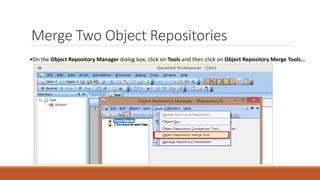
•On the Object Repository Manager dialog box, click on Tools and then click on Object Repository Merge Tools…
Merge Two Object Repositories
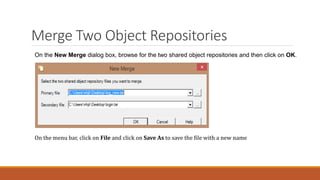
On the New Merge dialog box, browse for the two shared object repositories and then click on OK.
On the menu bar, click on File and click on Save As to save the file with a new name
Questions ???

Qtp object repository

  • 1.
    QTP – ObjectRepository
  • 2.
    QTP – RepositoryTypes • Local Object Repository • Global Object Repository
  • 3.
    Local Object Repository •Local Object Repository is local to action • By default when you do the QTP recording the objects are stored in the local object repository • Each action will have one Local Object Repository and cannot be shared with different actions • This is the OR that is available for each tests by default. • Local Object Repository is Editable in Object Repository. • It is Saved with an Extension .bdb • It Should be used when not many tests are working on the same screens of the application under test. • It is NOT a standalone file that can edited.
  • 4.
    Locating Local ObjectRepository in QTP • Go to Resources Tab on the menu bar • Click on Object Repository
  • 5.
    Looking at LocalObject Repo • As you see here , each action will have one local object repository • When you perform QTP recording, the objects will get added to local object repository • You can add or delete the objects here
  • 6.
    Looking at LocalObject Repo Open any web application on IE As shown below: You can also add Objects (for example like button ) manually into the local object repository by clicking on Add Objects to Local The QTP gets minimized and you will see the web application -> Click on the object that you want to record
  • 7.
    Global Object Repository •Global Object Repository is shared between different actions • Also called shared object repository • This type of OR is available for applications which needs multiple tests with multiple actions. • Shared Object Repository is read only by default but can be edited in Object Repository Manager • saved with an extension .tsr • Usually used in frameworks considering reusability and maintainability. • standalone file that can be edited easily.
  • 8.
    Global Object Repository •Using Global Object Repository  Creating a Shared Object Repository  Associating a Shared Object Repository  Editing a Shared Object Repository
  • 9.
    Creating Global ObjectRepository in QTP • Go to Resources Tab on the menu bar • Click on Object Repository Manager
  • 10.
    Creating Global ObjectRepository Click on Add objects Button The QTP will get minimized and you will see the application as shown in next screen
  • 11.
    Creating Global ObjectRepository Move your mouse to the object that you want to add and click on top of the object For example : Move the mouse on top of the web edit box – First name and click on it
  • 12.
    Creating Global ObjectRepository Click on OK button on the Object Selection screen
  • 13.
    Creating Global ObjectRepository As shown here, the web edit box for first name is added Repeat the same process for all the objects Note :Add all the objects that are needed for automating your test case For Example : if you want to automate the facebook application then you have to add all the webedits , WebButtons, Radio Buttons, Drop Downs etc (like entering first name, last name etc) webbuttons (like submit button)
  • 14.
    Creating Global ObjectRepository (optional) You can update the name , if needed as shown above
  • 15.
    Creating Global ObjectRepository (optional) You can update the name , if needed as shown above
  • 16.
    Save Global ObjectRepository Navigate to File -> and click on Save As to save the object repository
  • 17.
    Save Global ObjectRepository Locate the directory where you want to save the object repository and then provide a name , with .tsr extension save the repository For Example : Create a folder under the C drive , name the folder as QTP and then under that create a folder as ObjRepo under that folder save the created object repository
  • 18.
    Associate Global ObjectRepository To associate repository with a test, Click Resources > Associate Repository Once you create a global object repository , you should associate the global object repository to an action in order to access the added objects in the action ( Note : you can also associate to Global object Repository to multiple actions )
  • 19.
    Associate Global ObjectRepository As you see , Associate Repositories screen will get launched Click on add button (The + Symbol) to add a global repository to an action Once you click on the add button , it will open the windows explorer and on in explorer navigate to the location where you have saved the Global Repository as shown in next screen
  • 20.
    Associate Global ObjectRepository Select the repository that you have created and saved before in C:QTPObjRepo
  • 21.
    Associate Global ObjectRepository Double click on the created repository to get the repository added
  • 22.
    Associate Global ObjectRepository Once the repository is added Select all the actions that you need to associate , move them from available actions to the Associated actions , By clicking on the move button Here the Move Button is “ >” Note : if there more actions move all the actions that needs object repository association
  • 23.
    Associate Global ObjectRepository As shown here move all the actions that needs to be associated Click on Ok button
  • 24.
    Editing Global ObjectRepository • You can use the Object Repository Manager to Edit a Share Repository. • Select Resources > Object Repository Manager . • Open the Object Repository we created before • By Default, Repository is opened in Read-only mode. • To enable editing click File > Enable Editing • Once editing is enabled you can perform all the operations like cut, copy, paste, rename objects etc
  • 25.
    QTP - SpyTool The Spy tool available in QTP or UFT lets one to inspect the properties like name , coordinates on screen that are associated with an object like a button To launch spy tool go to Tools > Object spy
  • 26.
    QTP - SpyTool It is also available from the Object repository and Object repository manager windows. When Object Spy is launched, this is how its interface looks:
  • 27.
    QTP - SpyTool By clicking on the pointy hand (The hand symbol that you see on the screen) you can point to any object and click on top of the object. For the object that you have selected, you can examine all the properties. This is how it displays the properties
  • 28.
    Object Repo –Options – Update Object • You can also update an existing object from application by using the highlighted option
  • 29.
    Object Repo –Options – Highlight Object • You can also highlight an object in the application
  • 30.
    Object Repository –Windows Apps How to add objects to Local Object Repository for Windows Application Flight Example •In the QTP window, click on Resources and then from the drop-down, click on Object Repository. •On the Object Repository- All Object Repositories dialog box, click on Add Objects to Local icon. •Click on the Login application and then on the Object Selection – Add to Repository and then click on OK
  • 31.
    Object Repository –Windows Apps Note: To add the objects to OR, keep that application open first.
  • 32.
    Object Repository –Windows Apps On the Define Object Filter dialog box, select the All object types radio button and then click on OK.
  • 33.
    Object Repository –Windows Apps How to add single object property to Object Repository 1. On the Object Repository-All Object Repositories dialog box, click on Add objects to local icon. 2. On the application, click on the required object that you wish to store in OR and then on the Object Selection – Add to Repository dialog box, click on OK.
  • 34.
    Renaming Objects inRepository How to Rename/Delete the objects from Object Repository 1. Open the Object Repository and then right-click on the object to Rename/Delete and then select the required option Note: whatever the changes that we do to in OR, it will affect the script
  • 35.
    Adding Additional Properties Howto add more Description properties to an Object 1. On the Object Repository dialog box, from the left pane, select the required object for which you want to add additional description properties. 2. On the right pane, click on the + icon and then on the Add Properties dialog box, click on the required property and then click on the OK button.
  • 36.
    Moving Local Objectsto Global Repo How to Move objects from Local Repo to Shared Repo Step1: Export from Local 1. On the menu bar, click on Resources, and then from the drop- down, click Object repository. 2. On the Object Repository – All Object Repositories dialog box, click on File and then click on Export Local Objects… 3. Save the repository in the desired location with the extension .tsr(test shared repository)
  • 37.
    Moving Local Objectsto Global Repo Open Global Repository •On the QTP window, on the menu bar, click on Resources and then from the drop- down, click on Object Repository Manager…
  • 38.
    Moving Local Objectsto Global Repo 1. Browse for the required shared object repository file and then click on Open.
  • 39.
    Moving Local Objectsto Global Repo 1. Select the Local Repository that you have saved before 2. Click Open
  • 40.
    Moving Local Objectsto Global Repo Enable Editing: •The Repository will get opened in the Global object Repository as seen here •On the Object Repository Manager window, click on Enable Editing to enable the editing.
  • 41.
    Moving Local Objectsto Global Repo Edit Objects Note : if you want edit the that you have recorded , like deleting some objects and updating some objects which you believe is not necessary Right-click on any object and then do the required changes. Save the Repository
  • 42.
    Compare to ObjectRepositories Compare 2 Object Repositories 1. Create two shared object repositories. 2. On the QTP window, on the menu bar, click on Resources and then click on Object Repository Manager…
  • 43.
    Compare to ObjectRepositories Compare 2 Object Repositories 1. Create two shared object repositories. 2. On the QTP window, on the menu bar, click on Resources and then click on Object Repository Manager…
  • 44.
    Compare to ObjectRepositories On the Object Repository Manager dialog box, click on Tools and then click on Object Repository Comparison Tools…
  • 45.
    Compare to ObjectRepositories On the New Comparison dialog box, browse for the shared repository files and then click on the OK button.
  • 46.
    Compare to ObjectRepositories •On the Statistics dialog box, difference between two OR will display.
  • 47.
    Merge Two ObjectRepositories How to Merge 2 Object Repositories •Create two shared object repositories. •On the QTP window, on the menu bar, click on Resources and then click on Object Repository Manager…
  • 48.
    Merge Two ObjectRepositories •On the Object Repository Manager dialog box, click on Tools and then click on Object Repository Merge Tools…
  • 49.
    Merge Two ObjectRepositories On the New Merge dialog box, browse for the two shared object repositories and then click on OK. On the menu bar, click on File and click on Save As to save the file with a new name
  • 50.