Switches in the MDS/Functional Classroom Bonnie Young  &  Wendy Homlish
Post-It Acitivity What are the  BARRIERS  to effective switch use in your classroom? How do you know which switch to use with each student? What goals are addressed in your classroom through  switch use?
Areas to Address Intro/Background Information Assessment – Roles, Team, Tools Implementation and Activities (Participation and Independence) IEPs and Goal Writing
 
Factors that influence successful (or not!) switch use  Health and Attendance Vision Hearing Tactile Muscle Tone Coordination Mobility Support Current Positioning Equipment (wheelchair, stander, etc.)
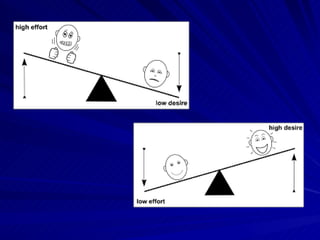
Positioning of Student Effective seating & positioning is  critical Should allow student to concentrate on the activity controlled by the switch & movements to activate the switch rather than maintaining position & balance.
 
Types of Switches Divided into 2 categories Contact  Non-Contact
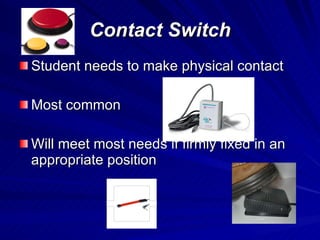
Contact Switch Student needs to make physical contact Most common  Will meet most needs if firmly fixed in an appropriate position
Considerations Target size Sensitivity (how much pressure must be exerted to activate) Travel (how flexible, or how much “play”) Feedback (auditory, tactile) Durability
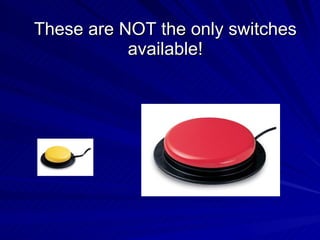
These are NOT the only switches available!
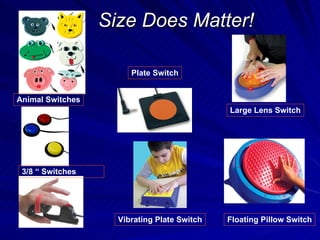
Size Does Matter! Animal Switches 3/8 “ Switches Floating Pillow Switch Plate Switch Vibrating Plate Switch Large Lens Switch
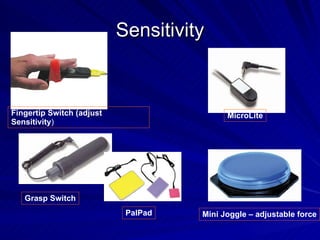
Sensitivity Fingertip Switch (adjust Sensitivity ) Grasp Switch Mini Joggle – adjustable force MicroLite PalPad
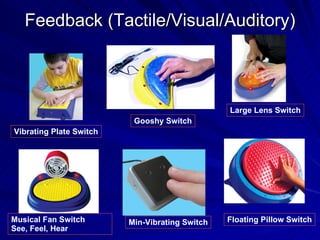
Feedback (Tactile/Visual/Auditory) Floating Pillow Switch Vibrating Plate Switch Min-Vibrating Switch Musical Fan Switch See, Feel, Hear Large Lens Switch Gooshy Switch
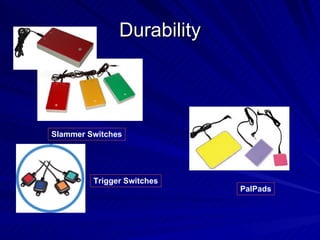
Durability Slammer Switches PalPads Trigger Switches
 
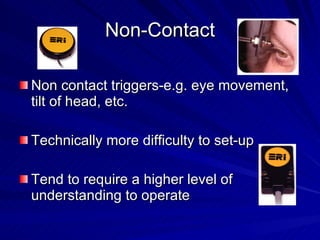
Non-Contact Non contact triggers-e.g. eye movement, tilt of head, etc.  Technically more difficulty to set-up Tend to require a higher level of understanding to operate
 
Identifying the switch Want a switch that: Can be operated quickly by the student… When they want to…  Consistently and reliably…. And is the least tiring to access and use Must be able to be activated and RELEASED with ease
Steps in Assessment for Switch Use ID which  parts of body  offer best possibility for  reliable  control  Identify which  voluntary  movement with that part of the body is easiest to control
 
Assessment Establish area that student can reliably target with this voluntary movement This will determine the  size  of the switch Establish the  strength  of this movement Enough pressure to activate the switch? Establish best  position  of the switch in relation to student’s body Needs to be within range of movement
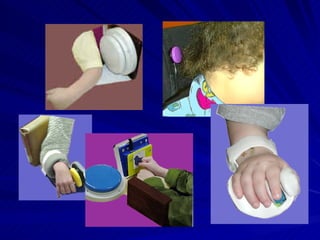
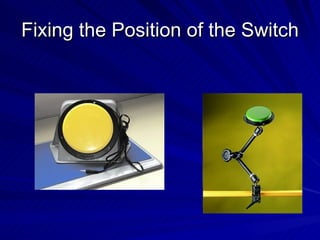
Fixing the Switch Switch must be firmly fixed once a position is determined Allows the student to be confident that it will be there when they try to activate it
Fixing the Position of the Switch
Choosing Switches & Switch Position Important to have switch  firmly fixed  in appropriate position Prerequisite to identification of appropriate switch and switch position is that the student is positioned in a  stable/functional position Need to work as team (e.g. teacher, OT, PT, SLP, etc.) Continuous process of trial, monitoring, evaluating & modifying
ACTIVITY Hands-on Switch Exploration Group A – Break Group B – Activity Switch


Developing Switch Skills Frequent opportunities Within the routine of the school day As much opportunity to use switch(es) as other students have to develop pencil skills Initially, activities should be as motivating and cognitively easy as possible Eliminates factors of cognitive and/or physical issues
Staying at one stage too long can result in boredom and an unwillingness to cooperate !
Prompting Critical to success Physical prompt Initially, may need physical prompt to press, but should reduce as quickly as possible Verbal Prompt Should be consistent across all staff and environments What do you say??? “Press the switch”, “Hit the switch”, “Play the music”
Verbal Prompting Most productive to focus on the  activity  being controlled, rather than the switch itself “Play the music” “Make the car go” “Mix the milkshake” Student must understand the switch is a  means to an end
Verbal Prompting cont’d Necessary to monitor the amount of prompting given Need to determine if the student is understanding the effect of the switch activation or responding to the verbal prompts
Stages in Developing Switch Skills SPECTATOR PARTICIPANT CREATOR
Spectator Student not exerting any active control over their environment Student shows interest by watching/listening Technology may Enhance sensory awareness Provide visual, auditory or tactile stimulation Useful to establish interest in switch-driven activity What is motivating???? How do you find out?
Goal - Spectator S will attend to action which has animation and/or sound stimulus, for 3 minutes, without prompts, during _/_ presentations.
Participant 4 Components stages: Cause effect Build Turn-taking Timing
Participant - Cause Effect Student begins to  interact  with environment Involve development of understand that an action can cause a response Student will activate switch, look and/or listen for and show pleasure in reward If reward is  motivating  will activate switch again
Goal - Participant S will activate switch, look and/or listen for reward, and respond (look, turn head, vocalize, smile, etc), -/- times during 5 presentations.
Cause Effect Activities Switch-adapted battery operated devices Power Link for use with electrical appliances Low tech communication devices Cause effect software Soft Touch Laureate Switch It PowerPoint
Activities Battery operated toys/device Only expected to turn on/off Will soon become bored Important to make part of a fun activity Move car to knock down blocks Tape recorder for musical chairs with peers Spin art for decorating art project
Activities cont’d Electrical devices Participating in cooking Operate a foot spa for themselves or someone else A fan/light for sensory
Activities cont’d Low-tech Communication devices One-step Step-by-Step BigMack Message must be motivating/control their environment “ tickle me”, blow a raspberry”,  Attach to a toy (dog) and have it “bark”, “I’m falling and can’t get up!”
Computer Cause Effect software Power Point stories (age/gender appropriate)
Cause Effect Software Links and Examples SoftTouch SimTech SwitchIt by IntelliTools PowerPoint Don Johnston UKanDu Laureate (Creature Chorus, etc.) Free downloads
Participant-Build Student has an understanding of cause effect….. Need to move to activities that require several switch activations to elicit/repeat reward Activities on the computer  “Switch It” PowerPoint can be set up for this level
Goal Example – Build Level “S. will draw a multi-part picture on the computer (requiring 3-5 activations per completed item), independently, with 80% accuracy over 3 consecutive opportunities, using a switch, switch interface, and computer program
Build – Software Switch It activities Patterns Make It Happen PowerPoint (examples) SimTech – Switch Kids, Super Switch Puzzles
Participant-Turn Taking Involves alternation of 2 switch activations Students work together To develop shared attention Example – 2 students at computer, each has a switch programmed with a specific command – one does “Enter” and one does “Space” – or simply take turns building a picture
Goal – Turn Taking S will take turns during a cooperative activity with at least one other student, in order to complete a task or activity, -/- times during 3 consecutive opportunities.
Turn Taking Switch It PowerPoint Games Switch Arcade – SimTech Dice
Participant-Timing Activities that involve timing To establish whether student has motor coordination skills to control a single-switch scan Involves perceptual & cognitive concepts Is the ability to press switch within a predetermined time-frame Example – Spot on Games, Teen Tunes
Goal - Timing S. will activate a switch to control an activity (computer activity, AAC for repetitive line story) within a pre-determined time frame, in response to a prompt, 8/10 times, during 3 consecutive opportunities.
Computer Activities - Timing Switch It Opposites ChooseIt Maker Arcade Games
Creator Students can Discriminate Purposefully make choices Create options Begins to use the computer as a  tool  to express his/her imagination One or two-switch scanning Example – Clicker, First Verbs, Writing with Symbols Environments, IntelliTools, Don Johnston (U Kan Du, Write:OutLoud, etc)
Choosing Prerequisite skill for using a switch to make choices is  ability to scan For scanning a student needs: Ability to press & look/listen To either use 2 switches or activate a single switch within a given time frame To recognize pictures/symbols/auditory prompts Ability to understand when something is highlighted it can be selected
Goal - Creator S. will make choices, using a switch to scan 2 available options, -/- times, during 3 consecutive opportunities. May be as far as some students are able to progress: Dependent to some degree upon cognitive ability (recognition, discrimination, categorization)  unless you’re involved in a errorless choice activity
HOW DO YOU KNOW WHERE TO BEGIN??? (Switch Control Checklist)
Switches and the IEP Where? SDI Goals Examples : “S. will  participate in a cooking activity  by activating the blender, mixer, etc., 4/5 times in 3 consecutive opportunities, with a verbal prompt (“Turn on the ______”), using a switch and switch interface for electric appliances .
Wrap Up Questions? Concerns? Sharing? What’s next????

Switches Presentation

  • 1.
    Switches in theMDS/Functional Classroom Bonnie Young & Wendy Homlish
  • 2.
    Post-It Acitivity Whatare the BARRIERS to effective switch use in your classroom? How do you know which switch to use with each student? What goals are addressed in your classroom through switch use?
  • 3.
    Areas to AddressIntro/Background Information Assessment – Roles, Team, Tools Implementation and Activities (Participation and Independence) IEPs and Goal Writing
  • 4.
  • 5.
    Factors that influencesuccessful (or not!) switch use Health and Attendance Vision Hearing Tactile Muscle Tone Coordination Mobility Support Current Positioning Equipment (wheelchair, stander, etc.)
  • 6.
    Positioning of StudentEffective seating & positioning is critical Should allow student to concentrate on the activity controlled by the switch & movements to activate the switch rather than maintaining position & balance.
  • 7.
  • 8.
    Types of SwitchesDivided into 2 categories Contact Non-Contact
  • 9.
    Contact Switch Studentneeds to make physical contact Most common Will meet most needs if firmly fixed in an appropriate position
  • 10.
    Considerations Target sizeSensitivity (how much pressure must be exerted to activate) Travel (how flexible, or how much “play”) Feedback (auditory, tactile) Durability
  • 11.
    These are NOTthe only switches available!
  • 12.
    Size Does Matter!Animal Switches 3/8 “ Switches Floating Pillow Switch Plate Switch Vibrating Plate Switch Large Lens Switch
  • 13.
    Sensitivity Fingertip Switch(adjust Sensitivity ) Grasp Switch Mini Joggle – adjustable force MicroLite PalPad
  • 14.
    Feedback (Tactile/Visual/Auditory) FloatingPillow Switch Vibrating Plate Switch Min-Vibrating Switch Musical Fan Switch See, Feel, Hear Large Lens Switch Gooshy Switch
  • 15.
    Durability Slammer SwitchesPalPads Trigger Switches
  • 16.
  • 17.
    Non-Contact Non contacttriggers-e.g. eye movement, tilt of head, etc. Technically more difficulty to set-up Tend to require a higher level of understanding to operate
  • 18.
  • 19.
    Identifying the switchWant a switch that: Can be operated quickly by the student… When they want to… Consistently and reliably…. And is the least tiring to access and use Must be able to be activated and RELEASED with ease
  • 20.
    Steps in Assessmentfor Switch Use ID which parts of body offer best possibility for reliable control Identify which voluntary movement with that part of the body is easiest to control
  • 21.
  • 22.
    Assessment Establish areathat student can reliably target with this voluntary movement This will determine the size of the switch Establish the strength of this movement Enough pressure to activate the switch? Establish best position of the switch in relation to student’s body Needs to be within range of movement
  • 23.
    Fixing the SwitchSwitch must be firmly fixed once a position is determined Allows the student to be confident that it will be there when they try to activate it
  • 24.
    Fixing the Positionof the Switch
  • 25.
    Choosing Switches &Switch Position Important to have switch firmly fixed in appropriate position Prerequisite to identification of appropriate switch and switch position is that the student is positioned in a stable/functional position Need to work as team (e.g. teacher, OT, PT, SLP, etc.) Continuous process of trial, monitoring, evaluating & modifying
  • 26.
    ACTIVITY Hands-on SwitchExploration Group A – Break Group B – Activity Switch
  • 27.
  • 28.
  • 29.
  • 30.
  • 31.
  • 32.
  • 33.
  • 34.
  • 35.
    Developing Switch SkillsFrequent opportunities Within the routine of the school day As much opportunity to use switch(es) as other students have to develop pencil skills Initially, activities should be as motivating and cognitively easy as possible Eliminates factors of cognitive and/or physical issues
  • 36.
    Staying at onestage too long can result in boredom and an unwillingness to cooperate !
  • 37.
    Prompting Critical tosuccess Physical prompt Initially, may need physical prompt to press, but should reduce as quickly as possible Verbal Prompt Should be consistent across all staff and environments What do you say??? “Press the switch”, “Hit the switch”, “Play the music”
  • 38.
    Verbal Prompting Mostproductive to focus on the activity being controlled, rather than the switch itself “Play the music” “Make the car go” “Mix the milkshake” Student must understand the switch is a means to an end
  • 39.
    Verbal Prompting cont’dNecessary to monitor the amount of prompting given Need to determine if the student is understanding the effect of the switch activation or responding to the verbal prompts
  • 40.
    Stages in DevelopingSwitch Skills SPECTATOR PARTICIPANT CREATOR
  • 41.
    Spectator Student notexerting any active control over their environment Student shows interest by watching/listening Technology may Enhance sensory awareness Provide visual, auditory or tactile stimulation Useful to establish interest in switch-driven activity What is motivating???? How do you find out?
  • 42.
    Goal - SpectatorS will attend to action which has animation and/or sound stimulus, for 3 minutes, without prompts, during _/_ presentations.
  • 43.
    Participant 4 Componentsstages: Cause effect Build Turn-taking Timing
  • 44.
    Participant - CauseEffect Student begins to interact with environment Involve development of understand that an action can cause a response Student will activate switch, look and/or listen for and show pleasure in reward If reward is motivating will activate switch again
  • 45.
    Goal - ParticipantS will activate switch, look and/or listen for reward, and respond (look, turn head, vocalize, smile, etc), -/- times during 5 presentations.
  • 46.
    Cause Effect ActivitiesSwitch-adapted battery operated devices Power Link for use with electrical appliances Low tech communication devices Cause effect software Soft Touch Laureate Switch It PowerPoint
  • 47.
    Activities Battery operatedtoys/device Only expected to turn on/off Will soon become bored Important to make part of a fun activity Move car to knock down blocks Tape recorder for musical chairs with peers Spin art for decorating art project
  • 48.
    Activities cont’d Electricaldevices Participating in cooking Operate a foot spa for themselves or someone else A fan/light for sensory
  • 49.
    Activities cont’d Low-techCommunication devices One-step Step-by-Step BigMack Message must be motivating/control their environment “ tickle me”, blow a raspberry”, Attach to a toy (dog) and have it “bark”, “I’m falling and can’t get up!”
  • 50.
    Computer Cause Effectsoftware Power Point stories (age/gender appropriate)
  • 51.
    Cause Effect SoftwareLinks and Examples SoftTouch SimTech SwitchIt by IntelliTools PowerPoint Don Johnston UKanDu Laureate (Creature Chorus, etc.) Free downloads
  • 52.
    Participant-Build Student hasan understanding of cause effect….. Need to move to activities that require several switch activations to elicit/repeat reward Activities on the computer “Switch It” PowerPoint can be set up for this level
  • 53.
    Goal Example –Build Level “S. will draw a multi-part picture on the computer (requiring 3-5 activations per completed item), independently, with 80% accuracy over 3 consecutive opportunities, using a switch, switch interface, and computer program
  • 54.
    Build – SoftwareSwitch It activities Patterns Make It Happen PowerPoint (examples) SimTech – Switch Kids, Super Switch Puzzles
  • 55.
    Participant-Turn Taking Involvesalternation of 2 switch activations Students work together To develop shared attention Example – 2 students at computer, each has a switch programmed with a specific command – one does “Enter” and one does “Space” – or simply take turns building a picture
  • 56.
    Goal – TurnTaking S will take turns during a cooperative activity with at least one other student, in order to complete a task or activity, -/- times during 3 consecutive opportunities.
  • 57.
    Turn Taking SwitchIt PowerPoint Games Switch Arcade – SimTech Dice
  • 58.
    Participant-Timing Activities thatinvolve timing To establish whether student has motor coordination skills to control a single-switch scan Involves perceptual & cognitive concepts Is the ability to press switch within a predetermined time-frame Example – Spot on Games, Teen Tunes
  • 59.
    Goal - TimingS. will activate a switch to control an activity (computer activity, AAC for repetitive line story) within a pre-determined time frame, in response to a prompt, 8/10 times, during 3 consecutive opportunities.
  • 60.
    Computer Activities -Timing Switch It Opposites ChooseIt Maker Arcade Games
  • 61.
    Creator Students canDiscriminate Purposefully make choices Create options Begins to use the computer as a tool to express his/her imagination One or two-switch scanning Example – Clicker, First Verbs, Writing with Symbols Environments, IntelliTools, Don Johnston (U Kan Du, Write:OutLoud, etc)
  • 62.
    Choosing Prerequisite skillfor using a switch to make choices is ability to scan For scanning a student needs: Ability to press & look/listen To either use 2 switches or activate a single switch within a given time frame To recognize pictures/symbols/auditory prompts Ability to understand when something is highlighted it can be selected
  • 63.
    Goal - CreatorS. will make choices, using a switch to scan 2 available options, -/- times, during 3 consecutive opportunities. May be as far as some students are able to progress: Dependent to some degree upon cognitive ability (recognition, discrimination, categorization) unless you’re involved in a errorless choice activity
  • 64.
    HOW DO YOUKNOW WHERE TO BEGIN??? (Switch Control Checklist)
  • 65.
    Switches and theIEP Where? SDI Goals Examples : “S. will participate in a cooking activity by activating the blender, mixer, etc., 4/5 times in 3 consecutive opportunities, with a verbal prompt (“Turn on the ______”), using a switch and switch interface for electric appliances .
  • 66.
    Wrap Up Questions?Concerns? Sharing? What’s next????