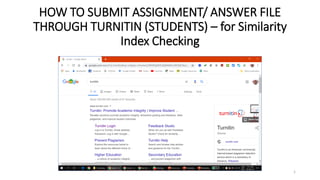
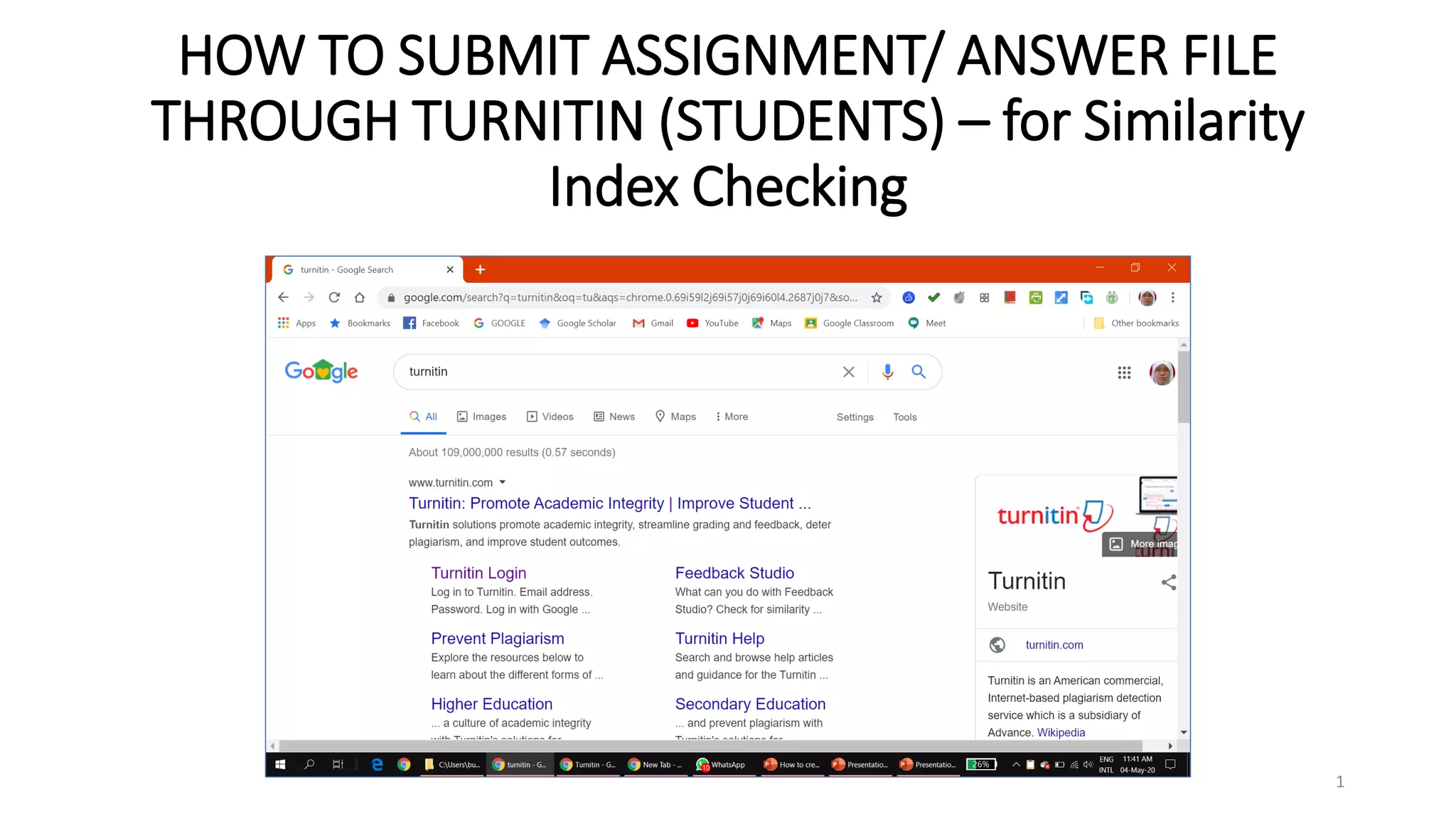
HOW TO SUBMIT ASSIGNMENT/ ANSWER FILE
THROUGH TURNITIN (STUDENTS) – for Similarity
Index Checking
1
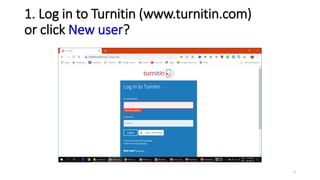
1. Log in to Turnitin (www.turnitin.com)
or click New user?
2
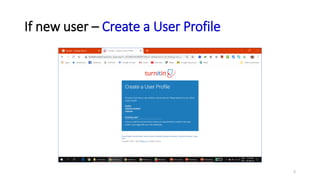
If new user – Create a User Profile
3
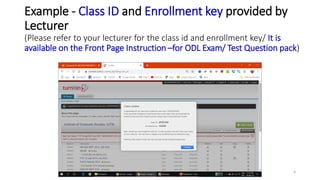
Example - Class ID and Enrollment key provided by
Lecturer
(Please refer to your lecturer for the class id and enrollment key/ It is
available on the Front Page Instruction –for ODL Exam/ Test Question pack)
4
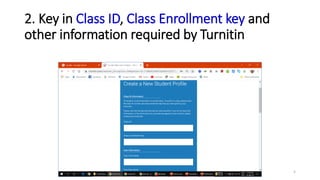
2. Key in Class ID, Class Enrollment key and
other information required by Turnitin
5
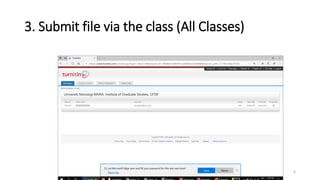
3. Submit file via the class (All Classes)
6
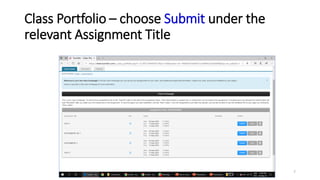
Class Portfolio – choose Submit under the
relevant Assignment Title
7
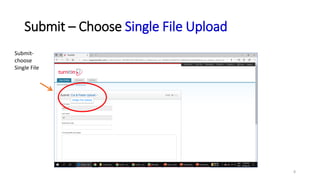
Submit – Choose Single File Upload
Submit-
choose
Single File
8
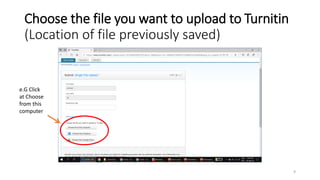
Choose the file you want to upload to Turnitin
(Location of file previously saved)
e.G Click
at Choose
from this
computer
9
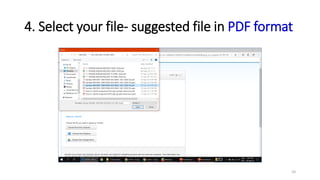
4. Select your file- suggested file in PDF format
10
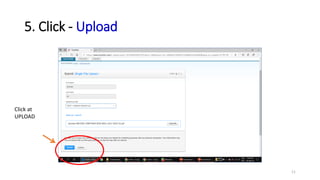
5. Click - Upload
Click at
UPLOAD
11
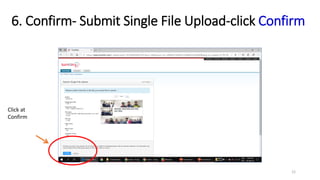
6. Confirm- Submit Single File Upload-click Confirm
Click at
Confirm
12
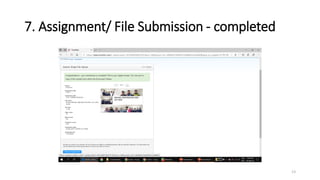
7. Assignment/ File Submission - completed
13
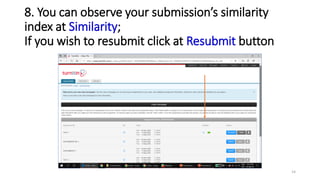
8. You can observe your submission’s similarity
index at Similarity;
If you wish to resubmit click at Resubmit button
14

Student how to submit answer file -turnitin

  • 1.
    HOW TO SUBMITASSIGNMENT/ ANSWER FILE THROUGH TURNITIN (STUDENTS) – for Similarity Index Checking 1
  • 2.
    1. Log into Turnitin (www.turnitin.com) or click New user? 2
  • 3.
    If new user– Create a User Profile 3
  • 4.
    Example - ClassID and Enrollment key provided by Lecturer (Please refer to your lecturer for the class id and enrollment key/ It is available on the Front Page Instruction –for ODL Exam/ Test Question pack) 4
  • 5.
    2. Key inClass ID, Class Enrollment key and other information required by Turnitin 5
  • 6.
    3. Submit filevia the class (All Classes) 6
  • 7.
    Class Portfolio –choose Submit under the relevant Assignment Title 7
  • 8.
    Submit – ChooseSingle File Upload Submit- choose Single File 8
  • 9.
    Choose the fileyou want to upload to Turnitin (Location of file previously saved) e.G Click at Choose from this computer 9
  • 10.
    4. Select yourfile- suggested file in PDF format 10
  • 11.
    5. Click -Upload Click at UPLOAD 11
  • 12.
    6. Confirm- SubmitSingle File Upload-click Confirm Click at Confirm 12
  • 13.
    7. Assignment/ FileSubmission - completed 13
  • 14.
    8. You canobserve your submission’s similarity index at Similarity; If you wish to resubmit click at Resubmit button 14