www.swellpro.comwww.facebook.com/swellpro/
SwellPro
User Manual V1.0
2017.03
©2017 SwellPro All Rights Reserved02
Thank you for purchasing this SwellPro Splash Drone. We have designed and manufactured
the Splash Drone to the highest quality standards, to provide you a safe and reliable product
for many years. Please read the entire contents of this manual thoroughly, to
comprehensively familiarize yourself with the product before using it.
Please Note: This manual is correct at the time of release, and is subject to change without
notice. Please check on our website: www.swellpro.com for the latest release.
Icon Definitions
Prohibited Important Notice Operation Notice
Reading Note
Where to find the tutorial videos
Recommended
Swellpro has prepared the following tutorial video and instruction manuals:
1. Part List
2. User Manual
3. Quick Guide
4. Disclaimer Guide
5. Battery Usage Guide
Before flying the drone, we strongly advise you to watch the tutorial videos and read through
the above instruction manuals.
The tutorial videos can be found and downloaded at
www.swellpro.com.
©2017 SwellPro All Rights Reserved 03
Content
02
02
02
02
05
06
07
08
09
10
Reading Note
Icon Definitions
Recommended
Where to find the tutorial videos
Product Overview
Brief Introduction
Highlighted Functions
Drone Assembly and Set up
Drone Illustrations
Remote Control Illustration
11
12
12
13
14
15
16
About the Drone
Drone Overview
Flight Modes
Indication Lights
Auto Return-Home Function
Propellers
Battery
18
19
19
19
21
21
22
Remote Control
Remote Control Overview
Battery Installation
Remote Control Operation
Remote Control Indication Lights
Remote Control Code
FPV Screen
23
24
26
27
27
Waterproof Camera & Gimbal
Camera
Gimbal Calibration
Gimbal Accelerometer Calibration
Gimbal Gyroscope Calibration
©2017 SwellPro All Rights Reserved04
28
29
29
29
30
30
31
33
34
Flight
Flight
Environmental impacts on your flight
Flight Restrictions
Pre Flight Inspection
Accelerometer Calibration
Compass Calibration
Starting/Stopping Motors
Basic Flight
35
36
38
Frequently Used Parts
Video Transmitter Settings
Payload Release
39
40
41
42
43
APP Control
How to use
Fight path setting
Follow Me
Point-to-Fly
44
45
Appendix
Specifications
©2017 SwellPro All Rights Reserved 05
This section introduces the various
drone functions, how to assemble
the drone, the various part names of
the drone, and it’s remote control.
Product Overview
©2017 SwellPro All Rights Reserved06
The Splash drone 3
On the water…….
In the Rain……..
Above the Water…….
Splashdrone is your solution…..
The Splash drone 3 is the most advanced waterproof (1)drone ever released.
Its the first fully integrated modular amphibious(2) flying platform.
Thanks to its new flight control system, its more reliable than ever.
Its brand new propulsion system with the new custom designed 620KV motors system and
quick release carbon fiber propellers provides you with the perfect balance between power
and efficiency.
With its new quick release modular system you can enjoy maximum versatility by quickly and
easily switching between :
-4KGC a waterproof 4K camera and 2 axis gimbal module
-PL1 the original payload release module , for simple release.
-PL2 the HD Fpv payload release module, for precise release with live video feed.
-PL3 the most advanced payload release module, with 4k camera recording and one axis
gimbal, for the Ultimate precision live video feed and 4k recording capabilities.
-and many more modules to come…
Because great power and versatility requires great control, we developed a fully
ergonomically designed and integrated remote controller with redesigned controls to
maximize ease of use and efficiency and a gorgeous built in 5”FPV (3) screen, so you can see
the live video and OSD data without any additional equipment.
The splash drone 3 allows you to operate in all weather conditions(4), in tough environments
whether its over land or over sea.
With its advanced modular design it can quickly adapt to all type of missions from aerial
filming to search and rescue, ocean survey, fishing and many more…
©2017 SwellPro All Rights Reserved 07
1. A comprehensive waterproof design, it supports all weather flight, on a sunny day, a rainy
day, or even if it is snowing. It can skim the surface, whilst the camera films below the surface
of the water. It can land on the water, and take off again, and even withstands salty water
conditions.
2. The waterproof payload release can be used to deliver up to 1kg loads, including but not
limited to life-saver, lines, fishing bait etc.
3. Swellpro’s 3rd generation waterproof gimbal integrated with a 4k camera, quick release
design.
4. Newly designed 5.8G video transmission system, ensuring you have the best FPV flight
experience.
5. Upgraded auto Return Home software, making sure you safely retrieve your drone, in the
event of losing sight of it , or in an emergency situation.
6. Brand new, ergonomically designed remote controller, which comes with a 5”FPV screen,
you can now see live video and OSD data on the screen.
7. New data link, together with a new APP version, which brings more a stable and
user-friendly smart flight experience.
8. Smart cruise flight mode making it easier for you to film moving objects.
9. Brand new design quick release carbon fiber propellers, strong and durable, a perfect
match for the power system.
10. High quality smart balance charger supports charging the drone’s battery, and the
remote controller’s battery, designed to also protect your batteries, thereby creating a longer
useable life.
11. Compact design carry case, easy to carry, to effectively protect and store your drone.
Highlighted and enhanced functions
©2017 SwellPro All Rights Reserved08
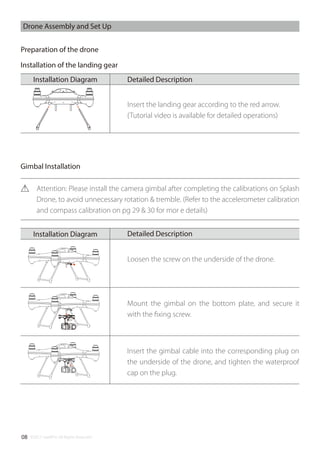
Preparation of the drone
Drone Assembly and Set Up
Mount the gimbal on the bottom plate, and secure it
with the fixing screw.
Loosen the screw on the underside of the drone.
Gimbal Installation
Installation of the landing gear
Detailed DescriptionInstallation Diagram
Insert the landing gear according to the red arrow.
(Tutorial video is available for detailed operations)
Detailed DescriptionInstallation Diagram
Insert the gimbal cable into the corresponding plug on
the underside of the drone, and tighten the waterproof
cap on the plug.
Attention: Please install the camera gimbal after completing the calibrations on Splash
Drone, to avoid unnecessary rotation & tremble. (Refer to the accelerometer calibration
and compass calibration on pg 29 & 30 for mor e details)
©2017 SwellPro All Rights Reserved 09
Note: When opening the top cover, be careful of the GPS cable, When closing the top
cover, please make sure to place the hatch in such a way that the arrow faces the front
of the drone.
Nose Direction
[01] Cover/hatch screw
[02] Quick release carbon fiber propeller
[03] Nose direction
[04] Flight indication lights (Front – 2 Red, Rear – 2 Green)
[05] Gimbal damping ball
[06] Waterproof gimbal and camera
[07] Landing gear
[08] Gimbal quick release screw
[09] Waterproof cable plug/socket
[10] Rubber foot
[11] Waterproof brushless motor
[12] Propeller Spinner
[13] GPS top cover/hatch
Drone Illustration
[01]
[03]
[02]
[04]
[05]
[06]
[07]
[09]
[08]
[10]
[11]
[12]
[13]
Before closing the GPS Top cover, please make sure that the watertight gasket and
the sealing surfaces on the drone are in good condition and are free of dirt, sand or
any other contamination. Sand & other foreign materials will greatly influence the
integrity of waterproof seal on the Splash Drone.
©2017 SwellPro All Rights Reserved10
[01] Remote Antenna
For drone operation signal
Power Button
Auto powers on the FPV screen,
but can be manually powered off.
[02] Left pairing button
Bind the RC with drone
[03] Gimbal pan control
thumbwheel
Adjust the gimbal PAN axis
[04] Camera switch
Controls the camera to
take pictures, or record videos
[05] Airdrop switch
Controls the payload release
[06] Left Joystick
Control the drone’s ascend,
descend / left or right turn
[07] Working Status lights
Remote control working status
[08] Left power button
Press the left and right power
buttons simultaneously to
power on the controller
[09] USB Port
For remote control firmware
upgrade use
[10] Hanger ring
For securing the lanyard to the
controller
[11] Right power button
Press the left and right power
button simultaneously, to
power on the controller
[12] Power status lights
Displaying the remote
controller’s battery status
[13] Right joystick
Controls the drone for forward,
backward, left and right flight
[14] Return-Home switch
Commands the drone to
return automatically
[15] Flight mode switch
GPS / Cruise Flight / ATTI
[16] Gimbal tilt control
thumbwheel
Controls the gimbal tilt axis
[17] Right pairing button
Bind the RC with drone
[18] Video antenna
Transmits FPV live video
[19] FPV screen
Displays FPV live video
Remote controller illustration
[01]
[03]
[02]
[04]
[05]
[06]
[07]
[08]
[09] [10]
[11]
[12]
[13]
[14]
[15]
[16]
[17]
[18]
[19]
Channel / Decrease (-)
Manual channel Selection /
Decrease value
Auto search/Menu Select
Use the auto search function to select
the most suitable channel / Switch
between the different menus
Band / Increase (+)
Manual band Selection / Increase
value
Menu / Menu Selection
Enter into the menu / Shift among of
various menus
©2017 SwellPro All Rights Reserved 11
This section introduces the drone,
and its functions.
About the drone
©2017 SwellPro All Rights Reserved12
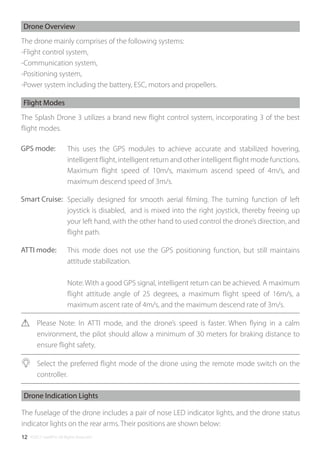
The drone mainly comprises of the following systems:
-Flight control system,
-Communication system,
-Positioning system,
-Power system including the battery, ESC, motors and propellers.
Drone Overview
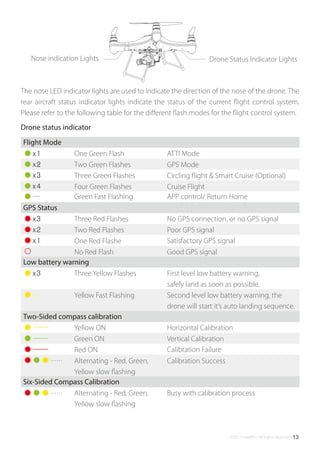
The fuselage of the drone includes a pair of nose LED indicator lights, and the drone status
indicator lights on the rear arms. Their positions are shown below:
Drone Indication Lights
The Splash Drone 3 utilizes a brand new flight control system, incorporating 3 of the best
flight modes.
This uses the GPS modules to achieve accurate and stabilized hovering,
intelligent flight, intelligent return and other intelligent flight mode functions.
Maximum flight speed of 10m/s, maximum ascend speed of 4m/s, and
maximum descend speed of 3m/s.
Specially designed for smooth aerial filming. The turning function of left
joystick is disabled, and is mixed into the right joystick, thereby freeing up
your left hand, with the other hand to used control the drone’s direction, and
flight path.
This mode does not use the GPS positioning function, but still maintains
attitude stabilization.
Note: With a good GPS signal, intelligent return can be achieved. A maximum
flight attitude angle of 25 degrees, a maximum flight speed of 16m/s, a
maximum ascent rate of 4m/s, and the maximum descend rate of 3m/s.
Please Note: In ATTI mode, and the drone’s speed is faster. When flying in a calm
environment, the pilot should allow a minimum of 30 meters for braking distance to
ensure flight safety.
Select the preferred flight mode of the drone using the remote mode switch on the
controller.
Flight Modes
GPS mode:
Smart Cruise:
ATTI mode:
©2017 SwellPro All Rights Reserved 13
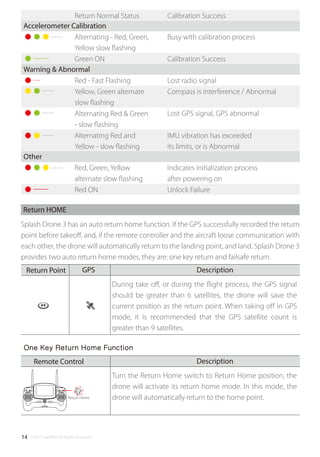
The nose LED indicator lights are used to indicate the direction of the nose of the drone. The
rear aircraft status indicator lights indicate the status of the current flight control system.
Please refer to the following table for the different flash modes for the flight control system.
Drone status indicator
Flight Mode
x1 One Green Flash
Two Green Flashes
Three Green Flashes
Four Green Flashes
Green Fast Flashing
ATTI Mode
GPS Mode
Circling flight & Smart Cruise (Optional)
Cruise Flight
APP control/ Return Home
Nose indication Lights Drone Status Indicator Lights
x2
x3
x4
GPS Status
x3 Three Red Flashes
Two Red Flashes
One Red Flashe
No Red Flash
No GPS connection, or no GPS signal
Poor GPS signal
Satisfactory GPS signal
Good GPS signal
x2
x1
Two-Sided compass calibration
Yellow ON
Green ON
Red ON
Alternating - Red, Green,
Yellow slow flashing
Horizontal Calibration
Vertical Calibration
Calibration Failure
Calibration Success
Low battery warning
x3 Three Yellow Flashes
Yellow Fast Flashing
First level low battery warning,
safely land as soon as possible.
Second level low battery warning, the
drone will start it’s auto landing sequence.
Six-Sided Compass Calibration
Alternating - Red, Green,
Yellow slow flashing
Busy with calibration process
©2017 SwellPro All Rights Reserved14
Return Home
Splash Drone 3 has an auto return home function. If the GPS successfully recorded the return
point before takeoff, and, if the remote controller and the aircraft loose communication with
each other, the drone will automatically return to the landing point, and land. Splash Drone 3
provides two auto return home modes, they are: one key return and failsafe return.
Return HOME
One Key Return Home Function
Warning & Abnormal
Red - Fast Flashing
Yellow, Green alternate
slow flashing
Alternating Red & Green
- slow flashing
Alternating Red and
Yellow - slow flashing
Lost radio signal
Compass is interference / Abnormal
Lost GPS signal, GPS abnormal
IMU vibration has exceeded
its limits, or is Abnormal
Accelerometer Calibration
Green ON Calibration Success
Return Normal Status
Other
Red, Green, Yellow
alternate slow flashing
Red ON
Indicates initialization process
after powering on
Unlock Failure
GPS DescriptionReturn Point
Alternating - Red, Green,
Yellow slow flashing
Busy with calibration process
Calibration Success
During take off, or during the flight process, the GPS signal
should be greater than 6 satellites, the drone will save the
current position as the return point. When taking off in GPS
mode, it is recommended that the GPS satellite count is
greater than 9 satellites.
DescriptionRemote Control
Turn the Return Home switch to Return Home position, the
drone will activate its return home mode. In this mode, the
drone will automatically return to the home point.
©2017 SwellPro All Rights Reserved 15
If the drone goes out of effective distance, the Return Home function will be activated
automatically. When the remote control communication is recovered, the control of the
drone can be resumed after a single switching of the flight mode Switch, regardless of the
current mode is under ATTI or GPS.
Propeller Installation
Failsafe Return Home
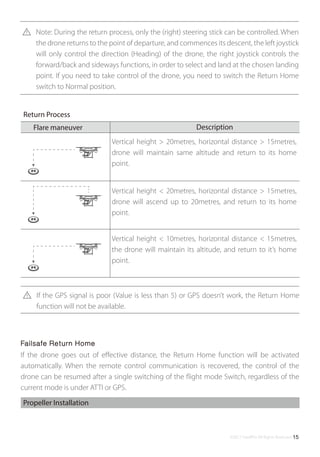
Note: During the return process, only the (right) steering stick can be controlled. When
the drone returns to the point of departure, and commences its descent, the left joystick
will only control the direction (Heading) of the drone, the right joystick controls the
forward/back and sideways functions, in order to select and land at the chosen landing
point. If you need to take control of the drone, you need to switch the Return Home
switch to Normal position.
If the GPS signal is poor (Value is less than 5) or GPS doesn’t work, the Return Home
function will not be available.
Vertical height > 20metres, horizontal distance > 15metres,
drone will maintain same altitude and return to its home
point.
Vertical height < 20metres, horizontal distance > 15metres,
drone will ascend up to 20metres, and return to its home
point.
Vertical height < 10metres, horizontal distance < 15metres,
the drone will maintain its altitude, and return to it’s home
point.
Return Process
DescriptionFlare maneuver
©2017 SwellPro All Rights Reserved16
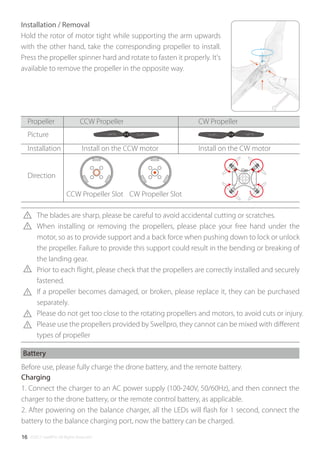
Installation / Removal
Hold the rotor of motor tight while supporting the arm upwards
with the other hand, take the corresponding propeller to install.
Press the propeller spinner hard and rotate to fasten it properly. It's
available to remove the propeller in the opposite way.
1. Connect the charger to an AC power supply (100-240V, 50/60Hz), and then connect the
charger to the drone battery, or the remote control battery, as applicable.
2. After powering on the balance charger, all the LEDs will flash for 1 second, connect the
battery to the balance charging port, now the battery can be charged.
Before use, please fully charge the drone battery, and the remote battery.
Battery
Charging
The blades are sharp, please be careful to avoid accidental cutting or scratches.
When installing or removing the propellers, please place your free hand under the
motor, so as to provide support and a back force when pushing down to lock or unlock
the propeller. Failure to provide this support could result in the bending or breaking of
the landing gear.
Prior to each flight, please check that the propellers are correctly installed and securely
fastened.
If a propeller becomes damaged, or broken, please replace it, they can be purchased
separately.
Please do not get too close to the rotating propellers and motors, to avoid cuts or injury.
Please use the propellers provided by Swellpro, they cannot can be mixed with different
types of propeller
Propeller CCW Propeller CW Propeller
Picture
Direction
Install on the CCW motorInstallation Install on the CW motor
CW Propeller SlotCCW Propeller Slot
©2017 SwellPro All Rights Reserved 17
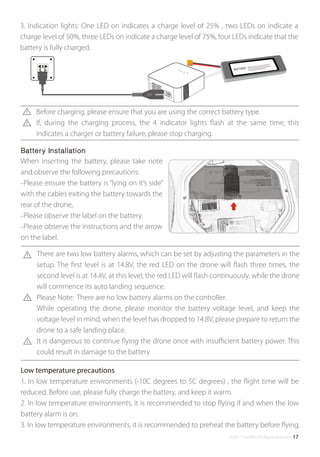
3. Indication lights: One LED on indicates a charge level of 25% , two LEDs on indicate a
charge level of 50%, three LEDs on indicate a charge level of 75%, four LEDs indicate that the
battery is fully charged.
1. In low temperature environments (-10C degrees to 5C degrees) , the flight time will be
reduced. Before use, please fully charge the battery, and keep it warm.
2. In low temperature environments, it is recommended to stop flying if and when the low
battery alarm is on.
3. In low temperature environments, it is recommended to preheat the battery before flying.
Low temperature precautions
When inserting the battery, please take note
and observe the following precautions:
-Please ensure the battery is “lying on it’s side”
with the cables exiting the battery towards the
rear of the drone,
-Please observe the label on the battery.
-Please observe the instructions and the arrow
on the label.
Battery Installation
Before charging, please ensure that you are using the correct battery type.
If, during the charging process, the 4 indicator lights flash at the same time, this
indicates a charger or battery failure, please stop charging.
There are two low battery alarms, which can be set by adjusting the parameters in the
setup. The first level is at 14.8V, the red LED on the drone will flash three times, the
second level is at 14.4V, at this level, the red LED will flash continuously, while the drone
will commence its auto landing sequence.
Please Note: There are no low battery alarms on the controller.
While operating the drone, please monitor the battery voltage level, and keep the
voltage level in mind, when the level has dropped to 14.8V, please prepare to return the
drone to a safe landing place.
It is dangerous to continue flying the drone once with insufficient battery power. This
could result in damage to the battery.
©2017 SwellPro All Rights Reserved18
This section introduces the remote
control functions. Including the
drone operation, and the camera
operation.
Remote Control
©2017 SwellPro All Rights Reserved 19
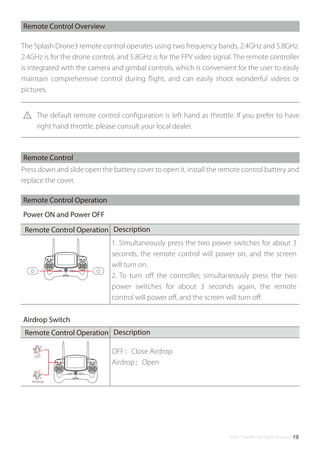
OFF:Close Airdrop
Airdrop:Open
OFF
Airdrop
The Splash Drone3 remote control operates using two frequency bands, 2.4GHz and 5.8GHz.
2.4GHz is for the drone control, and 5.8GHz is for the FPV video signal. The remote controller
is integrated with the camera and gimbal controls, which is convenient for the user to easily
maintain comprehensive control during flight, and can easily shoot wonderful videos or
pictures.
Remote Control Overview
Press down and slide open the battery cover to open it, install the remote control battery and
replace the cover.
Remote Control
Remote Control Operation
Power ON and Power OFF
The default remote control configuration is left hand as throttle. If you prefer to have
right hand throttle, please consult your local dealer.
Airdrop Switch
DescriptionRemote Control Operation
1. Simultaneously press the two power switches for about 3
seconds, the remote control will power on, and the screen
will turn on.
2. To turn off the controller, simultaneously press the two
power switches for about 3 seconds again, the remote
control will power off, and the screen will turn off.
©2017 SwellPro All Rights Reserved20
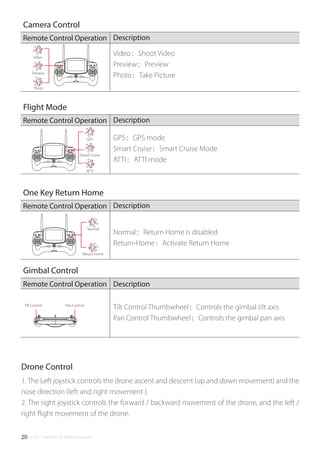
Video:Shoot Video
Preview:Preview
Photo:Take Picture
Photo
Normal
Return Home
Normal:Return Home is disabled
Return-Home:Activate Return Home
Tilt Control Pan Control
Tilt Control Thumbwheel:Controls the gimbal tilt axis
Pan Control Thumbwheel:Controls the gimbal pan axis
Video
Preview
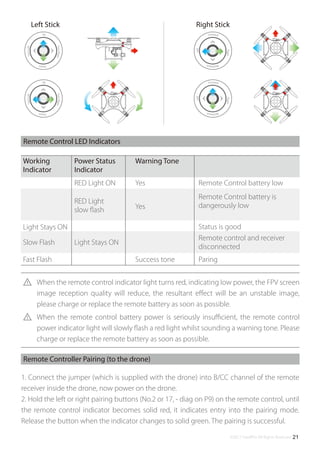
1. The Left joystick controls the drone ascent and descent (up and down movement) and the
nose direction (left and right movement ).
2. The right joystick controls the forward / backward movement of the drone, and the left /
right flight movement of the drone.
Camera Control
DescriptionRemote Control Operation
Flight Mode
DescriptionRemote Control Operation
One Key Return Home
Description
Description
Remote Control Operation
Gimbal Control
Drone Control
Remote Control Operation
GPS:GPS mode
Smart Cruise:Smart Cruise Mode
ATTI:ATTI mode
GPS
Smart Cruise
ATTI
©2017 SwellPro All Rights Reserved 21
Remote Control LED Indicators
Remote Controller Pairing (to the drone)
1. Connect the jumper (which is supplied with the drone) into B/CC channel of the remote
receiver inside the drone, now power on the drone.
2. Hold the left or right pairing buttons (No.2 or 17, - diag on P9) on the remote control, until
the remote control indicator becomes solid red, it indicates entry into the pairing mode.
Release the button when the indicator changes to solid green. The pairing is successful.
Working
Indicator
Power Status
Indicator
Warning Tone
RED Light ON
RED Light
slow flash Yes
Yes
Light Stays ON
Remote Control battery low
Remote Control battery is
dangerously low
Status is good
Light Stays ONSlow Flash
Fast Flash
Remote control and receiver
disconnected
ParingSuccess tone
When the remote control indicator light turns red, indicating low power, the FPV screen
image reception quality will reduce, the resultant effect will be an unstable image,
please charge or replace the remote battery as soon as possible.
When the remote control battery power is seriously insufficient, the remote control
power indicator light will slowly flash a red light whilst sounding a warning tone. Please
charge or replace the remote battery as soon as possible.
Right StickLeft Stick
Up
TurnRight
Down
TurnLeft
Up
TurnRight
Down
TurnLeft
Forward
Right
Backward
Left
Forward
Right
Backward
Left
©2017 SwellPro All Rights Reserved22
B16.2V P -0.1°
R 3.3°
V 0.0M/S
Y 26.8°
15
00:07:00
0.0D 0M
H 0M
FS
ATT
FPV screen
Display Interface
The Splash Drone 3 uses 5.8G video transmission technology, reducing the delay to a
minimum. The 5.8G transmission range can reach 1km. 40 channels are available to select
from.
In the absence of obstacles, or without interference, the video transmission range can reach 1km
[01] Battery Voltage
Drone battery voltage
[02] Return Home direction
[03] Flight Attitude
Verification of the flight attitude
[04] Flight Distance
The horizontal distance between the drone, and
the home point
[05] Flight Height
The vertical height of the drone above the home
point
[06] Connection lost notice
Notification when the connection is lost between
the drone and the controller.
[07] Flight Mode
[08] Time
The running time
[09] Ascend speed / Descend speed
[10] GPS status
( )Not located / ( )located
[11] Satellite Quantity
The receiving satellite quantity
[12] Horizontal speed
The drone’s horizontal speed
[13] Angle of yaw
The actual angle of yaw
[14] Angle of roll
The actual angle of roll
[15] Angle of tilt
The actual angle of tilt
[01]
[04]
[05]
[06]
[07] [08]
[09]
[10]
[11]
[13][14] [12][15]
[03]
[02]
Dynamically displays the relative angle between
the nose and the return point. When the mark is
displayed in middle of the FPV screen, it means the
nose of the drone is facing the return point.
The vertical speed of the drone
when ascending or descending,
units are metres/ second
ATT: ATTI Mode, GPS:GPS Mode, CIR:Smart
Cruise
©2017 SwellPro All Rights Reserved 23
This section introduces the camera
and the gimbal, and how to use
them.
Gimbal & Camera
©2017 SwellPro All Rights Reserved24
Camera
The camera’s superior electronic image stabilization technology combined with the design
of a high-precision waterproof gimbal, producing the cameras ability to shoot smooth,
non-destructive and real-time videos and photos in a high-speed environment. The camera
supports 24 frames per second 4K videos.
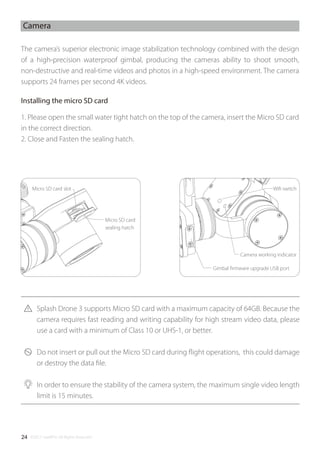
1. Please open the small water tight hatch on the top of the camera, insert the Micro SD card
in the correct direction.
2. Close and Fasten the sealing hatch.
Splash Drone 3 supports Micro SD card with a maximum capacity of 64GB. Because the
camera requires fast reading and writing capability for high stream video data, please
use a card with a minimum of Class 10 or UHS-1, or better.
Do not insert or pull out the Micro SD card during flight operations, this could damage
or destroy the data file.
In order to ensure the stability of the camera system, the maximum single video length
limit is 15 minutes.
Micro SD card
sealing hatch
Gimbal firmware upgrade USB port
Camera working indicator
Wifi switchMicro SD card slot
Installing the micro SD card
©2017 SwellPro All Rights Reserved 25
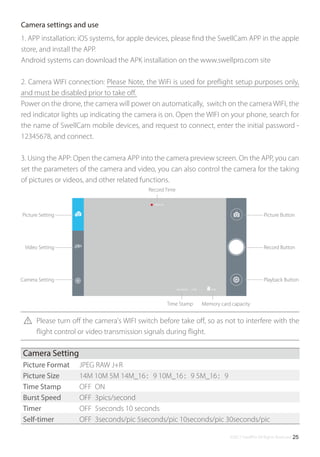
00:05:20
8.5G2016/05/03 17:08
Camera Setting
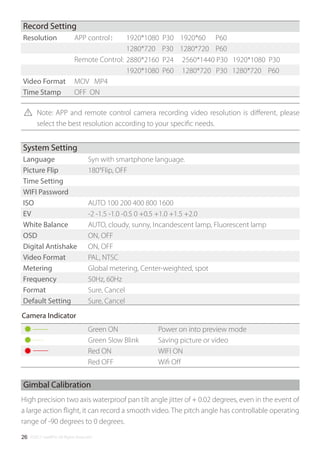
Picture Format
Picture Size
Time Stamp
Burst Speed
Timer
Self-timer
JPEG RAW J+R
14M 10M 5M 14M_16:9 10M_16:9 5M_16:9
OFF ON
OFF 3pics/second
OFF 5seconds 10 seconds
OFF 3seconds/pic 5seconds/pic 10seconds/pic 30seconds/pic
Picture Setting
Video Setting
Camera Setting
Picture Button
Record Button
Playback Button
Record Time
Time Stamp Memory card capacity
1. APP installation: iOS systems, for apple devices, please find the SwellCam APP in the apple
store, and install the APP.
Android systems can download the APK installation on the www.swellpro.com site
2. Camera WIFI connection: Please Note, the WiFi is used for preflight setup purposes only,
and must be disabled prior to take off.
Power on the drone, the camera will power on automatically, switch on the camera WIFI, the
red indicator lights up indicating the camera is on. Open the WIFI on your phone, search for
the name of SwellCam mobile devices, and request to connect, enter the initial password -
12345678, and connect.
3. Using the APP: Open the camera APP into the camera preview screen. On the APP, you can
set the parameters of the camera and video, you can also control the camera for the taking
of pictures or videos, and other related functions.
Camera settings and use
Please turn off the camera's WIFI switch before take off, so as not to interfere with the
flight control or video transmission signals during flight.
©2017 SwellPro All Rights Reserved26
Gimbal Calibration
High precision two axis waterproof pan tilt angle jitter of + 0.02 degrees, even in the event of
a large action flight, it can record a smooth video. The pitch angle has controllable operating
range of -90 degrees to 0 degrees.
Green ON
Green Slow Blink
Red ON
Red OFF
Power on into preview mode
Saving picture or video
WIFI ON
Wifi Off
Record Setting
Resolution
Video Format
Time Stamp
APP control:
Remote Control:
MOV MP4
OFF ON
1920*1080 P30 1920*60 P60
1280*720 P30 1280*720 P60
2880*2160 P24 2560*1440 P30 1920*1080 P30
1920*1080 P60 1280*720 P30 1280*720 P60
System Setting
Language
Picture Flip
Time Setting
WIFI Password
ISO
EV
White Balance
OSD
Digital Antishake
Video Format
Metering
Frequency
Format
Default Setting
Syn with smartphone language.
180°Flip, OFF
AUTO 100 200 400 800 1600
-2 -1.5 -1.0 -0.5 0 +0.5 +1.0 +1.5 +2.0
AUTO, cloudy, sunny, Incandescent lamp, Fluorescent lamp
ON, OFF
ON, OFF
PAL, NTSC
Global metering, Center-weighted, spot
50Hz, 60Hz
Sure, Cancel
Sure, Cancel
Camera Indicator
Note: APP and remote control camera recording video resolution is different, please
select the best resolution according to your specific needs.
©2017 SwellPro All Rights Reserved 27
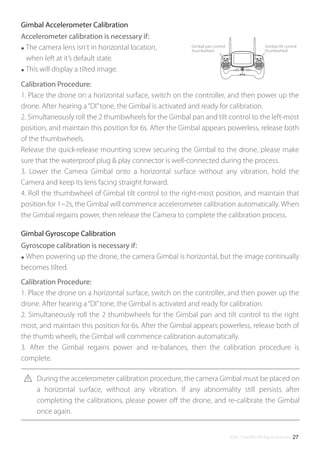
Gimbal pan control
thumbwheel
Gimbal tilt control
thumbwheel
Accelerometer calibration is necessary if:
● The camera lens isn't in horizontal location,
when left at it’s default state.
● This will display a tilted image.
Calibration Procedure:
1. Place the drone on a horizontal surface, switch on the controller, and then power up the
drone. After hearing a“DI”tone, the Gimbal is activated and ready for calibration.
2. Simultaneously roll the 2 thumbwheels for the Gimbal pan and tilt control to the left-most
position, and maintain this position for 6s. After the Gimbal appears powerless, release both
of the thumbwheels.
Release the quick-release mounting screw securing the Gimbal to the drone, please make
sure that the waterproof plug & play connector is well-connected during the process.
3. Lower the Camera Gimbal onto a horizontal surface without any vibration, hold the
Camera and keep its lens facing straight forward.
4. Roll the thumbwheel of Gimbal tilt control to the right-most position, and maintain that
position for 1~2s, the Gimbal will commence accelerometer calibration automatically. When
the Gimbal regains power, then release the Camera to complete the calibration process.
Gimbal Accelerometer Calibration
Gyroscope calibration is necessary if:
● When powering up the drone, the camera Gimbal is horizontal, but the image continually
becomes tilted.
Calibration Procedure:
1. Place the drone on a horizontal surface, switch on the controller, and then power up the
drone. After hearing a“DI”tone, the Gimbal is activated and ready for calibration.
2. Simultaneously roll the 2 thumbwheels for the Gimbal pan and tilt control to the right
most, and maintain this position for 6s. After the Gimbal appears powerless, release both of
the thumb wheels, the Gimbal will commence calibration automatically.
3. After the Gimbal regains power and re-balances, then the calibration procedure is
complete.
Gimbal Gyroscope Calibration
During the accelerometer calibration procedure, the camera Gimbal must be placed on
a horizontal surface, without any vibration. If any abnormality still persists after
completing the calibrations, please power off the drone, and re-calibrate the Gimbal
once again.
©2017 SwellPro All Rights Reserved28
This section introduces and
discusses flying hazards, flight
restrictions, and drone care and
attention.
Flight
©2017 SwellPro All Rights Reserved 29
Flight
Flying the Splash Drone
If this is your first time wanting to fly a drone, please be sure to watch the various tutorial
videos, please read the instructions and observe and digest the precautions. We recommend
taking professional training and guidance. When flying, please be sure to select an
appropriate flight environment.
1. Please do not fly in bad weather, such as excessive wind (wind speeds of level 6, and
above), fog or other extreme weather.
2. Select an open place or water surface as an ideal flying site.
Flying in between, or near a large number of steel buildings could adversely affect the
workings of the compass, and will adversely affect or block the GPS signal, resulting in a poor
positioning effect, or even impede, or sever communication and the ability to locate the
aircraft.
3. When flying, try to maintain of line of sight with the drone, keep away from obstacles and
people.
4. Do not fly near high voltage lines, communication base stations or launch towers or other
areas, which may interfere with the remote control of the drone.
5. At 4000 meters above sea level, due to environmental factors, including air density, which
could result in decreased performance of the drone, and it’s batteries and power systems,
flight performance will be adversely affected.
Flight restrictions
Limited height and distance
According to the provisions of the International Civil Aviation Organization and national air
traffic control airspace control, as well as the provisions of the UAV management, UAVs must
be operated in specified airspaces. In consideration of flight safety, the safety fence is the
default setting.
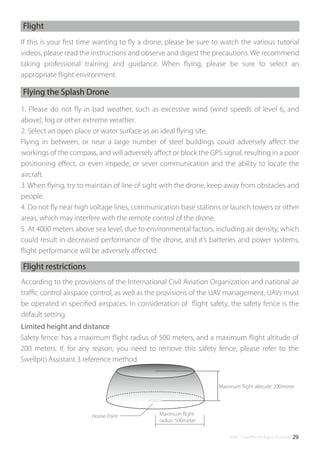
Safety fence: has a maximum flight radius of 500 meters, and a maximum flight altitude of
200 meters. If, for any reason, you need to remove this safety fence, please refer to the
Swellpro Assistant 3 reference method.
Home Point Maximum flight
radius: 500meter
Maximum flight altitude: 200meter
©2017 SwellPro All Rights Reserved30
Accelerometer Calibration Steps:
Remote Control Operation
Pre-Flight Inspection and checks
1. Please ensure there is sufficient charge in both the drone and the controller batteries.
2. Please check that the propellers are correctly installed.
3. Make sure the Micro SD card is properly inserted into camera, and the sealing hatch is
securely fastened.
4. Please check that the Camera & gimbal are working correctly.
5. Please make sure the camera lens is clean.
6. Please verify that the motors can be started
Accelerometer calibration
Calibration is necessary in any of the following cases:
1. First time use of the drone.
2. Following sustained flight in ATTI mode.
3. If, when pushing up the THROTTLE joystick, without moving the right (AIRLERON) joystick,
and the drone drifts at an angle, while in ATTI mode.
4. If the drone has been subjected to heavy shaking during transportation.
5. If, following a successful compass calibration, the motors do unlock, but the red LED stays
on solid when trying to start up the motors.
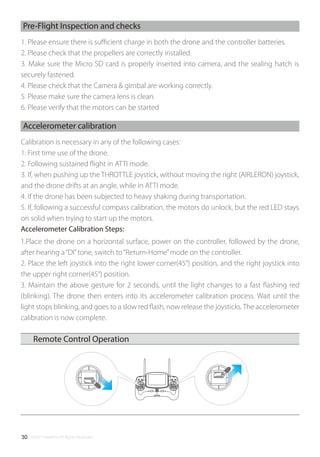
1.Place the drone on a horizontal surface, power on the controller, followed by the drone,
after hearing a“DI”tone, switch to“Return-Home”mode on the controller.
2. Place the left joystick into the right lower corner(45°) position, and the right joystick into
the upper right corner(45°) position.
3. Maintain the above gesture for 2 seconds, until the light changes to a fast flashing red
(blinking). The drone then enters into its accelerometer calibration process. Wait until the
light stops blinking, and goes to a slow red flash, now release the joysticks.The accelerometer
calibration is now complete.
©2017 SwellPro All Rights Reserved 31
DescriptionOperation Illustration
Please Note: It is recommended to calibrate the compass at the proposed flying area
before flying. Flying anywhere close to any magnetic interference is HIGHLY
DISCOURAGED. (Please make sure to keep far away from the following: High-Voltage
transmission power lines, Emitting base stations, metal objects, etc.)
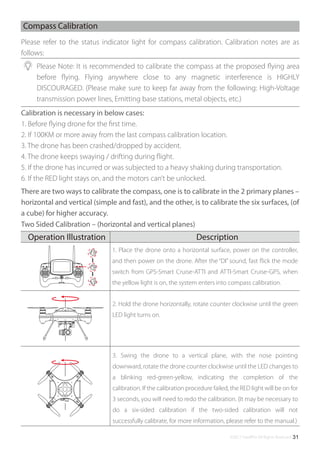
1. Place the drone onto a horizontal surface, power on the controller,
and then power on the drone. After the “DI” sound, fast flick the mode
switch from GPS-Smart Cruise-ATTI and ATTI-Smart Cruise-GPS, when
the yellow light is on, the system enters into compass calibration.
3. Swing the drone to a vertical plane, with the nose pointing
downward, rotate the drone counter clockwise until the LED changes to
a blinking red-green-yellow, indicating the completion of the
calibration. If the calibration procedure failed, the RED light will be on for
3 seconds, you will need to redo the calibration. (It may be necessary to
do a six-sided calibration if the two-sided calibration will not
successfully calibrate, for more information, please refer to the manual.)
2. Hold the drone horizontally, rotate counter clockwise until the green
LED light turns on.
Compass Calibration
Please refer to the status indicator light for compass calibration. Calibration notes are as
follows:
Calibration is necessary in below cases:
1. Before flying drone for the first time.
2. If 100KM or more away from the last compass calibration location.
3. The drone has been crashed/dropped by accident.
4. The drone keeps swaying / drifting during flight.
5. If the drone has incurred or was subjected to a heavy shaking during transportation.
6. If the RED light stays on, and the motors can’t be unlocked.
There are two ways to calibrate the compass, one is to calibrate in the 2 primary planes –
horizontal and vertical (simple and fast), and the other, is to calibrate the six surfaces, (of
a cube) for higher accuracy.
Two Sided Calibration – (horizontal and vertical planes)
©2017 SwellPro All Rights Reserved32
Return Home
DescriptionOperation Illustration
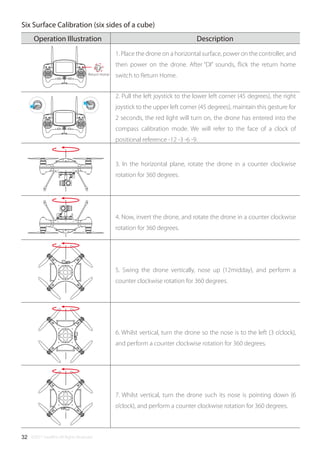
1. Place the drone on a horizontal surface, power on the controller, and
then power on the drone. After “DI” sounds, flick the return home
switch to Return Home.
3. In the horizontal plane, rotate the drone in a counter clockwise
rotation for 360 degrees.
4. Now, invert the drone, and rotate the drone in a counter clockwise
rotation for 360 degrees.
5. Swing the drone vertically, nose up (12midday), and perform a
counter clockwise rotation for 360 degrees.
6. Whilst vertical, turn the drone so the nose is to the left (3 o’clock),
and perform a counter clockwise rotation for 360 degrees.
7. Whilst vertical, turn the drone such its nose is pointing down (6
o’clock), and perform a counter clockwise rotation for 360 degrees.
2. Pull the left joystick to the lower left corner (45 degrees), the right
joystick to the upper left corner (45 degrees), maintain this gesture for
2 seconds, the red light will turn on, the drone has entered into the
compass calibration mode. We will refer to the face of a clock of
positional reference -12 -3 -6 -9.
Six Surface Calibration (six sides of a cube)
©2017 SwellPro All Rights Reserved 33
The standard of judging whether the calibration is successful or not, is whether the
drone motors can be unlocked. Switch to Normal from Return Home mode, and try to
unlock the motors in ATTI mode.
If the motors cannot be unlocked, it means the calibration was not successful, please
relocate to another place and repeat the above calibration procedure.
Place the drone in an open area at least 3 meters away from you, or others.
Put the Return Home mode switch in the Normal position, and the flight mode switch
into either GPS or ATTI mode, and then power on the remote control.
Make sure that each part of the drone is connected properly. And the propellers are
installed correctly
When the drone is powered on, the drone will do a self-check, and when complete, it
will issue a "DI" sound.
Note: While the drone is completing its self-check, please keep the drone stationary.
If ATTI mode is selected, there is no need to wait, you can unlock the motors and
proceed to takeoff and fly immediately, however, in GPS mode, it is necessary to wait
until the number of satellites is a minimum of 9, before attempting to unlock the
motors.
Starting / Stopping the Motors
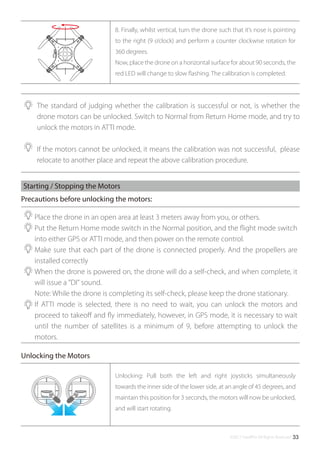
8. Finally, whilst vertical, turn the drone such that it’s nose is pointing
to the right (9 o’clock) and perform a counter clockwise rotation for
360 degrees.
Now, place the drone on a horizontal surface for about 90 seconds, the
red LED will change to slow flashing. The calibration is completed.
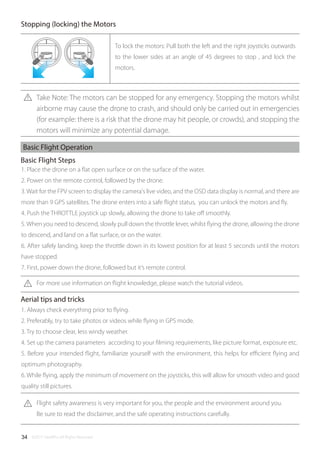
Unlocking: Pull both the left and right joysticks simultaneously
towards the inner side of the lower side, at an angle of 45 degrees, and
maintain this position for 3 seconds, the motors will now be unlocked,
and will start rotating.
Precautions before unlocking the motors:
Unlocking the Motors
©2017 SwellPro All Rights Reserved34
Take Note: The motors can be stopped for any emergency. Stopping the motors whilst
airborne may cause the drone to crash, and should only be carried out in emergencies
(for example: there is a risk that the drone may hit people, or crowds), and stopping the
motors will minimize any potential damage.
1. Place the drone on a flat open surface or on the surface of the water.
2. Power on the remote control, followed by the drone.
3. Wait for the FPV screen to display the camera's live video, and the OSD data display is normal, and there are
more than 9 GPS satellites. The drone enters into a safe flight status, you can unlock the motors and fly.
4. Push the THROTTLE joystick up slowly, allowing the drone to take off smoothly.
5. When you need to descend, slowly pull down the throttle lever, whilst flying the drone, allowing the drone
to descend, and land on a flat surface, or on the water.
6. After safely landing, keep the throttle down in its lowest position for at least 5 seconds until the motors
have stopped.
7. First, power down the drone, followed but it’s remote control.
For more use information on flight knowledge, please watch the tutorial videos.
Flight safety awareness is very important for you, the people and the environment around you.
Be sure to read the disclaimer, and the safe operating instructions carefully.
Basic Flight Operation
Basic Flight Steps
1. Always check everything prior to flying.
2. Preferably, try to take photos or videos while flying in GPS mode.
3. Try to choose clear, less windy weather.
4. Set up the camera parameters according to your filming requirements, like picture format, exposure etc.
5. Before your intended flight, familiarize yourself with the environment, this helps for efficient flying and
optimum photography.
6. While flying, apply the minimum of movement on the joysticks, this will allow for smooth video and good
quality still pictures.
Aerial tips and tricks
To lock the motors: Pull both the left and the right joysticks outwards
to the lower sides at an angle of 45 degrees to stop , and lock the
motors.
Stopping (locking) the Motors
©2017 SwellPro All Rights Reserved 35
This section introduces the more
frequently used parts.
Frequently Used Parts
©2017 SwellPro All Rights Reserved36
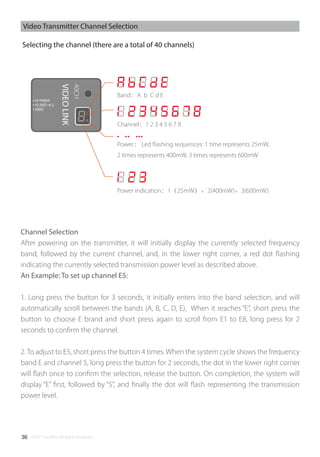
Band:A b C d E
Channel:1 2 3 4 5 6 7 8
Power: Led flashing sequences: 1 time represents 25mW,
2 times represents 400mW, 3 times represents 600mW
Power indication:1(25mW)、2(400mW)、3(600mW)
Channel Selection
After powering on the transmitter, it will initially display the currently selected frequency
band, followed by the current channel, and, in the lower right corner, a red dot flashing
indicating the currently selected transmission power level as described above.
An Example: To set up channel E5:
1. Long press the button for 3 seconds, it initially enters into the band selection, and will
automatically scroll between the bands (A, B, C, D, E), When it reaches “E”, short press the
button to choose E brand and short press again to scroll from E1 to E8, long press for 2
seconds to confirm the channel.
2. To adjust to E5, short press the button 4 times. When the system cycle shows the frequency
band E and channel 5, long press the button for 2 seconds, the dot in the lower right corner
will flash once to confirm the selection, release the button. On completion, the system will
display “E” first, followed by “5”, and finally the dot will flash representing the transmission
power level.
Selecting the channel (there are a total of 40 channels)
Video Transmitter Channel Selection
©2017 SwellPro All Rights Reserved 37
Power Selection
1. To enter the power-switching mode, long press the button for 5 seconds, the system will
then display the currently selected power level, corresponding to the number of slow flashes.
If you need to change the power level, press the button to select the desired transmission
power level.
2. After selecting the required power level, press the button for 2 seconds, the dot at the
lower right corner will flash once, confirming your selection, and then exit from the power
selection mode. Release the button, the system will now confirm your selections of the band,
channel and power level, firstly showing you the selected band, followed by the selected
channel, and finally the transmission power level, represented by the number of flashes of the
red dot.
3. Please note: We recommend running at 400mW video power level when operating within
an 800 metre radius, this level is a good nominal level and also extends the flying time.
If it is required to flying in areas of obstructions and/or exceeding 800m, it may be required to
switch to 600mW transmission power.
©2017 SwellPro All Rights Reserved38
Payload Release
Installation
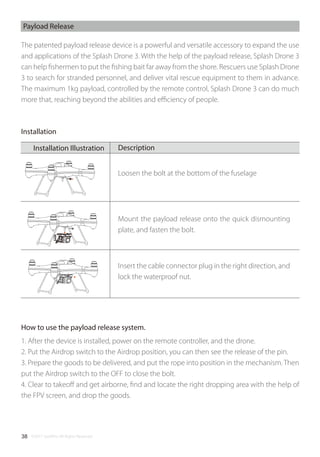
The patented payload release device is a powerful and versatile accessory to expand the use
and applications of the Splash Drone 3. With the help of the payload release, Splash Drone 3
can help fishermen to put the fishing bait far away from the shore. Rescuers use Splash Drone
3 to search for stranded personnel, and deliver vital rescue equipment to them in advance.
The maximum 1kg payload, controlled by the remote control, Splash Drone 3 can do much
more that, reaching beyond the abilities and efficiency of people.
How to use the payload release system.
1. After the device is installed, power on the remote controller, and the drone.
2. Put the Airdrop switch to the Airdrop position, you can then see the release of the pin.
3. Prepare the goods to be delivered, and put the rope into position in the mechanism. Then
put the Airdrop switch to the OFF to close the bolt.
4. Clear to takeoff and get airborne, find and locate the right dropping area with the help of
the FPV screen, and drop the goods.
Mount the payload release onto the quick dismounting
plate, and fasten the bolt.
Insert the cable connector plug in the right direction, and
lock the waterproof nut.
Loosen the bolt at the bottom of the fuselage
DescriptionInstallation Illustration
©2017 SwellPro All Rights Reserved 39
APP Control
©2017 SwellPro All Rights Reserved40
How to use the APP
2. Power on the Bluetooth datalink module, switch on the GPS and Bluetooth on your
smartphone. Find the corresponding Bluetooth Link (e.g: UAV-2…) and link it (Note: when
the bluetooth is linked, the blue light on the Bluetooth datalink module will stop blinking).
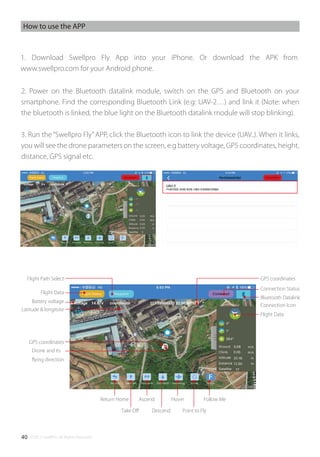
3. Run the“Swellpro Fly”APP, click the Bluetooth icon to link the device (UAV..). When it links,
you will see the drone parameters on the screen, e.g battery voltage, GPS coordinates, height,
distance, GPS signal etc.
1. Download Swellpro Fly App into your iPhone. Or download the APK from
www.swellpro.com for your Android phone.
Flight Data
Flight Data
Connection Status
Bluetooth Datalink
Connection Icon
Flight Path Select GPS coordinates
Return Home
Take Off Descend
Ascend Hover
Point to Fly
Follow Me
GPS coordinates
Drone and its
flying direction
Battery voltage
Latitude & longitute
©2017 SwellPro All Rights Reserved 41
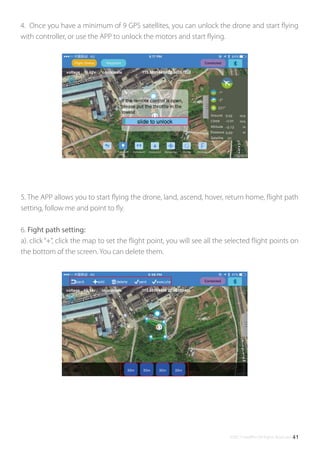
5. The APP allows you to start flying the drone, land, ascend, hover, return home, flight path
setting, follow me and point to fly.
6. Fight path setting:
a). click“+”, click the map to set the flight point, you will see all the selected flight points on
the bottom of the screen. You can delete them.
4. Once you have a minimum of 9 GPS satellites, you can unlock the drone and start flying
with controller, or use the APP to unlock the motors and start flying.
©2017 SwellPro All Rights Reserved42
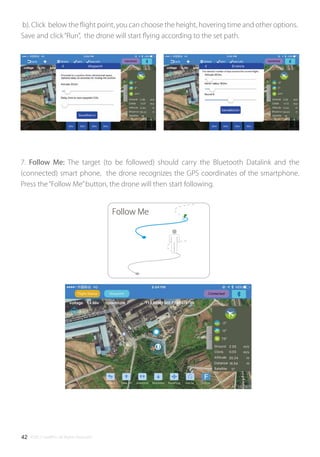
Follow Me
b). Click below the flight point, you can choose the height, hovering time and other options.
Save and click“Run”, the drone will start flying according to the set path.
7. Follow Me: The target (to be followed) should carry the Bluetooth Datalink and the
(connected) smart phone, the drone recognizes the GPS coordinates of the smartphone.
Press the“Follow Me”button, the drone will then start following.
©2017 SwellPro All Rights Reserved 43
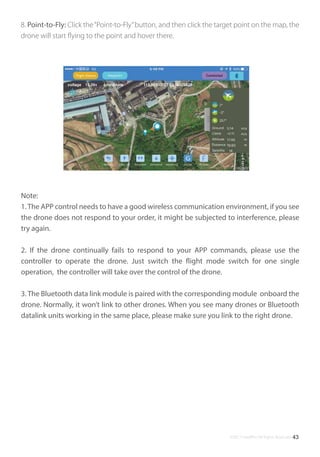
8. Point-to-Fly: Click the“Point-to-Fly”button, and then click the target point on the map, the
drone will start flying to the point and hover there.
Note:
1.The APP control needs to have a good wireless communication environment, if you see
the drone does not respond to your order, it might be subjected to interference, please
try again.
2. If the drone continually fails to respond to your APP commands, please use the
controller to operate the drone. Just switch the flight mode switch for one single
operation, the controller will take over the control of the drone.
3. The Bluetooth data link module is paired with the corresponding module onboard the
drone. Normally, it won’t link to other drones. When you see many drones or Bluetooth
datalink units working in the same place, please make sure you link to the right drone.
©2017 SwellPro All Rights Reserved44
Appendix
©2017 SwellPro All Rights Reserved 45
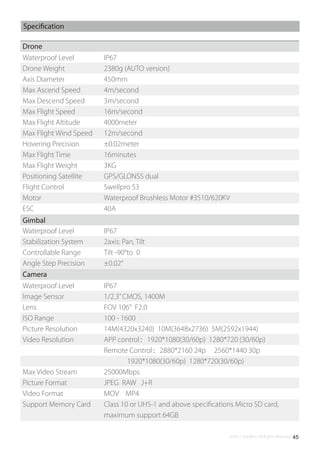
Specification
Drone
Waterproof Level
Drone Weight
Axis Diameter
Max Ascend Speed
Max Descend Speed
Max Flight Speed
Max Flight Altitude
Max Flight Wind Speed
Hovering Precision
Max Flight Time
Max Flight Weight
Positioning Satellite
Flight Control
Motor
ESC
IP67
2380g (AUTO version)
450mm
4m/second
3m/second
16m/second
4000meter
12m/second
±0.02meter
16minutes
3KG
GPS/GLONSS dual
Swellpro S3
Waterproof Brushless Motor #3510/620KV
40A
Camera
Waterproof Level
Image Sensor
Lens
ISO Range
Picture Resolution
Video Resolution
Max Video Stream
Picture Format
Video Format
Support Memory Card
IP67
1/2.3”CMOS, 1400M
FOV 106° F2.0
100 - 1600
14M(4320x3240) 10M(3648x2736) 5M(2592x1944)
APP control:1920*1080(30/60p) 1280*720 (30/60p)
Remote Control:2880*2160 24p 2560*1440 30p
1920*1080(30/60p) 1280*720(30/60p)
25000Mbps
JPEG RAW J+R
MOV MP4
Class 10 or UHS-1 and above specifications Micro SD card,
maximum support 64GB
Gimbal
Waterproof Level
Stabilization System
Controllable Range
Angle Step Precision
IP67
2axis: Pan, Tilt
Tilt -90°to 0
±0.02°
©2017 SwellPro All Rights Reserved46
Drone Firmware Upgrade
Please use Swellpro Assistant 3 software to upgrade the drone firmware.
Drone Firmware Upgrade
1. Run the Swellpro Assistant 3 on your windows computer.
2. Connect the drone and computer with the supplied USB cable.
Please Note: Firmware upgrades are only available using a PC based on Windows operating
system, and not through an IOS system.
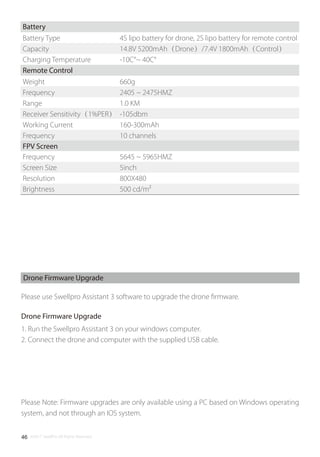
Battery
Battery Type
Capacity
Charging Temperature
4S lipo battery for drone, 2S lipo battery for remote control
14.8V 5200mAh(Drone)/7.4V 1800mAh(Control)
-10C°~ 40C°
Remote Control
Weight
Frequency
Range
Receiver Sensitivity(1%PER)
Working Current
Frequency
660g
2405 ~ 2475HMZ
1.0 KM
-105dbm
160-300mAh
10 channels
FPV Screen
Frequency
Screen Size
Resolution
Brightness
5645 ~ 5965HMZ
5inch
800X480
500 cd/m²
©2017 SwellPro All Rights Reserved 47
Please visit the Swellpro website to find out the latest information on:
Swellpro’s After-sales service policy:
Swellpro’s Maintenance service policy:
Warranty Information

Splash drone 3 user manual v1.0 en

  • 1.
  • 2.
    ©2017 SwellPro AllRights Reserved02 Thank you for purchasing this SwellPro Splash Drone. We have designed and manufactured the Splash Drone to the highest quality standards, to provide you a safe and reliable product for many years. Please read the entire contents of this manual thoroughly, to comprehensively familiarize yourself with the product before using it. Please Note: This manual is correct at the time of release, and is subject to change without notice. Please check on our website: www.swellpro.com for the latest release. Icon Definitions Prohibited Important Notice Operation Notice Reading Note Where to find the tutorial videos Recommended Swellpro has prepared the following tutorial video and instruction manuals: 1. Part List 2. User Manual 3. Quick Guide 4. Disclaimer Guide 5. Battery Usage Guide Before flying the drone, we strongly advise you to watch the tutorial videos and read through the above instruction manuals. The tutorial videos can be found and downloaded at www.swellpro.com.
  • 3.
    ©2017 SwellPro AllRights Reserved 03 Content 02 02 02 02 05 06 07 08 09 10 Reading Note Icon Definitions Recommended Where to find the tutorial videos Product Overview Brief Introduction Highlighted Functions Drone Assembly and Set up Drone Illustrations Remote Control Illustration 11 12 12 13 14 15 16 About the Drone Drone Overview Flight Modes Indication Lights Auto Return-Home Function Propellers Battery 18 19 19 19 21 21 22 Remote Control Remote Control Overview Battery Installation Remote Control Operation Remote Control Indication Lights Remote Control Code FPV Screen 23 24 26 27 27 Waterproof Camera & Gimbal Camera Gimbal Calibration Gimbal Accelerometer Calibration Gimbal Gyroscope Calibration
  • 4.
    ©2017 SwellPro AllRights Reserved04 28 29 29 29 30 30 31 33 34 Flight Flight Environmental impacts on your flight Flight Restrictions Pre Flight Inspection Accelerometer Calibration Compass Calibration Starting/Stopping Motors Basic Flight 35 36 38 Frequently Used Parts Video Transmitter Settings Payload Release 39 40 41 42 43 APP Control How to use Fight path setting Follow Me Point-to-Fly 44 45 Appendix Specifications
  • 5.
    ©2017 SwellPro AllRights Reserved 05 This section introduces the various drone functions, how to assemble the drone, the various part names of the drone, and it’s remote control. Product Overview
  • 6.
    ©2017 SwellPro AllRights Reserved06 The Splash drone 3 On the water……. In the Rain…….. Above the Water……. Splashdrone is your solution….. The Splash drone 3 is the most advanced waterproof (1)drone ever released. Its the first fully integrated modular amphibious(2) flying platform. Thanks to its new flight control system, its more reliable than ever. Its brand new propulsion system with the new custom designed 620KV motors system and quick release carbon fiber propellers provides you with the perfect balance between power and efficiency. With its new quick release modular system you can enjoy maximum versatility by quickly and easily switching between : -4KGC a waterproof 4K camera and 2 axis gimbal module -PL1 the original payload release module , for simple release. -PL2 the HD Fpv payload release module, for precise release with live video feed. -PL3 the most advanced payload release module, with 4k camera recording and one axis gimbal, for the Ultimate precision live video feed and 4k recording capabilities. -and many more modules to come… Because great power and versatility requires great control, we developed a fully ergonomically designed and integrated remote controller with redesigned controls to maximize ease of use and efficiency and a gorgeous built in 5”FPV (3) screen, so you can see the live video and OSD data without any additional equipment. The splash drone 3 allows you to operate in all weather conditions(4), in tough environments whether its over land or over sea. With its advanced modular design it can quickly adapt to all type of missions from aerial filming to search and rescue, ocean survey, fishing and many more…
  • 7.
    ©2017 SwellPro AllRights Reserved 07 1. A comprehensive waterproof design, it supports all weather flight, on a sunny day, a rainy day, or even if it is snowing. It can skim the surface, whilst the camera films below the surface of the water. It can land on the water, and take off again, and even withstands salty water conditions. 2. The waterproof payload release can be used to deliver up to 1kg loads, including but not limited to life-saver, lines, fishing bait etc. 3. Swellpro’s 3rd generation waterproof gimbal integrated with a 4k camera, quick release design. 4. Newly designed 5.8G video transmission system, ensuring you have the best FPV flight experience. 5. Upgraded auto Return Home software, making sure you safely retrieve your drone, in the event of losing sight of it , or in an emergency situation. 6. Brand new, ergonomically designed remote controller, which comes with a 5”FPV screen, you can now see live video and OSD data on the screen. 7. New data link, together with a new APP version, which brings more a stable and user-friendly smart flight experience. 8. Smart cruise flight mode making it easier for you to film moving objects. 9. Brand new design quick release carbon fiber propellers, strong and durable, a perfect match for the power system. 10. High quality smart balance charger supports charging the drone’s battery, and the remote controller’s battery, designed to also protect your batteries, thereby creating a longer useable life. 11. Compact design carry case, easy to carry, to effectively protect and store your drone. Highlighted and enhanced functions
  • 8.
    ©2017 SwellPro AllRights Reserved08 Preparation of the drone Drone Assembly and Set Up Mount the gimbal on the bottom plate, and secure it with the fixing screw. Loosen the screw on the underside of the drone. Gimbal Installation Installation of the landing gear Detailed DescriptionInstallation Diagram Insert the landing gear according to the red arrow. (Tutorial video is available for detailed operations) Detailed DescriptionInstallation Diagram Insert the gimbal cable into the corresponding plug on the underside of the drone, and tighten the waterproof cap on the plug. Attention: Please install the camera gimbal after completing the calibrations on Splash Drone, to avoid unnecessary rotation & tremble. (Refer to the accelerometer calibration and compass calibration on pg 29 & 30 for mor e details)
  • 9.
    ©2017 SwellPro AllRights Reserved 09 Note: When opening the top cover, be careful of the GPS cable, When closing the top cover, please make sure to place the hatch in such a way that the arrow faces the front of the drone. Nose Direction [01] Cover/hatch screw [02] Quick release carbon fiber propeller [03] Nose direction [04] Flight indication lights (Front – 2 Red, Rear – 2 Green) [05] Gimbal damping ball [06] Waterproof gimbal and camera [07] Landing gear [08] Gimbal quick release screw [09] Waterproof cable plug/socket [10] Rubber foot [11] Waterproof brushless motor [12] Propeller Spinner [13] GPS top cover/hatch Drone Illustration [01] [03] [02] [04] [05] [06] [07] [09] [08] [10] [11] [12] [13] Before closing the GPS Top cover, please make sure that the watertight gasket and the sealing surfaces on the drone are in good condition and are free of dirt, sand or any other contamination. Sand & other foreign materials will greatly influence the integrity of waterproof seal on the Splash Drone.
  • 10.
    ©2017 SwellPro AllRights Reserved10 [01] Remote Antenna For drone operation signal Power Button Auto powers on the FPV screen, but can be manually powered off. [02] Left pairing button Bind the RC with drone [03] Gimbal pan control thumbwheel Adjust the gimbal PAN axis [04] Camera switch Controls the camera to take pictures, or record videos [05] Airdrop switch Controls the payload release [06] Left Joystick Control the drone’s ascend, descend / left or right turn [07] Working Status lights Remote control working status [08] Left power button Press the left and right power buttons simultaneously to power on the controller [09] USB Port For remote control firmware upgrade use [10] Hanger ring For securing the lanyard to the controller [11] Right power button Press the left and right power button simultaneously, to power on the controller [12] Power status lights Displaying the remote controller’s battery status [13] Right joystick Controls the drone for forward, backward, left and right flight [14] Return-Home switch Commands the drone to return automatically [15] Flight mode switch GPS / Cruise Flight / ATTI [16] Gimbal tilt control thumbwheel Controls the gimbal tilt axis [17] Right pairing button Bind the RC with drone [18] Video antenna Transmits FPV live video [19] FPV screen Displays FPV live video Remote controller illustration [01] [03] [02] [04] [05] [06] [07] [08] [09] [10] [11] [12] [13] [14] [15] [16] [17] [18] [19] Channel / Decrease (-) Manual channel Selection / Decrease value Auto search/Menu Select Use the auto search function to select the most suitable channel / Switch between the different menus Band / Increase (+) Manual band Selection / Increase value Menu / Menu Selection Enter into the menu / Shift among of various menus
  • 11.
    ©2017 SwellPro AllRights Reserved 11 This section introduces the drone, and its functions. About the drone
  • 12.
    ©2017 SwellPro AllRights Reserved12 The drone mainly comprises of the following systems: -Flight control system, -Communication system, -Positioning system, -Power system including the battery, ESC, motors and propellers. Drone Overview The fuselage of the drone includes a pair of nose LED indicator lights, and the drone status indicator lights on the rear arms. Their positions are shown below: Drone Indication Lights The Splash Drone 3 utilizes a brand new flight control system, incorporating 3 of the best flight modes. This uses the GPS modules to achieve accurate and stabilized hovering, intelligent flight, intelligent return and other intelligent flight mode functions. Maximum flight speed of 10m/s, maximum ascend speed of 4m/s, and maximum descend speed of 3m/s. Specially designed for smooth aerial filming. The turning function of left joystick is disabled, and is mixed into the right joystick, thereby freeing up your left hand, with the other hand to used control the drone’s direction, and flight path. This mode does not use the GPS positioning function, but still maintains attitude stabilization. Note: With a good GPS signal, intelligent return can be achieved. A maximum flight attitude angle of 25 degrees, a maximum flight speed of 16m/s, a maximum ascent rate of 4m/s, and the maximum descend rate of 3m/s. Please Note: In ATTI mode, and the drone’s speed is faster. When flying in a calm environment, the pilot should allow a minimum of 30 meters for braking distance to ensure flight safety. Select the preferred flight mode of the drone using the remote mode switch on the controller. Flight Modes GPS mode: Smart Cruise: ATTI mode:
  • 13.
    ©2017 SwellPro AllRights Reserved 13 The nose LED indicator lights are used to indicate the direction of the nose of the drone. The rear aircraft status indicator lights indicate the status of the current flight control system. Please refer to the following table for the different flash modes for the flight control system. Drone status indicator Flight Mode x1 One Green Flash Two Green Flashes Three Green Flashes Four Green Flashes Green Fast Flashing ATTI Mode GPS Mode Circling flight & Smart Cruise (Optional) Cruise Flight APP control/ Return Home Nose indication Lights Drone Status Indicator Lights x2 x3 x4 GPS Status x3 Three Red Flashes Two Red Flashes One Red Flashe No Red Flash No GPS connection, or no GPS signal Poor GPS signal Satisfactory GPS signal Good GPS signal x2 x1 Two-Sided compass calibration Yellow ON Green ON Red ON Alternating - Red, Green, Yellow slow flashing Horizontal Calibration Vertical Calibration Calibration Failure Calibration Success Low battery warning x3 Three Yellow Flashes Yellow Fast Flashing First level low battery warning, safely land as soon as possible. Second level low battery warning, the drone will start it’s auto landing sequence. Six-Sided Compass Calibration Alternating - Red, Green, Yellow slow flashing Busy with calibration process
  • 14.
    ©2017 SwellPro AllRights Reserved14 Return Home Splash Drone 3 has an auto return home function. If the GPS successfully recorded the return point before takeoff, and, if the remote controller and the aircraft loose communication with each other, the drone will automatically return to the landing point, and land. Splash Drone 3 provides two auto return home modes, they are: one key return and failsafe return. Return HOME One Key Return Home Function Warning & Abnormal Red - Fast Flashing Yellow, Green alternate slow flashing Alternating Red & Green - slow flashing Alternating Red and Yellow - slow flashing Lost radio signal Compass is interference / Abnormal Lost GPS signal, GPS abnormal IMU vibration has exceeded its limits, or is Abnormal Accelerometer Calibration Green ON Calibration Success Return Normal Status Other Red, Green, Yellow alternate slow flashing Red ON Indicates initialization process after powering on Unlock Failure GPS DescriptionReturn Point Alternating - Red, Green, Yellow slow flashing Busy with calibration process Calibration Success During take off, or during the flight process, the GPS signal should be greater than 6 satellites, the drone will save the current position as the return point. When taking off in GPS mode, it is recommended that the GPS satellite count is greater than 9 satellites. DescriptionRemote Control Turn the Return Home switch to Return Home position, the drone will activate its return home mode. In this mode, the drone will automatically return to the home point.
  • 15.
    ©2017 SwellPro AllRights Reserved 15 If the drone goes out of effective distance, the Return Home function will be activated automatically. When the remote control communication is recovered, the control of the drone can be resumed after a single switching of the flight mode Switch, regardless of the current mode is under ATTI or GPS. Propeller Installation Failsafe Return Home Note: During the return process, only the (right) steering stick can be controlled. When the drone returns to the point of departure, and commences its descent, the left joystick will only control the direction (Heading) of the drone, the right joystick controls the forward/back and sideways functions, in order to select and land at the chosen landing point. If you need to take control of the drone, you need to switch the Return Home switch to Normal position. If the GPS signal is poor (Value is less than 5) or GPS doesn’t work, the Return Home function will not be available. Vertical height > 20metres, horizontal distance > 15metres, drone will maintain same altitude and return to its home point. Vertical height < 20metres, horizontal distance > 15metres, drone will ascend up to 20metres, and return to its home point. Vertical height < 10metres, horizontal distance < 15metres, the drone will maintain its altitude, and return to it’s home point. Return Process DescriptionFlare maneuver
  • 16.
    ©2017 SwellPro AllRights Reserved16 Installation / Removal Hold the rotor of motor tight while supporting the arm upwards with the other hand, take the corresponding propeller to install. Press the propeller spinner hard and rotate to fasten it properly. It's available to remove the propeller in the opposite way. 1. Connect the charger to an AC power supply (100-240V, 50/60Hz), and then connect the charger to the drone battery, or the remote control battery, as applicable. 2. After powering on the balance charger, all the LEDs will flash for 1 second, connect the battery to the balance charging port, now the battery can be charged. Before use, please fully charge the drone battery, and the remote battery. Battery Charging The blades are sharp, please be careful to avoid accidental cutting or scratches. When installing or removing the propellers, please place your free hand under the motor, so as to provide support and a back force when pushing down to lock or unlock the propeller. Failure to provide this support could result in the bending or breaking of the landing gear. Prior to each flight, please check that the propellers are correctly installed and securely fastened. If a propeller becomes damaged, or broken, please replace it, they can be purchased separately. Please do not get too close to the rotating propellers and motors, to avoid cuts or injury. Please use the propellers provided by Swellpro, they cannot can be mixed with different types of propeller Propeller CCW Propeller CW Propeller Picture Direction Install on the CCW motorInstallation Install on the CW motor CW Propeller SlotCCW Propeller Slot
  • 17.
    ©2017 SwellPro AllRights Reserved 17 3. Indication lights: One LED on indicates a charge level of 25% , two LEDs on indicate a charge level of 50%, three LEDs on indicate a charge level of 75%, four LEDs indicate that the battery is fully charged. 1. In low temperature environments (-10C degrees to 5C degrees) , the flight time will be reduced. Before use, please fully charge the battery, and keep it warm. 2. In low temperature environments, it is recommended to stop flying if and when the low battery alarm is on. 3. In low temperature environments, it is recommended to preheat the battery before flying. Low temperature precautions When inserting the battery, please take note and observe the following precautions: -Please ensure the battery is “lying on it’s side” with the cables exiting the battery towards the rear of the drone, -Please observe the label on the battery. -Please observe the instructions and the arrow on the label. Battery Installation Before charging, please ensure that you are using the correct battery type. If, during the charging process, the 4 indicator lights flash at the same time, this indicates a charger or battery failure, please stop charging. There are two low battery alarms, which can be set by adjusting the parameters in the setup. The first level is at 14.8V, the red LED on the drone will flash three times, the second level is at 14.4V, at this level, the red LED will flash continuously, while the drone will commence its auto landing sequence. Please Note: There are no low battery alarms on the controller. While operating the drone, please monitor the battery voltage level, and keep the voltage level in mind, when the level has dropped to 14.8V, please prepare to return the drone to a safe landing place. It is dangerous to continue flying the drone once with insufficient battery power. This could result in damage to the battery.
  • 18.
    ©2017 SwellPro AllRights Reserved18 This section introduces the remote control functions. Including the drone operation, and the camera operation. Remote Control
  • 19.
    ©2017 SwellPro AllRights Reserved 19 OFF:Close Airdrop Airdrop:Open OFF Airdrop The Splash Drone3 remote control operates using two frequency bands, 2.4GHz and 5.8GHz. 2.4GHz is for the drone control, and 5.8GHz is for the FPV video signal. The remote controller is integrated with the camera and gimbal controls, which is convenient for the user to easily maintain comprehensive control during flight, and can easily shoot wonderful videos or pictures. Remote Control Overview Press down and slide open the battery cover to open it, install the remote control battery and replace the cover. Remote Control Remote Control Operation Power ON and Power OFF The default remote control configuration is left hand as throttle. If you prefer to have right hand throttle, please consult your local dealer. Airdrop Switch DescriptionRemote Control Operation DescriptionRemote Control Operation 1. Simultaneously press the two power switches for about 3 seconds, the remote control will power on, and the screen will turn on. 2. To turn off the controller, simultaneously press the two power switches for about 3 seconds again, the remote control will power off, and the screen will turn off.
  • 20.
    ©2017 SwellPro AllRights Reserved20 Video:Shoot Video Preview:Preview Photo:Take Picture Photo Normal Return Home Normal:Return Home is disabled Return-Home:Activate Return Home Tilt Control Pan Control Tilt Control Thumbwheel:Controls the gimbal tilt axis Pan Control Thumbwheel:Controls the gimbal pan axis Video Preview 1. The Left joystick controls the drone ascent and descent (up and down movement) and the nose direction (left and right movement ). 2. The right joystick controls the forward / backward movement of the drone, and the left / right flight movement of the drone. Camera Control DescriptionRemote Control Operation Flight Mode DescriptionRemote Control Operation One Key Return Home Description Description Remote Control Operation Gimbal Control Drone Control Remote Control Operation GPS:GPS mode Smart Cruise:Smart Cruise Mode ATTI:ATTI mode GPS Smart Cruise ATTI
  • 21.
    ©2017 SwellPro AllRights Reserved 21 Remote Control LED Indicators Remote Controller Pairing (to the drone) 1. Connect the jumper (which is supplied with the drone) into B/CC channel of the remote receiver inside the drone, now power on the drone. 2. Hold the left or right pairing buttons (No.2 or 17, - diag on P9) on the remote control, until the remote control indicator becomes solid red, it indicates entry into the pairing mode. Release the button when the indicator changes to solid green. The pairing is successful. Working Indicator Power Status Indicator Warning Tone RED Light ON RED Light slow flash Yes Yes Light Stays ON Remote Control battery low Remote Control battery is dangerously low Status is good Light Stays ONSlow Flash Fast Flash Remote control and receiver disconnected ParingSuccess tone When the remote control indicator light turns red, indicating low power, the FPV screen image reception quality will reduce, the resultant effect will be an unstable image, please charge or replace the remote battery as soon as possible. When the remote control battery power is seriously insufficient, the remote control power indicator light will slowly flash a red light whilst sounding a warning tone. Please charge or replace the remote battery as soon as possible. Right StickLeft Stick Up TurnRight Down TurnLeft Up TurnRight Down TurnLeft Forward Right Backward Left Forward Right Backward Left
  • 22.
    ©2017 SwellPro AllRights Reserved22 B16.2V P -0.1° R 3.3° V 0.0M/S Y 26.8° 15 00:07:00 0.0D 0M H 0M FS ATT FPV screen Display Interface The Splash Drone 3 uses 5.8G video transmission technology, reducing the delay to a minimum. The 5.8G transmission range can reach 1km. 40 channels are available to select from. In the absence of obstacles, or without interference, the video transmission range can reach 1km [01] Battery Voltage Drone battery voltage [02] Return Home direction [03] Flight Attitude Verification of the flight attitude [04] Flight Distance The horizontal distance between the drone, and the home point [05] Flight Height The vertical height of the drone above the home point [06] Connection lost notice Notification when the connection is lost between the drone and the controller. [07] Flight Mode [08] Time The running time [09] Ascend speed / Descend speed [10] GPS status ( )Not located / ( )located [11] Satellite Quantity The receiving satellite quantity [12] Horizontal speed The drone’s horizontal speed [13] Angle of yaw The actual angle of yaw [14] Angle of roll The actual angle of roll [15] Angle of tilt The actual angle of tilt [01] [04] [05] [06] [07] [08] [09] [10] [11] [13][14] [12][15] [03] [02] Dynamically displays the relative angle between the nose and the return point. When the mark is displayed in middle of the FPV screen, it means the nose of the drone is facing the return point. The vertical speed of the drone when ascending or descending, units are metres/ second ATT: ATTI Mode, GPS:GPS Mode, CIR:Smart Cruise
  • 23.
    ©2017 SwellPro AllRights Reserved 23 This section introduces the camera and the gimbal, and how to use them. Gimbal & Camera
  • 24.
    ©2017 SwellPro AllRights Reserved24 Camera The camera’s superior electronic image stabilization technology combined with the design of a high-precision waterproof gimbal, producing the cameras ability to shoot smooth, non-destructive and real-time videos and photos in a high-speed environment. The camera supports 24 frames per second 4K videos. 1. Please open the small water tight hatch on the top of the camera, insert the Micro SD card in the correct direction. 2. Close and Fasten the sealing hatch. Splash Drone 3 supports Micro SD card with a maximum capacity of 64GB. Because the camera requires fast reading and writing capability for high stream video data, please use a card with a minimum of Class 10 or UHS-1, or better. Do not insert or pull out the Micro SD card during flight operations, this could damage or destroy the data file. In order to ensure the stability of the camera system, the maximum single video length limit is 15 minutes. Micro SD card sealing hatch Gimbal firmware upgrade USB port Camera working indicator Wifi switchMicro SD card slot Installing the micro SD card
  • 25.
    ©2017 SwellPro AllRights Reserved 25 00:05:20 8.5G2016/05/03 17:08 Camera Setting Picture Format Picture Size Time Stamp Burst Speed Timer Self-timer JPEG RAW J+R 14M 10M 5M 14M_16:9 10M_16:9 5M_16:9 OFF ON OFF 3pics/second OFF 5seconds 10 seconds OFF 3seconds/pic 5seconds/pic 10seconds/pic 30seconds/pic Picture Setting Video Setting Camera Setting Picture Button Record Button Playback Button Record Time Time Stamp Memory card capacity 1. APP installation: iOS systems, for apple devices, please find the SwellCam APP in the apple store, and install the APP. Android systems can download the APK installation on the www.swellpro.com site 2. Camera WIFI connection: Please Note, the WiFi is used for preflight setup purposes only, and must be disabled prior to take off. Power on the drone, the camera will power on automatically, switch on the camera WIFI, the red indicator lights up indicating the camera is on. Open the WIFI on your phone, search for the name of SwellCam mobile devices, and request to connect, enter the initial password - 12345678, and connect. 3. Using the APP: Open the camera APP into the camera preview screen. On the APP, you can set the parameters of the camera and video, you can also control the camera for the taking of pictures or videos, and other related functions. Camera settings and use Please turn off the camera's WIFI switch before take off, so as not to interfere with the flight control or video transmission signals during flight.
  • 26.
    ©2017 SwellPro AllRights Reserved26 Gimbal Calibration High precision two axis waterproof pan tilt angle jitter of + 0.02 degrees, even in the event of a large action flight, it can record a smooth video. The pitch angle has controllable operating range of -90 degrees to 0 degrees. Green ON Green Slow Blink Red ON Red OFF Power on into preview mode Saving picture or video WIFI ON Wifi Off Record Setting Resolution Video Format Time Stamp APP control: Remote Control: MOV MP4 OFF ON 1920*1080 P30 1920*60 P60 1280*720 P30 1280*720 P60 2880*2160 P24 2560*1440 P30 1920*1080 P30 1920*1080 P60 1280*720 P30 1280*720 P60 System Setting Language Picture Flip Time Setting WIFI Password ISO EV White Balance OSD Digital Antishake Video Format Metering Frequency Format Default Setting Syn with smartphone language. 180°Flip, OFF AUTO 100 200 400 800 1600 -2 -1.5 -1.0 -0.5 0 +0.5 +1.0 +1.5 +2.0 AUTO, cloudy, sunny, Incandescent lamp, Fluorescent lamp ON, OFF ON, OFF PAL, NTSC Global metering, Center-weighted, spot 50Hz, 60Hz Sure, Cancel Sure, Cancel Camera Indicator Note: APP and remote control camera recording video resolution is different, please select the best resolution according to your specific needs.
  • 27.
    ©2017 SwellPro AllRights Reserved 27 Gimbal pan control thumbwheel Gimbal tilt control thumbwheel Accelerometer calibration is necessary if: ● The camera lens isn't in horizontal location, when left at it’s default state. ● This will display a tilted image. Calibration Procedure: 1. Place the drone on a horizontal surface, switch on the controller, and then power up the drone. After hearing a“DI”tone, the Gimbal is activated and ready for calibration. 2. Simultaneously roll the 2 thumbwheels for the Gimbal pan and tilt control to the left-most position, and maintain this position for 6s. After the Gimbal appears powerless, release both of the thumbwheels. Release the quick-release mounting screw securing the Gimbal to the drone, please make sure that the waterproof plug & play connector is well-connected during the process. 3. Lower the Camera Gimbal onto a horizontal surface without any vibration, hold the Camera and keep its lens facing straight forward. 4. Roll the thumbwheel of Gimbal tilt control to the right-most position, and maintain that position for 1~2s, the Gimbal will commence accelerometer calibration automatically. When the Gimbal regains power, then release the Camera to complete the calibration process. Gimbal Accelerometer Calibration Gyroscope calibration is necessary if: ● When powering up the drone, the camera Gimbal is horizontal, but the image continually becomes tilted. Calibration Procedure: 1. Place the drone on a horizontal surface, switch on the controller, and then power up the drone. After hearing a“DI”tone, the Gimbal is activated and ready for calibration. 2. Simultaneously roll the 2 thumbwheels for the Gimbal pan and tilt control to the right most, and maintain this position for 6s. After the Gimbal appears powerless, release both of the thumb wheels, the Gimbal will commence calibration automatically. 3. After the Gimbal regains power and re-balances, then the calibration procedure is complete. Gimbal Gyroscope Calibration During the accelerometer calibration procedure, the camera Gimbal must be placed on a horizontal surface, without any vibration. If any abnormality still persists after completing the calibrations, please power off the drone, and re-calibrate the Gimbal once again.
  • 28.
    ©2017 SwellPro AllRights Reserved28 This section introduces and discusses flying hazards, flight restrictions, and drone care and attention. Flight
  • 29.
    ©2017 SwellPro AllRights Reserved 29 Flight Flying the Splash Drone If this is your first time wanting to fly a drone, please be sure to watch the various tutorial videos, please read the instructions and observe and digest the precautions. We recommend taking professional training and guidance. When flying, please be sure to select an appropriate flight environment. 1. Please do not fly in bad weather, such as excessive wind (wind speeds of level 6, and above), fog or other extreme weather. 2. Select an open place or water surface as an ideal flying site. Flying in between, or near a large number of steel buildings could adversely affect the workings of the compass, and will adversely affect or block the GPS signal, resulting in a poor positioning effect, or even impede, or sever communication and the ability to locate the aircraft. 3. When flying, try to maintain of line of sight with the drone, keep away from obstacles and people. 4. Do not fly near high voltage lines, communication base stations or launch towers or other areas, which may interfere with the remote control of the drone. 5. At 4000 meters above sea level, due to environmental factors, including air density, which could result in decreased performance of the drone, and it’s batteries and power systems, flight performance will be adversely affected. Flight restrictions Limited height and distance According to the provisions of the International Civil Aviation Organization and national air traffic control airspace control, as well as the provisions of the UAV management, UAVs must be operated in specified airspaces. In consideration of flight safety, the safety fence is the default setting. Safety fence: has a maximum flight radius of 500 meters, and a maximum flight altitude of 200 meters. If, for any reason, you need to remove this safety fence, please refer to the Swellpro Assistant 3 reference method. Home Point Maximum flight radius: 500meter Maximum flight altitude: 200meter
  • 30.
    ©2017 SwellPro AllRights Reserved30 Accelerometer Calibration Steps: Remote Control Operation Pre-Flight Inspection and checks 1. Please ensure there is sufficient charge in both the drone and the controller batteries. 2. Please check that the propellers are correctly installed. 3. Make sure the Micro SD card is properly inserted into camera, and the sealing hatch is securely fastened. 4. Please check that the Camera & gimbal are working correctly. 5. Please make sure the camera lens is clean. 6. Please verify that the motors can be started Accelerometer calibration Calibration is necessary in any of the following cases: 1. First time use of the drone. 2. Following sustained flight in ATTI mode. 3. If, when pushing up the THROTTLE joystick, without moving the right (AIRLERON) joystick, and the drone drifts at an angle, while in ATTI mode. 4. If the drone has been subjected to heavy shaking during transportation. 5. If, following a successful compass calibration, the motors do unlock, but the red LED stays on solid when trying to start up the motors. 1.Place the drone on a horizontal surface, power on the controller, followed by the drone, after hearing a“DI”tone, switch to“Return-Home”mode on the controller. 2. Place the left joystick into the right lower corner(45°) position, and the right joystick into the upper right corner(45°) position. 3. Maintain the above gesture for 2 seconds, until the light changes to a fast flashing red (blinking). The drone then enters into its accelerometer calibration process. Wait until the light stops blinking, and goes to a slow red flash, now release the joysticks.The accelerometer calibration is now complete.
  • 31.
    ©2017 SwellPro AllRights Reserved 31 DescriptionOperation Illustration Please Note: It is recommended to calibrate the compass at the proposed flying area before flying. Flying anywhere close to any magnetic interference is HIGHLY DISCOURAGED. (Please make sure to keep far away from the following: High-Voltage transmission power lines, Emitting base stations, metal objects, etc.) 1. Place the drone onto a horizontal surface, power on the controller, and then power on the drone. After the “DI” sound, fast flick the mode switch from GPS-Smart Cruise-ATTI and ATTI-Smart Cruise-GPS, when the yellow light is on, the system enters into compass calibration. 3. Swing the drone to a vertical plane, with the nose pointing downward, rotate the drone counter clockwise until the LED changes to a blinking red-green-yellow, indicating the completion of the calibration. If the calibration procedure failed, the RED light will be on for 3 seconds, you will need to redo the calibration. (It may be necessary to do a six-sided calibration if the two-sided calibration will not successfully calibrate, for more information, please refer to the manual.) 2. Hold the drone horizontally, rotate counter clockwise until the green LED light turns on. Compass Calibration Please refer to the status indicator light for compass calibration. Calibration notes are as follows: Calibration is necessary in below cases: 1. Before flying drone for the first time. 2. If 100KM or more away from the last compass calibration location. 3. The drone has been crashed/dropped by accident. 4. The drone keeps swaying / drifting during flight. 5. If the drone has incurred or was subjected to a heavy shaking during transportation. 6. If the RED light stays on, and the motors can’t be unlocked. There are two ways to calibrate the compass, one is to calibrate in the 2 primary planes – horizontal and vertical (simple and fast), and the other, is to calibrate the six surfaces, (of a cube) for higher accuracy. Two Sided Calibration – (horizontal and vertical planes)
  • 32.
    ©2017 SwellPro AllRights Reserved32 Return Home DescriptionOperation Illustration 1. Place the drone on a horizontal surface, power on the controller, and then power on the drone. After “DI” sounds, flick the return home switch to Return Home. 3. In the horizontal plane, rotate the drone in a counter clockwise rotation for 360 degrees. 4. Now, invert the drone, and rotate the drone in a counter clockwise rotation for 360 degrees. 5. Swing the drone vertically, nose up (12midday), and perform a counter clockwise rotation for 360 degrees. 6. Whilst vertical, turn the drone so the nose is to the left (3 o’clock), and perform a counter clockwise rotation for 360 degrees. 7. Whilst vertical, turn the drone such its nose is pointing down (6 o’clock), and perform a counter clockwise rotation for 360 degrees. 2. Pull the left joystick to the lower left corner (45 degrees), the right joystick to the upper left corner (45 degrees), maintain this gesture for 2 seconds, the red light will turn on, the drone has entered into the compass calibration mode. We will refer to the face of a clock of positional reference -12 -3 -6 -9. Six Surface Calibration (six sides of a cube)
  • 33.
    ©2017 SwellPro AllRights Reserved 33 The standard of judging whether the calibration is successful or not, is whether the drone motors can be unlocked. Switch to Normal from Return Home mode, and try to unlock the motors in ATTI mode. If the motors cannot be unlocked, it means the calibration was not successful, please relocate to another place and repeat the above calibration procedure. Place the drone in an open area at least 3 meters away from you, or others. Put the Return Home mode switch in the Normal position, and the flight mode switch into either GPS or ATTI mode, and then power on the remote control. Make sure that each part of the drone is connected properly. And the propellers are installed correctly When the drone is powered on, the drone will do a self-check, and when complete, it will issue a "DI" sound. Note: While the drone is completing its self-check, please keep the drone stationary. If ATTI mode is selected, there is no need to wait, you can unlock the motors and proceed to takeoff and fly immediately, however, in GPS mode, it is necessary to wait until the number of satellites is a minimum of 9, before attempting to unlock the motors. Starting / Stopping the Motors 8. Finally, whilst vertical, turn the drone such that it’s nose is pointing to the right (9 o’clock) and perform a counter clockwise rotation for 360 degrees. Now, place the drone on a horizontal surface for about 90 seconds, the red LED will change to slow flashing. The calibration is completed. Unlocking: Pull both the left and right joysticks simultaneously towards the inner side of the lower side, at an angle of 45 degrees, and maintain this position for 3 seconds, the motors will now be unlocked, and will start rotating. Precautions before unlocking the motors: Unlocking the Motors
  • 34.
    ©2017 SwellPro AllRights Reserved34 Take Note: The motors can be stopped for any emergency. Stopping the motors whilst airborne may cause the drone to crash, and should only be carried out in emergencies (for example: there is a risk that the drone may hit people, or crowds), and stopping the motors will minimize any potential damage. 1. Place the drone on a flat open surface or on the surface of the water. 2. Power on the remote control, followed by the drone. 3. Wait for the FPV screen to display the camera's live video, and the OSD data display is normal, and there are more than 9 GPS satellites. The drone enters into a safe flight status, you can unlock the motors and fly. 4. Push the THROTTLE joystick up slowly, allowing the drone to take off smoothly. 5. When you need to descend, slowly pull down the throttle lever, whilst flying the drone, allowing the drone to descend, and land on a flat surface, or on the water. 6. After safely landing, keep the throttle down in its lowest position for at least 5 seconds until the motors have stopped. 7. First, power down the drone, followed but it’s remote control. For more use information on flight knowledge, please watch the tutorial videos. Flight safety awareness is very important for you, the people and the environment around you. Be sure to read the disclaimer, and the safe operating instructions carefully. Basic Flight Operation Basic Flight Steps 1. Always check everything prior to flying. 2. Preferably, try to take photos or videos while flying in GPS mode. 3. Try to choose clear, less windy weather. 4. Set up the camera parameters according to your filming requirements, like picture format, exposure etc. 5. Before your intended flight, familiarize yourself with the environment, this helps for efficient flying and optimum photography. 6. While flying, apply the minimum of movement on the joysticks, this will allow for smooth video and good quality still pictures. Aerial tips and tricks To lock the motors: Pull both the left and the right joysticks outwards to the lower sides at an angle of 45 degrees to stop , and lock the motors. Stopping (locking) the Motors
  • 35.
    ©2017 SwellPro AllRights Reserved 35 This section introduces the more frequently used parts. Frequently Used Parts
  • 36.
    ©2017 SwellPro AllRights Reserved36 Band:A b C d E Channel:1 2 3 4 5 6 7 8 Power: Led flashing sequences: 1 time represents 25mW, 2 times represents 400mW, 3 times represents 600mW Power indication:1(25mW)、2(400mW)、3(600mW) Channel Selection After powering on the transmitter, it will initially display the currently selected frequency band, followed by the current channel, and, in the lower right corner, a red dot flashing indicating the currently selected transmission power level as described above. An Example: To set up channel E5: 1. Long press the button for 3 seconds, it initially enters into the band selection, and will automatically scroll between the bands (A, B, C, D, E), When it reaches “E”, short press the button to choose E brand and short press again to scroll from E1 to E8, long press for 2 seconds to confirm the channel. 2. To adjust to E5, short press the button 4 times. When the system cycle shows the frequency band E and channel 5, long press the button for 2 seconds, the dot in the lower right corner will flash once to confirm the selection, release the button. On completion, the system will display “E” first, followed by “5”, and finally the dot will flash representing the transmission power level. Selecting the channel (there are a total of 40 channels) Video Transmitter Channel Selection
  • 37.
    ©2017 SwellPro AllRights Reserved 37 Power Selection 1. To enter the power-switching mode, long press the button for 5 seconds, the system will then display the currently selected power level, corresponding to the number of slow flashes. If you need to change the power level, press the button to select the desired transmission power level. 2. After selecting the required power level, press the button for 2 seconds, the dot at the lower right corner will flash once, confirming your selection, and then exit from the power selection mode. Release the button, the system will now confirm your selections of the band, channel and power level, firstly showing you the selected band, followed by the selected channel, and finally the transmission power level, represented by the number of flashes of the red dot. 3. Please note: We recommend running at 400mW video power level when operating within an 800 metre radius, this level is a good nominal level and also extends the flying time. If it is required to flying in areas of obstructions and/or exceeding 800m, it may be required to switch to 600mW transmission power.
  • 38.
    ©2017 SwellPro AllRights Reserved38 Payload Release Installation The patented payload release device is a powerful and versatile accessory to expand the use and applications of the Splash Drone 3. With the help of the payload release, Splash Drone 3 can help fishermen to put the fishing bait far away from the shore. Rescuers use Splash Drone 3 to search for stranded personnel, and deliver vital rescue equipment to them in advance. The maximum 1kg payload, controlled by the remote control, Splash Drone 3 can do much more that, reaching beyond the abilities and efficiency of people. How to use the payload release system. 1. After the device is installed, power on the remote controller, and the drone. 2. Put the Airdrop switch to the Airdrop position, you can then see the release of the pin. 3. Prepare the goods to be delivered, and put the rope into position in the mechanism. Then put the Airdrop switch to the OFF to close the bolt. 4. Clear to takeoff and get airborne, find and locate the right dropping area with the help of the FPV screen, and drop the goods. Mount the payload release onto the quick dismounting plate, and fasten the bolt. Insert the cable connector plug in the right direction, and lock the waterproof nut. Loosen the bolt at the bottom of the fuselage DescriptionInstallation Illustration
  • 39.
    ©2017 SwellPro AllRights Reserved 39 APP Control
  • 40.
    ©2017 SwellPro AllRights Reserved40 How to use the APP 2. Power on the Bluetooth datalink module, switch on the GPS and Bluetooth on your smartphone. Find the corresponding Bluetooth Link (e.g: UAV-2…) and link it (Note: when the bluetooth is linked, the blue light on the Bluetooth datalink module will stop blinking). 3. Run the“Swellpro Fly”APP, click the Bluetooth icon to link the device (UAV..). When it links, you will see the drone parameters on the screen, e.g battery voltage, GPS coordinates, height, distance, GPS signal etc. 1. Download Swellpro Fly App into your iPhone. Or download the APK from www.swellpro.com for your Android phone. Flight Data Flight Data Connection Status Bluetooth Datalink Connection Icon Flight Path Select GPS coordinates Return Home Take Off Descend Ascend Hover Point to Fly Follow Me GPS coordinates Drone and its flying direction Battery voltage Latitude & longitute
  • 41.
    ©2017 SwellPro AllRights Reserved 41 5. The APP allows you to start flying the drone, land, ascend, hover, return home, flight path setting, follow me and point to fly. 6. Fight path setting: a). click“+”, click the map to set the flight point, you will see all the selected flight points on the bottom of the screen. You can delete them. 4. Once you have a minimum of 9 GPS satellites, you can unlock the drone and start flying with controller, or use the APP to unlock the motors and start flying.
  • 42.
    ©2017 SwellPro AllRights Reserved42 Follow Me b). Click below the flight point, you can choose the height, hovering time and other options. Save and click“Run”, the drone will start flying according to the set path. 7. Follow Me: The target (to be followed) should carry the Bluetooth Datalink and the (connected) smart phone, the drone recognizes the GPS coordinates of the smartphone. Press the“Follow Me”button, the drone will then start following.
  • 43.
    ©2017 SwellPro AllRights Reserved 43 8. Point-to-Fly: Click the“Point-to-Fly”button, and then click the target point on the map, the drone will start flying to the point and hover there. Note: 1.The APP control needs to have a good wireless communication environment, if you see the drone does not respond to your order, it might be subjected to interference, please try again. 2. If the drone continually fails to respond to your APP commands, please use the controller to operate the drone. Just switch the flight mode switch for one single operation, the controller will take over the control of the drone. 3. The Bluetooth data link module is paired with the corresponding module onboard the drone. Normally, it won’t link to other drones. When you see many drones or Bluetooth datalink units working in the same place, please make sure you link to the right drone.
  • 44.
    ©2017 SwellPro AllRights Reserved44 Appendix
  • 45.
    ©2017 SwellPro AllRights Reserved 45 Specification Drone Waterproof Level Drone Weight Axis Diameter Max Ascend Speed Max Descend Speed Max Flight Speed Max Flight Altitude Max Flight Wind Speed Hovering Precision Max Flight Time Max Flight Weight Positioning Satellite Flight Control Motor ESC IP67 2380g (AUTO version) 450mm 4m/second 3m/second 16m/second 4000meter 12m/second ±0.02meter 16minutes 3KG GPS/GLONSS dual Swellpro S3 Waterproof Brushless Motor #3510/620KV 40A Camera Waterproof Level Image Sensor Lens ISO Range Picture Resolution Video Resolution Max Video Stream Picture Format Video Format Support Memory Card IP67 1/2.3”CMOS, 1400M FOV 106° F2.0 100 - 1600 14M(4320x3240) 10M(3648x2736) 5M(2592x1944) APP control:1920*1080(30/60p) 1280*720 (30/60p) Remote Control:2880*2160 24p 2560*1440 30p 1920*1080(30/60p) 1280*720(30/60p) 25000Mbps JPEG RAW J+R MOV MP4 Class 10 or UHS-1 and above specifications Micro SD card, maximum support 64GB Gimbal Waterproof Level Stabilization System Controllable Range Angle Step Precision IP67 2axis: Pan, Tilt Tilt -90°to 0 ±0.02°
  • 46.
    ©2017 SwellPro AllRights Reserved46 Drone Firmware Upgrade Please use Swellpro Assistant 3 software to upgrade the drone firmware. Drone Firmware Upgrade 1. Run the Swellpro Assistant 3 on your windows computer. 2. Connect the drone and computer with the supplied USB cable. Please Note: Firmware upgrades are only available using a PC based on Windows operating system, and not through an IOS system. Battery Battery Type Capacity Charging Temperature 4S lipo battery for drone, 2S lipo battery for remote control 14.8V 5200mAh(Drone)/7.4V 1800mAh(Control) -10C°~ 40C° Remote Control Weight Frequency Range Receiver Sensitivity(1%PER) Working Current Frequency 660g 2405 ~ 2475HMZ 1.0 KM -105dbm 160-300mAh 10 channels FPV Screen Frequency Screen Size Resolution Brightness 5645 ~ 5965HMZ 5inch 800X480 500 cd/m²
  • 47.
    ©2017 SwellPro AllRights Reserved 47 Please visit the Swellpro website to find out the latest information on: Swellpro’s After-sales service policy: Swellpro’s Maintenance service policy: Warranty Information