Posting and sharing documents 
through your blog using 
Slideshare 
Sofía Velázquez 2014-2015
What I propose is that you register in 
slideshare.net to upload any .PDF, 
Word or PowerPoint files that you 
want to share with your students.
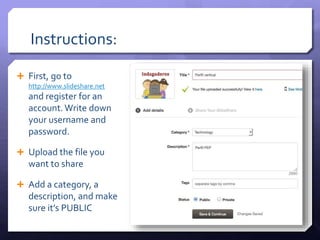
Instructions: 
 First, go to 
http://www.slideshare.net 
and register for an 
account. Write down 
your username and 
password. 
 Upload the file you 
want to share 
 Add a category, a 
description, and make 
sure it’s PUBLIC
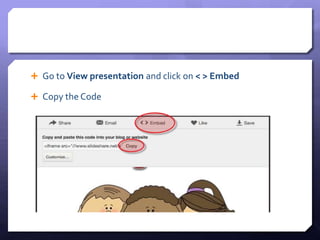
 Go to View presentation and click on < > Embed 
 Copy the Code
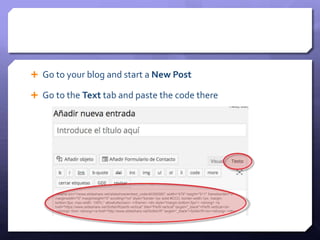
 Go to your blog and start a New Post 
 Go to the Text tab and paste the code there 
<iframe src="//www.slideshare.net/slideshow/embed_code/40355560" width="479" height="511" frameborder="0" 
marginwidth="0" marginheight="0" scrolling="no" style="border:1px solid #CCC; border-width:1px; margin-bottom: 
5px; max-width: 100%;" allowfullscreen> </iframe> <div style="margin-bottom:5px"> <strong> <a 
href="https://www.slideshare.net/SofiaVR/perfil-vertical" title="Perfil vertical" target="_blank">Perfil vertical</a> 
</strong> from <strong><a href="http://www.slideshare.net/SofiaVR" target="_blank">SofiaVR</a></strong> </div>
 That’s it! 
 You can go back to the Visual tab to write any text for your 
post and then Publish 
 It will look like this presentation 
 IF you want your students to be able to download the 
document, they can do this by clicking SAVE, but they’ll 
need a slideshare account. 
 If this isn’t convenient, I suggest sending it to their 
school’s email.

Slideshare english

  • 1.
    Posting and sharingdocuments through your blog using Slideshare Sofía Velázquez 2014-2015
  • 2.
    What I proposeis that you register in slideshare.net to upload any .PDF, Word or PowerPoint files that you want to share with your students.
  • 3.
    Instructions:  First,go to http://www.slideshare.net and register for an account. Write down your username and password.  Upload the file you want to share  Add a category, a description, and make sure it’s PUBLIC
  • 4.
     Go toView presentation and click on < > Embed  Copy the Code
  • 5.
     Go toyour blog and start a New Post  Go to the Text tab and paste the code there <iframe src="//www.slideshare.net/slideshow/embed_code/40355560" width="479" height="511" frameborder="0" marginwidth="0" marginheight="0" scrolling="no" style="border:1px solid #CCC; border-width:1px; margin-bottom: 5px; max-width: 100%;" allowfullscreen> </iframe> <div style="margin-bottom:5px"> <strong> <a href="https://www.slideshare.net/SofiaVR/perfil-vertical" title="Perfil vertical" target="_blank">Perfil vertical</a> </strong> from <strong><a href="http://www.slideshare.net/SofiaVR" target="_blank">SofiaVR</a></strong> </div>
  • 6.
     That’s it!  You can go back to the Visual tab to write any text for your post and then Publish  It will look like this presentation  IF you want your students to be able to download the document, they can do this by clicking SAVE, but they’ll need a slideshare account.  If this isn’t convenient, I suggest sending it to their school’s email.