Wordpress Tips
A guide for authors of our class site
CO300 F15
Sec. 6, 10
Laura Thomas
Colorado State University
Login
• Go to the site for your section
Section 06
https://csu2020visions.wordpress.com.wordpress.c
om
Section 10
https://envisioncsu2020.wordpress.com
• Login (under Meta on the home page)
Access the dashboard
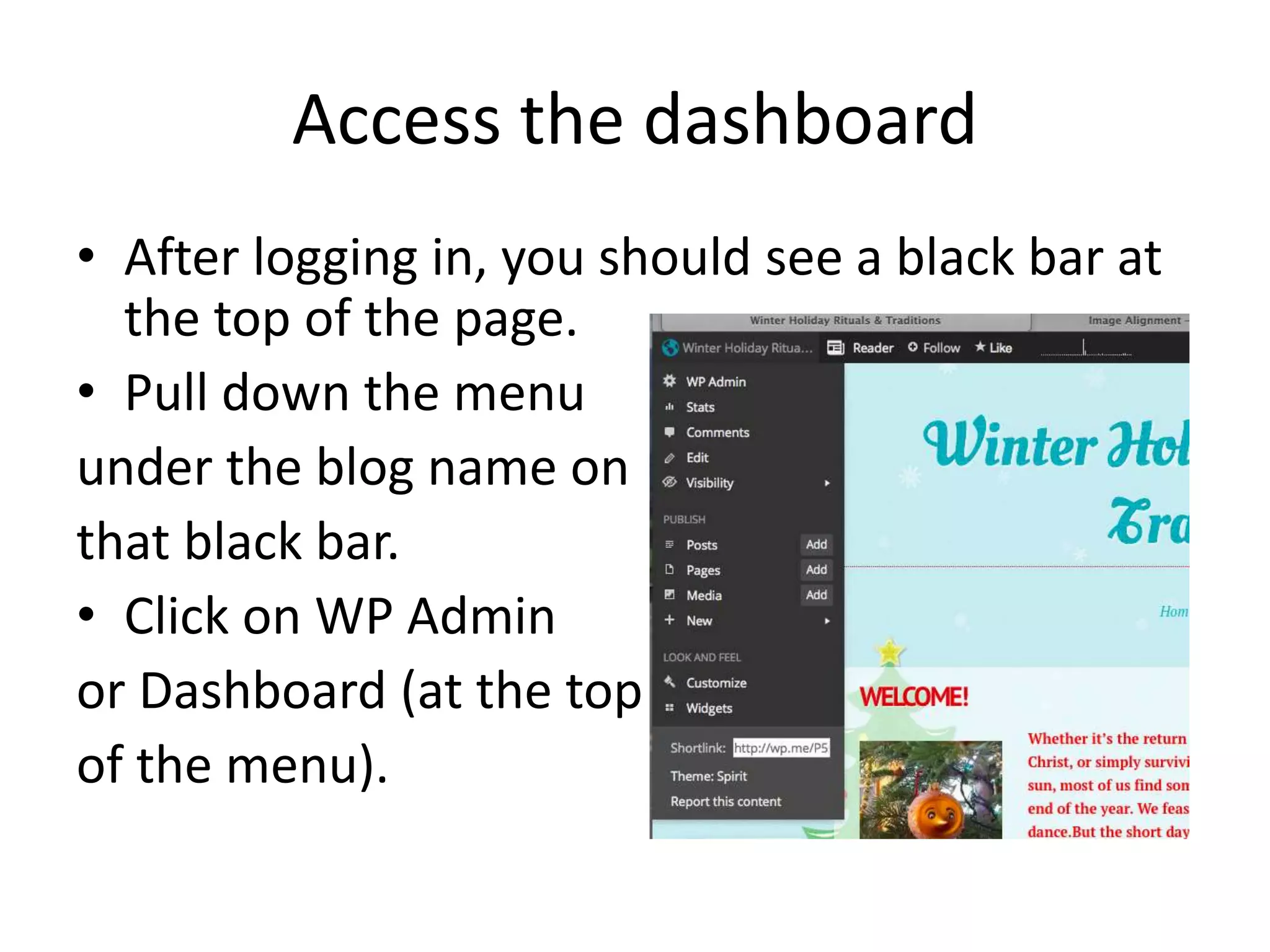
• After logging in, you should see a black bar at
the top of the page.
• Pull down the menu
under the blog name on
that black bar.
• Click on WP Admin
or Dashboard (at the top
of the menu).
Post:
where and how you’ll add your piece to the site
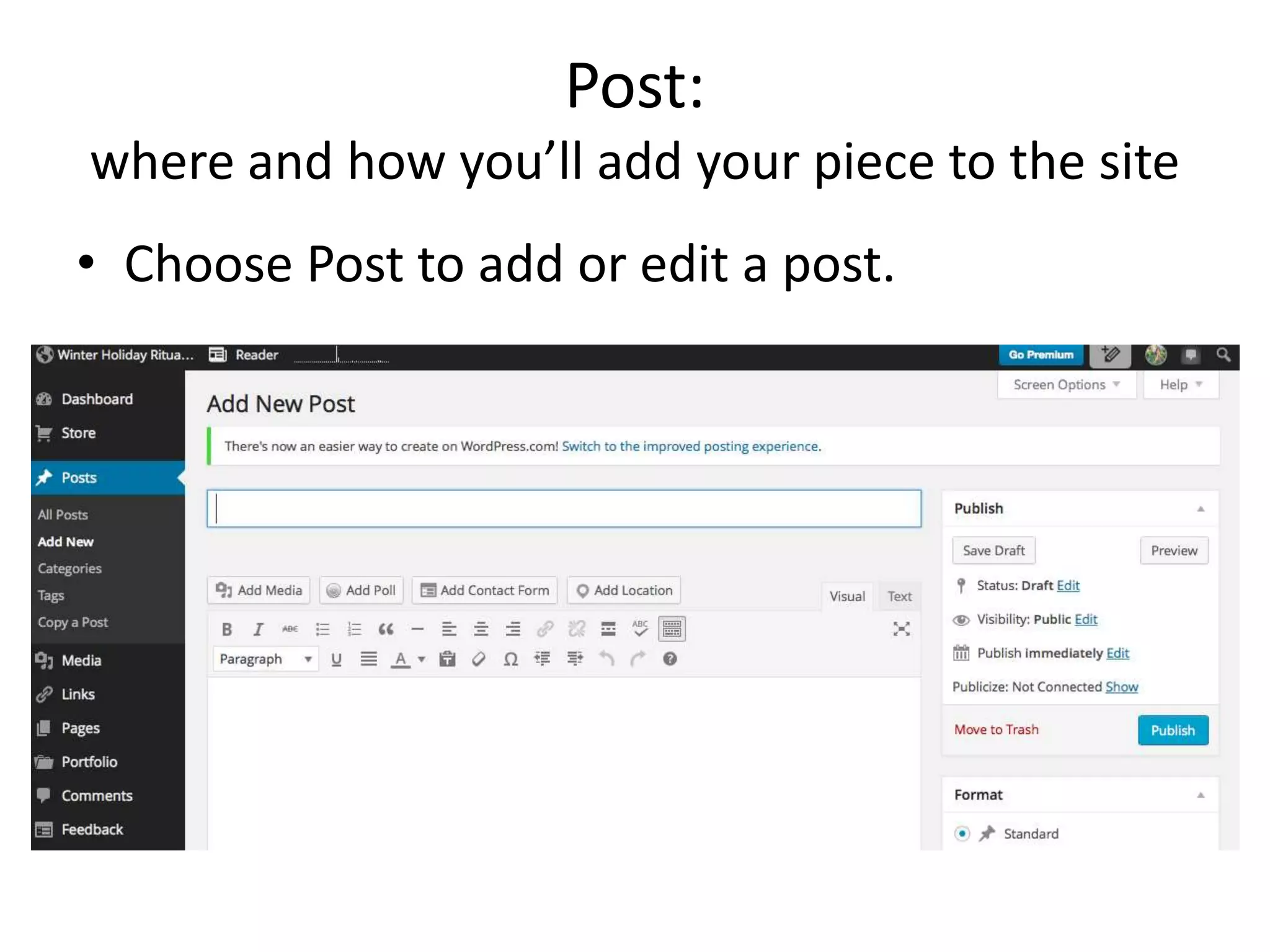
• Choose Post to add or edit a post.
Text Editor
• Use the text editor to format your post. You
can copy/paste from Word and/or write or
add elements directly.
Publish post
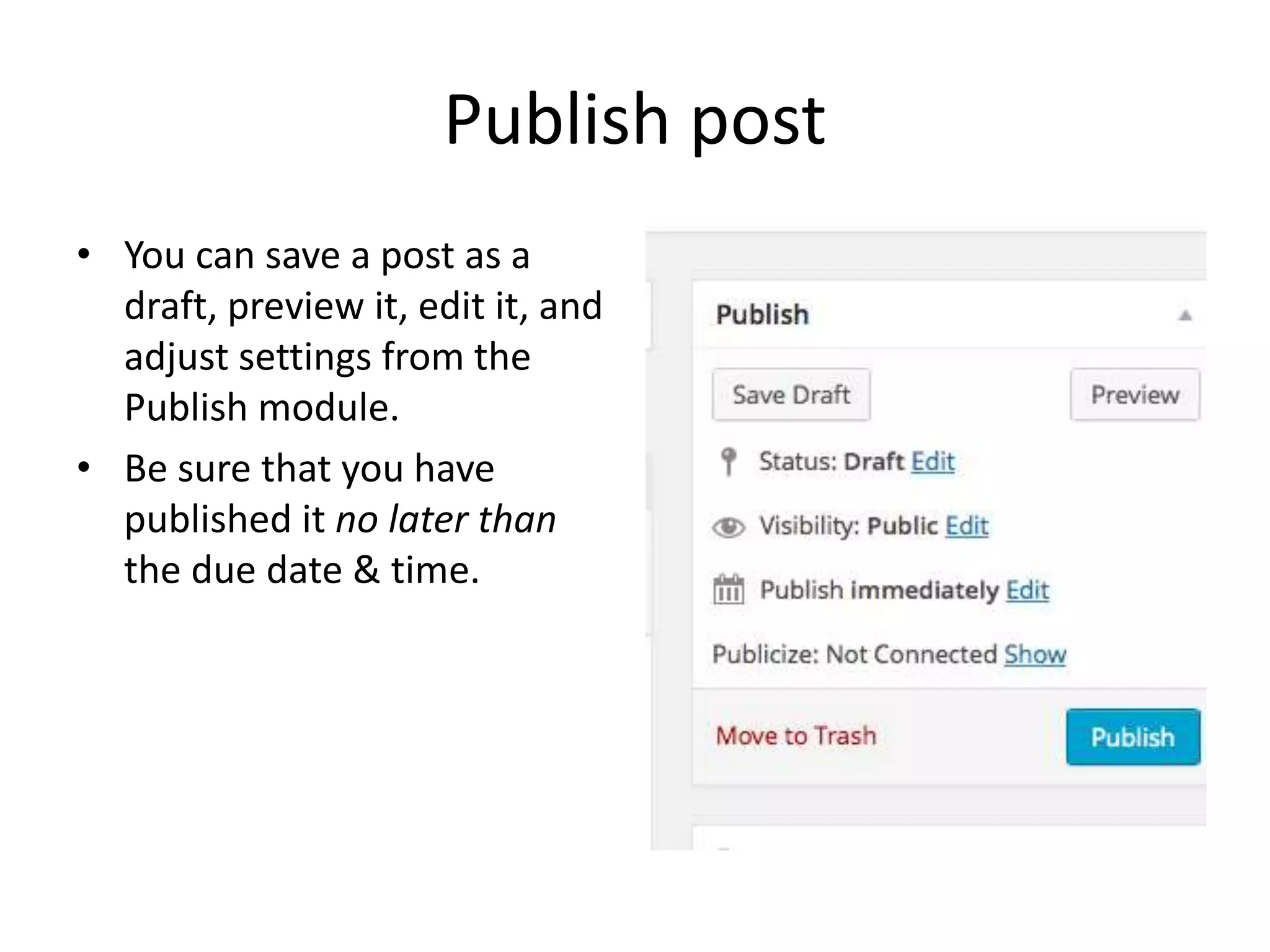
• You can save a post as a
draft, preview it, edit it, and
adjust settings from the
Publish module.
• Be sure that you have
published it no later than
the due date & time.
Add Media
inserting images and more into your post
• .
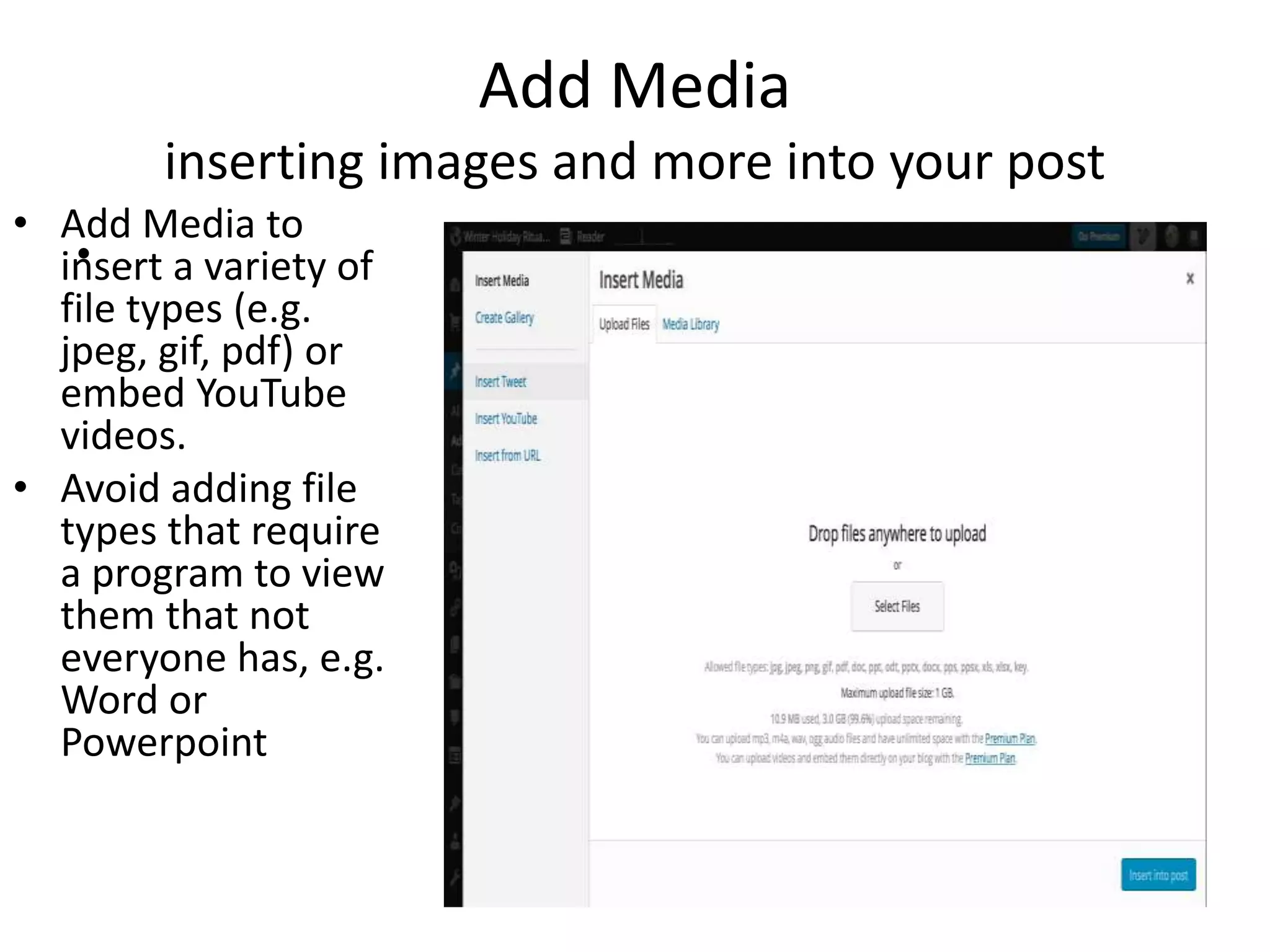
• Add Media to
insert a variety of
file types (e.g.
jpeg, gif, pdf) or
embed YouTube
videos.
• Avoid adding file
types that require
a program to view
them that not
everyone has, e.g.
Word or
Powerpoint
Edit Images & Provide
credits
• When you upload an
image, you can edit it
and provide a credit by
typing the source of
that image into the
Caption field.
Wrap text around images
• http://en.support.wordpress.com/images/ima
ge-alignment/
Add links
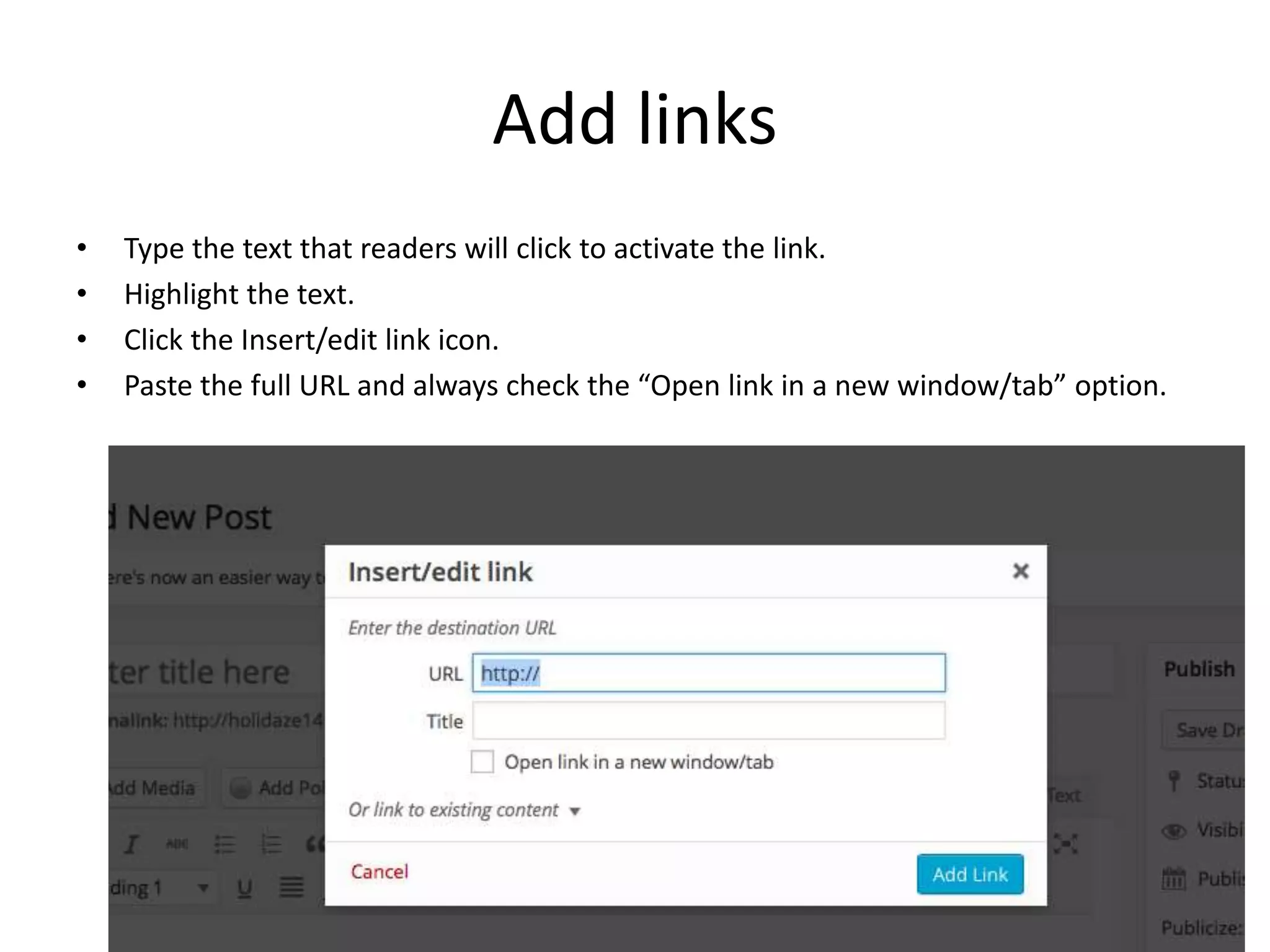
• Type the text that readers will click to activate the link.
• Highlight the text.
• Click the Insert/edit link icon.
• Paste the full URL and always check the “Open link in a new window/tab” option.
Provide tags
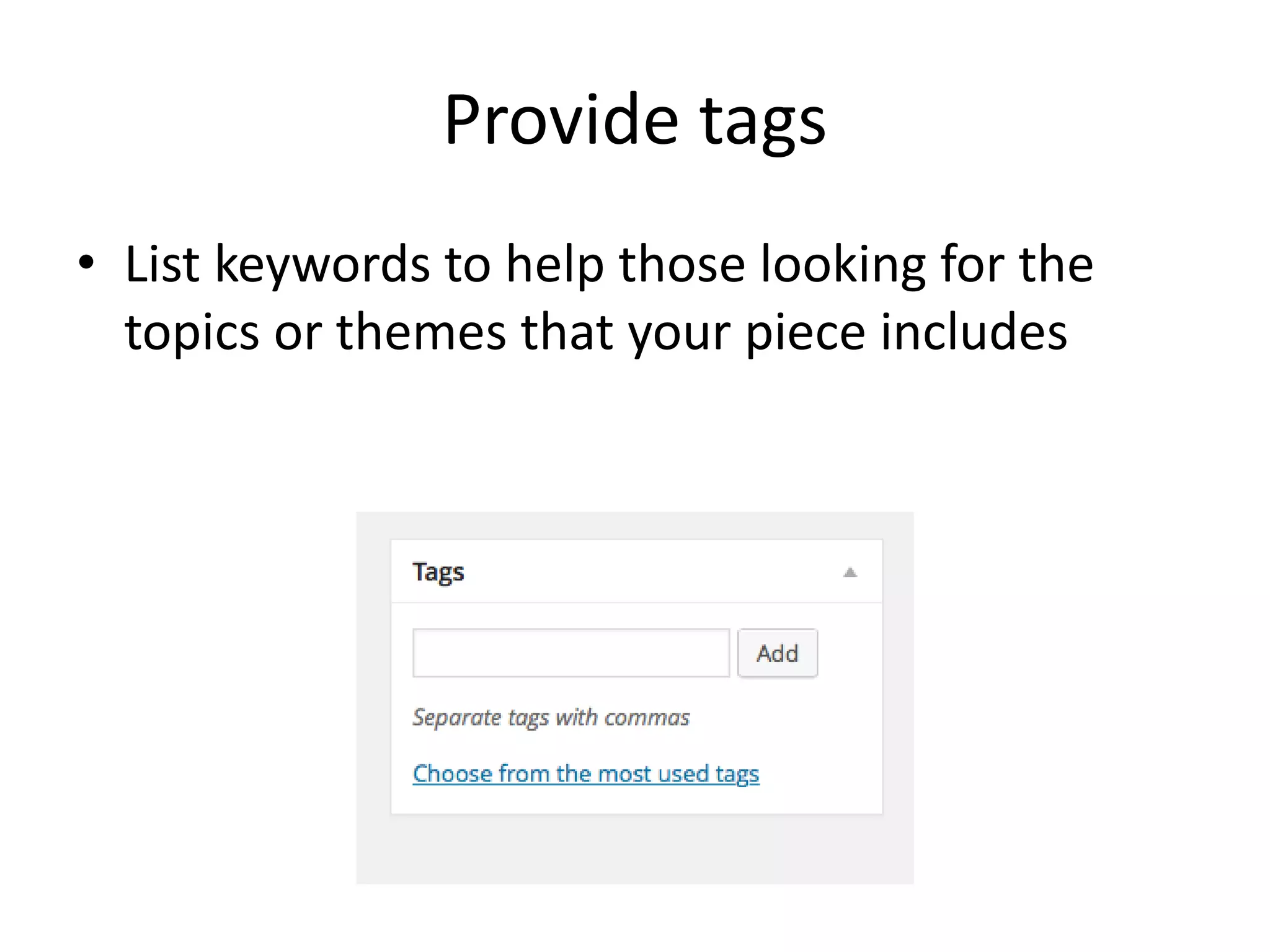
• List keywords to help those looking for the
topics or themes that your piece includes
Byline
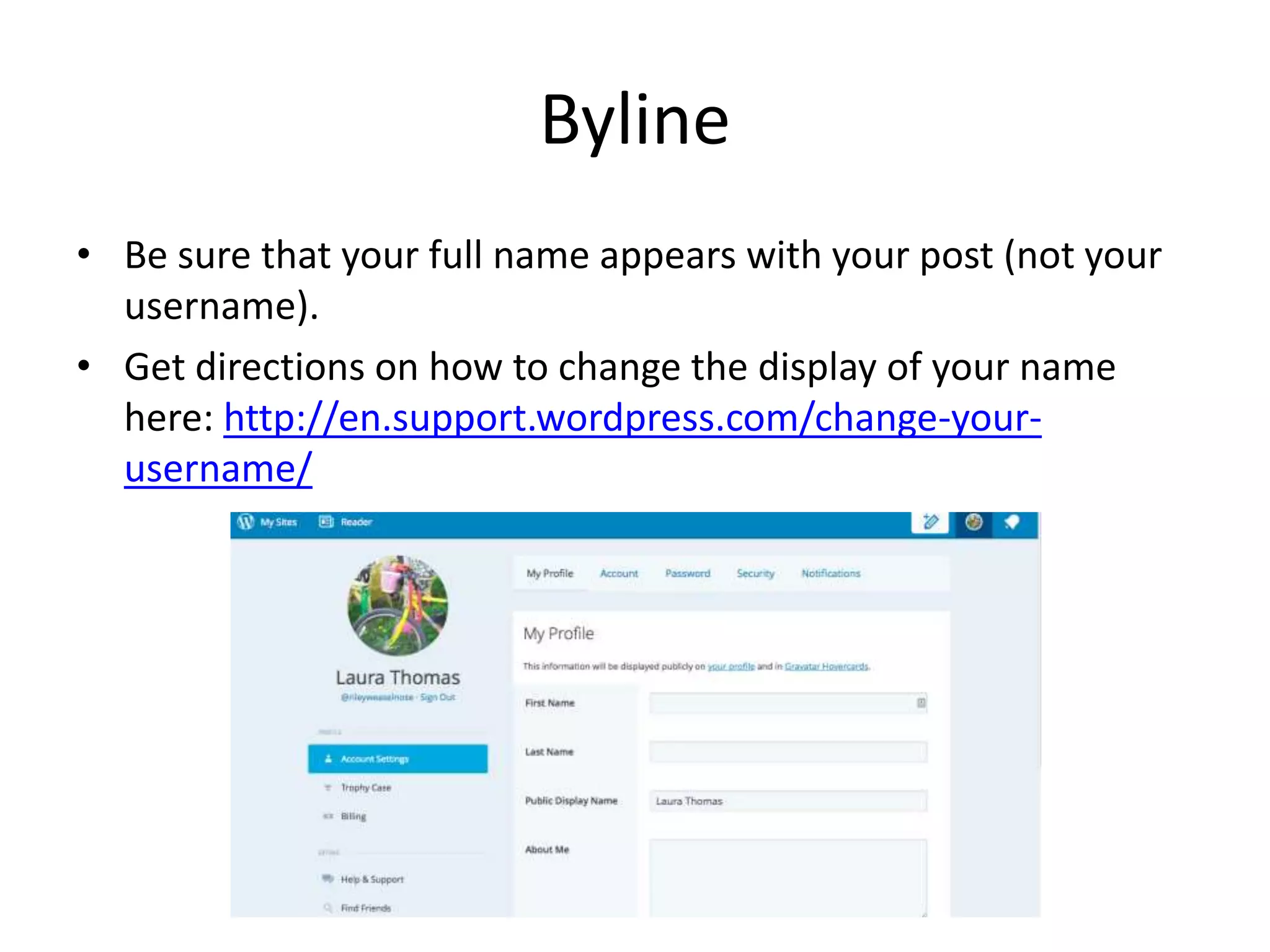
• Be sure that your full name appears with your post (not your
username).
• Get directions on how to change the display of your name
here: http://en.support.wordpress.com/change-your-
username/

Wordpress Guide CO300 F15

  • 1.
    Wordpress Tips A guidefor authors of our class site CO300 F15 Sec. 6, 10 Laura Thomas Colorado State University
  • 2.
    Login • Go tothe site for your section Section 06 https://csu2020visions.wordpress.com.wordpress.c om Section 10 https://envisioncsu2020.wordpress.com • Login (under Meta on the home page)
  • 3.
    Access the dashboard •After logging in, you should see a black bar at the top of the page. • Pull down the menu under the blog name on that black bar. • Click on WP Admin or Dashboard (at the top of the menu).
  • 4.
    Post: where and howyou’ll add your piece to the site • Choose Post to add or edit a post.
  • 5.
    Text Editor • Usethe text editor to format your post. You can copy/paste from Word and/or write or add elements directly.
  • 6.
    Publish post • Youcan save a post as a draft, preview it, edit it, and adjust settings from the Publish module. • Be sure that you have published it no later than the due date & time.
  • 7.
    Add Media inserting imagesand more into your post • . • Add Media to insert a variety of file types (e.g. jpeg, gif, pdf) or embed YouTube videos. • Avoid adding file types that require a program to view them that not everyone has, e.g. Word or Powerpoint
  • 8.
    Edit Images &Provide credits • When you upload an image, you can edit it and provide a credit by typing the source of that image into the Caption field.
  • 9.
    Wrap text aroundimages • http://en.support.wordpress.com/images/ima ge-alignment/
  • 10.
    Add links • Typethe text that readers will click to activate the link. • Highlight the text. • Click the Insert/edit link icon. • Paste the full URL and always check the “Open link in a new window/tab” option.
  • 11.
    Provide tags • Listkeywords to help those looking for the topics or themes that your piece includes
  • 12.
    Byline • Be surethat your full name appears with your post (not your username). • Get directions on how to change the display of your name here: http://en.support.wordpress.com/change-your- username/