PKZIP® 4.0
Command Line
User's Manual
www.dienhathe.vn
www.dienhathe.com
Copyright © 1997-2000 PKWARE, Inc. All Rights Reserved.
No part of this publication may be reproduced, transmitted, transcribed, stored in
a retrieval system, or translated into any other language in whole or in part, in
any form or by any means, whether it be electronic, mechanical, magnetic,
optical, manual or otherwise, without prior written consent of PKWARE, Inc.
PKWARE, INC. DISCLAIMS ALL WARRANTIES AS TO THIS SOFTWARE,
WHETHER EXPRESS OR IMPLIED, INCLUDING WITHOUT LIMITATION ANY
IMPLIED WARRANTIES OF MERCHANTABILITY, FITNESS FOR A
PARTICULAR PURPOSE, FUNCTIONALITY, DATA INTEGRITY OR
PROTECTION.
PKWARE, the PKWARE logo, the zipper logo, PKZIP, PKUNZIP and PKSFX are
registered trademarks of PKWARE, Inc.
Trademarks of other companies mentioned in this documentation appear for
identification purposes only and are the property of their respective companies.
www.dienhathe.vn
www.dienhathe.com
Table of Contents I
Table of Contents
Welcome to PKZIP 1
Introduction 2
About This Manual 2
Your Work Environment: The Command Line 3
Using Help 3
Getting License Information 4
Getting Version Information 5
Using PKWARE Technical Support 6
Using Internet/Usenet 6
Using CompuServe 7
Using the PKWARE BBS 7
Before You Call 7
Calling a PKWARE Technical Support Representative 8
Using the PKWARE Customer Support Form 8
The Basics 11
Introduction 12
Using the Tutorials 12
Conventions Used in the Tutorials 13
Using Sample Files and Directories 13
Preparing Your Workspace 13
.ZIP File Naming Conventions 14
Compressing Files: Learning the Basics 14
Compressing a Single File in the Current Directory 15
Compressing Selected Files in the Current Directory 17
Compressing Files That Match a Pattern 18
Compressing All Files in the Current Directory 19
Compressing Files from a Different Location 20
Specifying a Different Location for the .ZIP File 21
Moving Files into Your .ZIP File 23
Viewing Files Within a .ZIP File 24
Further Information on Compressing Files 26
Extracting Files: Learning the Basics 26
Extracting a Single File From a .ZIP File 27
Extracting Multiple Files From a .ZIP File 29
Overwriting Files that Already Exist in Your Directory 34
Extracting Files to a Specified Directory 34
www.dienhathe.vn
www.dienhathe.com
II Table of Contents
Further Information on Extracting Files 35
Understanding PKZIP Commands and Options 35
Difference between a Command and Option 36
Including an Option in Your Command Line 36
Abbreviating Commands and Options 37
Combining Options 37
Commands and Options That Contain Values 39
Commands and Options: Compression or Extraction? 41
Setting Defaults 41
What’s Next 41
Compressing Files 43
Introduction 44
Conventions in This Chapter 44
Default Values for Commands and Options 44
Compressing New and Existing Files 45
Compressing All Files in a Directory 45
Compressing New and Modified Files 46
Compressing Only Files That Have Changed 47
Clearing Archive Attributes (WIN32, OS/2) 47
Incremental Archiving (WIN32) 48
Compressing Files in Subdirectories 49
Storing Directory Path Information 49
Additional Methods for Storing Directory Path Information 50
Storing and Recreating Directory Path Information 52
Compressing Files with a LIST File 54
Compressing Files Based on Some Criteria 55
Compressing Files Newer Than a Specified Date 55
Compressing Files Older Than a Specified Date or Days 56
Compressing Files Larger or Smaller than a Specified Size 57
Compressing Files Newer than a Specified Number of Days 57
Including Files That Match a Pattern 58
Excluding Files from Being Compressed 59
Compressing Files in a Specific Format 60
Storing File Information 60
Compressing Files That Contain Certain Attributes (WIN32, OS/2) 61
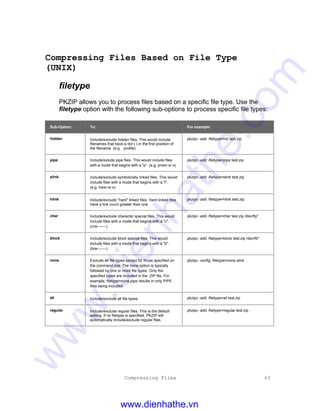
Compressing Files Based on File Type (UNIX) 63
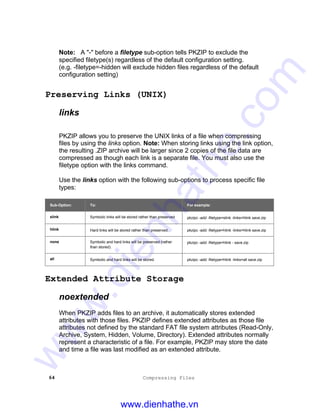
Preserving Links (UNIX) 64
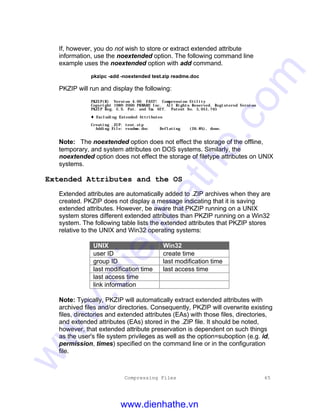
Extended Attribute Storage 64
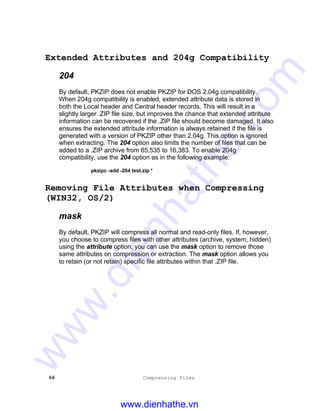
Extended Attributes and 204g Compatibility 66
Removing File Attributes when Compressing (WIN32, OS/2) 66
www.dienhathe.vn
www.dienhathe.com
Table of Contents III
Including Additional Information in a .ZIP File 68
Including a Text Comment 68
Including a Password 70
Including a Header Comment 72
Including a Volume Label (WIN32, OS/2) 72
Specifying the Date of a .ZIP File 73
Setting the Compression Level 74
Specifying a Compression Level by Number 74
Specifying a Compression Level by Option 75
Compressing Files with Deflate64™ 76
Compressing Files Compatible with the Data Compression Library 77
Sorting Files Within a .ZIP File 77
Moving Files to a .ZIP File 79
Creating Self-Extracting .ZIP Files 80
Creating a Native Self-Extractor 81
Creating a Regular DOS Self-Extractor 81
Creating a DOS Junior Self-Extractor 82
Creating a Windows 32-Bit Self-Extractor 82
Creating Self-Extractors with the pksfxs.dat file 82
Available Options in the Native Self-Extractor 83
Running Programs in the Self-Extractor 84
Differences between a Regular DOS and DOS Junior Self-Extractor 84
Converting a .ZIP file to a Self-Extracting file 85
Compressing Files to Diskette (WIN32, OS/2,UNIX) 86
Compressing Files using Digital Signatures (WIN32) 89
Compressing Files using PKWARE Authenticity Verification (WIN32,
UNIX) 92
Extracting Files 95
Introduction 96
Conventions in This Chapter 96
Default Values for Commands and Options 96
Extracting New and Existing Files 97
Extracting All Files From a .ZIP File 97
Overriding Default Files to Extract 98
Extracting Newer Versions of Existing Files and New Files 98
Extracting Only Newer Versions of Files 99
Extracting Files Based on Some Criteria 99
Extracting Files Newer Than a Specified Date 100
Extracting Files Older Than a Specified Date 100
Including Files That Match a Pattern 101
www.dienhathe.vn
www.dienhathe.com
IV Table of Contents
Excluding Files from Being Extracted 102
Extracting Files in Lower Case 103
Preserving File Times 103
Translating End of Line Sequence 103
Extracting Files in a Specific Format (OS/2) 104
Determining How to Handle Overwriting Files 105
Retaining Directory Structure while Extracting 106
Sorting Files in the Extract Directory 107
Extracting Files Only for Display 107
Extracting Files with a LIST File 108
Digital Signatures (Win32 Only) 109
PKWARE Authenticity Verification (WIN32, UNIX) 111
Performing Miscellaneous Tasks on .ZIP Files 113
Introduction 114
Viewing the Contents of a .ZIP File 114
Displaying a Brief View of a .ZIP File 115
Displaying a Detailed View of the .ZIP File 116
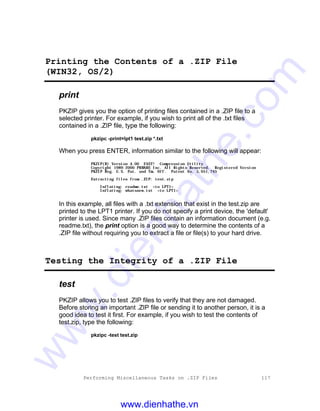
Printing the Contents of a .ZIP File (WIN32, OS/2) 117
Testing the Integrity of a .ZIP File 117
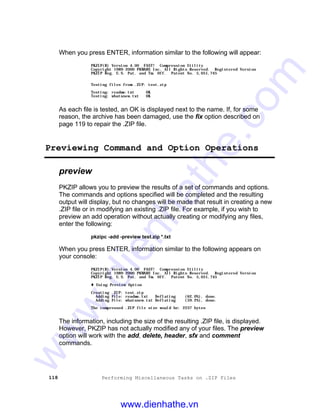
Previewing Command and Option Operations 118
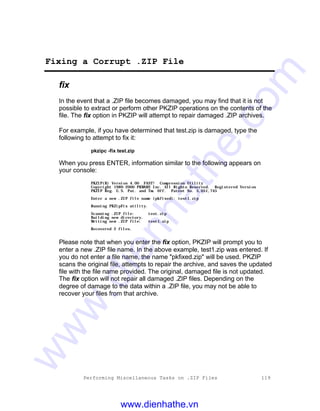
Fixing a Corrupt .ZIP File 119
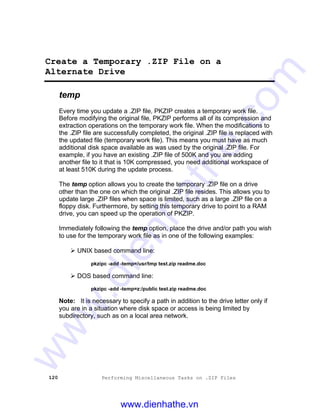
Create a Temporary .ZIP File on a Alternate Drive 120
Suppressing Screen Output 121
Setting Internal Attributes 122
Decoding Other Archive Types (Win32/Unix Only) 123
Encoding to a UUEncoded File (Win32/Unix Only) 124
Generate List File (Win32/Unix Only) 125
Creating a Log File for a Self-Extractor (Win32/Unix Only) 126
Using Other Devices (UNIX) 127
Changing Defaults Using the Configuration File 129
Introduction 130
Viewing the Configuration File 130
Changing a Default Value 132
Resetting Original Defaults 133
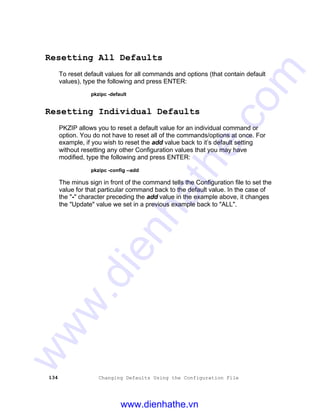
Resetting All Defaults 134
Resetting Individual Defaults 134
www.dienhathe.vn
www.dienhathe.com
Table of Contents V
Command Characteristics 135
Introduction 136
Changing Date and Time Environment Variables 136
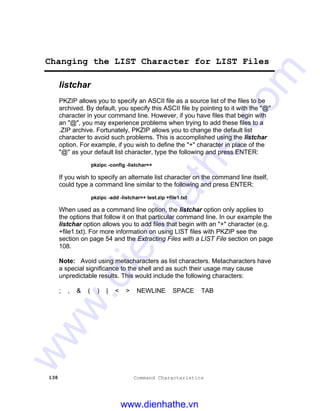
Changing the LIST Character for LIST Files 138
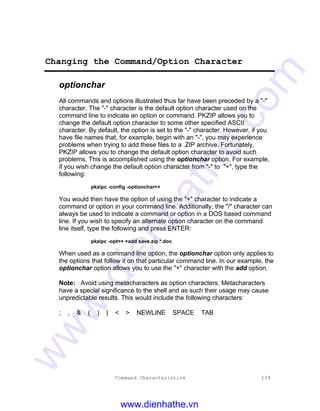
Changing the Command/Option Character 139
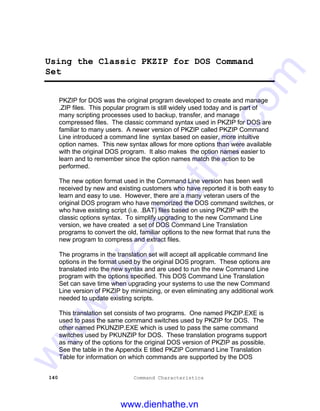
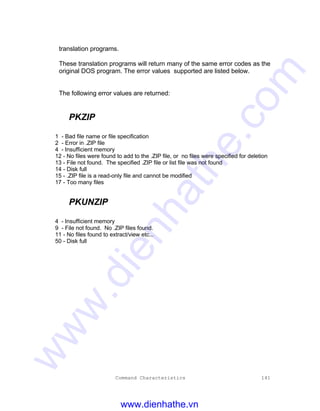
Using the Classic PKZIP for DOS Command Set 140
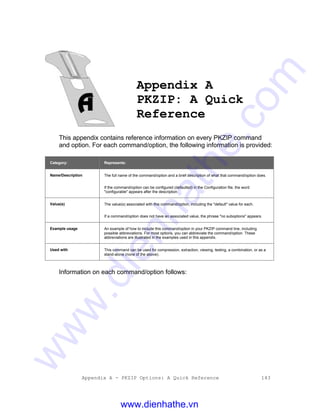
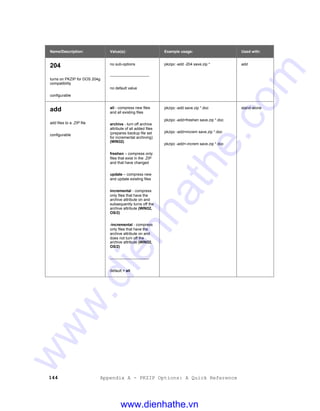
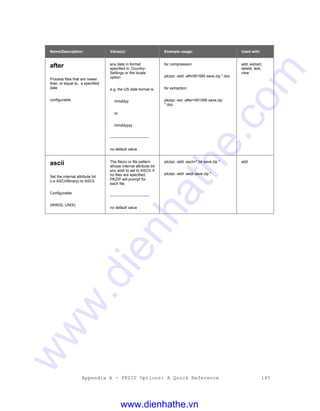
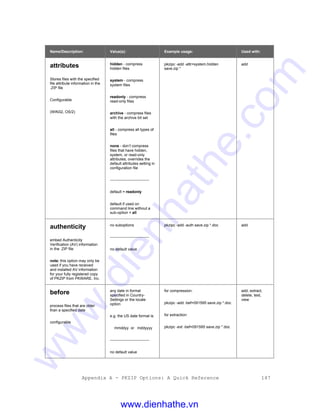
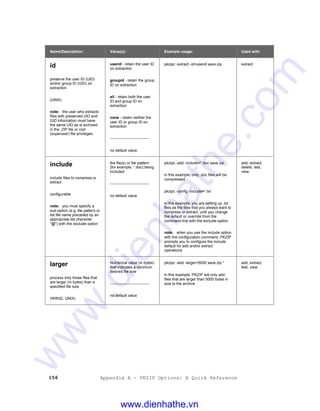
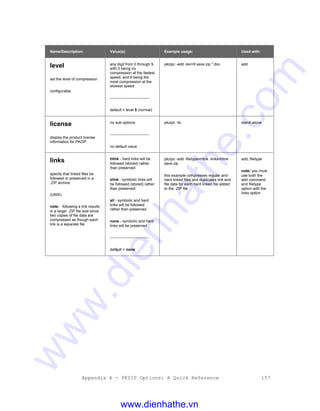
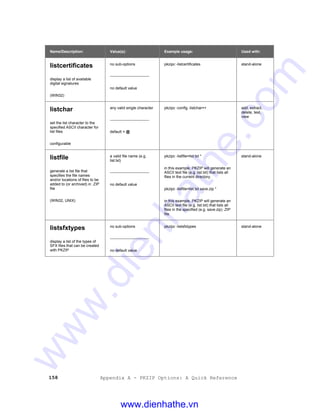
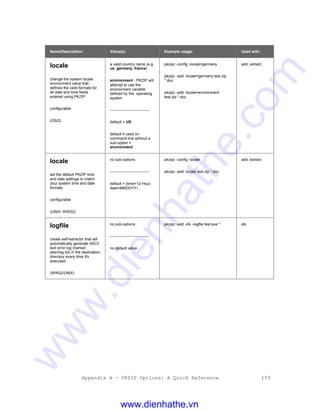
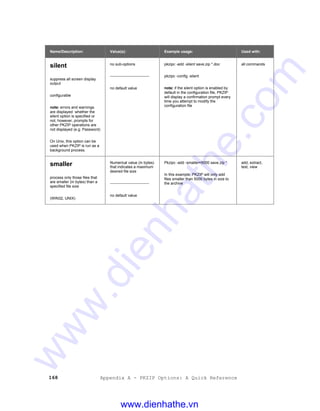
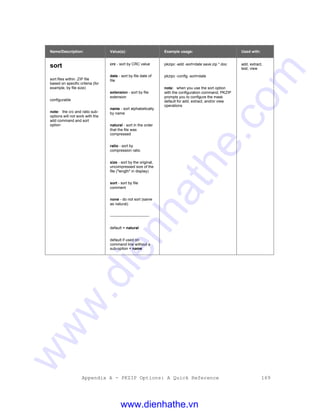
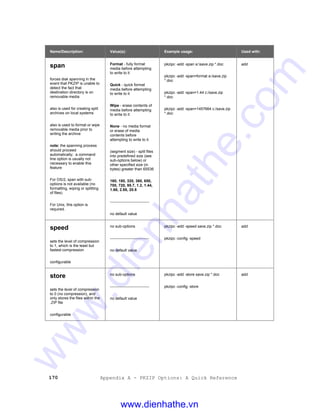
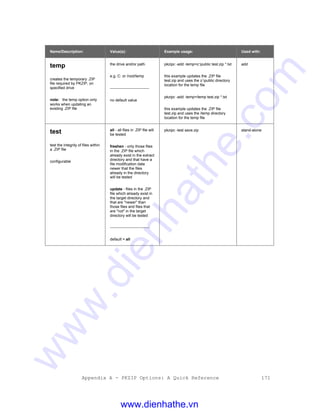
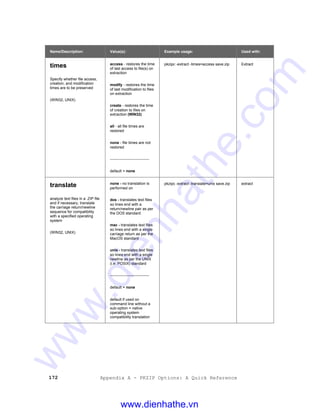
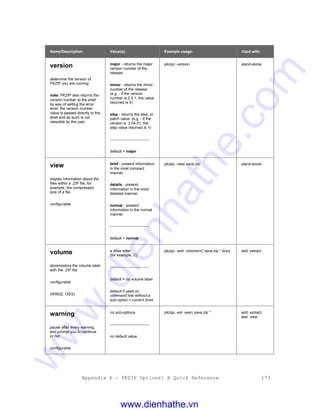
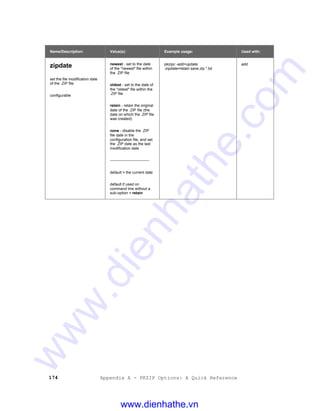
Appendix A PKZIP: A Quick Reference 143
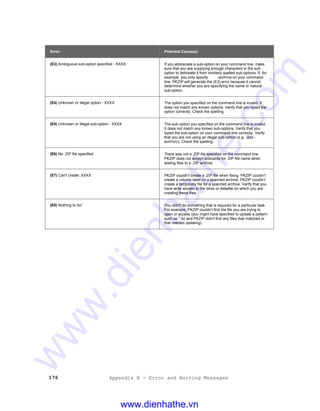
Appendix B Error and Warning Messages 175
Error Messages 175
Warning Messages 183
Appendix C Frequently Asked Questions 189
Appendix D How Does PKZIP Work 197
Two Processes 197
Compression 197
Archiving 202
How PKZIP builds a .ZIP File 203
Deleting Files From a .ZIP File 207
Adding To an Existing .ZIP File 207
Appendix E Command Line Translation 208
Index 213
www.dienhathe.vn
www.dienhathe.com
www.dienhathe.vn
www.dienhathe.com
Welcome to PKZIP 1
Welcome to PKZIP
Overview:
This chapter contains an introduction to PKZIP, an explanation of the
contents of this manual, and information about the technical support
services offered to you as a valued PKZIP user.
Note: It is highly recommended that you review the Getting Started
Manual before proceeding.
Sections in This Chapter:
• Introduction
• About This Manual
• Your Work Environment: The Command Line
• Using Help
• Getting License Information
• Getting Version Information
• Using PKWARE Technical Support
www.dienhathe.vn
www.dienhathe.com
2 Welcome to PKZIP
Introduction
Compressing files into a .ZIP archive is quick and easy with PKZIP. The
powerful but simple to use PKZIP command line gives you the ability to fully
customize your data compression tasks. Before you create a .ZIP file,
consider the following:
• Do you prefer speed or compression?
• Do you want directory path information stored in your .ZIP file?
• Will you send .ZIP files to others? If so, would a self-extracting .ZIP benefit
them?
• Do you want to protect your .ZIP file with a password?
With PKZIP, you can create two types of .ZIP files: regular and PKSFX®
self-extracting. A regular .ZIP file contains only the compressed files. (i.e.
you need PKZIP installed on your system to extract the files) A self-
extracting .ZIP file contains the compressed files "and" built-in instructions
that allow you to extract files without using PKZIP (it also contains a different
extension, .exe). This is helpful when you send .ZIP files to those who don’t
have access to PKZIP or other .ZIP compatible programs.
About This Manual
This manual is organized for the novice and expert user alike. If you are a
new PKZIP user, you will find the tutorials in this manual (Chapter 2) helpful.
If you have previously used other versions of PKZIP (e.g. PKZIP for DOS
2.04), you may find that although the base functionality has been preserved,
the command line implementation is different with new commands and
options. If you are an advanced user, Appendix A: PKZIP Options: A Quick
Reference on page 143 might be all the reference material you need.
www.dienhathe.vn
www.dienhathe.com
Welcome to PKZIP 3
Your Work Environment: The Command Line
PKZIP is a command-line based product, which means your work area is a
character-based command line. Using PKZIP consists primarily of typing a
command and pressing ENTER. Command prompt conventions allow you to
extensively customize your compression and extraction tasks.
Note: Although this manual isn’t an operating system manual, it does
contain general reminders on conventions as they relate to a task or tutorial.
Using Help
In addition to the information provided in this manual, PKZIP also contains
on-line help for your convenience. The on-line help contains information on
every PKZIP command, option, and sub-option.
To access on-line help:
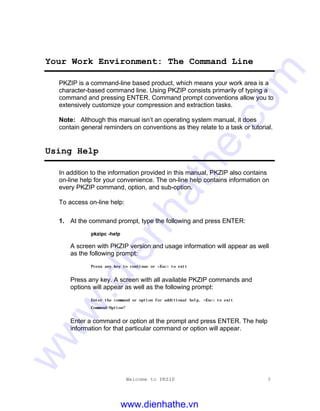
1. At the command prompt, type the following and press ENTER:
pkzipc -help
A screen with PKZIP version and usage information will appear as well
as the following prompt:
Press any key to continue or <Esc> to exit
Press any key. A screen with all available PKZIP commands and
options will appear as well as the following prompt:
Enter the command or option for additional help, <Esc> to exit
Command/Option?
Enter a command or option at the prompt and press ENTER. The help
information for that particular command or option will appear.
www.dienhathe.vn
www.dienhathe.com
4 Welcome to PKZIP
2. To bypass the command/option menu and go directly to a help file for a
particular command or option, type the help command followed by an
equal sign (=) and the command or option for which you need on-line
assistance. For example, to access on-line help for the add command,
type the following at the command prompt and press ENTER:
pkzipc -help=add
The help information for the add command will appear.
Getting License Information
To display the PKZIP license information on your screen, do the following:
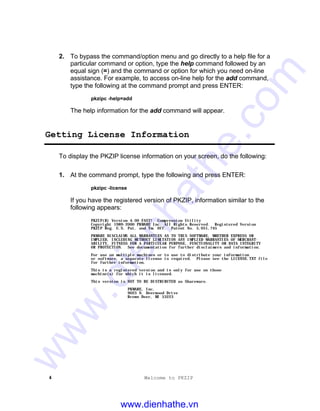
1. At the command prompt, type the following and press ENTER:
pkzipc -license
If you have the registered version of PKZIP, information similar to the
following appears:
PKZIP(R) Version 4.00 FAST! Compression Utility
Copyright 1989-2000 PKWARE Inc. All Rights Reserved. Registered Version
PKZIP Reg. U.S. Pat. and Tm. Off. Patent No. 5,051,745
PKWARE DISCLAIMS ALL WARRANTIES AS TO THIS SOFTWARE, WHETHER EXPRESS OR
IMPLIED, INCLUDING WITHOUT LIMITATION ANY IMPLIED WARRANTIES OF MERCHANT-
ABILITY, FITNESS FOR A PARTICULAR PURPOSE, FUNCTIONALITY OR DATA INTEGRITY
OR PROTECTION. See documentation for further disclaimers and information.
For use on multiple machines or to use to distribute your information
or software, a separate license is required. Please see the LICENSE.TXT file
for further information.
This is a registered version and is only for use on those
machine(s) for which it is licensed.
This version is NOT TO BE DISTRIBUTED as Shareware.
PKWARE, Inc.
9025 N. Deerwood Drive
Brown Deer, WI 53223
www.dienhathe.vn
www.dienhathe.com
Welcome to PKZIP 5
Getting Version Information
To determine the version of PKZIP you are using, do the following:
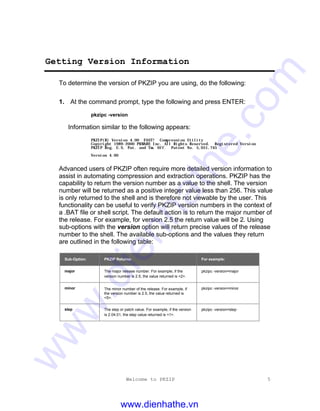
1. At the command prompt, type the following and press ENTER:
pkzipc -version
Information similar to the following appears:
PKZIP(R) Version 4.00 FAST! Compression Utility
Copyright 1989-2000 PKWARE Inc. All Rights Reserved. Registered Version
PKZIP Reg. U.S. Pat. and Tm. Off. Patent No. 5,051,745
Version 4.00
Advanced users of PKZIP often require more detailed version information to
assist in automating compression and extraction operations. PKZIP has the
capability to return the version number as a value to the shell. The version
number will be returned as a positive integer value less than 256. This value
is only returned to the shell and is therefore not viewable by the user. This
functionality can be useful to verify PKZIP version numbers in the context of
a .BAT file or shell script. The default action is to return the major number of
the release. For example, for version 2.5 the return value will be 2. Using
sub-options with the version option will return precise values of the release
number to the shell. The available sub-options and the values they return
are outlined in the following table:
Sub-Option: PKZIP Returns: For example:
major The major release number. For example, if the
version number is 2.5, the value returned is <2>.
pkzipc -version=major
minor The minor number of the release. For example, if
the version number is 2.5, the value returned is
<5>.
pkzipc -version=minor
step The step or patch value. For example, if the version
is 2.04.01, the step value returned is <1>.
pkzipc -version=step
www.dienhathe.vn
www.dienhathe.com
6 Welcome to PKZIP
Using PKWARE Technical Support
We hope that using PKZIP is an enjoyable and trouble-free experience. Our
goal is to provide you with the best product and documentation possible.
However, problems and questions might arise. In most cases, you’ll be able
to answer those questions or solve the problems by referring to the Getting
Started Manual, the on-line help or the manual you are now reading. If
however you need further assistance, you can reach the PKWARE
Technical Support Department in the following ways:
• Internet/Usenet.
• CompuServe.
• PKWARE Bulletin Board Service (BBS).
• Faxing/Calling a Technical Support Representative.
Remember to refer to this manual before you use one of these options.
Using Internet/Usenet
PKWARE products are frequently discussed in the newsgroup
comp.compression. Internet newsgroups are not supported directly by
PKWARE. You will find a customer assistance area on PKWARE’s World
Wide Web site. Additionally, you may use the Internet/Usenet to contact
PKWARE Technical Support. PKWARE’s Internet address is as follows:
• World Wide Web: http://www.pkware.com/support
www.dienhathe.vn
www.dienhathe.com
Welcome to PKZIP 7
Using CompuServe
PKWARE technical support representatives maintain a discussion forum on
CompuServe. To reach the forum, type GO PKWARE from any
CompuServe prompt. PKWARE is located in area 11. PKWARE’s
CompuServe ID is 75300,730
Using the PKWARE BBS
PKWARE maintains its own BBS. It is normally available 24 hours a day and
supports baud rates from 1200 bps to 33.6 kbps.
To use this BBS, set your communications software to the following:
8 bits; 1 stop bit; No parity
For your convenience, the PKWARE BBS has multiple telephone lines,
offers the latest in PKWARE shareware, and gives you the ability to
download many other files.
You can reach the PKWARE BBS at the following number:
• (414) 354-8670
Before You Call
The more information you provide, the easier it will be for PKWARE
Technical Support Representatives to help you. Before you use one of the
technical support services, please have the following information handy:
• The version number of PKZIP (refer to Getting Version Information).
• The "exact" commands you typed into your computer prior to noticing the
problem and any error messages that appear.
www.dienhathe.vn
www.dienhathe.com
8 Welcome to PKZIP
Calling a PKWARE Technical Support
Representative
The most direct way to receive assistance about PKZIP is to call a
PKWARE Technical Support Representative on the telephone. The
PKWARE Technical Support Department is available Monday through
Friday from 9:00a.m. to 5:00p.m. Central Standard Time.
Before you call, we recommend that you FAX the necessary configuration
information to PKWARE. To help you organize this information, use the
Customer Support Form that follows. This gives the technical support
representative some time to review your problem and offer a solution.
Please indicate on the FAX that you will be calling.
The PKWARE FAX number is:
• (414) 354-8559
If you have determined that your problem is serious and needs immediate
attention, call the PKWARE Technical Support Department at the following
number:
• (414) 354-8699
Using the PKWARE Customer Support Form
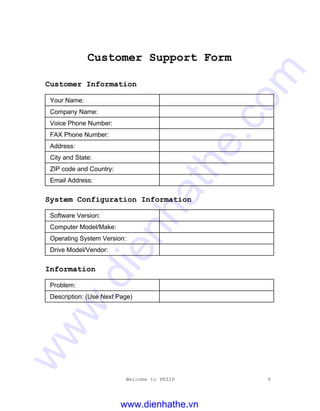
For your convenience, a Customer Support Form has been provided to help
you record the information you need to accurately report the problem you
are experiencing. We recommend that you make several copies of this form.
REMEMBER! Include as much information on this form as possible.
www.dienhathe.vn
www.dienhathe.com
Welcome to PKZIP 9
Customer Support Form
Customer Information
Your Name:
Company Name:
Voice Phone Number:
FAX Phone Number:
Address:
City and State:
ZIP code and Country:
Email Address:
System Configuration Information
Software Version:
Computer Model/Make:
Operating System Version:
Drive Model/Vendor:
Information
Problem:
Description: (Use Next Page)
www.dienhathe.vn
www.dienhathe.com
10 Welcome to PKZIP
Notes:
www.dienhathe.vn
www.dienhathe.com
The Basics 11
The Basics
Overview:
This chapter contains information to get you started with PKZIP, including
quick, easy-to-follow instructions on performing basic compression and
extraction tasks. Tutorials help you practice, by systematically guiding you
through each task.
Sections in This Chapter:
• Introduction
• Using the Tutorials
• Compressing Files: Learning the Basics
• Extracting Files: Learning the Basics
• Understanding PKZIP Commands and Options
• What’s Next?
www.dienhathe.vn
www.dienhathe.com
12 The Basics
Introduction
This chapter introduces you to basic compression and extraction tasks using
PKZIP. This includes using command-line conventions to help customize
your data compression and extraction tasks. For example, you may specify
a destination location for your .ZIP file even if you are not compressing files
in that particular location. You may also use conventions such as "*" to
represent "all" files. PKZIP incorporates these conventions to help make
using PKZIP easy as well as flexible.
In addition to using conventions, PKZIP contains its own set of special
commands and options that even further customize compression and
extraction tasks. These commands and options are detailed in subsequent
chapters as well as the chapter you are now reading. Specifically, this
chapter contains tutorials that will allow you to practice with PKZIP on files
that were created and copied to a special "tutorial" directory. Refer to the
Creating the Tutorial Directory and Files section, in the Getting Started
Manual for specific information on setting up your tutorial workspace.
Using the Tutorials
To help you learn PKZIP, this chapter contains several tutorials. These
tutorials progress from simple to complex features. Each tutorial is preceded
by a brief explanation of the topic(s) that the tutorial represents. For each
tutorial, you will be asked to perform a specific PKZIP task. The results of
"what you type" are reviewed every step of the way.
www.dienhathe.vn
www.dienhathe.com
The Basics 13
Conventions Used in the Tutorials
This manual was written for several operating system and platform versions
of the command line implementation of PKZIP. To avoid confusion, we have
tried to minimize references to specific operating systems or platforms.
There may be instances in the tutorials where it is necessary to refer to an
operating system or platform convention. Since PKZIP’ s command line
interface is virtually identical between the various operating system/platform
versions, the examples used in this manual are, for the most part, universal.
However, keep in mind that what you see on your screen might differ slightly
from what you see in the examples.
Typically, in command line examples, we only reference what you would
actually type at the command prompt, as in the following command line
example:
pkzipc -add test.zip text.doc
Using Sample Files and Directories
The tutorials in this manual take you through compressing and extracting
"specific" files from a "specific" tutorial directory. Feel free to use your own
files if you choose to practice on them. However, keep in mind that the
results that are displayed are specific to the files that these tutorials use as
samples.
Note: These tutorials assume that you have installed PKZIP in the default
installation directory. Additionally, the tutorials assume that you can access
PKZIP from any directory without specifying a file path. Refer to the Getting
Started Manual for information on how to properly install and configure
PKZIP.
Preparing Your Workspace
To follow the tutorials in this manual step-by-step, you must create a
"working" directory. Consider it a "temporary" directory to be used only for
the tutorials. This helps to ensure that your permanent directories and files
are not deleted or damaged while you’re practicing with PKZIP. Refer to the
Creating the Tutorial Directory and Files section in the Getting Started
Manual for specific information on setting up your tutorial workspace.
www.dienhathe.vn
www.dienhathe.com
14 The Basics
.ZIP File Naming Conventions
The commands and options discussed in the following sections and
chapters of this manual are entered (except for a few standalone
commands) on a command line along with the name of a .ZIP file. If you
enter the file name as "file.zip" or "file.exe", PKZIP will not modify the file
name. However, any file name entered without a .zip or .exe extension will
have an extension added by PKZIP unless the file name ends with a "trailing
dot" (e.g. "file."). Specifying a "trailing dot" with your file name on the
command line tells PKZIP not to append an extension to the specified file
name. For example, specifying "t." as the archive name would result in a file
called "t". Conversely, specifying "t" as the archive name would result in a
file called "t.zip". Other "dots" in a file name are ignored and left unchanged
and only the trailing dot, if present, is used to suppress the adding of an
extension to the .ZIP file name. The nozipextension option does the same
thing.
Systems that do not support more than one "dot" per file name will also
suppress the extension if any dot is present in the file name. For example,
on OS/2 FAT, entering "file.wow" will result in a file called "file.wow", with no
.ZIP extension added by PKZIP, even though the dot is not at the end of the
file name. On the other hand, entering "file.wow" on Win32 FAT, UNIX, or
OS/2 (H.P.F.S. & N.T.F.S.) will result in a file called "file.wow.zip".
Compressing Files: Learning the Basics
This section contains information on how to perform simple data
compression. You perform all PKZIP tasks from a command prompt.
The following are the minimum elements you need to type to compress files:
• The word pkzipc, which is the main PKZIP command.
• A dash (-) followed by the word add (which is the base command used to
compress files).
• The name of the .ZIP file.
www.dienhathe.vn
www.dienhathe.com
The Basics 15
• The names of the file(s) you want to compress.
For example, to compress a file called test.txt into a .ZIP file called temp.zip,
type the following:
pkzipc -add temp.zip test.txt
When you compress files, the "pkzipc" and "-add" are constant. Every other
element of the command varies, depending on the files being compressed in
addition to their location. The sections that follow cover a wide range of
compression (and extraction) possibilities in addition to tutorials to guide
you.
Note: Many of the following tutorials instruct you to change from one
directory to another. This operation is carried out with the help of the cd
command. The cd command changes the current directory to a directory
that you specify on the command line. Consult your operating system
documentation for more information on the cd command.
Compressing a Single File in the Current
Directory
The simplest PKZIP task is compressing a single file from the current
working directory, and storing the resulting .ZIP file in that same directory. In
this scenario, you are not retrieving files to compress from other directories,
nor are you placing the .ZIP file in a different directory.
Tutorial A
Compress a single file (red.txt) into a .ZIP file in your current working
directory.
Follow these steps:
1. From the command prompt, change to the PKZIP Tutorial (tut) directory
that you have created. For information on creating the PKZIP Tutorial
directory, refer to the Getting Started Manual.
www.dienhathe.vn
www.dienhathe.com
16 The Basics
2. To compress the file red.txt into the .ZIP file called test.zip, type the
following command and press ENTER:
pkzipc -add test.zip red.txt
Your file starts to compress, and your screen looks like the following:
PKZIP(R) Version 4.00 FAST! Compression Utility
Copyright 1989-2000 PKWARE Inc. All Rights Reserved. Registered Version
PKZIP Reg. U.S. Pat. and Tm. Off. Patent No. 5,051,745
Creating .ZIP: test.zip
Adding File: red.txt Deflating (62.1%), done.
The first three lines contain the PKZIP banner information (name of the
product, date, version and so on).
The last two lines list the name of the .ZIP file you created, the file(s)
that were compressed, and the percentage that the file was
compressed.
You have now successfully compressed a file into a .ZIP file. Before you
continue with the next section, let’s take a look at your tut directory.
3. View the contents of the tut directory by typing one of the following
commands:
Ø From a UNIX based command prompt, type:
ls -l
A file listing similar to the following will appear:
-rw-rw-rw- 1 user pkware 1030 June 30 2:50 black.tut
-rw-rw-rw- 1 user pkware 4185 June 30 2:50 blue.fil
-rw-rw-rw- 1 user pkware 5920 June 30 2:50 brown.doc
-rw-rw-rw- 1 user pkware 1030 June 30 2:50 gold.tut
-rw-rw-rw- 1 user pkware 591 June 30 2:50 green.doc
-rw-rw-rw- 1 user pkware 591 June 30 2:50 orange.fil
-rw-rw-rw- 1 user pkware 1030 June 30 2:50 pink.tut
-rw-rw-rw- 1 user pkware 591 June 30 2:50 purple.txt
-rw-rw-rw- 1 user pkware 4185 June 30 2:50 red.txt
-rw-rw-rw- 1 user pkware 4185 June 30 2:50 tan.txt
-rw-r--r-- 1 user pkware 1702 June 30 2:59 test.zip
-rw-rw-rw- 1 user pkware 5920 June 30 2:50 white.doc
-rw-rw-rw- 1 user pkware 5920 June 30 2:50 yellow.doc
Ø From a DOS based command prompt, type:
dir
www.dienhathe.vn
www.dienhathe.com
The Basics 17
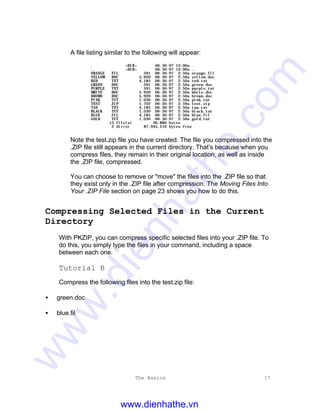
A file listing similar to the following will appear:
. <DIR> 06-30-97 12:00a .
.. <DIR> 06-30-97 12:00a ..
ORANGE FIL 591 06-30-97 2:50a orange.fil
YELLOW DOC 5,920 06-30-97 2:50a yellow.doc
RED TXT 4,185 06-30-97 2:50a red.txt
GREEN DOC 591 06-30-97 2:50a green.doc
PURPLE TXT 591 06-30-97 2:50a purple.txt
WHITE DOC 5,920 06-30-97 2:50a white.doc
BROWN DOC 5,920 06-30-97 2:50a brown.doc
PINK TUT 1,030 06-30-97 2:50a pink.tut
TEST ZIP 1.702 06-30-97 2:59a test.zip
TAN TXT 4,185 06-30-97 2:50a tan.txt
BLACK TUT 1,030 06-30-97 2:50a black.tut
BLUE FIL 4,185 06-30-97 2:50a blue.fil
GOLD TUT 1,030 06-30-97 2:50a gold.tut
13 file(s) 36,880 bytes
2 dir(s) 87,945,216 bytes free
Note the test.zip file you have created. The file you compressed into the
.ZIP file still appears in the current directory. That’s because when you
compress files, they remain in their original location, as well as inside
the .ZIP file, compressed.
You can choose to remove or "move" the files into the .ZIP file so that
they exist only in the .ZIP file after compression. The Moving Files Into
Your .ZIP File section on page 23 shows you how to do this.
Compressing Selected Files in the Current
Directory
With PKZIP, you can compress specific selected files into your .ZIP file. To
do this, you simply type the files in your command, including a space
between each one.
Tutorial B
Compress the following files into the test.zip file:
• green.doc
• blue.fil
www.dienhathe.vn
www.dienhathe.com
18 The Basics
Follow these steps:
1. From the command prompt, type the following and press ENTER:
pkzipc -add test.zip green.doc blue.fil
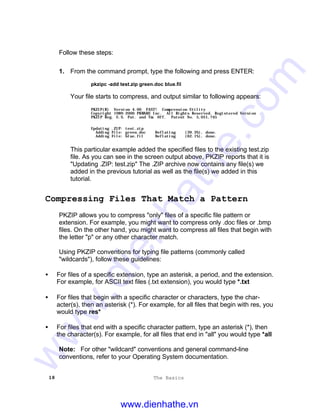
Your file starts to compress, and output similar to following appears:
PKZIP(R) Version 4.00 FAST! Compression Utility
Copyright 1989-2000 PKWARE Inc. All Rights Reserved. Registered Version
PKZIP Reg. U.S. Pat. and Tm. Off. Patent No. 5,051,745
Updating .ZIP: test.zip
Adding File: green.doc Deflating (39.3%), done.
Adding File: blue.fil Deflating (62.1%), done.
This particular example added the specified files to the existing test.zip
file. As you can see in the screen output above, PKZIP reports that it is
"Updating .ZIP: test.zip" The .ZIP archive now contains any file(s) we
added in the previous tutorial as well as the file(s) we added in this
tutorial.
Compressing Files That Match a Pattern
PKZIP allows you to compress "only" files of a specific file pattern or
extension. For example, you might want to compress only .doc files or .bmp
files. On the other hand, you might want to compress all files that begin with
the letter "p" or any other character match.
Using PKZIP conventions for typing file patterns (commonly called
"wildcards"), follow these guidelines:
• For files of a specific extension, type an asterisk, a period, and the extension.
For example, for ASCII text files (.txt extension), you would type *.txt
• For files that begin with a specific character or characters, type the char-
acter(s), then an asterisk (*). For example, for all files that begin with res, you
would type res*
• For files that end with a specific character pattern, type an asterisk (*), then
the character(s). For example, for all files that end in "all" you would type *all
Note: For other "wildcard" conventions and general command-line
conventions, refer to your Operating System documentation.
www.dienhathe.vn
www.dienhathe.com
The Basics 19
Tutorial C
Compress all files in your tut directory that end with *.doc
Follow these steps:
1. From your command prompt, type the following and press ENTER:
pkzipc -add test.zip *.doc
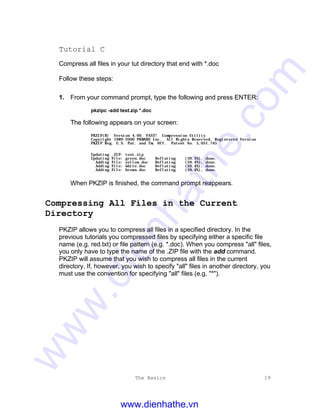
The following appears on your screen:
PKZIP(R) Version 4.00 FAST! Compression Utility
Copyright 1989-2000 PKWARE Inc. All Rights Reserved. Registered Version
PKZIP Reg. U.S. Pat. and Tm. Off. Patent No. 5,051,745
Updating .ZIP: test.zip
Updating File: green.doc Deflating (39.3%), done.
Adding File: yellow.doc Deflating (59.4%), done.
Adding File: white.doc Deflating (59.4%), done.
Adding File: brown.doc Deflating (59.4%), done.
When PKZIP is finished, the command prompt reappears.
Compressing All Files in the Current
Directory
PKZIP allows you to compress all files in a specified directory. In the
previous tutorials you compressed files by specifying either a specific file
name (e.g. red.txt) or file pattern (e.g. *.doc). When you compress "all" files,
you only have to type the name of the .ZIP file with the add command.
PKZIP will assume that you wish to compress all files in the current
directory. If, however, you wish to specify "all" files in another directory, you
must use the convention for specifying "all" files (e.g. "*").
www.dienhathe.vn
www.dienhathe.com
20 The Basics
Tutorial D
Compress all the files in your tut directory into the test.zip file.
Follow these steps:
1. From your command prompt, type the following and press ENTER:
pkzipc -add test.zip
Your files start to compress. Because you are compressing all of the
files in your tut directory, this will take a little longer.
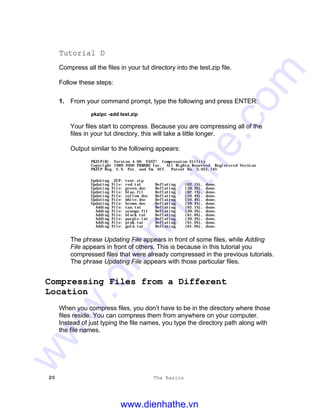
Output similar to the following appears:
PKZIP(R) Version 4.00 FAST! Compression Utility
Copyright 1989-2000 PKWARE Inc. All Rights Reserved. Registered Version
PKZIP Reg. U.S. Pat. and Tm. Off. Patent No. 5,051,745
Updating .ZIP: test.zip
Updating File: red.txt Deflating (62.1%), done.
Updating File: green.doc Deflating (39.3%), done.
Updating File: blue.fil Deflating (62.1%), done.
Updating File: yellow.doc Deflating (59.4%), done.
Updating File: white.doc Deflating (59.4%), done.
Updating File: brown.doc Deflating (59.4%), done.
Adding File: tan.txt Deflating (62.1%), done.
Adding File: orange.fil Deflating (39.3%), done.
Adding File: black.tut Deflating (61.0%), done.
Adding File: purple.txt Deflating (39.3%), done.
Adding File: pink.tut Deflating (61.0%), done.
Adding File: gold.tut Deflating (61.0%), done.
The phrase Updating File appears in front of some files, while Adding
File appears in front of others. This is because in this tutorial you
compressed files that were already compressed in the previous tutorials.
The phrase Updating File appears with those particular files.
Compressing Files from a Different
Location
When you compress files, you don’t have to be in the directory where those
files reside. You can compress them from anywhere on your computer.
Instead of just typing the file names, you type the directory path along with
the file names.
www.dienhathe.vn
www.dienhathe.com
The Basics 21
Tutorial E
In this tutorial, you will switch locations to the directory that is directly above
(parent to) the PKZIP 4.0 Command Line install directory and compress files
that appear in the PKZIP tutorial directory.
Follow these steps:
1. Go to the directory that is directly above the PKZIP install directory. (e.g.
c:program filespkware or /usr/local/pkware)
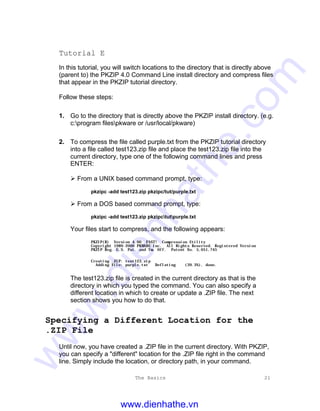
2. To compress the file called purple.txt from the PKZIP tutorial directory
into a file called test123.zip file and place the test123.zip file into the
current directory, type one of the following command lines and press
ENTER:
Ø From a UNIX based command prompt, type:
pkzipc -add test123.zip pkzipc/tut/purple.txt
Ø From a DOS based command prompt, type:
pkzipc -add test123.zip pkzipctutpurple.txt
Your files start to compress, and the following appears:
PKZIP(R) Version 4.00 FAST! Compression Utility
Copyright 1989-2000 PKWARE Inc. All Rights Reserved. Registered Version
PKZIP Reg. U.S. Pat. and Tm. Off. Patent No. 5,051,745
Creating .ZIP: test123.zip
Adding File: purple.txt Deflating (39.3%), done.
The test123.zip file is created in the current directory as that is the
directory in which you typed the command. You can also specify a
different location in which to create or update a .ZIP file. The next
section shows you how to do that.
Specifying a Different Location for the
.ZIP File
Until now, you have created a .ZIP file in the current directory. With PKZIP,
you can specify a "different" location for the .ZIP file right in the command
line. Simply include the location, or directory path, in your command.
www.dienhathe.vn
www.dienhathe.com
22 The Basics
Tutorial F
While remaining in the directory that is parent to the PKZIP install directory,
compress the file called gold.tut, which is in PKZIP Tutorial directory, and
place it in the test.zip file, which exists in PKZIP Tutorial directory as well.
Follow these steps:
1. Verify that you are in the appropriate directory.
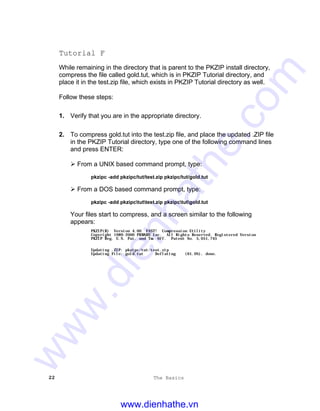
2. To compress gold.tut into the test.zip file, and place the updated .ZIP file
in the PKZIP Tutorial directory, type one of the following command lines
and press ENTER:
Ø From a UNIX based command prompt, type:
pkzipc -add pkzipc/tut/test.zip pkzipc/tut/gold.tut
Ø From a DOS based command prompt, type:
pkzipc -add pkzipctuttest.zip pkzipctutgold.tut
Your files start to compress, and a screen similar to the following
appears:
PKZIP(R) Version 4.00 FAST! Compression Utility
Copyright 1989-2000 PKWARE Inc. All Rights Reserved. Registered Version
PKZIP Reg. U.S. Pat. and Tm. Off. Patent No. 5,051,745
Updating .ZIP: pkzipc/tut/test.zip
Updating File: gold.tut Deflating (61.0%), done.
www.dienhathe.vn
www.dienhathe.com
The Basics 23
Moving Files into Your .ZIP File
Normally, the original files that you compress remain on your hard drive
after you compress them. That is the default action when you use the add
command. PKZIP allows you to remove the files from your hard drive
location after they are compressed into the .ZIP file.
CAUTION: Be careful when "moving" files from your
hard drive to a .ZIP archive. If the .ZIP archive is
subsequently damaged, lost, or deleted, any files
contained therein will be damaged, lost, or deleted with it.
Regularly back up your .ZIP archives to avoid such
problems.
To remove files after they are compressed, use the move option along with
the add command. To include an option in your PKZIP command, you
simply type that option - preceded by a dash - after the add command. The
following tutorial shows you how to do this.
Note: For basic information on PKZIP options, refer to the Understanding
PKZIP Commands and Options section on page 35.
Tutorial G
In this tutorial, you are going to compress the file called pink.tut into the
test.zip file, and "remove" pink.tut from your tut directory.
Follow these steps:
1. Change back to the PKZIP Tutorial directory.
2. Type the following and press ENTER:
pkzipc -add -move test.zip pink.tut
www.dienhathe.vn
www.dienhathe.com
24 The Basics
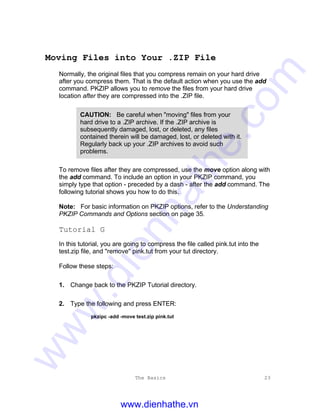
Your file starts to compress, and your screen looks similar to the
following:
PKZIP(R) Version 4.00 FAST! Compression Utility
Copyright 1989-2000 PKWARE Inc. All Rights Reserved. Registered Version
PKZIP Reg. U.S. Pat. and Tm. Off. Patent No. 5,051,745
Updating .ZIP: test.zip
Updating File: pink.tut Deflating (61.0%), done.
Moving 1 files...
Moved File: pink.tut , done.
Note that PKZIP performed two tasks: Updating and Moving. After
compressing the file, PKZIP removed it from the tut directory.
3. To verify that the file you compressed was removed from your directory,
type one of the following commands and press ENTER:
Ø From a UNIX based command prompt, type:
ls -l
Ø From a DOS based command prompt, type:
dir
Verify from the listing that the pink.tut file no longer exists as an
individual file in the PKZIP Tutorial directory. The pink.tut file does
however exist, compressed, in the test.zip file.
Viewing Files Within a .ZIP File
In the previous section, you learned how to move a file from the hard drive
into a .ZIP archive. The file you moved still exists in your test.zip file. You
can use the view command to verify that this file was indeed archived in the
.ZIP file. The view command allows you to list the files that exist within a
.ZIP file. Because you are not compressing files - only viewing them - you
do not have to include the add command.
www.dienhathe.vn
www.dienhathe.com
The Basics 25
Tutorial H
View the files within the test.zip file.
Follow these steps:
1. Verify that you are in the PKZIP tutorial directory.
2. To view the files within the test.zip file, type the following and press
ENTER:
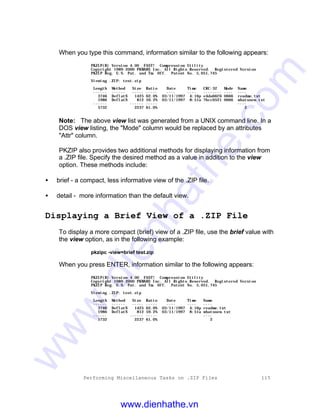
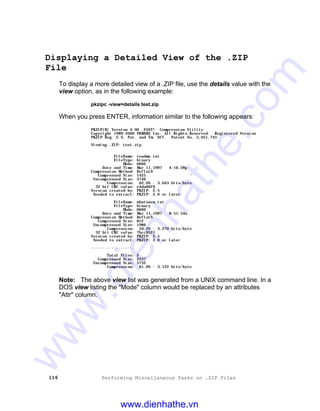
pkzipc -view test.zip
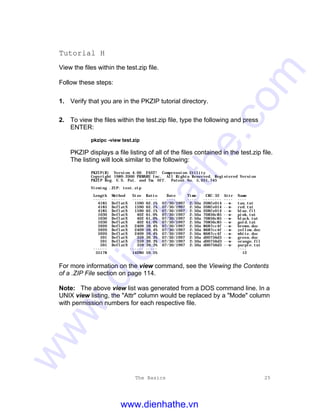
PKZIP displays a file listing of all of the files contained in the test.zip file.
The listing will look similar to the following:
PKZIP(R) Version 4.00 FAST! Compression Utility
Copyright 1989-2000 PKWARE Inc. All Rights Reserved. Registered Version
PKZIP Reg. U.S. Pat. and Tm. Off. Patent No. 5,051,745
Viewing .ZIP: test.zip
Length Method Size Ratio Date Time CRC-32 Attr Name
------ ------ ----- ----- ---- ---- -------- ---- ----
4185 DeflatN 1590 62.1% 07/30/1997 2:50a 208fe014 --w- tan.txt
4185 DeflatN 1590 62.1% 07/30/1997 2:50a 208fe014 --w- red.txt
4185 DeflatN 1590 62.1% 07/30/1997 2:50a 208fe014 --w- blue.fil
1030 DeflatN 402 61.0% 07/30/1997 2:50a 70856c85 --w- pink.tut
1030 DeflatN 402 61.0% 07/30/1997 2:50a 70856c85 --w- black.tut
1030 DeflatN 402 61.0% 07/30/1997 2:50a 70856c85 --w- gold.tut
5920 DeflatN 2409 59.4% 07/30/1997 2:50a 8687cc4f --w- brown.doc
5920 DeflatN 2409 59.4% 07/30/1997 2:50a 8687cc4f --w- yellow.doc
5920 DeflatN 2409 59.4% 07/30/1997 2:50a 8687cc4f --w- white.doc
591 DeflatN 359 39.3% 07/30/1997 2:50a d00756d3 --w- green.doc
591 DeflatN 359 39.3% 07/30/1997 2:50a d00756d3 --w- orange.fil
591 DeflatN 359 39.3% 07/30/1997 2:50a d00756d3 --w- purple.txt
------ ------ ----- ----
35178 14280 59.5% 12
For more information on the view command, see the Viewing the Contents
of a .ZIP File section on page 114.
Note: The above view list was generated from a DOS command line. In a
UNIX view listing, the "Attr" column would be replaced by a "Mode" column
with permission numbers for each respective file.
www.dienhathe.vn
www.dienhathe.com
26 The Basics
Further Information on Compressing Files
The tutorials in the previous sections presented a sample of the file
compression options available to you. For example, you can compress
"only" files that are "newer" than the files already stored in the .ZIP file. You
can also set the compression level, prioritizing either speed or compression.
For information on these and other compression features, refer to Chapter 3
- Compressing Files on page 43.
Extracting Files: Learning the Basics
With PKZIP, you can "extract" files just as easily as you can compress them.
This section shows you how to "extract" files back to their original size. You
can extract all files from a .ZIP file, or just one file. You can also extract only
the files that are newer than the files with the same name on your hard
drive.
When you extract a file, you have to include at least the following in your
command, including a space between each element:
• The word pkzipc, which is the main PKZIP command.
• A dash (-) followed by the word extract (which is the base command used to
extract files).
• The name of the .ZIP file.
Including these three elements extracts "all" the files contained in the .ZIP
file into the current directory. To extract only specific files from the .ZIP file,
you would include the following:
• The name of the file(s) you want to extract, or a file pattern.
www.dienhathe.vn
www.dienhathe.com
The Basics 27
For example, to extract a file called cover.txt from a compressed file called
temp.zip into the current directory, you would type the following and press
ENTER:
pkzipc -extract temp.zip cover.txt
The tutorials that follow cover several "extraction" scenarios. For complete
information on extracting files, refer to Chapter 4 - Extracting Files on page
95.
Extracting a Single File From a .ZIP File
The simplest task for extracting files is to extract a single file into the current
directory. To make it easy, we are going to create an "extract" directory
under your tut directory. We’ll call this directory ext. You will also copy the
test.zip file into this directory.
Before you extract files, create a directory called ext and copy the test.zip
file into that directory.
Follow these steps:
1. Verify that you are in the PKZIP Tutorial directory.
2. To create the ext directory, type the following and press ENTER:
mkdir ext
3. To copy the test.zip file into the ext directory, type the following and
press ENTER:
Ø From a UNIX based command prompt, type:
cp test.zip ext
Ø From a DOS based command prompt, type:
copy test.zip ext
www.dienhathe.vn
www.dienhathe.com
28 The Basics
4. Now change to the ext directory. To do so, type the following and press
ENTER:
cd ext
Tutorial I
Extract the file called red.txt from the test.zip file.
Follow these steps:
1. Verify that you are in the ext directory.
2. Type the following and press ENTER:
pkzipc -extract test.zip red.txt
PKZIP extracts the file. Your screen will look similar to the following:
PKZIP(R) Version 4.00 FAST! Compression Utility
Copyright 1989-2000 PKWARE Inc. All Rights Reserved. Registered Version
PKZIP Reg. U.S. Pat. and Tm. Off. Patent No. 5,051,745
Extracting files from .ZIP: test.zip
Inflating: red.txt
The first three lines contain the PKZIP banner information (name of the
product, date, version and so on).
The fourth line contains the task PKZIP performed (in this case,
Extracting) followed by the name of the .ZIP file (in this case, test.zip).
The fifth line contains the word Inflating, then the name of the file being
extracted (in this case, red.txt). Inflating is an internal method of
extraction that is meaningful only to the program.
www.dienhathe.vn
www.dienhathe.com
The Basics 29
3. To confirm that red.txt has been extracted into the ext directory, type
one of the following commands and press ENTER:
Ø From a UNIX based command prompt, type:
ls -l red.txt
A listing similar to the following appears:
-rw-rw-rw- 1 user pkware 4185 June 30 2:50 red.txt
Ø From a DOS based command prompt, type:
dir red.txt
A listing similar to the following appears:
RED TXT 4,185 06-30-97 2:50a red.txt
1 file(s) 4,185 bytes
0 dir(s) 88,793,088 bytes free
Note that red.txt has been extracted into the ext directory.
Extracting Multiple Files From a .ZIP File
PKZIP allows you to extract multiple files from a .ZIP file at one time. This
section shows you how to extract:
• Selected individual files.
• Files that match a specific file pattern. For example, files ending with a
.txt extension.
• All files in the directory.
To prepare your ext directory to extract multiple files, first remove the red.txt
file that you extracted in the previous tutorial.
www.dienhathe.vn
www.dienhathe.com
30 The Basics
Follow these steps:
1. Verify that you are in the ext directory.
2. Type one of the following commands and press ENTER:
Ø From a UNIX based command prompt, type:
rm red.txt
Ø From a DOS based command prompt, type:
del red.txt
The red.txt file is deleted. The only file that should be in the ext directory
is test.zip.
Extracting Selected Files
With PKZIP, you can extract specific selected files from your .ZIP file. To do
this, you simply type the files in your command, including a space between
each one.
Tutorial J
Extract the following files from the test.zip file:
• green.doc
• blue.fil
Follow these steps:
1. Verify that you are in the ext directory.
2. Type the following and press ENTER:
pkzipc -extract test.zip green.doc blue.fil
www.dienhathe.vn
www.dienhathe.com
The Basics 31
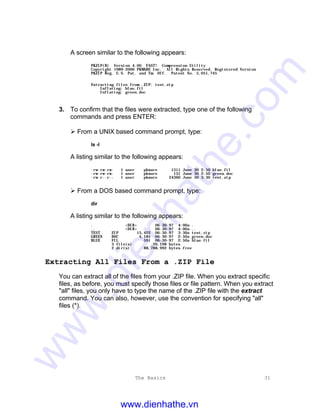
A screen similar to the following appears:
PKZIP(R) Version 4.00 FAST! Compression Utility
Copyright 1989-2000 PKWARE Inc. All Rights Reserved. Registered Version
PKZIP Reg. U.S. Pat. and Tm. Off. Patent No. 5,051,745
Extracting files from .ZIP: test.zip
Inflating: blue.fil
Inflating: green.doc
3. To confirm that the files were extracted, type one of the following
commands and press ENTER:
Ø From a UNIX based command prompt, type:
ls -l
A listing similar to the following appears:
-rw-rw-rw- 1 user pkware 1311 June 30 2:50 blue.fil
-rw-rw-rw- 1 user pkware 131 June 30 2:50 green.doc
-rw-r--r-- 1 user pkware 24360 June 30 3:30 test.zip
Ø From a DOS based command prompt, type:
dir
A listing similar to the following appears:
. <DIR> 06-30-97 4:00a .
.. <DIR> 06-30-97 4:00a ..
TEST ZIP 15,422 06-30-97 3:30a test.zip
GREEN DOC 4,185 06-30-97 2:50a green.doc
BLUE FIL 591 06-30-97 2:50a blue.fil
3 file(s) 20,198 bytes
2 dir(s) 88,788,992 bytes free
Extracting All Files From a .ZIP File
You can extract all of the files from your .ZIP file. When you extract specific
files, as before, you must specify those files or file pattern. When you extract
"all" files, you only have to type the name of the .ZIP file with the extract
command. You can also, however, use the convention for specifying "all"
files (*).
www.dienhathe.vn
www.dienhathe.com
32 The Basics
Tutorial K
Extract all the files from the test.zip file into the ext directory.
Follow these steps:
1. Verify that you are in the ext directory.
2. To extract all files from the test.zip file, type the following and press
ENTER:
pkzipc -extract test.zip
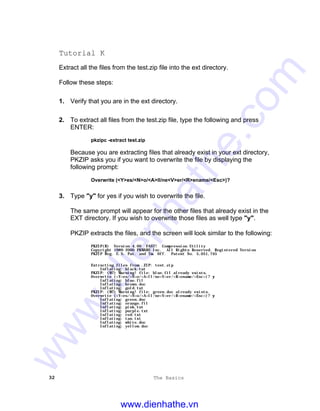
Because you are extracting files that already exist in your ext directory,
PKZIP asks you if you want to overwrite the file by displaying the
following prompt:
Overwrite (<Y>es/<N>o/<A>ll/ne<V>er/<R>ename/<Esc>)?
3. Type "y" for yes if you wish to overwrite the file.
The same prompt will appear for the other files that already exist in the
EXT directory. If you wish to overwrite those files as well type "y".
PKZIP extracts the files, and the screen will look similar to the following:
PKZIP(R) Version 4.00 FAST! Compression Utility
Copyright 1989-2000 PKWARE Inc. All Rights Reserved. Registered Version
PKZIP Reg. U.S. Pat. and Tm. Off. Patent No. 5,051,745
Extracting files from .ZIP: test.zip
Inflating: black.tut
PKZIP: (W7) Warning! file: blue.fil already exists.
Overwrite (<Y>es/<N>o/<A>ll/ne<V>er/<R>ename/<Esc>)? yy
Inflating: blue.fil
Inflating: brown.doc
Inflating: gold.tut
PKZIP: (W7) Warning! file: green.doc already exists.
Overwrite (<Y>es/<N>o/<A>ll/ne<V>er/<R>ename/<Esc>)? yy
Inflating: green.doc
Inflating: orange.fil
Inflating: pink.tut
Inflating: purple.txt
Inflating: red.txt
Inflating: tan.txt
Inflating: white.doc
Inflating: yellow.doc
www.dienhathe.vn
www.dienhathe.com
The Basics 33
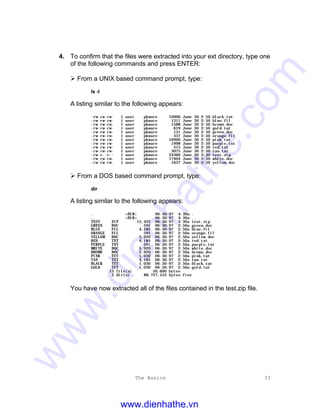
4. To confirm that the files were extracted into your ext directory, type one
of the following commands and press ENTER:
Ø From a UNIX based command prompt, type:
ls -l
A listing similar to the following appears:
-rw-rw-rw- 1 user pkware 10900 June 30 2:50 black.tut
-rw-rw-rw- 1 user pkware 1311 June 30 2:50 blue.fil
-rw-rw-rw- 1 user pkware 1588 June 30 2:50 brown.doc
-rw-rw-rw- 1 user pkware 619 June 30 2:50 gold.tut
-rw-rw-rw- 1 user pkware 131 June 30 2:50 green.doc
-rw-rw-rw- 1 user pkware 337 June 30 2:50 orange.fil
-rw-rw-rw- 1 user pkware 10900 June 30 2:50 pink.tut
-rw-rw-rw- 1 user pkware 1998 June 30 2:50 purple.txt
-rw-rw-rw- 1 user pkware 315 June 30 2:50 red.txt
-rw-rw-rw- 1 user pkware 3075 June 30 2:50 tan.txt
-rw-r--r-- 1 user pkware 24360 June 30 3:30 test.zip
-rw-rw-rw- 1 user pkware 17404 June 30 2:50 white.doc
-rw-rw-rw- 1 user pkware 1637 June 30 2:50 yellow.doc
Ø From a DOS based command prompt, type:
dir
A listing similar to the following appears:
. <DIR> 06-30-97 4:30a .
.. <DIR> 06-30-97 4:30a ..
TEST ZIP 15,422 06-30-97 3:30a test.zip
GREEN DOC 591 06-30-97 2:50a green.doc
BLUE FIL 4,185 06-30-97 2:50a blue.fil
ORANGE FIL 591 06-30-97 2:50a orange.fil
YELLOW DOC 5,920 06-30-97 2:50a yellow.doc
RED TXT 4,185 06-30-97 2:50a red.txt
PURPLE TXT 591 06-30-97 2:50a purple.txt
WHITE DOC 5,920 06-30-97 2:50a white.doc
BROWN DOC 5,920 06-30-97 2:50a brown.doc
PINK TUT 1,030 06-30-97 2:50a pink.tut
TAN TXT 4,185 06-30-97 2:50a tan.txt
BLACK TUT 1,030 06-30-97 2:50a black.tut
GOLD TUT 1,030 06-30-97 2:50a gold.tut
13 file(s) 50,600 bytes
2 dir(s) 88,727,552 bytes free
You have now extracted all of the files contained in the test.zip file.
www.dienhathe.vn
www.dienhathe.com
34 The Basics
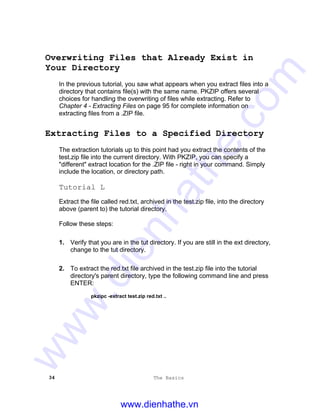
Overwriting Files that Already Exist in
Your Directory
In the previous tutorial, you saw what appears when you extract files into a
directory that contains file(s) with the same name. PKZIP offers several
choices for handling the overwriting of files while extracting. Refer to
Chapter 4 - Extracting Files on page 95 for complete information on
extracting files from a .ZIP file.
Extracting Files to a Specified Directory
The extraction tutorials up to this point had you extract the contents of the
test.zip file into the current directory. With PKZIP, you can specify a
"different" extract location for the .ZIP file - right in your command. Simply
include the location, or directory path.
Tutorial L
Extract the file called red.txt, archived in the test.zip file, into the directory
above (parent to) the tutorial directory.
Follow these steps:
1. Verify that you are in the tut directory. If you are still in the ext directory,
change to the tut directory.
2. To extract the red.txt file archived in the test.zip file into the tutorial
directory's parent directory, type the following command line and press
ENTER:
pkzipc -extract test.zip red.txt ..
www.dienhathe.vn
www.dienhathe.com
The Basics 35
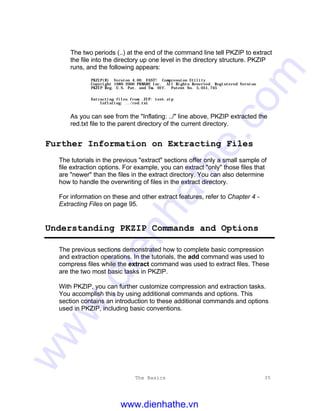
The two periods (..) at the end of the command line tell PKZIP to extract
the file into the directory up one level in the directory structure. PKZIP
runs, and the following appears:
PKZIP(R) Version 4.00 FAST! Compression Utility
Copyright 1989-2000 PKWARE Inc. All Rights Reserved. Registered Version
PKZIP Reg. U.S. Pat. and Tm. Off. Patent No. 5,051,745
Extracting files from .ZIP: test.zip
Inflating: ../red.txt
As you can see from the "Inflating: ../" line above, PKZIP extracted the
red.txt file to the parent directory of the current directory.
Further Information on Extracting Files
The tutorials in the previous "extract" sections offer only a small sample of
file extraction options. For example, you can extract "only" those files that
are "newer" than the files in the extract directory. You can also determine
how to handle the overwriting of files in the extract directory.
For information on these and other extract features, refer to Chapter 4 -
Extracting Files on page 95.
Understanding PKZIP Commands and Options
The previous sections demonstrated how to complete basic compression
and extraction operations. In the tutorials, the add command was used to
compress files while the extract command was used to extract files. These
are the two most basic tasks in PKZIP.
With PKZIP, you can further customize compression and extraction tasks.
You accomplish this by using additional commands and options. This
section contains an introduction to these additional commands and options
used in PKZIP, including basic conventions.
www.dienhathe.vn
www.dienhathe.com
36 The Basics
Difference between a Command and Option
A "command" represents the main task you are performing. For example,
the add command represents the task of "compressing files".
An "option" is a qualifier to the main task that customizes that task in some
fashion. For example, to maximize compression, use the maximum option
with the add command. To sort files that you are extracting, use the sort
option.
Remember in Tutorial G when you used the move option with the add
command? The move option acted as a "qualifier" to add, in that in addition
to compressing the files, PKZIP also "moved" the files.
Including an Option in Your Command Line
In your PKZIP command, an option usually appears immediately following
the main command (for example, add or extract), separated by a space.
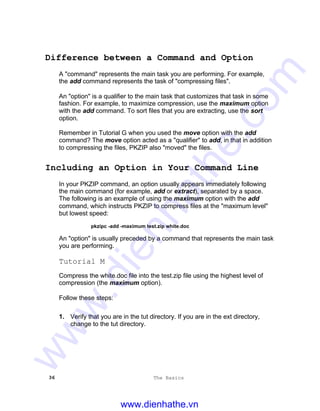
The following is an example of using the maximum option with the add
command, which instructs PKZIP to compress files at the "maximum level"
but lowest speed:
pkzipc -add -maximum test.zip white.doc
An "option" is usually preceded by a command that represents the main task
you are performing.
Tutorial M
Compress the white.doc file into the test.zip file using the highest level of
compression (the maximum option).
Follow these steps:
1. Verify that you are in the tut directory. If you are in the ext directory,
change to the tut directory.
www.dienhathe.vn
www.dienhathe.com
The Basics 37
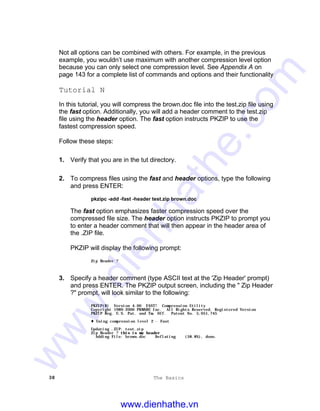
2. To compress files using the maximum option, type the following and
press ENTER:
pkzipc -add -maximum test.zip white.doc
PKZIP begins to compress the file using the ‘maximum’ or level 9
compression. Your screen will look similar to the following:
PKZIP(R) Version 4.00 FAST! Compression Utility
Copyright 1989-2000 PKWARE Inc. All Rights Reserved. Registered Version
PKZIP Reg. U.S. Pat. and Tm. Off. Patent No. 5,051,745
t Using compression level 9 - Maximum comp.
Updating .ZIP: test.zip
Updating File: white.doc Deflating (59.6%), done.
Abbreviating Commands and Options
When you include an option in your PKZIP command, you can abbreviate
that option, as long as it remains unique. In the preceding example, you
could have typed "max" instead of "maximum" as it is the only option that
begins with the letters "max". The same example would look like the
following:
pkzipc -add -max test.zip white.doc
Combining Options
With PKZIP, you can combine options in the same command. For example,
let’s say you want to compress files at the maximum level of compression, in
addition to adding a comment to the header area of the .ZIP file. To
accomplish this, you would use the header and maximum options in your
command, as in the following example:
pkzipc -add -header -max test.zip brown.doc
The order in which you type the options is not important. You could have
typed:
pkzipc -add -max -header test.zip brown.doc
www.dienhathe.vn
www.dienhathe.com
38 The Basics
Not all options can be combined with others. For example, in the previous
example, you wouldn’t use maximum with another compression level option
because you can only select one compression level. See Appendix A on
page 143 for a complete list of commands and options and their functionality
Tutorial N
In this tutorial, you will compress the brown.doc file into the test.zip file using
the fast option. Additionally, you will add a header comment to the test.zip
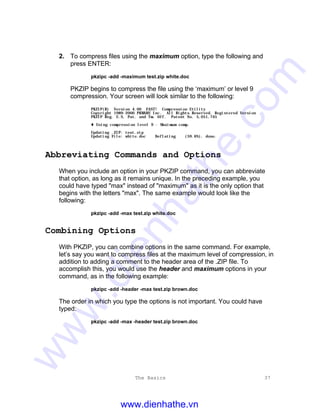
file using the header option. The fast option instructs PKZIP to use the
fastest compression speed.
Follow these steps:
1. Verify that you are in the tut directory.
2. To compress files using the fast and header options, type the following
and press ENTER:
pkzipc -add -fast -header test.zip brown.doc
The fast option emphasizes faster compression speed over the
compressed file size. The header option instructs PKZIP to prompt you
to enter a header comment that will then appear in the header area of
the .ZIP file.
PKZIP will display the following prompt:
Zip Header ?
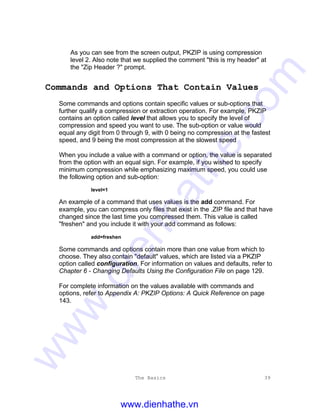
3. Specify a header comment (type ASCII text at the 'Zip Header' prompt)
and press ENTER. The PKZIP output screen, including the " Zip Header
?" prompt, will look similar to the following:
PKZIP(R) Version 4.00 FAST! Compression Utility
Copyright 1989-2000 PKWARE Inc. All Rights Reserved. Registered Version
PKZIP Reg. U.S. Pat. and Tm. Off. Patent No. 5,051,745
t Using compression level 2 - Fast
Updating .ZIP: test.zip
Zip Header ? this is my headerthis is my header
Adding File: brown.doc Deflating (58.8%), done.
www.dienhathe.vn
www.dienhathe.com
The Basics 39
As you can see from the screen output, PKZIP is using compression
level 2. Also note that we supplied the comment "this is my header" at
the "Zip Header ?" prompt.
Commands and Options That Contain Values
Some commands and options contain specific values or sub-options that
further qualify a compression or extraction operation. For example, PKZIP
contains an option called level that allows you to specify the level of
compression and speed you want to use. The sub-option or value would
equal any digit from 0 through 9, with 0 being no compression at the fastest
speed, and 9 being the most compression at the slowest speed
When you include a value with a command or option, the value is separated
from the option with an equal sign. For example, if you wished to specify
minimum compression while emphasizing maximum speed, you could use
the following option and sub-option:
level=1
An example of a command that uses values is the add command. For
example, you can compress only files that exist in the .ZIP file and that have
changed since the last time you compressed them. This value is called
"freshen" and you include it with your add command as follows:
add=freshen
Some commands and options contain more than one value from which to
choose. They also contain "default" values, which are listed via a PKZIP
option called configuration. For information on values and defaults, refer to
Chapter 6 - Changing Defaults Using the Configuration File on page 129.
For complete information on the values available with commands and
options, refer to Appendix A: PKZIP Options: A Quick Reference on page
143.
www.dienhathe.vn
www.dienhathe.com
40 The Basics
Tutorial O
In this tutorial, you will compress files using a command and option, both of
which contain sub-options or values. Specifically, you will compress only
files that exist in the test.zip file, but that have changed. Additionally, you will
specify that the file be minimally compressed while emphasizing maximum
compression speed. This is accomplished by using the add=freshen
command as well as the level=1 option.
Follow these steps:
1. Verify that you are in the tut directory.
2. Open a text editor (e.g. vi; notepad; e). Type anything in the edit screen
that you wish. Save the file into your tut directory as test.txt. Exit the text
editor. A file called test.txt should now exist in your tut directory.
3. Add the test.txt file to the test.zip archive by typing the following:
pkzipc -add test.zip test.txt
The test.txt file is added to the test.zip archive.
4. Re-open test.txt file located in the tut directory with your text editor (e.g.
vi; notepad; e). Edit or add characters in the edit screen. Re-save the
file as test.txt into your tut directory. An updated test.txt file should now
exist in your tut directory.
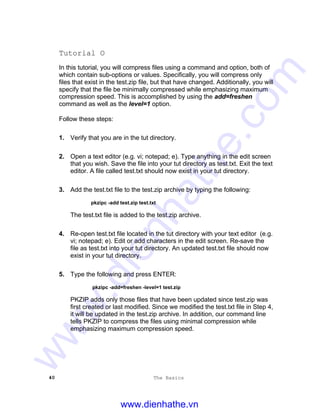
5. Type the following and press ENTER:
pkzipc -add=freshen -level=1 test.zip
PKZIP adds only those files that have been updated since test.zip was
first created or last modified. Since we modified the test.txt file in Step 4,
it will be updated in the test.zip archive. In addition, our command line
tells PKZIP to compress the files using minimal compression while
emphasizing maximum compression speed.
www.dienhathe.vn
www.dienhathe.com
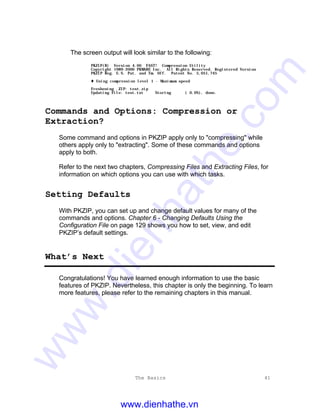
The Basics 41
The screen output will look similar to the following:
PKZIP(R) Version 4.00 FAST! Compression Utility
Copyright 1989-2000 PKWARE Inc. All Rights Reserved. Registered Version
PKZIP Reg. U.S. Pat. and Tm. Off. Patent No. 5,051,745
t Using compression level 1 - Maximum speed
Freshening .ZIP: test.zip
Updating File: test.txt Storing ( 0.0%), done.
Commands and Options: Compression or
Extraction?
Some command and options in PKZIP apply only to "compressing" while
others apply only to "extracting". Some of these commands and options
apply to both.
Refer to the next two chapters, Compressing Files and Extracting Files, for
information on which options you can use with which tasks.
Setting Defaults
With PKZIP, you can set up and change default values for many of the
commands and options. Chapter 6 - Changing Defaults Using the
Configuration File on page 129 shows you how to set, view, and edit
PKZIP’s default settings.
What’s Next
Congratulations! You have learned enough information to use the basic
features of PKZIP. Nevertheless, this chapter is only the beginning. To learn
more features, please refer to the remaining chapters in this manual.
www.dienhathe.vn
www.dienhathe.com
www.dienhathe.vn
www.dienhathe.com
Compressing Files 43
Compressing Files
Overview:
This chapter contains information on the commands and options used in file
compression and archival.
Sections in This Chapter:
• Introduction
• Compressing New and Existing Files
• Compressing Files in Subdirectories
• Storing Directory Path Information
• Compressing Files With a LIST FILE
• Compressing Files Based on Some Criteria
• Compressing Files in a Specific Format
• Storing File Attribute Information
• Including Additional Information in .ZIP File
• Setting the Compression Level
• Sorting Files Within a .ZIP File
• Moving Files to a .ZIP File
• Creating Self-Extracting .ZIP Files
• Compressing Files to Diskette
• Creating .ZIP files that are compatible with the DCL
• Using Digital Signature and PKWARE AV
www.dienhathe.vn
www.dienhathe.com
44 Compressing Files
Introduction
PKZIP offers several options for compressing files into a .ZIP file. The
previous chapter introduced you to some PKZIP basics. This chapter
contains detailed information on the features and compression functionality
presently available in PKZIP.
Conventions in This Chapter
Most commands and options discussed in this and subsequent chapters
work for all versions of PKZIP. In instances where a command or option is
specific to a platform or operating system, the manual will indicate as much.
(e.g. UNIX, WIN32, OS/2).
In some of the headings in this chapter, a word appears immediately below
the heading. That word represents the actual command or option you would
type in your PKZIP command line (and in many cases, a value or sub-option
in addition to the command e.g. add=all). If the text under the heading is the
command followed by an equal sign and another word, it means that the
other word is a value (sub-option) that goes with that command.
Default Values for Commands and Options
For each compression task in this chapter, the command or option that
represents that task contains a default value. A default value represents the
action that occurs when only the name of the command or option is included
in your PKZIP command. For example, the default for the add command is
to compress "all" files.
For commands and options that contain defaults, these defaults are stored
in the Configuration file. PKZIP’s Configuration Options can only be edited
through PKZIP. Refer to Chapter 6 - Changing Defaults Using the
Configuration File on page 129 for more information.
www.dienhathe.vn
www.dienhathe.com
Compressing Files 45
Compressing New and Existing Files
When you compress files into a .ZIP file, you can create a new .ZIP file or
add/update files in an existing .ZIP archive. For example, you might only
want to compress files that end in ".doc". On the other hand, you might want
to update files in an existing .ZIP file, but only those that have changed
since the last time you compressed them.
Note: The add command is used for creating new .ZIP files as well as
adding files to an existing .ZIP archive.
Compressing All Files in a Directory
add
You have the option of compressing all files in a particular directory with a
single command. To do this, you do not have to specify each file. Simply
type pkzipc -add, and the name of your .ZIP file, as shown below:
pkzipc -add test.zip
In this example, all files in the current directory will be compressed into the
test.zip file.
Note: The above command only compresses files that are located in that
particular directory, not in the subdirectories that might appear below that
directory. To learn how to compress files that appear in subdirectories, refer
to the Compressing Files in Subdirectories section on page 49.
You can also specify files from a different directory if you wish. For example,
if you were in a parent directory to a directory called temp and you wanted
to compress all the files in the temp directory, you could type the following:
pkzipc -add test.zip temp/*
The resultant test.zip file is stored in the current directory (the parent
directory to the temp directory in our example).
www.dienhathe.vn
www.dienhathe.com
46 Compressing Files
Note: By default, all files in a specified directory are added to your .ZIP file
with PKZIP’s add command. Unless you’ve modified the add default setting
through the PKZIP Configuration Settings file, you wouldn’t need to include
the ‘all’ sub-option in your command line to compress all files. For more
information on modifying PKZIP’s default values through the PKZIP
Configuration Settings file, see Chapter 6 - Changing Defaults Using the
Configuration File on page 129.
Compressing New and Modified Files
add=update
PKZIP allows you to specify that only new or modified files are added to an
existing .ZIP archive. When the update sub-option is used in conjunction
with the command, the files specified for archiving will be compared against
the files already present in the .ZIP file. If the file(s) to be added into the .ZIP
file is already present and is not newer, PKZIP will not re-compress the file.
By using this option, you may save yourself time when archiving files that
are backed up repeatedly. This option differs from the behavior of the
freshen option in that files which are not already present in the .ZIP file will
be added.
To compress only updated files or files not already archived in a specific
.ZIP file, use the update sub-option with the add option, as shown below:
pkzipc -add=update test.zip *.doc
In this example, a .ZIP file called test.zip is created in the current directory.
All files in the current directory matching the file specification (*.doc) will be
added or updated into the test.zip archive.
www.dienhathe.vn
www.dienhathe.com
Compressing Files 47
Compressing Only Files That Have Changed
add=freshen
The freshen value allows you to selectively update files archived in a .ZIP
file. PKZIP will compress only files that exist in the .ZIP file and that have
changed. To update files that have changed, use the freshen value with the
add option, as shown below:
pkzipc -add=freshen test.zip
You can also abbreviate the value, so you could type the following instead:
pkzipc -add=fre test.zip
When you use freshen with add, only files that already exist in the .ZIP file
"and" that have also changed will be compressed. No new files will be
added to the .ZIP file.
If you only want to re-compress specific files, simply include those files in
your command. For example, if you wanted to re-compress a file called
resume.doc, you would type something like this:
pkzipc -add=freshen test.zip resume.doc
In the above example, only resume.doc will be re-compressed into the
test.zip file. This assumes that the version of resume.doc being added is
newer than the version of resume.doc that already exists in the .ZIP file.
Clearing Archive Attributes (WIN32, OS/2)
add=incremental
If you wish to add files to a .ZIP file that have the archive attribute set and
subsequently clear the archive attribute on those files, use the add
command with the incremental sub-option. If you wish to add files to a .ZIP
file that have the archive attribute set and not clear the archive attribute on
those files, use the add command with the -incremental sub-option.
www.dienhathe.vn
www.dienhathe.com
48 Compressing Files
The incremental and -incremental sub-options can be very useful when
backing up files. If, for example, the incremental sub-option is specified,
only files with the archive attribute will be compressed, and the archive
attribute will be set to OFF when the ZIP operation is complete for these
files.
In the following command line example, PKZIP will add only those files to
test.zip with the archive attribute set. Additionally PKZIP will clear the
archive attribute on any of the source files that have been added to test.zip.
pkzipc -add=incremental test.zip
The next time you run this command, only those files that have the archive
attribute set (new or updated files) will be added to the test.zip file.
Incremental Archiving (WIN32)
add=archive
By using this option, you can create a complete backup of your disk, while
clearing the archive attributes to make the way for incremental archiving.
Incremental archiving makes use of the archive attribute to take only the
files which have been modified since the last backup. In order for this
process to work smoothly, you must first have a complete backup and a
clearing of the archive attribute for all files.
pkzipc -add=archive -dir f:backup.zip
This prepares the files set for future incremental. For future incremental
backups, use
pkzipc -add=incremental test.zip
The archive option should only be used if you are preparing your disk for
incremental backup (by doing a full backup) or if you are doing a full backup
of your disk.
Archive Attribute Explained
Any given file may have several properties associated with it. One such
property or attribute is called the Archive Attribute. When a file is created,
this attribute is set to be ON. In addition, if a file is altered, the attribute is
www.dienhathe.vn
www.dienhathe.com
Compressing Files 49
set. After a file has been backed-up by a program which uses this attribute,
the attribute is switched off. By making use of the archive attribute, you can
make certain that you get all files that are new or changed. You save time
by not backing up files you have previously archived. This process is called
an Incremental Backup.
Compressing Files in Subdirectories
recurse
PKZIP does not automatically compress files that appear in subdirectories,
unless you specify those directories, or use the recurse option with the add
command. With the recurse option, all specified files in a directory structure,
including files located in subdirectories will be compressed.
For example, let’s assume that you have a directory called tut with a nested
subdirectory called test. To compress all of the files in the tut directory and
all files in the tut/test directory, you would type the following in the tut
directory:
pkzipc -add -recurse test.zip *
All files in the tut directory as well as those files in subdirectories of the tut
directory are compressed. However, directory path information is not stored
within the .ZIP file. If you want to store directory information within your .ZIP
file (in addition to compressing all the files in those directories), use the path
option with the recurse option or simply use the directories option.
Note: UNIX users should utilize the include option or place quotation marks
around wildcard designations to bypass automatic wildcard expansion by
your shell, which may restrict your pattern search. See the Getting Started
Manual for more information.
Storing Directory Path Information
path
Normally, when PKZIP compresses files, only the files are stored within the
www.dienhathe.vn
www.dienhathe.com
50 Compressing Files
.ZIP file, not the paths of those files. However, you can instruct PKZIP to
store the directory path information of a file within the .ZIP file. (When you
extract the files later, you have the option of retaining the directory structure
of those files.)
If for example, a file you are compressing appears in the doc/temp directory,
you can store the file within the .ZIP file as:
doc/temp/<filename>
For example, let’s assume that you are currently in a directory called
PKWARE. Underneath the PKWARE directory is a nested subdirectory
called test. If you wish to store relative directory path information within a
.ZIP file, use the path option with the add command:
pkzipc -add -path test.zip test/*.txt
In the previous example, any .txt files that exist in the /PKWARE/test
directory are archived in the test.zip file. Additionally, the relative path
(test/*.txt) is also stored in the test.zip. If the files stored in test.zip were then
extracted, using the directories option, this path information would be
preserved and the files, as well as the directory where the files were
originally stored, would be created and/or extracted. Keep in mind that with
the path option alone, PKZIP will only search the current directory for files. If
you wish to search subdirectories as well as preserve the directory
structure, use the path option in conjunction with the recurse option or
simply use the directories option.
Additional Methods for Storing Directory
Path Information
In addition to storing relative path information, PKZIP allows you to further
customize path information storage in your .ZIP files. Several sub-options
allow you specify exactly what directory and path information is to be stored.
www.dienhathe.vn
www.dienhathe.com
Compressing Files 51
Each sub-option is a value that you include with the path option. The path
option and/or sub-option will override the path value in the PKZIP
Configuration File. If no sub-option is specified, only relative path
information is stored. Examples of each sub-option appear in the table
below:
Sub-option: To: For example:
current Store the directory path relative
to the current location.
pkzipc -add -path=current docs.zip docs/*
In this example, only directory information under the docs
directory will be stored. Parent directory information will not be
stored.
root or full Store the full path, starting from
the root directory down.
pkzipc -add -path=root docs.zip docs/*
In this example, the entire directory path, starting from "root"
directory will be stored.
specify Store the directory path
information that is specified in
your PKZIP
command.
pkzipc -add -path=specify docs.zip temp/docs/*
In this example, temp/docs is the directory information that will
be stored.
relative Store the directory path relative
to the current working directory
of the drive specified. (WIN32)
pkzipc -add -directories=relative docs.zip c:*.doc z:*.doc
In this example the path information for those directories
recursed under the current working directory (for both the C:
and Z: drives) will be stored.
none Turn off the path option. (Used to
override configuration file).
pkzipc -add -path=none docs.zip /temp/docs/*
In this example, only the file names are stored.
www.dienhathe.vn
www.dienhathe.com
52 Compressing Files
Storing and Recreating Directory Path
Information
directories
The directories option works with both the add and extract commands.
When used with the add command, the directories option is equivalent to
using both the recurse and path options together. The directories option
instructs PKZIP to search subdirectories for files and save the files with their
directory path information in the .ZIP file. When used with the extract
command, the directories option extracts the files while preserving the
directory tree structure and file location.
The following example illustrates compression operations using the add
command with the directories option. The command line that follows will
compress a file called resume.doc into a file called test.zip. resume.doc, for
the purposes of this example, resides in the temp directory.
pkzipc -add -directories test.zip resume.doc
The screen output will look similar to the following:
PKZIP(R) Version 4.00 FAST! Compression Utility
Copyright 1989-2000 PKWARE Inc. All Rights Reserved. Registered Version
PKZIP Reg. U.S. Pat. and Tm. Off. Patent No. 5,051,745
Creating .ZIP: test.zip
Adding File: temp/resume.doc Deflating (69.3%), done.
As you can see from the Adding File: line above, the current path to the file
resume.doc is listed (temp/resume.doc). For information on extracting files
compressed with directory information, see the Retaining Directory Structure
while Extracting section on page 106.
Note: UNIX users should utilize the include option or place quotation
marks around wildcard designations to bypass automatic wildcard
expansion by your shell, which may restrict your pattern search. See the
Getting Started Manual for more information.
www.dienhathe.vn
www.dienhathe.com
Compressing Files 53
As with the path option, PKZIP provides several methods for storing
directory path information. The available sub-options are listed in the
following table:
Sub-option: To: For example:
current Store the directory path relative
to the current location.
pkzipc -add -directories=current docs.zip docs/*
In this example, only directory information under the docs
directory will be stored. Parent directory information will not be
stored.
root or full Store the full path, starting from
the root directory down.
pkzipc -add -directories=root docs.zip docs/*
In this example, the entire directory path, starting from "root"
directory will be stored.
specify Store the directory path
information that is specified in
your PKZIP
command.
pkzipc -add -directories=specify docs.zip temp/docs/*
In this example, temp/docs is the directory information that will
be stored.
relative Store the directory path relative
to the current working directory
of the drive specified. (WIN32)
pkzipc -add -directories=relative docs.zip c:*.doc z:*.doc
In this example, the path information for those directories
recursed under the current working directory (for both the C:
and Z: drives) will be stored.
none Turn off the path option. (Used to
override configuration file).
pkzipc -add -directories=none docs.zip /temp/docs/*
In this example, only the file names are stored.
Refer to the previous section, Additional Methods for Storing Directory Path
Information, for more information.
www.dienhathe.vn
www.dienhathe.com
54 Compressing Files
Compressing Files with a LIST File
Rather than specifying a specific file or file pattern in your command line,
you have the option of pointing to a LIST file in your command line. The
LIST file is an ASCII text file that contains file names and their locations. A
LIST file can be an ideal solution for users who archive specific file sets on a
regular basis. It saves time in that it is not necessary to type appropriate file
names and paths each time you wish to compress these files with PKZIP. A
LIST file may contain wild card specifications (*,?) as well as exact file
names and paths.
A LIST file in a DOS based environment might look similar to the following:
*.exe
*.doc
tut*.doc
tut?????.*
pkzip.html
A LIST file in a UNIX based environment might look similar to the following:
/usr/local/pkware/pkzipc/*.doc
/usr/local/pkware/pkzipc/pkzip.html
/usr/local/pkware/pkzipc/?????.exe
/*
Using the @ character in your command line, you can point to the LIST file.
We’ll assume that the LIST file is called lst.txt and that it resides in your
current directory. An example of such a command line follows:
pkzipc -add test.zip @lst.txt
In the previous example, PKZIP creates a file called test.zip using file
information it retrieves from a file called lst.txt, located in the current
directory. lst.txt contains file location information that PKZIP uses to add
files to the test.zip archive. You may also use a LIST File to specify files for
exclusion from an archive, based on some criteria, using the exclude
option. The exclude option is discussed in more detail on page 59. Use the
listchar option to specify something other than the @ character as the LIST
character. For more information on the listchar option, see Chapter 7 -
Command Characteristics on page 137.
Note: The file format for a LIST file when extracting files may differ from
the format referenced above. See the Extracting Files with a LIST File
section on page 108 for more information.
www.dienhathe.vn
www.dienhathe.com
Compressing Files 55
Compressing Files Based on Some Criteria
after, before, include, exclude, larger, smaller,
newer, older
With PKZIP, you can compress files based on certain criteria. You can
compress:
• Files that are newer than a specified date.
• Files that are older than a specified date or number of days.
• Files that are newer than a specified number of days
• Files that are larger or smaller than a specified size
• All files of a specific pattern.
• All files "except" those specified.
Refer to the sections that follow for more information.
Compressing Files Newer Than a Specified
Date
after
With PKZIP, you can choose to compress only those files that are newer or
equal to a specified date. To do this, use the after option, followed by an
equal sign and the date, as shown below:
pkzipc -add -after=062495 test.zip
In this example, only files that contain a date newer or equal to June 24,
1995 will be compressed.
With PKZIP, you can enter dates in the following formats:
www.dienhathe.vn
www.dienhathe.com
56 Compressing Files
• mmddyy
• mmddyyyy
The order in which you enter the month, date, and year depends on your
locale setting. For more information on the locale setting, see Chapter 7 -
Command Characteristics on page 136.
Compressing Files Older Than a Specified
Date or Days
before
With PKZIP, you can choose to compress only files that are older than a
specified date. To do this, use the before option, followed by an equal sign
and the date, as shown below:
pkzipc -add -before=062495 test.zip
In this example, only files that contain a date older than June 24, 1995 will
be compressed.
With PKZIP, you can enter dates in the following formats:
• mmddyy
• mmddyyyy
The order in which you enter the month, date, and year depends on your
locale setting. For more information on the locale setting, see Chapter 7 -
Command Characteristics on page 136.
older
With PKZIP, you can choose to compress only files that are older than a
specified number of days. To do this, use the older option, followed by an
equal sign and the number of days, as shown below:
pkzipc -add -older=5 test.zip *
In this example, only files that have been modified more than 5 days prior to
the current date will be compressed.
www.dienhathe.vn
www.dienhathe.com
Compressing Files 57
Compressing Files Larger or Smaller than a
Specified Size
larger
With PKZIP, you can choose to compress only files that are larger (in bytes)
than a specified size. To do this, use the larger option, followed by an equal
sign and the size, as shown below:
pkzipc -add -larger=5000 test.zip *
In this example, only files that are larger than 5000 bytes will be
compressed
smaller
With PKZIP, you can choose to compress only files that are smaller (in
bytes) than a specified size. To do this, use the smaller option, followed by
an equal sign and the size, as shown below:
pkzipc -add -smaller=5000 test.zip *
In this example, only files that are smaller than 5000 bytes will be
compressed
Compressing Files Newer than a Specified
Number of Days
newer
With PKZIP, you can choose to compress only files that are newer than a
specified number of days. To do this, use the newer option, followed by an
equal sign and the number of days, as shown below:
www.dienhathe.vn
www.dienhathe.com
58 Compressing Files
pkzipc -add -newer=5 test.zip *
In this example, only files that have been modified in the past 5 days will be
compressed
Including Files That Match a Pattern
include
PKZIP allows you to compress files that match a specific pattern, for
example, all files that end in the .doc extension.
To compress files that match a pattern, simply include the pattern after the
add command, as in the following example:
pkzipc -add test.zip *.doc
You have the option of specifying a default file pattern setting in your PKZIP
Configuration Settings file. If, for example, you want to automatically include
all files with the extension of .doc in PKZIP compress and extract
operations, enter the following:
pkzipc -config -include=*.doc
When you use the include option with the configuration command, PKZIP
prompts you to configure the include default for add and/or extract
operations. The .doc file pattern will henceforth be included by default in
compress and/or extract operations. If, for example, you type the following
command line:
pkzipc -add test.zip *.txt
Those files with .txt and .doc extensions are added to the test.zip archive.
If you set up a default pattern in the Configuration file, but want to specify a
different pattern for this instance only (for example, compress all files that
end in .txt), use the include option followed by an equal sign, then the file
pattern, as in the example below:
www.dienhathe.vn
www.dienhathe.com
Compressing Files 59
pkzipc -add -include=*.txt test.zip
If you do not set a default for include in the Configuration file, it’s not
necessary to specify the include option in your command, only the file
pattern.
For more information on modifying PKZIP’s default values through the
PKZIP Configuration Settings file, see Chapter 6 - Changing Defaults Using
the Configuration File on page 129.
Excluding Files from Being Compressed
exclude
When you compress files, you might want to exclude specific files from
being compressed or extracted, for example, all files that end in .bmp. To
exclude files, use the exclude option with the add command, as shown
below:
pkzipc -add -exclude=*.bmp test.zip
In the example above, all files except those that end in the .bmp extension
will be compressed.
Furthermore, you might want to exclude a list of files from being
compressed or extracted, for example, all files that exist in the list file lst.txt.
To exclude files listed in a list file, use the exclude option with the add
command, as shown below:
pkzipc -add -exclude=@lst.txt test.zip
In the example above, all files except those listed in the lst.txt file will be
compressed.
You have the option of specifying a default file pattern setting in your PKZIP
Configuration Settings file. If, for example, you want to automatically exclude
all files with the extension of .doc in PKZIP compress and extract
operations, enter the following:
pkzipc -config -exclude=*.doc
When you use the exclude option with the configuration command, PKZIP
prompts you to configure the exclude default for add and/or extract
operations. The .doc file pattern will henceforth be excluded by default in
www.dienhathe.vn
www.dienhathe.com
60 Compressing Files
compress and/or extract operations.
Compressing Files in a Specific Format
shortname
The shortname option allows you to convert a file name in long file name
format to a DOS equivalent short (8+3) file name before compressing the
file(s). You may specify how you wish files to be compressed by using the
shortname option with one of the following sub-options:
Sub-option: To: For example:
dos Convert file to a DOS-equivalent
short file name.
pkzipc -add -short=dos save.zip
os2 Convert file to a OS/2-equivalent
short file name.
pkzipc -add -short=os2 save.zip
Note: Windows NT uses the DOS file name from the system but generates
an OS/2 file name internally. PKZIP includes sub-options for both OS/2 and
DOS because of the differences in the way each operating system handles
short file names.
Storing File Information
PKZIP allows you to store specific file attribute/information within your .ZIP
file. You can:
• Store file attributes, including hidden, system, archive, and read-
only.
• Store extended file attribute information.
• Remove (mask) file attributes.
Refer to the sections that follow for more information.
www.dienhathe.vn
www.dienhathe.com
Compressing Files 61
Compressing Files That Contain Certain
Attributes (WIN32, OS/2)
attributes
PKZIP allows you to compress files based on the attributes that they
possess. These attributes are usually assigned either by the creator of a file,
a system administrator, or by the operating system. The following are
attributes you can store:
• hidden
• system
• read only
• archive
The default attribute for purposes of compression is "read-only". That is, if
you do not use the attributes option on your command line, "system",
"archive" and "hidden" files are not compressed into your .ZIP files. If you do
use the attributes option on your command line but do not specify a sub-
option, all files, including those that include "hidden", "archive" and "system"
attributes, are compressed into your .ZIP files.
To specify a file attribute, you must include it with the attributes option in
your command line. Each attribute is a "value" for the attributes option. You
can:
• Specify which file attributes to compress.
• Override values in the Configuration file.
• Turn off the attributes option.
www.dienhathe.vn
www.dienhathe.com
62 Compressing Files
The table below lists all of the available sub-options for storing file attribute
information:
Sub-Option: To: For example:
hidden Compress files including those that contain the
"hidden" file attribute.
pkzipc -add -attributes=hid test.zip
system Compress files including those that contain the
"system" file attribute.
pkzipc -add -attributes=sys test.zip
readonly Compress files including those that contain the
"read-only" file attribute.
pkzipc -add -attributes=read test.zip
archive Compress files including those that contain the
"archive" file attribute
pkzipc -add -attribute=archive test.zip
all Compress files including those that contain the
hidden, system, or read-only file attribute.
pkzipc -add -attributes=all test.zip
none Turn off the attributes option in the Configuration file
or compress files that do not have any attributes
set.
pkzipc -config -attributes=none
You may use a dash (-) before an attributes sub-option on your command
line to exclude files with a specific attribute from being added regardless of
the default attributes configuration setting. If, for example, the default
attributes configuration setting was set to "all", you could enter the following
command line to exclude hidden files from being added to the test.zip file.
pkzipc -add -attributes=-hidden test.zip
www.dienhathe.vn
www.dienhathe.com
Compressing Files 63
Compressing Files Based on File Type
(UNIX)
filetype
PKZIP allows you to process files based on a specific file type. Use the
filetype option with the following sub-options to process specific file types:
Sub-Option: To: For example:
hidden Include/exclude hidden files. This would include
filenames that have a dot (.) in the first position of
the filename. (e.g. .profile)
pkzipc -add -filetype=hid test.zip
pipe Include/exlude pipe files. This would include files
with a mode that begins with a "p". (e.g. prwxr-xr-x)
pkzipc -add -filetype=pipe test.zip
slink Include/exclude symbolically linked files. This would
include files with a mode that begins with a "l".
(e.g. lrwxr-xr-x)
pkzipc -add -filetype=slink test.zip
hlink Include/exclude "hard" linked files. Hard linked files
have a link count greater than one.
pkzipc -add -filetype=hlink test.zip
char Include/exclude character special files. This would
include files with a mode that begins with a "c".
(crw-------).
pkzipc -add -filetype=char test.zip /dev/tty*
block Include/exclude block special files. This would
include files with a mode that begins with a "b".
(brw-------).
pkzipc -add -filetype=block test.zip /dev/fd*
none Exclude all file types except for those specified on
the command line. The none option is typically
followed by one or more file types. Only the
specified types are included in the .ZIP file. For
example, filetype=none,pipe results in only PIPE
files being included.
pkzipc -config -filetype=none,slink
all Include/exclude all file types. pkzipc -add -filetype=all test.zip
regular Include/exclude regular files. This is the default
setting. If no filetype is specified, PKZIP will
automatically include/exclude regular files.
pkzipc -add -filetype=regular test.zip
www.dienhathe.vn
www.dienhathe.com
64 Compressing Files
Note: A "-" before a filetype sub-option tells PKZIP to exclude the
specified filetype(s) regardless of the default configuration setting.
(e.g. -filetype=-hidden will exclude hidden files regardless of the default
configuration setting)
Preserving Links (UNIX)
links
PKZIP allows you to preserve the UNIX links of a file when compressing
files by using the links option. Note: When storing links using the link option,
the resulting .ZIP archive will be larger since 2 copies of the file data are
compressed as though each link is a separate file. You must also use the
filetype option with the links command.
Use the links option with the following sub-options to process specific file
types:
Sub-Option: To: For example:
slink Symbolic links will be stored rather than preserved pkzipc -add -filetype=slink -links=hlink save.zip
hlink Hard links will be stored rather than preserved. pkzipc -add -filetype=hlink -links=hlink save.zip
none Symbolic and hard links will be preserved (rather
than stored).
pkzipc -add -filetype=hlink - save.zip
all Symbolic and hard links will be stored. pkzipc -add -filetype=hlink -links=all save.zip
Extended Attribute Storage
noextended
When PKZIP adds files to an archive, it automatically stores extended
attributes with those files. PKZIP defines extended attributes as those file
attributes not defined by the standard FAT file system attributes (Read-Only,
Archive, System, Hidden, Volume, Directory). Extended attributes normally
represent a characteristic of a file. For example, PKZIP may store the date
and time a file was last modified as an extended attribute.
www.dienhathe.vn
www.dienhathe.com
Compressing Files 65
If, however, you do not wish to store or extract extended attribute
information, use the noextended option. The following command line
example uses the noextended option with add command.
pkzipc -add -noextended test.zip readme.doc
PKZIP will run and display the following:
PKZIP(R) Version 4.00 FAST! Compression Utility
Copyright 1989-2000 PKWARE Inc. All Rights Reserved. Registered Version
PKZIP Reg. U.S. Pat. and Tm. Off. Patent No. 5,051,745
t Excluding Extended Attributes
Creating .ZIP: test.zip
Adding File: readme.doc Deflating (26.8%), done.
Note: The noextended option does not effect the storage of the offline,
temporary, and system attributes on DOS systems. Similarly, the
noextended option does not effect the storage of filetype attributes on UNIX
systems.
Extended Attributes and the OS
Extended attributes are automatically added to .ZIP archives when they are
created. PKZIP does not display a message indicating that it is saving
extended attributes. However, be aware that PKZIP running on a UNIX
system stores different extended attributes than PKZIP running on a Win32
system. The following table lists the extended attributes that PKZIP stores
relative to the UNIX and Win32 operating systems:
UNIX Win32
user ID create time
group ID last modification time
last modification time last access time
last access time
link information
Note: Typically, PKZIP will automatically extract extended attributes with
archived files and/or directories. Consequently, PKZIP will overwrite existing
files, directories and extended attributes (EAs) with those files, directories,
and extended attributes (EAs) stored in the .ZIP file. It should be noted,
however, that extended attribute preservation is dependent on such things
as the user's file system privileges as well as the option=suboption (e.g. id,
permission, times) specified on the command line or in the configuration
file.
www.dienhathe.vn
www.dienhathe.com
66 Compressing Files
Extended Attributes and 204g Compatibility
204
By default, PKZIP does not enable PKZIP for DOS 2.04g compatibility.
When 204g compatibility is enabled, extended attribute data is stored in
both the Local header and Central header records. This will result in a
slightly larger .ZIP file size, but improves the chance that extended attribute
information can be recovered if the .ZIP file should become damaged. It also
ensures the extended attribute information is always retained if the file is
generated with a version of PKZIP other than 2.04g. This option is ignored
when extracting. The 204 option also limits the number of files that can be
added to a .ZIP archive from 65,535 to 16,383. To enable 204g
compatibility, use the 204 option as in the following example:
pkzipc -add -204 test.zip *
Removing File Attributes when Compressing
(WIN32, OS/2)
mask
By default, PKZIP will compress all normal and read-only files. If, however,
you choose to compress files with other attributes (archive, system, hidden)
using the attribute option, you can use the mask option to remove those
same attributes on compression or extraction. The mask option allows you
to retain (or not retain) specific file attributes within that .ZIP file.
www.dienhathe.vn
www.dienhathe.com
Compressing Files 67
The table below lists all of the available sub-options for masking file attribute
information:
Sub-Option: To: For example:
hidden Remove the hidden file attribute from files. pkzipc -add -mask=hidden test.zip *
system Remove the system file attribute from files. pkzipc -add -mask=system test.zip *
readonly Remove the read-only file attribute from files. pkzipc -add -mask=readonly test.zip *
archive Remove the archive attribute from the file. pkzipc -add -mask=archive test.zip *
none Turn off file masking. pkzipc -add -mask=none test.zip *
all Remove all attributes from files. pkzipc -add -mask=all test.zip *
The mask sub-options can be used on your command line individually or as
a comma-separated list.
You may use a dash (-) before a mask sub-option on your command line to
preserve a file attribute being added or extracted with a file, regardless of
the default mask configuration setting. If, for example, the default mask
configuration is set to "all" you could enter the following command line to
preserve the hidden attribute associated with those files (with the hidden
attribute set) being added to the test.zip file.
pkzipc -add -mask=-hidden test.zip
Note: By default, PKZIP will not mask any file attributes when compressing
files. All file attributes will be retained in the .ZIP file. By default, PKZIP will
mask all file attributes when extracting files. If file attributes have been
stored in a .ZIP archive, they will not be restored upon file extraction.
www.dienhathe.vn
www.dienhathe.com
68 Compressing Files
Including Additional Information in a .ZIP
File
With PKZIP, you can include additional information in your .ZIP file, such as
a "comment", to identify that .ZIP file.
You can include a:
• Text comment.
• Password to protect your .ZIP file.
• Header comment.
• Volume label.
• Date for the .ZIP file (other than the creation date).
Refer to the sections that follow for more information.
Including a Text Comment
comment
With PKZIP, you can include a comment for the individual files within a .ZIP
file. There are several options for adding comments to your .ZIP files. To
include a comment, use the comment option alone or with the add
command. When you type the command, PKZIP prompts you to enter the
comment.
www.dienhathe.vn
www.dienhathe.com
Compressing Files 69
The table below lists the available sub-options for adding comments to your
.ZIP archives:
Sub-Option: To: For example:
all Comment all of the files and any new
files added.
pkzipc -add -comment=all test.zip *
unchanged Comment only files existing in the
ZIP file that are not either updated or
being added.
pkzipc -add -comment=unchanged test.zip *
add Comment only the new files added. pkzipc -add -comment=add test.zip *
none Disable the comment option. pkzipc -add -comment=none test.zip *
freshen Comment all of the files updated in
the ZIP file.
pkzipc -add -comment=freshen test.zip *
update Comment all files added and updated
in the zip file.
pkzipc -add -comment=update test.zip *
Note: Comment length is limited to 59 characters.
www.dienhathe.vn
www.dienhathe.com
70 Compressing Files
Including a Password
password
With PKZIP, you can include a password with your .ZIP file to restrict access
to that file.
To include a password, use the password option with the add command,
and do one of the following:
• Type the password (preceded by an equal sign) as part of your command.
For example:
pkzipc -add -password=<type password here> test.zip
• If you include the password option only, PKZIP will prompt you to enter a
password. For example:
pkzipc -add -password test.zip
When you press ENTER, the following prompt appears:
Password?
• Type your password, which will appear on your screen as asterisks for
privacy. Press ENTER to save your password. PKZIP asks you to confirm
the password by displaying the following:
Re-enter password for verification.
Password?
• Re-type your password and press ENTER. If the password you enter
matches the one you originally entered, PKZIP will start to compress your
files, and the operating system prompt will appear. If the passwords do not
match, PKZIP displays the following:
Passwords don’t match! Please try again.
Password?
Re-type the correct password.
www.dienhathe.vn
www.dienhathe.com
Compressing Files 71
To extract a password protected file, use the password option with the
extract command.
• Type the password (preceded by an equal sign) as part of your command.
For example:
pkzipc -extract -password=secret test.zip
If you’ve specified the correct password, the files will be extracted to the
current directory. If the password you’ve entered is incorrect, you will
see a warning message similar to the following:
PKZIP: (W20) Warning! Incorrect password for file: filename.ext
Retype your command line with the correct password.
• If you include the password option only, PKZIP will prompt you to enter a
password. For example:
pkzipc -extract -password test.zip
When you press ENTER, the following prompt appears:
Password?
Type your password, which will appear on your screen as asterisks for
privacy. Press ENTER. If you’ve specified the correct password, the files
will be extracted to the current directory. If the password you’ve entered
is incorrect, you will see a warning message similar to the following:
PKZIP: (W20) Warning! Incorrect password for file: filename.ext
Retype your command line and when prompted enter the correct
password.
Note: Passwords are case sensitive.
www.dienhathe.vn
www.dienhathe.com
72 Compressing Files
Including a Header Comment
header
With PKZIP, you can include a general comment for a .ZIP file. This is called
a "header" comment because it appears in the header portion of a .ZIP file.
This differs from the comment option in that the "header" comment applies
to the entire .ZIP file, not to individual files within the .ZIP file.
Note: Headers for .ZIP files are limited to 16K in size. PKZIP will
automatically truncate headers larger than 16K.
To include a header comment, use the header option and the comment or
comment file with the add command. PKZIP provides several methods to
include the comment. You can:
• Include an existing file as the header. With this method, you type the
header=@filename.ext option. If there are no spaces in the file name, it is
not necessary to use quotation marks. For example:
pkzipc -add -header=@header.txt test.zip *
• Type the actual comment as part of the command. With this method, you
include an equal sign, followed by the comment. If there are no spaces in
your comment, it is not necessary to use quotation marks. Our example
comment does include spaces so therefore our command line would look like
the following:
pkzipc -add -header="This is the comment" test.zip *
Including a Volume Label (WIN32, OS/2)
volume
With PKZIP, you can include a volume label with your .ZIP file. This can be
any drive letter, even if it is not the same drive from which the files were
compressed. For example, if you compressed files from the C: drive, you
could store the volume label from your D: drive as your volume label.
www.dienhathe.vn
www.dienhathe.com
Compressing Files 73
To include a volume label, use the volume option with the add command,
as in the following example:
pkzipc -add -volume test.zip *.doc
The volume label for the current drive will be stored.
If you wish to specify the drive, use the volume option followed by the drive
letter with the add command, as in the following example:
pkzipc -add -volume=a test.zip *.doc
Specifying the Date of a .ZIP File
zipdate
When you create a .ZIP file, PKZIP automatically applies the current date as
the date of the .ZIP file. However, you can specify a different date for the
.ZIP date by using the zipdate option with the add command.
PKZIP provides several methods for applying a date to a .ZIP file. The table
below lists the available sub-options for applying date information to your
.ZIP archives:
Sub-Option: To use: For example:
retain The date that the .ZIP file was created. pkzipc -add -zipdate=retain test.zip *
none
(Default)
The current date. pkzipc -add -zipdate=none test.zip *
oldest The date of the oldest file within the .ZIP file. pkzipc -add -zipdate=oldest test.zip *
newest The date of the newest file within the .ZIP file. pkzipc -add -zipdate=newest test.zip *
www.dienhathe.vn
www.dienhathe.com
74 Compressing Files
Setting the Compression Level
When PKZIP compresses files, it uses a compression method that provides
the best balance of compression and speed. If you want more compression
or faster compression, you can change the default method.
PKZIP contains ten levels of compression, with 0 (zero) being no
compression at the fastest speed, and 9 being the most compression at the
slowest speed. For example, 1 would offer more compression than 0 (zero)
but less compression than 2. However, 1 would be faster than 2, and so on.
With PKZIP, you can change the compression level in two ways. You can:
• Type an option "and" a number that represents the compression level. (This
way contains one word as the option (level), and a number that represents
the compression level.)
• Type an "option" that represents a compression level. Each option
represents a compression level and is equivalent to a corresponding
"number" in the first method described above (for example, the fast option is
the same as level 2). However, this method contains only "five" levels instead
of "ten".
Refer to the sections that follow for more information.
Specifying a Compression Level by Number
level
To change the compression level, you can use the level option, followed by
an equal sign, and a number that represents the compression level. The
default compression level is 5 (normal), which is the best balance of
compression and speed. If you don’t change the compression level, PKZIP
uses this level.
www.dienhathe.vn
www.dienhathe.com
Compressing Files 75
For example, if you wish to change the compression level to 2, you could
type a command line similar to the following:
pkzipc -add -level=2 test.zip *.doc
Since level is an option, it must be used in conjunction with a main
command in your PKZIP command line. In this example, since you are
compressing files, it is used with the add command.
Remember that 0 (zero) specifies no compression and therefore the fastest
speed, while 9 specifies maximum compression but at the slowest speed.
The higher the number, the more compression is increased at the expense
of speed. As you lower that number, you get less compression, but an
increase in speed. PKZIP compresses your files accordingly, depending on
what level you select.
The default compression level is specified in the PKZIP Configuration
Settings screen after the listed Compression item. If you wish to change the
default compression level, you can do so by using the configuration option
with the level option. For example, to set your default compression level to 9
(Maximum Compression), enter the following:
pkzipc -config -level=9
For more information on changing your default settings, see Chapter 6 -
Changing Defaults Using the Configuration File on page 129.
Specifying a Compression Level by Option
speed, fast, maximum, store, normal
To change the compression level, you can just type a word that represents a
compression level. This allows you to include a more descriptive word in
your command (instead of an arbitrary number, as highlighted in the
previous method). However, keep in mind that using these options offers
only "five" levels of compression instead of "ten".
www.dienhathe.vn
www.dienhathe.com
76 Compressing Files
The available options are listed in the following table:
Option: Level: For example:
speed For the "fastest" level of
compression (level 1)
pkzipc -add -speed test.zip *.doc
fast For the "second" fastest level
of compression (level 2)
pkzipc -add -fast test.zip *.doc
maximum For the highest level of
compression (level 9)
pkzipc -add -max test.zip *.doc
store For "no" compression (just
store files inside the .ZIP file)
(level 0)
pkzipc -add -store test.zip *.doc
normal
(Default)
For normal compression (best
balance of compression and
speed) (level 5)
pkzipc -add -norm test.zip *.doc
Note: You would only need to use this option if you changed
your defaults in the Configuration file. Refer to Chapter 6 -
Changing Defaults Using the Configuration File on page 129 for
more information.
Compressing Files with Deflate64™
deflate64
With PKZIP, you can now create .ZIP archives using a new compression
method, deflate64™. Normally PKZIP uses the deflate algorithm to
compress files but with the addition of the deflate64™ algorithm, files can
now be compressed with a larger dictionary, thus giving improved
compression.
Files compressed with the deflate64™ method can be extracted with most
2.5x and later versions of PKZIP. Other .ZIP compatible programs can not
extract files compressed with this method.
When using deflate64, you can also specify the level of compression as in
the deflate algorithm. By default, level 5 or normal mode is used. For
example, to compress the files using deflate64 using fast compression, type
the following:
www.dienhathe.vn
www.dienhathe.com
Compressing Files 77
pkzipc -add -deflate64 -fast text.zip *.txt
Compressing Files Compatible with the Data
Compression Library
dclimplode
With PKZIP, you can now create .ZIP archives that are compatible with the
Data Compression Library (DCL) by using the dclimplode option. Files that
are compressed with this method can be extracted with most 2.5x and later
version of PKZIP. Other .ZIP compatible programs can not extract or test
the files compressed with this method.
When using implode, you must specify either ASCII or BINARY, and the
size of the dictionary (1024, 2048 or 4096) to be used. In general, the larger
the dictionary, the better the compression. The BINARY dictionary should be
used for binary (i.e. executable programs) files or when the type of the file is
not known The ASCII dictionary should be used when all files are known to
be ASCII (text) files.
For example, to compress all the files using DCL implode using the ASCII
dictionary, type the following:
pkzipc -add -dclimplode=ascii,4096 *.txt text.zip
Sorting Files Within a .ZIP File
sort
With PKZIP, you can sort the files within a .ZIP file in several ways. If you do
not change the sort order, the files are automatically sorted by the order in
which they were compressed into the .ZIP file. This is called the "natural"
order.
www.dienhathe.vn
www.dienhathe.com
78 Compressing Files
The sort option works with the add, extract, test, and view commands.
The value you include with sort depends on the command you select.
Sub-Option: To sort by: For example:
date file date pkzipc -add -sort=date temp.zip
size original uncompressed size of
the file ("length" in display)
pkzipc -add -sort=size temp.zip
extension file extension pkzipc -add -sort=ext temp.zip
name file name (alphabetically) pkzipc -add -sort=name temp.zip
none no sorting done pkzipc -view -sort=none temp.zip
natural
(same as none)
the order that files exist within
a .ZIP file
pkzipc -view -sort=natural temp.zip
ratio ratio of uncompressed size to
compressed size
pkzipc -view -sort=ratio temp.zip
Note: The ratio sub-option will not work with the add
command.
crc CRC (Cyclic Redundancy
Check) number
pkzipc -view -sort=crc temp.zip
Note: The crc sub-option will not work with the add
command.
Comment File comment pkzipc -view -sort=comment temp.zip
Note: The comment sub-option will not work with the add
command
If you specify the sort option on your command line but do not specify a
sub-option value, the files will be sorted by file name.
Note: Using the sort option with the add command only works on new
.ZIP files. It does not work with a .ZIP file being updated.
www.dienhathe.vn
www.dienhathe.com
Compressing Files 79
Moving Files to a .ZIP File
move
Normally, when you compress files, you end up with two copies of each file:
the original file and the compressed file. With PKZIP, you can choose to
remove the original file "after" you compress it into the .ZIP file.
If you want to move only specific files, you must compress them separately
since you can only move all or none of the files that you are compressing.
To move files, use the move option with the add command, as shown
below:
pkzipc -add -move test.zip *.doc
In this example, PKZIP will compress all files that end in .doc and will
remove them from their original location "after" compression.
CAUTION: Be careful when "moving" files from your
hard drive to a .ZIP archive. If the .ZIP archive is
subsequently damaged, lost, or deleted, any files
contained therein will be damaged, lost, or deleted with it.
Regularly back up your .ZIP archives to avoid such
problems.
www.dienhathe.vn
www.dienhathe.com
80 Compressing Files
Creating Self-Extracting .ZIP Files
sfx
PKZIP allows you to create self-extracting files. In addition, you can convert
existing standard .ZIP files into self-extracting files. A self-extractor is a type
of .ZIP file that contains extraction code within the file itself. A self-extracting
.ZIP file is an executable file with a .exe file extension (instead of .ZIP). This
type of .ZIP file allows the person who is going to extract the file(s) to simply
type the name of the file at the command prompt - without using the extract
command. An external program, such as PKZIP, is not necessary to extract
files from self-extracting files. For example, if the name of the self-extractor
is doc.exe, you could simply type doc.exe at the command prompt and
press ENTER to extract the files archived in that file.
Depending on whether you are using the Shareware, Registered, or Distribution
Licensed version of PKZIP, you can create the following types of self-extractors:
• A native self-extractor that works with the Operating System on which
PKZIP is running. (Included in the Registered, Distribution Licensed, and
Shareware versions of PKZIP)
• Regular DOS: a DOS self-extractor. (Included in the Registered and
Distribution Licensed versions of PKZIP)
• DOS Junior: a smaller, more compact version of the regular DOS self-
extractor. This file contains less extraction options than the regular DOS
self-extractor, and requires less memory to run. (Included in the
Registered and Distribution Licensed versions of PKZIP)
• Windows 16-bit: a 16-bit "Windows" self-extractor that works with ver-
sions of Windows starting with 3.1 and later. This includes long file name
support under Windows95. (Included in the Distribution Licensed
versions of PKZIP)
• Windows 32-Bit: a 32-bit "Windows" self-extractor that works with ver-
sions of Windows95 and NT (Intel, DEC Alpha, Power PC). This includes
long file name support under Windows95 and Windows NT. This self-
extractor is included in the PKSFXS.DAT file described on page 82.
(Available in the Registered and Distribution Licensed version of PKZIP)
www.dienhathe.vn
www.dienhathe.com
Compressing Files 81
• OS/2 self-extractor that works with OS/2 Operating System. (e.g. OS/2
Warp version 4). This self-extractor is included in the PKSFXS.DAT file
described on page 82. (Available in the Distribution Licensed version of
PKZIP)
• UNIX self-extractors that work with several different flavors of UNIX. (e.g.
Sun Solaris 2.x SPARC). These self-extractors are included in the
PKSFXS.DAT file described on page 82. (Available in the Distribution
Licensed version of PKZIP)
To create a self-extractor, use the sfx option with the add command. If you
wish to convert a standard .ZIP file to a self-extracting one, use the sfx
option alone. The value you include with sfx depends on the type of file you
wish to create. Subsequent sections in this chapter will more fully describe
how to create PKZIP self-extracting files.
Creating a Native Self-Extractor
To create a self-extractor native to the operating system on which you are
using PKZIP, use the sfx option without a sub-option, as in the following
example:
pkzipc -add -sfx test *.doc
Creating a Regular DOS Self-Extractor
To create a regular DOS self-extractor, use the dosfull value with the sfx
option, as in the following example:
pkzipc -add -sfx=dosfull test *.doc
www.dienhathe.vn
www.dienhathe.com
82 Compressing Files
Creating a DOS Junior Self-Extractor
To create a DOS junior self-extractor, use the jrdos value with the sfx
option, as in the following example:
pkzipc -add -sfx=jrdos test *.doc
Creating a Windows 32-Bit Self-Extractor
To create a Windows 32-bit self-extractor, use the win32 value with the sfx
option, as in the following example:
pkzipc -add -sfx=win32 test *.doc
Creating Self-Extractors with the
pksfxs.dat file
The Distribution Licensed version of PKZIP includes an external data file
called pksfxs.dat. It is only available and will only function with the
Distribution Licensed version of PKZIP. The pksfxs.dat file allows users to
create self-extractors (in addition to the extractors included with the
Shareware and Registered versions of PKZIP) for several different
platforms. The listsfxtypes option will display a list of the types of SFX files
that can be created with PKZIP, including self-extractors contained in the
pksfxs.dat file.
You can specify the location of the pksfxs.dat file on your system with the
help of an environment variable called PKSFXDATA. For information on
setting the PKSFXDATA environment variable, see the Getting Started
Manual.
www.dienhathe.vn
www.dienhathe.com
Compressing Files 83
Available Options in the Native Self-
Extractor
Below is a list of PKZIP options that you may use with the native self-
extractor:
• after, before, console, directories, exclude, extract, filetype (UNIX only) help,
id, include, larger, license, links (UNIX ONLY), locale, lowercase, mask,
more, nametype (OS/2 ONLY), newer, noextended, older, overwrite,
password, permission, print, silent, smaller, sort, test, times, translate,
version, volume, warning
For example, if you wanted to recreate the directory structure stored within a
self-extracting archive called test.exe, you would type the following:
test.exe -directories
Keep in mind that these options are only available for the native Self-
Extractor and only when the Self-Extractor is being run. These options are
not available for the DOS or Windows versions of the self-extractor.
www.dienhathe.vn
www.dienhathe.com
84 Compressing Files
Running Programs in the Self-Extractor
The runafter command is used in conjunction when creating a self extractor
and allows the person running the self extractor to have a program
automatically run after the extraction process. It is only available for 32-bit
self extractors (sfx=WIN32_X86_G) or command line self-extractors under
Unix and Win32 (sfx=WIN32_X86_C, WIN32_X86_G, AIX4X_PPC_C,
DEC_AXP_C, HPUX_PAR_C, LNX2X_X86_C, LNX2X_AXP_C,
LNX2X_PPC_C, SCO_X86_C, SOL2X_SPC_C)
For example, if you wanted to create a self extractor to open a readme.txt
file after extraction, you would type the following:
pkzipc -add -sfx -runafter="notepad.exe readme.txt" test.exe *
For example, if you wanted to create a self extractor to open a file via the
associated application, you would type the following:
pkzipc -add -sfx -runafter="${}readme.txt" test.exe *
For example, if you wanted to create a self extractor to run an install script,
you would type the following:
pkzipc -add -sfx -runafter="${install}install.inf" test.exe *
For example, if you wanted to create a self extractor to run an install script,
with the full path pre-appended (%0) you would type the following:
pkzipc -add -sfx -runafter="${install}%0install.inf" test.exe *
Differences between a Regular DOS and DOS
Junior Self-Extractor
Self-extracting files (.exe) are larger than the corresponding regular .ZIP file
because of the extraction code that is included. The main difference
between a "regular" and a "junior" DOS self-extractor is that the junior is
smaller, and contains fewer available options.
www.dienhathe.vn
www.dienhathe.com
Compressing Files 85
Converting a .ZIP file to a Self-
Extracting file
If you wish to convert an existing .ZIP file to a self-extracting file, use the sfx
option in your command line. Additionally, the sfx option can be used to
update existing self-extracting files. For example, if you wish to convert a file
called test.zip into a self-extracting file called test.exe, enter the following on
your command line:
pkzipc -sfx test.zip
If you use the sfx option in this fashion, you will not be able to rename the
file. PKZIP will take the original file name and only change the file extension
from .ZIP to .exe. However, if you wish to specify a file name for the
converted self-extracting file, you can use the namesfx option to do so. For
example, if you wish to convert a file called test.zip into a self-extracting file
called test123.exe, enter the following on your command line:
pkzipc -sfx -namesfx=test123.exe test.zip
Note: It is not important to include the .exe extension with the new file
name.
www.dienhathe.vn
www.dienhathe.com
86 Compressing Files
Compressing Files to Diskette (WIN32,
OS/2,UNIX)
With PKZIP, you can save your .ZIP file or self-extracting file to a diskette
while you create it (instead of saving it on your hard disk drive). You can
also create split files (archives split into smaller pieces) to your local
computer drive. Or you can also have your removable media formatted or
wiped (files removed) before writing to the media.
Depending on the size of the .ZIP file, it may be necessary for PKZIP to
save the file on multiple diskettes. This process is called "spanning". PKZIP
automatically handles spanning by prompting you for an extra diskette (or
other medium).
To compress files to diskette:
1. Insert a diskette (or other appropriate medium) into your disk drive.
2. Type your PKZIP command, and press ENTER. Make sure to specify
the drive letter or path that corresponds to your destination drive. A
sample command line appears below:
pkzipc -add c:/test.zip *.doc
Note: Because PKZIP automatically detects removable media and
therefore handles spanning automatically, it is not necessary to use an
option with the add command. However, if PKZIP is unable to detect the fact
that you are placing your .ZIP file on removable media, you can force
spanning with the span option. There is a complete description of the span
option on page 170.
To create a split archive to either your computer disk, specify a size (in
bytes or a predetermined size) with the span argument. The following
predefined values are defined:
• 160 (160,256 bytes)
• 180 (179,712 bytes)
www.dienhathe.vn
www.dienhathe.com
Compressing Files 87
• 320 (322,560 bytes)
• 360 (362,496 bytes)
• 650 (681,574,400 bytes) - Suitable for CD-ROM media
• 700 (734,003,200 bytes) - Suitable for CD-ROM media
• 720 (730,112 bytes)
• 95.7 (100,431,872 bytes) - Suitable for a ZIP drive
• 1.2 (1,213,952 bytes) - Suitable for 5.25" floppy
• 1.44 (1,457,664 bytes) - Suitable for 3.5" floppy
• 1.68 (1,862,505 bytes)
• 2.88 (2,915,328 bytes)
• 20.8 (21,811,200 bytes)
For example, to create a split archive of size 1.44 Mb to your local system,
type the following command:
pkzipc -add -span=1.44 c:/test.zip *.doc
To format or wipe removable media automatically, use the span command
with either format or wipe. For example, to format the media prior to creating
a zip archive, type the following command:
pkzipc -add -span=format a:/test.zip *.doc
Unix:
When creating spanned archives under Unix, the -span and -device
options are required. The -device option is required for both creating
and extracting spanned archives to specify the device. The -span
option does not support any sub-options when creating a spanned
archive.
Spanned archives can only be created onto 3.5”, 1.44MB DOS formatted
diskettes, however you can extract archives from other diskette sizes.
www.dienhathe.vn
www.dienhathe.com
88 Compressing Files
When creating a spanned archive, PKZIP does a partial format of the
diskette, to ensure that it’s fully formatted, and that no other files exist.
PKZIP will display a prompt asking to proceed before formatting if files exist
on a diskette.
Spanned archives cannot be created on mounted media. If your system
automatically mounts your diskette when you place it into the drive, you
must disable the auto-mount feature before attempting to create a spanned
archive. You may also need to set appropriate write permissions on the
diskette device. We suggest setting write access to the device for a specific
group and placing users who are allowed to create spanned floppies into
this group.
To create a spanned archive called test.zip onto diskette device
/dev/fd0, type:
pkzipc -add -span -device=/dev/fd0 test.zip *.txt
To test a spanned archive called test.zip on diskette device /dev/fd0,
type:
pkzipc -test -device=/dev/fd0 test.zip
PKZIP can read files in specific directories on the diskette, for example:
pkzipc -test -device=/dev/fd0 mydir/test.zip
You can use any character that is valid for a Windows 95 filename,
including spaces and long filenames, when creating spanned archives.
However, some characters may need to be escaped from the shell, for
example:
pkzipc -add -span -device=/dev/fd0 “My Long Filename Archive.Zip" *.txt
www.dienhathe.vn
www.dienhathe.com
Compressing Files 89
Compressing Files using Digital Signatures
(WIN32)
PKZIP allows you to digitally sign the individual files archived in a .ZIP file
(as well as the Central End Directory) and subsequently authenticate those
files upon extraction. PKZIP signing functionality is based on the X.509
certificate standard and is therefore compatible with authenticity functionality
in other applications such as Microsoft's Internet Explorer. Signing a .ZIP file
allows you to detect whether a .ZIP file's integrity has been compromised.
Before configuring PKZIP to sign files, you must first have a digital certificate
to use for signing. Digital certificates are available from a variety of
certificate authorities including VeriSign (i.e. http://www.verisign.com) and
GlobalSign (i.e. http://www.globalsign.net/), among others. Furthermore,
assuming you have the tools to do it, you may generate your own X.509
self–signed certificate. However, the user verifying your .ZIP file's integrity,
must have the appropriate certificate installed on her/his PC as well as the
appropriate level of trust specified for that certificate. Please refer to the MS
(Internet) Explorer/Outlook online help for detailed information on using
digital signatures.
Note: PKZIP currently supports Level or Class One certificates (otherwise
known as "email" or "personal" certificates). The digital certificate must also
have a private key.
Installation Notes:
1. If you have installed a certificate using Netscape (v4.6 or greater) and
you cannot access it within PKZIP, make sure you have exported the
certificate within Netscape. Exporting a digital certificate allows the
certificate to be accessible outside of Netscape. After the certificate is
installed, it must also be exported (usually by double-clicking on the file
via Explorer).
2. If you use Win95 or WinNT, you must install Microsoft IE4.0 or greater
prior to using the digital certificate options in PKZIP. You may uninstall
IE4.0 after you install it (it leaves files on your system that are required
for Digital Certificates).
3. When you install a certificate on your system, the level of security
configured can affect what you may see when compressing files with
www.dienhathe.vn
www.dienhathe.com
90 Compressing Files
digital certificates. The level of security, either low, medium, or high,
determines what type of notification you may see when your private key
is accessed by an application. Since PKZIP uses your private key to
sign a file, you may receive additional prompts or dialogs when signing
a file. If you selected low security, PKZIP will be allowed to access your
private key as needed with no additional prompts or dialogs. If you use
medium security (the default), you will receive an additional notification
dialog each time you access the private key. If you use high security,
you will be prompted to enter the password (the one entered when the
certificate was installed on your computer) before the certificate can be
used.
certificate
With PKZIP, you can choose to compress files with a digital signature. To do
this, use the certificate option, followed by an equal sign and the name of
the certificate, as shown below:
pkzipc -add -certificate="My Cert" test.zip *.*
In this example, the files compressed will be signed using the certificate "My
Cert". By default, both the local file and central directory will be signed (refer
to the sign option) using the SHA-1 hash method (refer to the hash option).
hash
Use the hash in conjunction with the certificate option to specify the digital
method/algorithm. You can choose between the SHA-1 (s) and MD5 (m)
methods. To use this option, specify hash, followed by an equal sign and
either SHA-1 or MD5, as shown below:
pkzipc -add -certificate="My Cert" -hash=md5 test.zip *.*
In this example, the files compressed will be signed using the certificate "My
Cert". By default, both the local file and central directory will be signed (refer
to the sign option) using the MD5 hash method .
sign
Use the sign in conjunction with the certificate option to specify the what
should be digitally signed. You can choose between the central directory,
www.dienhathe.vn
www.dienhathe.com
Compressing Files 91
the file or both. To use this option, specify sign, followed by an equal sign
and either cd (for central directory), files, or all as shown below:
pkzipc -add -certificate="My Cert" -hash=md5 -sign=all test.zip *.*
In this example, the files compressed will be signed using the certificate "My
Cert". Both the local file and central directory will be signed using the MD5
hash method .
listcertificates
Use the listcertificates option to display a list of valid certificates. To use this
option, specify listcertificates with no options as shown below:
pkzipc -listcertificates
If digital certificates have been installed, a list of available certificates will be
displayed. If no valid certificates exist, the message "No certificates were
found on this system" will be displayed.
www.dienhathe.vn
www.dienhathe.com
92 Compressing Files
Compressing Files using PKWARE
Authenticity Verification (WIN32, UNIX)
PKZIP allows you to embed an electronic signature with files stored in a .ZIP
archive and subsequently authenticate those files upon extraction.
PKWARE Authenticity Verification (i.e. PKWARE AV) information allows you
to detect whether a .ZIP file's been compromised. To electronically sign
your .ZIP file, you must first obtain and configure PKWARE AV information.
1. If you have already applied for and received AV serial numbers, proceed
to step 3. If you have not, complete the Application for Authenticity
Verification (authveri.txt) found in the PKZIP for Windows installation
directory. You may also access the application via the web at the
following URL:
http://www.pkware.com/authenticity
2. Complete your application via the aforementioned web address or fax
(414-354-8559) your completed application to PKWARE. PKWARE will
process your application and send you a confirmation message via the
United States Postal Service or FAX containing two (2) serial numbers.
These serial numbers are required to configure PKLZIP for Authenticity
Verification.
3. After you receive your AV confirmation message, open a MS-DOS
Prompt Window and change to the PKZIP installation directory. Run the
putav.exe program. For example:
C:program filespkwarepkzipc> putav
After pressing ENTER, you will be prompted to enter your company
name and the two (2) serial numbers as they appear in the confirmation
message you received from PKWARE. You must enter your company
name and the two serial numbers exactly as they appear in the
confirmation message. The check value displayed on your screen
should match the check value specified in your confirmation message. If
they do no match, repeat step 3.
You may include additional information (e.g. telephone number, address)
with your AV string by placing an ASCII text file (containing this additional
information) named avextra.txt in the current working directory. Likewise,
www.dienhathe.vn
www.dienhathe.com
Compressing Files 93
this information will be displayed when files are extracted from (or tested in)
a. ZIP file. To access this file from a directory other than the current working
directory, you may optionally set the following environment variable:
SET PKAVEXTRA=<path to avextra.txt file>
On Windows 9x systems, this variable may be set in the autoexec.bat file.
On Windows NT 4 systems, this variable is set through the control panel.
To compress files with AV information, you must use the suboption '-
authenticity' to force PKWARE Authentication Verification information. An
example follows:
pkzipc -add -auth test.zip *.doc
www.dienhathe.vn
www.dienhathe.com
www.dienhathe.vn
www.dienhathe.com
Extracting Files 95
Extracting Files
Overview:
This chapter contains information on extracting files, including all the
commands and options that make data extraction more flexible.
Sections in This Chapter:
• Introduction
• Extracting New and Existing Files
• Extracting Files Based on Some Criteria
• Extracting Files in a Specific Format
• Extracting Files in lower case
• Determining How to Handle Overwriting Files
• Retaining Directory Structure While Extracting
• Sorting Files in the Extract Directory
• Extracting Files Only for Display
• Extracting Files With a LIST File
• Digital Certificates
• Authenticity Verification
www.dienhathe.vn
www.dienhathe.com
96 Extracting Files
Introduction
PKZIP offers several options for extracting files from .ZIP archives, giving
the user full control over the files stored in a PKZIP archive. This chapter
contains all the information you need to use PKZIP’s comprehensive
extraction features.
Conventions in This Chapter
In some of the headings in this chapter, a word appears immediately below
the heading. That word represents the actual command or option you would
type in your PKZIP command (and in many cases, a value or sub-option in
addition to the command e.g. extract=all). If the text under the heading is
the command followed by an equal sign and another word, it means that the
other word is a value (sub-option) that goes with the command.
Default Values for Commands and Options
For each extraction task in this chapter, the command or option that
represents that task contains a default value. A default value represents the
action that occurs when only the name of the command or option is included
in your PKZIP command. For example, the default for the extract command
is to unzip or uncompress "all" files in an archive.
For commands and options that contain defaults, these defaults are stored
in the PKZIP Configuration Options file. You can "change" defaults by
editing this file with PKZIP. Refer to Chapter 6 - Changing Defaults Using
the Configuration File on page 129 for more information.
www.dienhathe.vn
www.dienhathe.com
Extracting Files 97
Extracting New and Existing Files
When you extract files from a .ZIP file, you can select those files you wish to
extract and those you do not. If the directory into which you extract the files
contains files that have the same name as those being extracted, you have
to decide if you want to overwrite those files.
PKZIP provides several methods that allow you to determine which files to
extract. You can extract:
• All files in a .ZIP file.
• Files that are "newer" than files with the same name in the extract directory
"and" files that do not appear in the extract directory.
• Only files that are "newer" than the files with the same name in the extract
directory.
Refer to the sections that follow for more information.
Extracting All Files From a .ZIP File
extract
To extract all files from a .ZIP file, type pkzipc -extract and the name of
your .ZIP file, as shown below:
pkzipc -extract test.zip
In this example, all files in the .ZIP archive will be extracted into the current
directory.
www.dienhathe.vn
www.dienhathe.com
98 Extracting Files
Overriding Default Files to Extract
extract=all
With PKZIP, you can set up default files to extract. For example, if you
always (or usually) extract .doc files, you can set up PKZIP to automatically
extract those files, without specifying those files in your command. Refer to
Chapter 6 - Changing Defaults Using the Configuration File on page 129 for
more information.
To override defaults to extract all files from a .ZIP file, you can use the all
value with the extract command, as shown below:
pkzipc -extract=all test.zip
In this command, you do not have to specify the files to extract because you
are extracting all files. In addition, the default that is set up in the
Configuration file still applies. The all value only overrides the default for this
instance only.
Extracting Newer Versions of Existing
Files and New Files
extract=update
PKZIP allows you to extract files contained in a .ZIP archive that are newer
versions of files than those that already exist in the extract directory. For
example, if you have a file called apples.doc in the extract directory, but a
newer version in the .ZIP file, you can overwrite the older version with the
newer version using the update sub-option.
The following example uses the update sub-option with the extract
command:
pkzipc -extract=update test.zip
www.dienhathe.vn
www.dienhathe.com
Extracting Files 99
When the update sub-option is used, the files specified for extraction in the
.ZIP file will be compared against the files already present in the extraction
directory. If PKZIP determines that the file(s) to be extracted are older than
the same file(s) that already exist in the extraction directory, PKZIP will not
extract the file(s). Additionally, any file(s) that exist in the .ZIP file but not in
the extract directory are automatically extracted to the extract directory.
Extracting Only Newer Versions of Files
extract=freshen
To extract only those files in destination directory that have changed, use
the freshen sub-option with the extract command, as shown below:
pkzipc -extract=freshen test.zip
When you use freshen sub-option with the extract option, only those files in
the .ZIP file which already exist in the extract directory, and that have a file
modification date newer than the files already in the extract directory, will be
extracted from the .ZIP file.
Extracting Files Based on Some Criteria
after, before, include, exclude
With PKZIP, you can extract files based on certain criteria. You can extract:
• Files that are newer than a specified date.
• Files that are older than a specified date.
• All files of a specific pattern.
• All files "except" those specified.
Refer to the sections that follow for more information.
www.dienhathe.vn
www.dienhathe.com
100 Extracting Files
Extracting Files Newer Than a Specified
Date
after
With PKZIP, you can choose to add or extract only those files that are newer
or equal to a specified date. To do this, use the after option, followed by an
equal sign and the date, as shown below:
pkzipc -extract -after=062495 test.zip
In this example, only files that contain a date newer than or equal to June
24, 1995 will be extracted.
With PKZIP, you can enter dates in the following formats:
• mmddyy
• mmddyyyy
This order in which you type the month, day, and year depends on your
locale setting. For more information on the locale setting, see Chapter 7 -
Command Characteristics on page 136.
Extracting Files Older Than a Specified
Date
before
With PKZIP, you can choose to add or extract only those files that are older
than a specified date. To do this, use the before option, followed by an
equal sign and the date, as shown below:
pkzipc -extract -before=062495 test.zip
In this example, only files that contain a date older than June 24, 1995 will
be extracted. With PKZIP, you can enter dates in the following formats:
• mmddyy
www.dienhathe.vn
www.dienhathe.com
Extracting Files 101
• mmddyyyy
This order in which you type the month, day, and year depends on your
locale setting. For more information on the locale setting, see Chapter 7-
Command Characteristics on page 136.
Including Files That Match a Pattern
include
PKZIP allows you to add or extract files that match a specific pattern, for
example, all files that end in the .doc extension.
To extract files that match a pattern, simply include the pattern after the
extract command, as in the following example:
pkzipc -extract test.zip *.doc
You have the option of specifying a default file pattern setting in your PKZIP
Configuration file. If, for example, you want to automatically include all files
with the extension of .doc in PKZIP compress and extract operations, enter
the following:
pkzipc -config -include=*.doc
When you use the include option with the configuration command, PKZIP
prompts you to configure the include default for add and/or extract
operations. The .doc file pattern will henceforth be included by default in
compress and/or extract operations.
If you set up a default pattern in your Configuration file, but want to specify a
different pattern for this instance only (for example, extract all files that end
in .txt), use the include option, followed by an equal sign, then the file
pattern, as in the example below:
pkzipc -extract -include=*.txt test.zip
www.dienhathe.vn
www.dienhathe.com
102 Extracting Files
If you don’t set a default for include in the Configuration file, you don’t have
to specify the include option in your command, only the file pattern.
However, if you specify both an include value as well as a file pattern, both
are used in the file extraction process.
Excluding Files from Being Extracted
exclude
When you extract files, you might want to exclude specific files from being
extracted, for example, all files that end in .bmp. To exclude files, use the
exclude option with the extract command, as shown below:
pkzipc -extract -exclude=*.bmp test.zip
In the example above, all files except those that end in the .bmp extension
will be extracted.
You have the option of specifying a default file pattern setting in your PKZIP
Configuration file. If, for example, you want to automatically exclude all files
with the extension of .doc in PKZIP compress and extract operations, enter
the following:
pkzipc -config -exclude=*.doc
When you use the exclude option with the configuration command, PKZIP
prompts you to configure the exclude default for add and/or extract
operations. The .doc file pattern will henceforth be excluded by default in
compress and/or extract operations.
•
www.dienhathe.vn
www.dienhathe.com
Extracting Files 103
Extracting Files in Lower Case
lowercase
The lowercase option allows you to extract files in lower case regardless of
how the file name was originally archived. To force the file names to be
extracted in lowercase, use the following example:
pkzipc -extract -lowercase test.zip *
Preserving File Times
times
The times option allows you to preserve the access, creation and
modification times of the extracted files. Specify the sub option all to
preserve all times, use access to preserve the access times only, use
modify to restore the time of last modification times or create to restore the
creation times.
To preserve all the file times, use the following example:
pkzipc -extract -times=all test.zip *
Translating End of Line Sequence
translate
The translate option allows you to translate the carriage return/new line
sequence end of line characters to another platform sequence. Specify the
www.dienhathe.vn
www.dienhathe.com
104 Extracting Files
sub option dos to translate each text line to the DOS standand
(return/newline), specify mac to translate it to the MacOS standard (single
carriage return) or unix to translate it to the UNIX standard (single newline)
To translate the text lines of an archive to UNIX, use the following example:
pkzipc -extract -translate=unix test.zip *
Extracting Files in a Specific Format
(OS/2)
nametype
The nametype option allows you to extract files in a specific format such as
Long File Name or 8+3. You may specify how you wish files to be extracted
by using the nametype option along with one of the sub-options listed in the
table that follows:
www.dienhathe.vn
www.dienhathe.com
Extracting Files 105
Sub-Option: Description: For example:
auto PKZIP will attempt to Auto-Detect the file
system where the file(s) will be extracted.
File(s) will be extracted accordingly.
pkzipc –extract -nametype=auto test.zip /temp
short File(s) will be extracted in the short, or 8+3
naming convention.
pkzipc –extract -nametype=short test.zip /temp
long File(s) will be extracted in the same format
as they were in when originally added to
the .ZIP file. This includes files in the Long
File Name format.
pkzipc –extract -nametype=long test.zip /temp
Keep in mind that PKZIP may not be able to extract files in the specified
nametype format. The extraction format is greatly dependent on such things
as the originating or destination PC’s file system. If, for example, the
originating PC’s file system supports Long File Names but the destination
PC’s file system does not, you may get an error or the file name may be
automatically truncated, regardless if you use the long sub-option.
Note: If the nametype option is not specified on the command line, PKZIP
will attempt to auto-detect the file system by default. If, however, you do
specify the nametype option on your command line, but do not specify a
sub-option, files will be extracted with short file names
Determining How to Handle Overwriting
Files
overwrite
When you extract files from a .ZIP file, you might be extracting those files
into a directory that already contains a copy (or version) of those files. For
more control in determining whether or not to overwrite duplicate files with
the corresponding "extracted" files, use the overwrite option with the
extract command. PKZIP provides three methods for using the overwrite
option.
www.dienhathe.vn
www.dienhathe.com
106 Extracting Files
The available sub-options are listed in the table that follows.
Sub-Option: Description: For example:
prompt PKZIP will prompt you to overwrite a
duplicate file before proceeding.
pkzipc -extract -overwrite=prompt test.zip *.bmp
never PKZIP will not overwrite any
duplicate files.
pkzipc -extract -overwrite=never test.zip *.bmp
all PKZIP will overwrite all duplicate
files. You will not be prompted.
pkzipc -extract -overwrite=all test.zip *.bmp
Note: If you use the extract option alone without the overwrite option, you
will be prompted to overwrite duplicate files. If, however, you use the extract
option as well as the overwrite option but do not specify a sub-option,
PKZIP will automatically overwrite all files without prompting you.
Retaining Directory Structure while
Extracting
directories
If you stored directory path information within a .ZIP file, you can re-create
those directory paths when you extract the files. For example, if you
compressed a file called apples.doc in the temp/fruit directory, and you
stored temp/fruit you can re-create temp/fruit in the location in which you
extract the files.
www.dienhathe.vn
www.dienhathe.com
Extracting Files 107
To re-create directories, use the directories option with the extract
command, as in the following example:
pkzipc -extract -directories test.zip *
When you use this command, all directories that were stored in the .ZIP file
will be retained during extraction. The directory path stored is appended to
the directory in which you extract the files. For example, if your extract
directory is /doc, and a directory path stored with the files is temp/fruit, the
files would now be extracted to /doc/temp/fruit.
Sorting Files in the Extract Directory
sort
PKZIP allows you to specify the sort order of files that are compressed in a
.ZIP file or extracted into a destination directory. For example, if you wish to
extract files in a specified sort order (by date), you would type the following
and press ENTER:
pkzipc -extract -sort=date test.zip
In this example, all files that exist in the test.zip file are extracted into the
current directory sorted in ascending order by date. For further information
on the available sort options, see page 169, the on-line help, or the section
on page 76.
Extracting Files Only for Display
console
PKZIP gives you the option of displaying specific files contained in a .ZIP file
to your computer monitor. For example, if you wish to view the contents of
all of the .txt files contained in a .ZIP file, type the following and press
ENTER:
pkzipc -console test.zip *.txt
www.dienhathe.vn
www.dienhathe.com
108 Extracting Files
In this example, all files with a .txt extension that exist in the test.zip are
displayed on the monitor. Since many .ZIP files contain an information
document (e.g. readme.txt), the console option is a good way to determine
the contents of a .ZIP file without requiring you to extract a file or file(s) to
your hard drive.
Extracting Files with a LIST File
The file format of a LIST file used to extract or exclude certain files is
somewhat different than the format used to include files. When compressing
files, the LIST file needs to be in a format that the operating system can
understand. For example, in DOS based command lines, it may be
necessary to specify a drive letter when compressing files. By contrast,
when extracting or excluding files, a drive letter is not necessary and
therefore cannot be used in LIST files.
A LIST file may contain wild card specifications (*,?) as well as exact file
names and paths. An example of a LIST file used in extract operations
follows:
*.exe
*.doc
temp/readme.doc
temp/?????.*
text/news.txt
Using the @ character in your command line, you can point to the LIST file.
We’ll assume that the LIST file is called lst.txt and is located in your current
directory. An example of such a command line follows:
pkzipc -extract test.zip @lst.txt
In the example above, PKZIP extracts files from test.zip using file
information it retrieves from a file called lst.txt, located in the current
directory. It is important that the file format contained in the LIST file
matches the format of the files in the test.zip file. For example, if test.zip
contains no path information, specifying text/news.txt in your LIST file will
not extract the file news.txt from the test.zip file. See the section on page
54 for more information on LIST files. For information on viewing the files as
they appear in the .ZIP file, refer to the Viewing the Contents of a .ZIP File
section on page 114.
www.dienhathe.vn
www.dienhathe.com
Extracting Files 109
Digital Signatures (Win32 Only)
This version of PKZIP allows you to authenticate .ZIP files created with the
standard X.509 based Digital Certificate information. You can also use
PKWARE Authentication Verification information to sign archives (see next
section). Digitally signing a file allows you to test a file to determine if the
archive is from a reliable source. This will ensure that the file is from a
reliable source and can help prevent virus programs from damaging your
computer. It’s advised that if a file contains digital signatures, you should
test the file before extracting files. The testing determines whether the file
has been modified since the original person created it. If the archive was
modified, its authenticity has been compromised and you may not want to
extract the files to your computer. The authenticity of an archive can also be
determined when files are extracted.
Signatures and certificates can be determined to be valid or invalid for each
file and/or the central directory. The following table illustrates the warning
messages that can be displayed when testing or extracting files from an
archive.
www.dienhathe.vn
www.dienhathe.com
110 Extracting Files
Message Explanation What to do?
Signature is
invalid
Indicates the archive has been
changed after it was signed (usually
by someone who is not using a digital
signature).
The archive may be corrupt.
You may want to try to obtain the file again (i.e. download the
file again from the web site).
Contact the archive creator as the file/archive has been
compromised. If the file was downloaded from a web site, you
may want to contact a person at that company about the file.
If a file has an invalid signature, then the file may have been
modified.
If the central directory has an invalid signature, then file(s)
have been modified, added or deleted from the archive (not by
the creator of the file).
Certificate is not
trusted
Indicates the certificate is currently
not to be trusted.
This message indicates that the certificate is not to be trusted
but the archive may not necessarily be compromised.
Contact the issuer of the certificate to validate the
certificate/signature.
Certificate is
expired
Indicates the certificate has expired
(i.e. the archive was signed a long
time ago)
Contact the owner of the certificate.
This message indicates that the certificate is not to be trusted
but the file/archive may not necessarily be compromised.
Certificate is
revoked
Indicates the issuer has revoked the
certificate.
Contact the issuer or owner of the certificate.
This message indicates that the certificate is not to be trusted
but the file/archive may not necessarily be compromised.
Certificate not
found: XXX
Indicates that the certificate (with the
name listed) could not be found on
your system.
Check to see if the certificate name was misspelled.
Be certain that the certificate exists on the system (for
example check output of pkzipc or use PKZIP Explorer).
www.dienhathe.vn
www.dienhathe.com
Extracting Files 111
PKWARE Authenticity Verification (WIN32,
UNIX)
When extracting files that were originally compressed with AV information
the following output is displayed:
PKZIP(R) Version 4.00 FAST! Compression Utility
Copyright 1989-2000 PKWARE Inc. All Rights Reserved. Registered Version
PKZIP Reg. U.S. Pat. and Tm. Off. Patent No. 5,051,745
Extracting files from .ZIP: test.zip
Inflating: file1.dat -AV
Inflating: file2.dat -AV
Authentic files Verified!
# XYZ123 Vandelay Industries
www.dienhathe.vn
www.dienhathe.com
www.dienhathe.vn
www.dienhathe.com
Performing Miscellaneous Tasks on .ZIP Files 113
Performing
Miscellaneous
Tasks on .ZIP
Files
Overview:
This chapter contains information on additional tasks that you can perform
on .ZIP files. The options discussed in this chapter are not as commonly
used as the options discussed in previous chapters, but useful nonetheless.
Sections in This Chapter:
• Introduction
• Viewing the Contents of a .ZIP File
• Printing the Contents of a .ZIP File
• Testing the Integrity of a .ZIP File
• Previewing Command and Option Operations
• Fixing a Corrupt .ZIP File
• Create a Temporary .ZIP File On Alternate Drive
• Suppressing Screen Output
• Setting Internal attributes (ASCII/BINARY)
• Using other devices (UNIX)
www.dienhathe.vn
www.dienhathe.com
114 Performing Miscellaneous Tasks on .ZIP Files
Introduction
PKZIP offers several miscellaneous tasks you can perform on .ZIP files. You
can:
• View the contents of a .ZIP file.
• Print files contained in a .ZIP file.
• Test the integrity of a .ZIP file.
• Previewing command and option operations.
• Fix a corrupt .ZIP file.
Refer to the sections that follow for more information.
Viewing the Contents of a .ZIP File
view
PKZIP allows you to view the contents of a .ZIP file, without performing any
action on that .ZIP file (for example, compress or extract). To view a .ZIP
file, use the view option with PKZIP, as in the following example:
pkzipc -view test.zip
www.dienhathe.vn
www.dienhathe.com
Performing Miscellaneous Tasks on .ZIP Files 115
When you type this command, information similar to the following appears:
PKZIP(R) Version 4.00 FAST! Compression Utility
Copyright 1989-2000 PKWARE Inc. All Rights Reserved. Registered Version
PKZIP Reg. U.S. Pat. and Tm. Off. Patent No. 5,051,745
Viewing .ZIP: test.zip
Length Method Size Ratio Date Time CRC-32 Mode Name
------ ------ ----- ----- ---- ---- -------- ---- ----
3746 DeflatN 1425 62.0% 03/11/1997 4:16p e4da66f6 0666 readme.txt
1986 DeflatN 812 59.2% 03/11/1997 8:51a 7bcc0521 0666 whatsnew.txt
------ ------ ----- ----
5732 2237 61.0% 2
Note: The above view list was generated from a UNIX command line. In a
DOS view listing, the "Mode" column would be replaced by an attributes
"Attr" column.
PKZIP also provides two additional methods for displaying information from
a .ZIP file. Specify the desired method as a value in addition to the view
option. These methods include:
• brief - a compact, less informative view of the .ZIP file.
• detail - more information than the default view.
Displaying a Brief View of a .ZIP File
To display a more compact (brief) view of a .ZIP file, use the brief value with
the view option, as in the following example:
pkzipc -view=brief test.zip
When you press ENTER, information similar to the following appears:
PKZIP(R) Version 4.00 FAST! Compression Utility
Copyright 1989-2000 PKWARE Inc. All Rights Reserved. Registered Version
PKZIP Reg. U.S. Pat. and Tm. Off. Patent No. 5,051,745
Viewing .ZIP: test.zip
Length Method Size Ratio Date Time Name
------ ------ ----- ----- ---- ---- ----
3746 DeflatN 1425 62.0% 03/11/1997 4:16p readme.txt
1986 DeflatN 812 59.2% 03/11/1997 8:51a whatsnew.txt
------ ------ ----- ----
5732 2237 61.0% 2
www.dienhathe.vn
www.dienhathe.com
116 Performing Miscellaneous Tasks on .ZIP Files
Displaying a Detailed View of the .ZIP
File
To display a more detailed view of a .ZIP file, use the details value with the
view option, as in the following example:
pkzipc -view=details test.zip
When you press ENTER, information similar to the following appears:
PKZIP(R) Version 4.00 FAST! Compression Utility
Copyright 1989-2000 PKWARE Inc. All Rights Reserved. Registered Version
PKZIP Reg. U.S. Pat. and Tm. Off. Patent No. 5,051,745
Viewing .ZIP: test.zip
FileName: readme.txt
FileType: binary
Mode: 0666
Date and Time: Mar 11,1997 4:16:28p
Compression Method: DeflatN
Compressed Size: 1425
Uncompressed Size: 3746
Compression: 62.0% - 3.043 bits/byte
32 bit CRC value: e4da66f6
Version created by: PKZIP: 2.5
Needed to extract: PKZIP: 2.0 or later
FileName: whatsnew.txt
FileType: binary
Mode: 0666
Date and Time: Mar 11,1997 8:51:54a
Compression Method: DeflatN
Compressed Size: 812
Uncompressed Size: 1986
Compression: 59.2% - 3.270 bits/byte
32 bit CRC value: 7bcc0521
Version created by: PKZIP: 2.5
Needed to extract: PKZIP: 2.0 or later
-------------------
Total Files: 2
Compressed Size: 2237
Uncompressed Size: 5732
Compression: 61.0% - 3.122 bits/byte
Note: The above view list was generated from a UNIX command line. In a
DOS view listing the "Mode" column would be replaced by an attributes
"Attr" column.
www.dienhathe.vn
www.dienhathe.com
Performing Miscellaneous Tasks on .ZIP Files 117
Printing the Contents of a .ZIP File
(WIN32, OS/2)
print
PKZIP gives you the option of printing files contained in a .ZIP file to a
selected printer. For example, if you wish to print all of the .txt files
contained in a .ZIP file, type the following:
pkzipc -print=lpt1 test.zip *.txt
When you press ENTER, information similar to the following will appear:
PKZIP(R) Version 4.00 FAST! Compression Utility
Copyright 1989-2000 PKWARE Inc. All Rights Reserved. Registered Version
PKZIP Reg. U.S. Pat. and Tm. Off. Patent No. 5,051,745
Extracting files from .ZIP: test.zip
Inflating: readme.txt <to LPT1>
Inflating: whatsnew.txt <to LPT1>
In this example, all files with a .txt extension that exist in the test.zip are
printed to the LPT1 printer. If you do not specify a print device, the 'default'
printer is used. Since many .ZIP files contain an information document (e.g.
readme.txt), the print option is a good way to determine the contents of a
.ZIP file without requiring you to extract a file or file(s) to your hard drive.
Testing the Integrity of a .ZIP File
test
PKZIP allows you to test .ZIP files to verify that they are not damaged.
Before storing an important .ZIP file or sending it to another person, it is a
good idea to test it first. For example, if you wish to test the contents of
test.zip, type the following:
pkzipc -test test.zip
www.dienhathe.vn
www.dienhathe.com
118 Performing Miscellaneous Tasks on .ZIP Files
When you press ENTER, information similar to the following will appear:
PKZIP(R) Version 4.00 FAST! Compression Utility
Copyright 1989-2000 PKWARE Inc. All Rights Reserved. Registered Version
PKZIP Reg. U.S. Pat. and Tm. Off. Patent No. 5,051,745
Testing files from .ZIP: test.zip
Testing: readme.txt OK
Testing: whatsnew.txt OK
As each file is tested, an OK is displayed next to the name. If, for some
reason, the archive has been damaged, use the fix option described on
page 119 to repair the .ZIP file.
Previewing Command and Option Operations
preview
PKZIP allows you to preview the results of a set of commands and options.
The commands and options specified will be completed and the resulting
output will display, but no changes will be made that result in creating a new
.ZIP file or in modifying an existing .ZIP file. For example, if you wish to
preview an add operation without actually creating or modifying any files,
enter the following:
pkzipc -add -preview test.zip *.txt
When you press ENTER, information similar to the following appears on
your console:
PKZIP(R) Version 4.00 FAST! Compression Utility
Copyright 1989-2000 PKWARE Inc. All Rights Reserved. Registered Version
PKZIP Reg. U.S. Pat. and Tm. Off. Patent No. 5,051,745
t Using Preview Option
Creating .ZIP: test.zip
Adding File: readme.txt Deflating (62.0%), done.
Adding File: whatsnew.txt Deflating (59.2%), done.
The compressed .ZIP file size would be: 2237 bytes
The information, including the size of the resulting .ZIP file, is displayed.
However, PKZIP has not actually modified any of your files. The preview
option will work with the add, delete, header, sfx and comment
commands.
www.dienhathe.vn
www.dienhathe.com
Performing Miscellaneous Tasks on .ZIP Files 119
Fixing a Corrupt .ZIP File
fix
In the event that a .ZIP file becomes damaged, you may find that it is not
possible to extract or perform other PKZIP operations on the contents of the
file. The fix option in PKZIP will attempt to repair damaged .ZIP archives.
For example, if you have determined that test.zip is damaged, type the
following to attempt to fix it:
pkzipc -fix test.zip
When you press ENTER, information similar to the following appears on
your console:
PKZIP(R) Version 4.00 FAST! Compression Utility
Copyright 1989-2000 PKWARE Inc. All Rights Reserved. Registered Version
PKZIP Reg. U.S. Pat. and Tm. Off. Patent No. 5,051,745
Enter a new .ZIP file name (pkfixed): test1.zip
Running PKZipFix utility.
Scanning .ZIP file: test.zip
Building new directory.
Writing new .ZIP file: test1.zip
Recovered 2 files.
Please note that when you enter the fix option, PKZIP will prompt you to
enter a new .ZIP file name. In the above example, test1.zip was entered. If
you do not enter a file name, the name "pkfixed.zip" will be used. PKZIP
scans the original file, attempts to repair the archive, and saves the updated
file with the file name provided. The original, damaged file is not updated.
The fix option will not repair all damaged .ZIP files. Depending on the
degree of damage to the data within a .ZIP file, you may not be able to
recover your files from that archive.
www.dienhathe.vn
www.dienhathe.com
120 Performing Miscellaneous Tasks on .ZIP Files
Create a Temporary .ZIP File on a
Alternate Drive
temp
Every time you update a .ZIP file, PKZIP creates a temporary work file.
Before modifying the original file, PKZIP performs all of its compression and
extraction operations on the temporary work file. When the modifications to
the .ZIP file are successfully completed, the original .ZIP file is replaced with
the updated file (temporary work file). This means you must have as much
additional disk space available as was used by the original .ZIP file. For
example, if you have an existing .ZIP file of 500K and you are adding
another file to it that is 10K compressed, you need additional workspace of
at least 510K during the update process.
The temp option allows you to create the temporary .ZIP file on a drive
other than the one on which the original .ZIP file resides. This allows you to
update large .ZIP files when space is limited, such as a large .ZIP file on a
floppy disk. Furthermore, by setting this temporary drive to point to a RAM
drive, you can speed up the operation of PKZIP.
Immediately following the temp option, place the drive and/or path you wish
to use for the temporary work file as in one of the following examples:
Ø UNIX based command line:
pkzipc -add -temp=/usr/tmp test.zip readme.doc
Ø DOS based command line:
pkzipc -add -temp=z:/public test.zip readme.doc
Note: It is necessary to specify a path in addition to the drive letter only if
you are in a situation where disk space or access is being limited by
subdirectory, such as on a local area network.
www.dienhathe.vn
www.dienhathe.com
Performing Miscellaneous Tasks on .ZIP Files 121
Suppressing Screen Output
silent
The silent option suppresses screen output when compressing or
extracting. This option can be used to compress and extract files as part of
.BAT, .CMD, or shell script files for background processing. Messages that
normally appear when compressing or extracting will not be displayed. Keep
in mind that errors and warnings are displayed whether the silent option is
specified or not, however, prompts for other PKZIP operations are not
displayed (e.g. Password, Overwrite, Insert Disk). You may wish to use the
silent option with the nofix option, which suppresses the "attempt to fix"
prompt if PKZIP encounters errors in a .ZIP file. An example command line
using these options follows:
pkzipc -add -silent -nofix test.zip *.doc
In this example, PKZIP would add all files in the current directory with a .doc
extension to a .ZIP archive called test.zip. All screen output would be
suppressed. The "attempt to fix" prompt would be suppressed as well, if
PKZIP encounters any errors in the test.zip file. For more information on the
silent and nofix options, refer to Appendix A on page 143.
Note: On Unix systems. the silent option should be used to suppress
screen output when running pkzipc as a background process.
www.dienhathe.vn
www.dienhathe.com
122 Performing Miscellaneous Tasks on .ZIP Files
Setting Internal Attributes
ASCII/BINARY (Win32/Unix Only)
The ASCII and BINARY option is used to override the data type of a file.
Normally, PKZIP will determine whether the data of a file is ASCII or Binary.
If this option is used with no sub option, each file that is added, you will be
prompted for the file to be set to ASCII, BINARY or if you want PKZIP to
determine the best type. The following examples show the different uses for
this option.
To set all the internal attributes to ASCII for each file added:
pkzipc -add -ascii=*.* test.zip *
To set all the internal attributes for the file test.txt to BINARY and auto
detects the other files:
pkzipc -add -binary=test.txt test.zip *
To prompt the type for each file:
pkzipc -add -ascii test.zip *
www.dienhathe.vn
www.dienhathe.com
Performing Miscellaneous Tasks on .ZIP Files 123
Decoding Other Archive Types (Win32/Unix
Only)
Decode
Normally, PKZIP detects non .ZIP archive types and processes them
accordingly. The decode option forces PKZIP to decode the file that may
not be automatically detected. PKZIP automatically detects the following
archive types: TAR, GZIP, UUEncode, BinHex, Mime. For Mime types
(including AOL Mime files), the recognized content types are Text/Plain,
Multipart/mixed with text or application parts, application types octet
streams, x-zip and zip. The decode option can be used with -add, -extract
and -text options.
To force the extraction of a BinHex file, use this command
pkzipc -extract -decode save.hqx
Encoded File Type Common File Extensions
UUEncode *.UUE
XXEncode *.XXE
BinHex *.HQX
MIME *.MIM *.MME
Tar *.TAR
GZIP *.GZ *.TGZ
www.dienhathe.vn
www.dienhathe.com
124 Performing Miscellaneous Tasks on .ZIP Files
Encoding to a UUEncoded File (Win32/Unix
Only)
Encode
This option, when used with the add command, will create a UUEncoded
file. Two files are created when this option is invoked; a .ZIP archive as well
as the UUEncoded version of the .ZIP file (.UUE extension).
To create an uuencoded file:
pkzipc -encode -add save.zip *
www.dienhathe.vn
www.dienhathe.com
Performing Miscellaneous Tasks on .ZIP Files 125
Generate List File (Win32/Unix Only)
listfile
This option will create an ASCII text file that contains a list of the file names
and/or locations of the files in an archive. A sub option must contain the
name of the list file to be created. If the .ZIP file name is not specified, a list
of files that would be added to the .zip file (if one were created with the -add
command) would be generated.
To create a list file from an existing archive:
pkzipc -listfile=list.txt save.zip
To create a list file from your computer system (will add the files in the
current directory):
pkzipc -listfile=list.txt *
www.dienhathe.vn
www.dienhathe.com
126 Performing Miscellaneous Tasks on .ZIP Files
Creating a Log File for a Self-Extractor
(Win32/Unix Only)
logfile
This option will automatically generate an ASCII text error log (pkerrlog.txt)
in the destination directory every time the self extractor is executed.
To create a self extractor that generates a log file when executed:
pkzipc -add -sfx -logfile test.exe *.*
www.dienhathe.vn
www.dienhathe.com
Performing Miscellaneous Tasks on .ZIP Files 127
Using Other Devices (UNIX)
device
This option allows you to specify a device when compressing (spanned) or
extracting files. When creating spanned archives, the device is treated like
a 1.44 MB floppy, adding a FAT-12 file system and volume label. This
command only works with 1.44 floppy disks and will fail with other disk
sizes. Since this command only does a partial format, you must use a
formatted floppy disk when using this command to compress files.
Note: The floppy diskette device must not be mounted. If your system
automatically mounts diskettes, disable the auto-mount feature before using.
To compress files using floppy diskette /dev/fd0, use the following
command:
pkzipc -add -device=/dev/fd0 -span save.zip *.doc
To extract files using floppy diskette /dev/fd0, use the following command:
pkzipc -ext -device=/dev/fd0 save.zip
www.dienhathe.vn
www.dienhathe.com
www.dienhathe.vn
www.dienhathe.com
Changing Defaults Using the Configuration File 129
Changing Defaults
Using the
Configuration
File
Overview:
This chapter contains information on changing default values in the PKZIP
Configuration Settings File.
Sections in This Chapter:
• Introduction
• Viewing the Configuration File
• Changing a Default Value
• Resetting Original Defaults
www.dienhathe.vn
www.dienhathe.com
130 Changing Defaults Using the Configuration File
Introduction
Most of the PKZIP commands and options contain "default" values. Not all
commands and options contain more than one value. However, for those
that do, you can change the default value.
Default values for PKZIP commands and options are stored in the
Configuration file. To change a default, you edit this file with PKZIP.
For a quick look at the contents of this Configuration file, refer to the next
section, Viewing the Configuration File.
To learn how to change a default, refer to the Changing a Default Value
section on page 132.
Viewing the Configuration File
Before you change a default, you might want to take a look at the contents
of the Configuration file.
To access the Configuration file at your command prompt, type the following
and press ENTER:
pkzipc -config
www.dienhathe.vn
www.dienhathe.com
Changing Defaults Using the Configuration File 131
Ø If you are using the UNIX based version of PKZIP, the following screen
will appear:
PKZIP Configuration Settings
204 = Disabled Option Char = -
Add = All Overwrite = Prompt
After Date = None Password = Disabled
Before Date = None Path = None
Comment = No files Recurse = Disabled
Compression = Level 5 - Default Sfx Type = SOL2X_SPC_C250
Directory = Disabled Shortname = DOS
Extract = All Silent = Disabled
Header = Disabled Sort
List Char = @ Add = Natural
Locale Extract = Natural
Time = 12-Hour View = Natural
Date = MMDDYY Test = All
Move Files = Disabled View Option = Normal
NoExtended = Disabled Warn. Pause = Disabled
NoFix = Disabled Zip Date = Disabled
NoZipExten = Disabled
File Permissions = Not Preserved File Group ID = Not Preserved
File Access Time = Not Preserved File User ID = Not Preserved
File Modify Time = Not Preserved
File Types = Regular
Follow Link Types= None
Exclude files = None
Include files = None
Note: PKZIP will look in your start-up file (e.g. .login or .profile) for the
PKZIPCFG environment variable, which specifies a search path to your
configuration file (PKZIP.CFG). If the PKZIPCFG environment variable is not
set, PKZIP will look in the current working directory for the PKZIP.CFG file
and attempt to edit it. If the is no PKZIP.CFG file in the current working
directory, PKZIP will create a PKZIP.CFG file (with default settings) in the
current working directory. For more information on setting the PKZIPCFG
environment variable, see the Getting Started Manual.
Ø If you are using the Win32 based version of PKZIP, the following screen
will appear:
PKZIP Configuration Settings
204 = Disabled Mask
Add = All Compress = None
After Date = None Extract = Read-Only, Hidden, System
Attributes = Read-Only More
Before Date = None Compress = Disabled
Comment = No files Extract = Disabled
Compression = Level 5 - Default View = Disabled
Directory = Disabled Move Files = Disabled
Extract = All NameType = Auto
Header = Disabled Option Char = -
List Char = @ Overwrite = Prompt
Locale Password = Disabled
Time = 12-Hour NoExtended = Disabled
Date = MMDDYY NoFix = Disabled
More - Press Enter or Space for next screen, Esc to abort
To view more of this file, press ENTER.
www.dienhathe.vn
www.dienhathe.com
132 Changing Defaults Using the Configuration File
When you press ENTER, the following information appears:
PKZIP Configuration Settings
NoZipExten = Disabled Test = All
Path = None View Option = Normal
Recurse = Disabled Volume
Sfx Type = WIN32_X86_C250 Compress = Disabled
Shortname = Extract = Disabled
Silent = Disabled Warn. Pause = Disabled
Sort Zip Date = Disabled
Compress = Natural
Extract = Natural
View = Natural
Exclude Files
Compress = None
Extract = None
Include Files
Compress = None
Extract = None
In this file, the command/options are to the "left" of the equal sign; the
default values are to the "right" of the equal sign. Words that are indented
under a command or option represent different tasks (for example,
compress or extract). If a command or option can be used for two different
tasks (for example, compress and extract), you can set a different default for
each task.
For information on changing defaults, refer to next section, Changing a
Default Value.
Changing a Default Value
Changing a default value is similar to typing any other command using
PKZIP. The only difference is that you are not compressing or extracting;
you are setting a default, for example, automatically compress "only" files
that end in .doc. Some of these options are configurable for both
compression and extraction. For example, you can specify a default value
for both compress and extract operations in such options as exclude and
include.
www.dienhathe.vn
www.dienhathe.com
Changing Defaults Using the Configuration File 133
To change a default value for a command/option:
1. Type pkzipc -config and the command/option followed by an equal sign
and finally the sub-option value you want to set as the default. For
example, to change the default for the add command to update (instead
of the original default, all), you would type the following:
pkzipc -config -add=update
When you change a default value, the updated Configuration file is
displayed.
Note: You will find a listing of configurable values for PKZIP’s commands
and options in Appendix A - PKZIP Options: A Quick Reference on page
143. Refer to the "Name Description" column to determine which values are
configurable. Refer to the "Value(s)" column for a listing of the specific
values.
Resetting Original Defaults
For some commands and options, you might want to change defaults for a
few instances, but eventually switch back to all of the original defaults.
PKZIP allows you to do this using the default option.
You can reset:
• All defaults.
• Individual defaults.
www.dienhathe.vn
www.dienhathe.com
134 Changing Defaults Using the Configuration File
Resetting All Defaults
To reset default values for all commands and options (that contain default
values), type the following and press ENTER:
pkzipc -default
Resetting Individual Defaults
PKZIP allows you to reset a default value for an individual command or
option. You do not have to reset all of the commands/options at once. For
example, if you wish to reset the add value back to it’s default setting
without resetting any other Configuration values that you may have
modified, type the following and press ENTER:
pkzipc -config --add
The minus sign in front of the command tells the Configuration file to set the
value for that particular command back to the default value. In the case of
the "-" character preceding the add value in the example above, it changes
the "Update" value we set in a previous example back to "ALL".
www.dienhathe.vn
www.dienhathe.com
Command Characteristics 135
Command
Characteristics
Overview:
This chapter contains information on performing tasks that pertain to the
"conventions" or syntax of PKZIP commands and options. These tasks are
more technical, and require at least rudimentary knowledge of the operating
system.
Sections in This Chapter:
• Introduction
• Changing Environment Variables for Dates and Times
• Changing the LIST Character for List Files
• Changing the Command/Option Character
• Using the Classic PKZIP for DOS Command Set
www.dienhathe.vn
www.dienhathe.com
136 Command Characteristics
Introduction
Up until this point, we’ve discussed PKZIP and it’s commands and options in
very specific syntactical terms. You may find that in certain circumstances it
becomes beneficial or necessary to change the syntax of PKZIP’s
commands and/or options. Please keep in mind that these modifications are
only useful in very specific situations and should only be made by those who
are very familiar with the operating system.
Changing Date and Time Environment
Variables
Note: This feature is only necessary to accommodate special formats for
entering dates or times. If the mmddyy date format and/or the hh:mm time
format is acceptable, you do not have to use this option.
locale (OS/2)
By default, PKZIP uses a 12-hour time format and MMDDYY date format
when archiving files. For some systems, it may be necessary to change the
defined system "locale" environment variable that defines valid formats for
entering dates. With PKZIP, you can change this variable in the
Configuration file or while compressing files.
To change this variable, use the locale option, followed by the country. For
example, to specify Germany as the default locale variable in the
Configuration file, type the following and press ENTER:
pkzipc -config -locale=germany
You may also specify a locale variable while creating or updating a .ZIP file.
The following is an example of such a command:
pkzipc -add -locale=germany test.zip *.doc
www.dienhathe.vn
www.dienhathe.com
Command Characteristics 137
PKZIP can also be instructed to check for and use the environment variable
defined by the operating system. Specify the environment sub-option on
your command line to use the defined environment variable. For example:
pkzipc -add -locale=environment test.zip *.doc
Not specifying a sub-option with the locale option is the same as specifying
the environment sub-option.
locale (UNIX, WIN32)
By default, PKZIP uses the 12-hour time format and MMDDYY date format
when archiving files. The locale option allows you to use the system defined
time and date format settings.
To set the default PKZIP time and date settings in the Configuration file to
match your system time and date settings, type the following and press
ENTER:
pkzipc -config -locale
You may also use the locale option while creating or updating a .ZIP file.
The following is an example of such a command:
pkzipc -add -locale test.zip *.doc
In this example, PKZIP will use the system-defined settings regardless of
the time and date settings defined in the Configuration file.
www.dienhathe.vn
www.dienhathe.com
138 Command Characteristics
Changing the LIST Character for LIST Files
listchar
PKZIP allows you to specify an ASCII file as a source list of the files to be
archived. By default, you specify this ASCII file by pointing to it with the "@"
character in your command line. However, if you have files that begin with
an "@", you may experience problems when trying to add these files to a
.ZIP archive. Fortunately, PKZIP allows you to change the default list
character to avoid such problems. This is accomplished using the listchar
option. For example, if you wish to define the "+" character in place of the
"@" as your default list character, type the following and press ENTER:
pkzipc -config -listchar=+
If you wish to specify an alternate list character on the command line itself,
could type a command line similar to the following and press ENTER:
pkzipc -add -listchar=+ test.zip +file1.txt
When used as a command line option, the listchar option only applies to
the options that follow it on that particular command line. In our example the
listchar option allows you to add files that begin with an "+" character (e.g.
+file1.txt). For more information on using LIST files with PKZIP see the
section on page 54 and the Extracting Files with a LIST File section on page
108.
Note: Avoid using metacharacters as list characters. Metacharacters have
a special significance to the shell and as such their usage may cause
unpredictable results. This would include the following characters:
; , & ( ) | < > NEWLINE SPACE TAB
www.dienhathe.vn
www.dienhathe.com
Command Characteristics 139
Changing the Command/Option Character
optionchar
All commands and options illustrated thus far have been preceded by a "-"
character. The "-" character is the default option character used on the
command line to indicate an option or command. PKZIP allows you to
change the default option character to some other specified ASCII
character. By default, the option is set to the "-" character. However, if you
have file names that, for example, begin with an "-", you may experience
problems when trying to add these files to a .ZIP archive. Fortunately,
PKZIP allows you to change the default option character to avoid such
problems. This is accomplished using the optionchar option. For example,
if you wish change the default option character from "-" to "+", type the
following:
pkzipc -config -optionchar=+
You would then have the option of using the "+" character to indicate a
command or option in your command line. Additionally, the "/" character can
always be used to indicate a command or option in a DOS based command
line. If you wish to specify an alternate option character on the command
line itself, type the following and press ENTER:
pkzipc -opt=+ +add save.zip *.doc
When used as a command line option, the optionchar option only applies to
the options that follow it on that particular command line. In our example, the
optionchar option allows you to use the "+" character with the add option.
Note: Avoid using metacharacters as option characters. Metacharacters
have a special significance to the shell and as such their usage may cause
unpredictable results. This would include the following characters:
; , & ( ) | < > NEWLINE SPACE TAB
www.dienhathe.vn
www.dienhathe.com
140 Command Characteristics
Using the Classic PKZIP for DOS Command
Set
PKZIP for DOS was the original program developed to create and manage
.ZIP files. This popular program is still widely used today and is part of
many scripting processes used to backup, transfer, and manage
compressed files. The classic command syntax used in PKZIP for DOS are
familiar to many users. A newer version of PKZIP called PKZIP Command
Line introduced a command line syntax based on easier, more intuitive
option names. This new syntax allows for more options than were available
with the original DOS program. It also makes the option names easier to
learn and to remember since the option names match the action to be
performed.
The new option format used in the Command Line version has been well
received by new and existing customers who have reported it is both easy to
learn and easy to use. However, there are a many veteran users of the
original DOS program who have memorized the DOS command switches, or
who have existing script (i.e. .BAT) files based on using PKZIP with the
classic options syntax. To simplify upgrading to the new Command Line
version, we have created a set of DOS Command Line Translation
programs to convert the old, familiar options to the new format that runs the
new program to compress and extract files.
The programs in the translation set will accept all applicable command line
options in the format used by the original DOS program. These options are
translated into the new syntax and are used to run the new Command Line
program with the options specified. This DOS Command Line Translation
Set can save time when upgrading your systems to use the new Command
Line version of PKZIP by minimizing, or even eliminating any additional work
needed to update existing scripts.
This translation set consists of two programs. One named PKZIP.EXE is
used to pass the same command switches used by PKZIP for DOS. The
other named PKUNZIP.EXE which is used to pass the same command
switches used by PKUNZIP for DOS. These translation programs support
as many of the options for the original DOS version of PKZIP as possible.
See the table in the Appendix E titled PKZIP Command Line Translation
Table for information on which commands are supported by the DOS
www.dienhathe.vn
www.dienhathe.com
Command Characteristics 141
translation programs.
These translation programs will return many of the same error codes as the
original DOS program. The error values supported are listed below.
The following error values are returned:
PKZIP
1 - Bad file name or file specification
2 - Error in .ZIP file
4 - Insufficient memory
12 - No files were found to add to the .ZIP file, or no files were specified for deletion
13 - File not found. The specified .ZIP file or list file was not found
14 - Disk full
15 - .ZIP file is a read-only file and cannot be modified
17 - Too many files
PKUNZIP
4 - Insufficient memory
9 - File not found. No .ZIP files found.
11 - No files found to extract/view etc...
50 - Disk full
www.dienhathe.vn
www.dienhathe.com
www.dienhathe.vn
www.dienhathe.com
Appendix A - PKZIP Options: A Quick Reference 143
Appendix A
PKZIP: A Quick
Reference
This appendix contains reference information on every PKZIP command
and option. For each command/option, the following information is provided:
Category: Represents:
Name/Description The full name of the command/option and a brief description of what that command/option does.
If the command/option can be configured (defaulted) in the Configuration file, the word
"configurable" appears after the description.
Value(s) The value(s) associated with this command/option, including the "default" value for each.
If a command/option does not have an associated value, the phrase "no suboptions" appears.
Example usage An example of how to include this command/option in your PKZIP command line, including
possible abbreviations. For most options, you can abbreviate the command/option. These
abbreviations are illustrated in the examples used in this appendix.
Used with This command can be used for compression, extraction, viewing, testing, a combination, or as a
stand-alone (none of the above).
Information on each command/option follows:
www.dienhathe.vn
www.dienhathe.com
144 Appendix A - PKZIP Options: A Quick Reference
Name/Description: Value(s): Example usage: Used with:
204
turns on PKZIP for DOS 204g
compatibility
configurable
no sub-options
-------------------------------
no default value
pkzipc -add -204 save.zip * add
add
add files to a .ZIP file
configurable
all - compress new files
and all existing files
archive - turn off archive
attribute of all added files
(prepares backup file set
for incremental archiving)
(WIN32)
freshen – compress only
files that exist in the .ZIP
and that have changed
update – compress new
and update existing files
incremental - compress
only files that have the
archive attribute on and
subsequently turns off the
archive attribute (WIN32,
OS/2)
-incremental - compress
only files that have the
archive attribute on and
does not turn off the
archive attribute (WIN32,
OS/2)
-------------------------------
default = all
pkzipc -add save.zip *.doc
pkzipc -add=freshen save.zip *.doc
pkzipc -add=increm save.zip *.doc
pkzipc -add=-increm save.zip *.doc
stand-alone
www.dienhathe.vn
www.dienhathe.com
Appendix A - PKZIP Options: A Quick Reference 145
Name/Description: Value(s): Example usage: Used with:
after
Process files that are newer
than, or equal to, a specified
date
configurable
any date in format
specified in Country-
Settings or the locale
option
e.g. the US date format is:
mmddyy
or
mmddyyyy
-------------------------------
no default value
for compression:
pkzipc -add -aft=091595 save.zip *.doc
for extraction:
pkzipc -ext -after=091595 save.zip
*.doc
add, extract,
delete, test,
view
ascii
Set the internal attribute bit
(i.e ASCII/Binary) to ASCII
Configurable
(WIN32, UNIX)
The file(s) or file pattern
whose internal attribute bit
you wish to set to ASCII; if
no files are specified,
PKZIP will prompt for
each file.
-------------------------------
no default value
pkzipc -add -ascii=*.txt save.zip *
pkzipc -add -ascii save.zip *
add
www.dienhathe.vn
www.dienhathe.com
www.dienhathe.vn
www.dienhathe.com
Appendix A - PKZIP Options: A Quick Reference 147
Name/Description: Value(s): Example usage: Used with:
attributes
Stores files with the specified
file attribute information in the
.ZIP file
Configurable
(WIN32, OS/2)
hidden - compress
hidden files
system - compress
system files
readonly - compress
read-only files
archive - compress files
with the archive bit set
all - compress all types of
files
none - don’t compress
files that have hidden,
system, or read-only
attributes; overrides the
default attributes setting in
configuration file
-------------------------------
default = readonly
default if used on
command line without a
sub-option = all
pkzipc -add -attr=system,hidden
save.zip *
add
authenticity
embed Authenticity
Verification (AV) information
in the .ZIP file
note: this option may only be
used if you have received
and installed AV information
for your fully registered copy
of PKZIP from PKWARE, Inc.
no suboptions
-------------------------------
no default value
pkzipc -add -auth save.zip *.doc add
before
process files that are older
than a specified date
configurable
any date in format
specified in Country-
Settings or the locale
option
e.g. the US date format is:
mmddyy or mddyyyy
-------------------------------
no default value
for compression:
pkzipc -add -bef=091595 save.zip *.doc
for extraction:
pkzipc -ext -bef=091595 save.zip *.doc
add, extract,
delete, test,
view
www.dienhathe.vn
www.dienhathe.com
148 Appendix A - PKZIP Options: A Quick Reference
Name/Description: Value(s): Example usage: Used with:
binary
Set the internal attribute bit
(i.e ASCII/Binary) to binary
(WIN32, UNIX)
The file(s) or file pattern
whose internal attribute bit
you wish to set to binary;
if no files are specified,
PKZIP will prompt for
each file.
pkzipc -add -binary=*.exe save.zip *
pkzipc -add -binary save.zip *
add
certificate
include a sub option, the
name of the certificate to
digitally sign a .ZIP file
(WIN32)
Name of the certificate (as
viewed in Outlook, IE or
PKZIP for Windows).
Note: if the certificate
name contains a space,
then enclose the
certificate name in
quotation marks (i.e. "My
Sig").
Technical note:
Certificates must be
defined in the "MY"
certificate store. If there is
more than one certificate
in the MY store with the
same name, the first
certificate will be used.
Can be used with the
HASH and SIGN options
also. If these options are
not defined with the
certificate option, the .ZIP
file, by default, will be
signed using the SHA-1
method and both the
central directory and files
will be signed.
pkzipc -add -certificate="John Smith"
save.zip *.doc
add
comment
include a text comment for
individual files within a .ZIP
file
configurable
all - all files within .ZIP file
unchanged - only
existing files that have not
changed
add - only new files
freshen - only existing
files
update - existing and new
files
none - turn off comment
-------------------------------
default = add
pkzipc -add -com=all save.zip *.doc add
www.dienhathe.vn
www.dienhathe.com
Appendix A - PKZIP Options: A Quick Reference 149
Name/Description: Value(s): Example usage: Used with:
configuration
define default values for most
PKZIP commands/options
any configurable
command/option specified
in the previous chapters
-------------------------------
no default value
pkzipc -config -extract=freshen
to see the current configuration values,
type:
pkzipc -config
stand-alone
console
perform a "mock" extract and
display files on your screen
no sub-options
-------------------------------
no default value
pkzipc -console save.zip *.txt stand-alone
dclimplode
Instructs PKZIP to use the
data compression library
compression scheme
(WIN32, UNIX)
ascii - use with ASCII
files
binary - use with BINARY
or unknown data files
You need to also specify
the size of the dictionary
(1024, 2048 or 4096) by
using a comma after the
type of dictionary to use
(ascii or binary)
-------------------------------
no default value
pkzipc -add -dclimplode=ascii,4096
text.zip *.txt
Add
www.dienhathe.vn
www.dienhathe.com
150 Appendix A - PKZIP Options: A Quick Reference
Name/Description: Value(s): Example usage: Used with:
decode
instructs PKZIP to verify the
encoding scheme (e.g.
UUEncoded file) and process
archived files in the event
that PKZIP is unable to
detect the file type
automatically.
note: PKZIP will normally
detect different encoding
schemes and automatically
process archived files; a
command line option is
usually not necessary to
enable this feature
(WIN32, UNIX)
No sub-options
-------------------------------
no default value
pkzipc -extract -decode save.hqx extract, test,
view
default
reset the original defaults for
the commands-options in the
configuration file
No sub-options
-------------------------------
no default value
to reset all defaults:
pkzipc -default
stand-alone
deflate64
compress files using the
deflate64 ™ method
Note: Files compressed with
this method can be extracted
with most 2.5x and later
versions of PKZIP. Other .ZIP
programs probably can't
extract files compressed with
this method.
(WIN32, UNIX)
Level number from 0-9 to
specify compression level
or the speed level
-speed (level = 1)
-fast (level = 2)
-max (level = 9)
-store (level = 0)
-normal (level = 5)
-------------------------------
default level is 5
pkzipc -add -deflate64 -level=9 save.zip
doc1.txt
compresses files using deflate2
algorithm and level 9 compression
pkzipc -add -deflate64 -fast save.zip
*.doc
compresses files using deflate64 at
level 2
add
www.dienhathe.vn
www.dienhathe.com
Appendix A - PKZIP Options: A Quick Reference 151
Name/Description: Value(s): Example usage: Used with:
delete
remove files from a .ZIP file
file(s) to delete
-------------------------------
no default value
For individual files:
Pkzipc -del save.zip doc1.txt
For a specific file pattern:
Pkzipc -del save.zip *.doc
standalone
device
allows spanning to a
specified device
Note: You must use a
formatted floppy when
compressing files.
Note: The floppy device must
NOT be mounted. If you
system automatically mounts
diskettes, disable the auto-
mount feature before using
pkzip.
(UNIX)
device such as /dev/fd0
-------------------------------
no default value
pkzipc -add -device=/dev/fd0 -span
save.zip *.doc
compresses *.doc into save.zip on the
floppy diskette in /dev/fd0, prompting
for further disks as necessary
pkzip -ext -device=/dev/fd0 save.zip
extracts all the files in save.zip, which is
on a DOS formatted floppy diskette
add, extract,
test
www.dienhathe.vn
www.dienhathe.com
152 Appendix A - PKZIP Options: A Quick Reference
Name/Description: Value(s): Example usage: used with:
directories
store directory path names
during compression, or
recreate directory path
names while extracting
includes subdirectories
(recurse)
configurable
note: using this command is
the same as combining the
path and recurse commands
current - store path
information relative to the
current path
root or full - store the
entire path beginning at
the root directory
specify - store the path
information for each file
being compressed (or
recreates for each file
being extracted), as
specified on the command
line
relative - store the
directory path relative to
the current working
directory of the drive(s)
specified (WIN32)
none - overrides directory
path information in
configuration file
-------------------------------
default = none
default if used on
command line without a
sub-option = current
compression example (assumes you
are in "/wp"):
pkzipc -add -dir=root save.zip
wp/docs/*
the path stored would be "wp/docs/*"
pkzipc -add -dir=current save.zip
wp/docs/*
the path stored would be: "docs/*"
extraction example:
pkzipc -extract -directories save.zip /*
note: UNIX users should utilize the
include option or place quotation
marks around wildcard designations to
bypass automatic wildcard expansion
by the shell, which may restrict your
pattern search; see the Getting
Started Manual for more information
add, extract
encode
creates archive in the
UUEncode format
note: PKZIP will create two
files when the encode option
is envoked; a .ZIP archive
(e.g. save.zip) as well as
UUEncoded version of the
.ZIP file (e.g. save.uue)
(WIN32, UNIX)
no sub-options
-------------------------------
no default value
pkzipc -add -encode save.zip * add
www.dienhathe.vn
www.dienhathe.com
Appendix A - PKZIP Options: A Quick Reference 153
Name/Description: Value(s): Example usage: Used with:
exclude
exclude files from being
compressed or extracted
configurable
note: you must specify a
sub-option (e.g. file pattern or
list file name preceded by an
appropriate list character
"@") with the exclude option
the file(s) or file pattern
(for example, *.doc) being
excluded
-------------------------------
no default value
compression example:
pkzipc -add -excl=*.doc save.zip
extraction example:
pkzipc -ext -excl=*.txt save.zip
setting exclude default:
pkzipc -config -excl=*.txt
note: when you use the exclude
option with the configuration command,
PKZIP prompts you to configure the
exclude default for add and/or extract
operations
add, extract,
delete, test,
view
extract
extract files from a .ZIP file
configurable
all - all files in .ZIP file
freshen - only files in the
.ZIP file that exist in the
target directory and that
are "newer" than those
files will be extracted
update - files in the .ZIP
file which already exist in
the target directory and
that are "newer" than
those files as well as files
that are "not" in the target
directory will be extracted
-------------------------------
default = all
pkzipc -ext=up save.zip stand-alone
fast
set the level of compression
to "fast" or level 2
configurable
no sub-options
-------------------------------
no default value
pkzipc -add -fast save.zip *.doc
pkzipc -config -fast
add
www.dienhathe.vn
www.dienhathe.com
154 Appendix A - PKZIP Options: A Quick Reference
Name/Description: Value(s): Example usage: Used with:
filetype
processes files with the
specified file type information
in the .ZIP file
(UNIX)
note: a "-" before a filetype
sub-option tells PKZIP to
exclude the specified
filetype(s) regardless of the
default configuration setting
(e.g. -filetype=-hidden will
exclude hidden files
regardless of the default
configuration setting)
hidden - include/exclude
filenames that have a dot
"." in the first position of
the filename (e.g. .profile)
pipe - include/exclude
pipe files. These are files
having a file mode starting
with "p" (e.g. prwxrw-rw-)
slink - include/exclude
symbolic links. These are
files having a file mode
starting with "l"
(e.g. lrw-rw-rw-)
hlink -include/exclude
hard linked files. These
are linked files that are
not symbolic links. They
are files with a link count
> 1
none - exclude all of the
above file types;
generally, this option
should be followed by
one, or more, file types.
This results in just the
type(s) specified being
included in the ZIP file.
For example, -
filetype=none, pipe results
in only PIPE files being
included
all - include all of the
above file types
regular - include/exclude
regular files
block - include/exclude
block device files
char - include/exclude
character device files
-------------------------------
default = regular
pkzipc -add -filetype=all save.zip add
www.dienhathe.vn
www.dienhathe.com
Appendix A - PKZIP Options: A Quick Reference 155
Name/Description: Value(s): Example usage: Used with:
fix
recover a corrupt .ZIP file
no sub-options
-------------------------------
no default value
pkzipc -fix save.zip stand-alone
hash
defines which digital
certificate method/algorithm
should be used when signing
a .ZIP file.
(WIN32)
SHA1 -sign files or central
directory using the SHA-1
hash algorithm
MD5 - sign files or central
directory using the MD5
hash algorithm
-------------------------------
default = SHA1
pkzipc -add -certificate="John Smith" -
hash -s save.zip *.doc
Add, certificate
header
create a comment for a .ZIP
file, which will appear in the
header area of the .ZIP file
configurable
a text string or file
specified with a list file
character (e.g. @) that
represents the header
information
-------------------------------
no default value
to include specific text:
pkzipc -add -hea save.zip *.doc
note: when you type this command,
PKZIP will prompt you for the header
text
to include an existing file:
pkzipc -add -hea=@text.doc save.zip
*.doc
add, stand-
alone
help
display help screen for PKZIP
any command or option
for which help is desired
-------------------------------
no default value
pkzipc -help
pkzipc -help=add
in this example you are specifying a
specific command (add) for which you
wish to view the help file
stand-alone
www.dienhathe.vn
www.dienhathe.com
156 Appendix A - PKZIP Options: A Quick Reference
Name/Description: Value(s): Example usage: Used with:
id
preserve the user ID (UID)
and/or group ID (GID) on
extraction
(UNIX)
note: the user who extracts
files with preserved UID and
GID information must have
the same UID as is archived
in the .ZIP file or root
(superuser) file privileges
userid - retain the user ID
on extraction
groupid - retain the group
ID on extraction
all - retain both the user
ID and group ID on
extraction
none - retain neither the
user ID or group ID on
extraction
-------------------------------
no default value
pkzipc -extract -id=userid save.zip extract
include
include files to compress or
extract
configurable
note: you must specify a
sub-option (e.g. file pattern or
list file name preceded by an
appropriate list character
"@") with the exclude option
the file(s) or file pattern
(for example, *.doc) being
included
-------------------------------
no default value
pkzipc -add -include=*.doc save.zip
in this example, only .doc files will be
compressed
pkzipc -config -include=*.txt
in this example, you are setting up .txt
files as the files that you always want to
compress or extract, until you change
the default or override from the
command line with the exclude option
note: when you use the include option
with the configuration command, PKZIP
prompts you to configure the include
default for add and/or extract
operations
add, extract,
delete, test,
view
larger
process only those files that
are larger (in bytes) than a
specified file size
(WIN32, UNIX)
Numerical value (in bytes)
that indicates a minimum
desired file size
-------------------------------
no default value
pkzipc -add -larger=5000 save.zip *
in this example, PKZIP will only add
files that are larger than 5000 bytes in
size to the archive
add, extract,
test, view
www.dienhathe.vn
www.dienhathe.com
Appendix A - PKZIP Options: A Quick Reference 157
Name/Description: Value(s): Example usage: Used with:
level
set the level of compression
configurable
any digit from 0 through 9,
with 0 being no
compression at the fastest
speed, and 9 being the
most compression at the
slowest speed
-------------------------------
default = level 5 (normal)
pkzipc -add -lev=9 save.zip *.doc add
license
display the product license
information for PKZIP
no sub-options
-------------------------------
no default value
pkzipc -lic stand-alone
links
specify that linked files be
followed or preserved in a
.ZIP archive
(UNIX)
note: following a link results
in a larger .ZIP file size since
two copies of file data are
compressed as though each
link is a separate file
hlink - hard links will be
followed (stored) rather
than preserved
slink - symbolic links will
be followed (stored) rather
than preserved
all - symbolic and hard
links will be followed
rather than preserved
none - symbolic and hard
links will be preserved
-------------------------------
default = none
pkzipc -add -filetype=hlink -links=hlink
save.zip
this example compresses regular and
hard linked files and duplicates link and
file data for each hard linked file added
to the .ZIP file
add, filetype
note: you must
use both the
add command
and filetype
option with the
links option
www.dienhathe.vn
www.dienhathe.com
158 Appendix A - PKZIP Options: A Quick Reference
Name/Description: Value(s): Example usage: Used with:
listcertificates
display a list of available
digital signatures
(WIN32)
no sub-options
-------------------------------
no default value
pkzipc -listcertificates stand-alone
listchar
set the list character to the
specified ASCII character for
list files
configurable
any valid single character
-------------------------------
default = @
pkzipc -config -listchar=+ add, extract,
delete, test,
view
listfile
generate a list file that
specifies the file names
and/or locations of files to be
added to (or archived) in .ZIP
file
(WIN32, UNIX)
a valid file name (e.g.
list.txt)
-------------------------------
no default value
pkzipc -listfile=list.txt *
in this example, PKZIP will generate an
ASCII text file (e.g. list.txt) that lists all
files in the current directory.
pkzipc -listfile=list.txt save.zip *
in this example, PKZIP will generate an
ASCII text file (e.g. list.txt) that lists all
files in the specified (e.g. save.zip) .ZIP
file
stand-alone
listsfxtypes
display a list of the types of
SFX files that can be created
with PKZIP
no sub-options
-------------------------------
no default value
pkzipc -listsfxtypes stand-alone
www.dienhathe.vn
www.dienhathe.com
Appendix A - PKZIP Options: A Quick Reference 159
Name/Description: Value(s): Example usage: Used with:
locale
change the system locale
environment value that
defines the valid formats for
all date and time fields
entered using PKZIP
configurable
(OS/2)
a valid country name (e.g.
us, germany, france)
environment - PKZIP will
attempt to use the
environment variable
defined by the operating
system
-------------------------------
default = US
default if used on
command line without a
sub-option =
environment
pkzipc -config -locale=germany
pkzipc -add -locale=germany test.zip
*.doc
pkzipc -add -locale=environment
test.zip *.doc
add, extract
locale
set the default PKZIP time
and date settings to match
your system time and date
formats
configurable
(UNIX, WIN32)
no sub-options
-------------------------------
default = (time=12-Hour;
date=MMDDYY)
pkzipc -config -locale
pkzipc -add -locale test.zip *.doc
add, extract
logfile
create self-extractor that will
automatically generate ASCII
text error log (named
pkerrlog.txt) in the destination
directory every time it's
executed.
(WIN32/UNIX)
no sub-options
-------------------------------
no default value
pkzipc -add -sfx -logfile test.exe * sfx
www.dienhathe.vn
www.dienhathe.com
160 Appendix A - PKZIP Options: A Quick Reference
Name/Description: Value(s): Example usage: Used with:
lowercase
extracts file name(s) in lower
case regardless of how it was
originally archived
(WIN32/UNIX)
no sub-options
-------------------------------
no default value
pkzipc -extract -lowercase save.zip * extract
mask
remove file attributes of files
within a .ZIP file or when
extracting
note: you can only remove
the attributes that have been
stored, as defined by the
attribute command
configurable
(WIN32, OS/2)
hidden - hidden attributes
archive - archive attribute
system - system
attributes
readonly - read-only
attributes
none - no attributes (turns
off attribute mask in the
PKZIP Configurations
Settings file for this
instance only)
all - all attributes
-------------------------------
default (compress) =
none
default (extract) = all
default if used on
command line without a
sub-option (compress and
extract) = all
pkzipc -add -attr=all
-mask=hidden save.zip
pkzipc -extract -mask=none save.zip
pkzipc -config -mask=hidden
note: when you use the mask option
with the configuration command, PKZIP
prompts you to configure the mask
default for add and/or extract
operations
add, extract
www.dienhathe.vn
www.dienhathe.com
Appendix A - PKZIP Options: A Quick Reference 161
Name/Description: Value(s): Example usage: Used with:
maximum
set the level of compression
to the highest level, but
lowest speed
configurable
no sub-options
-------------------------------
no default value
pkzipc -add -max save.zip *.doc
pkzipc -config -max
add
more
pause after one screen of
output and prompt to
continue
configurable
the number of rows of
information you want to
consist of a screen
-------------------------------
default = one screen of
information
pkzipc -view -more=22 save.zip
pkzipc -config -more
note: when you use the more option
with the configuration command, PKZIP
prompts you to configure the more
default for add, extract, and/or view
operations
all commands
move
remove the files from the
source drive after
compression (files will reside
only in .ZIP file)
configurable
none
-------------------------------
no default value
pkzipc -add -move save.zip *.doc
pkzipc -config -move
note: if the move option is enabled by
default in the configuration file, PKZIP
will display a confirmation prompt every
time you attempt to modify the
configuration file
add
namesfx
specify a file name when
converting to a self-extracting
file
a valid file name (e.g.
filename.exe)
-------------------------------
no default value
pkzipc -sfx -namesfx=test.exe docs.zip sfx
nametype
specify the format in which
you wish to extract file(s)
configurable
(OS/2)
auto - auto-detection of
file system and extraction
format
short - files are extracted
in 8+3 format
long - files are extracted
in same format that they
were originally added in
-------------------------------
default = auto
default if used on
command line without a
sub-option = short
pkzipc -extract -nametype=long test.zip
/temp
extract
www.dienhathe.vn
www.dienhathe.com
162 Appendix A - PKZIP Options: A Quick Reference
Name/Description: Value(s): Example usage: Used with:
newer
Process only those files that
are newer than or equal to a
specified (calendar) day in
the past
note: specifying a newer
value is functionally
equivalent to specifying an
after value
(WIN32, UNIX)
numerical value (in
calendar days) that
indicates some date in the
past relative to the current
date
-------------------------------
no default value
pkzipc -add -newer=5 save.zip *
in this example, PKZIP will only add
those files which have been modified in
the previous 5 days
add, extract,
test, view
noextended
suppress the storage of
extended attribute
information (excluding file
permission attributes) when
adding files or suppress
resetting of extended
attributes on files when
extracting
note: On Unix, PKZIP will
default to suppressing
ownership (e.g. UID/GID)
attributes on extraction; you
may use the Id option to
preserve these attributes
configurable
no sub-options
-------------------------------
no default value
pkzipc -add -noextended save.zip * add, extract
nofix
suppress the "attempt to fix"
prompt if PKZIP encounters
errors in a .ZIP file
configurable
no sub-options
-------------------------------
no default value
pkzipc -add -nofix save.zip *.doc add, extract,
delete, test,
view
normal
set the level of compression
to 5, the best balance of
compression and speed
configurable
no sub-options
-------------------------------
no default value
pkzipc -add -normal save.zip
pkzipc -config -normal
add
www.dienhathe.vn
www.dienhathe.com
Appendix A - PKZIP Options: A Quick Reference 163
Name/Description: Value(s): Example usage: Used with:
nozipextension
suppress the adding of a .ZIP
extension to the .ZIP file
name
configurable
no sub-options
-------------------------------
no default value
pkzipc -add -nozipextension file.ibm
*.doc
all commands
older
process only those files that
are older than a specified
(calendar) day in the past
note: specifying an older
value is functionally
equivalent to specifying a
before value
(WIN32, UNIX)
numerical value (in
calendar days) that
indicates some date in the
past relative to the current
date
-------------------------------
no default value
Pkzipc -add -older=5 save.zip *
In this example, PKZIP will only add
those files which have been modified
more than 5 days prior to the current
date
add, extract,
test, view
optionchar
set the option character to
the specified ASCII character
configurable
any valid single character
-------------------------------
default = -
pkzipc -opt=+ +add save.zip *.doc
pkzipc -config -option=+
all commands
www.dienhathe.vn
www.dienhathe.com
164 Appendix A - PKZIP Options: A Quick Reference
Name/Description: Value(s): Example usage: Used with:
overwrite
determine whether or not to
overwrite files on your hard
drive with the files being
extracted
configurable
prompt - prompt every file
individually on whether to
overwrite a file that has
the same name as the
one being extracted
all - overwrite all files that
have a corresponding file
on the hard drive
never - never overwrite a
file that has a
corresponding file on the
hard drive
-------------------------------
default = prompt
default if used on
command line without a
sub-option = all
pkzipc -ext -over=all save.zip extract
password
include a password with your
.ZIP file
configurable
your password, or no
value
-------------------------------
no default value
to include password in the command:
pkzipc -add -pass=beowulf save.zip
to have PKZIP prompt you for a
password "after" you type the
command:
pkzipc -add -pass save.zip
add, extract,
test
www.dienhathe.vn
www.dienhathe.com
Appendix A - PKZIP Options: A Quick Reference 165
Name/Description: Value(s): Example usage: Used with:
path
store directory path names
for files within a .ZIP file
configurable
current -stores the path
from the current directory
root/full - store the entire
path beginning at the root
of the drive; also referred
to as "full" path
specify - store the path
as specified in your pkzip
command
relative - store the
directory path relative to
the current working
directory of the drive(s)
specified (WIN32)
none - no path
information stored
-------------------------------
default = none
default if used on
command line without a
sub-option = current
assuming in you are in "/temp":
pkzipc -add -path=root save.zip docs/*
(the complete path is stored including
"temp/docs/")
pkzipc -add -path=current save.zip
docs/wp*
(the path stored would be "docs/wp")
add
permission
restores and/or sets the
mode of a file on extraction
(UNIX)
note: PKZIP will
automatically restore read,
write, and execute
permission attributes
(assuming they have been
stored in the .ZIP file) on
extraction; the permission
option is only necessary if
you wish to restore other
attributes (e.g. Set user ID,
Set group ID, Sticky bit) or
modify permissions and/or
other attributes, stored with
the archived files, on
extraction
octal mode value
-------------------------------
no default value
pkzipc -extract -permission save.zip *
in this example PKZIP will preserve all
permissions as well as other attributes
on extraction
pkzipc –extract –permission=4111
save.zip *
in this example PKZIP will preserve
and/or attempt to modify all permissions
as well as other attributes on extraction
note: the permissions option can only
add permissions; it cannot take away
permissions from an existing mode
setting; the noextended option used in
conjunction with your umask setting
may be used to suppress permission
attributes
extract
www.dienhathe.vn
www.dienhathe.com
166 Appendix A - PKZIP Options: A Quick Reference
Name/Description: Value(s): Example usage: Used with:
preview
preview the results of a set of
commands or options without
actually performing the task
represented by that
command/option
no sub-options
-------------------------------
no default value
pkzipc -add -preview save.zip add
print
print a file within a .ZIP file
(WIN32, OS/2)
the print device use, for
example, "lpt1"
-------------------------------
default = the default
printer on your system
pkzipc -print=lpt1 save.zip readme.txt
if you do not specify a print device, the
"default" printer is used
stand-alone
recurse
search subdirectories for files
to compress
configurable
no sub-options
-------------------------------
no default value
pkzipc -add -rec save.zip *
note: UNIX users should utilize the
include option or place quotation
marks around wildcard designations to
bypass automatic wildcard expansion
by the shell, which may restrict your
pattern search
add
runafter
Run or display a specified file
after extraction via a self-
extractor
(WIN32, UNIX)
file you wish to run or
display
-------------------------------
no default value
pkzipc -add -sfx -runafter="notepad.exe
readme.txt" test.exe *
launches the file (e.g. readme.txt) via
the specified applications (e.g.
notepad.exe)
pkzipc -add -sfx -runafter="${}
readme.txt" test.exe *
launches the file (e.g. readme.txt) via
the associated application
pkzipc -add -sfx -runafter="${install.inf}"
test.exe *
runs the install script (e.g. install.inf)
pkzipc -add -sfx -
runafter="${install}%0install.inf" test.exe
*
runs the install script (e.g. install.inf)
with the full short path pre-appended
(e.g. c:program~1temp)
sfx
www.dienhathe.vn
www.dienhathe.com
Appendix A - PKZIP Options: A Quick Reference 167
Name/Description: Value(s): Example usage: Used with:
sfx
create a self-extracting .ZIP
file (.exe file), or convert an
existing .ZIP file to an .exe
file
configurable
note: for a listing of available
self extractors, use the
listsfxtypes option
dosfull - create a DOS-
formatted self-extractor
jrdos - create a DOS
junior self-extractor
win6 - create a Windows
16-bit self-extractor
-------------------------------
default = (create an sfx
native to the operating
system)
for a new .ZIP file:
pkzipc -add -sfx save
to convert an existing .ZIP file:
pkzipc -sfx save.zip
add, stand-
alone
shortname
convert .ZIP file name in long
file name format to a WIN32
or OS/2 equivalent "short"
file name
note: PKZIP includes sub-
options for both WIN32 and
OS/2 because of the
differences in the way each
OS handles short file names
configurable
Dos - convert .ZIP file to a
dos-equivalent short file
name
OS2 - convert .ZIP file to
an OS/2 equivalent short
file name
-------------------------------
no default value
pkzipc -add -short=dos save.zip add
sign
Determines if the central
directory, local files or both
should be signed
For maximum security, sign
both the central directory and
local files.
(WIN32)
cd - sign central directory
files - sign files
all - sign both the central
directory and files
-------------------------------
default = all
pkzipc -add -certificate="John Smith" -
sign=cd save.zip *.doc
Add, certificate
www.dienhathe.vn
www.dienhathe.com
168 Appendix A - PKZIP Options: A Quick Reference
Name/Description: Value(s): Example usage: Used with:
silent
suppress all screen display
output
configurable
note: errors and warnings
are displayed whether the
silent option is specified or
not, however, prompts for
other PKZIP operations are
not displayed (e.g. Password)
On Unix, this option can be
used when PKZIP is run as a
background process.
no sub-options
-------------------------------
no default value
pkzipc -add -silent save.zip *.doc
pkzipc -config -silent
note: if the silent option is enabled by
default in the configuration file, PKZIP
will display a confirmation prompt every
time you attempt to modify the
configuration file
all commands
smaller
process only those files that
are smaller (in bytes) than a
specified file size
(WIN32, UNIX)
Numerical value (in bytes)
that indicates a maximum
desired file size
-------------------------------
no default value
Pkzipc -add -smaller=5000 save.zip *
In this example, PKZIP will only add
files smaller than 5000 bytes in size to
the archive
add, extract,
test, view
www.dienhathe.vn
www.dienhathe.com
Appendix A - PKZIP Options: A Quick Reference 169
Name/Description: Value(s): Example usage: Used with:
sort
sort files within .ZIP file
based on specific criteria (for
example, by file size)
configurable
note: the crc and ratio sub-
options will not work with the
add command and sort
option
crc - sort by CRC value
date - sort by file date of
file
extension - sort by file
extension
name - sort alphabetically
by name
natural - sort in the order
that the file was
compressed
ratio - sort by
compression ratio
size - sort by the original,
uncompressed size of the
file ("length" in display)
sort - sort by file
comment
none - do not sort (same
as natural)
-------------------------------
default = natural
default if used on
command line without a
sub-option = name
pkzipc -add -sort=date save.zip *.doc
pkzipc -config -sort=date
note: when you use the sort option
with the configuration command, PKZIP
prompts you to configure the mask
default for add, extract, and/or view
operations
add, extract,
test, view
www.dienhathe.vn
www.dienhathe.com
170 Appendix A - PKZIP Options: A Quick Reference
Name/Description: Value(s): Example usage: Used with:
span
forces disk spanning in the
event that PKZIP is unable to
detect the fact that
destination directory is on
removable media
also is used for creating split
archives on local systems
also is used to format or wipe
removable media prior to
writing the archive
note: the spanning process
should proceed
automatically; a command
line option is usually not
necessary to enable this
feature
For OS/2, span with sub-
options is not available (no
formatting, wiping or splitting
of files)
For Unix, this option is
required.
Format - fully format
media before attempting
to write to it
Quick - quick format
media before attempting
to write to it
Wipe - erase contents of
media before attempting
to write to it
None - no media format
or erase of media
contents before
attempting to write to it.
(segment size) - split files
into predefined size (see
sub-options below) or
other specified size (in
bytes) greater than 65536
160, 180, 320, 360, 650,
700, 720, 95.7, 1.2, 1.44,
1.68, 2.88, 20.8
-------------------------------
no default value
pkzipc -add -span a:save.zip *.doc
pkzipc -add -span=format a:/save.zip
*.doc
pkzipc -add -span=1.44 c:/save.zip
*.doc
pkzipc -add -span=1457664 c:/save.zip
*.doc
add
speed
sets the level of compression
to 1, which is the least but
fastest compression
configurable
no sub-options
-------------------------------
no default value
pkzipc -add -speed save.zip *.doc
pkzipc -config -speed
add
store
sets the level of compression
to 0 (no compression), and
only stores the files within the
.ZIP file
configurable
no sub-options
-------------------------------
no default value
pkzipc -add -store save.zip *.doc
pkzipc -config -store
add
www.dienhathe.vn
www.dienhathe.com
Appendix A - PKZIP Options: A Quick Reference 171
Name/Description: Value(s): Example usage: Used with:
temp
creates the temporary .ZIP
file required by PKZIP, on
specified drive
note: the temp option only
works when updating an
existing .ZIP file
the drive and/or path.
e.g. C: or /root/temp
-------------------------------
no default value
pkzipc -add -temp=z:public test.zip *.txt
this example updates the .ZIP file
test.zip and uses the z:public directory
location for the temp file
pkzipc -add -temp=/temp test.zip *.txt
this example updates the .ZIP file
test.zip and uses the /temp directory
location for the temp file
add
test
test the integrity of files within
a .ZIP file
configurable
all - all files in .ZIP file will
be tested
freshen - only those files
in the .ZIP file which
already exist in the extract
directory and that have a
file modification date
newer that the files
already in the directory
will be tested
update - files in the .ZIP
file which already exist in
the target directory and
that are "newer" than
those files and files that
are "not" in the target
directory will be tested
-------------------------------
default = all
pkzipc -test save.zip stand-alone
www.dienhathe.vn
www.dienhathe.com
172 Appendix A - PKZIP Options: A Quick Reference
Name/Description: Value(s): Example usage: Used with:
times
Specify whether file access,
creation, and modification
times are to be preserved
(WIN32, UNIX)
access - restores the time
of last access to file(s) on
extraction
modify - restores the time
of last modification to files
on extraction
create - restores the time
of creation to files on
extraction (WIN32)
all - all file times are
restored
none - file times are not
restored
-------------------------------
default = none
pkzipc -extract -times=access save.zip Extract
translate
analyze text files in a .ZIP file
and if necessary, translate
the carriage return/newline
sequence for compatibility
with a specified operating
system
(WIN32, UNIX)
none - no translation is
performed on
dos - translates text files
so lines end with a
return/newline pair as per
the DOS standard
mac - translates text files
so lines end with a single
carriage return as per the
MacOS standard
unix - translates text files
so lines end with a single
newline as per the UNIX
(i.e. POSIX) standard
-------------------------------
default = none
default if used on
command line without a
sub-option = native
operating system
compatibility translation
pkzipc -extract -translate=unix save.zip extract
www.dienhathe.vn
www.dienhathe.com
Appendix A - PKZIP Options: A Quick Reference 173
Name/Description: Value(s): Example usage: Used with:
version
determine the version of
PKZIP you are running
note: PKZIP also returns the
version number to the shell
by way of setting the error
level; the version number
value is passed directly to the
shell and as such is not
viewable by the user
major - returns the major
version number of the
release
minor - returns the minor
number of the release
(e.g. - if the version
number is 2.5.1, the value
returned is 5)
step - returns the step, or
patch value. (e.g. - if the
version is 2.04.01, the
step value returned is 1)
-------------------------------
default = major
pkzipc -version stand-alone
view
display information about the
files within a .ZIP file, for
example, the compressed
size of a file
configurable
brief - present information
in the most compact
manner
details - present
information in the most
detailed manner
normal - present
information in the normal
manner
-------------------------------
default = normal
pkzipc -view save.zip stand-alone
volume
store/restore the volume label
with the .ZIP file
configurable
(WIN32, OS/2)
a drive letter
(for example, C)
-------------------------------
default = no volume label
default if used on
command line without a
sub-option = current drive
pkzipc -add -volume=C save.zip *.docs add, extract
warning
pause after every warning,
and prompt you to continue
or not
configurable
no sub-options
-------------------------------
no default value
pkzipc -ext -warn save.zip * add, extract,
test, view
www.dienhathe.vn
www.dienhathe.com
174 Appendix A - PKZIP Options: A Quick Reference
Name/Description: Value(s): Example usage: Used with:
zipdate
set the file modification date
of the .ZIP file
configurable
newest - set to the date
of the "newest" file within
the .ZIP file
oldest - set to the date of
the "oldest" file within the
.ZIP file
retain - retain the original
date of the .ZIP file (the
date on which the .ZIP file
was created)
none - disable the .ZIP
file date in the
configuration file, and set
the .ZIP date as the last
modification date
-------------------------------
default = the current date
default if used on
command line without a
sub-option = retain
pkzipc -add=update
-zipdate=retain save.zip *.txt
add
www.dienhathe.vn
www.dienhathe.com
Appendix B - Error and Warning Messages 175
Appendix B
Error and Warning
Messages
This appendix contains reference information on all error and warning
messages that can occur in PKZIP. An error usually causes the canceling of
the task you are performing, for example, compressing a file. A warning
usually indicates that something is wrong, but it is not severe enough to
cancel an entire task. It might also be a reminder or query prompt.
Error Messages
When an error occurs, PKZIP displays an error message. The following is a
description of each error message.
Error: Potential Cause(s):
(E2) Ambiguous option or command specified - XXXX If you abbreviate an option on your command line, make sure
that you are supplying enough characters in the option to
delineate it from similarly spelled options. If, for example, you
only specify -pr on your command line, PKZIP will generate
the (E2) error because it cannot determine whether you are
specifying the print or preview option.
www.dienhathe.vn
www.dienhathe.com
176 Appendix B - Error and Warning Messages
Error: Potential Cause(s):
(E3) Ambiguous sub-option specified - XXXX If you abbreviate a sub-option on your command line, make
sure that you are supplying enough characters in the sub-
option to delineate it from similarly spelled sub-options. If, for
example, you only specify -sort=na on your command
line, PKZIP will generate the (E3) error because it cannot
determine whether you are specifying the name or natural
sub-option.
(E4) Unknown or illegal option - XXXX The option you specified on the command line is invalid. It
does not match any known options. Verify that you typed the
option correctly. Check the spelling.
(E5) Unknown or illegal sub-option - XXXX The sub-option you specified on the command line is invalid.
It does not match any known sub-options. Verify that you
typed the sub-option on your command line correctly. Verify
that you are not using an illegal sub-option (e.g. -add -
sort=crc). Check the spelling.
(E6) No .ZIP file specified There was not a .ZIP file specified on the command line.
PKZIP does not accept wildcards for .ZIP file name when
adding files to a .ZIP archive.
(E7) Can't create: XXXX PKZIP couldn't create a .ZIP file when fixing. PKZIP couldn’t
create a volume label on a spanned archive. PKZIP couldn’t
create a temporary file for a spanned archive. Verify that you
have write access to the drive or diskette on which you are
creating these files.
(E8) Nothing to do! You didn't do something that is required for a particular task.
For example, PKZIP couldn't find the file you are trying to
open or access (you might have specified to update a pattern
such as *.txt and PKZIP didn't find any files that matched or
that needed updating).
www.dienhathe.vn
www.dienhathe.com
Appendix B - Error and Warning Messages 177
Error: Potential Cause(s):
(E9) No file(s) found PKZIP can't find the file you are trying to access. For
example, you might be trying to extract files from a .ZIP
archive that don’t exist in that archive. Verify that the file(s)
you specify on the command line exactly match the file(s) in
the .ZIP file. If, for example, the file in the .ZIP archive is
stored with path information and you attempt to extract it, but
specify the file name only, you will get the (E9) error.
(E10) No files specified for deletion There are no files or file patterns specified for deletion on the
command line. In lieu of a specified file or file pattern, PKZIP
will not assume that the user wishes to specify all (*) files.
(E11) Disk full, file: XXXX The hard disk or floppy disk you are writing to is full. This
error occurs when PKZIP attempts to write a .ZIP file, or
extract a file contained in a .ZIP file to a hard or floppy disk
that is full. Free up sufficient disk space and try again.
(E12) Can't find .ZIP file: XXXX PKZIP can't find the .ZIP file you specified. This error will only
occur when you use commands/options/sub-options that work
with existing .ZIP files. Verify that the file is specified correctly.
If you are adding files to an archive, verify that you place the
.ZIP file name before specifying files to be added on the
command line. If the .ZIP file is not in the same directory
where you typed the command, make sure to include path
information.
(e.g. pkzipc -add=freshen /temp/test.zip *.txt)
(E13) Can’t open .ZIP file: XXXX The named .ZIP file is read-only or locked by another
application and can not be modified. This may also occur on
a Network drive if you do not have sufficient access rights to
the file to allow you to modify it.
www.dienhathe.vn
www.dienhathe.com
178 Appendix B - Error and Warning Messages
Error: Potential Cause(s):
(E14) Can't create .ZIP file: XXXX PKZIP is not able to create the .ZIP file. Verify that the
destination directory is not full, the .ZIP file does not already
exist, or is not read-only. If you are creating the file on a
network drive, confirm that you have the appropriate rights to
the network file system.
(E15) Renaming temporary .ZIP file, saved as: XXXX PKZIP could not rename the temporary file to the specified
.ZIP file name. Verify that the destination drive is not full. If
you are updating a non-spanned .ZIP file on removable media
(e.g. floppy diskette) and the updated archive exceeds the
size available on the removable media, you will receive the
(E15) error. You will need to recreate the archive for
spanning. Keep in mind that you cannot update a spanned
archive. If you are creating the file on a network drive, confirm
that you have the appropriate rights to the network file
system.
(E16) Can't open for write access, file: XXXX PKZIP is unable to write to the specified file or device. Verify
that you have write access to the file or that your printer is
configured correctly. Additionally if you are using the
PKSFXS.DAT file, verify that you have PKSFXDATA
environment variable configured correctly. See page 82 for
more information.
(E17) Error encrypting file data PKZIP encountered a problem with the compressed data that
it was trying to encrypt. For example, the disk on which the
compressed data was located was bad or corrupt.
(E18) Can’t open list file: XXXX The named list file could not be found. It does not exist, was
spelled incorrectly, isn’t located in the specified directory, or
can’t be accessed because the user does not have the
appropriate rights to the file.
(E19) Aborted file extract Extraction process was terminated by the user while changing
disks during a disk spanning operation.
(E20) Aborted file compression Compression process was terminated by the user while
changing disks during a disk spanning operation.
www.dienhathe.vn
www.dienhathe.com
Appendix B - Error and Warning Messages 179
Error: Potential Cause(s):
(E21) Can’t modify a spanned .ZIP file Spanned .ZIP files cannot be modified. The spanned archive
will need to be recreated.
(E22) Cannot format removable media The media cannot be format. The media may be write-
protected.
(E23) Option exceeds maximum length allowed The command including arguments is too long and cannot be
processed. Try removing options or using a shorter
abbreviation of the arguments.
(E24) Insufficient disk space for ZIP comment There is not enough space on the system or media to write
the ZIP comment.
(E25) Insufficient disk space for updated file Insufficient disk space for the new archive. If you are adding
files to an archive on a removable media, the media may not
be large enough to write the modified file (too large).
(E26) Device not ready: XXX The removable media device is not ready. The disk may not
be in the drive properly.
(E28) Error opening source file (.Uue or .UUX) The Uuencoded file can not be opened. The file name may be
invalid or the file may not be an UUEncoded file.
(E29) Invalid file format - no 'begin' token found. For UUEncoded files, the first word in the file must be the
'begin" word. The file you are trying to open may not be a
UUEncoded file.
(E30) Error opening UU/XXEncoded destination file Could not open or create a file to UU/XXEncode the file.
(E31) Error writing to destination file There was an error writing to the decoded file. There may not
be enough disk space to write the entire contents.
(E32) Error reading from source file There was a problem reading the UU/XXEncoded file. The file
may be corrupt.
(E33) Invalid character count in Source File. File cannot be
encoded.
The UU/XXEncoded file is corrupt or an unexpected character
was read.
(E34) File cannot be decoded or unarchived - unknown file
format
The file is not a format known or is currently not supported by
PKZIP.
(E35) Error opening source file (HQX) The BinHex file could not be opened.
(E36) Invalid file format - could not find BinHex 4.0 token in
file
The file is not a valid BinHex 4.0 file as the required token
was not found.
(E37) Invalid file formation - CRC does not match data in
header
Corrupt BinHex 4.0 file. The required CRC's do not match.
(E38) Error Opening BinHex destination file Could not create the destination file.
(E39) Error writing to destination file There was an error writing to the decoded file. There may not
be enough disk space to write the entire contents.
www.dienhathe.vn
www.dienhathe.com
180 Appendix B - Error and Warning Messages
(E40) Invalid file format - CRC does not match data. The CRC for the data does not match. The file may be an
invalid BinHex file.
(E41) Invalid Mime file - missing boundary The MIME file may be corrupt or unsupported.
(E42) Invalid Mime File - missing context type field The MIME is missing the vital information for decoding. The
file may be corrupt or unsupported.
(E43) Invalid Mime file - invalid multi subtype The MIME is missing the vital information for decoding. The
file may be corrupt or unsupported.
(E44) Invalid Mime file -bad message subtype The MIME is missing the vital information for decoding. The
file may be corrupt or unsupported.
(E45) Invalid Mime file -bad application subtype The MIME is missing the vital information for decoding. The
file may be corrupt or unsupported.
(E46) Invalid Mime file - invalid message type The MIME is missing the vital information for decoding. The
file may be corrupt or unsupported.
(E47) Invalid Mime file -could not open file The Mime file could not be opened.
(E48) Invalid Mime file -could not open destination file Could not open destination file.
(E49) Could not save file to list Internal error when loading a file.
(E50) Invalid TAR file - mode error The TAR file contains an error and cannot be decoded. The
file may be corrupt or not supported.
(E51) Invalid TAR file - date field is incorrect The TAR file contains an error and cannot be decoded. The
file may be corrupt or not supported.
(E52) Invalid TAR file - file size is incorrect The TAR file contains an error and cannot be decoded. The
file may be corrupt or not supported.
(E53) Invalid TAR file - CRC missing The TAR file contains an error and cannot be decoded. The
file may be corrupt or not supported.
(E54) Invalid TAR file - blank record not valid The TAR file contains an error and cannot be decoded. The
file may be corrupt or not supported.
(E55) Invalid TAR file - checksum (CRC) not valid The TAR file contains an error and cannot be decoded. The
file may be corrupt or not supported.
(E56) Invalid GZIP file - encrypted files not supported. The GZIP file contains information that currently isn't
supported.
(E57) Invalid GZIP file -multi-files not supported The GZIP file contains information that currently isn't
supported.
(E58) Invalid GZIP file -method not supported The GZIP file contains information that currently isn't
supported.
(E59) Invalid GZIP file -not a gzip file The GZIP file contains information that currently isn't
www.dienhathe.vn
www.dienhathe.com
Appendix B - Error and Warning Messages 181
supported or the file is corrupt.
(E60) Invalid GZIP file -invalid gzip file The GZIP file contains information that currently isn't
supported or the file is corrupt.
(E61) Invalid GZIP file -could not open source file The GZIP file could not be opened.
(E62) Invalid GZIP file - read error The GZIP file contains an error and it could not be read.
(E63) Invalid TAR file - read error The TAR file contains an error and it could not be read.
(E64) Invalid or unknown file format - could not convert
archive
The archive can not be processed - the file may be corrupt or
not supported at this time.
(E65) Could not encode file with UUEncode The file could not be UUEncoded. The source file may be
corrupt.
(E66) Invalid TAR file - could not open file The TAR file could not be opened. The file may be corrupt.
(E100) Insufficient memory - To create input work buffer
(E101) Insufficient memory - To create .ZIP work buffer
(E102) Insufficient memory - To create .ZIP file: XXXX
(E103) Insufficient memory - .ZIP central header data
(E104) Insufficient memory - For input file list
(E105) Insufficient memory - To extract files from .ZIP
(E106) Insufficient memory - To fix .ZIP file
(E107) Insufficient memory - To create SFX file
(E108) Insufficient memory - For Authenticity Verification
(E109) Insufficient memory - For ZIP header comment
Insufficient memory is available to process the .ZIP file. Try
making more memory available to PKZIP. If this does not
rectify the problem then the .ZIP file may be corrupted. The -
fix option may correct the problem. If you create a new .ZIP
file and receive this message, it may be due to the number of
files you are attempting to compress. Reduce the scope of
your command and try again. If you are using a LIST file in
your PKZIP command, you may be receiving this error
because the LIST file is too large. See page 54 for more
information on LIST files.
(Z150) Error reading .ZIP file PKZIP can’t read the .ZIP file or is unable to read the central
directory record. The file might be located on a corrupt disk or
part of a disk. This includes floppy disks.
(Z151) File too small for valid .ZIP data The .ZIP file is too small to be considered a valid .ZIP file. The
.ZIP header must be a minimum number of bytes. The .ZIP
file PKZIP encountered was smaller than the minimum.
(Z152) No CE signature found PKZIP is unable to locate the central end record in the .ZIP
file. The file is not a valid .ZIP archive or has been corrupted.
The fix option may repair the .ZIP file.
(Z153) Premature End of Zip in XXXX PKZIP has detected the End of the Zip file. The file is not a
valid .ZIP archive or has been corrupted. The fix option may
repair the .ZIP file.
www.dienhathe.vn
www.dienhathe.com
182 Appendix B - Error and Warning Messages
(Z154) Local Fib corrupt or not found in XXXX PKZIP is unable to locate the local record in the archive. The
file may not be a valid .ZIP archive or has been corrupted.
The fix option may repair the .ZIP file.
(Z155) Too many files in XXX The .ZIP archive contains too many files and is unable to
locate the central end record in the .ZIP file. The file is not a
valid .ZIP archive or has been corrupted. The fix option may
repair the .ZIP file.
(Z156) Too big for a valid zip file The .ZIP archive is too large and is unable to locate the
central end record in the .ZIP file. The file is not a valid .ZIP
archive or has been corrupted. The fix option may repair the
.ZIP file.
www.dienhathe.vn
www.dienhathe.com
Appendix B - Error and Warning Messages 183
Error: Potential Cause(s):
(Z153) Premature end of .ZIP PKZIP reached the end of compressed data before
anticipated. The archive may be damaged. The fix option may
repair the .ZIP file.
(Z154) Local header corrupt or not found PKZIP detected an error in the local header of the .ZIP file.
The local header record could not be found or perhaps has an
invalid date. The archive may be damaged. The fix option
may repair the .ZIP file.
(Z155) Too many files in XXXX PKZIP cannot add or extract files in excess of the limit of
65,535 files. (16,383 with the 204 option enabled) Reduce the
number of files you are trying to process.
(E255) User pressed ctrl-c or control-break This error occurs when you press CTRL+BREAK or CTRL+C
in the middle of a PKZIP operation.
Warning Messages
Sometimes a condition occurs that might cause a task to pause temporarily.
This could be something that prevents part of a task from happening, or
simply a message or reminder. For several of these conditions, PKZIP
displays a warning message.
The following is a description of each warning message:
PKZIP Warning: Potential Cause(s):
(W1) Can't create: XXXX PKZIP could not create volume label, file, or directory. Verify
that you have appropriate access rights to the file or directory.
(W2) Illegal path or drive specified: XXXX The file being extracted has an invalid name or path. Verify
that you have entered the correct path in your command line
and that the file does not contain any inappropriate characters
such as a colon or leading slash.
www.dienhathe.vn
www.dienhathe.com
184 Appendix B - Error and Warning Messages
PKZIP Warning: Potential Cause(s):
(W3) requires PKZIP version... The .ZIP file is corrupt or the specified file is compressed or
encoded in a way that this version of PKZIP is unable to
handle. A different version of PKZIP may be required to
properly extract this file. Contact PKWARE for more
information.
(W4) File fails CRC check It is likely that the file PKZIP is trying to extract is corrupt, and
was not extracted correctly. For more information, see the
CRC section in Appendix D - How Does PKZIP Work? on
page 205.
(W5) Unexpected size in .ZIP file PKZIP determined that the stored size of the .ZIP file does not
equal the final size of the file being extracted.
(W6) Insufficient memory for .ZIP header comment - Header
not set
This error occurs when PKZIP attempts to allocate memory
for a new header and cannot. Try making more memory
available to PKZIP.
(W7) file: XXXX already exists. Overwrite
(<Y>es/<N>o/<A>ll/ne<V>er/<R>ename/ <Esc>)?
The file(s) you are trying to extract already exists in the
location to which you are extracting. By default, PKZIP
prompts you before overwriting a file.
(W8) Could not open file: XXXX You may not have the proper permissions to access the file or
the file may have been locked by another program while
PKZIP was trying to access it. If the file is located on a
network file system, consult your System Administrator to
verify your access rights.
(W9) Could not delete file: XXXX You do not have the proper permissions to access and delete
the file, or another application has the file open. This warning
only occurs when the move option is used on the command
line.
(W10) Deflated file has bad table
(W11) Deflated file has bad compression block type
The deflated file has a bad table or compression block type.
The file is probably corrupt or not a .ZIP file. Files that have
been damaged in this way cannot be recovered.
(W12) Unexpected end of compressed data Corrupt data caused PKZIP to abort the extraction before it
could finish.
www.dienhathe.vn
www.dienhathe.com
Appendix B - Error and Warning Messages 185
PKZIP Warning: Potential Cause(s):
(W13) Skipping encrypted file: XXXX PKZIP encountered a file that has been password protected.
You need the password to access this file.
(W14) Imploded file has bad table
(W15) Imploded file has bad literal table
The Imploded file being tested or extracted has an error in its
encoding. The file is probably corrupt or not a .ZIP file. Files
that have been damaged in this way cannot be recovered.
(W16) Can't extract reduced files The compression method used to originally compress the
file(s) (reduce) is not supported by PKZIP, therefore, the
file(s) cannot be extracted.
(W17) Can't extract tokenized files The compression method used to originally compress the
file(s) (tokenize) is not supported by PKZIP, therefore, the
file(s) cannot be extracted.
(W18) Unknown compression method for file: XXXX An unfamiliar compression method has been used with the
current .ZIP file.
(W19) Could not clear archive attribute on file: XXXX PKZIP could not clear the archive attribute on a file. The file
will be compressed but the archive bit cannot be cleared. This
warning usually occurs when the add=incremental option is
used on the command line.
(W20) Incorrect password for file: XXXX Verify that you entered the correct password for the .ZIP file.
When a .ZIP file is password protected, you can only access
the contents of that .ZIP file with an appropriate password.
Note: Passwords are case sensitive. See the Including a
Password section on page 70 for more information.
(W21) Temporary file created in current directory PKZIP creates a temporary file for the file(s) being
compressed when updating a .ZIP file. PKZIP is unable to
create the temporary .ZIP file in the specified location. The file
is placed into the current directory.
www.dienhathe.vn
www.dienhathe.com
186 Appendix B - Error and Warning Messages
PKZIP Warning: Potential Cause(s):
(W22) Authenticity Verification Failed! The Authenticity Verification (AV) information contained in the
.ZIP file is corrupt. Failure of AV indicates a file that has been
tampered with or damaged. If the file has failed the AV check,
the contents are suspect.
(W23) Authenticity Verification Failed! The stored Authenticity Verification (AV) checksum value did
not match the calculated checksum value. The .ZIP file has
been tampered with or is perhaps corrupt.
(W24) file: XXXX short name already exists. Increment
(<Y>es/<N>o/<A>ll/ne<V>er/<Esc>)?
Before proceeding with file compression and .ZIP archive
creation in an add operation, PKZIP creates a listing of all of
the files to be added to the archive. This file list is created in
the background and is not apparent to the user. PKZIP
eventually uses this file list to create the .ZIP archive. When
the shortname option is used on the command line, PKZIP
attempts to shorten any long file names to the 8+3 format
before adding it to this file list. The criteria PKZIP uses to
shorten the file name is dependent on the specified operating
system sub-option (e.g. os2, win32). There may be instances
where PKZIP attempts to shorten two different long file names
to the same short file name. If, for example, a shortened file
name is added to the file list as:
filename.txt
If PKZIP subsequently attempts to rename a second file to a
specific short name before adding it to the file list, but detects
that the shortname already exists in the file list, it will generate
the (W24) warning prompting you to increment the file name’s
truncated number. Assuming the shortname sub-option was
set to os2, entering Y at the warning prompt would rename
the file to something similar to the following:
filename.txt
After all of the specified files have been added to the file list,
PKZIP will proceed with file compression and create the .ZIP
archive.
www.dienhathe.vn
www.dienhathe.com
Appendix B - Error and Warning Messages 187
PKZIP Warning: Potential Cause(s):
(W25) Distribution license information was not installed The distribution license information was not correctly placed
at the time of installation. The distribution license information
is placed in a file called pkzip.ex_. If you need to re-install
PKZIP, first verify that pkzip.ex_ does not exist in the
installation directory. If pkzip.ex_ does exist in the installation
directory, either delete the file or allow the setup program to
overwrite the file. Do not rename pkzip.ex_ if prompted by the
setup program.
(W26) directory: XXXX already exists. Overwrite
(<Y>es/<N>o/<A>ll/ne<V>er/<Esc>)?
Assuming the overwrite option is set to prompt, this warning
appears when PKZIP attempts to extract a directory over an
existing directory with the same name. Answering Y at this
prompt will update any extended attributes (EAs) stored in the
.ZIP file.
(W27) Insufficient memory for extended attributes This error occurs when PKZIP attempts to allocate memory
for extended attributes and cannot. Try making more memory
available to PKZIP.
(W28) Incorrect multi-volume label The volume labels for the spanned media are invalid. Be sure
you have the correct disks for the entire spanned set.
(W29) Can't rename temorary file. Saved as XXXX A problem was encountered renaming the temporary archive.
It will be saved as file XXXX instead. This typically occurs
when insufficient space exists to complete the operation.
(W30) Invalid temporary file. Original file unchanged. This warning is currently not in use.
(W31) Can't extract file: XXXX Attempting to extract a file from a PatchSFX has failed.
(W32) Can't patch file: XXXX Attempting to complete a file patching operation failed. This
usually indicates the file from which the patch was created
may not match the file to be patched, or the patch data has
been corrupted.
(W33) Can't delete file: XXXX Attempting to delete a file during a patching operation failed.
(W34) Insufficient memory to translate EOL for XXXX There is insufficient memory to complete the end-of-line
translation for file XXXX.
(W35) File too big: XXXX Either the file being compressed, or the archive is too large to
be processed by PKZIP. The current limit is 4GB.
(W36) Empty password, files will not be password protected. When trying to password protect your file, you entered a
password containing no letters or numbers.
(W37) Can't sign file. This warning appears when PKZIP fails to sign a file using the
specified digital certificate. Common reasons are incorrect
password for the certificate (not all certificates have
passwords), no private key (certificate needs to have a private
key).
(W38) Can't sign central directory. PKZIP failed to sign the central directory. Common reasons
are incorrect password for the certificate (not all certificates
have passwords), no private key (certificate needs to have a
private key).
www.dienhathe.vn
www.dienhathe.com
188 Appendix B - Error and Warning Messages
(W39) Signature is invalid. The archive has been changed after it was signed (usually by
someone who is not using a digital signature). The archive
may also be corrupt.
(W40) Certificate not trusted. The certificate is currently not to be trusted.
(W41) Certificate expired. The certificate has expired (i.e. the archive was signed a long
time ago).
(W42) Certificate was revoked. The issuer has revoked the certificate.
(W43) Certificate not found: XXX PKZIP was unable to find a certificate of that name on the
system.
www.dienhathe.vn
www.dienhathe.com
Appendix C - Frequently Asked Questions 189
Appendix C
Frequently Asked
Questions
This section lists some commonly asked questions about PKZIP and related
subjects. We hope you will find this information helpful.
Why do I get the message "SYS1041: The name specified is not
recognized as an internal or external command, operable program or
batch file." or " Bad command or file name" or "XXXX: not found"?
These messages tell you that your operating system cannot find the
program to which you are referring. This occurs because you are either not
spelling the name of the program correctly, or you didn't put a space
between the program name and its options, or the program has not been
properly installed. If you are trying to run PKZIP and you get this error, it
may be because pkzipc.exe is not in your search path.
Why didn't the files I zipped get any smaller?
On occasion, you may find that the files you add to a .ZIP file do not
compress. These files are "stored". This occurs when a file is either already
compressed or encrypted. You will often find that files distributed with
commercial applications are already compressed.
www.dienhathe.vn
www.dienhathe.com
190 Appendix C - Frequently Asked Questions
I zipped up a bunch of files but now I have LESS disk space?
When PKZIP compresses files, it makes a copy of the original file. The
original file(s) still exist. If you wish to recover space that was taken up by
the original file(s), you must either delete them yourself, or instruct PKZIP to
delete the file(s) with the move option.
What's the difference between add=freshen and add=update?
The freshen and update sub-options are very similar. This may be
confusing at first, but the difference between them is easy to understand.
The freshen option tells PKZIP to archive any files which match those
already in the .ZIP file. These files are re-compressed only if they are newer
than the files already in the .ZIP file. Each file is evaluated individually.
The update sub-option archives all files, with one distinction. If the update
option is not used, all files specified are compressed and added to the .ZIP
file, even if they already exist in the .ZIP file. By using the update sub-
option, you instruct PKZIP to compare what is already in the .ZIP file against
what it was asked to compress. If a file is already present in the .ZIP file as
well as the source directory, PKZIP compresses a file only if it is newer than
the copy of the file within the .ZIP file. If a file in the source directory is not
already present in the target .ZIP file, PKZIP adds it to the .ZIP file.
Is PKZIP compression "lossy" or "lossless"?
PKZIP uses a "lossless" compression scheme. This means that 100% of the
original data is preserved and re-created. There is no difference between
the data that you put in and the data that you get back out.
There are other compression methods that are known as "lossy". The idea
behind these compression methods is that if you throw away some of the
data, it becomes less complex and therefore can be compressed more. This
type of compression is only useful for data that need not be precise. This
applies to some applications that use pictures and sound.
www.dienhathe.vn
www.dienhathe.com
Appendix C - Frequently Asked Questions 191
How do I include subdirectory information in my .ZIP file?
In order to include subdirectory information in your .ZIP file, you must
recurse the subdirectories and preserve path names. This is done with the
directories option. For example:
pkzipc -add -directories test.zip *
In this example, the current directory as well as all subdirectories and files
contained therein are archived in a file called test.zip.
When a .ZIP file is created with paths stored, these paths are visible in a
view of the file (view).
To re-create these subdirectories, or to place files into their original
subdirectories, the directories option must be used with the extract
command.
I zipped up some subdirectories, but I can't get them to come back?
Did you remember to use the directories option when you originally created
the .ZIP file? Did you use the directories option when you extracted the
contents of your .ZIP file? To verify that there are paths in the .ZIP file, do a
view of the file:
pkzipc -view test.zip
If you do not see paths as part of the file names within the .ZIP file, then
paths are not stored and therefore cannot be recovered. If you do see paths
make sure that you are using the directories option when you extract the
files. For example:
pkzipc -extract -directories test.zip
www.dienhathe.vn
www.dienhathe.com
192 Appendix C - Frequently Asked Questions
How do I unzip a single file that is in a subdirectory in the .ZIP file?
Type pkzipc -extract with the name of the .ZIP file and the name of the
particular file you want. With a .ZIP file that contains paths, the procedure is
the same.
Let's assume you are working a file called test.zip the contains the following
files:
file1.txt
temp/file2.txt
temp/tut/file3.txt
To extract only "file3.txt" from this .ZIP file, you must specify the complete
name and path.
pkzipc -extract test.zip temp/tut/file3.txt
If you wanted to extract it with its subdirectory, simply include the
directories option on the command line.
How do I unzip a directory without also extracting its subdirectories?
Using the test.zip file we discussed in the previous question, we could
extract the entire contents of the temp subdirectory easily:
pkzipc -extract -directories test.zip temp/*
If we did it as shown above we would not only extract all the files in the
"temp" subdirectory, but also the "tut" subdirectory below it and any files it
contains.
To extract only the "temp" subdirectories contents, and nothing else, we
must exclude those directories we do not wish to extract:
pkzipc -extract -directories test.zip temp/* -exclude=temp/tut/*
If the "temp" subdirectory had multiple subdirectories nested in it, you would
need to exclude each one individually on the command line.
www.dienhathe.vn
www.dienhathe.com
Appendix C - Frequently Asked Questions 193
What is PKWARE AV?
AV is short for "Authenticity Verification". AV is a process whereby a copy of
PKZIP has unique codes and information contained in it identifying the
owner of the copy of PKZIP. This information is then encoded into a .ZIP file
when it is created. When the file is extracted by PKZIP, this information is
checked. If the .ZIP file has been modified by a copy of PKZIP other than
the one that initially created it, PKZIP will report that the file has been
tampered with. The advantage of this feature is to offer a layer of protection
between the creator of an archive and the recipient. The recipient knows
that the file received is the file that was sent, as well as being able to identify
the creator if it is not known.
I forgot my password; what do I do?
1. Try to remember the password.
2. Try passwords that are "close" to what you think it was.
3. Try mixed upper and lower case versions of your password.
Don't forget or lose your passwords! PKWARE has no special means for
"getting around" the encryption and may not be able to assist in the recovery
of an encrypted file. To help avoid the loss of data, you may wish to keep a
written copy of your password(s) in a secure place.
www.dienhathe.vn
www.dienhathe.com
194 Appendix C - Frequently Asked Questions
What does "Unknown Compression Method" mean?
There are many different methods of compression. In the history of PKZIP
alone, there have been seven different methods to date. The .ZIP file format
was designed so that additional methods of compression can be added as
they are developed. Therefore, the .ZIP file format will never need to be
abandoned. This means that the .ZIP file in question was created or
updated by a newer version of PKZIP than is being used to extract the data.
You must use a newer version of PKZIP to extract these files.
How can I make PKZIP run faster?
PKZIP defaults to a compression method that is average in both
compression amount and speed. If you want to get the most speed out of
PKZIP, try the following:
1. Specify a faster compression method with a level sub-option (e.g.
-level=0) or with a speed compression option alone (e.g. -speed). See
page 74 for more information.
2. Compression speeds are highly dependent on the location of files being
added, as well as the temporary file PKZIP creates when performing
certain compression operations. If these files are located on a network
drive, you may want to move them to a local drive before running
PKZIP. Be aware of the effects file location can have on PKZIP’s speed.
How many files can be in a .ZIP file?
There is no limit to the number of files you can add to a .ZIP file. However, if
you use the 204 option for PKZIP 204g compatibility, your .ZIP file may
contain no more than 16,383 file entries.
www.dienhathe.vn
www.dienhathe.com
Appendix C - Frequently Asked Questions 195
Can I send a .ZIP file to a different type of computer?
As of the publication of this manual, PKWARE supports PKZIP on MS-DOS,
Windows(3.x, 9x, NT, 2000), NT(x86, DEC Alpha, PowerPC), OpenVMS,
HP-UX, IBM AIX, SCO UNIX, Digital Unix (Tru64,OSF/1), Linux, Sun
Solaris, and OS/2 platforms. PKWARE intends to support additional
platforms and will announce this support as it becomes available.
Because PKWARE has dedicated the .ZIP file format to the public domain, it
is possible for other people to write programs which can read .ZIP files. We
are aware of PKZIP compatible programs for a number of different
platforms. A .ZIP file can be transferred to any platform for which you can
find a compatible extraction program. Extraction and Compression programs
not developed by PKWARE may not be completely compatible with the .ZIP
file standard. Contact PKWARE for a list of platforms for which PKZIP and
PKZIP compatible software is available.
www.dienhathe.vn
www.dienhathe.com
www.dienhathe.vn
www.dienhathe.com
Appendix D - How Does PKZIP Work? 197
Appendix D
How Does PKZIP
Work
This Appendix provides a description of how PKZIP actually does its job. It
isn't necessary for you to know or understand the information presented
here, any more than you need to know how your carburetor works to drive a
car. It is presented to help you feel more knowledgeable about the software.
Two Processes
PKZIP performs two functions: compression and archiving. Although the two
ideas may seem related, they are actually completely separate.
• Compression is the process of representing a given piece of information
with a smaller piece of information.
• Archiving is the process of combining many files into a single unit, usually
along with vital information about each file.
Compression
The actual process used by PKZIP for its compression is too complex to
explain in detail. Instead, some of the general principles behind information
theory and compression are explained.
In order to understand data compression, you need to understand two
ideas: Information Content and Binary Coding.
www.dienhathe.vn
www.dienhathe.com
198 Appendix D - How Does PKZIP Work?
Information Content
Everything in your computer, everything you ever read, is "information". The
more complex a message is, the higher the information content. The less
complex, the less "random" a message is, the lower the information content.
If a message contains a low amount of information, it should be possible to
represent it in a smaller amount of space. Look at this page, for example.
How much of the page is white space with no letters (information) on it? If
you took away all of the white space this page would be significantly
smaller. How many times are the words "the", "information" and
"compression" on this page? If you could replace each of these words with
something smaller, you would save a significant amount of space.
The more frequently the same group of symbols (in this case, letters)
appear, the lower the information content of the message.
The "Field of Information Theory" uses the term entropy to describe the
"true" information content of a message. Formulas can be used to determine
the entropy of a message. The idea behind data compression is to derive a
new smaller message from a larger original message, while maintaining the
entropy of the original message.
As a simple example, consider this sentence:
she sells sea shells by the sea shore
This sentence is 37 characters long, including spaces. The spaces cannot
be simply thrown away as the meaning of the original message would be
lost.
There are obvious patterns to the sentence. The combination 'se' appears
three times, 'sh' three times, and 'lls' twice. In fact, the 'se' pairs all have a
space in front of them, so these can be ' se'.
she sells sea shells by the sea shore
www.dienhathe.vn
www.dienhathe.com
Appendix D - How Does PKZIP Work? 199
We can replace each of these patterns with a single character:
#=" se"
$="sh"
%="lls"
Note that the first replacement string includes a space at the beginning. If
we reproduce the sentence with these symbols, it now looks like:
$e#%#a $e% by the#a $ore
The new representation is 24 characters long; this is a saving of 13
characters, or 36%.
Binary Data Representation
All information used, stored, and processed by computers is represented by
two values, zero and one. Everything that you see on your screen,
everything stored on disk, is represented by combinations of zero and one.
You can think of it as a sort of Morse Code. In Morse Code there are also
only two values, dot and dash. When a computer stores a character, it uses
a combination of eight zeros and ones.
Having eight positions in which to store a zero or one gives the computer
256 different possible combinations. You arrive at this number of
combinations in this way:
If you have one coin, it can be in either of two positions: Heads(0) or Tails(1)
0 or 1
If you have two coins, there are four possible combinations:
00, 11, 10, 01
If you have three coins, there are eight possible combinations:
000, 001, 010, 011, 100, 101, 110, 111
www.dienhathe.vn
www.dienhathe.com
200 Appendix D - How Does PKZIP Work?
As you can see, each time you add another coin (binary digit), the number
of possible combinations doubles: 2, 4, 8, 16, 32, 64, 128, 256.
The computer uses eight binary digits to get 256 possible values. These
values are mapped onto a table called ASCII (American Standard Code for
Information Interchange). Each different combination has a particular
character that is mapped to it, such as a letter, number or symbol. Each of
these positions of 0 or 1 is called a bit.
she sells sea shells by the sea shore
The sample message above would be represented by 296 bits (37x8 bits).
If we follow standard ASCII, we have 256 different symbols being
represented for our use. The sample sentence we are using only contains
alphabetical characters, and only 11 of them at that. If we only need 11
different values, we could use a lower number of bits per character.
The closest value to 11 using binary combinations is 16 combinations, using
4 bits per character. If we wrote a new table of our own using four bits per
character, and used it to represent the message, we would use only 98 bits.
This would be half as many bits, a considerable savings.
We can do better!
It is possible to have binary codes of varying length. To do this we must use
codes with unique values that are not repeated as the beginning of another
code. In this way, we can find the codes in a long stream of zeros and ones.
If the codes were not constructed to have unique beginnings, it would not be
possible to find each individual code within a long stream of zeroes and
ones.
There are many types of coding techniques that produce codes of varying
length, based upon symbol frequency. Some well-known coding schemes
are Huffman and Shannon-Fanno. PKZIP uses Huffman encoding. The
scheme is too complex to document here fully, however, we will discuss
some rudiments of encoding. It is necessary for you to understand the
principles described here.
www.dienhathe.vn
www.dienhathe.com
Appendix D - How Does PKZIP Work? 201
A table of variable length codes for 11 symbols would look like this:
11 1101
110 0100
101 1000
001 01010
1011 00000
0010
As you can see, the codes are getting longer and longer. Because of this,
we will get the best results if we map the shortest code to the most common
symbol in the message. If you know Morse code, or have occasion to look at
it, you will notice that frequent characters, such as 'e', 't', 's' and so on have
shorter codes assigned to them. Morse code tends to be about 25% more
efficient because of this than it would have been had the codes been
assigned at random.
A useful idea here is to allow a symbol to be not only a character, but also a
group of characters.
Using the common patterns found in the first analysis of the message, we
can map the following table:
Occurrences Symbol New Code Bits in Message
4 e 11 8
4 (space) 110 12
3 'se' 001 9
3 sh 101 9
2 lls 1011 8
2 a 0010 8
1 b 1101 4
1 y 0100 4
1 t 1000 4
1 o 01010 5
1 r 00000 5
Our new coding scheme can represent the message with only 74 bits. This
is a savings of 222 bits from the 296 bits used in the "natural" encoding.
This is one quarter of the original message size.
www.dienhathe.vn
www.dienhathe.com
202 Appendix D - How Does PKZIP Work?
One important factor that would affect a real situation is the table we are
using. In order for the data to be re-created from the "compressed"
representation, we must include a copy of the table used to encode the
data.
This can be a seriously limiting factor. If the data is too complex, or the
encoding scheme too inefficient, the table used can be as big as the space
saved by the encoding. In the worst cases, an attempt to re-encode the
message using a table results in the encoded message plus the table being
larger than the original message!
This is why data which uses a low number of symbols and frequently
repeated combinations of symbols, such as a text file, compresses well.
Complex, highly random data, such as the information representing a
program on disk is difficult to encode efficiently, and therefore compresses
less.
Speed vs. Size
Searching for these patterns, and determining an efficient way to encode the
data, takes a lot of computer power and time. The more time taken to
analyze the data the better the compression will be. To get more speed, you
must sacrifice some level of compression.
There are other steps and methods used in powerful compression schemes
such as those used by PKWARE products. Hopefully this explanation gives
you a better understanding of what happens when PKZIP compresses data.
Archiving
Programs usually rely heavily on associated data files, or may actually
consist of several related programs. Some programs may require dozens or
even hundreds of files.
In the "dawn" of the PC age, people wanted a way to keep all of these
associated files in one location. "Library" programs were created to take a
number of files and group them together into a single file. This made them
easier to find, easier to store, and much easier to send to someone by
modem. It makes much more sense to be able to send someone a single
"package" instead of many files. If you forget a file, all sorts of problems
arise.
www.dienhathe.vn
www.dienhathe.com
Appendix D - How Does PKZIP Work? 203
These programs were the birth of Archiving. In order for a single file to hold
many files, information about each file also had to be stored in the archive.
This information could then be used by the archival software to locate a file
and pull it out, or to list information about the files contained within an
archive.
Compression was first available as a utility that would take a single file and
produce its compressed equivalent. People began to group files together
with a Library program and then compress the archive file.
The next and obvious step in this process was to combine the two ideas.
Compress the files and archive them. This made storage very simple; the
compression was no longer a separate step and could be taken for granted
as part of the archiving process.
PKZIP is the second generation of these programs. PKZIP can not only
compress and archive files, but also stores a great deal of vital information
about the files. PKZIP even stores directory structures and volume labels.
How PKZIP builds a .ZIP File
When you specify a PKZIP command line, PKZIP goes through several
steps:
1. Parsing the command line.
2. Reserves the memory it will need to perform the compression, archiving
and buffering.
3. Next, PKZIP looks for a .ZIP file with the same name as the one you
specified on the command line. If it finds one, PKZIP reads the
information on the files that it contains.
4. PKZIP then performs the requested action; it builds a new .ZIP file if
none was found.
5. PKZIP reads the information from the command line specifying what
files it is supposed to take, what files it shouldn't take, and if there is an
exclude command.
www.dienhathe.vn
www.dienhathe.com
204 Appendix D - How Does PKZIP Work?
Startup
Check For
Existing .ZIP
File
How PKZIP Builds A .ZIP File
Read In Existing
.ZIP File
Y
N
New .ZIP File Created
Freshen or
Update .ZIP
File?
Old Files Are
Compared
Against New
Ones To
Determine Which
Get Replaced
Y N
Unchanged Files Are Copied
From OLD .ZIP File To New
.ZIP File
New .ZIP File Is Created
In Same Directory As
Old .ZIP File
New File Is Compressed And
Written Directly To .ZIP File
Local Header Updated In
.ZIP File
Last
File?
Any Pre-Existing .ZIP File Is
Deleted
.ZIP File Is Done
Files Being "Moved" Are
Deleted
Central End Directory
Appended To .ZIP File
YN
If A Password Is Specified,
Compressed Data Is
Encrypted
Local Header Written To
.ZIP File
www.dienhathe.vn
www.dienhathe.com
Appendix D - How Does PKZIP Work? 205
• If a @list file is used, PKZIP reads it, then checks for which files exist. If a
pattern is specified in the @list file, PKZIP generates a list of the files which
match this pattern.
• If directory recursion has been specified with the recurse option, PKZIP next
looks for any subdirectories. If it locates subdirectories it goes into them and
looks for any files matching the files specified on the command line or in the
@list file. If PKZIP finds subdirectories in the subdirectories, it repeats the
process. It will continue this process until it finds no additional subdirectories.
Now PKZIP has a list in memory of all the files it should take. The files
specified for exclusion are now compared against this list, and any that
match are removed. If after this step is complete the list in memory is
empty, PKZIP finishes with a message "Nothing to do!".
Now PKZIP reads-in each file, one at a time, and compresses it. When it
is finished compressing a file, it adds it to the .ZIP file being created.
6. As PKZIP reads each file, it computes a CRC value for it. This CRC
value is stored as part of the information concerning the file.
CRC
This is an acronym for Cyclic Redundancy Check. When a CRC is
performed, the data making up a file is passed through an algorithm. The
algorithm computes a value based upon the contents resulting in an eight
digit hexadecimal number representing the value of the file.
If even a single bit of a file is altered, and the CRC is performed again, the
resulting CRC value will be different. By using a CRC value, it can be
determined that there is an exact match for a particular file.
PKZIP calculates a CRC value for the original file before it is compressed.
This value is then stored with a file in the .ZIP file. When a file is extracted it
calculates a CRC value for the extracted data and compares it against the
original CRC value. If the data has been damaged or altered, PKZIP can
recognize and report this.
7. When PKZIP adds the compressed file to the .ZIP file, it first writes out a
www.dienhathe.vn
www.dienhathe.com
206 Appendix D - How Does PKZIP Work?
"Local Header" about the file. This Header contains useful information
about the file, including:
• The minimum version of PKZIP needed to extract this file
• The compression method used on this file
• File time
• File date
• The CRC value
• The size of the compressed data
• The uncompressed size of the file
• The file name
8. After PKZIP has written all of the files to disk, it appends the "Central
Directory" to the end of the .ZIP file. This Directory contains the same
information as the Local Header for every file, as well as additional
information. Some of this additional information includes:
• The version of PKZIP that created the file
• A comment about each file (if any)
• File attributes (Hidden, Read Only, System)
• Extended Attributes (If Specified)
www.dienhathe.vn
www.dienhathe.com
Appendix D - How Does PKZIP Work? 207
Deleting Files From a .ZIP File
PKZIP deletes files from a .ZIP file in the following manner:
1. PKZIP reads in the names of all the files contained in the .ZIP file.
2. PKZIP compares this list against the files you wish to delete.
3. Whatever files remain are moved into a new .ZIP file.
4. The original .ZIP file is superseded by a newer version of the .ZIP file.
This means that in order to delete files from a .ZIP file, you must have
enough disk space to hold the existing .ZIP file as well as the .ZIP file that
holds the deleted files.
Adding To an Existing .ZIP File
Adding files to a .ZIP file is the same as creating a .ZIP file, but with one
difference. Before PKZIP begins to add files, it first reads in the files that
were in the existing .ZIP file. These old files and the new files are then both
written out to a new .ZIP file, the old files being superseded by the new .ZIP
files. This means that there must be enough free space for the old .ZIP file
as well as the new .ZIP file to co-exist.
www.dienhathe.vn
www.dienhathe.com
208 Appendix E - Command Line Translation
Appendix E
Command Line
Translation
This Appendix provides a description of the PKZIP for DOS commands that
can be used with the DOS translation programs to run PKZIP Comand Line.
PKZIP Command Line Translation Table
PKZIP for DOS PKZIP Command Line
pkzip pkzipc -add
-a+ -add=archive
-ac -comment=update
-b<drive:path> -temp=drive:path
-c/-C -comment(all,add)
-d -delete
-e[x|n|f|s|0] -level (0-9)
-ex -maximum
-en -normal
-ef -fast
-es -speed
-e0 -store
www.dienhathe.vn
www.dienhathe.com
Appendix E - Command Line Translation 209
-f -add=freshen
-h -help
-i -add=incremental
-i- -add=-incremental
-j<h,r,s,a> -mask=all (hidden,system,readonly,archive)
-J<h,r,s,a> -mask=none (default)
-k -zipdate=retain
-k- -zipdate=none
-l -license
-m[u|f] -move (with -add=update or -add=freshen)
-o -zipdate=oldest
-o- -zipdate=none
-P -path=full
-P- -path=none
-r -recurse
-rp -directories=relative
-rP -directories=specify
-s[password] -password (or -password=xxxx)
-t<date> -after=mmddyy (or mmddyyyy)
-T<date> -before=mmddyy (or mmddyyyy)
-u -add=update
-v{r,d|e|n|o|p|s][m] -view=normal -sort(date, extension, name, natural,ratio,size) -more
-vb{r,d|e|n|o|p|s][m] -view=brief -sort(date, extension, name, natural,ratio,size) -more
-vt{r,d|e|n|o|p|s][m] -view=details -sort(date, extension, name, natural,ratio,size) -more
-w<h,s,a> -attributes (hidden,system,archive)
www.dienhathe.vn
www.dienhathe.com
210 Appendix E - Command Line Translation
W<h,s,a> -attributes (none)
-x<filename> -exclude=filename
-x@listfile -exclude=@listfile
-z -header
-& -span (to force if not detected)
-&f -span=quick
-&fs[drive] / -&sf[drive] -span=quick -directories=full -include=[drive]*.*
-&u -span=format
-&us[drive] / -&su[drive] -span=format -directories=full -include=[drive]*.*
-&w -span=wipe
-&ws[drive] / -&sw[drive] -span=wipe -directories=full -include=[drive]*.*
-$[d] -volume=drive
@<listfile> -listfile=<listfile>
! -authenticity
pkunzip pkzipc -extract
-c[m] -console [-more]
-d -directories
-e[r][c|d|e|n|p|s] -sort [-][crc,date,extension,name,ratio,size,natural,none]
-f -extract=freshen
-h -help
-j<h,r,s,a> -mask=all (default) (hidden,system,readonly, archive)
-J<h,r,s,a> -mask=none
-l -license
-n -extract=update
-o -overwrite=all
www.dienhathe.vn
www.dienhathe.com
Appendix E - Command Line Translation 211
-o- -overwrite=never
-p[a/b][c][#] -print
-s[password] -password (or -password=password)
-t -test [all,freshen,update]
-v{r,d|e|n|o|p|s][m] -view=normal -sort(date, extension, name, natural,ratio,size) -more
-vb{r,d|e|n|o|p|s][m] -view=brief -sort(date, extension, name, natural,ratio,size) -more
-vt{r,d|e|n|o|p|s][m] -view=details -sort(date, extension, name, natural,ratio,size) -more
-x<filespec> -exclude=<filespec>
-x@listfile -exclude=@listfile
-$[d] -volume=drive
@<listfilename> -listfile=<listfilename> zipfilename.zip
www.dienhathe.vn
www.dienhathe.com
www.dienhathe.vn
www.dienhathe.com
Index 213
Index
—A—
Archive Attribute, 48
archiving, 197, 203
ASCII, 200
Attributes
Storing, 60
authenticity, 93
Authenticity Verification, 92, 111
AV, 92, 111
—B—
Binary, 197
Binary Data Representation, 199
BinHex, 123
—C—
Changing Defaults Using the
Configuration File Chapter, 129
Classic PKZIP Command Set, 140
Clearing Archive Attributes, 47, 48
Combining Options, 37
Command Characteristics Chapter, 135
Command Line
Including an Option, 36
Command Line Translation Table, 208
Command/Option Character
Changing, 139
Commands and Options, 35
Abbreviating, 37
Default Values, 44
Difference, 36
Values, 39
Commands/Options
204, 66, 144
add, 45, 144
after, 55, 100, 145
ASCII/BINARY, 122
attributes, 61, 147
authenticity, 93
before, 56, 100, 147
binary, 148
certificate, 90, 148
comment, 68, 148
configuration, 129, 149
console, 107, 149
dclimplode, 77, 149
decode, 123, 147, 150
default, 150
deflate64, 76, 150
delete, 151
device, 127, 151
directories, 52, 106, 152
encode, 124, 152
exclude, 59, 102, 153
extract, 97, 153
fast, 75, 153
filetype, 63, 154
fix, 119, 155
generate list file, 125
hash, 90, 155
header, 72, 155
help, 3, 155
id, 156
include, 57, 58, 101, 156
larger, 57, 156
level, 74, 157
license, 4, 157
links, 64, 157
listcertificate, 158
listcertificates, 91
listchar, 138, 158
listfile, 158
listsfxtypes, 158
locale, 136, 159
logfile, 126, 159
lowercase, 103, 160
mask, 66, 160
maximum, 75, 161
more, 161
move, 79, 161
namesfx, 161
nametype, 104, 161
noextended, 64, 162
nofix, 162
normal, 75, 162
www.dienhathe.vn
www.dienhathe.com
214 Index
nozipextension, 163
older, 56, 163
optionchar, 139, 163
overwrite, 105, 164
password, 70, 164
path, 49, 165
permission, 165
preview, 118, 166
print, 117, 166
recurse, 49, 166
runafter, 84, 166
sfx, 80, 167
shortname, 60, 167
sign, 90
silent, 168
smaller, 57, 168
sort, 77, 107, 169
span, 86, 170
speed, 75, 170
store, 75, 170
temp, 120, 121, 122, 171
test, 117, 171
times, 103, 172
translate, 103, 172
version, 173
view, 114, 173
volume, 72, 173
warning, 173
zipdate, 73, 174
Compressing
All Files in a Directory, 45
All Files in the Current Directory, 19
ASCII/BINARY internal attribute, 122
certificate, 90
Compressing Files Compatible with
DCL, 77
Compressing Files using Digital
Signatures, 89
Compressing Files with Deflate64, 76
decode, 123
digital certificates, 89
digital signatures, 89
encode, 124
Files Based on Some Criteria, 55
Files From a Different Location, 20
Files in SubDirectories, 49
Files newer than a number of days,
57
Files Older Than a Specified Date or
Number of Days, 56
Files Smaller/larger than a specified
size, 57
Files That Match a Pattern, 18
Files With a LIST File, 54
generate list file, 125
hash, 90
Incremental Archiving, 48
links, 64
listcertificates, 91
New and Existing Files, 45
Newer Than a Specified Date, 55
older, 56
Only Files That Have Changed, 47
Only New Files, 46
Selected Files in the Current
Directory, 17
Setting the Compression Level, 74
sign, 90
Single File in the Current Directory,
15
Specifying a Compression Level by
Number, 74
Specifying a Compression Level by
Option, 75
Specifying a Different Location for the
.ZIP File, 21
Storing and Re-Creating Directory
Path Information, 52
Storing Directory Path Information, 49
Compressing Files
Based on File Type (UNIX), 63
Learning the Basics, 14
That Contain Certain Attributes, 61
Compressing Files Chapter, 43
Compressing Files to Diskette, 86
Compression
Zipfile, 197
CompuServe, 7
Conventions Used in Tutorials, 13
Converting a .ZIP file to a Self-
Extracting file, 85
CRC, 205, 206
Create a Temporary .ZIP File On a
Alternate Drive, 120
Customer Support Form, 8
www.dienhathe.vn
www.dienhathe.com
Index 215
—D—
Data Compression Library (DCL), 77
Date and Time Environment Variables
Changing, 136
Date of the .ZIP File, 73
decode, 123
Default Value
Changing, 132
Defaults
Resetting All Defaults, 134
Resetting Individual Defaults, 134
Resetting Original Defaults, 133
device, 127, 151
digital certificates, 89
certificate, 90
hash, 90
listcertificates, 91
sign, 90
Digital Signatures, 109
Displaying a Brief View of a .ZIP File,
115
Displaying a Detailed View of the .ZIP
File, 116
—E—
encode, 124
Entropy, 198
Error and Warning Messages, 175
Error Messages, 175
Excluding Files From Being
Compressed, 59
Extended Attribute Storage, 64
Extended Attributes and 204g
Compatibility, 66
Extracting
All Files From a .ZIP File, 31, 97
Decode, 123
Excluding Files From Being, 102
Files Based on Some Criteria, 99
Files in a Specific Format, 60, 104
Files Newer Than a Specified Date,
100
Files Older Than a Specified Date,
100
Files Only for Display, 107
Files With a LIST File, 108
Including Files That Match a Pattern,
101
lowercase, 103
Multiple Files From a .ZIP File, 29
New and Existing Files, 97
Newer Versions of Existing Files and
New Files, 98
Only Newer Versions of Files, 99
Overriding Default Files, 98
Retaining Directory Structure, 106
Selected Files, 30
Single File From a .ZIP File, 27
Sorting, 107
times, 103
translate, 103
Extracting Files
Further Information, 35
Extracting Files Chapter, 95
Extracting Files To a Specified
Directory, 34
Extracting Files: Learning the Basics, 26
—F—
Field Of Information Theory, 198
File Naming Conventions, 14
Fixing a Corrupt .ZIP File, 119
format or wipe removable media, 87
Frequently Asked Questions, 189
—G—
generatelist file, 125
Getting License Information, 4
Getting Started Chapter, 11
Getting Version Information, 5
GZIP, 123
—H—
Header Comment, 72
How Does PKZIP Work, 197, 208
How PKZIP Builds a .ZIP File, 203
—I—
Including a Header Comment, 72
Including a Password, 70
www.dienhathe.vn
www.dienhathe.com
216 Index
Including a Text Comment, 68
Including a Volume Label, 72
Including Additional Information in a .ZIP
File, 68
Including Files That Match a Pattern, 58
Incremental Archiving
Compression, 48
Internal attributes, 113
—L—
LIST Files, 54, 108
Changing the LIST Character, 138
logfile, 126
—M—
MD5, 90
Mime, 123
Moving Files Into Your .ZIP File, 23
Moving Files to a .ZIP File, 79
—O—
Overwriting Files, 105
Overwriting Files That Already Exist in
Your Directory, 34
—P—
password, 193
Passwords, 70
Performing Miscellaneous Tasks on .ZIP
Files Chapter, 113
pkerrlog.txt, 126
PKWARE BBS, 7
PKWARE Technical Support, 8
PKZIP Command Line Translation
Table, 208
PKZIP Options Reference, 143
PKZIP, How Does It Work?, 197
Preparing Your Workspace, 13
Preserving Links, 64
Previewing Command and Option
Operations, 118
Printing the Contents of a .ZIP File, 117
—R—
Removing File Attributes When
Compressing, 66
Running Programs in the Self-Extractor,
84
—S—
Self-Extracting File
Creating, 80
Self-Extractor Options, 83
Self-Extractors
Creating a Native Self-Extractor, 81
Creating DOS Junior, 82
Creating Regular DOS, 81
Creating Windows 16-Bit, 82
Differences Between Regular and
DOS Junior, 84
SHA1, 90
Sorting Files Within a .ZIP File, 77
Spanning/Splitting, 86
split sizes, 86
Storing File Attribute Information, 60
subdirectories, 191, 192, 205
Suppressing Screen Output, 121, 122
—T—
TAR, 123
Testing
decode, 123
Testing the Integrity of a .ZIP File, 117
Translation Table, 208
—U—
UNIX Command Line, 3
Using Help, 3
Using PKWARE Technical Support, 6
Using the Customer Support Form, 8
Using the Tutorials, 12
UUEncode, 123
—V—
Viewing Files Within a .ZIP File, 24
Viewing the Configuration File, 130
www.dienhathe.vn
www.dienhathe.com
Index 217
Viewing the Contents of a .ZIP File, 114
Volume Label, 72
—W—
Warning Messages, 183
World Wide Web - PKWARE, 6
www.dienhathe.vn
www.dienhathe.com

Siemens s7 300-400-pkzip 4.0

  • 1.
    PKZIP® 4.0 Command Line User'sManual www.dienhathe.vn www.dienhathe.com
  • 2.
    Copyright © 1997-2000PKWARE, Inc. All Rights Reserved. No part of this publication may be reproduced, transmitted, transcribed, stored in a retrieval system, or translated into any other language in whole or in part, in any form or by any means, whether it be electronic, mechanical, magnetic, optical, manual or otherwise, without prior written consent of PKWARE, Inc. PKWARE, INC. DISCLAIMS ALL WARRANTIES AS TO THIS SOFTWARE, WHETHER EXPRESS OR IMPLIED, INCLUDING WITHOUT LIMITATION ANY IMPLIED WARRANTIES OF MERCHANTABILITY, FITNESS FOR A PARTICULAR PURPOSE, FUNCTIONALITY, DATA INTEGRITY OR PROTECTION. PKWARE, the PKWARE logo, the zipper logo, PKZIP, PKUNZIP and PKSFX are registered trademarks of PKWARE, Inc. Trademarks of other companies mentioned in this documentation appear for identification purposes only and are the property of their respective companies. www.dienhathe.vn www.dienhathe.com
  • 3.
    Table of ContentsI Table of Contents Welcome to PKZIP 1 Introduction 2 About This Manual 2 Your Work Environment: The Command Line 3 Using Help 3 Getting License Information 4 Getting Version Information 5 Using PKWARE Technical Support 6 Using Internet/Usenet 6 Using CompuServe 7 Using the PKWARE BBS 7 Before You Call 7 Calling a PKWARE Technical Support Representative 8 Using the PKWARE Customer Support Form 8 The Basics 11 Introduction 12 Using the Tutorials 12 Conventions Used in the Tutorials 13 Using Sample Files and Directories 13 Preparing Your Workspace 13 .ZIP File Naming Conventions 14 Compressing Files: Learning the Basics 14 Compressing a Single File in the Current Directory 15 Compressing Selected Files in the Current Directory 17 Compressing Files That Match a Pattern 18 Compressing All Files in the Current Directory 19 Compressing Files from a Different Location 20 Specifying a Different Location for the .ZIP File 21 Moving Files into Your .ZIP File 23 Viewing Files Within a .ZIP File 24 Further Information on Compressing Files 26 Extracting Files: Learning the Basics 26 Extracting a Single File From a .ZIP File 27 Extracting Multiple Files From a .ZIP File 29 Overwriting Files that Already Exist in Your Directory 34 Extracting Files to a Specified Directory 34 www.dienhathe.vn www.dienhathe.com
  • 4.
    II Table ofContents Further Information on Extracting Files 35 Understanding PKZIP Commands and Options 35 Difference between a Command and Option 36 Including an Option in Your Command Line 36 Abbreviating Commands and Options 37 Combining Options 37 Commands and Options That Contain Values 39 Commands and Options: Compression or Extraction? 41 Setting Defaults 41 What’s Next 41 Compressing Files 43 Introduction 44 Conventions in This Chapter 44 Default Values for Commands and Options 44 Compressing New and Existing Files 45 Compressing All Files in a Directory 45 Compressing New and Modified Files 46 Compressing Only Files That Have Changed 47 Clearing Archive Attributes (WIN32, OS/2) 47 Incremental Archiving (WIN32) 48 Compressing Files in Subdirectories 49 Storing Directory Path Information 49 Additional Methods for Storing Directory Path Information 50 Storing and Recreating Directory Path Information 52 Compressing Files with a LIST File 54 Compressing Files Based on Some Criteria 55 Compressing Files Newer Than a Specified Date 55 Compressing Files Older Than a Specified Date or Days 56 Compressing Files Larger or Smaller than a Specified Size 57 Compressing Files Newer than a Specified Number of Days 57 Including Files That Match a Pattern 58 Excluding Files from Being Compressed 59 Compressing Files in a Specific Format 60 Storing File Information 60 Compressing Files That Contain Certain Attributes (WIN32, OS/2) 61 Compressing Files Based on File Type (UNIX) 63 Preserving Links (UNIX) 64 Extended Attribute Storage 64 Extended Attributes and 204g Compatibility 66 Removing File Attributes when Compressing (WIN32, OS/2) 66 www.dienhathe.vn www.dienhathe.com
  • 5.
    Table of ContentsIII Including Additional Information in a .ZIP File 68 Including a Text Comment 68 Including a Password 70 Including a Header Comment 72 Including a Volume Label (WIN32, OS/2) 72 Specifying the Date of a .ZIP File 73 Setting the Compression Level 74 Specifying a Compression Level by Number 74 Specifying a Compression Level by Option 75 Compressing Files with Deflate64™ 76 Compressing Files Compatible with the Data Compression Library 77 Sorting Files Within a .ZIP File 77 Moving Files to a .ZIP File 79 Creating Self-Extracting .ZIP Files 80 Creating a Native Self-Extractor 81 Creating a Regular DOS Self-Extractor 81 Creating a DOS Junior Self-Extractor 82 Creating a Windows 32-Bit Self-Extractor 82 Creating Self-Extractors with the pksfxs.dat file 82 Available Options in the Native Self-Extractor 83 Running Programs in the Self-Extractor 84 Differences between a Regular DOS and DOS Junior Self-Extractor 84 Converting a .ZIP file to a Self-Extracting file 85 Compressing Files to Diskette (WIN32, OS/2,UNIX) 86 Compressing Files using Digital Signatures (WIN32) 89 Compressing Files using PKWARE Authenticity Verification (WIN32, UNIX) 92 Extracting Files 95 Introduction 96 Conventions in This Chapter 96 Default Values for Commands and Options 96 Extracting New and Existing Files 97 Extracting All Files From a .ZIP File 97 Overriding Default Files to Extract 98 Extracting Newer Versions of Existing Files and New Files 98 Extracting Only Newer Versions of Files 99 Extracting Files Based on Some Criteria 99 Extracting Files Newer Than a Specified Date 100 Extracting Files Older Than a Specified Date 100 Including Files That Match a Pattern 101 www.dienhathe.vn www.dienhathe.com
  • 6.
    IV Table ofContents Excluding Files from Being Extracted 102 Extracting Files in Lower Case 103 Preserving File Times 103 Translating End of Line Sequence 103 Extracting Files in a Specific Format (OS/2) 104 Determining How to Handle Overwriting Files 105 Retaining Directory Structure while Extracting 106 Sorting Files in the Extract Directory 107 Extracting Files Only for Display 107 Extracting Files with a LIST File 108 Digital Signatures (Win32 Only) 109 PKWARE Authenticity Verification (WIN32, UNIX) 111 Performing Miscellaneous Tasks on .ZIP Files 113 Introduction 114 Viewing the Contents of a .ZIP File 114 Displaying a Brief View of a .ZIP File 115 Displaying a Detailed View of the .ZIP File 116 Printing the Contents of a .ZIP File (WIN32, OS/2) 117 Testing the Integrity of a .ZIP File 117 Previewing Command and Option Operations 118 Fixing a Corrupt .ZIP File 119 Create a Temporary .ZIP File on a Alternate Drive 120 Suppressing Screen Output 121 Setting Internal Attributes 122 Decoding Other Archive Types (Win32/Unix Only) 123 Encoding to a UUEncoded File (Win32/Unix Only) 124 Generate List File (Win32/Unix Only) 125 Creating a Log File for a Self-Extractor (Win32/Unix Only) 126 Using Other Devices (UNIX) 127 Changing Defaults Using the Configuration File 129 Introduction 130 Viewing the Configuration File 130 Changing a Default Value 132 Resetting Original Defaults 133 Resetting All Defaults 134 Resetting Individual Defaults 134 www.dienhathe.vn www.dienhathe.com
  • 7.
    Table of ContentsV Command Characteristics 135 Introduction 136 Changing Date and Time Environment Variables 136 Changing the LIST Character for LIST Files 138 Changing the Command/Option Character 139 Using the Classic PKZIP for DOS Command Set 140 Appendix A PKZIP: A Quick Reference 143 Appendix B Error and Warning Messages 175 Error Messages 175 Warning Messages 183 Appendix C Frequently Asked Questions 189 Appendix D How Does PKZIP Work 197 Two Processes 197 Compression 197 Archiving 202 How PKZIP builds a .ZIP File 203 Deleting Files From a .ZIP File 207 Adding To an Existing .ZIP File 207 Appendix E Command Line Translation 208 Index 213 www.dienhathe.vn www.dienhathe.com
  • 8.
  • 9.
    Welcome to PKZIP1 Welcome to PKZIP Overview: This chapter contains an introduction to PKZIP, an explanation of the contents of this manual, and information about the technical support services offered to you as a valued PKZIP user. Note: It is highly recommended that you review the Getting Started Manual before proceeding. Sections in This Chapter: • Introduction • About This Manual • Your Work Environment: The Command Line • Using Help • Getting License Information • Getting Version Information • Using PKWARE Technical Support www.dienhathe.vn www.dienhathe.com
  • 10.
    2 Welcome toPKZIP Introduction Compressing files into a .ZIP archive is quick and easy with PKZIP. The powerful but simple to use PKZIP command line gives you the ability to fully customize your data compression tasks. Before you create a .ZIP file, consider the following: • Do you prefer speed or compression? • Do you want directory path information stored in your .ZIP file? • Will you send .ZIP files to others? If so, would a self-extracting .ZIP benefit them? • Do you want to protect your .ZIP file with a password? With PKZIP, you can create two types of .ZIP files: regular and PKSFX® self-extracting. A regular .ZIP file contains only the compressed files. (i.e. you need PKZIP installed on your system to extract the files) A self- extracting .ZIP file contains the compressed files "and" built-in instructions that allow you to extract files without using PKZIP (it also contains a different extension, .exe). This is helpful when you send .ZIP files to those who don’t have access to PKZIP or other .ZIP compatible programs. About This Manual This manual is organized for the novice and expert user alike. If you are a new PKZIP user, you will find the tutorials in this manual (Chapter 2) helpful. If you have previously used other versions of PKZIP (e.g. PKZIP for DOS 2.04), you may find that although the base functionality has been preserved, the command line implementation is different with new commands and options. If you are an advanced user, Appendix A: PKZIP Options: A Quick Reference on page 143 might be all the reference material you need. www.dienhathe.vn www.dienhathe.com
  • 11.
    Welcome to PKZIP3 Your Work Environment: The Command Line PKZIP is a command-line based product, which means your work area is a character-based command line. Using PKZIP consists primarily of typing a command and pressing ENTER. Command prompt conventions allow you to extensively customize your compression and extraction tasks. Note: Although this manual isn’t an operating system manual, it does contain general reminders on conventions as they relate to a task or tutorial. Using Help In addition to the information provided in this manual, PKZIP also contains on-line help for your convenience. The on-line help contains information on every PKZIP command, option, and sub-option. To access on-line help: 1. At the command prompt, type the following and press ENTER: pkzipc -help A screen with PKZIP version and usage information will appear as well as the following prompt: Press any key to continue or <Esc> to exit Press any key. A screen with all available PKZIP commands and options will appear as well as the following prompt: Enter the command or option for additional help, <Esc> to exit Command/Option? Enter a command or option at the prompt and press ENTER. The help information for that particular command or option will appear. www.dienhathe.vn www.dienhathe.com
  • 12.
    4 Welcome toPKZIP 2. To bypass the command/option menu and go directly to a help file for a particular command or option, type the help command followed by an equal sign (=) and the command or option for which you need on-line assistance. For example, to access on-line help for the add command, type the following at the command prompt and press ENTER: pkzipc -help=add The help information for the add command will appear. Getting License Information To display the PKZIP license information on your screen, do the following: 1. At the command prompt, type the following and press ENTER: pkzipc -license If you have the registered version of PKZIP, information similar to the following appears: PKZIP(R) Version 4.00 FAST! Compression Utility Copyright 1989-2000 PKWARE Inc. All Rights Reserved. Registered Version PKZIP Reg. U.S. Pat. and Tm. Off. Patent No. 5,051,745 PKWARE DISCLAIMS ALL WARRANTIES AS TO THIS SOFTWARE, WHETHER EXPRESS OR IMPLIED, INCLUDING WITHOUT LIMITATION ANY IMPLIED WARRANTIES OF MERCHANT- ABILITY, FITNESS FOR A PARTICULAR PURPOSE, FUNCTIONALITY OR DATA INTEGRITY OR PROTECTION. See documentation for further disclaimers and information. For use on multiple machines or to use to distribute your information or software, a separate license is required. Please see the LICENSE.TXT file for further information. This is a registered version and is only for use on those machine(s) for which it is licensed. This version is NOT TO BE DISTRIBUTED as Shareware. PKWARE, Inc. 9025 N. Deerwood Drive Brown Deer, WI 53223 www.dienhathe.vn www.dienhathe.com
  • 13.
    Welcome to PKZIP5 Getting Version Information To determine the version of PKZIP you are using, do the following: 1. At the command prompt, type the following and press ENTER: pkzipc -version Information similar to the following appears: PKZIP(R) Version 4.00 FAST! Compression Utility Copyright 1989-2000 PKWARE Inc. All Rights Reserved. Registered Version PKZIP Reg. U.S. Pat. and Tm. Off. Patent No. 5,051,745 Version 4.00 Advanced users of PKZIP often require more detailed version information to assist in automating compression and extraction operations. PKZIP has the capability to return the version number as a value to the shell. The version number will be returned as a positive integer value less than 256. This value is only returned to the shell and is therefore not viewable by the user. This functionality can be useful to verify PKZIP version numbers in the context of a .BAT file or shell script. The default action is to return the major number of the release. For example, for version 2.5 the return value will be 2. Using sub-options with the version option will return precise values of the release number to the shell. The available sub-options and the values they return are outlined in the following table: Sub-Option: PKZIP Returns: For example: major The major release number. For example, if the version number is 2.5, the value returned is <2>. pkzipc -version=major minor The minor number of the release. For example, if the version number is 2.5, the value returned is <5>. pkzipc -version=minor step The step or patch value. For example, if the version is 2.04.01, the step value returned is <1>. pkzipc -version=step www.dienhathe.vn www.dienhathe.com
  • 14.
    6 Welcome toPKZIP Using PKWARE Technical Support We hope that using PKZIP is an enjoyable and trouble-free experience. Our goal is to provide you with the best product and documentation possible. However, problems and questions might arise. In most cases, you’ll be able to answer those questions or solve the problems by referring to the Getting Started Manual, the on-line help or the manual you are now reading. If however you need further assistance, you can reach the PKWARE Technical Support Department in the following ways: • Internet/Usenet. • CompuServe. • PKWARE Bulletin Board Service (BBS). • Faxing/Calling a Technical Support Representative. Remember to refer to this manual before you use one of these options. Using Internet/Usenet PKWARE products are frequently discussed in the newsgroup comp.compression. Internet newsgroups are not supported directly by PKWARE. You will find a customer assistance area on PKWARE’s World Wide Web site. Additionally, you may use the Internet/Usenet to contact PKWARE Technical Support. PKWARE’s Internet address is as follows: • World Wide Web: http://www.pkware.com/support www.dienhathe.vn www.dienhathe.com
  • 15.
    Welcome to PKZIP7 Using CompuServe PKWARE technical support representatives maintain a discussion forum on CompuServe. To reach the forum, type GO PKWARE from any CompuServe prompt. PKWARE is located in area 11. PKWARE’s CompuServe ID is 75300,730 Using the PKWARE BBS PKWARE maintains its own BBS. It is normally available 24 hours a day and supports baud rates from 1200 bps to 33.6 kbps. To use this BBS, set your communications software to the following: 8 bits; 1 stop bit; No parity For your convenience, the PKWARE BBS has multiple telephone lines, offers the latest in PKWARE shareware, and gives you the ability to download many other files. You can reach the PKWARE BBS at the following number: • (414) 354-8670 Before You Call The more information you provide, the easier it will be for PKWARE Technical Support Representatives to help you. Before you use one of the technical support services, please have the following information handy: • The version number of PKZIP (refer to Getting Version Information). • The "exact" commands you typed into your computer prior to noticing the problem and any error messages that appear. www.dienhathe.vn www.dienhathe.com
  • 16.
    8 Welcome toPKZIP Calling a PKWARE Technical Support Representative The most direct way to receive assistance about PKZIP is to call a PKWARE Technical Support Representative on the telephone. The PKWARE Technical Support Department is available Monday through Friday from 9:00a.m. to 5:00p.m. Central Standard Time. Before you call, we recommend that you FAX the necessary configuration information to PKWARE. To help you organize this information, use the Customer Support Form that follows. This gives the technical support representative some time to review your problem and offer a solution. Please indicate on the FAX that you will be calling. The PKWARE FAX number is: • (414) 354-8559 If you have determined that your problem is serious and needs immediate attention, call the PKWARE Technical Support Department at the following number: • (414) 354-8699 Using the PKWARE Customer Support Form For your convenience, a Customer Support Form has been provided to help you record the information you need to accurately report the problem you are experiencing. We recommend that you make several copies of this form. REMEMBER! Include as much information on this form as possible. www.dienhathe.vn www.dienhathe.com
  • 17.
    Welcome to PKZIP9 Customer Support Form Customer Information Your Name: Company Name: Voice Phone Number: FAX Phone Number: Address: City and State: ZIP code and Country: Email Address: System Configuration Information Software Version: Computer Model/Make: Operating System Version: Drive Model/Vendor: Information Problem: Description: (Use Next Page) www.dienhathe.vn www.dienhathe.com
  • 18.
    10 Welcome toPKZIP Notes: www.dienhathe.vn www.dienhathe.com
  • 19.
    The Basics 11 TheBasics Overview: This chapter contains information to get you started with PKZIP, including quick, easy-to-follow instructions on performing basic compression and extraction tasks. Tutorials help you practice, by systematically guiding you through each task. Sections in This Chapter: • Introduction • Using the Tutorials • Compressing Files: Learning the Basics • Extracting Files: Learning the Basics • Understanding PKZIP Commands and Options • What’s Next? www.dienhathe.vn www.dienhathe.com
  • 20.
    12 The Basics Introduction Thischapter introduces you to basic compression and extraction tasks using PKZIP. This includes using command-line conventions to help customize your data compression and extraction tasks. For example, you may specify a destination location for your .ZIP file even if you are not compressing files in that particular location. You may also use conventions such as "*" to represent "all" files. PKZIP incorporates these conventions to help make using PKZIP easy as well as flexible. In addition to using conventions, PKZIP contains its own set of special commands and options that even further customize compression and extraction tasks. These commands and options are detailed in subsequent chapters as well as the chapter you are now reading. Specifically, this chapter contains tutorials that will allow you to practice with PKZIP on files that were created and copied to a special "tutorial" directory. Refer to the Creating the Tutorial Directory and Files section, in the Getting Started Manual for specific information on setting up your tutorial workspace. Using the Tutorials To help you learn PKZIP, this chapter contains several tutorials. These tutorials progress from simple to complex features. Each tutorial is preceded by a brief explanation of the topic(s) that the tutorial represents. For each tutorial, you will be asked to perform a specific PKZIP task. The results of "what you type" are reviewed every step of the way. www.dienhathe.vn www.dienhathe.com
  • 21.
    The Basics 13 ConventionsUsed in the Tutorials This manual was written for several operating system and platform versions of the command line implementation of PKZIP. To avoid confusion, we have tried to minimize references to specific operating systems or platforms. There may be instances in the tutorials where it is necessary to refer to an operating system or platform convention. Since PKZIP’ s command line interface is virtually identical between the various operating system/platform versions, the examples used in this manual are, for the most part, universal. However, keep in mind that what you see on your screen might differ slightly from what you see in the examples. Typically, in command line examples, we only reference what you would actually type at the command prompt, as in the following command line example: pkzipc -add test.zip text.doc Using Sample Files and Directories The tutorials in this manual take you through compressing and extracting "specific" files from a "specific" tutorial directory. Feel free to use your own files if you choose to practice on them. However, keep in mind that the results that are displayed are specific to the files that these tutorials use as samples. Note: These tutorials assume that you have installed PKZIP in the default installation directory. Additionally, the tutorials assume that you can access PKZIP from any directory without specifying a file path. Refer to the Getting Started Manual for information on how to properly install and configure PKZIP. Preparing Your Workspace To follow the tutorials in this manual step-by-step, you must create a "working" directory. Consider it a "temporary" directory to be used only for the tutorials. This helps to ensure that your permanent directories and files are not deleted or damaged while you’re practicing with PKZIP. Refer to the Creating the Tutorial Directory and Files section in the Getting Started Manual for specific information on setting up your tutorial workspace. www.dienhathe.vn www.dienhathe.com
  • 22.
    14 The Basics .ZIPFile Naming Conventions The commands and options discussed in the following sections and chapters of this manual are entered (except for a few standalone commands) on a command line along with the name of a .ZIP file. If you enter the file name as "file.zip" or "file.exe", PKZIP will not modify the file name. However, any file name entered without a .zip or .exe extension will have an extension added by PKZIP unless the file name ends with a "trailing dot" (e.g. "file."). Specifying a "trailing dot" with your file name on the command line tells PKZIP not to append an extension to the specified file name. For example, specifying "t." as the archive name would result in a file called "t". Conversely, specifying "t" as the archive name would result in a file called "t.zip". Other "dots" in a file name are ignored and left unchanged and only the trailing dot, if present, is used to suppress the adding of an extension to the .ZIP file name. The nozipextension option does the same thing. Systems that do not support more than one "dot" per file name will also suppress the extension if any dot is present in the file name. For example, on OS/2 FAT, entering "file.wow" will result in a file called "file.wow", with no .ZIP extension added by PKZIP, even though the dot is not at the end of the file name. On the other hand, entering "file.wow" on Win32 FAT, UNIX, or OS/2 (H.P.F.S. & N.T.F.S.) will result in a file called "file.wow.zip". Compressing Files: Learning the Basics This section contains information on how to perform simple data compression. You perform all PKZIP tasks from a command prompt. The following are the minimum elements you need to type to compress files: • The word pkzipc, which is the main PKZIP command. • A dash (-) followed by the word add (which is the base command used to compress files). • The name of the .ZIP file. www.dienhathe.vn www.dienhathe.com
  • 23.
    The Basics 15 •The names of the file(s) you want to compress. For example, to compress a file called test.txt into a .ZIP file called temp.zip, type the following: pkzipc -add temp.zip test.txt When you compress files, the "pkzipc" and "-add" are constant. Every other element of the command varies, depending on the files being compressed in addition to their location. The sections that follow cover a wide range of compression (and extraction) possibilities in addition to tutorials to guide you. Note: Many of the following tutorials instruct you to change from one directory to another. This operation is carried out with the help of the cd command. The cd command changes the current directory to a directory that you specify on the command line. Consult your operating system documentation for more information on the cd command. Compressing a Single File in the Current Directory The simplest PKZIP task is compressing a single file from the current working directory, and storing the resulting .ZIP file in that same directory. In this scenario, you are not retrieving files to compress from other directories, nor are you placing the .ZIP file in a different directory. Tutorial A Compress a single file (red.txt) into a .ZIP file in your current working directory. Follow these steps: 1. From the command prompt, change to the PKZIP Tutorial (tut) directory that you have created. For information on creating the PKZIP Tutorial directory, refer to the Getting Started Manual. www.dienhathe.vn www.dienhathe.com
  • 24.
    16 The Basics 2.To compress the file red.txt into the .ZIP file called test.zip, type the following command and press ENTER: pkzipc -add test.zip red.txt Your file starts to compress, and your screen looks like the following: PKZIP(R) Version 4.00 FAST! Compression Utility Copyright 1989-2000 PKWARE Inc. All Rights Reserved. Registered Version PKZIP Reg. U.S. Pat. and Tm. Off. Patent No. 5,051,745 Creating .ZIP: test.zip Adding File: red.txt Deflating (62.1%), done. The first three lines contain the PKZIP banner information (name of the product, date, version and so on). The last two lines list the name of the .ZIP file you created, the file(s) that were compressed, and the percentage that the file was compressed. You have now successfully compressed a file into a .ZIP file. Before you continue with the next section, let’s take a look at your tut directory. 3. View the contents of the tut directory by typing one of the following commands: Ø From a UNIX based command prompt, type: ls -l A file listing similar to the following will appear: -rw-rw-rw- 1 user pkware 1030 June 30 2:50 black.tut -rw-rw-rw- 1 user pkware 4185 June 30 2:50 blue.fil -rw-rw-rw- 1 user pkware 5920 June 30 2:50 brown.doc -rw-rw-rw- 1 user pkware 1030 June 30 2:50 gold.tut -rw-rw-rw- 1 user pkware 591 June 30 2:50 green.doc -rw-rw-rw- 1 user pkware 591 June 30 2:50 orange.fil -rw-rw-rw- 1 user pkware 1030 June 30 2:50 pink.tut -rw-rw-rw- 1 user pkware 591 June 30 2:50 purple.txt -rw-rw-rw- 1 user pkware 4185 June 30 2:50 red.txt -rw-rw-rw- 1 user pkware 4185 June 30 2:50 tan.txt -rw-r--r-- 1 user pkware 1702 June 30 2:59 test.zip -rw-rw-rw- 1 user pkware 5920 June 30 2:50 white.doc -rw-rw-rw- 1 user pkware 5920 June 30 2:50 yellow.doc Ø From a DOS based command prompt, type: dir www.dienhathe.vn www.dienhathe.com
  • 25.
    The Basics 17 Afile listing similar to the following will appear: . <DIR> 06-30-97 12:00a . .. <DIR> 06-30-97 12:00a .. ORANGE FIL 591 06-30-97 2:50a orange.fil YELLOW DOC 5,920 06-30-97 2:50a yellow.doc RED TXT 4,185 06-30-97 2:50a red.txt GREEN DOC 591 06-30-97 2:50a green.doc PURPLE TXT 591 06-30-97 2:50a purple.txt WHITE DOC 5,920 06-30-97 2:50a white.doc BROWN DOC 5,920 06-30-97 2:50a brown.doc PINK TUT 1,030 06-30-97 2:50a pink.tut TEST ZIP 1.702 06-30-97 2:59a test.zip TAN TXT 4,185 06-30-97 2:50a tan.txt BLACK TUT 1,030 06-30-97 2:50a black.tut BLUE FIL 4,185 06-30-97 2:50a blue.fil GOLD TUT 1,030 06-30-97 2:50a gold.tut 13 file(s) 36,880 bytes 2 dir(s) 87,945,216 bytes free Note the test.zip file you have created. The file you compressed into the .ZIP file still appears in the current directory. That’s because when you compress files, they remain in their original location, as well as inside the .ZIP file, compressed. You can choose to remove or "move" the files into the .ZIP file so that they exist only in the .ZIP file after compression. The Moving Files Into Your .ZIP File section on page 23 shows you how to do this. Compressing Selected Files in the Current Directory With PKZIP, you can compress specific selected files into your .ZIP file. To do this, you simply type the files in your command, including a space between each one. Tutorial B Compress the following files into the test.zip file: • green.doc • blue.fil www.dienhathe.vn www.dienhathe.com
  • 26.
    18 The Basics Followthese steps: 1. From the command prompt, type the following and press ENTER: pkzipc -add test.zip green.doc blue.fil Your file starts to compress, and output similar to following appears: PKZIP(R) Version 4.00 FAST! Compression Utility Copyright 1989-2000 PKWARE Inc. All Rights Reserved. Registered Version PKZIP Reg. U.S. Pat. and Tm. Off. Patent No. 5,051,745 Updating .ZIP: test.zip Adding File: green.doc Deflating (39.3%), done. Adding File: blue.fil Deflating (62.1%), done. This particular example added the specified files to the existing test.zip file. As you can see in the screen output above, PKZIP reports that it is "Updating .ZIP: test.zip" The .ZIP archive now contains any file(s) we added in the previous tutorial as well as the file(s) we added in this tutorial. Compressing Files That Match a Pattern PKZIP allows you to compress "only" files of a specific file pattern or extension. For example, you might want to compress only .doc files or .bmp files. On the other hand, you might want to compress all files that begin with the letter "p" or any other character match. Using PKZIP conventions for typing file patterns (commonly called "wildcards"), follow these guidelines: • For files of a specific extension, type an asterisk, a period, and the extension. For example, for ASCII text files (.txt extension), you would type *.txt • For files that begin with a specific character or characters, type the char- acter(s), then an asterisk (*). For example, for all files that begin with res, you would type res* • For files that end with a specific character pattern, type an asterisk (*), then the character(s). For example, for all files that end in "all" you would type *all Note: For other "wildcard" conventions and general command-line conventions, refer to your Operating System documentation. www.dienhathe.vn www.dienhathe.com
  • 27.
    The Basics 19 TutorialC Compress all files in your tut directory that end with *.doc Follow these steps: 1. From your command prompt, type the following and press ENTER: pkzipc -add test.zip *.doc The following appears on your screen: PKZIP(R) Version 4.00 FAST! Compression Utility Copyright 1989-2000 PKWARE Inc. All Rights Reserved. Registered Version PKZIP Reg. U.S. Pat. and Tm. Off. Patent No. 5,051,745 Updating .ZIP: test.zip Updating File: green.doc Deflating (39.3%), done. Adding File: yellow.doc Deflating (59.4%), done. Adding File: white.doc Deflating (59.4%), done. Adding File: brown.doc Deflating (59.4%), done. When PKZIP is finished, the command prompt reappears. Compressing All Files in the Current Directory PKZIP allows you to compress all files in a specified directory. In the previous tutorials you compressed files by specifying either a specific file name (e.g. red.txt) or file pattern (e.g. *.doc). When you compress "all" files, you only have to type the name of the .ZIP file with the add command. PKZIP will assume that you wish to compress all files in the current directory. If, however, you wish to specify "all" files in another directory, you must use the convention for specifying "all" files (e.g. "*"). www.dienhathe.vn www.dienhathe.com
  • 28.
    20 The Basics TutorialD Compress all the files in your tut directory into the test.zip file. Follow these steps: 1. From your command prompt, type the following and press ENTER: pkzipc -add test.zip Your files start to compress. Because you are compressing all of the files in your tut directory, this will take a little longer. Output similar to the following appears: PKZIP(R) Version 4.00 FAST! Compression Utility Copyright 1989-2000 PKWARE Inc. All Rights Reserved. Registered Version PKZIP Reg. U.S. Pat. and Tm. Off. Patent No. 5,051,745 Updating .ZIP: test.zip Updating File: red.txt Deflating (62.1%), done. Updating File: green.doc Deflating (39.3%), done. Updating File: blue.fil Deflating (62.1%), done. Updating File: yellow.doc Deflating (59.4%), done. Updating File: white.doc Deflating (59.4%), done. Updating File: brown.doc Deflating (59.4%), done. Adding File: tan.txt Deflating (62.1%), done. Adding File: orange.fil Deflating (39.3%), done. Adding File: black.tut Deflating (61.0%), done. Adding File: purple.txt Deflating (39.3%), done. Adding File: pink.tut Deflating (61.0%), done. Adding File: gold.tut Deflating (61.0%), done. The phrase Updating File appears in front of some files, while Adding File appears in front of others. This is because in this tutorial you compressed files that were already compressed in the previous tutorials. The phrase Updating File appears with those particular files. Compressing Files from a Different Location When you compress files, you don’t have to be in the directory where those files reside. You can compress them from anywhere on your computer. Instead of just typing the file names, you type the directory path along with the file names. www.dienhathe.vn www.dienhathe.com
  • 29.
    The Basics 21 TutorialE In this tutorial, you will switch locations to the directory that is directly above (parent to) the PKZIP 4.0 Command Line install directory and compress files that appear in the PKZIP tutorial directory. Follow these steps: 1. Go to the directory that is directly above the PKZIP install directory. (e.g. c:program filespkware or /usr/local/pkware) 2. To compress the file called purple.txt from the PKZIP tutorial directory into a file called test123.zip file and place the test123.zip file into the current directory, type one of the following command lines and press ENTER: Ø From a UNIX based command prompt, type: pkzipc -add test123.zip pkzipc/tut/purple.txt Ø From a DOS based command prompt, type: pkzipc -add test123.zip pkzipctutpurple.txt Your files start to compress, and the following appears: PKZIP(R) Version 4.00 FAST! Compression Utility Copyright 1989-2000 PKWARE Inc. All Rights Reserved. Registered Version PKZIP Reg. U.S. Pat. and Tm. Off. Patent No. 5,051,745 Creating .ZIP: test123.zip Adding File: purple.txt Deflating (39.3%), done. The test123.zip file is created in the current directory as that is the directory in which you typed the command. You can also specify a different location in which to create or update a .ZIP file. The next section shows you how to do that. Specifying a Different Location for the .ZIP File Until now, you have created a .ZIP file in the current directory. With PKZIP, you can specify a "different" location for the .ZIP file right in the command line. Simply include the location, or directory path, in your command. www.dienhathe.vn www.dienhathe.com
  • 30.
    22 The Basics TutorialF While remaining in the directory that is parent to the PKZIP install directory, compress the file called gold.tut, which is in PKZIP Tutorial directory, and place it in the test.zip file, which exists in PKZIP Tutorial directory as well. Follow these steps: 1. Verify that you are in the appropriate directory. 2. To compress gold.tut into the test.zip file, and place the updated .ZIP file in the PKZIP Tutorial directory, type one of the following command lines and press ENTER: Ø From a UNIX based command prompt, type: pkzipc -add pkzipc/tut/test.zip pkzipc/tut/gold.tut Ø From a DOS based command prompt, type: pkzipc -add pkzipctuttest.zip pkzipctutgold.tut Your files start to compress, and a screen similar to the following appears: PKZIP(R) Version 4.00 FAST! Compression Utility Copyright 1989-2000 PKWARE Inc. All Rights Reserved. Registered Version PKZIP Reg. U.S. Pat. and Tm. Off. Patent No. 5,051,745 Updating .ZIP: pkzipc/tut/test.zip Updating File: gold.tut Deflating (61.0%), done. www.dienhathe.vn www.dienhathe.com
  • 31.
    The Basics 23 MovingFiles into Your .ZIP File Normally, the original files that you compress remain on your hard drive after you compress them. That is the default action when you use the add command. PKZIP allows you to remove the files from your hard drive location after they are compressed into the .ZIP file. CAUTION: Be careful when "moving" files from your hard drive to a .ZIP archive. If the .ZIP archive is subsequently damaged, lost, or deleted, any files contained therein will be damaged, lost, or deleted with it. Regularly back up your .ZIP archives to avoid such problems. To remove files after they are compressed, use the move option along with the add command. To include an option in your PKZIP command, you simply type that option - preceded by a dash - after the add command. The following tutorial shows you how to do this. Note: For basic information on PKZIP options, refer to the Understanding PKZIP Commands and Options section on page 35. Tutorial G In this tutorial, you are going to compress the file called pink.tut into the test.zip file, and "remove" pink.tut from your tut directory. Follow these steps: 1. Change back to the PKZIP Tutorial directory. 2. Type the following and press ENTER: pkzipc -add -move test.zip pink.tut www.dienhathe.vn www.dienhathe.com
  • 32.
    24 The Basics Yourfile starts to compress, and your screen looks similar to the following: PKZIP(R) Version 4.00 FAST! Compression Utility Copyright 1989-2000 PKWARE Inc. All Rights Reserved. Registered Version PKZIP Reg. U.S. Pat. and Tm. Off. Patent No. 5,051,745 Updating .ZIP: test.zip Updating File: pink.tut Deflating (61.0%), done. Moving 1 files... Moved File: pink.tut , done. Note that PKZIP performed two tasks: Updating and Moving. After compressing the file, PKZIP removed it from the tut directory. 3. To verify that the file you compressed was removed from your directory, type one of the following commands and press ENTER: Ø From a UNIX based command prompt, type: ls -l Ø From a DOS based command prompt, type: dir Verify from the listing that the pink.tut file no longer exists as an individual file in the PKZIP Tutorial directory. The pink.tut file does however exist, compressed, in the test.zip file. Viewing Files Within a .ZIP File In the previous section, you learned how to move a file from the hard drive into a .ZIP archive. The file you moved still exists in your test.zip file. You can use the view command to verify that this file was indeed archived in the .ZIP file. The view command allows you to list the files that exist within a .ZIP file. Because you are not compressing files - only viewing them - you do not have to include the add command. www.dienhathe.vn www.dienhathe.com
  • 33.
    The Basics 25 TutorialH View the files within the test.zip file. Follow these steps: 1. Verify that you are in the PKZIP tutorial directory. 2. To view the files within the test.zip file, type the following and press ENTER: pkzipc -view test.zip PKZIP displays a file listing of all of the files contained in the test.zip file. The listing will look similar to the following: PKZIP(R) Version 4.00 FAST! Compression Utility Copyright 1989-2000 PKWARE Inc. All Rights Reserved. Registered Version PKZIP Reg. U.S. Pat. and Tm. Off. Patent No. 5,051,745 Viewing .ZIP: test.zip Length Method Size Ratio Date Time CRC-32 Attr Name ------ ------ ----- ----- ---- ---- -------- ---- ---- 4185 DeflatN 1590 62.1% 07/30/1997 2:50a 208fe014 --w- tan.txt 4185 DeflatN 1590 62.1% 07/30/1997 2:50a 208fe014 --w- red.txt 4185 DeflatN 1590 62.1% 07/30/1997 2:50a 208fe014 --w- blue.fil 1030 DeflatN 402 61.0% 07/30/1997 2:50a 70856c85 --w- pink.tut 1030 DeflatN 402 61.0% 07/30/1997 2:50a 70856c85 --w- black.tut 1030 DeflatN 402 61.0% 07/30/1997 2:50a 70856c85 --w- gold.tut 5920 DeflatN 2409 59.4% 07/30/1997 2:50a 8687cc4f --w- brown.doc 5920 DeflatN 2409 59.4% 07/30/1997 2:50a 8687cc4f --w- yellow.doc 5920 DeflatN 2409 59.4% 07/30/1997 2:50a 8687cc4f --w- white.doc 591 DeflatN 359 39.3% 07/30/1997 2:50a d00756d3 --w- green.doc 591 DeflatN 359 39.3% 07/30/1997 2:50a d00756d3 --w- orange.fil 591 DeflatN 359 39.3% 07/30/1997 2:50a d00756d3 --w- purple.txt ------ ------ ----- ---- 35178 14280 59.5% 12 For more information on the view command, see the Viewing the Contents of a .ZIP File section on page 114. Note: The above view list was generated from a DOS command line. In a UNIX view listing, the "Attr" column would be replaced by a "Mode" column with permission numbers for each respective file. www.dienhathe.vn www.dienhathe.com
  • 34.
    26 The Basics FurtherInformation on Compressing Files The tutorials in the previous sections presented a sample of the file compression options available to you. For example, you can compress "only" files that are "newer" than the files already stored in the .ZIP file. You can also set the compression level, prioritizing either speed or compression. For information on these and other compression features, refer to Chapter 3 - Compressing Files on page 43. Extracting Files: Learning the Basics With PKZIP, you can "extract" files just as easily as you can compress them. This section shows you how to "extract" files back to their original size. You can extract all files from a .ZIP file, or just one file. You can also extract only the files that are newer than the files with the same name on your hard drive. When you extract a file, you have to include at least the following in your command, including a space between each element: • The word pkzipc, which is the main PKZIP command. • A dash (-) followed by the word extract (which is the base command used to extract files). • The name of the .ZIP file. Including these three elements extracts "all" the files contained in the .ZIP file into the current directory. To extract only specific files from the .ZIP file, you would include the following: • The name of the file(s) you want to extract, or a file pattern. www.dienhathe.vn www.dienhathe.com
  • 35.
    The Basics 27 Forexample, to extract a file called cover.txt from a compressed file called temp.zip into the current directory, you would type the following and press ENTER: pkzipc -extract temp.zip cover.txt The tutorials that follow cover several "extraction" scenarios. For complete information on extracting files, refer to Chapter 4 - Extracting Files on page 95. Extracting a Single File From a .ZIP File The simplest task for extracting files is to extract a single file into the current directory. To make it easy, we are going to create an "extract" directory under your tut directory. We’ll call this directory ext. You will also copy the test.zip file into this directory. Before you extract files, create a directory called ext and copy the test.zip file into that directory. Follow these steps: 1. Verify that you are in the PKZIP Tutorial directory. 2. To create the ext directory, type the following and press ENTER: mkdir ext 3. To copy the test.zip file into the ext directory, type the following and press ENTER: Ø From a UNIX based command prompt, type: cp test.zip ext Ø From a DOS based command prompt, type: copy test.zip ext www.dienhathe.vn www.dienhathe.com
  • 36.
    28 The Basics 4.Now change to the ext directory. To do so, type the following and press ENTER: cd ext Tutorial I Extract the file called red.txt from the test.zip file. Follow these steps: 1. Verify that you are in the ext directory. 2. Type the following and press ENTER: pkzipc -extract test.zip red.txt PKZIP extracts the file. Your screen will look similar to the following: PKZIP(R) Version 4.00 FAST! Compression Utility Copyright 1989-2000 PKWARE Inc. All Rights Reserved. Registered Version PKZIP Reg. U.S. Pat. and Tm. Off. Patent No. 5,051,745 Extracting files from .ZIP: test.zip Inflating: red.txt The first three lines contain the PKZIP banner information (name of the product, date, version and so on). The fourth line contains the task PKZIP performed (in this case, Extracting) followed by the name of the .ZIP file (in this case, test.zip). The fifth line contains the word Inflating, then the name of the file being extracted (in this case, red.txt). Inflating is an internal method of extraction that is meaningful only to the program. www.dienhathe.vn www.dienhathe.com
  • 37.
    The Basics 29 3.To confirm that red.txt has been extracted into the ext directory, type one of the following commands and press ENTER: Ø From a UNIX based command prompt, type: ls -l red.txt A listing similar to the following appears: -rw-rw-rw- 1 user pkware 4185 June 30 2:50 red.txt Ø From a DOS based command prompt, type: dir red.txt A listing similar to the following appears: RED TXT 4,185 06-30-97 2:50a red.txt 1 file(s) 4,185 bytes 0 dir(s) 88,793,088 bytes free Note that red.txt has been extracted into the ext directory. Extracting Multiple Files From a .ZIP File PKZIP allows you to extract multiple files from a .ZIP file at one time. This section shows you how to extract: • Selected individual files. • Files that match a specific file pattern. For example, files ending with a .txt extension. • All files in the directory. To prepare your ext directory to extract multiple files, first remove the red.txt file that you extracted in the previous tutorial. www.dienhathe.vn www.dienhathe.com
  • 38.
    30 The Basics Followthese steps: 1. Verify that you are in the ext directory. 2. Type one of the following commands and press ENTER: Ø From a UNIX based command prompt, type: rm red.txt Ø From a DOS based command prompt, type: del red.txt The red.txt file is deleted. The only file that should be in the ext directory is test.zip. Extracting Selected Files With PKZIP, you can extract specific selected files from your .ZIP file. To do this, you simply type the files in your command, including a space between each one. Tutorial J Extract the following files from the test.zip file: • green.doc • blue.fil Follow these steps: 1. Verify that you are in the ext directory. 2. Type the following and press ENTER: pkzipc -extract test.zip green.doc blue.fil www.dienhathe.vn www.dienhathe.com
  • 39.
    The Basics 31 Ascreen similar to the following appears: PKZIP(R) Version 4.00 FAST! Compression Utility Copyright 1989-2000 PKWARE Inc. All Rights Reserved. Registered Version PKZIP Reg. U.S. Pat. and Tm. Off. Patent No. 5,051,745 Extracting files from .ZIP: test.zip Inflating: blue.fil Inflating: green.doc 3. To confirm that the files were extracted, type one of the following commands and press ENTER: Ø From a UNIX based command prompt, type: ls -l A listing similar to the following appears: -rw-rw-rw- 1 user pkware 1311 June 30 2:50 blue.fil -rw-rw-rw- 1 user pkware 131 June 30 2:50 green.doc -rw-r--r-- 1 user pkware 24360 June 30 3:30 test.zip Ø From a DOS based command prompt, type: dir A listing similar to the following appears: . <DIR> 06-30-97 4:00a . .. <DIR> 06-30-97 4:00a .. TEST ZIP 15,422 06-30-97 3:30a test.zip GREEN DOC 4,185 06-30-97 2:50a green.doc BLUE FIL 591 06-30-97 2:50a blue.fil 3 file(s) 20,198 bytes 2 dir(s) 88,788,992 bytes free Extracting All Files From a .ZIP File You can extract all of the files from your .ZIP file. When you extract specific files, as before, you must specify those files or file pattern. When you extract "all" files, you only have to type the name of the .ZIP file with the extract command. You can also, however, use the convention for specifying "all" files (*). www.dienhathe.vn www.dienhathe.com
  • 40.
    32 The Basics TutorialK Extract all the files from the test.zip file into the ext directory. Follow these steps: 1. Verify that you are in the ext directory. 2. To extract all files from the test.zip file, type the following and press ENTER: pkzipc -extract test.zip Because you are extracting files that already exist in your ext directory, PKZIP asks you if you want to overwrite the file by displaying the following prompt: Overwrite (<Y>es/<N>o/<A>ll/ne<V>er/<R>ename/<Esc>)? 3. Type "y" for yes if you wish to overwrite the file. The same prompt will appear for the other files that already exist in the EXT directory. If you wish to overwrite those files as well type "y". PKZIP extracts the files, and the screen will look similar to the following: PKZIP(R) Version 4.00 FAST! Compression Utility Copyright 1989-2000 PKWARE Inc. All Rights Reserved. Registered Version PKZIP Reg. U.S. Pat. and Tm. Off. Patent No. 5,051,745 Extracting files from .ZIP: test.zip Inflating: black.tut PKZIP: (W7) Warning! file: blue.fil already exists. Overwrite (<Y>es/<N>o/<A>ll/ne<V>er/<R>ename/<Esc>)? yy Inflating: blue.fil Inflating: brown.doc Inflating: gold.tut PKZIP: (W7) Warning! file: green.doc already exists. Overwrite (<Y>es/<N>o/<A>ll/ne<V>er/<R>ename/<Esc>)? yy Inflating: green.doc Inflating: orange.fil Inflating: pink.tut Inflating: purple.txt Inflating: red.txt Inflating: tan.txt Inflating: white.doc Inflating: yellow.doc www.dienhathe.vn www.dienhathe.com
  • 41.
    The Basics 33 4.To confirm that the files were extracted into your ext directory, type one of the following commands and press ENTER: Ø From a UNIX based command prompt, type: ls -l A listing similar to the following appears: -rw-rw-rw- 1 user pkware 10900 June 30 2:50 black.tut -rw-rw-rw- 1 user pkware 1311 June 30 2:50 blue.fil -rw-rw-rw- 1 user pkware 1588 June 30 2:50 brown.doc -rw-rw-rw- 1 user pkware 619 June 30 2:50 gold.tut -rw-rw-rw- 1 user pkware 131 June 30 2:50 green.doc -rw-rw-rw- 1 user pkware 337 June 30 2:50 orange.fil -rw-rw-rw- 1 user pkware 10900 June 30 2:50 pink.tut -rw-rw-rw- 1 user pkware 1998 June 30 2:50 purple.txt -rw-rw-rw- 1 user pkware 315 June 30 2:50 red.txt -rw-rw-rw- 1 user pkware 3075 June 30 2:50 tan.txt -rw-r--r-- 1 user pkware 24360 June 30 3:30 test.zip -rw-rw-rw- 1 user pkware 17404 June 30 2:50 white.doc -rw-rw-rw- 1 user pkware 1637 June 30 2:50 yellow.doc Ø From a DOS based command prompt, type: dir A listing similar to the following appears: . <DIR> 06-30-97 4:30a . .. <DIR> 06-30-97 4:30a .. TEST ZIP 15,422 06-30-97 3:30a test.zip GREEN DOC 591 06-30-97 2:50a green.doc BLUE FIL 4,185 06-30-97 2:50a blue.fil ORANGE FIL 591 06-30-97 2:50a orange.fil YELLOW DOC 5,920 06-30-97 2:50a yellow.doc RED TXT 4,185 06-30-97 2:50a red.txt PURPLE TXT 591 06-30-97 2:50a purple.txt WHITE DOC 5,920 06-30-97 2:50a white.doc BROWN DOC 5,920 06-30-97 2:50a brown.doc PINK TUT 1,030 06-30-97 2:50a pink.tut TAN TXT 4,185 06-30-97 2:50a tan.txt BLACK TUT 1,030 06-30-97 2:50a black.tut GOLD TUT 1,030 06-30-97 2:50a gold.tut 13 file(s) 50,600 bytes 2 dir(s) 88,727,552 bytes free You have now extracted all of the files contained in the test.zip file. www.dienhathe.vn www.dienhathe.com
  • 42.
    34 The Basics OverwritingFiles that Already Exist in Your Directory In the previous tutorial, you saw what appears when you extract files into a directory that contains file(s) with the same name. PKZIP offers several choices for handling the overwriting of files while extracting. Refer to Chapter 4 - Extracting Files on page 95 for complete information on extracting files from a .ZIP file. Extracting Files to a Specified Directory The extraction tutorials up to this point had you extract the contents of the test.zip file into the current directory. With PKZIP, you can specify a "different" extract location for the .ZIP file - right in your command. Simply include the location, or directory path. Tutorial L Extract the file called red.txt, archived in the test.zip file, into the directory above (parent to) the tutorial directory. Follow these steps: 1. Verify that you are in the tut directory. If you are still in the ext directory, change to the tut directory. 2. To extract the red.txt file archived in the test.zip file into the tutorial directory's parent directory, type the following command line and press ENTER: pkzipc -extract test.zip red.txt .. www.dienhathe.vn www.dienhathe.com
  • 43.
    The Basics 35 Thetwo periods (..) at the end of the command line tell PKZIP to extract the file into the directory up one level in the directory structure. PKZIP runs, and the following appears: PKZIP(R) Version 4.00 FAST! Compression Utility Copyright 1989-2000 PKWARE Inc. All Rights Reserved. Registered Version PKZIP Reg. U.S. Pat. and Tm. Off. Patent No. 5,051,745 Extracting files from .ZIP: test.zip Inflating: ../red.txt As you can see from the "Inflating: ../" line above, PKZIP extracted the red.txt file to the parent directory of the current directory. Further Information on Extracting Files The tutorials in the previous "extract" sections offer only a small sample of file extraction options. For example, you can extract "only" those files that are "newer" than the files in the extract directory. You can also determine how to handle the overwriting of files in the extract directory. For information on these and other extract features, refer to Chapter 4 - Extracting Files on page 95. Understanding PKZIP Commands and Options The previous sections demonstrated how to complete basic compression and extraction operations. In the tutorials, the add command was used to compress files while the extract command was used to extract files. These are the two most basic tasks in PKZIP. With PKZIP, you can further customize compression and extraction tasks. You accomplish this by using additional commands and options. This section contains an introduction to these additional commands and options used in PKZIP, including basic conventions. www.dienhathe.vn www.dienhathe.com
  • 44.
    36 The Basics Differencebetween a Command and Option A "command" represents the main task you are performing. For example, the add command represents the task of "compressing files". An "option" is a qualifier to the main task that customizes that task in some fashion. For example, to maximize compression, use the maximum option with the add command. To sort files that you are extracting, use the sort option. Remember in Tutorial G when you used the move option with the add command? The move option acted as a "qualifier" to add, in that in addition to compressing the files, PKZIP also "moved" the files. Including an Option in Your Command Line In your PKZIP command, an option usually appears immediately following the main command (for example, add or extract), separated by a space. The following is an example of using the maximum option with the add command, which instructs PKZIP to compress files at the "maximum level" but lowest speed: pkzipc -add -maximum test.zip white.doc An "option" is usually preceded by a command that represents the main task you are performing. Tutorial M Compress the white.doc file into the test.zip file using the highest level of compression (the maximum option). Follow these steps: 1. Verify that you are in the tut directory. If you are in the ext directory, change to the tut directory. www.dienhathe.vn www.dienhathe.com
  • 45.
    The Basics 37 2.To compress files using the maximum option, type the following and press ENTER: pkzipc -add -maximum test.zip white.doc PKZIP begins to compress the file using the ‘maximum’ or level 9 compression. Your screen will look similar to the following: PKZIP(R) Version 4.00 FAST! Compression Utility Copyright 1989-2000 PKWARE Inc. All Rights Reserved. Registered Version PKZIP Reg. U.S. Pat. and Tm. Off. Patent No. 5,051,745 t Using compression level 9 - Maximum comp. Updating .ZIP: test.zip Updating File: white.doc Deflating (59.6%), done. Abbreviating Commands and Options When you include an option in your PKZIP command, you can abbreviate that option, as long as it remains unique. In the preceding example, you could have typed "max" instead of "maximum" as it is the only option that begins with the letters "max". The same example would look like the following: pkzipc -add -max test.zip white.doc Combining Options With PKZIP, you can combine options in the same command. For example, let’s say you want to compress files at the maximum level of compression, in addition to adding a comment to the header area of the .ZIP file. To accomplish this, you would use the header and maximum options in your command, as in the following example: pkzipc -add -header -max test.zip brown.doc The order in which you type the options is not important. You could have typed: pkzipc -add -max -header test.zip brown.doc www.dienhathe.vn www.dienhathe.com
  • 46.
    38 The Basics Notall options can be combined with others. For example, in the previous example, you wouldn’t use maximum with another compression level option because you can only select one compression level. See Appendix A on page 143 for a complete list of commands and options and their functionality Tutorial N In this tutorial, you will compress the brown.doc file into the test.zip file using the fast option. Additionally, you will add a header comment to the test.zip file using the header option. The fast option instructs PKZIP to use the fastest compression speed. Follow these steps: 1. Verify that you are in the tut directory. 2. To compress files using the fast and header options, type the following and press ENTER: pkzipc -add -fast -header test.zip brown.doc The fast option emphasizes faster compression speed over the compressed file size. The header option instructs PKZIP to prompt you to enter a header comment that will then appear in the header area of the .ZIP file. PKZIP will display the following prompt: Zip Header ? 3. Specify a header comment (type ASCII text at the 'Zip Header' prompt) and press ENTER. The PKZIP output screen, including the " Zip Header ?" prompt, will look similar to the following: PKZIP(R) Version 4.00 FAST! Compression Utility Copyright 1989-2000 PKWARE Inc. All Rights Reserved. Registered Version PKZIP Reg. U.S. Pat. and Tm. Off. Patent No. 5,051,745 t Using compression level 2 - Fast Updating .ZIP: test.zip Zip Header ? this is my headerthis is my header Adding File: brown.doc Deflating (58.8%), done. www.dienhathe.vn www.dienhathe.com
  • 47.
    The Basics 39 Asyou can see from the screen output, PKZIP is using compression level 2. Also note that we supplied the comment "this is my header" at the "Zip Header ?" prompt. Commands and Options That Contain Values Some commands and options contain specific values or sub-options that further qualify a compression or extraction operation. For example, PKZIP contains an option called level that allows you to specify the level of compression and speed you want to use. The sub-option or value would equal any digit from 0 through 9, with 0 being no compression at the fastest speed, and 9 being the most compression at the slowest speed When you include a value with a command or option, the value is separated from the option with an equal sign. For example, if you wished to specify minimum compression while emphasizing maximum speed, you could use the following option and sub-option: level=1 An example of a command that uses values is the add command. For example, you can compress only files that exist in the .ZIP file and that have changed since the last time you compressed them. This value is called "freshen" and you include it with your add command as follows: add=freshen Some commands and options contain more than one value from which to choose. They also contain "default" values, which are listed via a PKZIP option called configuration. For information on values and defaults, refer to Chapter 6 - Changing Defaults Using the Configuration File on page 129. For complete information on the values available with commands and options, refer to Appendix A: PKZIP Options: A Quick Reference on page 143. www.dienhathe.vn www.dienhathe.com
  • 48.
    40 The Basics TutorialO In this tutorial, you will compress files using a command and option, both of which contain sub-options or values. Specifically, you will compress only files that exist in the test.zip file, but that have changed. Additionally, you will specify that the file be minimally compressed while emphasizing maximum compression speed. This is accomplished by using the add=freshen command as well as the level=1 option. Follow these steps: 1. Verify that you are in the tut directory. 2. Open a text editor (e.g. vi; notepad; e). Type anything in the edit screen that you wish. Save the file into your tut directory as test.txt. Exit the text editor. A file called test.txt should now exist in your tut directory. 3. Add the test.txt file to the test.zip archive by typing the following: pkzipc -add test.zip test.txt The test.txt file is added to the test.zip archive. 4. Re-open test.txt file located in the tut directory with your text editor (e.g. vi; notepad; e). Edit or add characters in the edit screen. Re-save the file as test.txt into your tut directory. An updated test.txt file should now exist in your tut directory. 5. Type the following and press ENTER: pkzipc -add=freshen -level=1 test.zip PKZIP adds only those files that have been updated since test.zip was first created or last modified. Since we modified the test.txt file in Step 4, it will be updated in the test.zip archive. In addition, our command line tells PKZIP to compress the files using minimal compression while emphasizing maximum compression speed. www.dienhathe.vn www.dienhathe.com
  • 49.
    The Basics 41 Thescreen output will look similar to the following: PKZIP(R) Version 4.00 FAST! Compression Utility Copyright 1989-2000 PKWARE Inc. All Rights Reserved. Registered Version PKZIP Reg. U.S. Pat. and Tm. Off. Patent No. 5,051,745 t Using compression level 1 - Maximum speed Freshening .ZIP: test.zip Updating File: test.txt Storing ( 0.0%), done. Commands and Options: Compression or Extraction? Some command and options in PKZIP apply only to "compressing" while others apply only to "extracting". Some of these commands and options apply to both. Refer to the next two chapters, Compressing Files and Extracting Files, for information on which options you can use with which tasks. Setting Defaults With PKZIP, you can set up and change default values for many of the commands and options. Chapter 6 - Changing Defaults Using the Configuration File on page 129 shows you how to set, view, and edit PKZIP’s default settings. What’s Next Congratulations! You have learned enough information to use the basic features of PKZIP. Nevertheless, this chapter is only the beginning. To learn more features, please refer to the remaining chapters in this manual. www.dienhathe.vn www.dienhathe.com
  • 50.
  • 51.
    Compressing Files 43 CompressingFiles Overview: This chapter contains information on the commands and options used in file compression and archival. Sections in This Chapter: • Introduction • Compressing New and Existing Files • Compressing Files in Subdirectories • Storing Directory Path Information • Compressing Files With a LIST FILE • Compressing Files Based on Some Criteria • Compressing Files in a Specific Format • Storing File Attribute Information • Including Additional Information in .ZIP File • Setting the Compression Level • Sorting Files Within a .ZIP File • Moving Files to a .ZIP File • Creating Self-Extracting .ZIP Files • Compressing Files to Diskette • Creating .ZIP files that are compatible with the DCL • Using Digital Signature and PKWARE AV www.dienhathe.vn www.dienhathe.com
  • 52.
    44 Compressing Files Introduction PKZIPoffers several options for compressing files into a .ZIP file. The previous chapter introduced you to some PKZIP basics. This chapter contains detailed information on the features and compression functionality presently available in PKZIP. Conventions in This Chapter Most commands and options discussed in this and subsequent chapters work for all versions of PKZIP. In instances where a command or option is specific to a platform or operating system, the manual will indicate as much. (e.g. UNIX, WIN32, OS/2). In some of the headings in this chapter, a word appears immediately below the heading. That word represents the actual command or option you would type in your PKZIP command line (and in many cases, a value or sub-option in addition to the command e.g. add=all). If the text under the heading is the command followed by an equal sign and another word, it means that the other word is a value (sub-option) that goes with that command. Default Values for Commands and Options For each compression task in this chapter, the command or option that represents that task contains a default value. A default value represents the action that occurs when only the name of the command or option is included in your PKZIP command. For example, the default for the add command is to compress "all" files. For commands and options that contain defaults, these defaults are stored in the Configuration file. PKZIP’s Configuration Options can only be edited through PKZIP. Refer to Chapter 6 - Changing Defaults Using the Configuration File on page 129 for more information. www.dienhathe.vn www.dienhathe.com
  • 53.
    Compressing Files 45 CompressingNew and Existing Files When you compress files into a .ZIP file, you can create a new .ZIP file or add/update files in an existing .ZIP archive. For example, you might only want to compress files that end in ".doc". On the other hand, you might want to update files in an existing .ZIP file, but only those that have changed since the last time you compressed them. Note: The add command is used for creating new .ZIP files as well as adding files to an existing .ZIP archive. Compressing All Files in a Directory add You have the option of compressing all files in a particular directory with a single command. To do this, you do not have to specify each file. Simply type pkzipc -add, and the name of your .ZIP file, as shown below: pkzipc -add test.zip In this example, all files in the current directory will be compressed into the test.zip file. Note: The above command only compresses files that are located in that particular directory, not in the subdirectories that might appear below that directory. To learn how to compress files that appear in subdirectories, refer to the Compressing Files in Subdirectories section on page 49. You can also specify files from a different directory if you wish. For example, if you were in a parent directory to a directory called temp and you wanted to compress all the files in the temp directory, you could type the following: pkzipc -add test.zip temp/* The resultant test.zip file is stored in the current directory (the parent directory to the temp directory in our example). www.dienhathe.vn www.dienhathe.com
  • 54.
    46 Compressing Files Note:By default, all files in a specified directory are added to your .ZIP file with PKZIP’s add command. Unless you’ve modified the add default setting through the PKZIP Configuration Settings file, you wouldn’t need to include the ‘all’ sub-option in your command line to compress all files. For more information on modifying PKZIP’s default values through the PKZIP Configuration Settings file, see Chapter 6 - Changing Defaults Using the Configuration File on page 129. Compressing New and Modified Files add=update PKZIP allows you to specify that only new or modified files are added to an existing .ZIP archive. When the update sub-option is used in conjunction with the command, the files specified for archiving will be compared against the files already present in the .ZIP file. If the file(s) to be added into the .ZIP file is already present and is not newer, PKZIP will not re-compress the file. By using this option, you may save yourself time when archiving files that are backed up repeatedly. This option differs from the behavior of the freshen option in that files which are not already present in the .ZIP file will be added. To compress only updated files or files not already archived in a specific .ZIP file, use the update sub-option with the add option, as shown below: pkzipc -add=update test.zip *.doc In this example, a .ZIP file called test.zip is created in the current directory. All files in the current directory matching the file specification (*.doc) will be added or updated into the test.zip archive. www.dienhathe.vn www.dienhathe.com
  • 55.
    Compressing Files 47 CompressingOnly Files That Have Changed add=freshen The freshen value allows you to selectively update files archived in a .ZIP file. PKZIP will compress only files that exist in the .ZIP file and that have changed. To update files that have changed, use the freshen value with the add option, as shown below: pkzipc -add=freshen test.zip You can also abbreviate the value, so you could type the following instead: pkzipc -add=fre test.zip When you use freshen with add, only files that already exist in the .ZIP file "and" that have also changed will be compressed. No new files will be added to the .ZIP file. If you only want to re-compress specific files, simply include those files in your command. For example, if you wanted to re-compress a file called resume.doc, you would type something like this: pkzipc -add=freshen test.zip resume.doc In the above example, only resume.doc will be re-compressed into the test.zip file. This assumes that the version of resume.doc being added is newer than the version of resume.doc that already exists in the .ZIP file. Clearing Archive Attributes (WIN32, OS/2) add=incremental If you wish to add files to a .ZIP file that have the archive attribute set and subsequently clear the archive attribute on those files, use the add command with the incremental sub-option. If you wish to add files to a .ZIP file that have the archive attribute set and not clear the archive attribute on those files, use the add command with the -incremental sub-option. www.dienhathe.vn www.dienhathe.com
  • 56.
    48 Compressing Files Theincremental and -incremental sub-options can be very useful when backing up files. If, for example, the incremental sub-option is specified, only files with the archive attribute will be compressed, and the archive attribute will be set to OFF when the ZIP operation is complete for these files. In the following command line example, PKZIP will add only those files to test.zip with the archive attribute set. Additionally PKZIP will clear the archive attribute on any of the source files that have been added to test.zip. pkzipc -add=incremental test.zip The next time you run this command, only those files that have the archive attribute set (new or updated files) will be added to the test.zip file. Incremental Archiving (WIN32) add=archive By using this option, you can create a complete backup of your disk, while clearing the archive attributes to make the way for incremental archiving. Incremental archiving makes use of the archive attribute to take only the files which have been modified since the last backup. In order for this process to work smoothly, you must first have a complete backup and a clearing of the archive attribute for all files. pkzipc -add=archive -dir f:backup.zip This prepares the files set for future incremental. For future incremental backups, use pkzipc -add=incremental test.zip The archive option should only be used if you are preparing your disk for incremental backup (by doing a full backup) or if you are doing a full backup of your disk. Archive Attribute Explained Any given file may have several properties associated with it. One such property or attribute is called the Archive Attribute. When a file is created, this attribute is set to be ON. In addition, if a file is altered, the attribute is www.dienhathe.vn www.dienhathe.com
  • 57.
    Compressing Files 49 set.After a file has been backed-up by a program which uses this attribute, the attribute is switched off. By making use of the archive attribute, you can make certain that you get all files that are new or changed. You save time by not backing up files you have previously archived. This process is called an Incremental Backup. Compressing Files in Subdirectories recurse PKZIP does not automatically compress files that appear in subdirectories, unless you specify those directories, or use the recurse option with the add command. With the recurse option, all specified files in a directory structure, including files located in subdirectories will be compressed. For example, let’s assume that you have a directory called tut with a nested subdirectory called test. To compress all of the files in the tut directory and all files in the tut/test directory, you would type the following in the tut directory: pkzipc -add -recurse test.zip * All files in the tut directory as well as those files in subdirectories of the tut directory are compressed. However, directory path information is not stored within the .ZIP file. If you want to store directory information within your .ZIP file (in addition to compressing all the files in those directories), use the path option with the recurse option or simply use the directories option. Note: UNIX users should utilize the include option or place quotation marks around wildcard designations to bypass automatic wildcard expansion by your shell, which may restrict your pattern search. See the Getting Started Manual for more information. Storing Directory Path Information path Normally, when PKZIP compresses files, only the files are stored within the www.dienhathe.vn www.dienhathe.com
  • 58.
    50 Compressing Files .ZIPfile, not the paths of those files. However, you can instruct PKZIP to store the directory path information of a file within the .ZIP file. (When you extract the files later, you have the option of retaining the directory structure of those files.) If for example, a file you are compressing appears in the doc/temp directory, you can store the file within the .ZIP file as: doc/temp/<filename> For example, let’s assume that you are currently in a directory called PKWARE. Underneath the PKWARE directory is a nested subdirectory called test. If you wish to store relative directory path information within a .ZIP file, use the path option with the add command: pkzipc -add -path test.zip test/*.txt In the previous example, any .txt files that exist in the /PKWARE/test directory are archived in the test.zip file. Additionally, the relative path (test/*.txt) is also stored in the test.zip. If the files stored in test.zip were then extracted, using the directories option, this path information would be preserved and the files, as well as the directory where the files were originally stored, would be created and/or extracted. Keep in mind that with the path option alone, PKZIP will only search the current directory for files. If you wish to search subdirectories as well as preserve the directory structure, use the path option in conjunction with the recurse option or simply use the directories option. Additional Methods for Storing Directory Path Information In addition to storing relative path information, PKZIP allows you to further customize path information storage in your .ZIP files. Several sub-options allow you specify exactly what directory and path information is to be stored. www.dienhathe.vn www.dienhathe.com
  • 59.
    Compressing Files 51 Eachsub-option is a value that you include with the path option. The path option and/or sub-option will override the path value in the PKZIP Configuration File. If no sub-option is specified, only relative path information is stored. Examples of each sub-option appear in the table below: Sub-option: To: For example: current Store the directory path relative to the current location. pkzipc -add -path=current docs.zip docs/* In this example, only directory information under the docs directory will be stored. Parent directory information will not be stored. root or full Store the full path, starting from the root directory down. pkzipc -add -path=root docs.zip docs/* In this example, the entire directory path, starting from "root" directory will be stored. specify Store the directory path information that is specified in your PKZIP command. pkzipc -add -path=specify docs.zip temp/docs/* In this example, temp/docs is the directory information that will be stored. relative Store the directory path relative to the current working directory of the drive specified. (WIN32) pkzipc -add -directories=relative docs.zip c:*.doc z:*.doc In this example the path information for those directories recursed under the current working directory (for both the C: and Z: drives) will be stored. none Turn off the path option. (Used to override configuration file). pkzipc -add -path=none docs.zip /temp/docs/* In this example, only the file names are stored. www.dienhathe.vn www.dienhathe.com
  • 60.
    52 Compressing Files Storingand Recreating Directory Path Information directories The directories option works with both the add and extract commands. When used with the add command, the directories option is equivalent to using both the recurse and path options together. The directories option instructs PKZIP to search subdirectories for files and save the files with their directory path information in the .ZIP file. When used with the extract command, the directories option extracts the files while preserving the directory tree structure and file location. The following example illustrates compression operations using the add command with the directories option. The command line that follows will compress a file called resume.doc into a file called test.zip. resume.doc, for the purposes of this example, resides in the temp directory. pkzipc -add -directories test.zip resume.doc The screen output will look similar to the following: PKZIP(R) Version 4.00 FAST! Compression Utility Copyright 1989-2000 PKWARE Inc. All Rights Reserved. Registered Version PKZIP Reg. U.S. Pat. and Tm. Off. Patent No. 5,051,745 Creating .ZIP: test.zip Adding File: temp/resume.doc Deflating (69.3%), done. As you can see from the Adding File: line above, the current path to the file resume.doc is listed (temp/resume.doc). For information on extracting files compressed with directory information, see the Retaining Directory Structure while Extracting section on page 106. Note: UNIX users should utilize the include option or place quotation marks around wildcard designations to bypass automatic wildcard expansion by your shell, which may restrict your pattern search. See the Getting Started Manual for more information. www.dienhathe.vn www.dienhathe.com
  • 61.
    Compressing Files 53 Aswith the path option, PKZIP provides several methods for storing directory path information. The available sub-options are listed in the following table: Sub-option: To: For example: current Store the directory path relative to the current location. pkzipc -add -directories=current docs.zip docs/* In this example, only directory information under the docs directory will be stored. Parent directory information will not be stored. root or full Store the full path, starting from the root directory down. pkzipc -add -directories=root docs.zip docs/* In this example, the entire directory path, starting from "root" directory will be stored. specify Store the directory path information that is specified in your PKZIP command. pkzipc -add -directories=specify docs.zip temp/docs/* In this example, temp/docs is the directory information that will be stored. relative Store the directory path relative to the current working directory of the drive specified. (WIN32) pkzipc -add -directories=relative docs.zip c:*.doc z:*.doc In this example, the path information for those directories recursed under the current working directory (for both the C: and Z: drives) will be stored. none Turn off the path option. (Used to override configuration file). pkzipc -add -directories=none docs.zip /temp/docs/* In this example, only the file names are stored. Refer to the previous section, Additional Methods for Storing Directory Path Information, for more information. www.dienhathe.vn www.dienhathe.com
  • 62.
    54 Compressing Files CompressingFiles with a LIST File Rather than specifying a specific file or file pattern in your command line, you have the option of pointing to a LIST file in your command line. The LIST file is an ASCII text file that contains file names and their locations. A LIST file can be an ideal solution for users who archive specific file sets on a regular basis. It saves time in that it is not necessary to type appropriate file names and paths each time you wish to compress these files with PKZIP. A LIST file may contain wild card specifications (*,?) as well as exact file names and paths. A LIST file in a DOS based environment might look similar to the following: *.exe *.doc tut*.doc tut?????.* pkzip.html A LIST file in a UNIX based environment might look similar to the following: /usr/local/pkware/pkzipc/*.doc /usr/local/pkware/pkzipc/pkzip.html /usr/local/pkware/pkzipc/?????.exe /* Using the @ character in your command line, you can point to the LIST file. We’ll assume that the LIST file is called lst.txt and that it resides in your current directory. An example of such a command line follows: pkzipc -add test.zip @lst.txt In the previous example, PKZIP creates a file called test.zip using file information it retrieves from a file called lst.txt, located in the current directory. lst.txt contains file location information that PKZIP uses to add files to the test.zip archive. You may also use a LIST File to specify files for exclusion from an archive, based on some criteria, using the exclude option. The exclude option is discussed in more detail on page 59. Use the listchar option to specify something other than the @ character as the LIST character. For more information on the listchar option, see Chapter 7 - Command Characteristics on page 137. Note: The file format for a LIST file when extracting files may differ from the format referenced above. See the Extracting Files with a LIST File section on page 108 for more information. www.dienhathe.vn www.dienhathe.com
  • 63.
    Compressing Files 55 CompressingFiles Based on Some Criteria after, before, include, exclude, larger, smaller, newer, older With PKZIP, you can compress files based on certain criteria. You can compress: • Files that are newer than a specified date. • Files that are older than a specified date or number of days. • Files that are newer than a specified number of days • Files that are larger or smaller than a specified size • All files of a specific pattern. • All files "except" those specified. Refer to the sections that follow for more information. Compressing Files Newer Than a Specified Date after With PKZIP, you can choose to compress only those files that are newer or equal to a specified date. To do this, use the after option, followed by an equal sign and the date, as shown below: pkzipc -add -after=062495 test.zip In this example, only files that contain a date newer or equal to June 24, 1995 will be compressed. With PKZIP, you can enter dates in the following formats: www.dienhathe.vn www.dienhathe.com
  • 64.
    56 Compressing Files •mmddyy • mmddyyyy The order in which you enter the month, date, and year depends on your locale setting. For more information on the locale setting, see Chapter 7 - Command Characteristics on page 136. Compressing Files Older Than a Specified Date or Days before With PKZIP, you can choose to compress only files that are older than a specified date. To do this, use the before option, followed by an equal sign and the date, as shown below: pkzipc -add -before=062495 test.zip In this example, only files that contain a date older than June 24, 1995 will be compressed. With PKZIP, you can enter dates in the following formats: • mmddyy • mmddyyyy The order in which you enter the month, date, and year depends on your locale setting. For more information on the locale setting, see Chapter 7 - Command Characteristics on page 136. older With PKZIP, you can choose to compress only files that are older than a specified number of days. To do this, use the older option, followed by an equal sign and the number of days, as shown below: pkzipc -add -older=5 test.zip * In this example, only files that have been modified more than 5 days prior to the current date will be compressed. www.dienhathe.vn www.dienhathe.com
  • 65.
    Compressing Files 57 CompressingFiles Larger or Smaller than a Specified Size larger With PKZIP, you can choose to compress only files that are larger (in bytes) than a specified size. To do this, use the larger option, followed by an equal sign and the size, as shown below: pkzipc -add -larger=5000 test.zip * In this example, only files that are larger than 5000 bytes will be compressed smaller With PKZIP, you can choose to compress only files that are smaller (in bytes) than a specified size. To do this, use the smaller option, followed by an equal sign and the size, as shown below: pkzipc -add -smaller=5000 test.zip * In this example, only files that are smaller than 5000 bytes will be compressed Compressing Files Newer than a Specified Number of Days newer With PKZIP, you can choose to compress only files that are newer than a specified number of days. To do this, use the newer option, followed by an equal sign and the number of days, as shown below: www.dienhathe.vn www.dienhathe.com
  • 66.
    58 Compressing Files pkzipc-add -newer=5 test.zip * In this example, only files that have been modified in the past 5 days will be compressed Including Files That Match a Pattern include PKZIP allows you to compress files that match a specific pattern, for example, all files that end in the .doc extension. To compress files that match a pattern, simply include the pattern after the add command, as in the following example: pkzipc -add test.zip *.doc You have the option of specifying a default file pattern setting in your PKZIP Configuration Settings file. If, for example, you want to automatically include all files with the extension of .doc in PKZIP compress and extract operations, enter the following: pkzipc -config -include=*.doc When you use the include option with the configuration command, PKZIP prompts you to configure the include default for add and/or extract operations. The .doc file pattern will henceforth be included by default in compress and/or extract operations. If, for example, you type the following command line: pkzipc -add test.zip *.txt Those files with .txt and .doc extensions are added to the test.zip archive. If you set up a default pattern in the Configuration file, but want to specify a different pattern for this instance only (for example, compress all files that end in .txt), use the include option followed by an equal sign, then the file pattern, as in the example below: www.dienhathe.vn www.dienhathe.com
  • 67.
    Compressing Files 59 pkzipc-add -include=*.txt test.zip If you do not set a default for include in the Configuration file, it’s not necessary to specify the include option in your command, only the file pattern. For more information on modifying PKZIP’s default values through the PKZIP Configuration Settings file, see Chapter 6 - Changing Defaults Using the Configuration File on page 129. Excluding Files from Being Compressed exclude When you compress files, you might want to exclude specific files from being compressed or extracted, for example, all files that end in .bmp. To exclude files, use the exclude option with the add command, as shown below: pkzipc -add -exclude=*.bmp test.zip In the example above, all files except those that end in the .bmp extension will be compressed. Furthermore, you might want to exclude a list of files from being compressed or extracted, for example, all files that exist in the list file lst.txt. To exclude files listed in a list file, use the exclude option with the add command, as shown below: pkzipc -add -exclude=@lst.txt test.zip In the example above, all files except those listed in the lst.txt file will be compressed. You have the option of specifying a default file pattern setting in your PKZIP Configuration Settings file. If, for example, you want to automatically exclude all files with the extension of .doc in PKZIP compress and extract operations, enter the following: pkzipc -config -exclude=*.doc When you use the exclude option with the configuration command, PKZIP prompts you to configure the exclude default for add and/or extract operations. The .doc file pattern will henceforth be excluded by default in www.dienhathe.vn www.dienhathe.com
  • 68.
    60 Compressing Files compressand/or extract operations. Compressing Files in a Specific Format shortname The shortname option allows you to convert a file name in long file name format to a DOS equivalent short (8+3) file name before compressing the file(s). You may specify how you wish files to be compressed by using the shortname option with one of the following sub-options: Sub-option: To: For example: dos Convert file to a DOS-equivalent short file name. pkzipc -add -short=dos save.zip os2 Convert file to a OS/2-equivalent short file name. pkzipc -add -short=os2 save.zip Note: Windows NT uses the DOS file name from the system but generates an OS/2 file name internally. PKZIP includes sub-options for both OS/2 and DOS because of the differences in the way each operating system handles short file names. Storing File Information PKZIP allows you to store specific file attribute/information within your .ZIP file. You can: • Store file attributes, including hidden, system, archive, and read- only. • Store extended file attribute information. • Remove (mask) file attributes. Refer to the sections that follow for more information. www.dienhathe.vn www.dienhathe.com
  • 69.
    Compressing Files 61 CompressingFiles That Contain Certain Attributes (WIN32, OS/2) attributes PKZIP allows you to compress files based on the attributes that they possess. These attributes are usually assigned either by the creator of a file, a system administrator, or by the operating system. The following are attributes you can store: • hidden • system • read only • archive The default attribute for purposes of compression is "read-only". That is, if you do not use the attributes option on your command line, "system", "archive" and "hidden" files are not compressed into your .ZIP files. If you do use the attributes option on your command line but do not specify a sub- option, all files, including those that include "hidden", "archive" and "system" attributes, are compressed into your .ZIP files. To specify a file attribute, you must include it with the attributes option in your command line. Each attribute is a "value" for the attributes option. You can: • Specify which file attributes to compress. • Override values in the Configuration file. • Turn off the attributes option. www.dienhathe.vn www.dienhathe.com
  • 70.
    62 Compressing Files Thetable below lists all of the available sub-options for storing file attribute information: Sub-Option: To: For example: hidden Compress files including those that contain the "hidden" file attribute. pkzipc -add -attributes=hid test.zip system Compress files including those that contain the "system" file attribute. pkzipc -add -attributes=sys test.zip readonly Compress files including those that contain the "read-only" file attribute. pkzipc -add -attributes=read test.zip archive Compress files including those that contain the "archive" file attribute pkzipc -add -attribute=archive test.zip all Compress files including those that contain the hidden, system, or read-only file attribute. pkzipc -add -attributes=all test.zip none Turn off the attributes option in the Configuration file or compress files that do not have any attributes set. pkzipc -config -attributes=none You may use a dash (-) before an attributes sub-option on your command line to exclude files with a specific attribute from being added regardless of the default attributes configuration setting. If, for example, the default attributes configuration setting was set to "all", you could enter the following command line to exclude hidden files from being added to the test.zip file. pkzipc -add -attributes=-hidden test.zip www.dienhathe.vn www.dienhathe.com
  • 71.
    Compressing Files 63 CompressingFiles Based on File Type (UNIX) filetype PKZIP allows you to process files based on a specific file type. Use the filetype option with the following sub-options to process specific file types: Sub-Option: To: For example: hidden Include/exclude hidden files. This would include filenames that have a dot (.) in the first position of the filename. (e.g. .profile) pkzipc -add -filetype=hid test.zip pipe Include/exlude pipe files. This would include files with a mode that begins with a "p". (e.g. prwxr-xr-x) pkzipc -add -filetype=pipe test.zip slink Include/exclude symbolically linked files. This would include files with a mode that begins with a "l". (e.g. lrwxr-xr-x) pkzipc -add -filetype=slink test.zip hlink Include/exclude "hard" linked files. Hard linked files have a link count greater than one. pkzipc -add -filetype=hlink test.zip char Include/exclude character special files. This would include files with a mode that begins with a "c". (crw-------). pkzipc -add -filetype=char test.zip /dev/tty* block Include/exclude block special files. This would include files with a mode that begins with a "b". (brw-------). pkzipc -add -filetype=block test.zip /dev/fd* none Exclude all file types except for those specified on the command line. The none option is typically followed by one or more file types. Only the specified types are included in the .ZIP file. For example, filetype=none,pipe results in only PIPE files being included. pkzipc -config -filetype=none,slink all Include/exclude all file types. pkzipc -add -filetype=all test.zip regular Include/exclude regular files. This is the default setting. If no filetype is specified, PKZIP will automatically include/exclude regular files. pkzipc -add -filetype=regular test.zip www.dienhathe.vn www.dienhathe.com
  • 72.
    64 Compressing Files Note:A "-" before a filetype sub-option tells PKZIP to exclude the specified filetype(s) regardless of the default configuration setting. (e.g. -filetype=-hidden will exclude hidden files regardless of the default configuration setting) Preserving Links (UNIX) links PKZIP allows you to preserve the UNIX links of a file when compressing files by using the links option. Note: When storing links using the link option, the resulting .ZIP archive will be larger since 2 copies of the file data are compressed as though each link is a separate file. You must also use the filetype option with the links command. Use the links option with the following sub-options to process specific file types: Sub-Option: To: For example: slink Symbolic links will be stored rather than preserved pkzipc -add -filetype=slink -links=hlink save.zip hlink Hard links will be stored rather than preserved. pkzipc -add -filetype=hlink -links=hlink save.zip none Symbolic and hard links will be preserved (rather than stored). pkzipc -add -filetype=hlink - save.zip all Symbolic and hard links will be stored. pkzipc -add -filetype=hlink -links=all save.zip Extended Attribute Storage noextended When PKZIP adds files to an archive, it automatically stores extended attributes with those files. PKZIP defines extended attributes as those file attributes not defined by the standard FAT file system attributes (Read-Only, Archive, System, Hidden, Volume, Directory). Extended attributes normally represent a characteristic of a file. For example, PKZIP may store the date and time a file was last modified as an extended attribute. www.dienhathe.vn www.dienhathe.com
  • 73.
    Compressing Files 65 If,however, you do not wish to store or extract extended attribute information, use the noextended option. The following command line example uses the noextended option with add command. pkzipc -add -noextended test.zip readme.doc PKZIP will run and display the following: PKZIP(R) Version 4.00 FAST! Compression Utility Copyright 1989-2000 PKWARE Inc. All Rights Reserved. Registered Version PKZIP Reg. U.S. Pat. and Tm. Off. Patent No. 5,051,745 t Excluding Extended Attributes Creating .ZIP: test.zip Adding File: readme.doc Deflating (26.8%), done. Note: The noextended option does not effect the storage of the offline, temporary, and system attributes on DOS systems. Similarly, the noextended option does not effect the storage of filetype attributes on UNIX systems. Extended Attributes and the OS Extended attributes are automatically added to .ZIP archives when they are created. PKZIP does not display a message indicating that it is saving extended attributes. However, be aware that PKZIP running on a UNIX system stores different extended attributes than PKZIP running on a Win32 system. The following table lists the extended attributes that PKZIP stores relative to the UNIX and Win32 operating systems: UNIX Win32 user ID create time group ID last modification time last modification time last access time last access time link information Note: Typically, PKZIP will automatically extract extended attributes with archived files and/or directories. Consequently, PKZIP will overwrite existing files, directories and extended attributes (EAs) with those files, directories, and extended attributes (EAs) stored in the .ZIP file. It should be noted, however, that extended attribute preservation is dependent on such things as the user's file system privileges as well as the option=suboption (e.g. id, permission, times) specified on the command line or in the configuration file. www.dienhathe.vn www.dienhathe.com
  • 74.
    66 Compressing Files ExtendedAttributes and 204g Compatibility 204 By default, PKZIP does not enable PKZIP for DOS 2.04g compatibility. When 204g compatibility is enabled, extended attribute data is stored in both the Local header and Central header records. This will result in a slightly larger .ZIP file size, but improves the chance that extended attribute information can be recovered if the .ZIP file should become damaged. It also ensures the extended attribute information is always retained if the file is generated with a version of PKZIP other than 2.04g. This option is ignored when extracting. The 204 option also limits the number of files that can be added to a .ZIP archive from 65,535 to 16,383. To enable 204g compatibility, use the 204 option as in the following example: pkzipc -add -204 test.zip * Removing File Attributes when Compressing (WIN32, OS/2) mask By default, PKZIP will compress all normal and read-only files. If, however, you choose to compress files with other attributes (archive, system, hidden) using the attribute option, you can use the mask option to remove those same attributes on compression or extraction. The mask option allows you to retain (or not retain) specific file attributes within that .ZIP file. www.dienhathe.vn www.dienhathe.com
  • 75.
    Compressing Files 67 Thetable below lists all of the available sub-options for masking file attribute information: Sub-Option: To: For example: hidden Remove the hidden file attribute from files. pkzipc -add -mask=hidden test.zip * system Remove the system file attribute from files. pkzipc -add -mask=system test.zip * readonly Remove the read-only file attribute from files. pkzipc -add -mask=readonly test.zip * archive Remove the archive attribute from the file. pkzipc -add -mask=archive test.zip * none Turn off file masking. pkzipc -add -mask=none test.zip * all Remove all attributes from files. pkzipc -add -mask=all test.zip * The mask sub-options can be used on your command line individually or as a comma-separated list. You may use a dash (-) before a mask sub-option on your command line to preserve a file attribute being added or extracted with a file, regardless of the default mask configuration setting. If, for example, the default mask configuration is set to "all" you could enter the following command line to preserve the hidden attribute associated with those files (with the hidden attribute set) being added to the test.zip file. pkzipc -add -mask=-hidden test.zip Note: By default, PKZIP will not mask any file attributes when compressing files. All file attributes will be retained in the .ZIP file. By default, PKZIP will mask all file attributes when extracting files. If file attributes have been stored in a .ZIP archive, they will not be restored upon file extraction. www.dienhathe.vn www.dienhathe.com
  • 76.
    68 Compressing Files IncludingAdditional Information in a .ZIP File With PKZIP, you can include additional information in your .ZIP file, such as a "comment", to identify that .ZIP file. You can include a: • Text comment. • Password to protect your .ZIP file. • Header comment. • Volume label. • Date for the .ZIP file (other than the creation date). Refer to the sections that follow for more information. Including a Text Comment comment With PKZIP, you can include a comment for the individual files within a .ZIP file. There are several options for adding comments to your .ZIP files. To include a comment, use the comment option alone or with the add command. When you type the command, PKZIP prompts you to enter the comment. www.dienhathe.vn www.dienhathe.com
  • 77.
    Compressing Files 69 Thetable below lists the available sub-options for adding comments to your .ZIP archives: Sub-Option: To: For example: all Comment all of the files and any new files added. pkzipc -add -comment=all test.zip * unchanged Comment only files existing in the ZIP file that are not either updated or being added. pkzipc -add -comment=unchanged test.zip * add Comment only the new files added. pkzipc -add -comment=add test.zip * none Disable the comment option. pkzipc -add -comment=none test.zip * freshen Comment all of the files updated in the ZIP file. pkzipc -add -comment=freshen test.zip * update Comment all files added and updated in the zip file. pkzipc -add -comment=update test.zip * Note: Comment length is limited to 59 characters. www.dienhathe.vn www.dienhathe.com
  • 78.
    70 Compressing Files Includinga Password password With PKZIP, you can include a password with your .ZIP file to restrict access to that file. To include a password, use the password option with the add command, and do one of the following: • Type the password (preceded by an equal sign) as part of your command. For example: pkzipc -add -password=<type password here> test.zip • If you include the password option only, PKZIP will prompt you to enter a password. For example: pkzipc -add -password test.zip When you press ENTER, the following prompt appears: Password? • Type your password, which will appear on your screen as asterisks for privacy. Press ENTER to save your password. PKZIP asks you to confirm the password by displaying the following: Re-enter password for verification. Password? • Re-type your password and press ENTER. If the password you enter matches the one you originally entered, PKZIP will start to compress your files, and the operating system prompt will appear. If the passwords do not match, PKZIP displays the following: Passwords don’t match! Please try again. Password? Re-type the correct password. www.dienhathe.vn www.dienhathe.com
  • 79.
    Compressing Files 71 Toextract a password protected file, use the password option with the extract command. • Type the password (preceded by an equal sign) as part of your command. For example: pkzipc -extract -password=secret test.zip If you’ve specified the correct password, the files will be extracted to the current directory. If the password you’ve entered is incorrect, you will see a warning message similar to the following: PKZIP: (W20) Warning! Incorrect password for file: filename.ext Retype your command line with the correct password. • If you include the password option only, PKZIP will prompt you to enter a password. For example: pkzipc -extract -password test.zip When you press ENTER, the following prompt appears: Password? Type your password, which will appear on your screen as asterisks for privacy. Press ENTER. If you’ve specified the correct password, the files will be extracted to the current directory. If the password you’ve entered is incorrect, you will see a warning message similar to the following: PKZIP: (W20) Warning! Incorrect password for file: filename.ext Retype your command line and when prompted enter the correct password. Note: Passwords are case sensitive. www.dienhathe.vn www.dienhathe.com
  • 80.
    72 Compressing Files Includinga Header Comment header With PKZIP, you can include a general comment for a .ZIP file. This is called a "header" comment because it appears in the header portion of a .ZIP file. This differs from the comment option in that the "header" comment applies to the entire .ZIP file, not to individual files within the .ZIP file. Note: Headers for .ZIP files are limited to 16K in size. PKZIP will automatically truncate headers larger than 16K. To include a header comment, use the header option and the comment or comment file with the add command. PKZIP provides several methods to include the comment. You can: • Include an existing file as the header. With this method, you type the header=@filename.ext option. If there are no spaces in the file name, it is not necessary to use quotation marks. For example: pkzipc -add -header=@header.txt test.zip * • Type the actual comment as part of the command. With this method, you include an equal sign, followed by the comment. If there are no spaces in your comment, it is not necessary to use quotation marks. Our example comment does include spaces so therefore our command line would look like the following: pkzipc -add -header="This is the comment" test.zip * Including a Volume Label (WIN32, OS/2) volume With PKZIP, you can include a volume label with your .ZIP file. This can be any drive letter, even if it is not the same drive from which the files were compressed. For example, if you compressed files from the C: drive, you could store the volume label from your D: drive as your volume label. www.dienhathe.vn www.dienhathe.com
  • 81.
    Compressing Files 73 Toinclude a volume label, use the volume option with the add command, as in the following example: pkzipc -add -volume test.zip *.doc The volume label for the current drive will be stored. If you wish to specify the drive, use the volume option followed by the drive letter with the add command, as in the following example: pkzipc -add -volume=a test.zip *.doc Specifying the Date of a .ZIP File zipdate When you create a .ZIP file, PKZIP automatically applies the current date as the date of the .ZIP file. However, you can specify a different date for the .ZIP date by using the zipdate option with the add command. PKZIP provides several methods for applying a date to a .ZIP file. The table below lists the available sub-options for applying date information to your .ZIP archives: Sub-Option: To use: For example: retain The date that the .ZIP file was created. pkzipc -add -zipdate=retain test.zip * none (Default) The current date. pkzipc -add -zipdate=none test.zip * oldest The date of the oldest file within the .ZIP file. pkzipc -add -zipdate=oldest test.zip * newest The date of the newest file within the .ZIP file. pkzipc -add -zipdate=newest test.zip * www.dienhathe.vn www.dienhathe.com
  • 82.
    74 Compressing Files Settingthe Compression Level When PKZIP compresses files, it uses a compression method that provides the best balance of compression and speed. If you want more compression or faster compression, you can change the default method. PKZIP contains ten levels of compression, with 0 (zero) being no compression at the fastest speed, and 9 being the most compression at the slowest speed. For example, 1 would offer more compression than 0 (zero) but less compression than 2. However, 1 would be faster than 2, and so on. With PKZIP, you can change the compression level in two ways. You can: • Type an option "and" a number that represents the compression level. (This way contains one word as the option (level), and a number that represents the compression level.) • Type an "option" that represents a compression level. Each option represents a compression level and is equivalent to a corresponding "number" in the first method described above (for example, the fast option is the same as level 2). However, this method contains only "five" levels instead of "ten". Refer to the sections that follow for more information. Specifying a Compression Level by Number level To change the compression level, you can use the level option, followed by an equal sign, and a number that represents the compression level. The default compression level is 5 (normal), which is the best balance of compression and speed. If you don’t change the compression level, PKZIP uses this level. www.dienhathe.vn www.dienhathe.com
  • 83.
    Compressing Files 75 Forexample, if you wish to change the compression level to 2, you could type a command line similar to the following: pkzipc -add -level=2 test.zip *.doc Since level is an option, it must be used in conjunction with a main command in your PKZIP command line. In this example, since you are compressing files, it is used with the add command. Remember that 0 (zero) specifies no compression and therefore the fastest speed, while 9 specifies maximum compression but at the slowest speed. The higher the number, the more compression is increased at the expense of speed. As you lower that number, you get less compression, but an increase in speed. PKZIP compresses your files accordingly, depending on what level you select. The default compression level is specified in the PKZIP Configuration Settings screen after the listed Compression item. If you wish to change the default compression level, you can do so by using the configuration option with the level option. For example, to set your default compression level to 9 (Maximum Compression), enter the following: pkzipc -config -level=9 For more information on changing your default settings, see Chapter 6 - Changing Defaults Using the Configuration File on page 129. Specifying a Compression Level by Option speed, fast, maximum, store, normal To change the compression level, you can just type a word that represents a compression level. This allows you to include a more descriptive word in your command (instead of an arbitrary number, as highlighted in the previous method). However, keep in mind that using these options offers only "five" levels of compression instead of "ten". www.dienhathe.vn www.dienhathe.com
  • 84.
    76 Compressing Files Theavailable options are listed in the following table: Option: Level: For example: speed For the "fastest" level of compression (level 1) pkzipc -add -speed test.zip *.doc fast For the "second" fastest level of compression (level 2) pkzipc -add -fast test.zip *.doc maximum For the highest level of compression (level 9) pkzipc -add -max test.zip *.doc store For "no" compression (just store files inside the .ZIP file) (level 0) pkzipc -add -store test.zip *.doc normal (Default) For normal compression (best balance of compression and speed) (level 5) pkzipc -add -norm test.zip *.doc Note: You would only need to use this option if you changed your defaults in the Configuration file. Refer to Chapter 6 - Changing Defaults Using the Configuration File on page 129 for more information. Compressing Files with Deflate64™ deflate64 With PKZIP, you can now create .ZIP archives using a new compression method, deflate64™. Normally PKZIP uses the deflate algorithm to compress files but with the addition of the deflate64™ algorithm, files can now be compressed with a larger dictionary, thus giving improved compression. Files compressed with the deflate64™ method can be extracted with most 2.5x and later versions of PKZIP. Other .ZIP compatible programs can not extract files compressed with this method. When using deflate64, you can also specify the level of compression as in the deflate algorithm. By default, level 5 or normal mode is used. For example, to compress the files using deflate64 using fast compression, type the following: www.dienhathe.vn www.dienhathe.com
  • 85.
    Compressing Files 77 pkzipc-add -deflate64 -fast text.zip *.txt Compressing Files Compatible with the Data Compression Library dclimplode With PKZIP, you can now create .ZIP archives that are compatible with the Data Compression Library (DCL) by using the dclimplode option. Files that are compressed with this method can be extracted with most 2.5x and later version of PKZIP. Other .ZIP compatible programs can not extract or test the files compressed with this method. When using implode, you must specify either ASCII or BINARY, and the size of the dictionary (1024, 2048 or 4096) to be used. In general, the larger the dictionary, the better the compression. The BINARY dictionary should be used for binary (i.e. executable programs) files or when the type of the file is not known The ASCII dictionary should be used when all files are known to be ASCII (text) files. For example, to compress all the files using DCL implode using the ASCII dictionary, type the following: pkzipc -add -dclimplode=ascii,4096 *.txt text.zip Sorting Files Within a .ZIP File sort With PKZIP, you can sort the files within a .ZIP file in several ways. If you do not change the sort order, the files are automatically sorted by the order in which they were compressed into the .ZIP file. This is called the "natural" order. www.dienhathe.vn www.dienhathe.com
  • 86.
    78 Compressing Files Thesort option works with the add, extract, test, and view commands. The value you include with sort depends on the command you select. Sub-Option: To sort by: For example: date file date pkzipc -add -sort=date temp.zip size original uncompressed size of the file ("length" in display) pkzipc -add -sort=size temp.zip extension file extension pkzipc -add -sort=ext temp.zip name file name (alphabetically) pkzipc -add -sort=name temp.zip none no sorting done pkzipc -view -sort=none temp.zip natural (same as none) the order that files exist within a .ZIP file pkzipc -view -sort=natural temp.zip ratio ratio of uncompressed size to compressed size pkzipc -view -sort=ratio temp.zip Note: The ratio sub-option will not work with the add command. crc CRC (Cyclic Redundancy Check) number pkzipc -view -sort=crc temp.zip Note: The crc sub-option will not work with the add command. Comment File comment pkzipc -view -sort=comment temp.zip Note: The comment sub-option will not work with the add command If you specify the sort option on your command line but do not specify a sub-option value, the files will be sorted by file name. Note: Using the sort option with the add command only works on new .ZIP files. It does not work with a .ZIP file being updated. www.dienhathe.vn www.dienhathe.com
  • 87.
    Compressing Files 79 MovingFiles to a .ZIP File move Normally, when you compress files, you end up with two copies of each file: the original file and the compressed file. With PKZIP, you can choose to remove the original file "after" you compress it into the .ZIP file. If you want to move only specific files, you must compress them separately since you can only move all or none of the files that you are compressing. To move files, use the move option with the add command, as shown below: pkzipc -add -move test.zip *.doc In this example, PKZIP will compress all files that end in .doc and will remove them from their original location "after" compression. CAUTION: Be careful when "moving" files from your hard drive to a .ZIP archive. If the .ZIP archive is subsequently damaged, lost, or deleted, any files contained therein will be damaged, lost, or deleted with it. Regularly back up your .ZIP archives to avoid such problems. www.dienhathe.vn www.dienhathe.com
  • 88.
    80 Compressing Files CreatingSelf-Extracting .ZIP Files sfx PKZIP allows you to create self-extracting files. In addition, you can convert existing standard .ZIP files into self-extracting files. A self-extractor is a type of .ZIP file that contains extraction code within the file itself. A self-extracting .ZIP file is an executable file with a .exe file extension (instead of .ZIP). This type of .ZIP file allows the person who is going to extract the file(s) to simply type the name of the file at the command prompt - without using the extract command. An external program, such as PKZIP, is not necessary to extract files from self-extracting files. For example, if the name of the self-extractor is doc.exe, you could simply type doc.exe at the command prompt and press ENTER to extract the files archived in that file. Depending on whether you are using the Shareware, Registered, or Distribution Licensed version of PKZIP, you can create the following types of self-extractors: • A native self-extractor that works with the Operating System on which PKZIP is running. (Included in the Registered, Distribution Licensed, and Shareware versions of PKZIP) • Regular DOS: a DOS self-extractor. (Included in the Registered and Distribution Licensed versions of PKZIP) • DOS Junior: a smaller, more compact version of the regular DOS self- extractor. This file contains less extraction options than the regular DOS self-extractor, and requires less memory to run. (Included in the Registered and Distribution Licensed versions of PKZIP) • Windows 16-bit: a 16-bit "Windows" self-extractor that works with ver- sions of Windows starting with 3.1 and later. This includes long file name support under Windows95. (Included in the Distribution Licensed versions of PKZIP) • Windows 32-Bit: a 32-bit "Windows" self-extractor that works with ver- sions of Windows95 and NT (Intel, DEC Alpha, Power PC). This includes long file name support under Windows95 and Windows NT. This self- extractor is included in the PKSFXS.DAT file described on page 82. (Available in the Registered and Distribution Licensed version of PKZIP) www.dienhathe.vn www.dienhathe.com
  • 89.
    Compressing Files 81 •OS/2 self-extractor that works with OS/2 Operating System. (e.g. OS/2 Warp version 4). This self-extractor is included in the PKSFXS.DAT file described on page 82. (Available in the Distribution Licensed version of PKZIP) • UNIX self-extractors that work with several different flavors of UNIX. (e.g. Sun Solaris 2.x SPARC). These self-extractors are included in the PKSFXS.DAT file described on page 82. (Available in the Distribution Licensed version of PKZIP) To create a self-extractor, use the sfx option with the add command. If you wish to convert a standard .ZIP file to a self-extracting one, use the sfx option alone. The value you include with sfx depends on the type of file you wish to create. Subsequent sections in this chapter will more fully describe how to create PKZIP self-extracting files. Creating a Native Self-Extractor To create a self-extractor native to the operating system on which you are using PKZIP, use the sfx option without a sub-option, as in the following example: pkzipc -add -sfx test *.doc Creating a Regular DOS Self-Extractor To create a regular DOS self-extractor, use the dosfull value with the sfx option, as in the following example: pkzipc -add -sfx=dosfull test *.doc www.dienhathe.vn www.dienhathe.com
  • 90.
    82 Compressing Files Creatinga DOS Junior Self-Extractor To create a DOS junior self-extractor, use the jrdos value with the sfx option, as in the following example: pkzipc -add -sfx=jrdos test *.doc Creating a Windows 32-Bit Self-Extractor To create a Windows 32-bit self-extractor, use the win32 value with the sfx option, as in the following example: pkzipc -add -sfx=win32 test *.doc Creating Self-Extractors with the pksfxs.dat file The Distribution Licensed version of PKZIP includes an external data file called pksfxs.dat. It is only available and will only function with the Distribution Licensed version of PKZIP. The pksfxs.dat file allows users to create self-extractors (in addition to the extractors included with the Shareware and Registered versions of PKZIP) for several different platforms. The listsfxtypes option will display a list of the types of SFX files that can be created with PKZIP, including self-extractors contained in the pksfxs.dat file. You can specify the location of the pksfxs.dat file on your system with the help of an environment variable called PKSFXDATA. For information on setting the PKSFXDATA environment variable, see the Getting Started Manual. www.dienhathe.vn www.dienhathe.com
  • 91.
    Compressing Files 83 AvailableOptions in the Native Self- Extractor Below is a list of PKZIP options that you may use with the native self- extractor: • after, before, console, directories, exclude, extract, filetype (UNIX only) help, id, include, larger, license, links (UNIX ONLY), locale, lowercase, mask, more, nametype (OS/2 ONLY), newer, noextended, older, overwrite, password, permission, print, silent, smaller, sort, test, times, translate, version, volume, warning For example, if you wanted to recreate the directory structure stored within a self-extracting archive called test.exe, you would type the following: test.exe -directories Keep in mind that these options are only available for the native Self- Extractor and only when the Self-Extractor is being run. These options are not available for the DOS or Windows versions of the self-extractor. www.dienhathe.vn www.dienhathe.com
  • 92.
    84 Compressing Files RunningPrograms in the Self-Extractor The runafter command is used in conjunction when creating a self extractor and allows the person running the self extractor to have a program automatically run after the extraction process. It is only available for 32-bit self extractors (sfx=WIN32_X86_G) or command line self-extractors under Unix and Win32 (sfx=WIN32_X86_C, WIN32_X86_G, AIX4X_PPC_C, DEC_AXP_C, HPUX_PAR_C, LNX2X_X86_C, LNX2X_AXP_C, LNX2X_PPC_C, SCO_X86_C, SOL2X_SPC_C) For example, if you wanted to create a self extractor to open a readme.txt file after extraction, you would type the following: pkzipc -add -sfx -runafter="notepad.exe readme.txt" test.exe * For example, if you wanted to create a self extractor to open a file via the associated application, you would type the following: pkzipc -add -sfx -runafter="${}readme.txt" test.exe * For example, if you wanted to create a self extractor to run an install script, you would type the following: pkzipc -add -sfx -runafter="${install}install.inf" test.exe * For example, if you wanted to create a self extractor to run an install script, with the full path pre-appended (%0) you would type the following: pkzipc -add -sfx -runafter="${install}%0install.inf" test.exe * Differences between a Regular DOS and DOS Junior Self-Extractor Self-extracting files (.exe) are larger than the corresponding regular .ZIP file because of the extraction code that is included. The main difference between a "regular" and a "junior" DOS self-extractor is that the junior is smaller, and contains fewer available options. www.dienhathe.vn www.dienhathe.com
  • 93.
    Compressing Files 85 Convertinga .ZIP file to a Self- Extracting file If you wish to convert an existing .ZIP file to a self-extracting file, use the sfx option in your command line. Additionally, the sfx option can be used to update existing self-extracting files. For example, if you wish to convert a file called test.zip into a self-extracting file called test.exe, enter the following on your command line: pkzipc -sfx test.zip If you use the sfx option in this fashion, you will not be able to rename the file. PKZIP will take the original file name and only change the file extension from .ZIP to .exe. However, if you wish to specify a file name for the converted self-extracting file, you can use the namesfx option to do so. For example, if you wish to convert a file called test.zip into a self-extracting file called test123.exe, enter the following on your command line: pkzipc -sfx -namesfx=test123.exe test.zip Note: It is not important to include the .exe extension with the new file name. www.dienhathe.vn www.dienhathe.com
  • 94.
    86 Compressing Files CompressingFiles to Diskette (WIN32, OS/2,UNIX) With PKZIP, you can save your .ZIP file or self-extracting file to a diskette while you create it (instead of saving it on your hard disk drive). You can also create split files (archives split into smaller pieces) to your local computer drive. Or you can also have your removable media formatted or wiped (files removed) before writing to the media. Depending on the size of the .ZIP file, it may be necessary for PKZIP to save the file on multiple diskettes. This process is called "spanning". PKZIP automatically handles spanning by prompting you for an extra diskette (or other medium). To compress files to diskette: 1. Insert a diskette (or other appropriate medium) into your disk drive. 2. Type your PKZIP command, and press ENTER. Make sure to specify the drive letter or path that corresponds to your destination drive. A sample command line appears below: pkzipc -add c:/test.zip *.doc Note: Because PKZIP automatically detects removable media and therefore handles spanning automatically, it is not necessary to use an option with the add command. However, if PKZIP is unable to detect the fact that you are placing your .ZIP file on removable media, you can force spanning with the span option. There is a complete description of the span option on page 170. To create a split archive to either your computer disk, specify a size (in bytes or a predetermined size) with the span argument. The following predefined values are defined: • 160 (160,256 bytes) • 180 (179,712 bytes) www.dienhathe.vn www.dienhathe.com
  • 95.
    Compressing Files 87 •320 (322,560 bytes) • 360 (362,496 bytes) • 650 (681,574,400 bytes) - Suitable for CD-ROM media • 700 (734,003,200 bytes) - Suitable for CD-ROM media • 720 (730,112 bytes) • 95.7 (100,431,872 bytes) - Suitable for a ZIP drive • 1.2 (1,213,952 bytes) - Suitable for 5.25" floppy • 1.44 (1,457,664 bytes) - Suitable for 3.5" floppy • 1.68 (1,862,505 bytes) • 2.88 (2,915,328 bytes) • 20.8 (21,811,200 bytes) For example, to create a split archive of size 1.44 Mb to your local system, type the following command: pkzipc -add -span=1.44 c:/test.zip *.doc To format or wipe removable media automatically, use the span command with either format or wipe. For example, to format the media prior to creating a zip archive, type the following command: pkzipc -add -span=format a:/test.zip *.doc Unix: When creating spanned archives under Unix, the -span and -device options are required. The -device option is required for both creating and extracting spanned archives to specify the device. The -span option does not support any sub-options when creating a spanned archive. Spanned archives can only be created onto 3.5”, 1.44MB DOS formatted diskettes, however you can extract archives from other diskette sizes. www.dienhathe.vn www.dienhathe.com
  • 96.
    88 Compressing Files Whencreating a spanned archive, PKZIP does a partial format of the diskette, to ensure that it’s fully formatted, and that no other files exist. PKZIP will display a prompt asking to proceed before formatting if files exist on a diskette. Spanned archives cannot be created on mounted media. If your system automatically mounts your diskette when you place it into the drive, you must disable the auto-mount feature before attempting to create a spanned archive. You may also need to set appropriate write permissions on the diskette device. We suggest setting write access to the device for a specific group and placing users who are allowed to create spanned floppies into this group. To create a spanned archive called test.zip onto diskette device /dev/fd0, type: pkzipc -add -span -device=/dev/fd0 test.zip *.txt To test a spanned archive called test.zip on diskette device /dev/fd0, type: pkzipc -test -device=/dev/fd0 test.zip PKZIP can read files in specific directories on the diskette, for example: pkzipc -test -device=/dev/fd0 mydir/test.zip You can use any character that is valid for a Windows 95 filename, including spaces and long filenames, when creating spanned archives. However, some characters may need to be escaped from the shell, for example: pkzipc -add -span -device=/dev/fd0 “My Long Filename Archive.Zip" *.txt www.dienhathe.vn www.dienhathe.com
  • 97.
    Compressing Files 89 CompressingFiles using Digital Signatures (WIN32) PKZIP allows you to digitally sign the individual files archived in a .ZIP file (as well as the Central End Directory) and subsequently authenticate those files upon extraction. PKZIP signing functionality is based on the X.509 certificate standard and is therefore compatible with authenticity functionality in other applications such as Microsoft's Internet Explorer. Signing a .ZIP file allows you to detect whether a .ZIP file's integrity has been compromised. Before configuring PKZIP to sign files, you must first have a digital certificate to use for signing. Digital certificates are available from a variety of certificate authorities including VeriSign (i.e. http://www.verisign.com) and GlobalSign (i.e. http://www.globalsign.net/), among others. Furthermore, assuming you have the tools to do it, you may generate your own X.509 self–signed certificate. However, the user verifying your .ZIP file's integrity, must have the appropriate certificate installed on her/his PC as well as the appropriate level of trust specified for that certificate. Please refer to the MS (Internet) Explorer/Outlook online help for detailed information on using digital signatures. Note: PKZIP currently supports Level or Class One certificates (otherwise known as "email" or "personal" certificates). The digital certificate must also have a private key. Installation Notes: 1. If you have installed a certificate using Netscape (v4.6 or greater) and you cannot access it within PKZIP, make sure you have exported the certificate within Netscape. Exporting a digital certificate allows the certificate to be accessible outside of Netscape. After the certificate is installed, it must also be exported (usually by double-clicking on the file via Explorer). 2. If you use Win95 or WinNT, you must install Microsoft IE4.0 or greater prior to using the digital certificate options in PKZIP. You may uninstall IE4.0 after you install it (it leaves files on your system that are required for Digital Certificates). 3. When you install a certificate on your system, the level of security configured can affect what you may see when compressing files with www.dienhathe.vn www.dienhathe.com
  • 98.
    90 Compressing Files digitalcertificates. The level of security, either low, medium, or high, determines what type of notification you may see when your private key is accessed by an application. Since PKZIP uses your private key to sign a file, you may receive additional prompts or dialogs when signing a file. If you selected low security, PKZIP will be allowed to access your private key as needed with no additional prompts or dialogs. If you use medium security (the default), you will receive an additional notification dialog each time you access the private key. If you use high security, you will be prompted to enter the password (the one entered when the certificate was installed on your computer) before the certificate can be used. certificate With PKZIP, you can choose to compress files with a digital signature. To do this, use the certificate option, followed by an equal sign and the name of the certificate, as shown below: pkzipc -add -certificate="My Cert" test.zip *.* In this example, the files compressed will be signed using the certificate "My Cert". By default, both the local file and central directory will be signed (refer to the sign option) using the SHA-1 hash method (refer to the hash option). hash Use the hash in conjunction with the certificate option to specify the digital method/algorithm. You can choose between the SHA-1 (s) and MD5 (m) methods. To use this option, specify hash, followed by an equal sign and either SHA-1 or MD5, as shown below: pkzipc -add -certificate="My Cert" -hash=md5 test.zip *.* In this example, the files compressed will be signed using the certificate "My Cert". By default, both the local file and central directory will be signed (refer to the sign option) using the MD5 hash method . sign Use the sign in conjunction with the certificate option to specify the what should be digitally signed. You can choose between the central directory, www.dienhathe.vn www.dienhathe.com
  • 99.
    Compressing Files 91 thefile or both. To use this option, specify sign, followed by an equal sign and either cd (for central directory), files, or all as shown below: pkzipc -add -certificate="My Cert" -hash=md5 -sign=all test.zip *.* In this example, the files compressed will be signed using the certificate "My Cert". Both the local file and central directory will be signed using the MD5 hash method . listcertificates Use the listcertificates option to display a list of valid certificates. To use this option, specify listcertificates with no options as shown below: pkzipc -listcertificates If digital certificates have been installed, a list of available certificates will be displayed. If no valid certificates exist, the message "No certificates were found on this system" will be displayed. www.dienhathe.vn www.dienhathe.com
  • 100.
    92 Compressing Files CompressingFiles using PKWARE Authenticity Verification (WIN32, UNIX) PKZIP allows you to embed an electronic signature with files stored in a .ZIP archive and subsequently authenticate those files upon extraction. PKWARE Authenticity Verification (i.e. PKWARE AV) information allows you to detect whether a .ZIP file's been compromised. To electronically sign your .ZIP file, you must first obtain and configure PKWARE AV information. 1. If you have already applied for and received AV serial numbers, proceed to step 3. If you have not, complete the Application for Authenticity Verification (authveri.txt) found in the PKZIP for Windows installation directory. You may also access the application via the web at the following URL: http://www.pkware.com/authenticity 2. Complete your application via the aforementioned web address or fax (414-354-8559) your completed application to PKWARE. PKWARE will process your application and send you a confirmation message via the United States Postal Service or FAX containing two (2) serial numbers. These serial numbers are required to configure PKLZIP for Authenticity Verification. 3. After you receive your AV confirmation message, open a MS-DOS Prompt Window and change to the PKZIP installation directory. Run the putav.exe program. For example: C:program filespkwarepkzipc> putav After pressing ENTER, you will be prompted to enter your company name and the two (2) serial numbers as they appear in the confirmation message you received from PKWARE. You must enter your company name and the two serial numbers exactly as they appear in the confirmation message. The check value displayed on your screen should match the check value specified in your confirmation message. If they do no match, repeat step 3. You may include additional information (e.g. telephone number, address) with your AV string by placing an ASCII text file (containing this additional information) named avextra.txt in the current working directory. Likewise, www.dienhathe.vn www.dienhathe.com
  • 101.
    Compressing Files 93 thisinformation will be displayed when files are extracted from (or tested in) a. ZIP file. To access this file from a directory other than the current working directory, you may optionally set the following environment variable: SET PKAVEXTRA=<path to avextra.txt file> On Windows 9x systems, this variable may be set in the autoexec.bat file. On Windows NT 4 systems, this variable is set through the control panel. To compress files with AV information, you must use the suboption '- authenticity' to force PKWARE Authentication Verification information. An example follows: pkzipc -add -auth test.zip *.doc www.dienhathe.vn www.dienhathe.com
  • 102.
  • 103.
    Extracting Files 95 ExtractingFiles Overview: This chapter contains information on extracting files, including all the commands and options that make data extraction more flexible. Sections in This Chapter: • Introduction • Extracting New and Existing Files • Extracting Files Based on Some Criteria • Extracting Files in a Specific Format • Extracting Files in lower case • Determining How to Handle Overwriting Files • Retaining Directory Structure While Extracting • Sorting Files in the Extract Directory • Extracting Files Only for Display • Extracting Files With a LIST File • Digital Certificates • Authenticity Verification www.dienhathe.vn www.dienhathe.com
  • 104.
    96 Extracting Files Introduction PKZIPoffers several options for extracting files from .ZIP archives, giving the user full control over the files stored in a PKZIP archive. This chapter contains all the information you need to use PKZIP’s comprehensive extraction features. Conventions in This Chapter In some of the headings in this chapter, a word appears immediately below the heading. That word represents the actual command or option you would type in your PKZIP command (and in many cases, a value or sub-option in addition to the command e.g. extract=all). If the text under the heading is the command followed by an equal sign and another word, it means that the other word is a value (sub-option) that goes with the command. Default Values for Commands and Options For each extraction task in this chapter, the command or option that represents that task contains a default value. A default value represents the action that occurs when only the name of the command or option is included in your PKZIP command. For example, the default for the extract command is to unzip or uncompress "all" files in an archive. For commands and options that contain defaults, these defaults are stored in the PKZIP Configuration Options file. You can "change" defaults by editing this file with PKZIP. Refer to Chapter 6 - Changing Defaults Using the Configuration File on page 129 for more information. www.dienhathe.vn www.dienhathe.com
  • 105.
    Extracting Files 97 ExtractingNew and Existing Files When you extract files from a .ZIP file, you can select those files you wish to extract and those you do not. If the directory into which you extract the files contains files that have the same name as those being extracted, you have to decide if you want to overwrite those files. PKZIP provides several methods that allow you to determine which files to extract. You can extract: • All files in a .ZIP file. • Files that are "newer" than files with the same name in the extract directory "and" files that do not appear in the extract directory. • Only files that are "newer" than the files with the same name in the extract directory. Refer to the sections that follow for more information. Extracting All Files From a .ZIP File extract To extract all files from a .ZIP file, type pkzipc -extract and the name of your .ZIP file, as shown below: pkzipc -extract test.zip In this example, all files in the .ZIP archive will be extracted into the current directory. www.dienhathe.vn www.dienhathe.com
  • 106.
    98 Extracting Files OverridingDefault Files to Extract extract=all With PKZIP, you can set up default files to extract. For example, if you always (or usually) extract .doc files, you can set up PKZIP to automatically extract those files, without specifying those files in your command. Refer to Chapter 6 - Changing Defaults Using the Configuration File on page 129 for more information. To override defaults to extract all files from a .ZIP file, you can use the all value with the extract command, as shown below: pkzipc -extract=all test.zip In this command, you do not have to specify the files to extract because you are extracting all files. In addition, the default that is set up in the Configuration file still applies. The all value only overrides the default for this instance only. Extracting Newer Versions of Existing Files and New Files extract=update PKZIP allows you to extract files contained in a .ZIP archive that are newer versions of files than those that already exist in the extract directory. For example, if you have a file called apples.doc in the extract directory, but a newer version in the .ZIP file, you can overwrite the older version with the newer version using the update sub-option. The following example uses the update sub-option with the extract command: pkzipc -extract=update test.zip www.dienhathe.vn www.dienhathe.com
  • 107.
    Extracting Files 99 Whenthe update sub-option is used, the files specified for extraction in the .ZIP file will be compared against the files already present in the extraction directory. If PKZIP determines that the file(s) to be extracted are older than the same file(s) that already exist in the extraction directory, PKZIP will not extract the file(s). Additionally, any file(s) that exist in the .ZIP file but not in the extract directory are automatically extracted to the extract directory. Extracting Only Newer Versions of Files extract=freshen To extract only those files in destination directory that have changed, use the freshen sub-option with the extract command, as shown below: pkzipc -extract=freshen test.zip When you use freshen sub-option with the extract option, only those files in the .ZIP file which already exist in the extract directory, and that have a file modification date newer than the files already in the extract directory, will be extracted from the .ZIP file. Extracting Files Based on Some Criteria after, before, include, exclude With PKZIP, you can extract files based on certain criteria. You can extract: • Files that are newer than a specified date. • Files that are older than a specified date. • All files of a specific pattern. • All files "except" those specified. Refer to the sections that follow for more information. www.dienhathe.vn www.dienhathe.com
  • 108.
    100 Extracting Files ExtractingFiles Newer Than a Specified Date after With PKZIP, you can choose to add or extract only those files that are newer or equal to a specified date. To do this, use the after option, followed by an equal sign and the date, as shown below: pkzipc -extract -after=062495 test.zip In this example, only files that contain a date newer than or equal to June 24, 1995 will be extracted. With PKZIP, you can enter dates in the following formats: • mmddyy • mmddyyyy This order in which you type the month, day, and year depends on your locale setting. For more information on the locale setting, see Chapter 7 - Command Characteristics on page 136. Extracting Files Older Than a Specified Date before With PKZIP, you can choose to add or extract only those files that are older than a specified date. To do this, use the before option, followed by an equal sign and the date, as shown below: pkzipc -extract -before=062495 test.zip In this example, only files that contain a date older than June 24, 1995 will be extracted. With PKZIP, you can enter dates in the following formats: • mmddyy www.dienhathe.vn www.dienhathe.com
  • 109.
    Extracting Files 101 •mmddyyyy This order in which you type the month, day, and year depends on your locale setting. For more information on the locale setting, see Chapter 7- Command Characteristics on page 136. Including Files That Match a Pattern include PKZIP allows you to add or extract files that match a specific pattern, for example, all files that end in the .doc extension. To extract files that match a pattern, simply include the pattern after the extract command, as in the following example: pkzipc -extract test.zip *.doc You have the option of specifying a default file pattern setting in your PKZIP Configuration file. If, for example, you want to automatically include all files with the extension of .doc in PKZIP compress and extract operations, enter the following: pkzipc -config -include=*.doc When you use the include option with the configuration command, PKZIP prompts you to configure the include default for add and/or extract operations. The .doc file pattern will henceforth be included by default in compress and/or extract operations. If you set up a default pattern in your Configuration file, but want to specify a different pattern for this instance only (for example, extract all files that end in .txt), use the include option, followed by an equal sign, then the file pattern, as in the example below: pkzipc -extract -include=*.txt test.zip www.dienhathe.vn www.dienhathe.com
  • 110.
    102 Extracting Files Ifyou don’t set a default for include in the Configuration file, you don’t have to specify the include option in your command, only the file pattern. However, if you specify both an include value as well as a file pattern, both are used in the file extraction process. Excluding Files from Being Extracted exclude When you extract files, you might want to exclude specific files from being extracted, for example, all files that end in .bmp. To exclude files, use the exclude option with the extract command, as shown below: pkzipc -extract -exclude=*.bmp test.zip In the example above, all files except those that end in the .bmp extension will be extracted. You have the option of specifying a default file pattern setting in your PKZIP Configuration file. If, for example, you want to automatically exclude all files with the extension of .doc in PKZIP compress and extract operations, enter the following: pkzipc -config -exclude=*.doc When you use the exclude option with the configuration command, PKZIP prompts you to configure the exclude default for add and/or extract operations. The .doc file pattern will henceforth be excluded by default in compress and/or extract operations. • www.dienhathe.vn www.dienhathe.com
  • 111.
    Extracting Files 103 ExtractingFiles in Lower Case lowercase The lowercase option allows you to extract files in lower case regardless of how the file name was originally archived. To force the file names to be extracted in lowercase, use the following example: pkzipc -extract -lowercase test.zip * Preserving File Times times The times option allows you to preserve the access, creation and modification times of the extracted files. Specify the sub option all to preserve all times, use access to preserve the access times only, use modify to restore the time of last modification times or create to restore the creation times. To preserve all the file times, use the following example: pkzipc -extract -times=all test.zip * Translating End of Line Sequence translate The translate option allows you to translate the carriage return/new line sequence end of line characters to another platform sequence. Specify the www.dienhathe.vn www.dienhathe.com
  • 112.
    104 Extracting Files suboption dos to translate each text line to the DOS standand (return/newline), specify mac to translate it to the MacOS standard (single carriage return) or unix to translate it to the UNIX standard (single newline) To translate the text lines of an archive to UNIX, use the following example: pkzipc -extract -translate=unix test.zip * Extracting Files in a Specific Format (OS/2) nametype The nametype option allows you to extract files in a specific format such as Long File Name or 8+3. You may specify how you wish files to be extracted by using the nametype option along with one of the sub-options listed in the table that follows: www.dienhathe.vn www.dienhathe.com
  • 113.
    Extracting Files 105 Sub-Option:Description: For example: auto PKZIP will attempt to Auto-Detect the file system where the file(s) will be extracted. File(s) will be extracted accordingly. pkzipc –extract -nametype=auto test.zip /temp short File(s) will be extracted in the short, or 8+3 naming convention. pkzipc –extract -nametype=short test.zip /temp long File(s) will be extracted in the same format as they were in when originally added to the .ZIP file. This includes files in the Long File Name format. pkzipc –extract -nametype=long test.zip /temp Keep in mind that PKZIP may not be able to extract files in the specified nametype format. The extraction format is greatly dependent on such things as the originating or destination PC’s file system. If, for example, the originating PC’s file system supports Long File Names but the destination PC’s file system does not, you may get an error or the file name may be automatically truncated, regardless if you use the long sub-option. Note: If the nametype option is not specified on the command line, PKZIP will attempt to auto-detect the file system by default. If, however, you do specify the nametype option on your command line, but do not specify a sub-option, files will be extracted with short file names Determining How to Handle Overwriting Files overwrite When you extract files from a .ZIP file, you might be extracting those files into a directory that already contains a copy (or version) of those files. For more control in determining whether or not to overwrite duplicate files with the corresponding "extracted" files, use the overwrite option with the extract command. PKZIP provides three methods for using the overwrite option. www.dienhathe.vn www.dienhathe.com
  • 114.
    106 Extracting Files Theavailable sub-options are listed in the table that follows. Sub-Option: Description: For example: prompt PKZIP will prompt you to overwrite a duplicate file before proceeding. pkzipc -extract -overwrite=prompt test.zip *.bmp never PKZIP will not overwrite any duplicate files. pkzipc -extract -overwrite=never test.zip *.bmp all PKZIP will overwrite all duplicate files. You will not be prompted. pkzipc -extract -overwrite=all test.zip *.bmp Note: If you use the extract option alone without the overwrite option, you will be prompted to overwrite duplicate files. If, however, you use the extract option as well as the overwrite option but do not specify a sub-option, PKZIP will automatically overwrite all files without prompting you. Retaining Directory Structure while Extracting directories If you stored directory path information within a .ZIP file, you can re-create those directory paths when you extract the files. For example, if you compressed a file called apples.doc in the temp/fruit directory, and you stored temp/fruit you can re-create temp/fruit in the location in which you extract the files. www.dienhathe.vn www.dienhathe.com
  • 115.
    Extracting Files 107 Tore-create directories, use the directories option with the extract command, as in the following example: pkzipc -extract -directories test.zip * When you use this command, all directories that were stored in the .ZIP file will be retained during extraction. The directory path stored is appended to the directory in which you extract the files. For example, if your extract directory is /doc, and a directory path stored with the files is temp/fruit, the files would now be extracted to /doc/temp/fruit. Sorting Files in the Extract Directory sort PKZIP allows you to specify the sort order of files that are compressed in a .ZIP file or extracted into a destination directory. For example, if you wish to extract files in a specified sort order (by date), you would type the following and press ENTER: pkzipc -extract -sort=date test.zip In this example, all files that exist in the test.zip file are extracted into the current directory sorted in ascending order by date. For further information on the available sort options, see page 169, the on-line help, or the section on page 76. Extracting Files Only for Display console PKZIP gives you the option of displaying specific files contained in a .ZIP file to your computer monitor. For example, if you wish to view the contents of all of the .txt files contained in a .ZIP file, type the following and press ENTER: pkzipc -console test.zip *.txt www.dienhathe.vn www.dienhathe.com
  • 116.
    108 Extracting Files Inthis example, all files with a .txt extension that exist in the test.zip are displayed on the monitor. Since many .ZIP files contain an information document (e.g. readme.txt), the console option is a good way to determine the contents of a .ZIP file without requiring you to extract a file or file(s) to your hard drive. Extracting Files with a LIST File The file format of a LIST file used to extract or exclude certain files is somewhat different than the format used to include files. When compressing files, the LIST file needs to be in a format that the operating system can understand. For example, in DOS based command lines, it may be necessary to specify a drive letter when compressing files. By contrast, when extracting or excluding files, a drive letter is not necessary and therefore cannot be used in LIST files. A LIST file may contain wild card specifications (*,?) as well as exact file names and paths. An example of a LIST file used in extract operations follows: *.exe *.doc temp/readme.doc temp/?????.* text/news.txt Using the @ character in your command line, you can point to the LIST file. We’ll assume that the LIST file is called lst.txt and is located in your current directory. An example of such a command line follows: pkzipc -extract test.zip @lst.txt In the example above, PKZIP extracts files from test.zip using file information it retrieves from a file called lst.txt, located in the current directory. It is important that the file format contained in the LIST file matches the format of the files in the test.zip file. For example, if test.zip contains no path information, specifying text/news.txt in your LIST file will not extract the file news.txt from the test.zip file. See the section on page 54 for more information on LIST files. For information on viewing the files as they appear in the .ZIP file, refer to the Viewing the Contents of a .ZIP File section on page 114. www.dienhathe.vn www.dienhathe.com
  • 117.
    Extracting Files 109 DigitalSignatures (Win32 Only) This version of PKZIP allows you to authenticate .ZIP files created with the standard X.509 based Digital Certificate information. You can also use PKWARE Authentication Verification information to sign archives (see next section). Digitally signing a file allows you to test a file to determine if the archive is from a reliable source. This will ensure that the file is from a reliable source and can help prevent virus programs from damaging your computer. It’s advised that if a file contains digital signatures, you should test the file before extracting files. The testing determines whether the file has been modified since the original person created it. If the archive was modified, its authenticity has been compromised and you may not want to extract the files to your computer. The authenticity of an archive can also be determined when files are extracted. Signatures and certificates can be determined to be valid or invalid for each file and/or the central directory. The following table illustrates the warning messages that can be displayed when testing or extracting files from an archive. www.dienhathe.vn www.dienhathe.com
  • 118.
    110 Extracting Files MessageExplanation What to do? Signature is invalid Indicates the archive has been changed after it was signed (usually by someone who is not using a digital signature). The archive may be corrupt. You may want to try to obtain the file again (i.e. download the file again from the web site). Contact the archive creator as the file/archive has been compromised. If the file was downloaded from a web site, you may want to contact a person at that company about the file. If a file has an invalid signature, then the file may have been modified. If the central directory has an invalid signature, then file(s) have been modified, added or deleted from the archive (not by the creator of the file). Certificate is not trusted Indicates the certificate is currently not to be trusted. This message indicates that the certificate is not to be trusted but the archive may not necessarily be compromised. Contact the issuer of the certificate to validate the certificate/signature. Certificate is expired Indicates the certificate has expired (i.e. the archive was signed a long time ago) Contact the owner of the certificate. This message indicates that the certificate is not to be trusted but the file/archive may not necessarily be compromised. Certificate is revoked Indicates the issuer has revoked the certificate. Contact the issuer or owner of the certificate. This message indicates that the certificate is not to be trusted but the file/archive may not necessarily be compromised. Certificate not found: XXX Indicates that the certificate (with the name listed) could not be found on your system. Check to see if the certificate name was misspelled. Be certain that the certificate exists on the system (for example check output of pkzipc or use PKZIP Explorer). www.dienhathe.vn www.dienhathe.com
  • 119.
    Extracting Files 111 PKWAREAuthenticity Verification (WIN32, UNIX) When extracting files that were originally compressed with AV information the following output is displayed: PKZIP(R) Version 4.00 FAST! Compression Utility Copyright 1989-2000 PKWARE Inc. All Rights Reserved. Registered Version PKZIP Reg. U.S. Pat. and Tm. Off. Patent No. 5,051,745 Extracting files from .ZIP: test.zip Inflating: file1.dat -AV Inflating: file2.dat -AV Authentic files Verified! # XYZ123 Vandelay Industries www.dienhathe.vn www.dienhathe.com
  • 120.
  • 121.
    Performing Miscellaneous Taskson .ZIP Files 113 Performing Miscellaneous Tasks on .ZIP Files Overview: This chapter contains information on additional tasks that you can perform on .ZIP files. The options discussed in this chapter are not as commonly used as the options discussed in previous chapters, but useful nonetheless. Sections in This Chapter: • Introduction • Viewing the Contents of a .ZIP File • Printing the Contents of a .ZIP File • Testing the Integrity of a .ZIP File • Previewing Command and Option Operations • Fixing a Corrupt .ZIP File • Create a Temporary .ZIP File On Alternate Drive • Suppressing Screen Output • Setting Internal attributes (ASCII/BINARY) • Using other devices (UNIX) www.dienhathe.vn www.dienhathe.com
  • 122.
    114 Performing MiscellaneousTasks on .ZIP Files Introduction PKZIP offers several miscellaneous tasks you can perform on .ZIP files. You can: • View the contents of a .ZIP file. • Print files contained in a .ZIP file. • Test the integrity of a .ZIP file. • Previewing command and option operations. • Fix a corrupt .ZIP file. Refer to the sections that follow for more information. Viewing the Contents of a .ZIP File view PKZIP allows you to view the contents of a .ZIP file, without performing any action on that .ZIP file (for example, compress or extract). To view a .ZIP file, use the view option with PKZIP, as in the following example: pkzipc -view test.zip www.dienhathe.vn www.dienhathe.com
  • 123.
    Performing Miscellaneous Taskson .ZIP Files 115 When you type this command, information similar to the following appears: PKZIP(R) Version 4.00 FAST! Compression Utility Copyright 1989-2000 PKWARE Inc. All Rights Reserved. Registered Version PKZIP Reg. U.S. Pat. and Tm. Off. Patent No. 5,051,745 Viewing .ZIP: test.zip Length Method Size Ratio Date Time CRC-32 Mode Name ------ ------ ----- ----- ---- ---- -------- ---- ---- 3746 DeflatN 1425 62.0% 03/11/1997 4:16p e4da66f6 0666 readme.txt 1986 DeflatN 812 59.2% 03/11/1997 8:51a 7bcc0521 0666 whatsnew.txt ------ ------ ----- ---- 5732 2237 61.0% 2 Note: The above view list was generated from a UNIX command line. In a DOS view listing, the "Mode" column would be replaced by an attributes "Attr" column. PKZIP also provides two additional methods for displaying information from a .ZIP file. Specify the desired method as a value in addition to the view option. These methods include: • brief - a compact, less informative view of the .ZIP file. • detail - more information than the default view. Displaying a Brief View of a .ZIP File To display a more compact (brief) view of a .ZIP file, use the brief value with the view option, as in the following example: pkzipc -view=brief test.zip When you press ENTER, information similar to the following appears: PKZIP(R) Version 4.00 FAST! Compression Utility Copyright 1989-2000 PKWARE Inc. All Rights Reserved. Registered Version PKZIP Reg. U.S. Pat. and Tm. Off. Patent No. 5,051,745 Viewing .ZIP: test.zip Length Method Size Ratio Date Time Name ------ ------ ----- ----- ---- ---- ---- 3746 DeflatN 1425 62.0% 03/11/1997 4:16p readme.txt 1986 DeflatN 812 59.2% 03/11/1997 8:51a whatsnew.txt ------ ------ ----- ---- 5732 2237 61.0% 2 www.dienhathe.vn www.dienhathe.com
  • 124.
    116 Performing MiscellaneousTasks on .ZIP Files Displaying a Detailed View of the .ZIP File To display a more detailed view of a .ZIP file, use the details value with the view option, as in the following example: pkzipc -view=details test.zip When you press ENTER, information similar to the following appears: PKZIP(R) Version 4.00 FAST! Compression Utility Copyright 1989-2000 PKWARE Inc. All Rights Reserved. Registered Version PKZIP Reg. U.S. Pat. and Tm. Off. Patent No. 5,051,745 Viewing .ZIP: test.zip FileName: readme.txt FileType: binary Mode: 0666 Date and Time: Mar 11,1997 4:16:28p Compression Method: DeflatN Compressed Size: 1425 Uncompressed Size: 3746 Compression: 62.0% - 3.043 bits/byte 32 bit CRC value: e4da66f6 Version created by: PKZIP: 2.5 Needed to extract: PKZIP: 2.0 or later FileName: whatsnew.txt FileType: binary Mode: 0666 Date and Time: Mar 11,1997 8:51:54a Compression Method: DeflatN Compressed Size: 812 Uncompressed Size: 1986 Compression: 59.2% - 3.270 bits/byte 32 bit CRC value: 7bcc0521 Version created by: PKZIP: 2.5 Needed to extract: PKZIP: 2.0 or later ------------------- Total Files: 2 Compressed Size: 2237 Uncompressed Size: 5732 Compression: 61.0% - 3.122 bits/byte Note: The above view list was generated from a UNIX command line. In a DOS view listing the "Mode" column would be replaced by an attributes "Attr" column. www.dienhathe.vn www.dienhathe.com
  • 125.
    Performing Miscellaneous Taskson .ZIP Files 117 Printing the Contents of a .ZIP File (WIN32, OS/2) print PKZIP gives you the option of printing files contained in a .ZIP file to a selected printer. For example, if you wish to print all of the .txt files contained in a .ZIP file, type the following: pkzipc -print=lpt1 test.zip *.txt When you press ENTER, information similar to the following will appear: PKZIP(R) Version 4.00 FAST! Compression Utility Copyright 1989-2000 PKWARE Inc. All Rights Reserved. Registered Version PKZIP Reg. U.S. Pat. and Tm. Off. Patent No. 5,051,745 Extracting files from .ZIP: test.zip Inflating: readme.txt <to LPT1> Inflating: whatsnew.txt <to LPT1> In this example, all files with a .txt extension that exist in the test.zip are printed to the LPT1 printer. If you do not specify a print device, the 'default' printer is used. Since many .ZIP files contain an information document (e.g. readme.txt), the print option is a good way to determine the contents of a .ZIP file without requiring you to extract a file or file(s) to your hard drive. Testing the Integrity of a .ZIP File test PKZIP allows you to test .ZIP files to verify that they are not damaged. Before storing an important .ZIP file or sending it to another person, it is a good idea to test it first. For example, if you wish to test the contents of test.zip, type the following: pkzipc -test test.zip www.dienhathe.vn www.dienhathe.com
  • 126.
    118 Performing MiscellaneousTasks on .ZIP Files When you press ENTER, information similar to the following will appear: PKZIP(R) Version 4.00 FAST! Compression Utility Copyright 1989-2000 PKWARE Inc. All Rights Reserved. Registered Version PKZIP Reg. U.S. Pat. and Tm. Off. Patent No. 5,051,745 Testing files from .ZIP: test.zip Testing: readme.txt OK Testing: whatsnew.txt OK As each file is tested, an OK is displayed next to the name. If, for some reason, the archive has been damaged, use the fix option described on page 119 to repair the .ZIP file. Previewing Command and Option Operations preview PKZIP allows you to preview the results of a set of commands and options. The commands and options specified will be completed and the resulting output will display, but no changes will be made that result in creating a new .ZIP file or in modifying an existing .ZIP file. For example, if you wish to preview an add operation without actually creating or modifying any files, enter the following: pkzipc -add -preview test.zip *.txt When you press ENTER, information similar to the following appears on your console: PKZIP(R) Version 4.00 FAST! Compression Utility Copyright 1989-2000 PKWARE Inc. All Rights Reserved. Registered Version PKZIP Reg. U.S. Pat. and Tm. Off. Patent No. 5,051,745 t Using Preview Option Creating .ZIP: test.zip Adding File: readme.txt Deflating (62.0%), done. Adding File: whatsnew.txt Deflating (59.2%), done. The compressed .ZIP file size would be: 2237 bytes The information, including the size of the resulting .ZIP file, is displayed. However, PKZIP has not actually modified any of your files. The preview option will work with the add, delete, header, sfx and comment commands. www.dienhathe.vn www.dienhathe.com
  • 127.
    Performing Miscellaneous Taskson .ZIP Files 119 Fixing a Corrupt .ZIP File fix In the event that a .ZIP file becomes damaged, you may find that it is not possible to extract or perform other PKZIP operations on the contents of the file. The fix option in PKZIP will attempt to repair damaged .ZIP archives. For example, if you have determined that test.zip is damaged, type the following to attempt to fix it: pkzipc -fix test.zip When you press ENTER, information similar to the following appears on your console: PKZIP(R) Version 4.00 FAST! Compression Utility Copyright 1989-2000 PKWARE Inc. All Rights Reserved. Registered Version PKZIP Reg. U.S. Pat. and Tm. Off. Patent No. 5,051,745 Enter a new .ZIP file name (pkfixed): test1.zip Running PKZipFix utility. Scanning .ZIP file: test.zip Building new directory. Writing new .ZIP file: test1.zip Recovered 2 files. Please note that when you enter the fix option, PKZIP will prompt you to enter a new .ZIP file name. In the above example, test1.zip was entered. If you do not enter a file name, the name "pkfixed.zip" will be used. PKZIP scans the original file, attempts to repair the archive, and saves the updated file with the file name provided. The original, damaged file is not updated. The fix option will not repair all damaged .ZIP files. Depending on the degree of damage to the data within a .ZIP file, you may not be able to recover your files from that archive. www.dienhathe.vn www.dienhathe.com
  • 128.
    120 Performing MiscellaneousTasks on .ZIP Files Create a Temporary .ZIP File on a Alternate Drive temp Every time you update a .ZIP file, PKZIP creates a temporary work file. Before modifying the original file, PKZIP performs all of its compression and extraction operations on the temporary work file. When the modifications to the .ZIP file are successfully completed, the original .ZIP file is replaced with the updated file (temporary work file). This means you must have as much additional disk space available as was used by the original .ZIP file. For example, if you have an existing .ZIP file of 500K and you are adding another file to it that is 10K compressed, you need additional workspace of at least 510K during the update process. The temp option allows you to create the temporary .ZIP file on a drive other than the one on which the original .ZIP file resides. This allows you to update large .ZIP files when space is limited, such as a large .ZIP file on a floppy disk. Furthermore, by setting this temporary drive to point to a RAM drive, you can speed up the operation of PKZIP. Immediately following the temp option, place the drive and/or path you wish to use for the temporary work file as in one of the following examples: Ø UNIX based command line: pkzipc -add -temp=/usr/tmp test.zip readme.doc Ø DOS based command line: pkzipc -add -temp=z:/public test.zip readme.doc Note: It is necessary to specify a path in addition to the drive letter only if you are in a situation where disk space or access is being limited by subdirectory, such as on a local area network. www.dienhathe.vn www.dienhathe.com
  • 129.
    Performing Miscellaneous Taskson .ZIP Files 121 Suppressing Screen Output silent The silent option suppresses screen output when compressing or extracting. This option can be used to compress and extract files as part of .BAT, .CMD, or shell script files for background processing. Messages that normally appear when compressing or extracting will not be displayed. Keep in mind that errors and warnings are displayed whether the silent option is specified or not, however, prompts for other PKZIP operations are not displayed (e.g. Password, Overwrite, Insert Disk). You may wish to use the silent option with the nofix option, which suppresses the "attempt to fix" prompt if PKZIP encounters errors in a .ZIP file. An example command line using these options follows: pkzipc -add -silent -nofix test.zip *.doc In this example, PKZIP would add all files in the current directory with a .doc extension to a .ZIP archive called test.zip. All screen output would be suppressed. The "attempt to fix" prompt would be suppressed as well, if PKZIP encounters any errors in the test.zip file. For more information on the silent and nofix options, refer to Appendix A on page 143. Note: On Unix systems. the silent option should be used to suppress screen output when running pkzipc as a background process. www.dienhathe.vn www.dienhathe.com
  • 130.
    122 Performing MiscellaneousTasks on .ZIP Files Setting Internal Attributes ASCII/BINARY (Win32/Unix Only) The ASCII and BINARY option is used to override the data type of a file. Normally, PKZIP will determine whether the data of a file is ASCII or Binary. If this option is used with no sub option, each file that is added, you will be prompted for the file to be set to ASCII, BINARY or if you want PKZIP to determine the best type. The following examples show the different uses for this option. To set all the internal attributes to ASCII for each file added: pkzipc -add -ascii=*.* test.zip * To set all the internal attributes for the file test.txt to BINARY and auto detects the other files: pkzipc -add -binary=test.txt test.zip * To prompt the type for each file: pkzipc -add -ascii test.zip * www.dienhathe.vn www.dienhathe.com
  • 131.
    Performing Miscellaneous Taskson .ZIP Files 123 Decoding Other Archive Types (Win32/Unix Only) Decode Normally, PKZIP detects non .ZIP archive types and processes them accordingly. The decode option forces PKZIP to decode the file that may not be automatically detected. PKZIP automatically detects the following archive types: TAR, GZIP, UUEncode, BinHex, Mime. For Mime types (including AOL Mime files), the recognized content types are Text/Plain, Multipart/mixed with text or application parts, application types octet streams, x-zip and zip. The decode option can be used with -add, -extract and -text options. To force the extraction of a BinHex file, use this command pkzipc -extract -decode save.hqx Encoded File Type Common File Extensions UUEncode *.UUE XXEncode *.XXE BinHex *.HQX MIME *.MIM *.MME Tar *.TAR GZIP *.GZ *.TGZ www.dienhathe.vn www.dienhathe.com
  • 132.
    124 Performing MiscellaneousTasks on .ZIP Files Encoding to a UUEncoded File (Win32/Unix Only) Encode This option, when used with the add command, will create a UUEncoded file. Two files are created when this option is invoked; a .ZIP archive as well as the UUEncoded version of the .ZIP file (.UUE extension). To create an uuencoded file: pkzipc -encode -add save.zip * www.dienhathe.vn www.dienhathe.com
  • 133.
    Performing Miscellaneous Taskson .ZIP Files 125 Generate List File (Win32/Unix Only) listfile This option will create an ASCII text file that contains a list of the file names and/or locations of the files in an archive. A sub option must contain the name of the list file to be created. If the .ZIP file name is not specified, a list of files that would be added to the .zip file (if one were created with the -add command) would be generated. To create a list file from an existing archive: pkzipc -listfile=list.txt save.zip To create a list file from your computer system (will add the files in the current directory): pkzipc -listfile=list.txt * www.dienhathe.vn www.dienhathe.com
  • 134.
    126 Performing MiscellaneousTasks on .ZIP Files Creating a Log File for a Self-Extractor (Win32/Unix Only) logfile This option will automatically generate an ASCII text error log (pkerrlog.txt) in the destination directory every time the self extractor is executed. To create a self extractor that generates a log file when executed: pkzipc -add -sfx -logfile test.exe *.* www.dienhathe.vn www.dienhathe.com
  • 135.
    Performing Miscellaneous Taskson .ZIP Files 127 Using Other Devices (UNIX) device This option allows you to specify a device when compressing (spanned) or extracting files. When creating spanned archives, the device is treated like a 1.44 MB floppy, adding a FAT-12 file system and volume label. This command only works with 1.44 floppy disks and will fail with other disk sizes. Since this command only does a partial format, you must use a formatted floppy disk when using this command to compress files. Note: The floppy diskette device must not be mounted. If your system automatically mounts diskettes, disable the auto-mount feature before using. To compress files using floppy diskette /dev/fd0, use the following command: pkzipc -add -device=/dev/fd0 -span save.zip *.doc To extract files using floppy diskette /dev/fd0, use the following command: pkzipc -ext -device=/dev/fd0 save.zip www.dienhathe.vn www.dienhathe.com
  • 136.
  • 137.
    Changing Defaults Usingthe Configuration File 129 Changing Defaults Using the Configuration File Overview: This chapter contains information on changing default values in the PKZIP Configuration Settings File. Sections in This Chapter: • Introduction • Viewing the Configuration File • Changing a Default Value • Resetting Original Defaults www.dienhathe.vn www.dienhathe.com
  • 138.
    130 Changing DefaultsUsing the Configuration File Introduction Most of the PKZIP commands and options contain "default" values. Not all commands and options contain more than one value. However, for those that do, you can change the default value. Default values for PKZIP commands and options are stored in the Configuration file. To change a default, you edit this file with PKZIP. For a quick look at the contents of this Configuration file, refer to the next section, Viewing the Configuration File. To learn how to change a default, refer to the Changing a Default Value section on page 132. Viewing the Configuration File Before you change a default, you might want to take a look at the contents of the Configuration file. To access the Configuration file at your command prompt, type the following and press ENTER: pkzipc -config www.dienhathe.vn www.dienhathe.com
  • 139.
    Changing Defaults Usingthe Configuration File 131 Ø If you are using the UNIX based version of PKZIP, the following screen will appear: PKZIP Configuration Settings 204 = Disabled Option Char = - Add = All Overwrite = Prompt After Date = None Password = Disabled Before Date = None Path = None Comment = No files Recurse = Disabled Compression = Level 5 - Default Sfx Type = SOL2X_SPC_C250 Directory = Disabled Shortname = DOS Extract = All Silent = Disabled Header = Disabled Sort List Char = @ Add = Natural Locale Extract = Natural Time = 12-Hour View = Natural Date = MMDDYY Test = All Move Files = Disabled View Option = Normal NoExtended = Disabled Warn. Pause = Disabled NoFix = Disabled Zip Date = Disabled NoZipExten = Disabled File Permissions = Not Preserved File Group ID = Not Preserved File Access Time = Not Preserved File User ID = Not Preserved File Modify Time = Not Preserved File Types = Regular Follow Link Types= None Exclude files = None Include files = None Note: PKZIP will look in your start-up file (e.g. .login or .profile) for the PKZIPCFG environment variable, which specifies a search path to your configuration file (PKZIP.CFG). If the PKZIPCFG environment variable is not set, PKZIP will look in the current working directory for the PKZIP.CFG file and attempt to edit it. If the is no PKZIP.CFG file in the current working directory, PKZIP will create a PKZIP.CFG file (with default settings) in the current working directory. For more information on setting the PKZIPCFG environment variable, see the Getting Started Manual. Ø If you are using the Win32 based version of PKZIP, the following screen will appear: PKZIP Configuration Settings 204 = Disabled Mask Add = All Compress = None After Date = None Extract = Read-Only, Hidden, System Attributes = Read-Only More Before Date = None Compress = Disabled Comment = No files Extract = Disabled Compression = Level 5 - Default View = Disabled Directory = Disabled Move Files = Disabled Extract = All NameType = Auto Header = Disabled Option Char = - List Char = @ Overwrite = Prompt Locale Password = Disabled Time = 12-Hour NoExtended = Disabled Date = MMDDYY NoFix = Disabled More - Press Enter or Space for next screen, Esc to abort To view more of this file, press ENTER. www.dienhathe.vn www.dienhathe.com
  • 140.
    132 Changing DefaultsUsing the Configuration File When you press ENTER, the following information appears: PKZIP Configuration Settings NoZipExten = Disabled Test = All Path = None View Option = Normal Recurse = Disabled Volume Sfx Type = WIN32_X86_C250 Compress = Disabled Shortname = Extract = Disabled Silent = Disabled Warn. Pause = Disabled Sort Zip Date = Disabled Compress = Natural Extract = Natural View = Natural Exclude Files Compress = None Extract = None Include Files Compress = None Extract = None In this file, the command/options are to the "left" of the equal sign; the default values are to the "right" of the equal sign. Words that are indented under a command or option represent different tasks (for example, compress or extract). If a command or option can be used for two different tasks (for example, compress and extract), you can set a different default for each task. For information on changing defaults, refer to next section, Changing a Default Value. Changing a Default Value Changing a default value is similar to typing any other command using PKZIP. The only difference is that you are not compressing or extracting; you are setting a default, for example, automatically compress "only" files that end in .doc. Some of these options are configurable for both compression and extraction. For example, you can specify a default value for both compress and extract operations in such options as exclude and include. www.dienhathe.vn www.dienhathe.com
  • 141.
    Changing Defaults Usingthe Configuration File 133 To change a default value for a command/option: 1. Type pkzipc -config and the command/option followed by an equal sign and finally the sub-option value you want to set as the default. For example, to change the default for the add command to update (instead of the original default, all), you would type the following: pkzipc -config -add=update When you change a default value, the updated Configuration file is displayed. Note: You will find a listing of configurable values for PKZIP’s commands and options in Appendix A - PKZIP Options: A Quick Reference on page 143. Refer to the "Name Description" column to determine which values are configurable. Refer to the "Value(s)" column for a listing of the specific values. Resetting Original Defaults For some commands and options, you might want to change defaults for a few instances, but eventually switch back to all of the original defaults. PKZIP allows you to do this using the default option. You can reset: • All defaults. • Individual defaults. www.dienhathe.vn www.dienhathe.com
  • 142.
    134 Changing DefaultsUsing the Configuration File Resetting All Defaults To reset default values for all commands and options (that contain default values), type the following and press ENTER: pkzipc -default Resetting Individual Defaults PKZIP allows you to reset a default value for an individual command or option. You do not have to reset all of the commands/options at once. For example, if you wish to reset the add value back to it’s default setting without resetting any other Configuration values that you may have modified, type the following and press ENTER: pkzipc -config --add The minus sign in front of the command tells the Configuration file to set the value for that particular command back to the default value. In the case of the "-" character preceding the add value in the example above, it changes the "Update" value we set in a previous example back to "ALL". www.dienhathe.vn www.dienhathe.com
  • 143.
    Command Characteristics 135 Command Characteristics Overview: Thischapter contains information on performing tasks that pertain to the "conventions" or syntax of PKZIP commands and options. These tasks are more technical, and require at least rudimentary knowledge of the operating system. Sections in This Chapter: • Introduction • Changing Environment Variables for Dates and Times • Changing the LIST Character for List Files • Changing the Command/Option Character • Using the Classic PKZIP for DOS Command Set www.dienhathe.vn www.dienhathe.com
  • 144.
    136 Command Characteristics Introduction Upuntil this point, we’ve discussed PKZIP and it’s commands and options in very specific syntactical terms. You may find that in certain circumstances it becomes beneficial or necessary to change the syntax of PKZIP’s commands and/or options. Please keep in mind that these modifications are only useful in very specific situations and should only be made by those who are very familiar with the operating system. Changing Date and Time Environment Variables Note: This feature is only necessary to accommodate special formats for entering dates or times. If the mmddyy date format and/or the hh:mm time format is acceptable, you do not have to use this option. locale (OS/2) By default, PKZIP uses a 12-hour time format and MMDDYY date format when archiving files. For some systems, it may be necessary to change the defined system "locale" environment variable that defines valid formats for entering dates. With PKZIP, you can change this variable in the Configuration file or while compressing files. To change this variable, use the locale option, followed by the country. For example, to specify Germany as the default locale variable in the Configuration file, type the following and press ENTER: pkzipc -config -locale=germany You may also specify a locale variable while creating or updating a .ZIP file. The following is an example of such a command: pkzipc -add -locale=germany test.zip *.doc www.dienhathe.vn www.dienhathe.com
  • 145.
    Command Characteristics 137 PKZIPcan also be instructed to check for and use the environment variable defined by the operating system. Specify the environment sub-option on your command line to use the defined environment variable. For example: pkzipc -add -locale=environment test.zip *.doc Not specifying a sub-option with the locale option is the same as specifying the environment sub-option. locale (UNIX, WIN32) By default, PKZIP uses the 12-hour time format and MMDDYY date format when archiving files. The locale option allows you to use the system defined time and date format settings. To set the default PKZIP time and date settings in the Configuration file to match your system time and date settings, type the following and press ENTER: pkzipc -config -locale You may also use the locale option while creating or updating a .ZIP file. The following is an example of such a command: pkzipc -add -locale test.zip *.doc In this example, PKZIP will use the system-defined settings regardless of the time and date settings defined in the Configuration file. www.dienhathe.vn www.dienhathe.com
  • 146.
    138 Command Characteristics Changingthe LIST Character for LIST Files listchar PKZIP allows you to specify an ASCII file as a source list of the files to be archived. By default, you specify this ASCII file by pointing to it with the "@" character in your command line. However, if you have files that begin with an "@", you may experience problems when trying to add these files to a .ZIP archive. Fortunately, PKZIP allows you to change the default list character to avoid such problems. This is accomplished using the listchar option. For example, if you wish to define the "+" character in place of the "@" as your default list character, type the following and press ENTER: pkzipc -config -listchar=+ If you wish to specify an alternate list character on the command line itself, could type a command line similar to the following and press ENTER: pkzipc -add -listchar=+ test.zip +file1.txt When used as a command line option, the listchar option only applies to the options that follow it on that particular command line. In our example the listchar option allows you to add files that begin with an "+" character (e.g. +file1.txt). For more information on using LIST files with PKZIP see the section on page 54 and the Extracting Files with a LIST File section on page 108. Note: Avoid using metacharacters as list characters. Metacharacters have a special significance to the shell and as such their usage may cause unpredictable results. This would include the following characters: ; , & ( ) | < > NEWLINE SPACE TAB www.dienhathe.vn www.dienhathe.com
  • 147.
    Command Characteristics 139 Changingthe Command/Option Character optionchar All commands and options illustrated thus far have been preceded by a "-" character. The "-" character is the default option character used on the command line to indicate an option or command. PKZIP allows you to change the default option character to some other specified ASCII character. By default, the option is set to the "-" character. However, if you have file names that, for example, begin with an "-", you may experience problems when trying to add these files to a .ZIP archive. Fortunately, PKZIP allows you to change the default option character to avoid such problems. This is accomplished using the optionchar option. For example, if you wish change the default option character from "-" to "+", type the following: pkzipc -config -optionchar=+ You would then have the option of using the "+" character to indicate a command or option in your command line. Additionally, the "/" character can always be used to indicate a command or option in a DOS based command line. If you wish to specify an alternate option character on the command line itself, type the following and press ENTER: pkzipc -opt=+ +add save.zip *.doc When used as a command line option, the optionchar option only applies to the options that follow it on that particular command line. In our example, the optionchar option allows you to use the "+" character with the add option. Note: Avoid using metacharacters as option characters. Metacharacters have a special significance to the shell and as such their usage may cause unpredictable results. This would include the following characters: ; , & ( ) | < > NEWLINE SPACE TAB www.dienhathe.vn www.dienhathe.com
  • 148.
    140 Command Characteristics Usingthe Classic PKZIP for DOS Command Set PKZIP for DOS was the original program developed to create and manage .ZIP files. This popular program is still widely used today and is part of many scripting processes used to backup, transfer, and manage compressed files. The classic command syntax used in PKZIP for DOS are familiar to many users. A newer version of PKZIP called PKZIP Command Line introduced a command line syntax based on easier, more intuitive option names. This new syntax allows for more options than were available with the original DOS program. It also makes the option names easier to learn and to remember since the option names match the action to be performed. The new option format used in the Command Line version has been well received by new and existing customers who have reported it is both easy to learn and easy to use. However, there are a many veteran users of the original DOS program who have memorized the DOS command switches, or who have existing script (i.e. .BAT) files based on using PKZIP with the classic options syntax. To simplify upgrading to the new Command Line version, we have created a set of DOS Command Line Translation programs to convert the old, familiar options to the new format that runs the new program to compress and extract files. The programs in the translation set will accept all applicable command line options in the format used by the original DOS program. These options are translated into the new syntax and are used to run the new Command Line program with the options specified. This DOS Command Line Translation Set can save time when upgrading your systems to use the new Command Line version of PKZIP by minimizing, or even eliminating any additional work needed to update existing scripts. This translation set consists of two programs. One named PKZIP.EXE is used to pass the same command switches used by PKZIP for DOS. The other named PKUNZIP.EXE which is used to pass the same command switches used by PKUNZIP for DOS. These translation programs support as many of the options for the original DOS version of PKZIP as possible. See the table in the Appendix E titled PKZIP Command Line Translation Table for information on which commands are supported by the DOS www.dienhathe.vn www.dienhathe.com
  • 149.
    Command Characteristics 141 translationprograms. These translation programs will return many of the same error codes as the original DOS program. The error values supported are listed below. The following error values are returned: PKZIP 1 - Bad file name or file specification 2 - Error in .ZIP file 4 - Insufficient memory 12 - No files were found to add to the .ZIP file, or no files were specified for deletion 13 - File not found. The specified .ZIP file or list file was not found 14 - Disk full 15 - .ZIP file is a read-only file and cannot be modified 17 - Too many files PKUNZIP 4 - Insufficient memory 9 - File not found. No .ZIP files found. 11 - No files found to extract/view etc... 50 - Disk full www.dienhathe.vn www.dienhathe.com
  • 150.
  • 151.
    Appendix A -PKZIP Options: A Quick Reference 143 Appendix A PKZIP: A Quick Reference This appendix contains reference information on every PKZIP command and option. For each command/option, the following information is provided: Category: Represents: Name/Description The full name of the command/option and a brief description of what that command/option does. If the command/option can be configured (defaulted) in the Configuration file, the word "configurable" appears after the description. Value(s) The value(s) associated with this command/option, including the "default" value for each. If a command/option does not have an associated value, the phrase "no suboptions" appears. Example usage An example of how to include this command/option in your PKZIP command line, including possible abbreviations. For most options, you can abbreviate the command/option. These abbreviations are illustrated in the examples used in this appendix. Used with This command can be used for compression, extraction, viewing, testing, a combination, or as a stand-alone (none of the above). Information on each command/option follows: www.dienhathe.vn www.dienhathe.com
  • 152.
    144 Appendix A- PKZIP Options: A Quick Reference Name/Description: Value(s): Example usage: Used with: 204 turns on PKZIP for DOS 204g compatibility configurable no sub-options ------------------------------- no default value pkzipc -add -204 save.zip * add add add files to a .ZIP file configurable all - compress new files and all existing files archive - turn off archive attribute of all added files (prepares backup file set for incremental archiving) (WIN32) freshen – compress only files that exist in the .ZIP and that have changed update – compress new and update existing files incremental - compress only files that have the archive attribute on and subsequently turns off the archive attribute (WIN32, OS/2) -incremental - compress only files that have the archive attribute on and does not turn off the archive attribute (WIN32, OS/2) ------------------------------- default = all pkzipc -add save.zip *.doc pkzipc -add=freshen save.zip *.doc pkzipc -add=increm save.zip *.doc pkzipc -add=-increm save.zip *.doc stand-alone www.dienhathe.vn www.dienhathe.com
  • 153.
    Appendix A -PKZIP Options: A Quick Reference 145 Name/Description: Value(s): Example usage: Used with: after Process files that are newer than, or equal to, a specified date configurable any date in format specified in Country- Settings or the locale option e.g. the US date format is: mmddyy or mmddyyyy ------------------------------- no default value for compression: pkzipc -add -aft=091595 save.zip *.doc for extraction: pkzipc -ext -after=091595 save.zip *.doc add, extract, delete, test, view ascii Set the internal attribute bit (i.e ASCII/Binary) to ASCII Configurable (WIN32, UNIX) The file(s) or file pattern whose internal attribute bit you wish to set to ASCII; if no files are specified, PKZIP will prompt for each file. ------------------------------- no default value pkzipc -add -ascii=*.txt save.zip * pkzipc -add -ascii save.zip * add www.dienhathe.vn www.dienhathe.com
  • 154.
  • 155.
    Appendix A -PKZIP Options: A Quick Reference 147 Name/Description: Value(s): Example usage: Used with: attributes Stores files with the specified file attribute information in the .ZIP file Configurable (WIN32, OS/2) hidden - compress hidden files system - compress system files readonly - compress read-only files archive - compress files with the archive bit set all - compress all types of files none - don’t compress files that have hidden, system, or read-only attributes; overrides the default attributes setting in configuration file ------------------------------- default = readonly default if used on command line without a sub-option = all pkzipc -add -attr=system,hidden save.zip * add authenticity embed Authenticity Verification (AV) information in the .ZIP file note: this option may only be used if you have received and installed AV information for your fully registered copy of PKZIP from PKWARE, Inc. no suboptions ------------------------------- no default value pkzipc -add -auth save.zip *.doc add before process files that are older than a specified date configurable any date in format specified in Country- Settings or the locale option e.g. the US date format is: mmddyy or mddyyyy ------------------------------- no default value for compression: pkzipc -add -bef=091595 save.zip *.doc for extraction: pkzipc -ext -bef=091595 save.zip *.doc add, extract, delete, test, view www.dienhathe.vn www.dienhathe.com
  • 156.
    148 Appendix A- PKZIP Options: A Quick Reference Name/Description: Value(s): Example usage: Used with: binary Set the internal attribute bit (i.e ASCII/Binary) to binary (WIN32, UNIX) The file(s) or file pattern whose internal attribute bit you wish to set to binary; if no files are specified, PKZIP will prompt for each file. pkzipc -add -binary=*.exe save.zip * pkzipc -add -binary save.zip * add certificate include a sub option, the name of the certificate to digitally sign a .ZIP file (WIN32) Name of the certificate (as viewed in Outlook, IE or PKZIP for Windows). Note: if the certificate name contains a space, then enclose the certificate name in quotation marks (i.e. "My Sig"). Technical note: Certificates must be defined in the "MY" certificate store. If there is more than one certificate in the MY store with the same name, the first certificate will be used. Can be used with the HASH and SIGN options also. If these options are not defined with the certificate option, the .ZIP file, by default, will be signed using the SHA-1 method and both the central directory and files will be signed. pkzipc -add -certificate="John Smith" save.zip *.doc add comment include a text comment for individual files within a .ZIP file configurable all - all files within .ZIP file unchanged - only existing files that have not changed add - only new files freshen - only existing files update - existing and new files none - turn off comment ------------------------------- default = add pkzipc -add -com=all save.zip *.doc add www.dienhathe.vn www.dienhathe.com
  • 157.
    Appendix A -PKZIP Options: A Quick Reference 149 Name/Description: Value(s): Example usage: Used with: configuration define default values for most PKZIP commands/options any configurable command/option specified in the previous chapters ------------------------------- no default value pkzipc -config -extract=freshen to see the current configuration values, type: pkzipc -config stand-alone console perform a "mock" extract and display files on your screen no sub-options ------------------------------- no default value pkzipc -console save.zip *.txt stand-alone dclimplode Instructs PKZIP to use the data compression library compression scheme (WIN32, UNIX) ascii - use with ASCII files binary - use with BINARY or unknown data files You need to also specify the size of the dictionary (1024, 2048 or 4096) by using a comma after the type of dictionary to use (ascii or binary) ------------------------------- no default value pkzipc -add -dclimplode=ascii,4096 text.zip *.txt Add www.dienhathe.vn www.dienhathe.com
  • 158.
    150 Appendix A- PKZIP Options: A Quick Reference Name/Description: Value(s): Example usage: Used with: decode instructs PKZIP to verify the encoding scheme (e.g. UUEncoded file) and process archived files in the event that PKZIP is unable to detect the file type automatically. note: PKZIP will normally detect different encoding schemes and automatically process archived files; a command line option is usually not necessary to enable this feature (WIN32, UNIX) No sub-options ------------------------------- no default value pkzipc -extract -decode save.hqx extract, test, view default reset the original defaults for the commands-options in the configuration file No sub-options ------------------------------- no default value to reset all defaults: pkzipc -default stand-alone deflate64 compress files using the deflate64 ™ method Note: Files compressed with this method can be extracted with most 2.5x and later versions of PKZIP. Other .ZIP programs probably can't extract files compressed with this method. (WIN32, UNIX) Level number from 0-9 to specify compression level or the speed level -speed (level = 1) -fast (level = 2) -max (level = 9) -store (level = 0) -normal (level = 5) ------------------------------- default level is 5 pkzipc -add -deflate64 -level=9 save.zip doc1.txt compresses files using deflate2 algorithm and level 9 compression pkzipc -add -deflate64 -fast save.zip *.doc compresses files using deflate64 at level 2 add www.dienhathe.vn www.dienhathe.com
  • 159.
    Appendix A -PKZIP Options: A Quick Reference 151 Name/Description: Value(s): Example usage: Used with: delete remove files from a .ZIP file file(s) to delete ------------------------------- no default value For individual files: Pkzipc -del save.zip doc1.txt For a specific file pattern: Pkzipc -del save.zip *.doc standalone device allows spanning to a specified device Note: You must use a formatted floppy when compressing files. Note: The floppy device must NOT be mounted. If you system automatically mounts diskettes, disable the auto- mount feature before using pkzip. (UNIX) device such as /dev/fd0 ------------------------------- no default value pkzipc -add -device=/dev/fd0 -span save.zip *.doc compresses *.doc into save.zip on the floppy diskette in /dev/fd0, prompting for further disks as necessary pkzip -ext -device=/dev/fd0 save.zip extracts all the files in save.zip, which is on a DOS formatted floppy diskette add, extract, test www.dienhathe.vn www.dienhathe.com
  • 160.
    152 Appendix A- PKZIP Options: A Quick Reference Name/Description: Value(s): Example usage: used with: directories store directory path names during compression, or recreate directory path names while extracting includes subdirectories (recurse) configurable note: using this command is the same as combining the path and recurse commands current - store path information relative to the current path root or full - store the entire path beginning at the root directory specify - store the path information for each file being compressed (or recreates for each file being extracted), as specified on the command line relative - store the directory path relative to the current working directory of the drive(s) specified (WIN32) none - overrides directory path information in configuration file ------------------------------- default = none default if used on command line without a sub-option = current compression example (assumes you are in "/wp"): pkzipc -add -dir=root save.zip wp/docs/* the path stored would be "wp/docs/*" pkzipc -add -dir=current save.zip wp/docs/* the path stored would be: "docs/*" extraction example: pkzipc -extract -directories save.zip /* note: UNIX users should utilize the include option or place quotation marks around wildcard designations to bypass automatic wildcard expansion by the shell, which may restrict your pattern search; see the Getting Started Manual for more information add, extract encode creates archive in the UUEncode format note: PKZIP will create two files when the encode option is envoked; a .ZIP archive (e.g. save.zip) as well as UUEncoded version of the .ZIP file (e.g. save.uue) (WIN32, UNIX) no sub-options ------------------------------- no default value pkzipc -add -encode save.zip * add www.dienhathe.vn www.dienhathe.com
  • 161.
    Appendix A -PKZIP Options: A Quick Reference 153 Name/Description: Value(s): Example usage: Used with: exclude exclude files from being compressed or extracted configurable note: you must specify a sub-option (e.g. file pattern or list file name preceded by an appropriate list character "@") with the exclude option the file(s) or file pattern (for example, *.doc) being excluded ------------------------------- no default value compression example: pkzipc -add -excl=*.doc save.zip extraction example: pkzipc -ext -excl=*.txt save.zip setting exclude default: pkzipc -config -excl=*.txt note: when you use the exclude option with the configuration command, PKZIP prompts you to configure the exclude default for add and/or extract operations add, extract, delete, test, view extract extract files from a .ZIP file configurable all - all files in .ZIP file freshen - only files in the .ZIP file that exist in the target directory and that are "newer" than those files will be extracted update - files in the .ZIP file which already exist in the target directory and that are "newer" than those files as well as files that are "not" in the target directory will be extracted ------------------------------- default = all pkzipc -ext=up save.zip stand-alone fast set the level of compression to "fast" or level 2 configurable no sub-options ------------------------------- no default value pkzipc -add -fast save.zip *.doc pkzipc -config -fast add www.dienhathe.vn www.dienhathe.com
  • 162.
    154 Appendix A- PKZIP Options: A Quick Reference Name/Description: Value(s): Example usage: Used with: filetype processes files with the specified file type information in the .ZIP file (UNIX) note: a "-" before a filetype sub-option tells PKZIP to exclude the specified filetype(s) regardless of the default configuration setting (e.g. -filetype=-hidden will exclude hidden files regardless of the default configuration setting) hidden - include/exclude filenames that have a dot "." in the first position of the filename (e.g. .profile) pipe - include/exclude pipe files. These are files having a file mode starting with "p" (e.g. prwxrw-rw-) slink - include/exclude symbolic links. These are files having a file mode starting with "l" (e.g. lrw-rw-rw-) hlink -include/exclude hard linked files. These are linked files that are not symbolic links. They are files with a link count > 1 none - exclude all of the above file types; generally, this option should be followed by one, or more, file types. This results in just the type(s) specified being included in the ZIP file. For example, - filetype=none, pipe results in only PIPE files being included all - include all of the above file types regular - include/exclude regular files block - include/exclude block device files char - include/exclude character device files ------------------------------- default = regular pkzipc -add -filetype=all save.zip add www.dienhathe.vn www.dienhathe.com
  • 163.
    Appendix A -PKZIP Options: A Quick Reference 155 Name/Description: Value(s): Example usage: Used with: fix recover a corrupt .ZIP file no sub-options ------------------------------- no default value pkzipc -fix save.zip stand-alone hash defines which digital certificate method/algorithm should be used when signing a .ZIP file. (WIN32) SHA1 -sign files or central directory using the SHA-1 hash algorithm MD5 - sign files or central directory using the MD5 hash algorithm ------------------------------- default = SHA1 pkzipc -add -certificate="John Smith" - hash -s save.zip *.doc Add, certificate header create a comment for a .ZIP file, which will appear in the header area of the .ZIP file configurable a text string or file specified with a list file character (e.g. @) that represents the header information ------------------------------- no default value to include specific text: pkzipc -add -hea save.zip *.doc note: when you type this command, PKZIP will prompt you for the header text to include an existing file: pkzipc -add -hea=@text.doc save.zip *.doc add, stand- alone help display help screen for PKZIP any command or option for which help is desired ------------------------------- no default value pkzipc -help pkzipc -help=add in this example you are specifying a specific command (add) for which you wish to view the help file stand-alone www.dienhathe.vn www.dienhathe.com
  • 164.
    156 Appendix A- PKZIP Options: A Quick Reference Name/Description: Value(s): Example usage: Used with: id preserve the user ID (UID) and/or group ID (GID) on extraction (UNIX) note: the user who extracts files with preserved UID and GID information must have the same UID as is archived in the .ZIP file or root (superuser) file privileges userid - retain the user ID on extraction groupid - retain the group ID on extraction all - retain both the user ID and group ID on extraction none - retain neither the user ID or group ID on extraction ------------------------------- no default value pkzipc -extract -id=userid save.zip extract include include files to compress or extract configurable note: you must specify a sub-option (e.g. file pattern or list file name preceded by an appropriate list character "@") with the exclude option the file(s) or file pattern (for example, *.doc) being included ------------------------------- no default value pkzipc -add -include=*.doc save.zip in this example, only .doc files will be compressed pkzipc -config -include=*.txt in this example, you are setting up .txt files as the files that you always want to compress or extract, until you change the default or override from the command line with the exclude option note: when you use the include option with the configuration command, PKZIP prompts you to configure the include default for add and/or extract operations add, extract, delete, test, view larger process only those files that are larger (in bytes) than a specified file size (WIN32, UNIX) Numerical value (in bytes) that indicates a minimum desired file size ------------------------------- no default value pkzipc -add -larger=5000 save.zip * in this example, PKZIP will only add files that are larger than 5000 bytes in size to the archive add, extract, test, view www.dienhathe.vn www.dienhathe.com
  • 165.
    Appendix A -PKZIP Options: A Quick Reference 157 Name/Description: Value(s): Example usage: Used with: level set the level of compression configurable any digit from 0 through 9, with 0 being no compression at the fastest speed, and 9 being the most compression at the slowest speed ------------------------------- default = level 5 (normal) pkzipc -add -lev=9 save.zip *.doc add license display the product license information for PKZIP no sub-options ------------------------------- no default value pkzipc -lic stand-alone links specify that linked files be followed or preserved in a .ZIP archive (UNIX) note: following a link results in a larger .ZIP file size since two copies of file data are compressed as though each link is a separate file hlink - hard links will be followed (stored) rather than preserved slink - symbolic links will be followed (stored) rather than preserved all - symbolic and hard links will be followed rather than preserved none - symbolic and hard links will be preserved ------------------------------- default = none pkzipc -add -filetype=hlink -links=hlink save.zip this example compresses regular and hard linked files and duplicates link and file data for each hard linked file added to the .ZIP file add, filetype note: you must use both the add command and filetype option with the links option www.dienhathe.vn www.dienhathe.com
  • 166.
    158 Appendix A- PKZIP Options: A Quick Reference Name/Description: Value(s): Example usage: Used with: listcertificates display a list of available digital signatures (WIN32) no sub-options ------------------------------- no default value pkzipc -listcertificates stand-alone listchar set the list character to the specified ASCII character for list files configurable any valid single character ------------------------------- default = @ pkzipc -config -listchar=+ add, extract, delete, test, view listfile generate a list file that specifies the file names and/or locations of files to be added to (or archived) in .ZIP file (WIN32, UNIX) a valid file name (e.g. list.txt) ------------------------------- no default value pkzipc -listfile=list.txt * in this example, PKZIP will generate an ASCII text file (e.g. list.txt) that lists all files in the current directory. pkzipc -listfile=list.txt save.zip * in this example, PKZIP will generate an ASCII text file (e.g. list.txt) that lists all files in the specified (e.g. save.zip) .ZIP file stand-alone listsfxtypes display a list of the types of SFX files that can be created with PKZIP no sub-options ------------------------------- no default value pkzipc -listsfxtypes stand-alone www.dienhathe.vn www.dienhathe.com
  • 167.
    Appendix A -PKZIP Options: A Quick Reference 159 Name/Description: Value(s): Example usage: Used with: locale change the system locale environment value that defines the valid formats for all date and time fields entered using PKZIP configurable (OS/2) a valid country name (e.g. us, germany, france) environment - PKZIP will attempt to use the environment variable defined by the operating system ------------------------------- default = US default if used on command line without a sub-option = environment pkzipc -config -locale=germany pkzipc -add -locale=germany test.zip *.doc pkzipc -add -locale=environment test.zip *.doc add, extract locale set the default PKZIP time and date settings to match your system time and date formats configurable (UNIX, WIN32) no sub-options ------------------------------- default = (time=12-Hour; date=MMDDYY) pkzipc -config -locale pkzipc -add -locale test.zip *.doc add, extract logfile create self-extractor that will automatically generate ASCII text error log (named pkerrlog.txt) in the destination directory every time it's executed. (WIN32/UNIX) no sub-options ------------------------------- no default value pkzipc -add -sfx -logfile test.exe * sfx www.dienhathe.vn www.dienhathe.com
  • 168.
    160 Appendix A- PKZIP Options: A Quick Reference Name/Description: Value(s): Example usage: Used with: lowercase extracts file name(s) in lower case regardless of how it was originally archived (WIN32/UNIX) no sub-options ------------------------------- no default value pkzipc -extract -lowercase save.zip * extract mask remove file attributes of files within a .ZIP file or when extracting note: you can only remove the attributes that have been stored, as defined by the attribute command configurable (WIN32, OS/2) hidden - hidden attributes archive - archive attribute system - system attributes readonly - read-only attributes none - no attributes (turns off attribute mask in the PKZIP Configurations Settings file for this instance only) all - all attributes ------------------------------- default (compress) = none default (extract) = all default if used on command line without a sub-option (compress and extract) = all pkzipc -add -attr=all -mask=hidden save.zip pkzipc -extract -mask=none save.zip pkzipc -config -mask=hidden note: when you use the mask option with the configuration command, PKZIP prompts you to configure the mask default for add and/or extract operations add, extract www.dienhathe.vn www.dienhathe.com
  • 169.
    Appendix A -PKZIP Options: A Quick Reference 161 Name/Description: Value(s): Example usage: Used with: maximum set the level of compression to the highest level, but lowest speed configurable no sub-options ------------------------------- no default value pkzipc -add -max save.zip *.doc pkzipc -config -max add more pause after one screen of output and prompt to continue configurable the number of rows of information you want to consist of a screen ------------------------------- default = one screen of information pkzipc -view -more=22 save.zip pkzipc -config -more note: when you use the more option with the configuration command, PKZIP prompts you to configure the more default for add, extract, and/or view operations all commands move remove the files from the source drive after compression (files will reside only in .ZIP file) configurable none ------------------------------- no default value pkzipc -add -move save.zip *.doc pkzipc -config -move note: if the move option is enabled by default in the configuration file, PKZIP will display a confirmation prompt every time you attempt to modify the configuration file add namesfx specify a file name when converting to a self-extracting file a valid file name (e.g. filename.exe) ------------------------------- no default value pkzipc -sfx -namesfx=test.exe docs.zip sfx nametype specify the format in which you wish to extract file(s) configurable (OS/2) auto - auto-detection of file system and extraction format short - files are extracted in 8+3 format long - files are extracted in same format that they were originally added in ------------------------------- default = auto default if used on command line without a sub-option = short pkzipc -extract -nametype=long test.zip /temp extract www.dienhathe.vn www.dienhathe.com
  • 170.
    162 Appendix A- PKZIP Options: A Quick Reference Name/Description: Value(s): Example usage: Used with: newer Process only those files that are newer than or equal to a specified (calendar) day in the past note: specifying a newer value is functionally equivalent to specifying an after value (WIN32, UNIX) numerical value (in calendar days) that indicates some date in the past relative to the current date ------------------------------- no default value pkzipc -add -newer=5 save.zip * in this example, PKZIP will only add those files which have been modified in the previous 5 days add, extract, test, view noextended suppress the storage of extended attribute information (excluding file permission attributes) when adding files or suppress resetting of extended attributes on files when extracting note: On Unix, PKZIP will default to suppressing ownership (e.g. UID/GID) attributes on extraction; you may use the Id option to preserve these attributes configurable no sub-options ------------------------------- no default value pkzipc -add -noextended save.zip * add, extract nofix suppress the "attempt to fix" prompt if PKZIP encounters errors in a .ZIP file configurable no sub-options ------------------------------- no default value pkzipc -add -nofix save.zip *.doc add, extract, delete, test, view normal set the level of compression to 5, the best balance of compression and speed configurable no sub-options ------------------------------- no default value pkzipc -add -normal save.zip pkzipc -config -normal add www.dienhathe.vn www.dienhathe.com
  • 171.
    Appendix A -PKZIP Options: A Quick Reference 163 Name/Description: Value(s): Example usage: Used with: nozipextension suppress the adding of a .ZIP extension to the .ZIP file name configurable no sub-options ------------------------------- no default value pkzipc -add -nozipextension file.ibm *.doc all commands older process only those files that are older than a specified (calendar) day in the past note: specifying an older value is functionally equivalent to specifying a before value (WIN32, UNIX) numerical value (in calendar days) that indicates some date in the past relative to the current date ------------------------------- no default value Pkzipc -add -older=5 save.zip * In this example, PKZIP will only add those files which have been modified more than 5 days prior to the current date add, extract, test, view optionchar set the option character to the specified ASCII character configurable any valid single character ------------------------------- default = - pkzipc -opt=+ +add save.zip *.doc pkzipc -config -option=+ all commands www.dienhathe.vn www.dienhathe.com
  • 172.
    164 Appendix A- PKZIP Options: A Quick Reference Name/Description: Value(s): Example usage: Used with: overwrite determine whether or not to overwrite files on your hard drive with the files being extracted configurable prompt - prompt every file individually on whether to overwrite a file that has the same name as the one being extracted all - overwrite all files that have a corresponding file on the hard drive never - never overwrite a file that has a corresponding file on the hard drive ------------------------------- default = prompt default if used on command line without a sub-option = all pkzipc -ext -over=all save.zip extract password include a password with your .ZIP file configurable your password, or no value ------------------------------- no default value to include password in the command: pkzipc -add -pass=beowulf save.zip to have PKZIP prompt you for a password "after" you type the command: pkzipc -add -pass save.zip add, extract, test www.dienhathe.vn www.dienhathe.com
  • 173.
    Appendix A -PKZIP Options: A Quick Reference 165 Name/Description: Value(s): Example usage: Used with: path store directory path names for files within a .ZIP file configurable current -stores the path from the current directory root/full - store the entire path beginning at the root of the drive; also referred to as "full" path specify - store the path as specified in your pkzip command relative - store the directory path relative to the current working directory of the drive(s) specified (WIN32) none - no path information stored ------------------------------- default = none default if used on command line without a sub-option = current assuming in you are in "/temp": pkzipc -add -path=root save.zip docs/* (the complete path is stored including "temp/docs/") pkzipc -add -path=current save.zip docs/wp* (the path stored would be "docs/wp") add permission restores and/or sets the mode of a file on extraction (UNIX) note: PKZIP will automatically restore read, write, and execute permission attributes (assuming they have been stored in the .ZIP file) on extraction; the permission option is only necessary if you wish to restore other attributes (e.g. Set user ID, Set group ID, Sticky bit) or modify permissions and/or other attributes, stored with the archived files, on extraction octal mode value ------------------------------- no default value pkzipc -extract -permission save.zip * in this example PKZIP will preserve all permissions as well as other attributes on extraction pkzipc –extract –permission=4111 save.zip * in this example PKZIP will preserve and/or attempt to modify all permissions as well as other attributes on extraction note: the permissions option can only add permissions; it cannot take away permissions from an existing mode setting; the noextended option used in conjunction with your umask setting may be used to suppress permission attributes extract www.dienhathe.vn www.dienhathe.com
  • 174.
    166 Appendix A- PKZIP Options: A Quick Reference Name/Description: Value(s): Example usage: Used with: preview preview the results of a set of commands or options without actually performing the task represented by that command/option no sub-options ------------------------------- no default value pkzipc -add -preview save.zip add print print a file within a .ZIP file (WIN32, OS/2) the print device use, for example, "lpt1" ------------------------------- default = the default printer on your system pkzipc -print=lpt1 save.zip readme.txt if you do not specify a print device, the "default" printer is used stand-alone recurse search subdirectories for files to compress configurable no sub-options ------------------------------- no default value pkzipc -add -rec save.zip * note: UNIX users should utilize the include option or place quotation marks around wildcard designations to bypass automatic wildcard expansion by the shell, which may restrict your pattern search add runafter Run or display a specified file after extraction via a self- extractor (WIN32, UNIX) file you wish to run or display ------------------------------- no default value pkzipc -add -sfx -runafter="notepad.exe readme.txt" test.exe * launches the file (e.g. readme.txt) via the specified applications (e.g. notepad.exe) pkzipc -add -sfx -runafter="${} readme.txt" test.exe * launches the file (e.g. readme.txt) via the associated application pkzipc -add -sfx -runafter="${install.inf}" test.exe * runs the install script (e.g. install.inf) pkzipc -add -sfx - runafter="${install}%0install.inf" test.exe * runs the install script (e.g. install.inf) with the full short path pre-appended (e.g. c:program~1temp) sfx www.dienhathe.vn www.dienhathe.com
  • 175.
    Appendix A -PKZIP Options: A Quick Reference 167 Name/Description: Value(s): Example usage: Used with: sfx create a self-extracting .ZIP file (.exe file), or convert an existing .ZIP file to an .exe file configurable note: for a listing of available self extractors, use the listsfxtypes option dosfull - create a DOS- formatted self-extractor jrdos - create a DOS junior self-extractor win6 - create a Windows 16-bit self-extractor ------------------------------- default = (create an sfx native to the operating system) for a new .ZIP file: pkzipc -add -sfx save to convert an existing .ZIP file: pkzipc -sfx save.zip add, stand- alone shortname convert .ZIP file name in long file name format to a WIN32 or OS/2 equivalent "short" file name note: PKZIP includes sub- options for both WIN32 and OS/2 because of the differences in the way each OS handles short file names configurable Dos - convert .ZIP file to a dos-equivalent short file name OS2 - convert .ZIP file to an OS/2 equivalent short file name ------------------------------- no default value pkzipc -add -short=dos save.zip add sign Determines if the central directory, local files or both should be signed For maximum security, sign both the central directory and local files. (WIN32) cd - sign central directory files - sign files all - sign both the central directory and files ------------------------------- default = all pkzipc -add -certificate="John Smith" - sign=cd save.zip *.doc Add, certificate www.dienhathe.vn www.dienhathe.com
  • 176.
    168 Appendix A- PKZIP Options: A Quick Reference Name/Description: Value(s): Example usage: Used with: silent suppress all screen display output configurable note: errors and warnings are displayed whether the silent option is specified or not, however, prompts for other PKZIP operations are not displayed (e.g. Password) On Unix, this option can be used when PKZIP is run as a background process. no sub-options ------------------------------- no default value pkzipc -add -silent save.zip *.doc pkzipc -config -silent note: if the silent option is enabled by default in the configuration file, PKZIP will display a confirmation prompt every time you attempt to modify the configuration file all commands smaller process only those files that are smaller (in bytes) than a specified file size (WIN32, UNIX) Numerical value (in bytes) that indicates a maximum desired file size ------------------------------- no default value Pkzipc -add -smaller=5000 save.zip * In this example, PKZIP will only add files smaller than 5000 bytes in size to the archive add, extract, test, view www.dienhathe.vn www.dienhathe.com
  • 177.
    Appendix A -PKZIP Options: A Quick Reference 169 Name/Description: Value(s): Example usage: Used with: sort sort files within .ZIP file based on specific criteria (for example, by file size) configurable note: the crc and ratio sub- options will not work with the add command and sort option crc - sort by CRC value date - sort by file date of file extension - sort by file extension name - sort alphabetically by name natural - sort in the order that the file was compressed ratio - sort by compression ratio size - sort by the original, uncompressed size of the file ("length" in display) sort - sort by file comment none - do not sort (same as natural) ------------------------------- default = natural default if used on command line without a sub-option = name pkzipc -add -sort=date save.zip *.doc pkzipc -config -sort=date note: when you use the sort option with the configuration command, PKZIP prompts you to configure the mask default for add, extract, and/or view operations add, extract, test, view www.dienhathe.vn www.dienhathe.com
  • 178.
    170 Appendix A- PKZIP Options: A Quick Reference Name/Description: Value(s): Example usage: Used with: span forces disk spanning in the event that PKZIP is unable to detect the fact that destination directory is on removable media also is used for creating split archives on local systems also is used to format or wipe removable media prior to writing the archive note: the spanning process should proceed automatically; a command line option is usually not necessary to enable this feature For OS/2, span with sub- options is not available (no formatting, wiping or splitting of files) For Unix, this option is required. Format - fully format media before attempting to write to it Quick - quick format media before attempting to write to it Wipe - erase contents of media before attempting to write to it None - no media format or erase of media contents before attempting to write to it. (segment size) - split files into predefined size (see sub-options below) or other specified size (in bytes) greater than 65536 160, 180, 320, 360, 650, 700, 720, 95.7, 1.2, 1.44, 1.68, 2.88, 20.8 ------------------------------- no default value pkzipc -add -span a:save.zip *.doc pkzipc -add -span=format a:/save.zip *.doc pkzipc -add -span=1.44 c:/save.zip *.doc pkzipc -add -span=1457664 c:/save.zip *.doc add speed sets the level of compression to 1, which is the least but fastest compression configurable no sub-options ------------------------------- no default value pkzipc -add -speed save.zip *.doc pkzipc -config -speed add store sets the level of compression to 0 (no compression), and only stores the files within the .ZIP file configurable no sub-options ------------------------------- no default value pkzipc -add -store save.zip *.doc pkzipc -config -store add www.dienhathe.vn www.dienhathe.com
  • 179.
    Appendix A -PKZIP Options: A Quick Reference 171 Name/Description: Value(s): Example usage: Used with: temp creates the temporary .ZIP file required by PKZIP, on specified drive note: the temp option only works when updating an existing .ZIP file the drive and/or path. e.g. C: or /root/temp ------------------------------- no default value pkzipc -add -temp=z:public test.zip *.txt this example updates the .ZIP file test.zip and uses the z:public directory location for the temp file pkzipc -add -temp=/temp test.zip *.txt this example updates the .ZIP file test.zip and uses the /temp directory location for the temp file add test test the integrity of files within a .ZIP file configurable all - all files in .ZIP file will be tested freshen - only those files in the .ZIP file which already exist in the extract directory and that have a file modification date newer that the files already in the directory will be tested update - files in the .ZIP file which already exist in the target directory and that are "newer" than those files and files that are "not" in the target directory will be tested ------------------------------- default = all pkzipc -test save.zip stand-alone www.dienhathe.vn www.dienhathe.com
  • 180.
    172 Appendix A- PKZIP Options: A Quick Reference Name/Description: Value(s): Example usage: Used with: times Specify whether file access, creation, and modification times are to be preserved (WIN32, UNIX) access - restores the time of last access to file(s) on extraction modify - restores the time of last modification to files on extraction create - restores the time of creation to files on extraction (WIN32) all - all file times are restored none - file times are not restored ------------------------------- default = none pkzipc -extract -times=access save.zip Extract translate analyze text files in a .ZIP file and if necessary, translate the carriage return/newline sequence for compatibility with a specified operating system (WIN32, UNIX) none - no translation is performed on dos - translates text files so lines end with a return/newline pair as per the DOS standard mac - translates text files so lines end with a single carriage return as per the MacOS standard unix - translates text files so lines end with a single newline as per the UNIX (i.e. POSIX) standard ------------------------------- default = none default if used on command line without a sub-option = native operating system compatibility translation pkzipc -extract -translate=unix save.zip extract www.dienhathe.vn www.dienhathe.com
  • 181.
    Appendix A -PKZIP Options: A Quick Reference 173 Name/Description: Value(s): Example usage: Used with: version determine the version of PKZIP you are running note: PKZIP also returns the version number to the shell by way of setting the error level; the version number value is passed directly to the shell and as such is not viewable by the user major - returns the major version number of the release minor - returns the minor number of the release (e.g. - if the version number is 2.5.1, the value returned is 5) step - returns the step, or patch value. (e.g. - if the version is 2.04.01, the step value returned is 1) ------------------------------- default = major pkzipc -version stand-alone view display information about the files within a .ZIP file, for example, the compressed size of a file configurable brief - present information in the most compact manner details - present information in the most detailed manner normal - present information in the normal manner ------------------------------- default = normal pkzipc -view save.zip stand-alone volume store/restore the volume label with the .ZIP file configurable (WIN32, OS/2) a drive letter (for example, C) ------------------------------- default = no volume label default if used on command line without a sub-option = current drive pkzipc -add -volume=C save.zip *.docs add, extract warning pause after every warning, and prompt you to continue or not configurable no sub-options ------------------------------- no default value pkzipc -ext -warn save.zip * add, extract, test, view www.dienhathe.vn www.dienhathe.com
  • 182.
    174 Appendix A- PKZIP Options: A Quick Reference Name/Description: Value(s): Example usage: Used with: zipdate set the file modification date of the .ZIP file configurable newest - set to the date of the "newest" file within the .ZIP file oldest - set to the date of the "oldest" file within the .ZIP file retain - retain the original date of the .ZIP file (the date on which the .ZIP file was created) none - disable the .ZIP file date in the configuration file, and set the .ZIP date as the last modification date ------------------------------- default = the current date default if used on command line without a sub-option = retain pkzipc -add=update -zipdate=retain save.zip *.txt add www.dienhathe.vn www.dienhathe.com
  • 183.
    Appendix B -Error and Warning Messages 175 Appendix B Error and Warning Messages This appendix contains reference information on all error and warning messages that can occur in PKZIP. An error usually causes the canceling of the task you are performing, for example, compressing a file. A warning usually indicates that something is wrong, but it is not severe enough to cancel an entire task. It might also be a reminder or query prompt. Error Messages When an error occurs, PKZIP displays an error message. The following is a description of each error message. Error: Potential Cause(s): (E2) Ambiguous option or command specified - XXXX If you abbreviate an option on your command line, make sure that you are supplying enough characters in the option to delineate it from similarly spelled options. If, for example, you only specify -pr on your command line, PKZIP will generate the (E2) error because it cannot determine whether you are specifying the print or preview option. www.dienhathe.vn www.dienhathe.com
  • 184.
    176 Appendix B- Error and Warning Messages Error: Potential Cause(s): (E3) Ambiguous sub-option specified - XXXX If you abbreviate a sub-option on your command line, make sure that you are supplying enough characters in the sub- option to delineate it from similarly spelled sub-options. If, for example, you only specify -sort=na on your command line, PKZIP will generate the (E3) error because it cannot determine whether you are specifying the name or natural sub-option. (E4) Unknown or illegal option - XXXX The option you specified on the command line is invalid. It does not match any known options. Verify that you typed the option correctly. Check the spelling. (E5) Unknown or illegal sub-option - XXXX The sub-option you specified on the command line is invalid. It does not match any known sub-options. Verify that you typed the sub-option on your command line correctly. Verify that you are not using an illegal sub-option (e.g. -add - sort=crc). Check the spelling. (E6) No .ZIP file specified There was not a .ZIP file specified on the command line. PKZIP does not accept wildcards for .ZIP file name when adding files to a .ZIP archive. (E7) Can't create: XXXX PKZIP couldn't create a .ZIP file when fixing. PKZIP couldn’t create a volume label on a spanned archive. PKZIP couldn’t create a temporary file for a spanned archive. Verify that you have write access to the drive or diskette on which you are creating these files. (E8) Nothing to do! You didn't do something that is required for a particular task. For example, PKZIP couldn't find the file you are trying to open or access (you might have specified to update a pattern such as *.txt and PKZIP didn't find any files that matched or that needed updating). www.dienhathe.vn www.dienhathe.com
  • 185.
    Appendix B -Error and Warning Messages 177 Error: Potential Cause(s): (E9) No file(s) found PKZIP can't find the file you are trying to access. For example, you might be trying to extract files from a .ZIP archive that don’t exist in that archive. Verify that the file(s) you specify on the command line exactly match the file(s) in the .ZIP file. If, for example, the file in the .ZIP archive is stored with path information and you attempt to extract it, but specify the file name only, you will get the (E9) error. (E10) No files specified for deletion There are no files or file patterns specified for deletion on the command line. In lieu of a specified file or file pattern, PKZIP will not assume that the user wishes to specify all (*) files. (E11) Disk full, file: XXXX The hard disk or floppy disk you are writing to is full. This error occurs when PKZIP attempts to write a .ZIP file, or extract a file contained in a .ZIP file to a hard or floppy disk that is full. Free up sufficient disk space and try again. (E12) Can't find .ZIP file: XXXX PKZIP can't find the .ZIP file you specified. This error will only occur when you use commands/options/sub-options that work with existing .ZIP files. Verify that the file is specified correctly. If you are adding files to an archive, verify that you place the .ZIP file name before specifying files to be added on the command line. If the .ZIP file is not in the same directory where you typed the command, make sure to include path information. (e.g. pkzipc -add=freshen /temp/test.zip *.txt) (E13) Can’t open .ZIP file: XXXX The named .ZIP file is read-only or locked by another application and can not be modified. This may also occur on a Network drive if you do not have sufficient access rights to the file to allow you to modify it. www.dienhathe.vn www.dienhathe.com
  • 186.
    178 Appendix B- Error and Warning Messages Error: Potential Cause(s): (E14) Can't create .ZIP file: XXXX PKZIP is not able to create the .ZIP file. Verify that the destination directory is not full, the .ZIP file does not already exist, or is not read-only. If you are creating the file on a network drive, confirm that you have the appropriate rights to the network file system. (E15) Renaming temporary .ZIP file, saved as: XXXX PKZIP could not rename the temporary file to the specified .ZIP file name. Verify that the destination drive is not full. If you are updating a non-spanned .ZIP file on removable media (e.g. floppy diskette) and the updated archive exceeds the size available on the removable media, you will receive the (E15) error. You will need to recreate the archive for spanning. Keep in mind that you cannot update a spanned archive. If you are creating the file on a network drive, confirm that you have the appropriate rights to the network file system. (E16) Can't open for write access, file: XXXX PKZIP is unable to write to the specified file or device. Verify that you have write access to the file or that your printer is configured correctly. Additionally if you are using the PKSFXS.DAT file, verify that you have PKSFXDATA environment variable configured correctly. See page 82 for more information. (E17) Error encrypting file data PKZIP encountered a problem with the compressed data that it was trying to encrypt. For example, the disk on which the compressed data was located was bad or corrupt. (E18) Can’t open list file: XXXX The named list file could not be found. It does not exist, was spelled incorrectly, isn’t located in the specified directory, or can’t be accessed because the user does not have the appropriate rights to the file. (E19) Aborted file extract Extraction process was terminated by the user while changing disks during a disk spanning operation. (E20) Aborted file compression Compression process was terminated by the user while changing disks during a disk spanning operation. www.dienhathe.vn www.dienhathe.com
  • 187.
    Appendix B -Error and Warning Messages 179 Error: Potential Cause(s): (E21) Can’t modify a spanned .ZIP file Spanned .ZIP files cannot be modified. The spanned archive will need to be recreated. (E22) Cannot format removable media The media cannot be format. The media may be write- protected. (E23) Option exceeds maximum length allowed The command including arguments is too long and cannot be processed. Try removing options or using a shorter abbreviation of the arguments. (E24) Insufficient disk space for ZIP comment There is not enough space on the system or media to write the ZIP comment. (E25) Insufficient disk space for updated file Insufficient disk space for the new archive. If you are adding files to an archive on a removable media, the media may not be large enough to write the modified file (too large). (E26) Device not ready: XXX The removable media device is not ready. The disk may not be in the drive properly. (E28) Error opening source file (.Uue or .UUX) The Uuencoded file can not be opened. The file name may be invalid or the file may not be an UUEncoded file. (E29) Invalid file format - no 'begin' token found. For UUEncoded files, the first word in the file must be the 'begin" word. The file you are trying to open may not be a UUEncoded file. (E30) Error opening UU/XXEncoded destination file Could not open or create a file to UU/XXEncode the file. (E31) Error writing to destination file There was an error writing to the decoded file. There may not be enough disk space to write the entire contents. (E32) Error reading from source file There was a problem reading the UU/XXEncoded file. The file may be corrupt. (E33) Invalid character count in Source File. File cannot be encoded. The UU/XXEncoded file is corrupt or an unexpected character was read. (E34) File cannot be decoded or unarchived - unknown file format The file is not a format known or is currently not supported by PKZIP. (E35) Error opening source file (HQX) The BinHex file could not be opened. (E36) Invalid file format - could not find BinHex 4.0 token in file The file is not a valid BinHex 4.0 file as the required token was not found. (E37) Invalid file formation - CRC does not match data in header Corrupt BinHex 4.0 file. The required CRC's do not match. (E38) Error Opening BinHex destination file Could not create the destination file. (E39) Error writing to destination file There was an error writing to the decoded file. There may not be enough disk space to write the entire contents. www.dienhathe.vn www.dienhathe.com
  • 188.
    180 Appendix B- Error and Warning Messages (E40) Invalid file format - CRC does not match data. The CRC for the data does not match. The file may be an invalid BinHex file. (E41) Invalid Mime file - missing boundary The MIME file may be corrupt or unsupported. (E42) Invalid Mime File - missing context type field The MIME is missing the vital information for decoding. The file may be corrupt or unsupported. (E43) Invalid Mime file - invalid multi subtype The MIME is missing the vital information for decoding. The file may be corrupt or unsupported. (E44) Invalid Mime file -bad message subtype The MIME is missing the vital information for decoding. The file may be corrupt or unsupported. (E45) Invalid Mime file -bad application subtype The MIME is missing the vital information for decoding. The file may be corrupt or unsupported. (E46) Invalid Mime file - invalid message type The MIME is missing the vital information for decoding. The file may be corrupt or unsupported. (E47) Invalid Mime file -could not open file The Mime file could not be opened. (E48) Invalid Mime file -could not open destination file Could not open destination file. (E49) Could not save file to list Internal error when loading a file. (E50) Invalid TAR file - mode error The TAR file contains an error and cannot be decoded. The file may be corrupt or not supported. (E51) Invalid TAR file - date field is incorrect The TAR file contains an error and cannot be decoded. The file may be corrupt or not supported. (E52) Invalid TAR file - file size is incorrect The TAR file contains an error and cannot be decoded. The file may be corrupt or not supported. (E53) Invalid TAR file - CRC missing The TAR file contains an error and cannot be decoded. The file may be corrupt or not supported. (E54) Invalid TAR file - blank record not valid The TAR file contains an error and cannot be decoded. The file may be corrupt or not supported. (E55) Invalid TAR file - checksum (CRC) not valid The TAR file contains an error and cannot be decoded. The file may be corrupt or not supported. (E56) Invalid GZIP file - encrypted files not supported. The GZIP file contains information that currently isn't supported. (E57) Invalid GZIP file -multi-files not supported The GZIP file contains information that currently isn't supported. (E58) Invalid GZIP file -method not supported The GZIP file contains information that currently isn't supported. (E59) Invalid GZIP file -not a gzip file The GZIP file contains information that currently isn't www.dienhathe.vn www.dienhathe.com
  • 189.
    Appendix B -Error and Warning Messages 181 supported or the file is corrupt. (E60) Invalid GZIP file -invalid gzip file The GZIP file contains information that currently isn't supported or the file is corrupt. (E61) Invalid GZIP file -could not open source file The GZIP file could not be opened. (E62) Invalid GZIP file - read error The GZIP file contains an error and it could not be read. (E63) Invalid TAR file - read error The TAR file contains an error and it could not be read. (E64) Invalid or unknown file format - could not convert archive The archive can not be processed - the file may be corrupt or not supported at this time. (E65) Could not encode file with UUEncode The file could not be UUEncoded. The source file may be corrupt. (E66) Invalid TAR file - could not open file The TAR file could not be opened. The file may be corrupt. (E100) Insufficient memory - To create input work buffer (E101) Insufficient memory - To create .ZIP work buffer (E102) Insufficient memory - To create .ZIP file: XXXX (E103) Insufficient memory - .ZIP central header data (E104) Insufficient memory - For input file list (E105) Insufficient memory - To extract files from .ZIP (E106) Insufficient memory - To fix .ZIP file (E107) Insufficient memory - To create SFX file (E108) Insufficient memory - For Authenticity Verification (E109) Insufficient memory - For ZIP header comment Insufficient memory is available to process the .ZIP file. Try making more memory available to PKZIP. If this does not rectify the problem then the .ZIP file may be corrupted. The - fix option may correct the problem. If you create a new .ZIP file and receive this message, it may be due to the number of files you are attempting to compress. Reduce the scope of your command and try again. If you are using a LIST file in your PKZIP command, you may be receiving this error because the LIST file is too large. See page 54 for more information on LIST files. (Z150) Error reading .ZIP file PKZIP can’t read the .ZIP file or is unable to read the central directory record. The file might be located on a corrupt disk or part of a disk. This includes floppy disks. (Z151) File too small for valid .ZIP data The .ZIP file is too small to be considered a valid .ZIP file. The .ZIP header must be a minimum number of bytes. The .ZIP file PKZIP encountered was smaller than the minimum. (Z152) No CE signature found PKZIP is unable to locate the central end record in the .ZIP file. The file is not a valid .ZIP archive or has been corrupted. The fix option may repair the .ZIP file. (Z153) Premature End of Zip in XXXX PKZIP has detected the End of the Zip file. The file is not a valid .ZIP archive or has been corrupted. The fix option may repair the .ZIP file. www.dienhathe.vn www.dienhathe.com
  • 190.
    182 Appendix B- Error and Warning Messages (Z154) Local Fib corrupt or not found in XXXX PKZIP is unable to locate the local record in the archive. The file may not be a valid .ZIP archive or has been corrupted. The fix option may repair the .ZIP file. (Z155) Too many files in XXX The .ZIP archive contains too many files and is unable to locate the central end record in the .ZIP file. The file is not a valid .ZIP archive or has been corrupted. The fix option may repair the .ZIP file. (Z156) Too big for a valid zip file The .ZIP archive is too large and is unable to locate the central end record in the .ZIP file. The file is not a valid .ZIP archive or has been corrupted. The fix option may repair the .ZIP file. www.dienhathe.vn www.dienhathe.com
  • 191.
    Appendix B -Error and Warning Messages 183 Error: Potential Cause(s): (Z153) Premature end of .ZIP PKZIP reached the end of compressed data before anticipated. The archive may be damaged. The fix option may repair the .ZIP file. (Z154) Local header corrupt or not found PKZIP detected an error in the local header of the .ZIP file. The local header record could not be found or perhaps has an invalid date. The archive may be damaged. The fix option may repair the .ZIP file. (Z155) Too many files in XXXX PKZIP cannot add or extract files in excess of the limit of 65,535 files. (16,383 with the 204 option enabled) Reduce the number of files you are trying to process. (E255) User pressed ctrl-c or control-break This error occurs when you press CTRL+BREAK or CTRL+C in the middle of a PKZIP operation. Warning Messages Sometimes a condition occurs that might cause a task to pause temporarily. This could be something that prevents part of a task from happening, or simply a message or reminder. For several of these conditions, PKZIP displays a warning message. The following is a description of each warning message: PKZIP Warning: Potential Cause(s): (W1) Can't create: XXXX PKZIP could not create volume label, file, or directory. Verify that you have appropriate access rights to the file or directory. (W2) Illegal path or drive specified: XXXX The file being extracted has an invalid name or path. Verify that you have entered the correct path in your command line and that the file does not contain any inappropriate characters such as a colon or leading slash. www.dienhathe.vn www.dienhathe.com
  • 192.
    184 Appendix B- Error and Warning Messages PKZIP Warning: Potential Cause(s): (W3) requires PKZIP version... The .ZIP file is corrupt or the specified file is compressed or encoded in a way that this version of PKZIP is unable to handle. A different version of PKZIP may be required to properly extract this file. Contact PKWARE for more information. (W4) File fails CRC check It is likely that the file PKZIP is trying to extract is corrupt, and was not extracted correctly. For more information, see the CRC section in Appendix D - How Does PKZIP Work? on page 205. (W5) Unexpected size in .ZIP file PKZIP determined that the stored size of the .ZIP file does not equal the final size of the file being extracted. (W6) Insufficient memory for .ZIP header comment - Header not set This error occurs when PKZIP attempts to allocate memory for a new header and cannot. Try making more memory available to PKZIP. (W7) file: XXXX already exists. Overwrite (<Y>es/<N>o/<A>ll/ne<V>er/<R>ename/ <Esc>)? The file(s) you are trying to extract already exists in the location to which you are extracting. By default, PKZIP prompts you before overwriting a file. (W8) Could not open file: XXXX You may not have the proper permissions to access the file or the file may have been locked by another program while PKZIP was trying to access it. If the file is located on a network file system, consult your System Administrator to verify your access rights. (W9) Could not delete file: XXXX You do not have the proper permissions to access and delete the file, or another application has the file open. This warning only occurs when the move option is used on the command line. (W10) Deflated file has bad table (W11) Deflated file has bad compression block type The deflated file has a bad table or compression block type. The file is probably corrupt or not a .ZIP file. Files that have been damaged in this way cannot be recovered. (W12) Unexpected end of compressed data Corrupt data caused PKZIP to abort the extraction before it could finish. www.dienhathe.vn www.dienhathe.com
  • 193.
    Appendix B -Error and Warning Messages 185 PKZIP Warning: Potential Cause(s): (W13) Skipping encrypted file: XXXX PKZIP encountered a file that has been password protected. You need the password to access this file. (W14) Imploded file has bad table (W15) Imploded file has bad literal table The Imploded file being tested or extracted has an error in its encoding. The file is probably corrupt or not a .ZIP file. Files that have been damaged in this way cannot be recovered. (W16) Can't extract reduced files The compression method used to originally compress the file(s) (reduce) is not supported by PKZIP, therefore, the file(s) cannot be extracted. (W17) Can't extract tokenized files The compression method used to originally compress the file(s) (tokenize) is not supported by PKZIP, therefore, the file(s) cannot be extracted. (W18) Unknown compression method for file: XXXX An unfamiliar compression method has been used with the current .ZIP file. (W19) Could not clear archive attribute on file: XXXX PKZIP could not clear the archive attribute on a file. The file will be compressed but the archive bit cannot be cleared. This warning usually occurs when the add=incremental option is used on the command line. (W20) Incorrect password for file: XXXX Verify that you entered the correct password for the .ZIP file. When a .ZIP file is password protected, you can only access the contents of that .ZIP file with an appropriate password. Note: Passwords are case sensitive. See the Including a Password section on page 70 for more information. (W21) Temporary file created in current directory PKZIP creates a temporary file for the file(s) being compressed when updating a .ZIP file. PKZIP is unable to create the temporary .ZIP file in the specified location. The file is placed into the current directory. www.dienhathe.vn www.dienhathe.com
  • 194.
    186 Appendix B- Error and Warning Messages PKZIP Warning: Potential Cause(s): (W22) Authenticity Verification Failed! The Authenticity Verification (AV) information contained in the .ZIP file is corrupt. Failure of AV indicates a file that has been tampered with or damaged. If the file has failed the AV check, the contents are suspect. (W23) Authenticity Verification Failed! The stored Authenticity Verification (AV) checksum value did not match the calculated checksum value. The .ZIP file has been tampered with or is perhaps corrupt. (W24) file: XXXX short name already exists. Increment (<Y>es/<N>o/<A>ll/ne<V>er/<Esc>)? Before proceeding with file compression and .ZIP archive creation in an add operation, PKZIP creates a listing of all of the files to be added to the archive. This file list is created in the background and is not apparent to the user. PKZIP eventually uses this file list to create the .ZIP archive. When the shortname option is used on the command line, PKZIP attempts to shorten any long file names to the 8+3 format before adding it to this file list. The criteria PKZIP uses to shorten the file name is dependent on the specified operating system sub-option (e.g. os2, win32). There may be instances where PKZIP attempts to shorten two different long file names to the same short file name. If, for example, a shortened file name is added to the file list as: filename.txt If PKZIP subsequently attempts to rename a second file to a specific short name before adding it to the file list, but detects that the shortname already exists in the file list, it will generate the (W24) warning prompting you to increment the file name’s truncated number. Assuming the shortname sub-option was set to os2, entering Y at the warning prompt would rename the file to something similar to the following: filename.txt After all of the specified files have been added to the file list, PKZIP will proceed with file compression and create the .ZIP archive. www.dienhathe.vn www.dienhathe.com
  • 195.
    Appendix B -Error and Warning Messages 187 PKZIP Warning: Potential Cause(s): (W25) Distribution license information was not installed The distribution license information was not correctly placed at the time of installation. The distribution license information is placed in a file called pkzip.ex_. If you need to re-install PKZIP, first verify that pkzip.ex_ does not exist in the installation directory. If pkzip.ex_ does exist in the installation directory, either delete the file or allow the setup program to overwrite the file. Do not rename pkzip.ex_ if prompted by the setup program. (W26) directory: XXXX already exists. Overwrite (<Y>es/<N>o/<A>ll/ne<V>er/<Esc>)? Assuming the overwrite option is set to prompt, this warning appears when PKZIP attempts to extract a directory over an existing directory with the same name. Answering Y at this prompt will update any extended attributes (EAs) stored in the .ZIP file. (W27) Insufficient memory for extended attributes This error occurs when PKZIP attempts to allocate memory for extended attributes and cannot. Try making more memory available to PKZIP. (W28) Incorrect multi-volume label The volume labels for the spanned media are invalid. Be sure you have the correct disks for the entire spanned set. (W29) Can't rename temorary file. Saved as XXXX A problem was encountered renaming the temporary archive. It will be saved as file XXXX instead. This typically occurs when insufficient space exists to complete the operation. (W30) Invalid temporary file. Original file unchanged. This warning is currently not in use. (W31) Can't extract file: XXXX Attempting to extract a file from a PatchSFX has failed. (W32) Can't patch file: XXXX Attempting to complete a file patching operation failed. This usually indicates the file from which the patch was created may not match the file to be patched, or the patch data has been corrupted. (W33) Can't delete file: XXXX Attempting to delete a file during a patching operation failed. (W34) Insufficient memory to translate EOL for XXXX There is insufficient memory to complete the end-of-line translation for file XXXX. (W35) File too big: XXXX Either the file being compressed, or the archive is too large to be processed by PKZIP. The current limit is 4GB. (W36) Empty password, files will not be password protected. When trying to password protect your file, you entered a password containing no letters or numbers. (W37) Can't sign file. This warning appears when PKZIP fails to sign a file using the specified digital certificate. Common reasons are incorrect password for the certificate (not all certificates have passwords), no private key (certificate needs to have a private key). (W38) Can't sign central directory. PKZIP failed to sign the central directory. Common reasons are incorrect password for the certificate (not all certificates have passwords), no private key (certificate needs to have a private key). www.dienhathe.vn www.dienhathe.com
  • 196.
    188 Appendix B- Error and Warning Messages (W39) Signature is invalid. The archive has been changed after it was signed (usually by someone who is not using a digital signature). The archive may also be corrupt. (W40) Certificate not trusted. The certificate is currently not to be trusted. (W41) Certificate expired. The certificate has expired (i.e. the archive was signed a long time ago). (W42) Certificate was revoked. The issuer has revoked the certificate. (W43) Certificate not found: XXX PKZIP was unable to find a certificate of that name on the system. www.dienhathe.vn www.dienhathe.com
  • 197.
    Appendix C -Frequently Asked Questions 189 Appendix C Frequently Asked Questions This section lists some commonly asked questions about PKZIP and related subjects. We hope you will find this information helpful. Why do I get the message "SYS1041: The name specified is not recognized as an internal or external command, operable program or batch file." or " Bad command or file name" or "XXXX: not found"? These messages tell you that your operating system cannot find the program to which you are referring. This occurs because you are either not spelling the name of the program correctly, or you didn't put a space between the program name and its options, or the program has not been properly installed. If you are trying to run PKZIP and you get this error, it may be because pkzipc.exe is not in your search path. Why didn't the files I zipped get any smaller? On occasion, you may find that the files you add to a .ZIP file do not compress. These files are "stored". This occurs when a file is either already compressed or encrypted. You will often find that files distributed with commercial applications are already compressed. www.dienhathe.vn www.dienhathe.com
  • 198.
    190 Appendix C- Frequently Asked Questions I zipped up a bunch of files but now I have LESS disk space? When PKZIP compresses files, it makes a copy of the original file. The original file(s) still exist. If you wish to recover space that was taken up by the original file(s), you must either delete them yourself, or instruct PKZIP to delete the file(s) with the move option. What's the difference between add=freshen and add=update? The freshen and update sub-options are very similar. This may be confusing at first, but the difference between them is easy to understand. The freshen option tells PKZIP to archive any files which match those already in the .ZIP file. These files are re-compressed only if they are newer than the files already in the .ZIP file. Each file is evaluated individually. The update sub-option archives all files, with one distinction. If the update option is not used, all files specified are compressed and added to the .ZIP file, even if they already exist in the .ZIP file. By using the update sub- option, you instruct PKZIP to compare what is already in the .ZIP file against what it was asked to compress. If a file is already present in the .ZIP file as well as the source directory, PKZIP compresses a file only if it is newer than the copy of the file within the .ZIP file. If a file in the source directory is not already present in the target .ZIP file, PKZIP adds it to the .ZIP file. Is PKZIP compression "lossy" or "lossless"? PKZIP uses a "lossless" compression scheme. This means that 100% of the original data is preserved and re-created. There is no difference between the data that you put in and the data that you get back out. There are other compression methods that are known as "lossy". The idea behind these compression methods is that if you throw away some of the data, it becomes less complex and therefore can be compressed more. This type of compression is only useful for data that need not be precise. This applies to some applications that use pictures and sound. www.dienhathe.vn www.dienhathe.com
  • 199.
    Appendix C -Frequently Asked Questions 191 How do I include subdirectory information in my .ZIP file? In order to include subdirectory information in your .ZIP file, you must recurse the subdirectories and preserve path names. This is done with the directories option. For example: pkzipc -add -directories test.zip * In this example, the current directory as well as all subdirectories and files contained therein are archived in a file called test.zip. When a .ZIP file is created with paths stored, these paths are visible in a view of the file (view). To re-create these subdirectories, or to place files into their original subdirectories, the directories option must be used with the extract command. I zipped up some subdirectories, but I can't get them to come back? Did you remember to use the directories option when you originally created the .ZIP file? Did you use the directories option when you extracted the contents of your .ZIP file? To verify that there are paths in the .ZIP file, do a view of the file: pkzipc -view test.zip If you do not see paths as part of the file names within the .ZIP file, then paths are not stored and therefore cannot be recovered. If you do see paths make sure that you are using the directories option when you extract the files. For example: pkzipc -extract -directories test.zip www.dienhathe.vn www.dienhathe.com
  • 200.
    192 Appendix C- Frequently Asked Questions How do I unzip a single file that is in a subdirectory in the .ZIP file? Type pkzipc -extract with the name of the .ZIP file and the name of the particular file you want. With a .ZIP file that contains paths, the procedure is the same. Let's assume you are working a file called test.zip the contains the following files: file1.txt temp/file2.txt temp/tut/file3.txt To extract only "file3.txt" from this .ZIP file, you must specify the complete name and path. pkzipc -extract test.zip temp/tut/file3.txt If you wanted to extract it with its subdirectory, simply include the directories option on the command line. How do I unzip a directory without also extracting its subdirectories? Using the test.zip file we discussed in the previous question, we could extract the entire contents of the temp subdirectory easily: pkzipc -extract -directories test.zip temp/* If we did it as shown above we would not only extract all the files in the "temp" subdirectory, but also the "tut" subdirectory below it and any files it contains. To extract only the "temp" subdirectories contents, and nothing else, we must exclude those directories we do not wish to extract: pkzipc -extract -directories test.zip temp/* -exclude=temp/tut/* If the "temp" subdirectory had multiple subdirectories nested in it, you would need to exclude each one individually on the command line. www.dienhathe.vn www.dienhathe.com
  • 201.
    Appendix C -Frequently Asked Questions 193 What is PKWARE AV? AV is short for "Authenticity Verification". AV is a process whereby a copy of PKZIP has unique codes and information contained in it identifying the owner of the copy of PKZIP. This information is then encoded into a .ZIP file when it is created. When the file is extracted by PKZIP, this information is checked. If the .ZIP file has been modified by a copy of PKZIP other than the one that initially created it, PKZIP will report that the file has been tampered with. The advantage of this feature is to offer a layer of protection between the creator of an archive and the recipient. The recipient knows that the file received is the file that was sent, as well as being able to identify the creator if it is not known. I forgot my password; what do I do? 1. Try to remember the password. 2. Try passwords that are "close" to what you think it was. 3. Try mixed upper and lower case versions of your password. Don't forget or lose your passwords! PKWARE has no special means for "getting around" the encryption and may not be able to assist in the recovery of an encrypted file. To help avoid the loss of data, you may wish to keep a written copy of your password(s) in a secure place. www.dienhathe.vn www.dienhathe.com
  • 202.
    194 Appendix C- Frequently Asked Questions What does "Unknown Compression Method" mean? There are many different methods of compression. In the history of PKZIP alone, there have been seven different methods to date. The .ZIP file format was designed so that additional methods of compression can be added as they are developed. Therefore, the .ZIP file format will never need to be abandoned. This means that the .ZIP file in question was created or updated by a newer version of PKZIP than is being used to extract the data. You must use a newer version of PKZIP to extract these files. How can I make PKZIP run faster? PKZIP defaults to a compression method that is average in both compression amount and speed. If you want to get the most speed out of PKZIP, try the following: 1. Specify a faster compression method with a level sub-option (e.g. -level=0) or with a speed compression option alone (e.g. -speed). See page 74 for more information. 2. Compression speeds are highly dependent on the location of files being added, as well as the temporary file PKZIP creates when performing certain compression operations. If these files are located on a network drive, you may want to move them to a local drive before running PKZIP. Be aware of the effects file location can have on PKZIP’s speed. How many files can be in a .ZIP file? There is no limit to the number of files you can add to a .ZIP file. However, if you use the 204 option for PKZIP 204g compatibility, your .ZIP file may contain no more than 16,383 file entries. www.dienhathe.vn www.dienhathe.com
  • 203.
    Appendix C -Frequently Asked Questions 195 Can I send a .ZIP file to a different type of computer? As of the publication of this manual, PKWARE supports PKZIP on MS-DOS, Windows(3.x, 9x, NT, 2000), NT(x86, DEC Alpha, PowerPC), OpenVMS, HP-UX, IBM AIX, SCO UNIX, Digital Unix (Tru64,OSF/1), Linux, Sun Solaris, and OS/2 platforms. PKWARE intends to support additional platforms and will announce this support as it becomes available. Because PKWARE has dedicated the .ZIP file format to the public domain, it is possible for other people to write programs which can read .ZIP files. We are aware of PKZIP compatible programs for a number of different platforms. A .ZIP file can be transferred to any platform for which you can find a compatible extraction program. Extraction and Compression programs not developed by PKWARE may not be completely compatible with the .ZIP file standard. Contact PKWARE for a list of platforms for which PKZIP and PKZIP compatible software is available. www.dienhathe.vn www.dienhathe.com
  • 204.
  • 205.
    Appendix D -How Does PKZIP Work? 197 Appendix D How Does PKZIP Work This Appendix provides a description of how PKZIP actually does its job. It isn't necessary for you to know or understand the information presented here, any more than you need to know how your carburetor works to drive a car. It is presented to help you feel more knowledgeable about the software. Two Processes PKZIP performs two functions: compression and archiving. Although the two ideas may seem related, they are actually completely separate. • Compression is the process of representing a given piece of information with a smaller piece of information. • Archiving is the process of combining many files into a single unit, usually along with vital information about each file. Compression The actual process used by PKZIP for its compression is too complex to explain in detail. Instead, some of the general principles behind information theory and compression are explained. In order to understand data compression, you need to understand two ideas: Information Content and Binary Coding. www.dienhathe.vn www.dienhathe.com
  • 206.
    198 Appendix D- How Does PKZIP Work? Information Content Everything in your computer, everything you ever read, is "information". The more complex a message is, the higher the information content. The less complex, the less "random" a message is, the lower the information content. If a message contains a low amount of information, it should be possible to represent it in a smaller amount of space. Look at this page, for example. How much of the page is white space with no letters (information) on it? If you took away all of the white space this page would be significantly smaller. How many times are the words "the", "information" and "compression" on this page? If you could replace each of these words with something smaller, you would save a significant amount of space. The more frequently the same group of symbols (in this case, letters) appear, the lower the information content of the message. The "Field of Information Theory" uses the term entropy to describe the "true" information content of a message. Formulas can be used to determine the entropy of a message. The idea behind data compression is to derive a new smaller message from a larger original message, while maintaining the entropy of the original message. As a simple example, consider this sentence: she sells sea shells by the sea shore This sentence is 37 characters long, including spaces. The spaces cannot be simply thrown away as the meaning of the original message would be lost. There are obvious patterns to the sentence. The combination 'se' appears three times, 'sh' three times, and 'lls' twice. In fact, the 'se' pairs all have a space in front of them, so these can be ' se'. she sells sea shells by the sea shore www.dienhathe.vn www.dienhathe.com
  • 207.
    Appendix D -How Does PKZIP Work? 199 We can replace each of these patterns with a single character: #=" se" $="sh" %="lls" Note that the first replacement string includes a space at the beginning. If we reproduce the sentence with these symbols, it now looks like: $e#%#a $e% by the#a $ore The new representation is 24 characters long; this is a saving of 13 characters, or 36%. Binary Data Representation All information used, stored, and processed by computers is represented by two values, zero and one. Everything that you see on your screen, everything stored on disk, is represented by combinations of zero and one. You can think of it as a sort of Morse Code. In Morse Code there are also only two values, dot and dash. When a computer stores a character, it uses a combination of eight zeros and ones. Having eight positions in which to store a zero or one gives the computer 256 different possible combinations. You arrive at this number of combinations in this way: If you have one coin, it can be in either of two positions: Heads(0) or Tails(1) 0 or 1 If you have two coins, there are four possible combinations: 00, 11, 10, 01 If you have three coins, there are eight possible combinations: 000, 001, 010, 011, 100, 101, 110, 111 www.dienhathe.vn www.dienhathe.com
  • 208.
    200 Appendix D- How Does PKZIP Work? As you can see, each time you add another coin (binary digit), the number of possible combinations doubles: 2, 4, 8, 16, 32, 64, 128, 256. The computer uses eight binary digits to get 256 possible values. These values are mapped onto a table called ASCII (American Standard Code for Information Interchange). Each different combination has a particular character that is mapped to it, such as a letter, number or symbol. Each of these positions of 0 or 1 is called a bit. she sells sea shells by the sea shore The sample message above would be represented by 296 bits (37x8 bits). If we follow standard ASCII, we have 256 different symbols being represented for our use. The sample sentence we are using only contains alphabetical characters, and only 11 of them at that. If we only need 11 different values, we could use a lower number of bits per character. The closest value to 11 using binary combinations is 16 combinations, using 4 bits per character. If we wrote a new table of our own using four bits per character, and used it to represent the message, we would use only 98 bits. This would be half as many bits, a considerable savings. We can do better! It is possible to have binary codes of varying length. To do this we must use codes with unique values that are not repeated as the beginning of another code. In this way, we can find the codes in a long stream of zeros and ones. If the codes were not constructed to have unique beginnings, it would not be possible to find each individual code within a long stream of zeroes and ones. There are many types of coding techniques that produce codes of varying length, based upon symbol frequency. Some well-known coding schemes are Huffman and Shannon-Fanno. PKZIP uses Huffman encoding. The scheme is too complex to document here fully, however, we will discuss some rudiments of encoding. It is necessary for you to understand the principles described here. www.dienhathe.vn www.dienhathe.com
  • 209.
    Appendix D -How Does PKZIP Work? 201 A table of variable length codes for 11 symbols would look like this: 11 1101 110 0100 101 1000 001 01010 1011 00000 0010 As you can see, the codes are getting longer and longer. Because of this, we will get the best results if we map the shortest code to the most common symbol in the message. If you know Morse code, or have occasion to look at it, you will notice that frequent characters, such as 'e', 't', 's' and so on have shorter codes assigned to them. Morse code tends to be about 25% more efficient because of this than it would have been had the codes been assigned at random. A useful idea here is to allow a symbol to be not only a character, but also a group of characters. Using the common patterns found in the first analysis of the message, we can map the following table: Occurrences Symbol New Code Bits in Message 4 e 11 8 4 (space) 110 12 3 'se' 001 9 3 sh 101 9 2 lls 1011 8 2 a 0010 8 1 b 1101 4 1 y 0100 4 1 t 1000 4 1 o 01010 5 1 r 00000 5 Our new coding scheme can represent the message with only 74 bits. This is a savings of 222 bits from the 296 bits used in the "natural" encoding. This is one quarter of the original message size. www.dienhathe.vn www.dienhathe.com
  • 210.
    202 Appendix D- How Does PKZIP Work? One important factor that would affect a real situation is the table we are using. In order for the data to be re-created from the "compressed" representation, we must include a copy of the table used to encode the data. This can be a seriously limiting factor. If the data is too complex, or the encoding scheme too inefficient, the table used can be as big as the space saved by the encoding. In the worst cases, an attempt to re-encode the message using a table results in the encoded message plus the table being larger than the original message! This is why data which uses a low number of symbols and frequently repeated combinations of symbols, such as a text file, compresses well. Complex, highly random data, such as the information representing a program on disk is difficult to encode efficiently, and therefore compresses less. Speed vs. Size Searching for these patterns, and determining an efficient way to encode the data, takes a lot of computer power and time. The more time taken to analyze the data the better the compression will be. To get more speed, you must sacrifice some level of compression. There are other steps and methods used in powerful compression schemes such as those used by PKWARE products. Hopefully this explanation gives you a better understanding of what happens when PKZIP compresses data. Archiving Programs usually rely heavily on associated data files, or may actually consist of several related programs. Some programs may require dozens or even hundreds of files. In the "dawn" of the PC age, people wanted a way to keep all of these associated files in one location. "Library" programs were created to take a number of files and group them together into a single file. This made them easier to find, easier to store, and much easier to send to someone by modem. It makes much more sense to be able to send someone a single "package" instead of many files. If you forget a file, all sorts of problems arise. www.dienhathe.vn www.dienhathe.com
  • 211.
    Appendix D -How Does PKZIP Work? 203 These programs were the birth of Archiving. In order for a single file to hold many files, information about each file also had to be stored in the archive. This information could then be used by the archival software to locate a file and pull it out, or to list information about the files contained within an archive. Compression was first available as a utility that would take a single file and produce its compressed equivalent. People began to group files together with a Library program and then compress the archive file. The next and obvious step in this process was to combine the two ideas. Compress the files and archive them. This made storage very simple; the compression was no longer a separate step and could be taken for granted as part of the archiving process. PKZIP is the second generation of these programs. PKZIP can not only compress and archive files, but also stores a great deal of vital information about the files. PKZIP even stores directory structures and volume labels. How PKZIP builds a .ZIP File When you specify a PKZIP command line, PKZIP goes through several steps: 1. Parsing the command line. 2. Reserves the memory it will need to perform the compression, archiving and buffering. 3. Next, PKZIP looks for a .ZIP file with the same name as the one you specified on the command line. If it finds one, PKZIP reads the information on the files that it contains. 4. PKZIP then performs the requested action; it builds a new .ZIP file if none was found. 5. PKZIP reads the information from the command line specifying what files it is supposed to take, what files it shouldn't take, and if there is an exclude command. www.dienhathe.vn www.dienhathe.com
  • 212.
    204 Appendix D- How Does PKZIP Work? Startup Check For Existing .ZIP File How PKZIP Builds A .ZIP File Read In Existing .ZIP File Y N New .ZIP File Created Freshen or Update .ZIP File? Old Files Are Compared Against New Ones To Determine Which Get Replaced Y N Unchanged Files Are Copied From OLD .ZIP File To New .ZIP File New .ZIP File Is Created In Same Directory As Old .ZIP File New File Is Compressed And Written Directly To .ZIP File Local Header Updated In .ZIP File Last File? Any Pre-Existing .ZIP File Is Deleted .ZIP File Is Done Files Being "Moved" Are Deleted Central End Directory Appended To .ZIP File YN If A Password Is Specified, Compressed Data Is Encrypted Local Header Written To .ZIP File www.dienhathe.vn www.dienhathe.com
  • 213.
    Appendix D -How Does PKZIP Work? 205 • If a @list file is used, PKZIP reads it, then checks for which files exist. If a pattern is specified in the @list file, PKZIP generates a list of the files which match this pattern. • If directory recursion has been specified with the recurse option, PKZIP next looks for any subdirectories. If it locates subdirectories it goes into them and looks for any files matching the files specified on the command line or in the @list file. If PKZIP finds subdirectories in the subdirectories, it repeats the process. It will continue this process until it finds no additional subdirectories. Now PKZIP has a list in memory of all the files it should take. The files specified for exclusion are now compared against this list, and any that match are removed. If after this step is complete the list in memory is empty, PKZIP finishes with a message "Nothing to do!". Now PKZIP reads-in each file, one at a time, and compresses it. When it is finished compressing a file, it adds it to the .ZIP file being created. 6. As PKZIP reads each file, it computes a CRC value for it. This CRC value is stored as part of the information concerning the file. CRC This is an acronym for Cyclic Redundancy Check. When a CRC is performed, the data making up a file is passed through an algorithm. The algorithm computes a value based upon the contents resulting in an eight digit hexadecimal number representing the value of the file. If even a single bit of a file is altered, and the CRC is performed again, the resulting CRC value will be different. By using a CRC value, it can be determined that there is an exact match for a particular file. PKZIP calculates a CRC value for the original file before it is compressed. This value is then stored with a file in the .ZIP file. When a file is extracted it calculates a CRC value for the extracted data and compares it against the original CRC value. If the data has been damaged or altered, PKZIP can recognize and report this. 7. When PKZIP adds the compressed file to the .ZIP file, it first writes out a www.dienhathe.vn www.dienhathe.com
  • 214.
    206 Appendix D- How Does PKZIP Work? "Local Header" about the file. This Header contains useful information about the file, including: • The minimum version of PKZIP needed to extract this file • The compression method used on this file • File time • File date • The CRC value • The size of the compressed data • The uncompressed size of the file • The file name 8. After PKZIP has written all of the files to disk, it appends the "Central Directory" to the end of the .ZIP file. This Directory contains the same information as the Local Header for every file, as well as additional information. Some of this additional information includes: • The version of PKZIP that created the file • A comment about each file (if any) • File attributes (Hidden, Read Only, System) • Extended Attributes (If Specified) www.dienhathe.vn www.dienhathe.com
  • 215.
    Appendix D -How Does PKZIP Work? 207 Deleting Files From a .ZIP File PKZIP deletes files from a .ZIP file in the following manner: 1. PKZIP reads in the names of all the files contained in the .ZIP file. 2. PKZIP compares this list against the files you wish to delete. 3. Whatever files remain are moved into a new .ZIP file. 4. The original .ZIP file is superseded by a newer version of the .ZIP file. This means that in order to delete files from a .ZIP file, you must have enough disk space to hold the existing .ZIP file as well as the .ZIP file that holds the deleted files. Adding To an Existing .ZIP File Adding files to a .ZIP file is the same as creating a .ZIP file, but with one difference. Before PKZIP begins to add files, it first reads in the files that were in the existing .ZIP file. These old files and the new files are then both written out to a new .ZIP file, the old files being superseded by the new .ZIP files. This means that there must be enough free space for the old .ZIP file as well as the new .ZIP file to co-exist. www.dienhathe.vn www.dienhathe.com
  • 216.
    208 Appendix E- Command Line Translation Appendix E Command Line Translation This Appendix provides a description of the PKZIP for DOS commands that can be used with the DOS translation programs to run PKZIP Comand Line. PKZIP Command Line Translation Table PKZIP for DOS PKZIP Command Line pkzip pkzipc -add -a+ -add=archive -ac -comment=update -b<drive:path> -temp=drive:path -c/-C -comment(all,add) -d -delete -e[x|n|f|s|0] -level (0-9) -ex -maximum -en -normal -ef -fast -es -speed -e0 -store www.dienhathe.vn www.dienhathe.com
  • 217.
    Appendix E -Command Line Translation 209 -f -add=freshen -h -help -i -add=incremental -i- -add=-incremental -j<h,r,s,a> -mask=all (hidden,system,readonly,archive) -J<h,r,s,a> -mask=none (default) -k -zipdate=retain -k- -zipdate=none -l -license -m[u|f] -move (with -add=update or -add=freshen) -o -zipdate=oldest -o- -zipdate=none -P -path=full -P- -path=none -r -recurse -rp -directories=relative -rP -directories=specify -s[password] -password (or -password=xxxx) -t<date> -after=mmddyy (or mmddyyyy) -T<date> -before=mmddyy (or mmddyyyy) -u -add=update -v{r,d|e|n|o|p|s][m] -view=normal -sort(date, extension, name, natural,ratio,size) -more -vb{r,d|e|n|o|p|s][m] -view=brief -sort(date, extension, name, natural,ratio,size) -more -vt{r,d|e|n|o|p|s][m] -view=details -sort(date, extension, name, natural,ratio,size) -more -w<h,s,a> -attributes (hidden,system,archive) www.dienhathe.vn www.dienhathe.com
  • 218.
    210 Appendix E- Command Line Translation W<h,s,a> -attributes (none) -x<filename> -exclude=filename -x@listfile -exclude=@listfile -z -header -& -span (to force if not detected) -&f -span=quick -&fs[drive] / -&sf[drive] -span=quick -directories=full -include=[drive]*.* -&u -span=format -&us[drive] / -&su[drive] -span=format -directories=full -include=[drive]*.* -&w -span=wipe -&ws[drive] / -&sw[drive] -span=wipe -directories=full -include=[drive]*.* -$[d] -volume=drive @<listfile> -listfile=<listfile> ! -authenticity pkunzip pkzipc -extract -c[m] -console [-more] -d -directories -e[r][c|d|e|n|p|s] -sort [-][crc,date,extension,name,ratio,size,natural,none] -f -extract=freshen -h -help -j<h,r,s,a> -mask=all (default) (hidden,system,readonly, archive) -J<h,r,s,a> -mask=none -l -license -n -extract=update -o -overwrite=all www.dienhathe.vn www.dienhathe.com
  • 219.
    Appendix E -Command Line Translation 211 -o- -overwrite=never -p[a/b][c][#] -print -s[password] -password (or -password=password) -t -test [all,freshen,update] -v{r,d|e|n|o|p|s][m] -view=normal -sort(date, extension, name, natural,ratio,size) -more -vb{r,d|e|n|o|p|s][m] -view=brief -sort(date, extension, name, natural,ratio,size) -more -vt{r,d|e|n|o|p|s][m] -view=details -sort(date, extension, name, natural,ratio,size) -more -x<filespec> -exclude=<filespec> -x@listfile -exclude=@listfile -$[d] -volume=drive @<listfilename> -listfile=<listfilename> zipfilename.zip www.dienhathe.vn www.dienhathe.com
  • 220.
  • 221.
    Index 213 Index —A— Archive Attribute,48 archiving, 197, 203 ASCII, 200 Attributes Storing, 60 authenticity, 93 Authenticity Verification, 92, 111 AV, 92, 111 —B— Binary, 197 Binary Data Representation, 199 BinHex, 123 —C— Changing Defaults Using the Configuration File Chapter, 129 Classic PKZIP Command Set, 140 Clearing Archive Attributes, 47, 48 Combining Options, 37 Command Characteristics Chapter, 135 Command Line Including an Option, 36 Command Line Translation Table, 208 Command/Option Character Changing, 139 Commands and Options, 35 Abbreviating, 37 Default Values, 44 Difference, 36 Values, 39 Commands/Options 204, 66, 144 add, 45, 144 after, 55, 100, 145 ASCII/BINARY, 122 attributes, 61, 147 authenticity, 93 before, 56, 100, 147 binary, 148 certificate, 90, 148 comment, 68, 148 configuration, 129, 149 console, 107, 149 dclimplode, 77, 149 decode, 123, 147, 150 default, 150 deflate64, 76, 150 delete, 151 device, 127, 151 directories, 52, 106, 152 encode, 124, 152 exclude, 59, 102, 153 extract, 97, 153 fast, 75, 153 filetype, 63, 154 fix, 119, 155 generate list file, 125 hash, 90, 155 header, 72, 155 help, 3, 155 id, 156 include, 57, 58, 101, 156 larger, 57, 156 level, 74, 157 license, 4, 157 links, 64, 157 listcertificate, 158 listcertificates, 91 listchar, 138, 158 listfile, 158 listsfxtypes, 158 locale, 136, 159 logfile, 126, 159 lowercase, 103, 160 mask, 66, 160 maximum, 75, 161 more, 161 move, 79, 161 namesfx, 161 nametype, 104, 161 noextended, 64, 162 nofix, 162 normal, 75, 162 www.dienhathe.vn www.dienhathe.com
  • 222.
    214 Index nozipextension, 163 older,56, 163 optionchar, 139, 163 overwrite, 105, 164 password, 70, 164 path, 49, 165 permission, 165 preview, 118, 166 print, 117, 166 recurse, 49, 166 runafter, 84, 166 sfx, 80, 167 shortname, 60, 167 sign, 90 silent, 168 smaller, 57, 168 sort, 77, 107, 169 span, 86, 170 speed, 75, 170 store, 75, 170 temp, 120, 121, 122, 171 test, 117, 171 times, 103, 172 translate, 103, 172 version, 173 view, 114, 173 volume, 72, 173 warning, 173 zipdate, 73, 174 Compressing All Files in a Directory, 45 All Files in the Current Directory, 19 ASCII/BINARY internal attribute, 122 certificate, 90 Compressing Files Compatible with DCL, 77 Compressing Files using Digital Signatures, 89 Compressing Files with Deflate64, 76 decode, 123 digital certificates, 89 digital signatures, 89 encode, 124 Files Based on Some Criteria, 55 Files From a Different Location, 20 Files in SubDirectories, 49 Files newer than a number of days, 57 Files Older Than a Specified Date or Number of Days, 56 Files Smaller/larger than a specified size, 57 Files That Match a Pattern, 18 Files With a LIST File, 54 generate list file, 125 hash, 90 Incremental Archiving, 48 links, 64 listcertificates, 91 New and Existing Files, 45 Newer Than a Specified Date, 55 older, 56 Only Files That Have Changed, 47 Only New Files, 46 Selected Files in the Current Directory, 17 Setting the Compression Level, 74 sign, 90 Single File in the Current Directory, 15 Specifying a Compression Level by Number, 74 Specifying a Compression Level by Option, 75 Specifying a Different Location for the .ZIP File, 21 Storing and Re-Creating Directory Path Information, 52 Storing Directory Path Information, 49 Compressing Files Based on File Type (UNIX), 63 Learning the Basics, 14 That Contain Certain Attributes, 61 Compressing Files Chapter, 43 Compressing Files to Diskette, 86 Compression Zipfile, 197 CompuServe, 7 Conventions Used in Tutorials, 13 Converting a .ZIP file to a Self- Extracting file, 85 CRC, 205, 206 Create a Temporary .ZIP File On a Alternate Drive, 120 Customer Support Form, 8 www.dienhathe.vn www.dienhathe.com
  • 223.
    Index 215 —D— Data CompressionLibrary (DCL), 77 Date and Time Environment Variables Changing, 136 Date of the .ZIP File, 73 decode, 123 Default Value Changing, 132 Defaults Resetting All Defaults, 134 Resetting Individual Defaults, 134 Resetting Original Defaults, 133 device, 127, 151 digital certificates, 89 certificate, 90 hash, 90 listcertificates, 91 sign, 90 Digital Signatures, 109 Displaying a Brief View of a .ZIP File, 115 Displaying a Detailed View of the .ZIP File, 116 —E— encode, 124 Entropy, 198 Error and Warning Messages, 175 Error Messages, 175 Excluding Files From Being Compressed, 59 Extended Attribute Storage, 64 Extended Attributes and 204g Compatibility, 66 Extracting All Files From a .ZIP File, 31, 97 Decode, 123 Excluding Files From Being, 102 Files Based on Some Criteria, 99 Files in a Specific Format, 60, 104 Files Newer Than a Specified Date, 100 Files Older Than a Specified Date, 100 Files Only for Display, 107 Files With a LIST File, 108 Including Files That Match a Pattern, 101 lowercase, 103 Multiple Files From a .ZIP File, 29 New and Existing Files, 97 Newer Versions of Existing Files and New Files, 98 Only Newer Versions of Files, 99 Overriding Default Files, 98 Retaining Directory Structure, 106 Selected Files, 30 Single File From a .ZIP File, 27 Sorting, 107 times, 103 translate, 103 Extracting Files Further Information, 35 Extracting Files Chapter, 95 Extracting Files To a Specified Directory, 34 Extracting Files: Learning the Basics, 26 —F— Field Of Information Theory, 198 File Naming Conventions, 14 Fixing a Corrupt .ZIP File, 119 format or wipe removable media, 87 Frequently Asked Questions, 189 —G— generatelist file, 125 Getting License Information, 4 Getting Started Chapter, 11 Getting Version Information, 5 GZIP, 123 —H— Header Comment, 72 How Does PKZIP Work, 197, 208 How PKZIP Builds a .ZIP File, 203 —I— Including a Header Comment, 72 Including a Password, 70 www.dienhathe.vn www.dienhathe.com
  • 224.
    216 Index Including aText Comment, 68 Including a Volume Label, 72 Including Additional Information in a .ZIP File, 68 Including Files That Match a Pattern, 58 Incremental Archiving Compression, 48 Internal attributes, 113 —L— LIST Files, 54, 108 Changing the LIST Character, 138 logfile, 126 —M— MD5, 90 Mime, 123 Moving Files Into Your .ZIP File, 23 Moving Files to a .ZIP File, 79 —O— Overwriting Files, 105 Overwriting Files That Already Exist in Your Directory, 34 —P— password, 193 Passwords, 70 Performing Miscellaneous Tasks on .ZIP Files Chapter, 113 pkerrlog.txt, 126 PKWARE BBS, 7 PKWARE Technical Support, 8 PKZIP Command Line Translation Table, 208 PKZIP Options Reference, 143 PKZIP, How Does It Work?, 197 Preparing Your Workspace, 13 Preserving Links, 64 Previewing Command and Option Operations, 118 Printing the Contents of a .ZIP File, 117 —R— Removing File Attributes When Compressing, 66 Running Programs in the Self-Extractor, 84 —S— Self-Extracting File Creating, 80 Self-Extractor Options, 83 Self-Extractors Creating a Native Self-Extractor, 81 Creating DOS Junior, 82 Creating Regular DOS, 81 Creating Windows 16-Bit, 82 Differences Between Regular and DOS Junior, 84 SHA1, 90 Sorting Files Within a .ZIP File, 77 Spanning/Splitting, 86 split sizes, 86 Storing File Attribute Information, 60 subdirectories, 191, 192, 205 Suppressing Screen Output, 121, 122 —T— TAR, 123 Testing decode, 123 Testing the Integrity of a .ZIP File, 117 Translation Table, 208 —U— UNIX Command Line, 3 Using Help, 3 Using PKWARE Technical Support, 6 Using the Customer Support Form, 8 Using the Tutorials, 12 UUEncode, 123 —V— Viewing Files Within a .ZIP File, 24 Viewing the Configuration File, 130 www.dienhathe.vn www.dienhathe.com
  • 225.
    Index 217 Viewing theContents of a .ZIP File, 114 Volume Label, 72 —W— Warning Messages, 183 World Wide Web - PKWARE, 6 www.dienhathe.vn www.dienhathe.com