Forensic Analysts are on the front lines of
computer investigations. This guide aims to
support Forensic Analysts in their quest to
uncover the truth.
grep's strength is extracting information from
text files. grep operates on one or multiple
files when provided with a command line
argument(s) that can also include wildcards:
Example: grep "John" addressbook
Would return the lines that contained the
"John" string in the addressbook text file
Some useful flags:
-A Print number of lines after the match
-B Print number of lines before match
-c Report number of occurrences
-f Reads one or more patterns from a file.
Pattern are terminated by a newline
-h Suppress the file names on the output
-i Ignore case
-l Report matching files, not matching lines
-P Interpret pattern as a Perl Regex
-v Reverse operation: return the lines not
matching the string
The egrep (extended grep) utility can be useful
to match several possible strings at the same
time (in an OR mode):
egrep "John|Peter" addressbook
grep "John|Peter" addressbook
grep/egrep
Purpose
How To Use This Sheet
When performing an investigation it is helpful to be
reminded of the powerful options available to the
investigator. This document is aimed to be a
reference to the tools that could be used.
This sheet is split into these sections:
• Hex File Headers
• grep/egrep
• sort
• awk
• sed
• uniq
• date
• Windows findstr
The key to successful forensics is minimizing
your data loss, accurate reporting, and a
thorough investigation.
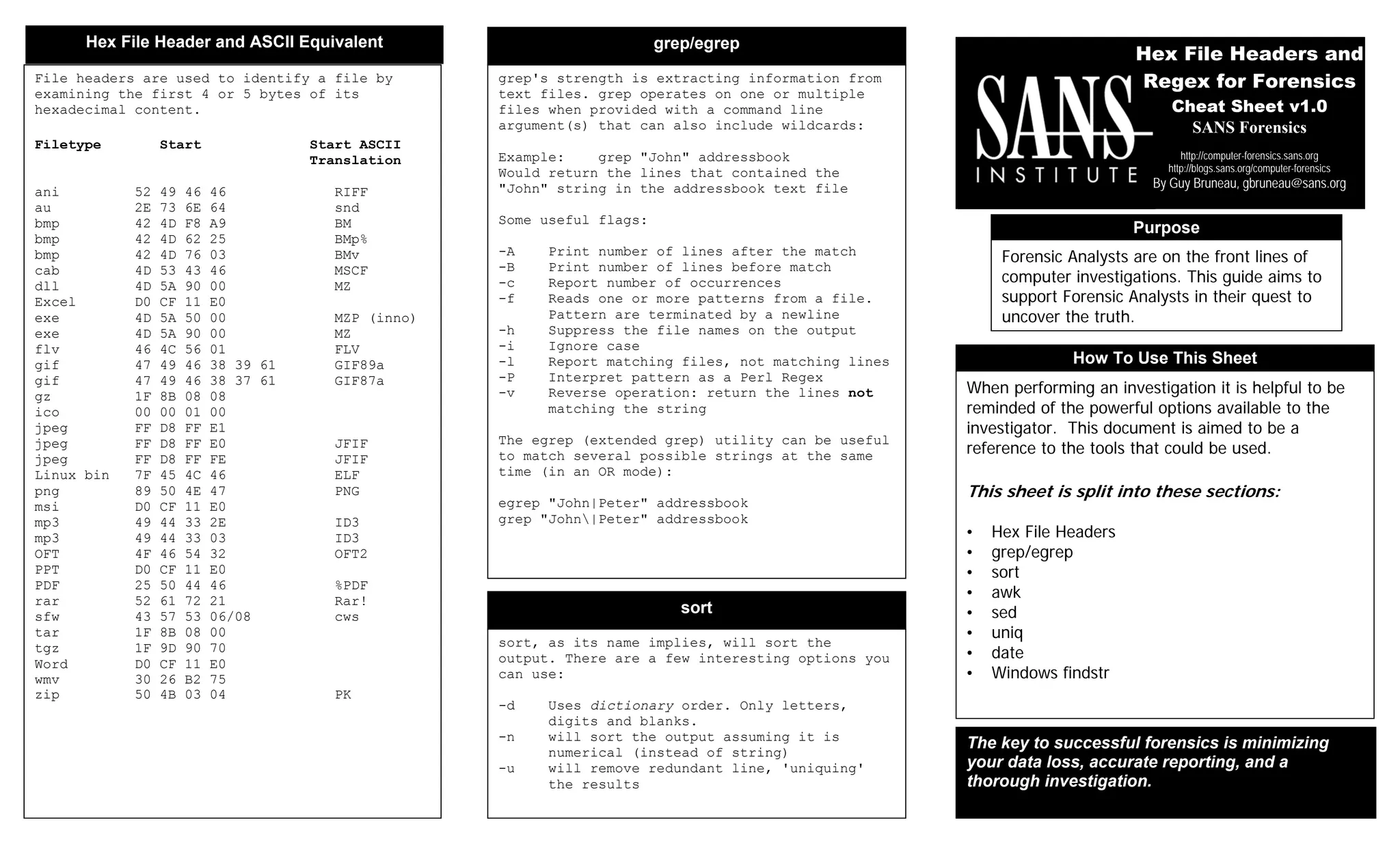
File headers are used to identify a file by
examining the first 4 or 5 bytes of its
hexadecimal content.
Filetype Start Start ASCII
Translation
ani 52 49 46 46 RIFF
au 2E 73 6E 64 snd
bmp 42 4D F8 A9 BM
bmp 42 4D 62 25 BMp%
bmp 42 4D 76 03 BMv
cab 4D 53 43 46 MSCF
dll 4D 5A 90 00 MZ
Excel D0 CF 11 E0
exe 4D 5A 50 00 MZP (inno)
exe 4D 5A 90 00 MZ
flv 46 4C 56 01 FLV
gif 47 49 46 38 39 61 GIF89a
gif 47 49 46 38 37 61 GIF87a
gz 1F 8B 08 08
ico 00 00 01 00
jpeg FF D8 FF E1
jpeg FF D8 FF E0 JFIF
jpeg FF D8 FF FE JFIF
Linux bin 7F 45 4C 46 ELF
png 89 50 4E 47 PNG
msi D0 CF 11 E0
mp3 49 44 33 2E ID3
mp3 49 44 33 03 ID3
OFT 4F 46 54 32 OFT2
PPT D0 CF 11 E0
PDF 25 50 44 46 %PDF
rar 52 61 72 21 Rar!
sfw 43 57 53 06/08 cws
tar 1F 8B 08 00
tgz 1F 9D 90 70
Word D0 CF 11 E0
wmv 30 26 B2 75
zip 50 4B 03 04 PK
Hex File Header and ASCII Equivalent
Hex File Headers and
Regex for Forensics
Cheat Sheet v1.0
SANS Forensics
http://computer-forensics.sans.org
http://blogs.sans.org/computer-forensics
By Guy Bruneau, gbruneau@sans.org
sort
sort, as its name implies, will sort the
output. There are a few interesting options you
can use:
-d Uses dictionary order. Only letters,
digits and blanks.
-n will sort the output assuming it is
numerical (instead of string)
-u will remove redundant line, 'uniquing'
the results
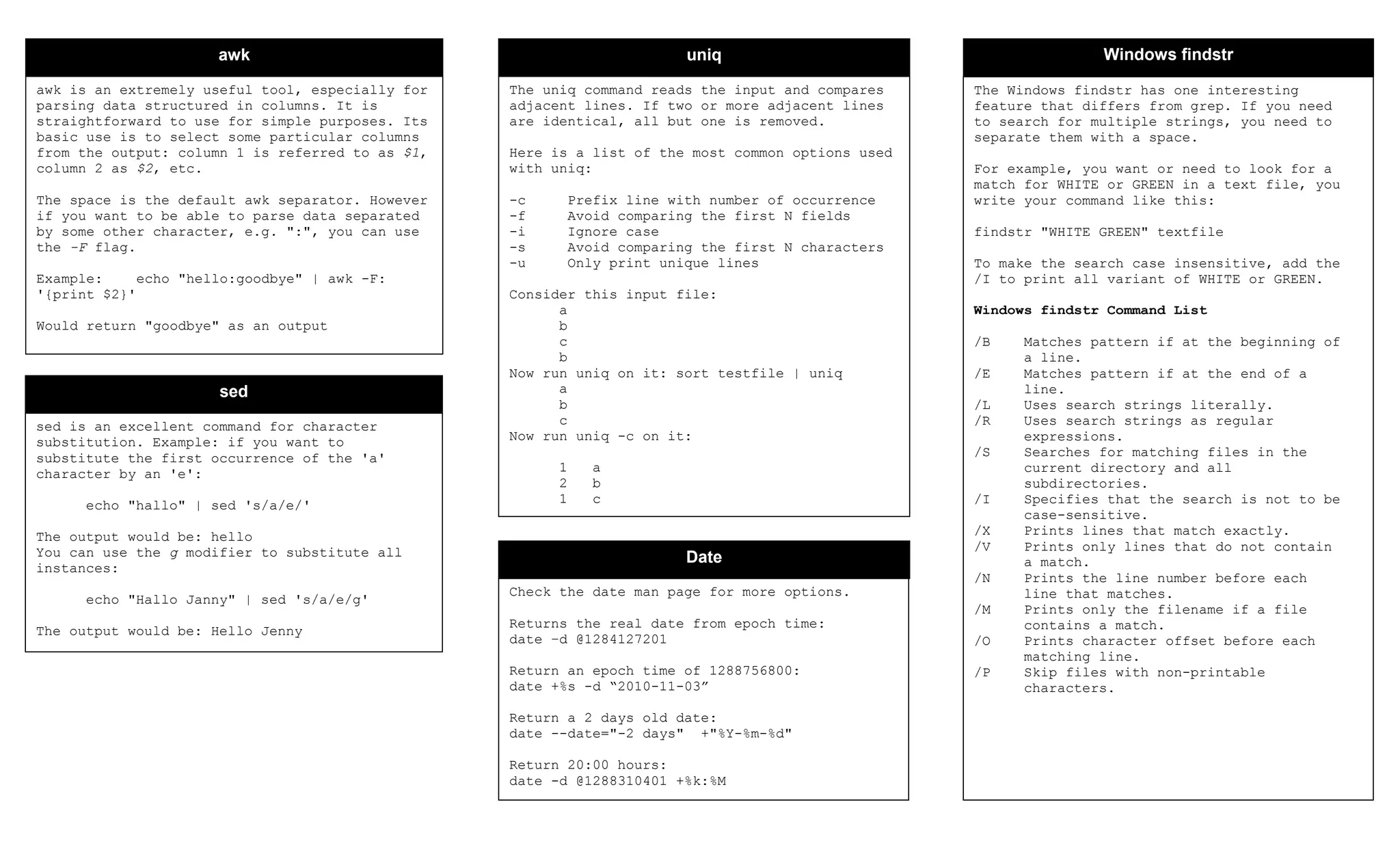
awk is an extremely useful tool, especially for
parsing data structured in columns. It is
straightforward to use for simple purposes. Its
basic use is to select some particular columns
from the output: column 1 is referred to as $1,
column 2 as $2, etc.
The space is the default awk separator. However
if you want to be able to parse data separated
by some other character, e.g. ":", you can use
the -F flag.
Example: echo "hello:goodbye" | awk -F:
'{print $2}'
Would return "goodbye" as an output
awk
sed is an excellent command for character
substitution. Example: if you want to
substitute the first occurrence of the 'a'
character by an 'e':
echo "hallo" | sed 's/a/e/'
The output would be: hello
You can use the g modifier to substitute all
instances:
echo "Hallo Janny" | sed 's/a/e/g'
The output would be: Hello Jenny
sed
Forensic Analysis
Cheat Sheet
Forensics
MANDIANT
contact@mandiant.com
703.683.3141
http://www.mandiant.org
The Windows findstr has one interesting
feature that differs from grep. If you need
to search for multiple strings, you need to
separate them with a space.
For example, you want or need to look for a
match for WHITE or GREEN in a text file, you
write your command like this:
findstr "WHITE GREEN" textfile
To make the search case insensitive, add the
/I to print all variant of WHITE or GREEN.
Windows findstr Command List
/B Matches pattern if at the beginning of
a line.
/E Matches pattern if at the end of a
line.
/L Uses search strings literally.
/R Uses search strings as regular
expressions.
/S Searches for matching files in the
current directory and all
subdirectories.
/I Specifies that the search is not to be
case-sensitive.
/X Prints lines that match exactly.
/V Prints only lines that do not contain
a match.
/N Prints the line number before each
line that matches.
/M Prints only the filename if a file
contains a match.
/O Prints character offset before each
matching line.
/P Skip files with non-printable
characters.
Windows findstr
Check the date man page for more options.
Returns the real date from epoch time:
date –d @1284127201
Return an epoch time of 1288756800:
date +%s -d “2010-11-03”
Return a 2 days old date:
date --date="-2 days" +"%Y-%m-%d"
Return 20:00 hours:
date -d @1288310401 +%k:%M
The uniq command reads the input and compares
adjacent lines. If two or more adjacent lines
are identical, all but one is removed.
Here is a list of the most common options used
with uniq:
-c Prefix line with number of occurrence
-f Avoid comparing the first N fields
-i Ignore case
-s Avoid comparing the first N characters
-u Only print unique lines
Consider this input file:
a
b
c
b
Now run uniq on it: sort testfile | uniq
a
b
c
Now run uniq -c on it:
1 a
2 b
1 c
uniq
Date

Cheatsheet: Hex file headers and regex

  • 1.
    Forensic Analysts areon the front lines of computer investigations. This guide aims to support Forensic Analysts in their quest to uncover the truth. grep's strength is extracting information from text files. grep operates on one or multiple files when provided with a command line argument(s) that can also include wildcards: Example: grep "John" addressbook Would return the lines that contained the "John" string in the addressbook text file Some useful flags: -A Print number of lines after the match -B Print number of lines before match -c Report number of occurrences -f Reads one or more patterns from a file. Pattern are terminated by a newline -h Suppress the file names on the output -i Ignore case -l Report matching files, not matching lines -P Interpret pattern as a Perl Regex -v Reverse operation: return the lines not matching the string The egrep (extended grep) utility can be useful to match several possible strings at the same time (in an OR mode): egrep "John|Peter" addressbook grep "John|Peter" addressbook grep/egrep Purpose How To Use This Sheet When performing an investigation it is helpful to be reminded of the powerful options available to the investigator. This document is aimed to be a reference to the tools that could be used. This sheet is split into these sections: • Hex File Headers • grep/egrep • sort • awk • sed • uniq • date • Windows findstr The key to successful forensics is minimizing your data loss, accurate reporting, and a thorough investigation. File headers are used to identify a file by examining the first 4 or 5 bytes of its hexadecimal content. Filetype Start Start ASCII Translation ani 52 49 46 46 RIFF au 2E 73 6E 64 snd bmp 42 4D F8 A9 BM bmp 42 4D 62 25 BMp% bmp 42 4D 76 03 BMv cab 4D 53 43 46 MSCF dll 4D 5A 90 00 MZ Excel D0 CF 11 E0 exe 4D 5A 50 00 MZP (inno) exe 4D 5A 90 00 MZ flv 46 4C 56 01 FLV gif 47 49 46 38 39 61 GIF89a gif 47 49 46 38 37 61 GIF87a gz 1F 8B 08 08 ico 00 00 01 00 jpeg FF D8 FF E1 jpeg FF D8 FF E0 JFIF jpeg FF D8 FF FE JFIF Linux bin 7F 45 4C 46 ELF png 89 50 4E 47 PNG msi D0 CF 11 E0 mp3 49 44 33 2E ID3 mp3 49 44 33 03 ID3 OFT 4F 46 54 32 OFT2 PPT D0 CF 11 E0 PDF 25 50 44 46 %PDF rar 52 61 72 21 Rar! sfw 43 57 53 06/08 cws tar 1F 8B 08 00 tgz 1F 9D 90 70 Word D0 CF 11 E0 wmv 30 26 B2 75 zip 50 4B 03 04 PK Hex File Header and ASCII Equivalent Hex File Headers and Regex for Forensics Cheat Sheet v1.0 SANS Forensics http://computer-forensics.sans.org http://blogs.sans.org/computer-forensics By Guy Bruneau, gbruneau@sans.org sort sort, as its name implies, will sort the output. There are a few interesting options you can use: -d Uses dictionary order. Only letters, digits and blanks. -n will sort the output assuming it is numerical (instead of string) -u will remove redundant line, 'uniquing' the results
  • 2.
    awk is anextremely useful tool, especially for parsing data structured in columns. It is straightforward to use for simple purposes. Its basic use is to select some particular columns from the output: column 1 is referred to as $1, column 2 as $2, etc. The space is the default awk separator. However if you want to be able to parse data separated by some other character, e.g. ":", you can use the -F flag. Example: echo "hello:goodbye" | awk -F: '{print $2}' Would return "goodbye" as an output awk sed is an excellent command for character substitution. Example: if you want to substitute the first occurrence of the 'a' character by an 'e': echo "hallo" | sed 's/a/e/' The output would be: hello You can use the g modifier to substitute all instances: echo "Hallo Janny" | sed 's/a/e/g' The output would be: Hello Jenny sed Forensic Analysis Cheat Sheet Forensics MANDIANT contact@mandiant.com 703.683.3141 http://www.mandiant.org The Windows findstr has one interesting feature that differs from grep. If you need to search for multiple strings, you need to separate them with a space. For example, you want or need to look for a match for WHITE or GREEN in a text file, you write your command like this: findstr "WHITE GREEN" textfile To make the search case insensitive, add the /I to print all variant of WHITE or GREEN. Windows findstr Command List /B Matches pattern if at the beginning of a line. /E Matches pattern if at the end of a line. /L Uses search strings literally. /R Uses search strings as regular expressions. /S Searches for matching files in the current directory and all subdirectories. /I Specifies that the search is not to be case-sensitive. /X Prints lines that match exactly. /V Prints only lines that do not contain a match. /N Prints the line number before each line that matches. /M Prints only the filename if a file contains a match. /O Prints character offset before each matching line. /P Skip files with non-printable characters. Windows findstr Check the date man page for more options. Returns the real date from epoch time: date –d @1284127201 Return an epoch time of 1288756800: date +%s -d “2010-11-03” Return a 2 days old date: date --date="-2 days" +"%Y-%m-%d" Return 20:00 hours: date -d @1288310401 +%k:%M The uniq command reads the input and compares adjacent lines. If two or more adjacent lines are identical, all but one is removed. Here is a list of the most common options used with uniq: -c Prefix line with number of occurrence -f Avoid comparing the first N fields -i Ignore case -s Avoid comparing the first N characters -u Only print unique lines Consider this input file: a b c b Now run uniq on it: sort testfile | uniq a b c Now run uniq -c on it: 1 a 2 b 1 c uniq Date