
2016 SEO Best Practice Series:
Lesson 3 – Google Search Console
Join us again for lesson 4 on August 16th!
Register Here: http://bit.ly/29iudYR
Agenda
Overview of Search Analytics
Demo For How We Use It
Overview of Crawl Section
Questions
Quick Recap From Lesson 1 and Lesson 2
3
Win at SEO by focusing on your users and the outcome you want them to take on
your pages.
If you build it they will come. If you build it slow, they won’t stay.
Watch Lesson 1: https://youtu.be/NjsRQwFOvlQ
Watch Lesson 2: https://youtu.be/l8lc2iPqeR4
Why Use Google Search Console?
4
https://support.google.com/webmasters/answer/4559176?hl=en
1. Monitor your site's performance in Google Search results.
2. Ensure Google can access your content.
3. Submit new content for crawling and remove content.
4. Maintain your site with minimal disruption to search
performance.
5. Monitor for errors and resolve malware or spam issues so your
site stays clean
6. Discover how Google Search—and the world—sees your site:
7. Learn which queries caused your site to appear in search
results?
8. Are your product prices, company contact info, or events
highlighted in rich search results?
9. Which sites are linking to your website?
10.Is your mobile site performing well for visitors searching on
mobile?
How To Access Google Search
Console
5
Go to
https://www.google.com/webmasters/
Click Add property
Follow instructions for verification
*Tip – Check out the Alternate Methods tab.
If you have the new version of Google Analytics
installed in your site, that’s good enough to
verify your site.
The Side Navigation
https://www.google.com/webmasters/
6
For today we are going to discuss the
Search Traffic and Crawl sections of Google
Search Console
Search Traffic – This is where you can
spend time reporting for meaningful
optimizations.
Crawl – To monitor and configure how
Google will crawl your site.
Search Traffic Section
Let’s start with a DEMO
Search Analytics
https://support.google.com/webmasters/answer/6155685
8
Get there: Search Traffic > Search Analytics
This is where you can view which search queries or
landing pages are bringing you traffic and how you can
optimize them for more. Using the filters is really how you
narrow in to see the data for where you should optimize.
Clicks – Traffic metric for how many clicks you’re getting
from organic search.
Impressions – How many times did one of your organic
results display on someone’s screen?
CTR – Click through rate is the click count divided by the
impression count.
Position – The average position of the topmost result from
your site. So, for example, if your site has three results at
positions 2, 4, and 6, the position is reported as 2.
Using Search Analytics Filters
https://support.google.com/webmasters/answer/6155685
9
In this example reef is the brand name, so I wanted to see what were the non branded mobile
search queries bringing traffic to the pages where the url contained /shop/women. With this
data, I am able to fine tune our title tag to improve our click through rate (ctr) with the phrasing
that makes the most sense.
The radio button will display the dimension for the data you want to see.
TIP* You can still use the filters from another dimensions to
really narrow in on the data you want to see.
Finding pages with a below average
CTR
https://support.google.com/webmasters/answer/6155685
10
Search Traffic > Search Analytics
So you can sort by traffic, select Clicks and
CTR.
1) Take note of your AVG CTR above the
graph.
2) Identify pages that are below average.
3) Export the list.
4) Revisit your meta title and description
for the page.
Bonus points for filtering by device type.
What To Look For?
https://support.google.com/webmasters/answer/6155685
11
Once we identified a page with
a lower than average ctr, I’ll
switch the dimension to show
me the queries.
From there I’ll learn exactly
how our audience is landing on
the page and work towards
optimizing the page (or creating
a separate one) to better align
with that message.
Deciding which Phrasing to use?
https://support.google.com/webmasters/answer/3187759?hl=en
12
Once we are narrowed in, you can get a feel for the
queries that are bringing in clicks to the page. This
is the knowledge that will allow you to optimize your
title tags for phrases that your audience would most
likely click on.
Existing Title: Women's Surf-Inspired Sandals | Reef Women's
Sandals
Better Title: Reef Women’s Flip Flops & Sandals
Links to Your Site
https://support.google.com/webmasters/answer/55281?hl=en
13
Get there: Search Traffic > Links to Your Site
Here you can view and download lists for which
domains are linking to you, the anchor text they’re
using, and which pages they’re linking to.
This data is valuable to monitor for abnormalities.
Each of the sections will let you narrow in to see
more data.
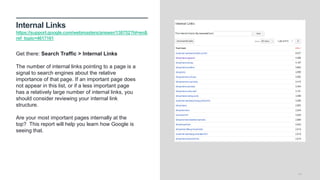
Internal Links
https://support.google.com/webmasters/answer/138752?hl=en&
ref_topic=4617161
14
Get there: Search Traffic > Internal Links
The number of internal links pointing to a page is a
signal to search engines about the relative
importance of that page. If an important page does
not appear in this list, or if a less important page
has a relatively large number of internal links, you
should consider reviewing your internal link
structure.
Are your most important pages internally at the
top? This report will help you learn how Google is
seeing that.
Manual Actions
https://support.google.com/webmasters/answer/2604824?hl=en
15
Get there: Search Traffic > Manual Actions
The Manual Actions report lists instances where a
human reviewer has determined that pages on your
site are not compliant with Google's webmaster
quality guidelines.
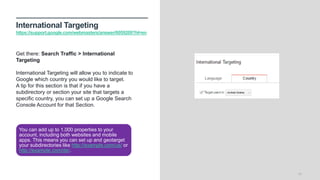
International Targeting
https://support.google.com/webmasters/answer/6059209?hl=en
16
Get there: Search Traffic > International
Targeting
International Targeting will allow you to indicate to
Google which country you would like to target.
A tip for this section is that if you have a
subdirectory or section your site that targets a
specific country, you can set up a Google Search
Console Account for that Section.
You can add up to 1,000 properties to your
account, including both websites and mobile
apps. This means you can set up and geotarget
your subdirectories like http://example.com/us/ or
http://example.com/de/.
Mobile Usability
https://support.google.com/webmasters/answer/6059209?hl=en
17
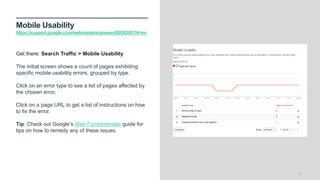
Get there: Search Traffic > Mobile Usability
The initial screen shows a count of pages exhibiting
specific mobile usability errors, grouped by type.
Click on an error type to see a list of pages affected by
the chosen error.
Click on a page URL to get a list of instructions on how
to fix the error.
Tip: Check out Google’s Web Fundamentals guide for
tips on how to remedy any of these issues.
Crawl Section
Crawl Errors
https://support.google.com/webmasters/answer/35120?hl=en&r
ef_topic=4610900
19
Server error Googlebot couldn't access your URL, the request timed out, or
your site was busy.
Soft 404 A soft 404 occurs when your server returns a real page for a
URL that doesn't actually exist on your site.
404
Googlebot attempts to visit a page that doesn't exist—either
because you deleted or renamed it without redirecting the old
URL to a new page, or because of a typo in a link. What if there
are a lot? Check the top-ranking issues, fix those if possible,
and then move on.
Access denied In general, Google discovers content by following links from one
page to another. To crawl a page, Googlebot must be able to
access it. If you're seeing unexpected Access Denied errors, it
may be for the following reasons:
Get there: Crawl > Crawl Errors
Crawl Stats
https://support.google.com/webmasters/answer/35253?hl=en
20
The Crawl Stats report provides information on
Googlebot's activity on your site for the last 90 days.
1. Pages crawled per day
2. Kilobytes downloaded per day
3. Time spent downloading a page (in milliseconds)
Get there: Crawl > Crawl Stats
Fetch as Google
https://support.google.com/webmasters/answer/6066468?hl=en
21
Get there: Crawl > Fetch as Google
Fetch as Google tool enables you to test how
Google crawls or renders a URL on your site.
See whether Googlebot can access a page on
your site, how it renders the page, and whether
any page resources are blocked.
Robots.txt Tester
https://support.google.com/webmasters/answer/6062598?hl=en
22
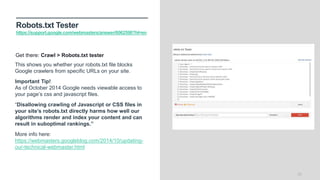
This shows you whether your robots.txt file blocks
Google crawlers from specific URLs on your site.
Important Tip!
As of October 2014 Google needs viewable access to
your page’s css and javascript files.
“Disallowing crawling of Javascript or CSS files in
your site’s robots.txt directly harms how well our
algorithms render and index your content and can
result in suboptimal rankings.”
More info here:
https://webmasters.googleblog.com/2014/10/updating-
our-technical-webmaster.html
Get there: Crawl > Robots.txt tester
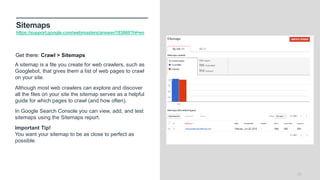
Sitemaps
https://support.google.com/webmasters/answer/183669?hl=en
23
A sitemap is a file you create for web crawlers, such as
Googlebot, that gives them a list of web pages to crawl
on your site.
Although most web crawlers can explore and discover
all the files on your site the sitemap serves as a helpful
guide for which pages to crawl (and how often).
In Google Search Console you can view, add, and test
sitemaps using the Sitemaps report.
Important Tip!
You want your sitemap to be as close to perfect as
possible.
Get there: Crawl > Sitemaps
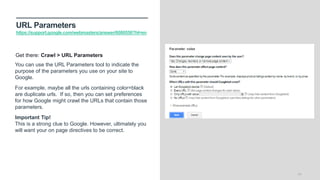
URL Parameters
https://support.google.com/webmasters/answer/6080550?hl=en
24
You can use the URL Parameters tool to indicate the
purpose of the parameters you use on your site to
Google.
For example, maybe all the urls containing color=black
are duplicate urls. If so, then you can set preferences
for how Google might crawl the URLs that contain those
parameters.
Important Tip!
This is a strong clue to Google. However, ultimately you
will want your on page directives to be correct.
Get there: Crawl > URL Parameters
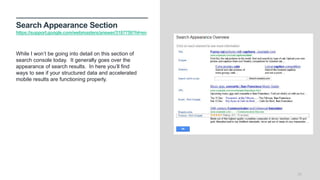
Search Appearance Section
https://support.google.com/webmasters/answer/3187759?hl=en
25
While I won’t be going into detail on this section of
search console today. It generally goes over the
appearance of search results. In here you’ll find
ways to see if your structured data and accelerated
mobile results are functioning properly.
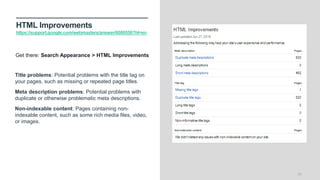
HTML Improvements
https://support.google.com/webmasters/answer/6080550?hl=en
26
Title problems: Potential problems with the title tag on
your pages, such as missing or repeated page titles.
Meta description problems: Potential problems with
duplicate or otherwise problematic meta descriptions.
Non-indexable content: Pages containing non-
indexable content, such as some rich media files, video,
or images.
Get there: Search Appearance > HTML Improvements
Any Questions?
Please Join Us Again On 8/16/16!
28
In our next lesson we are going to cover more of
the tools we like to use! Please join us!
Sign up now!
http://bit.ly/29iudYR

SEO 101 - Google Search Console Explained

  • 1.
    2016 SEO BestPractice Series: Lesson 3 – Google Search Console Join us again for lesson 4 on August 16th! Register Here: http://bit.ly/29iudYR
  • 2.
    Agenda Overview of SearchAnalytics Demo For How We Use It Overview of Crawl Section Questions
  • 3.
    Quick Recap FromLesson 1 and Lesson 2 3 Win at SEO by focusing on your users and the outcome you want them to take on your pages. If you build it they will come. If you build it slow, they won’t stay. Watch Lesson 1: https://youtu.be/NjsRQwFOvlQ Watch Lesson 2: https://youtu.be/l8lc2iPqeR4
  • 4.
    Why Use GoogleSearch Console? 4 https://support.google.com/webmasters/answer/4559176?hl=en 1. Monitor your site's performance in Google Search results. 2. Ensure Google can access your content. 3. Submit new content for crawling and remove content. 4. Maintain your site with minimal disruption to search performance. 5. Monitor for errors and resolve malware or spam issues so your site stays clean 6. Discover how Google Search—and the world—sees your site: 7. Learn which queries caused your site to appear in search results? 8. Are your product prices, company contact info, or events highlighted in rich search results? 9. Which sites are linking to your website? 10.Is your mobile site performing well for visitors searching on mobile?
  • 5.
    How To AccessGoogle Search Console 5 Go to https://www.google.com/webmasters/ Click Add property Follow instructions for verification *Tip – Check out the Alternate Methods tab. If you have the new version of Google Analytics installed in your site, that’s good enough to verify your site.
  • 6.
    The Side Navigation https://www.google.com/webmasters/ 6 Fortoday we are going to discuss the Search Traffic and Crawl sections of Google Search Console Search Traffic – This is where you can spend time reporting for meaningful optimizations. Crawl – To monitor and configure how Google will crawl your site.
  • 7.
  • 8.
    Search Analytics https://support.google.com/webmasters/answer/6155685 8 Get there:Search Traffic > Search Analytics This is where you can view which search queries or landing pages are bringing you traffic and how you can optimize them for more. Using the filters is really how you narrow in to see the data for where you should optimize. Clicks – Traffic metric for how many clicks you’re getting from organic search. Impressions – How many times did one of your organic results display on someone’s screen? CTR – Click through rate is the click count divided by the impression count. Position – The average position of the topmost result from your site. So, for example, if your site has three results at positions 2, 4, and 6, the position is reported as 2.
  • 9.
    Using Search AnalyticsFilters https://support.google.com/webmasters/answer/6155685 9 In this example reef is the brand name, so I wanted to see what were the non branded mobile search queries bringing traffic to the pages where the url contained /shop/women. With this data, I am able to fine tune our title tag to improve our click through rate (ctr) with the phrasing that makes the most sense. The radio button will display the dimension for the data you want to see. TIP* You can still use the filters from another dimensions to really narrow in on the data you want to see.
  • 10.
    Finding pages witha below average CTR https://support.google.com/webmasters/answer/6155685 10 Search Traffic > Search Analytics So you can sort by traffic, select Clicks and CTR. 1) Take note of your AVG CTR above the graph. 2) Identify pages that are below average. 3) Export the list. 4) Revisit your meta title and description for the page. Bonus points for filtering by device type.
  • 11.
    What To LookFor? https://support.google.com/webmasters/answer/6155685 11 Once we identified a page with a lower than average ctr, I’ll switch the dimension to show me the queries. From there I’ll learn exactly how our audience is landing on the page and work towards optimizing the page (or creating a separate one) to better align with that message.
  • 12.
    Deciding which Phrasingto use? https://support.google.com/webmasters/answer/3187759?hl=en 12 Once we are narrowed in, you can get a feel for the queries that are bringing in clicks to the page. This is the knowledge that will allow you to optimize your title tags for phrases that your audience would most likely click on. Existing Title: Women's Surf-Inspired Sandals | Reef Women's Sandals Better Title: Reef Women’s Flip Flops & Sandals
  • 13.
    Links to YourSite https://support.google.com/webmasters/answer/55281?hl=en 13 Get there: Search Traffic > Links to Your Site Here you can view and download lists for which domains are linking to you, the anchor text they’re using, and which pages they’re linking to. This data is valuable to monitor for abnormalities. Each of the sections will let you narrow in to see more data.
  • 14.
    Internal Links https://support.google.com/webmasters/answer/138752?hl=en& ref_topic=4617161 14 Get there:Search Traffic > Internal Links The number of internal links pointing to a page is a signal to search engines about the relative importance of that page. If an important page does not appear in this list, or if a less important page has a relatively large number of internal links, you should consider reviewing your internal link structure. Are your most important pages internally at the top? This report will help you learn how Google is seeing that.
  • 15.
    Manual Actions https://support.google.com/webmasters/answer/2604824?hl=en 15 Get there:Search Traffic > Manual Actions The Manual Actions report lists instances where a human reviewer has determined that pages on your site are not compliant with Google's webmaster quality guidelines.
  • 16.
    International Targeting https://support.google.com/webmasters/answer/6059209?hl=en 16 Get there:Search Traffic > International Targeting International Targeting will allow you to indicate to Google which country you would like to target. A tip for this section is that if you have a subdirectory or section your site that targets a specific country, you can set up a Google Search Console Account for that Section. You can add up to 1,000 properties to your account, including both websites and mobile apps. This means you can set up and geotarget your subdirectories like http://example.com/us/ or http://example.com/de/.
  • 17.
    Mobile Usability https://support.google.com/webmasters/answer/6059209?hl=en 17 Get there:Search Traffic > Mobile Usability The initial screen shows a count of pages exhibiting specific mobile usability errors, grouped by type. Click on an error type to see a list of pages affected by the chosen error. Click on a page URL to get a list of instructions on how to fix the error. Tip: Check out Google’s Web Fundamentals guide for tips on how to remedy any of these issues.
  • 18.
  • 19.
    Crawl Errors https://support.google.com/webmasters/answer/35120?hl=en&r ef_topic=4610900 19 Server errorGooglebot couldn't access your URL, the request timed out, or your site was busy. Soft 404 A soft 404 occurs when your server returns a real page for a URL that doesn't actually exist on your site. 404 Googlebot attempts to visit a page that doesn't exist—either because you deleted or renamed it without redirecting the old URL to a new page, or because of a typo in a link. What if there are a lot? Check the top-ranking issues, fix those if possible, and then move on. Access denied In general, Google discovers content by following links from one page to another. To crawl a page, Googlebot must be able to access it. If you're seeing unexpected Access Denied errors, it may be for the following reasons: Get there: Crawl > Crawl Errors
  • 20.
    Crawl Stats https://support.google.com/webmasters/answer/35253?hl=en 20 The CrawlStats report provides information on Googlebot's activity on your site for the last 90 days. 1. Pages crawled per day 2. Kilobytes downloaded per day 3. Time spent downloading a page (in milliseconds) Get there: Crawl > Crawl Stats
  • 21.
    Fetch as Google https://support.google.com/webmasters/answer/6066468?hl=en 21 Getthere: Crawl > Fetch as Google Fetch as Google tool enables you to test how Google crawls or renders a URL on your site. See whether Googlebot can access a page on your site, how it renders the page, and whether any page resources are blocked.
  • 22.
    Robots.txt Tester https://support.google.com/webmasters/answer/6062598?hl=en 22 This showsyou whether your robots.txt file blocks Google crawlers from specific URLs on your site. Important Tip! As of October 2014 Google needs viewable access to your page’s css and javascript files. “Disallowing crawling of Javascript or CSS files in your site’s robots.txt directly harms how well our algorithms render and index your content and can result in suboptimal rankings.” More info here: https://webmasters.googleblog.com/2014/10/updating- our-technical-webmaster.html Get there: Crawl > Robots.txt tester
  • 23.
    Sitemaps https://support.google.com/webmasters/answer/183669?hl=en 23 A sitemap isa file you create for web crawlers, such as Googlebot, that gives them a list of web pages to crawl on your site. Although most web crawlers can explore and discover all the files on your site the sitemap serves as a helpful guide for which pages to crawl (and how often). In Google Search Console you can view, add, and test sitemaps using the Sitemaps report. Important Tip! You want your sitemap to be as close to perfect as possible. Get there: Crawl > Sitemaps
  • 24.
    URL Parameters https://support.google.com/webmasters/answer/6080550?hl=en 24 You canuse the URL Parameters tool to indicate the purpose of the parameters you use on your site to Google. For example, maybe all the urls containing color=black are duplicate urls. If so, then you can set preferences for how Google might crawl the URLs that contain those parameters. Important Tip! This is a strong clue to Google. However, ultimately you will want your on page directives to be correct. Get there: Crawl > URL Parameters
  • 25.
    Search Appearance Section https://support.google.com/webmasters/answer/3187759?hl=en 25 WhileI won’t be going into detail on this section of search console today. It generally goes over the appearance of search results. In here you’ll find ways to see if your structured data and accelerated mobile results are functioning properly.
  • 26.
    HTML Improvements https://support.google.com/webmasters/answer/6080550?hl=en 26 Title problems:Potential problems with the title tag on your pages, such as missing or repeated page titles. Meta description problems: Potential problems with duplicate or otherwise problematic meta descriptions. Non-indexable content: Pages containing non- indexable content, such as some rich media files, video, or images. Get there: Search Appearance > HTML Improvements
  • 27.
  • 28.
    Please Join UsAgain On 8/16/16! 28 In our next lesson we are going to cover more of the tools we like to use! Please join us! Sign up now! http://bit.ly/29iudYR