Google Webmaster Tools
Created By
Jahid Hasan
Google Webmaster Tools
• Google Webmaster Tools (GWT) is a free
service from Google for the website
owners.
• This GWT allows webmasters to check
indexing status of websites
• Helps optimize your website’s visibility in
ways, that are officially recommended by
Google itself.
Benefits of Google Webmaster Tools
• Get important messages and updates
directly from Google.
• Get information about a site’s current
presence and thus optimize keyword
targeting more precisely
• Get information about sites linked to yours
and URLs linked within your own website.
• Help make your website as “Google-
Friendly” as possible
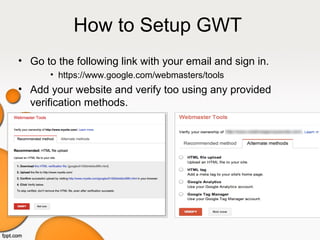
How to Setup GWT
• Go to the following link with your email and sign in.
• https://www.google.com/webmasters/tools
• Add your website and verify too using any provided
verification methods.
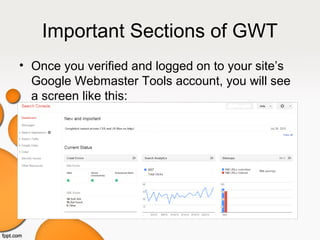
Important Sections of GWT
• Once you verified and logged on to your site’s
Google Webmaster Tools account, you will see
a screen like this:
Dashboard
• Once logged in, the first section you’ll see is dashboard.
This section gives a quick overview of some of the most
common sections of GMT, along with any new
messages from Google.
Site Messages
• When Google wants to communicate with website owners, they
send messages to this section.
• Either your website is infected with malware, or Google is unable to
access your website, then send messages here.
• Any other important news and updates also found here.
Search Appearance
• Under the “Search Appearance” section,
you will see 4 other sub-menus:
• Structure Data
• Data Highlighter
• HTML Improvements
• Sitelinks
Search Appearance
• Structured Data: This section shows all structured data
elements that Google located on your website, whether
they are from Schema.org or older micro formats.
• http://www.amazeemetrics.com/en/blog/how-use-structured-data-seo
Search Appearance
• Data Highlighter:
– A new alternative to markup which helps Google understand
website’s data
– With this ‘Data Highlighter”, you simply have to “tag” each data
field with your mouse.
– Then Google can represent your data more attractively and in
new ways!
• HTML Improvements:
– GWT informs about your website’s title & description tag issues
under this section.
– As we know, meta tags need to be unique and within length for
each pages, this section shows which pages need to be taken
care of.
Search Appearance
• SiteLinks:
– Whenever Google thinks a website as an authority for a
particular niche, they show a collection of links below the site’s
homepage link on SERP
– Google usually bring those subpages on SERP, that they believe
most crucial pages of that domain.
– Though you can’s specify which pages to show on the sitelinks,
you can specify links, that we wish to remove.
Search Traffic
• Search Analytics: Shows which search queries are
sending traffic to your website along with their
impressions, CTR and average positions. Recently some
other great features also included here.
• Links to Your Website: Here you’ll see approx. number
backlinks that your website earned. In addition, you can
also see the domains that most linked to your website
and your most linked contents also.
• Internal Linking: This will show your website’s top
pages based on the number of internal links to those
pages.
Search Traffic
• Manual Action:
– This area is usually blank
– You will see messages under this are, only if Google webspam
team finds that your website is clearly breaching Google’s quality
guidelines
• International Targeting: You can set your website’s
language and targeted country to get the best result in SERP and to
serve visitors more precisely
• Mobile Usability: If your website isn’t optimized for mobile
traffic, then you will see error list under this area.
Google Index
• Index Status: This section is particularly great
to answer the following questions:
– How many pages, being index by Google
– Are there any worrying trends
– Have you accidentally blocked large section of your
website from Googlebot etc.
• Content Keywords: Shows the most common
keywords, that Google bot finds on your site
while crawling
Google Index
• Blocked Resources: Shows the URLs those
are either willingly or accidently blocked by
Robots.txt
• Remove URLs: If you want to remove a URL
from your website, you should delete that
page/post from your website and then submit
that link under this section. Google usually
process the request in 2-12 hours.
Crawl
• Crawl Errors:
– You will see different kinds of errors here, that Google has
detected on your website while crawling
– Anything found here is definitely worth correcting
• Crawl State:
– This section gives an idea about how fast crawlers are able to
read pages of your website
– Spikes are to be expected here. If something goes wrong here,
you should take a look to see what’s changed on your website.
Crawl
• Fetch As Google:
– You can view your web pages as Google sees them
with this feature.
– This is surely great way to be sure that Google
crawlers see the pages as expected and that there
are no externally injected hidden text/link on that
page.
– You are allowed to fetch 500 URLs a week
Crawl
• Robots.txt Tester:
– This is the place to test whether your current robots.txt is
blocking important pages of your site.
– You can also test out modifications to your robots.txt to
see whether they’d work as expectations
• Sitemaps:
– You have to submit your site’s sitemap once here and
then it will automatically update.
– Once sitemap is submitted, you’ll see how many
webpages submitted vs. indexed by Google.
Crawl
• URL Parameters:
– It’s a great feature to work around dynamic pages and
URLs on your website.
– It allows you to specify URL query string parameters that
shouldn’t be considered when examining URLs on the site
to determine unique URLs.
• Security Issues: If your website is affected with virus or
malware, you will get messages from Google here.
Other Resources
This section contain links to some other
tools that are outside of GWT, but are also
useful for site admins.
Thanks for Reading This
Presentation

Google Webmaster Tools - Beginner's Guide

  • 1.
  • 2.
    Google Webmaster Tools •Google Webmaster Tools (GWT) is a free service from Google for the website owners. • This GWT allows webmasters to check indexing status of websites • Helps optimize your website’s visibility in ways, that are officially recommended by Google itself.
  • 3.
    Benefits of GoogleWebmaster Tools • Get important messages and updates directly from Google. • Get information about a site’s current presence and thus optimize keyword targeting more precisely • Get information about sites linked to yours and URLs linked within your own website. • Help make your website as “Google- Friendly” as possible
  • 4.
    How to SetupGWT • Go to the following link with your email and sign in. • https://www.google.com/webmasters/tools • Add your website and verify too using any provided verification methods.
  • 5.
    Important Sections ofGWT • Once you verified and logged on to your site’s Google Webmaster Tools account, you will see a screen like this:
  • 6.
    Dashboard • Once loggedin, the first section you’ll see is dashboard. This section gives a quick overview of some of the most common sections of GMT, along with any new messages from Google.
  • 7.
    Site Messages • WhenGoogle wants to communicate with website owners, they send messages to this section. • Either your website is infected with malware, or Google is unable to access your website, then send messages here. • Any other important news and updates also found here.
  • 8.
    Search Appearance • Underthe “Search Appearance” section, you will see 4 other sub-menus: • Structure Data • Data Highlighter • HTML Improvements • Sitelinks
  • 9.
    Search Appearance • StructuredData: This section shows all structured data elements that Google located on your website, whether they are from Schema.org or older micro formats. • http://www.amazeemetrics.com/en/blog/how-use-structured-data-seo
  • 10.
    Search Appearance • DataHighlighter: – A new alternative to markup which helps Google understand website’s data – With this ‘Data Highlighter”, you simply have to “tag” each data field with your mouse. – Then Google can represent your data more attractively and in new ways! • HTML Improvements: – GWT informs about your website’s title & description tag issues under this section. – As we know, meta tags need to be unique and within length for each pages, this section shows which pages need to be taken care of.
  • 11.
    Search Appearance • SiteLinks: –Whenever Google thinks a website as an authority for a particular niche, they show a collection of links below the site’s homepage link on SERP – Google usually bring those subpages on SERP, that they believe most crucial pages of that domain. – Though you can’s specify which pages to show on the sitelinks, you can specify links, that we wish to remove.
  • 12.
    Search Traffic • SearchAnalytics: Shows which search queries are sending traffic to your website along with their impressions, CTR and average positions. Recently some other great features also included here. • Links to Your Website: Here you’ll see approx. number backlinks that your website earned. In addition, you can also see the domains that most linked to your website and your most linked contents also. • Internal Linking: This will show your website’s top pages based on the number of internal links to those pages.
  • 13.
    Search Traffic • ManualAction: – This area is usually blank – You will see messages under this are, only if Google webspam team finds that your website is clearly breaching Google’s quality guidelines • International Targeting: You can set your website’s language and targeted country to get the best result in SERP and to serve visitors more precisely • Mobile Usability: If your website isn’t optimized for mobile traffic, then you will see error list under this area.
  • 14.
    Google Index • IndexStatus: This section is particularly great to answer the following questions: – How many pages, being index by Google – Are there any worrying trends – Have you accidentally blocked large section of your website from Googlebot etc. • Content Keywords: Shows the most common keywords, that Google bot finds on your site while crawling
  • 15.
    Google Index • BlockedResources: Shows the URLs those are either willingly or accidently blocked by Robots.txt • Remove URLs: If you want to remove a URL from your website, you should delete that page/post from your website and then submit that link under this section. Google usually process the request in 2-12 hours.
  • 16.
    Crawl • Crawl Errors: –You will see different kinds of errors here, that Google has detected on your website while crawling – Anything found here is definitely worth correcting • Crawl State: – This section gives an idea about how fast crawlers are able to read pages of your website – Spikes are to be expected here. If something goes wrong here, you should take a look to see what’s changed on your website.
  • 17.
    Crawl • Fetch AsGoogle: – You can view your web pages as Google sees them with this feature. – This is surely great way to be sure that Google crawlers see the pages as expected and that there are no externally injected hidden text/link on that page. – You are allowed to fetch 500 URLs a week
  • 18.
    Crawl • Robots.txt Tester: –This is the place to test whether your current robots.txt is blocking important pages of your site. – You can also test out modifications to your robots.txt to see whether they’d work as expectations • Sitemaps: – You have to submit your site’s sitemap once here and then it will automatically update. – Once sitemap is submitted, you’ll see how many webpages submitted vs. indexed by Google.
  • 19.
    Crawl • URL Parameters: –It’s a great feature to work around dynamic pages and URLs on your website. – It allows you to specify URL query string parameters that shouldn’t be considered when examining URLs on the site to determine unique URLs. • Security Issues: If your website is affected with virus or malware, you will get messages from Google here.
  • 20.
    Other Resources This sectioncontain links to some other tools that are outside of GWT, but are also useful for site admins.
  • 21.
    Thanks for ReadingThis Presentation