By
Ali Ahmed
What is Google WebMaster Tool
   “ Google Webmaster Tools is a no-charge web service
    by Google which allows webmasters to check indexing
       status and optimize visibility of their websites. ”

It has Tools that Let the WebMasters:
 Submit and check a Sitemap

 Check and set the Crawl rate, and view statistics about
  how Googlebot accesses a particular site
 Generate and check a robots.txt file. It also helps to
  discover pages that are blocked in robots.txt by chance.
 List internal and external pages that link to the site
 See what keyword searches on Google led to the site
  being listed in the SERPs, and the click through rates
  of such listings
 View statistics about how Google indexes the site, and
  if it found any errors while doing it
 Set a preferred domain (e.g. prefer example.com over
  www.example.com or vice versa), which determines
  how the site URL is displayed in SERPs
Index
 How to Integrate Web Master Tool ?
 How to Access the Google Webmaster Tools
 Dashboard ?
 How to Submit a SiteMap ?
 How to Create a Robots.txt File ?
 How to Check the Possible Error ?
 How to View Site Statistics ?
Index II
 Why to Check Messages ?

 Explore Additional Google Webmaster Tools

 Benefits of Google Webmaster Tools

 Short Review Difference B/W Google Analytics and
  Web Master Tool
 Summarize the Differences between Google Analytics
  And Google Webmaster Tools
Index
 How to Integrate Web Master Tool ?

 How to Access the Google Webmaster Tools
 Dashboard ?

 How to Submit a SiteMap ?

 How to Create a Robots.txt File ?

 How to Check the Possible Error ?

 How to View Site Statistics ?
How to Integrate Web Master Tool
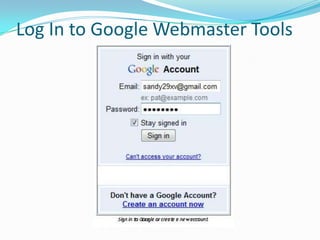
 Log In to Google Webmaster Tools

 Add Your Site to Your Google Webmaster Tools
 Account
Log In to Google Webmaster Tools
Add Your Site to Your Google
Webmaster Tools Account
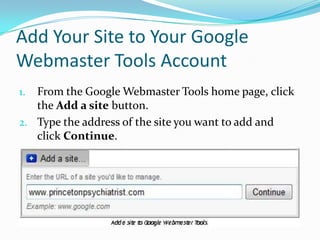
1. From the Google Webmaster Tools home page, click
   the Add a site button.
2. Type the address of the site you want to add and
   click Continue.
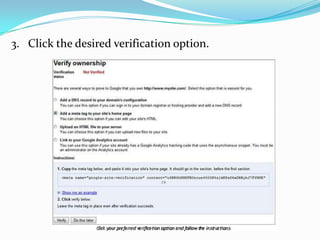
3. Click the desired verification option.
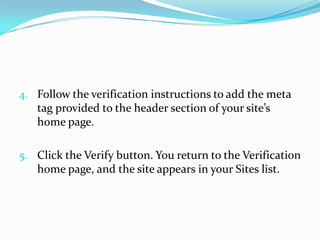
4. Follow the verification instructions to add the meta
   tag provided to the header section of your site’s
   home page.

5. Click the Verify button. You return to the Verification
   home page, and the site appears in your Sites list.
Index
 How to Integrate Web Master Tool ?

 How to Access the Google Webmaster Tools
 Dashboard ?

 How to Submit a SiteMap ?

 How to Create a Robots.txt File ?

 How to Check the Possible Error ?

 How to View Site Statistics ?
How to Access the Google
Webmaster Tools Dashboard
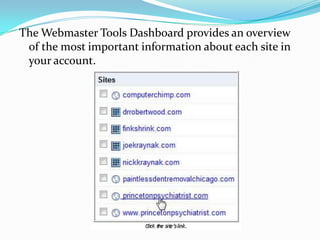
The Webmaster Tools Dashboard provides an overview
 of the most important information about each site in
 your account.
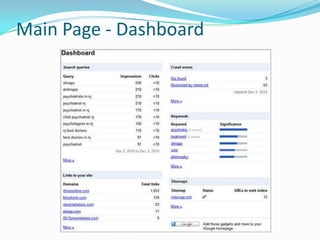
Main Page - Dashboard
The Dashboard includes the
following information:
 Search Queries: Keywords and phrases users entered to reach your
  site.

 Links to your Site: Sites that link to yours.

 Crawl Errors: Problems Google encountered trying to access pages on
  your site and/or number of pages you chose to prevent access to.

 Keywords: Relative significance of the most relevant keywords on your
  site as compared to the keywords/phrases that users enter to reach your
  site.

 Sitemaps: Whether your site has a sitemap and the number of URLs in
  the sitemap that are indexed.
Index
 How to Integrate Web Master Tool ?

 How to Access the Google Webmaster Tools
 Dashboard ?

 How to Submit a SiteMap ?

 How to Create a Robots.txt File ?

 How to Check the Possible Error ?

 How to View Site Statistics ?
How to Submit a SiteMap
What is Site Map?

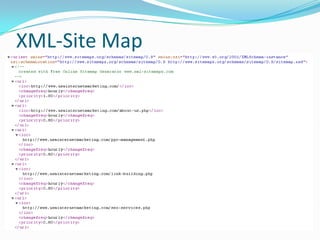
Example of Site Map

Steps to Submit it to Google Webmaster Tools
Submit a Sitemap
                What is Site Map ?

A sitemap tells search bots which pages to index and
         each page’s relative importance.
XML-Site Map
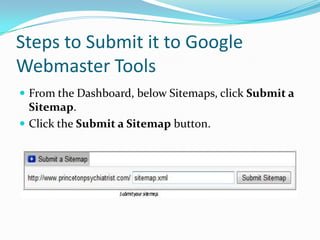
Steps to Submit it to Google
Webmaster Tools
 From the Dashboard, below Sitemaps, click Submit a
  Sitemap.
 Click the Submit a Sitemap button.
 Type the sitemap’s name, which should be
 sitemap.xml.

 Click Submit Sitemap. Assuming all goes as planned,
 you should now see a green check mark for the
 sitemap status and the number of URLs submitted.
Index
 How to Integrate Web Master Tool ?

 How to Access the Google Webmaster Tools
 Dashboard ?

 How to Submit a SiteMap ?

 How to Create a Robots.txt File ?

 How to Check the Possible Error ?

 How to View Site Statistics ?
How to Create a Robots.txt File
What is Robots.txt File

Ways of Creating Robots.txt File

Sample of Plain text File
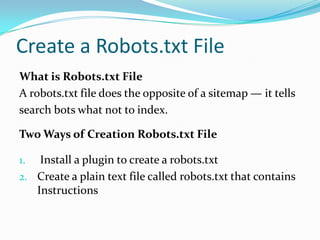
Create a Robots.txt File
What is Robots.txt File
A robots.txt file does the opposite of a sitemap — it tells
search bots what not to index.

Two Ways of Creation Robots.txt File

1.  Install a plugin to create a robots.txt
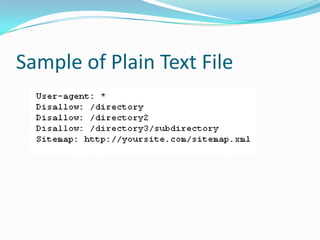
2. Create a plain text file called robots.txt that contains
   Instructions
Sample of Plain Text File
Index
 How to Integrate Web Master Tool ?

 How to Access the Google Webmaster Tools
 Dashboard ?

 How to Submit a SiteMap ?

 How to Create a Robots.txt File ?

 How to Check the Possible Error ?

 How to View Site Statistics ?
How to Check the Possible
        Problems
How to Check the Possible
              Problems
Overview

How to Check the Possible Problems

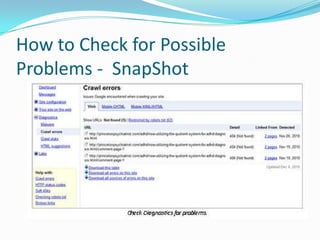
How to Check for Possible Problems - SnapShot
Check for Possible Problems
Overview
Google Webmaster Tools monitors your site and alerts
you of crawl errors. It also provides crawl statistics and
HTML suggestions to help attract traffic to your site

How to Check for Possible Problems
 Access the Dashboard
 Click the plus sign next to Diagnostics
 Click the desired link under Diagnostics to Check for
  Specific Issues.
How to Check for Possible
Problems - SnapShot
Index
 How to Integrate Web Master Tool ?

 How to Access the Google Webmaster Tools
 Dashboard ?

 How to Submit a SiteMap ?

 How to Create a Robots.txt File ?

 How to Check the Possible Error ?

 How to View Site Statistics ?
How to View Site Statistics
Overview

How to View the Statistics

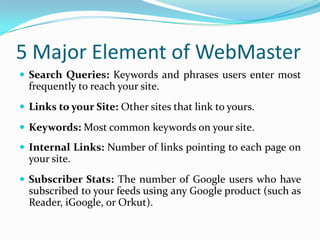
5 Major Element of WebMaster

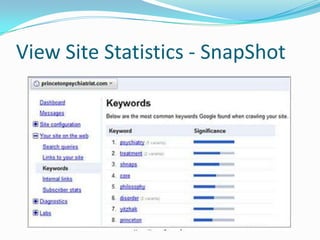
View Site Statistics - SnapShot
View Site Statistics
Overview
Google Webmaster Tools provides access to statistics
that provide valuable insight into what your site is
primarily known for.

How to View the Statistics

 Access the Dashboard
 Click Your site on the web
 Then click the desired options
5 Major Element of WebMaster
 Search Queries: Keywords and phrases users enter most
  frequently to reach your site.
 Links to your Site: Other sites that link to yours.

 Keywords: Most common keywords on your site.
 Internal Links: Number of links pointing to each page on
  your site.
 Subscriber Stats: The number of Google users who have
  subscribed to your feeds using any Google product (such as
  Reader, iGoogle, or Orkut).
View Site Statistics - SnapShot
Why to Check Messages
Index II
 Why to Check Messages ?

 Explore Additional Google Webmaster Tools

 Benefits of Google Webmaster Tools

 Short Review Difference B/W Google Analytics and
  Web Master Tool
 Summarize the Differences between Google Analytics
  And Google Webmaster Tools
Check Messages
 While using Google Webmaster Tools, don’t overlook
  the Messages area. This area provides access to any
     Messages about your site that Google deems
important enough to notify you about, including any
     sudden and significant rise in error messages.
Index II
 Why to Check Messages ?

 Explore Additional Google Webmaster Tools

 Benefits of Google Webmaster Tools

 Short Review Difference B/W Google Analytics and
  Web Master Tool
 Summarize the Differences between Google Analytics
  And Google Webmaster Tools
Explore Additional Google
    Webmaster Tools
Explore Additional Google
Webmaster Tools
 Near the bottom of the navigation bar on the left is a
 link named Labs.

 Click Labs to access additional Google Webmaster
 Tools
Index II
 Why to Check Messages ?

 Explore Additional Google Webmaster Tools

 Benefits of Google Webmaster Tools

 Short Review Difference B/W Google Analytics and
  Web Master Tool
 Summarize the Differences between Google Analytics
  And Google Webmaster Tools
Benefits of Google Webmaster
             Tools
Benefits of Google Webmaster
Tools
 Information in One Handy Place - Google will list all the
  pages on your site that it has indexed
 No More Indexing Problems - Using Webmaster Tool is a
  direct way to say to Google, my site exists, please add them
  to your index.
 Sitemaps - Tell Google About All Your Pages – Through
  Webmaster Tools you get the chance to tell Googlebot
  where all of your pages are, individually.
 Site Errors - Google Webmaster Tool will show you all the
  errors on your site
 Backlinks Count - Webmaster Tool will tell you
 precisely how many pages out there, link to your
 home page (Backlinks), and, separately from that,
 they'll tell you how many pages out there link to other
 pages in your site.
 URL Removal - You can use Webmaster Tool to
 remove a page from Google's index that has already
 been indexed but that you now wish wasn't.
 Top Search Queries - Shows you this information
 complete with exactly which position of Google's
 search results your terms appeared on.
 Content    Analysis - WebMaster Highlight
 issues that may make it difficult for Google to crawl
 and index your pages.

 Find Duplicate Content - Google Webmaster Tool
 will provide a list of URLs that have duplicate title tags
 or meta description.
Short Review Difference Between
Google Analytics and Web Master
              Tool
Index II
 Why to Check Messages ?

 Explore Additional Google Webmaster Tools

 Benefits of Google Webmaster Tools

 Short Review Difference B/W Google Analytics and
  Web Master Tool
 Summarize the Differences between Google Analytics
  And Google Webmaster Tools
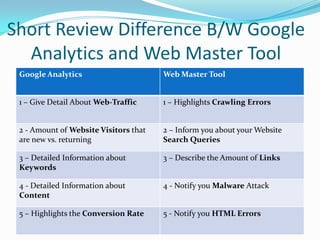
Short Review Difference B/W Google
  Analytics and Web Master Tool
 Google Analytics                      Web Master Tool


 1 – Give Detail About Web-Traffic     1 – Highlights Crawling Errors


 2 - Amount of Website Visitors that   2 – Inform you about your Website
 are new vs. returning                 Search Queries

 3 – Detailed Information about        3 – Describe the Amount of Links
 Keywords

 4 - Detailed Information about        4 - Notify you Malware Attack
 Content

 5 – Highlights the Conversion Rate    5 - Notify you HTML Errors
Index II
 Why to Check Messages ?

 Explore Additional Google Webmaster Tools

 Benefits of Google Webmaster Tools

 Short Review Difference B/W Google Analytics and
  Web Master Tool
 Summarize the Differences between Google Analytics
  And Google Webmaster Tools
Summarize the Differences
  between Google Analytics And
    Google Webmaster Tools:
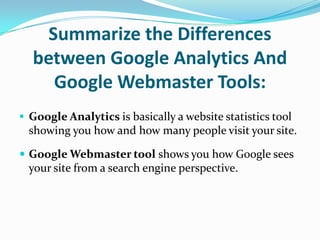
 Google Analytics is basically a website statistics tool
  showing you how and how many people visit your site.

 Google Webmaster tool shows you how Google sees
  your site from a search engine perspective.
Google WebMaster Tool

Google WebMaster Tool

  • 2.
  • 3.
    What is GoogleWebMaster Tool “ Google Webmaster Tools is a no-charge web service by Google which allows webmasters to check indexing status and optimize visibility of their websites. ” It has Tools that Let the WebMasters:  Submit and check a Sitemap  Check and set the Crawl rate, and view statistics about how Googlebot accesses a particular site  Generate and check a robots.txt file. It also helps to discover pages that are blocked in robots.txt by chance.
  • 4.
     List internaland external pages that link to the site  See what keyword searches on Google led to the site being listed in the SERPs, and the click through rates of such listings  View statistics about how Google indexes the site, and if it found any errors while doing it  Set a preferred domain (e.g. prefer example.com over www.example.com or vice versa), which determines how the site URL is displayed in SERPs
  • 5.
    Index  How toIntegrate Web Master Tool ?  How to Access the Google Webmaster Tools Dashboard ?  How to Submit a SiteMap ?  How to Create a Robots.txt File ?  How to Check the Possible Error ?  How to View Site Statistics ?
  • 6.
    Index II  Whyto Check Messages ?  Explore Additional Google Webmaster Tools  Benefits of Google Webmaster Tools  Short Review Difference B/W Google Analytics and Web Master Tool  Summarize the Differences between Google Analytics And Google Webmaster Tools
  • 7.
    Index  How toIntegrate Web Master Tool ?  How to Access the Google Webmaster Tools Dashboard ?  How to Submit a SiteMap ?  How to Create a Robots.txt File ?  How to Check the Possible Error ?  How to View Site Statistics ?
  • 8.
    How to IntegrateWeb Master Tool
  • 9.
    How to IntegrateWeb Master Tool  Log In to Google Webmaster Tools  Add Your Site to Your Google Webmaster Tools Account
  • 10.
    Log In toGoogle Webmaster Tools
  • 11.
    Add Your Siteto Your Google Webmaster Tools Account 1. From the Google Webmaster Tools home page, click the Add a site button. 2. Type the address of the site you want to add and click Continue.
  • 12.
    3. Click thedesired verification option.
  • 13.
    4. Follow theverification instructions to add the meta tag provided to the header section of your site’s home page. 5. Click the Verify button. You return to the Verification home page, and the site appears in your Sites list.
  • 14.
    Index  How toIntegrate Web Master Tool ?  How to Access the Google Webmaster Tools Dashboard ?  How to Submit a SiteMap ?  How to Create a Robots.txt File ?  How to Check the Possible Error ?  How to View Site Statistics ?
  • 15.
    How to Accessthe Google Webmaster Tools Dashboard
  • 16.
    The Webmaster ToolsDashboard provides an overview of the most important information about each site in your account.
  • 17.
    Main Page -Dashboard
  • 18.
    The Dashboard includesthe following information:  Search Queries: Keywords and phrases users entered to reach your site.  Links to your Site: Sites that link to yours.  Crawl Errors: Problems Google encountered trying to access pages on your site and/or number of pages you chose to prevent access to.  Keywords: Relative significance of the most relevant keywords on your site as compared to the keywords/phrases that users enter to reach your site.  Sitemaps: Whether your site has a sitemap and the number of URLs in the sitemap that are indexed.
  • 19.
    Index  How toIntegrate Web Master Tool ?  How to Access the Google Webmaster Tools Dashboard ?  How to Submit a SiteMap ?  How to Create a Robots.txt File ?  How to Check the Possible Error ?  How to View Site Statistics ?
  • 20.
    How to Submita SiteMap
  • 21.
    How to Submita SiteMap What is Site Map? Example of Site Map Steps to Submit it to Google Webmaster Tools
  • 22.
    Submit a Sitemap What is Site Map ? A sitemap tells search bots which pages to index and each page’s relative importance.
  • 23.
  • 24.
    Steps to Submitit to Google Webmaster Tools  From the Dashboard, below Sitemaps, click Submit a Sitemap.  Click the Submit a Sitemap button.
  • 25.
     Type thesitemap’s name, which should be sitemap.xml.  Click Submit Sitemap. Assuming all goes as planned, you should now see a green check mark for the sitemap status and the number of URLs submitted.
  • 26.
    Index  How toIntegrate Web Master Tool ?  How to Access the Google Webmaster Tools Dashboard ?  How to Submit a SiteMap ?  How to Create a Robots.txt File ?  How to Check the Possible Error ?  How to View Site Statistics ?
  • 27.
    How to Createa Robots.txt File
  • 28.
    How to Createa Robots.txt File What is Robots.txt File Ways of Creating Robots.txt File Sample of Plain text File
  • 29.
    Create a Robots.txtFile What is Robots.txt File A robots.txt file does the opposite of a sitemap — it tells search bots what not to index. Two Ways of Creation Robots.txt File 1. Install a plugin to create a robots.txt 2. Create a plain text file called robots.txt that contains Instructions
  • 30.
    Sample of PlainText File
  • 31.
    Index  How toIntegrate Web Master Tool ?  How to Access the Google Webmaster Tools Dashboard ?  How to Submit a SiteMap ?  How to Create a Robots.txt File ?  How to Check the Possible Error ?  How to View Site Statistics ?
  • 32.
    How to Checkthe Possible Problems
  • 33.
    How to Checkthe Possible Problems Overview How to Check the Possible Problems How to Check for Possible Problems - SnapShot
  • 34.
    Check for PossibleProblems Overview Google Webmaster Tools monitors your site and alerts you of crawl errors. It also provides crawl statistics and HTML suggestions to help attract traffic to your site How to Check for Possible Problems  Access the Dashboard  Click the plus sign next to Diagnostics  Click the desired link under Diagnostics to Check for Specific Issues.
  • 35.
    How to Checkfor Possible Problems - SnapShot
  • 36.
    Index  How toIntegrate Web Master Tool ?  How to Access the Google Webmaster Tools Dashboard ?  How to Submit a SiteMap ?  How to Create a Robots.txt File ?  How to Check the Possible Error ?  How to View Site Statistics ?
  • 37.
    How to ViewSite Statistics
  • 38.
    How to ViewSite Statistics Overview How to View the Statistics 5 Major Element of WebMaster View Site Statistics - SnapShot
  • 39.
    View Site Statistics Overview GoogleWebmaster Tools provides access to statistics that provide valuable insight into what your site is primarily known for. How to View the Statistics  Access the Dashboard  Click Your site on the web  Then click the desired options
  • 40.
    5 Major Elementof WebMaster  Search Queries: Keywords and phrases users enter most frequently to reach your site.  Links to your Site: Other sites that link to yours.  Keywords: Most common keywords on your site.  Internal Links: Number of links pointing to each page on your site.  Subscriber Stats: The number of Google users who have subscribed to your feeds using any Google product (such as Reader, iGoogle, or Orkut).
  • 41.
  • 42.
    Why to CheckMessages
  • 43.
    Index II  Whyto Check Messages ?  Explore Additional Google Webmaster Tools  Benefits of Google Webmaster Tools  Short Review Difference B/W Google Analytics and Web Master Tool  Summarize the Differences between Google Analytics And Google Webmaster Tools
  • 44.
    Check Messages Whileusing Google Webmaster Tools, don’t overlook the Messages area. This area provides access to any Messages about your site that Google deems important enough to notify you about, including any sudden and significant rise in error messages.
  • 45.
    Index II  Whyto Check Messages ?  Explore Additional Google Webmaster Tools  Benefits of Google Webmaster Tools  Short Review Difference B/W Google Analytics and Web Master Tool  Summarize the Differences between Google Analytics And Google Webmaster Tools
  • 46.
  • 47.
    Explore Additional Google WebmasterTools  Near the bottom of the navigation bar on the left is a link named Labs.  Click Labs to access additional Google Webmaster Tools
  • 48.
    Index II  Whyto Check Messages ?  Explore Additional Google Webmaster Tools  Benefits of Google Webmaster Tools  Short Review Difference B/W Google Analytics and Web Master Tool  Summarize the Differences between Google Analytics And Google Webmaster Tools
  • 49.
    Benefits of GoogleWebmaster Tools
  • 50.
    Benefits of GoogleWebmaster Tools  Information in One Handy Place - Google will list all the pages on your site that it has indexed  No More Indexing Problems - Using Webmaster Tool is a direct way to say to Google, my site exists, please add them to your index.  Sitemaps - Tell Google About All Your Pages – Through Webmaster Tools you get the chance to tell Googlebot where all of your pages are, individually.  Site Errors - Google Webmaster Tool will show you all the errors on your site
  • 51.
     Backlinks Count- Webmaster Tool will tell you precisely how many pages out there, link to your home page (Backlinks), and, separately from that, they'll tell you how many pages out there link to other pages in your site.  URL Removal - You can use Webmaster Tool to remove a page from Google's index that has already been indexed but that you now wish wasn't.  Top Search Queries - Shows you this information complete with exactly which position of Google's search results your terms appeared on.
  • 52.
     Content Analysis - WebMaster Highlight issues that may make it difficult for Google to crawl and index your pages.  Find Duplicate Content - Google Webmaster Tool will provide a list of URLs that have duplicate title tags or meta description.
  • 53.
    Short Review DifferenceBetween Google Analytics and Web Master Tool
  • 54.
    Index II  Whyto Check Messages ?  Explore Additional Google Webmaster Tools  Benefits of Google Webmaster Tools  Short Review Difference B/W Google Analytics and Web Master Tool  Summarize the Differences between Google Analytics And Google Webmaster Tools
  • 55.
    Short Review DifferenceB/W Google Analytics and Web Master Tool Google Analytics Web Master Tool 1 – Give Detail About Web-Traffic 1 – Highlights Crawling Errors 2 - Amount of Website Visitors that 2 – Inform you about your Website are new vs. returning Search Queries 3 – Detailed Information about 3 – Describe the Amount of Links Keywords 4 - Detailed Information about 4 - Notify you Malware Attack Content 5 – Highlights the Conversion Rate 5 - Notify you HTML Errors
  • 56.
    Index II  Whyto Check Messages ?  Explore Additional Google Webmaster Tools  Benefits of Google Webmaster Tools  Short Review Difference B/W Google Analytics and Web Master Tool  Summarize the Differences between Google Analytics And Google Webmaster Tools
  • 57.
    Summarize the Differences between Google Analytics And Google Webmaster Tools:  Google Analytics is basically a website statistics tool showing you how and how many people visit your site.  Google Webmaster tool shows you how Google sees your site from a search engine perspective.