INTRODUCTION
TO SCCM
Dr. M. Jaithoon Bibi
Assistant Professor
Department of Computer Science with Cognitive Systems
Sri Ramakrishna College of Arts & Science
Jaithoonbibi@srcas.ac.in
Overview of SCCM &
SCCM Console Overview
1.WHAT IS SCCM?
OVERVIW OF SCCM
SCCM, or System Center Configuration Manager, is a Microsoft tool used for
managing, deploying, and securing devices and applications across an
organization. It allows IT teams to automate tasks like software deployment,
patch management, remote control, and configuration of client computers,
enhancing both efficiency and security in enterprise environments. SCCM also
supports asset tracking and compliance management, helping ensure systems
meet organizational policies and standards.
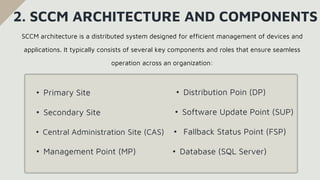
• Primary Site
• Secondary Site
• Central Administration Site (CAS)
• Management Point (MP)
• Distribution Poin (DP)
• Software Update Point (SUP)
• Fallback Status Point (FSP)
• Database (SQL Server)
2. SCCM ARCHITECTURE AND COMPONENTS
SCCM architecture is a distributed system designed for efficient management of devices and
applications. It typically consists of several key components and roles that ensure seamless
operation across an organization:
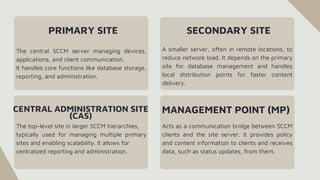
PRIMARY SITE
The central SCCM server managing devices,
applications, and client communication.
It handles core functions like database storage,
reporting, and administration.
A smaller server, often in remote locations, to
reduce network load. It depends on the primary
site for database management and handles
local distribution points for faster content
delivery.
SECONDARY SITE
CENTRAL ADMINISTRATION SITE
(CAS)
The top-level site in larger SCCM hierarchies,
typically used for managing multiple primary
sites and enabling scalability. It allows for
centralized reporting and administration.
MANAGEMENT POINT (MP)
Acts as a communication bridge between SCCM
clients and the site server. It provides policy
and content information to clients and receives
data, such as status updates, from them.
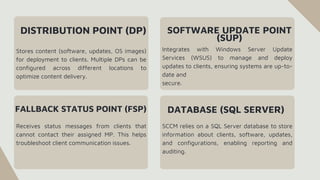
DISTRIBUTION POINT (DP)
Stores content (software, updates, OS images)
for deployment to clients. Multiple DPs can be
configured across different locations to
optimize content delivery.
Integrates with Windows Server Update
Services (WSUS) to manage and deploy
updates to clients, ensuring systems are up-to-
date and
secure.
SOFTWARE UPDATE POINT
(SUP)
FALLBACK STATUS POINT (FSP)
Receives status messages from clients that
cannot contact their assigned MP. This helps
troubleshoot client communication issues.
DATABASE (SQL SERVER)
SCCM relies on a SQL Server database to store
information about clients, software, updates,
and configurations, enabling reporting and
auditing.
3. ROLE OF SCCM IN ENTERPRISE IT
ENVIRONMENTS
• Device Management
• Software Deployment
• Patch Management
• Operating System Deployment
(OSD)
• Compliance and Security
• Asset Tracking and Reporting
• Remote Control and
Troubleshooting
• Scalability for Large
Organizations
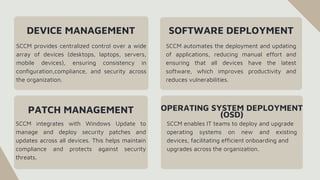
DEVICE MANAGEMENT
SCCM provides centralized control over a wide
array of devices (desktops, laptops, servers,
mobile devices), ensuring consistency in
configuration,compliance, and security across
the organization.
SCCM automates the deployment and updating
of applications, reducing manual effort and
ensuring that all devices have the latest
software, which improves productivity and
reduces vulnerabilities.
SOFTWARE DEPLOYMENT
PATCH MANAGEMENT
SCCM integrates with Windows Update to
manage and deploy security patches and
updates across all devices. This helps maintain
compliance and protects against security
threats.
OPERATING SYSTEM DEPLOYMENT
(OSD)
SCCM enables IT teams to deploy and upgrade
operating systems on new and existing
devices, facilitating efficient onboarding and
upgrades across the organization.
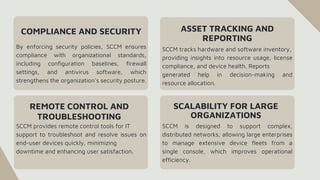
COMPLIANCE AND SECURITY
By enforcing security policies, SCCM ensures
compliance with organizational standards,
including configuration baselines, firewall
settings, and antivirus software, which
strengthens the organization’s security posture.
SCCM tracks hardware and software inventory,
providing insights into resource usage, license
compliance, and device health. Reports
generated help in decision-making and
resource allocation.
ASSET TRACKING AND
REPORTING
REMOTE CONTROL AND
TROUBLESHOOTING
SCCM provides remote control tools for IT
support to troubleshoot and resolve issues on
end-user devices quickly, minimizing
downtime and enhancing user satisfaction.
SCALABILITY FOR LARGE
ORGANIZATIONS
SCCM is designed to support complex,
distributed networks, allowing large enterprises
to manage extensive device fleets from a
single console, which improves operational
efficiency.
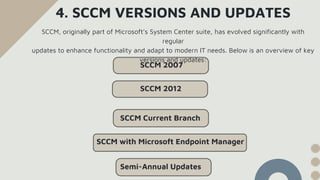
4. SCCM VERSIONS AND UPDATES
SCCM, originally part of Microsoft’s System Center suite, has evolved significantly with
regular
updates to enhance functionality and adapt to modern IT needs. Below is an overview of key
versions and updates:
Semi-Annual Updates
SCCM with Microsoft Endpoint Manager
SCCM Current Branch
SCCM 2007
SCCM 2012
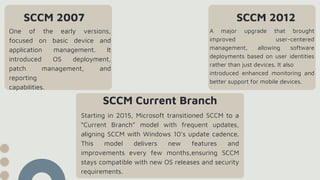
SCCM 2007
One of the early versions,
focused on basic device and
application management. It
introduced OS deployment,
patch management, and
reporting
capabilities.
SCCM 2012
SCCM Current Branch
Starting in 2015, Microsoft transitioned SCCM to a
“Current Branch” model with frequent updates,
aligning SCCM with Windows 10’s update cadence.
This model delivers new features and
improvements every few months,ensuring SCCM
stays compatible with new OS releases and security
requirements.
A major upgrade that brought
improved user-centered
management, allowing software
deployments based on user identities
rather than just devices. It also
introduced enhanced monitoring and
better support for mobile devices.
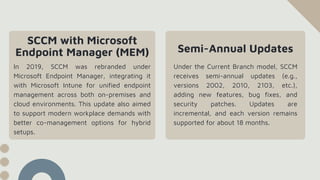
Under the Current Branch model, SCCM
receives semi-annual updates (e.g.,
versions 2002, 2010, 2103, etc.),
adding new features, bug fixes, and
security patches. Updates are
incremental, and each version remains
supported for about 18 months.
SCCM with Microsoft
Endpoint Manager (MEM) Semi-Annual Updates
In 2019, SCCM was rebranded under
Microsoft Endpoint Manager, integrating it
with Microsoft Intune for unified endpoint
management across both on-premises and
cloud environments. This update also aimed
to support modern workplace demands with
better co-management options for hybrid
setups.
• Centralized Management: SCCM provides a single, unified platform for
managing all devices, software, and updates across an organization,
simplifying administration and
reducing complexity.
5. BENEFITS OF USING SCCM FOR SYSTEM
AND SOFTWARE MANAGEMENT
• Automation: It automates tasks like software deployment, patching,
and compliance checks, saving time for IT staff and reducing manual
errors.
• Enhanced Security: SCCM helps ensure all devices are up-to-date with
the latest security patches and configurations, strengthening the
organization’s defense against vulnerabilities and threats.
• Improved Compliance: SCCM enforces compliance with corporate
policies, including software usage, configuration baselines, and security
settings, ensuring devices meet organizational standards.
• Scalability: SCCM is designed for enterprise environments, supporting
thousands of devices across multiple locations, making it highly scalable
for large organizations.
• Remote Control and Support: SCCM includes tools for remote
troubleshooting and support, which minimizes downtime and allows IT
teams to address issues without being physically present.
• Cost Efficiency: By automating routine tasks and streamlining device
management, SCCM helps reduce operational costs and optimizes IT
resources.
SCCM INSTALLATION AND CONFIGURATION
1. System Requirements for SCCM
2. Installing the SCCM Environment
3. Initial Configuration of SCCM Site Servers
4. Setting Up Site Boundaries and Boundary Groups
5. Configuring Discovery Methods in SCCM
To install and run SCCM effectively, certain hardware, software, and network requirements are
necessary:
1. SYSTEM REQUIREMENTS FOR SCCM
1. Operating System: SCCM requires a
compatible Windows Server OS. Supported
versions usually include recent Windows
Server editions, like Windows Server 2016,
2019, or newer.
2. SQL Server: SCCM requires a SQL Server
instance to store its database. Compatible
SQL Server versions include SQL Server 2016,
2017, 2019, or newer, depending on the
SCCM version.
3. Hardware:
CPU: Minimum quad-core processors are
recommended for optimal performance, especially
in larger environments.
Memory: At least 8-16 GB RAM for smaller
environments; larger deployments may require 32
GB or more to handle increased client loads.
Storage: Fast, reliable storage is needed for SCCM
and SQL Server databases. Disk space
requirements vary, but SCCM typically requires
around 500 GB or more for large deployments.
4. Network: SCCM sites need reliable network connections, especially between primary
and secondary sites, management points, and distribution points. Bandwidth
considerations are important for efficient content delivery and management.
5. Active Directory: SCCM integrates with Active Directory for client discovery and user-
based deployment. Domain membership and proper permissions are needed for SCCM
servers.
6. WSUS (Windows Server Update Services): Required if using SCCM’s Software
Update Point for patch management. WSUS integration helps deploy Microsoft updates
through SCCM.
7. Client Requirements: SCCM supports various client OS versions, including recent
versions of Windows, macOS, and limited support for Linux and mobile OS (via Intune
integration).
1. Prepare Server Requirements: Set up a Windows Server that meets SCCM’s
specifications and ensure it is joined to the Active Directory (AD) domain. Install
necessary server roles and features like .NET Framework, IIS, and Remote Differential
Compression.
2. Set Up SQL Server: Install a compatible SQL Server version on the SCCM server or a
dedicated SQL Server. Configure SQL collation as SQL_Latin1_General_CP1_CI_AS,
set appropriate memory limits, and create necessary databases.
3. Extend Active Directory Schema (Optional): Extending the AD schema helps with
client management and streamlines discovery. This step adds SCCM-specific attributes to
AD, which can improve the efficiency of device management.
4. Install WSUS (Windows Server Update Services): If you plan to use SCCM for update
management, install WSUS and configure it to work with SCCM. WSUS integration is
necessary for managing and deploying software updates to clients.
2. INSTALLING THE SCCM ENVIRONMENT
5. Run SCCM Setup: Start SCCM setup from installation media. Select “Install a
Configuration Manager Primary Site,” specify a site code, and configure the SQL Server
connection and other setup options in the wizard.
6. Configure SCCM Roles: Assign roles like Management Point (MP) for client
communication, Distribution Point (DP) for content distribution, and Software Update
Point (SUP) for patching. These roles enable SCCM’s core functions.
7. Set Discovery Methods: Enable methods like Active Directory System Discovery to
detect devices and users on the network. This helps SCCM manage and monitor devices
within the organization.
8. Deploy SCCM Client: Install the SCCM client on target devices to allow them to
communicate with the SCCM server. This client setup is crucial for enforcing policies,
deploying software, and managing updates on endpoints.
3. INITIAL CONFIGURATION OF SCCM SITE
SERVERS
1. Configure Site Boundaries and Boundary
Groups: Define boundaries based on IP
ranges, AD sites, or subnets, then group them
into boundary groups. This helps SCCM
determine which clients belong to each site,
enabling efficient content distribution and
client management.
2. Set Up Site System Roles: Assign key roles
such as:
Management Point (MP): Facilitates
communication between SCCM clients and
the server.
Distribution Point (DP): Stores and distributes
software packages to clients.
Software Update Point (SUP): Manages and
deploys updates through WSUS
integration. These roles are essential for SCCM’s
core functions.
3. Configure Discovery Methods: Enable
discovery methods like Active Directory
SystemDiscovery and User Discovery to detect
network devices and users. This populates the
SCCM database with information on managed
resources.
4. Create Client Settings and Configure Client
Policies: Set default client policies and customize
settings for specific device needs, such as
software update schedules, remote
control permissions, and hardware inventory
frequency.
5. Establish Software Update Settings:
Synchronize SCCM with WSUS, configure
classifications (like security updates or critical
updates), and specify the update schedule.
This enables automatic deployment of patches to
managed devices.
6. Set Up Collections: Create device and user
collections based on criteria like location,
department, or OS version. Collections allow
targeted deployments, updates, and policies
for specific groups of devices or users.
7. Configure Reporting Services: Set up
reporting to generate detailed insights into
device status, software deployments, update
compliance, and more. Reporting helps IT
administrators monitor SCCM activities and
make data-driven decisions.
8. Enable Asset and Compliance Settings:
Set compliance baselines and configuration
items to enforce organizational policies, such
as security settings or software versions,
ensuring all devices meet corporate
standards.
1. Define Boundaries: Boundaries in SCCM are network locations that represent specific
IP ranges, Active Directory (AD) sites, IP subnets, or IPv6 prefixes. By defining
boundaries, SCCM can determine which devices belong to which site, helping with
efficient management and resource allocation.
2. Create Boundary Groups: Boundary groups are logical groupings of boundaries. These
groups associate clients with site system servers, enabling SCCM to manage content
distribution and software deployments based on geographic or network location.
3. Assign Site Systems to Boundary Groups: Within each boundary group, assign site
systems (like Distribution Points) to ensure that devices within the boundary group can
download content (such as updates, applications, and OS images) from a local server
rather than using network resources to reach a distant server.
4. SETTING UP SITE BOUNDARIES AND
BOUNDARY GROUPS
4. Configure Fallback Options: Configure fallback options to allow clients to
contact alternate distribution points or management points if their primary
resources are unavailable. This ensures continuity in case of network or server
issues.
5. Set Up Client Site Assignment: Boundary groups also help SCCM assign
clients to the correct site automatically based on their network location,
streamlining site management and minimizing manual assignment.
1. Active Directory System Discovery: Identifies devices within specified AD
organizational units (OUs). This method populates SCCM with device data from AD,
enabling management of all discovered devices.
2. Active Directory User Discovery: Finds users in specified AD OUs, importing their
information into SCCM. This is useful for user-targeted deployments and policies.
3. Active Directory Group Discovery: Identifies security groups and members in AD.
Useful for creating collections based on group membership, allowing targeted software
and policy deployments.
5. CONFIGURING DISCOVERY METHODS
IN SCCM
4. Network Discovery: Searches the network for devices that are not in AD,
discovering devices like network printers or routers. It expands SCCM’s reach by
identifying unmanaged devices.
5. Heartbeat Discovery: SCCM clients send periodic data back to the server,
updating their status. This keeps client information current and ensures inactive
or offline clients are identified.
6. Forest Discovery: Discovers AD forests and sites, enabling SCCM to manage
clients across multiple domains and forests if configured.
SCCM CONSOLE OVERVIEW
1. Navigating the SCCM Console
2. Overview of Primary Tabs in the SCCM Console
3. Overview of SCCM Roles and Permissions
4. Working with Collections (User and Device
Collections) in SCCM
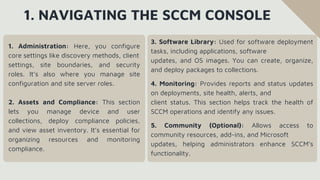
1. NAVIGATING THE SCCM CONSOLE
1. Administration: Here, you configure
core settings like discovery methods, client
settings, site boundaries, and security
roles. It’s also where you manage site
configuration and site server roles.
2. Assets and Compliance: This section
lets you manage device and user
collections, deploy compliance policies,
and view asset inventory. It’s essential for
organizing resources and monitoring
compliance.
3. Software Library: Used for software deployment
tasks, including applications, software
updates, and OS images. You can create, organize,
and deploy packages to collections.
4. Monitoring: Provides reports and status updates
on deployments, site health, alerts, and
client status. This section helps track the health of
SCCM operations and identify any issues.
5. Community (Optional): Allows access to
community resources, add-ins, and Microsoft
updates, helping administrators enhance SCCM’s
functionality.
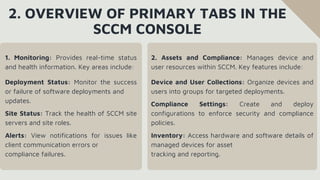
2. OVERVIEW OF PRIMARY TABS IN THE
SCCM CONSOLE
1. Monitoring: Provides real-time status
and health information. Key areas include:
Deployment Status: Monitor the success
or failure of software deployments and
updates.
Site Status: Track the health of SCCM site
servers and site roles.
Alerts: View notifications for issues like
client communication errors or
compliance failures.
2. Assets and Compliance: Manages device and
user resources within SCCM. Key features include:
Device and User Collections: Organize devices and
users into groups for targeted deployments.
Compliance Settings: Create and deploy
configurations to enforce security and compliance
policies.
Inventory: Access hardware and software details of
managed devices for asset
tracking and reporting.
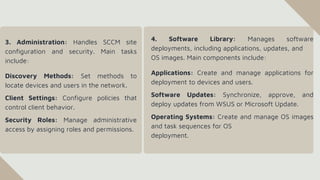
3. Administration: Handles SCCM site
configuration and security. Main tasks
include:
Discovery Methods: Set methods to
locate devices and users in the network.
Client Settings: Configure policies that
control client behavior.
Security Roles: Manage administrative
access by assigning roles and permissions.
4. Software Library: Manages software
deployments, including applications, updates, and
OS images. Main components include:
Applications: Create and manage applications for
deployment to devices and users.
Software Updates: Synchronize, approve, and
deploy updates from WSUS or Microsoft Update.
Operating Systems: Create and manage OS images
and task sequences for OS
deployment.
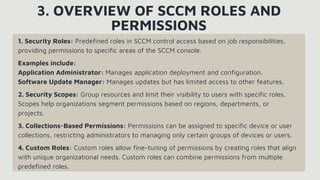
1. Security Roles: Predefined roles in SCCM control access based on job responsibilities,
providing permissions to specific areas of the SCCM console.
Examples include:
Application Administrator: Manages application deployment and configuration.
Software Update Manager: Manages updates but has limited access to other features.
2. Security Scopes: Group resources and limit their visibility to users with specific roles.
Scopes help organizations segment permissions based on regions, departments, or
projects.
3. Collections-Based Permissions: Permissions can be assigned to specific device or user
collections, restricting administrators to managing only certain groups of devices or users.
4. Custom Roles: Custom roles allow fine-tuning of permissions by creating roles that align
with unique organizational needs. Custom roles can combine permissions from multiple
predefined roles.
3. OVERVIEW OF SCCM ROLES AND
PERMISSIONS
4. WORKING WITH COLLECTIONS (USER
AND DEVICE COLLECTIONS) IN SCCM
1. Device Collections: Group computers and
devices based on criteria like location,
department, or OS version. This enables
targeted deployment of applications,
updates, and configurations to specific
devices, improving efficiency and control
over asset management.
2. User Collections: Organize users based
on attributes such as department, job role,
or AD group membership. These collections
allow administrators to target software,
settings, and policies directly to users rather
than devices, which is useful in user-centric
environments.
3. Collection Membership Rules: Define which
devices or users belong in a collection.
Options include:
Direct Membership: Manually add individual users or
devices.
Query-Based Membership: Automatically add
members based on criteria.
Include/Exclude Collections: Combine collections or
exclude specific ones to refinetargets.
4. Using Collections for Targeted Deployments:
Collections are essential for targeted deployments,
enabling administrators to deploy applications, OS
updates, and policies to specific groups.
ACTIVE DIRECTORY INTEGRATION
1. Integrating SCCM with Active Directory
2. Managing Active Directory System Discovery in SCCM
3. Role-Based Access Control (RBAC) in SCCM
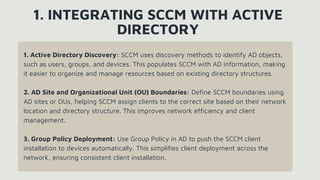
1. Active Directory Discovery: SCCM uses discovery methods to identify AD objects,
such as users, groups, and devices. This populates SCCM with AD information, making
it easier to organize and manage resources based on existing directory structures.
2. AD Site and Organizational Unit (OU) Boundaries: Define SCCM boundaries using
AD sites or OUs, helping SCCM assign clients to the correct site based on their network
location and directory structure. This improves network efficiency and client
management.
3. Group Policy Deployment: Use Group Policy in AD to push the SCCM client
installation to devices automatically. This simplifies client deployment across the
network, ensuring consistent client installation.
1. INTEGRATING SCCM WITH ACTIVE
DIRECTORY
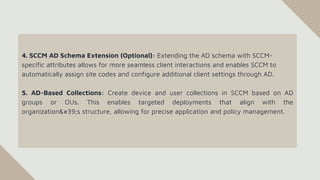
4. SCCM AD Schema Extension (Optional): Extending the AD schema with SCCM-
specific attributes allows for more seamless client interactions and enables SCCM to
automatically assign site codes and configure additional client settings through AD.
5. AD-Based Collections: Create device and user collections in SCCM based on AD
groups or OUs. This enables targeted deployments that align with the
organization's structure, allowing for precise application and policy management.
2. MANAGING ACTIVE DIRECTORY
SYSTEM DISCOVERY IN SCCM
1. Enabling System Discovery: Activate the
Active Directory System Discovery method
in SCCM to automatically find computers within
specified AD locations, such as organizational
units (OUs). This helps ensure all devices in the
AD environment are recognized by SCCM.
2. Configuring Discovery Scope: Define the
OUs, AD sites, or domains to be included in
discovery. By setting specific scopes, you can
focus SCCM's discovery efforts on
relevant parts of your AD, reducing
unnecessary data collection and network
traffic.
3. Scheduling Discovery: Set discovery to
run on a regular schedule (e.g., daily or
weekly) to keep SCCM updated with new
devices and ensure accurate resource
tracking. A consistent schedule ensures
newly added systems are identified promptly.
4. Managing Discovery Data: Use cleanup
settings to remove obsolete or inactive
device records from SCCM’s database. This
keeps the data current, reduces database
size, and helps avoid managing outdated
resources.
1. Purpose: RBAC in SCCM ensures that users have access only to the parts of the console
that are relevant to their job responsibilities, improving security and reducing the risk of
accidental misconfigurations.
2. Security Roles: SCCM comes with predefined security roles such as Administrator,
Read-Only Analyst, and Application Administrator, each granting different levels of
access to the SCCM features.
3. Permissions: Each role has a set of permissions that define what actions users in that role
can perform (e.g., creating deployments, managing devices, viewing reports).
Permissions are assigned at a granular level to control access to specific tasks and data.
3. ROLE-BASED ACCESS CONTROL (RBAC) IN
SCCM
4. Security Scopes: Scopes limit a user’s visibility to specific resources like collections or
software. A user can only access data that falls within their assigned security scope,
making resource management more precise.
5. Custom Roles: In addition to predefined roles, SCCM allows you to create custom roles
with a tailored set of permissions for specific organizational needs. Custom roles help
meet unique security and management requirements.
6. Delegation: RBAC allows you to delegate tasks across multiple administrators without
giving full access to the entire SCCM environment. This helps balance the workload and
limits the exposure of sensitive settings.

SCCM Introuction_ Dr M Jaithoon Bibi.pdf

  • 1.
    INTRODUCTION TO SCCM Dr. M.Jaithoon Bibi Assistant Professor Department of Computer Science with Cognitive Systems Sri Ramakrishna College of Arts & Science Jaithoonbibi@srcas.ac.in
  • 2.
    Overview of SCCM& SCCM Console Overview
  • 3.
    1.WHAT IS SCCM? OVERVIWOF SCCM SCCM, or System Center Configuration Manager, is a Microsoft tool used for managing, deploying, and securing devices and applications across an organization. It allows IT teams to automate tasks like software deployment, patch management, remote control, and configuration of client computers, enhancing both efficiency and security in enterprise environments. SCCM also supports asset tracking and compliance management, helping ensure systems meet organizational policies and standards.
  • 4.
    • Primary Site •Secondary Site • Central Administration Site (CAS) • Management Point (MP) • Distribution Poin (DP) • Software Update Point (SUP) • Fallback Status Point (FSP) • Database (SQL Server) 2. SCCM ARCHITECTURE AND COMPONENTS SCCM architecture is a distributed system designed for efficient management of devices and applications. It typically consists of several key components and roles that ensure seamless operation across an organization:
  • 5.
    PRIMARY SITE The centralSCCM server managing devices, applications, and client communication. It handles core functions like database storage, reporting, and administration. A smaller server, often in remote locations, to reduce network load. It depends on the primary site for database management and handles local distribution points for faster content delivery. SECONDARY SITE CENTRAL ADMINISTRATION SITE (CAS) The top-level site in larger SCCM hierarchies, typically used for managing multiple primary sites and enabling scalability. It allows for centralized reporting and administration. MANAGEMENT POINT (MP) Acts as a communication bridge between SCCM clients and the site server. It provides policy and content information to clients and receives data, such as status updates, from them.
  • 6.
    DISTRIBUTION POINT (DP) Storescontent (software, updates, OS images) for deployment to clients. Multiple DPs can be configured across different locations to optimize content delivery. Integrates with Windows Server Update Services (WSUS) to manage and deploy updates to clients, ensuring systems are up-to- date and secure. SOFTWARE UPDATE POINT (SUP) FALLBACK STATUS POINT (FSP) Receives status messages from clients that cannot contact their assigned MP. This helps troubleshoot client communication issues. DATABASE (SQL SERVER) SCCM relies on a SQL Server database to store information about clients, software, updates, and configurations, enabling reporting and auditing.
  • 7.
    3. ROLE OFSCCM IN ENTERPRISE IT ENVIRONMENTS • Device Management • Software Deployment • Patch Management • Operating System Deployment (OSD) • Compliance and Security • Asset Tracking and Reporting • Remote Control and Troubleshooting • Scalability for Large Organizations
  • 8.
    DEVICE MANAGEMENT SCCM providescentralized control over a wide array of devices (desktops, laptops, servers, mobile devices), ensuring consistency in configuration,compliance, and security across the organization. SCCM automates the deployment and updating of applications, reducing manual effort and ensuring that all devices have the latest software, which improves productivity and reduces vulnerabilities. SOFTWARE DEPLOYMENT PATCH MANAGEMENT SCCM integrates with Windows Update to manage and deploy security patches and updates across all devices. This helps maintain compliance and protects against security threats. OPERATING SYSTEM DEPLOYMENT (OSD) SCCM enables IT teams to deploy and upgrade operating systems on new and existing devices, facilitating efficient onboarding and upgrades across the organization.
  • 9.
    COMPLIANCE AND SECURITY Byenforcing security policies, SCCM ensures compliance with organizational standards, including configuration baselines, firewall settings, and antivirus software, which strengthens the organization’s security posture. SCCM tracks hardware and software inventory, providing insights into resource usage, license compliance, and device health. Reports generated help in decision-making and resource allocation. ASSET TRACKING AND REPORTING REMOTE CONTROL AND TROUBLESHOOTING SCCM provides remote control tools for IT support to troubleshoot and resolve issues on end-user devices quickly, minimizing downtime and enhancing user satisfaction. SCALABILITY FOR LARGE ORGANIZATIONS SCCM is designed to support complex, distributed networks, allowing large enterprises to manage extensive device fleets from a single console, which improves operational efficiency.
  • 10.
    4. SCCM VERSIONSAND UPDATES SCCM, originally part of Microsoft’s System Center suite, has evolved significantly with regular updates to enhance functionality and adapt to modern IT needs. Below is an overview of key versions and updates: Semi-Annual Updates SCCM with Microsoft Endpoint Manager SCCM Current Branch SCCM 2007 SCCM 2012
  • 11.
    SCCM 2007 One ofthe early versions, focused on basic device and application management. It introduced OS deployment, patch management, and reporting capabilities. SCCM 2012 SCCM Current Branch Starting in 2015, Microsoft transitioned SCCM to a “Current Branch” model with frequent updates, aligning SCCM with Windows 10’s update cadence. This model delivers new features and improvements every few months,ensuring SCCM stays compatible with new OS releases and security requirements. A major upgrade that brought improved user-centered management, allowing software deployments based on user identities rather than just devices. It also introduced enhanced monitoring and better support for mobile devices.
  • 12.
    Under the CurrentBranch model, SCCM receives semi-annual updates (e.g., versions 2002, 2010, 2103, etc.), adding new features, bug fixes, and security patches. Updates are incremental, and each version remains supported for about 18 months. SCCM with Microsoft Endpoint Manager (MEM) Semi-Annual Updates In 2019, SCCM was rebranded under Microsoft Endpoint Manager, integrating it with Microsoft Intune for unified endpoint management across both on-premises and cloud environments. This update also aimed to support modern workplace demands with better co-management options for hybrid setups.
  • 13.
    • Centralized Management:SCCM provides a single, unified platform for managing all devices, software, and updates across an organization, simplifying administration and reducing complexity. 5. BENEFITS OF USING SCCM FOR SYSTEM AND SOFTWARE MANAGEMENT • Automation: It automates tasks like software deployment, patching, and compliance checks, saving time for IT staff and reducing manual errors. • Enhanced Security: SCCM helps ensure all devices are up-to-date with the latest security patches and configurations, strengthening the organization’s defense against vulnerabilities and threats.
  • 14.
    • Improved Compliance:SCCM enforces compliance with corporate policies, including software usage, configuration baselines, and security settings, ensuring devices meet organizational standards. • Scalability: SCCM is designed for enterprise environments, supporting thousands of devices across multiple locations, making it highly scalable for large organizations. • Remote Control and Support: SCCM includes tools for remote troubleshooting and support, which minimizes downtime and allows IT teams to address issues without being physically present. • Cost Efficiency: By automating routine tasks and streamlining device management, SCCM helps reduce operational costs and optimizes IT resources.
  • 15.
    SCCM INSTALLATION ANDCONFIGURATION 1. System Requirements for SCCM 2. Installing the SCCM Environment 3. Initial Configuration of SCCM Site Servers 4. Setting Up Site Boundaries and Boundary Groups 5. Configuring Discovery Methods in SCCM
  • 16.
    To install andrun SCCM effectively, certain hardware, software, and network requirements are necessary: 1. SYSTEM REQUIREMENTS FOR SCCM 1. Operating System: SCCM requires a compatible Windows Server OS. Supported versions usually include recent Windows Server editions, like Windows Server 2016, 2019, or newer. 2. SQL Server: SCCM requires a SQL Server instance to store its database. Compatible SQL Server versions include SQL Server 2016, 2017, 2019, or newer, depending on the SCCM version. 3. Hardware: CPU: Minimum quad-core processors are recommended for optimal performance, especially in larger environments. Memory: At least 8-16 GB RAM for smaller environments; larger deployments may require 32 GB or more to handle increased client loads. Storage: Fast, reliable storage is needed for SCCM and SQL Server databases. Disk space requirements vary, but SCCM typically requires around 500 GB or more for large deployments.
  • 17.
    4. Network: SCCMsites need reliable network connections, especially between primary and secondary sites, management points, and distribution points. Bandwidth considerations are important for efficient content delivery and management. 5. Active Directory: SCCM integrates with Active Directory for client discovery and user- based deployment. Domain membership and proper permissions are needed for SCCM servers. 6. WSUS (Windows Server Update Services): Required if using SCCM’s Software Update Point for patch management. WSUS integration helps deploy Microsoft updates through SCCM. 7. Client Requirements: SCCM supports various client OS versions, including recent versions of Windows, macOS, and limited support for Linux and mobile OS (via Intune integration).
  • 18.
    1. Prepare ServerRequirements: Set up a Windows Server that meets SCCM’s specifications and ensure it is joined to the Active Directory (AD) domain. Install necessary server roles and features like .NET Framework, IIS, and Remote Differential Compression. 2. Set Up SQL Server: Install a compatible SQL Server version on the SCCM server or a dedicated SQL Server. Configure SQL collation as SQL_Latin1_General_CP1_CI_AS, set appropriate memory limits, and create necessary databases. 3. Extend Active Directory Schema (Optional): Extending the AD schema helps with client management and streamlines discovery. This step adds SCCM-specific attributes to AD, which can improve the efficiency of device management. 4. Install WSUS (Windows Server Update Services): If you plan to use SCCM for update management, install WSUS and configure it to work with SCCM. WSUS integration is necessary for managing and deploying software updates to clients. 2. INSTALLING THE SCCM ENVIRONMENT
  • 19.
    5. Run SCCMSetup: Start SCCM setup from installation media. Select “Install a Configuration Manager Primary Site,” specify a site code, and configure the SQL Server connection and other setup options in the wizard. 6. Configure SCCM Roles: Assign roles like Management Point (MP) for client communication, Distribution Point (DP) for content distribution, and Software Update Point (SUP) for patching. These roles enable SCCM’s core functions. 7. Set Discovery Methods: Enable methods like Active Directory System Discovery to detect devices and users on the network. This helps SCCM manage and monitor devices within the organization. 8. Deploy SCCM Client: Install the SCCM client on target devices to allow them to communicate with the SCCM server. This client setup is crucial for enforcing policies, deploying software, and managing updates on endpoints.
  • 20.
    3. INITIAL CONFIGURATIONOF SCCM SITE SERVERS 1. Configure Site Boundaries and Boundary Groups: Define boundaries based on IP ranges, AD sites, or subnets, then group them into boundary groups. This helps SCCM determine which clients belong to each site, enabling efficient content distribution and client management. 2. Set Up Site System Roles: Assign key roles such as: Management Point (MP): Facilitates communication between SCCM clients and the server. Distribution Point (DP): Stores and distributes software packages to clients. Software Update Point (SUP): Manages and deploys updates through WSUS integration. These roles are essential for SCCM’s core functions.
  • 21.
    3. Configure DiscoveryMethods: Enable discovery methods like Active Directory SystemDiscovery and User Discovery to detect network devices and users. This populates the SCCM database with information on managed resources. 4. Create Client Settings and Configure Client Policies: Set default client policies and customize settings for specific device needs, such as software update schedules, remote control permissions, and hardware inventory frequency. 5. Establish Software Update Settings: Synchronize SCCM with WSUS, configure classifications (like security updates or critical updates), and specify the update schedule. This enables automatic deployment of patches to managed devices. 6. Set Up Collections: Create device and user collections based on criteria like location, department, or OS version. Collections allow targeted deployments, updates, and policies for specific groups of devices or users. 7. Configure Reporting Services: Set up reporting to generate detailed insights into device status, software deployments, update compliance, and more. Reporting helps IT administrators monitor SCCM activities and make data-driven decisions. 8. Enable Asset and Compliance Settings: Set compliance baselines and configuration items to enforce organizational policies, such as security settings or software versions, ensuring all devices meet corporate standards.
  • 22.
    1. Define Boundaries:Boundaries in SCCM are network locations that represent specific IP ranges, Active Directory (AD) sites, IP subnets, or IPv6 prefixes. By defining boundaries, SCCM can determine which devices belong to which site, helping with efficient management and resource allocation. 2. Create Boundary Groups: Boundary groups are logical groupings of boundaries. These groups associate clients with site system servers, enabling SCCM to manage content distribution and software deployments based on geographic or network location. 3. Assign Site Systems to Boundary Groups: Within each boundary group, assign site systems (like Distribution Points) to ensure that devices within the boundary group can download content (such as updates, applications, and OS images) from a local server rather than using network resources to reach a distant server. 4. SETTING UP SITE BOUNDARIES AND BOUNDARY GROUPS
  • 23.
    4. Configure FallbackOptions: Configure fallback options to allow clients to contact alternate distribution points or management points if their primary resources are unavailable. This ensures continuity in case of network or server issues. 5. Set Up Client Site Assignment: Boundary groups also help SCCM assign clients to the correct site automatically based on their network location, streamlining site management and minimizing manual assignment.
  • 24.
    1. Active DirectorySystem Discovery: Identifies devices within specified AD organizational units (OUs). This method populates SCCM with device data from AD, enabling management of all discovered devices. 2. Active Directory User Discovery: Finds users in specified AD OUs, importing their information into SCCM. This is useful for user-targeted deployments and policies. 3. Active Directory Group Discovery: Identifies security groups and members in AD. Useful for creating collections based on group membership, allowing targeted software and policy deployments. 5. CONFIGURING DISCOVERY METHODS IN SCCM
  • 25.
    4. Network Discovery:Searches the network for devices that are not in AD, discovering devices like network printers or routers. It expands SCCM’s reach by identifying unmanaged devices. 5. Heartbeat Discovery: SCCM clients send periodic data back to the server, updating their status. This keeps client information current and ensures inactive or offline clients are identified. 6. Forest Discovery: Discovers AD forests and sites, enabling SCCM to manage clients across multiple domains and forests if configured.
  • 26.
    SCCM CONSOLE OVERVIEW 1.Navigating the SCCM Console 2. Overview of Primary Tabs in the SCCM Console 3. Overview of SCCM Roles and Permissions 4. Working with Collections (User and Device Collections) in SCCM
  • 27.
    1. NAVIGATING THESCCM CONSOLE 1. Administration: Here, you configure core settings like discovery methods, client settings, site boundaries, and security roles. It’s also where you manage site configuration and site server roles. 2. Assets and Compliance: This section lets you manage device and user collections, deploy compliance policies, and view asset inventory. It’s essential for organizing resources and monitoring compliance. 3. Software Library: Used for software deployment tasks, including applications, software updates, and OS images. You can create, organize, and deploy packages to collections. 4. Monitoring: Provides reports and status updates on deployments, site health, alerts, and client status. This section helps track the health of SCCM operations and identify any issues. 5. Community (Optional): Allows access to community resources, add-ins, and Microsoft updates, helping administrators enhance SCCM’s functionality.
  • 28.
    2. OVERVIEW OFPRIMARY TABS IN THE SCCM CONSOLE 1. Monitoring: Provides real-time status and health information. Key areas include: Deployment Status: Monitor the success or failure of software deployments and updates. Site Status: Track the health of SCCM site servers and site roles. Alerts: View notifications for issues like client communication errors or compliance failures. 2. Assets and Compliance: Manages device and user resources within SCCM. Key features include: Device and User Collections: Organize devices and users into groups for targeted deployments. Compliance Settings: Create and deploy configurations to enforce security and compliance policies. Inventory: Access hardware and software details of managed devices for asset tracking and reporting.
  • 29.
    3. Administration: HandlesSCCM site configuration and security. Main tasks include: Discovery Methods: Set methods to locate devices and users in the network. Client Settings: Configure policies that control client behavior. Security Roles: Manage administrative access by assigning roles and permissions. 4. Software Library: Manages software deployments, including applications, updates, and OS images. Main components include: Applications: Create and manage applications for deployment to devices and users. Software Updates: Synchronize, approve, and deploy updates from WSUS or Microsoft Update. Operating Systems: Create and manage OS images and task sequences for OS deployment.
  • 30.
    1. Security Roles:Predefined roles in SCCM control access based on job responsibilities, providing permissions to specific areas of the SCCM console. Examples include: Application Administrator: Manages application deployment and configuration. Software Update Manager: Manages updates but has limited access to other features. 2. Security Scopes: Group resources and limit their visibility to users with specific roles. Scopes help organizations segment permissions based on regions, departments, or projects. 3. Collections-Based Permissions: Permissions can be assigned to specific device or user collections, restricting administrators to managing only certain groups of devices or users. 4. Custom Roles: Custom roles allow fine-tuning of permissions by creating roles that align with unique organizational needs. Custom roles can combine permissions from multiple predefined roles. 3. OVERVIEW OF SCCM ROLES AND PERMISSIONS
  • 31.
    4. WORKING WITHCOLLECTIONS (USER AND DEVICE COLLECTIONS) IN SCCM 1. Device Collections: Group computers and devices based on criteria like location, department, or OS version. This enables targeted deployment of applications, updates, and configurations to specific devices, improving efficiency and control over asset management. 2. User Collections: Organize users based on attributes such as department, job role, or AD group membership. These collections allow administrators to target software, settings, and policies directly to users rather than devices, which is useful in user-centric environments. 3. Collection Membership Rules: Define which devices or users belong in a collection. Options include: Direct Membership: Manually add individual users or devices. Query-Based Membership: Automatically add members based on criteria. Include/Exclude Collections: Combine collections or exclude specific ones to refinetargets. 4. Using Collections for Targeted Deployments: Collections are essential for targeted deployments, enabling administrators to deploy applications, OS updates, and policies to specific groups.
  • 32.
    ACTIVE DIRECTORY INTEGRATION 1.Integrating SCCM with Active Directory 2. Managing Active Directory System Discovery in SCCM 3. Role-Based Access Control (RBAC) in SCCM
  • 33.
    1. Active DirectoryDiscovery: SCCM uses discovery methods to identify AD objects, such as users, groups, and devices. This populates SCCM with AD information, making it easier to organize and manage resources based on existing directory structures. 2. AD Site and Organizational Unit (OU) Boundaries: Define SCCM boundaries using AD sites or OUs, helping SCCM assign clients to the correct site based on their network location and directory structure. This improves network efficiency and client management. 3. Group Policy Deployment: Use Group Policy in AD to push the SCCM client installation to devices automatically. This simplifies client deployment across the network, ensuring consistent client installation. 1. INTEGRATING SCCM WITH ACTIVE DIRECTORY
  • 34.
    4. SCCM ADSchema Extension (Optional): Extending the AD schema with SCCM- specific attributes allows for more seamless client interactions and enables SCCM to automatically assign site codes and configure additional client settings through AD. 5. AD-Based Collections: Create device and user collections in SCCM based on AD groups or OUs. This enables targeted deployments that align with the organization's structure, allowing for precise application and policy management.
  • 35.
    2. MANAGING ACTIVEDIRECTORY SYSTEM DISCOVERY IN SCCM 1. Enabling System Discovery: Activate the Active Directory System Discovery method in SCCM to automatically find computers within specified AD locations, such as organizational units (OUs). This helps ensure all devices in the AD environment are recognized by SCCM. 2. Configuring Discovery Scope: Define the OUs, AD sites, or domains to be included in discovery. By setting specific scopes, you can focus SCCM's discovery efforts on relevant parts of your AD, reducing unnecessary data collection and network traffic. 3. Scheduling Discovery: Set discovery to run on a regular schedule (e.g., daily or weekly) to keep SCCM updated with new devices and ensure accurate resource tracking. A consistent schedule ensures newly added systems are identified promptly. 4. Managing Discovery Data: Use cleanup settings to remove obsolete or inactive device records from SCCM’s database. This keeps the data current, reduces database size, and helps avoid managing outdated resources.
  • 36.
    1. Purpose: RBACin SCCM ensures that users have access only to the parts of the console that are relevant to their job responsibilities, improving security and reducing the risk of accidental misconfigurations. 2. Security Roles: SCCM comes with predefined security roles such as Administrator, Read-Only Analyst, and Application Administrator, each granting different levels of access to the SCCM features. 3. Permissions: Each role has a set of permissions that define what actions users in that role can perform (e.g., creating deployments, managing devices, viewing reports). Permissions are assigned at a granular level to control access to specific tasks and data. 3. ROLE-BASED ACCESS CONTROL (RBAC) IN SCCM
  • 37.
    4. Security Scopes:Scopes limit a user’s visibility to specific resources like collections or software. A user can only access data that falls within their assigned security scope, making resource management more precise. 5. Custom Roles: In addition to predefined roles, SCCM allows you to create custom roles with a tailored set of permissions for specific organizational needs. Custom roles help meet unique security and management requirements. 6. Delegation: RBAC allows you to delegate tasks across multiple administrators without giving full access to the entire SCCM environment. This helps balance the workload and limits the exposure of sensitive settings.