Dr. M. Jaithoon Bibi
Assistant Professor
Department of Computer Science with Cognitive Systems
Sri Ramakrishna College of Arts & Science
jaithoonbibi@srcas.ac.in
SCCM Client
Management and
Deployment
SCCM Client
Management and
Deployment
1. SCCM client overview and components
SCCM CLIENT INSTALLATION
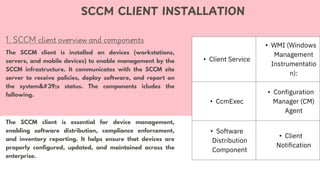
The SCCM client is installed on devices (workstations,
servers, and mobile devices) to enable management by the
SCCM infrastructure. It communicates with the SCCM site
server to receive policies, deploy software, and report on
the system's status. The components icludes the
following.
The SCCM client is essential for device management,
enabling software distribution, compliance enforcement,
and inventory reporting. It helps ensure that devices are
properly configured, updated, and maintained across the
enterprise.
• Client Service
• WMI (Windows
Management
Instrumentatio
n):
• CcmExec
• Configuration
Manager (CM)
Agent
• Software
Distribution
Component
• Client
Notification
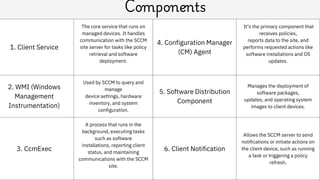
1. Client Service
The core service that runs on
managed devices. It handles
communication with the SCCM
site server for tasks like policy
retrieval and software
deployment.
2. WMI (Windows
Management
Instrumentation)
Used by SCCM to query and
manage
device settings, hardware
inventory, and system
configuration.
3. CcmExec
A process that runs in the
background, executing tasks
such as software
installations, reporting client
status, and maintaining
communications with the SCCM
site.
Components
4. Configuration Manager
(CM) Agent
It’s the primary component that
receives policies,
reports data to the site, and
performs requested actions like
software installations and OS
updates.
5. Software Distribution
Component
Manages the deployment of
software packages,
updates, and operating system
images to client devices.
6. Client Notification
Allows the SCCM server to send
notifications or initiate actions on
the client device, such as running
a task or triggering a policy
refresh.
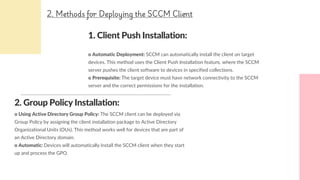
1. Client Push Installation:
o Automatic Deployment: SCCM can automatically install the client on target
devices. This method uses the Client Push Installation feature, where the SCCM
server pushes the client software to devices in specified collections.
o Prerequisite: The target device must have network connectivity to the SCCM
server and the correct permissions for the installation.
2. Group Policy Installation:
o Using Active Directory Group Policy: The SCCM client can be deployed via
Group Policy by assigning the client installation package to Active Directory
Organizational Units (OUs). This method works well for devices that are part of
an Active Directory domain.
o Automatic: Devices will automatically install the SCCM client when they start
up and process the GPO.
2. Methods for Deploying the SCCM Client
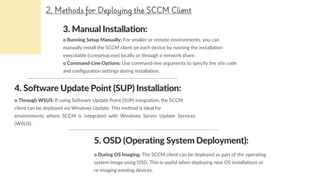
3. Manual Installation:
o Running Setup Manually: For smaller or remote environments, you can
manually install the SCCM client on each device by running the installation
executable (ccmsetup.exe) locally or through a network share.
o Command-Line Options: Use command-line arguments to specify the site code
and configuration settings during installation.
4. Software Update Point (SUP) Installation:
o Through WSUS: If using Software Update Point (SUP) integration, the SCCM
client can be deployed via Windows Update. This method is ideal for
environments where SCCM is integrated with Windows Server Update Services
(WSUS).
2. Methods for Deploying the SCCM Client
o During OS Imaging: The SCCM client can be deployed as part of the operating
system image using OSD. This is useful when deploying new OS installations or
re-imaging existing devices.
5. OSD (Operating System Deployment):
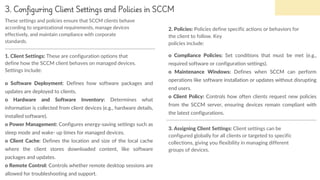
3. Configuring Client Settings and Policies in SCCM
o Software Deployment: Defines how software packages and
updates are deployed to clients.
o Hardware and Software Inventory: Determines what
information is collected from client devices (e.g., hardware details,
installed software).
o Power Management: Configures energy-saving settings such as
sleep mode and wake- up times for managed devices.
o Client Cache: Defines the location and size of the local cache
where the client stores downloaded content, like software
packages and updates.
o Remote Control: Controls whether remote desktop sessions are
allowed for troubleshooting and support.
1. Client Settings: These are configuration options that
define how the SCCM client behaves on managed devices.
Settings include:
o Compliance Policies: Set conditions that must be met (e.g.,
required software or configuration settings).
o Maintenance Windows: Defines when SCCM can perform
operations like software installation or updates without disrupting
end users.
o Client Policy: Controls how often clients request new policies
from the SCCM server, ensuring devices remain compliant with
the latest configurations.
2. Policies: Policies define specific actions or behaviors for
the client to follow. Key
policies include:
3. Assigning Client Settings: Client settings can be
configured globally for all clients or targeted to specific
collections, giving you flexibility in managing different
groups of devices.
These settings and policies ensure that SCCM clients behave
according to organizational requirements, manage devices
effectively, and maintain compliance with corporate
standards.
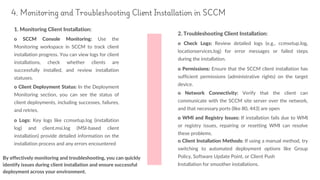
1. Monitoring Client Installation:
o SCCM Console Monitoring: Use the
Monitoring workspace in SCCM to track client
installation progress. You can view logs for client
installations, check whether clients are
successfully installed, and review installation
statuses.
o Client Deployment Status: In the Deployment
Monitoring section, you can see the status of
client deployments, including successes, failures,
and retries.
o Logs: Key logs like ccmsetup.log (installation
log) and client.msi.log (MSI-based client
installation) provide detailed information on the
installation process and any errors encountered
2. Troubleshooting Client Installation:
o Check Logs: Review detailed logs (e.g., ccmsetup.log,
locationservices.log) for error messages or failed steps
during the installation.
o Permissions: Ensure that the SCCM client installation has
sufficient permissions (administrative rights) on the target
device.
o Network Connectivity: Verify that the client can
communicate with the SCCM site server over the network,
and that necessary ports (like 80, 443) are open
o WMI and Registry Issues: If installation fails due to WMI
or registry issues, repairing or resetting WMI can resolve
these problems.
o Client Installation Methods: If using a manual method, try
switching to automated deployment options like Group
Policy, Software Update Point, or Client Push
Installation for smoother installations.
By effectively monitoring and troubleshooting, you can quickly
identify issues during client installation and ensure successful
deployment across your environment.
4. Monitoring and Troubleshooting Client Installation in SCCM
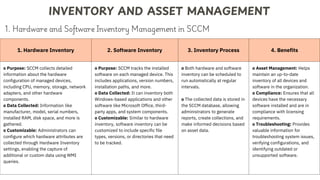
1. Hardware Inventory 2. Software Inventory 3. Inventory Process 4. Benefits
o Purpose: SCCM collects detailed
information about the hardware
configuration of managed devices,
including CPU, memory, storage, network
adapters, and other hardware
components.
o Data Collected: Information like
manufacturer, model, serial numbers,
installed RAM, disk space, and more is
gathered.
o Customizable: Administrators can
configure which hardware attributes are
collected through Hardware Inventory
settings, enabling the capture of
additional or custom data using WMI
queries.
o Purpose: SCCM tracks the installed
software on each managed device. This
includes applications, version numbers,
installation paths, and more.
o Data Collected: It can inventory both
Windows-based applications and other
software like Microsoft Office, third-
party apps, and system components.
o Customizable: Similar to hardware
inventory, software inventory can be
customized to include specific file
types, versions, or directories that need
to be tracked.
o Both hardware and software
inventory can be scheduled to
run automatically at regular
intervals.
o The collected data is stored in
the SCCM database, allowing
administrators to generate
reports, create collections, and
make informed decisions based
on asset data.
o Asset Management: Helps
maintain an up-to-date
inventory of all devices and
software in the organization.
o Compliance: Ensures that all
devices have the necessary
software installed and are in
compliance with licensing
requirements.
o Troubleshooting: Provides
valuable information for
troubleshooting system issues,
verifying configurations, and
identifying outdated or
unsupported software.
INVENTORY AND ASSET MANAGEMENT
1. Hardware and Software Inventory Management in SCCM
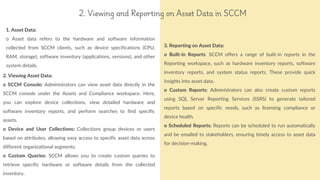
1. Asset Data:
o Asset data refers to the hardware and software information
collected from SCCM clients, such as device specifications (CPU,
RAM, storage), software inventory (applications, versions), and other
system details.
reallyygreatsite.com
2. Viewing and Reporting on Asset Data in SCCM
2. Viewing Asset Data:
o SCCM Console: Administrators can view asset data directly in the
SCCM console under the Assets and Compliance workspace. Here,
you can explore device collections, view detailed hardware and
software inventory reports, and perform searches to find specific
assets.
o Device and User Collections: Collections group devices or users
based on attributes, allowing easy access to specific asset data across
different organizational segments.
o Custom Queries: SCCM allows you to create custom queries to
retrieve specific hardware or software details from the collected
inventory.
3. Reporting on Asset Data:
o Built-in Reports: SCCM offers a range of built-in reports in the
Reporting workspace, such as hardware inventory reports, software
inventory reports, and system status reports. These provide quick
insights into asset data.
o Custom Reports: Administrators can also create custom reports
using SQL Server Reporting Services (SSRS) to generate tailored
reports based on specific needs, such as licensing compliance or
device health.
o Scheduled Reports: Reports can be scheduled to run automatically
and be emailed to stakeholders, ensuring timely access to asset data
for decision-making.
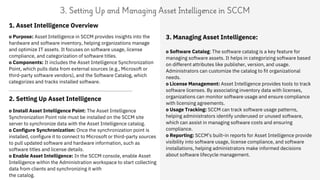
1. Asset Intelligence Overview
o Purpose: Asset Intelligence in SCCM provides insights into the
hardware and software inventory, helping organizations manage
and optimize IT assets. It focuses on software usage, license
compliance, and categorization of software titles.
o Components: It includes the Asset Intelligence Synchronization
Point, which pulls data from external sources (e.g., Microsoft or
third-party software vendors), and the Software Catalog, which
categorizes and tracks installed software.
3. Setting Up and Managing Asset Intelligence in SCCM
o Install Asset Intelligence Point: The Asset Intelligence
Synchronization Point role must be installed on the SCCM site
server to synchronize data with the Asset Intelligence catalog.
o Configure Synchronization: Once the synchronization point is
installed, configure it to connect to Microsoft or third-party sources
to pull updated software and hardware information, such as
software titles and license details.
o Enable Asset Intelligence: In the SCCM console, enable Asset
Intelligence within the Administration workspace to start collecting
data from clients and synchronizing it with
the catalog.
2. Setting Up Asset Intelligence
o Software Catalog: The software catalog is a key feature for
managing software assets. It helps in categorizing software based
on different attributes like publisher, version, and usage.
Administrators can customize the catalog to fit organizational
needs.
o License Management: Asset Intelligence provides tools to track
software licenses. By associating inventory data with licenses,
organizations can monitor software usage and ensure compliance
with licensing agreements.
o Usage Tracking: SCCM can track software usage patterns,
helping administrators identify underused or unused software,
which can assist in managing software costs and ensuring
compliance.
o Reporting: SCCM’s built-in reports for Asset Intelligence provide
visibility into software usage, license compliance, and software
installations, helping administrators make informed decisions
about software lifecycle management.
3. Managing Asset Intelligence:
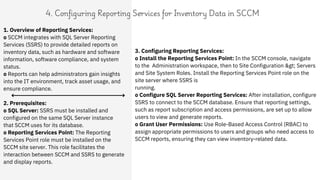
1. Overview of Reporting Services:
o SCCM integrates with SQL Server Reporting
Services (SSRS) to provide detailed reports on
inventory data, such as hardware and software
information, software compliance, and system
status.
o Reports can help administrators gain insights
into the IT environment, track asset usage, and
ensure compliance.
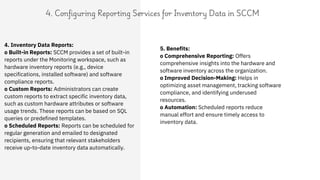
4. Configuring Reporting Services for Inventory Data in SCCM
2. Prerequisites:
o SQL Server: SSRS must be installed and
configured on the same SQL Server instance
that SCCM uses for its database.
o Reporting Services Point: The Reporting
Services Point role must be installed on the
SCCM site server. This role facilitates the
interaction between SCCM and SSRS to generate
and display reports.
3. Configuring Reporting Services:
o Install the Reporting Services Point: In the SCCM console, navigate
to the Administration workspace, then to Site Configuration > Servers
and Site System Roles. Install the Reporting Services Point role on the
site server where SSRS is
running.
o Configure SQL Server Reporting Services: After installation, configure
SSRS to connect to the SCCM database. Ensure that reporting settings,
such as report subscription and access permissions, are set up to allow
users to view and generate reports.
o Grant User Permissions: Use Role-Based Access Control (RBAC) to
assign appropriate permissions to users and groups who need access to
SCCM reports, ensuring they can view inventory-related data.
4. Configuring Reporting Services for Inventory Data in SCCM
5. Benefits:
o Comprehensive Reporting: Offers
comprehensive insights into the hardware and
software inventory across the organization.
o Improved Decision-Making: Helps in
optimizing asset management, tracking software
compliance, and identifying underused
resources.
o Automation: Scheduled reports reduce
manual effort and ensure timely access to
inventory data.
4. Inventory Data Reports:
o Built-in Reports: SCCM provides a set of built-in
reports under the Monitoring workspace, such as
hardware inventory reports (e.g., device
specifications, installed software) and software
compliance reports.
o Custom Reports: Administrators can create
custom reports to extract specific inventory data,
such as custom hardware attributes or software
usage trends. These reports can be based on SQL
queries or predefined templates.
o Scheduled Reports: Reports can be scheduled for
regular generation and emailed to designated
recipients, ensuring that relevant stakeholders
receive up-to-date inventory data automatically.
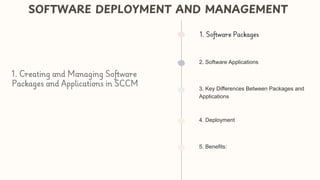
2. Software Applications
3. Key Differences Between Packages and
Applications
4. Deployment
SOFTWARE DEPLOYMENT AND MANAGEMENT
1. Creating and Managing Software
Packages and Applications in SCCM
1. Software Packages
5. Benefits:
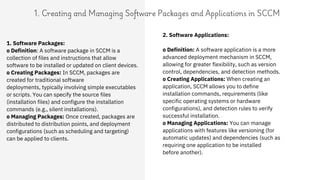
1. Creating and Managing Software Packages and Applications in SCCM
2. Software Applications:
o Definition: A software application is a more
advanced deployment mechanism in SCCM,
allowing for greater flexibility, such as version
control, dependencies, and detection methods.
o Creating Applications: When creating an
application, SCCM allows you to define
installation commands, requirements (like
specific operating systems or hardware
configurations), and detection rules to verify
successful installation.
o Managing Applications: You can manage
applications with features like versioning (for
automatic updates) and dependencies (such as
requiring one application to be installed
before another).
1. Software Packages:
o Definition: A software package in SCCM is a
collection of files and instructions that allow
software to be installed or updated on client devices.
o Creating Packages: In SCCM, packages are
created for traditional software
deployments, typically involving simple executables
or scripts. You can specify the source files
(installation files) and configure the installation
commands (e.g., silent installations).
o Managing Packages: Once created, packages are
distributed to distribution points, and deployment
configurations (such as scheduling and targeting)
can be applied to clients.
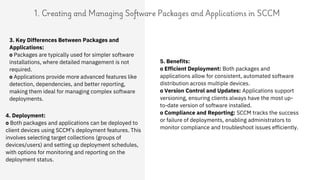
1. Creating and Managing Software Packages and Applications in SCCM
4. Deployment:
o Both packages and applications can be deployed to
client devices using SCCM’s deployment features. This
involves selecting target collections (groups of
devices/users) and setting up deployment schedules,
with options for monitoring and reporting on the
deployment status.
3. Key Differences Between Packages and
Applications:
o Packages are typically used for simpler software
installations, where detailed management is not
required.
o Applications provide more advanced features like
detection, dependencies, and better reporting,
making them ideal for managing complex software
deployments.
5. Benefits:
o Efficient Deployment: Both packages and
applications allow for consistent, automated software
distribution across multiple devices.
o Version Control and Updates: Applications support
versioning, ensuring clients always have the most up-
to-date version of software installed.
o Compliance and Reporting: SCCM tracks the success
or failure of deployments, enabling administrators to
monitor compliance and troubleshoot issues efficiently.
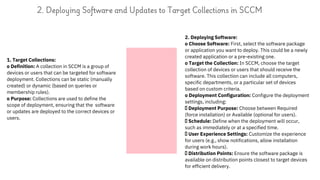
1. Target Collections:
o Definition: A collection in SCCM is a group of
devices or users that can be targeted for software
deployment. Collections can be static (manually
created) or dynamic (based on queries or
membership rules).
o Purpose: Collections are used to define the
scope of deployment, ensuring that the software
or updates are deployed to the correct devices or
users.
2. Deploying Software and Updates to Target Collections in SCCM
2. Deploying Software:
o Choose Software: First, select the software package
or application you want to deploy. This could be a newly
created application or a pre-existing one.
o Target the Collection: In SCCM, choose the target
collection of devices or users that should receive the
software. This collection can include all computers,
specific departments, or a particular set of devices
based on custom criteria.
o Deployment Configuration: Configure the deployment
settings, including:
Deployment Purpose: Choose between Required
(force installation) or Available (optional for users).
Schedule: Define when the deployment will occur,
such as immediately or at a specified time.
User Experience Settings: Customize the experience
for users (e.g., show notifications, allow installation
during work hours).
Distribution Points: Ensure the software package is
available on distribution points closest to target devices
for efficient delivery.
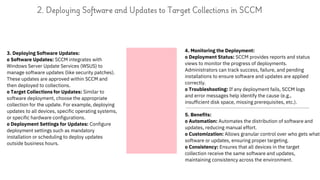
3. Deploying Software Updates:
o Software Updates: SCCM integrates with
Windows Server Update Services (WSUS) to
manage software updates (like security patches).
These updates are approved within SCCM and
then deployed to collections.
o Target Collections for Updates: Similar to
software deployment, choose the appropriate
collection for the update. For example, deploying
updates to all devices, specific operating systems,
or specific hardware configurations.
o Deployment Settings for Updates: Configure
deployment settings such as mandatory
installation or scheduling to deploy updates
outside business hours.
2. Deploying Software and Updates to Target Collections in SCCM
4. Monitoring the Deployment:
o Deployment Status: SCCM provides reports and status
views to monitor the progress of deployments.
Administrators can track success, failure, and pending
installations to ensure software and updates are applied
correctly.
o Troubleshooting: If any deployment fails, SCCM logs
and error messages help identify the cause (e.g.,
insufficient disk space, missing prerequisites, etc.).
5. Benefits:
o Automation: Automates the distribution of software and
updates, reducing manual effort.
o Customization: Allows granular control over who gets what
software or updates, ensuring proper targeting.
o Consistency: Ensures that all devices in the target
collection receive the same software and updates,
maintaining consistency across the environment.
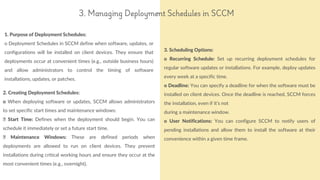
1. Purpose of Deployment Schedules:
o Deployment Schedules in SCCM define when software, updates, or
configurations will be installed on client devices. They ensure that
deployments occur at convenient times (e.g., outside business hours)
and allow administrators to control the timing of software
installations, updates, or patches.
reallyygreatsite.com
3. Managing Deployment Schedules in SCCM
2. Creating Deployment Schedules:
o When deploying software or updates, SCCM allows administrators
to set specific start times and maintenance windows:
Start Time: Defines when the deployment should begin. You can
schedule it immediately or set a future start time.
Maintenance Windows: These are defined periods when
deployments are allowed to run on client devices. They prevent
installations during critical working hours and ensure they occur at the
most convenient times (e.g., overnight).
3. Scheduling Options:
o Recurring Schedule: Set up recurring deployment schedules for
regular software updates or installations. For example, deploy updates
every week at a specific time.
o Deadline: You can specify a deadline for when the software must be
installed on client devices. Once the deadline is reached, SCCM forces
the installation, even if it’s not
during a maintenance window.
o User Notifications: You can configure SCCM to notify users of
pending installations and allow them to install the software at their
convenience within a given time frame.
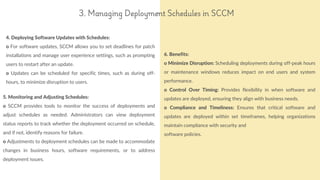
4. Deploying Software Updates with Schedules:
o For software updates, SCCM allows you to set deadlines for patch
installations and manage user experience settings, such as prompting
users to restart after an update.
o Updates can be scheduled for specific times, such as during off-
hours, to minimize disruption to users.
reallyygreatsite.com
3. Managing Deployment Schedules in SCCM
5. Monitoring and Adjusting Schedules:
o SCCM provides tools to monitor the success of deployments and
adjust schedules as needed. Administrators can view deployment
status reports to track whether the deployment occurred on schedule,
and if not, identify reasons for failure.
o Adjustments to deployment schedules can be made to accommodate
changes in business hours, software requirements, or to address
deployment issues.
6. Benefits:
o Minimize Disruption: Scheduling deployments during off-peak hours
or maintenance windows reduces impact on end users and system
performance.
o Control Over Timing: Provides flexibility in when software and
updates are deployed, ensuring they align with business needs.
o Compliance and Timeliness: Ensures that critical software and
updates are deployed within set timeframes, helping organizations
maintain compliance with security and
software policies.
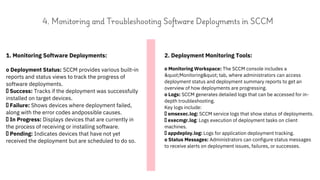
1. Monitoring Software Deployments:
o Deployment Status: SCCM provides various built-in
reports and status views to track the progress of
software deployments.
Success: Tracks if the deployment was successfully
installed on target devices.
Failure: Shows devices where deployment failed,
along with the error codes andpossible causes.
In Progress: Displays devices that are currently in
the process of receiving or installing software.
Pending: Indicates devices that have not yet
received the deployment but are scheduled to do so.
2. Deployment Monitoring Tools:
o Monitoring Workspace: The SCCM console includes a
"Monitoring" tab, where administrators can access
deployment status and deployment summary reports to get an
overview of how deployments are progressing.
o Logs: SCCM generates detailed logs that can be accessed for in-
depth troubleshooting.
Key logs include:
smsexec.log: SCCM service logs that show status of deployments.
execmgr.log: Logs execution of deployment tasks on client
machines.
appdeploy.log: Logs for application deployment tracking.
o Status Messages: Administrators can configure status messages
to receive alerts on deployment issues, failures, or successes.
4. Monitoring and Troubleshooting Software Deployments in SCCM
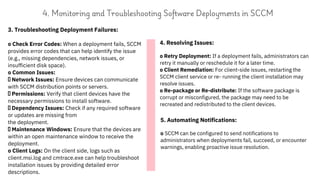
3. Troubleshooting Deployment Failures:
o Check Error Codes: When a deployment fails, SCCM
provides error codes that can help identify the issue
(e.g., missing dependencies, network issues, or
insufficient disk space).
o Common Issues:
Network Issues: Ensure devices can communicate
with SCCM distribution points or servers.
Permissions: Verify that client devices have the
necessary permissions to install software.
Dependency Issues: Check if any required software
or updates are missing from
the deployment.
Maintenance Windows: Ensure that the devices are
within an open maintenance window to receive the
deployment.
o Client Logs: On the client side, logs such as
client.msi.log and cmtrace.exe can help troubleshoot
installation issues by providing detailed error
descriptions.
4. Resolving Issues:
o Retry Deployment: If a deployment fails, administrators can
retry it manually or reschedule it for a later time.
o Client Remediation: For client-side issues, restarting the
SCCM client service or re- running the client installation may
resolve issues.
o Re-package or Re-distribute: If the software package is
corrupt or misconfigured, the package may need to be
recreated and redistributed to the client devices.
4. Monitoring and Troubleshooting Software Deployments in SCCM
5. Automating Notifications:
o SCCM can be configured to send notifications to
administrators when deployments fail, succeed, or encounter
warnings, enabling proactive issue resolution.
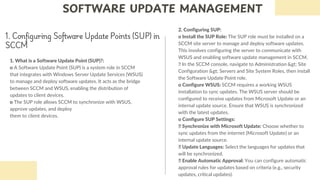
1. Configuring Software Update Points (SUP) in
SCCM
1. What is a Software Update Point (SUP)?:
o A Software Update Point (SUP) is a system role in SCCM
that integrates with Windows Server Update Services (WSUS)
to manage and deploy software updates. It acts as the bridge
between SCCM and WSUS, enabling the distribution of
updates to client devices.
o The SUP role allows SCCM to synchronize with WSUS,
approve updates, and deploy
them to client devices.
2. Configuring SUP:
o Install the SUP Role: The SUP role must be installed on a
SCCM site server to manage and deploy software updates.
This involves configuring the server to communicate with
WSUS and enabling software update management in SCCM.
In the SCCM console, navigate to Administration > Site
Configuration > Servers and Site System Roles, then install
the Software Update Point role.
o Configure WSUS: SCCM requires a working WSUS
installation to sync updates. The WSUS server should be
configured to receive updates from Microsoft Update or an
internal update source. Ensure that WSUS is synchronized
with the latest updates.
o Configure SUP Settings:
Synchronize with Microsoft Update: Choose whether to
sync updates from the internet (Microsoft Update) or an
internal update source.
Update Languages: Select the languages for updates that
will be synchronized.
Enable Automatic Approval: You can configure automatic
approval rules for updates based on criteria (e.g., security
updates, critical updates).
SOFTWARE UPDATE MANAGEMENT
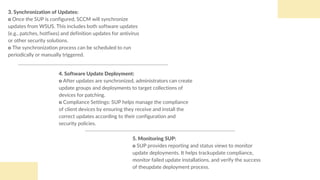
5. Monitoring SUP:
o SUP provides reporting and status views to monitor
update deployments. It helps trackupdate compliance,
monitor failed update installations, and verify the success
of theupdate deployment process.
4. Software Update Deployment:
o After updates are synchronized, administrators can create
update groups and deployments to target collections of
devices for patching.
o Compliance Settings: SUP helps manage the compliance
of client devices by ensuring they receive and install the
correct updates according to their configuration and
security policies.
3. Synchronization of Updates:
o Once the SUP is configured, SCCM will synchronize
updates from WSUS. This includes both software updates
(e.g., patches, hotfixes) and definition updates for antivirus
or other security solutions.
o The synchronization process can be scheduled to run
periodically or manually triggered.
2. Managing Windows Updates using SCCM
1. Overview:
o SCCM enables centralized management of Windows
Updates across devices in an organization. By integrating
with WSUS (Windows Server Update Services), SCCM
can synchronize, approve, deploy, and monitor Windows
updates for client machines.
2. Software Update Point (SUP):
o SCCM uses the Software Update Point (SUP) role to sync
with WSUS, which then downloads updates from Microsoft
Update or an internal WSUS server. The SUP allows
SCCM to organize, approve, and deploy updates to devices.
3. Synchronizing Updates:
o SCCM can synchronize updates from Microsoft Update,
ensuring the latest security patches, critical updates, and
feature updates are available for deployment. The
synchronization process can be automated or manually
triggered through SCCM.
o You can select the languages and types of updates
(security, critical, etc.) to be synchronized based on
organizational needs.
4. Creating Update Groups:
o After synchronization, updates can be grouped into
update groups based on specific criteria (e.g., update type,
severity). These groups help organize updates for easier
deployment.
o You can also specify deployment packages to distribute
updates across multiple devices.
2. Managing Windows Updates using SCCM
5. Deploying Updates:
o Updates are deployed to client machines via collections.
SCCM allows you to specify deployment schedules, user
notifications, and the required update installations (critical
or optional).
o Deployment Types: Updates can be configured to be
installed automatically or manually, with settings that
include deadlines and user prompts.
7. Client Settings and Maintenance:
o SCCM client settings can be configured to manage the
way updates are applied. You can control:
Whether clients are allowed to install updates
automatically or manually.
The frequency and time window during which updates
should be installed.
o Maintenance Windows: Clients can be configured to only
apply updates during specified maintenance windows to
minimize disruption.
6. Monitoring and Reporting:
o SCCM provides real-time monitoring and reporting for
update deployments, enabling administrators to track the
installation status, identify failed deployments, and ensure
that all devices are compliant with the update policies.
o Compliance Reports: These reports help verify that
updates are installed on all client devices, providing a clear
view of which systems are up-to-date or need attention.
8. Troubleshooting:
o SCCM provides detailed logs and status messages to
diagnose issues with update deployment. Logs such as
wsusctrl.log and UpdatesDeployment.log provide insights
into the synchronization and installation processes.
o Failed updates can be retried, and issues like missing
dependencies or network connectivity can be resolved
based on these logs.
3. Deploying Critical Patches and Updates using SCCM
1. Overview:
o Deploying critical patches and security updates is
essential to maintaining the security and functionality of
systems within an organization. SCCM provides a
centralized solution to automatically deploy these updates
to ensure that all systems remain up-to- date and secure.
2. Identifying Critical Patches:
o Critical patches, including security updates, hotfixes, and
service packs, are identified and synchronized from
Microsoft Update through the Software Update Point
(SUP) in SCCM.
o SCCM administrators can filter and target critical updates
based on severity and impact, prioritizing patches that
address vulnerabilities.
3. Approval of Critical Patches:
o After synchronization, updates are available in the SCCM
console, where administrators can approve specific critical
patches for deployment.
o Administrators can use automatic approval rules to
automatically approve critical updates based on criteria
such as update classification or severity level.
4. Creating Update Groups:
o Critical patches are organized into update groups for
easier management and deployment. This allows for clear
categorization and ensures that only the necessary
updates are applied to each set of devices.
3. Deploying Critical Patches and Updates using SCCM
5. Deployment to Target Collections:
o Once patches are approved and grouped, SCCM allows
administrators to deploy them to target collections of
devices (e.g., specific user groups, server systems, or
workstations).
o Deployment Schedules: The deployment can be
scheduled for immediate installation or delayed to a
specific time. Deadlines can also be set to enforce
installation by a particular date.
7. Maintenance Windows:
o Critical patches can be deployed during maintenance
windows to minimize disruption. Maintenance windows
specify periods during which updates can be applied
without effecting user productivity.
6. User Notifications:
o SCCM can notify users when critical patches are about to
be installed, especially if a restart is required.
Administrators can configure whether to allow users to
delay or defer updates.
8. Monitoring and Reporting:
o SCCM provides monitoring tools to track the success or
failure of the patch deployment. Administrators can view
real-time status and deployment reports to verify that
critical patches are successfully installed across all targeted
devices.
o Compliance Reports: These reports show whether
devices are compliant with patching policies, ensuring that
all critical patches have been applied.
9. Troubleshooting:
o In case of failed patch deployments, SCCM logs (such as
UpdatesDeployment.log and WUAHandler.log) provide
detailed error messages, allowing administrators to
troubleshoot and resolve issues (e.g., download failures,
client configuration problems).
4. Monitoring Update Deployments and Compliance using SCCM
1. Overview:
o SCCM provides tools to monitor the status of update
deployments and track compliance. to ensure that critical
patches and updates are applied to all target systems. This
helps administrators verify that all systems remain secure
and up-to-date.
3. Deployment Monitoring Tools:
o Deployment Status: This tool allows administrators to
view detailed information on update deployments to
collections, including how many devices have successfully
installed the updates and which devices are experiencing
issues.
o Update Deployment Reports: SCCM generates reports
that provide insights into the overall success or failure of
update deployments. These reports can be used to assess
compliance across the organization.
2. Monitoring Deployment Status:
o In SCCM, administrators can view the status of update
deployments through the Monitoring workspace in the
SCCM console. This provides a real-time view of how
updates are being deployed to client machines.
o Key status indicators include:
In Progress: Updates are being installed.
Succeeded: Updates have been successfully installed.
Failed: Updates could not be installed (due to errors or
conflicts).
Pending: Updates are scheduled but not yet applied.
4. Compliance Monitoring:
o Compliance Status: SCCM provides compliance reports
that show which systems are in compliance with the
organization's update policies. These reports identify
machines that are missing critical updates or that failed to
install them.
o Software Update Compliance Dashboard: This
dashboard allows for a high-level view of update
compliance across all devices, indicating whether updates
are applied in a timely manner.
5. Update Reports:
o SCCM includes customizable reports that help track the
success and failure of update deployments. These include:
Software Update Compliance: Details on which devices
have missing updates.
Deployment Status: Information on the success or failure
of specific update deployments.
Update Installation Results: For tracking the results of
installed updates and troubleshooting any errors.
7. Notification of Compliance Issues:
o SCCM can be configured to notify administrators if there
are compliance issues, such as when a large number of
devices are missing critical updates. Notifications can
trigger actions to ensure updates are applied promptly.
6. Troubleshooting Failed Deployments:
o If updates fail to deploy, SCCM provides detailed logs,
such as WUAHandler.log and UpdatesDeployment.log, that
help identify the root cause (e.g., network issues, client
configuration problems, or conflicting updates).
o Administrators can also retry failed deployments and
adjust deployment settings if
needed.
8. Benefits:
o Proactive Monitoring: Administrators can proactively
identify and resolve deployment issues before they become
a security risk.
o Increased Compliance: Helps ensure all devices are
compliant with the organization's patch management
policies, reducing vulnerabilities and improving system
security.
o Efficiency: Automation and reporting reduce manual
efforts, making update deployment and compliance
tracking more efficient.
In summary, SCCM provides comprehensive monitoring
and reporting tools that enable administrators to track the
success of update deployments, ensure compliance, and
quickly address any issues that may arise during the update
4. Monitoring Update Deployments and Compliance using SCCM

SCCM Client Management & Deployment_U2_Dr M Jaithoon Bibi.pdf

  • 1.
    Dr. M. JaithoonBibi Assistant Professor Department of Computer Science with Cognitive Systems Sri Ramakrishna College of Arts & Science jaithoonbibi@srcas.ac.in SCCM Client Management and Deployment
  • 2.
  • 3.
    1. SCCM clientoverview and components SCCM CLIENT INSTALLATION The SCCM client is installed on devices (workstations, servers, and mobile devices) to enable management by the SCCM infrastructure. It communicates with the SCCM site server to receive policies, deploy software, and report on the system's status. The components icludes the following. The SCCM client is essential for device management, enabling software distribution, compliance enforcement, and inventory reporting. It helps ensure that devices are properly configured, updated, and maintained across the enterprise. • Client Service • WMI (Windows Management Instrumentatio n): • CcmExec • Configuration Manager (CM) Agent • Software Distribution Component • Client Notification
  • 4.
    1. Client Service Thecore service that runs on managed devices. It handles communication with the SCCM site server for tasks like policy retrieval and software deployment. 2. WMI (Windows Management Instrumentation) Used by SCCM to query and manage device settings, hardware inventory, and system configuration. 3. CcmExec A process that runs in the background, executing tasks such as software installations, reporting client status, and maintaining communications with the SCCM site. Components 4. Configuration Manager (CM) Agent It’s the primary component that receives policies, reports data to the site, and performs requested actions like software installations and OS updates. 5. Software Distribution Component Manages the deployment of software packages, updates, and operating system images to client devices. 6. Client Notification Allows the SCCM server to send notifications or initiate actions on the client device, such as running a task or triggering a policy refresh.
  • 5.
    1. Client PushInstallation: o Automatic Deployment: SCCM can automatically install the client on target devices. This method uses the Client Push Installation feature, where the SCCM server pushes the client software to devices in specified collections. o Prerequisite: The target device must have network connectivity to the SCCM server and the correct permissions for the installation. 2. Group Policy Installation: o Using Active Directory Group Policy: The SCCM client can be deployed via Group Policy by assigning the client installation package to Active Directory Organizational Units (OUs). This method works well for devices that are part of an Active Directory domain. o Automatic: Devices will automatically install the SCCM client when they start up and process the GPO. 2. Methods for Deploying the SCCM Client
  • 6.
    3. Manual Installation: oRunning Setup Manually: For smaller or remote environments, you can manually install the SCCM client on each device by running the installation executable (ccmsetup.exe) locally or through a network share. o Command-Line Options: Use command-line arguments to specify the site code and configuration settings during installation. 4. Software Update Point (SUP) Installation: o Through WSUS: If using Software Update Point (SUP) integration, the SCCM client can be deployed via Windows Update. This method is ideal for environments where SCCM is integrated with Windows Server Update Services (WSUS). 2. Methods for Deploying the SCCM Client o During OS Imaging: The SCCM client can be deployed as part of the operating system image using OSD. This is useful when deploying new OS installations or re-imaging existing devices. 5. OSD (Operating System Deployment):
  • 7.
    3. Configuring ClientSettings and Policies in SCCM o Software Deployment: Defines how software packages and updates are deployed to clients. o Hardware and Software Inventory: Determines what information is collected from client devices (e.g., hardware details, installed software). o Power Management: Configures energy-saving settings such as sleep mode and wake- up times for managed devices. o Client Cache: Defines the location and size of the local cache where the client stores downloaded content, like software packages and updates. o Remote Control: Controls whether remote desktop sessions are allowed for troubleshooting and support. 1. Client Settings: These are configuration options that define how the SCCM client behaves on managed devices. Settings include: o Compliance Policies: Set conditions that must be met (e.g., required software or configuration settings). o Maintenance Windows: Defines when SCCM can perform operations like software installation or updates without disrupting end users. o Client Policy: Controls how often clients request new policies from the SCCM server, ensuring devices remain compliant with the latest configurations. 2. Policies: Policies define specific actions or behaviors for the client to follow. Key policies include: 3. Assigning Client Settings: Client settings can be configured globally for all clients or targeted to specific collections, giving you flexibility in managing different groups of devices. These settings and policies ensure that SCCM clients behave according to organizational requirements, manage devices effectively, and maintain compliance with corporate standards.
  • 8.
    1. Monitoring ClientInstallation: o SCCM Console Monitoring: Use the Monitoring workspace in SCCM to track client installation progress. You can view logs for client installations, check whether clients are successfully installed, and review installation statuses. o Client Deployment Status: In the Deployment Monitoring section, you can see the status of client deployments, including successes, failures, and retries. o Logs: Key logs like ccmsetup.log (installation log) and client.msi.log (MSI-based client installation) provide detailed information on the installation process and any errors encountered 2. Troubleshooting Client Installation: o Check Logs: Review detailed logs (e.g., ccmsetup.log, locationservices.log) for error messages or failed steps during the installation. o Permissions: Ensure that the SCCM client installation has sufficient permissions (administrative rights) on the target device. o Network Connectivity: Verify that the client can communicate with the SCCM site server over the network, and that necessary ports (like 80, 443) are open o WMI and Registry Issues: If installation fails due to WMI or registry issues, repairing or resetting WMI can resolve these problems. o Client Installation Methods: If using a manual method, try switching to automated deployment options like Group Policy, Software Update Point, or Client Push Installation for smoother installations. By effectively monitoring and troubleshooting, you can quickly identify issues during client installation and ensure successful deployment across your environment. 4. Monitoring and Troubleshooting Client Installation in SCCM
  • 9.
    1. Hardware Inventory2. Software Inventory 3. Inventory Process 4. Benefits o Purpose: SCCM collects detailed information about the hardware configuration of managed devices, including CPU, memory, storage, network adapters, and other hardware components. o Data Collected: Information like manufacturer, model, serial numbers, installed RAM, disk space, and more is gathered. o Customizable: Administrators can configure which hardware attributes are collected through Hardware Inventory settings, enabling the capture of additional or custom data using WMI queries. o Purpose: SCCM tracks the installed software on each managed device. This includes applications, version numbers, installation paths, and more. o Data Collected: It can inventory both Windows-based applications and other software like Microsoft Office, third- party apps, and system components. o Customizable: Similar to hardware inventory, software inventory can be customized to include specific file types, versions, or directories that need to be tracked. o Both hardware and software inventory can be scheduled to run automatically at regular intervals. o The collected data is stored in the SCCM database, allowing administrators to generate reports, create collections, and make informed decisions based on asset data. o Asset Management: Helps maintain an up-to-date inventory of all devices and software in the organization. o Compliance: Ensures that all devices have the necessary software installed and are in compliance with licensing requirements. o Troubleshooting: Provides valuable information for troubleshooting system issues, verifying configurations, and identifying outdated or unsupported software. INVENTORY AND ASSET MANAGEMENT 1. Hardware and Software Inventory Management in SCCM
  • 10.
    1. Asset Data: oAsset data refers to the hardware and software information collected from SCCM clients, such as device specifications (CPU, RAM, storage), software inventory (applications, versions), and other system details. reallyygreatsite.com 2. Viewing and Reporting on Asset Data in SCCM 2. Viewing Asset Data: o SCCM Console: Administrators can view asset data directly in the SCCM console under the Assets and Compliance workspace. Here, you can explore device collections, view detailed hardware and software inventory reports, and perform searches to find specific assets. o Device and User Collections: Collections group devices or users based on attributes, allowing easy access to specific asset data across different organizational segments. o Custom Queries: SCCM allows you to create custom queries to retrieve specific hardware or software details from the collected inventory. 3. Reporting on Asset Data: o Built-in Reports: SCCM offers a range of built-in reports in the Reporting workspace, such as hardware inventory reports, software inventory reports, and system status reports. These provide quick insights into asset data. o Custom Reports: Administrators can also create custom reports using SQL Server Reporting Services (SSRS) to generate tailored reports based on specific needs, such as licensing compliance or device health. o Scheduled Reports: Reports can be scheduled to run automatically and be emailed to stakeholders, ensuring timely access to asset data for decision-making.
  • 11.
    1. Asset IntelligenceOverview o Purpose: Asset Intelligence in SCCM provides insights into the hardware and software inventory, helping organizations manage and optimize IT assets. It focuses on software usage, license compliance, and categorization of software titles. o Components: It includes the Asset Intelligence Synchronization Point, which pulls data from external sources (e.g., Microsoft or third-party software vendors), and the Software Catalog, which categorizes and tracks installed software. 3. Setting Up and Managing Asset Intelligence in SCCM o Install Asset Intelligence Point: The Asset Intelligence Synchronization Point role must be installed on the SCCM site server to synchronize data with the Asset Intelligence catalog. o Configure Synchronization: Once the synchronization point is installed, configure it to connect to Microsoft or third-party sources to pull updated software and hardware information, such as software titles and license details. o Enable Asset Intelligence: In the SCCM console, enable Asset Intelligence within the Administration workspace to start collecting data from clients and synchronizing it with the catalog. 2. Setting Up Asset Intelligence o Software Catalog: The software catalog is a key feature for managing software assets. It helps in categorizing software based on different attributes like publisher, version, and usage. Administrators can customize the catalog to fit organizational needs. o License Management: Asset Intelligence provides tools to track software licenses. By associating inventory data with licenses, organizations can monitor software usage and ensure compliance with licensing agreements. o Usage Tracking: SCCM can track software usage patterns, helping administrators identify underused or unused software, which can assist in managing software costs and ensuring compliance. o Reporting: SCCM’s built-in reports for Asset Intelligence provide visibility into software usage, license compliance, and software installations, helping administrators make informed decisions about software lifecycle management. 3. Managing Asset Intelligence:
  • 12.
    1. Overview ofReporting Services: o SCCM integrates with SQL Server Reporting Services (SSRS) to provide detailed reports on inventory data, such as hardware and software information, software compliance, and system status. o Reports can help administrators gain insights into the IT environment, track asset usage, and ensure compliance. 4. Configuring Reporting Services for Inventory Data in SCCM 2. Prerequisites: o SQL Server: SSRS must be installed and configured on the same SQL Server instance that SCCM uses for its database. o Reporting Services Point: The Reporting Services Point role must be installed on the SCCM site server. This role facilitates the interaction between SCCM and SSRS to generate and display reports. 3. Configuring Reporting Services: o Install the Reporting Services Point: In the SCCM console, navigate to the Administration workspace, then to Site Configuration > Servers and Site System Roles. Install the Reporting Services Point role on the site server where SSRS is running. o Configure SQL Server Reporting Services: After installation, configure SSRS to connect to the SCCM database. Ensure that reporting settings, such as report subscription and access permissions, are set up to allow users to view and generate reports. o Grant User Permissions: Use Role-Based Access Control (RBAC) to assign appropriate permissions to users and groups who need access to SCCM reports, ensuring they can view inventory-related data.
  • 13.
    4. Configuring ReportingServices for Inventory Data in SCCM 5. Benefits: o Comprehensive Reporting: Offers comprehensive insights into the hardware and software inventory across the organization. o Improved Decision-Making: Helps in optimizing asset management, tracking software compliance, and identifying underused resources. o Automation: Scheduled reports reduce manual effort and ensure timely access to inventory data. 4. Inventory Data Reports: o Built-in Reports: SCCM provides a set of built-in reports under the Monitoring workspace, such as hardware inventory reports (e.g., device specifications, installed software) and software compliance reports. o Custom Reports: Administrators can create custom reports to extract specific inventory data, such as custom hardware attributes or software usage trends. These reports can be based on SQL queries or predefined templates. o Scheduled Reports: Reports can be scheduled for regular generation and emailed to designated recipients, ensuring that relevant stakeholders receive up-to-date inventory data automatically.
  • 14.
    2. Software Applications 3.Key Differences Between Packages and Applications 4. Deployment SOFTWARE DEPLOYMENT AND MANAGEMENT 1. Creating and Managing Software Packages and Applications in SCCM 1. Software Packages 5. Benefits:
  • 15.
    1. Creating andManaging Software Packages and Applications in SCCM 2. Software Applications: o Definition: A software application is a more advanced deployment mechanism in SCCM, allowing for greater flexibility, such as version control, dependencies, and detection methods. o Creating Applications: When creating an application, SCCM allows you to define installation commands, requirements (like specific operating systems or hardware configurations), and detection rules to verify successful installation. o Managing Applications: You can manage applications with features like versioning (for automatic updates) and dependencies (such as requiring one application to be installed before another). 1. Software Packages: o Definition: A software package in SCCM is a collection of files and instructions that allow software to be installed or updated on client devices. o Creating Packages: In SCCM, packages are created for traditional software deployments, typically involving simple executables or scripts. You can specify the source files (installation files) and configure the installation commands (e.g., silent installations). o Managing Packages: Once created, packages are distributed to distribution points, and deployment configurations (such as scheduling and targeting) can be applied to clients.
  • 16.
    1. Creating andManaging Software Packages and Applications in SCCM 4. Deployment: o Both packages and applications can be deployed to client devices using SCCM’s deployment features. This involves selecting target collections (groups of devices/users) and setting up deployment schedules, with options for monitoring and reporting on the deployment status. 3. Key Differences Between Packages and Applications: o Packages are typically used for simpler software installations, where detailed management is not required. o Applications provide more advanced features like detection, dependencies, and better reporting, making them ideal for managing complex software deployments. 5. Benefits: o Efficient Deployment: Both packages and applications allow for consistent, automated software distribution across multiple devices. o Version Control and Updates: Applications support versioning, ensuring clients always have the most up- to-date version of software installed. o Compliance and Reporting: SCCM tracks the success or failure of deployments, enabling administrators to monitor compliance and troubleshoot issues efficiently.
  • 17.
    1. Target Collections: oDefinition: A collection in SCCM is a group of devices or users that can be targeted for software deployment. Collections can be static (manually created) or dynamic (based on queries or membership rules). o Purpose: Collections are used to define the scope of deployment, ensuring that the software or updates are deployed to the correct devices or users. 2. Deploying Software and Updates to Target Collections in SCCM 2. Deploying Software: o Choose Software: First, select the software package or application you want to deploy. This could be a newly created application or a pre-existing one. o Target the Collection: In SCCM, choose the target collection of devices or users that should receive the software. This collection can include all computers, specific departments, or a particular set of devices based on custom criteria. o Deployment Configuration: Configure the deployment settings, including: Deployment Purpose: Choose between Required (force installation) or Available (optional for users). Schedule: Define when the deployment will occur, such as immediately or at a specified time. User Experience Settings: Customize the experience for users (e.g., show notifications, allow installation during work hours). Distribution Points: Ensure the software package is available on distribution points closest to target devices for efficient delivery.
  • 18.
    3. Deploying SoftwareUpdates: o Software Updates: SCCM integrates with Windows Server Update Services (WSUS) to manage software updates (like security patches). These updates are approved within SCCM and then deployed to collections. o Target Collections for Updates: Similar to software deployment, choose the appropriate collection for the update. For example, deploying updates to all devices, specific operating systems, or specific hardware configurations. o Deployment Settings for Updates: Configure deployment settings such as mandatory installation or scheduling to deploy updates outside business hours. 2. Deploying Software and Updates to Target Collections in SCCM 4. Monitoring the Deployment: o Deployment Status: SCCM provides reports and status views to monitor the progress of deployments. Administrators can track success, failure, and pending installations to ensure software and updates are applied correctly. o Troubleshooting: If any deployment fails, SCCM logs and error messages help identify the cause (e.g., insufficient disk space, missing prerequisites, etc.). 5. Benefits: o Automation: Automates the distribution of software and updates, reducing manual effort. o Customization: Allows granular control over who gets what software or updates, ensuring proper targeting. o Consistency: Ensures that all devices in the target collection receive the same software and updates, maintaining consistency across the environment.
  • 19.
    1. Purpose ofDeployment Schedules: o Deployment Schedules in SCCM define when software, updates, or configurations will be installed on client devices. They ensure that deployments occur at convenient times (e.g., outside business hours) and allow administrators to control the timing of software installations, updates, or patches. reallyygreatsite.com 3. Managing Deployment Schedules in SCCM 2. Creating Deployment Schedules: o When deploying software or updates, SCCM allows administrators to set specific start times and maintenance windows: Start Time: Defines when the deployment should begin. You can schedule it immediately or set a future start time. Maintenance Windows: These are defined periods when deployments are allowed to run on client devices. They prevent installations during critical working hours and ensure they occur at the most convenient times (e.g., overnight). 3. Scheduling Options: o Recurring Schedule: Set up recurring deployment schedules for regular software updates or installations. For example, deploy updates every week at a specific time. o Deadline: You can specify a deadline for when the software must be installed on client devices. Once the deadline is reached, SCCM forces the installation, even if it’s not during a maintenance window. o User Notifications: You can configure SCCM to notify users of pending installations and allow them to install the software at their convenience within a given time frame.
  • 20.
    4. Deploying SoftwareUpdates with Schedules: o For software updates, SCCM allows you to set deadlines for patch installations and manage user experience settings, such as prompting users to restart after an update. o Updates can be scheduled for specific times, such as during off- hours, to minimize disruption to users. reallyygreatsite.com 3. Managing Deployment Schedules in SCCM 5. Monitoring and Adjusting Schedules: o SCCM provides tools to monitor the success of deployments and adjust schedules as needed. Administrators can view deployment status reports to track whether the deployment occurred on schedule, and if not, identify reasons for failure. o Adjustments to deployment schedules can be made to accommodate changes in business hours, software requirements, or to address deployment issues. 6. Benefits: o Minimize Disruption: Scheduling deployments during off-peak hours or maintenance windows reduces impact on end users and system performance. o Control Over Timing: Provides flexibility in when software and updates are deployed, ensuring they align with business needs. o Compliance and Timeliness: Ensures that critical software and updates are deployed within set timeframes, helping organizations maintain compliance with security and software policies.
  • 21.
    1. Monitoring SoftwareDeployments: o Deployment Status: SCCM provides various built-in reports and status views to track the progress of software deployments. Success: Tracks if the deployment was successfully installed on target devices. Failure: Shows devices where deployment failed, along with the error codes andpossible causes. In Progress: Displays devices that are currently in the process of receiving or installing software. Pending: Indicates devices that have not yet received the deployment but are scheduled to do so. 2. Deployment Monitoring Tools: o Monitoring Workspace: The SCCM console includes a "Monitoring" tab, where administrators can access deployment status and deployment summary reports to get an overview of how deployments are progressing. o Logs: SCCM generates detailed logs that can be accessed for in- depth troubleshooting. Key logs include: smsexec.log: SCCM service logs that show status of deployments. execmgr.log: Logs execution of deployment tasks on client machines. appdeploy.log: Logs for application deployment tracking. o Status Messages: Administrators can configure status messages to receive alerts on deployment issues, failures, or successes. 4. Monitoring and Troubleshooting Software Deployments in SCCM
  • 22.
    3. Troubleshooting DeploymentFailures: o Check Error Codes: When a deployment fails, SCCM provides error codes that can help identify the issue (e.g., missing dependencies, network issues, or insufficient disk space). o Common Issues: Network Issues: Ensure devices can communicate with SCCM distribution points or servers. Permissions: Verify that client devices have the necessary permissions to install software. Dependency Issues: Check if any required software or updates are missing from the deployment. Maintenance Windows: Ensure that the devices are within an open maintenance window to receive the deployment. o Client Logs: On the client side, logs such as client.msi.log and cmtrace.exe can help troubleshoot installation issues by providing detailed error descriptions. 4. Resolving Issues: o Retry Deployment: If a deployment fails, administrators can retry it manually or reschedule it for a later time. o Client Remediation: For client-side issues, restarting the SCCM client service or re- running the client installation may resolve issues. o Re-package or Re-distribute: If the software package is corrupt or misconfigured, the package may need to be recreated and redistributed to the client devices. 4. Monitoring and Troubleshooting Software Deployments in SCCM 5. Automating Notifications: o SCCM can be configured to send notifications to administrators when deployments fail, succeed, or encounter warnings, enabling proactive issue resolution.
  • 23.
    1. Configuring SoftwareUpdate Points (SUP) in SCCM 1. What is a Software Update Point (SUP)?: o A Software Update Point (SUP) is a system role in SCCM that integrates with Windows Server Update Services (WSUS) to manage and deploy software updates. It acts as the bridge between SCCM and WSUS, enabling the distribution of updates to client devices. o The SUP role allows SCCM to synchronize with WSUS, approve updates, and deploy them to client devices. 2. Configuring SUP: o Install the SUP Role: The SUP role must be installed on a SCCM site server to manage and deploy software updates. This involves configuring the server to communicate with WSUS and enabling software update management in SCCM. In the SCCM console, navigate to Administration > Site Configuration > Servers and Site System Roles, then install the Software Update Point role. o Configure WSUS: SCCM requires a working WSUS installation to sync updates. The WSUS server should be configured to receive updates from Microsoft Update or an internal update source. Ensure that WSUS is synchronized with the latest updates. o Configure SUP Settings: Synchronize with Microsoft Update: Choose whether to sync updates from the internet (Microsoft Update) or an internal update source. Update Languages: Select the languages for updates that will be synchronized. Enable Automatic Approval: You can configure automatic approval rules for updates based on criteria (e.g., security updates, critical updates). SOFTWARE UPDATE MANAGEMENT
  • 24.
    5. Monitoring SUP: oSUP provides reporting and status views to monitor update deployments. It helps trackupdate compliance, monitor failed update installations, and verify the success of theupdate deployment process. 4. Software Update Deployment: o After updates are synchronized, administrators can create update groups and deployments to target collections of devices for patching. o Compliance Settings: SUP helps manage the compliance of client devices by ensuring they receive and install the correct updates according to their configuration and security policies. 3. Synchronization of Updates: o Once the SUP is configured, SCCM will synchronize updates from WSUS. This includes both software updates (e.g., patches, hotfixes) and definition updates for antivirus or other security solutions. o The synchronization process can be scheduled to run periodically or manually triggered.
  • 25.
    2. Managing WindowsUpdates using SCCM 1. Overview: o SCCM enables centralized management of Windows Updates across devices in an organization. By integrating with WSUS (Windows Server Update Services), SCCM can synchronize, approve, deploy, and monitor Windows updates for client machines. 2. Software Update Point (SUP): o SCCM uses the Software Update Point (SUP) role to sync with WSUS, which then downloads updates from Microsoft Update or an internal WSUS server. The SUP allows SCCM to organize, approve, and deploy updates to devices. 3. Synchronizing Updates: o SCCM can synchronize updates from Microsoft Update, ensuring the latest security patches, critical updates, and feature updates are available for deployment. The synchronization process can be automated or manually triggered through SCCM. o You can select the languages and types of updates (security, critical, etc.) to be synchronized based on organizational needs. 4. Creating Update Groups: o After synchronization, updates can be grouped into update groups based on specific criteria (e.g., update type, severity). These groups help organize updates for easier deployment. o You can also specify deployment packages to distribute updates across multiple devices.
  • 26.
    2. Managing WindowsUpdates using SCCM 5. Deploying Updates: o Updates are deployed to client machines via collections. SCCM allows you to specify deployment schedules, user notifications, and the required update installations (critical or optional). o Deployment Types: Updates can be configured to be installed automatically or manually, with settings that include deadlines and user prompts. 7. Client Settings and Maintenance: o SCCM client settings can be configured to manage the way updates are applied. You can control: Whether clients are allowed to install updates automatically or manually. The frequency and time window during which updates should be installed. o Maintenance Windows: Clients can be configured to only apply updates during specified maintenance windows to minimize disruption. 6. Monitoring and Reporting: o SCCM provides real-time monitoring and reporting for update deployments, enabling administrators to track the installation status, identify failed deployments, and ensure that all devices are compliant with the update policies. o Compliance Reports: These reports help verify that updates are installed on all client devices, providing a clear view of which systems are up-to-date or need attention. 8. Troubleshooting: o SCCM provides detailed logs and status messages to diagnose issues with update deployment. Logs such as wsusctrl.log and UpdatesDeployment.log provide insights into the synchronization and installation processes. o Failed updates can be retried, and issues like missing dependencies or network connectivity can be resolved based on these logs.
  • 27.
    3. Deploying CriticalPatches and Updates using SCCM 1. Overview: o Deploying critical patches and security updates is essential to maintaining the security and functionality of systems within an organization. SCCM provides a centralized solution to automatically deploy these updates to ensure that all systems remain up-to- date and secure. 2. Identifying Critical Patches: o Critical patches, including security updates, hotfixes, and service packs, are identified and synchronized from Microsoft Update through the Software Update Point (SUP) in SCCM. o SCCM administrators can filter and target critical updates based on severity and impact, prioritizing patches that address vulnerabilities. 3. Approval of Critical Patches: o After synchronization, updates are available in the SCCM console, where administrators can approve specific critical patches for deployment. o Administrators can use automatic approval rules to automatically approve critical updates based on criteria such as update classification or severity level. 4. Creating Update Groups: o Critical patches are organized into update groups for easier management and deployment. This allows for clear categorization and ensures that only the necessary updates are applied to each set of devices.
  • 28.
    3. Deploying CriticalPatches and Updates using SCCM 5. Deployment to Target Collections: o Once patches are approved and grouped, SCCM allows administrators to deploy them to target collections of devices (e.g., specific user groups, server systems, or workstations). o Deployment Schedules: The deployment can be scheduled for immediate installation or delayed to a specific time. Deadlines can also be set to enforce installation by a particular date. 7. Maintenance Windows: o Critical patches can be deployed during maintenance windows to minimize disruption. Maintenance windows specify periods during which updates can be applied without effecting user productivity. 6. User Notifications: o SCCM can notify users when critical patches are about to be installed, especially if a restart is required. Administrators can configure whether to allow users to delay or defer updates. 8. Monitoring and Reporting: o SCCM provides monitoring tools to track the success or failure of the patch deployment. Administrators can view real-time status and deployment reports to verify that critical patches are successfully installed across all targeted devices. o Compliance Reports: These reports show whether devices are compliant with patching policies, ensuring that all critical patches have been applied. 9. Troubleshooting: o In case of failed patch deployments, SCCM logs (such as UpdatesDeployment.log and WUAHandler.log) provide detailed error messages, allowing administrators to troubleshoot and resolve issues (e.g., download failures, client configuration problems).
  • 29.
    4. Monitoring UpdateDeployments and Compliance using SCCM 1. Overview: o SCCM provides tools to monitor the status of update deployments and track compliance. to ensure that critical patches and updates are applied to all target systems. This helps administrators verify that all systems remain secure and up-to-date. 3. Deployment Monitoring Tools: o Deployment Status: This tool allows administrators to view detailed information on update deployments to collections, including how many devices have successfully installed the updates and which devices are experiencing issues. o Update Deployment Reports: SCCM generates reports that provide insights into the overall success or failure of update deployments. These reports can be used to assess compliance across the organization. 2. Monitoring Deployment Status: o In SCCM, administrators can view the status of update deployments through the Monitoring workspace in the SCCM console. This provides a real-time view of how updates are being deployed to client machines. o Key status indicators include: In Progress: Updates are being installed. Succeeded: Updates have been successfully installed. Failed: Updates could not be installed (due to errors or conflicts). Pending: Updates are scheduled but not yet applied. 4. Compliance Monitoring: o Compliance Status: SCCM provides compliance reports that show which systems are in compliance with the organization's update policies. These reports identify machines that are missing critical updates or that failed to install them. o Software Update Compliance Dashboard: This dashboard allows for a high-level view of update compliance across all devices, indicating whether updates are applied in a timely manner.
  • 30.
    5. Update Reports: oSCCM includes customizable reports that help track the success and failure of update deployments. These include: Software Update Compliance: Details on which devices have missing updates. Deployment Status: Information on the success or failure of specific update deployments. Update Installation Results: For tracking the results of installed updates and troubleshooting any errors. 7. Notification of Compliance Issues: o SCCM can be configured to notify administrators if there are compliance issues, such as when a large number of devices are missing critical updates. Notifications can trigger actions to ensure updates are applied promptly. 6. Troubleshooting Failed Deployments: o If updates fail to deploy, SCCM provides detailed logs, such as WUAHandler.log and UpdatesDeployment.log, that help identify the root cause (e.g., network issues, client configuration problems, or conflicting updates). o Administrators can also retry failed deployments and adjust deployment settings if needed. 8. Benefits: o Proactive Monitoring: Administrators can proactively identify and resolve deployment issues before they become a security risk. o Increased Compliance: Helps ensure all devices are compliant with the organization's patch management policies, reducing vulnerabilities and improving system security. o Efficiency: Automation and reporting reduce manual efforts, making update deployment and compliance tracking more efficient. In summary, SCCM provides comprehensive monitoring and reporting tools that enable administrators to track the success of update deployments, ensure compliance, and quickly address any issues that may arise during the update 4. Monitoring Update Deployments and Compliance using SCCM