
SAP Purchasing
Prepared by Lavanya .M
Purchasing
The R/3 System consists of a number of components that are completely integrated with one
another. This integration allows the various departments and units of an enterprise to share and
maintain the same information.
Purchasing is a component of Materials Management (MM). The Materials Management (MM)
module is fully integrated with the other modules of the SAP System. It supports all the phases of
materials management: materials planning and control, purchasing, goods receiving, inventory
management, and invoice verification.
The tasks of the MM Purchasing component are as follows:
• External procurement of materials and services
• Determination of possible sources of supply for a requirement identified by the materials
planning and control system or arising directly within a user department
• Monitoring of deliveries from and payments to vendors
Good communication between all participants in the procurement process is necessary for
Purchasing to function smoothly.
Purchase Order Processing
The Purchasing system adopts information from
the requisition and the quotation to create a
purchase order.
As with purchase requisitions, we can generate POs
or have the system generate them automatically.
Vendor scheduling agreements and contracts (in
the SAP System, types of longer-term purchase
agreement) are also supported.
Purchasing Process
• Create a requisition
• First release of requisition
• Create RFQ with reference to requisition
• Create PO with reference to RFQ
• Department receives material ordered
(GR)
• Department pays invoice (MIRO).
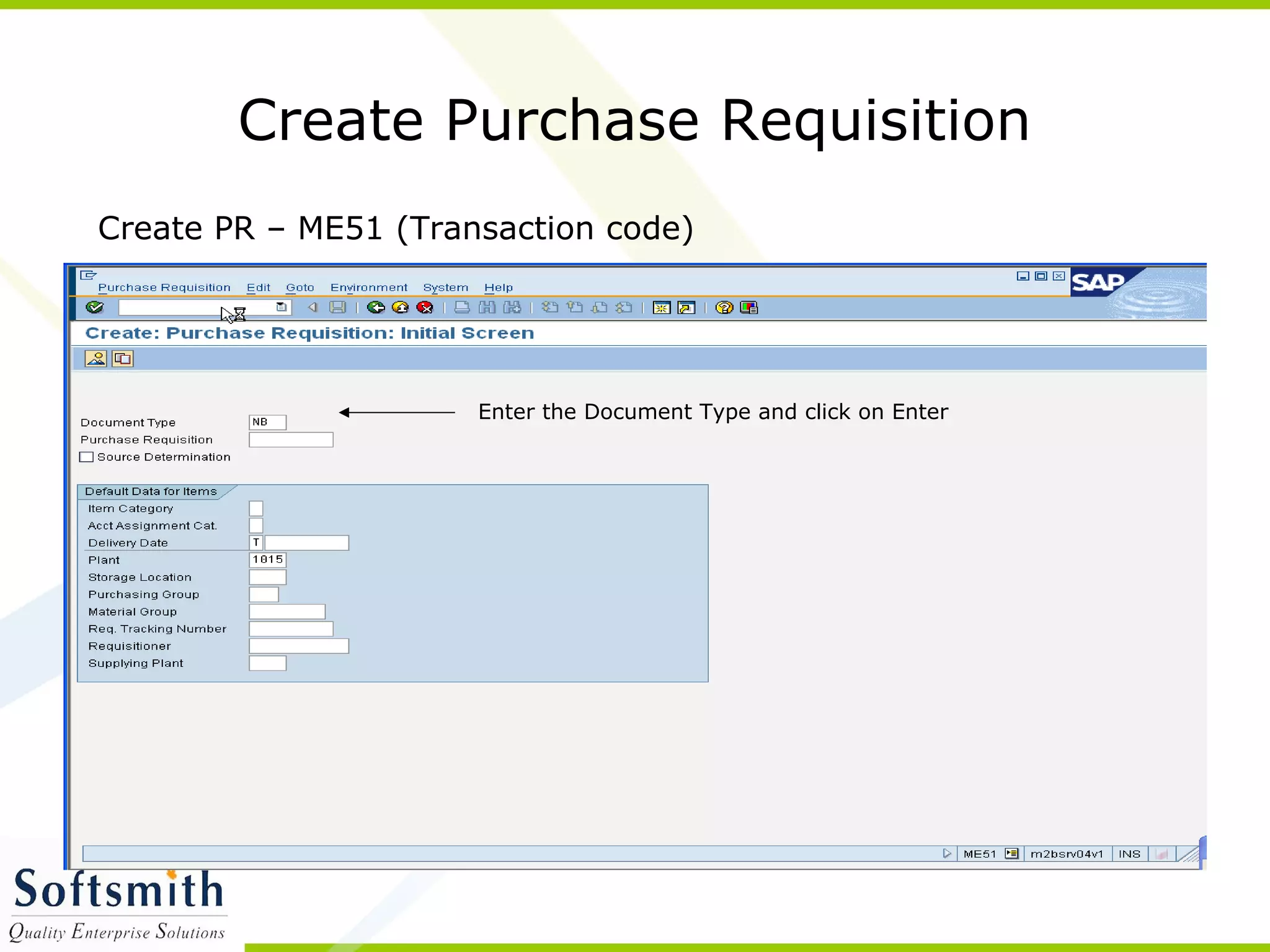
Create Purchase Requisition
Create PR – ME51 (Transaction code)
Enter the Document Type and click on Enter
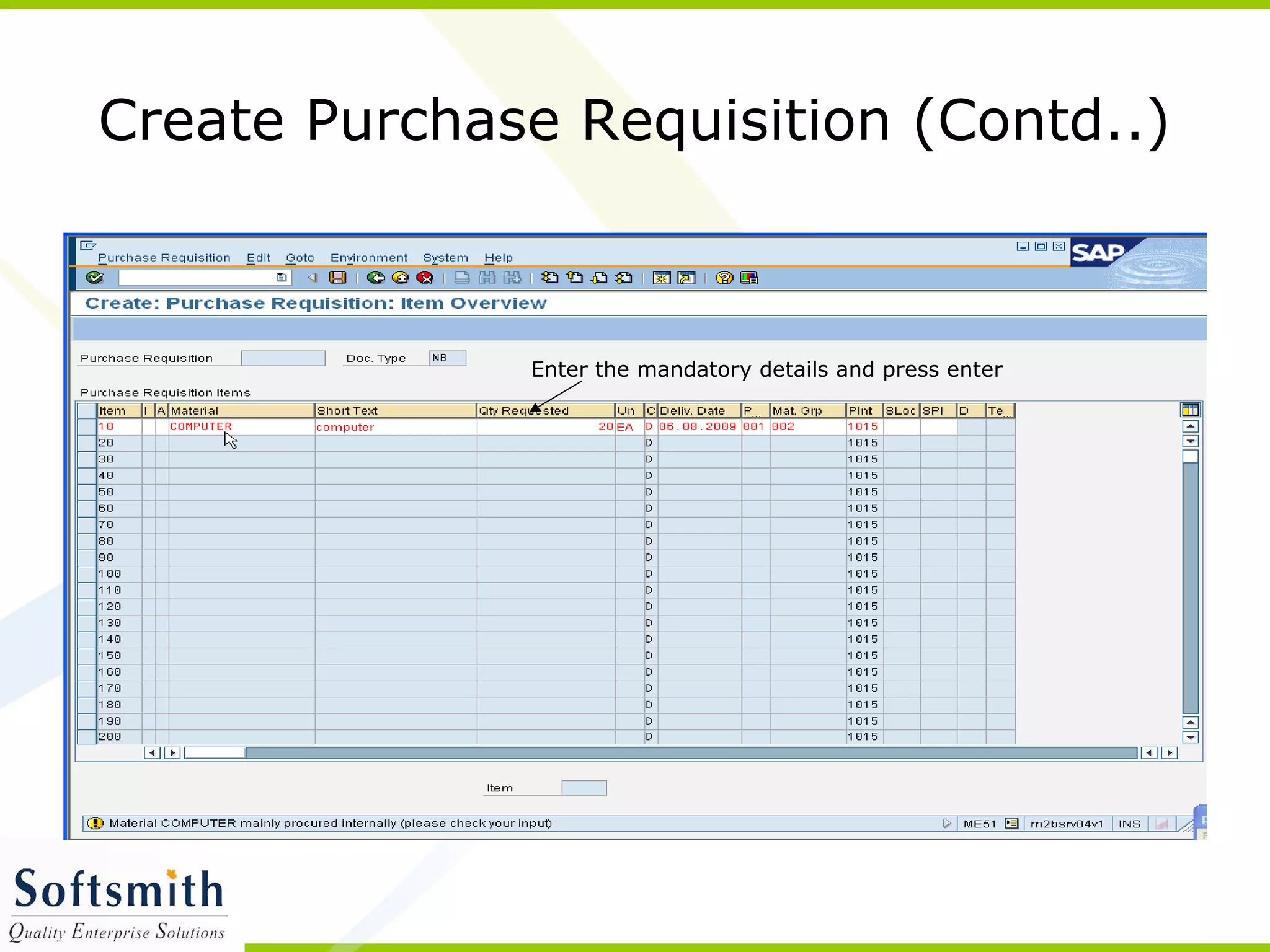
Create Purchase Requisition (Contd..)
Enter the mandatory details and press enter
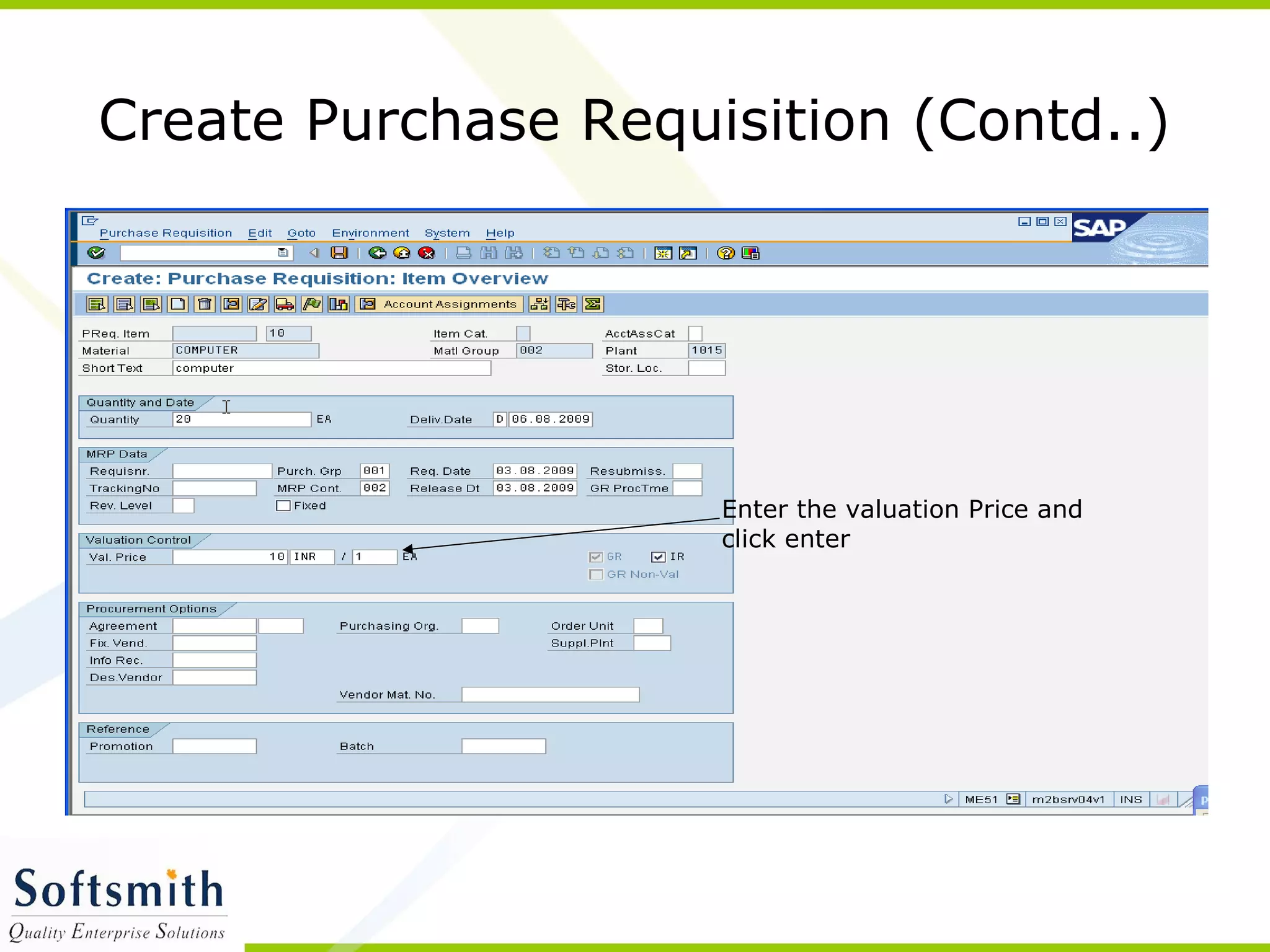
Create Purchase Requisition (Contd..)
Enter the valuation Price and
click enter
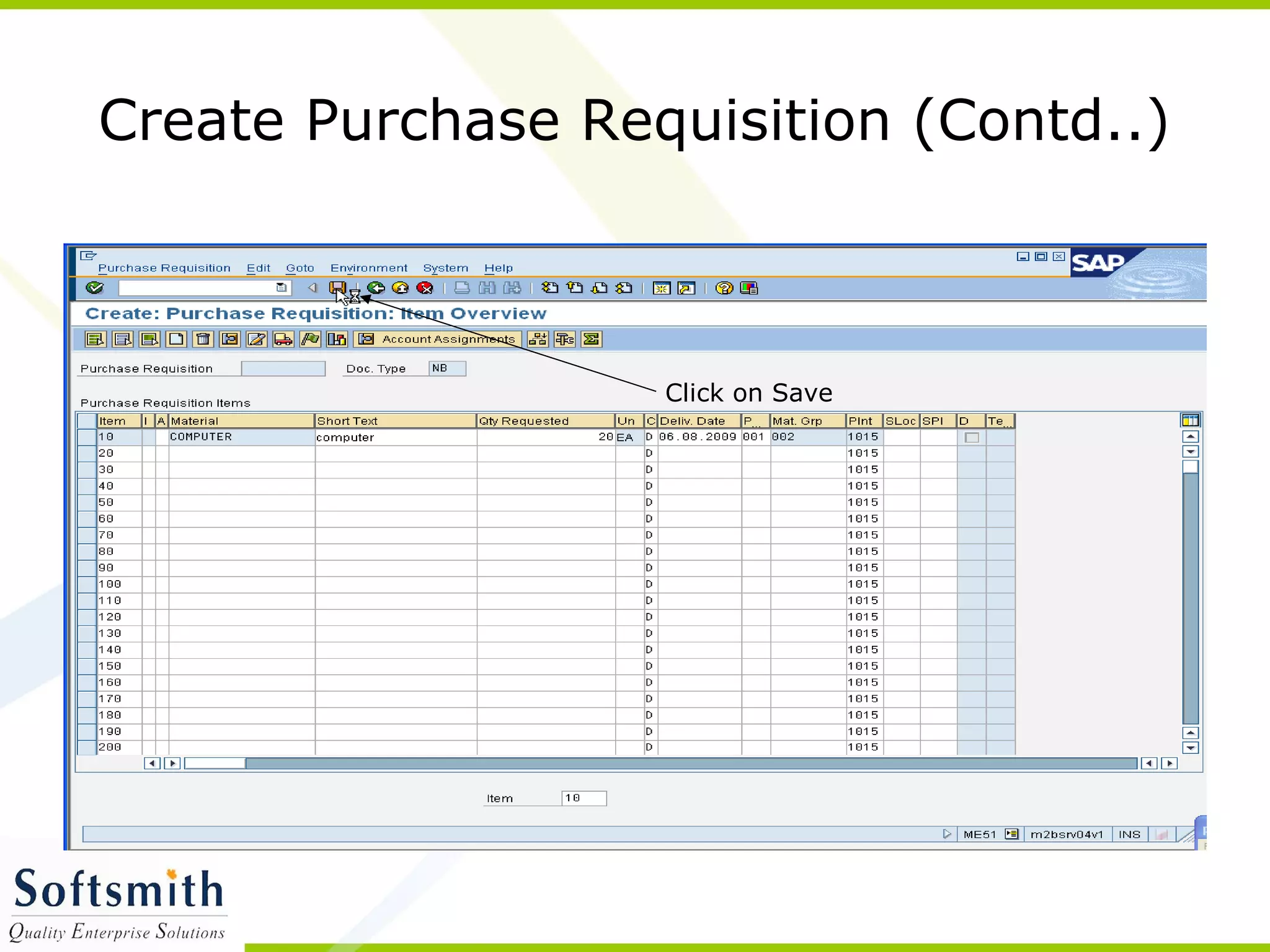
Create Purchase Requisition (Contd..)
Click on Save
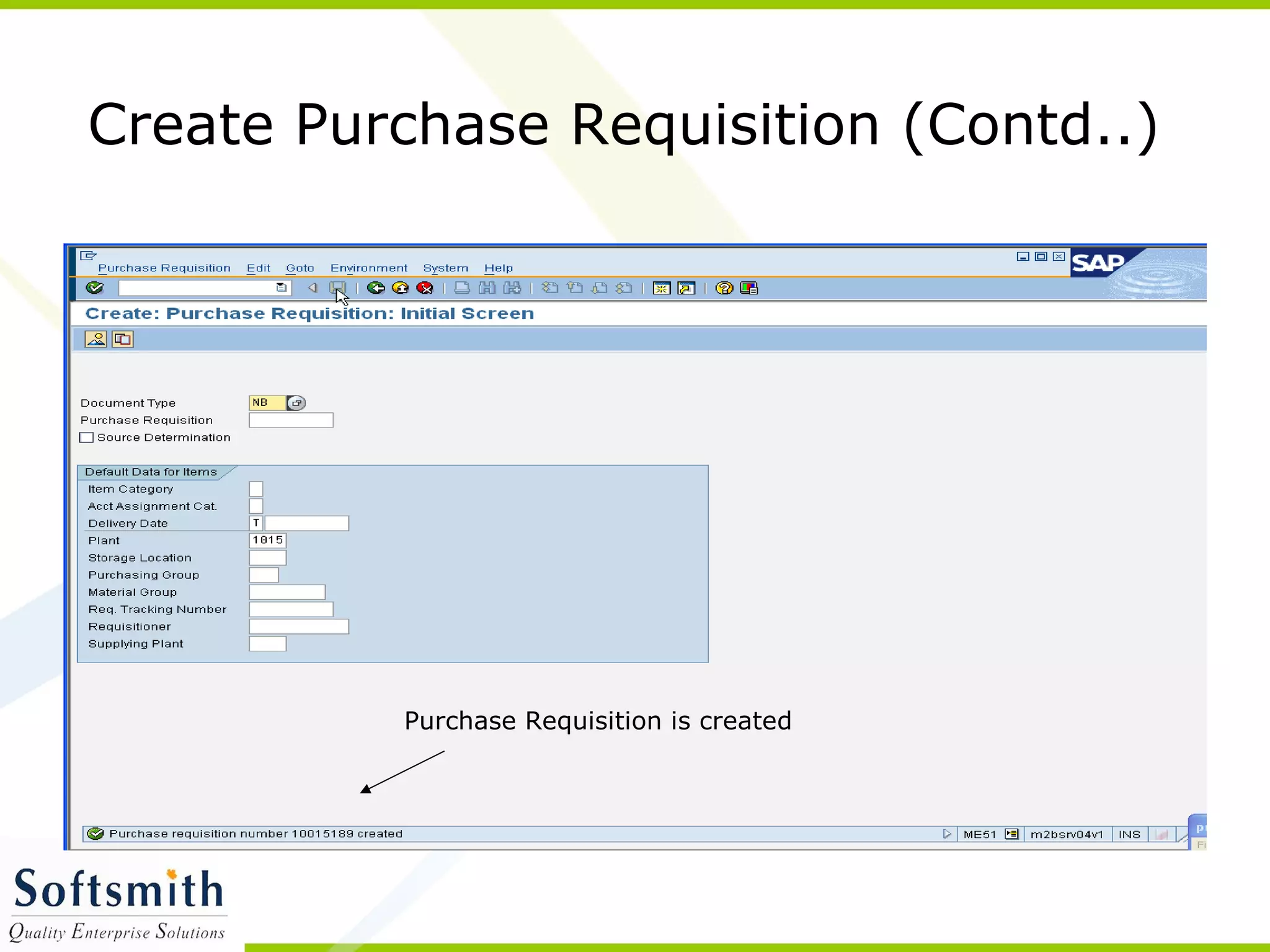
Purchase Requisition is created
Create Purchase Requisition (Contd..)
Release purchase Requisition
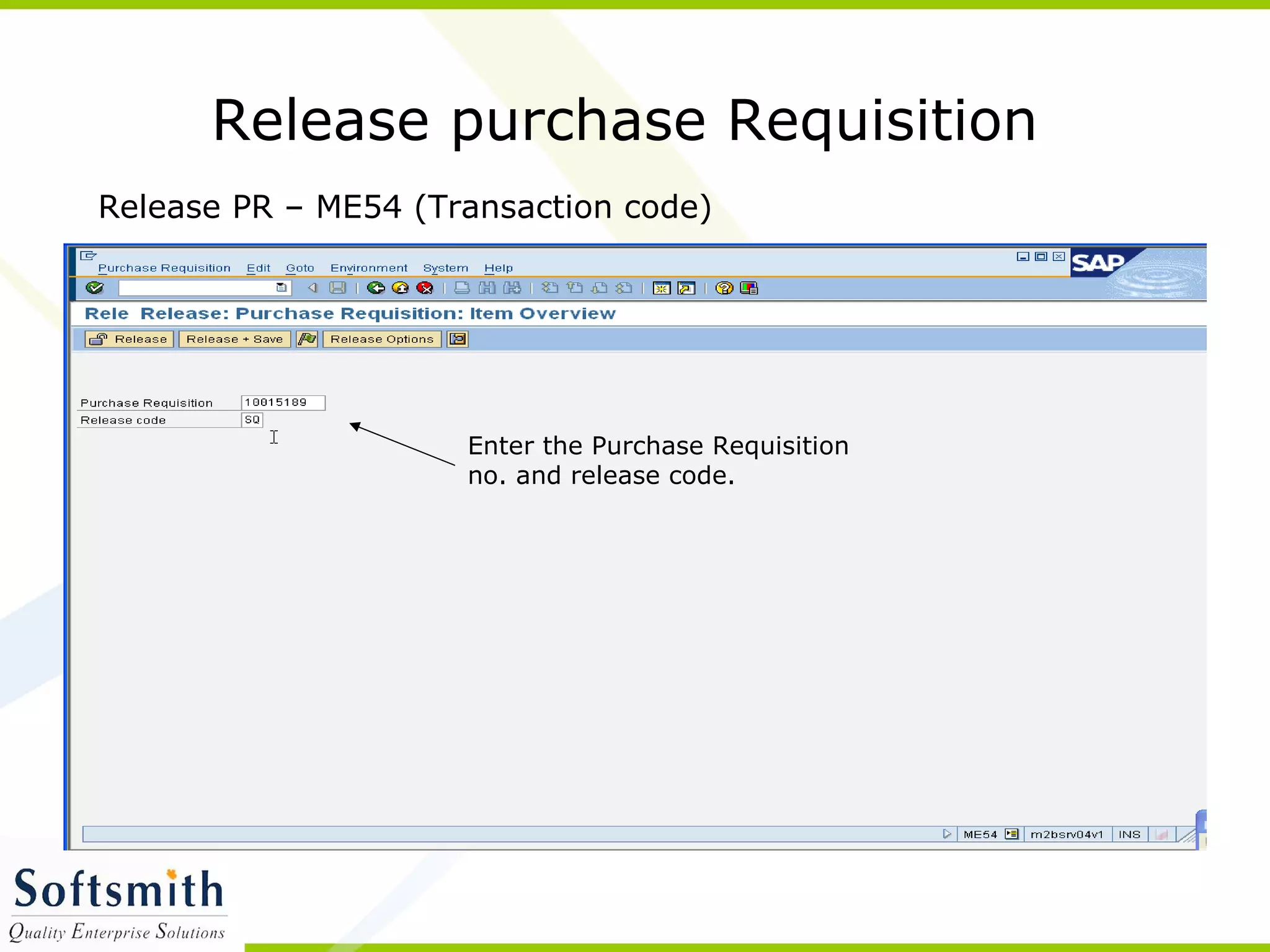
Enter the Purchase Requisition
no. and release code.
Release PR – ME54 (Transaction code)
Release purchase Requisition (Contd..)
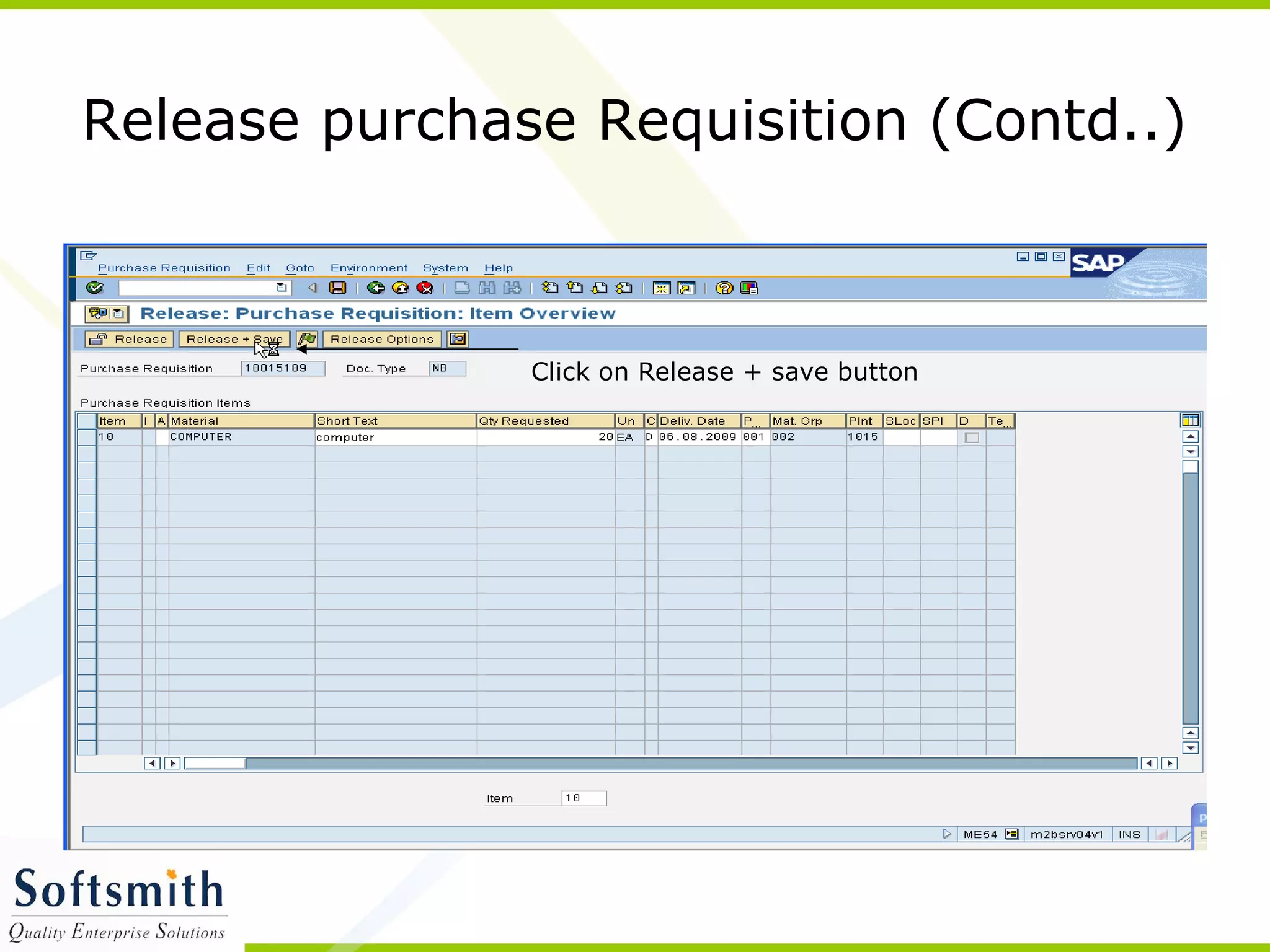
Click on Release + save button
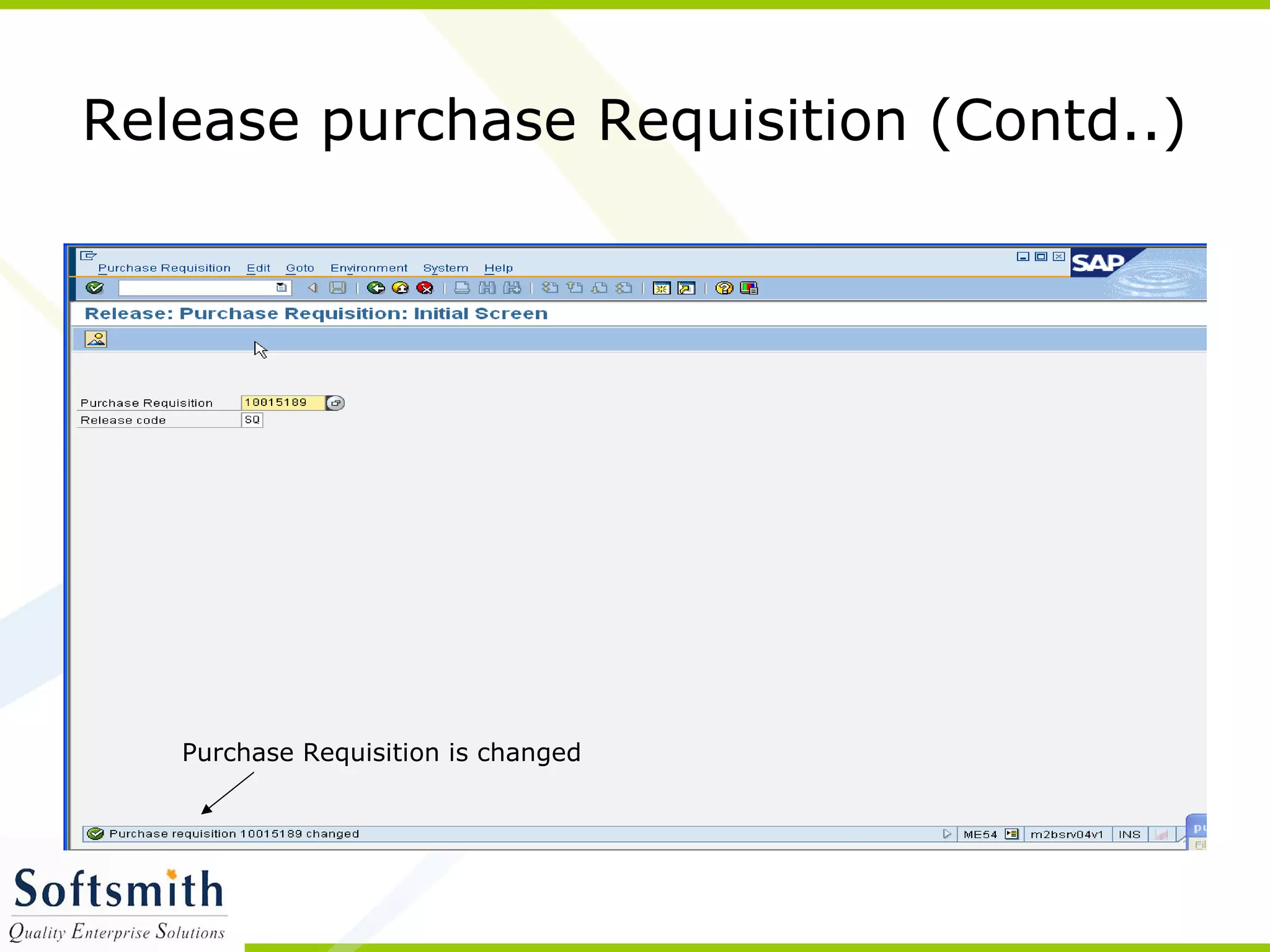
Purchase Requisition is changed
Release purchase Requisition (Contd..)
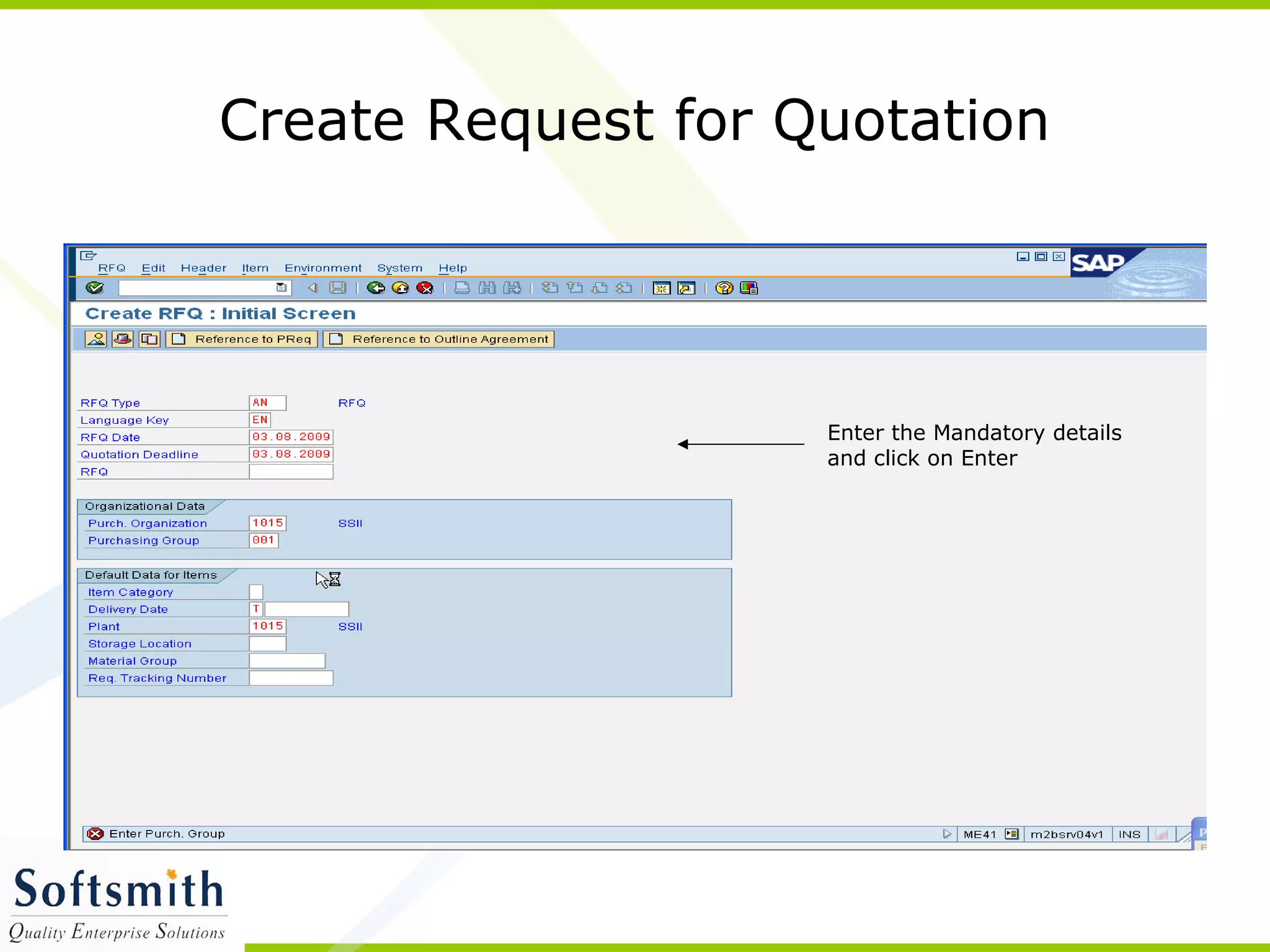
Create Request for Quotation
Enter the Mandatory details
and click on Enter
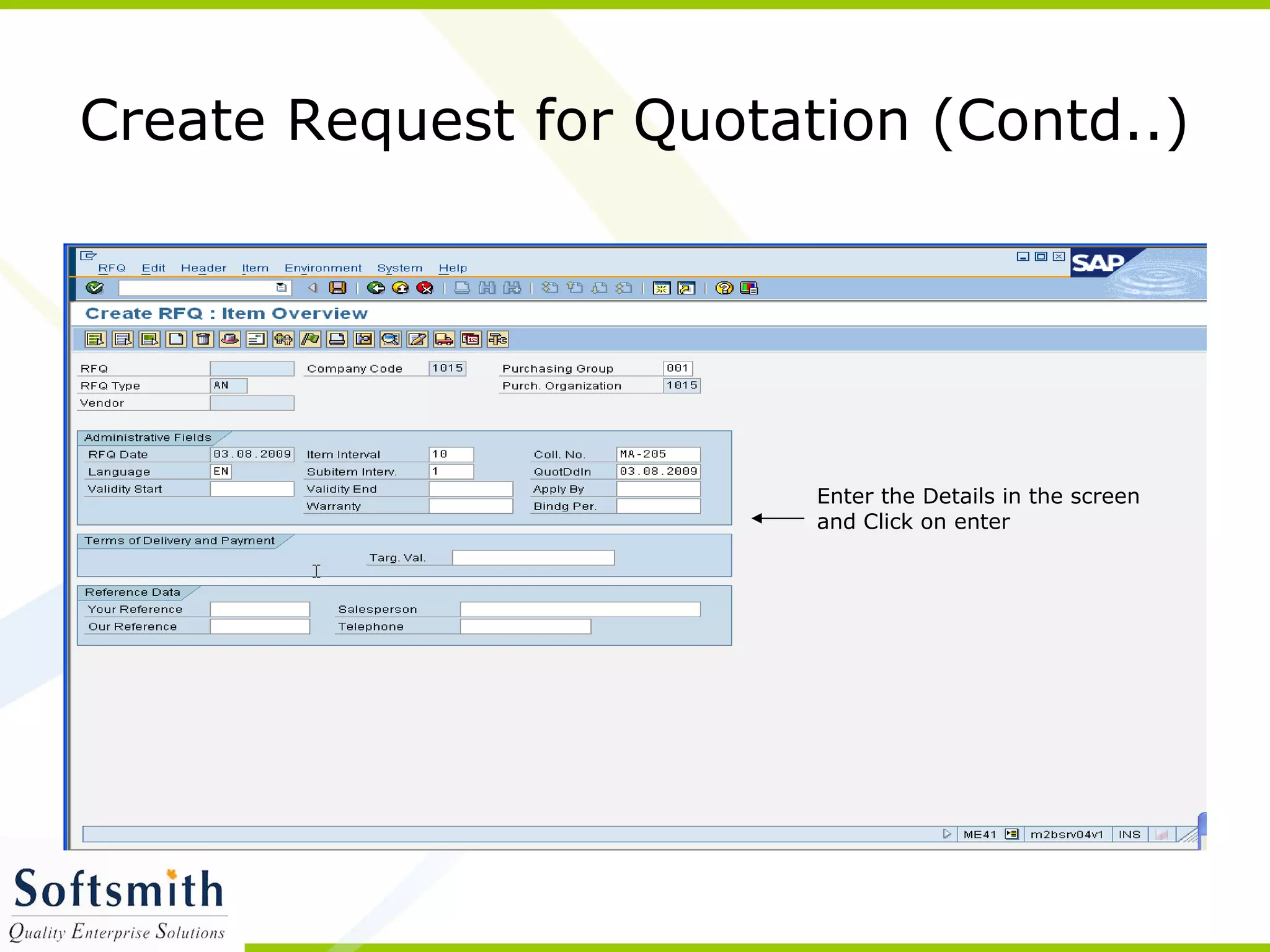
Create Request for Quotation (Contd..)
Enter the Details in the screen
and Click on enter
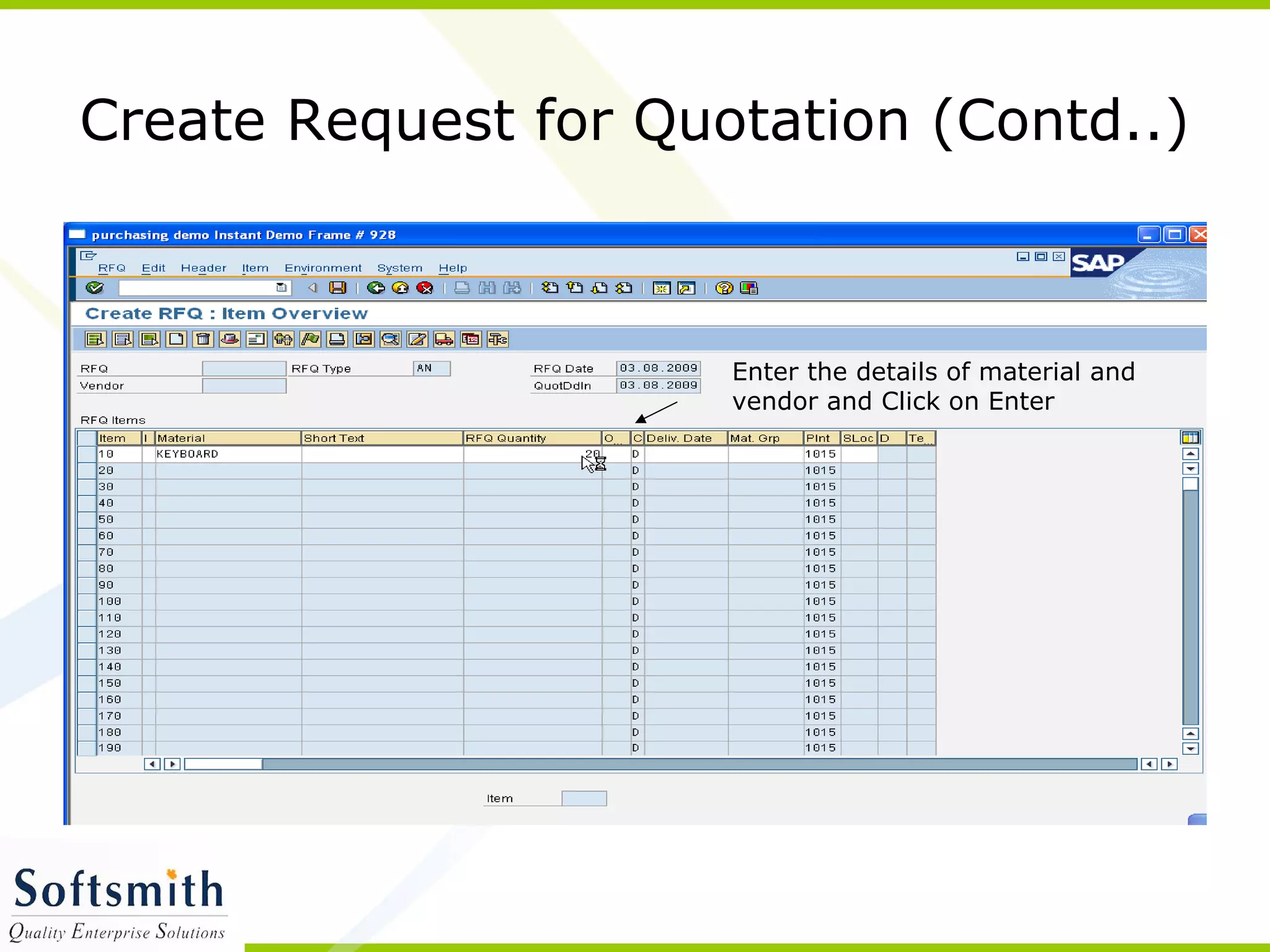
Create Request for Quotation (Contd..)
Enter the details of material and
vendor and Click on Enter
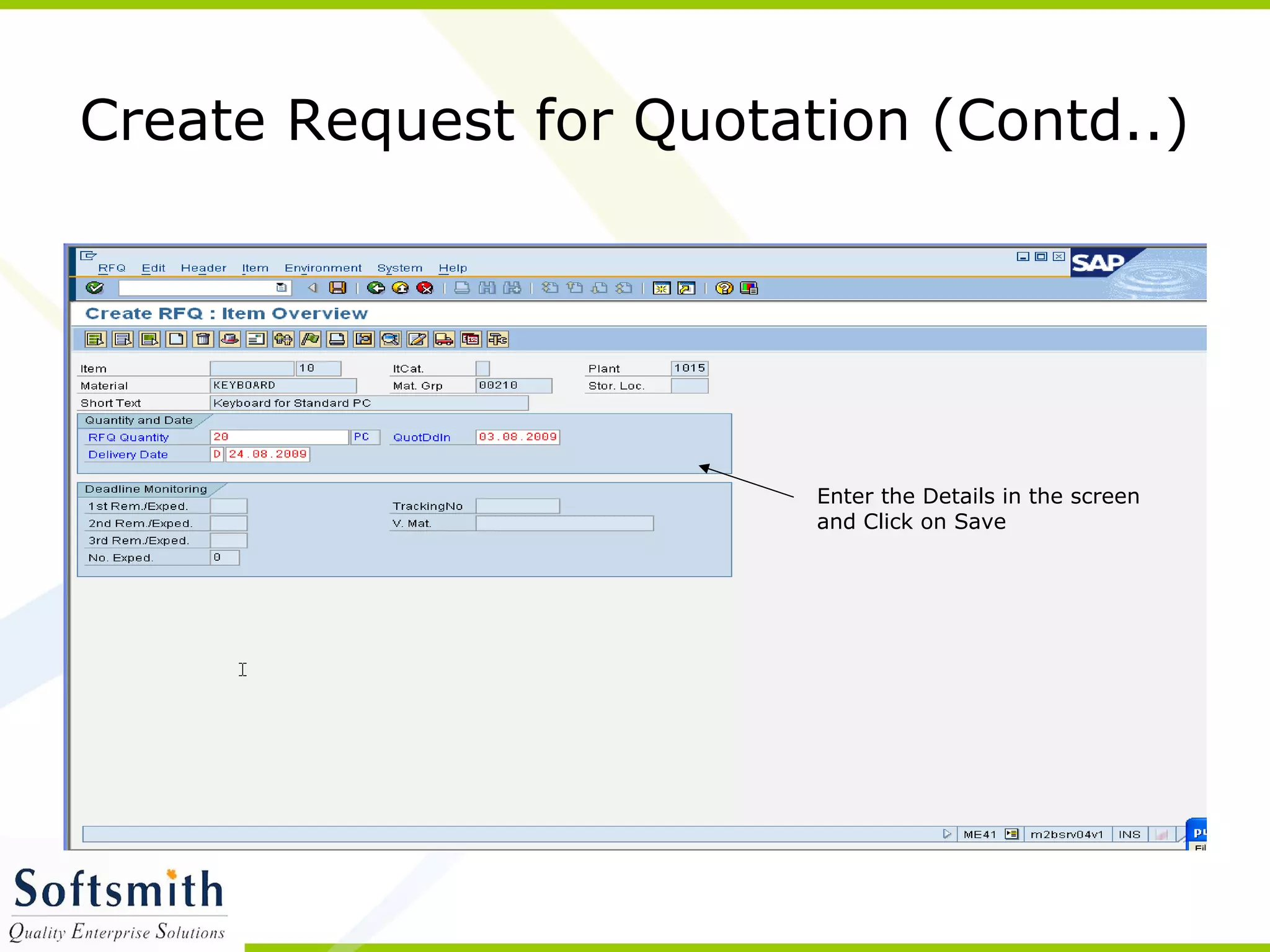
Create Request for Quotation (Contd..)
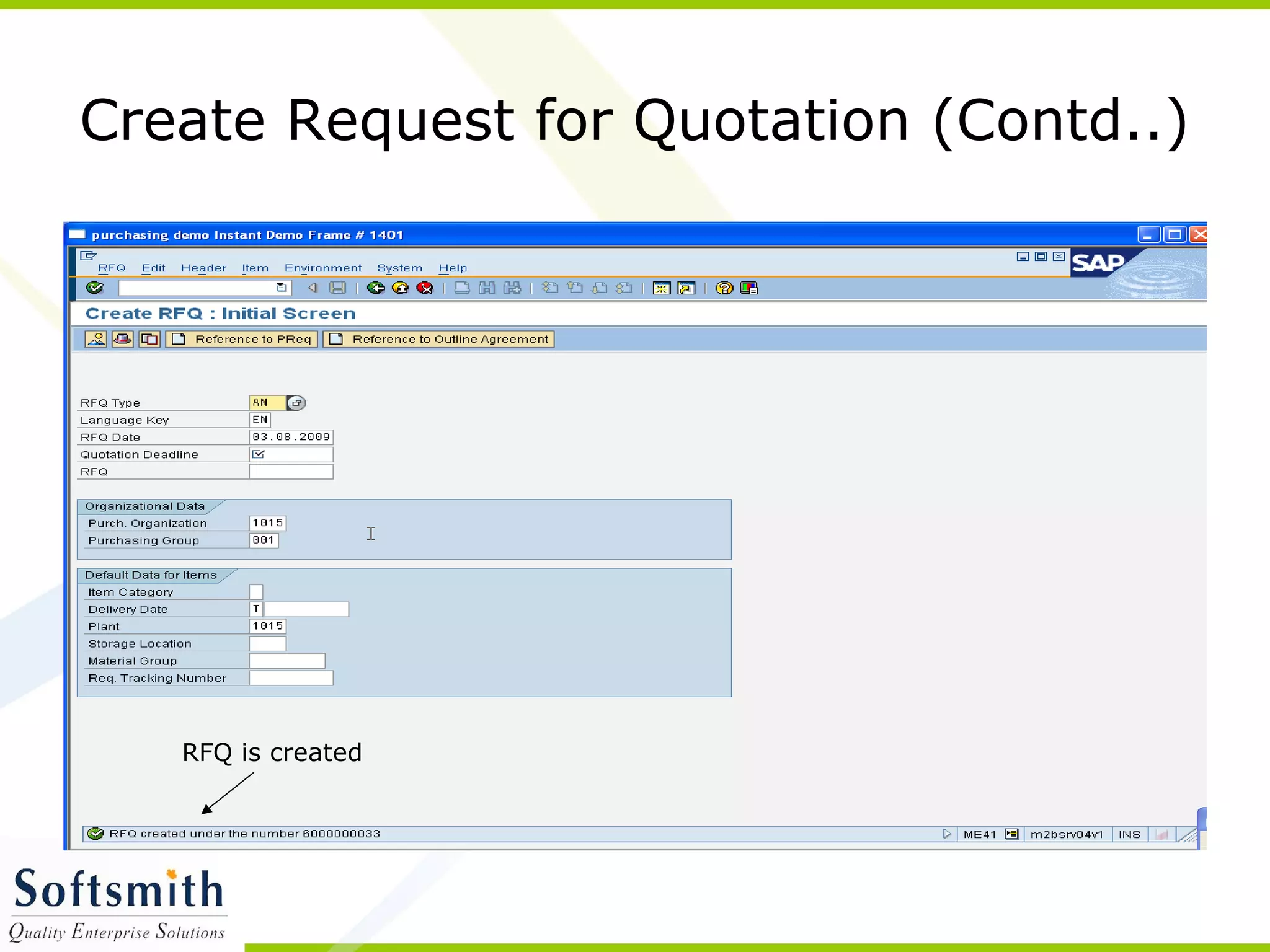
Enter the Details in the screen
and Click on Save
RFQ is created
Create Request for Quotation (Contd..)
Creation of Purchase Order
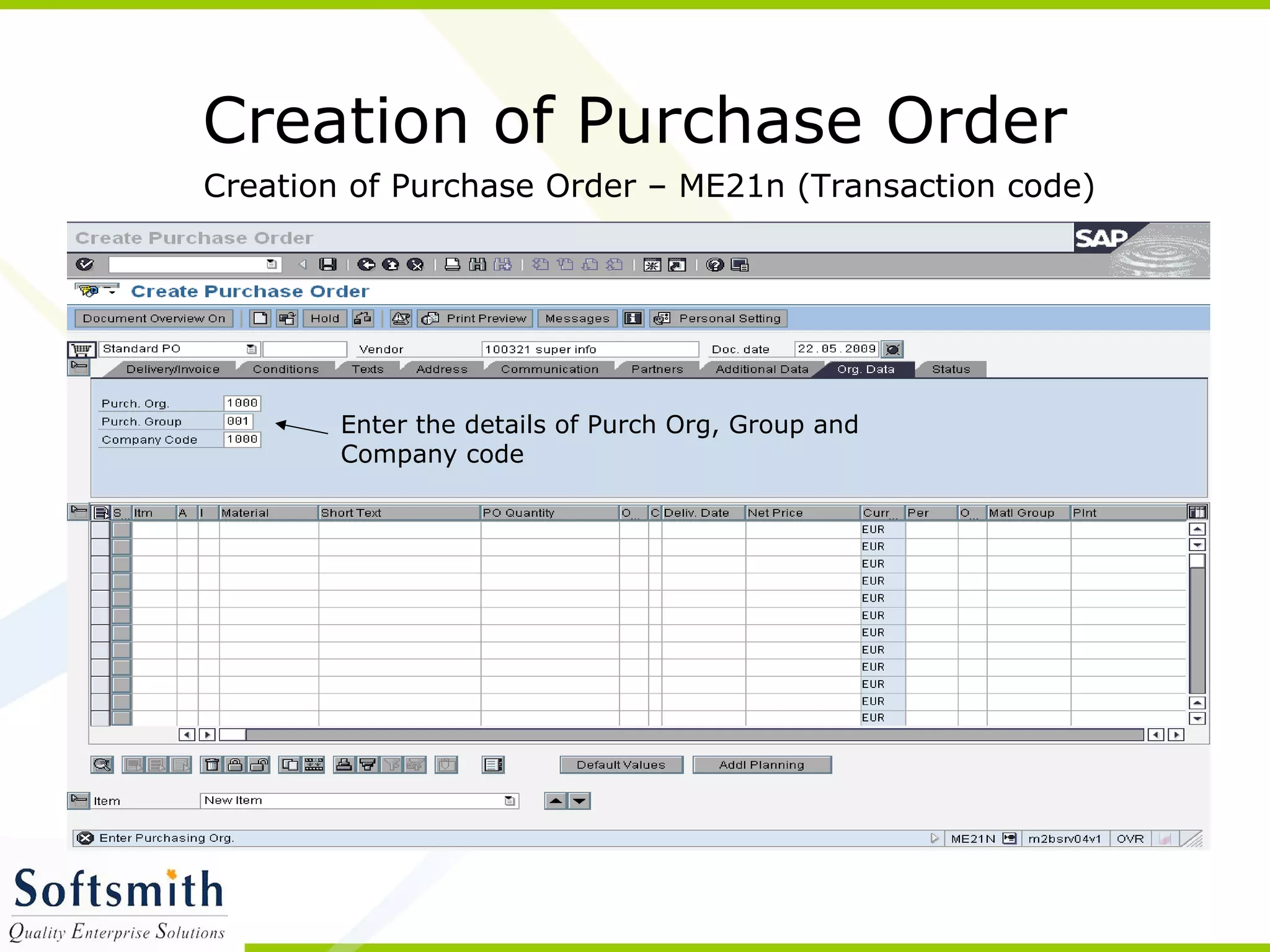
Creation of Purchase Order – ME21n (Transaction code)
Enter the details of Purch Org, Group and
Company code
Creation of Purchase Order (Contd…)
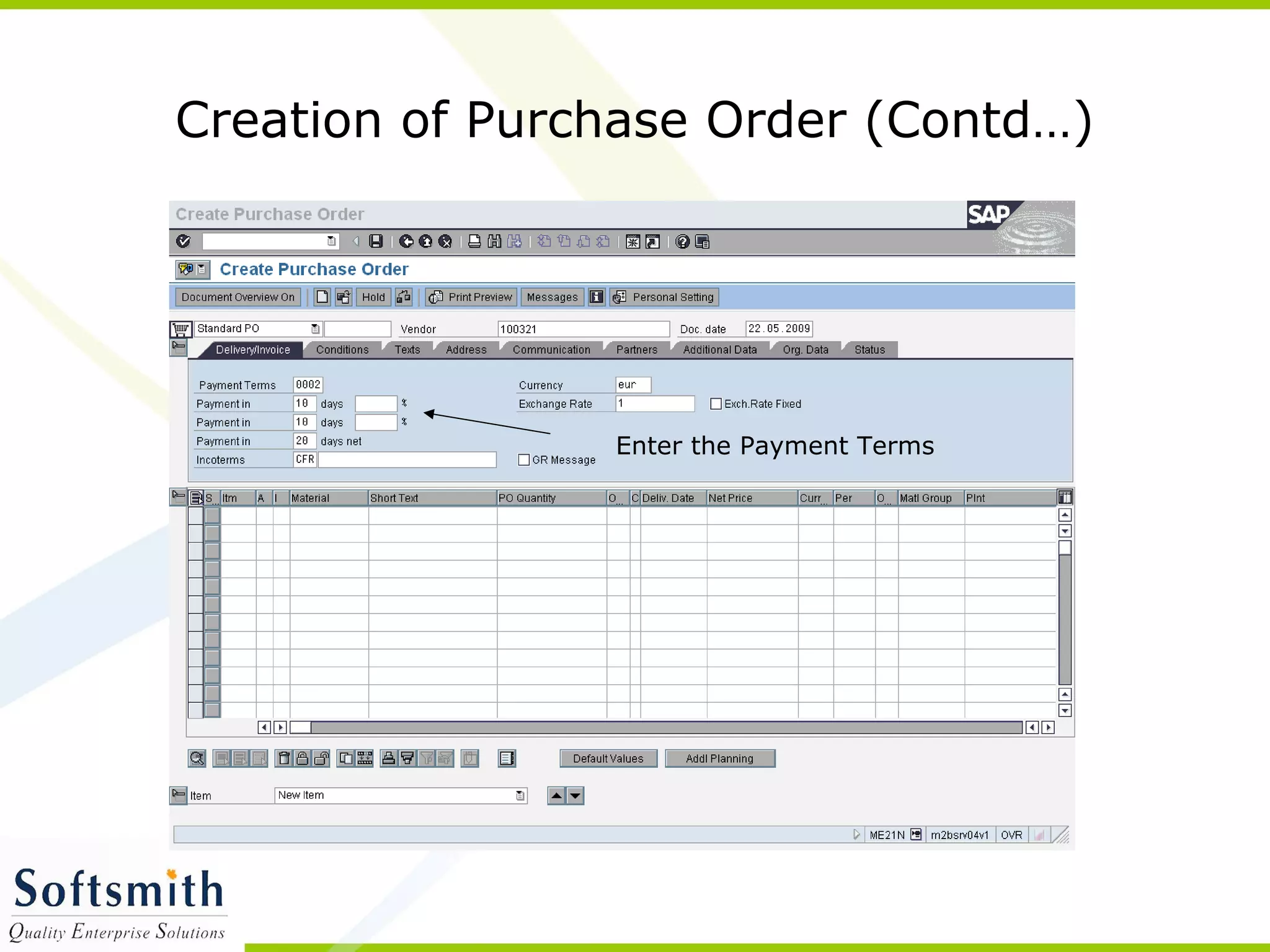
Enter the Payment Terms
Creation of Purchase Order (Contd…)
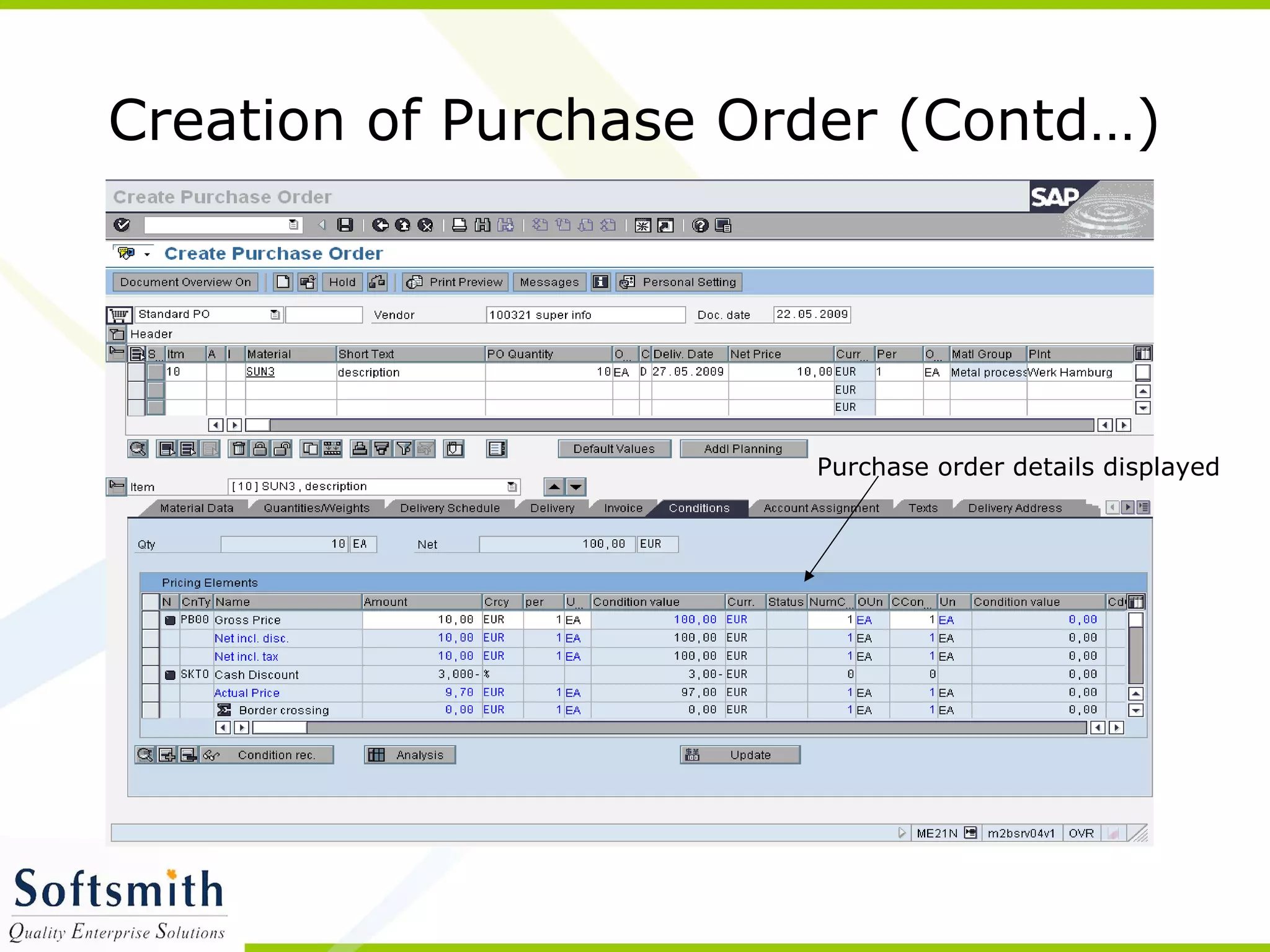
Purchase order details displayed
Creation of Purchase Order (Contd…)
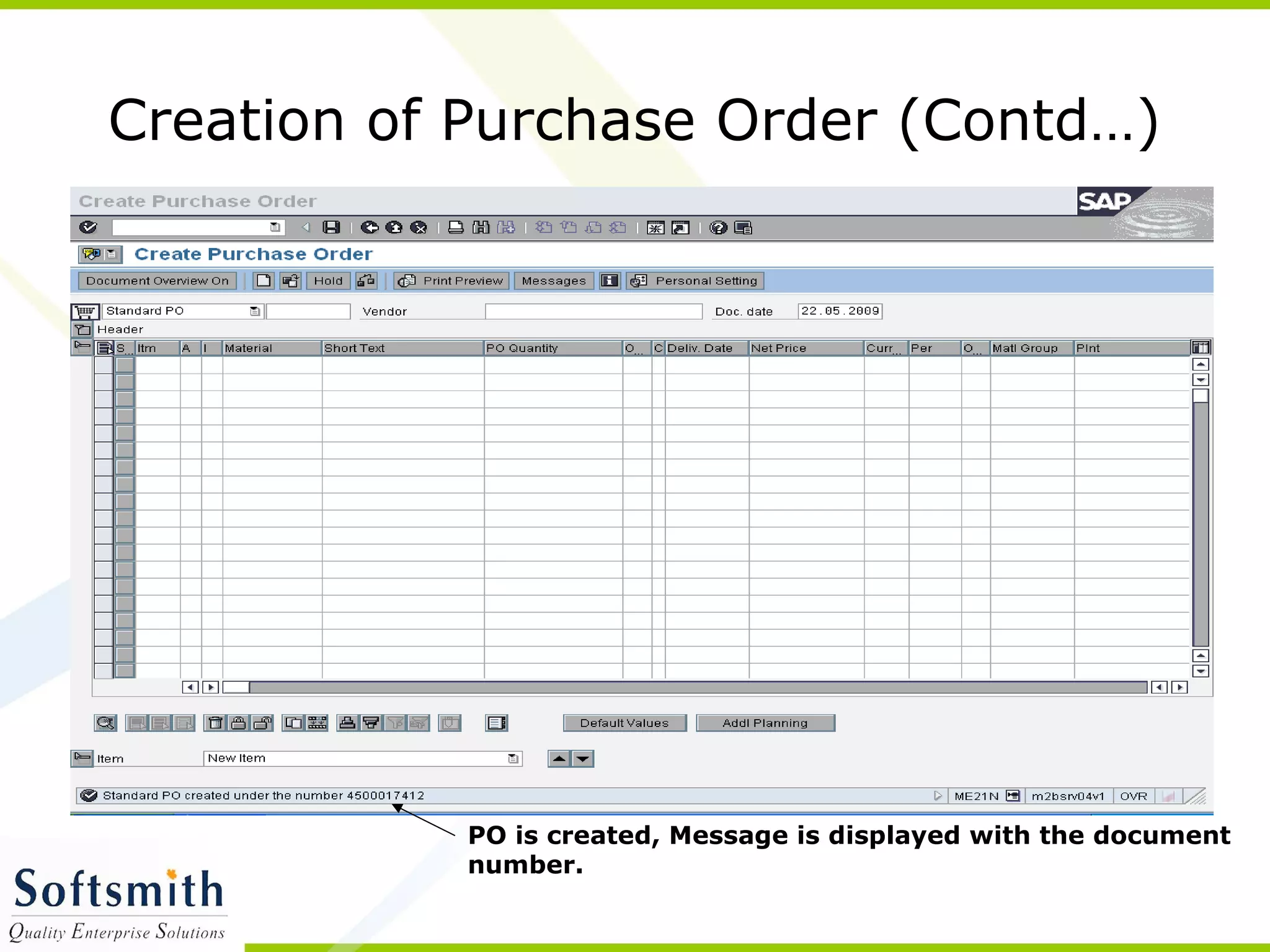
PO is created, Message is displayed with the document
number.
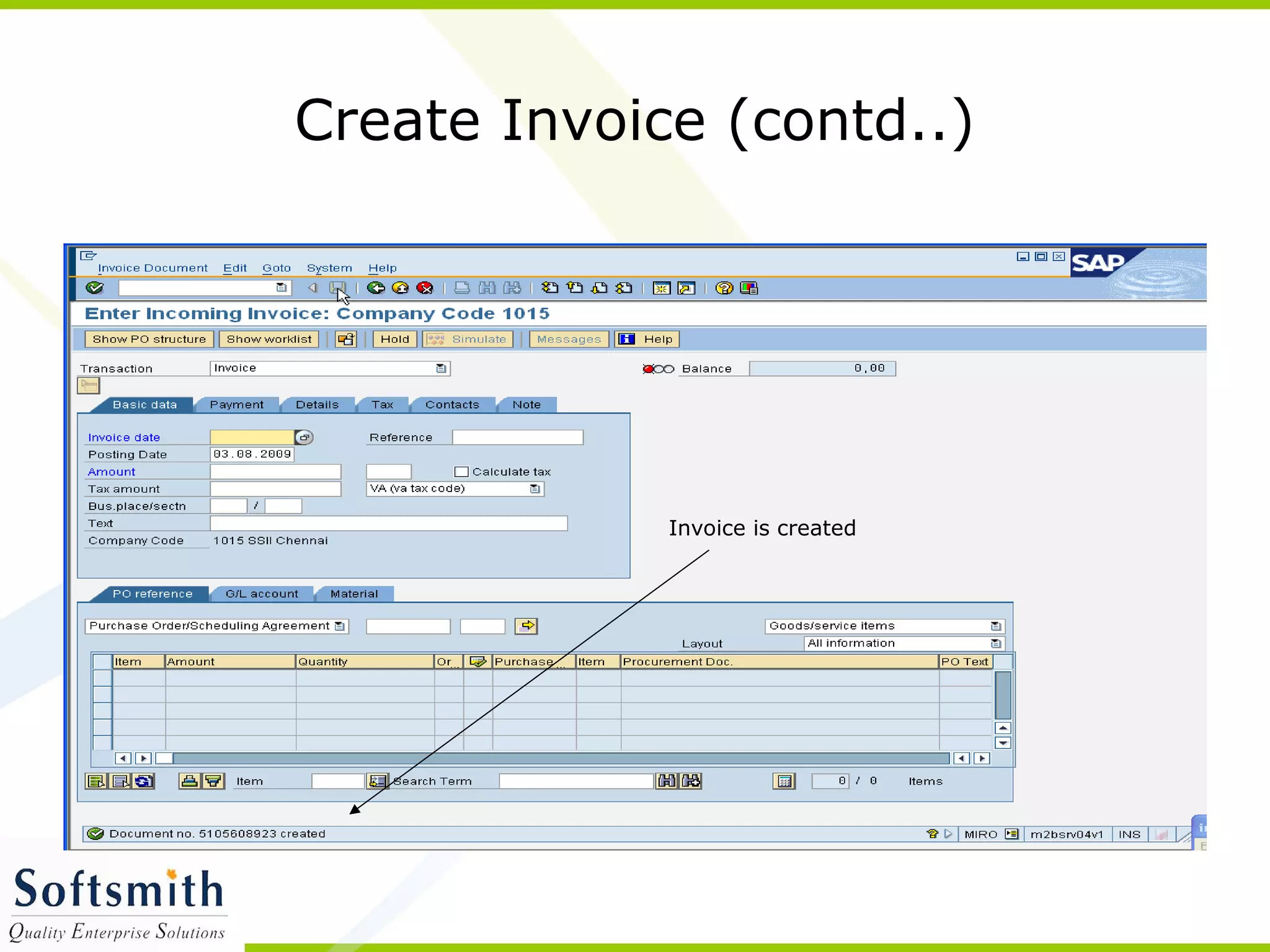
Create Invoice
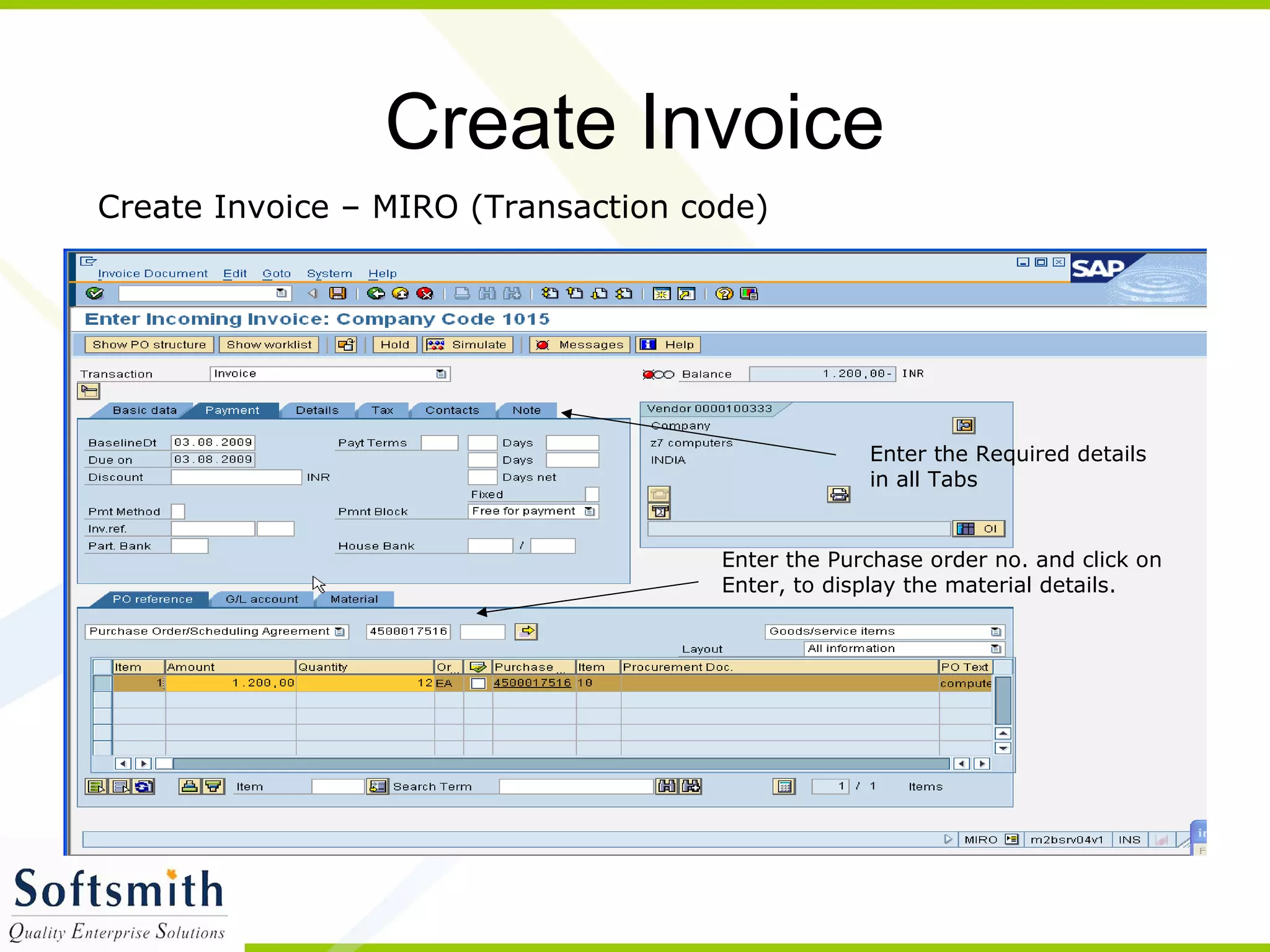
Create Invoice – MIRO (Transaction code)
Enter the Purchase order no. and click on
Enter, to display the material details.
Enter the Required details
in all Tabs
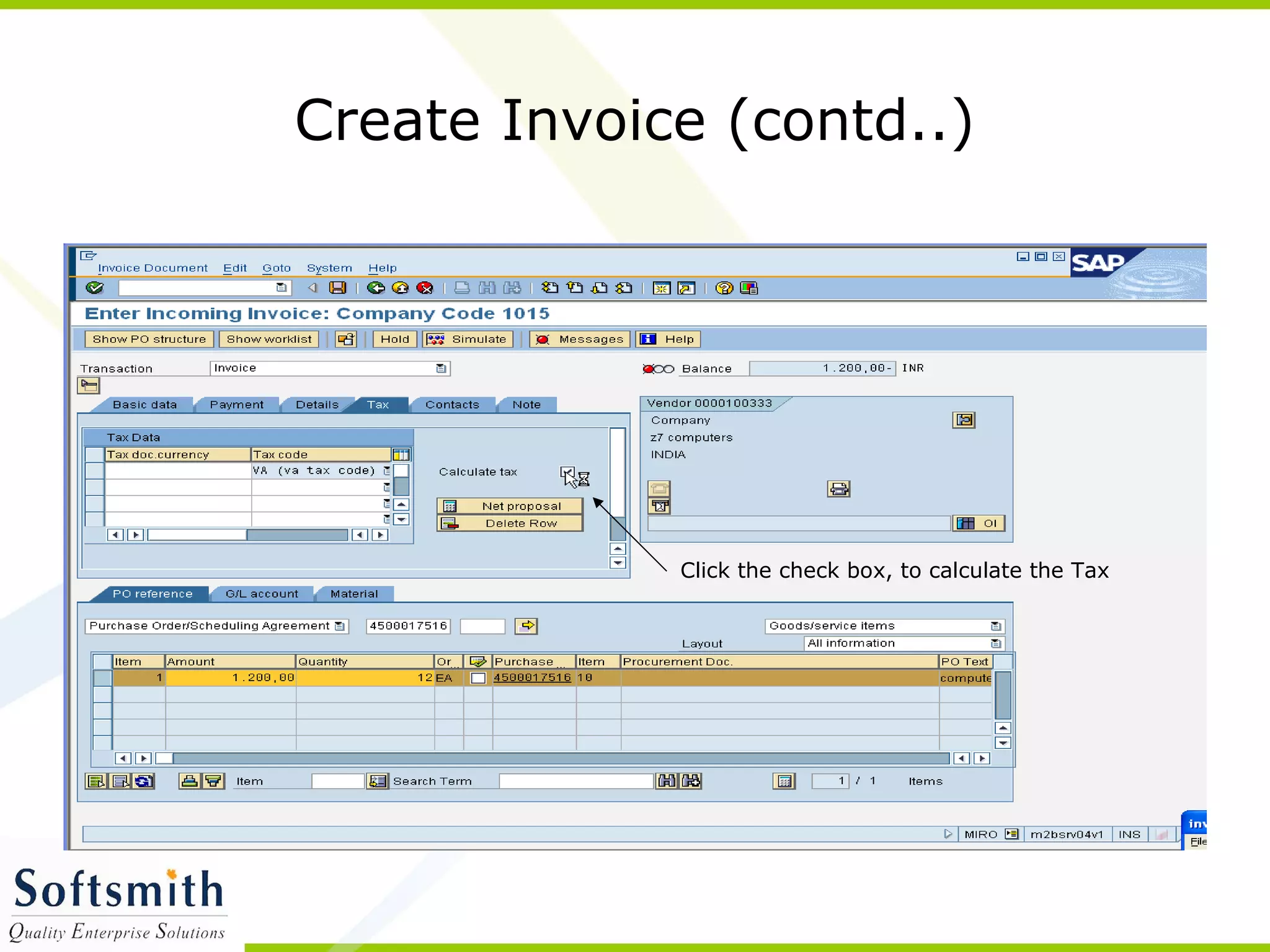
Create Invoice (contd..)
Click the check box, to calculate the Tax
Create Invoice (contd..)
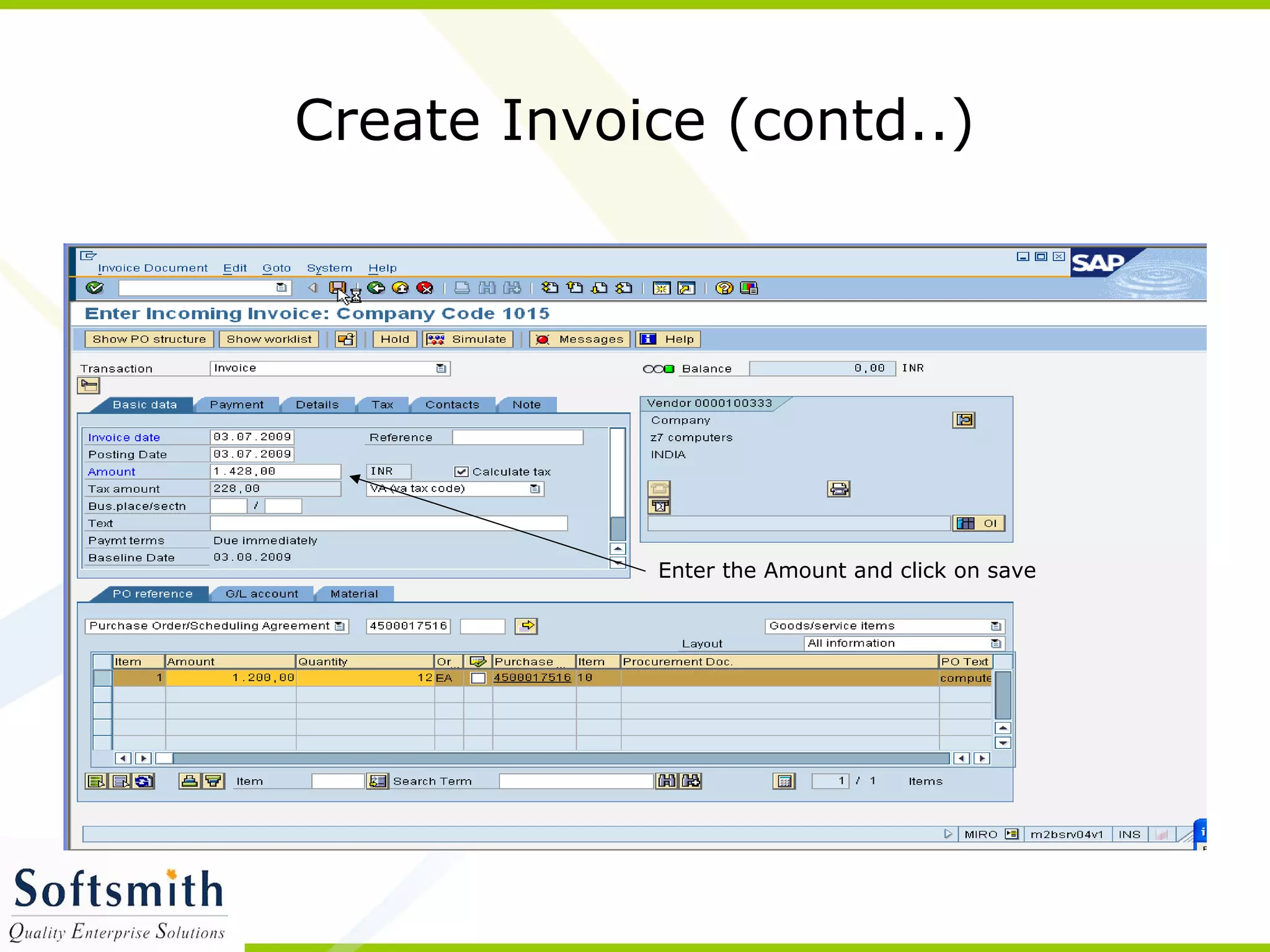
Enter the Amount and click on save
Create Invoice (contd..)
Invoice is created
SAP Reports
• Reports are collection of records that are
helpful for arriving at important decisions.
• Reports can be filtered based on requirements
parameters. For e.g., TCode MM60 we can filter
based on Material as Plant or Material or it can
even be a blind filter.
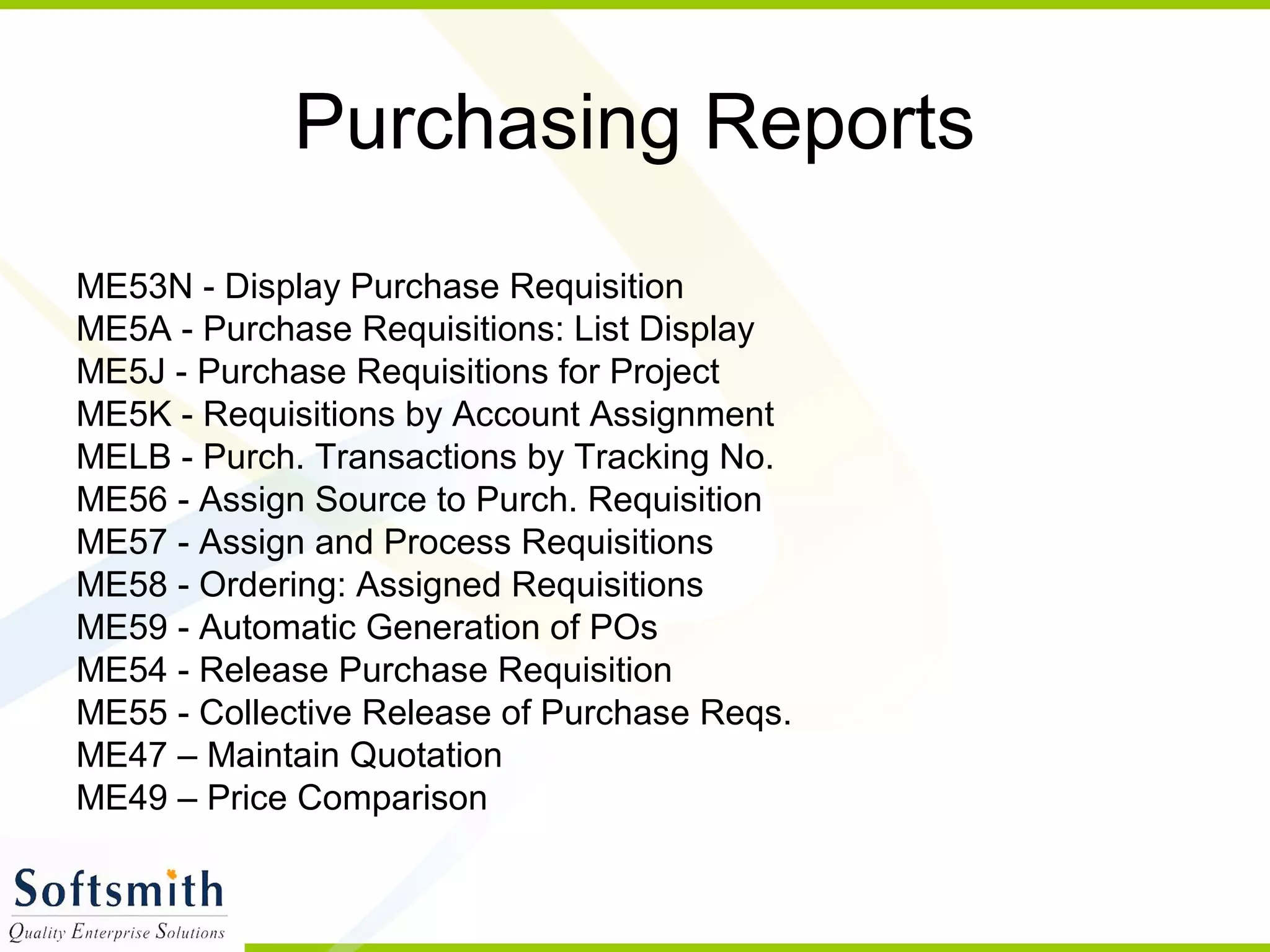
Purchasing Reports
ME53N - Display Purchase Requisition
ME5A - Purchase Requisitions: List Display
ME5J - Purchase Requisitions for Project
ME5K - Requisitions by Account Assignment
MELB - Purch. Transactions by Tracking No.
ME56 - Assign Source to Purch. Requisition
ME57 - Assign and Process Requisitions
ME58 - Ordering: Assigned Requisitions
ME59 - Automatic Generation of POs
ME54 - Release Purchase Requisition
ME55 - Collective Release of Purchase Reqs.
ME47 – Maintain Quotation
ME49 – Price Comparison
Comments & Queries-Comments & Queries-
Queries are always welcome.
Send emails to:
webinar@softsmith.com
Thanks & Happy Learning…Thanks & Happy Learning…

Sap purchase

  • 1.
  • 2.
    Purchasing The R/3 Systemconsists of a number of components that are completely integrated with one another. This integration allows the various departments and units of an enterprise to share and maintain the same information. Purchasing is a component of Materials Management (MM). The Materials Management (MM) module is fully integrated with the other modules of the SAP System. It supports all the phases of materials management: materials planning and control, purchasing, goods receiving, inventory management, and invoice verification. The tasks of the MM Purchasing component are as follows: • External procurement of materials and services • Determination of possible sources of supply for a requirement identified by the materials planning and control system or arising directly within a user department • Monitoring of deliveries from and payments to vendors Good communication between all participants in the procurement process is necessary for Purchasing to function smoothly.
  • 3.
    Purchase Order Processing ThePurchasing system adopts information from the requisition and the quotation to create a purchase order. As with purchase requisitions, we can generate POs or have the system generate them automatically. Vendor scheduling agreements and contracts (in the SAP System, types of longer-term purchase agreement) are also supported.
  • 4.
    Purchasing Process • Createa requisition • First release of requisition • Create RFQ with reference to requisition • Create PO with reference to RFQ • Department receives material ordered (GR) • Department pays invoice (MIRO).
  • 5.
    Create Purchase Requisition CreatePR – ME51 (Transaction code) Enter the Document Type and click on Enter
  • 6.
    Create Purchase Requisition(Contd..) Enter the mandatory details and press enter
  • 7.
    Create Purchase Requisition(Contd..) Enter the valuation Price and click enter
  • 8.
    Create Purchase Requisition(Contd..) Click on Save
  • 9.
    Purchase Requisition iscreated Create Purchase Requisition (Contd..)
  • 10.
    Release purchase Requisition Enterthe Purchase Requisition no. and release code. Release PR – ME54 (Transaction code)
  • 11.
    Release purchase Requisition(Contd..) Click on Release + save button
  • 12.
    Purchase Requisition ischanged Release purchase Requisition (Contd..)
  • 13.
    Create Request forQuotation Enter the Mandatory details and click on Enter
  • 14.
    Create Request forQuotation (Contd..) Enter the Details in the screen and Click on enter
  • 15.
    Create Request forQuotation (Contd..) Enter the details of material and vendor and Click on Enter
  • 16.
    Create Request forQuotation (Contd..) Enter the Details in the screen and Click on Save
  • 17.
    RFQ is created CreateRequest for Quotation (Contd..)
  • 18.
    Creation of PurchaseOrder Creation of Purchase Order – ME21n (Transaction code) Enter the details of Purch Org, Group and Company code
  • 19.
    Creation of PurchaseOrder (Contd…) Enter the Payment Terms
  • 20.
    Creation of PurchaseOrder (Contd…) Purchase order details displayed
  • 21.
    Creation of PurchaseOrder (Contd…) PO is created, Message is displayed with the document number.
  • 22.
    Create Invoice Create Invoice– MIRO (Transaction code) Enter the Purchase order no. and click on Enter, to display the material details. Enter the Required details in all Tabs
  • 23.
    Create Invoice (contd..) Clickthe check box, to calculate the Tax
  • 24.
    Create Invoice (contd..) Enterthe Amount and click on save
  • 25.
  • 26.
    SAP Reports • Reportsare collection of records that are helpful for arriving at important decisions. • Reports can be filtered based on requirements parameters. For e.g., TCode MM60 we can filter based on Material as Plant or Material or it can even be a blind filter.
  • 27.
    Purchasing Reports ME53N -Display Purchase Requisition ME5A - Purchase Requisitions: List Display ME5J - Purchase Requisitions for Project ME5K - Requisitions by Account Assignment MELB - Purch. Transactions by Tracking No. ME56 - Assign Source to Purch. Requisition ME57 - Assign and Process Requisitions ME58 - Ordering: Assigned Requisitions ME59 - Automatic Generation of POs ME54 - Release Purchase Requisition ME55 - Collective Release of Purchase Reqs. ME47 – Maintain Quotation ME49 – Price Comparison
  • 28.
    Comments & Queries-Comments& Queries- Queries are always welcome. Send emails to: webinar@softsmith.com Thanks & Happy Learning…Thanks & Happy Learning…