Two Steps Picking Process in SAP-WM
PANDAV Page 1
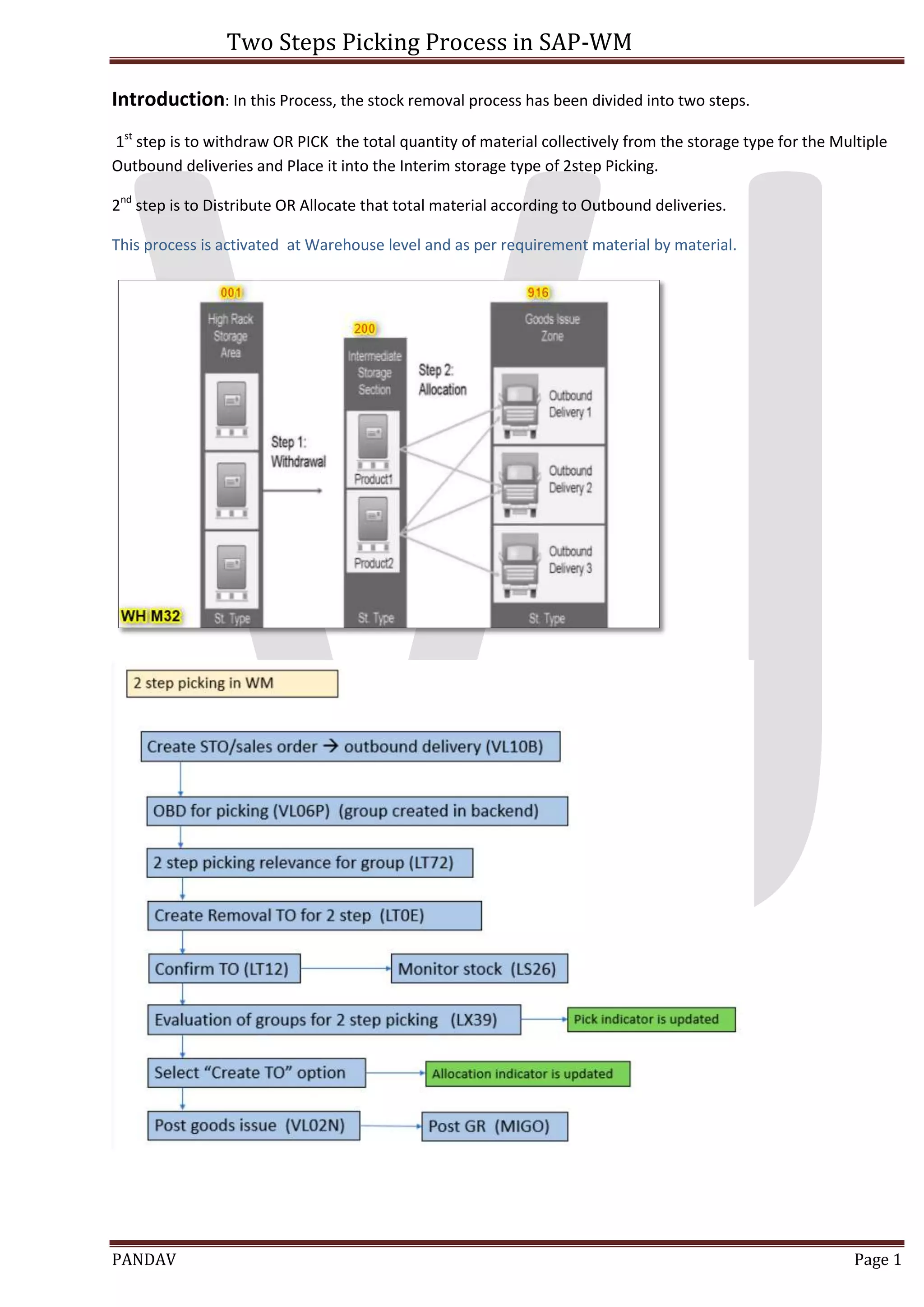
Introduction: In this Process, the stock removal process has been divided into two steps.
1st
step is to withdraw OR PICK the total quantity of material collectively from the storage type for the Multiple
Outbound deliveries and Place it into the Interim storage type of 2step Picking.
2nd
step is to Distribute OR Allocate that total material according to Outbound deliveries.
This process is activated at Warehouse level and as per requirement material by material.
Two Steps Picking Process in SAP-WM
PANDAV Page 2
Configuration Steps:
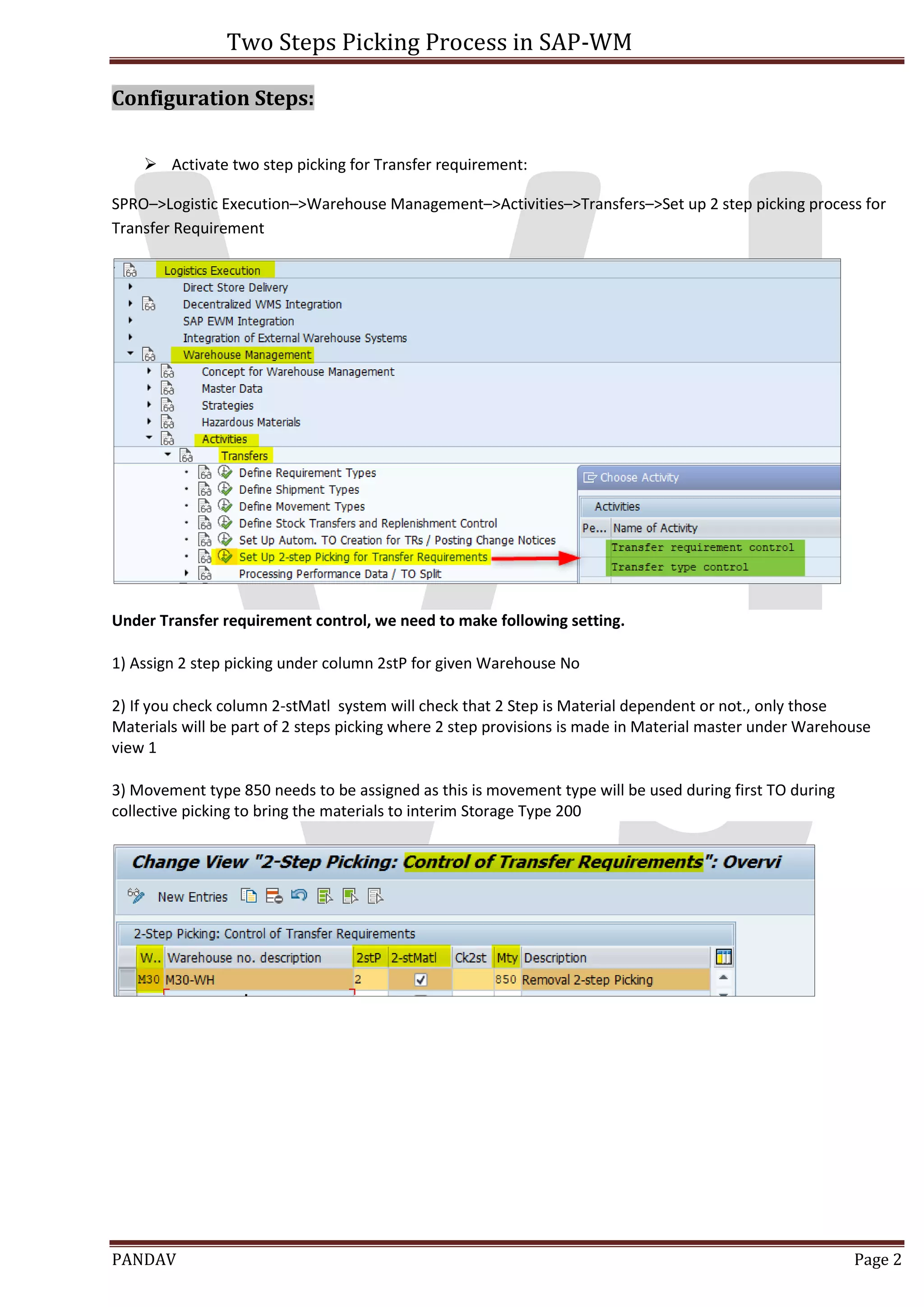
 Activate two step picking for Transfer requirement:
SPRO–>Logistic Execution–>Warehouse Management–>Activities–>Transfers–>Set up 2 step picking process for
Transfer Requirement
Under Transfer requirement control, we need to make following setting.
1) Assign 2 step picking under column 2stP for given Warehouse No
2) If you check column 2-stMatl system will check that 2 Step is Material dependent or not., only those
Materials will be part of 2 steps picking where 2 step provisions is made in Material master under Warehouse
view 1
3) Movement type 850 needs to be assigned as this is movement type will be used during first TO during
collective picking to bring the materials to interim Storage Type 200
Two Steps Picking Process in SAP-WM
PANDAV Page 3
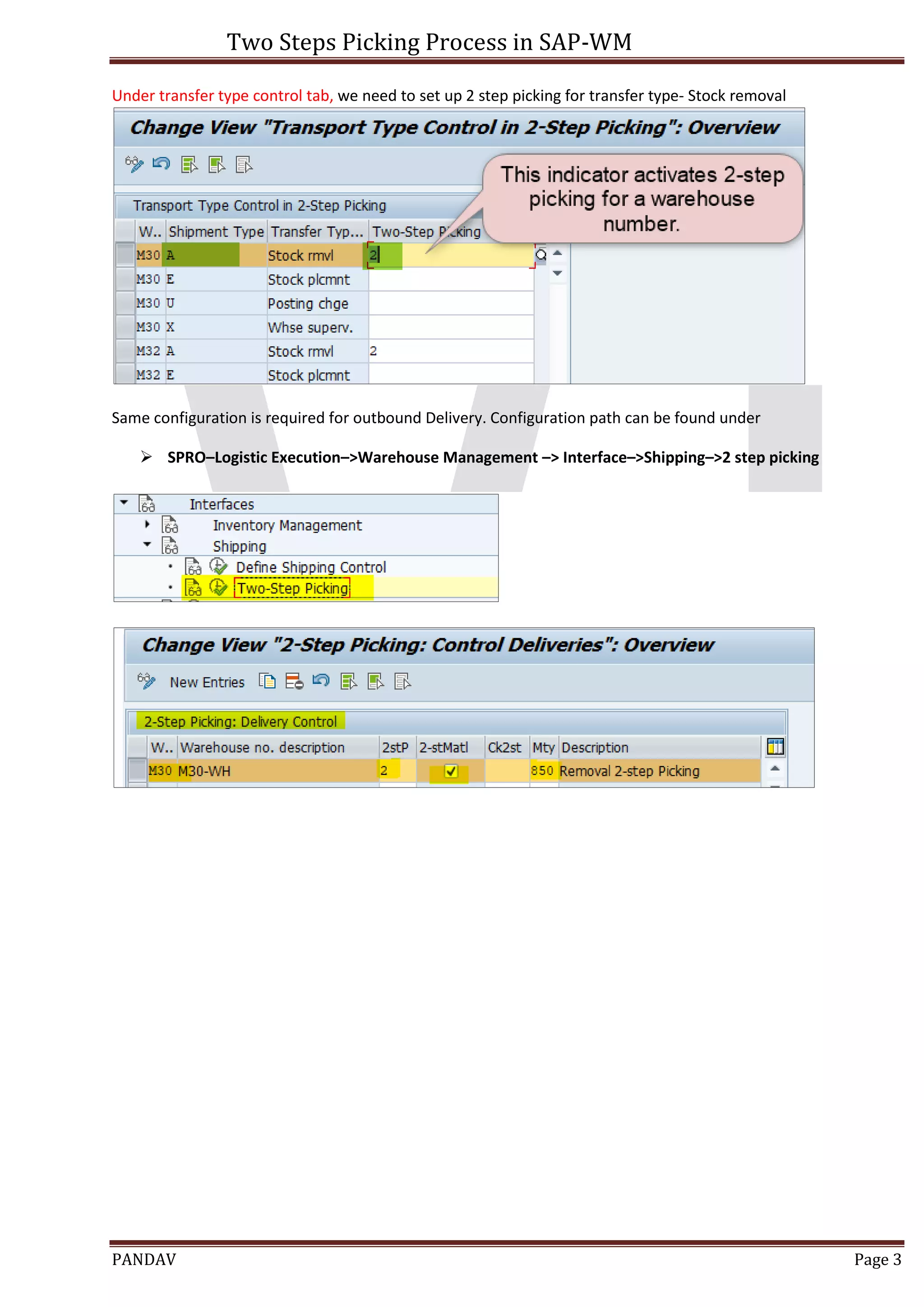
Under transfer type control tab, we need to set up 2 step picking for transfer type- Stock removal
Same configuration is required for outbound Delivery. Configuration path can be found under
 SPRO–Logistic Execution–>Warehouse Management –> Interface–>Shipping–>2 step picking
Two Steps Picking Process in SAP-WM
PANDAV Page 4
Material Master Setting
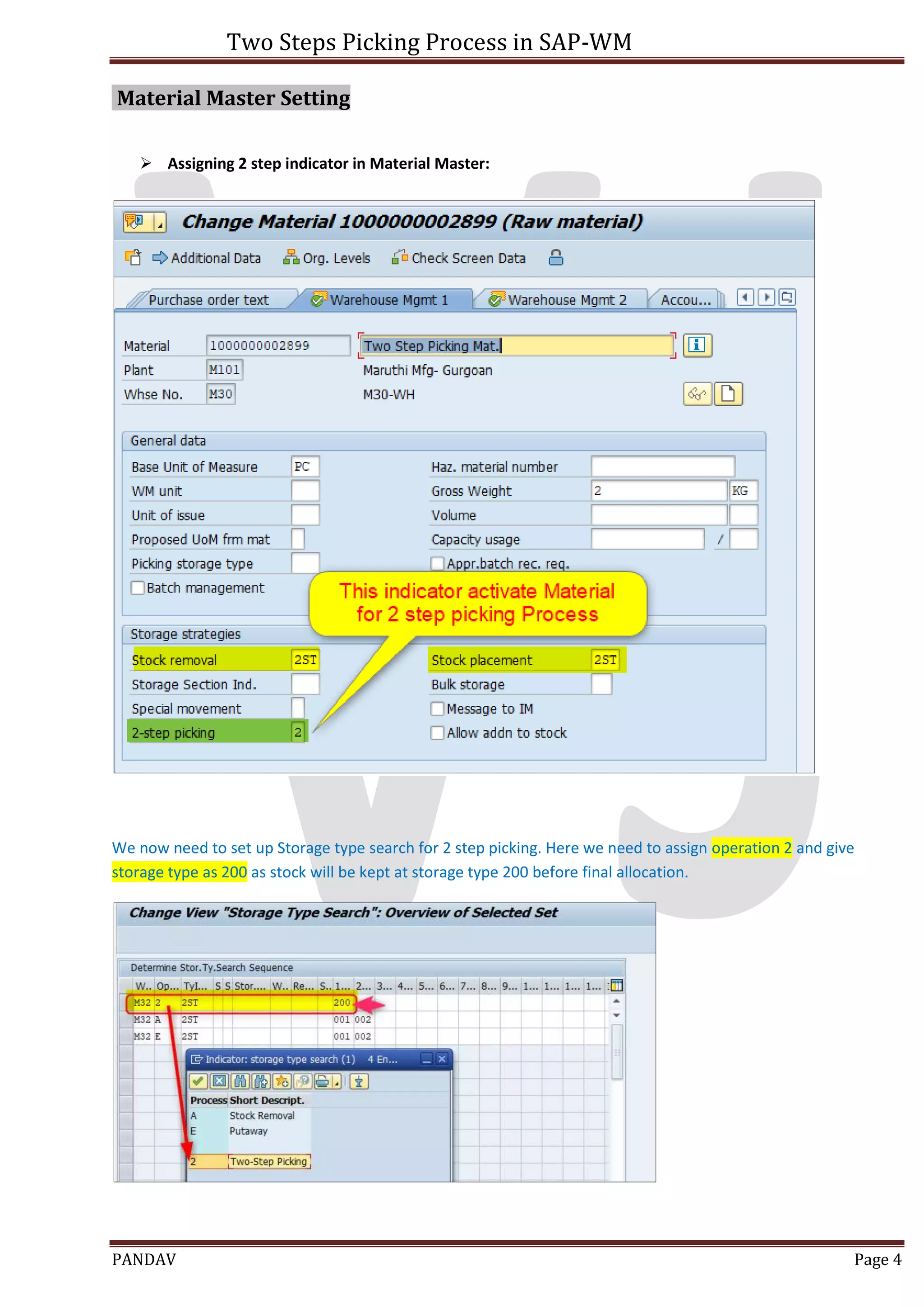
 Assigning 2 step indicator in Material Master:
We now need to set up Storage type search for 2 step picking. Here we need to assign operation 2 and give
storage type as 200 as stock will be kept at storage type 200 before final allocation.
Two Steps Picking Process in SAP-WM
PANDAV Page 5
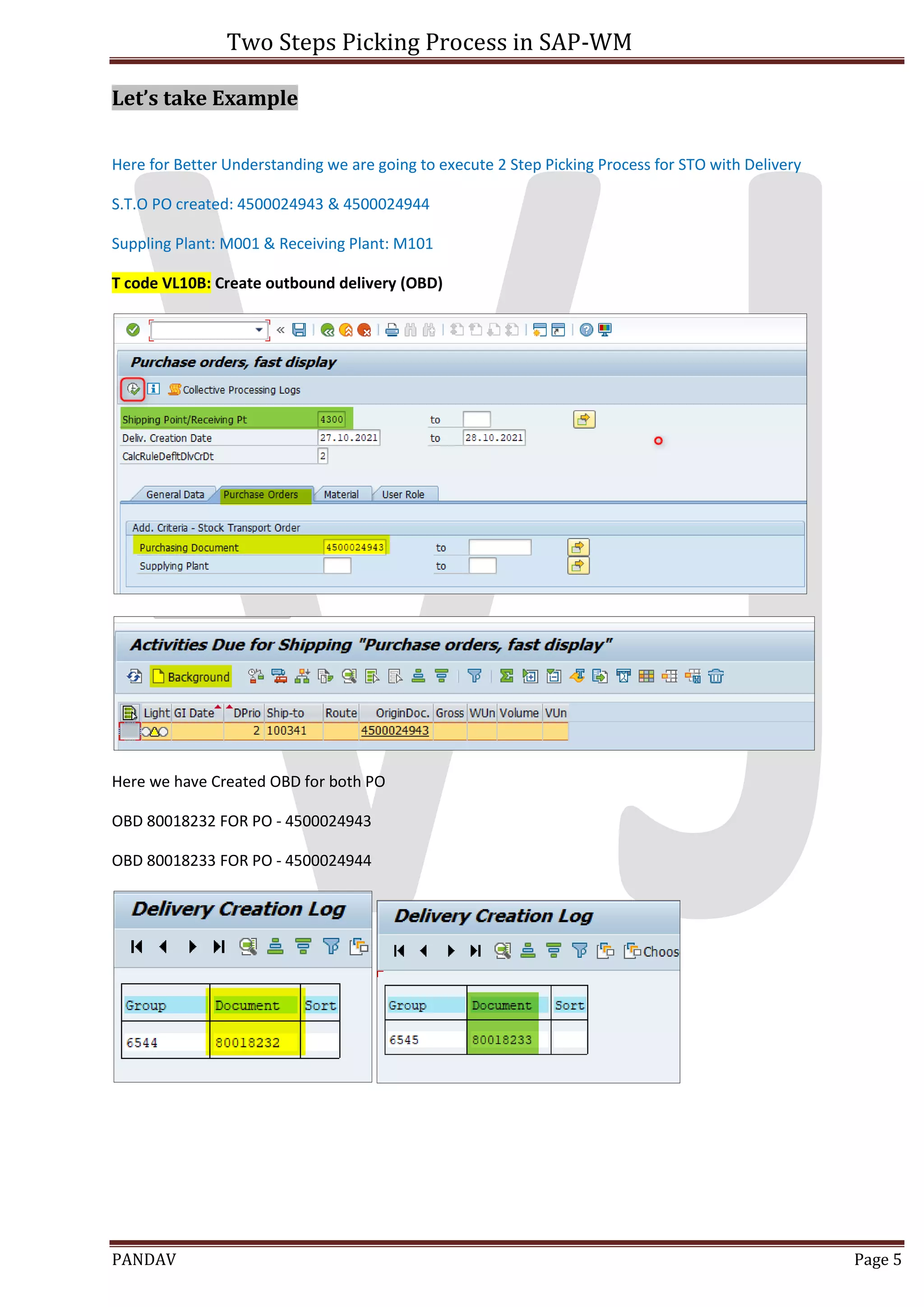
Let’s take Example
Here for Better Understanding we are going to execute 2 Step Picking Process for STO with Delivery
S.T.O PO created: 4500024943 & 4500024944
Suppling Plant: M001 & Receiving Plant: M101
T code VL10B: Create outbound delivery (OBD)
Here we have Created OBD for both PO
OBD 80018232 FOR PO - 4500024943
OBD 80018233 FOR PO - 4500024944
Two Steps Picking Process in SAP-WM
PANDAV Page 6
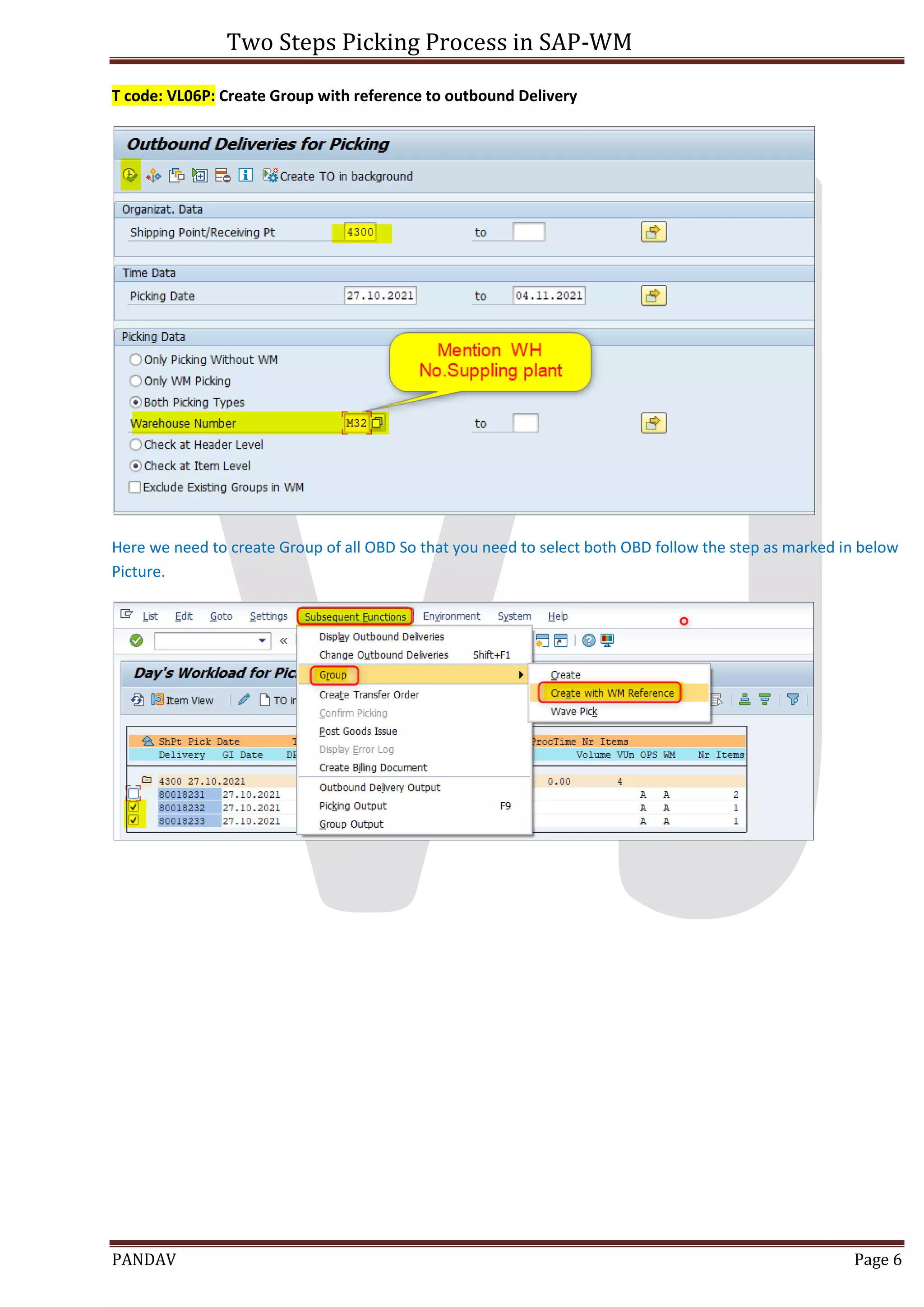
T code: VL06P: Create Group with reference to outbound Delivery
Here we need to create Group of all OBD So that you need to select both OBD follow the step as marked in below
Picture.
Two Steps Picking Process in SAP-WM
PANDAV Page 7
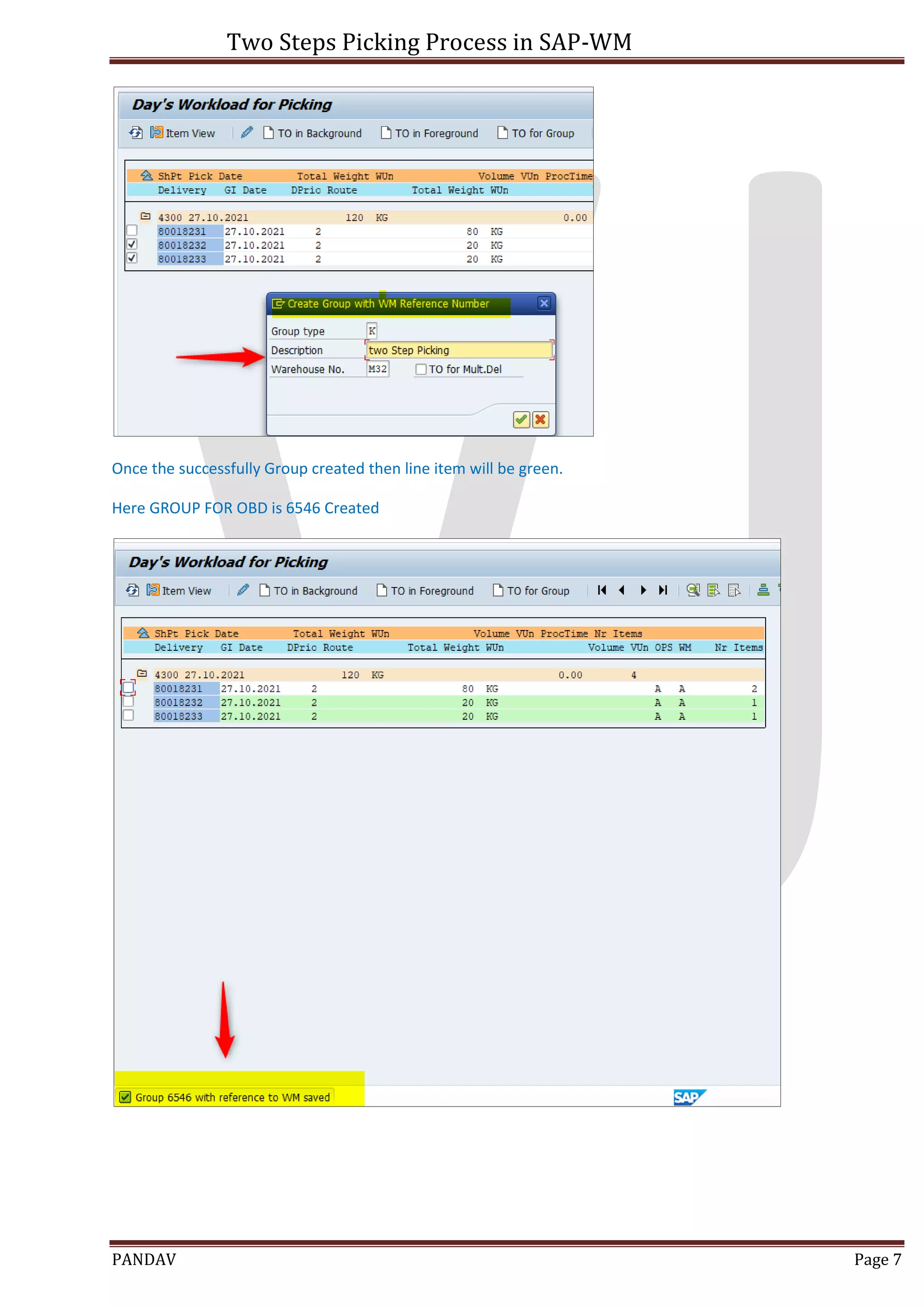
Once the successfully Group created then line item will be green.
Here GROUP FOR OBD is 6546 Created
Two Steps Picking Process in SAP-WM
PANDAV Page 8
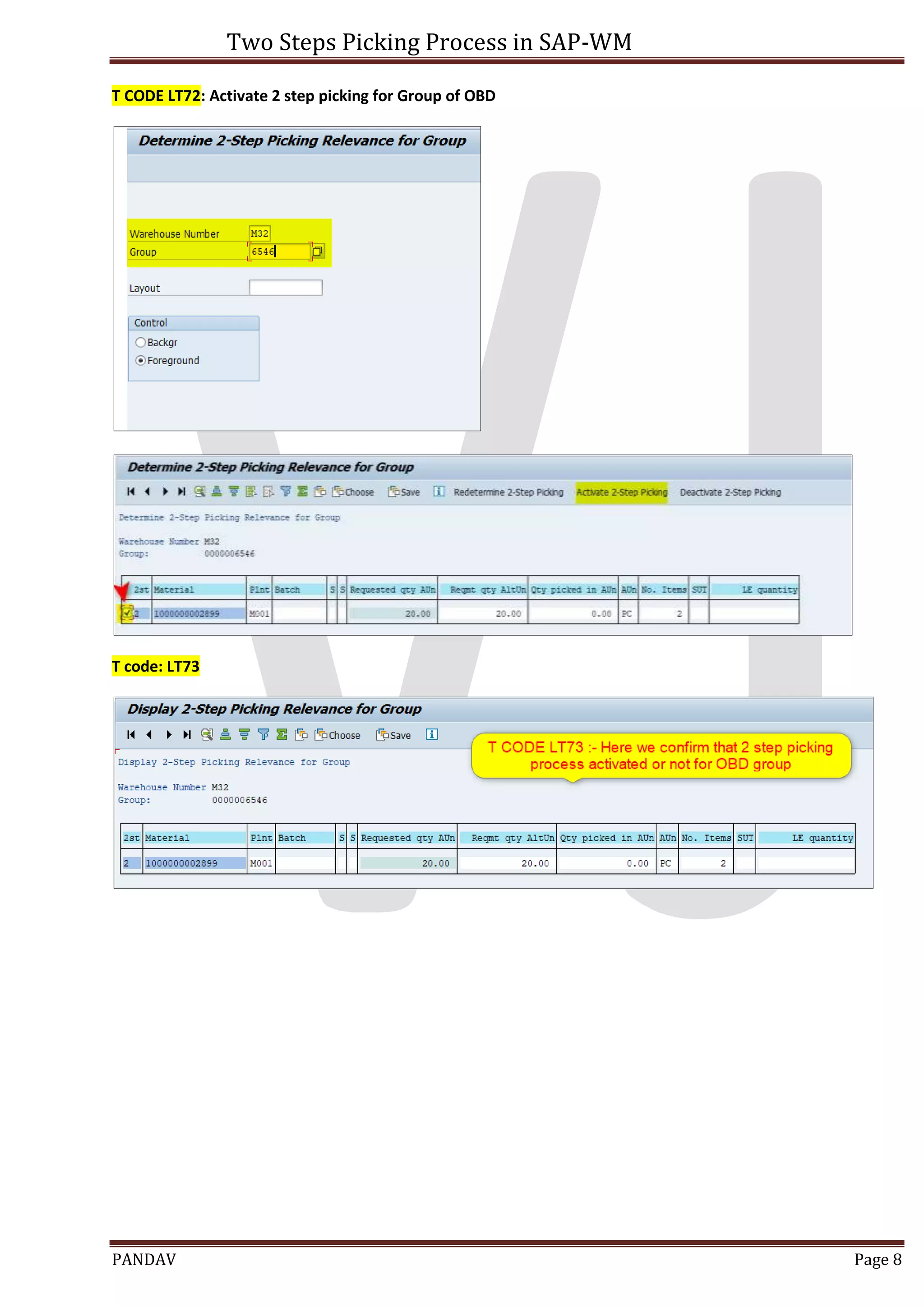
T CODE LT72: Activate 2 step picking for Group of OBD
T code: LT73
Two Steps Picking Process in SAP-WM
PANDAV Page 9
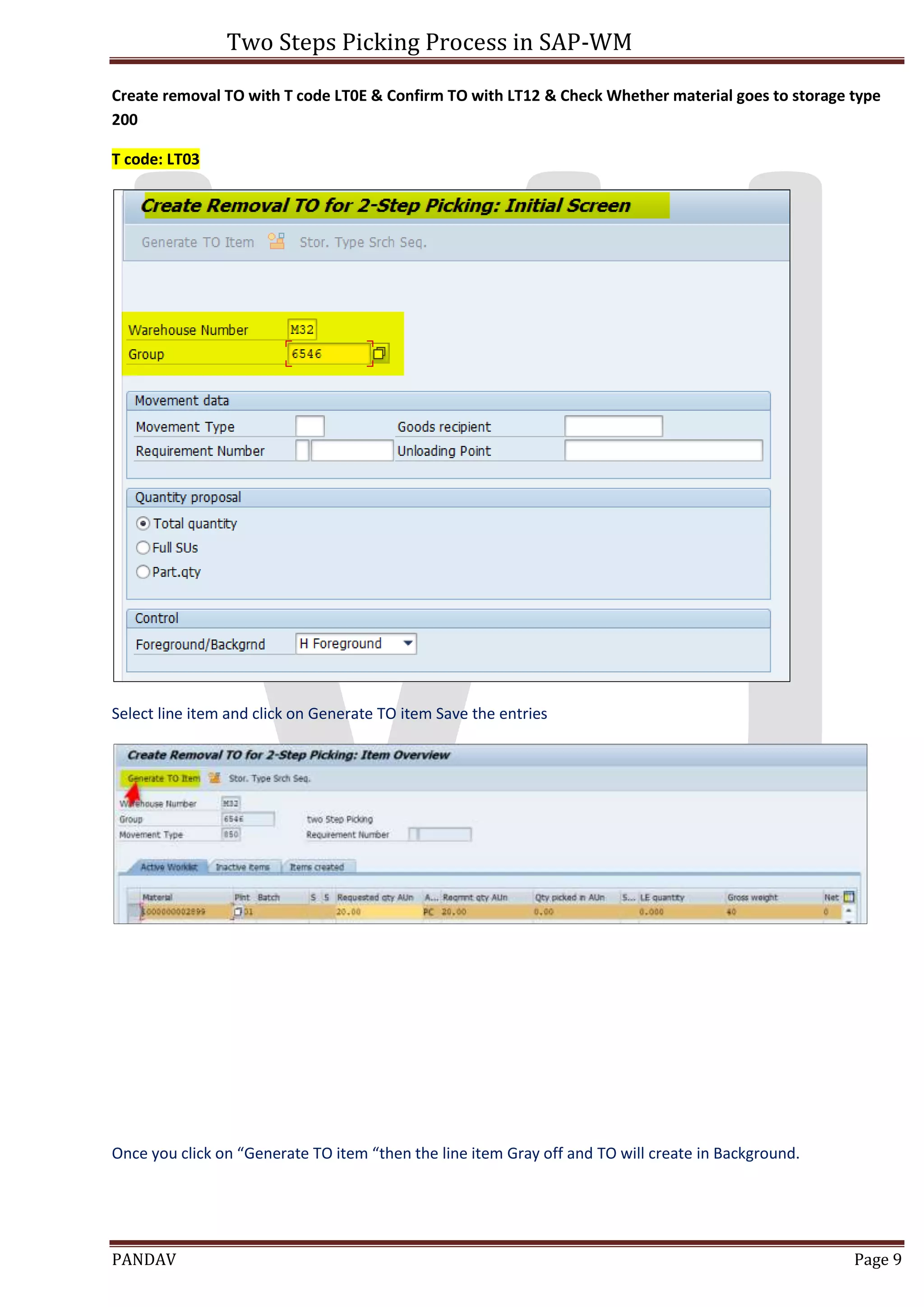
Create removal TO with T code LT0E & Confirm TO with LT12 & Check Whether material goes to storage type
200
T code: LT03
Select line item and click on Generate TO item Save the entries
Once you click on “Generate TO item “then the line item Gray off and TO will create in Background.
Two Steps Picking Process in SAP-WM
PANDAV Page 10
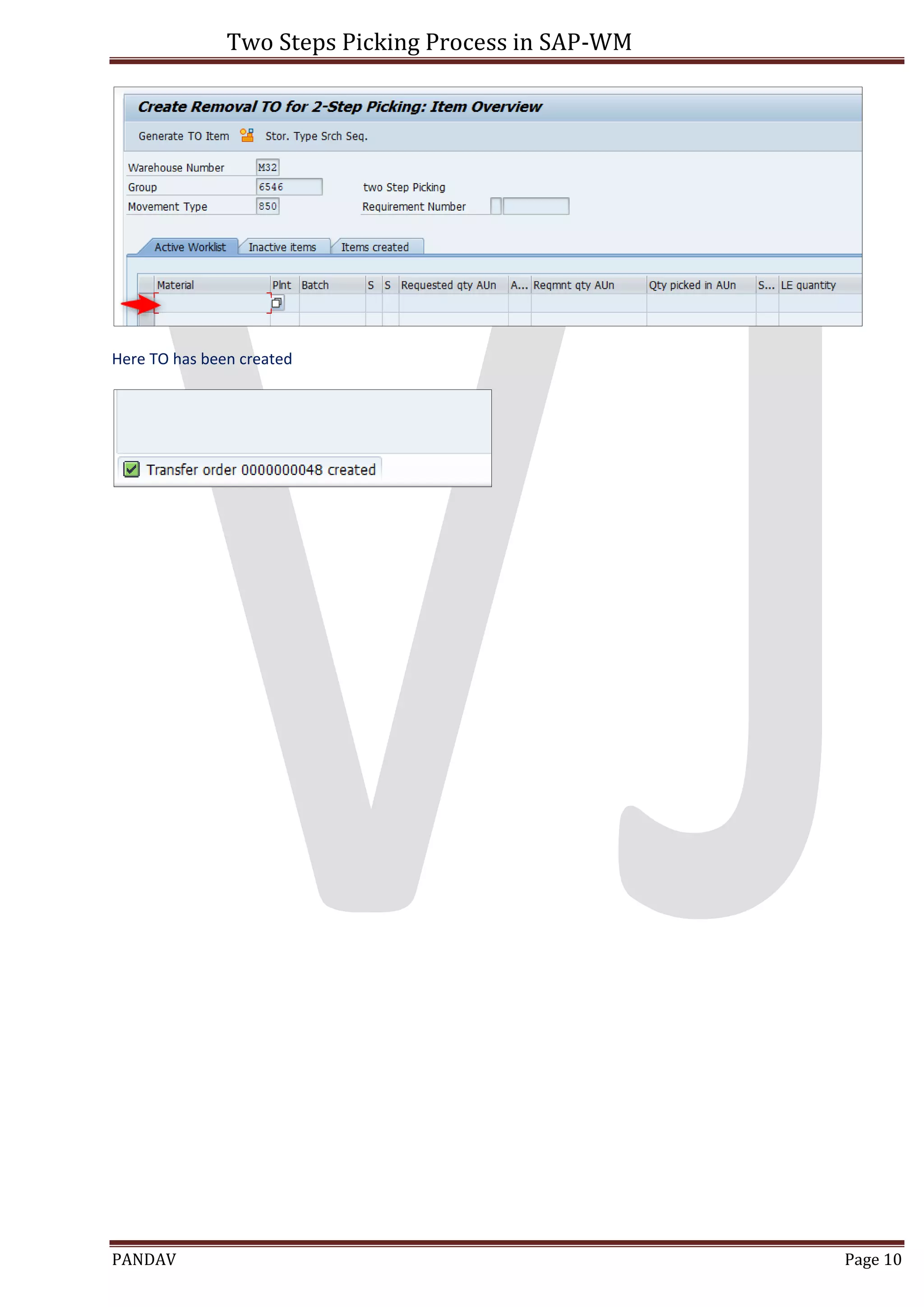
Here TO has been created
Two Steps Picking Process in SAP-WM
PANDAV Page 11
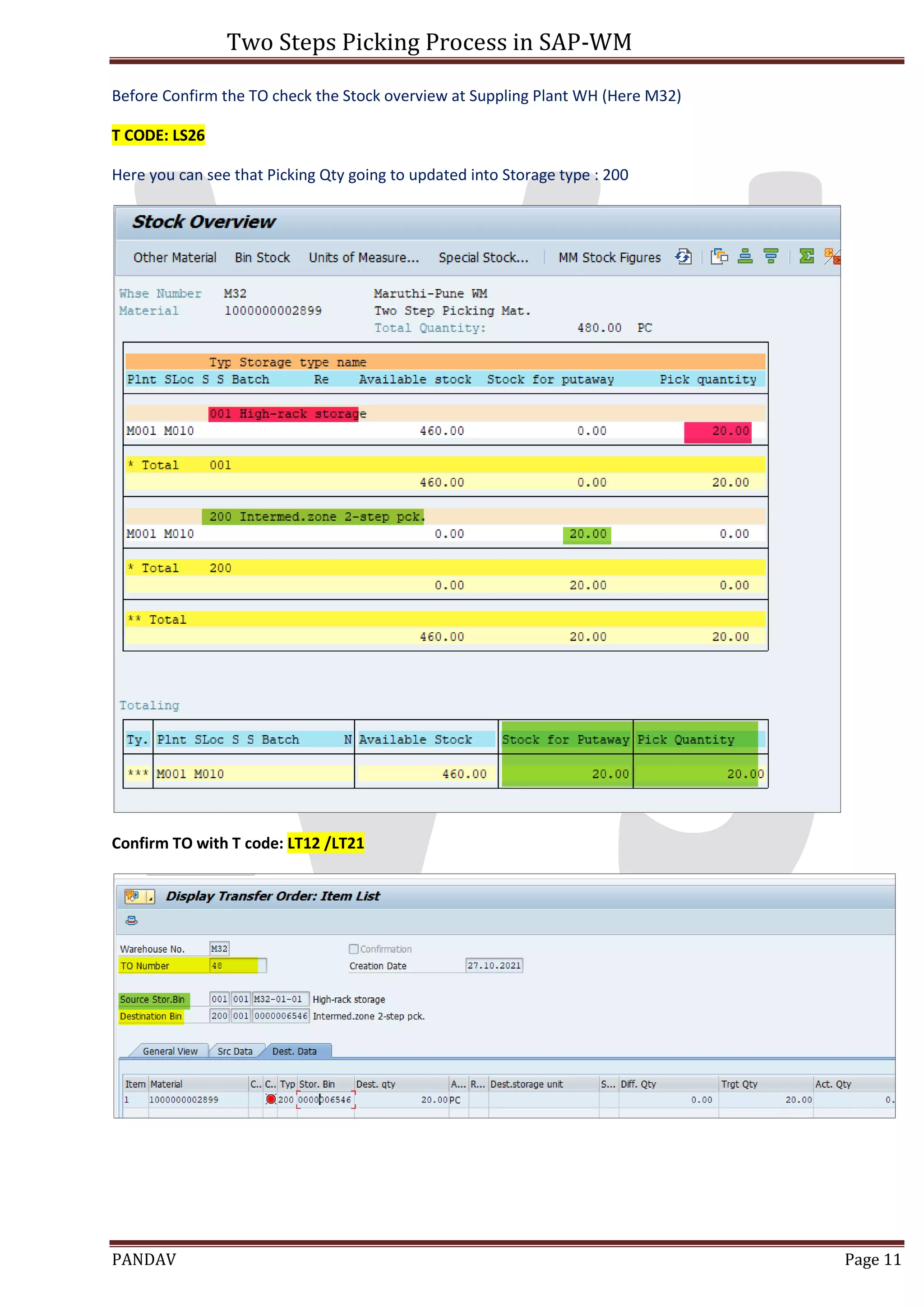
Before Confirm the TO check the Stock overview at Suppling Plant WH (Here M32)
T CODE: LS26
Here you can see that Picking Qty going to updated into Storage type : 200
Confirm TO with T code: LT12 /LT21
Two Steps Picking Process in SAP-WM
PANDAV Page 12
Stock Overview after TO 48 Confirmation, now you can see stock placed in Sto. Type 200
Two Steps Picking Process in SAP-WM
PANDAV Page 13
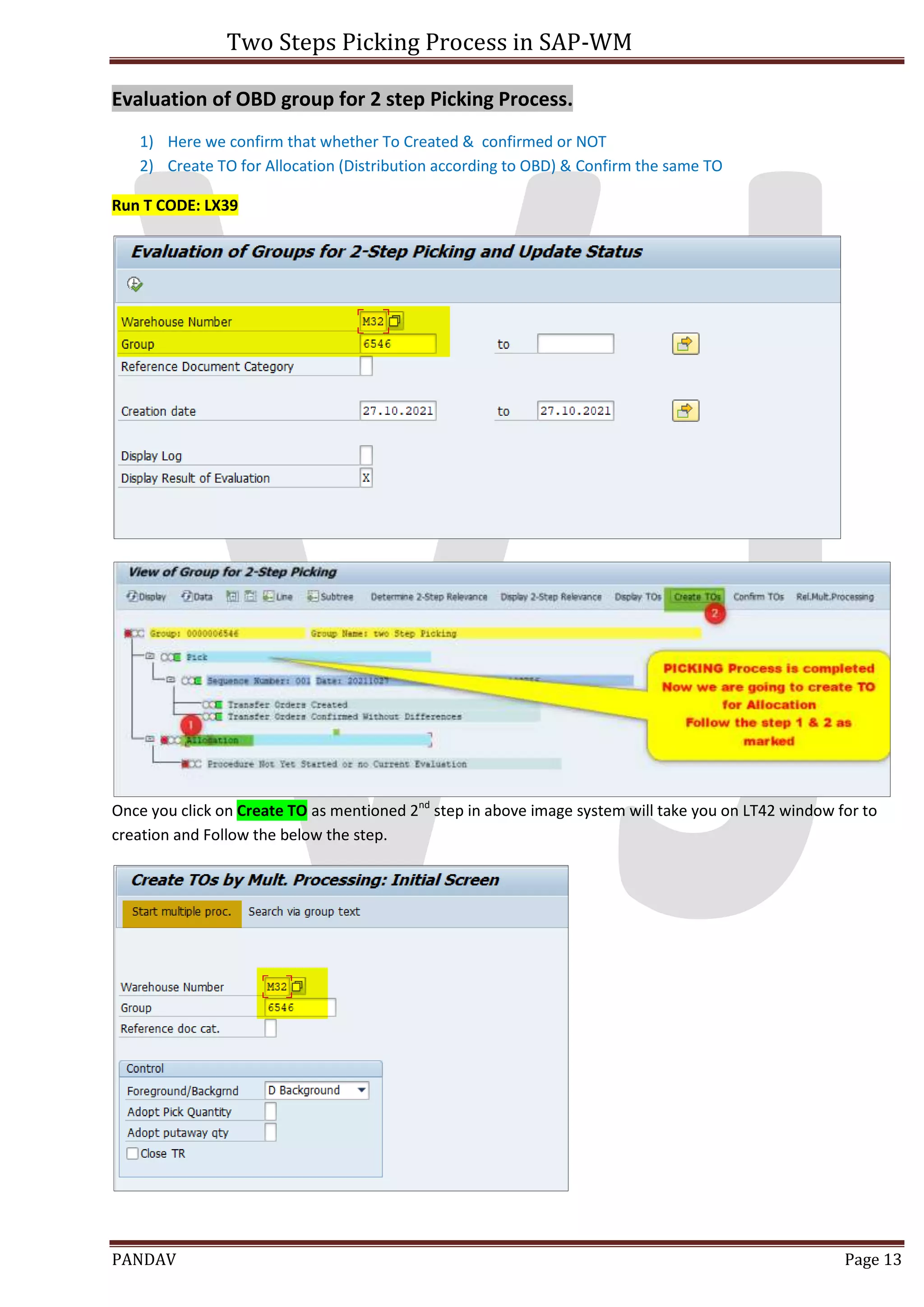
Evaluation of OBD group for 2 step Picking Process.
1) Here we confirm that whether To Created & confirmed or NOT
2) Create TO for Allocation (Distribution according to OBD) & Confirm the same TO
Run T CODE: LX39
Once you click on Create TO as mentioned 2nd
step in above image system will take you on LT42 window for to
creation and Follow the below the step.
Two Steps Picking Process in SAP-WM
PANDAV Page 14
Two Steps Picking Process in SAP-WM
PANDAV Page 15
3) T code LX39:- Here you can see that Allocation process successfully completed
T code LS26: You can see that 20 Picking qty has been placed from storage type: 200 to 916
Two Steps Picking Process in SAP-WM
PANDAV Page 16
T code VL02N: POST GOODS ISSUE Against OBD
Document Flow of OBD after PGI Done
Two Steps Picking Process in SAP-WM
PANDAV Page 17
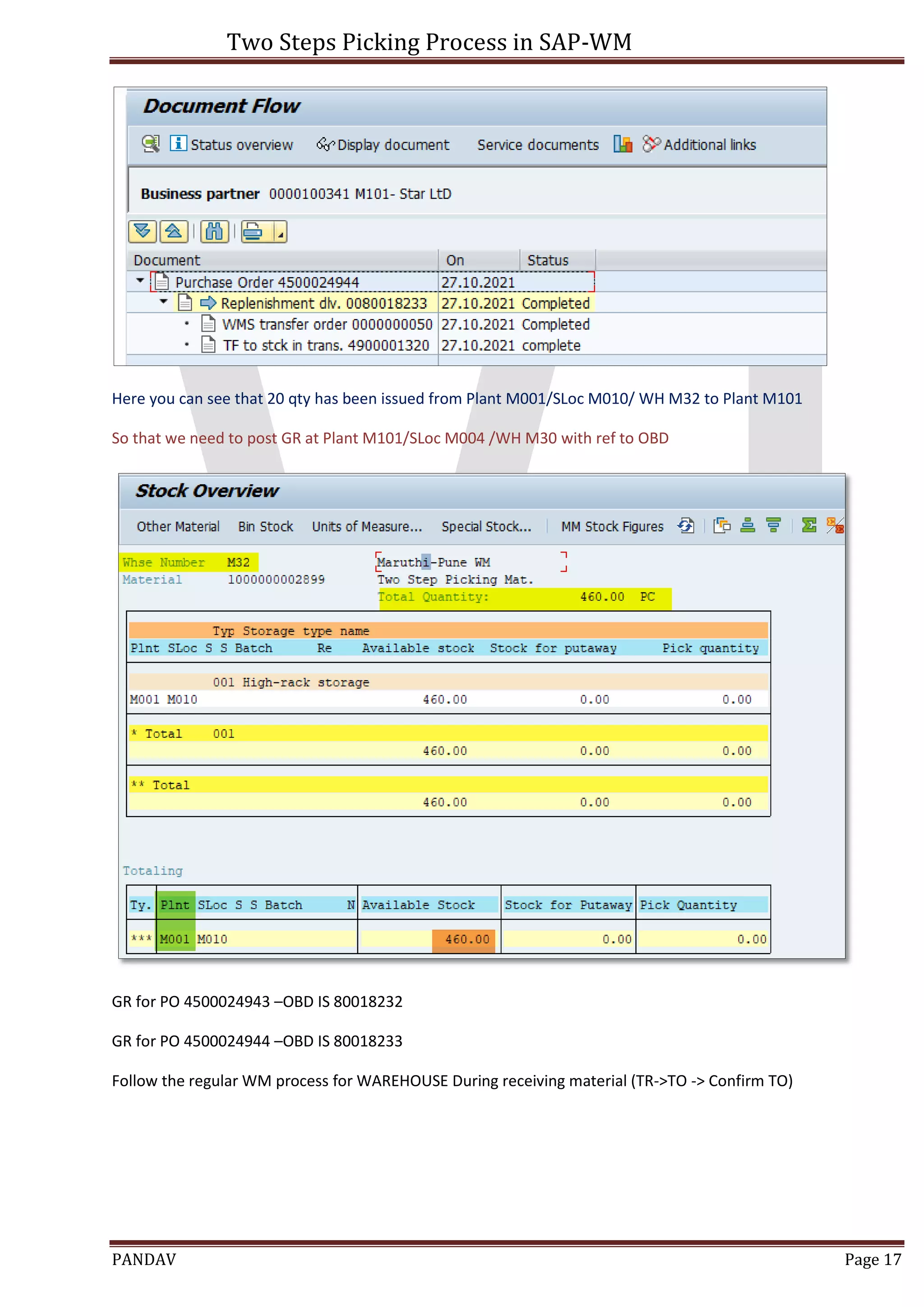
Here you can see that 20 qty has been issued from Plant M001/SLoc M010/ WH M32 to Plant M101
So that we need to post GR at Plant M101/SLoc M004 /WH M30 with ref to OBD
GR for PO 4500024943 –OBD IS 80018232
GR for PO 4500024944 –OBD IS 80018233
Follow the regular WM process for WAREHOUSE During receiving material (TR->TO -> Confirm TO)
Two Steps Picking Process in SAP-WM
PANDAV Page 18
Now you can see that stock has been placed at M30 warehouse TCODE: LX03
Two Steps Picking Process in SAP-WM
PANDAV Page 19
2 Step Picking Process Overview
 Reference
SAP BLOG:
https://blogs.sap.com/2014/09/24/two-steps-picking-process-in-sap-wm/
You tube Video:
https://www.youtube.com/watch?v=owcfIyX6jMw

Picking 2 steps.pdf

  • 1.
    Two Steps PickingProcess in SAP-WM PANDAV Page 1 Introduction: In this Process, the stock removal process has been divided into two steps. 1st step is to withdraw OR PICK the total quantity of material collectively from the storage type for the Multiple Outbound deliveries and Place it into the Interim storage type of 2step Picking. 2nd step is to Distribute OR Allocate that total material according to Outbound deliveries. This process is activated at Warehouse level and as per requirement material by material.
  • 2.
    Two Steps PickingProcess in SAP-WM PANDAV Page 2 Configuration Steps:  Activate two step picking for Transfer requirement: SPRO–>Logistic Execution–>Warehouse Management–>Activities–>Transfers–>Set up 2 step picking process for Transfer Requirement Under Transfer requirement control, we need to make following setting. 1) Assign 2 step picking under column 2stP for given Warehouse No 2) If you check column 2-stMatl system will check that 2 Step is Material dependent or not., only those Materials will be part of 2 steps picking where 2 step provisions is made in Material master under Warehouse view 1 3) Movement type 850 needs to be assigned as this is movement type will be used during first TO during collective picking to bring the materials to interim Storage Type 200
  • 3.
    Two Steps PickingProcess in SAP-WM PANDAV Page 3 Under transfer type control tab, we need to set up 2 step picking for transfer type- Stock removal Same configuration is required for outbound Delivery. Configuration path can be found under  SPRO–Logistic Execution–>Warehouse Management –> Interface–>Shipping–>2 step picking
  • 4.
    Two Steps PickingProcess in SAP-WM PANDAV Page 4 Material Master Setting  Assigning 2 step indicator in Material Master: We now need to set up Storage type search for 2 step picking. Here we need to assign operation 2 and give storage type as 200 as stock will be kept at storage type 200 before final allocation.
  • 5.
    Two Steps PickingProcess in SAP-WM PANDAV Page 5 Let’s take Example Here for Better Understanding we are going to execute 2 Step Picking Process for STO with Delivery S.T.O PO created: 4500024943 & 4500024944 Suppling Plant: M001 & Receiving Plant: M101 T code VL10B: Create outbound delivery (OBD) Here we have Created OBD for both PO OBD 80018232 FOR PO - 4500024943 OBD 80018233 FOR PO - 4500024944
  • 6.
    Two Steps PickingProcess in SAP-WM PANDAV Page 6 T code: VL06P: Create Group with reference to outbound Delivery Here we need to create Group of all OBD So that you need to select both OBD follow the step as marked in below Picture.
  • 7.
    Two Steps PickingProcess in SAP-WM PANDAV Page 7 Once the successfully Group created then line item will be green. Here GROUP FOR OBD is 6546 Created
  • 8.
    Two Steps PickingProcess in SAP-WM PANDAV Page 8 T CODE LT72: Activate 2 step picking for Group of OBD T code: LT73
  • 9.
    Two Steps PickingProcess in SAP-WM PANDAV Page 9 Create removal TO with T code LT0E & Confirm TO with LT12 & Check Whether material goes to storage type 200 T code: LT03 Select line item and click on Generate TO item Save the entries Once you click on “Generate TO item “then the line item Gray off and TO will create in Background.
  • 10.
    Two Steps PickingProcess in SAP-WM PANDAV Page 10 Here TO has been created
  • 11.
    Two Steps PickingProcess in SAP-WM PANDAV Page 11 Before Confirm the TO check the Stock overview at Suppling Plant WH (Here M32) T CODE: LS26 Here you can see that Picking Qty going to updated into Storage type : 200 Confirm TO with T code: LT12 /LT21
  • 12.
    Two Steps PickingProcess in SAP-WM PANDAV Page 12 Stock Overview after TO 48 Confirmation, now you can see stock placed in Sto. Type 200
  • 13.
    Two Steps PickingProcess in SAP-WM PANDAV Page 13 Evaluation of OBD group for 2 step Picking Process. 1) Here we confirm that whether To Created & confirmed or NOT 2) Create TO for Allocation (Distribution according to OBD) & Confirm the same TO Run T CODE: LX39 Once you click on Create TO as mentioned 2nd step in above image system will take you on LT42 window for to creation and Follow the below the step.
  • 14.
    Two Steps PickingProcess in SAP-WM PANDAV Page 14
  • 15.
    Two Steps PickingProcess in SAP-WM PANDAV Page 15 3) T code LX39:- Here you can see that Allocation process successfully completed T code LS26: You can see that 20 Picking qty has been placed from storage type: 200 to 916
  • 16.
    Two Steps PickingProcess in SAP-WM PANDAV Page 16 T code VL02N: POST GOODS ISSUE Against OBD Document Flow of OBD after PGI Done
  • 17.
    Two Steps PickingProcess in SAP-WM PANDAV Page 17 Here you can see that 20 qty has been issued from Plant M001/SLoc M010/ WH M32 to Plant M101 So that we need to post GR at Plant M101/SLoc M004 /WH M30 with ref to OBD GR for PO 4500024943 –OBD IS 80018232 GR for PO 4500024944 –OBD IS 80018233 Follow the regular WM process for WAREHOUSE During receiving material (TR->TO -> Confirm TO)
  • 18.
    Two Steps PickingProcess in SAP-WM PANDAV Page 18 Now you can see that stock has been placed at M30 warehouse TCODE: LX03
  • 19.
    Two Steps PickingProcess in SAP-WM PANDAV Page 19 2 Step Picking Process Overview  Reference SAP BLOG: https://blogs.sap.com/2014/09/24/two-steps-picking-process-in-sap-wm/ You tube Video: https://www.youtube.com/watch?v=owcfIyX6jMw