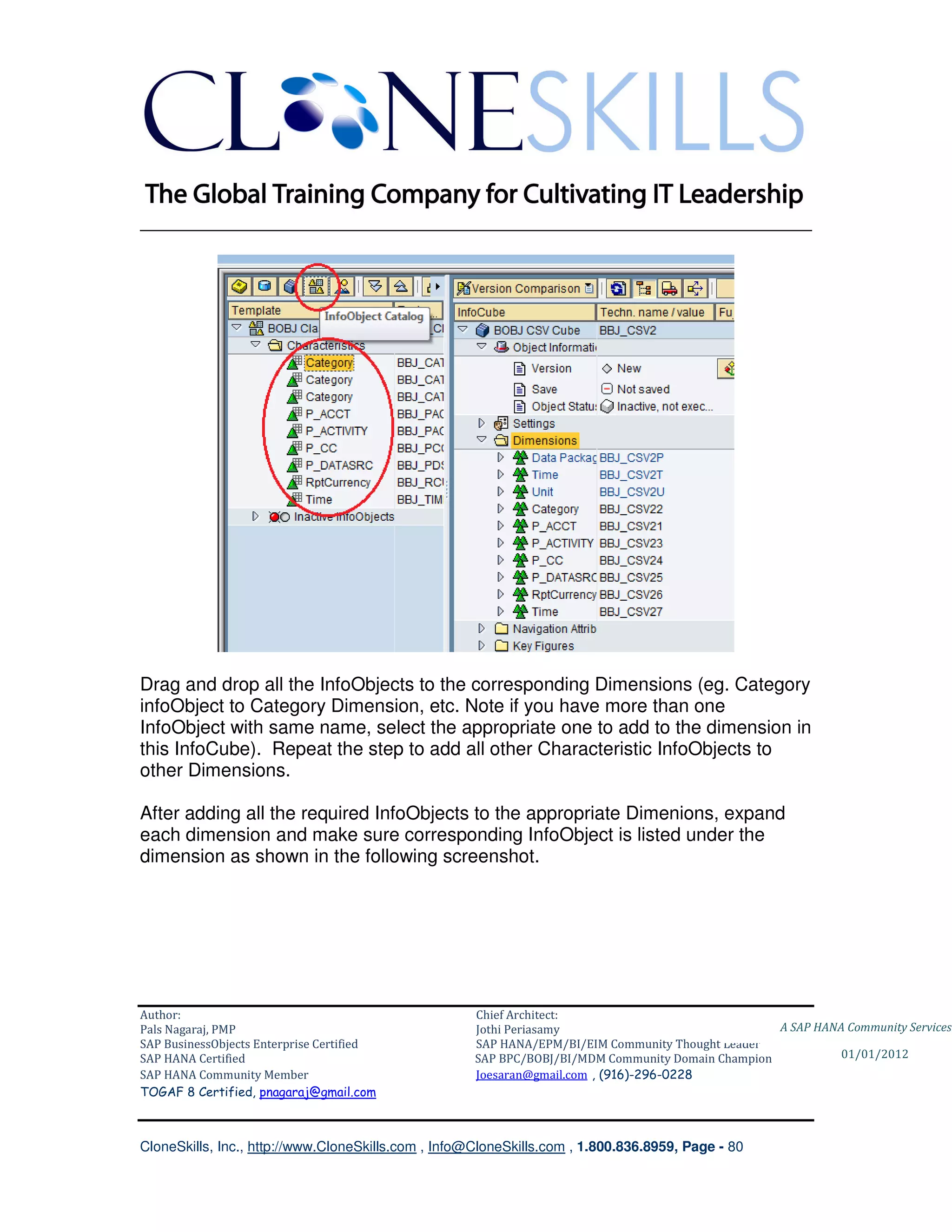
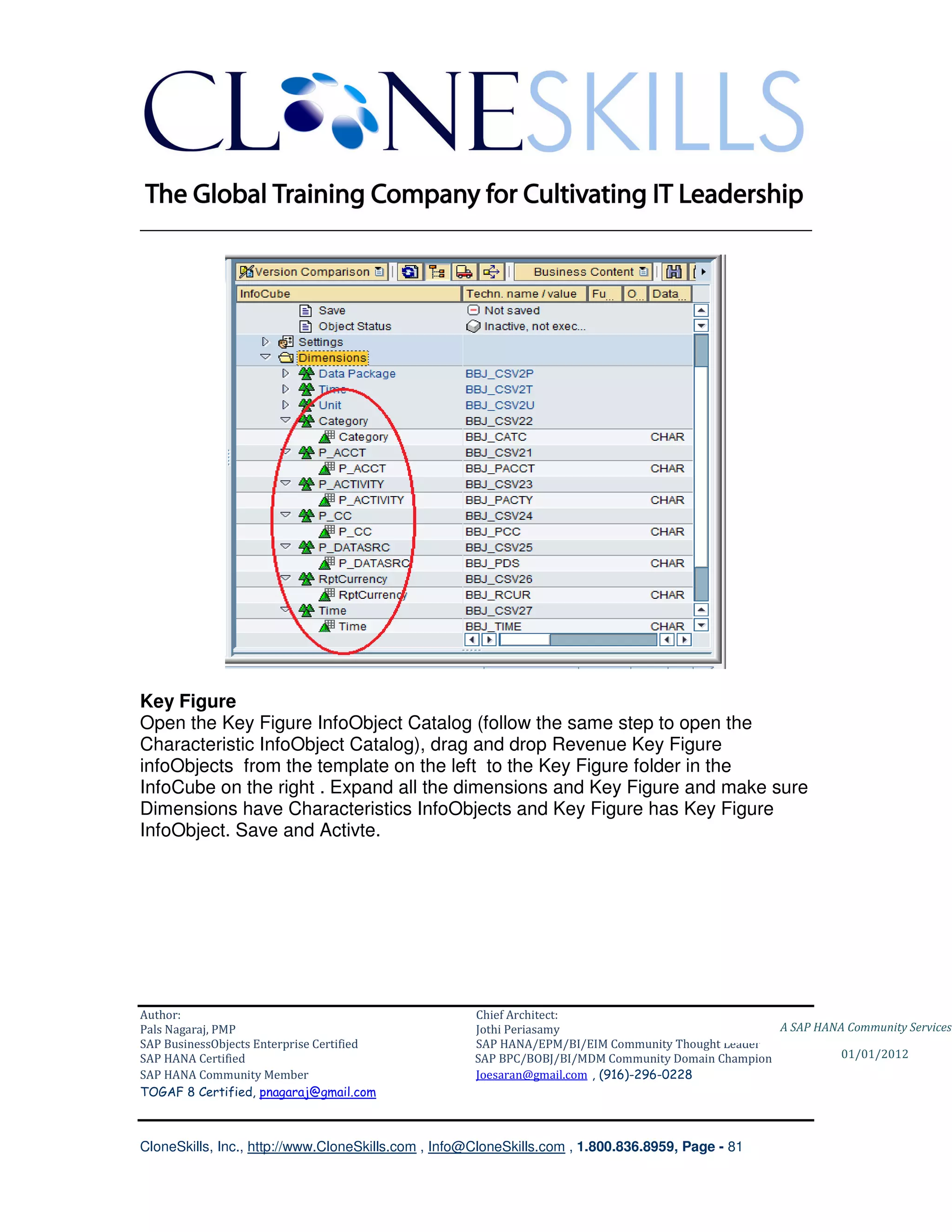
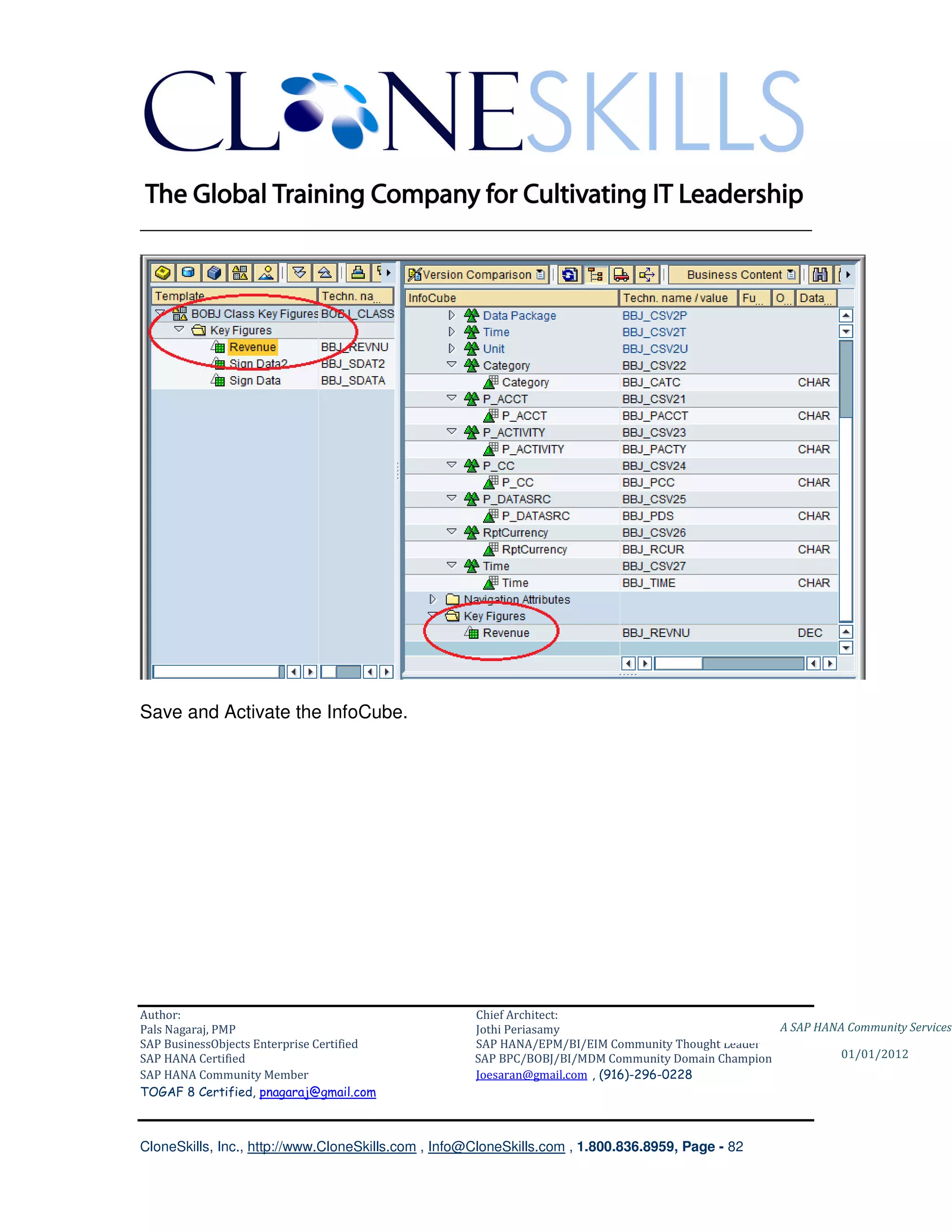
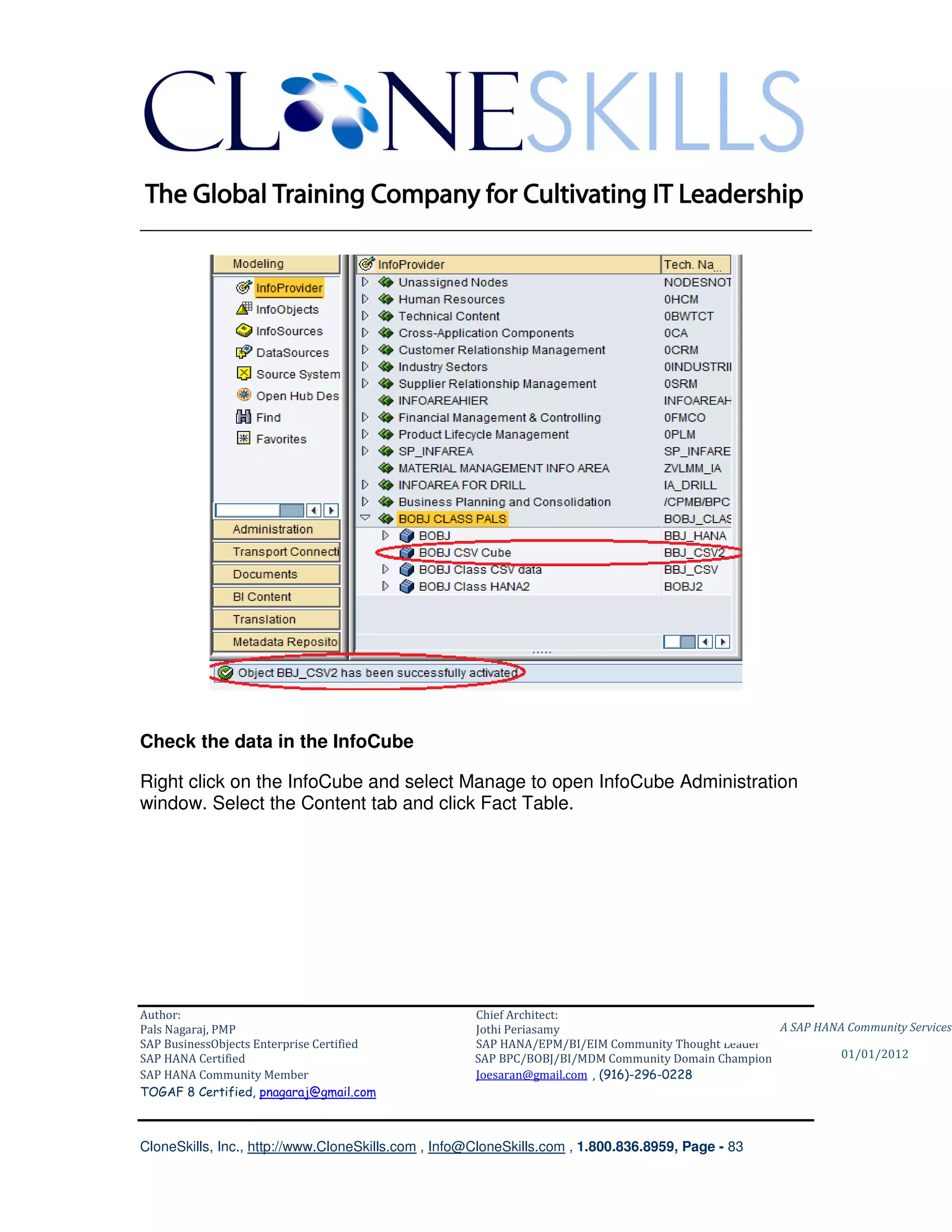
________________________________________________________________________


                SAP HANA and BOBI 4.0
                   Knowledgebase

        Data Services, Universe and WebI
                      an end-to-end implementation guide


                                                                                  A SAP HANA Community Services


Author:                                              Chief Architect:
Pals Nagaraj, PMP                                    Jothi Periasamy                               A SAP HANA Community Services
SAP BusinessObjects Enterprise Certified             SAP HANA/EPM/BI/EIM Community Thought Leader
SAP HANA Certified                                   SAP BPC/BOBJ/BI/MDM Community Domain Champion           01/01/2012
SAP HANA Community Member                            Joesaran@gmail.com , (916)-296-0228
TOGAF 8 Certified, pnagaraj@gmail.com


CloneSkills, Inc., http://www.CloneSkills.com , Info@CloneSkills.com , 1.800.836.8959, Page - 1
________________________________________________________________________


Table of Contents:

  Introduction ............................................................................................................................. 3
  1.      Data File/Raw Data.......................................................................................................... 5
  2.      SAP BusinessObjects Data Services ............................................................................... 6
       Loading Data into SAP BW using SAP BusinessObjects Data Services ............................ 11
  3.      SAP BW Setup .............................................................................................................. 14
       SAP BusinessObjects Data Services and SAP BW Connection ........................................ 14
       Create InfoObjects, InfoCube and InfoSource. .................................................................. 17
       Create Characteristics and Key Figures ............................................................................ 22
       Add InfoObjects created in the above step into InfoSource ............................................... 33
       SAP BusinessObjects Data Services Setup ...................................................................... 37
       Retrieving data into SAP BW............................................................................................. 62
  4.      SAP BusinessObjects Information Design Tool ............................................................. 96
       Create Project ................................................................................................................. 100
       Create Session................................................................................................................ 101
       Create Relational Connection to SAP BW InfoCube ........................................................ 101
  5.      BI Launch Pad & Web Intelligence.............................................................................. 130
       Create a Web Intelligence Document .............................................................................. 130


Author:                                                         Chief Architect:
Pals Nagaraj, PMP                                               Jothi Periasamy                               A SAP HANA Community Services
SAP BusinessObjects Enterprise Certified                        SAP HANA/EPM/BI/EIM Community Thought Leader
SAP HANA Certified                                              SAP BPC/BOBJ/BI/MDM Community Domain Champion           01/01/2012
SAP HANA Community Member                                       Joesaran@gmail.com , (916)-296-0228
TOGAF 8 Certified, pnagaraj@gmail.com


CloneSkills, Inc., http://www.CloneSkills.com , Info@CloneSkills.com , 1.800.836.8959, Page - 2
________________________________________________________________________


Objective:
Propose of this document is to provide adequate functional and technical
implementation steps to develop a self servicing business analytics functions
using SAP BO 4.0 and SAP HANA 1.0 solutions.

Introduction:
        Over a period of time businesses produced substantial amount of big data
on their day to day operations. These data are buried with a number of
information such as how the business is performing? Where the risk is? Where
the opportunity is? Which part of the business is getting stronger? Which part is
getting weaker? Etc. Extracting the buried information, to drive the business in
the right direction, is the role of information science discipline called Business
Intelligence. This article address how the raw data from daily operation, walk
through various Business Intelligence technology solutions, transforms and
becomes a powerful tactical and strategic decision making tool for the
businesses.

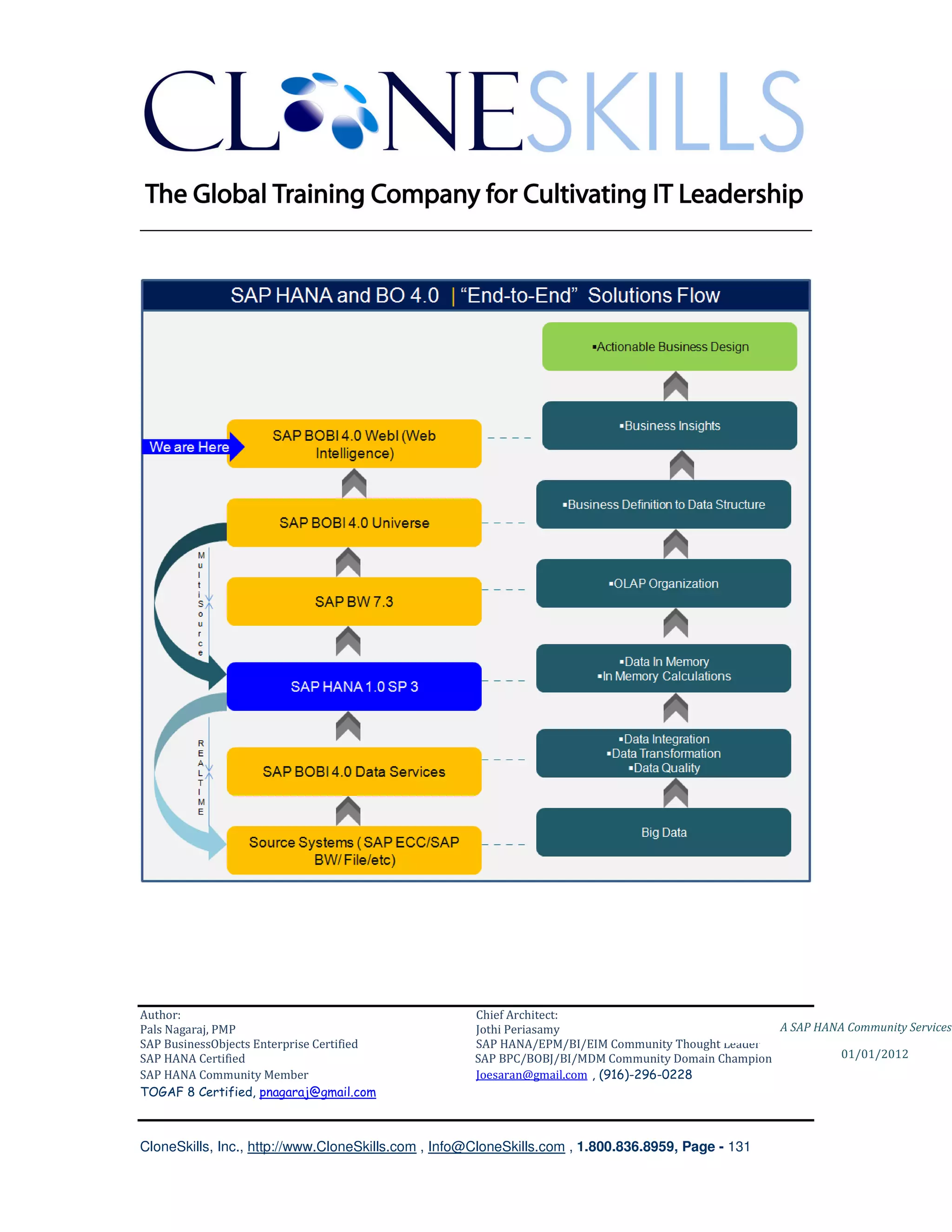
In this article we are focusing on a implementing an “end-to-end” SAP’s SAP
BusinessObjects solutions on SAP HANA and SAP BW.


Author:                                              Chief Architect:
Pals Nagaraj, PMP                                    Jothi Periasamy                               A SAP HANA Community Services
SAP BusinessObjects Enterprise Certified             SAP HANA/EPM/BI/EIM Community Thought Leader
SAP HANA Certified                                   SAP BPC/BOBJ/BI/MDM Community Domain Champion           01/01/2012
SAP HANA Community Member                            Joesaran@gmail.com , (916)-296-0228
TOGAF 8 Certified, pnagaraj@gmail.com


CloneSkills, Inc., http://www.CloneSkills.com , Info@CloneSkills.com , 1.800.836.8959, Page - 3
________________________________________________________________________

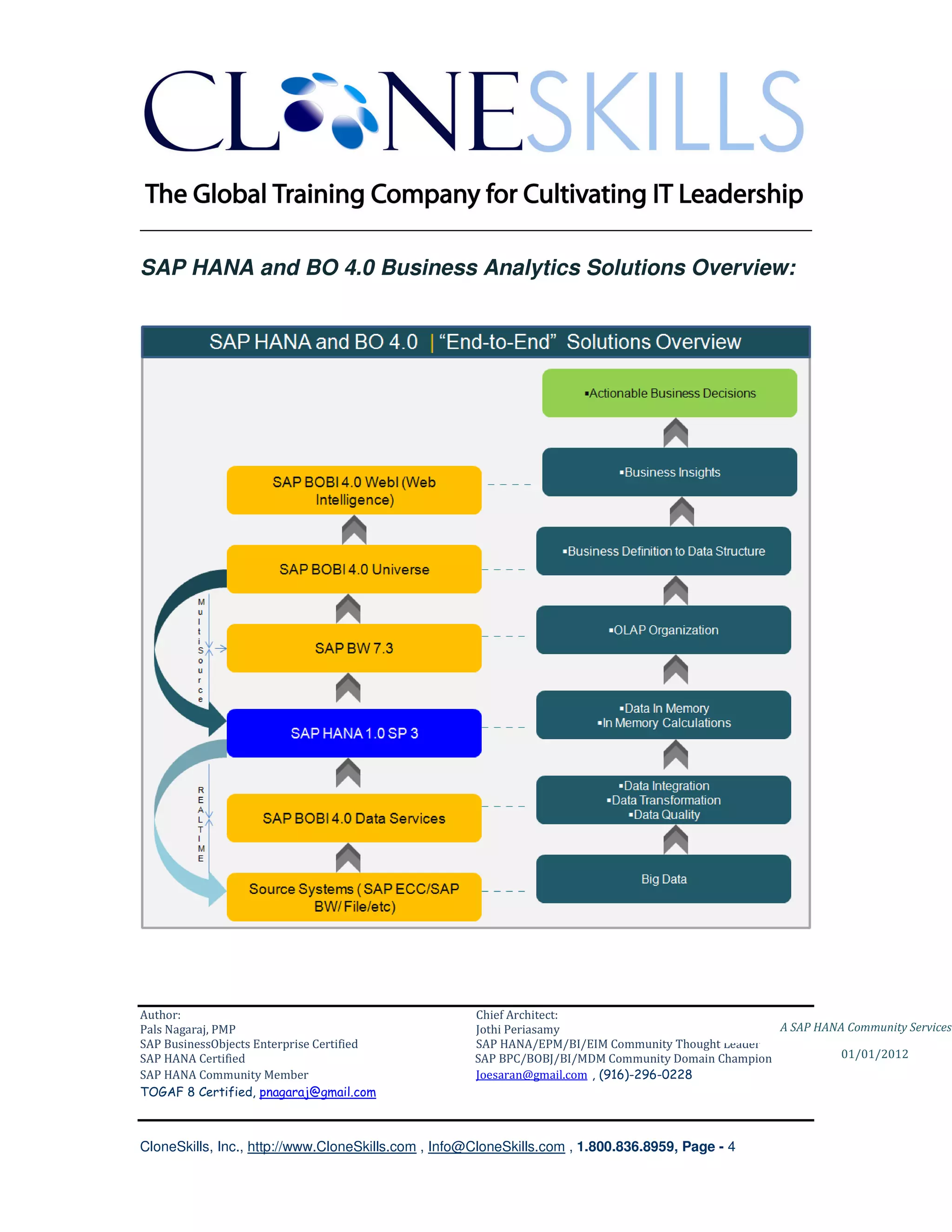
SAP HANA and BO 4.0 Business Analytics Solutions Overview:


Author:                                              Chief Architect:
Pals Nagaraj, PMP                                    Jothi Periasamy                               A SAP HANA Community Services
SAP BusinessObjects Enterprise Certified             SAP HANA/EPM/BI/EIM Community Thought Leader
SAP HANA Certified                                   SAP BPC/BOBJ/BI/MDM Community Domain Champion           01/01/2012
SAP HANA Community Member                            Joesaran@gmail.com , (916)-296-0228
TOGAF 8 Certified, pnagaraj@gmail.com


CloneSkills, Inc., http://www.CloneSkills.com , Info@CloneSkills.com , 1.800.836.8959, Page - 4
________________________________________________________________________


1. Source Data/Raw Data

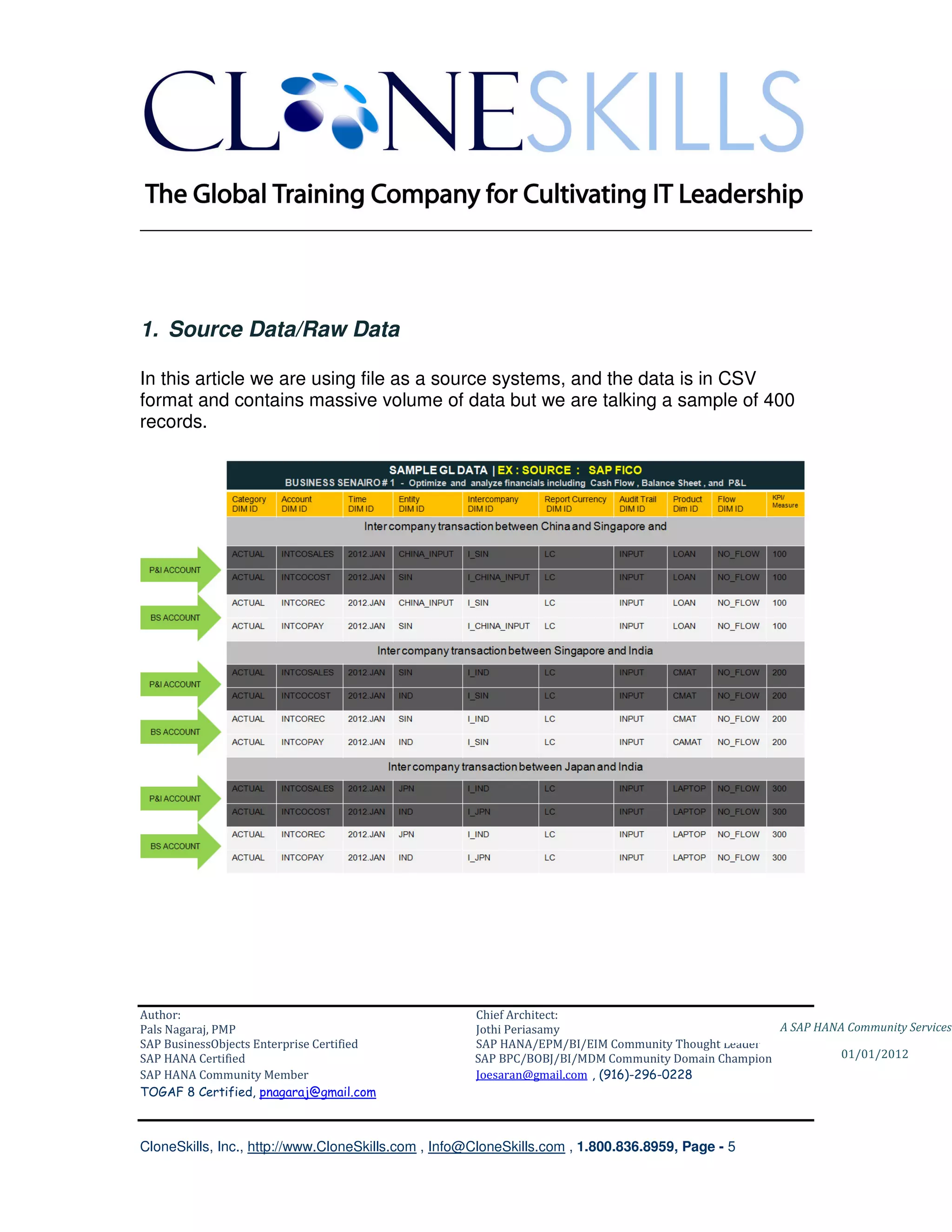
In this article we are using file as a source systems, and the data is in CSV
format and contains massive volume of data but we are talking a sample of 400
records.


Author:                                              Chief Architect:
Pals Nagaraj, PMP                                    Jothi Periasamy                               A SAP HANA Community Services
SAP BusinessObjects Enterprise Certified             SAP HANA/EPM/BI/EIM Community Thought Leader
SAP HANA Certified                                   SAP BPC/BOBJ/BI/MDM Community Domain Champion           01/01/2012
SAP HANA Community Member                            Joesaran@gmail.com , (916)-296-0228
TOGAF 8 Certified, pnagaraj@gmail.com


CloneSkills, Inc., http://www.CloneSkills.com , Info@CloneSkills.com , 1.800.836.8959, Page - 5
________________________________________________________________________

2. SAP BusinessObjects 4.0 Data Services

SAP BusinessObjects Data Services tool is the threshold of converting data into
information. It is used for ETL – Extract, Transform and Load operation.
Extract transaction data from multiple source systems (business may have more
than one system to handle operational data)
Transform the extracted data – cleanse, summaries/aggregate and create a
single record at the aggregation level.
Load – load the transformed data into a Data Warehouse or Data Mart.

Sample Transformations

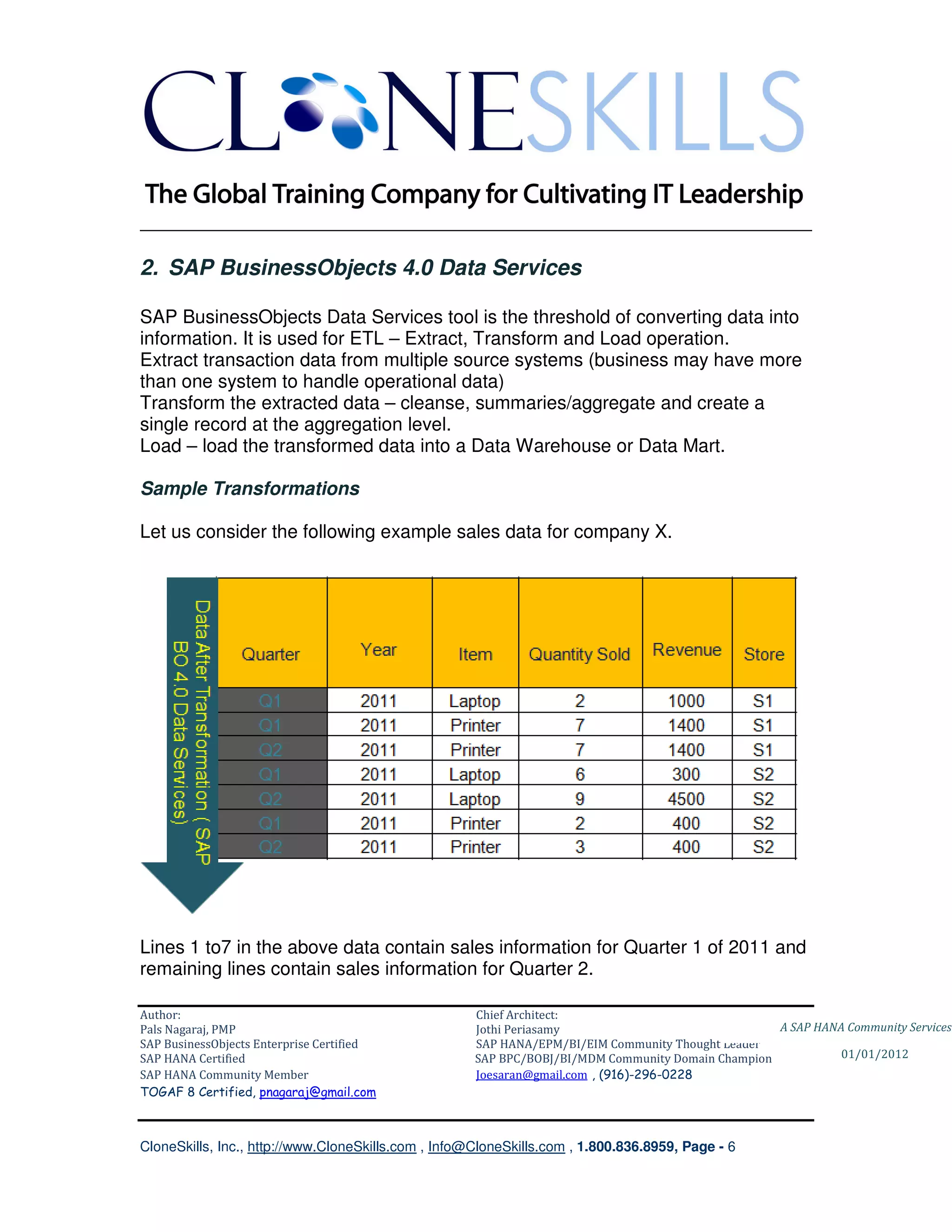
Let us consider the following example sales data for company X.


Lines 1 to7 in the above data contain sales information for Quarter 1 of 2011 and
remaining lines contain sales information for Quarter 2.

Author:                                              Chief Architect:
Pals Nagaraj, PMP                                    Jothi Periasamy                               A SAP HANA Community Services
SAP BusinessObjects Enterprise Certified             SAP HANA/EPM/BI/EIM Community Thought Leader
SAP HANA Certified                                   SAP BPC/BOBJ/BI/MDM Community Domain Champion           01/01/2012
SAP HANA Community Member                            Joesaran@gmail.com , (916)-296-0228
TOGAF 8 Certified, pnagaraj@gmail.com


CloneSkills, Inc., http://www.CloneSkills.com , Info@CloneSkills.com , 1.800.836.8959, Page - 6
________________________________________________________________________

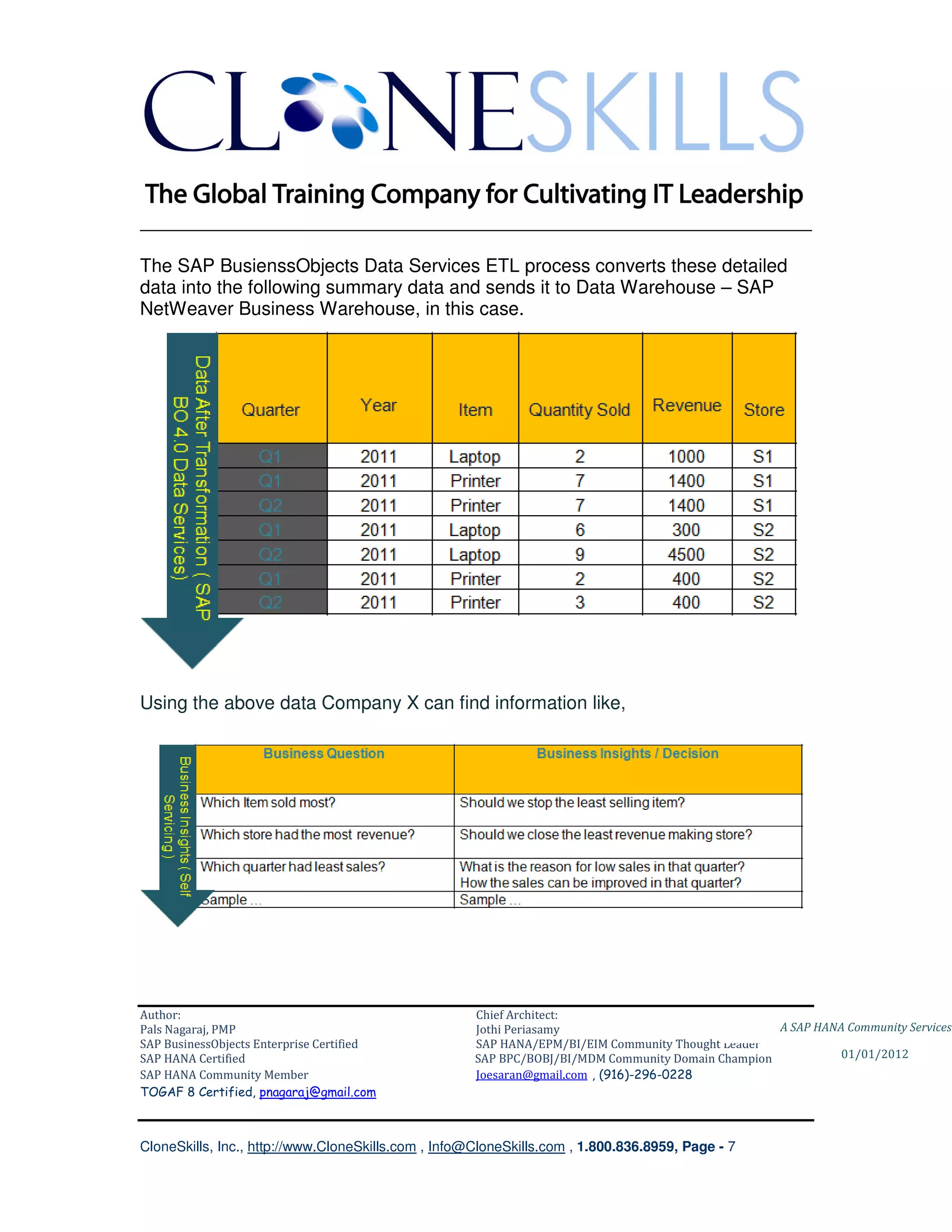
The SAP BusienssObjects Data Services ETL process converts these detailed
data into the following summary data and sends it to Data Warehouse – SAP
NetWeaver Business Warehouse, in this case.


Using the above data Company X can find information like,


Author:                                              Chief Architect:
Pals Nagaraj, PMP                                    Jothi Periasamy                               A SAP HANA Community Services
SAP BusinessObjects Enterprise Certified             SAP HANA/EPM/BI/EIM Community Thought Leader
SAP HANA Certified                                   SAP BPC/BOBJ/BI/MDM Community Domain Champion           01/01/2012
SAP HANA Community Member                            Joesaran@gmail.com , (916)-296-0228
TOGAF 8 Certified, pnagaraj@gmail.com


CloneSkills, Inc., http://www.CloneSkills.com , Info@CloneSkills.com , 1.800.836.8959, Page - 7
________________________________________________________________________

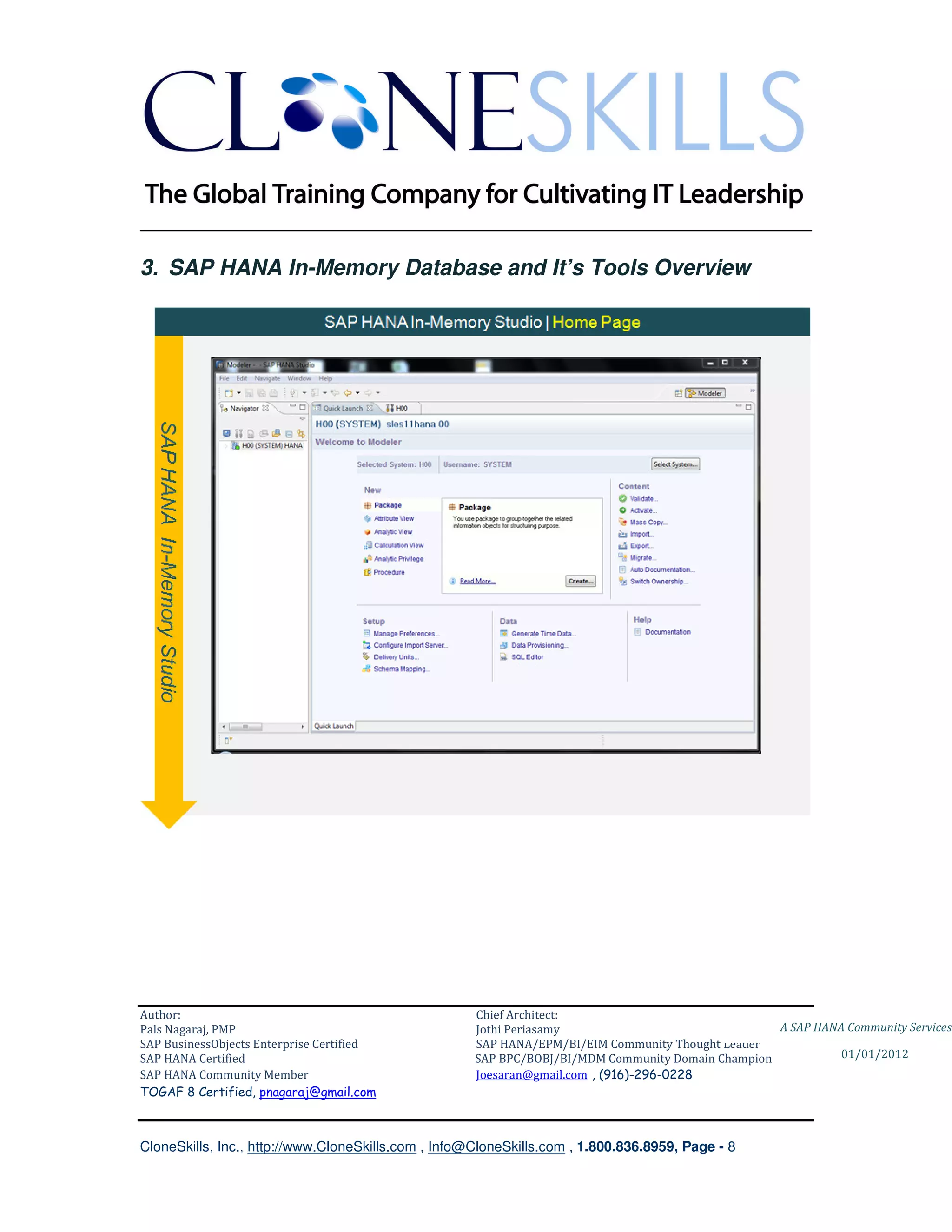
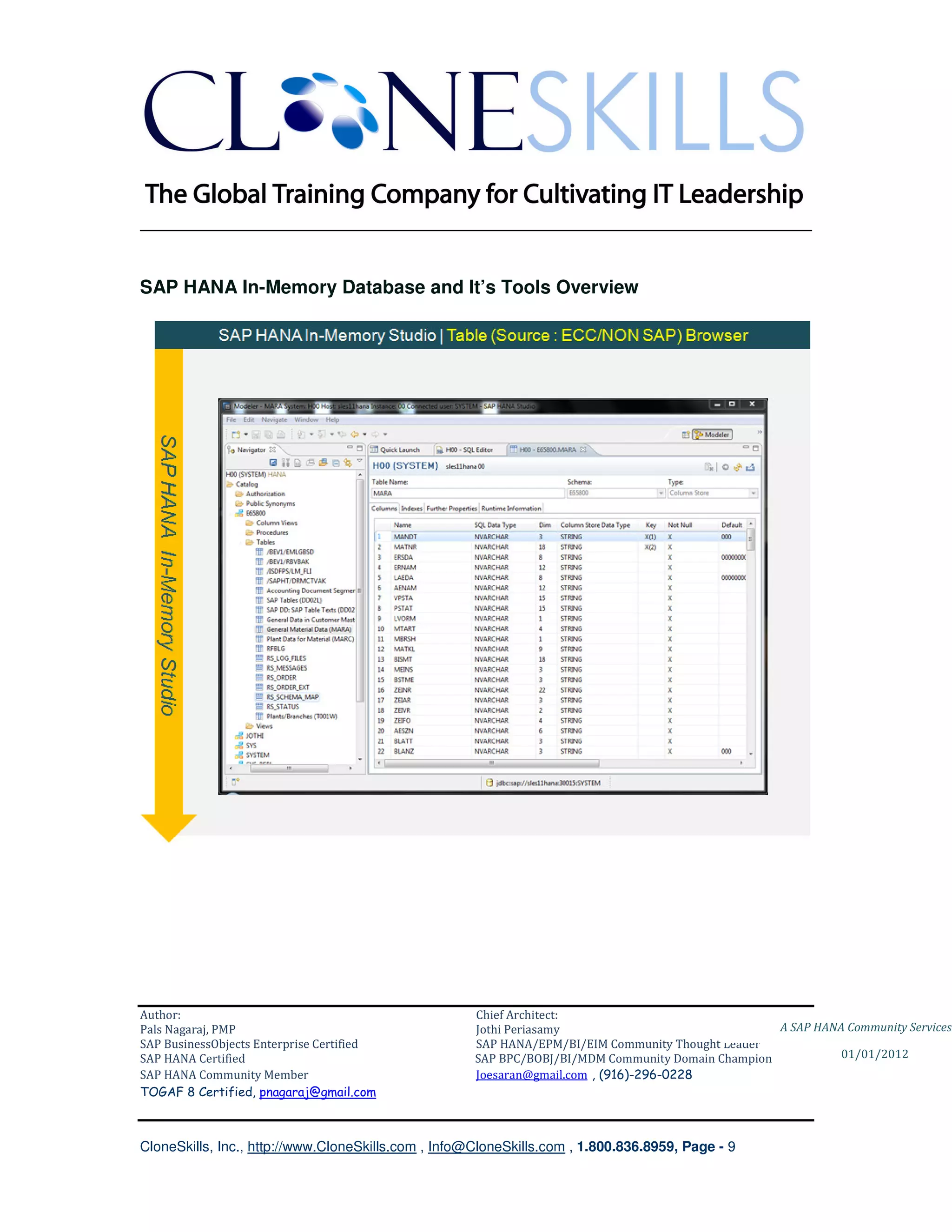
3. SAP HANA In-Memory Database and It’s Tools Overview


Author:                                              Chief Architect:
Pals Nagaraj, PMP                                    Jothi Periasamy                               A SAP HANA Community Services
SAP BusinessObjects Enterprise Certified             SAP HANA/EPM/BI/EIM Community Thought Leader
SAP HANA Certified                                   SAP BPC/BOBJ/BI/MDM Community Domain Champion           01/01/2012
SAP HANA Community Member                            Joesaran@gmail.com , (916)-296-0228
TOGAF 8 Certified, pnagaraj@gmail.com


CloneSkills, Inc., http://www.CloneSkills.com , Info@CloneSkills.com , 1.800.836.8959, Page - 8
________________________________________________________________________


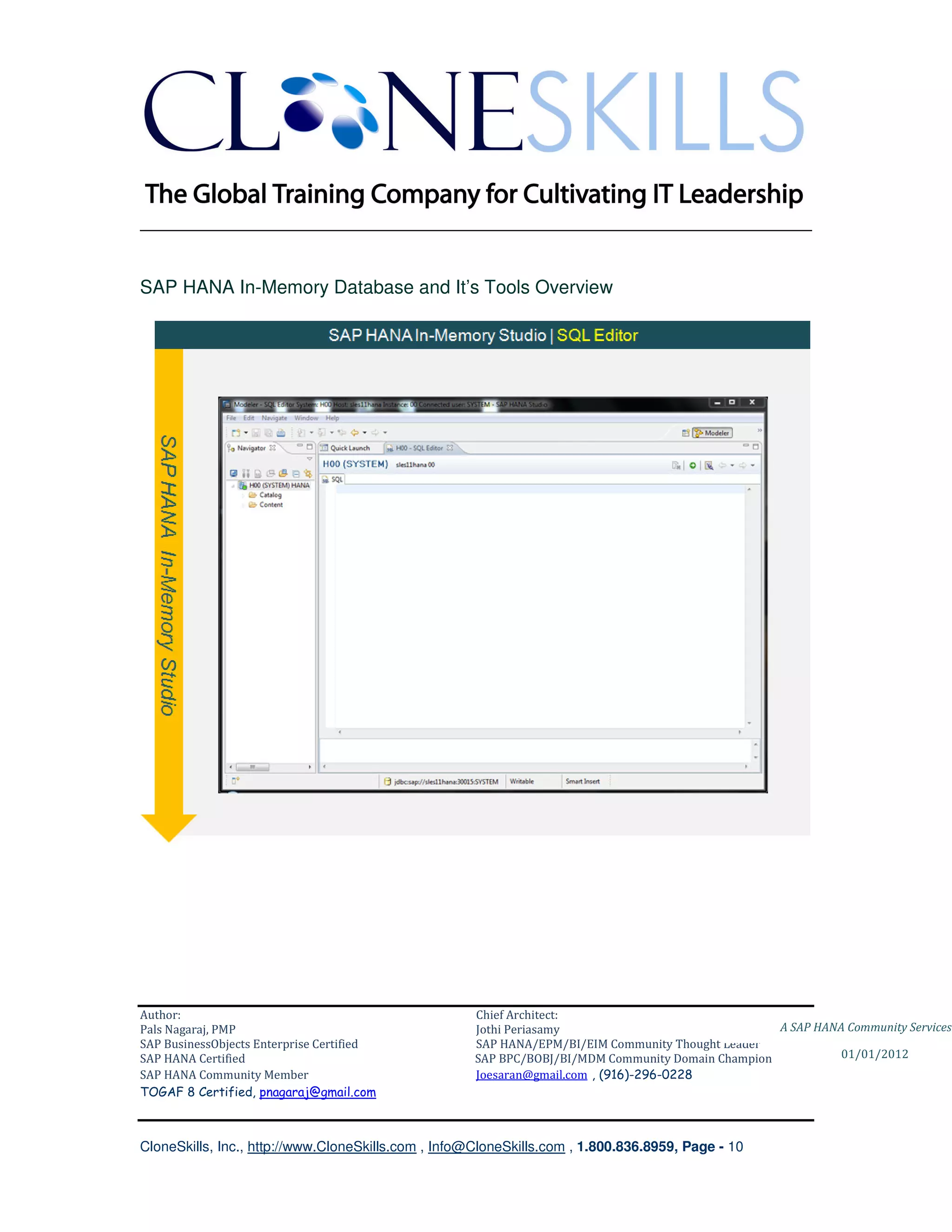
SAP HANA In-Memory Database and It’s Tools Overview


Author:                                              Chief Architect:
Pals Nagaraj, PMP                                    Jothi Periasamy                               A SAP HANA Community Services
SAP BusinessObjects Enterprise Certified             SAP HANA/EPM/BI/EIM Community Thought Leader
SAP HANA Certified                                   SAP BPC/BOBJ/BI/MDM Community Domain Champion           01/01/2012
SAP HANA Community Member                            Joesaran@gmail.com , (916)-296-0228
TOGAF 8 Certified, pnagaraj@gmail.com


CloneSkills, Inc., http://www.CloneSkills.com , Info@CloneSkills.com , 1.800.836.8959, Page - 9
________________________________________________________________________


SAP HANA In-Memory Database and It’s Tools Overview


Author:                                              Chief Architect:
Pals Nagaraj, PMP                                    Jothi Periasamy                               A SAP HANA Community Services
SAP BusinessObjects Enterprise Certified             SAP HANA/EPM/BI/EIM Community Thought Leader
SAP HANA Certified                                   SAP BPC/BOBJ/BI/MDM Community Domain Champion           01/01/2012
SAP HANA Community Member                            Joesaran@gmail.com , (916)-296-0228
TOGAF 8 Certified, pnagaraj@gmail.com


CloneSkills, Inc., http://www.CloneSkills.com , Info@CloneSkills.com , 1.800.836.8959, Page - 10
________________________________________________________________________


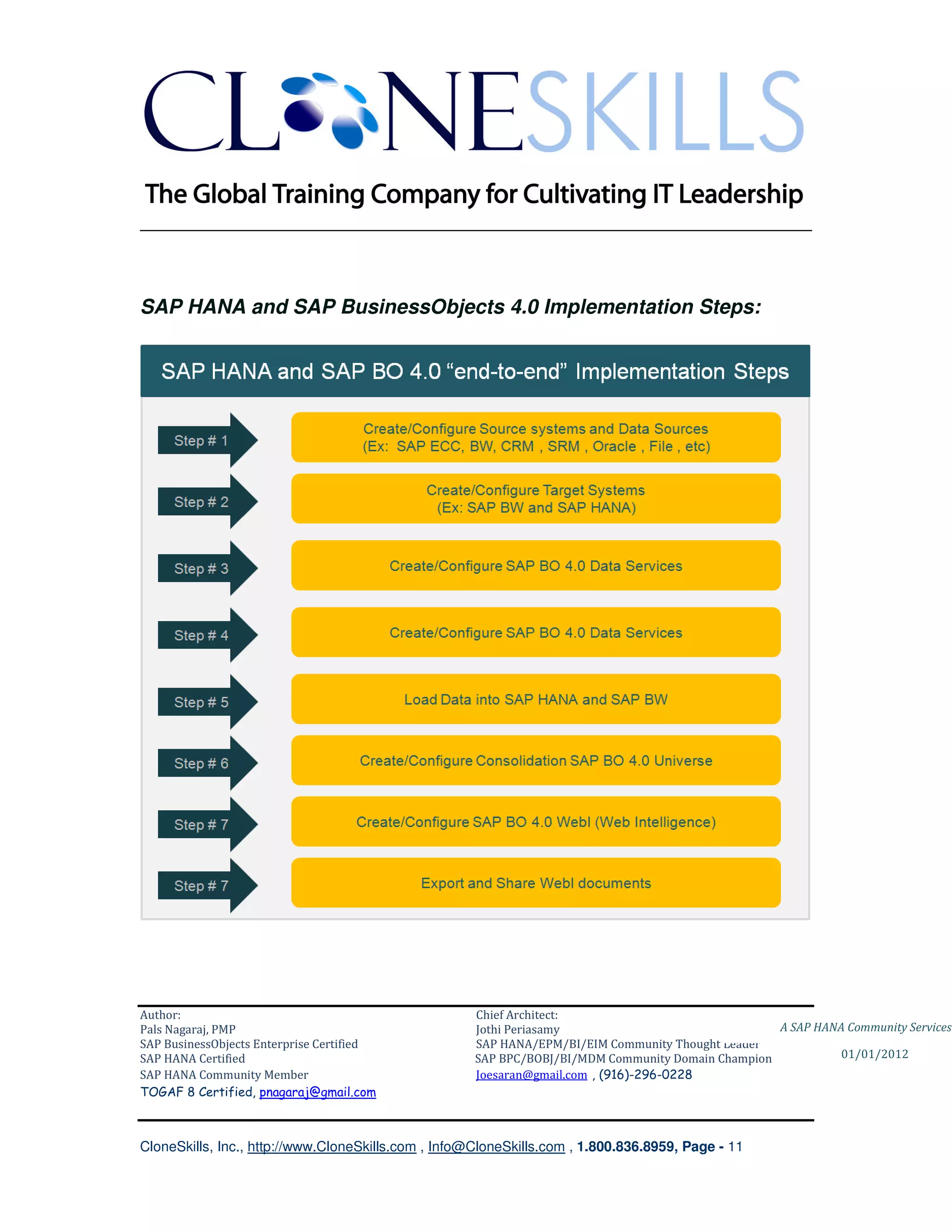
SAP HANA and SAP BusinessObjects 4.0 Implementation Steps:


Author:                                              Chief Architect:
Pals Nagaraj, PMP                                    Jothi Periasamy                               A SAP HANA Community Services
SAP BusinessObjects Enterprise Certified             SAP HANA/EPM/BI/EIM Community Thought Leader
SAP HANA Certified                                   SAP BPC/BOBJ/BI/MDM Community Domain Champion           01/01/2012
SAP HANA Community Member                            Joesaran@gmail.com , (916)-296-0228
TOGAF 8 Certified, pnagaraj@gmail.com


CloneSkills, Inc., http://www.CloneSkills.com , Info@CloneSkills.com , 1.800.836.8959, Page - 11
________________________________________________________________________

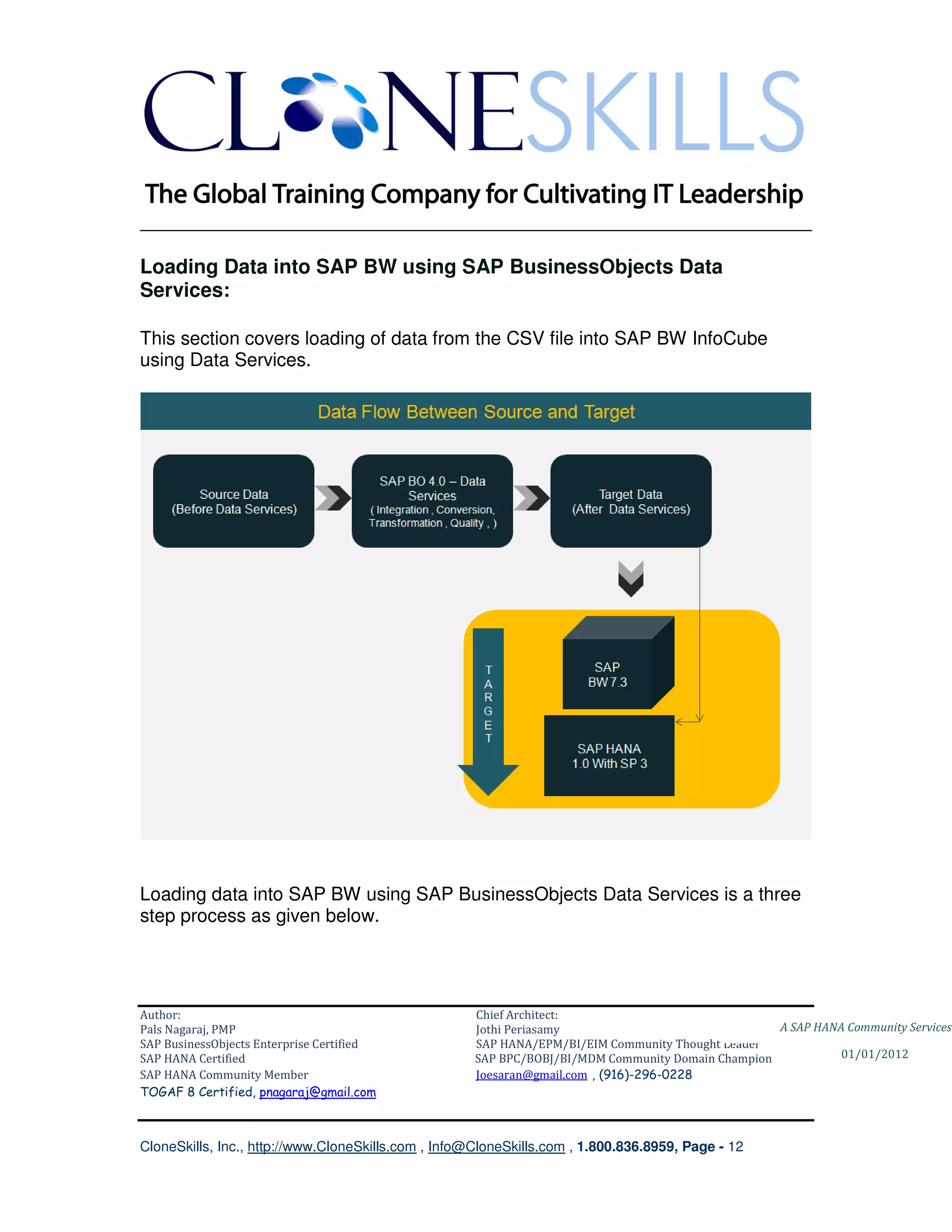
Loading Data into SAP BW using SAP BusinessObjects Data
Services:

This section covers loading of data from the CSV file into SAP BW InfoCube
using Data Services.


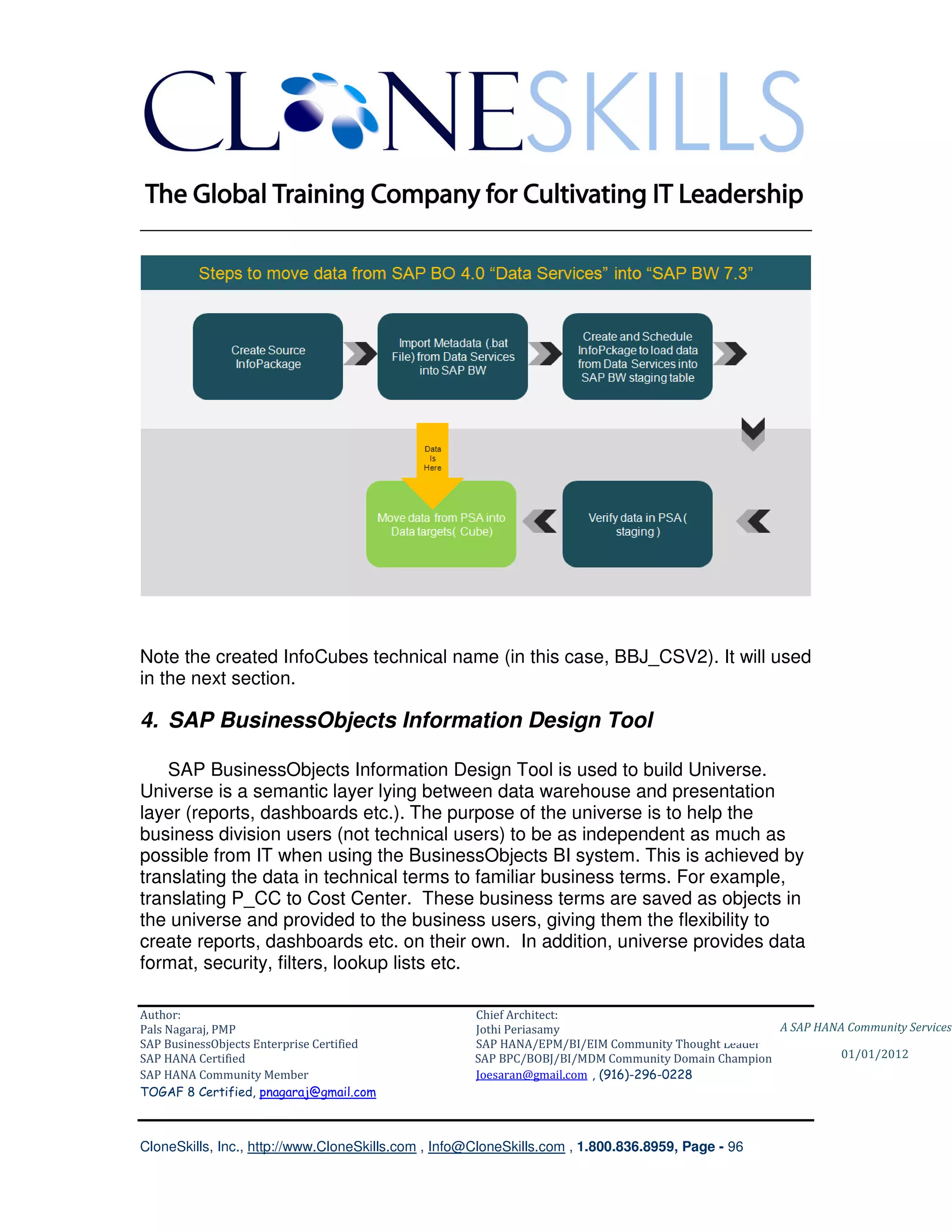
Loading data into SAP BW using SAP BusinessObjects Data Services is a three
step process as given below.


Author:                                              Chief Architect:
Pals Nagaraj, PMP                                    Jothi Periasamy                               A SAP HANA Community Services
SAP BusinessObjects Enterprise Certified             SAP HANA/EPM/BI/EIM Community Thought Leader
SAP HANA Certified                                   SAP BPC/BOBJ/BI/MDM Community Domain Champion           01/01/2012
SAP HANA Community Member                            Joesaran@gmail.com , (916)-296-0228
TOGAF 8 Certified, pnagaraj@gmail.com


CloneSkills, Inc., http://www.CloneSkills.com , Info@CloneSkills.com , 1.800.836.8959, Page - 12
________________________________________________________________________

SAP BW Setup
  1) Verify SAP BusinessObjects Data Services and SAP BW integration
  2) Create InfoObjects, InfoSources, Transfer Rules, Application Components
     in SAP BW.
  3) Create SAP BW Info Source, Data Source

SAP BusinessObjects Data Services Setup
  4) Setup DataStores, Jobs and Data Flows in SAP BusinessObjects Data
     Services
  5) Configure SAP BW to execute Data Services Job to transform source data
     in SAP BW PSA
  6) Get Data Services job metadata .bat file.
SAP BW InfoPackage/Scheduler Setup
  7) Create InfoPackage and pass the Data Services job metadata .bat file as
     a parameter
  8) Schedule InfoPackage to execute the Data Services job (using metadata
     file) and move data into PSA

         The detailed steps follow.


Author:                                              Chief Architect:
Pals Nagaraj, PMP                                    Jothi Periasamy                               A SAP HANA Community Services
SAP BusinessObjects Enterprise Certified             SAP HANA/EPM/BI/EIM Community Thought Leader
SAP HANA Certified                                   SAP BPC/BOBJ/BI/MDM Community Domain Champion           01/01/2012
SAP HANA Community Member                            Joesaran@gmail.com , (916)-296-0228
TOGAF 8 Certified, pnagaraj@gmail.com


CloneSkills, Inc., http://www.CloneSkills.com , Info@CloneSkills.com , 1.800.836.8959, Page - 13
________________________________________________________________________

4. SAP BW Setup
SAP BusinessObjects Data Services and SAP BW Connection
    Verify external system configuration in SAP BW

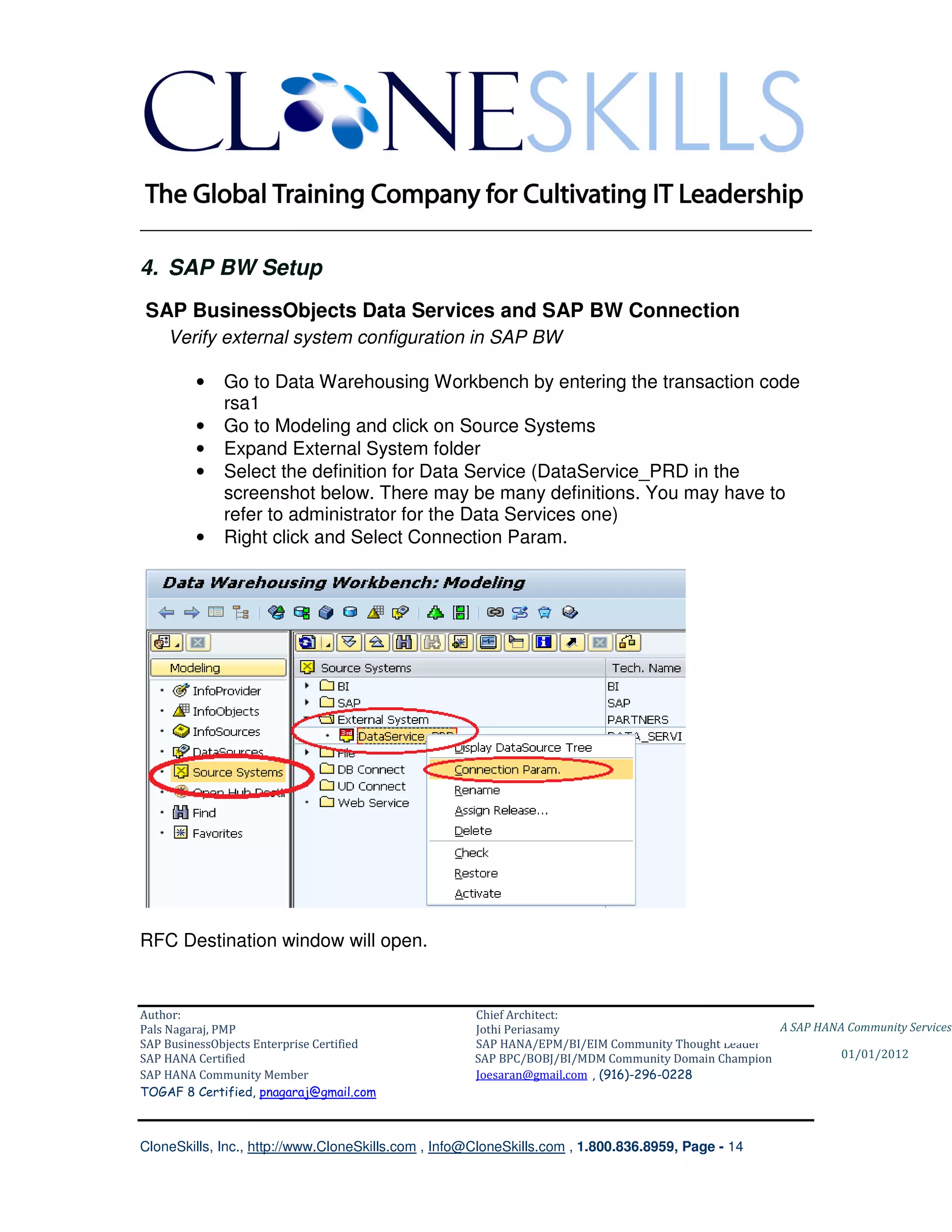
         •    Go to Data Warehousing Workbench by entering the transaction code
              rsa1
         •    Go to Modeling and click on Source Systems
         •    Expand External System folder
         •    Select the definition for Data Service (DataService_PRD in the
              screenshot below. There may be many definitions. You may have to
              refer to administrator for the Data Services one)
         •    Right click and Select Connection Param.


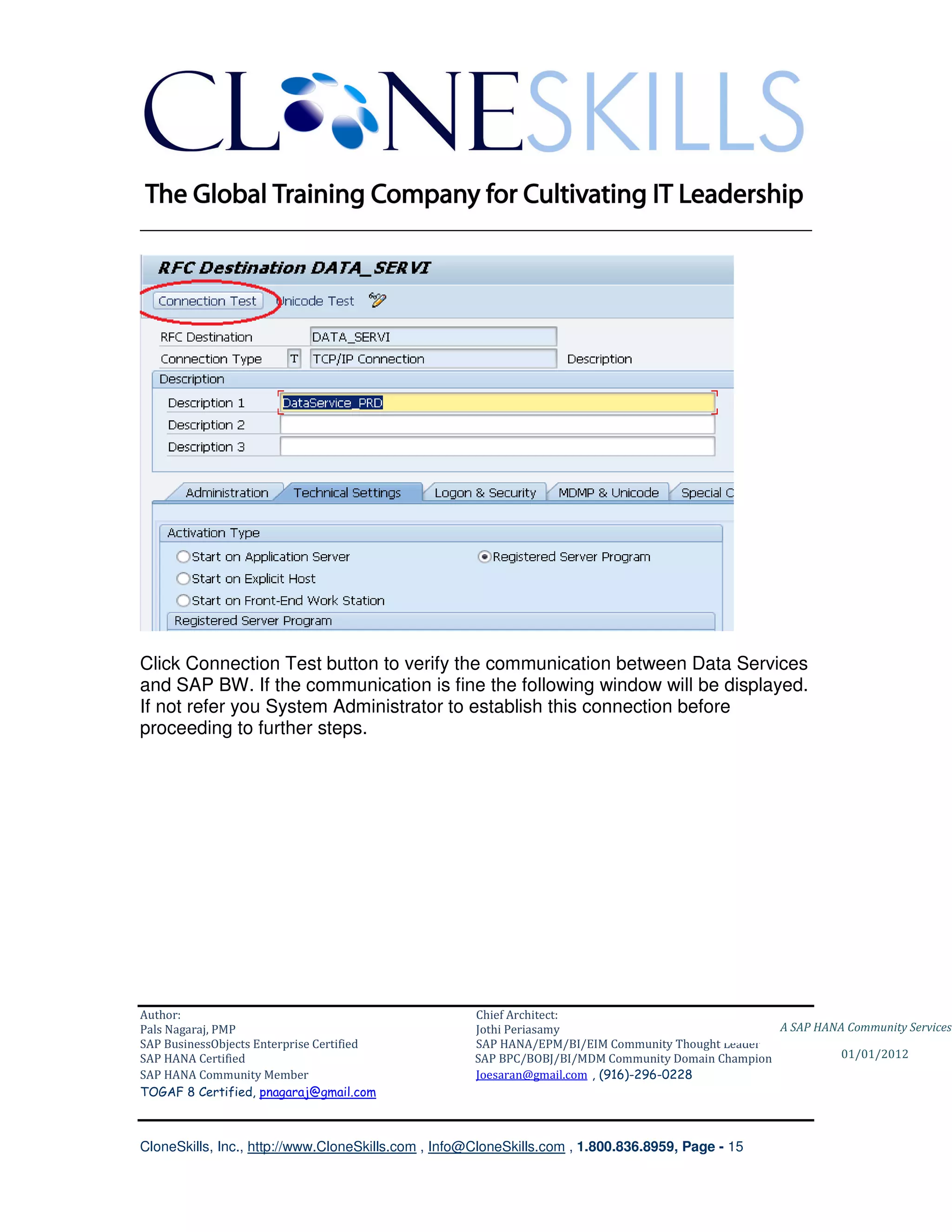
RFC Destination window will open.


Author:                                              Chief Architect:
Pals Nagaraj, PMP                                    Jothi Periasamy                               A SAP HANA Community Services
SAP BusinessObjects Enterprise Certified             SAP HANA/EPM/BI/EIM Community Thought Leader
SAP HANA Certified                                   SAP BPC/BOBJ/BI/MDM Community Domain Champion           01/01/2012
SAP HANA Community Member                            Joesaran@gmail.com , (916)-296-0228
TOGAF 8 Certified, pnagaraj@gmail.com


CloneSkills, Inc., http://www.CloneSkills.com , Info@CloneSkills.com , 1.800.836.8959, Page - 14
________________________________________________________________________


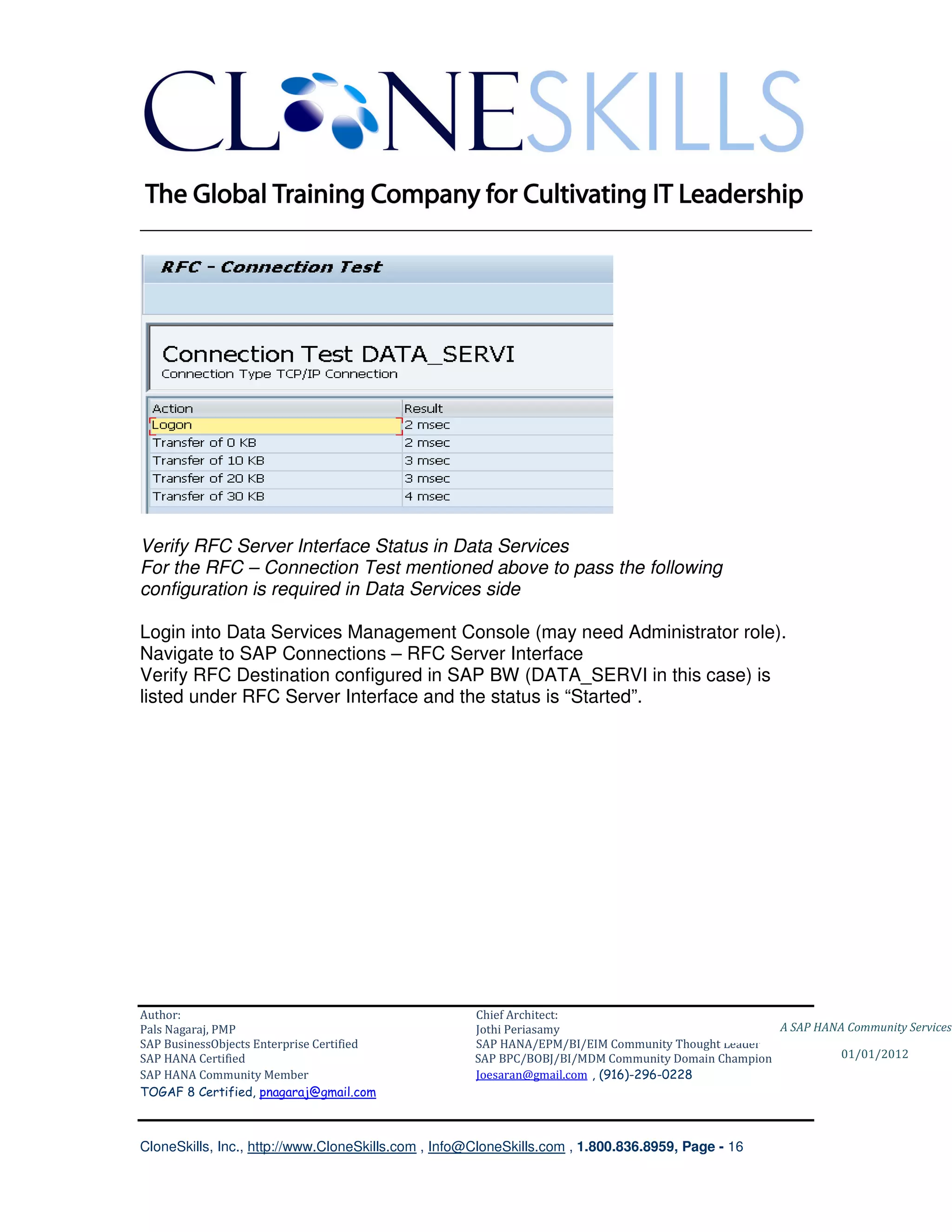
Click Connection Test button to verify the communication between Data Services
and SAP BW. If the communication is fine the following window will be displayed.
If not refer you System Administrator to establish this connection before
proceeding to further steps.


Author:                                              Chief Architect:
Pals Nagaraj, PMP                                    Jothi Periasamy                               A SAP HANA Community Services
SAP BusinessObjects Enterprise Certified             SAP HANA/EPM/BI/EIM Community Thought Leader
SAP HANA Certified                                   SAP BPC/BOBJ/BI/MDM Community Domain Champion           01/01/2012
SAP HANA Community Member                            Joesaran@gmail.com , (916)-296-0228
TOGAF 8 Certified, pnagaraj@gmail.com


CloneSkills, Inc., http://www.CloneSkills.com , Info@CloneSkills.com , 1.800.836.8959, Page - 15
________________________________________________________________________


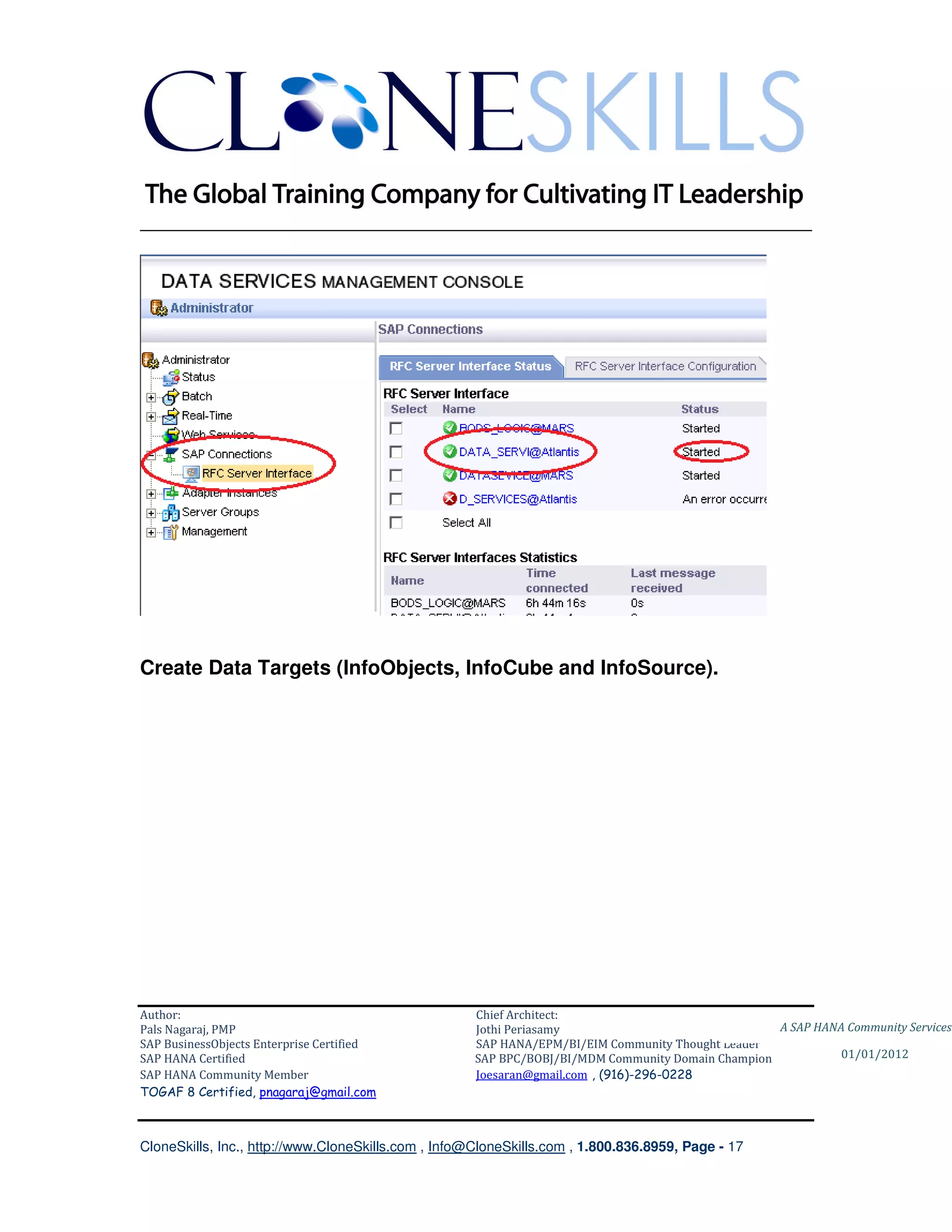
Verify RFC Server Interface Status in Data Services
For the RFC – Connection Test mentioned above to pass the following
configuration is required in Data Services side

Login into Data Services Management Console (may need Administrator role).
Navigate to SAP Connections – RFC Server Interface
Verify RFC Destination configured in SAP BW (DATA_SERVI in this case) is
listed under RFC Server Interface and the status is “Started”.


Author:                                              Chief Architect:
Pals Nagaraj, PMP                                    Jothi Periasamy                               A SAP HANA Community Services
SAP BusinessObjects Enterprise Certified             SAP HANA/EPM/BI/EIM Community Thought Leader
SAP HANA Certified                                   SAP BPC/BOBJ/BI/MDM Community Domain Champion           01/01/2012
SAP HANA Community Member                            Joesaran@gmail.com , (916)-296-0228
TOGAF 8 Certified, pnagaraj@gmail.com


CloneSkills, Inc., http://www.CloneSkills.com , Info@CloneSkills.com , 1.800.836.8959, Page - 16
________________________________________________________________________


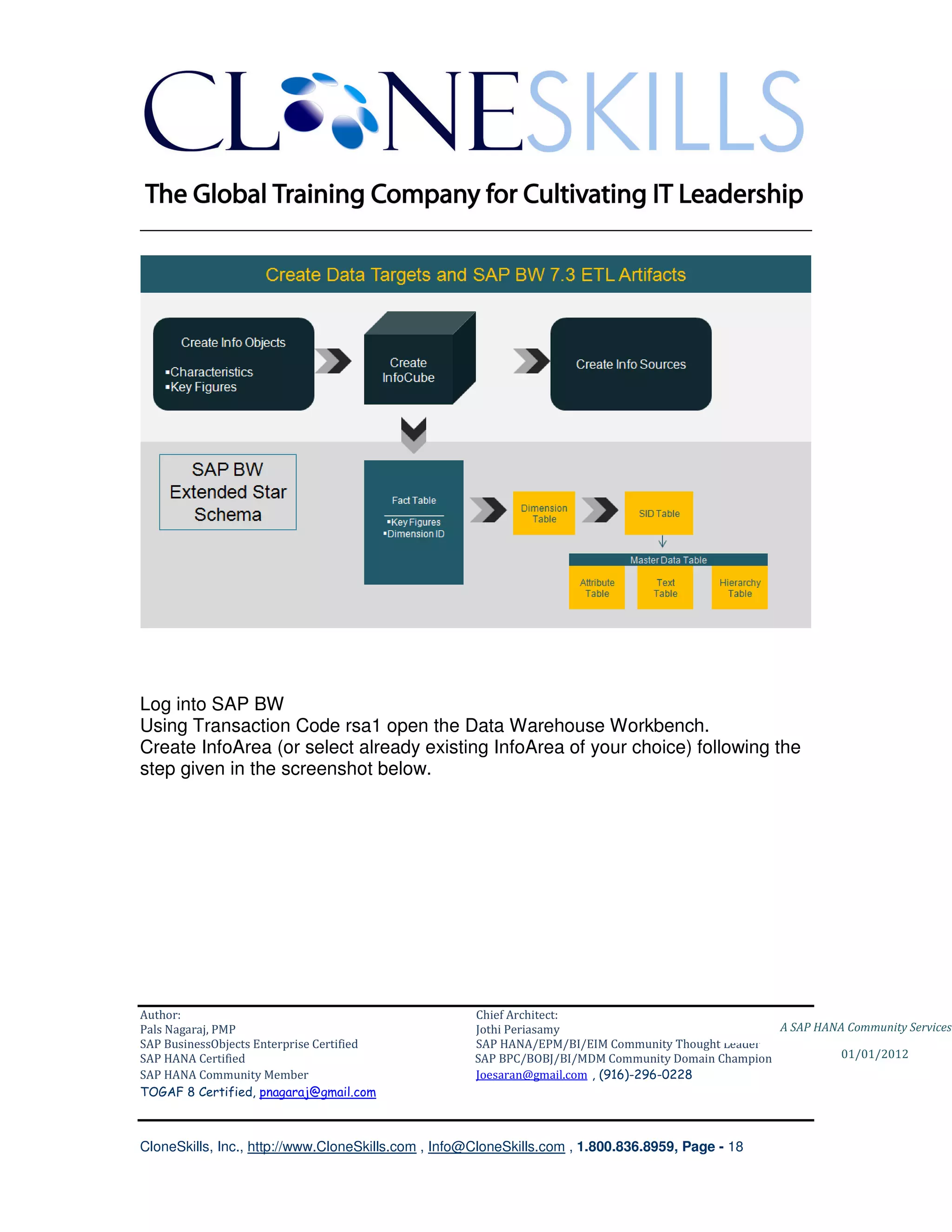
Create Data Targets (InfoObjects, InfoCube and InfoSource).


Author:                                              Chief Architect:
Pals Nagaraj, PMP                                    Jothi Periasamy                               A SAP HANA Community Services
SAP BusinessObjects Enterprise Certified             SAP HANA/EPM/BI/EIM Community Thought Leader
SAP HANA Certified                                   SAP BPC/BOBJ/BI/MDM Community Domain Champion           01/01/2012
SAP HANA Community Member                            Joesaran@gmail.com , (916)-296-0228
TOGAF 8 Certified, pnagaraj@gmail.com


CloneSkills, Inc., http://www.CloneSkills.com , Info@CloneSkills.com , 1.800.836.8959, Page - 17
________________________________________________________________________


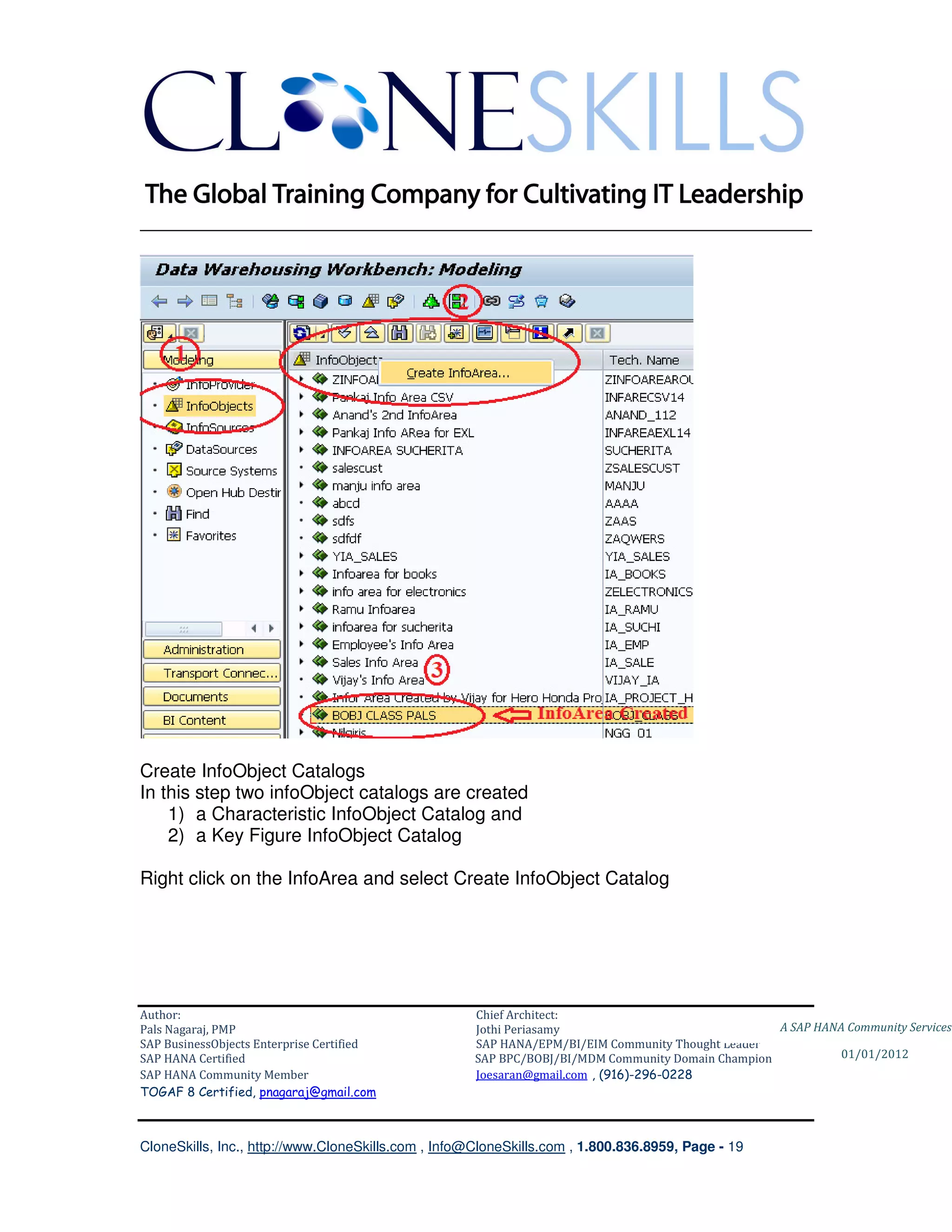
Log into SAP BW
Using Transaction Code rsa1 open the Data Warehouse Workbench.
Create InfoArea (or select already existing InfoArea of your choice) following the
step given in the screenshot below.


Author:                                              Chief Architect:
Pals Nagaraj, PMP                                    Jothi Periasamy                               A SAP HANA Community Services
SAP BusinessObjects Enterprise Certified             SAP HANA/EPM/BI/EIM Community Thought Leader
SAP HANA Certified                                   SAP BPC/BOBJ/BI/MDM Community Domain Champion           01/01/2012
SAP HANA Community Member                            Joesaran@gmail.com , (916)-296-0228
TOGAF 8 Certified, pnagaraj@gmail.com


CloneSkills, Inc., http://www.CloneSkills.com , Info@CloneSkills.com , 1.800.836.8959, Page - 18
________________________________________________________________________


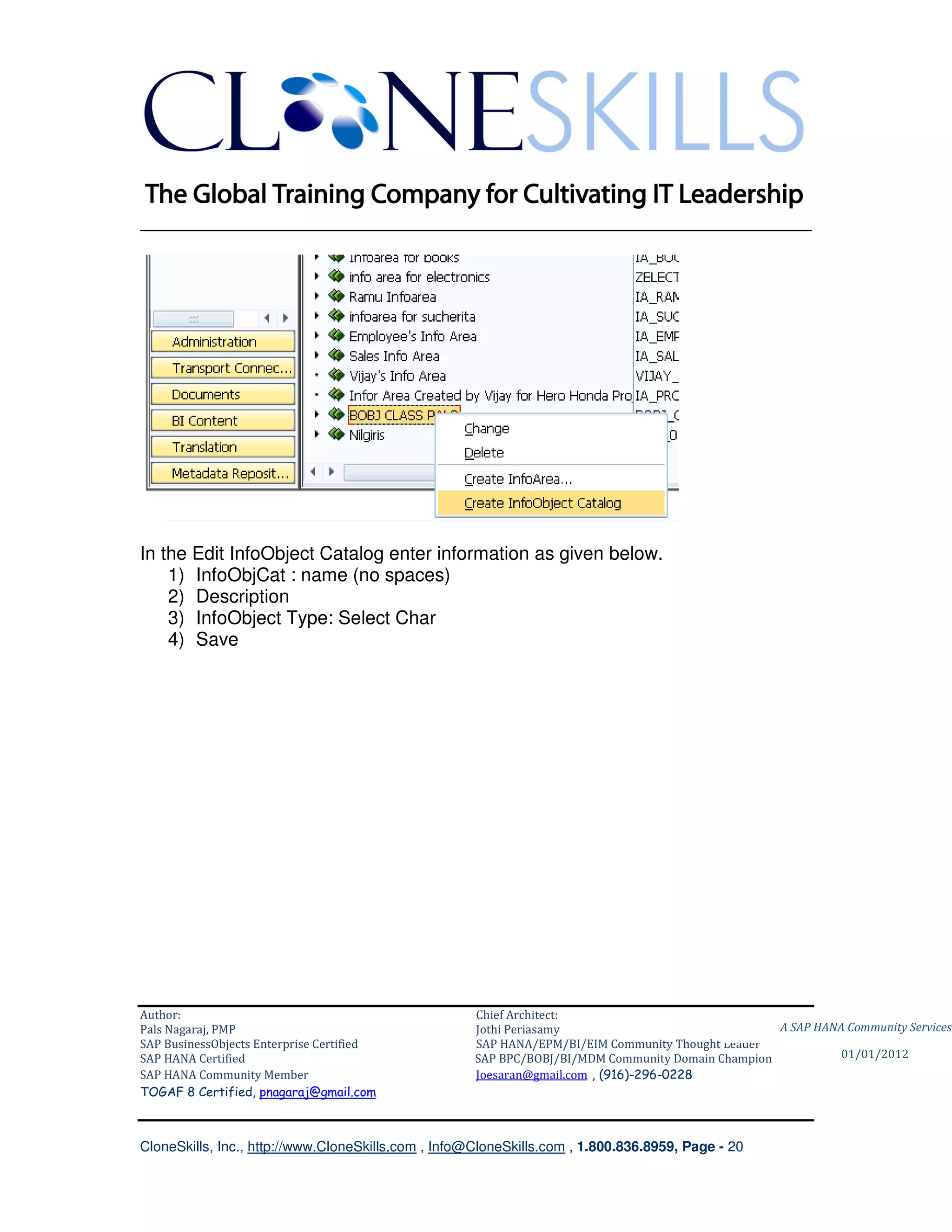
Create InfoObject Catalogs
In this step two infoObject catalogs are created
    1) a Characteristic InfoObject Catalog and
    2) a Key Figure InfoObject Catalog

Right click on the InfoArea and select Create InfoObject Catalog


Author:                                              Chief Architect:
Pals Nagaraj, PMP                                    Jothi Periasamy                               A SAP HANA Community Services
SAP BusinessObjects Enterprise Certified             SAP HANA/EPM/BI/EIM Community Thought Leader
SAP HANA Certified                                   SAP BPC/BOBJ/BI/MDM Community Domain Champion           01/01/2012
SAP HANA Community Member                            Joesaran@gmail.com , (916)-296-0228
TOGAF 8 Certified, pnagaraj@gmail.com


CloneSkills, Inc., http://www.CloneSkills.com , Info@CloneSkills.com , 1.800.836.8959, Page - 19
________________________________________________________________________


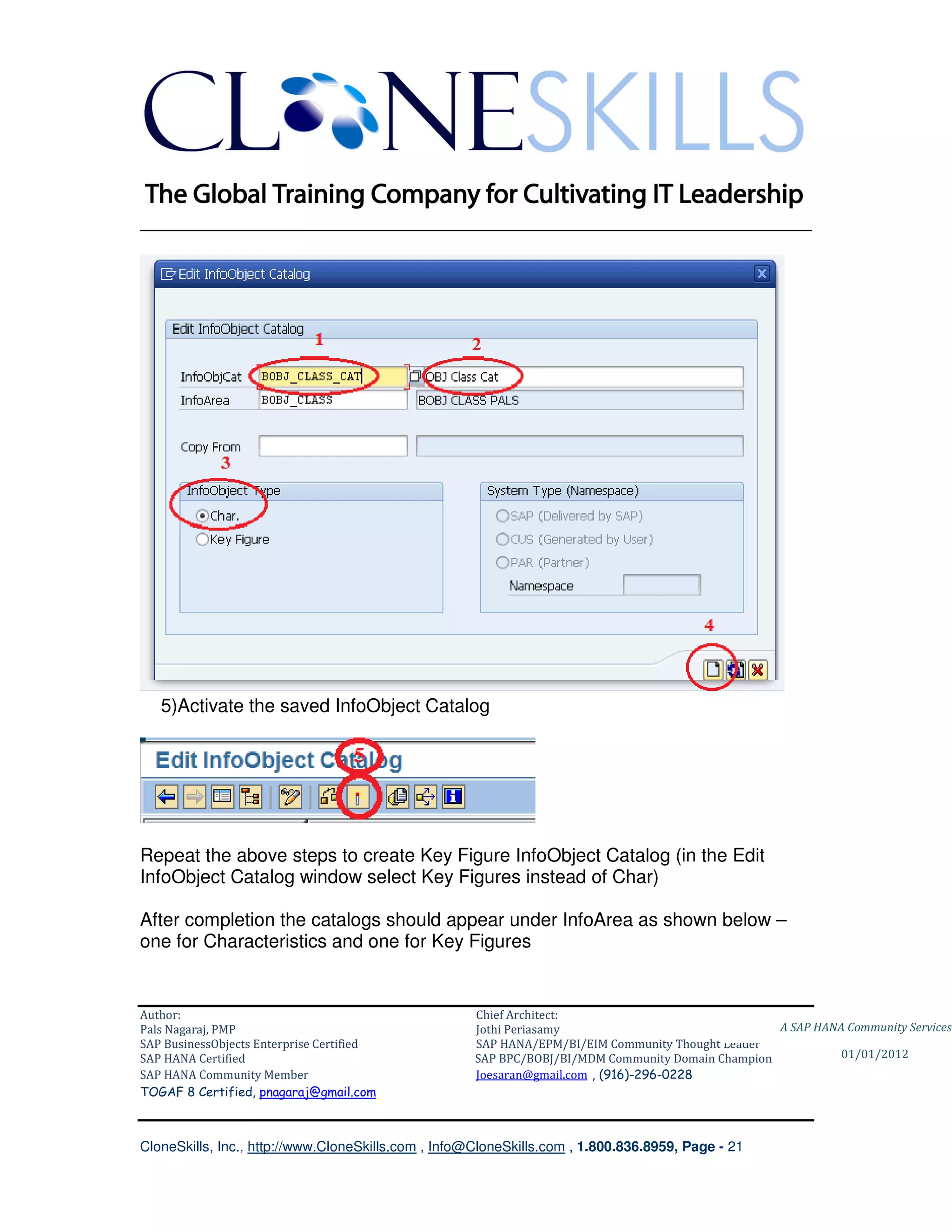
In the Edit InfoObject Catalog enter information as given below.
    1) InfoObjCat : name (no spaces)
    2) Description
    3) InfoObject Type: Select Char
    4) Save


Author:                                              Chief Architect:
Pals Nagaraj, PMP                                    Jothi Periasamy                               A SAP HANA Community Services
SAP BusinessObjects Enterprise Certified             SAP HANA/EPM/BI/EIM Community Thought Leader
SAP HANA Certified                                   SAP BPC/BOBJ/BI/MDM Community Domain Champion           01/01/2012
SAP HANA Community Member                            Joesaran@gmail.com , (916)-296-0228
TOGAF 8 Certified, pnagaraj@gmail.com


CloneSkills, Inc., http://www.CloneSkills.com , Info@CloneSkills.com , 1.800.836.8959, Page - 20
________________________________________________________________________


   5)Activate the saved InfoObject Catalog


Repeat the above steps to create Key Figure InfoObject Catalog (in the Edit
InfoObject Catalog window select Key Figures instead of Char)

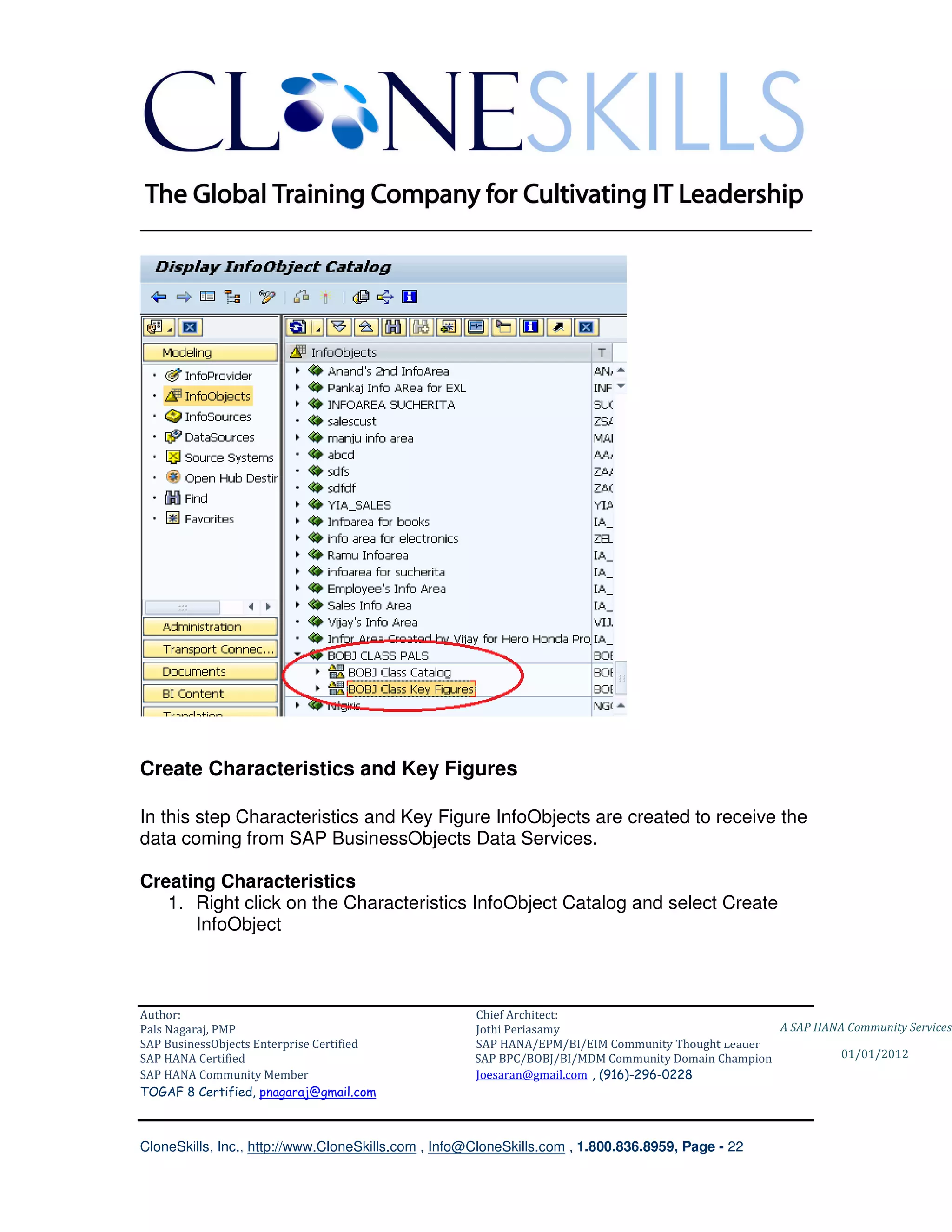
After completion the catalogs should appear under InfoArea as shown below –
one for Characteristics and one for Key Figures


Author:                                              Chief Architect:
Pals Nagaraj, PMP                                    Jothi Periasamy                               A SAP HANA Community Services
SAP BusinessObjects Enterprise Certified             SAP HANA/EPM/BI/EIM Community Thought Leader
SAP HANA Certified                                   SAP BPC/BOBJ/BI/MDM Community Domain Champion           01/01/2012
SAP HANA Community Member                            Joesaran@gmail.com , (916)-296-0228
TOGAF 8 Certified, pnagaraj@gmail.com


CloneSkills, Inc., http://www.CloneSkills.com , Info@CloneSkills.com , 1.800.836.8959, Page - 21
________________________________________________________________________


Create Characteristics and Key Figures

In this step Characteristics and Key Figure InfoObjects are created to receive the
data coming from SAP BusinessObjects Data Services.

Creating Characteristics
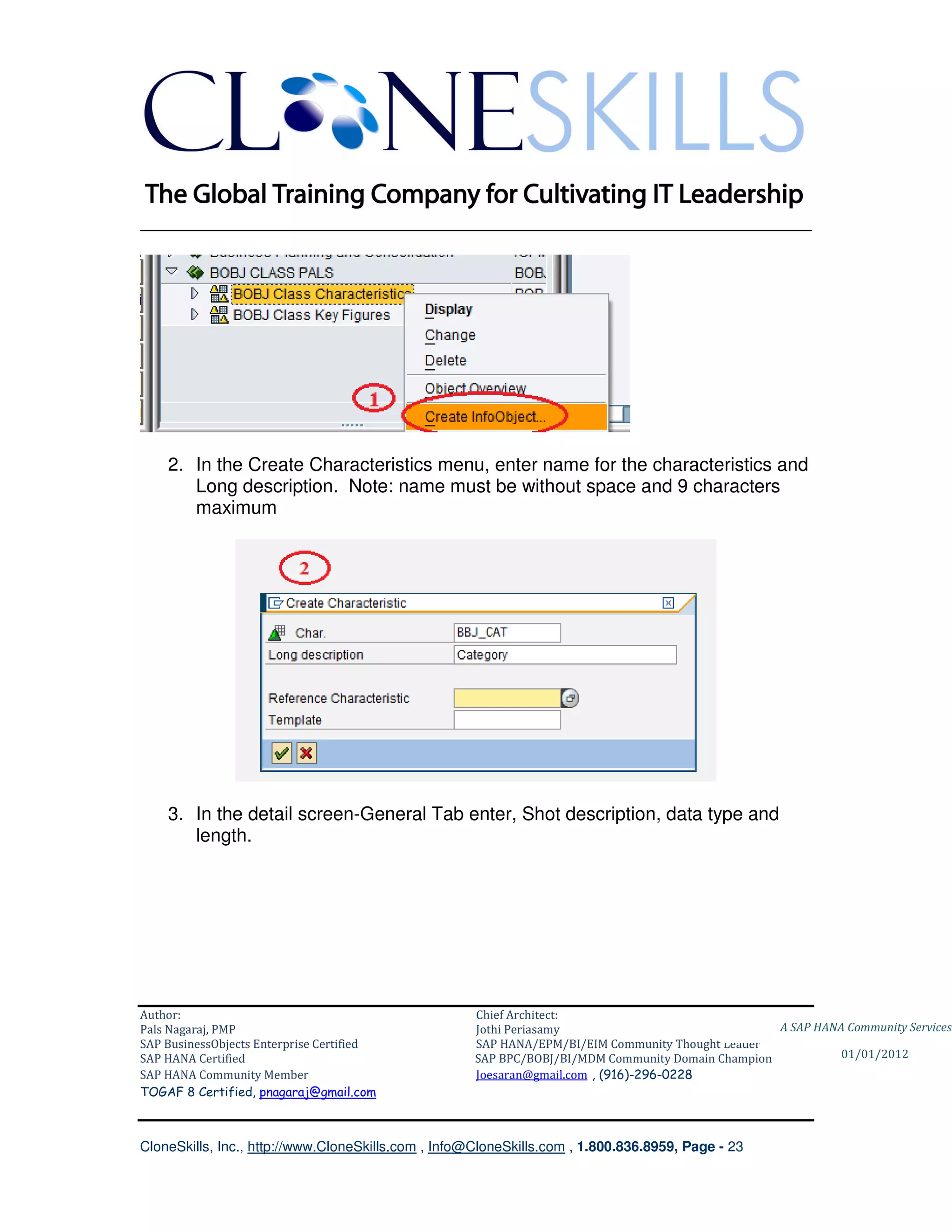
   1. Right click on the Characteristics InfoObject Catalog and select Create
      InfoObject


Author:                                              Chief Architect:
Pals Nagaraj, PMP                                    Jothi Periasamy                               A SAP HANA Community Services
SAP BusinessObjects Enterprise Certified             SAP HANA/EPM/BI/EIM Community Thought Leader
SAP HANA Certified                                   SAP BPC/BOBJ/BI/MDM Community Domain Champion           01/01/2012
SAP HANA Community Member                            Joesaran@gmail.com , (916)-296-0228
TOGAF 8 Certified, pnagaraj@gmail.com


CloneSkills, Inc., http://www.CloneSkills.com , Info@CloneSkills.com , 1.800.836.8959, Page - 22
________________________________________________________________________


    2. In the Create Characteristics menu, enter name for the characteristics and
       Long description. Note: name must be without space and 9 characters
       maximum


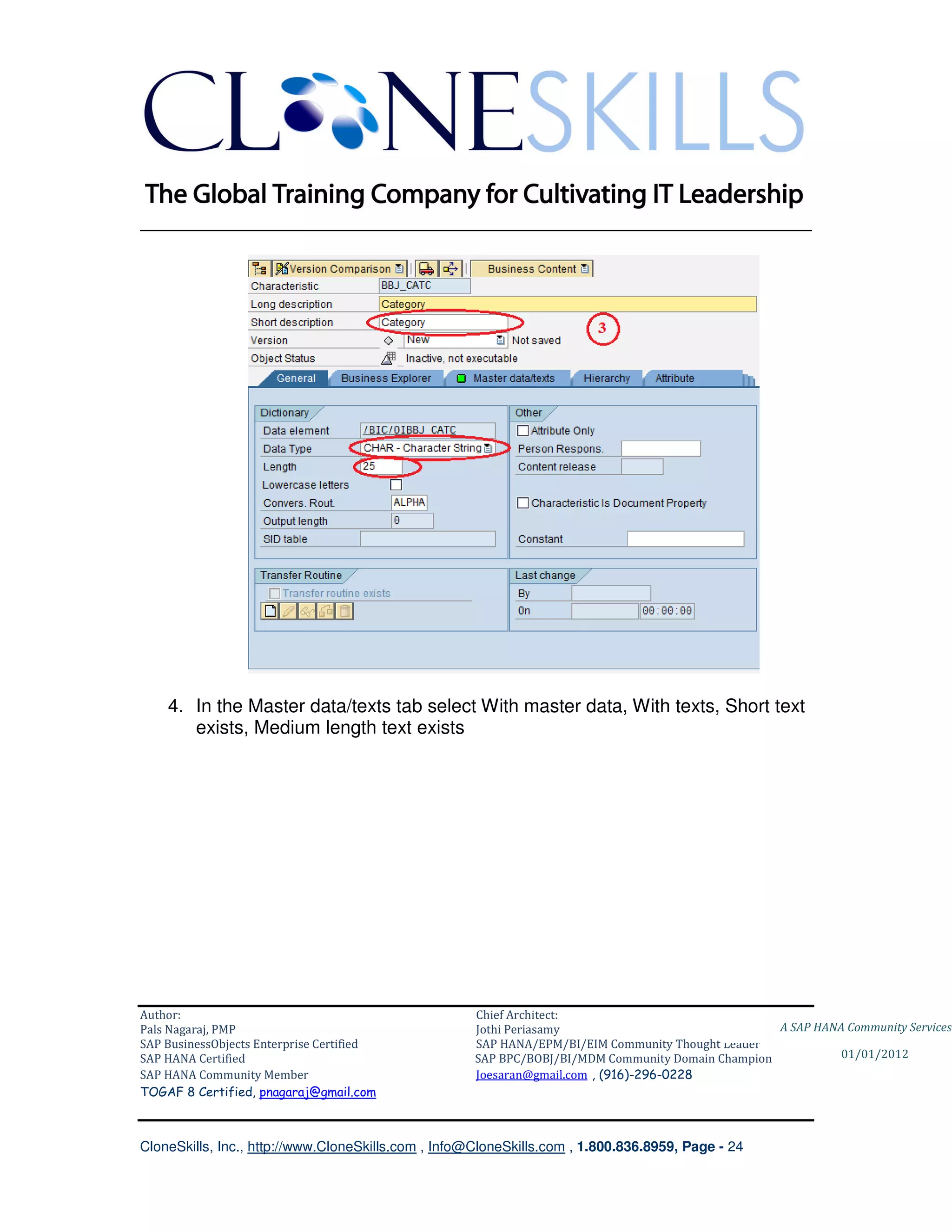
    3. In the detail screen-General Tab enter, Shot description, data type and
       length.


Author:                                              Chief Architect:
Pals Nagaraj, PMP                                    Jothi Periasamy                               A SAP HANA Community Services
SAP BusinessObjects Enterprise Certified             SAP HANA/EPM/BI/EIM Community Thought Leader
SAP HANA Certified                                   SAP BPC/BOBJ/BI/MDM Community Domain Champion           01/01/2012
SAP HANA Community Member                            Joesaran@gmail.com , (916)-296-0228
TOGAF 8 Certified, pnagaraj@gmail.com


CloneSkills, Inc., http://www.CloneSkills.com , Info@CloneSkills.com , 1.800.836.8959, Page - 23
________________________________________________________________________


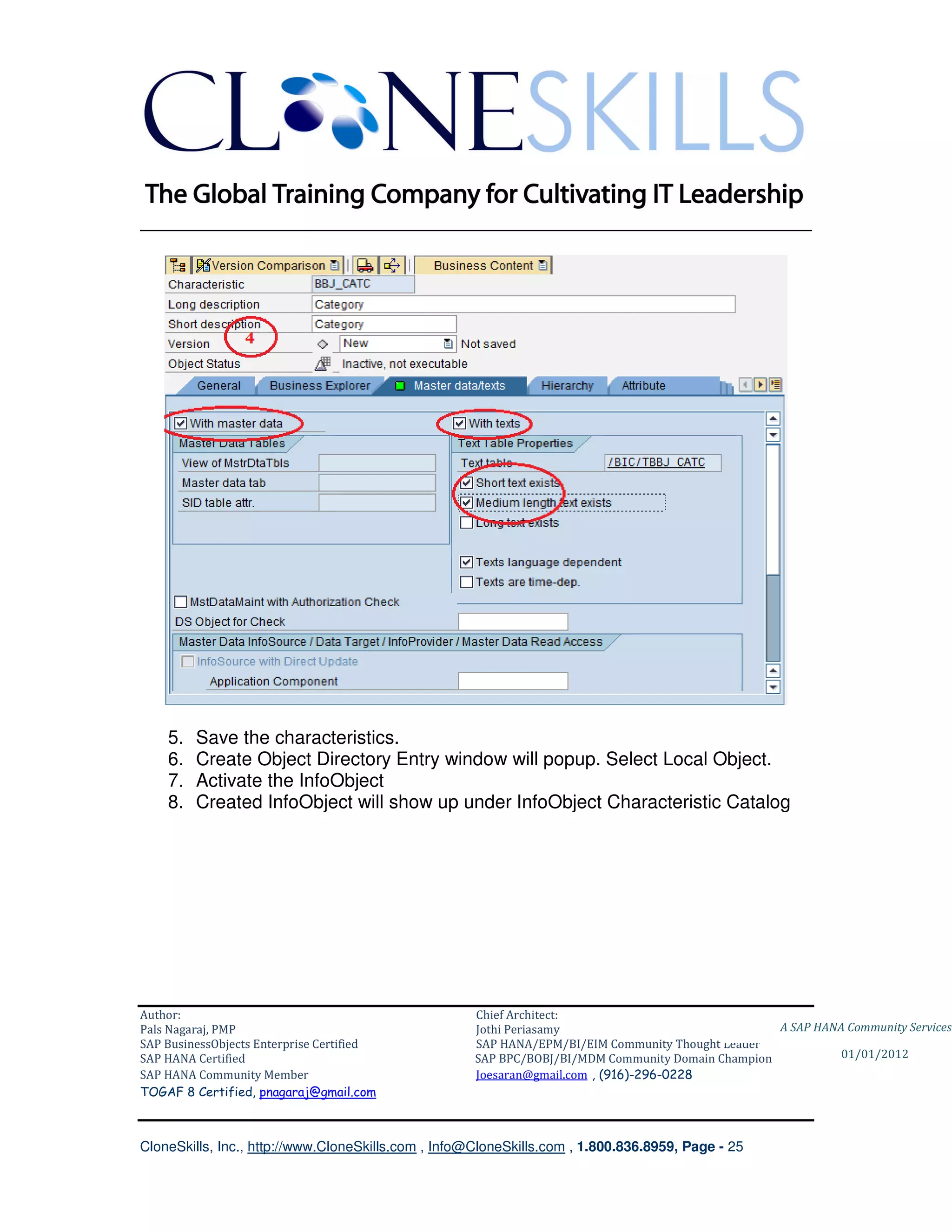
    4. In the Master data/texts tab select With master data, With texts, Short text
       exists, Medium length text exists


Author:                                              Chief Architect:
Pals Nagaraj, PMP                                    Jothi Periasamy                               A SAP HANA Community Services
SAP BusinessObjects Enterprise Certified             SAP HANA/EPM/BI/EIM Community Thought Leader
SAP HANA Certified                                   SAP BPC/BOBJ/BI/MDM Community Domain Champion           01/01/2012
SAP HANA Community Member                            Joesaran@gmail.com , (916)-296-0228
TOGAF 8 Certified, pnagaraj@gmail.com


CloneSkills, Inc., http://www.CloneSkills.com , Info@CloneSkills.com , 1.800.836.8959, Page - 24
________________________________________________________________________


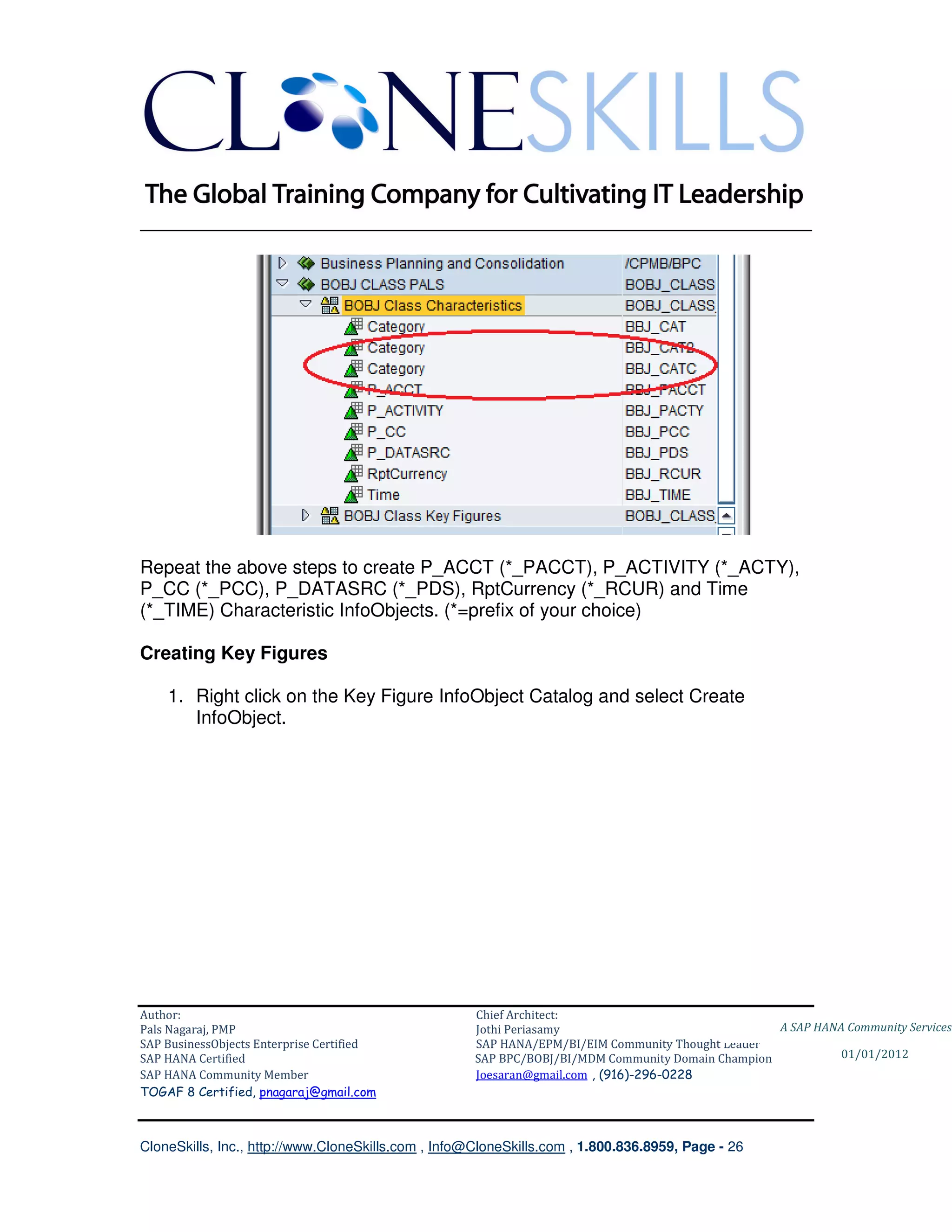
    5.   Save the characteristics.
    6.   Create Object Directory Entry window will popup. Select Local Object.
    7.   Activate the InfoObject
    8.   Created InfoObject will show up under InfoObject Characteristic Catalog


Author:                                              Chief Architect:
Pals Nagaraj, PMP                                    Jothi Periasamy                               A SAP HANA Community Services
SAP BusinessObjects Enterprise Certified             SAP HANA/EPM/BI/EIM Community Thought Leader
SAP HANA Certified                                   SAP BPC/BOBJ/BI/MDM Community Domain Champion           01/01/2012
SAP HANA Community Member                            Joesaran@gmail.com , (916)-296-0228
TOGAF 8 Certified, pnagaraj@gmail.com


CloneSkills, Inc., http://www.CloneSkills.com , Info@CloneSkills.com , 1.800.836.8959, Page - 25
________________________________________________________________________


Repeat the above steps to create P_ACCT (*_PACCT), P_ACTIVITY (*_ACTY),
P_CC (*_PCC), P_DATASRC (*_PDS), RptCurrency (*_RCUR) and Time
(*_TIME) Characteristic InfoObjects. (*=prefix of your choice)

Creating Key Figures

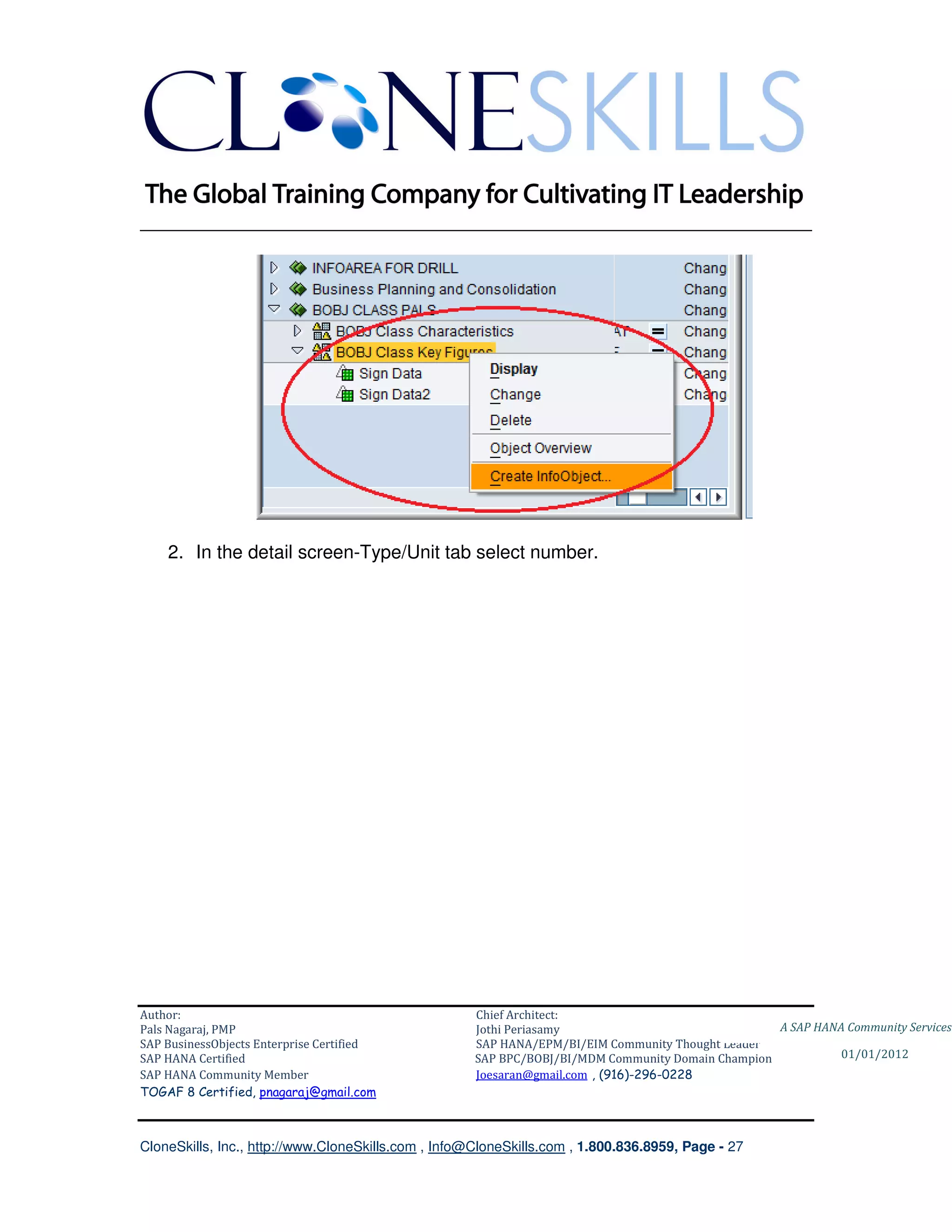
    1. Right click on the Key Figure InfoObject Catalog and select Create
       InfoObject.


Author:                                              Chief Architect:
Pals Nagaraj, PMP                                    Jothi Periasamy                               A SAP HANA Community Services
SAP BusinessObjects Enterprise Certified             SAP HANA/EPM/BI/EIM Community Thought Leader
SAP HANA Certified                                   SAP BPC/BOBJ/BI/MDM Community Domain Champion           01/01/2012
SAP HANA Community Member                            Joesaran@gmail.com , (916)-296-0228
TOGAF 8 Certified, pnagaraj@gmail.com


CloneSkills, Inc., http://www.CloneSkills.com , Info@CloneSkills.com , 1.800.836.8959, Page - 26
________________________________________________________________________


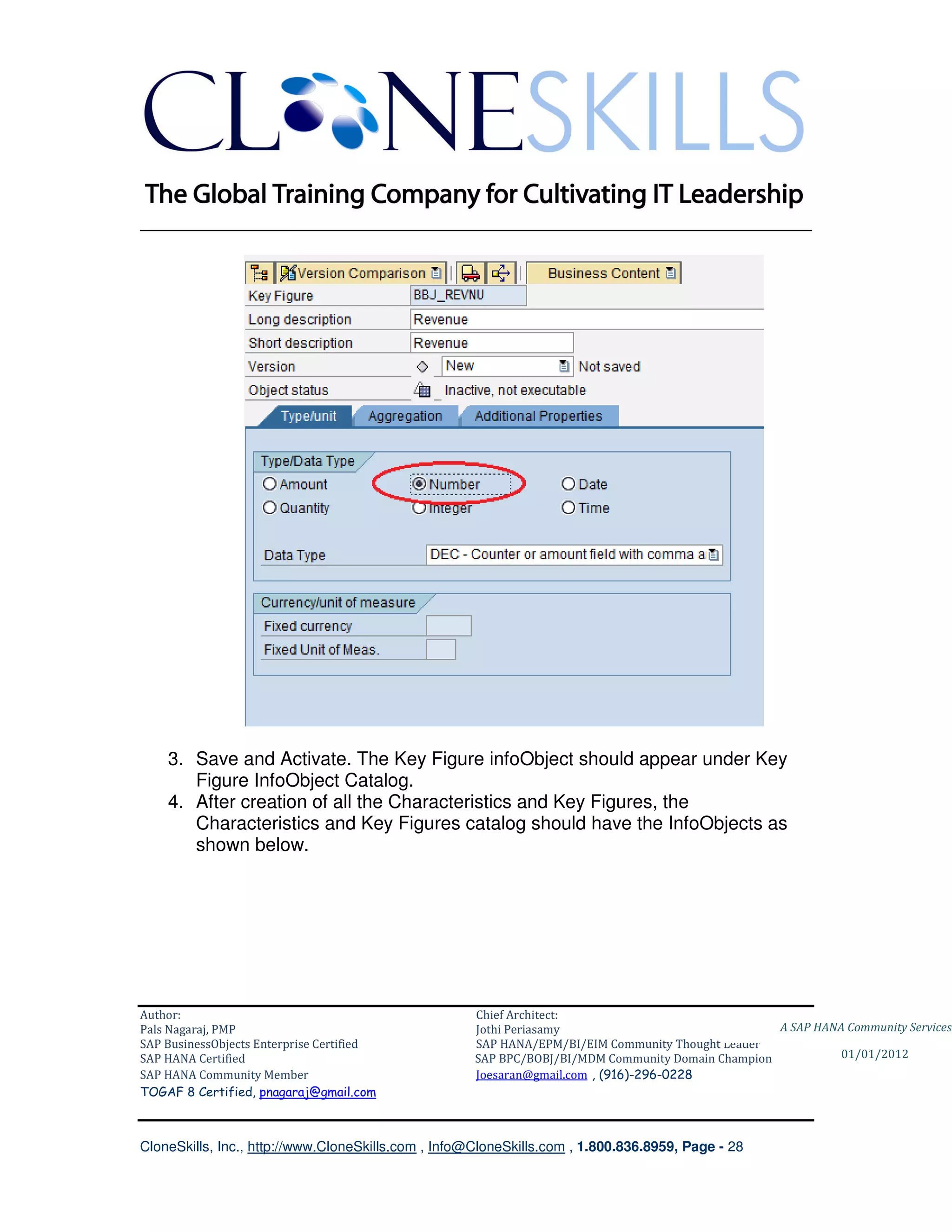
    2. In the detail screen-Type/Unit tab select number.


Author:                                              Chief Architect:
Pals Nagaraj, PMP                                    Jothi Periasamy                               A SAP HANA Community Services
SAP BusinessObjects Enterprise Certified             SAP HANA/EPM/BI/EIM Community Thought Leader
SAP HANA Certified                                   SAP BPC/BOBJ/BI/MDM Community Domain Champion           01/01/2012
SAP HANA Community Member                            Joesaran@gmail.com , (916)-296-0228
TOGAF 8 Certified, pnagaraj@gmail.com


CloneSkills, Inc., http://www.CloneSkills.com , Info@CloneSkills.com , 1.800.836.8959, Page - 27
________________________________________________________________________


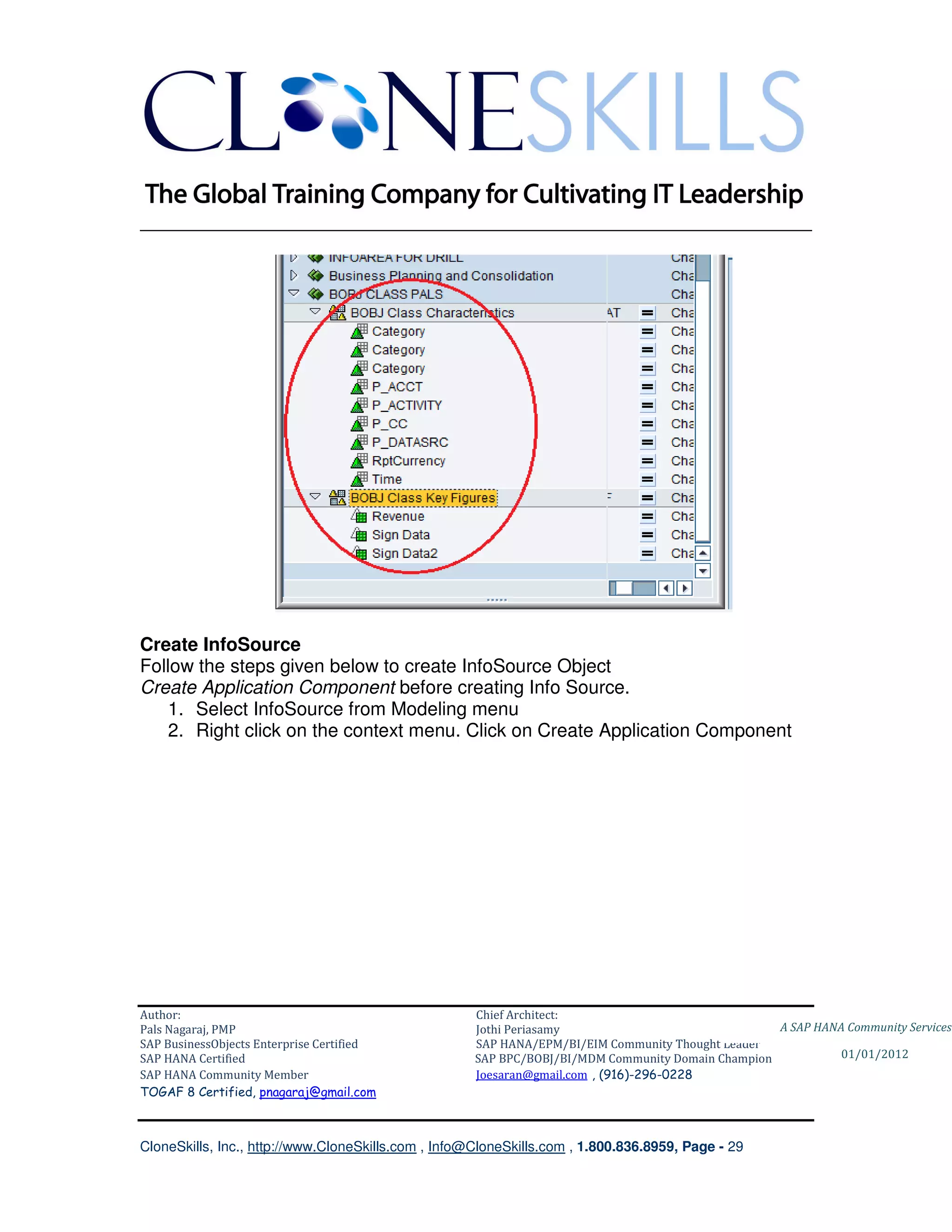
    3. Save and Activate. The Key Figure infoObject should appear under Key
       Figure InfoObject Catalog.
    4. After creation of all the Characteristics and Key Figures, the
       Characteristics and Key Figures catalog should have the InfoObjects as
       shown below.


Author:                                              Chief Architect:
Pals Nagaraj, PMP                                    Jothi Periasamy                               A SAP HANA Community Services
SAP BusinessObjects Enterprise Certified             SAP HANA/EPM/BI/EIM Community Thought Leader
SAP HANA Certified                                   SAP BPC/BOBJ/BI/MDM Community Domain Champion           01/01/2012
SAP HANA Community Member                            Joesaran@gmail.com , (916)-296-0228
TOGAF 8 Certified, pnagaraj@gmail.com


CloneSkills, Inc., http://www.CloneSkills.com , Info@CloneSkills.com , 1.800.836.8959, Page - 28
________________________________________________________________________


Create InfoSource
Follow the steps given below to create InfoSource Object
Create Application Component before creating Info Source.
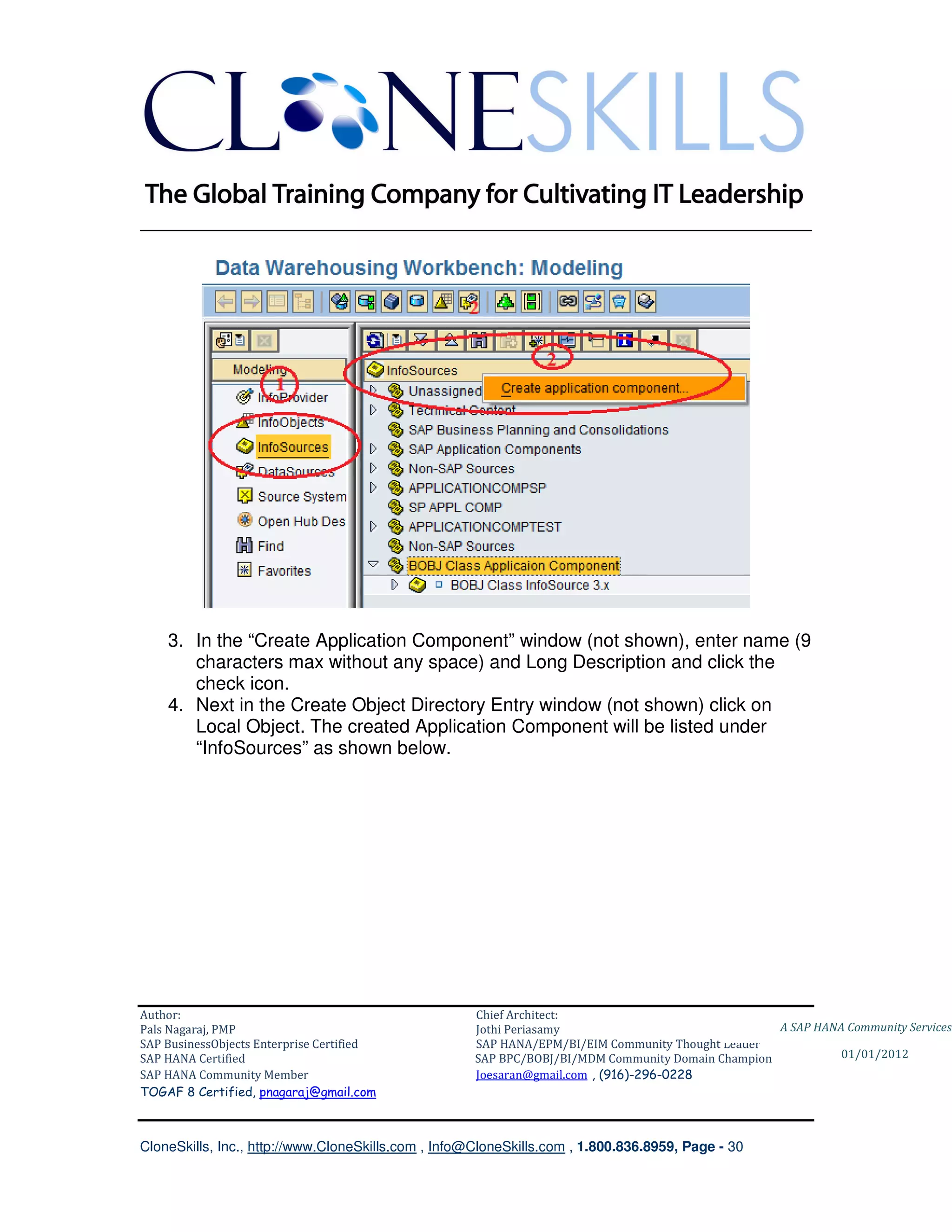
   1. Select InfoSource from Modeling menu
   2. Right click on the context menu. Click on Create Application Component


Author:                                              Chief Architect:
Pals Nagaraj, PMP                                    Jothi Periasamy                               A SAP HANA Community Services
SAP BusinessObjects Enterprise Certified             SAP HANA/EPM/BI/EIM Community Thought Leader
SAP HANA Certified                                   SAP BPC/BOBJ/BI/MDM Community Domain Champion           01/01/2012
SAP HANA Community Member                            Joesaran@gmail.com , (916)-296-0228
TOGAF 8 Certified, pnagaraj@gmail.com


CloneSkills, Inc., http://www.CloneSkills.com , Info@CloneSkills.com , 1.800.836.8959, Page - 29
________________________________________________________________________


    3. In the “Create Application Component” window (not shown), enter name (9
       characters max without any space) and Long Description and click the
       check icon.
    4. Next in the Create Object Directory Entry window (not shown) click on
       Local Object. The created Application Component will be listed under
       “InfoSources” as shown below.


Author:                                              Chief Architect:
Pals Nagaraj, PMP                                    Jothi Periasamy                               A SAP HANA Community Services
SAP BusinessObjects Enterprise Certified             SAP HANA/EPM/BI/EIM Community Thought Leader
SAP HANA Certified                                   SAP BPC/BOBJ/BI/MDM Community Domain Champion           01/01/2012
SAP HANA Community Member                            Joesaran@gmail.com , (916)-296-0228
TOGAF 8 Certified, pnagaraj@gmail.com


CloneSkills, Inc., http://www.CloneSkills.com , Info@CloneSkills.com , 1.800.836.8959, Page - 30
________________________________________________________________________


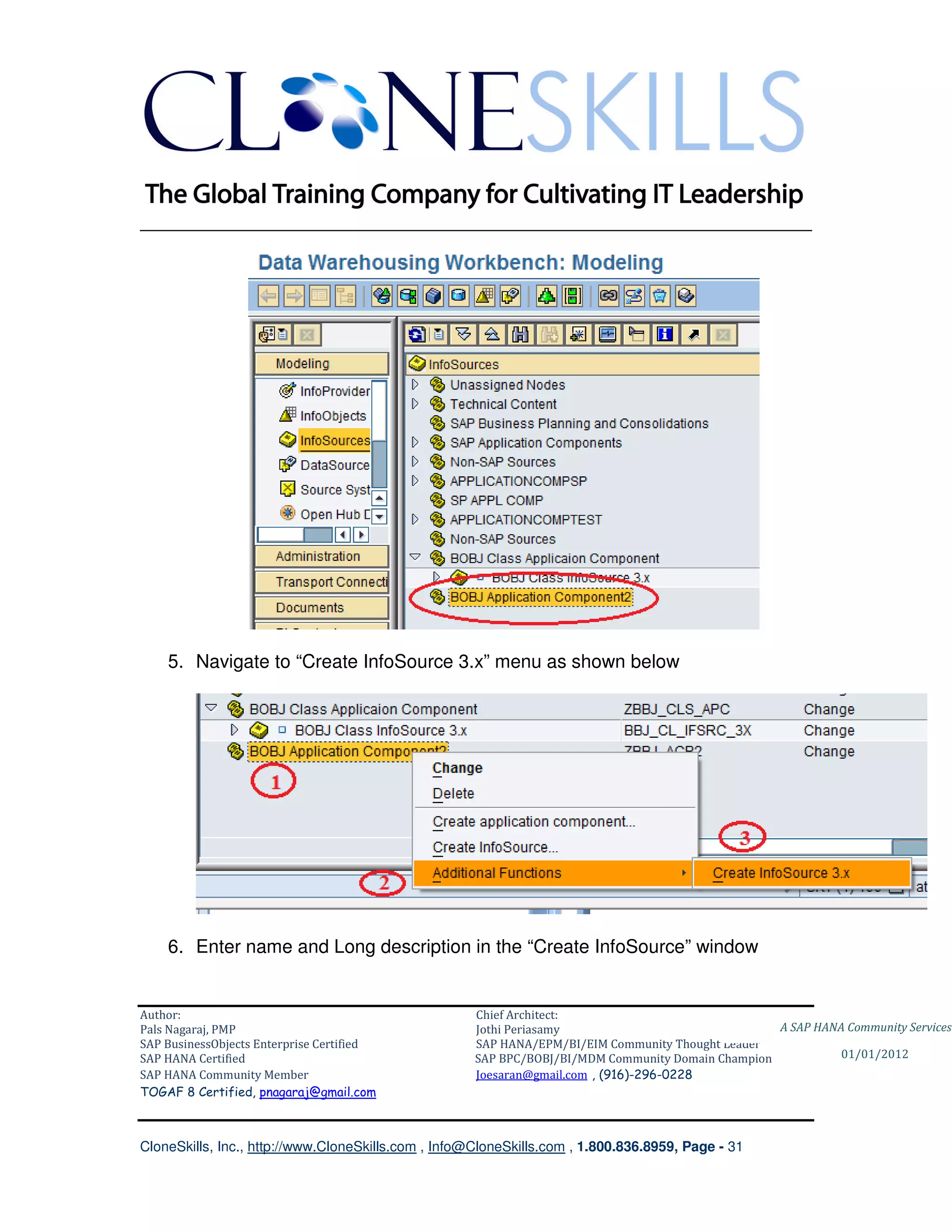
    5. Navigate to “Create InfoSource 3.x” menu as shown below


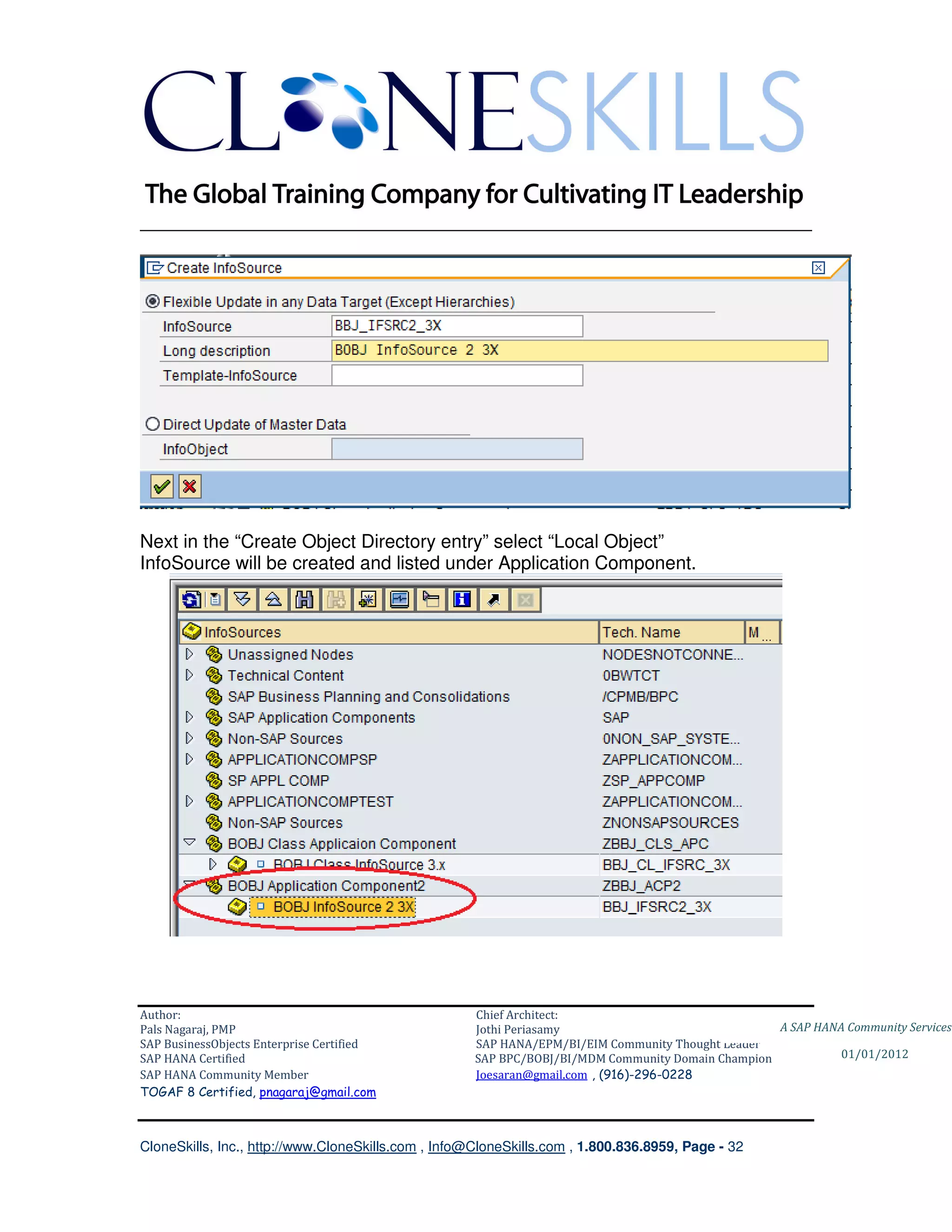
    6. Enter name and Long description in the “Create InfoSource” window


Author:                                              Chief Architect:
Pals Nagaraj, PMP                                    Jothi Periasamy                               A SAP HANA Community Services
SAP BusinessObjects Enterprise Certified             SAP HANA/EPM/BI/EIM Community Thought Leader
SAP HANA Certified                                   SAP BPC/BOBJ/BI/MDM Community Domain Champion           01/01/2012
SAP HANA Community Member                            Joesaran@gmail.com , (916)-296-0228
TOGAF 8 Certified, pnagaraj@gmail.com


CloneSkills, Inc., http://www.CloneSkills.com , Info@CloneSkills.com , 1.800.836.8959, Page - 31
________________________________________________________________________


Next in the “Create Object Directory entry” select “Local Object”
InfoSource will be created and listed under Application Component.


Author:                                              Chief Architect:
Pals Nagaraj, PMP                                    Jothi Periasamy                               A SAP HANA Community Services
SAP BusinessObjects Enterprise Certified             SAP HANA/EPM/BI/EIM Community Thought Leader
SAP HANA Certified                                   SAP BPC/BOBJ/BI/MDM Community Domain Champion           01/01/2012
SAP HANA Community Member                            Joesaran@gmail.com , (916)-296-0228
TOGAF 8 Certified, pnagaraj@gmail.com


CloneSkills, Inc., http://www.CloneSkills.com , Info@CloneSkills.com , 1.800.836.8959, Page - 32
________________________________________________________________________

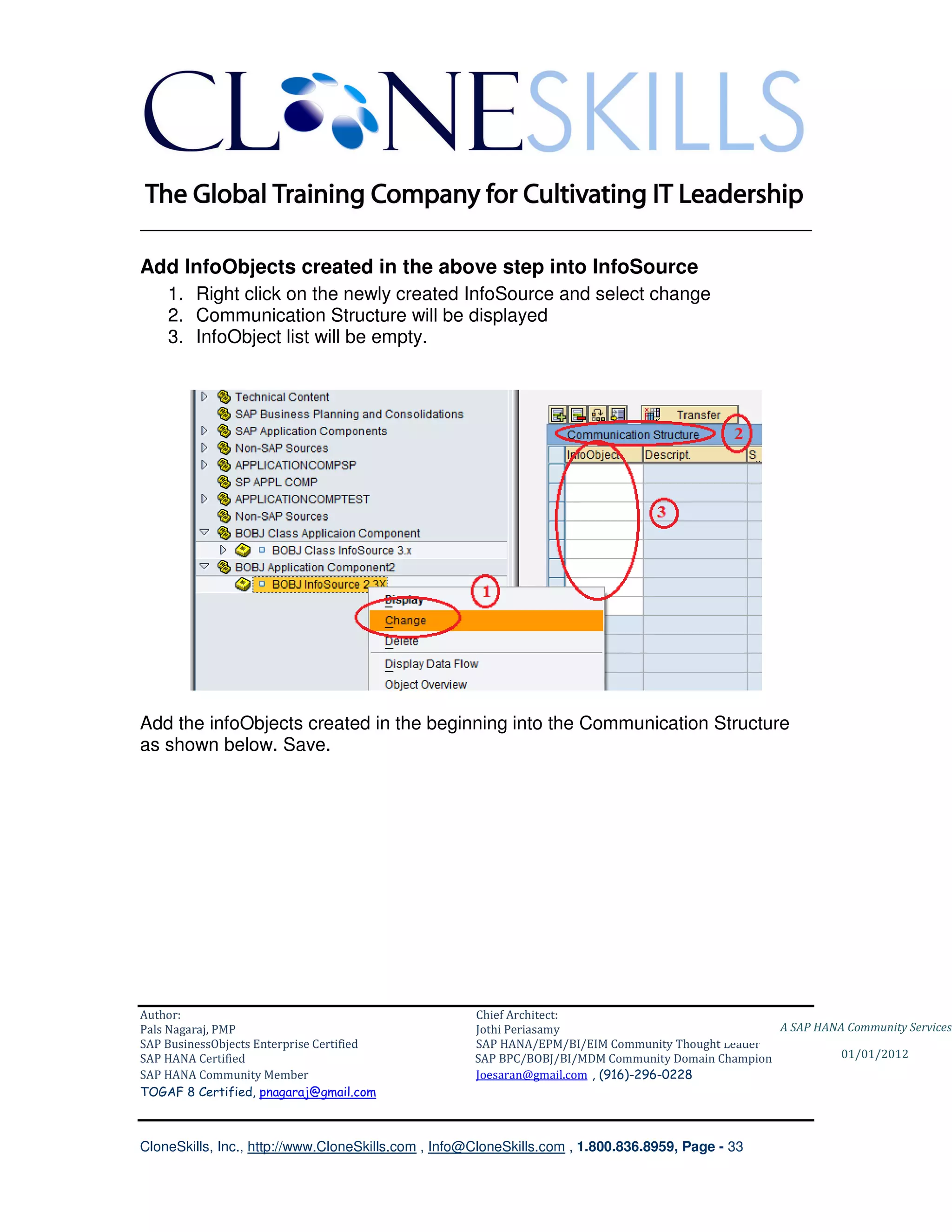
Add InfoObjects created in the above step into InfoSource
    1. Right click on the newly created InfoSource and select change
    2. Communication Structure will be displayed
    3. InfoObject list will be empty.


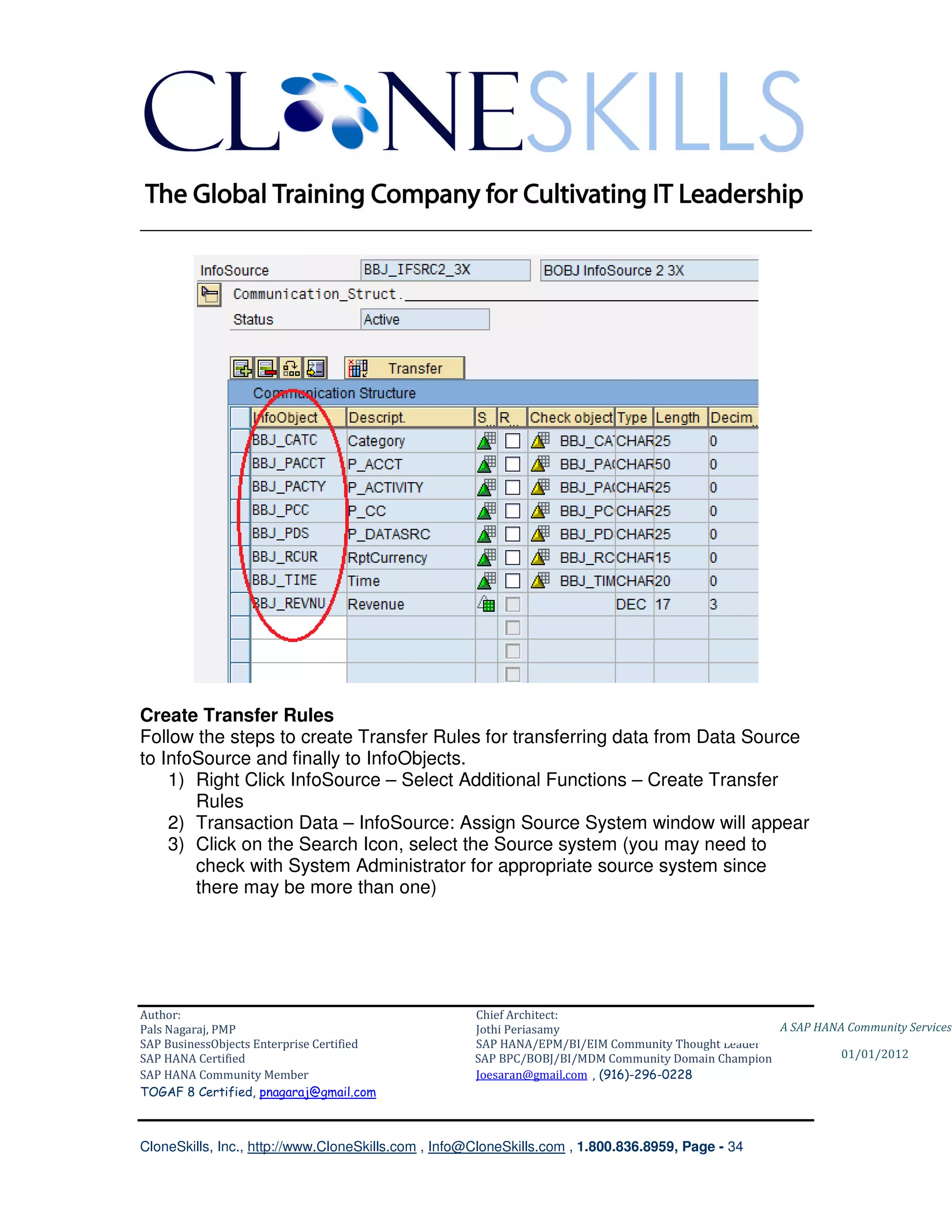
Add the infoObjects created in the beginning into the Communication Structure
as shown below. Save.


Author:                                              Chief Architect:
Pals Nagaraj, PMP                                    Jothi Periasamy                               A SAP HANA Community Services
SAP BusinessObjects Enterprise Certified             SAP HANA/EPM/BI/EIM Community Thought Leader
SAP HANA Certified                                   SAP BPC/BOBJ/BI/MDM Community Domain Champion           01/01/2012
SAP HANA Community Member                            Joesaran@gmail.com , (916)-296-0228
TOGAF 8 Certified, pnagaraj@gmail.com


CloneSkills, Inc., http://www.CloneSkills.com , Info@CloneSkills.com , 1.800.836.8959, Page - 33
________________________________________________________________________


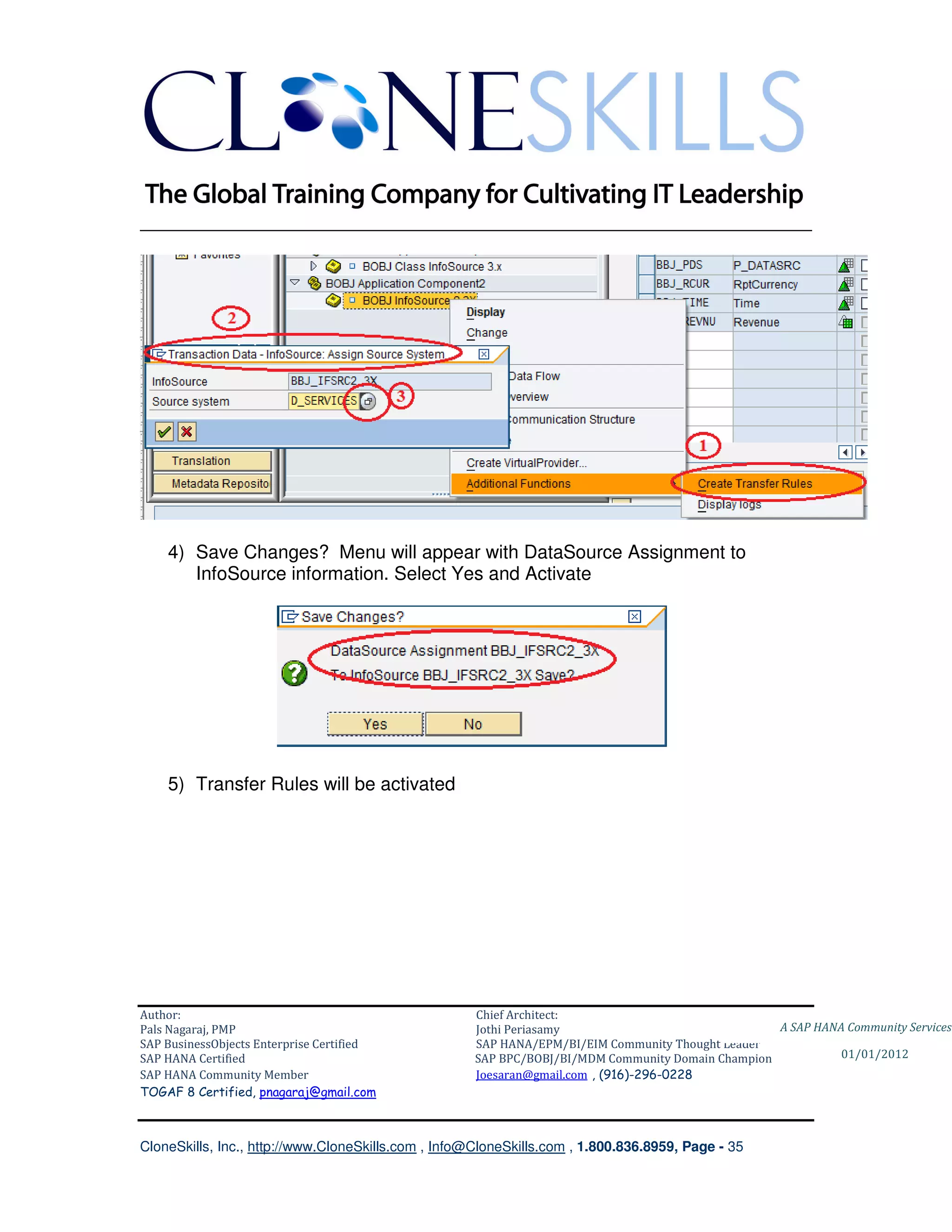
Create Transfer Rules
Follow the steps to create Transfer Rules for transferring data from Data Source
to InfoSource and finally to InfoObjects.
    1) Right Click InfoSource – Select Additional Functions – Create Transfer
       Rules
    2) Transaction Data – InfoSource: Assign Source System window will appear
    3) Click on the Search Icon, select the Source system (you may need to
       check with System Administrator for appropriate source system since
       there may be more than one)


Author:                                              Chief Architect:
Pals Nagaraj, PMP                                    Jothi Periasamy                               A SAP HANA Community Services
SAP BusinessObjects Enterprise Certified             SAP HANA/EPM/BI/EIM Community Thought Leader
SAP HANA Certified                                   SAP BPC/BOBJ/BI/MDM Community Domain Champion           01/01/2012
SAP HANA Community Member                            Joesaran@gmail.com , (916)-296-0228
TOGAF 8 Certified, pnagaraj@gmail.com


CloneSkills, Inc., http://www.CloneSkills.com , Info@CloneSkills.com , 1.800.836.8959, Page - 34
________________________________________________________________________


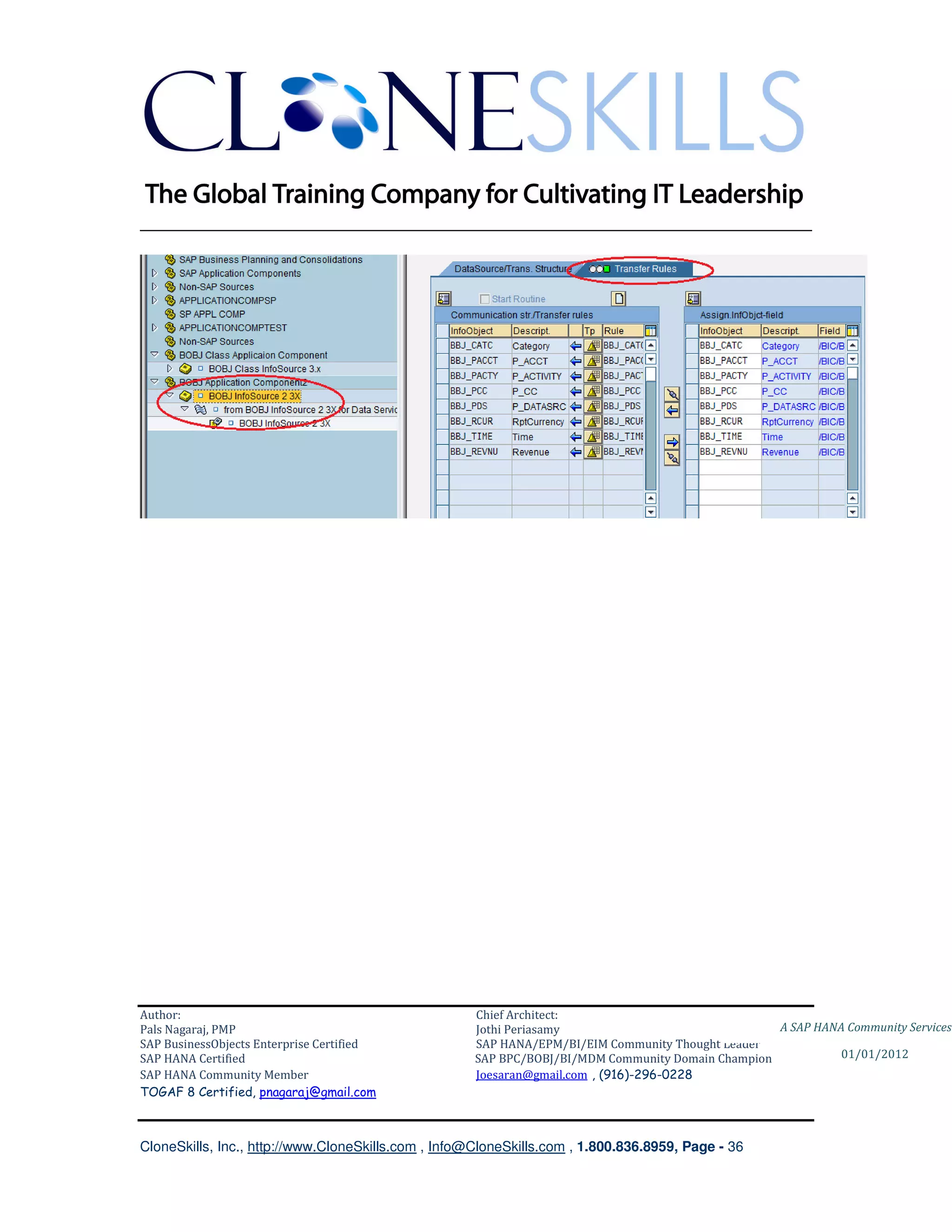
    4) Save Changes? Menu will appear with DataSource Assignment to
       InfoSource information. Select Yes and Activate


    5) Transfer Rules will be activated


Author:                                              Chief Architect:
Pals Nagaraj, PMP                                    Jothi Periasamy                               A SAP HANA Community Services
SAP BusinessObjects Enterprise Certified             SAP HANA/EPM/BI/EIM Community Thought Leader
SAP HANA Certified                                   SAP BPC/BOBJ/BI/MDM Community Domain Champion           01/01/2012
SAP HANA Community Member                            Joesaran@gmail.com , (916)-296-0228
TOGAF 8 Certified, pnagaraj@gmail.com


CloneSkills, Inc., http://www.CloneSkills.com , Info@CloneSkills.com , 1.800.836.8959, Page - 35
________________________________________________________________________


Author:                                              Chief Architect:
Pals Nagaraj, PMP                                    Jothi Periasamy                               A SAP HANA Community Services
SAP BusinessObjects Enterprise Certified             SAP HANA/EPM/BI/EIM Community Thought Leader
SAP HANA Certified                                   SAP BPC/BOBJ/BI/MDM Community Domain Champion           01/01/2012
SAP HANA Community Member                            Joesaran@gmail.com , (916)-296-0228
TOGAF 8 Certified, pnagaraj@gmail.com


CloneSkills, Inc., http://www.CloneSkills.com , Info@CloneSkills.com , 1.800.836.8959, Page - 36
________________________________________________________________________


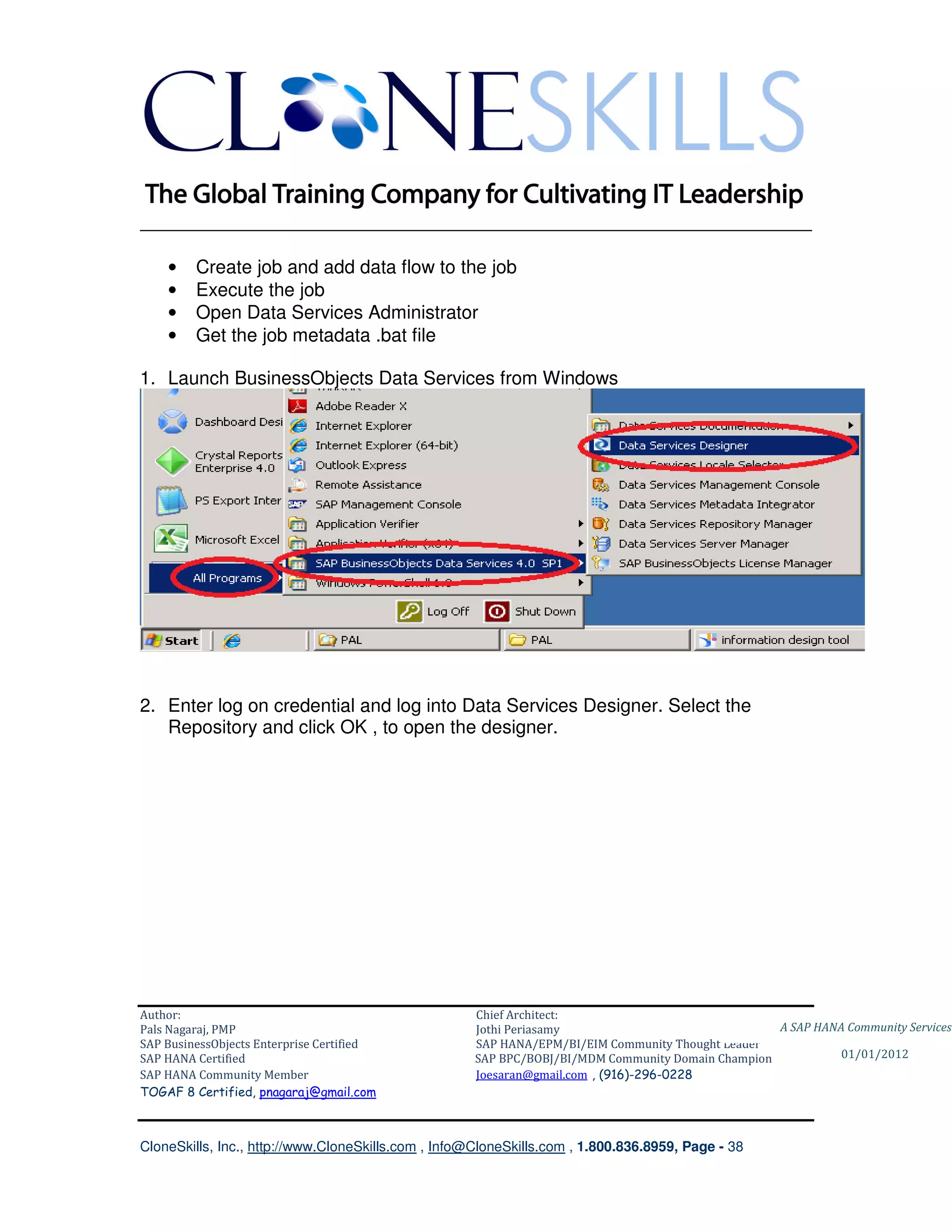
SAP BusinessObjects Data Services Setup

In this step, the InfoObjects created in the above section are established a target
datastore to receive the data from the CSV file.
                                 Section Roadmap


Steps:
   • Create Project
   • Create source datastore (in this case, the CSV file, as data source)
   • Create target datastore ( in this case, the InfoObjects in SAP BW, as data
       target)
   • Create data flow connecting the data source and data target using
       Validate transform

Author:                                              Chief Architect:
Pals Nagaraj, PMP                                    Jothi Periasamy                               A SAP HANA Community Services
SAP BusinessObjects Enterprise Certified             SAP HANA/EPM/BI/EIM Community Thought Leader
SAP HANA Certified                                   SAP BPC/BOBJ/BI/MDM Community Domain Champion           01/01/2012
SAP HANA Community Member                            Joesaran@gmail.com , (916)-296-0228
TOGAF 8 Certified, pnagaraj@gmail.com


CloneSkills, Inc., http://www.CloneSkills.com , Info@CloneSkills.com , 1.800.836.8959, Page - 37
________________________________________________________________________

    •    Create job and add data flow to the job
    •    Execute the job
    •    Open Data Services Administrator
    •    Get the job metadata .bat file

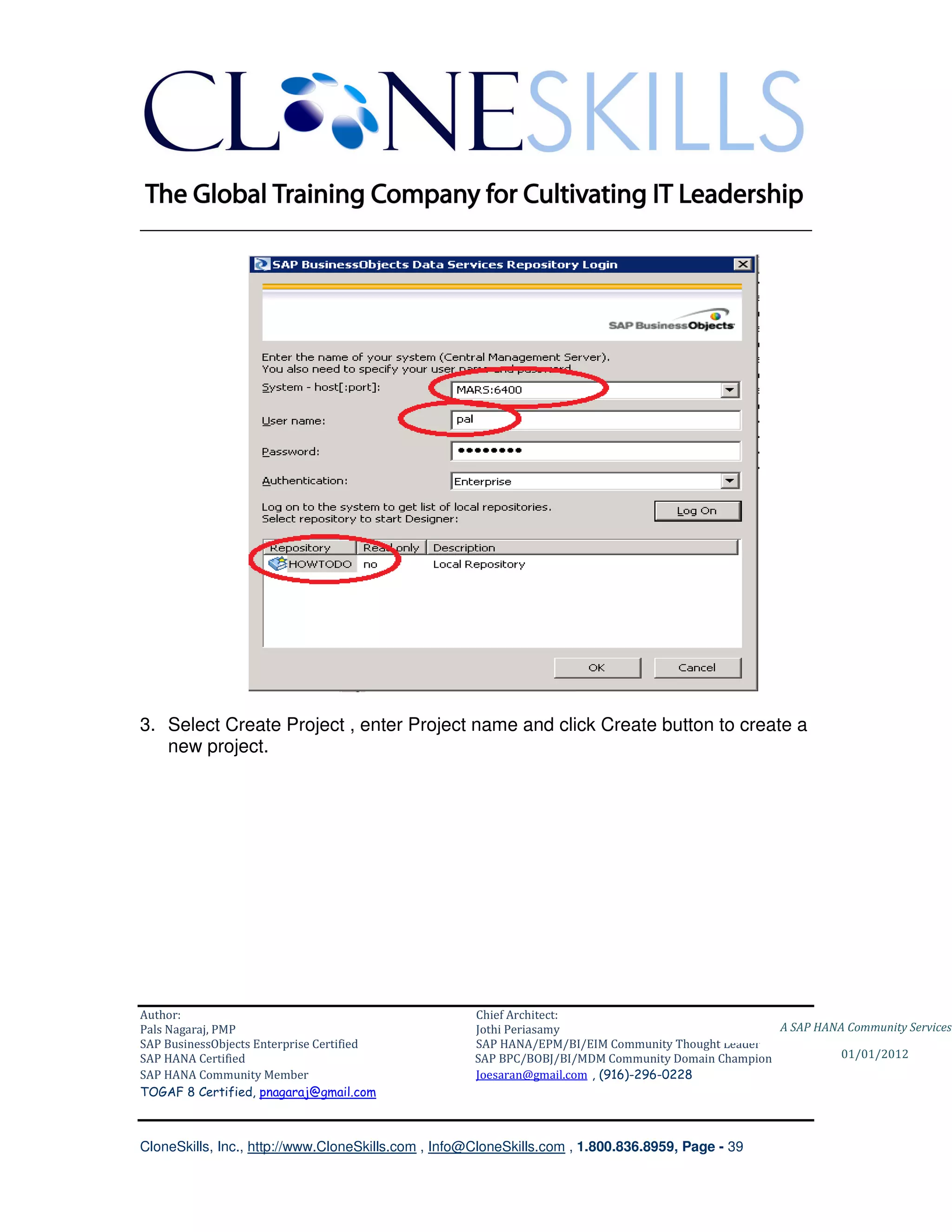
1. Launch BusinessObjects Data Services from Windows


2. Enter log on credential and log into Data Services Designer. Select the
   Repository and click OK , to open the designer.


Author:                                              Chief Architect:
Pals Nagaraj, PMP                                    Jothi Periasamy                               A SAP HANA Community Services
SAP BusinessObjects Enterprise Certified             SAP HANA/EPM/BI/EIM Community Thought Leader
SAP HANA Certified                                   SAP BPC/BOBJ/BI/MDM Community Domain Champion           01/01/2012
SAP HANA Community Member                            Joesaran@gmail.com , (916)-296-0228
TOGAF 8 Certified, pnagaraj@gmail.com


CloneSkills, Inc., http://www.CloneSkills.com , Info@CloneSkills.com , 1.800.836.8959, Page - 38
________________________________________________________________________


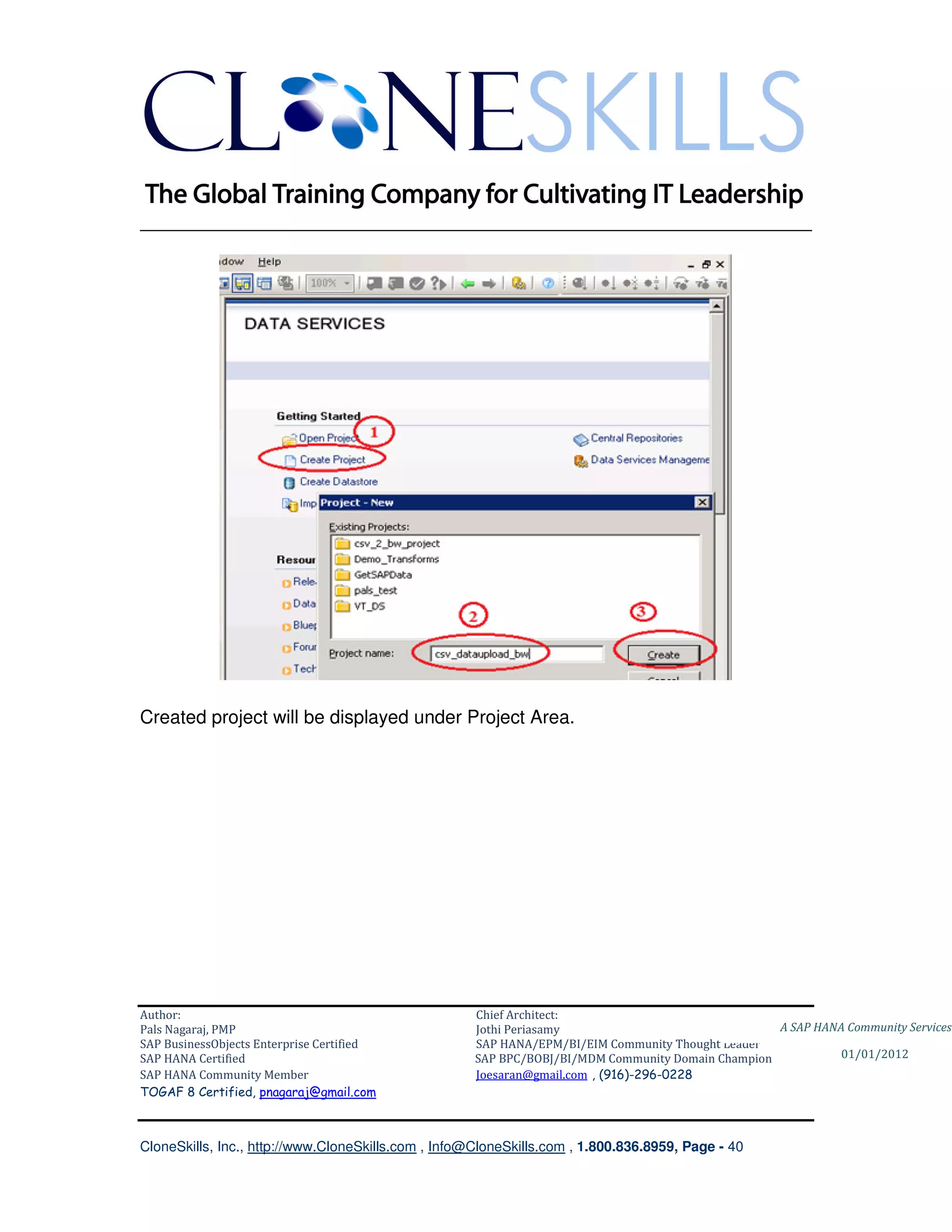
3. Select Create Project , enter Project name and click Create button to create a
   new project.


Author:                                              Chief Architect:
Pals Nagaraj, PMP                                    Jothi Periasamy                               A SAP HANA Community Services
SAP BusinessObjects Enterprise Certified             SAP HANA/EPM/BI/EIM Community Thought Leader
SAP HANA Certified                                   SAP BPC/BOBJ/BI/MDM Community Domain Champion           01/01/2012
SAP HANA Community Member                            Joesaran@gmail.com , (916)-296-0228
TOGAF 8 Certified, pnagaraj@gmail.com


CloneSkills, Inc., http://www.CloneSkills.com , Info@CloneSkills.com , 1.800.836.8959, Page - 39
________________________________________________________________________


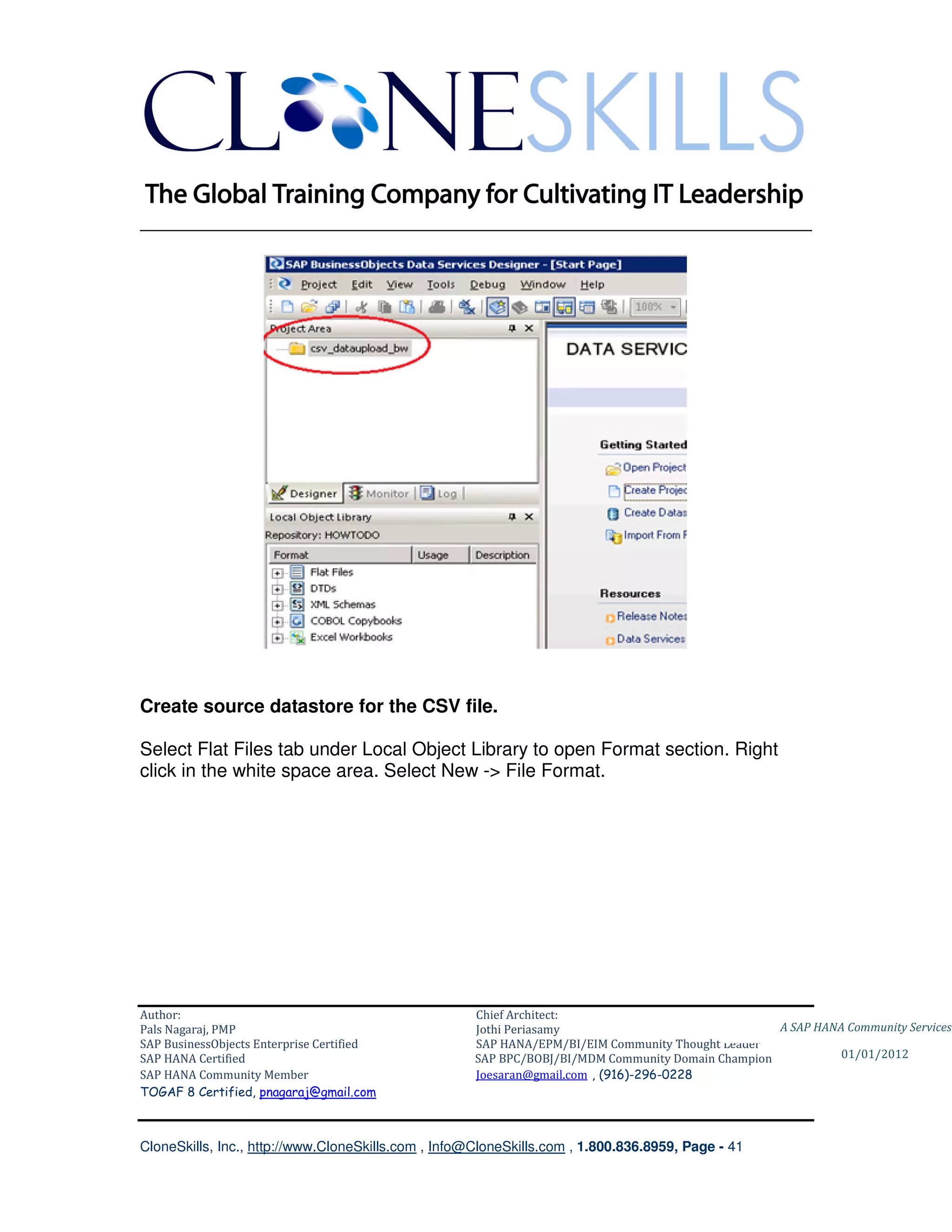
Created project will be displayed under Project Area.


Author:                                              Chief Architect:
Pals Nagaraj, PMP                                    Jothi Periasamy                               A SAP HANA Community Services
SAP BusinessObjects Enterprise Certified             SAP HANA/EPM/BI/EIM Community Thought Leader
SAP HANA Certified                                   SAP BPC/BOBJ/BI/MDM Community Domain Champion           01/01/2012
SAP HANA Community Member                            Joesaran@gmail.com , (916)-296-0228
TOGAF 8 Certified, pnagaraj@gmail.com


CloneSkills, Inc., http://www.CloneSkills.com , Info@CloneSkills.com , 1.800.836.8959, Page - 40
________________________________________________________________________


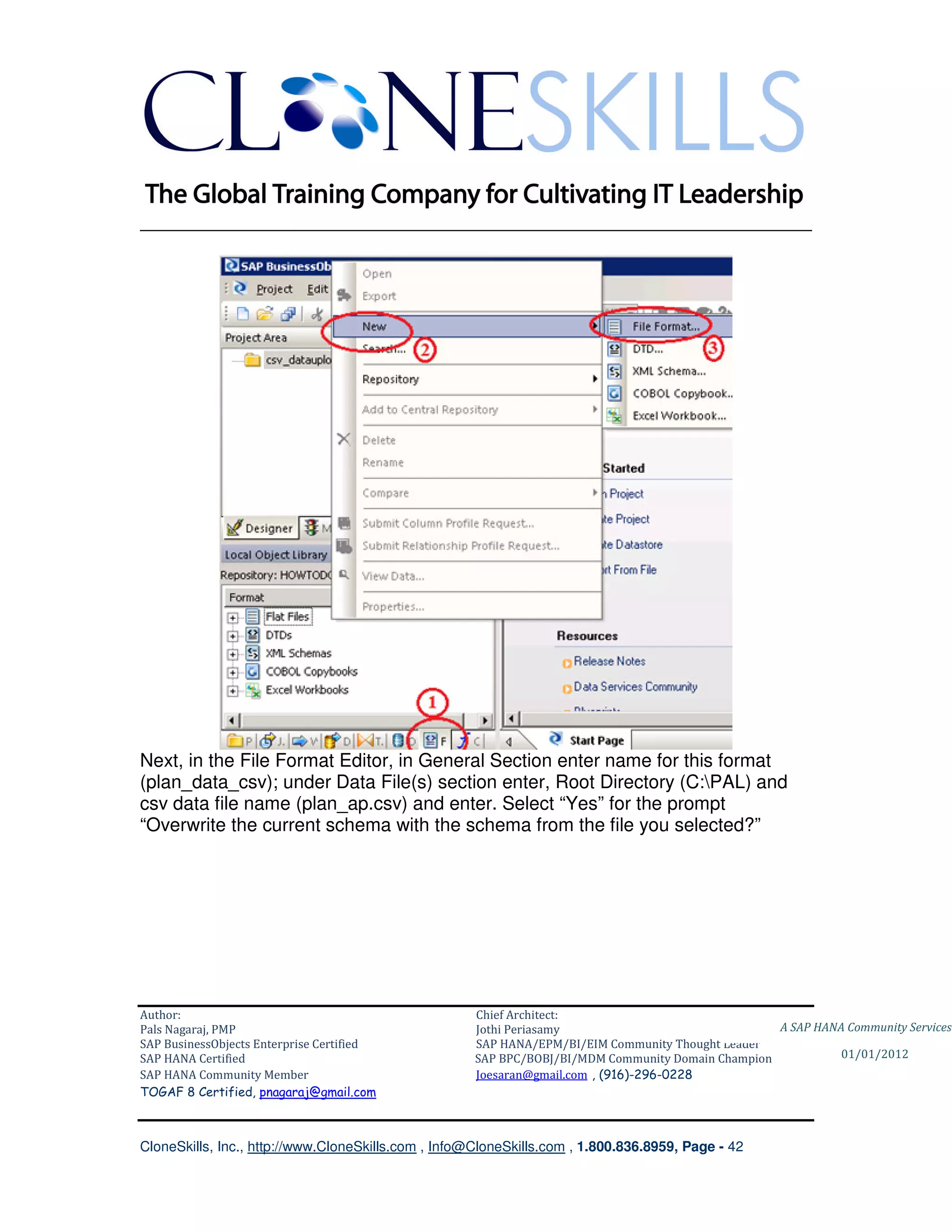
Create source datastore for the CSV file.

Select Flat Files tab under Local Object Library to open Format section. Right
click in the white space area. Select New -> File Format.


Author:                                              Chief Architect:
Pals Nagaraj, PMP                                    Jothi Periasamy                               A SAP HANA Community Services
SAP BusinessObjects Enterprise Certified             SAP HANA/EPM/BI/EIM Community Thought Leader
SAP HANA Certified                                   SAP BPC/BOBJ/BI/MDM Community Domain Champion           01/01/2012
SAP HANA Community Member                            Joesaran@gmail.com , (916)-296-0228
TOGAF 8 Certified, pnagaraj@gmail.com


CloneSkills, Inc., http://www.CloneSkills.com , Info@CloneSkills.com , 1.800.836.8959, Page - 41
________________________________________________________________________


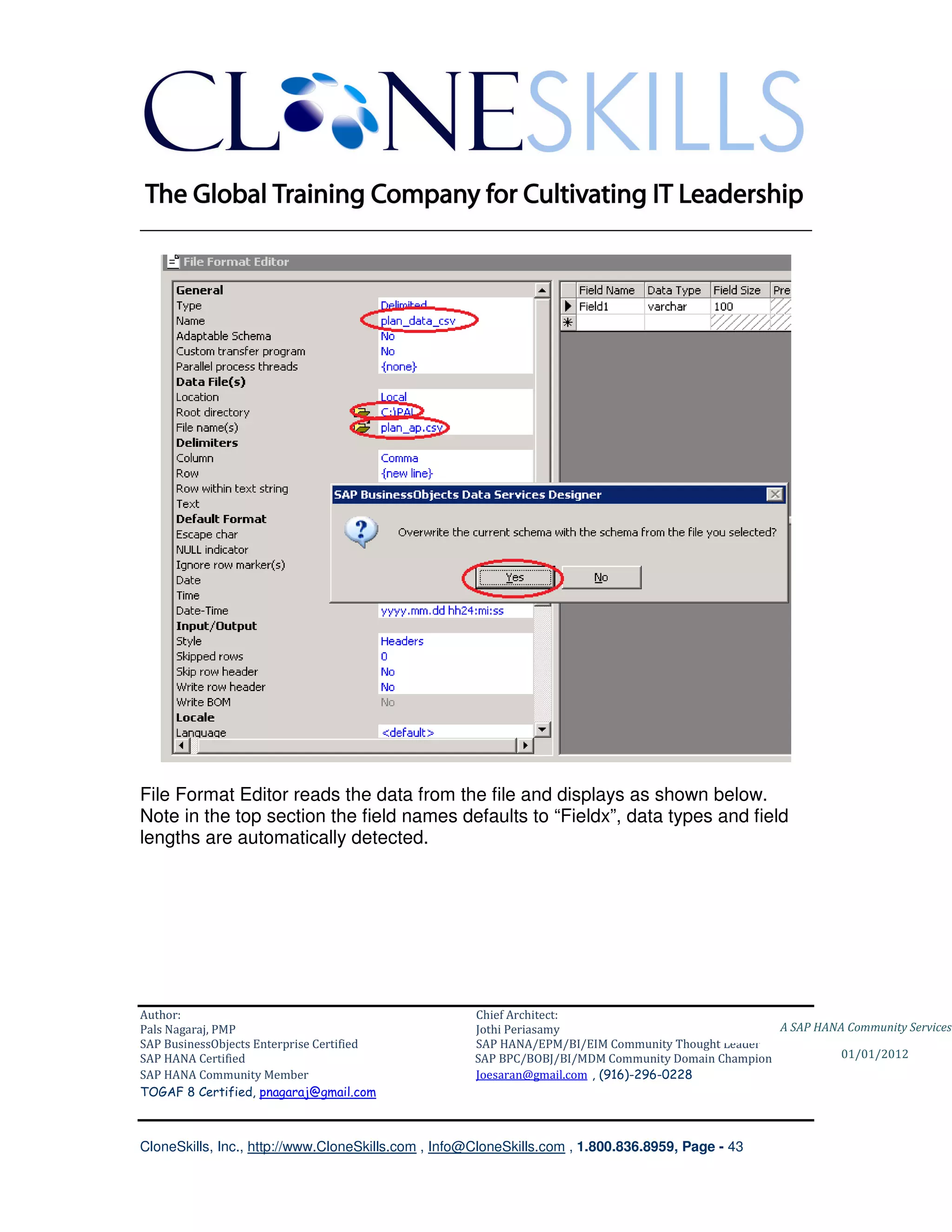
Next, in the File Format Editor, in General Section enter name for this format
(plan_data_csv); under Data File(s) section enter, Root Directory (C:PAL) and
csv data file name (plan_ap.csv) and enter. Select “Yes” for the prompt
“Overwrite the current schema with the schema from the file you selected?”


Author:                                              Chief Architect:
Pals Nagaraj, PMP                                    Jothi Periasamy                               A SAP HANA Community Services
SAP BusinessObjects Enterprise Certified             SAP HANA/EPM/BI/EIM Community Thought Leader
SAP HANA Certified                                   SAP BPC/BOBJ/BI/MDM Community Domain Champion           01/01/2012
SAP HANA Community Member                            Joesaran@gmail.com , (916)-296-0228
TOGAF 8 Certified, pnagaraj@gmail.com


CloneSkills, Inc., http://www.CloneSkills.com , Info@CloneSkills.com , 1.800.836.8959, Page - 42
________________________________________________________________________


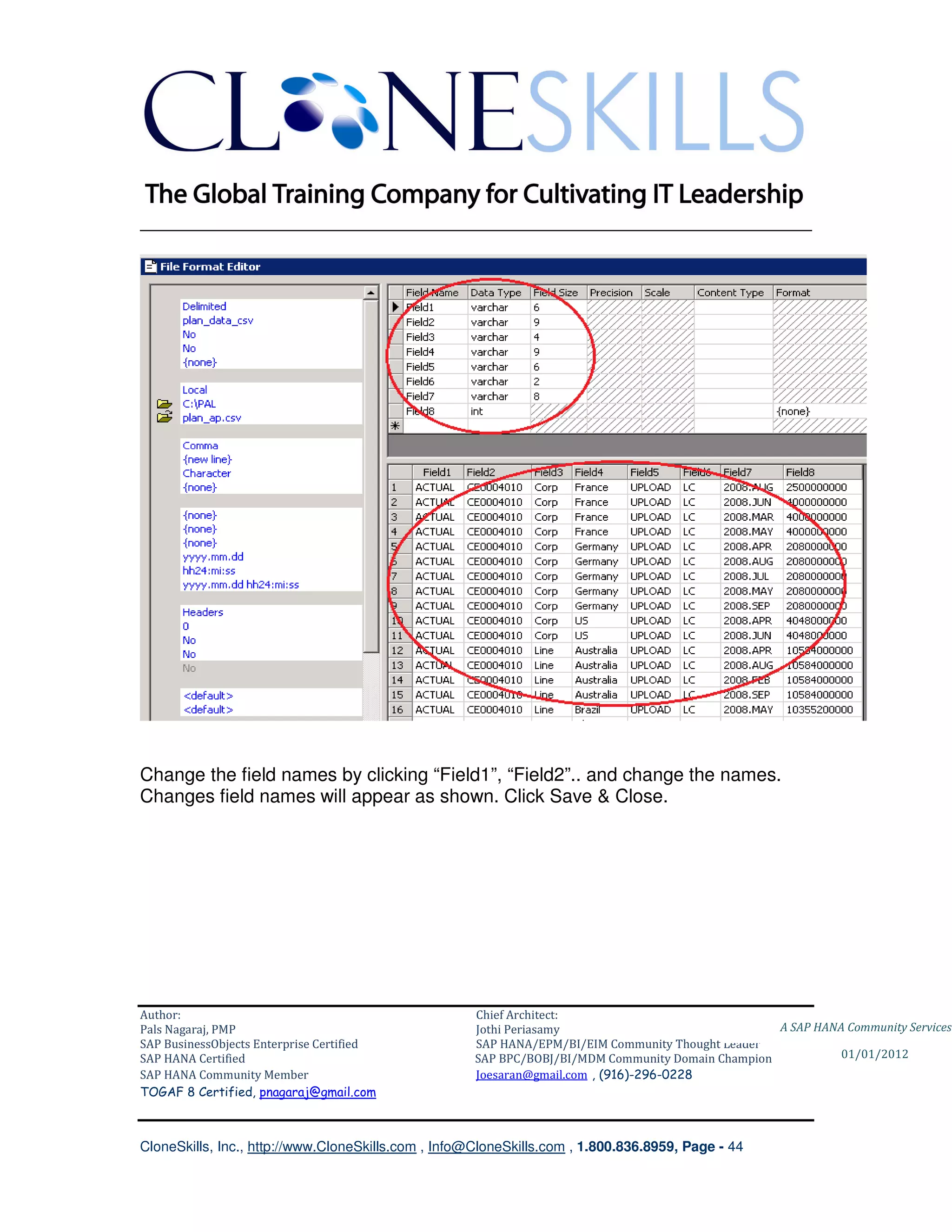
File Format Editor reads the data from the file and displays as shown below.
Note in the top section the field names defaults to “Fieldx”, data types and field

lengths are automatically detected.


Author:                                              Chief Architect:
Pals Nagaraj, PMP                                    Jothi Periasamy                               A SAP HANA Community Services
SAP BusinessObjects Enterprise Certified             SAP HANA/EPM/BI/EIM Community Thought Leader
SAP HANA Certified                                   SAP BPC/BOBJ/BI/MDM Community Domain Champion           01/01/2012
SAP HANA Community Member                            Joesaran@gmail.com , (916)-296-0228
TOGAF 8 Certified, pnagaraj@gmail.com


CloneSkills, Inc., http://www.CloneSkills.com , Info@CloneSkills.com , 1.800.836.8959, Page - 43
________________________________________________________________________


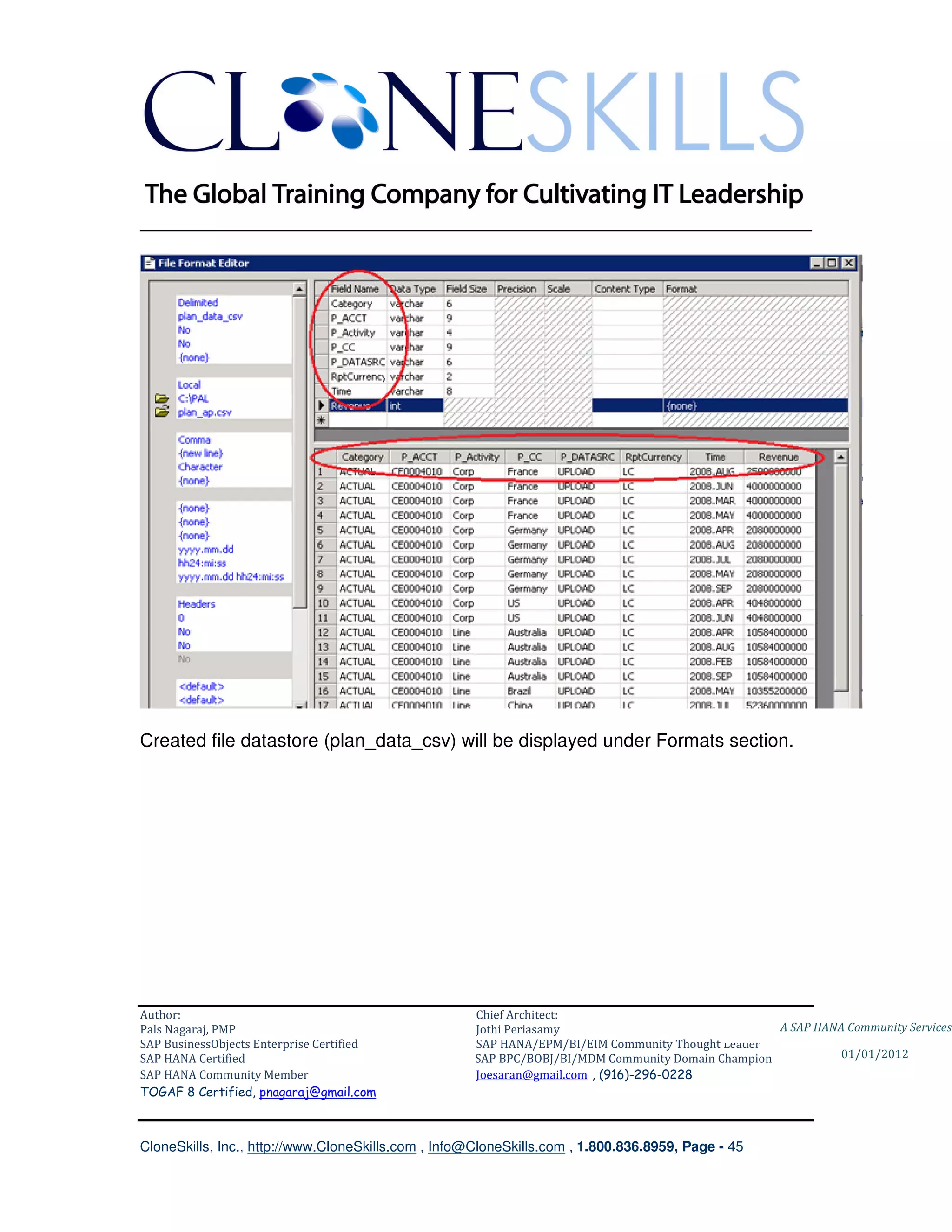
Change the field names by clicking “Field1”, “Field2”.. and change the names.
Changes field names will appear as shown. Click Save & Close.


Author:                                              Chief Architect:
Pals Nagaraj, PMP                                    Jothi Periasamy                               A SAP HANA Community Services
SAP BusinessObjects Enterprise Certified             SAP HANA/EPM/BI/EIM Community Thought Leader
SAP HANA Certified                                   SAP BPC/BOBJ/BI/MDM Community Domain Champion           01/01/2012
SAP HANA Community Member                            Joesaran@gmail.com , (916)-296-0228
TOGAF 8 Certified, pnagaraj@gmail.com


CloneSkills, Inc., http://www.CloneSkills.com , Info@CloneSkills.com , 1.800.836.8959, Page - 44
________________________________________________________________________


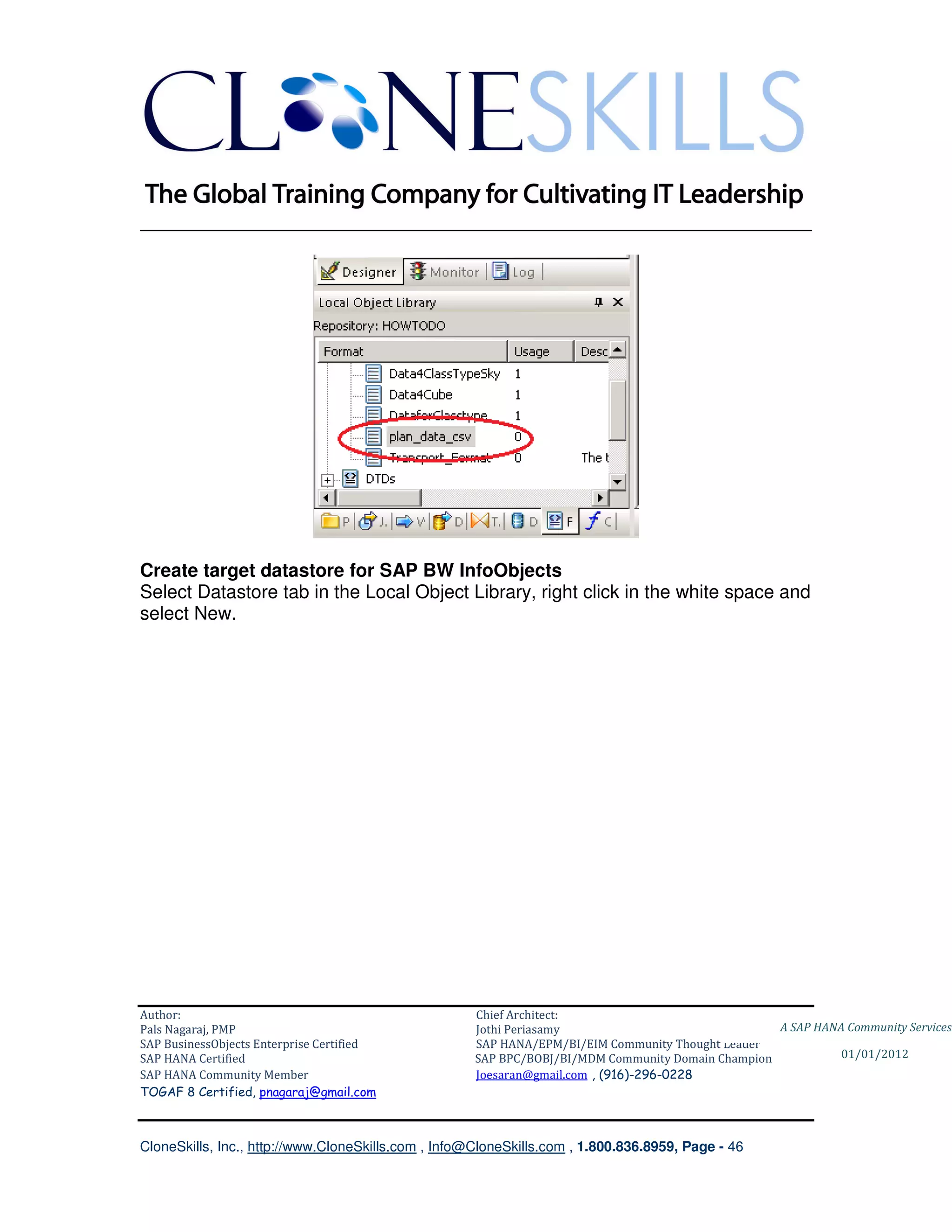
Created file datastore (plan_data_csv) will be displayed under Formats section.


Author:                                              Chief Architect:
Pals Nagaraj, PMP                                    Jothi Periasamy                               A SAP HANA Community Services
SAP BusinessObjects Enterprise Certified             SAP HANA/EPM/BI/EIM Community Thought Leader
SAP HANA Certified                                   SAP BPC/BOBJ/BI/MDM Community Domain Champion           01/01/2012
SAP HANA Community Member                            Joesaran@gmail.com , (916)-296-0228
TOGAF 8 Certified, pnagaraj@gmail.com


CloneSkills, Inc., http://www.CloneSkills.com , Info@CloneSkills.com , 1.800.836.8959, Page - 45
________________________________________________________________________


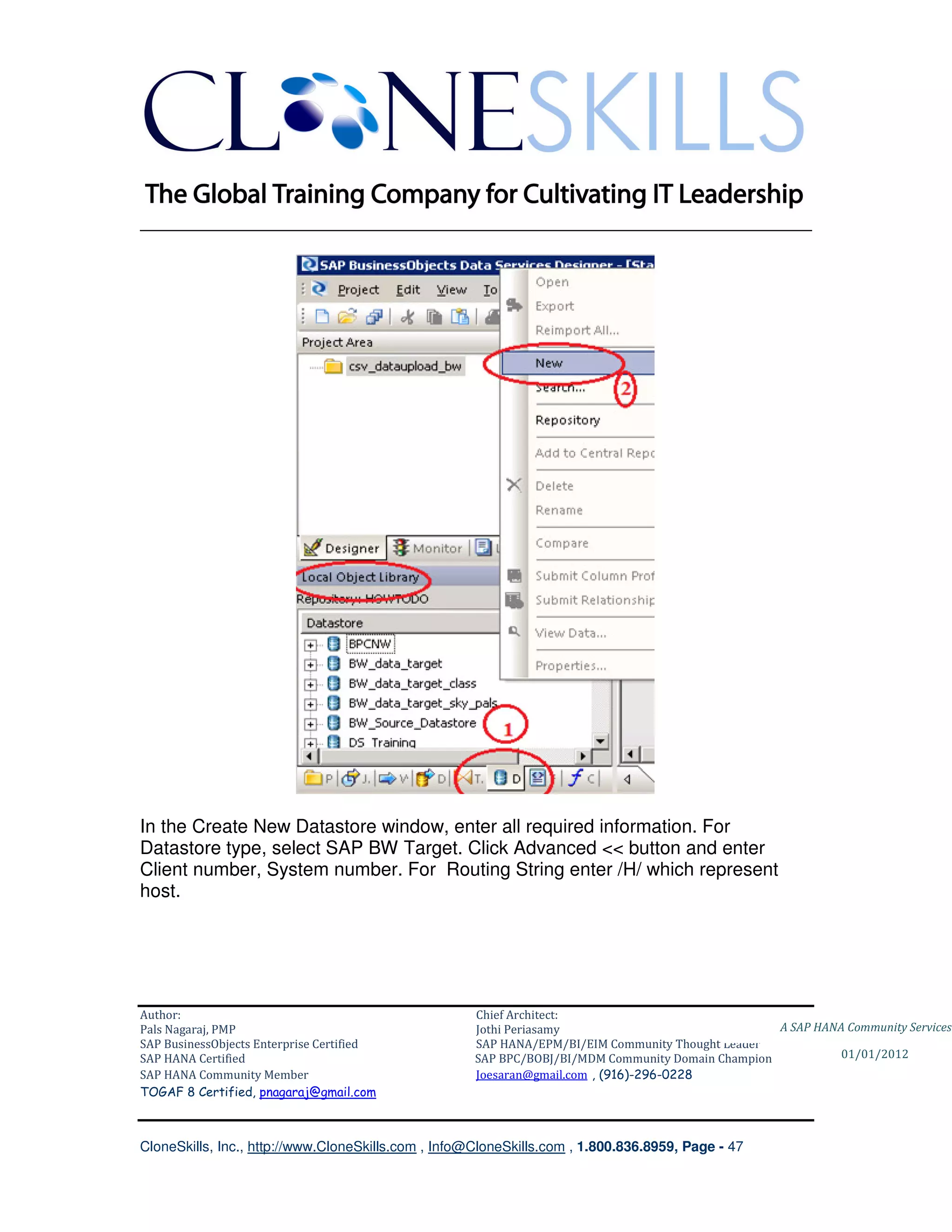
Create target datastore for SAP BW InfoObjects
Select Datastore tab in the Local Object Library, right click in the white space and
select New.


Author:                                              Chief Architect:
Pals Nagaraj, PMP                                    Jothi Periasamy                               A SAP HANA Community Services
SAP BusinessObjects Enterprise Certified             SAP HANA/EPM/BI/EIM Community Thought Leader
SAP HANA Certified                                   SAP BPC/BOBJ/BI/MDM Community Domain Champion           01/01/2012
SAP HANA Community Member                            Joesaran@gmail.com , (916)-296-0228
TOGAF 8 Certified, pnagaraj@gmail.com


CloneSkills, Inc., http://www.CloneSkills.com , Info@CloneSkills.com , 1.800.836.8959, Page - 46
________________________________________________________________________


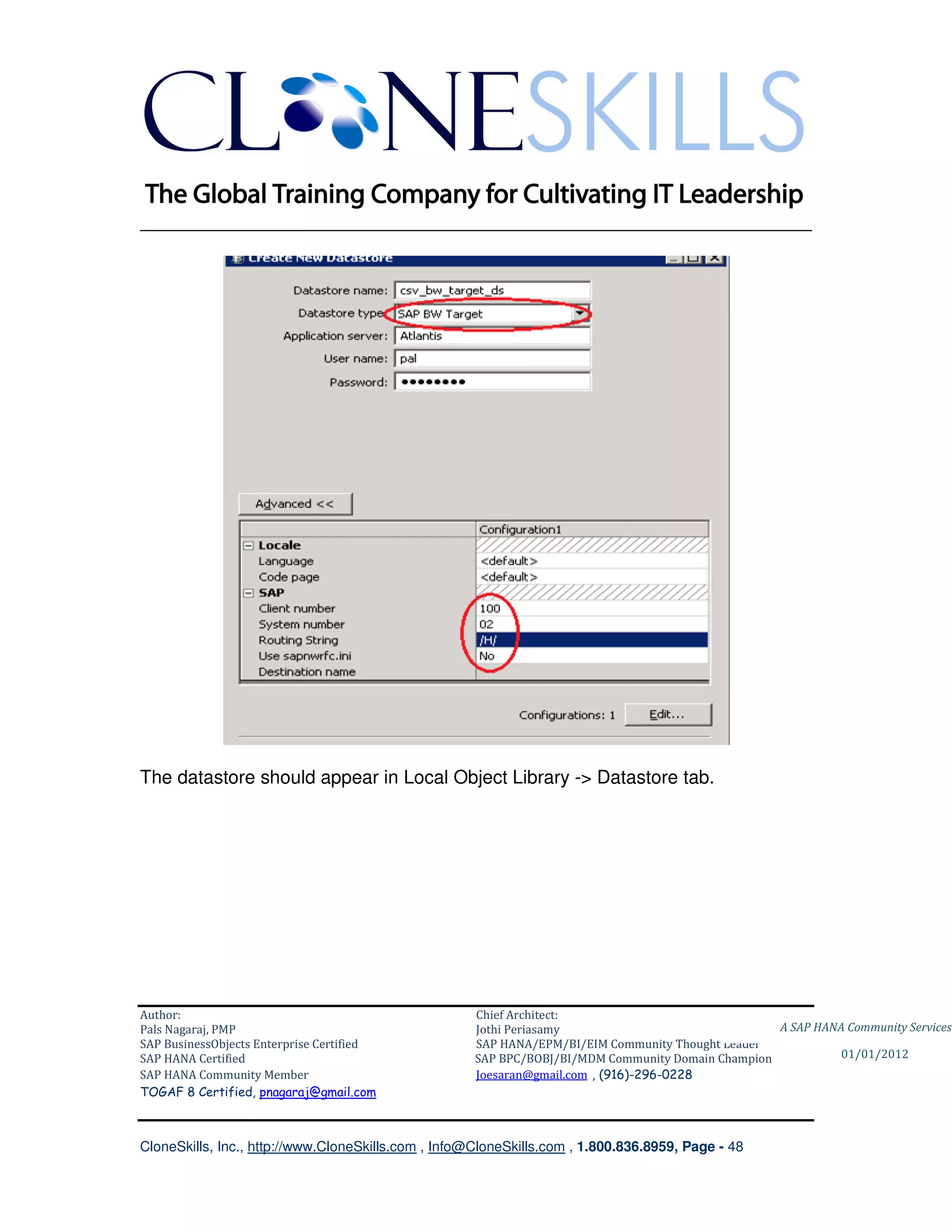
In the Create New Datastore window, enter all required information. For
Datastore type, select SAP BW Target. Click Advanced << button and enter
Client number, System number. For Routing String enter /H/ which represent
host.


Author:                                              Chief Architect:
Pals Nagaraj, PMP                                    Jothi Periasamy                               A SAP HANA Community Services
SAP BusinessObjects Enterprise Certified             SAP HANA/EPM/BI/EIM Community Thought Leader
SAP HANA Certified                                   SAP BPC/BOBJ/BI/MDM Community Domain Champion           01/01/2012
SAP HANA Community Member                            Joesaran@gmail.com , (916)-296-0228
TOGAF 8 Certified, pnagaraj@gmail.com


CloneSkills, Inc., http://www.CloneSkills.com , Info@CloneSkills.com , 1.800.836.8959, Page - 47
________________________________________________________________________


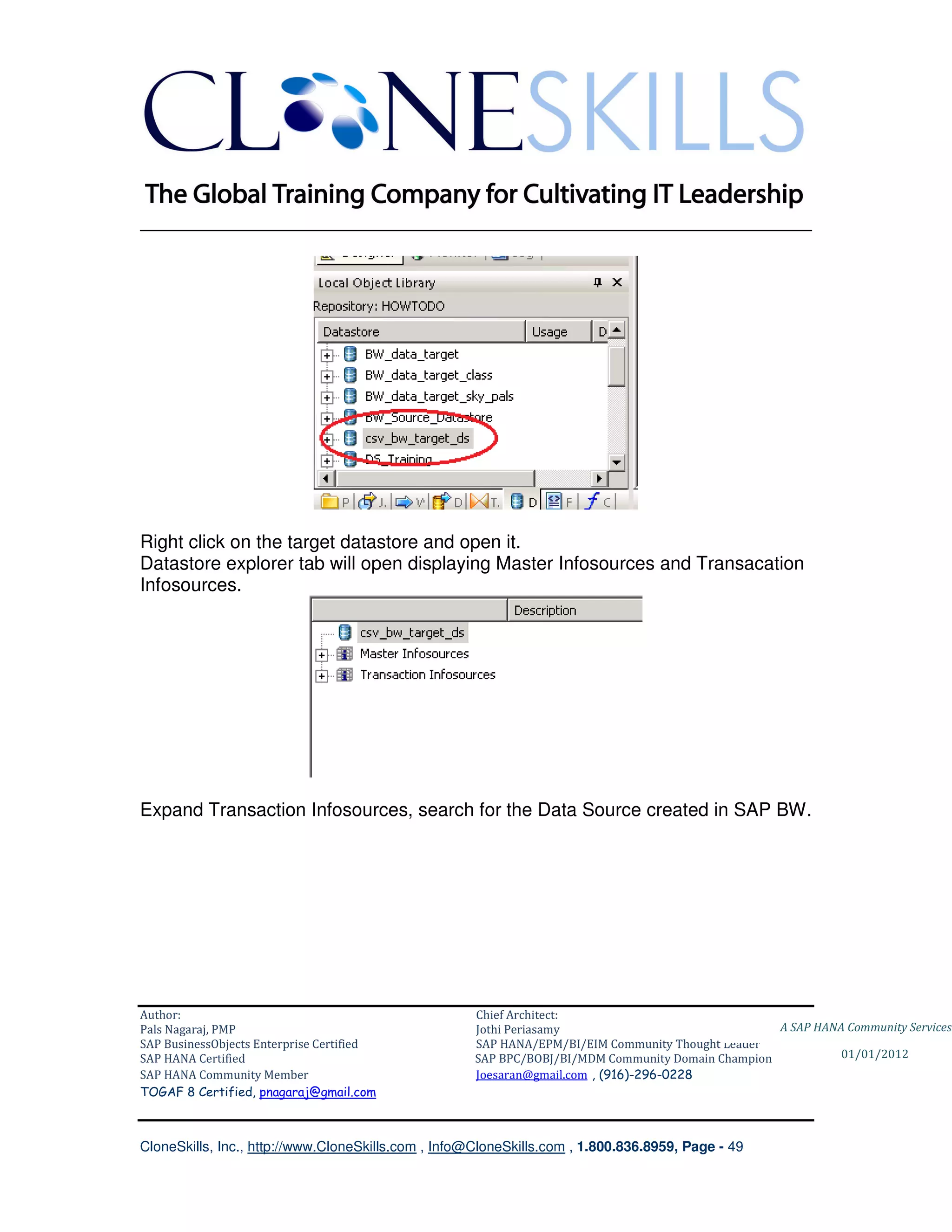
The datastore should appear in Local Object Library -> Datastore tab.


Author:                                              Chief Architect:
Pals Nagaraj, PMP                                    Jothi Periasamy                               A SAP HANA Community Services
SAP BusinessObjects Enterprise Certified             SAP HANA/EPM/BI/EIM Community Thought Leader
SAP HANA Certified                                   SAP BPC/BOBJ/BI/MDM Community Domain Champion           01/01/2012
SAP HANA Community Member                            Joesaran@gmail.com , (916)-296-0228
TOGAF 8 Certified, pnagaraj@gmail.com


CloneSkills, Inc., http://www.CloneSkills.com , Info@CloneSkills.com , 1.800.836.8959, Page - 48
________________________________________________________________________


Right click on the target datastore and open it.
Datastore explorer tab will open displaying Master Infosources and Transacation
Infosources.


Expand Transaction Infosources, search for the Data Source created in SAP BW.


Author:                                              Chief Architect:
Pals Nagaraj, PMP                                    Jothi Periasamy                               A SAP HANA Community Services
SAP BusinessObjects Enterprise Certified             SAP HANA/EPM/BI/EIM Community Thought Leader
SAP HANA Certified                                   SAP BPC/BOBJ/BI/MDM Community Domain Champion           01/01/2012
SAP HANA Community Member                            Joesaran@gmail.com , (916)-296-0228
TOGAF 8 Certified, pnagaraj@gmail.com


CloneSkills, Inc., http://www.CloneSkills.com , Info@CloneSkills.com , 1.800.836.8959, Page - 49
________________________________________________________________________


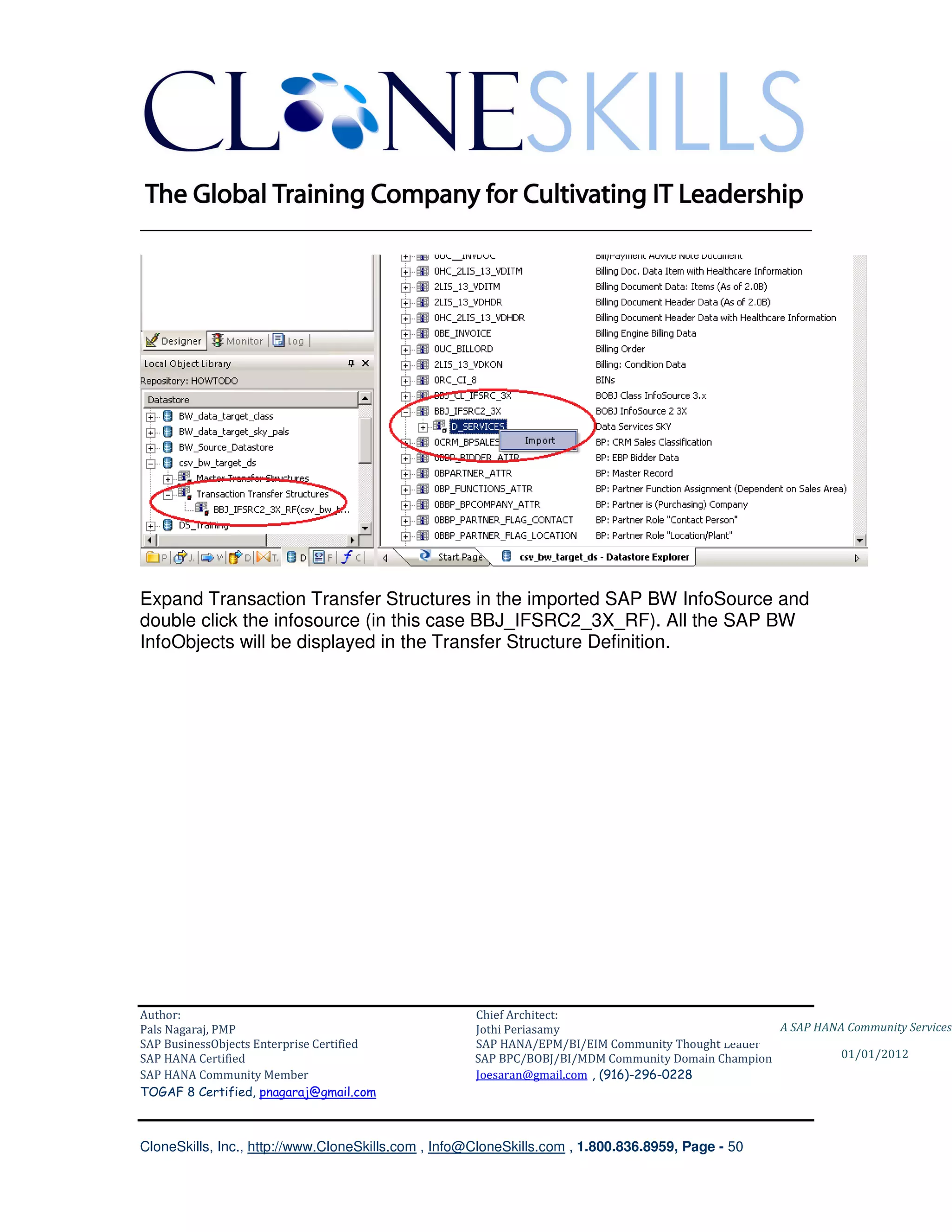
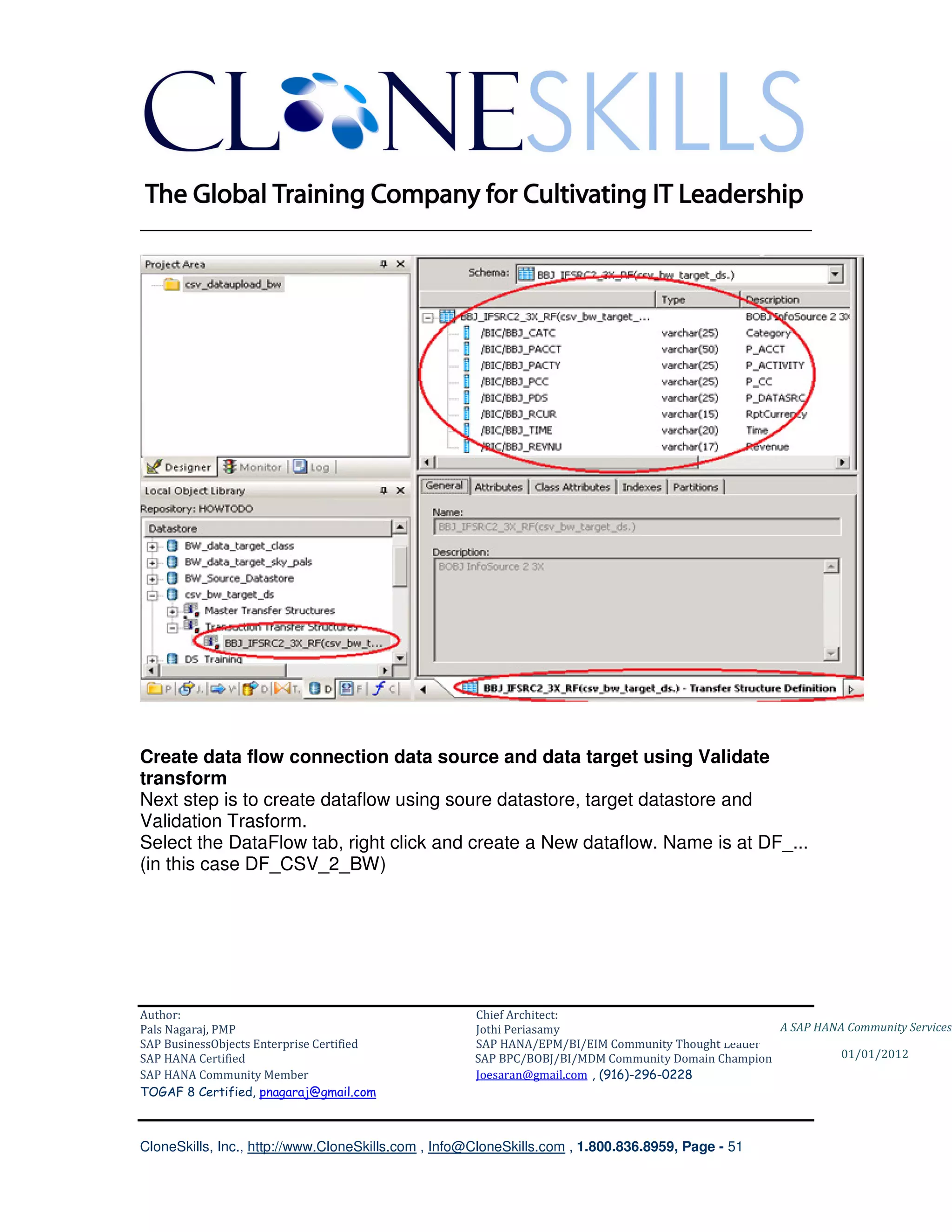
Expand Transaction Transfer Structures in the imported SAP BW InfoSource and
double click the infosource (in this case BBJ_IFSRC2_3X_RF). All the SAP BW
InfoObjects will be displayed in the Transfer Structure Definition.


Author:                                              Chief Architect:
Pals Nagaraj, PMP                                    Jothi Periasamy                               A SAP HANA Community Services
SAP BusinessObjects Enterprise Certified             SAP HANA/EPM/BI/EIM Community Thought Leader
SAP HANA Certified                                   SAP BPC/BOBJ/BI/MDM Community Domain Champion           01/01/2012
SAP HANA Community Member                            Joesaran@gmail.com , (916)-296-0228
TOGAF 8 Certified, pnagaraj@gmail.com


CloneSkills, Inc., http://www.CloneSkills.com , Info@CloneSkills.com , 1.800.836.8959, Page - 50
________________________________________________________________________


Create data flow connection data source and data target using Validate
transform
Next step is to create dataflow using soure datastore, target datastore and
Validation Trasform.
Select the DataFlow tab, right click and create a New dataflow. Name is at DF_...
(in this case DF_CSV_2_BW)


Author:                                              Chief Architect:
Pals Nagaraj, PMP                                    Jothi Periasamy                               A SAP HANA Community Services
SAP BusinessObjects Enterprise Certified             SAP HANA/EPM/BI/EIM Community Thought Leader
SAP HANA Certified                                   SAP BPC/BOBJ/BI/MDM Community Domain Champion           01/01/2012
SAP HANA Community Member                            Joesaran@gmail.com , (916)-296-0228
TOGAF 8 Certified, pnagaraj@gmail.com


CloneSkills, Inc., http://www.CloneSkills.com , Info@CloneSkills.com , 1.800.836.8959, Page - 51
________________________________________________________________________


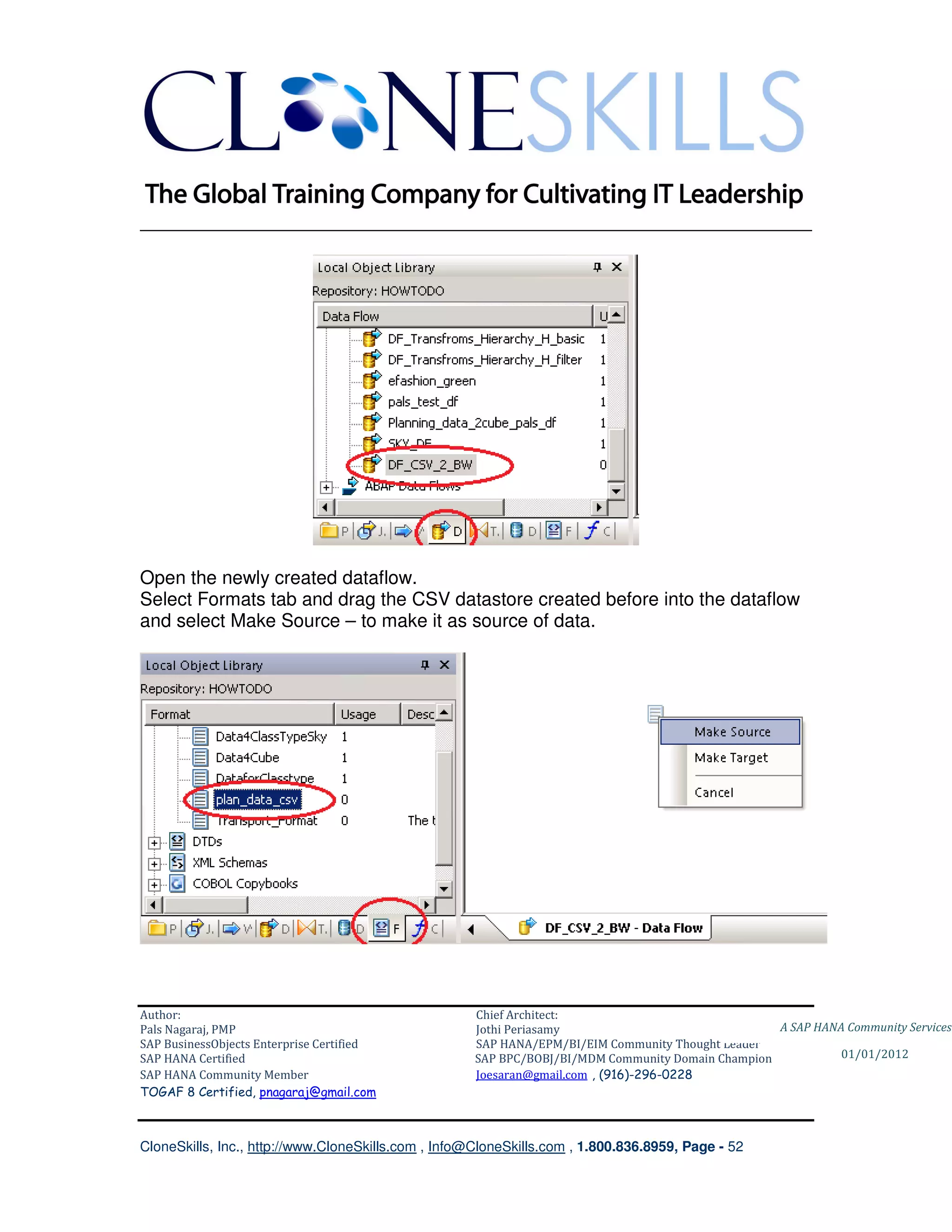
Open the newly created dataflow.
Select Formats tab and drag the CSV datastore created before into the dataflow
and select Make Source – to make it as source of data.


Author:                                              Chief Architect:
Pals Nagaraj, PMP                                    Jothi Periasamy                               A SAP HANA Community Services
SAP BusinessObjects Enterprise Certified             SAP HANA/EPM/BI/EIM Community Thought Leader
SAP HANA Certified                                   SAP BPC/BOBJ/BI/MDM Community Domain Champion           01/01/2012
SAP HANA Community Member                            Joesaran@gmail.com , (916)-296-0228
TOGAF 8 Certified, pnagaraj@gmail.com


CloneSkills, Inc., http://www.CloneSkills.com , Info@CloneSkills.com , 1.800.836.8959, Page - 52
________________________________________________________________________

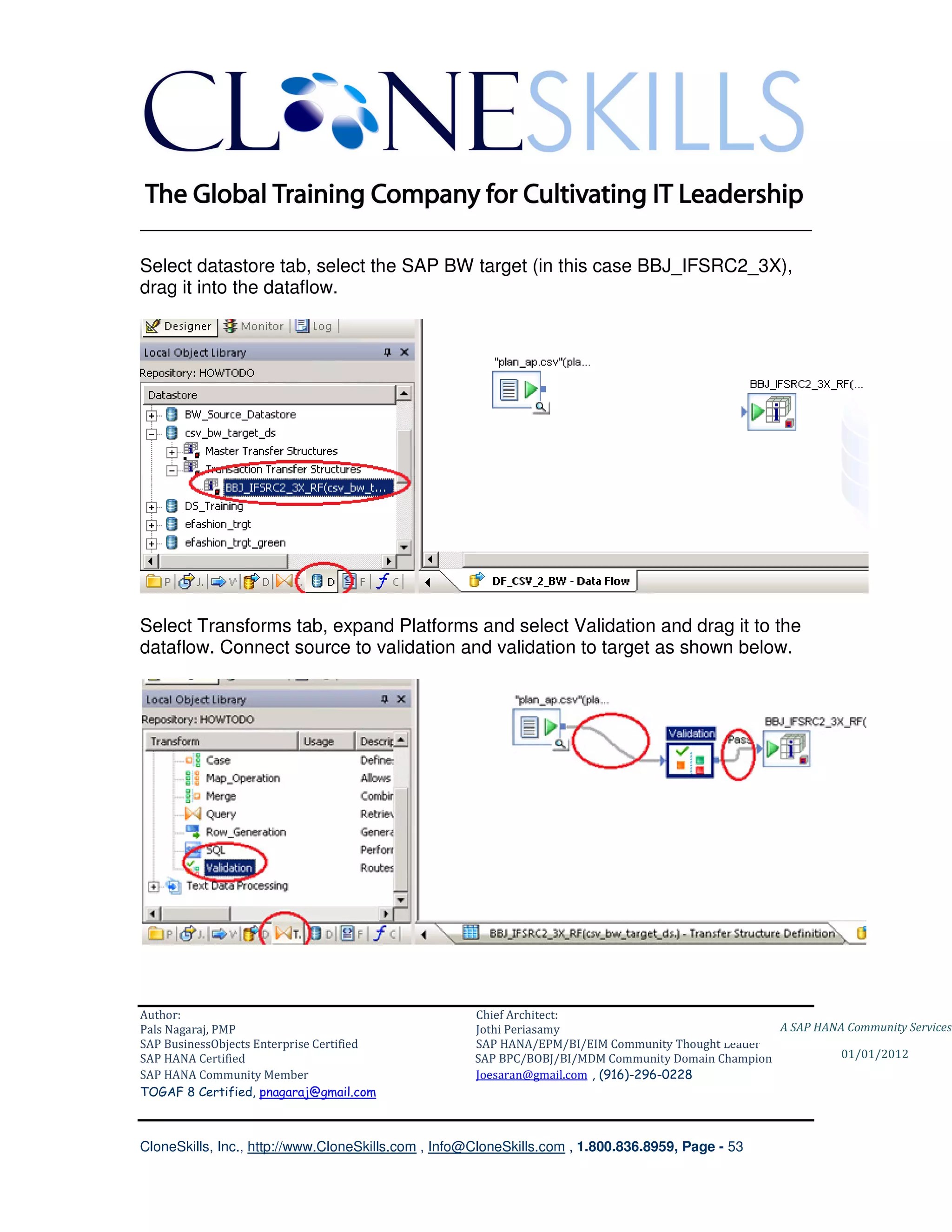
Select datastore tab, select the SAP BW target (in this case BBJ_IFSRC2_3X),
drag it into the dataflow.


Select Transforms tab, expand Platforms and select Validation and drag it to the
dataflow. Connect source to validation and validation to target as shown below.


Author:                                              Chief Architect:
Pals Nagaraj, PMP                                    Jothi Periasamy                               A SAP HANA Community Services
SAP BusinessObjects Enterprise Certified             SAP HANA/EPM/BI/EIM Community Thought Leader
SAP HANA Certified                                   SAP BPC/BOBJ/BI/MDM Community Domain Champion           01/01/2012
SAP HANA Community Member                            Joesaran@gmail.com , (916)-296-0228
TOGAF 8 Certified, pnagaraj@gmail.com


CloneSkills, Inc., http://www.CloneSkills.com , Info@CloneSkills.com , 1.800.836.8959, Page - 53
________________________________________________________________________

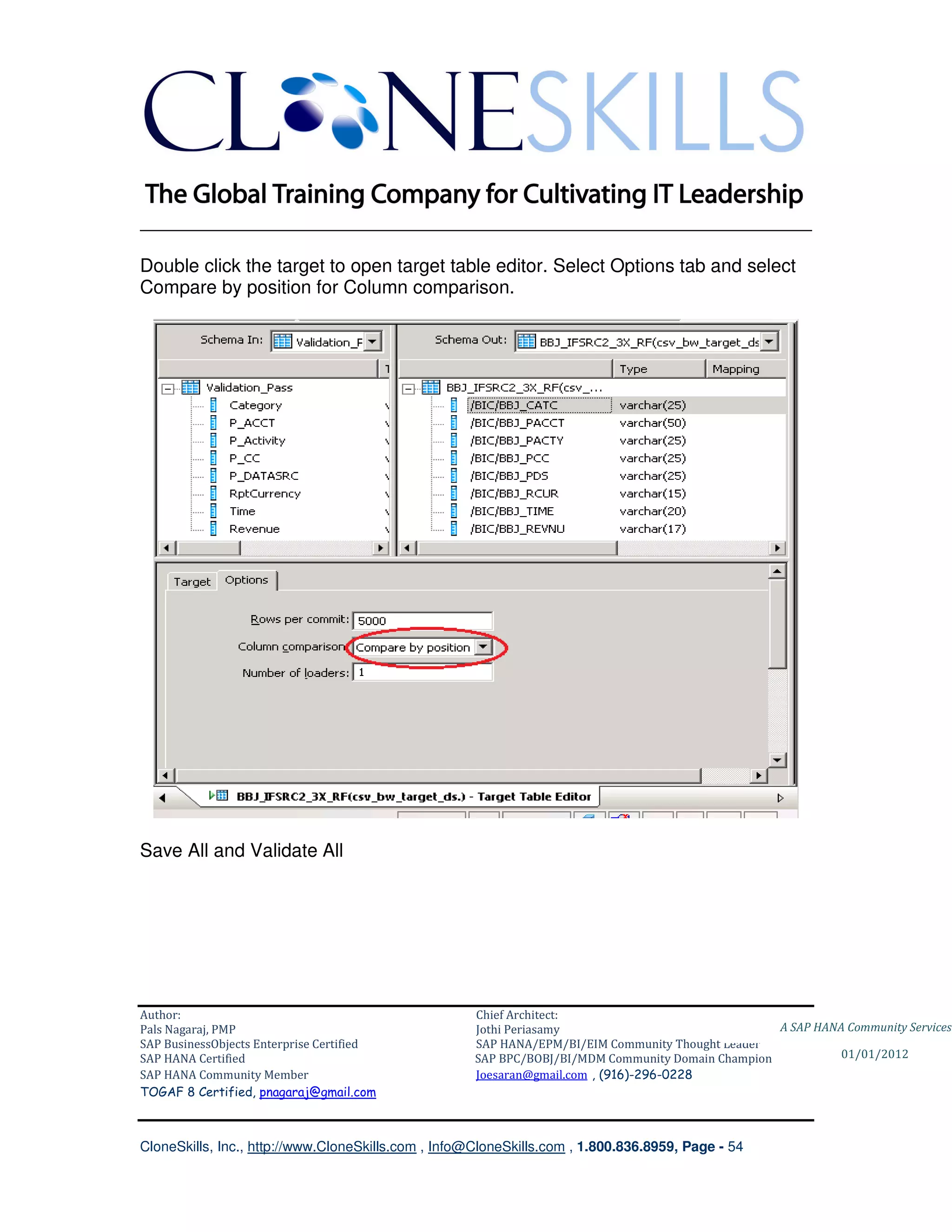
Double click the target to open target table editor. Select Options tab and select
Compare by position for Column comparison.


Save All and Validate All


Author:                                              Chief Architect:
Pals Nagaraj, PMP                                    Jothi Periasamy                               A SAP HANA Community Services
SAP BusinessObjects Enterprise Certified             SAP HANA/EPM/BI/EIM Community Thought Leader
SAP HANA Certified                                   SAP BPC/BOBJ/BI/MDM Community Domain Champion           01/01/2012
SAP HANA Community Member                            Joesaran@gmail.com , (916)-296-0228
TOGAF 8 Certified, pnagaraj@gmail.com


CloneSkills, Inc., http://www.CloneSkills.com , Info@CloneSkills.com , 1.800.836.8959, Page - 54
________________________________________________________________________


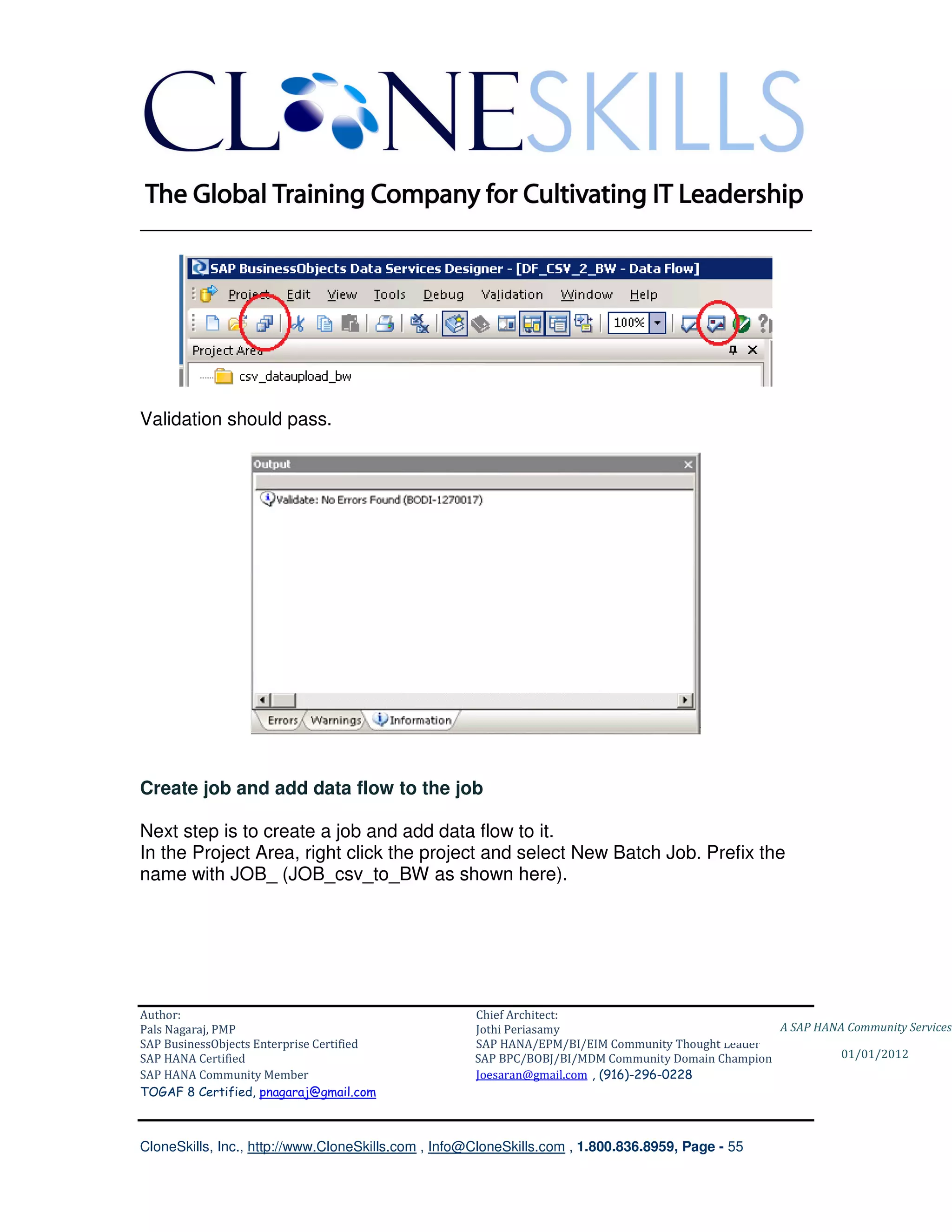
Validation should pass.


Create job and add data flow to the job

Next step is to create a job and add data flow to it.
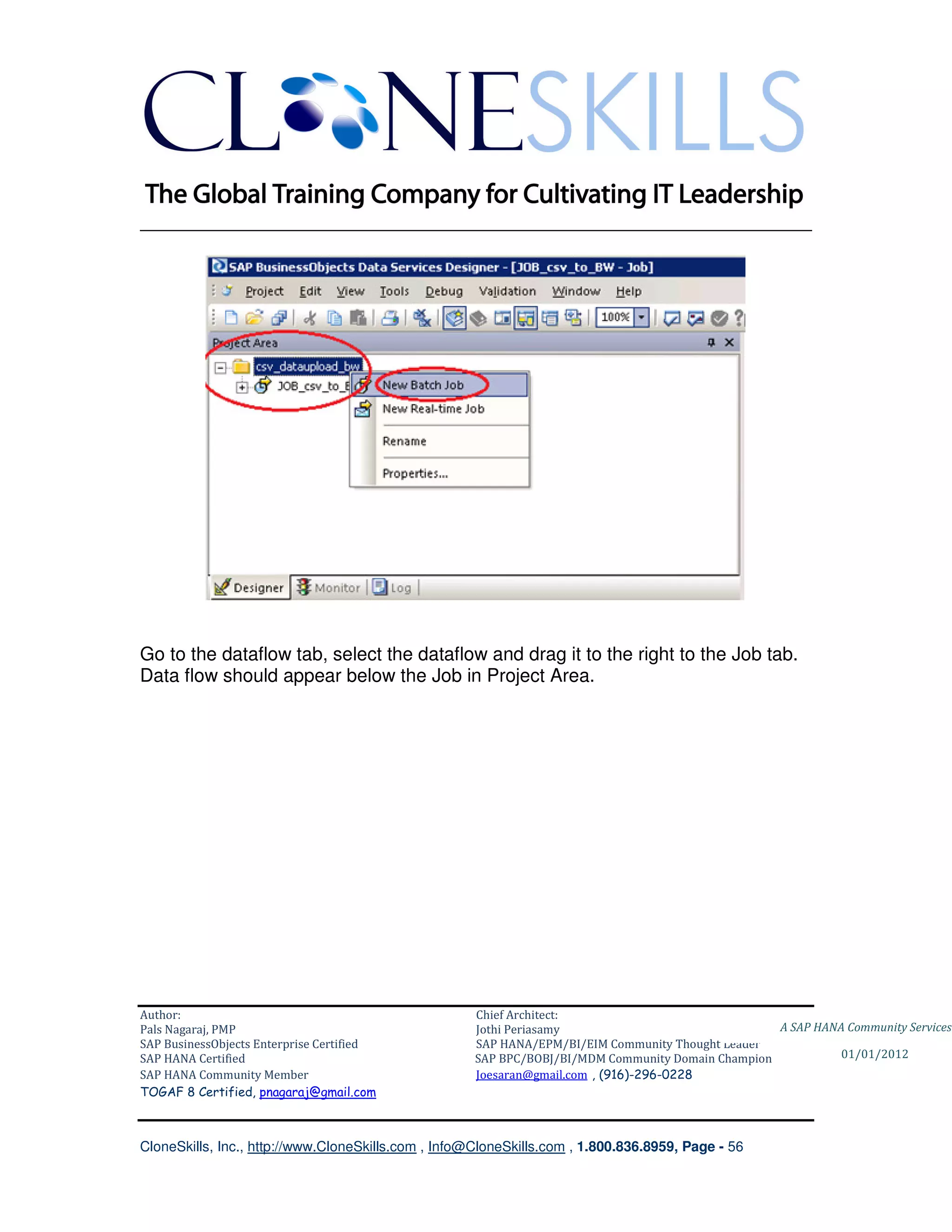
In the Project Area, right click the project and select New Batch Job. Prefix the
name with JOB_ (JOB_csv_to_BW as shown here).


Author:                                              Chief Architect:
Pals Nagaraj, PMP                                    Jothi Periasamy                               A SAP HANA Community Services
SAP BusinessObjects Enterprise Certified             SAP HANA/EPM/BI/EIM Community Thought Leader
SAP HANA Certified                                   SAP BPC/BOBJ/BI/MDM Community Domain Champion           01/01/2012
SAP HANA Community Member                            Joesaran@gmail.com , (916)-296-0228
TOGAF 8 Certified, pnagaraj@gmail.com


CloneSkills, Inc., http://www.CloneSkills.com , Info@CloneSkills.com , 1.800.836.8959, Page - 55
________________________________________________________________________


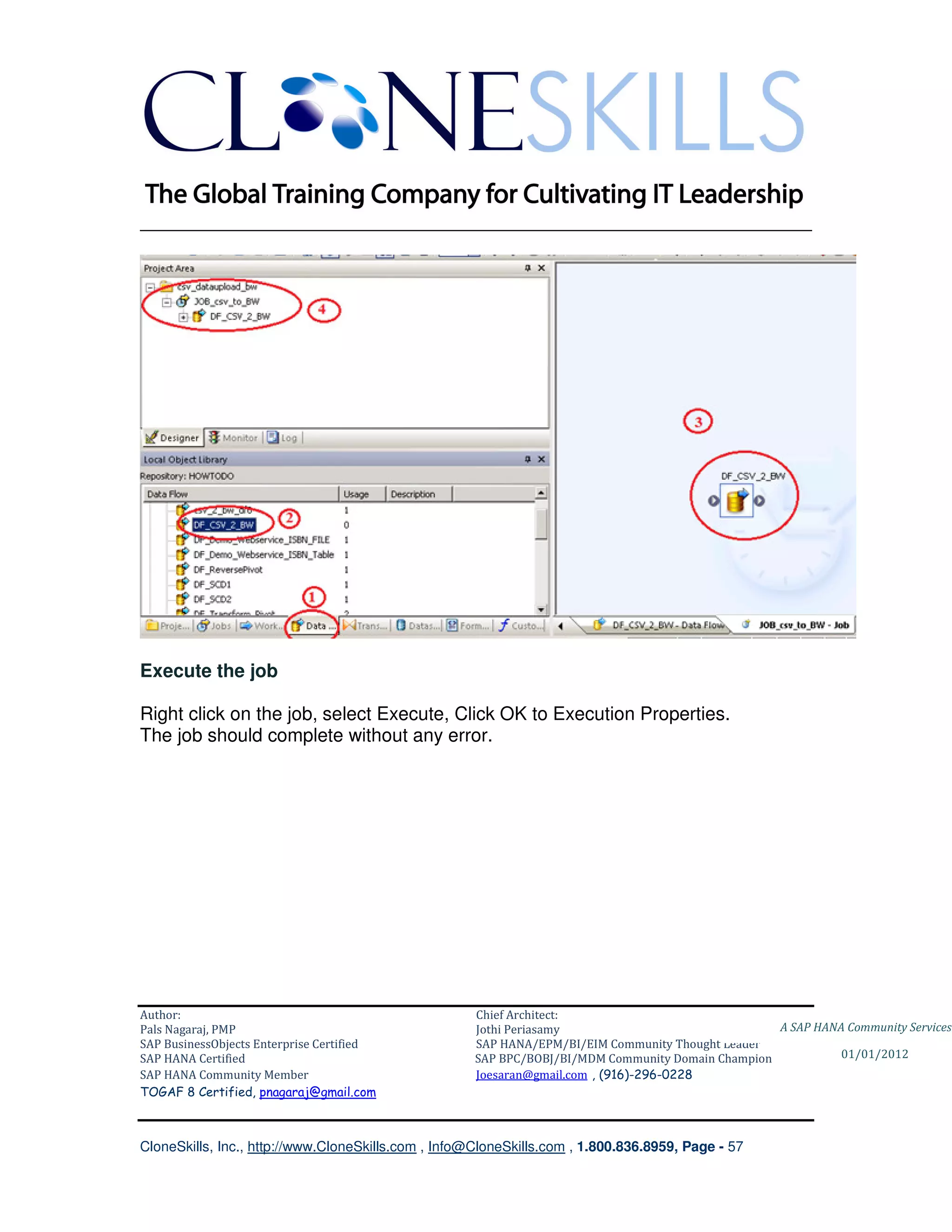
Go to the dataflow tab, select the dataflow and drag it to the right to the Job tab.
Data flow should appear below the Job in Project Area.


Author:                                              Chief Architect:
Pals Nagaraj, PMP                                    Jothi Periasamy                               A SAP HANA Community Services
SAP BusinessObjects Enterprise Certified             SAP HANA/EPM/BI/EIM Community Thought Leader
SAP HANA Certified                                   SAP BPC/BOBJ/BI/MDM Community Domain Champion           01/01/2012
SAP HANA Community Member                            Joesaran@gmail.com , (916)-296-0228
TOGAF 8 Certified, pnagaraj@gmail.com


CloneSkills, Inc., http://www.CloneSkills.com , Info@CloneSkills.com , 1.800.836.8959, Page - 56
________________________________________________________________________


Execute the job

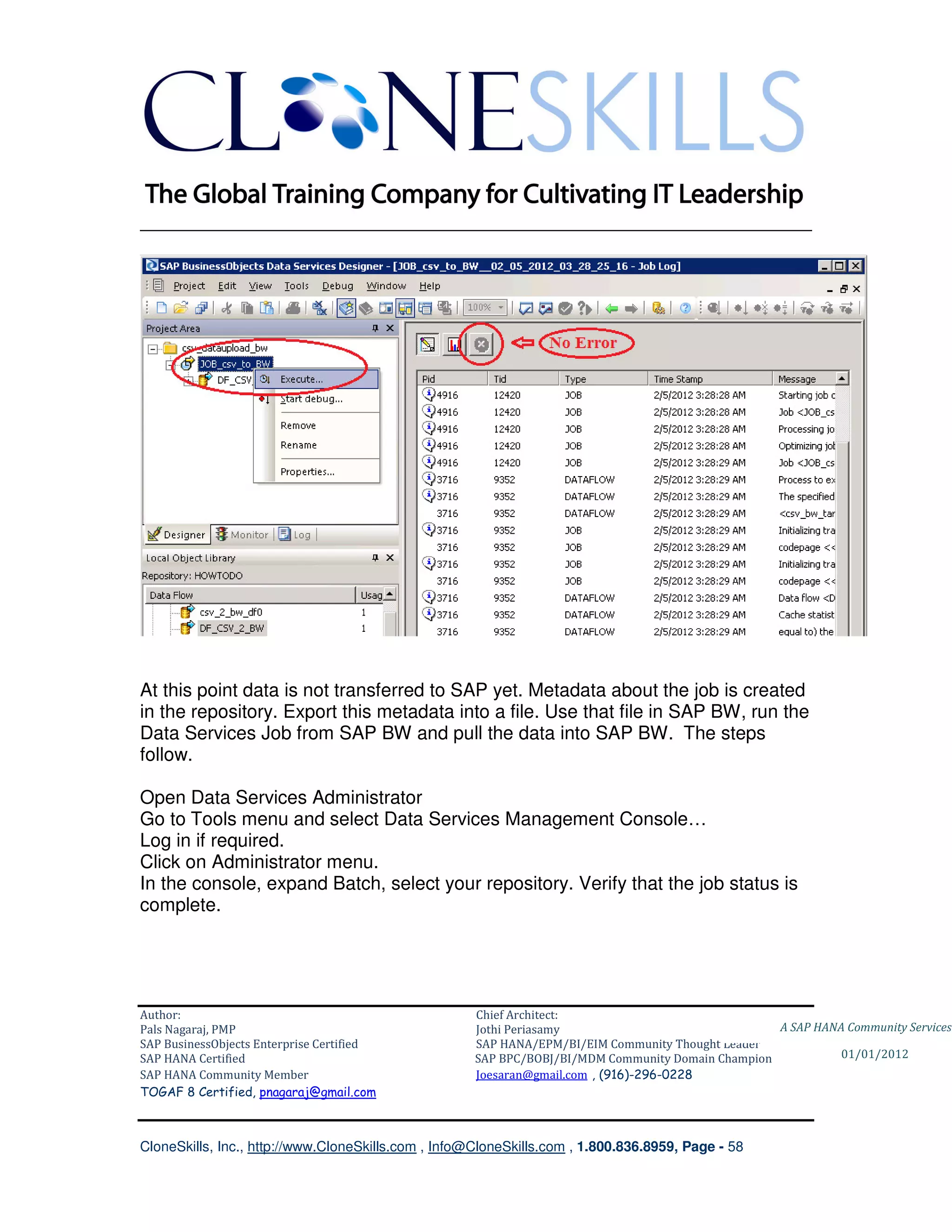
Right click on the job, select Execute, Click OK to Execution Properties.
The job should complete without any error.


Author:                                              Chief Architect:
Pals Nagaraj, PMP                                    Jothi Periasamy                               A SAP HANA Community Services
SAP BusinessObjects Enterprise Certified             SAP HANA/EPM/BI/EIM Community Thought Leader
SAP HANA Certified                                   SAP BPC/BOBJ/BI/MDM Community Domain Champion           01/01/2012
SAP HANA Community Member                            Joesaran@gmail.com , (916)-296-0228
TOGAF 8 Certified, pnagaraj@gmail.com


CloneSkills, Inc., http://www.CloneSkills.com , Info@CloneSkills.com , 1.800.836.8959, Page - 57
________________________________________________________________________


At this point data is not transferred to SAP yet. Metadata about the job is created
in the repository. Export this metadata into a file. Use that file in SAP BW, run the
Data Services Job from SAP BW and pull the data into SAP BW. The steps
follow.

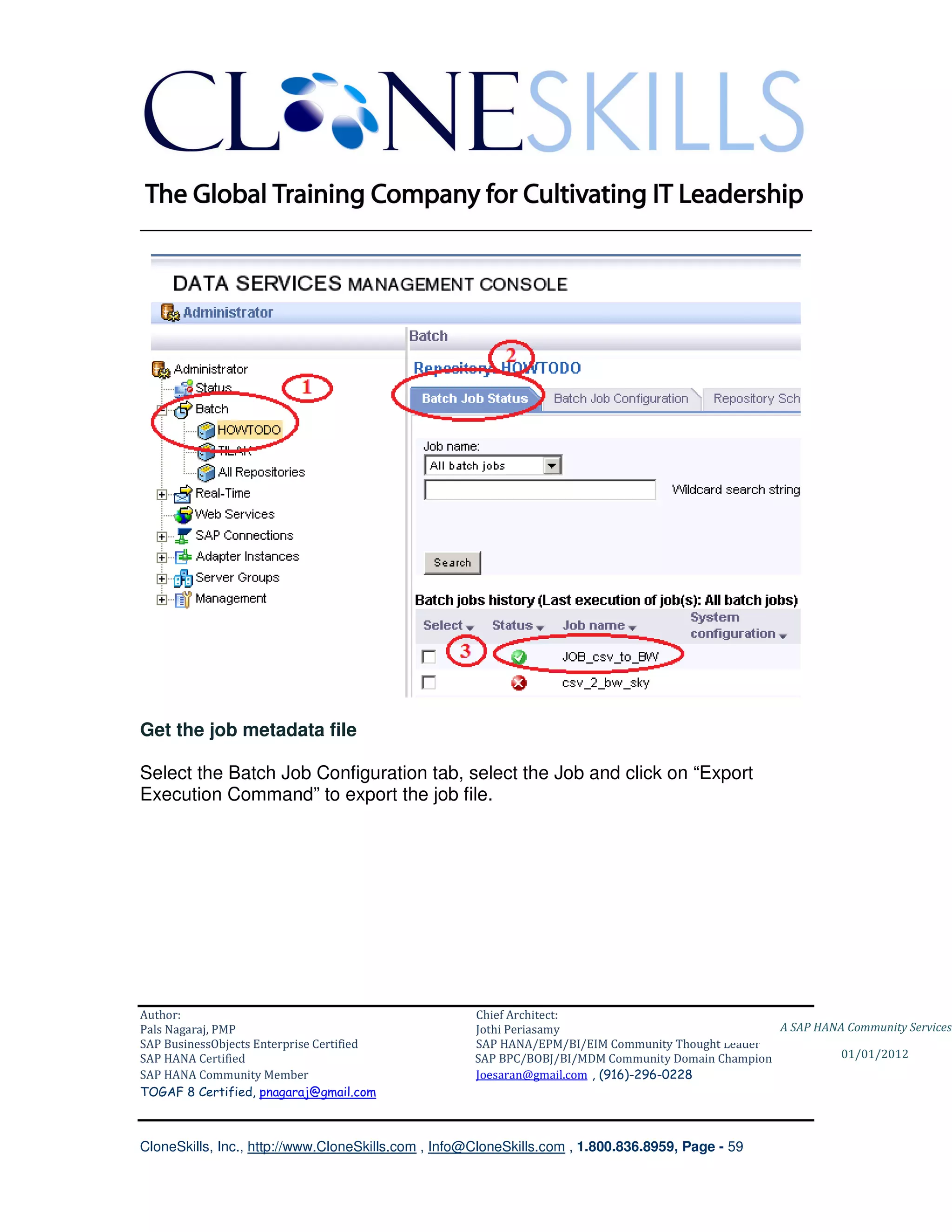
Open Data Services Administrator
Go to Tools menu and select Data Services Management Console…
Log in if required.
Click on Administrator menu.
In the console, expand Batch, select your repository. Verify that the job status is
complete.


Author:                                              Chief Architect:
Pals Nagaraj, PMP                                    Jothi Periasamy                               A SAP HANA Community Services
SAP BusinessObjects Enterprise Certified             SAP HANA/EPM/BI/EIM Community Thought Leader
SAP HANA Certified                                   SAP BPC/BOBJ/BI/MDM Community Domain Champion           01/01/2012
SAP HANA Community Member                            Joesaran@gmail.com , (916)-296-0228
TOGAF 8 Certified, pnagaraj@gmail.com


CloneSkills, Inc., http://www.CloneSkills.com , Info@CloneSkills.com , 1.800.836.8959, Page - 58
________________________________________________________________________


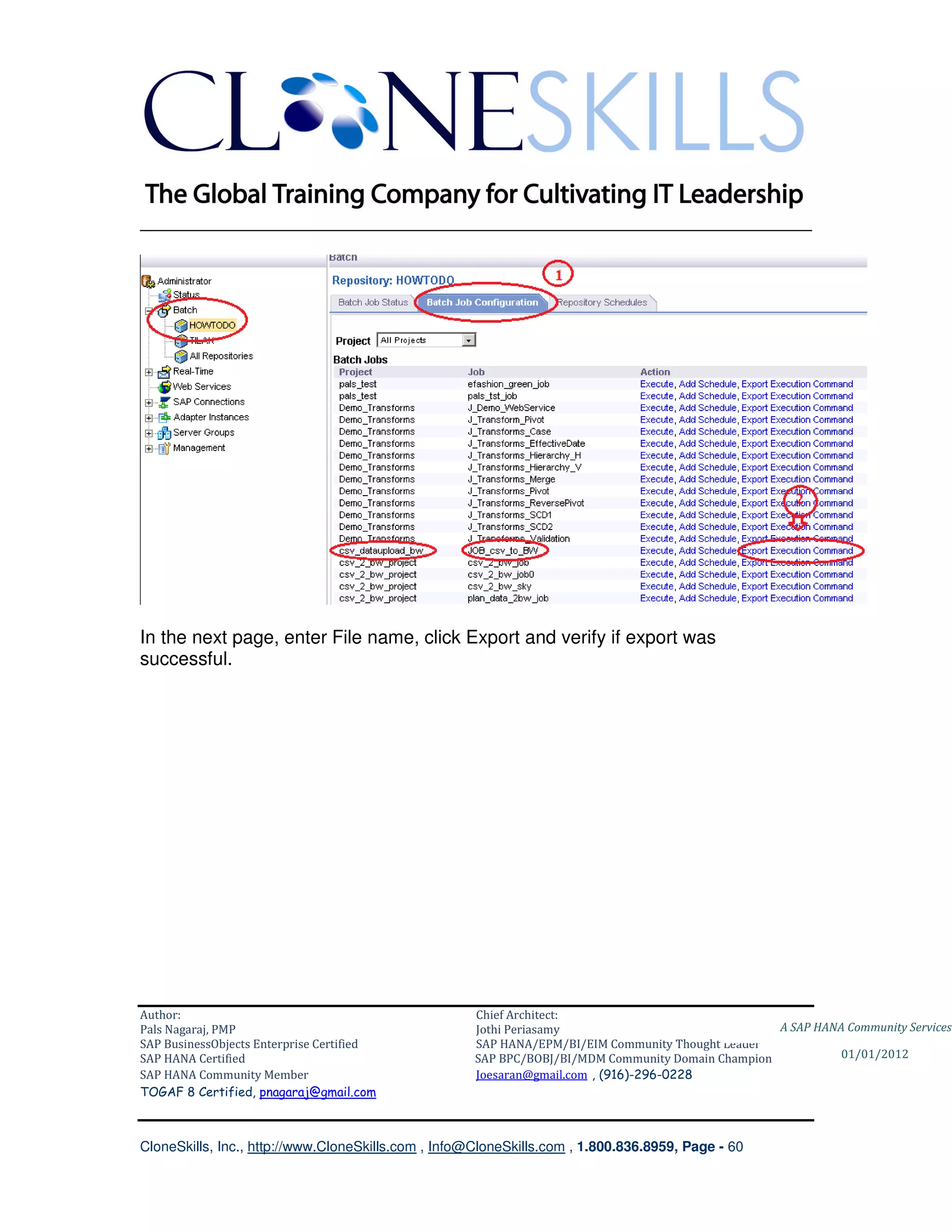
Get the job metadata file

Select the Batch Job Configuration tab, select the Job and click on “Export
Execution Command” to export the job file.


Author:                                              Chief Architect:
Pals Nagaraj, PMP                                    Jothi Periasamy                               A SAP HANA Community Services
SAP BusinessObjects Enterprise Certified             SAP HANA/EPM/BI/EIM Community Thought Leader
SAP HANA Certified                                   SAP BPC/BOBJ/BI/MDM Community Domain Champion           01/01/2012
SAP HANA Community Member                            Joesaran@gmail.com , (916)-296-0228
TOGAF 8 Certified, pnagaraj@gmail.com


CloneSkills, Inc., http://www.CloneSkills.com , Info@CloneSkills.com , 1.800.836.8959, Page - 59
________________________________________________________________________


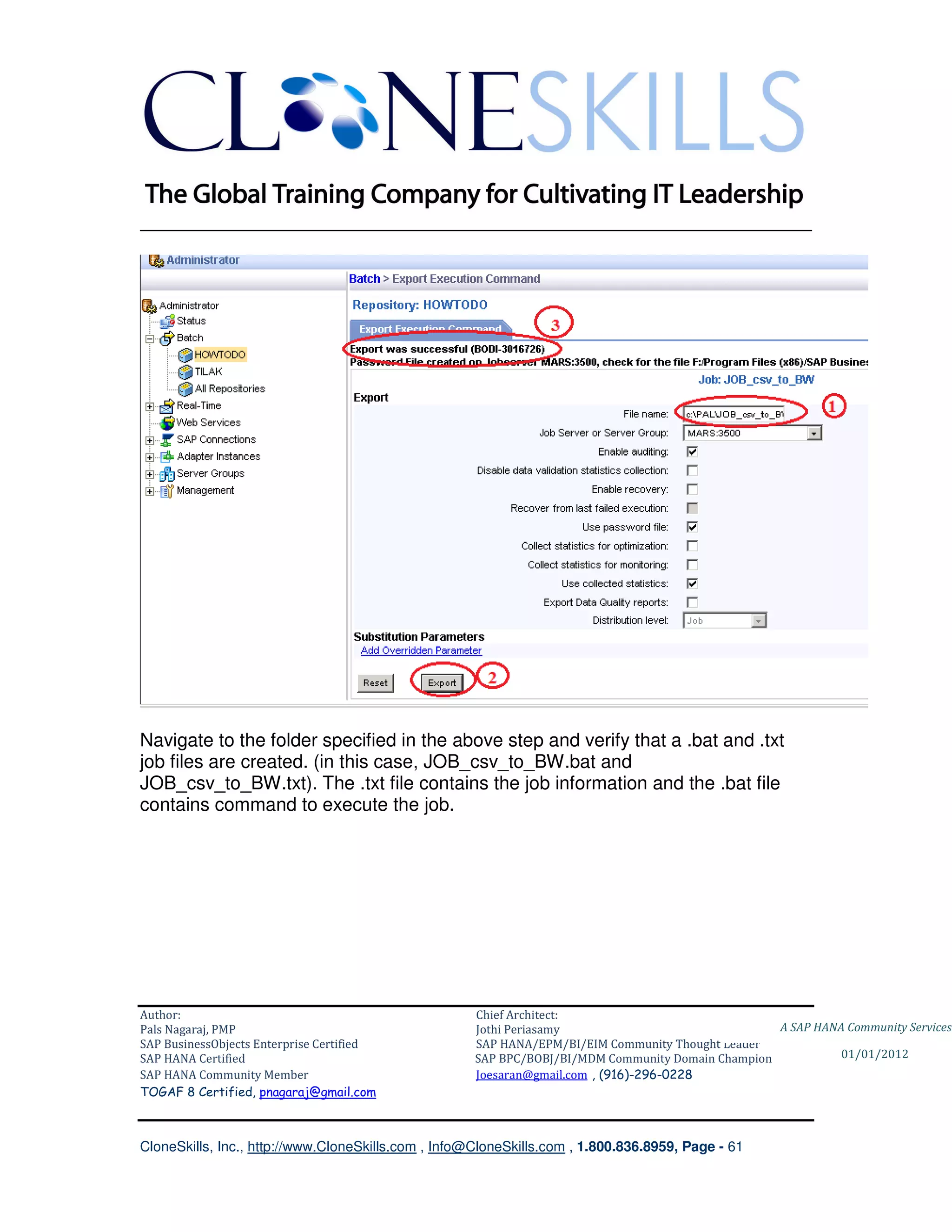
In the next page, enter File name, click Export and verify if export was
successful.


Author:                                              Chief Architect:
Pals Nagaraj, PMP                                    Jothi Periasamy                               A SAP HANA Community Services
SAP BusinessObjects Enterprise Certified             SAP HANA/EPM/BI/EIM Community Thought Leader
SAP HANA Certified                                   SAP BPC/BOBJ/BI/MDM Community Domain Champion           01/01/2012
SAP HANA Community Member                            Joesaran@gmail.com , (916)-296-0228
TOGAF 8 Certified, pnagaraj@gmail.com


CloneSkills, Inc., http://www.CloneSkills.com , Info@CloneSkills.com , 1.800.836.8959, Page - 60
________________________________________________________________________


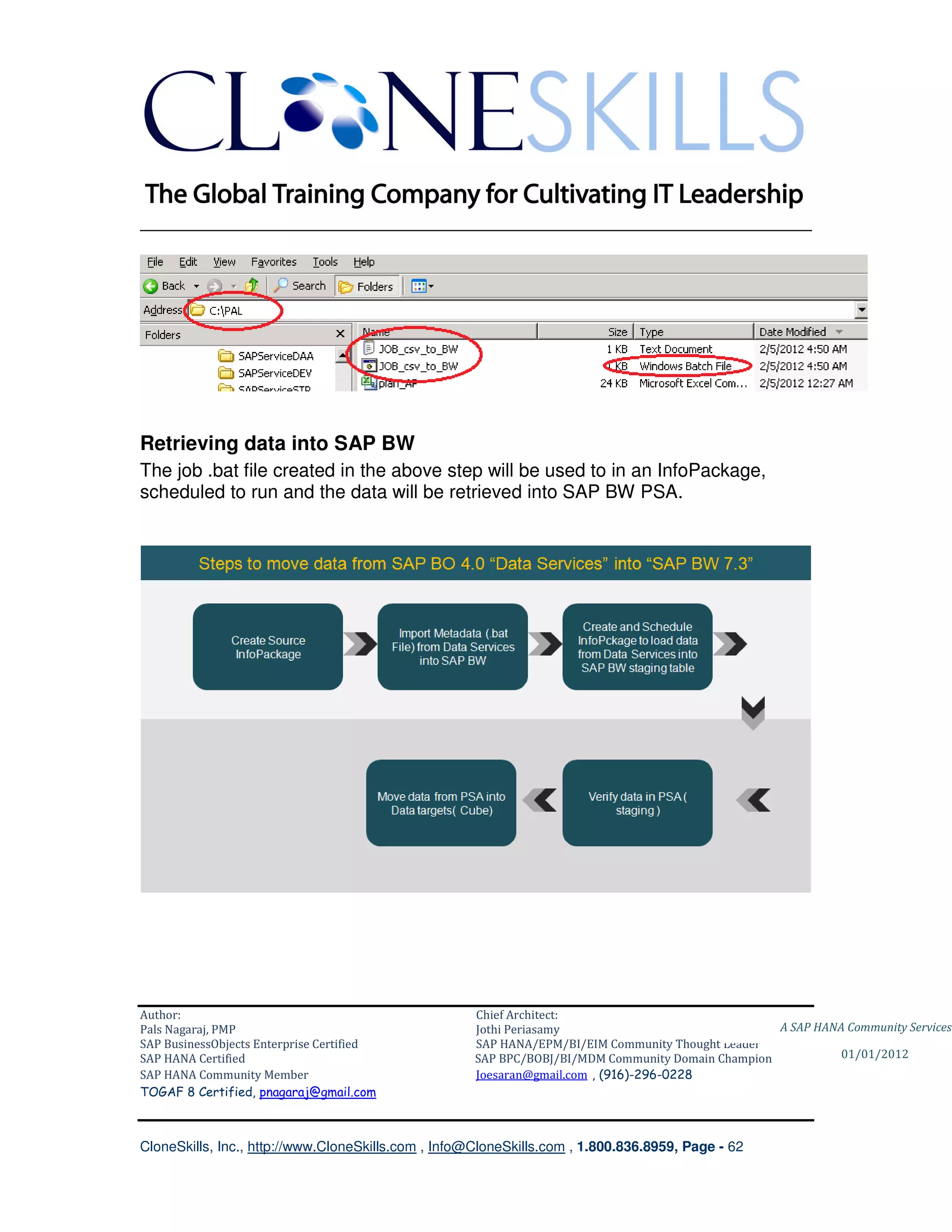
Navigate to the folder specified in the above step and verify that a .bat and .txt
job files are created. (in this case, JOB_csv_to_BW.bat and
JOB_csv_to_BW.txt). The .txt file contains the job information and the .bat file
contains command to execute the job.


Author:                                              Chief Architect:
Pals Nagaraj, PMP                                    Jothi Periasamy                               A SAP HANA Community Services
SAP BusinessObjects Enterprise Certified             SAP HANA/EPM/BI/EIM Community Thought Leader
SAP HANA Certified                                   SAP BPC/BOBJ/BI/MDM Community Domain Champion           01/01/2012
SAP HANA Community Member                            Joesaran@gmail.com , (916)-296-0228
TOGAF 8 Certified, pnagaraj@gmail.com


CloneSkills, Inc., http://www.CloneSkills.com , Info@CloneSkills.com , 1.800.836.8959, Page - 61
________________________________________________________________________


Retrieving data into SAP BW
The job .bat file created in the above step will be used to in an InfoPackage,
scheduled to run and the data will be retrieved into SAP BW PSA.


Author:                                              Chief Architect:
Pals Nagaraj, PMP                                    Jothi Periasamy                               A SAP HANA Community Services
SAP BusinessObjects Enterprise Certified             SAP HANA/EPM/BI/EIM Community Thought Leader
SAP HANA Certified                                   SAP BPC/BOBJ/BI/MDM Community Domain Champion           01/01/2012
SAP HANA Community Member                            Joesaran@gmail.com , (916)-296-0228
TOGAF 8 Certified, pnagaraj@gmail.com


CloneSkills, Inc., http://www.CloneSkills.com , Info@CloneSkills.com , 1.800.836.8959, Page - 62
________________________________________________________________________

Create InfoPackage in SAP BW
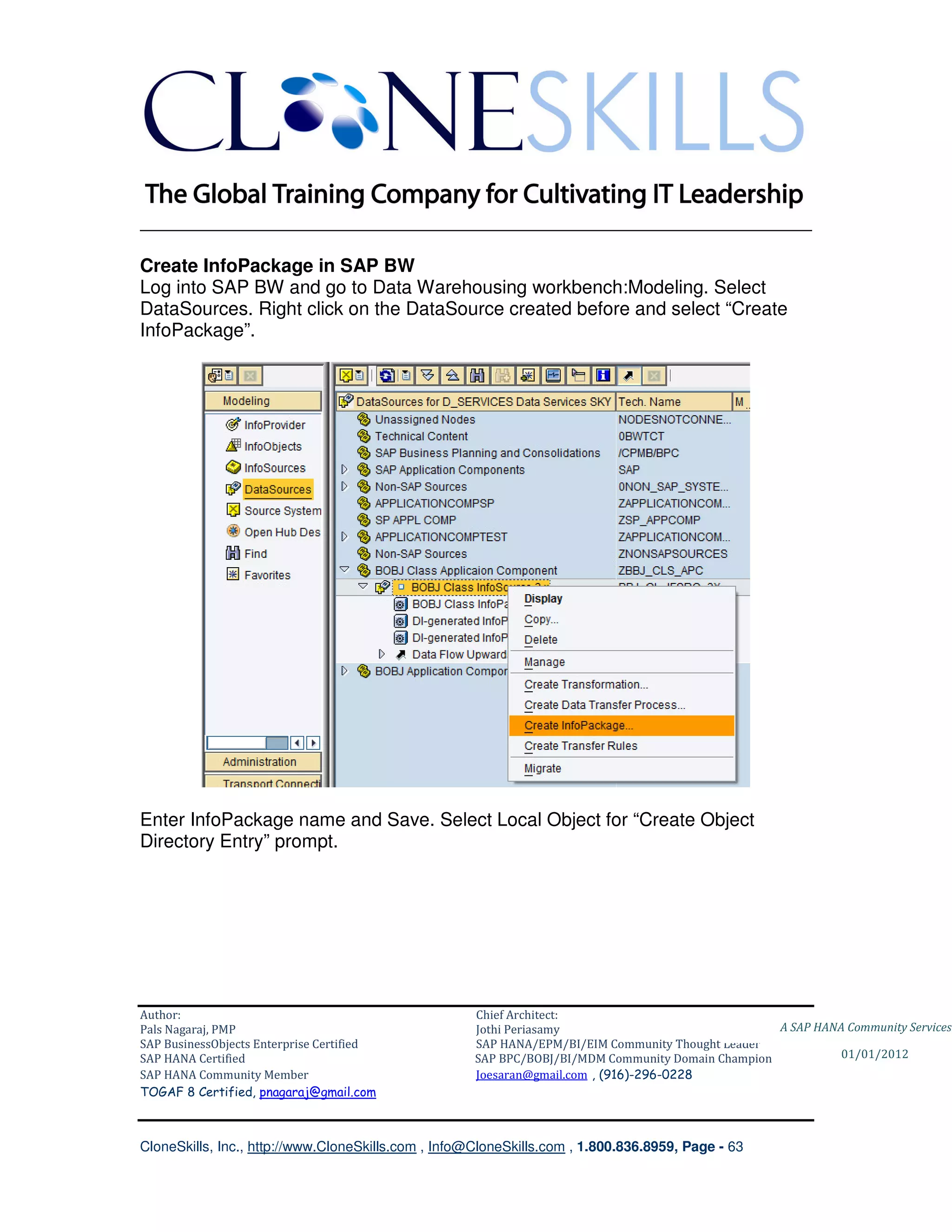
Log into SAP BW and go to Data Warehousing workbench:Modeling. Select
DataSources. Right click on the DataSource created before and select “Create
InfoPackage”.


Enter InfoPackage name and Save. Select Local Object for “Create Object
Directory Entry” prompt.


Author:                                              Chief Architect:
Pals Nagaraj, PMP                                    Jothi Periasamy                               A SAP HANA Community Services
SAP BusinessObjects Enterprise Certified             SAP HANA/EPM/BI/EIM Community Thought Leader
SAP HANA Certified                                   SAP BPC/BOBJ/BI/MDM Community Domain Champion           01/01/2012
SAP HANA Community Member                            Joesaran@gmail.com , (916)-296-0228
TOGAF 8 Certified, pnagaraj@gmail.com


CloneSkills, Inc., http://www.CloneSkills.com , Info@CloneSkills.com , 1.800.836.8959, Page - 63
________________________________________________________________________


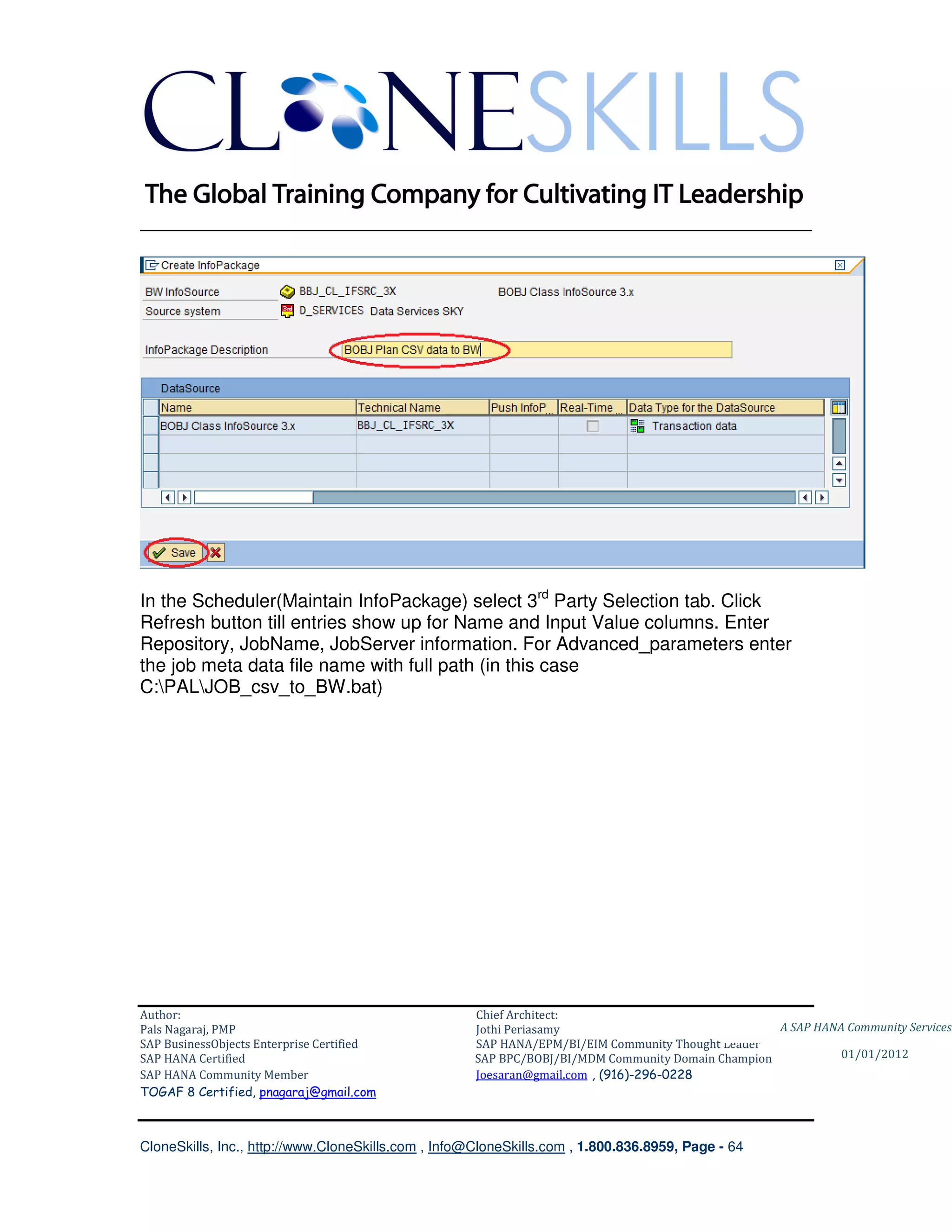
In the Scheduler(Maintain InfoPackage) select 3rd Party Selection tab. Click
Refresh button till entries show up for Name and Input Value columns. Enter
Repository, JobName, JobServer information. For Advanced_parameters enter
the job meta data file name with full path (in this case
C:PALJOB_csv_to_BW.bat)


Author:                                              Chief Architect:
Pals Nagaraj, PMP                                    Jothi Periasamy                               A SAP HANA Community Services
SAP BusinessObjects Enterprise Certified             SAP HANA/EPM/BI/EIM Community Thought Leader
SAP HANA Certified                                   SAP BPC/BOBJ/BI/MDM Community Domain Champion           01/01/2012
SAP HANA Community Member                            Joesaran@gmail.com , (916)-296-0228
TOGAF 8 Certified, pnagaraj@gmail.com


CloneSkills, Inc., http://www.CloneSkills.com , Info@CloneSkills.com , 1.800.836.8959, Page - 64
________________________________________________________________________


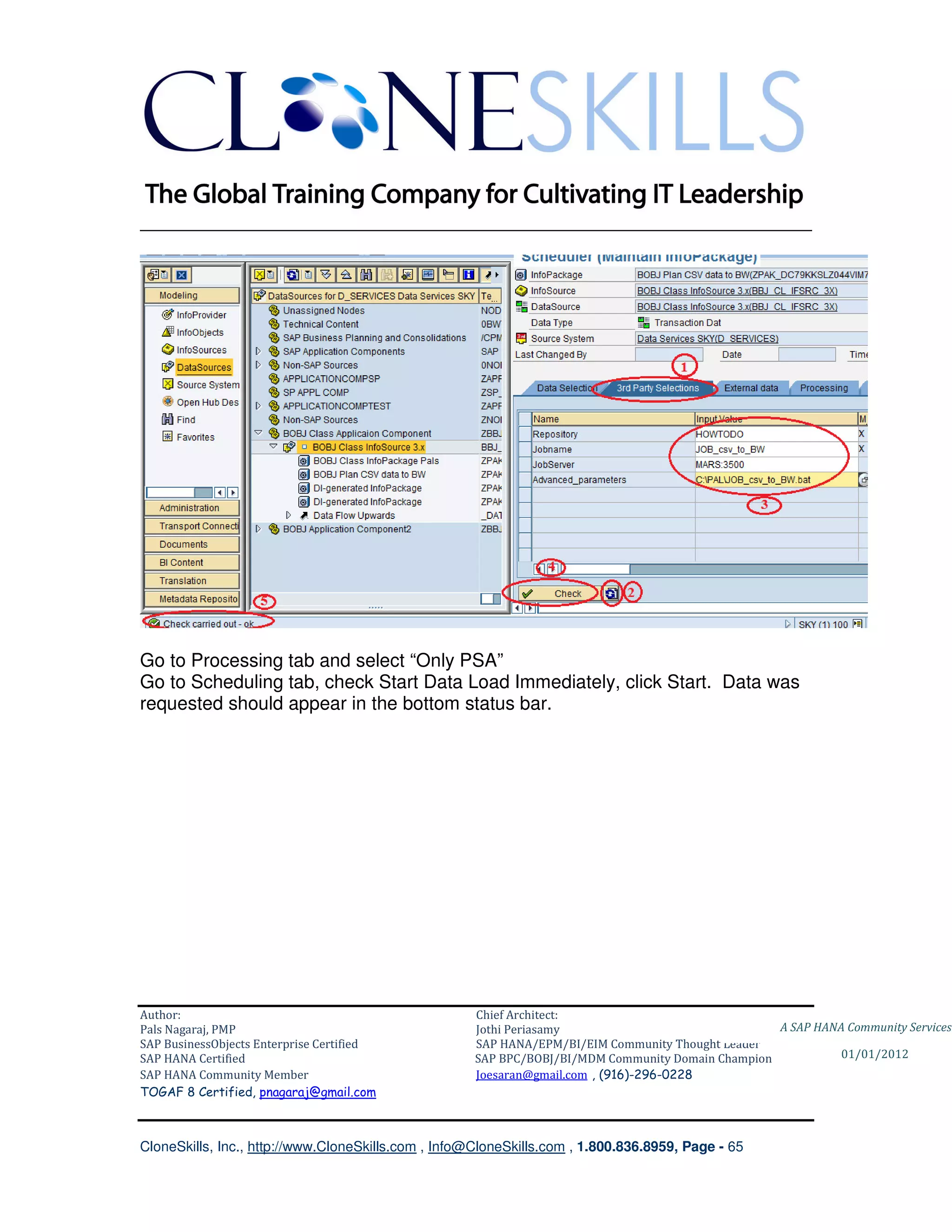
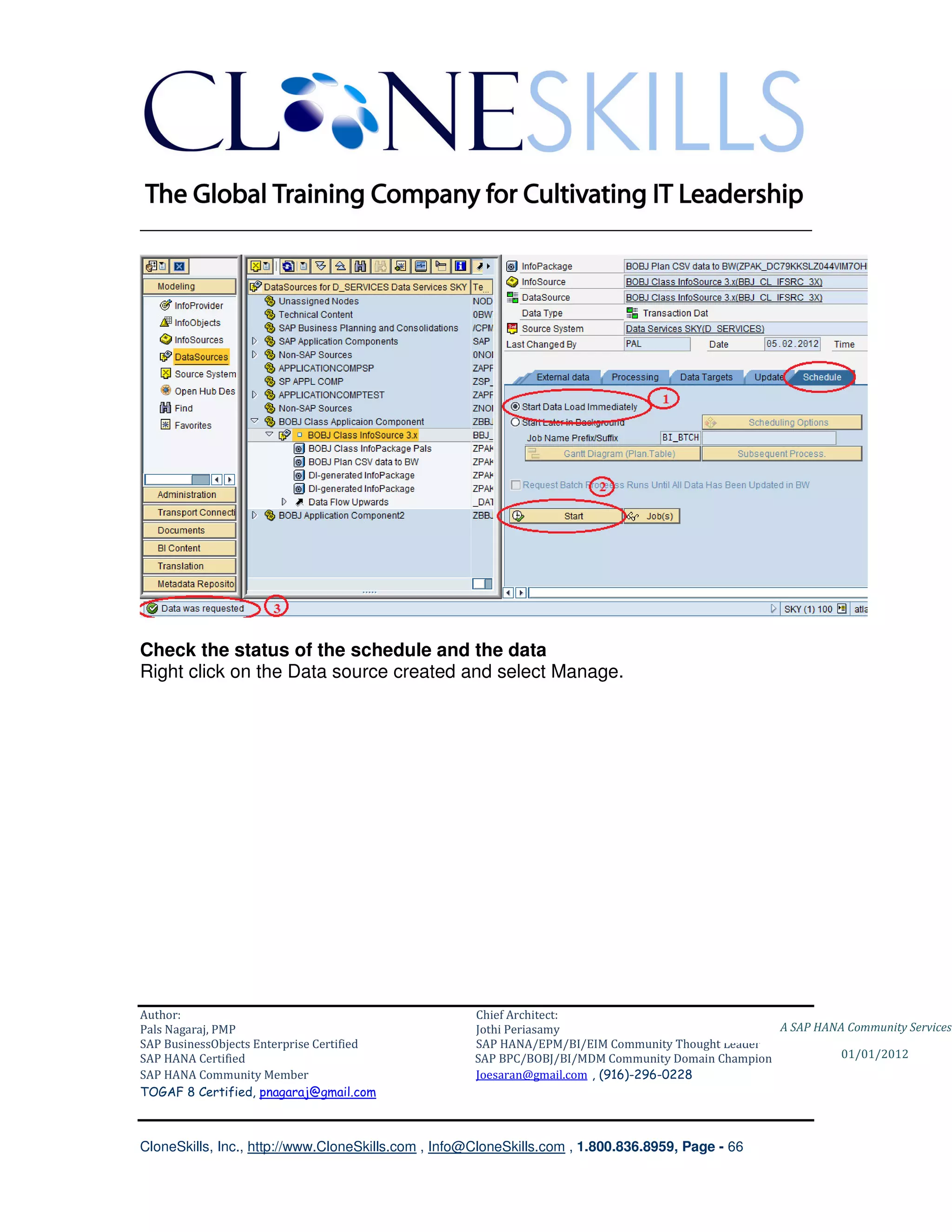
Go to Processing tab and select “Only PSA”
Go to Scheduling tab, check Start Data Load Immediately, click Start. Data was
requested should appear in the bottom status bar.


Author:                                              Chief Architect:
Pals Nagaraj, PMP                                    Jothi Periasamy                               A SAP HANA Community Services
SAP BusinessObjects Enterprise Certified             SAP HANA/EPM/BI/EIM Community Thought Leader
SAP HANA Certified                                   SAP BPC/BOBJ/BI/MDM Community Domain Champion           01/01/2012
SAP HANA Community Member                            Joesaran@gmail.com , (916)-296-0228
TOGAF 8 Certified, pnagaraj@gmail.com


CloneSkills, Inc., http://www.CloneSkills.com , Info@CloneSkills.com , 1.800.836.8959, Page - 65
________________________________________________________________________


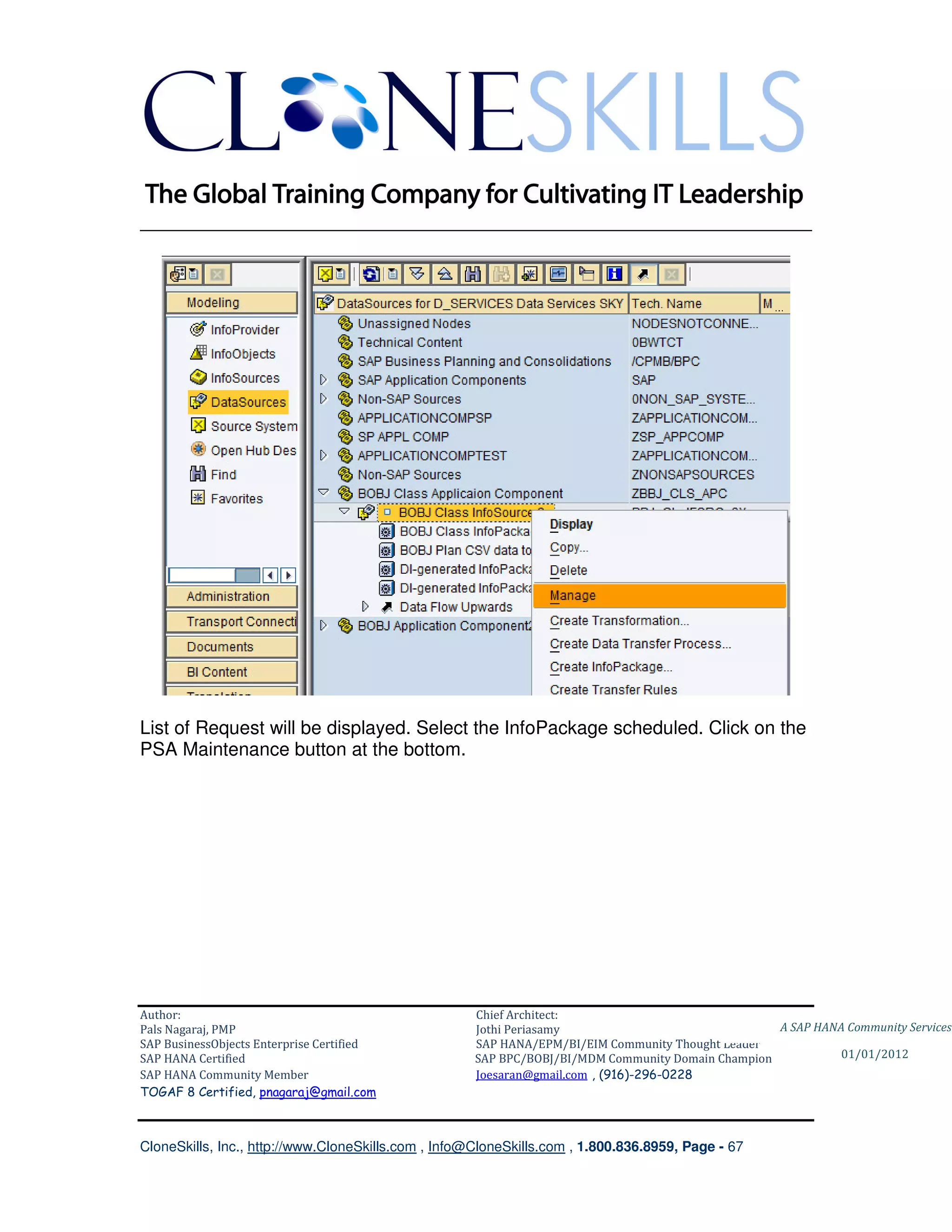
Check the status of the schedule and the data
Right click on the Data source created and select Manage.


Author:                                              Chief Architect:
Pals Nagaraj, PMP                                    Jothi Periasamy                               A SAP HANA Community Services
SAP BusinessObjects Enterprise Certified             SAP HANA/EPM/BI/EIM Community Thought Leader
SAP HANA Certified                                   SAP BPC/BOBJ/BI/MDM Community Domain Champion           01/01/2012
SAP HANA Community Member                            Joesaran@gmail.com , (916)-296-0228
TOGAF 8 Certified, pnagaraj@gmail.com


CloneSkills, Inc., http://www.CloneSkills.com , Info@CloneSkills.com , 1.800.836.8959, Page - 66
________________________________________________________________________


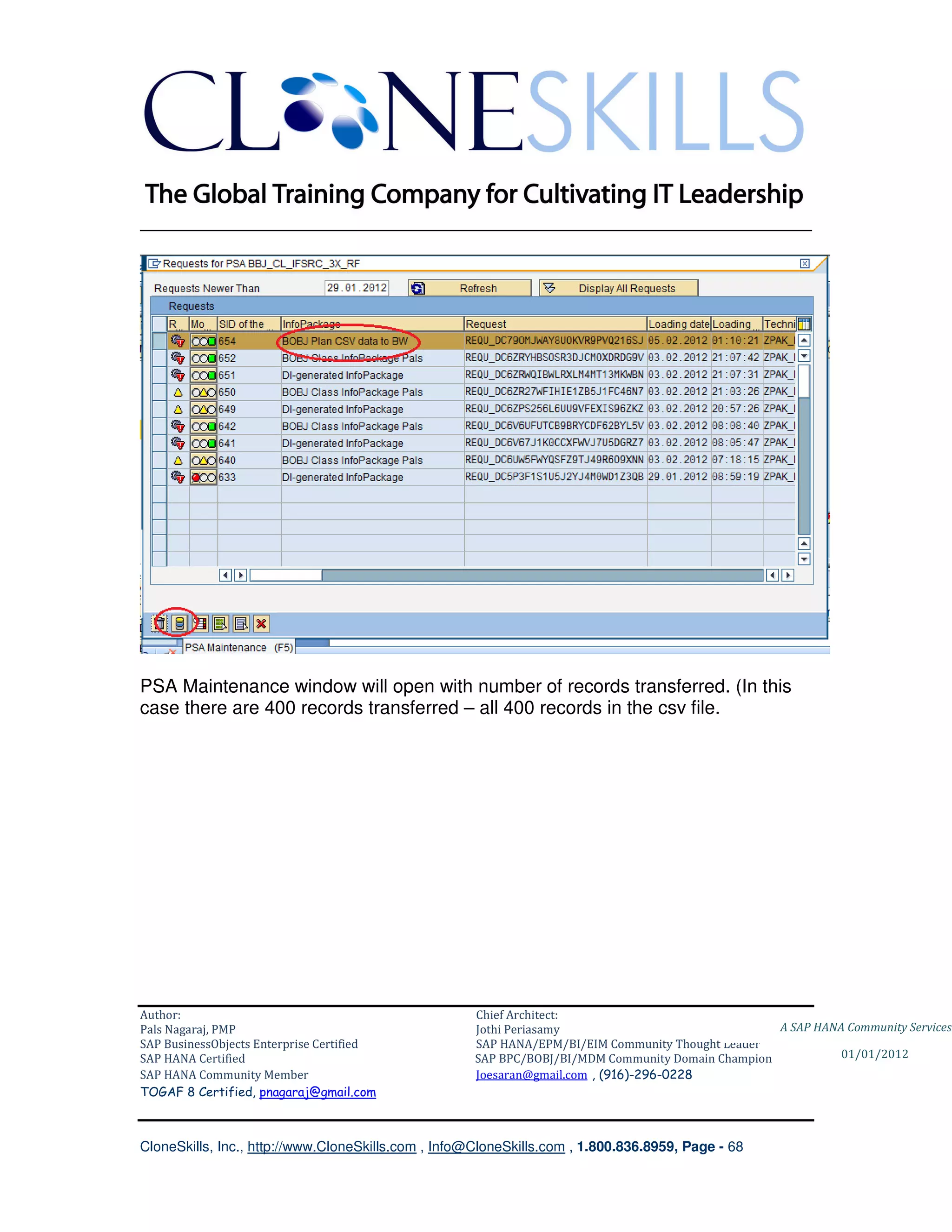
List of Request will be displayed. Select the InfoPackage scheduled. Click on the
PSA Maintenance button at the bottom.


Author:                                              Chief Architect:
Pals Nagaraj, PMP                                    Jothi Periasamy                               A SAP HANA Community Services
SAP BusinessObjects Enterprise Certified             SAP HANA/EPM/BI/EIM Community Thought Leader
SAP HANA Certified                                   SAP BPC/BOBJ/BI/MDM Community Domain Champion           01/01/2012
SAP HANA Community Member                            Joesaran@gmail.com , (916)-296-0228
TOGAF 8 Certified, pnagaraj@gmail.com


CloneSkills, Inc., http://www.CloneSkills.com , Info@CloneSkills.com , 1.800.836.8959, Page - 67
________________________________________________________________________


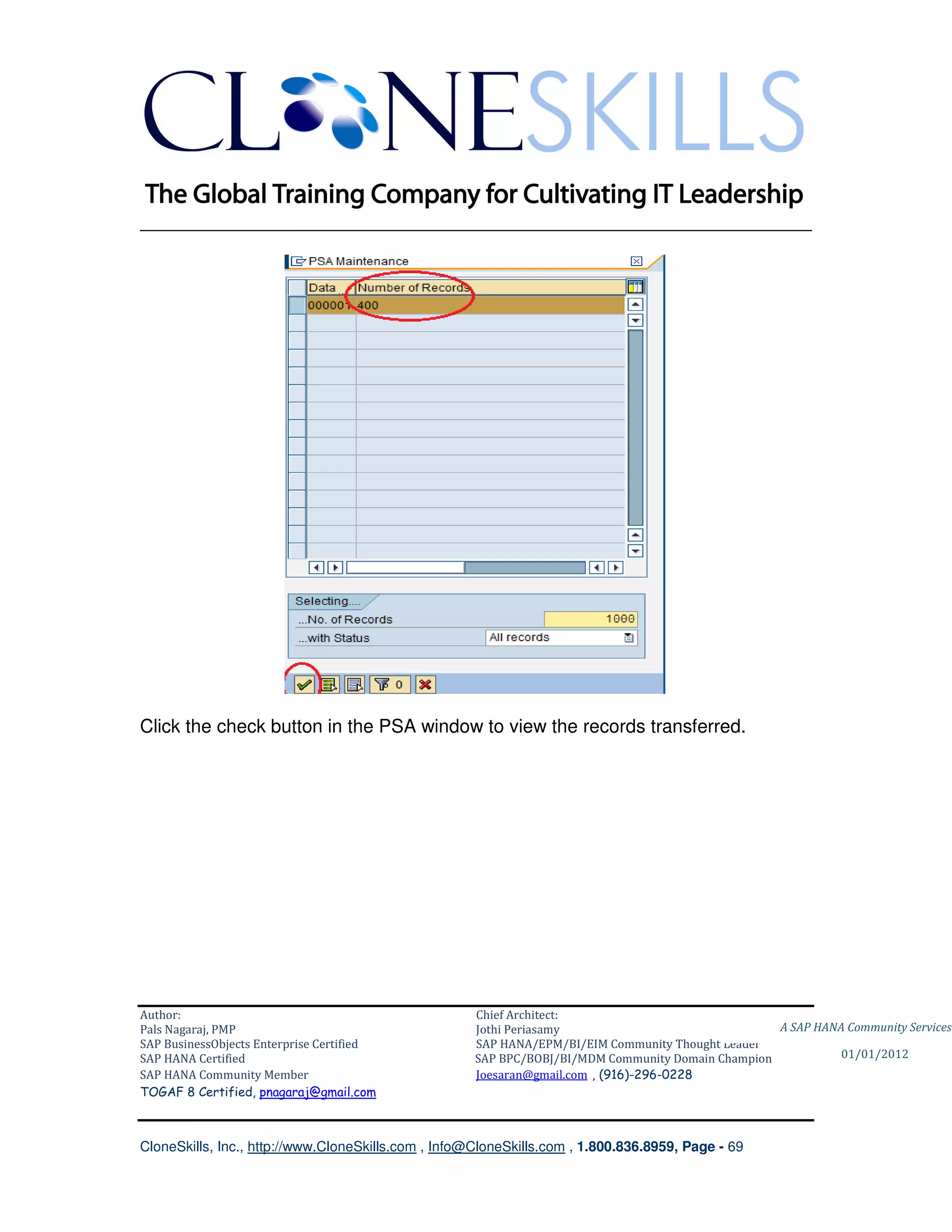
PSA Maintenance window will open with number of records transferred. (In this
case there are 400 records transferred – all 400 records in the csv file.


Author:                                              Chief Architect:
Pals Nagaraj, PMP                                    Jothi Periasamy                               A SAP HANA Community Services
SAP BusinessObjects Enterprise Certified             SAP HANA/EPM/BI/EIM Community Thought Leader
SAP HANA Certified                                   SAP BPC/BOBJ/BI/MDM Community Domain Champion           01/01/2012
SAP HANA Community Member                            Joesaran@gmail.com , (916)-296-0228
TOGAF 8 Certified, pnagaraj@gmail.com


CloneSkills, Inc., http://www.CloneSkills.com , Info@CloneSkills.com , 1.800.836.8959, Page - 68
________________________________________________________________________


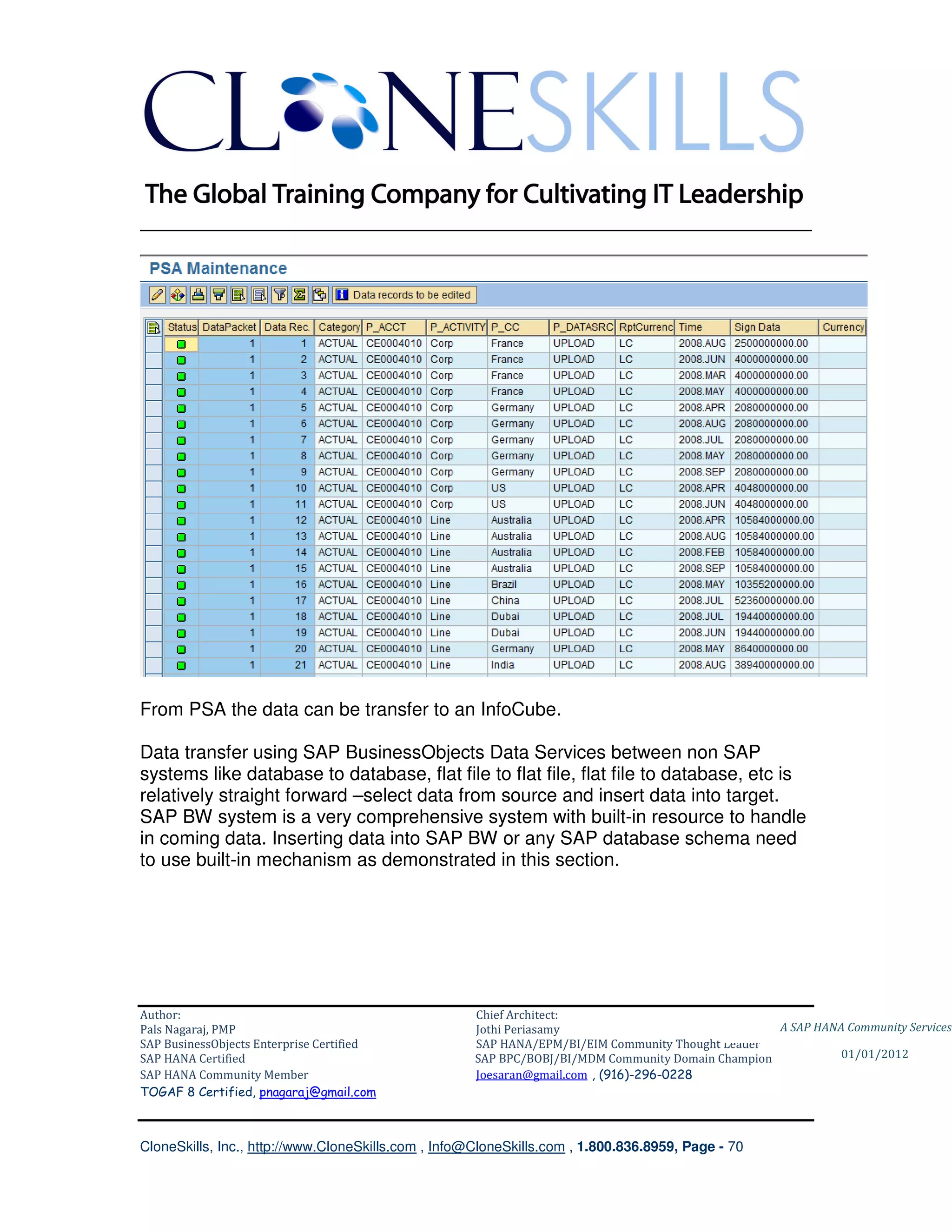
Click the check button in the PSA window to view the records transferred.


Author:                                              Chief Architect:
Pals Nagaraj, PMP                                    Jothi Periasamy                               A SAP HANA Community Services
SAP BusinessObjects Enterprise Certified             SAP HANA/EPM/BI/EIM Community Thought Leader
SAP HANA Certified                                   SAP BPC/BOBJ/BI/MDM Community Domain Champion           01/01/2012
SAP HANA Community Member                            Joesaran@gmail.com , (916)-296-0228
TOGAF 8 Certified, pnagaraj@gmail.com


CloneSkills, Inc., http://www.CloneSkills.com , Info@CloneSkills.com , 1.800.836.8959, Page - 69
________________________________________________________________________


From PSA the data can be transfer to an InfoCube.

Data transfer using SAP BusinessObjects Data Services between non SAP
systems like database to database, flat file to flat file, flat file to database, etc is
relatively straight forward –select data from source and insert data into target.
SAP BW system is a very comprehensive system with built-in resource to handle
in coming data. Inserting data into SAP BW or any SAP database schema need
to use built-in mechanism as demonstrated in this section.


Author:                                              Chief Architect:
Pals Nagaraj, PMP                                    Jothi Periasamy                               A SAP HANA Community Services
SAP BusinessObjects Enterprise Certified             SAP HANA/EPM/BI/EIM Community Thought Leader
SAP HANA Certified                                   SAP BPC/BOBJ/BI/MDM Community Domain Champion           01/01/2012
SAP HANA Community Member                            Joesaran@gmail.com , (916)-296-0228
TOGAF 8 Certified, pnagaraj@gmail.com


CloneSkills, Inc., http://www.CloneSkills.com , Info@CloneSkills.com , 1.800.836.8959, Page - 70
________________________________________________________________________


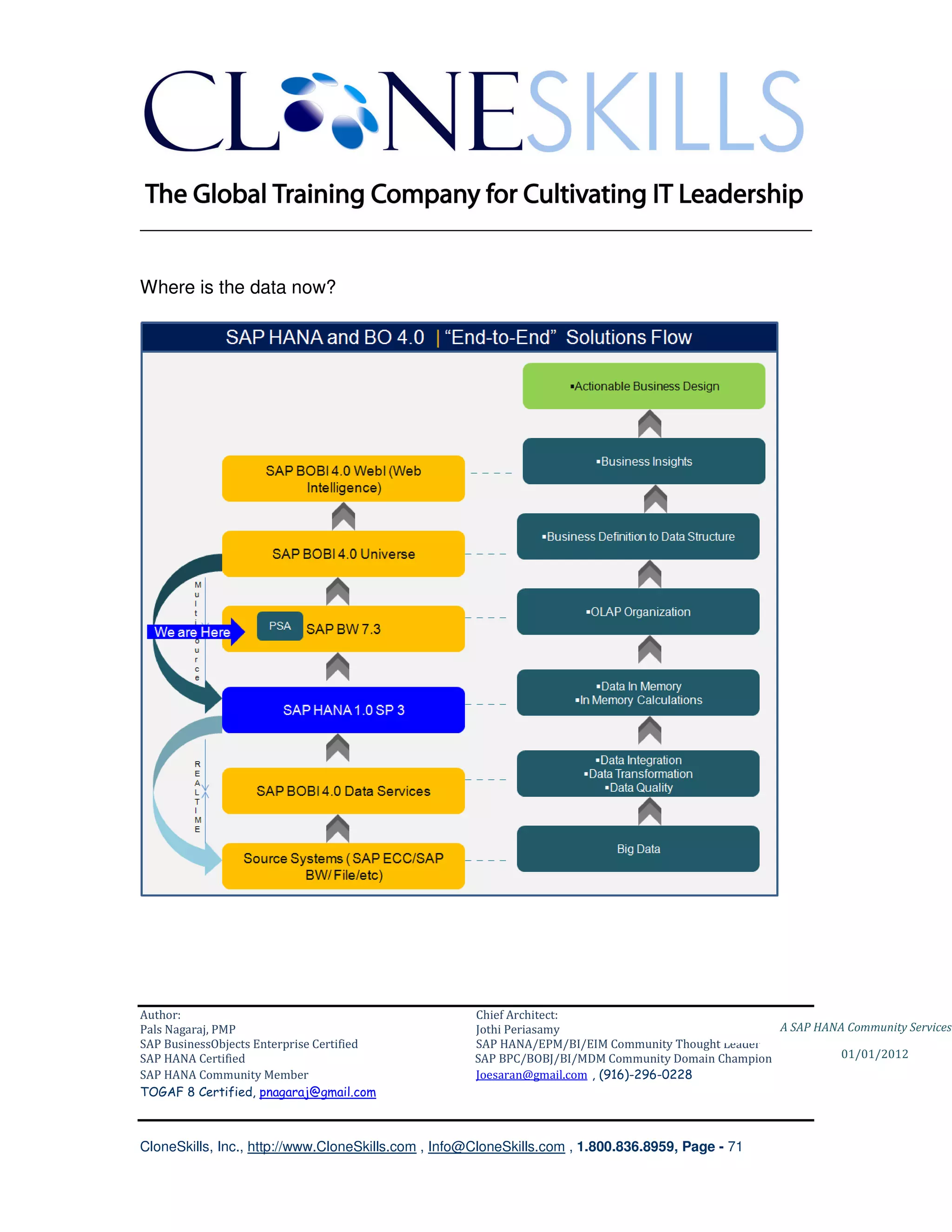
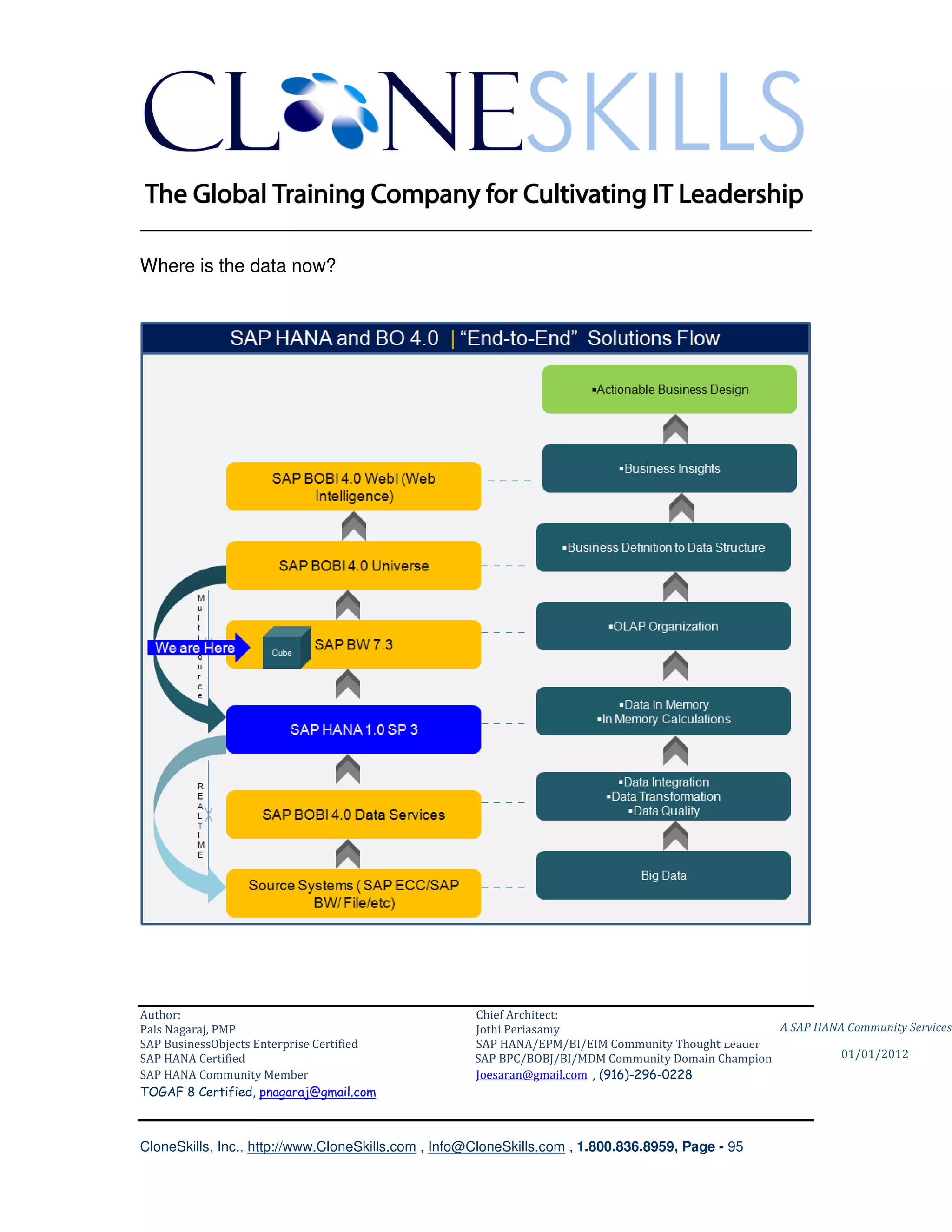
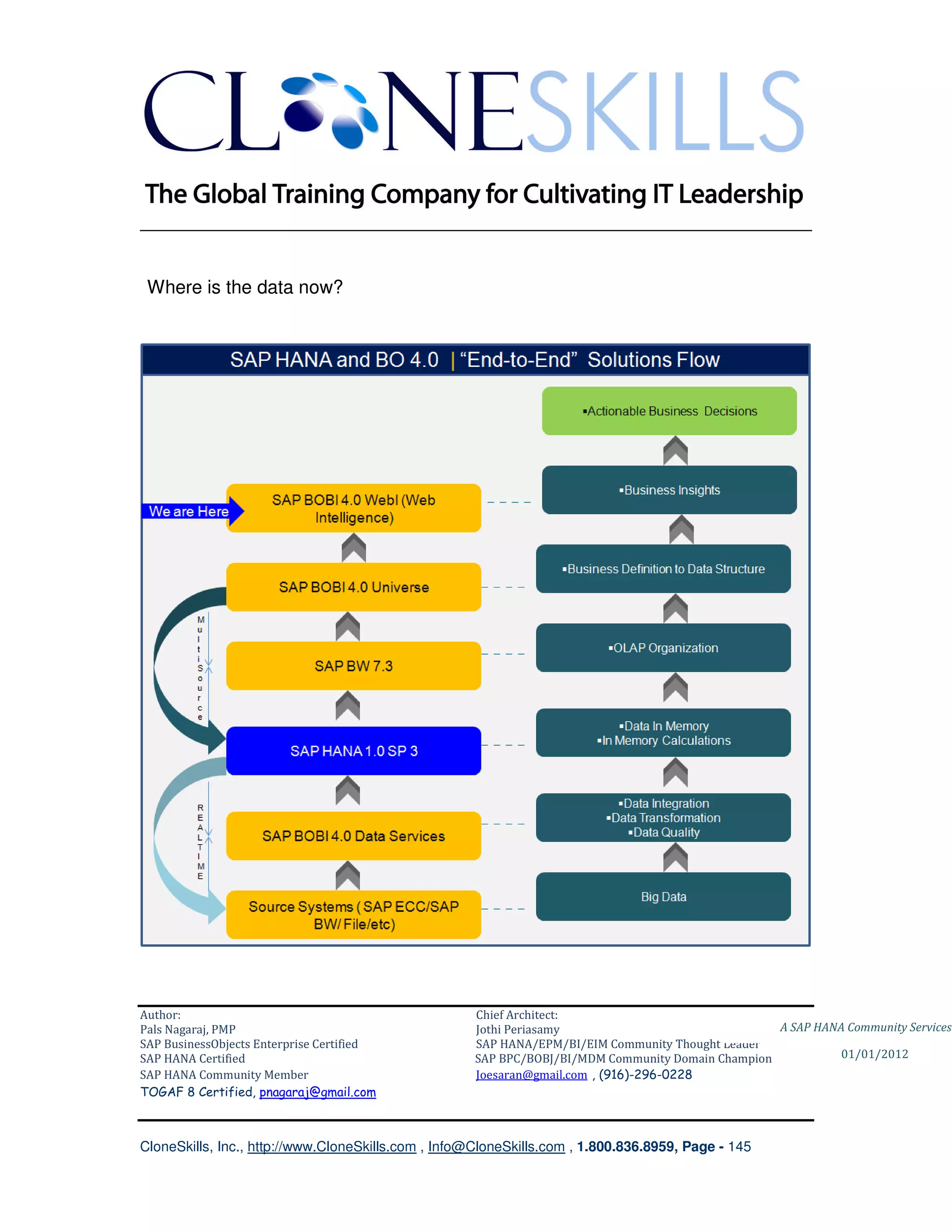
Where is the data now?


Author:                                              Chief Architect:
Pals Nagaraj, PMP                                    Jothi Periasamy                               A SAP HANA Community Services
SAP BusinessObjects Enterprise Certified             SAP HANA/EPM/BI/EIM Community Thought Leader
SAP HANA Certified                                   SAP BPC/BOBJ/BI/MDM Community Domain Champion           01/01/2012
SAP HANA Community Member                            Joesaran@gmail.com , (916)-296-0228
TOGAF 8 Certified, pnagaraj@gmail.com


CloneSkills, Inc., http://www.CloneSkills.com , Info@CloneSkills.com , 1.800.836.8959, Page - 71
________________________________________________________________________


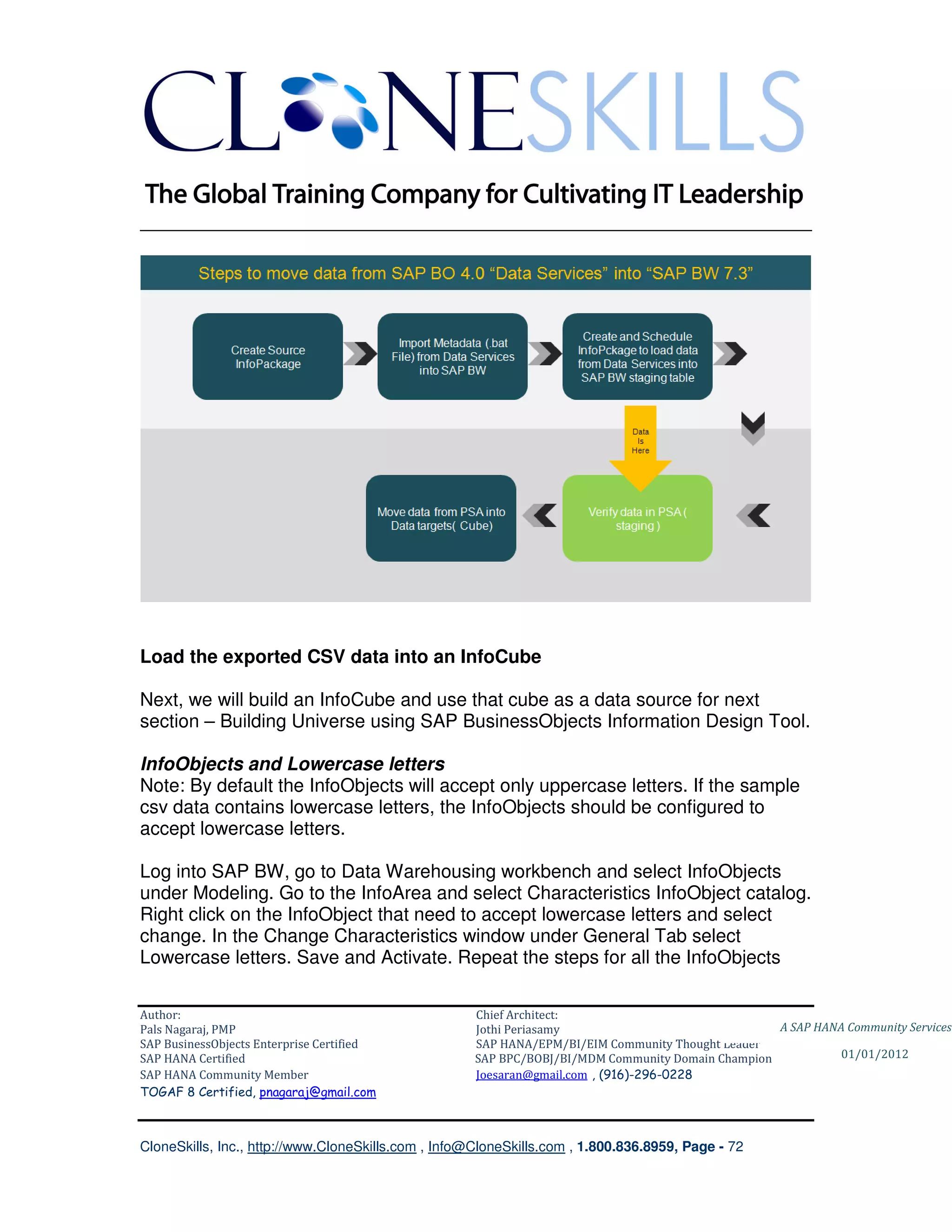
Load the exported CSV data into an InfoCube

Next, we will build an InfoCube and use that cube as a data source for next
section – Building Universe using SAP BusinessObjects Information Design Tool.

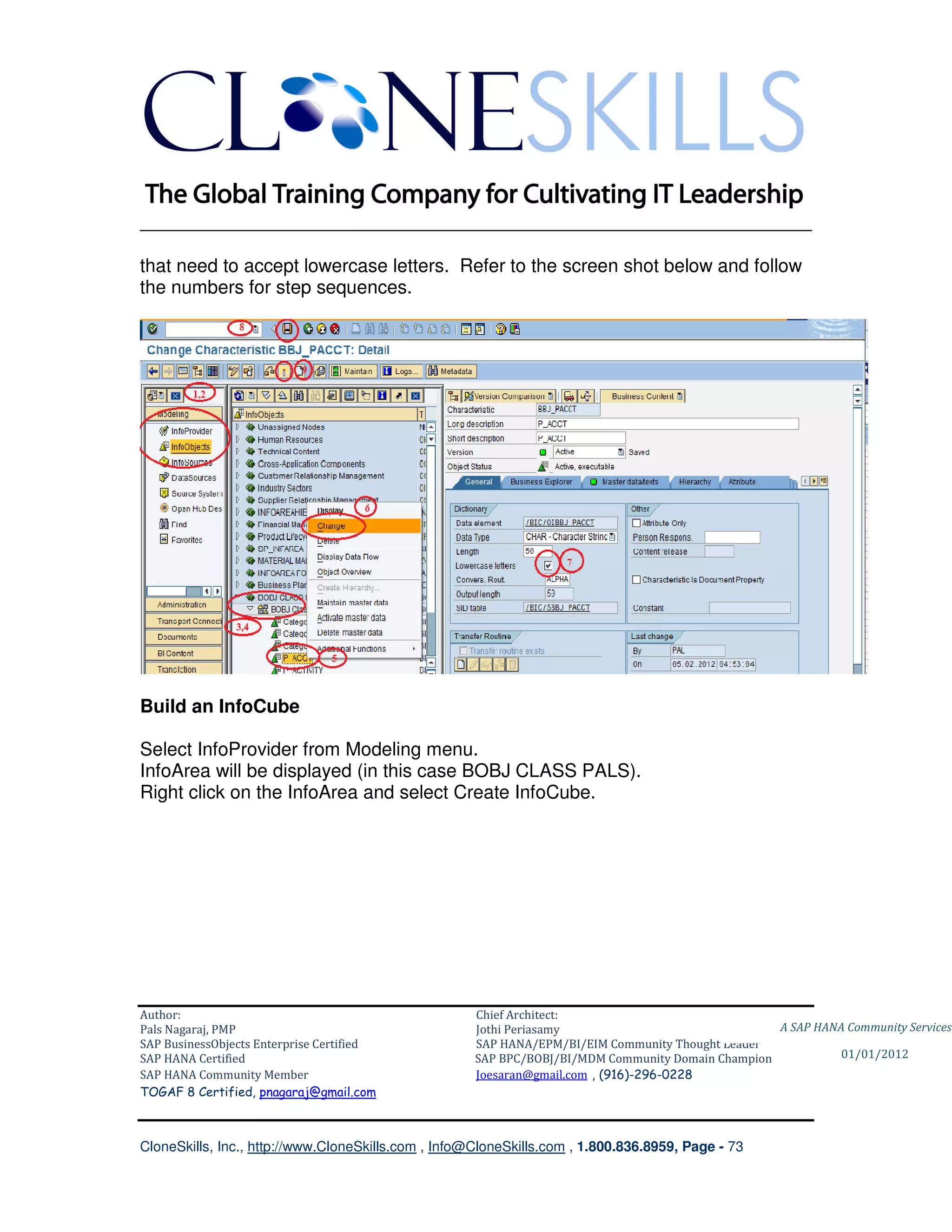
InfoObjects and Lowercase letters
Note: By default the InfoObjects will accept only uppercase letters. If the sample
csv data contains lowercase letters, the InfoObjects should be configured to
accept lowercase letters.

Log into SAP BW, go to Data Warehousing workbench and select InfoObjects
under Modeling. Go to the InfoArea and select Characteristics InfoObject catalog.
Right click on the InfoObject that need to accept lowercase letters and select
change. In the Change Characteristics window under General Tab select
Lowercase letters. Save and Activate. Repeat the steps for all the InfoObjects

Author:                                              Chief Architect:
Pals Nagaraj, PMP                                    Jothi Periasamy                               A SAP HANA Community Services
SAP BusinessObjects Enterprise Certified             SAP HANA/EPM/BI/EIM Community Thought Leader
SAP HANA Certified                                   SAP BPC/BOBJ/BI/MDM Community Domain Champion           01/01/2012
SAP HANA Community Member                            Joesaran@gmail.com , (916)-296-0228
TOGAF 8 Certified, pnagaraj@gmail.com


CloneSkills, Inc., http://www.CloneSkills.com , Info@CloneSkills.com , 1.800.836.8959, Page - 72
________________________________________________________________________

that need to accept lowercase letters. Refer to the screen shot below and follow
the numbers for step sequences.


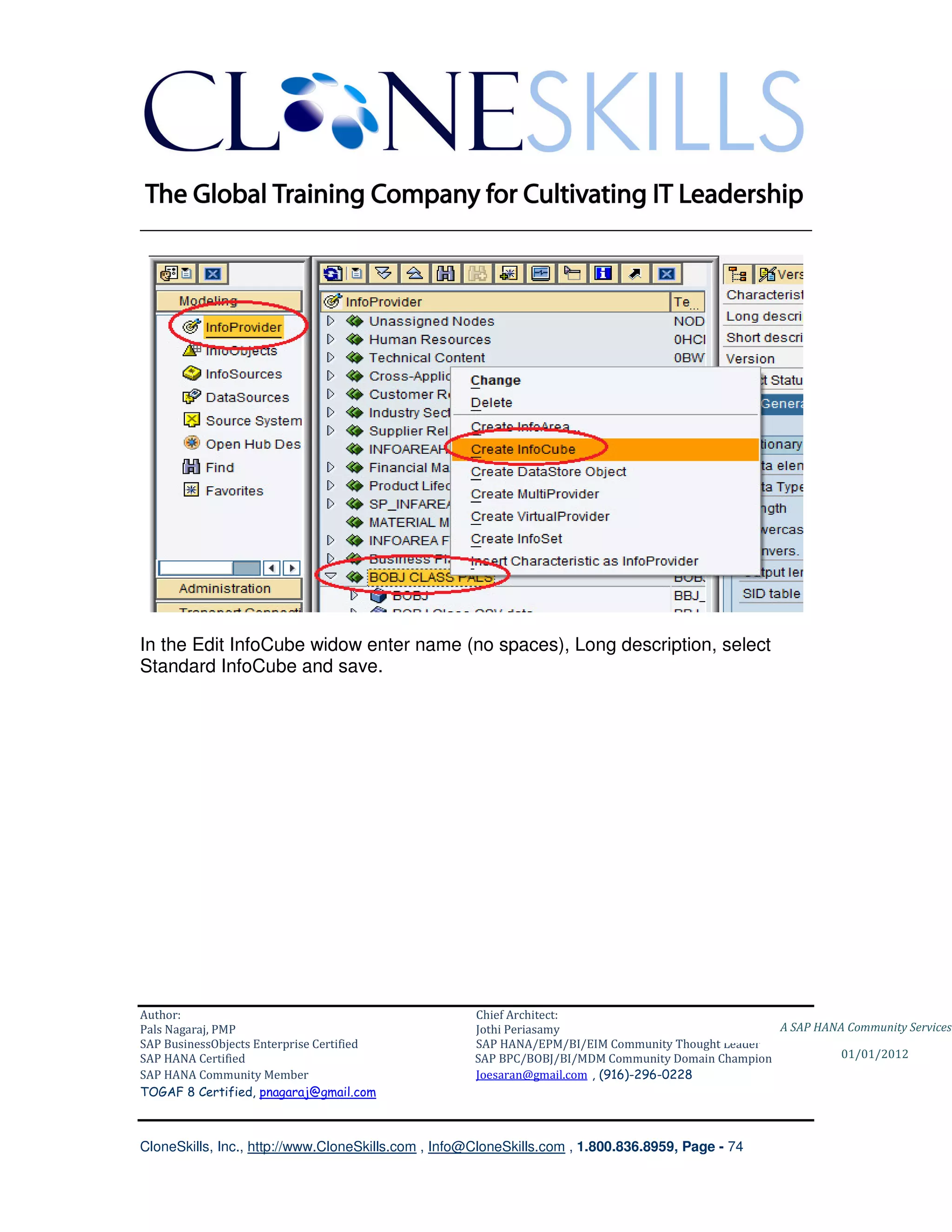
Build an InfoCube

Select InfoProvider from Modeling menu.
InfoArea will be displayed (in this case BOBJ CLASS PALS).
Right click on the InfoArea and select Create InfoCube.


Author:                                              Chief Architect:
Pals Nagaraj, PMP                                    Jothi Periasamy                               A SAP HANA Community Services
SAP BusinessObjects Enterprise Certified             SAP HANA/EPM/BI/EIM Community Thought Leader
SAP HANA Certified                                   SAP BPC/BOBJ/BI/MDM Community Domain Champion           01/01/2012
SAP HANA Community Member                            Joesaran@gmail.com , (916)-296-0228
TOGAF 8 Certified, pnagaraj@gmail.com


CloneSkills, Inc., http://www.CloneSkills.com , Info@CloneSkills.com , 1.800.836.8959, Page - 73
________________________________________________________________________


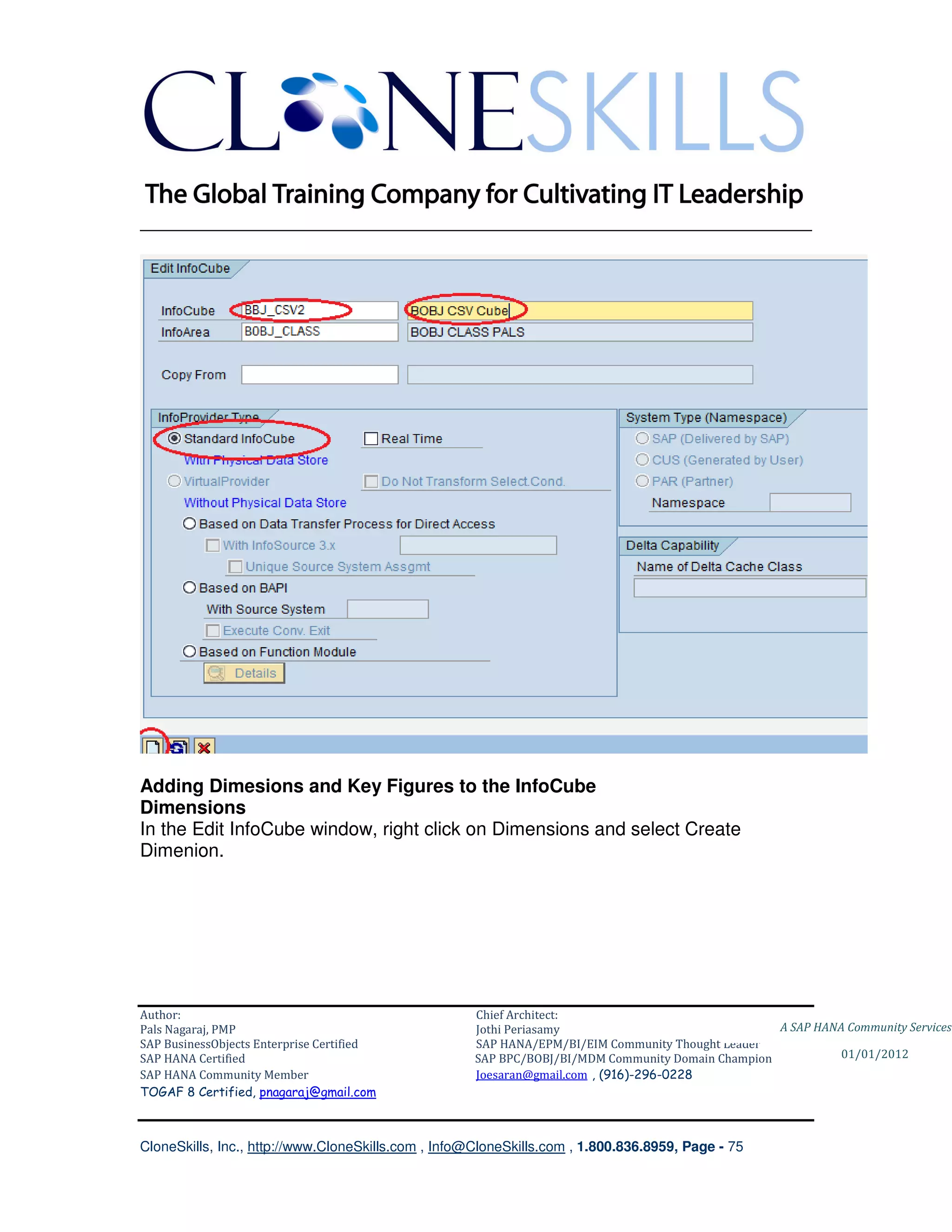
In the Edit InfoCube widow enter name (no spaces), Long description, select
Standard InfoCube and save.


Author:                                              Chief Architect:
Pals Nagaraj, PMP                                    Jothi Periasamy                               A SAP HANA Community Services
SAP BusinessObjects Enterprise Certified             SAP HANA/EPM/BI/EIM Community Thought Leader
SAP HANA Certified                                   SAP BPC/BOBJ/BI/MDM Community Domain Champion           01/01/2012
SAP HANA Community Member                            Joesaran@gmail.com , (916)-296-0228
TOGAF 8 Certified, pnagaraj@gmail.com


CloneSkills, Inc., http://www.CloneSkills.com , Info@CloneSkills.com , 1.800.836.8959, Page - 74
________________________________________________________________________


Adding Dimesions and Key Figures to the InfoCube
Dimensions
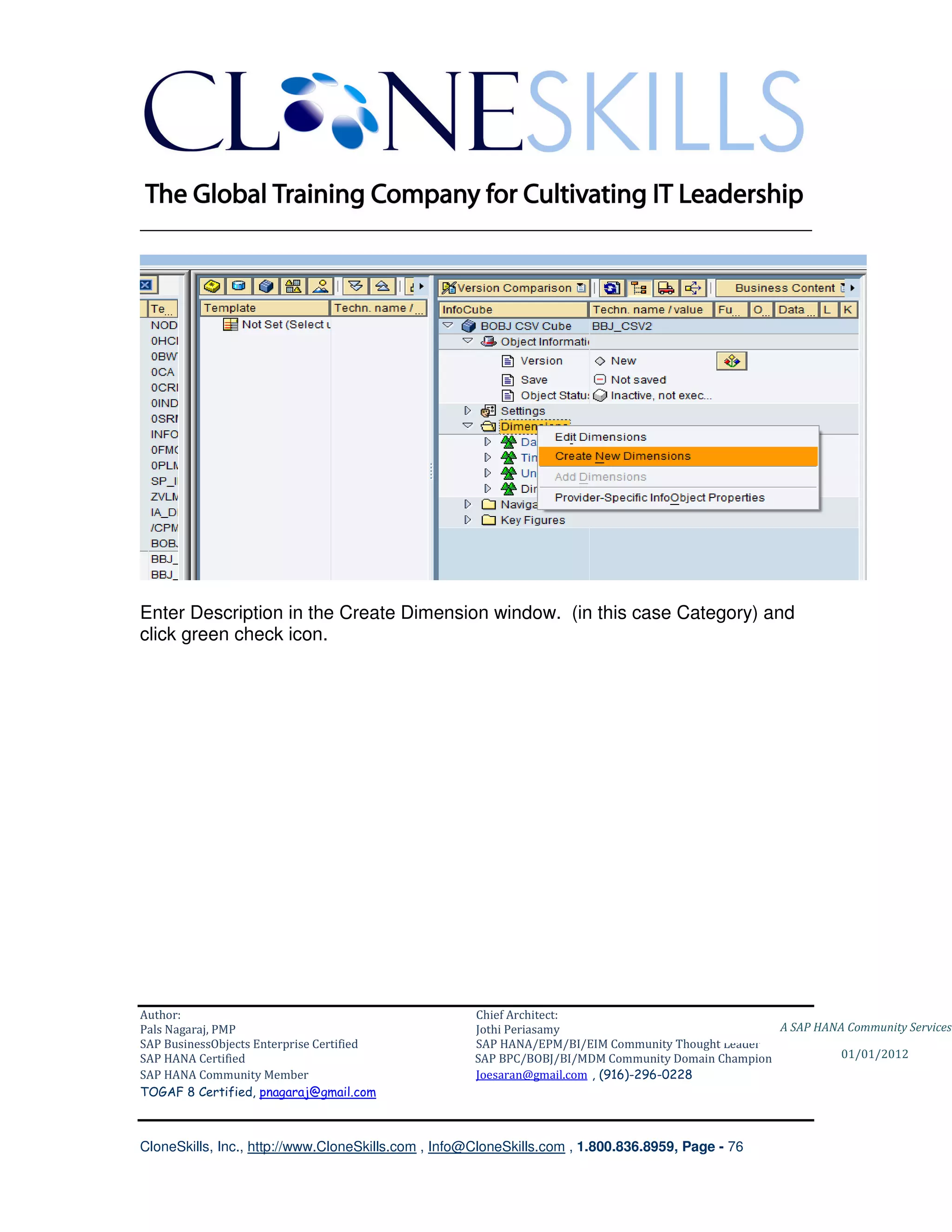
In the Edit InfoCube window, right click on Dimensions and select Create
Dimenion.


Author:                                              Chief Architect:
Pals Nagaraj, PMP                                    Jothi Periasamy                               A SAP HANA Community Services
SAP BusinessObjects Enterprise Certified             SAP HANA/EPM/BI/EIM Community Thought Leader
SAP HANA Certified                                   SAP BPC/BOBJ/BI/MDM Community Domain Champion           01/01/2012
SAP HANA Community Member                            Joesaran@gmail.com , (916)-296-0228
TOGAF 8 Certified, pnagaraj@gmail.com


CloneSkills, Inc., http://www.CloneSkills.com , Info@CloneSkills.com , 1.800.836.8959, Page - 75
________________________________________________________________________


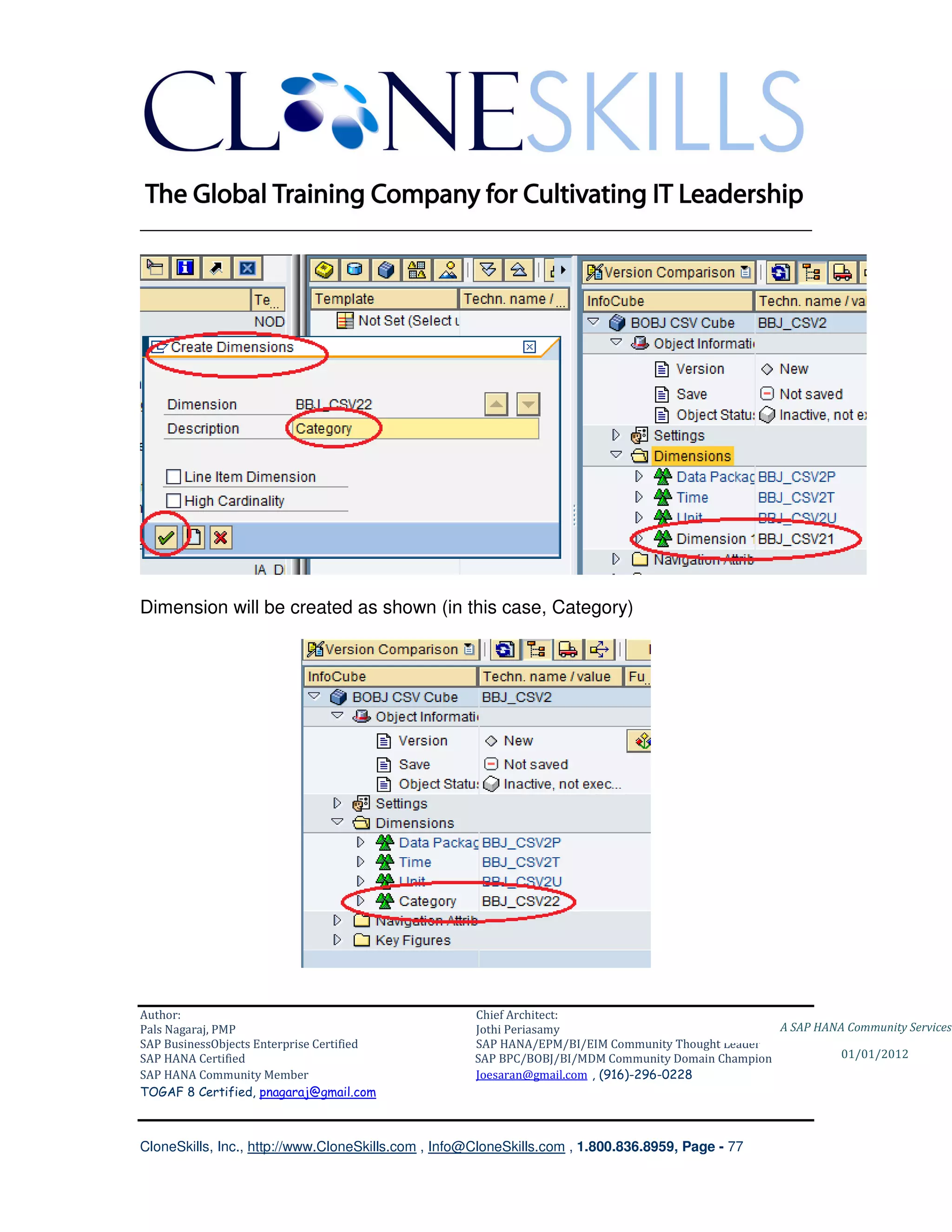
Enter Description in the Create Dimension window. (in this case Category) and
click green check icon.


Author:                                              Chief Architect:
Pals Nagaraj, PMP                                    Jothi Periasamy                               A SAP HANA Community Services
SAP BusinessObjects Enterprise Certified             SAP HANA/EPM/BI/EIM Community Thought Leader
SAP HANA Certified                                   SAP BPC/BOBJ/BI/MDM Community Domain Champion           01/01/2012
SAP HANA Community Member                            Joesaran@gmail.com , (916)-296-0228
TOGAF 8 Certified, pnagaraj@gmail.com


CloneSkills, Inc., http://www.CloneSkills.com , Info@CloneSkills.com , 1.800.836.8959, Page - 76
________________________________________________________________________


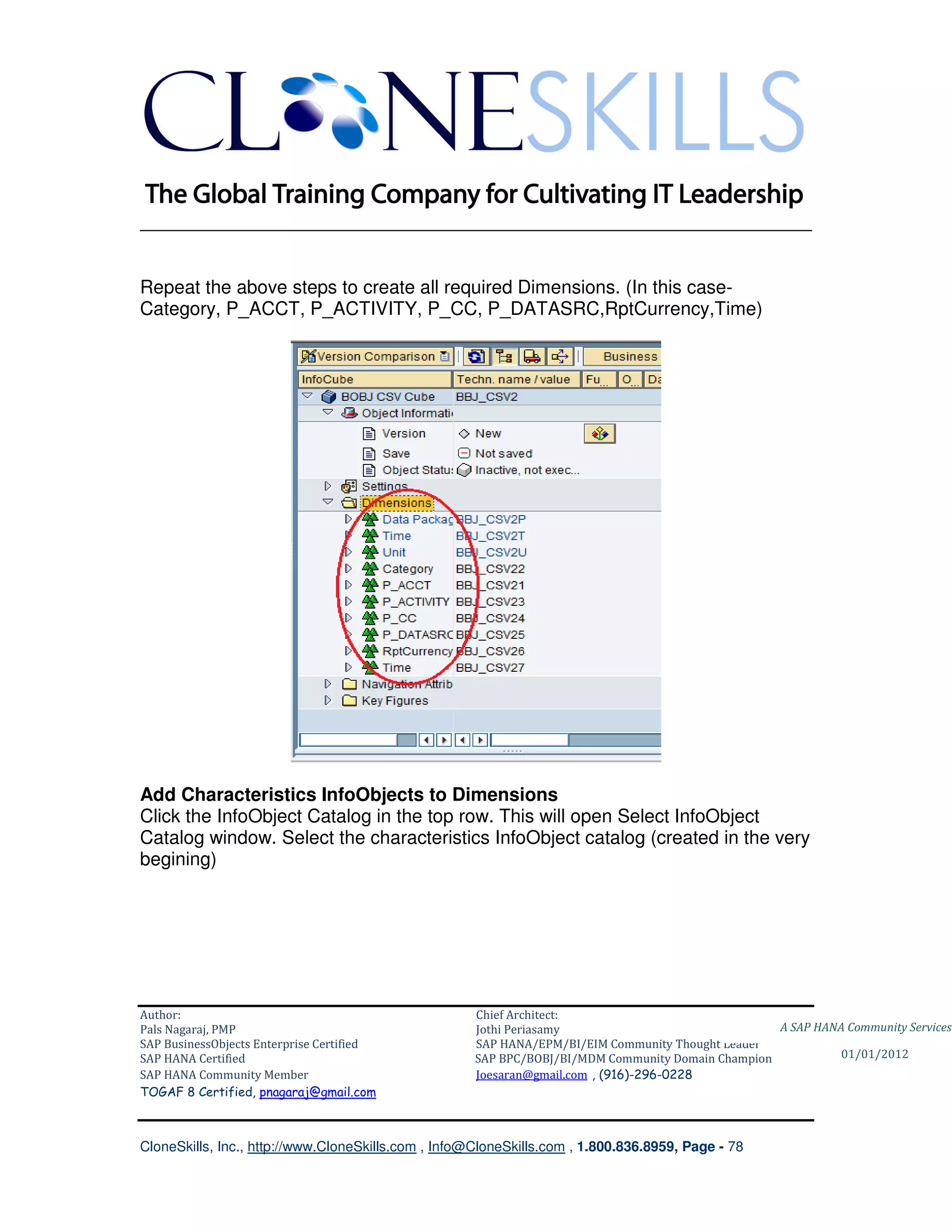
Dimension will be created as shown (in this case, Category)


Author:                                              Chief Architect:
Pals Nagaraj, PMP                                    Jothi Periasamy                               A SAP HANA Community Services
SAP BusinessObjects Enterprise Certified             SAP HANA/EPM/BI/EIM Community Thought Leader
SAP HANA Certified                                   SAP BPC/BOBJ/BI/MDM Community Domain Champion           01/01/2012
SAP HANA Community Member                            Joesaran@gmail.com , (916)-296-0228
TOGAF 8 Certified, pnagaraj@gmail.com


CloneSkills, Inc., http://www.CloneSkills.com , Info@CloneSkills.com , 1.800.836.8959, Page - 77
________________________________________________________________________


Repeat the above steps to create all required Dimensions. (In this case-
Category, P_ACCT, P_ACTIVITY, P_CC, P_DATASRC,RptCurrency,Time)


Add Characteristics InfoObjects to Dimensions
Click the InfoObject Catalog in the top row. This will open Select InfoObject
Catalog window. Select the characteristics InfoObject catalog (created in the very
begining)


Author:                                              Chief Architect:
Pals Nagaraj, PMP                                    Jothi Periasamy                               A SAP HANA Community Services
SAP BusinessObjects Enterprise Certified             SAP HANA/EPM/BI/EIM Community Thought Leader
SAP HANA Certified                                   SAP BPC/BOBJ/BI/MDM Community Domain Champion           01/01/2012
SAP HANA Community Member                            Joesaran@gmail.com , (916)-296-0228
TOGAF 8 Certified, pnagaraj@gmail.com


CloneSkills, Inc., http://www.CloneSkills.com , Info@CloneSkills.com , 1.800.836.8959, Page - 78
________________________________________________________________________


All the InfoObjects in the catalog will be listed as shown.


Author:                                              Chief Architect:
Pals Nagaraj, PMP                                    Jothi Periasamy                               A SAP HANA Community Services
SAP BusinessObjects Enterprise Certified             SAP HANA/EPM/BI/EIM Community Thought Leader
SAP HANA Certified                                   SAP BPC/BOBJ/BI/MDM Community Domain Champion           01/01/2012
SAP HANA Community Member                            Joesaran@gmail.com , (916)-296-0228
TOGAF 8 Certified, pnagaraj@gmail.com


CloneSkills, Inc., http://www.CloneSkills.com , Info@CloneSkills.com , 1.800.836.8959, Page - 79
________________________________________________________________________


Drag and drop all the InfoObjects to the corresponding Dimensions (eg. Category
infoObject to Category Dimension, etc. Note if you have more than one
InfoObject with same name, select the appropriate one to add to the dimension in
this InfoCube). Repeat the step to add all other Characteristic InfoObjects to
other Dimensions.

After adding all the required InfoObjects to the appropriate Dimenions, expand
each dimension and make sure corresponding InfoObject is listed under the
dimension as shown in the following screenshot.


Author:                                              Chief Architect:
Pals Nagaraj, PMP                                    Jothi Periasamy                               A SAP HANA Community Services
SAP BusinessObjects Enterprise Certified             SAP HANA/EPM/BI/EIM Community Thought Leader
SAP HANA Certified                                   SAP BPC/BOBJ/BI/MDM Community Domain Champion           01/01/2012
SAP HANA Community Member                            Joesaran@gmail.com , (916)-296-0228
TOGAF 8 Certified, pnagaraj@gmail.com


CloneSkills, Inc., http://www.CloneSkills.com , Info@CloneSkills.com , 1.800.836.8959, Page - 80
________________________________________________________________________


Key Figure
Open the Key Figure InfoObject Catalog (follow the same step to open the
Characteristic InfoObject Catalog), drag and drop Revenue Key Figure
infoObjects from the template on the left to the Key Figure folder in the
InfoCube on the right . Expand all the dimensions and Key Figure and make sure
Dimensions have Characteristics InfoObjects and Key Figure has Key Figure
InfoObject. Save and Activte.


Author:                                              Chief Architect:
Pals Nagaraj, PMP                                    Jothi Periasamy                               A SAP HANA Community Services
SAP BusinessObjects Enterprise Certified             SAP HANA/EPM/BI/EIM Community Thought Leader
SAP HANA Certified                                   SAP BPC/BOBJ/BI/MDM Community Domain Champion           01/01/2012
SAP HANA Community Member                            Joesaran@gmail.com , (916)-296-0228
TOGAF 8 Certified, pnagaraj@gmail.com


CloneSkills, Inc., http://www.CloneSkills.com , Info@CloneSkills.com , 1.800.836.8959, Page - 81
________________________________________________________________________


Save and Activate the InfoCube.


Author:                                              Chief Architect:
Pals Nagaraj, PMP                                    Jothi Periasamy                               A SAP HANA Community Services
SAP BusinessObjects Enterprise Certified             SAP HANA/EPM/BI/EIM Community Thought Leader
SAP HANA Certified                                   SAP BPC/BOBJ/BI/MDM Community Domain Champion           01/01/2012
SAP HANA Community Member                            Joesaran@gmail.com , (916)-296-0228
TOGAF 8 Certified, pnagaraj@gmail.com


CloneSkills, Inc., http://www.CloneSkills.com , Info@CloneSkills.com , 1.800.836.8959, Page - 82
________________________________________________________________________


Check the data in the InfoCube

Right click on the InfoCube and select Manage to open InfoCube Administration
window. Select the Content tab and click Fact Table.


Author:                                              Chief Architect:
Pals Nagaraj, PMP                                    Jothi Periasamy                               A SAP HANA Community Services
SAP BusinessObjects Enterprise Certified             SAP HANA/EPM/BI/EIM Community Thought Leader
SAP HANA Certified                                   SAP BPC/BOBJ/BI/MDM Community Domain Champion           01/01/2012
SAP HANA Community Member                            Joesaran@gmail.com , (916)-296-0228
TOGAF 8 Certified, pnagaraj@gmail.com


CloneSkills, Inc., http://www.CloneSkills.com , Info@CloneSkills.com , 1.800.836.8959, Page - 83
________________________________________________________________________


Data Browser window will open. Click on Number of Entries and verify that there
are zero records


Author:                                              Chief Architect:
Pals Nagaraj, PMP                                    Jothi Periasamy                               A SAP HANA Community Services
SAP BusinessObjects Enterprise Certified             SAP HANA/EPM/BI/EIM Community Thought Leader
SAP HANA Certified                                   SAP BPC/BOBJ/BI/MDM Community Domain Champion           01/01/2012
SAP HANA Community Member                            Joesaran@gmail.com , (916)-296-0228
TOGAF 8 Certified, pnagaraj@gmail.com


CloneSkills, Inc., http://www.CloneSkills.com , Info@CloneSkills.com , 1.800.836.8959, Page - 84
________________________________________________________________________


Load the InfoCube with CSV data
Loading InfoCube requires 1) a Transformation and 2) Data Transfer Process.

Create Transformation
Here we define where the data should go (to the cube) from PSA. Actual data
transformation is done by Data Transfer Process.

Right click on the cube created above and select Create Transformation


Author:                                              Chief Architect:
Pals Nagaraj, PMP                                    Jothi Periasamy                               A SAP HANA Community Services
SAP BusinessObjects Enterprise Certified             SAP HANA/EPM/BI/EIM Community Thought Leader
SAP HANA Certified                                   SAP BPC/BOBJ/BI/MDM Community Domain Champion           01/01/2012
SAP HANA Community Member                            Joesaran@gmail.com , (916)-296-0228
TOGAF 8 Certified, pnagaraj@gmail.com


CloneSkills, Inc., http://www.CloneSkills.com , Info@CloneSkills.com , 1.800.836.8959, Page - 85
________________________________________________________________________


In the Create Transformation window, enter the InfoCube created above. For
source Object Type select DataSource and enter DataSource and Source
System information. (You may need to check with System Administrator)


Author:                                              Chief Architect:
Pals Nagaraj, PMP                                    Jothi Periasamy                               A SAP HANA Community Services
SAP BusinessObjects Enterprise Certified             SAP HANA/EPM/BI/EIM Community Thought Leader
SAP HANA Certified                                   SAP BPC/BOBJ/BI/MDM Community Domain Champion           01/01/2012
SAP HANA Community Member                            Joesaran@gmail.com , (916)-296-0228
TOGAF 8 Certified, pnagaraj@gmail.com


CloneSkills, Inc., http://www.CloneSkills.com , Info@CloneSkills.com , 1.800.836.8959, Page - 86
________________________________________________________________________


Transformation window will show the mapping between InfoSource InfoObjects
(PSA) and Dimensions and Key Figure in the InfoCube. Verify the mapping.


Author:                                              Chief Architect:
Pals Nagaraj, PMP                                    Jothi Periasamy                               A SAP HANA Community Services
SAP BusinessObjects Enterprise Certified             SAP HANA/EPM/BI/EIM Community Thought Leader
SAP HANA Certified                                   SAP BPC/BOBJ/BI/MDM Community Domain Champion           01/01/2012
SAP HANA Community Member                            Joesaran@gmail.com , (916)-296-0228
TOGAF 8 Certified, pnagaraj@gmail.com


CloneSkills, Inc., http://www.CloneSkills.com , Info@CloneSkills.com , 1.800.836.8959, Page - 87
________________________________________________________________________


Save and Activate the Transformation.
Transformation will be activated and listed under the InfoCube (green X like
icon). A Data Transfer Processes folder will also be created under the InfoCube.


Author:                                              Chief Architect:
Pals Nagaraj, PMP                                    Jothi Periasamy                               A SAP HANA Community Services
SAP BusinessObjects Enterprise Certified             SAP HANA/EPM/BI/EIM Community Thought Leader
SAP HANA Certified                                   SAP BPC/BOBJ/BI/MDM Community Domain Champion           01/01/2012
SAP HANA Community Member                            Joesaran@gmail.com , (916)-296-0228
TOGAF 8 Certified, pnagaraj@gmail.com


CloneSkills, Inc., http://www.CloneSkills.com , Info@CloneSkills.com , 1.800.836.8959, Page - 88
________________________________________________________________________


Create Data Transfer Process

Right click Data Transfer Processes and select Create Data Transfer Processes..
In the Create Data Transfer Process verify source and target and click green
check icon button.


Author:                                              Chief Architect:
Pals Nagaraj, PMP                                    Jothi Periasamy                               A SAP HANA Community Services
SAP BusinessObjects Enterprise Certified             SAP HANA/EPM/BI/EIM Community Thought Leader
SAP HANA Certified                                   SAP BPC/BOBJ/BI/MDM Community Domain Champion           01/01/2012
SAP HANA Community Member                            Joesaran@gmail.com , (916)-296-0228
TOGAF 8 Certified, pnagaraj@gmail.com


CloneSkills, Inc., http://www.CloneSkills.com , Info@CloneSkills.com , 1.800.836.8959, Page - 89
________________________________________________________________________


In the Data Transfer Process details, accept default values in Extraction and
Update tabs. In Execute tab, the Execute button will be deactivated. Activate the
Data Transfer Process, to activate the Execute button. Click the Execute button
after it is activte.


Author:                                              Chief Architect:
Pals Nagaraj, PMP                                    Jothi Periasamy                               A SAP HANA Community Services
SAP BusinessObjects Enterprise Certified             SAP HANA/EPM/BI/EIM Community Thought Leader
SAP HANA Certified                                   SAP BPC/BOBJ/BI/MDM Community Domain Champion           01/01/2012
SAP HANA Community Member                            Joesaran@gmail.com , (916)-296-0228
TOGAF 8 Certified, pnagaraj@gmail.com


CloneSkills, Inc., http://www.CloneSkills.com , Info@CloneSkills.com , 1.800.836.8959, Page - 90
________________________________________________________________________


Select Yes to the following prompt.


The process will complete with the following details.


Author:                                              Chief Architect:
Pals Nagaraj, PMP                                    Jothi Periasamy                               A SAP HANA Community Services
SAP BusinessObjects Enterprise Certified             SAP HANA/EPM/BI/EIM Community Thought Leader
SAP HANA Certified                                   SAP BPC/BOBJ/BI/MDM Community Domain Champion           01/01/2012
SAP HANA Community Member                            Joesaran@gmail.com , (916)-296-0228
TOGAF 8 Certified, pnagaraj@gmail.com


CloneSkills, Inc., http://www.CloneSkills.com , Info@CloneSkills.com , 1.800.836.8959, Page - 91
________________________________________________________________________


Check the data in the InfoCube
Right Click on the InfoCube. Select Manage. Go to Content Tab. Click on Fact
Table button. In the Data Browser, click Number of Entries and verify 400 records
– from CSV, are in InfoCube.


Author:                                              Chief Architect:
Pals Nagaraj, PMP                                    Jothi Periasamy                               A SAP HANA Community Services
SAP BusinessObjects Enterprise Certified             SAP HANA/EPM/BI/EIM Community Thought Leader
SAP HANA Certified                                   SAP BPC/BOBJ/BI/MDM Community Domain Champion           01/01/2012
SAP HANA Community Member                            Joesaran@gmail.com , (916)-296-0228
TOGAF 8 Certified, pnagaraj@gmail.com


CloneSkills, Inc., http://www.CloneSkills.com , Info@CloneSkills.com , 1.800.836.8959, Page - 92
________________________________________________________________________


To see the actual data in the InfoCube, click InfoCube Content button in the
Content Tab.
In the next window, click on Fld Selectn for Output.


Author:                                              Chief Architect:
Pals Nagaraj, PMP                                    Jothi Periasamy                               A SAP HANA Community Services
SAP BusinessObjects Enterprise Certified             SAP HANA/EPM/BI/EIM Community Thought Leader
SAP HANA Certified                                   SAP BPC/BOBJ/BI/MDM Community Domain Champion           01/01/2012
SAP HANA Community Member                            Joesaran@gmail.com , (916)-296-0228
TOGAF 8 Certified, pnagaraj@gmail.com


CloneSkills, Inc., http://www.CloneSkills.com , Info@CloneSkills.com , 1.800.836.8959, Page - 93
________________________________________________________________________

In the Fld Selectn for Output window, click Highlght all Key figs, Select All
Characteristics and the clock icon


Fld Selectn for Output window will close and ..Select.Screen window will show
up. Click clock icon in the ..Select. Screen. Data in the InfoCube will be
displayed.


Author:                                              Chief Architect:
Pals Nagaraj, PMP                                    Jothi Periasamy                               A SAP HANA Community Services
SAP BusinessObjects Enterprise Certified             SAP HANA/EPM/BI/EIM Community Thought Leader
SAP HANA Certified                                   SAP BPC/BOBJ/BI/MDM Community Domain Champion           01/01/2012
SAP HANA Community Member                            Joesaran@gmail.com , (916)-296-0228
TOGAF 8 Certified, pnagaraj@gmail.com


CloneSkills, Inc., http://www.CloneSkills.com , Info@CloneSkills.com , 1.800.836.8959, Page - 94
________________________________________________________________________

Where is the data now?


Author:                                              Chief Architect:
Pals Nagaraj, PMP                                    Jothi Periasamy                               A SAP HANA Community Services
SAP BusinessObjects Enterprise Certified             SAP HANA/EPM/BI/EIM Community Thought Leader
SAP HANA Certified                                   SAP BPC/BOBJ/BI/MDM Community Domain Champion           01/01/2012
SAP HANA Community Member                            Joesaran@gmail.com , (916)-296-0228
TOGAF 8 Certified, pnagaraj@gmail.com


CloneSkills, Inc., http://www.CloneSkills.com , Info@CloneSkills.com , 1.800.836.8959, Page - 95
________________________________________________________________________


Note the created InfoCubes technical name (in this case, BBJ_CSV2). It will used
in the next section.

4. SAP BusinessObjects Information Design Tool

    SAP BusinessObjects Information Design Tool is used to build Universe.
Universe is a semantic layer lying between data warehouse and presentation
layer (reports, dashboards etc.). The purpose of the universe is to help the
business division users (not technical users) to be as independent as much as
possible from IT when using the BusinessObjects BI system. This is achieved by
translating the data in technical terms to familiar business terms. For example,
translating P_CC to Cost Center. These business terms are saved as objects in
the universe and provided to the business users, giving them the flexibility to
create reports, dashboards etc. on their own. In addition, universe provides data
format, security, filters, lookup lists etc.

Author:                                              Chief Architect:
Pals Nagaraj, PMP                                    Jothi Periasamy                               A SAP HANA Community Services
SAP BusinessObjects Enterprise Certified             SAP HANA/EPM/BI/EIM Community Thought Leader
SAP HANA Certified                                   SAP BPC/BOBJ/BI/MDM Community Domain Champion           01/01/2012
SAP HANA Community Member                            Joesaran@gmail.com , (916)-296-0228
TOGAF 8 Certified, pnagaraj@gmail.com


CloneSkills, Inc., http://www.CloneSkills.com , Info@CloneSkills.com , 1.800.836.8959, Page - 96
________________________________________________________________________


This section covers building a Universe, on top of the InfoCube with CSV data
created in the previous section using, SAP BusinessObjects Information Design
Tool.

Step to create universe


Author:                                              Chief Architect:
Pals Nagaraj, PMP                                    Jothi Periasamy                               A SAP HANA Community Services
SAP BusinessObjects Enterprise Certified             SAP HANA/EPM/BI/EIM Community Thought Leader
SAP HANA Certified                                   SAP BPC/BOBJ/BI/MDM Community Domain Champion           01/01/2012
SAP HANA Community Member                            Joesaran@gmail.com , (916)-296-0228
TOGAF 8 Certified, pnagaraj@gmail.com


CloneSkills, Inc., http://www.CloneSkills.com , Info@CloneSkills.com , 1.800.836.8959, Page - 97
________________________________________________________________________


Author:                                              Chief Architect:
Pals Nagaraj, PMP                                    Jothi Periasamy                               A SAP HANA Community Services
SAP BusinessObjects Enterprise Certified             SAP HANA/EPM/BI/EIM Community Thought Leader
SAP HANA Certified                                   SAP BPC/BOBJ/BI/MDM Community Domain Champion           01/01/2012
SAP HANA Community Member                            Joesaran@gmail.com , (916)-296-0228
TOGAF 8 Certified, pnagaraj@gmail.com


CloneSkills, Inc., http://www.CloneSkills.com , Info@CloneSkills.com , 1.800.836.8959, Page - 98
________________________________________________________________________

Step to create universe

    •    Create Project
    •    Create Session
    •    Create Relational Connection to SAP BW InfoCube
    •    Create Data Foundation
    •    Create Business Layer
    •    Classes & Objects


Author:                                              Chief Architect:
Pals Nagaraj, PMP                                    Jothi Periasamy                               A SAP HANA Community Services
SAP BusinessObjects Enterprise Certified             SAP HANA/EPM/BI/EIM Community Thought Leader
SAP HANA Certified                                   SAP BPC/BOBJ/BI/MDM Community Domain Champion           01/01/2012
SAP HANA Community Member                            Joesaran@gmail.com , (916)-296-0228
TOGAF 8 Certified, pnagaraj@gmail.com


CloneSkills, Inc., http://www.CloneSkills.com , Info@CloneSkills.com , 1.800.836.8959, Page - 99
________________________________________________________________________

Step details follow

Create Project
Launch Information Design Tool


Log into Information Design Tool.

Select File – New – Project. Enter Project Name and click Finish. The new
project (InfoCube-Data) should appear under Local Projects


Author:                                              Chief Architect:
Pals Nagaraj, PMP                                    Jothi Periasamy                               A SAP HANA Community Services
SAP BusinessObjects Enterprise Certified             SAP HANA/EPM/BI/EIM Community Thought Leader
SAP HANA Certified                                   SAP BPC/BOBJ/BI/MDM Community Domain Champion           01/01/2012
SAP HANA Community Member                            Joesaran@gmail.com , (916)-296-0228
TOGAF 8 Certified, pnagaraj@gmail.com


CloneSkills, Inc., http://www.CloneSkills.com , Info@CloneSkills.com , 1.800.836.8959, Page - 100
________________________________________________________________________

Create Session
Insert a Session in the repository.


Create Relational Connection to SAP BW InfoCube
Under Repository Resources, right click on Connections folder and select Insert
Relational Connection.


Enter Resource Name and click Next.


Author:                                              Chief Architect:
Pals Nagaraj, PMP                                    Jothi Periasamy                               A SAP HANA Community Services
SAP BusinessObjects Enterprise Certified             SAP HANA/EPM/BI/EIM Community Thought Leader
SAP HANA Certified                                   SAP BPC/BOBJ/BI/MDM Community Domain Champion           01/01/2012
SAP HANA Community Member                            Joesaran@gmail.com , (916)-296-0228
TOGAF 8 Certified, pnagaraj@gmail.com


CloneSkills, Inc., http://www.CloneSkills.com , Info@CloneSkills.com , 1.800.836.8959, Page - 101
________________________________________________________________________


In the Database Middleware Driver Selection window, select SAP Java
Connector under SAP NetWeaver BW and click Next.


In the Create an SAP NetWeaver BW Connection window, enter logon and
server information. Click Test Connection (1).
Test Successful message should appear (2).
To select the InfoProvider (InfoCube) click on the … button (above Test
Connection button) (3)


Author:                                              Chief Architect:
Pals Nagaraj, PMP                                    Jothi Periasamy                               A SAP HANA Community Services
SAP BusinessObjects Enterprise Certified             SAP HANA/EPM/BI/EIM Community Thought Leader
SAP HANA Certified                                   SAP BPC/BOBJ/BI/MDM Community Domain Champion           01/01/2012
SAP HANA Community Member                            Joesaran@gmail.com , (916)-296-0228
TOGAF 8 Certified, pnagaraj@gmail.com


CloneSkills, Inc., http://www.CloneSkills.com , Info@CloneSkills.com , 1.800.836.8959, Page - 102
________________________________________________________________________


In the Select InfoProvider Fact Table,
Click on the Search Icon (1)
Enter the technical name of the InfoCube (in this case BBJ_CSV) (2)
Select the InfoCube from the list (3)
Click OK (4)


Author:                                              Chief Architect:
Pals Nagaraj, PMP                                    Jothi Periasamy                               A SAP HANA Community Services
SAP BusinessObjects Enterprise Certified             SAP HANA/EPM/BI/EIM Community Thought Leader
SAP HANA Certified                                   SAP BPC/BOBJ/BI/MDM Community Domain Champion           01/01/2012
SAP HANA Community Member                            Joesaran@gmail.com , (916)-296-0228
TOGAF 8 Certified, pnagaraj@gmail.com


CloneSkills, Inc., http://www.CloneSkills.com , Info@CloneSkills.com , 1.800.836.8959, Page - 103
________________________________________________________________________


Select InfoCube will be displayed as InfoProvider. Click Finish.


Author:                                              Chief Architect:
Pals Nagaraj, PMP                                    Jothi Periasamy                               A SAP HANA Community Services
SAP BusinessObjects Enterprise Certified             SAP HANA/EPM/BI/EIM Community Thought Leader
SAP HANA Certified                                   SAP BPC/BOBJ/BI/MDM Community Domain Champion           01/01/2012
SAP HANA Community Member                            Joesaran@gmail.com , (916)-296-0228
TOGAF 8 Certified, pnagaraj@gmail.com


CloneSkills, Inc., http://www.CloneSkills.com , Info@CloneSkills.com , 1.800.836.8959, Page - 104
________________________________________________________________________


Connection will be published to the repository. Click Yes.


Author:                                              Chief Architect:
Pals Nagaraj, PMP                                    Jothi Periasamy                               A SAP HANA Community Services
SAP BusinessObjects Enterprise Certified             SAP HANA/EPM/BI/EIM Community Thought Leader
SAP HANA Certified                                   SAP BPC/BOBJ/BI/MDM Community Domain Champion           01/01/2012
SAP HANA Community Member                            Joesaran@gmail.com , (916)-296-0228
TOGAF 8 Certified, pnagaraj@gmail.com


CloneSkills, Inc., http://www.CloneSkills.com , Info@CloneSkills.com , 1.800.836.8959, Page - 105
________________________________________________________________________


Published connection should appear under the Project as shown below.


If the connection does not show as shown above, select the connection from
Repository Resources, right click and select Create Connection Shortcut. Select
the project. Connection should appear under project.


Author:                                              Chief Architect:
Pals Nagaraj, PMP                                    Jothi Periasamy                               A SAP HANA Community Services
SAP BusinessObjects Enterprise Certified             SAP HANA/EPM/BI/EIM Community Thought Leader
SAP HANA Certified                                   SAP BPC/BOBJ/BI/MDM Community Domain Champion           01/01/2012
SAP HANA Community Member                            Joesaran@gmail.com , (916)-296-0228
TOGAF 8 Certified, pnagaraj@gmail.com


CloneSkills, Inc., http://www.CloneSkills.com , Info@CloneSkills.com , 1.800.836.8959, Page - 106
________________________________________________________________________


To verify the connection and the data,
Go to the Repository Resources and find the connection created above (1).
Click Browse Data tab on the right section (2)
Set Max Rows to 500 (3)
Double click on the Key Figure or a Dimension (4)
Data will be retrieved and displayed.
All 400 rows will be retrieved and displayed. (5).


Author:                                              Chief Architect:
Pals Nagaraj, PMP                                    Jothi Periasamy                               A SAP HANA Community Services
SAP BusinessObjects Enterprise Certified             SAP HANA/EPM/BI/EIM Community Thought Leader
SAP HANA Certified                                   SAP BPC/BOBJ/BI/MDM Community Domain Champion           01/01/2012
SAP HANA Community Member                            Joesaran@gmail.com , (916)-296-0228
TOGAF 8 Certified, pnagaraj@gmail.com


CloneSkills, Inc., http://www.CloneSkills.com , Info@CloneSkills.com , 1.800.836.8959, Page - 107
________________________________________________________________________


Create Data Foundation
Next we create a data foundation based on the connection created in the above
steps.
Select File-New-Data Foundation. Enter data foundation name and click Next.
For Data Foundation Type, Select Multisource-Enabled. Click Next.


Author:                                              Chief Architect:
Pals Nagaraj, PMP                                    Jothi Periasamy                               A SAP HANA Community Services
SAP BusinessObjects Enterprise Certified             SAP HANA/EPM/BI/EIM Community Thought Leader
SAP HANA Certified                                   SAP BPC/BOBJ/BI/MDM Community Domain Champion           01/01/2012
SAP HANA Community Member                            Joesaran@gmail.com , (916)-296-0228
TOGAF 8 Certified, pnagaraj@gmail.com


CloneSkills, Inc., http://www.CloneSkills.com , Info@CloneSkills.com , 1.800.836.8959, Page - 108
________________________________________________________________________


In the next window –Central Management Server (CMS) User Authentication,
verify authentication information and click Next.


Author:                                              Chief Architect:
Pals Nagaraj, PMP                                    Jothi Periasamy                               A SAP HANA Community Services
SAP BusinessObjects Enterprise Certified             SAP HANA/EPM/BI/EIM Community Thought Leader
SAP HANA Certified                                   SAP BPC/BOBJ/BI/MDM Community Domain Champion           01/01/2012
SAP HANA Community Member                            Joesaran@gmail.com , (916)-296-0228
TOGAF 8 Certified, pnagaraj@gmail.com


CloneSkills, Inc., http://www.CloneSkills.com , Info@CloneSkills.com , 1.800.836.8959, Page - 109
________________________________________________________________________


Select the connection created.


Author:                                              Chief Architect:
Pals Nagaraj, PMP                                    Jothi Periasamy                               A SAP HANA Community Services
SAP BusinessObjects Enterprise Certified             SAP HANA/EPM/BI/EIM Community Thought Leader
SAP HANA Certified                                   SAP BPC/BOBJ/BI/MDM Community Domain Champion           01/01/2012
SAP HANA Community Member                            Joesaran@gmail.com , (916)-296-0228
TOGAF 8 Certified, pnagaraj@gmail.com


CloneSkills, Inc., http://www.CloneSkills.com , Info@CloneSkills.com , 1.800.836.8959, Page - 110
________________________________________________________________________


In the next window – Define connection properties for connection, Click
Advanced button and make sure that “Automatically create tables and joins
(recommended) is checked.


Author:                                              Chief Architect:
Pals Nagaraj, PMP                                    Jothi Periasamy                               A SAP HANA Community Services
SAP BusinessObjects Enterprise Certified             SAP HANA/EPM/BI/EIM Community Thought Leader
SAP HANA Certified                                   SAP BPC/BOBJ/BI/MDM Community Domain Champion           01/01/2012
SAP HANA Community Member                            Joesaran@gmail.com , (916)-296-0228
TOGAF 8 Certified, pnagaraj@gmail.com


CloneSkills, Inc., http://www.CloneSkills.com , Info@CloneSkills.com , 1.800.836.8959, Page - 111
________________________________________________________________________


Data foundation will be listed under project (1)
InfoCube (Fact Table), Dimensions and related InfoObjects will be displayed with
appropriate joins.


Author:                                              Chief Architect:
Pals Nagaraj, PMP                                    Jothi Periasamy                               A SAP HANA Community Services
SAP BusinessObjects Enterprise Certified             SAP HANA/EPM/BI/EIM Community Thought Leader
SAP HANA Certified                                   SAP BPC/BOBJ/BI/MDM Community Domain Champion           01/01/2012
SAP HANA Community Member                            Joesaran@gmail.com , (916)-296-0228
TOGAF 8 Certified, pnagaraj@gmail.com


CloneSkills, Inc., http://www.CloneSkills.com , Info@CloneSkills.com , 1.800.836.8959, Page - 112
________________________________________________________________________


Save


Create Business Layer
       The role of the business layer is to build objects based on the underlying
data foundation that will be useful for business users. The objects are created
using one or more database columns, views, functions like aggregation, sum etc.
These objects do not hold any data.

(Screenshots not shown in the following steps since they are self explanatory)
Select File-New-Business Layer.
In the next window select the project and click Ok.
In the next window select Relational Data Source and click Next.
In the next window enter the Business Layer name and click Next.
In the next window select the data foundation created in create data foundation
section (click the … button to get list of data foundations in the project)


Author:                                              Chief Architect:
Pals Nagaraj, PMP                                    Jothi Periasamy                               A SAP HANA Community Services
SAP BusinessObjects Enterprise Certified             SAP HANA/EPM/BI/EIM Community Thought Leader
SAP HANA Certified                                   SAP BPC/BOBJ/BI/MDM Community Domain Champion           01/01/2012
SAP HANA Community Member                            Joesaran@gmail.com , (916)-296-0228
TOGAF 8 Certified, pnagaraj@gmail.com


CloneSkills, Inc., http://www.CloneSkills.com , Info@CloneSkills.com , 1.800.836.8959, Page - 113
________________________________________________________________________


The business layer will be created and displayed with folders with table names
and columns inside them. Folders are called Classes and columns are called
Objects.


Author:                                              Chief Architect:
Pals Nagaraj, PMP                                    Jothi Periasamy                               A SAP HANA Community Services
SAP BusinessObjects Enterprise Certified             SAP HANA/EPM/BI/EIM Community Thought Leader
SAP HANA Certified                                   SAP BPC/BOBJ/BI/MDM Community Domain Champion           01/01/2012
SAP HANA Community Member                            Joesaran@gmail.com , (916)-296-0228
TOGAF 8 Certified, pnagaraj@gmail.com


CloneSkills, Inc., http://www.CloneSkills.com , Info@CloneSkills.com , 1.800.836.8959, Page - 114
________________________________________________________________________


Business users will not be able to understand what P_ACCT, P_CC etc. is even
thought they contain data required for the users. P_ACCT contains account
names/numbers. P_CC contains Cost Center information and so on. In business
layer these data are organized in such a way it can be understood and used by
the business users.

Next steps
A Class (Folder) named Actual & Plan data will be created with Category,
Account, Activity, Planning Activity, Cost Center, Data Source, Report Currency
(as Dimensions) and Revenue (as Measure). Time will be split into Month and
Year.


Create Actual & Plan Class (Folder)
Right click on the business layer name-select New – Folder

Author:                                              Chief Architect:
Pals Nagaraj, PMP                                    Jothi Periasamy                               A SAP HANA Community Services
SAP BusinessObjects Enterprise Certified             SAP HANA/EPM/BI/EIM Community Thought Leader
SAP HANA Certified                                   SAP BPC/BOBJ/BI/MDM Community Domain Champion           01/01/2012
SAP HANA Community Member                            Joesaran@gmail.com , (916)-296-0228
TOGAF 8 Certified, pnagaraj@gmail.com


CloneSkills, Inc., http://www.CloneSkills.com , Info@CloneSkills.com , 1.800.836.8959, Page - 115
________________________________________________________________________


Enter the name of the class (Actual & Plan) in the Folder Properties


Create Objects (Dimensions)
Right click on the Actual & Plan class-select New-select Dimension


Author:                                              Chief Architect:
Pals Nagaraj, PMP                                    Jothi Periasamy                               A SAP HANA Community Services
SAP BusinessObjects Enterprise Certified             SAP HANA/EPM/BI/EIM Community Thought Leader
SAP HANA Certified                                   SAP BPC/BOBJ/BI/MDM Community Domain Champion           01/01/2012
SAP HANA Community Member                            Joesaran@gmail.com , (916)-296-0228
TOGAF 8 Certified, pnagaraj@gmail.com


CloneSkills, Inc., http://www.CloneSkills.com , Info@CloneSkills.com , 1.800.836.8959, Page - 116
________________________________________________________________________


In the Dimension Properties window, under SQL definition, click SQL Assistant…
button for “Select:”


In the SQL Expression editor on New Dimension window,
expand Category folder and double click on the Category dimension (1)
@Select … expression will appear (2)
Validate (3) and click Ok.


Author:                                              Chief Architect:
Pals Nagaraj, PMP                                    Jothi Periasamy                               A SAP HANA Community Services
SAP BusinessObjects Enterprise Certified             SAP HANA/EPM/BI/EIM Community Thought Leader
SAP HANA Certified                                   SAP BPC/BOBJ/BI/MDM Community Domain Champion           01/01/2012
SAP HANA Community Member                            Joesaran@gmail.com , (916)-296-0228
TOGAF 8 Certified, pnagaraj@gmail.com


CloneSkills, Inc., http://www.CloneSkills.com , Info@CloneSkills.com , 1.800.836.8959, Page - 117
________________________________________________________________________


Dimension Properties window will display
Change the name of the dimension to Category(1)
Category object will appear under Actual & Plan class (2)
Category object will be active (3)


Author:                                              Chief Architect:
Pals Nagaraj, PMP                                    Jothi Periasamy                               A SAP HANA Community Services
SAP BusinessObjects Enterprise Certified             SAP HANA/EPM/BI/EIM Community Thought Leader
SAP HANA Certified                                   SAP BPC/BOBJ/BI/MDM Community Domain Champion           01/01/2012
SAP HANA Community Member                            Joesaran@gmail.com , (916)-296-0228
TOGAF 8 Certified, pnagaraj@gmail.com


CloneSkills, Inc., http://www.CloneSkills.com , Info@CloneSkills.com , 1.800.836.8959, Page - 118
________________________________________________________________________


Repeat the above steps to create all other objects. Finally the object list should
like shown below. Map P_ACCT to Account, P_CC to Cost Center, P_ACTIVITY
to Planning Activity, RptCurrency to Report Currency.


Create Measure Object
Any object that holds numbers like quantity, count, sum etc can be defined as
Measure object instead of Dimension object. Measures allow automatic
summing/counting based on the hierarchy level. In this example data, the
measure object will be Revenue. Select Actual & Plan class – New – Measure


Author:                                              Chief Architect:
Pals Nagaraj, PMP                                    Jothi Periasamy                               A SAP HANA Community Services
SAP BusinessObjects Enterprise Certified             SAP HANA/EPM/BI/EIM Community Thought Leader
SAP HANA Certified                                   SAP BPC/BOBJ/BI/MDM Community Domain Champion           01/01/2012
SAP HANA Community Member                            Joesaran@gmail.com , (916)-296-0228
TOGAF 8 Certified, pnagaraj@gmail.com


CloneSkills, Inc., http://www.CloneSkills.com , Info@CloneSkills.com , 1.800.836.8959, Page - 119
________________________________________________________________________


In the Measure Properties window, under SQL defintion click SQL Assistant
button for “Select:”


Author:                                              Chief Architect:
Pals Nagaraj, PMP                                    Jothi Periasamy                               A SAP HANA Community Services
SAP BusinessObjects Enterprise Certified             SAP HANA/EPM/BI/EIM Community Thought Leader
SAP HANA Certified                                   SAP BPC/BOBJ/BI/MDM Community Domain Champion           01/01/2012
SAP HANA Community Member                            Joesaran@gmail.com , (916)-296-0228
TOGAF 8 Certified, pnagaraj@gmail.com


CloneSkills, Inc., http://www.CloneSkills.com , Info@CloneSkills.com , 1.800.836.8959, Page - 120
________________________________________________________________________


Click Ok.
Back in Measure Properties window make sure the Data Type is numeric and
Aggregation Function is Sum.


Author:                                              Chief Architect:
Pals Nagaraj, PMP                                    Jothi Periasamy                               A SAP HANA Community Services
SAP BusinessObjects Enterprise Certified             SAP HANA/EPM/BI/EIM Community Thought Leader
SAP HANA Certified                                   SAP BPC/BOBJ/BI/MDM Community Domain Champion           01/01/2012
SAP HANA Community Member                            Joesaran@gmail.com , (916)-296-0228
TOGAF 8 Certified, pnagaraj@gmail.com


CloneSkills, Inc., http://www.CloneSkills.com , Info@CloneSkills.com , 1.800.836.8959, Page - 121
________________________________________________________________________


Enter the Measure name as Revenue and hit enter key. Revenue measure object
will be listed under Actual &Plan Class(folder).

Time Object
The time data is in the yyyy.mon format. Split it into Year and Month objects.
Follow the step to create new dimension. In the SQL Expression Editor window,
Under Functions (middle section) listing select Database Functions /CharString
and scroll down to select Substring (1)
Substring() function definition will appear at the bottom (2)
Substring($1,$2,$3) template will appear at the top (3)


Author:                                              Chief Architect:
Pals Nagaraj, PMP                                    Jothi Periasamy                               A SAP HANA Community Services
SAP BusinessObjects Enterprise Certified             SAP HANA/EPM/BI/EIM Community Thought Leader
SAP HANA Certified                                   SAP BPC/BOBJ/BI/MDM Community Domain Champion           01/01/2012
SAP HANA Community Member                            Joesaran@gmail.com , (916)-296-0228
TOGAF 8 Certified, pnagaraj@gmail.com


CloneSkills, Inc., http://www.CloneSkills.com , Info@CloneSkills.com , 1.800.836.8959, Page - 122
________________________________________________________________________


Delete $1 in the substring template and double click Time dimension. The
expression should become, substring(@Select(INFOCUBE-
CONNTimeTime),$2,$3). Replace $2 and S3 with 1 and 4 respectively. This will
return the year part of the Time value (Ex. 2008.AUG will return 2008)


Author:                                              Chief Architect:
Pals Nagaraj, PMP                                    Jothi Periasamy                               A SAP HANA Community Services
SAP BusinessObjects Enterprise Certified             SAP HANA/EPM/BI/EIM Community Thought Leader
SAP HANA Certified                                   SAP BPC/BOBJ/BI/MDM Community Domain Champion           01/01/2012
SAP HANA Community Member                            Joesaran@gmail.com , (916)-296-0228
TOGAF 8 Certified, pnagaraj@gmail.com


CloneSkills, Inc., http://www.CloneSkills.com , Info@CloneSkills.com , 1.800.836.8959, Page - 123
________________________________________________________________________


Repeat the above steps to create Month dimension from Time
(substring(@Select(INFOCUBE-CONNTimeTime),6,3).

Finally Actual & Plan class and the objects should look as shown.


Author:                                              Chief Architect:
Pals Nagaraj, PMP                                    Jothi Periasamy                               A SAP HANA Community Services
SAP BusinessObjects Enterprise Certified             SAP HANA/EPM/BI/EIM Community Thought Leader
SAP HANA Certified                                   SAP BPC/BOBJ/BI/MDM Community Domain Champion           01/01/2012
SAP HANA Community Member                            Joesaran@gmail.com , (916)-296-0228
TOGAF 8 Certified, pnagaraj@gmail.com


CloneSkills, Inc., http://www.CloneSkills.com , Info@CloneSkills.com , 1.800.836.8959, Page - 124
________________________________________________________________________


All the above work is taking place in design stage. Here there are two classes
INFOCUBE-CONN (automatically created) and Actual & Plan (manually created).
During run-time (in WebI) only Actual & Plan class must be visible to the
business users since the objects there describe the data in business terms that
can be understood by the business users. Hence INFOCUBE-CONN class can
be hidden during runtime (in WebI). Steps to hide it are given below.

Right click INFOCUBE-CONN-Change State – Hidden. All the objects under the
class will be hidden during runtime (visible in Information design tool). The class
name INFOCUBE-CONN format will be italicized - INFOCUBE-CONN. Note: Any

Author:                                              Chief Architect:
Pals Nagaraj, PMP                                    Jothi Periasamy                               A SAP HANA Community Services
SAP BusinessObjects Enterprise Certified             SAP HANA/EPM/BI/EIM Community Thought Leader
SAP HANA Certified                                   SAP BPC/BOBJ/BI/MDM Community Domain Champion           01/01/2012
SAP HANA Community Member                            Joesaran@gmail.com , (916)-296-0228
TOGAF 8 Certified, pnagaraj@gmail.com


CloneSkills, Inc., http://www.CloneSkills.com , Info@CloneSkills.com , 1.800.836.8959, Page - 125
________________________________________________________________________

class or object name in italics means it is hidden during run-time, invisible to the
business users.


Verify the INFOCUBE-CONN is hidden
Click Queries under the Business Layer (1)
Click on Add Queries icon to open Query Panel (2)
In the query panel only Actual & Plan is visible, INFOCUBE-CONN is not visible
(3) showing run-time behavior.


Author:                                              Chief Architect:
Pals Nagaraj, PMP                                    Jothi Periasamy                               A SAP HANA Community Services
SAP BusinessObjects Enterprise Certified             SAP HANA/EPM/BI/EIM Community Thought Leader
SAP HANA Certified                                   SAP BPC/BOBJ/BI/MDM Community Domain Champion           01/01/2012
SAP HANA Community Member                            Joesaran@gmail.com , (916)-296-0228
TOGAF 8 Certified, pnagaraj@gmail.com


CloneSkills, Inc., http://www.CloneSkills.com , Info@CloneSkills.com , 1.800.836.8959, Page - 126
________________________________________________________________________


Publish Universe to the Repository
Under the Project select the business layer, right click, select Publish and select
To a Repository. The universe will be published to the repository and will be
available for all users.


Author:                                              Chief Architect:
Pals Nagaraj, PMP                                    Jothi Periasamy                               A SAP HANA Community Services
SAP BusinessObjects Enterprise Certified             SAP HANA/EPM/BI/EIM Community Thought Leader
SAP HANA Certified                                   SAP BPC/BOBJ/BI/MDM Community Domain Champion           01/01/2012
SAP HANA Community Member                            Joesaran@gmail.com , (916)-296-0228
TOGAF 8 Certified, pnagaraj@gmail.com


CloneSkills, Inc., http://www.CloneSkills.com , Info@CloneSkills.com , 1.800.836.8959, Page - 127
________________________________________________________________________


Where is the data now?


Author:                                              Chief Architect:
Pals Nagaraj, PMP                                    Jothi Periasamy                               A SAP HANA Community Services
SAP BusinessObjects Enterprise Certified             SAP HANA/EPM/BI/EIM Community Thought Leader
SAP HANA Certified                                   SAP BPC/BOBJ/BI/MDM Community Domain Champion           01/01/2012
SAP HANA Community Member                            Joesaran@gmail.com , (916)-296-0228
TOGAF 8 Certified, pnagaraj@gmail.com


CloneSkills, Inc., http://www.CloneSkills.com , Info@CloneSkills.com , 1.800.836.8959, Page - 128
________________________________________________________________________


The data location above is correct. Universe does not move data. It is a meta
data container with information, on top of the data, that will be used during
runtime. Universe acts as a base for data visualization tools like Crystal Reports,
Web Intelligence documents, Dashboards etc.

Author:                                              Chief Architect:
Pals Nagaraj, PMP                                    Jothi Periasamy                               A SAP HANA Community Services
SAP BusinessObjects Enterprise Certified             SAP HANA/EPM/BI/EIM Community Thought Leader
SAP HANA Certified                                   SAP BPC/BOBJ/BI/MDM Community Domain Champion           01/01/2012
SAP HANA Community Member                            Joesaran@gmail.com , (916)-296-0228
TOGAF 8 Certified, pnagaraj@gmail.com


CloneSkills, Inc., http://www.CloneSkills.com , Info@CloneSkills.com , 1.800.836.8959, Page - 129
________________________________________________________________________


Next section describes how the business data can be visualized using Web
Intelligence document (report)


5. BI Launch Pad & Web Intelligence

BI Launch Pad is a portal where business users log into to create their own
reports/documents and access reports created by IT department Business
Intelligence Team. Business users can login into BI Launch Pad, access
universes and create Crystal Reports, Web Intelligent documents, Dashboards.

Create a Web Intelligence Document
 The goal of this section is to build a web intelligence document to compare
actual revenue with planned revenue. Document will contain two simple queries
– one to retrieve planned revenue and another to retrieve actual revenue. Both
revenue data will be converted to bar charts to analyze the difference in planned
and actual revenue.

      This section covers steps to access the universe, InfoCube-bizlayer and
develop a web intelligence document comparing plan data with actual data.


Author:                                              Chief Architect:
Pals Nagaraj, PMP                                    Jothi Periasamy                               A SAP HANA Community Services
SAP BusinessObjects Enterprise Certified             SAP HANA/EPM/BI/EIM Community Thought Leader
SAP HANA Certified                                   SAP BPC/BOBJ/BI/MDM Community Domain Champion           01/01/2012
SAP HANA Community Member                            Joesaran@gmail.com , (916)-296-0228
TOGAF 8 Certified, pnagaraj@gmail.com


CloneSkills, Inc., http://www.CloneSkills.com , Info@CloneSkills.com , 1.800.836.8959, Page - 130
________________________________________________________________________


Author:                                              Chief Architect:
Pals Nagaraj, PMP                                    Jothi Periasamy                               A SAP HANA Community Services
SAP BusinessObjects Enterprise Certified             SAP HANA/EPM/BI/EIM Community Thought Leader
SAP HANA Certified                                   SAP BPC/BOBJ/BI/MDM Community Domain Champion           01/01/2012
SAP HANA Community Member                            Joesaran@gmail.com , (916)-296-0228
TOGAF 8 Certified, pnagaraj@gmail.com


CloneSkills, Inc., http://www.CloneSkills.com , Info@CloneSkills.com , 1.800.836.8959, Page - 131
________________________________________________________________________


Start Menu – SAP BusinessObjects BI Platform 4.0-SAP BusinessObjects BI
Platform-SAP BusinessObjects BI Platform Java BI Launch Pad


Access the Universe
After successful login the home page will be displayed. Select the Home tab. In
“My Applications”, column on the far right, scroll down and click on Web
Intelligence Application.


Author:                                              Chief Architect:
Pals Nagaraj, PMP                                    Jothi Periasamy                               A SAP HANA Community Services
SAP BusinessObjects Enterprise Certified             SAP HANA/EPM/BI/EIM Community Thought Leader
SAP HANA Certified                                   SAP BPC/BOBJ/BI/MDM Community Domain Champion           01/01/2012
SAP HANA Community Member                            Joesaran@gmail.com , (916)-296-0228
TOGAF 8 Certified, pnagaraj@gmail.com


CloneSkills, Inc., http://www.CloneSkills.com , Info@CloneSkills.com , 1.800.836.8959, Page - 132
________________________________________________________________________

Web Intelligence tab will open. Click on Create New Document icon. Select
Universe as data source.


Select the universe created in the Information Design Tool section above (in this
case, InfoCube-Bizlayer).


Author:                                              Chief Architect:
Pals Nagaraj, PMP                                    Jothi Periasamy                               A SAP HANA Community Services
SAP BusinessObjects Enterprise Certified             SAP HANA/EPM/BI/EIM Community Thought Leader
SAP HANA Certified                                   SAP BPC/BOBJ/BI/MDM Community Domain Champion           01/01/2012
SAP HANA Community Member                            Joesaran@gmail.com , (916)-296-0228
TOGAF 8 Certified, pnagaraj@gmail.com


CloneSkills, Inc., http://www.CloneSkills.com , Info@CloneSkills.com , 1.800.836.8959, Page - 133
________________________________________________________________________


In the Query Panel
Note that the data is displayed in business terms (as build in Information Design
Tool) (1)
Drag and drop Cost Center and Revenue into Result Objects section (2)
Drag and drop Category into the Query Filters section, select Equal To from drop
down and enter PLAN (3)
Click Refresh, data will appear in Data Preview (4)
Right click on the tab and rename it to PLAN (5)
Run Query (6)


Author:                                              Chief Architect:
Pals Nagaraj, PMP                                    Jothi Periasamy                               A SAP HANA Community Services
SAP BusinessObjects Enterprise Certified             SAP HANA/EPM/BI/EIM Community Thought Leader
SAP HANA Certified                                   SAP BPC/BOBJ/BI/MDM Community Domain Champion           01/01/2012
SAP HANA Community Member                            Joesaran@gmail.com , (916)-296-0228
TOGAF 8 Certified, pnagaraj@gmail.com


CloneSkills, Inc., http://www.CloneSkills.com , Info@CloneSkills.com , 1.800.836.8959, Page - 134
________________________________________________________________________


Query Panel will close and the data will be returned to the Web Intelligence
document.
Note: If #### is displayed under Revenue column, it means the column width is
not enough. Click on any row under Revenue, right click, select Format Cell..,
check Auto Fit Width and click OK. Numbers will be displayed under Revenue.


Author:                                              Chief Architect:
Pals Nagaraj, PMP                                    Jothi Periasamy                               A SAP HANA Community Services
SAP BusinessObjects Enterprise Certified             SAP HANA/EPM/BI/EIM Community Thought Leader
SAP HANA Certified                                   SAP BPC/BOBJ/BI/MDM Community Domain Champion           01/01/2012
SAP HANA Community Member                            Joesaran@gmail.com , (916)-296-0228
TOGAF 8 Certified, pnagaraj@gmail.com


CloneSkills, Inc., http://www.CloneSkills.com , Info@CloneSkills.com , 1.800.836.8959, Page - 135
________________________________________________________________________


Converting to chart
Click on Report Element. Click down arrow next to Turn Into and select Column
chart. Above table data will be converted into column chart as shown below. This
is the profile of Planned revenue across cost centers.


Author:                                              Chief Architect:
Pals Nagaraj, PMP                                    Jothi Periasamy                               A SAP HANA Community Services
SAP BusinessObjects Enterprise Certified             SAP HANA/EPM/BI/EIM Community Thought Leader
SAP HANA Certified                                   SAP BPC/BOBJ/BI/MDM Community Domain Champion           01/01/2012
SAP HANA Community Member                            Joesaran@gmail.com , (916)-296-0228
TOGAF 8 Certified, pnagaraj@gmail.com


CloneSkills, Inc., http://www.CloneSkills.com , Info@CloneSkills.com , 1.800.836.8959, Page - 136
________________________________________________________________________


To create profile of actual revenue, we need to add another query for actual
revenue data.
In the Data Providers tab, click on Edit.


Query Panel will open. Click on Add Query. Select the same universe.

Author:                                              Chief Architect:
Pals Nagaraj, PMP                                    Jothi Periasamy                               A SAP HANA Community Services
SAP BusinessObjects Enterprise Certified             SAP HANA/EPM/BI/EIM Community Thought Leader
SAP HANA Certified                                   SAP BPC/BOBJ/BI/MDM Community Domain Champion           01/01/2012
SAP HANA Community Member                            Joesaran@gmail.com , (916)-296-0228
TOGAF 8 Certified, pnagaraj@gmail.com


CloneSkills, Inc., http://www.CloneSkills.com , Info@CloneSkills.com , 1.800.836.8959, Page - 137
________________________________________________________________________


Repeat the steps used to create Plan query. In step (3) make Category =
ACTUAL and change the tab name to Actual. Select Run Query.

For the following prompt select the second choice – Insert a table in the current
report.


Actual data will be inserted into the current report. Now there are two Cost
Centers. To distinguish the Plan Cost Center from that of Actual, they are

Author:                                              Chief Architect:
Pals Nagaraj, PMP                                    Jothi Periasamy                               A SAP HANA Community Services
SAP BusinessObjects Enterprise Certified             SAP HANA/EPM/BI/EIM Community Thought Leader
SAP HANA Certified                                   SAP BPC/BOBJ/BI/MDM Community Domain Champion           01/01/2012
SAP HANA Community Member                            Joesaran@gmail.com , (916)-296-0228
TOGAF 8 Certified, pnagaraj@gmail.com


CloneSkills, Inc., http://www.CloneSkills.com , Info@CloneSkills.com , 1.800.836.8959, Page - 138
________________________________________________________________________

changed to Cost Center (PLAN) and Cost Center (ACTUAL). Same changes are
made to Revenue. Drag Cost Center(ACTUAL) and drop it next to the Plan
Chart(made before). Drag Revenue (ACTUAL) and drop it next to Cost
Center(ACTUAL). Change the width of Revenue(ACTUAL)


Turn actual data into a column chart.

Now Planned Revenue and Actual Revenue Charts should be there as shown.


Author:                                              Chief Architect:
Pals Nagaraj, PMP                                    Jothi Periasamy                               A SAP HANA Community Services
SAP BusinessObjects Enterprise Certified             SAP HANA/EPM/BI/EIM Community Thought Leader
SAP HANA Certified                                   SAP BPC/BOBJ/BI/MDM Community Domain Champion           01/01/2012
SAP HANA Community Member                            Joesaran@gmail.com , (916)-296-0228
TOGAF 8 Certified, pnagaraj@gmail.com


CloneSkills, Inc., http://www.CloneSkills.com , Info@CloneSkills.com , 1.800.836.8959, Page - 139
________________________________________________________________________

To change the color of the chart, click the chart, select Chart Style and select
color.


To add title to the chart, right click on the chart, select Format chart. In the
Format Chart window select Title Visible and enter Title Label as shown below
and click ok.


Author:                                              Chief Architect:
Pals Nagaraj, PMP                                    Jothi Periasamy                               A SAP HANA Community Services
SAP BusinessObjects Enterprise Certified             SAP HANA/EPM/BI/EIM Community Thought Leader
SAP HANA Certified                                   SAP BPC/BOBJ/BI/MDM Community Domain Champion           01/01/2012
SAP HANA Community Member                            Joesaran@gmail.com , (916)-296-0228
TOGAF 8 Certified, pnagaraj@gmail.com


CloneSkills, Inc., http://www.CloneSkills.com , Info@CloneSkills.com , 1.800.836.8959, Page - 140
________________________________________________________________________


Add title to the Plan chart.
Finally the web intelligent document should look as shown below.


Author:                                              Chief Architect:
Pals Nagaraj, PMP                                    Jothi Periasamy                               A SAP HANA Community Services
SAP BusinessObjects Enterprise Certified             SAP HANA/EPM/BI/EIM Community Thought Leader
SAP HANA Certified                                   SAP BPC/BOBJ/BI/MDM Community Domain Champion           01/01/2012
SAP HANA Community Member                            Joesaran@gmail.com , (916)-296-0228
TOGAF 8 Certified, pnagaraj@gmail.com


CloneSkills, Inc., http://www.CloneSkills.com , Info@CloneSkills.com , 1.800.836.8959, Page - 141
________________________________________________________________________


Save the document
Click File tab (1)
Click Save icon (2)
Select Public Folder (3)
Enter document name as Actual vs Revenue (4)
Save (5)


Author:                                              Chief Architect:
Pals Nagaraj, PMP                                    Jothi Periasamy                               A SAP HANA Community Services
SAP BusinessObjects Enterprise Certified             SAP HANA/EPM/BI/EIM Community Thought Leader
SAP HANA Certified                                   SAP BPC/BOBJ/BI/MDM Community Domain Champion           01/01/2012
SAP HANA Community Member                            Joesaran@gmail.com , (916)-296-0228
TOGAF 8 Certified, pnagaraj@gmail.com


CloneSkills, Inc., http://www.CloneSkills.com , Info@CloneSkills.com , 1.800.836.8959, Page - 142
________________________________________________________________________


Run the document from the folder where it is saved verify if it works without
issues. Document should run and should be displayed as shown


Author:                                              Chief Architect:
Pals Nagaraj, PMP                                    Jothi Periasamy                               A SAP HANA Community Services
SAP BusinessObjects Enterprise Certified             SAP HANA/EPM/BI/EIM Community Thought Leader
SAP HANA Certified                                   SAP BPC/BOBJ/BI/MDM Community Domain Champion           01/01/2012
SAP HANA Community Member                            Joesaran@gmail.com , (916)-296-0228
TOGAF 8 Certified, pnagaraj@gmail.com


CloneSkills, Inc., http://www.CloneSkills.com , Info@CloneSkills.com , 1.800.836.8959, Page - 143
________________________________________________________________________


Now looking at the chart, the following questions can be analyzed.
  1) Why Actual Revenue in Australia is higher than planned? Is there an
      opportunity? How the Actual revenue can be increased?
  2) Why Actual Revenue in Canada is lower than planned? Is there a risk? If
      so how to mitigate it?


Author:                                              Chief Architect:
Pals Nagaraj, PMP                                    Jothi Periasamy                               A SAP HANA Community Services
SAP BusinessObjects Enterprise Certified             SAP HANA/EPM/BI/EIM Community Thought Leader
SAP HANA Certified                                   SAP BPC/BOBJ/BI/MDM Community Domain Champion           01/01/2012
SAP HANA Community Member                            Joesaran@gmail.com , (916)-296-0228
TOGAF 8 Certified, pnagaraj@gmail.com


CloneSkills, Inc., http://www.CloneSkills.com , Info@CloneSkills.com , 1.800.836.8959, Page - 144
________________________________________________________________________


 Where is the data now?


Author:                                              Chief Architect:
Pals Nagaraj, PMP                                    Jothi Periasamy                               A SAP HANA Community Services
SAP BusinessObjects Enterprise Certified             SAP HANA/EPM/BI/EIM Community Thought Leader
SAP HANA Certified                                   SAP BPC/BOBJ/BI/MDM Community Domain Champion           01/01/2012
SAP HANA Community Member                            Joesaran@gmail.com , (916)-296-0228
TOGAF 8 Certified, pnagaraj@gmail.com


CloneSkills, Inc., http://www.CloneSkills.com , Info@CloneSkills.com , 1.800.836.8959, Page - 145
________________________________________________________________________


6. Conclusion

In this article we demonstrated every step that are required to brining data from
an external non SAP (source) system into SAP BW 7.3 (target) systems using
SAP BO4 .0 Data Services. Further, we demonstrated on steps that are required
to transform a technical data fields into business friendly semantic data filed
using SAP Business Objects universe, finally we enabled the business users to
analyze the data to make actionable business decisions.

We hope you find this is a very useful guide to you and your team/practice.


Author:

Pals Nagaraj, is an independent Technology Management consultant who
specialize in SAP BO 4.0 solutions architecture and HANA thought leadership.
Currently he engaged with federal agency as a SAPBI and BO chief architect, he
also worked as a full time employee with SAP BusinessObjects. He lives in DC
metro area and he can be reached at pnagaraj@enterpriseitech.com


Author:                                              Chief Architect:
Pals Nagaraj, PMP                                    Jothi Periasamy                               A SAP HANA Community Services
SAP BusinessObjects Enterprise Certified             SAP HANA/EPM/BI/EIM Community Thought Leader
SAP HANA Certified                                   SAP BPC/BOBJ/BI/MDM Community Domain Champion           01/01/2012
SAP HANA Community Member                            Joesaran@gmail.com , (916)-296-0228
TOGAF 8 Certified, pnagaraj@gmail.com


CloneSkills, Inc., http://www.CloneSkills.com , Info@CloneSkills.com , 1.800.836.8959, Page - 146
________________________________________________________________________


SAP Community Contributors:

Author:                                              Chief Architect:
Pals Nagaraj, PMP                                    Jothi Periasamy
SAP BusinessObjects Enterprise Certified             SAP HANA/EPM/BI/EIM Community Thought Leader
SAP HANA Certified                                   SAP BPC/BOBJ/BI/MDM Community Domain Champion
SAP HANA Community Member                            Joesaran@gmail.com ,
TOGAF 8 Certified                                    Cell - (916)-296-0228
pnagaraj@gmail.com


Contact Us For:

         SAP BOBI 4.0 Solution Design (Functional and Technical) and Implementation
         SAP HANA Solution Design (Functional and Technical and Implementation
         SAP HANA and BOBI 4.0 Design Audit
         SAP HANA and BOBI 4.0 Advisory , and much more


Author:                                              Chief Architect:
Pals Nagaraj, PMP                                    Jothi Periasamy                               A SAP HANA Community Services
SAP BusinessObjects Enterprise Certified             SAP HANA/EPM/BI/EIM Community Thought Leader
SAP HANA Certified                                   SAP BPC/BOBJ/BI/MDM Community Domain Champion           01/01/2012
SAP HANA Community Member                            Joesaran@gmail.com , (916)-296-0228
TOGAF 8 Certified, pnagaraj@gmail.com


CloneSkills, Inc., http://www.CloneSkills.com , Info@CloneSkills.com , 1.800.836.8959, Page - 147
________________________________________________________________________

Disclaimer:
These materials strictly discuss our implementation expertise, and sample coding used our
implementation or other information that does not include us official interfaces and therefore is not
supported by us. Changes made based on this information are not supported and can be
overwritten during an upgrade.

We will not be held liable for any damages caused by using or misusing the information, code or
methods suggested in this document, and anyone using these methods does so at his/her own
risk.

We offers no guarantees and assumes no responsibility or liability of any type with respect to the
content of this technical article or code sample, including any liability resulting from incompatibility
between the content within this document and the materials and services offered by us. You
agree that you will not hold, or seek to hold, we responsible or liable with respect to the content of
this document.

This description is a preliminary version and not subject to a license agreement or any other
agreement with SAP®. This document contains only intended strategies, developments, and
functionalities of the SAP product and is not intended to be binding upon SAP to any particular
course of business, product strategy, and/or development. Please note that this preview is
subject to change and may be changed by SAP/we at any time without notice.

SAP assumes no responsibility for errors or omissions in this document. SAP does not warrant
the accuracy or completeness of the information, text, graphics, links, or other items contained
within this material. This preview is provided without a warranty of any kind, either express or
implied, including but not limited to the implied warranties of merchantability, fitness for a
particular purpose, or non-infringement.

SAP shall have no liability for damages of any kind including without limitation direct, special,
indirect, or consequential damages that may result from the use of these materials. This limitation
shall not apply in cases of intent or gross negligence. The statutory liability for personal injury and
defective products is not affected.


Author:                                              Chief Architect:
Pals Nagaraj, PMP                                    Jothi Periasamy                               A SAP HANA Community Services
SAP BusinessObjects Enterprise Certified             SAP HANA/EPM/BI/EIM Community Thought Leader
SAP HANA Certified                                   SAP BPC/BOBJ/BI/MDM Community Domain Champion           01/01/2012
SAP HANA Community Member                            Joesaran@gmail.com , (916)-296-0228
TOGAF 8 Certified, pnagaraj@gmail.com


CloneSkills, Inc., http://www.CloneSkills.com , Info@CloneSkills.com , 1.800.836.8959, Page - 148

Sap hana bobi 4.0 (data services, universe, web intelligence) implementation guide v1 p (1)

  • 1.
    ________________________________________________________________________ SAP HANA and BOBI 4.0 Knowledgebase Data Services, Universe and WebI an end-to-end implementation guide A SAP HANA Community Services Author: Chief Architect: Pals Nagaraj, PMP Jothi Periasamy A SAP HANA Community Services SAP BusinessObjects Enterprise Certified SAP HANA/EPM/BI/EIM Community Thought Leader SAP HANA Certified SAP BPC/BOBJ/BI/MDM Community Domain Champion 01/01/2012 SAP HANA Community Member Joesaran@gmail.com , (916)-296-0228 TOGAF 8 Certified, pnagaraj@gmail.com CloneSkills, Inc., http://www.CloneSkills.com , Info@CloneSkills.com , 1.800.836.8959, Page - 1
  • 2.
    ________________________________________________________________________ Table of Contents: Introduction ............................................................................................................................. 3 1. Data File/Raw Data.......................................................................................................... 5 2. SAP BusinessObjects Data Services ............................................................................... 6 Loading Data into SAP BW using SAP BusinessObjects Data Services ............................ 11 3. SAP BW Setup .............................................................................................................. 14 SAP BusinessObjects Data Services and SAP BW Connection ........................................ 14 Create InfoObjects, InfoCube and InfoSource. .................................................................. 17 Create Characteristics and Key Figures ............................................................................ 22 Add InfoObjects created in the above step into InfoSource ............................................... 33 SAP BusinessObjects Data Services Setup ...................................................................... 37 Retrieving data into SAP BW............................................................................................. 62 4. SAP BusinessObjects Information Design Tool ............................................................. 96 Create Project ................................................................................................................. 100 Create Session................................................................................................................ 101 Create Relational Connection to SAP BW InfoCube ........................................................ 101 5. BI Launch Pad & Web Intelligence.............................................................................. 130 Create a Web Intelligence Document .............................................................................. 130 Author: Chief Architect: Pals Nagaraj, PMP Jothi Periasamy A SAP HANA Community Services SAP BusinessObjects Enterprise Certified SAP HANA/EPM/BI/EIM Community Thought Leader SAP HANA Certified SAP BPC/BOBJ/BI/MDM Community Domain Champion 01/01/2012 SAP HANA Community Member Joesaran@gmail.com , (916)-296-0228 TOGAF 8 Certified, pnagaraj@gmail.com CloneSkills, Inc., http://www.CloneSkills.com , Info@CloneSkills.com , 1.800.836.8959, Page - 2
  • 3.
    ________________________________________________________________________ Objective: Propose of thisdocument is to provide adequate functional and technical implementation steps to develop a self servicing business analytics functions using SAP BO 4.0 and SAP HANA 1.0 solutions. Introduction: Over a period of time businesses produced substantial amount of big data on their day to day operations. These data are buried with a number of information such as how the business is performing? Where the risk is? Where the opportunity is? Which part of the business is getting stronger? Which part is getting weaker? Etc. Extracting the buried information, to drive the business in the right direction, is the role of information science discipline called Business Intelligence. This article address how the raw data from daily operation, walk through various Business Intelligence technology solutions, transforms and becomes a powerful tactical and strategic decision making tool for the businesses. In this article we are focusing on a implementing an “end-to-end” SAP’s SAP BusinessObjects solutions on SAP HANA and SAP BW. Author: Chief Architect: Pals Nagaraj, PMP Jothi Periasamy A SAP HANA Community Services SAP BusinessObjects Enterprise Certified SAP HANA/EPM/BI/EIM Community Thought Leader SAP HANA Certified SAP BPC/BOBJ/BI/MDM Community Domain Champion 01/01/2012 SAP HANA Community Member Joesaran@gmail.com , (916)-296-0228 TOGAF 8 Certified, pnagaraj@gmail.com CloneSkills, Inc., http://www.CloneSkills.com , Info@CloneSkills.com , 1.800.836.8959, Page - 3
  • 4.
    ________________________________________________________________________ SAP HANA andBO 4.0 Business Analytics Solutions Overview: Author: Chief Architect: Pals Nagaraj, PMP Jothi Periasamy A SAP HANA Community Services SAP BusinessObjects Enterprise Certified SAP HANA/EPM/BI/EIM Community Thought Leader SAP HANA Certified SAP BPC/BOBJ/BI/MDM Community Domain Champion 01/01/2012 SAP HANA Community Member Joesaran@gmail.com , (916)-296-0228 TOGAF 8 Certified, pnagaraj@gmail.com CloneSkills, Inc., http://www.CloneSkills.com , Info@CloneSkills.com , 1.800.836.8959, Page - 4
  • 5.
    ________________________________________________________________________ 1. Source Data/RawData In this article we are using file as a source systems, and the data is in CSV format and contains massive volume of data but we are talking a sample of 400 records. Author: Chief Architect: Pals Nagaraj, PMP Jothi Periasamy A SAP HANA Community Services SAP BusinessObjects Enterprise Certified SAP HANA/EPM/BI/EIM Community Thought Leader SAP HANA Certified SAP BPC/BOBJ/BI/MDM Community Domain Champion 01/01/2012 SAP HANA Community Member Joesaran@gmail.com , (916)-296-0228 TOGAF 8 Certified, pnagaraj@gmail.com CloneSkills, Inc., http://www.CloneSkills.com , Info@CloneSkills.com , 1.800.836.8959, Page - 5
  • 6.
    ________________________________________________________________________ 2. SAP BusinessObjects4.0 Data Services SAP BusinessObjects Data Services tool is the threshold of converting data into information. It is used for ETL – Extract, Transform and Load operation. Extract transaction data from multiple source systems (business may have more than one system to handle operational data) Transform the extracted data – cleanse, summaries/aggregate and create a single record at the aggregation level. Load – load the transformed data into a Data Warehouse or Data Mart. Sample Transformations Let us consider the following example sales data for company X. Lines 1 to7 in the above data contain sales information for Quarter 1 of 2011 and remaining lines contain sales information for Quarter 2. Author: Chief Architect: Pals Nagaraj, PMP Jothi Periasamy A SAP HANA Community Services SAP BusinessObjects Enterprise Certified SAP HANA/EPM/BI/EIM Community Thought Leader SAP HANA Certified SAP BPC/BOBJ/BI/MDM Community Domain Champion 01/01/2012 SAP HANA Community Member Joesaran@gmail.com , (916)-296-0228 TOGAF 8 Certified, pnagaraj@gmail.com CloneSkills, Inc., http://www.CloneSkills.com , Info@CloneSkills.com , 1.800.836.8959, Page - 6
  • 7.
    ________________________________________________________________________ The SAP BusienssObjectsData Services ETL process converts these detailed data into the following summary data and sends it to Data Warehouse – SAP NetWeaver Business Warehouse, in this case. Using the above data Company X can find information like, Author: Chief Architect: Pals Nagaraj, PMP Jothi Periasamy A SAP HANA Community Services SAP BusinessObjects Enterprise Certified SAP HANA/EPM/BI/EIM Community Thought Leader SAP HANA Certified SAP BPC/BOBJ/BI/MDM Community Domain Champion 01/01/2012 SAP HANA Community Member Joesaran@gmail.com , (916)-296-0228 TOGAF 8 Certified, pnagaraj@gmail.com CloneSkills, Inc., http://www.CloneSkills.com , Info@CloneSkills.com , 1.800.836.8959, Page - 7
  • 8.
    ________________________________________________________________________ 3. SAP HANAIn-Memory Database and It’s Tools Overview Author: Chief Architect: Pals Nagaraj, PMP Jothi Periasamy A SAP HANA Community Services SAP BusinessObjects Enterprise Certified SAP HANA/EPM/BI/EIM Community Thought Leader SAP HANA Certified SAP BPC/BOBJ/BI/MDM Community Domain Champion 01/01/2012 SAP HANA Community Member Joesaran@gmail.com , (916)-296-0228 TOGAF 8 Certified, pnagaraj@gmail.com CloneSkills, Inc., http://www.CloneSkills.com , Info@CloneSkills.com , 1.800.836.8959, Page - 8
  • 9.
    ________________________________________________________________________ SAP HANA In-MemoryDatabase and It’s Tools Overview Author: Chief Architect: Pals Nagaraj, PMP Jothi Periasamy A SAP HANA Community Services SAP BusinessObjects Enterprise Certified SAP HANA/EPM/BI/EIM Community Thought Leader SAP HANA Certified SAP BPC/BOBJ/BI/MDM Community Domain Champion 01/01/2012 SAP HANA Community Member Joesaran@gmail.com , (916)-296-0228 TOGAF 8 Certified, pnagaraj@gmail.com CloneSkills, Inc., http://www.CloneSkills.com , Info@CloneSkills.com , 1.800.836.8959, Page - 9
  • 10.
    ________________________________________________________________________ SAP HANA In-MemoryDatabase and It’s Tools Overview Author: Chief Architect: Pals Nagaraj, PMP Jothi Periasamy A SAP HANA Community Services SAP BusinessObjects Enterprise Certified SAP HANA/EPM/BI/EIM Community Thought Leader SAP HANA Certified SAP BPC/BOBJ/BI/MDM Community Domain Champion 01/01/2012 SAP HANA Community Member Joesaran@gmail.com , (916)-296-0228 TOGAF 8 Certified, pnagaraj@gmail.com CloneSkills, Inc., http://www.CloneSkills.com , Info@CloneSkills.com , 1.800.836.8959, Page - 10
  • 11.
    ________________________________________________________________________ SAP HANA andSAP BusinessObjects 4.0 Implementation Steps: Author: Chief Architect: Pals Nagaraj, PMP Jothi Periasamy A SAP HANA Community Services SAP BusinessObjects Enterprise Certified SAP HANA/EPM/BI/EIM Community Thought Leader SAP HANA Certified SAP BPC/BOBJ/BI/MDM Community Domain Champion 01/01/2012 SAP HANA Community Member Joesaran@gmail.com , (916)-296-0228 TOGAF 8 Certified, pnagaraj@gmail.com CloneSkills, Inc., http://www.CloneSkills.com , Info@CloneSkills.com , 1.800.836.8959, Page - 11
  • 12.
    ________________________________________________________________________ Loading Data intoSAP BW using SAP BusinessObjects Data Services: This section covers loading of data from the CSV file into SAP BW InfoCube using Data Services. Loading data into SAP BW using SAP BusinessObjects Data Services is a three step process as given below. Author: Chief Architect: Pals Nagaraj, PMP Jothi Periasamy A SAP HANA Community Services SAP BusinessObjects Enterprise Certified SAP HANA/EPM/BI/EIM Community Thought Leader SAP HANA Certified SAP BPC/BOBJ/BI/MDM Community Domain Champion 01/01/2012 SAP HANA Community Member Joesaran@gmail.com , (916)-296-0228 TOGAF 8 Certified, pnagaraj@gmail.com CloneSkills, Inc., http://www.CloneSkills.com , Info@CloneSkills.com , 1.800.836.8959, Page - 12
  • 13.
    ________________________________________________________________________ SAP BW Setup 1) Verify SAP BusinessObjects Data Services and SAP BW integration 2) Create InfoObjects, InfoSources, Transfer Rules, Application Components in SAP BW. 3) Create SAP BW Info Source, Data Source SAP BusinessObjects Data Services Setup 4) Setup DataStores, Jobs and Data Flows in SAP BusinessObjects Data Services 5) Configure SAP BW to execute Data Services Job to transform source data in SAP BW PSA 6) Get Data Services job metadata .bat file. SAP BW InfoPackage/Scheduler Setup 7) Create InfoPackage and pass the Data Services job metadata .bat file as a parameter 8) Schedule InfoPackage to execute the Data Services job (using metadata file) and move data into PSA The detailed steps follow. Author: Chief Architect: Pals Nagaraj, PMP Jothi Periasamy A SAP HANA Community Services SAP BusinessObjects Enterprise Certified SAP HANA/EPM/BI/EIM Community Thought Leader SAP HANA Certified SAP BPC/BOBJ/BI/MDM Community Domain Champion 01/01/2012 SAP HANA Community Member Joesaran@gmail.com , (916)-296-0228 TOGAF 8 Certified, pnagaraj@gmail.com CloneSkills, Inc., http://www.CloneSkills.com , Info@CloneSkills.com , 1.800.836.8959, Page - 13
  • 14.
    ________________________________________________________________________ 4. SAP BWSetup SAP BusinessObjects Data Services and SAP BW Connection Verify external system configuration in SAP BW • Go to Data Warehousing Workbench by entering the transaction code rsa1 • Go to Modeling and click on Source Systems • Expand External System folder • Select the definition for Data Service (DataService_PRD in the screenshot below. There may be many definitions. You may have to refer to administrator for the Data Services one) • Right click and Select Connection Param. RFC Destination window will open. Author: Chief Architect: Pals Nagaraj, PMP Jothi Periasamy A SAP HANA Community Services SAP BusinessObjects Enterprise Certified SAP HANA/EPM/BI/EIM Community Thought Leader SAP HANA Certified SAP BPC/BOBJ/BI/MDM Community Domain Champion 01/01/2012 SAP HANA Community Member Joesaran@gmail.com , (916)-296-0228 TOGAF 8 Certified, pnagaraj@gmail.com CloneSkills, Inc., http://www.CloneSkills.com , Info@CloneSkills.com , 1.800.836.8959, Page - 14
  • 15.
    ________________________________________________________________________ Click Connection Testbutton to verify the communication between Data Services and SAP BW. If the communication is fine the following window will be displayed. If not refer you System Administrator to establish this connection before proceeding to further steps. Author: Chief Architect: Pals Nagaraj, PMP Jothi Periasamy A SAP HANA Community Services SAP BusinessObjects Enterprise Certified SAP HANA/EPM/BI/EIM Community Thought Leader SAP HANA Certified SAP BPC/BOBJ/BI/MDM Community Domain Champion 01/01/2012 SAP HANA Community Member Joesaran@gmail.com , (916)-296-0228 TOGAF 8 Certified, pnagaraj@gmail.com CloneSkills, Inc., http://www.CloneSkills.com , Info@CloneSkills.com , 1.800.836.8959, Page - 15
  • 16.
    ________________________________________________________________________ Verify RFC ServerInterface Status in Data Services For the RFC – Connection Test mentioned above to pass the following configuration is required in Data Services side Login into Data Services Management Console (may need Administrator role). Navigate to SAP Connections – RFC Server Interface Verify RFC Destination configured in SAP BW (DATA_SERVI in this case) is listed under RFC Server Interface and the status is “Started”. Author: Chief Architect: Pals Nagaraj, PMP Jothi Periasamy A SAP HANA Community Services SAP BusinessObjects Enterprise Certified SAP HANA/EPM/BI/EIM Community Thought Leader SAP HANA Certified SAP BPC/BOBJ/BI/MDM Community Domain Champion 01/01/2012 SAP HANA Community Member Joesaran@gmail.com , (916)-296-0228 TOGAF 8 Certified, pnagaraj@gmail.com CloneSkills, Inc., http://www.CloneSkills.com , Info@CloneSkills.com , 1.800.836.8959, Page - 16
  • 17.
    ________________________________________________________________________ Create Data Targets(InfoObjects, InfoCube and InfoSource). Author: Chief Architect: Pals Nagaraj, PMP Jothi Periasamy A SAP HANA Community Services SAP BusinessObjects Enterprise Certified SAP HANA/EPM/BI/EIM Community Thought Leader SAP HANA Certified SAP BPC/BOBJ/BI/MDM Community Domain Champion 01/01/2012 SAP HANA Community Member Joesaran@gmail.com , (916)-296-0228 TOGAF 8 Certified, pnagaraj@gmail.com CloneSkills, Inc., http://www.CloneSkills.com , Info@CloneSkills.com , 1.800.836.8959, Page - 17
  • 18.
    ________________________________________________________________________ Log into SAPBW Using Transaction Code rsa1 open the Data Warehouse Workbench. Create InfoArea (or select already existing InfoArea of your choice) following the step given in the screenshot below. Author: Chief Architect: Pals Nagaraj, PMP Jothi Periasamy A SAP HANA Community Services SAP BusinessObjects Enterprise Certified SAP HANA/EPM/BI/EIM Community Thought Leader SAP HANA Certified SAP BPC/BOBJ/BI/MDM Community Domain Champion 01/01/2012 SAP HANA Community Member Joesaran@gmail.com , (916)-296-0228 TOGAF 8 Certified, pnagaraj@gmail.com CloneSkills, Inc., http://www.CloneSkills.com , Info@CloneSkills.com , 1.800.836.8959, Page - 18
  • 19.
    ________________________________________________________________________ Create InfoObject Catalogs Inthis step two infoObject catalogs are created 1) a Characteristic InfoObject Catalog and 2) a Key Figure InfoObject Catalog Right click on the InfoArea and select Create InfoObject Catalog Author: Chief Architect: Pals Nagaraj, PMP Jothi Periasamy A SAP HANA Community Services SAP BusinessObjects Enterprise Certified SAP HANA/EPM/BI/EIM Community Thought Leader SAP HANA Certified SAP BPC/BOBJ/BI/MDM Community Domain Champion 01/01/2012 SAP HANA Community Member Joesaran@gmail.com , (916)-296-0228 TOGAF 8 Certified, pnagaraj@gmail.com CloneSkills, Inc., http://www.CloneSkills.com , Info@CloneSkills.com , 1.800.836.8959, Page - 19
  • 20.
    ________________________________________________________________________ In the EditInfoObject Catalog enter information as given below. 1) InfoObjCat : name (no spaces) 2) Description 3) InfoObject Type: Select Char 4) Save Author: Chief Architect: Pals Nagaraj, PMP Jothi Periasamy A SAP HANA Community Services SAP BusinessObjects Enterprise Certified SAP HANA/EPM/BI/EIM Community Thought Leader SAP HANA Certified SAP BPC/BOBJ/BI/MDM Community Domain Champion 01/01/2012 SAP HANA Community Member Joesaran@gmail.com , (916)-296-0228 TOGAF 8 Certified, pnagaraj@gmail.com CloneSkills, Inc., http://www.CloneSkills.com , Info@CloneSkills.com , 1.800.836.8959, Page - 20
  • 21.
    ________________________________________________________________________ 5)Activate the saved InfoObject Catalog Repeat the above steps to create Key Figure InfoObject Catalog (in the Edit InfoObject Catalog window select Key Figures instead of Char) After completion the catalogs should appear under InfoArea as shown below – one for Characteristics and one for Key Figures Author: Chief Architect: Pals Nagaraj, PMP Jothi Periasamy A SAP HANA Community Services SAP BusinessObjects Enterprise Certified SAP HANA/EPM/BI/EIM Community Thought Leader SAP HANA Certified SAP BPC/BOBJ/BI/MDM Community Domain Champion 01/01/2012 SAP HANA Community Member Joesaran@gmail.com , (916)-296-0228 TOGAF 8 Certified, pnagaraj@gmail.com CloneSkills, Inc., http://www.CloneSkills.com , Info@CloneSkills.com , 1.800.836.8959, Page - 21
  • 22.
    ________________________________________________________________________ Create Characteristics andKey Figures In this step Characteristics and Key Figure InfoObjects are created to receive the data coming from SAP BusinessObjects Data Services. Creating Characteristics 1. Right click on the Characteristics InfoObject Catalog and select Create InfoObject Author: Chief Architect: Pals Nagaraj, PMP Jothi Periasamy A SAP HANA Community Services SAP BusinessObjects Enterprise Certified SAP HANA/EPM/BI/EIM Community Thought Leader SAP HANA Certified SAP BPC/BOBJ/BI/MDM Community Domain Champion 01/01/2012 SAP HANA Community Member Joesaran@gmail.com , (916)-296-0228 TOGAF 8 Certified, pnagaraj@gmail.com CloneSkills, Inc., http://www.CloneSkills.com , Info@CloneSkills.com , 1.800.836.8959, Page - 22
  • 23.
    ________________________________________________________________________ 2. In the Create Characteristics menu, enter name for the characteristics and Long description. Note: name must be without space and 9 characters maximum 3. In the detail screen-General Tab enter, Shot description, data type and length. Author: Chief Architect: Pals Nagaraj, PMP Jothi Periasamy A SAP HANA Community Services SAP BusinessObjects Enterprise Certified SAP HANA/EPM/BI/EIM Community Thought Leader SAP HANA Certified SAP BPC/BOBJ/BI/MDM Community Domain Champion 01/01/2012 SAP HANA Community Member Joesaran@gmail.com , (916)-296-0228 TOGAF 8 Certified, pnagaraj@gmail.com CloneSkills, Inc., http://www.CloneSkills.com , Info@CloneSkills.com , 1.800.836.8959, Page - 23
  • 24.
    ________________________________________________________________________ 4. In the Master data/texts tab select With master data, With texts, Short text exists, Medium length text exists Author: Chief Architect: Pals Nagaraj, PMP Jothi Periasamy A SAP HANA Community Services SAP BusinessObjects Enterprise Certified SAP HANA/EPM/BI/EIM Community Thought Leader SAP HANA Certified SAP BPC/BOBJ/BI/MDM Community Domain Champion 01/01/2012 SAP HANA Community Member Joesaran@gmail.com , (916)-296-0228 TOGAF 8 Certified, pnagaraj@gmail.com CloneSkills, Inc., http://www.CloneSkills.com , Info@CloneSkills.com , 1.800.836.8959, Page - 24
  • 25.
    ________________________________________________________________________ 5. Save the characteristics. 6. Create Object Directory Entry window will popup. Select Local Object. 7. Activate the InfoObject 8. Created InfoObject will show up under InfoObject Characteristic Catalog Author: Chief Architect: Pals Nagaraj, PMP Jothi Periasamy A SAP HANA Community Services SAP BusinessObjects Enterprise Certified SAP HANA/EPM/BI/EIM Community Thought Leader SAP HANA Certified SAP BPC/BOBJ/BI/MDM Community Domain Champion 01/01/2012 SAP HANA Community Member Joesaran@gmail.com , (916)-296-0228 TOGAF 8 Certified, pnagaraj@gmail.com CloneSkills, Inc., http://www.CloneSkills.com , Info@CloneSkills.com , 1.800.836.8959, Page - 25
  • 26.
    ________________________________________________________________________ Repeat the abovesteps to create P_ACCT (*_PACCT), P_ACTIVITY (*_ACTY), P_CC (*_PCC), P_DATASRC (*_PDS), RptCurrency (*_RCUR) and Time (*_TIME) Characteristic InfoObjects. (*=prefix of your choice) Creating Key Figures 1. Right click on the Key Figure InfoObject Catalog and select Create InfoObject. Author: Chief Architect: Pals Nagaraj, PMP Jothi Periasamy A SAP HANA Community Services SAP BusinessObjects Enterprise Certified SAP HANA/EPM/BI/EIM Community Thought Leader SAP HANA Certified SAP BPC/BOBJ/BI/MDM Community Domain Champion 01/01/2012 SAP HANA Community Member Joesaran@gmail.com , (916)-296-0228 TOGAF 8 Certified, pnagaraj@gmail.com CloneSkills, Inc., http://www.CloneSkills.com , Info@CloneSkills.com , 1.800.836.8959, Page - 26
  • 27.
    ________________________________________________________________________ 2. In the detail screen-Type/Unit tab select number. Author: Chief Architect: Pals Nagaraj, PMP Jothi Periasamy A SAP HANA Community Services SAP BusinessObjects Enterprise Certified SAP HANA/EPM/BI/EIM Community Thought Leader SAP HANA Certified SAP BPC/BOBJ/BI/MDM Community Domain Champion 01/01/2012 SAP HANA Community Member Joesaran@gmail.com , (916)-296-0228 TOGAF 8 Certified, pnagaraj@gmail.com CloneSkills, Inc., http://www.CloneSkills.com , Info@CloneSkills.com , 1.800.836.8959, Page - 27
  • 28.
    ________________________________________________________________________ 3. Save and Activate. The Key Figure infoObject should appear under Key Figure InfoObject Catalog. 4. After creation of all the Characteristics and Key Figures, the Characteristics and Key Figures catalog should have the InfoObjects as shown below. Author: Chief Architect: Pals Nagaraj, PMP Jothi Periasamy A SAP HANA Community Services SAP BusinessObjects Enterprise Certified SAP HANA/EPM/BI/EIM Community Thought Leader SAP HANA Certified SAP BPC/BOBJ/BI/MDM Community Domain Champion 01/01/2012 SAP HANA Community Member Joesaran@gmail.com , (916)-296-0228 TOGAF 8 Certified, pnagaraj@gmail.com CloneSkills, Inc., http://www.CloneSkills.com , Info@CloneSkills.com , 1.800.836.8959, Page - 28
  • 29.
    ________________________________________________________________________ Create InfoSource Follow thesteps given below to create InfoSource Object Create Application Component before creating Info Source. 1. Select InfoSource from Modeling menu 2. Right click on the context menu. Click on Create Application Component Author: Chief Architect: Pals Nagaraj, PMP Jothi Periasamy A SAP HANA Community Services SAP BusinessObjects Enterprise Certified SAP HANA/EPM/BI/EIM Community Thought Leader SAP HANA Certified SAP BPC/BOBJ/BI/MDM Community Domain Champion 01/01/2012 SAP HANA Community Member Joesaran@gmail.com , (916)-296-0228 TOGAF 8 Certified, pnagaraj@gmail.com CloneSkills, Inc., http://www.CloneSkills.com , Info@CloneSkills.com , 1.800.836.8959, Page - 29
  • 30.
    ________________________________________________________________________ 3. In the “Create Application Component” window (not shown), enter name (9 characters max without any space) and Long Description and click the check icon. 4. Next in the Create Object Directory Entry window (not shown) click on Local Object. The created Application Component will be listed under “InfoSources” as shown below. Author: Chief Architect: Pals Nagaraj, PMP Jothi Periasamy A SAP HANA Community Services SAP BusinessObjects Enterprise Certified SAP HANA/EPM/BI/EIM Community Thought Leader SAP HANA Certified SAP BPC/BOBJ/BI/MDM Community Domain Champion 01/01/2012 SAP HANA Community Member Joesaran@gmail.com , (916)-296-0228 TOGAF 8 Certified, pnagaraj@gmail.com CloneSkills, Inc., http://www.CloneSkills.com , Info@CloneSkills.com , 1.800.836.8959, Page - 30
  • 31.
    ________________________________________________________________________ 5. Navigate to “Create InfoSource 3.x” menu as shown below 6. Enter name and Long description in the “Create InfoSource” window Author: Chief Architect: Pals Nagaraj, PMP Jothi Periasamy A SAP HANA Community Services SAP BusinessObjects Enterprise Certified SAP HANA/EPM/BI/EIM Community Thought Leader SAP HANA Certified SAP BPC/BOBJ/BI/MDM Community Domain Champion 01/01/2012 SAP HANA Community Member Joesaran@gmail.com , (916)-296-0228 TOGAF 8 Certified, pnagaraj@gmail.com CloneSkills, Inc., http://www.CloneSkills.com , Info@CloneSkills.com , 1.800.836.8959, Page - 31
  • 32.
    ________________________________________________________________________ Next in the“Create Object Directory entry” select “Local Object” InfoSource will be created and listed under Application Component. Author: Chief Architect: Pals Nagaraj, PMP Jothi Periasamy A SAP HANA Community Services SAP BusinessObjects Enterprise Certified SAP HANA/EPM/BI/EIM Community Thought Leader SAP HANA Certified SAP BPC/BOBJ/BI/MDM Community Domain Champion 01/01/2012 SAP HANA Community Member Joesaran@gmail.com , (916)-296-0228 TOGAF 8 Certified, pnagaraj@gmail.com CloneSkills, Inc., http://www.CloneSkills.com , Info@CloneSkills.com , 1.800.836.8959, Page - 32
  • 33.
    ________________________________________________________________________ Add InfoObjects createdin the above step into InfoSource 1. Right click on the newly created InfoSource and select change 2. Communication Structure will be displayed 3. InfoObject list will be empty. Add the infoObjects created in the beginning into the Communication Structure as shown below. Save. Author: Chief Architect: Pals Nagaraj, PMP Jothi Periasamy A SAP HANA Community Services SAP BusinessObjects Enterprise Certified SAP HANA/EPM/BI/EIM Community Thought Leader SAP HANA Certified SAP BPC/BOBJ/BI/MDM Community Domain Champion 01/01/2012 SAP HANA Community Member Joesaran@gmail.com , (916)-296-0228 TOGAF 8 Certified, pnagaraj@gmail.com CloneSkills, Inc., http://www.CloneSkills.com , Info@CloneSkills.com , 1.800.836.8959, Page - 33
  • 34.
    ________________________________________________________________________ Create Transfer Rules Followthe steps to create Transfer Rules for transferring data from Data Source to InfoSource and finally to InfoObjects. 1) Right Click InfoSource – Select Additional Functions – Create Transfer Rules 2) Transaction Data – InfoSource: Assign Source System window will appear 3) Click on the Search Icon, select the Source system (you may need to check with System Administrator for appropriate source system since there may be more than one) Author: Chief Architect: Pals Nagaraj, PMP Jothi Periasamy A SAP HANA Community Services SAP BusinessObjects Enterprise Certified SAP HANA/EPM/BI/EIM Community Thought Leader SAP HANA Certified SAP BPC/BOBJ/BI/MDM Community Domain Champion 01/01/2012 SAP HANA Community Member Joesaran@gmail.com , (916)-296-0228 TOGAF 8 Certified, pnagaraj@gmail.com CloneSkills, Inc., http://www.CloneSkills.com , Info@CloneSkills.com , 1.800.836.8959, Page - 34
  • 35.
    ________________________________________________________________________ 4) Save Changes? Menu will appear with DataSource Assignment to InfoSource information. Select Yes and Activate 5) Transfer Rules will be activated Author: Chief Architect: Pals Nagaraj, PMP Jothi Periasamy A SAP HANA Community Services SAP BusinessObjects Enterprise Certified SAP HANA/EPM/BI/EIM Community Thought Leader SAP HANA Certified SAP BPC/BOBJ/BI/MDM Community Domain Champion 01/01/2012 SAP HANA Community Member Joesaran@gmail.com , (916)-296-0228 TOGAF 8 Certified, pnagaraj@gmail.com CloneSkills, Inc., http://www.CloneSkills.com , Info@CloneSkills.com , 1.800.836.8959, Page - 35
  • 36.
    ________________________________________________________________________ Author: Chief Architect: Pals Nagaraj, PMP Jothi Periasamy A SAP HANA Community Services SAP BusinessObjects Enterprise Certified SAP HANA/EPM/BI/EIM Community Thought Leader SAP HANA Certified SAP BPC/BOBJ/BI/MDM Community Domain Champion 01/01/2012 SAP HANA Community Member Joesaran@gmail.com , (916)-296-0228 TOGAF 8 Certified, pnagaraj@gmail.com CloneSkills, Inc., http://www.CloneSkills.com , Info@CloneSkills.com , 1.800.836.8959, Page - 36
  • 37.
    ________________________________________________________________________ SAP BusinessObjects DataServices Setup In this step, the InfoObjects created in the above section are established a target datastore to receive the data from the CSV file. Section Roadmap Steps: • Create Project • Create source datastore (in this case, the CSV file, as data source) • Create target datastore ( in this case, the InfoObjects in SAP BW, as data target) • Create data flow connecting the data source and data target using Validate transform Author: Chief Architect: Pals Nagaraj, PMP Jothi Periasamy A SAP HANA Community Services SAP BusinessObjects Enterprise Certified SAP HANA/EPM/BI/EIM Community Thought Leader SAP HANA Certified SAP BPC/BOBJ/BI/MDM Community Domain Champion 01/01/2012 SAP HANA Community Member Joesaran@gmail.com , (916)-296-0228 TOGAF 8 Certified, pnagaraj@gmail.com CloneSkills, Inc., http://www.CloneSkills.com , Info@CloneSkills.com , 1.800.836.8959, Page - 37
  • 38.
    ________________________________________________________________________ • Create job and add data flow to the job • Execute the job • Open Data Services Administrator • Get the job metadata .bat file 1. Launch BusinessObjects Data Services from Windows 2. Enter log on credential and log into Data Services Designer. Select the Repository and click OK , to open the designer. Author: Chief Architect: Pals Nagaraj, PMP Jothi Periasamy A SAP HANA Community Services SAP BusinessObjects Enterprise Certified SAP HANA/EPM/BI/EIM Community Thought Leader SAP HANA Certified SAP BPC/BOBJ/BI/MDM Community Domain Champion 01/01/2012 SAP HANA Community Member Joesaran@gmail.com , (916)-296-0228 TOGAF 8 Certified, pnagaraj@gmail.com CloneSkills, Inc., http://www.CloneSkills.com , Info@CloneSkills.com , 1.800.836.8959, Page - 38
  • 39.
    ________________________________________________________________________ 3. Select CreateProject , enter Project name and click Create button to create a new project. Author: Chief Architect: Pals Nagaraj, PMP Jothi Periasamy A SAP HANA Community Services SAP BusinessObjects Enterprise Certified SAP HANA/EPM/BI/EIM Community Thought Leader SAP HANA Certified SAP BPC/BOBJ/BI/MDM Community Domain Champion 01/01/2012 SAP HANA Community Member Joesaran@gmail.com , (916)-296-0228 TOGAF 8 Certified, pnagaraj@gmail.com CloneSkills, Inc., http://www.CloneSkills.com , Info@CloneSkills.com , 1.800.836.8959, Page - 39
  • 40.
    ________________________________________________________________________ Created project willbe displayed under Project Area. Author: Chief Architect: Pals Nagaraj, PMP Jothi Periasamy A SAP HANA Community Services SAP BusinessObjects Enterprise Certified SAP HANA/EPM/BI/EIM Community Thought Leader SAP HANA Certified SAP BPC/BOBJ/BI/MDM Community Domain Champion 01/01/2012 SAP HANA Community Member Joesaran@gmail.com , (916)-296-0228 TOGAF 8 Certified, pnagaraj@gmail.com CloneSkills, Inc., http://www.CloneSkills.com , Info@CloneSkills.com , 1.800.836.8959, Page - 40
  • 41.
    ________________________________________________________________________ Create source datastorefor the CSV file. Select Flat Files tab under Local Object Library to open Format section. Right click in the white space area. Select New -> File Format. Author: Chief Architect: Pals Nagaraj, PMP Jothi Periasamy A SAP HANA Community Services SAP BusinessObjects Enterprise Certified SAP HANA/EPM/BI/EIM Community Thought Leader SAP HANA Certified SAP BPC/BOBJ/BI/MDM Community Domain Champion 01/01/2012 SAP HANA Community Member Joesaran@gmail.com , (916)-296-0228 TOGAF 8 Certified, pnagaraj@gmail.com CloneSkills, Inc., http://www.CloneSkills.com , Info@CloneSkills.com , 1.800.836.8959, Page - 41
  • 42.
    ________________________________________________________________________ Next, in theFile Format Editor, in General Section enter name for this format (plan_data_csv); under Data File(s) section enter, Root Directory (C:PAL) and csv data file name (plan_ap.csv) and enter. Select “Yes” for the prompt “Overwrite the current schema with the schema from the file you selected?” Author: Chief Architect: Pals Nagaraj, PMP Jothi Periasamy A SAP HANA Community Services SAP BusinessObjects Enterprise Certified SAP HANA/EPM/BI/EIM Community Thought Leader SAP HANA Certified SAP BPC/BOBJ/BI/MDM Community Domain Champion 01/01/2012 SAP HANA Community Member Joesaran@gmail.com , (916)-296-0228 TOGAF 8 Certified, pnagaraj@gmail.com CloneSkills, Inc., http://www.CloneSkills.com , Info@CloneSkills.com , 1.800.836.8959, Page - 42
  • 43.
    ________________________________________________________________________ File Format Editorreads the data from the file and displays as shown below. Note in the top section the field names defaults to “Fieldx”, data types and field lengths are automatically detected. Author: Chief Architect: Pals Nagaraj, PMP Jothi Periasamy A SAP HANA Community Services SAP BusinessObjects Enterprise Certified SAP HANA/EPM/BI/EIM Community Thought Leader SAP HANA Certified SAP BPC/BOBJ/BI/MDM Community Domain Champion 01/01/2012 SAP HANA Community Member Joesaran@gmail.com , (916)-296-0228 TOGAF 8 Certified, pnagaraj@gmail.com CloneSkills, Inc., http://www.CloneSkills.com , Info@CloneSkills.com , 1.800.836.8959, Page - 43
  • 44.
    ________________________________________________________________________ Change the fieldnames by clicking “Field1”, “Field2”.. and change the names. Changes field names will appear as shown. Click Save & Close. Author: Chief Architect: Pals Nagaraj, PMP Jothi Periasamy A SAP HANA Community Services SAP BusinessObjects Enterprise Certified SAP HANA/EPM/BI/EIM Community Thought Leader SAP HANA Certified SAP BPC/BOBJ/BI/MDM Community Domain Champion 01/01/2012 SAP HANA Community Member Joesaran@gmail.com , (916)-296-0228 TOGAF 8 Certified, pnagaraj@gmail.com CloneSkills, Inc., http://www.CloneSkills.com , Info@CloneSkills.com , 1.800.836.8959, Page - 44
  • 45.
    ________________________________________________________________________ Created file datastore(plan_data_csv) will be displayed under Formats section. Author: Chief Architect: Pals Nagaraj, PMP Jothi Periasamy A SAP HANA Community Services SAP BusinessObjects Enterprise Certified SAP HANA/EPM/BI/EIM Community Thought Leader SAP HANA Certified SAP BPC/BOBJ/BI/MDM Community Domain Champion 01/01/2012 SAP HANA Community Member Joesaran@gmail.com , (916)-296-0228 TOGAF 8 Certified, pnagaraj@gmail.com CloneSkills, Inc., http://www.CloneSkills.com , Info@CloneSkills.com , 1.800.836.8959, Page - 45
  • 46.
    ________________________________________________________________________ Create target datastorefor SAP BW InfoObjects Select Datastore tab in the Local Object Library, right click in the white space and select New. Author: Chief Architect: Pals Nagaraj, PMP Jothi Periasamy A SAP HANA Community Services SAP BusinessObjects Enterprise Certified SAP HANA/EPM/BI/EIM Community Thought Leader SAP HANA Certified SAP BPC/BOBJ/BI/MDM Community Domain Champion 01/01/2012 SAP HANA Community Member Joesaran@gmail.com , (916)-296-0228 TOGAF 8 Certified, pnagaraj@gmail.com CloneSkills, Inc., http://www.CloneSkills.com , Info@CloneSkills.com , 1.800.836.8959, Page - 46
  • 47.
    ________________________________________________________________________ In the CreateNew Datastore window, enter all required information. For Datastore type, select SAP BW Target. Click Advanced << button and enter Client number, System number. For Routing String enter /H/ which represent host. Author: Chief Architect: Pals Nagaraj, PMP Jothi Periasamy A SAP HANA Community Services SAP BusinessObjects Enterprise Certified SAP HANA/EPM/BI/EIM Community Thought Leader SAP HANA Certified SAP BPC/BOBJ/BI/MDM Community Domain Champion 01/01/2012 SAP HANA Community Member Joesaran@gmail.com , (916)-296-0228 TOGAF 8 Certified, pnagaraj@gmail.com CloneSkills, Inc., http://www.CloneSkills.com , Info@CloneSkills.com , 1.800.836.8959, Page - 47
  • 48.
    ________________________________________________________________________ The datastore shouldappear in Local Object Library -> Datastore tab. Author: Chief Architect: Pals Nagaraj, PMP Jothi Periasamy A SAP HANA Community Services SAP BusinessObjects Enterprise Certified SAP HANA/EPM/BI/EIM Community Thought Leader SAP HANA Certified SAP BPC/BOBJ/BI/MDM Community Domain Champion 01/01/2012 SAP HANA Community Member Joesaran@gmail.com , (916)-296-0228 TOGAF 8 Certified, pnagaraj@gmail.com CloneSkills, Inc., http://www.CloneSkills.com , Info@CloneSkills.com , 1.800.836.8959, Page - 48
  • 49.
    ________________________________________________________________________ Right click onthe target datastore and open it. Datastore explorer tab will open displaying Master Infosources and Transacation Infosources. Expand Transaction Infosources, search for the Data Source created in SAP BW. Author: Chief Architect: Pals Nagaraj, PMP Jothi Periasamy A SAP HANA Community Services SAP BusinessObjects Enterprise Certified SAP HANA/EPM/BI/EIM Community Thought Leader SAP HANA Certified SAP BPC/BOBJ/BI/MDM Community Domain Champion 01/01/2012 SAP HANA Community Member Joesaran@gmail.com , (916)-296-0228 TOGAF 8 Certified, pnagaraj@gmail.com CloneSkills, Inc., http://www.CloneSkills.com , Info@CloneSkills.com , 1.800.836.8959, Page - 49
  • 50.
    ________________________________________________________________________ Expand Transaction TransferStructures in the imported SAP BW InfoSource and double click the infosource (in this case BBJ_IFSRC2_3X_RF). All the SAP BW InfoObjects will be displayed in the Transfer Structure Definition. Author: Chief Architect: Pals Nagaraj, PMP Jothi Periasamy A SAP HANA Community Services SAP BusinessObjects Enterprise Certified SAP HANA/EPM/BI/EIM Community Thought Leader SAP HANA Certified SAP BPC/BOBJ/BI/MDM Community Domain Champion 01/01/2012 SAP HANA Community Member Joesaran@gmail.com , (916)-296-0228 TOGAF 8 Certified, pnagaraj@gmail.com CloneSkills, Inc., http://www.CloneSkills.com , Info@CloneSkills.com , 1.800.836.8959, Page - 50
  • 51.
    ________________________________________________________________________ Create data flowconnection data source and data target using Validate transform Next step is to create dataflow using soure datastore, target datastore and Validation Trasform. Select the DataFlow tab, right click and create a New dataflow. Name is at DF_... (in this case DF_CSV_2_BW) Author: Chief Architect: Pals Nagaraj, PMP Jothi Periasamy A SAP HANA Community Services SAP BusinessObjects Enterprise Certified SAP HANA/EPM/BI/EIM Community Thought Leader SAP HANA Certified SAP BPC/BOBJ/BI/MDM Community Domain Champion 01/01/2012 SAP HANA Community Member Joesaran@gmail.com , (916)-296-0228 TOGAF 8 Certified, pnagaraj@gmail.com CloneSkills, Inc., http://www.CloneSkills.com , Info@CloneSkills.com , 1.800.836.8959, Page - 51
  • 52.
    ________________________________________________________________________ Open the newlycreated dataflow. Select Formats tab and drag the CSV datastore created before into the dataflow and select Make Source – to make it as source of data. Author: Chief Architect: Pals Nagaraj, PMP Jothi Periasamy A SAP HANA Community Services SAP BusinessObjects Enterprise Certified SAP HANA/EPM/BI/EIM Community Thought Leader SAP HANA Certified SAP BPC/BOBJ/BI/MDM Community Domain Champion 01/01/2012 SAP HANA Community Member Joesaran@gmail.com , (916)-296-0228 TOGAF 8 Certified, pnagaraj@gmail.com CloneSkills, Inc., http://www.CloneSkills.com , Info@CloneSkills.com , 1.800.836.8959, Page - 52
  • 53.
    ________________________________________________________________________ Select datastore tab,select the SAP BW target (in this case BBJ_IFSRC2_3X), drag it into the dataflow. Select Transforms tab, expand Platforms and select Validation and drag it to the dataflow. Connect source to validation and validation to target as shown below. Author: Chief Architect: Pals Nagaraj, PMP Jothi Periasamy A SAP HANA Community Services SAP BusinessObjects Enterprise Certified SAP HANA/EPM/BI/EIM Community Thought Leader SAP HANA Certified SAP BPC/BOBJ/BI/MDM Community Domain Champion 01/01/2012 SAP HANA Community Member Joesaran@gmail.com , (916)-296-0228 TOGAF 8 Certified, pnagaraj@gmail.com CloneSkills, Inc., http://www.CloneSkills.com , Info@CloneSkills.com , 1.800.836.8959, Page - 53
  • 54.
    ________________________________________________________________________ Double click thetarget to open target table editor. Select Options tab and select Compare by position for Column comparison. Save All and Validate All Author: Chief Architect: Pals Nagaraj, PMP Jothi Periasamy A SAP HANA Community Services SAP BusinessObjects Enterprise Certified SAP HANA/EPM/BI/EIM Community Thought Leader SAP HANA Certified SAP BPC/BOBJ/BI/MDM Community Domain Champion 01/01/2012 SAP HANA Community Member Joesaran@gmail.com , (916)-296-0228 TOGAF 8 Certified, pnagaraj@gmail.com CloneSkills, Inc., http://www.CloneSkills.com , Info@CloneSkills.com , 1.800.836.8959, Page - 54
  • 55.
    ________________________________________________________________________ Validation should pass. Createjob and add data flow to the job Next step is to create a job and add data flow to it. In the Project Area, right click the project and select New Batch Job. Prefix the name with JOB_ (JOB_csv_to_BW as shown here). Author: Chief Architect: Pals Nagaraj, PMP Jothi Periasamy A SAP HANA Community Services SAP BusinessObjects Enterprise Certified SAP HANA/EPM/BI/EIM Community Thought Leader SAP HANA Certified SAP BPC/BOBJ/BI/MDM Community Domain Champion 01/01/2012 SAP HANA Community Member Joesaran@gmail.com , (916)-296-0228 TOGAF 8 Certified, pnagaraj@gmail.com CloneSkills, Inc., http://www.CloneSkills.com , Info@CloneSkills.com , 1.800.836.8959, Page - 55
  • 56.
    ________________________________________________________________________ Go to thedataflow tab, select the dataflow and drag it to the right to the Job tab. Data flow should appear below the Job in Project Area. Author: Chief Architect: Pals Nagaraj, PMP Jothi Periasamy A SAP HANA Community Services SAP BusinessObjects Enterprise Certified SAP HANA/EPM/BI/EIM Community Thought Leader SAP HANA Certified SAP BPC/BOBJ/BI/MDM Community Domain Champion 01/01/2012 SAP HANA Community Member Joesaran@gmail.com , (916)-296-0228 TOGAF 8 Certified, pnagaraj@gmail.com CloneSkills, Inc., http://www.CloneSkills.com , Info@CloneSkills.com , 1.800.836.8959, Page - 56
  • 57.
    ________________________________________________________________________ Execute the job Rightclick on the job, select Execute, Click OK to Execution Properties. The job should complete without any error. Author: Chief Architect: Pals Nagaraj, PMP Jothi Periasamy A SAP HANA Community Services SAP BusinessObjects Enterprise Certified SAP HANA/EPM/BI/EIM Community Thought Leader SAP HANA Certified SAP BPC/BOBJ/BI/MDM Community Domain Champion 01/01/2012 SAP HANA Community Member Joesaran@gmail.com , (916)-296-0228 TOGAF 8 Certified, pnagaraj@gmail.com CloneSkills, Inc., http://www.CloneSkills.com , Info@CloneSkills.com , 1.800.836.8959, Page - 57
  • 58.
    ________________________________________________________________________ At this pointdata is not transferred to SAP yet. Metadata about the job is created in the repository. Export this metadata into a file. Use that file in SAP BW, run the Data Services Job from SAP BW and pull the data into SAP BW. The steps follow. Open Data Services Administrator Go to Tools menu and select Data Services Management Console… Log in if required. Click on Administrator menu. In the console, expand Batch, select your repository. Verify that the job status is complete. Author: Chief Architect: Pals Nagaraj, PMP Jothi Periasamy A SAP HANA Community Services SAP BusinessObjects Enterprise Certified SAP HANA/EPM/BI/EIM Community Thought Leader SAP HANA Certified SAP BPC/BOBJ/BI/MDM Community Domain Champion 01/01/2012 SAP HANA Community Member Joesaran@gmail.com , (916)-296-0228 TOGAF 8 Certified, pnagaraj@gmail.com CloneSkills, Inc., http://www.CloneSkills.com , Info@CloneSkills.com , 1.800.836.8959, Page - 58
  • 59.
    ________________________________________________________________________ Get the jobmetadata file Select the Batch Job Configuration tab, select the Job and click on “Export Execution Command” to export the job file. Author: Chief Architect: Pals Nagaraj, PMP Jothi Periasamy A SAP HANA Community Services SAP BusinessObjects Enterprise Certified SAP HANA/EPM/BI/EIM Community Thought Leader SAP HANA Certified SAP BPC/BOBJ/BI/MDM Community Domain Champion 01/01/2012 SAP HANA Community Member Joesaran@gmail.com , (916)-296-0228 TOGAF 8 Certified, pnagaraj@gmail.com CloneSkills, Inc., http://www.CloneSkills.com , Info@CloneSkills.com , 1.800.836.8959, Page - 59
  • 60.
    ________________________________________________________________________ In the nextpage, enter File name, click Export and verify if export was successful. Author: Chief Architect: Pals Nagaraj, PMP Jothi Periasamy A SAP HANA Community Services SAP BusinessObjects Enterprise Certified SAP HANA/EPM/BI/EIM Community Thought Leader SAP HANA Certified SAP BPC/BOBJ/BI/MDM Community Domain Champion 01/01/2012 SAP HANA Community Member Joesaran@gmail.com , (916)-296-0228 TOGAF 8 Certified, pnagaraj@gmail.com CloneSkills, Inc., http://www.CloneSkills.com , Info@CloneSkills.com , 1.800.836.8959, Page - 60
  • 61.
    ________________________________________________________________________ Navigate to thefolder specified in the above step and verify that a .bat and .txt job files are created. (in this case, JOB_csv_to_BW.bat and JOB_csv_to_BW.txt). The .txt file contains the job information and the .bat file contains command to execute the job. Author: Chief Architect: Pals Nagaraj, PMP Jothi Periasamy A SAP HANA Community Services SAP BusinessObjects Enterprise Certified SAP HANA/EPM/BI/EIM Community Thought Leader SAP HANA Certified SAP BPC/BOBJ/BI/MDM Community Domain Champion 01/01/2012 SAP HANA Community Member Joesaran@gmail.com , (916)-296-0228 TOGAF 8 Certified, pnagaraj@gmail.com CloneSkills, Inc., http://www.CloneSkills.com , Info@CloneSkills.com , 1.800.836.8959, Page - 61
  • 62.
    ________________________________________________________________________ Retrieving data intoSAP BW The job .bat file created in the above step will be used to in an InfoPackage, scheduled to run and the data will be retrieved into SAP BW PSA. Author: Chief Architect: Pals Nagaraj, PMP Jothi Periasamy A SAP HANA Community Services SAP BusinessObjects Enterprise Certified SAP HANA/EPM/BI/EIM Community Thought Leader SAP HANA Certified SAP BPC/BOBJ/BI/MDM Community Domain Champion 01/01/2012 SAP HANA Community Member Joesaran@gmail.com , (916)-296-0228 TOGAF 8 Certified, pnagaraj@gmail.com CloneSkills, Inc., http://www.CloneSkills.com , Info@CloneSkills.com , 1.800.836.8959, Page - 62
  • 63.
    ________________________________________________________________________ Create InfoPackage inSAP BW Log into SAP BW and go to Data Warehousing workbench:Modeling. Select DataSources. Right click on the DataSource created before and select “Create InfoPackage”. Enter InfoPackage name and Save. Select Local Object for “Create Object Directory Entry” prompt. Author: Chief Architect: Pals Nagaraj, PMP Jothi Periasamy A SAP HANA Community Services SAP BusinessObjects Enterprise Certified SAP HANA/EPM/BI/EIM Community Thought Leader SAP HANA Certified SAP BPC/BOBJ/BI/MDM Community Domain Champion 01/01/2012 SAP HANA Community Member Joesaran@gmail.com , (916)-296-0228 TOGAF 8 Certified, pnagaraj@gmail.com CloneSkills, Inc., http://www.CloneSkills.com , Info@CloneSkills.com , 1.800.836.8959, Page - 63
  • 64.
    ________________________________________________________________________ In the Scheduler(MaintainInfoPackage) select 3rd Party Selection tab. Click Refresh button till entries show up for Name and Input Value columns. Enter Repository, JobName, JobServer information. For Advanced_parameters enter the job meta data file name with full path (in this case C:PALJOB_csv_to_BW.bat) Author: Chief Architect: Pals Nagaraj, PMP Jothi Periasamy A SAP HANA Community Services SAP BusinessObjects Enterprise Certified SAP HANA/EPM/BI/EIM Community Thought Leader SAP HANA Certified SAP BPC/BOBJ/BI/MDM Community Domain Champion 01/01/2012 SAP HANA Community Member Joesaran@gmail.com , (916)-296-0228 TOGAF 8 Certified, pnagaraj@gmail.com CloneSkills, Inc., http://www.CloneSkills.com , Info@CloneSkills.com , 1.800.836.8959, Page - 64
  • 65.
    ________________________________________________________________________ Go to Processingtab and select “Only PSA” Go to Scheduling tab, check Start Data Load Immediately, click Start. Data was requested should appear in the bottom status bar. Author: Chief Architect: Pals Nagaraj, PMP Jothi Periasamy A SAP HANA Community Services SAP BusinessObjects Enterprise Certified SAP HANA/EPM/BI/EIM Community Thought Leader SAP HANA Certified SAP BPC/BOBJ/BI/MDM Community Domain Champion 01/01/2012 SAP HANA Community Member Joesaran@gmail.com , (916)-296-0228 TOGAF 8 Certified, pnagaraj@gmail.com CloneSkills, Inc., http://www.CloneSkills.com , Info@CloneSkills.com , 1.800.836.8959, Page - 65
  • 66.
    ________________________________________________________________________ Check the statusof the schedule and the data Right click on the Data source created and select Manage. Author: Chief Architect: Pals Nagaraj, PMP Jothi Periasamy A SAP HANA Community Services SAP BusinessObjects Enterprise Certified SAP HANA/EPM/BI/EIM Community Thought Leader SAP HANA Certified SAP BPC/BOBJ/BI/MDM Community Domain Champion 01/01/2012 SAP HANA Community Member Joesaran@gmail.com , (916)-296-0228 TOGAF 8 Certified, pnagaraj@gmail.com CloneSkills, Inc., http://www.CloneSkills.com , Info@CloneSkills.com , 1.800.836.8959, Page - 66
  • 67.
    ________________________________________________________________________ List of Requestwill be displayed. Select the InfoPackage scheduled. Click on the PSA Maintenance button at the bottom. Author: Chief Architect: Pals Nagaraj, PMP Jothi Periasamy A SAP HANA Community Services SAP BusinessObjects Enterprise Certified SAP HANA/EPM/BI/EIM Community Thought Leader SAP HANA Certified SAP BPC/BOBJ/BI/MDM Community Domain Champion 01/01/2012 SAP HANA Community Member Joesaran@gmail.com , (916)-296-0228 TOGAF 8 Certified, pnagaraj@gmail.com CloneSkills, Inc., http://www.CloneSkills.com , Info@CloneSkills.com , 1.800.836.8959, Page - 67
  • 68.
    ________________________________________________________________________ PSA Maintenance windowwill open with number of records transferred. (In this case there are 400 records transferred – all 400 records in the csv file. Author: Chief Architect: Pals Nagaraj, PMP Jothi Periasamy A SAP HANA Community Services SAP BusinessObjects Enterprise Certified SAP HANA/EPM/BI/EIM Community Thought Leader SAP HANA Certified SAP BPC/BOBJ/BI/MDM Community Domain Champion 01/01/2012 SAP HANA Community Member Joesaran@gmail.com , (916)-296-0228 TOGAF 8 Certified, pnagaraj@gmail.com CloneSkills, Inc., http://www.CloneSkills.com , Info@CloneSkills.com , 1.800.836.8959, Page - 68
  • 69.
    ________________________________________________________________________ Click the checkbutton in the PSA window to view the records transferred. Author: Chief Architect: Pals Nagaraj, PMP Jothi Periasamy A SAP HANA Community Services SAP BusinessObjects Enterprise Certified SAP HANA/EPM/BI/EIM Community Thought Leader SAP HANA Certified SAP BPC/BOBJ/BI/MDM Community Domain Champion 01/01/2012 SAP HANA Community Member Joesaran@gmail.com , (916)-296-0228 TOGAF 8 Certified, pnagaraj@gmail.com CloneSkills, Inc., http://www.CloneSkills.com , Info@CloneSkills.com , 1.800.836.8959, Page - 69
  • 70.
    ________________________________________________________________________ From PSA thedata can be transfer to an InfoCube. Data transfer using SAP BusinessObjects Data Services between non SAP systems like database to database, flat file to flat file, flat file to database, etc is relatively straight forward –select data from source and insert data into target. SAP BW system is a very comprehensive system with built-in resource to handle in coming data. Inserting data into SAP BW or any SAP database schema need to use built-in mechanism as demonstrated in this section. Author: Chief Architect: Pals Nagaraj, PMP Jothi Periasamy A SAP HANA Community Services SAP BusinessObjects Enterprise Certified SAP HANA/EPM/BI/EIM Community Thought Leader SAP HANA Certified SAP BPC/BOBJ/BI/MDM Community Domain Champion 01/01/2012 SAP HANA Community Member Joesaran@gmail.com , (916)-296-0228 TOGAF 8 Certified, pnagaraj@gmail.com CloneSkills, Inc., http://www.CloneSkills.com , Info@CloneSkills.com , 1.800.836.8959, Page - 70
  • 71.
    ________________________________________________________________________ Where is thedata now? Author: Chief Architect: Pals Nagaraj, PMP Jothi Periasamy A SAP HANA Community Services SAP BusinessObjects Enterprise Certified SAP HANA/EPM/BI/EIM Community Thought Leader SAP HANA Certified SAP BPC/BOBJ/BI/MDM Community Domain Champion 01/01/2012 SAP HANA Community Member Joesaran@gmail.com , (916)-296-0228 TOGAF 8 Certified, pnagaraj@gmail.com CloneSkills, Inc., http://www.CloneSkills.com , Info@CloneSkills.com , 1.800.836.8959, Page - 71
  • 72.
    ________________________________________________________________________ Load the exportedCSV data into an InfoCube Next, we will build an InfoCube and use that cube as a data source for next section – Building Universe using SAP BusinessObjects Information Design Tool. InfoObjects and Lowercase letters Note: By default the InfoObjects will accept only uppercase letters. If the sample csv data contains lowercase letters, the InfoObjects should be configured to accept lowercase letters. Log into SAP BW, go to Data Warehousing workbench and select InfoObjects under Modeling. Go to the InfoArea and select Characteristics InfoObject catalog. Right click on the InfoObject that need to accept lowercase letters and select change. In the Change Characteristics window under General Tab select Lowercase letters. Save and Activate. Repeat the steps for all the InfoObjects Author: Chief Architect: Pals Nagaraj, PMP Jothi Periasamy A SAP HANA Community Services SAP BusinessObjects Enterprise Certified SAP HANA/EPM/BI/EIM Community Thought Leader SAP HANA Certified SAP BPC/BOBJ/BI/MDM Community Domain Champion 01/01/2012 SAP HANA Community Member Joesaran@gmail.com , (916)-296-0228 TOGAF 8 Certified, pnagaraj@gmail.com CloneSkills, Inc., http://www.CloneSkills.com , Info@CloneSkills.com , 1.800.836.8959, Page - 72
  • 73.
    ________________________________________________________________________ that need toaccept lowercase letters. Refer to the screen shot below and follow the numbers for step sequences. Build an InfoCube Select InfoProvider from Modeling menu. InfoArea will be displayed (in this case BOBJ CLASS PALS). Right click on the InfoArea and select Create InfoCube. Author: Chief Architect: Pals Nagaraj, PMP Jothi Periasamy A SAP HANA Community Services SAP BusinessObjects Enterprise Certified SAP HANA/EPM/BI/EIM Community Thought Leader SAP HANA Certified SAP BPC/BOBJ/BI/MDM Community Domain Champion 01/01/2012 SAP HANA Community Member Joesaran@gmail.com , (916)-296-0228 TOGAF 8 Certified, pnagaraj@gmail.com CloneSkills, Inc., http://www.CloneSkills.com , Info@CloneSkills.com , 1.800.836.8959, Page - 73
  • 74.
    ________________________________________________________________________ In the EditInfoCube widow enter name (no spaces), Long description, select Standard InfoCube and save. Author: Chief Architect: Pals Nagaraj, PMP Jothi Periasamy A SAP HANA Community Services SAP BusinessObjects Enterprise Certified SAP HANA/EPM/BI/EIM Community Thought Leader SAP HANA Certified SAP BPC/BOBJ/BI/MDM Community Domain Champion 01/01/2012 SAP HANA Community Member Joesaran@gmail.com , (916)-296-0228 TOGAF 8 Certified, pnagaraj@gmail.com CloneSkills, Inc., http://www.CloneSkills.com , Info@CloneSkills.com , 1.800.836.8959, Page - 74
  • 75.
    ________________________________________________________________________ Adding Dimesions andKey Figures to the InfoCube Dimensions In the Edit InfoCube window, right click on Dimensions and select Create Dimenion. Author: Chief Architect: Pals Nagaraj, PMP Jothi Periasamy A SAP HANA Community Services SAP BusinessObjects Enterprise Certified SAP HANA/EPM/BI/EIM Community Thought Leader SAP HANA Certified SAP BPC/BOBJ/BI/MDM Community Domain Champion 01/01/2012 SAP HANA Community Member Joesaran@gmail.com , (916)-296-0228 TOGAF 8 Certified, pnagaraj@gmail.com CloneSkills, Inc., http://www.CloneSkills.com , Info@CloneSkills.com , 1.800.836.8959, Page - 75
  • 76.
    ________________________________________________________________________ Enter Description inthe Create Dimension window. (in this case Category) and click green check icon. Author: Chief Architect: Pals Nagaraj, PMP Jothi Periasamy A SAP HANA Community Services SAP BusinessObjects Enterprise Certified SAP HANA/EPM/BI/EIM Community Thought Leader SAP HANA Certified SAP BPC/BOBJ/BI/MDM Community Domain Champion 01/01/2012 SAP HANA Community Member Joesaran@gmail.com , (916)-296-0228 TOGAF 8 Certified, pnagaraj@gmail.com CloneSkills, Inc., http://www.CloneSkills.com , Info@CloneSkills.com , 1.800.836.8959, Page - 76
  • 77.
    ________________________________________________________________________ Dimension will becreated as shown (in this case, Category) Author: Chief Architect: Pals Nagaraj, PMP Jothi Periasamy A SAP HANA Community Services SAP BusinessObjects Enterprise Certified SAP HANA/EPM/BI/EIM Community Thought Leader SAP HANA Certified SAP BPC/BOBJ/BI/MDM Community Domain Champion 01/01/2012 SAP HANA Community Member Joesaran@gmail.com , (916)-296-0228 TOGAF 8 Certified, pnagaraj@gmail.com CloneSkills, Inc., http://www.CloneSkills.com , Info@CloneSkills.com , 1.800.836.8959, Page - 77
  • 78.
    ________________________________________________________________________ Repeat the abovesteps to create all required Dimensions. (In this case- Category, P_ACCT, P_ACTIVITY, P_CC, P_DATASRC,RptCurrency,Time) Add Characteristics InfoObjects to Dimensions Click the InfoObject Catalog in the top row. This will open Select InfoObject Catalog window. Select the characteristics InfoObject catalog (created in the very begining) Author: Chief Architect: Pals Nagaraj, PMP Jothi Periasamy A SAP HANA Community Services SAP BusinessObjects Enterprise Certified SAP HANA/EPM/BI/EIM Community Thought Leader SAP HANA Certified SAP BPC/BOBJ/BI/MDM Community Domain Champion 01/01/2012 SAP HANA Community Member Joesaran@gmail.com , (916)-296-0228 TOGAF 8 Certified, pnagaraj@gmail.com CloneSkills, Inc., http://www.CloneSkills.com , Info@CloneSkills.com , 1.800.836.8959, Page - 78
  • 79.
    ________________________________________________________________________ All the InfoObjectsin the catalog will be listed as shown. Author: Chief Architect: Pals Nagaraj, PMP Jothi Periasamy A SAP HANA Community Services SAP BusinessObjects Enterprise Certified SAP HANA/EPM/BI/EIM Community Thought Leader SAP HANA Certified SAP BPC/BOBJ/BI/MDM Community Domain Champion 01/01/2012 SAP HANA Community Member Joesaran@gmail.com , (916)-296-0228 TOGAF 8 Certified, pnagaraj@gmail.com CloneSkills, Inc., http://www.CloneSkills.com , Info@CloneSkills.com , 1.800.836.8959, Page - 79
  • 80.
    ________________________________________________________________________ Drag and dropall the InfoObjects to the corresponding Dimensions (eg. Category infoObject to Category Dimension, etc. Note if you have more than one InfoObject with same name, select the appropriate one to add to the dimension in this InfoCube). Repeat the step to add all other Characteristic InfoObjects to other Dimensions. After adding all the required InfoObjects to the appropriate Dimenions, expand each dimension and make sure corresponding InfoObject is listed under the dimension as shown in the following screenshot. Author: Chief Architect: Pals Nagaraj, PMP Jothi Periasamy A SAP HANA Community Services SAP BusinessObjects Enterprise Certified SAP HANA/EPM/BI/EIM Community Thought Leader SAP HANA Certified SAP BPC/BOBJ/BI/MDM Community Domain Champion 01/01/2012 SAP HANA Community Member Joesaran@gmail.com , (916)-296-0228 TOGAF 8 Certified, pnagaraj@gmail.com CloneSkills, Inc., http://www.CloneSkills.com , Info@CloneSkills.com , 1.800.836.8959, Page - 80
  • 81.
    ________________________________________________________________________ Key Figure Open theKey Figure InfoObject Catalog (follow the same step to open the Characteristic InfoObject Catalog), drag and drop Revenue Key Figure infoObjects from the template on the left to the Key Figure folder in the InfoCube on the right . Expand all the dimensions and Key Figure and make sure Dimensions have Characteristics InfoObjects and Key Figure has Key Figure InfoObject. Save and Activte. Author: Chief Architect: Pals Nagaraj, PMP Jothi Periasamy A SAP HANA Community Services SAP BusinessObjects Enterprise Certified SAP HANA/EPM/BI/EIM Community Thought Leader SAP HANA Certified SAP BPC/BOBJ/BI/MDM Community Domain Champion 01/01/2012 SAP HANA Community Member Joesaran@gmail.com , (916)-296-0228 TOGAF 8 Certified, pnagaraj@gmail.com CloneSkills, Inc., http://www.CloneSkills.com , Info@CloneSkills.com , 1.800.836.8959, Page - 81
  • 82.
    ________________________________________________________________________ Save and Activatethe InfoCube. Author: Chief Architect: Pals Nagaraj, PMP Jothi Periasamy A SAP HANA Community Services SAP BusinessObjects Enterprise Certified SAP HANA/EPM/BI/EIM Community Thought Leader SAP HANA Certified SAP BPC/BOBJ/BI/MDM Community Domain Champion 01/01/2012 SAP HANA Community Member Joesaran@gmail.com , (916)-296-0228 TOGAF 8 Certified, pnagaraj@gmail.com CloneSkills, Inc., http://www.CloneSkills.com , Info@CloneSkills.com , 1.800.836.8959, Page - 82
  • 83.
    ________________________________________________________________________ Check the datain the InfoCube Right click on the InfoCube and select Manage to open InfoCube Administration window. Select the Content tab and click Fact Table. Author: Chief Architect: Pals Nagaraj, PMP Jothi Periasamy A SAP HANA Community Services SAP BusinessObjects Enterprise Certified SAP HANA/EPM/BI/EIM Community Thought Leader SAP HANA Certified SAP BPC/BOBJ/BI/MDM Community Domain Champion 01/01/2012 SAP HANA Community Member Joesaran@gmail.com , (916)-296-0228 TOGAF 8 Certified, pnagaraj@gmail.com CloneSkills, Inc., http://www.CloneSkills.com , Info@CloneSkills.com , 1.800.836.8959, Page - 83
  • 84.
    ________________________________________________________________________ Data Browser windowwill open. Click on Number of Entries and verify that there are zero records Author: Chief Architect: Pals Nagaraj, PMP Jothi Periasamy A SAP HANA Community Services SAP BusinessObjects Enterprise Certified SAP HANA/EPM/BI/EIM Community Thought Leader SAP HANA Certified SAP BPC/BOBJ/BI/MDM Community Domain Champion 01/01/2012 SAP HANA Community Member Joesaran@gmail.com , (916)-296-0228 TOGAF 8 Certified, pnagaraj@gmail.com CloneSkills, Inc., http://www.CloneSkills.com , Info@CloneSkills.com , 1.800.836.8959, Page - 84
  • 85.
    ________________________________________________________________________ Load the InfoCubewith CSV data Loading InfoCube requires 1) a Transformation and 2) Data Transfer Process. Create Transformation Here we define where the data should go (to the cube) from PSA. Actual data transformation is done by Data Transfer Process. Right click on the cube created above and select Create Transformation Author: Chief Architect: Pals Nagaraj, PMP Jothi Periasamy A SAP HANA Community Services SAP BusinessObjects Enterprise Certified SAP HANA/EPM/BI/EIM Community Thought Leader SAP HANA Certified SAP BPC/BOBJ/BI/MDM Community Domain Champion 01/01/2012 SAP HANA Community Member Joesaran@gmail.com , (916)-296-0228 TOGAF 8 Certified, pnagaraj@gmail.com CloneSkills, Inc., http://www.CloneSkills.com , Info@CloneSkills.com , 1.800.836.8959, Page - 85
  • 86.
    ________________________________________________________________________ In the CreateTransformation window, enter the InfoCube created above. For source Object Type select DataSource and enter DataSource and Source System information. (You may need to check with System Administrator) Author: Chief Architect: Pals Nagaraj, PMP Jothi Periasamy A SAP HANA Community Services SAP BusinessObjects Enterprise Certified SAP HANA/EPM/BI/EIM Community Thought Leader SAP HANA Certified SAP BPC/BOBJ/BI/MDM Community Domain Champion 01/01/2012 SAP HANA Community Member Joesaran@gmail.com , (916)-296-0228 TOGAF 8 Certified, pnagaraj@gmail.com CloneSkills, Inc., http://www.CloneSkills.com , Info@CloneSkills.com , 1.800.836.8959, Page - 86
  • 87.
    ________________________________________________________________________ Transformation window willshow the mapping between InfoSource InfoObjects (PSA) and Dimensions and Key Figure in the InfoCube. Verify the mapping. Author: Chief Architect: Pals Nagaraj, PMP Jothi Periasamy A SAP HANA Community Services SAP BusinessObjects Enterprise Certified SAP HANA/EPM/BI/EIM Community Thought Leader SAP HANA Certified SAP BPC/BOBJ/BI/MDM Community Domain Champion 01/01/2012 SAP HANA Community Member Joesaran@gmail.com , (916)-296-0228 TOGAF 8 Certified, pnagaraj@gmail.com CloneSkills, Inc., http://www.CloneSkills.com , Info@CloneSkills.com , 1.800.836.8959, Page - 87
  • 88.
    ________________________________________________________________________ Save and Activatethe Transformation. Transformation will be activated and listed under the InfoCube (green X like icon). A Data Transfer Processes folder will also be created under the InfoCube. Author: Chief Architect: Pals Nagaraj, PMP Jothi Periasamy A SAP HANA Community Services SAP BusinessObjects Enterprise Certified SAP HANA/EPM/BI/EIM Community Thought Leader SAP HANA Certified SAP BPC/BOBJ/BI/MDM Community Domain Champion 01/01/2012 SAP HANA Community Member Joesaran@gmail.com , (916)-296-0228 TOGAF 8 Certified, pnagaraj@gmail.com CloneSkills, Inc., http://www.CloneSkills.com , Info@CloneSkills.com , 1.800.836.8959, Page - 88
  • 89.
    ________________________________________________________________________ Create Data TransferProcess Right click Data Transfer Processes and select Create Data Transfer Processes.. In the Create Data Transfer Process verify source and target and click green check icon button. Author: Chief Architect: Pals Nagaraj, PMP Jothi Periasamy A SAP HANA Community Services SAP BusinessObjects Enterprise Certified SAP HANA/EPM/BI/EIM Community Thought Leader SAP HANA Certified SAP BPC/BOBJ/BI/MDM Community Domain Champion 01/01/2012 SAP HANA Community Member Joesaran@gmail.com , (916)-296-0228 TOGAF 8 Certified, pnagaraj@gmail.com CloneSkills, Inc., http://www.CloneSkills.com , Info@CloneSkills.com , 1.800.836.8959, Page - 89
  • 90.
    ________________________________________________________________________ In the DataTransfer Process details, accept default values in Extraction and Update tabs. In Execute tab, the Execute button will be deactivated. Activate the Data Transfer Process, to activate the Execute button. Click the Execute button after it is activte. Author: Chief Architect: Pals Nagaraj, PMP Jothi Periasamy A SAP HANA Community Services SAP BusinessObjects Enterprise Certified SAP HANA/EPM/BI/EIM Community Thought Leader SAP HANA Certified SAP BPC/BOBJ/BI/MDM Community Domain Champion 01/01/2012 SAP HANA Community Member Joesaran@gmail.com , (916)-296-0228 TOGAF 8 Certified, pnagaraj@gmail.com CloneSkills, Inc., http://www.CloneSkills.com , Info@CloneSkills.com , 1.800.836.8959, Page - 90
  • 91.
    ________________________________________________________________________ Select Yes tothe following prompt. The process will complete with the following details. Author: Chief Architect: Pals Nagaraj, PMP Jothi Periasamy A SAP HANA Community Services SAP BusinessObjects Enterprise Certified SAP HANA/EPM/BI/EIM Community Thought Leader SAP HANA Certified SAP BPC/BOBJ/BI/MDM Community Domain Champion 01/01/2012 SAP HANA Community Member Joesaran@gmail.com , (916)-296-0228 TOGAF 8 Certified, pnagaraj@gmail.com CloneSkills, Inc., http://www.CloneSkills.com , Info@CloneSkills.com , 1.800.836.8959, Page - 91
  • 92.
    ________________________________________________________________________ Check the datain the InfoCube Right Click on the InfoCube. Select Manage. Go to Content Tab. Click on Fact Table button. In the Data Browser, click Number of Entries and verify 400 records – from CSV, are in InfoCube. Author: Chief Architect: Pals Nagaraj, PMP Jothi Periasamy A SAP HANA Community Services SAP BusinessObjects Enterprise Certified SAP HANA/EPM/BI/EIM Community Thought Leader SAP HANA Certified SAP BPC/BOBJ/BI/MDM Community Domain Champion 01/01/2012 SAP HANA Community Member Joesaran@gmail.com , (916)-296-0228 TOGAF 8 Certified, pnagaraj@gmail.com CloneSkills, Inc., http://www.CloneSkills.com , Info@CloneSkills.com , 1.800.836.8959, Page - 92
  • 93.
    ________________________________________________________________________ To see theactual data in the InfoCube, click InfoCube Content button in the Content Tab. In the next window, click on Fld Selectn for Output. Author: Chief Architect: Pals Nagaraj, PMP Jothi Periasamy A SAP HANA Community Services SAP BusinessObjects Enterprise Certified SAP HANA/EPM/BI/EIM Community Thought Leader SAP HANA Certified SAP BPC/BOBJ/BI/MDM Community Domain Champion 01/01/2012 SAP HANA Community Member Joesaran@gmail.com , (916)-296-0228 TOGAF 8 Certified, pnagaraj@gmail.com CloneSkills, Inc., http://www.CloneSkills.com , Info@CloneSkills.com , 1.800.836.8959, Page - 93
  • 94.
    ________________________________________________________________________ In the FldSelectn for Output window, click Highlght all Key figs, Select All Characteristics and the clock icon Fld Selectn for Output window will close and ..Select.Screen window will show up. Click clock icon in the ..Select. Screen. Data in the InfoCube will be displayed. Author: Chief Architect: Pals Nagaraj, PMP Jothi Periasamy A SAP HANA Community Services SAP BusinessObjects Enterprise Certified SAP HANA/EPM/BI/EIM Community Thought Leader SAP HANA Certified SAP BPC/BOBJ/BI/MDM Community Domain Champion 01/01/2012 SAP HANA Community Member Joesaran@gmail.com , (916)-296-0228 TOGAF 8 Certified, pnagaraj@gmail.com CloneSkills, Inc., http://www.CloneSkills.com , Info@CloneSkills.com , 1.800.836.8959, Page - 94
  • 95.
    ________________________________________________________________________ Where is thedata now? Author: Chief Architect: Pals Nagaraj, PMP Jothi Periasamy A SAP HANA Community Services SAP BusinessObjects Enterprise Certified SAP HANA/EPM/BI/EIM Community Thought Leader SAP HANA Certified SAP BPC/BOBJ/BI/MDM Community Domain Champion 01/01/2012 SAP HANA Community Member Joesaran@gmail.com , (916)-296-0228 TOGAF 8 Certified, pnagaraj@gmail.com CloneSkills, Inc., http://www.CloneSkills.com , Info@CloneSkills.com , 1.800.836.8959, Page - 95
  • 96.
    ________________________________________________________________________ Note the createdInfoCubes technical name (in this case, BBJ_CSV2). It will used in the next section. 4. SAP BusinessObjects Information Design Tool SAP BusinessObjects Information Design Tool is used to build Universe. Universe is a semantic layer lying between data warehouse and presentation layer (reports, dashboards etc.). The purpose of the universe is to help the business division users (not technical users) to be as independent as much as possible from IT when using the BusinessObjects BI system. This is achieved by translating the data in technical terms to familiar business terms. For example, translating P_CC to Cost Center. These business terms are saved as objects in the universe and provided to the business users, giving them the flexibility to create reports, dashboards etc. on their own. In addition, universe provides data format, security, filters, lookup lists etc. Author: Chief Architect: Pals Nagaraj, PMP Jothi Periasamy A SAP HANA Community Services SAP BusinessObjects Enterprise Certified SAP HANA/EPM/BI/EIM Community Thought Leader SAP HANA Certified SAP BPC/BOBJ/BI/MDM Community Domain Champion 01/01/2012 SAP HANA Community Member Joesaran@gmail.com , (916)-296-0228 TOGAF 8 Certified, pnagaraj@gmail.com CloneSkills, Inc., http://www.CloneSkills.com , Info@CloneSkills.com , 1.800.836.8959, Page - 96
  • 97.
    ________________________________________________________________________ This section coversbuilding a Universe, on top of the InfoCube with CSV data created in the previous section using, SAP BusinessObjects Information Design Tool. Step to create universe Author: Chief Architect: Pals Nagaraj, PMP Jothi Periasamy A SAP HANA Community Services SAP BusinessObjects Enterprise Certified SAP HANA/EPM/BI/EIM Community Thought Leader SAP HANA Certified SAP BPC/BOBJ/BI/MDM Community Domain Champion 01/01/2012 SAP HANA Community Member Joesaran@gmail.com , (916)-296-0228 TOGAF 8 Certified, pnagaraj@gmail.com CloneSkills, Inc., http://www.CloneSkills.com , Info@CloneSkills.com , 1.800.836.8959, Page - 97
  • 98.
    ________________________________________________________________________ Author: Chief Architect: Pals Nagaraj, PMP Jothi Periasamy A SAP HANA Community Services SAP BusinessObjects Enterprise Certified SAP HANA/EPM/BI/EIM Community Thought Leader SAP HANA Certified SAP BPC/BOBJ/BI/MDM Community Domain Champion 01/01/2012 SAP HANA Community Member Joesaran@gmail.com , (916)-296-0228 TOGAF 8 Certified, pnagaraj@gmail.com CloneSkills, Inc., http://www.CloneSkills.com , Info@CloneSkills.com , 1.800.836.8959, Page - 98
  • 99.
    ________________________________________________________________________ Step to createuniverse • Create Project • Create Session • Create Relational Connection to SAP BW InfoCube • Create Data Foundation • Create Business Layer • Classes & Objects Author: Chief Architect: Pals Nagaraj, PMP Jothi Periasamy A SAP HANA Community Services SAP BusinessObjects Enterprise Certified SAP HANA/EPM/BI/EIM Community Thought Leader SAP HANA Certified SAP BPC/BOBJ/BI/MDM Community Domain Champion 01/01/2012 SAP HANA Community Member Joesaran@gmail.com , (916)-296-0228 TOGAF 8 Certified, pnagaraj@gmail.com CloneSkills, Inc., http://www.CloneSkills.com , Info@CloneSkills.com , 1.800.836.8959, Page - 99
  • 100.
    ________________________________________________________________________ Step details follow CreateProject Launch Information Design Tool Log into Information Design Tool. Select File – New – Project. Enter Project Name and click Finish. The new project (InfoCube-Data) should appear under Local Projects Author: Chief Architect: Pals Nagaraj, PMP Jothi Periasamy A SAP HANA Community Services SAP BusinessObjects Enterprise Certified SAP HANA/EPM/BI/EIM Community Thought Leader SAP HANA Certified SAP BPC/BOBJ/BI/MDM Community Domain Champion 01/01/2012 SAP HANA Community Member Joesaran@gmail.com , (916)-296-0228 TOGAF 8 Certified, pnagaraj@gmail.com CloneSkills, Inc., http://www.CloneSkills.com , Info@CloneSkills.com , 1.800.836.8959, Page - 100
  • 101.
    ________________________________________________________________________ Create Session Insert aSession in the repository. Create Relational Connection to SAP BW InfoCube Under Repository Resources, right click on Connections folder and select Insert Relational Connection. Enter Resource Name and click Next. Author: Chief Architect: Pals Nagaraj, PMP Jothi Periasamy A SAP HANA Community Services SAP BusinessObjects Enterprise Certified SAP HANA/EPM/BI/EIM Community Thought Leader SAP HANA Certified SAP BPC/BOBJ/BI/MDM Community Domain Champion 01/01/2012 SAP HANA Community Member Joesaran@gmail.com , (916)-296-0228 TOGAF 8 Certified, pnagaraj@gmail.com CloneSkills, Inc., http://www.CloneSkills.com , Info@CloneSkills.com , 1.800.836.8959, Page - 101
  • 102.
    ________________________________________________________________________ In the DatabaseMiddleware Driver Selection window, select SAP Java Connector under SAP NetWeaver BW and click Next. In the Create an SAP NetWeaver BW Connection window, enter logon and server information. Click Test Connection (1). Test Successful message should appear (2). To select the InfoProvider (InfoCube) click on the … button (above Test Connection button) (3) Author: Chief Architect: Pals Nagaraj, PMP Jothi Periasamy A SAP HANA Community Services SAP BusinessObjects Enterprise Certified SAP HANA/EPM/BI/EIM Community Thought Leader SAP HANA Certified SAP BPC/BOBJ/BI/MDM Community Domain Champion 01/01/2012 SAP HANA Community Member Joesaran@gmail.com , (916)-296-0228 TOGAF 8 Certified, pnagaraj@gmail.com CloneSkills, Inc., http://www.CloneSkills.com , Info@CloneSkills.com , 1.800.836.8959, Page - 102
  • 103.
    ________________________________________________________________________ In the SelectInfoProvider Fact Table, Click on the Search Icon (1) Enter the technical name of the InfoCube (in this case BBJ_CSV) (2) Select the InfoCube from the list (3) Click OK (4) Author: Chief Architect: Pals Nagaraj, PMP Jothi Periasamy A SAP HANA Community Services SAP BusinessObjects Enterprise Certified SAP HANA/EPM/BI/EIM Community Thought Leader SAP HANA Certified SAP BPC/BOBJ/BI/MDM Community Domain Champion 01/01/2012 SAP HANA Community Member Joesaran@gmail.com , (916)-296-0228 TOGAF 8 Certified, pnagaraj@gmail.com CloneSkills, Inc., http://www.CloneSkills.com , Info@CloneSkills.com , 1.800.836.8959, Page - 103
  • 104.
    ________________________________________________________________________ Select InfoCube willbe displayed as InfoProvider. Click Finish. Author: Chief Architect: Pals Nagaraj, PMP Jothi Periasamy A SAP HANA Community Services SAP BusinessObjects Enterprise Certified SAP HANA/EPM/BI/EIM Community Thought Leader SAP HANA Certified SAP BPC/BOBJ/BI/MDM Community Domain Champion 01/01/2012 SAP HANA Community Member Joesaran@gmail.com , (916)-296-0228 TOGAF 8 Certified, pnagaraj@gmail.com CloneSkills, Inc., http://www.CloneSkills.com , Info@CloneSkills.com , 1.800.836.8959, Page - 104
  • 105.
    ________________________________________________________________________ Connection will bepublished to the repository. Click Yes. Author: Chief Architect: Pals Nagaraj, PMP Jothi Periasamy A SAP HANA Community Services SAP BusinessObjects Enterprise Certified SAP HANA/EPM/BI/EIM Community Thought Leader SAP HANA Certified SAP BPC/BOBJ/BI/MDM Community Domain Champion 01/01/2012 SAP HANA Community Member Joesaran@gmail.com , (916)-296-0228 TOGAF 8 Certified, pnagaraj@gmail.com CloneSkills, Inc., http://www.CloneSkills.com , Info@CloneSkills.com , 1.800.836.8959, Page - 105
  • 106.
    ________________________________________________________________________ Published connection shouldappear under the Project as shown below. If the connection does not show as shown above, select the connection from Repository Resources, right click and select Create Connection Shortcut. Select the project. Connection should appear under project. Author: Chief Architect: Pals Nagaraj, PMP Jothi Periasamy A SAP HANA Community Services SAP BusinessObjects Enterprise Certified SAP HANA/EPM/BI/EIM Community Thought Leader SAP HANA Certified SAP BPC/BOBJ/BI/MDM Community Domain Champion 01/01/2012 SAP HANA Community Member Joesaran@gmail.com , (916)-296-0228 TOGAF 8 Certified, pnagaraj@gmail.com CloneSkills, Inc., http://www.CloneSkills.com , Info@CloneSkills.com , 1.800.836.8959, Page - 106
  • 107.
    ________________________________________________________________________ To verify theconnection and the data, Go to the Repository Resources and find the connection created above (1). Click Browse Data tab on the right section (2) Set Max Rows to 500 (3) Double click on the Key Figure or a Dimension (4) Data will be retrieved and displayed. All 400 rows will be retrieved and displayed. (5). Author: Chief Architect: Pals Nagaraj, PMP Jothi Periasamy A SAP HANA Community Services SAP BusinessObjects Enterprise Certified SAP HANA/EPM/BI/EIM Community Thought Leader SAP HANA Certified SAP BPC/BOBJ/BI/MDM Community Domain Champion 01/01/2012 SAP HANA Community Member Joesaran@gmail.com , (916)-296-0228 TOGAF 8 Certified, pnagaraj@gmail.com CloneSkills, Inc., http://www.CloneSkills.com , Info@CloneSkills.com , 1.800.836.8959, Page - 107
  • 108.
    ________________________________________________________________________ Create Data Foundation Nextwe create a data foundation based on the connection created in the above steps. Select File-New-Data Foundation. Enter data foundation name and click Next. For Data Foundation Type, Select Multisource-Enabled. Click Next. Author: Chief Architect: Pals Nagaraj, PMP Jothi Periasamy A SAP HANA Community Services SAP BusinessObjects Enterprise Certified SAP HANA/EPM/BI/EIM Community Thought Leader SAP HANA Certified SAP BPC/BOBJ/BI/MDM Community Domain Champion 01/01/2012 SAP HANA Community Member Joesaran@gmail.com , (916)-296-0228 TOGAF 8 Certified, pnagaraj@gmail.com CloneSkills, Inc., http://www.CloneSkills.com , Info@CloneSkills.com , 1.800.836.8959, Page - 108
  • 109.
    ________________________________________________________________________ In the nextwindow –Central Management Server (CMS) User Authentication, verify authentication information and click Next. Author: Chief Architect: Pals Nagaraj, PMP Jothi Periasamy A SAP HANA Community Services SAP BusinessObjects Enterprise Certified SAP HANA/EPM/BI/EIM Community Thought Leader SAP HANA Certified SAP BPC/BOBJ/BI/MDM Community Domain Champion 01/01/2012 SAP HANA Community Member Joesaran@gmail.com , (916)-296-0228 TOGAF 8 Certified, pnagaraj@gmail.com CloneSkills, Inc., http://www.CloneSkills.com , Info@CloneSkills.com , 1.800.836.8959, Page - 109
  • 110.
    ________________________________________________________________________ Select the connectioncreated. Author: Chief Architect: Pals Nagaraj, PMP Jothi Periasamy A SAP HANA Community Services SAP BusinessObjects Enterprise Certified SAP HANA/EPM/BI/EIM Community Thought Leader SAP HANA Certified SAP BPC/BOBJ/BI/MDM Community Domain Champion 01/01/2012 SAP HANA Community Member Joesaran@gmail.com , (916)-296-0228 TOGAF 8 Certified, pnagaraj@gmail.com CloneSkills, Inc., http://www.CloneSkills.com , Info@CloneSkills.com , 1.800.836.8959, Page - 110
  • 111.
    ________________________________________________________________________ In the nextwindow – Define connection properties for connection, Click Advanced button and make sure that “Automatically create tables and joins (recommended) is checked. Author: Chief Architect: Pals Nagaraj, PMP Jothi Periasamy A SAP HANA Community Services SAP BusinessObjects Enterprise Certified SAP HANA/EPM/BI/EIM Community Thought Leader SAP HANA Certified SAP BPC/BOBJ/BI/MDM Community Domain Champion 01/01/2012 SAP HANA Community Member Joesaran@gmail.com , (916)-296-0228 TOGAF 8 Certified, pnagaraj@gmail.com CloneSkills, Inc., http://www.CloneSkills.com , Info@CloneSkills.com , 1.800.836.8959, Page - 111
  • 112.
    ________________________________________________________________________ Data foundation willbe listed under project (1) InfoCube (Fact Table), Dimensions and related InfoObjects will be displayed with appropriate joins. Author: Chief Architect: Pals Nagaraj, PMP Jothi Periasamy A SAP HANA Community Services SAP BusinessObjects Enterprise Certified SAP HANA/EPM/BI/EIM Community Thought Leader SAP HANA Certified SAP BPC/BOBJ/BI/MDM Community Domain Champion 01/01/2012 SAP HANA Community Member Joesaran@gmail.com , (916)-296-0228 TOGAF 8 Certified, pnagaraj@gmail.com CloneSkills, Inc., http://www.CloneSkills.com , Info@CloneSkills.com , 1.800.836.8959, Page - 112
  • 113.
    ________________________________________________________________________ Save Create Business Layer The role of the business layer is to build objects based on the underlying data foundation that will be useful for business users. The objects are created using one or more database columns, views, functions like aggregation, sum etc. These objects do not hold any data. (Screenshots not shown in the following steps since they are self explanatory) Select File-New-Business Layer. In the next window select the project and click Ok. In the next window select Relational Data Source and click Next. In the next window enter the Business Layer name and click Next. In the next window select the data foundation created in create data foundation section (click the … button to get list of data foundations in the project) Author: Chief Architect: Pals Nagaraj, PMP Jothi Periasamy A SAP HANA Community Services SAP BusinessObjects Enterprise Certified SAP HANA/EPM/BI/EIM Community Thought Leader SAP HANA Certified SAP BPC/BOBJ/BI/MDM Community Domain Champion 01/01/2012 SAP HANA Community Member Joesaran@gmail.com , (916)-296-0228 TOGAF 8 Certified, pnagaraj@gmail.com CloneSkills, Inc., http://www.CloneSkills.com , Info@CloneSkills.com , 1.800.836.8959, Page - 113
  • 114.
    ________________________________________________________________________ The business layerwill be created and displayed with folders with table names and columns inside them. Folders are called Classes and columns are called Objects. Author: Chief Architect: Pals Nagaraj, PMP Jothi Periasamy A SAP HANA Community Services SAP BusinessObjects Enterprise Certified SAP HANA/EPM/BI/EIM Community Thought Leader SAP HANA Certified SAP BPC/BOBJ/BI/MDM Community Domain Champion 01/01/2012 SAP HANA Community Member Joesaran@gmail.com , (916)-296-0228 TOGAF 8 Certified, pnagaraj@gmail.com CloneSkills, Inc., http://www.CloneSkills.com , Info@CloneSkills.com , 1.800.836.8959, Page - 114
  • 115.
    ________________________________________________________________________ Business users willnot be able to understand what P_ACCT, P_CC etc. is even thought they contain data required for the users. P_ACCT contains account names/numbers. P_CC contains Cost Center information and so on. In business layer these data are organized in such a way it can be understood and used by the business users. Next steps A Class (Folder) named Actual & Plan data will be created with Category, Account, Activity, Planning Activity, Cost Center, Data Source, Report Currency (as Dimensions) and Revenue (as Measure). Time will be split into Month and Year. Create Actual & Plan Class (Folder) Right click on the business layer name-select New – Folder Author: Chief Architect: Pals Nagaraj, PMP Jothi Periasamy A SAP HANA Community Services SAP BusinessObjects Enterprise Certified SAP HANA/EPM/BI/EIM Community Thought Leader SAP HANA Certified SAP BPC/BOBJ/BI/MDM Community Domain Champion 01/01/2012 SAP HANA Community Member Joesaran@gmail.com , (916)-296-0228 TOGAF 8 Certified, pnagaraj@gmail.com CloneSkills, Inc., http://www.CloneSkills.com , Info@CloneSkills.com , 1.800.836.8959, Page - 115
  • 116.
    ________________________________________________________________________ Enter the nameof the class (Actual & Plan) in the Folder Properties Create Objects (Dimensions) Right click on the Actual & Plan class-select New-select Dimension Author: Chief Architect: Pals Nagaraj, PMP Jothi Periasamy A SAP HANA Community Services SAP BusinessObjects Enterprise Certified SAP HANA/EPM/BI/EIM Community Thought Leader SAP HANA Certified SAP BPC/BOBJ/BI/MDM Community Domain Champion 01/01/2012 SAP HANA Community Member Joesaran@gmail.com , (916)-296-0228 TOGAF 8 Certified, pnagaraj@gmail.com CloneSkills, Inc., http://www.CloneSkills.com , Info@CloneSkills.com , 1.800.836.8959, Page - 116
  • 117.
    ________________________________________________________________________ In the DimensionProperties window, under SQL definition, click SQL Assistant… button for “Select:” In the SQL Expression editor on New Dimension window, expand Category folder and double click on the Category dimension (1) @Select … expression will appear (2) Validate (3) and click Ok. Author: Chief Architect: Pals Nagaraj, PMP Jothi Periasamy A SAP HANA Community Services SAP BusinessObjects Enterprise Certified SAP HANA/EPM/BI/EIM Community Thought Leader SAP HANA Certified SAP BPC/BOBJ/BI/MDM Community Domain Champion 01/01/2012 SAP HANA Community Member Joesaran@gmail.com , (916)-296-0228 TOGAF 8 Certified, pnagaraj@gmail.com CloneSkills, Inc., http://www.CloneSkills.com , Info@CloneSkills.com , 1.800.836.8959, Page - 117
  • 118.
    ________________________________________________________________________ Dimension Properties windowwill display Change the name of the dimension to Category(1) Category object will appear under Actual & Plan class (2) Category object will be active (3) Author: Chief Architect: Pals Nagaraj, PMP Jothi Periasamy A SAP HANA Community Services SAP BusinessObjects Enterprise Certified SAP HANA/EPM/BI/EIM Community Thought Leader SAP HANA Certified SAP BPC/BOBJ/BI/MDM Community Domain Champion 01/01/2012 SAP HANA Community Member Joesaran@gmail.com , (916)-296-0228 TOGAF 8 Certified, pnagaraj@gmail.com CloneSkills, Inc., http://www.CloneSkills.com , Info@CloneSkills.com , 1.800.836.8959, Page - 118
  • 119.
    ________________________________________________________________________ Repeat the abovesteps to create all other objects. Finally the object list should like shown below. Map P_ACCT to Account, P_CC to Cost Center, P_ACTIVITY to Planning Activity, RptCurrency to Report Currency. Create Measure Object Any object that holds numbers like quantity, count, sum etc can be defined as Measure object instead of Dimension object. Measures allow automatic summing/counting based on the hierarchy level. In this example data, the measure object will be Revenue. Select Actual & Plan class – New – Measure Author: Chief Architect: Pals Nagaraj, PMP Jothi Periasamy A SAP HANA Community Services SAP BusinessObjects Enterprise Certified SAP HANA/EPM/BI/EIM Community Thought Leader SAP HANA Certified SAP BPC/BOBJ/BI/MDM Community Domain Champion 01/01/2012 SAP HANA Community Member Joesaran@gmail.com , (916)-296-0228 TOGAF 8 Certified, pnagaraj@gmail.com CloneSkills, Inc., http://www.CloneSkills.com , Info@CloneSkills.com , 1.800.836.8959, Page - 119
  • 120.
    ________________________________________________________________________ In the MeasureProperties window, under SQL defintion click SQL Assistant button for “Select:” Author: Chief Architect: Pals Nagaraj, PMP Jothi Periasamy A SAP HANA Community Services SAP BusinessObjects Enterprise Certified SAP HANA/EPM/BI/EIM Community Thought Leader SAP HANA Certified SAP BPC/BOBJ/BI/MDM Community Domain Champion 01/01/2012 SAP HANA Community Member Joesaran@gmail.com , (916)-296-0228 TOGAF 8 Certified, pnagaraj@gmail.com CloneSkills, Inc., http://www.CloneSkills.com , Info@CloneSkills.com , 1.800.836.8959, Page - 120
  • 121.
    ________________________________________________________________________ Click Ok. Back inMeasure Properties window make sure the Data Type is numeric and Aggregation Function is Sum. Author: Chief Architect: Pals Nagaraj, PMP Jothi Periasamy A SAP HANA Community Services SAP BusinessObjects Enterprise Certified SAP HANA/EPM/BI/EIM Community Thought Leader SAP HANA Certified SAP BPC/BOBJ/BI/MDM Community Domain Champion 01/01/2012 SAP HANA Community Member Joesaran@gmail.com , (916)-296-0228 TOGAF 8 Certified, pnagaraj@gmail.com CloneSkills, Inc., http://www.CloneSkills.com , Info@CloneSkills.com , 1.800.836.8959, Page - 121
  • 122.
    ________________________________________________________________________ Enter the Measurename as Revenue and hit enter key. Revenue measure object will be listed under Actual &Plan Class(folder). Time Object The time data is in the yyyy.mon format. Split it into Year and Month objects. Follow the step to create new dimension. In the SQL Expression Editor window, Under Functions (middle section) listing select Database Functions /CharString and scroll down to select Substring (1) Substring() function definition will appear at the bottom (2) Substring($1,$2,$3) template will appear at the top (3) Author: Chief Architect: Pals Nagaraj, PMP Jothi Periasamy A SAP HANA Community Services SAP BusinessObjects Enterprise Certified SAP HANA/EPM/BI/EIM Community Thought Leader SAP HANA Certified SAP BPC/BOBJ/BI/MDM Community Domain Champion 01/01/2012 SAP HANA Community Member Joesaran@gmail.com , (916)-296-0228 TOGAF 8 Certified, pnagaraj@gmail.com CloneSkills, Inc., http://www.CloneSkills.com , Info@CloneSkills.com , 1.800.836.8959, Page - 122
  • 123.
    ________________________________________________________________________ Delete $1 inthe substring template and double click Time dimension. The expression should become, substring(@Select(INFOCUBE- CONNTimeTime),$2,$3). Replace $2 and S3 with 1 and 4 respectively. This will return the year part of the Time value (Ex. 2008.AUG will return 2008) Author: Chief Architect: Pals Nagaraj, PMP Jothi Periasamy A SAP HANA Community Services SAP BusinessObjects Enterprise Certified SAP HANA/EPM/BI/EIM Community Thought Leader SAP HANA Certified SAP BPC/BOBJ/BI/MDM Community Domain Champion 01/01/2012 SAP HANA Community Member Joesaran@gmail.com , (916)-296-0228 TOGAF 8 Certified, pnagaraj@gmail.com CloneSkills, Inc., http://www.CloneSkills.com , Info@CloneSkills.com , 1.800.836.8959, Page - 123
  • 124.
    ________________________________________________________________________ Repeat the abovesteps to create Month dimension from Time (substring(@Select(INFOCUBE-CONNTimeTime),6,3). Finally Actual & Plan class and the objects should look as shown. Author: Chief Architect: Pals Nagaraj, PMP Jothi Periasamy A SAP HANA Community Services SAP BusinessObjects Enterprise Certified SAP HANA/EPM/BI/EIM Community Thought Leader SAP HANA Certified SAP BPC/BOBJ/BI/MDM Community Domain Champion 01/01/2012 SAP HANA Community Member Joesaran@gmail.com , (916)-296-0228 TOGAF 8 Certified, pnagaraj@gmail.com CloneSkills, Inc., http://www.CloneSkills.com , Info@CloneSkills.com , 1.800.836.8959, Page - 124
  • 125.
    ________________________________________________________________________ All the abovework is taking place in design stage. Here there are two classes INFOCUBE-CONN (automatically created) and Actual & Plan (manually created). During run-time (in WebI) only Actual & Plan class must be visible to the business users since the objects there describe the data in business terms that can be understood by the business users. Hence INFOCUBE-CONN class can be hidden during runtime (in WebI). Steps to hide it are given below. Right click INFOCUBE-CONN-Change State – Hidden. All the objects under the class will be hidden during runtime (visible in Information design tool). The class name INFOCUBE-CONN format will be italicized - INFOCUBE-CONN. Note: Any Author: Chief Architect: Pals Nagaraj, PMP Jothi Periasamy A SAP HANA Community Services SAP BusinessObjects Enterprise Certified SAP HANA/EPM/BI/EIM Community Thought Leader SAP HANA Certified SAP BPC/BOBJ/BI/MDM Community Domain Champion 01/01/2012 SAP HANA Community Member Joesaran@gmail.com , (916)-296-0228 TOGAF 8 Certified, pnagaraj@gmail.com CloneSkills, Inc., http://www.CloneSkills.com , Info@CloneSkills.com , 1.800.836.8959, Page - 125
  • 126.
    ________________________________________________________________________ class or objectname in italics means it is hidden during run-time, invisible to the business users. Verify the INFOCUBE-CONN is hidden Click Queries under the Business Layer (1) Click on Add Queries icon to open Query Panel (2) In the query panel only Actual & Plan is visible, INFOCUBE-CONN is not visible (3) showing run-time behavior. Author: Chief Architect: Pals Nagaraj, PMP Jothi Periasamy A SAP HANA Community Services SAP BusinessObjects Enterprise Certified SAP HANA/EPM/BI/EIM Community Thought Leader SAP HANA Certified SAP BPC/BOBJ/BI/MDM Community Domain Champion 01/01/2012 SAP HANA Community Member Joesaran@gmail.com , (916)-296-0228 TOGAF 8 Certified, pnagaraj@gmail.com CloneSkills, Inc., http://www.CloneSkills.com , Info@CloneSkills.com , 1.800.836.8959, Page - 126
  • 127.
    ________________________________________________________________________ Publish Universe tothe Repository Under the Project select the business layer, right click, select Publish and select To a Repository. The universe will be published to the repository and will be available for all users. Author: Chief Architect: Pals Nagaraj, PMP Jothi Periasamy A SAP HANA Community Services SAP BusinessObjects Enterprise Certified SAP HANA/EPM/BI/EIM Community Thought Leader SAP HANA Certified SAP BPC/BOBJ/BI/MDM Community Domain Champion 01/01/2012 SAP HANA Community Member Joesaran@gmail.com , (916)-296-0228 TOGAF 8 Certified, pnagaraj@gmail.com CloneSkills, Inc., http://www.CloneSkills.com , Info@CloneSkills.com , 1.800.836.8959, Page - 127
  • 128.
    ________________________________________________________________________ Where is thedata now? Author: Chief Architect: Pals Nagaraj, PMP Jothi Periasamy A SAP HANA Community Services SAP BusinessObjects Enterprise Certified SAP HANA/EPM/BI/EIM Community Thought Leader SAP HANA Certified SAP BPC/BOBJ/BI/MDM Community Domain Champion 01/01/2012 SAP HANA Community Member Joesaran@gmail.com , (916)-296-0228 TOGAF 8 Certified, pnagaraj@gmail.com CloneSkills, Inc., http://www.CloneSkills.com , Info@CloneSkills.com , 1.800.836.8959, Page - 128
  • 129.
    ________________________________________________________________________ The data locationabove is correct. Universe does not move data. It is a meta data container with information, on top of the data, that will be used during runtime. Universe acts as a base for data visualization tools like Crystal Reports, Web Intelligence documents, Dashboards etc. Author: Chief Architect: Pals Nagaraj, PMP Jothi Periasamy A SAP HANA Community Services SAP BusinessObjects Enterprise Certified SAP HANA/EPM/BI/EIM Community Thought Leader SAP HANA Certified SAP BPC/BOBJ/BI/MDM Community Domain Champion 01/01/2012 SAP HANA Community Member Joesaran@gmail.com , (916)-296-0228 TOGAF 8 Certified, pnagaraj@gmail.com CloneSkills, Inc., http://www.CloneSkills.com , Info@CloneSkills.com , 1.800.836.8959, Page - 129
  • 130.
    ________________________________________________________________________ Next section describeshow the business data can be visualized using Web Intelligence document (report) 5. BI Launch Pad & Web Intelligence BI Launch Pad is a portal where business users log into to create their own reports/documents and access reports created by IT department Business Intelligence Team. Business users can login into BI Launch Pad, access universes and create Crystal Reports, Web Intelligent documents, Dashboards. Create a Web Intelligence Document The goal of this section is to build a web intelligence document to compare actual revenue with planned revenue. Document will contain two simple queries – one to retrieve planned revenue and another to retrieve actual revenue. Both revenue data will be converted to bar charts to analyze the difference in planned and actual revenue. This section covers steps to access the universe, InfoCube-bizlayer and develop a web intelligence document comparing plan data with actual data. Author: Chief Architect: Pals Nagaraj, PMP Jothi Periasamy A SAP HANA Community Services SAP BusinessObjects Enterprise Certified SAP HANA/EPM/BI/EIM Community Thought Leader SAP HANA Certified SAP BPC/BOBJ/BI/MDM Community Domain Champion 01/01/2012 SAP HANA Community Member Joesaran@gmail.com , (916)-296-0228 TOGAF 8 Certified, pnagaraj@gmail.com CloneSkills, Inc., http://www.CloneSkills.com , Info@CloneSkills.com , 1.800.836.8959, Page - 130
  • 131.
    ________________________________________________________________________ Author: Chief Architect: Pals Nagaraj, PMP Jothi Periasamy A SAP HANA Community Services SAP BusinessObjects Enterprise Certified SAP HANA/EPM/BI/EIM Community Thought Leader SAP HANA Certified SAP BPC/BOBJ/BI/MDM Community Domain Champion 01/01/2012 SAP HANA Community Member Joesaran@gmail.com , (916)-296-0228 TOGAF 8 Certified, pnagaraj@gmail.com CloneSkills, Inc., http://www.CloneSkills.com , Info@CloneSkills.com , 1.800.836.8959, Page - 131
  • 132.
    ________________________________________________________________________ Start Menu –SAP BusinessObjects BI Platform 4.0-SAP BusinessObjects BI Platform-SAP BusinessObjects BI Platform Java BI Launch Pad Access the Universe After successful login the home page will be displayed. Select the Home tab. In “My Applications”, column on the far right, scroll down and click on Web Intelligence Application. Author: Chief Architect: Pals Nagaraj, PMP Jothi Periasamy A SAP HANA Community Services SAP BusinessObjects Enterprise Certified SAP HANA/EPM/BI/EIM Community Thought Leader SAP HANA Certified SAP BPC/BOBJ/BI/MDM Community Domain Champion 01/01/2012 SAP HANA Community Member Joesaran@gmail.com , (916)-296-0228 TOGAF 8 Certified, pnagaraj@gmail.com CloneSkills, Inc., http://www.CloneSkills.com , Info@CloneSkills.com , 1.800.836.8959, Page - 132
  • 133.
    ________________________________________________________________________ Web Intelligence tabwill open. Click on Create New Document icon. Select Universe as data source. Select the universe created in the Information Design Tool section above (in this case, InfoCube-Bizlayer). Author: Chief Architect: Pals Nagaraj, PMP Jothi Periasamy A SAP HANA Community Services SAP BusinessObjects Enterprise Certified SAP HANA/EPM/BI/EIM Community Thought Leader SAP HANA Certified SAP BPC/BOBJ/BI/MDM Community Domain Champion 01/01/2012 SAP HANA Community Member Joesaran@gmail.com , (916)-296-0228 TOGAF 8 Certified, pnagaraj@gmail.com CloneSkills, Inc., http://www.CloneSkills.com , Info@CloneSkills.com , 1.800.836.8959, Page - 133
  • 134.
    ________________________________________________________________________ In the QueryPanel Note that the data is displayed in business terms (as build in Information Design Tool) (1) Drag and drop Cost Center and Revenue into Result Objects section (2) Drag and drop Category into the Query Filters section, select Equal To from drop down and enter PLAN (3) Click Refresh, data will appear in Data Preview (4) Right click on the tab and rename it to PLAN (5) Run Query (6) Author: Chief Architect: Pals Nagaraj, PMP Jothi Periasamy A SAP HANA Community Services SAP BusinessObjects Enterprise Certified SAP HANA/EPM/BI/EIM Community Thought Leader SAP HANA Certified SAP BPC/BOBJ/BI/MDM Community Domain Champion 01/01/2012 SAP HANA Community Member Joesaran@gmail.com , (916)-296-0228 TOGAF 8 Certified, pnagaraj@gmail.com CloneSkills, Inc., http://www.CloneSkills.com , Info@CloneSkills.com , 1.800.836.8959, Page - 134
  • 135.
    ________________________________________________________________________ Query Panel willclose and the data will be returned to the Web Intelligence document. Note: If #### is displayed under Revenue column, it means the column width is not enough. Click on any row under Revenue, right click, select Format Cell.., check Auto Fit Width and click OK. Numbers will be displayed under Revenue. Author: Chief Architect: Pals Nagaraj, PMP Jothi Periasamy A SAP HANA Community Services SAP BusinessObjects Enterprise Certified SAP HANA/EPM/BI/EIM Community Thought Leader SAP HANA Certified SAP BPC/BOBJ/BI/MDM Community Domain Champion 01/01/2012 SAP HANA Community Member Joesaran@gmail.com , (916)-296-0228 TOGAF 8 Certified, pnagaraj@gmail.com CloneSkills, Inc., http://www.CloneSkills.com , Info@CloneSkills.com , 1.800.836.8959, Page - 135
  • 136.
    ________________________________________________________________________ Converting to chart Clickon Report Element. Click down arrow next to Turn Into and select Column chart. Above table data will be converted into column chart as shown below. This is the profile of Planned revenue across cost centers. Author: Chief Architect: Pals Nagaraj, PMP Jothi Periasamy A SAP HANA Community Services SAP BusinessObjects Enterprise Certified SAP HANA/EPM/BI/EIM Community Thought Leader SAP HANA Certified SAP BPC/BOBJ/BI/MDM Community Domain Champion 01/01/2012 SAP HANA Community Member Joesaran@gmail.com , (916)-296-0228 TOGAF 8 Certified, pnagaraj@gmail.com CloneSkills, Inc., http://www.CloneSkills.com , Info@CloneSkills.com , 1.800.836.8959, Page - 136
  • 137.
    ________________________________________________________________________ To create profileof actual revenue, we need to add another query for actual revenue data. In the Data Providers tab, click on Edit. Query Panel will open. Click on Add Query. Select the same universe. Author: Chief Architect: Pals Nagaraj, PMP Jothi Periasamy A SAP HANA Community Services SAP BusinessObjects Enterprise Certified SAP HANA/EPM/BI/EIM Community Thought Leader SAP HANA Certified SAP BPC/BOBJ/BI/MDM Community Domain Champion 01/01/2012 SAP HANA Community Member Joesaran@gmail.com , (916)-296-0228 TOGAF 8 Certified, pnagaraj@gmail.com CloneSkills, Inc., http://www.CloneSkills.com , Info@CloneSkills.com , 1.800.836.8959, Page - 137
  • 138.
    ________________________________________________________________________ Repeat the stepsused to create Plan query. In step (3) make Category = ACTUAL and change the tab name to Actual. Select Run Query. For the following prompt select the second choice – Insert a table in the current report. Actual data will be inserted into the current report. Now there are two Cost Centers. To distinguish the Plan Cost Center from that of Actual, they are Author: Chief Architect: Pals Nagaraj, PMP Jothi Periasamy A SAP HANA Community Services SAP BusinessObjects Enterprise Certified SAP HANA/EPM/BI/EIM Community Thought Leader SAP HANA Certified SAP BPC/BOBJ/BI/MDM Community Domain Champion 01/01/2012 SAP HANA Community Member Joesaran@gmail.com , (916)-296-0228 TOGAF 8 Certified, pnagaraj@gmail.com CloneSkills, Inc., http://www.CloneSkills.com , Info@CloneSkills.com , 1.800.836.8959, Page - 138
  • 139.
    ________________________________________________________________________ changed to CostCenter (PLAN) and Cost Center (ACTUAL). Same changes are made to Revenue. Drag Cost Center(ACTUAL) and drop it next to the Plan Chart(made before). Drag Revenue (ACTUAL) and drop it next to Cost Center(ACTUAL). Change the width of Revenue(ACTUAL) Turn actual data into a column chart. Now Planned Revenue and Actual Revenue Charts should be there as shown. Author: Chief Architect: Pals Nagaraj, PMP Jothi Periasamy A SAP HANA Community Services SAP BusinessObjects Enterprise Certified SAP HANA/EPM/BI/EIM Community Thought Leader SAP HANA Certified SAP BPC/BOBJ/BI/MDM Community Domain Champion 01/01/2012 SAP HANA Community Member Joesaran@gmail.com , (916)-296-0228 TOGAF 8 Certified, pnagaraj@gmail.com CloneSkills, Inc., http://www.CloneSkills.com , Info@CloneSkills.com , 1.800.836.8959, Page - 139
  • 140.
    ________________________________________________________________________ To change thecolor of the chart, click the chart, select Chart Style and select color. To add title to the chart, right click on the chart, select Format chart. In the Format Chart window select Title Visible and enter Title Label as shown below and click ok. Author: Chief Architect: Pals Nagaraj, PMP Jothi Periasamy A SAP HANA Community Services SAP BusinessObjects Enterprise Certified SAP HANA/EPM/BI/EIM Community Thought Leader SAP HANA Certified SAP BPC/BOBJ/BI/MDM Community Domain Champion 01/01/2012 SAP HANA Community Member Joesaran@gmail.com , (916)-296-0228 TOGAF 8 Certified, pnagaraj@gmail.com CloneSkills, Inc., http://www.CloneSkills.com , Info@CloneSkills.com , 1.800.836.8959, Page - 140
  • 141.
    ________________________________________________________________________ Add title tothe Plan chart. Finally the web intelligent document should look as shown below. Author: Chief Architect: Pals Nagaraj, PMP Jothi Periasamy A SAP HANA Community Services SAP BusinessObjects Enterprise Certified SAP HANA/EPM/BI/EIM Community Thought Leader SAP HANA Certified SAP BPC/BOBJ/BI/MDM Community Domain Champion 01/01/2012 SAP HANA Community Member Joesaran@gmail.com , (916)-296-0228 TOGAF 8 Certified, pnagaraj@gmail.com CloneSkills, Inc., http://www.CloneSkills.com , Info@CloneSkills.com , 1.800.836.8959, Page - 141
  • 142.
    ________________________________________________________________________ Save the document ClickFile tab (1) Click Save icon (2) Select Public Folder (3) Enter document name as Actual vs Revenue (4) Save (5) Author: Chief Architect: Pals Nagaraj, PMP Jothi Periasamy A SAP HANA Community Services SAP BusinessObjects Enterprise Certified SAP HANA/EPM/BI/EIM Community Thought Leader SAP HANA Certified SAP BPC/BOBJ/BI/MDM Community Domain Champion 01/01/2012 SAP HANA Community Member Joesaran@gmail.com , (916)-296-0228 TOGAF 8 Certified, pnagaraj@gmail.com CloneSkills, Inc., http://www.CloneSkills.com , Info@CloneSkills.com , 1.800.836.8959, Page - 142
  • 143.
    ________________________________________________________________________ Run the documentfrom the folder where it is saved verify if it works without issues. Document should run and should be displayed as shown Author: Chief Architect: Pals Nagaraj, PMP Jothi Periasamy A SAP HANA Community Services SAP BusinessObjects Enterprise Certified SAP HANA/EPM/BI/EIM Community Thought Leader SAP HANA Certified SAP BPC/BOBJ/BI/MDM Community Domain Champion 01/01/2012 SAP HANA Community Member Joesaran@gmail.com , (916)-296-0228 TOGAF 8 Certified, pnagaraj@gmail.com CloneSkills, Inc., http://www.CloneSkills.com , Info@CloneSkills.com , 1.800.836.8959, Page - 143
  • 144.
    ________________________________________________________________________ Now looking atthe chart, the following questions can be analyzed. 1) Why Actual Revenue in Australia is higher than planned? Is there an opportunity? How the Actual revenue can be increased? 2) Why Actual Revenue in Canada is lower than planned? Is there a risk? If so how to mitigate it? Author: Chief Architect: Pals Nagaraj, PMP Jothi Periasamy A SAP HANA Community Services SAP BusinessObjects Enterprise Certified SAP HANA/EPM/BI/EIM Community Thought Leader SAP HANA Certified SAP BPC/BOBJ/BI/MDM Community Domain Champion 01/01/2012 SAP HANA Community Member Joesaran@gmail.com , (916)-296-0228 TOGAF 8 Certified, pnagaraj@gmail.com CloneSkills, Inc., http://www.CloneSkills.com , Info@CloneSkills.com , 1.800.836.8959, Page - 144
  • 145.
    ________________________________________________________________________ Where isthe data now? Author: Chief Architect: Pals Nagaraj, PMP Jothi Periasamy A SAP HANA Community Services SAP BusinessObjects Enterprise Certified SAP HANA/EPM/BI/EIM Community Thought Leader SAP HANA Certified SAP BPC/BOBJ/BI/MDM Community Domain Champion 01/01/2012 SAP HANA Community Member Joesaran@gmail.com , (916)-296-0228 TOGAF 8 Certified, pnagaraj@gmail.com CloneSkills, Inc., http://www.CloneSkills.com , Info@CloneSkills.com , 1.800.836.8959, Page - 145
  • 146.
    ________________________________________________________________________ 6. Conclusion In thisarticle we demonstrated every step that are required to brining data from an external non SAP (source) system into SAP BW 7.3 (target) systems using SAP BO4 .0 Data Services. Further, we demonstrated on steps that are required to transform a technical data fields into business friendly semantic data filed using SAP Business Objects universe, finally we enabled the business users to analyze the data to make actionable business decisions. We hope you find this is a very useful guide to you and your team/practice. Author: Pals Nagaraj, is an independent Technology Management consultant who specialize in SAP BO 4.0 solutions architecture and HANA thought leadership. Currently he engaged with federal agency as a SAPBI and BO chief architect, he also worked as a full time employee with SAP BusinessObjects. He lives in DC metro area and he can be reached at pnagaraj@enterpriseitech.com Author: Chief Architect: Pals Nagaraj, PMP Jothi Periasamy A SAP HANA Community Services SAP BusinessObjects Enterprise Certified SAP HANA/EPM/BI/EIM Community Thought Leader SAP HANA Certified SAP BPC/BOBJ/BI/MDM Community Domain Champion 01/01/2012 SAP HANA Community Member Joesaran@gmail.com , (916)-296-0228 TOGAF 8 Certified, pnagaraj@gmail.com CloneSkills, Inc., http://www.CloneSkills.com , Info@CloneSkills.com , 1.800.836.8959, Page - 146
  • 147.
    ________________________________________________________________________ SAP Community Contributors: Author: Chief Architect: Pals Nagaraj, PMP Jothi Periasamy SAP BusinessObjects Enterprise Certified SAP HANA/EPM/BI/EIM Community Thought Leader SAP HANA Certified SAP BPC/BOBJ/BI/MDM Community Domain Champion SAP HANA Community Member Joesaran@gmail.com , TOGAF 8 Certified Cell - (916)-296-0228 pnagaraj@gmail.com Contact Us For: SAP BOBI 4.0 Solution Design (Functional and Technical) and Implementation SAP HANA Solution Design (Functional and Technical and Implementation SAP HANA and BOBI 4.0 Design Audit SAP HANA and BOBI 4.0 Advisory , and much more Author: Chief Architect: Pals Nagaraj, PMP Jothi Periasamy A SAP HANA Community Services SAP BusinessObjects Enterprise Certified SAP HANA/EPM/BI/EIM Community Thought Leader SAP HANA Certified SAP BPC/BOBJ/BI/MDM Community Domain Champion 01/01/2012 SAP HANA Community Member Joesaran@gmail.com , (916)-296-0228 TOGAF 8 Certified, pnagaraj@gmail.com CloneSkills, Inc., http://www.CloneSkills.com , Info@CloneSkills.com , 1.800.836.8959, Page - 147
  • 148.
    ________________________________________________________________________ Disclaimer: These materials strictlydiscuss our implementation expertise, and sample coding used our implementation or other information that does not include us official interfaces and therefore is not supported by us. Changes made based on this information are not supported and can be overwritten during an upgrade. We will not be held liable for any damages caused by using or misusing the information, code or methods suggested in this document, and anyone using these methods does so at his/her own risk. We offers no guarantees and assumes no responsibility or liability of any type with respect to the content of this technical article or code sample, including any liability resulting from incompatibility between the content within this document and the materials and services offered by us. You agree that you will not hold, or seek to hold, we responsible or liable with respect to the content of this document. This description is a preliminary version and not subject to a license agreement or any other agreement with SAP®. This document contains only intended strategies, developments, and functionalities of the SAP product and is not intended to be binding upon SAP to any particular course of business, product strategy, and/or development. Please note that this preview is subject to change and may be changed by SAP/we at any time without notice. SAP assumes no responsibility for errors or omissions in this document. SAP does not warrant the accuracy or completeness of the information, text, graphics, links, or other items contained within this material. This preview is provided without a warranty of any kind, either express or implied, including but not limited to the implied warranties of merchantability, fitness for a particular purpose, or non-infringement. SAP shall have no liability for damages of any kind including without limitation direct, special, indirect, or consequential damages that may result from the use of these materials. This limitation shall not apply in cases of intent or gross negligence. The statutory liability for personal injury and defective products is not affected. Author: Chief Architect: Pals Nagaraj, PMP Jothi Periasamy A SAP HANA Community Services SAP BusinessObjects Enterprise Certified SAP HANA/EPM/BI/EIM Community Thought Leader SAP HANA Certified SAP BPC/BOBJ/BI/MDM Community Domain Champion 01/01/2012 SAP HANA Community Member Joesaran@gmail.com , (916)-296-0228 TOGAF 8 Certified, pnagaraj@gmail.com CloneSkills, Inc., http://www.CloneSkills.com , Info@CloneSkills.com , 1.800.836.8959, Page - 148