________________________________________________________________________


SAP BPC NW 10.0 Knowledgebase


    Balance Carry Forward
              &
 Account Reclassification Guide


                                                                                          A SAP EPM Community Service


Author:                                                 Chief Architect:
Sanjeev Kumar                                           Jothi Periasamy                               A SAP EPM Community Service
SAP BPC Consultant                                      SAP HANA/EPM/BI/EIM Community Leader
                                                                                                             01/01/2012
SAP EPM Community Member                                SAP BPC/BOBJ/BI/MDM Community Domain Champion
kumar.sanjeev@aol.com                                   Joesaran@gmail.com , (916)-296-0228 - Cell


CloneSkills, Inc., http://www.CloneSkills.com , Info@CloneSkills.com , 1.800.836.8959, Page - 1
________________________________________________________________________

Table of Contents

Executive Summary……………………………………………………………………………………………...3
Business
Scenario………………………………………………………………………………………………...Error!
Bookmark not defined.
Solution Building Blocks……………………………………………………………………………………….7
Supporting Properties……………………………………………………………………………..…………...8
Business Rule Table…………………………………………………………………………………………...11
Logic and Data Manager……………………………………………………………………..………………16
Implementation Steps for BCF…………………………………………………………………………….18
Create and Populate Dimensions for BCF…..………………………………………………………...19
Create Model and Add Dimensions to Model………………………………………………………..33
Create Business Rule for BCF………..…………………………………………………………………….40
Create Logic Script for BCF…………………………………………………………………………………48
Create Data Manager Package for BCF……………………………………………….………………..51
Create Input Schedule and Run Data Manager Package for BCF……………………………59
Implementation Steps for Account Reclassification…………….……………………………….78
Create and Populate Dimensions for Account Reclassification……………………………...79
Create Model and Add Dimensions to Model………………………………………………………..90
Create Business Rule for Account Reclassification……………………………………………….97
Create Logic Script for Account Reclassification….…………………………………………..…108
Create Data Manager Package for Account Reclassification ………………….……………111
Create Input Schedule and Run Data Manager Package for
 Account Reclassification ………………………………………………………………………………….118
Disclaimer………………………………..………………………………………………………………………143


Author:                                                 Chief Architect:
Sanjeev Kumar                                           Jothi Periasamy                               A SAP EPM Community Service
SAP BPC Consultant                                      SAP HANA/EPM/BI/EIM Community Leader
                                                                                                             01/01/2012
SAP EPM Community Member                                SAP BPC/BOBJ/BI/MDM Community Domain Champion
kumar.sanjeev@aol.com                                   Joesaran@gmail.com , (916)-296-0228 - Cell


CloneSkills, Inc., http://www.CloneSkills.com , Info@CloneSkills.com , 1.800.836.8959, Page - 2
________________________________________________________________________

Executive Summary:
This how-to-guide is to illustrate the steps needed for the Business
Carry Forward (BCF) and the Account Reclassification functionality in
the BPC 10.0 NW. We will use the front end web user interface, Logic
Script and the Data Manager in EPM Office Add-in Excel.

In this document you will learn the following:

         How to carry forward the closing balances from selected financial
         accounts into the opening balances of the next opening period.

         How to reclassify the accounts for creating cash flow statement.


Author:                                                 Chief Architect:
Sanjeev Kumar                                           Jothi Periasamy                               A SAP EPM Community Service
SAP BPC Consultant                                      SAP HANA/EPM/BI/EIM Community Leader
                                                                                                             01/01/2012
SAP EPM Community Member                                SAP BPC/BOBJ/BI/MDM Community Domain Champion
kumar.sanjeev@aol.com                                   Joesaran@gmail.com , (916)-296-0228 - Cell


CloneSkills, Inc., http://www.CloneSkills.com , Info@CloneSkills.com , 1.800.836.8959, Page - 3
________________________________________________________________________

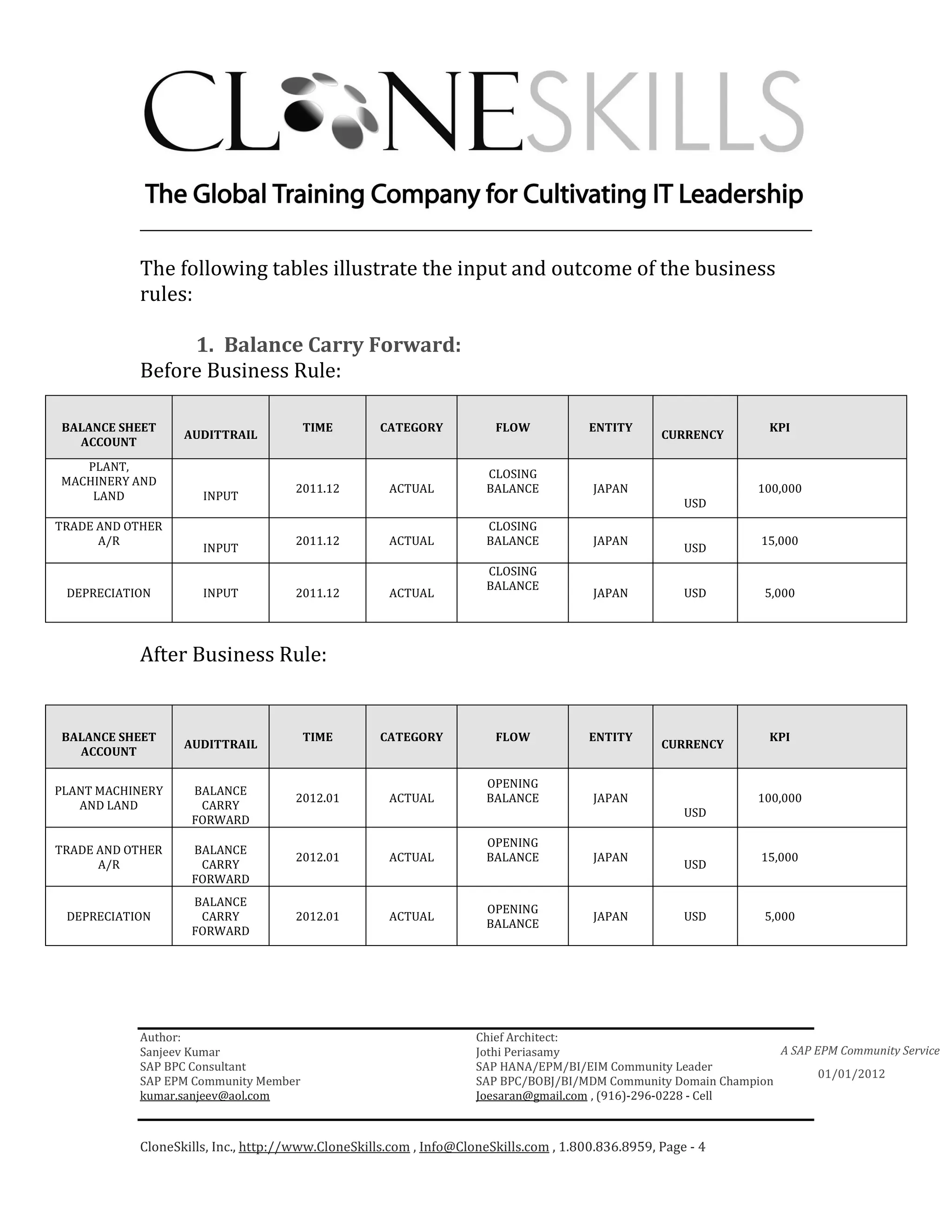
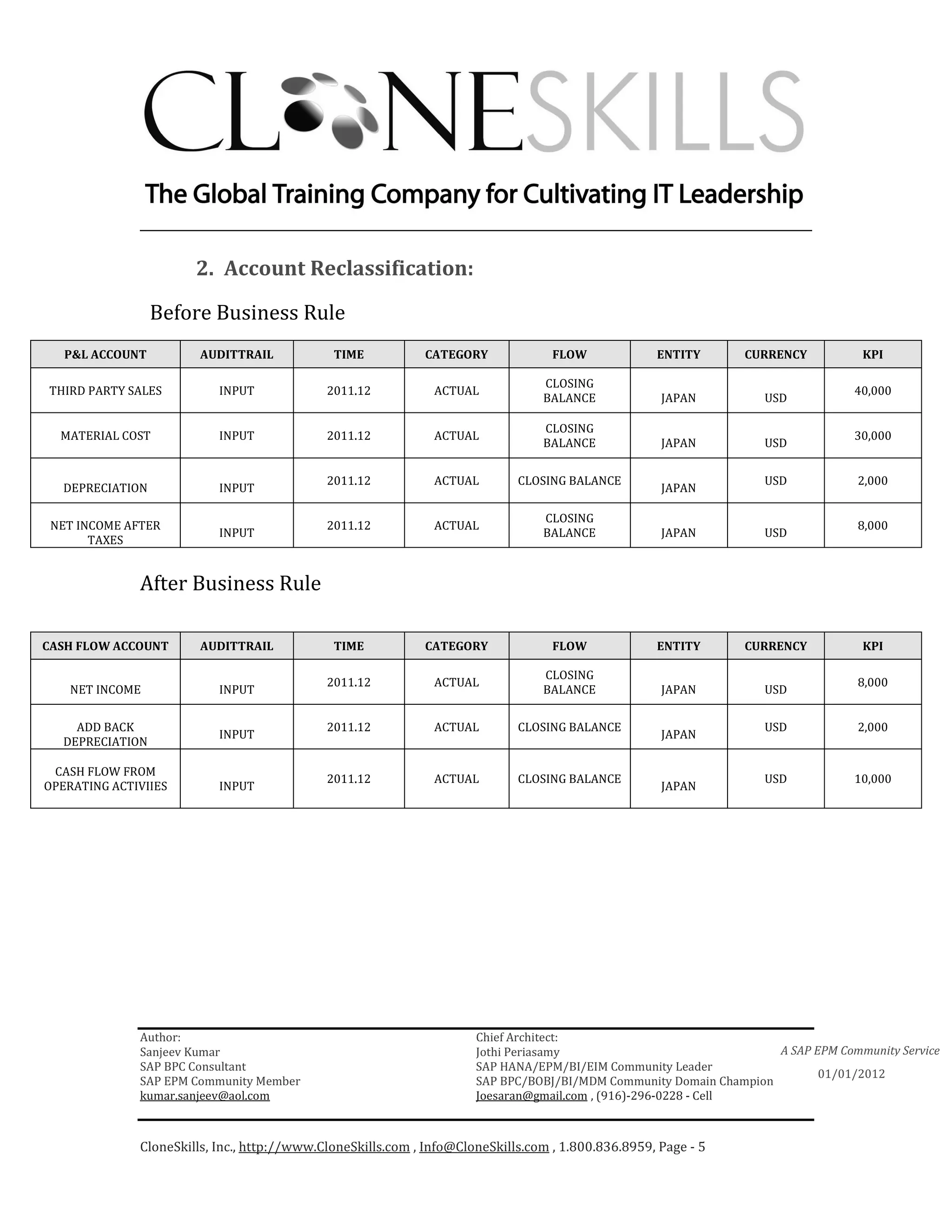
           The following tables illustrate the input and outcome of the business
           rules:

                1. Balance Carry Forward:
           Before Business Rule:

BALANCE SHEET                         TIME         CATEGORY           FLOW            ENTITY                     KPI
                  AUDITTRAIL                                                                      CURRENCY
  ACCOUNT
   PLANT,
                                                                     CLOSING
MACHINERY AND
                                     2011.12        ACTUAL           BALANCE           JAPAN                   100,000
    LAND             INPUT
                                                                                                      USD
TRADE AND OTHER                                                      CLOSING
      A/R                            2011.12        ACTUAL           BALANCE           JAPAN                   15,000
                     INPUT                                                                            USD
                                                                     CLOSING
                                                                     BALANCE
 DEPRECIATION        INPUT           2011.12        ACTUAL                             JAPAN          USD       5,000


           After Business Rule:


BALANCE SHEET                         TIME         CATEGORY           FLOW            ENTITY                     KPI
                  AUDITTRAIL                                                                      CURRENCY
  ACCOUNT

                                                                     OPENING
PLANT MACHINERY    BALANCE
                                     2012.01        ACTUAL           BALANCE           JAPAN                   100,000
   AND LAND         CARRY
                                                                                                      USD
                   FORWARD
                                                                     OPENING
TRADE AND OTHER    BALANCE
                                     2012.01        ACTUAL           BALANCE           JAPAN                   15,000
      A/R           CARRY                                                                             USD
                   FORWARD
                   BALANCE
                                                                     OPENING
 DEPRECIATION       CARRY            2012.01        ACTUAL                             JAPAN          USD       5,000
                                                                     BALANCE
                   FORWARD


           Author:                                                 Chief Architect:
           Sanjeev Kumar                                           Jothi Periasamy                               A SAP EPM Community Service
           SAP BPC Consultant                                      SAP HANA/EPM/BI/EIM Community Leader
                                                                                                                        01/01/2012
           SAP EPM Community Member                                SAP BPC/BOBJ/BI/MDM Community Domain Champion
           kumar.sanjeev@aol.com                                   Joesaran@gmail.com , (916)-296-0228 - Cell


           CloneSkills, Inc., http://www.CloneSkills.com , Info@CloneSkills.com , 1.800.836.8959, Page - 4
________________________________________________________________________

                       2. Account Reclassification:

                 Before Business Rule
   P&L ACCOUNT          AUDITTRAIL            TIME           CATEGORY              FLOW             ENTITY      CURRENCY          KPI

                                                                                 CLOSING
THIRD PARTY SALES          INPUT             2011.12           ACTUAL                                                            40,000
                                                                                 BALANCE             JAPAN         USD

                                                                                 CLOSING
  MATERIAL COST            INPUT             2011.12           ACTUAL                                                            30,000
                                                                                 BALANCE             JAPAN         USD


                                             2011.12           ACTUAL        CLOSING BALANCE                       USD            2,000
  DEPRECIATION             INPUT                                                                     JAPAN

                                                                                 CLOSING
 NET INCOME AFTER                            2011.12           ACTUAL                                                             8,000
                           INPUT                                                 BALANCE             JAPAN         USD
       TAXES


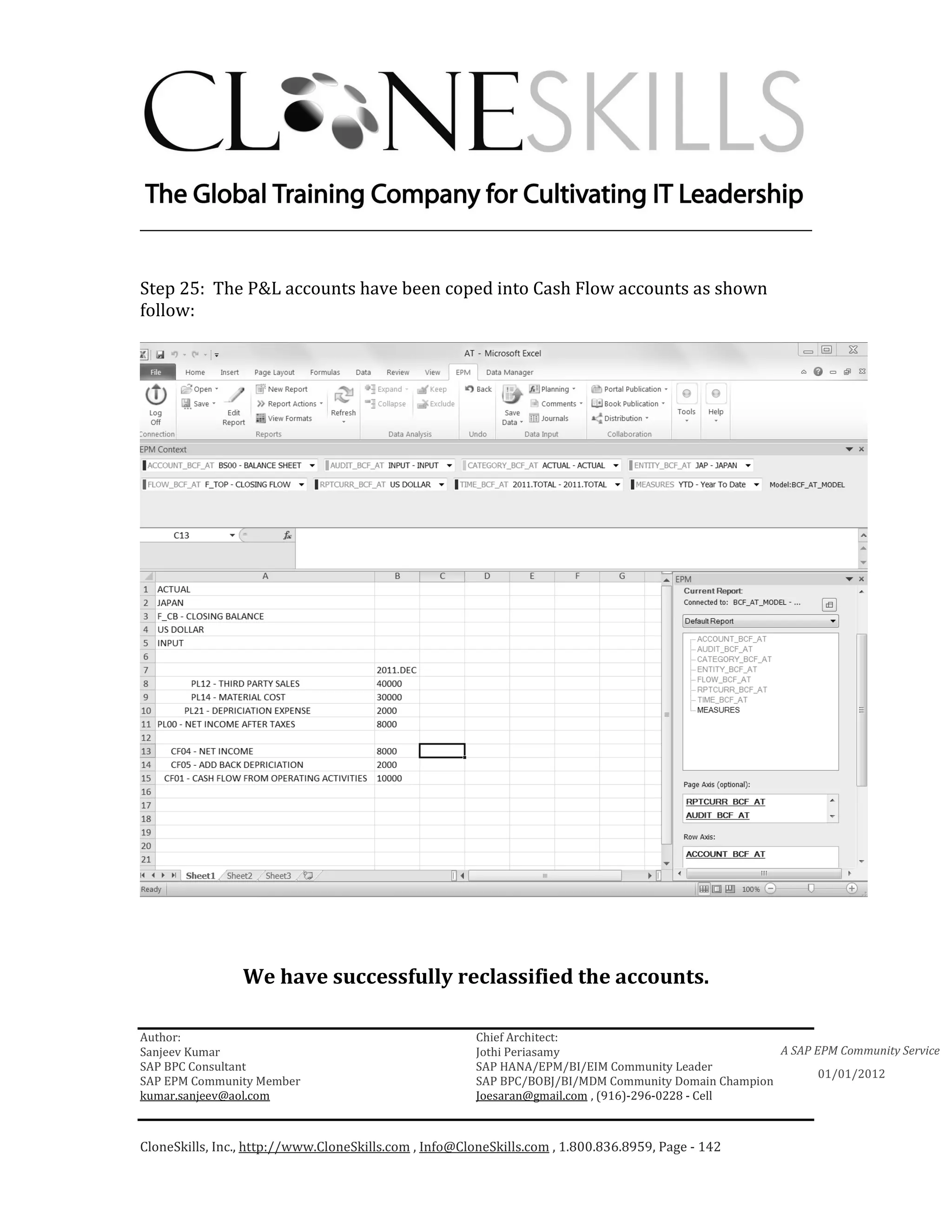
              After Business Rule

CASH FLOW ACCOUNT       AUDITTRAIL            TIME           CATEGORY              FLOW             ENTITY      CURRENCY          KPI

                                                                                 CLOSING
                                             2011.12           ACTUAL                                                             8,000
    NET INCOME             INPUT                                                 BALANCE             JAPAN         USD


    ADD BACK                                 2011.12           ACTUAL        CLOSING BALANCE                       USD            2,000
                           INPUT                                                                     JAPAN
  DEPRECIATION

 CASH FLOW FROM
                                             2011.12           ACTUAL        CLOSING BALANCE                       USD           10,000
OPERATING ACTIVIIES        INPUT                                                                     JAPAN


              Author:                                                 Chief Architect:
              Sanjeev Kumar                                           Jothi Periasamy                               A SAP EPM Community Service
              SAP BPC Consultant                                      SAP HANA/EPM/BI/EIM Community Leader
                                                                                                                           01/01/2012
              SAP EPM Community Member                                SAP BPC/BOBJ/BI/MDM Community Domain Champion
              kumar.sanjeev@aol.com                                   Joesaran@gmail.com , (916)-296-0228 - Cell


              CloneSkills, Inc., http://www.CloneSkills.com , Info@CloneSkills.com , 1.800.836.8959, Page - 5
________________________________________________________________________


Business Scenario:

Balance Carry Forward: The closing balance of one year will normally equal the
opening balance of the following year. Therefore, the first task for a new fiscal year
is to carry forward the balance from the previous year. In general, the purpose of
balance carry forward is to:

    •    Create opening balances in the new fiscal year
    •    Assign current year retained earnings to prior year retained earnings
    •    Roll up prior year values into new year opening balances if necessary


Account Reclassification: Account transformation rule enables us to reclassify the
data or records. This business rule is used to calculate cash flow and perform other
realignments of data. That is why this rule is also called account transformation. In
general the purpose of this rule in general to:

    •    Perform cash flow calculations
    •    Calculate annual net income and post it to retained earnings
    •    Book subsidiary finished goods into corporate work in process inventory
    •    Realign any other data or records as per the business requirements


Author:                                                 Chief Architect:
Sanjeev Kumar                                           Jothi Periasamy                               A SAP EPM Community Service
SAP BPC Consultant                                      SAP HANA/EPM/BI/EIM Community Leader
                                                                                                             01/01/2012
SAP EPM Community Member                                SAP BPC/BOBJ/BI/MDM Community Domain Champion
kumar.sanjeev@aol.com                                   Joesaran@gmail.com , (916)-296-0228 - Cell


CloneSkills, Inc., http://www.CloneSkills.com , Info@CloneSkills.com , 1.800.836.8959, Page - 6
________________________________________________________________________

Solution Building Blocks for BCF and Account
Reclassification:
    •    Data
    •    Model
    •    Dimensions
    •    Properties
    •    Business Rule Table
    •    Logic
    •    Data Manager
    •    Report
Model: Finance or Consolidation
(Standard model does not support business rules)
Dimensions: Following are the required dimensions
Dimension Name                     Dimension Type
ACCOUNT_BCF_AT                     A – Account
AUDIT_BCF_AT                       D – Audit
CATEGORY_BCF_AT                    C – Category
ENTITY_BCF_AT                      E – Entity
FLOW_BCF_AT                        S – Subtables
RPTCURR_BCF_AT                     R – Currency
TIME_BCF_AT                        T – Time
We also require a rate model with the following dimensions:
Dimension Name                     Dimension Type
ACCOUNT_EX_RATE                    A – Account
CATEGORY_BCF_AT                    C – Category
ENTITY_EX_RATE                     E – Entity
INPTCURR_EX_RATE                   R – Currency
TIME_BCF_AT                        T – Time
It is important to note that the Category and Time dimensions should be the same in both of
these models.


Author:                                                 Chief Architect:
Sanjeev Kumar                                           Jothi Periasamy                               A SAP EPM Community Service
SAP BPC Consultant                                      SAP HANA/EPM/BI/EIM Community Leader
                                                                                                             01/01/2012
SAP EPM Community Member                                SAP BPC/BOBJ/BI/MDM Community Domain Champion
kumar.sanjeev@aol.com                                   Joesaran@gmail.com , (916)-296-0228 - Cell


CloneSkills, Inc., http://www.CloneSkills.com , Info@CloneSkills.com , 1.800.836.8959, Page - 7
________________________________________________________________________


Supporting Properties: The properties are one of the most important
building blocks (for the BCF business rule). There is no required
property for the account reclassification business rule.

Supporting properties for the BCF are as follows:

Property ID                                              Dimension to Which It Belongs
FLOW_TYPE                                                S- Subtables
COPYOPENING                                              D-Audit
OPENING_DATASRC                                          D-Audit
DATASRC_TYPE                                             D-Audit
CATEGORY_FOR_OPE                                         C- Category
OPENING_YEAR                                             C- Category
OPENING_PERIOD                                           C- Category

FLOW_TYPE: This property identifies which FLOW member is
associated with the opening values and which one is associated with the
closing values. The relevant values for the property are: OPENING,
CLOSING and NONE.

COPYOPENING: This property is used to include or exclude an AUDIT
TRAIL member in the BCF process. The relevant values are: “Y” and “N”.
Y stands for YES and N stands for No.

OPENING_DATASRC: This property specifies the particular destination
DATA SOURCE (AUDIT TRAIL member) that the opening balances
should be written to. This property helps to map between opening and
closing data sources (or AUDIT TRAIL members). This property can take

Author:                                                 Chief Architect:
Sanjeev Kumar                                           Jothi Periasamy                               A SAP EPM Community Service
SAP BPC Consultant                                      SAP HANA/EPM/BI/EIM Community Leader
                                                                                                             01/01/2012
SAP EPM Community Member                                SAP BPC/BOBJ/BI/MDM Community Domain Champion
kumar.sanjeev@aol.com                                   Joesaran@gmail.com , (916)-296-0228 - Cell


CloneSkills, Inc., http://www.CloneSkills.com , Info@CloneSkills.com , 1.800.836.8959, Page - 8
________________________________________________________________________

any valid AUDIT TRAIL member ID. If left blank, the system will assume
that the source and destination AUDIT TRAIL members are the same.

DATASRC_TYPE: This property can take three values- “I” (Input), “M”
(Manual) and “A” (Automatic). The BCF process works only for those
AUDIT TRAIL members who have this property value flagged as I or M.
The consolidation process carries forward the automatic values by
default.

CATEGORY_FOR_OPE: This property specifies the CATEGORY from
which to copy the closing balances (to create the opening balances). If
left blank, the system will assume that the source and destination
categories are the same. This property is used when final closing
balances are not available at the opening period and an alternative
category (such as “ESTIMATE” for the “BUDGET”) is used for the
opening balances.

OPENING_PERIOD: This property specifies the YEAR from which to
copy the closing balances (to create the opening balances). This
property can take an absolute value such as 2011 or 2012 or an offset
value such as -2 or -1.The offset values are based on the offset from the
current year. If left blank the system assumes that the closing balances
are copied from the last year.

OPENING_PERIOD: This property specifies the PERIOD from which to
take the closing balances (to create the opening balances). This property
can take an absolute value such as FEBRUARY or MARCH or an offset
value such as -2 or -1.The offset values are based on the offset from the


Author:                                                 Chief Architect:
Sanjeev Kumar                                           Jothi Periasamy                               A SAP EPM Community Service
SAP BPC Consultant                                      SAP HANA/EPM/BI/EIM Community Leader
                                                                                                             01/01/2012
SAP EPM Community Member                                SAP BPC/BOBJ/BI/MDM Community Domain Champion
kumar.sanjeev@aol.com                                   Joesaran@gmail.com , (916)-296-0228 - Cell


CloneSkills, Inc., http://www.CloneSkills.com , Info@CloneSkills.com , 1.800.836.8959, Page - 9
________________________________________________________________________

last period in the prior year. If left blank the system assumes that the
closing balances are copied from the last period in the prior year.


Author:                                                 Chief Architect:
Sanjeev Kumar                                           Jothi Periasamy                               A SAP EPM Community Service
SAP BPC Consultant                                      SAP HANA/EPM/BI/EIM Community Leader
                                                                                                             01/01/2012
SAP EPM Community Member                                SAP BPC/BOBJ/BI/MDM Community Domain Champion
kumar.sanjeev@aol.com                                   Joesaran@gmail.com , (916)-296-0228 - Cell


CloneSkills, Inc., http://www.CloneSkills.com , Info@CloneSkills.com , 1.800.836.8959, Page - 10
________________________________________________________________________

Business Rule Table:
The business rule table controls the record selection process. The
record selection process is controlled by populating the source and
destination fields. Here we can select accounts that are to be moved, as
well as other dimension members associated with such accounts.

Business Rule Table for the Balance Carry Forward Process:


Source Account: This specifies the ACCOUNT member from which to
copy the closing balances (to create the opening balances). This could be
a base member, a parent member or a Dimlist property value.

Source Flow: This specifies the FLOW member from which to move the
closing balances (to create the opening balances). This could be a base
member, a parent member or a Dimlist property value.

Source Data Source: This specifies the AUDIT TRAIL member from
which to move the closing balances (to create the opening balances).
This could be a base member, a parent member, or a Dimlist property
value.


Author:                                                 Chief Architect:
Sanjeev Kumar                                           Jothi Periasamy                               A SAP EPM Community Service
SAP BPC Consultant                                      SAP HANA/EPM/BI/EIM Community Leader
                                                                                                             01/01/2012
SAP EPM Community Member                                SAP BPC/BOBJ/BI/MDM Community Domain Champion
kumar.sanjeev@aol.com                                   Joesaran@gmail.com , (916)-296-0228 - Cell


CloneSkills, Inc., http://www.CloneSkills.com , Info@CloneSkills.com , 1.800.836.8959, Page - 11
________________________________________________________________________

Destination Account: This specifies the ACCOUNT member where the
openings balances will be copied. This could be a base member or a
parent member. If left blank, the system will assume that the source and
destination account members are the same.

Destination Flow: This specifies the FLOW member where the
openings balances will be created. This could be a base member or a
parent member. If left blank, the system will assume that the source and
destination flow members are the same.

Destination Data Source: This specifies the AUDIT TRAIL member
where the openings balances will be copied. This could be a base
member or a parent member. If left blank, the system will assume that
the source and destination audit trail members are the same.

Reverse Sign: If checked, this will reverse the sign of the source value.
This is used when we have to reverse the opening balances for some
children who are selected automatically with a parent member. This
could also be used when the source and destination accounts have
different “Account Types”.

Data Source Type: This is to select the data source type to include “I”
(Input), “M” (Manual), or “A” (All).

Same Period: If checked, the closing balance period is the same as that
of the opening balance period. Otherwise the closing period will be the
last period of the prior year. The opening balance time is specified in the
data manager prompt.


Author:                                                 Chief Architect:
Sanjeev Kumar                                           Jothi Periasamy                               A SAP EPM Community Service
SAP BPC Consultant                                      SAP HANA/EPM/BI/EIM Community Leader
                                                                                                             01/01/2012
SAP EPM Community Member                                SAP BPC/BOBJ/BI/MDM Community Domain Champion
kumar.sanjeev@aol.com                                   Joesaran@gmail.com , (916)-296-0228 - Cell


CloneSkills, Inc., http://www.CloneSkills.com , Info@CloneSkills.com , 1.800.836.8959, Page - 12
________________________________________________________________________

Apply to YTD: This option is used in a periodic model to move/copy
YTD values.

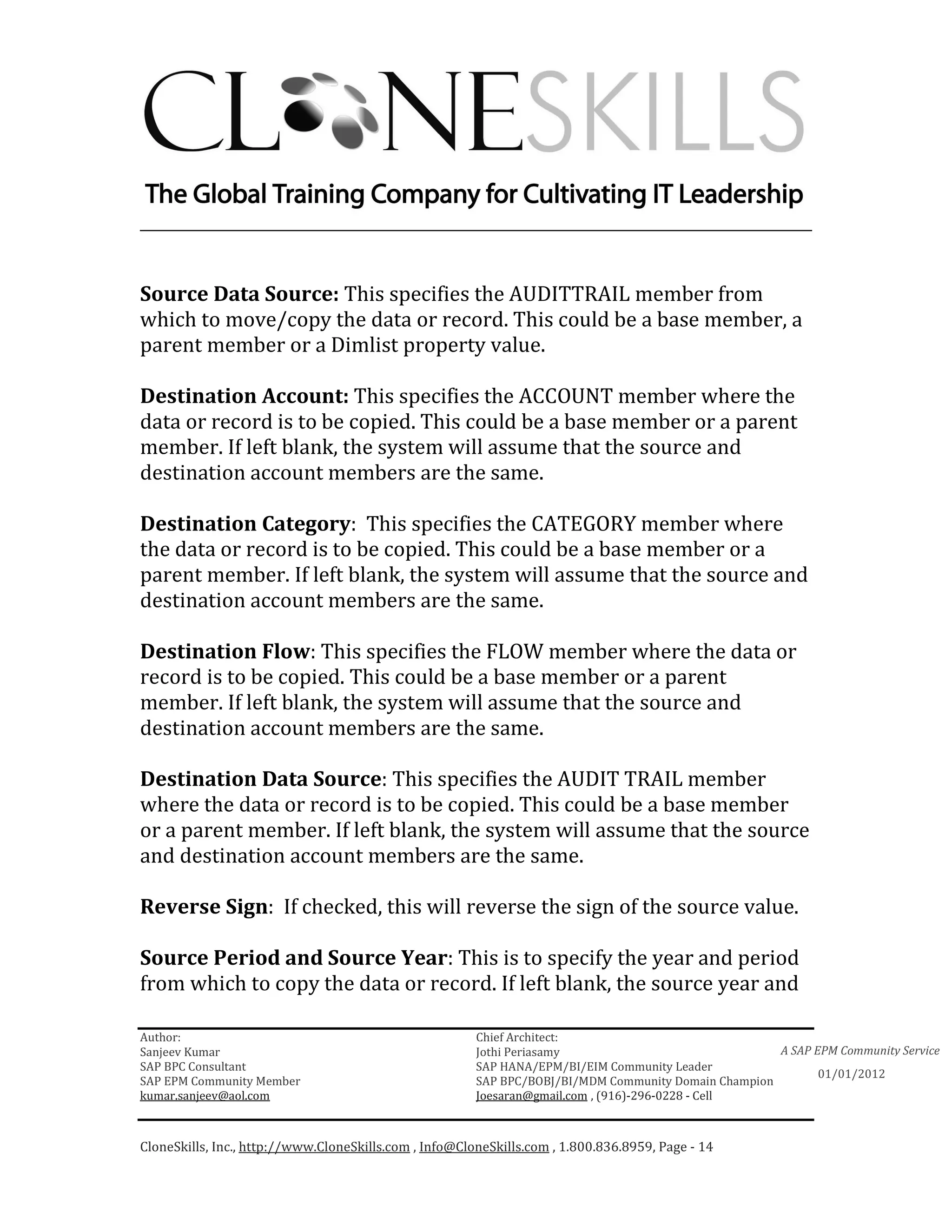
Business Rule Table for the Account Reclassification Process:

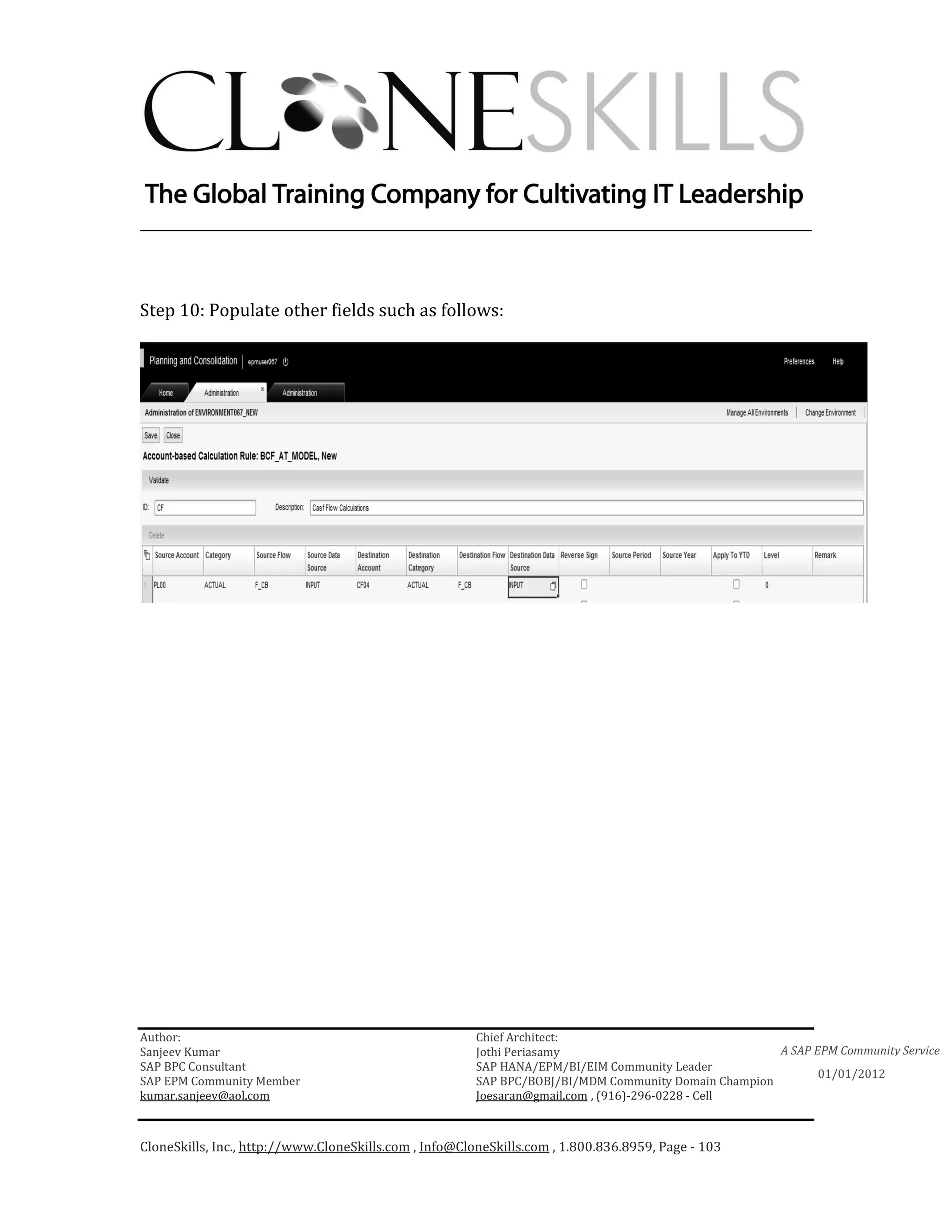
We can create multiple rules with different ID names under the account
reclassification business rule. These rules then are then called by
different logic files though the process chain remains the same. The
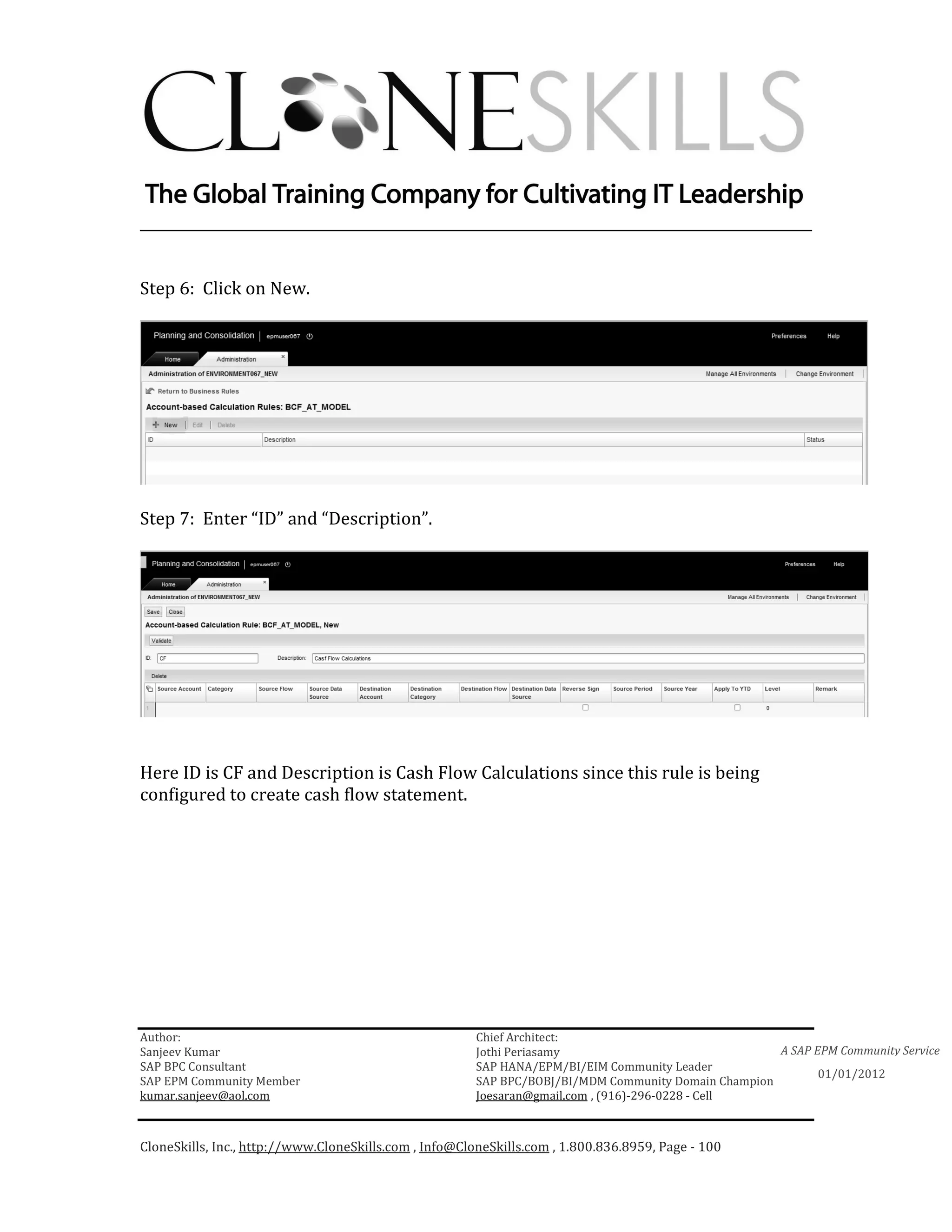
following rule with ID “CF” has been created to calculate the cash flows.


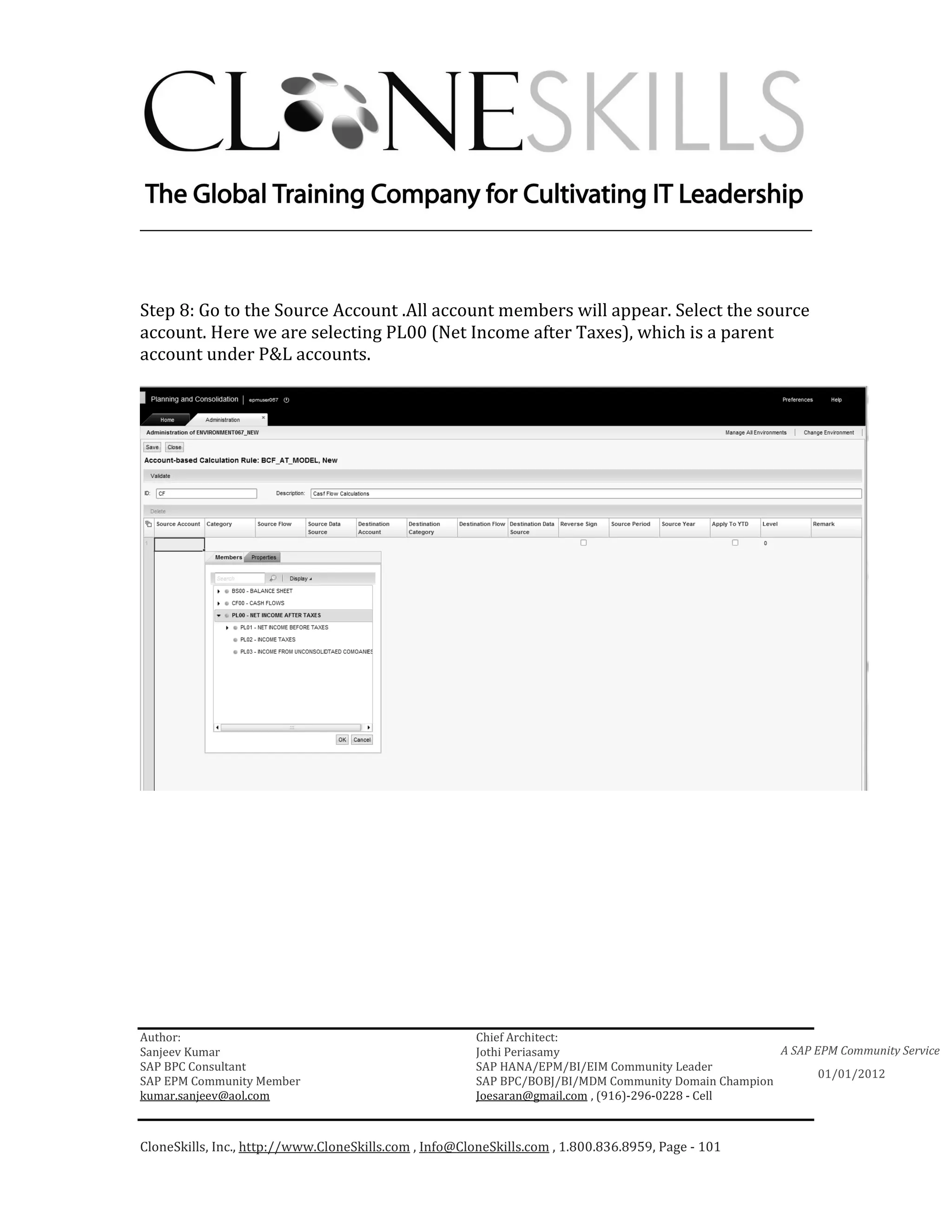
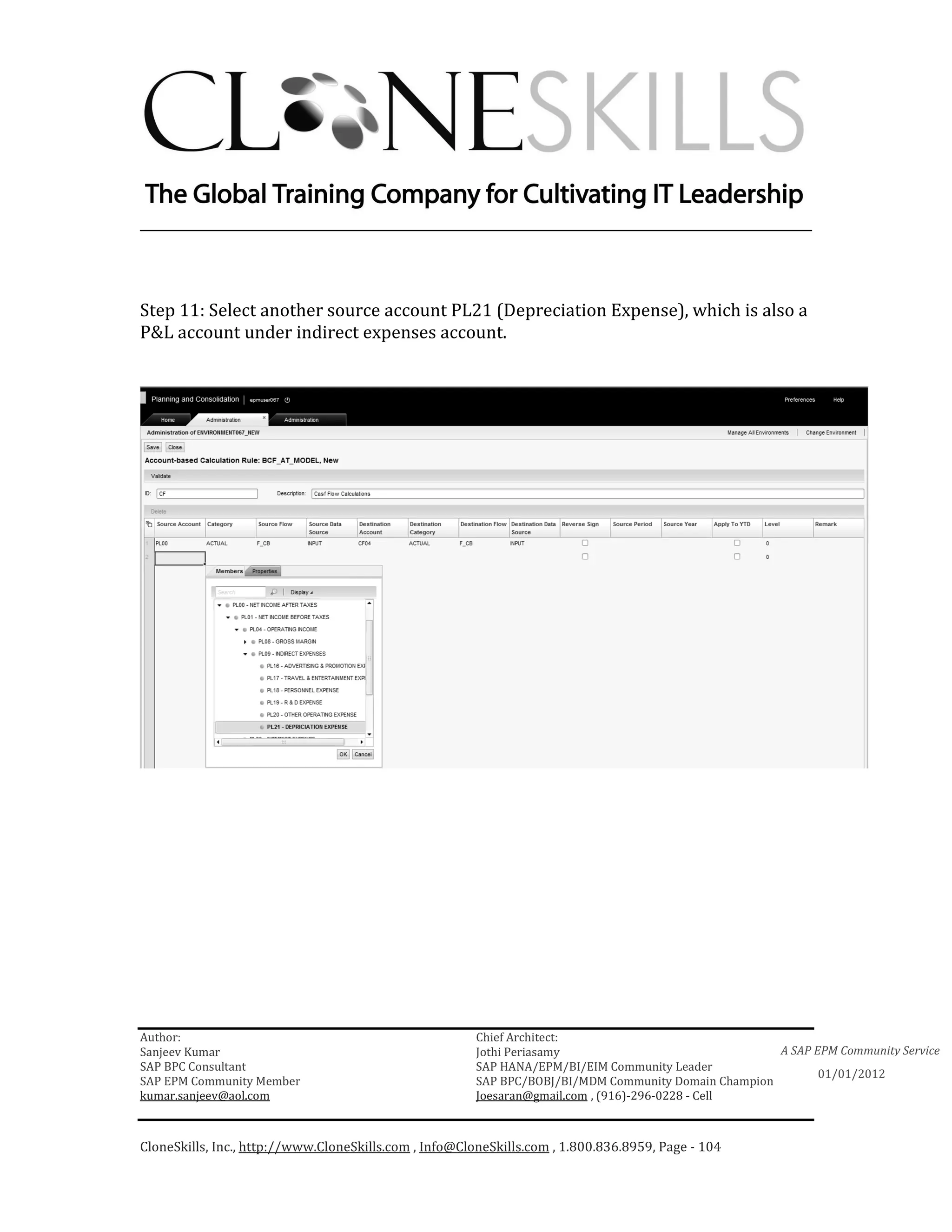
Source Account: This specifies the ACCOUNT member from which to
move/copy the data or record. This could be a base member, a parent
member or a Dimlist property value.

Category: This specifies the CATEGORY member from which to
move/copy the data or record. This could be a base member, a parent
member or a Dimlist property value.


Source Flow: This specifies the FLOW member from which to
move/copy the data or record. This could be a base member, a parent
member or a Dimlist property value.

Author:                                                 Chief Architect:
Sanjeev Kumar                                           Jothi Periasamy                               A SAP EPM Community Service
SAP BPC Consultant                                      SAP HANA/EPM/BI/EIM Community Leader
                                                                                                             01/01/2012
SAP EPM Community Member                                SAP BPC/BOBJ/BI/MDM Community Domain Champion
kumar.sanjeev@aol.com                                   Joesaran@gmail.com , (916)-296-0228 - Cell


CloneSkills, Inc., http://www.CloneSkills.com , Info@CloneSkills.com , 1.800.836.8959, Page - 13
________________________________________________________________________


Source Data Source: This specifies the AUDITTRAIL member from
which to move/copy the data or record. This could be a base member, a
parent member or a Dimlist property value.

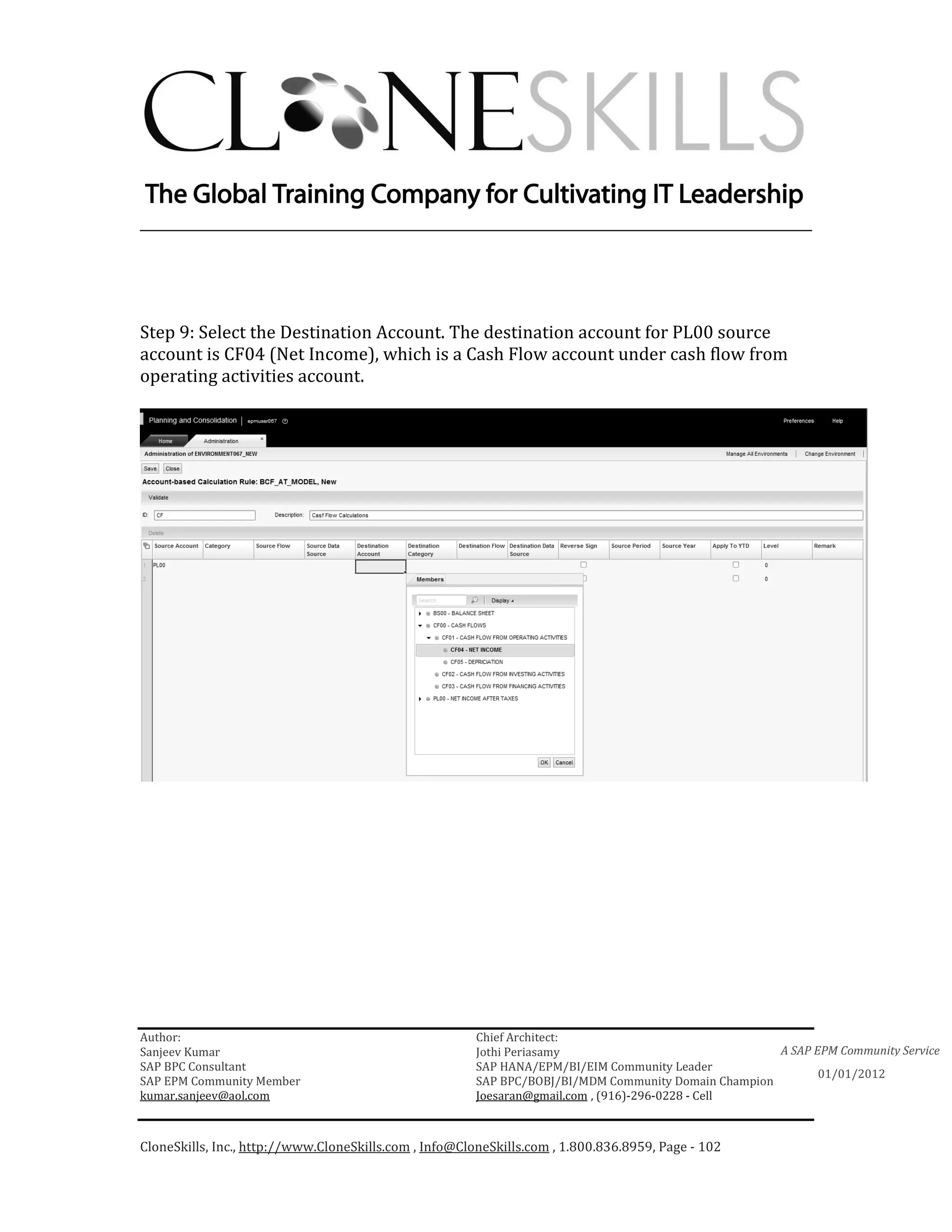
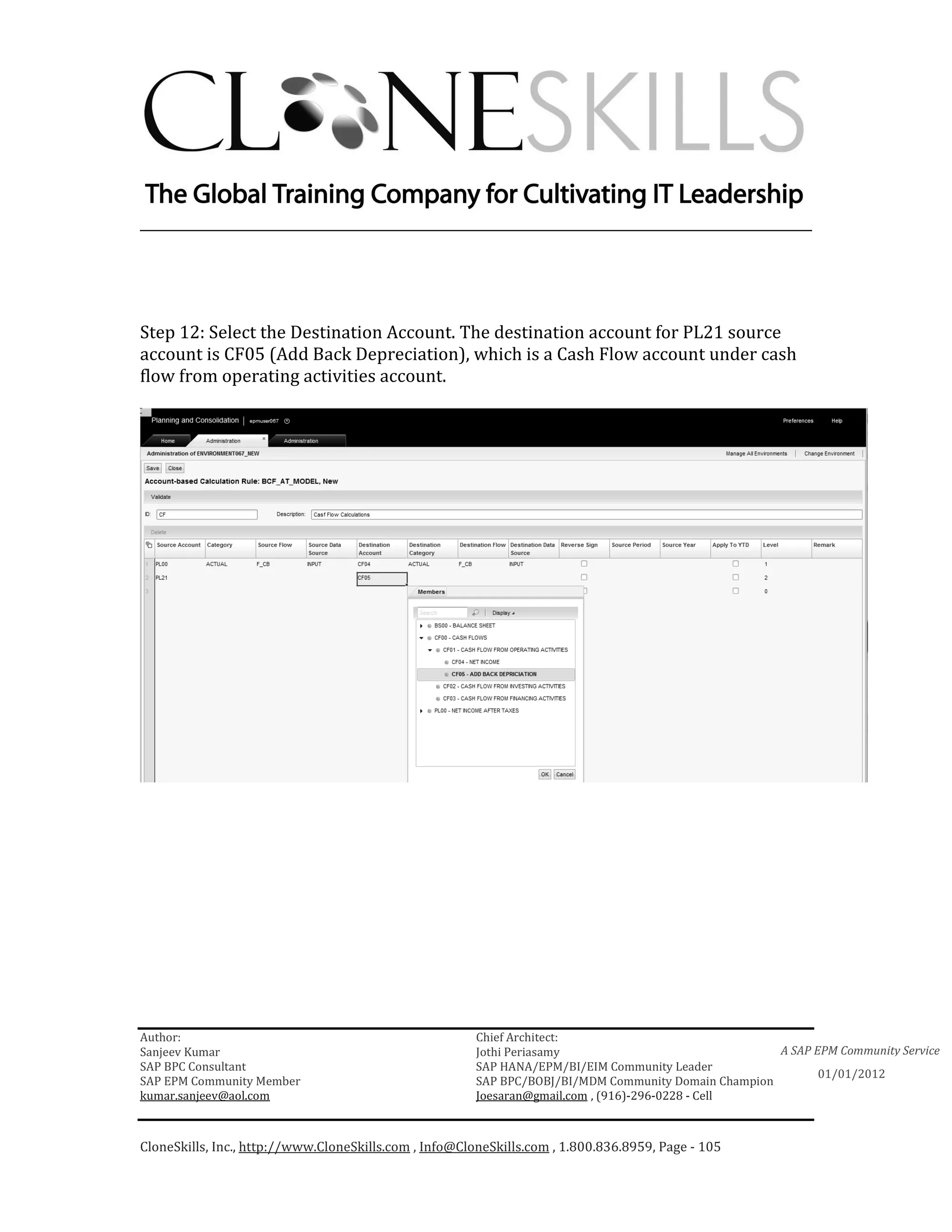
Destination Account: This specifies the ACCOUNT member where the
data or record is to be copied. This could be a base member or a parent
member. If left blank, the system will assume that the source and
destination account members are the same.

Destination Category: This specifies the CATEGORY member where
the data or record is to be copied. This could be a base member or a
parent member. If left blank, the system will assume that the source and
destination account members are the same.

Destination Flow: This specifies the FLOW member where the data or
record is to be copied. This could be a base member or a parent
member. If left blank, the system will assume that the source and
destination account members are the same.

Destination Data Source: This specifies the AUDIT TRAIL member
where the data or record is to be copied. This could be a base member
or a parent member. If left blank, the system will assume that the source
and destination account members are the same.

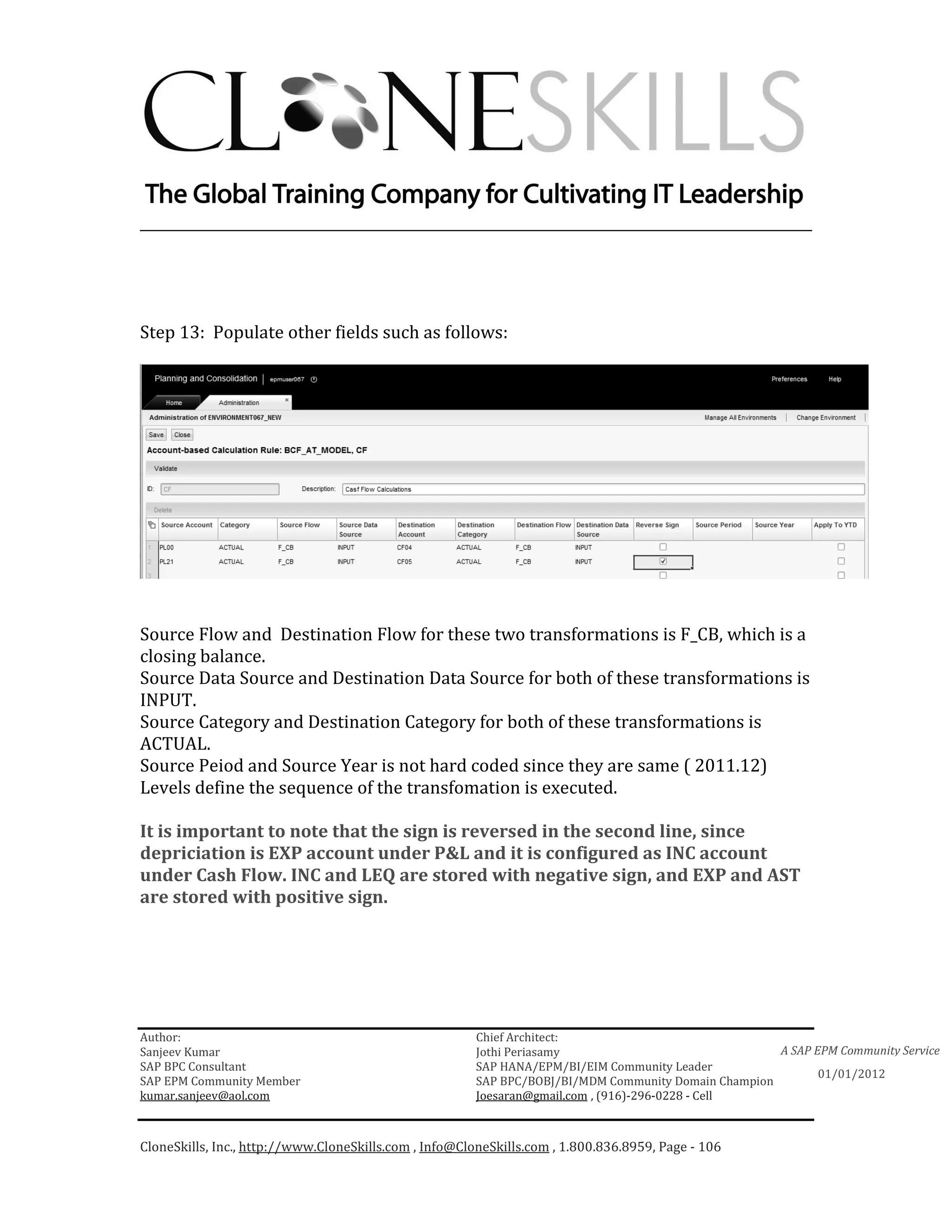
Reverse Sign: If checked, this will reverse the sign of the source value.

Source Period and Source Year: This is to specify the year and period
from which to copy the data or record. If left blank, the source year and

Author:                                                 Chief Architect:
Sanjeev Kumar                                           Jothi Periasamy                               A SAP EPM Community Service
SAP BPC Consultant                                      SAP HANA/EPM/BI/EIM Community Leader
                                                                                                             01/01/2012
SAP EPM Community Member                                SAP BPC/BOBJ/BI/MDM Community Domain Champion
kumar.sanjeev@aol.com                                   Joesaran@gmail.com , (916)-296-0228 - Cell


CloneSkills, Inc., http://www.CloneSkills.com , Info@CloneSkills.com , 1.800.836.8959, Page - 14
________________________________________________________________________

period is same as that of the destination year and period. Destination
time is specified in the data manager prompt.

Apply to YTD: This option is used in a periodic model to move/copy
YTD values.

Level: This controls the sequence of execution for each row.


Author:                                                 Chief Architect:
Sanjeev Kumar                                           Jothi Periasamy                               A SAP EPM Community Service
SAP BPC Consultant                                      SAP HANA/EPM/BI/EIM Community Leader
                                                                                                             01/01/2012
SAP EPM Community Member                                SAP BPC/BOBJ/BI/MDM Community Domain Champion
kumar.sanjeev@aol.com                                   Joesaran@gmail.com , (916)-296-0228 - Cell


CloneSkills, Inc., http://www.CloneSkills.com , Info@CloneSkills.com , 1.800.836.8959, Page - 15
________________________________________________________________________


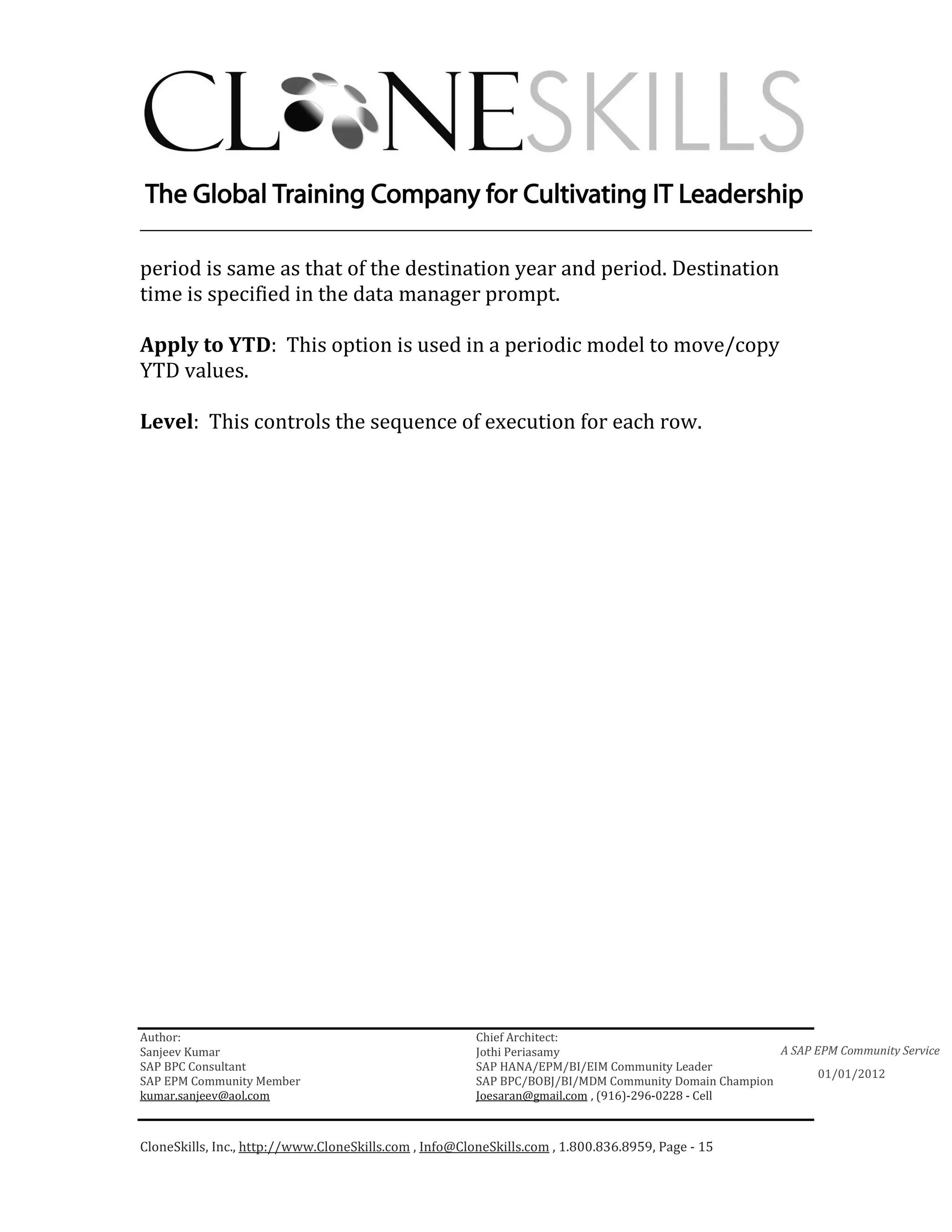
Logic and Data Manager:

                        Logic for Balance Carry Forward Process


The Data Manager uses the process chain /CPMB/OPENING_BALANCES
and executes the logic contained in the file COPYOPENING.LGF

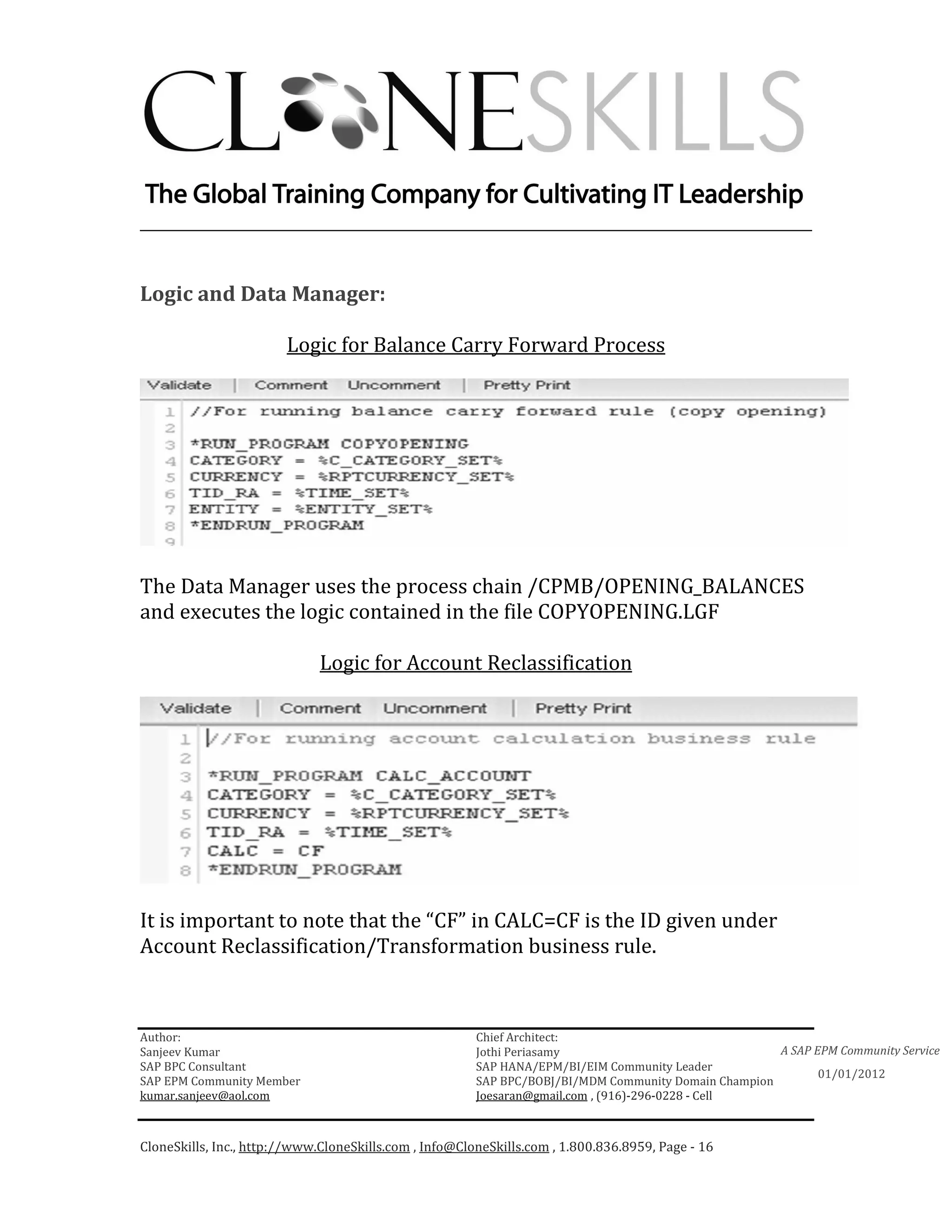
                              Logic for Account Reclassification


It is important to note that the “CF” in CALC=CF is the ID given under
Account Reclassification/Transformation business rule.


Author:                                                 Chief Architect:
Sanjeev Kumar                                           Jothi Periasamy                               A SAP EPM Community Service
SAP BPC Consultant                                      SAP HANA/EPM/BI/EIM Community Leader
                                                                                                             01/01/2012
SAP EPM Community Member                                SAP BPC/BOBJ/BI/MDM Community Domain Champion
kumar.sanjeev@aol.com                                   Joesaran@gmail.com , (916)-296-0228 - Cell


CloneSkills, Inc., http://www.CloneSkills.com , Info@CloneSkills.com , 1.800.836.8959, Page - 16
________________________________________________________________________

The Data Manager uses the process chain /CPMB/RUNCALCACCOUNT
and executes the logic contained in the file CALC_ACCOUNT.LGF


Report: We will look at the reports later when we will run the business
rules.


Author:                                                 Chief Architect:
Sanjeev Kumar                                           Jothi Periasamy                               A SAP EPM Community Service
SAP BPC Consultant                                      SAP HANA/EPM/BI/EIM Community Leader
                                                                                                             01/01/2012
SAP EPM Community Member                                SAP BPC/BOBJ/BI/MDM Community Domain Champion
kumar.sanjeev@aol.com                                   Joesaran@gmail.com , (916)-296-0228 - Cell


CloneSkills, Inc., http://www.CloneSkills.com , Info@CloneSkills.com , 1.800.836.8959, Page - 17
________________________________________________________________________


    Implementation Steps for BCF:


Step 1. Create Dim, Properties and populate dimensions.
Step2. Create Model and attach dimensions to the Model.
Step 3. Create Business Rule.
Step 4. Create a logic script to invoke the BCF and Account Transformation procedure.
Step 5. Configure Data Manager Package.
Step 6. Create Input Schedule and Load Data
Step 7. Execute Data Manager Package and Run Report


    Author:                                                 Chief Architect:
    Sanjeev Kumar                                           Jothi Periasamy                               A SAP EPM Community Service
    SAP BPC Consultant                                      SAP HANA/EPM/BI/EIM Community Leader
                                                                                                                 01/01/2012
    SAP EPM Community Member                                SAP BPC/BOBJ/BI/MDM Community Domain Champion
    kumar.sanjeev@aol.com                                   Joesaran@gmail.com , (916)-296-0228 - Cell


    CloneSkills, Inc., http://www.CloneSkills.com , Info@CloneSkills.com , 1.800.836.8959, Page - 18
________________________________________________________________________


Create and Populate Dimension for BCF Rule:
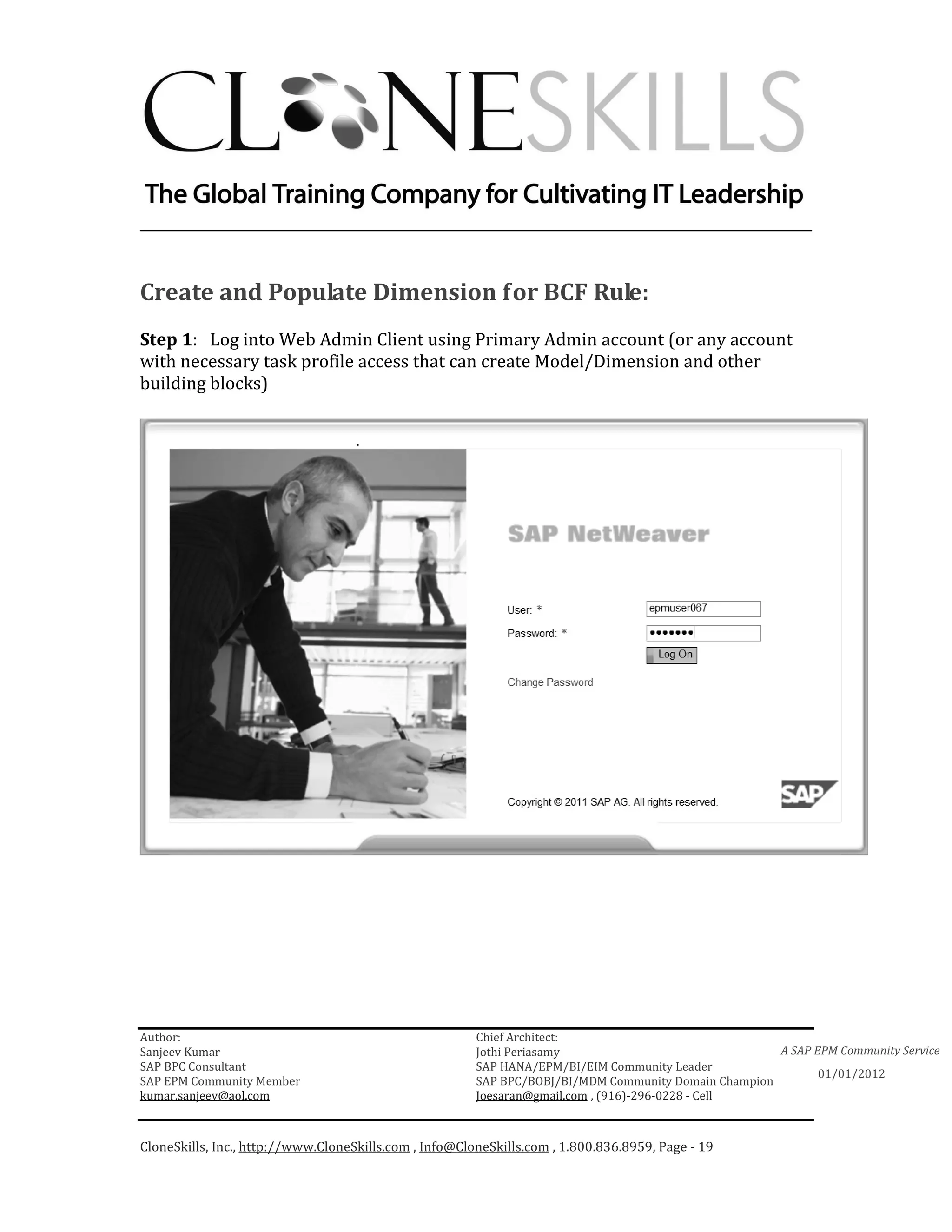
Step 1: Log into Web Admin Client using Primary Admin account (or any account
with necessary task profile access that can create Model/Dimension and other
building blocks)


Author:                                                 Chief Architect:
Sanjeev Kumar                                           Jothi Periasamy                               A SAP EPM Community Service
SAP BPC Consultant                                      SAP HANA/EPM/BI/EIM Community Leader
                                                                                                             01/01/2012
SAP EPM Community Member                                SAP BPC/BOBJ/BI/MDM Community Domain Champion
kumar.sanjeev@aol.com                                   Joesaran@gmail.com , (916)-296-0228 - Cell


CloneSkills, Inc., http://www.CloneSkills.com , Info@CloneSkills.com , 1.800.836.8959, Page - 19
________________________________________________________________________


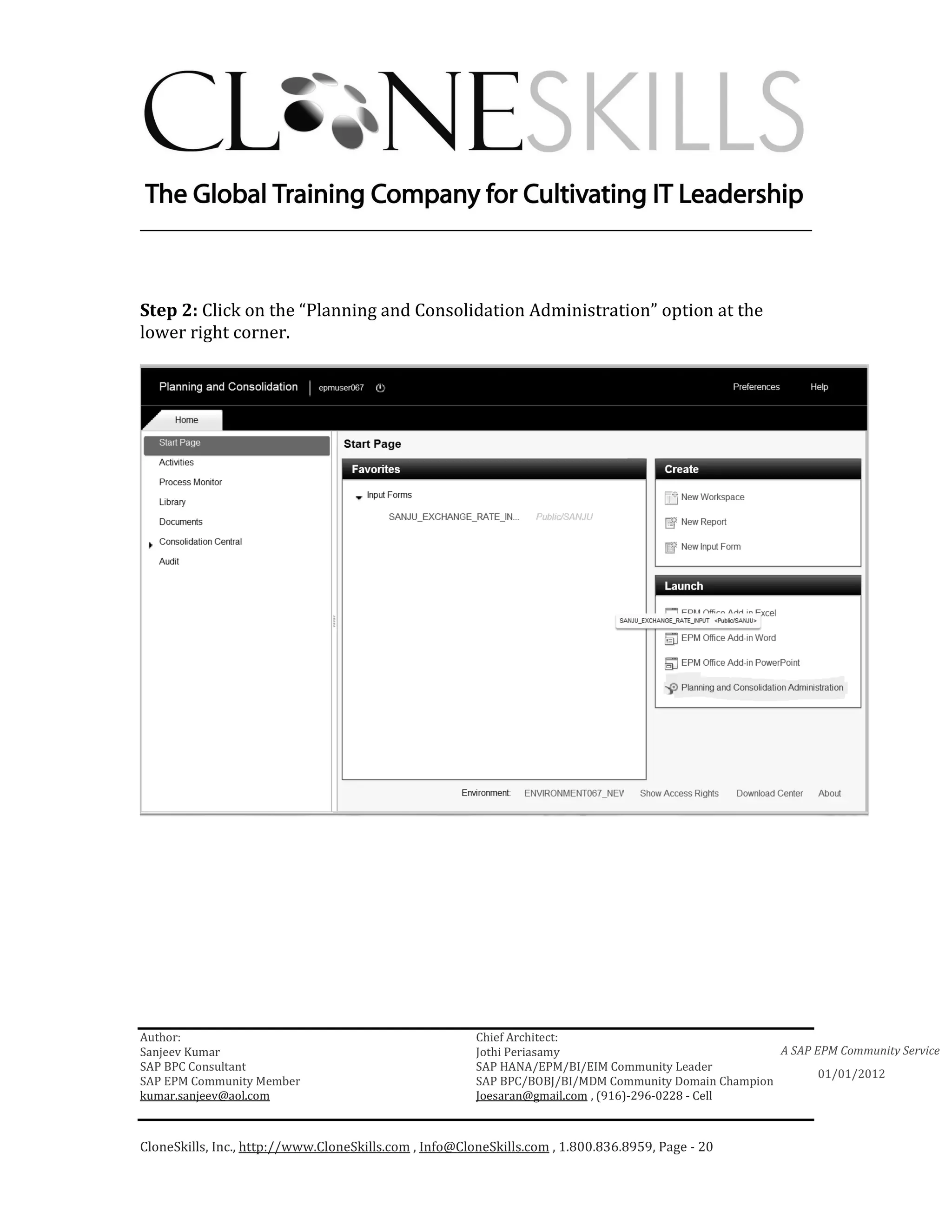
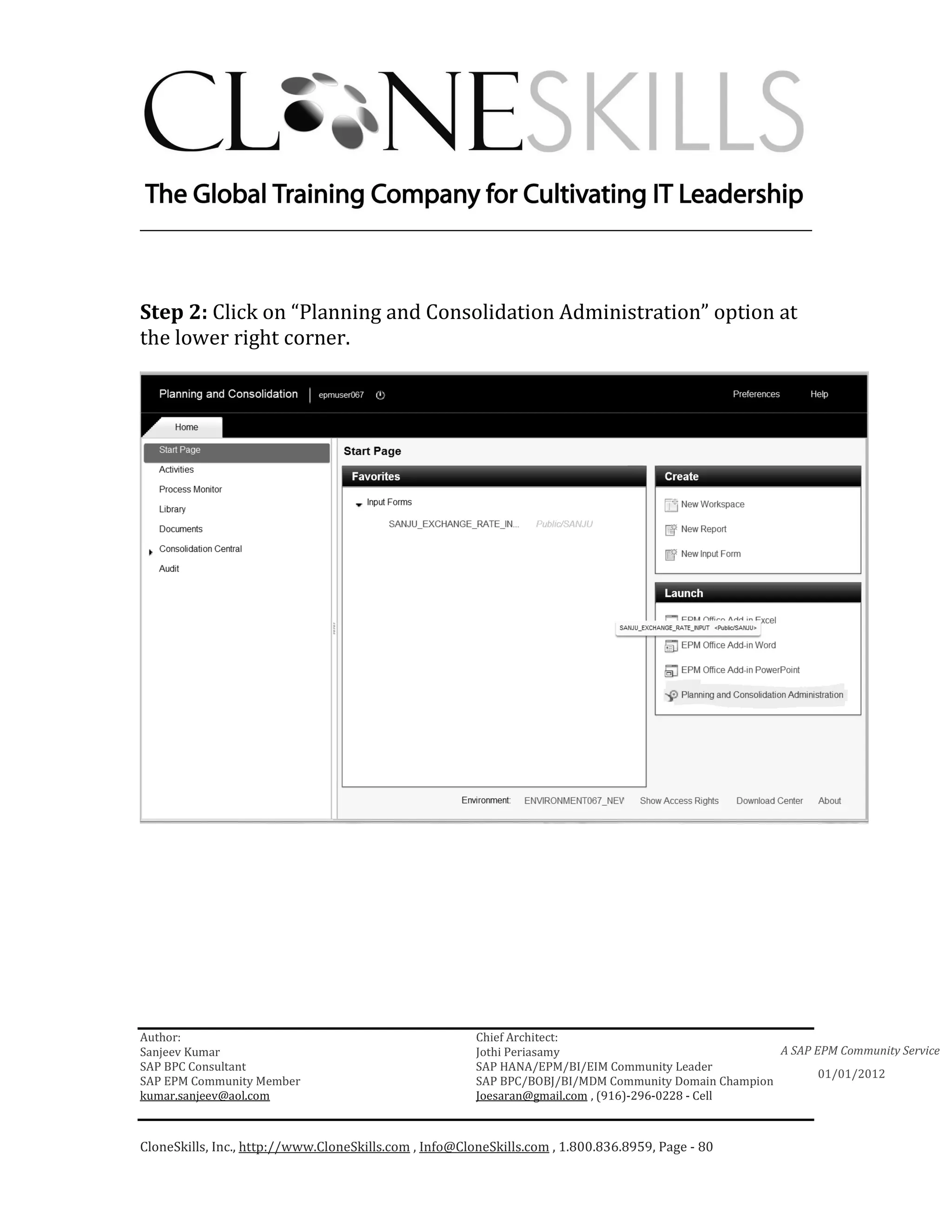
Step 2: Click on the “Planning and Consolidation Administration” option at the
lower right corner.


Author:                                                 Chief Architect:
Sanjeev Kumar                                           Jothi Periasamy                               A SAP EPM Community Service
SAP BPC Consultant                                      SAP HANA/EPM/BI/EIM Community Leader
                                                                                                             01/01/2012
SAP EPM Community Member                                SAP BPC/BOBJ/BI/MDM Community Domain Champion
kumar.sanjeev@aol.com                                   Joesaran@gmail.com , (916)-296-0228 - Cell


CloneSkills, Inc., http://www.CloneSkills.com , Info@CloneSkills.com , 1.800.836.8959, Page - 20
________________________________________________________________________


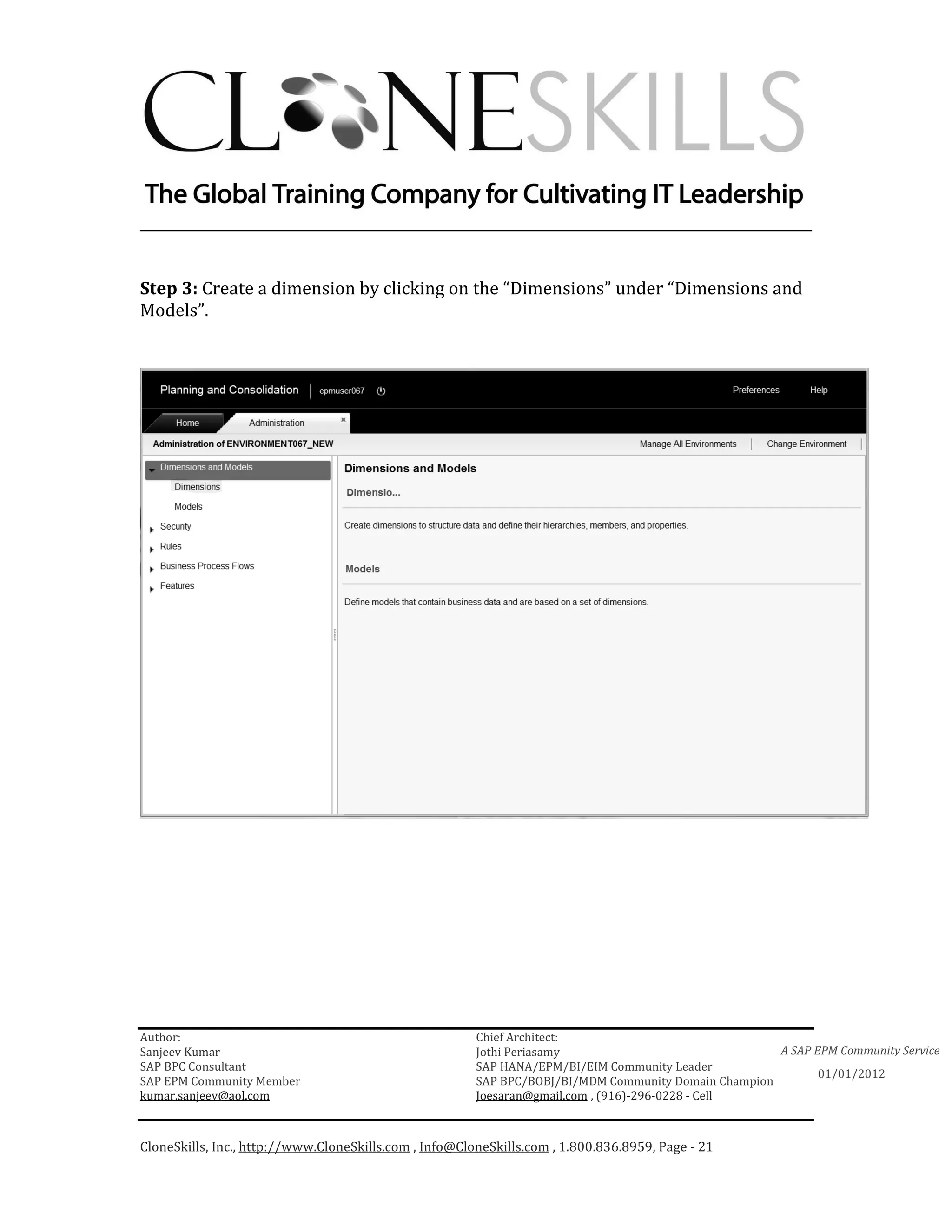
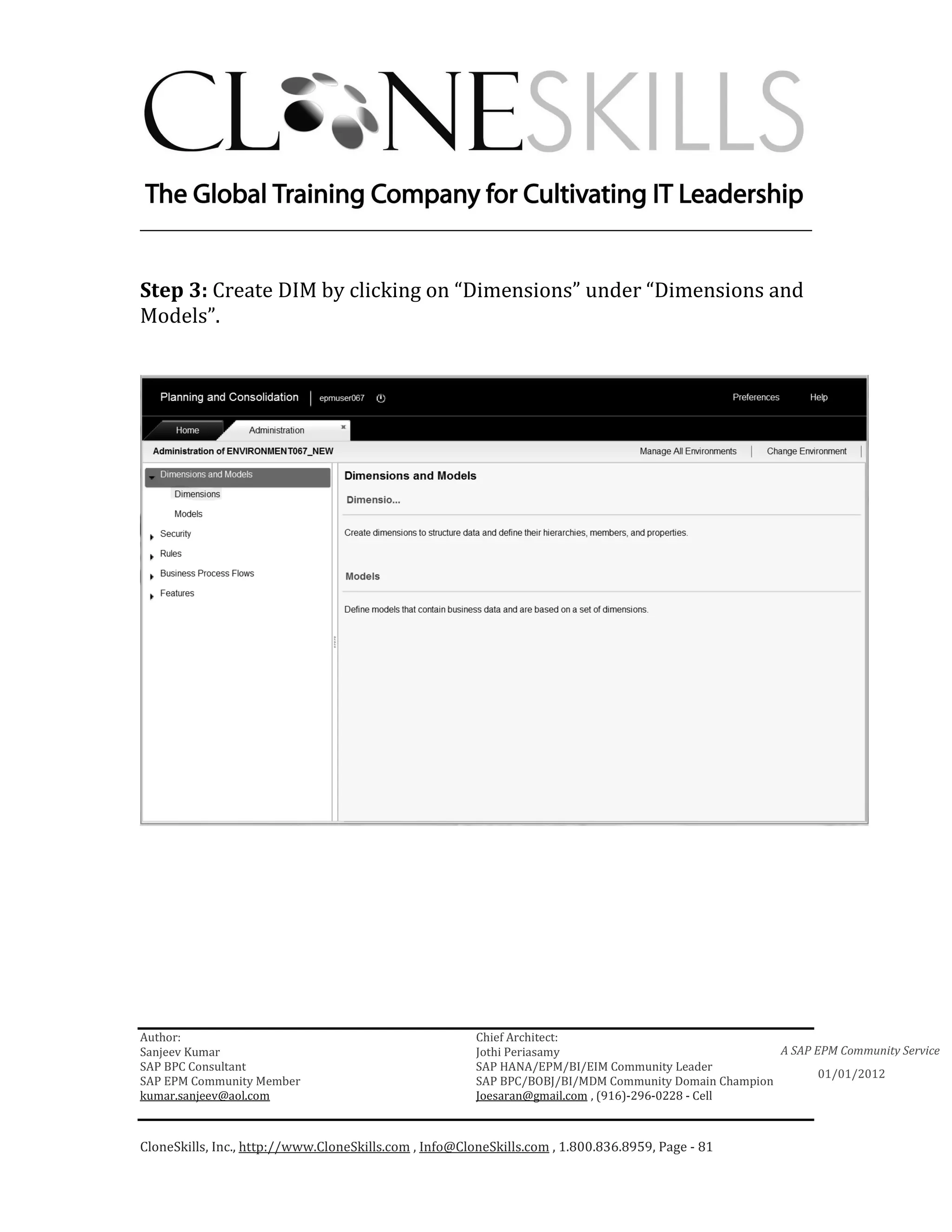
Step 3: Create a dimension by clicking on the “Dimensions” under “Dimensions and
Models”.


Author:                                                 Chief Architect:
Sanjeev Kumar                                           Jothi Periasamy                               A SAP EPM Community Service
SAP BPC Consultant                                      SAP HANA/EPM/BI/EIM Community Leader
                                                                                                             01/01/2012
SAP EPM Community Member                                SAP BPC/BOBJ/BI/MDM Community Domain Champion
kumar.sanjeev@aol.com                                   Joesaran@gmail.com , (916)-296-0228 - Cell


CloneSkills, Inc., http://www.CloneSkills.com , Info@CloneSkills.com , 1.800.836.8959, Page - 21
________________________________________________________________________

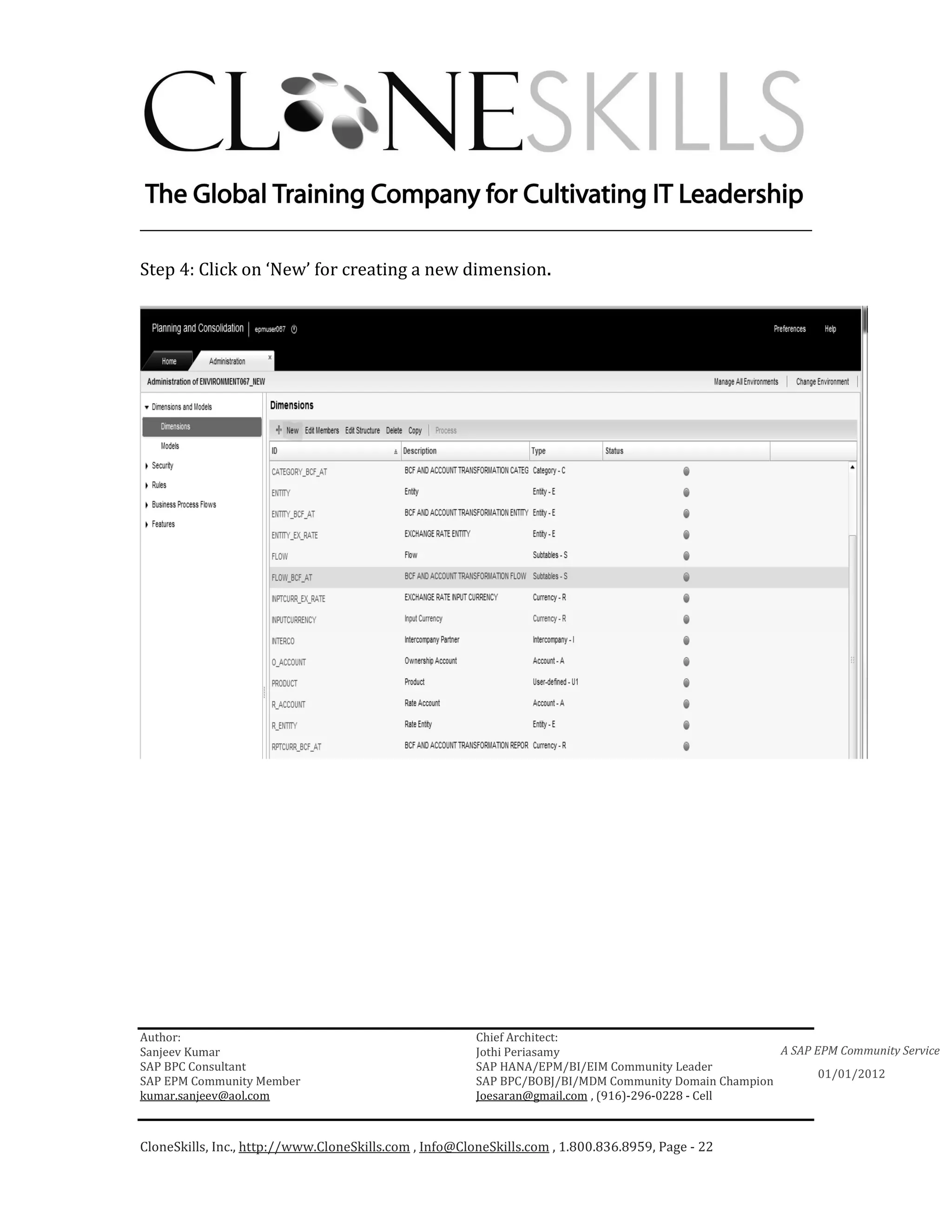
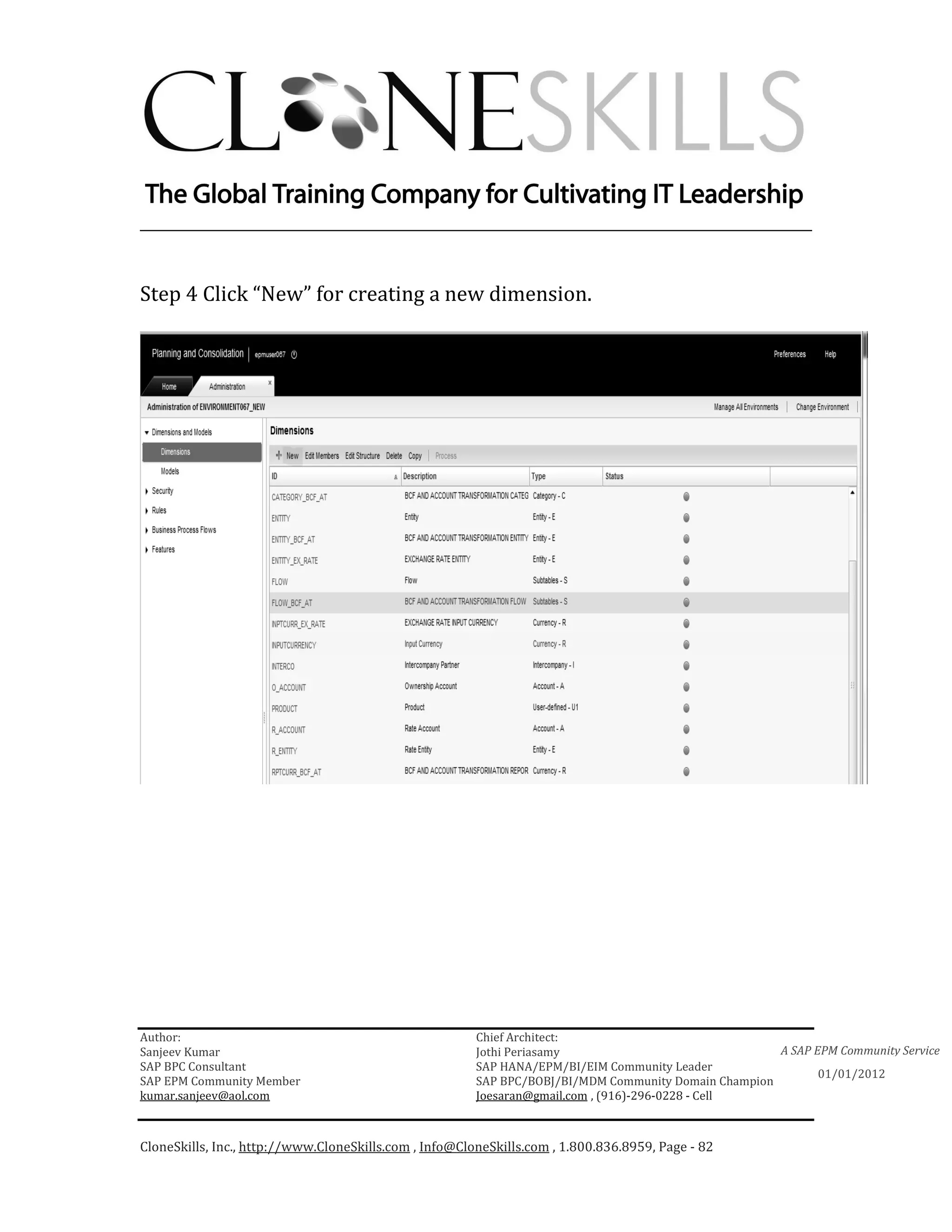
Step 4: Click on ‘New’ for creating a new dimension.


Author:                                                 Chief Architect:
Sanjeev Kumar                                           Jothi Periasamy                               A SAP EPM Community Service
SAP BPC Consultant                                      SAP HANA/EPM/BI/EIM Community Leader
                                                                                                             01/01/2012
SAP EPM Community Member                                SAP BPC/BOBJ/BI/MDM Community Domain Champion
kumar.sanjeev@aol.com                                   Joesaran@gmail.com , (916)-296-0228 - Cell


CloneSkills, Inc., http://www.CloneSkills.com , Info@CloneSkills.com , 1.800.836.8959, Page - 22
________________________________________________________________________


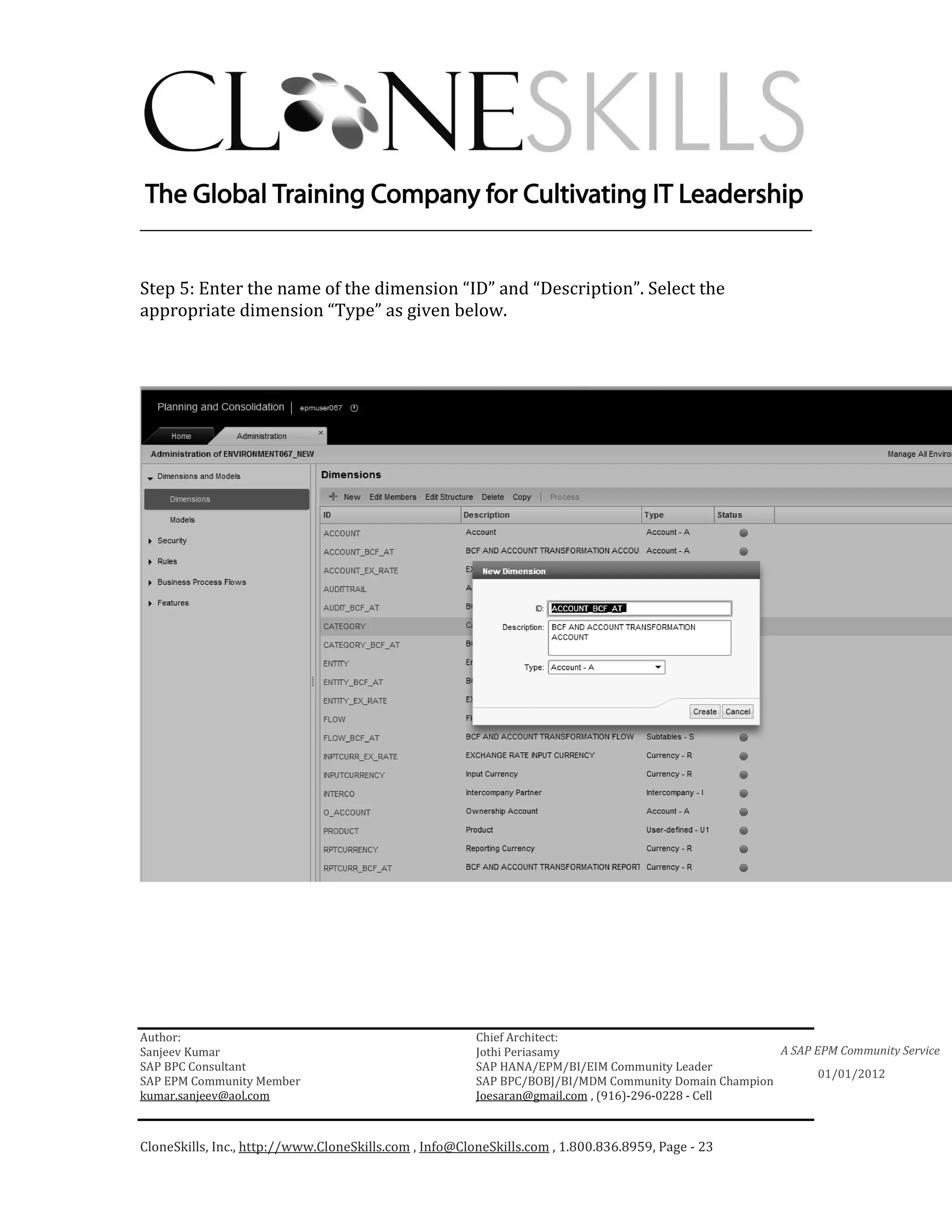
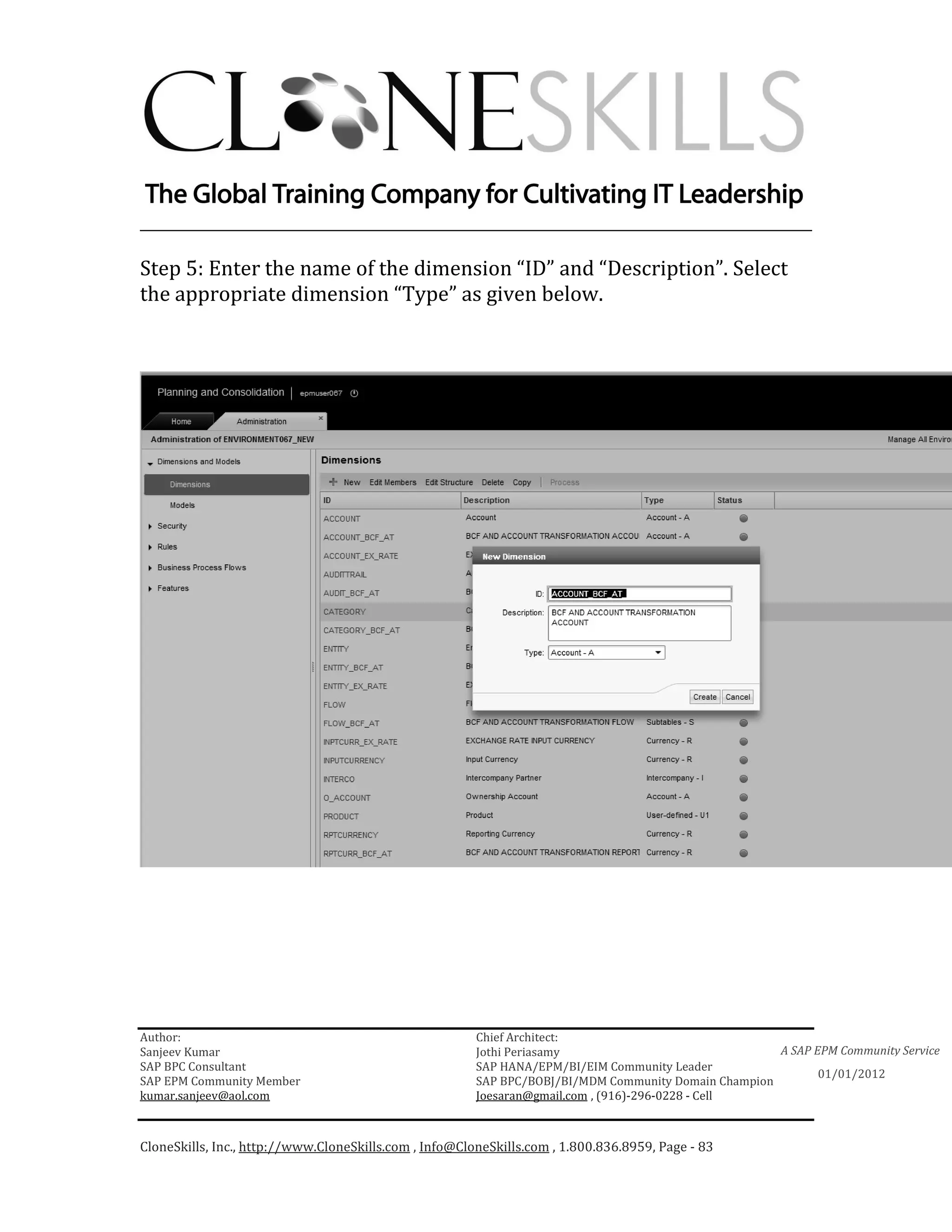
Step 5: Enter the name of the dimension “ID” and “Description”. Select the
appropriate dimension “Type” as given below.


Author:                                                 Chief Architect:
Sanjeev Kumar                                           Jothi Periasamy                               A SAP EPM Community Service
SAP BPC Consultant                                      SAP HANA/EPM/BI/EIM Community Leader
                                                                                                             01/01/2012
SAP EPM Community Member                                SAP BPC/BOBJ/BI/MDM Community Domain Champion
kumar.sanjeev@aol.com                                   Joesaran@gmail.com , (916)-296-0228 - Cell


CloneSkills, Inc., http://www.CloneSkills.com , Info@CloneSkills.com , 1.800.836.8959, Page - 23
________________________________________________________________________


Create the following dimension types:

ACCOUNT,
CATEGORY,
TIME,
ENTITY,
CURRENCY,
AUDIT,
SUBTABLES,

As mentioned earlier these are required dimensions for BCF.


Author:                                                 Chief Architect:
Sanjeev Kumar                                           Jothi Periasamy                               A SAP EPM Community Service
SAP BPC Consultant                                      SAP HANA/EPM/BI/EIM Community Leader
                                                                                                             01/01/2012
SAP EPM Community Member                                SAP BPC/BOBJ/BI/MDM Community Domain Champion
kumar.sanjeev@aol.com                                   Joesaran@gmail.com , (916)-296-0228 - Cell


CloneSkills, Inc., http://www.CloneSkills.com , Info@CloneSkills.com , 1.800.836.8959, Page - 24
________________________________________________________________________


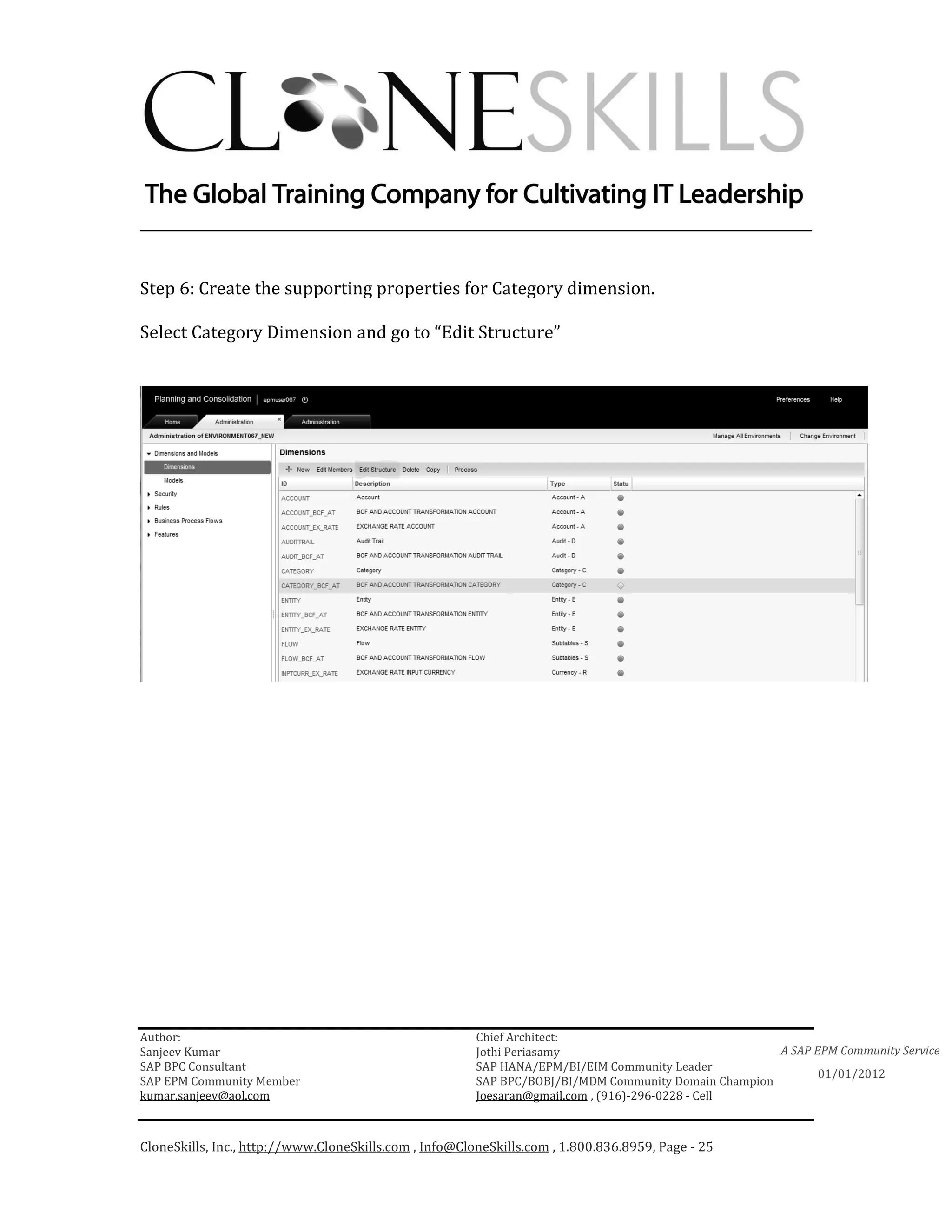
Step 6: Create the supporting properties for Category dimension.

Select Category Dimension and go to “Edit Structure”


Author:                                                 Chief Architect:
Sanjeev Kumar                                           Jothi Periasamy                               A SAP EPM Community Service
SAP BPC Consultant                                      SAP HANA/EPM/BI/EIM Community Leader
                                                                                                             01/01/2012
SAP EPM Community Member                                SAP BPC/BOBJ/BI/MDM Community Domain Champion
kumar.sanjeev@aol.com                                   Joesaran@gmail.com , (916)-296-0228 - Cell


CloneSkills, Inc., http://www.CloneSkills.com , Info@CloneSkills.com , 1.800.836.8959, Page - 25
________________________________________________________________________


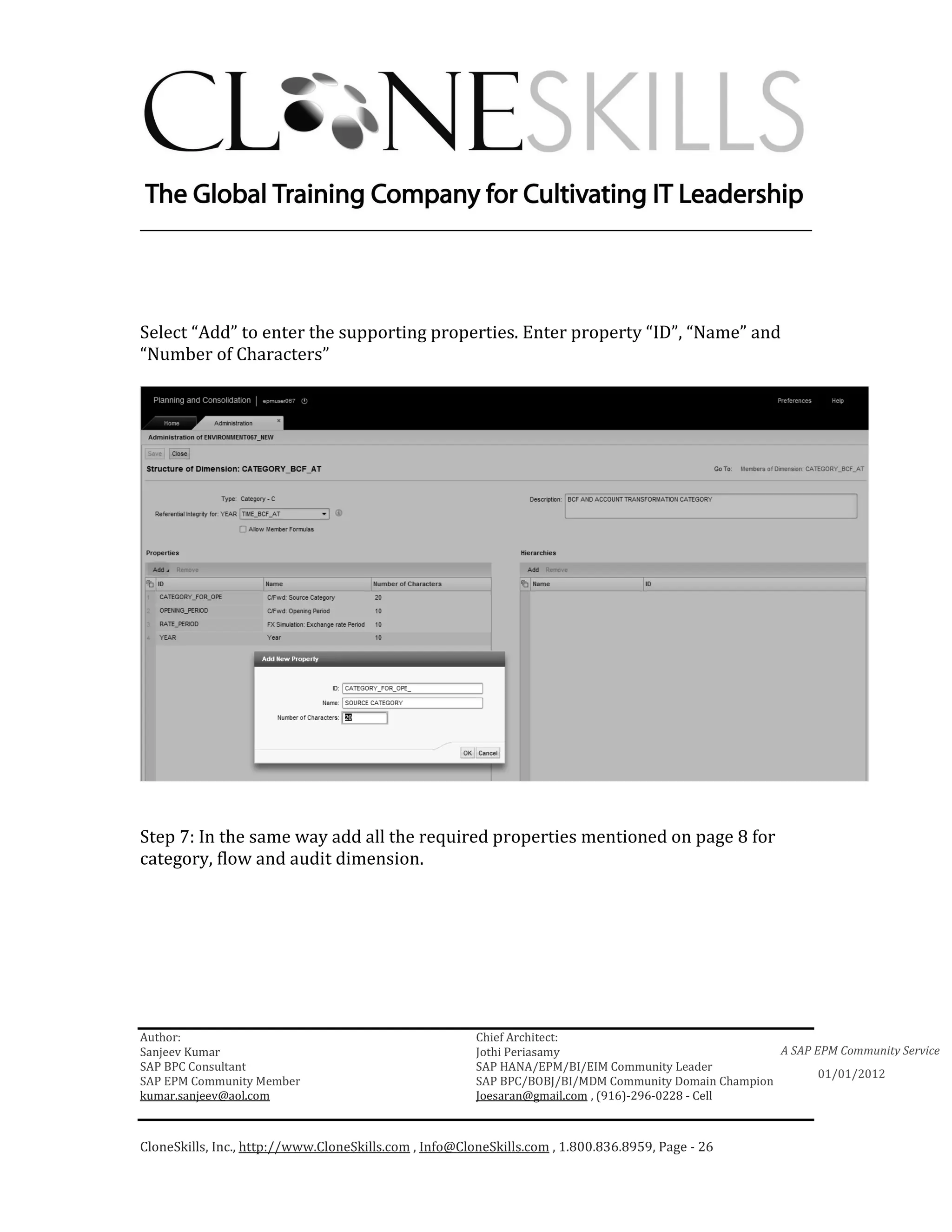
Select “Add” to enter the supporting properties. Enter property “ID”, “Name” and
“Number of Characters”


Step 7: In the same way add all the required properties mentioned on page 8 for
category, flow and audit dimension.


Author:                                                 Chief Architect:
Sanjeev Kumar                                           Jothi Periasamy                               A SAP EPM Community Service
SAP BPC Consultant                                      SAP HANA/EPM/BI/EIM Community Leader
                                                                                                             01/01/2012
SAP EPM Community Member                                SAP BPC/BOBJ/BI/MDM Community Domain Champion
kumar.sanjeev@aol.com                                   Joesaran@gmail.com , (916)-296-0228 - Cell


CloneSkills, Inc., http://www.CloneSkills.com , Info@CloneSkills.com , 1.800.836.8959, Page - 26
________________________________________________________________________


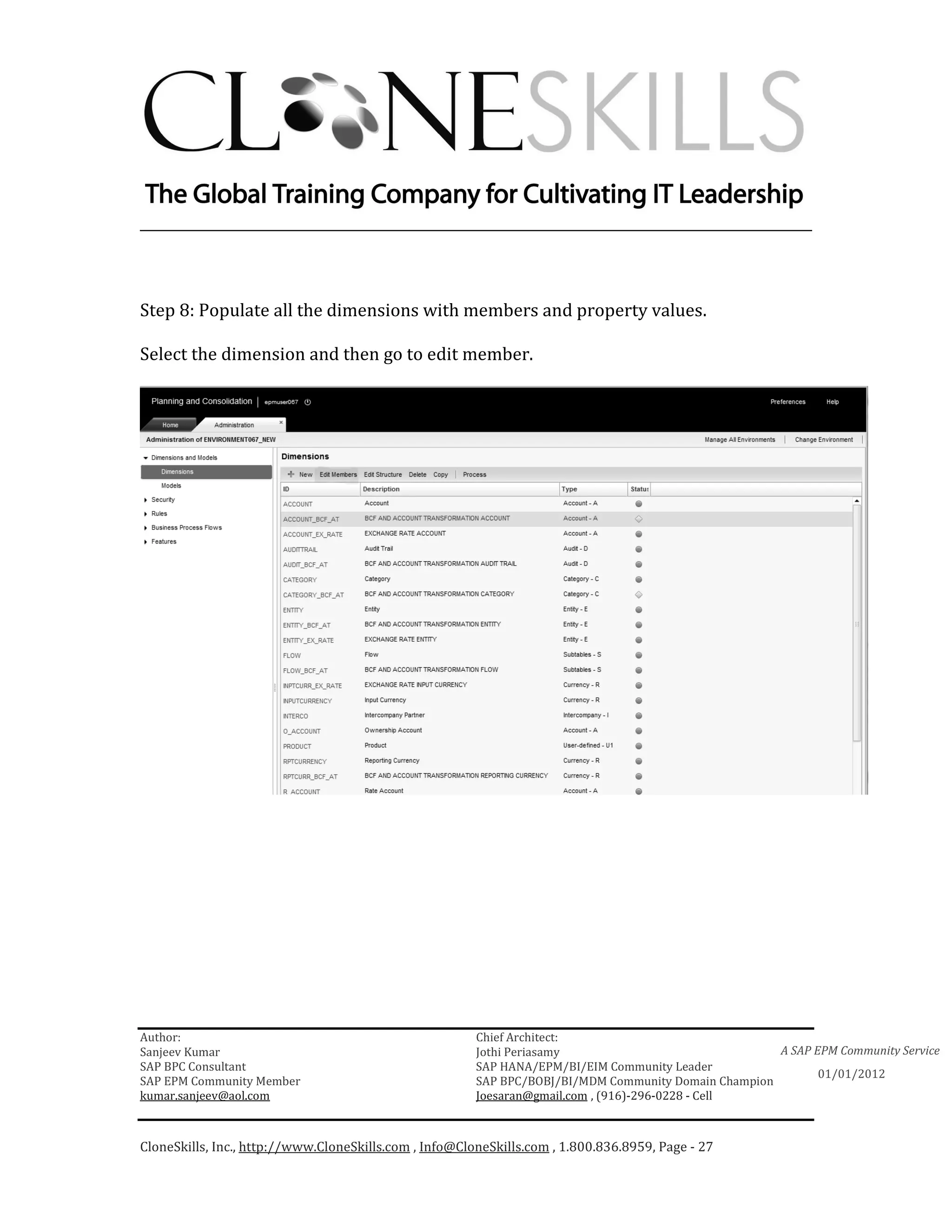
Step 8: Populate all the dimensions with members and property values.

Select the dimension and then go to edit member.


Author:                                                 Chief Architect:
Sanjeev Kumar                                           Jothi Periasamy                               A SAP EPM Community Service
SAP BPC Consultant                                      SAP HANA/EPM/BI/EIM Community Leader
                                                                                                             01/01/2012
SAP EPM Community Member                                SAP BPC/BOBJ/BI/MDM Community Domain Champion
kumar.sanjeev@aol.com                                   Joesaran@gmail.com , (916)-296-0228 - Cell


CloneSkills, Inc., http://www.CloneSkills.com , Info@CloneSkills.com , 1.800.836.8959, Page - 27
________________________________________________________________________


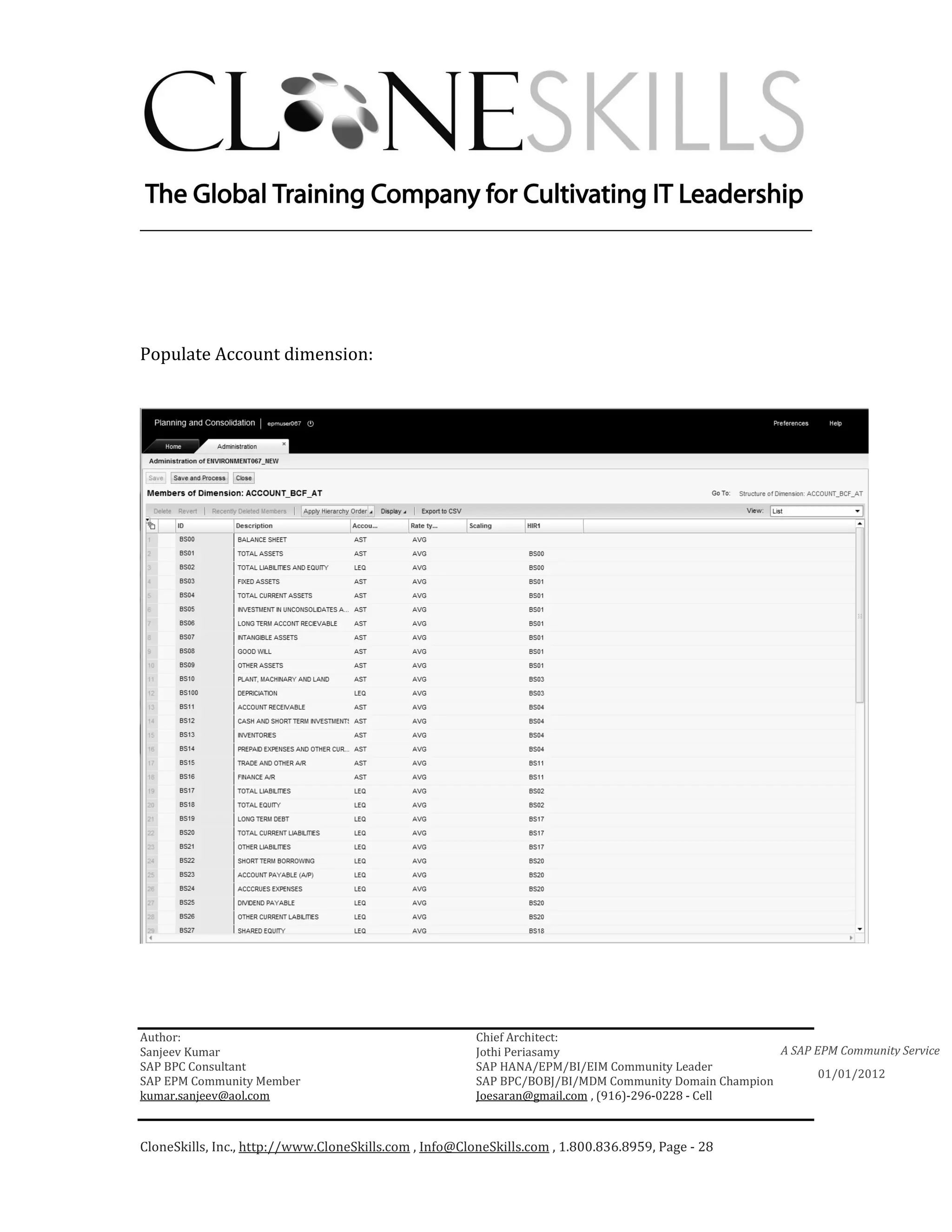
Populate Account dimension:


Author:                                                 Chief Architect:
Sanjeev Kumar                                           Jothi Periasamy                               A SAP EPM Community Service
SAP BPC Consultant                                      SAP HANA/EPM/BI/EIM Community Leader
                                                                                                             01/01/2012
SAP EPM Community Member                                SAP BPC/BOBJ/BI/MDM Community Domain Champion
kumar.sanjeev@aol.com                                   Joesaran@gmail.com , (916)-296-0228 - Cell


CloneSkills, Inc., http://www.CloneSkills.com , Info@CloneSkills.com , 1.800.836.8959, Page - 28
________________________________________________________________________


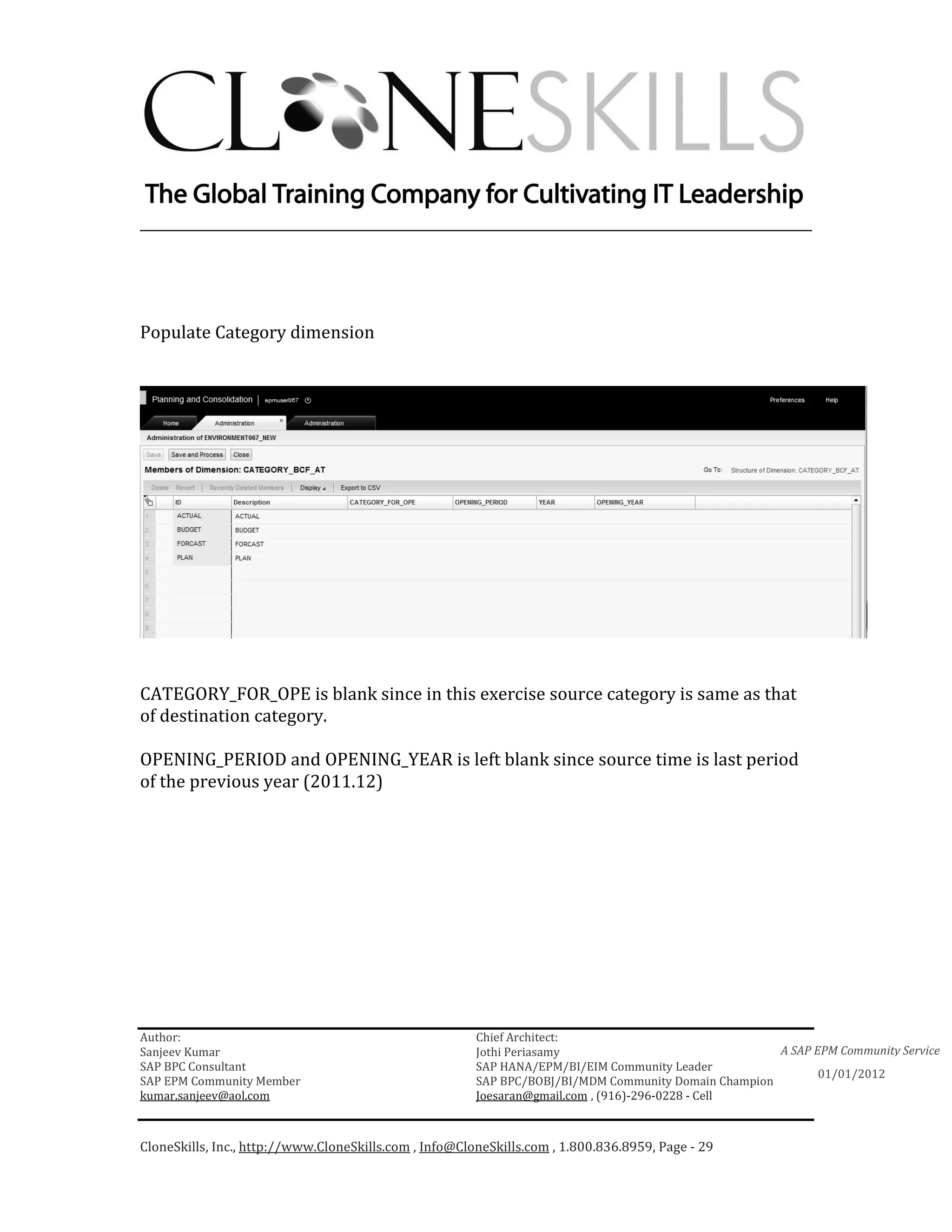
Populate Category dimension


CATEGORY_FOR_OPE is blank since in this exercise source category is same as that
of destination category.

OPENING_PERIOD and OPENING_YEAR is left blank since source time is last period
of the previous year (2011.12)


Author:                                                 Chief Architect:
Sanjeev Kumar                                           Jothi Periasamy                               A SAP EPM Community Service
SAP BPC Consultant                                      SAP HANA/EPM/BI/EIM Community Leader
                                                                                                             01/01/2012
SAP EPM Community Member                                SAP BPC/BOBJ/BI/MDM Community Domain Champion
kumar.sanjeev@aol.com                                   Joesaran@gmail.com , (916)-296-0228 - Cell


CloneSkills, Inc., http://www.CloneSkills.com , Info@CloneSkills.com , 1.800.836.8959, Page - 29
________________________________________________________________________


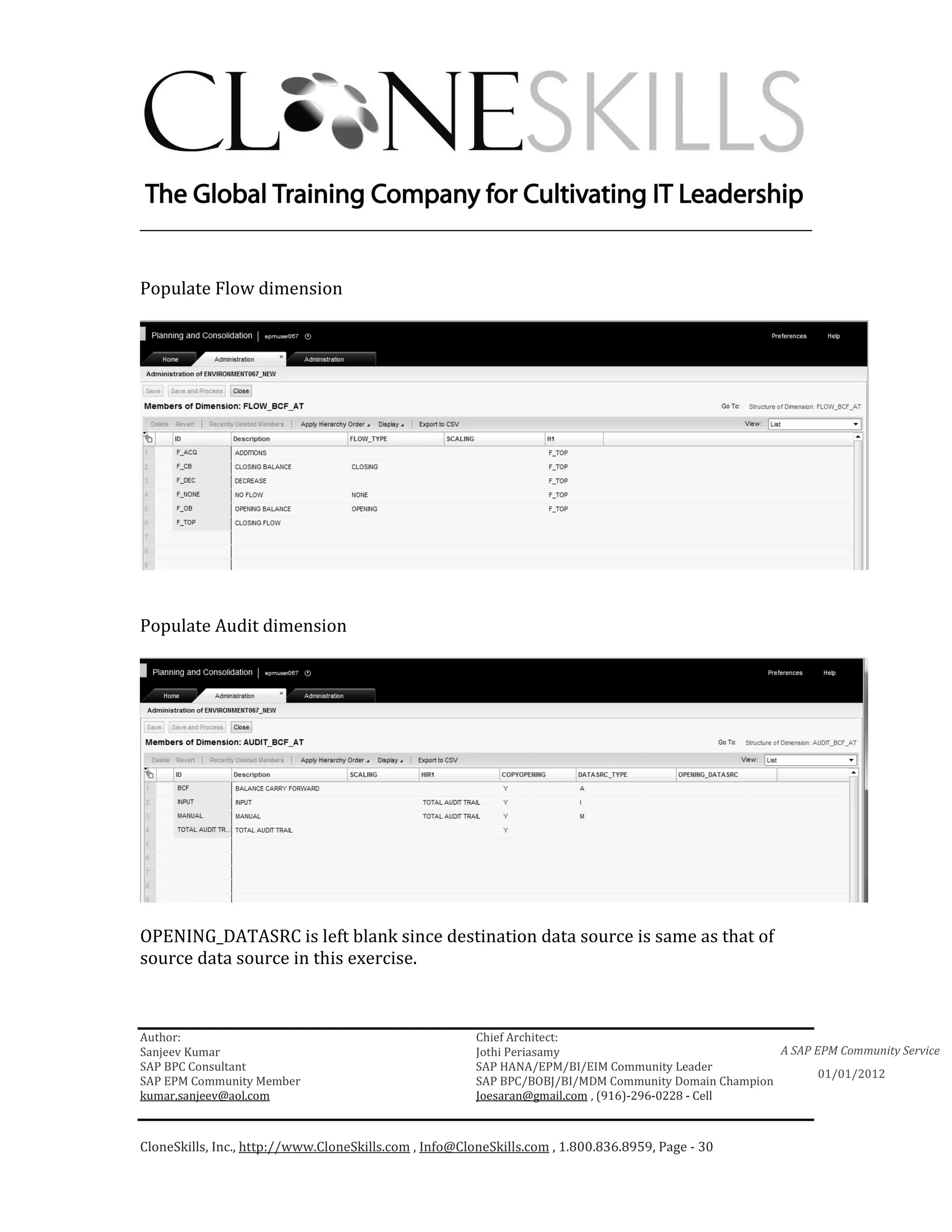
Populate Flow dimension


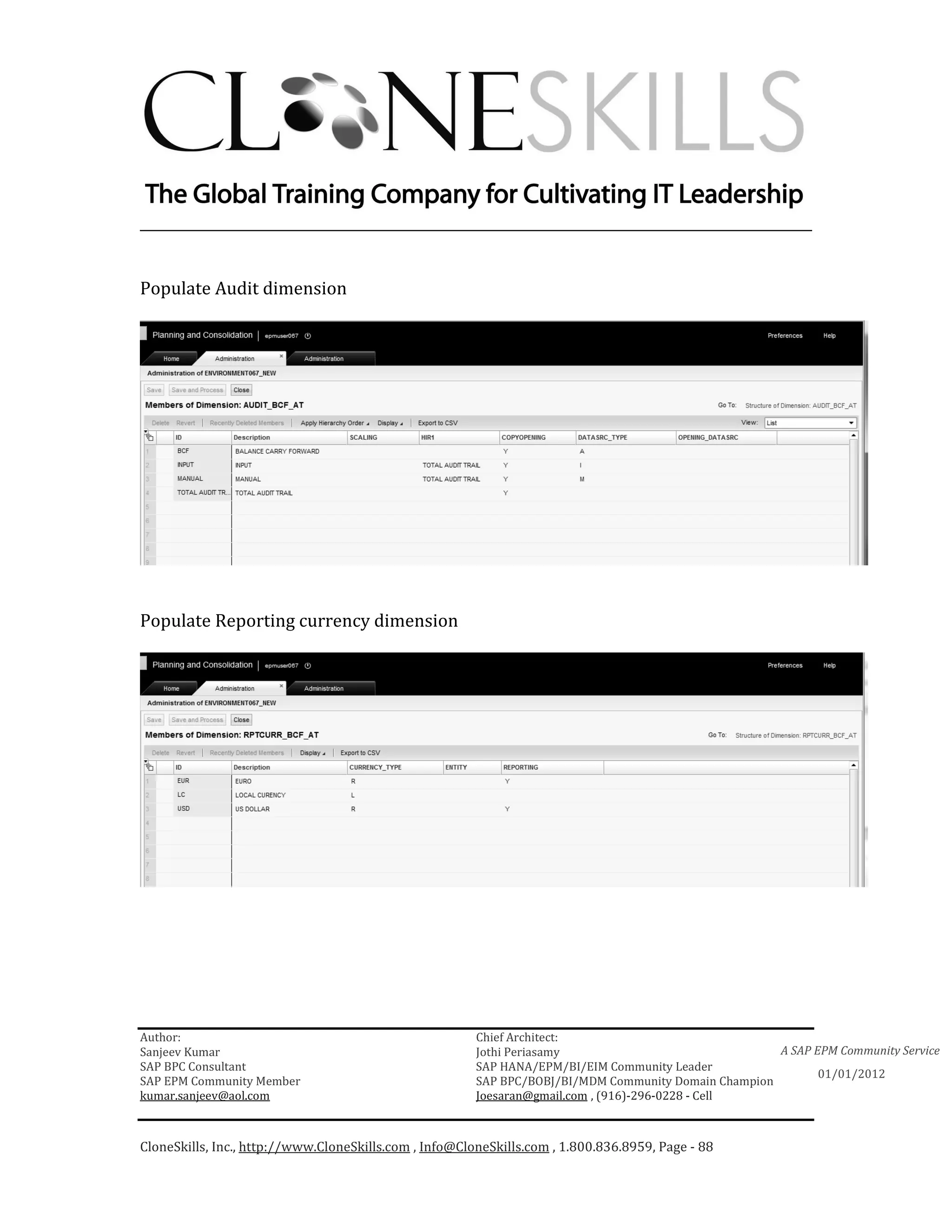
Populate Audit dimension


OPENING_DATASRC is left blank since destination data source is same as that of
source data source in this exercise.


Author:                                                 Chief Architect:
Sanjeev Kumar                                           Jothi Periasamy                               A SAP EPM Community Service
SAP BPC Consultant                                      SAP HANA/EPM/BI/EIM Community Leader
                                                                                                             01/01/2012
SAP EPM Community Member                                SAP BPC/BOBJ/BI/MDM Community Domain Champion
kumar.sanjeev@aol.com                                   Joesaran@gmail.com , (916)-296-0228 - Cell


CloneSkills, Inc., http://www.CloneSkills.com , Info@CloneSkills.com , 1.800.836.8959, Page - 30
________________________________________________________________________

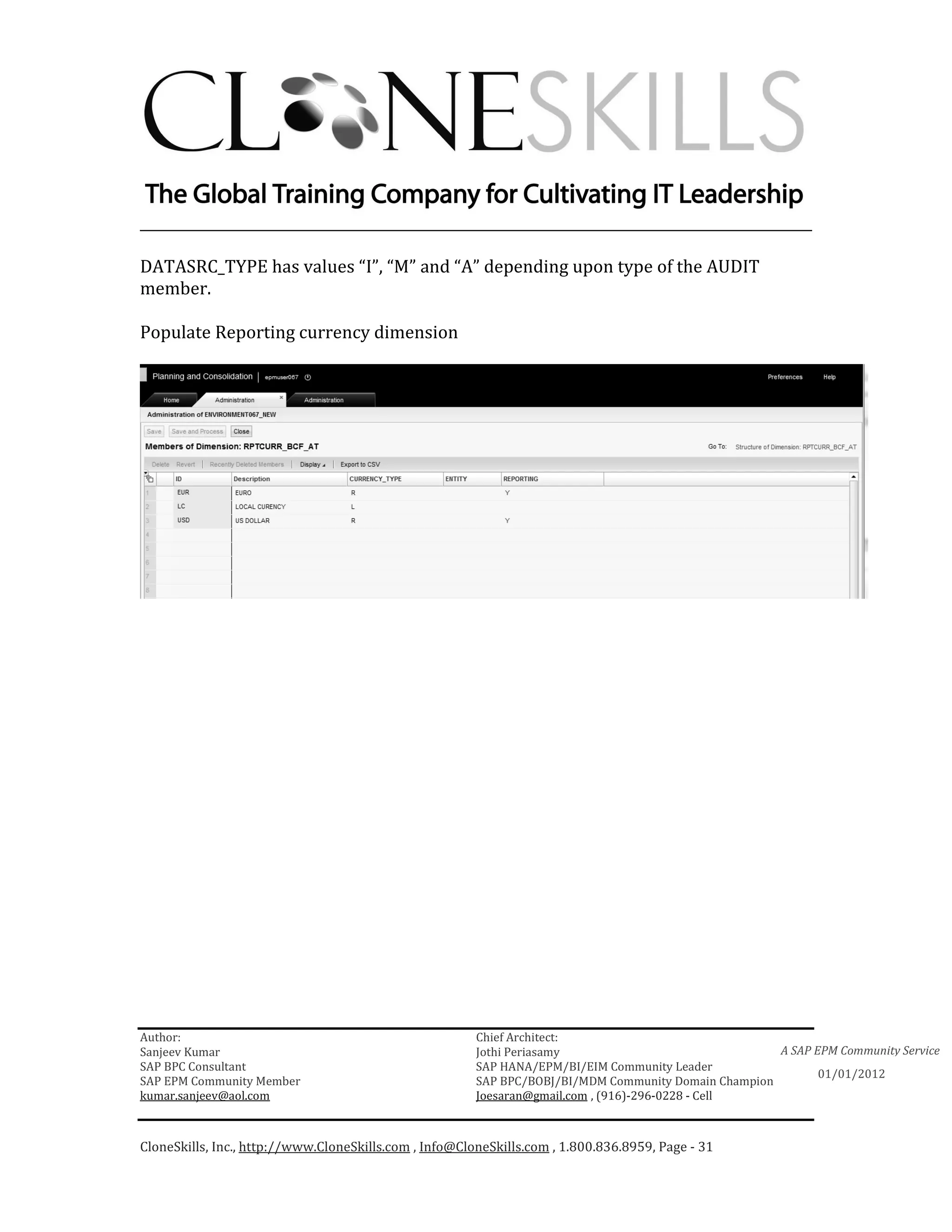
DATASRC_TYPE has values “I”, “M” and “A” depending upon type of the AUDIT
member.

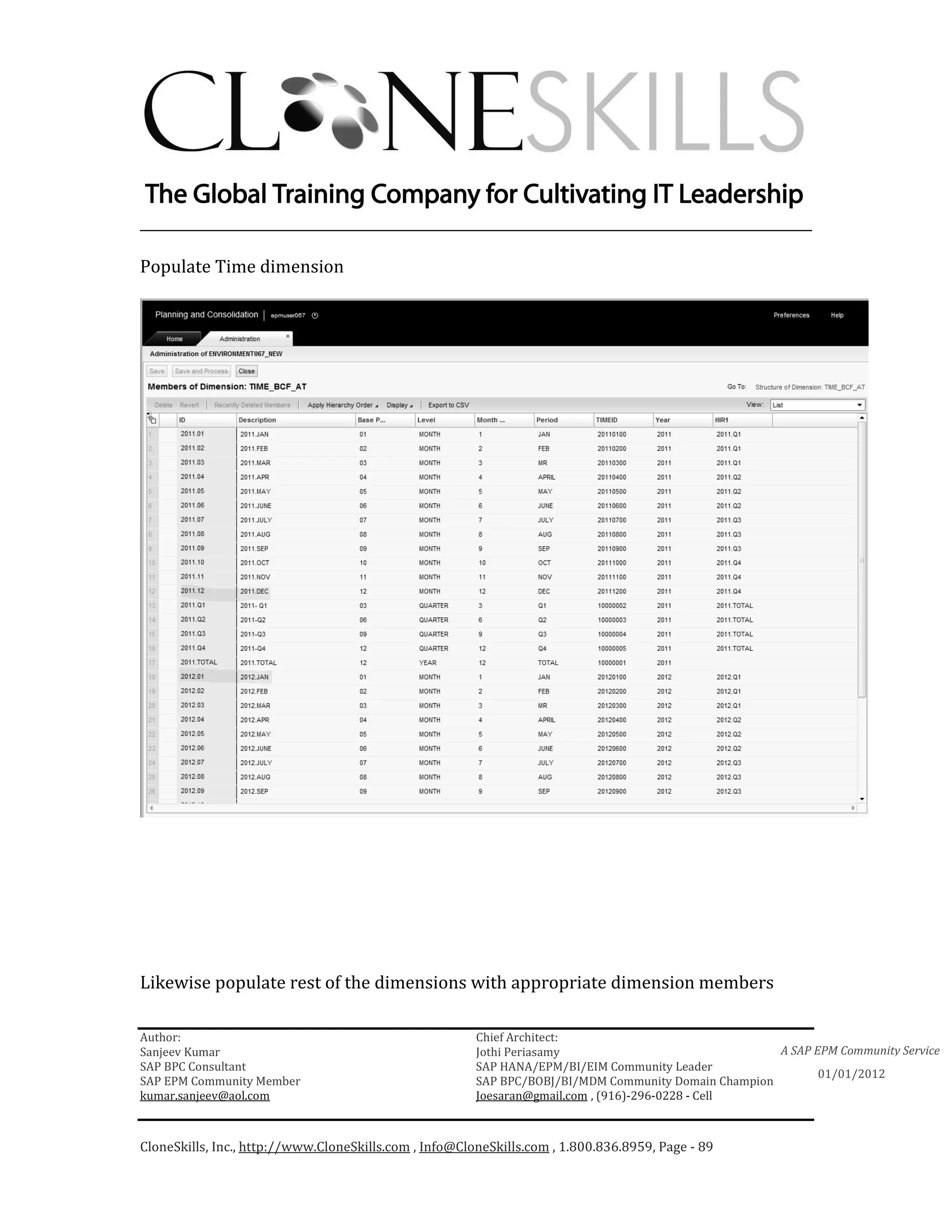
Populate Reporting currency dimension


Author:                                                 Chief Architect:
Sanjeev Kumar                                           Jothi Periasamy                               A SAP EPM Community Service
SAP BPC Consultant                                      SAP HANA/EPM/BI/EIM Community Leader
                                                                                                             01/01/2012
SAP EPM Community Member                                SAP BPC/BOBJ/BI/MDM Community Domain Champion
kumar.sanjeev@aol.com                                   Joesaran@gmail.com , (916)-296-0228 - Cell


CloneSkills, Inc., http://www.CloneSkills.com , Info@CloneSkills.com , 1.800.836.8959, Page - 31
________________________________________________________________________


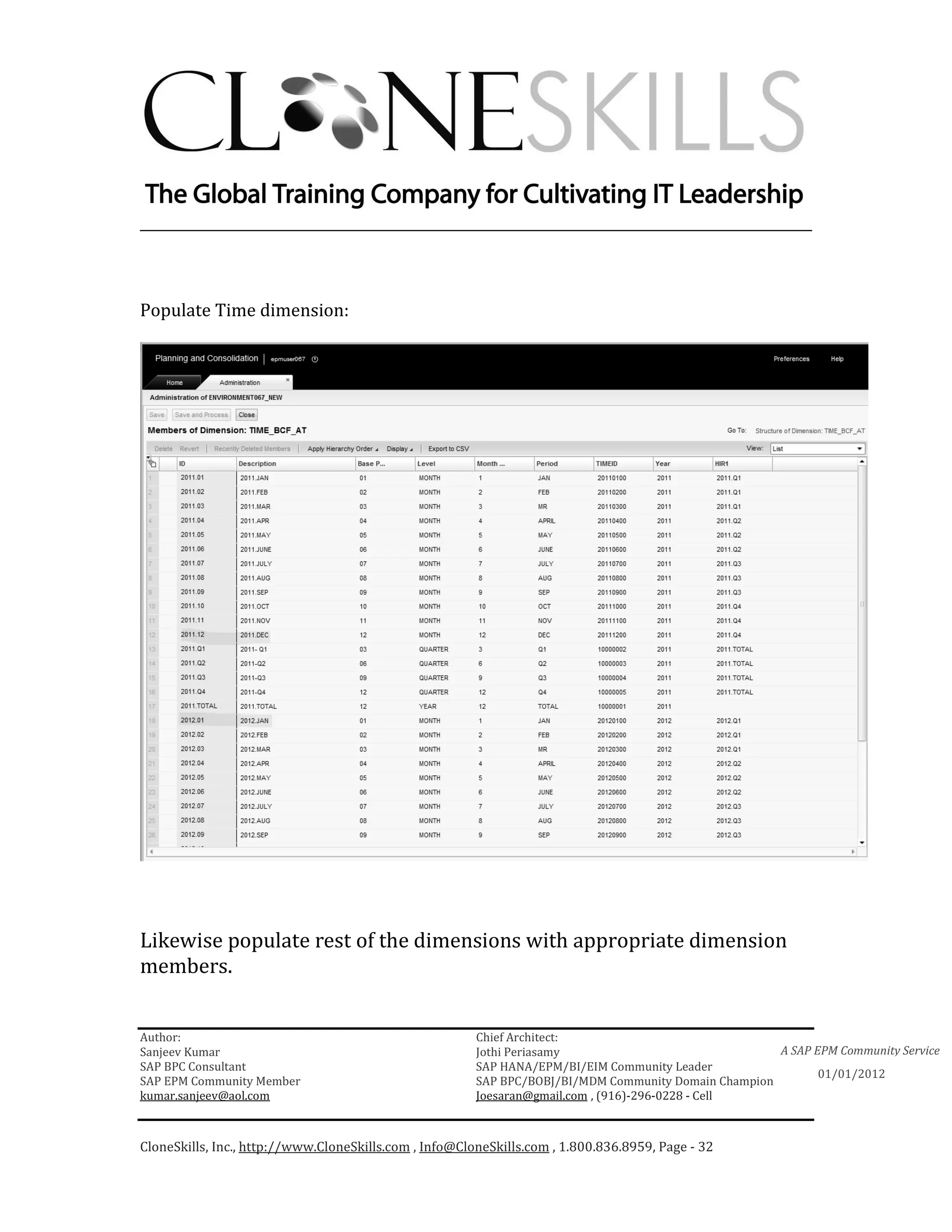
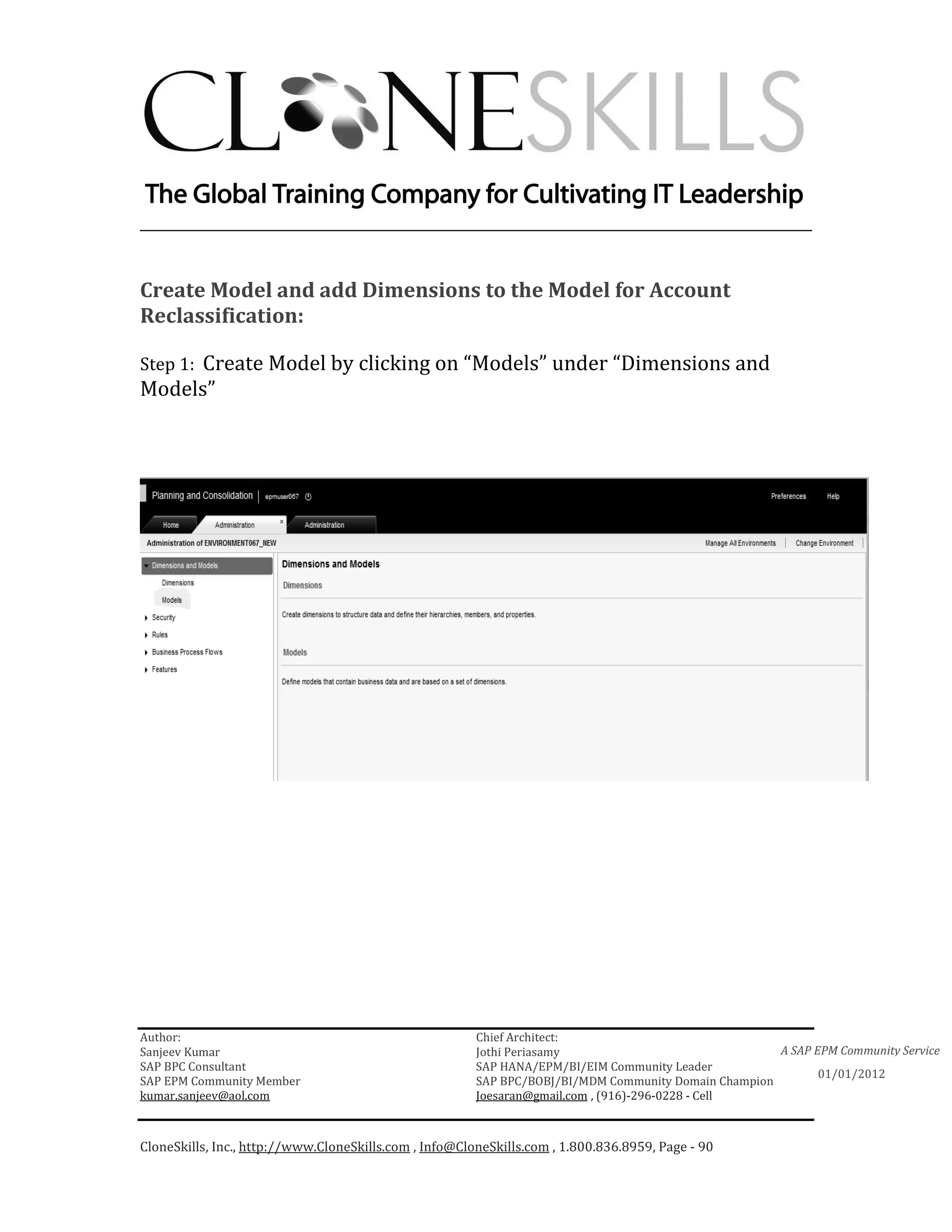
Populate Time dimension:


Likewise populate rest of the dimensions with appropriate dimension
members.


Author:                                                 Chief Architect:
Sanjeev Kumar                                           Jothi Periasamy                               A SAP EPM Community Service
SAP BPC Consultant                                      SAP HANA/EPM/BI/EIM Community Leader
                                                                                                             01/01/2012
SAP EPM Community Member                                SAP BPC/BOBJ/BI/MDM Community Domain Champion
kumar.sanjeev@aol.com                                   Joesaran@gmail.com , (916)-296-0228 - Cell


CloneSkills, Inc., http://www.CloneSkills.com , Info@CloneSkills.com , 1.800.836.8959, Page - 32
________________________________________________________________________


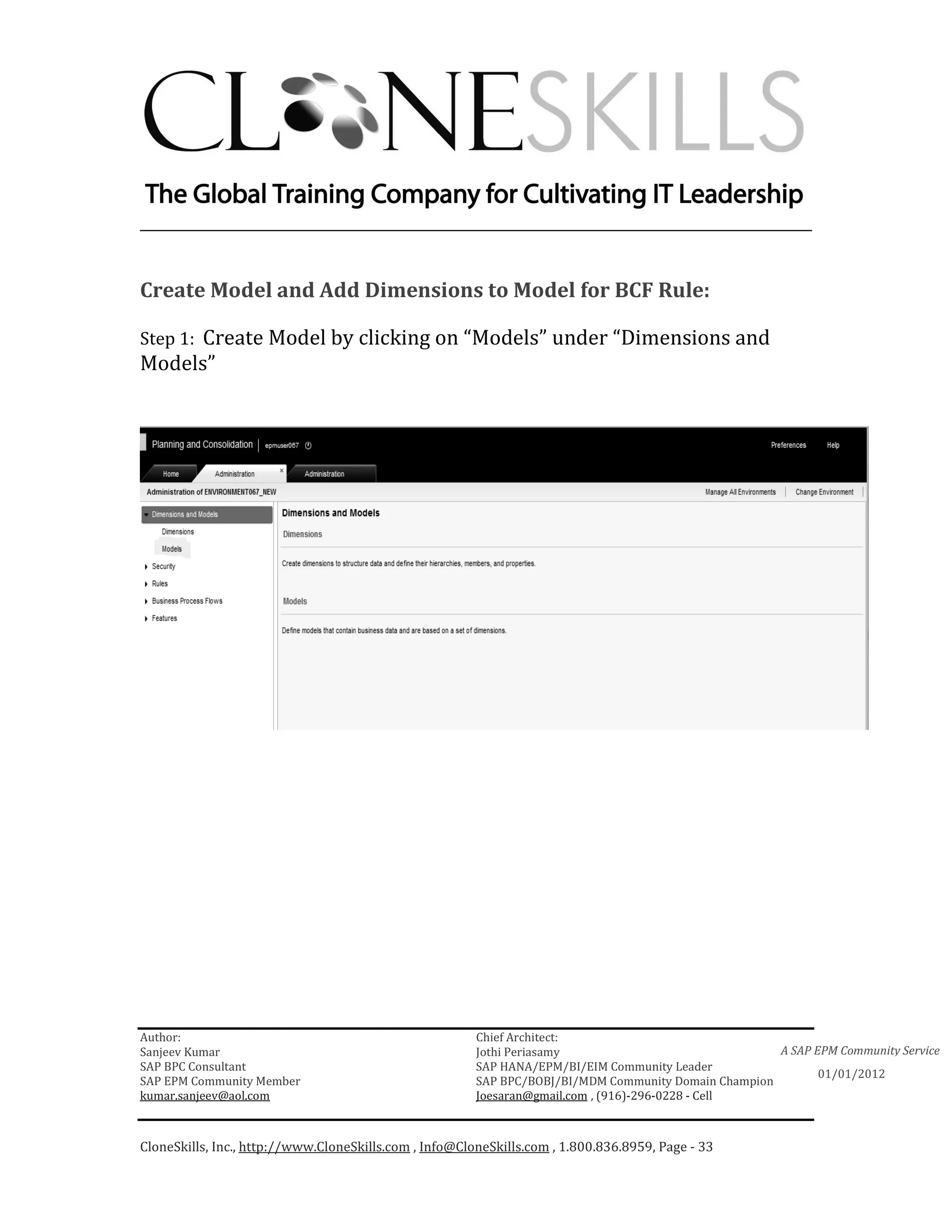
Create Model and Add Dimensions to Model for BCF Rule:

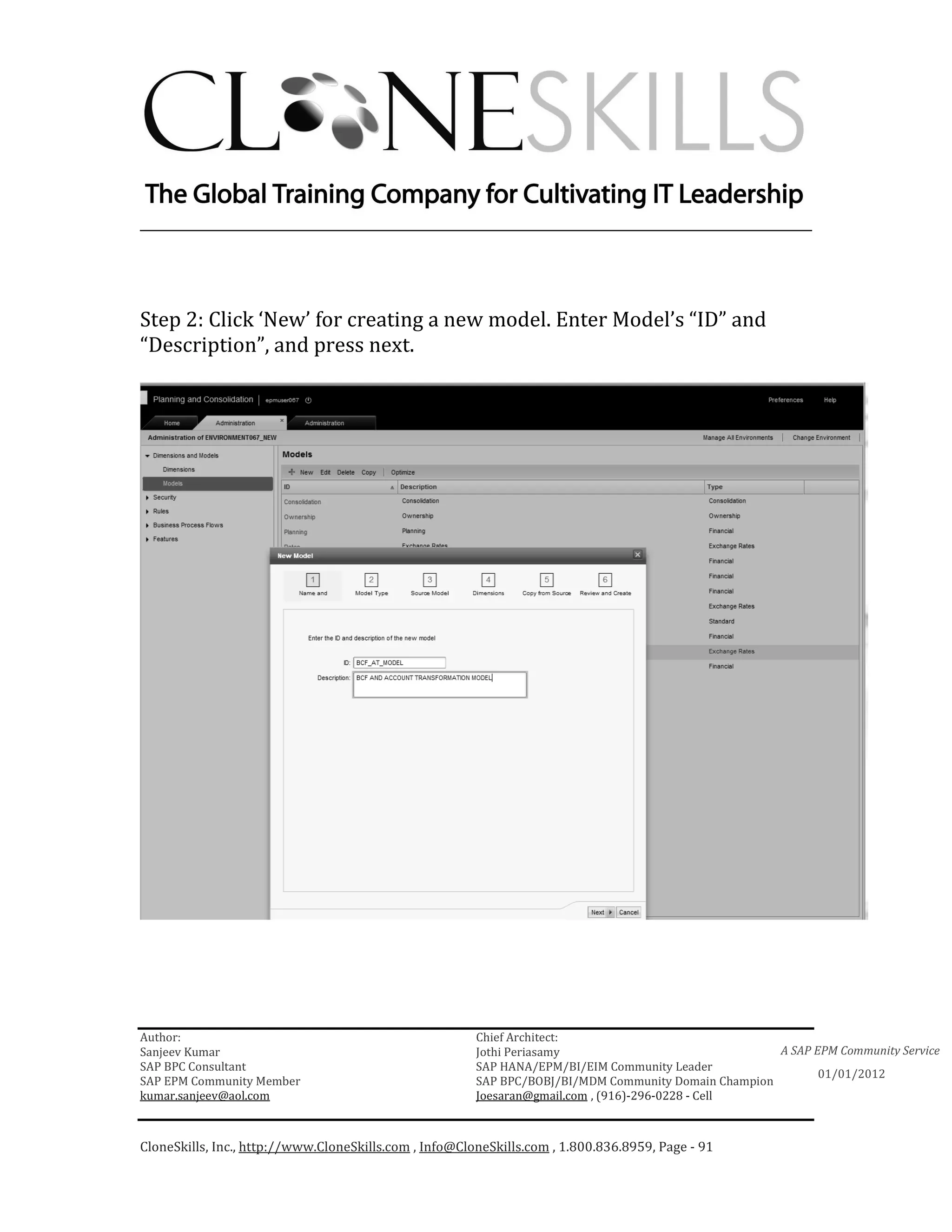
Step 1: Create Model by clicking on “Models” under “Dimensions and
Models”


Author:                                                 Chief Architect:
Sanjeev Kumar                                           Jothi Periasamy                               A SAP EPM Community Service
SAP BPC Consultant                                      SAP HANA/EPM/BI/EIM Community Leader
                                                                                                             01/01/2012
SAP EPM Community Member                                SAP BPC/BOBJ/BI/MDM Community Domain Champion
kumar.sanjeev@aol.com                                   Joesaran@gmail.com , (916)-296-0228 - Cell


CloneSkills, Inc., http://www.CloneSkills.com , Info@CloneSkills.com , 1.800.836.8959, Page - 33
________________________________________________________________________

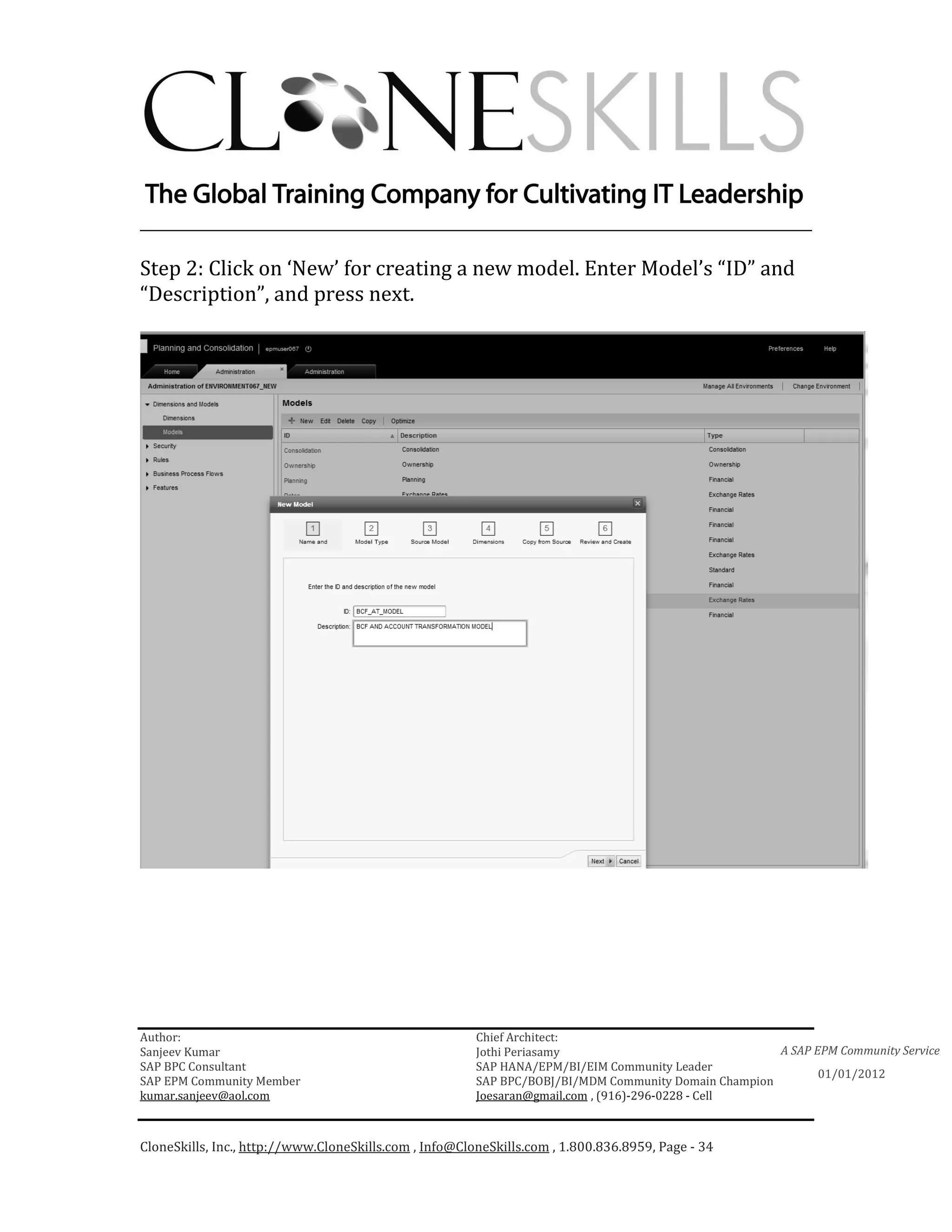
Step 2: Click on ‘New’ for creating a new model. Enter Model’s “ID” and
“Description”, and press next.


Author:                                                 Chief Architect:
Sanjeev Kumar                                           Jothi Periasamy                               A SAP EPM Community Service
SAP BPC Consultant                                      SAP HANA/EPM/BI/EIM Community Leader
                                                                                                             01/01/2012
SAP EPM Community Member                                SAP BPC/BOBJ/BI/MDM Community Domain Champion
kumar.sanjeev@aol.com                                   Joesaran@gmail.com , (916)-296-0228 - Cell


CloneSkills, Inc., http://www.CloneSkills.com , Info@CloneSkills.com , 1.800.836.8959, Page - 34
________________________________________________________________________

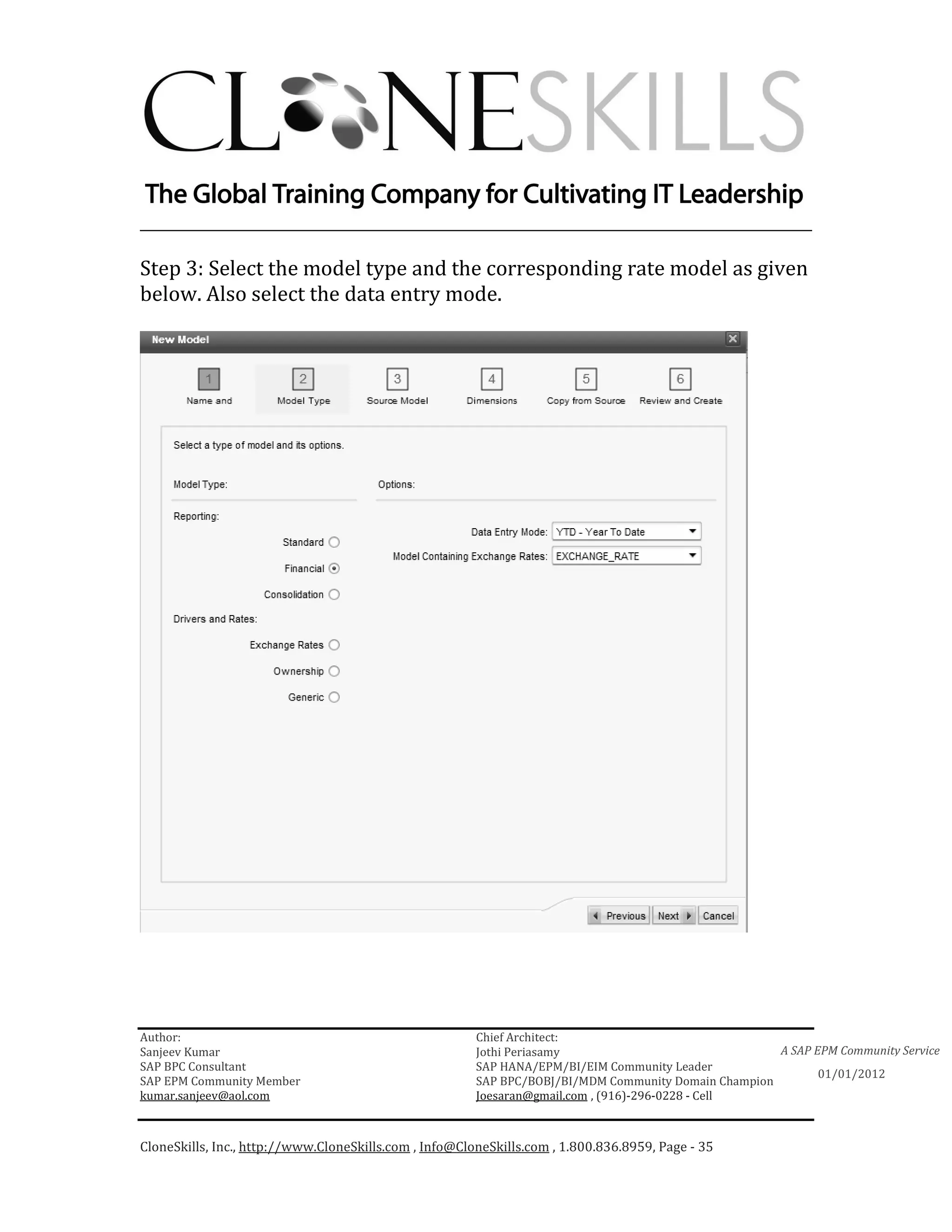
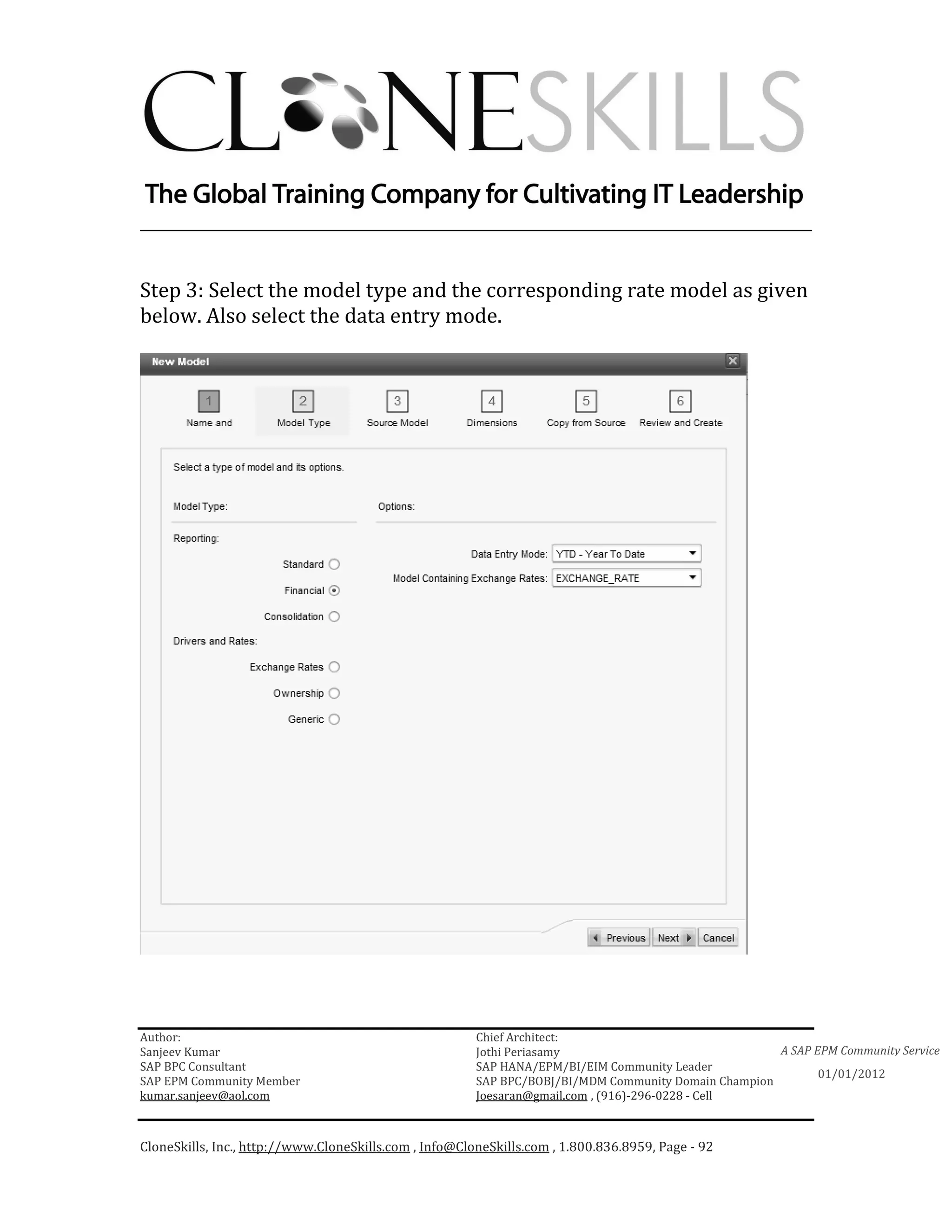
Step 3: Select the model type and the corresponding rate model as given
below. Also select the data entry mode.


Author:                                                 Chief Architect:
Sanjeev Kumar                                           Jothi Periasamy                               A SAP EPM Community Service
SAP BPC Consultant                                      SAP HANA/EPM/BI/EIM Community Leader
                                                                                                             01/01/2012
SAP EPM Community Member                                SAP BPC/BOBJ/BI/MDM Community Domain Champion
kumar.sanjeev@aol.com                                   Joesaran@gmail.com , (916)-296-0228 - Cell


CloneSkills, Inc., http://www.CloneSkills.com , Info@CloneSkills.com , 1.800.836.8959, Page - 35
________________________________________________________________________

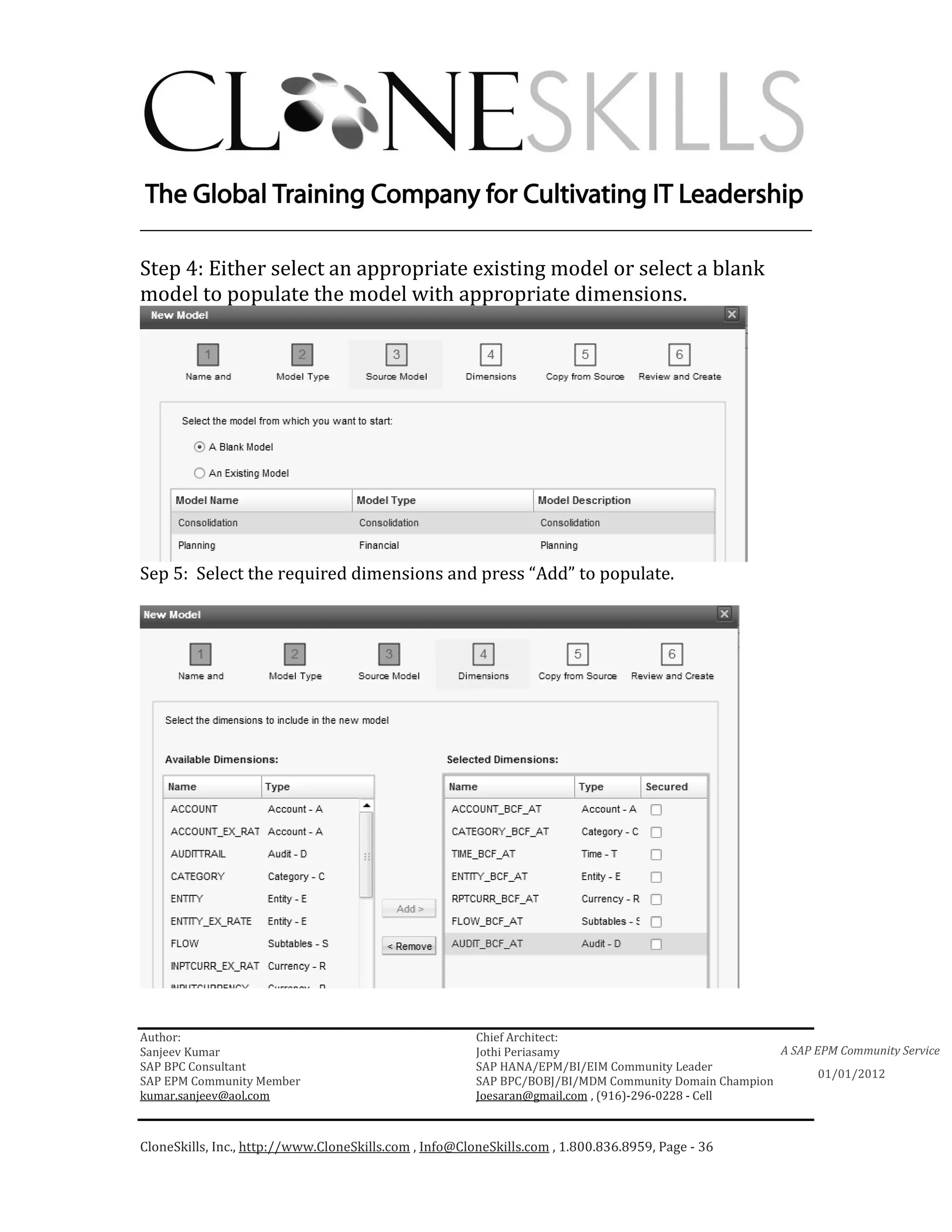
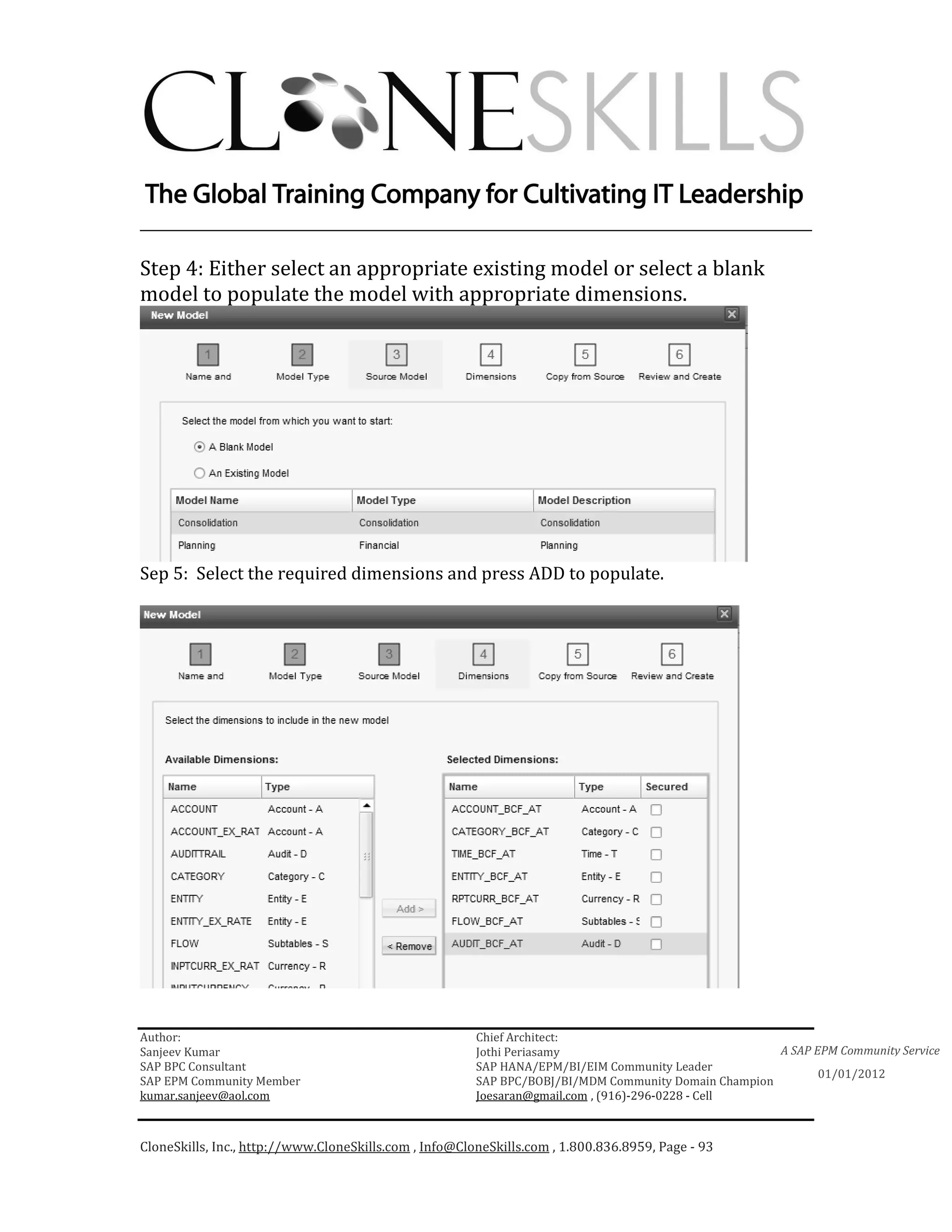
Step 4: Either select an appropriate existing model or select a blank
model to populate the model with appropriate dimensions.


Sep 5: Select the required dimensions and press “Add” to populate.


Author:                                                 Chief Architect:
Sanjeev Kumar                                           Jothi Periasamy                               A SAP EPM Community Service
SAP BPC Consultant                                      SAP HANA/EPM/BI/EIM Community Leader
                                                                                                             01/01/2012
SAP EPM Community Member                                SAP BPC/BOBJ/BI/MDM Community Domain Champion
kumar.sanjeev@aol.com                                   Joesaran@gmail.com , (916)-296-0228 - Cell


CloneSkills, Inc., http://www.CloneSkills.com , Info@CloneSkills.com , 1.800.836.8959, Page - 36
________________________________________________________________________

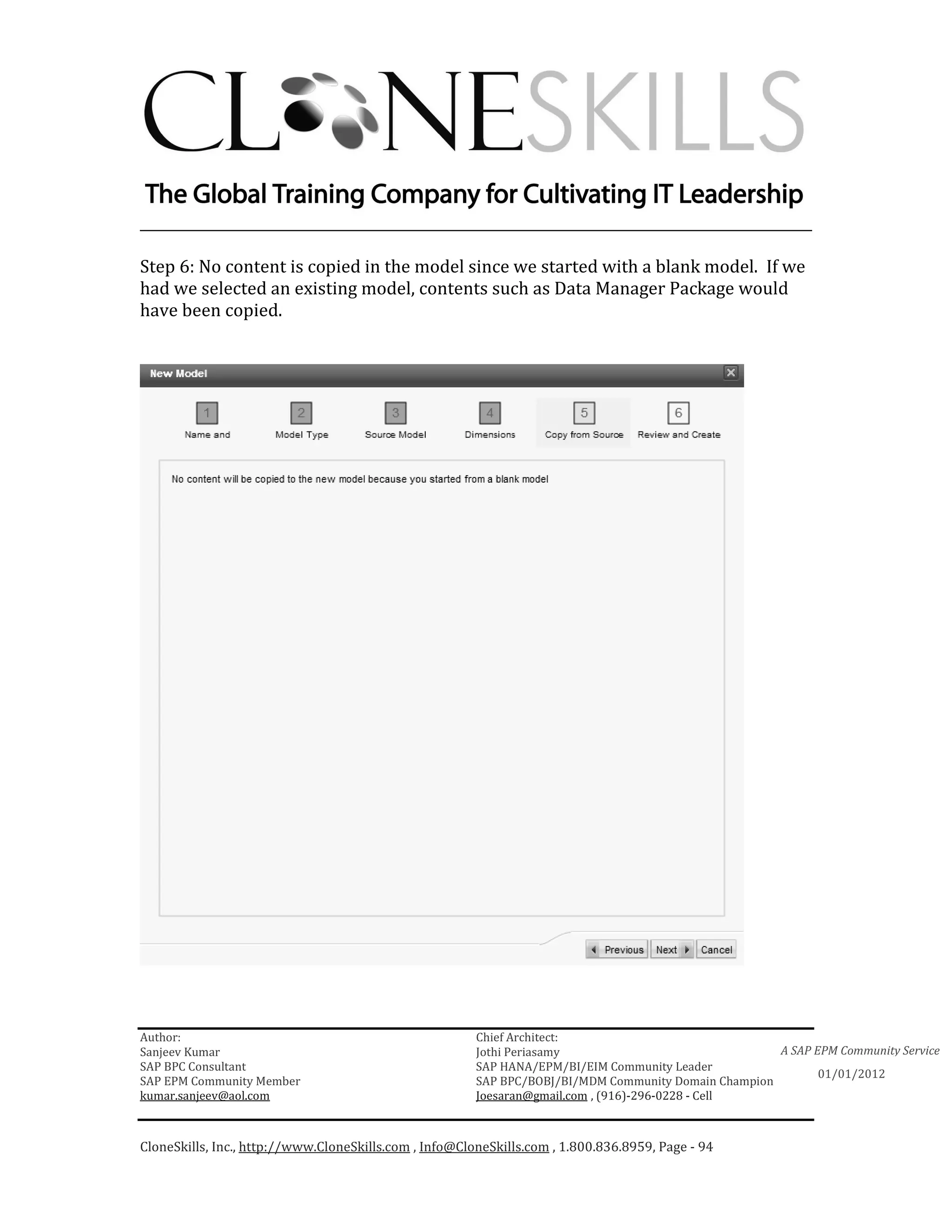
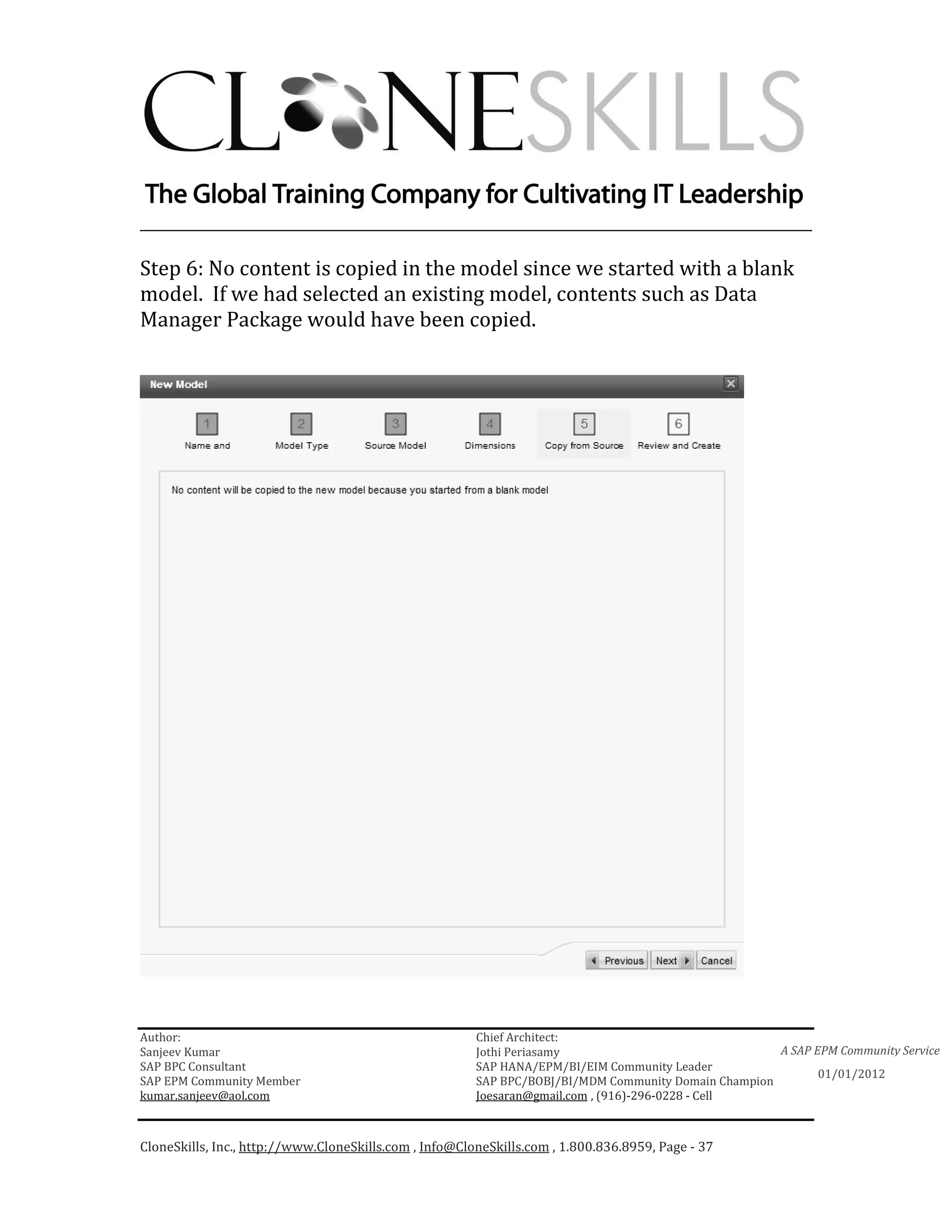
Step 6: No content is copied in the model since we started with a blank
model. If we had selected an existing model, contents such as Data
Manager Package would have been copied.


Author:                                                 Chief Architect:
Sanjeev Kumar                                           Jothi Periasamy                               A SAP EPM Community Service
SAP BPC Consultant                                      SAP HANA/EPM/BI/EIM Community Leader
                                                                                                             01/01/2012
SAP EPM Community Member                                SAP BPC/BOBJ/BI/MDM Community Domain Champion
kumar.sanjeev@aol.com                                   Joesaran@gmail.com , (916)-296-0228 - Cell


CloneSkills, Inc., http://www.CloneSkills.com , Info@CloneSkills.com , 1.800.836.8959, Page - 37
________________________________________________________________________

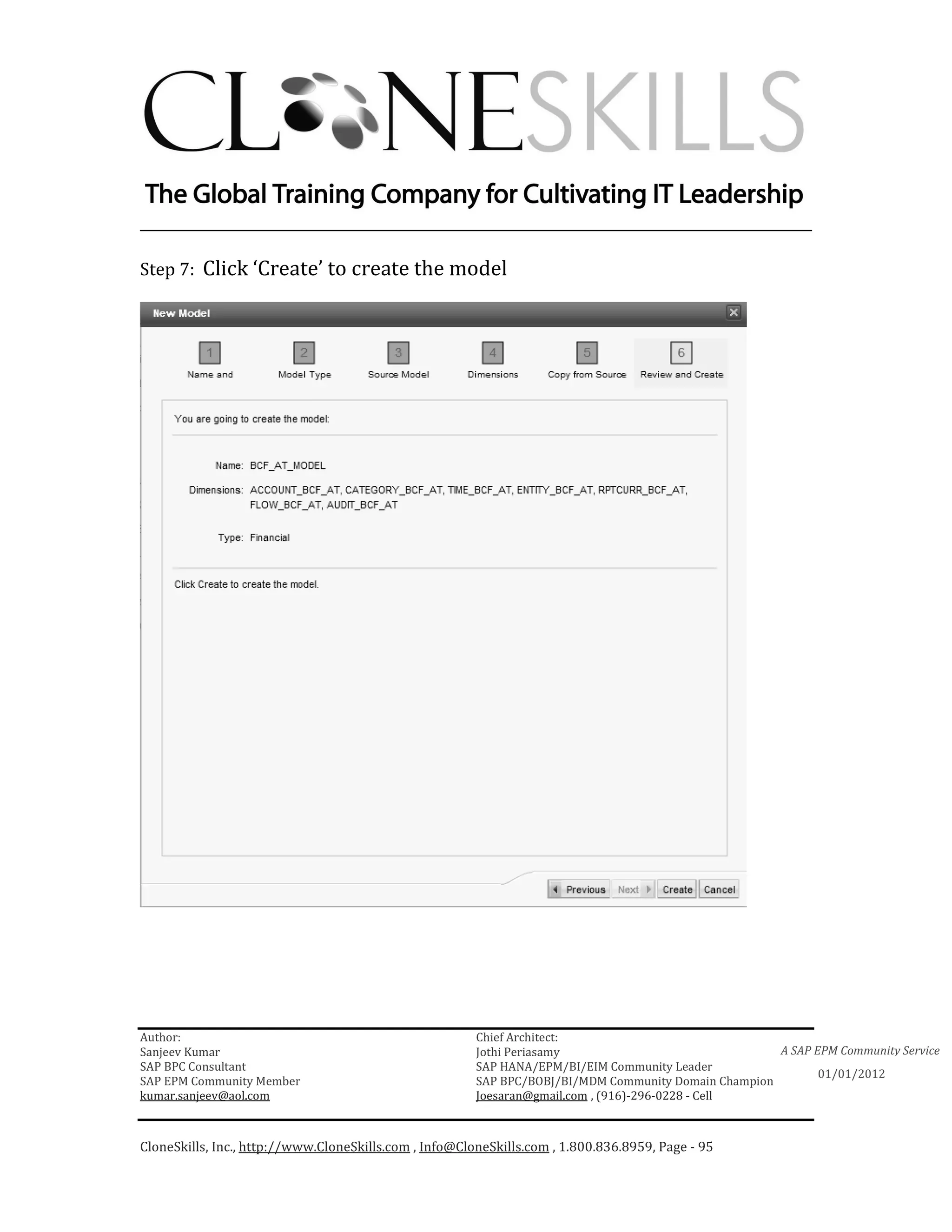
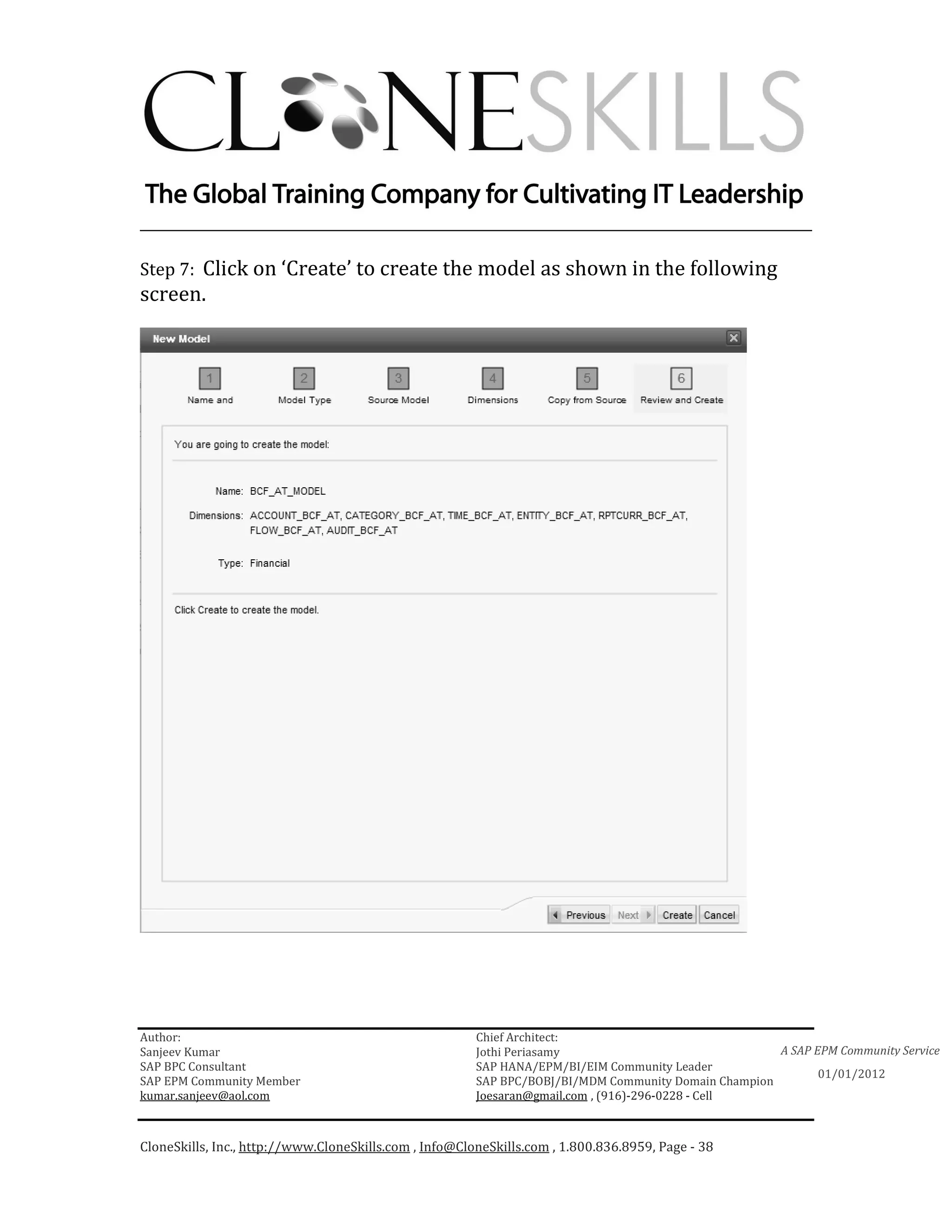
Step 7: Click on ‘Create’ to create the model as shown in the following
screen.


Author:                                                 Chief Architect:
Sanjeev Kumar                                           Jothi Periasamy                               A SAP EPM Community Service
SAP BPC Consultant                                      SAP HANA/EPM/BI/EIM Community Leader
                                                                                                             01/01/2012
SAP EPM Community Member                                SAP BPC/BOBJ/BI/MDM Community Domain Champion
kumar.sanjeev@aol.com                                   Joesaran@gmail.com , (916)-296-0228 - Cell


CloneSkills, Inc., http://www.CloneSkills.com , Info@CloneSkills.com , 1.800.836.8959, Page - 38
________________________________________________________________________


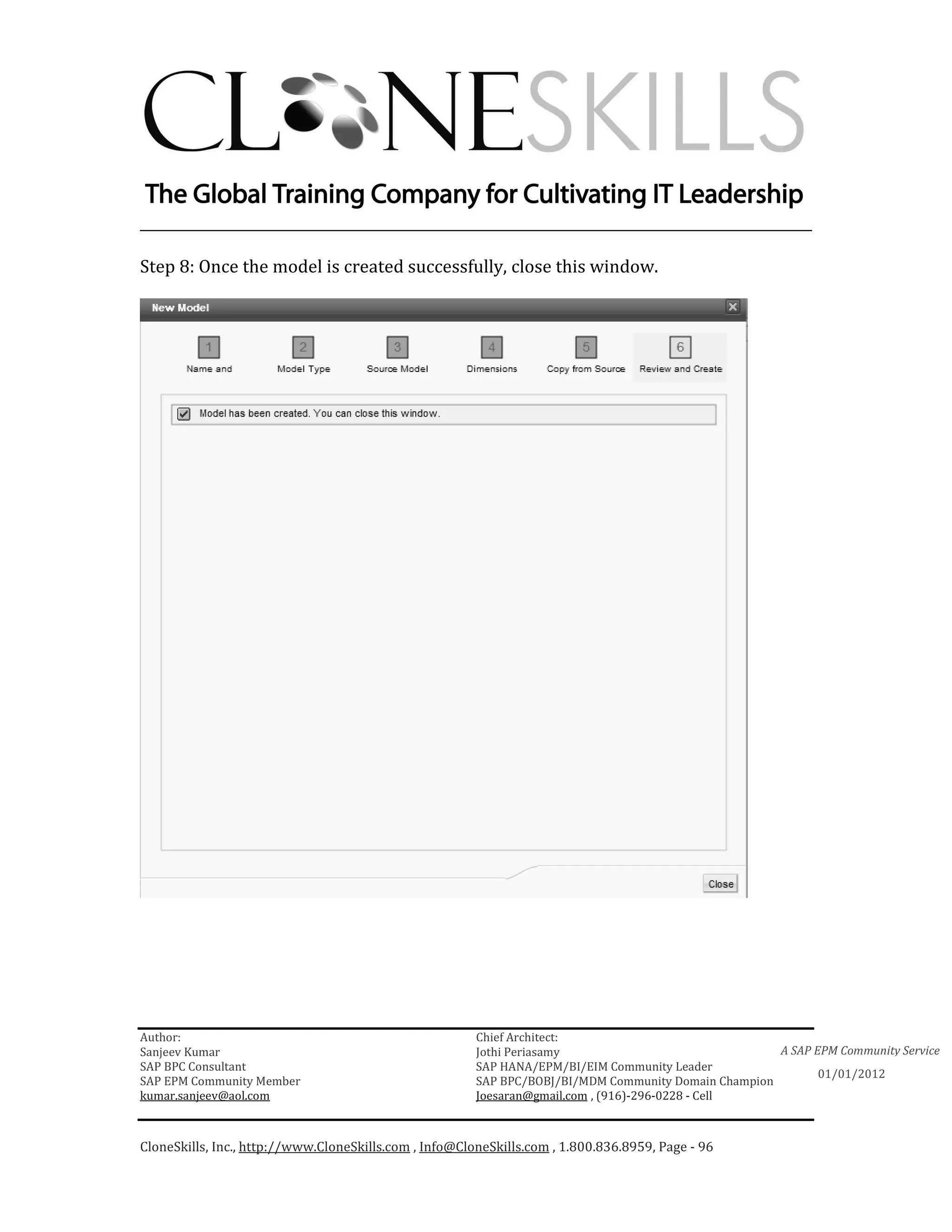
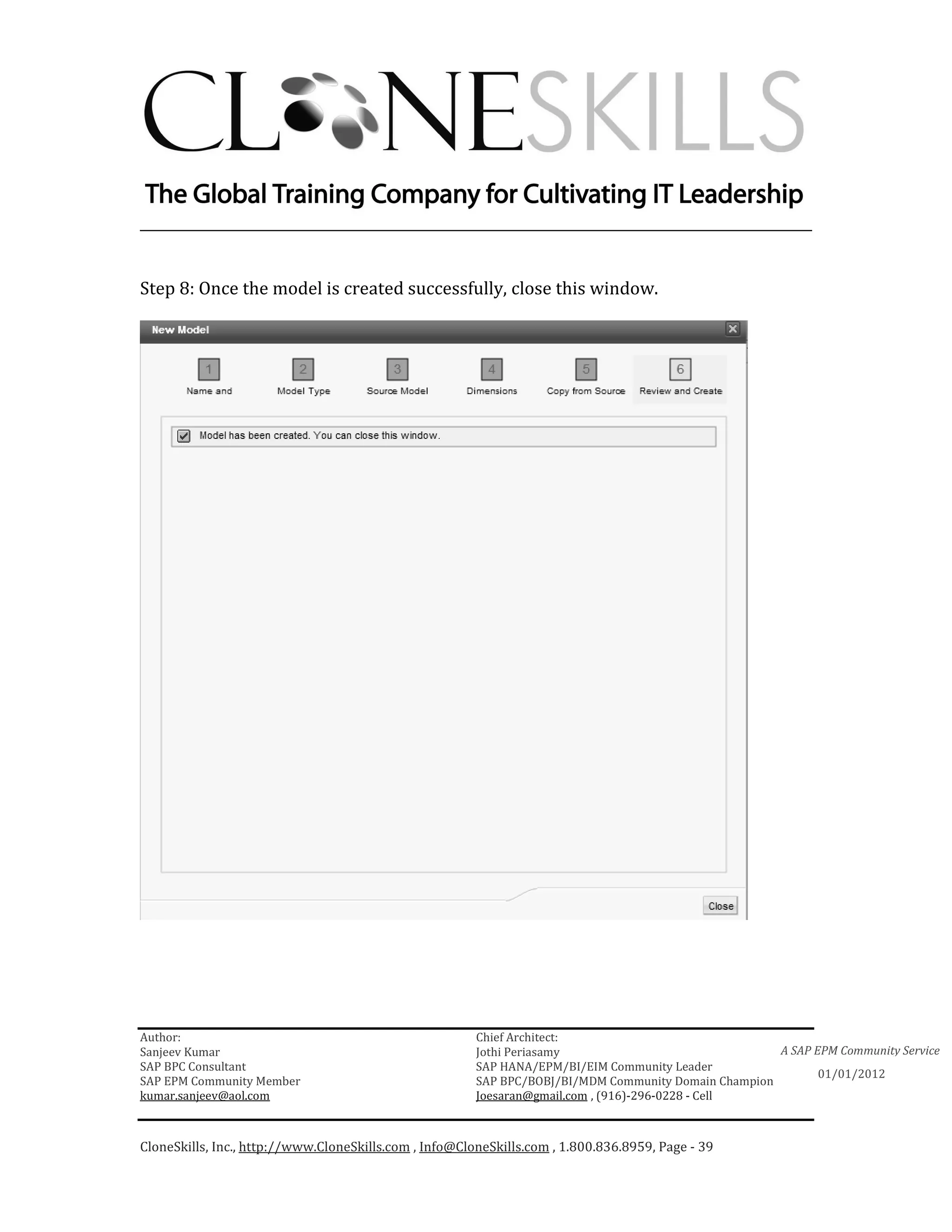
Step 8: Once the model is created successfully, close this window.


Author:                                                 Chief Architect:
Sanjeev Kumar                                           Jothi Periasamy                               A SAP EPM Community Service
SAP BPC Consultant                                      SAP HANA/EPM/BI/EIM Community Leader
                                                                                                             01/01/2012
SAP EPM Community Member                                SAP BPC/BOBJ/BI/MDM Community Domain Champion
kumar.sanjeev@aol.com                                   Joesaran@gmail.com , (916)-296-0228 - Cell


CloneSkills, Inc., http://www.CloneSkills.com , Info@CloneSkills.com , 1.800.836.8959, Page - 39
________________________________________________________________________


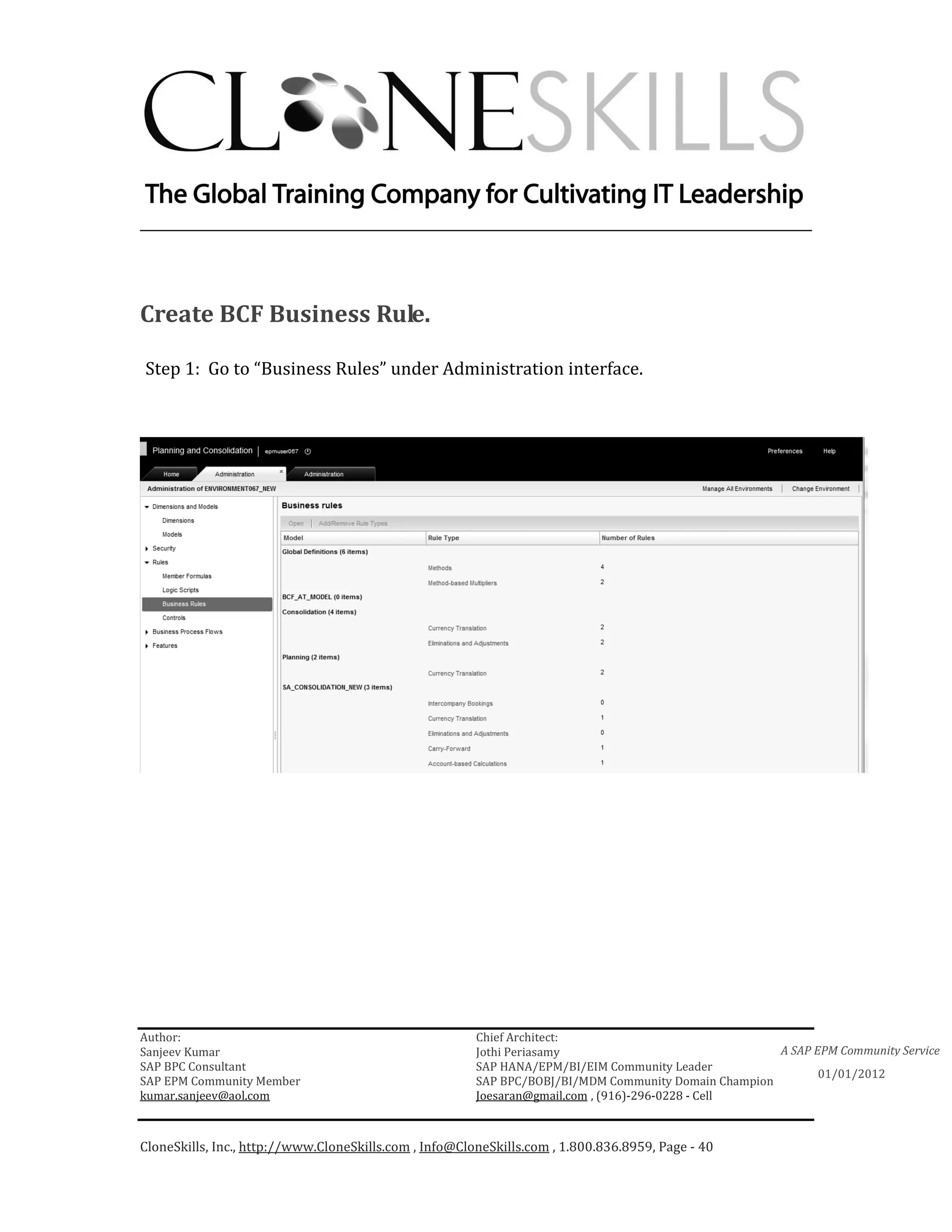
Create BCF Business Rule.

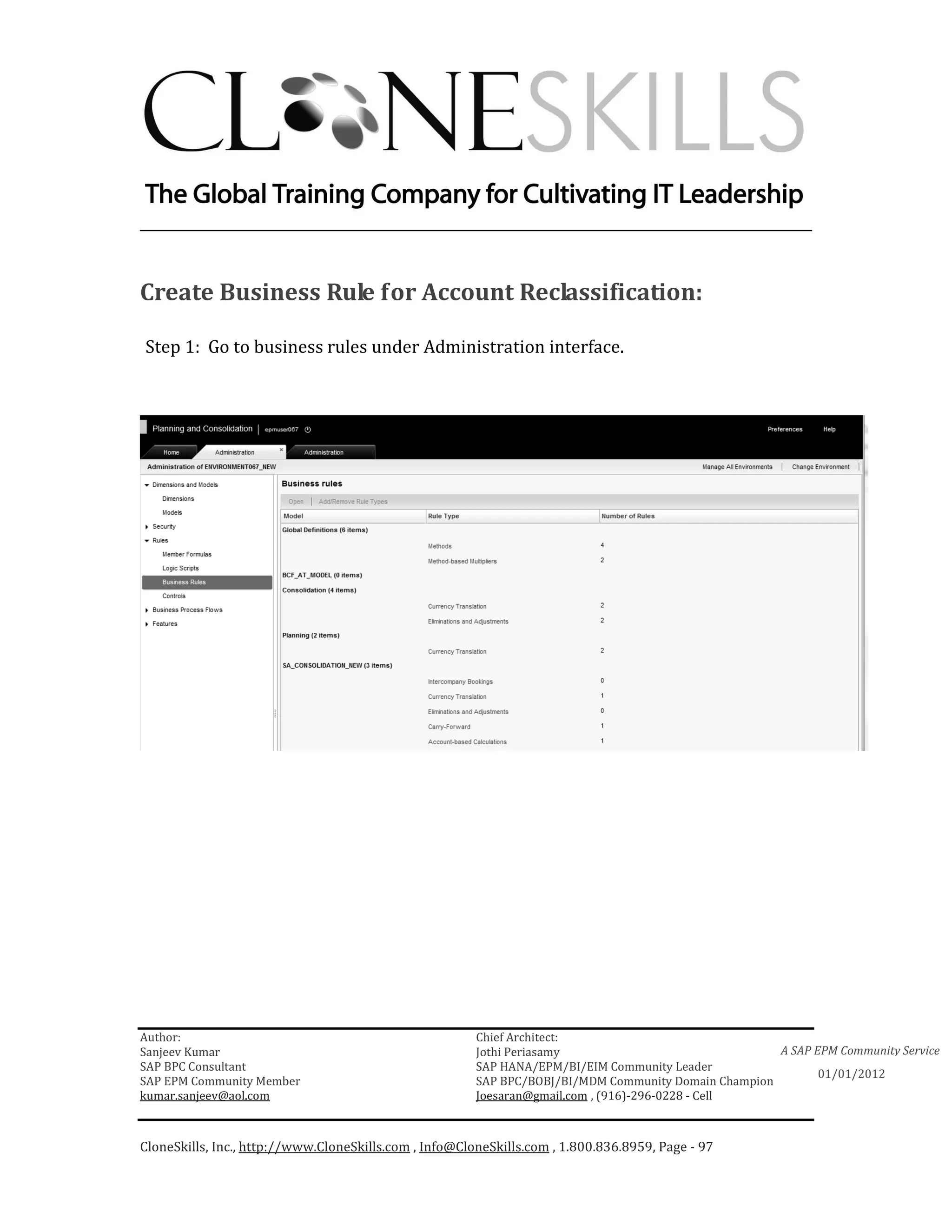
Step 1: Go to “Business Rules” under Administration interface.


Author:                                                 Chief Architect:
Sanjeev Kumar                                           Jothi Periasamy                               A SAP EPM Community Service
SAP BPC Consultant                                      SAP HANA/EPM/BI/EIM Community Leader
                                                                                                             01/01/2012
SAP EPM Community Member                                SAP BPC/BOBJ/BI/MDM Community Domain Champion
kumar.sanjeev@aol.com                                   Joesaran@gmail.com , (916)-296-0228 - Cell


CloneSkills, Inc., http://www.CloneSkills.com , Info@CloneSkills.com , 1.800.836.8959, Page - 40
________________________________________________________________________


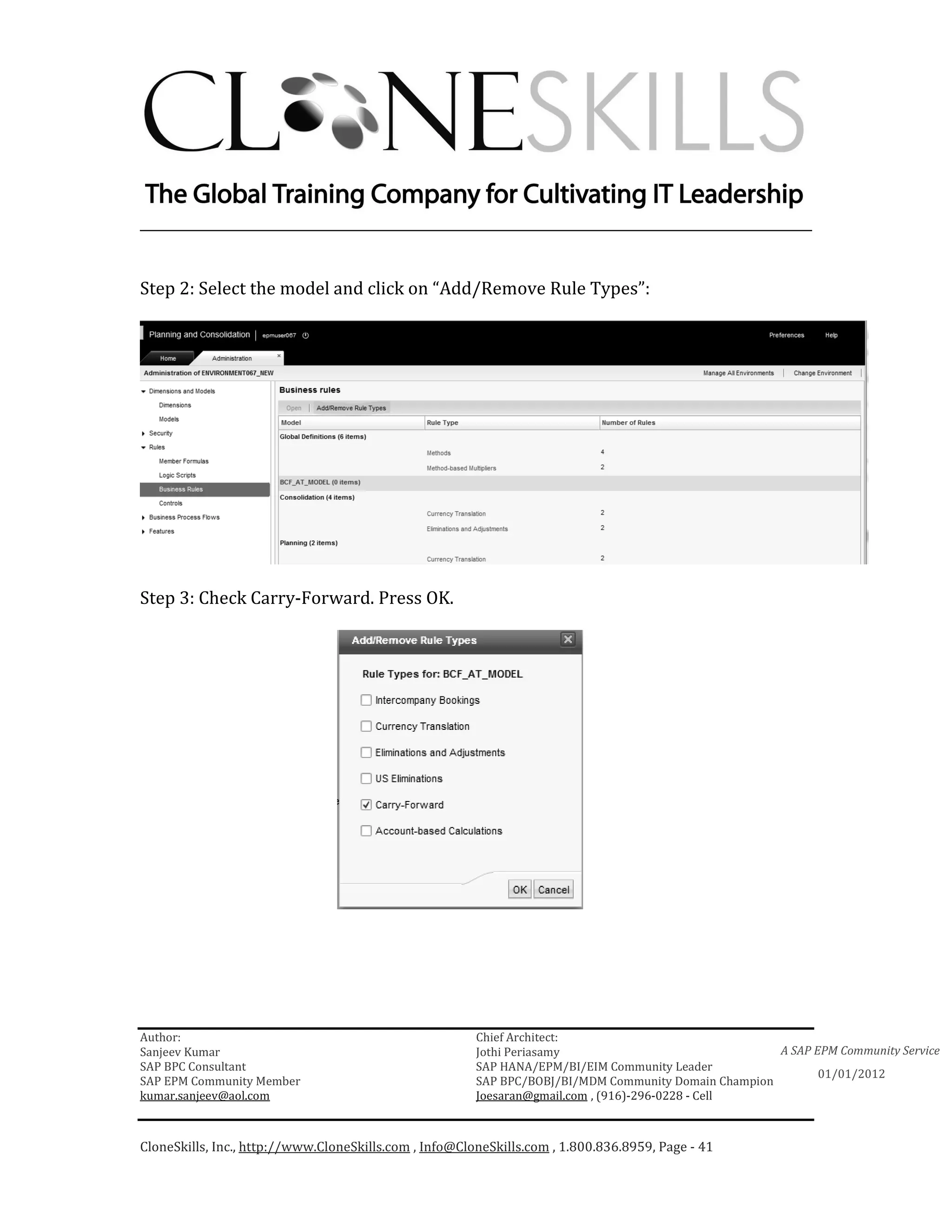
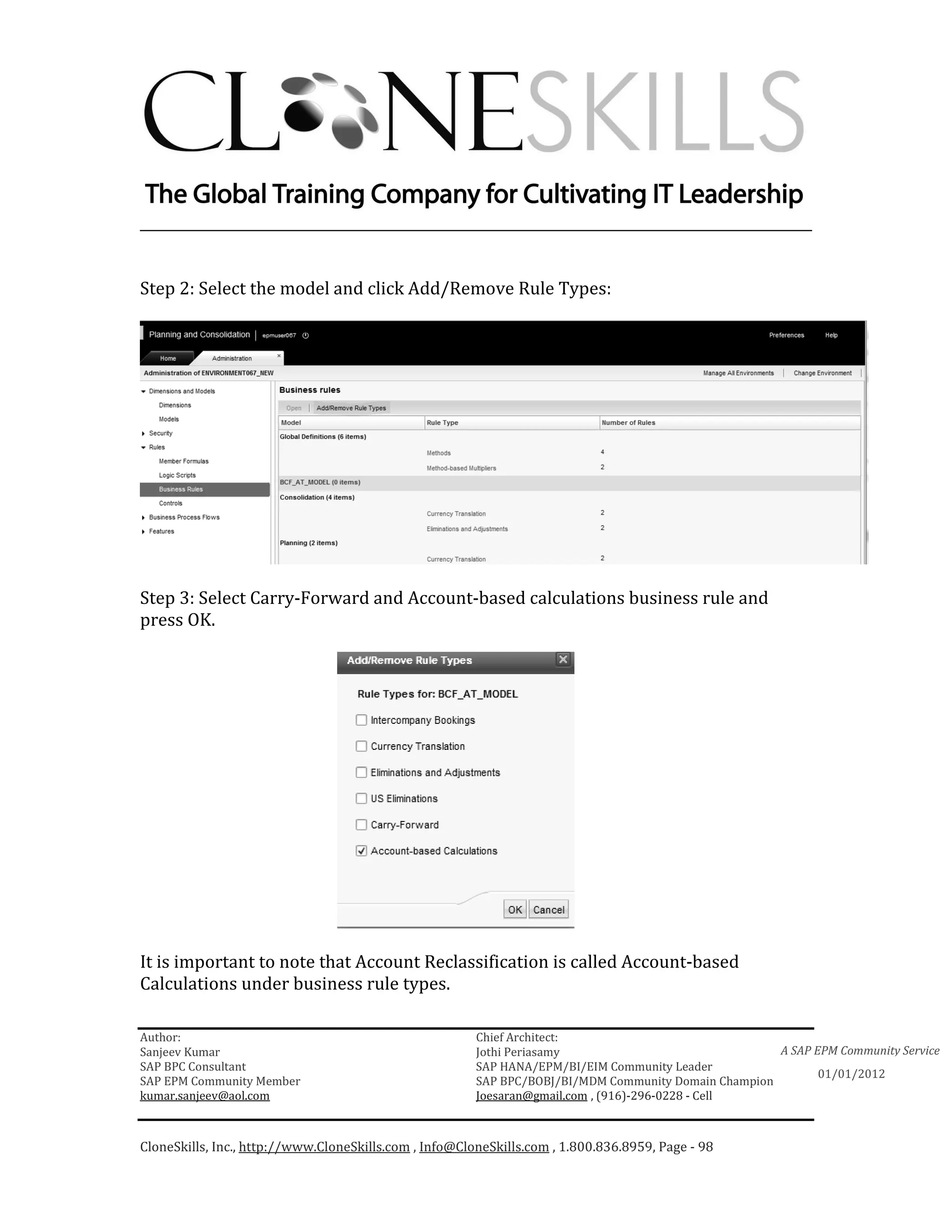
Step 2: Select the model and click on “Add/Remove Rule Types”:


Step 3: Check Carry-Forward. Press OK.


Author:                                                 Chief Architect:
Sanjeev Kumar                                           Jothi Periasamy                               A SAP EPM Community Service
SAP BPC Consultant                                      SAP HANA/EPM/BI/EIM Community Leader
                                                                                                             01/01/2012
SAP EPM Community Member                                SAP BPC/BOBJ/BI/MDM Community Domain Champion
kumar.sanjeev@aol.com                                   Joesaran@gmail.com , (916)-296-0228 - Cell


CloneSkills, Inc., http://www.CloneSkills.com , Info@CloneSkills.com , 1.800.836.8959, Page - 41
________________________________________________________________________


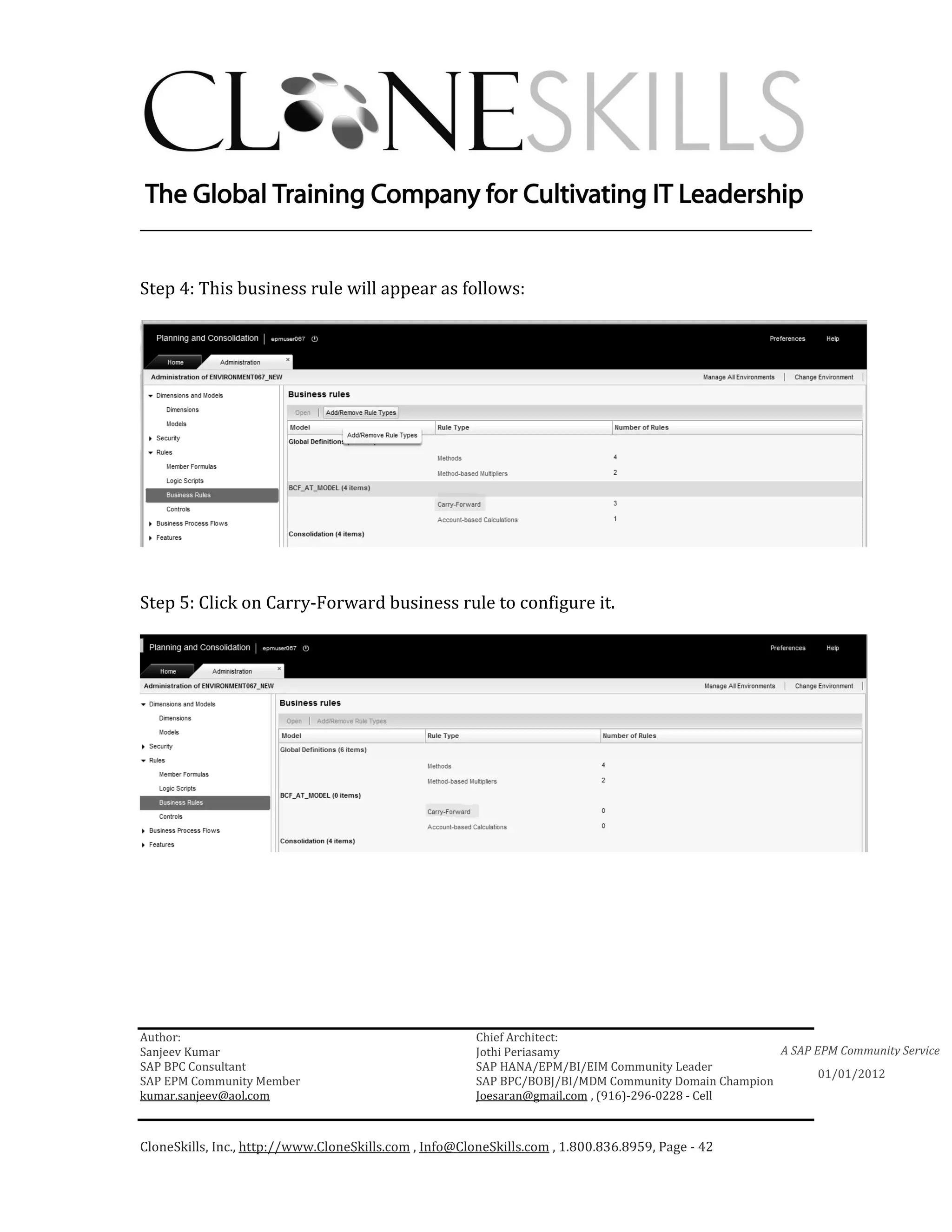
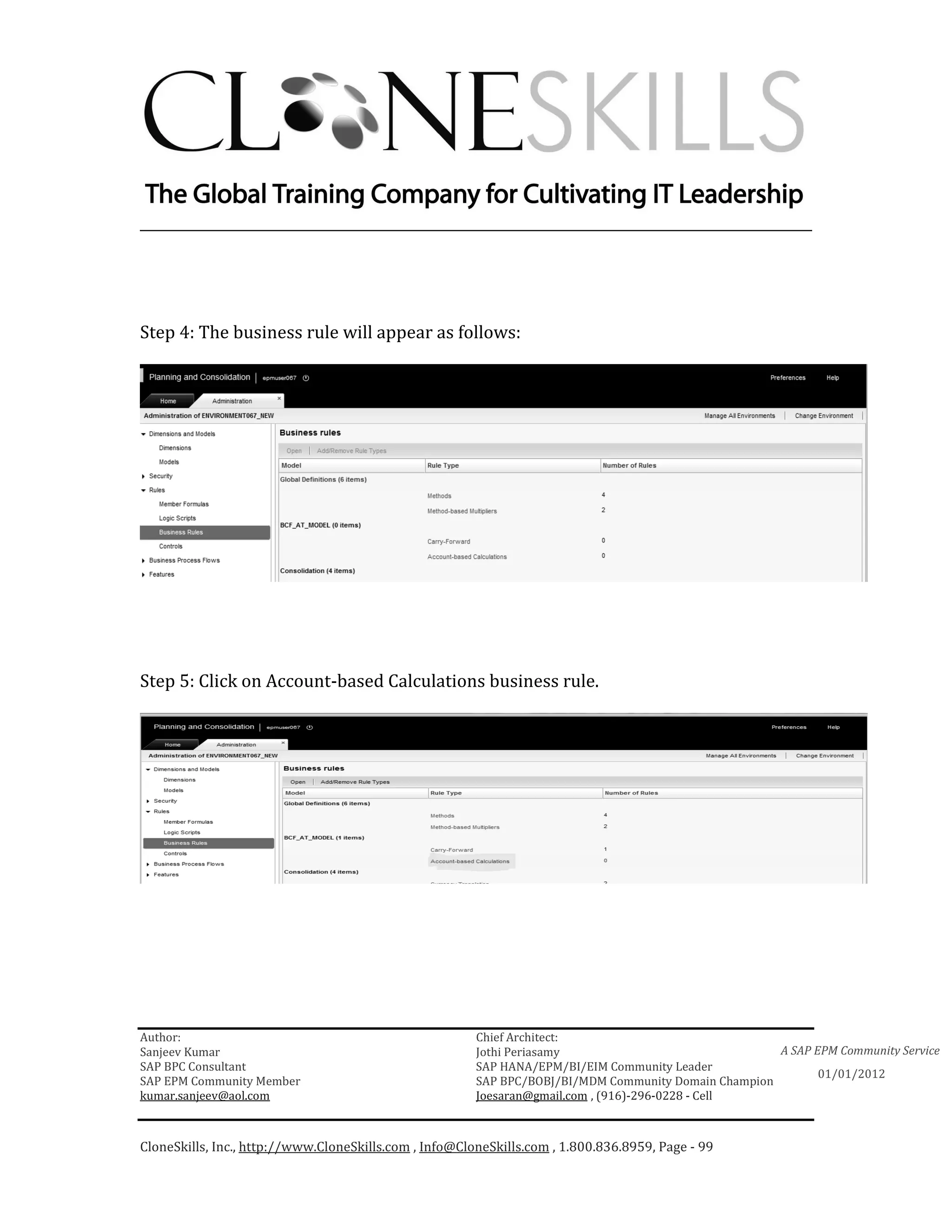
Step 4: This business rule will appear as follows:


Step 5: Click on Carry-Forward business rule to configure it.


Author:                                                 Chief Architect:
Sanjeev Kumar                                           Jothi Periasamy                               A SAP EPM Community Service
SAP BPC Consultant                                      SAP HANA/EPM/BI/EIM Community Leader
                                                                                                             01/01/2012
SAP EPM Community Member                                SAP BPC/BOBJ/BI/MDM Community Domain Champion
kumar.sanjeev@aol.com                                   Joesaran@gmail.com , (916)-296-0228 - Cell


CloneSkills, Inc., http://www.CloneSkills.com , Info@CloneSkills.com , 1.800.836.8959, Page - 42
________________________________________________________________________


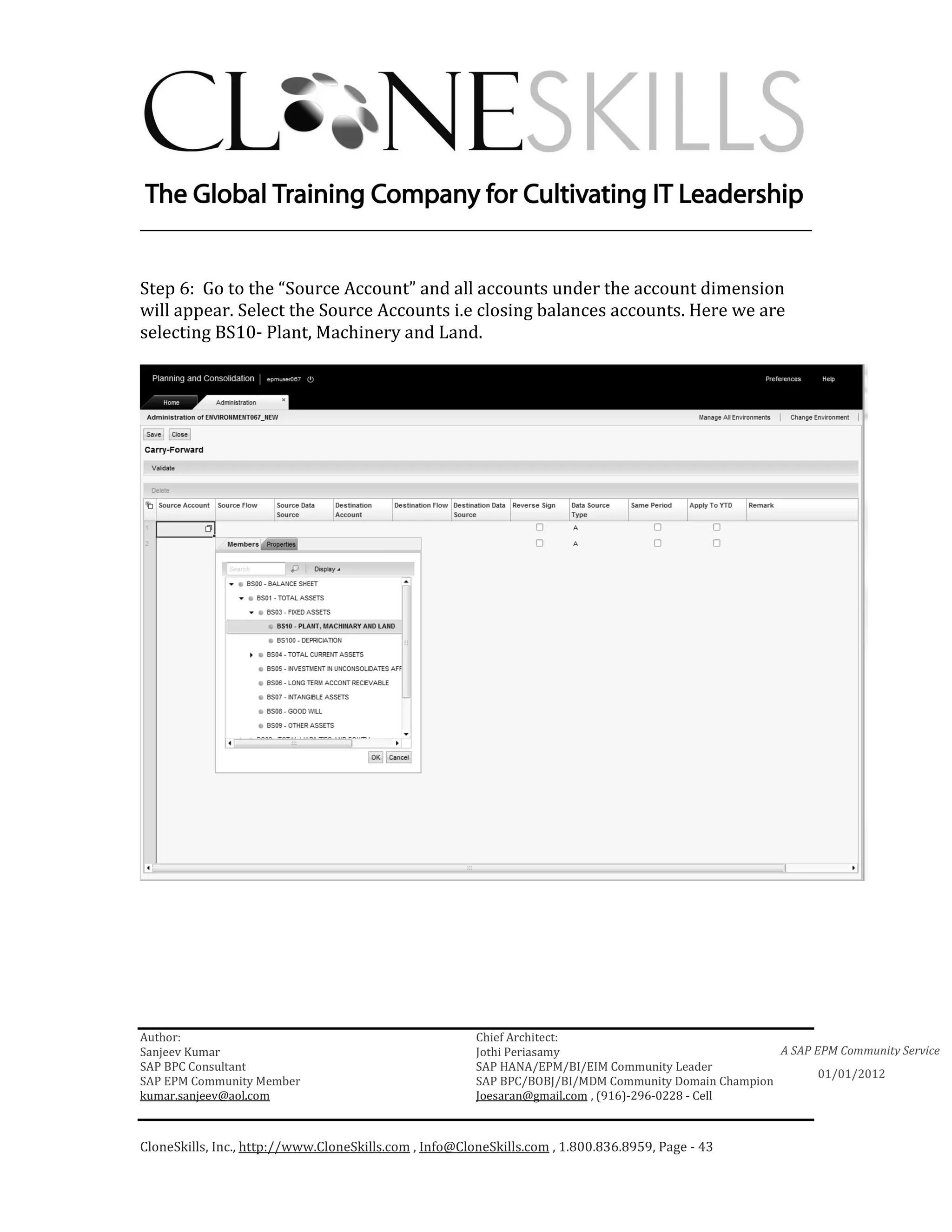
Step 6: Go to the “Source Account” and all accounts under the account dimension
will appear. Select the Source Accounts i.e closing balances accounts. Here we are
selecting BS10- Plant, Machinery and Land.


Author:                                                 Chief Architect:
Sanjeev Kumar                                           Jothi Periasamy                               A SAP EPM Community Service
SAP BPC Consultant                                      SAP HANA/EPM/BI/EIM Community Leader
                                                                                                             01/01/2012
SAP EPM Community Member                                SAP BPC/BOBJ/BI/MDM Community Domain Champion
kumar.sanjeev@aol.com                                   Joesaran@gmail.com , (916)-296-0228 - Cell


CloneSkills, Inc., http://www.CloneSkills.com , Info@CloneSkills.com , 1.800.836.8959, Page - 43
________________________________________________________________________


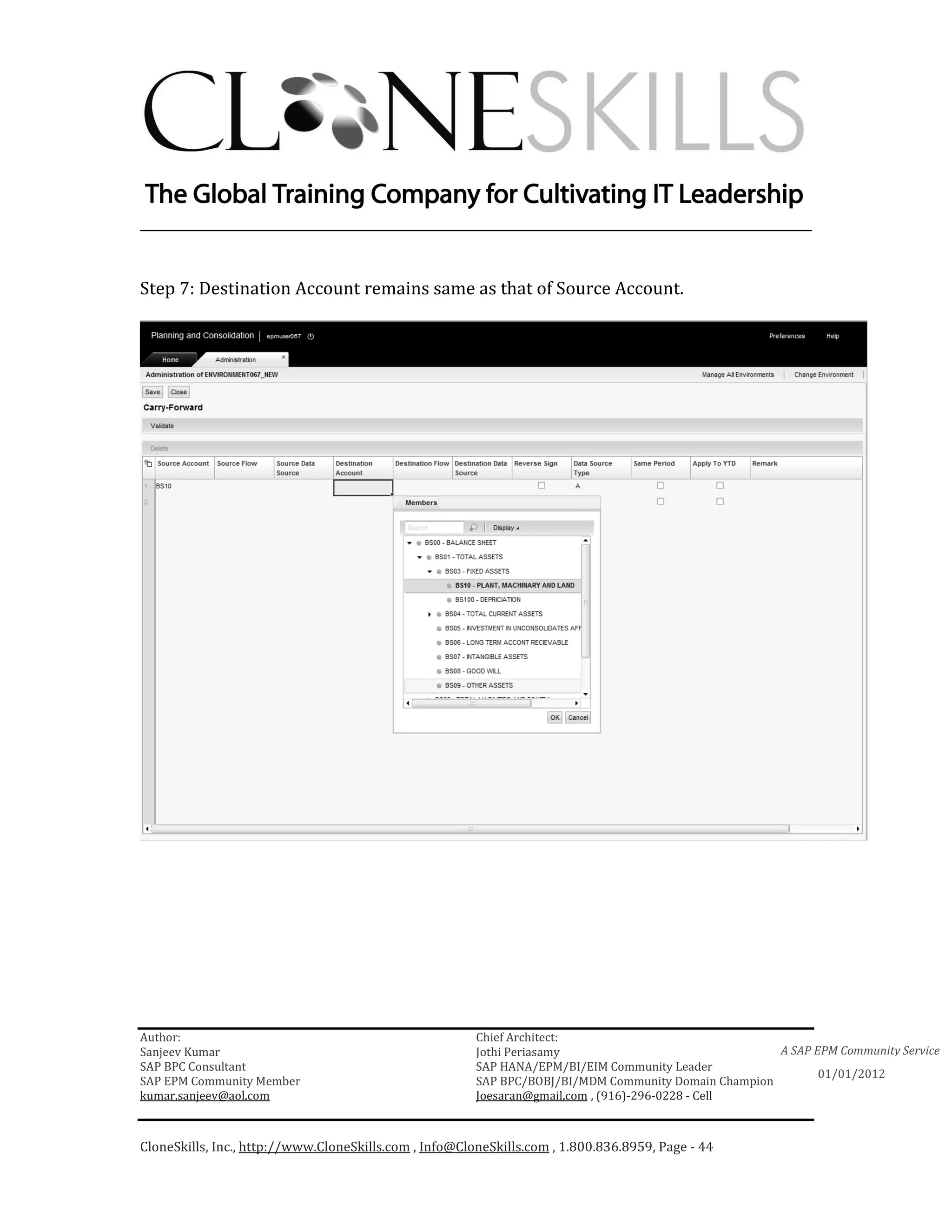
Step 7: Destination Account remains same as that of Source Account.


Author:                                                 Chief Architect:
Sanjeev Kumar                                           Jothi Periasamy                               A SAP EPM Community Service
SAP BPC Consultant                                      SAP HANA/EPM/BI/EIM Community Leader
                                                                                                             01/01/2012
SAP EPM Community Member                                SAP BPC/BOBJ/BI/MDM Community Domain Champion
kumar.sanjeev@aol.com                                   Joesaran@gmail.com , (916)-296-0228 - Cell


CloneSkills, Inc., http://www.CloneSkills.com , Info@CloneSkills.com , 1.800.836.8959, Page - 44
________________________________________________________________________


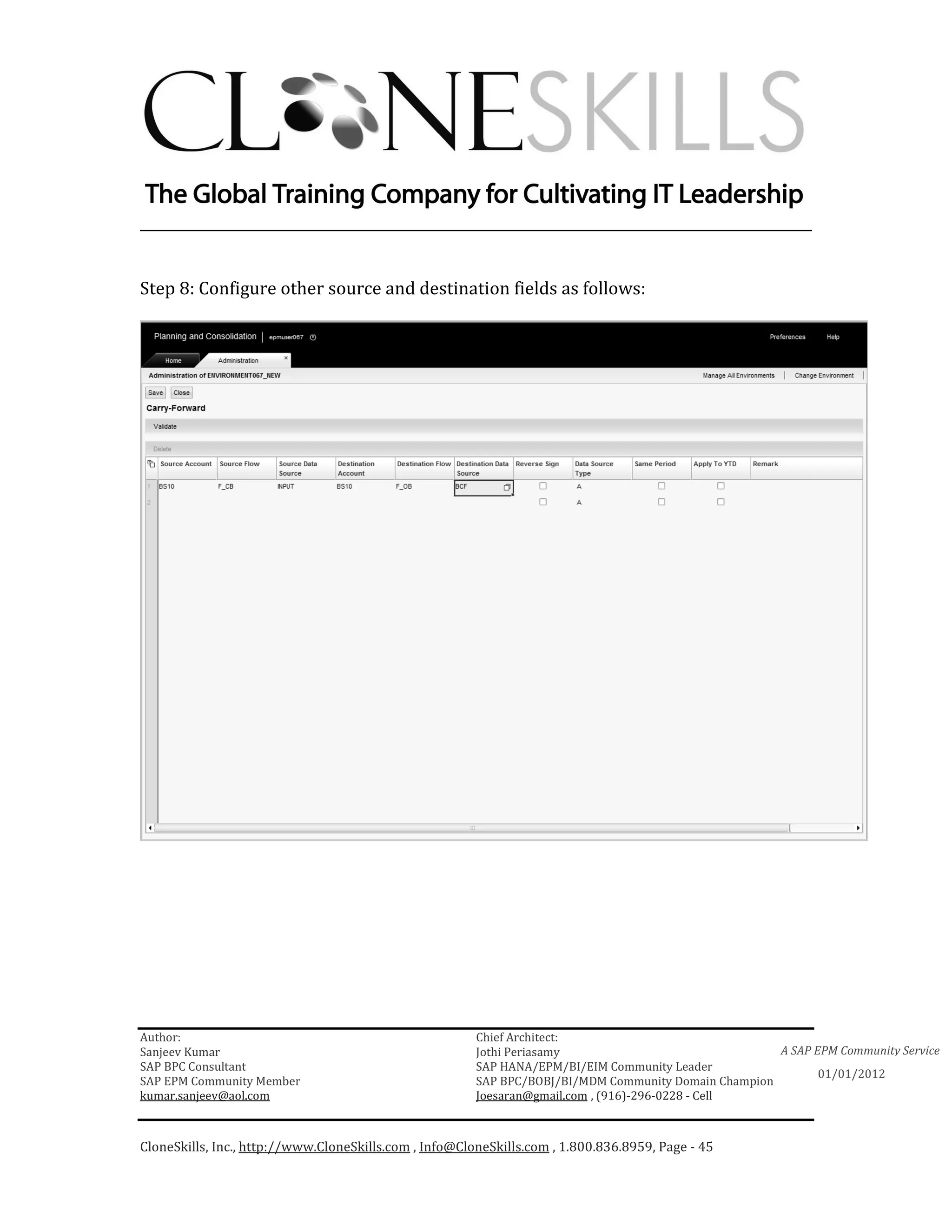
Step 8: Configure other source and destination fields as follows:


Author:                                                 Chief Architect:
Sanjeev Kumar                                           Jothi Periasamy                               A SAP EPM Community Service
SAP BPC Consultant                                      SAP HANA/EPM/BI/EIM Community Leader
                                                                                                             01/01/2012
SAP EPM Community Member                                SAP BPC/BOBJ/BI/MDM Community Domain Champion
kumar.sanjeev@aol.com                                   Joesaran@gmail.com , (916)-296-0228 - Cell


CloneSkills, Inc., http://www.CloneSkills.com , Info@CloneSkills.com , 1.800.836.8959, Page - 45
________________________________________________________________________


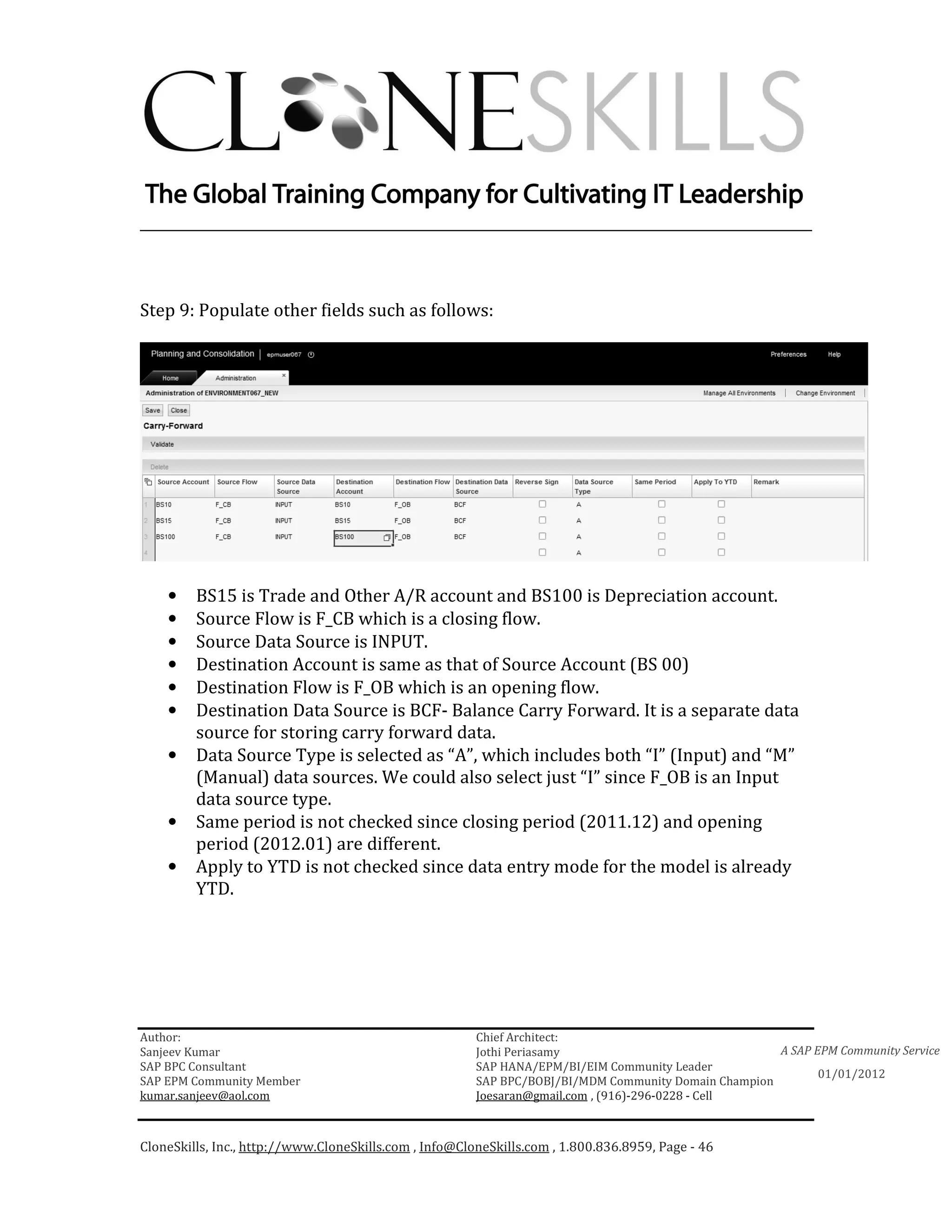
Step 9: Populate other fields such as follows:


    •    BS15 is Trade and Other A/R account and BS100 is Depreciation account.
    •    Source Flow is F_CB which is a closing flow.
    •    Source Data Source is INPUT.
    •    Destination Account is same as that of Source Account (BS 00)
    •    Destination Flow is F_OB which is an opening flow.
    •    Destination Data Source is BCF- Balance Carry Forward. It is a separate data
         source for storing carry forward data.
    •    Data Source Type is selected as “A”, which includes both “I” (Input) and “M”
         (Manual) data sources. We could also select just “I” since F_OB is an Input
         data source type.
    •    Same period is not checked since closing period (2011.12) and opening
         period (2012.01) are different.
    •    Apply to YTD is not checked since data entry mode for the model is already
         YTD.


Author:                                                 Chief Architect:
Sanjeev Kumar                                           Jothi Periasamy                               A SAP EPM Community Service
SAP BPC Consultant                                      SAP HANA/EPM/BI/EIM Community Leader
                                                                                                             01/01/2012
SAP EPM Community Member                                SAP BPC/BOBJ/BI/MDM Community Domain Champion
kumar.sanjeev@aol.com                                   Joesaran@gmail.com , (916)-296-0228 - Cell


CloneSkills, Inc., http://www.CloneSkills.com , Info@CloneSkills.com , 1.800.836.8959, Page - 46
________________________________________________________________________


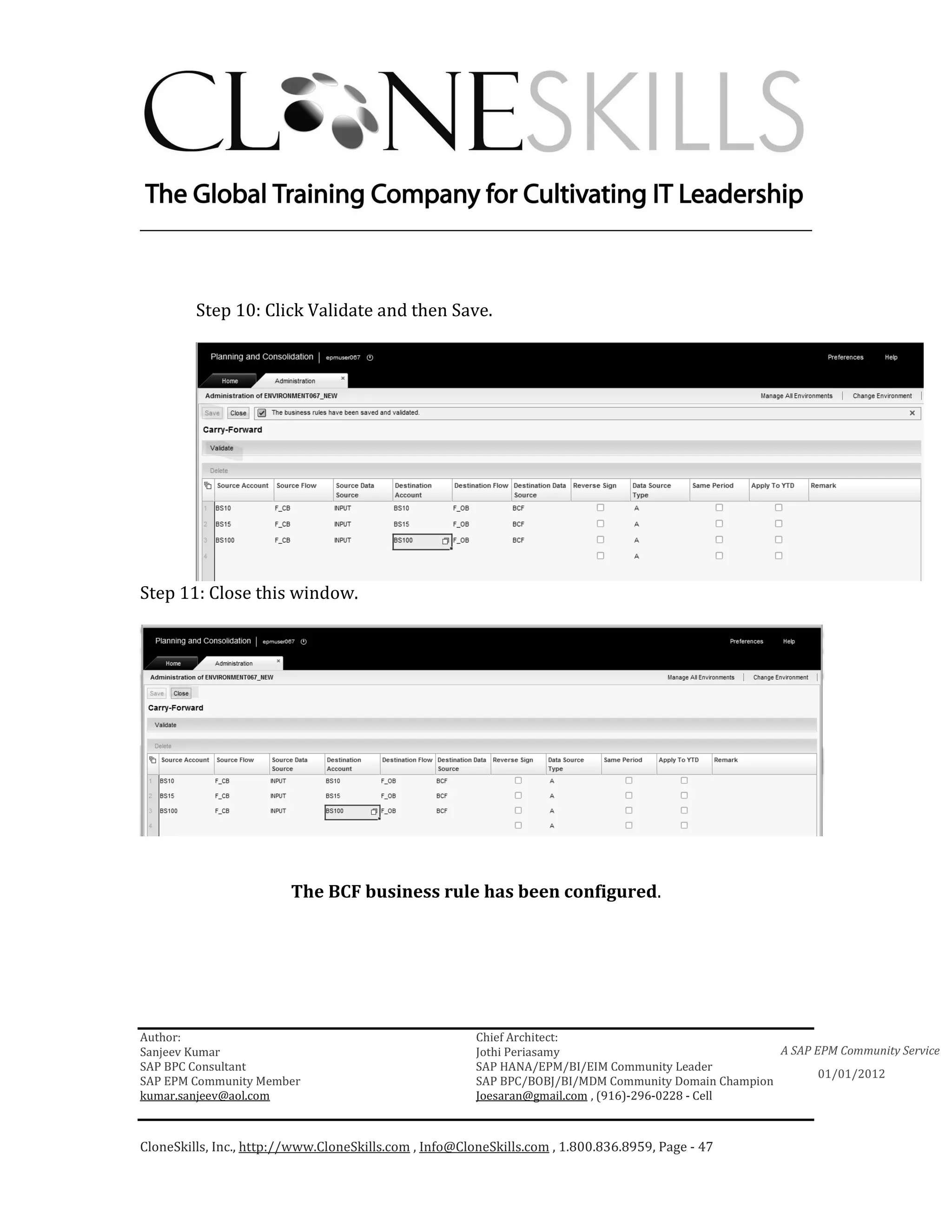
         Step 10: Click Validate and then Save.


Step 11: Close this window.


                         The BCF business rule has been configured.


Author:                                                 Chief Architect:
Sanjeev Kumar                                           Jothi Periasamy                               A SAP EPM Community Service
SAP BPC Consultant                                      SAP HANA/EPM/BI/EIM Community Leader
                                                                                                             01/01/2012
SAP EPM Community Member                                SAP BPC/BOBJ/BI/MDM Community Domain Champion
kumar.sanjeev@aol.com                                   Joesaran@gmail.com , (916)-296-0228 - Cell


CloneSkills, Inc., http://www.CloneSkills.com , Info@CloneSkills.com , 1.800.836.8959, Page - 47
________________________________________________________________________


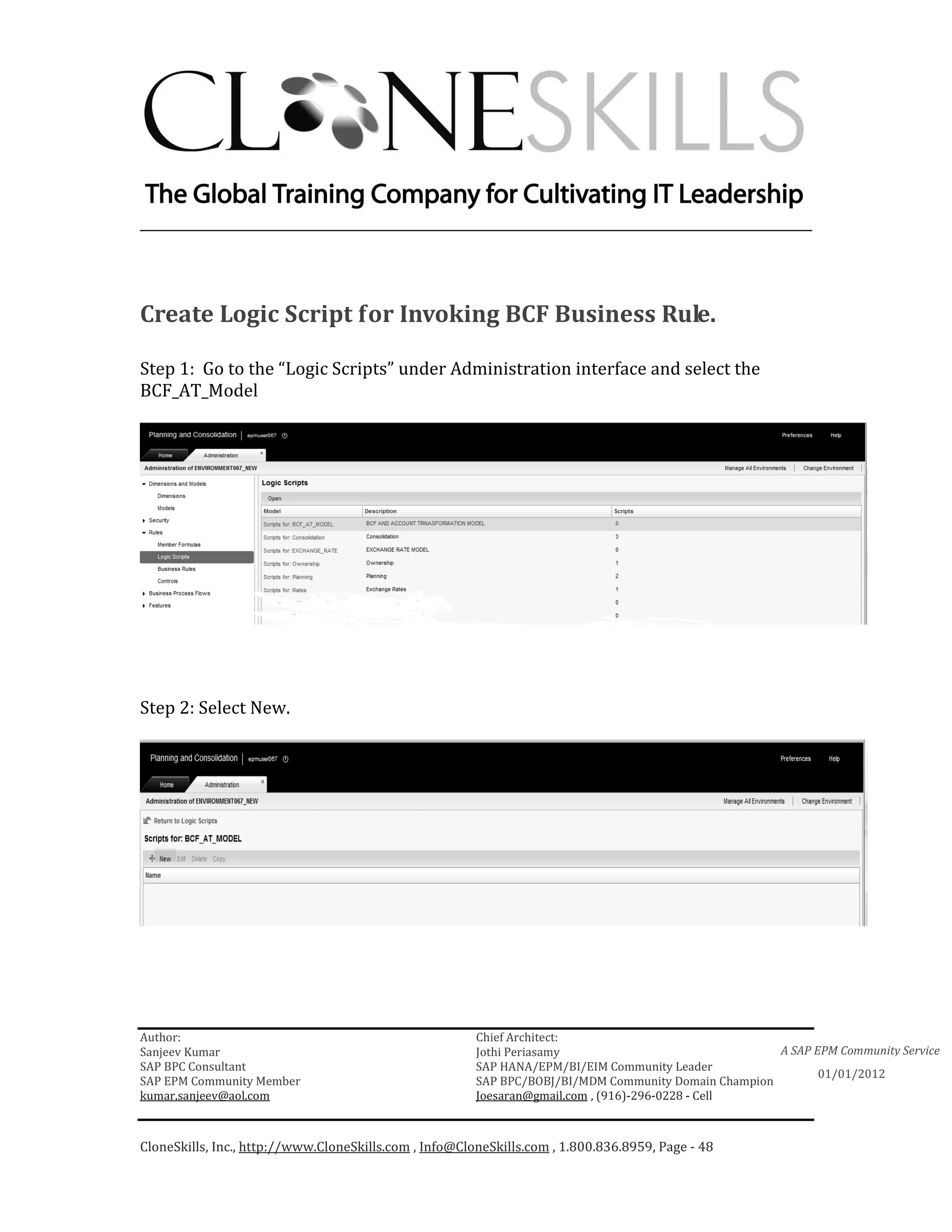
Create Logic Script for Invoking BCF Business Rule.

Step 1: Go to the “Logic Scripts” under Administration interface and select the
BCF_AT_Model


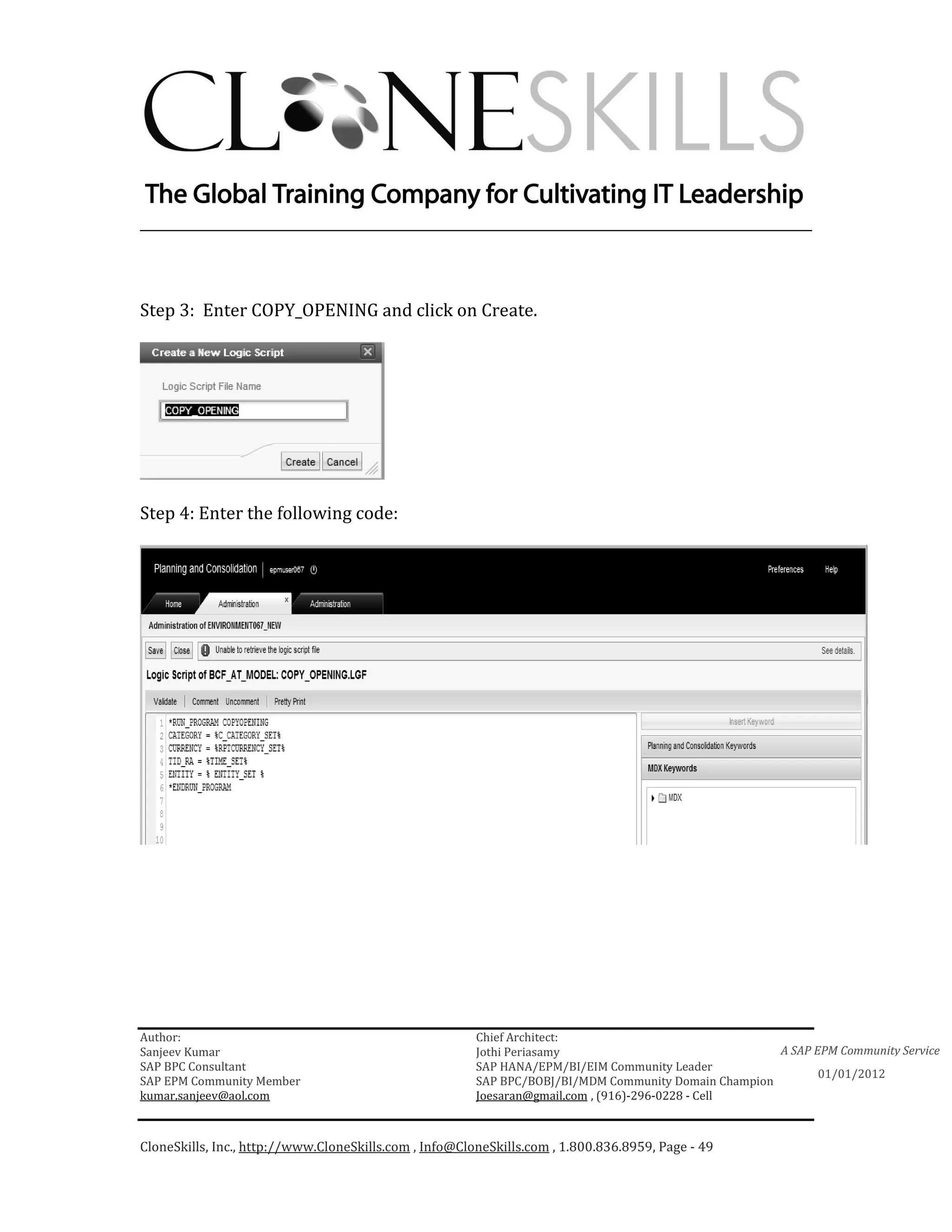
Step 2: Select New.


Author:                                                 Chief Architect:
Sanjeev Kumar                                           Jothi Periasamy                               A SAP EPM Community Service
SAP BPC Consultant                                      SAP HANA/EPM/BI/EIM Community Leader
                                                                                                             01/01/2012
SAP EPM Community Member                                SAP BPC/BOBJ/BI/MDM Community Domain Champion
kumar.sanjeev@aol.com                                   Joesaran@gmail.com , (916)-296-0228 - Cell


CloneSkills, Inc., http://www.CloneSkills.com , Info@CloneSkills.com , 1.800.836.8959, Page - 48
________________________________________________________________________


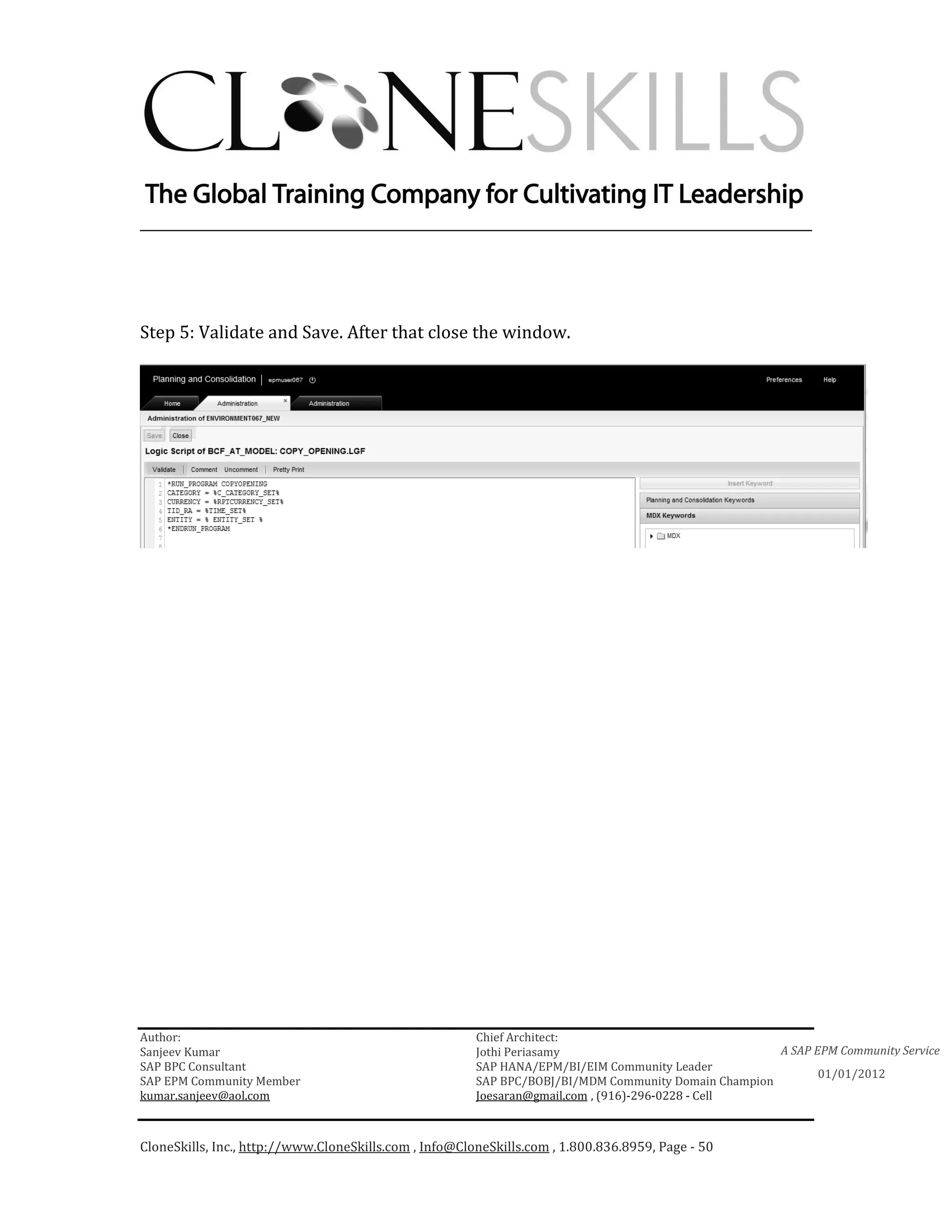
Step 3: Enter COPY_OPENING and click on Create.


Step 4: Enter the following code:


Author:                                                 Chief Architect:
Sanjeev Kumar                                           Jothi Periasamy                               A SAP EPM Community Service
SAP BPC Consultant                                      SAP HANA/EPM/BI/EIM Community Leader
                                                                                                             01/01/2012
SAP EPM Community Member                                SAP BPC/BOBJ/BI/MDM Community Domain Champion
kumar.sanjeev@aol.com                                   Joesaran@gmail.com , (916)-296-0228 - Cell


CloneSkills, Inc., http://www.CloneSkills.com , Info@CloneSkills.com , 1.800.836.8959, Page - 49
________________________________________________________________________


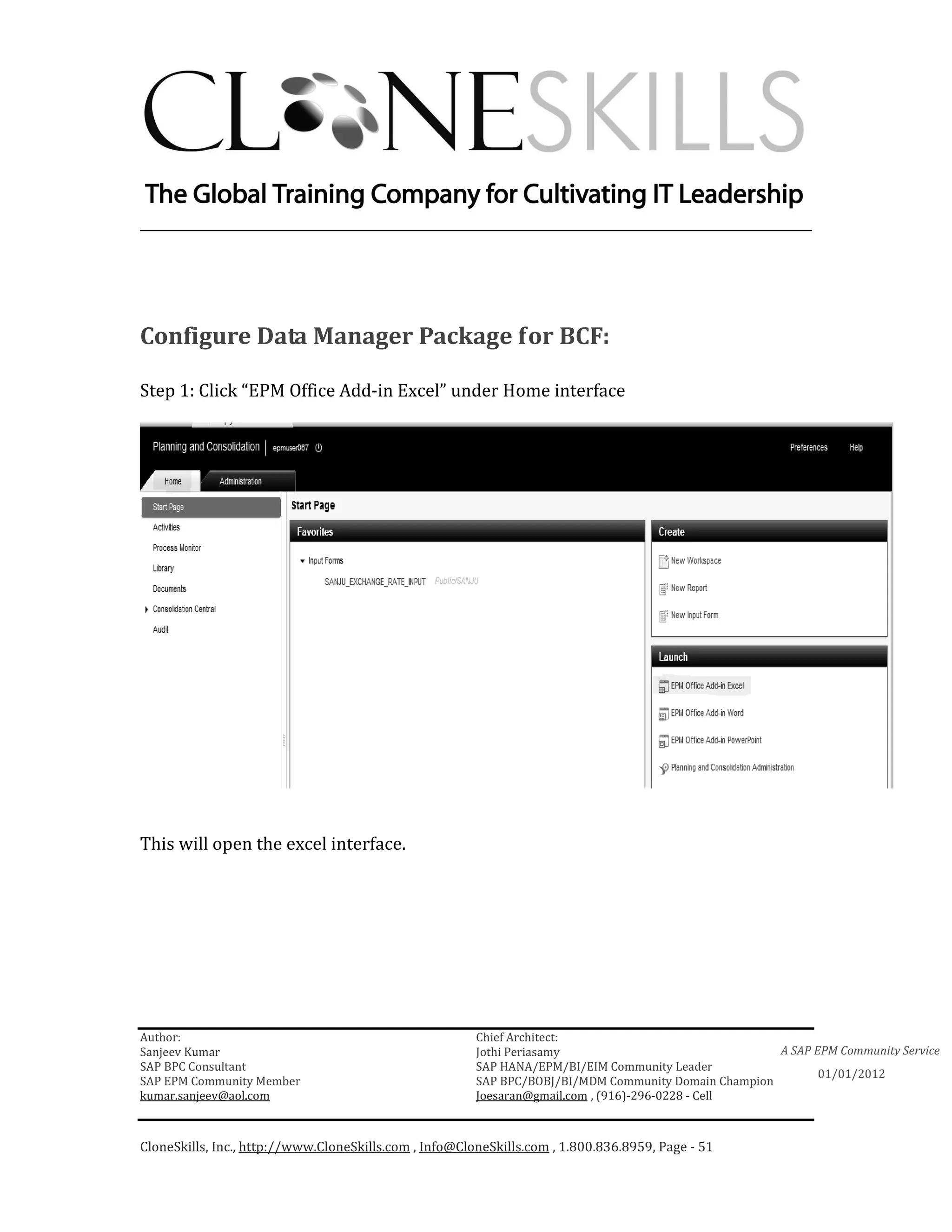
Step 5: Validate and Save. After that close the window.


Author:                                                 Chief Architect:
Sanjeev Kumar                                           Jothi Periasamy                               A SAP EPM Community Service
SAP BPC Consultant                                      SAP HANA/EPM/BI/EIM Community Leader
                                                                                                             01/01/2012
SAP EPM Community Member                                SAP BPC/BOBJ/BI/MDM Community Domain Champion
kumar.sanjeev@aol.com                                   Joesaran@gmail.com , (916)-296-0228 - Cell


CloneSkills, Inc., http://www.CloneSkills.com , Info@CloneSkills.com , 1.800.836.8959, Page - 50
________________________________________________________________________


Configure Data Manager Package for BCF:

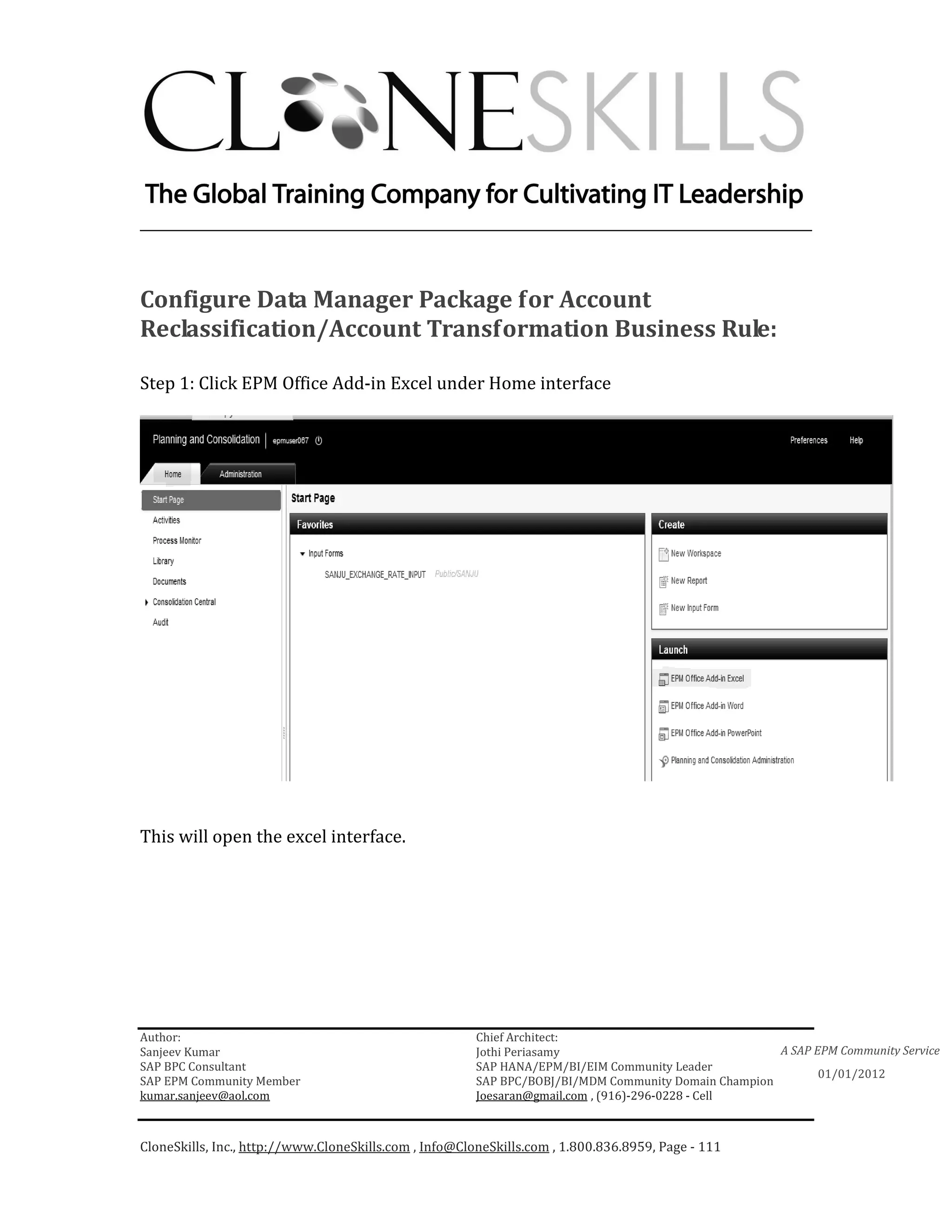
Step 1: Click “EPM Office Add-in Excel” under Home interface


This will open the excel interface.


Author:                                                 Chief Architect:
Sanjeev Kumar                                           Jothi Periasamy                               A SAP EPM Community Service
SAP BPC Consultant                                      SAP HANA/EPM/BI/EIM Community Leader
                                                                                                             01/01/2012
SAP EPM Community Member                                SAP BPC/BOBJ/BI/MDM Community Domain Champion
kumar.sanjeev@aol.com                                   Joesaran@gmail.com , (916)-296-0228 - Cell


CloneSkills, Inc., http://www.CloneSkills.com , Info@CloneSkills.com , 1.800.836.8959, Page - 51
________________________________________________________________________


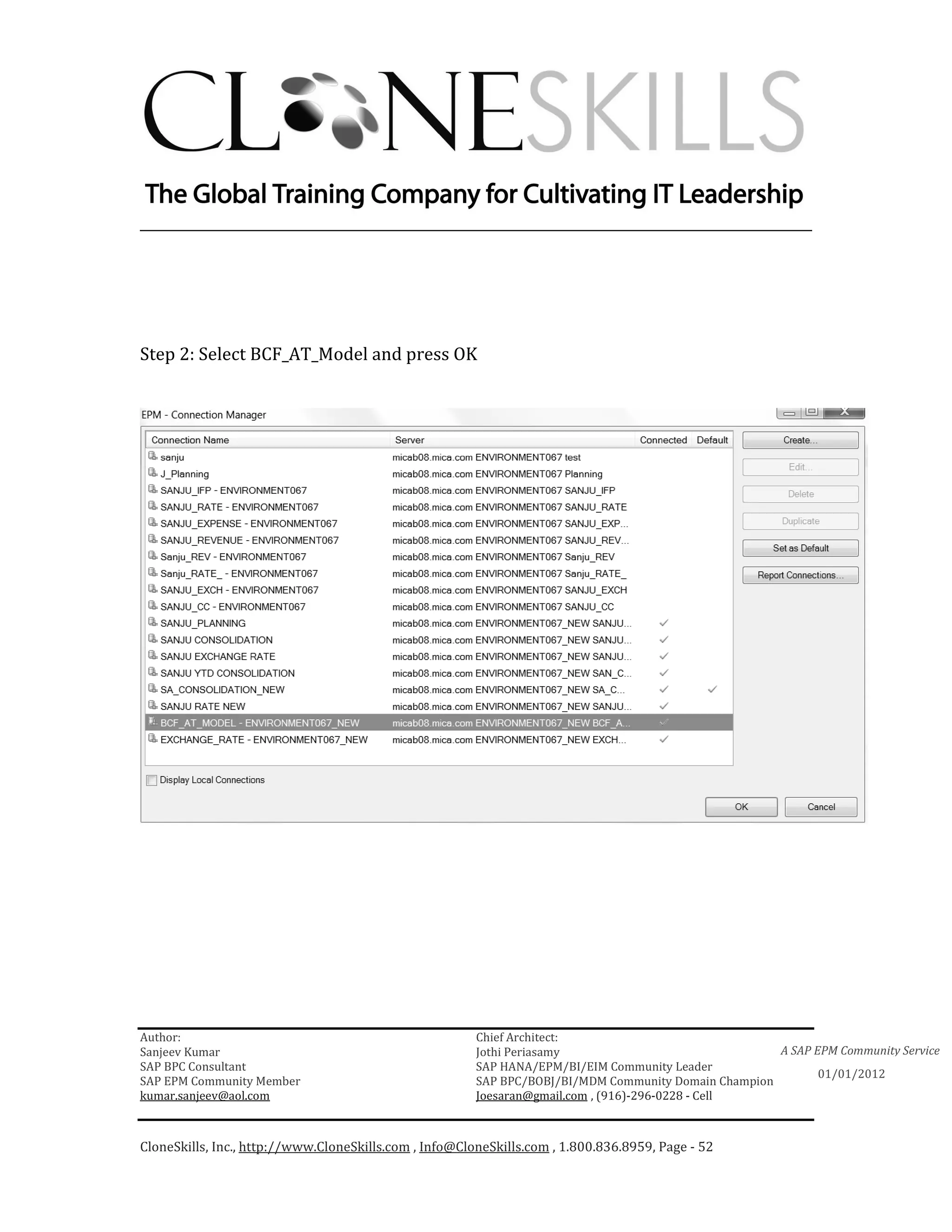
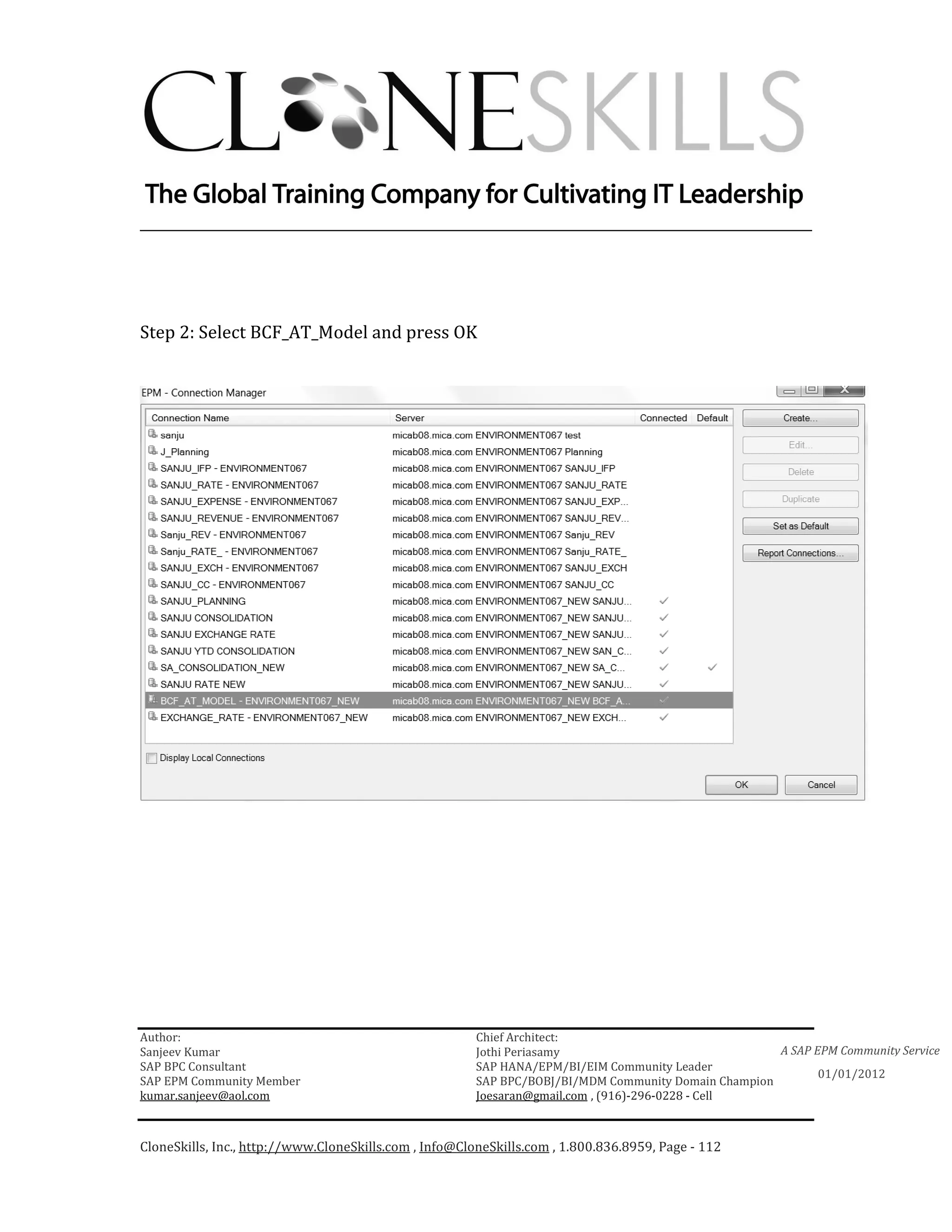
Step 2: Select BCF_AT_Model and press OK


Author:                                                 Chief Architect:
Sanjeev Kumar                                           Jothi Periasamy                               A SAP EPM Community Service
SAP BPC Consultant                                      SAP HANA/EPM/BI/EIM Community Leader
                                                                                                             01/01/2012
SAP EPM Community Member                                SAP BPC/BOBJ/BI/MDM Community Domain Champion
kumar.sanjeev@aol.com                                   Joesaran@gmail.com , (916)-296-0228 - Cell


CloneSkills, Inc., http://www.CloneSkills.com , Info@CloneSkills.com , 1.800.836.8959, Page - 52
________________________________________________________________________


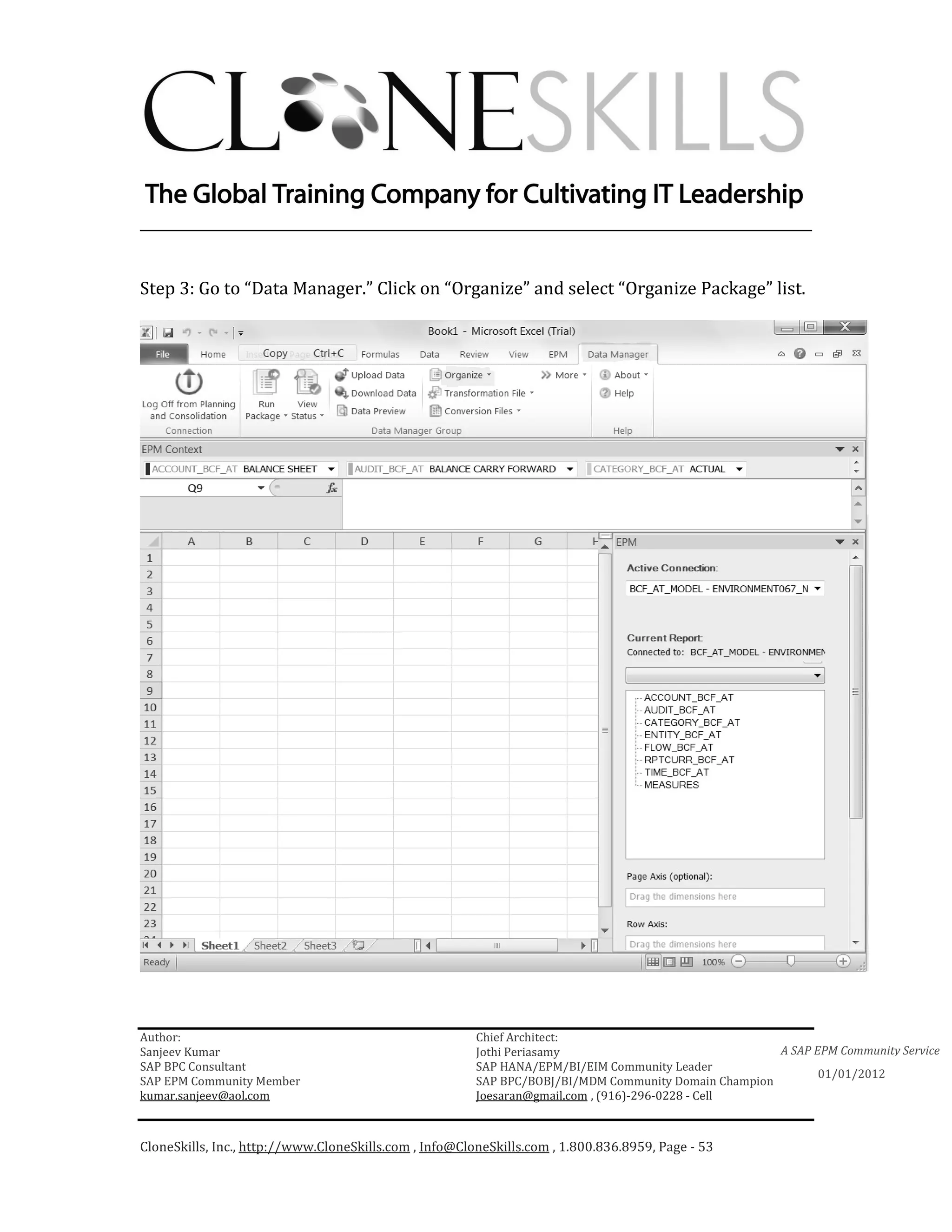
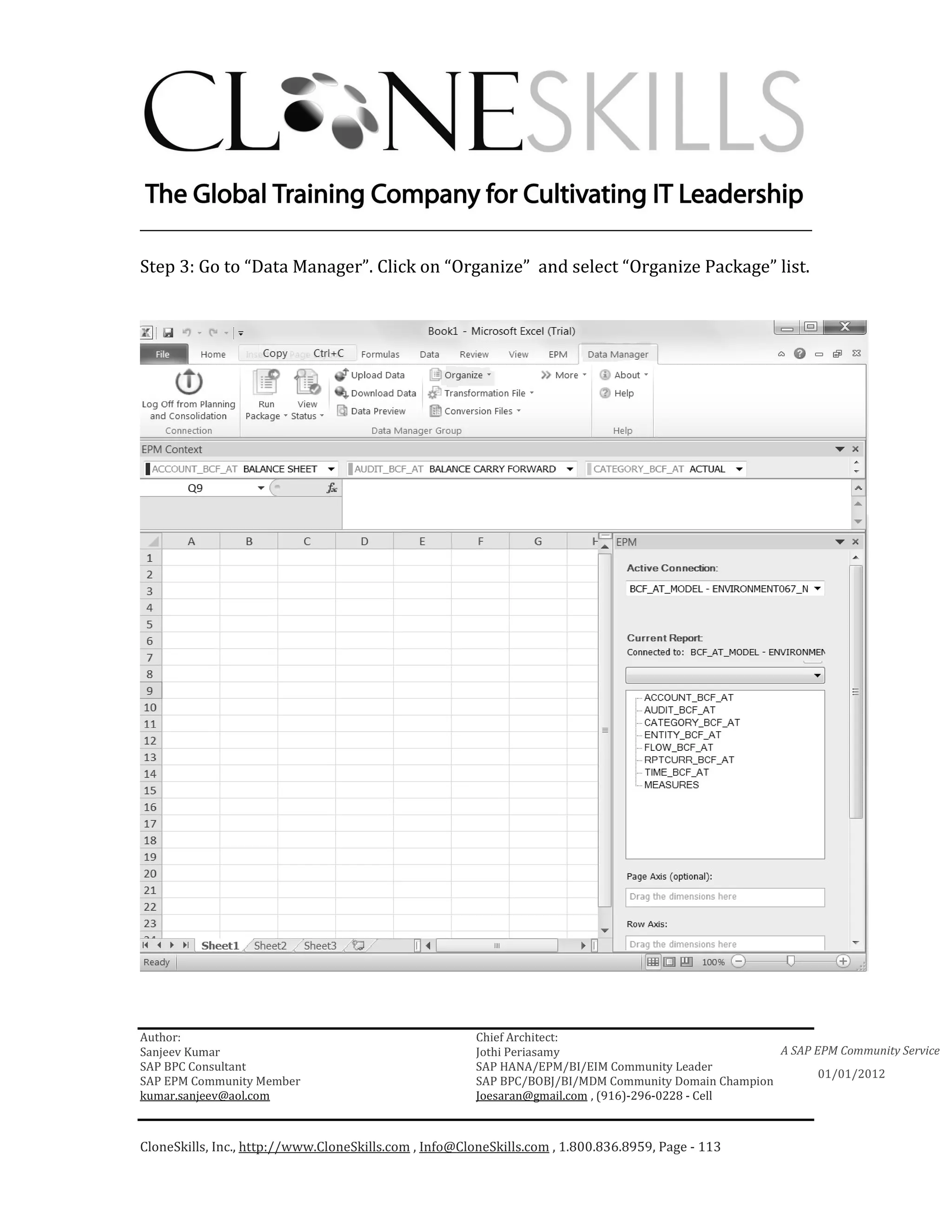
Step 3: Go to “Data Manager.” Click on “Organize” and select “Organize Package” list.


Author:                                                 Chief Architect:
Sanjeev Kumar                                           Jothi Periasamy                               A SAP EPM Community Service
SAP BPC Consultant                                      SAP HANA/EPM/BI/EIM Community Leader
                                                                                                             01/01/2012
SAP EPM Community Member                                SAP BPC/BOBJ/BI/MDM Community Domain Champion
kumar.sanjeev@aol.com                                   Joesaran@gmail.com , (916)-296-0228 - Cell


CloneSkills, Inc., http://www.CloneSkills.com , Info@CloneSkills.com , 1.800.836.8959, Page - 53
________________________________________________________________________


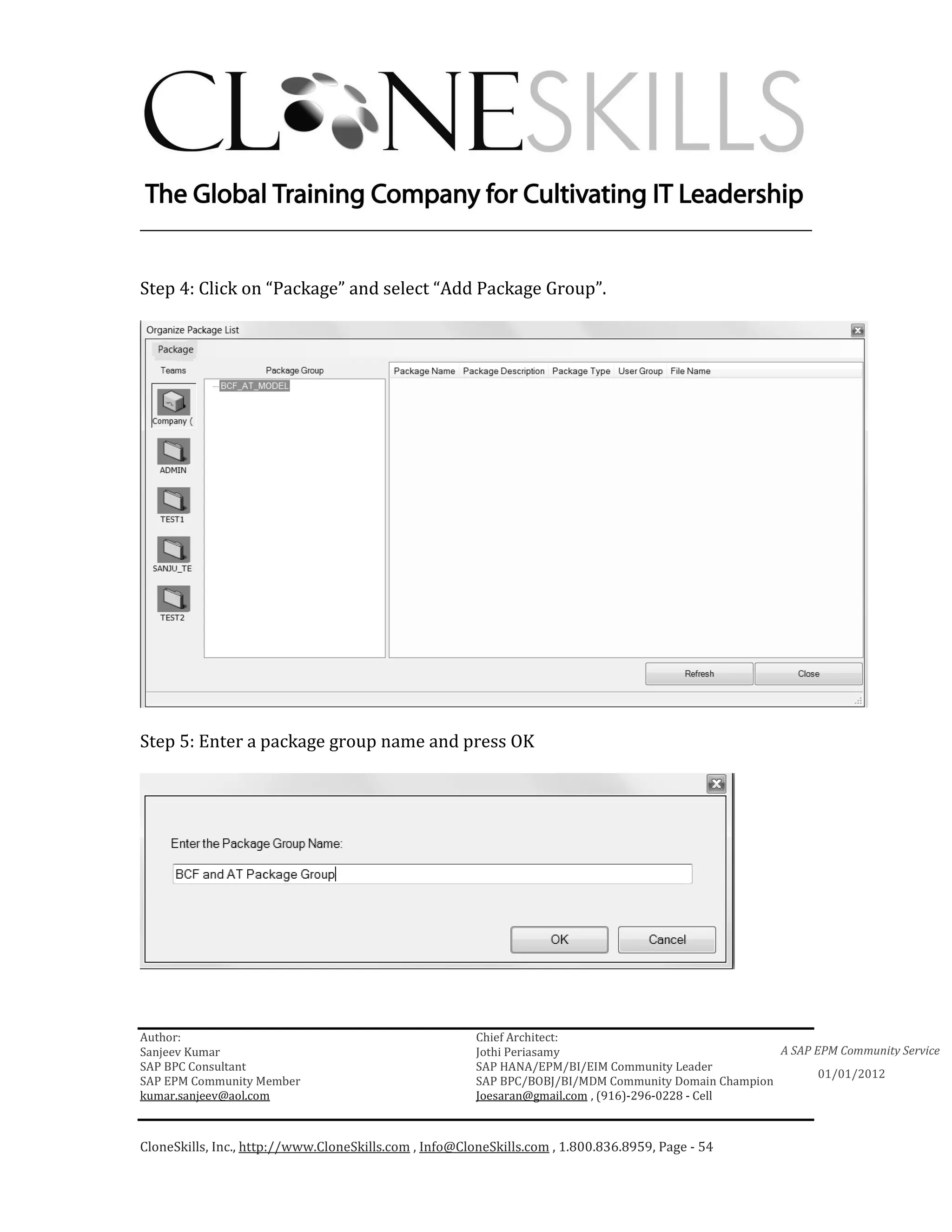
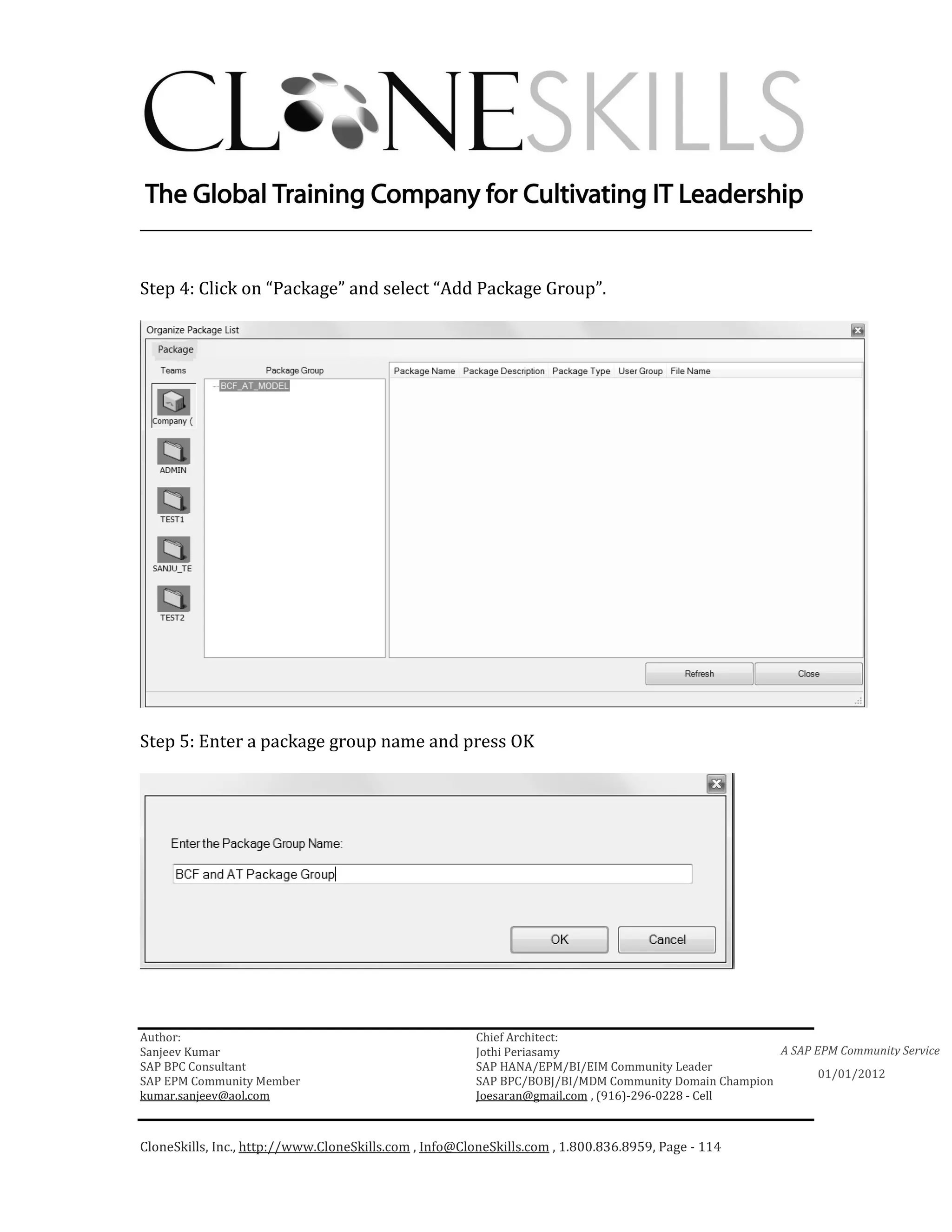
Step 4: Click on “Package” and select “Add Package Group”.


Step 5: Enter a package group name and press OK


Author:                                                 Chief Architect:
Sanjeev Kumar                                           Jothi Periasamy                               A SAP EPM Community Service
SAP BPC Consultant                                      SAP HANA/EPM/BI/EIM Community Leader
                                                                                                             01/01/2012
SAP EPM Community Member                                SAP BPC/BOBJ/BI/MDM Community Domain Champion
kumar.sanjeev@aol.com                                   Joesaran@gmail.com , (916)-296-0228 - Cell


CloneSkills, Inc., http://www.CloneSkills.com , Info@CloneSkills.com , 1.800.836.8959, Page - 54
________________________________________________________________________


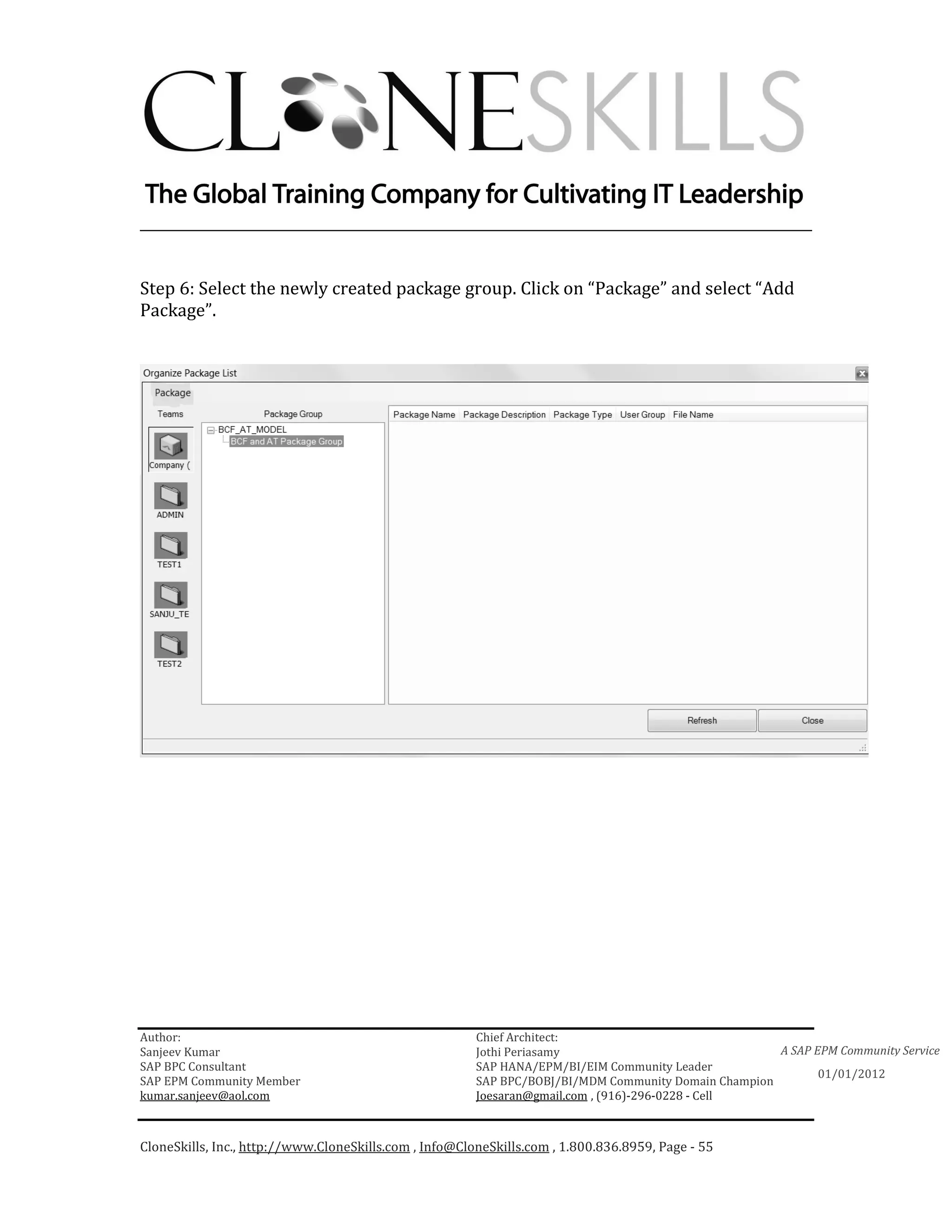
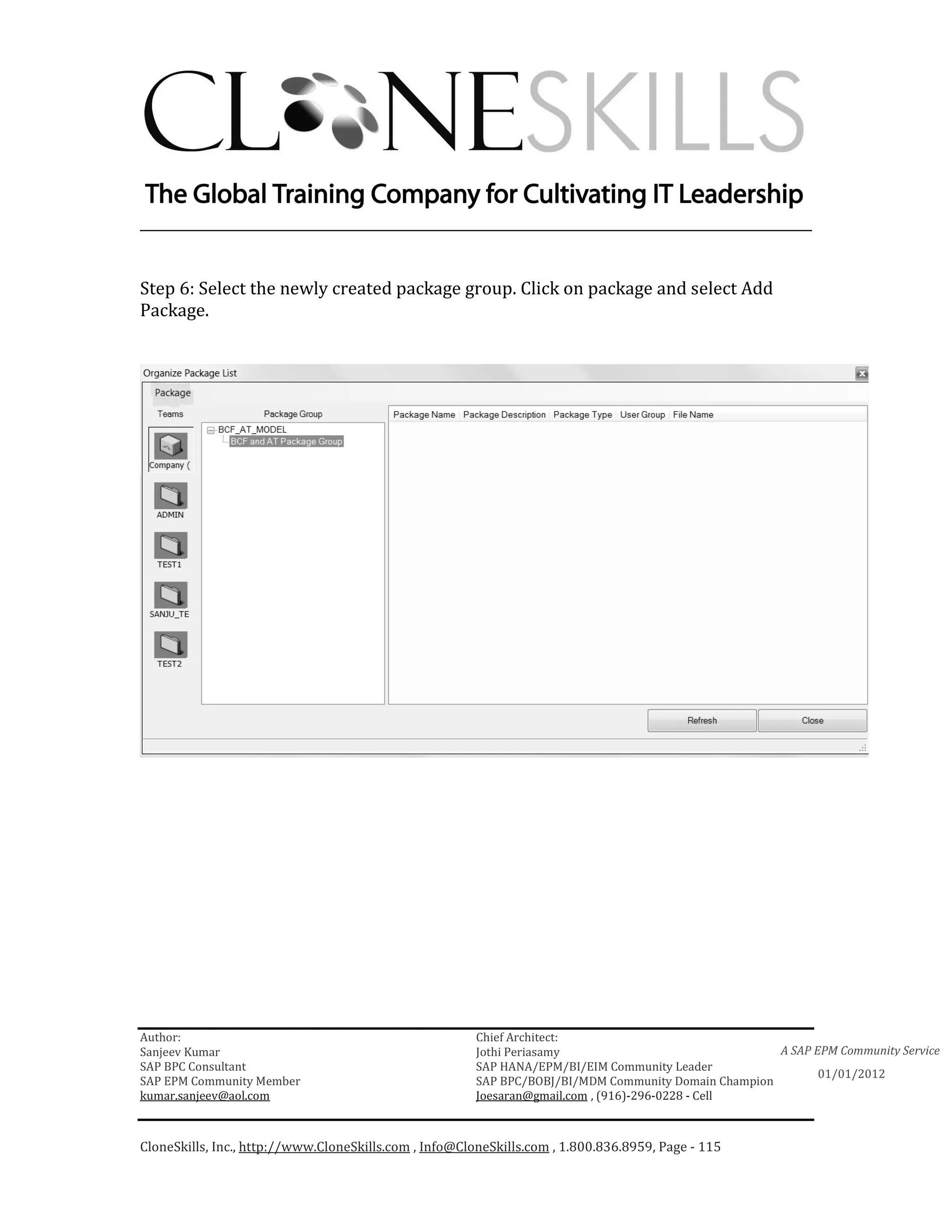
Step 6: Select the newly created package group. Click on “Package” and select “Add
Package”.


Author:                                                 Chief Architect:
Sanjeev Kumar                                           Jothi Periasamy                               A SAP EPM Community Service
SAP BPC Consultant                                      SAP HANA/EPM/BI/EIM Community Leader
                                                                                                             01/01/2012
SAP EPM Community Member                                SAP BPC/BOBJ/BI/MDM Community Domain Champion
kumar.sanjeev@aol.com                                   Joesaran@gmail.com , (916)-296-0228 - Cell


CloneSkills, Inc., http://www.CloneSkills.com , Info@CloneSkills.com , 1.800.836.8959, Page - 55
________________________________________________________________________


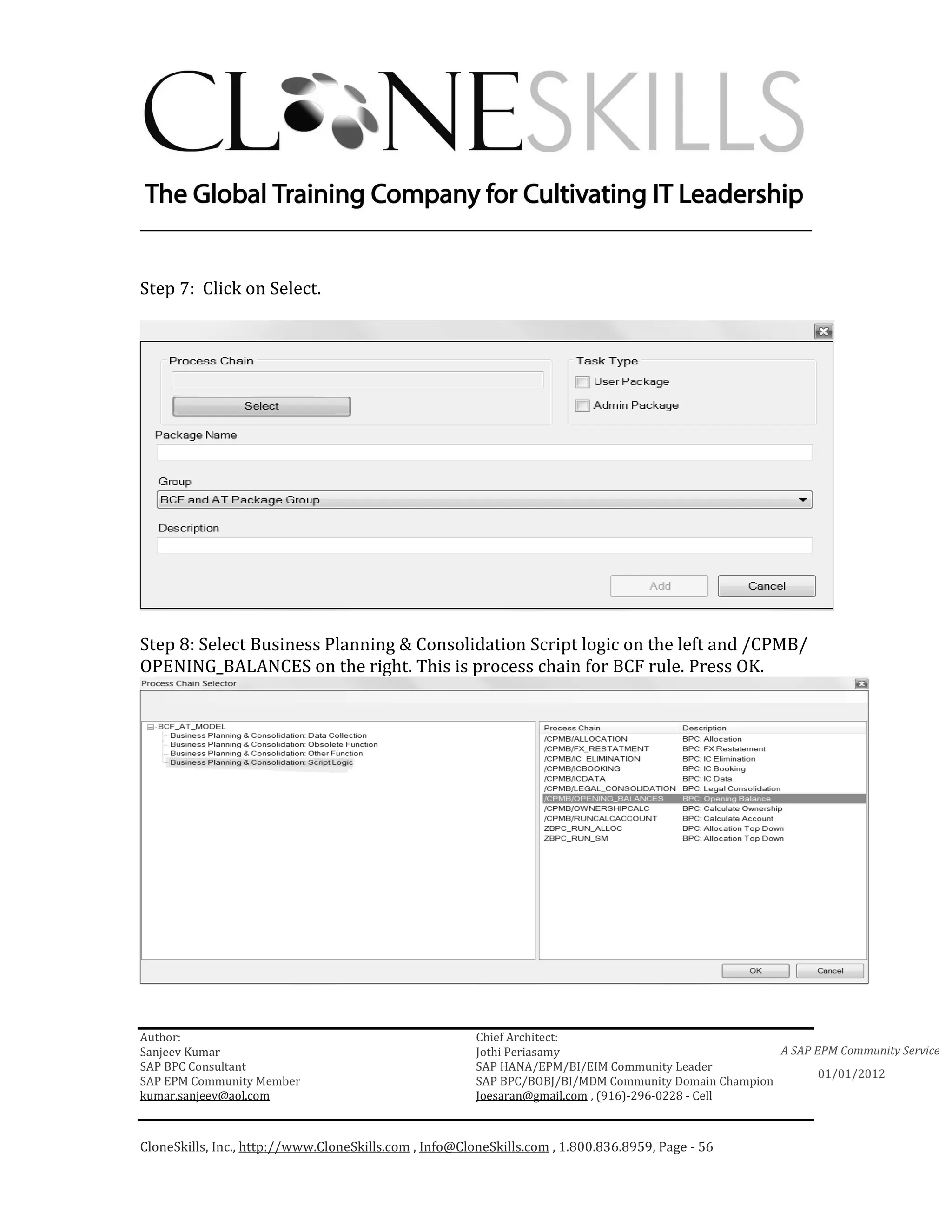
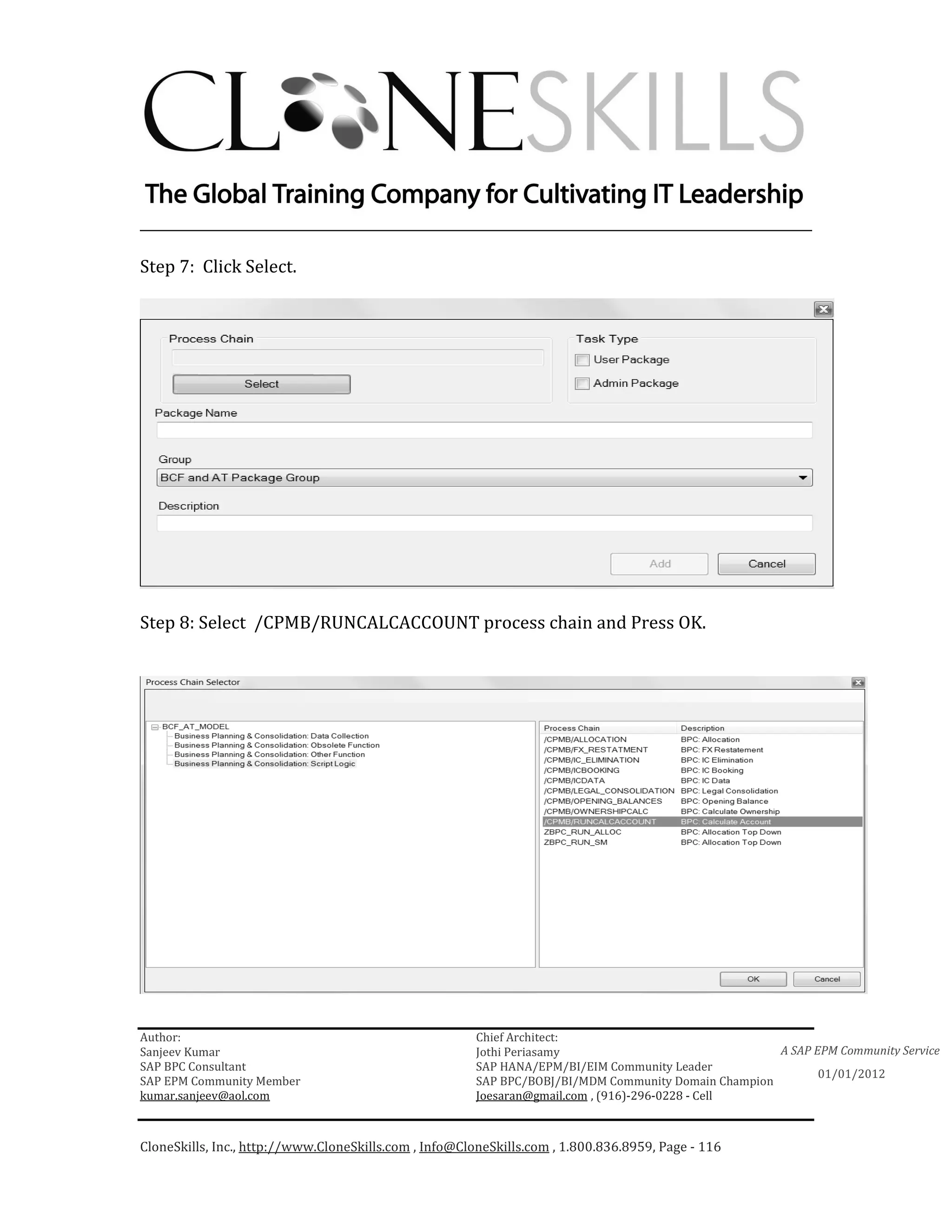
Step 7: Click on Select.


Step 8: Select Business Planning & Consolidation Script logic on the left and /CPMB/
OPENING_BALANCES on the right. This is process chain for BCF rule. Press OK.


Author:                                                 Chief Architect:
Sanjeev Kumar                                           Jothi Periasamy                               A SAP EPM Community Service
SAP BPC Consultant                                      SAP HANA/EPM/BI/EIM Community Leader
                                                                                                             01/01/2012
SAP EPM Community Member                                SAP BPC/BOBJ/BI/MDM Community Domain Champion
kumar.sanjeev@aol.com                                   Joesaran@gmail.com , (916)-296-0228 - Cell


CloneSkills, Inc., http://www.CloneSkills.com , Info@CloneSkills.com , 1.800.836.8959, Page - 56
________________________________________________________________________


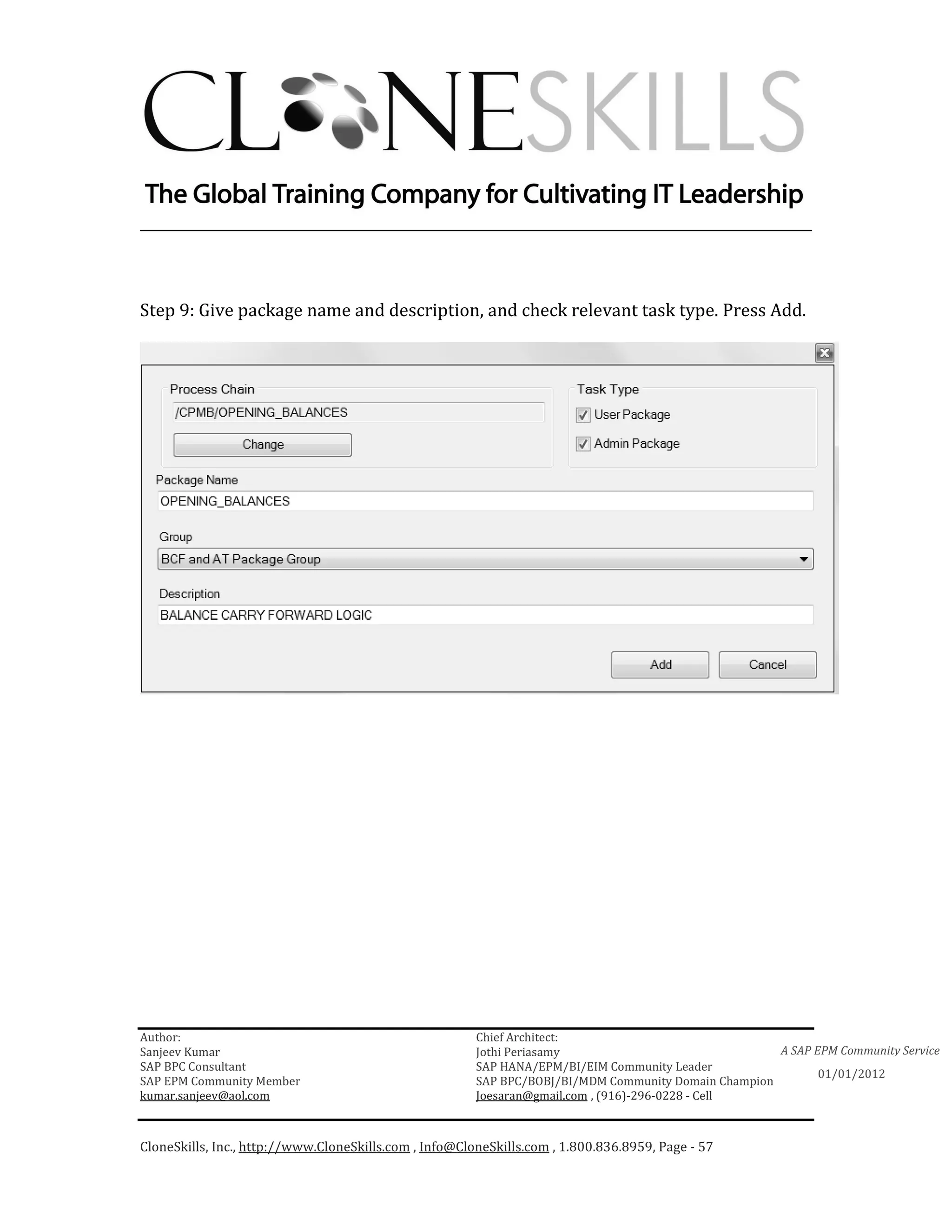
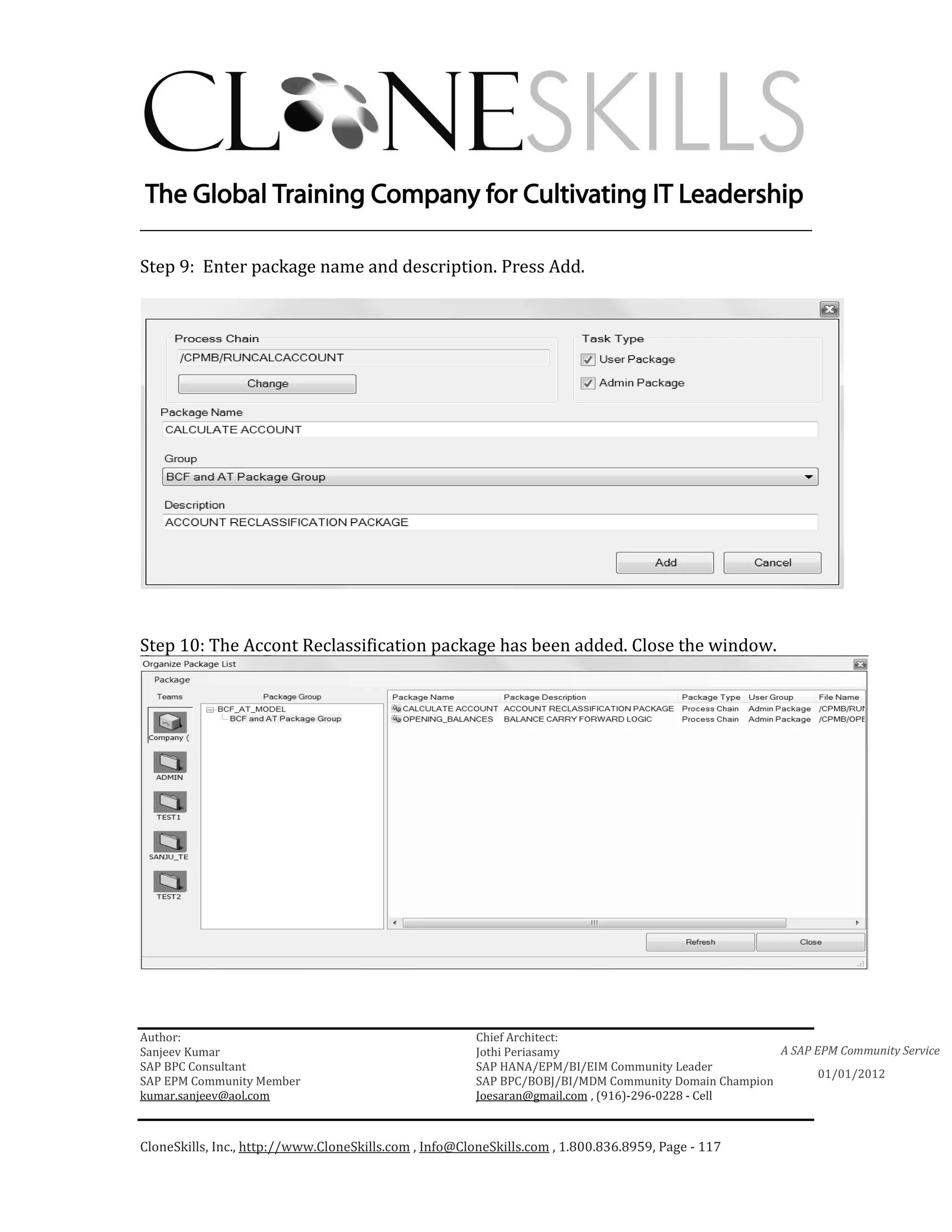
Step 9: Give package name and description, and check relevant task type. Press Add.


Author:                                                 Chief Architect:
Sanjeev Kumar                                           Jothi Periasamy                               A SAP EPM Community Service
SAP BPC Consultant                                      SAP HANA/EPM/BI/EIM Community Leader
                                                                                                             01/01/2012
SAP EPM Community Member                                SAP BPC/BOBJ/BI/MDM Community Domain Champion
kumar.sanjeev@aol.com                                   Joesaran@gmail.com , (916)-296-0228 - Cell


CloneSkills, Inc., http://www.CloneSkills.com , Info@CloneSkills.com , 1.800.836.8959, Page - 57
________________________________________________________________________


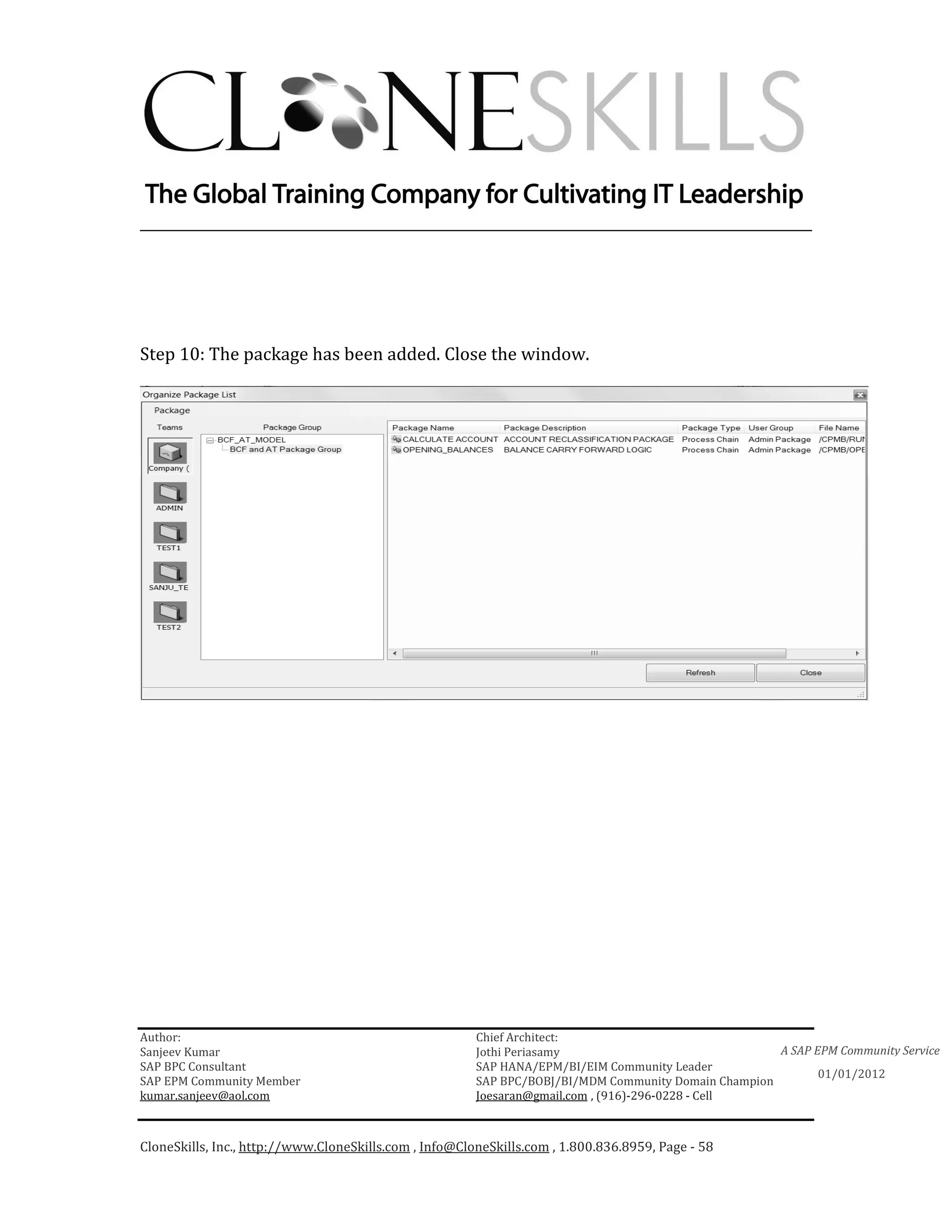
Step 10: The package has been added. Close the window.


Author:                                                 Chief Architect:
Sanjeev Kumar                                           Jothi Periasamy                               A SAP EPM Community Service
SAP BPC Consultant                                      SAP HANA/EPM/BI/EIM Community Leader
                                                                                                             01/01/2012
SAP EPM Community Member                                SAP BPC/BOBJ/BI/MDM Community Domain Champion
kumar.sanjeev@aol.com                                   Joesaran@gmail.com , (916)-296-0228 - Cell


CloneSkills, Inc., http://www.CloneSkills.com , Info@CloneSkills.com , 1.800.836.8959, Page - 58
________________________________________________________________________


Create Input Schedule and Run Data Manager Package for
BCF
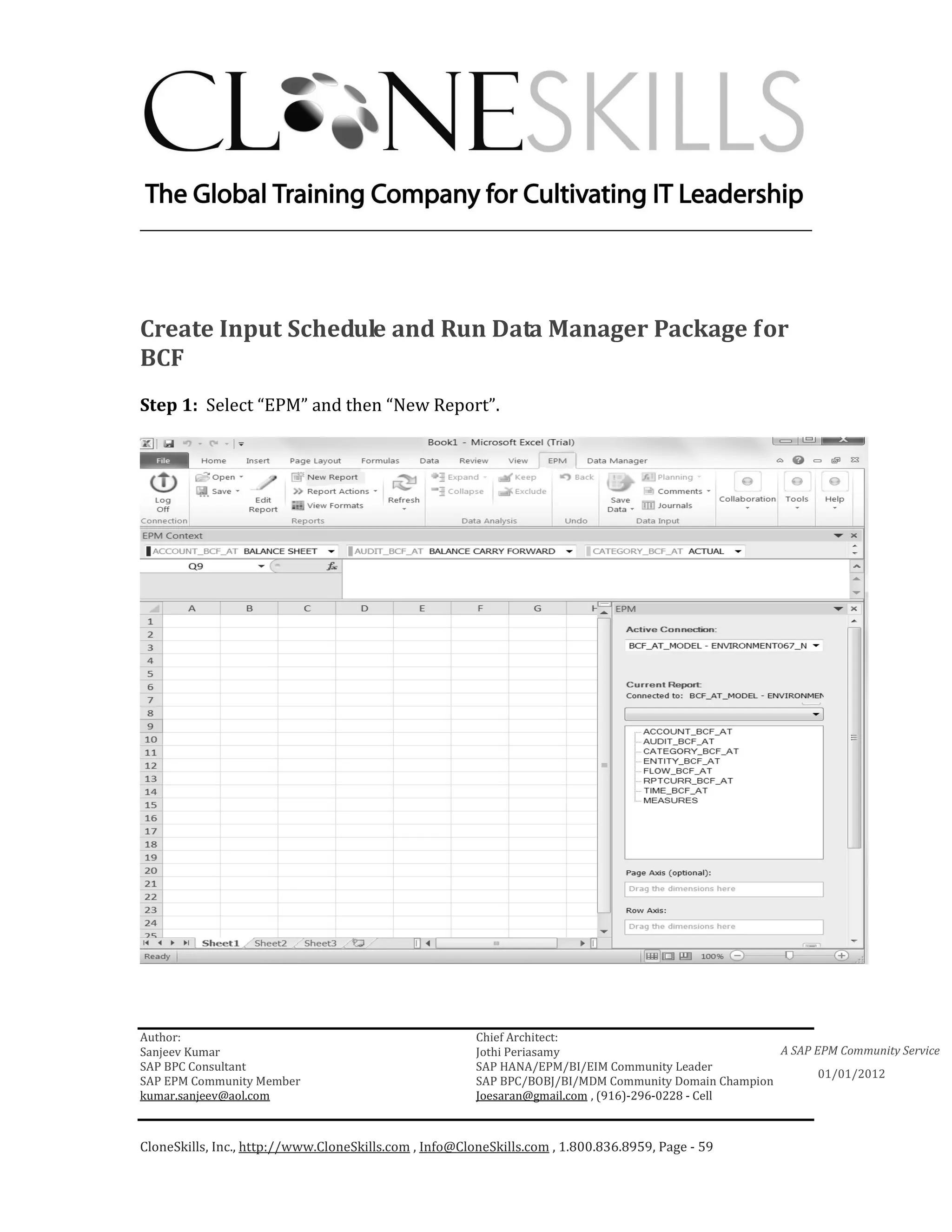
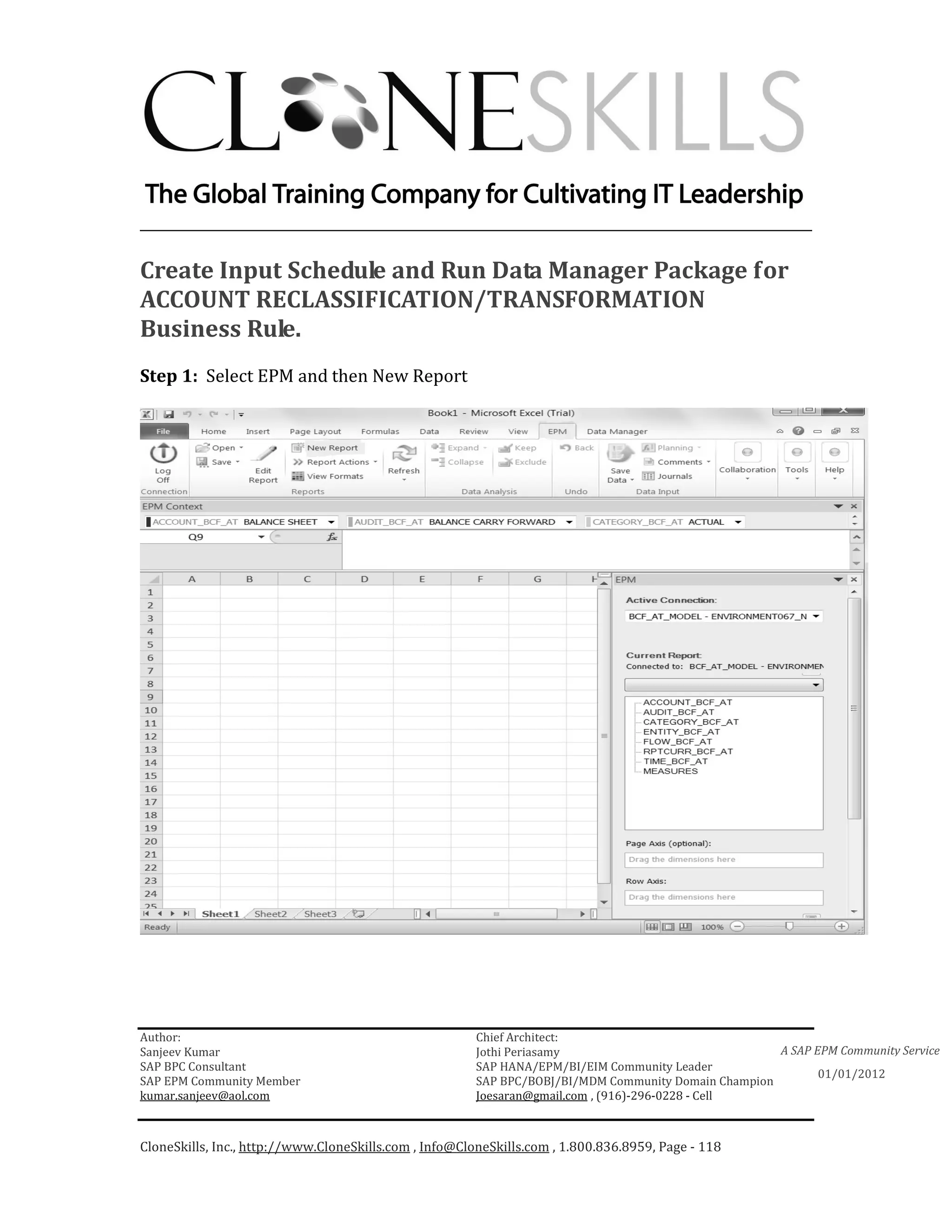
Step 1: Select “EPM” and then “New Report”.


Author:                                                 Chief Architect:
Sanjeev Kumar                                           Jothi Periasamy                               A SAP EPM Community Service
SAP BPC Consultant                                      SAP HANA/EPM/BI/EIM Community Leader
                                                                                                             01/01/2012
SAP EPM Community Member                                SAP BPC/BOBJ/BI/MDM Community Domain Champion
kumar.sanjeev@aol.com                                   Joesaran@gmail.com , (916)-296-0228 - Cell


CloneSkills, Inc., http://www.CloneSkills.com , Info@CloneSkills.com , 1.800.836.8959, Page - 59
________________________________________________________________________


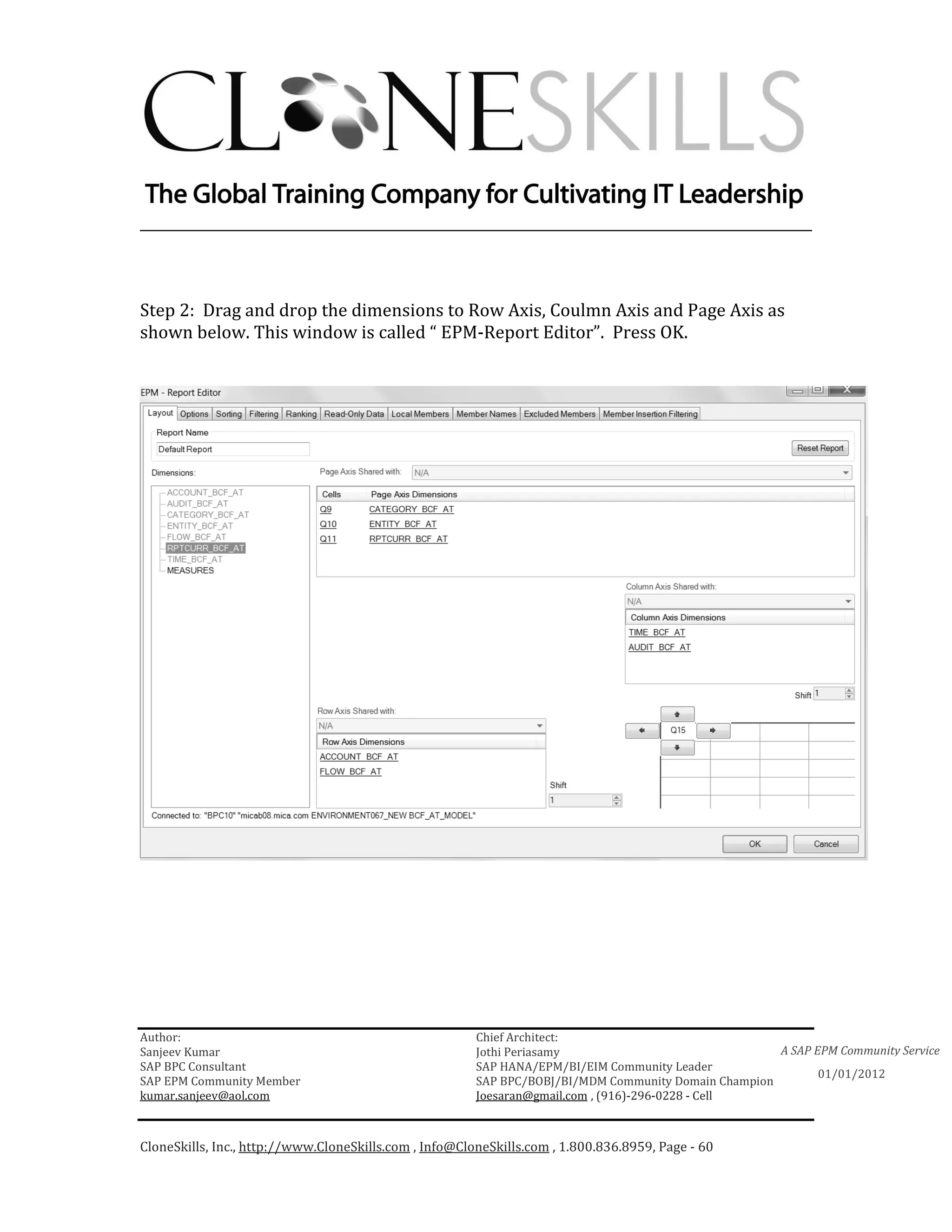
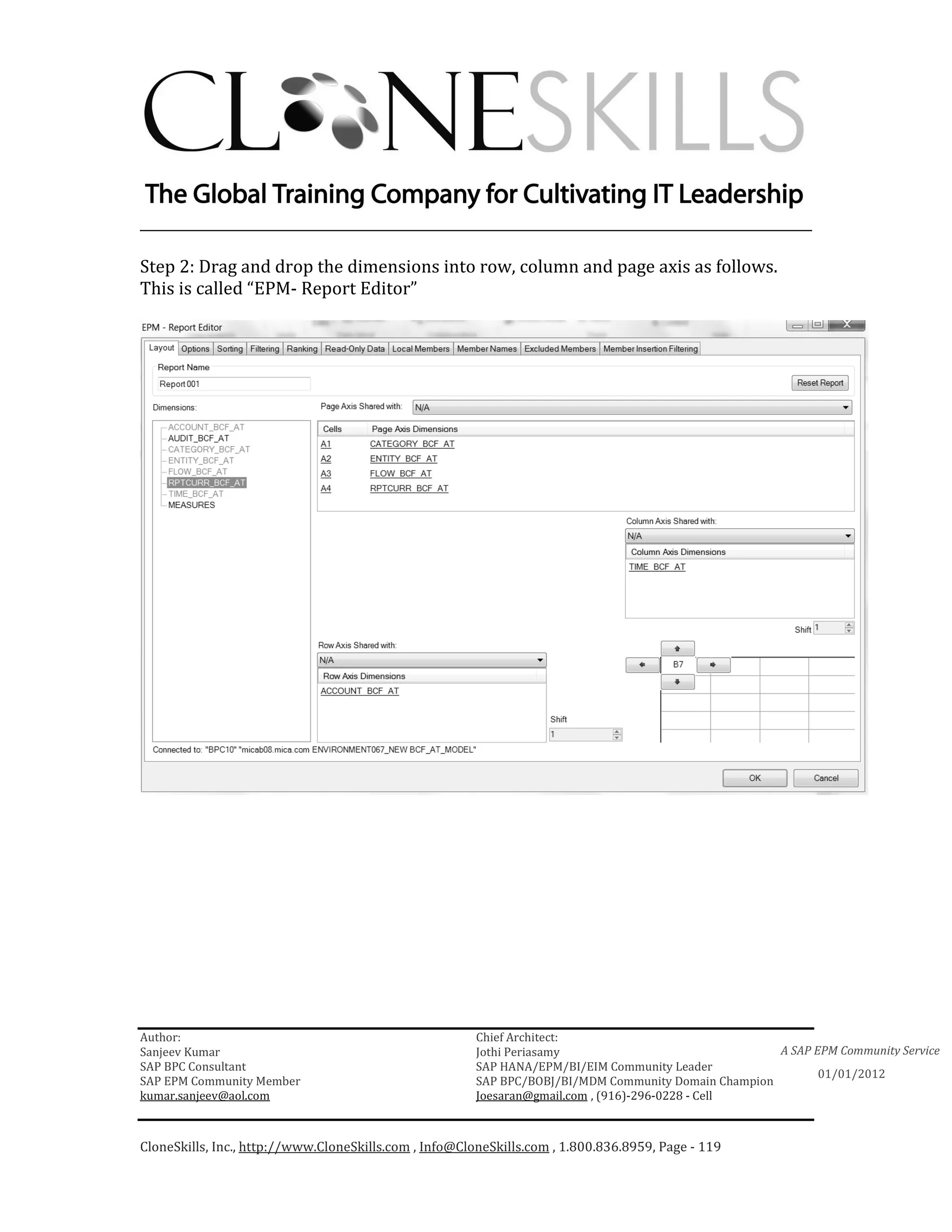
Step 2: Drag and drop the dimensions to Row Axis, Coulmn Axis and Page Axis as
shown below. This window is called “ EPM-Report Editor”. Press OK.


Author:                                                 Chief Architect:
Sanjeev Kumar                                           Jothi Periasamy                               A SAP EPM Community Service
SAP BPC Consultant                                      SAP HANA/EPM/BI/EIM Community Leader
                                                                                                             01/01/2012
SAP EPM Community Member                                SAP BPC/BOBJ/BI/MDM Community Domain Champion
kumar.sanjeev@aol.com                                   Joesaran@gmail.com , (916)-296-0228 - Cell


CloneSkills, Inc., http://www.CloneSkills.com , Info@CloneSkills.com , 1.800.836.8959, Page - 60
________________________________________________________________________


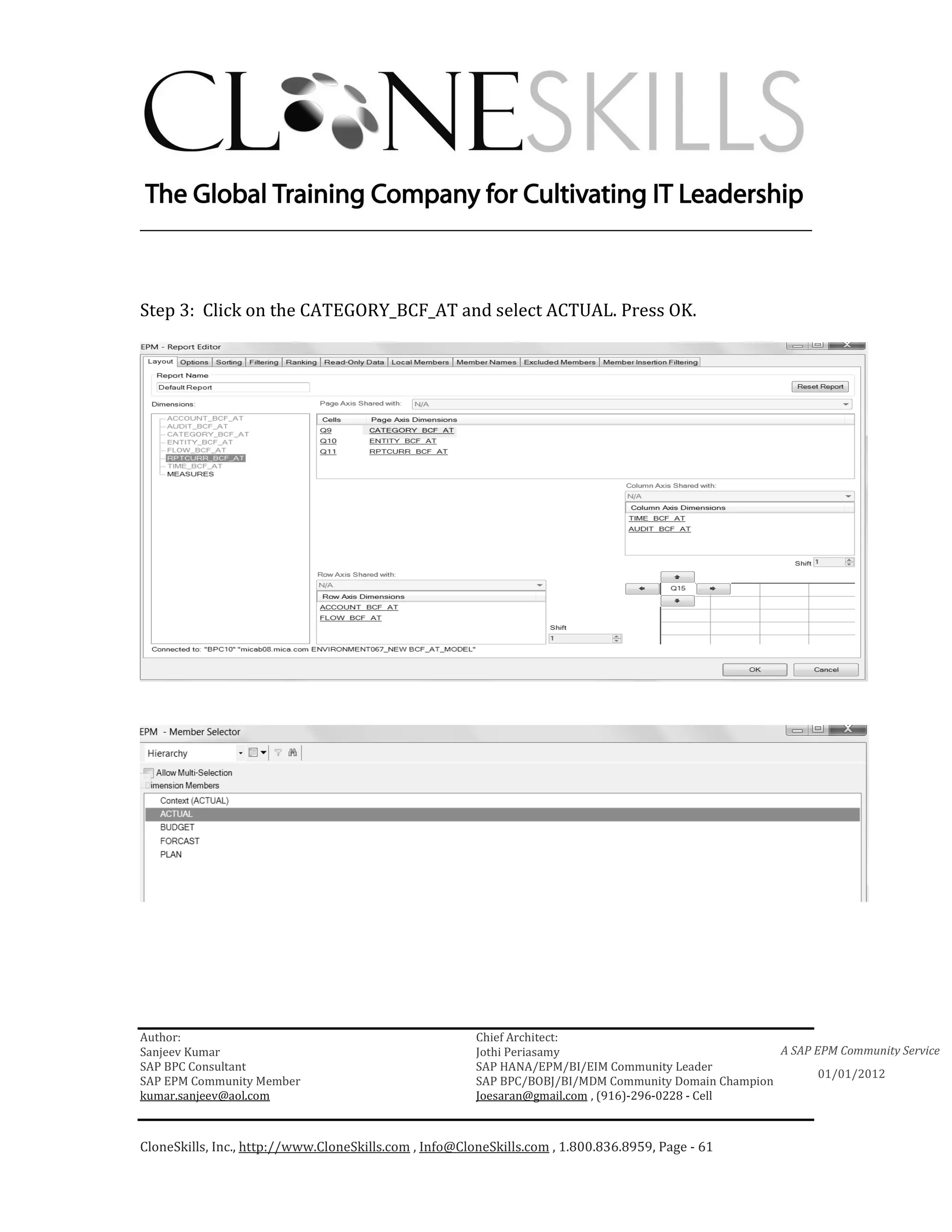
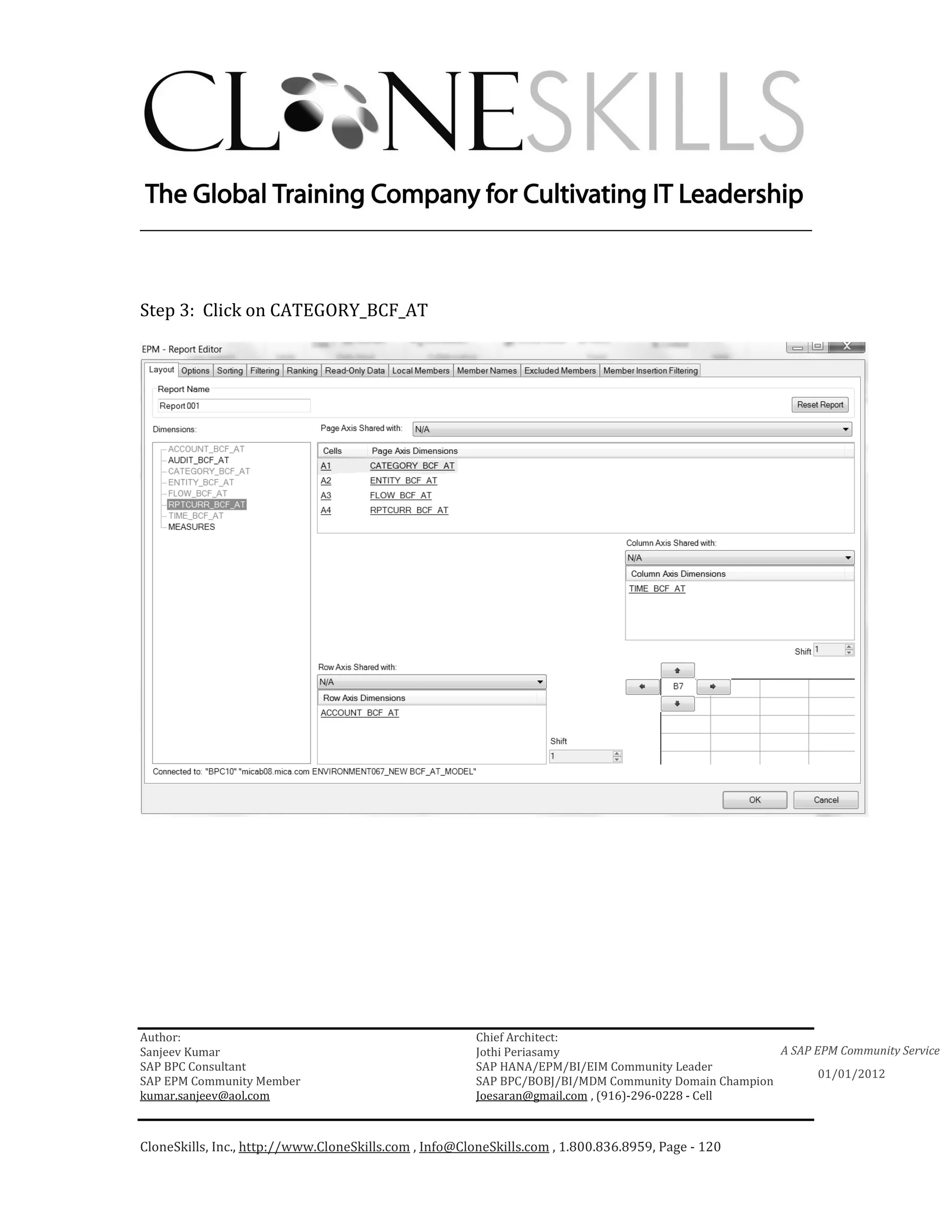
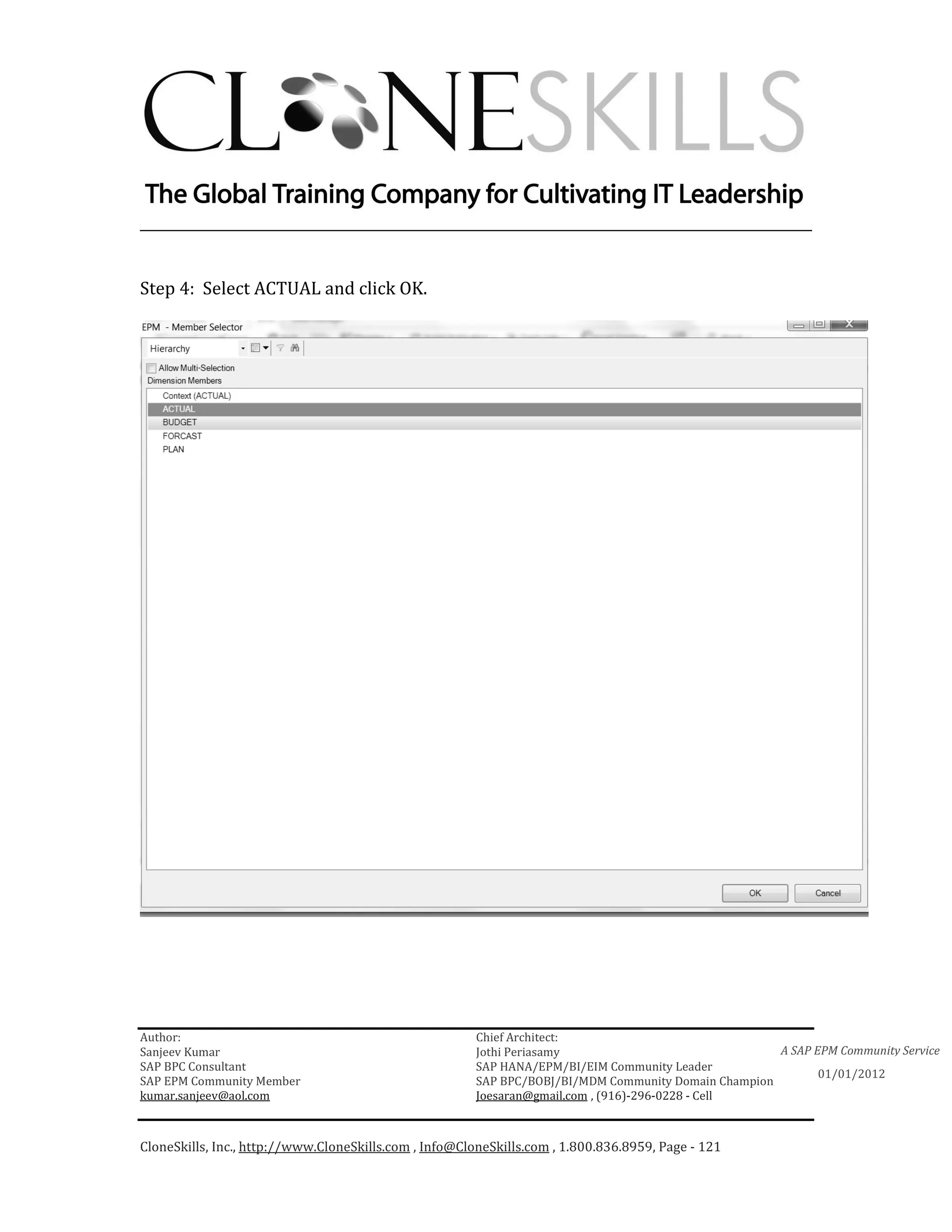
Step 3: Click on the CATEGORY_BCF_AT and select ACTUAL. Press OK.


Author:                                                 Chief Architect:
Sanjeev Kumar                                           Jothi Periasamy                               A SAP EPM Community Service
SAP BPC Consultant                                      SAP HANA/EPM/BI/EIM Community Leader
                                                                                                             01/01/2012
SAP EPM Community Member                                SAP BPC/BOBJ/BI/MDM Community Domain Champion
kumar.sanjeev@aol.com                                   Joesaran@gmail.com , (916)-296-0228 - Cell


CloneSkills, Inc., http://www.CloneSkills.com , Info@CloneSkills.com , 1.800.836.8959, Page - 61
________________________________________________________________________


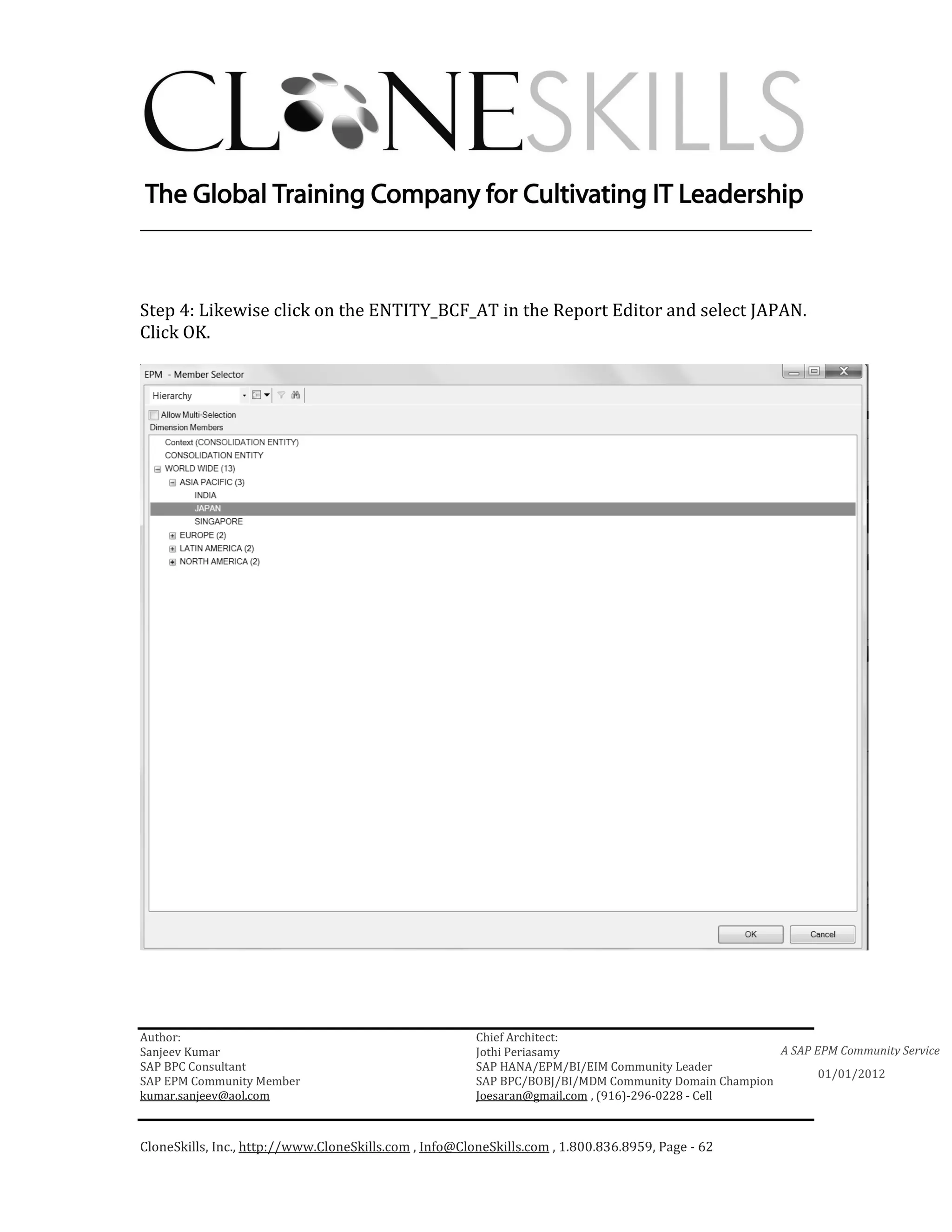
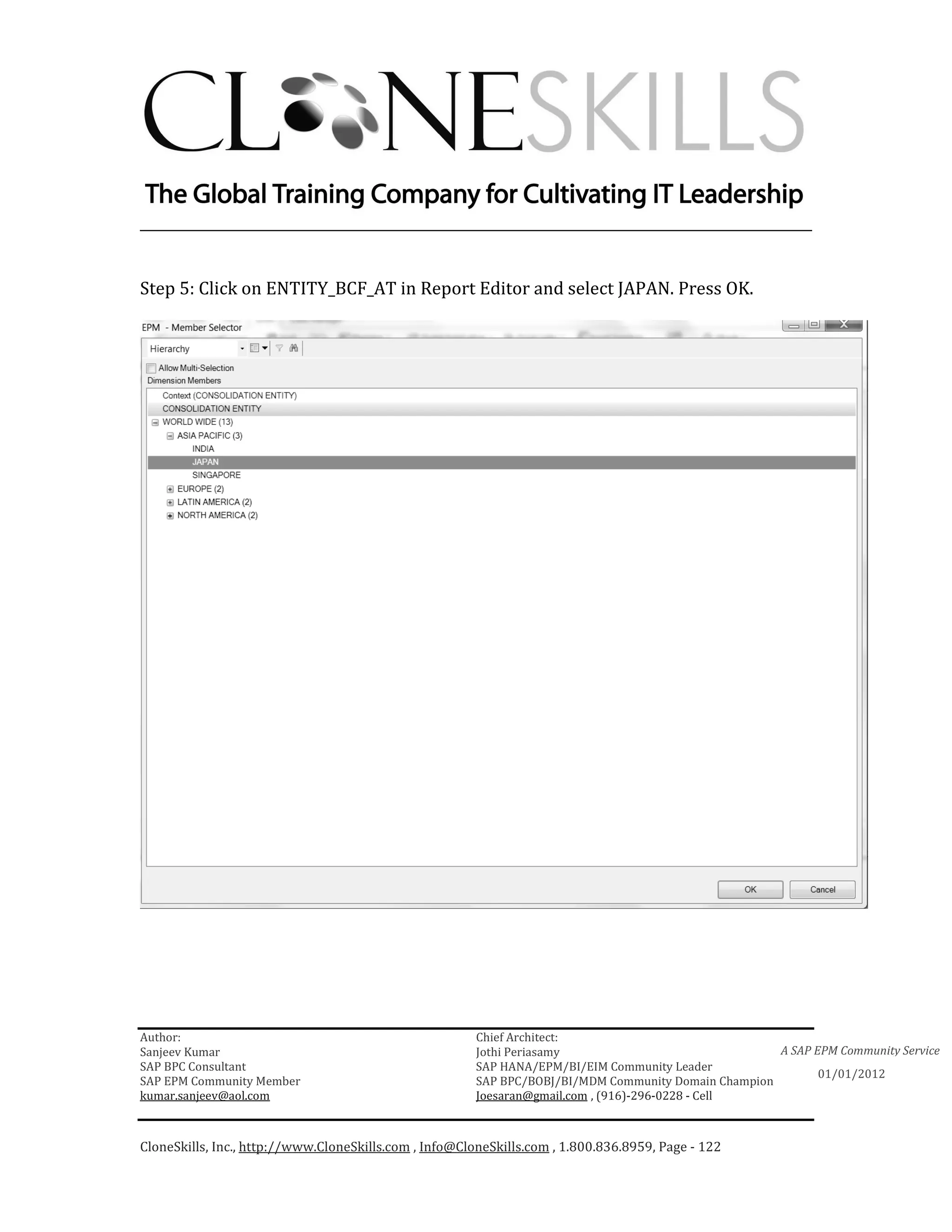
Step 4: Likewise click on the ENTITY_BCF_AT in the Report Editor and select JAPAN.
Click OK.


Author:                                                 Chief Architect:
Sanjeev Kumar                                           Jothi Periasamy                               A SAP EPM Community Service
SAP BPC Consultant                                      SAP HANA/EPM/BI/EIM Community Leader
                                                                                                             01/01/2012
SAP EPM Community Member                                SAP BPC/BOBJ/BI/MDM Community Domain Champion
kumar.sanjeev@aol.com                                   Joesaran@gmail.com , (916)-296-0228 - Cell


CloneSkills, Inc., http://www.CloneSkills.com , Info@CloneSkills.com , 1.800.836.8959, Page - 62
________________________________________________________________________


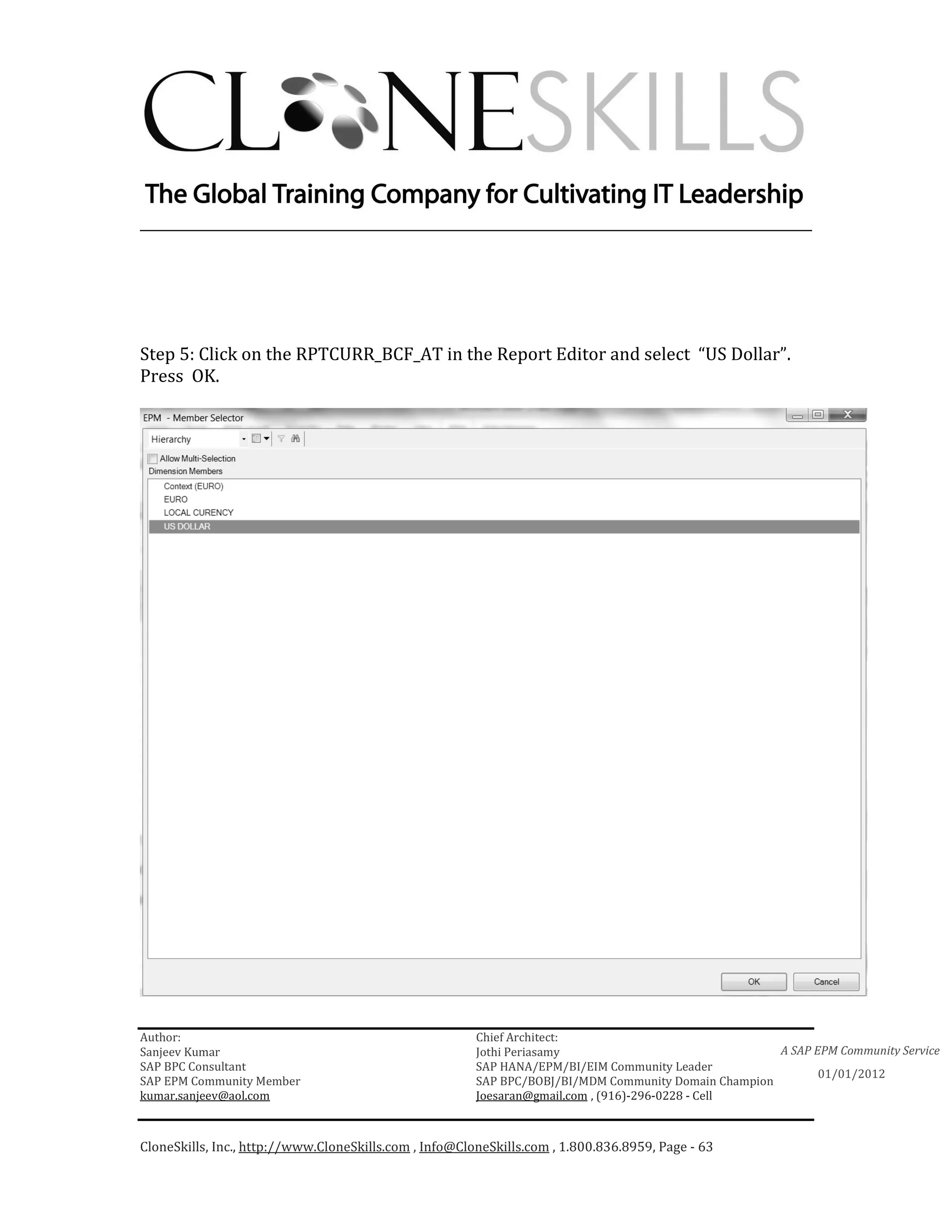
Step 5: Click on the RPTCURR_BCF_AT in the Report Editor and select “US Dollar”.
Press OK.


Author:                                                 Chief Architect:
Sanjeev Kumar                                           Jothi Periasamy                               A SAP EPM Community Service
SAP BPC Consultant                                      SAP HANA/EPM/BI/EIM Community Leader
                                                                                                             01/01/2012
SAP EPM Community Member                                SAP BPC/BOBJ/BI/MDM Community Domain Champion
kumar.sanjeev@aol.com                                   Joesaran@gmail.com , (916)-296-0228 - Cell


CloneSkills, Inc., http://www.CloneSkills.com , Info@CloneSkills.com , 1.800.836.8959, Page - 63
________________________________________________________________________


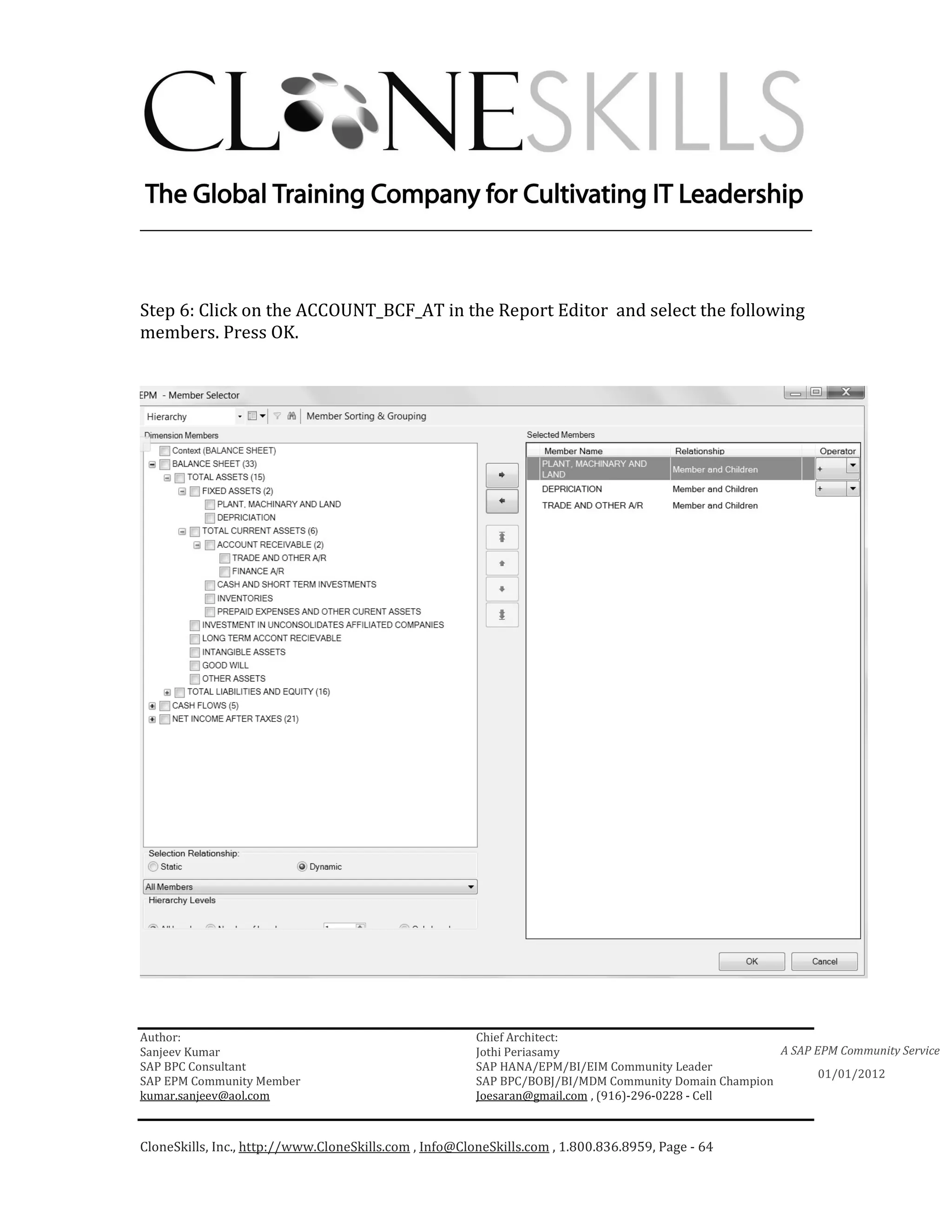
Step 6: Click on the ACCOUNT_BCF_AT in the Report Editor and select the following
members. Press OK.


Author:                                                 Chief Architect:
Sanjeev Kumar                                           Jothi Periasamy                               A SAP EPM Community Service
SAP BPC Consultant                                      SAP HANA/EPM/BI/EIM Community Leader
                                                                                                             01/01/2012
SAP EPM Community Member                                SAP BPC/BOBJ/BI/MDM Community Domain Champion
kumar.sanjeev@aol.com                                   Joesaran@gmail.com , (916)-296-0228 - Cell


CloneSkills, Inc., http://www.CloneSkills.com , Info@CloneSkills.com , 1.800.836.8959, Page - 64
________________________________________________________________________


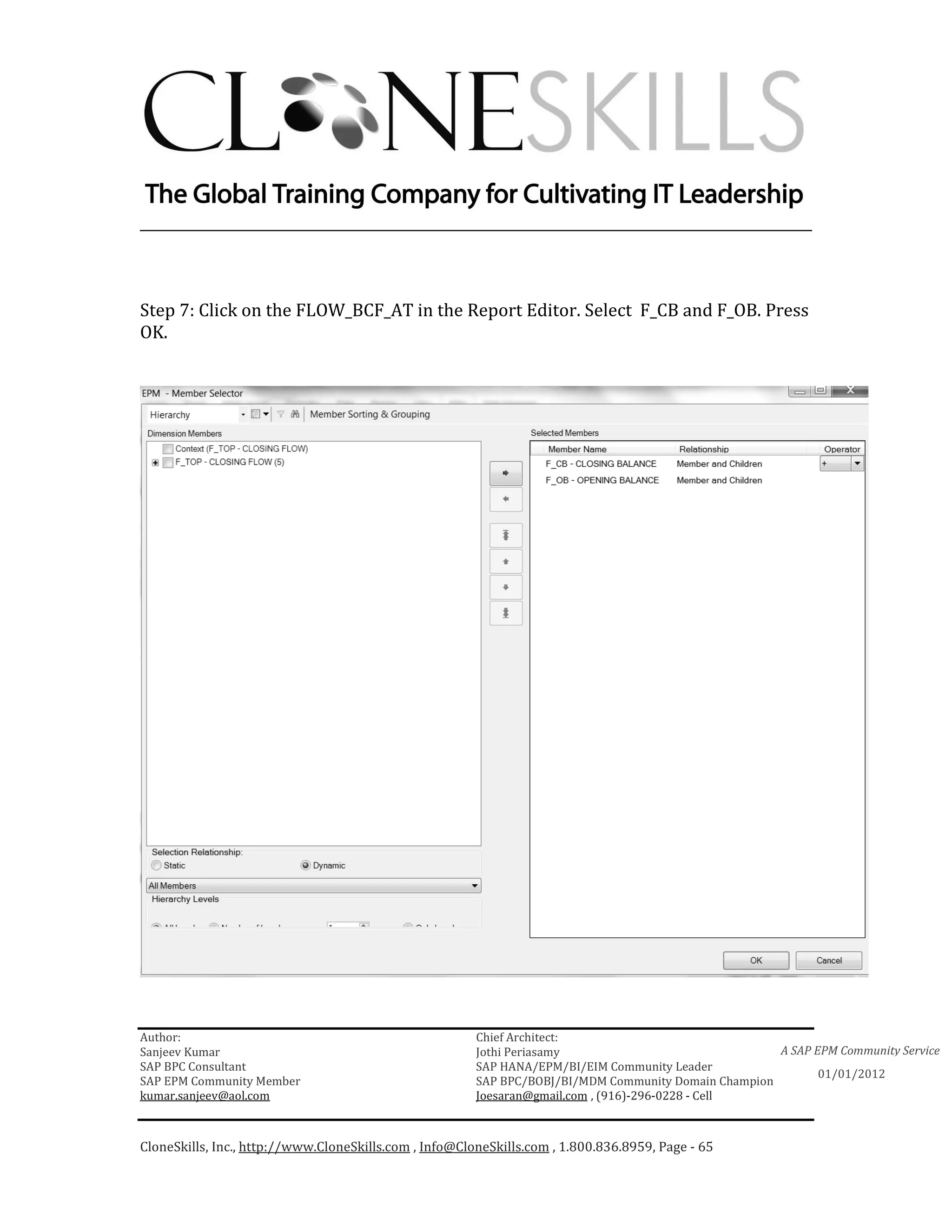
Step 7: Click on the FLOW_BCF_AT in the Report Editor. Select F_CB and F_OB. Press
OK.


Author:                                                 Chief Architect:
Sanjeev Kumar                                           Jothi Periasamy                               A SAP EPM Community Service
SAP BPC Consultant                                      SAP HANA/EPM/BI/EIM Community Leader
                                                                                                             01/01/2012
SAP EPM Community Member                                SAP BPC/BOBJ/BI/MDM Community Domain Champion
kumar.sanjeev@aol.com                                   Joesaran@gmail.com , (916)-296-0228 - Cell


CloneSkills, Inc., http://www.CloneSkills.com , Info@CloneSkills.com , 1.800.836.8959, Page - 65
________________________________________________________________________


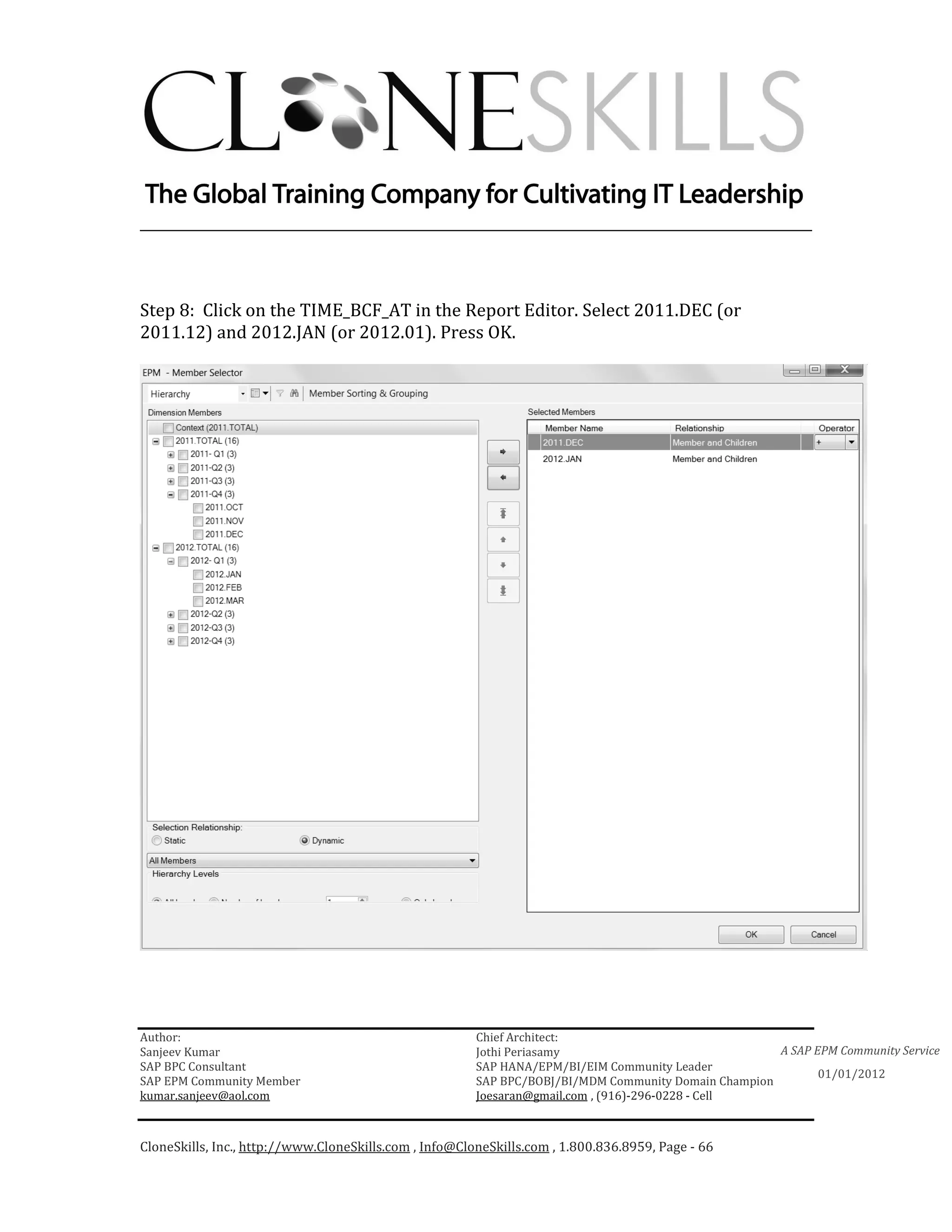
Step 8: Click on the TIME_BCF_AT in the Report Editor. Select 2011.DEC (or
2011.12) and 2012.JAN (or 2012.01). Press OK.


Author:                                                 Chief Architect:
Sanjeev Kumar                                           Jothi Periasamy                               A SAP EPM Community Service
SAP BPC Consultant                                      SAP HANA/EPM/BI/EIM Community Leader
                                                                                                             01/01/2012
SAP EPM Community Member                                SAP BPC/BOBJ/BI/MDM Community Domain Champion
kumar.sanjeev@aol.com                                   Joesaran@gmail.com , (916)-296-0228 - Cell


CloneSkills, Inc., http://www.CloneSkills.com , Info@CloneSkills.com , 1.800.836.8959, Page - 66
________________________________________________________________________


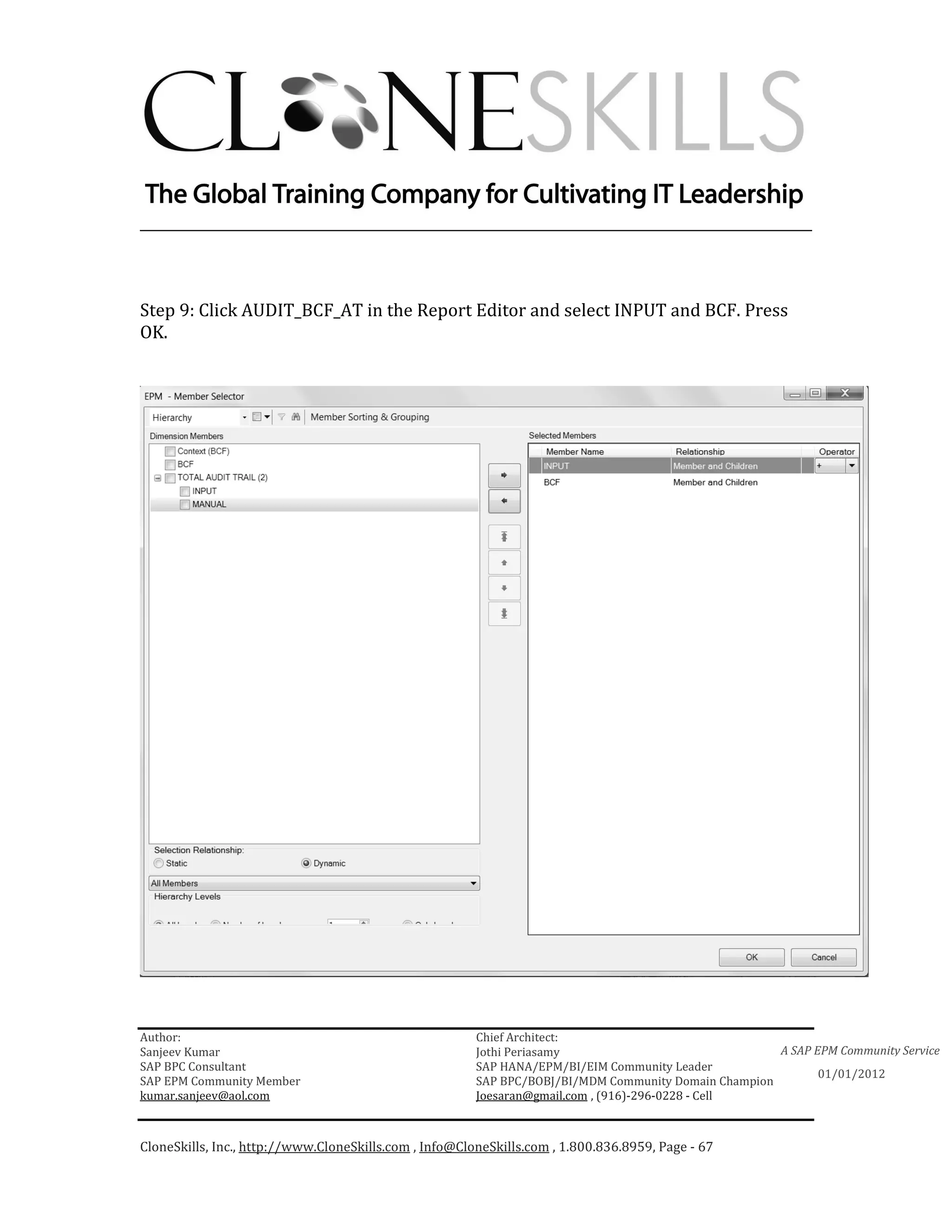
Step 9: Click AUDIT_BCF_AT in the Report Editor and select INPUT and BCF. Press
OK.


Author:                                                 Chief Architect:
Sanjeev Kumar                                           Jothi Periasamy                               A SAP EPM Community Service
SAP BPC Consultant                                      SAP HANA/EPM/BI/EIM Community Leader
                                                                                                             01/01/2012
SAP EPM Community Member                                SAP BPC/BOBJ/BI/MDM Community Domain Champion
kumar.sanjeev@aol.com                                   Joesaran@gmail.com , (916)-296-0228 - Cell


CloneSkills, Inc., http://www.CloneSkills.com , Info@CloneSkills.com , 1.800.836.8959, Page - 67
________________________________________________________________________


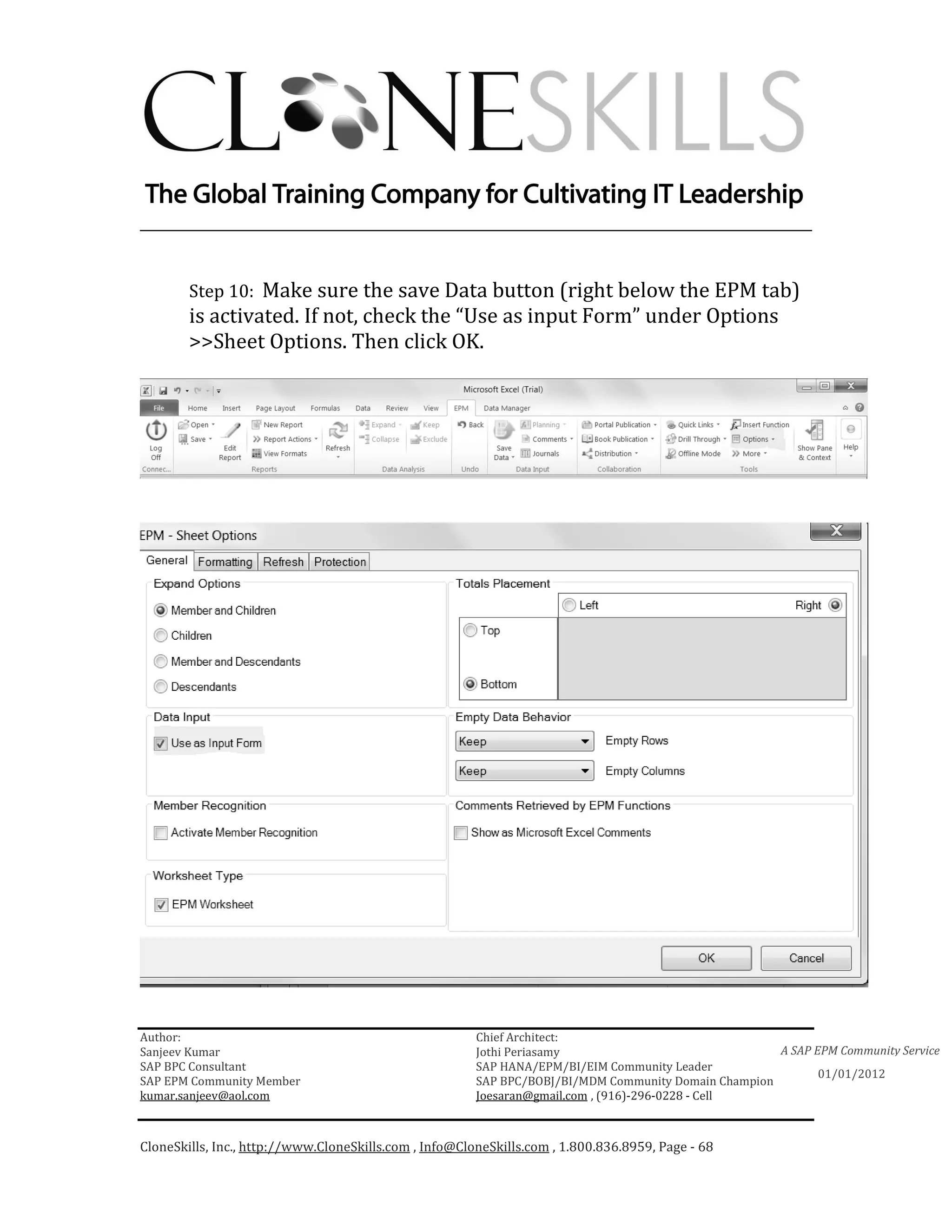
        Step 10: Make sure the save Data button (right below the EPM tab)
        is activated. If not, check the “Use as input Form” under Options
        >>Sheet Options. Then click OK.


Author:                                                 Chief Architect:
Sanjeev Kumar                                           Jothi Periasamy                               A SAP EPM Community Service
SAP BPC Consultant                                      SAP HANA/EPM/BI/EIM Community Leader
                                                                                                             01/01/2012
SAP EPM Community Member                                SAP BPC/BOBJ/BI/MDM Community Domain Champion
kumar.sanjeev@aol.com                                   Joesaran@gmail.com , (916)-296-0228 - Cell


CloneSkills, Inc., http://www.CloneSkills.com , Info@CloneSkills.com , 1.800.836.8959, Page - 68
________________________________________________________________________


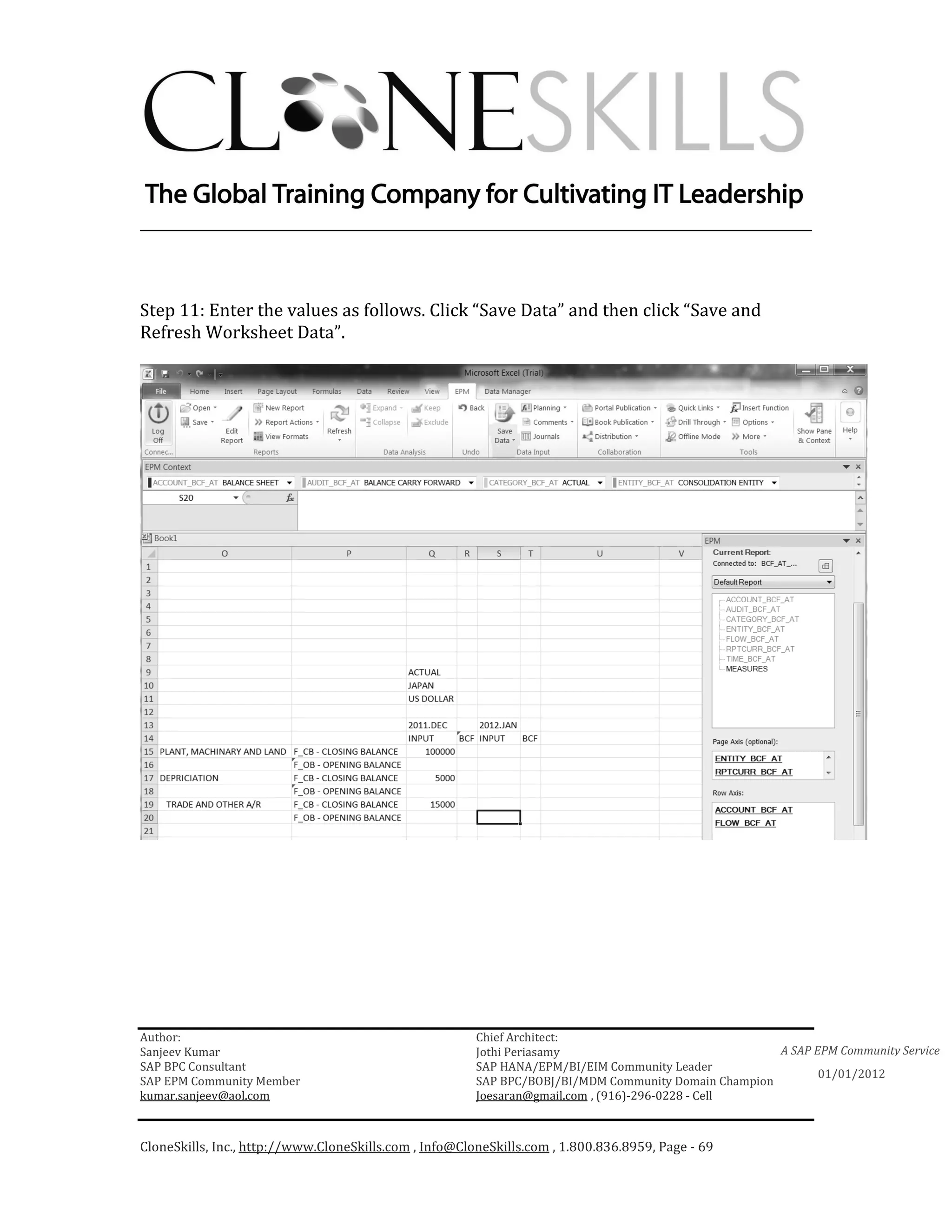
Step 11: Enter the values as follows. Click “Save Data” and then click “Save and
Refresh Worksheet Data”.


Author:                                                 Chief Architect:
Sanjeev Kumar                                           Jothi Periasamy                               A SAP EPM Community Service
SAP BPC Consultant                                      SAP HANA/EPM/BI/EIM Community Leader
                                                                                                             01/01/2012
SAP EPM Community Member                                SAP BPC/BOBJ/BI/MDM Community Domain Champion
kumar.sanjeev@aol.com                                   Joesaran@gmail.com , (916)-296-0228 - Cell


CloneSkills, Inc., http://www.CloneSkills.com , Info@CloneSkills.com , 1.800.836.8959, Page - 69
________________________________________________________________________


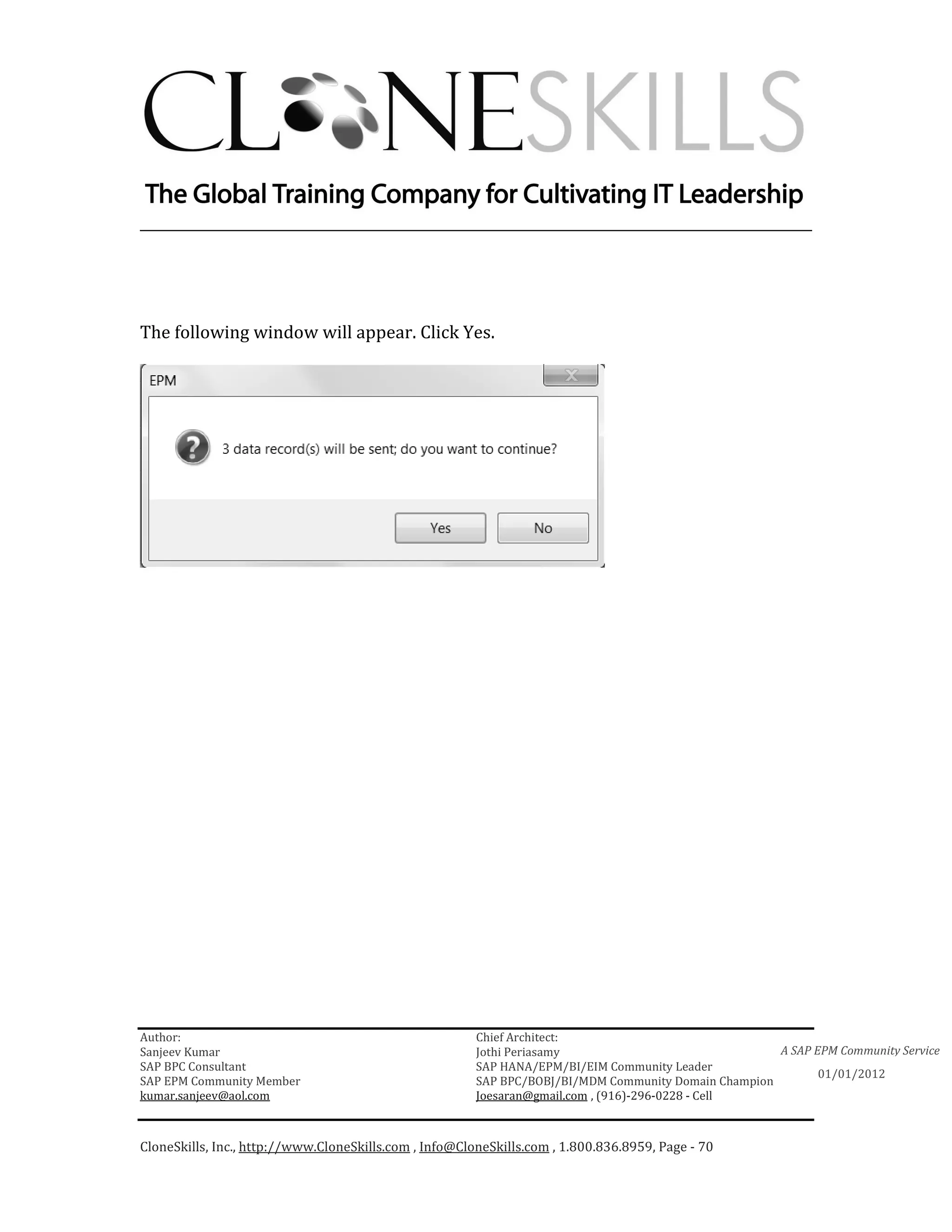
The following window will appear. Click Yes.


Author:                                                 Chief Architect:
Sanjeev Kumar                                           Jothi Periasamy                               A SAP EPM Community Service
SAP BPC Consultant                                      SAP HANA/EPM/BI/EIM Community Leader
                                                                                                             01/01/2012
SAP EPM Community Member                                SAP BPC/BOBJ/BI/MDM Community Domain Champion
kumar.sanjeev@aol.com                                   Joesaran@gmail.com , (916)-296-0228 - Cell


CloneSkills, Inc., http://www.CloneSkills.com , Info@CloneSkills.com , 1.800.836.8959, Page - 70
________________________________________________________________________


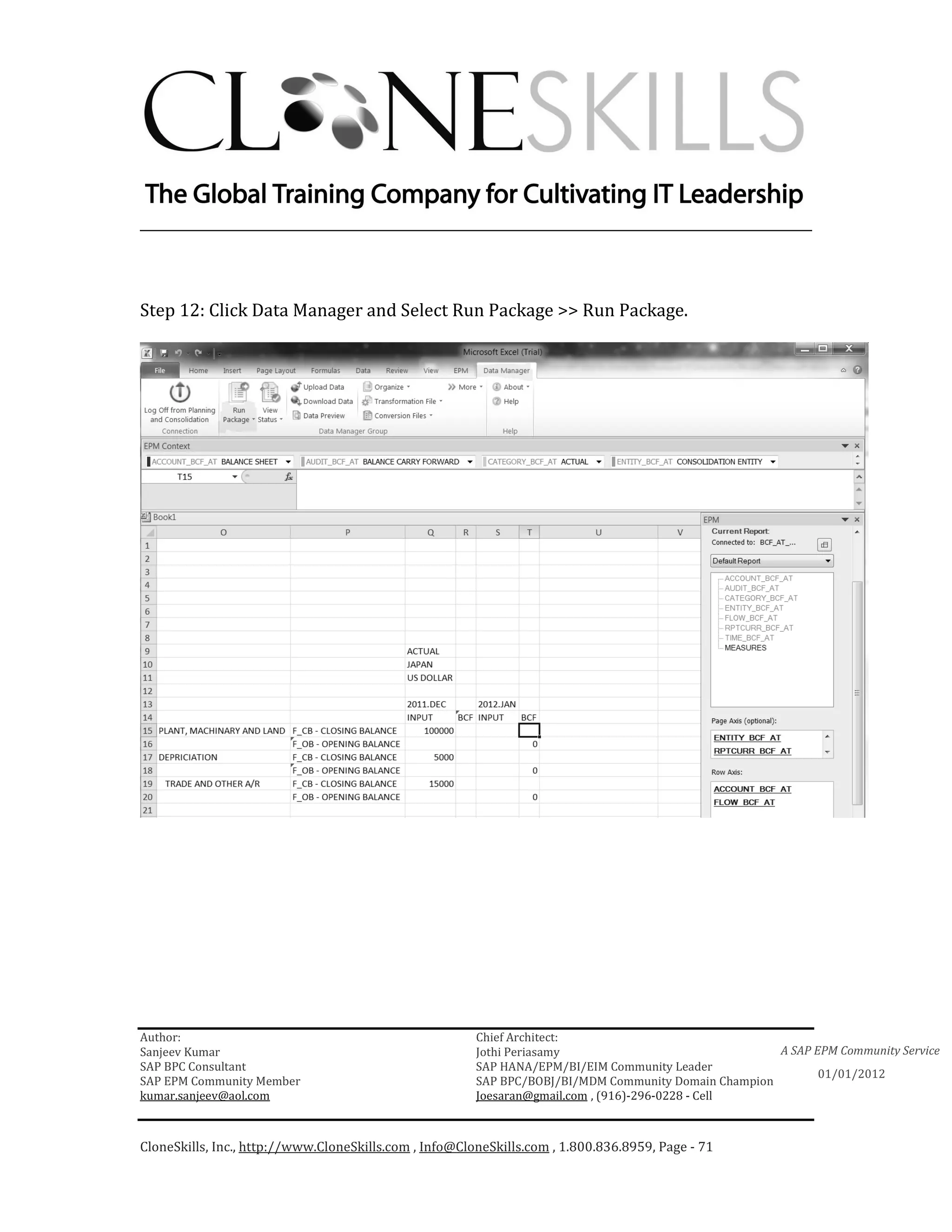
Step 12: Click Data Manager and Select Run Package >> Run Package.


Author:                                                 Chief Architect:
Sanjeev Kumar                                           Jothi Periasamy                               A SAP EPM Community Service
SAP BPC Consultant                                      SAP HANA/EPM/BI/EIM Community Leader
                                                                                                             01/01/2012
SAP EPM Community Member                                SAP BPC/BOBJ/BI/MDM Community Domain Champion
kumar.sanjeev@aol.com                                   Joesaran@gmail.com , (916)-296-0228 - Cell


CloneSkills, Inc., http://www.CloneSkills.com , Info@CloneSkills.com , 1.800.836.8959, Page - 71
________________________________________________________________________


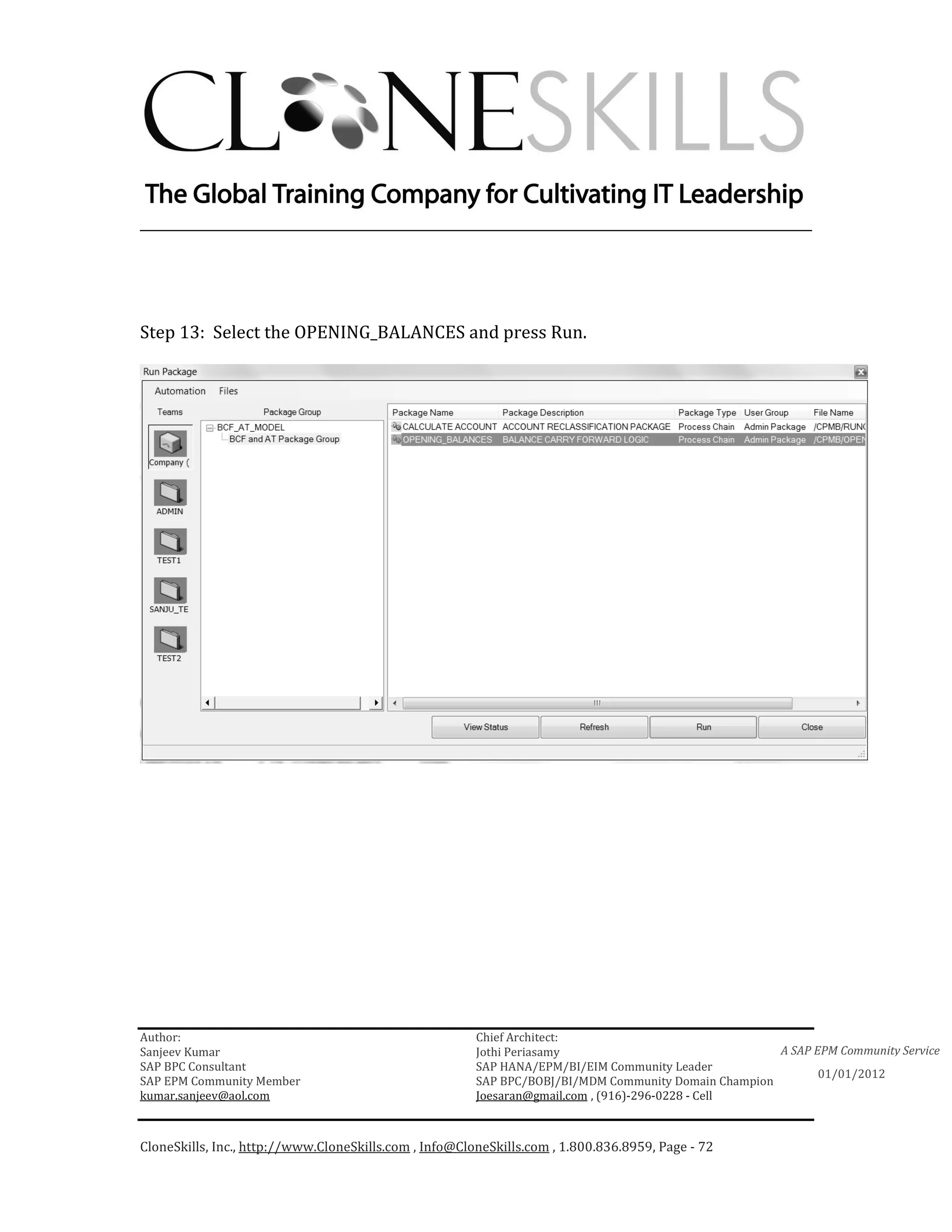
Step 13: Select the OPENING_BALANCES and press Run.


Author:                                                 Chief Architect:
Sanjeev Kumar                                           Jothi Periasamy                               A SAP EPM Community Service
SAP BPC Consultant                                      SAP HANA/EPM/BI/EIM Community Leader
                                                                                                             01/01/2012
SAP EPM Community Member                                SAP BPC/BOBJ/BI/MDM Community Domain Champion
kumar.sanjeev@aol.com                                   Joesaran@gmail.com , (916)-296-0228 - Cell


CloneSkills, Inc., http://www.CloneSkills.com , Info@CloneSkills.com , 1.800.836.8959, Page - 72
________________________________________________________________________


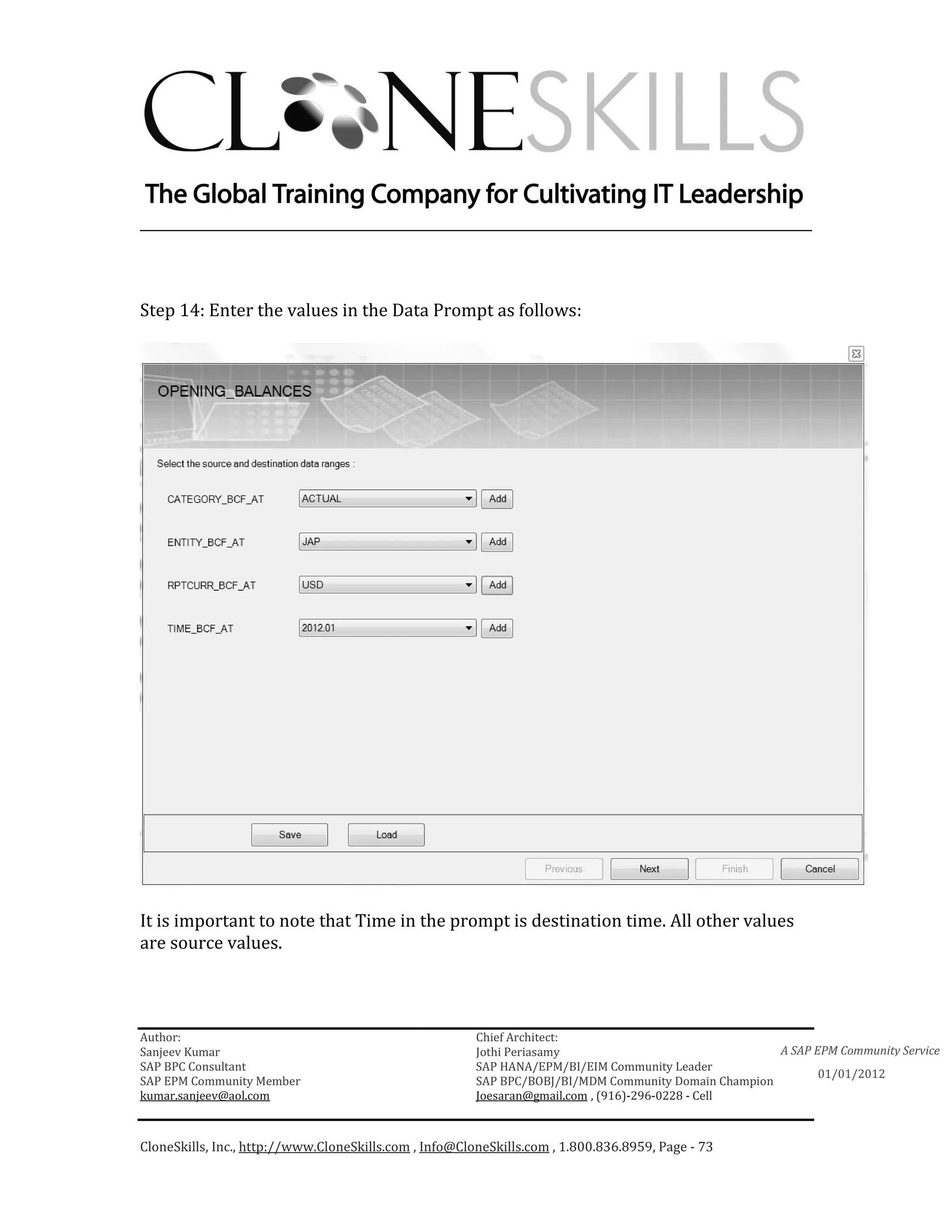
Step 14: Enter the values in the Data Prompt as follows:


It is important to note that Time in the prompt is destination time. All other values
are source values.


Author:                                                 Chief Architect:
Sanjeev Kumar                                           Jothi Periasamy                               A SAP EPM Community Service
SAP BPC Consultant                                      SAP HANA/EPM/BI/EIM Community Leader
                                                                                                             01/01/2012
SAP EPM Community Member                                SAP BPC/BOBJ/BI/MDM Community Domain Champion
kumar.sanjeev@aol.com                                   Joesaran@gmail.com , (916)-296-0228 - Cell


CloneSkills, Inc., http://www.CloneSkills.com , Info@CloneSkills.com , 1.800.836.8959, Page - 73
________________________________________________________________________


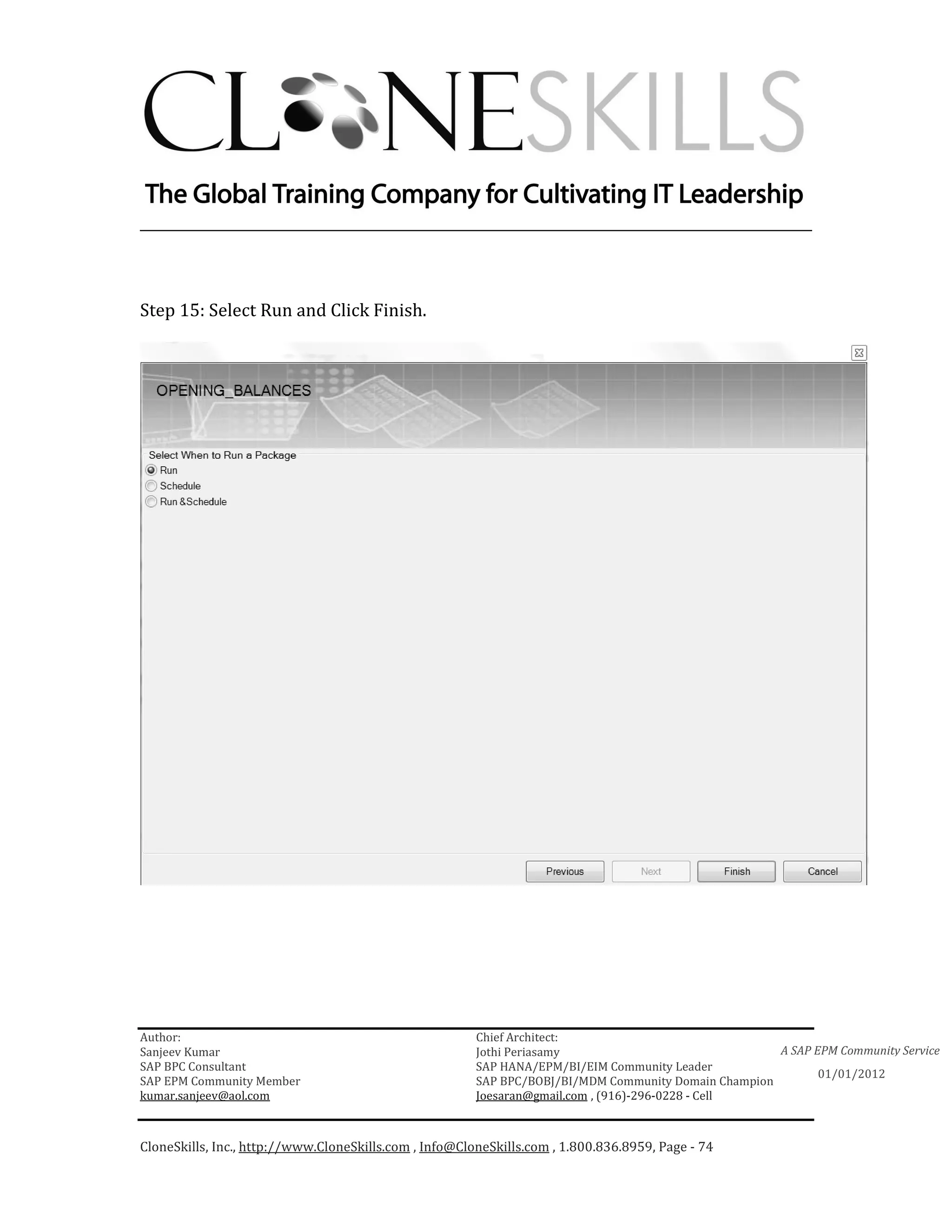
Step 15: Select Run and Click Finish.


Author:                                                 Chief Architect:
Sanjeev Kumar                                           Jothi Periasamy                               A SAP EPM Community Service
SAP BPC Consultant                                      SAP HANA/EPM/BI/EIM Community Leader
                                                                                                             01/01/2012
SAP EPM Community Member                                SAP BPC/BOBJ/BI/MDM Community Domain Champion
kumar.sanjeev@aol.com                                   Joesaran@gmail.com , (916)-296-0228 - Cell


CloneSkills, Inc., http://www.CloneSkills.com , Info@CloneSkills.com , 1.800.836.8959, Page - 74
________________________________________________________________________


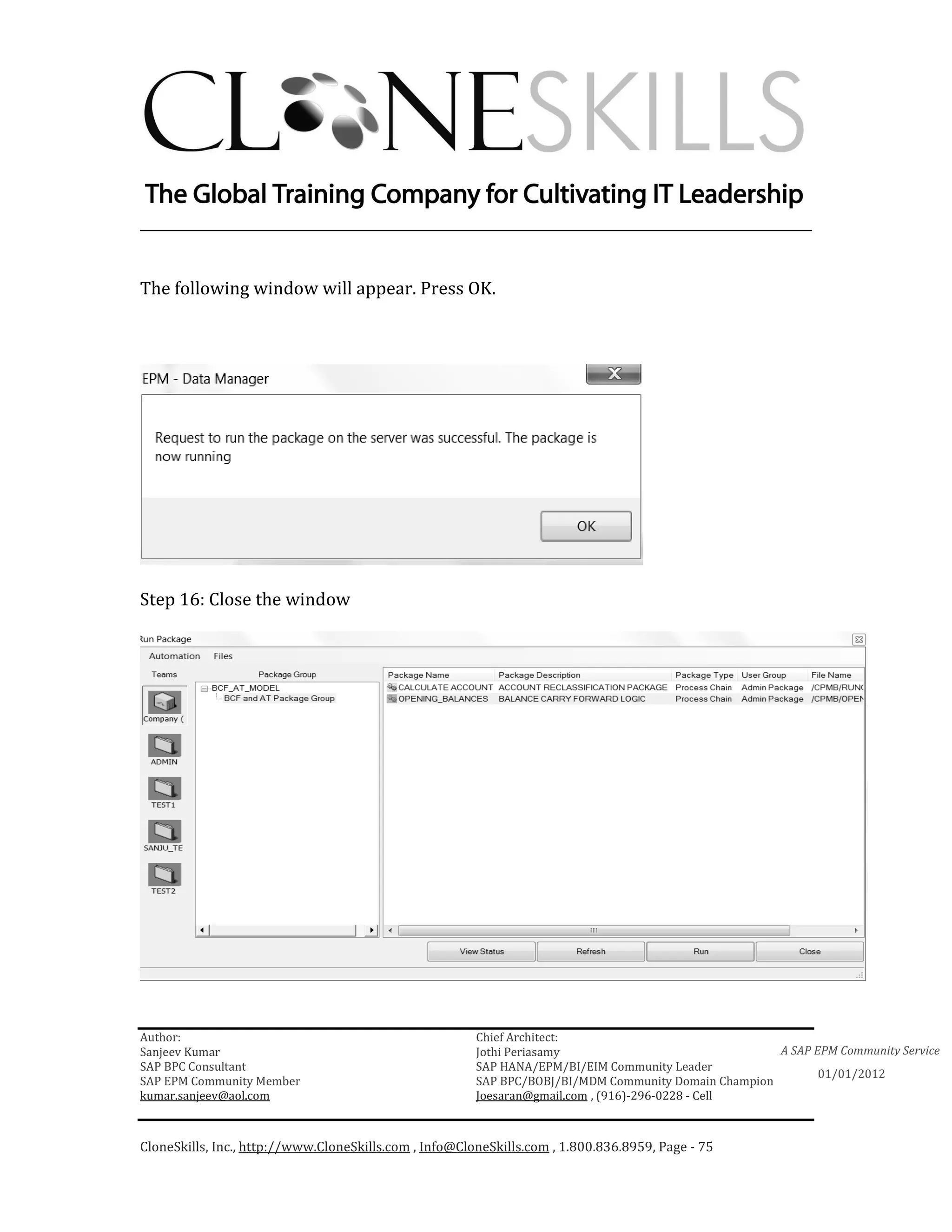
The following window will appear. Press OK.


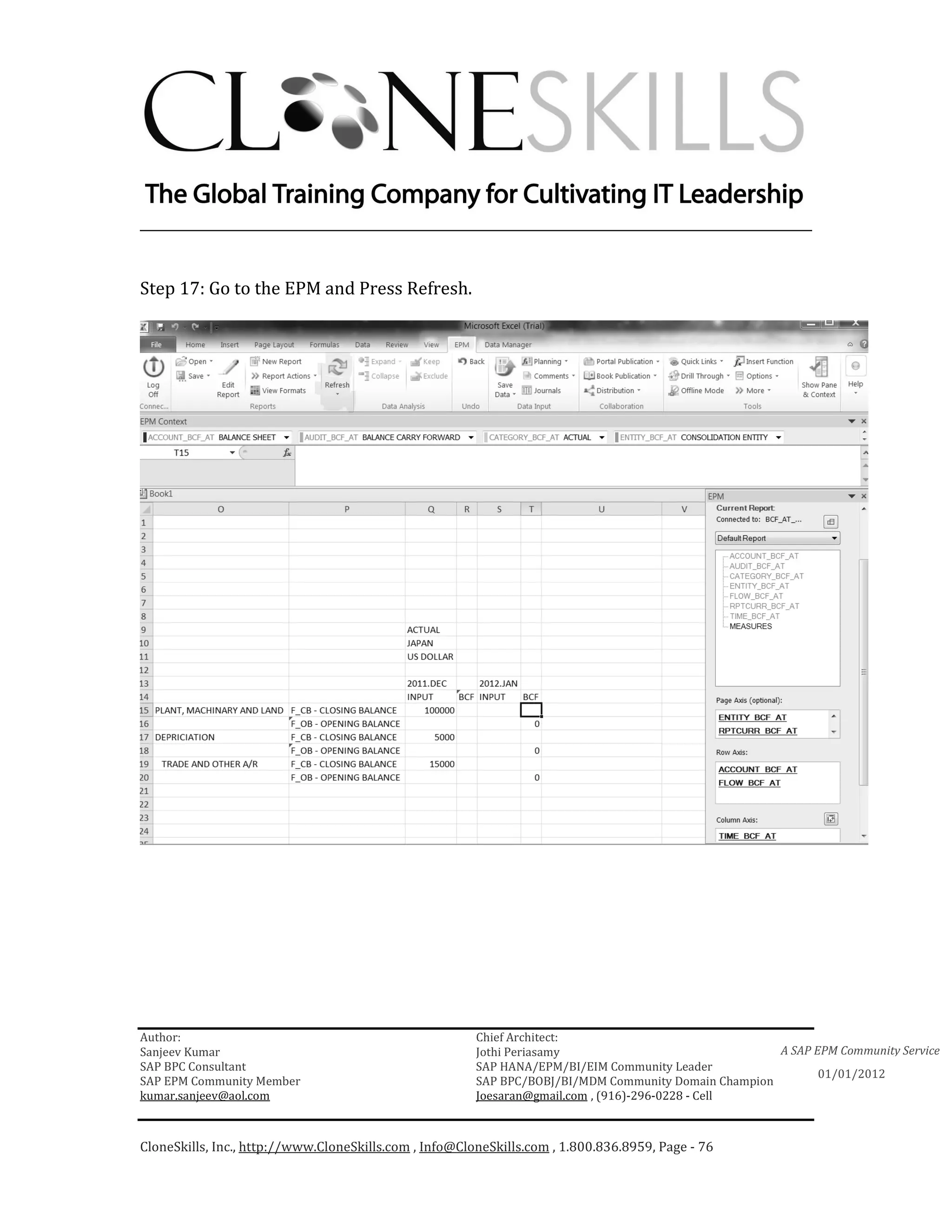
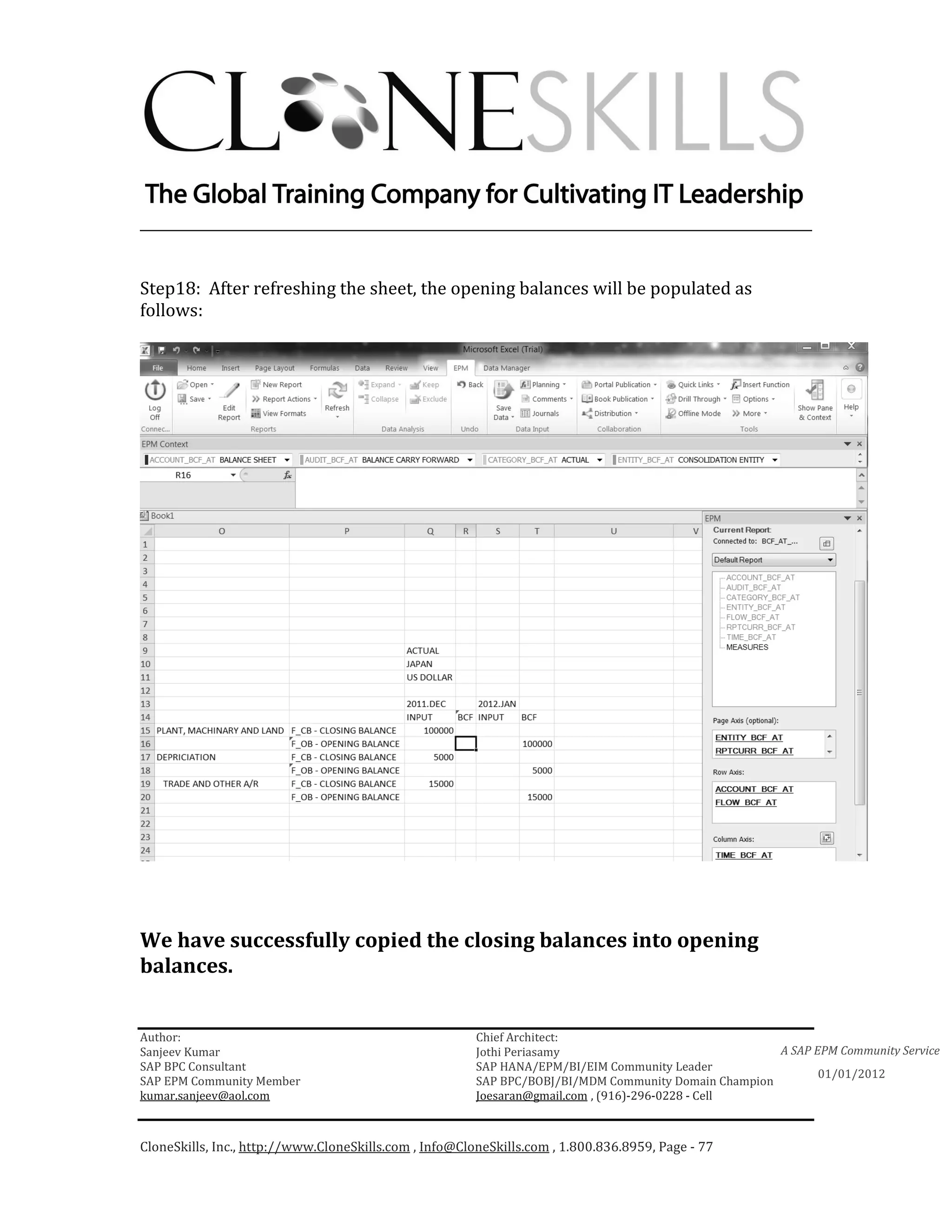
Step 16: Close the window


Author:                                                 Chief Architect:
Sanjeev Kumar                                           Jothi Periasamy                               A SAP EPM Community Service
SAP BPC Consultant                                      SAP HANA/EPM/BI/EIM Community Leader
                                                                                                             01/01/2012
SAP EPM Community Member                                SAP BPC/BOBJ/BI/MDM Community Domain Champion
kumar.sanjeev@aol.com                                   Joesaran@gmail.com , (916)-296-0228 - Cell


CloneSkills, Inc., http://www.CloneSkills.com , Info@CloneSkills.com , 1.800.836.8959, Page - 75
________________________________________________________________________


Step 17: Go to the EPM and Press Refresh.


Author:                                                 Chief Architect:
Sanjeev Kumar                                           Jothi Periasamy                               A SAP EPM Community Service
SAP BPC Consultant                                      SAP HANA/EPM/BI/EIM Community Leader
                                                                                                             01/01/2012
SAP EPM Community Member                                SAP BPC/BOBJ/BI/MDM Community Domain Champion
kumar.sanjeev@aol.com                                   Joesaran@gmail.com , (916)-296-0228 - Cell


CloneSkills, Inc., http://www.CloneSkills.com , Info@CloneSkills.com , 1.800.836.8959, Page - 76
________________________________________________________________________


Step18: After refreshing the sheet, the opening balances will be populated as
follows:


We have successfully copied the closing balances into opening
balances.


Author:                                                 Chief Architect:
Sanjeev Kumar                                           Jothi Periasamy                               A SAP EPM Community Service
SAP BPC Consultant                                      SAP HANA/EPM/BI/EIM Community Leader
                                                                                                             01/01/2012
SAP EPM Community Member                                SAP BPC/BOBJ/BI/MDM Community Domain Champion
kumar.sanjeev@aol.com                                   Joesaran@gmail.com , (916)-296-0228 - Cell


CloneSkills, Inc., http://www.CloneSkills.com , Info@CloneSkills.com , 1.800.836.8959, Page - 77
________________________________________________________________________


    Implementation Steps for Account Reclassification:


Step 1. Create Dim, Properties and Populate Dimensions.
Step2. Create Model and Attach Dimensions to the Model.
Step 3. Create Business Rule.
Step 4. Create a Logic Script to Invoke the BCF and Account Transformation
Procedure.
Step 5. Configure Data Manager Package.
Step 6. Create Input Schedule and Load Data
Step 7. Execute Data Manager Package and Run Report


    Author:                                                 Chief Architect:
    Sanjeev Kumar                                           Jothi Periasamy                               A SAP EPM Community Service
    SAP BPC Consultant                                      SAP HANA/EPM/BI/EIM Community Leader
                                                                                                                 01/01/2012
    SAP EPM Community Member                                SAP BPC/BOBJ/BI/MDM Community Domain Champion
    kumar.sanjeev@aol.com                                   Joesaran@gmail.com , (916)-296-0228 - Cell


    CloneSkills, Inc., http://www.CloneSkills.com , Info@CloneSkills.com , 1.800.836.8959, Page - 78
________________________________________________________________________


Create and Populate Dimension for Account
Reclassification Business Rule:
Step 1: Log into Web Admin Client using Primary Admin account (or
any account with necessary task profile access that can create
Model/Dimension and other building blocks)


Author:                                                 Chief Architect:
Sanjeev Kumar                                           Jothi Periasamy                               A SAP EPM Community Service
SAP BPC Consultant                                      SAP HANA/EPM/BI/EIM Community Leader
                                                                                                             01/01/2012
SAP EPM Community Member                                SAP BPC/BOBJ/BI/MDM Community Domain Champion
kumar.sanjeev@aol.com                                   Joesaran@gmail.com , (916)-296-0228 - Cell


CloneSkills, Inc., http://www.CloneSkills.com , Info@CloneSkills.com , 1.800.836.8959, Page - 79
________________________________________________________________________


Step 2: Click on “Planning and Consolidation Administration” option at
the lower right corner.


Author:                                                 Chief Architect:
Sanjeev Kumar                                           Jothi Periasamy                               A SAP EPM Community Service
SAP BPC Consultant                                      SAP HANA/EPM/BI/EIM Community Leader
                                                                                                             01/01/2012
SAP EPM Community Member                                SAP BPC/BOBJ/BI/MDM Community Domain Champion
kumar.sanjeev@aol.com                                   Joesaran@gmail.com , (916)-296-0228 - Cell


CloneSkills, Inc., http://www.CloneSkills.com , Info@CloneSkills.com , 1.800.836.8959, Page - 80
________________________________________________________________________


Step 3: Create DIM by clicking on “Dimensions” under “Dimensions and
Models”.


Author:                                                 Chief Architect:
Sanjeev Kumar                                           Jothi Periasamy                               A SAP EPM Community Service
SAP BPC Consultant                                      SAP HANA/EPM/BI/EIM Community Leader
                                                                                                             01/01/2012
SAP EPM Community Member                                SAP BPC/BOBJ/BI/MDM Community Domain Champion
kumar.sanjeev@aol.com                                   Joesaran@gmail.com , (916)-296-0228 - Cell


CloneSkills, Inc., http://www.CloneSkills.com , Info@CloneSkills.com , 1.800.836.8959, Page - 81
________________________________________________________________________


Step 4 Click “New” for creating a new dimension.


Author:                                                 Chief Architect:
Sanjeev Kumar                                           Jothi Periasamy                               A SAP EPM Community Service
SAP BPC Consultant                                      SAP HANA/EPM/BI/EIM Community Leader
                                                                                                             01/01/2012
SAP EPM Community Member                                SAP BPC/BOBJ/BI/MDM Community Domain Champion
kumar.sanjeev@aol.com                                   Joesaran@gmail.com , (916)-296-0228 - Cell


CloneSkills, Inc., http://www.CloneSkills.com , Info@CloneSkills.com , 1.800.836.8959, Page - 82
________________________________________________________________________

Step 5: Enter the name of the dimension “ID” and “Description”. Select
the appropriate dimension “Type” as given below.


Author:                                                 Chief Architect:
Sanjeev Kumar                                           Jothi Periasamy                               A SAP EPM Community Service
SAP BPC Consultant                                      SAP HANA/EPM/BI/EIM Community Leader
                                                                                                             01/01/2012
SAP EPM Community Member                                SAP BPC/BOBJ/BI/MDM Community Domain Champion
kumar.sanjeev@aol.com                                   Joesaran@gmail.com , (916)-296-0228 - Cell


CloneSkills, Inc., http://www.CloneSkills.com , Info@CloneSkills.com , 1.800.836.8959, Page - 83
________________________________________________________________________

Create the following dimension types:

ACCOUNT,
CATEGORY,
TIME,
ENTITY,
CURRENCY,
AUDIT,
SUBTABLES

As mentioned earlier these are required Account Reclassification or Account
Transformation business rule.


Author:                                                 Chief Architect:
Sanjeev Kumar                                           Jothi Periasamy                               A SAP EPM Community Service
SAP BPC Consultant                                      SAP HANA/EPM/BI/EIM Community Leader
                                                                                                             01/01/2012
SAP EPM Community Member                                SAP BPC/BOBJ/BI/MDM Community Domain Champion
kumar.sanjeev@aol.com                                   Joesaran@gmail.com , (916)-296-0228 - Cell


CloneSkills, Inc., http://www.CloneSkills.com , Info@CloneSkills.com , 1.800.836.8959, Page - 84
________________________________________________________________________

Step 6: Populate all the dimensions with members and property values.

Select the dimension and then go to “Edit Members”.


Author:                                                 Chief Architect:
Sanjeev Kumar                                           Jothi Periasamy                               A SAP EPM Community Service
SAP BPC Consultant                                      SAP HANA/EPM/BI/EIM Community Leader
                                                                                                             01/01/2012
SAP EPM Community Member                                SAP BPC/BOBJ/BI/MDM Community Domain Champion
kumar.sanjeev@aol.com                                   Joesaran@gmail.com , (916)-296-0228 - Cell


CloneSkills, Inc., http://www.CloneSkills.com , Info@CloneSkills.com , 1.800.836.8959, Page - 85
________________________________________________________________________


Populate Account dimension:


Author:                                                 Chief Architect:
Sanjeev Kumar                                           Jothi Periasamy                               A SAP EPM Community Service
SAP BPC Consultant                                      SAP HANA/EPM/BI/EIM Community Leader
                                                                                                             01/01/2012
SAP EPM Community Member                                SAP BPC/BOBJ/BI/MDM Community Domain Champion
kumar.sanjeev@aol.com                                   Joesaran@gmail.com , (916)-296-0228 - Cell


CloneSkills, Inc., http://www.CloneSkills.com , Info@CloneSkills.com , 1.800.836.8959, Page - 86
________________________________________________________________________


Populate Category dimension


Populate Flow dimension


Author:                                                 Chief Architect:
Sanjeev Kumar                                           Jothi Periasamy                               A SAP EPM Community Service
SAP BPC Consultant                                      SAP HANA/EPM/BI/EIM Community Leader
                                                                                                             01/01/2012
SAP EPM Community Member                                SAP BPC/BOBJ/BI/MDM Community Domain Champion
kumar.sanjeev@aol.com                                   Joesaran@gmail.com , (916)-296-0228 - Cell


CloneSkills, Inc., http://www.CloneSkills.com , Info@CloneSkills.com , 1.800.836.8959, Page - 87
________________________________________________________________________


Populate Audit dimension


Populate Reporting currency dimension


Author:                                                 Chief Architect:
Sanjeev Kumar                                           Jothi Periasamy                               A SAP EPM Community Service
SAP BPC Consultant                                      SAP HANA/EPM/BI/EIM Community Leader
                                                                                                             01/01/2012
SAP EPM Community Member                                SAP BPC/BOBJ/BI/MDM Community Domain Champion
kumar.sanjeev@aol.com                                   Joesaran@gmail.com , (916)-296-0228 - Cell


CloneSkills, Inc., http://www.CloneSkills.com , Info@CloneSkills.com , 1.800.836.8959, Page - 88
________________________________________________________________________

Populate Time dimension


Likewise populate rest of the dimensions with appropriate dimension members

Author:                                                 Chief Architect:
Sanjeev Kumar                                           Jothi Periasamy                               A SAP EPM Community Service
SAP BPC Consultant                                      SAP HANA/EPM/BI/EIM Community Leader
                                                                                                             01/01/2012
SAP EPM Community Member                                SAP BPC/BOBJ/BI/MDM Community Domain Champion
kumar.sanjeev@aol.com                                   Joesaran@gmail.com , (916)-296-0228 - Cell


CloneSkills, Inc., http://www.CloneSkills.com , Info@CloneSkills.com , 1.800.836.8959, Page - 89
________________________________________________________________________


Create Model and add Dimensions to the Model for Account
Reclassification:

Step 1: Create Model by clicking on “Models” under “Dimensions and
Models”


Author:                                                 Chief Architect:
Sanjeev Kumar                                           Jothi Periasamy                               A SAP EPM Community Service
SAP BPC Consultant                                      SAP HANA/EPM/BI/EIM Community Leader
                                                                                                             01/01/2012
SAP EPM Community Member                                SAP BPC/BOBJ/BI/MDM Community Domain Champion
kumar.sanjeev@aol.com                                   Joesaran@gmail.com , (916)-296-0228 - Cell


CloneSkills, Inc., http://www.CloneSkills.com , Info@CloneSkills.com , 1.800.836.8959, Page - 90
________________________________________________________________________


Step 2: Click ‘New’ for creating a new model. Enter Model’s “ID” and
“Description”, and press next.


Author:                                                 Chief Architect:
Sanjeev Kumar                                           Jothi Periasamy                               A SAP EPM Community Service
SAP BPC Consultant                                      SAP HANA/EPM/BI/EIM Community Leader
                                                                                                             01/01/2012
SAP EPM Community Member                                SAP BPC/BOBJ/BI/MDM Community Domain Champion
kumar.sanjeev@aol.com                                   Joesaran@gmail.com , (916)-296-0228 - Cell


CloneSkills, Inc., http://www.CloneSkills.com , Info@CloneSkills.com , 1.800.836.8959, Page - 91
________________________________________________________________________


Step 3: Select the model type and the corresponding rate model as given
below. Also select the data entry mode.


Author:                                                 Chief Architect:
Sanjeev Kumar                                           Jothi Periasamy                               A SAP EPM Community Service
SAP BPC Consultant                                      SAP HANA/EPM/BI/EIM Community Leader
                                                                                                             01/01/2012
SAP EPM Community Member                                SAP BPC/BOBJ/BI/MDM Community Domain Champion
kumar.sanjeev@aol.com                                   Joesaran@gmail.com , (916)-296-0228 - Cell


CloneSkills, Inc., http://www.CloneSkills.com , Info@CloneSkills.com , 1.800.836.8959, Page - 92
________________________________________________________________________

Step 4: Either select an appropriate existing model or select a blank
model to populate the model with appropriate dimensions.


Sep 5: Select the required dimensions and press ADD to populate.


Author:                                                 Chief Architect:
Sanjeev Kumar                                           Jothi Periasamy                               A SAP EPM Community Service
SAP BPC Consultant                                      SAP HANA/EPM/BI/EIM Community Leader
                                                                                                             01/01/2012
SAP EPM Community Member                                SAP BPC/BOBJ/BI/MDM Community Domain Champion
kumar.sanjeev@aol.com                                   Joesaran@gmail.com , (916)-296-0228 - Cell


CloneSkills, Inc., http://www.CloneSkills.com , Info@CloneSkills.com , 1.800.836.8959, Page - 93
________________________________________________________________________

Step 6: No content is copied in the model since we started with a blank model. If we
had we selected an existing model, contents such as Data Manager Package would
have been copied.


Author:                                                 Chief Architect:
Sanjeev Kumar                                           Jothi Periasamy                               A SAP EPM Community Service
SAP BPC Consultant                                      SAP HANA/EPM/BI/EIM Community Leader
                                                                                                             01/01/2012
SAP EPM Community Member                                SAP BPC/BOBJ/BI/MDM Community Domain Champion
kumar.sanjeev@aol.com                                   Joesaran@gmail.com , (916)-296-0228 - Cell


CloneSkills, Inc., http://www.CloneSkills.com , Info@CloneSkills.com , 1.800.836.8959, Page - 94
________________________________________________________________________

Step 7: Click ‘Create’ to create the model


Author:                                                 Chief Architect:
Sanjeev Kumar                                           Jothi Periasamy                               A SAP EPM Community Service
SAP BPC Consultant                                      SAP HANA/EPM/BI/EIM Community Leader
                                                                                                             01/01/2012
SAP EPM Community Member                                SAP BPC/BOBJ/BI/MDM Community Domain Champion
kumar.sanjeev@aol.com                                   Joesaran@gmail.com , (916)-296-0228 - Cell


CloneSkills, Inc., http://www.CloneSkills.com , Info@CloneSkills.com , 1.800.836.8959, Page - 95
________________________________________________________________________

Step 8: Once the model is created successfully, close this window.


Author:                                                 Chief Architect:
Sanjeev Kumar                                           Jothi Periasamy                               A SAP EPM Community Service
SAP BPC Consultant                                      SAP HANA/EPM/BI/EIM Community Leader
                                                                                                             01/01/2012
SAP EPM Community Member                                SAP BPC/BOBJ/BI/MDM Community Domain Champion
kumar.sanjeev@aol.com                                   Joesaran@gmail.com , (916)-296-0228 - Cell


CloneSkills, Inc., http://www.CloneSkills.com , Info@CloneSkills.com , 1.800.836.8959, Page - 96
________________________________________________________________________


Create Business Rule for Account Reclassification:

Step 1: Go to business rules under Administration interface.


Author:                                                 Chief Architect:
Sanjeev Kumar                                           Jothi Periasamy                               A SAP EPM Community Service
SAP BPC Consultant                                      SAP HANA/EPM/BI/EIM Community Leader
                                                                                                             01/01/2012
SAP EPM Community Member                                SAP BPC/BOBJ/BI/MDM Community Domain Champion
kumar.sanjeev@aol.com                                   Joesaran@gmail.com , (916)-296-0228 - Cell


CloneSkills, Inc., http://www.CloneSkills.com , Info@CloneSkills.com , 1.800.836.8959, Page - 97
________________________________________________________________________


Step 2: Select the model and click Add/Remove Rule Types:


Step 3: Select Carry-Forward and Account-based calculations business rule and
press OK.


It is important to note that Account Reclassification is called Account-based
Calculations under business rule types.

Author:                                                 Chief Architect:
Sanjeev Kumar                                           Jothi Periasamy                               A SAP EPM Community Service
SAP BPC Consultant                                      SAP HANA/EPM/BI/EIM Community Leader
                                                                                                             01/01/2012
SAP EPM Community Member                                SAP BPC/BOBJ/BI/MDM Community Domain Champion
kumar.sanjeev@aol.com                                   Joesaran@gmail.com , (916)-296-0228 - Cell


CloneSkills, Inc., http://www.CloneSkills.com , Info@CloneSkills.com , 1.800.836.8959, Page - 98
________________________________________________________________________


Step 4: The business rule will appear as follows:


Step 5: Click on Account-based Calculations business rule.


Author:                                                 Chief Architect:
Sanjeev Kumar                                           Jothi Periasamy                               A SAP EPM Community Service
SAP BPC Consultant                                      SAP HANA/EPM/BI/EIM Community Leader
                                                                                                             01/01/2012
SAP EPM Community Member                                SAP BPC/BOBJ/BI/MDM Community Domain Champion
kumar.sanjeev@aol.com                                   Joesaran@gmail.com , (916)-296-0228 - Cell


CloneSkills, Inc., http://www.CloneSkills.com , Info@CloneSkills.com , 1.800.836.8959, Page - 99
________________________________________________________________________


Step 6: Click on New.


Step 7: Enter “ID” and “Description”.


Here ID is CF and Description is Cash Flow Calculations since this rule is being
configured to create cash flow statement.


Author:                                                 Chief Architect:
Sanjeev Kumar                                           Jothi Periasamy                               A SAP EPM Community Service
SAP BPC Consultant                                      SAP HANA/EPM/BI/EIM Community Leader
                                                                                                             01/01/2012
SAP EPM Community Member                                SAP BPC/BOBJ/BI/MDM Community Domain Champion
kumar.sanjeev@aol.com                                   Joesaran@gmail.com , (916)-296-0228 - Cell


CloneSkills, Inc., http://www.CloneSkills.com , Info@CloneSkills.com , 1.800.836.8959, Page - 100
________________________________________________________________________


Step 8: Go to the Source Account .All account members will appear. Select the source
account. Here we are selecting PL00 (Net Income after Taxes), which is a parent
account under P&L accounts.


Author:                                                 Chief Architect:
Sanjeev Kumar                                           Jothi Periasamy                               A SAP EPM Community Service
SAP BPC Consultant                                      SAP HANA/EPM/BI/EIM Community Leader
                                                                                                             01/01/2012
SAP EPM Community Member                                SAP BPC/BOBJ/BI/MDM Community Domain Champion
kumar.sanjeev@aol.com                                   Joesaran@gmail.com , (916)-296-0228 - Cell


CloneSkills, Inc., http://www.CloneSkills.com , Info@CloneSkills.com , 1.800.836.8959, Page - 101
________________________________________________________________________


Step 9: Select the Destination Account. The destination account for PL00 source
account is CF04 (Net Income), which is a Cash Flow account under cash flow from
operating activities account.


Author:                                                 Chief Architect:
Sanjeev Kumar                                           Jothi Periasamy                               A SAP EPM Community Service
SAP BPC Consultant                                      SAP HANA/EPM/BI/EIM Community Leader
                                                                                                             01/01/2012
SAP EPM Community Member                                SAP BPC/BOBJ/BI/MDM Community Domain Champion
kumar.sanjeev@aol.com                                   Joesaran@gmail.com , (916)-296-0228 - Cell


CloneSkills, Inc., http://www.CloneSkills.com , Info@CloneSkills.com , 1.800.836.8959, Page - 102
________________________________________________________________________


Step 10: Populate other fields such as follows:


Author:                                                 Chief Architect:
Sanjeev Kumar                                           Jothi Periasamy                               A SAP EPM Community Service
SAP BPC Consultant                                      SAP HANA/EPM/BI/EIM Community Leader
                                                                                                             01/01/2012
SAP EPM Community Member                                SAP BPC/BOBJ/BI/MDM Community Domain Champion
kumar.sanjeev@aol.com                                   Joesaran@gmail.com , (916)-296-0228 - Cell


CloneSkills, Inc., http://www.CloneSkills.com , Info@CloneSkills.com , 1.800.836.8959, Page - 103
________________________________________________________________________


Step 11: Select another source account PL21 (Depreciation Expense), which is also a
P&L account under indirect expenses account.


Author:                                                 Chief Architect:
Sanjeev Kumar                                           Jothi Periasamy                               A SAP EPM Community Service
SAP BPC Consultant                                      SAP HANA/EPM/BI/EIM Community Leader
                                                                                                             01/01/2012
SAP EPM Community Member                                SAP BPC/BOBJ/BI/MDM Community Domain Champion
kumar.sanjeev@aol.com                                   Joesaran@gmail.com , (916)-296-0228 - Cell


CloneSkills, Inc., http://www.CloneSkills.com , Info@CloneSkills.com , 1.800.836.8959, Page - 104
________________________________________________________________________


Step 12: Select the Destination Account. The destination account for PL21 source
account is CF05 (Add Back Depreciation), which is a Cash Flow account under cash
flow from operating activities account.


Author:                                                 Chief Architect:
Sanjeev Kumar                                           Jothi Periasamy                               A SAP EPM Community Service
SAP BPC Consultant                                      SAP HANA/EPM/BI/EIM Community Leader
                                                                                                             01/01/2012
SAP EPM Community Member                                SAP BPC/BOBJ/BI/MDM Community Domain Champion
kumar.sanjeev@aol.com                                   Joesaran@gmail.com , (916)-296-0228 - Cell


CloneSkills, Inc., http://www.CloneSkills.com , Info@CloneSkills.com , 1.800.836.8959, Page - 105
________________________________________________________________________


Step 13: Populate other fields such as follows:


Source Flow and Destination Flow for these two transformations is F_CB, which is a
closing balance.
Source Data Source and Destination Data Source for both of these transformations is
INPUT.
Source Category and Destination Category for both of these transformations is
ACTUAL.
Source Peiod and Source Year is not hard coded since they are same ( 2011.12)
Levels define the sequence of the transfomation is executed.

It is important to note that the sign is reversed in the second line, since
depriciation is EXP account under P&L and it is configured as INC account
under Cash Flow. INC and LEQ are stored with negative sign, and EXP and AST
are stored with positive sign.


Author:                                                 Chief Architect:
Sanjeev Kumar                                           Jothi Periasamy                               A SAP EPM Community Service
SAP BPC Consultant                                      SAP HANA/EPM/BI/EIM Community Leader
                                                                                                             01/01/2012
SAP EPM Community Member                                SAP BPC/BOBJ/BI/MDM Community Domain Champion
kumar.sanjeev@aol.com                                   Joesaran@gmail.com , (916)-296-0228 - Cell


CloneSkills, Inc., http://www.CloneSkills.com , Info@CloneSkills.com , 1.800.836.8959, Page - 106
________________________________________________________________________


Step 14: Validate and Save business rule.


Step 15: Close the window.


                            The business rule has been configured.


Author:                                                 Chief Architect:
Sanjeev Kumar                                           Jothi Periasamy                               A SAP EPM Community Service
SAP BPC Consultant                                      SAP HANA/EPM/BI/EIM Community Leader
                                                                                                             01/01/2012
SAP EPM Community Member                                SAP BPC/BOBJ/BI/MDM Community Domain Champion
kumar.sanjeev@aol.com                                   Joesaran@gmail.com , (916)-296-0228 - Cell


CloneSkills, Inc., http://www.CloneSkills.com , Info@CloneSkills.com , 1.800.836.8959, Page - 107
________________________________________________________________________


Create Logic Script for Invoking Account Transformation
Business Rule.

Step 1: Go to the “Logic Scripts” under Administration interface and select the
BCF_AT_Model


Step 2: Select New.


Author:                                                 Chief Architect:
Sanjeev Kumar                                           Jothi Periasamy                               A SAP EPM Community Service
SAP BPC Consultant                                      SAP HANA/EPM/BI/EIM Community Leader
                                                                                                             01/01/2012
SAP EPM Community Member                                SAP BPC/BOBJ/BI/MDM Community Domain Champion
kumar.sanjeev@aol.com                                   Joesaran@gmail.com , (916)-296-0228 - Cell


CloneSkills, Inc., http://www.CloneSkills.com , Info@CloneSkills.com , 1.800.836.8959, Page - 108
________________________________________________________________________

Step 3: Enter CALCACCOUNT as a logic script file name. Press Create.


Step 4: Enter the following code:


Author:                                                 Chief Architect:
Sanjeev Kumar                                           Jothi Periasamy                               A SAP EPM Community Service
SAP BPC Consultant                                      SAP HANA/EPM/BI/EIM Community Leader
                                                                                                             01/01/2012
SAP EPM Community Member                                SAP BPC/BOBJ/BI/MDM Community Domain Champion
kumar.sanjeev@aol.com                                   Joesaran@gmail.com , (916)-296-0228 - Cell


CloneSkills, Inc., http://www.CloneSkills.com , Info@CloneSkills.com , 1.800.836.8959, Page - 109
________________________________________________________________________

Step 5: Validate and Save the script logic. Close the window after that.


Step 4: Return to Logic Scripts.


Author:                                                 Chief Architect:
Sanjeev Kumar                                           Jothi Periasamy                               A SAP EPM Community Service
SAP BPC Consultant                                      SAP HANA/EPM/BI/EIM Community Leader
                                                                                                             01/01/2012
SAP EPM Community Member                                SAP BPC/BOBJ/BI/MDM Community Domain Champion
kumar.sanjeev@aol.com                                   Joesaran@gmail.com , (916)-296-0228 - Cell


CloneSkills, Inc., http://www.CloneSkills.com , Info@CloneSkills.com , 1.800.836.8959, Page - 110
________________________________________________________________________


Configure Data Manager Package for Account
Reclassification/Account Transformation Business Rule:

Step 1: Click EPM Office Add-in Excel under Home interface


This will open the excel interface.


Author:                                                 Chief Architect:
Sanjeev Kumar                                           Jothi Periasamy                               A SAP EPM Community Service
SAP BPC Consultant                                      SAP HANA/EPM/BI/EIM Community Leader
                                                                                                             01/01/2012
SAP EPM Community Member                                SAP BPC/BOBJ/BI/MDM Community Domain Champion
kumar.sanjeev@aol.com                                   Joesaran@gmail.com , (916)-296-0228 - Cell


CloneSkills, Inc., http://www.CloneSkills.com , Info@CloneSkills.com , 1.800.836.8959, Page - 111
________________________________________________________________________


Step 2: Select BCF_AT_Model and press OK


Author:                                                 Chief Architect:
Sanjeev Kumar                                           Jothi Periasamy                               A SAP EPM Community Service
SAP BPC Consultant                                      SAP HANA/EPM/BI/EIM Community Leader
                                                                                                             01/01/2012
SAP EPM Community Member                                SAP BPC/BOBJ/BI/MDM Community Domain Champion
kumar.sanjeev@aol.com                                   Joesaran@gmail.com , (916)-296-0228 - Cell


CloneSkills, Inc., http://www.CloneSkills.com , Info@CloneSkills.com , 1.800.836.8959, Page - 112
________________________________________________________________________

Step 3: Go to “Data Manager”. Click on “Organize” and select “Organize Package” list.


Author:                                                 Chief Architect:
Sanjeev Kumar                                           Jothi Periasamy                               A SAP EPM Community Service
SAP BPC Consultant                                      SAP HANA/EPM/BI/EIM Community Leader
                                                                                                             01/01/2012
SAP EPM Community Member                                SAP BPC/BOBJ/BI/MDM Community Domain Champion
kumar.sanjeev@aol.com                                   Joesaran@gmail.com , (916)-296-0228 - Cell


CloneSkills, Inc., http://www.CloneSkills.com , Info@CloneSkills.com , 1.800.836.8959, Page - 113
________________________________________________________________________


Step 4: Click on “Package” and select “Add Package Group”.


Step 5: Enter a package group name and press OK


Author:                                                 Chief Architect:
Sanjeev Kumar                                           Jothi Periasamy                               A SAP EPM Community Service
SAP BPC Consultant                                      SAP HANA/EPM/BI/EIM Community Leader
                                                                                                             01/01/2012
SAP EPM Community Member                                SAP BPC/BOBJ/BI/MDM Community Domain Champion
kumar.sanjeev@aol.com                                   Joesaran@gmail.com , (916)-296-0228 - Cell


CloneSkills, Inc., http://www.CloneSkills.com , Info@CloneSkills.com , 1.800.836.8959, Page - 114
________________________________________________________________________


Step 6: Select the newly created package group. Click on package and select Add
Package.


Author:                                                 Chief Architect:
Sanjeev Kumar                                           Jothi Periasamy                               A SAP EPM Community Service
SAP BPC Consultant                                      SAP HANA/EPM/BI/EIM Community Leader
                                                                                                             01/01/2012
SAP EPM Community Member                                SAP BPC/BOBJ/BI/MDM Community Domain Champion
kumar.sanjeev@aol.com                                   Joesaran@gmail.com , (916)-296-0228 - Cell


CloneSkills, Inc., http://www.CloneSkills.com , Info@CloneSkills.com , 1.800.836.8959, Page - 115
________________________________________________________________________

Step 7: Click Select.


Step 8: Select /CPMB/RUNCALCACCOUNT process chain and Press OK.


Author:                                                 Chief Architect:
Sanjeev Kumar                                           Jothi Periasamy                               A SAP EPM Community Service
SAP BPC Consultant                                      SAP HANA/EPM/BI/EIM Community Leader
                                                                                                             01/01/2012
SAP EPM Community Member                                SAP BPC/BOBJ/BI/MDM Community Domain Champion
kumar.sanjeev@aol.com                                   Joesaran@gmail.com , (916)-296-0228 - Cell


CloneSkills, Inc., http://www.CloneSkills.com , Info@CloneSkills.com , 1.800.836.8959, Page - 116
________________________________________________________________________

Step 9: Enter package name and description. Press Add.


Step 10: The Accont Reclassification package has been added. Close the window.


Author:                                                 Chief Architect:
Sanjeev Kumar                                           Jothi Periasamy                               A SAP EPM Community Service
SAP BPC Consultant                                      SAP HANA/EPM/BI/EIM Community Leader
                                                                                                             01/01/2012
SAP EPM Community Member                                SAP BPC/BOBJ/BI/MDM Community Domain Champion
kumar.sanjeev@aol.com                                   Joesaran@gmail.com , (916)-296-0228 - Cell


CloneSkills, Inc., http://www.CloneSkills.com , Info@CloneSkills.com , 1.800.836.8959, Page - 117
________________________________________________________________________

Create Input Schedule and Run Data Manager Package for
ACCOUNT RECLASSIFICATION/TRANSFORMATION
Business Rule.
Step 1: Select EPM and then New Report


Author:                                                 Chief Architect:
Sanjeev Kumar                                           Jothi Periasamy                               A SAP EPM Community Service
SAP BPC Consultant                                      SAP HANA/EPM/BI/EIM Community Leader
                                                                                                             01/01/2012
SAP EPM Community Member                                SAP BPC/BOBJ/BI/MDM Community Domain Champion
kumar.sanjeev@aol.com                                   Joesaran@gmail.com , (916)-296-0228 - Cell


CloneSkills, Inc., http://www.CloneSkills.com , Info@CloneSkills.com , 1.800.836.8959, Page - 118
________________________________________________________________________

Step 2: Drag and drop the dimensions into row, column and page axis as follows.
This is called “EPM- Report Editor”


Author:                                                 Chief Architect:
Sanjeev Kumar                                           Jothi Periasamy                               A SAP EPM Community Service
SAP BPC Consultant                                      SAP HANA/EPM/BI/EIM Community Leader
                                                                                                             01/01/2012
SAP EPM Community Member                                SAP BPC/BOBJ/BI/MDM Community Domain Champion
kumar.sanjeev@aol.com                                   Joesaran@gmail.com , (916)-296-0228 - Cell


CloneSkills, Inc., http://www.CloneSkills.com , Info@CloneSkills.com , 1.800.836.8959, Page - 119
________________________________________________________________________


Step 3: Click on CATEGORY_BCF_AT


Author:                                                 Chief Architect:
Sanjeev Kumar                                           Jothi Periasamy                               A SAP EPM Community Service
SAP BPC Consultant                                      SAP HANA/EPM/BI/EIM Community Leader
                                                                                                             01/01/2012
SAP EPM Community Member                                SAP BPC/BOBJ/BI/MDM Community Domain Champion
kumar.sanjeev@aol.com                                   Joesaran@gmail.com , (916)-296-0228 - Cell


CloneSkills, Inc., http://www.CloneSkills.com , Info@CloneSkills.com , 1.800.836.8959, Page - 120
________________________________________________________________________


Step 4: Select ACTUAL and click OK.


Author:                                                 Chief Architect:
Sanjeev Kumar                                           Jothi Periasamy                               A SAP EPM Community Service
SAP BPC Consultant                                      SAP HANA/EPM/BI/EIM Community Leader
                                                                                                             01/01/2012
SAP EPM Community Member                                SAP BPC/BOBJ/BI/MDM Community Domain Champion
kumar.sanjeev@aol.com                                   Joesaran@gmail.com , (916)-296-0228 - Cell


CloneSkills, Inc., http://www.CloneSkills.com , Info@CloneSkills.com , 1.800.836.8959, Page - 121
________________________________________________________________________


Step 5: Click on ENTITY_BCF_AT in Report Editor and select JAPAN. Press OK.


Author:                                                 Chief Architect:
Sanjeev Kumar                                           Jothi Periasamy                               A SAP EPM Community Service
SAP BPC Consultant                                      SAP HANA/EPM/BI/EIM Community Leader
                                                                                                             01/01/2012
SAP EPM Community Member                                SAP BPC/BOBJ/BI/MDM Community Domain Champion
kumar.sanjeev@aol.com                                   Joesaran@gmail.com , (916)-296-0228 - Cell


CloneSkills, Inc., http://www.CloneSkills.com , Info@CloneSkills.com , 1.800.836.8959, Page - 122
________________________________________________________________________


Step 6: Click on FLOW_BCF_AT in Report Editor and select F_CB. Click OK.


Author:                                                 Chief Architect:
Sanjeev Kumar                                           Jothi Periasamy                               A SAP EPM Community Service
SAP BPC Consultant                                      SAP HANA/EPM/BI/EIM Community Leader
                                                                                                             01/01/2012
SAP EPM Community Member                                SAP BPC/BOBJ/BI/MDM Community Domain Champion
kumar.sanjeev@aol.com                                   Joesaran@gmail.com , (916)-296-0228 - Cell


CloneSkills, Inc., http://www.CloneSkills.com , Info@CloneSkills.com , 1.800.836.8959, Page - 123
________________________________________________________________________


Step 7: Click on RPTCURR_BCF_AT in Report Editor and select USD. Press OK.


Author:                                                 Chief Architect:
Sanjeev Kumar                                           Jothi Periasamy                               A SAP EPM Community Service
SAP BPC Consultant                                      SAP HANA/EPM/BI/EIM Community Leader
                                                                                                             01/01/2012
SAP EPM Community Member                                SAP BPC/BOBJ/BI/MDM Community Domain Champion
kumar.sanjeev@aol.com                                   Joesaran@gmail.com , (916)-296-0228 - Cell


CloneSkills, Inc., http://www.CloneSkills.com , Info@CloneSkills.com , 1.800.836.8959, Page - 124
________________________________________________________________________


Step 8: Click on ACCOUNT_BCF_AT in Report Editor and select the following
members. Press OK.


Author:                                                 Chief Architect:
Sanjeev Kumar                                           Jothi Periasamy                               A SAP EPM Community Service
SAP BPC Consultant                                      SAP HANA/EPM/BI/EIM Community Leader
                                                                                                             01/01/2012
SAP EPM Community Member                                SAP BPC/BOBJ/BI/MDM Community Domain Champion
kumar.sanjeev@aol.com                                   Joesaran@gmail.com , (916)-296-0228 - Cell


CloneSkills, Inc., http://www.CloneSkills.com , Info@CloneSkills.com , 1.800.836.8959, Page - 125
________________________________________________________________________


Step 9: Click on TIME_BCF_AT in Report Editor and select 2011.DEC. Click OK.


Author:                                                 Chief Architect:
Sanjeev Kumar                                           Jothi Periasamy                               A SAP EPM Community Service
SAP BPC Consultant                                      SAP HANA/EPM/BI/EIM Community Leader
                                                                                                             01/01/2012
SAP EPM Community Member                                SAP BPC/BOBJ/BI/MDM Community Domain Champion
kumar.sanjeev@aol.com                                   Joesaran@gmail.com , (916)-296-0228 - Cell


CloneSkills, Inc., http://www.CloneSkills.com , Info@CloneSkills.com , 1.800.836.8959, Page - 126
________________________________________________________________________


Step 10: After selecting the members for all the dimensions, press OK.


Author:                                                 Chief Architect:
Sanjeev Kumar                                           Jothi Periasamy                               A SAP EPM Community Service
SAP BPC Consultant                                      SAP HANA/EPM/BI/EIM Community Leader
                                                                                                             01/01/2012
SAP EPM Community Member                                SAP BPC/BOBJ/BI/MDM Community Domain Champion
kumar.sanjeev@aol.com                                   Joesaran@gmail.com , (916)-296-0228 - Cell


CloneSkills, Inc., http://www.CloneSkills.com , Info@CloneSkills.com , 1.800.836.8959, Page - 127
________________________________________________________________________

Step 11: Make sure the save Data button (right below the EPM tab) is
activated. If not, check the “Use as input Form” under Options >>Sheet
Options. Then click OK.


Author:                                                 Chief Architect:
Sanjeev Kumar                                           Jothi Periasamy                               A SAP EPM Community Service
SAP BPC Consultant                                      SAP HANA/EPM/BI/EIM Community Leader
                                                                                                             01/01/2012
SAP EPM Community Member                                SAP BPC/BOBJ/BI/MDM Community Domain Champion
kumar.sanjeev@aol.com                                   Joesaran@gmail.com , (916)-296-0228 - Cell


CloneSkills, Inc., http://www.CloneSkills.com , Info@CloneSkills.com , 1.800.836.8959, Page - 128
________________________________________________________________________

Step 12: Enter the following values and then click Save Data >> Save and Refresh
Worksheet Data


Author:                                                 Chief Architect:
Sanjeev Kumar                                           Jothi Periasamy                               A SAP EPM Community Service
SAP BPC Consultant                                      SAP HANA/EPM/BI/EIM Community Leader
                                                                                                             01/01/2012
SAP EPM Community Member                                SAP BPC/BOBJ/BI/MDM Community Domain Champion
kumar.sanjeev@aol.com                                   Joesaran@gmail.com , (916)-296-0228 - Cell


CloneSkills, Inc., http://www.CloneSkills.com , Info@CloneSkills.com , 1.800.836.8959, Page - 129
________________________________________________________________________


The following window will appear. Click Yes.


Author:                                                 Chief Architect:
Sanjeev Kumar                                           Jothi Periasamy                               A SAP EPM Community Service
SAP BPC Consultant                                      SAP HANA/EPM/BI/EIM Community Leader
                                                                                                             01/01/2012
SAP EPM Community Member                                SAP BPC/BOBJ/BI/MDM Community Domain Champion
kumar.sanjeev@aol.com                                   Joesaran@gmail.com , (916)-296-0228 - Cell


CloneSkills, Inc., http://www.CloneSkills.com , Info@CloneSkills.com , 1.800.836.8959, Page - 130
________________________________________________________________________


Step 13: Since Net Income after Taxes is a parent member, its value will be
calculated from the base member values- Third Party Sales, Material Cost and
Depreciation.


Author:                                                 Chief Architect:
Sanjeev Kumar                                           Jothi Periasamy                               A SAP EPM Community Service
SAP BPC Consultant                                      SAP HANA/EPM/BI/EIM Community Leader
                                                                                                             01/01/2012
SAP EPM Community Member                                SAP BPC/BOBJ/BI/MDM Community Domain Champion
kumar.sanjeev@aol.com                                   Joesaran@gmail.com , (916)-296-0228 - Cell


CloneSkills, Inc., http://www.CloneSkills.com , Info@CloneSkills.com , 1.800.836.8959, Page - 131
________________________________________________________________________


Step 14: Go to Data Manager and Select Run Package>> Run Package


Author:                                                 Chief Architect:
Sanjeev Kumar                                           Jothi Periasamy                               A SAP EPM Community Service
SAP BPC Consultant                                      SAP HANA/EPM/BI/EIM Community Leader
                                                                                                             01/01/2012
SAP EPM Community Member                                SAP BPC/BOBJ/BI/MDM Community Domain Champion
kumar.sanjeev@aol.com                                   Joesaran@gmail.com , (916)-296-0228 - Cell


CloneSkills, Inc., http://www.CloneSkills.com , Info@CloneSkills.com , 1.800.836.8959, Page - 132
________________________________________________________________________

Step 15: “Select BCF and AT Package Group” from the left side and select
“CALCULATE ACCOUNT” package from the right side. Click Run.


Author:                                                 Chief Architect:
Sanjeev Kumar                                           Jothi Periasamy                               A SAP EPM Community Service
SAP BPC Consultant                                      SAP HANA/EPM/BI/EIM Community Leader
                                                                                                             01/01/2012
SAP EPM Community Member                                SAP BPC/BOBJ/BI/MDM Community Domain Champion
kumar.sanjeev@aol.com                                   Joesaran@gmail.com , (916)-296-0228 - Cell


CloneSkills, Inc., http://www.CloneSkills.com , Info@CloneSkills.com , 1.800.836.8959, Page - 133
________________________________________________________________________

Step 16: Select the Data Manager prompt values as follows and press next.


Author:                                                 Chief Architect:
Sanjeev Kumar                                           Jothi Periasamy                               A SAP EPM Community Service
SAP BPC Consultant                                      SAP HANA/EPM/BI/EIM Community Leader
                                                                                                             01/01/2012
SAP EPM Community Member                                SAP BPC/BOBJ/BI/MDM Community Domain Champion
kumar.sanjeev@aol.com                                   Joesaran@gmail.com , (916)-296-0228 - Cell


CloneSkills, Inc., http://www.CloneSkills.com , Info@CloneSkills.com , 1.800.836.8959, Page - 134
________________________________________________________________________

Step 17: Select “Run” and then press Finish.


Author:                                                 Chief Architect:
Sanjeev Kumar                                           Jothi Periasamy                               A SAP EPM Community Service
SAP BPC Consultant                                      SAP HANA/EPM/BI/EIM Community Leader
                                                                                                             01/01/2012
SAP EPM Community Member                                SAP BPC/BOBJ/BI/MDM Community Domain Champion
kumar.sanjeev@aol.com                                   Joesaran@gmail.com , (916)-296-0228 - Cell


CloneSkills, Inc., http://www.CloneSkills.com , Info@CloneSkills.com , 1.800.836.8959, Page - 135
________________________________________________________________________


Step 18: The following window will appear. Press OK.


Ste 19: To check the status of the package click “ View Status”


Author:                                                 Chief Architect:
Sanjeev Kumar                                           Jothi Periasamy                               A SAP EPM Community Service
SAP BPC Consultant                                      SAP HANA/EPM/BI/EIM Community Leader
                                                                                                             01/01/2012
SAP EPM Community Member                                SAP BPC/BOBJ/BI/MDM Community Domain Champion
kumar.sanjeev@aol.com                                   Joesaran@gmail.com , (916)-296-0228 - Cell


CloneSkills, Inc., http://www.CloneSkills.com , Info@CloneSkills.com , 1.800.836.8959, Page - 136
________________________________________________________________________

Step 20: Note that status of the package is “Succeed”. Select the package status and
press “Detail”


Author:                                                 Chief Architect:
Sanjeev Kumar                                           Jothi Periasamy                               A SAP EPM Community Service
SAP BPC Consultant                                      SAP HANA/EPM/BI/EIM Community Leader
                                                                                                             01/01/2012
SAP EPM Community Member                                SAP BPC/BOBJ/BI/MDM Community Domain Champion
kumar.sanjeev@aol.com                                   Joesaran@gmail.com , (916)-296-0228 - Cell


CloneSkills, Inc., http://www.CloneSkills.com , Info@CloneSkills.com , 1.800.836.8959, Page - 137
________________________________________________________________________

Step 21: Select “Formula Log” to check if records have been submitted successfully.
Close the window.


Author:                                                 Chief Architect:
Sanjeev Kumar                                           Jothi Periasamy                               A SAP EPM Community Service
SAP BPC Consultant                                      SAP HANA/EPM/BI/EIM Community Leader
                                                                                                             01/01/2012
SAP EPM Community Member                                SAP BPC/BOBJ/BI/MDM Community Domain Champion
kumar.sanjeev@aol.com                                   Joesaran@gmail.com , (916)-296-0228 - Cell


CloneSkills, Inc., http://www.CloneSkills.com , Info@CloneSkills.com , 1.800.836.8959, Page - 138
________________________________________________________________________

Step 22: Close Package Status window.


Author:                                                 Chief Architect:
Sanjeev Kumar                                           Jothi Periasamy                               A SAP EPM Community Service
SAP BPC Consultant                                      SAP HANA/EPM/BI/EIM Community Leader
                                                                                                             01/01/2012
SAP EPM Community Member                                SAP BPC/BOBJ/BI/MDM Community Domain Champion
kumar.sanjeev@aol.com                                   Joesaran@gmail.com , (916)-296-0228 - Cell


CloneSkills, Inc., http://www.CloneSkills.com , Info@CloneSkills.com , 1.800.836.8959, Page - 139
________________________________________________________________________

Step 23: Close Run Package window.


Author:                                                 Chief Architect:
Sanjeev Kumar                                           Jothi Periasamy                               A SAP EPM Community Service
SAP BPC Consultant                                      SAP HANA/EPM/BI/EIM Community Leader
                                                                                                             01/01/2012
SAP EPM Community Member                                SAP BPC/BOBJ/BI/MDM Community Domain Champion
kumar.sanjeev@aol.com                                   Joesaran@gmail.com , (916)-296-0228 - Cell


CloneSkills, Inc., http://www.CloneSkills.com , Info@CloneSkills.com , 1.800.836.8959, Page - 140
________________________________________________________________________


Step 24: Select EPM tab in the excel ribbon and press Refresh.


Author:                                                 Chief Architect:
Sanjeev Kumar                                           Jothi Periasamy                               A SAP EPM Community Service
SAP BPC Consultant                                      SAP HANA/EPM/BI/EIM Community Leader
                                                                                                             01/01/2012
SAP EPM Community Member                                SAP BPC/BOBJ/BI/MDM Community Domain Champion
kumar.sanjeev@aol.com                                   Joesaran@gmail.com , (916)-296-0228 - Cell


CloneSkills, Inc., http://www.CloneSkills.com , Info@CloneSkills.com , 1.800.836.8959, Page - 141
________________________________________________________________________


Step 25: The P&L accounts have been coped into Cash Flow accounts as shown
follow:


                 We have successfully reclassified the accounts.

Author:                                                 Chief Architect:
Sanjeev Kumar                                           Jothi Periasamy                               A SAP EPM Community Service
SAP BPC Consultant                                      SAP HANA/EPM/BI/EIM Community Leader
                                                                                                             01/01/2012
SAP EPM Community Member                                SAP BPC/BOBJ/BI/MDM Community Domain Champion
kumar.sanjeev@aol.com                                   Joesaran@gmail.com , (916)-296-0228 - Cell


CloneSkills, Inc., http://www.CloneSkills.com , Info@CloneSkills.com , 1.800.836.8959, Page - 142
________________________________________________________________________


Disclaimer:
This description is a preliminary version and not subject to a license agreement or
any other agreement with SAP®. This document contains only intended strategies,
developments, and functionalities of the SAP product and is not intended to be
binding upon SAP/us to any particular course of business, product strategy, and/or
development. Please note that this preview is subject to change and may be changed
by SAP at any time without notice.

SAP /we assume no responsibility for errors or omissions in this document. SAP /us
does not warrant the accuracy or completeness of the information, text, graphics,
links, or other items contained within this material. This preview is provided
without a warranty of any kind, either express or implied, including but not limited
to the implied warranties of merchantability, fitness for a particular purpose, or
non-infringement.

SAP /we shall have no liability for damages of any kind including without limitation
direct, special, indirect, or consequential damages that may result from the use of
these materials. This limitation shall not apply in cases of intent or gross negligence.
The statutory liability for personal injury and defective products is not affected.


Author:                                                 Chief Architect:
Sanjeev Kumar                                           Jothi Periasamy                               A SAP EPM Community Service
SAP BPC Consultant                                      SAP HANA/EPM/BI/EIM Community Leader
                                                                                                             01/01/2012
SAP EPM Community Member                                SAP BPC/BOBJ/BI/MDM Community Domain Champion
kumar.sanjeev@aol.com                                   Joesaran@gmail.com , (916)-296-0228 - Cell


CloneSkills, Inc., http://www.CloneSkills.com , Info@CloneSkills.com , 1.800.836.8959, Page - 143
________________________________________________________________________


SAP Community Contributors:
Author:                                                 Chief Architect:

Sanjeev Kumar                                           Jothi Periasamy
SAP BPC Consultant                                      SAP HANA/EPM/BI/EIM Community Thought Leader
SAP EPM Community Member                                SAP BPC/BOBJ/BI/MDM Community Domain Champion
kumar.sanjeev@aol.com                                   Joesaran@gmail.com , (916)-296-0228 - Cell

Contact Us For Free Advisory:

            IC Eliminations
            Ownership Calculations
            Consolidation Leading Practices and Design Advisory
            Minority Interest and Equity Calculations, and Much More …


Author:                                                 Chief Architect:
Sanjeev Kumar                                           Jothi Periasamy                               A SAP EPM Community Service
SAP BPC Consultant                                      SAP HANA/EPM/BI/EIM Community Leader
                                                                                                             01/01/2012
SAP EPM Community Member                                SAP BPC/BOBJ/BI/MDM Community Domain Champion
kumar.sanjeev@aol.com                                   Joesaran@gmail.com , (916)-296-0228 - Cell


CloneSkills, Inc., http://www.CloneSkills.com , Info@CloneSkills.com , 1.800.836.8959, Page - 144

SAP BPC NW 10.0 Knowledgebase - Balance Carry Forward and Account Reclassification Guide

  • 1.
    ________________________________________________________________________ SAP BPC NW10.0 Knowledgebase Balance Carry Forward & Account Reclassification Guide A SAP EPM Community Service Author: Chief Architect: Sanjeev Kumar Jothi Periasamy A SAP EPM Community Service SAP BPC Consultant SAP HANA/EPM/BI/EIM Community Leader 01/01/2012 SAP EPM Community Member SAP BPC/BOBJ/BI/MDM Community Domain Champion kumar.sanjeev@aol.com Joesaran@gmail.com , (916)-296-0228 - Cell CloneSkills, Inc., http://www.CloneSkills.com , Info@CloneSkills.com , 1.800.836.8959, Page - 1
  • 2.
    ________________________________________________________________________ Table of Contents ExecutiveSummary……………………………………………………………………………………………...3 Business Scenario………………………………………………………………………………………………...Error! Bookmark not defined. Solution Building Blocks……………………………………………………………………………………….7 Supporting Properties……………………………………………………………………………..…………...8 Business Rule Table…………………………………………………………………………………………...11 Logic and Data Manager……………………………………………………………………..………………16 Implementation Steps for BCF…………………………………………………………………………….18 Create and Populate Dimensions for BCF…..………………………………………………………...19 Create Model and Add Dimensions to Model………………………………………………………..33 Create Business Rule for BCF………..…………………………………………………………………….40 Create Logic Script for BCF…………………………………………………………………………………48 Create Data Manager Package for BCF……………………………………………….………………..51 Create Input Schedule and Run Data Manager Package for BCF……………………………59 Implementation Steps for Account Reclassification…………….……………………………….78 Create and Populate Dimensions for Account Reclassification……………………………...79 Create Model and Add Dimensions to Model………………………………………………………..90 Create Business Rule for Account Reclassification……………………………………………….97 Create Logic Script for Account Reclassification….…………………………………………..…108 Create Data Manager Package for Account Reclassification ………………….……………111 Create Input Schedule and Run Data Manager Package for Account Reclassification ………………………………………………………………………………….118 Disclaimer………………………………..………………………………………………………………………143 Author: Chief Architect: Sanjeev Kumar Jothi Periasamy A SAP EPM Community Service SAP BPC Consultant SAP HANA/EPM/BI/EIM Community Leader 01/01/2012 SAP EPM Community Member SAP BPC/BOBJ/BI/MDM Community Domain Champion kumar.sanjeev@aol.com Joesaran@gmail.com , (916)-296-0228 - Cell CloneSkills, Inc., http://www.CloneSkills.com , Info@CloneSkills.com , 1.800.836.8959, Page - 2
  • 3.
    ________________________________________________________________________ Executive Summary: This how-to-guideis to illustrate the steps needed for the Business Carry Forward (BCF) and the Account Reclassification functionality in the BPC 10.0 NW. We will use the front end web user interface, Logic Script and the Data Manager in EPM Office Add-in Excel. In this document you will learn the following: How to carry forward the closing balances from selected financial accounts into the opening balances of the next opening period. How to reclassify the accounts for creating cash flow statement. Author: Chief Architect: Sanjeev Kumar Jothi Periasamy A SAP EPM Community Service SAP BPC Consultant SAP HANA/EPM/BI/EIM Community Leader 01/01/2012 SAP EPM Community Member SAP BPC/BOBJ/BI/MDM Community Domain Champion kumar.sanjeev@aol.com Joesaran@gmail.com , (916)-296-0228 - Cell CloneSkills, Inc., http://www.CloneSkills.com , Info@CloneSkills.com , 1.800.836.8959, Page - 3
  • 4.
    ________________________________________________________________________ The following tables illustrate the input and outcome of the business rules: 1. Balance Carry Forward: Before Business Rule: BALANCE SHEET TIME CATEGORY FLOW ENTITY KPI AUDITTRAIL CURRENCY ACCOUNT PLANT, CLOSING MACHINERY AND 2011.12 ACTUAL BALANCE JAPAN 100,000 LAND INPUT USD TRADE AND OTHER CLOSING A/R 2011.12 ACTUAL BALANCE JAPAN 15,000 INPUT USD CLOSING BALANCE DEPRECIATION INPUT 2011.12 ACTUAL JAPAN USD 5,000 After Business Rule: BALANCE SHEET TIME CATEGORY FLOW ENTITY KPI AUDITTRAIL CURRENCY ACCOUNT OPENING PLANT MACHINERY BALANCE 2012.01 ACTUAL BALANCE JAPAN 100,000 AND LAND CARRY USD FORWARD OPENING TRADE AND OTHER BALANCE 2012.01 ACTUAL BALANCE JAPAN 15,000 A/R CARRY USD FORWARD BALANCE OPENING DEPRECIATION CARRY 2012.01 ACTUAL JAPAN USD 5,000 BALANCE FORWARD Author: Chief Architect: Sanjeev Kumar Jothi Periasamy A SAP EPM Community Service SAP BPC Consultant SAP HANA/EPM/BI/EIM Community Leader 01/01/2012 SAP EPM Community Member SAP BPC/BOBJ/BI/MDM Community Domain Champion kumar.sanjeev@aol.com Joesaran@gmail.com , (916)-296-0228 - Cell CloneSkills, Inc., http://www.CloneSkills.com , Info@CloneSkills.com , 1.800.836.8959, Page - 4
  • 5.
    ________________________________________________________________________ 2. Account Reclassification: Before Business Rule P&L ACCOUNT AUDITTRAIL TIME CATEGORY FLOW ENTITY CURRENCY KPI CLOSING THIRD PARTY SALES INPUT 2011.12 ACTUAL 40,000 BALANCE JAPAN USD CLOSING MATERIAL COST INPUT 2011.12 ACTUAL 30,000 BALANCE JAPAN USD 2011.12 ACTUAL CLOSING BALANCE USD 2,000 DEPRECIATION INPUT JAPAN CLOSING NET INCOME AFTER 2011.12 ACTUAL 8,000 INPUT BALANCE JAPAN USD TAXES After Business Rule CASH FLOW ACCOUNT AUDITTRAIL TIME CATEGORY FLOW ENTITY CURRENCY KPI CLOSING 2011.12 ACTUAL 8,000 NET INCOME INPUT BALANCE JAPAN USD ADD BACK 2011.12 ACTUAL CLOSING BALANCE USD 2,000 INPUT JAPAN DEPRECIATION CASH FLOW FROM 2011.12 ACTUAL CLOSING BALANCE USD 10,000 OPERATING ACTIVIIES INPUT JAPAN Author: Chief Architect: Sanjeev Kumar Jothi Periasamy A SAP EPM Community Service SAP BPC Consultant SAP HANA/EPM/BI/EIM Community Leader 01/01/2012 SAP EPM Community Member SAP BPC/BOBJ/BI/MDM Community Domain Champion kumar.sanjeev@aol.com Joesaran@gmail.com , (916)-296-0228 - Cell CloneSkills, Inc., http://www.CloneSkills.com , Info@CloneSkills.com , 1.800.836.8959, Page - 5
  • 6.
    ________________________________________________________________________ Business Scenario: Balance CarryForward: The closing balance of one year will normally equal the opening balance of the following year. Therefore, the first task for a new fiscal year is to carry forward the balance from the previous year. In general, the purpose of balance carry forward is to: • Create opening balances in the new fiscal year • Assign current year retained earnings to prior year retained earnings • Roll up prior year values into new year opening balances if necessary Account Reclassification: Account transformation rule enables us to reclassify the data or records. This business rule is used to calculate cash flow and perform other realignments of data. That is why this rule is also called account transformation. In general the purpose of this rule in general to: • Perform cash flow calculations • Calculate annual net income and post it to retained earnings • Book subsidiary finished goods into corporate work in process inventory • Realign any other data or records as per the business requirements Author: Chief Architect: Sanjeev Kumar Jothi Periasamy A SAP EPM Community Service SAP BPC Consultant SAP HANA/EPM/BI/EIM Community Leader 01/01/2012 SAP EPM Community Member SAP BPC/BOBJ/BI/MDM Community Domain Champion kumar.sanjeev@aol.com Joesaran@gmail.com , (916)-296-0228 - Cell CloneSkills, Inc., http://www.CloneSkills.com , Info@CloneSkills.com , 1.800.836.8959, Page - 6
  • 7.
    ________________________________________________________________________ Solution Building Blocksfor BCF and Account Reclassification: • Data • Model • Dimensions • Properties • Business Rule Table • Logic • Data Manager • Report Model: Finance or Consolidation (Standard model does not support business rules) Dimensions: Following are the required dimensions Dimension Name Dimension Type ACCOUNT_BCF_AT A – Account AUDIT_BCF_AT D – Audit CATEGORY_BCF_AT C – Category ENTITY_BCF_AT E – Entity FLOW_BCF_AT S – Subtables RPTCURR_BCF_AT R – Currency TIME_BCF_AT T – Time We also require a rate model with the following dimensions: Dimension Name Dimension Type ACCOUNT_EX_RATE A – Account CATEGORY_BCF_AT C – Category ENTITY_EX_RATE E – Entity INPTCURR_EX_RATE R – Currency TIME_BCF_AT T – Time It is important to note that the Category and Time dimensions should be the same in both of these models. Author: Chief Architect: Sanjeev Kumar Jothi Periasamy A SAP EPM Community Service SAP BPC Consultant SAP HANA/EPM/BI/EIM Community Leader 01/01/2012 SAP EPM Community Member SAP BPC/BOBJ/BI/MDM Community Domain Champion kumar.sanjeev@aol.com Joesaran@gmail.com , (916)-296-0228 - Cell CloneSkills, Inc., http://www.CloneSkills.com , Info@CloneSkills.com , 1.800.836.8959, Page - 7
  • 8.
    ________________________________________________________________________ Supporting Properties: Theproperties are one of the most important building blocks (for the BCF business rule). There is no required property for the account reclassification business rule. Supporting properties for the BCF are as follows: Property ID Dimension to Which It Belongs FLOW_TYPE S- Subtables COPYOPENING D-Audit OPENING_DATASRC D-Audit DATASRC_TYPE D-Audit CATEGORY_FOR_OPE C- Category OPENING_YEAR C- Category OPENING_PERIOD C- Category FLOW_TYPE: This property identifies which FLOW member is associated with the opening values and which one is associated with the closing values. The relevant values for the property are: OPENING, CLOSING and NONE. COPYOPENING: This property is used to include or exclude an AUDIT TRAIL member in the BCF process. The relevant values are: “Y” and “N”. Y stands for YES and N stands for No. OPENING_DATASRC: This property specifies the particular destination DATA SOURCE (AUDIT TRAIL member) that the opening balances should be written to. This property helps to map between opening and closing data sources (or AUDIT TRAIL members). This property can take Author: Chief Architect: Sanjeev Kumar Jothi Periasamy A SAP EPM Community Service SAP BPC Consultant SAP HANA/EPM/BI/EIM Community Leader 01/01/2012 SAP EPM Community Member SAP BPC/BOBJ/BI/MDM Community Domain Champion kumar.sanjeev@aol.com Joesaran@gmail.com , (916)-296-0228 - Cell CloneSkills, Inc., http://www.CloneSkills.com , Info@CloneSkills.com , 1.800.836.8959, Page - 8
  • 9.
    ________________________________________________________________________ any valid AUDITTRAIL member ID. If left blank, the system will assume that the source and destination AUDIT TRAIL members are the same. DATASRC_TYPE: This property can take three values- “I” (Input), “M” (Manual) and “A” (Automatic). The BCF process works only for those AUDIT TRAIL members who have this property value flagged as I or M. The consolidation process carries forward the automatic values by default. CATEGORY_FOR_OPE: This property specifies the CATEGORY from which to copy the closing balances (to create the opening balances). If left blank, the system will assume that the source and destination categories are the same. This property is used when final closing balances are not available at the opening period and an alternative category (such as “ESTIMATE” for the “BUDGET”) is used for the opening balances. OPENING_PERIOD: This property specifies the YEAR from which to copy the closing balances (to create the opening balances). This property can take an absolute value such as 2011 or 2012 or an offset value such as -2 or -1.The offset values are based on the offset from the current year. If left blank the system assumes that the closing balances are copied from the last year. OPENING_PERIOD: This property specifies the PERIOD from which to take the closing balances (to create the opening balances). This property can take an absolute value such as FEBRUARY or MARCH or an offset value such as -2 or -1.The offset values are based on the offset from the Author: Chief Architect: Sanjeev Kumar Jothi Periasamy A SAP EPM Community Service SAP BPC Consultant SAP HANA/EPM/BI/EIM Community Leader 01/01/2012 SAP EPM Community Member SAP BPC/BOBJ/BI/MDM Community Domain Champion kumar.sanjeev@aol.com Joesaran@gmail.com , (916)-296-0228 - Cell CloneSkills, Inc., http://www.CloneSkills.com , Info@CloneSkills.com , 1.800.836.8959, Page - 9
  • 10.
    ________________________________________________________________________ last period inthe prior year. If left blank the system assumes that the closing balances are copied from the last period in the prior year. Author: Chief Architect: Sanjeev Kumar Jothi Periasamy A SAP EPM Community Service SAP BPC Consultant SAP HANA/EPM/BI/EIM Community Leader 01/01/2012 SAP EPM Community Member SAP BPC/BOBJ/BI/MDM Community Domain Champion kumar.sanjeev@aol.com Joesaran@gmail.com , (916)-296-0228 - Cell CloneSkills, Inc., http://www.CloneSkills.com , Info@CloneSkills.com , 1.800.836.8959, Page - 10
  • 11.
    ________________________________________________________________________ Business Rule Table: Thebusiness rule table controls the record selection process. The record selection process is controlled by populating the source and destination fields. Here we can select accounts that are to be moved, as well as other dimension members associated with such accounts. Business Rule Table for the Balance Carry Forward Process: Source Account: This specifies the ACCOUNT member from which to copy the closing balances (to create the opening balances). This could be a base member, a parent member or a Dimlist property value. Source Flow: This specifies the FLOW member from which to move the closing balances (to create the opening balances). This could be a base member, a parent member or a Dimlist property value. Source Data Source: This specifies the AUDIT TRAIL member from which to move the closing balances (to create the opening balances). This could be a base member, a parent member, or a Dimlist property value. Author: Chief Architect: Sanjeev Kumar Jothi Periasamy A SAP EPM Community Service SAP BPC Consultant SAP HANA/EPM/BI/EIM Community Leader 01/01/2012 SAP EPM Community Member SAP BPC/BOBJ/BI/MDM Community Domain Champion kumar.sanjeev@aol.com Joesaran@gmail.com , (916)-296-0228 - Cell CloneSkills, Inc., http://www.CloneSkills.com , Info@CloneSkills.com , 1.800.836.8959, Page - 11
  • 12.
    ________________________________________________________________________ Destination Account: Thisspecifies the ACCOUNT member where the openings balances will be copied. This could be a base member or a parent member. If left blank, the system will assume that the source and destination account members are the same. Destination Flow: This specifies the FLOW member where the openings balances will be created. This could be a base member or a parent member. If left blank, the system will assume that the source and destination flow members are the same. Destination Data Source: This specifies the AUDIT TRAIL member where the openings balances will be copied. This could be a base member or a parent member. If left blank, the system will assume that the source and destination audit trail members are the same. Reverse Sign: If checked, this will reverse the sign of the source value. This is used when we have to reverse the opening balances for some children who are selected automatically with a parent member. This could also be used when the source and destination accounts have different “Account Types”. Data Source Type: This is to select the data source type to include “I” (Input), “M” (Manual), or “A” (All). Same Period: If checked, the closing balance period is the same as that of the opening balance period. Otherwise the closing period will be the last period of the prior year. The opening balance time is specified in the data manager prompt. Author: Chief Architect: Sanjeev Kumar Jothi Periasamy A SAP EPM Community Service SAP BPC Consultant SAP HANA/EPM/BI/EIM Community Leader 01/01/2012 SAP EPM Community Member SAP BPC/BOBJ/BI/MDM Community Domain Champion kumar.sanjeev@aol.com Joesaran@gmail.com , (916)-296-0228 - Cell CloneSkills, Inc., http://www.CloneSkills.com , Info@CloneSkills.com , 1.800.836.8959, Page - 12
  • 13.
    ________________________________________________________________________ Apply to YTD:This option is used in a periodic model to move/copy YTD values. Business Rule Table for the Account Reclassification Process: We can create multiple rules with different ID names under the account reclassification business rule. These rules then are then called by different logic files though the process chain remains the same. The following rule with ID “CF” has been created to calculate the cash flows. Source Account: This specifies the ACCOUNT member from which to move/copy the data or record. This could be a base member, a parent member or a Dimlist property value. Category: This specifies the CATEGORY member from which to move/copy the data or record. This could be a base member, a parent member or a Dimlist property value. Source Flow: This specifies the FLOW member from which to move/copy the data or record. This could be a base member, a parent member or a Dimlist property value. Author: Chief Architect: Sanjeev Kumar Jothi Periasamy A SAP EPM Community Service SAP BPC Consultant SAP HANA/EPM/BI/EIM Community Leader 01/01/2012 SAP EPM Community Member SAP BPC/BOBJ/BI/MDM Community Domain Champion kumar.sanjeev@aol.com Joesaran@gmail.com , (916)-296-0228 - Cell CloneSkills, Inc., http://www.CloneSkills.com , Info@CloneSkills.com , 1.800.836.8959, Page - 13
  • 14.
    ________________________________________________________________________ Source Data Source:This specifies the AUDITTRAIL member from which to move/copy the data or record. This could be a base member, a parent member or a Dimlist property value. Destination Account: This specifies the ACCOUNT member where the data or record is to be copied. This could be a base member or a parent member. If left blank, the system will assume that the source and destination account members are the same. Destination Category: This specifies the CATEGORY member where the data or record is to be copied. This could be a base member or a parent member. If left blank, the system will assume that the source and destination account members are the same. Destination Flow: This specifies the FLOW member where the data or record is to be copied. This could be a base member or a parent member. If left blank, the system will assume that the source and destination account members are the same. Destination Data Source: This specifies the AUDIT TRAIL member where the data or record is to be copied. This could be a base member or a parent member. If left blank, the system will assume that the source and destination account members are the same. Reverse Sign: If checked, this will reverse the sign of the source value. Source Period and Source Year: This is to specify the year and period from which to copy the data or record. If left blank, the source year and Author: Chief Architect: Sanjeev Kumar Jothi Periasamy A SAP EPM Community Service SAP BPC Consultant SAP HANA/EPM/BI/EIM Community Leader 01/01/2012 SAP EPM Community Member SAP BPC/BOBJ/BI/MDM Community Domain Champion kumar.sanjeev@aol.com Joesaran@gmail.com , (916)-296-0228 - Cell CloneSkills, Inc., http://www.CloneSkills.com , Info@CloneSkills.com , 1.800.836.8959, Page - 14
  • 15.
    ________________________________________________________________________ period is sameas that of the destination year and period. Destination time is specified in the data manager prompt. Apply to YTD: This option is used in a periodic model to move/copy YTD values. Level: This controls the sequence of execution for each row. Author: Chief Architect: Sanjeev Kumar Jothi Periasamy A SAP EPM Community Service SAP BPC Consultant SAP HANA/EPM/BI/EIM Community Leader 01/01/2012 SAP EPM Community Member SAP BPC/BOBJ/BI/MDM Community Domain Champion kumar.sanjeev@aol.com Joesaran@gmail.com , (916)-296-0228 - Cell CloneSkills, Inc., http://www.CloneSkills.com , Info@CloneSkills.com , 1.800.836.8959, Page - 15
  • 16.
    ________________________________________________________________________ Logic and DataManager: Logic for Balance Carry Forward Process The Data Manager uses the process chain /CPMB/OPENING_BALANCES and executes the logic contained in the file COPYOPENING.LGF Logic for Account Reclassification It is important to note that the “CF” in CALC=CF is the ID given under Account Reclassification/Transformation business rule. Author: Chief Architect: Sanjeev Kumar Jothi Periasamy A SAP EPM Community Service SAP BPC Consultant SAP HANA/EPM/BI/EIM Community Leader 01/01/2012 SAP EPM Community Member SAP BPC/BOBJ/BI/MDM Community Domain Champion kumar.sanjeev@aol.com Joesaran@gmail.com , (916)-296-0228 - Cell CloneSkills, Inc., http://www.CloneSkills.com , Info@CloneSkills.com , 1.800.836.8959, Page - 16
  • 17.
    ________________________________________________________________________ The Data Manageruses the process chain /CPMB/RUNCALCACCOUNT and executes the logic contained in the file CALC_ACCOUNT.LGF Report: We will look at the reports later when we will run the business rules. Author: Chief Architect: Sanjeev Kumar Jothi Periasamy A SAP EPM Community Service SAP BPC Consultant SAP HANA/EPM/BI/EIM Community Leader 01/01/2012 SAP EPM Community Member SAP BPC/BOBJ/BI/MDM Community Domain Champion kumar.sanjeev@aol.com Joesaran@gmail.com , (916)-296-0228 - Cell CloneSkills, Inc., http://www.CloneSkills.com , Info@CloneSkills.com , 1.800.836.8959, Page - 17
  • 18.
    ________________________________________________________________________ Implementation Steps for BCF: Step 1. Create Dim, Properties and populate dimensions. Step2. Create Model and attach dimensions to the Model. Step 3. Create Business Rule. Step 4. Create a logic script to invoke the BCF and Account Transformation procedure. Step 5. Configure Data Manager Package. Step 6. Create Input Schedule and Load Data Step 7. Execute Data Manager Package and Run Report Author: Chief Architect: Sanjeev Kumar Jothi Periasamy A SAP EPM Community Service SAP BPC Consultant SAP HANA/EPM/BI/EIM Community Leader 01/01/2012 SAP EPM Community Member SAP BPC/BOBJ/BI/MDM Community Domain Champion kumar.sanjeev@aol.com Joesaran@gmail.com , (916)-296-0228 - Cell CloneSkills, Inc., http://www.CloneSkills.com , Info@CloneSkills.com , 1.800.836.8959, Page - 18
  • 19.
    ________________________________________________________________________ Create and PopulateDimension for BCF Rule: Step 1: Log into Web Admin Client using Primary Admin account (or any account with necessary task profile access that can create Model/Dimension and other building blocks) Author: Chief Architect: Sanjeev Kumar Jothi Periasamy A SAP EPM Community Service SAP BPC Consultant SAP HANA/EPM/BI/EIM Community Leader 01/01/2012 SAP EPM Community Member SAP BPC/BOBJ/BI/MDM Community Domain Champion kumar.sanjeev@aol.com Joesaran@gmail.com , (916)-296-0228 - Cell CloneSkills, Inc., http://www.CloneSkills.com , Info@CloneSkills.com , 1.800.836.8959, Page - 19
  • 20.
    ________________________________________________________________________ Step 2: Clickon the “Planning and Consolidation Administration” option at the lower right corner. Author: Chief Architect: Sanjeev Kumar Jothi Periasamy A SAP EPM Community Service SAP BPC Consultant SAP HANA/EPM/BI/EIM Community Leader 01/01/2012 SAP EPM Community Member SAP BPC/BOBJ/BI/MDM Community Domain Champion kumar.sanjeev@aol.com Joesaran@gmail.com , (916)-296-0228 - Cell CloneSkills, Inc., http://www.CloneSkills.com , Info@CloneSkills.com , 1.800.836.8959, Page - 20
  • 21.
    ________________________________________________________________________ Step 3: Createa dimension by clicking on the “Dimensions” under “Dimensions and Models”. Author: Chief Architect: Sanjeev Kumar Jothi Periasamy A SAP EPM Community Service SAP BPC Consultant SAP HANA/EPM/BI/EIM Community Leader 01/01/2012 SAP EPM Community Member SAP BPC/BOBJ/BI/MDM Community Domain Champion kumar.sanjeev@aol.com Joesaran@gmail.com , (916)-296-0228 - Cell CloneSkills, Inc., http://www.CloneSkills.com , Info@CloneSkills.com , 1.800.836.8959, Page - 21
  • 22.
    ________________________________________________________________________ Step 4: Clickon ‘New’ for creating a new dimension. Author: Chief Architect: Sanjeev Kumar Jothi Periasamy A SAP EPM Community Service SAP BPC Consultant SAP HANA/EPM/BI/EIM Community Leader 01/01/2012 SAP EPM Community Member SAP BPC/BOBJ/BI/MDM Community Domain Champion kumar.sanjeev@aol.com Joesaran@gmail.com , (916)-296-0228 - Cell CloneSkills, Inc., http://www.CloneSkills.com , Info@CloneSkills.com , 1.800.836.8959, Page - 22
  • 23.
    ________________________________________________________________________ Step 5: Enterthe name of the dimension “ID” and “Description”. Select the appropriate dimension “Type” as given below. Author: Chief Architect: Sanjeev Kumar Jothi Periasamy A SAP EPM Community Service SAP BPC Consultant SAP HANA/EPM/BI/EIM Community Leader 01/01/2012 SAP EPM Community Member SAP BPC/BOBJ/BI/MDM Community Domain Champion kumar.sanjeev@aol.com Joesaran@gmail.com , (916)-296-0228 - Cell CloneSkills, Inc., http://www.CloneSkills.com , Info@CloneSkills.com , 1.800.836.8959, Page - 23
  • 24.
    ________________________________________________________________________ Create the followingdimension types: ACCOUNT, CATEGORY, TIME, ENTITY, CURRENCY, AUDIT, SUBTABLES, As mentioned earlier these are required dimensions for BCF. Author: Chief Architect: Sanjeev Kumar Jothi Periasamy A SAP EPM Community Service SAP BPC Consultant SAP HANA/EPM/BI/EIM Community Leader 01/01/2012 SAP EPM Community Member SAP BPC/BOBJ/BI/MDM Community Domain Champion kumar.sanjeev@aol.com Joesaran@gmail.com , (916)-296-0228 - Cell CloneSkills, Inc., http://www.CloneSkills.com , Info@CloneSkills.com , 1.800.836.8959, Page - 24
  • 25.
    ________________________________________________________________________ Step 6: Createthe supporting properties for Category dimension. Select Category Dimension and go to “Edit Structure” Author: Chief Architect: Sanjeev Kumar Jothi Periasamy A SAP EPM Community Service SAP BPC Consultant SAP HANA/EPM/BI/EIM Community Leader 01/01/2012 SAP EPM Community Member SAP BPC/BOBJ/BI/MDM Community Domain Champion kumar.sanjeev@aol.com Joesaran@gmail.com , (916)-296-0228 - Cell CloneSkills, Inc., http://www.CloneSkills.com , Info@CloneSkills.com , 1.800.836.8959, Page - 25
  • 26.
    ________________________________________________________________________ Select “Add” toenter the supporting properties. Enter property “ID”, “Name” and “Number of Characters” Step 7: In the same way add all the required properties mentioned on page 8 for category, flow and audit dimension. Author: Chief Architect: Sanjeev Kumar Jothi Periasamy A SAP EPM Community Service SAP BPC Consultant SAP HANA/EPM/BI/EIM Community Leader 01/01/2012 SAP EPM Community Member SAP BPC/BOBJ/BI/MDM Community Domain Champion kumar.sanjeev@aol.com Joesaran@gmail.com , (916)-296-0228 - Cell CloneSkills, Inc., http://www.CloneSkills.com , Info@CloneSkills.com , 1.800.836.8959, Page - 26
  • 27.
    ________________________________________________________________________ Step 8: Populateall the dimensions with members and property values. Select the dimension and then go to edit member. Author: Chief Architect: Sanjeev Kumar Jothi Periasamy A SAP EPM Community Service SAP BPC Consultant SAP HANA/EPM/BI/EIM Community Leader 01/01/2012 SAP EPM Community Member SAP BPC/BOBJ/BI/MDM Community Domain Champion kumar.sanjeev@aol.com Joesaran@gmail.com , (916)-296-0228 - Cell CloneSkills, Inc., http://www.CloneSkills.com , Info@CloneSkills.com , 1.800.836.8959, Page - 27
  • 28.
    ________________________________________________________________________ Populate Account dimension: Author: Chief Architect: Sanjeev Kumar Jothi Periasamy A SAP EPM Community Service SAP BPC Consultant SAP HANA/EPM/BI/EIM Community Leader 01/01/2012 SAP EPM Community Member SAP BPC/BOBJ/BI/MDM Community Domain Champion kumar.sanjeev@aol.com Joesaran@gmail.com , (916)-296-0228 - Cell CloneSkills, Inc., http://www.CloneSkills.com , Info@CloneSkills.com , 1.800.836.8959, Page - 28
  • 29.
    ________________________________________________________________________ Populate Category dimension CATEGORY_FOR_OPEis blank since in this exercise source category is same as that of destination category. OPENING_PERIOD and OPENING_YEAR is left blank since source time is last period of the previous year (2011.12) Author: Chief Architect: Sanjeev Kumar Jothi Periasamy A SAP EPM Community Service SAP BPC Consultant SAP HANA/EPM/BI/EIM Community Leader 01/01/2012 SAP EPM Community Member SAP BPC/BOBJ/BI/MDM Community Domain Champion kumar.sanjeev@aol.com Joesaran@gmail.com , (916)-296-0228 - Cell CloneSkills, Inc., http://www.CloneSkills.com , Info@CloneSkills.com , 1.800.836.8959, Page - 29
  • 30.
    ________________________________________________________________________ Populate Flow dimension PopulateAudit dimension OPENING_DATASRC is left blank since destination data source is same as that of source data source in this exercise. Author: Chief Architect: Sanjeev Kumar Jothi Periasamy A SAP EPM Community Service SAP BPC Consultant SAP HANA/EPM/BI/EIM Community Leader 01/01/2012 SAP EPM Community Member SAP BPC/BOBJ/BI/MDM Community Domain Champion kumar.sanjeev@aol.com Joesaran@gmail.com , (916)-296-0228 - Cell CloneSkills, Inc., http://www.CloneSkills.com , Info@CloneSkills.com , 1.800.836.8959, Page - 30
  • 31.
    ________________________________________________________________________ DATASRC_TYPE has values“I”, “M” and “A” depending upon type of the AUDIT member. Populate Reporting currency dimension Author: Chief Architect: Sanjeev Kumar Jothi Periasamy A SAP EPM Community Service SAP BPC Consultant SAP HANA/EPM/BI/EIM Community Leader 01/01/2012 SAP EPM Community Member SAP BPC/BOBJ/BI/MDM Community Domain Champion kumar.sanjeev@aol.com Joesaran@gmail.com , (916)-296-0228 - Cell CloneSkills, Inc., http://www.CloneSkills.com , Info@CloneSkills.com , 1.800.836.8959, Page - 31
  • 32.
    ________________________________________________________________________ Populate Time dimension: Likewisepopulate rest of the dimensions with appropriate dimension members. Author: Chief Architect: Sanjeev Kumar Jothi Periasamy A SAP EPM Community Service SAP BPC Consultant SAP HANA/EPM/BI/EIM Community Leader 01/01/2012 SAP EPM Community Member SAP BPC/BOBJ/BI/MDM Community Domain Champion kumar.sanjeev@aol.com Joesaran@gmail.com , (916)-296-0228 - Cell CloneSkills, Inc., http://www.CloneSkills.com , Info@CloneSkills.com , 1.800.836.8959, Page - 32
  • 33.
    ________________________________________________________________________ Create Model andAdd Dimensions to Model for BCF Rule: Step 1: Create Model by clicking on “Models” under “Dimensions and Models” Author: Chief Architect: Sanjeev Kumar Jothi Periasamy A SAP EPM Community Service SAP BPC Consultant SAP HANA/EPM/BI/EIM Community Leader 01/01/2012 SAP EPM Community Member SAP BPC/BOBJ/BI/MDM Community Domain Champion kumar.sanjeev@aol.com Joesaran@gmail.com , (916)-296-0228 - Cell CloneSkills, Inc., http://www.CloneSkills.com , Info@CloneSkills.com , 1.800.836.8959, Page - 33
  • 34.
    ________________________________________________________________________ Step 2: Clickon ‘New’ for creating a new model. Enter Model’s “ID” and “Description”, and press next. Author: Chief Architect: Sanjeev Kumar Jothi Periasamy A SAP EPM Community Service SAP BPC Consultant SAP HANA/EPM/BI/EIM Community Leader 01/01/2012 SAP EPM Community Member SAP BPC/BOBJ/BI/MDM Community Domain Champion kumar.sanjeev@aol.com Joesaran@gmail.com , (916)-296-0228 - Cell CloneSkills, Inc., http://www.CloneSkills.com , Info@CloneSkills.com , 1.800.836.8959, Page - 34
  • 35.
    ________________________________________________________________________ Step 3: Selectthe model type and the corresponding rate model as given below. Also select the data entry mode. Author: Chief Architect: Sanjeev Kumar Jothi Periasamy A SAP EPM Community Service SAP BPC Consultant SAP HANA/EPM/BI/EIM Community Leader 01/01/2012 SAP EPM Community Member SAP BPC/BOBJ/BI/MDM Community Domain Champion kumar.sanjeev@aol.com Joesaran@gmail.com , (916)-296-0228 - Cell CloneSkills, Inc., http://www.CloneSkills.com , Info@CloneSkills.com , 1.800.836.8959, Page - 35
  • 36.
    ________________________________________________________________________ Step 4: Eitherselect an appropriate existing model or select a blank model to populate the model with appropriate dimensions. Sep 5: Select the required dimensions and press “Add” to populate. Author: Chief Architect: Sanjeev Kumar Jothi Periasamy A SAP EPM Community Service SAP BPC Consultant SAP HANA/EPM/BI/EIM Community Leader 01/01/2012 SAP EPM Community Member SAP BPC/BOBJ/BI/MDM Community Domain Champion kumar.sanjeev@aol.com Joesaran@gmail.com , (916)-296-0228 - Cell CloneSkills, Inc., http://www.CloneSkills.com , Info@CloneSkills.com , 1.800.836.8959, Page - 36
  • 37.
    ________________________________________________________________________ Step 6: Nocontent is copied in the model since we started with a blank model. If we had selected an existing model, contents such as Data Manager Package would have been copied. Author: Chief Architect: Sanjeev Kumar Jothi Periasamy A SAP EPM Community Service SAP BPC Consultant SAP HANA/EPM/BI/EIM Community Leader 01/01/2012 SAP EPM Community Member SAP BPC/BOBJ/BI/MDM Community Domain Champion kumar.sanjeev@aol.com Joesaran@gmail.com , (916)-296-0228 - Cell CloneSkills, Inc., http://www.CloneSkills.com , Info@CloneSkills.com , 1.800.836.8959, Page - 37
  • 38.
    ________________________________________________________________________ Step 7: Clickon ‘Create’ to create the model as shown in the following screen. Author: Chief Architect: Sanjeev Kumar Jothi Periasamy A SAP EPM Community Service SAP BPC Consultant SAP HANA/EPM/BI/EIM Community Leader 01/01/2012 SAP EPM Community Member SAP BPC/BOBJ/BI/MDM Community Domain Champion kumar.sanjeev@aol.com Joesaran@gmail.com , (916)-296-0228 - Cell CloneSkills, Inc., http://www.CloneSkills.com , Info@CloneSkills.com , 1.800.836.8959, Page - 38
  • 39.
    ________________________________________________________________________ Step 8: Oncethe model is created successfully, close this window. Author: Chief Architect: Sanjeev Kumar Jothi Periasamy A SAP EPM Community Service SAP BPC Consultant SAP HANA/EPM/BI/EIM Community Leader 01/01/2012 SAP EPM Community Member SAP BPC/BOBJ/BI/MDM Community Domain Champion kumar.sanjeev@aol.com Joesaran@gmail.com , (916)-296-0228 - Cell CloneSkills, Inc., http://www.CloneSkills.com , Info@CloneSkills.com , 1.800.836.8959, Page - 39
  • 40.
    ________________________________________________________________________ Create BCF BusinessRule. Step 1: Go to “Business Rules” under Administration interface. Author: Chief Architect: Sanjeev Kumar Jothi Periasamy A SAP EPM Community Service SAP BPC Consultant SAP HANA/EPM/BI/EIM Community Leader 01/01/2012 SAP EPM Community Member SAP BPC/BOBJ/BI/MDM Community Domain Champion kumar.sanjeev@aol.com Joesaran@gmail.com , (916)-296-0228 - Cell CloneSkills, Inc., http://www.CloneSkills.com , Info@CloneSkills.com , 1.800.836.8959, Page - 40
  • 41.
    ________________________________________________________________________ Step 2: Selectthe model and click on “Add/Remove Rule Types”: Step 3: Check Carry-Forward. Press OK. Author: Chief Architect: Sanjeev Kumar Jothi Periasamy A SAP EPM Community Service SAP BPC Consultant SAP HANA/EPM/BI/EIM Community Leader 01/01/2012 SAP EPM Community Member SAP BPC/BOBJ/BI/MDM Community Domain Champion kumar.sanjeev@aol.com Joesaran@gmail.com , (916)-296-0228 - Cell CloneSkills, Inc., http://www.CloneSkills.com , Info@CloneSkills.com , 1.800.836.8959, Page - 41
  • 42.
    ________________________________________________________________________ Step 4: Thisbusiness rule will appear as follows: Step 5: Click on Carry-Forward business rule to configure it. Author: Chief Architect: Sanjeev Kumar Jothi Periasamy A SAP EPM Community Service SAP BPC Consultant SAP HANA/EPM/BI/EIM Community Leader 01/01/2012 SAP EPM Community Member SAP BPC/BOBJ/BI/MDM Community Domain Champion kumar.sanjeev@aol.com Joesaran@gmail.com , (916)-296-0228 - Cell CloneSkills, Inc., http://www.CloneSkills.com , Info@CloneSkills.com , 1.800.836.8959, Page - 42
  • 43.
    ________________________________________________________________________ Step 6: Goto the “Source Account” and all accounts under the account dimension will appear. Select the Source Accounts i.e closing balances accounts. Here we are selecting BS10- Plant, Machinery and Land. Author: Chief Architect: Sanjeev Kumar Jothi Periasamy A SAP EPM Community Service SAP BPC Consultant SAP HANA/EPM/BI/EIM Community Leader 01/01/2012 SAP EPM Community Member SAP BPC/BOBJ/BI/MDM Community Domain Champion kumar.sanjeev@aol.com Joesaran@gmail.com , (916)-296-0228 - Cell CloneSkills, Inc., http://www.CloneSkills.com , Info@CloneSkills.com , 1.800.836.8959, Page - 43
  • 44.
    ________________________________________________________________________ Step 7: DestinationAccount remains same as that of Source Account. Author: Chief Architect: Sanjeev Kumar Jothi Periasamy A SAP EPM Community Service SAP BPC Consultant SAP HANA/EPM/BI/EIM Community Leader 01/01/2012 SAP EPM Community Member SAP BPC/BOBJ/BI/MDM Community Domain Champion kumar.sanjeev@aol.com Joesaran@gmail.com , (916)-296-0228 - Cell CloneSkills, Inc., http://www.CloneSkills.com , Info@CloneSkills.com , 1.800.836.8959, Page - 44
  • 45.
    ________________________________________________________________________ Step 8: Configureother source and destination fields as follows: Author: Chief Architect: Sanjeev Kumar Jothi Periasamy A SAP EPM Community Service SAP BPC Consultant SAP HANA/EPM/BI/EIM Community Leader 01/01/2012 SAP EPM Community Member SAP BPC/BOBJ/BI/MDM Community Domain Champion kumar.sanjeev@aol.com Joesaran@gmail.com , (916)-296-0228 - Cell CloneSkills, Inc., http://www.CloneSkills.com , Info@CloneSkills.com , 1.800.836.8959, Page - 45
  • 46.
    ________________________________________________________________________ Step 9: Populateother fields such as follows: • BS15 is Trade and Other A/R account and BS100 is Depreciation account. • Source Flow is F_CB which is a closing flow. • Source Data Source is INPUT. • Destination Account is same as that of Source Account (BS 00) • Destination Flow is F_OB which is an opening flow. • Destination Data Source is BCF- Balance Carry Forward. It is a separate data source for storing carry forward data. • Data Source Type is selected as “A”, which includes both “I” (Input) and “M” (Manual) data sources. We could also select just “I” since F_OB is an Input data source type. • Same period is not checked since closing period (2011.12) and opening period (2012.01) are different. • Apply to YTD is not checked since data entry mode for the model is already YTD. Author: Chief Architect: Sanjeev Kumar Jothi Periasamy A SAP EPM Community Service SAP BPC Consultant SAP HANA/EPM/BI/EIM Community Leader 01/01/2012 SAP EPM Community Member SAP BPC/BOBJ/BI/MDM Community Domain Champion kumar.sanjeev@aol.com Joesaran@gmail.com , (916)-296-0228 - Cell CloneSkills, Inc., http://www.CloneSkills.com , Info@CloneSkills.com , 1.800.836.8959, Page - 46
  • 47.
    ________________________________________________________________________ Step 10: Click Validate and then Save. Step 11: Close this window. The BCF business rule has been configured. Author: Chief Architect: Sanjeev Kumar Jothi Periasamy A SAP EPM Community Service SAP BPC Consultant SAP HANA/EPM/BI/EIM Community Leader 01/01/2012 SAP EPM Community Member SAP BPC/BOBJ/BI/MDM Community Domain Champion kumar.sanjeev@aol.com Joesaran@gmail.com , (916)-296-0228 - Cell CloneSkills, Inc., http://www.CloneSkills.com , Info@CloneSkills.com , 1.800.836.8959, Page - 47
  • 48.
    ________________________________________________________________________ Create Logic Scriptfor Invoking BCF Business Rule. Step 1: Go to the “Logic Scripts” under Administration interface and select the BCF_AT_Model Step 2: Select New. Author: Chief Architect: Sanjeev Kumar Jothi Periasamy A SAP EPM Community Service SAP BPC Consultant SAP HANA/EPM/BI/EIM Community Leader 01/01/2012 SAP EPM Community Member SAP BPC/BOBJ/BI/MDM Community Domain Champion kumar.sanjeev@aol.com Joesaran@gmail.com , (916)-296-0228 - Cell CloneSkills, Inc., http://www.CloneSkills.com , Info@CloneSkills.com , 1.800.836.8959, Page - 48
  • 49.
    ________________________________________________________________________ Step 3: EnterCOPY_OPENING and click on Create. Step 4: Enter the following code: Author: Chief Architect: Sanjeev Kumar Jothi Periasamy A SAP EPM Community Service SAP BPC Consultant SAP HANA/EPM/BI/EIM Community Leader 01/01/2012 SAP EPM Community Member SAP BPC/BOBJ/BI/MDM Community Domain Champion kumar.sanjeev@aol.com Joesaran@gmail.com , (916)-296-0228 - Cell CloneSkills, Inc., http://www.CloneSkills.com , Info@CloneSkills.com , 1.800.836.8959, Page - 49
  • 50.
    ________________________________________________________________________ Step 5: Validateand Save. After that close the window. Author: Chief Architect: Sanjeev Kumar Jothi Periasamy A SAP EPM Community Service SAP BPC Consultant SAP HANA/EPM/BI/EIM Community Leader 01/01/2012 SAP EPM Community Member SAP BPC/BOBJ/BI/MDM Community Domain Champion kumar.sanjeev@aol.com Joesaran@gmail.com , (916)-296-0228 - Cell CloneSkills, Inc., http://www.CloneSkills.com , Info@CloneSkills.com , 1.800.836.8959, Page - 50
  • 51.
    ________________________________________________________________________ Configure Data ManagerPackage for BCF: Step 1: Click “EPM Office Add-in Excel” under Home interface This will open the excel interface. Author: Chief Architect: Sanjeev Kumar Jothi Periasamy A SAP EPM Community Service SAP BPC Consultant SAP HANA/EPM/BI/EIM Community Leader 01/01/2012 SAP EPM Community Member SAP BPC/BOBJ/BI/MDM Community Domain Champion kumar.sanjeev@aol.com Joesaran@gmail.com , (916)-296-0228 - Cell CloneSkills, Inc., http://www.CloneSkills.com , Info@CloneSkills.com , 1.800.836.8959, Page - 51
  • 52.
    ________________________________________________________________________ Step 2: SelectBCF_AT_Model and press OK Author: Chief Architect: Sanjeev Kumar Jothi Periasamy A SAP EPM Community Service SAP BPC Consultant SAP HANA/EPM/BI/EIM Community Leader 01/01/2012 SAP EPM Community Member SAP BPC/BOBJ/BI/MDM Community Domain Champion kumar.sanjeev@aol.com Joesaran@gmail.com , (916)-296-0228 - Cell CloneSkills, Inc., http://www.CloneSkills.com , Info@CloneSkills.com , 1.800.836.8959, Page - 52
  • 53.
    ________________________________________________________________________ Step 3: Goto “Data Manager.” Click on “Organize” and select “Organize Package” list. Author: Chief Architect: Sanjeev Kumar Jothi Periasamy A SAP EPM Community Service SAP BPC Consultant SAP HANA/EPM/BI/EIM Community Leader 01/01/2012 SAP EPM Community Member SAP BPC/BOBJ/BI/MDM Community Domain Champion kumar.sanjeev@aol.com Joesaran@gmail.com , (916)-296-0228 - Cell CloneSkills, Inc., http://www.CloneSkills.com , Info@CloneSkills.com , 1.800.836.8959, Page - 53
  • 54.
    ________________________________________________________________________ Step 4: Clickon “Package” and select “Add Package Group”. Step 5: Enter a package group name and press OK Author: Chief Architect: Sanjeev Kumar Jothi Periasamy A SAP EPM Community Service SAP BPC Consultant SAP HANA/EPM/BI/EIM Community Leader 01/01/2012 SAP EPM Community Member SAP BPC/BOBJ/BI/MDM Community Domain Champion kumar.sanjeev@aol.com Joesaran@gmail.com , (916)-296-0228 - Cell CloneSkills, Inc., http://www.CloneSkills.com , Info@CloneSkills.com , 1.800.836.8959, Page - 54
  • 55.
    ________________________________________________________________________ Step 6: Selectthe newly created package group. Click on “Package” and select “Add Package”. Author: Chief Architect: Sanjeev Kumar Jothi Periasamy A SAP EPM Community Service SAP BPC Consultant SAP HANA/EPM/BI/EIM Community Leader 01/01/2012 SAP EPM Community Member SAP BPC/BOBJ/BI/MDM Community Domain Champion kumar.sanjeev@aol.com Joesaran@gmail.com , (916)-296-0228 - Cell CloneSkills, Inc., http://www.CloneSkills.com , Info@CloneSkills.com , 1.800.836.8959, Page - 55
  • 56.
    ________________________________________________________________________ Step 7: Clickon Select. Step 8: Select Business Planning & Consolidation Script logic on the left and /CPMB/ OPENING_BALANCES on the right. This is process chain for BCF rule. Press OK. Author: Chief Architect: Sanjeev Kumar Jothi Periasamy A SAP EPM Community Service SAP BPC Consultant SAP HANA/EPM/BI/EIM Community Leader 01/01/2012 SAP EPM Community Member SAP BPC/BOBJ/BI/MDM Community Domain Champion kumar.sanjeev@aol.com Joesaran@gmail.com , (916)-296-0228 - Cell CloneSkills, Inc., http://www.CloneSkills.com , Info@CloneSkills.com , 1.800.836.8959, Page - 56
  • 57.
    ________________________________________________________________________ Step 9: Givepackage name and description, and check relevant task type. Press Add. Author: Chief Architect: Sanjeev Kumar Jothi Periasamy A SAP EPM Community Service SAP BPC Consultant SAP HANA/EPM/BI/EIM Community Leader 01/01/2012 SAP EPM Community Member SAP BPC/BOBJ/BI/MDM Community Domain Champion kumar.sanjeev@aol.com Joesaran@gmail.com , (916)-296-0228 - Cell CloneSkills, Inc., http://www.CloneSkills.com , Info@CloneSkills.com , 1.800.836.8959, Page - 57
  • 58.
    ________________________________________________________________________ Step 10: Thepackage has been added. Close the window. Author: Chief Architect: Sanjeev Kumar Jothi Periasamy A SAP EPM Community Service SAP BPC Consultant SAP HANA/EPM/BI/EIM Community Leader 01/01/2012 SAP EPM Community Member SAP BPC/BOBJ/BI/MDM Community Domain Champion kumar.sanjeev@aol.com Joesaran@gmail.com , (916)-296-0228 - Cell CloneSkills, Inc., http://www.CloneSkills.com , Info@CloneSkills.com , 1.800.836.8959, Page - 58
  • 59.
    ________________________________________________________________________ Create Input Scheduleand Run Data Manager Package for BCF Step 1: Select “EPM” and then “New Report”. Author: Chief Architect: Sanjeev Kumar Jothi Periasamy A SAP EPM Community Service SAP BPC Consultant SAP HANA/EPM/BI/EIM Community Leader 01/01/2012 SAP EPM Community Member SAP BPC/BOBJ/BI/MDM Community Domain Champion kumar.sanjeev@aol.com Joesaran@gmail.com , (916)-296-0228 - Cell CloneSkills, Inc., http://www.CloneSkills.com , Info@CloneSkills.com , 1.800.836.8959, Page - 59
  • 60.
    ________________________________________________________________________ Step 2: Dragand drop the dimensions to Row Axis, Coulmn Axis and Page Axis as shown below. This window is called “ EPM-Report Editor”. Press OK. Author: Chief Architect: Sanjeev Kumar Jothi Periasamy A SAP EPM Community Service SAP BPC Consultant SAP HANA/EPM/BI/EIM Community Leader 01/01/2012 SAP EPM Community Member SAP BPC/BOBJ/BI/MDM Community Domain Champion kumar.sanjeev@aol.com Joesaran@gmail.com , (916)-296-0228 - Cell CloneSkills, Inc., http://www.CloneSkills.com , Info@CloneSkills.com , 1.800.836.8959, Page - 60
  • 61.
    ________________________________________________________________________ Step 3: Clickon the CATEGORY_BCF_AT and select ACTUAL. Press OK. Author: Chief Architect: Sanjeev Kumar Jothi Periasamy A SAP EPM Community Service SAP BPC Consultant SAP HANA/EPM/BI/EIM Community Leader 01/01/2012 SAP EPM Community Member SAP BPC/BOBJ/BI/MDM Community Domain Champion kumar.sanjeev@aol.com Joesaran@gmail.com , (916)-296-0228 - Cell CloneSkills, Inc., http://www.CloneSkills.com , Info@CloneSkills.com , 1.800.836.8959, Page - 61
  • 62.
    ________________________________________________________________________ Step 4: Likewiseclick on the ENTITY_BCF_AT in the Report Editor and select JAPAN. Click OK. Author: Chief Architect: Sanjeev Kumar Jothi Periasamy A SAP EPM Community Service SAP BPC Consultant SAP HANA/EPM/BI/EIM Community Leader 01/01/2012 SAP EPM Community Member SAP BPC/BOBJ/BI/MDM Community Domain Champion kumar.sanjeev@aol.com Joesaran@gmail.com , (916)-296-0228 - Cell CloneSkills, Inc., http://www.CloneSkills.com , Info@CloneSkills.com , 1.800.836.8959, Page - 62
  • 63.
    ________________________________________________________________________ Step 5: Clickon the RPTCURR_BCF_AT in the Report Editor and select “US Dollar”. Press OK. Author: Chief Architect: Sanjeev Kumar Jothi Periasamy A SAP EPM Community Service SAP BPC Consultant SAP HANA/EPM/BI/EIM Community Leader 01/01/2012 SAP EPM Community Member SAP BPC/BOBJ/BI/MDM Community Domain Champion kumar.sanjeev@aol.com Joesaran@gmail.com , (916)-296-0228 - Cell CloneSkills, Inc., http://www.CloneSkills.com , Info@CloneSkills.com , 1.800.836.8959, Page - 63
  • 64.
    ________________________________________________________________________ Step 6: Clickon the ACCOUNT_BCF_AT in the Report Editor and select the following members. Press OK. Author: Chief Architect: Sanjeev Kumar Jothi Periasamy A SAP EPM Community Service SAP BPC Consultant SAP HANA/EPM/BI/EIM Community Leader 01/01/2012 SAP EPM Community Member SAP BPC/BOBJ/BI/MDM Community Domain Champion kumar.sanjeev@aol.com Joesaran@gmail.com , (916)-296-0228 - Cell CloneSkills, Inc., http://www.CloneSkills.com , Info@CloneSkills.com , 1.800.836.8959, Page - 64
  • 65.
    ________________________________________________________________________ Step 7: Clickon the FLOW_BCF_AT in the Report Editor. Select F_CB and F_OB. Press OK. Author: Chief Architect: Sanjeev Kumar Jothi Periasamy A SAP EPM Community Service SAP BPC Consultant SAP HANA/EPM/BI/EIM Community Leader 01/01/2012 SAP EPM Community Member SAP BPC/BOBJ/BI/MDM Community Domain Champion kumar.sanjeev@aol.com Joesaran@gmail.com , (916)-296-0228 - Cell CloneSkills, Inc., http://www.CloneSkills.com , Info@CloneSkills.com , 1.800.836.8959, Page - 65
  • 66.
    ________________________________________________________________________ Step 8: Clickon the TIME_BCF_AT in the Report Editor. Select 2011.DEC (or 2011.12) and 2012.JAN (or 2012.01). Press OK. Author: Chief Architect: Sanjeev Kumar Jothi Periasamy A SAP EPM Community Service SAP BPC Consultant SAP HANA/EPM/BI/EIM Community Leader 01/01/2012 SAP EPM Community Member SAP BPC/BOBJ/BI/MDM Community Domain Champion kumar.sanjeev@aol.com Joesaran@gmail.com , (916)-296-0228 - Cell CloneSkills, Inc., http://www.CloneSkills.com , Info@CloneSkills.com , 1.800.836.8959, Page - 66
  • 67.
    ________________________________________________________________________ Step 9: ClickAUDIT_BCF_AT in the Report Editor and select INPUT and BCF. Press OK. Author: Chief Architect: Sanjeev Kumar Jothi Periasamy A SAP EPM Community Service SAP BPC Consultant SAP HANA/EPM/BI/EIM Community Leader 01/01/2012 SAP EPM Community Member SAP BPC/BOBJ/BI/MDM Community Domain Champion kumar.sanjeev@aol.com Joesaran@gmail.com , (916)-296-0228 - Cell CloneSkills, Inc., http://www.CloneSkills.com , Info@CloneSkills.com , 1.800.836.8959, Page - 67
  • 68.
    ________________________________________________________________________ Step 10: Make sure the save Data button (right below the EPM tab) is activated. If not, check the “Use as input Form” under Options >>Sheet Options. Then click OK. Author: Chief Architect: Sanjeev Kumar Jothi Periasamy A SAP EPM Community Service SAP BPC Consultant SAP HANA/EPM/BI/EIM Community Leader 01/01/2012 SAP EPM Community Member SAP BPC/BOBJ/BI/MDM Community Domain Champion kumar.sanjeev@aol.com Joesaran@gmail.com , (916)-296-0228 - Cell CloneSkills, Inc., http://www.CloneSkills.com , Info@CloneSkills.com , 1.800.836.8959, Page - 68
  • 69.
    ________________________________________________________________________ Step 11: Enterthe values as follows. Click “Save Data” and then click “Save and Refresh Worksheet Data”. Author: Chief Architect: Sanjeev Kumar Jothi Periasamy A SAP EPM Community Service SAP BPC Consultant SAP HANA/EPM/BI/EIM Community Leader 01/01/2012 SAP EPM Community Member SAP BPC/BOBJ/BI/MDM Community Domain Champion kumar.sanjeev@aol.com Joesaran@gmail.com , (916)-296-0228 - Cell CloneSkills, Inc., http://www.CloneSkills.com , Info@CloneSkills.com , 1.800.836.8959, Page - 69
  • 70.
    ________________________________________________________________________ The following windowwill appear. Click Yes. Author: Chief Architect: Sanjeev Kumar Jothi Periasamy A SAP EPM Community Service SAP BPC Consultant SAP HANA/EPM/BI/EIM Community Leader 01/01/2012 SAP EPM Community Member SAP BPC/BOBJ/BI/MDM Community Domain Champion kumar.sanjeev@aol.com Joesaran@gmail.com , (916)-296-0228 - Cell CloneSkills, Inc., http://www.CloneSkills.com , Info@CloneSkills.com , 1.800.836.8959, Page - 70
  • 71.
    ________________________________________________________________________ Step 12: ClickData Manager and Select Run Package >> Run Package. Author: Chief Architect: Sanjeev Kumar Jothi Periasamy A SAP EPM Community Service SAP BPC Consultant SAP HANA/EPM/BI/EIM Community Leader 01/01/2012 SAP EPM Community Member SAP BPC/BOBJ/BI/MDM Community Domain Champion kumar.sanjeev@aol.com Joesaran@gmail.com , (916)-296-0228 - Cell CloneSkills, Inc., http://www.CloneSkills.com , Info@CloneSkills.com , 1.800.836.8959, Page - 71
  • 72.
    ________________________________________________________________________ Step 13: Selectthe OPENING_BALANCES and press Run. Author: Chief Architect: Sanjeev Kumar Jothi Periasamy A SAP EPM Community Service SAP BPC Consultant SAP HANA/EPM/BI/EIM Community Leader 01/01/2012 SAP EPM Community Member SAP BPC/BOBJ/BI/MDM Community Domain Champion kumar.sanjeev@aol.com Joesaran@gmail.com , (916)-296-0228 - Cell CloneSkills, Inc., http://www.CloneSkills.com , Info@CloneSkills.com , 1.800.836.8959, Page - 72
  • 73.
    ________________________________________________________________________ Step 14: Enterthe values in the Data Prompt as follows: It is important to note that Time in the prompt is destination time. All other values are source values. Author: Chief Architect: Sanjeev Kumar Jothi Periasamy A SAP EPM Community Service SAP BPC Consultant SAP HANA/EPM/BI/EIM Community Leader 01/01/2012 SAP EPM Community Member SAP BPC/BOBJ/BI/MDM Community Domain Champion kumar.sanjeev@aol.com Joesaran@gmail.com , (916)-296-0228 - Cell CloneSkills, Inc., http://www.CloneSkills.com , Info@CloneSkills.com , 1.800.836.8959, Page - 73
  • 74.
    ________________________________________________________________________ Step 15: SelectRun and Click Finish. Author: Chief Architect: Sanjeev Kumar Jothi Periasamy A SAP EPM Community Service SAP BPC Consultant SAP HANA/EPM/BI/EIM Community Leader 01/01/2012 SAP EPM Community Member SAP BPC/BOBJ/BI/MDM Community Domain Champion kumar.sanjeev@aol.com Joesaran@gmail.com , (916)-296-0228 - Cell CloneSkills, Inc., http://www.CloneSkills.com , Info@CloneSkills.com , 1.800.836.8959, Page - 74
  • 75.
    ________________________________________________________________________ The following windowwill appear. Press OK. Step 16: Close the window Author: Chief Architect: Sanjeev Kumar Jothi Periasamy A SAP EPM Community Service SAP BPC Consultant SAP HANA/EPM/BI/EIM Community Leader 01/01/2012 SAP EPM Community Member SAP BPC/BOBJ/BI/MDM Community Domain Champion kumar.sanjeev@aol.com Joesaran@gmail.com , (916)-296-0228 - Cell CloneSkills, Inc., http://www.CloneSkills.com , Info@CloneSkills.com , 1.800.836.8959, Page - 75
  • 76.
    ________________________________________________________________________ Step 17: Goto the EPM and Press Refresh. Author: Chief Architect: Sanjeev Kumar Jothi Periasamy A SAP EPM Community Service SAP BPC Consultant SAP HANA/EPM/BI/EIM Community Leader 01/01/2012 SAP EPM Community Member SAP BPC/BOBJ/BI/MDM Community Domain Champion kumar.sanjeev@aol.com Joesaran@gmail.com , (916)-296-0228 - Cell CloneSkills, Inc., http://www.CloneSkills.com , Info@CloneSkills.com , 1.800.836.8959, Page - 76
  • 77.
    ________________________________________________________________________ Step18: After refreshingthe sheet, the opening balances will be populated as follows: We have successfully copied the closing balances into opening balances. Author: Chief Architect: Sanjeev Kumar Jothi Periasamy A SAP EPM Community Service SAP BPC Consultant SAP HANA/EPM/BI/EIM Community Leader 01/01/2012 SAP EPM Community Member SAP BPC/BOBJ/BI/MDM Community Domain Champion kumar.sanjeev@aol.com Joesaran@gmail.com , (916)-296-0228 - Cell CloneSkills, Inc., http://www.CloneSkills.com , Info@CloneSkills.com , 1.800.836.8959, Page - 77
  • 78.
    ________________________________________________________________________ Implementation Steps for Account Reclassification: Step 1. Create Dim, Properties and Populate Dimensions. Step2. Create Model and Attach Dimensions to the Model. Step 3. Create Business Rule. Step 4. Create a Logic Script to Invoke the BCF and Account Transformation Procedure. Step 5. Configure Data Manager Package. Step 6. Create Input Schedule and Load Data Step 7. Execute Data Manager Package and Run Report Author: Chief Architect: Sanjeev Kumar Jothi Periasamy A SAP EPM Community Service SAP BPC Consultant SAP HANA/EPM/BI/EIM Community Leader 01/01/2012 SAP EPM Community Member SAP BPC/BOBJ/BI/MDM Community Domain Champion kumar.sanjeev@aol.com Joesaran@gmail.com , (916)-296-0228 - Cell CloneSkills, Inc., http://www.CloneSkills.com , Info@CloneSkills.com , 1.800.836.8959, Page - 78
  • 79.
    ________________________________________________________________________ Create and PopulateDimension for Account Reclassification Business Rule: Step 1: Log into Web Admin Client using Primary Admin account (or any account with necessary task profile access that can create Model/Dimension and other building blocks) Author: Chief Architect: Sanjeev Kumar Jothi Periasamy A SAP EPM Community Service SAP BPC Consultant SAP HANA/EPM/BI/EIM Community Leader 01/01/2012 SAP EPM Community Member SAP BPC/BOBJ/BI/MDM Community Domain Champion kumar.sanjeev@aol.com Joesaran@gmail.com , (916)-296-0228 - Cell CloneSkills, Inc., http://www.CloneSkills.com , Info@CloneSkills.com , 1.800.836.8959, Page - 79
  • 80.
    ________________________________________________________________________ Step 2: Clickon “Planning and Consolidation Administration” option at the lower right corner. Author: Chief Architect: Sanjeev Kumar Jothi Periasamy A SAP EPM Community Service SAP BPC Consultant SAP HANA/EPM/BI/EIM Community Leader 01/01/2012 SAP EPM Community Member SAP BPC/BOBJ/BI/MDM Community Domain Champion kumar.sanjeev@aol.com Joesaran@gmail.com , (916)-296-0228 - Cell CloneSkills, Inc., http://www.CloneSkills.com , Info@CloneSkills.com , 1.800.836.8959, Page - 80
  • 81.
    ________________________________________________________________________ Step 3: CreateDIM by clicking on “Dimensions” under “Dimensions and Models”. Author: Chief Architect: Sanjeev Kumar Jothi Periasamy A SAP EPM Community Service SAP BPC Consultant SAP HANA/EPM/BI/EIM Community Leader 01/01/2012 SAP EPM Community Member SAP BPC/BOBJ/BI/MDM Community Domain Champion kumar.sanjeev@aol.com Joesaran@gmail.com , (916)-296-0228 - Cell CloneSkills, Inc., http://www.CloneSkills.com , Info@CloneSkills.com , 1.800.836.8959, Page - 81
  • 82.
    ________________________________________________________________________ Step 4 Click“New” for creating a new dimension. Author: Chief Architect: Sanjeev Kumar Jothi Periasamy A SAP EPM Community Service SAP BPC Consultant SAP HANA/EPM/BI/EIM Community Leader 01/01/2012 SAP EPM Community Member SAP BPC/BOBJ/BI/MDM Community Domain Champion kumar.sanjeev@aol.com Joesaran@gmail.com , (916)-296-0228 - Cell CloneSkills, Inc., http://www.CloneSkills.com , Info@CloneSkills.com , 1.800.836.8959, Page - 82
  • 83.
    ________________________________________________________________________ Step 5: Enterthe name of the dimension “ID” and “Description”. Select the appropriate dimension “Type” as given below. Author: Chief Architect: Sanjeev Kumar Jothi Periasamy A SAP EPM Community Service SAP BPC Consultant SAP HANA/EPM/BI/EIM Community Leader 01/01/2012 SAP EPM Community Member SAP BPC/BOBJ/BI/MDM Community Domain Champion kumar.sanjeev@aol.com Joesaran@gmail.com , (916)-296-0228 - Cell CloneSkills, Inc., http://www.CloneSkills.com , Info@CloneSkills.com , 1.800.836.8959, Page - 83
  • 84.
    ________________________________________________________________________ Create the followingdimension types: ACCOUNT, CATEGORY, TIME, ENTITY, CURRENCY, AUDIT, SUBTABLES As mentioned earlier these are required Account Reclassification or Account Transformation business rule. Author: Chief Architect: Sanjeev Kumar Jothi Periasamy A SAP EPM Community Service SAP BPC Consultant SAP HANA/EPM/BI/EIM Community Leader 01/01/2012 SAP EPM Community Member SAP BPC/BOBJ/BI/MDM Community Domain Champion kumar.sanjeev@aol.com Joesaran@gmail.com , (916)-296-0228 - Cell CloneSkills, Inc., http://www.CloneSkills.com , Info@CloneSkills.com , 1.800.836.8959, Page - 84
  • 85.
    ________________________________________________________________________ Step 6: Populateall the dimensions with members and property values. Select the dimension and then go to “Edit Members”. Author: Chief Architect: Sanjeev Kumar Jothi Periasamy A SAP EPM Community Service SAP BPC Consultant SAP HANA/EPM/BI/EIM Community Leader 01/01/2012 SAP EPM Community Member SAP BPC/BOBJ/BI/MDM Community Domain Champion kumar.sanjeev@aol.com Joesaran@gmail.com , (916)-296-0228 - Cell CloneSkills, Inc., http://www.CloneSkills.com , Info@CloneSkills.com , 1.800.836.8959, Page - 85
  • 86.
    ________________________________________________________________________ Populate Account dimension: Author: Chief Architect: Sanjeev Kumar Jothi Periasamy A SAP EPM Community Service SAP BPC Consultant SAP HANA/EPM/BI/EIM Community Leader 01/01/2012 SAP EPM Community Member SAP BPC/BOBJ/BI/MDM Community Domain Champion kumar.sanjeev@aol.com Joesaran@gmail.com , (916)-296-0228 - Cell CloneSkills, Inc., http://www.CloneSkills.com , Info@CloneSkills.com , 1.800.836.8959, Page - 86
  • 87.
    ________________________________________________________________________ Populate Category dimension PopulateFlow dimension Author: Chief Architect: Sanjeev Kumar Jothi Periasamy A SAP EPM Community Service SAP BPC Consultant SAP HANA/EPM/BI/EIM Community Leader 01/01/2012 SAP EPM Community Member SAP BPC/BOBJ/BI/MDM Community Domain Champion kumar.sanjeev@aol.com Joesaran@gmail.com , (916)-296-0228 - Cell CloneSkills, Inc., http://www.CloneSkills.com , Info@CloneSkills.com , 1.800.836.8959, Page - 87
  • 88.
    ________________________________________________________________________ Populate Audit dimension PopulateReporting currency dimension Author: Chief Architect: Sanjeev Kumar Jothi Periasamy A SAP EPM Community Service SAP BPC Consultant SAP HANA/EPM/BI/EIM Community Leader 01/01/2012 SAP EPM Community Member SAP BPC/BOBJ/BI/MDM Community Domain Champion kumar.sanjeev@aol.com Joesaran@gmail.com , (916)-296-0228 - Cell CloneSkills, Inc., http://www.CloneSkills.com , Info@CloneSkills.com , 1.800.836.8959, Page - 88
  • 89.
    ________________________________________________________________________ Populate Time dimension Likewisepopulate rest of the dimensions with appropriate dimension members Author: Chief Architect: Sanjeev Kumar Jothi Periasamy A SAP EPM Community Service SAP BPC Consultant SAP HANA/EPM/BI/EIM Community Leader 01/01/2012 SAP EPM Community Member SAP BPC/BOBJ/BI/MDM Community Domain Champion kumar.sanjeev@aol.com Joesaran@gmail.com , (916)-296-0228 - Cell CloneSkills, Inc., http://www.CloneSkills.com , Info@CloneSkills.com , 1.800.836.8959, Page - 89
  • 90.
    ________________________________________________________________________ Create Model andadd Dimensions to the Model for Account Reclassification: Step 1: Create Model by clicking on “Models” under “Dimensions and Models” Author: Chief Architect: Sanjeev Kumar Jothi Periasamy A SAP EPM Community Service SAP BPC Consultant SAP HANA/EPM/BI/EIM Community Leader 01/01/2012 SAP EPM Community Member SAP BPC/BOBJ/BI/MDM Community Domain Champion kumar.sanjeev@aol.com Joesaran@gmail.com , (916)-296-0228 - Cell CloneSkills, Inc., http://www.CloneSkills.com , Info@CloneSkills.com , 1.800.836.8959, Page - 90
  • 91.
    ________________________________________________________________________ Step 2: Click‘New’ for creating a new model. Enter Model’s “ID” and “Description”, and press next. Author: Chief Architect: Sanjeev Kumar Jothi Periasamy A SAP EPM Community Service SAP BPC Consultant SAP HANA/EPM/BI/EIM Community Leader 01/01/2012 SAP EPM Community Member SAP BPC/BOBJ/BI/MDM Community Domain Champion kumar.sanjeev@aol.com Joesaran@gmail.com , (916)-296-0228 - Cell CloneSkills, Inc., http://www.CloneSkills.com , Info@CloneSkills.com , 1.800.836.8959, Page - 91
  • 92.
    ________________________________________________________________________ Step 3: Selectthe model type and the corresponding rate model as given below. Also select the data entry mode. Author: Chief Architect: Sanjeev Kumar Jothi Periasamy A SAP EPM Community Service SAP BPC Consultant SAP HANA/EPM/BI/EIM Community Leader 01/01/2012 SAP EPM Community Member SAP BPC/BOBJ/BI/MDM Community Domain Champion kumar.sanjeev@aol.com Joesaran@gmail.com , (916)-296-0228 - Cell CloneSkills, Inc., http://www.CloneSkills.com , Info@CloneSkills.com , 1.800.836.8959, Page - 92
  • 93.
    ________________________________________________________________________ Step 4: Eitherselect an appropriate existing model or select a blank model to populate the model with appropriate dimensions. Sep 5: Select the required dimensions and press ADD to populate. Author: Chief Architect: Sanjeev Kumar Jothi Periasamy A SAP EPM Community Service SAP BPC Consultant SAP HANA/EPM/BI/EIM Community Leader 01/01/2012 SAP EPM Community Member SAP BPC/BOBJ/BI/MDM Community Domain Champion kumar.sanjeev@aol.com Joesaran@gmail.com , (916)-296-0228 - Cell CloneSkills, Inc., http://www.CloneSkills.com , Info@CloneSkills.com , 1.800.836.8959, Page - 93
  • 94.
    ________________________________________________________________________ Step 6: Nocontent is copied in the model since we started with a blank model. If we had we selected an existing model, contents such as Data Manager Package would have been copied. Author: Chief Architect: Sanjeev Kumar Jothi Periasamy A SAP EPM Community Service SAP BPC Consultant SAP HANA/EPM/BI/EIM Community Leader 01/01/2012 SAP EPM Community Member SAP BPC/BOBJ/BI/MDM Community Domain Champion kumar.sanjeev@aol.com Joesaran@gmail.com , (916)-296-0228 - Cell CloneSkills, Inc., http://www.CloneSkills.com , Info@CloneSkills.com , 1.800.836.8959, Page - 94
  • 95.
    ________________________________________________________________________ Step 7: Click‘Create’ to create the model Author: Chief Architect: Sanjeev Kumar Jothi Periasamy A SAP EPM Community Service SAP BPC Consultant SAP HANA/EPM/BI/EIM Community Leader 01/01/2012 SAP EPM Community Member SAP BPC/BOBJ/BI/MDM Community Domain Champion kumar.sanjeev@aol.com Joesaran@gmail.com , (916)-296-0228 - Cell CloneSkills, Inc., http://www.CloneSkills.com , Info@CloneSkills.com , 1.800.836.8959, Page - 95
  • 96.
    ________________________________________________________________________ Step 8: Oncethe model is created successfully, close this window. Author: Chief Architect: Sanjeev Kumar Jothi Periasamy A SAP EPM Community Service SAP BPC Consultant SAP HANA/EPM/BI/EIM Community Leader 01/01/2012 SAP EPM Community Member SAP BPC/BOBJ/BI/MDM Community Domain Champion kumar.sanjeev@aol.com Joesaran@gmail.com , (916)-296-0228 - Cell CloneSkills, Inc., http://www.CloneSkills.com , Info@CloneSkills.com , 1.800.836.8959, Page - 96
  • 97.
    ________________________________________________________________________ Create Business Rulefor Account Reclassification: Step 1: Go to business rules under Administration interface. Author: Chief Architect: Sanjeev Kumar Jothi Periasamy A SAP EPM Community Service SAP BPC Consultant SAP HANA/EPM/BI/EIM Community Leader 01/01/2012 SAP EPM Community Member SAP BPC/BOBJ/BI/MDM Community Domain Champion kumar.sanjeev@aol.com Joesaran@gmail.com , (916)-296-0228 - Cell CloneSkills, Inc., http://www.CloneSkills.com , Info@CloneSkills.com , 1.800.836.8959, Page - 97
  • 98.
    ________________________________________________________________________ Step 2: Selectthe model and click Add/Remove Rule Types: Step 3: Select Carry-Forward and Account-based calculations business rule and press OK. It is important to note that Account Reclassification is called Account-based Calculations under business rule types. Author: Chief Architect: Sanjeev Kumar Jothi Periasamy A SAP EPM Community Service SAP BPC Consultant SAP HANA/EPM/BI/EIM Community Leader 01/01/2012 SAP EPM Community Member SAP BPC/BOBJ/BI/MDM Community Domain Champion kumar.sanjeev@aol.com Joesaran@gmail.com , (916)-296-0228 - Cell CloneSkills, Inc., http://www.CloneSkills.com , Info@CloneSkills.com , 1.800.836.8959, Page - 98
  • 99.
    ________________________________________________________________________ Step 4: Thebusiness rule will appear as follows: Step 5: Click on Account-based Calculations business rule. Author: Chief Architect: Sanjeev Kumar Jothi Periasamy A SAP EPM Community Service SAP BPC Consultant SAP HANA/EPM/BI/EIM Community Leader 01/01/2012 SAP EPM Community Member SAP BPC/BOBJ/BI/MDM Community Domain Champion kumar.sanjeev@aol.com Joesaran@gmail.com , (916)-296-0228 - Cell CloneSkills, Inc., http://www.CloneSkills.com , Info@CloneSkills.com , 1.800.836.8959, Page - 99
  • 100.
    ________________________________________________________________________ Step 6: Clickon New. Step 7: Enter “ID” and “Description”. Here ID is CF and Description is Cash Flow Calculations since this rule is being configured to create cash flow statement. Author: Chief Architect: Sanjeev Kumar Jothi Periasamy A SAP EPM Community Service SAP BPC Consultant SAP HANA/EPM/BI/EIM Community Leader 01/01/2012 SAP EPM Community Member SAP BPC/BOBJ/BI/MDM Community Domain Champion kumar.sanjeev@aol.com Joesaran@gmail.com , (916)-296-0228 - Cell CloneSkills, Inc., http://www.CloneSkills.com , Info@CloneSkills.com , 1.800.836.8959, Page - 100
  • 101.
    ________________________________________________________________________ Step 8: Goto the Source Account .All account members will appear. Select the source account. Here we are selecting PL00 (Net Income after Taxes), which is a parent account under P&L accounts. Author: Chief Architect: Sanjeev Kumar Jothi Periasamy A SAP EPM Community Service SAP BPC Consultant SAP HANA/EPM/BI/EIM Community Leader 01/01/2012 SAP EPM Community Member SAP BPC/BOBJ/BI/MDM Community Domain Champion kumar.sanjeev@aol.com Joesaran@gmail.com , (916)-296-0228 - Cell CloneSkills, Inc., http://www.CloneSkills.com , Info@CloneSkills.com , 1.800.836.8959, Page - 101
  • 102.
    ________________________________________________________________________ Step 9: Selectthe Destination Account. The destination account for PL00 source account is CF04 (Net Income), which is a Cash Flow account under cash flow from operating activities account. Author: Chief Architect: Sanjeev Kumar Jothi Periasamy A SAP EPM Community Service SAP BPC Consultant SAP HANA/EPM/BI/EIM Community Leader 01/01/2012 SAP EPM Community Member SAP BPC/BOBJ/BI/MDM Community Domain Champion kumar.sanjeev@aol.com Joesaran@gmail.com , (916)-296-0228 - Cell CloneSkills, Inc., http://www.CloneSkills.com , Info@CloneSkills.com , 1.800.836.8959, Page - 102
  • 103.
    ________________________________________________________________________ Step 10: Populateother fields such as follows: Author: Chief Architect: Sanjeev Kumar Jothi Periasamy A SAP EPM Community Service SAP BPC Consultant SAP HANA/EPM/BI/EIM Community Leader 01/01/2012 SAP EPM Community Member SAP BPC/BOBJ/BI/MDM Community Domain Champion kumar.sanjeev@aol.com Joesaran@gmail.com , (916)-296-0228 - Cell CloneSkills, Inc., http://www.CloneSkills.com , Info@CloneSkills.com , 1.800.836.8959, Page - 103
  • 104.
    ________________________________________________________________________ Step 11: Selectanother source account PL21 (Depreciation Expense), which is also a P&L account under indirect expenses account. Author: Chief Architect: Sanjeev Kumar Jothi Periasamy A SAP EPM Community Service SAP BPC Consultant SAP HANA/EPM/BI/EIM Community Leader 01/01/2012 SAP EPM Community Member SAP BPC/BOBJ/BI/MDM Community Domain Champion kumar.sanjeev@aol.com Joesaran@gmail.com , (916)-296-0228 - Cell CloneSkills, Inc., http://www.CloneSkills.com , Info@CloneSkills.com , 1.800.836.8959, Page - 104
  • 105.
    ________________________________________________________________________ Step 12: Selectthe Destination Account. The destination account for PL21 source account is CF05 (Add Back Depreciation), which is a Cash Flow account under cash flow from operating activities account. Author: Chief Architect: Sanjeev Kumar Jothi Periasamy A SAP EPM Community Service SAP BPC Consultant SAP HANA/EPM/BI/EIM Community Leader 01/01/2012 SAP EPM Community Member SAP BPC/BOBJ/BI/MDM Community Domain Champion kumar.sanjeev@aol.com Joesaran@gmail.com , (916)-296-0228 - Cell CloneSkills, Inc., http://www.CloneSkills.com , Info@CloneSkills.com , 1.800.836.8959, Page - 105
  • 106.
    ________________________________________________________________________ Step 13: Populateother fields such as follows: Source Flow and Destination Flow for these two transformations is F_CB, which is a closing balance. Source Data Source and Destination Data Source for both of these transformations is INPUT. Source Category and Destination Category for both of these transformations is ACTUAL. Source Peiod and Source Year is not hard coded since they are same ( 2011.12) Levels define the sequence of the transfomation is executed. It is important to note that the sign is reversed in the second line, since depriciation is EXP account under P&L and it is configured as INC account under Cash Flow. INC and LEQ are stored with negative sign, and EXP and AST are stored with positive sign. Author: Chief Architect: Sanjeev Kumar Jothi Periasamy A SAP EPM Community Service SAP BPC Consultant SAP HANA/EPM/BI/EIM Community Leader 01/01/2012 SAP EPM Community Member SAP BPC/BOBJ/BI/MDM Community Domain Champion kumar.sanjeev@aol.com Joesaran@gmail.com , (916)-296-0228 - Cell CloneSkills, Inc., http://www.CloneSkills.com , Info@CloneSkills.com , 1.800.836.8959, Page - 106
  • 107.
    ________________________________________________________________________ Step 14: Validateand Save business rule. Step 15: Close the window. The business rule has been configured. Author: Chief Architect: Sanjeev Kumar Jothi Periasamy A SAP EPM Community Service SAP BPC Consultant SAP HANA/EPM/BI/EIM Community Leader 01/01/2012 SAP EPM Community Member SAP BPC/BOBJ/BI/MDM Community Domain Champion kumar.sanjeev@aol.com Joesaran@gmail.com , (916)-296-0228 - Cell CloneSkills, Inc., http://www.CloneSkills.com , Info@CloneSkills.com , 1.800.836.8959, Page - 107
  • 108.
    ________________________________________________________________________ Create Logic Scriptfor Invoking Account Transformation Business Rule. Step 1: Go to the “Logic Scripts” under Administration interface and select the BCF_AT_Model Step 2: Select New. Author: Chief Architect: Sanjeev Kumar Jothi Periasamy A SAP EPM Community Service SAP BPC Consultant SAP HANA/EPM/BI/EIM Community Leader 01/01/2012 SAP EPM Community Member SAP BPC/BOBJ/BI/MDM Community Domain Champion kumar.sanjeev@aol.com Joesaran@gmail.com , (916)-296-0228 - Cell CloneSkills, Inc., http://www.CloneSkills.com , Info@CloneSkills.com , 1.800.836.8959, Page - 108
  • 109.
    ________________________________________________________________________ Step 3: EnterCALCACCOUNT as a logic script file name. Press Create. Step 4: Enter the following code: Author: Chief Architect: Sanjeev Kumar Jothi Periasamy A SAP EPM Community Service SAP BPC Consultant SAP HANA/EPM/BI/EIM Community Leader 01/01/2012 SAP EPM Community Member SAP BPC/BOBJ/BI/MDM Community Domain Champion kumar.sanjeev@aol.com Joesaran@gmail.com , (916)-296-0228 - Cell CloneSkills, Inc., http://www.CloneSkills.com , Info@CloneSkills.com , 1.800.836.8959, Page - 109
  • 110.
    ________________________________________________________________________ Step 5: Validateand Save the script logic. Close the window after that. Step 4: Return to Logic Scripts. Author: Chief Architect: Sanjeev Kumar Jothi Periasamy A SAP EPM Community Service SAP BPC Consultant SAP HANA/EPM/BI/EIM Community Leader 01/01/2012 SAP EPM Community Member SAP BPC/BOBJ/BI/MDM Community Domain Champion kumar.sanjeev@aol.com Joesaran@gmail.com , (916)-296-0228 - Cell CloneSkills, Inc., http://www.CloneSkills.com , Info@CloneSkills.com , 1.800.836.8959, Page - 110
  • 111.
    ________________________________________________________________________ Configure Data ManagerPackage for Account Reclassification/Account Transformation Business Rule: Step 1: Click EPM Office Add-in Excel under Home interface This will open the excel interface. Author: Chief Architect: Sanjeev Kumar Jothi Periasamy A SAP EPM Community Service SAP BPC Consultant SAP HANA/EPM/BI/EIM Community Leader 01/01/2012 SAP EPM Community Member SAP BPC/BOBJ/BI/MDM Community Domain Champion kumar.sanjeev@aol.com Joesaran@gmail.com , (916)-296-0228 - Cell CloneSkills, Inc., http://www.CloneSkills.com , Info@CloneSkills.com , 1.800.836.8959, Page - 111
  • 112.
    ________________________________________________________________________ Step 2: SelectBCF_AT_Model and press OK Author: Chief Architect: Sanjeev Kumar Jothi Periasamy A SAP EPM Community Service SAP BPC Consultant SAP HANA/EPM/BI/EIM Community Leader 01/01/2012 SAP EPM Community Member SAP BPC/BOBJ/BI/MDM Community Domain Champion kumar.sanjeev@aol.com Joesaran@gmail.com , (916)-296-0228 - Cell CloneSkills, Inc., http://www.CloneSkills.com , Info@CloneSkills.com , 1.800.836.8959, Page - 112
  • 113.
    ________________________________________________________________________ Step 3: Goto “Data Manager”. Click on “Organize” and select “Organize Package” list. Author: Chief Architect: Sanjeev Kumar Jothi Periasamy A SAP EPM Community Service SAP BPC Consultant SAP HANA/EPM/BI/EIM Community Leader 01/01/2012 SAP EPM Community Member SAP BPC/BOBJ/BI/MDM Community Domain Champion kumar.sanjeev@aol.com Joesaran@gmail.com , (916)-296-0228 - Cell CloneSkills, Inc., http://www.CloneSkills.com , Info@CloneSkills.com , 1.800.836.8959, Page - 113
  • 114.
    ________________________________________________________________________ Step 4: Clickon “Package” and select “Add Package Group”. Step 5: Enter a package group name and press OK Author: Chief Architect: Sanjeev Kumar Jothi Periasamy A SAP EPM Community Service SAP BPC Consultant SAP HANA/EPM/BI/EIM Community Leader 01/01/2012 SAP EPM Community Member SAP BPC/BOBJ/BI/MDM Community Domain Champion kumar.sanjeev@aol.com Joesaran@gmail.com , (916)-296-0228 - Cell CloneSkills, Inc., http://www.CloneSkills.com , Info@CloneSkills.com , 1.800.836.8959, Page - 114
  • 115.
    ________________________________________________________________________ Step 6: Selectthe newly created package group. Click on package and select Add Package. Author: Chief Architect: Sanjeev Kumar Jothi Periasamy A SAP EPM Community Service SAP BPC Consultant SAP HANA/EPM/BI/EIM Community Leader 01/01/2012 SAP EPM Community Member SAP BPC/BOBJ/BI/MDM Community Domain Champion kumar.sanjeev@aol.com Joesaran@gmail.com , (916)-296-0228 - Cell CloneSkills, Inc., http://www.CloneSkills.com , Info@CloneSkills.com , 1.800.836.8959, Page - 115
  • 116.
    ________________________________________________________________________ Step 7: ClickSelect. Step 8: Select /CPMB/RUNCALCACCOUNT process chain and Press OK. Author: Chief Architect: Sanjeev Kumar Jothi Periasamy A SAP EPM Community Service SAP BPC Consultant SAP HANA/EPM/BI/EIM Community Leader 01/01/2012 SAP EPM Community Member SAP BPC/BOBJ/BI/MDM Community Domain Champion kumar.sanjeev@aol.com Joesaran@gmail.com , (916)-296-0228 - Cell CloneSkills, Inc., http://www.CloneSkills.com , Info@CloneSkills.com , 1.800.836.8959, Page - 116
  • 117.
    ________________________________________________________________________ Step 9: Enterpackage name and description. Press Add. Step 10: The Accont Reclassification package has been added. Close the window. Author: Chief Architect: Sanjeev Kumar Jothi Periasamy A SAP EPM Community Service SAP BPC Consultant SAP HANA/EPM/BI/EIM Community Leader 01/01/2012 SAP EPM Community Member SAP BPC/BOBJ/BI/MDM Community Domain Champion kumar.sanjeev@aol.com Joesaran@gmail.com , (916)-296-0228 - Cell CloneSkills, Inc., http://www.CloneSkills.com , Info@CloneSkills.com , 1.800.836.8959, Page - 117
  • 118.
    ________________________________________________________________________ Create Input Scheduleand Run Data Manager Package for ACCOUNT RECLASSIFICATION/TRANSFORMATION Business Rule. Step 1: Select EPM and then New Report Author: Chief Architect: Sanjeev Kumar Jothi Periasamy A SAP EPM Community Service SAP BPC Consultant SAP HANA/EPM/BI/EIM Community Leader 01/01/2012 SAP EPM Community Member SAP BPC/BOBJ/BI/MDM Community Domain Champion kumar.sanjeev@aol.com Joesaran@gmail.com , (916)-296-0228 - Cell CloneSkills, Inc., http://www.CloneSkills.com , Info@CloneSkills.com , 1.800.836.8959, Page - 118
  • 119.
    ________________________________________________________________________ Step 2: Dragand drop the dimensions into row, column and page axis as follows. This is called “EPM- Report Editor” Author: Chief Architect: Sanjeev Kumar Jothi Periasamy A SAP EPM Community Service SAP BPC Consultant SAP HANA/EPM/BI/EIM Community Leader 01/01/2012 SAP EPM Community Member SAP BPC/BOBJ/BI/MDM Community Domain Champion kumar.sanjeev@aol.com Joesaran@gmail.com , (916)-296-0228 - Cell CloneSkills, Inc., http://www.CloneSkills.com , Info@CloneSkills.com , 1.800.836.8959, Page - 119
  • 120.
    ________________________________________________________________________ Step 3: Clickon CATEGORY_BCF_AT Author: Chief Architect: Sanjeev Kumar Jothi Periasamy A SAP EPM Community Service SAP BPC Consultant SAP HANA/EPM/BI/EIM Community Leader 01/01/2012 SAP EPM Community Member SAP BPC/BOBJ/BI/MDM Community Domain Champion kumar.sanjeev@aol.com Joesaran@gmail.com , (916)-296-0228 - Cell CloneSkills, Inc., http://www.CloneSkills.com , Info@CloneSkills.com , 1.800.836.8959, Page - 120
  • 121.
    ________________________________________________________________________ Step 4: SelectACTUAL and click OK. Author: Chief Architect: Sanjeev Kumar Jothi Periasamy A SAP EPM Community Service SAP BPC Consultant SAP HANA/EPM/BI/EIM Community Leader 01/01/2012 SAP EPM Community Member SAP BPC/BOBJ/BI/MDM Community Domain Champion kumar.sanjeev@aol.com Joesaran@gmail.com , (916)-296-0228 - Cell CloneSkills, Inc., http://www.CloneSkills.com , Info@CloneSkills.com , 1.800.836.8959, Page - 121
  • 122.
    ________________________________________________________________________ Step 5: Clickon ENTITY_BCF_AT in Report Editor and select JAPAN. Press OK. Author: Chief Architect: Sanjeev Kumar Jothi Periasamy A SAP EPM Community Service SAP BPC Consultant SAP HANA/EPM/BI/EIM Community Leader 01/01/2012 SAP EPM Community Member SAP BPC/BOBJ/BI/MDM Community Domain Champion kumar.sanjeev@aol.com Joesaran@gmail.com , (916)-296-0228 - Cell CloneSkills, Inc., http://www.CloneSkills.com , Info@CloneSkills.com , 1.800.836.8959, Page - 122
  • 123.
    ________________________________________________________________________ Step 6: Clickon FLOW_BCF_AT in Report Editor and select F_CB. Click OK. Author: Chief Architect: Sanjeev Kumar Jothi Periasamy A SAP EPM Community Service SAP BPC Consultant SAP HANA/EPM/BI/EIM Community Leader 01/01/2012 SAP EPM Community Member SAP BPC/BOBJ/BI/MDM Community Domain Champion kumar.sanjeev@aol.com Joesaran@gmail.com , (916)-296-0228 - Cell CloneSkills, Inc., http://www.CloneSkills.com , Info@CloneSkills.com , 1.800.836.8959, Page - 123
  • 124.
    ________________________________________________________________________ Step 7: Clickon RPTCURR_BCF_AT in Report Editor and select USD. Press OK. Author: Chief Architect: Sanjeev Kumar Jothi Periasamy A SAP EPM Community Service SAP BPC Consultant SAP HANA/EPM/BI/EIM Community Leader 01/01/2012 SAP EPM Community Member SAP BPC/BOBJ/BI/MDM Community Domain Champion kumar.sanjeev@aol.com Joesaran@gmail.com , (916)-296-0228 - Cell CloneSkills, Inc., http://www.CloneSkills.com , Info@CloneSkills.com , 1.800.836.8959, Page - 124
  • 125.
    ________________________________________________________________________ Step 8: Clickon ACCOUNT_BCF_AT in Report Editor and select the following members. Press OK. Author: Chief Architect: Sanjeev Kumar Jothi Periasamy A SAP EPM Community Service SAP BPC Consultant SAP HANA/EPM/BI/EIM Community Leader 01/01/2012 SAP EPM Community Member SAP BPC/BOBJ/BI/MDM Community Domain Champion kumar.sanjeev@aol.com Joesaran@gmail.com , (916)-296-0228 - Cell CloneSkills, Inc., http://www.CloneSkills.com , Info@CloneSkills.com , 1.800.836.8959, Page - 125
  • 126.
    ________________________________________________________________________ Step 9: Clickon TIME_BCF_AT in Report Editor and select 2011.DEC. Click OK. Author: Chief Architect: Sanjeev Kumar Jothi Periasamy A SAP EPM Community Service SAP BPC Consultant SAP HANA/EPM/BI/EIM Community Leader 01/01/2012 SAP EPM Community Member SAP BPC/BOBJ/BI/MDM Community Domain Champion kumar.sanjeev@aol.com Joesaran@gmail.com , (916)-296-0228 - Cell CloneSkills, Inc., http://www.CloneSkills.com , Info@CloneSkills.com , 1.800.836.8959, Page - 126
  • 127.
    ________________________________________________________________________ Step 10: Afterselecting the members for all the dimensions, press OK. Author: Chief Architect: Sanjeev Kumar Jothi Periasamy A SAP EPM Community Service SAP BPC Consultant SAP HANA/EPM/BI/EIM Community Leader 01/01/2012 SAP EPM Community Member SAP BPC/BOBJ/BI/MDM Community Domain Champion kumar.sanjeev@aol.com Joesaran@gmail.com , (916)-296-0228 - Cell CloneSkills, Inc., http://www.CloneSkills.com , Info@CloneSkills.com , 1.800.836.8959, Page - 127
  • 128.
    ________________________________________________________________________ Step 11: Makesure the save Data button (right below the EPM tab) is activated. If not, check the “Use as input Form” under Options >>Sheet Options. Then click OK. Author: Chief Architect: Sanjeev Kumar Jothi Periasamy A SAP EPM Community Service SAP BPC Consultant SAP HANA/EPM/BI/EIM Community Leader 01/01/2012 SAP EPM Community Member SAP BPC/BOBJ/BI/MDM Community Domain Champion kumar.sanjeev@aol.com Joesaran@gmail.com , (916)-296-0228 - Cell CloneSkills, Inc., http://www.CloneSkills.com , Info@CloneSkills.com , 1.800.836.8959, Page - 128
  • 129.
    ________________________________________________________________________ Step 12: Enterthe following values and then click Save Data >> Save and Refresh Worksheet Data Author: Chief Architect: Sanjeev Kumar Jothi Periasamy A SAP EPM Community Service SAP BPC Consultant SAP HANA/EPM/BI/EIM Community Leader 01/01/2012 SAP EPM Community Member SAP BPC/BOBJ/BI/MDM Community Domain Champion kumar.sanjeev@aol.com Joesaran@gmail.com , (916)-296-0228 - Cell CloneSkills, Inc., http://www.CloneSkills.com , Info@CloneSkills.com , 1.800.836.8959, Page - 129
  • 130.
    ________________________________________________________________________ The following windowwill appear. Click Yes. Author: Chief Architect: Sanjeev Kumar Jothi Periasamy A SAP EPM Community Service SAP BPC Consultant SAP HANA/EPM/BI/EIM Community Leader 01/01/2012 SAP EPM Community Member SAP BPC/BOBJ/BI/MDM Community Domain Champion kumar.sanjeev@aol.com Joesaran@gmail.com , (916)-296-0228 - Cell CloneSkills, Inc., http://www.CloneSkills.com , Info@CloneSkills.com , 1.800.836.8959, Page - 130
  • 131.
    ________________________________________________________________________ Step 13: SinceNet Income after Taxes is a parent member, its value will be calculated from the base member values- Third Party Sales, Material Cost and Depreciation. Author: Chief Architect: Sanjeev Kumar Jothi Periasamy A SAP EPM Community Service SAP BPC Consultant SAP HANA/EPM/BI/EIM Community Leader 01/01/2012 SAP EPM Community Member SAP BPC/BOBJ/BI/MDM Community Domain Champion kumar.sanjeev@aol.com Joesaran@gmail.com , (916)-296-0228 - Cell CloneSkills, Inc., http://www.CloneSkills.com , Info@CloneSkills.com , 1.800.836.8959, Page - 131
  • 132.
    ________________________________________________________________________ Step 14: Goto Data Manager and Select Run Package>> Run Package Author: Chief Architect: Sanjeev Kumar Jothi Periasamy A SAP EPM Community Service SAP BPC Consultant SAP HANA/EPM/BI/EIM Community Leader 01/01/2012 SAP EPM Community Member SAP BPC/BOBJ/BI/MDM Community Domain Champion kumar.sanjeev@aol.com Joesaran@gmail.com , (916)-296-0228 - Cell CloneSkills, Inc., http://www.CloneSkills.com , Info@CloneSkills.com , 1.800.836.8959, Page - 132
  • 133.
    ________________________________________________________________________ Step 15: “SelectBCF and AT Package Group” from the left side and select “CALCULATE ACCOUNT” package from the right side. Click Run. Author: Chief Architect: Sanjeev Kumar Jothi Periasamy A SAP EPM Community Service SAP BPC Consultant SAP HANA/EPM/BI/EIM Community Leader 01/01/2012 SAP EPM Community Member SAP BPC/BOBJ/BI/MDM Community Domain Champion kumar.sanjeev@aol.com Joesaran@gmail.com , (916)-296-0228 - Cell CloneSkills, Inc., http://www.CloneSkills.com , Info@CloneSkills.com , 1.800.836.8959, Page - 133
  • 134.
    ________________________________________________________________________ Step 16: Selectthe Data Manager prompt values as follows and press next. Author: Chief Architect: Sanjeev Kumar Jothi Periasamy A SAP EPM Community Service SAP BPC Consultant SAP HANA/EPM/BI/EIM Community Leader 01/01/2012 SAP EPM Community Member SAP BPC/BOBJ/BI/MDM Community Domain Champion kumar.sanjeev@aol.com Joesaran@gmail.com , (916)-296-0228 - Cell CloneSkills, Inc., http://www.CloneSkills.com , Info@CloneSkills.com , 1.800.836.8959, Page - 134
  • 135.
    ________________________________________________________________________ Step 17: Select“Run” and then press Finish. Author: Chief Architect: Sanjeev Kumar Jothi Periasamy A SAP EPM Community Service SAP BPC Consultant SAP HANA/EPM/BI/EIM Community Leader 01/01/2012 SAP EPM Community Member SAP BPC/BOBJ/BI/MDM Community Domain Champion kumar.sanjeev@aol.com Joesaran@gmail.com , (916)-296-0228 - Cell CloneSkills, Inc., http://www.CloneSkills.com , Info@CloneSkills.com , 1.800.836.8959, Page - 135
  • 136.
    ________________________________________________________________________ Step 18: Thefollowing window will appear. Press OK. Ste 19: To check the status of the package click “ View Status” Author: Chief Architect: Sanjeev Kumar Jothi Periasamy A SAP EPM Community Service SAP BPC Consultant SAP HANA/EPM/BI/EIM Community Leader 01/01/2012 SAP EPM Community Member SAP BPC/BOBJ/BI/MDM Community Domain Champion kumar.sanjeev@aol.com Joesaran@gmail.com , (916)-296-0228 - Cell CloneSkills, Inc., http://www.CloneSkills.com , Info@CloneSkills.com , 1.800.836.8959, Page - 136
  • 137.
    ________________________________________________________________________ Step 20: Notethat status of the package is “Succeed”. Select the package status and press “Detail” Author: Chief Architect: Sanjeev Kumar Jothi Periasamy A SAP EPM Community Service SAP BPC Consultant SAP HANA/EPM/BI/EIM Community Leader 01/01/2012 SAP EPM Community Member SAP BPC/BOBJ/BI/MDM Community Domain Champion kumar.sanjeev@aol.com Joesaran@gmail.com , (916)-296-0228 - Cell CloneSkills, Inc., http://www.CloneSkills.com , Info@CloneSkills.com , 1.800.836.8959, Page - 137
  • 138.
    ________________________________________________________________________ Step 21: Select“Formula Log” to check if records have been submitted successfully. Close the window. Author: Chief Architect: Sanjeev Kumar Jothi Periasamy A SAP EPM Community Service SAP BPC Consultant SAP HANA/EPM/BI/EIM Community Leader 01/01/2012 SAP EPM Community Member SAP BPC/BOBJ/BI/MDM Community Domain Champion kumar.sanjeev@aol.com Joesaran@gmail.com , (916)-296-0228 - Cell CloneSkills, Inc., http://www.CloneSkills.com , Info@CloneSkills.com , 1.800.836.8959, Page - 138
  • 139.
    ________________________________________________________________________ Step 22: ClosePackage Status window. Author: Chief Architect: Sanjeev Kumar Jothi Periasamy A SAP EPM Community Service SAP BPC Consultant SAP HANA/EPM/BI/EIM Community Leader 01/01/2012 SAP EPM Community Member SAP BPC/BOBJ/BI/MDM Community Domain Champion kumar.sanjeev@aol.com Joesaran@gmail.com , (916)-296-0228 - Cell CloneSkills, Inc., http://www.CloneSkills.com , Info@CloneSkills.com , 1.800.836.8959, Page - 139
  • 140.
    ________________________________________________________________________ Step 23: CloseRun Package window. Author: Chief Architect: Sanjeev Kumar Jothi Periasamy A SAP EPM Community Service SAP BPC Consultant SAP HANA/EPM/BI/EIM Community Leader 01/01/2012 SAP EPM Community Member SAP BPC/BOBJ/BI/MDM Community Domain Champion kumar.sanjeev@aol.com Joesaran@gmail.com , (916)-296-0228 - Cell CloneSkills, Inc., http://www.CloneSkills.com , Info@CloneSkills.com , 1.800.836.8959, Page - 140
  • 141.
    ________________________________________________________________________ Step 24: SelectEPM tab in the excel ribbon and press Refresh. Author: Chief Architect: Sanjeev Kumar Jothi Periasamy A SAP EPM Community Service SAP BPC Consultant SAP HANA/EPM/BI/EIM Community Leader 01/01/2012 SAP EPM Community Member SAP BPC/BOBJ/BI/MDM Community Domain Champion kumar.sanjeev@aol.com Joesaran@gmail.com , (916)-296-0228 - Cell CloneSkills, Inc., http://www.CloneSkills.com , Info@CloneSkills.com , 1.800.836.8959, Page - 141
  • 142.
    ________________________________________________________________________ Step 25: TheP&L accounts have been coped into Cash Flow accounts as shown follow: We have successfully reclassified the accounts. Author: Chief Architect: Sanjeev Kumar Jothi Periasamy A SAP EPM Community Service SAP BPC Consultant SAP HANA/EPM/BI/EIM Community Leader 01/01/2012 SAP EPM Community Member SAP BPC/BOBJ/BI/MDM Community Domain Champion kumar.sanjeev@aol.com Joesaran@gmail.com , (916)-296-0228 - Cell CloneSkills, Inc., http://www.CloneSkills.com , Info@CloneSkills.com , 1.800.836.8959, Page - 142
  • 143.
    ________________________________________________________________________ Disclaimer: This description isa preliminary version and not subject to a license agreement or any other agreement with SAP®. This document contains only intended strategies, developments, and functionalities of the SAP product and is not intended to be binding upon SAP/us to any particular course of business, product strategy, and/or development. Please note that this preview is subject to change and may be changed by SAP at any time without notice. SAP /we assume no responsibility for errors or omissions in this document. SAP /us does not warrant the accuracy or completeness of the information, text, graphics, links, or other items contained within this material. This preview is provided without a warranty of any kind, either express or implied, including but not limited to the implied warranties of merchantability, fitness for a particular purpose, or non-infringement. SAP /we shall have no liability for damages of any kind including without limitation direct, special, indirect, or consequential damages that may result from the use of these materials. This limitation shall not apply in cases of intent or gross negligence. The statutory liability for personal injury and defective products is not affected. Author: Chief Architect: Sanjeev Kumar Jothi Periasamy A SAP EPM Community Service SAP BPC Consultant SAP HANA/EPM/BI/EIM Community Leader 01/01/2012 SAP EPM Community Member SAP BPC/BOBJ/BI/MDM Community Domain Champion kumar.sanjeev@aol.com Joesaran@gmail.com , (916)-296-0228 - Cell CloneSkills, Inc., http://www.CloneSkills.com , Info@CloneSkills.com , 1.800.836.8959, Page - 143
  • 144.
    ________________________________________________________________________ SAP Community Contributors: Author: Chief Architect: Sanjeev Kumar Jothi Periasamy SAP BPC Consultant SAP HANA/EPM/BI/EIM Community Thought Leader SAP EPM Community Member SAP BPC/BOBJ/BI/MDM Community Domain Champion kumar.sanjeev@aol.com Joesaran@gmail.com , (916)-296-0228 - Cell Contact Us For Free Advisory: IC Eliminations Ownership Calculations Consolidation Leading Practices and Design Advisory Minority Interest and Equity Calculations, and Much More … Author: Chief Architect: Sanjeev Kumar Jothi Periasamy A SAP EPM Community Service SAP BPC Consultant SAP HANA/EPM/BI/EIM Community Leader 01/01/2012 SAP EPM Community Member SAP BPC/BOBJ/BI/MDM Community Domain Champion kumar.sanjeev@aol.com Joesaran@gmail.com , (916)-296-0228 - Cell CloneSkills, Inc., http://www.CloneSkills.com , Info@CloneSkills.com , 1.800.836.8959, Page - 144