Monitoring in the CCMS
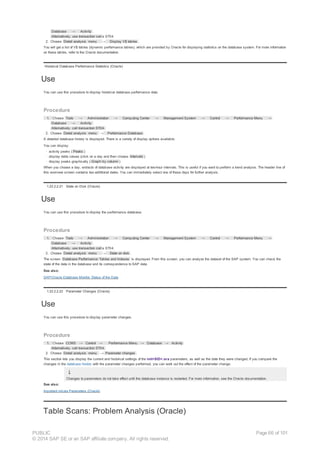
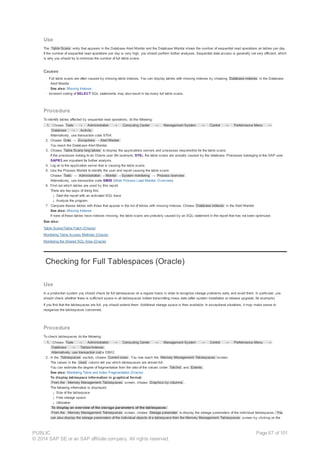
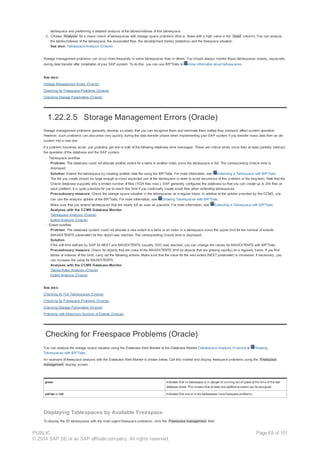
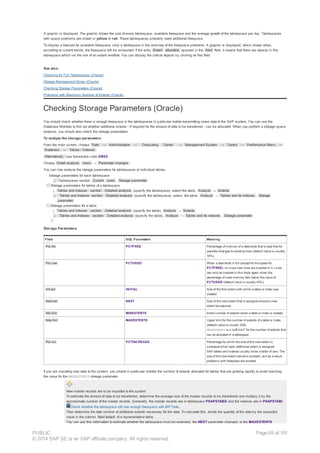
PDF download from SAP Help Portal:
http://help.sap.com/saphelp_nw70/helpdata/en/49/073e674cab209ce10000000a42189d/content.htm
Created on January 28, 2015
The documentation may have changed since you downloaded the PDF. You can always find the latest information on SAP Help Portal.
Note
This PDF document contains the selected topic and its subtopics (max. 150) in the selected structure. Subtopics from other structures are not included.
The selected structure has more than 150 subtopics. This download contains only the first 150 subtopics. You can manually download the missing subtopics.
© 2015 SAP SE or an SAP affiliate company. All rights reserved. No part of this publication may be reproduced or transmitted in any form or for any purpose
without the express permission of SAP SE. The information contained herein may be changed without prior notice. Some software products marketed by SAP SE
and its distributors contain proprietary software components of other software vendors. National product specifications may vary. These materials are provided by
SAP SE and its affiliated companies ("SAP Group") for informational purposes only, without representation or warranty of any kind, and SAP Group shall not be
liable for errors or omissions with respect to the materials. The only warranties for SAP Group products and services are those that are set forth in the express
warranty statements accompanying such products and services, if any. Nothing herein should be construed as constituting an additional warranty. SAP and other
SAP products and services mentioned herein as well as their respective logos are trademarks or registered trademarks of SAP SE in Germany and other
countries. Please see www.sap.com/corporate-en/legal/copyright/index.epx#trademark for additional trademark information and notices.
Table of content
PUBLIC
© 2014 SAP SE or an SAP affiliate company. All rights reserved.
Page 1 of 101
Table of content
1 Monitoring in the CCMS
1.1 CCMS: Informix
1.2 Choosing an Action Pattern in the DBA Planning Calendar
1.3 Archiving or Backing Up the Database in the DBA Planning Calenda
1.4 Backing Up the Logical Log in the DBA Planning Calendar (Informi
1.5 Backing Up the Logical Log (Automatic) in the DBA Planning Calen
1.6 Updating Statistics in the DBA Planning Calendar (Informix)
1.7 Checking Statistics in the DBA Planning Calendar (Informix)
1.8 Checking the DB System in the DBA Planning Calendar (Informix)
1.9 Monitoring the Database with the Alert Monitor (Informix)
1.10 Checking Physical Consistency in the DBA Planning Calendar (Info
1.11 Scheduling Actions in the DBA Planning Calendar
1.12 SAP Database Guide: Informix (BC-DB-INF-DBA)
1.13 ON-Archive for Data Recovery
1.14 Configuration of ON-Archive
1.15 Configuring ON-Bar
1.16 ON-Bar for Data Recovery
1.17 Recovery Report with SAPDBA
1.18 Configuring the Monitoring Architecture
1.19 The Alert Monitor
1.20 CCMS Agents
1.21 Operating System Monitor
1.22 Database Monitor
1.22.1 SAP/Oracle Database Monitor (New)
1.22.1.1 Main Monitor
1.22.1.2 Viewing History Information
1.22.1.3 Overall Activity
1.22.1.3.1 Buffer Busy Waits
1.22.1.3.2 Filesystem Requests
1.22.1.3.3 System / Wait Events
1.22.1.3.4 Undo Statistics
1.22.1.3.5 Automatic Segment Space Management
1.22.1.3.6 Online Redefinition Tables
1.22.1.3.7 Resumable Space Allocation
1.22.1.3.8 Parallel Query
1.22.1.3.9 Performance Database
1.22.1.4 Resource Consumption
1.22.1.4.1 Oracle Session Monitor
1.22.1.4.2 SQL Request
1.22.1.4.3 Top SQL Statements
1.22.1.4.4 Table Access Monitor
1.22.1.4.5 Latch Monitor
1.22.1.4.6 PGA Monitor
1.22.1.4.7 SGA Monitor
1.22.1.5 Exceptional Conditions
1.22.1.5.1 Enqueue Monitor
1.22.1.5.2 Lock Monitor
1.22.1.5.3 Database Message Log
1.22.1.6 Additional Functions
1.22.1.6.1 Display V$/GV$ Views
1.22.1.6.2 Parameter Configuration
1.22.1.6.3 Arbitrary Monitoring
1.22.1.6.4 System Statistics for the CBO
1.22.1.6.5 Checkpoints
1.22.1.6.6 Data Guard
1.22.2 SAP/Oracle Database Monitor (Old)
1.22.2.1 SAP/Oracle Database Monitor: Introduction
1.22.2.2 SAP/Oracle Database Monitor: Main Screen
1.22.2.2.1 Sorts (Oracle)
1.22.2.2.2 Time Statistics (Oracle)
PUBLIC
© 2014 SAP SE or an SAP affiliate company. All rights reserved.
Page 2 of 101
1.22.2.2.3 Table Scans/Table Fetch (Oracle)
1.22.2.2.4 Redo Log Buffer (Oracle)
1.22.2.2.5 Calls (Oracle)
1.22.2.2.6 Data Buffer (Oracle)
1.22.2.2.7 Shared Pool (Oracle)
1.22.2.2.8 Detailed Analysis (Oracle)
1.22.2.2.9 Detail Analysis Menu (Oracle)
1.22.2.2.10 File System Requests (Oracle)
1.22.2.2.11 Buffer Busy Waits (Oracle)
1.22.2.2.12 Wait Events (Oracle)
1.22.2.2.13 Dictionary Buffer (Oracle)
1.22.2.2.14 SAP Client (Oracle)
1.22.2.2.15 Oracle Sessions
1.22.2.2.16 SQL Request (Shared SQL Area)
1.22.2.2.17 Exclusive Lockwaits (Oracle)
1.22.2.2.18 Database Message Log (Oracle)
1.22.2.2.19 Display V$ Tables (Oracle)
1.22.2.2.20 Historical Database Performance Statistics (Oracle)
1.22.2.2.21 State on Disk (Oracle)
1.22.2.2.22 Parameter Changes (Oracle)
1.22.2.3 Table Scans: Problem Analysis (Oracle)
1.22.2.4 Checking for Full Tablespaces (Oracle)
1.22.2.5 Storage Management Errors (Oracle)
1.22.2.6 Checking for Freespace Problems (Oracle)
1.22.2.7 Checking Storage Parameters (Oracle)
1.22.2.8 Problems with Maximum Number of Extents (Oracle)
1.22.2.9 Displaying the Oracle Table Statistics
1.22.2.10 SAP/Oracle Database Monitor: Status of the Data
1.22.2.11 Consistency Checks
1.22.2.11.1 Database - ABAP Dictionary Consistency
1.22.2.11.2 Database Tables without a Unique Index
1.22.2.11.3 Creating Objects in the Database
1.22.2.11.4 Displaying Object Definitions
1.22.2.11.5 Naming Conventions for Indexes
1.22.2.12 Extent Analysis (Oracle)
1.22.2.13 Tablespace Analysis (Oracle)
1.22.2.14 Tables/Index Analysis (Oracle)
1.22.2.15 Missing Indexes
1.22.2.16 SAP/Oracle Performance Monitoring Strategies
1.22.2.16.1 Monitoring the Data Buffer (Oracle)
1.22.2.16.2 Monitoring the Shared Pool (Oracle)
1.22.2.16.3 Monitoring the Redo Log Buffer (Oracle)
1.22.2.16.4 Monitoring Calls (Oracle)
1.22.2.16.5 Monitoring Table Access Methods (Oracle)
1.22.2.16.6 Monitoring Sorting (Oracle)
1.22.2.17 Diagnosing SAP/Oracle Performance Problems
1.22.2.17.1 A Transaction is Running Very Slowly (Oracle)
1.22.2.17.2 Monitoring the Shared SQL Area (Oracle)
1.22.2.17.3 Monitoring Table and Index Fragmentation (Oracle)
1.22.2.17.4 All Transactions are Running Slowly (Oracle)
1.22.2.17.5 Checkpoint Monitoring (Oracle)
1.22.2.17.6 Checking the Optimizer Mode (Oracle)
1.22.2.17.7 Monitoring Oracle Resources
1.22.2.17.8 No Applications Can Run (​Frozen​ System)
1.22.2.18 Important init.ora Parameters (Oracle)
1.22.2.18.1 DB_BLOCK_BUFFERS (Oracle)
1.22.2.18.2 DB_BLOCK_SIZE (Oracle)
1.22.2.18.3 DB_WRITERS (Oracle)
1.22.2.18.4 LOG_ARCHIVE_START (Oracle)
1.22.2.18.5 LOG_BUFFER (Oracle)
1.22.2.18.6 LOG_CHECKPOINT_INTERVAL (Oracle)
1.22.2.18.7 ROW_CACHE_CURSORS (Oracle)
PUBLIC
© 2014 SAP SE or an SAP affiliate company. All rights reserved.
Page 3 of 101
1.22.2.18.8 SHARED_POOL_SIZE (Oracle)
1.22.2.18.9 SORT_AREA_SIZE (Oracle)
1.22.2.18.10 TIMED_STATISTICS (Oracle)
1.22.2.19 Data for the Oracle Database Monitor
1.22.2.19.1 Database Collector in Background Processing
1.22.2.19.2 Data for the Main Screen of the Database Monitor
1.22.2.19.3 Data for the Screen: Database Performance: Tables and Indexes
1.22.2.19.4 Data for the Database Alert Monitor
1.22.3 Performance: Overview
1.22.3.1 Memory
1.22.3.2 Disk Space Usage
1.22.3.3 Dynamic Values in Current Activity Sub Screen
1.22.3.4 Detail Analysis Menu
1.22.4 SAP on IBM DB2 for Linux, UNIX, and Windows: Database Monitor
1.22.5 Table Analysis
1.23 Operating System Monitor
1.24 Computing Center Management System (CCMS)
1.25 Archive and Backup Monitor in CCMS (Informix)
1.26 DBA Planning Calendar (Informix)
1.27 Troubleshooting in the DBA Planning Calendar (Informix)
1.28 Getting Started in CCMS with Informix DBA
1.29 Using the Archive and Backup Monitor in CCMS (Informix)
1.30 The Alert Monitor
1.31 Parameters for RSSTAT80/83 and RSSTAT87/88/89
1.32 The CCMS System Component Repository
1.32.1 Displaying Information from the Repository
1.32.2 Filling and Updating the Repository
1.32.3 Checking the Repository for Processing Errors
PUBLIC
© 2014 SAP SE or an SAP affiliate company. All rights reserved.
Page 4 of 101
1 Monitoring in the CCMS
The CCMS provides a range of monitors for monitoring the SAP environments and its components. These monitors are indispensable for understanding and
evaluating the behavior of the SAP processing environment. In the case of poor performance values, the monitors provide you with the information required to fine
tune your SAP system and therefore to ensure that your SAP installation is running efficiently.
Implementation Considerations
For central monitoring, that is, for the monitoring of a system landscape from one system, you must perform various configuration steps yourself. These are outlined
in Configuring the Monitoring Architecture.
Features
The CCMS analysis monitors provide functions for:
Checking the system status and the operating modes
Detecting and correcting potential problems as quickly as possible
An early diagnosis of potential problems, such as resource problems in a host or database system, which could affect the SAP system
The analysis and fine tuning of the SAP system and its environment (host and database system) to optimize the throughput of the SAP system
You can either use the following applications independently or execute them as analysis methods in the alert monitor:
Global Work Process Overview
Workload Monitor
Global Workload Monitor
Operating System Monitor
Operating System Collector
SAP Buffer
Database Monitor
1.1 CCMS: Informix
Purpose
This component enables you to manage your Informix database using the Computing Center Management System (CCMS). With CCMS, you get extensive
support in database administration (DBA) for the Informix database and can perform many DBA functions from within the SAP system.
Implementation Considerations
SAP recommends you to use CCMS for Informix DBA where possible. CCMS is supported for Informix databases on both UNIX and Windows platforms.
For each area of administration, the table below in "Integration" shows the available tools. In general, you should use CCMS or SAPDBA as first choice, followed
by the other Informix tools. The reasons for this are as follows:
● CCMS uses the familiar SAP interface, can be used directly from your SAP session and is perfectly adequate for many routine functions.
● SAPDBA is tailored for use with the SAP system running on Informix databases and can also be used when the SAP system is down. With SAPDBA, you
can perform a wide range of DBA functions (but not archive and backup).
● The Informix tools have the disadvantage that they are not designed specifically to run with the R/3 System, and furthermore some of these tools have a less
advanced interface than SAPDBA or CCMS.
There are some overlaps in functionality between CCMS and SAPDBA. In general, however, they complement one another, as their strengths lie in different
areas. For example, CCMS is more suited for shared memory parameters, whereas SAPDBA is better for monitoring and tuning in the area of space
management.
These are only guidelines as to the best tool for the task. The exact nature of the task determines which tool you should use.
Integration
There are many different tasks involved in Informix database administration, only some of which you can carry out using CCMS, as shown in the following table:
Area of administration Can Be Performed Using
Installation SAPinst
Archive and backup CCMS, ontape, ON-Archive, ON-Bar
Reorganization SAPDBA
Update statistics CCMS, SAPDBA, Informix tools
Performance tuning CCMS, SAPDBA, Informix tools
Monitoring CCMS, SAPDBA, Informix tools
Space management SAPDBA, Informix tools
PUBLIC
© 2014 SAP SE or an SAP affiliate company. All rights reserved.
Page 5 of 101
System checks SAPDBA, Informix tools, CCMS
Other SAPDBA, Informix tools
Features
The main features for Informix DBA in CCMS are as follows:
Area of Administration Can Be Performed in CCMS Using
Scheduling archive, backup, update statistics, DB system checks, physical consistency
checks, and other tasks
DBA Planning Calendar
Reviewing results of archive and backup Archive and Backup Monitor in CCMS
Update Statistics Update Statistics
Performance tuning and monitoring Database Monitor and Database Alert Monitor
System checks (that is, configuration and performance) DB System Check
There is some overlap between these tools.
Constraints
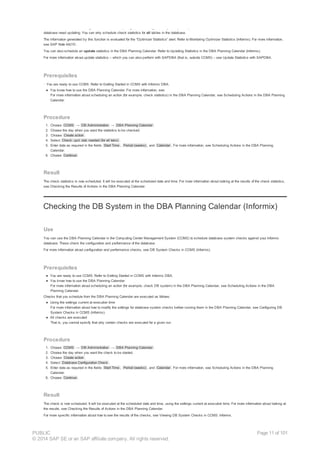
You have to perform certain DBA functions outside the SAP system, that is, using tools supplied by Informix and SAP. For example, to perform a reorganization,
you have to use SAPDBA.
See also:
SAP Database Guide: Informix
Choosing an Action Pattern in the DBA Planning Calendar
Use
The DBA Planning Calendar provides easy-to-use predefined action patterns specific to each database platform. You specify a reference time, on the basis of
which all schedules are defined. It is possible later to delete an action pattern. For more information about how to change actions in a pattern, see Scheduling
Actions in the DBA Planning Calendar. However, SAP recommends you to use a predefined action pattern.
If you started the DBA Planning Calendar using Local Calendar from the Central DBA Planning Calendar, you can choose action patterns for all
remote systems running on the same platform and with the same characteristics. This assumes that you have already defined the remote
systems to the Central DBA Planning Calendar.
For example, assume that you call the DBA Planning Calendar from the Central DBA Planning Calendar on system FUD, which runs Oracle
version 8. You can then choose action patterns for all other Oracle systems running Oracle version 8. If the actions in the action pattern that you
want to schedule also run on Oracle version 7, then you can also schedule that action pattern for all systems running Oracle version 7.
This only applies if you started the local calendar from the Central DBA Planning Calendar.
Prerequisites
● You are ready to use CCMS. Refer to Getting Started in CCMS with Informix DBA.
● If you have started the DBA Planning Calendar using Local Calendar from the Central DBA Planning Calendar, you can choose action patterns for all
systems on the same platform and with the same characteristics.
For example, assume that you call the DBA Planning Calendar on system FUD, which is an Oracle system running Oracle version 8. You can then set up
an action pattern for all other Oracle systems running Oracle version 8.
This only applies if you started the calendar from the Central DBA Planning Calendar.
Procedure
1. Choose CCMS → DB Administration → DBA Planning Calendar → Calendar → Action Pattern .
2. Select a predefined action pattern.
3. Enter the time at which the key action is to be carried out.
The system suggests an appropriate time, which you can accept if you want. The system uses this time to work out the schedule for the activities in the
action pattern.
If there are conflicts between the action pattern you have chosen and activities that are already scheduled in the Planning Calendar, then the system
presents a list of the conflicts.
4. If there are conflicts, do the following:
a. Print the list with the key combination. Then choose Cancel . No activities from the new action pattern are scheduled.
b. Review and eliminate the conflicts before trying to schedule the action pattern again.
5. To delete a predefined action pattern, you have to delete the next scheduled occurrence of the action that was scheduled as part of an action pattern. All future
scheduling of the action is deleted.
6. Make sure that the required resources are available when an action is scheduled to run.
Shift-F1
PUBLIC
© 2014 SAP SE or an SAP affiliate company. All rights reserved.
Page 6 of 101
Result
The activities in the action pattern are automatically inserted into the planning calendar. The system also schedules background jobs for executing the activities.
All jobs are scheduled for periodic repetition according to the schedule in the action pattern.
See also:
Checking the Results of Actions in the DBA Planning Calendar
Archiving or Backing Up the Database in the DBA Planning
Calendar (Informix)
Use
You can use the DBA Planning Calendar in the Computing Center Management System (CCMS) to schedule database backups (ON-Bar) or archives (ON-
Archive) for the Informix database. For more information about database backup or archive, see:
● Database Backup (ON-Bar)
● Archive (ON-Archive and ontape)
Prerequisites
· You are ready to use CCMS. Refer to Getting Started in CCMS with Informix DBA.
● You know how to use the DBA Planning Calendar.
For more information about scheduling an action (for example, a database backup) in the DBA Planning Calendar, see Scheduling Actions in the DBA
Planning Calendar.
● Your storage devices are ready and have media loaded with enough available space. For example, if using tape, your tape device is ready to receive data
and you have loaded a tape with enough available space.
Procedure
1. Choose CCMS → DB Administration → DBA Planning Calendar .
2. Choose the day when you want the database backup or archive to take place.
3. Choose Create action .
4. Select an Action from the list as follows:
ON-Archive
Select ToPerform
Database full archive A full archive of all dbspaces of the database
Incremental archive level 1 An incremental archive of all dbspaces changed since the last full archive
Incremental archive level 2 An incremental archive of all dbspaces changed since the last incremental archive at
level-1
For more information about archiving with ON-Archive outside CCMS, see Creation of an Archive (ON-Archive).
ON-Bar
Select ToPerform
Database backup (dbspaces) A full backup of all or selected dbspaces of the database
Incremental database backup (dbspaces) An incremental backup of dbspaces changed since the last database backup
Whole system backup (serial) A full backup of all dbspaces and the logical log, executed serially
Incremental whole system backup (serial) An incremental backup of all dbspaces changed since the last database backup and a
logical-log backup, executed serially
For more information about backing up the database with ON-Bar outside CCMS, see Creation of a Database Backup (ON-Bar).
5. Enter data as required in the fields Start Time , Period (weeks) , and Calendar . For more information, see Scheduling Actions in the DBA Planning
Calendar.
6. Choose Continue .
If your chosen action requires more parameters, the system prompts for them.
For example, with ON-Archive, you have to select the Vset name (that is, volume set name) for the archive. SAP recommends that you use volume set
DBTAP for archives. For more information, see Volume Sets and Volumes for ON-Archive.
7. Enter data as required and choose Continue .
If either of the following conditions applies, a full (level-0) database backup or archive is executed, even though you scheduled an incremental
(level-1 or level-2) backup or archive:
· There is no successfully executed level-0 database backup or archive.
· You have altered the dbspace structure since the last level-0 database backup or archive. In other words, you have added or deleted non-temporary dbspaces.
A prompt warns you of this when you start the DBA Planning Calendar.
PUBLIC
© 2014 SAP SE or an SAP affiliate company. All rights reserved.
Page 7 of 101
If you enter more than one volume set for an archive with ON-Archive, the archive runs in parallel. CCMS automatically determines the allocation
of dbspaces to volume sets. For more information about planning parallel archives, see Parallel Archive Approach (ON-Archive).
Result
The database backup or archive is now scheduled. It will be created at the scheduled date and time. For more information about looking at the results of the
database backup or archive, see Using the Archive and Backup Monitor in CCMS (Informix).
Backing Up the Logical Log in the DBA Planning Calendar
(Informix)
Use
You can use the DBA Planning Calendar in the Computing Center Management System (CCMS) to schedule logical-log backups for the Informix database. You
can follow this procedure if you use the Informix data recovery tools ON-Bar or ON-Archive.
You can create a logical-log backup for the Informix database with the DBA Planning Calendar in the Computing Center Management System (CCMS) by using
the following methods:
● Normal scheduled logical-log backup
With this you can back up the logical log including the currently used log file at the scheduled time. This is the method described in this section.
● Automatic logical-log backup
With ON-Archive you can use this method to trigger logical-log backup. This works by detecting the fill level of the logical log. When a pre-defined level is
reached, the backup job triggered to run. Therefore, you must make sure that the correct tape volume is always mounted. This method offers you an extra
level of security to avoid the logical log filling up.
For more information, see Backing Up the Logical Log (Automatic) in the DBA Planning Calendar (Informix).
SAP recommends that you use both methods for extra security. Always keep a dedicated tape drive free when backing up logs automatically.
If the logical logs are not backed up before they completely fill, you need to perform an emergency backup. This is complex, time-consuming and
leads to unplanned downtime for your system. You can avoid this by devising a sensible backup schedule with the Calendar. Always make sure
that the correct empty tape is loaded in the appropriate tape drive. See Preventing Emergency Logical-Log Backup.
If you need to execute a logical-log backup immediately, see Scheduling Actions in the DBA Planning Calendar.
For more information about logical-log backup, see Logical-Log Backup.
Prerequisites
· You are ready to use CCMS. Refer to Getting Started in CCMS with DBA Tasks for Informix.
● You know how to use the DBA Planning Calendar. For more information, see:
For more information about scheduling an action (for example, a logical-log backup) in the DBA Planning Calendar, see Scheduling Actions in the DBA
Planning Calendar.
● Your storage devices are ready and have media loaded with enough available space. For example, if using tape, your tape device is ready to receive data
and you have loaded a tape with enough available space.
Procedure
1. Choose CCMS → DB Administration → DBA Planning Calendar .
2. Choose the day when you want the logical-log backup to take place.
3. Choose Create action .
4. Select Logical-Log Backup (ON-Bar) or Logfile Backup (ON-Archive).
For more information about creating a logical-log backup outside CCMS, see:
· Creation of a Logical-Log Backup (ON-Bar)
· Creation of a Logical-Log Backup (ON-Archive)
5. Enter data as required in the fields Start Time , Period (weeks) , and Calendar . For more information, see Scheduling Actions in the DBA Planning
Calendar.
6. Choose Continue .
If your chosen action requires more parameters, the system prompts for them.
For example, with ON-Archive, you have to select the Vset name (that is, volume set name) for the logical-log backup. SAP recommends that you use
volume set LOGTAP for logical-log backups. For more information, see Volume Sets and Volumes for ON-Archive.
7. Enter data as required and choose Continue .
Result
The logical-log backup is now scheduled. It will be created at the scheduled date and time. For more information about looking at the results of the logical-log
backup, see Using the Archive and Backup Monitor in CCMS (Informix).
PUBLIC
© 2014 SAP SE or an SAP affiliate company. All rights reserved.
Page 8 of 101
Backing Up the Logical Log (Automatic) in the DBA Planning
Calendar (Informix)
Use
To avoid the logical-log files of an Informix database filling up, you can activate a triggered automatic logical-log backup in the DBA Planning Calendar, which is
part of the Computing Center Management System (CCMS). You can only follow this procedure if you use the Informix data recovery tool ON-Archive.
You can create a logical-log backup for the Informix database with the DBA Planning Calendar in the Computing Center Management System (CCMS) by using
the following methods:
● Normal scheduled logical-log backup
With this you can back up the logical log including the currently used log file at the scheduled time. For more information, see Backing Up the Logical Log in
the DBA Planning Calendar (Informix).
● Automatic logical-log backup
With ON-Archive you can use this method to trigger logical-log backup. This works by detecting the fill level of the logical log. When a pre-defined level is
reached, the backup job triggered to run. Therefore, you must make sure that the correct tape volume is always mounted. This method offers you an extra
level of security to avoid the logical log filling up.
This is the method described in this section.
SAP recommends that you use both methods for extra security. Always keep a dedicated tape drive free when backing up logs automatically.
If the logical logs are not backed up before they completely fill, you need to perform an emergency backup. This is complex, time-consuming and
leads to unplanned downtime for your system. You can avoid this by devising a sensible backup schedule with the Calendar. Always make sure
that the correct empty tape is loaded in the appropriate tape drive. See Preventing Emergency Logical-Log Backup.
If you need to execute a logical-log backup immediately, see Scheduling Actions in the DBA Planning Calendar.
For more information about logical-log backup, see Logical-Log Backup.
Prerequisites
· You are ready to use CCMS. Refer to Getting Started in CCMS with Informix DBA.
● You know how to use the DBA Planning Calendar. For more information, see:
For more information about scheduling an action (for example, a logical-log backup) in the DBA Planning Calendar, see Scheduling Actions in the DBA
Planning Calendar.
● Your storage devices are ready and have media loaded with enough available space. For example, if using tape, your tape device is ready to receive data
and you have loaded a tape with enough available space.
Procedure
1. Choose CCMS → DB Administration → DBA Planning Calendar .
2. Choose Calendar → Automatic Logsave .
3. Enter the percentage fill level to trigger a backup and choose Continue .
The percentage fill level is how full the logical-log files must be in order for a backup to be performed. A typical value might be 50%. To turn off the automatic
logsave, enter 0%.
4. Choose the Vset name (that is, the volume set name) to be used for the triggered backup.
For more information, see Volume Sets and Volumes for ON-Archive.
5. Choose Continue .
Result
The automatic logical-log backup is now scheduled. A logical-log backup will be created when the logical log reaches the fill level you specified. For more
information about looking at the results of the logical-log backup, see Using the Archive and Backup Monitor in CCMS (Informix).
Updating Statistics in the DBA Planning Calendar (Informix)
Use
You can use the DBA Planning Calendar in the Computing Center Management System (CCMS) to schedule update statistics for the Informix database. You can
update statistics for all tables in the database or only for one table.
You can also schedule a check statistics in the DBA Planning Calendar. Refer to Checking Statistics in the DBA Planning Calendar (Informix).
For more information about update statistics – which you can also perform with SAPDBA (that is, outside CCMS) – see Update Statistics with SAPDBA.
Prerequisites
· You are ready to use CCMS. Refer to Getting Started in CCMS with Informix DBA.
PUBLIC
© 2014 SAP SE or an SAP affiliate company. All rights reserved.
Page 9 of 101
● You know how to use the DBA Planning Calendar.
For more information about scheduling an action (for example, check statistics) in the DBA Planning Calendar, see Scheduling Actions in the DBA Planning
Calendar.
Procedure
1. Choose CCMS → DB Administration → DBA Planning Calendar .
2. Choose the day when you want the statistics to be updated.
3. Choose Create action .
4. Select one of the following:
○ Update Optimizer Statistics (all tables)
○ Update Optimizer Statistics (one table)
5. Enter data as required in the fields Start Time , Period (weeks) , and Calendar . For more information, see Scheduling Actions in the DBA Planning
Calendar.
6. Choose Continue .
7. If you are scheduling update statistics for one table, enter the Table name.
8. Enter the parameters to specify the update statistics:
Parameter Meaning
Threshold for Update Statistics The statistics for a table are only updated when the optimizer value for the number
of rows in the table deviates from the current (that is, correct) number of rows in the
table by more than a certain value, that is, the "threshold". You can either use the
default value of 10% or enter a value of your own.
Execution strategy To optimize the run time for update statistics, you can choose an execution strategy that
performs update statistics in parallel. You can determine how many parallel processes
are started for update statistics.
The default for this parameter is the number of CPU VPs configured in your system. The
number of CPU VPs is specified in the ONCONFIG parameter NUMCPUVPS. If you
choose a value less than 2, update statistics is performed sequentially. For more
information, see NUMCPUVPS (Informix).
With update statistics for all tables, processing is performed in parallel at table level. If the
statistics for an individual table need to be updated, processing is performed in parallel at
column level.
Application Monitor Statistics The default for this parameter is “no” (that is, the box is not selected). If you select this to
activate the parameter, additional space statistics are calculated for each table. These can
be displayed by the application monitor.
Since this calculation is very time-consuming, SAP recommends that you only activate
this parameter if you work with the application monitor.
Maximum Runtime The default for this parameter is “no limit”. If you want to make sure that the update
statistics does not last too long, you can specify a maximum runtime in minutes. When
this limit is reached, the update statistics ends after the current table.
Log file Using this parameter, you can enter the directory and file name of the log file for update
statistics. The default is $INFORMIXDIR/sapreorg/updstat_<SID>.log. If the
directory you enter does not exist, the default directory is used. If the default directory
does not exist, the log is written to /tmp/updstat_<SID>.log.
Detailed The system writes additional information for each table to the log. The default is to write
only overview information to the log.
If you perform update statistics with an R/3 release prior to 3.1G, it runs as follows:
■ Default threshold value (10%)
■ No parallel processing
■ Calculation of application monitor data is activated
■ No runtime limit
■ Log file defaults to $INFORMIXDIR/sapreorg/updstat_<SID>.log, or (if the required directory does not exist) to
/tmp/updstat_<SID>.log.
If you want to change this, you must delete the planned actions and re-schedule them with R/3 Release 3.1G or later. However, note that parallel
processing and the specification of the log file are only available for jobs scheduled with R/3 Release 4.0B or later.
9. Choose Continue .
Result
The update statistics is now scheduled for execution at the scheduled date and time. For more information about looking at the results of the update statistics, see
Checking the Results of Actions in the DBA Planning Calendar.
Checking Statistics in the DBA Planning Calendar (Informix)
Use
You can use the DBA Planning Calendar in the Computing Center Management System (CCMS) to schedule a check to see whether the statistics on the Informix
PUBLIC
© 2014 SAP SE or an SAP affiliate company. All rights reserved.
Page 10 of 101
You can use the DBA Planning Calendar in the Computing Center Management System (CCMS) to schedule a check to see whether the statistics on the Informix
database need updating. You can only schedule check statistics for all tables in the database.
The information generated by this function is evaluated for the “Optimizer Statistics” alert. Refer to Monitoring Optimizer Statistics (Informix). For more information,
see SAP Note 64210.
You can also schedule an update statistics in the DBA Planning Calendar. Refer to Updating Statistics in the DBA Planning Calendar (Informix).
For more information about update statistics – which you can also perform with SAPDBA (that is, outside CCMS) – see Update Statistics with SAPDBA.
Prerequisites
· You are ready to use CCMS. Refer to Getting Started in CCMS with Informix DBA.
● You know how to use the DBA Planning Calendar. For more information, see:
For more information about scheduling an action (for example, check statistics) in the DBA Planning Calendar, see Scheduling Actions in the DBA Planning
Calendar.
Procedure
1. Choose CCMS → DB Administration → DBA Planning Calendar .
2. Choose the day when you want the statistics to be checked.
3. Choose Create action .
4. Select Check: upd. stat. needed (for all tabs) .
5. Enter data as required in the fields Start Time , Period (weeks) , and Calendar . For more information, see Scheduling Actions in the DBA Planning
Calendar.
6. Choose Continue .
Result
The check statistics is now scheduled. It will be executed at the scheduled date and time. For more information about looking at the results of the check statistics,
see Checking the Results of Actions in the DBA Planning Calendar.
Checking the DB System in the DBA Planning Calendar (Informix)
Use
You can use the DBA Planning Calendar in the Computing Center Management System (CCMS) to schedule database system checks against your Informix
database. These check the configuration and performance of the database.
For more information about configuration and performance checks, see DB System Checks in CCMS (Informix).
Prerequisites
● You are ready to use CCMS. Refer to Getting Started in CCMS with Informix DBA.
● You know how to use the DBA Planning Calendar.
For more information about scheduling an action (for example, check DB system) in the DBA Planning Calendar, see Scheduling Actions in the DBA
Planning Calendar.
Checks that you schedule from the DBA Planning Calendar are executed as follows:
● Using the settings current at execution time
For more information about how to modify the settings for database system checks before running them in the DBA Planning Calendar, see Configuring DB
System Checks in CCMS (Informix).
● All checks are executed
That is, you cannot specify that only certain checks are executed for a given run.
Procedure
1. Choose CCMS → DB Administration → DBA Planning Calendar .
2. Choose the day when you want the check to be started.
3. Choose Create action .
4. Select Database Configuration Check .
5. Enter data as required in the fields Start Time , Period (weeks) , and Calendar . For more information, see Scheduling Actions in the DBA Planning
Calendar.
6. Choose Continue .
Result
The check is now scheduled. It will be executed at the scheduled date and time, using the settings current at execution time. For more information about looking at
the results, see Checking the Results of Actions in the DBA Planning Calendar.
For more specific information about how to see the results of the checks, see Viewing DB System Checks in CCMS: Informix.
PUBLIC
© 2014 SAP SE or an SAP affiliate company. All rights reserved.
Page 11 of 101
Monitoring the Database with the Alert Monitor (Informix)
Use
Using the alert monitor, you can monitor the following database alerts:
● Space management – reorganization and space monitoring
● DB system check – consistency and profile
● Backup/restore
The alerts described in this section are all triggered automatically from DB System Checks in CCMS (Informix).
Prerequisites
● Changing the default thresholds
Although SAP recommends that you do not normally change the default thresholds, you can set thresholds yourself for most of the database alerts.
● Deactivating an alert
You can deactivate an alert, but only do this for a particular reason and for a short time.
For more information, see Configuring DB System Checks in CCMS (Informix).
Procedure
1. Start the alert monitor.
2. Choose SAP CCMS Monitor Templates .
3. Choose Entire System .
4. Open the Database monitoring tree element (MTE).
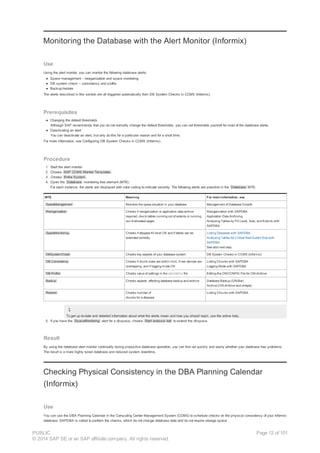
For each instance, the alerts are displayed with color coding to indicate severity. The following alerts are possible in the Database MTE:
MTE Meaning For more information, see
SpaceManagement Monitors the space situation in your database Management of Database Growth
Reorganization Checks if reorganization or application data archive
required, due to tables running out of extents or running
out of allocated pages
Reorganization with SAPDBA
Application Data Archiving
Analyzing Tables by Fill Level, Size, and Extents with
SAPDBA
SpaceMonitoring Checks if dbspace fill level OK and if tables can be
extended correctly
Listing Dbspaces with SAPDBA
Analyzing Tables for Critical Next Extent Size with
SAPDBA
See also next step.
DBSystemCheck Checks key aspects of your database system DB System Checks in CCMS (Informix)
DB Consistency Checks if chunk sizes are within limit, if raw devices are
overlapping, and if logging mode OK
Listing Chunks with SAPDBA
Logging Mode with SAPDBA
DB Profile Checks value of settings in the ONCONFIG file Editing the ONCONFIG File for ON-Archive
Backup Checks aspects affecting database backup and archive Database Backup (ON-Bar)
Archive (ON-Archive and ontape)
Restore Checks number of
chunks for a dbspace
Listing Chunks with SAPDBA
To get up-to-date and detailed information about what the alerts mean and how you should react, use the online help.
5. If you have the SpaceMonitoring alert for a dbspace, choose Start analysis tool to extend the dbspace.
Result
By using the database alert monitor continually during productive database operation, you can find out quickly and easily whether your database has problems.
The result is a more highly tuned database and reduced system downtime.
Checking Physical Consistency in the DBA Planning Calendar
(Informix)
Use
You can use the DBA Planning Calendar in the Computing Center Management System (CCMS) to schedule checks on the physical consistency of your Informix
database. SAPDBA is called to perform the checks, which do not change database data and do not require storage space.
PUBLIC
© 2014 SAP SE or an SAP affiliate company. All rights reserved.
Page 12 of 101
For more information about consistency checks, see Data Consistency with SAPDBA.
Prerequisites
· You are ready to use CCMS. Refer to Getting Started in CCMS with Informix DBA.
● You know how to use the DBA Planning Calendar. For more information, see:
For more information about scheduling an action (for example, check physical consistency) in the DBA Planning Calendar, see Scheduling Actions in the
DBA Planning Calendar.
● In general, schedule consistency checks immediately before a database backup (ON-Bar) or archive (ON-Archive). This means that the backup or archive
contains data checked for consistency.
● If you use the ONCHECK methods (see table below), be aware that table locks might occur. Therefore, it is best to schedule the check when the database is
not in productive use.
Procedure
1. Choose Tools → CCMS → DB Administration → DBA Planning Calendar .
2. Choose the day when you want the physical consistency to be checked.
3. Choose Create action .
4. Select Physical Consistency Check .
5. Enter data as required in the fields Start Time , Period (weeks) , and Calendar . For more information, see Scheduling Actions in the DBA Planning
Calendar.
6. Choose Continue .
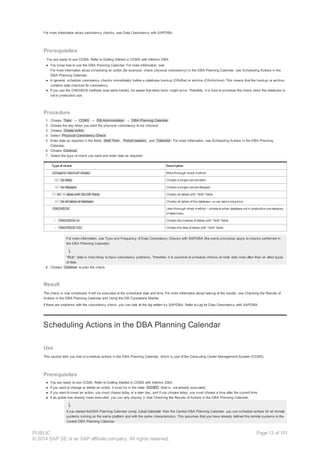
7. Select the type of check you want and enter data as required:
Type of check Description
Unload to '/dev/null' checks More thorough check method
○ for table Checks a single named table
○ for dbspace Checks a single named dbspace
- for t ables with 'BLOB' fields Checks all tables with "blob" fields
○ for all tables of database Checks all tables of the database, so can take a long time
ONCHECK Less thorough check method – schedule when database not in productive use because
of table locks
○ ONCHECK -cI Checks the indexes of tables with "blob" fields
○ ONCHECK -CD Checks the data of tables with "blob" fields
For more information, see Type and Frequency of Data Consistency Checks with SAPDBA (the same principles apply to checks performed in
the DBA Planning Calendar).
"Blob" data is most likely to have consistency problems. Therefore, it is sensible to schedule checks on blob data more often than on other types
of data.
8. Choose Continue to plan the check.
Result
The check is now scheduled. It will be executed at the scheduled date and time. For more information about looking at the results, see Checking the Results of
Actions in the DBA Planning Calendar and Using the DB Operations Monitor.
If there are problems with the consistency check, you can look at the log written by SAPDBA. Refer to Log for Data Consistency with SAPDBA.
Scheduling Actions in the DBA Planning Calendar
Use
This section tells you how to schedule actions in the DBA Planning Calendar, which is part of the Computing Center Management System (CCMS).
Prerequisites
● You are ready to use CCMS. Refer to Getting Started in CCMS with Informix DBA.
● If you want to change or delete an action, it must be in the state SCHED (that is, not already executed).
● If you want to insert an action, you must choose today or a later day, and if you choose today, you must choose a time after the current time.
● If an action has already been executed, you can only display it. See Checking the Results of Actions in the DBA Planning Calendar.
If you started theDBA Planning Calendar using Local Calendar from the Central DBA Planning Calendar, you can schedule actions for all remote
systems running on the same platform and with the same characteristics. This assumes that you have already defined the remote systems to the
Central DBA Planning Calendar.
PUBLIC
© 2014 SAP SE or an SAP affiliate company. All rights reserved.
Page 13 of 101
For example, assume that you call the DBA Planning Calendar from the Central DBA Planning Calendar on system FUD, which runs Oracle
version 8. You can then schedule actions for all other Oracle systems running Oracle version 8. If the action you want to schedule also runs on
Oracle version 7, then you can also schedule that action for all systems running Oracle version 7.
This only applies if you started the local calendar from the Central DBA Planning Calendar.
Procedure
1. Choose CCMS → DB Administration → DBA Planning Calendar to start the DBA Planning Calendar.
2. Choose the day you want, by double clicking on the day’s header bar.
The system displays actions already scheduled on the chosen day.
3. To insert a new action, do the following:
a. Choose Create action .
The system displays the actions supported by the Planning Calendar for your database platform.
b. Select the action you want to schedule.
The system shows the basic parameters currently set for the action.
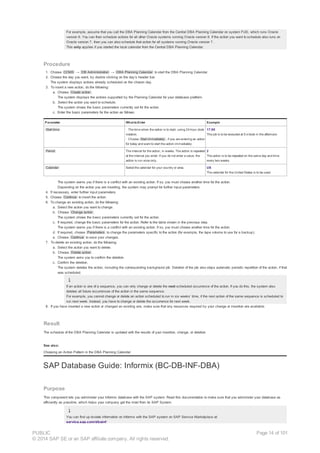
c. Enter the basic parameters for the action as follows:
Parameter What toEnter Example
Start time · The time when the action is to start, using 24-hour clock
notation.
· Choose Start immediately , if you are entering an action
for today and want to start the action immediately.
17:00
The job is to be executed at 5 o'clock in the afternoon.
Period The interval for the action, in weeks. The action is repeated
at the interval you enter. If you do not enter a value, the
action is run once only.
2
The action is to be repeated on the same day and time
every two weeks.
Calendar Select the calendar for your country or area. US
The calendar for the United States is to be used.
The system warns you if there is a conflict with an existing action. If so, you must choose another time for the action.
Depending on the action you are inserting, the system may prompt for further input parameters.
4. If necessary, enter further input parameters.
5. Choose Continue to insert the action.
6. To change an existing action, do the following:
a. Select the action you want to change.
b. Choose Change action .
The system shows the basic parameters currently set for the action.
c. If required, change the basic parameters for the action. Refer to the table shown in the previous step.
The system warns you if there is a conflict with an existing action. If so, you must choose another time for the action.
d. If required, choose Parameters to change the parameters specific to the action (for example, the tape volume to use for a backup).
e. Choose Continue to save your changes.
7. To delete an existing action, do the following:
a. Select the action you want to delete.
b. Choose Delete action .
The system asks you to confirm the deletion.
c. Confirm the deletion.
The system deletes the action, including the corresponding background job. Deletion of the job also stops automatic periodic repetition of the action, if that
was scheduled.
If an action is one of a sequence, you can only change or delete the next scheduled occurrence of the action. If you do this, the system also
deletes all future occurrences of the action in the same sequence.
For example, you cannot change or delete an action scheduled to run in six weeks’ time, if the next action of the same sequence is scheduled to
run next week. Instead, you have to change or delete the occurrence for next week.
8. If you have inserted a new action or changed an existing one, make sure that any resources required by your change or insertion are available.
Result
The schedule of the DBA Planning Calendar is updated with the results of your insertion, change, or deletion.
See also:
Choosing an Action Pattern in the DBA Planning Calendar
SAP Database Guide: Informix (BC-DB-INF-DBA)
Purpose
This component lets you administer your Informix database with the SAP system. Read this documentation to make sure that you administer your database as
efficiently as possible, which helps your company get the most from its SAP System.
You can find up-to-date information on Informix with the SAP system on SAP Service Marketplace at:
service.sap.com/dbainf
PUBLIC
© 2014 SAP SE or an SAP affiliate company. All rights reserved.
Page 14 of 101
Implementation Considerations
· For more information about installing the Informix database with the SAP system, see:
○ Installation Guide – <SAP Component> on UNIX: Informix
○ Installation Guide – <SAP Component> on Windows: Informix
You can find these on SAP Service Marketplace at:
service.sap.com/instguides
· For more information if you are new to SAP database administration (DBA) with Informix, see Getting Started with Informix and SAP. This includes checklists
with links to other topics that tell you, for example, how to get started with data recovery and how to get started with SAPDBA, the SAP tool for Informix database
administration.
Integration
SAP simplifies Informix database administration for you by providing various DBA functions in the Computing Center Management System (CCMS) of the SAP
system. You can use this to schedule database archives, database backups, logical-log backups, database system checks, and update statistics. For more
information, see CCMS: Informix.
Features
● Management of Informix Database Growth
This helps you administer disk space in your database as it grows.
● Data Recovery for Informix
This helps you with routine archives and backups of your database, as well as restores in the event of database failure. The Informix tools for data recovery –
that is, ON-Bar, ON-Archive, and ontape – are described.
● SAPDBA for Informix
This helps you use SAPDBA, which automates many DBA tasks and is designed specially for Informix databases with the SAP system. For example, you
can use this to manage your dbspaces.
● Solutions for Top Informix Problems
This helps you fix problems that occur most often with Informix databases for the SAP system.
See also:
Informix documentation at www.informix.com
1.13 ON-Archive for Data Recovery
Use
ON-Archive is one of a number of tools for data recovery (that is, database archive, logical-log backup, and restore) with your Informix database. ON-Archive
is only available on UNIX platforms. ON-Archive provides the following functions:
· Archive database (including archive of selected dbspaces)
· Back up logical-log files
· Restore data from archives and backups (including restore of selected dbspaces)
You can perform unattended and parallel database archives and logical-log backups with ON-Archive. SAP and Informix provide scripts making it easier to use
ON-Archive.
Integration
If you choose ON-Archive as your data recovery tool, you must do all your logical-log backups and database archives with it.
The archives and backups written by ON-Bar, ON-Archive, and ontape are not compatible. You cannot mix tapes from these tools. Do not
use one tool to back up the logical log and the other to archive the database.
Compared to the other tools available, ON-Archive offers a wide range of functions but is complex. For the latest Informix tool, allowing you to use third-party
storage managers, choose ON-Bar. For a data recovery tool that is easier to use but with reduced functionality, choose ontape. For more information about the
differences between the Informix data recovery tools, see Comparison of ON-Bar, ON-Archive, and ontape for Data Recovery.
When using ON-Archive, SAP recommends that you use the following tools:
· SAP scripts
These make it easier to set up and use ON-Archive.
· The DBA Planning Calendar
This is part of the Computing Center Management System (CCMS) in the SAP System and helps you to easily schedule database archives and logical-log
backups.
Prerequisites
PUBLIC
© 2014 SAP SE or an SAP affiliate company. All rights reserved.
Page 15 of 101
If you are new to ON-Archive, see Getting Started with ON-Archive. Before you start using ON-Archive for data recovery, you must:
· Work out your approach to data recovery with ON-Archive. Refer to Approach to Archive (ON-Archive) and Approach to Logical-Log Backup (ON-Archive).
· Configure ON-Archive according to the requirements of your chosen approach. Refer to Configuration of ON-Archive.
Features
Some of the important features of ON-Archive are:
· Database archive and logical-log backup to either tape or disk
· Parallel operation in both archive and recovery mode
· Unattended mode (that is, operator-free)
· Tracking database archive and logical-log backup events in sysmaster database
· Access control for data recovery operations
See also:
Informix documentation at http://www.informix.com
1.14 Configuration of ON-Archive
Purpose
This section contains essential information for you to make sure that ON-Archive works correctly with your Informix database running with the SAP System. ON-
Archive is relatively complex and it pays to make sure that you have completed all the necessary configuration tasks before you start database archives and
logical-log backups on your production database.
Prerequisites
You must have a UNIX platform, because ON-Archive is not available for NT platforms.
Before you start configuration, make sure you have worked out your approach to database archive and logical-log backup with ON-Archive. Refer to:
· Approach to Archive (ON-Archive)
· Approach to Logical-Log Backup (ON-Archive)
To see how this process fits in with the overall process of using ON-Archive for data recovery, see ON-Archive for Data Recovery. If you are new to ON-
Archive, see Getting Started with ON-Archive.
Process Flow
1. You read the Informix documentation for ON-Archive.
2. If you are using the SAP scripts, you prepare the scripts.
3. You edit the configuration files for ON-Archive. Make sure you also define the required devices in the config.arc file (how you do this depends on whether you
are using the SAP scripts or not).
4. You set up the required volume sets and volumes (how you do this depends on whether you are using the SAP scripts or not).
Result
Now you can use ON-Archive for database archives and logical-log backups with your production database. Refer to:
· Archive (ON-Archive and ontape)
· Logical-Log Backup
See also:
Informix documentation at http://www.informix.com
1.15 Configuring ON-Bar
Use
Before you start using ON-Bar for data recovery with your Informix database, you need to make sure that it is correctly set up. You specify configuration
information for ON-Bar in the ONCONFIG file and as environment variables.
PUBLIC
© 2014 SAP SE or an SAP affiliate company. All rights reserved.
Page 16 of 101
Prerequisites
How you configure ON-Bar partly depends on your approach to data recovery. Therefore, make sure that you have worked out your approach first. Refer to
Approach to Database Backup (ON-Bar) and Approach to Logical-Log Backup (ON-Bar).
Procedure
1. Decide what kind of storage manager you intend to use with ON-Bar.
You can use the Informix Storage Manager (ISM), which comes with your Informix database server, or a third-party storage manager. You must make sure
that the storage manager you choose is compatible with:
· Your storage devices (that is, disk and tape drives, and so on)
· Your version of ON-Bar
For more information about storage managers, including how to configure ISM, see the Informix documentation and SAP Note 74440.
ISM is more tightly integrated in ON-Bar than third-party storage managers. Therefore, if you use ISM, be sure to complete the next few steps.
2. Set the environment variables required by ON-Bar, depending on which storage manager you are using.
If you are using ISM, set the environment variables ISM_COMPRESSION and ISM_ENCRYPTION, which determine how ISM backs up data. For more
information, see the Informix documentation.
3. Set the required variables in the ONCONFIG file, depending on which storage manager you are using. For more information, see the Informix documentation.
Summary of ONCONFIG File Parameters for ON-Bar
Parameter Determines
BAR_MAX_BACKUP Degree of parallelism used by ON-Bar
BAR_ACT_LOG Path to the ON-Bar activity log
BAR_DEBUG_LOG Path to the ON-Bar debug log
BAR_DEBUG Degree of detail held in the ON-Bar debug log
BAR_RETRY How often ON-Bar retries to send data to or receive data from the storage manager
BAR_XFER_BUF_SIZE Size of the buffer used for exchange between ON-Bar and the storage manager
BAR_NB_XPORT_COUNT Number of buffers used for exchange between ON-Bar and the storage manager
BAR_BSALIB_PATH Path of the shared library used as interface between ON-Bar and the storage
manager
LTAPEDEV Whether or not logging is switched on. See caution below.
ALARMPROGRAM Event alarm, for example, used to start a logical-log backup when logs reach a
certain fill level.
LOG_BACKUP_MODE Mode for logical-log backup.
LBU_PRESERVE This is the most important prevention against emergency logical-log backups. If other
measures fail, this parameter always prevents the logical log filling completely. It
specifies how many logical-log files the database server always preserves (that is, avoids
writing logging data to). Set it as follows:
LBU_PRESERVE 1
Do not set LTAPEDEV to blank or /dev/null (UNIX) or nul (NT) if you want to be able to perform a restore of your system up to the time of
failure. If you specify a null value, logical-log backups are not performed and are therefore not available if a restore is necessary.
When you have finished editing the ONCONFIG file, you have to stop and restart both the SAP System and the Informix database server for the changes to
take effect. You can check the contents of the file in SAPDBA. Refer to Listing System Information with SAPDBA.
The entries in your ONCONFIG file relevant to ON-Bar should look similar to the following example for UNIX:
# Backup/Restore Variables for ON-Bar
BAR_ACT_LOG /tmp/bar_act.log # path of ON-Bar activity log
BAR_MAX_BACKUP 0 # Maximum no. of parallel onbar_d processes
BAR_RETRY 1 # Number of times to retry failures
BAR_NB_XPORT_COUNT 10 # No. of transport buffers
BAR_XFER_BUF_SIZE 31 # Size of each transport buffer
RESTARTABLE_RESTORE OFF # Enables restartable restore
# Use either LOG_BACKUP_MODE in IECC or ALARMPROGRAM, not both
LOG_BACKUP_MODE CONT # Use IECC to set value: CONT or MANUAL
ALARMPROGRAM /usr/informix/etc/log_full.sh
BAR_BSALIB_PATH /usr/lib/ibsad001.so # XBSA shared lib path
#Informix Storage Manager Variables
ISM_DATA_POOL ISMData
ISM_LOG_POOL ISMLogs
#Log Archive Tape Device
# Do not set LTAPEDEV to blank or /dev/null
LTAPEDEV /dev/tapedev
LTAPEBLK 16
LTAPESIZE 10240
PUBLIC
© 2014 SAP SE or an SAP affiliate company. All rights reserved.
Page 17 of 101
If you are using ISM, check especially the parameters towards the end of the file marked Informix Storage Manager Variables in the
above example.
4. If you use a storage manager other than ISM, follow the configuration instructions supplied. Make sure that the location of the XBSA library is specified to ON-
Bar. For more information, see the Informix documentation.
5. Check the contents and location of the main files for ON-Bar.
Main Files for ON-Bar
File Name Comments
Informix message log Contains all messages generated by database server. Allows you to determine if a
problem is on the database server side or the client side (that is, ON-Bar or the
storage manager).
Use Listing System Information with SAPDBA to view the message log. The name
of the file is specified by the MSGPATH parameter in the ONCONFIG file.
ONCONFIG file Contains general configuration information for the database server, including
parameters prefixed BAR_, which are specific to ON-Bar (see the example above).
Use Listing System Information with SAPDBA to view the ONCONFIG file. The
name of the file is normally onconfig.<hostname>.sid and it is normally in
the directory $INFORMIXDIR/etc (UNIX) or %INFORMIXDIR%etc (NT).
ON-Bar activity log Contains all messages about activity in ON-Bar. It is very useful for solving
problems.
The name of the file is specified by the BAR_ACT_LOG parameter in the ONCONFIG
file.
ON-Bar debug log Contains detailed debugging information to help you solve a problem together with
the Informix hotline.
The name of the file is specified by the BAR_DEBUG_LOG parameter in the
ONCONFIG file.
ON-Bar emergency boot file Contains backup information similar to that in the ON-Bar catalog files for use in a
restore.
The file is called ixbar.<server number>
Server boot file Contains information required to start the database server.
The file is called
oncfg_<server name>.<server number>
For more information, see the Informix documentation and SAP Note 78884.
6. Test ON-Bar with your chosen storage manager before you go live.
For more information, see the Information documentation and SAP Note 78884. This note contains important information that you must read before going live
with ON-Bar.
Result
You can now start using ON-Bar to create backups of your database and logical log. Refer to:
· Approach to Database Backup (ON-Bar)
· Approach to Logical-Log Backup (ON-Bar)
See also:
Informix documentation at http://www.informix.com
SAP Notes 74440 and 78884
1.16 ON-Bar for Data Recovery
Use
ON-Bar is one of a number of Informix database tools for data recovery (that is, whole-system backup, storage-space backup, logical-log backup, and restore).
ON-Bar provides the following functions on both UNIX and Windows platforms:
· Back up database (including selected dbspaces and whole system)
· Back up logical-log files
· Restore data from backups (including restore of selected dbspaces)
Unlike the other Informix data recovery tools (that is, ontape and ON-Archive), ON-Bar does not communicate directly with storage devices, such as tape
drives. Instead, it passes control of storage devices to third-party storage managers using the X/Open Backup Services Application (XBSA) Programmer's
Interface. You can select your own storage manager (for example, ISM, Legato/Networker, HP OmniBack, IBM/ADSM) and so exploit a wide range of intelligent
and high-capacity storage devices (for example, auto loaders, robotic loading systems, or optic disks).
With ON-Bar, you can easily implement fast parallel backups and restores, so improving the availability of your database. Therefore, ON-Bar is well suited for
large databases (larger than about 50 GB).
With ON-Bar, the terminology used by Informix changed. The new term "storage spaces" refers to dbspaces and blobspaces. The process of
making a copy of the data and control information managed by the Informix server, formerly called an archive, is now called a “storage space
PUBLIC
© 2014 SAP SE or an SAP affiliate company. All rights reserved.
Page 18 of 101
backup” or a "whole system backup". For more information, see Informix Whole-System and Storage-Space Backups or the Informix
documentation.
The term “logical-log file backup” – often shortened to “logical-log backup” or even “log backup” – remains the same.
In summary, backup is the ON-Bar term for all copies of the database taken for recovery purposes.
For more information on ON-Bar, see the white paper The Informix Backup and Restore Product Strategy in SAPNet.
Integration
If you choose ON-Bar as your data recovery tool, you must do all your backups and restores with it.
The backups written by ON-Bar are not compatible with the archives and backups from ontape and ON-Archive. You cannot mix tapes from
these tools.
Compared to the other tools available, ON-Bar is easy to use and has wide functionality (but the functionality depends on the storage manager you are using). For
more information about the differences between the Informix data recovery tools, see Comparison of ON-Bar, ON-Archive, and ontape for Data Recovery.
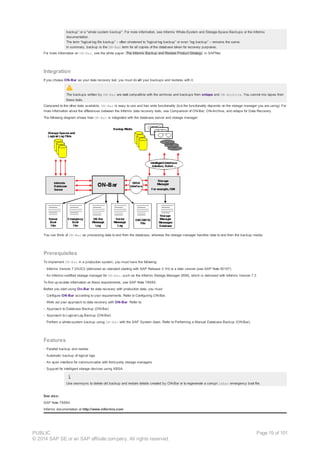
The following diagram shows how ON-Bar is integrated with the database server and storage manager:
You can think of ON-Bar as processing data to and from the database, whereas the storage manager handles data to and from the backup media.
Prerequisites
To implement ON-Bar in a production system, you must have the following:
· Informix Version 7.23UC3 (delivered as standard starting with SAP Release 3.1H) or a later version (see SAP Note 50157)
· An Informix-certified storage manager for ON-Bar, such as the Informix Storage Manager (ISM), which is delivered with Informix Version 7.3
To find up-to-date information on these requirements, see SAP Note 78884.
Before you start using On-Bar for data recovery with production data, you must:
· Configure ON-Bar according to your requirements. Refer to Configuring ON-Bar.
· Work out your approach to data recovery with ON-Bar. Refer to:
- Approach to Database Backup (ON-Bar)
- Approach to Logical-Log Backup (ON-Bar)
· Perform a whole-system backup using ON-Bar with the SAP System down. Refer to Performing a Manual Database Backup (ON-Bar).
Features
· Parallel backup and restore
· Automatic backup of logical logs
· An open interface for communication with third-party storage managers
· Support for intelligent storage devices using XBSA.
Use onsmsync to delete old backup and restore details created by ON-Bar or to regenerate a corrupt ixbar emergency boot file.
See also:
SAP Note 78884
Informix documentation at http://www.informix.com
PUBLIC
© 2014 SAP SE or an SAP affiliate company. All rights reserved.
Page 19 of 101
1.17 Recovery Report with SAPDBA
Use
You can use SAPDBA for Informix to create a report that provides essential information if you need to recover your database after failure with data loss. Recovery
means restoring database data that you have previously stored in archives and backups. With the recovery report, you can more quickly and easily restore your
database.
Once correctly installed, SAPDBA automatically generates an up-to-date report after every archive and logical-log backup. You can only use this procedure with
ON-Archive, as the recovery reports are not available for ontape or ON-Bar.
The information given here applies if you are using an Informix version later than 6.0.
For more information if you are using Informix version 6.0, see Creation of Recovery Report with SAPDBA (Informix 6.0).
Integration
The recovery report is fully integrated in SAPDBA. You can use this functionality for databases running on UNIX and NT operating system platforms.
Prerequisites
· You know how to use SAPDBA and have set it up correctly. Refer to Getting Started with SAPDBA.
· You are using an Informix version later than 6.0 with ON-Archive.
Activities
1. You prepare for the recovery report (you do this once only).
SAPDBA then creates the recovery report automatically after every archive and logical-log backup.
2. You view the recovery report if you need to perform a restore (that is, in the event of database failure with data loss).
See also:
Informix documentation
1.18 Configuring the Monitoring Architecture
Purpose
The monitoring of a system landscape is a complex task of significant importance for every company that operates one or more SAP systems. The complexity
increases with every additional system, component, or extension.
With the monitoring architecture of the Computing Center Management System (CCMS), SAP provides a flexible and universally-usable infrastructure with
which you can centrally monitor your entire IT landscape and which reports problems quickly and reliably.
The monitoring architecture is delivered free of cost with every SAP Web Application Server. The architecture runs on every SAP Web Application Server and
can easily be extended to include additional SAP and non-SAP components.
The concept of the monitoring architecture is that all required information is available in a central monitoring system (CEN), and therefore makes the work of the
administrators easier. Problems are displayed as soon as they occur; all log files are also accessible from a central location, which reduces the time for error
identification and correction. In this way, the monitoring architecture enables greater efficiency with lower costs.
Additional configuration steps allow advanced technologies such as notifications, meaning that administrators no longer need to actively investigate systems for
alerts.
This guide outlines the configuration steps required to monitor a system landscape based on SAP NetWeaver 04. It is a prerequisite for this that you have already
completed the installation of the corresponding components.
To configure the monitoring, perform the following processes in the specified sequence:
· Configuring a Central Monitoring System (CEN)
· Monitoring: Configuring ABAP Instances
· Monitoring: Configuring Java Instances
· Monitoring: Configuring Other SAP NetWeaver Components
· Configuring Alert Triggering and Alert Reactions
1.30 The Alert Monitor
PUBLIC
© 2014 SAP SE or an SAP affiliate company. All rights reserved.
Page 20 of 101
Purpose
The monitoring architecture, a solution within SAP NetWeaver, centrally monitors any IT environments – from individual systems through networked SAP
NetWeaver solutions, to complex IT landscapes incorporating several hundred systems. It is provided in SAP NetWeaver and can be used immediately after
installation. You can easily extend the architecture to include SAP and non-SAP components.
Alerts form a central element of monitoring. They quickly and reliably report errors – such as values exceeding or falling below a particular threshold value or that
an IT component has been inactive for a defined period of time. These alerts are displayed in the Alert Monitor; this reduces the workload for the system
administration, since they now only need to watch the error messages, instead of endless system data.
The Alert Monitor is therefore the central tool with which you can efficiently administer and monitor distributed SAP NetWeaver solutions or client/server systems.
The Alert Monitor displays problems quickly and reliably.
Implementation Considerations
If you want to use the Alert Monitor for central monitoring (that is, you want to monitor the systems of your IT landscape from a central monitoring system), you must
perform various configuration steps yourself. These are described under Configuring the Monitoring Architecture.
Features
The Alert Monitor provides the following functions:
· You can use the Alert Monitor to perform complete and detailed monitoring of all SAP and non-SAP systems, the host systems, and the database.
· All errors generate alerts, which are displayed in a tree structure.
· The alerts contain a status indicator with a color and a numerical value. Yellow means a warning, red means a problem, and the numerical value shows the
severity of the reported error. In the tree structure, the most severe alerts are passed upward in the display hierarchy. If a tree node is not displaying an alert,
there is also no error in the entire branch below it.
· You can assign certain analysis and auto-reaction methods to the alerts, which contribute to faster processing of the error. If you double-click an alert, the
monitoring architecture starts the assigned analysis method (such as the job administration transaction for a prematurely terminated job). An auto-reaction
method, on the other hand, starts automatically as soon as the alert occurs. This includes executing operating system commands and sending an e-mail or an
SMS message to the system administration.
· The Alert Monitor contains various view in which either the current or the open (that is, the unanalyzed) problem messages are displayed. Alerts are also
archived.
· Threshold values, methods, and detailed help for many monitoring attributes and three extensive monitor sets with monitors for all aspects of system
management are predefined on the basis of Best Practices in the monitoring architecture and are available in every SAP system.
· You can adjust all settings individually, and configure your own monitors.
See also:
Concept of the Monitoring Architecture
Operating the Alert Monitor
Customizing the Alert Monitor
1.20 CCMS Agents
Purpose
The Monitoring Architecture provides an infrastructure for monitoring your IT environment and its components. Monitoring data is stored in the shared memory of
every server with a running SAP instance or a running agent.
Read and write access from the central monitoring system is possible in two different ways:
· Using a defined ABAP interface, in the case of an SAP instance
· Using the CCMS agent, in the case of any server on which the agent is installed and active
CCMS agents are independent processes with an interface through RFC to a central monitoring system and an interface to the shared memory. They therefore
allow you to:
· Include SAP components that do not have an ABAP interface, such as the J2EE Engine or the Internet Transaction Server (ITS)
· Include components that are not part of the SAP environment
· Make available an alternative connection route to a shared memory segment
· Optimize performance when reading and writing monitoring attributes and alerts, by using the push technology
· Connect to a shared memory segment without requiring a free work process
Agents also make entirely new monitoring functions possible within the monitoring architecture:
· You can monitor any log files.
· You can monitor processes at operating system level. The actual monitoring is performed using the operating system collector SAPOSCOL. For detailed
information about it, see Operating System Collector SAPOSCOL.
· You can create central auto-reactions in which an auto-reaction method is started in the central monitoring system as a reaction to an alert in a monitored
system. For detailed information about this, see Setting up Central Auto-Reaction Methods.
Agents monitor network data, including:
¡ The configuration of the network environment, such as an interface or Domain Name System (DNS)
¡ Network metrics, such as the length of time taken for a DNS address resolution
Implementation Considerations
PUBLIC
© 2014 SAP SE or an SAP affiliate company. All rights reserved.
Page 21 of 101
You require CCMS agents for central monitoring, since the monitoring data is primarily transferred between the monitored components and the central monitoring
system using the CCMS agents. For information about configuring central monitoring, see Configuring the Monitoring Architecture.
1.23 Operating System Monitor
Purpose
An SAP instance runs within an operating system. The operating system provides the instance with the following resources:
Virtual memory
Physical memory
CPU
File system management
Physical disk
Network
Bottlenecks in these areas can significantly affect the performance of the SAP system. You can monitor these resources using the CCMS operating system
monitor.
The operating system monitor helps you locate the cause of a performance problem. If the source of the problem is in the operating system, you can analyze it
further and resolve it using external tools or other external means.
Performance indicators are:
Average load of and utilization of the CPU
Memory utilization
Paging in and out of data to and from the memory (replaced by pool data in the OS/400 operating system monitor)
Disk utilization information
LAN activity
Operating system configuration parameters
See Also:
Calling the Operating System Monitor
Operating System Monitor Data: CPU
Operating System Monitor Data: Memory Management
Operating System Monitor Data: File System and LAN
1.22 Database Monitor
Purpose
The database monitor checks important performance indicators in the database system, such as the database size, quality of the database buffer, and the
database indexes.
The database monitor works with any database system supported by SAP. The monitor uses statistics that are provided by the database system with which you
are working. You can access most of these statistics for the database system using the performance monitoring of the Computing Center Management Systems
(CCMS).
You can use the Database Monitor to:
● Check the database during the operation of a production SAP system
● Analyze various problems
● Fetch information required for the database system settings
Integration
Although the database monitor accesses and evaluates database-specific statistics tables, it usually has the same appearance, regardless of which database
system you are using.
You can call the database monitor from any application server of the SAP system. The same data is displayed by the database monitor is the same on all
application servers.
Features
SAP/Oracle Database Monitor (New)
SAP/Oracle Database Monitor (Old)
SAP/SQL Server Database Monitor
SAP/MaxDB Database Monitor
PUBLIC
© 2014 SAP SE or an SAP affiliate company. All rights reserved.
Page 22 of 101
1.22.1 SAP/Oracle Database Monitor (New)
Use
You can use the SAP/Oracle database monitor to monitor your database running with Oracle 9i or Oracle 9i Real Application Cluster (RAC) or later. It is an expert
tool.
The documentation in this section refers to the new SAP/Oracle Database Monitor based on transaction ST04N.
For more information on the old SAP/Oracle Database Monitor, based on ST04, see SAP/Oracle Database Monitor (Old).
Integration
The monitor obtains information from the Oracle performance views (V$, GV$, and DBA-views).
Prerequisites
To generate history information for the monitor, you must have planned the jobs RSORAHIST or RSORAHCL using transaction SM36.
To display full historical information, you must not have restarted the database during the relevant period.
You need to apply SAP Note 706927 before using the database monitor.
Features
The monitor:
· Gives a general overview of database performance
· Provides different ways of looking at the monitoring information:
¡ A main monitor with an overview of the database, from which you can drill down to see more information
¡ Detailed analyses using submonitors, grouped as follows:
§ Overall activity
§ Resource consumption
§ Exceptional conditions
§ Additional Functions
· Fully supports Oracle Real Application Cluster (RAC)
· Does not support Multiple Components in One Database (MCOD)
Activities
1. To start the monitor you choose Administration → CCMS → Control/Monitoring → Performance Menu → Database → Activity .
Alternatively, you can use transaction st04n.
2. The monitor displays the overview on start-up or when you choose Detailed Analyses → Main Monitor .
The following steps are generally valid for all screens, including screens in the submonitors.
3. If your SAP system uses Oracle RAC, in DB Instances you double-click the required RAC instance or Total for all RAC instances.
4. To see monitoring information for a specific history period, in Selected History you double-click Since and Up to and set them as required.
For more information, see Viewing History Information.
5. To refresh the display, choose Refresh .
1.22.1.1 Main Monitor
Definition
This is the main screen in the SAP/Oracle Database Monitor. It gives you an overview of the Oracle database.
Use
You choose Detailed Analyses → Main monitor to get an overall picture of how the database is functioning.
You can right-click a field and choose:
· Help for more information on the meaning of the field
· Details to see the values for each instance if you are running an Oracle Real Application Cluster (RAC)
If you are running RAC, you choose in DB Instances whether to display overview information for one RAC instance or for the total of all RAC instances.
The appearance of a yellow or red light indicates that the difference in percent for the value of at least one instance from the average of all
PUBLIC
© 2014 SAP SE or an SAP affiliate company. All rights reserved.
Page 23 of 101
instances exceeds a certain limit. The limit values are maintained in table ST04N_LIM.
Structure
The fields are grouped as follows:
· General information , data source is V$INSTANCE
Field Description
DB instance Name of the current database instance
This is the SAP-SID in non-RAC environments.
DB node Host name of the selected DB node
This is the database server in non-RAC environments.
DB release Release of the current database
Day, time Current day and time
Start up at Date and time when the current database instance started
Sec. since start Seconds since start of the current database instance
· Data buffer
Field Description
Size Size of the data buffer in KB
· Non-RAC or RAC detail: data buffer size of the current instance
· RAC total: total instance-related database buffers
Data source: V$SGA
Quality Data buffer quality, calculated as follows:
100% – ((physicalreads – physicalreads_direct –
physicalreads_directlob) / (sess_logicalreads – physicalreads_direct
– physicalreads_directlob))
Non-RAC or RAC detail: data buffer quality of the current instance
RAC total: average of quality for all instance-related data buffer
Data source: V$SYSSTAT
Logical reads Number of logical read operations
· Non-RAC or RAC detail: logical reads of the current instance
· RAC total: total logical read operations for all instances
Data source: V$SYSSTAT
Physical reads Number of physical read operations
· Non-RAC or RAC detail: physical reads of the current instance
· RAC total: total physical read for all instances
Data source: V$SYSSTAT
Physical writes Number of physical write operations
· Non-RAC or RAC detail: physical writes of the current instance
· RAC total: total physical write operations for all instances
Data source: V$SYSSTAT
Buffer busy waits Number of buffer busy wait situations
· Non-RAC or RAC detail: total waitstat counters of the current instance
· RAC total: total waitstat counters for all instances
Data source: V$WAITSTAT
Buffer wait times (s) Sum of buffer busy wait times
· Non-RAC or RAC detail: sum of wait times for all wait counters of the current
instance
· RAC total: sum of wait times for all wait counters for all instances
Data source: V$WAITSTAT
· Shared pool
Field Description
Size (kB) Shared pool size in KB
· Non-RAC or RAC detail: shared pool size of the current instance
· RAC total: total shared pool size for all instances
Data source: V$SGA_DYNAMIC_COMPONENTS
DD-cache quality (%) Data dictionary cache quality as percentage, calculated as follows:
100% – (totalget_misses / totalgets)
· Non-RAC or RAC detail: data buffer quality of the current instance
· RAC total: average cache quality for all instances
Data source: V$ROWCACHE
SQL area getratio (%) Ratio of gethits to gets as a percentage, calculated as follows:
sum (gethits) / sum (gets) x 100
· Non-RAC or RAC detail: get ratio of the current instance
· RAC total: average of all instance-related get ratios
Data source: V$LIBRARYCACHE
PUBLIC
© 2014 SAP SE or an SAP affiliate company. All rights reserved.
Page 24 of 101
SQL area pinratio (%) Ratio of pinhits to pins as a percentage, calculated as follows:
sum (pinhits) / sum (pins) x 100
· Non-RAC or RAC detail: pin ratio of the current instance
· RAC total: average of all instance-related pin ratios
Data source: V$LIBRARYCACHE
SQLA Reloads/pins (%) Ratio of reloads to pins as a percentage, calculated as follows:
sum (reloads) / sum (pins) x 100
· Non-RAC or RAC detail: reloads per pin ratio of the current instance
· RAC total: average of all instance-related pin ratios
Data source: V$LIBRARYCACHE
· Log buffer
Field Description
Size (kB) Size of the redo log buffer in KB
· Non-RAC or RAC detail: redo log buffer size of the current instance
· RAC total: total instance-related redo log buffer sizes
Data source: V$SGA
Entries Number of redo log buffer entries
· Non-RAC or RAC detail: redo log buffer entries of the current instance
· RAC total: sum of all instance-related redo log buffer entries
Data source: V$SYSSTAT
Allocation retries Number of redo buffer allocation retries
· Non-RAC or RAC detail: allocation retries of the current instance
· RAC total: total instance-related log buffer allocation retries
Data source: V$SYSSTAT
Alloc fault rate (%) Redo buffer allocation retries as a percentage of redo entries
· Non-RAC or RAC detail: allocation fault rate of the current instance
· RAC total: average of all instance-related allocation fault rates
Data source: V$SYSSTAT
Redo log wait (s) Redo log wait in seconds
· Non-RAC or RAC detail: Redo log wait time of the current instance
· RAC total: sum of instance-related redo log wait times
Data source: V$SYSSTAT
Log files (in use) Number of active log files
· Non-RAC or RAC detail: active log files for the current instance
· RAC total: total active log files
The figure in brackets refers to the number of active log files in use.
Data source: V$LOGFILE
· Calls
Field Description
User calls Number of user calls
· Non-RAC or RAC detail: user calls for the current instance
· RAC total: total user calls for all instances
Data source: V$SYSSTAT
User commits Number of user commits
· Non-RAC or RAC detail: user commits for the current instance
· RAC total: total user commits for all instances
Data source: V$SYSSTAT
User rollbacks Number of user rollbacks
· Non-RAC or RAC detail: user rollbacks for the current instance
· RAC total: total user rollbacks for all instances
Data source: V$SYSSTAT
· Time Statistics
Field Description
Busy wait time (s) Busy wait time in seconds, calculated as the sum of the time waited for all non-idle
events.
· Non-RAC or RAC detail: busy wait time for the current instance
· RAC total: total instance-related busy wait times
Data source: V$SESSION_EVENT
CPU time session (s) CPU time session in seconds, calculated as sum of CPU time used by this session
· Non-RAC or RAC detail: total CPU time for the current instance
· RAC total: total CPU time for all instances
Data source: V$SYSSTAT
Time/User call (ms) Time for each user call in milliseconds, calculated as follows:
(busy wait time + CPU time) / user calls
· Non-RAC or RAC detail: time for the current instance
PUBLIC
© 2014 SAP SE or an SAP affiliate company. All rights reserved.
Page 25 of 101
· RAC total: average time for all instances
Data source: V$SESSION_EVENT and V$SYSSTAT
Sessions busy (%) Busy sessions as a percentage, calculated as follows:
(busy wait time + CPU time) / total wait time
· Non-RAC or RAC detail: percentage for the current instance
· RAC total: average percentage for all instances
Data source: V$SESSION_EVENT and V$SYSSTAT
CPU usage (%) CPU usage as a percentage, calculated as follows:
CPU time / (elapsed time x CPU count)
· Non-RAC or RAC detail: percentage for the current instance
· RAC total: average percentage for all instances
Data source: V$SYSSTAT, V$INSTANCE, and V$PARAMETER
Number of CPUs Number of CPUs
· Non-RAC or RAC detail: CPUs for the current instance
· RAC total: total CPUs for all instances
Data source: V$PARAMETER
· Redo Logging
Field Description
Redo writes Number of redo log writes
· Non-RAC or RAC detail: redo log writes for the current instance
· RAC total: total redo log writes for all instances
Data source: V$SYSSTAT
OS blocks written Number of operating system redo blocks written
· Non-RAC or RAC detail: redo blocks written for the current instance
· RAC total: sum of written redo blocks for all instances
Data source: V$SYSSTAT
Latching time (s) Redo writer latching time in seconds
Non-RAC or RAC detail: redo writer latching time for the current instance
RAC total: total latching time for all instances
Data source: V$SYSSTAT
Redo write time (s) Redo write time in seconds
· Non-RAC or RAC detail: redo write time for the current instance
· RAC total: total redo write time for all instances
Data source: V$SYSSTAT
MB written Number of MB written
· Non-RAC or RAC detail: redo log data written for the current instance
· RAC total: total redo log data written for all instances
Data source: V$SYSSTAT
· Table scans and fetches
Field Description
Short table scans Number of short table scans
· Non-RAC or RAC detail: short table scans for the current instance
· RAC total: total short table scans for all instances
Data source: V$SYSSTAT
Long table scans Number of long table scans
· Non-RAC or RAC detail: long table scans for the current instance
· RAC total: total long table scans for all instances
Data source: V$SYSSTAT
Table fetch by rowid Number of table fetches by row ID
· Non-RAC or RAC detail: table fetches by row ID for the current instance
· RAC total: total table fetches by row ID for all instances
Data source: V$SYSSTAT
Fetch by contin. row Number of fetches by continued row
· Non-RAC or RAC detail: table fetches by continued row for the current
instance
· RAC total: total table fetches by continued row for all instances
Data source: V$SYSSTAT
· Sorts
Field Description
Sorts (memory) Number of sorts in memory
· Non-RAC or RAC detail: sorts in memory for the current instance
· RAC total: total sorts in memory for all instances
Data source: V$SYSSTAT
Sorts (disk) Number of sorts in disk
· Non-RAC or RAC detail: sorts on disk for the current instance
PUBLIC
© 2014 SAP SE or an SAP affiliate company. All rights reserved.
Page 26 of 101
· RAC total: total sorts on disk for all instances
Data source: V$SYSSTAT
Sorts (rows) Number of sorted rows
· Non-RAC or RAC detail: sorted rows in memory for the current instance
· RAC total: total rows for all instances
Data source: V$SYSSTAT
WA exec. optim. mode Number of work area executions in optimal mode
· Non-RAC or RAC detail: work area executions in optimal mode for the
current instance
· RAC total: total work area executions in optimal mode for all instances
Data source: V$SYSSTAT
WA exec. one pass m. Number of work area executions in one-pass mode
· Non-RAC or RAC detail: work area executions in one-pass mode for the
current instance
· RAC total: total work area executions in one-pass mode for all instances
Data source: V$SYSSTAT
WA exec. multipass m. Number of work area executions below the one-pass memory requirement
· Non-RAC or RAC detail: work area executions in multipass mode for the
current instance
· RAC total: total work area executions in multipass mode for all instances
Data source: V$SYSSTAT
· Instance Efficiency
Field Description
Soft parse ratio Soft parse ratio is calculated as follows:
1 – (parse count hard / parse count total)
This shows whether there are many hard parses on the system. The ratio should be
compared to the raw statistics to ensure accuracy. For example a soft parse ratio of 0.2
typically indicates a high hard parse rate. However, if the total number of parses is low,
you can disregard the ratio.
· Non-RAC or RAC detail: ratio of the current instance
· RAC total: average ratio for all instances
Data source: V$SYSSTAT
In-memory sort ratio In-memory sort ratio is calculated as follows:
sorts in memory / (sorts in memory + sorts on disk)
This shows the proportion of sorts that are performed in memory. Optimally, in an
operational online transaction processing (OLTP) system, most sorts are small and can
be performed solely as in-memory sorts.
· Non-RAC or RAC detail: ratio of the current instance
· RAC total: average ratio for all instances
Source: V$SYSSTAT
Parse to exec. ratio Parse to execute ratio is calculated as follows:
1 – (parse count total / execute count)
In an operational environment, optimally a SQL statement should be parsed once and
executed many times. Therefore an ideal value is close to 1.
· Non-RAC or RAC detail: ratio of the current instance
· RAC total: average ratio of all instances
Source: V$SYSSTAT
Parse CPU to total Parse-CPU-to-total ratio is calculated as follows:
1 – (parse time CPU / CPU used by this session)
This shows how much of the total CPU time used was spent on activities other than
parsing. When this ratio is low, the system is performing too many parses.
· Non-RAC or RAC detail: ratio of the current instance
· RAC total: average ratio of all instances
Source: V$SYSSTAT
PTime CPU / PT elps Parse time CPU / parse time elapsed ratio is calculated as follows:
parse time CPU / parse time elapsed
This can often indicate latch contention. The ratio indicates whether the time spent
parsing is allocated to CPU cycles (that is, productive work) or whether the time spent
parsing was not spent on CPU cycles. Time spent parsing not on CPU cycles usually
indicates that the time was spent sleeping due to latch contention.
· Non-RAC or RAC detail: ratio of the current instance
· RAC total: average ratio of all instances
Source: V$SYSSTAT
1.22.1.2 Viewing History Information
Use
You can view history information – or “snapshot” data – when using many of the submonitors in the SAP/Oracle Database Monitor. You can specify a “since” and
PUBLIC
© 2014 SAP SE or an SAP affiliate company. All rights reserved.
Page 27 of 101
an “up to” date and time.
Prerequisites
You are using a submonitor that offers history information.
Not all submonitors offer history information.
Procedure
Specify Since and Up to in the screen area Selected History to get the required result in the submonitor display as follows:
Since Up To Result in Submonitor Display
DB start Now Displays the changes from database start to the current
time
Your selected snapshot Now Displays the changes from your selected snapshot to the
current time.
DB start Your selected snapshot Displays the changes from database start to your selected
snapshot.
Your selected snapshot Your selected snapshot Displays the changes between your selected snapshots.
1.22.1.3 Overall Activity
These submonitors in the SAP/Oracle Database Monitor show overall activity in the database.
1.22.1.3.1 Buffer Busy Waits
Definition
This submonitor in the SAP/Oracle Database Monitor lets you check buffer busy waits in the Oracle database.
A buffer busy wait indicates that there are some buffers in the buffer cache that multiple processes are attempting to access concurrently. This event happens
because one of the following is true:
· An Oracle block is being read into the buffer cache by another session and the session is waiting for that read to complete.
· The buffer is already in the buffer cache but in an incompatible mode (that is, some other session is changing the buffer)
Use
You choose Detailed Analyses → Overall activity → Buffer Busy Waits .
You can view history information in this monitor.
Structure
Entries marked “RAC only” appear only for Oracle Real Application Cluster (RAC).
Buffer Busy Waits
This tab page contains information on buffer busy waits:
Column Description
Inst Id
RAC only
Database instance ID
Class Class of block
Ttl waits Total number of waits due to this class of block
Tm Wait (ms) Total of all wait times for all waits due to this class of blocks in milliseconds.
Avg Tm wait (ms) Average duration of wait due to this class of block in milliseconds
%BBW/Inst Percentage of waits due to this class of block for each instance
% of Time of BBW/Inst Percentage of time spent waiting due to this class of block for each instance
%BBW Percentage of waits due to this class of block for all instances
% of Time of BBW Percentage of time spent waiting due to this class of block for all instances
PUBLIC
© 2014 SAP SE or an SAP affiliate company. All rights reserved.
Page 28 of 101
In single-instance – that is, non-RAC – environments, the following is true:
· %BBW/Inst shows the same value as %BBW
· % of Time of BBW/Inst shows the same value as % of Time of BBW
· RAC only: Buffer Busy Waits with Total Lines
This tab page shows the same information as in the table above plus Total lines for each Class of buffer busy wait. This helps you identify a buffer cache
contention problem that is not caused by a specific instance.
1.22.1.3.2 Filesystem Requests
Definition
This submonitor in the SAP/Oracle Database Monitor lets you check filesystem requests in the Oracle database. It monitors the activity of filesystem requests
with the Oracle GV$FILESTAT view
Use
You choose Detailed Analyses → Overall activity → Filesystem requests .
This monitor helps you to minimize the time needed to read or write data from or to a file, so that you can identify the frequently used data files and put them on
separate disks to avoid contention, if necessary. Data file activity has an important effect on database performance.
You cannot view history information in this monitor. Instead, you can choose the following history functions:
Reset + Since Reset
Since Reset
Since DB Start
You can view the information in graphical form by choosing Graphics (Top 30) to show the 30 tablespaces with the most activity, sorted in descending order for
the chosen parameter ( Reads , Block Reads , Blocks per Read and so on).
Structure
Entries marked “RAC only” appear only for Oracle Real Application Cluster (RAC).
IO per File
This tab page displays current statistics on physical file accesses per data file:
Column Description
File# File number
Inst id
RAC only
Instance ID
Full path Full file name including path
Reads Number of reads
Blk Reads Number of block reads
Blk/Rd Number of blocks per read
Rd Avg(ms) Read average time in milliseconds
Rds/File(%) Percentage of reads per file
Sgl Blk Rds Number of single block reads
Sgl Blk Rds Avg(ms) Average time for single block reads in milliseconds
Writes Number of writes
Blk wrts Number of block writes
Wrt Avg(ms) Average time for writes in milliseconds
BBW Number of buffer busy waits
Avg BBW(ms) Average buffer busy wait time in milliseconds
BBW/File(%) Percentage of buffer busy waits per file
· I/O per File With Total Lines – RAC only
This tab page displays the same information as in the table above plus Total lines for each Full path . This helps you identify a filesystem request problem
that is not caused by a specific instance.
· Total per Device
This tab page displays current statistics on total physical file accesses per disk device. There are also entries for each file on the device.
Column Description
PUBLIC
© 2014 SAP SE or an SAP affiliate company. All rights reserved.
Page 29 of 101
File# File number
Inst id
RAC only
Instance ID
Name / Device Full file name including path
Reads Number of reads
Blk Rds Number of block reads
Blk/Rd Number of blocks per read
Rd Avg(ms) Read average time in milliseconds
Rds/File(%) Percentage of reads per file
% of Ttl Blk Rds Percentage of total block reads
Sgl Blk Rds Number of single block reads
Sgl Blk Rds Avg(ms) Average for single block reads in milliseconds
Writes Number of writes
Blk wrts Number of block writes
Wrt Avg(ms) Average time for writes in milliseconds
BBW Number of buffer busy waits
Avg BBW(ms) Average buffer busy wait time in milliseconds
BBW/File(%) Percentage of buffer busy waits per file
· I/O per Path
This tab page displays current statistics about total physical file accesses per path.
Column Description
Path File number
Reads Number of reads
Blk Rds Number of block reads
Blk/Rd Number of blocks per read
Rd Avg(ms) Read average time in milliseconds
Rds/File(%) Percentage of reads per file
% of Ttl Blk Rds Percentage of total block reads
Sgl Blk Rds Number of single block reads
Sgl Blk Rds Avg(ms) Average for single block reads in milliseconds
Writes Number of writes
Blk wrts Number of block writes
Wrt Avg(ms) Average time for writes in milliseconds
BBW Number of buffer busy waits
Avg BBW(ms) Average buffer busy wait time in milliseconds
BBW/File(%) Percentage of buffer busy waits per file
1.22.1.3.3 System / Wait Events
Definition
This submonitor in the SAP/Oracle Database Monitor lets you check the following wait events and system events in the Oracle database:
· Busy waits summary
· Wait event details
· Oracle view GV$SYSTEM_EVENT
Use
You choose Detailed Analyses → Overall activity → System / Wait Events and the required tab page Busy Waits Summary , Wait event details , or
GV$SYSTEM_EVENT .
You can view history information in this monitor.
Structure
PUBLIC
© 2014 SAP SE or an SAP affiliate company. All rights reserved.
Page 30 of 101
Entries marked “RAC only” appear only for Oracle Real Application Cluster (RAC)
· Busy Waits Summary
This tab page displays a summary of busy waits:
Column Description
Inst Id
RAC only
Database instance ID
Session type Type of session.
For example, BACKGROUND for system sessions, USER for application sessions.
User Name Name of the user connected to the database. For example, SAP applications connect as
user SAPR3.
PName Process name
Sessions Number of sessions connected to the database
Busy wait time (ms) Wait time spent busy in milliseconds
Total wait time (ms) Total time waiting for an event in milliseconds
Busy W (%) Busy wait time as percentage of Total wait time
· Wait event details
This tab page displays details of wait events:
Column Description
Inst ID
RAC only
Database instance ID
Event Name of the event that caused the wait
Wait time (ms) Time waiting for the event in milliseconds
% of non-idle Percentage of non-idle waiting time caused by this event
% of tot. resp. Percentage of total response time caused by this event
Waits Number of waits
Timeouts Number of timeouts
Avg. WT (ms) Average wait time in milliseconds
· GV$SYSTEM_EVENT
This tab page displays details from the Oracle view GV$SYSTEM_EVENT:
Column Description
Event Name of the event that caused the wait
Inst ID
RAC only
Database instance ID
Wait time (ms) Time waiting for the event in milliseconds
Wait% Inst/Evt. Percentage of time spent waiting for an event
Waits Number of waits
Timeouts Number of timeouts
Avg. WT (ms) Average wait time in milliseconds
This tab page shows events and wait times per instance in descending order of the event’s total wait time.
In a RAC environment, you see by default the wait times for each instance and the total wait times for all instances. If required, you can restrict the
display to a single instance.
1.22.1.3.4 Undo Statistics
Definition
This submonitor in the SAP/Oracle Database Monitor lets you check the undo statistics provided by the Oracle view GV$UNDOSTAT. You can see:
· Daily summaries
· Undo statistics: daily and average values
· Maximum space consumption for undo tablespaces
PUBLIC
© 2014 SAP SE or an SAP affiliate company. All rights reserved.
Page 31 of 101
Use
You choose Detailed Analyses → Overall activity → Undo Statistics and the required tab page Daily Summaries , Undo statistics , or Max space
consumption .
You cannot view history information in this monitor.
Structure
Entries marked “RAC only” appear only for Oracle Real Application Cluster (RAC)
· Daily Summaries
This tab page displays daily summaries of undo statistics:
Column Description
Instance Id
RAC only
Database instance ID
begin date Begin date for the analysis
begin time Begin time for the analysis
end date End date for the analysis
end time End time for the analysis
last active undo tablespace Last active undo tablespace
total number of undo blocks Total number of undo blocks
total number of transactions Total number of transactions
length of the longest query (sec) Length of the longest query in seconds
highest Nbr. of TAs executed Concurrently Highest number of transactions executed concurrently
attempts to obtain undo space Attempts to obtain undo space
unexpired undo blocks removed Unexpired undo blocks removed
unexpired undo blocks reused Unexpired undo blocks reused
attempts to steal expired undo blocks Attempts to steal expired undo blocks
expired undo blocks stolen from segments Expired undo blocks stolen from segments
expired undo blocks reused Expired undo blocks reused
number of occurrences of ORA-01555 Number of occurrences of ORA-01555
nbr of times space was requested Number of times space was requested
number of transactions per second Number of transactions per second
Each row in the table shows information for a 10-minute period, as shown by the difference between Begin Time and End Time . The information
is derived from the view GV$UNDOSTAT, which also holds information in this way.
You can see information from the previous 7 days, since there are 1008 rows in the view GV$UNDOSTAT.
· Undo statistics
This tab page displays the same information as above, with individual tab pages for each day.
There is also a Daily statistics tab page showing the statistics – maximum, minimum, average, and total – for each day.
RAC only
The tab page Undo statistics does not appear when you choose DB instances → Total to show the total of all RAC instances.
· Max Space Consumption
This tab page displays maximum space consumption for undo tablespaces:
Column Description
Instance Id
RAC only
Database instance ID
undo tablespace name Name of the undo tablespace
total undo tablespace size in MB Total size of the undo tablespace in MB
max. used undospace in MB Maximum used undospace in MB
max. used in % Maximum percentage used undospace
1.22.1.3.5 Automatic Segment Space Management
PUBLIC
© 2014 SAP SE or an SAP affiliate company. All rights reserved.
Page 32 of 101
Definition
This submonitor in the SAP/Oracle Database Monitor lets you check the automatic segment space management (ASSM) of the database. You can see:
· Tablespaces with ASSM
· All Tablespaces
· Tables with ASSM
· Tables without ASSM
ASSM simplifies and blocks the storage of tables and indexes by replacing linked-list freelists with bitmap freelists, which are faster and more efficient. ASSM
reduces buffer busy waits.
Use
You choose Detailed Analyses → Overall activity → Automatic Space Management and the required tab page.
You cannot view history information in this monitor.
In Tables with ASSM and Tables without ASSM , output is limited to the first 50 tables. Choose Select Table to display information from a table of your choice.
Structure
Entries marked “RAC only” appear only for Oracle Real Application Cluster (RAC)
· Tablespaces with ASSM
This tab page displays information on tablespaces with ASSM:
Column Description
Name Name of tablespace
Block Size Tablespace blocksize
Status Tablespace status.
For example, ONLINE , OFFLINE , INVALID .
Contents Type of tablespace: TEMPORARY for dedicated temporary tablespaces or
PERMANENT for tablespaces that can store both temporary sort segments and
permanent objects.
Extent Management Extent management, LOCAL or DICTIONARY
Allocation Type Allocation type, USER, SYSTEM or UNIFORM
Segment Space Mngt Segment space management, AUTO
· All Tablespaces
This tab page shows the same information as in the table above, but includes tablespaces with and without ASSM:
¡ With ASSM: Segment Space Mngt is AUTO
¡ Without ASSM: Segment Space Mngt is MANUAL
· Tables with ASSM
This tab page displays information on tablespaces with ASSM:
Column Description
Table Name Name of table
Tablespace Name Name of tablespace
Used Space (Bytes) Used space in the table in bytes
Unused Space (Bytes) Unused space in the table in bytes
Meta Data Blocks Total blocks reported by DBA_TABLES minus sum of values reported by PL/SQL
routine SPACE_USAGE
Choose Select Table to display information on a selected single table or a group of tables.
· Tables without ASSM
This tab page shows the same information as in the table above, but includes tables with and without ASSM.
1.22.1.3.6 Online Redefinition Tables
Definition
This submonitor in the SAP/Oracle Database Monitor lets you check the online redefinition of tables in the database. You can see:
· Tables in redefinition mode
· Operations overview
PUBLIC
© 2014 SAP SE or an SAP affiliate company. All rights reserved.
Page 33 of 101
Online redefinition lets you redefine tables – add, rename, or drop columns – while keeping the table fully online and available.
Use
You choose Detailed Analyses → Overall activity → Online Redefinition Tables and the required tab page.
You cannot view history information in this monitor.
Structure
Entries marked “RAC only” appear only for Oracle Real Application Cluster (RAC)
· Tables in redefinition mode
This tab page displays the tables that are currently in online redefinition mode:
Column Description
Table Name Name of table
Created Date when the table was created
DML Operation Data Manipulation Language (DML) operation
Occurrence Number of times for this DML operation on the table
· Operations Overview
This tab page displays the time of each DML operation on the redefined tables:
Column Description
Table Name Name of table
Operation DML operation
Date Date when the table was created
Hour Hour at which the redefinition occurred
Occurrence Number of times for this DML operation on the table
1.22.1.3.7 Resumable Space Allocation
Definition
This submonitor in the SAP/Oracle Database Monitor lets you check the resumable space allocation. If a statement is suspended for space allocation reasons,
the resumable space allocation feature enables the statement to be resumed, so that the work done so far is saved.
Use
You choose Detailed Analyses → Overall activity → Resumable Space Allocation .
You can view history information in this submonitor.
Structure
Entries marked “RAC only” appear only for Oracle Real Application Cluster (RAC)
This screen displays the following information:
Column Description
User ID User ID of the resumable statement owner
Username User name of the resumable statement owner
Session ID Session identifier
Inst ID Instance ID of resumable statement
Coord Inst_ID Inst ID on which the Parallel Coordinator is running
Coord Sess ID Session ID of the Parallel Coordinator
Status Statement status.
Possible values: RUNNING , SUSPENDED , ABORTED , ABORTING ,
TIMEOUT
PUBLIC
© 2014 SAP SE or an SAP affiliate company. All rights reserved.
Page 34 of 101
Timeout Timeout of the resumable statement
Start Time Local start time of the resumable statement
Suspend Time Local last time when the resumable statement was suspended
Resume Time Local last time when the resumable statement was resumed
Name The name given in the resumable clause of this resumable statement.
SQL Text SQL text of the resumable statement
Error Number The error code of the last correctable error
Error Parameter 1 Parameter for error message 1
Error Parameter 2 Parameter for error message 2
Error Parameter 3 Parameter for error message 3
Error Parameter 4 Parameter for error message 4
Error Parameter 5 Parameter for error message 5
Error Message The error message corresponding to Error Number .
1.22.1.3.8 Parallel Query
Definition
This submonitor in the SAP/Oracle Database Monitor lets you check parallel queries. Instead of using a single process for one SQL statement, in parallel queries
the work is spread across multiple processes. This is useful where there is a lot of data in operations like full table scans of large tables, creation of large indexes,
or bulk inserts, updates, and deletes.
Use
You choose Detailed Analyses → Overall activity → Parallel Query .
You cannot view history information in this monitor.
Structure
This screen displays the following information:
Column Description
Parallel Coor. Parallel coordinator number
SID System ID number
Username User name
Inst ID Instance ID
Server Group Server group
Server Set Server set
log. Nb.DB Proc. Logical number of DB process
Inst of Coord. Instance of coordinator
Degree Degree of parallelism
Req. Degree Required degree of parallelism
1.22.1.3.9 Performance Database
Definition
This sub-monitor in the SAP/Oracle Database Monitor gives you an overview of the load and performance of the Oracle instance.
Use
You choose Overall Activity → Performance Database .
You can use this sub-monitor to see if:
· The database load has changed recently
PUBLIC
© 2014 SAP SE or an SAP affiliate company. All rights reserved.
Page 35 of 101
· The database instance has load peaks
· One database instance is more heavily loaded than other instances – useful with Oracle Real Application Cluster (RAC)
Structure
The following structure applies to the tabs Overview , Intervals , Peak 10-12 , Peak 14-16 :
Column Description
Weekday Day of the week for the snapshot
Date Date of the snapshot
Time Time of the snapshot
User Calls Number of user calls such as login, parse, fetch, or execute
Recursive Calls Internal SQL statement or SQL statement in PL/SQL statement
User / Recursive Calls Ratio of user to recursive Calls
User Commits Number of commits and rollbacks
Parses Total number of parse calls (hard and soft). A soft parse is a check on an object already in
the shared pool, to verify that the permissions on the underlying object have not
changed.
Reads / User Call Amount of logical reads per user call. Should be less than 20.
Logical Reads Sum of "db block gets" and "consistent gets"
Physical Reads Number of physical reads
Physical Reads Direct Number of reads directly from disk, bypassing the buffer cache
Physical Reads Direct (LOB) Number of LOB reads directly from disk, bypassing the buffer cache
Buffer Quality Percentage of how many db blocks are found in the db cache and haven’t to read from
disk.
Physical Writes Number of physical reads
Table Fetch by RowID Number of rows accessed by RowID, including all rows accessed using indexes
Table Fetch Continued Row Number of times when second row piece of chained rows is fetched. A high number
indicates that rows are chained.
Table Scans Rows Gotten Number of rows accessed by all full table scans. This is not the same as the number of
rows returned because only qualifying rows are returned.
Table Scans Blocks Gotten Number of blocks accessed by all full table scans
Redo Blocks Written Total number of redo blocks written
Redo Write Time (ms) Total redo write time since database start in milliseconds
Avg. Redo Write time (msec) Average time the LGWR needs to write the redo log information from buffer to disk in
milliseconds
Buffer Busy Waits Number of times block access failed because another process held the block in
incompatible mode. If this statistic is over 10% of logical reads then use V$WAITSTAT to
check contention.
Buffer Busy Waits Time (sec) Total buffer busy wait time since database start in seconds
Avg. Buffer Busy Waits Time (msec) Average time a session has to wait for the event “buffer busy waits” in milliseconds
Full Table Scans Sum of full table scans for long and short tables:
· Short table scans are against tables with 4 or less database blocks.
· Long table scans are against tables with 5 or more database blocks.
Note the following about the tabs:
· All tabs include load and performance data for the days where snapshot information is available.
· The Overview tab displays the data accumulated since database start on a daily basis.
· The Intervals tab displays the data for each day.
To see the load and performance data for every snapshot on a certain day, double-click the desired day in the Overview or Intervals tab.
· The tabs Peak 10 – 12 and Peak 14 – 16 show the load and performance data at the peak times of 10:00 to 12:00 and 14:00 to 16:00. You cannot double-
click here.
1.22.1.4 Resource Consumption
These submonitors in the SAP/Oracle Database Monitor show resource consumption in the database.
1.22.1.4.1 Oracle Session Monitor
Definition
PUBLIC
© 2014 SAP SE or an SAP affiliate company. All rights reserved.
Page 36 of 101
This submonitor in the SAP/Oracle Database Monitor lets you check the Oracle session list and related resource information. In addition, you can see an
execution plan and the SQL statement performed by a session.
Use
You choose Detailed Analyses → Resource Consumption → Oracle Session Monitor .
You can view history information in this monitor.
Structure
This screen contains the following information:
Column Description
Instance Id Database instance ID
Inst. Name Instance name
SID Session ID
ORA proc. Oracle shadow process ID
SAP instance name SAP instance name
Clnt system Client system
Clnt proc. Client process
Status Session status
Event Event name
SQL Text Text of SQL statement
You can double-click a row to display the detail screen with the complete SQL statement. From the detail screen you can choose Explain SQL statement to
display the execution plan
Integration
This monitor is based on the following views:
GV$SESSION
GV$PROCESS
GV$SESSION_WAIT
GV$SESS_IO
GV$SQLTEXT
GV$INSTANCE
1.22.1.4.2 SQL Request
Definition
For more information, see SQL Request (Shared SQL Area).
Use
You choose Detailed Analyses → Resource Consumption → SQL Request .
1.22.1.4.3 Top SQL Statements
Definition
This submonitor in the SAP/Oracle Database Monitor gives you the result of an underlying SQL script.
Use
You choose Detailed Analyses → Resource Consumption → Top SQL Statements and Online to generate the list online or Spool to generate a job in the
background. To use the spool option you need to have the required authorization for job generation. You can view the results of the spool report in transaction SP01.
Due to the long time, we recommend you to run this in the background.
PUBLIC
© 2014 SAP SE or an SAP affiliate company. All rights reserved.
Page 37 of 101
You cannot view history information in this monitor.
You cannot view different instances in this monitor.
1.22.1.4.4 Table Access Monitor
Definition
This submonitor in the SAP/Oracle Database Monitor lets you view the shared cursor cache from the viewpoint of the tables accessed. This helps you to identify
performance problems for a table rather than for a statement, such as a missing index on a table.
Use
You choose Detailed Analyses → Resource Consumption → Table Access Monitor .
You cannot view history information in this monitor.
Structure
Entries marked “RAC specific” are only relevant for Oracle Real Application Cluster (RAC). In a non-RAC database, the values in these columns
are zero.
· Summary on Table Level
This screen displays the following information:
Column Description
Instance Id Database instance ID
Owner Table owner
Table Table name
Size (kB) Table size in kilobytes
Type Type of object (v$object dependency)
Buffer pool Default buffer pool of the object
Executions Total number of executions of all statements accessing this table
Cache Hit Ratio Cache hits calculated with the following formula:
100 x (1– (sum of disk reads / sum of buffer gets))
Disk Reads Total number of disk reads executed on this table
Disk Read Ratio Sum of (disk reads / physical reads)
Buffer Gets Total number of buffer gets for the table
Logical Read Ratio Sum of buffer gets / (sum of buffer gets + sum of disk reads)
Rows Proc. Total number of rows returned or accessed by the statements on this table
Rows/Exec Number of rows processed / number of executions
Bufgets/Record Number of buffer gets / number of rows processed
Sorts Total number of sorts done by the statements on this table
CPU Time (ms) Total CPU time in milliseconds used by all statements on this table for parsing,
executing, or fetching.
Users Opening Total number of users executing the statement
Opening Version Total number of statements related to this table having the child cursor locked
Loaded Version Total number of statements related to this table having the context heap locked
# Childs Maximum number of the child cursor
Sharable Mem. Total amount of shared memory used by the statement in bytes
Persistent Mem. Sum of the fixed amount of memory used for the lifetime of this statement in bytes
Runtime Mem. Sum of the fixed amount of memory required during the execution of this statement in
bytes
# Invalidations Total number of times any cursor has been invalidated
Parse Calls Total number of parse calls for all the statements
ITL Waits Number of Interested Transaction List (ITL) waits for this table
Buffer Busy Waits Number of buffer busy waits for this table
DB Block Changes Number of database blocks changed for this table
Global Cache CR Blocks Served
RAC specific
Number of global cache CR blocks served for this table
Global Cache Current Blocks Served Number of global cache current blocks served for this table
PUBLIC
© 2014 SAP SE or an SAP affiliate company. All rights reserved.
Page 38 of 101
RAC specific
Logical Reads Number of logical reads for this table
Physical Reads Number of physical reads for this table
Physical Reads Direct Number of direct logical reads for this table
Physical Writes Number of physical writes for this table
Physical Writes Direct Number of direct physical writes for this table
Row Lock Waits Number of row lock waits for this table
Detail of Operations for <Table Name>
You can double-click a row on the screen Summary on Table Level to see the details of operations for a table. The only differences from the previous screen
are:
¡ The column Operation is new.
¡ The column Table no longer appears.
Details of Statements for <SQL Statement>
You can double-click a row on the screen Detail of Operations for <Table Name> to display the detail screen with the complete SQL statement in the final
column.
From this screen you can select a row and choose:
¡ Execution Plan of SQL statement to display the execution plan
¡ Call Point in ABAP Program to display the ABAP coding, positioned at the calling point of the parsed statement
Integration
This monitor is based on the following views:
GV$SQL
GV$OBJECT_DEPENDENCY
GV$DBA_SEGMENTS
GV$SYSSTAT
GV$SEGMENT_STATISTICS
1.22.1.4.5 Latch Monitor
Definition
This submonitor in the SAP/Oracle Database Monitor lets you view Oracle latch activity. A latch is a low-level serialization mechanism to protect shared data
structures by preventing concurrent access to shared data structures in the Shared Global Area (SGA). Processes often have to wait to obtain a latch in order to
access the data, which wastes CPU cycles.
Use
You choose Detailed Analyses → Resource Consumption → Latch Monitor .
You can view history information in this monitor.
Structure
Entries marked “RAC only” are only relevant for Oracle Real Application Cluster (RAC).
· Latch Overview
You can use this tab page to identify the latches with the worst hit rates and the latches causing the most sleeps. There might be a problem if one of the
library cache latches is causing the most sleeps.
This tab page displays the following information:
Column Description
Name Latch name
Inst Id
RAC only
Instance ID
Wait time Elapsed time waiting for the latch in microseconds
% Wait time Wait time as a percentage of total wait time
Gets Number of times the latch was requested in “willing-to-wait” mode and the requestor had
to wait
Misses Number of times the latch was requested in willing-to-wait mode and the requestor had
to wait
Misses/Gets Ratio of Misses to Gets
Sleeps Number of times a willing-to-wait latch request resulted in a session sleeping while
waiting for the latch
PUBLIC
© 2014 SAP SE or an SAP affiliate company. All rights reserved.
Page 39 of 101
% Sleeps Sleeps as a percentage of total sleeps
Immediate Gets Number of times a latch was requested in no-wait mode
Immediate Misses Number of times a no-wait latch request did not succeed (that is, missed)
Spin Gets Willing-to-wait latch requests which missed the first try but succeeded while spinning
Sleep 1 Waits that slept once
Sleep 2 Waits that slept twice
Sleep 3 Waits that slept three times
Sleep 4 Waits that slept four times
To see the children of the selected latch, select a row and choose Latch Children .
· Latches Overview with Total Lines – RAC only
This tab page displays the same information as in the table above plus Total lines for each Name . This helps you identify a latch monitor problem that is
not caused by a specific instance.
Latch Holder
This tab page shows details of the latch holders, based on the view GV$LATCHHOLDER. It helps you to identify if the session holding the latch is changing
and to check whether a latch is stuck on a particular session.
This tab page displays the following information:
Column Description
Name Latch name
Inst ID
RAC only
Instance ID
SID ID of the session that owns the latch
Latch Children
This tab page shows the number of children for the latches shown
Column Description
Name Latch name
Inst ID
RAC only
Instance ID
Count Number of children
Latch Holders SQL Stmt
This tab page shows the SQL statements that are currently being executed by the latch holders, based on the view GV$LATCHHOLDER. Be sure to refresh
the display frequently. To view the detailed SQL statement, choose More Details .
Column Description
Name Latch name
Inst ID
RAC only
Instance ID
SID ID of the session that owns the latch
Cache Buffers Chains
Before you view, make sure that you have implemented SAP Note 159510 and use SAP$BH instead of X$BH.
This tab page shows cache buffer chains, based on the view GV$LATCH_CHILDREN. The default view is the top 200, ordered by wait time (descending)
and sleeps (descending). You can use it to identify hot blocks (that is, frequently accessed blocks) in the buffer cache and also, in some cases, poorly tuned
SQL statements.
Column Description
Name Latch name
Inst ID
RAC only
Instance ID
Address Address of the latch object
Wait Tm(ms) Elapsed time waiting for the latch in microseconds
% Wait Tm Wait time as a percentage of total wait time
% Ttl Wait Tm Percentage of total wait time
Gets Number of times the latch was requested in “willing-to-wait” mode and the
requestor had towait
% Gets Percentage of total gets
Misses Number of times the latch was requested in willing-to-wait mode and the
requestor had towait
% Misses / Gets Misses as a percentage of gets
Sleeps Number of times a willing-to-wait latch request resulted in a session sleeping
while waiting for the latch
PUBLIC
© 2014 SAP SE or an SAP affiliate company. All rights reserved.
Page 40 of 101
% Sleeps Sleeps as a percentage of total sleeps
% Ttl Sleeps Percentage of total sleeps
Imm Gets Number of times a latch was requested in no-wait mode
Imm Misses Number of times a no-wait latch request did not succeed (that is, missed)
% Imm Misses / Imm Gets Percentage of immediate misses toimmediate gets
Waits Holding Ltc Number of waits for the latch while the waiter was holding a different latch
Spin Gets Willing-to-wait latch requests that missed the first try but succeeded while
spinning
% Sleeps / Gets Percentage of sleeps togets
You can choose All Cache Buffers Chains to view all entries, not just the first 200.
You can choose Hot Blocks to view the most frequently accessed blocks in the buffer cache.
Latch Protected Stmts in Library Cache
This tab page shows statements in the library cache that are protected by a latch. The library cache latch serializes access to the objects in the library
cache. Every time an SQL statement, a PL/SQL block, or a stored object (that is, procedures, packages, functions, or triggers) is executed this latch is
acquired.
¡ On tab page SQL Stmts for Latches of Top-20 SQL Statements , you can see the latches from the top 20 SQL statements:
Column Description
Name Latch name
Inst ID
RAC only
Instance ID
User User ID
Executions Number of executions
% Executions Percentage of executions
Parse Calls Number of parse calls
% Parse Calls Percentage of parse calls
Parse Calls / Executions (%) Parse calls as a percentage of executions
¡ On tab page SQL Stmts for Top Latch Protected SQL Stmts you can see the latches from the top protected SQL statements:
Column Description
Child latch Latch name
Inst ID
RAC only
Instance ID
Address Address of the latch object
Child latch Number of the child latch
Hash value Hash value of the SQL statement
User Name Name of the user connected tothe database. For example, SAP applications
connect as user SAPR3.
Executions Number of executions that took place on this object since it was brought intothe
library cache
Parse Calls Number of parse calls for this child cursor
Parse calls / Exe Number of parse calls for each execution
% Parse Calls Percentage of parse calls
CPU Time(ms) CPU time in milliseconds
CPU Time/Exe (ms) CPU time in milliseconds for each execution
% CPU Time Percentage of CPU time
Elapsed time Elapsed time in milliseconds
Elapsed time/Exe Elapsed time in milliseconds for each execution
% Elapsed Time Percentage of elapsed time
Disk Reads Number of disk reads for this child cursor
Disk reads/Exe Number of disk reads for each execution
% Disk Reads Percentage of disk reads
Buffer Gets Number of buffer gets for this child cursor
Buffer Gets/Exe Number of buffer gets for each execution
% Buffer Gets Percentage of buffer gets
Rows processed Number of rows the parsed SQL statement returns
Rows processed/Exe Number of rows processed for each execution
Module Name of the module that was executing at the time that the SQL statement was
first parsed
PUBLIC
© 2014 SAP SE or an SAP affiliate company. All rights reserved.
Page 41 of 101
SQL Stmt SQL statement for this child cursor
You can select a row and choose Execution Plan of SQL Statement to see the execution plan of the selected SQL statement.
You can select a row and choose Call Point in ABAP Program to see the ABAP call point of the selected SQL statement.
Integration
This monitor is based on the following views:
GV$SQL
GV$OBJECT_DEPENDENCY
GV$DBA_SEGMENTS
GV$SYSSTAT
GV$SEGMENT_STATISTICS
1.22.1.4.6 PGA Monitor
This submonitor in the SAP/Oracle Database Monitor lets you monitor the Program Global Area (PGA).
Use
You choose Detailed Analyses → Resource Consumption → PGA Monitor .
You can view history information in this monitor.
Structure
Entries marked “RAC only” are only relevant for Oracle Real Application Cluster (RAC).
· Status
¡ PGA Status
This tab page shows the following information about the PGA configuration based on the view GV$PGASTAT:
Column Description
Name Name of the statistic
Inst Id
RAC only
Instance ID
Inst Name
RAC only
Instance name
Statistic value Statistic value
Unit Statistic unit, such as bytes .
¡ SQL Workarea
§ View SQL WORKAREA
This tab page shows the following information about the PGA configuration based on the view GV$SQL_WORKAREA:
Column Description
Inst Id
RAC only
Instance ID
Inst Name
RAC only
Instance name
Workarea Address Address of the parent cursor handle
Parent address Address of the work area handle. This is the "primary key" for the view.
Hash Value Hash value of the parent statement in the library cache
Chil…
– Number of this child cursor
Number of the child cursor that uses this work area
Operation Type Type of operation using the work area (SORT, HASH JOIN, GROUP BY, BUFFERING,
BITMAP MERGE, or BITMAP CREATE)
Oper. …
– Operation ID
Unique number used to identify the operation in the execution plan
Sizi
– Sizing
Sizing policy for this work area (MANUAL or AUTO)
Est OptSiz
– Estimated Optimal Size
Estimated size (in KB) required by this work area to execute the operation completely in
memory (optimal execution).
PUBLIC
© 2014 SAP SE or an SAP affiliate company. All rights reserved.
Page 42 of 101
Est 1p Siz
– Estimated Onepass Size
Estimated size in KB required by this work area to execute the operation in a single pass
Last Mem
– Memory Used for Last Execution
Memory in KB used by this work area during the last execution of the cursor
Last Exec
– Last Execution
Indicates whether this work area runs using OPTIMAL, ONE PASS, or ONE PASS
memory requirement (or MULTI-PASS), during the last execution of the cursor
Last De…
– Degree of parallelism of last exec
Degree of parallelism used during the last execution of this operation
Tot. Execs
– Total Executions
Number of times this work area was active
Opt. Execs
– Optimal Executions
Number of times this work area ran in optimal mode
Onepass
– Onepass Executions
Number of times this work area ran in one-pass mode
Multipa…
– Multipasses Executions
Number of times this work area ran below the one-pass memory requirement
Act. Time
– Average Active Time
Average time this work area is active in hundredths of a second
Max Tseg…
– Maximum Temporary Segment Size
Maximum temporary segment size in bytes created by an instantiation of this work area.
This column is null if this work area has never spilled to disk.
Last Tseg
– Last Temporary Segment Size
Temporary segment size in bytes created in the last instantiation of this work area. This
column is null if the last instantiation of this work area did not spill to disk.
§ Top 10 mem. cache con
This tab page shows the top 10 consumers of memory cache, based on the view GV$SQL_WORKAREA. The information shown is the same as in
the table above.
§ One-multipass workarea
This tab page shows the work areas, the SQL text, the number of executions in the different modes, and the percentage of the total number of
executions. The information shown is based on the views GV$SQL and GV$SQL_WORKAREA:
Column Description
SQL Text First thousand characters of the SQL text for the current cursor
Optimal …
– Optimal Executions
Number of times this work area ran in optimal mode
Optimal Pe
– Optimal Percentage
Optimal Executions as a percentage of Total Executions
Onepass …
– Onepass Executions
Number of times this work area ran in one-pass mode
Onepass Pe
– Onepass Percent
Onepass Executions as a percentage of Total Executions
Multipass …
– Multipasses Executions
Number of times this work area ran below the one-pass memory requirement
Multipass …
– Multipasses Percent
Multipasses Executions as a percentage of Total Executions
Total Exec
– Total Executions
Number of times this work area was active
¡ SQL Workarea Histogram
§ Histogram
This tab page shows how many work areas were executed in optimal, one-pass, or multi-pass mode. The information shown is based on the view
GV$SQL_WORKAREA_HISTOGRAM:
Column Description
Inst Id
RAC only
Instance ID
Inst Name
RAC only
Instance name
Low bound Lower bound for the optimal memory requirement of work areas included in this row
(bytes)
High Bound Higher bound for the optimal memory requirement of work areas included in this row
(bytes)
Opt. Execs
– Optimal Executions
Number of times this work area ran in optimal mode
Onepass
– Onepass Executions
Number of times this work area ran in one-pass mode
PUBLIC
© 2014 SAP SE or an SAP affiliate company. All rights reserved.
Page 43 of 101
Multipa –
Multipass Executions
Number of times this work area ran below the one-pass memory requirement
Tot. Execs
– Total Executions
Number of times this work area was active
§ Percent optimal
This tab page shows how many work areas were executed in optimal, one-pass, or multi-pass mode and the percentage. The information shown is
based on the view GV$SQL_WORKAREA_HISTOGRAM:
Column Description
Inst Id
RAC only
Instance ID
Inst Name
RAC only
Instance name
Optimal
– Optimal Executions
Number of work areas with an optimal memory requirement between
LOW_OPTIMAL_SIZE and HIGH_OPTIMAL_SIZE that have been executed in optimal
mode since instance startup
Optimal Pe
– Optimal Percent
Optimal Executions as a percentage of Total Executions
Onepass …
– Onepass Executions
Number of work areas with an optimal memory requirement between
LOW_OPTIMAL_SIZE and HIGH_OPTIMAL_SIZE that have been executed in one-pass
mode since instance startup
Onepass Pe
– Onepass Percent
Onepass Executions as a percentage of Total Executions
Multipas …
– Multipasses Executions
Number of work areas with an optimal memory requirement between
LOW_OPTIMAL_SIZE and HIGH_OPTIMAL_SIZE that have been executed in multi-pass
mode since instance startup
Multipas …
– Multipasses Percent
Multipasses Executions as a percentage of Total Executions
Total Exec
– Total Executions
Number of times this work area was active
¡ Workarea Executions
This tab page shows how often work areas were executed in different modes. The information shown is based on the view GV$SYSSTAT.
Column Description
Inst Id
RAC only
Instance ID
Inst Name
RAC only
Instance name
Name Statistic name
Value Statistic value
% Percentage of executions for each statistic name
· Snapshot
¡ Current Operations
This tab page shows currently active operations. The information shown is based on the view GV$SQL_WORKAREA_ACTIVE.
Column Description
Inst Id
RAC only
Instance ID
Inst Name
RAC only
Instance name
SID Session identifier
Oper. Type Type of operation using the work area (sort, hash join, group by, buffering, bitmap
merge, or bitmap create)
Exp. Size
– Expected workarea size
Expected size in KB for the work area
Act. Used
– PGA Memory Currently
Amount of PGA memory in KB currently allocated for this work area
Max Mem
– Maximum memory used
Maximum amount of memory used by this work area
Passes
– Number of Passes
Number of passes for this work area
PUBLIC
© 2014 SAP SE or an SAP affiliate company. All rights reserved.
Page 44 of 101
TmpSeg …
– Temporary Segment Size
Size in bytes of the temporary segment used for this work area.
SQL Text Text of SQL statement
¡ PGA Memory Usage
This tab page shows currently active operations. The information shown is based on the view GV$PROCESS.
Column Description
OS Program Name Operating system program name
Inst Id
RAC only
Instance ID
Inst Name
RAC only
Instance name
PGA Memory PGA memory currently used by the process
PGA Memory PGA memory currently allocated by the process
Max PGA Memory Maximum PGA memory allocated by the process
Process St. Process status
SQL Text Text of SQL statement
· PGA Advice
¡ Target Advice Size
This tab page predicts how the cache hit percentage and over allocation count statistics displayed by the V$PGASTAT performance view would be
impacted if the value of the PGA_AGGREGATE_TARGET parameter is changed. The prediction is performed for various values of the
PGA_AGGREGATE_TARGET parameter, selected around its current value. The advice statistic is generated by simulating the past workload run by the
instance.
The information shown is based on the view V$PGA_TARGET_ADVICE.
Column Description
Inst Id
RAC only
Instance ID
Inst Name
RAC only
Instance name
TARGET (MB) Operating system program name
Val
– Estimated value of the cache hit percent
Value of PGA_AGGREGATE_TARGET for this prediction (in bytes)
Overall.Cn.
– Overalloc. count
Estimated number of PGA memory over-allocations if the value of
PGA_AGGREGATE_TARGET is set to PGA_TARGET_FOR_ESTIMATE.
¡ Advice Histogram
Column Description
Inst Id
RAC only
Instance ID
Inst Name
RAC only
Instance name
PGA_TARGET PGA_TARGET_FACTOR, equal to PGA_TARGET_FOR_ESTIMATE divided by current
value of PGA_AGGREGATE_TARGET.
LOW KB Lower boundary for the optimal memory requirement of work areas included in this row,
in bytes
HIGH_KB Upper boundary for the optimal memory requirement of work areas included in this row,
in bytes
Optimal Ex
– Optimal Executions
Number of work areas with an optimal memory requirement between LOW KB and
HIGH_KB , which are predicted to run optimally when PGA_AGGREGATE_TARGET =
PGA_TARGET_FOR_ESTIMATE.
Onepass Ex
– Onepass Executions
Number of work areas with an optimal memory requirement between LOW KB and
HIGH_KB , which are predicted to run one-pass when PGA_AGGREGATE_TARGET =
PGA_TARGET_FOR_ESTIMATE.
Multipasse
– Multipasses Executions
Number of work areas with an optimal memory requirement between LOW KB and
HIGH_KB , which are predicted to run multi-pass when PGA_AGGREGATE_TARGET =
PGA_TARGET_FOR_ESTIMATE.
PUBLIC
© 2014 SAP SE or an SAP affiliate company. All rights reserved.
Page 45 of 101
1.22.1.4.7 SGA Monitor
This submonitor in the SAP/Oracle Database Monitor lets you monitor the System Global Area (SGA).
Use
You choose Detailed Analyses → Resource Consumption → SGA Monitor .
You can view history information in this monitor.
Structure
Entries marked “RAC only” are only relevant for Oracle Real Application Cluster (RAC).
· SGA
This screen provides basic information about the SGA components.
The Oracle views GV$SGA and GV$SGA_DYNAMIC_FREE_MEMORY supplies the information displayed.
If there are multiple instances, total rows are displayed.
Column Description
Comp. grp. SGA component group
Inst Id
RAC only
Instance ID
Instance Name
RAC only
Instance name
Mem. size Memory size in bytes
· SGA (detail)
This tab page provides detailed information about the SGA components.
The Oracle view GV$SGASTAT supplies the information displayed.
Column Description
Pool Pool in which the memory of this SGA component name resides
SGA component name SGA component name
Inst Id
RAC only
Instance ID
Instance Name
RAC only
Instance name
Mem. size Memory size in bytes
· Curr. SGA resize op.
This tab page provides information about current resize operations on the SGA.
The Oracle view GV$SGA_CURRENT_RESIZE_OPS supplies the information displayed.
¡ Full
This view groups the information by component and shows totals for all instances.
Column Description
Component name SGA component name
Inst …
RAC only
Instance ID
Instance Name
RAC only
Instance name
Op. type Type of operation, grow or shrink
Op. mode Mode of operation, manual or automatic
Parameter for the resize op. Parameter used in the resize operation
Parameter value at the start Parameter value at the start of the operation
Desired param. value Desired parameter value after the resize
Curr. value Current value of the parameter
Start time of the operation Start time of the operation
Start date Start date of the operation
PUBLIC
© 2014 SAP SE or an SAP affiliate company. All rights reserved.
Page 46 of 101
Upd. time Last time progress was made for the operation
Upd. date Last date progress was made for the operation
¡ Sort by Component
This tab page sorts the information by component. There are no instance totals.
This tab page displays the same information as the table above.
· Dyn. SGA Components
This tab page displays information about dynamic SGA components. It summarizes information from all completed SGA resize operations since instance
startup. All sizes are in bytes.
The Oracle view GV$SGA_DYNAMIC_COMPONENTS supplies the information displayed.
¡ Full
This view groups the information by component and shows totals for all instances.
Column Description
Component SGA component name
Inst …
RAC only
Instance ID
Instance Name
RAC only
Instance name
Curr. value Current size of the component
Min. size Minimum size of the component since instance startup
Max. size Maximum size of the component since instance startup
Operations Number of operations since instance startup
Last op. Last completed operation for the component
Last mode Mode of last completed operation for the component
Start time Start time of the last completed operation for the component
Op. Date Start date of the last completed operation for the component
Granul. Granularity of the last completed operation for the component
¡ Sort by Component
This tab page sorts the information by component. There are no instance totals.
This tab page displays the same information as the table above.
· Comp. SGA Resize op.
This tab page displays information about the last 100 completed SGA resize operations (excluding in-progress operations). All sizes are in bytes.
The Oracle view GV$SGA_RESIZE_OPS supplies the information displayed.
¡ Full
This view groups the information by component and shows totals for all instances.
Column Description
Component name SGA component name
Inst …
RAC only
Instance ID
Instance Name
RAC only
Instance name
Op. type Type of operation, grow or shrink
Op. mode Mode of operation, manual or automatic
Parameter for the resize op. Parameter used in the resize operation
Parameter value at the start Parameter value at the start of the operation
Desired param. value Desired parameter value after the resize
Real. value after resize Real parameter value after the resize
Status Completion status of the operation: normal, cancel, or error
Start Time Start time of the operation
End Time End time of the operation
¡ Sort by Component
This tab page sorts the information by component. There are no instance totals.
This tab page displays the same information as the table above.
· Cache Advisory stat.
This tab page displays information to predict the number of physical reads for the cache size corresponding to each row.
The Oracle view GV$DB_CACHE_ADVICE supplies the information displayed.
¡ Full
This tab page groups the information by component and shows totals for all instances. It only shows size factor one.
PUBLIC
© 2014 SAP SE or an SAP affiliate company. All rights reserved.
Page 47 of 101
Column Description
Pool ID Buffer pool identifier
Pool name Buffer pool name
Inst …
RAC only
Instance ID
Instance Name
RAC only
Instance name
Block Size Block size in bytes for buffers in this pool
Status Status of the advisory:
· ON – currently running
· OFF – disabled
Cache (MB) Cache size for prediction in MB
SizeFactor Physical read factor for this cache size
This is the ratio of the number of estimated physical reads to the number of reads in the
real cache.
CacheSize Cache size for prediction in buffers
Phys.R. F. Physical read factor.
This is the ratio of the number of estimated physical reads to the number of reads in the
real cache.
PhysReads Estimated number of physical reads for this cache size
¡ Size for estimation
This tab page displays the same information as the table above for all size factors.
· Shared pool advice
This tab page displays information to predict the number of physical reads for the cache size corresponding to each row.
The Oracle view GV$SHARED_POOL_ADVICE supplies the information displayed.
¡ Full
This tab page groups the information by component and shows totals for all instances. It only shows size factor one.
Column Description
Inst ID …
RAC only
Instance ID
Instance Name
RAC only
Instance name
Size (MB) Shared pool size for estimate
Sizefactor Size factor with respect to the current shared pool size
lib. cache Estimated memory in use by the library cache
Mem. Obj. Number of library cache memory objects
Parse time Estimated elapsed parse time saved (in seconds) because library cache memory objects
are found in a shared pool of the specified size
ParseFact Estimated parse time saved factor with respect to the current shared pool size
CacheHits Estimated number of times a library cache memory object was found in a shared pool of
the specified size
¡ Size for estimation
This tab page displays the same information as the table above for all size factors.
· Buffer pool statistic
The tab page displays information about all buffer pools available for the instance. The "sets” are the LRU latch sets.
The Oracle view GV$BUFFER_POOL_STATISTICS supplies the information displayed.
Column Description
Inst …
RAC only
Instance ID
Instance Name
RAC only
Instance name
Pool ID Buffer pool identifier
Name Buffer pool name
Block Size Block size in bytes
Set MSi… Buffer Pool Maximum Set Size
Repl.Lst Number of buffers on replacement list
WriteList Number of buffers on write list
B.In Set Number of buffers in set
PUBLIC
© 2014 SAP SE or an SAP affiliate company. All rights reserved.
Page 48 of 101
Got By Set Number of buffers gotten by the set
Written Number of buffers written by the set
Scanned Number of buffers scanned in the set
Free wait Free buffer wait statistic
WriteCompl Write complete wait statistic
BusyWait Buffer busy wait statistic
FreeInsp. Free buffer inspected statistic
DirtyBuff. Dirty buffers inspected statistic
BlkChange Database blocks changed statistic
BlkGets Database blocks gotten statistic
Cons.Gets Consistent gets statistic
PhysReads Physical reads statistic
PhysWrites Physical writes statistic
1.22.1.5 Exceptional Conditions
These submonitors in the SAP/Oracle Database Monitor show exceptional conditions in the database.
1.22.1.5.1 Enqueue Monitor
Definition
This submonitor in the SAP/Oracle Database Monitor helps you monitor enqueues and so reduce wait events.
Use
You choose Detailed Analyses → Exceptional Conditions → Enqueue Monitor .
Entries marked “RAC only” are only relevant for Oracle Real Application Cluster (RAC).
You can view history information in this monitor.
Structure
· v$enqueue stat
This tab page contains the following information:
Column Description
Instance Id
RAC only
Database instance ID
Enqueue Type Type of enqueue requested
Total Requests Total number of enqueue requests or enqueue conversions for this type of enqueue
% Requests Requests for this enqueue type as a percentage of total requests
Total Waits Total number of times an enqueue request or conversion resulted in a wait
%Wai…
– % Waits
Waits for this enqueue type as a percentage of total waits
Total Gra…
– Total Grants
Number of times an enqueue request or conversion was granted
% Grants Grants for this enqueue type as a percentage of total requests
Total Fails Number of times an enqueue request or conversion failed
% Fails Fails for this enqueue type as a percentage of total fails
Cum. Wait Ti…
– Cumulative Wait Time
Cumulative (that is, total) amount of time in milliseconds spent waiting for the enqueue
or enqueue conversion
% Wait Time Wait time for this enqueue type as a percentage of total wait time
% Wait / Upti…
– % Wait / Uptime
Cumulative wait time for this enqueue type as a percentage of the total database uptime
¡ Generating totals
PUBLIC
© 2014 SAP SE or an SAP affiliate company. All rights reserved.
Page 49 of 101
For numeric columns, you can select the column and choose Total to generate totals. For example, you can generate totals for the column Total
Requests .
¡ Generating subtotals
For the non-numeric columns you can select the column and choose Subtotals to generate subtotals. For example, you can generate subtotals for the
column Enqueue Type .
· RAC only: v$enqueue stat with Total Lines
This tab page appears only for RAC systems when you are monitoring the whole system, that is, you have selected Total under DB Instances .
The tab page displays the same information as in the table above plus total lines for all instances, marked with Instance ID set to zero.
Integration
This monitor is based on the view GV$ENQUEUE_STAT.
1.22.1.5.2 Lock Monitor
Definition
This submonitor in the SAP/Oracle Database Monitor helps you monitor currently active locks that are causing other requests to wait.
Use
You choose Detailed Analyses → Exceptional Conditions → Lock Monitor .
Entries marked “RAC only” are only relevant for Oracle Real Application Cluster (RAC).
You can view history information in this monitor.
Structure
This screen contains the following information:
Column Description
Object Name Name of the locked object or table
Inst_ID
RAC only
Database instance ID
Inst Name
RAC only
Database instance name
Status Lock status, HOLD or WAIT
Oracle Session ID Oracle session ID
Oracle Sha Oracle shadow process ID
PID
– Process ID
Operating system process ID
Time since grant Time since grant
You can view details on the locks displayed and also related locks:
· Detailed lock display
You can double-click a row to view the detailed lock display, including the SQL statement.
· Related locks
From the detailed lock display, you can choose Linked Lock to display the related lock holders or waiters:
¡ For a lock holder, the lock holder itself and all lock waiters are displayed.
¡ For a lock waiter, the lock waiter itself and the related lock holder are displayed.
1.22.1.5.3 Database Message Log
Definition
This submonitor in the SAP/Oracle Database Monitor lets you check the database message log.
Use
You choose Detailed Analyses → Exceptional Conditions → Database Message Log .
To generate the required display of the message log, you specify the parameters:
· Select content
PUBLIC
© 2014 SAP SE or an SAP affiliate company. All rights reserved.
Page 50 of 101
¡ Read all messages : all messages are displayed
¡ Read all msg. w/o logswitch and checkpoint : all messages are displayed except log-switch and checkpoint messages
· Select time
· Entries starting from : enter the date and time from which message are displayed
· All available : all available messages are displayed
· Max lines to be displayed : the display is restricted to the maximum number of lines
Structure
The message log is displayed in chronological order.
On Oracle Real Application Cluster (RAC), when you select Tota l under DB Instances , a merged message log for all instances is displayed.
The submonitor adds the column Instance ID to the list.
You can use the scrolling functions, such as Day , to quickly find the required part of the message log.
Trace files in the message log display are highlighted. You can display the content of a trace file by selecting the relevant row and choosing Show trace file .
Integration
To use this submonitor, your system must meet at least one of the following requirements:
· Message log
Access Method toMessage Log Requirement
BRTOOLS using file type alert_log BRTOOLS must be installed on the database instances. All administrative files, such as
servernames, must be maintained correctly.
BRTOOLS using file type alert_log with specified sysid BRTOOLS must be installed on the database instances.
This method is more tolerant of missing administrative file entries than the previous
method.
BRTOOLS using file type file BRTOOLS have to be installed on the database instances.
This method is more tolerant of missing administrative file entries than the previous
methods.
RFC call and READ dataset The instance server must also host a SAP application server. The data file must be
accessible by the application server.
· Trace file
The submonitor tries to read the trace file using BRTOOLS. Therefore, you must make sure that BRTOOLS is installed on the database instance and that all
administrative files are maintained correctly.
For more information, see SAP Notes 80689 and 446172.
Make sure that the trace file has not been deleted if you want to view it.
1.22.1.6 Additional Functions
These submonitors in the SAP/Oracle Database Monitor show additional functions in the database.
The submonitor State on Disk calls transaction DB02. For more information, see SAP/Oracle Database Monitor: Status of the Data.
1.22.1.6.1 Display V$/GV$ Views
Definition
This submonitor in the SAP/Oracle Database Monitor lets you see list the views existing in an Oracle database and display their contents. The list of views is
taken from V$fixed_view_definition.
Use
You choose Detailed Analyses → Additional Functions → Display V$/GV$ Views and Values .
You can view history information in this monitor.
Structure
On this screen the column V$Views contains the name of the instance-specific view. For Oracle Real Application Cluster (RAC) the global views, GV$, are also
shown.
For each V$ view that has a corresponding table in SAP dictionary, a history is provided. These views are displayed in small letters in the table.
To see more detail, double-click an entry in the table.
The columns displayed in detail depend on the view. For more information, see the Oracle documentation.
PUBLIC
© 2014 SAP SE or an SAP affiliate company. All rights reserved.
Page 51 of 101
Integration
Some features or services in Oracle have their own views. When such features are not active, their related views do not provide any result.
One such feature is the Oracle Log Miner. Its related views (logmnr_*) cannot be queried unless the service is up and running.
1.22.1.6.2 Parameter Configuration
Definition
This submonitor in the SAP/Oracle Database Monitor lets you view the active Oracle database parameters and the contents of the init<SID>.ora file. You
can also see the history of changes to the parameters. You can use this submonitor to view parameters on different instances of an Oracle Real Application
Cluster (RAC).
Data is retrieved at run time from the database through a query to the views V$PARAMETER and V$SPPARAMETER. The view V$SPPARAMETER shows the
current values of the parameters in the Oracle spfile but not the current values used by the instance. This view returns NULL values if a server parameter file
(spfile) is not being used by the instance. You can also check this by looking at the value of the parameter SPFILE in the view V$PARAMETER.
The view V$PARAMETER shows the current values for the parameters used (not the spfile values). If a parameter in the database is changed, it is logged in
the alert file. This lets us retrieve the history of changes to each parameter.
Use
· For each instance, you need to create a table called sap_alert_<Inst_ID> in order to access the corresponding alert log file data. For this you need to
perform the following commands to create this table to access the external alert log file
a. Create the path of the alert log file :
[ create directory DIR_1 as 'ALERT_LOG_PATH' ; ]
ALERT_LOG_PATH contains the path of the alert log file of the required instance.
b. Create the database table corresponding to the above alert log file by issuing the following SQL command:
[ CREATE TABLE sap_alert_<INST_ID>
(entry VARCHAR2(2000) ) ORGANIZATION EXTERNAL
(TYPE oracle_loader DEFAULT DIRECTORY DIR_1 ACCESS PARAMETERS
(RECORDS DELIMITED BY NEWLINE
NOBADFILE
NOLOGFILE
NODISCARDFILE
FIELDS TERMINATED by ' '
MISSING FIELD VALUES ARE NULL
(entry )
) location('ALERT_LOG_FILE_NAME') ); ]
Notice the directory DIR_1 near the top of the above command. Make sure that you provide the file name in the ALERT_LOG_FILE_NAME.
Make sure that the tables match the alert log file path whenever its directory or its name changed.
· To start the submonitor, you choose Detailed Analyses → Additional Functions → Display V$/GV$ Views and Values . You cannot view history
information in this monitor.
Structure
· Active Parameters
This tab page displays the parameters that are currently active in the database. It displays the following information:
Column Description
Instance ID Instance ID
SID Name of the RAC instance
Parameter Name of the active parameter
Parameter value Value of the parameter
Value in SPFILE Value in SPFILE (if present)
· Init<SID> file
This tab page displays the contents of the init<SID>.ora file. It displays the following information:
Column Description
Parameter Name of the parameter
Value Value of the parameter
· Compare Parameter Config.
This tab page only appears for RAC.
· Parameters History
PUBLIC
© 2014 SAP SE or an SAP affiliate company. All rights reserved.
Page 52 of 101
This tab page uses the alert log file to display all changes in database parameters.
Choose Show parameters history to display the following information:
Column Description
Instance ID Instance ID
SID Name of the RAC instance
Parameter Name of the parameter
Value Value of the parameter
Timestamp Timestamp for this value of the parameter
Scope Indicates whether the parameter change is only temporary, or persistent and in memory
Target instance RAC instance for which the change applies
1.22.1.6.3 Arbitrary Monitoring
Definition
This submonitor in the SAP/Oracle Database Monitor lets you display the results of native Oracle select statements. The access is restricted to oracle views and
tables with owner SYS and PUBLIC (mainly GV$, V$, and DBA views).
Use
You choose Detailed Analyses → Additional Functions → Arbitrary Monitoring .
You cannot view history information in this monitor.
Structure
The submonitor consists of an editor screen where you enter the SQL statement and a result screen that displays the result of the SQL statement.
You can choose:
· SQL Command → Parse
This function starts a simple parser to check the syntax. This parser only makes sure that the monitor is able to generate a display structure and display the
result of the statement. It also checks the owner of the tables and views that have to be read.
It does not check the complete Oracle syntax. Therefore, it does not guarantee that the statement can be executed.
· SQL Command → Execute
This function starts the parser, executes the statement, and displays the result of the statement.
· Save as local file or Load local file
This function lets you save your SQL statement to a local file or load an SQL statement from a local file into the editor.
Syntax
· A statement must have the following syntax:
SELECT [ hint ] [ { DISTINCT | UNIQUE } | ALL ] select_list
FROM table_reference [, table_reference]...
[ WHERE condition ]
[ hierarchical_query_clause ]
[ group_by_clause ]
[ HAVING condition ]
[ { UNION | UNION ALL | INTERSECT | MINUS } ( subquery )]
[ order_by_clause ]
You can put comments between "/*+" and "*/"
· A select list must have the following syntax:
{ * |
{[table_alias.]dbfieldname | expression} alias [,[table_alias.]dbfieldname | expression} alias] ... }
An expression within this select list can use a calculation operator such as +, -, *, /, ||. Also unary functions (LN, MIN, AVG ...), null, or numbers, are
allowed.
· A table reference must have the following syntax:
{(select statement) [table_alias] | table [table_alias]}
Otherwise the syntax follows the SQL standard.
Conventions and Restrictions
· Each column that is specified in the select list will be a column in the output list.
· If a select list element is specified with a column alias, this alias will be used as header text in the output list. Otherwise the program uses the field name of
the select list element as header text. If a select list element is an expression (that is, without a database field), the alias is obligatory.
For every expression that is not a database field, use a column alias.
PUBLIC
© 2014 SAP SE or an SAP affiliate company. All rights reserved.
Page 53 of 101
· Every column alias that is specified in the select list of a sub-query can be used like a database field name in the select statement.
· If more than one table is specified in the from clause, the columns are matched to one table for reasons of uniqueness. If a column name occurs in more than
one table, uniqueness cannot be guaranteed. In this case you have to specify a table alias before the column name (that is, database field name).
When more than one table is specified and column names that have to be outputted occur in more than one table, use a table alias.
1.22.1.6.4 System Statistics for the CBO
This submonitor in the SAP/Oracle Database Monitor lets you collect I/O and CPU statistics for the Cost-Based Optimizer (CBO). This allows the optimizer to
generate relevant costs for system-resource plans. For each plan, the CBO optimizer computes estimates for I/O and CPU costs. The collected statistics are:
· Single block readtime in ms
· Multiblock readtime in ms
· CPU speed in MHz
· Average multiblock_read_count in number of blocks
The system statistics must be collected when the system has an average workload.
The statistics are gathered with the PL/SQL DBMS_STATS package:
· DBMS_STATS.CREATE_STAT_TABLE – create a user table to collect the statistics
· DBMS_STATS.GATHER_SYSTEM_STATS – collect statistics for a special time frame
· DBMS_STATS.IMPORT_SYSTEM_STATS – transfer the data from the user table to the dictionary tables
· DBMS_STATS.DELETE_SYSTEM_STATS – delete any existing system statistics from the dictionary
Use
You choose Detailed Analyses → Additional Functions → System Statistics for CBO .
The submonitor only displays information if one of the following is true:
· System statistics are collected for the system
· System statistics are activated by import into SYS.AUXSTAT$
You can view history information in this monitor, but only for the tab page System Statistics .
Structure
· System Statistics
This tab page displays the entire contents of SYS.AUXSTAT$:
Column Description
SName Statistics name
PName Parameter name
PVal1 Parameter value 1
PVal2 Parameter value 2
The entries in the column PName have the following meanings:
PName Meaning
STATUS AUTOGATHERING, COMPLETED, or BADSTATS
DSTART Start time for statistic collection
DSTOP Stop time for statistic collection
FLAGS Oracle internal flags
SPREADTM Wait time to read a single block in milliseconds
MREADTM Wait time to read a multiblock in milliseconds
CPUSPEED CPU speed in millions of cycles per second
MBRC Average multiblock read count for sequential reads, in blocks
MAXTHR Maximum I/O system throughput, in bytes/sec
SLAVETHR Average slave I/O throughput, in bytes/sec
· Collected Statistics
This tab page displays all tables that are storing system statistics. These tables were created with the PL/SQL procedure
DBMS_STATS.CREATE_STAT_TABLE:
If the SAPR3 user does not have SELECT permissions on this table, the column ACCESS has the entry NO and the system statistics columns
are empty.
The columns and types in this table are not relevant as it should be accessed solely through the procedures in the DBMS_STATS package.
Column Description
Table Name Table name
PUBLIC
© 2014 SAP SE or an SAP affiliate company. All rights reserved.
Page 54 of 101
Stat_ID Statistic ID
Version Oracle internal
Flags Oracle internal
C1 – C5 Oracle internal
N1 – N12 Oracle internal
D1 Oracle internal
R1 – R2 Oracle internal
CH1 Oracle internal
1.22.1.6.5 Checkpoints
Definition
This submonitor in the SAP/Oracle Database Monitor displays all checkpoints found in the current alert_<SID>.log.
Use
You need to first set the init.ora parameter LOG_CHECKPOINTS_TO_ALERT to TRUE so that the information required by the monitor is written to the alert file.
You choose Detailed Analyses → Additional Functions → Checkpoints .
Then you make the following entries:
· Select time
Enter a start date and time for the displayed checkpoints in Entries starting from or select All available to display all entries.
· Max. lines to be displayed
Enter the maximum number of lines for the display.
You cannot view history information in this monitor.
Structure
This screen contains the following information:
Column Description
Checkpoint Number Number of the checkpoint
Start Date Time the checkpoint ended
Start Time Time the checkpoint started
End Date Date the checkpoint ended
End Time Time the checkpoint ended
Duration (sec) Duration of the checkpoint in seconds
In Parallel For parallel checkpoints, the number of checkpoints
Parallel checkpoints are indicated by:
· A number in the in Parallel column indicating how many parallel checkpoints
· A yellow background color
1.22.1.6.6 Data Guard
Definition
This submonitor in the SAP/Oracle Database Monitor lets you monitor the Oracle data guard functionality.
Use
You choose Detailed Analyses → Additional Functions → Data Guard .
You cannot view history information in this monitor.
Structure
· Overview
PUBLIC
© 2014 SAP SE or an SAP affiliate company. All rights reserved.
Page 55 of 101
· Overview
This tab page gives you an overview of the data guard submonitor:
¡ STATUS :
Shows the current status of the data guard functionality.
Possible values: ALL , STANDBY , or NONE .
¡ ERROR :
Shows the worst error registered during the last hours.
Possible values: INFORMATIONAL (green), CONTROL (green), WARNING (Yellow), ERROR (red), or FATAL (red).
· Database
This tab page displays the full contents of the Oracle view V$DATABASE. For database guard analysis the field GUARD_STATUS is most relevant here. It
displays the current status of the data guard functionality.
Column Description
Instance ID Instance ID
Database ID Database ID calculated when the database is created and stored in all file headers
Name Name of the database
Created (Date) Creation date
Created (Time) Creation time
Resetlogs change# Change number at open resetlogs
Resetlogs (Date) Date of open resetlogs
Resetlogs (Time) Time of open resetlogs
Prior resetlogs change# Change number at prior open resetlogs
Prior resetlogs (Date) Date of prior open resetlogs
Prior resetlogs (Time) Time of prior open resetlogs
Log mode Archive log mode ( NOARCHIVELOG or ARCHIVELOG )
Checkpoint change Last SCN checkpointed
Archive change # Last SCN archived
Controlfile type Type of control file:
· STANDBY – Indicates that the database is in standby mode
· CLONE – indicates a clone database
· BACKUP | CREATED – indicates the database is being recovered using a
backup or created control file
· CURRENT – the control file changes to this type following a standby
database activate or database open after recovery
Controlfile created (date) Date that control file was created
Controlfile created (time) Time that control file was created
Controlfile sequence# Control file sequence number incremented by control file transactions
Controlfile change# Last change number in backup control file (null if the control file is not a backup)
Controlfile (date) Last date in backup control file (null if the control file is not a backup)
Controlfile (time) Last time in backup control file (null if the control file is not a backup)
Open Resetlogs Indicates whether the next database open allows or requires the resetlogs option:
NOT ALLOWED , ALLOWED , or REQUIRED
Version (Date) Version date
Version (Time) Version time
Open mode Open mode information
Protection mode Protection mode currently in effect for the database:
· MAXIMUM PROTECTION Database is running in maximized protection
mode
· MAXIMUM AVAILABILITY – Database is running in maximized
availability mode
· RESYNCHRONIZATION – Database is running in resynchronization mode
· MAXIMUM PERFORMANCE – database is running in maximized
protection mode
· UNPROTECTED – Database is unprotected (this normally occurs when
the primary database is mounted and not open)
Remote archive Value of the REMOTE_ARCHIVE_ENABLE initialization parameter
Activation Number assigned to the database instantiation
Database role Current role of the database, either primary or standby
Archivelog change Highest NEXT_CHANGE# (from the V$ARCHIVED_LOG view) for an archived log
Switchover status Indicates whether switchover is allowed:
· NOT ALLOWED – either this is a standby database and the primary
database has not been switched first or this is a primary database and
there are no standby databases.
· SESSIONS ACTIVE – there are active SQL sessions attached to the
primary or standby database that need to be disconnected before the
switchover operation is permitted. Query the V$SESSION view to identify
the specific processes that need to be terminated.
PUBLIC
© 2014 SAP SE or an SAP affiliate company. All rights reserved.
Page 56 of 101
· SWITCHOVER PENDING – this is a standby database and the primary
database switchover request has been received but not processed.
· SWITCHOVER LATENT – the switchover was in pending mode, but did
not complete and went back to the primary database.
· TO PRIMARY – this is a standby database and is allowed to switch over
to a primary database.
· TO STANDBY – this is a primary database and is allowed to switch over
to a standby database.
· RECOVERY NEEDED – this is a standby database that has not received
the switchover request
Guard status Protects data from being changed:
· ALL – all users other than SYS are prevented from making changes to any
data in the database.
· STANDBY – all users other than SYS are prevented from making
changes to any database object being maintained by logical standby.
NONE – normal security for all data in the database
Supplemental log data min Makes sure that LogMiner has sufficient information to support chained rows and
various storage arrangements such as cluster tables.
Supplemental log data pk For all tables with a primary key, makes sure that all columns of the primary key are
placed into the redo log whenever an update operation is performed.
Supplemental log data ui For all tables with a unique key, makes sure that if any unique key columns are
modified, all other columns belonging to the unique key are also placed into the redo log.
Force logging Whether the database is under force logging mode ( YES ) or not ( NO )
· Dataguard Status
This tab page displays the following information based on the view V$DATAGUARD_STATUS. This view displays and logs events that would typically be
triggered by any message to the alert log or server process trace files.
Column Description
Instance ID Instance ID
Facility Facility that encountered the event. Possible values are:
· CRASH RECOVERY
· LTS
· LAS
· RMS
· REMOTE FILE SERVER
· FETCH ARCHIVE LOG
· DATA GUARD
· NETWORK SERVICES
Severity Severity of the event. Possible values are:
· INFORMATIONAL – informational message
· WARNING – warning message
· ERROR – indicates the process has failed
· FATAL
· CONTROL – an expected change in state such as the start or completion
of an archival, log recovery, or switchover operation
Destination ID Destination ID number of the event. If the event does not have a particular destination,
the value is 0.
Message number A chronologically increasing number giving each event a unique number
Error code Error ID of the event
Callout Indicates whether the current entry is a callout event ( YES ) or not ( NO )
· YES means that this event may require the DBA to perform some action.
Examine the ERROR_CODE and MESSAGE columns for more
information.
· NO generally corresponds to an INFORMATIONAL or WARNING
event, which does not require any action.
Date Date of the event
Time Time of the event
Message Text message describing the event
· Managed Standby
This tab page displays the following information based on the view V$MANAGED_STANDBY. This view displays current status information for Oracle
database server processes on physical standby databases in the Data Guard environment.
Column Description
Instance ID Instance ID
Process Type of process for which information is being reported:
· ARCH – archiver process
· RFS – remote file server
· MRP0 – detached recovery server process
· MR(fg) – foreground recovery session
PUBLIC
© 2014 SAP SE or an SAP affiliate company. All rights reserved.
Page 57 of 101
Process ID Operating system process identifier of process
Status Current process status. Possible values are:
· UNUSED – no active process
· ALLOCATED – process is active but not currently connected to a primary
database client
· CONNECTED – network connection established to a primary database
client
· ATTACHED – process is actively attached and communicating to a
primary database client
· IDLE – process is not performing any activities
· ERROR – process has failed
· OPENING – process is opening the archived redo log
· CLOSING – process has completed archival and is closing the archived
redo log
· WRITING – process is actively writing archived redo log data
· RECEIVING – process is receiving network communication
· ANNOUNCING – process is announcing the existence of a potential
dependent archived redo log
· REGISTERING – process is registering the existence of a completed
dependent archived redo log
· WAIT_FOR_LOG – process is waiting for the archived redo log to be
completed
· WAIT_FOR_GAP – process is waiting for the archive gap to be resolved
· APPLYING_LOG – process is actively applying the archived redo log to
the standby database
Client Process Identifies the corresponding primary database process. Possible values are:
· ARCHIVAL – foreground (manual) archival process (SQL)
· ARCH – background ARCn process
· LGWR – background LGWR process
Client Pid Operating system process identifier of the client process
Client DBid Database identifier of the primary database
Group# Standby redo log group
Thread# Archived redo log thread number
Sequence# Archived redo log sequence number
Block# Last processed archived redo log block number
Blocks Size of the archived redo log in 512-byte blocks
Delay (min) Archived redo log delay interval in minutes
Know agents Total number of standby database agents processing an archived redo log
Active agents Number of standby database agents actively processing an archived redo log
SAP/Oracle Database Monitor (Old)
The documentation in this section refers to the old SAP/Oracle Database Monitor based on transaction ST04.
For more information on the new SAP/Oracle Database Monitor, based on ST04N, see SAP/Oracle Database Monitor (New).
SAP/Oracle Database Monitor: Introduction
SAP/Oracle Database Monitor: Initial Screen
Consistency Checks
SAP/Oracle Performance and Monitoring Strategies
Diagnosing SAP/Oracle Performance Problems
Important init.ora Parameters (Oracle)
Data for the Oracle Database Monitor
SAP/Oracle Database Monitor: Introduction
SAP has implemented its own database monitor and does not use the monitoring tools supplied by the database providers for the following reasons:
· Monitoring and administration are not always clearly separable.
SAP requires that the database is monitored in write protected mode.
· SAP wants to provide the support team with a standard interface for monitoring database activity.
· Because of its three-tier client / server architecture, the SAP system makes special demands on database monitoring software. It is extremely important that
you have information from both the database and the SAP system so that you can determine the database resources that a user or program occupies.
Much of this information in the database monitor comes from Oracle-specific monitoring views and tables. Oracle provides a wide range of information on the
status of the database in virtual tables. These tables are stored in the working memory and are identified as dynamic performance tables or as Oracle V$ tables.
The SAP / Oracle database uses these and other Oracle administration tables to enter, analyze and present its information. To compile the information that is
required, the system runs special ABAP reports and also accesses the Oracle data directly (Data for the Oracle Database Monitor).
This help does not replace the Oracle Tuning Manuals, but is intended as an SAP System-specific enhancement to the Oracle documentation, in particular the
PUBLIC
© 2014 SAP SE or an SAP affiliate company. All rights reserved.
Page 58 of 101
manuals Server Concepts, Server Reference and Server Tuning.
See also:
SAP/Oracle Database Monitor: Main Screen
Detailed Analysis (Oracle)
SAP/Oracle Database Monitor: Data Status
SAP/Oracle Performance Monitoring Strategies
Diagnosing SAP/Oracle Performance Problems
1.22.2.2 SAP/Oracle Database Monitor: Main Screen
To display the main screen of the SAP/Oracle Database monitor:
Choose CCMS ® Control ® Performance Menu ® Database ® Activity .
Alternatively, use transaction ST04 .
The main screen of the SAP/Oracle Database Monitor shows the most important indicators of Oracle database performance.
See also:
Database Monitor
The information on the main screen Database Performance Analysis is subdivided into various sections. The most important sections are explained below:
Data Buffer (Oracle)
Shared Pool (Oracle)
Redo Log Buffer (Oracle)
Calls (Oracle)
Time Statistics (Oracle)
Table Scans/Table Fetch (Oracle)
Sorts (Oracle)
See also:
Detailed Analysis (Oracle)
SAP/Oracle Database Monitor: Status of the Data
SAP/Oracle Performance Monitoring Strategies
1.22.2.2.1 Sorts (Oracle)
This section shows the total number of sort operations along with the number of sort operations performed in memory or on disk.
Sort operations take place if you use
ORDER BY , GROUP BY or SORT MERGE JOIN SQL statements. Sorting is also done during index creation. Sorting can be a very expensive process and
should be avoided whenever possible. It is generally better for performance if sorting is done in memory than on disk.
See also:
Monitoring Sorting (Oracle)
SORT_AREA_SIZE (Oracle)
1.22.2.2.2 Time Statistics (Oracle)
An Oracle shadow process either runs actively on the PC (it uses CPU time ) or else it waits. Wait situations can be divided into cases where the Oracle
process is waiting because there is currently nothing for it to do ('idle waits') or where the Oracle process wants to run but first has to wait for a resource that is not
yet available ( 'busy waits '). 'Total waits time' describes the sum of 'idle wait time' and 'busy waits time'.
Sessions busy is defined as (CPU time + busy wait time) / (CPU time + total wait time). CPU usage is defined as CPU time / Elapsed time . Time/ User call
is defined as (CPU time + busy wait time) / User calls .
Note that the three ratios show mean values since database startup. If you want to determine the actual load at its peak, you should use the monitor's
Reset -function.
See also:
Wait Events (Oracle)
1.22.2.2.3 Table Scans/Table Fetch (Oracle)
PUBLIC
© 2014 SAP SE or an SAP affiliate company. All rights reserved.
Page 59 of 101
This section of the monitor shows how database data is accessed.
A full table scan occurs when Oracle must read all data blocks of a table from disk. When the amount of data being read is small (short tables), this type of
access is preferable. When the amount of data being read is large (long tables), index access may be preferable.
When data from a table is accessed via an index, Oracle performs the actual lookup using the rowID of the block holding the data. Access via this kind of index
is normally very fast.
If a data record does not fit in one Oracle data block (whose size is determined by
db_block_size ( DB_BLOCK_SIZE (Oracle))), it must be continued in another block (data chaining).
See also:
Table Scans: Problem Analysis (Oracle)
Monitoring Table Access Methods (Oracle)
1.22.2.2.4 Redo Log Buffer (Oracle)
This buffer (memory area in the SGA) holds information about changes made to data and objects in the database. The Oracle background process LGWR writes
entries from the redo log buffer to the on-line redo log files on the disk.
Allocation fault rate shows the ratio of times Oracle attempted to find space available space in the redo log buffer and was unsuccessful. When this happens, the
user process must wait until space in the buffer is free.
See also:
Monitoring the Redo Log Buffer (Oracle)
LOG_BUFFER (Oracle)
1.22.2.2.5 Calls (Oracle)
This section of the monitor shows the type and number of database accesses made on behalf of Oracle processes. The value for rollbacks indicates the number
of times an Oracle process failed to complete the commit of an operation.
By monitoring database accesses, you can control the system load, separated by both user and internal operations.
See also:
Monitoring Calls (Oracle)
1.22.2.2.6 Data Buffer (Oracle)
Data buffers have the following functions:
Table: Data buffer and their functions
Buffer Function
Data buffer holds Oracle blocks in shared memory (System Global Area or SGA)
Data buffer quality
cache hit ratio (CHR)
measures the number of times that a data block requested by an Oracle
process is found to be already in memory.
Physical reads
and
physical writes
Information is also provided on the number of physical input/output (I/O)
operations performed on behalf of Oracle
Busy waits the number of times a process had to wait to acquire a data buffer in a
compatible state
See also:
Monitoring the Data Buffer (Oracle)
Buffer Busy Waits (Oracle)
DB_BLOCK_BUFFERS (Oracle)
1.22.2.2.7 Shared Pool (Oracle)
The shared pool (shared memory area in the SGA) is used by Oracle to hold several key memory structures. Most important among these are the data
dictionary cache and the shared SQL area.
The data dictionary cache contains information on Oracle objects e.g.
naming
definition
access
It is regularly referenced by Oracle itself, as well as some application programs and database users.
PUBLIC
© 2014 SAP SE or an SAP affiliate company. All rights reserved.
Page 60 of 101
The shared SQL area, also known as a "shared cursor cache", is a memory area which contains the parsed representation of SQL statements. Since a certain
amount of system overhead is needed to parse an SQL statement, the ability to reuse statements already in memory can add a significant performance
advantage.
See also:
Dictionary Buffer (Oracle)
Monitoring the Shared Pool (Oracle)
Monitoring the Shared SQL Area (Oracle)
SHARED_POOL_SIZE (Oracle)
1.22.2.2.8 Detailed Analysis (Oracle)
If the Alert Monitor indicates that the database has potential performance problems, you can analyze the database in more detail.
Use the analysis functions available from the main screen of the Database Monitor Database Performance Analysis (SAP/Oracle Database Monitor: Main
Screen).
All these functions provide numeric information on the database. A lot of the information can also be displayed graphically. You can access the most important
analysis functions by Detail analysis menu . You will find a list below of some of the diverse analysis options – these are options that, from our experience, are
frequently used by customers.
Not all the analyses offered by the monitors are included in the list. Functions that you do not normally need are not listed. These functions are
mainly used to analyze your SAP and database system.
Analysis Options
Analysis For More Information
File activity statistics File System Requests (Oracle)
Overview of wait situations Wait Events (Oracle)
Wait situations in the data buffer (buffer
busy waits)
Buffer Busy Waits (Oracle)
Data dictionary cache statistics Dictionary Buffer (Oracle)
Performance statistics per application server SAP Client (Oracle)
Resource consumption per Oracle shadow process Oracle Sessions
Resource consumption by SQL statements Monitoring the Shared SQL Area (Oracle)
Exclusive lockwaits Exclusive Lockwaits (Oracle)
ALERT file Database Message Log (Oracle)
Oracle statistics tables Display V$ Tables (Oracle)
Overview of database performance Historical Database Performance Statistics (Oracle)
Monitoring datasets State on Disk (Oracle)
Changes to init.ora parameters Parameter Changes (Oracle)
Consistency checks Consistency Checks
Missing indexes Missing Indexes
Type of table scan Table Scans: Problem Analysis (Oracle)
Checking tablespaces Checking for Full Tablespaces (Oracle)
Monitoring storage space Storage Management Errors (Oracle)
Free space analysis Checking for Freespace Problems (Oracle)
Displaying storage parameters Checking Storage Parameters (Oracle)
Extent analysis Extent Analysis (Oracle)
MAXEXTENTS values Problems with Maximum Number of Extents (Oracle)
Display of Oracle table statistics for the cost-based optimizer Display of Oracle table statistics
1.22.2.2.9 Detail Analysis Menu (Oracle)
Use
You can use this procedure to display more detailed Oracle performance statistics.
Procedure
PUBLIC
© 2014 SAP SE or an SAP affiliate company. All rights reserved.
Page 61 of 101
1. Choose Tools → Administration → Computing Center → Management System → Control → Performance Menu → Database →
Activity.
Alternatively, use transaction code ST04.
2. Choose Detail analysis menu .
The analysis options displayed here are needed for advanced database monitoring operations. Some of the options are explained below:
Buffer Busy Waits (Oracle)
File System Requests (Oracle)
Wait Events (Oracle)
Dictionary Buffer (Oracle)
SAP Client (Oracle)
Oracle Sessions
Exclusive Lockwaits (Oracle)
Database Message Log (Oracle)
Display V$ Tables (Oracle)
Historical Database Performance Statistics (Oracle)
State on Disk (Oracle)
Parameter Changes (Oracle)
1.22.2.2.10 File System Requests (Oracle)
Use
You can use this procedure to display the file system requests.
Procedure
1. Choose Tools → Administration → Computing Center → Management System → Control → Performance Menu →
Database → Activity .
Alternatively, use transaction code ST04.
2. Choose Detail analysis menu → Filesystem requests .
This screen displays statistics on physical accesses to database files. The display includes duration for block reads and writes measured in milliseconds.
To display these time values, you must set the init<SID>.ora parameter timed_statistics (TIMED_STATISTICS (Oracle)) to true.
3. To minimize the time needed for reading from or writing to a data file:
a. Identify the frequently used data files
b. Ensure that frequently used files are on separate disks so that I/O requests for objects do not directly compete with each other.
Data file activity has an important effect on performance if your database is very large and is used intensively.
1.22.2.2.11 Buffer Busy Waits (Oracle)
Use
You can use this procedure to display buffer busy waits.
Procedure
1. Choose Tool → Administration → Computing Center → Management System → Control → Performance Menu → Database
→ Activity .
Alternatively, use transaction code ST04.
2. Choose Detail analysis menu → Buffer busy waits .
The statistics presented on this screen tell you which types of Oracle block classes processes were waiting for. The number of waits for the four most common
classes (data block, segment header, undo header and undo block) are usually shown with the cumulative time in milliseconds that processes were waiting.
These wait situations indicate that an Oracle process had to wait for the indicated block class which was in an inconsistent state.
See also:
Monitoring the Data Buffer (Oracle)
1.22.2.2.12 Wait Events (Oracle)
Use
You can use this procedure to display wait events.
PUBLIC
© 2014 SAP SE or an SAP affiliate company. All rights reserved.
Page 62 of 101
Procedure
1. Choose Tools → Administration → Computing Center → Management System → Control → Performance Menu →
Database → Activity
Alternatively, use transaction code ST04.
2. Choose Detail analysis menu → Wait events .
This screen formats the data in the Oracle system tables V$System_Event and V$Session_Event. To display the current value, parameter init<SID>.ora
timed_statistics (TIMED_STATISTICS (Oracle)) must be set to true.
This screen displays the wait situation of the Oracle processes. There is a difference between cases where the Oracle process is waiting because there is
currently nothing for it to do ('idle waits'), and where the Oracle process wants to run but first has to wait for a resource that is not yet available ( 'busy waits ').
'Total waits time' describes the sum of 'idle wait time' and 'busy waits time'.
'Idle wait' situations are:
· 'SQL*Net message from client' (the process is waiting for an SQL statement from the client, for example, the R/3 work process),
· 'rdbms ipc message' (the process is waiting for a statement from the RDBMS),
· 'dispatcher timer', 'virtual circuit status', 'pmon timer', 'smon timer', 'WMON goes to sleep', 'Null event'.
'Busy wait' situations are:
· Wait situation for physical I/O: 'db file sequential read', 'db file parallel write', 'log file sequential read', etc.:
· ‘enqueue': wait situations due to exclusive database locks that can be examined using the 'Exclusive Lockwaits' screen.
· 'buffer busy waits': wait situations in the Oracle buffers: you can find details on this on the screen under 'Buffer busy waits'.
· 'log file switch (archiving needed)': problems with the log switch or with checkpointing. Look in the database message log for entries such as 'Cannot allocate
log, archival required' or 'All online logs needed archiving'.
· 'SQL*Net more data to client' and 'SQL*Net more data from client': The Oracle process is waiting because data cannot be transferred quickly enough from, for
example, the client. This wait situation indicates problems with the SQL*Net-Installation or with the network.
See also:
Oracle Sessions
Buffer Busy Waits (Oracle)
Exclusive Lockwaits (Oracle)
Database Message Log (Oracle)
1.22.2.2.13 Dictionary Buffer (Oracle)
Use
You can use this procedure to display the dictionary buffer.
Procedure
1. Choose Tools → Administration → Computing Center → Management System → Control → Performance Menu →
Database → Activity .
Alternatively, use transaction code ST04.
2. Choose Goto → Statistics → Row cache.
This screen displays in-depth statistics on the quality of the Oracle data dictionary buffer cache (row cache). Entries for all cache objects are displayed here.
This information is read into memory from the dictionary tables stored on disk. When an Oracle instance is first started, this cache is necessarily empty and must
be loaded as dictionary information is accessed. For this reason, hit ratios are generally low at database instance startup time and stabilize over time.
In version 6 of Oracle, there were init<SID>.ora parameters that could be changed if the values in Used were close to those in Total . This no
longer the case with version 7. Instead, setting the data dictionary cache is an automatic process executed by the database itself. The only
parameter you can use to control the data dictionary is shared_pool_size (SHARED_POOL_SIZE (Oracle)).
You can allocate more room in the shared pool by increasing the value of this parameter. As the data dictionary cache is part of the shared pool, if
necessary it can dynamically extend itself within the shared pool area, as long as there is sufficient free memory space available.
See also:
SHARED_POOL_SIZE (Oracle)
1.22.2.2.14 SAP Client (Oracle)
Use
You can use this procedure to display the SAP client.
Procedure
1. Choose Tools → Administration → Computing Center → Management System → Control → Performance Menu →
Database → Activity
Alternatively, use transaction code ST04.
2. Choose Detail analysis menu → SAP Client .
You can analyze the workload of the database for each application server in the SAP system. This helps you find out which application servers put the highest
workload on the database.
PUBLIC
© 2014 SAP SE or an SAP affiliate company. All rights reserved.
Page 63 of 101
The fields on the statistics screen contain the following information:
Information on the Statistics Screen
Field Information
Current Open Cursors Number of open cursors or context areas occupied on the application server by user
processes
User calls Number of database queries from users
Recursive calls Number of internal data dictionary queries
User commits Number of user transactions performed
User rollbacks Number of user transactions terminated
Parse count Number of "parsed" SQL statements
Database block gets Number of logical read operations required to call the current version of the required data
Consistent gets Number of logical read operations required to call a consistent version of the required data
Physical reads/writes Number of physical read and write operations performed in the database
Redo blocks written Number of blocks written by the log writer in the redo log
Long table scans, rows gotten Number of full table scans of tables larger than four blocks and number of data records
read sequentially
Table fetch by row ID Number of table data records accessed directly
Table fetch by continued row Number of chained data records that were read
1.22.2.2.15 Oracle Sessions
Use
You can use this procedure to display Oracle sessions.
Procedure
1. Choose Tools → Administration → Computing Center → Management System → Control → Performance Menu →
Database → Activity .
Alternatively, use transaction code ST04.
2. Choose Detailed analysis menu → Oracle session .
This screen displays information about the Oracle shadow processes from the Oracle system tables V$Session, V$Process, V$Session_Wait and
V$Sess_IO .
The most important fields mean:
SID : Oracle session ID
ORA proc : Prozess ID (at operating system level) of the Oracle shadow process
Clnt proc : Prozess ID (at operating system level) of the R/3 work process
Client-Host : Name of the host running the R/3 work process
Status : 'ACTIVE' or 'INACTIVE'
Event : Event for which the process is waiting (only valid if the process is set to 'INACTIVE')
The 'Wait events' screen displays statistics about the events.
You can use the Filter function to display only active sessions, or sessions that are not in the event 'SQL*Net message from client'.
You can display information - if available - on the R/3 work processes using the function R/3 WPs .
See also:
Wait Events (Oracle)
Exclusive Lockwaits (Oracle)
1.22.2.2.16 SQL Request (Shared SQL Area)
Use
Execution of a single SQL statement can sometimes have a negative effect on system performance for all users. This is possible, for example, if the scanned
dataset is very large or if the data returned must be processed (sorted) in large amounts. Statements of this type use CPU time ineffectively and database buffer
and disk I/O operations reduce system performance for all users. It is the database administrator's task to monitor the shared cursor cache (also Shared SQL-
Area), to identify uneconomical statements and to determine how to increase their performance.
PUBLIC
© 2014 SAP SE or an SAP affiliate company. All rights reserved.
Page 64 of 101
Procedure
To check the shared cursor cache, do the following:
1. Choose Tools → Administration → Computing Center → Management System → Control → Performance Menu →
Database → Activity .
Alternatively, use transaction code ST04.
2. Choose Detail analysis menu and then SQL Request . You can also change the default selection criteria (Buffer gets >= 100.000, Disk Reads >=
10.000).
The most interesting entries for the database administrator are:
· Total Executions - The frequency a statement is executed
· Disk reads - Number of Oracle blocks read for the statement by the hard disk
· Buffer gets - Number of Oracle buffer blocks read for the statement from the data buffer
· Records processed - Number of table lines for the statement returned to the R/3 work process
You can see the SQL statements in the column SQL Text and display them in full by double-clicking on the line.
For an overview of the statement types frequently executed in the cursor cache, you can use Sort to arrange the display according to different areas.
In any case, do not worry if the value of Total Executions is high, as some statements must be regularly executed. If, on the other hand, a repeatedly executed
SQL statement has a high number of Reads or Gets each time it is executed, you should analyze the system in detail. Check whether any indexes are
missing or whether existing indexes are fragmented. Uneconomical SQL statements often access tables which would benefit from a new, secondary index. It is
possible that indexes exist for the table, but that the SQL statement is written in such a way that it cannot use these indexes correctly.
From this screen you cannot tell which user or which ABAP program is responsible for the uneconomical statement. From time to time it can be a
laborious process from realizing that a table contains uneconomical statements, to actually finding the program containing these statements. You
can use the dictionary info system to find a description of a specified table. You can also determine where this table is used. This information
should help you to restrict your search.
See also:
Monitoring the Shared SQL Area (Oracle)
Missing Indexes
1.22.2.2.17 Exclusive Lockwaits (Oracle)
Use
You can use this procedure to display exclusive lockwaits.
Procedure
1. Choose Tools → Administration → Computing Center → Management System → Control → Performance Menu →
Database → Activity .
Alternatively, use transaction code ST04.
2. Choose Detail analysis menu → Exclusive lockwaits .
Exclusive lockwaits are displayed here. A lockwait means that at least one process is locked through a lock held by another process. A request waits for a
resource which is locked exclusively by another user. The process holding the lock and the waiting process(es) are displayed.
1.22.2.2.18 Database Message Log (Oracle)
Use
You can use this procedure to display the database message log.
Procedure
1. Choose Tools → Administration → Computing Center → Management System → Control → Performance Menu →
Database → Activity .
Alternatively, use transaction code ST04.
2. Choose Detail analysis menu → Database message log .
This function lists information from the ALERT file (an error and message file provided by Oracle). This file includes important information about error situations and
the general status of the database. Make sure that you check this log regularly.
1.22.2.2.19 Display V$ Tables (Oracle)
Use
You can use this procedure to display V$ tables.
Procedure
1. Choose Tools → Administration → Computing Center → Management System → Control → Performance Menu →
PUBLIC
© 2014 SAP SE or an SAP affiliate company. All rights reserved.
Page 65 of 101
Database → Activity .
Alternatively, use transaction cod e ST04.
2. Choose Detail analysis menu → Display V$ tables .
You will get a list of V$ tables (dynamic performance tables), which are provided by Oracle for displaying statistics on the database system. For more information
on these tables, refer to the Oracle documentation.
Historical Database Performance Statistics (Oracle)
Use
You can use this procedure to display historical database performance data.
Procedure
1. Choose Tools → Administration → Computing Center → Management System → Control → Performance Menu →
Database → Activity.
Alternatively, call transaction ST04.
2. Choose Detail analysis menu → Performance Database .
A detailed database history is displayed. There is a variety of display options available:
You can display:
· activity peaks ( Peaks )
· display delta values (click on a day and then choose Intervals )
· display peaks graphically ( Graph by column )
When you choose a day, extracts of database activity are displayed at two-hour intervals. This is useful if you want to perform a trend analysis. The header line of
this overview screen contains two additional dates. You can immediately select one of these days for further analysis.
1.22.2.2.21 State on Disk (Oracle)
Use
You can use this procedure to display the performance database.
Procedure
1. Choose Tools → Administration → Computing Center → Management System → Control → Performance Menu →
Database → Activity .
Alternatively, use transaction cod e ST04.
2. Choose Detail analysis menu → State on disk .
The screen Database Performance: Tables and Indexes is displayed. From this screen, you can analyze the dataset of the SAP system. You can check the
state of the data in the database and its correspondence to SAP data.
See also:
SAP/Oracle Database Monitor: Status of the Data
1.22.2.2.22 Parameter Changes (Oracle)
Use
You can use this procedure to display parameter changes.
Procedure
1. Choose CCMS → Control → Performance Menu → Database → Activity
Alternatively, call transaction ST04.
2. Choose Detail analysis menu → Parameter changes .
This section lets you display the current and historical settings of the init<SID>.ora parameters, as well as the date they were changed. If you compare the
changes in the database history with the parameter changes performed, you can work out the effect of the parameter change.
Changes to parameters do not take effect until the database instance is restarted. For more information, see the Oracle documentation.
See also:
Important init.ora Parameters (Oracle)
Table Scans: Problem Analysis (Oracle)
PUBLIC
© 2014 SAP SE or an SAP affiliate company. All rights reserved.
Page 66 of 101
Use
The Table Scans entry that appears in the Database Alert Monitor and the Database Monitor shows the number of sequential read operations on tables per day.
If the number of sequential read operations per day is very high, you should perform further analyses. Sequential data access is generally not very efficient, which
is why you should try to minimize the number of full table scans.
Causes
· Full table scans are often caused by missing table indexes. You can display tables with missing indexes by choosing Database indexes in the Database
Alert Monitor.
See also: Missing Indexes
· Incorrect coding of SELECT SQL statements may also result in too many full table scans.
Procedure
To identify tables affected by sequential read operations, do the following:
1. Choose Tools → Administration → Computing Center → Management System → Control → Performance Menu →
Database → Activity.
Alternatively, use transaction code ST04.
2. Choose Goto → Exceptions → Alert Monitor.
You reach the Database Alert Monitor.
3. Choose Table Scans long tables to display the applications servers and processes responsible for the table scans.
If the processes belong to an Oracle user (for example, SYS), the table scans are actually caused by the database. Processes belonging to the SAP user
SAPR3 are important for further analysis.
4. Log on to the application server that is causing the table scans.
5. Use the Process Monitor to identify the user and report causing the table scans.
Choose Tools → Administration → Monitor → System monitoring → Process overview .
Alternatively, use transaction code SM50 (Work Process Load Monitor: Overview).
6. Find out which tables are used by this report.
There are two ways of doing this:
¡ Start the report with an activated SQL trace
¡ Analyze the program.
7. Compare theses tables with those that appear in the list of tables with missing indexes. Choose Database indexes in the Alert Monitor.
See also: Missing Indexes
If none of these tables have indexes missing, the table scans are probably caused by an SQL statement in the report that has not been optimized.
See also:
Table Scans/Table Fetch (Oracle)
Monitoring Table Access Methods (Oracle)
Monitoring the Shared SQL Area (Oracle)
Checking for Full Tablespaces (Oracle)
Use
In a production system you should check for full tablespaces on a regular basis in order to recognize storage problems early and avoid them. In particular, you
should check whether there is sufficient space in all tablespaces before transmitting mass data (after system installation or release upgrade, for example).
If you find that the tablespaces are full, you should extend them. Additional storage space is then available. In exceptional situations, it may make sense to
reorganize the tablespaces concerned.
Procedure
To check tablespaces do the following:
1. Choose Tools → Administration → Computing Center → Management System → Control → Performance Menu →
Database → Tables/Indexes .
Alternatively, use transaction cod e DB02.
2. In the Tablespaces section, choose Current sizes . You now reach the Memory Management: Tablespaces screen.
The values in the Used column tell you which tablespaces are almost full.
You can estimate the degree of fragmentation from the ratio of the values under Tab/Ind and Extents .
See also: Monitoring Table and Index Fragmentation (Oracle)
To display tablespace information in graphical format:
From the Memory Management: Tablespaces screen, choose Graphics by columns .
The following information is displayed:
¡ Size of the tablespace
¡ Free storage space
¡ Utilization
To display an overview of the storage parameters of the tablespaces:
From the Memory Management: Tablespaces screen, choose Storage parameter to display the storage parameters of the individual tablespaces. You
can also display the storage parameters of the individual objects of a tablespace from the Memory Management: Tablespaces screen by clicking on the
PUBLIC
© 2014 SAP SE or an SAP affiliate company. All rights reserved.
Page 67 of 101
tablespace and performing a detailed analysis of the tables/indexes of this tablespace.
3. Choose Analysis for a closer check of tablespaces with storage space problems (that is, those with a high value in the Used column). You can analyze
the tables/indexes of the tablespace, the associated files, the development history (statistics) and the freespace situation.
See also: Tablespace Analysis (Oracle)
Storage management problems can occur more frequently in some tablespaces than in others. You should always monitor these tablespaces closely, especially
during data transfer after installation of your SAP system. To do this, you can use BR*Tools to show information about tablespaces.
See also:
Storage Management Errors (Oracle)
Checking for Freespace Problems (Oracle)
Checking Storage Parameters (Oracle)
1.22.2.5 Storage Management Errors (Oracle)
Storage management problems generally develop so slowly that you can recognize them and eliminate them before they seriously affect system operation.
However, such problems can also arise very quickly during the data transfer phase when implementing your SAP system if you transfer mass data from an old
system into a new one.
If a problem becomes acute, you probably get one or both of the following database error messages. These are critical errors since they at least partially interrupt
the operation of the database and the SAP system.
· Tablespace overflow
Problem: The database could not allocate another extent for a table or another index since the tablespace is full. The corresponding Oracle error is
displayed.
Solution: Extend the tablespace by creating another data file using the BR*Tools. For more information, see Extending a Tablespace with BR*Tools.
The file you create should be large enough to cover expected use of the tablespace in order to avoid recurrence of this problem in the long-term. Note that the
Oracle database supports only a limited number of files (1024 files max.). SAP generally configures the database so that you can create up to 254 files on
each platform. It is quite possible for you to reach this limit if you continually create small files when extending tablespaces.
Precautionary measure: Check the storage space situation in the tablespaces on a regular basis. In addition to the options provided by the CCMS, you
can use the analysis options of the BR*Tools. For more information, see Showing Tablespaces with BR*Tools.
Make sure that you extend tablespaces that are nearly full as soon as possible. For more information, see Extending a Tablespace with BR*Tools.
Analyses with the CCMS Database Monitor
Tablespace Analysis (Oracle)
Extent Analysis (Oracle)
· Extent overflow
Problem: The database system could not allocate a new extent to a table or an index in a tablespace since the upper limit for the number of extents
(MAXEXTENTS parameter) for this object was reached. The corresponding Oracle error is displayed.
Solution:
If the soft limit defined by SAP for NEXT and MAXEXTENTS (usually 300) was reached, you can change the values for MAXEXTENTS with BR*Tools.
Precautionary measure: Check for objects that are close to the MAXEXTENTS limit (or objects that are growing rapidly) on a regularly basis. If you find
tables or indexes of this kind, carry out the following actions: Make sure that the value for the next extent (NEXT parameter) is increased. If necessary, you
can increase the value for MAXEXTENTS.
Analyses with the CCMS Database Monitor
Tables/Index Analysis (Oracle)
Extent Analysis (Oracle)
See also:
Checking for Full Tablespaces (Oracle)
Checking for Freespace Problems (Oracle)
Checking Storage Parameters (Oracle)
Problems with Maximum Number of Extents (Oracle)
Checking for Freespace Problems (Oracle)
You can analyze the storage space situation using the Database Alert Monitor or the Database Monitor (Tablespace Analysis (Oracle)) or Showing
Tablespaces with BR*Tools.
An example of freespace analysis with the Database Alert Monitor is shown below. Call this monitor and display freespace problems using the Freespace
management display screen.
green Indicates that no tablespace is in danger of running out of space at the time of the last
database check This means that at least one additional extent can be assigned.
yellow or red Indicates that one or more tablespaces have freespace problems.
Displaying Tablespaces by Available Freespace
To display the 20 tablespaces with the most urgent freespace problems, click the Freespace management field.
PUBLIC
© 2014 SAP SE or an SAP affiliate company. All rights reserved.
Page 68 of 101
A graphic is displayed. The graphic shows the size of every tablespace, available freespace and the average growth of the tablespace per day. Tablespaces
with space problems are shown in yellow or red. These tablespaces probably need additional freespace.
To display a forecast for available freespace, click a tablespace in the overview of the freespace problems. A graphic is displayed, which shows when,
according to current trends, the freespace will be exhausted. If the entry Extent allocation appears in the Alert field, it means that there are objects in this
tablespace which run the risk of an extent overflow. You can display the critical objects by clicking on this field.
See also:
Checking for Full Tablespaces (Oracle)
Storage Management Errors (Oracle)
Checking Storage Parameters (Oracle)
Problems with Maximum Number of Extents (Oracle)
Checking Storage Parameters (Oracle)
You should check whether there is enough freespace in the tablespaces in particular before transmitting mass data to the SAP system. You can use the
Database Monitors to find out whether additional extents - if required for the amount of data to be transferred - can be allocated. When you perform a storage space
analysis, you should also check the storage parameters.
To analyze the storage parameters:
From the main screen, choose Tools → Administration → Computing Center → Management System → Control → Performance Menu →
Database → Tables / Indexes.
Alternatively, use transaction code DB02.
Choose Detail analysis menu → Parameter changes.
You can now analyze the storage parameters for tablespaces or individual tables.
· Storage parameters for each tablespace
¡ Tablespaces section: Current sizes , Storage parameter
· Storage parameters for tables of a tablespace
¡ Tables and Indexes section: Detailed analysis (specify the tablespace), select the table, Analyze → Extents
¡ Tables and Indexes section: Detailed analysis (specify the tablespace), select the table, Analyze → Tables and its indexes , Storage
parameter
· Storage parameters for a table
¡ Tables and Indexes section: Detailed analysis (specify the table), Analyze → Extents
¡ Tables and Indexes section: Detailed analysis (specify the table), Analyze → Tables and its indexes , Storage parameter
Storage Parameters
Field SQL Parameters Meaning
Pct. fre PCTFREE Percentage of memory of a data block that is kept free for
possible changes to existing lines (default value is usually
10%).
Pct. use PCTUSED When a data block is full (except for the space for
PCTFREE), no more new lines are inserted in it. Lines
can only be inserted in this block again when the
percentage of used memory falls below the value of
PCTUSED (default value is usually 40%).
Init ext INITIAL Size of the first extent with which a table or index was
created.
Next ext NEXT Size of the next extent that is assigned should a new
extent be required.
Min Ext MINEXTENTS Initial number of extents when a table or index is created.
Max Ext MAXEXTENTS Upper limit for the number of extents of a table or index
(default value is usually 300).
MAXEXTENTS is a “soft limit” for the number of extents that
can be allocated in a tablespace.
Pct. inc PCTINCREASE Percentage by which the size of the next extent is
increased when each additional extent is assigned.
SAP tables and indexes usually show a factor of zero. The
size of the next extent remains constant, and as a result,
problems with freespace are avoided.
If you are importing new data to the system, you should in particular monitor the number of extents allocated for tables that are growing rapidly to avoid reaching
the value for the MAXEXTENTS storage parameter.
New master records are to be imported to the system.
To estimate the amount of data to be transferred, determine the average size of the master records to be transferred and multiply it by the
approximate number of the master records. Generally, the master records are in tablespace PSAPSTABD and the indexes are in PSAPSTABI.
Check whether the tablespace still has enough freespace with BR*Tools.
Then determine the total number of additional extents necessary for the data. To calculate this, divide the quantity of the data by the expected
value in the column Next extent of a representative table.
You can use this information to estimate whether the tablespace must be extended, the NEXT parameter changed, or the MAXEXTENTS
PUBLIC
© 2014 SAP SE or an SAP affiliate company. All rights reserved.
Page 69 of 101
parameter increased for the tablespace.
For more information on how to modify tablespaces, see Space Management with BR*Tools
See also:
Checking for Full Tablespaces (Oracle)
Checking for Freespace Problems (Oracle)
Storage Management Errors (Oracle)
Problems with Maximum Number of Extents (Oracle)
Extent Analysis (Oracle)
Problems with Maximum Number of Extents (Oracle)
You should check on a regular basis whether there are tables or indexes that are close to reaching their maximum number of extents (MAXEXTENTS parameter).
This applies in particular when you are transferring mass data to the SAP system.
To display extents:
1. From the main screen, choose Administration → Control/Monitoring → Performance Menu → Database → Tables / Indexes.
Alternatively, use transaction code DB02.
2. Choose Checks on the Database Performance: Tables and Indexes screen.
3. In the Check for reorganizations section, choose Extents of tables and indexes . All database objects with more than 10 extents are displayed.
4. Sort the tables and indexes on the display screen by the Extents column.
This quickly provides you with an overview of objects with a large number of extents. As the MAXEXTENTS parameter is also displayed, you can very quickly
find out which objects are close to reaching the limit.
See also: Extent Analysis (Oracle).
The MAXEXTENTS value for SAP objects is usually set to 300. This is a soft limit, which is sufficiently below the maximum value allowed by Oracle for
MAXEXTENTS. Every table or index whose number of extents comes close to this limit may actually reach it during further database operation, resulting in a
terminated transaction.
From Oracle release 7.3 there is no longer a hard limit for the number of events of a database object. For performance reasons, SAP recommends that you do not
allow the number of extents to become too high.
If you find objects with a high number of extents, you can increase the MAXEXTENTS value for the table or index. You should also adjust the storage parameters
for the size of the next extent (NEXT). If an object is close to reaching the maximum value allowed by Oracle for MAXEXTENTS, you must reorganize this object.
For more information, see Segment Management with BR*Tools.
You should check the number of extents filled by tables and indexes particularly when you have completed a data transfer to the SAP system. If it is not possible
to use the Database Monitor to do this (for example, the SAP system is not available after a new installation), you can use the analysis options provided by
BR*Tools. For more information, see:
· Showing Tables with BR*Tools
· Showing Indexes with BR*Tools
See also:
Checking for Full Tablespaces (Oracle)
Checking for Freespace Problems (Oracle)
Checking Storage Parameters (Oracle)
Storage Management Errors (Oracle)
Extent Analysis (Oracle)
Displaying the Oracle Table Statistics
If you use Oracle with the cost-based Optimizer, you should create statistics for the database tables on a regular basis. You should analyze tables using
BR*Tools and schedule them in the CCMS DBA scheduling calendar (transaction code DB13). Ensure regularly that tables or indexes were correctly analyzed.
To display data from the last table analysis:
1. From the main screen, choose Administration → Control/Monitoring → Performance Menu → Database → Tables / Indexes .
Alternatively, enter transaction code DB02.
2. Choose Checks .
3. In Cost based optimizer, choose Dates of table analysis .
The initial screen shows the following data:
¡ The init<SID>.ora parameter optimizer_mode. Possible values are:
SELECT: The cost-based optimizer is active.
RULE: The rule-based optimizer is active.
¡ Data from the last table analysis of BRCONNECT. You can use the function DBA Operations Log to display directly the corresponding logs.
¡ Statistics on how many tables were analyzed and at what time.
The function All tables displays detailed information about the last table analysis. For each database table the system displays the date of the last analysis
(dba_tab_coumns.last_analyzed), the number of lines in a table as determined by the last analysis (dba_tables.num_rows), as well as the sample size
used to determine the last statistics (dba_tab_coumns.sample_size/dba_tables.num_rows).
For more information, see Database Statistics with BR*Tools and your Oracle documentation.
PUBLIC
© 2014 SAP SE or an SAP affiliate company. All rights reserved.
Page 70 of 101
See also:
Monitoring the Shared Pool (Oracle)
SAP/Oracle Database Monitor: Status of the Data
To display the status of the data:
Choose Tools → Administration → Computing Center → Management System → Control → Performance Menu → Database
→ Tables / Indexes .
Alternatively, use transaction code DB02.
The information on the Database Performance: Tables and Indexes screen is subdivided into various sections. The most important display screens are
explained below:
Database system
In this section, you will find general information on the database:
· the name of the database
· the time when the details of this screen were generated
See also: Data for the Screen: Database Performance: Tables and Indexes.
The table shows the analysis functions available.
Database system analysis function
Pushbutton Explanation
Refresh Updates the statistics on the entire screen. Choose this option only if absolutely
necessary, as it can take a long time to determine all the information depending on the
size of the database.
Check Consistency Checks,
Extent Analysis (Oracle)
Space statistics Displays the database history.
Tablespaces
In this section, you will find overview information on all tablespaces of the SAP system: number, size, freespace, information on freespace problems.
The table shows the analysis functions available.
Tablespaces analysis functions
Pushbutton Explanation
Current sizes Tablespace analysis
Space statistics Displays tablespace history
Freespace statistics Freespace analysis
See also:
Tablespace Analysis (Oracle)
Tables and indexes
In this section, you will find overview information on all tables/indexes of the SAP system: number, size, number of objects with more than one extent, number of
objects missing in the database, number of objects missing in the ABAP Dictionary, number of objects with freespace problems.
The table shows the analysis functions available.
Tables and indexes analysis functions
Pushbutton Explanation
Detailed analysis Analysis of individual objects
Missing indexes Missing Indexes
Space critical objects Displays storage-critical objects
Space statistics Displays the history of tables/indexes
See also:
Tables/Index Analysis (Oracle)
1.22.2.11 Consistency Checks
Use
Three different functions are provided for checking consistency between the ABAP Dictionary and the database:
· Missing indexes
PUBLIC
© 2014 SAP SE or an SAP affiliate company. All rights reserved.
Page 71 of 101
Displays indexes that are not known in the database or ABAP Dictionary.
· Database - ABAP Dictionary consistency
The existence of all database objects defined in the ABAP Dictionary is checked.
· Database tables without a unique index
Displays database tables without a unique index.
Procedure
1. Choose Tools → Administration → Computing Center → Management System → Control → Performance Menu →
Database → Tables / Indexes .
Alternatively, use transaction code DB02.
2. Display missing indexes with Missing indexes .
Use the Checks function to perform the consistency checks described above.
The results are displayed in a hierarchy:
Results in the Hierarchy
Hierarchy Level Result
top distinction between the objects defined in the ABAP Dictionary and the objects defined in
the database
middle subdivision by object type, for example by table, view or index, and the number of
missing objects is displayed in each case
lowest displaying the names of the individual objects
See also:
Missing Indexes
Database - ABAP Dictionary Consistency
Database Tables without a Unique Index
Creating Objects in the Database
Displaying Object Definitions
Naming Conventions for Indexes
Database - ABAP Dictionary Consistency
Use
With this function, you can find all the database objects that are defined in the ABAP Dictionary but have not been created in the database (or were deleted). This
function also displays objects that were created directly in the database and are therefore unknown in the ABAP Dictionary.
Procedure
1. Choose Tools → Administration → Computing Center → Management System →Control→ Performance Menu → Database → Tables / Indexes →
Checks →  Database <->ABAP Dictionary consistency .
Alternatively, use transaction code DB02.
2. Choose Checks → Database <-> ABAP Dictionary consistency .
When you choose this function, the date of the last check is displayed in a second window. You can now choose whether you want to see the result of the last
check (from the performance database), or whether you want to start a new check online. In the latter case, you can expect a wait time of a few minutes
(depending on system load). The online check updates the relevant data in the performance database.
The inconsistencies found are displayed in a hierarchy:
PUBLIC
© 2014 SAP SE or an SAP affiliate company. All rights reserved.
Page 72 of 101
Use Display def. to branch directly to the ABAP Dictionary where you can look at the object definitions. With Create in DB , you can create the missing objects
directly in the database.
In most cases, you can perform a closer analysis of objects unknown to the ABAP Dictionary using Display def., their database definitions are then displayed.
See also:
Creating Objects in the Database
Displaying Object Definitions
Database <-> ABAP Dictionary consistency only checks the existence of objects. A precise comparison of the objects would be too expensive.
If the checks show that objects are missing, you should first find out whether they are test objects (these should not be in the database). This is the most likely
explanation for an inconsistency.
Database Tables without a Unique Index
Use
This function checks whether the tables defined in the ABAP Dictionary have a primary index and whether it was created with the “unique” option. (The existence
of a primary key constraint is sufficient for some databases. This is also taken into account here.)
Procedure
1. Choose Tools → Administration → Computing Center → Management System → Control → Performance Menu →
Database → Tables / Indexes → Checks → Database tables without unique indexes .
Alternatively, use transaction code DB02.
2. Choose Checks → Database tables without unique indexes .
This online check also displays tables that were created directly in the database and have no unique index. Whether a unique index is required for these tables
depends on the purpose of their use.
An unique index ensures that no duplicates are entered in a table. If primary indexes are missing for ABAP Dictionary tables, it is essential that you create them
with Create in DB . To correct primary indexes created without the unique option, you should go to the ABAP Dictionary via Display def. From here, you can
branch to the Database Utility via Utilities .
If duplicate keys have already been inserted in the table, it is no longer possible to create the index. You must identify the incorrect keys and
delete them. In difficult cases, contact SAP regarding the restoration of the index.
Normally, a table should only be defined via the ABAP Dictionary.
See also:
PUBLIC
© 2014 SAP SE or an SAP affiliate company. All rights reserved.
Page 73 of 101
Naming Conventions for Indexes
1.22.2.11.3 Creating Objects in the Database
Use
Objects that are missing in the database can be created directly from the display providing you have the necessary authorization.
Procedure
Choose the object and then choose Create in DB . You can now choose whether you want to create the object directly (online) or in the background (as a
background job). (The latter option is only useful for indexes of large tables.)
You also have the option of creating objects using the database utility.
If an error occurs when you create the object, the system displays a log with information about the error.
The object is displayed until a new check is performed. The display only shows a "snapshot" at the time of the check.
1.22.2.11.4 Displaying Object Definitions
If you want to analyze an object more closely, choose the object and Display def . f
If the object is defined in the ABAP Dictionary, you will navigate directly to the ABAP Dictionary display for this object. All other navigation options are available
from here. In particular, you can call the Database Utility in order to create the object in the database, or you can use the analysis options provided by the
Database Utilities.
It is possible to display the database definition for objects that were created directly in the database. This can be useful, for example, to find out more on the
purpose or author of an object.
For technical reasons, this function is currently only possible for objects with names of up to ten digits. For a closer examination of objects with
longer names, you must use the database utilities.
Naming Conventions for Indexes
Indexes are identified in the ABAP Dictionary via the table name and an index ID of up to three digits. Together they make up a unique index name when you
create the index in the database. The possibilities for index names are as follows:
· From Release 4.0, the index name is composed of the table name, a separator and an index ID. A tilde (~) is usually used as the separator. Some tables
may require an alternative index name for the upgrade. In such cases, the separator ^‘ is used.
Table name TAB456789 and the index ID "A2" make up the index name TAB456789~A2 in the database.
Table names with a maximum of 18 digits are used. For tables with names 15 and 16 digits long, only the first two digits are relevant to the index ID, as only
these are used for the index name in the database. If a name has 16 digits and a two-digit index ID, the separator is left out.
Table name TAB4567890123456 and the index ID "A23“ therefore make up the index name TAB4567890123456A2 in the database.
· As it is not possible to rename indexes (in most database systems), the index names are retained from older releases, to avoid having to convert the indexes.
Therefore you can still find the following naming convention in a system which originates from a release upgrade:
· A ten-digit table name followed by the one to three-digit index ID.
Shorter table names are padded to ten digits with underscores (‘_’).
From the table name TAB456789 and the index ID “A2“, you get the index name TAB456789_A2 in the database.
· A ten-digit table name followed by a three-digit index ID followed by the character “X”.
Shorter table names are padded to ten digits with underscores. Likewise one-digit and two-digit index IDs are padded to three places with underscores. These
alternative names are necessary for particular tables because of the upgrade procedure technology. New indexes are then only created according to this
naming convention if all other indexes of the table follow this convention.
From the table name TAB456789 and the index ID “A2“; you get the index name TAB456789_A2_X in the database.
· A seven-digit table name followed by a one-digit index ID.
Longer table names are truncated to seven digits; shorter table names are padded to seven digits with underscores. This naming convention is only found for
indexes that were created in the database before Release 3.0. When you delete and recreate this kind of index, it immediately follows one of the first two
PUBLIC
© 2014 SAP SE or an SAP affiliate company. All rights reserved.
Page 74 of 101
naming conventions. (Before Release 3.0, the index ID consisted of one digit and table names often had seven digits.)
1.22.2.12 Extent Analysis (Oracle)
Use
You can use this procedure to analyze the extent structure.
Procedure
1. Choose Tools → Administration → Computing Center → Management System → Control → Performance Menu →
Database → Tables / Indexes .
Alternatively, use transaction code DB02.
2. Choose Checks in the database system section
The Check for reorganization section provides the following options:
Extents of tables and indexes
¡ Displays all objects with more than 10 extents. Alongside the size of the objects (in Kilobytes and blocks), the number of used extents and the value
defined for the object for MAXEXTENTS are displayed. The DBA should check these details on a regular basis to avoid possible Problems with
Maximum Number of Extents (Oracle). The value for the NEXT storage parameter is also listed. You can, if you wish, start a detailed storage space
analysis as a background job.
¡ Extents per tablespace
You can analyze the extent structure for all tablespaces. In addition to this list output, a second overview displays all tables and indexes with more than
4 extents. Alongside the size of the objects (in Kilobytes and blocks), the number of used extents and the value defined for the object for MAXEXTENTS
are also displayed. You can, if you wish, start a detailed storage space analysis as a background job.
¡ Check next extent size
Displays all objects that have exhibited critical growth within the last four weeks. This allows you to trace the growth in number and size of extents. You
can immediately see the size of the first extent and the NEXT value defined for the object. You will also find details on how close the number of extents
has come to reaching the limit for the number of extents set in the MAXEXTENTS parameter.
You can display a detailed history of an object.
See also:
Tablespace Analysis (Oracle)
Tables/Index Analysis (Oracle)
Checking for Full Tablespaces (Oracle)
Storage Management Errors (Oracle)
Checking Storage Parameters (Oracle)
1.22.2.13 Tablespace Analysis (Oracle)
Use
You can use this procedure to analyze tablespaces.
Procedure
Choose Tools → Administration → Computing Center → Management System → Control → Performance Menu → Database
→ Tables / Indexes.
Alternatively, use transaction code DB02.
In the Tablespaces section there are extensive options available for analyzing tablespaces. Some of these options are described below:
· Current sizes
You get a complete list of tablespaces with details on:
¡ size
¡ freespace
¡ used space
¡ number of objects
¡ number of extents
You can Sort the tablespaces according to a particular feature. For example, you can quickly find out which tablespaces are almost full.
See also: Checking for Full Tablespaces (Oracle)
Choose Storage parameter to display the storage parameters of a selected tablespace.
Choose Analysis to examine the selected tablespace in more detail.
¡ Tables and indexes : displays the objects in this tablespace. Alongside the size of the objects (in Kilobytes and blocks), the number of used extents and
the value defined for the object for MAXEXTENTS are also displayed. The DBA should check these details on a regular basis to avoid possible
Problems with Maximum Number of Extents (Oracle). You can, if you wish, start a detailed storage analysis as a background job..
¡ Files : displays the files which make up the tablespace. The assignment of files to individual disks is relevant to the DBA, as they may influence
performance.
¡ Detail Analysis : you can, if you wish, start a detailed storage space analysis as a background job.
PUBLIC
© 2014 SAP SE or an SAP affiliate company. All rights reserved.
Page 75 of 101
¡ Statistics : displays the history of a tablespace. The DBA can trace the growth of a tablespace over a particular time period. Changes to the size,
freespace or number of extents of a tablespace, for example, are recorded.
¡ Freespace analysis : displays a freespace analysis organized by the files of a tablespace. Freespace (in Kilobytes) and number of free blocks are
displayed.
See also: Checking for Freespace Problems (Oracle)
· Space statistics
Displays a history of all tablespaces.
Choose Choose to display a detailed history of an individual tablespace.
· Freespace statistics
You get a breakdown of the freespace situation for all tablespaces. Alongside the total freespace available, the largest freespace area ( Freespace
Maximum ) and the number of fragments are also displayed. This provides you with a good overview of the fragmentation of tablespaces. The size of the
largest extent is also displayed. The DBA can then assess whether the next extent (if required) can be inserted in the freespace of the tablespace.
Choose Critical tables/indexes to display the critical objects for the storage situation.
See also:
Storage Management Errors (Oracle)
Checking Storage Parameters (Oracle)
Monitoring Table and Index Fragmentation (Oracle)
Tables/Index Analysis (Oracle)
Extent Analysis (Oracle)
Tables/Index Analysis (Oracle)
Use
You can use this procedure to analyze tables and indexes.
Procedure
Choose Tools → Administration → Computing Center → Management System → Control → Performance Menu → Database
→ Tables / Indexes.
Alternatively, use transaction code DB02.
In the Tables and Indexes section there are extensive options available for analyzing tables/indexes. Some of these options are described below:
· Detailed analysis
Limit the number of tables to be analyzed. If, for example, you only enter the name of the tablespace as the selection criterion, the analysis can take a very
long time depending on the number of objects contained in the tablespace.
Choose Analysis to examine one of the tables listed in more detail.
¡ Tables and its indexes : displays the table and the indexes defined for the table. Alongside the size of the objects (in Kilobytes and blocks), the number
of used extents and the value defined for the object for MAXEXTENTS are also displayed. The DBA should check these details on a regular basis to
avoid any possible Problems with Maximum Number of Extents (Oracle). You can use the Storage Parameter pushbutton to display additional storage
parameters for the individual objects.
¡ Extents : here you will find the size (in Kilobytes and blocks) of the extents of the table, and their location (file ID, block number).
¡ Detail Analysis :.
¡ History : displays the history of a table. The DBA can trace the growth of a table over a particular time period. Changes to size and extent assignment, for
example, are recorded. The value for the NEXT storage parameter is also listed. This helps the DBA to monitor the situation in storage-critical
tablespaces, that is, to determine whether a next extent of this size will fit into the freespace of a tablespace.
¡ Table columns : displays the structure of the table in the SAP ABAP Dictionary and in the database.
· Missing indexes
See Missing Indexes
· Space critical objects
Displays critical objects for the storage space situation.
· Space statistics
Displays the history of tables/indexes. Limit the number of tables/indexes to be analyzed as best you can. If, for example, you only enter the name of the
tablespace as the selection criterion, the analysis can take a very long time depending on the number of objects contained in the tablespace.
The DBA can trace the growth of a table over a particular time period. Changes to size and extent assignment, for example, are recorded. The value for the
NEXT storage parameter is also listed. This helps the DBA to monitor the situation in storage-critical tablespaces, that is, to determine whether a next extent
of this size will fit into the freespace of a tablespace.
See also:
Checking for Freespace Problems (Oracle)
Storage Management Errors (Oracle)
Checking Storage Parameters (Oracle)
Monitoring Table and Index Fragmentation (Oracle)
Tablespace Analysis (Oracle)
Extent Analysis (Oracle)
1.22.2.15 Missing Indexes
PUBLIC
© 2014 SAP SE or an SAP affiliate company. All rights reserved.
Page 76 of 101
Use
Indexes which are defined in the ABAP Dictionary but are missing in the database or indexes which were created in the database but are unknown to the ABAP
Dictionary are an especially important factor in performance problems. For this reason, there is a separate Missing indexes display, even though one is already
included in the full check accessed via Database <-> ABAP Dictionary consistency .
Incorrectly defined and superfluous indexes may also impair database performance. They can cause the database optimizer to make an inefficient index
selection. Moreover, whenever the database is updated, the superfluous indexes also have to be taken into account.
Procedure
1. Choose Tools → Administration → Computing Center → Management System → Control → Performance Menu → Database → Tables / Indexes
→ Missing indexes .
Alternatively, use transaction code DB02.
2. Choose Missing indexes .
The tables in the ABAP Dictionary and the database tables are analyzed. The data displayed either comes from the regular batch runs for performance analysis,
or it is created/updated with Refresh .
Missing indexes may occur if you ignore an error message when creating a table (table created, index not created) or if an index is deleted. The latter case may
occur during an incorrect reorganization.
Indexes that are defined in the ABAP Dictionary but are missing in the database can be created in the database directly from the display (Creating Objects in the
Database). You can also display the respective definition in the ABAP Dictionary (Displaying Object Definitions).
Primary indexes (ending with 0) ensure that the line keys (row keys) are unique. Missing primary indexes are therefore a critical problem.
Secondary indexes (ending with 0) are used for particular scans and are only important for performance.
See also:
Consistency Checks
Database Tables without a Unique Index
Naming Conventions for Indexes
1.22.2.16 SAP/Oracle Performance Monitoring Strategies
Monitoring the Data Buffer (Oracle)
Monitoring the Shared Pool (Oracle)
Monitoring the Redo Log Buffer (Oracle)
Monitoring Calls (Oracle)
Monitoring Table Access Methods (Oracle)
Monitoring Sorting (Oracle)
Monitoring the Data Buffer (Oracle)
Use
The database buffer cache (also known as the data buffer or Oracle data buffer) is the area of the System Global Area (SGA) used to hold copies of data blocks
read from the disk. Oracle user processes cannot read data directly from data files, which is why all data must first be read into this buffer cache.
When a user process requests a data block which is already in the data buffer, it can be read without having to access the disk again (providing the block has
not been changed since it was last read into the buffer). This saves considerable processing time. In this situation, the user process has made a “hit” on that data
block. When a user process requests a data block which is not in the data buffer, this is called a “miss”. The relationship between hits and misses is known as
the “hit ratio” Hit ratio can also be thought of as the “quality” of the database buffer cache.
Procedure
Choose Tools → Administration → Computing Center → Management System → Control → Performance Menu → Database → Activity.
Alternatively, use transaction code ST04.
The following data is displayed:
PUBLIC
© 2014 SAP SE or an SAP affiliate company. All rights reserved.
Page 77 of 101
The following data buffer information is displayed in the section Data buffer :
· The size of this data buffer is 160 MB
· The overall quality of the data buffer is 99%
· There have been 1,090,831,434 total Oracle blocks read from the data buffer since database instance startup
· Of these total reads, 9,247,979 reads have resulted in blocks being physically read from disk
· 1,269,110 Oracle blocks have been written to disk by the Database Writer process
· There was a total of 34,150 waits when accessing blocks of various classes in the data buffer
· The total wait time was 720.880 milliseconds
Data Buffer Size
Data buffer size is determined by the product of the block size (DB_BLOCK_SIZE (Oracle)) and the number of database block buffers specified in the
init<SID>.ora parameter file (DB_BLOCK_BUFFERS (Oracle)). SAP uses a default db_block_size of 8192 Bytes for most Oracle databases. Once the
database is created, this value cannot be changed. The value for db_block_buffers can however be changed as required.
Data Buffer Quality
SAP recommends that you maintain a data buffer quality of at least 97% on a production SAP system.
If the database instance has just been started, the hit ratios shown may be somewhat misleading. A database should be “warmed up” before you
look at hit ratios.
Read and Write Operations (Reads, Physical reads/writes)
Statistics for read and write operations let you quickly determine the level of activity of a database since instance startup. If the number of physical writes is on the
same scale as the number of physical reads, you should also monitor the activities of the database writer, the rollback activities and the redo log activity. This
situation may occur particularly in online transaction environments when there are many updates of individual tables lines.
Wait Situations (Busy waits, Busy wait time)
A wait situation in a buffer occurs when an Oracle process attempts to access a block that is still in an inconsistent status. The number of wait situations
displayed on the main screen is the average number for all Oracle block classes. There are a number of Oracle block classes that may play a part in the
occurrence of wait situations, but only four are commonly found when monitoring the SAP system. These are: data block, segment header, undo header and undo
block.
If the total number of wait situations exceeds 5% of the total number of reads, you should analyze the situation more closely. In the Detail Analysis Menu (Oracle),
choose the Buffer Busy Waits (Oracle).pushbutton. This gives you a breakdown of wait situations.
If the number of waits on any one of the block classes specified exceeds 1% of the reads, this might indicate excessive contention for this class.
Waits on the undo header and undo block classes can be reduced by adding more rollback segments to the database. Waits for data blocks may be due to the
data buffer size not being large enough (check quality ratio above). Waits on segment headers often indicate contention for freelists. For more information, refer to
the relevant Oracle documentation.
1.22.2.16.2 Monitoring the Shared Pool (Oracle)
The shared pool is the area of the System Global Area (SGA) that contains structures such as the data dictionary cache and the shared SQL area. This is one of
the most important storage structures in an Oracle database system.
The Database Monitor displays the following information on the shared pool:
PUBLIC
© 2014 SAP SE or an SAP affiliate company. All rights reserved.
Page 78 of 101
Size of the Shared Pool
The size of the shared pool is specified in Kilobytes. For a productive system, this value should not be less than 50 MB. Depending on the system workload, it
may be necessary to increase this value (taking into account the total amount of storage space available). This size of the shared pool is controlled by the
init<SID>.ora parameter shared_pool_size ( SHARED_POOL_SIZE (Oracle)). Note that you must restart the database instance for the change to this
parameter to take effect.
Data Dictionary Cache Quality (DD Cache quality)
The data dictionary cache holds information needed by Oracle administrators, users and the Oracle database itself. Since the data dictionary is accessed often, it
is best to retain as much of this information as possible in the SGA. The data dictionary cache quality statistics show the overall average hit ratio for the various
Oracle dictionary caches. This value should ideally be above 90% for production systems.
The data dictionary cache will be empty when Oracle is started and will fill with use. For this reason, it is not practical to examine these statistics until the
database has reached its normal operating activity.
Shared SQL Area (SQL Area getratio/pinratio)
A shared SQL area (or shared cursor cache) is an area in the shared pool which contains the parse tree and execution schedule for an individual SQL statement.
Shared SQL areas are shared by identical SQL statements.
The values under SQL Area get/pinratio measure the success rate for accessing SQL statements in the Oracle shared SQL area. The ability to reuse identical
SQL statements greatly reduces the work load associated with parsing and loading statements into working memory. Reusing identical SQL statements not only
improves the transaction response time, but also allows for more efficient space management within the shared pool since fewer parsed statements are moved in
and out of the shared SQL area.
Most important here is the pinratio, which should be close to 99%. SAP recommends Note that SQL statements must be parsed when executing transactions for
the first time after database instance startup. This results in a low shared SQL area cache quality, which should however improve over time. If these figures
remain low when normal activity level is reached, you should check the text of the SQL statements in the shared SQL area (
SQL Request (Shared SQL Area)). Determine whether some of the statements can be re-coded for common use. If this is not possible, increase the value of the
init<SID>.ora parameter shared_pool_size ( SHARED_POOL_SIZE (Oracle)).
1.22.2.16.3 Monitoring the Redo Log Buffer (Oracle)
The redo log buffer is the part of the System Global Area (SGA) that holds information about changes made to the database. Each of these changes generates a
‘redo entry’. Redo entries are needed to reconstruct these changes during the recovery process.
The Database Monitor displays the following information on the redo log buffer:
Size of the Redo Log Buffer (Size)
The default size for the Oracle redo log buffer on SAP systems is 320 KB. It is set by the init.ora initialization parameter
log_buffer ( LOG_BUFFER (Oracle)). This setting is normally adequate for most installations.
Allocation Retries (Allocation retries/Alloc fault rate)
Allocation retries
shows the number of failed attempts to allocate space in the redo log buffer. A value greater than zero normally indicates that the Oracle log writer process
(LGWR) could not write redo entries from the buffer to disk (in the online redo log files) immediately, but had to wait for a redo log file switch to perform this action.
If the number of allocation retries constantly increases during normal database operation, you may need to increase the redo log buffer.
Note the following: Larger online redo log files reduce the number of redo log file switches since more data is stored in each file. If you then perform high volume
insert operations (common in table reorganization or data loading), large amounts of redo entries will be generated making allocation errors more likely.
Alloc fault rate shows the ratio of allocation retries to total redo entries in the redo log buffer since database instance startup. Error rates of more than 1% under
normal operating conditions should be investigated.
1.22.2.16.4 Monitoring Calls (Oracle)
The total number of calls made to the Oracle kernel since database instance startup is recorded. In a busy production system, the value will be high. Any
reduction in the number of calls sent to the kernel will ease the load put on the database system.
The Database Monitor displays the following information on Calls :
PUBLIC
© 2014 SAP SE or an SAP affiliate company. All rights reserved.
Page 79 of 101
Commits
Commits is the total number of committed transactions since database instance startup.
Rollbacks
Rollbacks indicate the total number of transactions that were rolled back since the database system was started. These rollbacks could be caused by failing
programs, application deadlocks or abnormal application termination. If a high number of rollbacks are reported, you should check the database ALERT file
(Database Message Log (Oracle)) and the trace files for possible problems.
· The Oracle database ALERT file and trace files for the Oracle background processes are usually found in: /oracle/<SID>/saptrace/background
· Trace files for Oracle user processes are found in: /oracle/<SID>/saptrace/usertrace
Recursive Calls
Recursive calls occur when Oracle itself must issue a SQL statement in addition to the SQL statement issued by a user process. The most common causes of
recursive calls are:
· Misses in the data dictionary cache (Monitoring the Data Buffer (Oracle))
· Dynamic storage extension
· Execution of DDL statements, the enforcement of referential integrity constraints, use of PL/SQL (refer to Oracle documentation for more information)
Recursive calls can impair the performance of the database system and should be minimized when possible.
The recursive call ratio is calculated as Recursive calls/User calls . If the number of Recursive calls is greater than the number of User calls, then you should
start a detailed examination. Check the data dictionary cache hit ratio and average parse ratio. Increasing shared_pool_size (SHARED_POOL_SIZE (Oracle))
should help. Ensure that the init<SID>.ora parameter row_cache_cursors (ROW_CACHE_CURSORS (Oracle)) is set to at least the SAP recommended
minimum of 100.
Dynamic storage extension occurs when a database object (a table or index) must extend beyond its allocated space (that is, a new extent is allocated). SAP
recommends that you always create the original extent (INITIAL parameter) and the following extents (NEXT parameter) large enough to minimize dynamic extent
assignment. It is only possible to change the INITIAL storage parameter for an object through a reorganization. You should adjust the NEXT parameter to SAP
requirements on a regular basis using the BRCONNECT option next. For more information, see Adapt Next Extents with BRCONNECT.
A table reorganization is generally not necessary. However, an index reorganization can sometimes prove helpful.
As in the case of the cache hit ratios, the value for recursive calls will be high after database instance startup. Since the data dictionary cache is at first empty, all
calls needed to load information into working memory will be recursive.
Parses
Parses shows the total number of times an SQL statement was parsed (for information on the term “parses”, refer to the Oracle documentation). To calculate the
average parse ratio, you divide parses by user calls . If this ratio is above 25%, there may be a problem with retaining cursors in the shared cursor cache
(SQL Request (Shared SQL Area)). Check the hit rates discussed in the shared SQL area statistics (Monitoring the Shared Pool (Oracle)). It may be necessary
to increase shared_pool_size (SHARED_POOL_SIZE (Oracle)).
Reads / User calls
The value Reads / User calls displays the number of Oracle blocks on average that were read from the data buffer to satisfy a request (call) sent to the database.
If this value is greater than 30, this indicates expensive SQL statements. You should, therefore, begin to examine the shared SQL area.
See also:
Monitoring the Shared SQL Area (Oracle)
SQL Request (Shared SQL Area)
Monitoring Table Access Methods (Oracle)
A full table scan occurs when a user process queries data from the database table without the use of an index. The entire table must be read to retrieve the
requested information. Sometimes this is desirable, for example if the table is only short. Often, it is more efficient to use an index.
The Database Monitor displays the following information on the table accesses:
PUBLIC
© 2014 SAP SE or an SAP affiliate company. All rights reserved.
Page 80 of 101
Short Tables
Short tables shows the total number of full table scans that were performed on short tables (tables having less than 5 Oracle data blocks). It is generally more
efficient to perform full table scans on short tables rather than access the data using indexes.
Long Tables
Long tables shows the total number of full table scans done on long tables (tables containing 5 or more Oracle data blocks). It is usually advantageous to access
long tables using indexes.
The sum of the values for Short tables and Long tables gives the total number of full table scans performed since database instance startup.
A high number of full table scans on long tables might be an indication that table indexes are missing or should be created. You can check whether indexes are
missing using the functions of the Database Performance: Tables and Indexes screen (Missing Indexes).
Use Explain one SQL request of the SQL trace to examine the optimizer access path of expensive statements (use the SQL Request (Shared SQL Area)).
Determine whether adding a new index or reordering an existing one may be beneficial (Table Scans: Problem Analysis (Oracle)).
Table Fetch by ROWID (By rowid)
By rowid in the Table Fetch section shows the number of lines that were accessed either by index lookup or by specifying a distinct line ID (ROWID) in an
SQL statement. High values for this entry indicate heavy use of indexes. This is generally a good sign, though you should examine whether non-selective indexes
used in range scans substantially add to this number. Indexes should be made as selective as possible. The index fields should always be arranged thus that
the most commonly accessed table fields come first. If more than 20% of the lines in a table are output for a selection, it is advisable to perform a full table scan
(that is, do not create an index for this query).
Chained Data Records (Continued row)
Continued Row shows how often the database system has accessed chained data records. Chained data records are lines that are distributed across several
data blocks.
Chained data records lead to an increase in search time as the database system has to read several blocks to merge the data record. This means that additional
I/O operations are required. For these reasons, data chaining should be avoided whenever possible.
When accessing tables with fields that use the “long“ Oracle data type, chaining is often unavoidable since the line may be too long to fit in one data block. If the
ratio Table fetch Continued row / Table fetch By rowid is greater than 1:1000, you should perform a more detailed analysis. You might need to eliminate
chaining using a reorganization with BRSPACE.
For more information on reorganization, see Reorganizing Tables with BR*Tools.
1.22.2.16.6 Monitoring Sorting (Oracle)
Sorting is done in Oracle for SQL statements that use
ORDER BY , GROUP BY and SORT MERGE JOIN operations, and for index creation.
Memory Sorts
Memory
gives the number of sorts performed in memory. Sorts performed in memory are generally much faster than those done on disk. The init<SID>.ora parameter
sort_area_size ( SORT_AREA_SIZE (Oracle)) determines the amount of process memory which can be used for sort operations. The memory space is
allocated for each process, so you must ensure that there is sufficient operating system memory to accommodate an increase in this value. Otherwise,
unnecessary paging or swapping may occur.
Disk Sorts
Disk
gives the number of sorts that had to be written to temporary segments on disk in order to be sorted. SAP uses the tablespace PSAPTEMP to hold these
segments.
The Disk to Memory ratio should be no more than 5%. If it is higher, investigate increasing the
sort_area_size parameter.
1.22.2.17 Diagnosing SAP/Oracle Performance Problems
PUBLIC
© 2014 SAP SE or an SAP affiliate company. All rights reserved.
Page 81 of 101
A Transaction is Running Very Slowly (Oracle)
Monitoring the Shared SQL Area (Oracle)
Monitoring Table and Index Fragmentation (Oracle)
All Transactions are Running Slowly (Oracle)
SQL Request (Shared SQL Area)
Checkpoint Monitoring (Oracle)
Checking the Optimizer Mode (Oracle)
Monitoring Oracle Resources
No Applications Can Run (‘Frozen’ System)
1.22.2.17.1 A Transaction is Running Very Slowly (Oracle)
As a database administrator, end users will often ask you to investigate why a particular transaction or set of transactions are running slow. There are many factors
to take into account when tracking down these types of problems. As this search may take a considerable amount of your time, you should gather as much
background information as possible from the responsible parties before you begin.
Questions you should ask the end users include:
Has the transaction always been slow or did you only recently notice the slowdown?
Is it a new program or transaction?
Is the slowdown only during peak periods or is it fairly constant?
Has the user workload changed recently?
Does it appear that just this one transaction is slow or are other transactions/applications also now performing poorly?
Having gathered this information, the DBA can try to identify where the performance bottleneck resides. Keep in mind that performance tuning is an iterative
process and you will probably have to involve the end users at some point to determine whether the tuning steps you have taken have alleviated their problems.
If you feel this issue may be isolated to one particular transaction, program or application, you may also need assistance from the application developers. They
will better understand the process flow of the application and can help to change and test statements in the program. It is not unusual for a program to function
correctly in a development environment and then to perform poorly in production. A production system frequently has more data and more users than a test
system.
There are three major areas which you should check when the above symptoms are reported.
Check for poorly programmed SQL statements which are utilizing a disproportionate amount of system resources, sometimes causing other transactions to
slow down as well.
Monitoring the shared SQL area (Oracle)
Monitoring the Shared SQL Area (Oracle)
Find out whether exclusive lockwait situations have occurred, in which one or more processes are competing for the same object.
Exclusive Lockwaits (Oracle)
1.22.2.17.2 Monitoring the Shared SQL Area (Oracle)
Purpose
Poorly written SQL statements have perhaps the greatest impact on application performance. An SQL statement with which the Oracle database system reads
and/or sorts thousands or even millions of rows of data can bring the database to a standstill. Proper use of indexes is vital to prevent such situations from
occurring.
You should use the SQL trace to analyze any problems, provided that you know which transaction caused them. Alternatively, for Oracle databases you can
analyze the shared SQL area. In order to identify resource-intensive operations, database administrators should be familiar with monitoring SQL statements in the
shared SQL area.
To analyze the problem, first you should sort the shared SQL area according to the column Disk reads or Buffer gets and then analyze the SQL statements
from top to bottom.
Process Flow
First check whether any
indexes are missing in the tables that are accessed in the statement.
2. Check that current statistics exist for the tables that are accessed in the statement. For more information, see
Tables/Index Analysis (Oracle)
3. Use SAPNet to search for notes using the keyword "Performance" and the table name of the resource-intensive SQL statement. SAP may recommend that
you create or modify indexes or make program corrections.
4. You can use the explain plan (choose Explain ) to decide whether creating or modifying an index would increase the performance of the SQL statement.
Remember that a new index can also be counterproductive to system performance. Therefore you should only create new indexes after careful
consideration.
To check the effect of creating an index on the performance of your system, SAP recommends the following procedure:
PUBLIC
© 2014 SAP SE or an SAP affiliate company. All rights reserved.
Page 82 of 101
1. Before you create an index on the Database performance: Shared SQL screen, choose Select Table and enter the name of the table that should have the
new index. The system displays all SQL statements in which the table is accessed. Save the selection results to a local file.
2. Create the index and repeat the procedure described above after the database has been productive for a short time. By comparing the Reads/Execution
values before and after the indexes were created, you can now determine which statements were affected positively and which were affected negatively by
the new index. (You should also examine the Gets/Execution column.)
An object accessed by a program may not be in an optimal state as far as performance is concerned. For more information, see Monitoring Table
and Index Fragmentation (Oracle)
See also:
SQL Request (Shared SQL Area)
Missing Indexes
Checking the Optimizer Mode (Oracle)
Tables/Index Analysis (Oracle)
Monitoring Table and Index Fragmentation (Oracle)
Table Scans: Problem Analysis (Oracle)
Monitoring Table Access Methods (Oracle)
Monitoring the Shared Pool (Oracle)
Monitoring Table and Index Fragmentation (Oracle)
Fragmentation of tables and indexes may reduce performance, depending on the way data is accessed. Fragmentation also leads to greater overall storage space
usage. This problem can be eliminated by reorganizing the particular object. However you should bear in mind that this process is very expensive and that the
system is not available during a reorganization. It is often not advisable to immediately start a reorganization to eliminate fragmentation. For more information on
when to perform a reorganization, see Reorganization.
Table Fragmentation
Table fragmentation will result in longer query times when a full table scan is performed. Since data is not as evenly packed in the data blocks, many blocks may
have to be read during a scan to satisfy the query. These blocks may be distributed on various extents. In this case, Oracle must issue recursive calls to locate
the address of the next extent in the table to scan.
Recent studies have shown that table fragmentation has hardly any effect on the performance of the database system. This is mainly because full table scans are
somewhat rare in an SAP system since data is accessed using an index. Reorganizing table data is generally not as beneficial to performance as previously
thought. For more information on how to perform a reorganization, see Reorganizing Tables with BR*Tools
Index Fragmentation
Index fragmentation may bring a higher penalty to application performance. When accessing data through an index and an index range scan (common in SAP
systems), Oracle must read each block in the specified range to retrieve the indexed values. If the index is highly fragmented, Oracle may have to search many
more blocks, and possibly levels, to get this information. To eliminate index fragmentation, you must rebuild the index.
In both cases – table fragmentation and index fragmentation –always make sure that the soft and hard limits for the number of extents (MAXEXTENTS parameter)
are not reached. If this happens, you must intervene.
See also:
Problems with Maximum Number of Extents (Oracle)
Monitoring Calls (Oracle)
Monitoring Table Access Methods (Oracle)
Table Scans: Problem Analysis (Oracle)
1.22.2.17.4 All Transactions are Running Slowly (Oracle)
You may encounter situations where all applications appear to be performing poorly.
The questions to ask should include:
Has anything changed?
When did this performance degradation start?
Are all applications really running slowly or is the user telling you this out of frustration over their application performing poorly?
Is this problem intermittent or constant?
If the answers to these questions lead you to believe there is a system-wide performance problem, the following topics may help you determine the cause.
Monitoring the Shared SQL Area (Oracle)
Checkpoint Monitoring (Oracle)
Checking the Optimizer Mode (Oracle)
Monitoring Oracle Resources
Missing Indexes
PUBLIC
© 2014 SAP SE or an SAP affiliate company. All rights reserved.
Page 83 of 101
Keep in mind that a single poorly-performing application may use considerable system resources causing other non-related applications to falter.
For this reason, it is a good idea to also review the subjects discussed in other sections when tracing down a system-wide problem.
1.22.2.17.5 Checkpoint Monitoring (Oracle)
A checkpoint is an operation that Oracle performs to ensure data file consistency. When a checkpoint occurs, Oracle ensures all modified buffers are written from
the data buffer to disk files. Frequent checkpoints decrease the time necessary for recovery should the database crash, but may decrease overall database
performance.
Checkpoints also lead to the updating of data file headers. If the Oracle background process
CKPT is not available for your system or is not started, the Oracle log writer (LGWR) will have to perform this task. The background process CKPT is active if the
init<SID>.ora parameter log_checkpoint_process is set to true .
A checkpoint is automatically performed by Oracle each time an on-line redo log fills and the LGWR writes the redo entries from the redo log buffer in the next log
group. The
init<SID>.ora parameter log_checkpoint_interval ( LOG_CHECKPOINT_INTERVAL (Oracle)) determines how many checkpoints are performed between
these redo log switches. If this parameter is set to a value larger than the size of the largest on-line redo log file, Oracle will not perform additional checkpoints in
between the redo log file switches. The SAP default setting is usually sufficient for most productive systems.
When Oracle performs a switch of the on-line redo log files from one group to the next, archiving of the file (that has just been filled) in the archiving directory is
started. This work is normally carried out by the background process ARCH. If the archiving process is not yet complete by the time the background process
LGWR want to write this log again, Oracle will have to wait for the log to become available again. Only then can the LGWR process write the next redo entries
from the buffer to the online redo log files. When this happens, all processes performing updates on the database may stop, since no changes can be recorded in
the redo log buffer.
First check why the ARCH process cannot archive the online redo log files. Perhaps the archiving directory is full or may be the process is no longer active.
Then check whether you can avoid this problem in the future, for example, by increasing the size of the online redo log files. The LGWR will then be able to write
considerably more redo entries from the buffer to the online redo log files and will not come into conflict with the ARCH process so quickly. The default size for SAP
redo log files is 20 MB. You should only change this size if recommended by SAP or Oracle.
Checking the Optimizer Mode (Oracle)
Starting with version 7 of Oracle, two optimizer modes are available. The Optimizer session is established using the init<SID>.ora-parameter optimizer_mode.
· cost-based: init<SID>.ora parameter optimizer_mode = choose
· rule-based: init<SID>.ora parameter optimizer_mode = rule
The parameter optimizer_mode is set for SAP systems and should only be changed if recommended by SAP. You should also take into account the
appropriate notes.
In contrast to the rule-based optimizer, you should create statistical tables for the cost-based optimizer. If you do not regularly create these table
statistics, this may cause the cost-based optimizer to make wrong decisions and result in performance problems.
See also:
Database Statistics with BR*Tools
1.22.2.17.7 Monitoring Oracle Resources
Often you will need to monitor caches in the Oracle SGA to find the quality of the buffer areas. The following three areas in the SGA are the most critical.
Oversizing these memory areas could result in poor system performance. More space allocated to the SGA means that less resources are available to other
Oracle and non-Oracle processes.
See also:
Monitoring the Data Buffer (Oracle)
Monitoring the Shared Pool (Oracle)
Monitoring the Redo Log Buffer (Oracle)
No Applications Can Run (“Frozen” System)
At times you may find that your system has completely frozen. No application can proceed, unlike a slow running system. If this happens, it will usually happen
abruptly. It is often the result of a resource being completely depleted, and the Oracle database system can no longer continue.
The most common reasons for a frozen system are:
· The archiving of offline redo log files (that is, the copying of online redo log files to the archiving directory by the Oracle background process ARCH) has frozen.
SAP databases in production run in ARCHIVELOG mode. This means that an online redo log file can only be overwritten with information from the redo log
buffer by the log writer (LGWR) when its contents have been archived. If archiving is not possible, the database system cannot continue.
PUBLIC
© 2014 SAP SE or an SAP affiliate company. All rights reserved.
Page 84 of 101
Check whether the ARCH process is running (LOG_ARCHIVE_START (Oracle)). Check whether the archiving directory is full (Archive Stuck). For more
information on how to do this, see Showing Instance Status with BR*Tools.
You should monitor the archiving process on a regular basis to avoid the freezing of the system due to errors in this area. You can use the options provided by
CCMS, as described in Displaying Redo Log Backups (Oracle).
For more information on how to change ARCHIVELOG mode, see Altering the Database Instance with BR*Tools.
· All SAP processes are locked.
See also:
Database Message Log (Oracle)
Checkpoint Monitoring (Oracle)
Exclusive Lockwaits (Oracle)
Important
init.ora Parameters (Oracle)
Here are some of the parameters of the Oracle profile
init<SID>.ora . You should check the setting of these parameters if bottlenecks occur in your database system. Refer to the Oracle documentation for more
information.
DB_BLOCK_BUFFERS (Oracle)
DB_BLOCK_SIZE (Oracle)
DB_WRITERS (Oracle)
LOG_ARCHIVE_START (Oracle)
LOG_BUFFER (Oracle)
LOG_CHECKPOINT_INTERVAL (Oracle)
ROW_CACHE_CURSORS (Oracle)
SHARED_POOL_SIZE (Oracle)
SORT_AREA_SIZE (Oracle)
TIMED_STATISTICS (Oracle)
See also:
Parameter Changes (Oracle)
1.22.2.18.1 DB_BLOCK_BUFFERS (Oracle)
This parameter sets the number of Oracle database blocks stored in the database buffer cache of the System Global Area (SGA). Each database block buffer is
equal to one Oracle database block. The data read from the data files is temporarily stored in the database buffer cache.
The product of
db_block_buffers and db_block_size ( DB_BLOCK_SIZE (Oracle)) is the size of the Data Buffer (Oracle).
The minimum value for this parameter is 4. The maximum value depends on the operating system. The SAP default is 3000. You should not normally reduce this
value. Large systems typically run with much higher values.
See also:
Monitoring the Data Buffer (Oracle)
1.22.2.18.2 DB_BLOCK_SIZE (Oracle)
This parameter sets the size in bytes of Oracle database blocks. Together with db_block_buffers (DB_BLOCK_BUFFERS (Oracle)), it is used to determine
the size of the Data Buffer (Oracle) in the SGA. The parameter db_block_size can only be set at the time of creating the database and cannot be changed
afterwards.
The parameterdb_block_size is set to 8192 bytes for most SAP installations. It should not be modified.
1.22.2.18.3 DB_WRITERS (Oracle)
This parameter determines the number of Oracle database writer processes that are started at database instance startup. Each database writer consumes one
semaphore and an amount of process memory. Database writers are used by Oracle to write out modified blocks from the SGA to disk.
SAP systems generally use one database writer process. It is advisable to increase this amount if you will be performing comprehensive update or insert
activities. For medium to large configurations, set this parameter so that there is one database writer process per Oracle data file disk. As there are several factors
which determine the usefulness of changing this parameter, it is recommended to check with an Oracle or SAP specialist before modifying its value.
1.22.2.18.4 LOG_ARCHIVE_START (Oracle)
This parameter is used to activate (parameter value true) or deactivate (parameter value false) automatic archiving of the online redo log files in the archiving
directory (log_archive_dest).
The database should always run in ARCHIVELOG mode for productive SAP systems. For a database system to be able to run in this mode, parameter
log_archive_start must be set to true. In this case, the background process ARCH is automatically triggered for a redo log file switch in order to start archiving
the online redo log files in the group that is just being used. These online redo log files cannot be written again until they have been archived successfully.
If ARCHIVELOG mode is activated and log_archive_start is set to false, the database freezes once all the online redo log files are filled. In this case, the
background process ARCH is not triggered in order to write the online redo log files to the archiving directory. However, the online redo log files cannot be
overwritten until they are archived.
PUBLIC
© 2014 SAP SE or an SAP affiliate company. All rights reserved.
Page 85 of 101
1.22.2.18.5 LOG_BUFFER (Oracle)
This value specifies the size in bytes of the redo log buffer in the SGA. The redo log buffer is used by Oracle to store information about changes made to the
database (redo entries). This information is needed for recovery purposes. The information in the redo log buffer is written to the online redo log files by the LGWR
process.
The default setting for this parameter for SAP systems is 327680. This value is sufficient for most applications. If modifying this value, note that it must be set to a
multiple of db_block_size.(DB_BLOCK_SIZE (Oracle)).
See also:
Redo Log Buffer (Oracle)
Monitoring the Redo Log Buffer (Oracle)
1.22.2.18.6 LOG_CHECKPOINT_INTERVAL (Oracle)
This parameter specifies the number of filled on-line redo log blocks necessary to trigger a checkpoint. A checkpoint will always occur when there is an on-line
redo log switch. It is usually not necessary to have Oracle perform checkpoints between log switches, though in some cases it may be desirable.
If the value specified for this parameter exceeds the overall size of the online redo log files, a checkpoint will only occur for a redo log file switch. For SAP
systems, the value is set to 3000000000.
See also:
Checkpoint Monitoring (Oracle)
1.22.2.18.7 ROW_CACHE_CURSORS (Oracle)
This parameter sets the number of cached recursive cursors used for selecting lines from the data dictionary. SAP recommends setting this parameter to a value
of at least 100.
See also:
Monitoring Calls (Oracle)
1.22.2.18.8 SHARED_POOL_SIZE (Oracle)
This parameter specifies the size of the shared pool in the SGA in bytes. The shared pool is made up of several memory structures. Most important among these
are the data dictionary cache and the library cache (containing the shared SQL area).
Previous Oracle versions provided a more detailed approach to tuning these memory structures. With Oracle 7, these memory areas are dynamically managed
by Oracle through the setting of this parameter.
See also:
Shared Pool (Oracle)
Monitoring the Shared Pool (Oracle)
Dictionary Buffer (Oracle)
SQL Request (Shared SQL Area)
1.22.2.18.9 SORT_AREA_SIZE (Oracle)
This parameter specifies the amount of memory that can be used for sort operations. Sorting is needed for SQL statements which use ORDER BY, GROUP BY
and SORT MERGE JOIN operations. Sorting is also done during index creation.
Sort operations requiring more sort area space than specified by this parameter will use temporary segments on disk. It is important to note that the memory
specified in
sort_area_size is assigned for every Oracle process that performs a sort operation, so the total memory used can add up quickly on an active system.
The SAP default for
sort_area_size is 2097152 bytes. This value is normally sufficient.
See also:
Sorts (Oracle)
Monitoring Sorting (Oracle)
1.22.2.18.10 TIMED_STATISTICS (Oracle)
This parameter determines whether database statistics for particular times will be logged by Oracle. This information may be useful to monitor system or
application performance.
The value for this setting may be true or false. In SAP systems. To monitor the Oracle database and recognize problems in time, SAP recommends that you set
timed_statistics to true. With a rise in statistical data, you accept a slight increase in database load.
PUBLIC
© 2014 SAP SE or an SAP affiliate company. All rights reserved.
Page 86 of 101
1.22.2.19 Data for the Oracle Database Monitor
Data is provided in various ways for the individual screens of the Database Monitor. A more detailed description follows of how data is provided for the following
Database Monitor screens:
SAP/Oracle Database Monitor: Main Screen
In most cases, current data is read from the relevant Oracle tables.
See:
Data for the Main Screen of the Database Monitor
SAP/Oracle Database Monitor: Status of the Data
The data is provided by a series of ABAP programs. This collection of programs is called the "database collector" (or "DB collector").
The DB collector is started regularly in the background.
See:
The Database Collector in Background Processing
The DB collector can be started online.
See:
Data for the Screen: Database Performance: Tables and Indexes
Database Collector in Background Processing
The data collector RSCOLL00 is started every hour as a background job (name of the job: COLLECTOR_FOR_PERFORMANCEMONITOR or
SAP_COLLECTOR_FOR_PERFMONITOR). When this happens, the ABAP programs that belong to the database collector are also started.
Check that the configuration of the data collector allows the programs of the database collector to be started at the required times:
● Entries in table TCOLL:
Each entry corresponds to a report executed within the execution of report RSCOLL00. The reports are executed on the days and at the times specified on
the database instance of the SAP system (entry system = C) if there is a dialog system available there. Otherwise the first available dialog system is
automatically used.
Table: Entries in TCOLL that are relevant to the database collector
Report Task of the report Day Time of day
RSDBPREV Calls the database-specific report in order to
receive current statistics from the database
system
Daily Every two hours
RSORATDB Analyzes the tablespaces, tables and
indexes and stores the results in table
MONI
Daily Once a day
RSORAPAR Reads the database parameters and stores
them in table PAHI
Daily Once a day
RSORA811 Deletes old BRBACKUP and BRARCHIVE
logs
Daily Once a day
To change the specifications in table TCOLL:
Call Transaction ST03 and choose Environment → Data collector → Collector frequency .
● Scheduling the data collector
Check that the job COLLECTOR_FOR_PERFORMANCEMONITOR or SAP_COLLECTOR_FOR_PERFMONITOR is scheduled correctly.
Using the Graphical Job Scheduling Monitor
Make sure that the user under whose ID the job is running has the necessary authorization (user DDIC)
· Program: RSCOLL00
· Variant: no
· Repetition period: hourly
· Client-dependent: no
If you want to change these job scheduling specifications, choose Scheduling Background Jobs.
● You can display the logs of the data collector.
To display using the Workload Monitor:
1. Choose Tools → CCMS → Control/Monitoring → Performance Menu → Workload → Analysis .
Alternatively, use Transaction ST03.
2. Choose Environment → Data collector → Display protocols .
See also:
Workload Monitor
Or start report RSCOLL20.
The logs are deleted automatically after a time period which you can set. You can set the retention time in the Workload Monitor under Goto → Parameters
→ Performance database , entry Time comparison data - Days .
● To be able to access current Oracle statistics, the Oracle parameter TIMED_STATISTICS (Oracle) must be set to true.
PUBLIC
© 2014 SAP SE or an SAP affiliate company. All rights reserved.
Page 87 of 101
Data for the Main Screen of the Database Monitor
Main screen of the Database Monitor Database Performance Analysis : SAP/Oracle Database Monitor: Main Screen.
The statistics on the main screen are determined from the relevant Oracle V$ tables when you call the Monitor. An Oracle statistics “snapshot” recording current
database activity is therefore provided. These details are constantly updated by the Oracle database system, beginning from the last system startup.
Choose Refresh to update the details (the relevant V$ tables will be read again).
Detail analysis menu
A series of more detailed analysis options is available via Detail analysis menu (Detail Analysis Menu (Oracle)). The DB collector is started for some of these
analyses.
Table: Analyses without the DB collector
Pushbutton
Buffer busy waits, Filesystem requests , Wait events , SAP client , Oracle
session , SQL request , Exclusive lockwaits , Latch waits
Statistical data determined directly from the dynamic performance tables (Oracle V$
tables).
Database message log Displays the ALERT file (central Oracle log file).
Display V$ Tables Displays the list of Oracle V$ tables.
Table: Analyses using the DB collector
Pushbutton
Performance database Displays the performance statistics of the database. Snapshot data is provided, which is
collected regularly in table DBSNP using report RSDBPREV.
State on disk Displays the screen Database Performance: Tables and Indexes .
The details on this screen are basically provided by report RSORATDB.
See also: Data for the Screen: Database Performance: Tables and Indexes.
Parameter changes Displays the init.ora parameters and their changes.
These details are provided by report RSORAPAR, which stores the old and new
parameters in table PAHI.
Summary report Displays up-to-date overall statistics (settings, database parameters, data status).
These statistics are provided by reports RSORATDB, RSORAPAR, and RSORA811 of
the DB collector.
See also:
The Database Collector in Background Processing
Data for the Screen: Database Performance: Tables and Indexes
Screen Database Performance:Tables and Indexes : SAP/Oracle Database Monitor: Status of the Data.
You can use the analysis options on this screen to get detailed information on the data of the database system. These details are updated regularly by report
RSORATDB (The Database Collector in Background Processing). The Database system section shows the time of the last analysis.
Choose Refresh if you require more up-to-date status data. RSORATDB is then started again. You should only use this option if absolutely necessary, as it can
take a long time to determine all the information depending on the size of the database.
Database system
Refresh RSORATDB is started immediately to update all statistical data.
Checks Up-to-date statistics are created, and some statistics already generated with RSORATDB
are displayed. Details on extents and missing indexes are always up-to-date.
Space statistics History of database size. These values are read from table MONI.
Tablespaces
Current sizes These details were determined during the last RSORATDB run.
Space statistics History of tablespace size. These values are read from table MONI.
Freespace statistics These details were determined during the last RSORATDB run.
Tables and indexes
Detailed analysis These details were determined during the last RSORATDB run.
Missing indexes RSORATDB examines the database for missing indexes.
Space critical objects These details were determined during the last RSORATDB run.
Space statistics History of table/index size. These values are read from table MONI.
PUBLIC
© 2014 SAP SE or an SAP affiliate company. All rights reserved.
Page 88 of 101
1.22.2.19.4 Data for the Database Alert Monitor
The data for the Database Alert Monitor is mainly read from dynamic performance tables (Oracle V$ tables). Some information is also read from table MONI.
Table MONI is filled by collector runs which you schedule as required.
See also: The Database Collector in Background Processing
Example: The DB collector determines whether there are freespace problems in the tablespaces or whether indexes are missing (report RSORATDB), and writes
this information to table MONI. The status information written at the time of the collector run appears on the Alert Monitor.
1.22.3 Performance: Overview
Definition
With the SAP Database Monitor for SQL Server, you can display the important parameters and performance indicators in SQL Server, such as database size,
database buffer quality, and database configuration.
Use
Choose CCMS → Control/Monitoring → Performance Menu → Database → Activity .
Alternatively, use transaction code ST04.
You can also access this screen in the DBA Cockpit using transaction DBACOCKPIT and navigating to Performance → Overview
The ST04 entrance screen is divided in the sub screens Overview and Current activity . If yellow or red, alerts are reported, and a third sub screen named
Alerts appears. If alerts are reported, select the alert and choose Analyze to see more details. You can switch between the sub screens using the
corresponding tab-riders. You can switch between both sub screens using the corresponding tab-riders. The Overview sub screen contains static information
although the values may change and therefore can be refreshed with the Refresh button.
The Current activity sub screen contains rather dynamic information. These values represent a floating average of the last 20 minutes (this is the default interval
size that should not be changed).
The following functions let you see changes that occur in a short space of time:
Function Meaning
Refresh
(Overview sub screen )
If you press Refresh on the Overview sub screen the values of the counters are
updated. The values of the Overview sub screen reflect rather static information, which
does not dramatically change if you press Refresh . Some of the information, for
example release information, does not change at all when pressing Refresh .
Refresh
(Current activity sub screen )
Pressing this button updates the counter values. But these counter values rather
represent dynamic values compared to the Overview sub screen values. Pressing this
button refreshes the values to the latest floating average values (the floating average
interval is 20 minutes as a default).
Reset
(Current activity sub screen )
Temporarily sets the counter displays to zero.
Since Reset
(Current activity sub screen )
Displays the delta counter values since you reset the display. You do not see the Since
Reset button until you have pressed Reset .
In the menu DB Analysis of the Current activity sub screen you can also display the values since the database was started ( DB Analysis → since startup ).
The values are also displayed on a per-second basis. However, keep in mind that values since startup do not really reflect the current situation on your database
server!
The information on the Overview sub screen of Server Details → Database Performance Analysis is divided into the following sections:
The top section of the Overview sub screen displays information about the database version and hardware. The DB startup field shows the date and time when
SQL Server was started. You also see the number of connections to the SQL Server instance and the number of connections to the current database.
CPUs available for SQL Server is particularly important, as it shows the number of CPUs installed in the computer, and the number of CPUs used by SQL
Server. The CPUs that are available for SQL Server, are determined in the SQL Server configuration. See also the SQL Server option affinity mask .
The remainder of the screen is divided into the following sections:
Function Meaning
Memory Overview of memory configuration and performance.
Disk Space Usage Shows disk space availability for the SAP database.
1.22.3.1 Memory
PUBLIC
© 2014 SAP SE or an SAP affiliate company. All rights reserved.
Page 89 of 101
Use
In the SAP/SQL Server Database Monitor, the Memory section is divided into the following areas:
Physical available memory
Total physical memory that is available on the database server (not necessarily used by SQL Server).
Current memory
The current size of the virtual memory used by SQL Server is shown here in MB. This memory includes areas for the data cache, the procedure cache, open
objects, locks, and connections.
SQL Memory setting
Memory usage is determined by the SQL Server parameters Min server memory and Max server memory .
This area shows the memory allocation strategy that SQL Server uses. There are three possible values:
Value Meaning
FIXED: The memory setting is FIXED if Min server memory (MB) is equal to Max server
memory (MB) . SQL Server uses a constant amount of memory, specified by these two
parameters.
This is the recommended setting for a central system. If FIXED is not set, and an SAP
instance is running on the same server, SAP and SQL Server do not compete for
memory.
AUTO: SQL Server dynamically allocates memory. It requires between 4 MB and 2 GB. Min
server memory (MB) = 0 and Max server memory (MB) = 2147483647 .
AUTO is the recommended setting for a standalone database server, that is, a server
without an SAP instance.
RANGE: SQL Server can dynamically allocate memory between Min server memory (MB) and
Max server memory (MB) .
SQL Server uses memory in a range between these two parameter settings.
We recommend that you set the SQL Server parameter set working set size = 0 , in all situations. There has been some anecdotal evidence to raise some
stability concerns with it being set = 1, and it is most likely to be removed from future releases of SQL Server.
Free pages
The number of free data buffers available in MB. These buffers can be used either by the data cache or by the procedure cache. Since the number of free pages
can become very low in a busy system we display this value not as an integer value but as a decimal value with 1 decimal to allow values below 1 MB.
Procedure cache
The size in MB of the procedure cache, which contains stored procedures, execution plans, etc. In SQL Server this size is adjusted automatically. Since the size
of the cache can become very low in an idle system we display this value not as an integer value but as a decimal value with 1 decimal to allow values below 1
MB.
Data cache size
The size in MB of the data cache memory. Data and index pages are stored in the data cache so that they do not need to be read from disk.
Lock memory size
The size in MB of the memory used for lock management.
Data cache hit ratio
The data hit ratio is the main performance indicator for the data cache.
The hit ratio is the percentage of pages found in the cache without having to read from the disk. The ratio shows the average percentage of data pages found in the
cache since SQL Server was started.
The hit ratio value should always be above 95, even during periods of heavy workload. If the hit ratio is significantly below 95, the data cache could be too small.
Procedure cache hit ratio
The proc hit ratio is the main performance indicator for the procedure cache. In this cache, SQL statements, access plans, stored procedures, etc. are cached. Its
calculation is done in the same way as for the data cache hit ratio.
1.22.3.2 Disk Space Usage
Use
Database space is organized in several database files on disk.
PUBLIC
© 2014 SAP SE or an SAP affiliate company. All rights reserved.
Page 90 of 101
Features
In the SAP/SQL Server Database Monitor, the Space Usage section is divided into the following areas:
Total data size
The size of the SAP database in MB.
Total log size
The size in MB of the log files for the SAP database.
Free space
The free space is displayed in the SAP database and its log files in MB.
Dynamic Values in Current Activity Sub Screen
For more information, place your cursor on the respective dynamic value and press F1.
Value Meaning
Buffer lookups per SQL batch This counter represents the number of buffer pages that are requested in average per
SQL batch. This value gives a good hint on the load of your SQL activity. In a BW
system, for example this value is much higher than in an OLTP system.
Page reads / Readahead pages This value reflects the ratio between number of pages read and the number of pages,
which were read via Readahead .
Latch wait time per page request This value shows how long in average a latch was set for a buffer page while waiting for
the page being read from disk into the buffer.
Wait time per log write This value is the average waiting time for the system until a page is written to the log.
IOStall per request This value shows the average wait time for an I/O request. This includes read and write
operations although the read operations dominate the wait time (most writes are
asynchronous writes).
Physical server reads/sec Number of physical reads from disk on a per-second basis (floating average). The value
represents the number of reads for the whole server, not just the current database.
Reads include all server activity.
Physical server writes/sec Number of physical writes to disk on a per-second basis (floating average). The value
represents the number of writes for the whole server, not just the current database.
Writes include all server activity.
Lazy write/sec Number of buffers written by the buffer manager's Lazy Writer. The Lazy Writer is a
system process whose task is to write dirty buffers to disk when I/O activity is low. The
goal of the Lazy Writer is to minimize the time needed by checkpoints to write dirty data
pages to disk.
Log flushes Number of disk flushes of the log.
Full table/index scans/sec Number of full table or index scans. These scans can be either base-table or full-index
scans. Value is displayed on a per-second basis.
Index range scans/sec Number of qualified range scans through indexes. This number represents logical, as
opposed to physical, access. Value is displayed on a per-second basis.
Index searches/sec Number of index searches. Index searches are used to start range scans and single
index record fetches. Value is displayed on a per-second basis.
Probe scans/sec Number of probe scans that occur in a database. Probe scans are used to find rows in an
index or base table directly. Value is displayed on a per-second basis.
CPU busy Total number of seconds that the CPUs have been running SQL Server threads.
Each CPU counts separately. For example, if during two seconds, three CPUs are used,
CPU busy is six.
CPU idle Total number of seconds that the CPUs in SQL Server were not running SQL Server
threads. For this time, the CPUs may not have been strictly idle, as they may have been
used for SAP work processes.
IO busy Shows the CPU time that was used by all available CPUs for I/O operations issued by
SQL Server.
SQL batches Number of SQL batches sent to the MS SQL Server.
Transactions Number of transactions processed by the MS SQL Server.
1.22.3.4 Detail Analysis Menu
The ST04 Detail Analysis Menu provides you more tools to monitor your SQL Server database. Note that for certain connection settings some of the functionality is
not available. For example, if you monitor a database of one of the SAP Java applications there are not all database tables available which are used to monitor a
PUBLIC
© 2014 SAP SE or an SAP affiliate company. All rights reserved.
Page 91 of 101
Web Application Server.
In the Detail Analysis Menu of the SAP/SQL Server Database Monitor, you can display information about the following areas:
SQL Processes
Shows all the threads needed by SQL Server, including all connections made by SAP work processes.
To sort the display by work process, choose Process monitor → Grouped output . The work process ID is displayed in the column Host PID .
You can display the currently executed statement for threads at the bottom window. Double-click a row or mark a row and then choose SQL Statement .
If a blocking situation occurs, the column Blcked shows the SQL Server process connection that is blocked and the process that is blocking it. All processes
that are not displayed as zero in this column are being blocked by another process.
As in the main screen, you can Refresh and Reset and display changes since reset.
SAP SQL Statistics
Displays statistics collected by the SAP system for the execution of SQL statements.
Each SAP server has a statement statistics cache in memory. This cache can contain statistics about stored procedures and dynamic statements. Normally the
SAP system does not use stored procedures in SAP NetWeaver. You can enable the use of stored procedures with a profile parameter. Therefore, the statistics
for stored procedures can be also displayed here.
The cache statistics are displayed on the main screen. All application servers are listed along with the sizes of the stored procedure and statement caches. If you
have a central system only one server is displayed. To switch name cache statistics collection on or off, choose SQL stat on/off .
Choose SQL statistics to display the SAP SQL statement. Each statement executed is displayed in one row, showing the duration and frequency of execution.
The first line shows the totals of some of the columns. Refer to the F1 help to find out what each column means. Choose ABAP code to see the ABAP coding.
To display the statement text of a stored procedure or a dynamic statement, select a line and choose SQL statement . On the next screen, choose Explain Tree
to display the new execution plan, which takes into account the parameter values listed below on the screen. Choose Table detail to display details of the table
used by the stored procedure or dynamic statement.
If there is still an execution plan in the SQL Server procedure cache you can also choose SP explain from the menu.
IO per File
Displays the I/O statistics for each file. You can use I/O statistics to compare the activity for each data file, and to determine whether activity is evenly distributed
over the data files or whether activity is concentrated on one or more particular data files. Also, the IOSTALLS per read operation, which is an important indicator
for the performance of the IO system is displayed.
SQL requests
Displays information on the SQL Server procedure cache. This information consists of an analysis of the statements, which put the highest load on the database.
The analysis shows a list of recently executed statements with statistical information on the number of executions, the average runtime, and the logical reads and
writes of the last execution. By default, the 300 statements with the highest load are shown. You can change this default value.
There are similar functions as in SAP SQL Statistics that provide you with a detailed analysis of a statement. Choose SQL text or double-click on a line to
display the full statement text. C hoose Explain to display the execution plan. Choose ABAP code to display the ABAP coding. Choose Table detail to get
details of the table used by the stored procedures and dynamic statements.
SQL profiler
This is an SQL-specific trace tool that you can use to monitor the database activity. You can start the SQL profiler using pre-configured settings for the event
classes to be traced. If you create new traces, you can define the event class, the trace parameters and filters to limit the amount of data to be traced. You can
also stop the profiler. If you use the Display icon, you can also view the individual events recorded by the profiler. You can then view the complete text of the
event, or you can get the stored procedure definition if the event is a stored procedure execution. You can also get the execution plan for an event by choosing
Explain , or you can edit the statement first and then explain it by choosing Edit and Explain .
Exclusive Lockwaits
Normally no data is displayed here. You see the following message: Currently no exclusive lockwaits found .
Exclusive lockwaits are wait situations that are currently being caused by database locks.
A user holding a lock occupies an SAP work process. If other users attempt to apply the same lock, these users will have to wait. During this time, these users
occupy their own SAP work process. This waiting for a lock is known as a lockwait. As the number of lockwaits increases, the available SAP work processes can
process fewer and fewer SAP user requests. In the worst case, that is when the number of lockwaits equals the number of SAP work processes, a small number
of users can cause the entire SAP system to freeze.
If exclusive lockwaits occur, both blocking and blocked processes are displayed. For each blocking situation, a tree of waiting processes is shown. Column
Hpid shows the process IDs of the host processes. Usually, this is the process ID of the SAP work process.
To display the SQL statement on the database, mark a row and then choose SQL statement .
Blocking Lockstats
Displays a history of blocking situations. This function shows blocking situations in the past as opposed to Exclusive Lockwaits , which shows the current
situation. To collect this history, a SQL Server job called SAP CCMS Blocking Lockstats runs once a minute. If blocking lockstats is switched off, this job is
disabled.
We recommend that you switch on blocking lockstats, as the effect on system performance is negligible.
Each line on the function’s display shows a time stamp when a blocking situation occurred, the requesting spid, the blocked spid, the work process pid, the
number of open transactions on the blocked spid, and some other self explanatory columns.
The Wt Tm(sec ) column is particularly important. It shows how long, in seconds, the spid was blocked. The red lines represent the blocked spids. The white
lines causing the blocking situation can be deduced by comparing time stamps.
The WaitRsc , Table , and Index columns contain data about the resource involved in the locking conflict. Multiple occurrences of the blocking spid can be
shown if the WaitRsc column changes.
PUBLIC
© 2014 SAP SE or an SAP affiliate company. All rights reserved.
Page 92 of 101
The InputBuff column displays the command that was executed by the spid, if the required permissions to obtain the data exist.
We recommend to analyze only long running blocking situations in detail. You should place your attention on scheduling the custom batch jobs and the blocking
these jobs can cause.
A regular weekly job, SAP CCMS Cleanup Saplocks deletes all blocking lockstats data that is older than 7 days.
Deadlock
Displays a selection screen to search for deadlocks.
The section Execution selection allows you to select Single statistics or Count statistics . Single statistics displays the detailed history of database deadlocks
collected by the SAP system for the last 7 days. Count statistics displays a summary of the statistics for all deadlocks since the SAP system was installed.
Error Logs
The SQL Server error log provides additional information about bottleneck situations and their causes.
You can alternatively use the SQL Server Management Studio to display the SQL Server error log, or display the error log directly from the file system directory
Program FilesMicrosoft SQL ServerLOG . For example, if SQL Server fails to start, you need to check the error log in that directory.
You can also display the SQL Agent log here.
State On Disk
Displays information to help you monitor the database growth. This button calls the SAP Monitor screen Space Overview in the DBA Cockpit (transaction
DB02).
System Tables
Displays the content of important system tables, the result of DBCC commands, and system functions.
SQL Parameters
Displays all the SQL Server parameters, database options and change history.
Performance History
You can check the history of the values displayed here. A snapshot is collected every 2 hours.
DB Utilities
From here, you can execute SQL Server stored procedures and DBCC commands.
DB Backup History
Calls the CCMS monitor for Backup and Restore Information (transaction DB12).
Further options in the Detail Analysis Screen
Besides the areas described above, you can also display the following information using the DB Analysis menu:
Server Detail
From the menu choose Server Detail to get an overview of SQL Server performance data, as it was available in former releases. With SAP NetWeaver you can
use the DBCOLLECTOR screen.
DLL Consistency Check
From the detail analysis menu choose goto dll consistency chk .
You see the history of disp+work.exe on each application server. An ALV display shows a line for each DLL which is loaded by the disp+work.exe.
You can display the active DLLs, or the DLLs which are delivered as part of the SAP application by choosing the respective buttons. Use the buttons to switch
between the display of the history of kernel patch upgrades and the other operating system dlls which are loaded by disp+work.exe. For example, you can see
the MDAC dlls which are used when connecting to the database.
The report is particularly useful for troubleshooting.
SAP on IBM DB2 for Linux, UNIX, and Windows: Database Monitor
The database monitor is now part of the DBA Cockpit for IBM DB2 for Linux, UNIX, and Windows. For more information, see the document Database
Administration Using the DBA Cockpit: IBM DB2 for Linux, UNIX, and Windows that is available at https://service.sap.com/instguides → SAP NetWeaver
→ <Your SAP NetWeaver release> → Operations → Database-Specific Guides.
1.22.5 Table Analysis
Purpose
You can use table analysis to analyze how entries for a table have been distributed to selected fields. Table analysis counts the table entries and assigns the
number of entries found to the selected field values (such as organizational units or periods). You determine the fields for table analysis by using Analysis
PUBLIC
© 2014 SAP SE or an SAP affiliate company. All rights reserved.
Page 93 of 101
Variants
Integration
Table contents often need to be analyzed in the data archiving environment.
Features
· You can use table analysis to analyze the distribution of table entries to selected fields. For more information, see Performing Table Analysis
· To carry out a table analysis you always need an analysis variant. For more information, see Analysis Variant.
· You can supplement a table you would like to include in an analysis with virtual fields. For more information, see Virtual Fields.
· You have several options for monitoring the space table analyses use on the database. For more information, see Reorganizing Table Analysis
In addition you can display or delete analysis variants, and display analyses performed in the background.
Activities
Transactions used within table analysis
Function Transaction
Table Analysis TAANA
Analysis Variant TAANA_AV
Virtual Fields TAANA_VF
Example
Table BKPF contains document headers for financial accounting. Each document is assigned to a company code. By using table analysis you can identify how
many entries relate to a particular company code.
1.23 Operating System Monitor
You have chosen the online help for the application. The following information is available for the current context:
Operating System Collector
Operating System Monitor
Computing Center Management System (CCMS)
Purpose
You can use the Computing Center Management System (CCMS) to monitor, control, and configure your SAP System.
The CCMS tools support unattended system administration functions around the clock within the SAP System. You can use this tool to analyze and distribute the
workload of clients and to display the resource usage of system components.
Features
The CCMS provides a range of monitors and administration functions for
● Starting and Stopping SAP Systems and Instances
● Unattended system administration around the clock using Instances and Operation Modes
● System Monitoring and automatic reporting of alerts
● Logon Load Balancing
● SAP System configuration: Profiles
● Processing and controlling background jobs, scheduling database backups
Archive and Backup Monitor in CCMS (Informix)
Use
The archive and backup monitor for the Informix database is part of the Computing Center Management System (CCMS) in the R/3 System. You can use it to
view the results of the following:
PUBLIC
© 2014 SAP SE or an SAP affiliate company. All rights reserved.
Page 94 of 101
· Database backups (ON-Bar) or archives (ON-Archive)
· Logical-log backups, including the status of the logical log
The advantage of using the archive and backup monitor is that all the information is in a single place. This lets you review past archive and backup activity
without looking up the results individually.
Integration
The archive and backup monitor is one of a number of tools available in CCMS for performing database administration (DBA) tasks with the Informix database. For
more information, see CCMS: Informix.
Prerequisites
You have performed a database backup, an archive, or a logical-log backup. Otherwise, there is little relevant information to be displayed in the backup monitor
(other than the status of the logical log).
You use ON-Bar or ON-Archive as your data recovery tool for the Informix database.
Features
For Informix, the following features are implemented:
· Details of the last successful database backup or archive
· Overview of all database backups or archives
· Status of the logical log, including percent used
· Details of the logical-log files that have been backed up recently
· Overview of all logical-log backups
· Volume report showing details of the volumes used for archives and backups (only available with ON-Archive)
· Recovery report from SAPDBA showing details required to restore the database (only available with ON-Archive)
Activities
· Schedule a database backup, an archive, or a logical-log backup in the DBA Planning calendar. Refer to DBA Planning Calendar (Informix).
· Look in the archive and backup monitor for the results. Refer to Using the Archive and Backup Monitor in CCMS (Informix).
1.26 DBA Planning Calendar (Informix)
Purpose
You can schedule the following database administration (DBA) tasks using the DBA Planning Calendar with the Informix database:
· Database archive (with ON-Archive) or database backup (with ON-Bar)
· Logical-log backup (with ON-Archive or ON-Bar)
· Check and update statistics for cost-based optimizer (CBO)
· System checks (that is, configuration and performance checks)
· Physical consistency checks
Prerequisites
· If you are using the DBA Planning Calendar for the first time, see Getting Started in CCMS with Informix DBA.
· You can call the DBA Planning Calendar for an Informix system from the Central DBA Planning Calendar on a remote system using Local Calendar . If you
do this, you can also manage other Informix systems – including non-R/3 Systems – from a single point.
Process Flow
1. You schedule the activities you need, preferably choosing a predefined action pattern. For more information, see Choosing an Action Pattern in the DBA
Planning Calendar. If you want to set up your own schedule, see the next step.
By using an action pattern, you are following SAP’s guidelines for database activities that can be performed from the CCMS. An action pattern
implements a backup strategy and other database administration activities that need to be regularly performed.
When you choose an action pattern, the system enters the required activities into the DBA Planning Calendar. It also schedules the background jobs that
perform the activities.
We recommend you to perform the following tasks daily.
2. If needed, you edit the schedule to make any required changes to activities or start times. For example, you might want to add a new job on a certain day or
time, or delete a pre-scheduled job. Refer to Scheduling Actions in the DBA Planning Calendar.
3. You make sure that the resources required to complete each task are available. Typically, you need to make sure that:
¡ Storage devices (for example, tape drives) are correctly set up.
¡ New media (for example, tapes) are correctly initialized.
¡ The required media are inserted in the correct storage devices.
PUBLIC
© 2014 SAP SE or an SAP affiliate company. All rights reserved.
Page 95 of 101
4. You check the result by looking at the action and job logs. Refer to Checking the Results of Actions in the DBA Planning Calendar. For archives and
backups, you can also use the archive and backup monitor. Refer to Using the Archive and Backup Monitor in CCMS (Informix).
If any action did not run successfully, analyze the problem and repeat the action if necessary. Refer to Troubleshooting in the DBA Planning Calendar
(Informix).
The information above is an overview of how to use the DBA Planning Calendar. For more information about how to perform actions specific to the
Informix database, see the following:
· Archiving or Backing Up the Database in the DBA Planning Calendar (Informix)
· Backing up the Logical Log in the DBA Planning Calendar (Informix)
· Backing up the Logical Log (Automatic) in the DBA Planning Calendar (Informix)
· Checking Statistics in the DBA Planning Calendar (Informix)
· Updating Statistics in the DBA Planning Calendar (Informix)
· Checking Physical Consistency in the DBA Planning Calendar (Informix)
· Checking the DB System in the DBA Planning Calendar (Informix)
See also:
CCMS: Informix
BC SAP Database Guide: Informix
Troubleshooting in the DBA Planning Calendar (Informix)
Use
This section tells you what to do in the event of problems with the DBA Planning Calendar in the Computing Center Management System (CCMS) for the Informix
database.
For information about troubleshooting with the alert monitor, see Monitoring the Database with the Alert Monitor (Informix).
Prerequisites
Any scheduled action can occasionally fail, so you must at least check the more critical actions such as archive and backup daily. For more information, see
Checking the Results of Actions in the DBA Planning Calendar.
Procedure
1. Check that the background job was executed correctly.
Consult the job log to check this. If no job log exists, the background job was probably not started. You can get more details using the job overview with
transaction SM37 (note that the names of all jobs scheduled in the Calendar start with DBA ). The job log also tells you whether an external program was
started.
2. Consult the action log (if available) if you are sure that the background job ran successfully.
3. Display the operating system log (if available).
4. Check for common errors such as:
¡ There is no tape in the tape drive
¡ The tape in the tape drive is write-protected.
¡ The tape in the tape drive has not been initialized.
¡ The tape drive contains the wrong tape.
¡ The tape is full.
¡ There has been an error with the tape drive.
Result
When you have corrected the error, reschedule the action to execute immediately. Refer to Scheduling Actions in the DBA Planning Calendar.
See also:
DBA Planning Calendar (Informix)
Getting Started in CCMS with Informix DBA
Use
Before starting to use the Computing Center Management System (CCMS) for Informix database administration (DBA) tasks you need to set up certain things.
PUBLIC
© 2014 SAP SE or an SAP affiliate company. All rights reserved.
Page 96 of 101
Procedure
1. In the SAP system, check that:
a. You have authorization for database administration and background job scheduling.
The profiles S_RZL_ADMIN and S_BTCH_ALL must be entered for the administrator. Refer to Profile Maintenance.
b. External programs are able to run on the database server so that actions on the database can be performed from other application servers.
Refer to Background Processing and SAP Note 8523.
2. In the Informix database management system (DBMS), check the following:
The DBA Planning Calendar in CCMS uses the Informix data recovery tool ON-Bar or ON-Archive. Therefore, you must correctly configure your chosen
tool to successfully use the DBA Planning Calendar:
– ON-Bar
Refer to Configuring ON-Bar.
– ON-Archive
Refer to Configuration of On-Archive.
You must make sure that storage devices (for example, tape drives) for archive and backup always have the correct empty tape volume.
Otherwise, even if all other preparations and schedules are correct, no data can be secured and you risk losing data in the event of a system
failure.
Result
You can now use CCMS to perform tasks for the Informix database. For example, you can now use the DBA Planning Calendar (Informix).
See also:
ON-Bar for Data Recovery
ON-Archive for Data Recovery
Using the Archive and Backup Monitor in CCMS (Informix)
Use
You can use the archive and backup monitor in the Computing Center Management System (CCMS) to check in detail the results of an archive, a database
backup, or a logical-log backup started in the DBA Planning Calendar. For more information on scheduling these actions, see Scheduling Actions in the DBA
Planning Calendar.
Prerequisites
You are ready to use CCMS. Refer to Getting Started in CCMS with Informix DBA.
You have performed an archive, a database backup, or a logical-log backup in the DBA Planning Calendar.
You use ON-Bar or ON-Archive as your data recovery tool for the Informix database.
Procedure
1. Choose CCMS → DB Administration → Backup Logs .
The system displays the archive and backup monitor, including a summary of the logical-log status .
2. If you are using ON-Bar, choose between Dbspace backups and Whole system backups , and between All backups and CCMS backups only .
The system changes the display accordingly.
3. Choose the appropriate function to display the information you want to see, as shown in the following table:
The functions available – reflected in the display – vary according to whether you are using ON-Bar or ON-Archive. With ON-Bar, the display also
varies according to whether you have chosen whole-system backups or database backups, and CCMS backups or all database backups (see
previous step).
Function Description
Last database backup (all dbspaces) (ON-Bar)
Last whole system backup (ON-Bar)
Last successful database archive
(ON-Archive)
Displays the date and time of the last database backup or archive. Choose to see further
details of the database backup or archive (such as the dbspaces and so on).
Overview of database backups
(ON-Bar)
Overview of whole system backups
(ON-Bar)
Overview of all database archives
(ON-Archive)
Choose to see an overview of all database backups and archives performed.
Status of the logical log Displays percentage used of the logical log. Choose to see further details about the
PUBLIC
© 2014 SAP SE or an SAP affiliate company. All rights reserved.
Page 97 of 101
current status of the logical log (that is, total size in Kb, amount used in Kb, amount
available in Kb, percent used).
Most recent logs backed up Displays the number of the latest logical-log file Not yet backed up . Choose to see a
recent history of logical-log backups.
Overview of all logical log backups Choose to see a comprehensive overview of all logical-log backups.
CCMS backups only (ON-Bar)
All backups (ON-Bar)
Choose to see all backups or only those performed in CCMS.
Volume Report (ON-Archive) Choose to see full details of each archived dbspace or backed-up logical log. The
information displayed includes the volume set used, label and volume number of the
tape and its creation date.
Recovery Report (ON-Archive) Displays the recovery reports created by SAPDBA, if any exist. You can also generate a
recovery report immediately. Note that a recovery report created in CCMS is not
automatically stored in the same file system as it is when created with SAPDBA.
For further details on recovery reports in SAPDBA, see Recovery Report with SAPDBA.
Result
By checking the results of archives and backups you can make sure that they have completed successfully. Remember that unsuccessful archives and
backups might mean that production data is lost in the event of failure, because you are not able to perform a complete database restore.
See also:
Archive and Backup Monitor in CCMS (Informix)
1.30 The Alert Monitor
The CCMS (Computing Center Management System) provides an alert monitor for helping you to monitor and run your SAP system. The alert monitor uses the
object-based technology of the CCMS monitoring architecture.
With the alert monitor, you can manage and monitor your system efficiently. The monitor offers you:
· Complete, detailed monitoring of the SAP system, host systems, and database
· Status indicators (green, yellow, red) for all components
· Alerts if a status indicator is not in the green range
· Easy access to methods for analyzing alerts
· Alert tracking and management
The release 4.0 alert monitor has replaced the previous monitoring and alert system in the CCMS.
The new monitor offers all of the functions that were available in the old alert monitor as well as new, more reliable alerts and more advanced and
powerful features.
See also:
Short Introduction
Tutorial
The Monitoring Architecture: Concept
Creating Your Own Monitors
Parameters for RSSTAT80/83 and RSSTAT87/88/89
Definition
The following describes the parameters that you can set in the workload monitor (Transaction ST03) for programs RSSTAT80/83 and RSSTAT87/88/89.
Use
In the R/3 System, the job SAP_COLLECTOR_FOR_PERFMONITOR or COLLECTOR_FOR_PERFORMANCEMONITOR is executed hourly and in turn
activates the report RSCOLL00. This report in turn activates further reports according to the entries in the table TCOLL (for example, report RSSTAT80 or
RSSTAT83). These reports read the statistics file of every R/3 instance, format and compress the data, and then store it in table MONI.
The report RSSTAT80 is activated hourly by table TCOLL on all instances. Report RSSTAT83 runs in parallel on all servers in the system, which reduces the
runtime of report RSCOLL00 considerably. As RSSTAT83 runs in parallel on servers, it cannot calculate TOTAL server statistics. To calculate these statistics, if
needed, you must run RSSTAT82. For more information, see R/3 Note 127642 in SAPNet.
Report RSSTAT89 reads the application statistic records, compresses the information and then stores it in the database. In place of this report, you can run report
RSSTAT88 (runs in parallel on multiple servers, see R/3 Note 127462) in SAPNet. RSSTAT88 is started by report RSSTAT87 approximately a half an hour
after SAP_COLLECTOR_FOR_PERFMONITOR.
PUBLIC
© 2014 SAP SE or an SAP affiliate company. All rights reserved.
Page 98 of 101
Structure
The parameters (and the fields in which you set the parameters) are grouped in the workload monitor under the following headings on the Workload Analysis:
Parameters Relevant to MONI Reorg. screen.(To call this screen, call Transaction ST03 and choose Goto → Parameters → Performance database. )
Residence times of statistical data (for all servers)
These parameters specify how long statistics are retained for each time period (days, weeks, months).
Statistical data to be cumulated & Controls for the collector
You can influence the runtime behavior of the statistics collector using several parameters. If there are collector performance problems, you can reduce the
runtime by excluding some of the statistics details.
· Cumulate statistics for period ‘Week’.
Generate weekly statistics.
· Cumulate statistics for period ‘Month’.
Generate monthly statistics.
· Cumulate hitlists (Top time & Top Requests).
Display 40 dialog steps within selected period with the highest response times and database requests.
· Cumulate memory profile.
Transaction memory use.
· Cumulate accounting & client profile.
Generate statistics according to user or client.
· Cumulate RFC profiles.
RFC statistics.
· Cumulate terminal in/out messages (Req. Bytes profile).
Data exchange between application server and clients.
· Cumulate CUA proc. profile.
Statistics for function codes (only generated by report RSSTAT80).
· Cumulate server statistics to a systemwide total statistics (only valid for the RSSTAT80/RSSTAT89).
Creates systemwide TOTAL statistics across all servers (for RSSTAT80).
· Max. number of parallel RFCs (only valid for RSSTAT83/88).
Maximum number of RFCs executed in parallel (“999” means a RFC is started simultaneously for all servers).
Options for reorganizing statistical data (for all servers)
· Delete seq. statfile after cumulation if size > (default: 100Mb).
This parameter specifies from what file size the system should delete the statistics file. The statistics file is required for individual statistics and is therefore not
deleted until the file size has passed a specified maximum file size. Of course, the file is only deleted if it was completely processed by RSSTAT80 or
RSSTAT83..
· Max. no. of records cumulated per call (default: 20.000).
This is the maximum number of entries in the statistics file that can be processed by RSSTAT80 or RSSTAT83 in one session. This parameter is used to restrict
the runtime of the collector.
Options for reorg of application statistic data (valid for all servers)
· Delete appl. statfile after cumulation if size > (default: 30Mb).
This parameter specifies from what size the system should delete the application statistics file. Of course, the file is only deleted if it was completely processed
by RSSTAT88 or RSSTAT89.
· Max. number of records cumulated per call (default: 20.000).
This is the maximum number of entries in the application statistics file that can be processed by RSSTAT80 or RSSTAT83 in one session. This parameter is
used to restrict the runtime of the collector.
The CCMS System Component Repository
Purpose
The CCMS System Component Repository (SCR) is a database for storing data about SAP systems and other components in an IT landscape. It has the following
tasks:
· The SCR provides an information store for functions that operate beyond the boundaries of an SAP system or a component. For example, the SAP’s distributed
statistics records use the SCR to administer the trace data of ITS instances.
· The SCR supports the maintenance of certain SAP objects. For example, you can maintain the system groups for the CCMS Alert Monitor in a central system.
The Common Information Model (CIM) forms the basis of the SCR. It describes how management data is displayed. Objects are realized through classes and
instances using an object-oriented approach. In this way, a continuous and uniform display of all logical and physical objects in a monitored environment is
achieved.
PUBLIC
© 2014 SAP SE or an SAP affiliate company. All rights reserved.
Page 99 of 101
Prerequisites
You have two options for filling the SCR with data:
· Fill the SCR manually as described in Filling and Updating the Repository. With this method, the data is not later automatically updated.
· Now activate the background dispatching of the monitoring architecture. This means that the system starts a method at every system start that fills the
repository with data or updates the dataset. To start the background dispatching, follow the procedure below:
a. Choose CCMS → Configuration → Alert Monitor , or call transaction RZ21.
b. Choose Technical Infrastructure → Method Execution → Activate Background Dispatching .
Features
The standard data supplier of the CCMS for filling the SCR collects only data for the local SAP system; that is, the system in which the repository is stored. You
can display data for other systems by assigning a role to the corresponding SCRs. The most important roles are those of a subordinate repository and of a central
repository. All data of the subordinate repository is available in the central repository. The data covers the following areas, among others:
· Application servers
· RFC destinations
· Clients
· Operation modes
· Databases
· Components
· Printer
· Installed Support Packages
You can also fill or update the repository as required. For information about this, see Filling and Updating the Repository.
See also:
Creating a Central Repository
Creating the CSMREG User
Displaying Information from the Repository
1.32.1 Displaying Information from the Repository
Use
You can display the data in a local or a central
System Component Repository (SCR) using the repository browser.
For example, you can display the Customizing settings in a central repository for clients in the systems whose repositories are registered. Or you can check
which application servers of which systems are installed on a particular host.
Features
Choose CCMS → Configuration → Alert Monitor , or call transaction RZ21. Choose Technical Infrastructure → System Repository → Display .
The system displays the System Components: Object Viewer screen. This is the object browser.
Object Browser
The left part of the screen shows the object hierarchy in the repository. Objects are components such as systems, support packages, RFC destinations, hosts,
application servers, and so on. The repository maps your system as objects that represent these components, and as associations that link these objects. On the
left side of the screen, you can follow the associations in the structure hierarchies of your systems upwards or downwards.
To display the properties of an object, chose the object by double clicking it. The browser then displays all available information for the object, such as status
data for a support package or the settings for a client.
Choose Extras → Display Options to customize the object browser display. You can, for example, only display the folders that contain
objects, and save your display settings as personal variants.
Class Browser
Choose Goto → Class Browser to display the class repository of the SCR. The class repository contains the Common Information Model data model that is the
basis of the SCR.
Filling and Updating the Repository
Use
The CCMS System Component Repository (SCR) is automatically updated when the system is restarted. However, you can also update the SCR manually.
PUBLIC
© 2014 SAP SE or an SAP affiliate company. All rights reserved.
Page 100 of 101
Procedure
1. Choose CCMS → Configuration → Alert Monitor , or call transaction RZ21.
2. Choose Technical Infrastructure → System Repository → Update (locally) . This function schedules the job CCMS_LOAD_REPOSITORY_LOCDATA,
which fills or updates the SCR. You must specify in a dialog box when the job should be scheduled and whether the job should run once or periodically. After you
have scheduled the job, it runs using your authorizations.
If the job CCMS_LOAD_REPOSITORY_LOCDATA has already been scheduled, the system displays this. You can then change the scheduling
directly in transaction SM37 ( Simple Job Selection ).
The background job runs for less than 30 minutes the first time the SCR is filled, as long as it is not an extremely large system, or a system with
a particularly heavy workload. The processing time is long despite this, due to the fact that the SCR checks existing RFC destinations of type
ABAP to find other ABAP systems in the system landscape. The update of a repository that has already been filled usually lasts only a few
minutes in the background processing system.
1.32.3 Checking the Repository for Processing Errors
Use
If errors occur during the following Repository operations, the
CCMS System Component Repository (SCR) reports them in the monitoring architecture:
Filling or updating the SCR
Comparing a local repository with a central repository
The errors are displayed in the Alert Monitor (transaction RZ20).
Procedure
Choose CCMS → Control/Monitoring → Alert Monitor , or call transaction RZ20.
Expand the SAP CCMS Technical Expert Monitors monitor set, and start the
CCMS Selfmonitoring monitor.
Check the log attributes for the SCR. You can find these in the MoniInfra_<Name> subtrees under the CSM (Central System Monitoring) monitoring object.
If an error occurred during a repository operation, this MTE is highlighted in red.
If the MTE is highlighted in red, this usually means that the repository could not complete the data collection for the local system or that the
data comparison with the central repository could not be completed.
4. As errors of this type are usually only temporary, you should first repeat the operation that failed. If the error persists, contact SAP.
PUBLIC
© 2014 SAP SE or an SAP affiliate company. All rights reserved.
Page 101 of 101

SAP Basis CCMS

  • 1.
    Monitoring in theCCMS PDF download from SAP Help Portal: http://help.sap.com/saphelp_nw70/helpdata/en/49/073e674cab209ce10000000a42189d/content.htm Created on January 28, 2015 The documentation may have changed since you downloaded the PDF. You can always find the latest information on SAP Help Portal. Note This PDF document contains the selected topic and its subtopics (max. 150) in the selected structure. Subtopics from other structures are not included. The selected structure has more than 150 subtopics. This download contains only the first 150 subtopics. You can manually download the missing subtopics. © 2015 SAP SE or an SAP affiliate company. All rights reserved. No part of this publication may be reproduced or transmitted in any form or for any purpose without the express permission of SAP SE. The information contained herein may be changed without prior notice. Some software products marketed by SAP SE and its distributors contain proprietary software components of other software vendors. National product specifications may vary. These materials are provided by SAP SE and its affiliated companies ("SAP Group") for informational purposes only, without representation or warranty of any kind, and SAP Group shall not be liable for errors or omissions with respect to the materials. The only warranties for SAP Group products and services are those that are set forth in the express warranty statements accompanying such products and services, if any. Nothing herein should be construed as constituting an additional warranty. SAP and other SAP products and services mentioned herein as well as their respective logos are trademarks or registered trademarks of SAP SE in Germany and other countries. Please see www.sap.com/corporate-en/legal/copyright/index.epx#trademark for additional trademark information and notices. Table of content PUBLIC © 2014 SAP SE or an SAP affiliate company. All rights reserved. Page 1 of 101
  • 2.
    Table of content 1Monitoring in the CCMS 1.1 CCMS: Informix 1.2 Choosing an Action Pattern in the DBA Planning Calendar 1.3 Archiving or Backing Up the Database in the DBA Planning Calenda 1.4 Backing Up the Logical Log in the DBA Planning Calendar (Informi 1.5 Backing Up the Logical Log (Automatic) in the DBA Planning Calen 1.6 Updating Statistics in the DBA Planning Calendar (Informix) 1.7 Checking Statistics in the DBA Planning Calendar (Informix) 1.8 Checking the DB System in the DBA Planning Calendar (Informix) 1.9 Monitoring the Database with the Alert Monitor (Informix) 1.10 Checking Physical Consistency in the DBA Planning Calendar (Info 1.11 Scheduling Actions in the DBA Planning Calendar 1.12 SAP Database Guide: Informix (BC-DB-INF-DBA) 1.13 ON-Archive for Data Recovery 1.14 Configuration of ON-Archive 1.15 Configuring ON-Bar 1.16 ON-Bar for Data Recovery 1.17 Recovery Report with SAPDBA 1.18 Configuring the Monitoring Architecture 1.19 The Alert Monitor 1.20 CCMS Agents 1.21 Operating System Monitor 1.22 Database Monitor 1.22.1 SAP/Oracle Database Monitor (New) 1.22.1.1 Main Monitor 1.22.1.2 Viewing History Information 1.22.1.3 Overall Activity 1.22.1.3.1 Buffer Busy Waits 1.22.1.3.2 Filesystem Requests 1.22.1.3.3 System / Wait Events 1.22.1.3.4 Undo Statistics 1.22.1.3.5 Automatic Segment Space Management 1.22.1.3.6 Online Redefinition Tables 1.22.1.3.7 Resumable Space Allocation 1.22.1.3.8 Parallel Query 1.22.1.3.9 Performance Database 1.22.1.4 Resource Consumption 1.22.1.4.1 Oracle Session Monitor 1.22.1.4.2 SQL Request 1.22.1.4.3 Top SQL Statements 1.22.1.4.4 Table Access Monitor 1.22.1.4.5 Latch Monitor 1.22.1.4.6 PGA Monitor 1.22.1.4.7 SGA Monitor 1.22.1.5 Exceptional Conditions 1.22.1.5.1 Enqueue Monitor 1.22.1.5.2 Lock Monitor 1.22.1.5.3 Database Message Log 1.22.1.6 Additional Functions 1.22.1.6.1 Display V$/GV$ Views 1.22.1.6.2 Parameter Configuration 1.22.1.6.3 Arbitrary Monitoring 1.22.1.6.4 System Statistics for the CBO 1.22.1.6.5 Checkpoints 1.22.1.6.6 Data Guard 1.22.2 SAP/Oracle Database Monitor (Old) 1.22.2.1 SAP/Oracle Database Monitor: Introduction 1.22.2.2 SAP/Oracle Database Monitor: Main Screen 1.22.2.2.1 Sorts (Oracle) 1.22.2.2.2 Time Statistics (Oracle) PUBLIC © 2014 SAP SE or an SAP affiliate company. All rights reserved. Page 2 of 101
  • 3.
    1.22.2.2.3 Table Scans/TableFetch (Oracle) 1.22.2.2.4 Redo Log Buffer (Oracle) 1.22.2.2.5 Calls (Oracle) 1.22.2.2.6 Data Buffer (Oracle) 1.22.2.2.7 Shared Pool (Oracle) 1.22.2.2.8 Detailed Analysis (Oracle) 1.22.2.2.9 Detail Analysis Menu (Oracle) 1.22.2.2.10 File System Requests (Oracle) 1.22.2.2.11 Buffer Busy Waits (Oracle) 1.22.2.2.12 Wait Events (Oracle) 1.22.2.2.13 Dictionary Buffer (Oracle) 1.22.2.2.14 SAP Client (Oracle) 1.22.2.2.15 Oracle Sessions 1.22.2.2.16 SQL Request (Shared SQL Area) 1.22.2.2.17 Exclusive Lockwaits (Oracle) 1.22.2.2.18 Database Message Log (Oracle) 1.22.2.2.19 Display V$ Tables (Oracle) 1.22.2.2.20 Historical Database Performance Statistics (Oracle) 1.22.2.2.21 State on Disk (Oracle) 1.22.2.2.22 Parameter Changes (Oracle) 1.22.2.3 Table Scans: Problem Analysis (Oracle) 1.22.2.4 Checking for Full Tablespaces (Oracle) 1.22.2.5 Storage Management Errors (Oracle) 1.22.2.6 Checking for Freespace Problems (Oracle) 1.22.2.7 Checking Storage Parameters (Oracle) 1.22.2.8 Problems with Maximum Number of Extents (Oracle) 1.22.2.9 Displaying the Oracle Table Statistics 1.22.2.10 SAP/Oracle Database Monitor: Status of the Data 1.22.2.11 Consistency Checks 1.22.2.11.1 Database - ABAP Dictionary Consistency 1.22.2.11.2 Database Tables without a Unique Index 1.22.2.11.3 Creating Objects in the Database 1.22.2.11.4 Displaying Object Definitions 1.22.2.11.5 Naming Conventions for Indexes 1.22.2.12 Extent Analysis (Oracle) 1.22.2.13 Tablespace Analysis (Oracle) 1.22.2.14 Tables/Index Analysis (Oracle) 1.22.2.15 Missing Indexes 1.22.2.16 SAP/Oracle Performance Monitoring Strategies 1.22.2.16.1 Monitoring the Data Buffer (Oracle) 1.22.2.16.2 Monitoring the Shared Pool (Oracle) 1.22.2.16.3 Monitoring the Redo Log Buffer (Oracle) 1.22.2.16.4 Monitoring Calls (Oracle) 1.22.2.16.5 Monitoring Table Access Methods (Oracle) 1.22.2.16.6 Monitoring Sorting (Oracle) 1.22.2.17 Diagnosing SAP/Oracle Performance Problems 1.22.2.17.1 A Transaction is Running Very Slowly (Oracle) 1.22.2.17.2 Monitoring the Shared SQL Area (Oracle) 1.22.2.17.3 Monitoring Table and Index Fragmentation (Oracle) 1.22.2.17.4 All Transactions are Running Slowly (Oracle) 1.22.2.17.5 Checkpoint Monitoring (Oracle) 1.22.2.17.6 Checking the Optimizer Mode (Oracle) 1.22.2.17.7 Monitoring Oracle Resources 1.22.2.17.8 No Applications Can Run (​Frozen​ System) 1.22.2.18 Important init.ora Parameters (Oracle) 1.22.2.18.1 DB_BLOCK_BUFFERS (Oracle) 1.22.2.18.2 DB_BLOCK_SIZE (Oracle) 1.22.2.18.3 DB_WRITERS (Oracle) 1.22.2.18.4 LOG_ARCHIVE_START (Oracle) 1.22.2.18.5 LOG_BUFFER (Oracle) 1.22.2.18.6 LOG_CHECKPOINT_INTERVAL (Oracle) 1.22.2.18.7 ROW_CACHE_CURSORS (Oracle) PUBLIC © 2014 SAP SE or an SAP affiliate company. All rights reserved. Page 3 of 101
  • 4.
    1.22.2.18.8 SHARED_POOL_SIZE (Oracle) 1.22.2.18.9SORT_AREA_SIZE (Oracle) 1.22.2.18.10 TIMED_STATISTICS (Oracle) 1.22.2.19 Data for the Oracle Database Monitor 1.22.2.19.1 Database Collector in Background Processing 1.22.2.19.2 Data for the Main Screen of the Database Monitor 1.22.2.19.3 Data for the Screen: Database Performance: Tables and Indexes 1.22.2.19.4 Data for the Database Alert Monitor 1.22.3 Performance: Overview 1.22.3.1 Memory 1.22.3.2 Disk Space Usage 1.22.3.3 Dynamic Values in Current Activity Sub Screen 1.22.3.4 Detail Analysis Menu 1.22.4 SAP on IBM DB2 for Linux, UNIX, and Windows: Database Monitor 1.22.5 Table Analysis 1.23 Operating System Monitor 1.24 Computing Center Management System (CCMS) 1.25 Archive and Backup Monitor in CCMS (Informix) 1.26 DBA Planning Calendar (Informix) 1.27 Troubleshooting in the DBA Planning Calendar (Informix) 1.28 Getting Started in CCMS with Informix DBA 1.29 Using the Archive and Backup Monitor in CCMS (Informix) 1.30 The Alert Monitor 1.31 Parameters for RSSTAT80/83 and RSSTAT87/88/89 1.32 The CCMS System Component Repository 1.32.1 Displaying Information from the Repository 1.32.2 Filling and Updating the Repository 1.32.3 Checking the Repository for Processing Errors PUBLIC © 2014 SAP SE or an SAP affiliate company. All rights reserved. Page 4 of 101
  • 5.
    1 Monitoring inthe CCMS The CCMS provides a range of monitors for monitoring the SAP environments and its components. These monitors are indispensable for understanding and evaluating the behavior of the SAP processing environment. In the case of poor performance values, the monitors provide you with the information required to fine tune your SAP system and therefore to ensure that your SAP installation is running efficiently. Implementation Considerations For central monitoring, that is, for the monitoring of a system landscape from one system, you must perform various configuration steps yourself. These are outlined in Configuring the Monitoring Architecture. Features The CCMS analysis monitors provide functions for: Checking the system status and the operating modes Detecting and correcting potential problems as quickly as possible An early diagnosis of potential problems, such as resource problems in a host or database system, which could affect the SAP system The analysis and fine tuning of the SAP system and its environment (host and database system) to optimize the throughput of the SAP system You can either use the following applications independently or execute them as analysis methods in the alert monitor: Global Work Process Overview Workload Monitor Global Workload Monitor Operating System Monitor Operating System Collector SAP Buffer Database Monitor 1.1 CCMS: Informix Purpose This component enables you to manage your Informix database using the Computing Center Management System (CCMS). With CCMS, you get extensive support in database administration (DBA) for the Informix database and can perform many DBA functions from within the SAP system. Implementation Considerations SAP recommends you to use CCMS for Informix DBA where possible. CCMS is supported for Informix databases on both UNIX and Windows platforms. For each area of administration, the table below in "Integration" shows the available tools. In general, you should use CCMS or SAPDBA as first choice, followed by the other Informix tools. The reasons for this are as follows: ● CCMS uses the familiar SAP interface, can be used directly from your SAP session and is perfectly adequate for many routine functions. ● SAPDBA is tailored for use with the SAP system running on Informix databases and can also be used when the SAP system is down. With SAPDBA, you can perform a wide range of DBA functions (but not archive and backup). ● The Informix tools have the disadvantage that they are not designed specifically to run with the R/3 System, and furthermore some of these tools have a less advanced interface than SAPDBA or CCMS. There are some overlaps in functionality between CCMS and SAPDBA. In general, however, they complement one another, as their strengths lie in different areas. For example, CCMS is more suited for shared memory parameters, whereas SAPDBA is better for monitoring and tuning in the area of space management. These are only guidelines as to the best tool for the task. The exact nature of the task determines which tool you should use. Integration There are many different tasks involved in Informix database administration, only some of which you can carry out using CCMS, as shown in the following table: Area of administration Can Be Performed Using Installation SAPinst Archive and backup CCMS, ontape, ON-Archive, ON-Bar Reorganization SAPDBA Update statistics CCMS, SAPDBA, Informix tools Performance tuning CCMS, SAPDBA, Informix tools Monitoring CCMS, SAPDBA, Informix tools Space management SAPDBA, Informix tools PUBLIC © 2014 SAP SE or an SAP affiliate company. All rights reserved. Page 5 of 101
  • 6.
    System checks SAPDBA,Informix tools, CCMS Other SAPDBA, Informix tools Features The main features for Informix DBA in CCMS are as follows: Area of Administration Can Be Performed in CCMS Using Scheduling archive, backup, update statistics, DB system checks, physical consistency checks, and other tasks DBA Planning Calendar Reviewing results of archive and backup Archive and Backup Monitor in CCMS Update Statistics Update Statistics Performance tuning and monitoring Database Monitor and Database Alert Monitor System checks (that is, configuration and performance) DB System Check There is some overlap between these tools. Constraints You have to perform certain DBA functions outside the SAP system, that is, using tools supplied by Informix and SAP. For example, to perform a reorganization, you have to use SAPDBA. See also: SAP Database Guide: Informix Choosing an Action Pattern in the DBA Planning Calendar Use The DBA Planning Calendar provides easy-to-use predefined action patterns specific to each database platform. You specify a reference time, on the basis of which all schedules are defined. It is possible later to delete an action pattern. For more information about how to change actions in a pattern, see Scheduling Actions in the DBA Planning Calendar. However, SAP recommends you to use a predefined action pattern. If you started the DBA Planning Calendar using Local Calendar from the Central DBA Planning Calendar, you can choose action patterns for all remote systems running on the same platform and with the same characteristics. This assumes that you have already defined the remote systems to the Central DBA Planning Calendar. For example, assume that you call the DBA Planning Calendar from the Central DBA Planning Calendar on system FUD, which runs Oracle version 8. You can then choose action patterns for all other Oracle systems running Oracle version 8. If the actions in the action pattern that you want to schedule also run on Oracle version 7, then you can also schedule that action pattern for all systems running Oracle version 7. This only applies if you started the local calendar from the Central DBA Planning Calendar. Prerequisites ● You are ready to use CCMS. Refer to Getting Started in CCMS with Informix DBA. ● If you have started the DBA Planning Calendar using Local Calendar from the Central DBA Planning Calendar, you can choose action patterns for all systems on the same platform and with the same characteristics. For example, assume that you call the DBA Planning Calendar on system FUD, which is an Oracle system running Oracle version 8. You can then set up an action pattern for all other Oracle systems running Oracle version 8. This only applies if you started the calendar from the Central DBA Planning Calendar. Procedure 1. Choose CCMS → DB Administration → DBA Planning Calendar → Calendar → Action Pattern . 2. Select a predefined action pattern. 3. Enter the time at which the key action is to be carried out. The system suggests an appropriate time, which you can accept if you want. The system uses this time to work out the schedule for the activities in the action pattern. If there are conflicts between the action pattern you have chosen and activities that are already scheduled in the Planning Calendar, then the system presents a list of the conflicts. 4. If there are conflicts, do the following: a. Print the list with the key combination. Then choose Cancel . No activities from the new action pattern are scheduled. b. Review and eliminate the conflicts before trying to schedule the action pattern again. 5. To delete a predefined action pattern, you have to delete the next scheduled occurrence of the action that was scheduled as part of an action pattern. All future scheduling of the action is deleted. 6. Make sure that the required resources are available when an action is scheduled to run. Shift-F1 PUBLIC © 2014 SAP SE or an SAP affiliate company. All rights reserved. Page 6 of 101
  • 7.
    Result The activities inthe action pattern are automatically inserted into the planning calendar. The system also schedules background jobs for executing the activities. All jobs are scheduled for periodic repetition according to the schedule in the action pattern. See also: Checking the Results of Actions in the DBA Planning Calendar Archiving or Backing Up the Database in the DBA Planning Calendar (Informix) Use You can use the DBA Planning Calendar in the Computing Center Management System (CCMS) to schedule database backups (ON-Bar) or archives (ON- Archive) for the Informix database. For more information about database backup or archive, see: ● Database Backup (ON-Bar) ● Archive (ON-Archive and ontape) Prerequisites · You are ready to use CCMS. Refer to Getting Started in CCMS with Informix DBA. ● You know how to use the DBA Planning Calendar. For more information about scheduling an action (for example, a database backup) in the DBA Planning Calendar, see Scheduling Actions in the DBA Planning Calendar. ● Your storage devices are ready and have media loaded with enough available space. For example, if using tape, your tape device is ready to receive data and you have loaded a tape with enough available space. Procedure 1. Choose CCMS → DB Administration → DBA Planning Calendar . 2. Choose the day when you want the database backup or archive to take place. 3. Choose Create action . 4. Select an Action from the list as follows: ON-Archive Select ToPerform Database full archive A full archive of all dbspaces of the database Incremental archive level 1 An incremental archive of all dbspaces changed since the last full archive Incremental archive level 2 An incremental archive of all dbspaces changed since the last incremental archive at level-1 For more information about archiving with ON-Archive outside CCMS, see Creation of an Archive (ON-Archive). ON-Bar Select ToPerform Database backup (dbspaces) A full backup of all or selected dbspaces of the database Incremental database backup (dbspaces) An incremental backup of dbspaces changed since the last database backup Whole system backup (serial) A full backup of all dbspaces and the logical log, executed serially Incremental whole system backup (serial) An incremental backup of all dbspaces changed since the last database backup and a logical-log backup, executed serially For more information about backing up the database with ON-Bar outside CCMS, see Creation of a Database Backup (ON-Bar). 5. Enter data as required in the fields Start Time , Period (weeks) , and Calendar . For more information, see Scheduling Actions in the DBA Planning Calendar. 6. Choose Continue . If your chosen action requires more parameters, the system prompts for them. For example, with ON-Archive, you have to select the Vset name (that is, volume set name) for the archive. SAP recommends that you use volume set DBTAP for archives. For more information, see Volume Sets and Volumes for ON-Archive. 7. Enter data as required and choose Continue . If either of the following conditions applies, a full (level-0) database backup or archive is executed, even though you scheduled an incremental (level-1 or level-2) backup or archive: · There is no successfully executed level-0 database backup or archive. · You have altered the dbspace structure since the last level-0 database backup or archive. In other words, you have added or deleted non-temporary dbspaces. A prompt warns you of this when you start the DBA Planning Calendar. PUBLIC © 2014 SAP SE or an SAP affiliate company. All rights reserved. Page 7 of 101
  • 8.
    If you entermore than one volume set for an archive with ON-Archive, the archive runs in parallel. CCMS automatically determines the allocation of dbspaces to volume sets. For more information about planning parallel archives, see Parallel Archive Approach (ON-Archive). Result The database backup or archive is now scheduled. It will be created at the scheduled date and time. For more information about looking at the results of the database backup or archive, see Using the Archive and Backup Monitor in CCMS (Informix). Backing Up the Logical Log in the DBA Planning Calendar (Informix) Use You can use the DBA Planning Calendar in the Computing Center Management System (CCMS) to schedule logical-log backups for the Informix database. You can follow this procedure if you use the Informix data recovery tools ON-Bar or ON-Archive. You can create a logical-log backup for the Informix database with the DBA Planning Calendar in the Computing Center Management System (CCMS) by using the following methods: ● Normal scheduled logical-log backup With this you can back up the logical log including the currently used log file at the scheduled time. This is the method described in this section. ● Automatic logical-log backup With ON-Archive you can use this method to trigger logical-log backup. This works by detecting the fill level of the logical log. When a pre-defined level is reached, the backup job triggered to run. Therefore, you must make sure that the correct tape volume is always mounted. This method offers you an extra level of security to avoid the logical log filling up. For more information, see Backing Up the Logical Log (Automatic) in the DBA Planning Calendar (Informix). SAP recommends that you use both methods for extra security. Always keep a dedicated tape drive free when backing up logs automatically. If the logical logs are not backed up before they completely fill, you need to perform an emergency backup. This is complex, time-consuming and leads to unplanned downtime for your system. You can avoid this by devising a sensible backup schedule with the Calendar. Always make sure that the correct empty tape is loaded in the appropriate tape drive. See Preventing Emergency Logical-Log Backup. If you need to execute a logical-log backup immediately, see Scheduling Actions in the DBA Planning Calendar. For more information about logical-log backup, see Logical-Log Backup. Prerequisites · You are ready to use CCMS. Refer to Getting Started in CCMS with DBA Tasks for Informix. ● You know how to use the DBA Planning Calendar. For more information, see: For more information about scheduling an action (for example, a logical-log backup) in the DBA Planning Calendar, see Scheduling Actions in the DBA Planning Calendar. ● Your storage devices are ready and have media loaded with enough available space. For example, if using tape, your tape device is ready to receive data and you have loaded a tape with enough available space. Procedure 1. Choose CCMS → DB Administration → DBA Planning Calendar . 2. Choose the day when you want the logical-log backup to take place. 3. Choose Create action . 4. Select Logical-Log Backup (ON-Bar) or Logfile Backup (ON-Archive). For more information about creating a logical-log backup outside CCMS, see: · Creation of a Logical-Log Backup (ON-Bar) · Creation of a Logical-Log Backup (ON-Archive) 5. Enter data as required in the fields Start Time , Period (weeks) , and Calendar . For more information, see Scheduling Actions in the DBA Planning Calendar. 6. Choose Continue . If your chosen action requires more parameters, the system prompts for them. For example, with ON-Archive, you have to select the Vset name (that is, volume set name) for the logical-log backup. SAP recommends that you use volume set LOGTAP for logical-log backups. For more information, see Volume Sets and Volumes for ON-Archive. 7. Enter data as required and choose Continue . Result The logical-log backup is now scheduled. It will be created at the scheduled date and time. For more information about looking at the results of the logical-log backup, see Using the Archive and Backup Monitor in CCMS (Informix). PUBLIC © 2014 SAP SE or an SAP affiliate company. All rights reserved. Page 8 of 101
  • 9.
    Backing Up theLogical Log (Automatic) in the DBA Planning Calendar (Informix) Use To avoid the logical-log files of an Informix database filling up, you can activate a triggered automatic logical-log backup in the DBA Planning Calendar, which is part of the Computing Center Management System (CCMS). You can only follow this procedure if you use the Informix data recovery tool ON-Archive. You can create a logical-log backup for the Informix database with the DBA Planning Calendar in the Computing Center Management System (CCMS) by using the following methods: ● Normal scheduled logical-log backup With this you can back up the logical log including the currently used log file at the scheduled time. For more information, see Backing Up the Logical Log in the DBA Planning Calendar (Informix). ● Automatic logical-log backup With ON-Archive you can use this method to trigger logical-log backup. This works by detecting the fill level of the logical log. When a pre-defined level is reached, the backup job triggered to run. Therefore, you must make sure that the correct tape volume is always mounted. This method offers you an extra level of security to avoid the logical log filling up. This is the method described in this section. SAP recommends that you use both methods for extra security. Always keep a dedicated tape drive free when backing up logs automatically. If the logical logs are not backed up before they completely fill, you need to perform an emergency backup. This is complex, time-consuming and leads to unplanned downtime for your system. You can avoid this by devising a sensible backup schedule with the Calendar. Always make sure that the correct empty tape is loaded in the appropriate tape drive. See Preventing Emergency Logical-Log Backup. If you need to execute a logical-log backup immediately, see Scheduling Actions in the DBA Planning Calendar. For more information about logical-log backup, see Logical-Log Backup. Prerequisites · You are ready to use CCMS. Refer to Getting Started in CCMS with Informix DBA. ● You know how to use the DBA Planning Calendar. For more information, see: For more information about scheduling an action (for example, a logical-log backup) in the DBA Planning Calendar, see Scheduling Actions in the DBA Planning Calendar. ● Your storage devices are ready and have media loaded with enough available space. For example, if using tape, your tape device is ready to receive data and you have loaded a tape with enough available space. Procedure 1. Choose CCMS → DB Administration → DBA Planning Calendar . 2. Choose Calendar → Automatic Logsave . 3. Enter the percentage fill level to trigger a backup and choose Continue . The percentage fill level is how full the logical-log files must be in order for a backup to be performed. A typical value might be 50%. To turn off the automatic logsave, enter 0%. 4. Choose the Vset name (that is, the volume set name) to be used for the triggered backup. For more information, see Volume Sets and Volumes for ON-Archive. 5. Choose Continue . Result The automatic logical-log backup is now scheduled. A logical-log backup will be created when the logical log reaches the fill level you specified. For more information about looking at the results of the logical-log backup, see Using the Archive and Backup Monitor in CCMS (Informix). Updating Statistics in the DBA Planning Calendar (Informix) Use You can use the DBA Planning Calendar in the Computing Center Management System (CCMS) to schedule update statistics for the Informix database. You can update statistics for all tables in the database or only for one table. You can also schedule a check statistics in the DBA Planning Calendar. Refer to Checking Statistics in the DBA Planning Calendar (Informix). For more information about update statistics – which you can also perform with SAPDBA (that is, outside CCMS) – see Update Statistics with SAPDBA. Prerequisites · You are ready to use CCMS. Refer to Getting Started in CCMS with Informix DBA. PUBLIC © 2014 SAP SE or an SAP affiliate company. All rights reserved. Page 9 of 101
  • 10.
    ● You knowhow to use the DBA Planning Calendar. For more information about scheduling an action (for example, check statistics) in the DBA Planning Calendar, see Scheduling Actions in the DBA Planning Calendar. Procedure 1. Choose CCMS → DB Administration → DBA Planning Calendar . 2. Choose the day when you want the statistics to be updated. 3. Choose Create action . 4. Select one of the following: ○ Update Optimizer Statistics (all tables) ○ Update Optimizer Statistics (one table) 5. Enter data as required in the fields Start Time , Period (weeks) , and Calendar . For more information, see Scheduling Actions in the DBA Planning Calendar. 6. Choose Continue . 7. If you are scheduling update statistics for one table, enter the Table name. 8. Enter the parameters to specify the update statistics: Parameter Meaning Threshold for Update Statistics The statistics for a table are only updated when the optimizer value for the number of rows in the table deviates from the current (that is, correct) number of rows in the table by more than a certain value, that is, the "threshold". You can either use the default value of 10% or enter a value of your own. Execution strategy To optimize the run time for update statistics, you can choose an execution strategy that performs update statistics in parallel. You can determine how many parallel processes are started for update statistics. The default for this parameter is the number of CPU VPs configured in your system. The number of CPU VPs is specified in the ONCONFIG parameter NUMCPUVPS. If you choose a value less than 2, update statistics is performed sequentially. For more information, see NUMCPUVPS (Informix). With update statistics for all tables, processing is performed in parallel at table level. If the statistics for an individual table need to be updated, processing is performed in parallel at column level. Application Monitor Statistics The default for this parameter is “no” (that is, the box is not selected). If you select this to activate the parameter, additional space statistics are calculated for each table. These can be displayed by the application monitor. Since this calculation is very time-consuming, SAP recommends that you only activate this parameter if you work with the application monitor. Maximum Runtime The default for this parameter is “no limit”. If you want to make sure that the update statistics does not last too long, you can specify a maximum runtime in minutes. When this limit is reached, the update statistics ends after the current table. Log file Using this parameter, you can enter the directory and file name of the log file for update statistics. The default is $INFORMIXDIR/sapreorg/updstat_<SID>.log. If the directory you enter does not exist, the default directory is used. If the default directory does not exist, the log is written to /tmp/updstat_<SID>.log. Detailed The system writes additional information for each table to the log. The default is to write only overview information to the log. If you perform update statistics with an R/3 release prior to 3.1G, it runs as follows: ■ Default threshold value (10%) ■ No parallel processing ■ Calculation of application monitor data is activated ■ No runtime limit ■ Log file defaults to $INFORMIXDIR/sapreorg/updstat_<SID>.log, or (if the required directory does not exist) to /tmp/updstat_<SID>.log. If you want to change this, you must delete the planned actions and re-schedule them with R/3 Release 3.1G or later. However, note that parallel processing and the specification of the log file are only available for jobs scheduled with R/3 Release 4.0B or later. 9. Choose Continue . Result The update statistics is now scheduled for execution at the scheduled date and time. For more information about looking at the results of the update statistics, see Checking the Results of Actions in the DBA Planning Calendar. Checking Statistics in the DBA Planning Calendar (Informix) Use You can use the DBA Planning Calendar in the Computing Center Management System (CCMS) to schedule a check to see whether the statistics on the Informix PUBLIC © 2014 SAP SE or an SAP affiliate company. All rights reserved. Page 10 of 101
  • 11.
    You can usethe DBA Planning Calendar in the Computing Center Management System (CCMS) to schedule a check to see whether the statistics on the Informix database need updating. You can only schedule check statistics for all tables in the database. The information generated by this function is evaluated for the “Optimizer Statistics” alert. Refer to Monitoring Optimizer Statistics (Informix). For more information, see SAP Note 64210. You can also schedule an update statistics in the DBA Planning Calendar. Refer to Updating Statistics in the DBA Planning Calendar (Informix). For more information about update statistics – which you can also perform with SAPDBA (that is, outside CCMS) – see Update Statistics with SAPDBA. Prerequisites · You are ready to use CCMS. Refer to Getting Started in CCMS with Informix DBA. ● You know how to use the DBA Planning Calendar. For more information, see: For more information about scheduling an action (for example, check statistics) in the DBA Planning Calendar, see Scheduling Actions in the DBA Planning Calendar. Procedure 1. Choose CCMS → DB Administration → DBA Planning Calendar . 2. Choose the day when you want the statistics to be checked. 3. Choose Create action . 4. Select Check: upd. stat. needed (for all tabs) . 5. Enter data as required in the fields Start Time , Period (weeks) , and Calendar . For more information, see Scheduling Actions in the DBA Planning Calendar. 6. Choose Continue . Result The check statistics is now scheduled. It will be executed at the scheduled date and time. For more information about looking at the results of the check statistics, see Checking the Results of Actions in the DBA Planning Calendar. Checking the DB System in the DBA Planning Calendar (Informix) Use You can use the DBA Planning Calendar in the Computing Center Management System (CCMS) to schedule database system checks against your Informix database. These check the configuration and performance of the database. For more information about configuration and performance checks, see DB System Checks in CCMS (Informix). Prerequisites ● You are ready to use CCMS. Refer to Getting Started in CCMS with Informix DBA. ● You know how to use the DBA Planning Calendar. For more information about scheduling an action (for example, check DB system) in the DBA Planning Calendar, see Scheduling Actions in the DBA Planning Calendar. Checks that you schedule from the DBA Planning Calendar are executed as follows: ● Using the settings current at execution time For more information about how to modify the settings for database system checks before running them in the DBA Planning Calendar, see Configuring DB System Checks in CCMS (Informix). ● All checks are executed That is, you cannot specify that only certain checks are executed for a given run. Procedure 1. Choose CCMS → DB Administration → DBA Planning Calendar . 2. Choose the day when you want the check to be started. 3. Choose Create action . 4. Select Database Configuration Check . 5. Enter data as required in the fields Start Time , Period (weeks) , and Calendar . For more information, see Scheduling Actions in the DBA Planning Calendar. 6. Choose Continue . Result The check is now scheduled. It will be executed at the scheduled date and time, using the settings current at execution time. For more information about looking at the results, see Checking the Results of Actions in the DBA Planning Calendar. For more specific information about how to see the results of the checks, see Viewing DB System Checks in CCMS: Informix. PUBLIC © 2014 SAP SE or an SAP affiliate company. All rights reserved. Page 11 of 101
  • 12.
    Monitoring the Databasewith the Alert Monitor (Informix) Use Using the alert monitor, you can monitor the following database alerts: ● Space management – reorganization and space monitoring ● DB system check – consistency and profile ● Backup/restore The alerts described in this section are all triggered automatically from DB System Checks in CCMS (Informix). Prerequisites ● Changing the default thresholds Although SAP recommends that you do not normally change the default thresholds, you can set thresholds yourself for most of the database alerts. ● Deactivating an alert You can deactivate an alert, but only do this for a particular reason and for a short time. For more information, see Configuring DB System Checks in CCMS (Informix). Procedure 1. Start the alert monitor. 2. Choose SAP CCMS Monitor Templates . 3. Choose Entire System . 4. Open the Database monitoring tree element (MTE). For each instance, the alerts are displayed with color coding to indicate severity. The following alerts are possible in the Database MTE: MTE Meaning For more information, see SpaceManagement Monitors the space situation in your database Management of Database Growth Reorganization Checks if reorganization or application data archive required, due to tables running out of extents or running out of allocated pages Reorganization with SAPDBA Application Data Archiving Analyzing Tables by Fill Level, Size, and Extents with SAPDBA SpaceMonitoring Checks if dbspace fill level OK and if tables can be extended correctly Listing Dbspaces with SAPDBA Analyzing Tables for Critical Next Extent Size with SAPDBA See also next step. DBSystemCheck Checks key aspects of your database system DB System Checks in CCMS (Informix) DB Consistency Checks if chunk sizes are within limit, if raw devices are overlapping, and if logging mode OK Listing Chunks with SAPDBA Logging Mode with SAPDBA DB Profile Checks value of settings in the ONCONFIG file Editing the ONCONFIG File for ON-Archive Backup Checks aspects affecting database backup and archive Database Backup (ON-Bar) Archive (ON-Archive and ontape) Restore Checks number of chunks for a dbspace Listing Chunks with SAPDBA To get up-to-date and detailed information about what the alerts mean and how you should react, use the online help. 5. If you have the SpaceMonitoring alert for a dbspace, choose Start analysis tool to extend the dbspace. Result By using the database alert monitor continually during productive database operation, you can find out quickly and easily whether your database has problems. The result is a more highly tuned database and reduced system downtime. Checking Physical Consistency in the DBA Planning Calendar (Informix) Use You can use the DBA Planning Calendar in the Computing Center Management System (CCMS) to schedule checks on the physical consistency of your Informix database. SAPDBA is called to perform the checks, which do not change database data and do not require storage space. PUBLIC © 2014 SAP SE or an SAP affiliate company. All rights reserved. Page 12 of 101
  • 13.
    For more informationabout consistency checks, see Data Consistency with SAPDBA. Prerequisites · You are ready to use CCMS. Refer to Getting Started in CCMS with Informix DBA. ● You know how to use the DBA Planning Calendar. For more information, see: For more information about scheduling an action (for example, check physical consistency) in the DBA Planning Calendar, see Scheduling Actions in the DBA Planning Calendar. ● In general, schedule consistency checks immediately before a database backup (ON-Bar) or archive (ON-Archive). This means that the backup or archive contains data checked for consistency. ● If you use the ONCHECK methods (see table below), be aware that table locks might occur. Therefore, it is best to schedule the check when the database is not in productive use. Procedure 1. Choose Tools → CCMS → DB Administration → DBA Planning Calendar . 2. Choose the day when you want the physical consistency to be checked. 3. Choose Create action . 4. Select Physical Consistency Check . 5. Enter data as required in the fields Start Time , Period (weeks) , and Calendar . For more information, see Scheduling Actions in the DBA Planning Calendar. 6. Choose Continue . 7. Select the type of check you want and enter data as required: Type of check Description Unload to '/dev/null' checks More thorough check method ○ for table Checks a single named table ○ for dbspace Checks a single named dbspace - for t ables with 'BLOB' fields Checks all tables with "blob" fields ○ for all tables of database Checks all tables of the database, so can take a long time ONCHECK Less thorough check method – schedule when database not in productive use because of table locks ○ ONCHECK -cI Checks the indexes of tables with "blob" fields ○ ONCHECK -CD Checks the data of tables with "blob" fields For more information, see Type and Frequency of Data Consistency Checks with SAPDBA (the same principles apply to checks performed in the DBA Planning Calendar). "Blob" data is most likely to have consistency problems. Therefore, it is sensible to schedule checks on blob data more often than on other types of data. 8. Choose Continue to plan the check. Result The check is now scheduled. It will be executed at the scheduled date and time. For more information about looking at the results, see Checking the Results of Actions in the DBA Planning Calendar and Using the DB Operations Monitor. If there are problems with the consistency check, you can look at the log written by SAPDBA. Refer to Log for Data Consistency with SAPDBA. Scheduling Actions in the DBA Planning Calendar Use This section tells you how to schedule actions in the DBA Planning Calendar, which is part of the Computing Center Management System (CCMS). Prerequisites ● You are ready to use CCMS. Refer to Getting Started in CCMS with Informix DBA. ● If you want to change or delete an action, it must be in the state SCHED (that is, not already executed). ● If you want to insert an action, you must choose today or a later day, and if you choose today, you must choose a time after the current time. ● If an action has already been executed, you can only display it. See Checking the Results of Actions in the DBA Planning Calendar. If you started theDBA Planning Calendar using Local Calendar from the Central DBA Planning Calendar, you can schedule actions for all remote systems running on the same platform and with the same characteristics. This assumes that you have already defined the remote systems to the Central DBA Planning Calendar. PUBLIC © 2014 SAP SE or an SAP affiliate company. All rights reserved. Page 13 of 101
  • 14.
    For example, assumethat you call the DBA Planning Calendar from the Central DBA Planning Calendar on system FUD, which runs Oracle version 8. You can then schedule actions for all other Oracle systems running Oracle version 8. If the action you want to schedule also runs on Oracle version 7, then you can also schedule that action for all systems running Oracle version 7. This only applies if you started the local calendar from the Central DBA Planning Calendar. Procedure 1. Choose CCMS → DB Administration → DBA Planning Calendar to start the DBA Planning Calendar. 2. Choose the day you want, by double clicking on the day’s header bar. The system displays actions already scheduled on the chosen day. 3. To insert a new action, do the following: a. Choose Create action . The system displays the actions supported by the Planning Calendar for your database platform. b. Select the action you want to schedule. The system shows the basic parameters currently set for the action. c. Enter the basic parameters for the action as follows: Parameter What toEnter Example Start time · The time when the action is to start, using 24-hour clock notation. · Choose Start immediately , if you are entering an action for today and want to start the action immediately. 17:00 The job is to be executed at 5 o'clock in the afternoon. Period The interval for the action, in weeks. The action is repeated at the interval you enter. If you do not enter a value, the action is run once only. 2 The action is to be repeated on the same day and time every two weeks. Calendar Select the calendar for your country or area. US The calendar for the United States is to be used. The system warns you if there is a conflict with an existing action. If so, you must choose another time for the action. Depending on the action you are inserting, the system may prompt for further input parameters. 4. If necessary, enter further input parameters. 5. Choose Continue to insert the action. 6. To change an existing action, do the following: a. Select the action you want to change. b. Choose Change action . The system shows the basic parameters currently set for the action. c. If required, change the basic parameters for the action. Refer to the table shown in the previous step. The system warns you if there is a conflict with an existing action. If so, you must choose another time for the action. d. If required, choose Parameters to change the parameters specific to the action (for example, the tape volume to use for a backup). e. Choose Continue to save your changes. 7. To delete an existing action, do the following: a. Select the action you want to delete. b. Choose Delete action . The system asks you to confirm the deletion. c. Confirm the deletion. The system deletes the action, including the corresponding background job. Deletion of the job also stops automatic periodic repetition of the action, if that was scheduled. If an action is one of a sequence, you can only change or delete the next scheduled occurrence of the action. If you do this, the system also deletes all future occurrences of the action in the same sequence. For example, you cannot change or delete an action scheduled to run in six weeks’ time, if the next action of the same sequence is scheduled to run next week. Instead, you have to change or delete the occurrence for next week. 8. If you have inserted a new action or changed an existing one, make sure that any resources required by your change or insertion are available. Result The schedule of the DBA Planning Calendar is updated with the results of your insertion, change, or deletion. See also: Choosing an Action Pattern in the DBA Planning Calendar SAP Database Guide: Informix (BC-DB-INF-DBA) Purpose This component lets you administer your Informix database with the SAP system. Read this documentation to make sure that you administer your database as efficiently as possible, which helps your company get the most from its SAP System. You can find up-to-date information on Informix with the SAP system on SAP Service Marketplace at: service.sap.com/dbainf PUBLIC © 2014 SAP SE or an SAP affiliate company. All rights reserved. Page 14 of 101
  • 15.
    Implementation Considerations · Formore information about installing the Informix database with the SAP system, see: ○ Installation Guide – <SAP Component> on UNIX: Informix ○ Installation Guide – <SAP Component> on Windows: Informix You can find these on SAP Service Marketplace at: service.sap.com/instguides · For more information if you are new to SAP database administration (DBA) with Informix, see Getting Started with Informix and SAP. This includes checklists with links to other topics that tell you, for example, how to get started with data recovery and how to get started with SAPDBA, the SAP tool for Informix database administration. Integration SAP simplifies Informix database administration for you by providing various DBA functions in the Computing Center Management System (CCMS) of the SAP system. You can use this to schedule database archives, database backups, logical-log backups, database system checks, and update statistics. For more information, see CCMS: Informix. Features ● Management of Informix Database Growth This helps you administer disk space in your database as it grows. ● Data Recovery for Informix This helps you with routine archives and backups of your database, as well as restores in the event of database failure. The Informix tools for data recovery – that is, ON-Bar, ON-Archive, and ontape – are described. ● SAPDBA for Informix This helps you use SAPDBA, which automates many DBA tasks and is designed specially for Informix databases with the SAP system. For example, you can use this to manage your dbspaces. ● Solutions for Top Informix Problems This helps you fix problems that occur most often with Informix databases for the SAP system. See also: Informix documentation at www.informix.com 1.13 ON-Archive for Data Recovery Use ON-Archive is one of a number of tools for data recovery (that is, database archive, logical-log backup, and restore) with your Informix database. ON-Archive is only available on UNIX platforms. ON-Archive provides the following functions: · Archive database (including archive of selected dbspaces) · Back up logical-log files · Restore data from archives and backups (including restore of selected dbspaces) You can perform unattended and parallel database archives and logical-log backups with ON-Archive. SAP and Informix provide scripts making it easier to use ON-Archive. Integration If you choose ON-Archive as your data recovery tool, you must do all your logical-log backups and database archives with it. The archives and backups written by ON-Bar, ON-Archive, and ontape are not compatible. You cannot mix tapes from these tools. Do not use one tool to back up the logical log and the other to archive the database. Compared to the other tools available, ON-Archive offers a wide range of functions but is complex. For the latest Informix tool, allowing you to use third-party storage managers, choose ON-Bar. For a data recovery tool that is easier to use but with reduced functionality, choose ontape. For more information about the differences between the Informix data recovery tools, see Comparison of ON-Bar, ON-Archive, and ontape for Data Recovery. When using ON-Archive, SAP recommends that you use the following tools: · SAP scripts These make it easier to set up and use ON-Archive. · The DBA Planning Calendar This is part of the Computing Center Management System (CCMS) in the SAP System and helps you to easily schedule database archives and logical-log backups. Prerequisites PUBLIC © 2014 SAP SE or an SAP affiliate company. All rights reserved. Page 15 of 101
  • 16.
    If you arenew to ON-Archive, see Getting Started with ON-Archive. Before you start using ON-Archive for data recovery, you must: · Work out your approach to data recovery with ON-Archive. Refer to Approach to Archive (ON-Archive) and Approach to Logical-Log Backup (ON-Archive). · Configure ON-Archive according to the requirements of your chosen approach. Refer to Configuration of ON-Archive. Features Some of the important features of ON-Archive are: · Database archive and logical-log backup to either tape or disk · Parallel operation in both archive and recovery mode · Unattended mode (that is, operator-free) · Tracking database archive and logical-log backup events in sysmaster database · Access control for data recovery operations See also: Informix documentation at http://www.informix.com 1.14 Configuration of ON-Archive Purpose This section contains essential information for you to make sure that ON-Archive works correctly with your Informix database running with the SAP System. ON- Archive is relatively complex and it pays to make sure that you have completed all the necessary configuration tasks before you start database archives and logical-log backups on your production database. Prerequisites You must have a UNIX platform, because ON-Archive is not available for NT platforms. Before you start configuration, make sure you have worked out your approach to database archive and logical-log backup with ON-Archive. Refer to: · Approach to Archive (ON-Archive) · Approach to Logical-Log Backup (ON-Archive) To see how this process fits in with the overall process of using ON-Archive for data recovery, see ON-Archive for Data Recovery. If you are new to ON- Archive, see Getting Started with ON-Archive. Process Flow 1. You read the Informix documentation for ON-Archive. 2. If you are using the SAP scripts, you prepare the scripts. 3. You edit the configuration files for ON-Archive. Make sure you also define the required devices in the config.arc file (how you do this depends on whether you are using the SAP scripts or not). 4. You set up the required volume sets and volumes (how you do this depends on whether you are using the SAP scripts or not). Result Now you can use ON-Archive for database archives and logical-log backups with your production database. Refer to: · Archive (ON-Archive and ontape) · Logical-Log Backup See also: Informix documentation at http://www.informix.com 1.15 Configuring ON-Bar Use Before you start using ON-Bar for data recovery with your Informix database, you need to make sure that it is correctly set up. You specify configuration information for ON-Bar in the ONCONFIG file and as environment variables. PUBLIC © 2014 SAP SE or an SAP affiliate company. All rights reserved. Page 16 of 101
  • 17.
    Prerequisites How you configureON-Bar partly depends on your approach to data recovery. Therefore, make sure that you have worked out your approach first. Refer to Approach to Database Backup (ON-Bar) and Approach to Logical-Log Backup (ON-Bar). Procedure 1. Decide what kind of storage manager you intend to use with ON-Bar. You can use the Informix Storage Manager (ISM), which comes with your Informix database server, or a third-party storage manager. You must make sure that the storage manager you choose is compatible with: · Your storage devices (that is, disk and tape drives, and so on) · Your version of ON-Bar For more information about storage managers, including how to configure ISM, see the Informix documentation and SAP Note 74440. ISM is more tightly integrated in ON-Bar than third-party storage managers. Therefore, if you use ISM, be sure to complete the next few steps. 2. Set the environment variables required by ON-Bar, depending on which storage manager you are using. If you are using ISM, set the environment variables ISM_COMPRESSION and ISM_ENCRYPTION, which determine how ISM backs up data. For more information, see the Informix documentation. 3. Set the required variables in the ONCONFIG file, depending on which storage manager you are using. For more information, see the Informix documentation. Summary of ONCONFIG File Parameters for ON-Bar Parameter Determines BAR_MAX_BACKUP Degree of parallelism used by ON-Bar BAR_ACT_LOG Path to the ON-Bar activity log BAR_DEBUG_LOG Path to the ON-Bar debug log BAR_DEBUG Degree of detail held in the ON-Bar debug log BAR_RETRY How often ON-Bar retries to send data to or receive data from the storage manager BAR_XFER_BUF_SIZE Size of the buffer used for exchange between ON-Bar and the storage manager BAR_NB_XPORT_COUNT Number of buffers used for exchange between ON-Bar and the storage manager BAR_BSALIB_PATH Path of the shared library used as interface between ON-Bar and the storage manager LTAPEDEV Whether or not logging is switched on. See caution below. ALARMPROGRAM Event alarm, for example, used to start a logical-log backup when logs reach a certain fill level. LOG_BACKUP_MODE Mode for logical-log backup. LBU_PRESERVE This is the most important prevention against emergency logical-log backups. If other measures fail, this parameter always prevents the logical log filling completely. It specifies how many logical-log files the database server always preserves (that is, avoids writing logging data to). Set it as follows: LBU_PRESERVE 1 Do not set LTAPEDEV to blank or /dev/null (UNIX) or nul (NT) if you want to be able to perform a restore of your system up to the time of failure. If you specify a null value, logical-log backups are not performed and are therefore not available if a restore is necessary. When you have finished editing the ONCONFIG file, you have to stop and restart both the SAP System and the Informix database server for the changes to take effect. You can check the contents of the file in SAPDBA. Refer to Listing System Information with SAPDBA. The entries in your ONCONFIG file relevant to ON-Bar should look similar to the following example for UNIX: # Backup/Restore Variables for ON-Bar BAR_ACT_LOG /tmp/bar_act.log # path of ON-Bar activity log BAR_MAX_BACKUP 0 # Maximum no. of parallel onbar_d processes BAR_RETRY 1 # Number of times to retry failures BAR_NB_XPORT_COUNT 10 # No. of transport buffers BAR_XFER_BUF_SIZE 31 # Size of each transport buffer RESTARTABLE_RESTORE OFF # Enables restartable restore # Use either LOG_BACKUP_MODE in IECC or ALARMPROGRAM, not both LOG_BACKUP_MODE CONT # Use IECC to set value: CONT or MANUAL ALARMPROGRAM /usr/informix/etc/log_full.sh BAR_BSALIB_PATH /usr/lib/ibsad001.so # XBSA shared lib path #Informix Storage Manager Variables ISM_DATA_POOL ISMData ISM_LOG_POOL ISMLogs #Log Archive Tape Device # Do not set LTAPEDEV to blank or /dev/null LTAPEDEV /dev/tapedev LTAPEBLK 16 LTAPESIZE 10240 PUBLIC © 2014 SAP SE or an SAP affiliate company. All rights reserved. Page 17 of 101
  • 18.
    If you areusing ISM, check especially the parameters towards the end of the file marked Informix Storage Manager Variables in the above example. 4. If you use a storage manager other than ISM, follow the configuration instructions supplied. Make sure that the location of the XBSA library is specified to ON- Bar. For more information, see the Informix documentation. 5. Check the contents and location of the main files for ON-Bar. Main Files for ON-Bar File Name Comments Informix message log Contains all messages generated by database server. Allows you to determine if a problem is on the database server side or the client side (that is, ON-Bar or the storage manager). Use Listing System Information with SAPDBA to view the message log. The name of the file is specified by the MSGPATH parameter in the ONCONFIG file. ONCONFIG file Contains general configuration information for the database server, including parameters prefixed BAR_, which are specific to ON-Bar (see the example above). Use Listing System Information with SAPDBA to view the ONCONFIG file. The name of the file is normally onconfig.<hostname>.sid and it is normally in the directory $INFORMIXDIR/etc (UNIX) or %INFORMIXDIR%etc (NT). ON-Bar activity log Contains all messages about activity in ON-Bar. It is very useful for solving problems. The name of the file is specified by the BAR_ACT_LOG parameter in the ONCONFIG file. ON-Bar debug log Contains detailed debugging information to help you solve a problem together with the Informix hotline. The name of the file is specified by the BAR_DEBUG_LOG parameter in the ONCONFIG file. ON-Bar emergency boot file Contains backup information similar to that in the ON-Bar catalog files for use in a restore. The file is called ixbar.<server number> Server boot file Contains information required to start the database server. The file is called oncfg_<server name>.<server number> For more information, see the Informix documentation and SAP Note 78884. 6. Test ON-Bar with your chosen storage manager before you go live. For more information, see the Information documentation and SAP Note 78884. This note contains important information that you must read before going live with ON-Bar. Result You can now start using ON-Bar to create backups of your database and logical log. Refer to: · Approach to Database Backup (ON-Bar) · Approach to Logical-Log Backup (ON-Bar) See also: Informix documentation at http://www.informix.com SAP Notes 74440 and 78884 1.16 ON-Bar for Data Recovery Use ON-Bar is one of a number of Informix database tools for data recovery (that is, whole-system backup, storage-space backup, logical-log backup, and restore). ON-Bar provides the following functions on both UNIX and Windows platforms: · Back up database (including selected dbspaces and whole system) · Back up logical-log files · Restore data from backups (including restore of selected dbspaces) Unlike the other Informix data recovery tools (that is, ontape and ON-Archive), ON-Bar does not communicate directly with storage devices, such as tape drives. Instead, it passes control of storage devices to third-party storage managers using the X/Open Backup Services Application (XBSA) Programmer's Interface. You can select your own storage manager (for example, ISM, Legato/Networker, HP OmniBack, IBM/ADSM) and so exploit a wide range of intelligent and high-capacity storage devices (for example, auto loaders, robotic loading systems, or optic disks). With ON-Bar, you can easily implement fast parallel backups and restores, so improving the availability of your database. Therefore, ON-Bar is well suited for large databases (larger than about 50 GB). With ON-Bar, the terminology used by Informix changed. The new term "storage spaces" refers to dbspaces and blobspaces. The process of making a copy of the data and control information managed by the Informix server, formerly called an archive, is now called a “storage space PUBLIC © 2014 SAP SE or an SAP affiliate company. All rights reserved. Page 18 of 101
  • 19.
    backup” or a"whole system backup". For more information, see Informix Whole-System and Storage-Space Backups or the Informix documentation. The term “logical-log file backup” – often shortened to “logical-log backup” or even “log backup” – remains the same. In summary, backup is the ON-Bar term for all copies of the database taken for recovery purposes. For more information on ON-Bar, see the white paper The Informix Backup and Restore Product Strategy in SAPNet. Integration If you choose ON-Bar as your data recovery tool, you must do all your backups and restores with it. The backups written by ON-Bar are not compatible with the archives and backups from ontape and ON-Archive. You cannot mix tapes from these tools. Compared to the other tools available, ON-Bar is easy to use and has wide functionality (but the functionality depends on the storage manager you are using). For more information about the differences between the Informix data recovery tools, see Comparison of ON-Bar, ON-Archive, and ontape for Data Recovery. The following diagram shows how ON-Bar is integrated with the database server and storage manager: You can think of ON-Bar as processing data to and from the database, whereas the storage manager handles data to and from the backup media. Prerequisites To implement ON-Bar in a production system, you must have the following: · Informix Version 7.23UC3 (delivered as standard starting with SAP Release 3.1H) or a later version (see SAP Note 50157) · An Informix-certified storage manager for ON-Bar, such as the Informix Storage Manager (ISM), which is delivered with Informix Version 7.3 To find up-to-date information on these requirements, see SAP Note 78884. Before you start using On-Bar for data recovery with production data, you must: · Configure ON-Bar according to your requirements. Refer to Configuring ON-Bar. · Work out your approach to data recovery with ON-Bar. Refer to: - Approach to Database Backup (ON-Bar) - Approach to Logical-Log Backup (ON-Bar) · Perform a whole-system backup using ON-Bar with the SAP System down. Refer to Performing a Manual Database Backup (ON-Bar). Features · Parallel backup and restore · Automatic backup of logical logs · An open interface for communication with third-party storage managers · Support for intelligent storage devices using XBSA. Use onsmsync to delete old backup and restore details created by ON-Bar or to regenerate a corrupt ixbar emergency boot file. See also: SAP Note 78884 Informix documentation at http://www.informix.com PUBLIC © 2014 SAP SE or an SAP affiliate company. All rights reserved. Page 19 of 101
  • 20.
    1.17 Recovery Reportwith SAPDBA Use You can use SAPDBA for Informix to create a report that provides essential information if you need to recover your database after failure with data loss. Recovery means restoring database data that you have previously stored in archives and backups. With the recovery report, you can more quickly and easily restore your database. Once correctly installed, SAPDBA automatically generates an up-to-date report after every archive and logical-log backup. You can only use this procedure with ON-Archive, as the recovery reports are not available for ontape or ON-Bar. The information given here applies if you are using an Informix version later than 6.0. For more information if you are using Informix version 6.0, see Creation of Recovery Report with SAPDBA (Informix 6.0). Integration The recovery report is fully integrated in SAPDBA. You can use this functionality for databases running on UNIX and NT operating system platforms. Prerequisites · You know how to use SAPDBA and have set it up correctly. Refer to Getting Started with SAPDBA. · You are using an Informix version later than 6.0 with ON-Archive. Activities 1. You prepare for the recovery report (you do this once only). SAPDBA then creates the recovery report automatically after every archive and logical-log backup. 2. You view the recovery report if you need to perform a restore (that is, in the event of database failure with data loss). See also: Informix documentation 1.18 Configuring the Monitoring Architecture Purpose The monitoring of a system landscape is a complex task of significant importance for every company that operates one or more SAP systems. The complexity increases with every additional system, component, or extension. With the monitoring architecture of the Computing Center Management System (CCMS), SAP provides a flexible and universally-usable infrastructure with which you can centrally monitor your entire IT landscape and which reports problems quickly and reliably. The monitoring architecture is delivered free of cost with every SAP Web Application Server. The architecture runs on every SAP Web Application Server and can easily be extended to include additional SAP and non-SAP components. The concept of the monitoring architecture is that all required information is available in a central monitoring system (CEN), and therefore makes the work of the administrators easier. Problems are displayed as soon as they occur; all log files are also accessible from a central location, which reduces the time for error identification and correction. In this way, the monitoring architecture enables greater efficiency with lower costs. Additional configuration steps allow advanced technologies such as notifications, meaning that administrators no longer need to actively investigate systems for alerts. This guide outlines the configuration steps required to monitor a system landscape based on SAP NetWeaver 04. It is a prerequisite for this that you have already completed the installation of the corresponding components. To configure the monitoring, perform the following processes in the specified sequence: · Configuring a Central Monitoring System (CEN) · Monitoring: Configuring ABAP Instances · Monitoring: Configuring Java Instances · Monitoring: Configuring Other SAP NetWeaver Components · Configuring Alert Triggering and Alert Reactions 1.30 The Alert Monitor PUBLIC © 2014 SAP SE or an SAP affiliate company. All rights reserved. Page 20 of 101
  • 21.
    Purpose The monitoring architecture,a solution within SAP NetWeaver, centrally monitors any IT environments – from individual systems through networked SAP NetWeaver solutions, to complex IT landscapes incorporating several hundred systems. It is provided in SAP NetWeaver and can be used immediately after installation. You can easily extend the architecture to include SAP and non-SAP components. Alerts form a central element of monitoring. They quickly and reliably report errors – such as values exceeding or falling below a particular threshold value or that an IT component has been inactive for a defined period of time. These alerts are displayed in the Alert Monitor; this reduces the workload for the system administration, since they now only need to watch the error messages, instead of endless system data. The Alert Monitor is therefore the central tool with which you can efficiently administer and monitor distributed SAP NetWeaver solutions or client/server systems. The Alert Monitor displays problems quickly and reliably. Implementation Considerations If you want to use the Alert Monitor for central monitoring (that is, you want to monitor the systems of your IT landscape from a central monitoring system), you must perform various configuration steps yourself. These are described under Configuring the Monitoring Architecture. Features The Alert Monitor provides the following functions: · You can use the Alert Monitor to perform complete and detailed monitoring of all SAP and non-SAP systems, the host systems, and the database. · All errors generate alerts, which are displayed in a tree structure. · The alerts contain a status indicator with a color and a numerical value. Yellow means a warning, red means a problem, and the numerical value shows the severity of the reported error. In the tree structure, the most severe alerts are passed upward in the display hierarchy. If a tree node is not displaying an alert, there is also no error in the entire branch below it. · You can assign certain analysis and auto-reaction methods to the alerts, which contribute to faster processing of the error. If you double-click an alert, the monitoring architecture starts the assigned analysis method (such as the job administration transaction for a prematurely terminated job). An auto-reaction method, on the other hand, starts automatically as soon as the alert occurs. This includes executing operating system commands and sending an e-mail or an SMS message to the system administration. · The Alert Monitor contains various view in which either the current or the open (that is, the unanalyzed) problem messages are displayed. Alerts are also archived. · Threshold values, methods, and detailed help for many monitoring attributes and three extensive monitor sets with monitors for all aspects of system management are predefined on the basis of Best Practices in the monitoring architecture and are available in every SAP system. · You can adjust all settings individually, and configure your own monitors. See also: Concept of the Monitoring Architecture Operating the Alert Monitor Customizing the Alert Monitor 1.20 CCMS Agents Purpose The Monitoring Architecture provides an infrastructure for monitoring your IT environment and its components. Monitoring data is stored in the shared memory of every server with a running SAP instance or a running agent. Read and write access from the central monitoring system is possible in two different ways: · Using a defined ABAP interface, in the case of an SAP instance · Using the CCMS agent, in the case of any server on which the agent is installed and active CCMS agents are independent processes with an interface through RFC to a central monitoring system and an interface to the shared memory. They therefore allow you to: · Include SAP components that do not have an ABAP interface, such as the J2EE Engine or the Internet Transaction Server (ITS) · Include components that are not part of the SAP environment · Make available an alternative connection route to a shared memory segment · Optimize performance when reading and writing monitoring attributes and alerts, by using the push technology · Connect to a shared memory segment without requiring a free work process Agents also make entirely new monitoring functions possible within the monitoring architecture: · You can monitor any log files. · You can monitor processes at operating system level. The actual monitoring is performed using the operating system collector SAPOSCOL. For detailed information about it, see Operating System Collector SAPOSCOL. · You can create central auto-reactions in which an auto-reaction method is started in the central monitoring system as a reaction to an alert in a monitored system. For detailed information about this, see Setting up Central Auto-Reaction Methods. Agents monitor network data, including: ¡ The configuration of the network environment, such as an interface or Domain Name System (DNS) ¡ Network metrics, such as the length of time taken for a DNS address resolution Implementation Considerations PUBLIC © 2014 SAP SE or an SAP affiliate company. All rights reserved. Page 21 of 101
  • 22.
    You require CCMSagents for central monitoring, since the monitoring data is primarily transferred between the monitored components and the central monitoring system using the CCMS agents. For information about configuring central monitoring, see Configuring the Monitoring Architecture. 1.23 Operating System Monitor Purpose An SAP instance runs within an operating system. The operating system provides the instance with the following resources: Virtual memory Physical memory CPU File system management Physical disk Network Bottlenecks in these areas can significantly affect the performance of the SAP system. You can monitor these resources using the CCMS operating system monitor. The operating system monitor helps you locate the cause of a performance problem. If the source of the problem is in the operating system, you can analyze it further and resolve it using external tools or other external means. Performance indicators are: Average load of and utilization of the CPU Memory utilization Paging in and out of data to and from the memory (replaced by pool data in the OS/400 operating system monitor) Disk utilization information LAN activity Operating system configuration parameters See Also: Calling the Operating System Monitor Operating System Monitor Data: CPU Operating System Monitor Data: Memory Management Operating System Monitor Data: File System and LAN 1.22 Database Monitor Purpose The database monitor checks important performance indicators in the database system, such as the database size, quality of the database buffer, and the database indexes. The database monitor works with any database system supported by SAP. The monitor uses statistics that are provided by the database system with which you are working. You can access most of these statistics for the database system using the performance monitoring of the Computing Center Management Systems (CCMS). You can use the Database Monitor to: ● Check the database during the operation of a production SAP system ● Analyze various problems ● Fetch information required for the database system settings Integration Although the database monitor accesses and evaluates database-specific statistics tables, it usually has the same appearance, regardless of which database system you are using. You can call the database monitor from any application server of the SAP system. The same data is displayed by the database monitor is the same on all application servers. Features SAP/Oracle Database Monitor (New) SAP/Oracle Database Monitor (Old) SAP/SQL Server Database Monitor SAP/MaxDB Database Monitor PUBLIC © 2014 SAP SE or an SAP affiliate company. All rights reserved. Page 22 of 101
  • 23.
    1.22.1 SAP/Oracle DatabaseMonitor (New) Use You can use the SAP/Oracle database monitor to monitor your database running with Oracle 9i or Oracle 9i Real Application Cluster (RAC) or later. It is an expert tool. The documentation in this section refers to the new SAP/Oracle Database Monitor based on transaction ST04N. For more information on the old SAP/Oracle Database Monitor, based on ST04, see SAP/Oracle Database Monitor (Old). Integration The monitor obtains information from the Oracle performance views (V$, GV$, and DBA-views). Prerequisites To generate history information for the monitor, you must have planned the jobs RSORAHIST or RSORAHCL using transaction SM36. To display full historical information, you must not have restarted the database during the relevant period. You need to apply SAP Note 706927 before using the database monitor. Features The monitor: · Gives a general overview of database performance · Provides different ways of looking at the monitoring information: ¡ A main monitor with an overview of the database, from which you can drill down to see more information ¡ Detailed analyses using submonitors, grouped as follows: § Overall activity § Resource consumption § Exceptional conditions § Additional Functions · Fully supports Oracle Real Application Cluster (RAC) · Does not support Multiple Components in One Database (MCOD) Activities 1. To start the monitor you choose Administration → CCMS → Control/Monitoring → Performance Menu → Database → Activity . Alternatively, you can use transaction st04n. 2. The monitor displays the overview on start-up or when you choose Detailed Analyses → Main Monitor . The following steps are generally valid for all screens, including screens in the submonitors. 3. If your SAP system uses Oracle RAC, in DB Instances you double-click the required RAC instance or Total for all RAC instances. 4. To see monitoring information for a specific history period, in Selected History you double-click Since and Up to and set them as required. For more information, see Viewing History Information. 5. To refresh the display, choose Refresh . 1.22.1.1 Main Monitor Definition This is the main screen in the SAP/Oracle Database Monitor. It gives you an overview of the Oracle database. Use You choose Detailed Analyses → Main monitor to get an overall picture of how the database is functioning. You can right-click a field and choose: · Help for more information on the meaning of the field · Details to see the values for each instance if you are running an Oracle Real Application Cluster (RAC) If you are running RAC, you choose in DB Instances whether to display overview information for one RAC instance or for the total of all RAC instances. The appearance of a yellow or red light indicates that the difference in percent for the value of at least one instance from the average of all PUBLIC © 2014 SAP SE or an SAP affiliate company. All rights reserved. Page 23 of 101
  • 24.
    instances exceeds acertain limit. The limit values are maintained in table ST04N_LIM. Structure The fields are grouped as follows: · General information , data source is V$INSTANCE Field Description DB instance Name of the current database instance This is the SAP-SID in non-RAC environments. DB node Host name of the selected DB node This is the database server in non-RAC environments. DB release Release of the current database Day, time Current day and time Start up at Date and time when the current database instance started Sec. since start Seconds since start of the current database instance · Data buffer Field Description Size Size of the data buffer in KB · Non-RAC or RAC detail: data buffer size of the current instance · RAC total: total instance-related database buffers Data source: V$SGA Quality Data buffer quality, calculated as follows: 100% – ((physicalreads – physicalreads_direct – physicalreads_directlob) / (sess_logicalreads – physicalreads_direct – physicalreads_directlob)) Non-RAC or RAC detail: data buffer quality of the current instance RAC total: average of quality for all instance-related data buffer Data source: V$SYSSTAT Logical reads Number of logical read operations · Non-RAC or RAC detail: logical reads of the current instance · RAC total: total logical read operations for all instances Data source: V$SYSSTAT Physical reads Number of physical read operations · Non-RAC or RAC detail: physical reads of the current instance · RAC total: total physical read for all instances Data source: V$SYSSTAT Physical writes Number of physical write operations · Non-RAC or RAC detail: physical writes of the current instance · RAC total: total physical write operations for all instances Data source: V$SYSSTAT Buffer busy waits Number of buffer busy wait situations · Non-RAC or RAC detail: total waitstat counters of the current instance · RAC total: total waitstat counters for all instances Data source: V$WAITSTAT Buffer wait times (s) Sum of buffer busy wait times · Non-RAC or RAC detail: sum of wait times for all wait counters of the current instance · RAC total: sum of wait times for all wait counters for all instances Data source: V$WAITSTAT · Shared pool Field Description Size (kB) Shared pool size in KB · Non-RAC or RAC detail: shared pool size of the current instance · RAC total: total shared pool size for all instances Data source: V$SGA_DYNAMIC_COMPONENTS DD-cache quality (%) Data dictionary cache quality as percentage, calculated as follows: 100% – (totalget_misses / totalgets) · Non-RAC or RAC detail: data buffer quality of the current instance · RAC total: average cache quality for all instances Data source: V$ROWCACHE SQL area getratio (%) Ratio of gethits to gets as a percentage, calculated as follows: sum (gethits) / sum (gets) x 100 · Non-RAC or RAC detail: get ratio of the current instance · RAC total: average of all instance-related get ratios Data source: V$LIBRARYCACHE PUBLIC © 2014 SAP SE or an SAP affiliate company. All rights reserved. Page 24 of 101
  • 25.
    SQL area pinratio(%) Ratio of pinhits to pins as a percentage, calculated as follows: sum (pinhits) / sum (pins) x 100 · Non-RAC or RAC detail: pin ratio of the current instance · RAC total: average of all instance-related pin ratios Data source: V$LIBRARYCACHE SQLA Reloads/pins (%) Ratio of reloads to pins as a percentage, calculated as follows: sum (reloads) / sum (pins) x 100 · Non-RAC or RAC detail: reloads per pin ratio of the current instance · RAC total: average of all instance-related pin ratios Data source: V$LIBRARYCACHE · Log buffer Field Description Size (kB) Size of the redo log buffer in KB · Non-RAC or RAC detail: redo log buffer size of the current instance · RAC total: total instance-related redo log buffer sizes Data source: V$SGA Entries Number of redo log buffer entries · Non-RAC or RAC detail: redo log buffer entries of the current instance · RAC total: sum of all instance-related redo log buffer entries Data source: V$SYSSTAT Allocation retries Number of redo buffer allocation retries · Non-RAC or RAC detail: allocation retries of the current instance · RAC total: total instance-related log buffer allocation retries Data source: V$SYSSTAT Alloc fault rate (%) Redo buffer allocation retries as a percentage of redo entries · Non-RAC or RAC detail: allocation fault rate of the current instance · RAC total: average of all instance-related allocation fault rates Data source: V$SYSSTAT Redo log wait (s) Redo log wait in seconds · Non-RAC or RAC detail: Redo log wait time of the current instance · RAC total: sum of instance-related redo log wait times Data source: V$SYSSTAT Log files (in use) Number of active log files · Non-RAC or RAC detail: active log files for the current instance · RAC total: total active log files The figure in brackets refers to the number of active log files in use. Data source: V$LOGFILE · Calls Field Description User calls Number of user calls · Non-RAC or RAC detail: user calls for the current instance · RAC total: total user calls for all instances Data source: V$SYSSTAT User commits Number of user commits · Non-RAC or RAC detail: user commits for the current instance · RAC total: total user commits for all instances Data source: V$SYSSTAT User rollbacks Number of user rollbacks · Non-RAC or RAC detail: user rollbacks for the current instance · RAC total: total user rollbacks for all instances Data source: V$SYSSTAT · Time Statistics Field Description Busy wait time (s) Busy wait time in seconds, calculated as the sum of the time waited for all non-idle events. · Non-RAC or RAC detail: busy wait time for the current instance · RAC total: total instance-related busy wait times Data source: V$SESSION_EVENT CPU time session (s) CPU time session in seconds, calculated as sum of CPU time used by this session · Non-RAC or RAC detail: total CPU time for the current instance · RAC total: total CPU time for all instances Data source: V$SYSSTAT Time/User call (ms) Time for each user call in milliseconds, calculated as follows: (busy wait time + CPU time) / user calls · Non-RAC or RAC detail: time for the current instance PUBLIC © 2014 SAP SE or an SAP affiliate company. All rights reserved. Page 25 of 101
  • 26.
    · RAC total:average time for all instances Data source: V$SESSION_EVENT and V$SYSSTAT Sessions busy (%) Busy sessions as a percentage, calculated as follows: (busy wait time + CPU time) / total wait time · Non-RAC or RAC detail: percentage for the current instance · RAC total: average percentage for all instances Data source: V$SESSION_EVENT and V$SYSSTAT CPU usage (%) CPU usage as a percentage, calculated as follows: CPU time / (elapsed time x CPU count) · Non-RAC or RAC detail: percentage for the current instance · RAC total: average percentage for all instances Data source: V$SYSSTAT, V$INSTANCE, and V$PARAMETER Number of CPUs Number of CPUs · Non-RAC or RAC detail: CPUs for the current instance · RAC total: total CPUs for all instances Data source: V$PARAMETER · Redo Logging Field Description Redo writes Number of redo log writes · Non-RAC or RAC detail: redo log writes for the current instance · RAC total: total redo log writes for all instances Data source: V$SYSSTAT OS blocks written Number of operating system redo blocks written · Non-RAC or RAC detail: redo blocks written for the current instance · RAC total: sum of written redo blocks for all instances Data source: V$SYSSTAT Latching time (s) Redo writer latching time in seconds Non-RAC or RAC detail: redo writer latching time for the current instance RAC total: total latching time for all instances Data source: V$SYSSTAT Redo write time (s) Redo write time in seconds · Non-RAC or RAC detail: redo write time for the current instance · RAC total: total redo write time for all instances Data source: V$SYSSTAT MB written Number of MB written · Non-RAC or RAC detail: redo log data written for the current instance · RAC total: total redo log data written for all instances Data source: V$SYSSTAT · Table scans and fetches Field Description Short table scans Number of short table scans · Non-RAC or RAC detail: short table scans for the current instance · RAC total: total short table scans for all instances Data source: V$SYSSTAT Long table scans Number of long table scans · Non-RAC or RAC detail: long table scans for the current instance · RAC total: total long table scans for all instances Data source: V$SYSSTAT Table fetch by rowid Number of table fetches by row ID · Non-RAC or RAC detail: table fetches by row ID for the current instance · RAC total: total table fetches by row ID for all instances Data source: V$SYSSTAT Fetch by contin. row Number of fetches by continued row · Non-RAC or RAC detail: table fetches by continued row for the current instance · RAC total: total table fetches by continued row for all instances Data source: V$SYSSTAT · Sorts Field Description Sorts (memory) Number of sorts in memory · Non-RAC or RAC detail: sorts in memory for the current instance · RAC total: total sorts in memory for all instances Data source: V$SYSSTAT Sorts (disk) Number of sorts in disk · Non-RAC or RAC detail: sorts on disk for the current instance PUBLIC © 2014 SAP SE or an SAP affiliate company. All rights reserved. Page 26 of 101
  • 27.
    · RAC total:total sorts on disk for all instances Data source: V$SYSSTAT Sorts (rows) Number of sorted rows · Non-RAC or RAC detail: sorted rows in memory for the current instance · RAC total: total rows for all instances Data source: V$SYSSTAT WA exec. optim. mode Number of work area executions in optimal mode · Non-RAC or RAC detail: work area executions in optimal mode for the current instance · RAC total: total work area executions in optimal mode for all instances Data source: V$SYSSTAT WA exec. one pass m. Number of work area executions in one-pass mode · Non-RAC or RAC detail: work area executions in one-pass mode for the current instance · RAC total: total work area executions in one-pass mode for all instances Data source: V$SYSSTAT WA exec. multipass m. Number of work area executions below the one-pass memory requirement · Non-RAC or RAC detail: work area executions in multipass mode for the current instance · RAC total: total work area executions in multipass mode for all instances Data source: V$SYSSTAT · Instance Efficiency Field Description Soft parse ratio Soft parse ratio is calculated as follows: 1 – (parse count hard / parse count total) This shows whether there are many hard parses on the system. The ratio should be compared to the raw statistics to ensure accuracy. For example a soft parse ratio of 0.2 typically indicates a high hard parse rate. However, if the total number of parses is low, you can disregard the ratio. · Non-RAC or RAC detail: ratio of the current instance · RAC total: average ratio for all instances Data source: V$SYSSTAT In-memory sort ratio In-memory sort ratio is calculated as follows: sorts in memory / (sorts in memory + sorts on disk) This shows the proportion of sorts that are performed in memory. Optimally, in an operational online transaction processing (OLTP) system, most sorts are small and can be performed solely as in-memory sorts. · Non-RAC or RAC detail: ratio of the current instance · RAC total: average ratio for all instances Source: V$SYSSTAT Parse to exec. ratio Parse to execute ratio is calculated as follows: 1 – (parse count total / execute count) In an operational environment, optimally a SQL statement should be parsed once and executed many times. Therefore an ideal value is close to 1. · Non-RAC or RAC detail: ratio of the current instance · RAC total: average ratio of all instances Source: V$SYSSTAT Parse CPU to total Parse-CPU-to-total ratio is calculated as follows: 1 – (parse time CPU / CPU used by this session) This shows how much of the total CPU time used was spent on activities other than parsing. When this ratio is low, the system is performing too many parses. · Non-RAC or RAC detail: ratio of the current instance · RAC total: average ratio of all instances Source: V$SYSSTAT PTime CPU / PT elps Parse time CPU / parse time elapsed ratio is calculated as follows: parse time CPU / parse time elapsed This can often indicate latch contention. The ratio indicates whether the time spent parsing is allocated to CPU cycles (that is, productive work) or whether the time spent parsing was not spent on CPU cycles. Time spent parsing not on CPU cycles usually indicates that the time was spent sleeping due to latch contention. · Non-RAC or RAC detail: ratio of the current instance · RAC total: average ratio of all instances Source: V$SYSSTAT 1.22.1.2 Viewing History Information Use You can view history information – or “snapshot” data – when using many of the submonitors in the SAP/Oracle Database Monitor. You can specify a “since” and PUBLIC © 2014 SAP SE or an SAP affiliate company. All rights reserved. Page 27 of 101
  • 28.
    an “up to”date and time. Prerequisites You are using a submonitor that offers history information. Not all submonitors offer history information. Procedure Specify Since and Up to in the screen area Selected History to get the required result in the submonitor display as follows: Since Up To Result in Submonitor Display DB start Now Displays the changes from database start to the current time Your selected snapshot Now Displays the changes from your selected snapshot to the current time. DB start Your selected snapshot Displays the changes from database start to your selected snapshot. Your selected snapshot Your selected snapshot Displays the changes between your selected snapshots. 1.22.1.3 Overall Activity These submonitors in the SAP/Oracle Database Monitor show overall activity in the database. 1.22.1.3.1 Buffer Busy Waits Definition This submonitor in the SAP/Oracle Database Monitor lets you check buffer busy waits in the Oracle database. A buffer busy wait indicates that there are some buffers in the buffer cache that multiple processes are attempting to access concurrently. This event happens because one of the following is true: · An Oracle block is being read into the buffer cache by another session and the session is waiting for that read to complete. · The buffer is already in the buffer cache but in an incompatible mode (that is, some other session is changing the buffer) Use You choose Detailed Analyses → Overall activity → Buffer Busy Waits . You can view history information in this monitor. Structure Entries marked “RAC only” appear only for Oracle Real Application Cluster (RAC). Buffer Busy Waits This tab page contains information on buffer busy waits: Column Description Inst Id RAC only Database instance ID Class Class of block Ttl waits Total number of waits due to this class of block Tm Wait (ms) Total of all wait times for all waits due to this class of blocks in milliseconds. Avg Tm wait (ms) Average duration of wait due to this class of block in milliseconds %BBW/Inst Percentage of waits due to this class of block for each instance % of Time of BBW/Inst Percentage of time spent waiting due to this class of block for each instance %BBW Percentage of waits due to this class of block for all instances % of Time of BBW Percentage of time spent waiting due to this class of block for all instances PUBLIC © 2014 SAP SE or an SAP affiliate company. All rights reserved. Page 28 of 101
  • 29.
    In single-instance –that is, non-RAC – environments, the following is true: · %BBW/Inst shows the same value as %BBW · % of Time of BBW/Inst shows the same value as % of Time of BBW · RAC only: Buffer Busy Waits with Total Lines This tab page shows the same information as in the table above plus Total lines for each Class of buffer busy wait. This helps you identify a buffer cache contention problem that is not caused by a specific instance. 1.22.1.3.2 Filesystem Requests Definition This submonitor in the SAP/Oracle Database Monitor lets you check filesystem requests in the Oracle database. It monitors the activity of filesystem requests with the Oracle GV$FILESTAT view Use You choose Detailed Analyses → Overall activity → Filesystem requests . This monitor helps you to minimize the time needed to read or write data from or to a file, so that you can identify the frequently used data files and put them on separate disks to avoid contention, if necessary. Data file activity has an important effect on database performance. You cannot view history information in this monitor. Instead, you can choose the following history functions: Reset + Since Reset Since Reset Since DB Start You can view the information in graphical form by choosing Graphics (Top 30) to show the 30 tablespaces with the most activity, sorted in descending order for the chosen parameter ( Reads , Block Reads , Blocks per Read and so on). Structure Entries marked “RAC only” appear only for Oracle Real Application Cluster (RAC). IO per File This tab page displays current statistics on physical file accesses per data file: Column Description File# File number Inst id RAC only Instance ID Full path Full file name including path Reads Number of reads Blk Reads Number of block reads Blk/Rd Number of blocks per read Rd Avg(ms) Read average time in milliseconds Rds/File(%) Percentage of reads per file Sgl Blk Rds Number of single block reads Sgl Blk Rds Avg(ms) Average time for single block reads in milliseconds Writes Number of writes Blk wrts Number of block writes Wrt Avg(ms) Average time for writes in milliseconds BBW Number of buffer busy waits Avg BBW(ms) Average buffer busy wait time in milliseconds BBW/File(%) Percentage of buffer busy waits per file · I/O per File With Total Lines – RAC only This tab page displays the same information as in the table above plus Total lines for each Full path . This helps you identify a filesystem request problem that is not caused by a specific instance. · Total per Device This tab page displays current statistics on total physical file accesses per disk device. There are also entries for each file on the device. Column Description PUBLIC © 2014 SAP SE or an SAP affiliate company. All rights reserved. Page 29 of 101
  • 30.
    File# File number Instid RAC only Instance ID Name / Device Full file name including path Reads Number of reads Blk Rds Number of block reads Blk/Rd Number of blocks per read Rd Avg(ms) Read average time in milliseconds Rds/File(%) Percentage of reads per file % of Ttl Blk Rds Percentage of total block reads Sgl Blk Rds Number of single block reads Sgl Blk Rds Avg(ms) Average for single block reads in milliseconds Writes Number of writes Blk wrts Number of block writes Wrt Avg(ms) Average time for writes in milliseconds BBW Number of buffer busy waits Avg BBW(ms) Average buffer busy wait time in milliseconds BBW/File(%) Percentage of buffer busy waits per file · I/O per Path This tab page displays current statistics about total physical file accesses per path. Column Description Path File number Reads Number of reads Blk Rds Number of block reads Blk/Rd Number of blocks per read Rd Avg(ms) Read average time in milliseconds Rds/File(%) Percentage of reads per file % of Ttl Blk Rds Percentage of total block reads Sgl Blk Rds Number of single block reads Sgl Blk Rds Avg(ms) Average for single block reads in milliseconds Writes Number of writes Blk wrts Number of block writes Wrt Avg(ms) Average time for writes in milliseconds BBW Number of buffer busy waits Avg BBW(ms) Average buffer busy wait time in milliseconds BBW/File(%) Percentage of buffer busy waits per file 1.22.1.3.3 System / Wait Events Definition This submonitor in the SAP/Oracle Database Monitor lets you check the following wait events and system events in the Oracle database: · Busy waits summary · Wait event details · Oracle view GV$SYSTEM_EVENT Use You choose Detailed Analyses → Overall activity → System / Wait Events and the required tab page Busy Waits Summary , Wait event details , or GV$SYSTEM_EVENT . You can view history information in this monitor. Structure PUBLIC © 2014 SAP SE or an SAP affiliate company. All rights reserved. Page 30 of 101
  • 31.
    Entries marked “RAConly” appear only for Oracle Real Application Cluster (RAC) · Busy Waits Summary This tab page displays a summary of busy waits: Column Description Inst Id RAC only Database instance ID Session type Type of session. For example, BACKGROUND for system sessions, USER for application sessions. User Name Name of the user connected to the database. For example, SAP applications connect as user SAPR3. PName Process name Sessions Number of sessions connected to the database Busy wait time (ms) Wait time spent busy in milliseconds Total wait time (ms) Total time waiting for an event in milliseconds Busy W (%) Busy wait time as percentage of Total wait time · Wait event details This tab page displays details of wait events: Column Description Inst ID RAC only Database instance ID Event Name of the event that caused the wait Wait time (ms) Time waiting for the event in milliseconds % of non-idle Percentage of non-idle waiting time caused by this event % of tot. resp. Percentage of total response time caused by this event Waits Number of waits Timeouts Number of timeouts Avg. WT (ms) Average wait time in milliseconds · GV$SYSTEM_EVENT This tab page displays details from the Oracle view GV$SYSTEM_EVENT: Column Description Event Name of the event that caused the wait Inst ID RAC only Database instance ID Wait time (ms) Time waiting for the event in milliseconds Wait% Inst/Evt. Percentage of time spent waiting for an event Waits Number of waits Timeouts Number of timeouts Avg. WT (ms) Average wait time in milliseconds This tab page shows events and wait times per instance in descending order of the event’s total wait time. In a RAC environment, you see by default the wait times for each instance and the total wait times for all instances. If required, you can restrict the display to a single instance. 1.22.1.3.4 Undo Statistics Definition This submonitor in the SAP/Oracle Database Monitor lets you check the undo statistics provided by the Oracle view GV$UNDOSTAT. You can see: · Daily summaries · Undo statistics: daily and average values · Maximum space consumption for undo tablespaces PUBLIC © 2014 SAP SE or an SAP affiliate company. All rights reserved. Page 31 of 101
  • 32.
    Use You choose DetailedAnalyses → Overall activity → Undo Statistics and the required tab page Daily Summaries , Undo statistics , or Max space consumption . You cannot view history information in this monitor. Structure Entries marked “RAC only” appear only for Oracle Real Application Cluster (RAC) · Daily Summaries This tab page displays daily summaries of undo statistics: Column Description Instance Id RAC only Database instance ID begin date Begin date for the analysis begin time Begin time for the analysis end date End date for the analysis end time End time for the analysis last active undo tablespace Last active undo tablespace total number of undo blocks Total number of undo blocks total number of transactions Total number of transactions length of the longest query (sec) Length of the longest query in seconds highest Nbr. of TAs executed Concurrently Highest number of transactions executed concurrently attempts to obtain undo space Attempts to obtain undo space unexpired undo blocks removed Unexpired undo blocks removed unexpired undo blocks reused Unexpired undo blocks reused attempts to steal expired undo blocks Attempts to steal expired undo blocks expired undo blocks stolen from segments Expired undo blocks stolen from segments expired undo blocks reused Expired undo blocks reused number of occurrences of ORA-01555 Number of occurrences of ORA-01555 nbr of times space was requested Number of times space was requested number of transactions per second Number of transactions per second Each row in the table shows information for a 10-minute period, as shown by the difference between Begin Time and End Time . The information is derived from the view GV$UNDOSTAT, which also holds information in this way. You can see information from the previous 7 days, since there are 1008 rows in the view GV$UNDOSTAT. · Undo statistics This tab page displays the same information as above, with individual tab pages for each day. There is also a Daily statistics tab page showing the statistics – maximum, minimum, average, and total – for each day. RAC only The tab page Undo statistics does not appear when you choose DB instances → Total to show the total of all RAC instances. · Max Space Consumption This tab page displays maximum space consumption for undo tablespaces: Column Description Instance Id RAC only Database instance ID undo tablespace name Name of the undo tablespace total undo tablespace size in MB Total size of the undo tablespace in MB max. used undospace in MB Maximum used undospace in MB max. used in % Maximum percentage used undospace 1.22.1.3.5 Automatic Segment Space Management PUBLIC © 2014 SAP SE or an SAP affiliate company. All rights reserved. Page 32 of 101
  • 33.
    Definition This submonitor inthe SAP/Oracle Database Monitor lets you check the automatic segment space management (ASSM) of the database. You can see: · Tablespaces with ASSM · All Tablespaces · Tables with ASSM · Tables without ASSM ASSM simplifies and blocks the storage of tables and indexes by replacing linked-list freelists with bitmap freelists, which are faster and more efficient. ASSM reduces buffer busy waits. Use You choose Detailed Analyses → Overall activity → Automatic Space Management and the required tab page. You cannot view history information in this monitor. In Tables with ASSM and Tables without ASSM , output is limited to the first 50 tables. Choose Select Table to display information from a table of your choice. Structure Entries marked “RAC only” appear only for Oracle Real Application Cluster (RAC) · Tablespaces with ASSM This tab page displays information on tablespaces with ASSM: Column Description Name Name of tablespace Block Size Tablespace blocksize Status Tablespace status. For example, ONLINE , OFFLINE , INVALID . Contents Type of tablespace: TEMPORARY for dedicated temporary tablespaces or PERMANENT for tablespaces that can store both temporary sort segments and permanent objects. Extent Management Extent management, LOCAL or DICTIONARY Allocation Type Allocation type, USER, SYSTEM or UNIFORM Segment Space Mngt Segment space management, AUTO · All Tablespaces This tab page shows the same information as in the table above, but includes tablespaces with and without ASSM: ¡ With ASSM: Segment Space Mngt is AUTO ¡ Without ASSM: Segment Space Mngt is MANUAL · Tables with ASSM This tab page displays information on tablespaces with ASSM: Column Description Table Name Name of table Tablespace Name Name of tablespace Used Space (Bytes) Used space in the table in bytes Unused Space (Bytes) Unused space in the table in bytes Meta Data Blocks Total blocks reported by DBA_TABLES minus sum of values reported by PL/SQL routine SPACE_USAGE Choose Select Table to display information on a selected single table or a group of tables. · Tables without ASSM This tab page shows the same information as in the table above, but includes tables with and without ASSM. 1.22.1.3.6 Online Redefinition Tables Definition This submonitor in the SAP/Oracle Database Monitor lets you check the online redefinition of tables in the database. You can see: · Tables in redefinition mode · Operations overview PUBLIC © 2014 SAP SE or an SAP affiliate company. All rights reserved. Page 33 of 101
  • 34.
    Online redefinition letsyou redefine tables – add, rename, or drop columns – while keeping the table fully online and available. Use You choose Detailed Analyses → Overall activity → Online Redefinition Tables and the required tab page. You cannot view history information in this monitor. Structure Entries marked “RAC only” appear only for Oracle Real Application Cluster (RAC) · Tables in redefinition mode This tab page displays the tables that are currently in online redefinition mode: Column Description Table Name Name of table Created Date when the table was created DML Operation Data Manipulation Language (DML) operation Occurrence Number of times for this DML operation on the table · Operations Overview This tab page displays the time of each DML operation on the redefined tables: Column Description Table Name Name of table Operation DML operation Date Date when the table was created Hour Hour at which the redefinition occurred Occurrence Number of times for this DML operation on the table 1.22.1.3.7 Resumable Space Allocation Definition This submonitor in the SAP/Oracle Database Monitor lets you check the resumable space allocation. If a statement is suspended for space allocation reasons, the resumable space allocation feature enables the statement to be resumed, so that the work done so far is saved. Use You choose Detailed Analyses → Overall activity → Resumable Space Allocation . You can view history information in this submonitor. Structure Entries marked “RAC only” appear only for Oracle Real Application Cluster (RAC) This screen displays the following information: Column Description User ID User ID of the resumable statement owner Username User name of the resumable statement owner Session ID Session identifier Inst ID Instance ID of resumable statement Coord Inst_ID Inst ID on which the Parallel Coordinator is running Coord Sess ID Session ID of the Parallel Coordinator Status Statement status. Possible values: RUNNING , SUSPENDED , ABORTED , ABORTING , TIMEOUT PUBLIC © 2014 SAP SE or an SAP affiliate company. All rights reserved. Page 34 of 101
  • 35.
    Timeout Timeout ofthe resumable statement Start Time Local start time of the resumable statement Suspend Time Local last time when the resumable statement was suspended Resume Time Local last time when the resumable statement was resumed Name The name given in the resumable clause of this resumable statement. SQL Text SQL text of the resumable statement Error Number The error code of the last correctable error Error Parameter 1 Parameter for error message 1 Error Parameter 2 Parameter for error message 2 Error Parameter 3 Parameter for error message 3 Error Parameter 4 Parameter for error message 4 Error Parameter 5 Parameter for error message 5 Error Message The error message corresponding to Error Number . 1.22.1.3.8 Parallel Query Definition This submonitor in the SAP/Oracle Database Monitor lets you check parallel queries. Instead of using a single process for one SQL statement, in parallel queries the work is spread across multiple processes. This is useful where there is a lot of data in operations like full table scans of large tables, creation of large indexes, or bulk inserts, updates, and deletes. Use You choose Detailed Analyses → Overall activity → Parallel Query . You cannot view history information in this monitor. Structure This screen displays the following information: Column Description Parallel Coor. Parallel coordinator number SID System ID number Username User name Inst ID Instance ID Server Group Server group Server Set Server set log. Nb.DB Proc. Logical number of DB process Inst of Coord. Instance of coordinator Degree Degree of parallelism Req. Degree Required degree of parallelism 1.22.1.3.9 Performance Database Definition This sub-monitor in the SAP/Oracle Database Monitor gives you an overview of the load and performance of the Oracle instance. Use You choose Overall Activity → Performance Database . You can use this sub-monitor to see if: · The database load has changed recently PUBLIC © 2014 SAP SE or an SAP affiliate company. All rights reserved. Page 35 of 101
  • 36.
    · The databaseinstance has load peaks · One database instance is more heavily loaded than other instances – useful with Oracle Real Application Cluster (RAC) Structure The following structure applies to the tabs Overview , Intervals , Peak 10-12 , Peak 14-16 : Column Description Weekday Day of the week for the snapshot Date Date of the snapshot Time Time of the snapshot User Calls Number of user calls such as login, parse, fetch, or execute Recursive Calls Internal SQL statement or SQL statement in PL/SQL statement User / Recursive Calls Ratio of user to recursive Calls User Commits Number of commits and rollbacks Parses Total number of parse calls (hard and soft). A soft parse is a check on an object already in the shared pool, to verify that the permissions on the underlying object have not changed. Reads / User Call Amount of logical reads per user call. Should be less than 20. Logical Reads Sum of "db block gets" and "consistent gets" Physical Reads Number of physical reads Physical Reads Direct Number of reads directly from disk, bypassing the buffer cache Physical Reads Direct (LOB) Number of LOB reads directly from disk, bypassing the buffer cache Buffer Quality Percentage of how many db blocks are found in the db cache and haven’t to read from disk. Physical Writes Number of physical reads Table Fetch by RowID Number of rows accessed by RowID, including all rows accessed using indexes Table Fetch Continued Row Number of times when second row piece of chained rows is fetched. A high number indicates that rows are chained. Table Scans Rows Gotten Number of rows accessed by all full table scans. This is not the same as the number of rows returned because only qualifying rows are returned. Table Scans Blocks Gotten Number of blocks accessed by all full table scans Redo Blocks Written Total number of redo blocks written Redo Write Time (ms) Total redo write time since database start in milliseconds Avg. Redo Write time (msec) Average time the LGWR needs to write the redo log information from buffer to disk in milliseconds Buffer Busy Waits Number of times block access failed because another process held the block in incompatible mode. If this statistic is over 10% of logical reads then use V$WAITSTAT to check contention. Buffer Busy Waits Time (sec) Total buffer busy wait time since database start in seconds Avg. Buffer Busy Waits Time (msec) Average time a session has to wait for the event “buffer busy waits” in milliseconds Full Table Scans Sum of full table scans for long and short tables: · Short table scans are against tables with 4 or less database blocks. · Long table scans are against tables with 5 or more database blocks. Note the following about the tabs: · All tabs include load and performance data for the days where snapshot information is available. · The Overview tab displays the data accumulated since database start on a daily basis. · The Intervals tab displays the data for each day. To see the load and performance data for every snapshot on a certain day, double-click the desired day in the Overview or Intervals tab. · The tabs Peak 10 – 12 and Peak 14 – 16 show the load and performance data at the peak times of 10:00 to 12:00 and 14:00 to 16:00. You cannot double- click here. 1.22.1.4 Resource Consumption These submonitors in the SAP/Oracle Database Monitor show resource consumption in the database. 1.22.1.4.1 Oracle Session Monitor Definition PUBLIC © 2014 SAP SE or an SAP affiliate company. All rights reserved. Page 36 of 101
  • 37.
    This submonitor inthe SAP/Oracle Database Monitor lets you check the Oracle session list and related resource information. In addition, you can see an execution plan and the SQL statement performed by a session. Use You choose Detailed Analyses → Resource Consumption → Oracle Session Monitor . You can view history information in this monitor. Structure This screen contains the following information: Column Description Instance Id Database instance ID Inst. Name Instance name SID Session ID ORA proc. Oracle shadow process ID SAP instance name SAP instance name Clnt system Client system Clnt proc. Client process Status Session status Event Event name SQL Text Text of SQL statement You can double-click a row to display the detail screen with the complete SQL statement. From the detail screen you can choose Explain SQL statement to display the execution plan Integration This monitor is based on the following views: GV$SESSION GV$PROCESS GV$SESSION_WAIT GV$SESS_IO GV$SQLTEXT GV$INSTANCE 1.22.1.4.2 SQL Request Definition For more information, see SQL Request (Shared SQL Area). Use You choose Detailed Analyses → Resource Consumption → SQL Request . 1.22.1.4.3 Top SQL Statements Definition This submonitor in the SAP/Oracle Database Monitor gives you the result of an underlying SQL script. Use You choose Detailed Analyses → Resource Consumption → Top SQL Statements and Online to generate the list online or Spool to generate a job in the background. To use the spool option you need to have the required authorization for job generation. You can view the results of the spool report in transaction SP01. Due to the long time, we recommend you to run this in the background. PUBLIC © 2014 SAP SE or an SAP affiliate company. All rights reserved. Page 37 of 101
  • 38.
    You cannot viewhistory information in this monitor. You cannot view different instances in this monitor. 1.22.1.4.4 Table Access Monitor Definition This submonitor in the SAP/Oracle Database Monitor lets you view the shared cursor cache from the viewpoint of the tables accessed. This helps you to identify performance problems for a table rather than for a statement, such as a missing index on a table. Use You choose Detailed Analyses → Resource Consumption → Table Access Monitor . You cannot view history information in this monitor. Structure Entries marked “RAC specific” are only relevant for Oracle Real Application Cluster (RAC). In a non-RAC database, the values in these columns are zero. · Summary on Table Level This screen displays the following information: Column Description Instance Id Database instance ID Owner Table owner Table Table name Size (kB) Table size in kilobytes Type Type of object (v$object dependency) Buffer pool Default buffer pool of the object Executions Total number of executions of all statements accessing this table Cache Hit Ratio Cache hits calculated with the following formula: 100 x (1– (sum of disk reads / sum of buffer gets)) Disk Reads Total number of disk reads executed on this table Disk Read Ratio Sum of (disk reads / physical reads) Buffer Gets Total number of buffer gets for the table Logical Read Ratio Sum of buffer gets / (sum of buffer gets + sum of disk reads) Rows Proc. Total number of rows returned or accessed by the statements on this table Rows/Exec Number of rows processed / number of executions Bufgets/Record Number of buffer gets / number of rows processed Sorts Total number of sorts done by the statements on this table CPU Time (ms) Total CPU time in milliseconds used by all statements on this table for parsing, executing, or fetching. Users Opening Total number of users executing the statement Opening Version Total number of statements related to this table having the child cursor locked Loaded Version Total number of statements related to this table having the context heap locked # Childs Maximum number of the child cursor Sharable Mem. Total amount of shared memory used by the statement in bytes Persistent Mem. Sum of the fixed amount of memory used for the lifetime of this statement in bytes Runtime Mem. Sum of the fixed amount of memory required during the execution of this statement in bytes # Invalidations Total number of times any cursor has been invalidated Parse Calls Total number of parse calls for all the statements ITL Waits Number of Interested Transaction List (ITL) waits for this table Buffer Busy Waits Number of buffer busy waits for this table DB Block Changes Number of database blocks changed for this table Global Cache CR Blocks Served RAC specific Number of global cache CR blocks served for this table Global Cache Current Blocks Served Number of global cache current blocks served for this table PUBLIC © 2014 SAP SE or an SAP affiliate company. All rights reserved. Page 38 of 101
  • 39.
    RAC specific Logical ReadsNumber of logical reads for this table Physical Reads Number of physical reads for this table Physical Reads Direct Number of direct logical reads for this table Physical Writes Number of physical writes for this table Physical Writes Direct Number of direct physical writes for this table Row Lock Waits Number of row lock waits for this table Detail of Operations for <Table Name> You can double-click a row on the screen Summary on Table Level to see the details of operations for a table. The only differences from the previous screen are: ¡ The column Operation is new. ¡ The column Table no longer appears. Details of Statements for <SQL Statement> You can double-click a row on the screen Detail of Operations for <Table Name> to display the detail screen with the complete SQL statement in the final column. From this screen you can select a row and choose: ¡ Execution Plan of SQL statement to display the execution plan ¡ Call Point in ABAP Program to display the ABAP coding, positioned at the calling point of the parsed statement Integration This monitor is based on the following views: GV$SQL GV$OBJECT_DEPENDENCY GV$DBA_SEGMENTS GV$SYSSTAT GV$SEGMENT_STATISTICS 1.22.1.4.5 Latch Monitor Definition This submonitor in the SAP/Oracle Database Monitor lets you view Oracle latch activity. A latch is a low-level serialization mechanism to protect shared data structures by preventing concurrent access to shared data structures in the Shared Global Area (SGA). Processes often have to wait to obtain a latch in order to access the data, which wastes CPU cycles. Use You choose Detailed Analyses → Resource Consumption → Latch Monitor . You can view history information in this monitor. Structure Entries marked “RAC only” are only relevant for Oracle Real Application Cluster (RAC). · Latch Overview You can use this tab page to identify the latches with the worst hit rates and the latches causing the most sleeps. There might be a problem if one of the library cache latches is causing the most sleeps. This tab page displays the following information: Column Description Name Latch name Inst Id RAC only Instance ID Wait time Elapsed time waiting for the latch in microseconds % Wait time Wait time as a percentage of total wait time Gets Number of times the latch was requested in “willing-to-wait” mode and the requestor had to wait Misses Number of times the latch was requested in willing-to-wait mode and the requestor had to wait Misses/Gets Ratio of Misses to Gets Sleeps Number of times a willing-to-wait latch request resulted in a session sleeping while waiting for the latch PUBLIC © 2014 SAP SE or an SAP affiliate company. All rights reserved. Page 39 of 101
  • 40.
    % Sleeps Sleepsas a percentage of total sleeps Immediate Gets Number of times a latch was requested in no-wait mode Immediate Misses Number of times a no-wait latch request did not succeed (that is, missed) Spin Gets Willing-to-wait latch requests which missed the first try but succeeded while spinning Sleep 1 Waits that slept once Sleep 2 Waits that slept twice Sleep 3 Waits that slept three times Sleep 4 Waits that slept four times To see the children of the selected latch, select a row and choose Latch Children . · Latches Overview with Total Lines – RAC only This tab page displays the same information as in the table above plus Total lines for each Name . This helps you identify a latch monitor problem that is not caused by a specific instance. Latch Holder This tab page shows details of the latch holders, based on the view GV$LATCHHOLDER. It helps you to identify if the session holding the latch is changing and to check whether a latch is stuck on a particular session. This tab page displays the following information: Column Description Name Latch name Inst ID RAC only Instance ID SID ID of the session that owns the latch Latch Children This tab page shows the number of children for the latches shown Column Description Name Latch name Inst ID RAC only Instance ID Count Number of children Latch Holders SQL Stmt This tab page shows the SQL statements that are currently being executed by the latch holders, based on the view GV$LATCHHOLDER. Be sure to refresh the display frequently. To view the detailed SQL statement, choose More Details . Column Description Name Latch name Inst ID RAC only Instance ID SID ID of the session that owns the latch Cache Buffers Chains Before you view, make sure that you have implemented SAP Note 159510 and use SAP$BH instead of X$BH. This tab page shows cache buffer chains, based on the view GV$LATCH_CHILDREN. The default view is the top 200, ordered by wait time (descending) and sleeps (descending). You can use it to identify hot blocks (that is, frequently accessed blocks) in the buffer cache and also, in some cases, poorly tuned SQL statements. Column Description Name Latch name Inst ID RAC only Instance ID Address Address of the latch object Wait Tm(ms) Elapsed time waiting for the latch in microseconds % Wait Tm Wait time as a percentage of total wait time % Ttl Wait Tm Percentage of total wait time Gets Number of times the latch was requested in “willing-to-wait” mode and the requestor had towait % Gets Percentage of total gets Misses Number of times the latch was requested in willing-to-wait mode and the requestor had towait % Misses / Gets Misses as a percentage of gets Sleeps Number of times a willing-to-wait latch request resulted in a session sleeping while waiting for the latch PUBLIC © 2014 SAP SE or an SAP affiliate company. All rights reserved. Page 40 of 101
  • 41.
    % Sleeps Sleepsas a percentage of total sleeps % Ttl Sleeps Percentage of total sleeps Imm Gets Number of times a latch was requested in no-wait mode Imm Misses Number of times a no-wait latch request did not succeed (that is, missed) % Imm Misses / Imm Gets Percentage of immediate misses toimmediate gets Waits Holding Ltc Number of waits for the latch while the waiter was holding a different latch Spin Gets Willing-to-wait latch requests that missed the first try but succeeded while spinning % Sleeps / Gets Percentage of sleeps togets You can choose All Cache Buffers Chains to view all entries, not just the first 200. You can choose Hot Blocks to view the most frequently accessed blocks in the buffer cache. Latch Protected Stmts in Library Cache This tab page shows statements in the library cache that are protected by a latch. The library cache latch serializes access to the objects in the library cache. Every time an SQL statement, a PL/SQL block, or a stored object (that is, procedures, packages, functions, or triggers) is executed this latch is acquired. ¡ On tab page SQL Stmts for Latches of Top-20 SQL Statements , you can see the latches from the top 20 SQL statements: Column Description Name Latch name Inst ID RAC only Instance ID User User ID Executions Number of executions % Executions Percentage of executions Parse Calls Number of parse calls % Parse Calls Percentage of parse calls Parse Calls / Executions (%) Parse calls as a percentage of executions ¡ On tab page SQL Stmts for Top Latch Protected SQL Stmts you can see the latches from the top protected SQL statements: Column Description Child latch Latch name Inst ID RAC only Instance ID Address Address of the latch object Child latch Number of the child latch Hash value Hash value of the SQL statement User Name Name of the user connected tothe database. For example, SAP applications connect as user SAPR3. Executions Number of executions that took place on this object since it was brought intothe library cache Parse Calls Number of parse calls for this child cursor Parse calls / Exe Number of parse calls for each execution % Parse Calls Percentage of parse calls CPU Time(ms) CPU time in milliseconds CPU Time/Exe (ms) CPU time in milliseconds for each execution % CPU Time Percentage of CPU time Elapsed time Elapsed time in milliseconds Elapsed time/Exe Elapsed time in milliseconds for each execution % Elapsed Time Percentage of elapsed time Disk Reads Number of disk reads for this child cursor Disk reads/Exe Number of disk reads for each execution % Disk Reads Percentage of disk reads Buffer Gets Number of buffer gets for this child cursor Buffer Gets/Exe Number of buffer gets for each execution % Buffer Gets Percentage of buffer gets Rows processed Number of rows the parsed SQL statement returns Rows processed/Exe Number of rows processed for each execution Module Name of the module that was executing at the time that the SQL statement was first parsed PUBLIC © 2014 SAP SE or an SAP affiliate company. All rights reserved. Page 41 of 101
  • 42.
    SQL Stmt SQLstatement for this child cursor You can select a row and choose Execution Plan of SQL Statement to see the execution plan of the selected SQL statement. You can select a row and choose Call Point in ABAP Program to see the ABAP call point of the selected SQL statement. Integration This monitor is based on the following views: GV$SQL GV$OBJECT_DEPENDENCY GV$DBA_SEGMENTS GV$SYSSTAT GV$SEGMENT_STATISTICS 1.22.1.4.6 PGA Monitor This submonitor in the SAP/Oracle Database Monitor lets you monitor the Program Global Area (PGA). Use You choose Detailed Analyses → Resource Consumption → PGA Monitor . You can view history information in this monitor. Structure Entries marked “RAC only” are only relevant for Oracle Real Application Cluster (RAC). · Status ¡ PGA Status This tab page shows the following information about the PGA configuration based on the view GV$PGASTAT: Column Description Name Name of the statistic Inst Id RAC only Instance ID Inst Name RAC only Instance name Statistic value Statistic value Unit Statistic unit, such as bytes . ¡ SQL Workarea § View SQL WORKAREA This tab page shows the following information about the PGA configuration based on the view GV$SQL_WORKAREA: Column Description Inst Id RAC only Instance ID Inst Name RAC only Instance name Workarea Address Address of the parent cursor handle Parent address Address of the work area handle. This is the "primary key" for the view. Hash Value Hash value of the parent statement in the library cache Chil… – Number of this child cursor Number of the child cursor that uses this work area Operation Type Type of operation using the work area (SORT, HASH JOIN, GROUP BY, BUFFERING, BITMAP MERGE, or BITMAP CREATE) Oper. … – Operation ID Unique number used to identify the operation in the execution plan Sizi – Sizing Sizing policy for this work area (MANUAL or AUTO) Est OptSiz – Estimated Optimal Size Estimated size (in KB) required by this work area to execute the operation completely in memory (optimal execution). PUBLIC © 2014 SAP SE or an SAP affiliate company. All rights reserved. Page 42 of 101
  • 43.
    Est 1p Siz –Estimated Onepass Size Estimated size in KB required by this work area to execute the operation in a single pass Last Mem – Memory Used for Last Execution Memory in KB used by this work area during the last execution of the cursor Last Exec – Last Execution Indicates whether this work area runs using OPTIMAL, ONE PASS, or ONE PASS memory requirement (or MULTI-PASS), during the last execution of the cursor Last De… – Degree of parallelism of last exec Degree of parallelism used during the last execution of this operation Tot. Execs – Total Executions Number of times this work area was active Opt. Execs – Optimal Executions Number of times this work area ran in optimal mode Onepass – Onepass Executions Number of times this work area ran in one-pass mode Multipa… – Multipasses Executions Number of times this work area ran below the one-pass memory requirement Act. Time – Average Active Time Average time this work area is active in hundredths of a second Max Tseg… – Maximum Temporary Segment Size Maximum temporary segment size in bytes created by an instantiation of this work area. This column is null if this work area has never spilled to disk. Last Tseg – Last Temporary Segment Size Temporary segment size in bytes created in the last instantiation of this work area. This column is null if the last instantiation of this work area did not spill to disk. § Top 10 mem. cache con This tab page shows the top 10 consumers of memory cache, based on the view GV$SQL_WORKAREA. The information shown is the same as in the table above. § One-multipass workarea This tab page shows the work areas, the SQL text, the number of executions in the different modes, and the percentage of the total number of executions. The information shown is based on the views GV$SQL and GV$SQL_WORKAREA: Column Description SQL Text First thousand characters of the SQL text for the current cursor Optimal … – Optimal Executions Number of times this work area ran in optimal mode Optimal Pe – Optimal Percentage Optimal Executions as a percentage of Total Executions Onepass … – Onepass Executions Number of times this work area ran in one-pass mode Onepass Pe – Onepass Percent Onepass Executions as a percentage of Total Executions Multipass … – Multipasses Executions Number of times this work area ran below the one-pass memory requirement Multipass … – Multipasses Percent Multipasses Executions as a percentage of Total Executions Total Exec – Total Executions Number of times this work area was active ¡ SQL Workarea Histogram § Histogram This tab page shows how many work areas were executed in optimal, one-pass, or multi-pass mode. The information shown is based on the view GV$SQL_WORKAREA_HISTOGRAM: Column Description Inst Id RAC only Instance ID Inst Name RAC only Instance name Low bound Lower bound for the optimal memory requirement of work areas included in this row (bytes) High Bound Higher bound for the optimal memory requirement of work areas included in this row (bytes) Opt. Execs – Optimal Executions Number of times this work area ran in optimal mode Onepass – Onepass Executions Number of times this work area ran in one-pass mode PUBLIC © 2014 SAP SE or an SAP affiliate company. All rights reserved. Page 43 of 101
  • 44.
    Multipa – Multipass Executions Numberof times this work area ran below the one-pass memory requirement Tot. Execs – Total Executions Number of times this work area was active § Percent optimal This tab page shows how many work areas were executed in optimal, one-pass, or multi-pass mode and the percentage. The information shown is based on the view GV$SQL_WORKAREA_HISTOGRAM: Column Description Inst Id RAC only Instance ID Inst Name RAC only Instance name Optimal – Optimal Executions Number of work areas with an optimal memory requirement between LOW_OPTIMAL_SIZE and HIGH_OPTIMAL_SIZE that have been executed in optimal mode since instance startup Optimal Pe – Optimal Percent Optimal Executions as a percentage of Total Executions Onepass … – Onepass Executions Number of work areas with an optimal memory requirement between LOW_OPTIMAL_SIZE and HIGH_OPTIMAL_SIZE that have been executed in one-pass mode since instance startup Onepass Pe – Onepass Percent Onepass Executions as a percentage of Total Executions Multipas … – Multipasses Executions Number of work areas with an optimal memory requirement between LOW_OPTIMAL_SIZE and HIGH_OPTIMAL_SIZE that have been executed in multi-pass mode since instance startup Multipas … – Multipasses Percent Multipasses Executions as a percentage of Total Executions Total Exec – Total Executions Number of times this work area was active ¡ Workarea Executions This tab page shows how often work areas were executed in different modes. The information shown is based on the view GV$SYSSTAT. Column Description Inst Id RAC only Instance ID Inst Name RAC only Instance name Name Statistic name Value Statistic value % Percentage of executions for each statistic name · Snapshot ¡ Current Operations This tab page shows currently active operations. The information shown is based on the view GV$SQL_WORKAREA_ACTIVE. Column Description Inst Id RAC only Instance ID Inst Name RAC only Instance name SID Session identifier Oper. Type Type of operation using the work area (sort, hash join, group by, buffering, bitmap merge, or bitmap create) Exp. Size – Expected workarea size Expected size in KB for the work area Act. Used – PGA Memory Currently Amount of PGA memory in KB currently allocated for this work area Max Mem – Maximum memory used Maximum amount of memory used by this work area Passes – Number of Passes Number of passes for this work area PUBLIC © 2014 SAP SE or an SAP affiliate company. All rights reserved. Page 44 of 101
  • 45.
    TmpSeg … – TemporarySegment Size Size in bytes of the temporary segment used for this work area. SQL Text Text of SQL statement ¡ PGA Memory Usage This tab page shows currently active operations. The information shown is based on the view GV$PROCESS. Column Description OS Program Name Operating system program name Inst Id RAC only Instance ID Inst Name RAC only Instance name PGA Memory PGA memory currently used by the process PGA Memory PGA memory currently allocated by the process Max PGA Memory Maximum PGA memory allocated by the process Process St. Process status SQL Text Text of SQL statement · PGA Advice ¡ Target Advice Size This tab page predicts how the cache hit percentage and over allocation count statistics displayed by the V$PGASTAT performance view would be impacted if the value of the PGA_AGGREGATE_TARGET parameter is changed. The prediction is performed for various values of the PGA_AGGREGATE_TARGET parameter, selected around its current value. The advice statistic is generated by simulating the past workload run by the instance. The information shown is based on the view V$PGA_TARGET_ADVICE. Column Description Inst Id RAC only Instance ID Inst Name RAC only Instance name TARGET (MB) Operating system program name Val – Estimated value of the cache hit percent Value of PGA_AGGREGATE_TARGET for this prediction (in bytes) Overall.Cn. – Overalloc. count Estimated number of PGA memory over-allocations if the value of PGA_AGGREGATE_TARGET is set to PGA_TARGET_FOR_ESTIMATE. ¡ Advice Histogram Column Description Inst Id RAC only Instance ID Inst Name RAC only Instance name PGA_TARGET PGA_TARGET_FACTOR, equal to PGA_TARGET_FOR_ESTIMATE divided by current value of PGA_AGGREGATE_TARGET. LOW KB Lower boundary for the optimal memory requirement of work areas included in this row, in bytes HIGH_KB Upper boundary for the optimal memory requirement of work areas included in this row, in bytes Optimal Ex – Optimal Executions Number of work areas with an optimal memory requirement between LOW KB and HIGH_KB , which are predicted to run optimally when PGA_AGGREGATE_TARGET = PGA_TARGET_FOR_ESTIMATE. Onepass Ex – Onepass Executions Number of work areas with an optimal memory requirement between LOW KB and HIGH_KB , which are predicted to run one-pass when PGA_AGGREGATE_TARGET = PGA_TARGET_FOR_ESTIMATE. Multipasse – Multipasses Executions Number of work areas with an optimal memory requirement between LOW KB and HIGH_KB , which are predicted to run multi-pass when PGA_AGGREGATE_TARGET = PGA_TARGET_FOR_ESTIMATE. PUBLIC © 2014 SAP SE or an SAP affiliate company. All rights reserved. Page 45 of 101
  • 46.
    1.22.1.4.7 SGA Monitor Thissubmonitor in the SAP/Oracle Database Monitor lets you monitor the System Global Area (SGA). Use You choose Detailed Analyses → Resource Consumption → SGA Monitor . You can view history information in this monitor. Structure Entries marked “RAC only” are only relevant for Oracle Real Application Cluster (RAC). · SGA This screen provides basic information about the SGA components. The Oracle views GV$SGA and GV$SGA_DYNAMIC_FREE_MEMORY supplies the information displayed. If there are multiple instances, total rows are displayed. Column Description Comp. grp. SGA component group Inst Id RAC only Instance ID Instance Name RAC only Instance name Mem. size Memory size in bytes · SGA (detail) This tab page provides detailed information about the SGA components. The Oracle view GV$SGASTAT supplies the information displayed. Column Description Pool Pool in which the memory of this SGA component name resides SGA component name SGA component name Inst Id RAC only Instance ID Instance Name RAC only Instance name Mem. size Memory size in bytes · Curr. SGA resize op. This tab page provides information about current resize operations on the SGA. The Oracle view GV$SGA_CURRENT_RESIZE_OPS supplies the information displayed. ¡ Full This view groups the information by component and shows totals for all instances. Column Description Component name SGA component name Inst … RAC only Instance ID Instance Name RAC only Instance name Op. type Type of operation, grow or shrink Op. mode Mode of operation, manual or automatic Parameter for the resize op. Parameter used in the resize operation Parameter value at the start Parameter value at the start of the operation Desired param. value Desired parameter value after the resize Curr. value Current value of the parameter Start time of the operation Start time of the operation Start date Start date of the operation PUBLIC © 2014 SAP SE or an SAP affiliate company. All rights reserved. Page 46 of 101
  • 47.
    Upd. time Lasttime progress was made for the operation Upd. date Last date progress was made for the operation ¡ Sort by Component This tab page sorts the information by component. There are no instance totals. This tab page displays the same information as the table above. · Dyn. SGA Components This tab page displays information about dynamic SGA components. It summarizes information from all completed SGA resize operations since instance startup. All sizes are in bytes. The Oracle view GV$SGA_DYNAMIC_COMPONENTS supplies the information displayed. ¡ Full This view groups the information by component and shows totals for all instances. Column Description Component SGA component name Inst … RAC only Instance ID Instance Name RAC only Instance name Curr. value Current size of the component Min. size Minimum size of the component since instance startup Max. size Maximum size of the component since instance startup Operations Number of operations since instance startup Last op. Last completed operation for the component Last mode Mode of last completed operation for the component Start time Start time of the last completed operation for the component Op. Date Start date of the last completed operation for the component Granul. Granularity of the last completed operation for the component ¡ Sort by Component This tab page sorts the information by component. There are no instance totals. This tab page displays the same information as the table above. · Comp. SGA Resize op. This tab page displays information about the last 100 completed SGA resize operations (excluding in-progress operations). All sizes are in bytes. The Oracle view GV$SGA_RESIZE_OPS supplies the information displayed. ¡ Full This view groups the information by component and shows totals for all instances. Column Description Component name SGA component name Inst … RAC only Instance ID Instance Name RAC only Instance name Op. type Type of operation, grow or shrink Op. mode Mode of operation, manual or automatic Parameter for the resize op. Parameter used in the resize operation Parameter value at the start Parameter value at the start of the operation Desired param. value Desired parameter value after the resize Real. value after resize Real parameter value after the resize Status Completion status of the operation: normal, cancel, or error Start Time Start time of the operation End Time End time of the operation ¡ Sort by Component This tab page sorts the information by component. There are no instance totals. This tab page displays the same information as the table above. · Cache Advisory stat. This tab page displays information to predict the number of physical reads for the cache size corresponding to each row. The Oracle view GV$DB_CACHE_ADVICE supplies the information displayed. ¡ Full This tab page groups the information by component and shows totals for all instances. It only shows size factor one. PUBLIC © 2014 SAP SE or an SAP affiliate company. All rights reserved. Page 47 of 101
  • 48.
    Column Description Pool IDBuffer pool identifier Pool name Buffer pool name Inst … RAC only Instance ID Instance Name RAC only Instance name Block Size Block size in bytes for buffers in this pool Status Status of the advisory: · ON – currently running · OFF – disabled Cache (MB) Cache size for prediction in MB SizeFactor Physical read factor for this cache size This is the ratio of the number of estimated physical reads to the number of reads in the real cache. CacheSize Cache size for prediction in buffers Phys.R. F. Physical read factor. This is the ratio of the number of estimated physical reads to the number of reads in the real cache. PhysReads Estimated number of physical reads for this cache size ¡ Size for estimation This tab page displays the same information as the table above for all size factors. · Shared pool advice This tab page displays information to predict the number of physical reads for the cache size corresponding to each row. The Oracle view GV$SHARED_POOL_ADVICE supplies the information displayed. ¡ Full This tab page groups the information by component and shows totals for all instances. It only shows size factor one. Column Description Inst ID … RAC only Instance ID Instance Name RAC only Instance name Size (MB) Shared pool size for estimate Sizefactor Size factor with respect to the current shared pool size lib. cache Estimated memory in use by the library cache Mem. Obj. Number of library cache memory objects Parse time Estimated elapsed parse time saved (in seconds) because library cache memory objects are found in a shared pool of the specified size ParseFact Estimated parse time saved factor with respect to the current shared pool size CacheHits Estimated number of times a library cache memory object was found in a shared pool of the specified size ¡ Size for estimation This tab page displays the same information as the table above for all size factors. · Buffer pool statistic The tab page displays information about all buffer pools available for the instance. The "sets” are the LRU latch sets. The Oracle view GV$BUFFER_POOL_STATISTICS supplies the information displayed. Column Description Inst … RAC only Instance ID Instance Name RAC only Instance name Pool ID Buffer pool identifier Name Buffer pool name Block Size Block size in bytes Set MSi… Buffer Pool Maximum Set Size Repl.Lst Number of buffers on replacement list WriteList Number of buffers on write list B.In Set Number of buffers in set PUBLIC © 2014 SAP SE or an SAP affiliate company. All rights reserved. Page 48 of 101
  • 49.
    Got By SetNumber of buffers gotten by the set Written Number of buffers written by the set Scanned Number of buffers scanned in the set Free wait Free buffer wait statistic WriteCompl Write complete wait statistic BusyWait Buffer busy wait statistic FreeInsp. Free buffer inspected statistic DirtyBuff. Dirty buffers inspected statistic BlkChange Database blocks changed statistic BlkGets Database blocks gotten statistic Cons.Gets Consistent gets statistic PhysReads Physical reads statistic PhysWrites Physical writes statistic 1.22.1.5 Exceptional Conditions These submonitors in the SAP/Oracle Database Monitor show exceptional conditions in the database. 1.22.1.5.1 Enqueue Monitor Definition This submonitor in the SAP/Oracle Database Monitor helps you monitor enqueues and so reduce wait events. Use You choose Detailed Analyses → Exceptional Conditions → Enqueue Monitor . Entries marked “RAC only” are only relevant for Oracle Real Application Cluster (RAC). You can view history information in this monitor. Structure · v$enqueue stat This tab page contains the following information: Column Description Instance Id RAC only Database instance ID Enqueue Type Type of enqueue requested Total Requests Total number of enqueue requests or enqueue conversions for this type of enqueue % Requests Requests for this enqueue type as a percentage of total requests Total Waits Total number of times an enqueue request or conversion resulted in a wait %Wai… – % Waits Waits for this enqueue type as a percentage of total waits Total Gra… – Total Grants Number of times an enqueue request or conversion was granted % Grants Grants for this enqueue type as a percentage of total requests Total Fails Number of times an enqueue request or conversion failed % Fails Fails for this enqueue type as a percentage of total fails Cum. Wait Ti… – Cumulative Wait Time Cumulative (that is, total) amount of time in milliseconds spent waiting for the enqueue or enqueue conversion % Wait Time Wait time for this enqueue type as a percentage of total wait time % Wait / Upti… – % Wait / Uptime Cumulative wait time for this enqueue type as a percentage of the total database uptime ¡ Generating totals PUBLIC © 2014 SAP SE or an SAP affiliate company. All rights reserved. Page 49 of 101
  • 50.
    For numeric columns,you can select the column and choose Total to generate totals. For example, you can generate totals for the column Total Requests . ¡ Generating subtotals For the non-numeric columns you can select the column and choose Subtotals to generate subtotals. For example, you can generate subtotals for the column Enqueue Type . · RAC only: v$enqueue stat with Total Lines This tab page appears only for RAC systems when you are monitoring the whole system, that is, you have selected Total under DB Instances . The tab page displays the same information as in the table above plus total lines for all instances, marked with Instance ID set to zero. Integration This monitor is based on the view GV$ENQUEUE_STAT. 1.22.1.5.2 Lock Monitor Definition This submonitor in the SAP/Oracle Database Monitor helps you monitor currently active locks that are causing other requests to wait. Use You choose Detailed Analyses → Exceptional Conditions → Lock Monitor . Entries marked “RAC only” are only relevant for Oracle Real Application Cluster (RAC). You can view history information in this monitor. Structure This screen contains the following information: Column Description Object Name Name of the locked object or table Inst_ID RAC only Database instance ID Inst Name RAC only Database instance name Status Lock status, HOLD or WAIT Oracle Session ID Oracle session ID Oracle Sha Oracle shadow process ID PID – Process ID Operating system process ID Time since grant Time since grant You can view details on the locks displayed and also related locks: · Detailed lock display You can double-click a row to view the detailed lock display, including the SQL statement. · Related locks From the detailed lock display, you can choose Linked Lock to display the related lock holders or waiters: ¡ For a lock holder, the lock holder itself and all lock waiters are displayed. ¡ For a lock waiter, the lock waiter itself and the related lock holder are displayed. 1.22.1.5.3 Database Message Log Definition This submonitor in the SAP/Oracle Database Monitor lets you check the database message log. Use You choose Detailed Analyses → Exceptional Conditions → Database Message Log . To generate the required display of the message log, you specify the parameters: · Select content PUBLIC © 2014 SAP SE or an SAP affiliate company. All rights reserved. Page 50 of 101
  • 51.
    ¡ Read allmessages : all messages are displayed ¡ Read all msg. w/o logswitch and checkpoint : all messages are displayed except log-switch and checkpoint messages · Select time · Entries starting from : enter the date and time from which message are displayed · All available : all available messages are displayed · Max lines to be displayed : the display is restricted to the maximum number of lines Structure The message log is displayed in chronological order. On Oracle Real Application Cluster (RAC), when you select Tota l under DB Instances , a merged message log for all instances is displayed. The submonitor adds the column Instance ID to the list. You can use the scrolling functions, such as Day , to quickly find the required part of the message log. Trace files in the message log display are highlighted. You can display the content of a trace file by selecting the relevant row and choosing Show trace file . Integration To use this submonitor, your system must meet at least one of the following requirements: · Message log Access Method toMessage Log Requirement BRTOOLS using file type alert_log BRTOOLS must be installed on the database instances. All administrative files, such as servernames, must be maintained correctly. BRTOOLS using file type alert_log with specified sysid BRTOOLS must be installed on the database instances. This method is more tolerant of missing administrative file entries than the previous method. BRTOOLS using file type file BRTOOLS have to be installed on the database instances. This method is more tolerant of missing administrative file entries than the previous methods. RFC call and READ dataset The instance server must also host a SAP application server. The data file must be accessible by the application server. · Trace file The submonitor tries to read the trace file using BRTOOLS. Therefore, you must make sure that BRTOOLS is installed on the database instance and that all administrative files are maintained correctly. For more information, see SAP Notes 80689 and 446172. Make sure that the trace file has not been deleted if you want to view it. 1.22.1.6 Additional Functions These submonitors in the SAP/Oracle Database Monitor show additional functions in the database. The submonitor State on Disk calls transaction DB02. For more information, see SAP/Oracle Database Monitor: Status of the Data. 1.22.1.6.1 Display V$/GV$ Views Definition This submonitor in the SAP/Oracle Database Monitor lets you see list the views existing in an Oracle database and display their contents. The list of views is taken from V$fixed_view_definition. Use You choose Detailed Analyses → Additional Functions → Display V$/GV$ Views and Values . You can view history information in this monitor. Structure On this screen the column V$Views contains the name of the instance-specific view. For Oracle Real Application Cluster (RAC) the global views, GV$, are also shown. For each V$ view that has a corresponding table in SAP dictionary, a history is provided. These views are displayed in small letters in the table. To see more detail, double-click an entry in the table. The columns displayed in detail depend on the view. For more information, see the Oracle documentation. PUBLIC © 2014 SAP SE or an SAP affiliate company. All rights reserved. Page 51 of 101
  • 52.
    Integration Some features orservices in Oracle have their own views. When such features are not active, their related views do not provide any result. One such feature is the Oracle Log Miner. Its related views (logmnr_*) cannot be queried unless the service is up and running. 1.22.1.6.2 Parameter Configuration Definition This submonitor in the SAP/Oracle Database Monitor lets you view the active Oracle database parameters and the contents of the init<SID>.ora file. You can also see the history of changes to the parameters. You can use this submonitor to view parameters on different instances of an Oracle Real Application Cluster (RAC). Data is retrieved at run time from the database through a query to the views V$PARAMETER and V$SPPARAMETER. The view V$SPPARAMETER shows the current values of the parameters in the Oracle spfile but not the current values used by the instance. This view returns NULL values if a server parameter file (spfile) is not being used by the instance. You can also check this by looking at the value of the parameter SPFILE in the view V$PARAMETER. The view V$PARAMETER shows the current values for the parameters used (not the spfile values). If a parameter in the database is changed, it is logged in the alert file. This lets us retrieve the history of changes to each parameter. Use · For each instance, you need to create a table called sap_alert_<Inst_ID> in order to access the corresponding alert log file data. For this you need to perform the following commands to create this table to access the external alert log file a. Create the path of the alert log file : [ create directory DIR_1 as 'ALERT_LOG_PATH' ; ] ALERT_LOG_PATH contains the path of the alert log file of the required instance. b. Create the database table corresponding to the above alert log file by issuing the following SQL command: [ CREATE TABLE sap_alert_<INST_ID> (entry VARCHAR2(2000) ) ORGANIZATION EXTERNAL (TYPE oracle_loader DEFAULT DIRECTORY DIR_1 ACCESS PARAMETERS (RECORDS DELIMITED BY NEWLINE NOBADFILE NOLOGFILE NODISCARDFILE FIELDS TERMINATED by ' ' MISSING FIELD VALUES ARE NULL (entry ) ) location('ALERT_LOG_FILE_NAME') ); ] Notice the directory DIR_1 near the top of the above command. Make sure that you provide the file name in the ALERT_LOG_FILE_NAME. Make sure that the tables match the alert log file path whenever its directory or its name changed. · To start the submonitor, you choose Detailed Analyses → Additional Functions → Display V$/GV$ Views and Values . You cannot view history information in this monitor. Structure · Active Parameters This tab page displays the parameters that are currently active in the database. It displays the following information: Column Description Instance ID Instance ID SID Name of the RAC instance Parameter Name of the active parameter Parameter value Value of the parameter Value in SPFILE Value in SPFILE (if present) · Init<SID> file This tab page displays the contents of the init<SID>.ora file. It displays the following information: Column Description Parameter Name of the parameter Value Value of the parameter · Compare Parameter Config. This tab page only appears for RAC. · Parameters History PUBLIC © 2014 SAP SE or an SAP affiliate company. All rights reserved. Page 52 of 101
  • 53.
    This tab pageuses the alert log file to display all changes in database parameters. Choose Show parameters history to display the following information: Column Description Instance ID Instance ID SID Name of the RAC instance Parameter Name of the parameter Value Value of the parameter Timestamp Timestamp for this value of the parameter Scope Indicates whether the parameter change is only temporary, or persistent and in memory Target instance RAC instance for which the change applies 1.22.1.6.3 Arbitrary Monitoring Definition This submonitor in the SAP/Oracle Database Monitor lets you display the results of native Oracle select statements. The access is restricted to oracle views and tables with owner SYS and PUBLIC (mainly GV$, V$, and DBA views). Use You choose Detailed Analyses → Additional Functions → Arbitrary Monitoring . You cannot view history information in this monitor. Structure The submonitor consists of an editor screen where you enter the SQL statement and a result screen that displays the result of the SQL statement. You can choose: · SQL Command → Parse This function starts a simple parser to check the syntax. This parser only makes sure that the monitor is able to generate a display structure and display the result of the statement. It also checks the owner of the tables and views that have to be read. It does not check the complete Oracle syntax. Therefore, it does not guarantee that the statement can be executed. · SQL Command → Execute This function starts the parser, executes the statement, and displays the result of the statement. · Save as local file or Load local file This function lets you save your SQL statement to a local file or load an SQL statement from a local file into the editor. Syntax · A statement must have the following syntax: SELECT [ hint ] [ { DISTINCT | UNIQUE } | ALL ] select_list FROM table_reference [, table_reference]... [ WHERE condition ] [ hierarchical_query_clause ] [ group_by_clause ] [ HAVING condition ] [ { UNION | UNION ALL | INTERSECT | MINUS } ( subquery )] [ order_by_clause ] You can put comments between "/*+" and "*/" · A select list must have the following syntax: { * | {[table_alias.]dbfieldname | expression} alias [,[table_alias.]dbfieldname | expression} alias] ... } An expression within this select list can use a calculation operator such as +, -, *, /, ||. Also unary functions (LN, MIN, AVG ...), null, or numbers, are allowed. · A table reference must have the following syntax: {(select statement) [table_alias] | table [table_alias]} Otherwise the syntax follows the SQL standard. Conventions and Restrictions · Each column that is specified in the select list will be a column in the output list. · If a select list element is specified with a column alias, this alias will be used as header text in the output list. Otherwise the program uses the field name of the select list element as header text. If a select list element is an expression (that is, without a database field), the alias is obligatory. For every expression that is not a database field, use a column alias. PUBLIC © 2014 SAP SE or an SAP affiliate company. All rights reserved. Page 53 of 101
  • 54.
    · Every columnalias that is specified in the select list of a sub-query can be used like a database field name in the select statement. · If more than one table is specified in the from clause, the columns are matched to one table for reasons of uniqueness. If a column name occurs in more than one table, uniqueness cannot be guaranteed. In this case you have to specify a table alias before the column name (that is, database field name). When more than one table is specified and column names that have to be outputted occur in more than one table, use a table alias. 1.22.1.6.4 System Statistics for the CBO This submonitor in the SAP/Oracle Database Monitor lets you collect I/O and CPU statistics for the Cost-Based Optimizer (CBO). This allows the optimizer to generate relevant costs for system-resource plans. For each plan, the CBO optimizer computes estimates for I/O and CPU costs. The collected statistics are: · Single block readtime in ms · Multiblock readtime in ms · CPU speed in MHz · Average multiblock_read_count in number of blocks The system statistics must be collected when the system has an average workload. The statistics are gathered with the PL/SQL DBMS_STATS package: · DBMS_STATS.CREATE_STAT_TABLE – create a user table to collect the statistics · DBMS_STATS.GATHER_SYSTEM_STATS – collect statistics for a special time frame · DBMS_STATS.IMPORT_SYSTEM_STATS – transfer the data from the user table to the dictionary tables · DBMS_STATS.DELETE_SYSTEM_STATS – delete any existing system statistics from the dictionary Use You choose Detailed Analyses → Additional Functions → System Statistics for CBO . The submonitor only displays information if one of the following is true: · System statistics are collected for the system · System statistics are activated by import into SYS.AUXSTAT$ You can view history information in this monitor, but only for the tab page System Statistics . Structure · System Statistics This tab page displays the entire contents of SYS.AUXSTAT$: Column Description SName Statistics name PName Parameter name PVal1 Parameter value 1 PVal2 Parameter value 2 The entries in the column PName have the following meanings: PName Meaning STATUS AUTOGATHERING, COMPLETED, or BADSTATS DSTART Start time for statistic collection DSTOP Stop time for statistic collection FLAGS Oracle internal flags SPREADTM Wait time to read a single block in milliseconds MREADTM Wait time to read a multiblock in milliseconds CPUSPEED CPU speed in millions of cycles per second MBRC Average multiblock read count for sequential reads, in blocks MAXTHR Maximum I/O system throughput, in bytes/sec SLAVETHR Average slave I/O throughput, in bytes/sec · Collected Statistics This tab page displays all tables that are storing system statistics. These tables were created with the PL/SQL procedure DBMS_STATS.CREATE_STAT_TABLE: If the SAPR3 user does not have SELECT permissions on this table, the column ACCESS has the entry NO and the system statistics columns are empty. The columns and types in this table are not relevant as it should be accessed solely through the procedures in the DBMS_STATS package. Column Description Table Name Table name PUBLIC © 2014 SAP SE or an SAP affiliate company. All rights reserved. Page 54 of 101
  • 55.
    Stat_ID Statistic ID VersionOracle internal Flags Oracle internal C1 – C5 Oracle internal N1 – N12 Oracle internal D1 Oracle internal R1 – R2 Oracle internal CH1 Oracle internal 1.22.1.6.5 Checkpoints Definition This submonitor in the SAP/Oracle Database Monitor displays all checkpoints found in the current alert_<SID>.log. Use You need to first set the init.ora parameter LOG_CHECKPOINTS_TO_ALERT to TRUE so that the information required by the monitor is written to the alert file. You choose Detailed Analyses → Additional Functions → Checkpoints . Then you make the following entries: · Select time Enter a start date and time for the displayed checkpoints in Entries starting from or select All available to display all entries. · Max. lines to be displayed Enter the maximum number of lines for the display. You cannot view history information in this monitor. Structure This screen contains the following information: Column Description Checkpoint Number Number of the checkpoint Start Date Time the checkpoint ended Start Time Time the checkpoint started End Date Date the checkpoint ended End Time Time the checkpoint ended Duration (sec) Duration of the checkpoint in seconds In Parallel For parallel checkpoints, the number of checkpoints Parallel checkpoints are indicated by: · A number in the in Parallel column indicating how many parallel checkpoints · A yellow background color 1.22.1.6.6 Data Guard Definition This submonitor in the SAP/Oracle Database Monitor lets you monitor the Oracle data guard functionality. Use You choose Detailed Analyses → Additional Functions → Data Guard . You cannot view history information in this monitor. Structure · Overview PUBLIC © 2014 SAP SE or an SAP affiliate company. All rights reserved. Page 55 of 101
  • 56.
    · Overview This tabpage gives you an overview of the data guard submonitor: ¡ STATUS : Shows the current status of the data guard functionality. Possible values: ALL , STANDBY , or NONE . ¡ ERROR : Shows the worst error registered during the last hours. Possible values: INFORMATIONAL (green), CONTROL (green), WARNING (Yellow), ERROR (red), or FATAL (red). · Database This tab page displays the full contents of the Oracle view V$DATABASE. For database guard analysis the field GUARD_STATUS is most relevant here. It displays the current status of the data guard functionality. Column Description Instance ID Instance ID Database ID Database ID calculated when the database is created and stored in all file headers Name Name of the database Created (Date) Creation date Created (Time) Creation time Resetlogs change# Change number at open resetlogs Resetlogs (Date) Date of open resetlogs Resetlogs (Time) Time of open resetlogs Prior resetlogs change# Change number at prior open resetlogs Prior resetlogs (Date) Date of prior open resetlogs Prior resetlogs (Time) Time of prior open resetlogs Log mode Archive log mode ( NOARCHIVELOG or ARCHIVELOG ) Checkpoint change Last SCN checkpointed Archive change # Last SCN archived Controlfile type Type of control file: · STANDBY – Indicates that the database is in standby mode · CLONE – indicates a clone database · BACKUP | CREATED – indicates the database is being recovered using a backup or created control file · CURRENT – the control file changes to this type following a standby database activate or database open after recovery Controlfile created (date) Date that control file was created Controlfile created (time) Time that control file was created Controlfile sequence# Control file sequence number incremented by control file transactions Controlfile change# Last change number in backup control file (null if the control file is not a backup) Controlfile (date) Last date in backup control file (null if the control file is not a backup) Controlfile (time) Last time in backup control file (null if the control file is not a backup) Open Resetlogs Indicates whether the next database open allows or requires the resetlogs option: NOT ALLOWED , ALLOWED , or REQUIRED Version (Date) Version date Version (Time) Version time Open mode Open mode information Protection mode Protection mode currently in effect for the database: · MAXIMUM PROTECTION Database is running in maximized protection mode · MAXIMUM AVAILABILITY – Database is running in maximized availability mode · RESYNCHRONIZATION – Database is running in resynchronization mode · MAXIMUM PERFORMANCE – database is running in maximized protection mode · UNPROTECTED – Database is unprotected (this normally occurs when the primary database is mounted and not open) Remote archive Value of the REMOTE_ARCHIVE_ENABLE initialization parameter Activation Number assigned to the database instantiation Database role Current role of the database, either primary or standby Archivelog change Highest NEXT_CHANGE# (from the V$ARCHIVED_LOG view) for an archived log Switchover status Indicates whether switchover is allowed: · NOT ALLOWED – either this is a standby database and the primary database has not been switched first or this is a primary database and there are no standby databases. · SESSIONS ACTIVE – there are active SQL sessions attached to the primary or standby database that need to be disconnected before the switchover operation is permitted. Query the V$SESSION view to identify the specific processes that need to be terminated. PUBLIC © 2014 SAP SE or an SAP affiliate company. All rights reserved. Page 56 of 101
  • 57.
    · SWITCHOVER PENDING– this is a standby database and the primary database switchover request has been received but not processed. · SWITCHOVER LATENT – the switchover was in pending mode, but did not complete and went back to the primary database. · TO PRIMARY – this is a standby database and is allowed to switch over to a primary database. · TO STANDBY – this is a primary database and is allowed to switch over to a standby database. · RECOVERY NEEDED – this is a standby database that has not received the switchover request Guard status Protects data from being changed: · ALL – all users other than SYS are prevented from making changes to any data in the database. · STANDBY – all users other than SYS are prevented from making changes to any database object being maintained by logical standby. NONE – normal security for all data in the database Supplemental log data min Makes sure that LogMiner has sufficient information to support chained rows and various storage arrangements such as cluster tables. Supplemental log data pk For all tables with a primary key, makes sure that all columns of the primary key are placed into the redo log whenever an update operation is performed. Supplemental log data ui For all tables with a unique key, makes sure that if any unique key columns are modified, all other columns belonging to the unique key are also placed into the redo log. Force logging Whether the database is under force logging mode ( YES ) or not ( NO ) · Dataguard Status This tab page displays the following information based on the view V$DATAGUARD_STATUS. This view displays and logs events that would typically be triggered by any message to the alert log or server process trace files. Column Description Instance ID Instance ID Facility Facility that encountered the event. Possible values are: · CRASH RECOVERY · LTS · LAS · RMS · REMOTE FILE SERVER · FETCH ARCHIVE LOG · DATA GUARD · NETWORK SERVICES Severity Severity of the event. Possible values are: · INFORMATIONAL – informational message · WARNING – warning message · ERROR – indicates the process has failed · FATAL · CONTROL – an expected change in state such as the start or completion of an archival, log recovery, or switchover operation Destination ID Destination ID number of the event. If the event does not have a particular destination, the value is 0. Message number A chronologically increasing number giving each event a unique number Error code Error ID of the event Callout Indicates whether the current entry is a callout event ( YES ) or not ( NO ) · YES means that this event may require the DBA to perform some action. Examine the ERROR_CODE and MESSAGE columns for more information. · NO generally corresponds to an INFORMATIONAL or WARNING event, which does not require any action. Date Date of the event Time Time of the event Message Text message describing the event · Managed Standby This tab page displays the following information based on the view V$MANAGED_STANDBY. This view displays current status information for Oracle database server processes on physical standby databases in the Data Guard environment. Column Description Instance ID Instance ID Process Type of process for which information is being reported: · ARCH – archiver process · RFS – remote file server · MRP0 – detached recovery server process · MR(fg) – foreground recovery session PUBLIC © 2014 SAP SE or an SAP affiliate company. All rights reserved. Page 57 of 101
  • 58.
    Process ID Operatingsystem process identifier of process Status Current process status. Possible values are: · UNUSED – no active process · ALLOCATED – process is active but not currently connected to a primary database client · CONNECTED – network connection established to a primary database client · ATTACHED – process is actively attached and communicating to a primary database client · IDLE – process is not performing any activities · ERROR – process has failed · OPENING – process is opening the archived redo log · CLOSING – process has completed archival and is closing the archived redo log · WRITING – process is actively writing archived redo log data · RECEIVING – process is receiving network communication · ANNOUNCING – process is announcing the existence of a potential dependent archived redo log · REGISTERING – process is registering the existence of a completed dependent archived redo log · WAIT_FOR_LOG – process is waiting for the archived redo log to be completed · WAIT_FOR_GAP – process is waiting for the archive gap to be resolved · APPLYING_LOG – process is actively applying the archived redo log to the standby database Client Process Identifies the corresponding primary database process. Possible values are: · ARCHIVAL – foreground (manual) archival process (SQL) · ARCH – background ARCn process · LGWR – background LGWR process Client Pid Operating system process identifier of the client process Client DBid Database identifier of the primary database Group# Standby redo log group Thread# Archived redo log thread number Sequence# Archived redo log sequence number Block# Last processed archived redo log block number Blocks Size of the archived redo log in 512-byte blocks Delay (min) Archived redo log delay interval in minutes Know agents Total number of standby database agents processing an archived redo log Active agents Number of standby database agents actively processing an archived redo log SAP/Oracle Database Monitor (Old) The documentation in this section refers to the old SAP/Oracle Database Monitor based on transaction ST04. For more information on the new SAP/Oracle Database Monitor, based on ST04N, see SAP/Oracle Database Monitor (New). SAP/Oracle Database Monitor: Introduction SAP/Oracle Database Monitor: Initial Screen Consistency Checks SAP/Oracle Performance and Monitoring Strategies Diagnosing SAP/Oracle Performance Problems Important init.ora Parameters (Oracle) Data for the Oracle Database Monitor SAP/Oracle Database Monitor: Introduction SAP has implemented its own database monitor and does not use the monitoring tools supplied by the database providers for the following reasons: · Monitoring and administration are not always clearly separable. SAP requires that the database is monitored in write protected mode. · SAP wants to provide the support team with a standard interface for monitoring database activity. · Because of its three-tier client / server architecture, the SAP system makes special demands on database monitoring software. It is extremely important that you have information from both the database and the SAP system so that you can determine the database resources that a user or program occupies. Much of this information in the database monitor comes from Oracle-specific monitoring views and tables. Oracle provides a wide range of information on the status of the database in virtual tables. These tables are stored in the working memory and are identified as dynamic performance tables or as Oracle V$ tables. The SAP / Oracle database uses these and other Oracle administration tables to enter, analyze and present its information. To compile the information that is required, the system runs special ABAP reports and also accesses the Oracle data directly (Data for the Oracle Database Monitor). This help does not replace the Oracle Tuning Manuals, but is intended as an SAP System-specific enhancement to the Oracle documentation, in particular the PUBLIC © 2014 SAP SE or an SAP affiliate company. All rights reserved. Page 58 of 101
  • 59.
    manuals Server Concepts,Server Reference and Server Tuning. See also: SAP/Oracle Database Monitor: Main Screen Detailed Analysis (Oracle) SAP/Oracle Database Monitor: Data Status SAP/Oracle Performance Monitoring Strategies Diagnosing SAP/Oracle Performance Problems 1.22.2.2 SAP/Oracle Database Monitor: Main Screen To display the main screen of the SAP/Oracle Database monitor: Choose CCMS ® Control ® Performance Menu ® Database ® Activity . Alternatively, use transaction ST04 . The main screen of the SAP/Oracle Database Monitor shows the most important indicators of Oracle database performance. See also: Database Monitor The information on the main screen Database Performance Analysis is subdivided into various sections. The most important sections are explained below: Data Buffer (Oracle) Shared Pool (Oracle) Redo Log Buffer (Oracle) Calls (Oracle) Time Statistics (Oracle) Table Scans/Table Fetch (Oracle) Sorts (Oracle) See also: Detailed Analysis (Oracle) SAP/Oracle Database Monitor: Status of the Data SAP/Oracle Performance Monitoring Strategies 1.22.2.2.1 Sorts (Oracle) This section shows the total number of sort operations along with the number of sort operations performed in memory or on disk. Sort operations take place if you use ORDER BY , GROUP BY or SORT MERGE JOIN SQL statements. Sorting is also done during index creation. Sorting can be a very expensive process and should be avoided whenever possible. It is generally better for performance if sorting is done in memory than on disk. See also: Monitoring Sorting (Oracle) SORT_AREA_SIZE (Oracle) 1.22.2.2.2 Time Statistics (Oracle) An Oracle shadow process either runs actively on the PC (it uses CPU time ) or else it waits. Wait situations can be divided into cases where the Oracle process is waiting because there is currently nothing for it to do ('idle waits') or where the Oracle process wants to run but first has to wait for a resource that is not yet available ( 'busy waits '). 'Total waits time' describes the sum of 'idle wait time' and 'busy waits time'. Sessions busy is defined as (CPU time + busy wait time) / (CPU time + total wait time). CPU usage is defined as CPU time / Elapsed time . Time/ User call is defined as (CPU time + busy wait time) / User calls . Note that the three ratios show mean values since database startup. If you want to determine the actual load at its peak, you should use the monitor's Reset -function. See also: Wait Events (Oracle) 1.22.2.2.3 Table Scans/Table Fetch (Oracle) PUBLIC © 2014 SAP SE or an SAP affiliate company. All rights reserved. Page 59 of 101
  • 60.
    This section ofthe monitor shows how database data is accessed. A full table scan occurs when Oracle must read all data blocks of a table from disk. When the amount of data being read is small (short tables), this type of access is preferable. When the amount of data being read is large (long tables), index access may be preferable. When data from a table is accessed via an index, Oracle performs the actual lookup using the rowID of the block holding the data. Access via this kind of index is normally very fast. If a data record does not fit in one Oracle data block (whose size is determined by db_block_size ( DB_BLOCK_SIZE (Oracle))), it must be continued in another block (data chaining). See also: Table Scans: Problem Analysis (Oracle) Monitoring Table Access Methods (Oracle) 1.22.2.2.4 Redo Log Buffer (Oracle) This buffer (memory area in the SGA) holds information about changes made to data and objects in the database. The Oracle background process LGWR writes entries from the redo log buffer to the on-line redo log files on the disk. Allocation fault rate shows the ratio of times Oracle attempted to find space available space in the redo log buffer and was unsuccessful. When this happens, the user process must wait until space in the buffer is free. See also: Monitoring the Redo Log Buffer (Oracle) LOG_BUFFER (Oracle) 1.22.2.2.5 Calls (Oracle) This section of the monitor shows the type and number of database accesses made on behalf of Oracle processes. The value for rollbacks indicates the number of times an Oracle process failed to complete the commit of an operation. By monitoring database accesses, you can control the system load, separated by both user and internal operations. See also: Monitoring Calls (Oracle) 1.22.2.2.6 Data Buffer (Oracle) Data buffers have the following functions: Table: Data buffer and their functions Buffer Function Data buffer holds Oracle blocks in shared memory (System Global Area or SGA) Data buffer quality cache hit ratio (CHR) measures the number of times that a data block requested by an Oracle process is found to be already in memory. Physical reads and physical writes Information is also provided on the number of physical input/output (I/O) operations performed on behalf of Oracle Busy waits the number of times a process had to wait to acquire a data buffer in a compatible state See also: Monitoring the Data Buffer (Oracle) Buffer Busy Waits (Oracle) DB_BLOCK_BUFFERS (Oracle) 1.22.2.2.7 Shared Pool (Oracle) The shared pool (shared memory area in the SGA) is used by Oracle to hold several key memory structures. Most important among these are the data dictionary cache and the shared SQL area. The data dictionary cache contains information on Oracle objects e.g. naming definition access It is regularly referenced by Oracle itself, as well as some application programs and database users. PUBLIC © 2014 SAP SE or an SAP affiliate company. All rights reserved. Page 60 of 101
  • 61.
    The shared SQLarea, also known as a "shared cursor cache", is a memory area which contains the parsed representation of SQL statements. Since a certain amount of system overhead is needed to parse an SQL statement, the ability to reuse statements already in memory can add a significant performance advantage. See also: Dictionary Buffer (Oracle) Monitoring the Shared Pool (Oracle) Monitoring the Shared SQL Area (Oracle) SHARED_POOL_SIZE (Oracle) 1.22.2.2.8 Detailed Analysis (Oracle) If the Alert Monitor indicates that the database has potential performance problems, you can analyze the database in more detail. Use the analysis functions available from the main screen of the Database Monitor Database Performance Analysis (SAP/Oracle Database Monitor: Main Screen). All these functions provide numeric information on the database. A lot of the information can also be displayed graphically. You can access the most important analysis functions by Detail analysis menu . You will find a list below of some of the diverse analysis options – these are options that, from our experience, are frequently used by customers. Not all the analyses offered by the monitors are included in the list. Functions that you do not normally need are not listed. These functions are mainly used to analyze your SAP and database system. Analysis Options Analysis For More Information File activity statistics File System Requests (Oracle) Overview of wait situations Wait Events (Oracle) Wait situations in the data buffer (buffer busy waits) Buffer Busy Waits (Oracle) Data dictionary cache statistics Dictionary Buffer (Oracle) Performance statistics per application server SAP Client (Oracle) Resource consumption per Oracle shadow process Oracle Sessions Resource consumption by SQL statements Monitoring the Shared SQL Area (Oracle) Exclusive lockwaits Exclusive Lockwaits (Oracle) ALERT file Database Message Log (Oracle) Oracle statistics tables Display V$ Tables (Oracle) Overview of database performance Historical Database Performance Statistics (Oracle) Monitoring datasets State on Disk (Oracle) Changes to init.ora parameters Parameter Changes (Oracle) Consistency checks Consistency Checks Missing indexes Missing Indexes Type of table scan Table Scans: Problem Analysis (Oracle) Checking tablespaces Checking for Full Tablespaces (Oracle) Monitoring storage space Storage Management Errors (Oracle) Free space analysis Checking for Freespace Problems (Oracle) Displaying storage parameters Checking Storage Parameters (Oracle) Extent analysis Extent Analysis (Oracle) MAXEXTENTS values Problems with Maximum Number of Extents (Oracle) Display of Oracle table statistics for the cost-based optimizer Display of Oracle table statistics 1.22.2.2.9 Detail Analysis Menu (Oracle) Use You can use this procedure to display more detailed Oracle performance statistics. Procedure PUBLIC © 2014 SAP SE or an SAP affiliate company. All rights reserved. Page 61 of 101
  • 62.
    1. Choose Tools→ Administration → Computing Center → Management System → Control → Performance Menu → Database → Activity. Alternatively, use transaction code ST04. 2. Choose Detail analysis menu . The analysis options displayed here are needed for advanced database monitoring operations. Some of the options are explained below: Buffer Busy Waits (Oracle) File System Requests (Oracle) Wait Events (Oracle) Dictionary Buffer (Oracle) SAP Client (Oracle) Oracle Sessions Exclusive Lockwaits (Oracle) Database Message Log (Oracle) Display V$ Tables (Oracle) Historical Database Performance Statistics (Oracle) State on Disk (Oracle) Parameter Changes (Oracle) 1.22.2.2.10 File System Requests (Oracle) Use You can use this procedure to display the file system requests. Procedure 1. Choose Tools → Administration → Computing Center → Management System → Control → Performance Menu → Database → Activity . Alternatively, use transaction code ST04. 2. Choose Detail analysis menu → Filesystem requests . This screen displays statistics on physical accesses to database files. The display includes duration for block reads and writes measured in milliseconds. To display these time values, you must set the init<SID>.ora parameter timed_statistics (TIMED_STATISTICS (Oracle)) to true. 3. To minimize the time needed for reading from or writing to a data file: a. Identify the frequently used data files b. Ensure that frequently used files are on separate disks so that I/O requests for objects do not directly compete with each other. Data file activity has an important effect on performance if your database is very large and is used intensively. 1.22.2.2.11 Buffer Busy Waits (Oracle) Use You can use this procedure to display buffer busy waits. Procedure 1. Choose Tool → Administration → Computing Center → Management System → Control → Performance Menu → Database → Activity . Alternatively, use transaction code ST04. 2. Choose Detail analysis menu → Buffer busy waits . The statistics presented on this screen tell you which types of Oracle block classes processes were waiting for. The number of waits for the four most common classes (data block, segment header, undo header and undo block) are usually shown with the cumulative time in milliseconds that processes were waiting. These wait situations indicate that an Oracle process had to wait for the indicated block class which was in an inconsistent state. See also: Monitoring the Data Buffer (Oracle) 1.22.2.2.12 Wait Events (Oracle) Use You can use this procedure to display wait events. PUBLIC © 2014 SAP SE or an SAP affiliate company. All rights reserved. Page 62 of 101
  • 63.
    Procedure 1. Choose Tools→ Administration → Computing Center → Management System → Control → Performance Menu → Database → Activity Alternatively, use transaction code ST04. 2. Choose Detail analysis menu → Wait events . This screen formats the data in the Oracle system tables V$System_Event and V$Session_Event. To display the current value, parameter init<SID>.ora timed_statistics (TIMED_STATISTICS (Oracle)) must be set to true. This screen displays the wait situation of the Oracle processes. There is a difference between cases where the Oracle process is waiting because there is currently nothing for it to do ('idle waits'), and where the Oracle process wants to run but first has to wait for a resource that is not yet available ( 'busy waits '). 'Total waits time' describes the sum of 'idle wait time' and 'busy waits time'. 'Idle wait' situations are: · 'SQL*Net message from client' (the process is waiting for an SQL statement from the client, for example, the R/3 work process), · 'rdbms ipc message' (the process is waiting for a statement from the RDBMS), · 'dispatcher timer', 'virtual circuit status', 'pmon timer', 'smon timer', 'WMON goes to sleep', 'Null event'. 'Busy wait' situations are: · Wait situation for physical I/O: 'db file sequential read', 'db file parallel write', 'log file sequential read', etc.: · ‘enqueue': wait situations due to exclusive database locks that can be examined using the 'Exclusive Lockwaits' screen. · 'buffer busy waits': wait situations in the Oracle buffers: you can find details on this on the screen under 'Buffer busy waits'. · 'log file switch (archiving needed)': problems with the log switch or with checkpointing. Look in the database message log for entries such as 'Cannot allocate log, archival required' or 'All online logs needed archiving'. · 'SQL*Net more data to client' and 'SQL*Net more data from client': The Oracle process is waiting because data cannot be transferred quickly enough from, for example, the client. This wait situation indicates problems with the SQL*Net-Installation or with the network. See also: Oracle Sessions Buffer Busy Waits (Oracle) Exclusive Lockwaits (Oracle) Database Message Log (Oracle) 1.22.2.2.13 Dictionary Buffer (Oracle) Use You can use this procedure to display the dictionary buffer. Procedure 1. Choose Tools → Administration → Computing Center → Management System → Control → Performance Menu → Database → Activity . Alternatively, use transaction code ST04. 2. Choose Goto → Statistics → Row cache. This screen displays in-depth statistics on the quality of the Oracle data dictionary buffer cache (row cache). Entries for all cache objects are displayed here. This information is read into memory from the dictionary tables stored on disk. When an Oracle instance is first started, this cache is necessarily empty and must be loaded as dictionary information is accessed. For this reason, hit ratios are generally low at database instance startup time and stabilize over time. In version 6 of Oracle, there were init<SID>.ora parameters that could be changed if the values in Used were close to those in Total . This no longer the case with version 7. Instead, setting the data dictionary cache is an automatic process executed by the database itself. The only parameter you can use to control the data dictionary is shared_pool_size (SHARED_POOL_SIZE (Oracle)). You can allocate more room in the shared pool by increasing the value of this parameter. As the data dictionary cache is part of the shared pool, if necessary it can dynamically extend itself within the shared pool area, as long as there is sufficient free memory space available. See also: SHARED_POOL_SIZE (Oracle) 1.22.2.2.14 SAP Client (Oracle) Use You can use this procedure to display the SAP client. Procedure 1. Choose Tools → Administration → Computing Center → Management System → Control → Performance Menu → Database → Activity Alternatively, use transaction code ST04. 2. Choose Detail analysis menu → SAP Client . You can analyze the workload of the database for each application server in the SAP system. This helps you find out which application servers put the highest workload on the database. PUBLIC © 2014 SAP SE or an SAP affiliate company. All rights reserved. Page 63 of 101
  • 64.
    The fields onthe statistics screen contain the following information: Information on the Statistics Screen Field Information Current Open Cursors Number of open cursors or context areas occupied on the application server by user processes User calls Number of database queries from users Recursive calls Number of internal data dictionary queries User commits Number of user transactions performed User rollbacks Number of user transactions terminated Parse count Number of "parsed" SQL statements Database block gets Number of logical read operations required to call the current version of the required data Consistent gets Number of logical read operations required to call a consistent version of the required data Physical reads/writes Number of physical read and write operations performed in the database Redo blocks written Number of blocks written by the log writer in the redo log Long table scans, rows gotten Number of full table scans of tables larger than four blocks and number of data records read sequentially Table fetch by row ID Number of table data records accessed directly Table fetch by continued row Number of chained data records that were read 1.22.2.2.15 Oracle Sessions Use You can use this procedure to display Oracle sessions. Procedure 1. Choose Tools → Administration → Computing Center → Management System → Control → Performance Menu → Database → Activity . Alternatively, use transaction code ST04. 2. Choose Detailed analysis menu → Oracle session . This screen displays information about the Oracle shadow processes from the Oracle system tables V$Session, V$Process, V$Session_Wait and V$Sess_IO . The most important fields mean: SID : Oracle session ID ORA proc : Prozess ID (at operating system level) of the Oracle shadow process Clnt proc : Prozess ID (at operating system level) of the R/3 work process Client-Host : Name of the host running the R/3 work process Status : 'ACTIVE' or 'INACTIVE' Event : Event for which the process is waiting (only valid if the process is set to 'INACTIVE') The 'Wait events' screen displays statistics about the events. You can use the Filter function to display only active sessions, or sessions that are not in the event 'SQL*Net message from client'. You can display information - if available - on the R/3 work processes using the function R/3 WPs . See also: Wait Events (Oracle) Exclusive Lockwaits (Oracle) 1.22.2.2.16 SQL Request (Shared SQL Area) Use Execution of a single SQL statement can sometimes have a negative effect on system performance for all users. This is possible, for example, if the scanned dataset is very large or if the data returned must be processed (sorted) in large amounts. Statements of this type use CPU time ineffectively and database buffer and disk I/O operations reduce system performance for all users. It is the database administrator's task to monitor the shared cursor cache (also Shared SQL- Area), to identify uneconomical statements and to determine how to increase their performance. PUBLIC © 2014 SAP SE or an SAP affiliate company. All rights reserved. Page 64 of 101
  • 65.
    Procedure To check theshared cursor cache, do the following: 1. Choose Tools → Administration → Computing Center → Management System → Control → Performance Menu → Database → Activity . Alternatively, use transaction code ST04. 2. Choose Detail analysis menu and then SQL Request . You can also change the default selection criteria (Buffer gets >= 100.000, Disk Reads >= 10.000). The most interesting entries for the database administrator are: · Total Executions - The frequency a statement is executed · Disk reads - Number of Oracle blocks read for the statement by the hard disk · Buffer gets - Number of Oracle buffer blocks read for the statement from the data buffer · Records processed - Number of table lines for the statement returned to the R/3 work process You can see the SQL statements in the column SQL Text and display them in full by double-clicking on the line. For an overview of the statement types frequently executed in the cursor cache, you can use Sort to arrange the display according to different areas. In any case, do not worry if the value of Total Executions is high, as some statements must be regularly executed. If, on the other hand, a repeatedly executed SQL statement has a high number of Reads or Gets each time it is executed, you should analyze the system in detail. Check whether any indexes are missing or whether existing indexes are fragmented. Uneconomical SQL statements often access tables which would benefit from a new, secondary index. It is possible that indexes exist for the table, but that the SQL statement is written in such a way that it cannot use these indexes correctly. From this screen you cannot tell which user or which ABAP program is responsible for the uneconomical statement. From time to time it can be a laborious process from realizing that a table contains uneconomical statements, to actually finding the program containing these statements. You can use the dictionary info system to find a description of a specified table. You can also determine where this table is used. This information should help you to restrict your search. See also: Monitoring the Shared SQL Area (Oracle) Missing Indexes 1.22.2.2.17 Exclusive Lockwaits (Oracle) Use You can use this procedure to display exclusive lockwaits. Procedure 1. Choose Tools → Administration → Computing Center → Management System → Control → Performance Menu → Database → Activity . Alternatively, use transaction code ST04. 2. Choose Detail analysis menu → Exclusive lockwaits . Exclusive lockwaits are displayed here. A lockwait means that at least one process is locked through a lock held by another process. A request waits for a resource which is locked exclusively by another user. The process holding the lock and the waiting process(es) are displayed. 1.22.2.2.18 Database Message Log (Oracle) Use You can use this procedure to display the database message log. Procedure 1. Choose Tools → Administration → Computing Center → Management System → Control → Performance Menu → Database → Activity . Alternatively, use transaction code ST04. 2. Choose Detail analysis menu → Database message log . This function lists information from the ALERT file (an error and message file provided by Oracle). This file includes important information about error situations and the general status of the database. Make sure that you check this log regularly. 1.22.2.2.19 Display V$ Tables (Oracle) Use You can use this procedure to display V$ tables. Procedure 1. Choose Tools → Administration → Computing Center → Management System → Control → Performance Menu → PUBLIC © 2014 SAP SE or an SAP affiliate company. All rights reserved. Page 65 of 101
  • 66.
    Database → Activity. Alternatively, use transaction cod e ST04. 2. Choose Detail analysis menu → Display V$ tables . You will get a list of V$ tables (dynamic performance tables), which are provided by Oracle for displaying statistics on the database system. For more information on these tables, refer to the Oracle documentation. Historical Database Performance Statistics (Oracle) Use You can use this procedure to display historical database performance data. Procedure 1. Choose Tools → Administration → Computing Center → Management System → Control → Performance Menu → Database → Activity. Alternatively, call transaction ST04. 2. Choose Detail analysis menu → Performance Database . A detailed database history is displayed. There is a variety of display options available: You can display: · activity peaks ( Peaks ) · display delta values (click on a day and then choose Intervals ) · display peaks graphically ( Graph by column ) When you choose a day, extracts of database activity are displayed at two-hour intervals. This is useful if you want to perform a trend analysis. The header line of this overview screen contains two additional dates. You can immediately select one of these days for further analysis. 1.22.2.2.21 State on Disk (Oracle) Use You can use this procedure to display the performance database. Procedure 1. Choose Tools → Administration → Computing Center → Management System → Control → Performance Menu → Database → Activity . Alternatively, use transaction cod e ST04. 2. Choose Detail analysis menu → State on disk . The screen Database Performance: Tables and Indexes is displayed. From this screen, you can analyze the dataset of the SAP system. You can check the state of the data in the database and its correspondence to SAP data. See also: SAP/Oracle Database Monitor: Status of the Data 1.22.2.2.22 Parameter Changes (Oracle) Use You can use this procedure to display parameter changes. Procedure 1. Choose CCMS → Control → Performance Menu → Database → Activity Alternatively, call transaction ST04. 2. Choose Detail analysis menu → Parameter changes . This section lets you display the current and historical settings of the init<SID>.ora parameters, as well as the date they were changed. If you compare the changes in the database history with the parameter changes performed, you can work out the effect of the parameter change. Changes to parameters do not take effect until the database instance is restarted. For more information, see the Oracle documentation. See also: Important init.ora Parameters (Oracle) Table Scans: Problem Analysis (Oracle) PUBLIC © 2014 SAP SE or an SAP affiliate company. All rights reserved. Page 66 of 101
  • 67.
    Use The Table Scansentry that appears in the Database Alert Monitor and the Database Monitor shows the number of sequential read operations on tables per day. If the number of sequential read operations per day is very high, you should perform further analyses. Sequential data access is generally not very efficient, which is why you should try to minimize the number of full table scans. Causes · Full table scans are often caused by missing table indexes. You can display tables with missing indexes by choosing Database indexes in the Database Alert Monitor. See also: Missing Indexes · Incorrect coding of SELECT SQL statements may also result in too many full table scans. Procedure To identify tables affected by sequential read operations, do the following: 1. Choose Tools → Administration → Computing Center → Management System → Control → Performance Menu → Database → Activity. Alternatively, use transaction code ST04. 2. Choose Goto → Exceptions → Alert Monitor. You reach the Database Alert Monitor. 3. Choose Table Scans long tables to display the applications servers and processes responsible for the table scans. If the processes belong to an Oracle user (for example, SYS), the table scans are actually caused by the database. Processes belonging to the SAP user SAPR3 are important for further analysis. 4. Log on to the application server that is causing the table scans. 5. Use the Process Monitor to identify the user and report causing the table scans. Choose Tools → Administration → Monitor → System monitoring → Process overview . Alternatively, use transaction code SM50 (Work Process Load Monitor: Overview). 6. Find out which tables are used by this report. There are two ways of doing this: ¡ Start the report with an activated SQL trace ¡ Analyze the program. 7. Compare theses tables with those that appear in the list of tables with missing indexes. Choose Database indexes in the Alert Monitor. See also: Missing Indexes If none of these tables have indexes missing, the table scans are probably caused by an SQL statement in the report that has not been optimized. See also: Table Scans/Table Fetch (Oracle) Monitoring Table Access Methods (Oracle) Monitoring the Shared SQL Area (Oracle) Checking for Full Tablespaces (Oracle) Use In a production system you should check for full tablespaces on a regular basis in order to recognize storage problems early and avoid them. In particular, you should check whether there is sufficient space in all tablespaces before transmitting mass data (after system installation or release upgrade, for example). If you find that the tablespaces are full, you should extend them. Additional storage space is then available. In exceptional situations, it may make sense to reorganize the tablespaces concerned. Procedure To check tablespaces do the following: 1. Choose Tools → Administration → Computing Center → Management System → Control → Performance Menu → Database → Tables/Indexes . Alternatively, use transaction cod e DB02. 2. In the Tablespaces section, choose Current sizes . You now reach the Memory Management: Tablespaces screen. The values in the Used column tell you which tablespaces are almost full. You can estimate the degree of fragmentation from the ratio of the values under Tab/Ind and Extents . See also: Monitoring Table and Index Fragmentation (Oracle) To display tablespace information in graphical format: From the Memory Management: Tablespaces screen, choose Graphics by columns . The following information is displayed: ¡ Size of the tablespace ¡ Free storage space ¡ Utilization To display an overview of the storage parameters of the tablespaces: From the Memory Management: Tablespaces screen, choose Storage parameter to display the storage parameters of the individual tablespaces. You can also display the storage parameters of the individual objects of a tablespace from the Memory Management: Tablespaces screen by clicking on the PUBLIC © 2014 SAP SE or an SAP affiliate company. All rights reserved. Page 67 of 101
  • 68.
    tablespace and performinga detailed analysis of the tables/indexes of this tablespace. 3. Choose Analysis for a closer check of tablespaces with storage space problems (that is, those with a high value in the Used column). You can analyze the tables/indexes of the tablespace, the associated files, the development history (statistics) and the freespace situation. See also: Tablespace Analysis (Oracle) Storage management problems can occur more frequently in some tablespaces than in others. You should always monitor these tablespaces closely, especially during data transfer after installation of your SAP system. To do this, you can use BR*Tools to show information about tablespaces. See also: Storage Management Errors (Oracle) Checking for Freespace Problems (Oracle) Checking Storage Parameters (Oracle) 1.22.2.5 Storage Management Errors (Oracle) Storage management problems generally develop so slowly that you can recognize them and eliminate them before they seriously affect system operation. However, such problems can also arise very quickly during the data transfer phase when implementing your SAP system if you transfer mass data from an old system into a new one. If a problem becomes acute, you probably get one or both of the following database error messages. These are critical errors since they at least partially interrupt the operation of the database and the SAP system. · Tablespace overflow Problem: The database could not allocate another extent for a table or another index since the tablespace is full. The corresponding Oracle error is displayed. Solution: Extend the tablespace by creating another data file using the BR*Tools. For more information, see Extending a Tablespace with BR*Tools. The file you create should be large enough to cover expected use of the tablespace in order to avoid recurrence of this problem in the long-term. Note that the Oracle database supports only a limited number of files (1024 files max.). SAP generally configures the database so that you can create up to 254 files on each platform. It is quite possible for you to reach this limit if you continually create small files when extending tablespaces. Precautionary measure: Check the storage space situation in the tablespaces on a regular basis. In addition to the options provided by the CCMS, you can use the analysis options of the BR*Tools. For more information, see Showing Tablespaces with BR*Tools. Make sure that you extend tablespaces that are nearly full as soon as possible. For more information, see Extending a Tablespace with BR*Tools. Analyses with the CCMS Database Monitor Tablespace Analysis (Oracle) Extent Analysis (Oracle) · Extent overflow Problem: The database system could not allocate a new extent to a table or an index in a tablespace since the upper limit for the number of extents (MAXEXTENTS parameter) for this object was reached. The corresponding Oracle error is displayed. Solution: If the soft limit defined by SAP for NEXT and MAXEXTENTS (usually 300) was reached, you can change the values for MAXEXTENTS with BR*Tools. Precautionary measure: Check for objects that are close to the MAXEXTENTS limit (or objects that are growing rapidly) on a regularly basis. If you find tables or indexes of this kind, carry out the following actions: Make sure that the value for the next extent (NEXT parameter) is increased. If necessary, you can increase the value for MAXEXTENTS. Analyses with the CCMS Database Monitor Tables/Index Analysis (Oracle) Extent Analysis (Oracle) See also: Checking for Full Tablespaces (Oracle) Checking for Freespace Problems (Oracle) Checking Storage Parameters (Oracle) Problems with Maximum Number of Extents (Oracle) Checking for Freespace Problems (Oracle) You can analyze the storage space situation using the Database Alert Monitor or the Database Monitor (Tablespace Analysis (Oracle)) or Showing Tablespaces with BR*Tools. An example of freespace analysis with the Database Alert Monitor is shown below. Call this monitor and display freespace problems using the Freespace management display screen. green Indicates that no tablespace is in danger of running out of space at the time of the last database check This means that at least one additional extent can be assigned. yellow or red Indicates that one or more tablespaces have freespace problems. Displaying Tablespaces by Available Freespace To display the 20 tablespaces with the most urgent freespace problems, click the Freespace management field. PUBLIC © 2014 SAP SE or an SAP affiliate company. All rights reserved. Page 68 of 101
  • 69.
    A graphic isdisplayed. The graphic shows the size of every tablespace, available freespace and the average growth of the tablespace per day. Tablespaces with space problems are shown in yellow or red. These tablespaces probably need additional freespace. To display a forecast for available freespace, click a tablespace in the overview of the freespace problems. A graphic is displayed, which shows when, according to current trends, the freespace will be exhausted. If the entry Extent allocation appears in the Alert field, it means that there are objects in this tablespace which run the risk of an extent overflow. You can display the critical objects by clicking on this field. See also: Checking for Full Tablespaces (Oracle) Storage Management Errors (Oracle) Checking Storage Parameters (Oracle) Problems with Maximum Number of Extents (Oracle) Checking Storage Parameters (Oracle) You should check whether there is enough freespace in the tablespaces in particular before transmitting mass data to the SAP system. You can use the Database Monitors to find out whether additional extents - if required for the amount of data to be transferred - can be allocated. When you perform a storage space analysis, you should also check the storage parameters. To analyze the storage parameters: From the main screen, choose Tools → Administration → Computing Center → Management System → Control → Performance Menu → Database → Tables / Indexes. Alternatively, use transaction code DB02. Choose Detail analysis menu → Parameter changes. You can now analyze the storage parameters for tablespaces or individual tables. · Storage parameters for each tablespace ¡ Tablespaces section: Current sizes , Storage parameter · Storage parameters for tables of a tablespace ¡ Tables and Indexes section: Detailed analysis (specify the tablespace), select the table, Analyze → Extents ¡ Tables and Indexes section: Detailed analysis (specify the tablespace), select the table, Analyze → Tables and its indexes , Storage parameter · Storage parameters for a table ¡ Tables and Indexes section: Detailed analysis (specify the table), Analyze → Extents ¡ Tables and Indexes section: Detailed analysis (specify the table), Analyze → Tables and its indexes , Storage parameter Storage Parameters Field SQL Parameters Meaning Pct. fre PCTFREE Percentage of memory of a data block that is kept free for possible changes to existing lines (default value is usually 10%). Pct. use PCTUSED When a data block is full (except for the space for PCTFREE), no more new lines are inserted in it. Lines can only be inserted in this block again when the percentage of used memory falls below the value of PCTUSED (default value is usually 40%). Init ext INITIAL Size of the first extent with which a table or index was created. Next ext NEXT Size of the next extent that is assigned should a new extent be required. Min Ext MINEXTENTS Initial number of extents when a table or index is created. Max Ext MAXEXTENTS Upper limit for the number of extents of a table or index (default value is usually 300). MAXEXTENTS is a “soft limit” for the number of extents that can be allocated in a tablespace. Pct. inc PCTINCREASE Percentage by which the size of the next extent is increased when each additional extent is assigned. SAP tables and indexes usually show a factor of zero. The size of the next extent remains constant, and as a result, problems with freespace are avoided. If you are importing new data to the system, you should in particular monitor the number of extents allocated for tables that are growing rapidly to avoid reaching the value for the MAXEXTENTS storage parameter. New master records are to be imported to the system. To estimate the amount of data to be transferred, determine the average size of the master records to be transferred and multiply it by the approximate number of the master records. Generally, the master records are in tablespace PSAPSTABD and the indexes are in PSAPSTABI. Check whether the tablespace still has enough freespace with BR*Tools. Then determine the total number of additional extents necessary for the data. To calculate this, divide the quantity of the data by the expected value in the column Next extent of a representative table. You can use this information to estimate whether the tablespace must be extended, the NEXT parameter changed, or the MAXEXTENTS PUBLIC © 2014 SAP SE or an SAP affiliate company. All rights reserved. Page 69 of 101
  • 70.
    parameter increased forthe tablespace. For more information on how to modify tablespaces, see Space Management with BR*Tools See also: Checking for Full Tablespaces (Oracle) Checking for Freespace Problems (Oracle) Storage Management Errors (Oracle) Problems with Maximum Number of Extents (Oracle) Extent Analysis (Oracle) Problems with Maximum Number of Extents (Oracle) You should check on a regular basis whether there are tables or indexes that are close to reaching their maximum number of extents (MAXEXTENTS parameter). This applies in particular when you are transferring mass data to the SAP system. To display extents: 1. From the main screen, choose Administration → Control/Monitoring → Performance Menu → Database → Tables / Indexes. Alternatively, use transaction code DB02. 2. Choose Checks on the Database Performance: Tables and Indexes screen. 3. In the Check for reorganizations section, choose Extents of tables and indexes . All database objects with more than 10 extents are displayed. 4. Sort the tables and indexes on the display screen by the Extents column. This quickly provides you with an overview of objects with a large number of extents. As the MAXEXTENTS parameter is also displayed, you can very quickly find out which objects are close to reaching the limit. See also: Extent Analysis (Oracle). The MAXEXTENTS value for SAP objects is usually set to 300. This is a soft limit, which is sufficiently below the maximum value allowed by Oracle for MAXEXTENTS. Every table or index whose number of extents comes close to this limit may actually reach it during further database operation, resulting in a terminated transaction. From Oracle release 7.3 there is no longer a hard limit for the number of events of a database object. For performance reasons, SAP recommends that you do not allow the number of extents to become too high. If you find objects with a high number of extents, you can increase the MAXEXTENTS value for the table or index. You should also adjust the storage parameters for the size of the next extent (NEXT). If an object is close to reaching the maximum value allowed by Oracle for MAXEXTENTS, you must reorganize this object. For more information, see Segment Management with BR*Tools. You should check the number of extents filled by tables and indexes particularly when you have completed a data transfer to the SAP system. If it is not possible to use the Database Monitor to do this (for example, the SAP system is not available after a new installation), you can use the analysis options provided by BR*Tools. For more information, see: · Showing Tables with BR*Tools · Showing Indexes with BR*Tools See also: Checking for Full Tablespaces (Oracle) Checking for Freespace Problems (Oracle) Checking Storage Parameters (Oracle) Storage Management Errors (Oracle) Extent Analysis (Oracle) Displaying the Oracle Table Statistics If you use Oracle with the cost-based Optimizer, you should create statistics for the database tables on a regular basis. You should analyze tables using BR*Tools and schedule them in the CCMS DBA scheduling calendar (transaction code DB13). Ensure regularly that tables or indexes were correctly analyzed. To display data from the last table analysis: 1. From the main screen, choose Administration → Control/Monitoring → Performance Menu → Database → Tables / Indexes . Alternatively, enter transaction code DB02. 2. Choose Checks . 3. In Cost based optimizer, choose Dates of table analysis . The initial screen shows the following data: ¡ The init<SID>.ora parameter optimizer_mode. Possible values are: SELECT: The cost-based optimizer is active. RULE: The rule-based optimizer is active. ¡ Data from the last table analysis of BRCONNECT. You can use the function DBA Operations Log to display directly the corresponding logs. ¡ Statistics on how many tables were analyzed and at what time. The function All tables displays detailed information about the last table analysis. For each database table the system displays the date of the last analysis (dba_tab_coumns.last_analyzed), the number of lines in a table as determined by the last analysis (dba_tables.num_rows), as well as the sample size used to determine the last statistics (dba_tab_coumns.sample_size/dba_tables.num_rows). For more information, see Database Statistics with BR*Tools and your Oracle documentation. PUBLIC © 2014 SAP SE or an SAP affiliate company. All rights reserved. Page 70 of 101
  • 71.
    See also: Monitoring theShared Pool (Oracle) SAP/Oracle Database Monitor: Status of the Data To display the status of the data: Choose Tools → Administration → Computing Center → Management System → Control → Performance Menu → Database → Tables / Indexes . Alternatively, use transaction code DB02. The information on the Database Performance: Tables and Indexes screen is subdivided into various sections. The most important display screens are explained below: Database system In this section, you will find general information on the database: · the name of the database · the time when the details of this screen were generated See also: Data for the Screen: Database Performance: Tables and Indexes. The table shows the analysis functions available. Database system analysis function Pushbutton Explanation Refresh Updates the statistics on the entire screen. Choose this option only if absolutely necessary, as it can take a long time to determine all the information depending on the size of the database. Check Consistency Checks, Extent Analysis (Oracle) Space statistics Displays the database history. Tablespaces In this section, you will find overview information on all tablespaces of the SAP system: number, size, freespace, information on freespace problems. The table shows the analysis functions available. Tablespaces analysis functions Pushbutton Explanation Current sizes Tablespace analysis Space statistics Displays tablespace history Freespace statistics Freespace analysis See also: Tablespace Analysis (Oracle) Tables and indexes In this section, you will find overview information on all tables/indexes of the SAP system: number, size, number of objects with more than one extent, number of objects missing in the database, number of objects missing in the ABAP Dictionary, number of objects with freespace problems. The table shows the analysis functions available. Tables and indexes analysis functions Pushbutton Explanation Detailed analysis Analysis of individual objects Missing indexes Missing Indexes Space critical objects Displays storage-critical objects Space statistics Displays the history of tables/indexes See also: Tables/Index Analysis (Oracle) 1.22.2.11 Consistency Checks Use Three different functions are provided for checking consistency between the ABAP Dictionary and the database: · Missing indexes PUBLIC © 2014 SAP SE or an SAP affiliate company. All rights reserved. Page 71 of 101
  • 72.
    Displays indexes thatare not known in the database or ABAP Dictionary. · Database - ABAP Dictionary consistency The existence of all database objects defined in the ABAP Dictionary is checked. · Database tables without a unique index Displays database tables without a unique index. Procedure 1. Choose Tools → Administration → Computing Center → Management System → Control → Performance Menu → Database → Tables / Indexes . Alternatively, use transaction code DB02. 2. Display missing indexes with Missing indexes . Use the Checks function to perform the consistency checks described above. The results are displayed in a hierarchy: Results in the Hierarchy Hierarchy Level Result top distinction between the objects defined in the ABAP Dictionary and the objects defined in the database middle subdivision by object type, for example by table, view or index, and the number of missing objects is displayed in each case lowest displaying the names of the individual objects See also: Missing Indexes Database - ABAP Dictionary Consistency Database Tables without a Unique Index Creating Objects in the Database Displaying Object Definitions Naming Conventions for Indexes Database - ABAP Dictionary Consistency Use With this function, you can find all the database objects that are defined in the ABAP Dictionary but have not been created in the database (or were deleted). This function also displays objects that were created directly in the database and are therefore unknown in the ABAP Dictionary. Procedure 1. Choose Tools → Administration → Computing Center → Management System →Control→ Performance Menu → Database → Tables / Indexes → Checks →  Database <->ABAP Dictionary consistency . Alternatively, use transaction code DB02. 2. Choose Checks → Database <-> ABAP Dictionary consistency . When you choose this function, the date of the last check is displayed in a second window. You can now choose whether you want to see the result of the last check (from the performance database), or whether you want to start a new check online. In the latter case, you can expect a wait time of a few minutes (depending on system load). The online check updates the relevant data in the performance database. The inconsistencies found are displayed in a hierarchy: PUBLIC © 2014 SAP SE or an SAP affiliate company. All rights reserved. Page 72 of 101
  • 73.
    Use Display def.to branch directly to the ABAP Dictionary where you can look at the object definitions. With Create in DB , you can create the missing objects directly in the database. In most cases, you can perform a closer analysis of objects unknown to the ABAP Dictionary using Display def., their database definitions are then displayed. See also: Creating Objects in the Database Displaying Object Definitions Database <-> ABAP Dictionary consistency only checks the existence of objects. A precise comparison of the objects would be too expensive. If the checks show that objects are missing, you should first find out whether they are test objects (these should not be in the database). This is the most likely explanation for an inconsistency. Database Tables without a Unique Index Use This function checks whether the tables defined in the ABAP Dictionary have a primary index and whether it was created with the “unique” option. (The existence of a primary key constraint is sufficient for some databases. This is also taken into account here.) Procedure 1. Choose Tools → Administration → Computing Center → Management System → Control → Performance Menu → Database → Tables / Indexes → Checks → Database tables without unique indexes . Alternatively, use transaction code DB02. 2. Choose Checks → Database tables without unique indexes . This online check also displays tables that were created directly in the database and have no unique index. Whether a unique index is required for these tables depends on the purpose of their use. An unique index ensures that no duplicates are entered in a table. If primary indexes are missing for ABAP Dictionary tables, it is essential that you create them with Create in DB . To correct primary indexes created without the unique option, you should go to the ABAP Dictionary via Display def. From here, you can branch to the Database Utility via Utilities . If duplicate keys have already been inserted in the table, it is no longer possible to create the index. You must identify the incorrect keys and delete them. In difficult cases, contact SAP regarding the restoration of the index. Normally, a table should only be defined via the ABAP Dictionary. See also: PUBLIC © 2014 SAP SE or an SAP affiliate company. All rights reserved. Page 73 of 101
  • 74.
    Naming Conventions forIndexes 1.22.2.11.3 Creating Objects in the Database Use Objects that are missing in the database can be created directly from the display providing you have the necessary authorization. Procedure Choose the object and then choose Create in DB . You can now choose whether you want to create the object directly (online) or in the background (as a background job). (The latter option is only useful for indexes of large tables.) You also have the option of creating objects using the database utility. If an error occurs when you create the object, the system displays a log with information about the error. The object is displayed until a new check is performed. The display only shows a "snapshot" at the time of the check. 1.22.2.11.4 Displaying Object Definitions If you want to analyze an object more closely, choose the object and Display def . f If the object is defined in the ABAP Dictionary, you will navigate directly to the ABAP Dictionary display for this object. All other navigation options are available from here. In particular, you can call the Database Utility in order to create the object in the database, or you can use the analysis options provided by the Database Utilities. It is possible to display the database definition for objects that were created directly in the database. This can be useful, for example, to find out more on the purpose or author of an object. For technical reasons, this function is currently only possible for objects with names of up to ten digits. For a closer examination of objects with longer names, you must use the database utilities. Naming Conventions for Indexes Indexes are identified in the ABAP Dictionary via the table name and an index ID of up to three digits. Together they make up a unique index name when you create the index in the database. The possibilities for index names are as follows: · From Release 4.0, the index name is composed of the table name, a separator and an index ID. A tilde (~) is usually used as the separator. Some tables may require an alternative index name for the upgrade. In such cases, the separator ^‘ is used. Table name TAB456789 and the index ID "A2" make up the index name TAB456789~A2 in the database. Table names with a maximum of 18 digits are used. For tables with names 15 and 16 digits long, only the first two digits are relevant to the index ID, as only these are used for the index name in the database. If a name has 16 digits and a two-digit index ID, the separator is left out. Table name TAB4567890123456 and the index ID "A23“ therefore make up the index name TAB4567890123456A2 in the database. · As it is not possible to rename indexes (in most database systems), the index names are retained from older releases, to avoid having to convert the indexes. Therefore you can still find the following naming convention in a system which originates from a release upgrade: · A ten-digit table name followed by the one to three-digit index ID. Shorter table names are padded to ten digits with underscores (‘_’). From the table name TAB456789 and the index ID “A2“, you get the index name TAB456789_A2 in the database. · A ten-digit table name followed by a three-digit index ID followed by the character “X”. Shorter table names are padded to ten digits with underscores. Likewise one-digit and two-digit index IDs are padded to three places with underscores. These alternative names are necessary for particular tables because of the upgrade procedure technology. New indexes are then only created according to this naming convention if all other indexes of the table follow this convention. From the table name TAB456789 and the index ID “A2“; you get the index name TAB456789_A2_X in the database. · A seven-digit table name followed by a one-digit index ID. Longer table names are truncated to seven digits; shorter table names are padded to seven digits with underscores. This naming convention is only found for indexes that were created in the database before Release 3.0. When you delete and recreate this kind of index, it immediately follows one of the first two PUBLIC © 2014 SAP SE or an SAP affiliate company. All rights reserved. Page 74 of 101
  • 75.
    naming conventions. (BeforeRelease 3.0, the index ID consisted of one digit and table names often had seven digits.) 1.22.2.12 Extent Analysis (Oracle) Use You can use this procedure to analyze the extent structure. Procedure 1. Choose Tools → Administration → Computing Center → Management System → Control → Performance Menu → Database → Tables / Indexes . Alternatively, use transaction code DB02. 2. Choose Checks in the database system section The Check for reorganization section provides the following options: Extents of tables and indexes ¡ Displays all objects with more than 10 extents. Alongside the size of the objects (in Kilobytes and blocks), the number of used extents and the value defined for the object for MAXEXTENTS are displayed. The DBA should check these details on a regular basis to avoid possible Problems with Maximum Number of Extents (Oracle). The value for the NEXT storage parameter is also listed. You can, if you wish, start a detailed storage space analysis as a background job. ¡ Extents per tablespace You can analyze the extent structure for all tablespaces. In addition to this list output, a second overview displays all tables and indexes with more than 4 extents. Alongside the size of the objects (in Kilobytes and blocks), the number of used extents and the value defined for the object for MAXEXTENTS are also displayed. You can, if you wish, start a detailed storage space analysis as a background job. ¡ Check next extent size Displays all objects that have exhibited critical growth within the last four weeks. This allows you to trace the growth in number and size of extents. You can immediately see the size of the first extent and the NEXT value defined for the object. You will also find details on how close the number of extents has come to reaching the limit for the number of extents set in the MAXEXTENTS parameter. You can display a detailed history of an object. See also: Tablespace Analysis (Oracle) Tables/Index Analysis (Oracle) Checking for Full Tablespaces (Oracle) Storage Management Errors (Oracle) Checking Storage Parameters (Oracle) 1.22.2.13 Tablespace Analysis (Oracle) Use You can use this procedure to analyze tablespaces. Procedure Choose Tools → Administration → Computing Center → Management System → Control → Performance Menu → Database → Tables / Indexes. Alternatively, use transaction code DB02. In the Tablespaces section there are extensive options available for analyzing tablespaces. Some of these options are described below: · Current sizes You get a complete list of tablespaces with details on: ¡ size ¡ freespace ¡ used space ¡ number of objects ¡ number of extents You can Sort the tablespaces according to a particular feature. For example, you can quickly find out which tablespaces are almost full. See also: Checking for Full Tablespaces (Oracle) Choose Storage parameter to display the storage parameters of a selected tablespace. Choose Analysis to examine the selected tablespace in more detail. ¡ Tables and indexes : displays the objects in this tablespace. Alongside the size of the objects (in Kilobytes and blocks), the number of used extents and the value defined for the object for MAXEXTENTS are also displayed. The DBA should check these details on a regular basis to avoid possible Problems with Maximum Number of Extents (Oracle). You can, if you wish, start a detailed storage analysis as a background job.. ¡ Files : displays the files which make up the tablespace. The assignment of files to individual disks is relevant to the DBA, as they may influence performance. ¡ Detail Analysis : you can, if you wish, start a detailed storage space analysis as a background job. PUBLIC © 2014 SAP SE or an SAP affiliate company. All rights reserved. Page 75 of 101
  • 76.
    ¡ Statistics :displays the history of a tablespace. The DBA can trace the growth of a tablespace over a particular time period. Changes to the size, freespace or number of extents of a tablespace, for example, are recorded. ¡ Freespace analysis : displays a freespace analysis organized by the files of a tablespace. Freespace (in Kilobytes) and number of free blocks are displayed. See also: Checking for Freespace Problems (Oracle) · Space statistics Displays a history of all tablespaces. Choose Choose to display a detailed history of an individual tablespace. · Freespace statistics You get a breakdown of the freespace situation for all tablespaces. Alongside the total freespace available, the largest freespace area ( Freespace Maximum ) and the number of fragments are also displayed. This provides you with a good overview of the fragmentation of tablespaces. The size of the largest extent is also displayed. The DBA can then assess whether the next extent (if required) can be inserted in the freespace of the tablespace. Choose Critical tables/indexes to display the critical objects for the storage situation. See also: Storage Management Errors (Oracle) Checking Storage Parameters (Oracle) Monitoring Table and Index Fragmentation (Oracle) Tables/Index Analysis (Oracle) Extent Analysis (Oracle) Tables/Index Analysis (Oracle) Use You can use this procedure to analyze tables and indexes. Procedure Choose Tools → Administration → Computing Center → Management System → Control → Performance Menu → Database → Tables / Indexes. Alternatively, use transaction code DB02. In the Tables and Indexes section there are extensive options available for analyzing tables/indexes. Some of these options are described below: · Detailed analysis Limit the number of tables to be analyzed. If, for example, you only enter the name of the tablespace as the selection criterion, the analysis can take a very long time depending on the number of objects contained in the tablespace. Choose Analysis to examine one of the tables listed in more detail. ¡ Tables and its indexes : displays the table and the indexes defined for the table. Alongside the size of the objects (in Kilobytes and blocks), the number of used extents and the value defined for the object for MAXEXTENTS are also displayed. The DBA should check these details on a regular basis to avoid any possible Problems with Maximum Number of Extents (Oracle). You can use the Storage Parameter pushbutton to display additional storage parameters for the individual objects. ¡ Extents : here you will find the size (in Kilobytes and blocks) of the extents of the table, and their location (file ID, block number). ¡ Detail Analysis :. ¡ History : displays the history of a table. The DBA can trace the growth of a table over a particular time period. Changes to size and extent assignment, for example, are recorded. The value for the NEXT storage parameter is also listed. This helps the DBA to monitor the situation in storage-critical tablespaces, that is, to determine whether a next extent of this size will fit into the freespace of a tablespace. ¡ Table columns : displays the structure of the table in the SAP ABAP Dictionary and in the database. · Missing indexes See Missing Indexes · Space critical objects Displays critical objects for the storage space situation. · Space statistics Displays the history of tables/indexes. Limit the number of tables/indexes to be analyzed as best you can. If, for example, you only enter the name of the tablespace as the selection criterion, the analysis can take a very long time depending on the number of objects contained in the tablespace. The DBA can trace the growth of a table over a particular time period. Changes to size and extent assignment, for example, are recorded. The value for the NEXT storage parameter is also listed. This helps the DBA to monitor the situation in storage-critical tablespaces, that is, to determine whether a next extent of this size will fit into the freespace of a tablespace. See also: Checking for Freespace Problems (Oracle) Storage Management Errors (Oracle) Checking Storage Parameters (Oracle) Monitoring Table and Index Fragmentation (Oracle) Tablespace Analysis (Oracle) Extent Analysis (Oracle) 1.22.2.15 Missing Indexes PUBLIC © 2014 SAP SE or an SAP affiliate company. All rights reserved. Page 76 of 101
  • 77.
    Use Indexes which aredefined in the ABAP Dictionary but are missing in the database or indexes which were created in the database but are unknown to the ABAP Dictionary are an especially important factor in performance problems. For this reason, there is a separate Missing indexes display, even though one is already included in the full check accessed via Database <-> ABAP Dictionary consistency . Incorrectly defined and superfluous indexes may also impair database performance. They can cause the database optimizer to make an inefficient index selection. Moreover, whenever the database is updated, the superfluous indexes also have to be taken into account. Procedure 1. Choose Tools → Administration → Computing Center → Management System → Control → Performance Menu → Database → Tables / Indexes → Missing indexes . Alternatively, use transaction code DB02. 2. Choose Missing indexes . The tables in the ABAP Dictionary and the database tables are analyzed. The data displayed either comes from the regular batch runs for performance analysis, or it is created/updated with Refresh . Missing indexes may occur if you ignore an error message when creating a table (table created, index not created) or if an index is deleted. The latter case may occur during an incorrect reorganization. Indexes that are defined in the ABAP Dictionary but are missing in the database can be created in the database directly from the display (Creating Objects in the Database). You can also display the respective definition in the ABAP Dictionary (Displaying Object Definitions). Primary indexes (ending with 0) ensure that the line keys (row keys) are unique. Missing primary indexes are therefore a critical problem. Secondary indexes (ending with 0) are used for particular scans and are only important for performance. See also: Consistency Checks Database Tables without a Unique Index Naming Conventions for Indexes 1.22.2.16 SAP/Oracle Performance Monitoring Strategies Monitoring the Data Buffer (Oracle) Monitoring the Shared Pool (Oracle) Monitoring the Redo Log Buffer (Oracle) Monitoring Calls (Oracle) Monitoring Table Access Methods (Oracle) Monitoring Sorting (Oracle) Monitoring the Data Buffer (Oracle) Use The database buffer cache (also known as the data buffer or Oracle data buffer) is the area of the System Global Area (SGA) used to hold copies of data blocks read from the disk. Oracle user processes cannot read data directly from data files, which is why all data must first be read into this buffer cache. When a user process requests a data block which is already in the data buffer, it can be read without having to access the disk again (providing the block has not been changed since it was last read into the buffer). This saves considerable processing time. In this situation, the user process has made a “hit” on that data block. When a user process requests a data block which is not in the data buffer, this is called a “miss”. The relationship between hits and misses is known as the “hit ratio” Hit ratio can also be thought of as the “quality” of the database buffer cache. Procedure Choose Tools → Administration → Computing Center → Management System → Control → Performance Menu → Database → Activity. Alternatively, use transaction code ST04. The following data is displayed: PUBLIC © 2014 SAP SE or an SAP affiliate company. All rights reserved. Page 77 of 101
  • 78.
    The following databuffer information is displayed in the section Data buffer : · The size of this data buffer is 160 MB · The overall quality of the data buffer is 99% · There have been 1,090,831,434 total Oracle blocks read from the data buffer since database instance startup · Of these total reads, 9,247,979 reads have resulted in blocks being physically read from disk · 1,269,110 Oracle blocks have been written to disk by the Database Writer process · There was a total of 34,150 waits when accessing blocks of various classes in the data buffer · The total wait time was 720.880 milliseconds Data Buffer Size Data buffer size is determined by the product of the block size (DB_BLOCK_SIZE (Oracle)) and the number of database block buffers specified in the init<SID>.ora parameter file (DB_BLOCK_BUFFERS (Oracle)). SAP uses a default db_block_size of 8192 Bytes for most Oracle databases. Once the database is created, this value cannot be changed. The value for db_block_buffers can however be changed as required. Data Buffer Quality SAP recommends that you maintain a data buffer quality of at least 97% on a production SAP system. If the database instance has just been started, the hit ratios shown may be somewhat misleading. A database should be “warmed up” before you look at hit ratios. Read and Write Operations (Reads, Physical reads/writes) Statistics for read and write operations let you quickly determine the level of activity of a database since instance startup. If the number of physical writes is on the same scale as the number of physical reads, you should also monitor the activities of the database writer, the rollback activities and the redo log activity. This situation may occur particularly in online transaction environments when there are many updates of individual tables lines. Wait Situations (Busy waits, Busy wait time) A wait situation in a buffer occurs when an Oracle process attempts to access a block that is still in an inconsistent status. The number of wait situations displayed on the main screen is the average number for all Oracle block classes. There are a number of Oracle block classes that may play a part in the occurrence of wait situations, but only four are commonly found when monitoring the SAP system. These are: data block, segment header, undo header and undo block. If the total number of wait situations exceeds 5% of the total number of reads, you should analyze the situation more closely. In the Detail Analysis Menu (Oracle), choose the Buffer Busy Waits (Oracle).pushbutton. This gives you a breakdown of wait situations. If the number of waits on any one of the block classes specified exceeds 1% of the reads, this might indicate excessive contention for this class. Waits on the undo header and undo block classes can be reduced by adding more rollback segments to the database. Waits for data blocks may be due to the data buffer size not being large enough (check quality ratio above). Waits on segment headers often indicate contention for freelists. For more information, refer to the relevant Oracle documentation. 1.22.2.16.2 Monitoring the Shared Pool (Oracle) The shared pool is the area of the System Global Area (SGA) that contains structures such as the data dictionary cache and the shared SQL area. This is one of the most important storage structures in an Oracle database system. The Database Monitor displays the following information on the shared pool: PUBLIC © 2014 SAP SE or an SAP affiliate company. All rights reserved. Page 78 of 101
  • 79.
    Size of theShared Pool The size of the shared pool is specified in Kilobytes. For a productive system, this value should not be less than 50 MB. Depending on the system workload, it may be necessary to increase this value (taking into account the total amount of storage space available). This size of the shared pool is controlled by the init<SID>.ora parameter shared_pool_size ( SHARED_POOL_SIZE (Oracle)). Note that you must restart the database instance for the change to this parameter to take effect. Data Dictionary Cache Quality (DD Cache quality) The data dictionary cache holds information needed by Oracle administrators, users and the Oracle database itself. Since the data dictionary is accessed often, it is best to retain as much of this information as possible in the SGA. The data dictionary cache quality statistics show the overall average hit ratio for the various Oracle dictionary caches. This value should ideally be above 90% for production systems. The data dictionary cache will be empty when Oracle is started and will fill with use. For this reason, it is not practical to examine these statistics until the database has reached its normal operating activity. Shared SQL Area (SQL Area getratio/pinratio) A shared SQL area (or shared cursor cache) is an area in the shared pool which contains the parse tree and execution schedule for an individual SQL statement. Shared SQL areas are shared by identical SQL statements. The values under SQL Area get/pinratio measure the success rate for accessing SQL statements in the Oracle shared SQL area. The ability to reuse identical SQL statements greatly reduces the work load associated with parsing and loading statements into working memory. Reusing identical SQL statements not only improves the transaction response time, but also allows for more efficient space management within the shared pool since fewer parsed statements are moved in and out of the shared SQL area. Most important here is the pinratio, which should be close to 99%. SAP recommends Note that SQL statements must be parsed when executing transactions for the first time after database instance startup. This results in a low shared SQL area cache quality, which should however improve over time. If these figures remain low when normal activity level is reached, you should check the text of the SQL statements in the shared SQL area ( SQL Request (Shared SQL Area)). Determine whether some of the statements can be re-coded for common use. If this is not possible, increase the value of the init<SID>.ora parameter shared_pool_size ( SHARED_POOL_SIZE (Oracle)). 1.22.2.16.3 Monitoring the Redo Log Buffer (Oracle) The redo log buffer is the part of the System Global Area (SGA) that holds information about changes made to the database. Each of these changes generates a ‘redo entry’. Redo entries are needed to reconstruct these changes during the recovery process. The Database Monitor displays the following information on the redo log buffer: Size of the Redo Log Buffer (Size) The default size for the Oracle redo log buffer on SAP systems is 320 KB. It is set by the init.ora initialization parameter log_buffer ( LOG_BUFFER (Oracle)). This setting is normally adequate for most installations. Allocation Retries (Allocation retries/Alloc fault rate) Allocation retries shows the number of failed attempts to allocate space in the redo log buffer. A value greater than zero normally indicates that the Oracle log writer process (LGWR) could not write redo entries from the buffer to disk (in the online redo log files) immediately, but had to wait for a redo log file switch to perform this action. If the number of allocation retries constantly increases during normal database operation, you may need to increase the redo log buffer. Note the following: Larger online redo log files reduce the number of redo log file switches since more data is stored in each file. If you then perform high volume insert operations (common in table reorganization or data loading), large amounts of redo entries will be generated making allocation errors more likely. Alloc fault rate shows the ratio of allocation retries to total redo entries in the redo log buffer since database instance startup. Error rates of more than 1% under normal operating conditions should be investigated. 1.22.2.16.4 Monitoring Calls (Oracle) The total number of calls made to the Oracle kernel since database instance startup is recorded. In a busy production system, the value will be high. Any reduction in the number of calls sent to the kernel will ease the load put on the database system. The Database Monitor displays the following information on Calls : PUBLIC © 2014 SAP SE or an SAP affiliate company. All rights reserved. Page 79 of 101
  • 80.
    Commits Commits is thetotal number of committed transactions since database instance startup. Rollbacks Rollbacks indicate the total number of transactions that were rolled back since the database system was started. These rollbacks could be caused by failing programs, application deadlocks or abnormal application termination. If a high number of rollbacks are reported, you should check the database ALERT file (Database Message Log (Oracle)) and the trace files for possible problems. · The Oracle database ALERT file and trace files for the Oracle background processes are usually found in: /oracle/<SID>/saptrace/background · Trace files for Oracle user processes are found in: /oracle/<SID>/saptrace/usertrace Recursive Calls Recursive calls occur when Oracle itself must issue a SQL statement in addition to the SQL statement issued by a user process. The most common causes of recursive calls are: · Misses in the data dictionary cache (Monitoring the Data Buffer (Oracle)) · Dynamic storage extension · Execution of DDL statements, the enforcement of referential integrity constraints, use of PL/SQL (refer to Oracle documentation for more information) Recursive calls can impair the performance of the database system and should be minimized when possible. The recursive call ratio is calculated as Recursive calls/User calls . If the number of Recursive calls is greater than the number of User calls, then you should start a detailed examination. Check the data dictionary cache hit ratio and average parse ratio. Increasing shared_pool_size (SHARED_POOL_SIZE (Oracle)) should help. Ensure that the init<SID>.ora parameter row_cache_cursors (ROW_CACHE_CURSORS (Oracle)) is set to at least the SAP recommended minimum of 100. Dynamic storage extension occurs when a database object (a table or index) must extend beyond its allocated space (that is, a new extent is allocated). SAP recommends that you always create the original extent (INITIAL parameter) and the following extents (NEXT parameter) large enough to minimize dynamic extent assignment. It is only possible to change the INITIAL storage parameter for an object through a reorganization. You should adjust the NEXT parameter to SAP requirements on a regular basis using the BRCONNECT option next. For more information, see Adapt Next Extents with BRCONNECT. A table reorganization is generally not necessary. However, an index reorganization can sometimes prove helpful. As in the case of the cache hit ratios, the value for recursive calls will be high after database instance startup. Since the data dictionary cache is at first empty, all calls needed to load information into working memory will be recursive. Parses Parses shows the total number of times an SQL statement was parsed (for information on the term “parses”, refer to the Oracle documentation). To calculate the average parse ratio, you divide parses by user calls . If this ratio is above 25%, there may be a problem with retaining cursors in the shared cursor cache (SQL Request (Shared SQL Area)). Check the hit rates discussed in the shared SQL area statistics (Monitoring the Shared Pool (Oracle)). It may be necessary to increase shared_pool_size (SHARED_POOL_SIZE (Oracle)). Reads / User calls The value Reads / User calls displays the number of Oracle blocks on average that were read from the data buffer to satisfy a request (call) sent to the database. If this value is greater than 30, this indicates expensive SQL statements. You should, therefore, begin to examine the shared SQL area. See also: Monitoring the Shared SQL Area (Oracle) SQL Request (Shared SQL Area) Monitoring Table Access Methods (Oracle) A full table scan occurs when a user process queries data from the database table without the use of an index. The entire table must be read to retrieve the requested information. Sometimes this is desirable, for example if the table is only short. Often, it is more efficient to use an index. The Database Monitor displays the following information on the table accesses: PUBLIC © 2014 SAP SE or an SAP affiliate company. All rights reserved. Page 80 of 101
  • 81.
    Short Tables Short tablesshows the total number of full table scans that were performed on short tables (tables having less than 5 Oracle data blocks). It is generally more efficient to perform full table scans on short tables rather than access the data using indexes. Long Tables Long tables shows the total number of full table scans done on long tables (tables containing 5 or more Oracle data blocks). It is usually advantageous to access long tables using indexes. The sum of the values for Short tables and Long tables gives the total number of full table scans performed since database instance startup. A high number of full table scans on long tables might be an indication that table indexes are missing or should be created. You can check whether indexes are missing using the functions of the Database Performance: Tables and Indexes screen (Missing Indexes). Use Explain one SQL request of the SQL trace to examine the optimizer access path of expensive statements (use the SQL Request (Shared SQL Area)). Determine whether adding a new index or reordering an existing one may be beneficial (Table Scans: Problem Analysis (Oracle)). Table Fetch by ROWID (By rowid) By rowid in the Table Fetch section shows the number of lines that were accessed either by index lookup or by specifying a distinct line ID (ROWID) in an SQL statement. High values for this entry indicate heavy use of indexes. This is generally a good sign, though you should examine whether non-selective indexes used in range scans substantially add to this number. Indexes should be made as selective as possible. The index fields should always be arranged thus that the most commonly accessed table fields come first. If more than 20% of the lines in a table are output for a selection, it is advisable to perform a full table scan (that is, do not create an index for this query). Chained Data Records (Continued row) Continued Row shows how often the database system has accessed chained data records. Chained data records are lines that are distributed across several data blocks. Chained data records lead to an increase in search time as the database system has to read several blocks to merge the data record. This means that additional I/O operations are required. For these reasons, data chaining should be avoided whenever possible. When accessing tables with fields that use the “long“ Oracle data type, chaining is often unavoidable since the line may be too long to fit in one data block. If the ratio Table fetch Continued row / Table fetch By rowid is greater than 1:1000, you should perform a more detailed analysis. You might need to eliminate chaining using a reorganization with BRSPACE. For more information on reorganization, see Reorganizing Tables with BR*Tools. 1.22.2.16.6 Monitoring Sorting (Oracle) Sorting is done in Oracle for SQL statements that use ORDER BY , GROUP BY and SORT MERGE JOIN operations, and for index creation. Memory Sorts Memory gives the number of sorts performed in memory. Sorts performed in memory are generally much faster than those done on disk. The init<SID>.ora parameter sort_area_size ( SORT_AREA_SIZE (Oracle)) determines the amount of process memory which can be used for sort operations. The memory space is allocated for each process, so you must ensure that there is sufficient operating system memory to accommodate an increase in this value. Otherwise, unnecessary paging or swapping may occur. Disk Sorts Disk gives the number of sorts that had to be written to temporary segments on disk in order to be sorted. SAP uses the tablespace PSAPTEMP to hold these segments. The Disk to Memory ratio should be no more than 5%. If it is higher, investigate increasing the sort_area_size parameter. 1.22.2.17 Diagnosing SAP/Oracle Performance Problems PUBLIC © 2014 SAP SE or an SAP affiliate company. All rights reserved. Page 81 of 101
  • 82.
    A Transaction isRunning Very Slowly (Oracle) Monitoring the Shared SQL Area (Oracle) Monitoring Table and Index Fragmentation (Oracle) All Transactions are Running Slowly (Oracle) SQL Request (Shared SQL Area) Checkpoint Monitoring (Oracle) Checking the Optimizer Mode (Oracle) Monitoring Oracle Resources No Applications Can Run (‘Frozen’ System) 1.22.2.17.1 A Transaction is Running Very Slowly (Oracle) As a database administrator, end users will often ask you to investigate why a particular transaction or set of transactions are running slow. There are many factors to take into account when tracking down these types of problems. As this search may take a considerable amount of your time, you should gather as much background information as possible from the responsible parties before you begin. Questions you should ask the end users include: Has the transaction always been slow or did you only recently notice the slowdown? Is it a new program or transaction? Is the slowdown only during peak periods or is it fairly constant? Has the user workload changed recently? Does it appear that just this one transaction is slow or are other transactions/applications also now performing poorly? Having gathered this information, the DBA can try to identify where the performance bottleneck resides. Keep in mind that performance tuning is an iterative process and you will probably have to involve the end users at some point to determine whether the tuning steps you have taken have alleviated their problems. If you feel this issue may be isolated to one particular transaction, program or application, you may also need assistance from the application developers. They will better understand the process flow of the application and can help to change and test statements in the program. It is not unusual for a program to function correctly in a development environment and then to perform poorly in production. A production system frequently has more data and more users than a test system. There are three major areas which you should check when the above symptoms are reported. Check for poorly programmed SQL statements which are utilizing a disproportionate amount of system resources, sometimes causing other transactions to slow down as well. Monitoring the shared SQL area (Oracle) Monitoring the Shared SQL Area (Oracle) Find out whether exclusive lockwait situations have occurred, in which one or more processes are competing for the same object. Exclusive Lockwaits (Oracle) 1.22.2.17.2 Monitoring the Shared SQL Area (Oracle) Purpose Poorly written SQL statements have perhaps the greatest impact on application performance. An SQL statement with which the Oracle database system reads and/or sorts thousands or even millions of rows of data can bring the database to a standstill. Proper use of indexes is vital to prevent such situations from occurring. You should use the SQL trace to analyze any problems, provided that you know which transaction caused them. Alternatively, for Oracle databases you can analyze the shared SQL area. In order to identify resource-intensive operations, database administrators should be familiar with monitoring SQL statements in the shared SQL area. To analyze the problem, first you should sort the shared SQL area according to the column Disk reads or Buffer gets and then analyze the SQL statements from top to bottom. Process Flow First check whether any indexes are missing in the tables that are accessed in the statement. 2. Check that current statistics exist for the tables that are accessed in the statement. For more information, see Tables/Index Analysis (Oracle) 3. Use SAPNet to search for notes using the keyword "Performance" and the table name of the resource-intensive SQL statement. SAP may recommend that you create or modify indexes or make program corrections. 4. You can use the explain plan (choose Explain ) to decide whether creating or modifying an index would increase the performance of the SQL statement. Remember that a new index can also be counterproductive to system performance. Therefore you should only create new indexes after careful consideration. To check the effect of creating an index on the performance of your system, SAP recommends the following procedure: PUBLIC © 2014 SAP SE or an SAP affiliate company. All rights reserved. Page 82 of 101
  • 83.
    1. Before youcreate an index on the Database performance: Shared SQL screen, choose Select Table and enter the name of the table that should have the new index. The system displays all SQL statements in which the table is accessed. Save the selection results to a local file. 2. Create the index and repeat the procedure described above after the database has been productive for a short time. By comparing the Reads/Execution values before and after the indexes were created, you can now determine which statements were affected positively and which were affected negatively by the new index. (You should also examine the Gets/Execution column.) An object accessed by a program may not be in an optimal state as far as performance is concerned. For more information, see Monitoring Table and Index Fragmentation (Oracle) See also: SQL Request (Shared SQL Area) Missing Indexes Checking the Optimizer Mode (Oracle) Tables/Index Analysis (Oracle) Monitoring Table and Index Fragmentation (Oracle) Table Scans: Problem Analysis (Oracle) Monitoring Table Access Methods (Oracle) Monitoring the Shared Pool (Oracle) Monitoring Table and Index Fragmentation (Oracle) Fragmentation of tables and indexes may reduce performance, depending on the way data is accessed. Fragmentation also leads to greater overall storage space usage. This problem can be eliminated by reorganizing the particular object. However you should bear in mind that this process is very expensive and that the system is not available during a reorganization. It is often not advisable to immediately start a reorganization to eliminate fragmentation. For more information on when to perform a reorganization, see Reorganization. Table Fragmentation Table fragmentation will result in longer query times when a full table scan is performed. Since data is not as evenly packed in the data blocks, many blocks may have to be read during a scan to satisfy the query. These blocks may be distributed on various extents. In this case, Oracle must issue recursive calls to locate the address of the next extent in the table to scan. Recent studies have shown that table fragmentation has hardly any effect on the performance of the database system. This is mainly because full table scans are somewhat rare in an SAP system since data is accessed using an index. Reorganizing table data is generally not as beneficial to performance as previously thought. For more information on how to perform a reorganization, see Reorganizing Tables with BR*Tools Index Fragmentation Index fragmentation may bring a higher penalty to application performance. When accessing data through an index and an index range scan (common in SAP systems), Oracle must read each block in the specified range to retrieve the indexed values. If the index is highly fragmented, Oracle may have to search many more blocks, and possibly levels, to get this information. To eliminate index fragmentation, you must rebuild the index. In both cases – table fragmentation and index fragmentation –always make sure that the soft and hard limits for the number of extents (MAXEXTENTS parameter) are not reached. If this happens, you must intervene. See also: Problems with Maximum Number of Extents (Oracle) Monitoring Calls (Oracle) Monitoring Table Access Methods (Oracle) Table Scans: Problem Analysis (Oracle) 1.22.2.17.4 All Transactions are Running Slowly (Oracle) You may encounter situations where all applications appear to be performing poorly. The questions to ask should include: Has anything changed? When did this performance degradation start? Are all applications really running slowly or is the user telling you this out of frustration over their application performing poorly? Is this problem intermittent or constant? If the answers to these questions lead you to believe there is a system-wide performance problem, the following topics may help you determine the cause. Monitoring the Shared SQL Area (Oracle) Checkpoint Monitoring (Oracle) Checking the Optimizer Mode (Oracle) Monitoring Oracle Resources Missing Indexes PUBLIC © 2014 SAP SE or an SAP affiliate company. All rights reserved. Page 83 of 101
  • 84.
    Keep in mindthat a single poorly-performing application may use considerable system resources causing other non-related applications to falter. For this reason, it is a good idea to also review the subjects discussed in other sections when tracing down a system-wide problem. 1.22.2.17.5 Checkpoint Monitoring (Oracle) A checkpoint is an operation that Oracle performs to ensure data file consistency. When a checkpoint occurs, Oracle ensures all modified buffers are written from the data buffer to disk files. Frequent checkpoints decrease the time necessary for recovery should the database crash, but may decrease overall database performance. Checkpoints also lead to the updating of data file headers. If the Oracle background process CKPT is not available for your system or is not started, the Oracle log writer (LGWR) will have to perform this task. The background process CKPT is active if the init<SID>.ora parameter log_checkpoint_process is set to true . A checkpoint is automatically performed by Oracle each time an on-line redo log fills and the LGWR writes the redo entries from the redo log buffer in the next log group. The init<SID>.ora parameter log_checkpoint_interval ( LOG_CHECKPOINT_INTERVAL (Oracle)) determines how many checkpoints are performed between these redo log switches. If this parameter is set to a value larger than the size of the largest on-line redo log file, Oracle will not perform additional checkpoints in between the redo log file switches. The SAP default setting is usually sufficient for most productive systems. When Oracle performs a switch of the on-line redo log files from one group to the next, archiving of the file (that has just been filled) in the archiving directory is started. This work is normally carried out by the background process ARCH. If the archiving process is not yet complete by the time the background process LGWR want to write this log again, Oracle will have to wait for the log to become available again. Only then can the LGWR process write the next redo entries from the buffer to the online redo log files. When this happens, all processes performing updates on the database may stop, since no changes can be recorded in the redo log buffer. First check why the ARCH process cannot archive the online redo log files. Perhaps the archiving directory is full or may be the process is no longer active. Then check whether you can avoid this problem in the future, for example, by increasing the size of the online redo log files. The LGWR will then be able to write considerably more redo entries from the buffer to the online redo log files and will not come into conflict with the ARCH process so quickly. The default size for SAP redo log files is 20 MB. You should only change this size if recommended by SAP or Oracle. Checking the Optimizer Mode (Oracle) Starting with version 7 of Oracle, two optimizer modes are available. The Optimizer session is established using the init<SID>.ora-parameter optimizer_mode. · cost-based: init<SID>.ora parameter optimizer_mode = choose · rule-based: init<SID>.ora parameter optimizer_mode = rule The parameter optimizer_mode is set for SAP systems and should only be changed if recommended by SAP. You should also take into account the appropriate notes. In contrast to the rule-based optimizer, you should create statistical tables for the cost-based optimizer. If you do not regularly create these table statistics, this may cause the cost-based optimizer to make wrong decisions and result in performance problems. See also: Database Statistics with BR*Tools 1.22.2.17.7 Monitoring Oracle Resources Often you will need to monitor caches in the Oracle SGA to find the quality of the buffer areas. The following three areas in the SGA are the most critical. Oversizing these memory areas could result in poor system performance. More space allocated to the SGA means that less resources are available to other Oracle and non-Oracle processes. See also: Monitoring the Data Buffer (Oracle) Monitoring the Shared Pool (Oracle) Monitoring the Redo Log Buffer (Oracle) No Applications Can Run (“Frozen” System) At times you may find that your system has completely frozen. No application can proceed, unlike a slow running system. If this happens, it will usually happen abruptly. It is often the result of a resource being completely depleted, and the Oracle database system can no longer continue. The most common reasons for a frozen system are: · The archiving of offline redo log files (that is, the copying of online redo log files to the archiving directory by the Oracle background process ARCH) has frozen. SAP databases in production run in ARCHIVELOG mode. This means that an online redo log file can only be overwritten with information from the redo log buffer by the log writer (LGWR) when its contents have been archived. If archiving is not possible, the database system cannot continue. PUBLIC © 2014 SAP SE or an SAP affiliate company. All rights reserved. Page 84 of 101
  • 85.
    Check whether theARCH process is running (LOG_ARCHIVE_START (Oracle)). Check whether the archiving directory is full (Archive Stuck). For more information on how to do this, see Showing Instance Status with BR*Tools. You should monitor the archiving process on a regular basis to avoid the freezing of the system due to errors in this area. You can use the options provided by CCMS, as described in Displaying Redo Log Backups (Oracle). For more information on how to change ARCHIVELOG mode, see Altering the Database Instance with BR*Tools. · All SAP processes are locked. See also: Database Message Log (Oracle) Checkpoint Monitoring (Oracle) Exclusive Lockwaits (Oracle) Important init.ora Parameters (Oracle) Here are some of the parameters of the Oracle profile init<SID>.ora . You should check the setting of these parameters if bottlenecks occur in your database system. Refer to the Oracle documentation for more information. DB_BLOCK_BUFFERS (Oracle) DB_BLOCK_SIZE (Oracle) DB_WRITERS (Oracle) LOG_ARCHIVE_START (Oracle) LOG_BUFFER (Oracle) LOG_CHECKPOINT_INTERVAL (Oracle) ROW_CACHE_CURSORS (Oracle) SHARED_POOL_SIZE (Oracle) SORT_AREA_SIZE (Oracle) TIMED_STATISTICS (Oracle) See also: Parameter Changes (Oracle) 1.22.2.18.1 DB_BLOCK_BUFFERS (Oracle) This parameter sets the number of Oracle database blocks stored in the database buffer cache of the System Global Area (SGA). Each database block buffer is equal to one Oracle database block. The data read from the data files is temporarily stored in the database buffer cache. The product of db_block_buffers and db_block_size ( DB_BLOCK_SIZE (Oracle)) is the size of the Data Buffer (Oracle). The minimum value for this parameter is 4. The maximum value depends on the operating system. The SAP default is 3000. You should not normally reduce this value. Large systems typically run with much higher values. See also: Monitoring the Data Buffer (Oracle) 1.22.2.18.2 DB_BLOCK_SIZE (Oracle) This parameter sets the size in bytes of Oracle database blocks. Together with db_block_buffers (DB_BLOCK_BUFFERS (Oracle)), it is used to determine the size of the Data Buffer (Oracle) in the SGA. The parameter db_block_size can only be set at the time of creating the database and cannot be changed afterwards. The parameterdb_block_size is set to 8192 bytes for most SAP installations. It should not be modified. 1.22.2.18.3 DB_WRITERS (Oracle) This parameter determines the number of Oracle database writer processes that are started at database instance startup. Each database writer consumes one semaphore and an amount of process memory. Database writers are used by Oracle to write out modified blocks from the SGA to disk. SAP systems generally use one database writer process. It is advisable to increase this amount if you will be performing comprehensive update or insert activities. For medium to large configurations, set this parameter so that there is one database writer process per Oracle data file disk. As there are several factors which determine the usefulness of changing this parameter, it is recommended to check with an Oracle or SAP specialist before modifying its value. 1.22.2.18.4 LOG_ARCHIVE_START (Oracle) This parameter is used to activate (parameter value true) or deactivate (parameter value false) automatic archiving of the online redo log files in the archiving directory (log_archive_dest). The database should always run in ARCHIVELOG mode for productive SAP systems. For a database system to be able to run in this mode, parameter log_archive_start must be set to true. In this case, the background process ARCH is automatically triggered for a redo log file switch in order to start archiving the online redo log files in the group that is just being used. These online redo log files cannot be written again until they have been archived successfully. If ARCHIVELOG mode is activated and log_archive_start is set to false, the database freezes once all the online redo log files are filled. In this case, the background process ARCH is not triggered in order to write the online redo log files to the archiving directory. However, the online redo log files cannot be overwritten until they are archived. PUBLIC © 2014 SAP SE or an SAP affiliate company. All rights reserved. Page 85 of 101
  • 86.
    1.22.2.18.5 LOG_BUFFER (Oracle) Thisvalue specifies the size in bytes of the redo log buffer in the SGA. The redo log buffer is used by Oracle to store information about changes made to the database (redo entries). This information is needed for recovery purposes. The information in the redo log buffer is written to the online redo log files by the LGWR process. The default setting for this parameter for SAP systems is 327680. This value is sufficient for most applications. If modifying this value, note that it must be set to a multiple of db_block_size.(DB_BLOCK_SIZE (Oracle)). See also: Redo Log Buffer (Oracle) Monitoring the Redo Log Buffer (Oracle) 1.22.2.18.6 LOG_CHECKPOINT_INTERVAL (Oracle) This parameter specifies the number of filled on-line redo log blocks necessary to trigger a checkpoint. A checkpoint will always occur when there is an on-line redo log switch. It is usually not necessary to have Oracle perform checkpoints between log switches, though in some cases it may be desirable. If the value specified for this parameter exceeds the overall size of the online redo log files, a checkpoint will only occur for a redo log file switch. For SAP systems, the value is set to 3000000000. See also: Checkpoint Monitoring (Oracle) 1.22.2.18.7 ROW_CACHE_CURSORS (Oracle) This parameter sets the number of cached recursive cursors used for selecting lines from the data dictionary. SAP recommends setting this parameter to a value of at least 100. See also: Monitoring Calls (Oracle) 1.22.2.18.8 SHARED_POOL_SIZE (Oracle) This parameter specifies the size of the shared pool in the SGA in bytes. The shared pool is made up of several memory structures. Most important among these are the data dictionary cache and the library cache (containing the shared SQL area). Previous Oracle versions provided a more detailed approach to tuning these memory structures. With Oracle 7, these memory areas are dynamically managed by Oracle through the setting of this parameter. See also: Shared Pool (Oracle) Monitoring the Shared Pool (Oracle) Dictionary Buffer (Oracle) SQL Request (Shared SQL Area) 1.22.2.18.9 SORT_AREA_SIZE (Oracle) This parameter specifies the amount of memory that can be used for sort operations. Sorting is needed for SQL statements which use ORDER BY, GROUP BY and SORT MERGE JOIN operations. Sorting is also done during index creation. Sort operations requiring more sort area space than specified by this parameter will use temporary segments on disk. It is important to note that the memory specified in sort_area_size is assigned for every Oracle process that performs a sort operation, so the total memory used can add up quickly on an active system. The SAP default for sort_area_size is 2097152 bytes. This value is normally sufficient. See also: Sorts (Oracle) Monitoring Sorting (Oracle) 1.22.2.18.10 TIMED_STATISTICS (Oracle) This parameter determines whether database statistics for particular times will be logged by Oracle. This information may be useful to monitor system or application performance. The value for this setting may be true or false. In SAP systems. To monitor the Oracle database and recognize problems in time, SAP recommends that you set timed_statistics to true. With a rise in statistical data, you accept a slight increase in database load. PUBLIC © 2014 SAP SE or an SAP affiliate company. All rights reserved. Page 86 of 101
  • 87.
    1.22.2.19 Data forthe Oracle Database Monitor Data is provided in various ways for the individual screens of the Database Monitor. A more detailed description follows of how data is provided for the following Database Monitor screens: SAP/Oracle Database Monitor: Main Screen In most cases, current data is read from the relevant Oracle tables. See: Data for the Main Screen of the Database Monitor SAP/Oracle Database Monitor: Status of the Data The data is provided by a series of ABAP programs. This collection of programs is called the "database collector" (or "DB collector"). The DB collector is started regularly in the background. See: The Database Collector in Background Processing The DB collector can be started online. See: Data for the Screen: Database Performance: Tables and Indexes Database Collector in Background Processing The data collector RSCOLL00 is started every hour as a background job (name of the job: COLLECTOR_FOR_PERFORMANCEMONITOR or SAP_COLLECTOR_FOR_PERFMONITOR). When this happens, the ABAP programs that belong to the database collector are also started. Check that the configuration of the data collector allows the programs of the database collector to be started at the required times: ● Entries in table TCOLL: Each entry corresponds to a report executed within the execution of report RSCOLL00. The reports are executed on the days and at the times specified on the database instance of the SAP system (entry system = C) if there is a dialog system available there. Otherwise the first available dialog system is automatically used. Table: Entries in TCOLL that are relevant to the database collector Report Task of the report Day Time of day RSDBPREV Calls the database-specific report in order to receive current statistics from the database system Daily Every two hours RSORATDB Analyzes the tablespaces, tables and indexes and stores the results in table MONI Daily Once a day RSORAPAR Reads the database parameters and stores them in table PAHI Daily Once a day RSORA811 Deletes old BRBACKUP and BRARCHIVE logs Daily Once a day To change the specifications in table TCOLL: Call Transaction ST03 and choose Environment → Data collector → Collector frequency . ● Scheduling the data collector Check that the job COLLECTOR_FOR_PERFORMANCEMONITOR or SAP_COLLECTOR_FOR_PERFMONITOR is scheduled correctly. Using the Graphical Job Scheduling Monitor Make sure that the user under whose ID the job is running has the necessary authorization (user DDIC) · Program: RSCOLL00 · Variant: no · Repetition period: hourly · Client-dependent: no If you want to change these job scheduling specifications, choose Scheduling Background Jobs. ● You can display the logs of the data collector. To display using the Workload Monitor: 1. Choose Tools → CCMS → Control/Monitoring → Performance Menu → Workload → Analysis . Alternatively, use Transaction ST03. 2. Choose Environment → Data collector → Display protocols . See also: Workload Monitor Or start report RSCOLL20. The logs are deleted automatically after a time period which you can set. You can set the retention time in the Workload Monitor under Goto → Parameters → Performance database , entry Time comparison data - Days . ● To be able to access current Oracle statistics, the Oracle parameter TIMED_STATISTICS (Oracle) must be set to true. PUBLIC © 2014 SAP SE or an SAP affiliate company. All rights reserved. Page 87 of 101
  • 88.
    Data for theMain Screen of the Database Monitor Main screen of the Database Monitor Database Performance Analysis : SAP/Oracle Database Monitor: Main Screen. The statistics on the main screen are determined from the relevant Oracle V$ tables when you call the Monitor. An Oracle statistics “snapshot” recording current database activity is therefore provided. These details are constantly updated by the Oracle database system, beginning from the last system startup. Choose Refresh to update the details (the relevant V$ tables will be read again). Detail analysis menu A series of more detailed analysis options is available via Detail analysis menu (Detail Analysis Menu (Oracle)). The DB collector is started for some of these analyses. Table: Analyses without the DB collector Pushbutton Buffer busy waits, Filesystem requests , Wait events , SAP client , Oracle session , SQL request , Exclusive lockwaits , Latch waits Statistical data determined directly from the dynamic performance tables (Oracle V$ tables). Database message log Displays the ALERT file (central Oracle log file). Display V$ Tables Displays the list of Oracle V$ tables. Table: Analyses using the DB collector Pushbutton Performance database Displays the performance statistics of the database. Snapshot data is provided, which is collected regularly in table DBSNP using report RSDBPREV. State on disk Displays the screen Database Performance: Tables and Indexes . The details on this screen are basically provided by report RSORATDB. See also: Data for the Screen: Database Performance: Tables and Indexes. Parameter changes Displays the init.ora parameters and their changes. These details are provided by report RSORAPAR, which stores the old and new parameters in table PAHI. Summary report Displays up-to-date overall statistics (settings, database parameters, data status). These statistics are provided by reports RSORATDB, RSORAPAR, and RSORA811 of the DB collector. See also: The Database Collector in Background Processing Data for the Screen: Database Performance: Tables and Indexes Screen Database Performance:Tables and Indexes : SAP/Oracle Database Monitor: Status of the Data. You can use the analysis options on this screen to get detailed information on the data of the database system. These details are updated regularly by report RSORATDB (The Database Collector in Background Processing). The Database system section shows the time of the last analysis. Choose Refresh if you require more up-to-date status data. RSORATDB is then started again. You should only use this option if absolutely necessary, as it can take a long time to determine all the information depending on the size of the database. Database system Refresh RSORATDB is started immediately to update all statistical data. Checks Up-to-date statistics are created, and some statistics already generated with RSORATDB are displayed. Details on extents and missing indexes are always up-to-date. Space statistics History of database size. These values are read from table MONI. Tablespaces Current sizes These details were determined during the last RSORATDB run. Space statistics History of tablespace size. These values are read from table MONI. Freespace statistics These details were determined during the last RSORATDB run. Tables and indexes Detailed analysis These details were determined during the last RSORATDB run. Missing indexes RSORATDB examines the database for missing indexes. Space critical objects These details were determined during the last RSORATDB run. Space statistics History of table/index size. These values are read from table MONI. PUBLIC © 2014 SAP SE or an SAP affiliate company. All rights reserved. Page 88 of 101
  • 89.
    1.22.2.19.4 Data forthe Database Alert Monitor The data for the Database Alert Monitor is mainly read from dynamic performance tables (Oracle V$ tables). Some information is also read from table MONI. Table MONI is filled by collector runs which you schedule as required. See also: The Database Collector in Background Processing Example: The DB collector determines whether there are freespace problems in the tablespaces or whether indexes are missing (report RSORATDB), and writes this information to table MONI. The status information written at the time of the collector run appears on the Alert Monitor. 1.22.3 Performance: Overview Definition With the SAP Database Monitor for SQL Server, you can display the important parameters and performance indicators in SQL Server, such as database size, database buffer quality, and database configuration. Use Choose CCMS → Control/Monitoring → Performance Menu → Database → Activity . Alternatively, use transaction code ST04. You can also access this screen in the DBA Cockpit using transaction DBACOCKPIT and navigating to Performance → Overview The ST04 entrance screen is divided in the sub screens Overview and Current activity . If yellow or red, alerts are reported, and a third sub screen named Alerts appears. If alerts are reported, select the alert and choose Analyze to see more details. You can switch between the sub screens using the corresponding tab-riders. You can switch between both sub screens using the corresponding tab-riders. The Overview sub screen contains static information although the values may change and therefore can be refreshed with the Refresh button. The Current activity sub screen contains rather dynamic information. These values represent a floating average of the last 20 minutes (this is the default interval size that should not be changed). The following functions let you see changes that occur in a short space of time: Function Meaning Refresh (Overview sub screen ) If you press Refresh on the Overview sub screen the values of the counters are updated. The values of the Overview sub screen reflect rather static information, which does not dramatically change if you press Refresh . Some of the information, for example release information, does not change at all when pressing Refresh . Refresh (Current activity sub screen ) Pressing this button updates the counter values. But these counter values rather represent dynamic values compared to the Overview sub screen values. Pressing this button refreshes the values to the latest floating average values (the floating average interval is 20 minutes as a default). Reset (Current activity sub screen ) Temporarily sets the counter displays to zero. Since Reset (Current activity sub screen ) Displays the delta counter values since you reset the display. You do not see the Since Reset button until you have pressed Reset . In the menu DB Analysis of the Current activity sub screen you can also display the values since the database was started ( DB Analysis → since startup ). The values are also displayed on a per-second basis. However, keep in mind that values since startup do not really reflect the current situation on your database server! The information on the Overview sub screen of Server Details → Database Performance Analysis is divided into the following sections: The top section of the Overview sub screen displays information about the database version and hardware. The DB startup field shows the date and time when SQL Server was started. You also see the number of connections to the SQL Server instance and the number of connections to the current database. CPUs available for SQL Server is particularly important, as it shows the number of CPUs installed in the computer, and the number of CPUs used by SQL Server. The CPUs that are available for SQL Server, are determined in the SQL Server configuration. See also the SQL Server option affinity mask . The remainder of the screen is divided into the following sections: Function Meaning Memory Overview of memory configuration and performance. Disk Space Usage Shows disk space availability for the SAP database. 1.22.3.1 Memory PUBLIC © 2014 SAP SE or an SAP affiliate company. All rights reserved. Page 89 of 101
  • 90.
    Use In the SAP/SQLServer Database Monitor, the Memory section is divided into the following areas: Physical available memory Total physical memory that is available on the database server (not necessarily used by SQL Server). Current memory The current size of the virtual memory used by SQL Server is shown here in MB. This memory includes areas for the data cache, the procedure cache, open objects, locks, and connections. SQL Memory setting Memory usage is determined by the SQL Server parameters Min server memory and Max server memory . This area shows the memory allocation strategy that SQL Server uses. There are three possible values: Value Meaning FIXED: The memory setting is FIXED if Min server memory (MB) is equal to Max server memory (MB) . SQL Server uses a constant amount of memory, specified by these two parameters. This is the recommended setting for a central system. If FIXED is not set, and an SAP instance is running on the same server, SAP and SQL Server do not compete for memory. AUTO: SQL Server dynamically allocates memory. It requires between 4 MB and 2 GB. Min server memory (MB) = 0 and Max server memory (MB) = 2147483647 . AUTO is the recommended setting for a standalone database server, that is, a server without an SAP instance. RANGE: SQL Server can dynamically allocate memory between Min server memory (MB) and Max server memory (MB) . SQL Server uses memory in a range between these two parameter settings. We recommend that you set the SQL Server parameter set working set size = 0 , in all situations. There has been some anecdotal evidence to raise some stability concerns with it being set = 1, and it is most likely to be removed from future releases of SQL Server. Free pages The number of free data buffers available in MB. These buffers can be used either by the data cache or by the procedure cache. Since the number of free pages can become very low in a busy system we display this value not as an integer value but as a decimal value with 1 decimal to allow values below 1 MB. Procedure cache The size in MB of the procedure cache, which contains stored procedures, execution plans, etc. In SQL Server this size is adjusted automatically. Since the size of the cache can become very low in an idle system we display this value not as an integer value but as a decimal value with 1 decimal to allow values below 1 MB. Data cache size The size in MB of the data cache memory. Data and index pages are stored in the data cache so that they do not need to be read from disk. Lock memory size The size in MB of the memory used for lock management. Data cache hit ratio The data hit ratio is the main performance indicator for the data cache. The hit ratio is the percentage of pages found in the cache without having to read from the disk. The ratio shows the average percentage of data pages found in the cache since SQL Server was started. The hit ratio value should always be above 95, even during periods of heavy workload. If the hit ratio is significantly below 95, the data cache could be too small. Procedure cache hit ratio The proc hit ratio is the main performance indicator for the procedure cache. In this cache, SQL statements, access plans, stored procedures, etc. are cached. Its calculation is done in the same way as for the data cache hit ratio. 1.22.3.2 Disk Space Usage Use Database space is organized in several database files on disk. PUBLIC © 2014 SAP SE or an SAP affiliate company. All rights reserved. Page 90 of 101
  • 91.
    Features In the SAP/SQLServer Database Monitor, the Space Usage section is divided into the following areas: Total data size The size of the SAP database in MB. Total log size The size in MB of the log files for the SAP database. Free space The free space is displayed in the SAP database and its log files in MB. Dynamic Values in Current Activity Sub Screen For more information, place your cursor on the respective dynamic value and press F1. Value Meaning Buffer lookups per SQL batch This counter represents the number of buffer pages that are requested in average per SQL batch. This value gives a good hint on the load of your SQL activity. In a BW system, for example this value is much higher than in an OLTP system. Page reads / Readahead pages This value reflects the ratio between number of pages read and the number of pages, which were read via Readahead . Latch wait time per page request This value shows how long in average a latch was set for a buffer page while waiting for the page being read from disk into the buffer. Wait time per log write This value is the average waiting time for the system until a page is written to the log. IOStall per request This value shows the average wait time for an I/O request. This includes read and write operations although the read operations dominate the wait time (most writes are asynchronous writes). Physical server reads/sec Number of physical reads from disk on a per-second basis (floating average). The value represents the number of reads for the whole server, not just the current database. Reads include all server activity. Physical server writes/sec Number of physical writes to disk on a per-second basis (floating average). The value represents the number of writes for the whole server, not just the current database. Writes include all server activity. Lazy write/sec Number of buffers written by the buffer manager's Lazy Writer. The Lazy Writer is a system process whose task is to write dirty buffers to disk when I/O activity is low. The goal of the Lazy Writer is to minimize the time needed by checkpoints to write dirty data pages to disk. Log flushes Number of disk flushes of the log. Full table/index scans/sec Number of full table or index scans. These scans can be either base-table or full-index scans. Value is displayed on a per-second basis. Index range scans/sec Number of qualified range scans through indexes. This number represents logical, as opposed to physical, access. Value is displayed on a per-second basis. Index searches/sec Number of index searches. Index searches are used to start range scans and single index record fetches. Value is displayed on a per-second basis. Probe scans/sec Number of probe scans that occur in a database. Probe scans are used to find rows in an index or base table directly. Value is displayed on a per-second basis. CPU busy Total number of seconds that the CPUs have been running SQL Server threads. Each CPU counts separately. For example, if during two seconds, three CPUs are used, CPU busy is six. CPU idle Total number of seconds that the CPUs in SQL Server were not running SQL Server threads. For this time, the CPUs may not have been strictly idle, as they may have been used for SAP work processes. IO busy Shows the CPU time that was used by all available CPUs for I/O operations issued by SQL Server. SQL batches Number of SQL batches sent to the MS SQL Server. Transactions Number of transactions processed by the MS SQL Server. 1.22.3.4 Detail Analysis Menu The ST04 Detail Analysis Menu provides you more tools to monitor your SQL Server database. Note that for certain connection settings some of the functionality is not available. For example, if you monitor a database of one of the SAP Java applications there are not all database tables available which are used to monitor a PUBLIC © 2014 SAP SE or an SAP affiliate company. All rights reserved. Page 91 of 101
  • 92.
    Web Application Server. Inthe Detail Analysis Menu of the SAP/SQL Server Database Monitor, you can display information about the following areas: SQL Processes Shows all the threads needed by SQL Server, including all connections made by SAP work processes. To sort the display by work process, choose Process monitor → Grouped output . The work process ID is displayed in the column Host PID . You can display the currently executed statement for threads at the bottom window. Double-click a row or mark a row and then choose SQL Statement . If a blocking situation occurs, the column Blcked shows the SQL Server process connection that is blocked and the process that is blocking it. All processes that are not displayed as zero in this column are being blocked by another process. As in the main screen, you can Refresh and Reset and display changes since reset. SAP SQL Statistics Displays statistics collected by the SAP system for the execution of SQL statements. Each SAP server has a statement statistics cache in memory. This cache can contain statistics about stored procedures and dynamic statements. Normally the SAP system does not use stored procedures in SAP NetWeaver. You can enable the use of stored procedures with a profile parameter. Therefore, the statistics for stored procedures can be also displayed here. The cache statistics are displayed on the main screen. All application servers are listed along with the sizes of the stored procedure and statement caches. If you have a central system only one server is displayed. To switch name cache statistics collection on or off, choose SQL stat on/off . Choose SQL statistics to display the SAP SQL statement. Each statement executed is displayed in one row, showing the duration and frequency of execution. The first line shows the totals of some of the columns. Refer to the F1 help to find out what each column means. Choose ABAP code to see the ABAP coding. To display the statement text of a stored procedure or a dynamic statement, select a line and choose SQL statement . On the next screen, choose Explain Tree to display the new execution plan, which takes into account the parameter values listed below on the screen. Choose Table detail to display details of the table used by the stored procedure or dynamic statement. If there is still an execution plan in the SQL Server procedure cache you can also choose SP explain from the menu. IO per File Displays the I/O statistics for each file. You can use I/O statistics to compare the activity for each data file, and to determine whether activity is evenly distributed over the data files or whether activity is concentrated on one or more particular data files. Also, the IOSTALLS per read operation, which is an important indicator for the performance of the IO system is displayed. SQL requests Displays information on the SQL Server procedure cache. This information consists of an analysis of the statements, which put the highest load on the database. The analysis shows a list of recently executed statements with statistical information on the number of executions, the average runtime, and the logical reads and writes of the last execution. By default, the 300 statements with the highest load are shown. You can change this default value. There are similar functions as in SAP SQL Statistics that provide you with a detailed analysis of a statement. Choose SQL text or double-click on a line to display the full statement text. C hoose Explain to display the execution plan. Choose ABAP code to display the ABAP coding. Choose Table detail to get details of the table used by the stored procedures and dynamic statements. SQL profiler This is an SQL-specific trace tool that you can use to monitor the database activity. You can start the SQL profiler using pre-configured settings for the event classes to be traced. If you create new traces, you can define the event class, the trace parameters and filters to limit the amount of data to be traced. You can also stop the profiler. If you use the Display icon, you can also view the individual events recorded by the profiler. You can then view the complete text of the event, or you can get the stored procedure definition if the event is a stored procedure execution. You can also get the execution plan for an event by choosing Explain , or you can edit the statement first and then explain it by choosing Edit and Explain . Exclusive Lockwaits Normally no data is displayed here. You see the following message: Currently no exclusive lockwaits found . Exclusive lockwaits are wait situations that are currently being caused by database locks. A user holding a lock occupies an SAP work process. If other users attempt to apply the same lock, these users will have to wait. During this time, these users occupy their own SAP work process. This waiting for a lock is known as a lockwait. As the number of lockwaits increases, the available SAP work processes can process fewer and fewer SAP user requests. In the worst case, that is when the number of lockwaits equals the number of SAP work processes, a small number of users can cause the entire SAP system to freeze. If exclusive lockwaits occur, both blocking and blocked processes are displayed. For each blocking situation, a tree of waiting processes is shown. Column Hpid shows the process IDs of the host processes. Usually, this is the process ID of the SAP work process. To display the SQL statement on the database, mark a row and then choose SQL statement . Blocking Lockstats Displays a history of blocking situations. This function shows blocking situations in the past as opposed to Exclusive Lockwaits , which shows the current situation. To collect this history, a SQL Server job called SAP CCMS Blocking Lockstats runs once a minute. If blocking lockstats is switched off, this job is disabled. We recommend that you switch on blocking lockstats, as the effect on system performance is negligible. Each line on the function’s display shows a time stamp when a blocking situation occurred, the requesting spid, the blocked spid, the work process pid, the number of open transactions on the blocked spid, and some other self explanatory columns. The Wt Tm(sec ) column is particularly important. It shows how long, in seconds, the spid was blocked. The red lines represent the blocked spids. The white lines causing the blocking situation can be deduced by comparing time stamps. The WaitRsc , Table , and Index columns contain data about the resource involved in the locking conflict. Multiple occurrences of the blocking spid can be shown if the WaitRsc column changes. PUBLIC © 2014 SAP SE or an SAP affiliate company. All rights reserved. Page 92 of 101
  • 93.
    The InputBuff columndisplays the command that was executed by the spid, if the required permissions to obtain the data exist. We recommend to analyze only long running blocking situations in detail. You should place your attention on scheduling the custom batch jobs and the blocking these jobs can cause. A regular weekly job, SAP CCMS Cleanup Saplocks deletes all blocking lockstats data that is older than 7 days. Deadlock Displays a selection screen to search for deadlocks. The section Execution selection allows you to select Single statistics or Count statistics . Single statistics displays the detailed history of database deadlocks collected by the SAP system for the last 7 days. Count statistics displays a summary of the statistics for all deadlocks since the SAP system was installed. Error Logs The SQL Server error log provides additional information about bottleneck situations and their causes. You can alternatively use the SQL Server Management Studio to display the SQL Server error log, or display the error log directly from the file system directory Program FilesMicrosoft SQL ServerLOG . For example, if SQL Server fails to start, you need to check the error log in that directory. You can also display the SQL Agent log here. State On Disk Displays information to help you monitor the database growth. This button calls the SAP Monitor screen Space Overview in the DBA Cockpit (transaction DB02). System Tables Displays the content of important system tables, the result of DBCC commands, and system functions. SQL Parameters Displays all the SQL Server parameters, database options and change history. Performance History You can check the history of the values displayed here. A snapshot is collected every 2 hours. DB Utilities From here, you can execute SQL Server stored procedures and DBCC commands. DB Backup History Calls the CCMS monitor for Backup and Restore Information (transaction DB12). Further options in the Detail Analysis Screen Besides the areas described above, you can also display the following information using the DB Analysis menu: Server Detail From the menu choose Server Detail to get an overview of SQL Server performance data, as it was available in former releases. With SAP NetWeaver you can use the DBCOLLECTOR screen. DLL Consistency Check From the detail analysis menu choose goto dll consistency chk . You see the history of disp+work.exe on each application server. An ALV display shows a line for each DLL which is loaded by the disp+work.exe. You can display the active DLLs, or the DLLs which are delivered as part of the SAP application by choosing the respective buttons. Use the buttons to switch between the display of the history of kernel patch upgrades and the other operating system dlls which are loaded by disp+work.exe. For example, you can see the MDAC dlls which are used when connecting to the database. The report is particularly useful for troubleshooting. SAP on IBM DB2 for Linux, UNIX, and Windows: Database Monitor The database monitor is now part of the DBA Cockpit for IBM DB2 for Linux, UNIX, and Windows. For more information, see the document Database Administration Using the DBA Cockpit: IBM DB2 for Linux, UNIX, and Windows that is available at https://service.sap.com/instguides → SAP NetWeaver → <Your SAP NetWeaver release> → Operations → Database-Specific Guides. 1.22.5 Table Analysis Purpose You can use table analysis to analyze how entries for a table have been distributed to selected fields. Table analysis counts the table entries and assigns the number of entries found to the selected field values (such as organizational units or periods). You determine the fields for table analysis by using Analysis PUBLIC © 2014 SAP SE or an SAP affiliate company. All rights reserved. Page 93 of 101
  • 94.
    Variants Integration Table contents oftenneed to be analyzed in the data archiving environment. Features · You can use table analysis to analyze the distribution of table entries to selected fields. For more information, see Performing Table Analysis · To carry out a table analysis you always need an analysis variant. For more information, see Analysis Variant. · You can supplement a table you would like to include in an analysis with virtual fields. For more information, see Virtual Fields. · You have several options for monitoring the space table analyses use on the database. For more information, see Reorganizing Table Analysis In addition you can display or delete analysis variants, and display analyses performed in the background. Activities Transactions used within table analysis Function Transaction Table Analysis TAANA Analysis Variant TAANA_AV Virtual Fields TAANA_VF Example Table BKPF contains document headers for financial accounting. Each document is assigned to a company code. By using table analysis you can identify how many entries relate to a particular company code. 1.23 Operating System Monitor You have chosen the online help for the application. The following information is available for the current context: Operating System Collector Operating System Monitor Computing Center Management System (CCMS) Purpose You can use the Computing Center Management System (CCMS) to monitor, control, and configure your SAP System. The CCMS tools support unattended system administration functions around the clock within the SAP System. You can use this tool to analyze and distribute the workload of clients and to display the resource usage of system components. Features The CCMS provides a range of monitors and administration functions for ● Starting and Stopping SAP Systems and Instances ● Unattended system administration around the clock using Instances and Operation Modes ● System Monitoring and automatic reporting of alerts ● Logon Load Balancing ● SAP System configuration: Profiles ● Processing and controlling background jobs, scheduling database backups Archive and Backup Monitor in CCMS (Informix) Use The archive and backup monitor for the Informix database is part of the Computing Center Management System (CCMS) in the R/3 System. You can use it to view the results of the following: PUBLIC © 2014 SAP SE or an SAP affiliate company. All rights reserved. Page 94 of 101
  • 95.
    · Database backups(ON-Bar) or archives (ON-Archive) · Logical-log backups, including the status of the logical log The advantage of using the archive and backup monitor is that all the information is in a single place. This lets you review past archive and backup activity without looking up the results individually. Integration The archive and backup monitor is one of a number of tools available in CCMS for performing database administration (DBA) tasks with the Informix database. For more information, see CCMS: Informix. Prerequisites You have performed a database backup, an archive, or a logical-log backup. Otherwise, there is little relevant information to be displayed in the backup monitor (other than the status of the logical log). You use ON-Bar or ON-Archive as your data recovery tool for the Informix database. Features For Informix, the following features are implemented: · Details of the last successful database backup or archive · Overview of all database backups or archives · Status of the logical log, including percent used · Details of the logical-log files that have been backed up recently · Overview of all logical-log backups · Volume report showing details of the volumes used for archives and backups (only available with ON-Archive) · Recovery report from SAPDBA showing details required to restore the database (only available with ON-Archive) Activities · Schedule a database backup, an archive, or a logical-log backup in the DBA Planning calendar. Refer to DBA Planning Calendar (Informix). · Look in the archive and backup monitor for the results. Refer to Using the Archive and Backup Monitor in CCMS (Informix). 1.26 DBA Planning Calendar (Informix) Purpose You can schedule the following database administration (DBA) tasks using the DBA Planning Calendar with the Informix database: · Database archive (with ON-Archive) or database backup (with ON-Bar) · Logical-log backup (with ON-Archive or ON-Bar) · Check and update statistics for cost-based optimizer (CBO) · System checks (that is, configuration and performance checks) · Physical consistency checks Prerequisites · If you are using the DBA Planning Calendar for the first time, see Getting Started in CCMS with Informix DBA. · You can call the DBA Planning Calendar for an Informix system from the Central DBA Planning Calendar on a remote system using Local Calendar . If you do this, you can also manage other Informix systems – including non-R/3 Systems – from a single point. Process Flow 1. You schedule the activities you need, preferably choosing a predefined action pattern. For more information, see Choosing an Action Pattern in the DBA Planning Calendar. If you want to set up your own schedule, see the next step. By using an action pattern, you are following SAP’s guidelines for database activities that can be performed from the CCMS. An action pattern implements a backup strategy and other database administration activities that need to be regularly performed. When you choose an action pattern, the system enters the required activities into the DBA Planning Calendar. It also schedules the background jobs that perform the activities. We recommend you to perform the following tasks daily. 2. If needed, you edit the schedule to make any required changes to activities or start times. For example, you might want to add a new job on a certain day or time, or delete a pre-scheduled job. Refer to Scheduling Actions in the DBA Planning Calendar. 3. You make sure that the resources required to complete each task are available. Typically, you need to make sure that: ¡ Storage devices (for example, tape drives) are correctly set up. ¡ New media (for example, tapes) are correctly initialized. ¡ The required media are inserted in the correct storage devices. PUBLIC © 2014 SAP SE or an SAP affiliate company. All rights reserved. Page 95 of 101
  • 96.
    4. You checkthe result by looking at the action and job logs. Refer to Checking the Results of Actions in the DBA Planning Calendar. For archives and backups, you can also use the archive and backup monitor. Refer to Using the Archive and Backup Monitor in CCMS (Informix). If any action did not run successfully, analyze the problem and repeat the action if necessary. Refer to Troubleshooting in the DBA Planning Calendar (Informix). The information above is an overview of how to use the DBA Planning Calendar. For more information about how to perform actions specific to the Informix database, see the following: · Archiving or Backing Up the Database in the DBA Planning Calendar (Informix) · Backing up the Logical Log in the DBA Planning Calendar (Informix) · Backing up the Logical Log (Automatic) in the DBA Planning Calendar (Informix) · Checking Statistics in the DBA Planning Calendar (Informix) · Updating Statistics in the DBA Planning Calendar (Informix) · Checking Physical Consistency in the DBA Planning Calendar (Informix) · Checking the DB System in the DBA Planning Calendar (Informix) See also: CCMS: Informix BC SAP Database Guide: Informix Troubleshooting in the DBA Planning Calendar (Informix) Use This section tells you what to do in the event of problems with the DBA Planning Calendar in the Computing Center Management System (CCMS) for the Informix database. For information about troubleshooting with the alert monitor, see Monitoring the Database with the Alert Monitor (Informix). Prerequisites Any scheduled action can occasionally fail, so you must at least check the more critical actions such as archive and backup daily. For more information, see Checking the Results of Actions in the DBA Planning Calendar. Procedure 1. Check that the background job was executed correctly. Consult the job log to check this. If no job log exists, the background job was probably not started. You can get more details using the job overview with transaction SM37 (note that the names of all jobs scheduled in the Calendar start with DBA ). The job log also tells you whether an external program was started. 2. Consult the action log (if available) if you are sure that the background job ran successfully. 3. Display the operating system log (if available). 4. Check for common errors such as: ¡ There is no tape in the tape drive ¡ The tape in the tape drive is write-protected. ¡ The tape in the tape drive has not been initialized. ¡ The tape drive contains the wrong tape. ¡ The tape is full. ¡ There has been an error with the tape drive. Result When you have corrected the error, reschedule the action to execute immediately. Refer to Scheduling Actions in the DBA Planning Calendar. See also: DBA Planning Calendar (Informix) Getting Started in CCMS with Informix DBA Use Before starting to use the Computing Center Management System (CCMS) for Informix database administration (DBA) tasks you need to set up certain things. PUBLIC © 2014 SAP SE or an SAP affiliate company. All rights reserved. Page 96 of 101
  • 97.
    Procedure 1. In theSAP system, check that: a. You have authorization for database administration and background job scheduling. The profiles S_RZL_ADMIN and S_BTCH_ALL must be entered for the administrator. Refer to Profile Maintenance. b. External programs are able to run on the database server so that actions on the database can be performed from other application servers. Refer to Background Processing and SAP Note 8523. 2. In the Informix database management system (DBMS), check the following: The DBA Planning Calendar in CCMS uses the Informix data recovery tool ON-Bar or ON-Archive. Therefore, you must correctly configure your chosen tool to successfully use the DBA Planning Calendar: – ON-Bar Refer to Configuring ON-Bar. – ON-Archive Refer to Configuration of On-Archive. You must make sure that storage devices (for example, tape drives) for archive and backup always have the correct empty tape volume. Otherwise, even if all other preparations and schedules are correct, no data can be secured and you risk losing data in the event of a system failure. Result You can now use CCMS to perform tasks for the Informix database. For example, you can now use the DBA Planning Calendar (Informix). See also: ON-Bar for Data Recovery ON-Archive for Data Recovery Using the Archive and Backup Monitor in CCMS (Informix) Use You can use the archive and backup monitor in the Computing Center Management System (CCMS) to check in detail the results of an archive, a database backup, or a logical-log backup started in the DBA Planning Calendar. For more information on scheduling these actions, see Scheduling Actions in the DBA Planning Calendar. Prerequisites You are ready to use CCMS. Refer to Getting Started in CCMS with Informix DBA. You have performed an archive, a database backup, or a logical-log backup in the DBA Planning Calendar. You use ON-Bar or ON-Archive as your data recovery tool for the Informix database. Procedure 1. Choose CCMS → DB Administration → Backup Logs . The system displays the archive and backup monitor, including a summary of the logical-log status . 2. If you are using ON-Bar, choose between Dbspace backups and Whole system backups , and between All backups and CCMS backups only . The system changes the display accordingly. 3. Choose the appropriate function to display the information you want to see, as shown in the following table: The functions available – reflected in the display – vary according to whether you are using ON-Bar or ON-Archive. With ON-Bar, the display also varies according to whether you have chosen whole-system backups or database backups, and CCMS backups or all database backups (see previous step). Function Description Last database backup (all dbspaces) (ON-Bar) Last whole system backup (ON-Bar) Last successful database archive (ON-Archive) Displays the date and time of the last database backup or archive. Choose to see further details of the database backup or archive (such as the dbspaces and so on). Overview of database backups (ON-Bar) Overview of whole system backups (ON-Bar) Overview of all database archives (ON-Archive) Choose to see an overview of all database backups and archives performed. Status of the logical log Displays percentage used of the logical log. Choose to see further details about the PUBLIC © 2014 SAP SE or an SAP affiliate company. All rights reserved. Page 97 of 101
  • 98.
    current status ofthe logical log (that is, total size in Kb, amount used in Kb, amount available in Kb, percent used). Most recent logs backed up Displays the number of the latest logical-log file Not yet backed up . Choose to see a recent history of logical-log backups. Overview of all logical log backups Choose to see a comprehensive overview of all logical-log backups. CCMS backups only (ON-Bar) All backups (ON-Bar) Choose to see all backups or only those performed in CCMS. Volume Report (ON-Archive) Choose to see full details of each archived dbspace or backed-up logical log. The information displayed includes the volume set used, label and volume number of the tape and its creation date. Recovery Report (ON-Archive) Displays the recovery reports created by SAPDBA, if any exist. You can also generate a recovery report immediately. Note that a recovery report created in CCMS is not automatically stored in the same file system as it is when created with SAPDBA. For further details on recovery reports in SAPDBA, see Recovery Report with SAPDBA. Result By checking the results of archives and backups you can make sure that they have completed successfully. Remember that unsuccessful archives and backups might mean that production data is lost in the event of failure, because you are not able to perform a complete database restore. See also: Archive and Backup Monitor in CCMS (Informix) 1.30 The Alert Monitor The CCMS (Computing Center Management System) provides an alert monitor for helping you to monitor and run your SAP system. The alert monitor uses the object-based technology of the CCMS monitoring architecture. With the alert monitor, you can manage and monitor your system efficiently. The monitor offers you: · Complete, detailed monitoring of the SAP system, host systems, and database · Status indicators (green, yellow, red) for all components · Alerts if a status indicator is not in the green range · Easy access to methods for analyzing alerts · Alert tracking and management The release 4.0 alert monitor has replaced the previous monitoring and alert system in the CCMS. The new monitor offers all of the functions that were available in the old alert monitor as well as new, more reliable alerts and more advanced and powerful features. See also: Short Introduction Tutorial The Monitoring Architecture: Concept Creating Your Own Monitors Parameters for RSSTAT80/83 and RSSTAT87/88/89 Definition The following describes the parameters that you can set in the workload monitor (Transaction ST03) for programs RSSTAT80/83 and RSSTAT87/88/89. Use In the R/3 System, the job SAP_COLLECTOR_FOR_PERFMONITOR or COLLECTOR_FOR_PERFORMANCEMONITOR is executed hourly and in turn activates the report RSCOLL00. This report in turn activates further reports according to the entries in the table TCOLL (for example, report RSSTAT80 or RSSTAT83). These reports read the statistics file of every R/3 instance, format and compress the data, and then store it in table MONI. The report RSSTAT80 is activated hourly by table TCOLL on all instances. Report RSSTAT83 runs in parallel on all servers in the system, which reduces the runtime of report RSCOLL00 considerably. As RSSTAT83 runs in parallel on servers, it cannot calculate TOTAL server statistics. To calculate these statistics, if needed, you must run RSSTAT82. For more information, see R/3 Note 127642 in SAPNet. Report RSSTAT89 reads the application statistic records, compresses the information and then stores it in the database. In place of this report, you can run report RSSTAT88 (runs in parallel on multiple servers, see R/3 Note 127462) in SAPNet. RSSTAT88 is started by report RSSTAT87 approximately a half an hour after SAP_COLLECTOR_FOR_PERFMONITOR. PUBLIC © 2014 SAP SE or an SAP affiliate company. All rights reserved. Page 98 of 101
  • 99.
    Structure The parameters (andthe fields in which you set the parameters) are grouped in the workload monitor under the following headings on the Workload Analysis: Parameters Relevant to MONI Reorg. screen.(To call this screen, call Transaction ST03 and choose Goto → Parameters → Performance database. ) Residence times of statistical data (for all servers) These parameters specify how long statistics are retained for each time period (days, weeks, months). Statistical data to be cumulated & Controls for the collector You can influence the runtime behavior of the statistics collector using several parameters. If there are collector performance problems, you can reduce the runtime by excluding some of the statistics details. · Cumulate statistics for period ‘Week’. Generate weekly statistics. · Cumulate statistics for period ‘Month’. Generate monthly statistics. · Cumulate hitlists (Top time & Top Requests). Display 40 dialog steps within selected period with the highest response times and database requests. · Cumulate memory profile. Transaction memory use. · Cumulate accounting & client profile. Generate statistics according to user or client. · Cumulate RFC profiles. RFC statistics. · Cumulate terminal in/out messages (Req. Bytes profile). Data exchange between application server and clients. · Cumulate CUA proc. profile. Statistics for function codes (only generated by report RSSTAT80). · Cumulate server statistics to a systemwide total statistics (only valid for the RSSTAT80/RSSTAT89). Creates systemwide TOTAL statistics across all servers (for RSSTAT80). · Max. number of parallel RFCs (only valid for RSSTAT83/88). Maximum number of RFCs executed in parallel (“999” means a RFC is started simultaneously for all servers). Options for reorganizing statistical data (for all servers) · Delete seq. statfile after cumulation if size > (default: 100Mb). This parameter specifies from what file size the system should delete the statistics file. The statistics file is required for individual statistics and is therefore not deleted until the file size has passed a specified maximum file size. Of course, the file is only deleted if it was completely processed by RSSTAT80 or RSSTAT83.. · Max. no. of records cumulated per call (default: 20.000). This is the maximum number of entries in the statistics file that can be processed by RSSTAT80 or RSSTAT83 in one session. This parameter is used to restrict the runtime of the collector. Options for reorg of application statistic data (valid for all servers) · Delete appl. statfile after cumulation if size > (default: 30Mb). This parameter specifies from what size the system should delete the application statistics file. Of course, the file is only deleted if it was completely processed by RSSTAT88 or RSSTAT89. · Max. number of records cumulated per call (default: 20.000). This is the maximum number of entries in the application statistics file that can be processed by RSSTAT80 or RSSTAT83 in one session. This parameter is used to restrict the runtime of the collector. The CCMS System Component Repository Purpose The CCMS System Component Repository (SCR) is a database for storing data about SAP systems and other components in an IT landscape. It has the following tasks: · The SCR provides an information store for functions that operate beyond the boundaries of an SAP system or a component. For example, the SAP’s distributed statistics records use the SCR to administer the trace data of ITS instances. · The SCR supports the maintenance of certain SAP objects. For example, you can maintain the system groups for the CCMS Alert Monitor in a central system. The Common Information Model (CIM) forms the basis of the SCR. It describes how management data is displayed. Objects are realized through classes and instances using an object-oriented approach. In this way, a continuous and uniform display of all logical and physical objects in a monitored environment is achieved. PUBLIC © 2014 SAP SE or an SAP affiliate company. All rights reserved. Page 99 of 101
  • 100.
    Prerequisites You have twooptions for filling the SCR with data: · Fill the SCR manually as described in Filling and Updating the Repository. With this method, the data is not later automatically updated. · Now activate the background dispatching of the monitoring architecture. This means that the system starts a method at every system start that fills the repository with data or updates the dataset. To start the background dispatching, follow the procedure below: a. Choose CCMS → Configuration → Alert Monitor , or call transaction RZ21. b. Choose Technical Infrastructure → Method Execution → Activate Background Dispatching . Features The standard data supplier of the CCMS for filling the SCR collects only data for the local SAP system; that is, the system in which the repository is stored. You can display data for other systems by assigning a role to the corresponding SCRs. The most important roles are those of a subordinate repository and of a central repository. All data of the subordinate repository is available in the central repository. The data covers the following areas, among others: · Application servers · RFC destinations · Clients · Operation modes · Databases · Components · Printer · Installed Support Packages You can also fill or update the repository as required. For information about this, see Filling and Updating the Repository. See also: Creating a Central Repository Creating the CSMREG User Displaying Information from the Repository 1.32.1 Displaying Information from the Repository Use You can display the data in a local or a central System Component Repository (SCR) using the repository browser. For example, you can display the Customizing settings in a central repository for clients in the systems whose repositories are registered. Or you can check which application servers of which systems are installed on a particular host. Features Choose CCMS → Configuration → Alert Monitor , or call transaction RZ21. Choose Technical Infrastructure → System Repository → Display . The system displays the System Components: Object Viewer screen. This is the object browser. Object Browser The left part of the screen shows the object hierarchy in the repository. Objects are components such as systems, support packages, RFC destinations, hosts, application servers, and so on. The repository maps your system as objects that represent these components, and as associations that link these objects. On the left side of the screen, you can follow the associations in the structure hierarchies of your systems upwards or downwards. To display the properties of an object, chose the object by double clicking it. The browser then displays all available information for the object, such as status data for a support package or the settings for a client. Choose Extras → Display Options to customize the object browser display. You can, for example, only display the folders that contain objects, and save your display settings as personal variants. Class Browser Choose Goto → Class Browser to display the class repository of the SCR. The class repository contains the Common Information Model data model that is the basis of the SCR. Filling and Updating the Repository Use The CCMS System Component Repository (SCR) is automatically updated when the system is restarted. However, you can also update the SCR manually. PUBLIC © 2014 SAP SE or an SAP affiliate company. All rights reserved. Page 100 of 101
  • 101.
    Procedure 1. Choose CCMS→ Configuration → Alert Monitor , or call transaction RZ21. 2. Choose Technical Infrastructure → System Repository → Update (locally) . This function schedules the job CCMS_LOAD_REPOSITORY_LOCDATA, which fills or updates the SCR. You must specify in a dialog box when the job should be scheduled and whether the job should run once or periodically. After you have scheduled the job, it runs using your authorizations. If the job CCMS_LOAD_REPOSITORY_LOCDATA has already been scheduled, the system displays this. You can then change the scheduling directly in transaction SM37 ( Simple Job Selection ). The background job runs for less than 30 minutes the first time the SCR is filled, as long as it is not an extremely large system, or a system with a particularly heavy workload. The processing time is long despite this, due to the fact that the SCR checks existing RFC destinations of type ABAP to find other ABAP systems in the system landscape. The update of a repository that has already been filled usually lasts only a few minutes in the background processing system. 1.32.3 Checking the Repository for Processing Errors Use If errors occur during the following Repository operations, the CCMS System Component Repository (SCR) reports them in the monitoring architecture: Filling or updating the SCR Comparing a local repository with a central repository The errors are displayed in the Alert Monitor (transaction RZ20). Procedure Choose CCMS → Control/Monitoring → Alert Monitor , or call transaction RZ20. Expand the SAP CCMS Technical Expert Monitors monitor set, and start the CCMS Selfmonitoring monitor. Check the log attributes for the SCR. You can find these in the MoniInfra_<Name> subtrees under the CSM (Central System Monitoring) monitoring object. If an error occurred during a repository operation, this MTE is highlighted in red. If the MTE is highlighted in red, this usually means that the repository could not complete the data collection for the local system or that the data comparison with the central repository could not be completed. 4. As errors of this type are usually only temporary, you should first repeat the operation that failed. If the error persists, contact SAP. PUBLIC © 2014 SAP SE or an SAP affiliate company. All rights reserved. Page 101 of 101