1
RICOH THETA x IoT
Developers Contest
Cloud API Seminar (2nd
installation)
SV Technology Development Center
New Business Development Division
RICOH COMPANY, LTD. June 29, 2016
2
Agenda
1. Introduction of Cloud API
2. Introduction of Function No. 1 - Image processing
3. Introduction of Function No. 2 - Photo and media storage
4. Introduction of Function No. 3 - Video communication
5. Introduciton of Function No. 4 - Remote control
6. Q & A
3
Regarding the Seminar Material
 The material used in the seminars has been released at the
following URLs
http://www.slideshare.net/contest-theta360
 The material from the first installment is available at the following
URLs
 Japanese version
Slide:http://www.slideshare.net/contest-theta360/ricoh-theta-x-iot-api
Video: http://ch.nicovideo.jp/contest-theta360
 English Version
Slide: http://www.slideshare.net/contest-theta360/ricoh-theta-x-iot-
developers-contest-cloud-api-seminar
Video: Coming soon
4
1. INTRODUCTION OF CLOUD API
HISAKAZU TAKAKUWA
SV BUSINESS DEVELOPMENT CENTER
NEW BUSINESS DEVELOPMENT DIVISION
RICOH COMPANY, LTD.
5
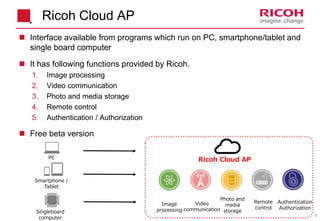
Ricoh Cloud AP
 Interface available from programs which run on PC, smartphone/tablet and
single board computer
 It has following functions provided by Ricoh.
1. Image processing
2. Video communication
3. Photo and media storage
4. Remote control
5. Authentication / Authorization
 Free beta version
Ricoh Cloud AP
Singleboard
computer
PC
Smartphone /
Tablet
Video
communication
Photo and
media
storage
Authentication
Authorization
Remote
control
Image
processing
6
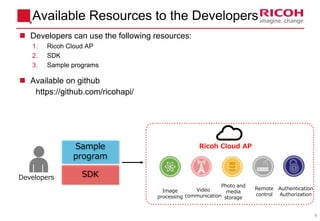
Available Resources to the Developers
 Developers can use the following resources:
1. Ricoh Cloud AP
2. SDK
3. Sample programs
 Available on github
https://github.com/ricohapi/
Developers SDK
Sample
program
Ricoh Cloud AP
Video
communication
Photo and
media
storage
Authentication
Authorization
Remote
control
Image
processing
7
Prerequisites for the Usage
 A developer needs the following to use Ricoh Cloud API
1. Client credential *to identify the application
 Client ID
 Client secret
2. User account * to identfity the user
 User ID
 Password
 Please see the page 8-9 of the previous seminar's slide.
 Japanese slides: http://www.slideshare.net/contest-theta360/ricoh-theta-x-iot-api
 English slides: http://www.slideshare.net/contest-theta360/ricoh-theta-x-iot-developers-
contest-cloud-api-seminar
8
2. INTRODUCTION OF
FUNCTION NO. 1
- IMAGE PROCESSING (FILTER)
KOHTA NAGAI
SV TECHNOLOGY DEVELOPMENT CENTER
NEW BUSINESS DEVELOPMENT DIVISION
RICOH COMPANY, LTD.
9
Overview
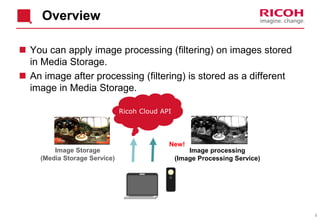
 You can apply image processing (filtering) on images stored
in Media Storage.
 An image after processing (filtering) is stored as a different
image in Media Storage.
Ricoh Cloud API
Image Storage
(Media Storage Service)
Image processing
(Image Processing Service)
New!
10
API Specification– Image Processing (Filtering)
REST API
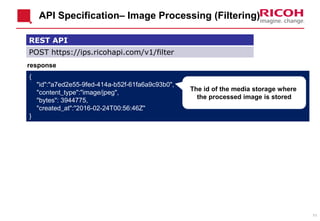
POST https://ips.ricohapi.com/v1/filter
{
"version": “2016-06-24",
"source": {
"mss_id": "a39jcbc5-053c-4873-a7c0-0b20c3948472"
},
"filter": [
{
"command": "resize",
"parameters": {
"width": 256,
"height": 128
}
},
{
"command": "grayscale"
},
{
"command": "equalize"
}
]
}
Request
Media Storage
Service id
Specifying a filter
1. Smoothing of histogram
2. Grey scale
3. Reduction of image size
11
API Specification– Image Processing (Filtering)
REST API
POST https://ips.ricohapi.com/v1/filter
{
"id":"a7ed2e55-9fed-414a-b52f-61fa6a9c93b0",
"content_type":"image/jpeg",
"bytes": 3944775,
"created_at":"2016-02-24T00:56:46Z"
}
response
The id of the media storage where
the processed image is stored
12
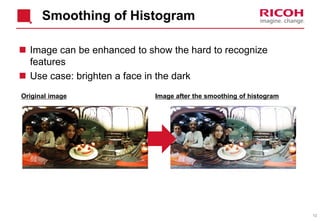
Smoothing of Histogram
 Image can be enhanced to show the hard to recognize
features
 Use case: brighten a face in the dark
Original image Image after the smoothing of histogram
13
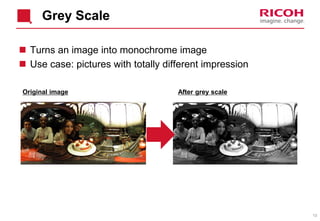
Grey Scale
 Turns an image into monochrome image
 Use case: pictures with totally different impression
Original image After grey scale
14
Reduction of Image Size
 Reduction of subsequent processing load by reducing the
image size
 Use case: thumb nail, and time lapse replay
Original image After the reduction of image size
If you don't change the
ratio of the horizontal
and vertical size,
the image can be
replayed in the viewer!
3.9 MB
1.21 MB
Conversion into ½ * ½
15
 We look forward to receiving your feedback.
16
3. INTRODUCTION OF
FUNCTION NO. 2
- PHOTO AND MEDIA STORAGE
EIJI HOSONO
SV TECHNOLOGY DEVELOPMENT CENTER
NEW BUSINESS DEVELOPMENT DIVISION
RICOH COMPANY, LTD.
17
At the API seminar (first
installment) in May
At the API Seminar (First Installment)
18
At the API Seminar (First Installment)
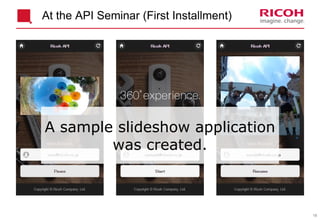
A sample slideshow application
was created.
19
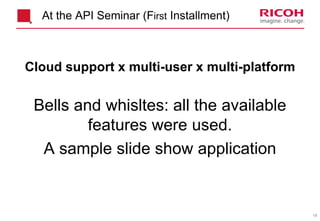
Cloud support x multi-user x multi-platform
Bells and whisltes: all the available
features were used.
A sample slide show application
At the API Seminar (First Installment)
20
At the API Seminar (First Installment)
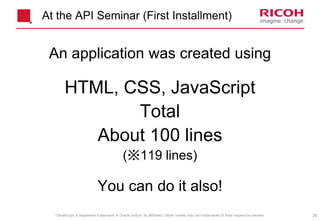
An application was created using
HTML, CSS, JavaScript
Total
About 100 lines
(※119 lines)
You can do it also!
*JavaScript is registered trademark of Oracle and/or its affiliates. Other names may be trademarks of their respective owners.
21
This Time
This time
22
New Features!
New features which you have
been waiting for!
23
New Features!
User-defined metadata
and search function
24
User-defined Metadata and Search
Function
 You can add user-defined metadata to
the images in the cloud.
 Metadata has a pair of strings in the following format:
{ “<key>”: “<value>” }
 Maximum 10 metadata pairs per an image
 You can search images using metadata
as search key.
25
User-defined Metadata and Search
Function
Such metadata can cover
many attributes
Your favorite Like
Rating Comment
26
User-defined Metadata and Search
Function
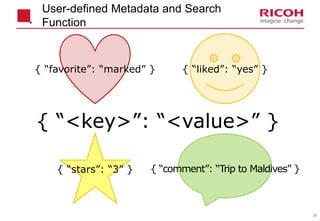
{ “<key>”: “<value>” }
{ “favorite”: “marked” } { “liked”: “yes” }
{ “stars”: “3” } { “comment”: “Trip to Maldives” }
27
User-defined Metadata and Search Function API/SDK
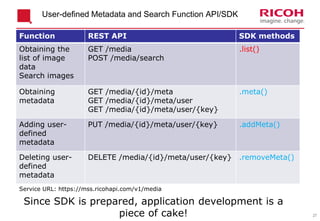
Function REST API SDK methods
Obtaining the
list of image
data
Search images
GET /media
POST /media/search
.list()
Obtaining
metadata
GET /media/{id}/meta
GET /media/{id}/meta/user
GET /media/{id}/meta/user/{key}
.meta()
Adding user-
defined
metadata
PUT /media/{id}/meta/user/{key} .addMeta()
Deleting user-
defined
metadata
DELETE /media/{id}/meta/user/{key} .removeMeta()
Service URL: https://mss.ricohapi.com/v1/media
Since SDK is prepared, application development is a
piece of cake!
28
Demo Application
So
this time around
an application has been created
again.
29
Demo Application
Your favorite
A sample slide show application
30
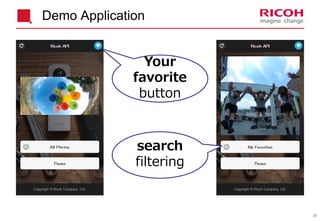
Your
favorite
button
search
filtering
Demo Application
31
This application has been created with
HTML, CSS, JavaScript
Total
About 100 lines
(※126 lines)
You can do it also !
Demo Application
*JavaScript is registered trademark of Oracle and/or its affiliates. Other names may be trademarks of their respective owners.
32
My PC
Web Server
RICOH Cloud Service
CSS
HTML
JavaScript
Web Browser
Media Storage Server Auth Server
CSS
HTML
JavaScript
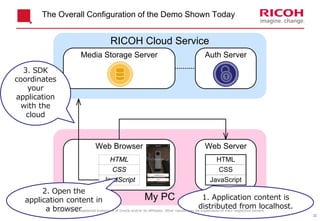
The Overall Configuration of the Demo Shown Today
2. Open the
application content in
a browser
3. SDK
coordinates
your
application
with the
cloud
1. Application content is
distributed from localhost.*JavaScript is registered trademark of Oracle and/or its affiliates. Other names may be trademarks of their respective owners.
33
Demo Application
Please watch the demo
34
Description of Source Code
(continued)
Source code is described.
35
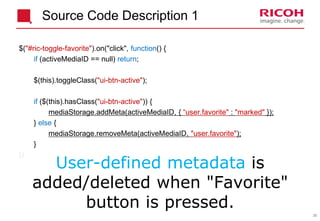
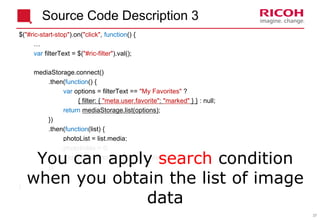
Source Code Description 1
$("#ric-toggle-favorite").on("click", function() {
if (activeMediaID == null) return;
$(this).toggleClass("ui-btn-active");
if ($(this).hasClass("ui-btn-active")) {
mediaStorage.addMeta(activeMediaID, { “user.favorite" : "marked" });
} else {
mediaStorage.removeMeta(activeMediaID, "user.favorite");
}
})
User-defined metadata is
added/deleted when "Favorite"
button is pressed.
36
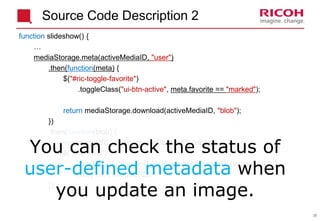
Source Code Description 2
function slideshow() {
…
mediaStorage.meta(activeMediaID, "user")
.then(function(meta) {
$("#ric-toggle-favorite")
.toggleClass("ui-btn-active", meta.favorite == "marked");
return mediaStorage.download(activeMediaID, "blob");
})
.then(function(blob) {
var imageURL = URL.createObjectURL(blob);
$("#ric-view")
.one("load", function() { URL.revokeObjectURL(imageURL); })
.attr("src", imageURL);
});
You can check the status of
user-defined metadata when
you update an image.
37
$("#ric-start-stop").on("click", function() {
…
var filterText = $("#ric-filter").val();
mediaStorage.connect()
.then(function() {
var options = filterText == "My Favorites" ?
{ filter: { "meta.user.favorite": "marked" } } : null;
return mediaStorage.list(options);
})
.then(function(list) {
photoList = list.media;
photoIndex = 0;
slideshowTimer = setTimeout(slideshow, 0);
});
…
}
You can apply search condition
when you obtain the list of image
data
Source Code Description 3
38
Source Code Description
That Is All.
39
Thank You
user-defined metadata
and search function
Use Cases
It is up to you.
40
4. INTRODUCTION OF
FUNCTION NO. 3
- VIDEO COMMUNICATION
KOHEI MARUMOTO
SV TECHNOLOGY DEVELOPMENT CENTER
NEW BUSINESS DEVELOPMENT DIVISION
RICOH COMPANY, LTD.
41
Table of Contents
 Overview of sample applications
 Demonstration of sample applications
 Configuration of sample applications
 Summary
42
Sample of Video Communication
 The sample is available on github
https://github.com/ricohapi/video-streaming-sample-app/
(The configuration has been changed from the version released on April 1.] See README for detailed
usage guide.)
 Sample ①: Video chat between two PCs
 Sample ②: Video streaming from a single board computer
※ Single board computer: Small computer of a few thousands of yenNew
43
Overview of Sample ①
 Video chat between two PCs
 Uses WebRTC (browser function)
video stream
signaling signaling
RICOH
44
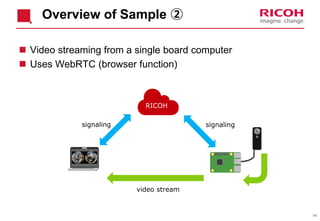
Overview of Sample ②
 Video streaming from a single board computer
 Uses WebRTC (browser function)
signaling signaling
RICOH
video stream
45
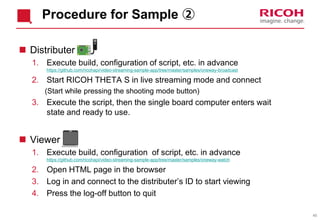
Procedure for Sample ②
 Distributer
1. Execute build, configuration of script, etc. in advance
https://github.com/ricohapi/video-streaming-sample-app/tree/master/samples/oneway-broadcast
2. Start RICOH THETA S in live streaming mode and connect
(Start while pressing the shooting mode button)
3. Execute the script, then the single board computer enters wait
state and ready to use.
 Viewer
1. Execute build, configuration of script, etc. in advance
https://github.com/ricohapi/video-streaming-sample-app/tree/master/samples/oneway-watch
2. Open HTML page in the browser
3. Log in and connect to the distributer’s ID to start viewing
4. Press the log-off button to quit
46
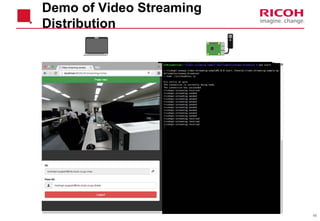
Demo of Video Streaming
Distribution
47
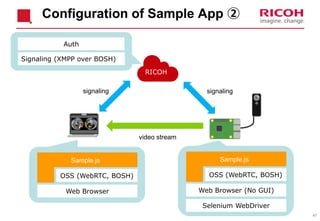
Configuration of Sample App ②
signaling signaling
RICOH
video stream
Auth
Signaling (XMPP over BOSH)
Web Browser
OSS (WebRTC, BOSH)
Sample.js
Web Browser (No GUI)
OSS (WebRTC, BOSH)
Sample.js
Selenium WebDriver
48
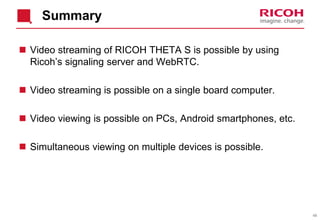
Summary
 Video streaming of RICOH THETA S is possible by using
Ricoh’s signaling server and WebRTC.
 Video streaming is possible on a single board computer.
 Video viewing is possible on PCs, Android smartphones, etc.
 Simultaneous viewing on multiple devices is possible.
49
5.INTRODUCTION OF FUNCTION
NO. 4
― REMOTE CONTROL
HIROSHI SUITOH
SV TECHNOLOGY DEVELOPMENT CENTER
NEW BUSINESS DEVELOPMENT DIVISION
RICOH COMPANY, LTD.
50
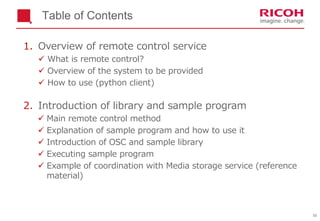
Table of Contents
1. Overview of remote control service
 What is remote control?
 Overview of the system to be provided
 How to use (python client)
2. Introduction of library and sample program
 Main remote control method
 Explanation of sample program and how to use it
 Introduction of OSC and sample library
 Executing sample program
 Example of coordination with Media storage service (reference
material)
51
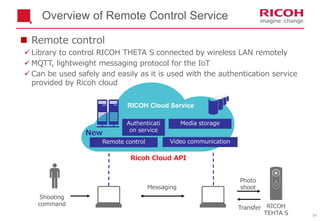
Overview of Remote Control Service
Ricoh Cloud API
RICOH
TEHTA S
Photo
shoot
Shooting
command
Media storage
Remote control
Authenticati
on service
RICOH Cloud Service
Transfer
Messaging
 Remote control
 Library to control RICOH THETA S connected by wireless LAN remotely
 MQTT, lightweight messaging protocol for the IoT
 Can be used safely and easily as it is used with the authentication service
provided by Ricoh cloud
Video communication
New
52
Overview of Remote Control Service
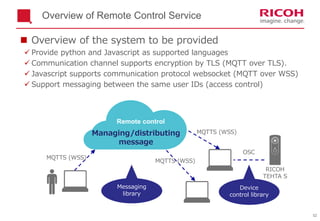
 Overview of the system to be provided
 Provide python and Javascript as supported languages
 Communication channel supports encryption by TLS (MQTT over TLS).
 Javascript supports communication protocol websocket (MQTT over WSS)
 Support messaging between the same user IDs (access control)
Managing/distributing
message
RICOH
TEHTA S
Remote control
MQTTS (WSS)
MQTTS (WSS)
MQTTS (WSS)
OSC
Device
control library
Messaging
library
53
How to Use
 Install authentication library and remote control app
 Download intermediate certificate
 Configure client credential, user account and certificate
Reference: https://github.com/ricohapi/camera-control-sample-py
$ pip install --upgrade git+https://github.com/ricohapi/auth-py.git
$ git clone https://github.com/ricohapi/camera-control-sample-py.git
$ cd camera-control-sample-py
$ pip install . (pip install –e .)
$ cd samples
$ mv config_template.json config.json
$ edit config.json
$ wget –O devcon.crt https://support.comodo.com/index.php?/Knowledgebase/Article/GetAttachment/991/1070566
You can also obtain it by accessing in the web browser.
https://support.comodo.com/index.php?/Knowledgebase/Article/GetAttachment/991/1070566
54
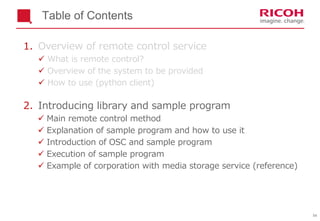
Table of Contents
1. Overview of remote control service
 What is remote control?
 Overview of the system to be provided
 How to use (python client)
2. Introducing library and sample program
 Main remote control method
 Explanation of sample program and how to use it
 Introduction of OSC and sample program
 Execution of sample program
 Example of corporation with media storage service (reference)
55
Introduction of Library and Sample Program
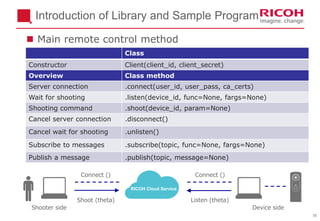
Class
Constructor Client(client_id, client_secret)
Overview Class method
Server connection .connect(user_id, user_pass, ca_certs)
Wait for shooting .listen(device_id, func=None, fargs=None)
Shooting command .shoot(device_id, param=None)
Cancel server connection .disconnect()
Cancel wait for shooting .unlisten()
Subscribe to messages .subscribe(topic, func=None, fargs=None)
Publish a message .publish(topic, message=None)
Connect () Connect ()
Shoot (theta) Listen (theta)
RICOH Cloud Service
Shooter side Device side
 Main remote control method
56
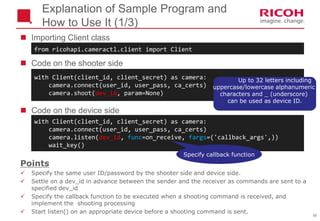
Explanation of Sample Program and
How to Use It (1/3)
 Importing Client class
 Code on the shooter side
 Code on the device side
with Client(client_id, client_secret) as camera:
camera.connect(user_id, user_pass, ca_certs)
camera.listen(dev_id, func=on_receive, fargs=('callback_args',))
wait_key()
with Client(client_id, client_secret) as camera:
camera.connect(user_id, user_pass, ca_certs)
camera.shoot(dev_id, param=None)
from ricohapi.cameractl.client import Client
Points
 Specify the same user ID/password by the shooter side and device side.
 Settle on a dev_id in advance between the sender and the receiver as commands are sent to a
specified dev_id
 Specify the callback function to be executed when a shooting command is received, and
implement the shooting processing
 Start listen() on an appropriate device before a shooting command is sent.
Up to 32 letters including
uppercase/lowercase alphanumeric
characters and _ (underscore)
can be used as device ID.
Specify callback function
57
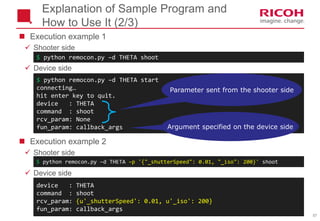
 Execution example 1
 Shooter side
 Device side
 Execution example 2
 Shooter side
 Device side
$ python remocon.py –d THETA start
connecting…
hit enter key to quit.
device : THETA
command : shoot
rcv_param: None
fun_param: callback_args
Explanation of Sample Program and
How to Use It (2/3)
$ python remocon.py –d THETA shoot
Parameter sent from the shooter side
Argument specified on the device side
$ python remocon.py –d THETA –p '{"_shutterSpeed": 0.01, "_iso": 200}' shoot
device : THETA
command : shoot
rcv_param: {u'_shutterSpeed': 0.01, u'_iso': 200}
fun_param: callback_args
58
 Callback function that is called when a shooting command is received
Explanation of Sample Program and
How to Use It (3/3)
def on_receive(devid, command, rcv_param, fun_param):
Points
 The device side implements proper processing as callback function that hands the
parameters sent by the shooter side.
 Callback function consists of mandatory parameters and parameters added by
developer.
 Regarding how to use the sample program
 Start connection to the server, wait for shooting and send shooting command by start/shoot
command.
 Specify device ID by -d option
 Specify transfer parameter by -p option. JSON string format is used.
with Client(client_id, client_secret) as camera:
camera.connect(user_id, user_pass, ca_certs)
camera.listen(dev_id, func=on_receive, fargs=('callback_args',))
wait_key()
[Mandatory parameters]
The system sets the value
[Option parameters]
Specify a given number of tuples
59
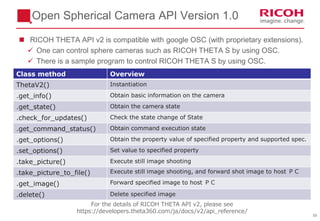
Open Spherical Camera API Version 1.0
 RICOH THETA API v2 is compatible with google OSC (with proprietary extensions).
 One can control sphere cameras such as RICOH THETA S by using OSC.
 There is a sample program to control RICOH THETA S by using OSC.
Class method Overview
ThetaV2() Instantiation
.get_info() Obtain basic information on the camera
.get_state() Obtain the camera state
.check_for_updates() Check the state change of State
.get_command_status() Obtain command execution state
.get_options() Obtain the property value of specified property and supported spec.
.set_options() Set value to specified property
.take_picture() Execute still image shooting
.take_picture_to_file() Execute still image shooting, and forward shot image to host PC
.get_image() Forward specified image to host PC
.delete() Delete specified image
For the details of RICOH THETA API v2, please see
https://developers.theta360.com/ja/docs/v2/api_reference/
60
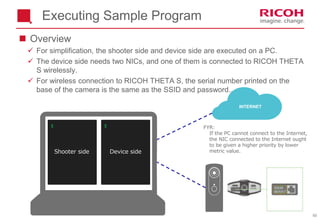
Executing Sample Program
 Overview
 For simplification, the shooter side and device side are executed on a PC.
 The device side needs two NICs, and one of them is connected to RICOH THETA
S wirelessly.
 For wireless connection to RICOH THETA S, the serial number printed on the
base of the camera is the same as the SSID and password..
$ $
INTERNET
Device sideShooter side
FYR:
If the PC cannot connect to the Internet,
the NIC connected to the Internet ought
to be given a higher priority by lower
metric value.
61
Example of Coordination with Media
Storage Service
Media Storage
Messaging
Manage/distribute message
UPDL
Manage media data
2.1.
3.
4.
5.
6.7.
8.
Objective
Obtaining shot images from remote
locations
Sequence overview
1. Send a shooting command and shooting ID
2. Receive a shooting command
3. Issue a shooting command
4. Forward a shot image
5. Upload a shot image, obtain a media ID
6. Send the media ID to the shooting ID
7. Receive the media ID
8. Download the shot image
Points
 Image is uploaded to the cloud and
managed by Media Storage.
 Application can be created easily by
combining appropriate services.
(Reference material)
62
with Client(client_id, client_secret) as camera:
aclient = AuthClient(client_id, client_secret)
aclient.set_resource_owner_creds(user_id, user_pass)
mstorage = MediaStorage(aclient)
mstorage.connect()
uploader = media_uploader(mstorage)
next(uploader)
camera.connect(user_id, user_pass, ca_certs)
camera.listen(dev_id, func=on_receive, fargs=(camera, uploader))
wait_keyboard_interrupt()
Example of Coordination with Storage
Service (upload)
def media_uploader(mstorage):
media_id = None
while True:
file_path = yield media_id
media_id = mstorage.upload(file_path)['id']
def on_receive(devid, cmd, rcv_param, camera, uploader):
file_path = './upload_path.JPG'
ThetaV2().take_picture_to_file(file_path, override_file=True)
media_id = uploader.send(file_path)
camera.publish(rcv_param['_shooting_id'], message=media_id)
 Device side (Reference material)
63
with Client(client_id, client_secret) as camera:
aclient = AuthClient(client_id, client_secret)
aclient.set_resource_owner_creds(user_id, user_pass)
mstorage = MediaStorage(aclient)
mstorage.connect()
downloader = media_downloader(mstorage)
next(downloader)
shoot_id = str(uuid.uuid4())
send_param = validate_usr_param(str('{"_shooting_id": "' + shoot_id + '"}'))
file_path = './download_path.JPG'
camera.connect(user_id, user_pass, ca_certs)
camera.shoot(dev_id, param=send_param)
camera.subscribe(shoot_id, func=on_result, fargs=(downloader, file_path))
wait_keyboard_interrupt()
Example of Cooperation with Storage
Service (download)
def media_downloader(mstorage):
while True:
media_inf = yield
mstorage.download_to(media_inf['media_id'], media_inf['save_path'])
def on_result(msg, downloader, file_path):
media_inf = {'media_id': msg.payload, 'save_path': file_path}
downloader.send(media_inf)
 Shooter side (Reference material)
64
6. Q & A
65
Summary
Ricoh Cloud API
Introduction of Functions
・Image processing (filter)
- Photo and media storage
- Video communication
・Remote control
66
Enjoy
RICOH THETA and
RICOH Cloud API!!
67

RICOH THETA x IoT Developers Contest : Cloud API Seminar (2nd installation)

  • 1.
    1 RICOH THETA xIoT Developers Contest Cloud API Seminar (2nd installation) SV Technology Development Center New Business Development Division RICOH COMPANY, LTD. June 29, 2016
  • 2.
    2 Agenda 1. Introduction ofCloud API 2. Introduction of Function No. 1 - Image processing 3. Introduction of Function No. 2 - Photo and media storage 4. Introduction of Function No. 3 - Video communication 5. Introduciton of Function No. 4 - Remote control 6. Q & A
  • 3.
    3 Regarding the SeminarMaterial  The material used in the seminars has been released at the following URLs http://www.slideshare.net/contest-theta360  The material from the first installment is available at the following URLs  Japanese version Slide:http://www.slideshare.net/contest-theta360/ricoh-theta-x-iot-api Video: http://ch.nicovideo.jp/contest-theta360  English Version Slide: http://www.slideshare.net/contest-theta360/ricoh-theta-x-iot- developers-contest-cloud-api-seminar Video: Coming soon
  • 4.
    4 1. INTRODUCTION OFCLOUD API HISAKAZU TAKAKUWA SV BUSINESS DEVELOPMENT CENTER NEW BUSINESS DEVELOPMENT DIVISION RICOH COMPANY, LTD.
  • 5.
    5 Ricoh Cloud AP Interface available from programs which run on PC, smartphone/tablet and single board computer  It has following functions provided by Ricoh. 1. Image processing 2. Video communication 3. Photo and media storage 4. Remote control 5. Authentication / Authorization  Free beta version Ricoh Cloud AP Singleboard computer PC Smartphone / Tablet Video communication Photo and media storage Authentication Authorization Remote control Image processing
  • 6.
    6 Available Resources tothe Developers  Developers can use the following resources: 1. Ricoh Cloud AP 2. SDK 3. Sample programs  Available on github https://github.com/ricohapi/ Developers SDK Sample program Ricoh Cloud AP Video communication Photo and media storage Authentication Authorization Remote control Image processing
  • 7.
    7 Prerequisites for theUsage  A developer needs the following to use Ricoh Cloud API 1. Client credential *to identify the application  Client ID  Client secret 2. User account * to identfity the user  User ID  Password  Please see the page 8-9 of the previous seminar's slide.  Japanese slides: http://www.slideshare.net/contest-theta360/ricoh-theta-x-iot-api  English slides: http://www.slideshare.net/contest-theta360/ricoh-theta-x-iot-developers- contest-cloud-api-seminar
  • 8.
    8 2. INTRODUCTION OF FUNCTIONNO. 1 - IMAGE PROCESSING (FILTER) KOHTA NAGAI SV TECHNOLOGY DEVELOPMENT CENTER NEW BUSINESS DEVELOPMENT DIVISION RICOH COMPANY, LTD.
  • 9.
    9 Overview  You canapply image processing (filtering) on images stored in Media Storage.  An image after processing (filtering) is stored as a different image in Media Storage. Ricoh Cloud API Image Storage (Media Storage Service) Image processing (Image Processing Service) New!
  • 10.
    10 API Specification– ImageProcessing (Filtering) REST API POST https://ips.ricohapi.com/v1/filter { "version": “2016-06-24", "source": { "mss_id": "a39jcbc5-053c-4873-a7c0-0b20c3948472" }, "filter": [ { "command": "resize", "parameters": { "width": 256, "height": 128 } }, { "command": "grayscale" }, { "command": "equalize" } ] } Request Media Storage Service id Specifying a filter 1. Smoothing of histogram 2. Grey scale 3. Reduction of image size
  • 11.
    11 API Specification– ImageProcessing (Filtering) REST API POST https://ips.ricohapi.com/v1/filter { "id":"a7ed2e55-9fed-414a-b52f-61fa6a9c93b0", "content_type":"image/jpeg", "bytes": 3944775, "created_at":"2016-02-24T00:56:46Z" } response The id of the media storage where the processed image is stored
  • 12.
    12 Smoothing of Histogram Image can be enhanced to show the hard to recognize features  Use case: brighten a face in the dark Original image Image after the smoothing of histogram
  • 13.
    13 Grey Scale  Turnsan image into monochrome image  Use case: pictures with totally different impression Original image After grey scale
  • 14.
    14 Reduction of ImageSize  Reduction of subsequent processing load by reducing the image size  Use case: thumb nail, and time lapse replay Original image After the reduction of image size If you don't change the ratio of the horizontal and vertical size, the image can be replayed in the viewer! 3.9 MB 1.21 MB Conversion into ½ * ½
  • 15.
    15  We lookforward to receiving your feedback.
  • 16.
    16 3. INTRODUCTION OF FUNCTIONNO. 2 - PHOTO AND MEDIA STORAGE EIJI HOSONO SV TECHNOLOGY DEVELOPMENT CENTER NEW BUSINESS DEVELOPMENT DIVISION RICOH COMPANY, LTD.
  • 17.
    17 At the APIseminar (first installment) in May At the API Seminar (First Installment)
  • 18.
    18 At the APISeminar (First Installment) A sample slideshow application was created.
  • 19.
    19 Cloud support xmulti-user x multi-platform Bells and whisltes: all the available features were used. A sample slide show application At the API Seminar (First Installment)
  • 20.
    20 At the APISeminar (First Installment) An application was created using HTML, CSS, JavaScript Total About 100 lines (※119 lines) You can do it also! *JavaScript is registered trademark of Oracle and/or its affiliates. Other names may be trademarks of their respective owners.
  • 21.
  • 22.
    22 New Features! New featureswhich you have been waiting for!
  • 23.
  • 24.
    24 User-defined Metadata andSearch Function  You can add user-defined metadata to the images in the cloud.  Metadata has a pair of strings in the following format: { “<key>”: “<value>” }  Maximum 10 metadata pairs per an image  You can search images using metadata as search key.
  • 25.
    25 User-defined Metadata andSearch Function Such metadata can cover many attributes Your favorite Like Rating Comment
  • 26.
    26 User-defined Metadata andSearch Function { “<key>”: “<value>” } { “favorite”: “marked” } { “liked”: “yes” } { “stars”: “3” } { “comment”: “Trip to Maldives” }
  • 27.
    27 User-defined Metadata andSearch Function API/SDK Function REST API SDK methods Obtaining the list of image data Search images GET /media POST /media/search .list() Obtaining metadata GET /media/{id}/meta GET /media/{id}/meta/user GET /media/{id}/meta/user/{key} .meta() Adding user- defined metadata PUT /media/{id}/meta/user/{key} .addMeta() Deleting user- defined metadata DELETE /media/{id}/meta/user/{key} .removeMeta() Service URL: https://mss.ricohapi.com/v1/media Since SDK is prepared, application development is a piece of cake!
  • 28.
    28 Demo Application So this timearound an application has been created again.
  • 29.
    29 Demo Application Your favorite Asample slide show application
  • 30.
  • 31.
    31 This application hasbeen created with HTML, CSS, JavaScript Total About 100 lines (※126 lines) You can do it also ! Demo Application *JavaScript is registered trademark of Oracle and/or its affiliates. Other names may be trademarks of their respective owners.
  • 32.
    32 My PC Web Server RICOHCloud Service CSS HTML JavaScript Web Browser Media Storage Server Auth Server CSS HTML JavaScript The Overall Configuration of the Demo Shown Today 2. Open the application content in a browser 3. SDK coordinates your application with the cloud 1. Application content is distributed from localhost.*JavaScript is registered trademark of Oracle and/or its affiliates. Other names may be trademarks of their respective owners.
  • 33.
  • 34.
    34 Description of SourceCode (continued) Source code is described.
  • 35.
    35 Source Code Description1 $("#ric-toggle-favorite").on("click", function() { if (activeMediaID == null) return; $(this).toggleClass("ui-btn-active"); if ($(this).hasClass("ui-btn-active")) { mediaStorage.addMeta(activeMediaID, { “user.favorite" : "marked" }); } else { mediaStorage.removeMeta(activeMediaID, "user.favorite"); } }) User-defined metadata is added/deleted when "Favorite" button is pressed.
  • 36.
    36 Source Code Description2 function slideshow() { … mediaStorage.meta(activeMediaID, "user") .then(function(meta) { $("#ric-toggle-favorite") .toggleClass("ui-btn-active", meta.favorite == "marked"); return mediaStorage.download(activeMediaID, "blob"); }) .then(function(blob) { var imageURL = URL.createObjectURL(blob); $("#ric-view") .one("load", function() { URL.revokeObjectURL(imageURL); }) .attr("src", imageURL); }); You can check the status of user-defined metadata when you update an image.
  • 37.
    37 $("#ric-start-stop").on("click", function() { … varfilterText = $("#ric-filter").val(); mediaStorage.connect() .then(function() { var options = filterText == "My Favorites" ? { filter: { "meta.user.favorite": "marked" } } : null; return mediaStorage.list(options); }) .then(function(list) { photoList = list.media; photoIndex = 0; slideshowTimer = setTimeout(slideshow, 0); }); … } You can apply search condition when you obtain the list of image data Source Code Description 3
  • 38.
  • 39.
    39 Thank You user-defined metadata andsearch function Use Cases It is up to you.
  • 40.
    40 4. INTRODUCTION OF FUNCTIONNO. 3 - VIDEO COMMUNICATION KOHEI MARUMOTO SV TECHNOLOGY DEVELOPMENT CENTER NEW BUSINESS DEVELOPMENT DIVISION RICOH COMPANY, LTD.
  • 41.
    41 Table of Contents Overview of sample applications  Demonstration of sample applications  Configuration of sample applications  Summary
  • 42.
    42 Sample of VideoCommunication  The sample is available on github https://github.com/ricohapi/video-streaming-sample-app/ (The configuration has been changed from the version released on April 1.] See README for detailed usage guide.)  Sample ①: Video chat between two PCs  Sample ②: Video streaming from a single board computer ※ Single board computer: Small computer of a few thousands of yenNew
  • 43.
    43 Overview of Sample①  Video chat between two PCs  Uses WebRTC (browser function) video stream signaling signaling RICOH
  • 44.
    44 Overview of Sample②  Video streaming from a single board computer  Uses WebRTC (browser function) signaling signaling RICOH video stream
  • 45.
    45 Procedure for Sample②  Distributer 1. Execute build, configuration of script, etc. in advance https://github.com/ricohapi/video-streaming-sample-app/tree/master/samples/oneway-broadcast 2. Start RICOH THETA S in live streaming mode and connect (Start while pressing the shooting mode button) 3. Execute the script, then the single board computer enters wait state and ready to use.  Viewer 1. Execute build, configuration of script, etc. in advance https://github.com/ricohapi/video-streaming-sample-app/tree/master/samples/oneway-watch 2. Open HTML page in the browser 3. Log in and connect to the distributer’s ID to start viewing 4. Press the log-off button to quit
  • 46.
    46 Demo of VideoStreaming Distribution
  • 47.
    47 Configuration of SampleApp ② signaling signaling RICOH video stream Auth Signaling (XMPP over BOSH) Web Browser OSS (WebRTC, BOSH) Sample.js Web Browser (No GUI) OSS (WebRTC, BOSH) Sample.js Selenium WebDriver
  • 48.
    48 Summary  Video streamingof RICOH THETA S is possible by using Ricoh’s signaling server and WebRTC.  Video streaming is possible on a single board computer.  Video viewing is possible on PCs, Android smartphones, etc.  Simultaneous viewing on multiple devices is possible.
  • 49.
    49 5.INTRODUCTION OF FUNCTION NO.4 ― REMOTE CONTROL HIROSHI SUITOH SV TECHNOLOGY DEVELOPMENT CENTER NEW BUSINESS DEVELOPMENT DIVISION RICOH COMPANY, LTD.
  • 50.
    50 Table of Contents 1.Overview of remote control service  What is remote control?  Overview of the system to be provided  How to use (python client) 2. Introduction of library and sample program  Main remote control method  Explanation of sample program and how to use it  Introduction of OSC and sample library  Executing sample program  Example of coordination with Media storage service (reference material)
  • 51.
    51 Overview of RemoteControl Service Ricoh Cloud API RICOH TEHTA S Photo shoot Shooting command Media storage Remote control Authenticati on service RICOH Cloud Service Transfer Messaging  Remote control  Library to control RICOH THETA S connected by wireless LAN remotely  MQTT, lightweight messaging protocol for the IoT  Can be used safely and easily as it is used with the authentication service provided by Ricoh cloud Video communication New
  • 52.
    52 Overview of RemoteControl Service  Overview of the system to be provided  Provide python and Javascript as supported languages  Communication channel supports encryption by TLS (MQTT over TLS).  Javascript supports communication protocol websocket (MQTT over WSS)  Support messaging between the same user IDs (access control) Managing/distributing message RICOH TEHTA S Remote control MQTTS (WSS) MQTTS (WSS) MQTTS (WSS) OSC Device control library Messaging library
  • 53.
    53 How to Use Install authentication library and remote control app  Download intermediate certificate  Configure client credential, user account and certificate Reference: https://github.com/ricohapi/camera-control-sample-py $ pip install --upgrade git+https://github.com/ricohapi/auth-py.git $ git clone https://github.com/ricohapi/camera-control-sample-py.git $ cd camera-control-sample-py $ pip install . (pip install –e .) $ cd samples $ mv config_template.json config.json $ edit config.json $ wget –O devcon.crt https://support.comodo.com/index.php?/Knowledgebase/Article/GetAttachment/991/1070566 You can also obtain it by accessing in the web browser. https://support.comodo.com/index.php?/Knowledgebase/Article/GetAttachment/991/1070566
  • 54.
    54 Table of Contents 1.Overview of remote control service  What is remote control?  Overview of the system to be provided  How to use (python client) 2. Introducing library and sample program  Main remote control method  Explanation of sample program and how to use it  Introduction of OSC and sample program  Execution of sample program  Example of corporation with media storage service (reference)
  • 55.
    55 Introduction of Libraryand Sample Program Class Constructor Client(client_id, client_secret) Overview Class method Server connection .connect(user_id, user_pass, ca_certs) Wait for shooting .listen(device_id, func=None, fargs=None) Shooting command .shoot(device_id, param=None) Cancel server connection .disconnect() Cancel wait for shooting .unlisten() Subscribe to messages .subscribe(topic, func=None, fargs=None) Publish a message .publish(topic, message=None) Connect () Connect () Shoot (theta) Listen (theta) RICOH Cloud Service Shooter side Device side  Main remote control method
  • 56.
    56 Explanation of SampleProgram and How to Use It (1/3)  Importing Client class  Code on the shooter side  Code on the device side with Client(client_id, client_secret) as camera: camera.connect(user_id, user_pass, ca_certs) camera.listen(dev_id, func=on_receive, fargs=('callback_args',)) wait_key() with Client(client_id, client_secret) as camera: camera.connect(user_id, user_pass, ca_certs) camera.shoot(dev_id, param=None) from ricohapi.cameractl.client import Client Points  Specify the same user ID/password by the shooter side and device side.  Settle on a dev_id in advance between the sender and the receiver as commands are sent to a specified dev_id  Specify the callback function to be executed when a shooting command is received, and implement the shooting processing  Start listen() on an appropriate device before a shooting command is sent. Up to 32 letters including uppercase/lowercase alphanumeric characters and _ (underscore) can be used as device ID. Specify callback function
  • 57.
    57  Execution example1  Shooter side  Device side  Execution example 2  Shooter side  Device side $ python remocon.py –d THETA start connecting… hit enter key to quit. device : THETA command : shoot rcv_param: None fun_param: callback_args Explanation of Sample Program and How to Use It (2/3) $ python remocon.py –d THETA shoot Parameter sent from the shooter side Argument specified on the device side $ python remocon.py –d THETA –p '{"_shutterSpeed": 0.01, "_iso": 200}' shoot device : THETA command : shoot rcv_param: {u'_shutterSpeed': 0.01, u'_iso': 200} fun_param: callback_args
  • 58.
    58  Callback functionthat is called when a shooting command is received Explanation of Sample Program and How to Use It (3/3) def on_receive(devid, command, rcv_param, fun_param): Points  The device side implements proper processing as callback function that hands the parameters sent by the shooter side.  Callback function consists of mandatory parameters and parameters added by developer.  Regarding how to use the sample program  Start connection to the server, wait for shooting and send shooting command by start/shoot command.  Specify device ID by -d option  Specify transfer parameter by -p option. JSON string format is used. with Client(client_id, client_secret) as camera: camera.connect(user_id, user_pass, ca_certs) camera.listen(dev_id, func=on_receive, fargs=('callback_args',)) wait_key() [Mandatory parameters] The system sets the value [Option parameters] Specify a given number of tuples
  • 59.
    59 Open Spherical CameraAPI Version 1.0  RICOH THETA API v2 is compatible with google OSC (with proprietary extensions).  One can control sphere cameras such as RICOH THETA S by using OSC.  There is a sample program to control RICOH THETA S by using OSC. Class method Overview ThetaV2() Instantiation .get_info() Obtain basic information on the camera .get_state() Obtain the camera state .check_for_updates() Check the state change of State .get_command_status() Obtain command execution state .get_options() Obtain the property value of specified property and supported spec. .set_options() Set value to specified property .take_picture() Execute still image shooting .take_picture_to_file() Execute still image shooting, and forward shot image to host PC .get_image() Forward specified image to host PC .delete() Delete specified image For the details of RICOH THETA API v2, please see https://developers.theta360.com/ja/docs/v2/api_reference/
  • 60.
    60 Executing Sample Program Overview  For simplification, the shooter side and device side are executed on a PC.  The device side needs two NICs, and one of them is connected to RICOH THETA S wirelessly.  For wireless connection to RICOH THETA S, the serial number printed on the base of the camera is the same as the SSID and password.. $ $ INTERNET Device sideShooter side FYR: If the PC cannot connect to the Internet, the NIC connected to the Internet ought to be given a higher priority by lower metric value.
  • 61.
    61 Example of Coordinationwith Media Storage Service Media Storage Messaging Manage/distribute message UPDL Manage media data 2.1. 3. 4. 5. 6.7. 8. Objective Obtaining shot images from remote locations Sequence overview 1. Send a shooting command and shooting ID 2. Receive a shooting command 3. Issue a shooting command 4. Forward a shot image 5. Upload a shot image, obtain a media ID 6. Send the media ID to the shooting ID 7. Receive the media ID 8. Download the shot image Points  Image is uploaded to the cloud and managed by Media Storage.  Application can be created easily by combining appropriate services. (Reference material)
  • 62.
    62 with Client(client_id, client_secret)as camera: aclient = AuthClient(client_id, client_secret) aclient.set_resource_owner_creds(user_id, user_pass) mstorage = MediaStorage(aclient) mstorage.connect() uploader = media_uploader(mstorage) next(uploader) camera.connect(user_id, user_pass, ca_certs) camera.listen(dev_id, func=on_receive, fargs=(camera, uploader)) wait_keyboard_interrupt() Example of Coordination with Storage Service (upload) def media_uploader(mstorage): media_id = None while True: file_path = yield media_id media_id = mstorage.upload(file_path)['id'] def on_receive(devid, cmd, rcv_param, camera, uploader): file_path = './upload_path.JPG' ThetaV2().take_picture_to_file(file_path, override_file=True) media_id = uploader.send(file_path) camera.publish(rcv_param['_shooting_id'], message=media_id)  Device side (Reference material)
  • 63.
    63 with Client(client_id, client_secret)as camera: aclient = AuthClient(client_id, client_secret) aclient.set_resource_owner_creds(user_id, user_pass) mstorage = MediaStorage(aclient) mstorage.connect() downloader = media_downloader(mstorage) next(downloader) shoot_id = str(uuid.uuid4()) send_param = validate_usr_param(str('{"_shooting_id": "' + shoot_id + '"}')) file_path = './download_path.JPG' camera.connect(user_id, user_pass, ca_certs) camera.shoot(dev_id, param=send_param) camera.subscribe(shoot_id, func=on_result, fargs=(downloader, file_path)) wait_keyboard_interrupt() Example of Cooperation with Storage Service (download) def media_downloader(mstorage): while True: media_inf = yield mstorage.download_to(media_inf['media_id'], media_inf['save_path']) def on_result(msg, downloader, file_path): media_inf = {'media_id': msg.payload, 'save_path': file_path} downloader.send(media_inf)  Shooter side (Reference material)
  • 64.
  • 65.
    65 Summary Ricoh Cloud API Introductionof Functions ・Image processing (filter) - Photo and media storage - Video communication ・Remote control
  • 66.
  • 67.