Access Query
Astables grow in size they can have
hundreds of thousands of records,
which makes it impossible for the
user to pick out specific records from
that table. Queries were designed to
combat this problem. With a query
you can apply a filter to the table's
data, so that you only get the
information that you want.
3.
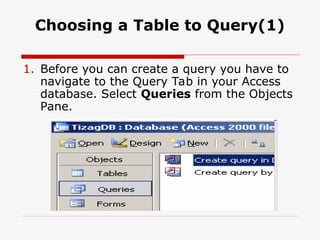
Choosing a Tableto Query(1)
1. Before you can create a query you have to
navigate to the Query Tab in your Access
database. Select Queries from the Objects
Pane.
4.
Choosing a Tableto Query(2)
2. Double-click "create Query in Design view"
Choosing a Tableto Query(4)
4. Your Query window should now have the
tbl_Sales table added to it
7.
You havejust completed the setup
process for making a query. Every
time you make a query you have to
first choose which table(s) you want
to select data from. Currently, our
database only has one table, so we
don't have a lot of choices here.
Now we can begin to create our
custom Access query.
Choosing a Table to Query(5)
8.
Creating a CustomQuery(1)
Bob wants a query that will just return the list of
items sold and for how much. He doesn't care
about the sale number or the employee. To make
this query we are going to have specify the fields
we want to see and ignore the others.
Access lets you quickly select fields you want to
see by a simple drag and drop method. For every
field that a table has there is an entry in the quick
table viewer. Notice that the quick view of
tbl_Sales displays the fields: *, Employee,
Product, Price and SaleNumber. Note: The field *
is a wildcard, meaning it will select all the fields if
you choose *.
9.
Creating a CustomQuery(2)
1. We only want Product and Price, so let's start by
dragging Product down from tbl_Sales to the first
column. Notice that when you drop the Product field
into the first column it populates two of the fields and
checks the "Show" box:
10.
Creating a CustomQuery(3)
2. Drag and drop the Price field into the
adjoining column and you should have
something like:
11.
Creating a CustomQuery(4)
3. That's it! You're done! Close the Query
window and save your file query as
qry_ProdSales.
12.
Running Your FirstQuery!
Well you've finished writing the backend for
your query, so let's if it works. Double-click
your newly created query and you should
see something like this:
13.
Basic Query Review
When you want to create a query that
just uses a select few fields you can
simply drag and drop these fields in
design view




![Siddikulla_MS_Access[1].pptx Roll - 220711130077](https://cdn.slidesharecdn.com/ss_thumbnails/siddikullamsaccess1-240713075224-8edf02d1-thumbnail.jpg?width=640&height=640&fit=bounds)


![Siddikulla_MS_Access[1].pdf ROLL - 220711130077](https://cdn.slidesharecdn.com/ss_thumbnails/siddikullamsaccess1-240713073829-6af27082-thumbnail.jpg?width=640&height=640&fit=bounds)


