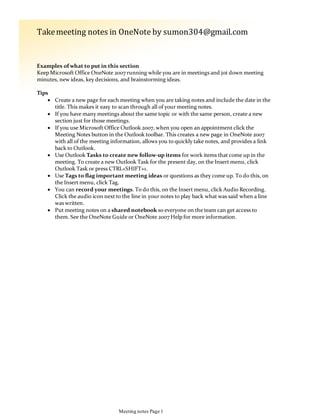
Examples of what to put in this section
Keep Microsoft Office OneNote 2007 running while you are in meetings and jot down meeting
minutes, new ideas, key decisions, and brainstorming ideas.
Create a new page for each meeting when you are taking notes and include the date in the
title. This makes it easy to scan through all of your meeting notes.

If you have many meetings about the same topic or with the same person, create a new
section just for those meetings.

If you use Microsoft Office Outlook 2007, when you open an appointment click the
Meeting Notes button in the Outlook toolbar. This creates a new page in OneNote 2007
with all of the meeting information, allows you to quickly take notes, and provides a link
back to Outlook.

Use Outlook Tasks to create new follow-up items for work items that come up in the
meeting. To create a new Outlook Task for the present day, on the Insert menu, click
Outlook Task or press CTRL+SHIFT+1.

Use Tags to flag important meeting ideas or questions as they come up. To do this, on
the Insert menu, click Tag.

You can record your meetings. To do this, on the Insert menu, click Audio Recording.
Click the audio icon next to the line in your notes to play back what was said when a line
was written.

Put meeting notes on a shared notebook so everyone on the team can get access to
them. See the OneNote Guide or OneNote 2007 Help for more information.

Tips
Takemeeting notes in OneNote by sumon304@gmail.com
Meeting notes Page 1
Project requirements and constraints
Brainstorming ideas
Decisions
Schedule
Status updates
Contact information
Examples of what to put in this section
To rename this section, right-click on the section tab and click Rename.
To keep track of everything related to your work, create as many sections as you would
like. If you find this notebook getting too cluttered, create a new notebook for each
project.

Tips
Keep track of work projectsin OneNote
Project A Page 2
<?xml version="1.0" encoding="utf-8" ?><atom version="2.0"
xml:base="http://www.acus.gov/committees/%2A/feed"
xmlns:dc="http://purl.org/dc/elements/1.1/">
<channel>
<title>ACUS Multimedia Gallery</title>
<link>http://www.acus.gov/committees/%2A/feed</link>
<description></description>
<language>en</language>
<item>
<title>60th Plenary Session</title>
<link>http://www.acus.gov/gallery/60th-plenary-session</link>
<description></description>
<pubDate>July 2, 2014 - 3:52pm EDT</pubDate>
<dc:creator />
<guid isPermaLink="false">2811</guid>
</item>
<item>
<title>59th Plenary Session</title>
<link>http://www.acus.gov/gallery/59th-plenary-session</link>
<description></description>
<pubDate>December 9, 2013 - 5:08 pm EST</pubDate>
<dc:creator />
<guid isPermaLink="false">2717</guid>
</item>
<item>
<title>58th Plenary Session</title>
<link>http://www.acus.gov/gallery/58th-plenary-session</link>
<description></description>
<pubDate>July 1, 2013 - 5:38pm EDT</pubDate>
<dc:creator />
<guid isPermaLink="false">2492</guid>
</item>
<item>
<title>57th Plenary Session</title>
<link>http://www.acus.gov/gallery/57th-plenary-session</link>
Project A Page 3
<link>http://www.acus.gov/gallery/57th-plenary-session</link>
<description></description>
<pubDate>December 15, 2012 - 10:46am EST</pubDate>
<dc:creator />
<guid isPermaLink="false">2354</guid>
</item>
<item>
<title>56th Plenary Session</title>
<link>http://www.acus.gov/gallery/56th-plenary-session</link>
<description></description>
<pubDate>June 15, 2012 - 8:59 pm EDT</pubDate>
<dc:creator />
<guid isPermaLink="false">2179</guid>
</item>
<item>
<title>55th Plenary Session</title>
<link>http://www.acus.gov/gallery/55th-plenary-session</link>
<description></description>
<pubDate>December 15, 2011 - 9:15 am EST</pubDate>
<dc:creator />
<guid isPermaLink="false">2357</guid>
</item>
<item>
<title>54th Plenary Session</title>
<link>http://www.acus.gov/gallery/54th-plenary-session</link>
<description></description>
<pubDate>June 15, 2011 - 8:15 am EDT</pubDate>
<dc:creator />
<guid isPermaLink="false">2356</guid>
</item>
<item>
<title>53rd Plenary Session</title>
<link>http://www.acus.gov/gallery/53rd-plenary-session</link>
<description></description>
Project A Page 4
<pubDate>December 15, 2010 - 8:00 am EST</pubDate>
<dc:creator />
<guid isPermaLink="false">2355</guid>
</item>
<item>
<title>Historical Photos</title>
<link>http://www.acus.gov/gallery/historical-photos</link>
<description></description>
<pubDate>January 12, 2010 - 8:06pm EST</pubDate>
<dc:creator />
<guid isPermaLink="false">2180</guid>
</item>
</channel>
</atom>
Wednesday,January 21, 2015
5:44 AM
Project A Page 5
ProjectB
Project B Page 6
Articles you find on the Web
Photographs or images from the Web
Related documents
Microsoft PowerPoint presentations
Examples of what to put in this section
Create a page for each topic you research. If you are researching something that requires
you to gather a lot of materials and information, create a Research notebook.

To insert files onto a page, on the Insert menu, click Files.
If you want to view and annotate the contents of a file directly on the page in Microsoft
Office OneNote 2007, on the Insert menu, click Files as Printouts.

Copy information from a Web site into OneNote 2007 as text. If you use Windows
Internet Explorer, look for the OneNote button in the toolbar. Select the information you
want to copy and click this button to send the information to OneNote 2007 in the
Unfiled Notes section.

When you copy information from a Web browser and paste onto a page, a reference link is
inserted on the page so you can always return to your source.

You can capture whatever you're looking at and insert it into OneNote as a searchable
image. To do this, on the Insert menu, click Screen Clipping or press Windows Logo
Key + S.

You can scan paper materialsdirectly into OneNote 2007. See OneNote 2007 Help for
more information.

Use the Send to Microsoft OneNote 2007 feature to print from any Microsoft Office
program directly into OneNote 2007.

Tips
Aboutthis section
Research Page 7
Examples of what to put in this section
Flight information
Car rental information
Other transportation details
Lodging information
Maps and directions
Itinerary
Activities and sightseeing opportunities
Planning a trip? Use Microsoft Office OneNote 2007 to gather all of your travel information in
one place. Store such things as:
Copy information from a Web site into OneNote 2007 as text. If you use Windows
Internet Explorer, look for the OneNote button in the toolbar. Select the information you
want to copy and click this button to send the information to OneNote 2007 in the
Unfiled Notes section.

Capture an article on the Web and insert it into Microsoft Office OneNote 2007 as a
searchable image. To do this, on the Insert menu, click Screen Clipping or press
Windows Logo Key + S.

To save e-mail messages in OneNote 2007, use the Send to OneNote feature in Microsoft
Office Outlook 2007.

To e-mail your travel information from OneNote 2007, go to the page you want to
send, and then, on the File menu, click E-mail.

Need to print everything out? Press the CTRL key and click the page tabs of the pages
that you want to include. On the File menu, click Print.

Tips
Aboutthis section
Travel Page 8
Destination:
Dates:
Itinerary:
Date Lodging Activities
Trip1
Travel Page 9
You can copy your flight information from the web:
Flight details
Airline
Ticket Number
Confirmation number
Where purchased
Cost
Car Rental
Company
Type of vehicle
Confirmation number
Cost
Transportation
Travel Page 10
Hotel details
Name
Location
Number of Nights
Accommodation details
Link to directions/map
HotelInformation
Travel Page 11
List of places to see and things to do
Place Reservation number Phone number Tour agency
Sightseeing
Travel Page 12
Destination:
Dates:
Itinerary:
Date Lodging Activities
Trip2
Travel Page 13
Examples of what to put in this section
You can easily manage your tasks with Microsoft Office OneNote 2007.
Create a Microsoft Office Outlook task from OneNote 2007.
If you are using Outlook 2003 or 2007, you can mark an item in your meeting notes with
an Outlook task flag:
To do this, on the Insert menu, point to Outlook Task, and choose flag for the time
frame you want or to quickly create an Outlook task for today, press Ctrl+Shift+1. Press
Ctrl+Shift+2 to create a task for tomorrow, and so on.
The task will appear in Outlook and will be synchronized with OneNote. You can easily
move between the OneNote and the Outlook copy of the task. .
Track tasks with Tags
You can track tasks with Tags. To do this, on the Insert menu, click Tag or to quickly
mark something with the default, clickable check box, press Ctrl+1.
To reorder items in a list, drag the paragraph handle or press ALT+SHIFT+Up arrow or
ALT+SHIFT+Down arrow.

To see all of your flagged items, on the View menu, click All Tagged Notes.
Tips
sumon30427@yahoo.com
Planning Page 14
Examples of what to put in this section
Use this section for any notes that don't fit well into any of the other sections in your notebook. If
you find yourself putting many related notes in this section, create a new section related to that
topic.
To quickly find what you are looking for in OneNote 2007, use the Find feature
(CTRL+F) . OneNote 2007 searches text, text within images, ink writing, and audio
recordings.

Want to start organizing some of these pages? Click the page tabs that you want to move,
and then drag them to the notebook or section where you want to put them. If you change
your mind, you can drag them back to this section.

Tips
Aboutthis section
Miscellaneous Page 15
Examples of what to put in this section
Keep Microsoft Office OneNote 2007 running while you are in meetings and jot down meeting
minutes, new ideas, key decisions, and brainstorming ideas.
Create a new page for each meeting when you are taking notes and include the date in the
title. This makes it easy to scan through all of your meeting notes.

If you have many meetings about the same topic or with the same person, create a new
section just for those meetings.

If you use Microsoft Office Outlook 2007, when you open an appointment click the
Meeting Notes button in the Outlook toolbar. This creates a new page in OneNote 2007
with all of the meeting information, allows you to quickly take notes, and provides a link
back to Outlook.

Use Outlook Tasks to create new follow-up items for work items that come up in the
meeting. To create a new Outlook Task for the present day, on the Insert menu, click
Outlook Task or press CTRL+SHIFT+1.

Use Tags to flag important meeting ideas or questions as they come up. To do this, on
the Insert menu, click Tag.

You can record your meetings. To do this, on the Insert menu, click Audio Recording.
Click the audio icon next to the line in your notes to play back what was said when a line
was written.

Put meeting notes on a shared notebook so everyone on the team can get access to
them. See the OneNote Guide or OneNote 2007 Help for more information.

Tips
Takemeeting notes in OneNote by sumon304@gmail.com
Meeting notes (2) Page 16

Project A

  • 1.
    Examples of whatto put in this section Keep Microsoft Office OneNote 2007 running while you are in meetings and jot down meeting minutes, new ideas, key decisions, and brainstorming ideas. Create a new page for each meeting when you are taking notes and include the date in the title. This makes it easy to scan through all of your meeting notes.  If you have many meetings about the same topic or with the same person, create a new section just for those meetings.  If you use Microsoft Office Outlook 2007, when you open an appointment click the Meeting Notes button in the Outlook toolbar. This creates a new page in OneNote 2007 with all of the meeting information, allows you to quickly take notes, and provides a link back to Outlook.  Use Outlook Tasks to create new follow-up items for work items that come up in the meeting. To create a new Outlook Task for the present day, on the Insert menu, click Outlook Task or press CTRL+SHIFT+1.  Use Tags to flag important meeting ideas or questions as they come up. To do this, on the Insert menu, click Tag.  You can record your meetings. To do this, on the Insert menu, click Audio Recording. Click the audio icon next to the line in your notes to play back what was said when a line was written.  Put meeting notes on a shared notebook so everyone on the team can get access to them. See the OneNote Guide or OneNote 2007 Help for more information.  Tips Takemeeting notes in OneNote by sumon304@gmail.com Meeting notes Page 1
  • 2.
    Project requirements andconstraints Brainstorming ideas Decisions Schedule Status updates Contact information Examples of what to put in this section To rename this section, right-click on the section tab and click Rename. To keep track of everything related to your work, create as many sections as you would like. If you find this notebook getting too cluttered, create a new notebook for each project.  Tips Keep track of work projectsin OneNote Project A Page 2
  • 3.
    <?xml version="1.0" encoding="utf-8"?><atom version="2.0" xml:base="http://www.acus.gov/committees/%2A/feed" xmlns:dc="http://purl.org/dc/elements/1.1/"> <channel> <title>ACUS Multimedia Gallery</title> <link>http://www.acus.gov/committees/%2A/feed</link> <description></description> <language>en</language> <item> <title>60th Plenary Session</title> <link>http://www.acus.gov/gallery/60th-plenary-session</link> <description></description> <pubDate>July 2, 2014 - 3:52pm EDT</pubDate> <dc:creator /> <guid isPermaLink="false">2811</guid> </item> <item> <title>59th Plenary Session</title> <link>http://www.acus.gov/gallery/59th-plenary-session</link> <description></description> <pubDate>December 9, 2013 - 5:08 pm EST</pubDate> <dc:creator /> <guid isPermaLink="false">2717</guid> </item> <item> <title>58th Plenary Session</title> <link>http://www.acus.gov/gallery/58th-plenary-session</link> <description></description> <pubDate>July 1, 2013 - 5:38pm EDT</pubDate> <dc:creator /> <guid isPermaLink="false">2492</guid> </item> <item> <title>57th Plenary Session</title> <link>http://www.acus.gov/gallery/57th-plenary-session</link> Project A Page 3
  • 4.
    <link>http://www.acus.gov/gallery/57th-plenary-session</link> <description></description> <pubDate>December 15, 2012- 10:46am EST</pubDate> <dc:creator /> <guid isPermaLink="false">2354</guid> </item> <item> <title>56th Plenary Session</title> <link>http://www.acus.gov/gallery/56th-plenary-session</link> <description></description> <pubDate>June 15, 2012 - 8:59 pm EDT</pubDate> <dc:creator /> <guid isPermaLink="false">2179</guid> </item> <item> <title>55th Plenary Session</title> <link>http://www.acus.gov/gallery/55th-plenary-session</link> <description></description> <pubDate>December 15, 2011 - 9:15 am EST</pubDate> <dc:creator /> <guid isPermaLink="false">2357</guid> </item> <item> <title>54th Plenary Session</title> <link>http://www.acus.gov/gallery/54th-plenary-session</link> <description></description> <pubDate>June 15, 2011 - 8:15 am EDT</pubDate> <dc:creator /> <guid isPermaLink="false">2356</guid> </item> <item> <title>53rd Plenary Session</title> <link>http://www.acus.gov/gallery/53rd-plenary-session</link> <description></description> Project A Page 4
  • 5.
    <pubDate>December 15, 2010- 8:00 am EST</pubDate> <dc:creator /> <guid isPermaLink="false">2355</guid> </item> <item> <title>Historical Photos</title> <link>http://www.acus.gov/gallery/historical-photos</link> <description></description> <pubDate>January 12, 2010 - 8:06pm EST</pubDate> <dc:creator /> <guid isPermaLink="false">2180</guid> </item> </channel> </atom> Wednesday,January 21, 2015 5:44 AM Project A Page 5
  • 6.
  • 7.
    Articles you findon the Web Photographs or images from the Web Related documents Microsoft PowerPoint presentations Examples of what to put in this section Create a page for each topic you research. If you are researching something that requires you to gather a lot of materials and information, create a Research notebook.  To insert files onto a page, on the Insert menu, click Files. If you want to view and annotate the contents of a file directly on the page in Microsoft Office OneNote 2007, on the Insert menu, click Files as Printouts.  Copy information from a Web site into OneNote 2007 as text. If you use Windows Internet Explorer, look for the OneNote button in the toolbar. Select the information you want to copy and click this button to send the information to OneNote 2007 in the Unfiled Notes section.  When you copy information from a Web browser and paste onto a page, a reference link is inserted on the page so you can always return to your source.  You can capture whatever you're looking at and insert it into OneNote as a searchable image. To do this, on the Insert menu, click Screen Clipping or press Windows Logo Key + S.  You can scan paper materialsdirectly into OneNote 2007. See OneNote 2007 Help for more information.  Use the Send to Microsoft OneNote 2007 feature to print from any Microsoft Office program directly into OneNote 2007.  Tips Aboutthis section Research Page 7
  • 8.
    Examples of whatto put in this section Flight information Car rental information Other transportation details Lodging information Maps and directions Itinerary Activities and sightseeing opportunities Planning a trip? Use Microsoft Office OneNote 2007 to gather all of your travel information in one place. Store such things as: Copy information from a Web site into OneNote 2007 as text. If you use Windows Internet Explorer, look for the OneNote button in the toolbar. Select the information you want to copy and click this button to send the information to OneNote 2007 in the Unfiled Notes section.  Capture an article on the Web and insert it into Microsoft Office OneNote 2007 as a searchable image. To do this, on the Insert menu, click Screen Clipping or press Windows Logo Key + S.  To save e-mail messages in OneNote 2007, use the Send to OneNote feature in Microsoft Office Outlook 2007.  To e-mail your travel information from OneNote 2007, go to the page you want to send, and then, on the File menu, click E-mail.  Need to print everything out? Press the CTRL key and click the page tabs of the pages that you want to include. On the File menu, click Print.  Tips Aboutthis section Travel Page 8
  • 9.
  • 10.
    You can copyyour flight information from the web: Flight details Airline Ticket Number Confirmation number Where purchased Cost Car Rental Company Type of vehicle Confirmation number Cost Transportation Travel Page 10
  • 11.
    Hotel details Name Location Number ofNights Accommodation details Link to directions/map HotelInformation Travel Page 11
  • 12.
    List of placesto see and things to do Place Reservation number Phone number Tour agency Sightseeing Travel Page 12
  • 13.
  • 14.
    Examples of whatto put in this section You can easily manage your tasks with Microsoft Office OneNote 2007. Create a Microsoft Office Outlook task from OneNote 2007. If you are using Outlook 2003 or 2007, you can mark an item in your meeting notes with an Outlook task flag: To do this, on the Insert menu, point to Outlook Task, and choose flag for the time frame you want or to quickly create an Outlook task for today, press Ctrl+Shift+1. Press Ctrl+Shift+2 to create a task for tomorrow, and so on. The task will appear in Outlook and will be synchronized with OneNote. You can easily move between the OneNote and the Outlook copy of the task. . Track tasks with Tags You can track tasks with Tags. To do this, on the Insert menu, click Tag or to quickly mark something with the default, clickable check box, press Ctrl+1. To reorder items in a list, drag the paragraph handle or press ALT+SHIFT+Up arrow or ALT+SHIFT+Down arrow.  To see all of your flagged items, on the View menu, click All Tagged Notes. Tips sumon30427@yahoo.com Planning Page 14
  • 15.
    Examples of whatto put in this section Use this section for any notes that don't fit well into any of the other sections in your notebook. If you find yourself putting many related notes in this section, create a new section related to that topic. To quickly find what you are looking for in OneNote 2007, use the Find feature (CTRL+F) . OneNote 2007 searches text, text within images, ink writing, and audio recordings.  Want to start organizing some of these pages? Click the page tabs that you want to move, and then drag them to the notebook or section where you want to put them. If you change your mind, you can drag them back to this section.  Tips Aboutthis section Miscellaneous Page 15
  • 16.
    Examples of whatto put in this section Keep Microsoft Office OneNote 2007 running while you are in meetings and jot down meeting minutes, new ideas, key decisions, and brainstorming ideas. Create a new page for each meeting when you are taking notes and include the date in the title. This makes it easy to scan through all of your meeting notes.  If you have many meetings about the same topic or with the same person, create a new section just for those meetings.  If you use Microsoft Office Outlook 2007, when you open an appointment click the Meeting Notes button in the Outlook toolbar. This creates a new page in OneNote 2007 with all of the meeting information, allows you to quickly take notes, and provides a link back to Outlook.  Use Outlook Tasks to create new follow-up items for work items that come up in the meeting. To create a new Outlook Task for the present day, on the Insert menu, click Outlook Task or press CTRL+SHIFT+1.  Use Tags to flag important meeting ideas or questions as they come up. To do this, on the Insert menu, click Tag.  You can record your meetings. To do this, on the Insert menu, click Audio Recording. Click the audio icon next to the line in your notes to play back what was said when a line was written.  Put meeting notes on a shared notebook so everyone on the team can get access to them. See the OneNote Guide or OneNote 2007 Help for more information.  Tips Takemeeting notes in OneNote by sumon304@gmail.com Meeting notes (2) Page 16